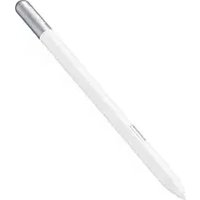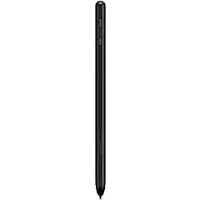
S Pen Pro - Digital stylus SAMSUNG - Free user manual and instructions
Find the device manual for free S Pen Pro SAMSUNG in PDF.

 FR
FR
 BG
BG
 CS
CS
 DA
DA
 DE
DE
 EL
EL
 EN
EN
 ES
ES
 ET
ET
 FI
FI
 HR
HR
 HU
HU
 ID
ID
 IT
IT
 KK
KK
 KO
KO
 LT
LT
 LV
LV
 NL
NL
 NO
NO
 PL
PL
 PT
PT
 RO
RO
 RU
RU
 SK
SK
 SL
SL
 SV
SV
 TR
TR
 UK
UK
 ZH
ZH
| Product type | Digital stylus |
| Brand | Samsung |
| Model | S Pen Pro |
| Connectivity | Bluetooth Low Energy (BLE) |
| Power | Rechargeable battery via USB cable |
| Package contents | S Pen Pro, pouch, stylus tips, tweezers, quick start guide |
| Main functions | Air Command, Air Actions, Note Express, Smart Select, Translate, Magnify, AR Doodle, etc. |
| Compatibility | Samsung devices with One UI 3.1 or higher |
| Safety | Contains magnets; avoid contact with credit cards or medical implants |
| Care and cleaning | Dry the charging connector before recharging; do not bend the stylus |
| Spare parts | Stylus tips and tweezers available separately |
| Repairability | Battery removal only by an authorized service center |
| Warranty | Using non-approved accessories may void the warranty |
Frequently Asked Questions - S Pen Pro SAMSUNG
User questions about S Pen Pro SAMSUNG
0 question about this device. Answer the ones you know or ask your own.
Ask a new question about this device
Download the instructions for your Digital stylus in PDF format for free! Find your manual S Pen Pro - SAMSUNG and take your electronic device back in hand. On this page are published all the documents necessary for the use of your device. S Pen Pro by SAMSUNG.
USER MANUAL S Pen Pro SAMSUNG
Please read this manual before using the S Pen to ensure safe and proper use.
- Descriptions are based on the S Pen's default settings.
- Default services that come with the S Pen are subject to updates and may no longer be supported without prior notice. If you have questions about a service provided with the S Pen, contact a Samsung Service Centre.
- Your S Pen contains magnets. Keep a safe distance between your S Pen and objects that may be affected by magnets such as credit cards and implantable medical devices. If you have an implantable medical device, consult your physician before use.
- This product includes certain free/open source software. The licence information of the open source software used in this product can be found at opensource.samsung.com.
Instructional icons

Warning: situations that could cause injury to yourself or others

Caution: situations that could cause damage to your device or other equipment

Notice: notes, usage tips, or additional information
Device layout and functions
Package contents
S Pen Pro
- Pouch
Pen nibs
- Tweezers
- Quick start guide

- The items supplied with the S Pen and any available accessories may vary depending on the region or service provider.
- The supplied items are designed only for this S Pen and may not be compatible with other devices.
- Appearances and specifications are subject to change without prior notice.
- You can purchase additional accessories from your local Samsung retailer. Make sure they are compatible with the S Pen before purchase.
- Use only Samsung-approved accessories. Using unapproved accessories may cause the performance problems and malfunctions that are not covered by the warranty.
- Availability of all accessories is subject to change depending entirely on manufacturing companies. For more information about available accessories, refer to the Samsung website.
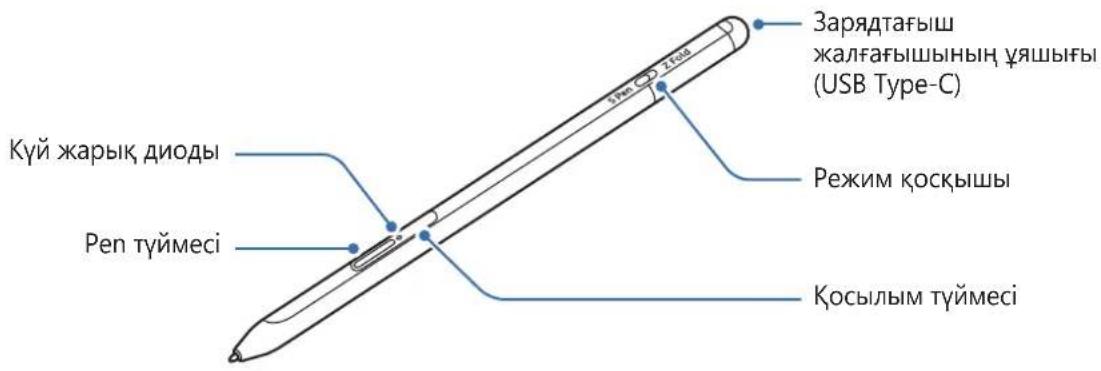
Device layout
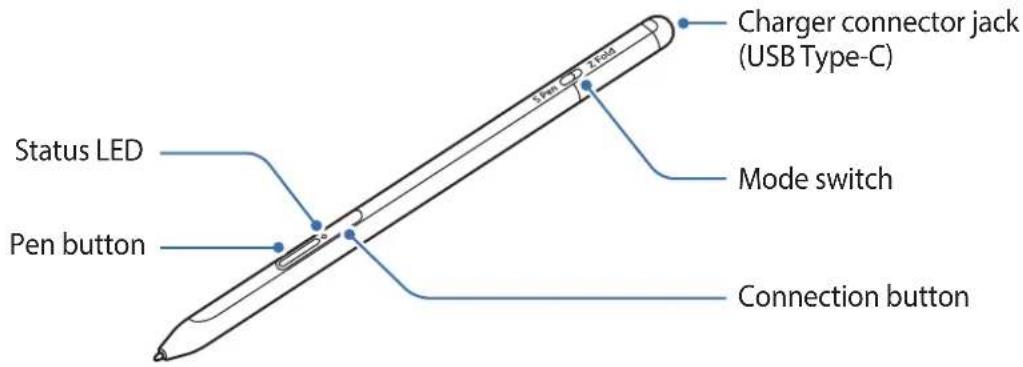
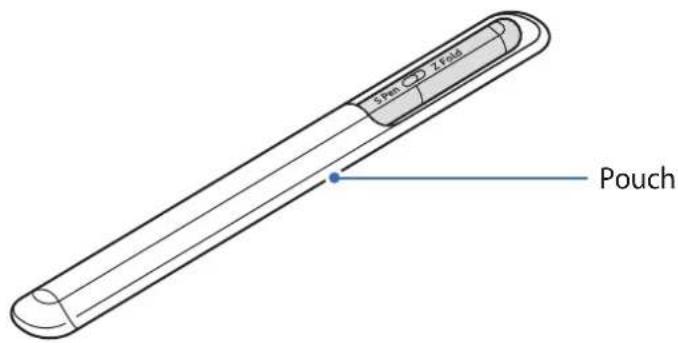
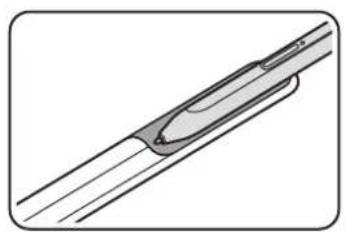
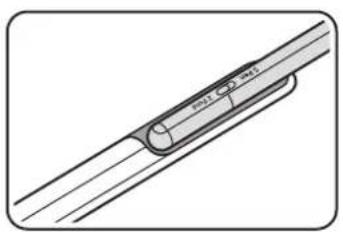
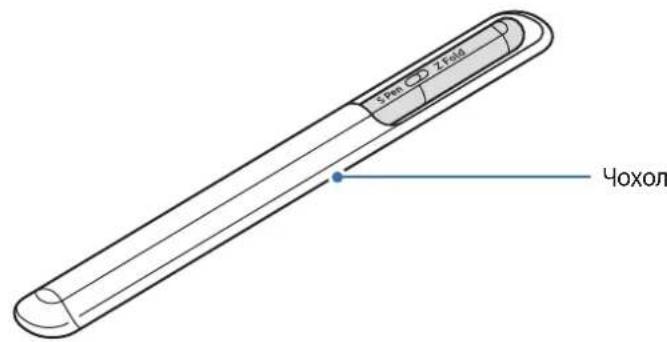
O

- Do not bend or apply excessive pressure with the S Pen while using it. The S Pen may be damaged or the nib may be deformed.
- Do not hard press on the screen with the S Pen. The pen nib may be deformed.
- Do not insert the round end of the S Pen into the pouch. Doing so may damage the S Pen.
- The shape of the pouch may change a little after use due to the nature of the material.

- If there is a magnet near the S Pen, some S Pen actions, such as charging or tapping the touchscreen, may not work.
- Even if the S Pen has been fully discharged, you can use other S Pen features, such as tapping the touchscreen or the Air command features.
- If you use the S Pen at sharp angles on the screen, the mobile device may not recognise the S Pen actions.
- If the S Pen is not working properly, take it to a Samsung Service Centre.
Buttons and switch
| Buttons and switch Function | |
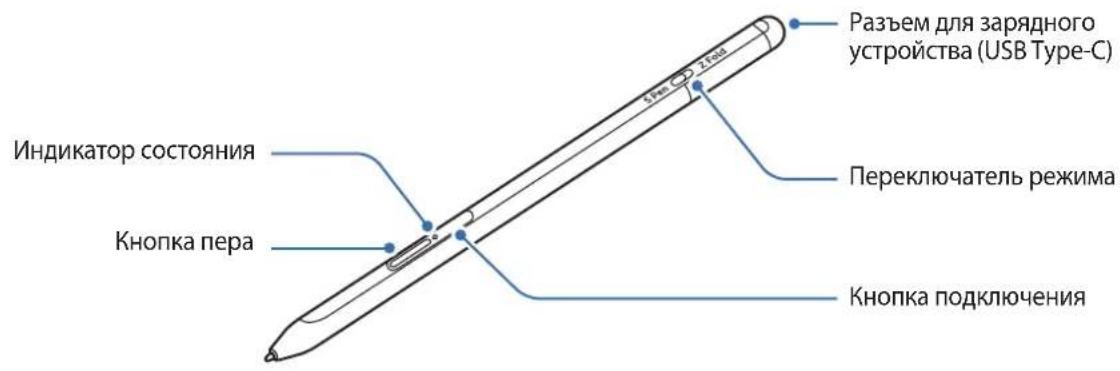
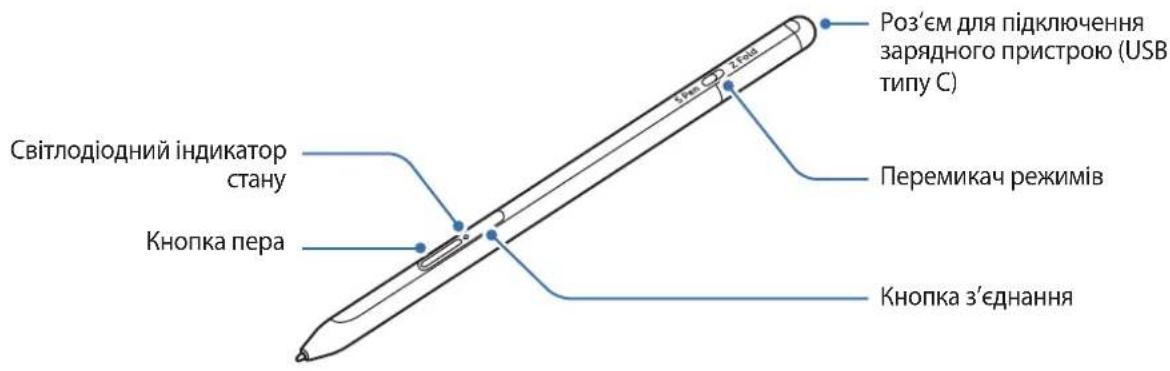
| Pen button | ·While pressing and holding the button, drag the S Pen over text or item lists to select text or multiple items. ·Hover the S Pen over the mobile device's screen and press the button to open the Air command panel. ·Press the button or wave the S Pen while pressing and holding the button to launch the preset action. |
| Connection button | ·Press and hold the button to enter pairing mode. ·Press the button to switch the connection to another mobile device signed in to the Samsung account. |
| Pen button + Connection button | ·Press and hold the buttons simultaneously for more than 7 seconds to restart the S Pen. |
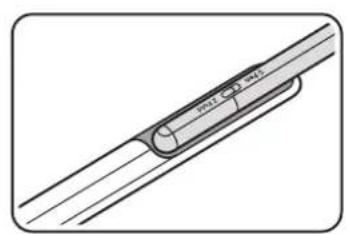
| Mode switch | ·Set the mode switch to Z Fold to use the S Pen on a foldable mobile device. |
Status LED
| Colour Status | |
| Flashes red → green → blue in order | • Pairing mode |
| Flashes blue | • Connected |
| Continuously red | • Charging |
| Continuously green | • Fully charged |
| Flashes red | • Battery power is low (lower than 5 %) |

If the status LED does not operate properly, reconnect the charger.
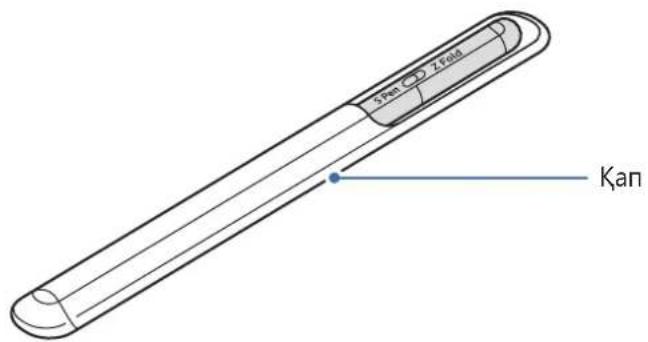
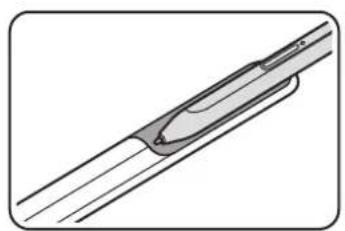
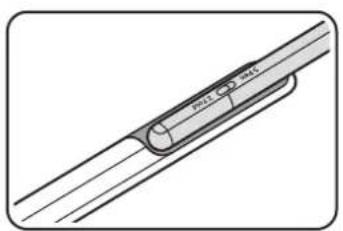
Attaching or detaching the S Pen
Attaching the S Pen
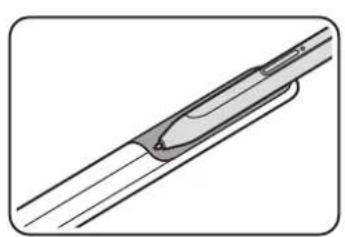
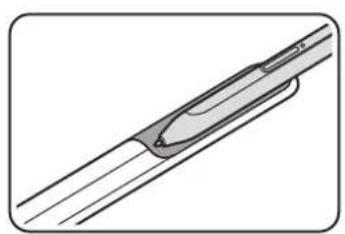
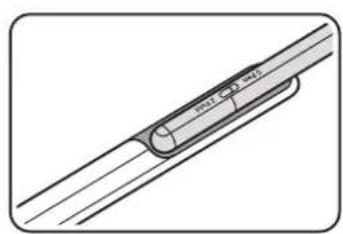
Attach the S Pen while pushing on the charging connector jack.
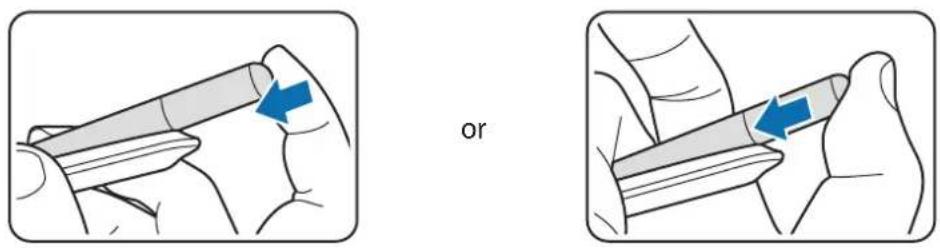
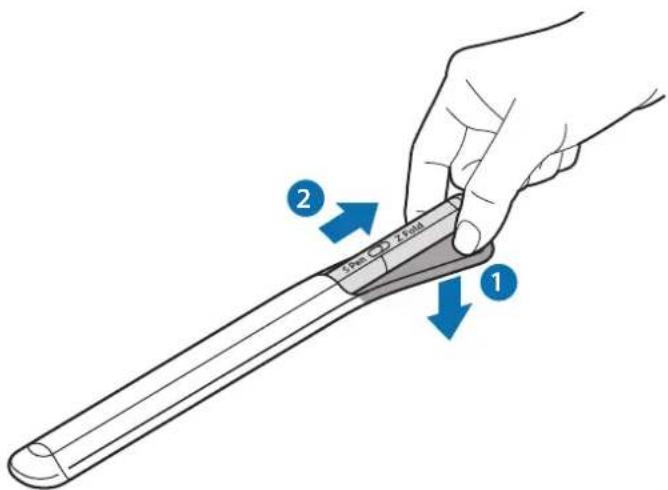
Detaching the S Pen
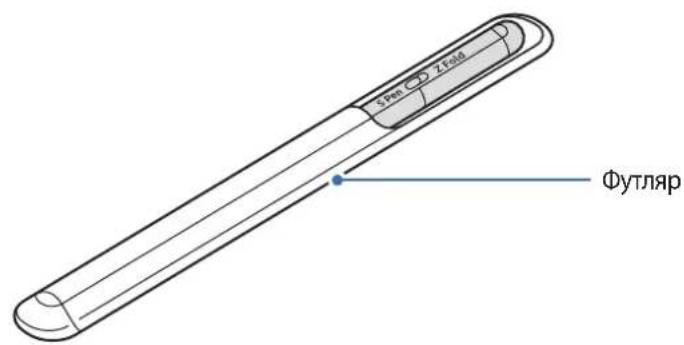
Push the pouch downwards and pull the S Pen out to detach it.
Charging the battery
Charge the battery before using it for the first time or when it has been unused for extended periods.
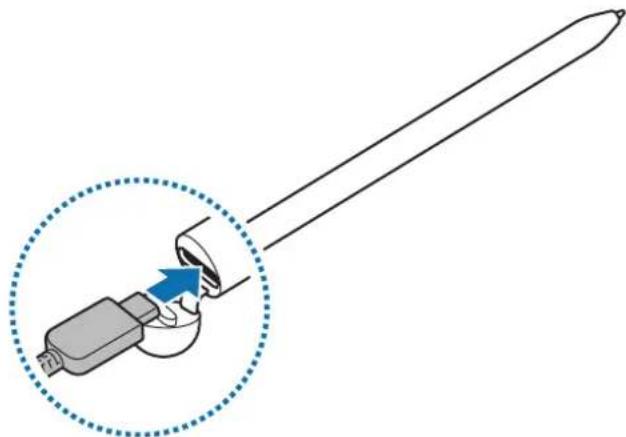
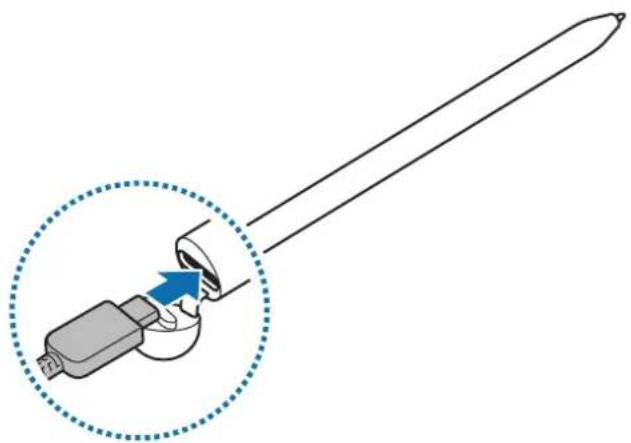
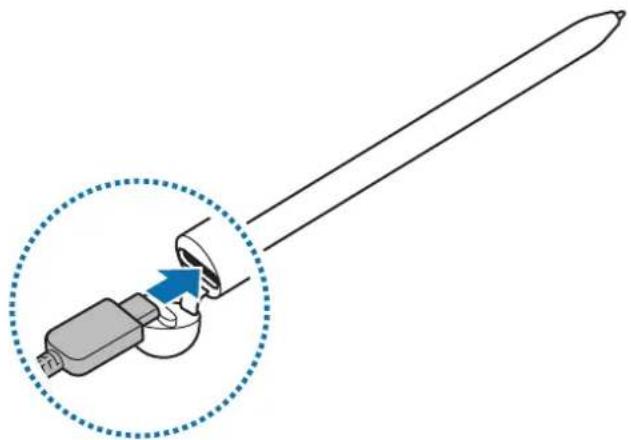
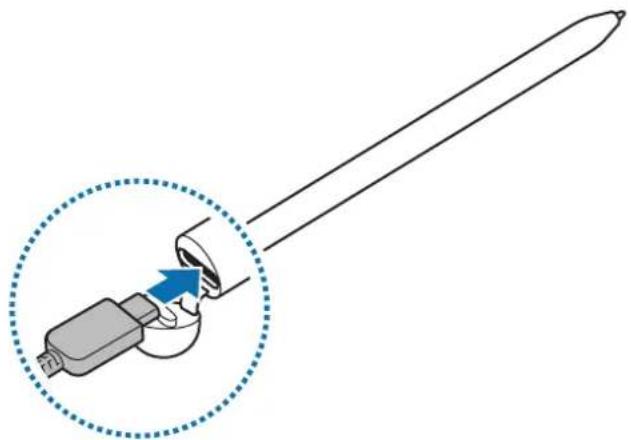
Connect the USB cable to the USB power adaptor and plug the cable into the S Pen's charger connector jack to charge the battery. After fully charging, disconnect the charger from the S Pen.
Use only Samsung-approved battery, charger, and cable specifically designed for your S Pen. Incompatible battery, charger, and cable can cause serious injuries or damage to your S Pen.
Connecting the charger improperly may cause serious damage to the S Pen. Any damage caused by misuse is not covered by the warranty.
To save energy, unplug the charger when not in use. The charger does not have a power switch, so you must unplug the charger from the electric socket when not in use to avoid wasting power. The charger should remain close to the electric socket and easily accessible while charging.
Battery charging tips and precautions
- The S Pen can be used while it is charging, but it may take longer to fully charge the battery.
- While charging, the S Pen and the charger may heat up. This is normal and should not affect the S Pen's lifespan or performance. If the battery gets hotter than usual, the charger may stop charging.
- If you charge the S Pen while the charger connector jack is wet, the S Pen may be damaged. Thoroughly dry the charger connector jack before charging the S Pen.
- If the S Pen is not charging properly, take the S Pen and the charger to a Samsung Service Centre.
Connecting to a mobile device
By connecting the S Pen to a mobile device, not only can you use its basic features, such as screen touch or handwriting, but also its various features, such as air actions.
1 Press the connection button for 3 seconds.
2 When a connection pop-up window appears on the mobile device, tap Connect.
3 Follow the on-screen instructions to complete the connection.

- Before connecting to a mobile device, update its One UI to a version higher than 3.1 and the SmartThings app and Air command to the latest version.
- When a connection pop-up window does not appear on the mobile device, launch the Settings app, tap Advanced features S Pen Air actions, and follow the on-screen instructions to complete the connection.
- When connecting to another mobile device after disconnecting from the previous mobile device, press and hold the connection button to enter pairing mode.
Using the S Pen
Air command
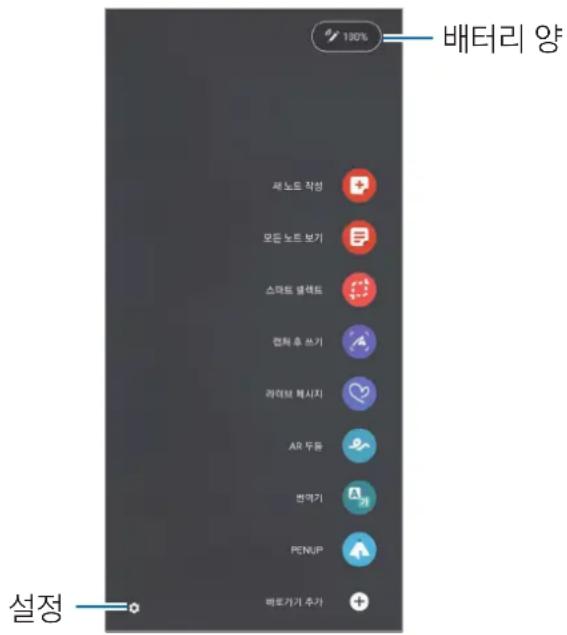
Air command is a menu that provides S Pen features and quick access to frequently used apps.
To open the Air command panel, hover the S Pen over the screen and press the Pen button. You can also tap the Air command icon ( ) with the S Pen.
Select a function or app on the Air command panel.
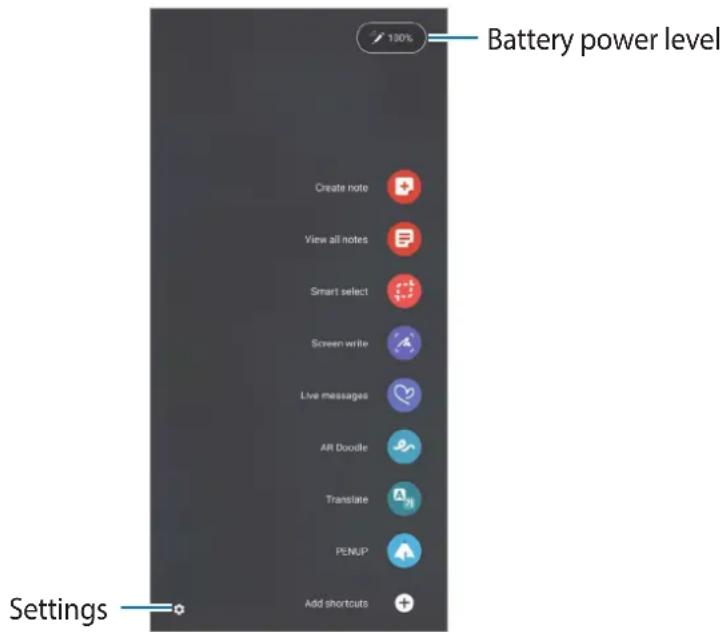
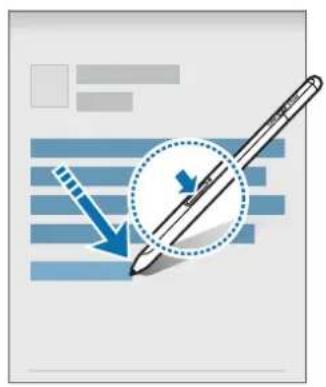
- Create note: Create notes easily in a pop-up window. You can also launch this feature by double-tapping the screen while pressing and holding the Pen button.
View all notes: View all notes in the Samsung Notes app. - Smart select: Use the S Pen to select an area and perform actions, such as sharing or saving.
- Screen write: Capture screenshots to write or draw on them or crop an area from the captured image. You can also capture the current content and the hidden content on an elongated page, such as a webpage.
Live messages: Instead of text message, create and send a unique message by recording your actions while handwriting or drawing a live message and saving it as an animated file.
AR Doodle: Record fun videos with virtual handwriting or drawings on faces or anywhere else.
Translate: Hover the S Pen over a word to translate it.
- PENUP: Post your artwork, view others' artwork, and get useful drawing tips.
- Bixby Vision: Use the Bixby Vision features to search for similar images, detect and translate text, and more.
- Magnify: Hover the S Pen over an area of the screen to enlarge it.
- Glance: Reduce an app to a thumbnail and hover the S Pen over the thumbnail to open the app in full screen view.
- Colouring: Add colours to images provided by PENUP using the S Pen.
- Write on calendar: Launch the Calendar app and write or draw on the screen.
- Add shortcuts: Add shortcuts to frequently used apps to the Air command panel.
Air command icon
When the Air command panel is closed, the Air command icon will remain on the screen. You can open the Air command panel by tapping the icon with the S Pen.
To move the icon, drag to a new location.
If the Air command icon does not appear on the screen, launch the Settings app, tap Advanced features S Pen, and then tap the Show air command icon switch to activate it.
While using apps that support the Air actions feature, you can view actions available with each app by hovering the S Pen over the Air command icon.
Pen Select
While pressing and holding the Pen button, drag the S Pen over text or item lists to select multiple items or text. You can also copy and paste the selected items or text into another app or share them with others.
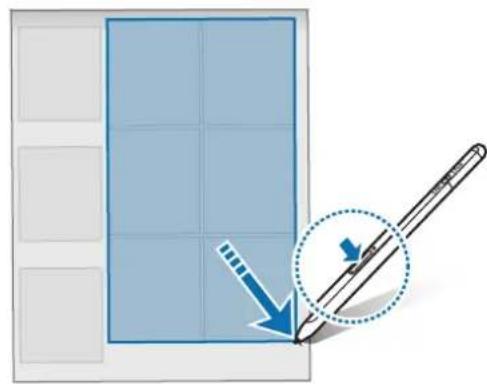
Screen off memo
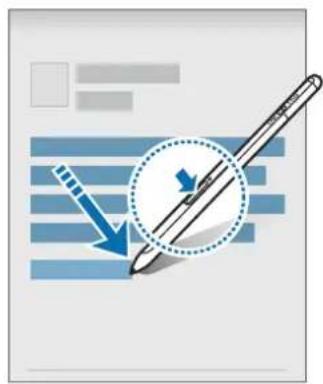
You can quickly create memos by writing on the screen without turning on it.
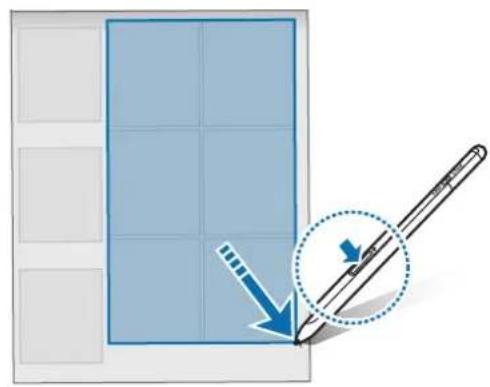
When the screen is off, hover the S Pen over the screen and press the Pen button.
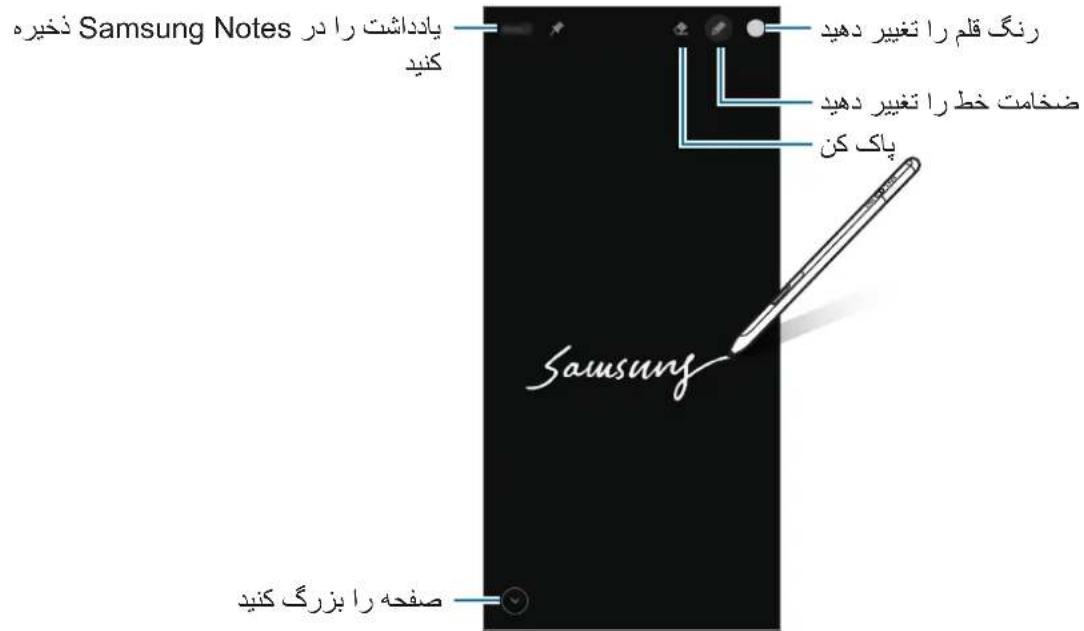
When you tap Save or reattach the S Pen to the S Pen charger after writing a memo, the memo will be saved to Samsung Notes.
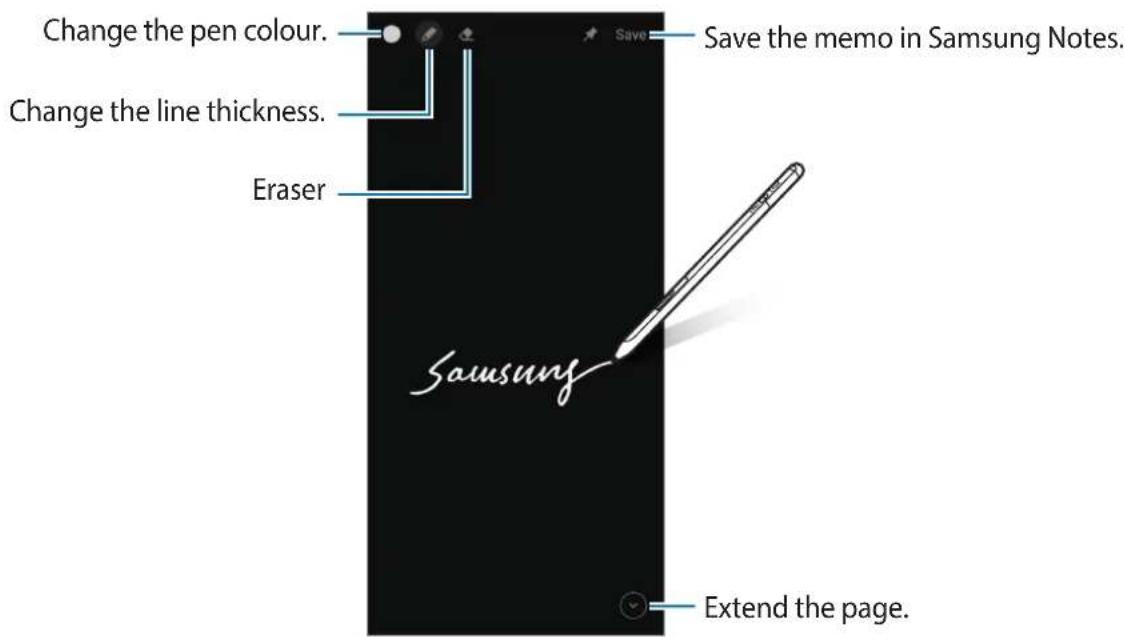

If this feature is not activated, launch the Settings app, tap Advanced features S Pen, and then tap the Screen off memo switch to activate it.
Air actions
Control apps remotely by using the S Pen connected to your mobile device via Bluetooth Low Energy (BLE).
For example, you can quickly launch apps, such as the camera app, by pressing and holding the Pen button. Also, while using the camera app, you can take a photo by pressing the button once. While playing music, you can turn the volume up if you lift the S Pen up while pressing and holding the Pen button and turn the volume down if you lower it.

The S Pen must be charged before you can use the Air actions feature. Refer to Charging the battery for more information.
Taking photos with the S Pen
Even though you take photos with your mobile device placing for a distance, you can easily take photos by pressing the Pen button without setting a timer.
1 Launch the Settings app, tap Advanced features S Pen Air actions, and then tap the switch to activate the feature.
2 Launch the Camera app.
3 Press the Pen button once to take a photo.
To take a series of photos, press and hold the Pen button.
- To change the shooting mode, move the Pen to the left or right while pressing and holding the Pen button.
- To switch between cameras, press the Pen button twice.
Changing apps or features to use
Change the app, feature, or actions you want to use with the S Pen feature. Launch the Settings app, tap Advanced features S Pen Air actions.
Resetting your S Pen
If the S Pen has connection problems or the S Pen disconnects often, reset the S Pen and connect it again.
Open the Air actions setting screen and tap Unpair S Pen.
Finding my S Pen
If you lose your S Pen, you can track its location and find it easily.
Launch the Settings app and tap Advanced features S Pen Find my S Pen
The screen will switch to the SmartThings app screen and your S Pen's location will be displayed.
Settings
Change various S Pen settings.
Launch the Settings app and tap Advanced features S Pen.
- Air actions: Set actions to launch when pressing the Pen button or waving the S Pen while pressing and holding the Pen button. Refer to Air actions for more information.
- Screen off memo: Set the S Pen to use the Screen off memo feature. Refer to Screen off memo for more information.
- Quick create notes: Set to create a new note by tapping the screen twice while pressing and holding the Pen button.
- Air view: Set the S Pen to use the Air view feature. You can preview content or view information in a pop-up window by hovering the S Pen over an item on the screen.
- Show pointer when hovering: Set to show the S Pen pointer when hovering the S Pen over the screen.
- Shortcuts: Add shortcuts to frequently used apps to the Air command panel.
- Show air command icon: Show a floating icon to open the Air command panel. Refer to Air command icon for more information.
- Open Air command with Pen button: Set to open the Air command panel when hovering the S Pen over the screen and pressing the Pen button.
- Sounds: Set to activate sounds when using the S Pen, such as when handwriting with it.
Find my S Pen: Launch the Find my S Pen feature. Refer to Finding my S Pen for more information. - Tips for using your S Pen: View how to use various features, such as translation or magnification.
- About S Pen: View the S Pen version and regulatory information.
- Contact us: Ask questions or view frequently asked questions.
Appendix
Troubleshooting
Before contacting a Samsung Service Centre, please attempt the following solutions. Some situations may not apply to your S Pen.
Your S Pen does not turn on
When the battery is completely discharged, your S Pen will not turn on. Fully charge the battery before turning on the S Pen.
Your S Pen freezes or encounters a fatal error
If your S Pen is frozen and unresponsive, press and hold the Pen button and the Connection button simultaneously for more than 7 seconds to restart it.
The battery does not charge properly (For Samsung-approved chargers)
Ensure that the charger is connected properly.
The battery depletes faster than when first purchased
- When you expose the S Pen or the battery to very cold or very hot temperatures, the useful charge may be reduced.
- The battery is consumable and the useful charge will get shorter over time.
Bluetooth is not working well
If your S Pen is not located or there are connection problems or performance malfunctions, try the following:
- Ensure that your S Pen is ready to be scanned or connected to.
- Ensure that your S Pen and the other Bluetooth device are within the maximum Bluetooth range (10 m).
If the tips above do not solve the problem, contact a Samsung Service Centre.
Removing the battery
- To remove the battery, contact an authorised service centre. To obtain battery removal instructions, please visit www.samsung.com/global/ecodesign_energy.
- For your safety, you must not attempt to remove the battery. If the battery is not properly removed, it may lead to damage to the battery and device, cause personal injury, and/or result in the device being unsafe.
- Samsung does not accept liability for any damage or loss (whether in contract or tort, including negligence) which may arise from failure to precisely follow these warnings and instructions, other than death or personal injury caused by Samsung's negligence.
Copyright
Copyright © 2021 Samsung Electronics Co., Ltd.
This manual is protected under international copyright laws.
No part of this manual may be reproduced, distributed, translated, or transmitted in any form or by any means, electronic or mechanical, including photocopying, recording, or storing in any information storage and retrieval system.
Trademarks
SAMSUNG and the SAMSUNG logo are registered trademarks of Samsung Electronics Co., Ltd.
- Bluetooth® is a registered trademark of Bluetooth SIG, Inc. worldwide.
- All other trademarks and copyrights are the property of their respective owners.
Fonctions de base
Copyright © 2021 Samsung Electronics Co., Ltd.
Copyright © 2021 Samsung Electronics Co., Ltd.
Copyright © 2021 Samsung Electronics Co., Ltd.
Copyright © 2021 Samsung Electronics Co., Ltd.
Copyright © 2021 Samsung Electronics Co., Ltd.
Copyright © 2021 Samsung Electronics Co., Ltd.
Baɪnər S Pen He ce BkJIIOUcBa
Ako 6aTePnraT e HantbIHO n3ToUeHa Baunr T S Pen. Hma da ce BkIoUcN. 3apeTe HantbIHO 6aTePnraT npen da BKIOuHTe S Pen.
Bluetooth He pa6oTn do6pe
AkoBaunrT S Pen He e HamepeH nIIN mApno6JIeMn C Bp3KaTa IIN c pa6OtaT, ONNTaTe CneHOTo:
- YBepete ce, ye S Pen e roTOB 3a cKaHnpaHe nIIN CBbp3BaHe.
- Поберетадам S Pen и дуровBluetooth устю сье наMuPaВ MaKcMaHnЯ Дианэн 3a CBbp3BaHeЧрзBluetooth (10 m).
Ako ropnHe cBbTeH He pa3peWaT npO6nMa, CbByKeTe ce cbc cepBn3eH cHTbp Ha Samsung.
Copyright © 2021 Samsung Electronics Co., Ltd.
ToBa pBkoBOIDTO e 3aIHTeHO OT MExdyHapOdHi 3aKOHN 3a aBTOpCKn IpaBa.
HnKoA cT OT pBKOBOCTBOTO He MoKe Ja 6bJe Bb3npOn3BexJaHa, pa3npocTaHЯBaHa, npeBeXdaHa Nn npExBbPraHa NO KaBATo I Da e fOpMa NNn NO KaBbTO I Da e NaUN, eNeKTpoHeN NNm MexaHueH, B TOBa YnCNo fOTOKOINpaHe, 3aNNc NNn CbXpaHEnE B KaBATo I Da e CnCTema 3a INhOpMaunOHn CbXpaHene N n3BnUaHe.
TbproBcN MapKn
SAMSUNG n IoroTo ha SAMSUNG ca pernctpnpaHn TbproBckn Mapkn Ha Samsung Electronics Co., Ltd.
- Bluetooth® e perúctpupaHa TbproBcka Mapka Ha Bluetooth SIG, Inc. no cêjna cbrt.
BcnuKn npyTbprockn Mapkn n ABTOpcn npaba ca co6CTBeHOCT Ha cBoTBeTHnte IM Co6CTBeHnI.
Osnov
Najprije pročitajte
Pije uporabe S olovke pažljivo pročitajte ovaj prisćnik kako biste osigurali sigurnu i pravilnu uporabu.
Opisi se temelje na tvornickim postavkama S olovke.
- Zadane usluge koje dolaze sa S olovkom podložne su azuriranjima i mogu biti predmet prestanka podrške bez prethodne njave. Ako imate pitanja o usluzi koja je isporučena sa S olovkom, obratite se Samsung servisnom centru.
- Vaša S olovka sadržava magnete. Držite se na sigurnoj udaljenosti izmeču S olovke i predmeta na koje magneti mogu utjecati, poput kreditnih kartica i medicinskih urežaja koji se mogu ugraditi. Ako imate medicinski urežaj koji se može implantirati, prije upotrebe posavjetujte se s liječnikom.
- Proizvod uključuje odreženi besplatni softver/softver otvorenog koda. Informacije o licenci za softver otvorenog koda koji se koristi u ovom proizvodu mogu se naci na opensource.samsung.com.
Koristeni symboli

Upozorenje: situacije u kojima se vi ili druge osobe要去e ozljediti

Copyright © 2021 Samsung Electronics Co., Ltd.
Ovaj je prisčnik zašićen meünarodnim zakonima o zašiti autorskih prava.
Niti jegan dio ovog prisučnika ne smije se reproduci rat, distribuirati, prevoditi ili prenositi u bilo kojem obliku, ni na koji način, elektronički ili mehanički, uključujuci fotokopiranje, snimanje ili pohranjivanje na bilo kojem mediju za pohranu informaci je sustavu dohvata podataka.
Zašitni znakovi
Copyright © 2021 Samsung Electronics Co., Ltd.
Ovaj prisucnik je zasticen medunarodnim zakonima o autorskim pravima.
Nijedan deo ovog prisucnika se ne sme reproducovati, distribuirati, prevoditi niti prenositi ni u Jednom obliku niti bilo kojim putem, elektronskim niti mehaniickim, sto podrazumeva fotokopiranje, snimanje i skladištenje u okviru bilo kog skladišta informacija i systemd za preuzimanje.
Trgovačke marke
SAMSUNG i SAMSUNG logotip predstavljaju registrovaneŽigove kompanije Samsung Electronics Co., Ltd.
- Bluetooth® je registrovana trgovačka marka kompanije „Bluetooth SIG, Inc." širom sveta.
- Sve ostale trgovačke marke i autorska prava su vlasništro njihovih vlasnika.
Básico
Leia primeiro
Copyright © 2021 Samsung Electronics Co., Ltd.
Copyright © 2021 Samsung Electronics Co., Ltd.
Copyright © 2021 Samsung Electronics Co., Ltd.
Copyright © 2021 Samsung Electronics Co., Ltd.
Copyright © 2021 Samsung Electronics Co., Ltd.
Copyright © 2021 Samsung Electronics Co., Ltd.
Copyright © 2021 Samsung Electronics Co., Ltd.
Telif hakki © 2021 Samsung Electronics Co., Ltd.
S Pen 1nnnnae nnnnne nnnnne nnnnne nnnnne nnnnne
S Pen uauuuaa aauuauauuauuuu uuuuuuuuuuuuuuuuuuuuuuuuuuuuuuuuuuuuuuuuuuuuuuuuuuuuuuuuuuuuuuuuuuuuuuuuuuuuuuuuuuuuuuuuuuuuuuuuuuuuuuuuuuuuuuuuuuuuuuuuuuuuuuuuuuuuuuuuuuuuuuuuuuuuuuuuuuuuuuuuuuuuuuuuuuuuuuuuuUU
S Pen 1n nn nnnn nn nnnn nn nnnn nn nnnn nn nnnn nn nnnn nn nnnn nn nnnn nn nnnn nn nnnn nn nnnn nn nnnn nn nnnn nn nnnn nn nnnn nn nnnn nn nnnn nn nnnn nn nnnn nn nnnn nn nnnn nn nnnn nn nnnn nn nnnn nn nnnn nn nannn nn nnnn nn nnnn nn nnnn nn nnnn nn nnnn nn nnnn nn nnnn nn nnnn nn nnnn nn nnnn nn nnnn nn nnnn nn nnnn nn nnnn nn nnnn nn nnnn nn nnnn nn nnnn nn nnnn nn nnnn nn nnnn nn
- nn S Pen 1
Copyright © 2021 Samsung Electronics Co., Ltd.
y
1
SAMSUNG SAMSUNG Samsung Electronics Co., Ltd.
- Bluetooth® 5G, 5G, 5G, 5G, 5G, 5G, 5G, 5G, 5G, 5G, 5G, 5G, 5G, 5G, 5G, 5G, 5G, 5G, 5G, 5G, 5G, 5G, 5G, 5G, 5G, 5G
- 1
Dasar
Baca terlebih dahulu
S palai aiial jaiy iui 1iie aai
1 1
.
a a a a a a a a a a a a a a a a a a a a a
a 1
aS jao gao jao laS lgaia aillw jao
J 1
1
PENUP
Bixby Vision Bixby Vision
la yil aillally abio 5 pJy:
aaiiie iie
Jolli
.5 PENUP 1
aiee
a
yill jai jil jia gaii all jzai s 1s
S = 12
S OBC = S COD + S BOC - S BOC
J 1 J 1 J 1 J 1 J 1 J 1 J 1 J 1 J 1 J 1 J 1 J 1 J 1 J 1 J 1 J 1 J 1 J 1 J 1 J 1 J 1 J 1 J 1 J 1 J 1 J 1 J 1 J 1 J 1 J 1 J 1 J 1 J 1 J 1 J
S Pen 5 g w s j 1
Jai Jia Jia Jia Jia Jia Jia Jia Jia Jia Jia Jia Jia Jia Jia Jia Jia Jia Jia Jia
J 3.1 J 2 J 1 J 0ne UI 8

j 4
g j 1 J 1 1 1 1 1 1 1 1 1 1 1 1 1 1 1 1
1r 1
Bixby Vision Bixby Vision
2.152 = 1 : 50
S Pen:
Jol 1111111111111111111111111111111111
23
PENUP S Pen jai
.
a
aai jn jnnnnae
Jal Jd Jn Jn Jn Jn Jn Jn Jn Jn Jn Jn Jn Jn Jn Jn Jn Jn Jn Jn Jn Jn Jn Jn Jn Jn Jn Jn Jn Jn
S Pen jolai
← 4
S Pen
i 1 1 1 1 1 1 1 1 1 1 1 1 1 1 1 1 1 1 1
S Pen
Pen
1 1 1 1 1 1 1 1 1 1 1 1 1 1 1 1 1 1 1 1 1 1 1 1 1 1 1 1 1
golga
1
S Pen 1
S Pen 1 S Pen 1
Samsung Notes
S Pen 8 jw c gk- s yj 1
S Pen
S Pen
S Pen Pn S Pen
S Pen Spen
#
S Pen 1
S Pen
S Pen 1 S
aalalalalalalalalalalalalalalalalalalal
aai aai iaaai aai ai aai ai
aalaaal aalaaal aaalaaal
S Pen 154
jgl 10
J 1111111111111111111111111111
Pepn 1
S Pen 0
S Pen jolal
S Pen S Pen
124 202jL jIg 202i 202j g jI y 202j y
La S Pen Jai 1
S Pen
S Pen n nn nnnnnaa S Pen aas
S Pen
g j 1 j j j j j j j j j j j j j j j j j j j j j j j j j j j j j j j j j j j j j j j j j j j j j j j j j j j j j j j j j j j j j
()
.
a
S Pen 1
i
S Pen 1
.
.
Copyright © 2021 Samsung Electronics Co., Ltd.
aal lal y 1y
y 1
Jia 100000000000000000000000000000000000000000
sJ sla
Samsung Electronics Co., Ltd.
Bluetooth SIG, Inc.
1
Ochobhble onepaun
BheuHn Bua yctpoCTBa
O

He crn6aIte nepo S Pen n He npnilaraite K Hemy qpe3mepbix ycnni BO BpemnnoB0aHna. Nepo S Pen moKet noBpeDntbcra, a erO hakoHeuHK moKet deOpMnpoBaTbcra.
He nadabnBaTe nepom S Pen Ha ekpaH cnikom cnIbHO. HakoheuHK nepa MoKet deOpMnPoBaTbcra.
He BCTabnIte nepo S Pen kpyrIbIM KOHcOM B cyTnp. 3To moKeT nobpeDntb nepo S Pen.
Bbny xapaKTepa MaTePnana oOpMa yexna MoKeT He3HaHTeNbHO N3MeHHTbCBA XOJe NcNoIb3ObaHnA.

- Ecni pIaOM c nepom S Pen haxoJrTcMaHHTbI, HeKOTOpbIe fynKcII nepa S Pen, TaKne KaK 3apJaKa nn KacAHne ceHCOPHOrO 3kpaHa, Moryt He pa60TaTb.
JaXe B cnUyae nonHoi pa3pIaKn nepa S Pen moXho nCnoIb3ObaTb dpYrne yHKcun S Pen, HapPImep, KOHTeKCTHbIe KOMaHdbI INN ynpaBHeHne C NOMoUsbO ceHCOPHOrO 3KpaHa.
Bcnyae nCnoIb3OBAHnI nepa S Pen noJ octpbIMyrgamnpKacAHn 3kpaHa,JeICTBnepa S Pen MOryt He paCno3HaBaTbcra Mo6nIbHbIM yCTpoiCTBOM. - Ecn npo S Pen He pa60tae TdoJHKbIM o6pa3OM, o6paTNTecb C HmB cepBnchbl ueHtp Samsung.
KhoPkn npepeKIOUaTeIb
Ipeed nepBbIM NcNoB3OBaHHeM NnN NoCne npOdoJXtEnbHOrO nepNoDa, B TeueHne KOTOPoR OH He NcNoB3OBaJIcR, Heo6xOdIMO 3apAaNTb aKKyMylrTOp.
Подключite Ka6ь USB K USB-адаNTepу nHTaHnI BCTaBbTe Ka6ь B pa3beM KOHKeTopa 3apdHoro yctpoiCTBa S Pen,ЧTO6ы 3apЯДиТь aKKyMЛТOP. ПО OKOHuaHn 3apяДК N OTCoeДиHITe 3apЯДHoe yCTpoiCTBO OT nepa S Pen.

Icnoj3yTe TOnbKO Odo6peHbIE KOMnHaHei Samsung aKKymyIaTOp, cTeBoe 3apJHOe yCTPOICTBO n Ka6eJIb, npedHa3NaueHHbIe CneuaJIbHO dJI nape S Pen. HecOBMeCTmbl aKKymyIaTOp, 3apJHOe ycTroIcTBo n Ka6eJIb MOrTy pInBecTI K cepBe3HbIM TpaBMaM mII NOBpeJeHIO nepa S Pen.

HenpaBnIbHoe nOdkIoueHne ceTeBOro 3apAHOro yCTpoiCTBa moKet npINBeCTN K cepBe3HOMy nobpeXJeHIO nepa S Pen. IapaHTnHe paCnpocTpaHReTcna HIo6bIe NobpeXJeHn, Bo3HKnUne B pe3yIbTaTe HenpaBnIbHOrO nCNoIb3ObaHn yCTpoiCTBa n AkceccyapOB.

B ueJx 3Kohomn 3JeKtpo3Hepn n OTKIOUaTe CeTbeO 3apdHoe yCTpoNCTBO, cIIN OHO He
NCNoJIb3yeTc. 3apdHoe yCTpoNCTBO He OCHAeHo nepeKIOuAteMe NITAHn, NO3OMy erO HyXHO
OTKIOUaTb OT 3JeKTPnuEckO CEtn, YTO6bl IpepBaTb PPOeCC 3ApJDKn I C3KOHOMtB 3JeKTPo3HepnIO.
Pp INCnoJIb3OBaHm n CeTbe 3apdHoe yCTpoNCTBO DOJXHO NNOTHO pInneraTb K 3JeKTPnuEckO
Po3ETke 6bITb JERKO DOCTynHbIM.
CobetbI Mepbl ppeoctopoxhoCTn dla 3apaidn aKKymyTopa
BoBpem3apdkn nepa S Pen mMOxHO nOlb3oBaTbC, Ho 3TO 3aMeIpyET npOeCC 3apdkn.
- Iepo S Pen n 3apraHoe yctpoiCTBO MOrTy HArpeBaTbC B O Bpemr 3apraKn. 3To HopMaIbHoe ABlHeHne, He BInraUoIee Ha npOn3BoDInteBHoCTb n Cpok cnJx6bl S Pen. Ecnn akkymyIaTOp HArpeTc8 6OJIbSe 0bIuHoro, 3apraKa aKKymyIaTopa MoKeT 6bl T pKePaueHa.
- Ecln B MOMENT 3aprKn nepa S Pen pa3bem KOHHeKTopa 3aprHOrO yctpoiCTBa OKaKeTcBnXHBIM, nepo S Pen moKet nobpeDntbcra. TuaTeIbHO BbCyuNte pa3bem KOHHeKTopa 3aprHOrO yctpoiCTBa, npexJe cem 3apxKaTb nepo S Pen.
- Ecn npo S Pen He 3apjxtaetcdoJXhIM o6pa3OM, 6paTntecb C Hm N C 3apJHbIM yCTPOICTBOM B cepBnchbl ueHTp Samsung.
KoHTeKCTHbIe DeiCTBnA
YnpabnIte npiloxeHnMn DnCTaHcnoHNO C nOmoBIO nepa S Pen, NOdkluoyehHomy K MObNbHOMy yctpoiCTBy no Bluetooth Low Energy (BLE).
Hanpimep, moxho 6bICTpo OTKpbBaT npnIOXeHna, taKne KaK «Kamepa», haxab u ydepXNBa KhONky nepa. Moxho TAKKe BO BpeM nCNoJIb3OBAHn npnIOXeHna KamepbI cJeNaTb FOTo, haxab KHOkny oINH pa3. Bo BpeM BOCIpOn3BeDeHn My3bIK moxho yBEnuHTb rPOMKOcTB, eCIn noDnHrTb nePo S Pen, haxab u ydepXNBa KhoNky nepa, n UMeHbUHTb rPOMKOcTB, onyCTNB nepo.

Ipeed nCnoB3ObaHnem yHKuN ynpaBneHnja keCTamn nepo S Pen doJxHo 6bITb 3apJxHeo. DOnonHnteNbHa nHΦopMaunca codepKHTcB pa3dene 3apJka aKKyMylraTopa.
CbeMa fOTo c nOMoubI npa S Pen
Hapny co cbeMKo fOTo C NOMOu MObIbHO rYCTPOcTBA C paCCTOaHnMoXHo C JERKOCTbIO DeLaTb fOTo, Haxab Ha KONky nepa, He yCTaHaBnBa TaMep.
1 OTKpoTe npnIOKeHne HAcTpoKn, Bbl6epNTe nyHKT DOnONHtEnbHbIe yHKcN S Pen KOHTekThbIe deiCTBnA, a 3aTeM KocHTecb nepeKlOuataTnA, YTObI BKJIouHTb COOTBeTCTByIoUyO yHKcNIO.
2 OTKpoIte npInIOxKeHne KaMepa.
3 Haxmte KhoNky nepa oH pa3, yTo6bI cJeNaTb CHMOK.
- Yto6bI cIeJIaTb cepINIO CHIMKOB, HaxMnTe n yIepXnBaIte KHOJky nepa.
- Yto6bI cMeHnTb peKIM CbEMKn, npOBeIte nepom BneBO nII INBnpaBO, HxKaB u ydepXINBa KHOkny nepa.
-Для покюец Мжд Камергн Нхмп Кногу nepa Два pa3a.
I3meHHe nCNoJb3yeMbIX npINOKeHn nn fYHKcui
Moxho n3MeHnTb npNoXeHne, yHKuIO nn JecTb, nCnoB3yEmbIe c nOmoIb npa S Pen. OTKpoIte npNoXeHne HacTpoiKn, Bbl6epnte nyHKT DOnoHNHeIbHbIe FyHKuIN S Pen KoHTekThbIe deIcTBnA.
C6poc nepa S Pen
EcnB03HnKnI npo6JIeMbI c noKIOUeHHeM nepa S Pen nI nepo S Pen qacto otKIOUaETcA, BblONHte c6poc S Pen n nobToprTe noKIOUeHne.
OTKpoTe 3KpaH hAcTpoE kYnpaBJIeHnJ XeCTaMn N KocHTecb 3HaUKa OTMeHa cOprrKeHn cS Pen.
Поскега S Pen
Ecn npo S Pen notepeTc, moKHO Ierko onpeDenb erO MectononoXeHne HauTN.
OrkpoTe npnojKeHne HacrpoKn n Bbl6epnte nyHKT DonoHHTeBHBie yHKm S Pen POnck nepa S Pen.
OTKpoeTc 3KpaH npIIOJKeHn SmartThings n 6ydt NOKaHO MeToNIOJKeHne nepa S Pen.
Hac troponk
I3MeHeHne pa3JIuHbIX HAcTpoEk nepa S Pen.
OTkpOte npnIOxHHe HAcTpoKu N BbIepuTe NyHK T OOnOHHTbHbIe FyHKuN S Pen.
KoHTeKCTHbIe DeiCTBnR:HaCTpOiKa 3aIpyCKaEmbIX KOMaHd npu HaxaTmN Ha KHONKy nepa nnB3MaXnBaHN nepom S Pen BO BpeMnaHaxaTnN uYpeXnBaHnN KHONKn nepa. DOnOpHnTeJbHnA nHΦOpMaunr coDeepKntcB B pa3dene KoHTeKCTHbIe DeiCTBnR.
3aMeTka Ha BbIK. 3KpaHe: BkIIOueHne yHKcHn CO3dAHH C nOMOu bIO nepa S Pen Ha BbIKIOueHOM 3KpaHe. IOnoJIHtIELbHa INHOpMaUra CoDEPKITcB Ba3DeNe 3aMeTka Ha BbIK. 3KpaHe.
-БыICTpoe co3dahne 3aMeTOK:co3dahne HOBOHIO BOHOMy KacAHIO EKpaHa BO BpeMa HaxaTnI n ydepXuBaHnKHOKn nepa.
MrhOBeHHbI npocMoTp: nCNoJIb3OBAHHe fYHKcII KONTeKCTHO rpoCMOTpa c NOMOJIIO nepa S Pen. MoXHo IpeBapITbHb IO pOCMaTpIBaTb KOHTENT ININ HOpMaUIO BO BCJIbBaIOUeM OKHe, eCIn HaBeCTN nepo S Pen Ha 3Jement Ha 3KpaHe.
- Poka3bIbTaB KypcOp npn HabeJeHn: oTo6paJxHe nye yKa3aTeJI S Pen npn HabeJeHn nepa S Pen Ha 3KpaH.
- Apnbikn:do6abneHne apbIKOB yacto nCNObl3yeMbIX npInIOxHeHn Ha NaHeB KOHTeKCTbIX KOMaHd.
OTo6p.3NaUOK KOHTeKCT.KOMaHdbI OTO6paXeHne PnaBaIoUeRo 3NaUka dIy OTKpbITn IaHeNl KOHTeKCTHbIX KOMaHd.IOnoJIHnteNbHaI NΦOpMauncaIcoepxntcB pa3dene 3NaUOK KOHTeKCTHbIX KOMaHd.
- KoHTeKCTHbIe KOMaHbI S Pen: OTKpbITne NaHeJI N KOHTeKCTHbIX KOMaHd HaBeJeHnem nepa S Pen Ha 3KpaH n HaxKaTHeM Ha KHOpKy nepa.
3ByKn: BocnpoIN3BeDeHne 3ByKOB BO BpemnncnoB3ObaHnepa S Pen, npnpimep, npnypkOnCHOM BBOJe.
- Поньпа S Pen: задуск Функции «Поньпа S Pen». Доблеловая Информаць соржитсь в раздени Поньпа S Pen.
CobetbI no nCnoB3OBAHnIO S Pen: npocmToP cnoc6OB nCnoB3OBAHnRA pa3nUHbIX fYHKn, TaKnx KaK nepeBoD uN yBeJIuYeHne.
- O S Pen: npocmoTp Bepcu n nepa S Pen n npabOBOn nHphiOpMaun.
CBAJNTecb c HAMn: npocmotp qacto 3aDaBaeMbIX BONPOCOB C BO3MOXHOCTbIO 3aDaTb CO6CTBEHHble.
Приложкени
YcTaPaeHne HnOJaDOK
Ipeed o6paueHnem B cepBnchb n cHTp Samsung nonpo6yte cJeDyOuIe cnocO6bl yctpaHeHn HenoIaOK. HeKoTOpBie CNTyaun MOrT He IMeTb OTHOseHn K nepy S Pen.
Iepo S Pen He BkIIOuHTcA, eCNI aKKymyIaTOp nOHOCTbIO pa3pJxKeH. IpeeB KIIIOueHHeM nepa S Pen nonHOCTbIO 3apAnTe aKKymyIaTOp.
Пара S Pen He pearpyet Ил ВОЗнkaeТ HeycтpaHmЯ Oши6ka
Ecn nepo S Pen He pearnpyet Ha deiCTBn, OndHOpeMeHNO haxMnte n ydepXnBaIte KhoNky nepa N KhoNky noKluueHn 60one 7 cekyn, TTo6bl nepe3anyctntb nepo.
AkkymyIaTOp He 3apJkaeTc (pnp nCnoIb3OBAHn Odo6peHHbIX 3apIaHbIx yCTpoIcTB Samsung)
Y6eIntecb, yTo 3apAnHoe yCtpoiCTBO nOdklouHeo npabuNbHO.
AkkymyITop pa3p8kaetc8 6bICTpee, yem o6bIuHo
- ΘΦΦeKTHBnBn 3apRd aKKyMnyTopa nepa S Pen MoXeT cHxKaTbCpN CnIuKOM Hn3KoN nnn CnIuKOM BbvCOKoN TempepaType OkpykaUoSe Cpebl.
- AkkymyIaTOp RaBnEeTcpaCXoHbIM MaTePnaIOM, n erO 3ΦΦeKTHBbI 3apRd 6yJET co BpeMeHem CHNXKaTbCra.
Bluetooth He pa6oTaETdoJxHbIM 06pa3OM
Ecn npo S Pen He o6napyKnBaETc, Bo3HnKaIoT npo6IeMbIC noDKIouHeHem nn dpyrne HncnpaBHOCTN, nonpo6yIte npoJelTaB cIeDyUoee:
- Y6eDntecb, yTo npo S Pen roTOBO K cKaHnpOBaHIO nIoiKJIIOueHHIO.
- Y6eɪntecb,ЧTo nepo S Penи Дугоу устю Bluetooth нахолах зонь DeiCTBnBluetooth (10 m).
EcnBbINOpHHeOncaHHbIX BbiIe JeIcTBn He nOMoKeYcTpaHntb npo6JIemy, o6paTNTecB B cepBnchbl
ZeHTp Samsung.
3NeKtpoHoe nepo S Pen Pro
Samsung EJ-P5450
Дя упраьеня COBmecTmbIM M6иьныIM yctpoiCTbOM, BBOda pykonichoro TeKCTa n pa6OTbIC pucyHkamn. Moenb n3denna, erO xapaKteprncTNKn, cTpaHa n daTa n3rotOBenney kka3aHb Ha ynaKOBke.
Cpok rapaHTnn - 6 MecaueB c MOMeHt npno6peTeHHn npoDyKta.
Cpok cnyy6bl-2 roda.
I3rotobntelb:
3aBOdbl:
- RFTECH Co., Ltd., 60, Jugyang-daero 1763beon-gil, Wonsam-myeon, Cheoin-gu, Yongin-si, Gyeonggi-do, Pecnybrika Koper
( Nepo S Pen) Maintek Computer (Suzhou) Co., Ltd., 233, Jinfeng Rd., Suzhou New District, Jiangsu Province, 215011, Ktai
(Футлар) HANBO ENC Co., Ltd., 147, Hwanggeum 1-ro, Yangchon-eup, Gimpo-si, Gyeonggi-do, Pecny6nika Kopeя
I Mnpotep: OOO

Ipn o6napxhenn HeucnpaBnoctn: OTKIOuHTb, CBra3aTbc8 co cnyk6o nOndepxkn 8-800-555-55-55 (ToIbKO dIy rpaJdaH Pocsncko Fedepaun).
ABTOPCKme npaba
© Samsung Electronics Co., Ltd., 2021.
ДаHHOE pyKOBODCTBO 3aUHHeM MekHyapOdHbIMn 3aKOHAMN O6 aBTOpCKnx npabax.
3anpeetaetc Bocnpo3BODntb, paonpcTpaHraTb, nepeBOHTb nIIN nepeDaBaTb kaKne-1n6O qactn DaHHoro pykoBODCTBa B IIO6o fOpMe n IIO6bIM cno6oM, 3JIeKTPOHHbIM nIIN MExaHnueckm, BKIOUaY fOTOKOpOBaHne, 3aInCb n XpaHeHne B IIO6o cnCTeme XpaHeHna n NOncKa INΦopMaun.
ToBapHbIe 3HaKn
SAMSUNG n Iorotn SAMSUNG aBnaIOTc 3apeHCTpnpOBaHHbIMN TOBaPbIMN 3HaKaAMN KOMNaHn Samsung Electronics Co., Ltd.
- Bluetooth®яваяетс заерпстриpoьим товарным ЗнakOM Bluetooth SIG, Inc. BO BCem MInpe.
OctaIbHbe aBTOpCKne npaba n TOBaHbte 3HaKn ABnAOTcCo6CTBeHHOCbIO IVX BlaJeIbUeB.
Ochobhí noIoxeHn
O3haIOMTeCЯпешд поаTKOM BVKOpNCTaHЯ
Дя 6e3neuHOrO nHaIexHOrO KOpIcTyBaHnI nepom S Pen nepw 3a BCE yBaXHo O3HaIOMTeCn i3 qIM noci6HnKoM.
B onncax BnKOpncTOBlyOToBc cTaHdapThi HanaWtYBaHH nepa S Pen.
- CtaHdapTHnIyHKcioHaI, IIO NOCTaUaETbC3 3 nepom S Pen, MoXe NOTpe6yBaTu OHOBHeHHa, a IoroPiIDTPmKMy MoXe 6ytu IIpINiHEno 6e3 3aBvachoro IonepeJxKeHH. Y pa3i BUNIKHeHHa 3aNITaHb IooD0fYHKcioHaIy, AKNIOCTaUaETbC3 nepom S Pen, 3BepHITbc DO cEpBICHO ueHTpy Samsung.
- Iepo S Pen Micntb MarHitn. DToPmMyTecra 6e3neuHOi BiDcTaHi mix nepom S Pen i 6ydb-akmnpeyamn, Bpa3JIbBIMN DO BnInBy marHITIB, kK-OT 6aHKibcBi KapTKn u imIpaHTOBaHI MeNuHi npicrpoi. JaKuo y Bac e imIpaHTOBaHm MeNuHn npicrpi, nopadbTeca 3 likapem nepebnkOpncTaHHM.
- Κeɪ npɪcɪptɪŋ miCtɪMbɪB eɪbHe npʊrpaɪm He 3a6e3neueHŋ 3 BɪdɪkPntɪM BuxɪdɪHɪM Kɔɒm. Ihɒpmaúio
- Μιοɒ lɪiæH3iː Ḍn pʊrpaɪm He 3a6e3neueHŋ 3 BuxɪdɪHɪM Kɔɒm, ΣO 3aCTOCOBy€TbCry y daHOMy pɒdʊkTi, MɔkjNaɪtni Ha Be6caɪti opensource.samsung.com.
PONCHIOBAJIbHI 3HaayKNI

PonepeJxHn: Cntyaui, 10 MoKyTb np3BecTN do TpaBMvBaHHe6e a6o iHux oci6

Ybara: cntyaui, 10 MOxuyb npn3BecTIO NO nowKOJKeHH npncpo a6o IHwOro 6naHaHH

PpIMtKa: npimitkn, npaui 3 KopncTyBaHHa a6o daatKOba iHopmaia
3OBHiShiBnIaD i yHKciPiNCtpoIO
Komпleckаця
S Pen Pro
- yoxon
Bictpnepa
PiHcET
KopoTkn noci6nK KopnctyBaHa

KOMnoHEnT, IO BXoJrB DO KOMnIeKTy nocTaaHnHa nepa S Pen, i DocTynni akceCyapn MoKyTb pi3HNTsc 3aJIexKnO BiD KpaIHn a60 oNepaTopa 3B'ra3Ky.
KOMnoHEnT, 10 noctaaybB KOMnIeKi, po3po6neHi cneiaIbHO Ira nepa S Pen i moKytb 6yTN HeCyMICHIMN 3 iHIMN npicTpOAM.
30BHIHnI BURJiD i xapaKTePncTNI MOKyTB 3MiHIOBaTnC8 6e 3aBuacHO nonepeJxehn.
- Догатковia akcescyapn можна пидбати в міцьево постачальниka Samsung.передix рпідбанямпегеконайся, сіо boнс cumichi 3 nepom S Pen.
BukopncToByTe Inwe akcecyapu, pekomehdoBaHi KOMnaHieSamsung. BukopncTaHH HepeKomeHDoBaHnx akcecyapib MoKe np3BecTIO BOHNKHeHHI np6IeM y po6OtI Ta HecnpabHocTe, ha kI He p03NoBcOJKyEcbra rapaHTi.
- Доступнистусяха akceсуаров може зminюватися заlexно вд компай-Bирбнкь. ДogaTKOBY iHфорmaцю по достуни akceсуаров можна дзотся на Be6-caTi Samsung.
3OBHiShiBnIaI npIcTpoI
O

He 3rHaTe nepo S Pen i He HatackaiTe Ha HbOrO hAmipy nIac KopncTyBaHHa. Ce moKe nozkodntn nepo S Pen qn deopmyBatu Ioro Bictpra.
He hatackai Te npom S Pen ha ekpan HnTo cnIbHo. Bictp npa moke dephiopmyBatncb.
He BCTabnIte nepo S Pen y qoxon okpyrnnk iHcem. Ie moKe npn3Bectn do nookdoxhenna nepa S Pen.
Picra BnKOpuctaHna fOpMa yOxNa MoKe DeIo 3MiHNTncy epe3 XapaKTepNCtNK MaTepiany.

- YKso npa3 nepom S Pen 3naoxoNTbcra MarHIT, BnKOHaHHa deaKnx di 3a donomoro npepa S Pen, K-OT 3apJxKaHHa a6o dOtnKn do ceHCOPHOr eKpaHa, MoKe BnABUTnC HEmoKnBnM.
- Habitb yku npo S Pen nobHicTIO po3pndnocb, Bn BCE ue moKeTe KOpNCTyBaTncb iHsIMN
- fynKciAIM npa S Pen, takIMn kJ doTNKdo ceHCOPHOrO ekpaHa qN KOmaHd n HabeDeHH.
-Якwo nepo S Pen BnKOpncToBvBaTn Ha ekpaHi nI d roCTpM Kytom,MO6IbHn npCtpi MoKe HpeO3ni3HaBAtn dii,Яki HmBnKOHyOTb.
- fynKciAIM npa S Pen, takIMn kJ doTNKdo ceHCOPHOrO ekpaHa qN KOmaHd n HabeDeHH.
- RaKIO nepo S Pen He npaioE halexHm uHOM, 3BepHITbc DO cepBicHO tHTpy Samsung.
KhONKn Ta nepemnka
Ipeed nepuHm Ioro BnKOpNCtAHnM nOtpi6Ho 3apAHTn aKymyTAp, a TaKoX JkUO BiH He BnKOpNCTOByBaBCa npOTrrom TpNBanoro Yacy.
Пид'энайт e ka6eNB USBdo 6noka kNbEnH N USB i BCTaBTe Ka6eNB y po3'Em dny pIckIoueH N 3apdHoro npicrpo S Pen, uo6 3apAHTn aKymyIaTOp. Picnna nobHoro 3apJxKeHH aKymyIaTOpa BiD'EdHaIe 3apdHni npicrpii BiS Pen.

BnKOpncToBynte Iiue peKomeHDoBaHi KOMnaiHcIeO Samsung akymyIaTOpN, 3apAHI npnctpoiT a Ka6eni, Aki cneiaIbHo po3pO6NeHO dIra nepa S Pen. Hecymichn akymyIaTOp, 3apAHI npnctpiIu Ka6enb MoKe cTaTI npUHHIO cepo3HOITpaBMn a60 BvBeCTn nePo S Pen 3 naNy.

HenpaBnIbHe nID'cHaHnHa 3apAaHOro npCTpoIO MoKe npu3BeCTn Do cepNo3HOrO noKoJKeHHnepa S Pen. IapaHTi He noUnpOeTbc Ha noKoJKeHHn pNCTPOIO, cPnuHHeHi HenpaBnIbHM BnKOpNCtAHm.

Дя 3aoцаджение ektpoeheprii Bi'd'edHynte 3apdHn npncpti, kso npncpti He BHKOPNCTOBYETbca. Kaio Ha 3apdHomy npncptoi Hemaek HONKJXNBHeHna, Ioro cnd BmMaTn 3 eektpuHoi po3eTK, KOnBn He BHKOpNCTOBvETbcra, dny 3aozadxehnEeKTPoeheprii. Pid qac 3apdHexHHaepdHni npncpti Mae zinbHo npnilrata n do rHizda po3eTK Ta 6ytn neKo doctynHM.
Iopadn ta 3axoyn 6e3nekn 0do 3apjxkeHna akymyITopa
- Пд чс зарджаннсяпом S Pen можна користуватиса, ane в takomy pazi akymлгтр зарджатиметь сдовше.
-Пд ус зарджання по S Pen i зардний пистрий моуть harpiBaTSC. ZeHopmaIbHo i He BnIbAe Ha po6otу ч Терminсclужби nepa S Pen.Якso akymлгТор HarpiBaTbC snIbHiSe HIX 3BnauHIO, Зарджehня за дОпOMOrOю зардногрпстpoIo можпрпИнHTSC.
Cnpo6a 3apnntn nepo S Pen, kOn np03'EM dny niknoeHHa 3apnHOrO npnstpoMOKpn, moKe npn3BecTu do nookdoJHepa S Pen. PeTbHO BucuWitb po3'EM dny niknoeHHa 3apnHOro npnstpoU nped 3apnKanHm nepa S Pen. - Ykso nepo S Pen He 3apjaactbca HaneKnM uHOM, BiHecitb nepo S Pen i 3apaHn npctpii do cepBicHoro ceHTpy Samsung.
Пд'сданьdo mobiNbHOro npictpoI
Пид' endabun epo S Pen do mo6ilbHoro npnctpo, MoxHa BnKOpncTOByBaTu He liuhe oCHOBhi fynkui nepa, 3OKpeMa doTnK do ekpaHa a6o pykonnche BBeJeHHa, a ue i p3HomahITHi dOaTKOBi fynkui, HapnPKnaJ KepyBaHHa JKeCTamn.
1HaTnchItb i yTpmyTe KhONKy 3'EnHaHHBnpoOBoX 3 cekyHd.
2 Koli Ha MobilbHomy npictpoi 3'ABITbcr cnilBHe BIKHO npo 3'edHaHHa, TOpKHITbcr PiiklouHTncra.
3 3aBepuHTnPiKluueHna,doTpmyTecBa3iBokHaekpaHi.

- Пара востановеням 3' endання 3 моблбим писюг моновьй ононky One UI do Bepcii 3.1 a6o hobiоi, a takox nporpamy SmartThings i komанди habeelenha на HBomydo octahhboi Bepcii.
- RaKuo Ha Mo6InbHomy npnctpoi He 3'ABNcBcCnINBHe BiKHO 3'EDHaHHa, 3anyCTtB nporpaMy HanaWtuBaHHa, TOPKHITbcr Doatkobi yHKii S Pen II 3 HaBeEHHa I dOTpMmYTeCe Bka3IBOK Ha ekpaH i nla3aBepWeHHa 3'EDHaHHa.
-Пд ус пд'\' endанняdo iHoro mo6inbHoro npictropo nicra Bi'd'endaHaHnB iD nonepedhboro haTuschItb i ytpmuyte kHONky 3' endaHaHn, uOb ybiTN B pexim 3' endaHaHn.
KopncTyBaHnЯ nepom S Pen
Komahni HabepeHnA
Komahd n HabeeneHn — ce MeHIO, 0o MICTNb fYHKci S Pen i 3a6e3neUe WbNdkn doctyn do haayactiwe BIKOPNCOTOBvBaHx nporpaM.
Nepo S Pen He BMnKaetbca
Nepo S Pen He yBIMKHeTbCra 3a yMOBn NOBHICTIO po3pIKeHOrO akymyIaTOPa. Nepu HIX BMkATn nepo S Pen, NOBHICTIO 3apAITb akymyIaTOP.
Iepo S Pen 3aBncae a6o TpanJaTbcra KpntuHa nomlka
JaKuo nepo S Pen He pearye Ha Baawi iii, HatauChiItb i yTpumyute KhoNky nepa KhoNky 3'EdHaHnO odNoacHO BnpodBx np6bn3Ho 7 cekynd, u6 nepe3aBaHTaXtNi nepo.
AkymnyaTOp He 3apJkaeTbc8 HaneKHM uHOM (dIy 3apJdHx npucTroB, peKomeHdoBaHx KOMpaHicEo Samsung)
IpekeHaTeca, 30 3apdHn npctpi niknoeHo HaneKHM uHOM.
AkymnyTop po3p4xaetbca wBnDme, hIX ha noaTKy Ioro BnKOpncTaHHa
- YKsqo nepo S Pen a6o Noro akymyIaTOp nIddaETbC8 BnINBy dYxke Hn3bKnX cN dYxke BnCOknx TemnepaTyp, Kopncn 3apd MoKe 3MeHsuBaTncr.
- AkymyIaTOp i3 yacOM 3HOwSyETbCra, a NOrO KOpncnH 3aprJ 3MeHswyETbCra.
Bluetooth npaцюн ekopeктно
Якwo nepo S Pen HeaKtBHe a6o e npo6nem 3i 3'eHaHHam qn kicTIO pO6OTn, cnpo6yIte 3po6ntu KpOKn, OINcaHI HIXKYe:
- IpepekoHaItecA, 10 nepo S Pen roTOBE do cKaHyBaHHa6o nikHoueHHa.
- Пеконайся, по有很大 симпострийBluetooth有很大 мених мадмальогорadi邑удз'EDHANHЯBluetooth (10 m).
Ykuo nicra BnuKoHaHH HaBeHeHx Bnue di npo6nema He 3Nkae, 3BepHitbcra do cepbichoro ceHTpy Samsung.
BniMaHnA kymyTopa
-Дя Вииманна akymулетopa,Звернitsь сд о abtopиэваго crepbichoro ueHTpy.
He HamaraiTeCn camocTiHbNHTa kymyIaTOp 3aJnBnAChOi 6e3neKn. Jkso aKymyIaTOp BnHrTa HeBiIOBIDHM cHOM, ce MoKe npz3BeCTn do NOnKoDKeHHN pncTpoTo Ta aKymyIaTopa, TpaBMvBaHH Ta/a6o npz3BeCTn do HeNaiHoiPo6Ot nPncTPO. Jkso BN e faxibcem i Bam Heo6xidHa iHfOpMaizn npo 6e3neHi cnoc6n po36opIB, demontaxy a6o BuaJaHHa akymyIaTopa, HanuItb HAM Ha aDpecy eEekTporHHOi noTH: erims.sec@samsung.com.
KoMnaHia Samsung He Hece JxodHOi BiINOBiJaIbHocTi 3a NOxKOJKeHHa N BTPaTn (3rIHO 3 KOHTpaKTOM a6o DeIiKTOM, BKIOUaIOuN He6aIcTB), kI MOxKyTB BuHKnHyTu Chee3 HecnPabHicTb 3a TOUHe BuKOHHaHHa DaHnx IonepeJXeHb Ta iHCTpyKci, OKpIM BuNaIqKIB TpaMbYBaHHa a6o CmepTeJIbHorO BuNaIqKy chee3 He6aIcTB, 0c cnpuHHeHa KOMnaiieo Samsung.
Moei 3 paionepaabaem a6o paioMOBnIM npmaueM
Eckepy: 3iH3iH, HeMece 6aKaIapdbH, KapaKaT aIybiHa eKeNyI MymKiH KaFdaJnAp

A6aɪnʌhɒbɪʒ: KʌpɒblfɒbɪHɒl HeMece 6aacka Ka6dɒkTɒl 6y3yɒbl MymkiH Kaɪfaɪnʌap

Eckepim: eckepTyIep, naIdaIaHy TypaIbI KeHeCTep Hemece KocBIMwa aKnapaT
KypbIfblHbIH cbIpTkbl KepiHici MeH Функцяларbl
KopantbH iwiHderici
S Pen Pro
Kan
KaIamUwTap
PiHcET
XbIaM6actayHcayIbIbI

- S Pen KaIambImen 6ipre 6epiIreH 3JeMeHTTep XaHe Ke3 KeIreH KOJIeTeIMDi KocalKbI KypaIap aIMaKa Hemece KbI3Met KepcetywIRE 6aIIaHbICTbl 03repIN OTbIPybl MymKiH.
- Бернг Демент rep tek obl S Pen Каламын aphalf an xhe 6acka KypbifbnapMeH yinecimdi 6oJmaybl MymkiH.
Cbiptkbl typi MeH cunnattamalapbi eckeptyci3 03reptinyi MymkiH.
KocbIMwa KocalkbI KypaIapdbI JepriikTi Samsung catywbicbHaH catbin anyfa 6olaDbI. Catbin any aIdbIHda oIapdbIH S Pen kalambImeH yIneCIMdi eKeHH TeKcepiH3.
Tek Samsung pyKcaT etKeH KocalkbI KypaIapdbI fHa naiDalaHbIHbI3. BeKiITmereH KocalkbI KypaIapdbI naDalaHy KeiJdiKTe KaMTbImaFAH eHIMdiIK MaceJIeIepiH XaHe aKaaybIKTapdbI TyDbIPybl MyMKiH.
KocalkbI KypaIapdbIH KOJ Kcetimdiiritek eHdpuyi KomnaHnIapfa fHa 6aIaNbICTb 6OlaDb. KoJ KcetIMdi KocalkbI KypaIapTypaIbIKocbIMwa aKnapat Samsung Be6-caTbHda YcbHbIFaH.
KypbIFbIHbIH cbiptKbI KepiHici
O

- S Pen KaIambH naiDalaHaH Ke3de OHbl MaBbICTbpyFa HeMece TbIM KaTbI Kyu CaIyfa 6oImaHbI. S Pen KaIambI 3akBIMdAlybI HeMece KaIaMybHbIH NiWiHi 6y3bIybl MyMKiH.
- S Pen Kanambimeh ekpaHdbi KaTbI 6acyfa 6oMaHdbi. KaLAmyUbHbIH niuHi 6y3bNybl MmKIn.
S Pen KaIambIbIH dEHIeK yIbIH KaIka canyra 6OJImaHdbI. ByaI icTey S Pen KaIambIH 3aKbIMdAByI MymKiH. - MaTePnAaIbH, KacneTHe 6aJIaHbICTbI, 6ipa3 naJaIaHaHaHHaH KeiH KaNTbH NiWiHi cAe3repYi MymKIn.

- S Pen kaIambl MarHHTiH XaHbIHda TypcA, S Pen kaIamblbH Kei6ip apeKeTTepi, Mbicalbl 3apraTay Hemece ceHcoplbIK kpaHdbI Typty Kymbic ICTeMeyi MymKIn.
- S Pen KaIaMbI ToJIbIFbIMeH pa3pIaTalCa, ceHCOpIbIK 3KpaHdbI Typty Hemece Oye npMeHi MymKiHdIkTepi CnA KTB6 BacKa S Pen MyMkiHdiKTepiH naJaIaHa aJacbl3.
S Pen KaIambIn 3KpaHda cyinip 6ypbIuHn nnJaIaHaTbIH 6OJcaHbI3, Mo6NJIbDi Kypblfbl S Pen apeKeTTepiH anBikTaan aImaybl MymkIn. - S Pen KaIaMbI dIpybIC KymbIC icTeMei Typca, OHbl Samsung KbI3Met KepceTy opTaIbIFbHa anapbIHbI3.
Tymelep XaHe KockbIw
| Туемелер ктоные соксы и Функция | |
| Pen тумсeti | • Туемeni 6асын Турьи, S Pen Каламын Мэтини, Неме заlemентер тizimин устин сушиpeу.apкылы матинді Неме бірп заlementti Таюн BT. |
| • Deу пэрmedи панелін awу ушin S Pen Каламын мобilianski Курьлы Зранын BT, устін anapын BT зөн Туймecін 6асын BT. | |
| • Адын ол орhalылfan оpeketti icedу ушin Туймeti 6асын BT Hemecе туймeti 6асын Tурьи, S Pen Каламын 6ydfaн BT. | |
| Косылм тумсeti | •Жуту рекимін оtu ушin Туймeti 6асын Tурьи BT. |
| •Косылмды Samsung eccentik жазбынɑ кіpresн baskа мобiliansdi Курьлыfa aybICTbyru ушin Туймeti 6асын BT. | |
| Pen тумсeti + Косылm тумсeti | •S Pen Каламын Кайta icke kocу ушin осы туймелерdi 6ipre 7 seskyндану zafbypak 6асын Tурьи BT. |
| Реким Косылb | •S Pen Каламын 6уг列车и мбильdi Курьлысында падалану ушin реким Косылtsi Z Fold tarmaftын орhalы BT. |
Kyn kapbIK dnoDbI
Mo6nJIbdi Kypblfblfa KaIay
S Pen KaIambln Mo6nlbdi Kypblfblfa KaIraFaH Ke3de ci3 3KpaHdbI TypTy Hemece KoJXa36a cnaKtbl Heri3ri MymKiHdiKTEpdi NaIdaIaNbIn KaHa KOIma, aye apeKeTepi CnaKrTbIMymKiHdiKTEpdi De naIdaIaNa anacbl3.
1 KocblbIM tyImeiH 3 ckyHa 6acbln typbHbI3.
2 Mo6nJIbI Kypblfblda KocblbIMHbIH aMbImaJIb Tepe3eci naJa 6oJraH Ke3de, Kocbly TyMeciH TyptiH3.
3 XaIayablaay ywiH 3KpaHaFbI HycKayapdbI opbiHaHbI3.

Mo6nIbdi KypblfbiFa KocblmaT pybl, OHbl One UI xyneCiH 3.1 HycKaCbIHAn Xofapbl HyckaFa JxHaPTbln, SmartThings KoJaHa6acbl MeH Oye npMeHi MymKlDiRiHi, CoHfbI HycKaCbIH OPhaTbIbI3.
Moibdi Kypblfda KocblIMhbln aMbImaJIb Tepe3eci naJa 6oImaca, Napam-p KOJdaH6acbln aBbl3, KocbIMwa MymKInDikTep S Pen KaIaMMeH opbHaJatbIH apeKeTTep TapMaftHa eTIN, KocblyblaaykTay yuH kpaHdaft HcKaayapblOpbHaHb3.
Bip Mo6nIbdi KypblfbiHaJxbiPaTbIn, 6acka Mo6nIbdi KypblfbiFa Kocblny yuH Kocblim Tymecin 6acbl Tpybl, kYntay pexmHe aybcihb3.
S Pen kaIaMbIh naIdaIaHy
Oye npmehi
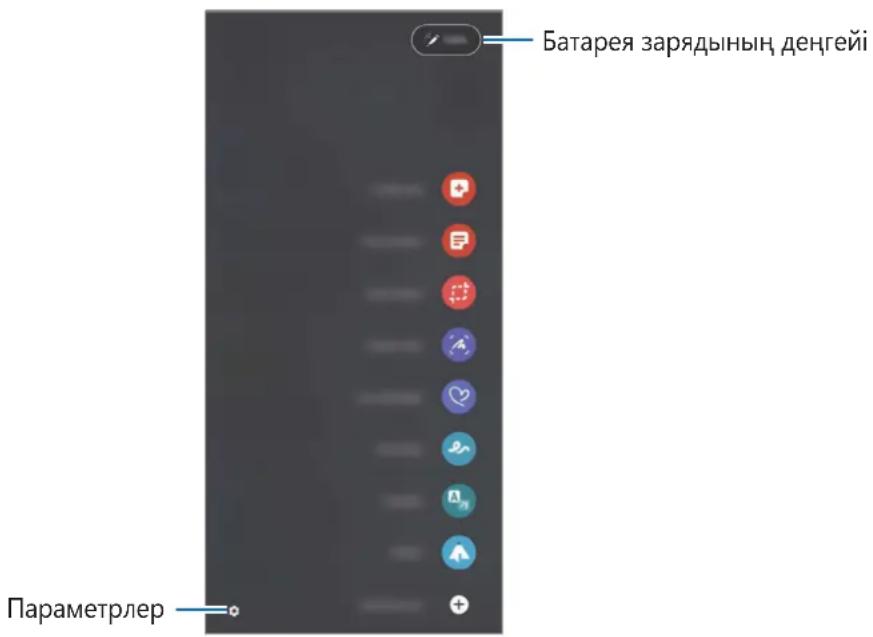
Oye npmehi — S Pen kaIambIHbH MymkiHdIKTepi MeH Kni naJaIaHaBlaTaBH KOJaHa6aIapra KblIaM KaTbHaCydbI KaMTaMaCbI3 eTeIH M3ip.
ye npmehi naneiH auy ywiH S Pen kalaBIn 3kpaHHbH, yCTiHe anapbln, Pen Tymecin 6acbl. CohImen KaTAP ye npmehi 6eIiWeecih (S Pen kalaMbEmH typtyIH3re de 6oJa.
Oye npMeHi TaKTaBHaH cyHKunHbI HemeCe KOJaH6aHbI TaHdaHbI3.
S Pen KaIaMbIn 6acTanKbI KyIre KaITapy
S Pen KaIambHda 6aIaHbIC aKaaybl NaJa 6oJa Hemece S Pen KaIaMbI Kni aKbipaTbIH 6oJa, S Pen KaIaMbH 6aCTanKbI KyIe KaITapBn, OHbl KaIta KaJIFaHbI3.
Oye apekeTepiH peTey 3KpaHbIH aWbIn, S Pen-ai KynTah aXkbipaTyMecin TyptiHiz.
S Pen kajambyi i3dey
S Pen KaIambl Xofalbln KaIca, Ohbln opHaIaIckan Xepin 6akblan, OhaI tabyfa 6oladbl.
Inapam-p KOndaH6acbH a7bIn, KocbIMwa MymKiHikTep S Pen MeHH S Pen kaIaMbIMdbI Ta6y TapMaftbH TypTiHi3.
3KpaHdaSmartThings KoIaHa6acbI aMbIbIn, S Pen KaIaMbIbH opHaJaackaH Jepi KepceTinei.
Параметрир
S Pen KaIamBihBIn apTypJI npapaMeTpIepiH e3reptIH3.
Napam-p KOndaH6acbIH aWbIn, KocbIMwa MymKHHdkTeP S Pen TapMaftbIH TyPtHi3.
Kaalmmeh opbHdaIaTbIH apeKeTTep: Pen tyMecin 6ackaHa HeMece Pen tyMecin 6acbln TypbIn, S Pen kaIambH 6yIraFaHda opbHdaIaTbIH apeKeTTepi opHaTy. KocbIMwa aknapaattbI KaIaMMeH opbHdaIaTbIH apeKeTTep 6JIIMHeH kapaHbI3.
- 3kp.ewipy kaa36acbl: S Pen kaIaMbIH kaa6bIK ekpaHdaftbl kaa36a kyiHe opHaTy. KocbIMwa aknapaTbI
- 3kp.ewipy kaa36acbl 6eJIiMHeH kapaHbI3.
- Ka36aIapdbI XbIldam Xacay. Pen TyImeCIN 6acBIn TypbIn, ekpaHdbI eki pet Typty apKbIbI XaHa Ka36a Xacay KyiHe opHaty.
- ΘepeH Kepy pexm: S Pen KaIambIH ayeedn Kepy MymKihirin naIaIahy KyiHe opHaTy. Ma3MyHdbI aIbIH aIa Kapay Hemece aknapaTbI KaIKbIMaJIbI tepe3eH Kepy ywiS Pen KaIambIH 3kpaHdaFbI 3JIeMeHTtH yCTiHe anapbHbI3.
Anapy 6apbicbHa MeH3epi Kep-y. S Pen KaIaMbIH 3KpaHHbIH yCTiHe anapraH Ke3de S Pen KaIaMbIHbIH MeH3epiH KepcETy KyiHe OPhATy.
Kepe nphelep: aye npmehi naheiHe xni naJaIaHbIaTbIH KOJaHa6aIapDbIH TaHaIaIapBIn Kocy.
- Εye nəpmehi 6eJIiweecin Kepcety. Εye nəpmehi naHeliH aHaTbH KaJIkbIMaIbI 6eJIiweHi Kepcety. KocbIMwa aknapaTTb Εye nəpmehi 6eJIiweci 6eJIiMeH kapaHbI3.
Aya komaHd. Kaam tyMecimeh awy: S Pen kaIaMbIH 3KpaHHbIH yCTiHe anapbIn, Pen tyMecin 6ackan ke3de oye npMeHI naHeiH awy KyiHe opHaTy.
-Дыбicitap: S Pen KaIambH naiJaHaHaFah Ke3de, MbICaJI bKa3y Ke3iHne dIb6bICTapdbI 6eIceHdipy.
- Mehi S Pen kanaMbI Ta6y. S Pen kanaMbH i3dey MymKHHirih icke Kocy. Kocmba aknapaTbS Pen kanaMbH i3dey 6JIIMHeh KapaHbI3.
- S Pen kālam-bi naɪd-y kehectepi: aydapy Hemece yIraI Ty cnaKtbi aptypI i MymkiHikTepdi naɪdaIahy ādicin Kepy.
S Pen typalb: S Pen KaIamblHbH Hcckacbl MeH HopMaTnBtIK aKnapaTbH Kepy.
- Bi3re xa6apIacbIbI3: cypaK KOIbIHbI3 Hemece eH XNI KOIbIaTbIH CypaKTapIbI KapaHbI3.
KocbIMwa
AkaayIbIKTapdbI KOHO
Samsung cepBnC opTaIbIbHa xa6apIacnai TypbIn, KeIeci weWIMdepDi KOJaHbIn KepiH3. Kei6ip XaFdaJnap S Pen KaIambIHbI3fa KOJaHbImaybl MymKiH.
S Pen KaIaMbI Kypblfbcbl KocblMaIbI
BaTape 3apAdbI TObIfbImeH Taycbilfah Ke3de S Pen KaIaMbI KocBIMaIdbI. S Pen KaIaMbIH Kocnai TypbIn, 6atapehbl ToIbIK 3apAdTaHbI3.
S Pen kaIambl KaTbIn Kala 6epei Hemece Ty3eImeTih Kate TybHdaIdbI
S Pen KaIaMbI KaTbI IN KaIca XaHe Xayan 6epMei XaTca, OHbI KaIta IcKe Kocy Pen TyMeci MeH KocblbIM TyMecin 6ipre 7 cekyHdTaH y3aFbIpaK 6acbI N TpybIHbI3.
Батараздурбс зарадталмайды (Samsung 6eKitken зарадтafbiштapyшin)
3apraTafblWbIH Dypbc Kocblbn TpyfaHbHa Ke3 JeTKi3iH3.
Баразецнын Куаты сатып онлайн Кенин с可不是 Кара FaHд Тayсьлады
- S Pen KaIambIH Hemece 6aTapeHbI TbIM cybIK Hemece TbIM bICTbIK TeMnepaTypaFA XeTKi36eHi3, OHbIH TImDi 3apAdbI TeMeHdeyi MymKiH.
BaTapeTo3aIbIXaHe naIdaIbI 3apJyakblTeKeJe a3a8bepei.
BluetoothЖаксы ictemeДi
Erep S Pen KaIambl Ta6bIMaca Hemece 6aIIaHbIC McSeJIePI He eHIMdiIK aKaayapbl NaJa 6oJca, KeIeci apeketti opbIHdAn KepiHi3:
- S Pen KaIaMbIHbIH i3dyeRe KAnHe KocBlyfA daHbIH TyPfaHbHa Ke3 JeTKi3iH3.
- S Pen KaIambl MeH ekIHwi Bluetooth KypbIrfbcbi MaKcImaIdbi Bluetooth aykbimbIHbIH (10 M) iwiHde ekeHHe K3 XeTKi3iH3.
Erep Kofapbdaftb Kehectep akayltbIwewyre KemeKtecnce, Samsung cepBuc optaIbIFbHa xa6aplaacbl3.
ABTOPbIK KyKbIK
Copyright © 2021 Samsung Electronics Co., Ltd.
BvHcyaybIK XaIbIKapaIbIK aBTOpIbIK KYKbIKTap TypaIbI 3aHapMeH KopFaIHaH.
Byn HcyayIbIKtbH e6bip 6eJIirH Ke3 KeIReH Tpyde HeMece Ke3 KeJIreH aDic, 3JeKtpoHdbIK HeMece MexaHnKaIbIK, coBbH iHHe, fOToKeWipy, Ka3y HeMece Ke3 KeJIreH aKnapaTbIK KOnMaJa KaHe 8bHaPbIn any KJYecHd cakTay apKbIbbl KOWipyre, TaPaTyra, aydapyra HeMece tacbMaJdaYfa 6oJMaNdbI.
Cayda 6eIrilepi
SAMSUNG Jxhe SAMSUNG Iorotuni — Samsung Electronics Co., Ltd. KOMnHaHnAcbIbH, TipKeJIreh cayda 6eIriepi.
- Bluetooth® — Bluetooth SIG kopnpaunacbHbH, anemderi tipkeJIreH cayda 6eIrici.
- Baplbk 6aca cayda 6enrilepi xhe ABTOPbIK KkybkTap Tnicti nelepiHmehwi RaBbIaDbI.
Basics
Read me first
Please read this manual before using the S Pen to ensure safe and proper use.
- Descriptions are based on the S Pen's default settings.
- Default services that come with the S Pen are subject to updates and may no longer be supported without prior notice. If you have questions about a service provided with the S Pen, contact a Samsung Service Center.
- Your S Pen contains magnets. Keep a safe distance between your S Pen and objects that may be affected by magnets such as credit cards and implantable medical devices. If you have an implantable medical device, consult your physician before use.
- This product includes certain free/open source software. The license information of the open source software used in this product can be found at opensource.samsung.com.
Instructional icons

Warning: situations that could cause injury to yourself or others

Caution: situations that could cause damage to your device or other equipment

Notice: notes, usage tips, or additional information
Device layout and functions
Package contents
S Pen Pro
- Pouch
Pen nibs
- Tweezers
- Quick start guide

- The items supplied with the S Pen and any available accessories may vary depending on the region or service provider.
- The supplied items are designed only for this S Pen and may not be compatible with other devices.
- Appearances and specifications are subject to change without prior notice.
- You can purchase additional accessories from your local Samsung retailer. Make sure they are compatible with the S Pen before purchase.
- Use only Samsung-approved accessories. Using unapproved accessories may cause the performance problems and malfunctions that are not covered by the warranty.
- Availability of all accessories is subject to change depending entirely on manufacturing companies. For more information about available accessories, refer to the Samsung website.
Device layout
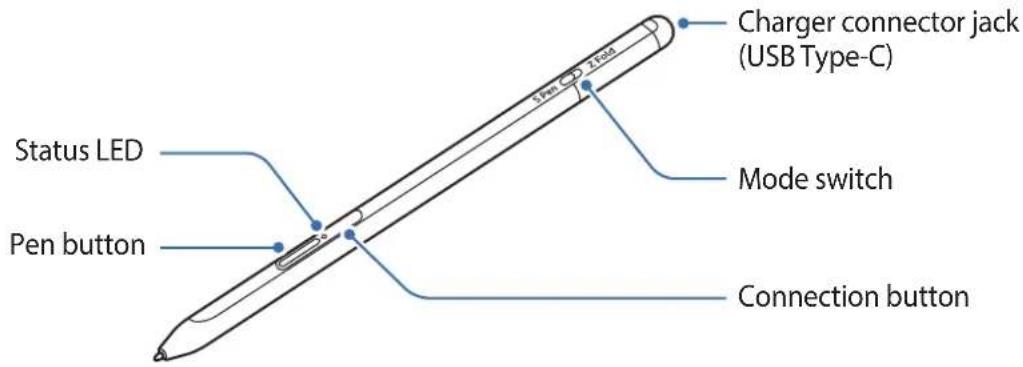
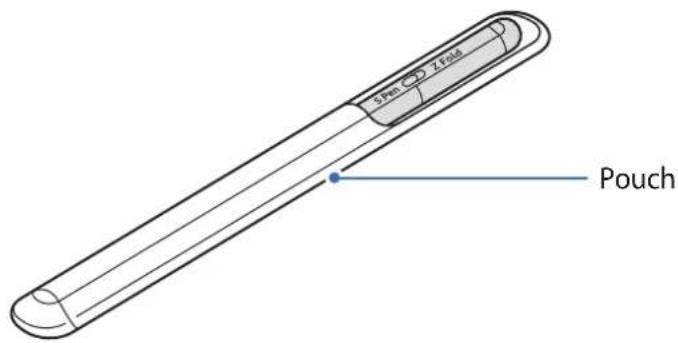
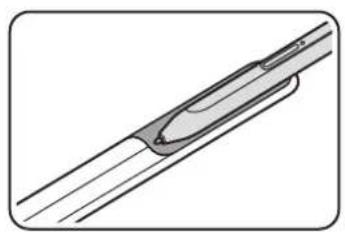
O
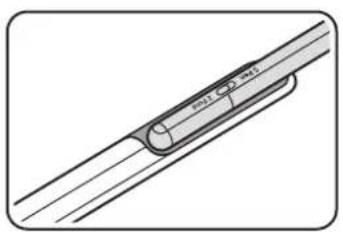

- Do not bend or apply excessive pressure with the S Pen while using it. The S Pen may be damaged or the nib may be deformed.
- Do not hard press on the screen with the S Pen. The pen nib may be deformed.
- Do not insert the round end of the S Pen into the pouch. Doing so may damage the S Pen.
- The shape of the pouch may change a little after use due to the nature of the material.

- If there is a magnet near the S Pen, some S Pen actions, such as charging or tapping the touchscreen, may not work.
- Even if the S Pen has been fully discharged, you can use other S Pen features, such as tapping the touchscreen or the Air command features.
- If you use the S Pen at sharp angles on the screen, the mobile device may not recognize the S Pen actions.
- If the S Pen is not working properly, take it to a Samsung Service Center.
Buttons and switch
| Buttons and switch Function | |
| Pen button | ·While pressing and holding the button, drag the S Pen over text or item lists to select text or multiple items. ·Hover the S Pen over the mobile device's screen and press the button to open the Air command panel. ·Press the button or wave the S Pen while pressing and holding the button to launch the preset action. |
| Connection button | ·Press and hold the button to enter pairing mode. ·Press the button to switch the connection to another mobile device signed in to the Samsung account. |
| Pen button + Connection button | ·Press and hold the buttons simultaneously for more than 7 seconds to restart the S Pen. |
| Mode switch | ·Set the mode switch to Z Fold to use the S Pen on a foldable mobile device. |
Status LED
| Color Status | |
| Flashes red → green → blue in order | • Pairing mode |
| Flashes blue | • Connected |
| Continuously red | • Charging |
| Continuously green | • Fully charged |
| Flashes red | • Battery power is low (lower than 5 %) |

If the status LED does not operate properly, reconnect the charger.
Attaching or detaching the S Pen
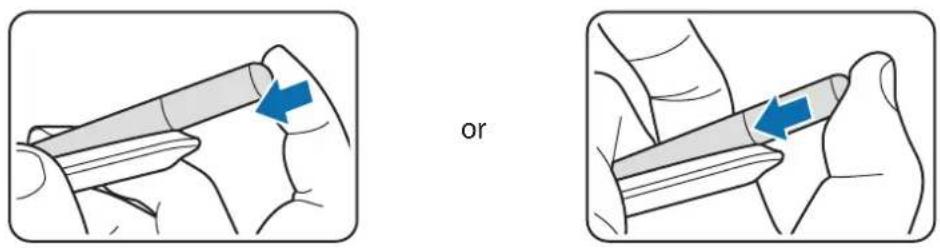
Attaching the S Pen
Attach the S Pen while pushing on the charging connector jack.
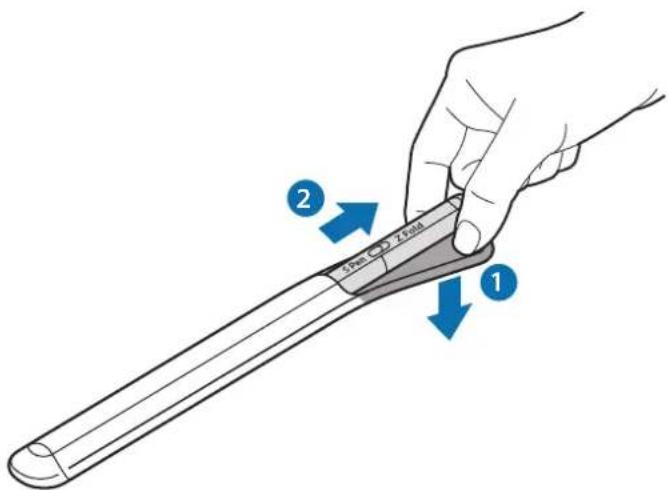
Detaching the S Pen
Push the pouch downwards and pull the S Pen out to detach it.
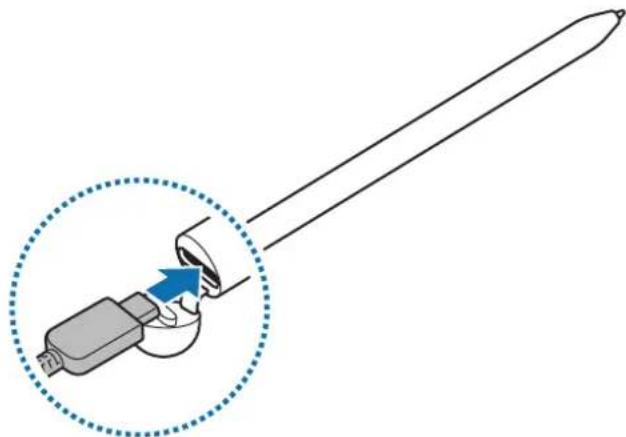
Charging the battery
Charge the battery before using it for the first time or when it has been unused for extended periods.
Connect the USB cable to the USB power adaptor and plug the cable into the S Pen's charger connector jack to charge the battery. After fully charging, disconnect the charger from the S Pen.
Use only Samsung-approved battery, charger, and cable specifically designed for your S Pen. Incompatible battery, charger, and cable can cause serious injuries or damage to your S Pen.
Connecting the charger improperly may cause serious damage to the S Pen. Any damage caused by misuse is not covered by the warranty.
To save energy, unplug the charger when not in use. The charger does not have a power switch, so you must unplug the charger from the electric socket when not in use to avoid wasting power. The charger should remain close to the electric socket and easily accessible while charging.
Battery charging tips and precautions
- The S Pen can be used while it is charging, but it may take longer to fully charge the battery.
- While charging, the S Pen and the charger may heat up. This is normal and should not affect the S Pen's lifespan or performance. If the battery gets hotter than usual, the charger may stop charging.
- If you charge the S Pen while the charger connector jack is wet, the S Pen may be damaged. Thoroughly dry the charger connector jack before charging the S Pen.
- If the S Pen is not charging properly, take the S Pen and the charger to a Samsung Service Center.
Connecting to a mobile device
By connecting the S Pen to a mobile device, not only can you use its basic features, such as screen touch or handwriting, but also its various features, such as air actions.
1 Press the connection button for 3 seconds.
2 When a connection pop-up window appears on the mobile device, tap Connect.
3 Follow the on-screen instructions to complete the connection.

- Before connecting to a mobile device, update its One UI to a version higher than 3.1 and the SmartThings app and Air command to the latest version.
- When a connection pop-up window does not appear on the mobile device, launch the Settings app, tap Advanced features S Pen Air actions, and follow the on-screen instructions to complete the connection.
- When connecting to another mobile device after disconnecting from the previous mobile device, press and hold the connection button to enter pairing mode.
Using the S Pen
Air command
Air command is a menu that provides S Pen features and quick access to frequently used apps.
To open the Air command panel, hover the S Pen over the screen and press the Pen button. You can also tap the Air command icon ( ) with the S Pen.
Select a function or app on the Air command panel.
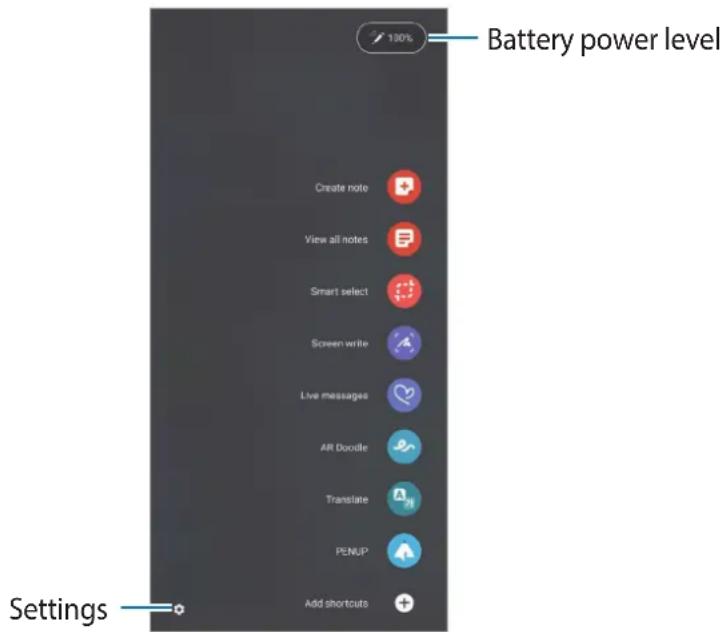
- Create note: Create notes easily in a pop-up window. You can also launch this feature by double-tapping the screen while pressing and holding the Pen button.
View all notes: View all notes in the Samsung Notes app. - Smart select: Use the S Pen to select an area and perform actions, such as sharing or saving.
- Screen write: Capture screenshots to write or draw on them or crop an area from the captured image. You can also capture the current content and the hidden content on an elongated page, such as a webpage.
Live messages: Instead of text message, create and send a unique message by recording your actions while handwriting or drawing a live message and saving it as an animated file.
AR Doodle: Record fun videos with virtual handwriting or drawings on faces or anywhere else.
Translate: Hover the S Pen over a word to translate it.
- PENUP: Post your artwork, view others' artwork, and get useful drawing tips.
- Bixby Vision: Use the Bixby Vision features to search for similar images, detect and translate text, and more.
- Magnify: Hover the S Pen over an area of the screen to enlarge it.
- Glance: Reduce an app to a thumbnail and hover the S Pen over the thumbnail to open the app in full screen view.
- Coloring: Add colors to images provided by PENUP using the S Pen.
- Write on calendar: Launch the Calendar app and write or draw on the screen.
- Add shortcuts: Add shortcuts to frequently used apps to the Air command panel.
Air command icon
When the Air command panel is closed, the Air command icon will remain on the screen. You can open the Air command panel by tapping the icon with the S Pen.
To move the icon, drag to a new location.
If the Air command icon does not appear on the screen, launch the Settings app, tap Advanced features S Pen, and then tap the Show air command icon switch to activate it.
While using apps that support the Air actions feature, you can view actions available with each app by hovering the S Pen over the Air command icon.
Pen Select
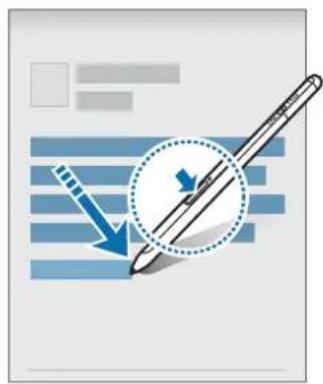
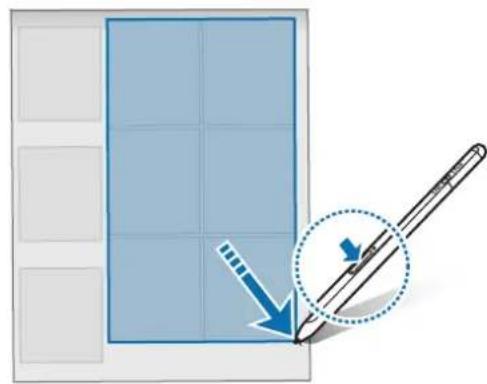
While pressing and holding the Pen button, drag the S Pen over text or item lists to select multiple items or text. You can also copy and paste the selected items or text into another app or share them with others.
Screen off memo
You can quickly create memos by writing on the screen without turning on it.
When the screen is off, hover the S Pen over the screen and press the Pen button.
When you tap Save or reattach the S Pen to the S Pen charger after writing a memo, the memo will be saved to Samsung Notes.
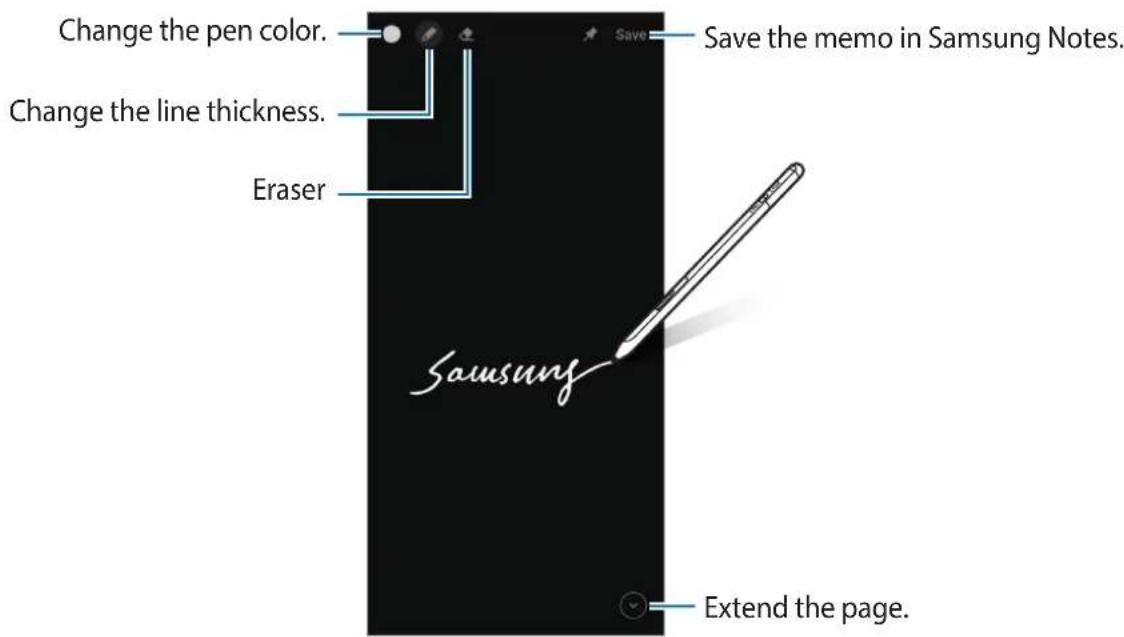

If this feature is not activated, launch the Settings app, tap Advanced features S Pen, and then tap the Screen off memo switch to activate it.
Air actions
Control apps remotely by using the S Pen connected to your mobile device via Bluetooth Low Energy (BLE).
For example, you can quickly launch apps, such as the camera app, by pressing and holding the Pen button. Also, while using the camera app, you can take a photo by pressing the button once. While playing music, you can turn the volume up if you lift the S Pen up while pressing and holding the Pen button and turn the volume down if you lower it.

The S Pen must be charged before you can use the Air actions feature. Refer to Charging the battery for more information.
Taking photos with the S Pen
Even though you take photos with your mobile device placing for a distance, you can easily take photos by pressing the Pen button without setting a timer.
1 Launch the Settings app, tap Advanced features S Pen Air actions, and then tap the switch to activate the feature.
2 Launch the Camera app.
3 Press the Pen button once to take a photo.
To take a series of photos, press and hold the Pen button.
- To change the shooting mode, move the Pen to the left or right while pressing and holding the Pen button.
- To switch between cameras, press the Pen button twice.
Changing apps or features to use
Change the app, feature, or actions you want to use with the S Pen feature. Launch the Settings app, tap Advanced features S Pen Air actions.
Resetting your S Pen
If the S Pen has connection problems or the S Pen disconnects often, reset the S Pen and connect it again.
Open the Air actions setting screen and tap Unpair S Pen.
Finding my S Pen
If you lose your S Pen, you can track its location and find it easily.
Launch the Settings app and tap Advanced features S Pen Find my S Pen
The screen will switch to the SmartThings app screen and your S Pen's location will be displayed.
Settings
Change various S Pen settings.
Launch the Settings app and tap Advanced features S Pen.
- Air actions: Set actions to launch when pressing the Pen button or waving the S Pen while pressing and holding the Pen button. Refer to Air actions for more information.
- Screen off memo: Set the S Pen to use the Screen off memo feature. Refer to Screen off memo for more information.
- Quick create notes: Set to create a new note by tapping the screen twice while pressing and holding the Pen button.
- Air view: Set the S Pen to use the Air view feature. You can preview content or view information in a pop-up window by hovering the S Pen over an item on the screen.
- Show pointer when hovering: Set to show the S Pen pointer when hovering the S Pen over the screen.
- Shortcuts: Add shortcuts to frequently used apps to the Air command panel.
- Show air command icon: Show a floating icon to open the Air command panel. Refer to Air command icon for more information.
- Open Air command with Pen button: Set to open the Air command panel when hovering the S Pen over the screen and pressing the Pen button.
- Sounds: Set to activate sounds when using the S Pen, such as when handwriting with it.
Find my S Pen: Launch the Find my S Pen feature. Refer to Finding my S Pen for more information. - Tips for using your S Pen: View how to use various features, such as translation or magnification.
- About S Pen: View the S Pen version and regulatory information.
- Contact us: Ask questions or view frequently asked questions.
Appendix
Troubleshooting
Before contacting a Samsung Service Center, please attempt the following solutions. Some situations may not apply to your S Pen.
Your S Pen does not turn on
When the battery is completely discharged, your S Pen will not turn on. Fully charge the battery before turning on the S Pen.
Your S Pen freezes or encounters a fatal error
If your S Pen is frozen and unresponsive, press and hold the Pen button and the Connection button simultaneously for more than 7 seconds to restart it.
The battery does not charge properly (For Samsung-approved chargers)
Ensure that the charger is connected properly.
The battery depletes faster than when first purchased
- When you expose the S Pen or the battery to very cold or very hot temperatures, the useful charge may be reduced.
- The battery is consumable and the useful charge will get shorter over time.
Bluetooth is not working well
If your S Pen is not located or there are connection problems or performance malfunctions, try the following:
- Ensure that your S Pen is ready to be scanned or connected to.
- Ensure that your S Pen and the other Bluetooth device are within the maximum Bluetooth range (10 m).
If the tips above do not solve the problem, contact a Samsung Service Center.
Copyright
Copyright © 2021 Samsung Electronics Co., Ltd.
This manual is protected under international copyright laws.
No part of this manual may be reproduced, distributed, translated, or transmitted in any form or by any means, electronic or mechanical, including photocopying, recording, or storing in any information storage and retrieval system.
Trademarks
SAMSUNG and the SAMSUNG logo are registered trademarks of Samsung Electronics Co., Ltd.
- Bluetooth® is a registered trademark of Bluetooth SIG, Inc. worldwide.
- All other trademarks and copyrights are the property of their respective owners.
Nociones básicas
Copyright © 2021 Samsung Electronics Co., Ltd.
Copyright © 2021 Samsung Electronics Co., Ltd.
本手册受國際版權法保護。
Copyright © 2021 Samsung Electronics Co., Ltd.
AeherKanndHaoJHepnHsHnHnHnHnHnHnHnHnHnHnHnHnHnHnHnHnHnHnHnHnHnHnHnHnHnHnHnHnHnHnHnHnHnHnHnHnHnHnHnHnHnHnHnHnHnHnHnHnHnHnH