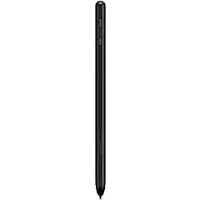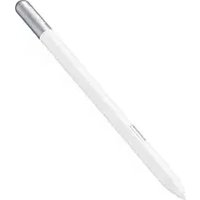
Galaxy S Pen - Digital stylus SAMSUNG - Free user manual and instructions
Find the device manual for free Galaxy S Pen SAMSUNG in PDF.

 FR
FR
 BG
BG
 CS
CS
 DA
DA
 DE
DE
 EL
EL
 EN
EN
 ES
ES
 ET
ET
 FI
FI
 HR
HR
 HU
HU
 IT
IT
 JA
JA
 KK
KK
 KO
KO
 LT
LT
 LV
LV
 NL
NL
 NO
NO
 PL
PL
 PT
PT
 RO
RO
 RU
RU
 SK
SK
 SL
SL
 SV
SV
 TR
TR
 UK
UK
 ZH
ZH
User questions about Galaxy S Pen SAMSUNG
0 question about this device. Answer the ones you know or ask your own.
Ask a new question about this device
Download the instructions for your Digital stylus in PDF format for free! Find your manual Galaxy S Pen - SAMSUNG and take your electronic device back in hand. On this page are published all the documents necessary for the use of your device. Galaxy S Pen by SAMSUNG.
USER MANUAL Galaxy S Pen SAMSUNG
Device layout and functions
- Do not bend or apply excessive pressure or an impact with the product while using it. The product may be damaged or the nib may be deformed.
- Do not hard press on the screen with the product. The pen nib may be deformed.
If there is a magnet near the product, some S Pen actions, such as tapping the touch screen, may not work. - If you use the product at sharp angles on the screen, the devices may not recognise the S Pen actions.
- If the product is not working properly, take it to a Samsung Service Centre or an authorised service centre.
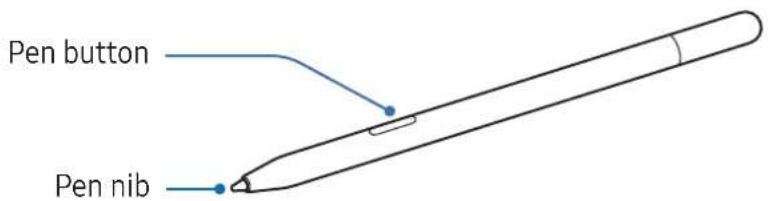
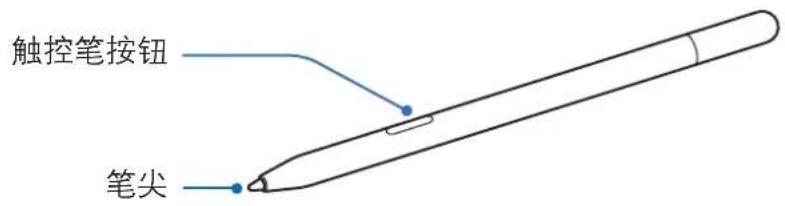
| Name Functions | |
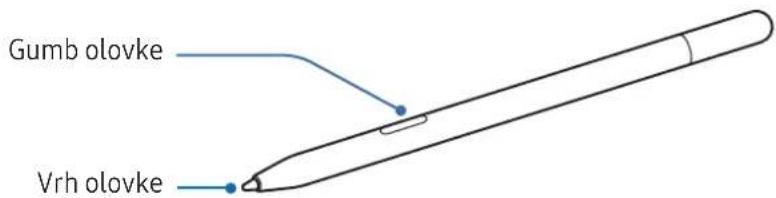
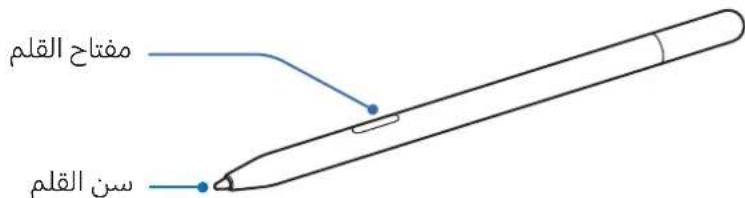
| Pen nib | ·Use the product to write, draw, or perform touch actions on the screen. Hover the product over items on the screen to preview content or access information in a pop-up window, such as the Air view feature. |
| Pen button | ·Hover the product over the screen and press the pen button to display the Air command features. |
Some features may not be available depending on the devices.
Using the product
When you touch the device's screen with the product, you can use the various S Pen features directly without connecting to a device.

- The product is compatible with the Galaxy S Ultra, Galaxy Note, and tablets and computers that support S Pen features.
- When using the product on devices with a built-in S Pen, open Settings, tap Advanced features S Pen More S Pen settings, and then tap the Allow multiples S Pens switch to turn it on.
- Some S Pen features using Bluetooth Low Energy (BLE) such as Air actions or battery charging are not available with this product.
Replacing the pen nib
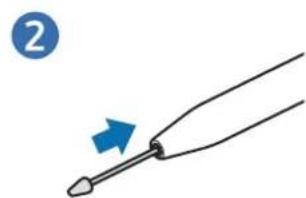
If the nib is worn out, you can replace it.
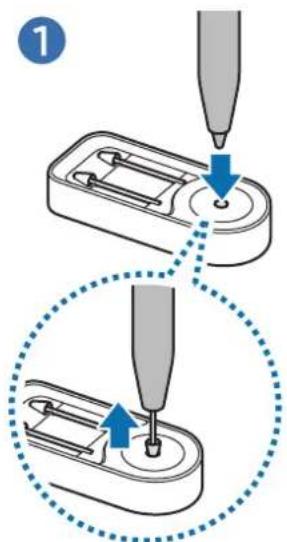
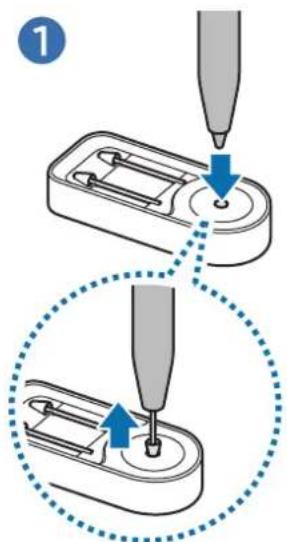
1 Insert the previous nib into the nib replacement tool's hole, and then lift up the product to remove the nib.
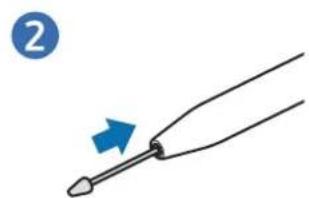
2 Insert a new nib into the product's nib hole.
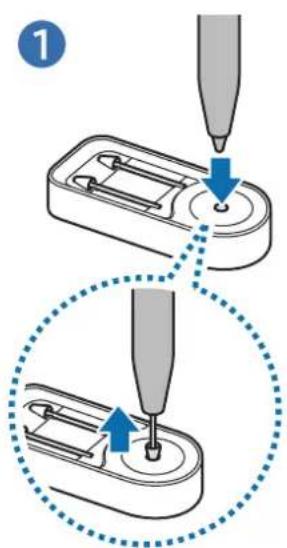
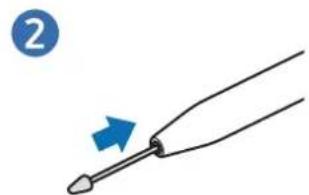

- Do not press the nib excessively when inserting it into the product.
- Do not insert the round end of the nib into the product. Doing so may cause damage to the product or your device.
Air command
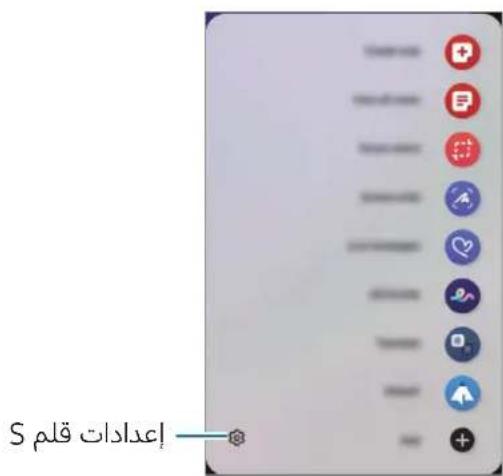
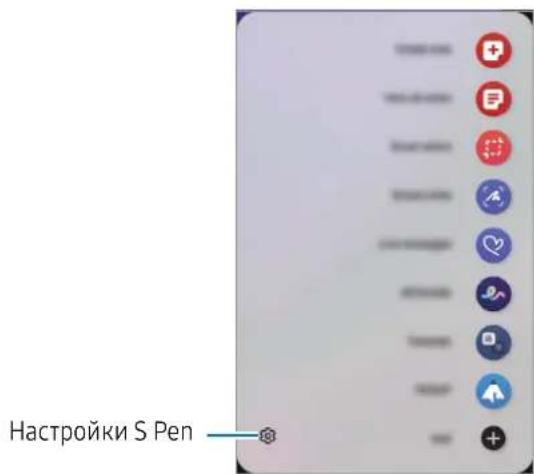
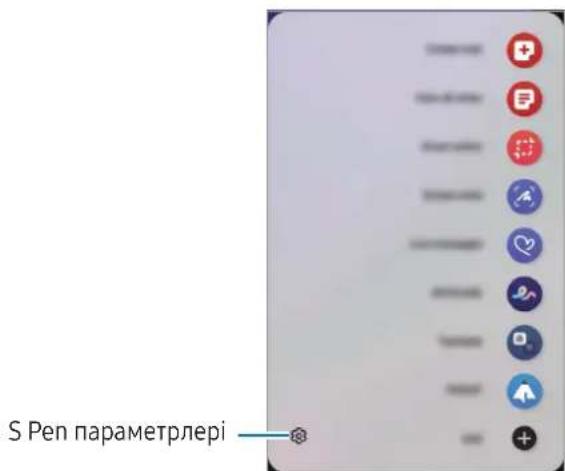
Air command is a menu that provides S Pen features and direct access to frequently used apps.
To open the Air command panel, hover the product over the screen and press the pen button. You can also tap the Air command icon (●) with the product.
Select a function or app on the Air command panel.
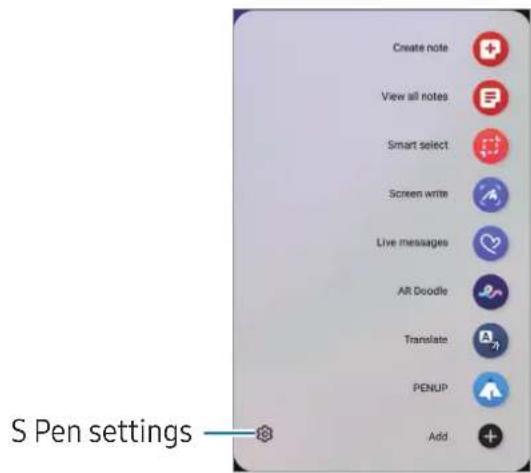
- Create note: Create notes in a pop-up window. You can also launch this feature by double tapping the screen while pressing and holding the pen button.
View all notes: Access all notes in the Samsung Notes app. - Smart select: Use the product to select an area and perform actions, such as sharing or saving.
- Screen write: Capture screenshots to write or draw on them or crop an area from the captured image. You can also capture the current content and the hidden content on an elongated page, such as a webpage.
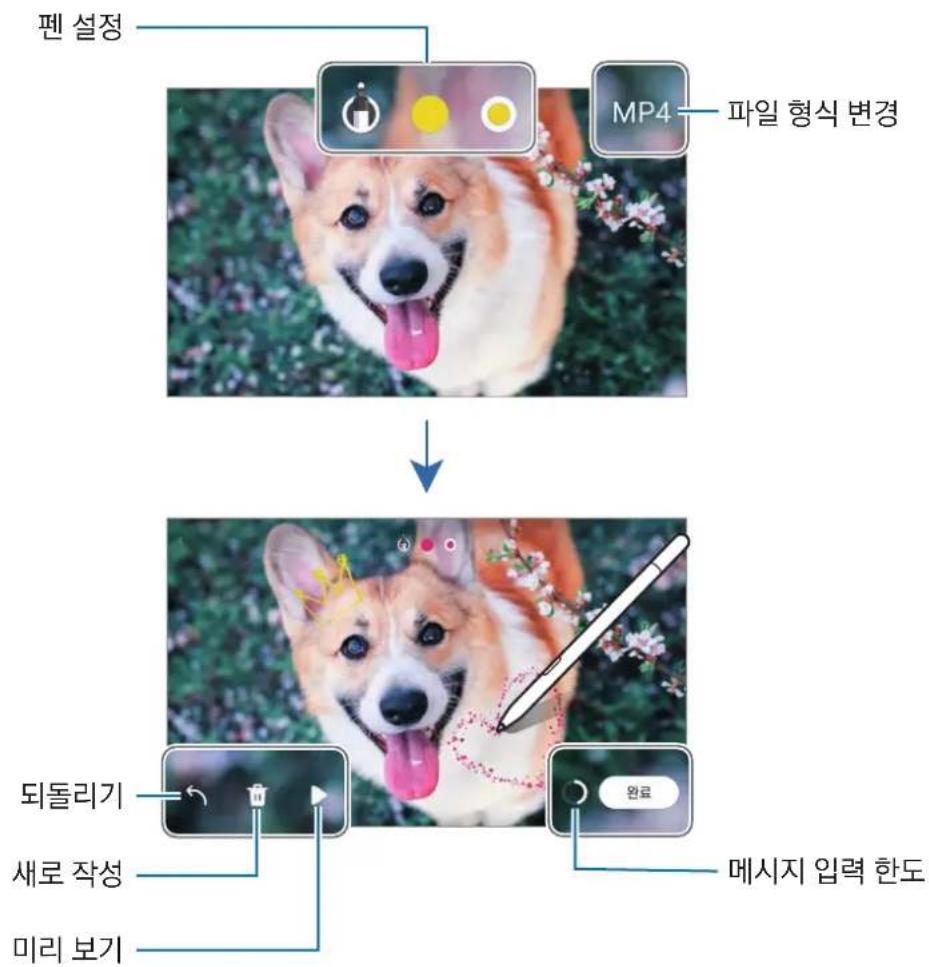
Live messages: Instead of text message, create and send a unique message by recording your actions while handwriting or drawing a live message and saving it as an animated file. - AR Doodle: Record fun videos with virtual handwriting or drawings on faces or anywhere else.
- Translate: Hover the product over a word to translate it.
- PENUP: Post your artwork, check out others' artwork, and get useful drawing tips.
-
Bixby Vision: Use the Bixby Vision features to search for similar images, detect and translate text, and more.
-
Magnify: Hover the product over an area of the screen to enlarge it.
- Glance: Reduce an app to a thumbnail and hover the product over the thumbnail to open the app in full screen.
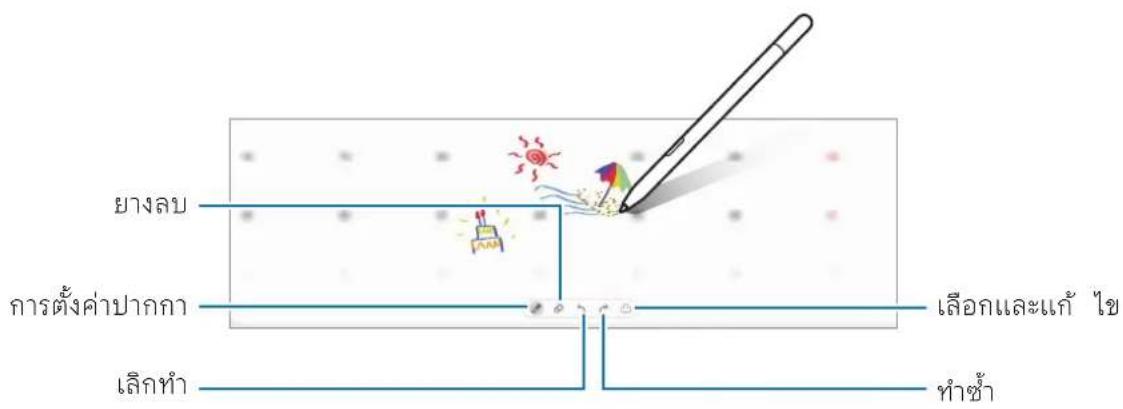
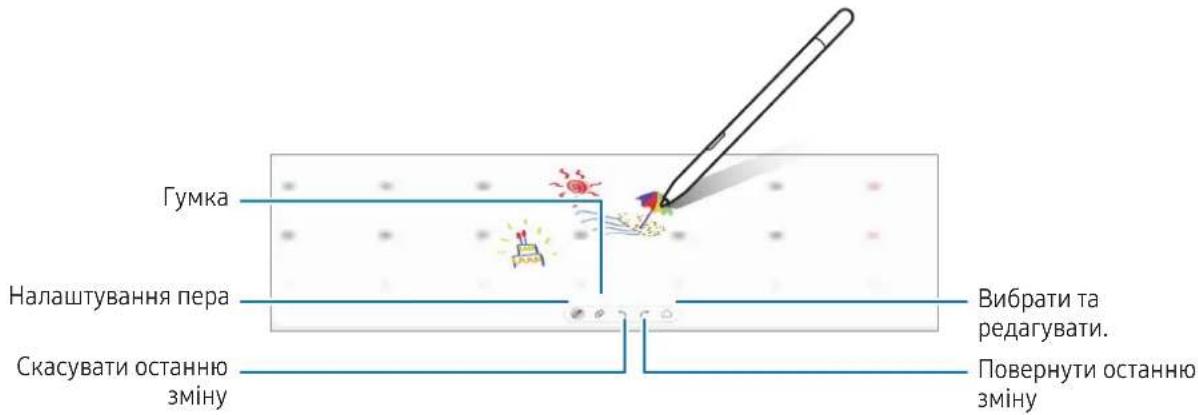
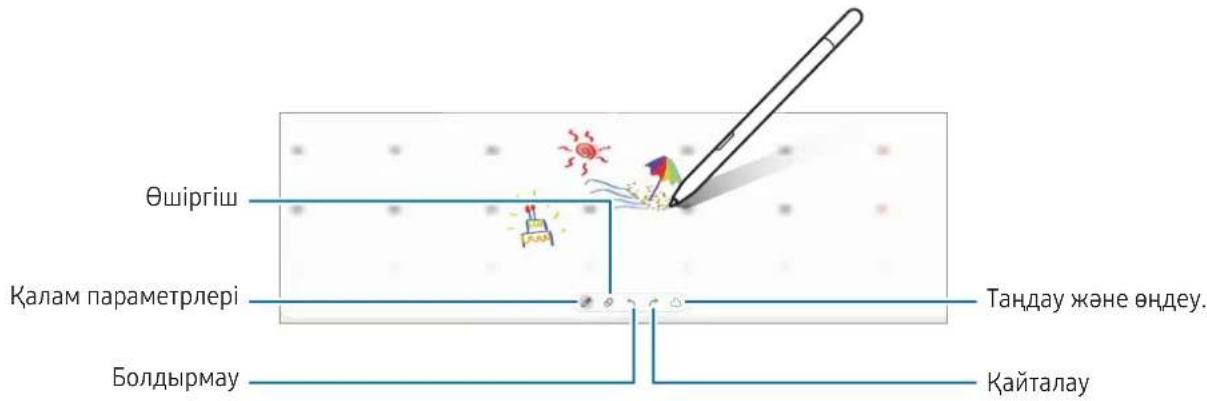
- Write on calendar: Open the Calendar app and write or draw on the screen.
- Colouring: Add colours to images provided by PENUP using the product.
- Add: Add shortcuts to frequently used apps to the Air command panel.
: Change various product settings.

Some features may not be available depending on the devices.
Air command icon
When the Air command panel is closed, the Air command icon will remain on the screen. You can open the Air command panel by tapping the icon with the product.
To move the icon, drag to a new location.
To remove the icon, drag to Remove at the bottom of the screen.
If the Air command icon does not appear on the screen, open Settings, tap Advanced features S Pen Air command, and then tap the Show Air command icon switch to turn it on.
Smart select
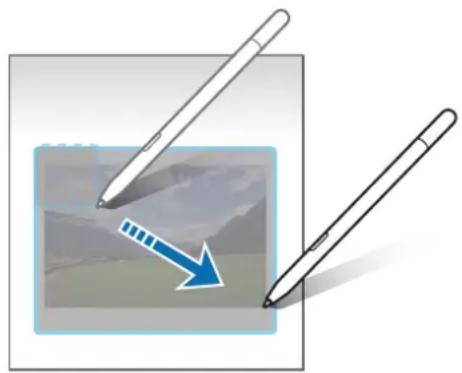
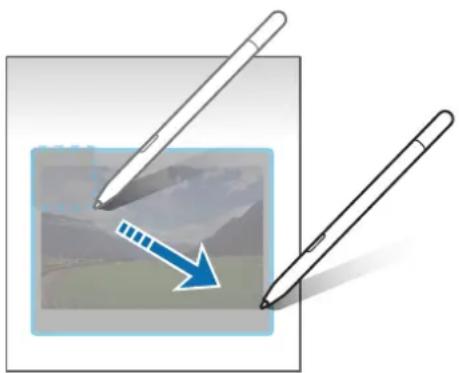
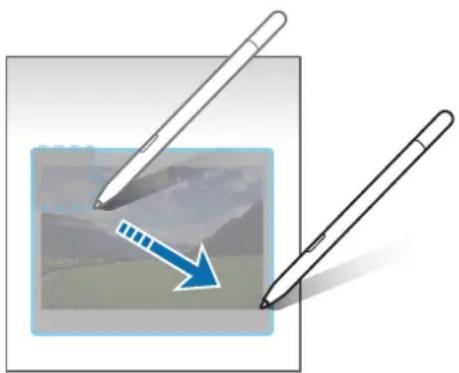
Use the product to select an area and perform actions, such as sharing or saving. You can also select an area from a video and capture it as a GIF.
1 When there is content you want to capture, such as a part of an image, open the Air command panel and tap Smart select.
2 Select a desired shape icon on the toolbar and drag the product across the content you want to select.
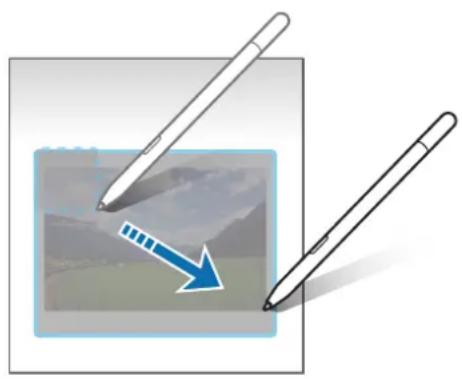
3 Select an option to use with the selected area.
- Pin: Pin the selected area to the screen. You can also insert the image into other apps, such as Samsung Notes. Drag the image to the other app's screen.
- Copy: Copy and paste the selected area into another app or other devices signed in to your Samsung account.
- Extract text from the selected area.
: Automatically changes the appearance of the selected area.
:Write or draw on the selected area. - : Share the selected area with others.
- Save the selected area in Gallery.
Capturing an area from a video
While playing a video, select an area and capture it as a GIF.
1 When there is content you want to capture during video playback, open the Air command panel and tap Smart select.
2 On the toolbar, tap
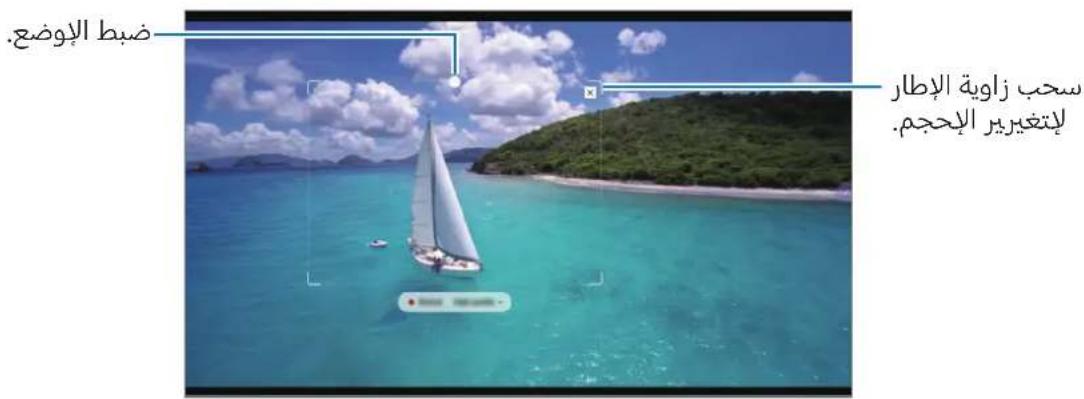
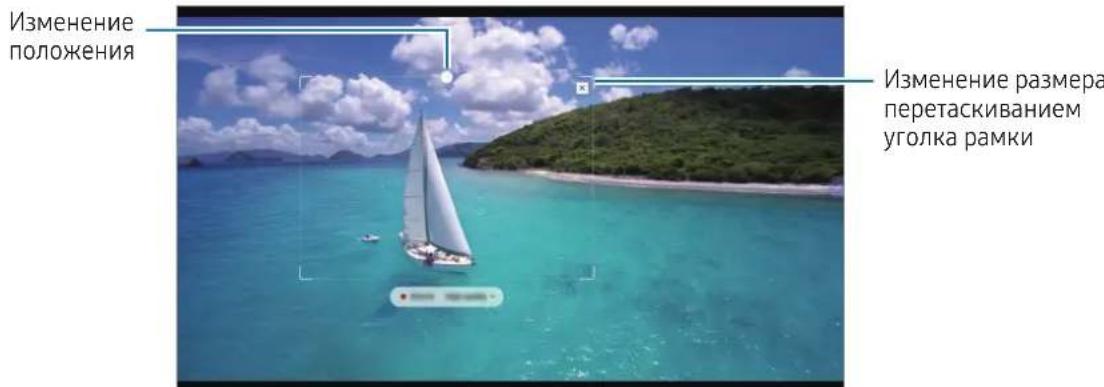
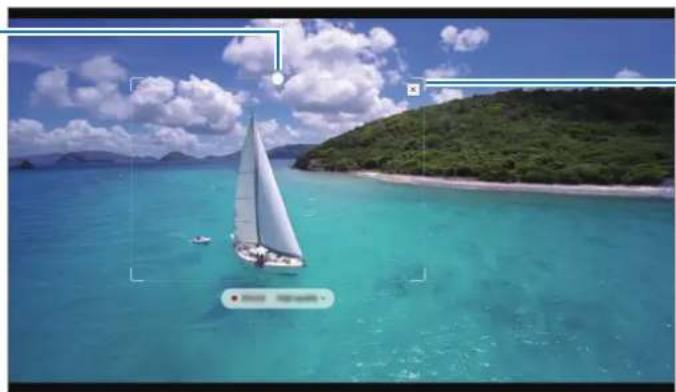
3 Adjust the position and size of the capturing area.
Adjust the position.
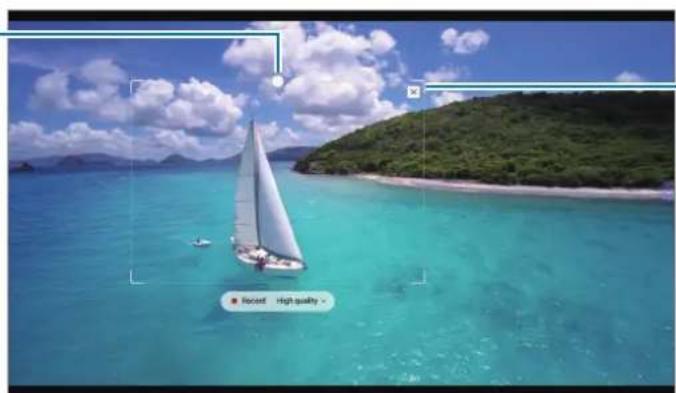
Drag a corner of the frame to resize.
4 Tap Record to start capturing.

- Before capturing a video, make sure that the video is playing.
- The maximum duration you can capture an area of the video for will be displayed on the screen.
- When capturing an area from a video, its sound will not be recorded.
5 Tap Stop to stop capturing.
6 Select an option to use with the selected area.
- Pin: Pin the selected area to the screen. You can also insert the GIF into other apps, such as Samsung Notes. Drag the GIF to the other app's screen.
- Copy: Copy and paste the selected area into another app or other devices signed in to your Samsung account.
- : Write or draw on the selected area. Tap to check the result before saving the file.
- : Share the selected area with others.
- Save the selected area in Gallery.
Screen write
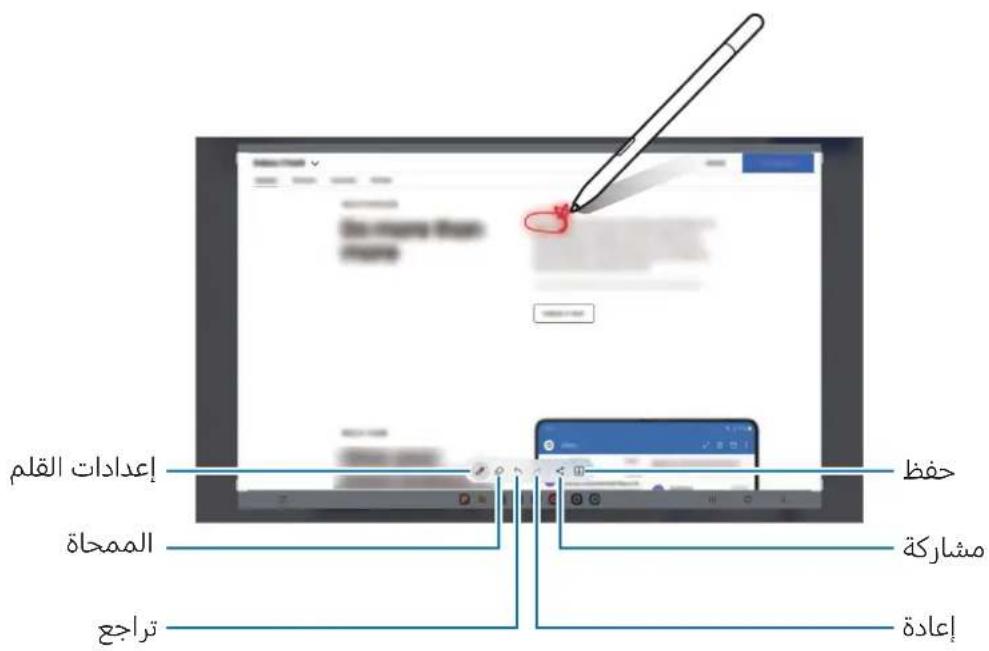
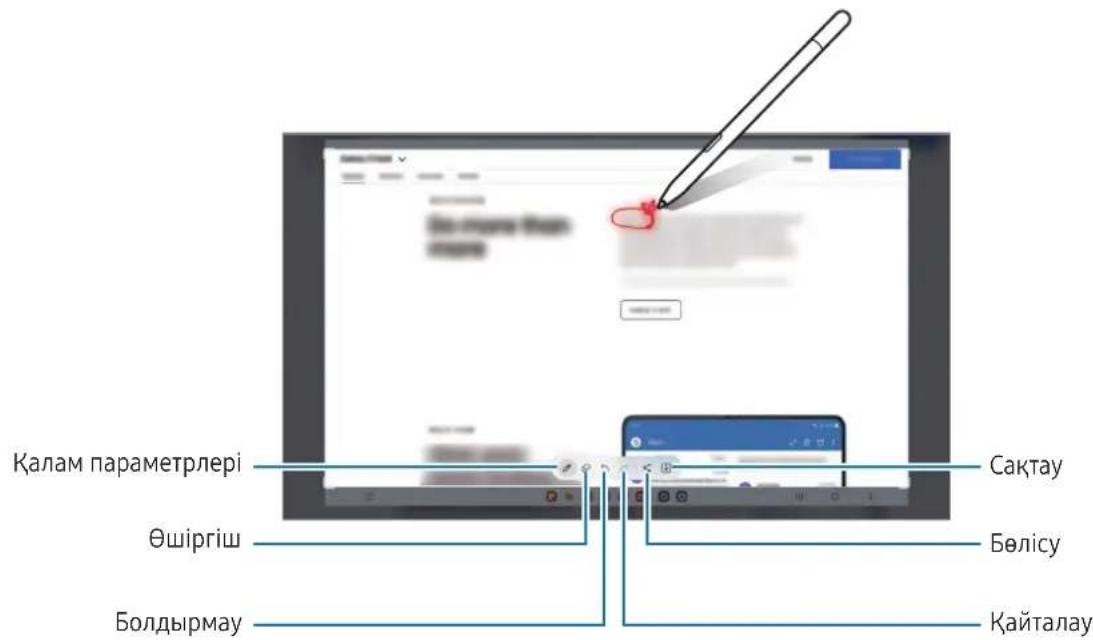
Capture screenshots to write or draw on them or crop an area from the captured image.
1 When there is content you want to capture, open the Air command panel and tap Screen write.
The current screen is automatically captured and the editing toolbar appears.
2 Write a memo on the screenshot.
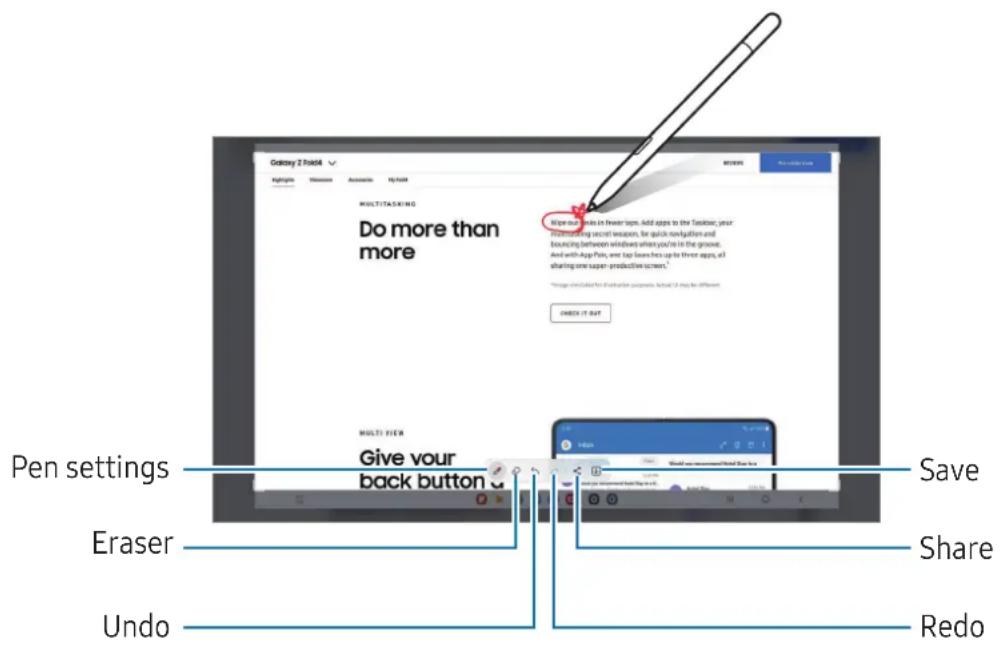
3 Share or save the screenshot.
You can check the captured screenshots in Gallery.

It is not possible to capture a screenshot while using some apps.
Live messages
Instead of a text message, create and send a unique message by recording your actions while handwriting or drawing a live message and saving it as an animated file.
1 When you want to send an animated message, open the Air command panel and tap Live messages.
2 Customise background image and tap Done or Start drawing.
3 Write or draw on the live message screen.
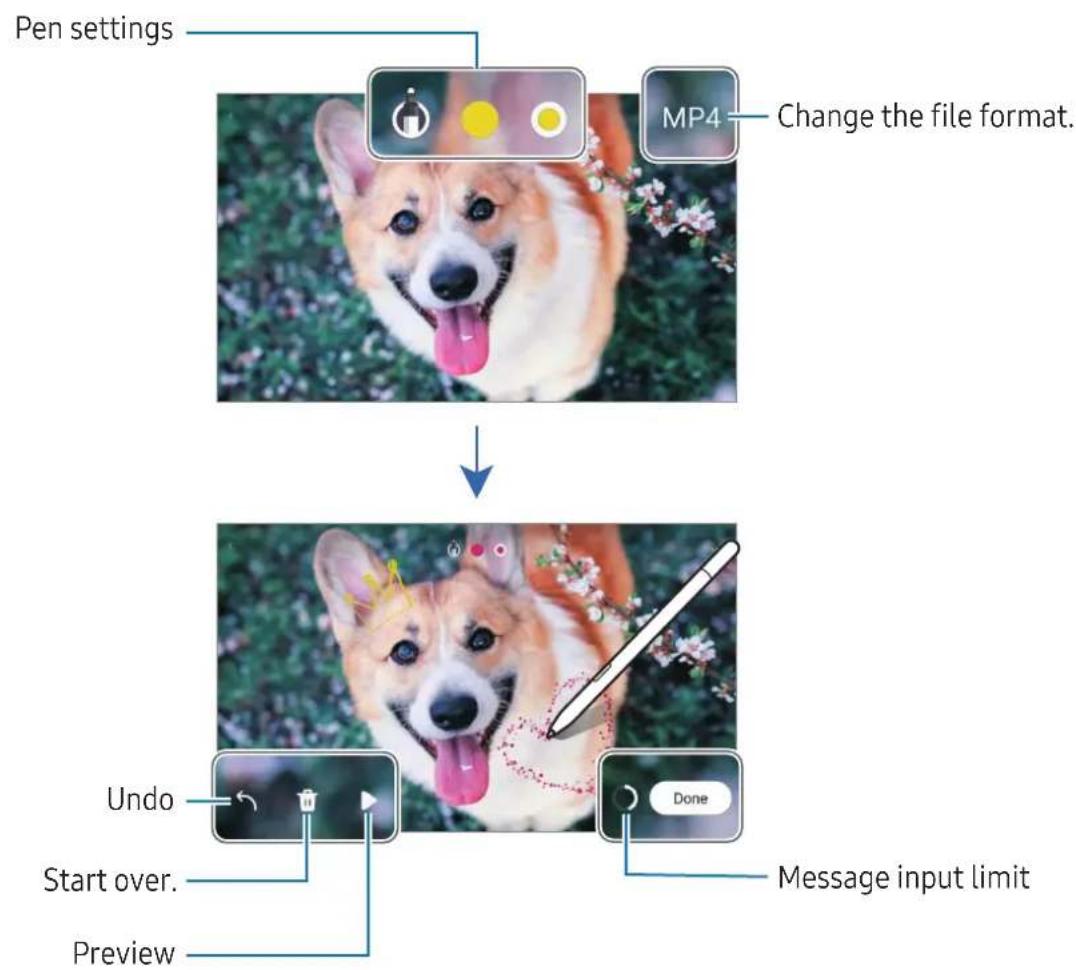
4 Tap Done.
The live message will be saved in Gallery as a GIF or a video.
5 Tap Share and select a method.
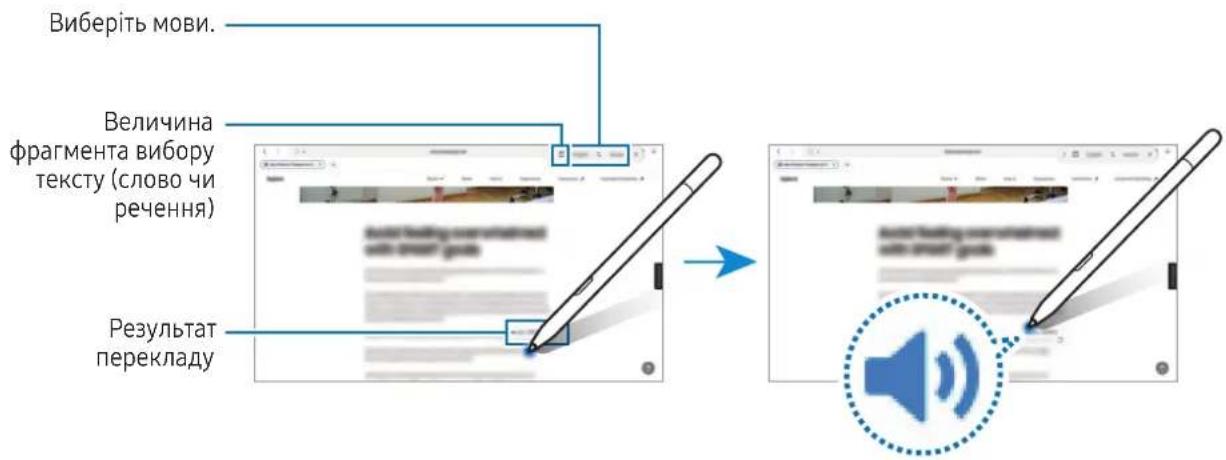
Translate
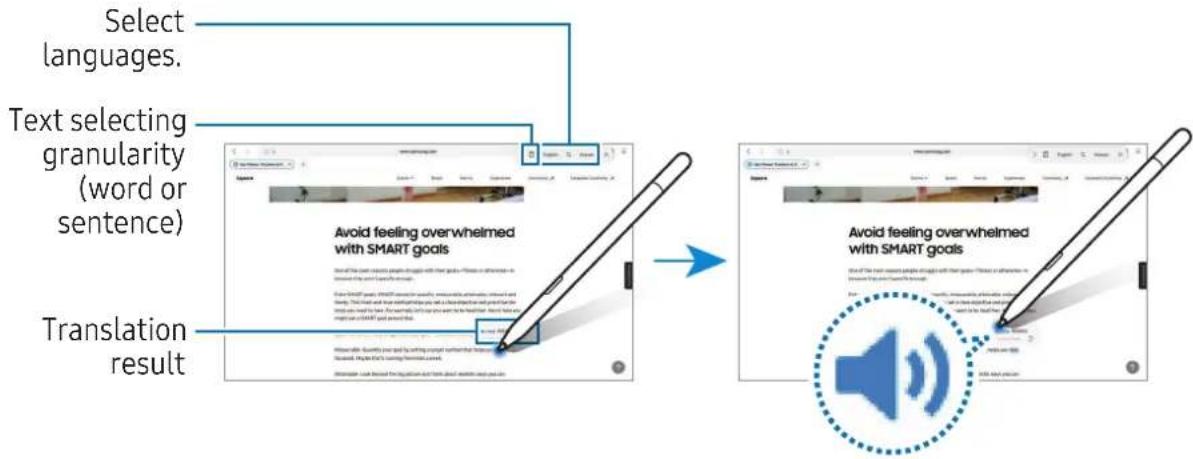
Hover the product over the text you want to translate. The units included in the text will also be converted.
1 When there is text you want to translate, open the Air command panel and tap Translate.
2 Select the languages on the translator panel at the top of the screen. You can change the text between words and sentences by tapping or
3 Hover the product over the text you want to translate or the unit you want to convert. The translated text will appear. To listen to the pronunciation of the original text, tap. The icon may not appear depending on the language you select.

- This feature does not support some languages.
- This feature is available only when detectable text is on the screen.
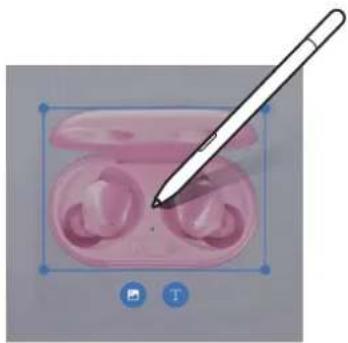
Bixby Vision
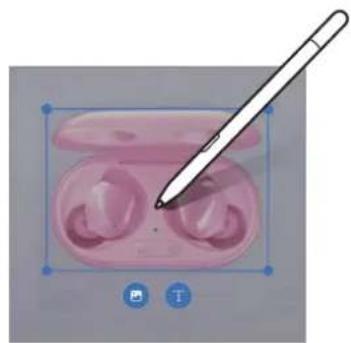
When you hover the product over the content, the content is recognised and available search icons will appear. Use the features to search for similar images, detect and translate text, and more.
1 When there is an image you want to search for relevant information or extract text from, open the Air command panel and tap Bixby Vision.
2 Hover the product over the content you want. When the available options appear on the screen, select an option you want.
Glance
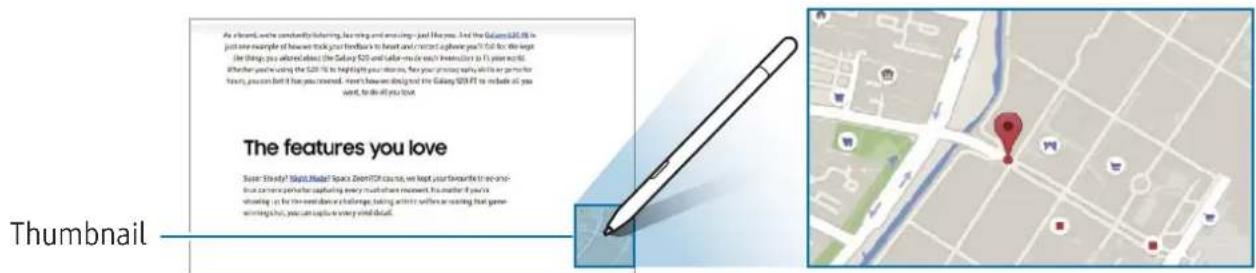
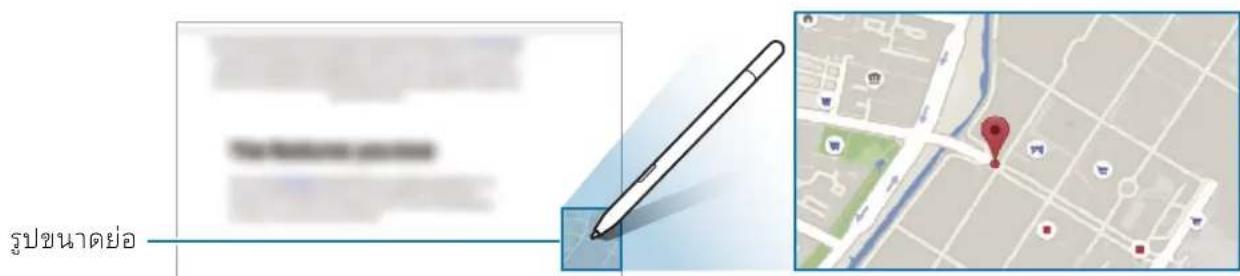
Reduce an app to a thumbnail and hover the product over the thumbnail to open the app in full screen.
For example, open a map app, open the Air command panel, and then tapGlance. The app will be reduced to a thumbnail at the bottom of the screen. While browsing webpages, hover the product over the thumbnail to open the map app on the full screen and search for places.
Hover the product away from the screen to reduce the app to a thumbnail again. To close the minimised app, drag the thumbnail to Remove at the top of the screen.
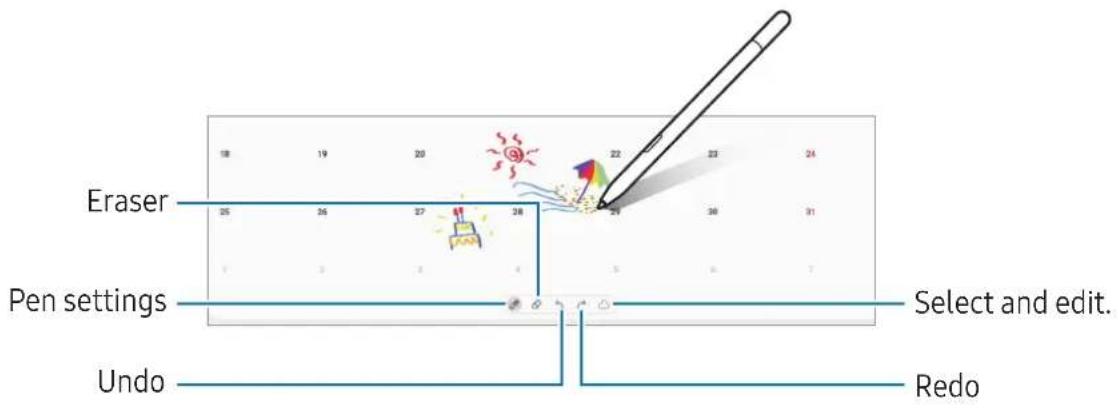
Write on calendar
Fill in your plans by writing or drawing on the calendar screen.
Open the Air command panel, tap Write on calendar, and then fill in your plans on the calendar. When you are finished, tap Save. To edit it, tap
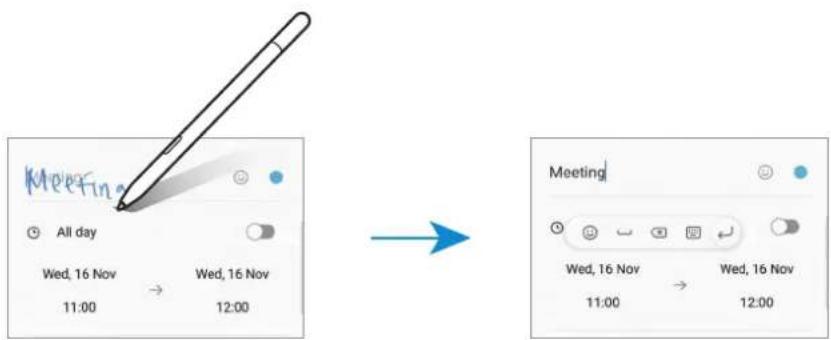
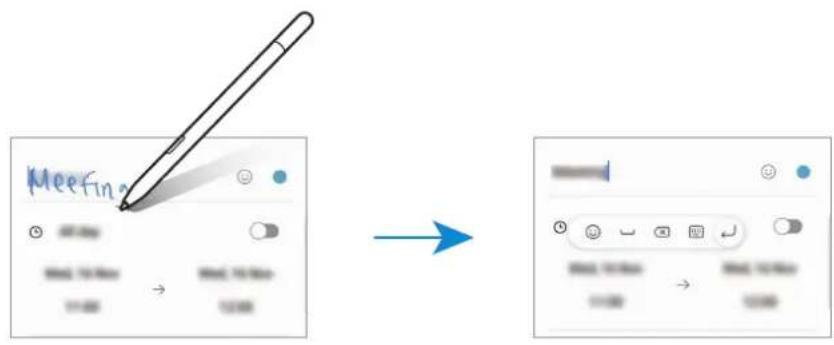
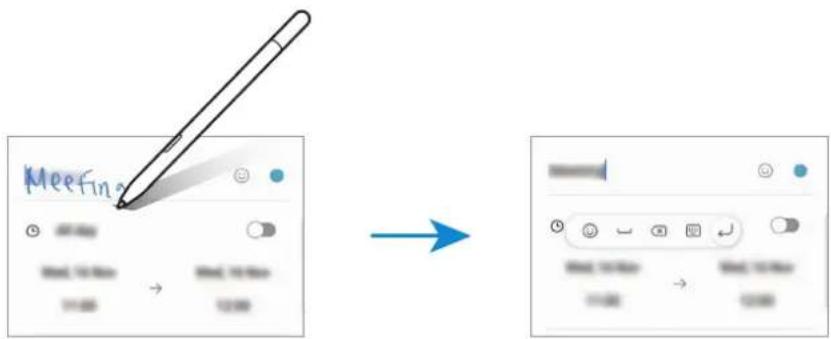
S Pen to text
You can set the device to convert anything you write with the product into text.
1 Open Settings, tap Advanced features S Pen S Pen to text, and then tap the switch to turn it on.
To learn about how to edit text with the product, tapHow to edit
2 Write in a text input field, such as a search field or address bar, using the product. The handwriting will be converted to text.
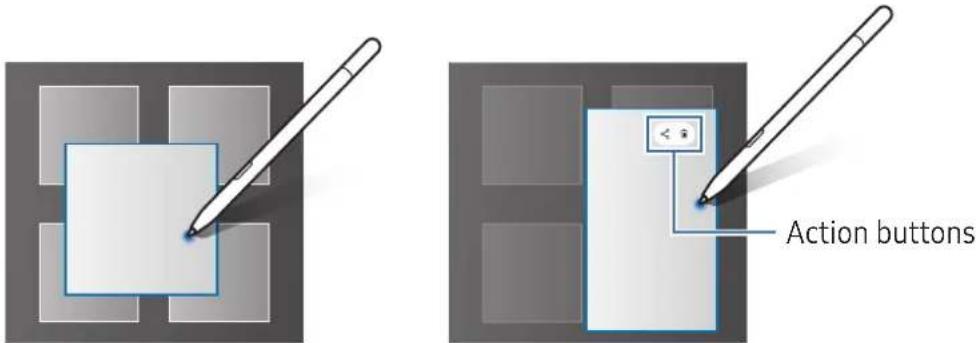
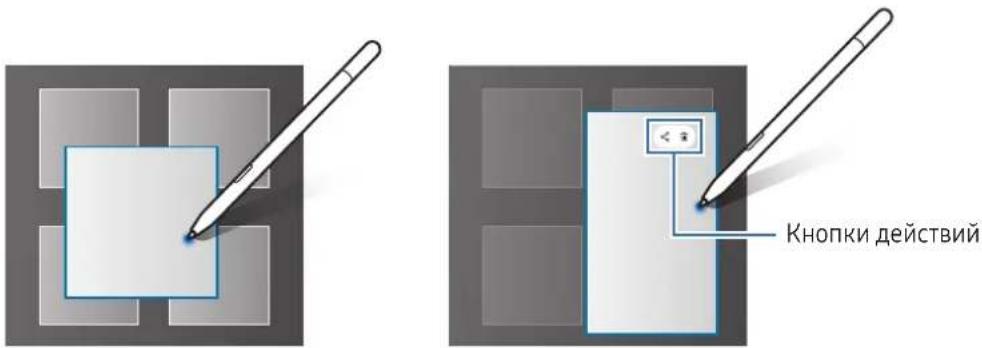
Air view
Hover the product over an item on the screen to preview content or access information in a pop-up window.
In some apps, Action buttons will be displayed on the preview window.

If this feature is not turned on, open Settings, tap Advanced features S Pen, and then tap the Air view switch to turn it on.
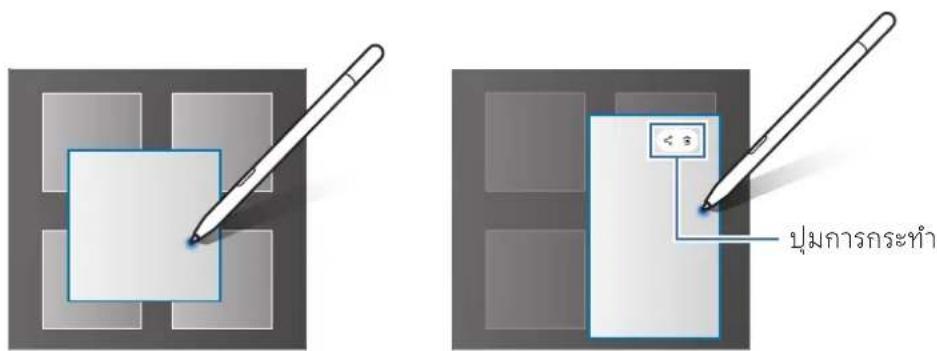
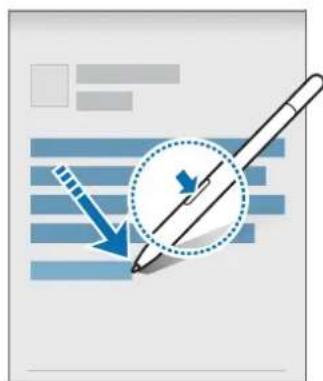
Pen Select
While pressing and holding the pen button, drag the product over text or item lists to select multiple items or text. You can also copy and paste the selected items or text into another app or share them with others.
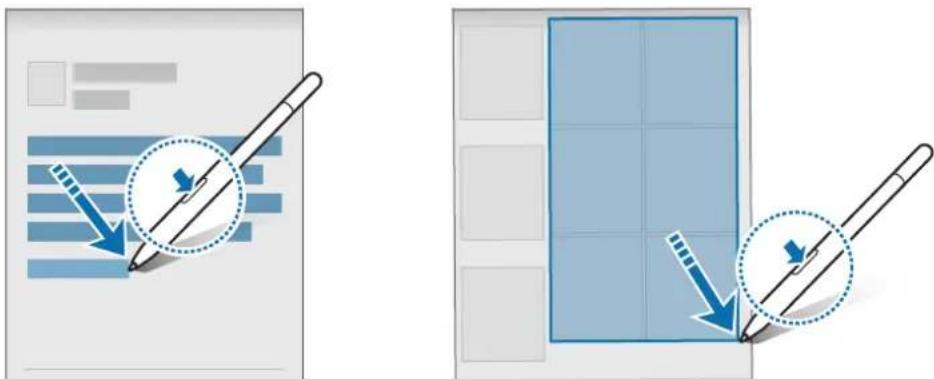
Screen off memos
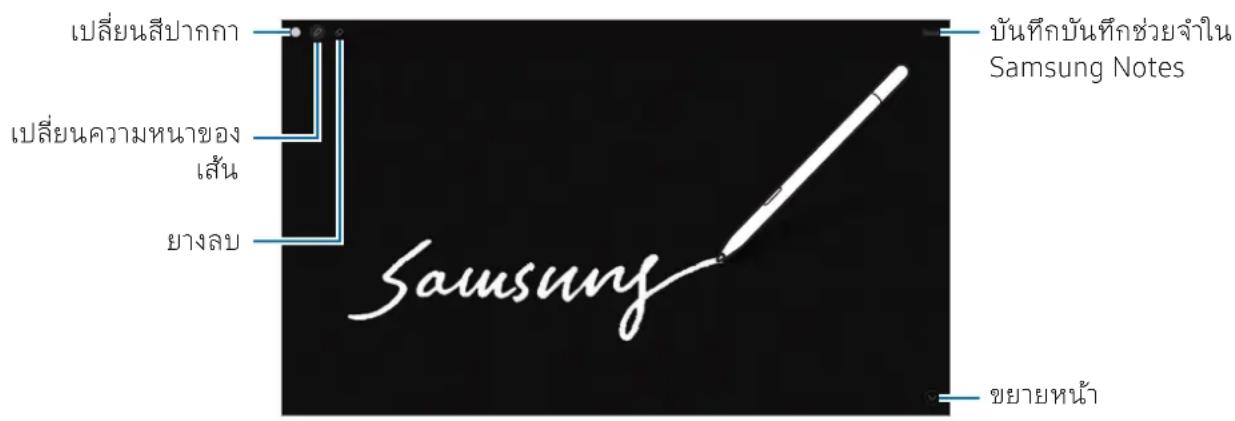
You can create memos by writing on the screen without turning on it.
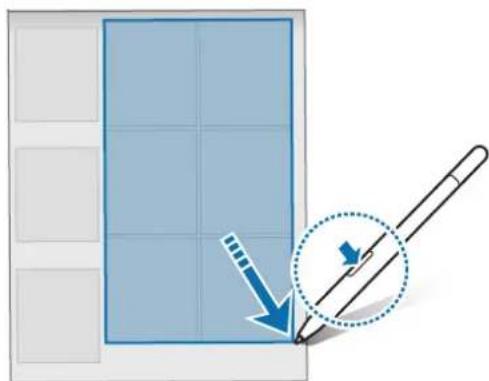
When the screen is off, hover the product over the screen and press the pen button.
When you tap Save after writing a memo, the memo will be saved to Samsung Notes.
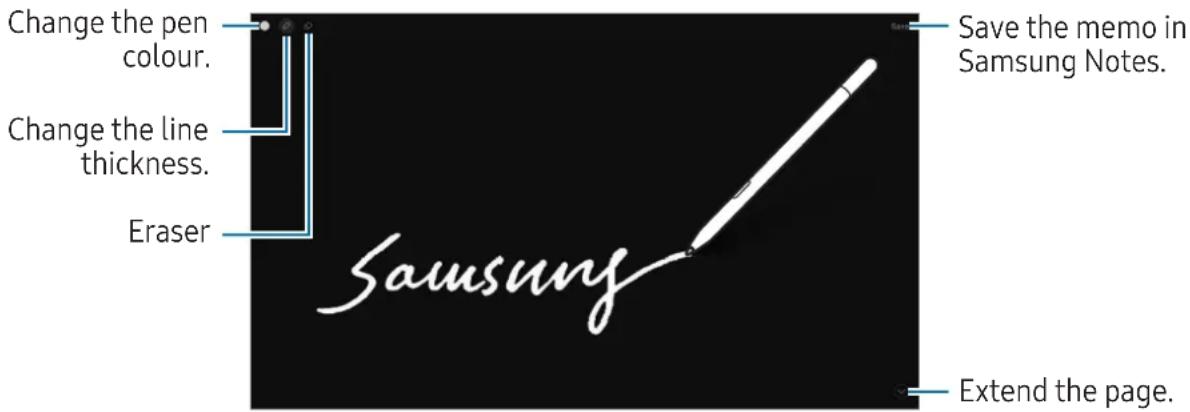

If this feature is not turned on, open Settings, tap Advanced features S Pen, and then tap the Screen off memos switch to turn it on.
Usage notices
Precautions for using the product
Please read this manual before using the product to ensure safe and proper use.
- Descriptions are based on the product's default settings.
- Images may differ in appearance from the actual product. Content is subject to change without prior notice.
- Default services that come with the product are subject to updates and may no longer be supported without prior notice.
- Your product contains magnets. Keep it away from credit cards, implanted medical devices, and other devices that may be affected by magnets. In the case of medical devices, keep your product more than 15cm apart. Stop using your product if you suspect any interference with your medical device and consult your physician or your medical device manufacturer.
Instructional icons
Warning: situations that could cause injury to yourself or others
Caution: situations that could cause damage to your product or other equipment
Notice: notes, usage tips, or additional information
Notes on package contents and accessories
Check the product box for the following items:
Product
- Nib replacement tool (2 Pen nibs included)
- Quick start guide

- The items supplied with the product and any available accessories may vary depending on the region or carrier.
- The supplied items are designed only for this product and may not be compatible with other devices.
- Appearances and specifications are subject to change without prior notice.
- You can purchase additional accessories from your local Samsung retailer. Make sure they are compatible with the product before purchase.
- Use only Samsung-approved accessories. Using unapproved accessories may cause the performance problems and malfunctions that are not covered by the warranty.
- Availability of all accessories is subject to change depending entirely on manufacturing companies. For more information about available accessories, refer to the Samsung website.
(USA Only) WARNING! Never dispose of batteries in a fire because they may explode. Do not disassemble, crush, puncture, heat, burn or reuse batteries. For more information, visit call2recycle.org or call 1-800-822-8837. Alternatively, visit: www.samsung.com/recycling or call 1-800-SAMSUNG.
Copyright
Copyright © 2023 Samsung Electronics Co., Ltd.
Copyright © 2023 Samsung Electronics America, Inc.
This manual is protected under international copyright laws.
No part of this manual may be reproduced, distributed, translated, or transmitted in any form or by any means, electronic or mechanical, including photocopying, recording, or storing in any information storage and retrieval system.
Trademarks
- SAMSUNG and the SAMSUNG logo are registered trademarks of Samsung Electronics Co., Ltd.
- All other trademarks and copyrights are the property of their respective owners.
Démarrage
Copyright © 2023 Samsung Electronics Co., Ltd.
Copyright © 2023 Samsung Electronics Co., Ltd.
Copyright © 2023 Samsung Electronics Co., Ltd.
Copyright © 2023 Samsung Electronics Co., Ltd.
Copyright © 2023 Samsung Electronics America, Inc.
Copyright © 2023 Samsung Electronics Co., Ltd.
Copyright © 2023 Samsung Electronics Co., Ltd.
Copyright © 2023 Samsung Electronics Co., Ltd.
Toba p'koBoiOCTBO e 3aunTeHO OT MeJdyHapOdHi 3aKOHn 3a ABTOpCKn npaba.
HnkOaCTOTpBkoBOcTBOTO He MoKe Da 6bJe Bb3npOn3BexJaHa,pa3npocTpaHbAHa, npBeKdaHa nn npexBbpna Hoi KaKaBoTo N da e oOpMa nn no KaKbBTO N da e NaunH, eNeKTpoHe nn mExAHueH, B TOBa YncIoo fotoKoInpaHe, 3aNc nn CbxpaHeHne B KaKaBoTo N da e CnCTema 3a INfOpMaunHO cBxpaHeHne n I3BnUaHe.
TbproBcN MapK
SAMSUNG n IoroTo ha SAMSUNG ca perictpupaHn TbproBckn Mapkn Ha Samsung Electronics Co., Ltd.
- BcnyKn npny TbproBcKn Mapkn n abTopckn npaba ca co6ctBeHocT Ha cboTBeTHnte mC6CTbeHnU.
Početak
Prikaz uredejafifunkcije

- Nemojte savijati ili pretjerano pritiskati ili udarati proizvod pri korištenju. Proizvod se moze ostetiti ili se vrh moze deformirati.
- Nemojte snažno pritiskatizaslon proizvodom. Vrh olovke moze se deformirati.
- Ako se u blizini proizvoda nalazi magnet, neke radnje S olovke, poput dodirivanja za SLona osjetljivog na dodir, mozda nece uspjeti.
- Ako proizvod koristite pod oštrim kutovima na zaslonu, urežaji možda neće prepoznati radnje Solovke.
- Ako proizvod ne radi ispravno, odnesite je u Samsungov servisni centar ili ovlasteni servisni centar.
Copyright © 2023 Samsung Electronics Co., Ltd.
Ovaj je prisucnik zasticen medunarodnim zakonima o zastiti autorskih prava.
Niti jegan dio ovog prisučnika ne smije se reproducirati, distribuirati, prevoditi ili prenositi u bilo kojem obliku, ni na koji način, elektronici ili mehanički, uključujuci fotokopiranje, snimanje ili pohranjivanje na bilo kojem mediju za pohranu informacije i sustavu dohvata podataka.
Zašitni znakovi
SAMSUNG i SAMSUNG logotip registrarani su zašitni znakovi Samsung Electronics Co., Ltd.
- Svi su ostali zašitni znakovi i autorska prava vlasništro svojih odgovarajućih vlasnika.
Početak
Copyright © 2023 Samsung Electronics Co., Ltd.
Ovaj prisucnik je zasticen medunarodnim zakonima o autorskim pravima.
Nijedan deo ovog prisucnika se ne sme reprodukovati, distribuirati, prevoditi niti prenositi ni u Jednom obliku niti bilo kojim putem, elektronskim niti mehaničkim, što podrazumeva fotokopiranje, smimanje i skladistenje u okviru bilo kog skladišta informacija i systemdza za preuzimanje.
Trgovačke marke
SAMSUNG i SAMSUNG logotip predstavlaju registrovaneŽigove kompanije Samsung Electronics Co., Ltd.
- Sve ostale trgovačke marke i autorska prava su vlasništro njihovih vlasnika.
Começar
Copyright © 2023 Samsung Electronics Co., Ltd.
Copyright © 2023 Samsung Electronics Co., Ltd.
Copyright © 2023 Samsung Electronics Co., Ltd.
Copyright © 2023 Samsung Electronics Co., Ltd.
Copyright © 2023 Samsung Electronics Co., Ltd.
Copyright © 2023 Samsung Electronics Co., Ltd.
Copyright © 2023 Samsung Electronics Co., Ltd.
Tato prirucka je chrana mezinarodnimi zakony o autorskych prunech.
Telif hakki © 2023 Samsung Electronics Co., Ltd.
wouuwwuyuuyuuyuuyuuyuuyuuyuuyuuyuuyuuyuuyuuyu
H
77777777777777777777777777
1
S Pen 1
月
1 10 nnnn nn nnnn nnnnnnnnnnnnnnnnnnnnnnnnnnnnnnnnnnnnnnnnnnnnnnnnnnnnnnnnnnnnnnnnnnnnnnnnnnnnnnnnnnnnnnnnnnnnnnnnnnnnnnnnnnnnnnnnn
2 1
66

n nn nnnn nn nnnnnnnnnnnnnnnnnnnnnnnnnnnnnnnnnnnnnnnnnnnnnnnnnnnnnnnnnnnnnnnnnnnnnnnnnnnnnnnnnnnnnnnnnnnnnnnnnnnnnnnnnnnnnnnnn
n
y
aunnnnnae
国
Hn Hn Hn Hn Hn Hn Hn Hn Hn Hn Hn Hn Hn Hn Hn Hn Hn Hn Hn Hn Hn Hn Hn Hn Hn Hn Hn Hn Hn Hn Hn Hn Hn Hn Hn Hn Hn Hn Hn Hn Hn Hn Hn Hn Hn Hn Hn Hn Hn Hn Hn
Samsung Notes

nntnntnnn nnnnnnnnnnnnnnnnnnnnnnnnnnnnnnnnnnnnnnnnnnnnnnnnnnnnnnnnnnnnnnnnnnnnnnnnnnnnnnnnnnnnnnnnnnnnnnnnnnnnnnnnnnnnnnnnn
J
#
1
·
·
·
·
y
76
1
:
H
1
- ·
·

- 77777777777777777777777777777777777777
- 77777777777777777777777777777777777777
·
·
·
·
Copyright
Copyright © 2023 Samsung Electronics Co., Ltd.
y
阿
SAMSUNG SAMSUNG Samsung Electronics Co., Ltd.
- 670000000000000000000000000000000000000000000
J
dolbgjglbbs
Jll J 11111111111111111111111111

.oguU jwU gI aUU
.1000000000000000000000000000000000000000
aLwJc b20 all Joo S p q 150 g jao y d q, cai all no o bll s uablo 1 k

.
S pIe IcJgJgJgJgJgJgJgJgJgJgJgJgJgJgJgJgJgJgJgJgJgJgJgJgJgJgJgJgJgJgJgJgJgJgJgJgJgJgJgJgJgJgJgJgJgJgJgJgJgJgJ
a0o 4o5jgogjigomega oos j0i0
J 1 J 1 J 1 J 1 J 1 J 1 J 1 J 1 J 1 J 1 J 1 J 1 J 1 J 1 J 1 J 1 J 1 J 1 J 1 J 1 J 1 J 1 J 1 J 1 J 1 J 1 J 1 J 1 J 1 J 1 J 1 J 1 J 1 J 1 J
aaiI plssawly ()
a>gl 1c bga aabg
J 1000000000000000000000000000000000000000
pIJIgao JcJgbo b2aI clil aI
Samsung Notes
.
aalll o aobio g lglg aLg aaall t bauu:aa
. 100000000000000000000000000000000000000000000
yIeJg JgJgJgJgJgJgJgJgJgJgJgJgJgJgJgJgJgJgJgJgJgJgJgJgJgJgJgJgJgJgJgJgJgJgJgJgJgJgJgJgJgJgJgJgJgJgJgJgJgJgJg
.45jooogwJoloslgfo>g 11wJpwoj gIddgs
jko gglgll lclagwglbgaal ggl
m = 311
.aa>Jd aolU Jc zaiuJ 1o:da>
Jn Jn Jn Jn Jn Jn Jn Jn Jn Jn Jn Jn Jn Jn Jn Jn Jn Jn Jn Jn Jn Jn Jn Jn Jn Jn Jn Jn Jn Jn Jn Jn Jn Jn Jn Jn Jn Jn Jn Jn Jn Jn Jn Jn Jn Jn Jn Jn Jn Jn Jn
ωjI
Bixby Vision
$$ \cdot $$
$$ g \dot {g} \dot {g} \ddot {g} \ddot {g} \ddot {g} \ddot {g} \ddot {g} \ddot {g} \ddot {g} \ddot {g} \ddot {g} \ddot {g} \ddot {g} \ddot {g} \ddot {g} \ddot {g} \ddot {g} \ddot {g} \ddot {g} $$
$$ \ddot {a} \dot {w} \dot {l} \dot {w} l \epsilon \jmath \sigma $$
$$ . \ddot {a} \dot {a} \dot {a} \dot {a} \dot {a} \dot {a} \dot {a} \dot {a} \dot {a} \dot {a} \dot {a} \dot {a} \dot {a} \dot {a} \dot {a} \dot {a} \dot {a} \dot {a} \dot {a} \dot {a} \dot {a} \cdot $$
$$ . \text {c i} \left| \right| \text {p l} \text {d} \text {s} \text {s} \text {s} \text {s} \text {s} \text {s} \text {s} \text {s} \text {s} \text {s} \text {s} \text {s} \text {s} \text {s} \text {s} \text {s} \text {s} \text {s} \text {s} \text {s} \text {t} \text {t} \text {t} \text {t} \text {t} \text {t} \text {t} \text {t} \text {t} \text {t} \text {t} \text {t} \text {t} \text {t} \text {t} \text {t} \text {t} \text {t} \text {t} \text {t} \text {s} \text {s} \text {s} \text {s} \text {s} \text {s} \text {s} \text {s} \text {s} \text {s} \text {s} \text {s} \text {s} \text {s} \text {s} \text {s} \text {s} \text {s} \text {s} \text S O S O S O S O S O S O S O S O S O S O S O S O S O S O S O S O S O S O S O S O S O S O S O S O S O S O S O S O S O S O S O S O S O S O S O S O S O S O S O S O S O S O S O S O S O S O S O S O S O S O S O s o f s o f s o f s o f s o f s o f s o f s o f s o f s o f s o f s o f s o f s o f s o f s o f s o f s o f s o f s o f s o f s o f s o f s o f s o f s o f s o f s o f s o f s o f s o f s o f s o f s o f f s o f f s o f f s o f f s o f f s o f f s o f f s o f f s o f f s o f f s o f f s o f f s o f f s o f f s o f f s o f f s o f f s o f f s o f f s o f f s o f f s o f f s o f f s o f f s o f f s o of f s o of f s o of f s o of f s o of f s o of f s o of f s o of f s o of f s o of f s o of f s o of f s o of f s o of f s o of f s o of f s o of f s o of f s o of f s o of f s o of f s o of f s o of f s o of f s o of f s o f $$
$$ \cdot \Delta \omega \text {i n} \left[ \Delta \omega \right] \Delta \omega \left[ \Delta \omega \right] \Delta \omega \left[ \Delta \omega \right] \Delta \omega \left[ \Delta \omega \right] $$
$$ . \Delta c g i a l \text {g} \text {g} \text {g} \text {g} \text {g} \text {g} \text {g} \text {g} \text {g} \text {g} \text {g} \text {g} \text {g} \text {g} \text {g} \text {g} \text {g} \text {g} \text {g} \text {g} \text {g 1} \text {g} \text {g} \text {g} \text {g} \text {g} \text {g} \text {g} \text {g} \text {g} \text {g} \text {g} \text {g} \text {g} \text {g} \text {g} \text {g} \text {g} \text {g} \text {g} \text {f r e e f :} $$
$$ \ddot {a} \dot {b} \dot {g} > \dot {l l} \omega \omega > \dot {c} \dot {j} \omega \omega > \dot {a} \dot {a} \dot {a} + \dot {g} g \ddot {u} \ddot {v} \ddot {w} $$

Jn Jy
a 1 1 1 1 1 1 1 1 1 1 1 1 1 1 1 1 1 1 1 1 1 1 1 1 1 1 1
.2aiJl p1dsswol j0jll Jc b2aJl
jggo J! 1wol,diogai
.aaJoo JwJcJjIgJJU
S 100000000000000000000000000000000000000000000000000000000
Aeaii jn ojll jolg! Jdill ciao lc bol
J
gddn o aobio 1 kay. bghgl g kssll joo, cagj yjglo abio d jauo
.GIF Gaaaolalbllg
j jolgJgJgJgJgJgJgJgJgJgJgJgJgJgJgJgJgJgJgJgJgJgJgJgJgJgJgJgJgJgJgJgJgJgJgJgJgJgJgJg
- a4 = a1 + 3
aaiiaai 101
Joo, sRss aabll jol lks kaii.aaa n no oaaaal aabioil c:
.Samsung Notes
Jgss Jgss ggs
Samsung account
.aaal aabai all joojzJxwJ:①
Ljai oia jao jao:
.
.ooosaaiaaaa
.
gDjno lo aabio blll
GIF qu yabla aobio 1o gdd j
1.
GIF
aI aai I g ofo bol .gblai
A
E. laljly

aaii jg i 10000000000000000000000000000000000000000000
0.
1201 1201 1201 1201
7.
GIF 15
.
Jgss Jgss Jgss Jgss Jgss Jgss Jgss Jgss Jgss Jgss Jgss Jgss Jgss Jgss Jgss Jgss Jgss Jgss Jgss Jgss
Samsung account
.
.
.
aLJIcAJI<
abaioljgall no aobio oalgl glcwll glaLl albbl
- aai,
JU 1
aWuJi
P. b_2 > 1
g
Ecnn HakoHeHHNK nepa n3HocnIcra, ero MOxHo 3aMeHnTb.
1 BcTaBbTe n3HOWeHHbI hakoHeuHK B OTBepCTne HnCtpymeHa 3aMeHbI, a 3aTeM IOnHmUte nepo BBepx, TTO6bI n3Bnuey HaKOHeuHK.
2 BctaBbTe HObBi HakoHeuHKn BO TBepcTne nepa.

- Ppi BCTaBKe HakoHeuHka B nepo He HaadabnBaIte Ha HakoHeuHK CNIJKOM CINbHO.
He BCTabIaIte HaKoHEnIK B Iepo KpyIbIM KOHcOM. 3TO MOxET npIBeCTN K NOBpeJdeHIO nepa nnu yCTpOYCTBa.
KoHTeKCTHbIe KOMaHdBi
KoHTeKCTHbIe KOMaHdbI - 3TO MeHIO, B KOToPOM paCNoJooKeHbI fUHKcN S Pen n JApNbIKn HEnocpeIcTBeHHoro DOctyNa K ChAcT O NcNoJIb3YeMbIM PpNIOJooKeHnM.
YTO6bI OTKpbITb NaHeJIb KOHTeKCTHbIX KOMaHd, HabeINTe Nepo Ha 3KpaH IN HaxMnTe KhoNky nepa. MoXHO TaKKe KOCHyTbCЯ Nepom 3HaUka KOHTeKCTHbIX KOMaHd (O).
Bb6epnte yHKnIO nI npIIOxKeHnHa nAHeJI KOHTeKCTbIX KOMaHd.
Co3daTb 3aMeKy: Co3dahHe 3aMeTOK BO BCnIbIBaIOUeM OKHe. MoXHo TaKKe 3aNcYCTNTb 3Ty FyHKuH, DBaJDbI KocHyBUnCb 3KpaHa, Haxab N ydePknBa JKnOKNy nepa.
- Ioka3aTb BCE 3aMetKn: npocMToP BceX 3aMetOK B npInoKeHnn Samsung Notes.
BbIeHnTb n coXpaHHTb: BbI6Op 06NaCTn NepOM N BbIINHeHne DeiCTBn, TaKnx KaK O6MeH nn coXpaHHeHne.
- CHIMOK OkpaHa: co3daHne CHIMKOB IJI HaHncaHn IIN pncBaHn Ha Hnx IIN 06pe3Kn YactN 1306paXeHH. MoxHO taXe CJIaTb CHIMOK TeKUeTo KOHTeHTa IIN cKpbITOrO KOHTeHTa Ha 60Jee. JINHHo CTpaHnce, HapPmep, Be6-CTpaHnce.
JXNBbIe coo6eHn:co3aHne n OTnpabKa yHkaJIbHoro,He TeKCTOBOrO coo6eHnnyTeM 3aHcN DeiCTBn BO BpeMa pyKOINCHOrO BBoDa IIn PUCOBAHn JxIBORo COo6eHn n erO CoXpaHeHn B KaueCTBe aHmIpOBaHHoro foJa.
AR-3apncobka: 3aHcB BecebX BndeO C BnptyabHbIM pyKoINCHbIM TeKCTOM nI npCyrKaMn Ha Iuax nn Dpynx 3JeMeHTax.
- NpeboD: npeboD cnoBa HabeJeHem Ha Hero nepa.
PENUP: ny6nkaun CBOx xyoKeCTBeHHbIX npOn3BeHn, npocmotp npOn3BeHn npyHX noIb30BaTeJe, a TaKke npocmotp nOle3HbIX COBToB NO pncOBaHIO.
Bixby Vision: История Камеры Bixby Ддя пося похожи XIIIбражени, obnapужени и пося заTekста и Велиниши другх ореташи.
- Lyna: yBeHnueHne o6NaCTn 3KpaHa HabeHeHneM Ha Hee nepa.
Cbepyb npioxhe: CBopauBaHne npioxHeB 3ckn3 n OTKpbITne npioxHeB pnoHO3KpaHHom peXime HaBeDeHem Ha Hero.
3aIncb B kaneHdape: oKpbItne npiloxeHnKaeneHdapb n pyKoNCHoe nscbmo nn pucobHne Ha ekpaHe. - Packpackn: Добальноюв К ИЗбразженим ИС серва PENUPсnomоью nepa.
- Do6abntb:До6abNHeЯрьIKOBчacToИсNoJIb3YeMbIXпиJOxHNeHnHa NaHeJIb KOHTeKCThBix KOMaH.
: n3MeHeHne pa3nUHbIX HacTpoE K nepa.

B 3aBnCIMoCTN OYcTPOINCTB HeKOTOpbIe FyHKcUN MoTy 6bITb HeNoctyHbI.
3HaOK KOHTeKCTHbIX KOMaHd
KoIa NaHeIb KOHTeKCTHbIX KOMaHd 3aKpbIta, 3HaQOK KOHTeKCTHbIX KOMaHd OCTaHETcRa Ha 3KpaHe. NaHeIb KOHTeKCTHbIX KOMaHd MOxHO OTKpbItb, KOCHyBUnCb 3HaUka nepom.
YTo6bI nepemecntb 3HaouK, nepetaune B npyroe MectO.
YTo6bI ydaJIITb 3HaQoK, nepetaIte Ha nyHKT ydaJIITb BHN3y 3KpaHa.
Ecn 3HaoyK KOHTeKCTHbIX KOMaHd Ha 3KpaHe He OTo6paJaaetcra, OTKpoIte HAcTpoiKn, Bbl6epnte npHKT
DonolHnTeJIbHbIe fYHKuN S Pen KOHTeKCTHbIe KOMaHdbI, a 3aTeM KocHTecb nepeKluOaTeIa3HaoyK
KOHTeKCTHbIX KOMaHd, YTO6bl BKIOUHTb COOTBETCTByIOUyO fYHKUIO.
BbIeJIITb I COxpaHHTb
BbI6Op o6nactn nepom n BblnoJIHeHne DeIcTBn, taKnx kaK 6meH nn coXpaHHe. MoKHO taKxe Bbl6paTb 6IaCTb C bIeO n coXpaHntb ee B KaueCTBe GIF-n3o6paJxehnra.
1 Ecnn Huyxno cdeNaTb Chmok KaKoro-Im6o KOHTeHa, NaPpMep, Yactn n3O6paXeHna, OTKpoTe naHeIb KOHTeKCThIX KOMaHd N Bb6epNte NyHKT BbIeINtB n COxpaHtB.
2 Ha naiHei HnCTpyMeHToB BbI6epnte 3HaoyK HyxHOn fOpMbI N BblJeNTe nepom HyxHyO YaCTb KoHTeHTa.
3 Bb6epnte DeIcTBnE, KOtOpoe HxKHO BblIOHHTb C BblJeHHo 06JAcTbI.
- PnKpeNTb: 3akpeHne BbIeHNo 6laCTn Ha 3kpaHe. MoXHO TaKxe BcTaBntb n3o6paKeHne BdpYrne npIoJKeHn, TaKne KaK Samsung Notes. NepTeaHTe n3o6paKeHne B OkHO dpYrOTo npIoJKeHn.
- KoninpoBaTb: KOniPoBaHne n BCTaBka BblJeIeHHo6nlaCTn B dpyrOe npInIOJKeHne nnHa dpyrNe yCTPOINCTBa, Ha KOTOpBX BblIOJIHeN BXoD B BAuYyueTHyO 3aNNCb Samsung.
T:INBLeueHHe TEKCTa C BbIeJeHHo6NaCTn.
:abTOMaTHueCKoe H3MeHeHHe BHeUHrO BnDa BbIeJeHHo6NaCTN.
:HanncaHHe HnPcOBaHHe Ha BbIeJeHHo6NaCTn.
:OTPDAKBA BbIeHHO6nactn DpymnoB30BaTeJAM.
:coxpaHHe NBEbIeHnO6NaCTN Brapea.
3aanncb yactn kaanda n3 Bndeo
Bo BpeM BoCnpOn3BeJeHnBnDeo MoXHo BbIpaTb onpeJeHHyO 6LnacTb KaJaPa N CoxpaHntb ee B KaueCTBe GIF-n306paJxKeHn.
1 Ecnn Huykno 3a ncaTB KaKoI-Ni60 KOHTB O BpeM BocnpOn3BeDeHnBnDeO,OTkpOte naHeB KOHTeKCTbIX KOMaHn N Bbl6epnte NyHKT Bbldntb coxpaHtB.
2 Ha naHelen nHCTpyMeHTOB KOCHNTecb 3HaUka
3 OtperynpyuTe noJokHe n pa3Mep 3aHcBbAeMo 06laTn.
4 BbI6epnte npHKT 3aanncb, yTO6bHaHaTaB 3aINCb.

- Pered 3aHcBIO y6eHITcB, YTO BnDEO BOCPON3BOUNTCra.
MaKcImaJIbHaI PNOJIXKeTbHOCt bAINCbIAeMOro BnDeo 6yJeT NokaHa Ha 3KaPaHe.
BoBpMa 3aPiCn Yactn KaIpa 3ByK n3 BnIeO He 3aPiCbIbAeTc.
5 BbI6epnte npHKT Cton, yTO6bl OCTaHOBnTb 3aINCb.
6 BbIbepeTe DeIcTBnE, KOToPoE HUxHOB bIIOJIHNHTb C BblJeIeHHo O6JIaCTbIO.
- ПркpenTb: закpenнене Выденинов обл actи на заранe. Можно тakж e BCTaBnTB GIF-n3o6paЖeHneВ дугп epiloxeHn, takne kaK Samsung Notes.перетацite GIF-n3o6paЖeHneВ okho dpyroroпрлoxeHn.
- KoninpoBaTb: KOniPoBaHne n BCTaBka BblJeHNo 6nlaCTn B dpYroe npInoJxHe nHa dpyrNe yctpOcTBa, Ha KOTopbIX BblOpHne H BXoD B BaSy uYeTHyU 3anncb Samsung.
:HaHncaHne nn pncobHne Ha BbIeJIeHHo 6nactn. HaxMnte KhoNky O, TTo6bl npocmOTpeTb pe3yIbTat nepeid coxpaHeHem faJna.
:OTnpaBka BbIeJeHHo O6laCTn,Ipym IOnb3OBATeYMa. - coxpaHeHne BbIeJIeHHoN oBnaCTn B ranepe.
CHIMOK 3KpaHa
Co3daHHe cHIMKOB 3KpaHa IJI HaHncaHnI nn pncobHn Ha Hnx IIN o6pe3Kn Yactn n3o6paKeHn.
1 Ecnn Huyxho cdeIaTb Chmok KaKoro-ln6o KOHTeHa, OTKpoIe NaHEnb KOHTeKCTbIX KOMaHn N Bbl6epnte npHKT Chmok 3kpaHa.
3 HabeTe npo Ha TeKCT, KOToPbH HyXHO npeBecTNnHa eHNuY n3MepeHn, KOTpyo HxKHO npeo6pa30BaTb.
IoiBntc npeBeHbI TeKCT. YTo6bl npocnyaTb NcxOndhI TeKCT, Kochntecb 3HaUka . B 3aBnCmOCTn OT Bbl6paHHOrO 3bika 3HaUOK MoKet He OTO6paKaTbcra.


3TaФyHKUH He NOIePJKUBAET HeKOTOpBIE RaBIK.
- ΦνHKUЯ pa6Otae TToJbKO pRn HaJIuHr Ha 3KpaHe PaCNo3HaBaEMORo TEKCTA.
Bixby Vision
JIIO6bIe cIeJaanHbIe NepoM 3aIINc MoRyT IpeO6pa3OBbIBaTbCBA TEKCT.
1 OTKpoTe HAcTPOK, Bb6epNTe nyHK TOnOpHnTeIbHbIe FyHKcNt S Pen Ppeo6pa30BaHne BBOda S Pen B TeKCT, a 3aTeM KOCHNTecb NepeKIOUOaTeJra, YTO6bl BKIOUHTb erO.
YTo6bI y3HaTb 6oJIbWe o peJaKTnpoBaHn TEKCTa C NOMOuBIO nepa, BbIepePte NyHKT PedaKtnpoBaHne.
2 C nomoubno nepa cdeIaIte 3aIncb Ha none IJI B B0da TeKCTa, HApnpMep B nOle noNcKa IIN B noIe aDpeca. PykOnnchag 3aIncb 6ydet npeo6pa3ObaHa B TeKT.
MГновеньи npocmotр
HaBeIte npo Ha 3IeMeHT Ha 3KpaHn IpEaBapntbHOrO npocMOTpa KOHTeHa IIIN NOyueHn DOCTyna K HOpMaun BO BCIIbBAIOx OKhA.
B HeKOTopbIX npinloKeHnX B OKHe npeDabapntelbHoro npocMToPa 6ydyT oTo6paKaTaBCa KHOKN DeiCTBn.

233, Jinfeng Rd., Suzhou New District, Jiangsu Province 215011, Ktai.
He 3nHaIe Bnpi6, He HatackaTe N He 3diNCHIOte Ha HbOro iHIoRO BpNBy HaMipy Ni d Yac KopncTyBaHH. Lc MoKe neoWkoDHTn Bnpi6 Ch DeOpmyBatn BiCTpr.
HeHaTnCKaIeBnpo6oMaekpaHnAIdToCnJIbHO.BicTprrpepaMoKeJeΦOpMyBaTncb.

- Ykso npa i3 Bnpo6om e MarHIT, BnKoHaHHa DeaKnx Di 3a DOnOMoTO nepa S Pen, k-OT dOtNKu Do ceHCOPHO ekpaHa, MoKe BnABHTncr HeMOxKnBm.
- YKIO Bnpi6 BnKOpNCToBvBaTn Ha ekpaHi NiD rocTpM KyTom, PnCtpoi MoKyTB He po3ni3HaBAtn iI, Aki BnKOHyOyTB S Pen.
-ЯкwoВиpi6 He npaioe HaneKHM YHOM,3BepHiTbca Do cepBicHoro ueHTpy Samsung a60 abTopn3OBAHOro cepBicHoro ueHTpy.
4 TopKHiTbCra FToBO.
XKube noBIDomJIeHHa 6yIe 36epeKeHb Ianepey y foOpMaTi GIF a6o BiJeO.
5 TopKHiTbcN IodinTuca i Bu6epiI cnoci6.
Ipeekla
Habeitb Bnpi6 Ha cnoBo dny Ioro nepeknady. Odnuiz BmipobHHra, kki MictaBcB TeKCTI, taKx 6ydyb KOHeptObaHi.
1 RaKo Bx XouTe nepeKlaCTn TeKT, BiKpnIe NaHb KOMaHn HaBeJeHHN I TopKHITbcrpeKna.
2 Bn6epitb MOBn Ha naneHJI nepeKnaJaaua y BepxHiy cactnHi ekpaHa.
Bn MoKTe 3miHIOBaTn TEKCT MIXC CNOBaMn NpeHHaMn, TopKHyBwUncb T a6o
3 Habeitb Bpi6 Ha TeKT, knn XOHTe NepeKnaCTn, a6o OINHnIO BmIPHOBHaHn, kky XOHTe KOHBepTyBaTH. Ha ekpaHI 3'ABITbcn peKJaDeHn TEKT. Ioo6 npocJyXaTH BmOBy opnrHaJIbHO TkCTy, TOPKHITbcr MoKe 3'ABITcra 3HaQo 3aneKHO BiM MOH, kky BN BnB6epTe.

LzyfynkuiMoKe He nItpmByaTn deKa MoBN.
LyaHkciDocTyHaIiWeToDi,KoHaekpaHi e po3nHaHn TeKT.
Bixby Vision
Ioo6 po3ni3HaTn Bmict, Habeiditb Ha Hboro Bnpi6. Picna 20r0 3'ABnTbcra DocTynni 3NaChn Nowky. CkopncTaItec4 yHKziamn dIra Nowyky cxOxHx 3o6paKeHb, Ira po3ni3HaBaHHra Ta nepeKnaDy TeKCTy TToio.
1 YKIO XOHTI NOPI6Hy IHOpMaIHO Ha 306paKeHHi a6o BnlyuHTN 3 HbOrTo TeKCT, BiKpyTe NaHEnb KOMaHd HabeDeHHry TopKHITbcBixby Vision.
2 Habeitb Bpi6 Ha BMCT. KOnHa ekpani 3'ABJatbcn OocTyHnI onu, BnBepItb ty, kA Bam notpi6Ha.
Orna
3roptaTe nporpaMy Becki i po3roptaTe nporpaMy Ha Becb ekpan Shnaxom HabeJeHHra Bnpo6y Ha ecki3.
HapnKlaad, BiKpnIte nporpamy manu, BiKpnIte naHeIb KOMaHd HabeDeHHa NOTIM TopKHITbcr Orna. Yn3y ekpaHa 3'BAHTbc ecki3 nporpamn. Iid yac neperJy Be6ctOpIHok HabeIb Bnpi6 Ha ecki3, o6 BiKpntn nporpamy manu Ha Becb ekpani i Wkyatn Micra.
3a6epiB Bpi6 BiE ekpaHa, 0o6 3HOBy 3ropytn nporpaMy Be cki3.
Ioo6 3akpuTn ecki nporpaMn, nepeTgHtB noo Do BuaNTn yHn3y ekpaHa.
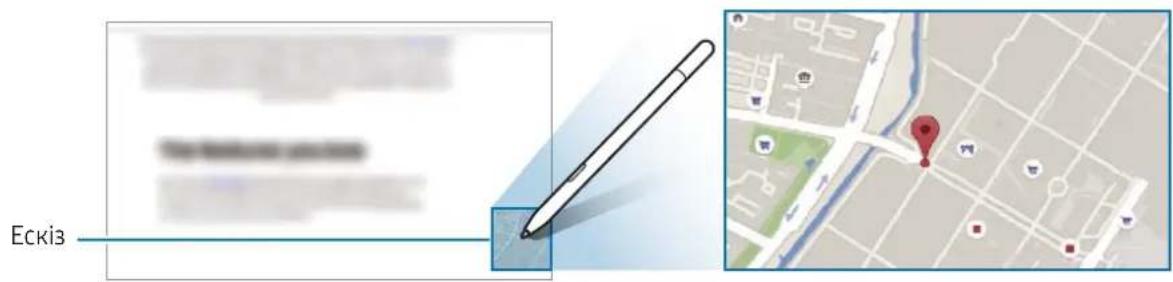
3po6nti 3aInc y kaIeHdapi
3aanncyte cboi nlaHn, nniuyn a6o maIIOUOn Ha ekpaHI kaneHapra.
BidkpniTe naneB kOMaHd HabeDeHH, TopKHITbCra 3po6ntn 3annc y kalenDapi, Ta BnwiTb CBOI nnaHn B kalenDap. 3akInuBwn, TopKHITbCra 36epertn. DnpeDaryBaHHr TopKHITbCra
KypbIbI bI eKpaHbIH eHIMMeH TpyTKeH Ke3iH3e, KypbIbIFbIfa KocblMaH-aK TypnI S Pen MymKHHdIKTepi H naHaHaHyfa 60naDbI.

- Θhim Galaxy S Ultra, Galaxy Note KypbIbnFblnapbIMeH XaHe S Pen MymKiHdiKTEpiHe KOnday KepCetTeIH nnahWeTETep MeH KOMNbIOTePJIepMeH YInecIMdi.
- ΘΗΜΙ eΗπίριπεν S Pen ΚαλΑΜβί δαρ κύρβιπFBιπρά naɪdaŋaHfαн Ke3nde Παραm-p aωbɪn, Kοςθμλa MγΜΚινικτηρ → S Pen → Kοςθμλa S Pen napamεTpnepi TapMaFbɪN Typtɪn, Kən S Pen kaλaMbɪha pyκcat 6epy Kɔckbɪwɪh Kocy γιψɪn Typtɪhɪ3.
- Εуе ἀpekeTepi cnKtBi Bluetooth Low Energy (BLE) κολdaHaTbH Kei6ip S Pen MymkɪnɪkTepi Hemece 6atapeŋhbl 3apAITay 6yn Θɪmde kɔnKetɪmdi emec.
KanamyTbI aybICTbIPy
KaIamYTo3FaH 60la, Ohbl aybictbpyfa 60laDbI.
1 Ecki Kaamywbl Ohbl aybictbpy KpaalbHbH cahblaybHa cahl, Kaamywbl aIbIn TaCTay ywiH eHIMdi KeTepiH3.
2 ΘHIMHH, KanaMyw CaHbInaybHa KaHa KaIaMyWtBcAbnHb3.

KaIamyUtbI eHIMre calfaH Ke3Je OHbI UMaJaH TbIC 6acNaHbI3.
KanamytbH dHreNek yshbH eHIMRe canyra 60nmaIdbI. Byn OHimHIn Hemece KypblfblbIH 3aKbIMdaIybiHa aKeIyi MymkiH.
Oye npmehi
Oye npmei - S Pen MymkiHdktepi Meh Kni naDanaHbIaTbIH KonDaH6anapra TikeJe Kipyre KemeKTeceTiH m3ip.
Aye npmehi nahein any ywiH eHimdi kpaHHbH yCTHe anapbIn, Pen TYmecin 6acbHb3. CohImen KaTAP aye npmehi bEnriuecin ( ) eHIMMeH TyptYiH3re de 60aIbI.
Oye npmehi TaKtacbHaH fHKnHbI Hemece KOndaH6aHbTaHdaHb3.
Jka36a Jxacay: Ka36aapanbI KaIkbImaIbI Tepe3eJe Jxacay. ByI MymKIniKti coHda-ak Pen TyMecin 6acbl Tpybl, 3kpaHdbI eki pet Typty apkbIbI icKe KocybHb3Fa 60laDbI.
BapnbK Jaa36anapdbKepy:Samsung Notes KOJdaH6acbIHdAfb6apnbK Jaa36anapFa Kipy.
Cmap TaHday: hIM KEMeImeHaMaKaTbI TaHdAn, 6nicy Hemece caKay cnaKtB apKeTTepDi opbHday.
- 3KpaH Jka3ybl: CKPNHwOT JkaCAn, OHbH YcTIHe CypET CaIy Hemece TycipinreH CypETIH aIMaftbH KnbI An. CoHbIme KaTAp aftbIMdaftb Ma3MHyDbl XaHe JxacbIPbH Ma3MHyDbl Be6-6et CnAKTbI KeHeHTIInrE H 6etKe Tycipyre 60anaBbl.
- XaHdbi xa6apnap: KONMeH Xa3y HeMece Cypet cany CnAeKTBi apeKeTTepiH3di Xa3bIn, OHbI aHIMaunr faaiNbpeTINde caKTay XaHe MAtIHdIK xa6apDbH, OPhbHa Xi6epy.
AR Doodle: 6eTTepHe Hemece 6aCKa KepDe BnptyAnDbI KOImEn Xa3y Hemece Cypet cany Kemerimekbl3bIKTbI 6eHenepre Xa3blHbI3.
- Ayapy: ΘHIMDi C03DIN YCTIHe anapbIn, OHbH aydpMaCbH Kapay.
PENUP: eHep TybIHbICbIH kapnay, 6ackaIapdbH eHep TybIHbIaPbIH Kapay XHe cypet cany 6oBbHsa naJaJIbKeHeCTep any.
Bixby Vision: Bixby Kamepacbi MymkiHikTepi naiDanaHbIn YKcac KeckiHepdi i3dey, mTiHdi aHbIKay, ayapy JxHe t.6.
- YIkeiTy: eHIMdi 3KpaH aMaFbHbH yCTiHe anapbIn yNfaiTy.
KbIaH6aHbI Ho6a KMyiHe XnBipBIn, eHIMdi Ho6aDbIH YcTIHe anapy apKbIbI KoIaH6aHbI ToBik 3kpaHda aWy. - Kynti36eJe Ka3y: Kynti36e KonlaH6acbH aMbIn, 3KpaHda Ka3y HeMece cypeT cany.
Bory: PENUP ycbihfah Keckihepre eHIM Kemirimeh Tycetep Kocy.
Kocy: aye npmehi naheiine jnni naaalaanbtaBH KOlaH6anaapdbH TaHaanapbH Kocy.
: aptypni eHim napametpnepiH 3repty.

Kei6ip MymkiHikTepe KpybIfblnapfa 6aIHaHbICTbI KOJIkeTImdi 6oImaybi MyMkiH.
Oye npmehi 6enriweci
ye npmeHHn nanei xabk 6onfah Ke3e, ye npmeHi 6enriweci kpaHda KepcetinT pyadbl. ye npmeHi naheHn OHIMMe H eniwehi TpyapKbIbI auyra 6oanaBbl.
KbIJIbIy ywiH 6enriuecin JkaHa opbIHf cyupeHiz.
Benriwehi oipy yiwin 3neMeHTIH kpaHHbH TemeHRI KaftaFbHdaFbI XoraTty TuMecine cyupeHiz.
ye napmehi 6enriweci 3kpaHda naia 60maca, Napam-p KOndaH6acbH aWbIn, KocbIMwa MymKihdikTepe S Pen yye npmehi TapMaFbIH TpyTIn, coaH KeiH yepmehi 6enriwecih Kepcety KockbIWBn Kocy YwiH TpyTIni3.
CmapT TaHday
HIM kemerimeh aMaKtbl TaHda, 6nicy Hemece caTay cnaKTbI apeKeTTepDi opbIHday. BeHHe aMaFbIH TaHda, oanGIF Jacayra da 6oJa#.
1 Keckin 60nlir cnaKtbi TycipriH3 Keletin KOHTeH 6oIca, aye npmeHi naneiH a7bIn, CmapT TaHday TyMeciH typtiH3.
2 Kypaapanap TaKtacbHaH KaKeTTi niwiH 6enriWeecin TaHdaI, eHIMdi TaHdaFbIHb3 KeJeTeH KOHTeHT 6oBImeH cyupeH3.
3 TaHdaIaHa aMakneH naIdaIaHy KaKeT OIuHbI TaHaIbI3.
- Bekity: TaHdaHaH aMakTbI eKpaHFa 6eKiTy. KeckHdi Samsung Notes cnAaBkTa 6acka kOlaH6aIapFa eni3yre de 6oJadbl. KeckHdi 6acka KOnJaH6a eKpaHbHa cyupev.
Kewipy: TaHdaIaHa aMakTbI 6acKa KOJaHa6anapFa Hemece Samsung ecentik Jaa36aHbI3Fa KipreH 6acKa KypblfIaPra Keiwipin KoIO.
T:TaHdaFaHaMaKaTaH MaTiH WbIfaPbIn aJY.
:TaHdaIFaH aMakTbIH cbIPTkbl KepiHicH aBTOMaTTbI Typde e3repteJI.
: TaHdaIFaH aIMaKTa Ka3y Hemece Cypet cany.
:TahdFaH aMakTbI 6ackanapMeH 6enicy.
:TaHdaJFaHaaMakTbIrapeperCaKTay.
BeyHeDiI aMaKtbl Tycipy
BeyHe OHaTbIbn KAtKaH Ke3De aMakTbI TaHdAn, OhBi GIF petiHde Tycipin anbHb3.
1 BeHHe OHaTbInIgKaTkaH Ke3De TycipriH3 KeletiH KOHTeH 60nca, aye npMeHi naHeiH aubin, Cmapt TaHday TyMeciH TyptiH3.
2 KypaIap TaKTacbIHda TIVMEciH TYPTiH3.
3 TycipinenaiMaKtbIH OPhbMeH eJWeMH petTeHi3.
OpHbH peTteH3.
Thwemih 03repty ywiH KaTaydbiH 6ypblbH KblkbItbHbI3.
4 Tycipydi 6actay ywiH KAsy tyMecin TyptiHi3.

BeHHeHi TycipMe TpybIn, OHbIn OHaTbInbIn KaTaKaHbHa Ke3 KcTeK3iHi3.
BeHn aMaFbIH TycipyRe 60aTbH MaKcMmaIdbY3aKtBik KpaHa KaPcTeiJeDi.
- Beinhe deri aMakTbI TycipreH Ke3de OHbIH dIb6bcI Jka3bImaJIbI.
5 Tycipydi ToKtaty ywiH ToKtaty Tymecih TyptiH3.
6 TaHdaIaHa aMakneH naIdaIaHy kXeT OIuYHb I TaHaHbI3.
- Bekity: TaHdaHaH aMaKaTbI 3KpaHaFb 6eKiTy. GIF paJIbH Samsung Notes cnAaB6a Ka KOnDaH6aIapFa eHri3yre de 6oJaBt. GIF paJIbH 6acka KOnDaH6a 3KpaHbHa cyupev.
Kewipy: TaHdaIaHa aMakTbI 6acKa KOnDaH6anapFa Hemece Samsung ecentik Ka36aHb3Fa kipreh 6acka KypblfIaPFA Keiwipin KOJ.
: TaHdaIHaH aMakTa Jka3y HeMece cypet cany. FauIbI caKtMaH TypbIn, HAtnKeHi Kapay yuH TVuMEciH TyptiHi3.
:TaHdaIFaHa aMakTbI 6ackaJapMeH 6eJicy.
:TaHdaJaFaHaaMaKTbIraJepeCaKTay.
EkpaHka3ybl
CkpHwot Jkacan, OHbIy YcTHe Cypet cany Hemece Tycipinre H cypeTTiH aMafBIn KnbIn any.
1 Tyciprii3 Keletin KOHTeH 6oIca, aye npmei nahein aubn, 3kpan Xa3ybl TYmecin TyptiH. Afbimdaftb3kpan abTomattbI typde TycipineiJxHe eHneuyin Kypanap TaKTacbi naJa 6oIa.
2 CkpHwOToTka36aKa3bIhbl3.
3 CkpuHwOTb6oicH3 Hemece caKaTahbl3.
TycipinreH cKpHwotapdbI ranepe Kapayfa 60JaDbI

Kei6ip kOlaH6aIapdbi naJaIaHaF Ke3e cKpInHOT Tycipy MymKIN emec.
Kandbixa6apnap
Kolmen kazy hemece caycany cnay cnykbl apekeTepiHizj kazbIn, OHbl anHmuaqna faiJIpeTIHe caKTay kHe MAtinik xa6apdbn ophBaHa kibepy.
1 AnmaJyIbK xa6ap KI6epriH3 keIce, aye npMeHi nAHeiH aUbIn, KaHdbI xa6apnap TyMeciH TpyTih3.
2 ΦΟΗΝΙΚ ΚΕΚΚΗΤΙ πετη, Μαῦνιν ἡνεμες Βγίδύ δαςται τυμΜεῖι Κτρτήσι.
3ДиHamMknKanbIx xa6ap 3KpaHbIHda Jka3blHbI3 Hemece cypeT caNbHbI3.
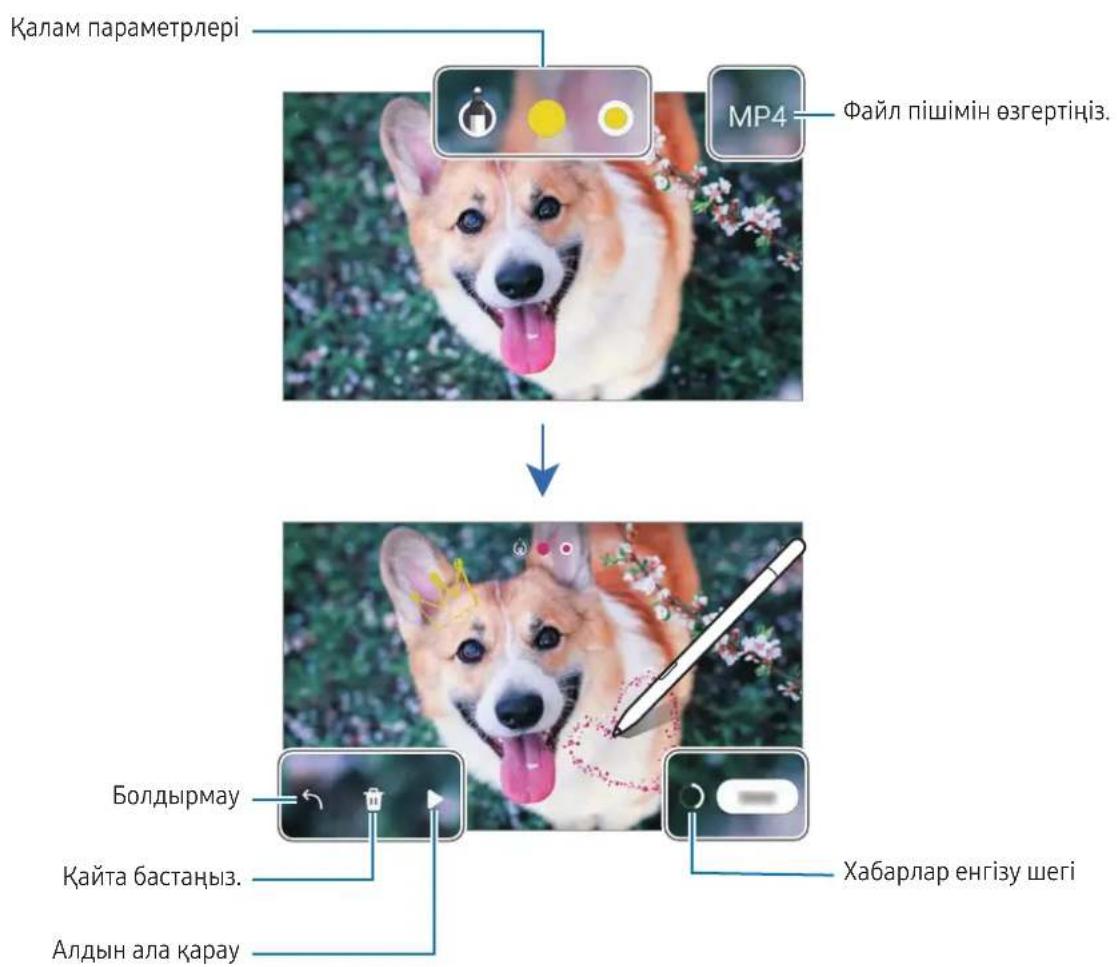
4 Daibn onuucbH TpytiH3.
Диhamнкальха6apгалер GIF hemec6ehepeiHde caKtaIaIbI.
5 Benicy TYMecin TYPTIN, 6enicy aicih TaHaHb3.
Aydapy
HIM ayapfbHb3 KeIReH MAtHHiYcTIHe anapbHb3. MAtIHderi eIWeM 6ipNIkTePi de TpyneHedi.
1 Ayapfbih3 Keetin MtoH 60nc, aye npMeHHaHei H awbIn, Ayapy TuMecIH TyptH3.
2 3kpaaHHbIH, Kofapfbl JkafbHdafbI aydapMaBbI NaHeiHne TINepDi TaHaHbI3. C03dep MeH cOJIeMdep apacbHdaFbIMaTHiHdi T HeMece Tmecin Typty apkblbE3reptyre 60naDbI.
3 ΘHIMdi aydpfbHb3 KeIreH MaTINHH HeMece TypneHdipriH3 KeIreH eIWeM 6ipnirH yCTiHe aNapbHb3. AydpBlnFaH MaTHn naJa 60NaDb. TyNHcKa MaTIHHaNTbIyBH TbIHday Ywi TMyMEci TpyTHi3. TaHaJFaH TiRe 6aJIaNbHcTBt6eJIiUeCi naJa 6OImayb MyMKH.
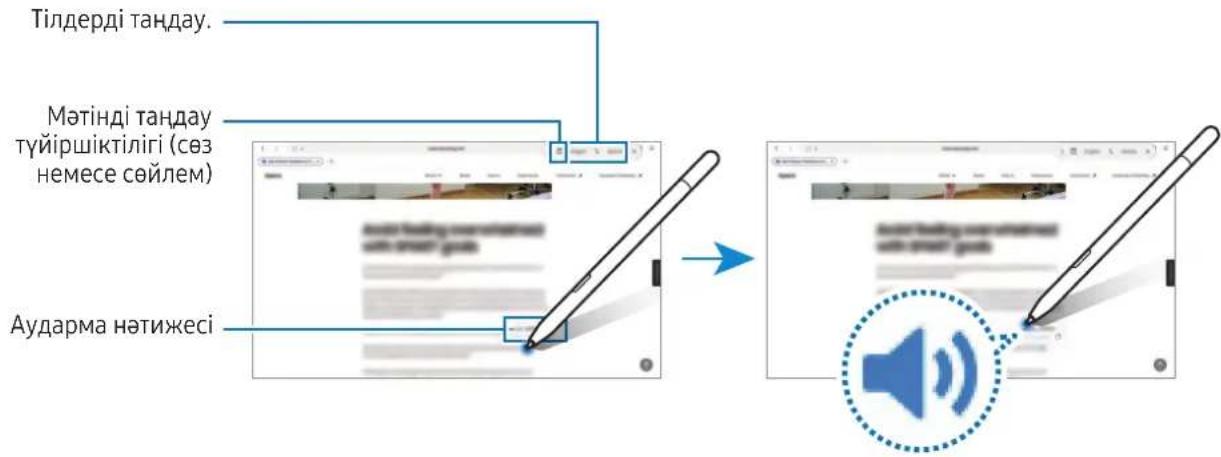

Byl MymkiHdkke kei6ip tiJdep KOJay KepcTneyi MymkiH.
ByMymKHHik aHbIKTaIaTbIH MToIH eKaPaHa6oJFaH Ke3Je FaHa KOJIKeTIIdi.
Bixby Vision
O himdi KOHTeTTiH yCTIhe anapfah Ke3de KOHTeHT aHbIKTaIaIbI JxHe KOJIeTIMdi i3dey 6enriwelepi naIda 60laIbI. BymMkiHdiKTEpDi YKcac KeckIHdepDi i3dey, mAtHdi aHbIKtay, aydapy XHe T.6. ywiH naJaIaHaHbIbI3.
1 CaikeacaknapaibH i3ey HeMece MaTihin sbifapbIn any KaKeT Keckin 6oJca, aye npmeHi naHeiH auBIn, Bixby Vision TVyMEciH TVptiH3.
2 ΘHIMdi KaKETTI MAtiHHiH yCTIhe anapbIHb3. 3KpaHda KOnKetimDi onuHaJnap naJa 6oNfA H Ke3e, KaNaFaH OuHbTaHaHb3.
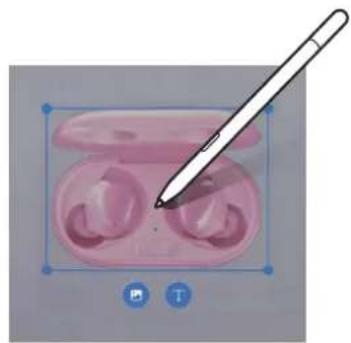
KbIaM Kapan WbIfy
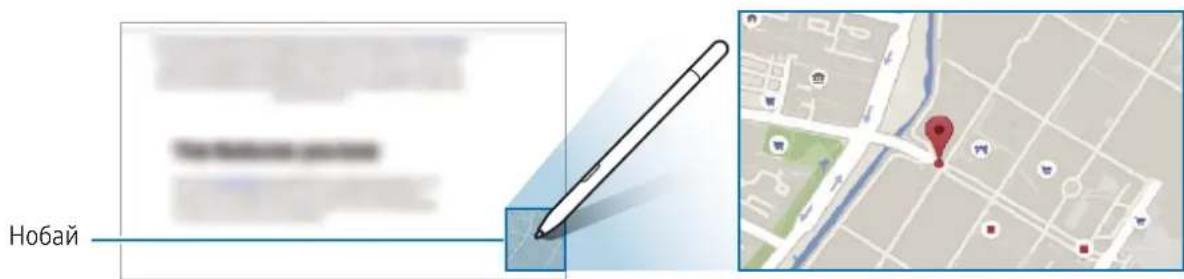
KoIaH6aHbI Ho6a KIyIe KIbIpyIn, EHIIMdi Ho6aIbIH yCTiHe anapy apKblbl KoIaHa6aHbI ToIbIK 3KaPaHda aUy.
MbicaIb, kapa KaJaH6acBHa aBIn, aye npMeHi nHeiH aBIn, Kbnam Kapan uby Tymecin TyptiH3. KaJah6a 3KpaHHbN TEmHri XaFbHa H6aik Kyine KnbipbIaNbI. Be6-6eTepdi WOnbIn Kaparan Ke3de KapTa KaJaH6acBHa aBn, opHnDap i3dey yuH eHIMDi Ho6aNbH yCTHe anapbHbI3.
KoIdaH6aHbI KaTaNbA KyniHe JxNbIpy yuIN eHIMdi EkaPAnHaH aIbI TaCTaHbI3.
KiipieTINrReH KOIaH6aHbI Xa6y YwiH Ho6aIbI 3KpaHHbIH XofapFbI XaFbIHdaFbl KofaTyr TYmecHe cypehi3.
KuHTi36eJe kα3y
Kynti36e 3kpaHbIHda Jaa3y Hemece cbI3y apKbIbI JXOCnapnapabHbI3DbI TOITbIPbIHbI3.
Oye npmehi naneiHne Kynti36eJe Ka3y TyMeCIn Typtin, KHTi36ere JocnpapbHb3dbI TOnTbipbHb3. AkaTaFaH Ke3De CaTay TyMeCIn TyptiH3. OHey yuH tyMeCIn TyptiH3.
Copyright © 2023 Samsung Electronics Co., Ltd.
BvHyCKayIbIK xaIbIkapabIbIK aBTOpbIK KYkbIKTap TpyaIbI 3aHdApMeH KopFaJIFaH.
Bny HycayIbIKtbiEw6ip 6eJIirH Ke3 KeIre Hemece Ke3 KeIreH aic, 3JeKtpoHdbIK HeMece MexaHnKaIbIK, coBH iwiHde, fOToKeWipy, Ka3y Hemece Ke3 KeIreH aKnapaTbIK KoMaJa XHe WbIFapbln any KyyeciHc daCaTay apKblbl Kwipyre, TapatYfa, aydapyFa Hemece TaCbImaJdaYfa 60lmamdbI.
Cayda 6enrinepi
- SAMSUNG Jähe SAMSUNG Jorotuni — Samsung Electronics Co., Ltd. KMnnaHcBbH TipKeJreH cayda 6enrinepi.
- Bapnbk 6aca caya 6enrilepi XaHe aBTOpbk KykbikTap Tnici nepePiH Mehwiri 60bln Ta6blnabbl.
入门指南
设备布局与功能
Copyright © 2023 Samsung Electronics Co., Ltd.
本手冊受國際版權法保護。
Copyright © 2023 Samsung Electronics Co., Ltd.
Copyright © 2023 Samsung Electronics Co., Ltd.
1 1
2 RaIb MaJiJiJiJiJiJiJiJiJiJiJiJiJiJiJiJiJiJiJiJiJiJiJiJiJiJiJiJiJiJiJi
3 RaIb MaJiJHJHJHJHJHJHJHJHJHJHJHJHJHJHJHJHJHJHJHJHJHJHJHJHJHJHJHJHJHJHJHJHJHJHJHJHJHJHJHJHJHJHJHJHJHJHJHJHJHJHJ
4 廖爲則不爲
RaiiBr MntiJg OucjIeN iMJI pafil(GIF) 1 1
5 五