
G923 - Game controller LOGITECH - Free user manual and instructions
Find the device manual for free G923 LOGITECH in PDF.
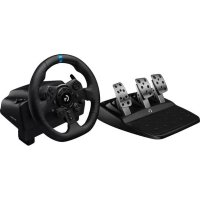



| Product type | Racing wheel with pedals |
| Brand | Logitech |
| Model | G923 |
| Compatible platforms | Xbox One, PC |
| Power supply | External power adapter |
| Connections | USB, DB-9 port for optional shifter, pedal jack |
| Rotation angle | Up to 900 degrees (adjustable in G HUB) |
| Force feedback | Dual motor with TRUEFORCE high definition |
| Dual clutch | Yes, programmable via LSB/RSB buttons |
| Paddle shifters | Yes, left and right |
| Pedals | 3 pedals: accelerator, brake, clutch |
| Configuration software | Logitech G HUB (sensitivity, rotation, force, mapping settings) |
| Indicator light | Engine RPM indicator lights compatible with select games |
| Mounting | Integrated desk mounting system with removable extenders |
| Housing dimensions | Approximately 30 x 28 x 28 cm (estimated) |
| Weight | Approximately 2.5 kg (estimated) |
| Care and cleaning | Unplug before cleaning; use a soft, dry cloth |
| Safety | Overheating protection circuit; unplug after extended use |
| Spare parts and repairability | Contact Logitech support for any parts or repairs |
| General information | Complete manual available in 25 languages at notice-facile.com |
Frequently Asked Questions - G923 LOGITECH
User questions about G923 LOGITECH
0 question about this device. Answer the ones you know or ask your own.
Ask a new question about this device
Download the instructions for your Game controller in PDF format for free! Find your manual G923 - LOGITECH and take your electronic device back in hand. On this page are published all the documents necessary for the use of your device. G923 by LOGITECH.
USER MANUAL G923 LOGITECH
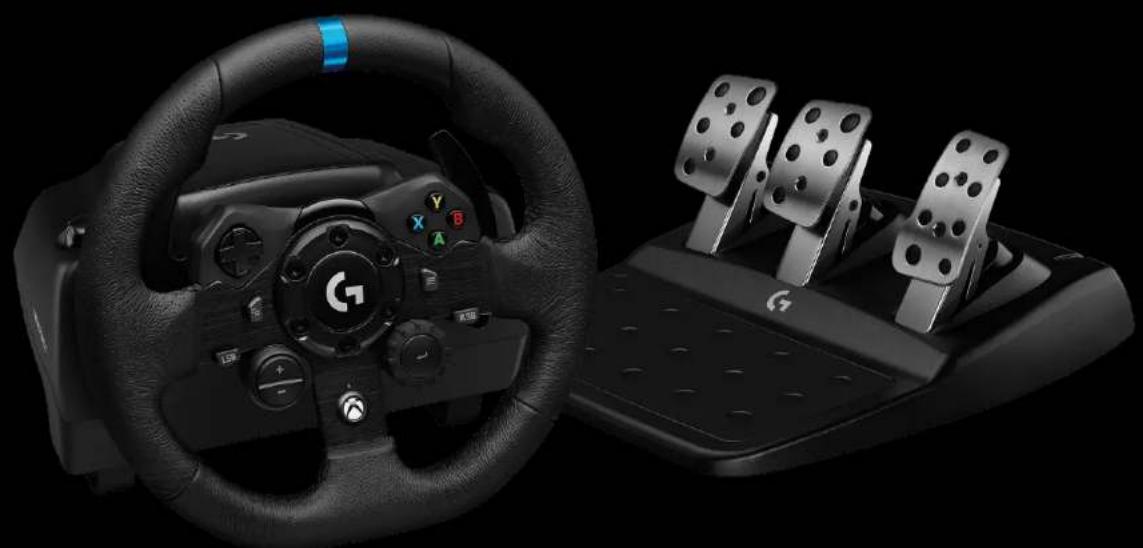
Racing Wheel and Pedals For Xbox One and PC
SETUP GUIDE
logitech

English 3 Czech version 168
German 14 Slovenian 179
French 25 Ukrainian 190
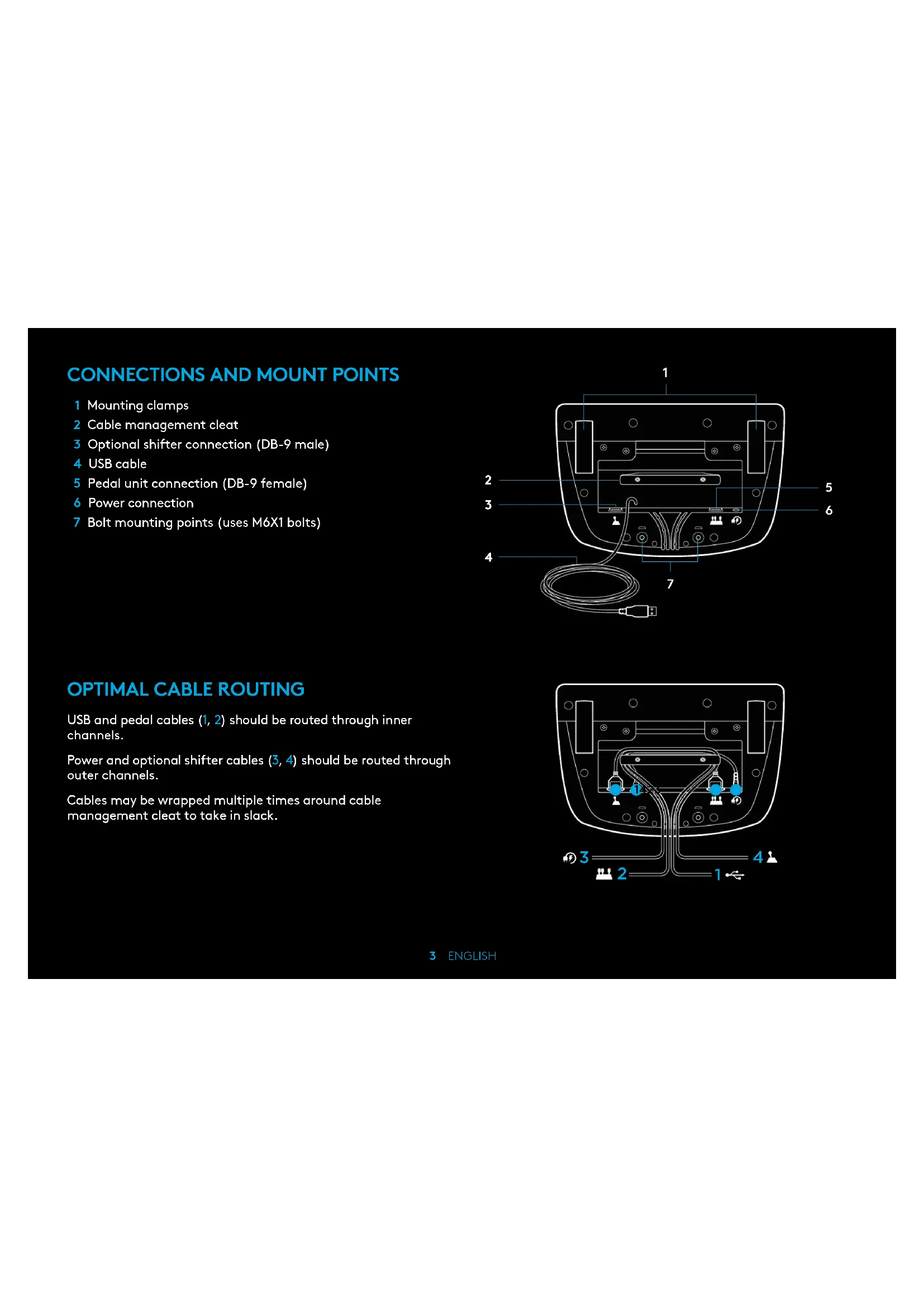
CONNECTIONS AND MOUNT POINTS
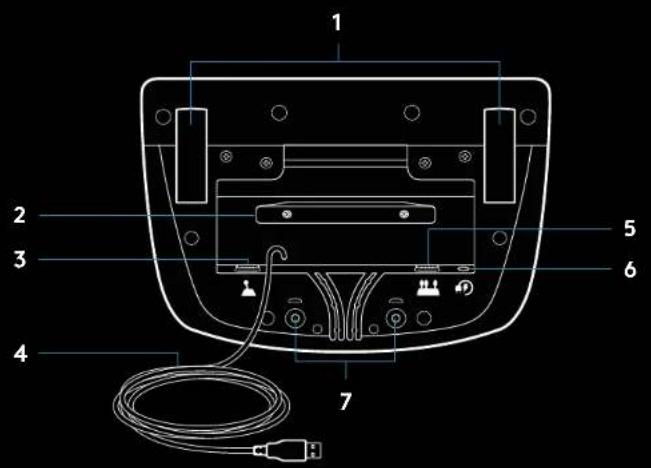
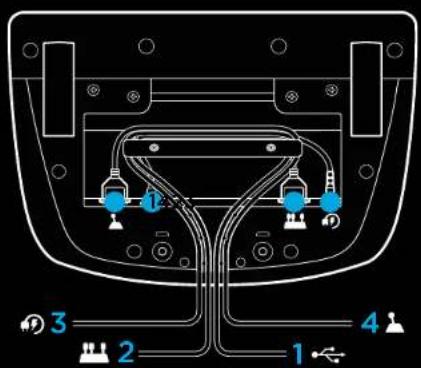
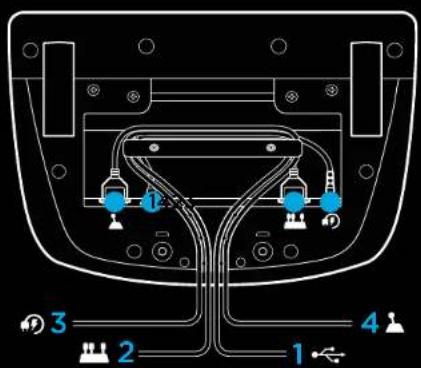
1 Mounting clamps 2 Cable management cleat 3 Optional shifter connection (DB-9 male) 4 USB cable 5 Pedal unit connection (DB-9 female) 6 Power connection 7 Bolt mounting points (uses M6X1 bolts)
OPTIMAL CABLE ROUTING
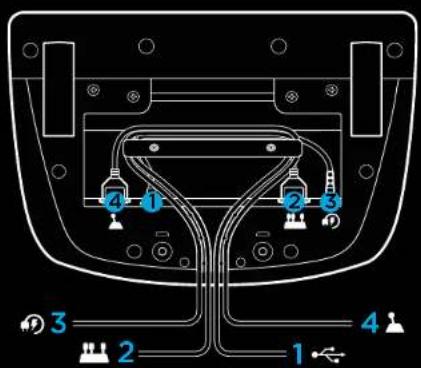
USB and pedal cables (1, 2) should be routed through inner channels.
Power and optional shifter cables (3, 4) should be routed through outer channels.
Cables may be wrapped multiple times around cable management cleat to take in slack.
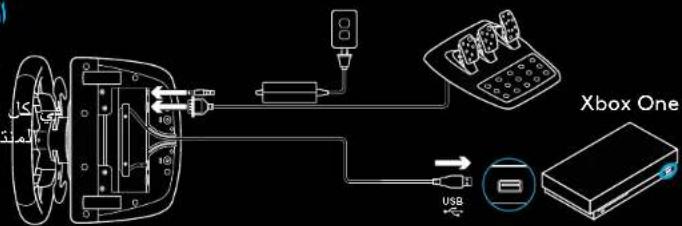
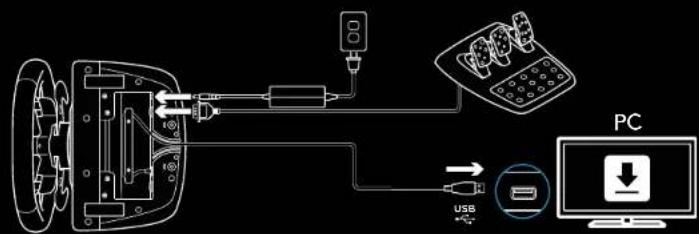
INSTALLATION -XBOX ONE -PC
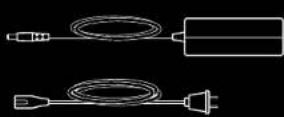
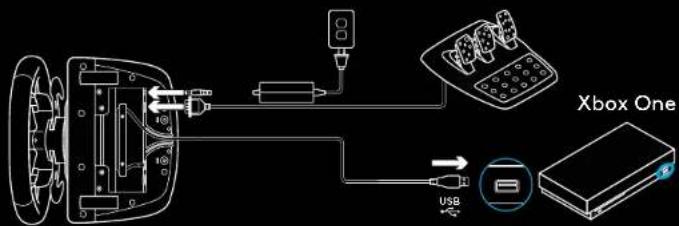
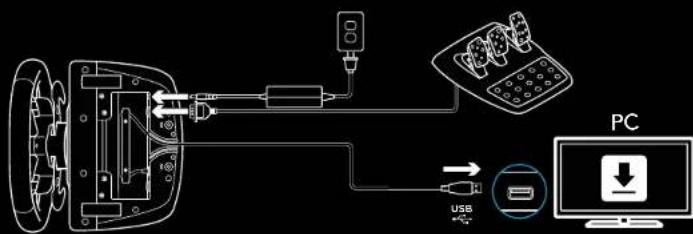
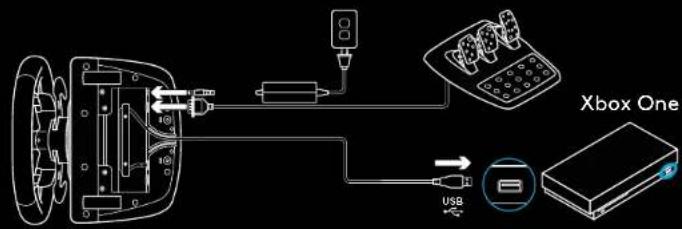
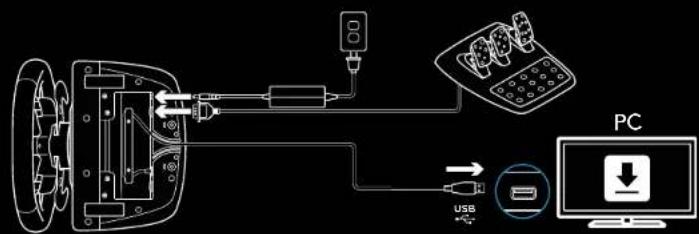
Attach power adapter and USB cables as shown.
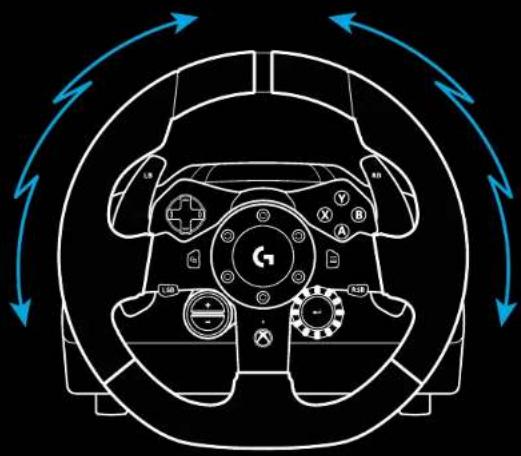
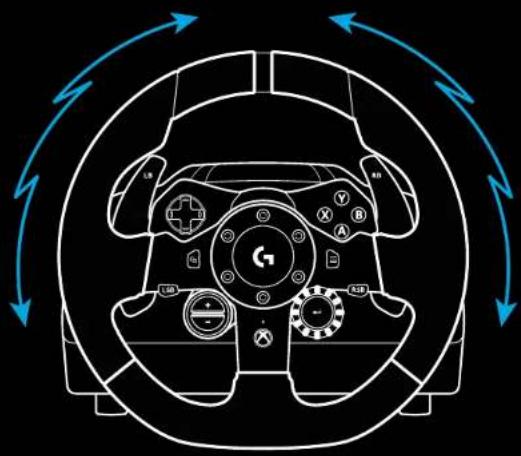
Every time your racing wheel connects with your system, it will rotate fully to each side and then to the center to calibrate. Your wheel will be ready once this calibration is completed.
For PC to enable the force feedback and RPM LED features on your G923 Wheel and Pedals you must install the Logitech G HUB software. This can be found at logitechg.com/support/g923-xb1
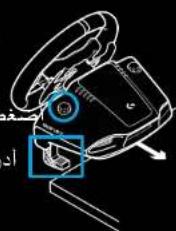
MOUNTING CLAMPS
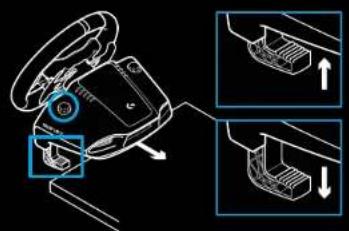
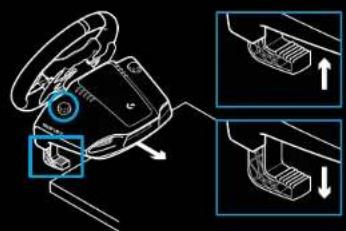
G923 Racing Wheel is equipped with a built in clamping system for mounting to a table.
Push down and rotate clamp knobs to lock or unlock.
Rotate clamp knobs to tighten or loosen clamps.


Note:
Clamp extenders should be removed for attachment to thicker tables.
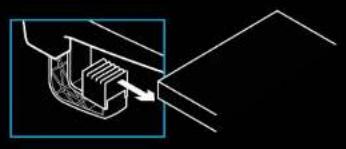
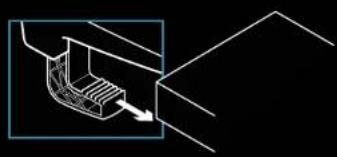
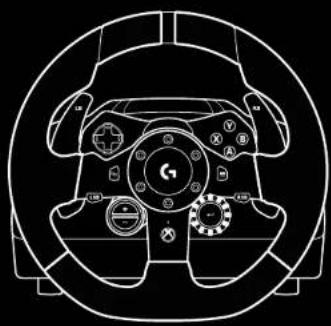
BUTTONS
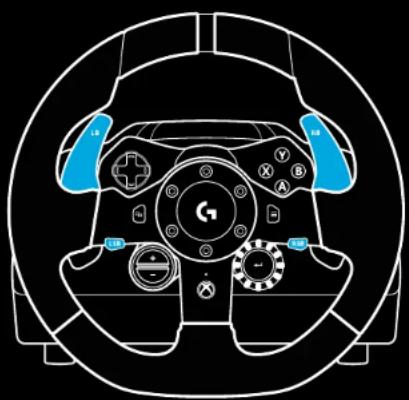
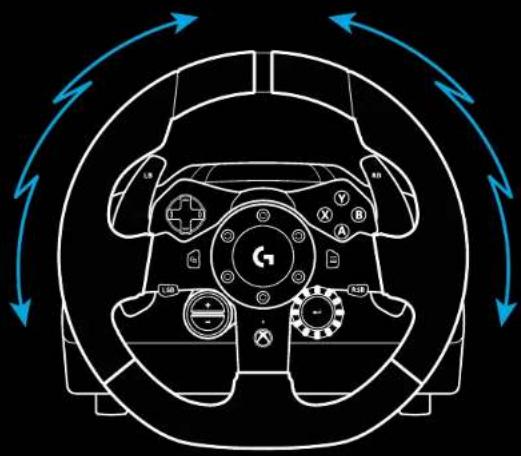
1 Left bumper 2 Directional pad 3 View button 4 Left stick button 5 +/- Setting Adjustment buttons 6 Right bumper 7 A, B, X, Y buttons 8 Menu button 9 Right stick button*
10 Setting Selection Dial and select button* 11 Xbox button
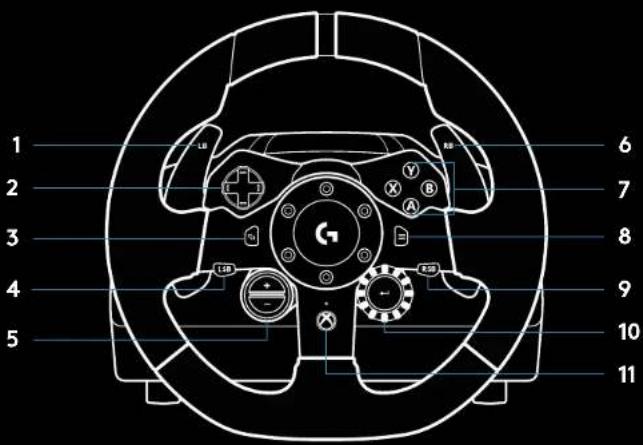
- requires supported games on Xbox One. Assignable in any game on PC using either in-game assignment or Logitech G HUB software.
FORCE FEEDBACK
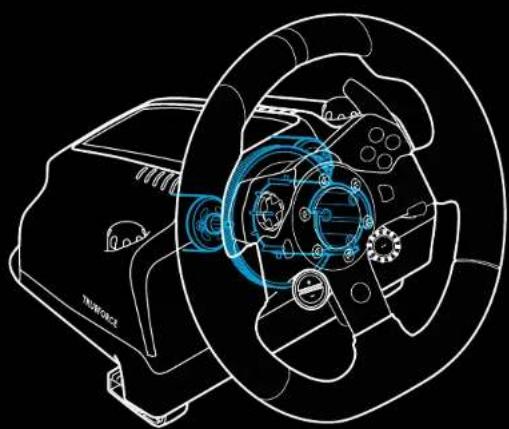
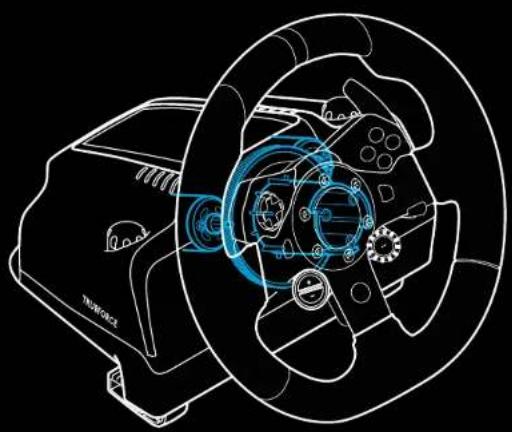
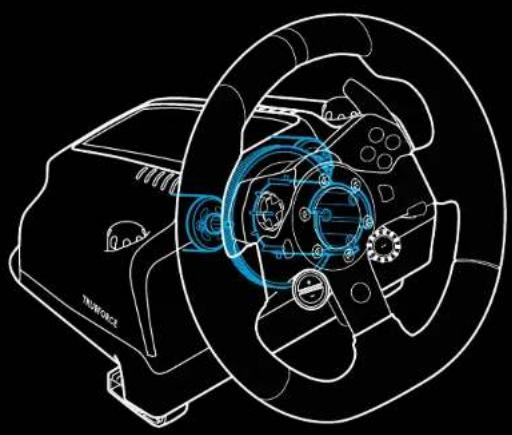
Your Racing Wheel contains dual motors that will provide force feedback with supported games and systems.
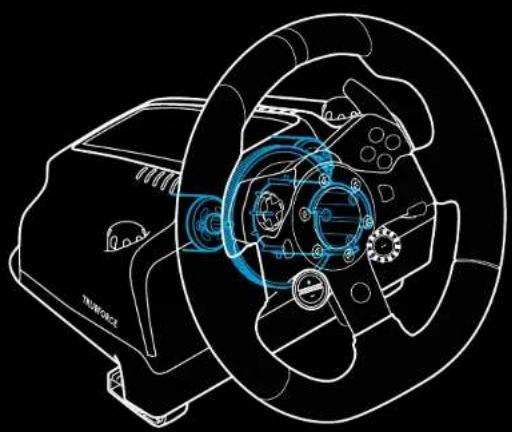
In supported titles you will also experience our next generation approach to force feedback: TRUEFORCE.
TRUEFORCE integrates directly with game physics and audio to unlock high-definition, real-time force feedback. Tire grip, suspension, weight, horsepower—even unique engine sound resonance—are immediately and accurately felt through the wheel.
Supported titles on Xbox One and PC may implement TRUEFORCE high-definition force feedback. For a list of supported titles visit logitechg.com/support/g923-xb1
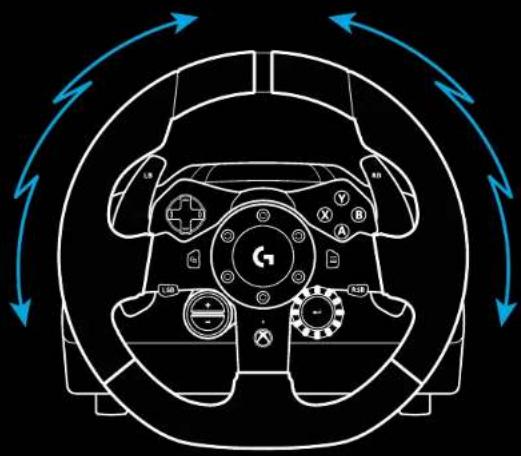
Note:
Your Racing Wheel has an overheat protection circuit safeguard to protect it under high-temperature operating conditions. In rare instances, force feedback features may shut down during use while controls continue to operate.
If this occurs, allow the wheel to cool down and power it down by unplugging it. If this occurs frequently, contact product support.
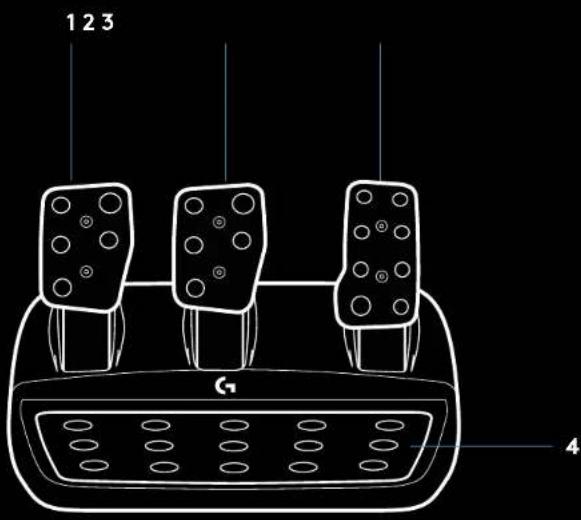
FEATURES
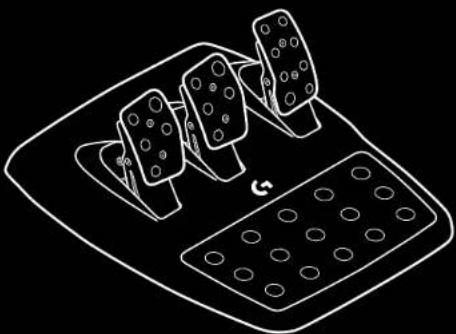
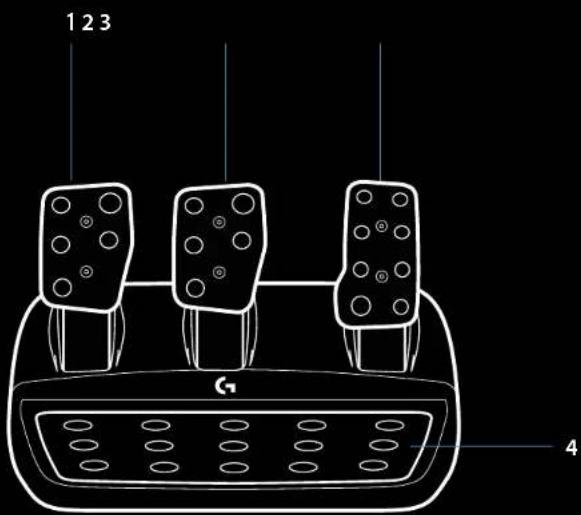
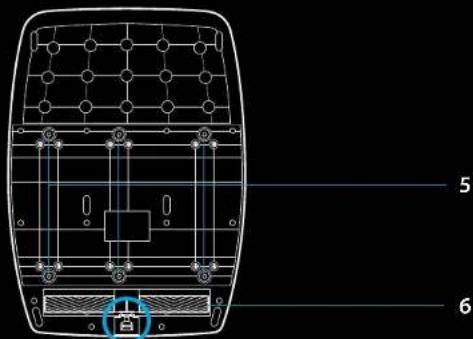
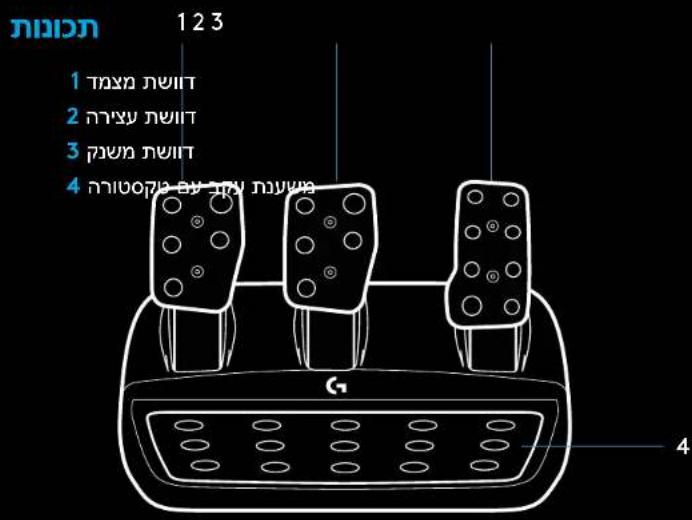
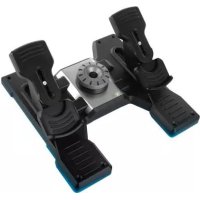
1 Clutch pedal 2 Brake pedal 3 Throttle pedal 4 Textured heel rest
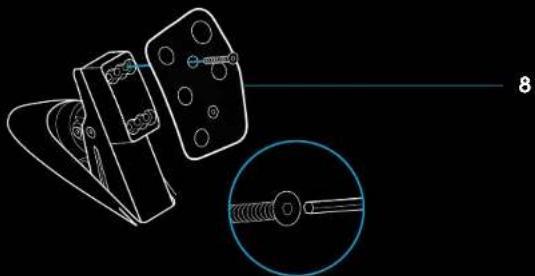
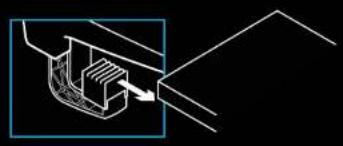
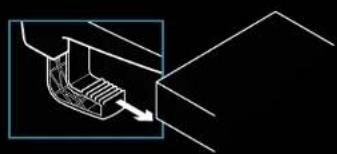
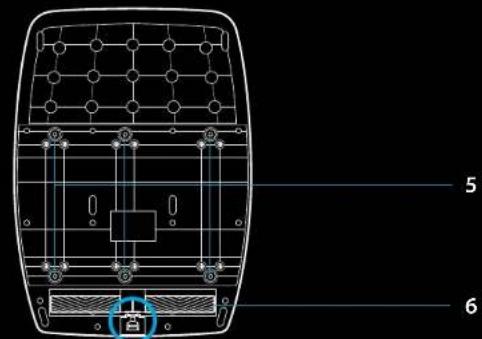
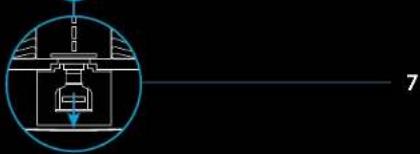
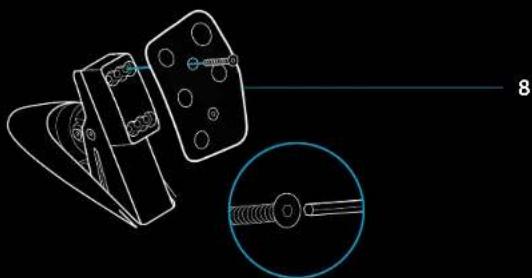
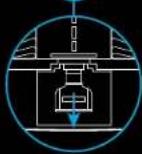
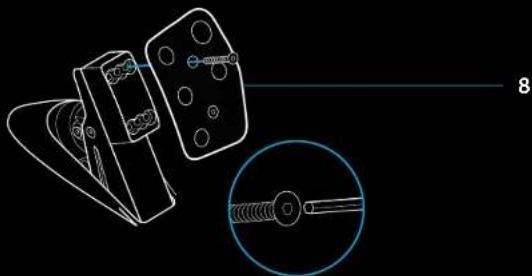
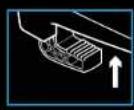
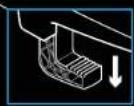
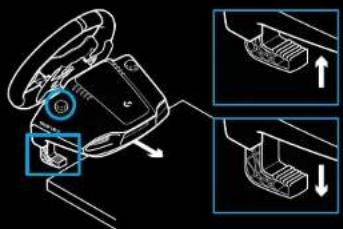
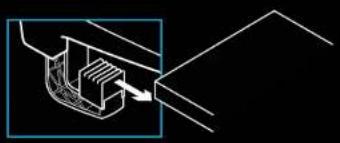
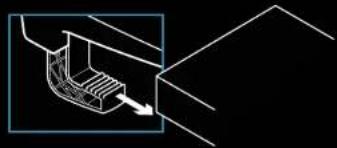
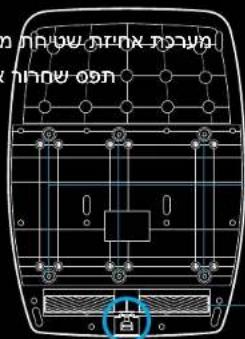
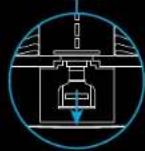
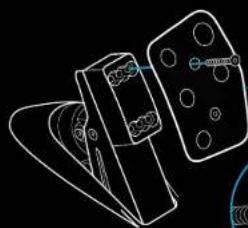
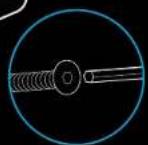
5 Bolt mounting points (uses M6X1 bolts) 6 Patented carpet grip system 7 Carpet grip release clip Push towards rear of pedal unit to release 8 Change pedal face position (requires 2.5mm hex key)
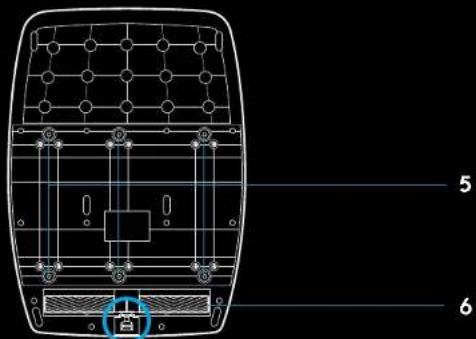

7
USING THE DUAL CLUTCH IN-GAME
Using a dual clutch system from a grid start in a race enables you to achieve maximum traction without the need to find the bite point of your clutch pedal - this can give you a significant advantage at the start of a race.
To use the dual clutch system in-game:
1 At race start, fully depress the clutch pedal and the button assigned to the dual clutch function (see next section for setting instructions). 2 Select first gear using the Gear Up Paddle and fully depress the gas pedal. 3 As soon as you get the green light for race start, immediately release the Dual Clutch button. The car should start moving as the bite point of the clutch is engaged. 4 Smoothly release your foot from the clutch pedal in order to achieve maximum traction. It's worth practicing this last step and modifying the bite point setting several times to find a method that works for you. Once you have it perfected, this feature can help make up several places on the grid.
Note:
Support for the dual clutch function is not possible in some games. A list of games that support the dual clutch feature can be found at logitechg.com/support/g923-xb1
SETTING UP THE DUAL CLUTCH SYSTEM
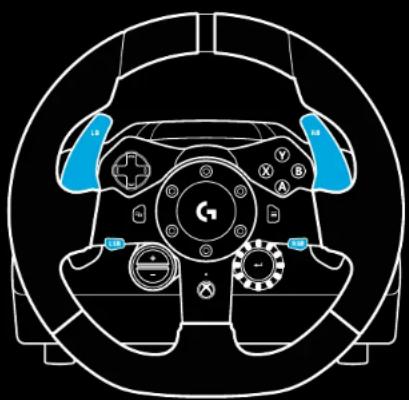
1 Press and hold the left and right gear paddle and Left stick button and Right stick button together for two seconds to enter dual clutch setting mode. The RPM LEDs will illuminate blue and flash slowly:
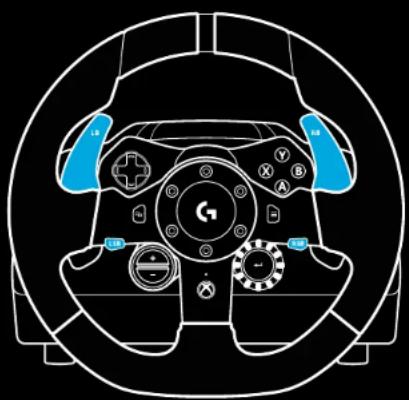
Note:
Whilst in the Dual Clutch setting mode the RPM LEDs will not respond to the game/SDK
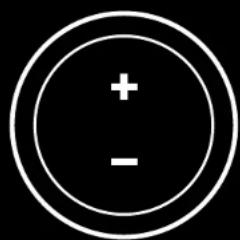
2 Press the button you want to set as the dual clutch button. The only valid buttons for this are the left stick button (LSB) and right stick button (RSB). The RPM LEDs will flash red to show that you're in clutch position setting mode. 3 While in your chosen simulation or game with the car still on a track, fully depress the clutch and gas pedals. Engage first gear and keep pressing the minus button down until the car begins to move in-game. You can adjust the precise bite point of the clutch by using the plus and minus buttons until you are happy with the setting. 4 At this point you may test the dual clutch without leaving the setting mode. It is recommended you attempt a race start, stop the car and adjust the bite point and then try again until you are satisfied with the performance of the dual clutch. 5 Press the Select button in the middle of the dial on the wheel to exit dual clutch setting mode. The RPM LEDs will flash in a sequence from green to blue to show that the setting is saved. The RPM LEDs will then go out and begin responding again to RPM output from supported games.

RESETTING DUAL CLUTCH SYSTEM
Press and hold the left gear shift, right gear shift, and X button for two seconds.
The RPM LEDs will all flash four times and then extinguish to indicate that the Dual Clutch system has been reset.
The button assigned to the Dual Clutch system (LSB or RSB) will revert to its normal function.
USING LOGITECH G HUB
Logitech G HUB enables the following features on the G923:
- Button programming with profiles that can be linked to games.
- Adjustment of wheel settings, such as Rotation Angle and TRUEFORCE strength.
- Testing of the various buttons, wheel and pedal functions.
G HUB WHEEL SETTINGS
Sensitivity
Alters the output response of the wheel to be more or less sensitive. Leaving this slider at 50% will provide a linear 1:1 output. Between 51% and 100% will make the wheel increasingly more sensitive around the centre movement of the wheel. Between 0% and 49% will make the wheel decreasingly sensitive around the centre movement of the wheel.
Operating Range
The G923 is capable of up to 900 degrees of rotation. Reducing this setting will change the point at which the wheel will reach full steering lock. This is especially useful if you're driving a car with a smaller actual steering lock angle, such as a Formula 1 or GT3 car.
Centering Spring (for games without force feedback)
Most games that support force feedback already model the correct return to center function of the G923 based on the virtual car. It is recommended that the Centering Spring option be turned off for these games.
Enabling the Centering Spring option will allow you to override the game features and adjust the strength of the return to center force using the provided slider.
Torque
Only available for TRUEFORCE supported games. Torque controls the overall force feedback strength for your G923.
Audio Effects
Only available for TRUEFORCE supported games.
Controls the overall strength of the audio-related effects (engine note, rumble strips etc.) when using TrueForce-compatible titles.
If you are using your G923 in older titles that do not support TRUEFORCE then adjustment of the force feedback can be performed from the settings menus of the game title.
G HUB PEDALS SETTINGS
Sensitivity
Alters the output response of the pedals to be more or less sensitive. Leaving this slider at 50% will provide a linear 1:1 output. Between 51% and 100% will make the pedal increasingly more sensitive around the initial movement of the pedal. Between 0% and 49% will make the pedal decreasingly sensitive around the initial movement of the pedal.
Combined Pedals
If checked, this will set the gas and brake pedals to become two halves of a single axis. This will help the pedals operate correctly in older racing titles that do not support separate axes for pedals.
Note: if left checked then the pedals will not behave correctly in modern racing titles. If you find that just one of your pedals is functioning by accelerating when pressed and braking when released then you should make sure that this option is not checked.
TESTING YOUR WHEEL AND PEDALS
On the wheel and pedals screens in G HUB you can check every button and axis on your G923 in order to ensure everything is functioning correctly. For the wheel you can also see the effect of altering the Operating range.
QUESTIONS?
logitechg.com/support/g923-xb1
XPHSH TOY LOGITECH G HUB
To use Logitech G HUB, configure the following on the G923:
- Program buttons and profiles that can be assigned to games.
- Adjust the wheel settings, such as rotation angle and the strength of the TRUEFORCE system. Test the various functions of the buttons, the wheel, and the pedals.
SETTINGS IN G HUB
Sensitivity
Adjust the response of the wheel to be more or less sensitive. If you set the slider to 50%, the response is linear 1:1. The range from 51% to 100% increases the sensitivity of the center movement of the wheel. The range from 0% to 49% decreases the sensitivity of the center movement of the wheel.
Sensitivity
To G923 has a rotation range of up to 900 degrees. This reduction in rotation will change the steering wheel's rotation point. The rotation is particularly useful when driving a vehicle with a smaller steering rotation angle, such as Formula 1 cars.
Spring Center (for racing games)
Most games that support the force feedback system simulate the centering spring function in the center of the G923, similar to the real vehicle. It is recommended to disable the Spring Center feature in these games.
The Spring Center force adjustment will allow you to adjust the game's functions and customize the force strength in the center, using the following physical.
Wheel rotation
Adjustment in games that support TRUEFORCE. The wheel rotation controls the natural force of the G923's feedback.
Audio effects
Adjustment in games that support TRUEFORCE. Includes full integration of audio effects (engine sound, collisions with rough surfaces, etc.) when using titles that support TrueForce.
FORCE FEEDBACK
Force feedback is provided by two motors that provide force feedback in supported games and systems.
Some games process force feedback technology: TRUEFORCE.
Thanks to direct interaction with the physical movement of the game and the sound accompaniment, TRUEFORCE technology provides extremely clear force feedback in real time. Grip on slippery surfaces, suspension oscillations, mass and weight of the vehicle, as well as vibrating engine sound — all this can be felt with the wheel.
Supported games on Xbox One and PC can use TRUEFORCE technology - ultimate force feedback. For a list of compatible games, visit logitechg.com/support/g923-xb1
Note.
The clutch pedal system is designed to reliably operate in high temperature conditions. In rare cases, the force feedback system may turn off during use, while the control elements continue to work.
In such cases, you must turn off the wheel and let it cool down, disconnecting the cable. If this happens repeatedly, contact the technical support center.
SPECIFICATIONS
1 Clutch pedal 2 Brake pedal 3 Accelerator pedal 4 Textured footrest
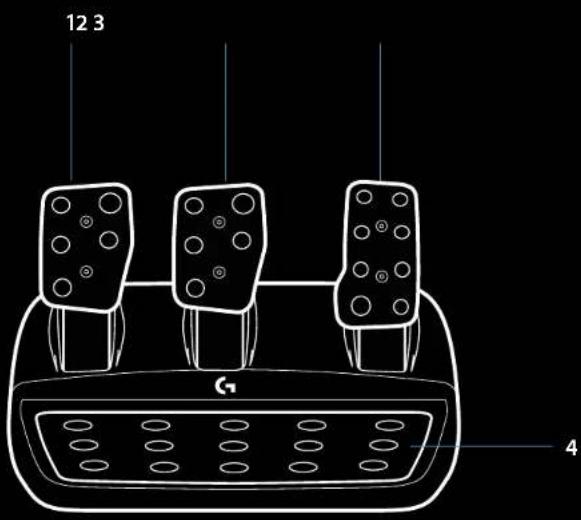
Bolt mounting points (using M6 bolts) 6 Patented anti-slip coating system 7 Attachment for removing the anti-slip coating To remove the coating, pull it towards the rear of the pedal block 8 Adjust the position of the pedal faces (requires a 2.5 mm hex key)
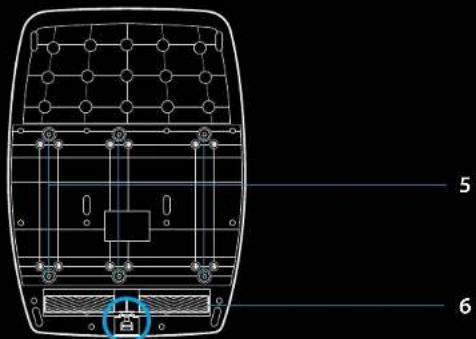
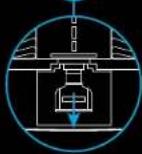
7
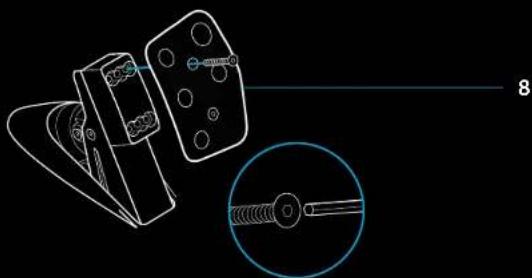
USING THE DUAL CLUTCH SYSTEM
Using the dual clutch system in conjunction with the start position allows you to achieve maximum traction at the start. For this, you don't need to search for the clutch engagement point — this can give a significant advantage at the beginning of the race.
To use the dual clutch system in a race, follow these steps.
1 At the start of the race, press the clutch pedal fully and hold the button assigned to the dual clutch function (instructions for setting this up can be found in the next section). 2 Shift to first gear using the gear shifter, and press the accelerator pedal fully. 3 As soon as the race begins, immediately release the dual clutch button. As soon as the clutch engages, the car will start moving. 4 Gradually release the clutch pedal to achieve maximum traction. We recommend practicing this final step and experimenting with the clutch engagement point settings to find the optimal sequence of actions. Once you master it perfectly, you'll be able to easily launch ahead at the start.
Note.
Some games do not support the dual clutch function. A list of games that support the dual clutch function is provided on the page logitechg.com/support/g923-xb1
SETTING UP THE DUAL CLUTCH SYSTEM
1 Press and hold the right pedal, as well as the left and right paddle buttons for two seconds to enter the dual clutch setup mode. The tachometer lights will blink intermittently:
Note.
Setting up dual clutch engagement. Optical tachometers do not respond to signals from the game/development tools.
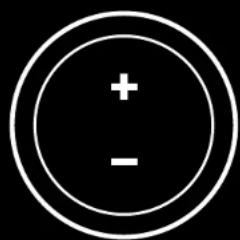
2 Press the button that needs to be assigned to dual clutch engagement. Only the left and right buttons on the steering wheel are suitable for this. The optical tachometers will flash red, indicating the transition to clutch engagement setup mode. 3 While driving the vehicle in the selected gear, press and hold the clutch pedal. Shift to first gear and press the «-» button until the car starts moving in gear. The desired engagement moment can be set using the «+» and «-» buttons. 4 At this stage, you can test the dual clutch engagement without leaving the setup mode. We recommend testing the start of acceleration: stop the machine and adjust the engagement moment (repeat the process until you have verified comfortable settings). 5 Press the selection button in the center of the gearshift lever to exit the dual clutch engagement setup mode. The optical tachometers will flash green and blue sequentially, indicating that the settings have been saved. After this, the optical tachometers will go out and will again respond to tachometer signals from the game.

RESETTING THE DUAL CLUTCH SYSTEM SETTINGS
Press and hold for two seconds the left and right gearshift paddles, as well as the button
The optical tachometers will flash four times and then go out - this means that the dual clutch system settings have been reset.
The button assigned to the dual clutch system (right or left button on the steering wheel) will again perform standard functions.
USING LOGITECH G HUB
In the Logitech G HUB software, the following settings can be made for the G923.
- Programming buttons and profiles that can be linked to games.
- Adjusting steering wheel settings, such as rotation angle and TRUEFORCE intensity.
- Testing various functions of buttons, steering wheel, and pedals.
STEERING WHEEL SETTINGS IN G HUB
Sensitivity
Changes the steering wheel response, increasing the level of sensitivity. When the slider is at 50%, the response will be linear (1:1). If the slider is between 51% and 100%, the sensitivity during rotation increases accordingly. If the slider is below 49%, the sensitivity during rotation decreases.
Rotation angle
PyrB G923 noDaepxkmbaet nobopot Ha 900 rpayncoB.
UmeHbueHHe 3NaueHnE 3ToHnactpOnKn N3MeHnT ToKy, DaJIbee KOTOpO pyIb He CMOxET NOBepHyTBc.3To Oco6eHHO BaxHo, eCNI BBI BeJeTe MaunHy C MeHbIuM yTlOM NobOPoTa pyIa, KaK, HApPImep, B ABTomO6nJx FOpMya-1 nnn GT3.
Lentpnpuyioa npyxna (nla nrg 6e3 o6paTHo CBa3n no ycnnnio)
B 6oJIbIINHCTBe Irp, PIOIepeKINBAIOUxO6paTHyIO CBA3b IO yCINIO, yXe CMOeIINPOBaHa FoHKUa KOPPeKTHOrO CEHTpnpOBaHnma OMeIIN G923 B 3aBNCIMOCtN OT BbI6paHHoBNPtpAynHO MaunHbI. PeKomeHnyem OKIIouaTb NapaMeTp ceHTpnpYIOuei npyKinHbI DnE 3TNX INrP.
EcnBkIOuHTb daHnbl npaMetp,TO MoXHO 6yET npePncTaB NrPOBbIe NaCTPOKIN C NOMOUBIO COOTBEcTBcyIOUeRO NO3YHKa OTpeYlnPOBaT CNly,C KOTOPo PyNB 6yET BO3BpaUaTbcra B cENTpaJIbHOe NINOxKeHne.
KpytraaM MOMENT
OctynenToIbkoIgIrpCnOdEpxkKoTRUEFORCE.KpyTmMOMeHT ynpabnaet 06uei HNTecnBHOCTbIOOTKlnkaNoycnNIOJ4G923.
3ByKobBie 3ΦΦeKTbl
OctynbToIbKOJnIgCnOaepKoTUEFORCE.Hactpoika No3BOJnAETynpaBnTbNHTeHCNBHOCTbO30fKeKTOB,CBA3aHHbIXCO3BYKOM (pabotaDBiratela, npoe3nNO ppeoxpaHHTeHBIM NOIocam N.T.D.) BIRpax n CmMyJaux, noDepknaiauux TrueForce.
Дяболесааннхигрисулд,在Туншагькотуг�епспоггИТУТСТЕНOLIOMIO TRUEFORCE,надосточьбогathукCBВБп NOUCNIIIOДЛG923 moxHOB MeHOb HAcTpoeK IGpblnCmUyJIaUN.
HACTPOIKN IENDAJIEN BG HUB
UyBCTBNTeIbHOCtB
HacpoKaNo3BOAeT N3MeHnB oTKNk NeaIe, NOBbIaA nn INONHXaYPOBeHbero YyBCTBnTeNbHOCTN.PrnnNOXKeHN N03YKHa No3uMn 50% oTKNk 6yDenT IInHeHbIM (1:1).EcnN OIN3yHOKpaccnolaraeTcB npeJenaxoT 51%do 100%, yyBCTBnTeNbHOCTbPnNCxOHDm DBNXKeHNNeaIe, COOTBeTCTBEHHO, NOBbIaEtC.EcnN OIN3yHOK paccnolaraeTcB npeJenaxoT 0%do 49%, YyBCTBnTeNbHOCTb PnNCxOHDm DBNXKeHNneaIe N0NHxaetC.
KombuHropobAHbIe neaII
Ecnn Bbl6paH 3OT npaMeTp, neaIIN ra3a I TOpMo3a fHyHKUHOHpyIOT KaK DBe NIOBUNKN EINHOJ OCN. BlaRogapr AToMg NeaIIN 6yUT KoppeKTHO pa6oTaTB B 6Oone paHHIX INpax, B KOToPbIX OTCYTCTBYET noDnepXka OTdEnbHbIX oCey npeJaJe.
Important. Choosing this parameter may not work correctly with modern force feedback games and simulators. If you find that one of the pedals performs the function of a brake and, accordingly, pressing and releasing, check that this parameter is not set in the settings.
TESTING THE PEDALS AND WHEEL
On the screens of the pedals and wheel in the G HUB, you can check each button and pedal of the G923 model to make sure that they work exactly as required. You can also test the effect of different steering angle settings.
QUESTIONS?
logitechg.com/support/g923-xb1
CONNECTIONS AND MOUNTING POINTS
The cables can be wrapped around the bracket several times without tightening to avoid interference.
INSTALLATION -XBOX ONE -PC
Connect the adapter and USB cable as shown in the diagram.
Each time you connect the racing wheel to the system, you must fully rotate it in one direction, then in the other direction, and then return it to the central position for calibration. After calibration is complete, the wheel can be used.
To enable the LED tachometer and the force feedback function when using the pedals and wheel G923 with PC, you must install the Logitech G HUB. It can be downloaded from logitechg.com/support/g923-xb1.
CLAMPING
The G923 Racing Wheel is equipped with a clamping system that allows it to be fixed to a table.
Pressing the clamps rotates them to lock or unlock.
Rotate the clamps to tighten or loosen.


The wheel is installed on a sturdy surface, using the clamps.
Buttons
1 Left paddle shifter 2 Directional pad 3 Back button 4 Two buttons for the joystick 5 Button for adjusting the sensitivity: <<+>> and <<->> 6 Right paddle shifter 7 Buttons A, B, X, Y 8 Menu button 9 Left joystick button 10 Shift up/down button* 11 Xbox button
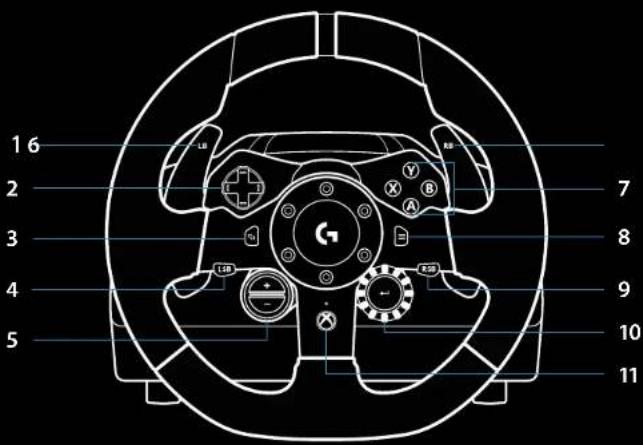
Force feedback
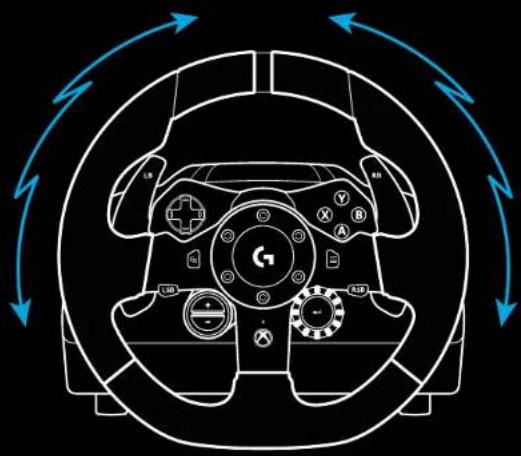
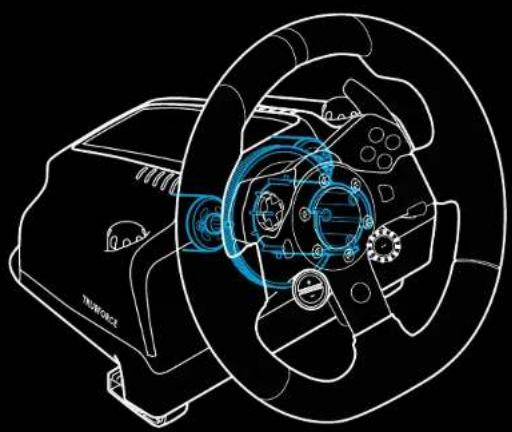
The G923 wheel is equipped with TRUEFORCE technology, which provides force feedback in supported games and systems.
The wheel can also be used with the new TRUEFORCE force feedback technology.
Thanks to the interaction with the game engine and sound accompaniment, TRUEFORCE technology provides realistic force feedback in real-time mode. It accurately reproduces effects that can be felt through the wheel in real driving: wheel resistance on turns, vibrations of the pedals, weight of the machine, and vibrations of the exhaust pipe.
TRUEFORCE capability can be used in games on Xbox One and PC. The list of these games is shown on the page logitechg.com/support/g923-xb1.
The G923 wheel has a protection system against overheating, so do not cover it in high temperatures. If it happens that the force feedback system turns off during a game, the control elements and wires continue to work.
In this case, you need to turn off the wheel, unplug it from the system, and wait for it to cool down. If this happens often, contact the technical support service.
SPECIFICATIONS
1 Brake pedal 2 Accelerator pedal 3 Clutch pedal 4 Textured footrest
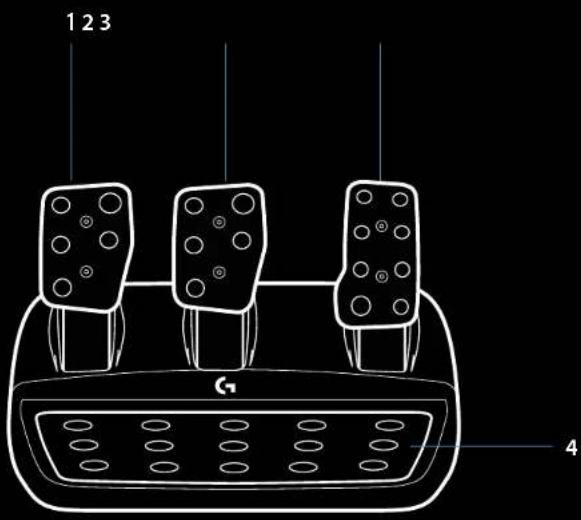
5 To remove the pedals (using the M6x1 bolts), the patented pedal system with covers is used. The pedal system with covers is removed by unscrewing the fixator from the designated panel or block to remove the pedal system with covers. 8 Change the position of the pedal (requires a 2.5 mm hex key).
USING THE DUAL CLUTCH
Using the dual clutch system from the starting position allows you to achieve maximum torque without determining the moment of engagement, and this system gives an advantage at the start of the race.
The following describes the principle of using the dual clutch system in the game.
1 At the start of the race, press the clutch pedal to the limit and the button assigned to the dual clutch function. 2 Switch to first gear using the gearshift paddles, then press the gas pedal to the limit. 3 After the signal about the start of the race, release the dual clutch button. When the engagement is achieved, the car will start moving. 4 Smoothly release the clutch pedal, but do not release the gas pedal to achieve maximum torque. It is worth practicing a little and experimenting with the engagement moment to choose the optimal tactics. By adjusting the moment, you will be able to get off to a good start.
Note.
Dual clutch does not work in all games. The list of games that support the dual clutch function is provided on the page logitechg.com/support/g923-xb1.
SETTING UP THE DUAL CLUTCH SYSTEM
1 Press and hold the left and right paddles, as well as the left and right buttons on the wheel, for two seconds to enter the dual clutch setup mode. The tachometer will light up in a solid color and will blink.
Note.
In the dual clutch setup mode, the tachometer lights do not respond to signals from the game or the software package.
2 Press the button that you want to assign to the dual clutch function. Only the left and right wheel buttons are suitable for this. The tachometer lights will turn solid blue and start blinking, signaling the transition to the dual clutch setup mode. Using the control wheel in the selected game situation, press the clutch pedal to the limit. Switch to first gear and hold the button until the car in the game starts moving. The desired engagement moment can be selected using the + and - buttons. 4 At this stage, you can check the dual clutch engagement directly in the setup mode. Start the car, release the clutch, set the engagement moment and start again - and so on until the dual clutch parameters suit you. 5 Press the selection button to exit the setup mode. The tachometer lights will alternately blink in blue and red, signaling that the setup is saved. After a few seconds, the tachometer lights will go out and start responding to the tachometer signal from the game again.

RESETTING THE DUAL CLUTCH SYSTEM SETTINGS
Press and hold the left and right gearshift paddles for two seconds, as well as the «X» button.
CbitIOjNDHITaxOMETPN6NIMHyTBOTINpPA3i3raChyTb-ue3NaHTb, 0HOHAaHTyBaHHCNCTEMNIPODBIHorO3YeHNHeHH6yNoCKnHYTO.
KhONKa, kI npn3NaueHo fHKuio NOBbHoro 3eennen (npaBa YIJIba KONKn JKOCTNKA), 3HOBy NOUHE BIKOHyBaTn CTaHdaTpHi fHKuII.
3ACTOCYBAHHA LOGITECH G HUB
Ycbomy npo3di OnncaHanauTyBaHHa, kMOxHa BkOHyBaTN dJa G923 yPi3 Logitech G HUB.
- PporpaMybaHHK Honok i profilin, kki MoXHa 38'3yaBtN 3 irpaMn.
- PeryIIOBaHHa HanaIaHTyBaHb KepMa, 3OKpeMa KyTa NOBOpOry INTEHCINBHOCTI TRUEFORCE.
- TéctуbaHnI p3HOMaHiTHNX ΦyHKuJi KHOPIK, KePMa I neJaNeI.
HAJIATYBAHHA KEPMA Y G HUB
UytTnBicTb
3MiHa BiDnyKy KePMA 36IbJHHeHH 3MeHHeHH NOro yTINBOCTI. AkiO NOB3YHOK PO3aUOBAHO No CEHTpy 50%, BiDryK 6yde NiHIM (1:1). AkiO NOB3YHOK NepeCyBaTN BiD 51% do 100%, yTINBICTb KepMa NiD Yac OBeptAHN 3pOCTaTIme. AkiO NOB3YHOK nepeCyBaTN BiD 49% Do 0%, yTINBICTb KepMa NiD Yac OBeptAHN BiDIOBIDHM YIHOM 3HNJyBaTMETbCra.
Kyt nobopoTy
KepMo G923 MoKe JIOBepTaTnCg Ha 900 rpaDyciB. 3i 3MeHHeHHM LbOTo NOKa3HnKa NocyHeTbcra MExa BInbHOrO OeBpTaHHa KepMa. Cc BaXJIbBO, RkUo BV KePMyTe aBtIBKOIO 3 o6MEXeHm KytOM NobOpOTy KepMa, HApNkLaI aBtOMo6iIm FOpMyI-1 a6o GT3.
ZeHTpyBaJIbHa npyJInHa (Igna irop 6e3 nIaTpIMKn cINOBoro 3BOPoTHOrO 3B'3Ky)
y6iNbwocti Irop, 10 NiItpMMyOtB CINOBn 3BOPoTHN 3B'3OK, yXe B6yIOBAHO fynKUIO npaBNbHORo NOBepHeHH KepMa G923 y CEHTpaIbNy N03uQIO 3ypaxyBaHHaM B6paHOrO TnY aBTiBKn.Дla TaNX irop 3actocyBaHHN ceHTpyBaJbHoI npyxHN paIMMo BMmKaTn.
YbIMKHyTA onqjra dae MoXJIINBICTb nepenncatn irpoBI hanaHTyBaHHi i3a donOMorIO BIDNOIBINOHO NOB3yHka BiDpeRyIOBATn CNY, 3 KKOIO KEpy 6ynde NOBePTaTNCRA CEHTpaJIbHe POStaUyBAHN.
TORQUE MOMENT
Available for Xbox and PC with TRUEFORCE. Torque Moment controls the overall intensity of force feedback for G923.
SOUND EFFECTS
Available for Xbox and PC with TRUEFORCE. This setting can result in intensity effects related to sound (engine rumble, road bumps, etc.), in games and simulators that support TrueForce.
In games and simulators without TRUEFORCE, these effects for G923 can be adjusted in the settings menu.
SETTINGS WHEEL AND PEDALS
Wheel
Adjust the wheel rotation by increasing or decreasing its sensitivity. With the slider positioned at the center of the scale (50%), the wheel will be linear (1:1). If the slider is moved from 51% to 100%, the wheel will react to initial presses more intensely. If the slider is moved from 49% to 0%, the wheel will react to initial presses weakly.
Combined pedals
When the clutch is pressed, the brake and gas pedals function as one pedal. This simplifies control in racing games where separate pedals for brake and gas are not required.
Note: For modern games and simulators, the clutch must be pressed, otherwise the pedals will not work correctly. If you find that the clutch is not working properly, when you press it, the brake pedal is activated, and when you release it, the gas pedal is activated, check that you have selected the correct parameter in the settings.
TESTING WHEEL CONTROLS
On the wheel and pedals screens in the G HUB, you can check the correct operation of each button and pedal for G923. Also here you can test the effect of changing the wheel rotation angle.
QUESTIONS?
logitechg.com/support/g923-xb1
LIIDESED JA KINNITUSKOHAD
REACTION KINA
Your racing wheel is equipped with force feedback that operates in real time to support the pedals and the wheel.
Through the force feedback, the wheel simulates the feel of the next generation for reacting during interaction: TRUEFORCE.
TRUEFORCE integrates directly with the physics and audio of the game, to unlock reactions with high resolution in real time. The gears and the wheel, the suspension, the engine, the tires - at unique sound resonance of the engine, they are felt instantly and precisely through the wheel.
The force feedback for Xbox One can output the reactions during interaction with high resolution in real time TRUEFORCE. For a list of force feedback games, visit logitechg.com/support/g923-xb1
Note:
Your racing wheel is equipped with a protection against overheating, which is designed to protect the wheel under high temperature conditions. In some cases, the functionality of the force feedback mode may be temporarily reduced during use, while the controls will continue to be active.
If this happens, let the wheel cool down and restore the protection, by disconnecting. If this happens often, contact the product support.
SPECIFICATIONS
1 Steering wheel 2 Gear shift lever 3 Pedals for gas 4 Structured support for pedals
5 Mounting points for bolts (use M6x1 bolts) 6 Patented system for attachment to the wheel 7 Release lever for the attachment to the wheel to release, press the pedal on the left 8 Adjustment of the position of the pedal face (for adjustment, need 2.5 mm hex key)
7
LOGITECH G HUB SOFTWARE INSTALLATION
Logitech G HUB software enables the following functions on the G923 steering wheel:
TRUE FORCE FEEDBACK SYSTEM RESET
G HUB PEDAL SETTINGS
Sensitivity
a 4.3
XBOX ONE
e 1
Logitech G HUB 923
logitechg.com/support/g923-xb1


Gear Up Paddle 2
Dua 3
Clutch (gai)
aiee

Therefore, the area of triangle OBC equals the area of triangle COD plus the area of triangle BOC.
Therefore, A(1,0) and B(-3/4, sqrt(3)/4).
y 1
logitechg.com/support/g923-xb1
SDK 1/4aill 4a2d3y
JSSRSB) jssllnss (LSB) jssllnss Lg JSSL 1
2 dlll lllllllllllllllllllllllllllllll

3 Jalsly bial jnae jy aal clay gai jia jai jai slall
4
5 5 5 5 5 5 5

Logitech G HUB
G923
GT3 1 yS
(1)
1
.
J 1
TRUEFORCE
1
y by nnnn nn noon nn G923 anan
nynnnn nn nnnnnnnnnnnnnnnnnnnnnnnnnnn
.09nn nn n 7n7 n 09nn nT nx


:
D09nn nn nn n7 nnonn nn nnnn
0x7
17 2nnn 3n 4*7NwUIN 5 nntan 1n7- 6 1 7A,B4X,Yn 87n7 9nbnn 10*nna nnnn nn nnnn
Xbox yn7 11
NDVIU
nwnnnn nn nnnnnnnnnnnnnnnnnnnnnnnnnnnnnnnnnnnnnnnnnnnnnnnnnnnnnnnnnnnnnnnnnnnnnnnnnnnnnnnnnnnnnnnnnnnnnnnnn
.
n nnnn nn nnnn nn nnnn nn nnnn
TrueForce
PC-1Xbox One-1 logitechg.com/ support/g923-xb1 .TrueForce
:
(M6X1)
5
2.5
6
ww
7 NOW INN
innno
8
5
6
7
8
7nun 19nn nn
hnnn nn nnnn nn
yinnn nnnn nn nnnn nnnn nnnn nnnn nnnn nnnn nnnn nnnn nnnn nnnn nnnn nnnn nnnn nnnn nnnn nnnn nnnn nnnn nnnn nnnn nnnn nnnn nnnn nnnn nnnn nnnn nnnn nnnn nnnn nnnn nnnn nnnn nnnn nnnn nn
?n7xu
logitechg.com/support/g923-xb1

logitech
© 2019 Logitech, Logitech, Logitech G and the Logitech and Logitech G logos are trademarks or registered trademarks of Logitech Europe S.A. and/or its affiliates in the U.S. and other countries. All other trademarks are the property of their respective owners. Logitech assumes no responsibility for any errors that may appear in this manual. Information contained herein is subject to change without notice.
- CONNECTIONS AND MOUNT POINTS
- OPTIMAL CABLE ROUTING
- INSTALLATION -XBOX ONE -PC
- MOUNTING CLAMPS
- BUTTONS
- FORCE FEEDBACK
- NOTE
- FEATURES
- USING THE DUAL CLUTCH IN-GAME
- SETTING UP THE DUAL CLUTCH SYSTEM
- RESETTING DUAL CLUTCH SYSTEM
- USING LOGITECH G HUB
- G HUB WHEEL SETTINGS
- SENSITIVITY
- OPERATING RANGE
- CENTERING SPRING (FOR GAMES WITHOUT FORCE FEEDBACK)
- TORQUE
- AUDIO EFFECTS
- G HUB PEDALS SETTINGS
- COMBINED PEDALS
- TESTING YOUR WHEEL AND PEDALS
- QUESTIONS
- XPHSH TOY LOGITECH G HUB
- SETTINGS IN G HUB
- SPRING CENTER (FOR RACING GAMES)
- WHEEL ROTATION
- SPECIFICATIONS
- USING THE DUAL CLUTCH SYSTEM
- RESETTING THE DUAL CLUTCH SYSTEM SETTINGS
- STEERING WHEEL SETTINGS IN G HUB
- ROTATION ANGLE
- KPYTRAAM MOMENT
- BYKOBBIE 3ΦΦEKTBL
- HACTPOIKN IENDAJIEN BG HUB
- UYBCTBNTEIBHOCTB
- KOMBUHROPOBAHBIE NEAII
- TESTING THE PEDALS AND WHEEL
- CONNECTIONS AND MOUNTING POINTS
- CLAMPING
- USING THE DUAL CLUTCH
- ACTOCYBAHHA LOGITECH G HUB
- HAJIATYBAHHA KEPMA Y G HUB
- UYTTNBICTB
- KYT NOBOPOTY
- ZEHTPYBAJIBHA NPYJINHA (IGNA IROP 6E3 NIATPIMKN CINOBORO 3BOPOTHORO 3B'3KY)
- TORQUE MOMENT
- SOUND EFFECTS
- SETTINGS WHEEL AND PEDALS
- WHEEL
- TESTING WHEEL CONTROLS
- LIIDESED JA KINNITUSKOHAD
- REACTION KINA
- LOGITECH G HUB SOFTWARE INSTALLATION
- TRUE FORCE FEEDBACK SYSTEM RESET
- G HUB PEDAL SETTINGS
- XBOX ONE
- X
- NDVIU
- NUN 19NN NN
- HNNN NN NNNN NN
Brand : LOGITECH
Model : G923
Category : Game controller