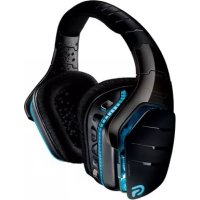
G933 Artemis Spectrum Wireless - Headphones LOGITECH - Free user manual and instructions
Find the device manual for free G933 Artemis Spectrum Wireless LOGITECH in PDF.



| Product type | Wireless gaming headset |
| Brand | Logitech |
| Model | G933 Artemis Spectrum Wireless |
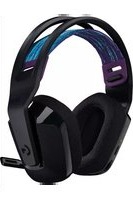
| Color | Black |
| Drivers | Pro-G™ |
| Microphone type | Retractable boom + built-in mic |
| Surround sound | 7.1 (PC mode) |
| Connectivity | 2.4 GHz wireless via USB adapter, wired 3.5 mm |
| Wireless range | 15 m (indoor) |
| Battery life | Up to 12 h (lights off), 8 h (default lighting) |
| Charging time | 3.5 h |
| Power source | Rechargeable lithium-ion battery via USB |
| Weight | Approximately 430 g |
| Headband | Padded and adjustable mesh |
| Earpads | Soft and washable mesh |
| Lighting | Customizable RGB (G logo + light band) |
| Programmable buttons | 3 (G1, G2, G3) |
| Compatibility | PC, PlayStation, Xbox, mobile |
| Software | Logitech G HUB |
| Box contents | Headset, USB micro-USB cable (3 m), 3.5 mm cable (1.5 m), 3.5 mm to 2.5 mm adapter, RCA to 3.5 mm cable (1 m), wireless USB adapter, documentation, customizable labels |
| Care | Hand wash earpads, air dry |
| Warranty | 2 years (Logitech standard) |
Frequently Asked Questions - G933 Artemis Spectrum Wireless LOGITECH
User questions about G933 Artemis Spectrum Wireless LOGITECH
0 question about this device. Answer the ones you know or ask your own.
Ask a new question about this device
Download the instructions for your Headphones in PDF format for free! Find your manual G933 Artemis Spectrum Wireless - LOGITECH and take your electronic device back in hand. On this page are published all the documents necessary for the use of your device. G933 Artemis Spectrum Wireless by LOGITECH.
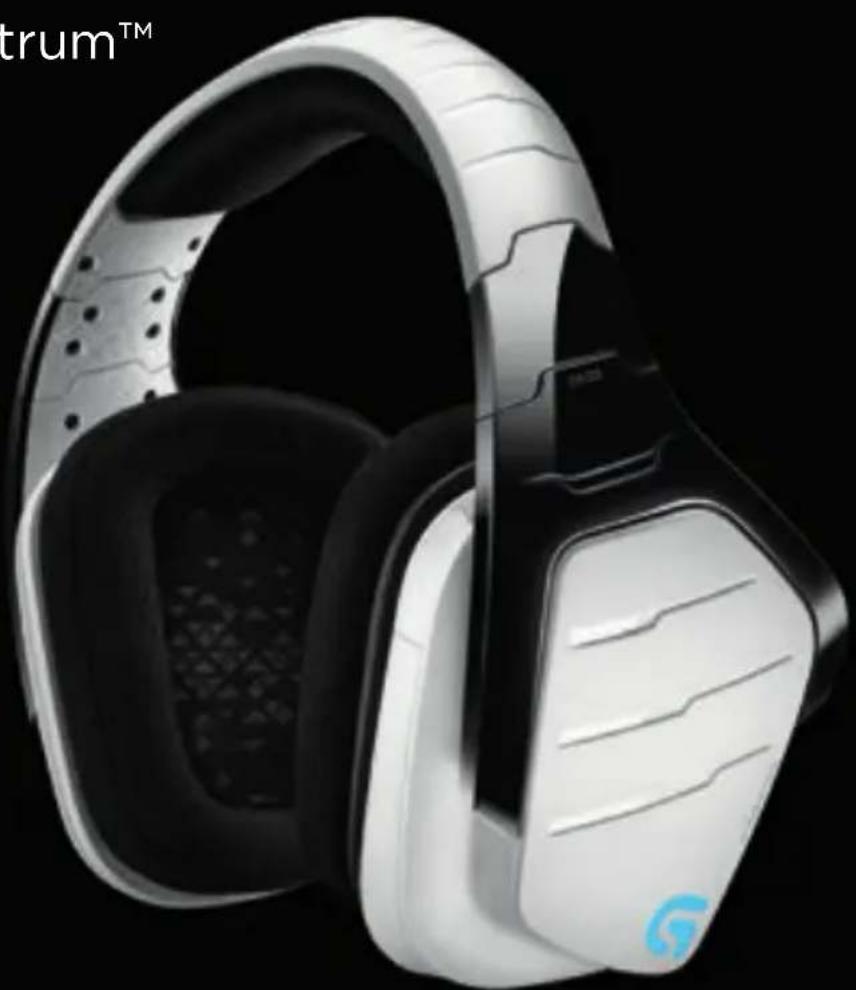
USER MANUAL G933 Artemis Spectrum Wireless LOGITECH
Wireless 7.1 Surround Gaming Headset
User Manual
Contents
English. 3
Deutsch. 24
Francais 45
Italiano 66
Espanol 87
Portugues 108
Nederlands .129
Svenska 150
Dansk . 171
Norsk 192
Suomi .213
Elambdaiká 234
Ppucckn 255
Po polsku 276
Magyar 297
Česká verze 318
Slovencina 339
yKpaHcbKa 360
Eesti. .381
Latviski 402
Lietuviu 423
Былгарски 444
Hrvatski 465
Srpski 486
Slovenscina 507
Româna 528
Türkce. 549
570.
591
What's in the box
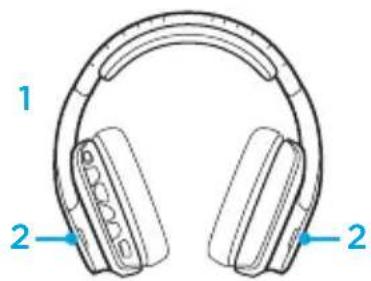



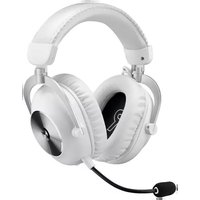
- G933 Artemis Spectrum Snow Gaming Headset
2.Custom tags (L/R) -
PC cable (USB to Micro-USB, 3m)
-
3.5mm cable (1.5m)
- 3.5mm to 2.5mm adapter
- RCA to 3.5mm cable (1m)
- Documentation
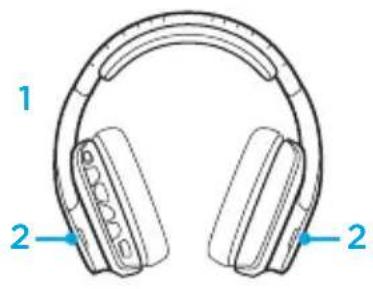
Features
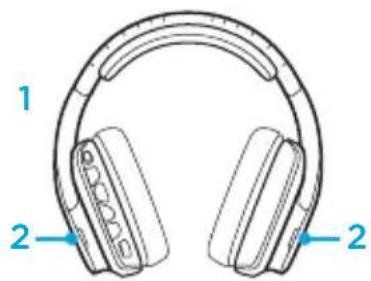
- Adjustable padded sports mesh headband
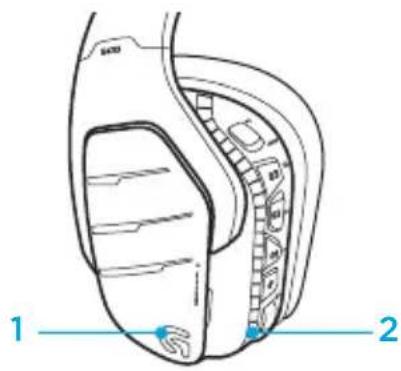
- Removable backlit custom tags
- Boom mic mute indicator LED
- Retractable boom microphone Automatically mutes in "up" position
- Lighting zones (G logo + light strip)
- Washable soft sports mesh earpads
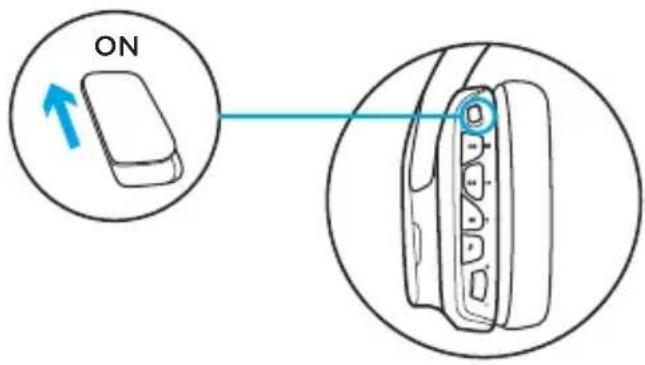
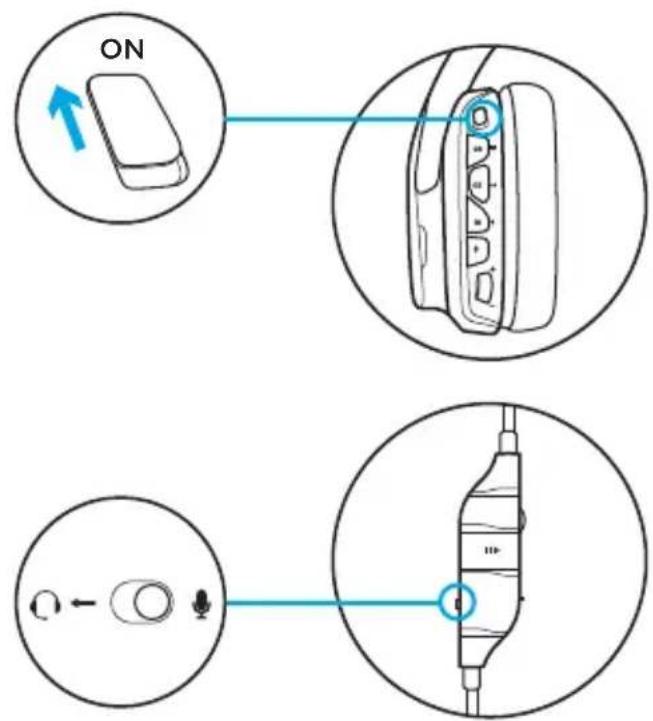
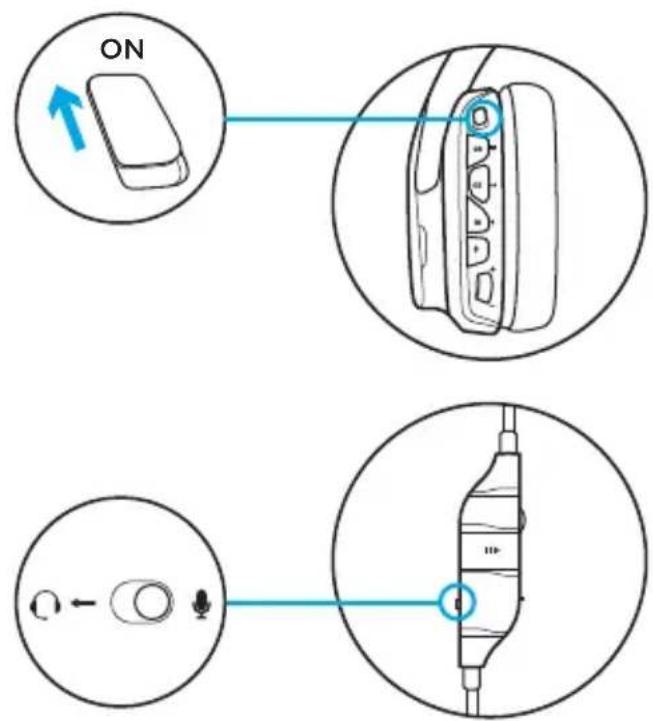
- Wireless On/Off switch
- Pro-G™ Audio Drivers
- Programmable buttons (G1/G2/G3)
- Battery housed in earcup
- Microphone Mute
- Volume Wheel
- 3.5mm (mobile) connection
- USB charging connection
-
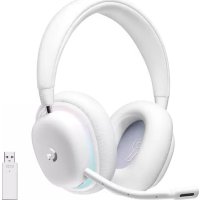
USB Wireless Mix Adapter housed in earcup
-
3.5mm jack (stereo input only)
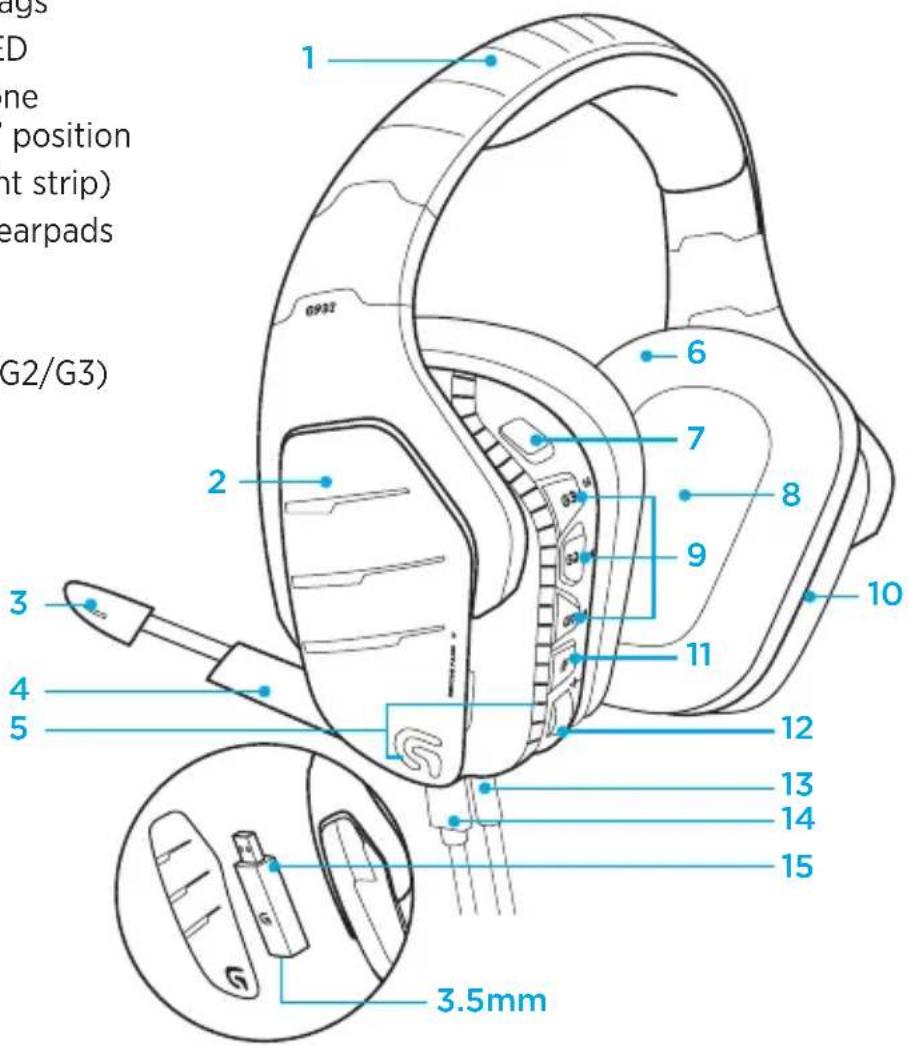
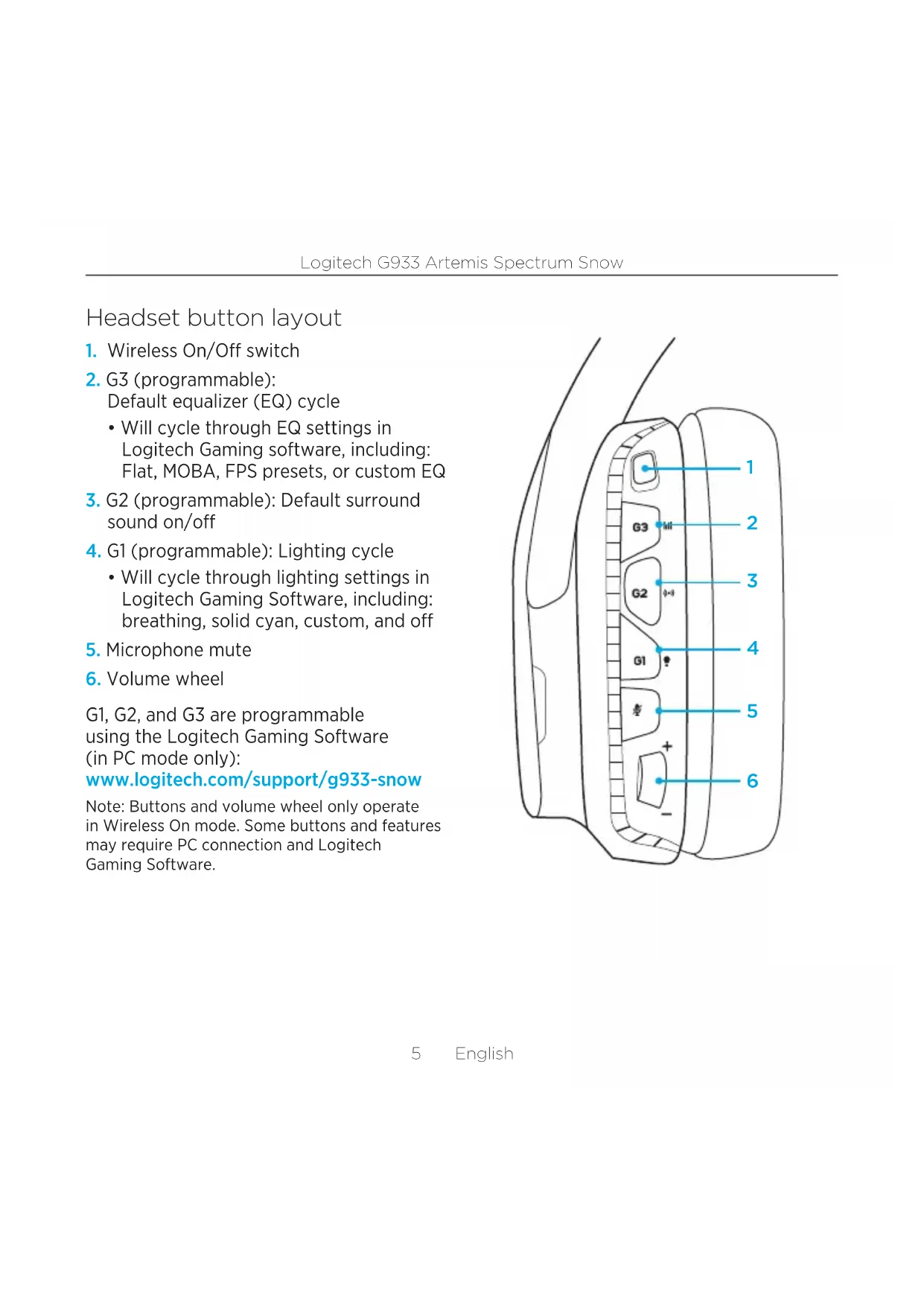
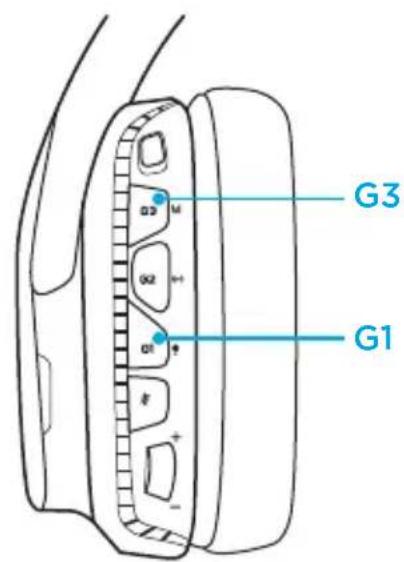
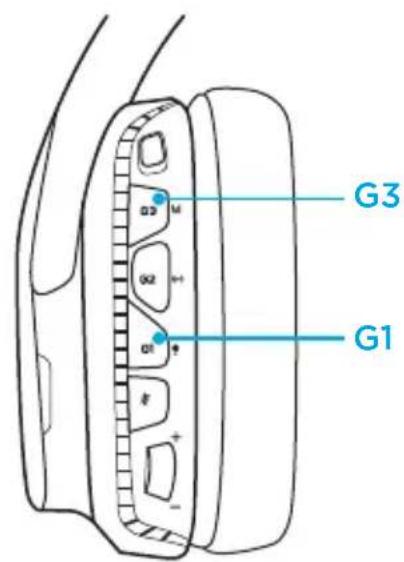
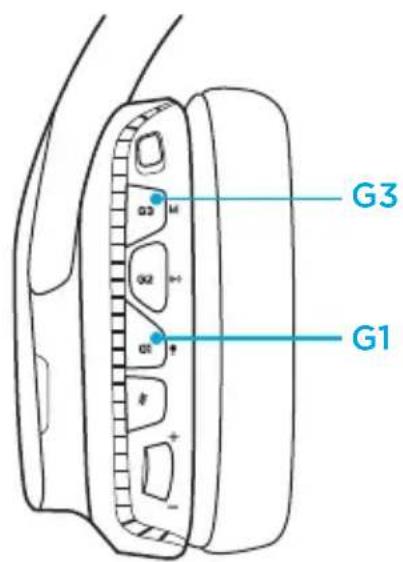
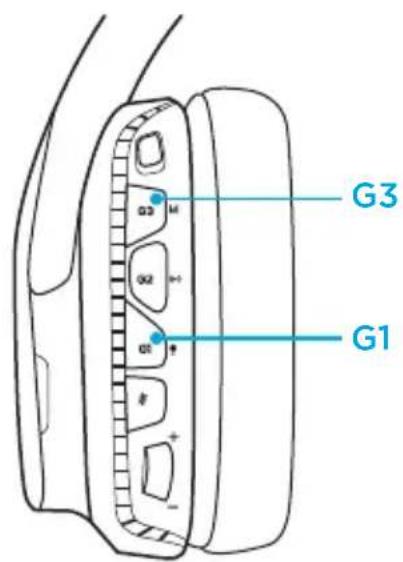
Headset button layout
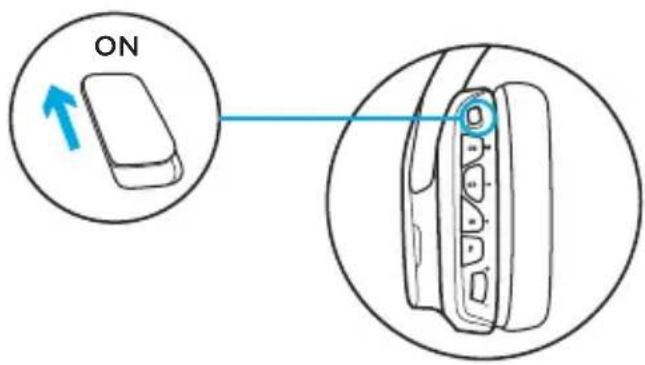
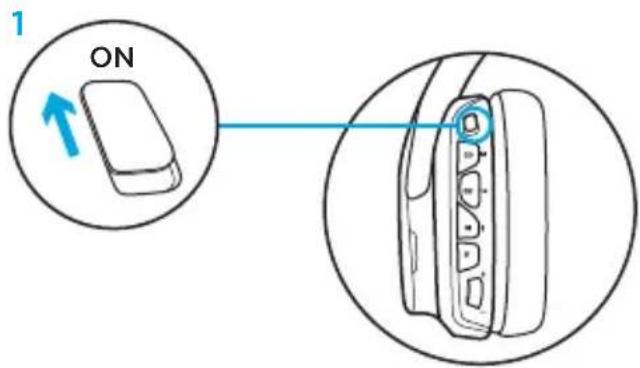
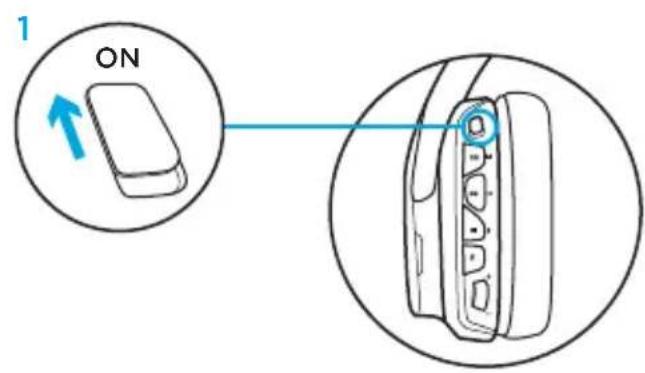
- Wireless On/Off switch
-
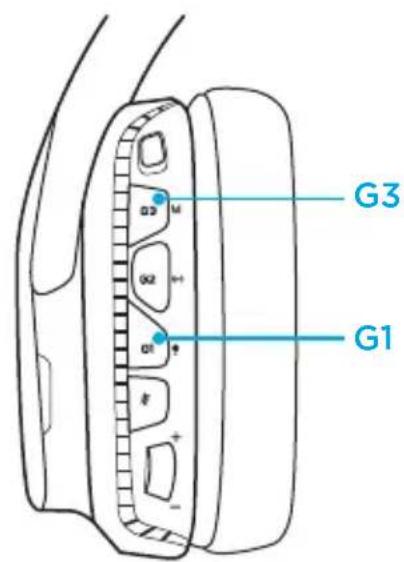
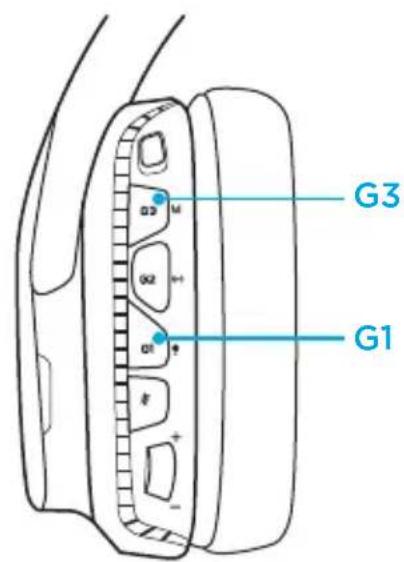
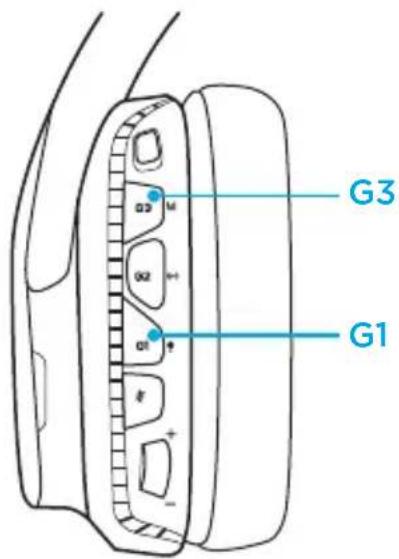
G3 (programmable): Default equalizer (EQ) cycle
-
Will cycle through EQ settings in Logitech Gaming software, including: Flat, MOBA, FPS presets, or custom EQ
-
G2 (programmable): Default surround sound on/off
-
G1 (programmable): Lighting cy
-
Will cycle through lighting settings in Logitech Gaming Software, including: breathing, solid cyan, custom, and off
-
Microphone mute
- Volume wheel
G1, G2, and G3 are programmable using the Logitech Gaming Software (in PC mode only): www.logitech.com/support/g933-snow
Note: Buttons and volume wheel only operate in Wireless On mode. Some buttons and features may require PC connection and Logitech Gaming Software.

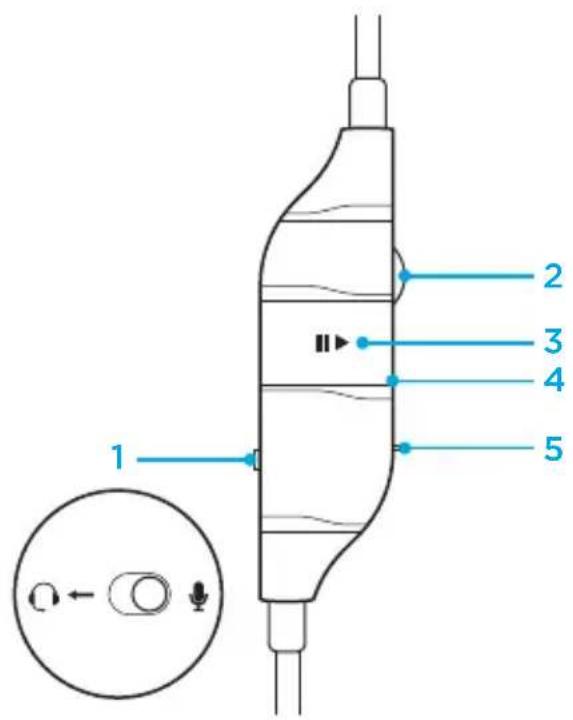
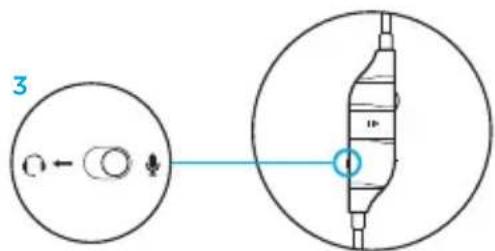
Inline 3.5mm audio controls
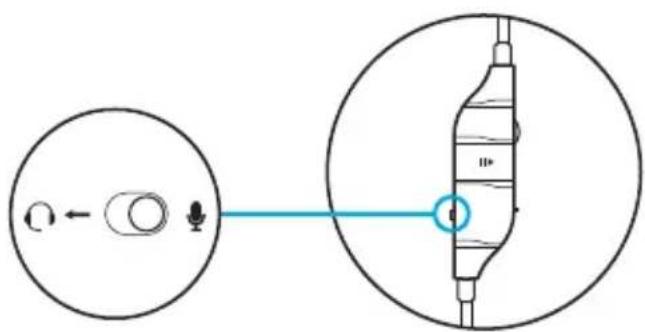
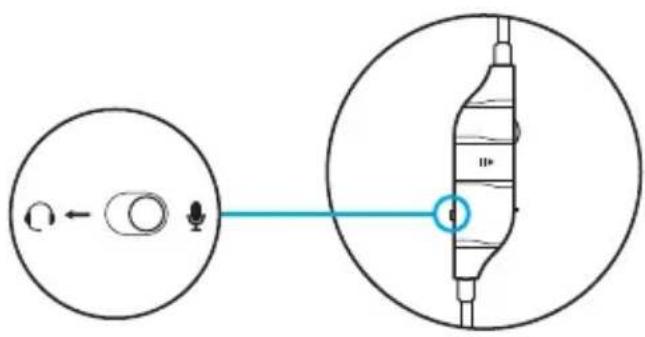
- Mic select switch (headset boom/inline, mobile mode only)
- Headset boom unavailable for mobile device while in Wireless Off mode
- Inline volume wheel
- Mobile device play/pause/answer call
- Inline microphone
- Mobile mic mute switch
Note:
The inline 3.5mm audio control is fully compatible with Apple devices but may have partial or no functions with old Android devices.
Please insert the 3.5mm plug nearest the inline volume wheel into headset, and the far end into the audio output device (i.e. PC, controller, mobile, etc.).
Battery management
G933 Artemis Spectrum Snow wireless headset is powered via a battery housed in the right earcup. When you are not using your G933 Artemis Spectrum Snow wireless headset, plug it in via the USB port on the bottom of the unit to charge. When fully depleted, the battery takes approximately 3.5 hours to reach full charge on standard USB output. For the optimal experience, plug in your unit and allow it to charge fully before first use.
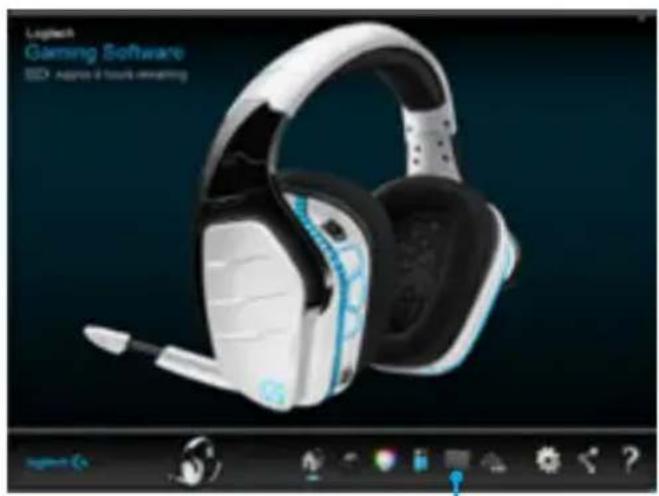
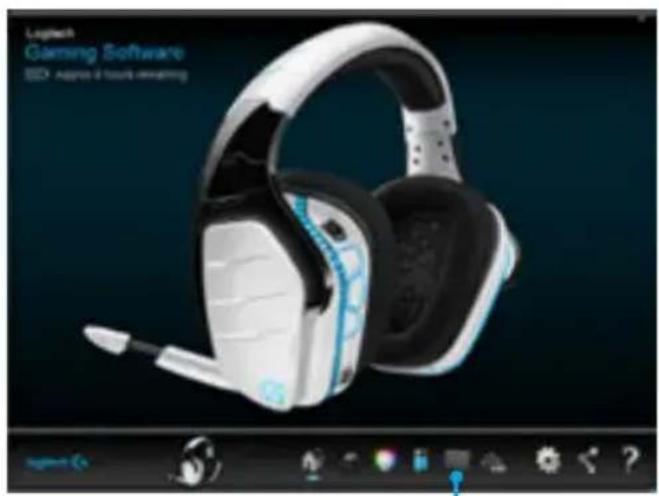
Logitech Gaming Software
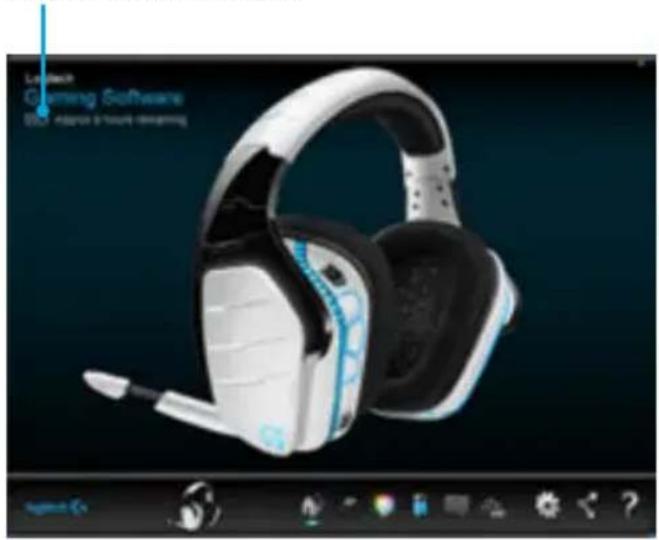
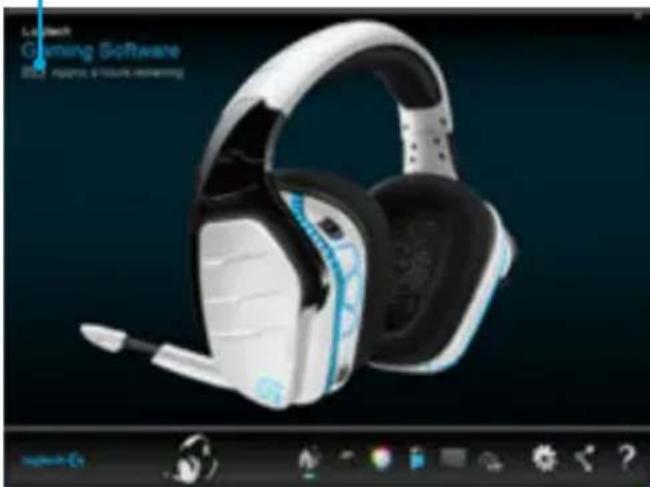
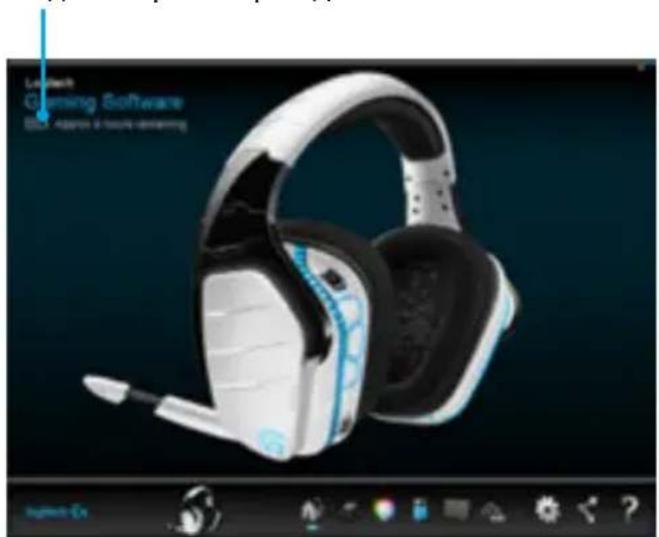
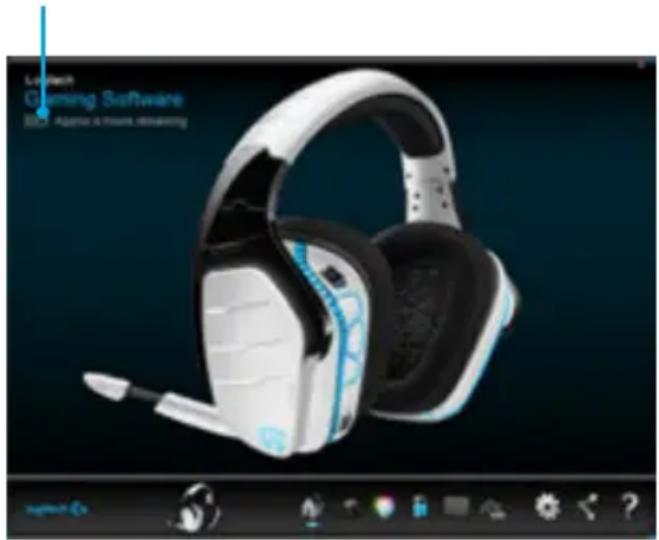
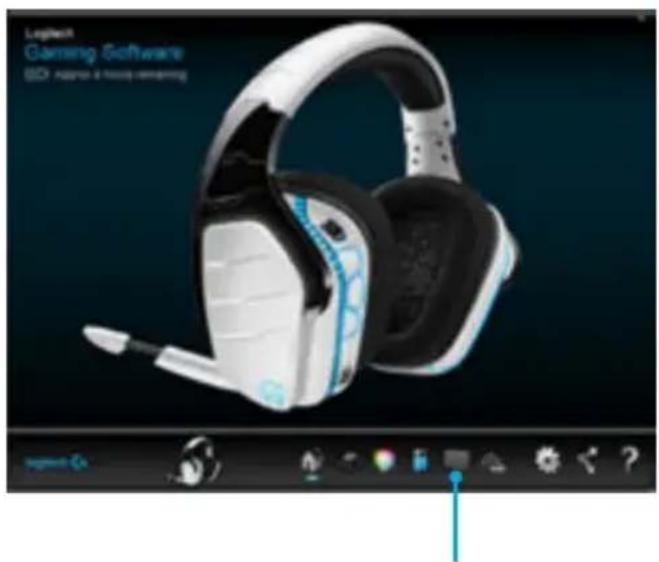
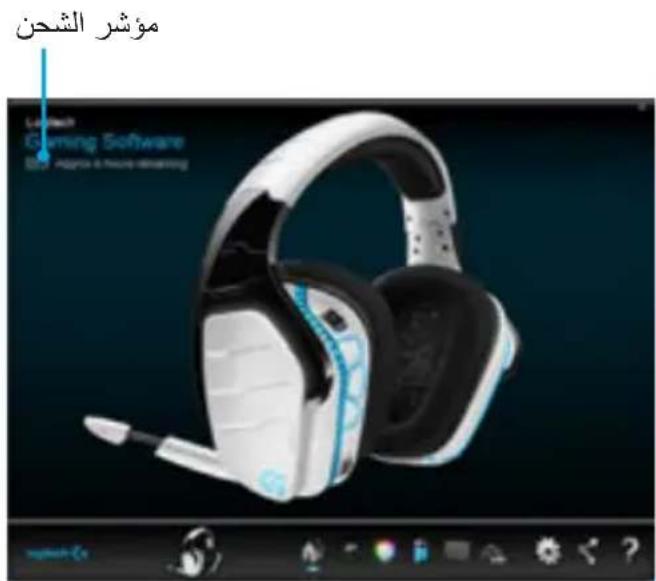
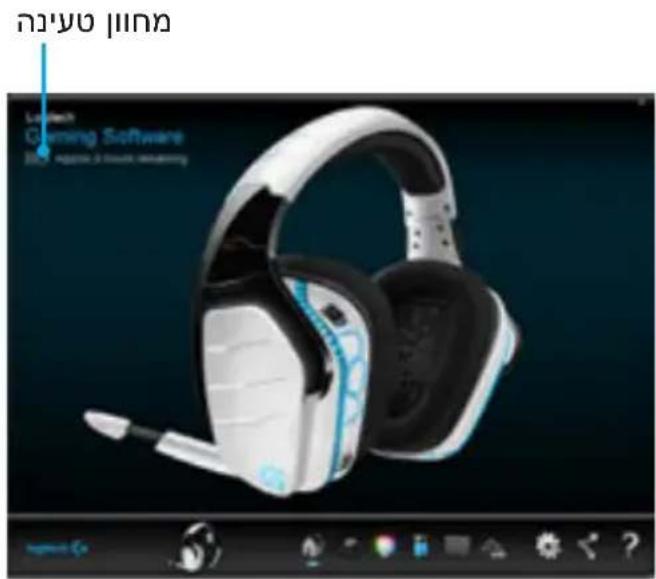
The headset home screen in Logitech Gaming Software has a battery charge level indicator:
When using battery, this will indicate charge level
This indicates the unit is charging
Critical Battery Warning
G933 Artemis Spectrum Snow gaming headset will play a tone at low charge. The headset's lighting will also dim when at low charge. At critical charge level, the unit will play a tone and lighting will turn off. Use USB charging cable to plug in headset immediately if you hear these tones to ensure uninterrupted listening or gaming.
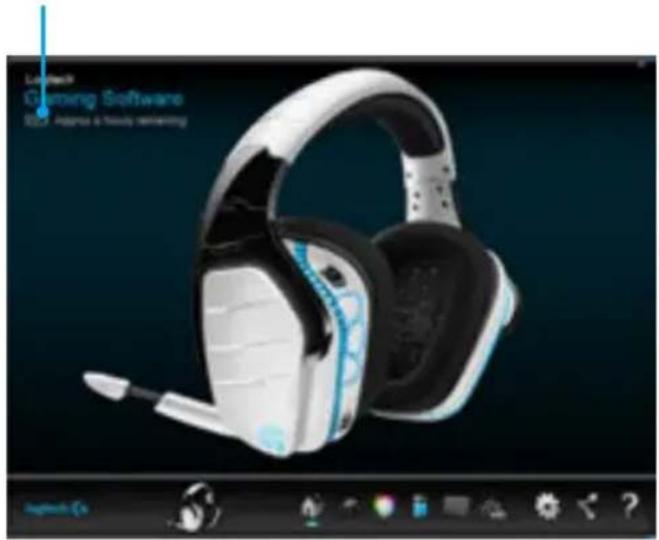
Charge indicator
Idle sleep mode
G933 Artemis Spectrum Snow will go into sleep mode to conserve battery power when it has not received an audio signal in 5 minutes.
In idle sleep mode, the unit's lighting will turn off, and it will disconnect from the USB wireless mix adapter.
To wake up your headset from sleep mode, press any button on the unit.
Your unit will continue to use battery power at a reduced rate while in idle sleep mode. If you plan to leave your headset idle for an extended period of time, turn off your headset and plug it in via USB to charge.
On/Off tones and lights
When your headset is turned on, it will play a tone to indicate that your headset has turned on. The lights will perform a power on light cycle sequence, then switch to the currently selected lighting.
When the unit is turned off, lights will switch to blue and fade out while it powers down.
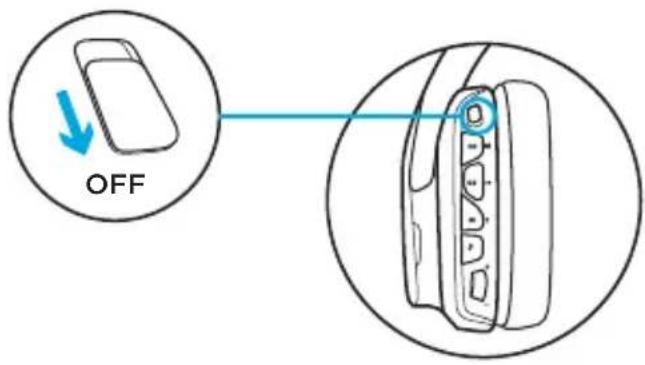
Wireless On/Off
G933 has two operation modes, Wireless On, and Wireless Off.
Wireless On
In Wireless On mode, most headset features are available, including custom sound profiles, RGB lighting, wireless, and audio mixing. When battery charge is low, lighting will dim and low battery notification tone will play. When battery charge level is critical, lighting will turn off.
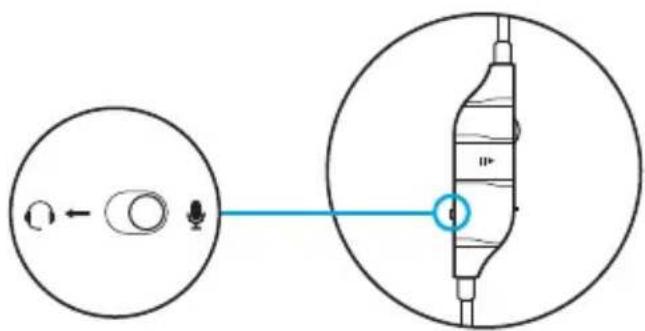
Boom mic is available for devices connected through the on-headset 3.5mm audio port in this mode. Select between boom mic and inline mic using switch on included mobile cable.
Wireless range
Indoor: 15 meters
Battery life3
No lighting: 12 hours
Default lighting: 8 hours
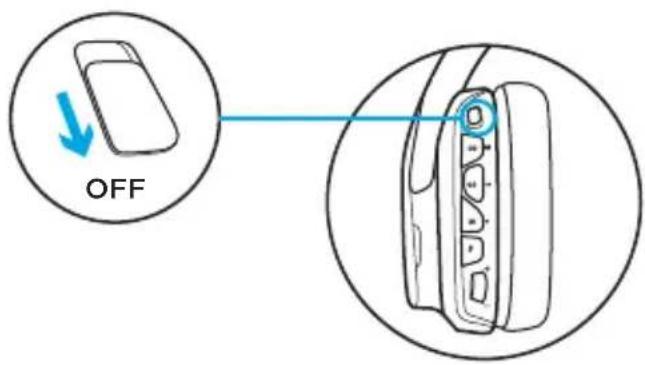
Wireless Off (passive mode)
In Wireless Off (passive mode), your headset will operate in passive unpowered mode. Your headset will play audio from any device connected through the 3.5mm input on the headset.
Features that require power, including 7.1 surround sound, custom sound profiles, on-headset buttons, volume wheel operation, and button/ lighting customization functions are not available in this mode.
Boom mic is not available for devices connected through the on-headset 3.5mm audio port in this mode. Select inline mic using switch on included mobile cable.
This mode can be used to preserve battery life.
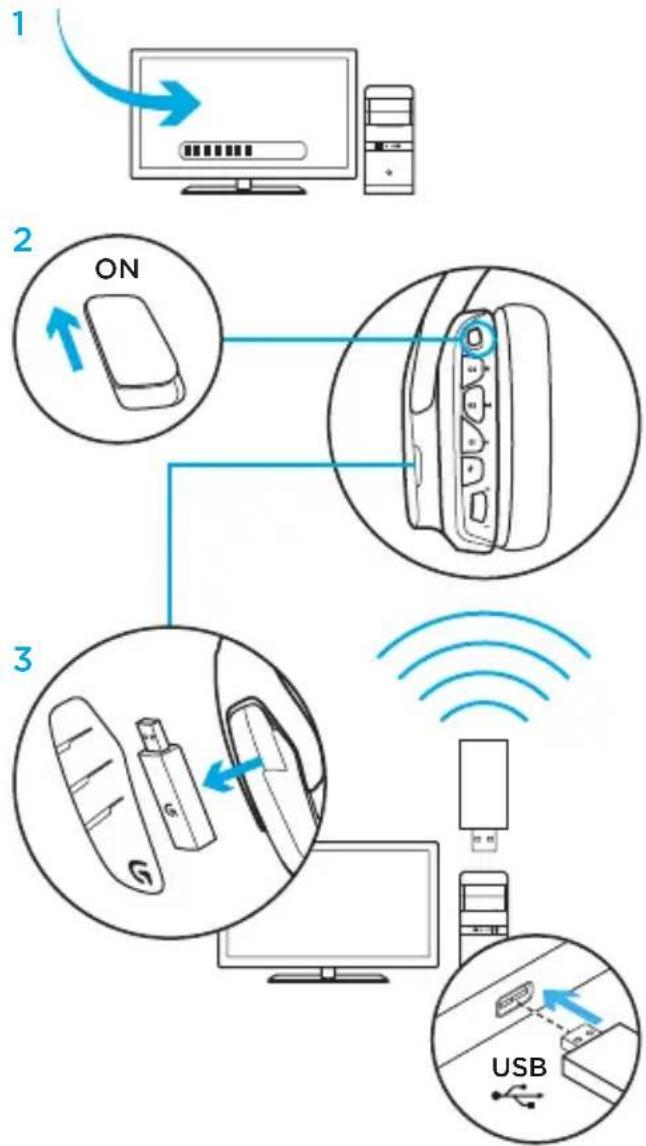
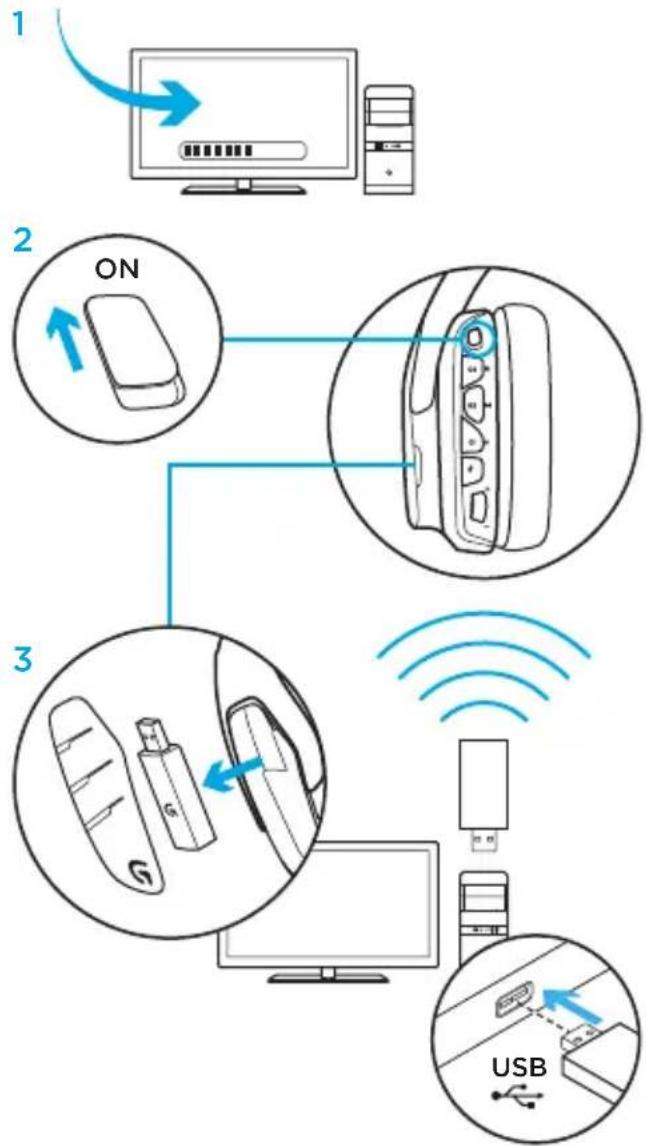
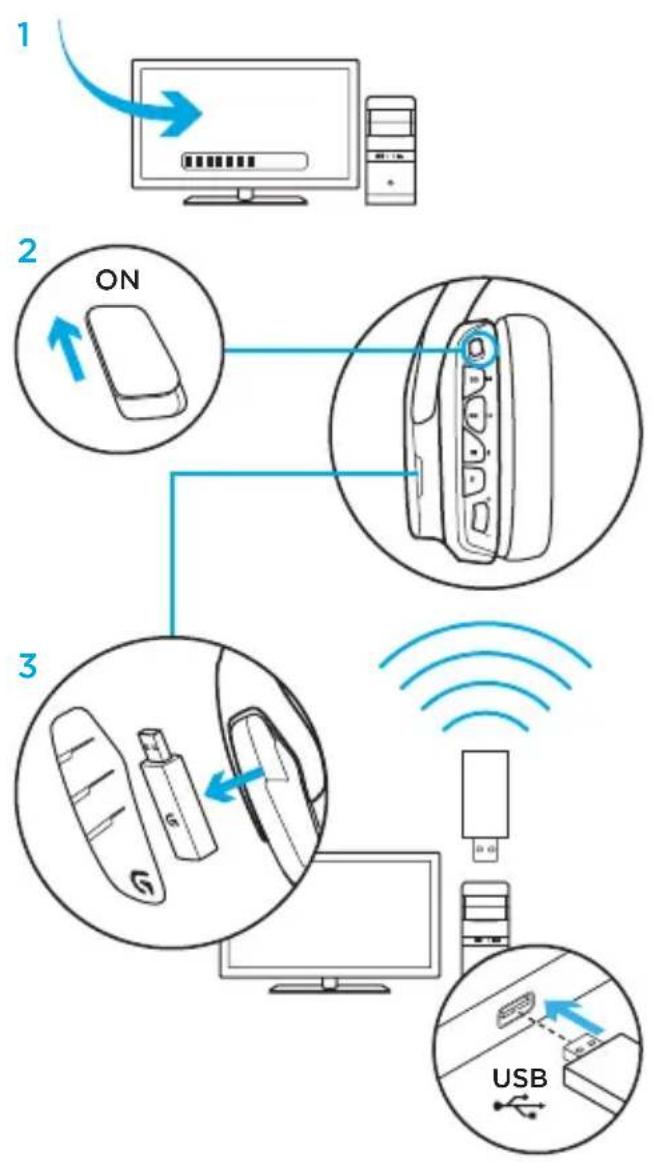
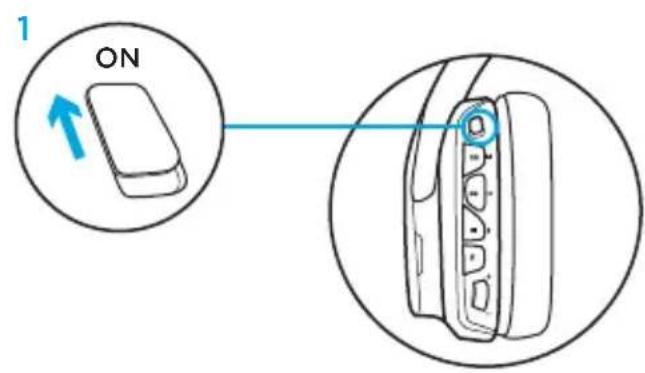
Setup for PC (PC mode)
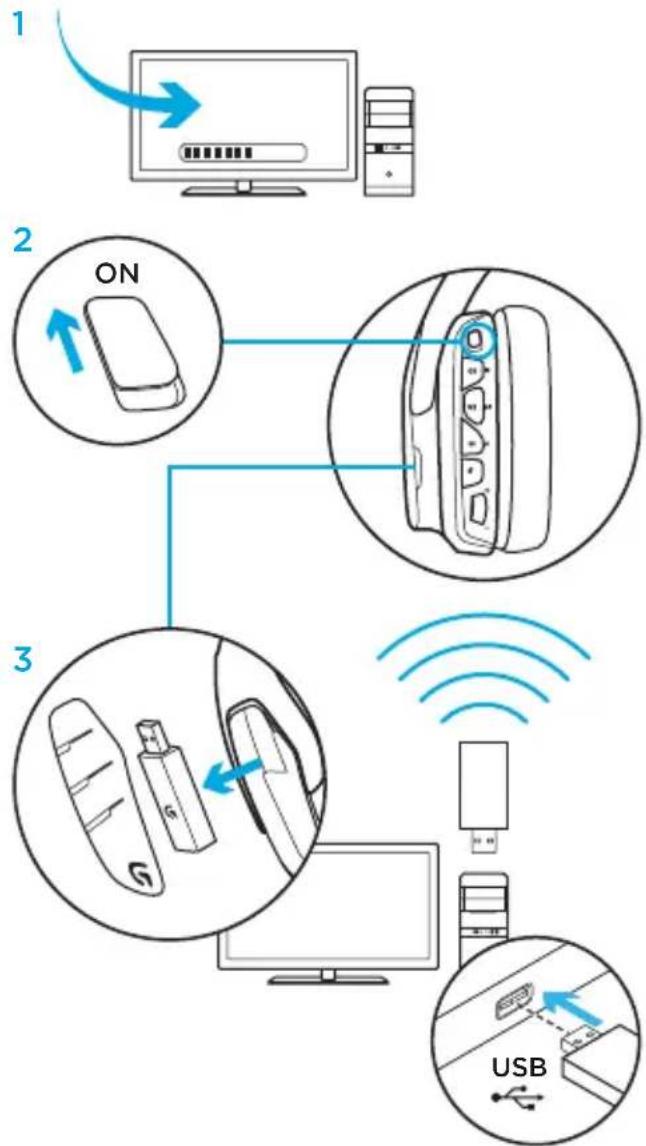
- Download and install Logitech Gaming Software: www.logitech.com/support/g933-snow
- Set switch to Wireless On position.
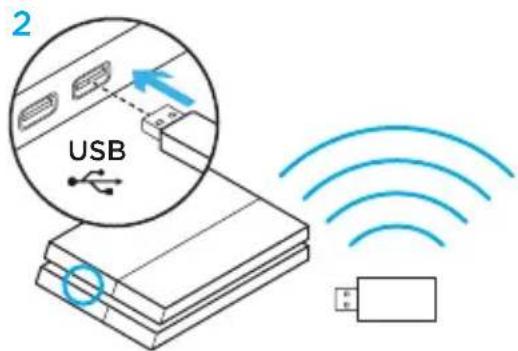
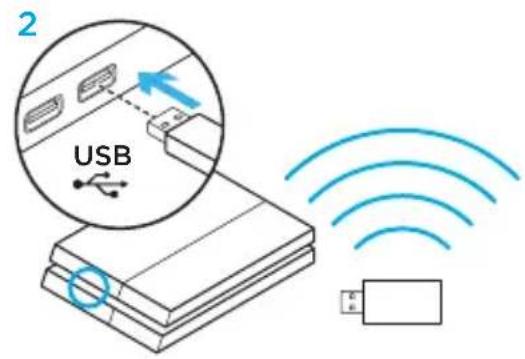
- Connect USB Wireless Mix Adapter to PC. Headset will automatically connect.
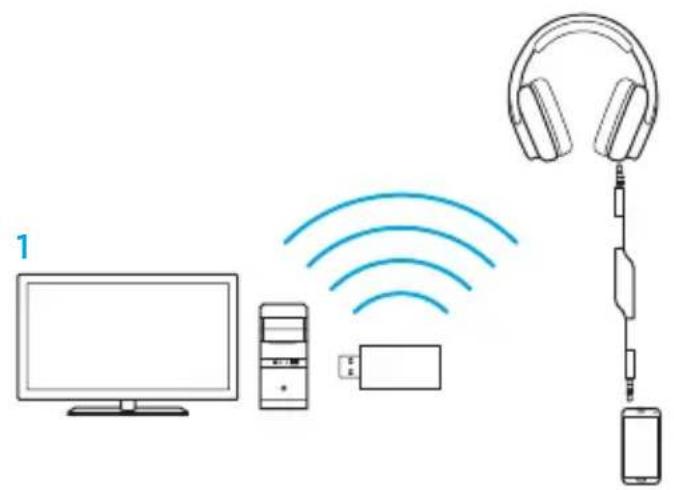
Mixing audio sources
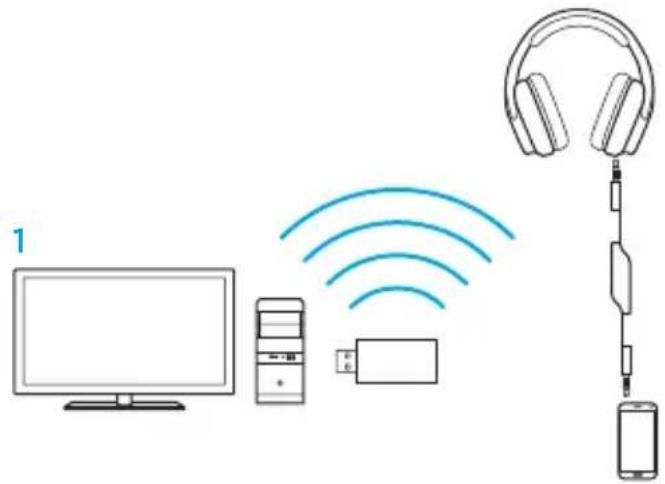
While connected via USB Wireless Mix Adapter, the G933 can also use the 3.5mm cable to connect to another audio source (ex. smartphone). Both audio sources can be played simultaneously. Inline controls and inline microphone can be used to answer calls, adjust volume, etc independently for the mobile device.
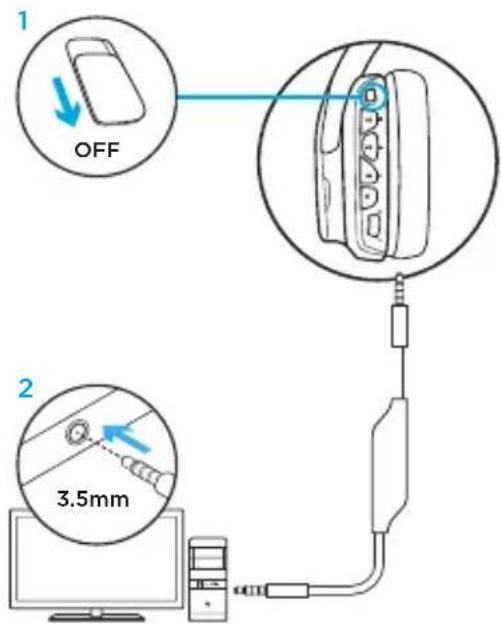
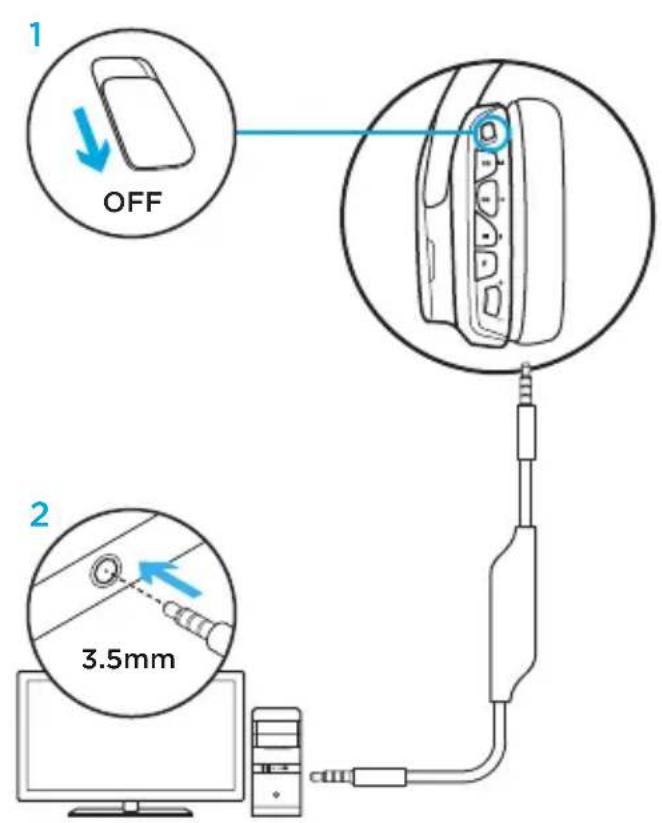
Setup for PC (3.5mm connection)
The G933 can also connect to audio devices solely via 3.5mm cable.
- Set switch to Wireless Off mode for passive audio mode, or set to Wireless On mode for active audio mode with additional features (see "Wireless On/Off" section).
- Connect to PC using the 3.5mm cable
- 3.5mm inline controls can be used to adjust audio.
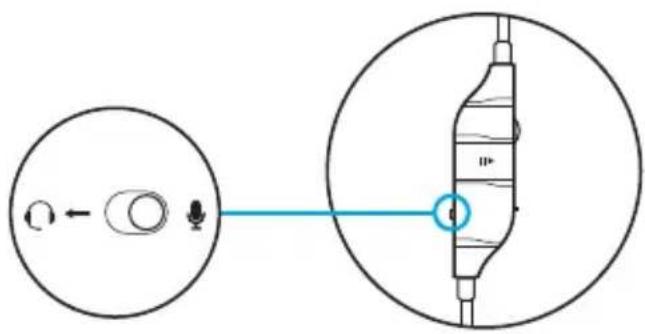
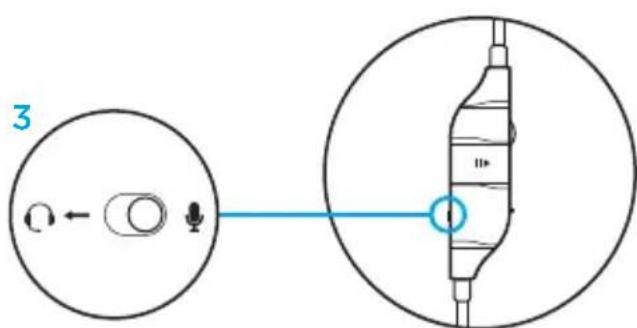
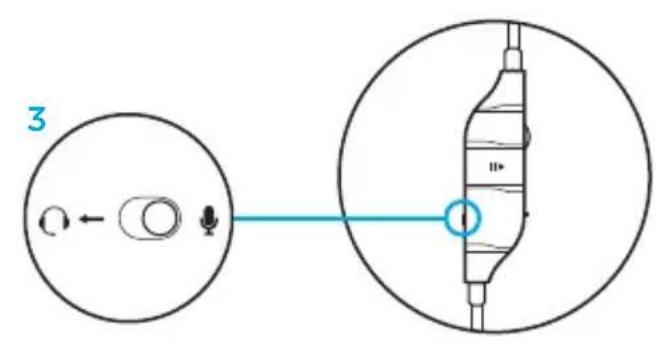
Mic select
- Select "microphone" position for inline microphone
- Select "headset" position to use headset boom microphone
Some features, including 7.1 surround sound, on-headset buttons, volume wheel operation, and customization of lighting and button functions are not available without USB connection. Boom mic is not available for 3.5mm device while in Wireless Off mode.
Some PCs may require a 3.5mm 4-pole to mic/stereo splitter adapter (not included) to use microphone features in this mode.
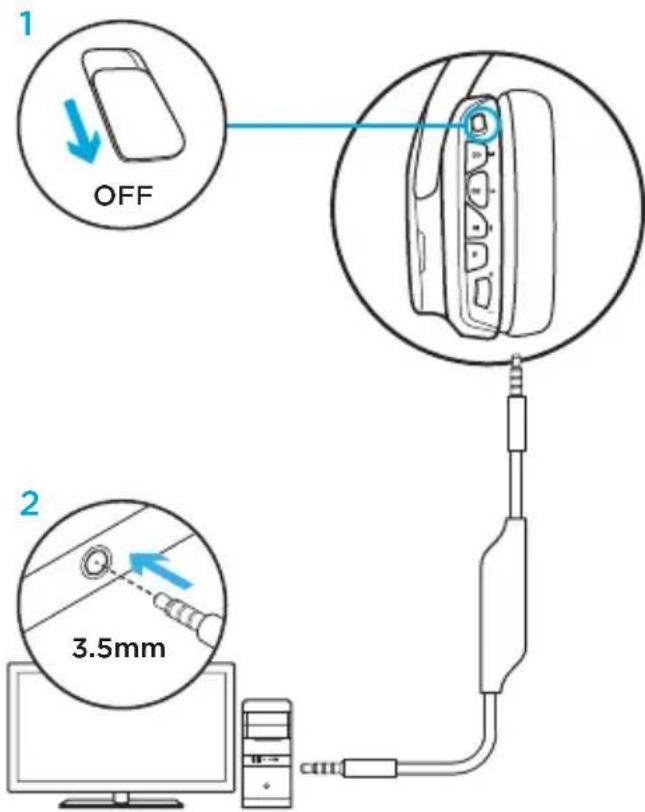
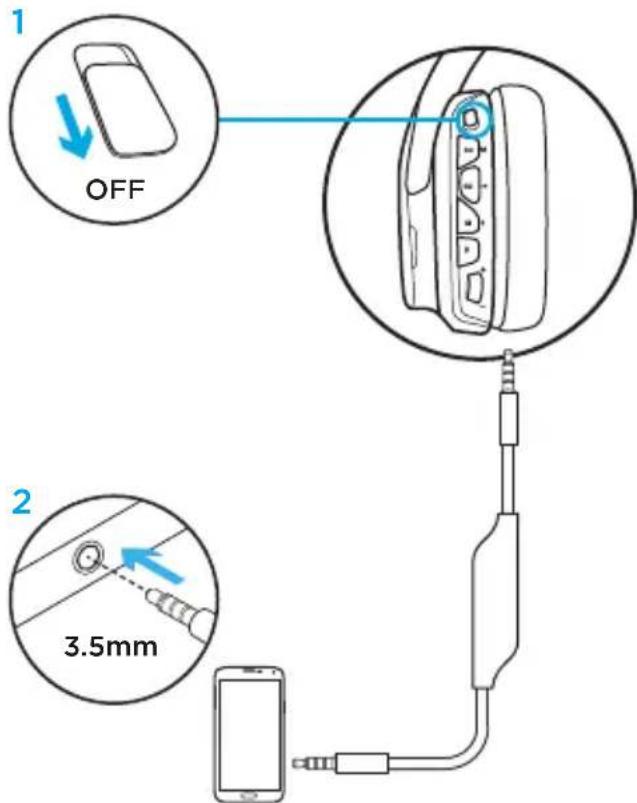
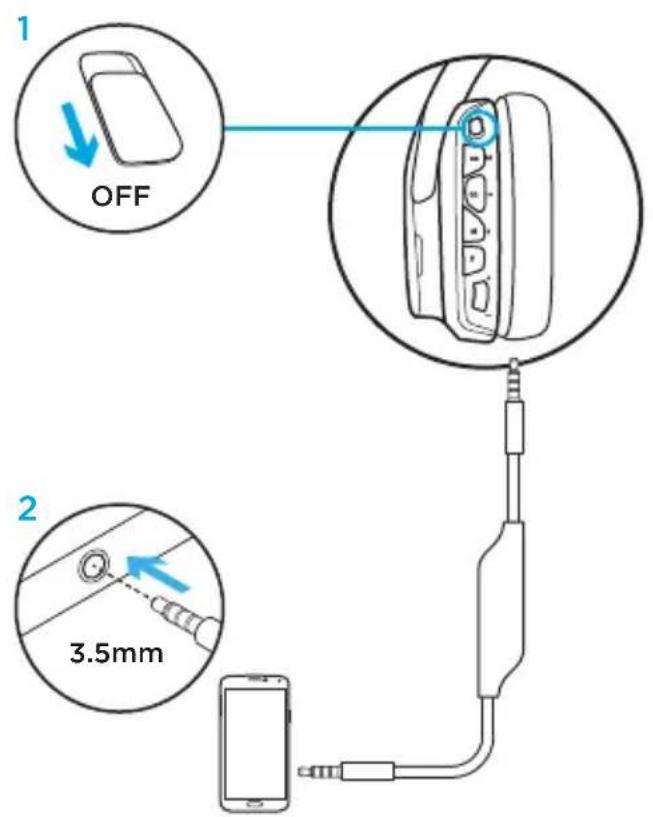
Setup for mobile
- Set switch to Wireless Off mode for passive audio mode, or set to Wireless On mode for active audio mode with additional features (see "Wireless On/Off" section).
- Connect the headset to the mobile device via the 3.5mm cable.
- 3.5mm inline controls can be used to adjust audio.
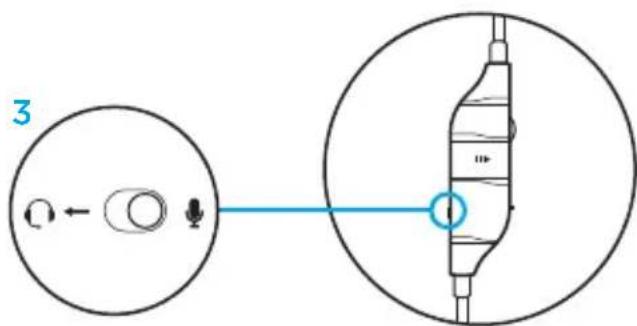
Mic select
- Select "microphone" position for inline microphone
- Select "headset" position to use headset boom microphone
Boom microphone is only available in Wireless On mode. Inline mic is available in both modes.
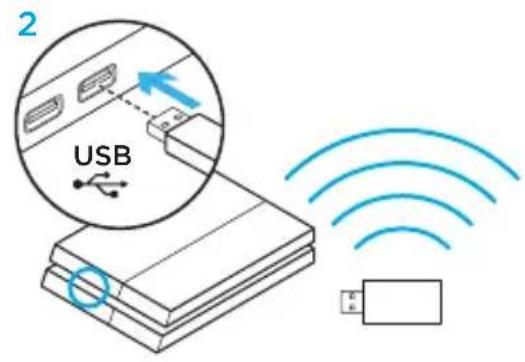
Setup for console: Xbox One™ or PS4™
- Set switch to Wireless Off mode for passive audio mode, or set to Wireless On mode for active audio mode with additional features (see "Wireless On/Off" section).
- Connect the headset to the console controller using the 3.5mm cable.
- Xbox One may require Xbox One headset adapter (sold separately).
PlayStation setup (settings)
- Connect headset
- Open Settings
- Select "Sound and Screen"
- Select "Audio Output Settings"
- Set "Output to Headphones" to "All Audio"
Headset will not operate via USB Wireless Mix Adapter on Xbox One.
Boom microphone is only available in Wireless On mode. Inline mic is available in both modes.
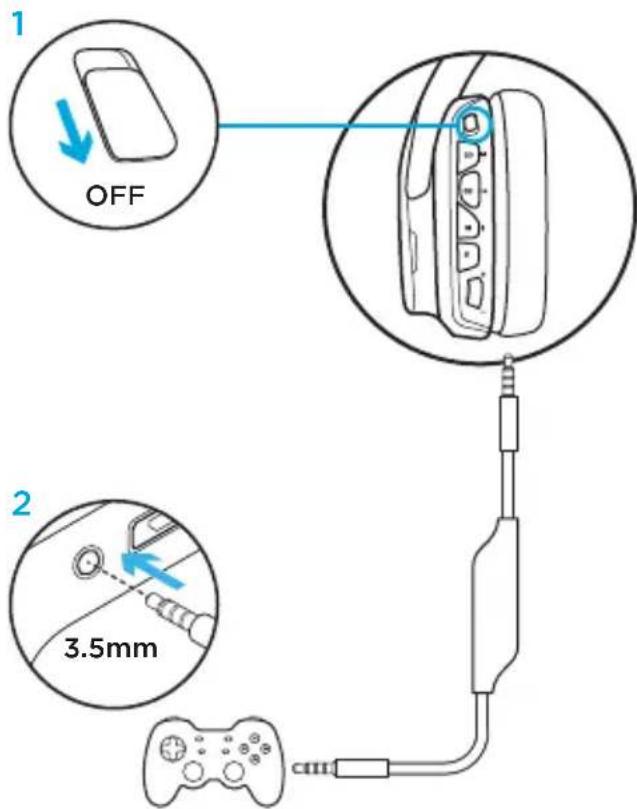
Alternate setup for Sony PlayStation® 4
Wireless operation
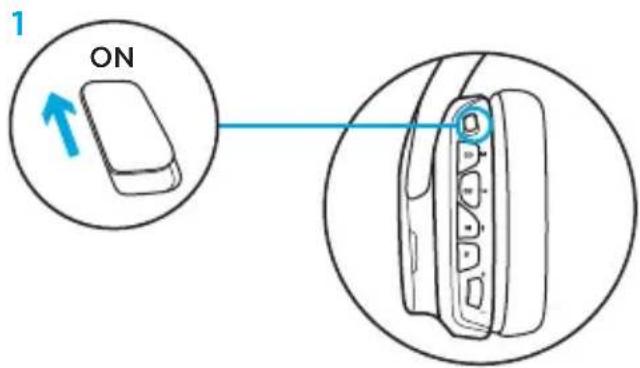
- Set switch to Wireless On position.
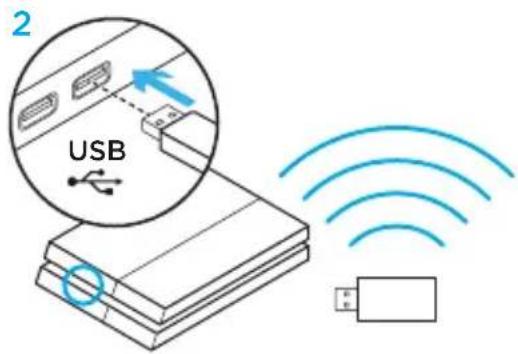
- Connect the headset to the console using the USB Wireless Mix Adapter.
Note: Some buttons and functions may not operate when connected to the PlayStation 4. Programming of lighting and buttons is not possible on the PlayStation. 7.1 surround sound is not available while connected to PlayStation.
PlayStation setup (settings)
- Plug in headset via USB or 3.5mm cables
- Open Settings
- Select "Sound and Screen"
- Select "Audio Output Settings"
- Set "Output to Headphones" to "All Audio"
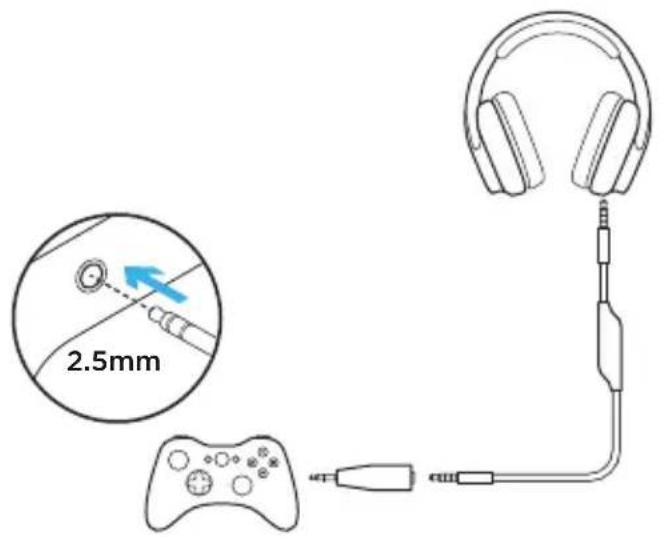
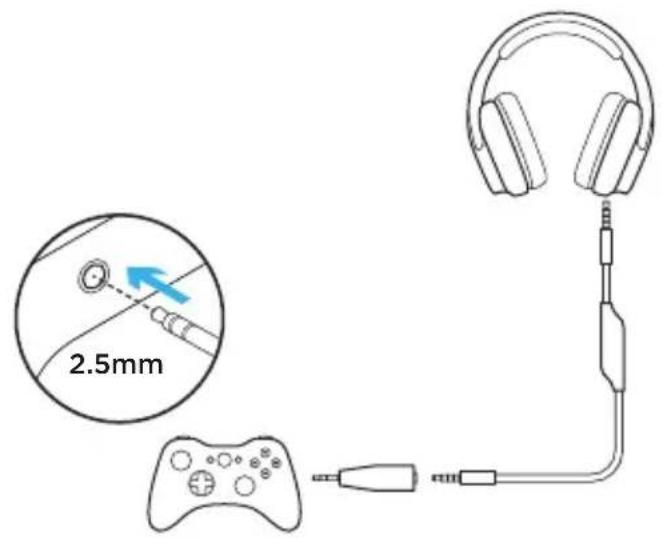
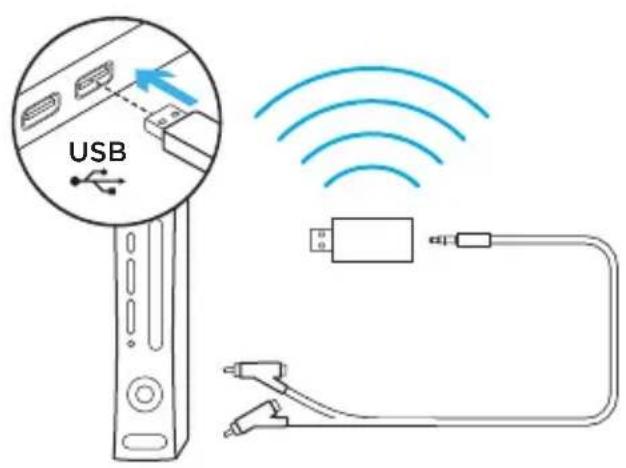
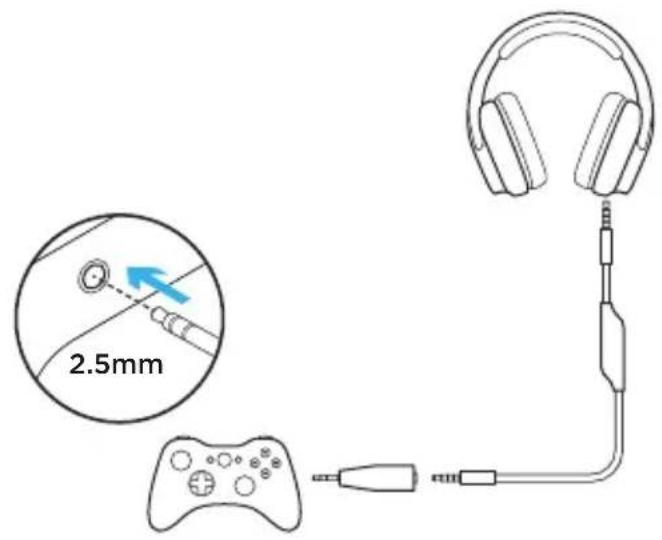
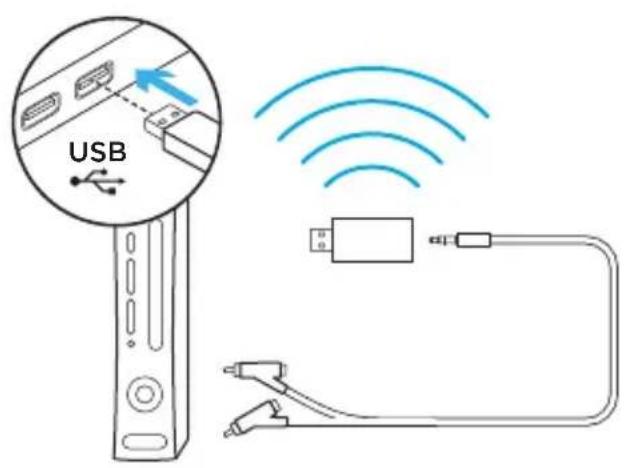
Setup for Xbox 360
Chat audio
- Plug 2.5mm to 3.5mm adapter into controller
- Attach 3.5mm cable to adapter and headset
Console audio
- Plug USB Wireless Mix Adapter to powered USB port
- Connect USB Wireless Mix Adapter to console using RCA to 3.5mm adapter cable
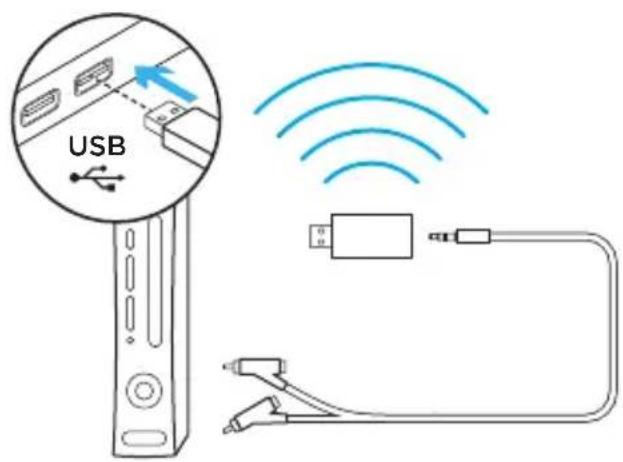
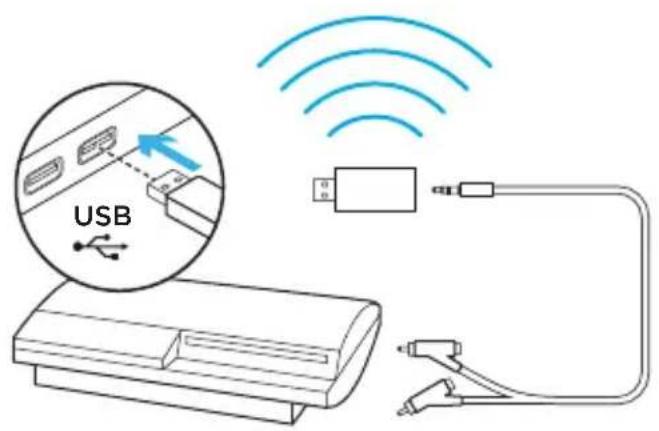
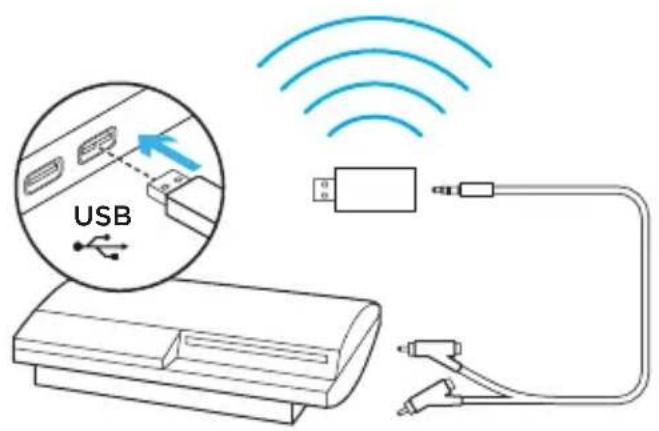
Setup for PlayStation® 3
Chat audio
- Plug USB Wireless Mix Adapter into USB port on console
Console audio
- Plug USB Wireless Mix Adapter to powered USB port
- Connect USB Wireless Mix Adapter to console using RCA to 3.5mm adapter cable

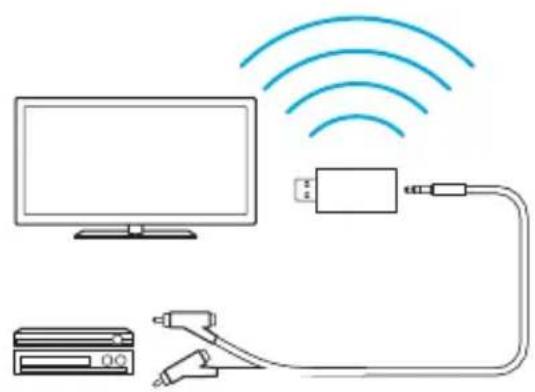
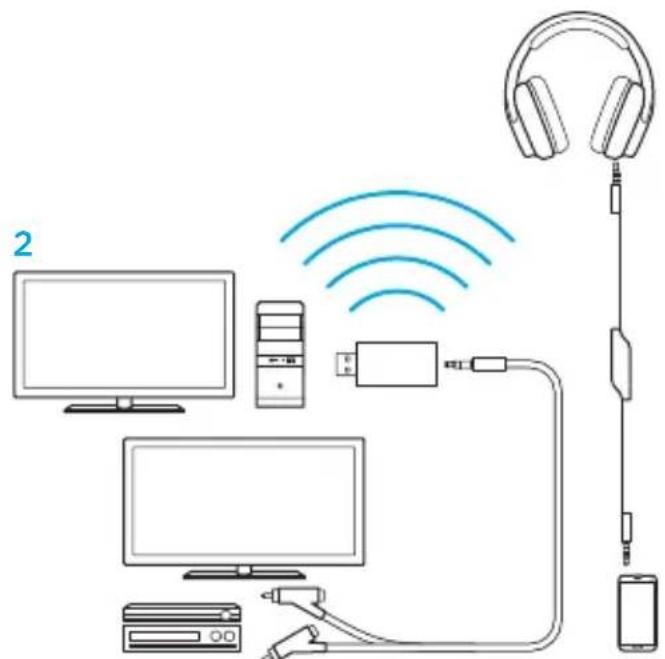
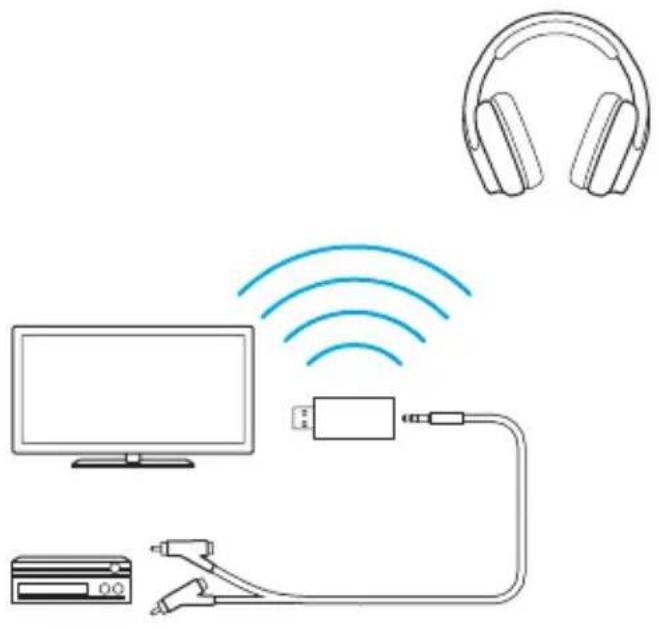
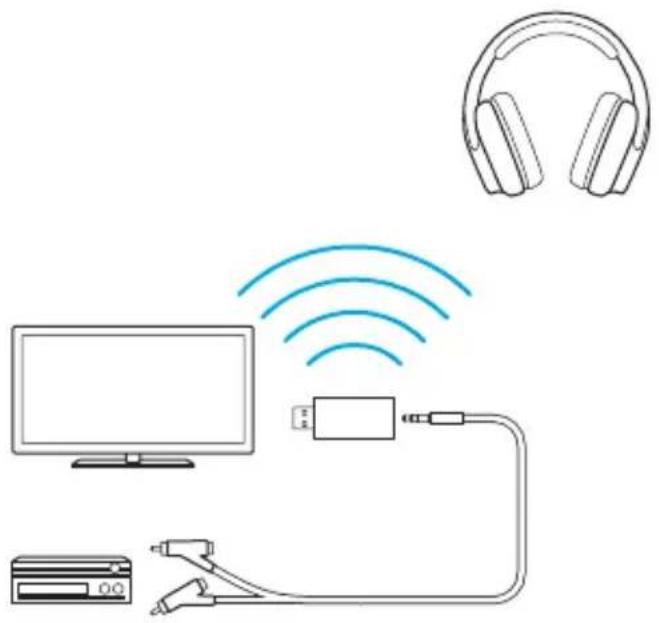
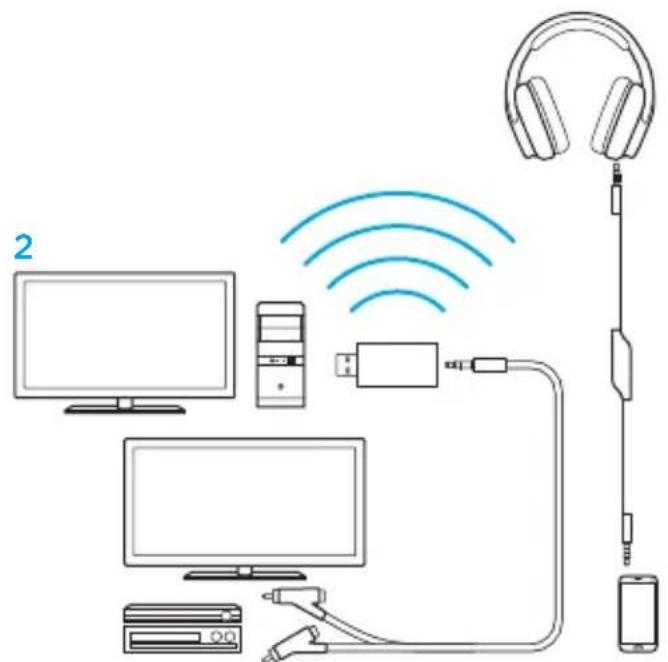
Wireless Home Theater
G933 can be used to connect to home theater systems wirelessly:
- Set headset to Wireless On mode
- Plug USB Wireless Mix Adapter into any USB power source (i.e. USB wall adapter, powered USB port on TV, or console port).
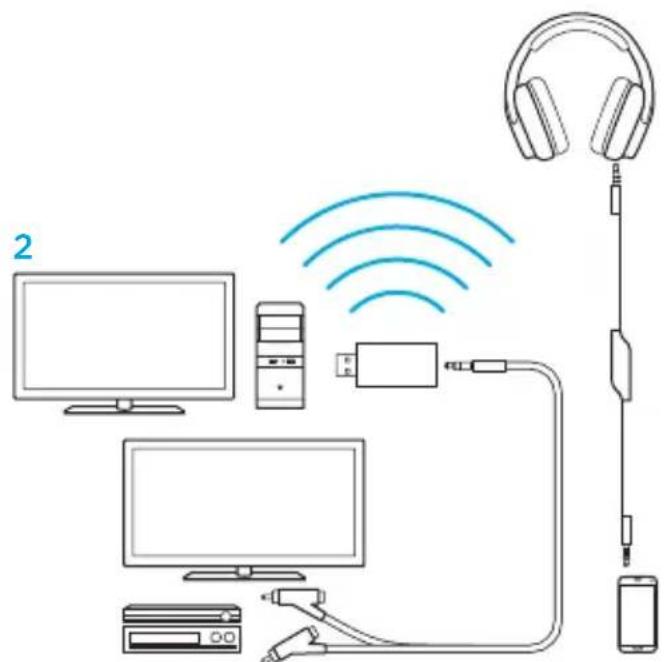
- Plug RCA to 3.5mm cable into RCA Output on Home Theater and 3.5mm input on USB Wireless Mix Adapter.
- Audio will transmit via USB Wireless Mix Adapter to headset.
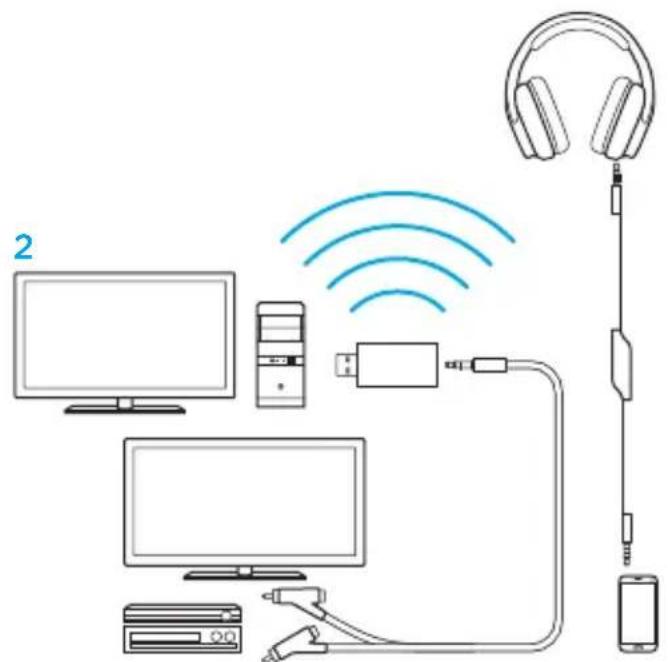
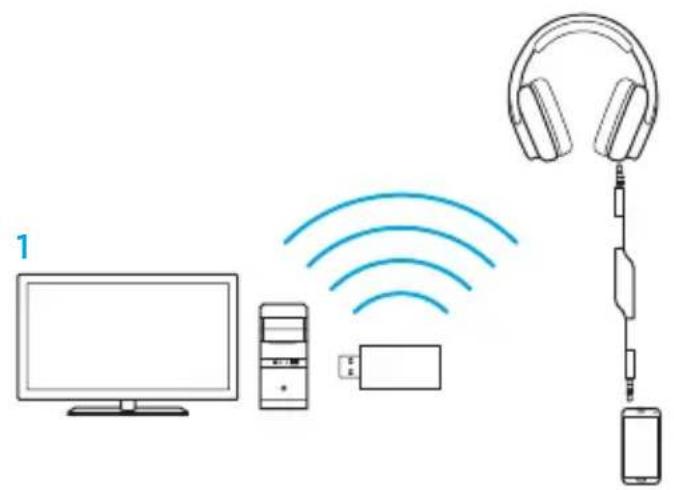
Three source audio mixing
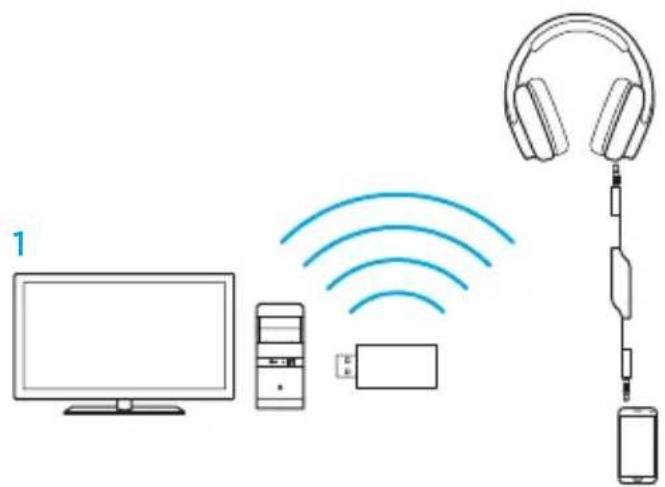
The device will mix audio from all connected sources. Up to three devices can be connected.
Available inputs:
USB
- 3.5mm (on headset, stereo + mic)
- 3.5mm (on mix adapter, stereo only)
- Answer calls while playing games
- Watch TV and answer calls while playing games
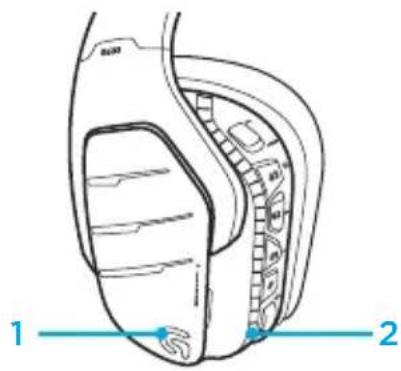
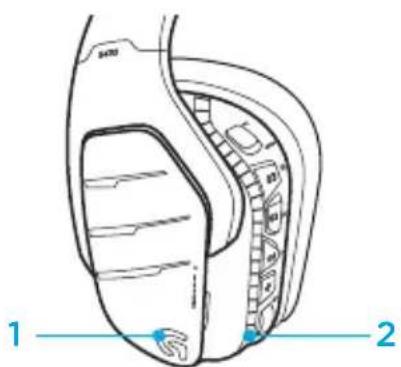
RGB lighting zone customization
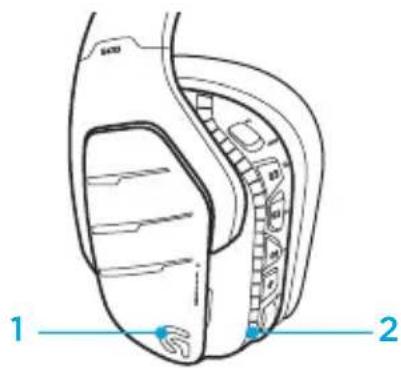
- Zone 1: G logo
- Zone 2: Lighting strip
Each lighting zone can be programmed with the Logitech Gaming Software (PC mode only).
www.logitech.com/support/g933-snow
Tag customization
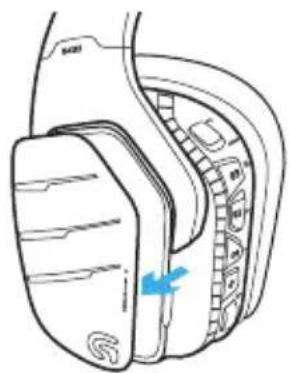
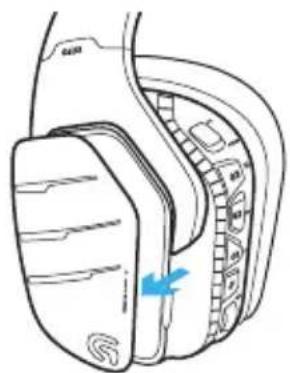
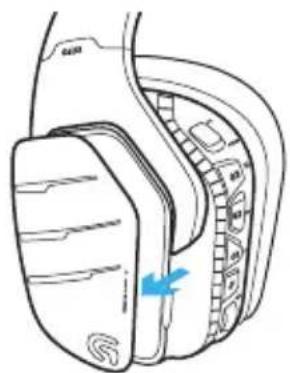
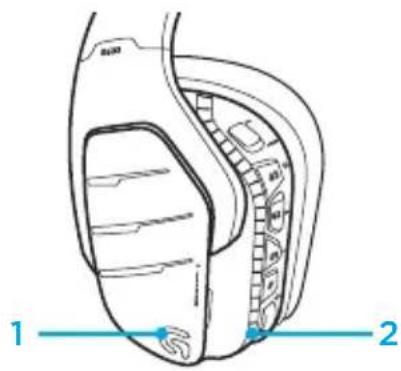
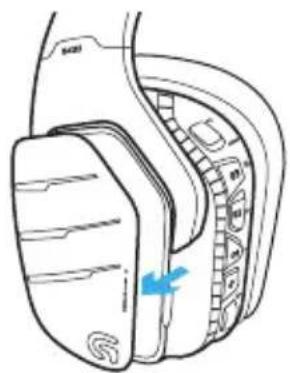
The left and right custom tags can be removed and replaced with custom tags.
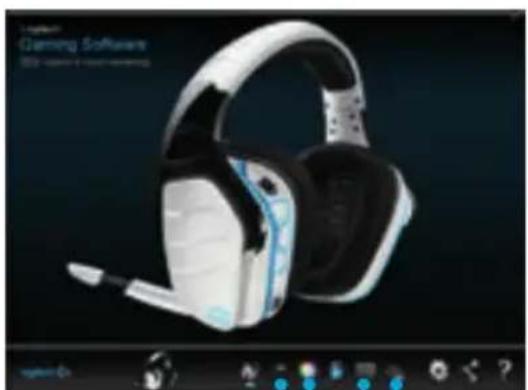
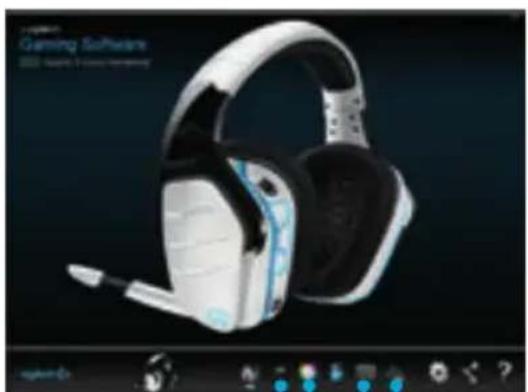
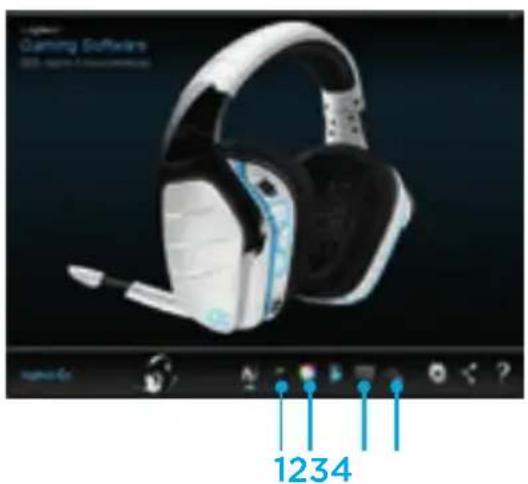
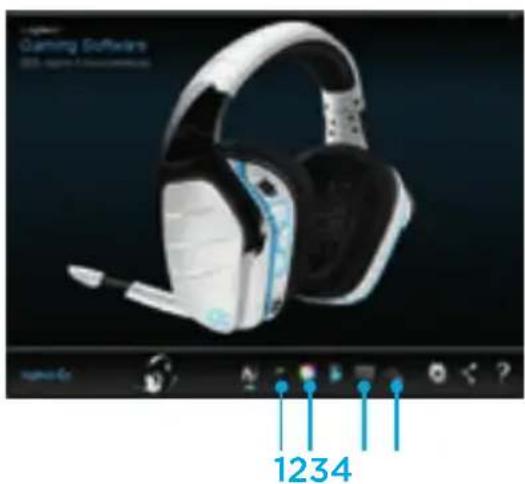
Logitech Gaming Software
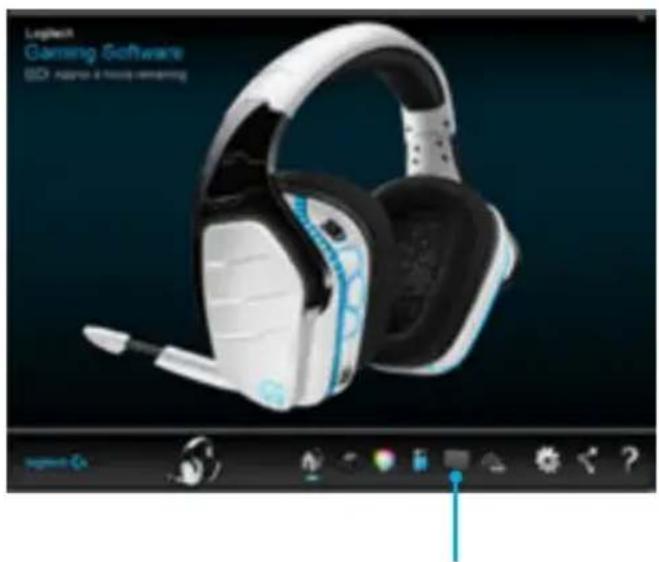
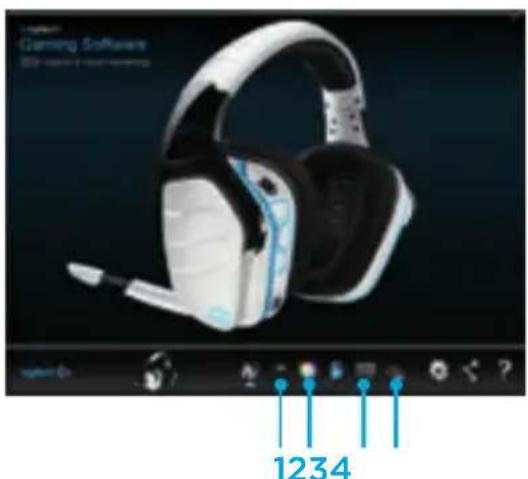
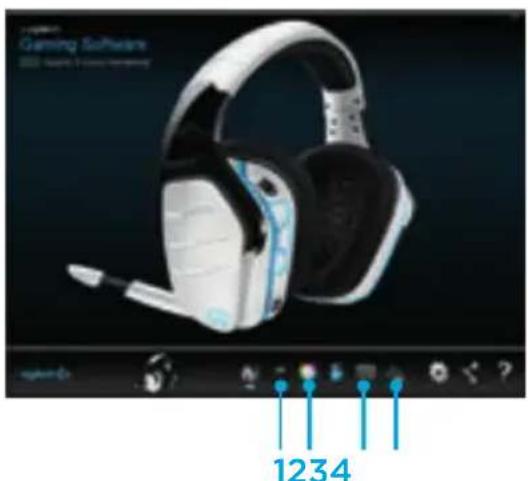
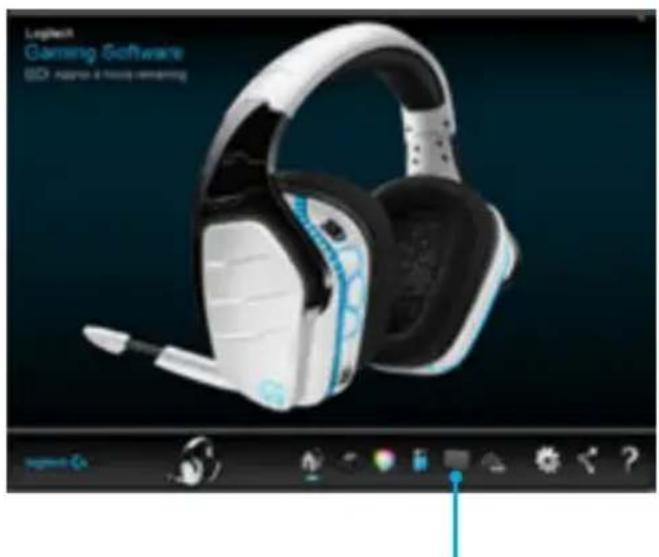
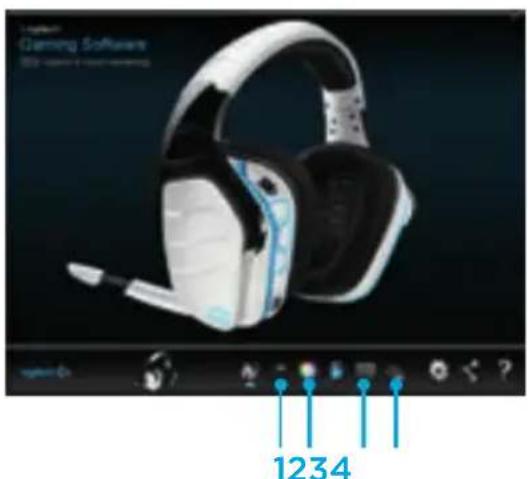
G-key buttons, lighting, equalizer, and surround sound profile programming is possible through the Logitech Gaming Software.
- G-keys
- Lighting
- Equalizer
- Surround
1234
Color/Equalizer cycling
G1 and G3 buttons are pre-programmed by default to cycle through lighting and equalizer profiles.
When the headset is connected to a system with Logitech Gaming Software running, it will cycle through all equalizer or lighting options programmed into Logitech Gaming Software.
When the headset is not connected to a system with Logitech Gaming Software running, it will cycle through the custom lighting or equalizer profiles stored in the headset's onboard memory. These profiles can be programmed via Logitech Gaming Software
Equalizer options
Pairing instructions
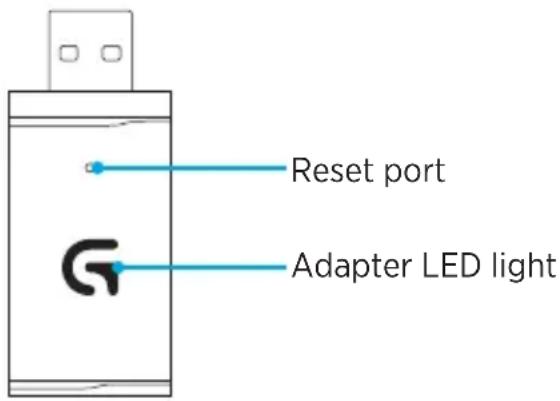
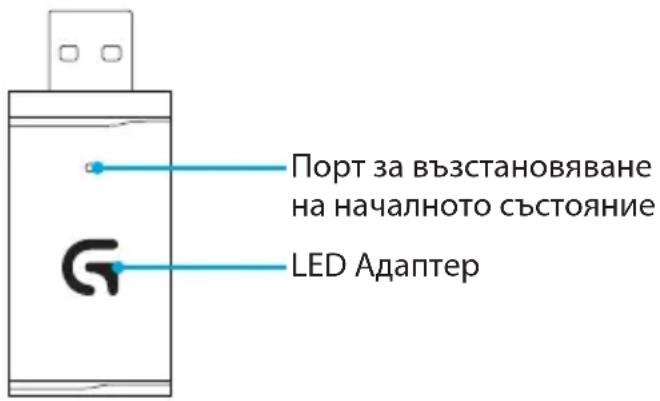
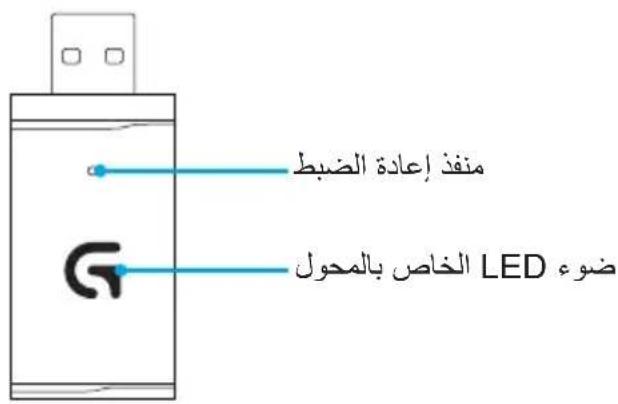
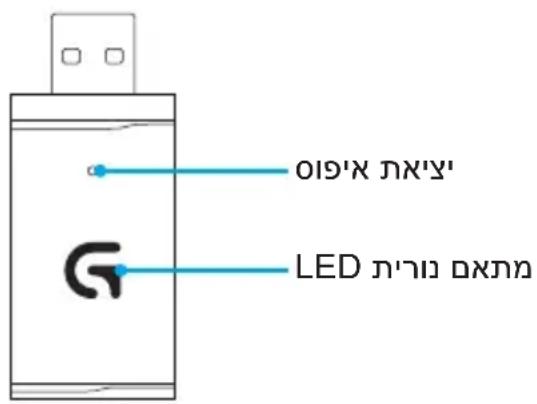
If your device becomes unpaired or you receive a replacement USB Wireless Mix Adapter, follow these instructions to pair your device with the USB Wireless Mix Adapter:
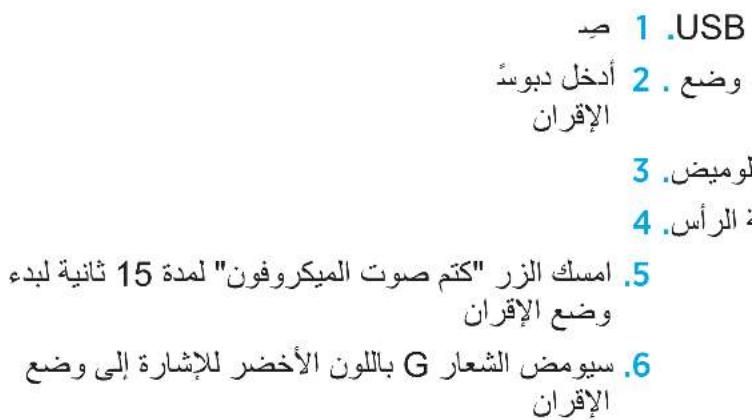
- Plug in USB Wireless Mix Adapter
- Insert pin into reset port on adapter to initiate pairing mode
- Light on adapter will blink
- Turn on headset
- Hold "Microphone mute" button for 15 seconds to initiate pairing mode
- G logo will blink green to indicate pairing mode
- Logo will turn to solid color and then return to currently selected lighting when paired
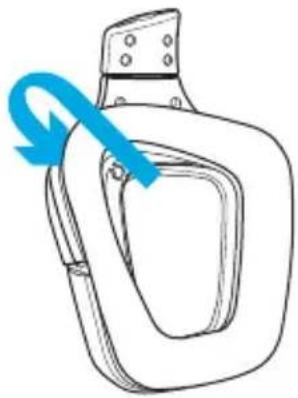
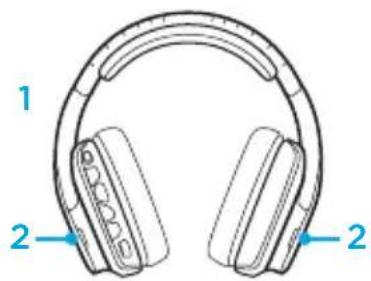
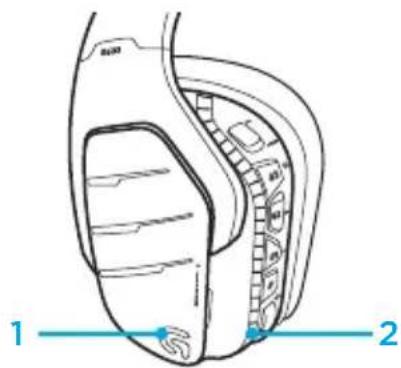
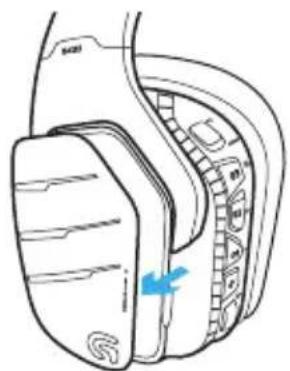
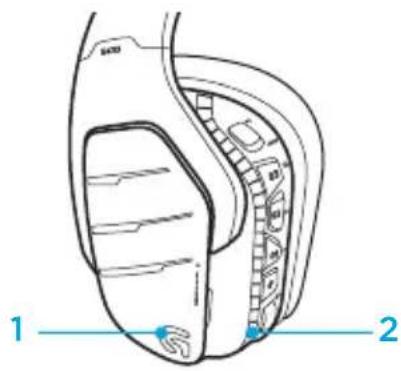
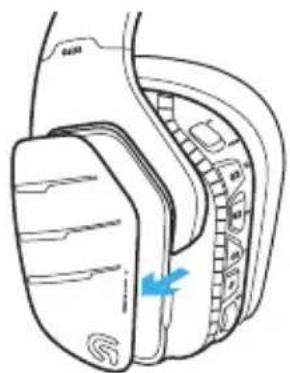
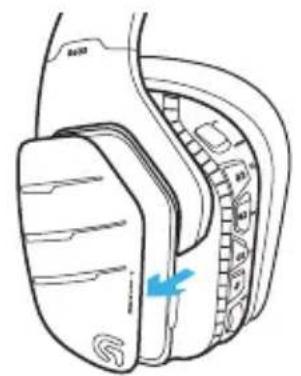
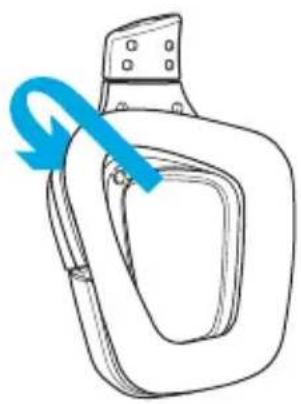
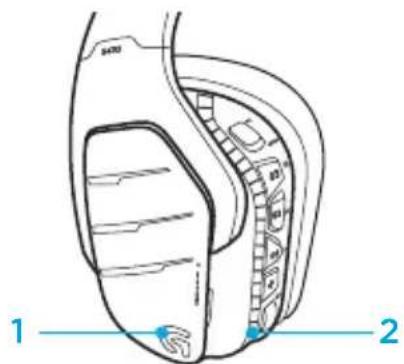
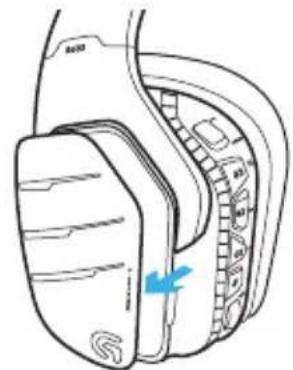
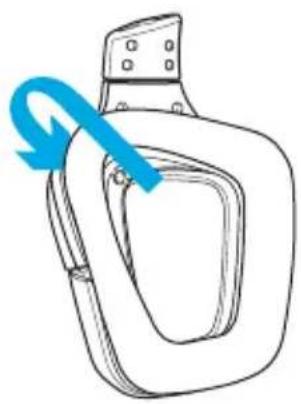
Earpad cleaning
1. Removal 2. Washing
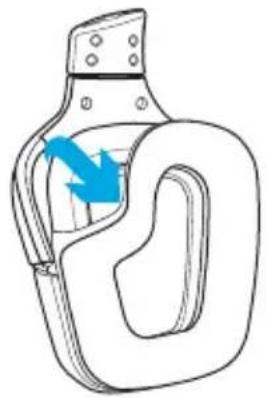
a. Once removed, the earpads can be hand washed in warm water.
b. Press with soft towel to dry, do not wring.
c. Allow to air dry before reattaching.
3. Replacement
Inhalt



Home Theater wireless
- G-toetsen
- Belichting
- Equalizer
- Surround
Shift of farver/equalizer
Knappeoppsett for headset
- Tradløs Av/På-bryter
- G3 (programmberbare): Standard lydutjevner-syklus (EQ)
Farge/lydutjevner-blaing
Zwyn1:AoyotunoG
Zwyn2:Aomega
YnpaBHeHem NITaHnEM OT 6aTapei
BecnpobodnagrapHntypaG933 Artemis Spectrum Snow pa6oTaet ot 6atapen, KOTOPa pacnoIaraeTcB HnyTp npaBoro HayuHnka.Ecn 6ecnpobodnagrapHntypa G933 Artemis Spectrum Snow He NCNoIb3yeTcnaCTe ee Ha 3apJky, NODKIOUvB chepe3 USB-nopt B HIXKei qactn yctpoIcTBa.Ecnn 6atapey noNHOCTbO pa3pXeHa, DnE ee noHOn 3apJkN chepe3 CTaNapTbI USB-pa3bEm notpe6yETcOKOLO 3,5 Yaca.ДЯ ONTImaJIbHOJ pa60tI rAPHTypbl nepeed ee nepBbIM nCNOJb3OBaHNem PONHOCTbIO 3apJdITe 6atapeio.
IIO Logitech Gaming Software
Ha rIaBHom 3KpaHe raphHnTypb I IO Logitech Gaming Software oTo6paxaetcNnDnKaTOp yPoBnHa 3apJa 6aTapen.
3TOT 3HaOK NOKa3bIbAeT yPOBeHb 3apda,ecnncnObl3yeTc6atape
3TOT 3HaOK CnHnI3npyET O TOM, 4TO yCTpoIcTBO 3apJkaeTc
IpeynpejdeHne o Kpntnueckn Hn3kom ypoBHe 3apja 6aTapei
Iprn Hn3KOM ypOBHe 3apra6aTapeHn Ha
IrgpoBor raptHntype G933 Artemis Spectrum
Snow BOCnpOu3BOIDTCs COOTBeCTByoUnn
CnHaJ. TaKke yMeHBuaeTcR apKOCTb
NoDCBETKn. Iprn KpHTnueckn Hn3KOM
ypOBHe 3apra6aTapeHn Ha YCTPOINCTBe
BOCPOn3BOIDTCs COOTBeCTByoUnn CnHaJ
N BbIKIOuAeTcR NOCDBeTKa.EcNI Bbl YCbIIWNTe
OdIH N3 3Tnx CnHaJOB, cpa3y Jxpe NOkJIouHTe
rappHTpy K USB-ka6eIo nla 3apAkn,
YTO6bI pOdoJXnTB pOcNlyuBaHne nn nIpy.
HdNkaTop 3apJdkn
CpIeKIMnPnpocToe
EcnB TeueHne 5 MInHyT Ha rapHnTypy G933 Artemis Spectrum Snow He noctynaet aydnocnHaI, OHa nepexoNT B cnai npexm dIra EKOHOMN 3apya 6aTapei.
B cnae m pexnme 6ydt OTKIOUeHa
noDCBeTka yCTpoiCTBa n pa3OpBaHo
noKIOUeHne K rIbPnIHOMy 6ecnpoBOHOMy
USB-aanTepy.
YCTPOICTBO 6yTeT MKNHINPOBaTb 3ByK n3 BCEX NOkJIIOUeHHbIX NCTOUYHKOB. OJHOBpeMeHHO MOxHNOIODKIIIOUaTb Do Tpex yCTPOICTB.
PoiepxnbAembIe pa3bEmbl:
-
USB
3,5 MM (Ha rapHnType, CtepeoyctpoiCTBe +MKpOfoH)
3,5 MM (Tolbko Ha rnbpndHom aanTepe n CtepeoyctpoiCTBe) -
OTBet Ha Bbl3OBbl BO Bpemr nprbl
2.ПрсмOTРТелперетачИ OTВETHa Bbl3OBbl BO ВрмИгрbl
HacpoKa 3Ohbl CBeTHoI NOcBETKn
3oha 1:lorotun G
3oha 2:CBETOBaI NOIOCKa
KaJyUo n3 30H NOcBETKmoXHo
3aIporpaMMPOBaTb c NOMOuIO IO
Logitech Gaming Software (ToJIbKO B peKIme
noKJIoueHnK PIK).
www.logitech.com/support/g933-snow
CmeHaHaKnaIaOK
IeByIO n npaByIO CMeHHbIE HaKnaIKN MOxHO CHrTb N yCTaHOBnTb Ha INx MeCTo HOBblE.
NO Logitech Gaming Software
CnomoIIO I0 Logitech Gaming Software MoXHO 3aInporpaMMNPOBaTb G-KlaBnU, a TaKKe N3MeHnTb HaCTpoiKN POncBETKn, EKBaJaI3epa n npOfII O6bemHOrO 3ByuHaHna.
- G-KJIaBnIu
2.ПодCBeТka - ΘκBaɪaɪʒep
4.ObbeMHbI 3ByK
IpekeJIIOUeHHe MeKdY peKIMaMn NOcBETKn/3KBaJaN3epa
C nOMOuHAcTpoEHbIX NO yMOJuaHIO KHOJOK G1 u G3 MoXHo nepeKlouaTbcra MeKdy npoΦnIaMn NODCBETKN I KBaIaN3epa.
Ecnr raphHntypa noKIOueHa K CNTeMe c nOmoBIO PO Logitech Gaming Software, Oha 6ydtpekeKIOUoATbcra MeKdy BCEMn npaMeTpAMN EKBalaI3epa N NOCBETKn, HacTpoEHbIMN B PO Logitech Gaming Software.
Ecnr raphHnTypa He noDkIIOueHa K cnCTeMe c nOmoBIO PO Logitech Gaming Software, Oha 6ydtpeKIOUcTbCmMxJy Nolb3OBaTeNbCKIMN pOphiINMaN EKBaIaN3epa N IOCBETKN, COXpAHENbIMN BO BCTPOEHNO NaMTn raphHnTypbl.3TN pOphiIN MoXHO Hacptonb C nOmoBIO PO Logitech Gaming Software
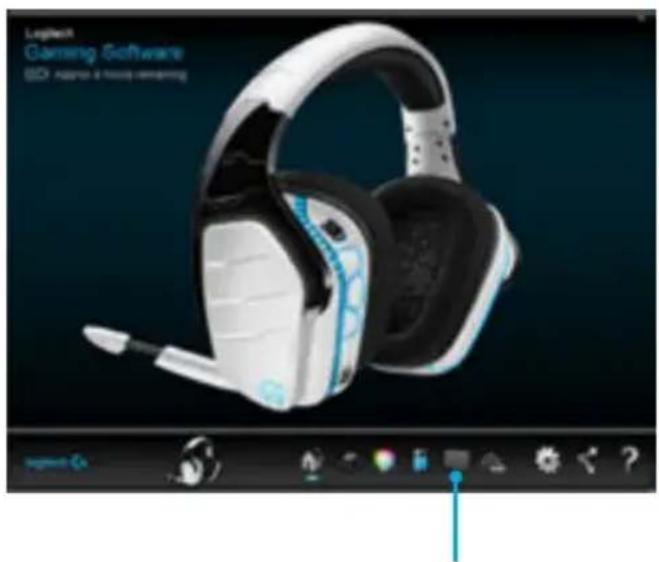
IapametpbI 3KbAan3epa
HnhtpyKcnn no copjKeHHIO
Ecnn C8y3b C yctpoiCTBOM pa3OpBaHa
HIN OCSUeCTBHeHa 3aMeHa r6pNDHO
6ecnpoBOJHOrO USB-aAnTepa, cIeDynte
PnIBeDEHHbIM HIXe INCTpyKcIyM,
YTO6bl YCTaHOBNTb COpJxKeHne MeKdy
ycTPOiCTBOM I n6pNDhBM 6ecnpoBOJHbIM
USB-aAnTepom.
1.ПодсоeДинTe rI6рИнь 6ecnpoBOdHoi USB-aanTep
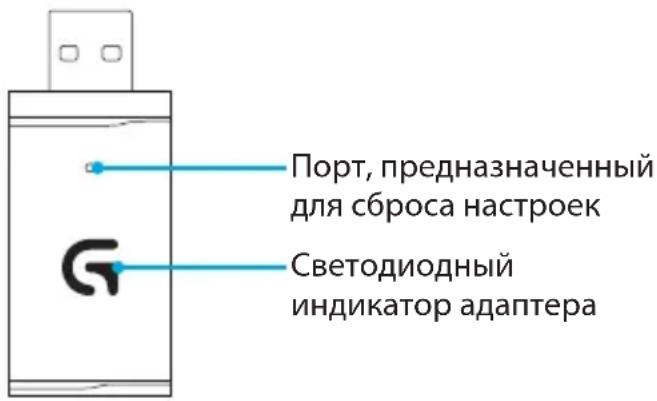
2. BCTaBbTe uTKepeB nOpT, npedHa3HaueHHbI Inra c6poca HacTpoe k aDAnTepa, UTObbl AKTUBuPoBaTb peXIM COnpJxKeHnA
3. INHnKaTOp aanTepa HauHeT MInrAtb
4. BkIIOUHTe rapHNTypy
5. Haxmte n ydepxnBaTe KhoNky «OTKIOUeHne MIKpOfoHa» B TeueHne 15 cekyHd, YTO6bl aKTINBnPOBaTb peKIM COnpJKeHnA
6.lorotnG 6ydt MuraTb 3eJeHbIM, yKa3bIbaHa aKtNbauH o peXmMa cOpJxKeHn
7. Iorotun 6ydt CBETbC, He Mura, nIocne cOpjKeHn3aROpNTcCBetOM, Bbl6paHHbIM dJa Hero B HactoUIM MOMHT
Ynctka ambyuHOp
- CHIMMUTE 2. BbIMOnTe
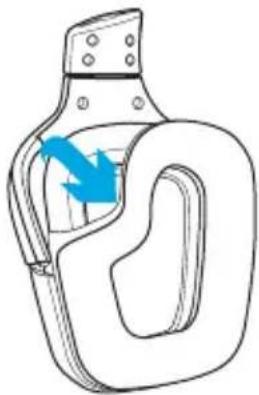
a.Поссе сгета am6yшюрь MOЖHO BpyHyO BbIMbITb TEПОВ BOДОI.
b. NocneMbITbI npOMOKHnTe INX MArKIM NOJOTeHcEm, He BbIXkMaTte INX.
c. IpeyctaHOBkoH Ma MeTO npocuHTe INX Ha BO3dyxe.
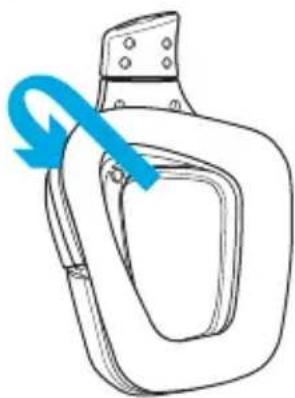
- HaneHbTe
Zawartosci zestawu



KepyBaHHaKymyIaTOpOM
Be3npoBOOba rapHitypa G933 Artemis Spectrum SnowЖиВNTbCBy BID akymylTopa, B6ydoBaHO R YaWky npaBOrO HabyuNka. RaKIO Bn He BnKOpNCTOBYeTe 6e3npoBOOby rapHitypy G933 Artemis Spectrum Snow, nIqKnIOUcITb II chepe3 nopT USB, zo BnHyr rapHitypN,do 3apAINHO npICTroIo. RaKIO aKymyIaTOp nobHiCTIO po3prJKeHni,ДЯ Ioro IOBHorO 3apAIXKeHHNoTpi6HO 6In3bKO 3,5 roDHNu Chepe3 CTaHdApTHNI BxixHNI po3'EM USB. RaKIO npicTpri BnKOpNCTOBYeTBcB BnepSe,ДЯ Noro OOTImaJIbHoIpo6OTn BapTO cNoouATKy nobHICTIO 3apAINTu akymyIaTOp.
Π3 Logitech Gaming Software
Tolobn ekpaH raphiTypy n y P3 Logitech Gaming Software miCTNb iHdkaTop 3apAkyakymyIaTopa.
Ku npicpi BnKOpncToBye akymyIaTOp, iNdkaTOp noka3yepiBeHb Ioro 3apA
Hapa3i iHdikatop noka3ye, 0Tpna3apJxKeHH npNCPTPO
BaxnBi nonepeJxHHeCTOCOBHO akymyITopa
3a Hn3bKO rBn 3apA yakymyITopa
6e3npoBOBa raphitypa G933 Artemis
Spectrum Snow noJa e 3ByKOBn cnHaJ.
TbMaHe niDCBvBAHn CBiDHTb npo Te came.
3a KpNTuHNO Hn3bKO rPiBn 3apAyn pncTpii
noDaCTb 3ByKOBn CNHaJ, a nCbiCyBaHH
6yDe BmKHeHO.Y TAKOMy pa3i HeraHNo
niKnIOUITb Do rapHiTypn Ka6JIb USB dIa
3apAJeHHn, 06 MaTH 3MOr npOIOBXHTN
npocIyXOBvBAHH a60 rpy 6e3 nepeWKoJd.
INdkaTop 3apJxKeHH
Pexim ouikyBaHHa/Chy
Якwo raphiTypa G933 Artemis Spectrum Snow He oTpmye aydiocnHaIy BnpoDobK 5xbuINH,BOHa nepexOHTb B pexm Chy dJa 3aoaadKeHHa 3apJy aKymyJrTopa.
ypeKMI OuyiKaHHa/CHy NiDCBiuYBaHH npIcTPOIO 6yIe BIMKHeHO, rapHItpy 6yIe Bi'EDHaHO Bi yHIBepcaIbHOrO 6e3npoBOdoBoro aadTepa USB.
Длг Виху raphiTypn 3 ржиму chy haTNCiTb 6yd-яку ii KhoNkY.
y pekimi ouikybaHHa/CHy npnCTpii BnKOpNCToBye 3apRd akymyIaTopa OuaadnIBO. RaIO BN pnaHyTe 3aIIuHTn rapHiTypy B pekimi Chy HAdOBro, BmKHiTb ii TaPiKJIouItb chepe3 Ka6eIb USB do 3apJdHoro npnCTpoI.
3ByKObi Ta CBiTIOBI CINHaJI BBIMKHeHHBIMKHeHH
Iicra BBIMKHeHHra rapHitypa noaactb BiIOBIDHn 3ByKObN cRHaI.
Iicna BBIMKHeHn NiDCBiyBaHHa3amNOrTb pi3HmN KOJbOpAMn, a NOTIM nepeiDe do o6paHoro peKmMy.
KoJI npIcTpI BUMKHeHO, iIDCBiCyBaHHaCTaE 6IaIKTHIM i3raca pa3OM i3 BUMKHeHHaM XINBJIeHHa.
IopoJxHnI nepeMnKaua 6e3npoBOIOBOrO peKIMy «YBIMKHeHO/BIMKHeHO»
Ipeemkauch 6e3npoBOOBOrOpexmMy rapHitypn G933 maE dBa po6oHi noLoXeHHa: «YbIMKHeHO» Ta «BIMKHeHO».
πiKJIIOUeHnI Do PIK (BpeKnMI πiKJIIOUeHnI Do PIK)
- 3aBaHTaxTe iHCTaIIOte I3 Logitech Gaming Software i3 Be6-caIry www.logitech.com/support/g933-snow
- YctaHOBIb nepemikau 6e3npoBOOBOrOpexIMy B NOLOKeHHA «YBIMKHeHO»
3.Пд' endaHTe yHIBepcaIbHn 6e3npOBOOBn aanTep USB do PIK. TarHiTypa niklouHTbcra ABTomatNHyO.
Ondohouache BnKOpncTaHHaKeiNbKOx DxKepe3ByKy
Kkpo raphity G933 niknoyeho uepe3 yHibepaIbHn 6e3npoBOOBn aadTep USB, ii MoxHa oJHOacHo nIKNoHTn do iHoro dKepeNa ayIOcHany (HaPnKnaD, cMapTfOHa) 3a DOJOMOrO Ka6enIO 3 po3'EMOM 3,5 MM. YCbOMy pa3i 3ByKn, Ito HaXoJaTb 3 o6ox dKepeN ayIOcHany, 3MOxTyB BiTbOPIOBaTnCra OJHOaCHO. IIna BIDNOBIi Ha BnKNK, perynIOBaHHr ryHOCTI Ta BnKOpNCtAHN iHUnx fYHKui, IOCTynHX Ha MObHOMy npicTpoi, MOxyTb BnKOpNCTOBvBaTnCBAyDOBaHi eMeHTn KepyBaHHa Ta B6yIDoBAHm MikpOoh.
πiДКЛIOUeHЯdoПК(BpeKIMi πiДКЛIOUeHЯ uepe3 po3'Em 3,5 MM)
Дяпкюня rapHiTypn G933do aydionpncpoiB MOxHa BnKOpNCTOByBaTn Ka6eIb, aIe TlbKn 3 po3'EMOM 3,5 MM.
- YctahOBiTB nepemKau 6e3npoBOOBOrOpexkIMy B noLoXeHHaBnBmKHeHO, RaKIO Bn6bKaTe BnKOpNCTOByBaTn rapHiTypyB nacNBOMy ayDiopexkIMi. RaKIO K BamNotpiHn aKTnBn aYdiOpexkIM i3DoaTKOBmN FyHKciAMy, BN6epiTbnoLoXeHHaYBMKeHo"(DnB. pO3dIn «NoLoXeHHa nepeMkaUa 6e3npoBOOBOrOpexkIMy "YBMKeHo/BmKHeHO").
2.Пдкючы rapнітуpoДо ПК 3a ДОпOMою Ka6eIIO 3 po3'€mOM 3,5 MM
3.ДЯperynIOBaHHa 3ByKy MoXHa BnKOpNCTOBaBTu eIeMeHTn KepyBaHHa, po3TaioBaHi Ha Ka6eni.
Bn6ip mikofoHa
ДяВИКОРИСТАНЯВ6уДОВАHorO MIKPOФОHA Bn6epiTb ПОJOKEHн «MikpofoH»
ДяВИКОПИСТАНHA CпрЯMOВАHorO MIKPOФОнa rapHITypn Bn6epiTb NOLOXKeHHA «「apHITypa»
DeaKfYHKu,3OKpema fYHKui 06'EMHOro 3ByuHaHH 7.1,KhOpKn raphiTyPi, KOIiUaTK opeyIIOBaHH rUHocTi, HAcTPOIOBaHH nIDCBiCyBaHH Ta fYHKui KHOJOK, HeIOCTynHi 3a BiDcyTHocTi USBnIKIIOUeHH.N y nacNBOMy peKmI
CnpmaOBaHm Mikpooh HEmoxnbo
piEHaTu Do npucTroB, iKluOeHHa Do knx
yCTaHO He 035 MM.
Ib BnKOpNCtAHn yHKui MIKPOoHa BcbOMy
peXMIi iD ac iKluOeHHa Do neBHnx PIK
MOke 3HaO6uTnc4-KoHTaKTHn Ka6JIb-
nepeXiHnK i3 po3'EMOM 3,5 MM dJaPiKluOeHHa
do po3'EMIB MikpofoHa Ta cTepeOpncTroIO (He BXODITb DO KOMNKeTy NOCTaHaHH).
JiBy Ta npaBy 3HimHi HaKnaIKN MOxHa 3HrTn Ta BCTaHOBHTN Ha ix MiCue HOBI.
Π3 Logitech Gaming Software
3a donomoroio n3 Logitech Gaming Software MoXHa 3anporpamyBaTn G-KlaBiSi, a TaKoX 3MiHHTn HAcTPOiKN NiDCBiuYBaHHa, eKBaIaI3epa Ta npOphiIO 6'EMHOro 3ByuHaHHa.
- G-Knabii
2.ПдсвуBaHHa - EKbaJauJep
4.Функція 06'EMHOrO 3ByuahHЯ

1234
IocniIOBHe BiIO6paXeHHa KOBOpiB/ peKIMIB eKBaIaN3epa
KhONKn G1 Ta G3 3anporpaMoBaHo 3a 3amOByBaHHaM Ha NocIiObHe BiIO6paXeHHa npoΦiINB NiDCBiuByBaHHa Ta eKBaIaI3epa.
KuO raphity npikloueHO do cnctemn, Ha kii 3anyueHo I3 Logitech Gaming Software, Bci 3anporpamOBahi Hm napameTpne EKBaIaI3epa a6o nicBiyBaHH noHytb nociIOBHO BiO6paKaTNC.
KJxO JrnapHitypHe niknueHo Do cnCTeMn,
Ha kI 3anyuEHO PI3 Logitech Gaming
Software,To nocIOBHO BIO6paXaTmYtbcra
Nlwe Ti npophi i eKBalaI3epa a60
PiCbiUyBaHHa, 3o 36epiraOTbcra y B6yDobAHi
nam'arT rnapHtyp. Li npophi I MoXHa
3anporpamyBatn 3a DOnomoroIO PI3 Logitech
Gaming Software
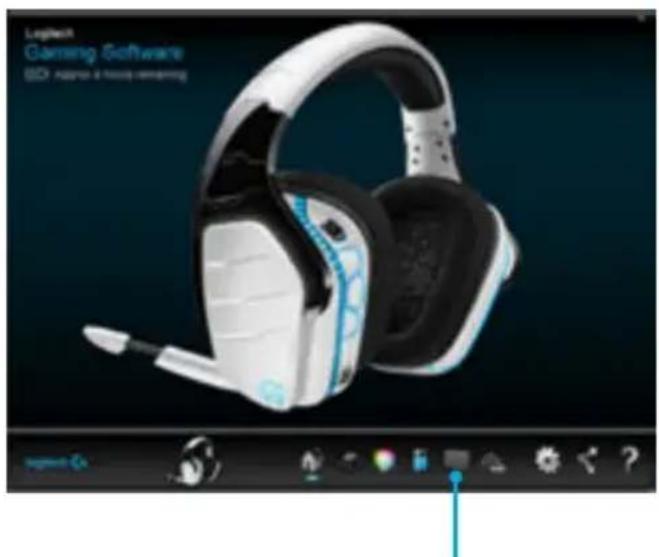
Iapametpn eKbajaan3epa
Bka3iBkn ⅢOIO cnapOBvBaHHn npictpoIB
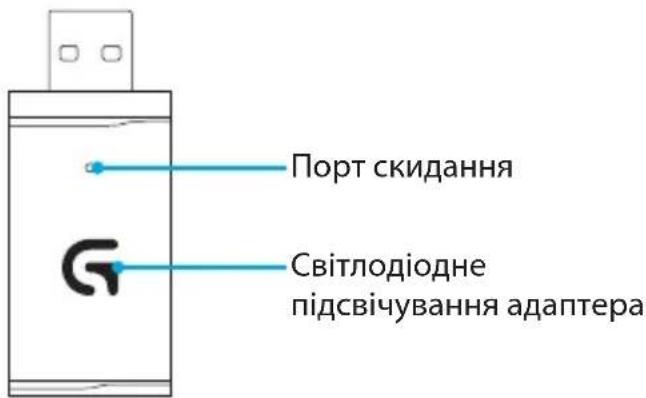
KaioBaI npicpti6ylo BiKIOueHO BID napHoro nIKIOUeHHa yHIBepcAbln 6e3npoBOOBN aanTep USB-3amHeHO, TO dra CTBOpENHn napm MIX npNCtpoem m yHIBepcAblHM 6e3npoBOOBm aanTepom USB DotpmyItec TaKx BkazBok.
1.Пдклioчыньсальн6e3npoBOOBn aanTep USB
2. HATNCHITb ⅢINIBKOIO KHOIky B NOpTy CKNdaHn aanTepa, 0o6 3aynCTuTn peKIM CTBOpeHH napi
3. INdikaTop Ha aadantepi noyhe 6JIMMaTu
4. YbIMKHiTb rapHiTypy
5. Tpmaite HaTnCHyTOIO KHONky «BumKHeHHa 3ByKy MIKPOΦOHa» npotrrom 15 cekyH, 306 3anyCTNTI peXIM CTBOpeHHa napu
6. Iorotn G noyHe 6nMaTH 3eHnM, uO CBiDHTmE npo BCTaHOBJIeHHr peKIMy CTBOpeHHra napn
7. Kolni napy 6ye CTBopeHo, IOROTn NOUHe CBiTnCra pIBHomipHO, a Ha npicTroB BBIMKHeTbCra 6opAHn peKIM nICCBiuyBaHHa
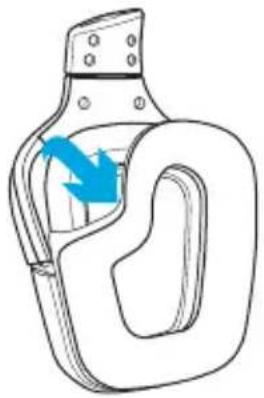
OuHnHa am6yUyp
1. 3Hatta2. Mutter
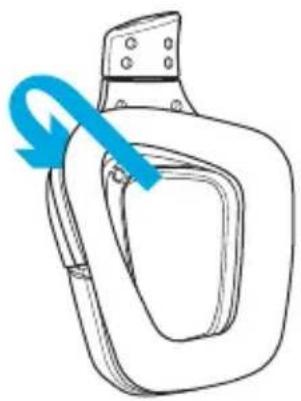
a. 3HIMITb am6yUpyn Ta BpyHy BmNTe ix y TeNlB Odi.
b. IpoTpiTb am6yUypn CyXIM puSHNKOM, He BNTNCKyIte BODy 3 HIX.
C.ДаиTe iIM NOBHCIO BnCOxHyTN,прш HIX IOBepHyTN Ha MlCJe.
3. 3aMiHa
Karbi sisu



- Mängupeakomplekt G933 Artemis Spectrum
- Kohanduslisad (V/P)
-
Arvutikaabel (USB-Micro-USB, 3 m)
-
3,5 mm kaabel (1,5m)
- 3,5 mm - 2,5 mm adapter
- RCA - 3,5 mm kaabel (1 m)
- Dokumentatsion
Kirjeldus
PlayStationi seadistus (seaded)
- Peakomplekti ühendamine
- Avage seaded
- Valige „Sound and Screen" (Heli ja ekraan)
- Valige „Audio Output Settings" (Helivaljundi seaded)
- Määrake seade „Output to Headphones" (Väljund körvaklappidesse) valikule „All Audio" (Kogu heli)
PlayStationi seadistus (seaded)
- Ühendage peakomplekt USB-voi 3,5 mm kaabli abiI.
- Avage seaded.
- Valige „Sound and Screen" (Heli ja ekraan).
- Valige „Audio Output Settings" (Helivaljundi seaded).
- Maarake seade „Output to Headphones" (Väljund körvaklappidesse) valikule „All Audio" (Kogu heli)
Xbox 360 jaoks seadistamine
Vestlusheli
- Ühendage 2,5 mm - 3,5 mm adapter kontrolleriga
- Uhendage 3,5 mm kaabel adapteri ja peakomplektiga
Konsooliheli
YnpaBHeHnHa 6aTepeyTa
Be3xuHnTe cnyuAnKu G933 Artemis Spectrum Snow ce 3apeKdAurpe3 6aTePnB, BmecTeHa B DnCHaTa 6e3xuHa CnyuAnKa. Korato He n3no3BaTe 6e3xuHnTe cnyuAnKn G933 Artemis Spectrum Snow, BKIOUeTe rUpe3 USB npT-a B Hau-DoHata qact Ha yCTpoiCTBOTo Da ce 3apeKdA. Korato 6aTePnraT e HApbIHO npa3Ha n e Heo6xOIMo pnp6IIN3HTeNHO 3,5 Yaca 3a da Ce 3apei HaNbIHO Ha CTaHapTHNr USB n3XoJ. 3a ONTImaJIHO n3NoI3BaHe, ppei Da n3NoI3BaTe yCTPOICTBOTO 3a PbPBn PbT ro BKIOUeTe I My N03BOJeTe HaNbIHO da ce 3apei.
CoΦTyep Logitech Gaming
HaayannrT ekpan Ha cnyaanKe T B coofTyepa Logitech Gaming mMa nHdkatOp 3a HnBO Ha 3apekdahe Ha 6aTePn:
Korato n3no3BaTe 6aTePnna,
Ie ce OTyeTe HnBO Ha 3apeXdaHe
OTcHTa ce,Ye yCTpOJCTBOTo ce 3apexJa
PpeynpeKdHne 3a 6aTepuNTe
TeimnHcnyuankte G933 Artemis Spectrum Snow ue Bb3npo3BedaT 3Byk, KOrato 3apeKdaHeTo OTCna6He.OCBeTBAHeTo Ha clyuankte CbIoo Ie ce otCna6n, KOrato 3apeKdaHeTo HamaJe. Ppi KpntuHO HIBO Ha 3apeXdaHe, yCTpoiCTBOTo ue Bb3npo3BVeDe 3Byk IN OCBeTBAHeTO Ie ce n3KnUoy.N3noJ3BaIte USB ka6en 3a 3apeXdaHe, 3a da Ro BKIOUHTe BeDHaRa B Clyuankte, aKO CyyeTe Te3N 3Byu, 3a Da OCnrypnte HenpeKbCHaTO clyuane NIN nrpaene.
HnkaTop Ha 3apeKdaHe
I3dpbXlnBOCT Ha 6aTepeYTa
Бe3 OCBETЯBaHe: 12 yaca
Стандатно OCBETЯBaHe: 8 yaca
1 Håkon ΦyHKUIM MoKeJa n3mKCBat coΦtyep Logitech Gaming.
2 06BaTbT MoKe Da BapuPa B 3aBnCmOcT OYcIOBnTa Ha OKoHnHa Tcpe.
3 AkymunaTopHNTe 6aTePmN No3BcNABaT OraPaHnueH 6poi cKnHa 3apeKdaHe. N3dpbXkIMBOCT Ha 6aTePnTa n3MepeHa npn 50% CwlaHa 3Byka.
Изклочен рекинм Wireless (nacnben pekim)
Pn n3KIOueH (nacBHe pexM) pexm
Wireless, cIyuaKnte ige pa6oTt pn
nacBHe He3axpaHEn pexm. CnyuaKnte ige
Bb3pOu3BeJdaT ayDIO 3ByK OT KoETo I da
e yctpoiCTBO CBpb3aHO ue3 5 mm BXoJa
Ha cnUaKNTe.
Функциnte,КоITOи3NCKBaT 3axpaHbaHe, BKNIOUHTeJIHO7.1cbpayHd 3ByK,персонлзирани прфил 3a 3Byka, 6byToH Na Cnyшалкnte,ДeINCTBVE HaДИСKa 3a Cnila Ha 3Byka Иперсонлзиране HaФункциnte Ha OCBETЯBaHeto N 6byTOHte He ca HAnuHn BHaCTOJUpeKIM.
He e haIyuH Boom Mkpofoh 3a yctpoiCTBa Cbbp3aH upe3 3,5 mm aydno npOT Ha CnyuAkanTe B HAcToaunpeKIM. I36epeTe BrpaednMaMkofoH, n3POn3BaIKn IpBkIIOUbaTe BKnOueH B Mo6UnHna Ka6en.
HactoIyTpeKIMMOKeJa6bJe n3nOJI3BaH Da 3aNa3N u3dpbXJINBOCTTa Ha 6aTePnIa.
Hacrpoika 3a komnIObP (PC peKIM)
1.ИЗТЕТЕ ИИСТАЛРаTE coФТуЕра Logitech Gaming Ha aДпес: www.logitech.com/support/g933-snow
2. HactpoTe npeBkIIOuBaTeJHa no3nua BkIoUeHo Wireless.
3. CbpxKeTe cmecen USB aanTep Wireless KbM nepcoHaHnKOMnHTbp. Cnyuaknte ue ce cbpxkAT aBtOMaTHUHO.
CmecBaHe Ha aydno n3TOUHNu
Дokato CTc CBp3aHn KbM CmecHnra USB aanTep Wireless, G933 cbso moKe da n3no3Ba 3,5 mm ka6ena 3a CBp3BaHe c npy r ayDIO n3TOUHnK (HaNPIMep cmapToOH). IV DaTa ayDIO n3TOUHnKa MoRaT da Ce Bb3npOu3BExJaT eNHOpeMeHNO. BrpaJeHnte KOHTPOJI N BRpaJeHnT MKNPOoH MoKe Da ce n3No3Ba 3a OTROBapRHe Ha NOBnKBaHn, HAcTPOJka CInIa Ta Ha 3ByKa I Dp., CAMOCTOReIHO 3a MO6NJHOT OYCTBO.
CoΦTyep Logitech Gaming
Bytonte 3a G-KnaBnua,ocBeTBAHeTo, ekBaJau3epbT n npoHnT3a nporpaMpaHa CbpayHd 3ByKa ca Bb3MOxHn C NOMOuTa Ha coFtyepa Logitech Gaming.
- G klnabnwn
- OcbetTbAHe
- Eknaiaizep
- CbpaynHn
1234
Дeйства нацBetHoCT/eKBaJaI3ep
BytOnG1 n G3 ca nppe-nporpaHpaHn no npda36npaHe da yHKcnoHnat Ype3 npoNIn 3a OCBETBaHe n EKBaIaI3ep.
Korato CnyuzaJIKeTe ca CBbp3aHn KbM CNCTema cbc cofoep Logitech Gaming B xoJHa n3IbJIHeHne, Te ue fYHKUHOHpaT Upe3 BCNUOUIIN 3a eKBaJaI3ep NII OCBETBAHe npOrpAmPiApHb V cofoTyepa Logitech Gaming.
Korato cnyuwaanKeHe He ca Cbbp3aHn KbM
CnCTema Cbc CoTyep Logitech Gaming B xoJ
Ha n3PbLnHeHne, Te ige yHKuOHnP aYpe3
IpoOnn 3a OCBetBaHe nn EKBaJa3ep
CbXpaHEnB pernctpnpaHaTa NaMeT
Ha cnyuwaanKeTe. HactoAnTe npoOnn Morat
da 6bDat nporpaMnpaHn Ype3 coTyepa
Logitech Gaming
OnuHaekBaJaan3epa
IHHCTpyKcnn 3a Cbbp3BaHe
Ako yctpoiCTBOTO ce npebphe B Hecbbp3aHOnnnnoyuHTe noDmeHen Cmecen USB aanTep Wireless, cneBaTe HaCTOunTe INHCTpyKUnn, 3a da CBpbKeTe yCTPOICTBOTO Cbc CmecEHNA USB aanTep.
- BkIoueTe cmecen USB aanTep Wireless
- BmBkHeTe KapfUca B nOpTa 3a Bb3CTaHOBRAHe Ha NaJHcSToRHe, 3a Da INHcUNpaTe peXIM Ha CBbp3BaHe
- Bbpxy aanTepa ue npemrBa cBeTlnHa
- Bkniouche cnyuwaanknTe
- 3aДрьжTe 6уToHa 3a "СпираHe 3ByKa Ha МИКpoФОнa" 3a 15 ceKуHДn, 3a Да ИИицИпаTe ржIM Ha CBырЗВаHe
- GЛoro иpe npemrBa B 3eNeHo, 3a da OTche peKIMa Ha CBbp3BaHe
- Ioroto ue cTaHe B nIbTeH uBraT n Cnei TOBa, npn CBbp3BaHe, Ue Ce BbpHe KbM 136paHOTOBMOMeHTa OCBETBAHe
Logitech Gaming softver
Pocetni zaslon slusalica u Logitech softveru za igre opremljen je indicatorom razine napunjenosti baterije:
Oznacava napunjenost baterije kada je koristite
Oznacava da je u tijeku punjenje ureda
Upozorenje o slaboj bateriji
G933 Artemis Spectrum Snow slusalice za igre oglasit ce se zvučnim signalom u slučaju slabe baterije. Osim toga, u slučaju slabe baterije oslabit ce osvjetljenje slusalica. Na vrlo slaboj napunjenosti, uredj Če se oglasiti zvučnim signalom, a osvjetljenje Če se iskljuciti. Odmah prikljucite USB kabel za punjenje u slusalice ako Čujete te zvučne signale, takо nece doci do prekida slusanja ili igranja igara.
Indikator napunjenosti
Logitech Gaming softver
Programiranje G-tipki, osvjetljenja, ekvilizadora i profila prostornog zvuka moguce je putem Logitech Gaming softvera.
- G-tipke
2.Osvjetljenje - Ekvilizator
- Surround
Prijelaz na modalitet boja/ekvilizadora
Gumbi G1 i G3 unaprijed su programirani za prijelaz izmedu profila osvjetljenja i ekvilizadora.
Kada su slusalice prikljucene u sustav sPokrenutim Logitech softverom za igre, one ce moci prelaziti izmedu svih mogucnosti ekvilizatora i osvjetljenja koje su programirane u Logitech softveru za igre.
Kada slusalice nisu prikljucene u sustav sPokrenutim Logitech softverom za igre,one ce moci prelaziti izmedu profila prilagodenog osvjetljenja i ekvilizatora koji su pohranjeni u unutarnju memoriju slusalica. Ti profili mogu se programirati pomocu Logitech softvera za igre
Mogućnosti ekvilizatora
Home Theater wireless
G933 Artemis Spectrum JcLaw J
Jnssgusuusuusuusuuea Jsc Snow
ususususususususususususususususususususususususususususususususususususususususususususususususususususususususususususususususususususususususususususususususus
y
G933 Artemis Spectrum wJrAeLwS SNOW
1aiaiaiaiaiaiaiaiaiaiaiaiaiaiaiaiaiaiaiaiaiaiaiaiaiaiaiaiaiaiaiaiaiaiaiaiaiaiaiaiaiaiaiaiaiaiaiaiaiaiaiaiaiaiaiaiaiaiaiaiaiaiaiaiaiaiaiaiaiaiaiaiaiaiaiaiaiaiaiaiaiaiaiaiaiaiaiaiaiaiaiaiaiaiaiaiaiaiaiaia
Logitech Gaming
gai jy jll aclal y jil ay lgl Logitech Gaming
oL 1y
J 1 J 1 J 1 J 1 J 1 J 1 J 1 J 1 J 1 J 1 J 1 J 1 J 1 J 1 J 1 J 1 J 1 J 1 J 1 J 1 J 1 J 1 J 1 J 1 J 1 J 1 J 1 J 1 J 1 J 1 J 1 J 1 J 1 J 1 J
Jgai g 1
G933 Artemis Spectrum wJll aclaw J
Sic ayill lbc bll nss SNOW 5 Ldai yjy Ie jli p
o glol oclal gblil pni Jgdo jy g jn Sg USB kLw Jz Jn Jg.
lc biol, nKsw g jn wJll aclaw aiiil
J 1 J 1 1 1 1 1 1 1 1 1 1 1 1 1 1 1 1 1 1 1 1 1 1 1 1 1 1 1 1 1 1 1 1 1 1 1 1 1 1 1 1 1 1 1
Sulj
G933 Jll
"sluU Juaa 1
suii
aclaw jypa 1
eolal 1
alaiieie. gaii jgiy Rgb
eNJaaJuaa Jauu aee 1 aae aee aee
"Jolllgill) "slllll Jilil 1000 g j 10000000000000000000000000000000000000000000000000000000000
g 1111111111111111111111111111111111111111111
120
J 3.5 aJy jll aclawgall gall Jlc plaiu wad all jgl .
y
jssll jgsy 2 y aillly 12c
()
www.logitech.com/support/g933-snow
2.
- 1207
i 1
guall juae
USB 1J JU JU JU JU JU JU JU JU JU JU JU JU JU JU JU JU JU JU JU JU JU JU JU JU JU JU JU JU JU JU JU JU JU JU JU JU JU JU JU JU JU JU JU JU JU JU JU JU JU JU J U
jssll jgsy 2 aill y
(3.5)
jG933 aL
3.5 15
Jiee gge aal jolllg
aal 1 jay 2 gall bail gail gai
"SLUJU 1/
2.1 ≤ a ≤ b
3.5
3.
3.5
-
ε1jdp
wJrclawjg
yall jaii y
aee 7.1
aillg g oclal y uauu, g uall g sina
- USB
3.5 wj jil aill y
"swu
a
1 4 3.5
()
aJgaoall jzJU 12y1
"All Audio" (wll claw j) (swll JS)
USB 1J Jn Jn Jn Jn Jn Jn Jn Jn Jn Jn Jn Jn Jn Jn Jn Jn Jn Jn Jn Jn Jn Jn Jn Jn Jn Jn Jn Jn Jn Jn Jn Jn Jn Jn Jn Jn Jn Jn Jn Jn Jn Jn Jn Jn Jn Jn Jn Jn Jn Jn J
Jeyd 4
sLx1
1
2.
.USB
iie aillb g, jj jx jax xix i:abx
PlayStation 4
PlayStation
PlayStation 7.1
(1)PlayStation
1. lc s
3.5
2.
-
(4)
-
"Aud
()
- "Out
"All Audio" (wJ)
(1) all J5
Xbox 360
a
3.5 2.5 Js
3.5 2
psill 12g c
- iia
aill 2 jall USB
2.
3.5 L RCA
PlayStation® 3 J
a
- jia
suill USB
1.
S OBC = S COD + S_ BOC
3.5 JRCA
aLwJzj0g aLw
aBbI JG933 wll 4eawp kS
:SLWJjlll
1."s
2.
RCA 3.5 RCA 3.5
USB

-USB
·()
-1
- C
y
yJ1 jIy JcLzI yabio Jaua
g
Gjai:1abial
Oo
zoli yabu buiy aol! aibio Js jn bs n. (b) Logitech Gaming www.logitech.com/support/g933-snow
J 1
1
Logitech Gaming
J Logitech Gaming 9 G-Key
1.G
2. = 1
3. Jule21
4. 12x - 1 > 0
1/
G3, G1
0olioyjol
iie 111 111 111 111 111
Logitech Gaming
a a a a a a a a a a a a a a a a a
- Logitech Gaming
JccllplbiwllacLauo
Logitech Gaming
0j111 jai jai gai aai ai oai jai
yie cillall oia jay.
Logitech Gaming
Jlalil

7.
- 1,( a b ) ,( c d )
[\text{LSU.2}]
i 1
glilj .1
12 12
aillbll jac
Let's study
nyn nyn nn 3.5 nwn nnn nnn nnn nnn nnn nnn nnn nnn nnn nnn nnn nnn nnn nnn nnn nnn nnn nnn nnn nnn nnn nnn nnn nnn nnn nnn nnn nnn nnn nnn nnn nnn nnn nnn nnn nnn nnn nnn nnn nnn nnn
n 3.5 n nn nn nn nn nn nn nn nn nn nn nn nn nn nn nn nn nn nn nn nn nn nn nn nn nn nn nn nn nn nn nn nn nn nn nn nn nn nn nn nn nn nn nn nn nn nn nn nn nn nn nn nn nn nn nn nn nn nn nn nn nn nn nn nn nn nn nn nn nn nn nn nn nn nn nn nn nn nn nn nn nn nn nn nn nn nn nn nn nn nn nn nn nn nn nn nn nn nn nn nn
nni nnn
G933 Artemis Spectrum nwnn Snow nynnnn nn nynn nynnnn nynnnn nynnnn nynnnn nynnnn nynnnn nynnnn nynnnn nynnnn nynnnn nynnnn nynnnn nynnnn nynnnn nynnnn nynnnn nynnnn nynnnn nynnnn nynnnn nynnnn nynnnn nynnnn nynnnn nynnnn nynennn nynnnn nynnnn nynnnn nynnnn nynnnn nynnnn nynnnn nynnnn nynnnn nynnnn nynnnn nynnnn nynnnn nynnnn nynnnn nynnnn nynnnn nynnnn nynnnn nynnnn nynnnn nynnnn nynnnn nynnnn nynann
nno
G933 Artemis w nnnn nn nnnn G933 Artemis Spectrum SNW nnnn nn nnnn G933 Artemis Spectrum nnnn nn nnnn nnnn nnnn nnnn nnnn nnnn nnnn nnnn nnnn nnnn nnnn nnnn nnnn nnnn nnnn nnnn nnnn nnnn nnnn nnnn nnnn nnnn nnnn nnnn nnnn nnnn nnnn nnnn nnnn nnnn nnnn nnnn nnnn nnnn nnne
Logitech Gaming n
n nn nnon 79on by nnn nn nn
5-ynn
n nn nnnn nn nnnn
.
,n
ninn nn ynn
nion nnynnnnnnn
n n.79 77 nn nnnn
nni n7 n7 nTINN nn
yuyiNINNIINNNNNNN
.USB
1207yin7x
yin nin7n,nyu G933-
100
yin jinx
"All Audio"-7 "Headphones
y USB Xnnn 77 nnnX .Xbox One y
y 11111111
-7 n nn nn SonyPlayStation4
nuiinx nyon
1.7y19
2. DNNY
inXy USB
y7 y7 y7 y7 y7 y7 .y7
x y7 y7 y7 .PlayStation 4-7
y7 y7 7.1 y7 .PlayStation-y y7 y7
. PlayStation-7 y7 y7
(nntan)PlayStation-7
n"n 3.5 n
- USB
- nnta
- "Sour
"Audio Output Settings" n4
"All Audio"-7 "Headphones 5.Outp
Xbox 360-7 nnn
yNwOx'
777n"3.5-7n"2.5nnn 1
n 3.5 2
nnoyn
1.
n790nn USB
m = 311
- nio: n"3.5- RCA nn nn
PlayStation® 3-7 nnn
unonx
- n
nioy
-
nixy
nixy onn USB -
n7io:
n"3.5-7 RCA 7
in7x n y 1n7y G933-wnyn
1.7y9
2.77
,USB nnnn nn) USB nnnn nnnn nnnn nnnn nnnn nnnn nnnn nnnn nnnn nnnn nnnn nnnn nnnn nnnn nnnn nnnn nnnn nnnn nnnn nnnn nnnn nnnn nnnn nnnn nnnn nnnn nnnn nnnn nnnn nnnn nnnn nnnn nnnn nnnn nn
RCA n"n 3.5-7 RCA nn .3 USB nn n"n 3.5 no n nn ynn
- 77
JINTRIN70IN7N
yuyuynnnnnu
n nn nn nn nn nn nn nn nn nn nn nn nn nn nn nn nn nn nn nn nn nn nn nn nn nn nn nn nn nn nn nn nn nn nn nn nn nn nn nn nn nn nn nn nn nn nn nn nn nn nn nn nn nn nn nn nn nn nn nn nn nn nn nn nn nn nn nn nn nn nn nn nn nn nn nn nn nn nn nn nn nn nn nn nn nn nn nn nn nn nn nn nn nn nn nn nn nn nn
n nn nnn
:nnn71 10
-USB
(1197)
(1
- 2.nwn
607
RGB nnnn nn nn nn
G 17 :1
ninn 09:2 nix
ninnnnnnnnnnnnnnnnnn
(PCxn) Logitech Gaming
www.logitech.com/support/g933-snow
n nn nnnn
n nn nnnnnnnnnnnnnnnnnnnnnnnnnnnnnnnnnnnnnnnnnnnnnnnnnnnnnnnnnnnnnnnnnnnnnnnnnnnnnnnnnnnnnnnnnnnnnnnnn
.
Logitech Gaming n
nnt nwn Logitech Gaming nnn nnn nn, nnnn, G-n nn
n nn nn
- G'ψi
- 4.
yN/yyNnn
nnnnnnnnnnn G3-1G1 nn
nnnnnn 77777777
nni nnnnnnnnnnn
Tn nn n,Logitech Gaming
Logitech Gaming nnnn
y noynn nn nnnn nn
nJ,LogitechGamingw nnn
nN DNNnnnn nn nnn
n72001xnnnnnnn
17x 19n nnnn nn nnnn nn
Logitech Gaming nnnn
TJNNTN7N
n nn n
n nn n nn nn nn nn nn nn nn nn nn nn nn nn nn nn nn nn nn nn nn nn nn nn nn nn nn nn nn nn nn nn nn nn nn nn nn nn nn nn nn nn nn nn nn nn nn nn nn nn nn nn nn nn nn nn nn nn nn nn nn nn nn nn nn nn nn nn nn nn nn nn nn nn nn nn nn nn nn nn nn nn nn nn nn nn nn nn nn nn nn nn nn nn nn nn nn nn nn nn nn nn
:
- non
nnnn nn
3.2nn
4.
5. "19
xnnn nn 15wnn nn
- nnn
7.12n
yNn nn nnnn nn nnnn
- nə'nn
T DINN
n nn nnnn nn nnnn nn nnnnnnnnnnnnnnnnnnnnnnnnnnnnnnnnnnnnnnnnnnnnnnnnnnnnnnnnnnnnnnnnnnnnnnnnnnnnnnnnnnnnnnnnnnnnnnnnnnnnnnnnnnnnnnnnnnnnnnnnnnnnnnn
n7,17n7 n7
D
nW.2
mon .1
a. yin7 n7, jno 7
b. yin7y,
c. nnnn nn
Logitech | G
gaming.logitech.com
www.logitech.com/support/g933-snow
© 2016 Logitech. Logitech, Logi and other Logitech marks are owned by Logitech and may be registered. "PlayStation," "PlayStation 4," and "PS4" are registered trademarks of Sony Computer Entertainment Inc. Xbox One is either registered trademark or trademark of the Microsoft group of companies. All other trademarks are the property of their respective owners.
621-000002.002

- Contents
- What's in the box
- Features
- Headset button layout
- Inline 3.5mm audio controls
- Battery management
- Logitech Gaming Software
- Critical Battery Warning
- Idle sleep mode
- On/Off tones and lights
- Wireless On/Off
- Wireless On
- Wireless range
- Battery life3
- Wireless Off (passive mode)
- Setup for PC (PC mode)
- Mixing audio sources
- Setup for PC (3.5mm connection)
- Mic select
- Setup for mobile
- Setup for console: Xbox One™ or PS4™
- PlayStation setup (settings)
- Alternate setup for Sony PlayStation® 4
- Wireless operation
- Setup for Xbox 360
- Chat audio
- Console audio
- Setup for PlayStation® 3
- Wireless Home Theater
- Three source audio mixing
- RGB lighting zone customization
- Tag customization
- Color/Equalizer cycling
- Pairing instructions
- Earpad cleaning
- Removal 2. Washing
- Replacement
- Inhalt
- Home Theater wireless
- Shift of farver/equalizer
- Knappeoppsett for headset
- Farge/lydutjevner-blaing
- YnpaBHeHem NITaHnEM OT 6aTapei
- IIO Logitech Gaming Software
- IpeynpejdeHne o Kpntnueckn Hn3kom ypoBHe 3apja 6aTapei
- CpIeKIMnPnpocToe
- HnhtpyKcnn no copjKeHHIO
- Zawartosci zestawu
- KepyBaHHaKymyIaTOpOM
- Π3 Logitech Gaming Software
- BaxnBi nonepeJxHHeCTOCOBHO akymyITopa
- Pexim ouikyBaHHa/Chy
- 3ByKObi Ta CBiTIOBI CINHaJI BBIMKHeHHBIMKHeHH
- πiДКЛIOUeHЯdoПК(BpeKIMi πiДКЛIOUeHЯ uepe3 po3'Em 3,5 MM)
- Bn6ip mikofoHa
- Bka3iBkn ⅢOIO cnapOBvBaHHn npictpoIB
- OuHnHa am6yUyp
- 3Hatta2. Mutter
- 3aMiHa
- Karbi sisu
- Kirjeldus
- PlayStationi seadistus (seaded)
- Xbox 360 jaoks seadistamine
- Vestlusheli
- Konsooliheli
- YnpaBHeHnHa 6aTepeyTa
- CoΦTyep Logitech Gaming
- PpeynpeKdHne 3a 6aTepuNTe
- I3dpbXlnBOCT Ha 6aTepeYTa
- Изклочен рекинм Wireless (nacnben pekim)
- Hacrpoika 3a komnIObP (PC peKIM)
- CmecBaHe Ha aydno n3TOUHNu
- Дeйства нацBetHoCT/eKBaJaI3ep
- IHHCTpyKcnn 3a Cbbp3BaHe
- Logitech Gaming softver
- Upozorenje o slaboj bateriji
- Prijelaz na modalitet boja/ekvilizadora
- Logitech Gaming
- Jeyd 4
- nni nnn
- nno
- Logitech Gaming n
- -7 n nn nn SonyPlayStation4
- (nntan)PlayStation-7
- RGB nnnn nn nn nn
- n nn nnnn
- yN/yyNnn
- n nn n
Brand : LOGITECH
Model : G933 Artemis Spectrum Wireless
Category : Headphones