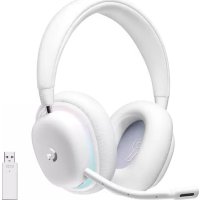
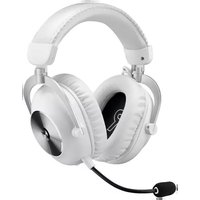
USER MANUAL G735 LOGITECH
G735 HEADSET | CASQUE G735
Wireless Gaming Headset
Souris gaming sans fil
SETUP GUIDE | GUIDE D'INSTALLATION
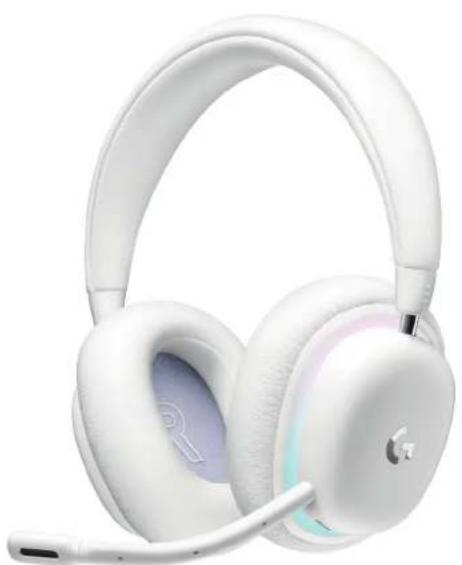
natural_image
White Apple headphones with earphones and microphone (no visible text or symbols)
logitech
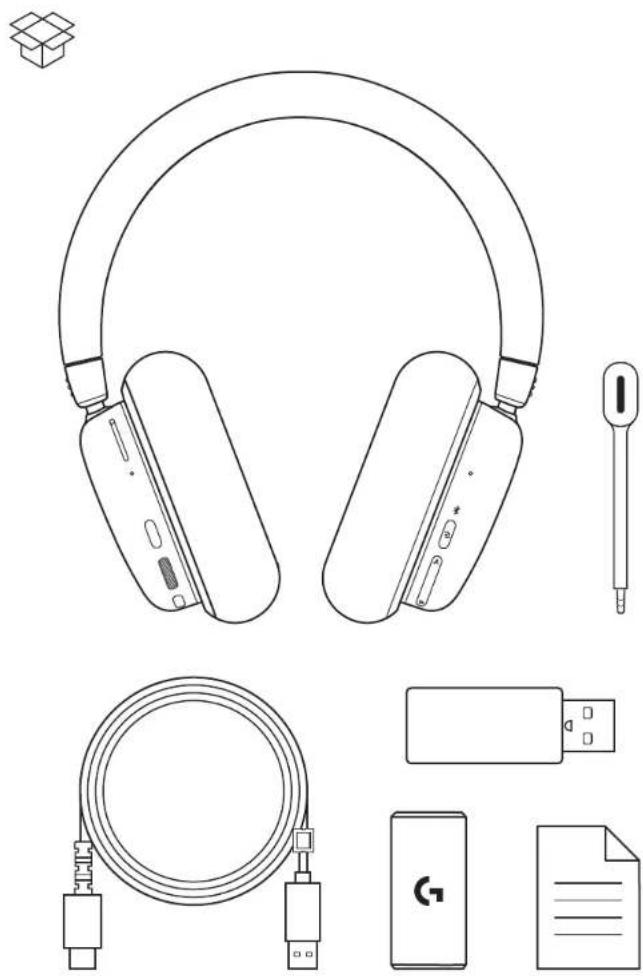
natural_image
Line drawing of a pair of headsets and electronic devices including a USB cable, a smartphone, and a document (no text or symbols present)
ENGLISH....3
FRANÇAIS....12
ESPAÑOL 21
PORTUGUÊS....30
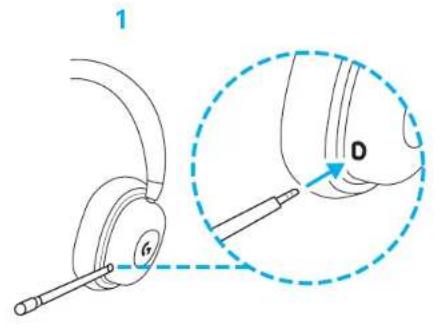
SETUP INSTRUCTIONS
1 Insert the microphone connector into the port on the left ear cup. It is designed to fit in one way.
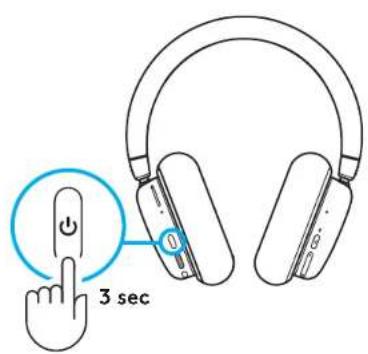
2 Turn on the G735 headset by pressing and holding the power button located on the left ear cup for 3 seconds.
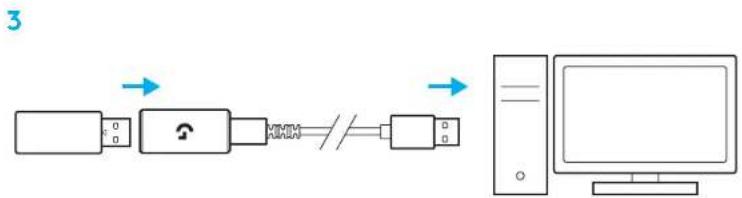
3 Insert the LIGHTSPEED receiver, with extender and cable into the PC USB port. Receiver can be used without the extender and cable by inserting it directly into a USB port if desired.
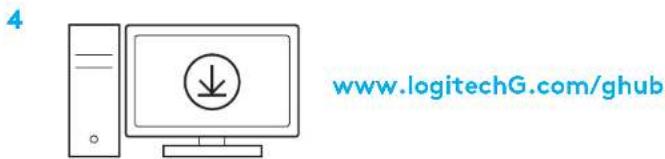
4 Download and install G HUB software to your PC/MAC for the best gaming experience (G HUB has onboarding story for features). Go to www.logitechG.com/ghub

flowchart
graph LR
    A["Input"] --> B["Switch"]
    B --> C["Switch"]
    C --> D["Output"]
    style A fill:#f9f,stroke:#333
    style D fill:#bbf,stroke:#333
4 ENGLISH
BLUETOOTH® CONNECTIVITY
1 Turn on the G735 headset by pressing and holding the power button for 3 seconds.
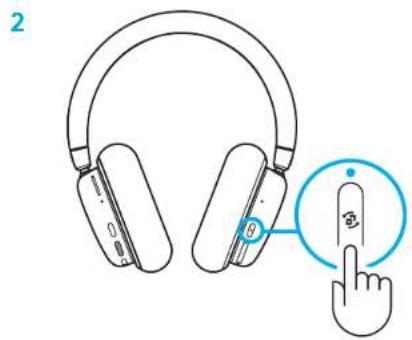
2 Press Connectivity button to select Bluetooth® – the indicator light above will turn blue.
3 Press and hold Connectivity button for 3 seconds to initiate pairing mode. The blue light will flash quickly for up to 3 minutes.
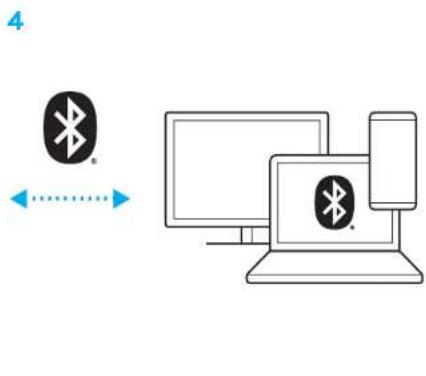
4 Follow Bluetooth® connection for your device to pair with the headset.
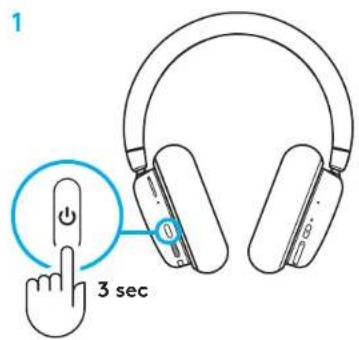
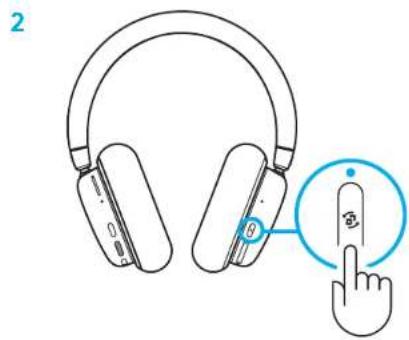
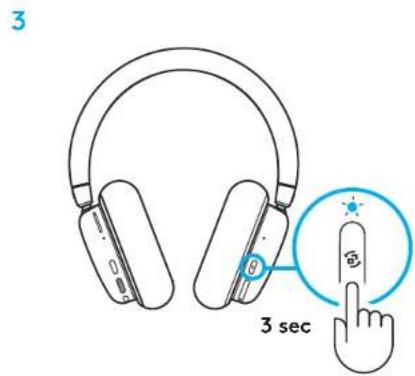
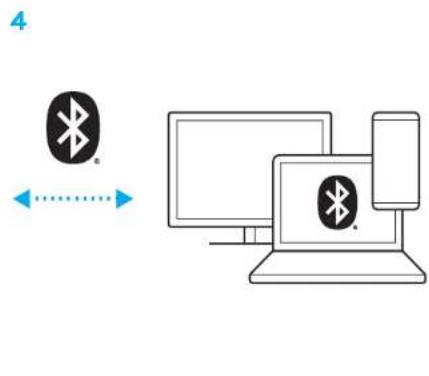
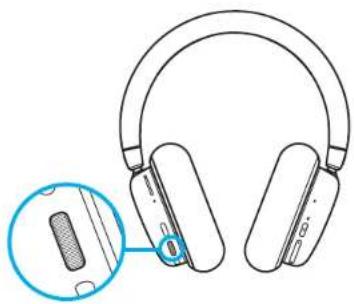
Volume
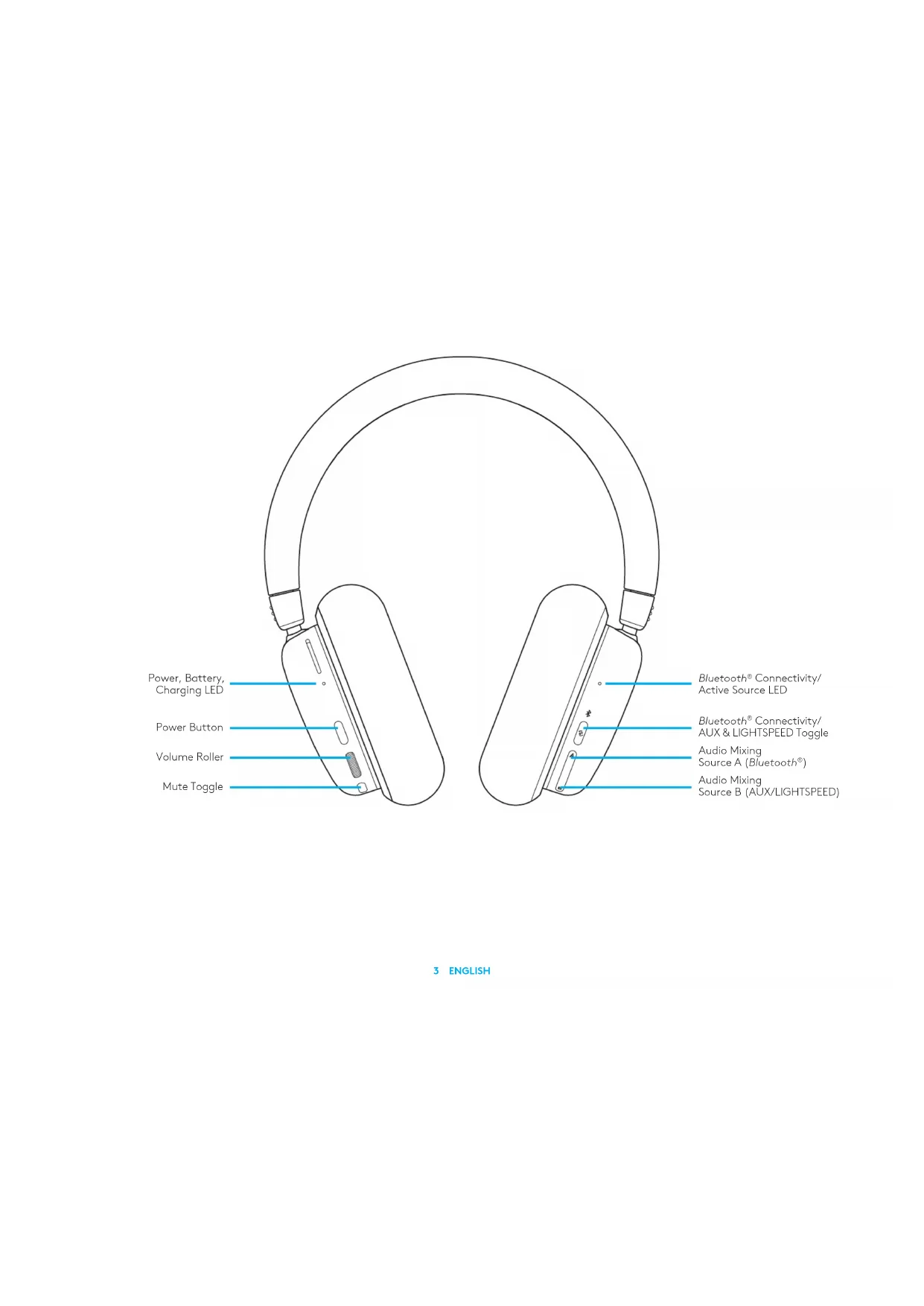
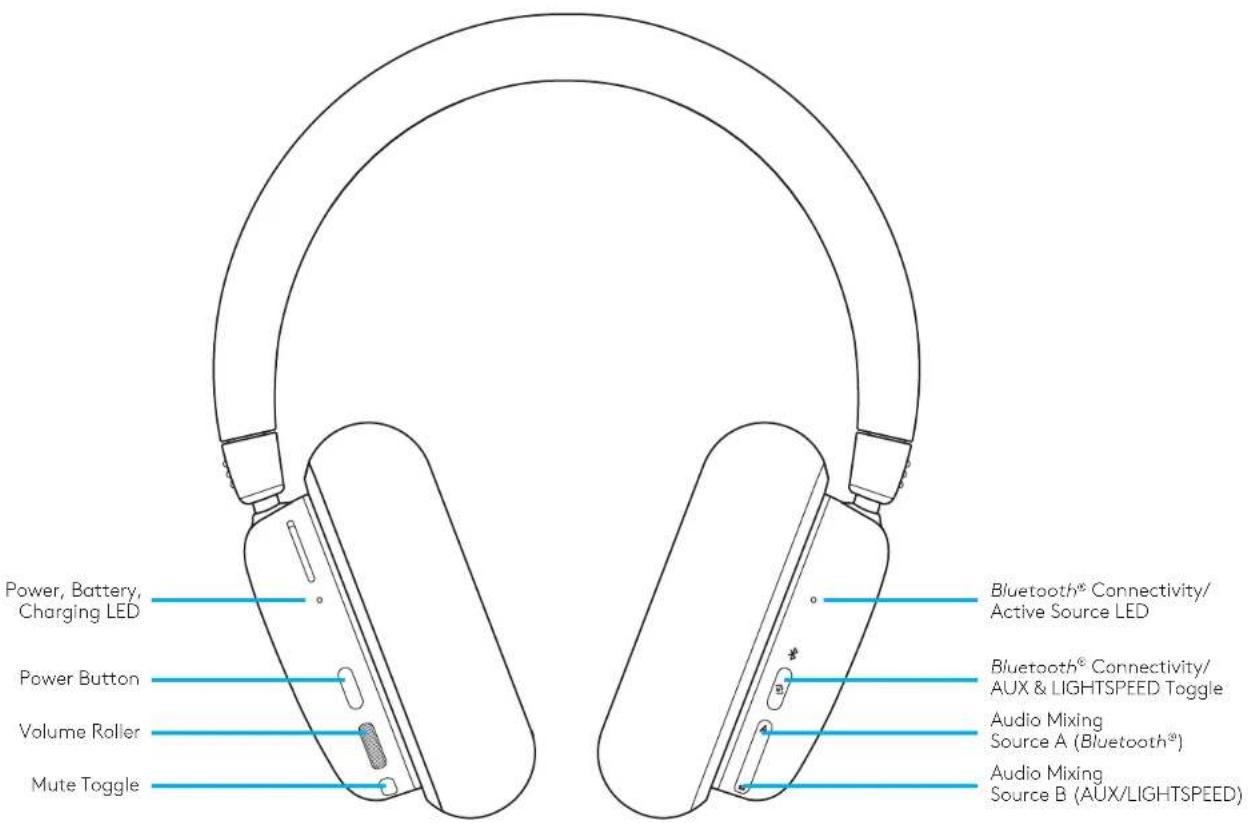
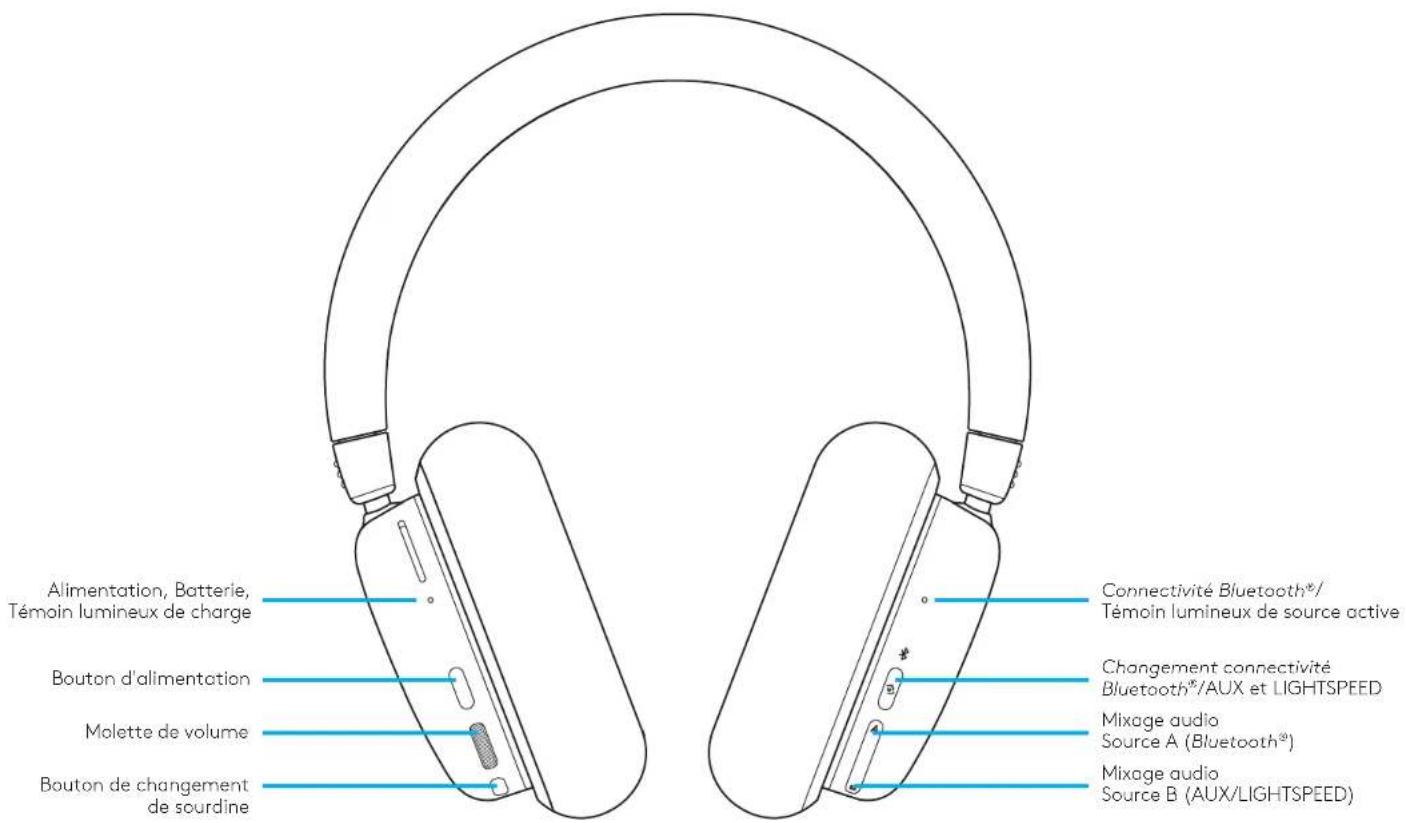
Adjust volume with the roller on the left ear cup. This adjusts the headset's total volume, not the volumes of your sources.
natural_image
Line drawing of a pair of headphones with a close-up inset showing the ear and keyhole (no text or symbols)
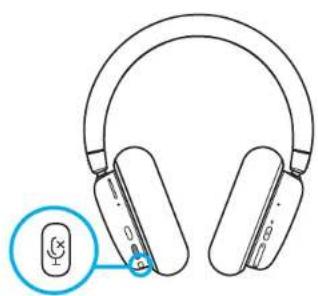
Mute/Unmute Microphone
Press the mute button located below the volume on the left ear cup. This will mute the microphone.
When muted, the cosmetic RGB will temporarily flash red.
There will be a mute sound notification.
natural_image
Line drawing of a pair of hardcover headsets with a small icon highlighting the ear (no text or symbols present)
Audio Source Options
G735 can connect to and mix multiple audio sources at once:
- LIGHTSPEED audio
- Bluetooth® audio
- Auxiliary audio via 3.5 mm cable (not supplied)
- LIGHTSPEED + Bluetooth®
- Auxiliary + Bluetooth®
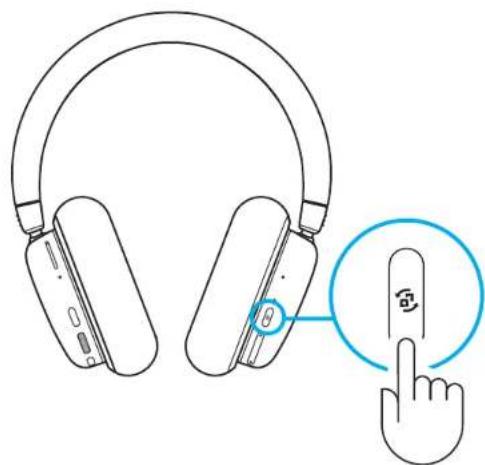
Toggling LIGHTSPEED/AUX & Bluetooth®
After connecting to both LIGHTSPEED and AUX, toggle between LIGHTSPEED and AUX options by pressing the connectivity button on the right ear cup.
When LIGHTSPEED is active, the LED light above the button will light up cyan for 5 seconds.
When AUX is active, the LED light will light up white for 5 seconds.
AUX only available when a cable is connected.
Mixing LIGHTSPEED/AUX & Bluetooth®
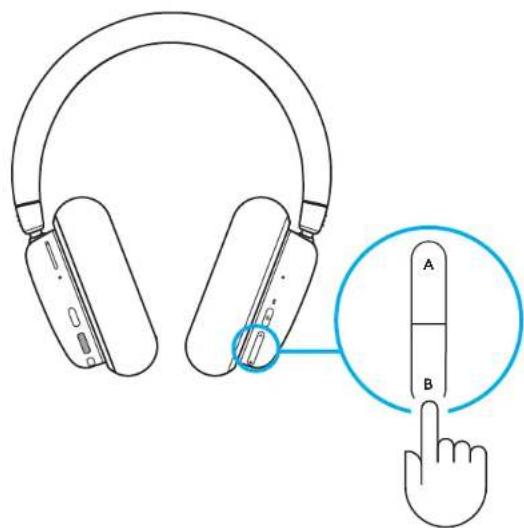
After connecting to 2 sources LIGHTSPEED or AUX, and Bluetooth®:
- To adjust source balance, press the up and down buttons on the right ear cup to paddle.
- Pressing up increases Bluetooth® source
- Pressing down increases the active source (LIGHTSPEED or AUX)
- To reset to equal levels, press and hold both buttons for 3 seconds.
Powering Off
Turn off G735 headset by pressing the power button on the left ear cup for 3 seconds.
The headset lighting will turn off after a short lighting animation. There will be a sound notification indicating power off.
If the headset is inactive for 10 minutes, it will automatically shut off.
Checking Battery Status
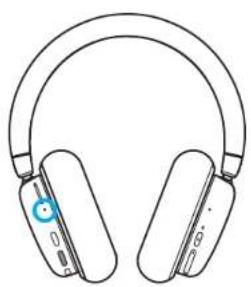
To check the battery status, short press the power button on the left ear cup.
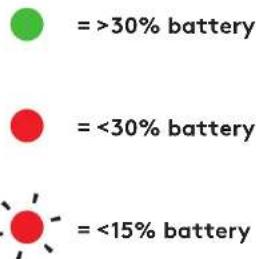
The LED will be:
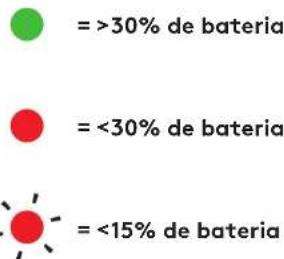
- Green when it's over 30% battery
- Red when it's under 30% battery
- Blink red when it's under 15% battery
natural_image
Line drawing of a pair of headphones with earband and buttons (no text or symbols)
Lighting ON/OFF
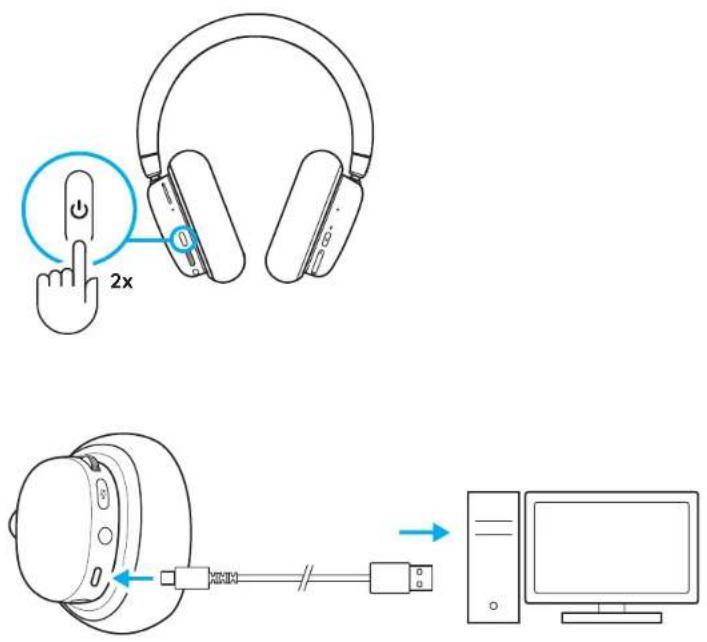
To turn off the cosmetic lighting, double press the power button on the left ear cup.
Charging the Battery
Plug the USB-C cable into the port at the bottom of the left ear cup, located between the microphone and AUX connector ports. Connect the USB-A end into a USB port on a PC or USB charging adapter (not included).
The power light will illuminate green and pulse while charging.
The power light glows red for low battery (<30%).
The G735 headset ships with about 60% charge. We recommend charging completely before use.
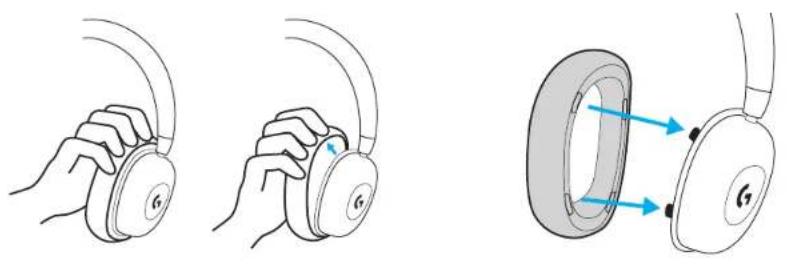
Changing Accessory Cups
Ear pads can be removed and replaced.
Volume
natural_image
Line drawing of a pair of headphones with a close-up inset showing the ear (no text or symbols)
natural_image
Line drawing of a pair of headphones with a small icon highlighting the ear (no text or symbols present)
Options de source audio
Mélanger LIGHTSPEED/AUX et Bluetooth®
natural_image
Line drawing of a pair of headphones with earband and buttons (no text or symbols)
= >30% de batterie
= <30% de batterie
=>15% de batterie
natural_image
Line drawing of a pair of hardcover headphones with a close-up inset showing the ear (no text or symbols)
natural_image
Line drawing of a pair of headphones with a small icon highlighting the ear (no text or symbols present)
Apagar
natural_image
Line drawing of a pair of headphones with earbuds and a blue circular logo on the front (no text or symbols)
natural_image
Line drawing of a pair of hardcover headphones with a close-up inset showing the ear (no text or symbols)
natural_image
Line drawing of a pair of headphones with a small icon highlighting the ear (no text or symbols present)
Alternando entre LIGHTSPEED/AUX & Bluetooth®
Desligando
natural_image
Line drawing of a pair of headphones with earband and buttons (no text or symbols)
Trocando as conchas acessórias
© 2022 Logitech, Logitech, Logitech G, Logi and their respective logos are trademarks or registered trademarks of Logitech Europe S.A. and/or its affiliates in the U.S. and other countries. All other trademarks are the property of their respective owners. Logitech assumes no responsibility for any errors that may appear in this manual. Information contained herein is subject to change without notice. The Bluetooth ^® word mark and logos are registered trademarks owned by Bluetooth SIG, Inc. and any use of such marks by Logitech is under license.