
Canvas - Gaming Keyboard LOGITECH - Free user manual and instructions
Find the device manual for free Canvas LOGITECH in PDF.



| Product Type | Bluetooth Keyboard for iPad mini |
| Brand | Logitech |
| Model | Canvas |
| Connection | Bluetooth 4.0 (typical range 10 m) |
| Power | Rechargeable lithium-ion battery, charges via micro-USB |
| Battery life | Up to 6 months (average usage 2 h/day) |
| Charging time | Approximately 1 hour |
| Material | Plastic with textile coating |
| Weight | Approximately 350 g |
| Dimensions (open) | Approximately 250 x 180 x 20 mm |
| Compatibility | iPad mini (all generations) |
| Main functions | Integrated keyboard, tablet stand, two positions (typing and viewing), function keys (screen lock, Siri, search, language switch, virtual keyboard, screenshot, media control, mute, home, copy/paste, text selection) |
| Indicator lights | Green (battery OK), Red (low battery), Blue (Bluetooth connection) |
| Care and cleaning | Clean with a soft, dry cloth. Do not use abrasive or solvent cleaners. |
| Safety | Use only a 5V/500mA minimum charger. Do not expose to moisture or extreme temperatures. |
| Spare parts and repairability | Replaceable battery (removing cover with screwdriver). No spare parts available separately. |
| Warranty | Manufacturer's warranty 2 years (depending on country) |
Frequently Asked Questions - Canvas LOGITECH
User questions about Canvas LOGITECH
0 question about this device. Answer the ones you know or ask your own.
Ask a new question about this device
Download the instructions for your Gaming Keyboard in PDF format for free! Find your manual Canvas - LOGITECH and take your electronic device back in hand. On this page are published all the documents necessary for the use of your device. Canvas by LOGITECH.
USER MANUAL Canvas LOGITECH
natural_image
Black tablet device with keyboard and screen, no visible text or symbolsSetup Guide
Contents
English. 3
Deutsch....12
Français 22
Italiano 32
Español ..... 42
Português 52
Nederlands 62
Svenska 72
Dansk 82
Norsk 92
Suomi .....102
Ελληνικά 112
По-русски .....122
Po polsku .....132
Magyar . . . . . . . . . . . . . . . . . . . . . . . . . . . . . . . . . . . 142
natural_image
Pure electrical circuit lines without any symbols3 English
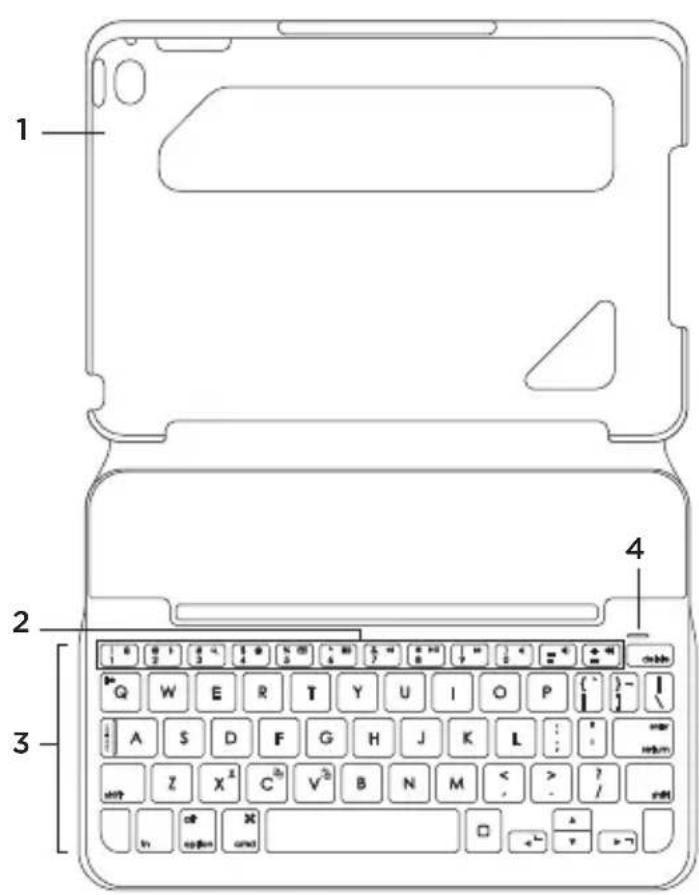
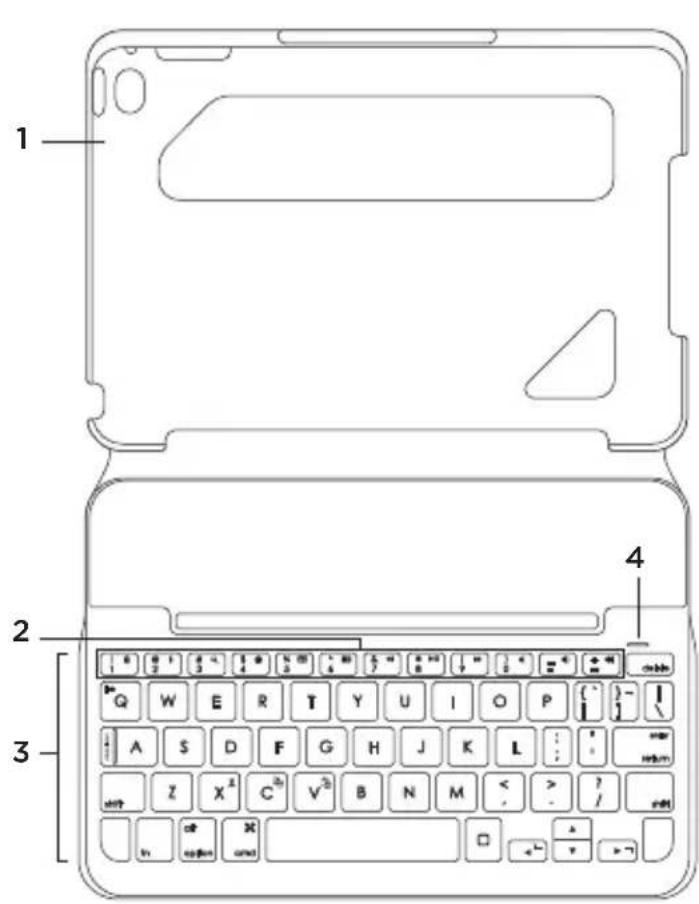
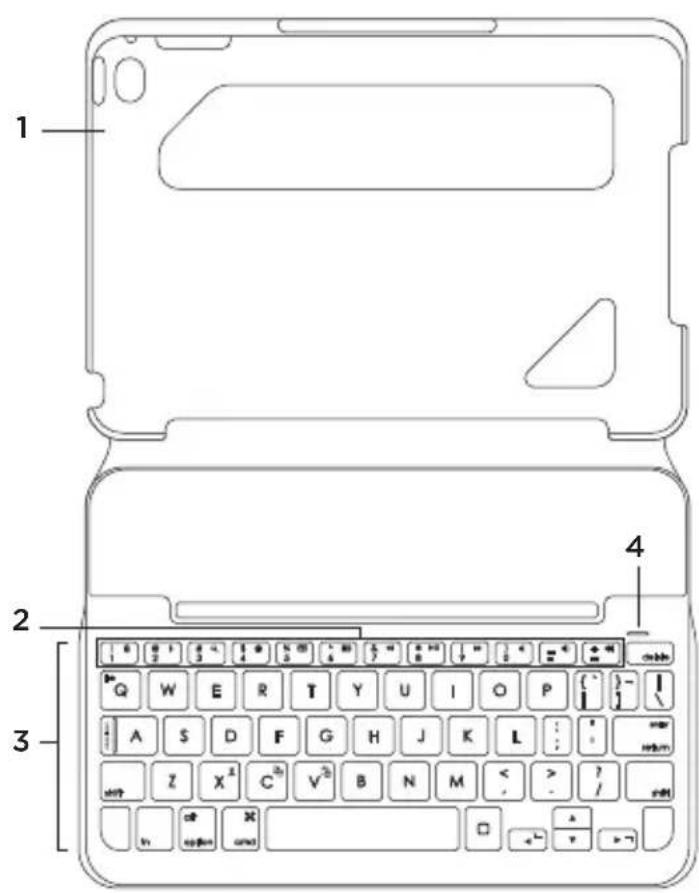
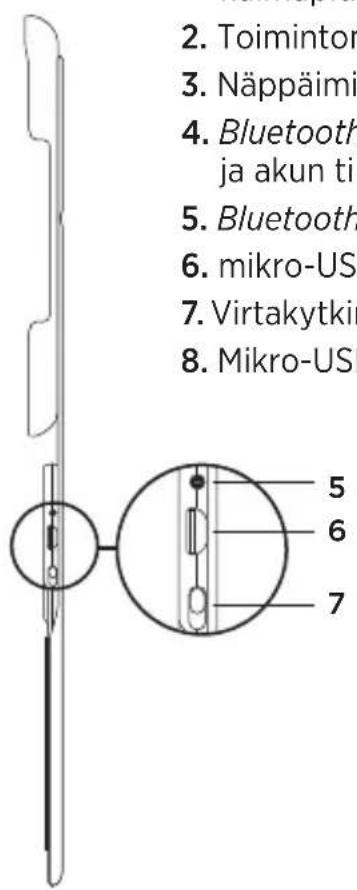
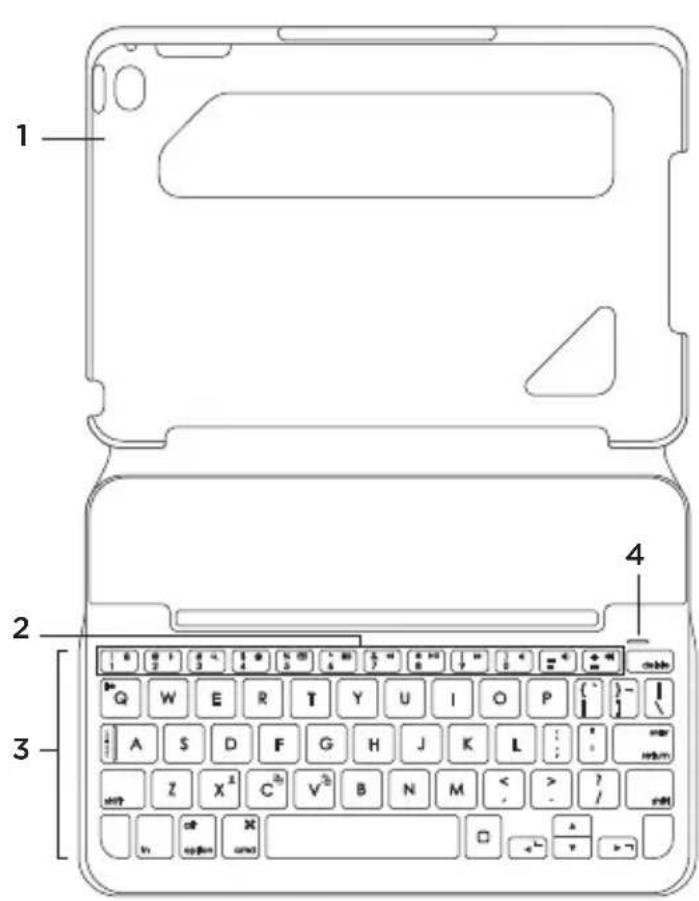
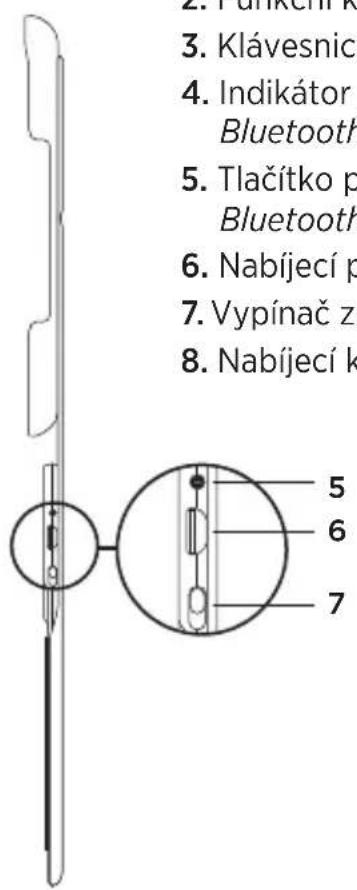
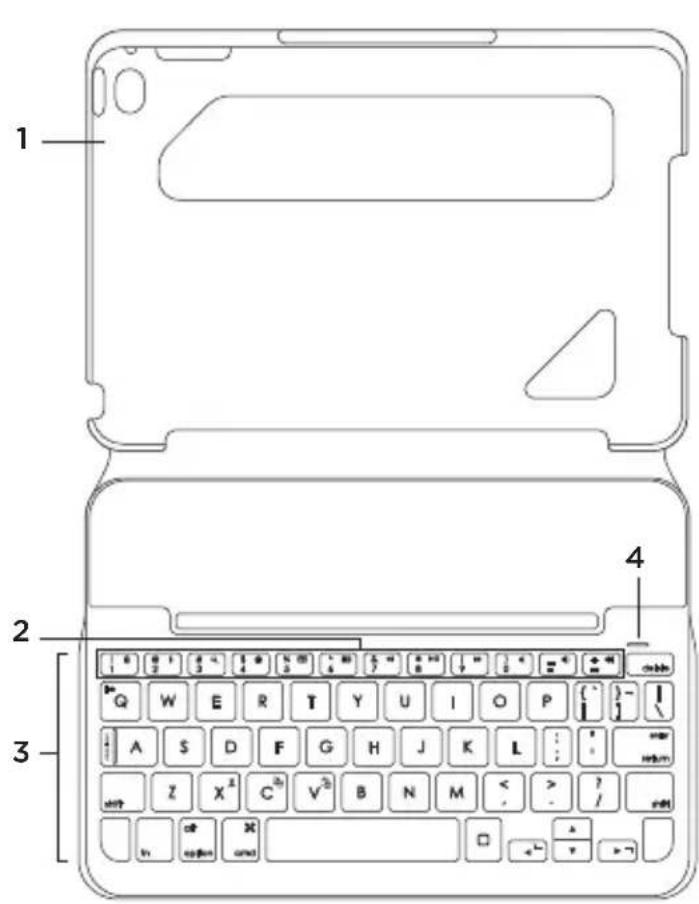
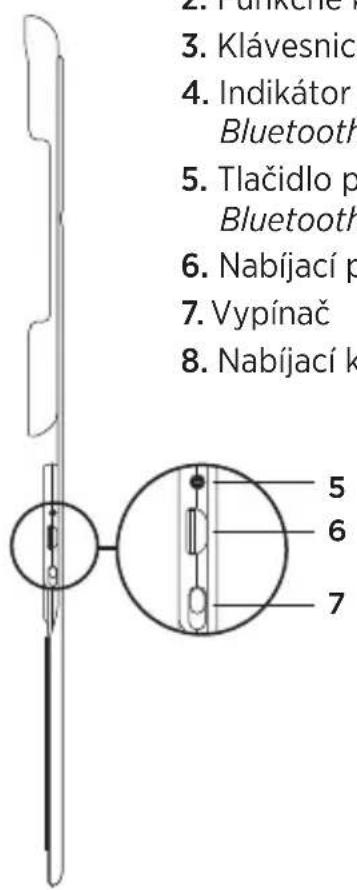
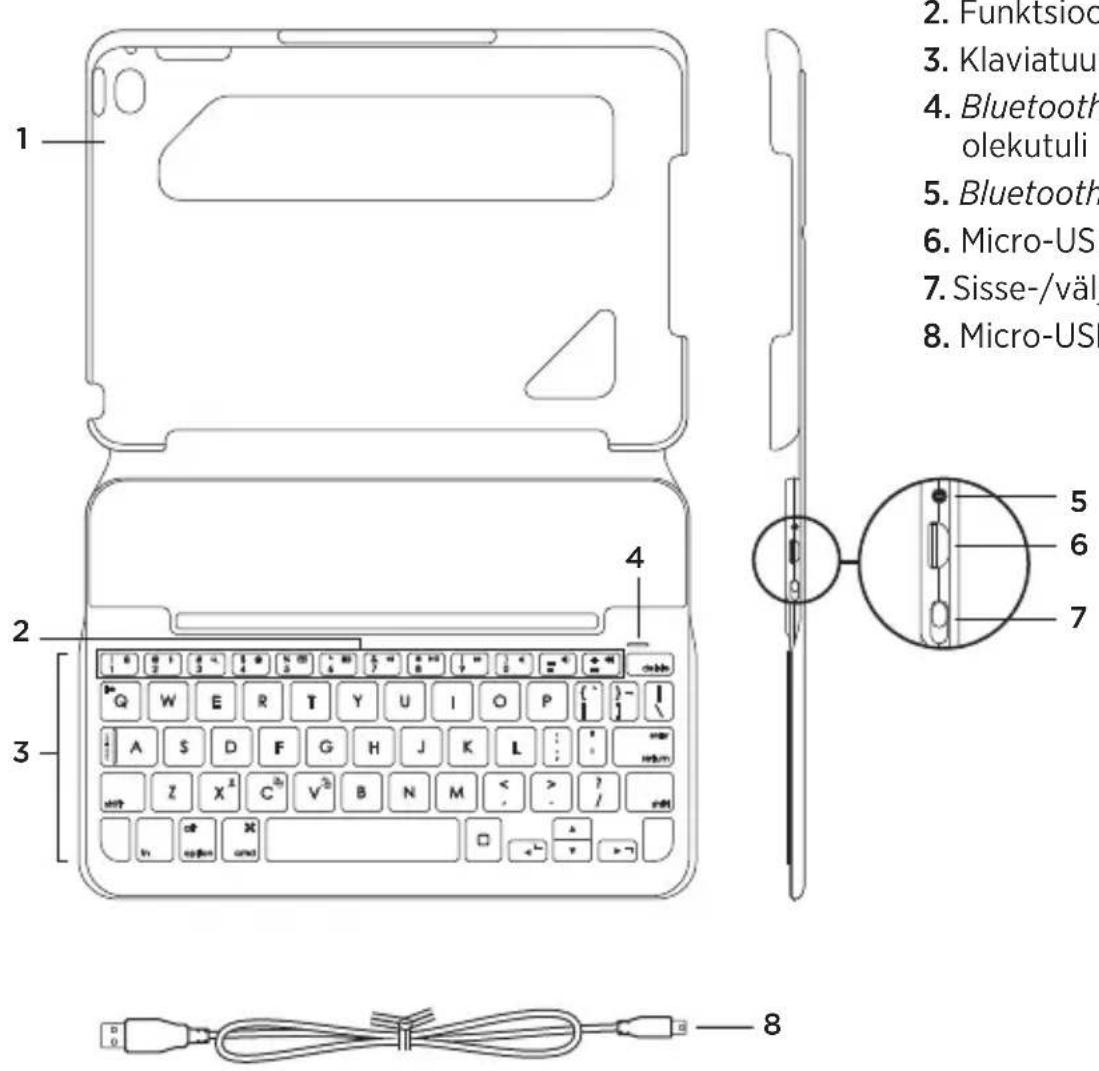
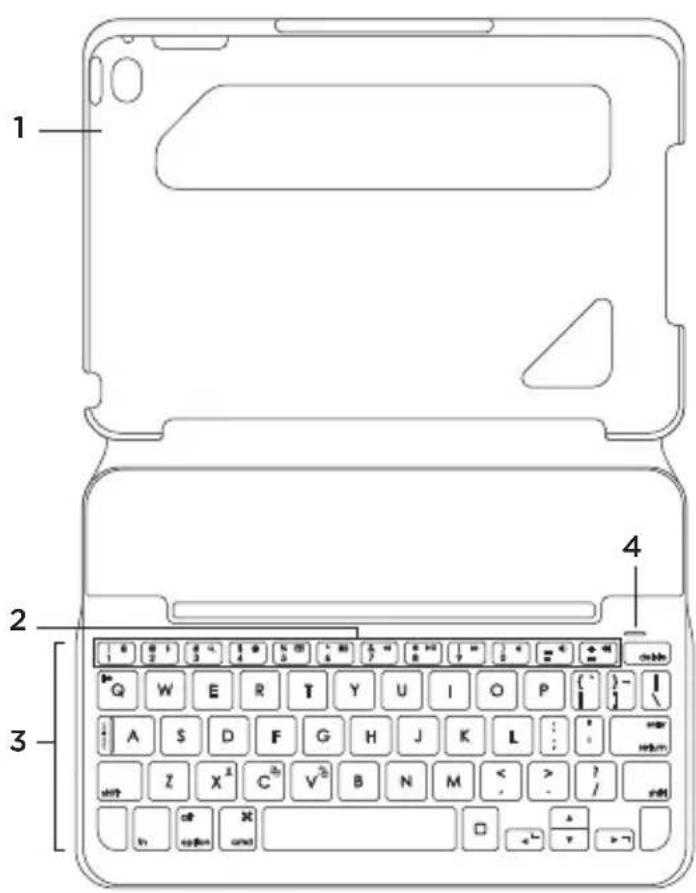
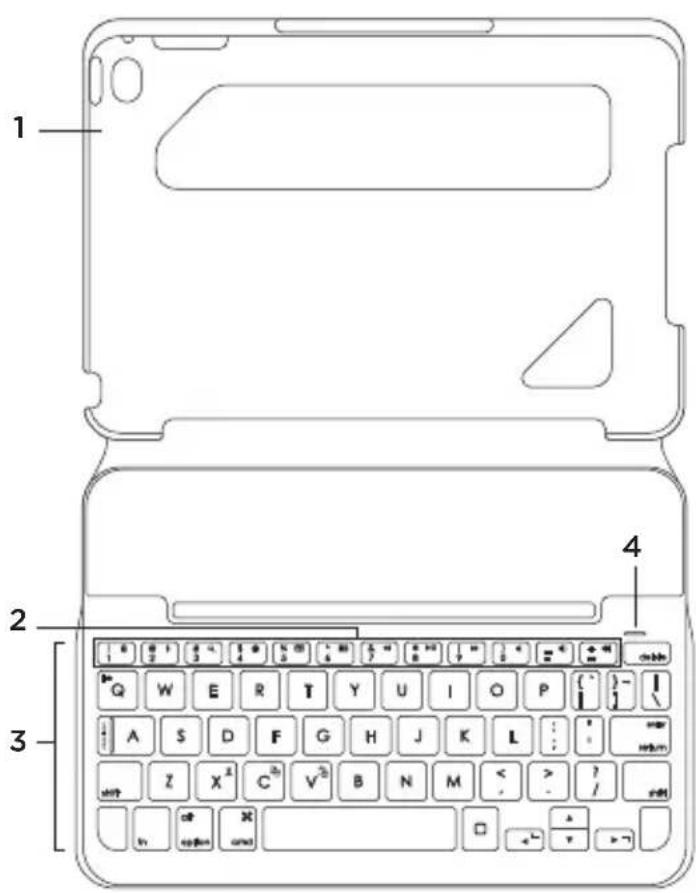
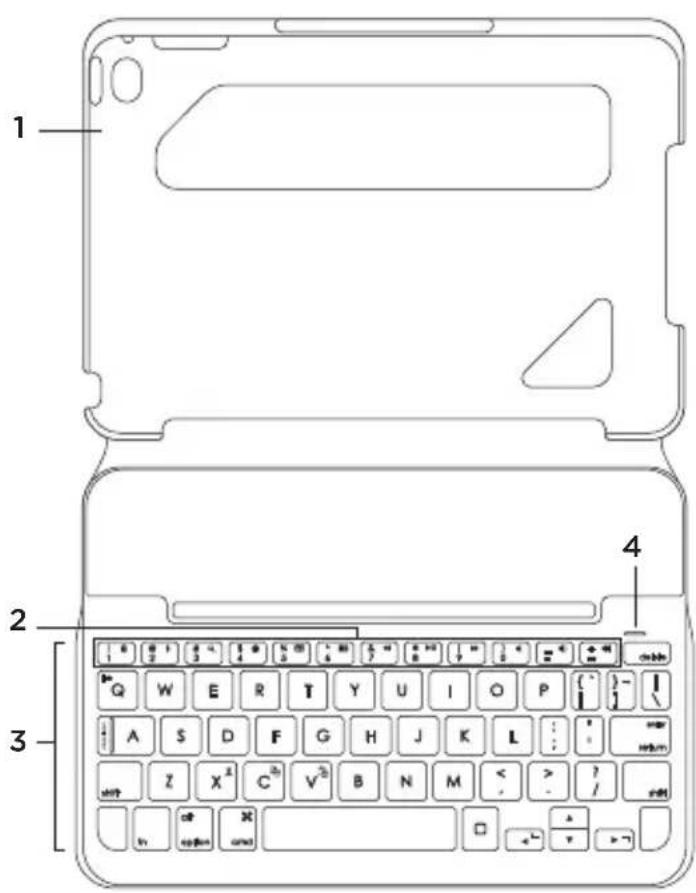
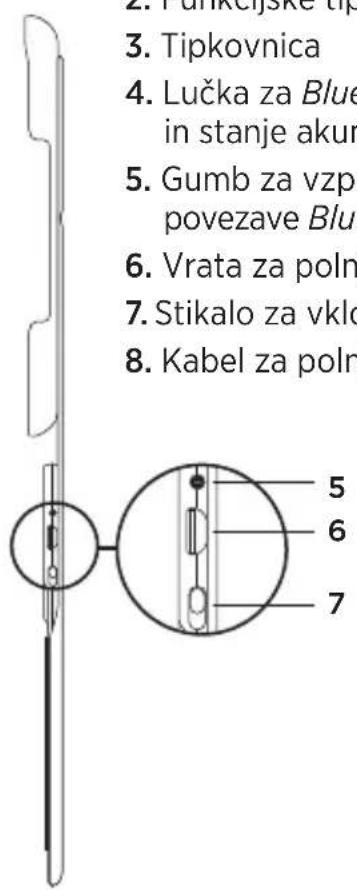
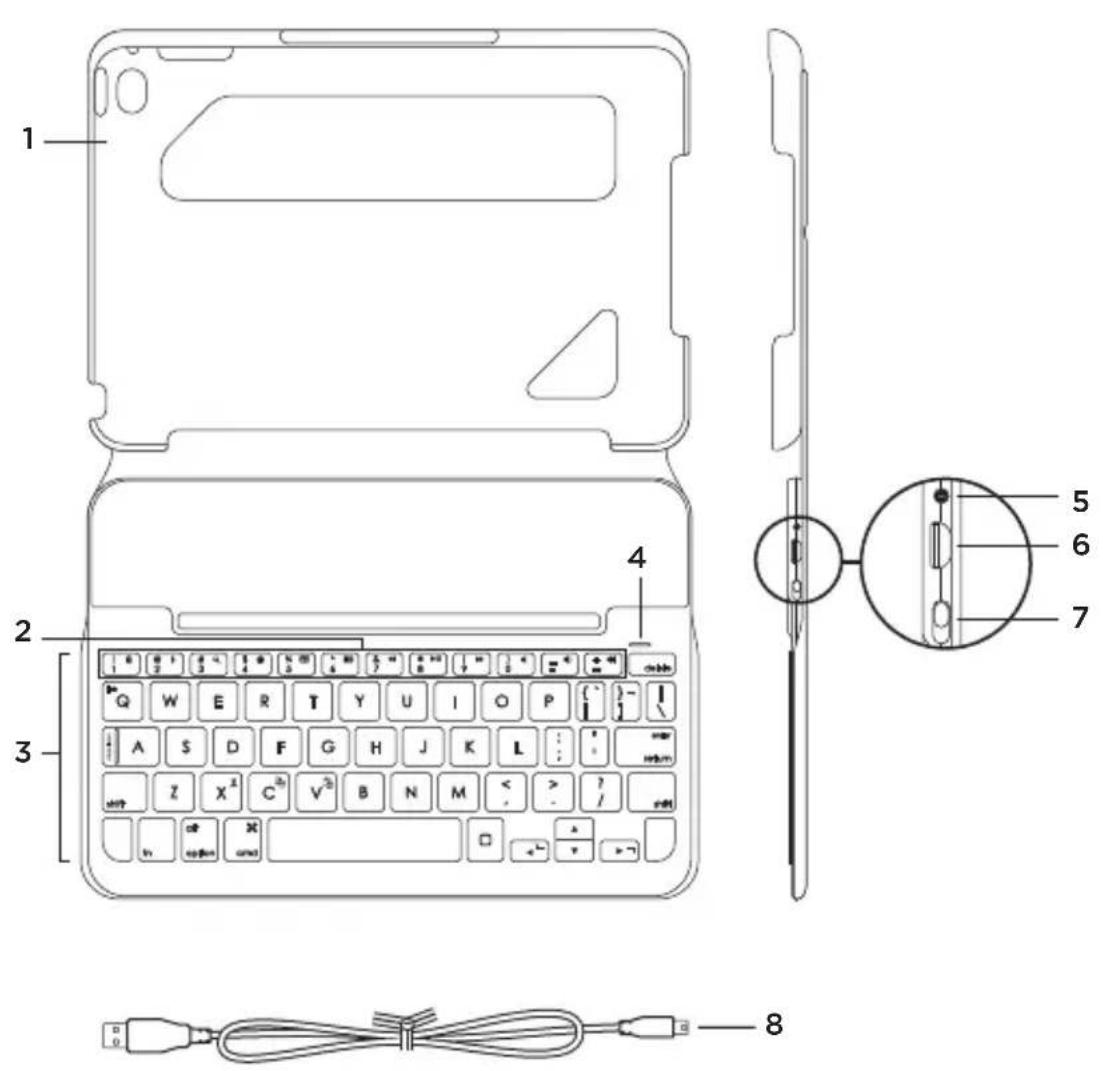
- Tablet holder
- Function keys
- Keyboard
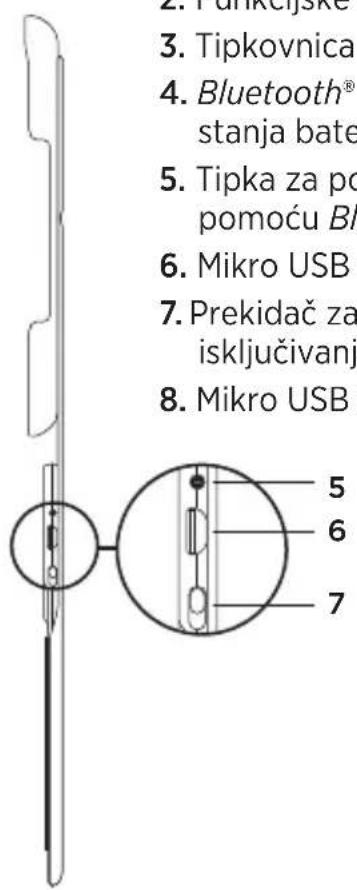
- Bluetooth® and battery status light
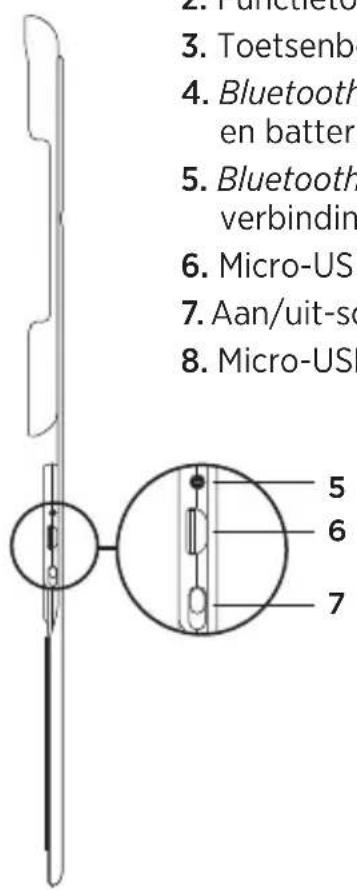
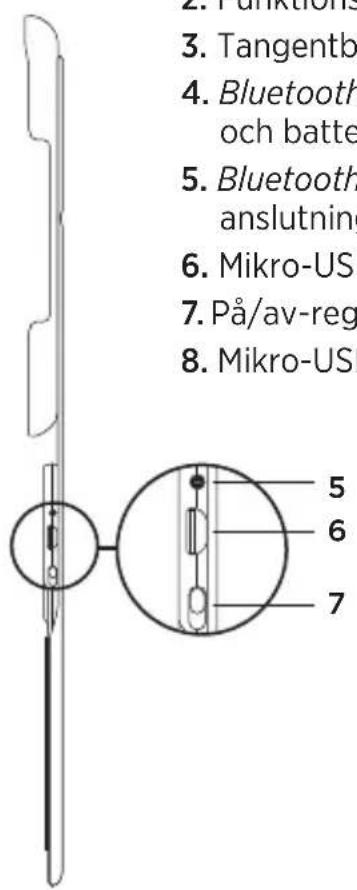
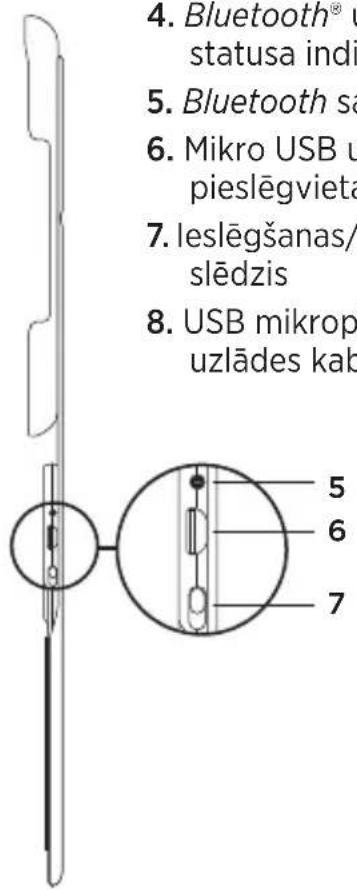
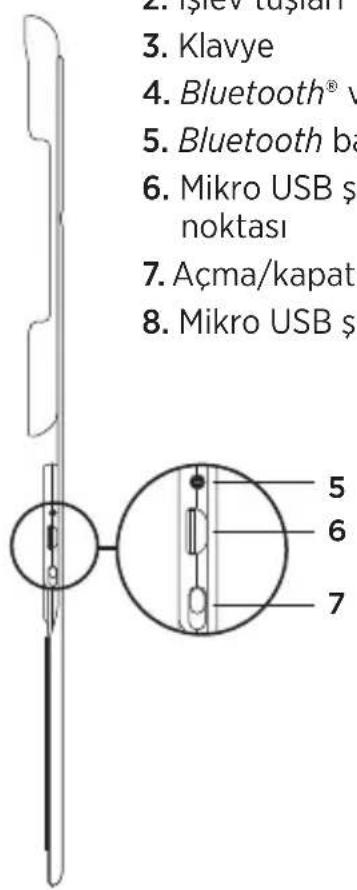
- Bluetooth connect button
- Micro-USB charging port
- On/off switch
- Micro-USB charging cable
Setting up the keyboard case Getting started
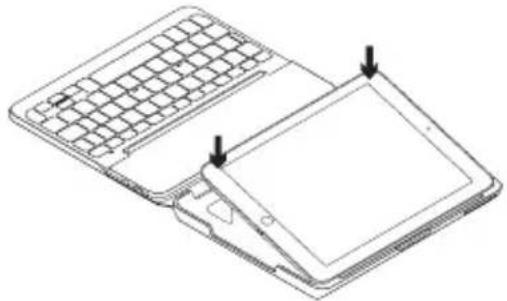
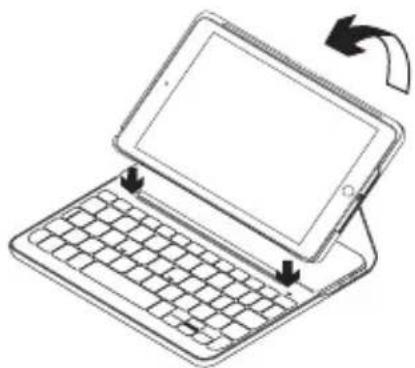
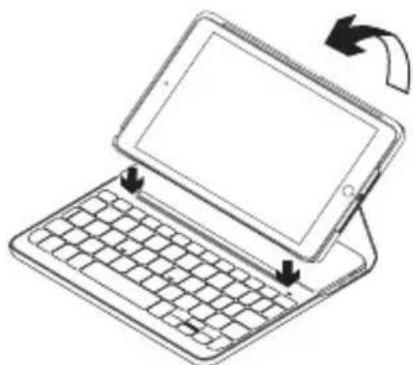
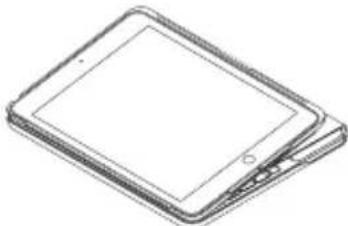
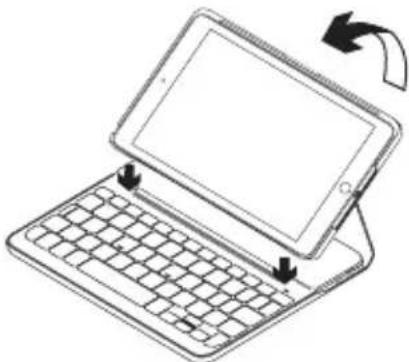
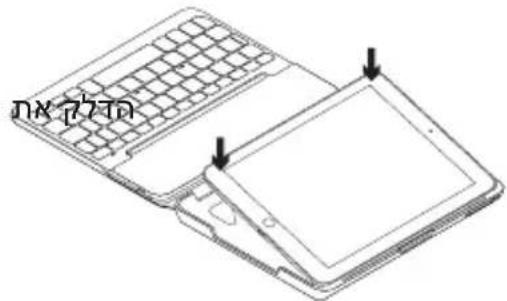
- Open the keyboard case, make sure the edge of your iPad mini is aligned with the tablet holder and push down:
natural_image
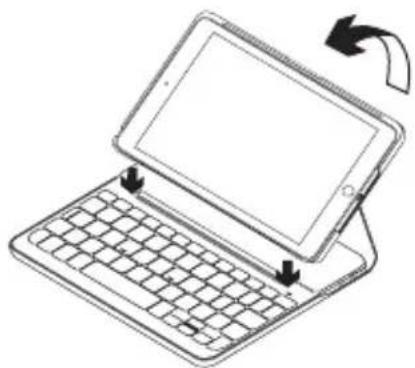
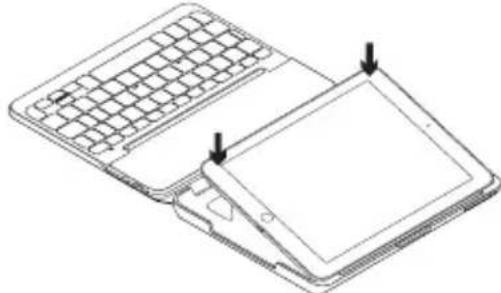
Line drawing of a foldable laptop with grid and screen panels, showing front and side views (no text or symbols)- Move the keyboard case into the typing position:
natural_image
Line drawing of a tablet device with keyboard and mouse, showing a scroll icon (no text or symbols)The keyboard turns on automatically.
Establishing connection with your iPad mini
The keyboard case links to your iPad mini via a Bluetooth connection. The first time you use the keyboard case, you must pair it with your iPad mini.
To pair your keyboard case with your iPad mini:
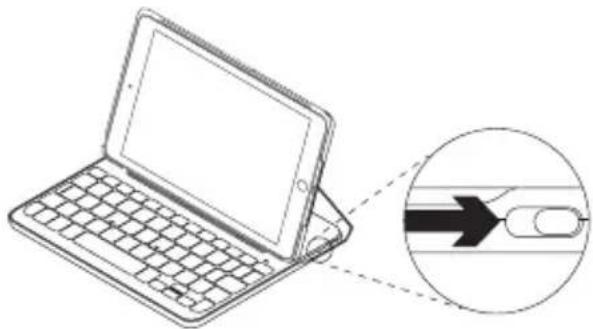
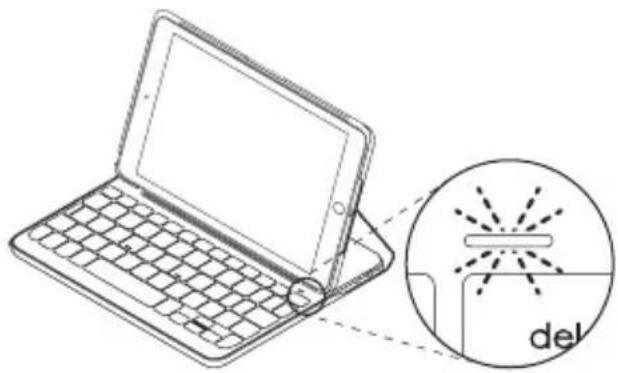
- Turn on the keyboard:
natural_image
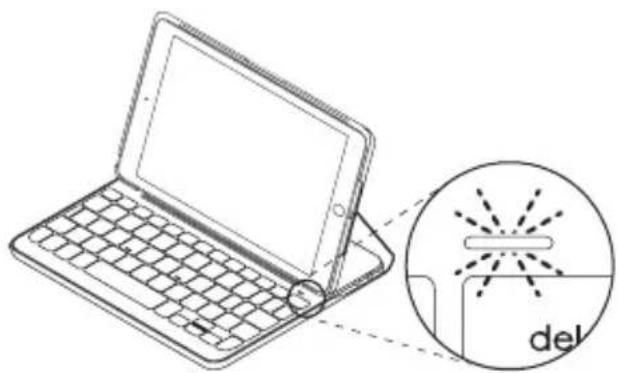
Line drawing of a laptop with keyboard and mouse, showing a close-up of its internal component (no text or symbols)The Bluetooth light blinks to indicate that the keyboard is discoverable, ready for pairing with your iPad mini. The first time you turn on the keyboard it remains discoverable for 15 minutes.
If the battery status light shows red, charge the battery. See “Charging the keyboard battery” for more information.
- On your iPad mini:
• Make sure Bluetooth is on.
Select Settings > Bluetooth > On.
- Select "Canvas Keyboard Case" from the Devices menu.
- If your iPad mini requests a PIN, enter it using the keyboard (not on your iPad mini).
When successful connection is made, the Bluetooth light turns solid blue for a short time, and then turns off.
Connecting to another iPad mini
- Make sure the keyboard is turned on.
-
On your iPad mini, make sure Bluetooth is on.
Select Settings > Bluetooth > On. -
Press the Bluetooth connect button:
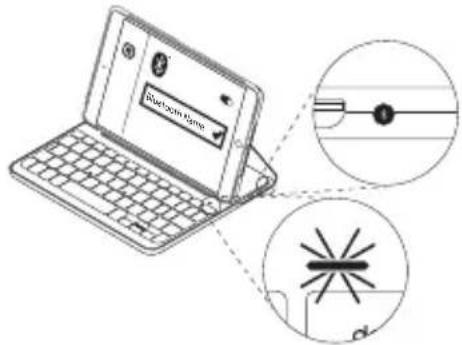
The keyboard is discoverable for 3 minutes.
- Select "Canvas Keyboard Case" from the Devices menu.
- If your iPad mini requests a PIN, enter it using the keyboard (not on your iPad mini).
When successful connection is made, the Bluetooth light turns solid blue for a short time, and then turns off.
Using the keyboard folio
Two viewing positions
The keyboard case provides two viewing positions—one for typing and another for browsing.
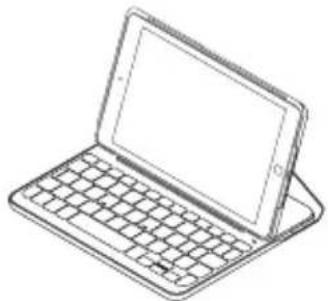
To type, move the keyboard case into the typing position, aligning it with the built-in magnet to secure it:
natural_image
Line drawing of a laptop with a keyboard and screen (no text or symbols)Turn on the keyboard.
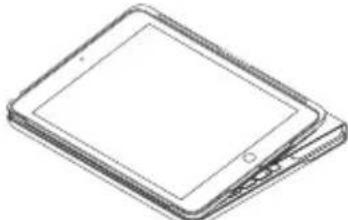
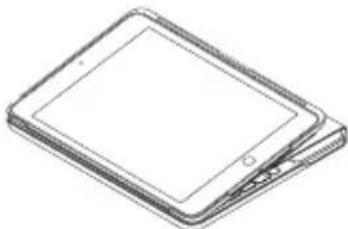
To browse, place the keyboard case in the browsing position:
natural_image
Line drawing of a tablet device with blank screen and buttons (no text or symbols)Remember to switch off the keyboard to conserve battery power.
If you don't use the keyboard for a while in the typing position, it enters sleep mode automatically. Press any key to wake it.
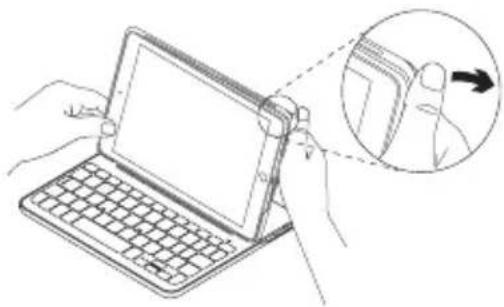
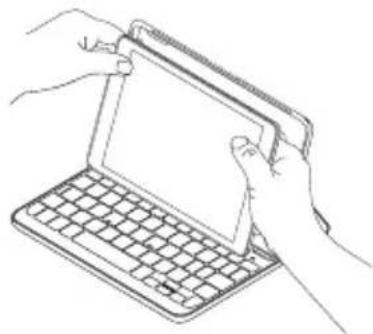
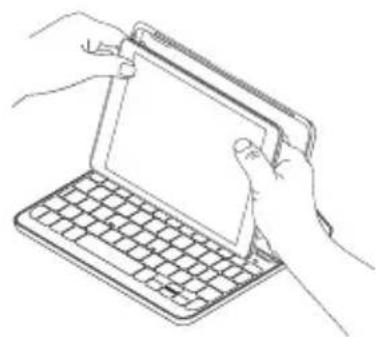
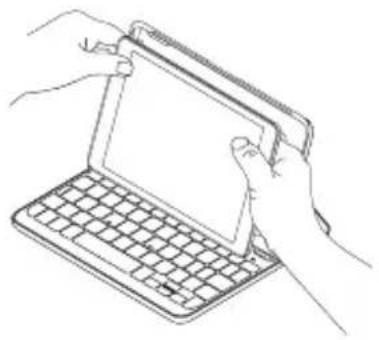
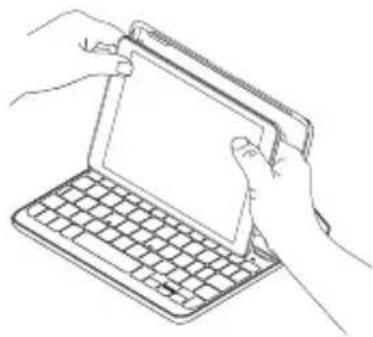
To detach your iPad mini from the case, bend back one of the tablet holder corners:
natural_image
Illustration of hands using a laptop to interact with a touch screen, showing a magnified inset of the screen (no text or symbols present)Your iPad mini is then released:
natural_image
Line drawing of hands installing or adjusting a tablet device on a keyboard (no text or symbols present)Storing your iPad mini for travel
-
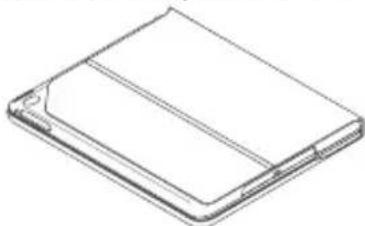
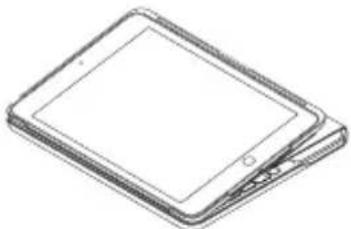
Insert your iPad mini in the tablet holder.
-
Close the keyboard case:
natural_image
Isometric line drawing of a rectangular electronic device with a flat top and side connectors (no text or symbols)Status light indicators
Your keyboard case's status light provides information about the keyboard's battery power and Bluetooth connection:
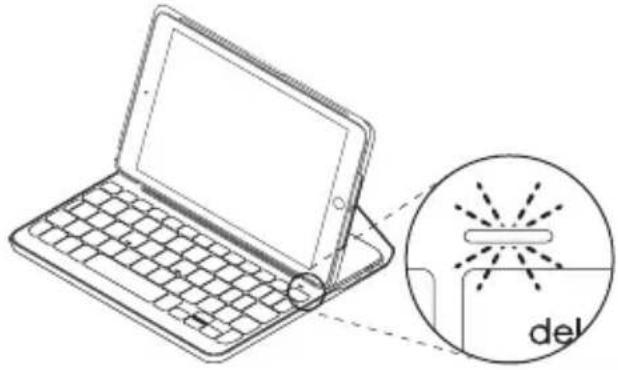
| Light Description | |
| Green The battery has adequate charge. | |
| Red Battery power is low (less than 10%). Recharge the battery. | |
| Blinking blue Fast: The keyboard is in discovery mode, ready for pairing.Slow: The keyboard is trying to reconnect to your iPad. | |
| Solid blue Bluetooth pairing or reconnection is successful. | |
Function keys

Fn + 1 = Lock screen
Locks or unlocks the iPad mini screen

Fn + 2 = Siri
Use your voice to send messages, make calls, schedule meetings, and more

Fn + 3 = Search
Launches the iPad mini search function

Fn + 4 = Switch language
Switches the keyboard language

Fn + 5 = Virtual keyboard
Shows/hides the virtual keyboard

Fn + 6 = Screenshot

Fn + 7 = Previous track

Fn + 8 = Play/Pause

Fn + 9 = Next track

Fn + 0 = Mute

Fn + dash = Volume down

Fn + plus = Volume up
Home = iPad mini Home screen
Displays the iPad mini Home screen
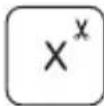
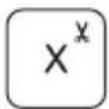
Fn + X = Cut
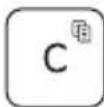
Fn + C = Copy
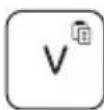
Fn + V = Paste
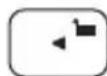
Fn + Left cursor = Select left
Selects text on the left, word by word
Fn + Right cursor = Select right
Selects text on the right, word by word

Fn + Spacebar =
Switch applications
Note: To select a function key, press and hold the Fn key, and then press the key indicated above.
Charging the keyboard battery
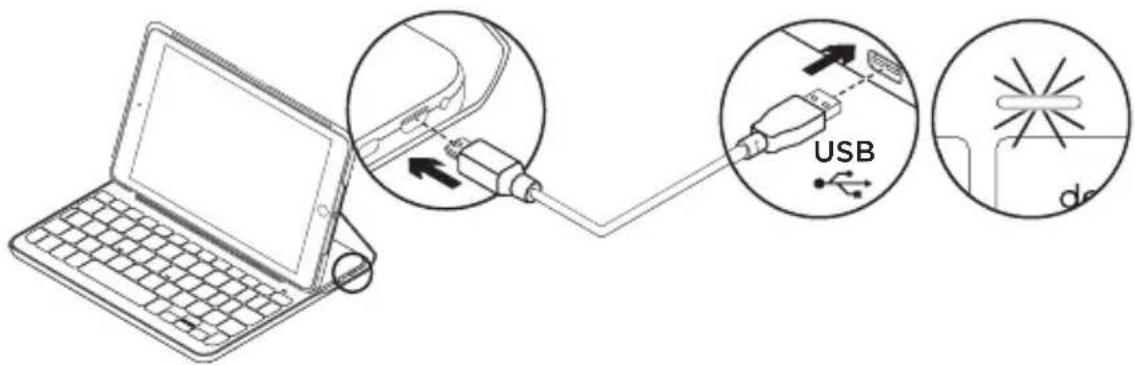
If the battery status light is red the keyboard case battery needs to be charged.
- Plug one end of the micro-USB cable into the charging port, and the other end into a USB port on your computer.
Alternatively, you can use a 5V USB charger, such as that provided with your iPad mini, providing the power output rating is at least 500mA.
The status light blinks green as the battery charges.
- Charge the battery until the battery status light turns solid green.
It takes one hour to fully charge the battery.
Battery information
- A fully charged battery provides about six months of use when the keyboard is used about two hours a day.*
- Charge the battery if the status light turns red briefly after the keyboard turns on.
- When not in use, turn off the keyboard to conserve battery power.
- The keyboard enters sleep mode automatically if not used for a while in the typing position. Press any key to wake it.
* Actual battery life will vary with use, settings, and environmental conditions.
Battery disposal at product end of life
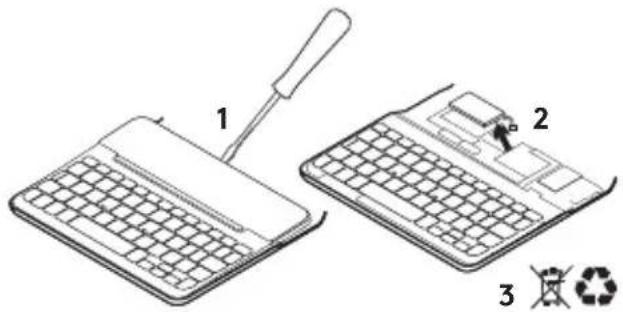
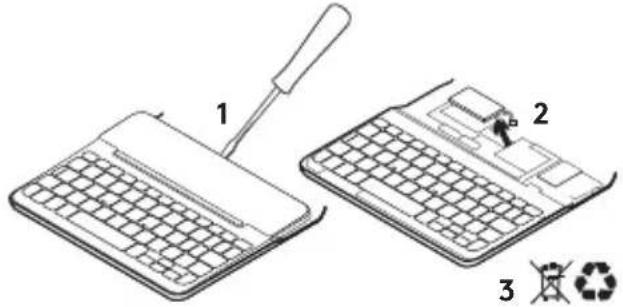
- Pry off top cover of keyboard with screwdriver.
- Detach battery from circuit board and remove battery.
- Dispose of your product and its battery according to local laws.
Visit Product Support
There's more information and support online for your product. Take a moment to visit Product Support to learn more about your new Bluetooth keyboard.
Browse online articles for setup help, usage tips, and information about additional features. If your Bluetooth keyboard has optional software, learn about its benefits and how it can help you customize your product.
Connect with other users in our Community Forums to get advice, ask questions, and share solutions.
At Product Support, you'll find a wide selection of content including:
- Tutorials
- Troubleshooting
- Support community
• Online documentation - Warranty information
- Spare parts (when available)
Go to:
www.logitech.com/support/canvas-ipad-mini4
Troubleshooting
The keyboard does not work
- Press any key to wake the keyboard from sleep mode.
- Turn the keyboard off and then back on.
- Recharge the internal battery. For more information, see “Charging the keyboard battery.”
- Re-establish the Bluetooth connection between the keyboard and your iPad mini.
- Verify that Bluetooth is turned on in your iPad mini's settings (Settings > Bluetooth > On).
- Choose “Canvas Keyboard Case” from the Devices menu on your iPad mini. The Bluetooth light turns solid blue when Bluetooth connection is established.
What do you think?
Thank you for purchasing our product. Please take a minute to tell us what you think of it.
www.logitech.com/ithink
natural_image
Pure electrical circuit lines without any symbols12 Deutsch
natural_image
Line drawing of a laptop keyboard and tablet device with two arrows pointing to the screen (no text or symbols present)natural_image
Line drawing of a tablet device with keyboard and mouse, showing a scroll arrow indicating rotation (no text or symbols)natural_image
Line drawing of a laptop with keyboard and a magnified inset showing a finger pointing to a scroll (no text or symbols)natural_image
Line drawing of a tablet device with keyboard and stand (no text or symbols)natural_image
Line drawing of a tablet device with blank screen (no text or symbols)natural_image
Line drawing of a laptop keyboard being held, with an inset showing the right-hand digit finger pointing to the screen (no text or symbols present)natural_image
Line drawing of hands installing or adjusting a tablet device on a keyboard (no text or symbols present)natural_image
Line drawing of a rectangular electronic device with a flat top and side connectors (no text or symbols)Statusanzeigen
natural_image
Line drawing of a laptop with a magnified inset showing a screen and a 'del' label (no text or symbols on the device itself)www.logitech.com/support/canvas-ipad-mini4
Fehlerbehebung
www.logitech.com/ithink
natural_image
Pure electrical circuit lines without any symbols22 Français
natural_image
Line drawing of a foldable laptop with grid keypad and screen, showing front panel and side panel (no text or symbols)natural_image
Line drawing of a tablet device with keyboard and mouse, showing a scroll icon (no text or symbols)natural_image
Line drawing of a laptop with keyboard and screen, showing a magnified view of the right side of a device (no text or symbols present)natural_image
Line drawing of a laptop with a keyboard and screen (no text or symbols)natural_image
Line drawing of a tablet device with blank screen and buttons (no text or symbols)natural_image
Illustration of hands using a tablet device to interact with a screen, showing a magnified inset of the screen (no text or symbols present)natural_image
Line drawing of hands holding a tablet device on a keyboard (no text or symbols)natural_image
Line drawing of a rectangular electronic device with a flat top and side connectors (no text or symbols)Témoins d'état
Fn + 8 = Lecture/Pause

Fn + plus = Volume +
www.logitech.com/support/canvas-ipad-mini4
Dépannage
www.logitech.com/ithink
natural_image
Pure electrical circuit lines without any symbolsnatural_image
Line drawing of a foldable keyboard and tablet device with two arrows pointing to the screen (no text or symbols present)natural_image
Line drawing of a tablet device with keyboard and mouse, showing a scroll icon (no text or symbols)natural_image
Line drawing of a laptop with keyboard and screen, showing a close-up of the screen and mouse (no text or symbols)natural_image
Line drawing of a tablet device with keyboard and front panel (no text or symbols)natural_image
Line drawing of a tablet device with blank screen and buttons (no text or symbols)natural_image
Illustration of hands holding a tablet device with a magnified inset showing the right-hand rule (no text or symbols present)natural_image
Line drawing of hands holding a tablet device on a keyboard (no text or symbols)natural_image
Line drawing of a flat electronic device with a rectangular body and side connectors (no text or symbols)Spie di stato
www.logitech.com/support/canvas-ipad-mini4
www.logitech.com/ithink
natural_image
Pure electrical circuit lines without any symbols42 Español
natural_image
Line drawing of a foldable keyboard and tablet device with two arrows pointing to the screen (no text or symbols present)natural_image
Line drawing of a tablet device with keyboard and mouse, showing no text or symbolsnatural_image
Line drawing of a laptop with keyboard and screen, showing a close-up of the screen area with an arrow pointing to it (no text or symbols present)natural_image
Line drawing of a laptop with a keyboard and screen (no text or symbols)natural_image
Line drawing of a flat-screen tablet device (no text or symbols)natural_image
Illustration of hands using a tablet device to interact with a screen, showing a magnified inset of the screen (no text or symbols present)natural_image
Line drawing of hands holding a tablet device on a keyboard (no text or symbols)natural_image
Line drawing of a rectangular electronic device with a flat top and side connectors (no text or symbols)Diodos de estado
www.logitech.com/support/canvas-ipad-mini4
www.logitech.com/ithink
natural_image
Pure electrical circuit lines without any symbols52 Português
natural_image
Line drawing of a foldable keyboard and tablet device with no text or symbolsnatural_image
Line drawing of a tablet device with keyboard and mouse, showing no text or symbolsnatural_image
Line drawing of a laptop with keyboard and a magnified inset showing a finger inserted into a slot (no text or symbols)natural_image
Line drawing of a tablet device with keyboard and stand (no text or symbols)Ligue o teclado.
natural_image
Line drawing of a tablet device with blank screen (no text or symbols)natural_image
Illustration of hands holding a tablet device with a magnified inset showing the right-hand rule (no text or symbols present)natural_image
Line drawing of two hands inserting a tablet into a laptop keyboard (no text or symbols)Guardar o iPad mini para transportar
- Introduza o iPad mini no suporte do tablet.
- Feche o estojo para teclado:

natural_image
Line drawing of a flat electronic device with a rectangular body and side connectors (no text or symbols)www.logitech.com/support/canvas-ipad-mini4
www.logitech.com/ithink
Ken uw product

natural_image
Pure electrical circuit lines without any symbolsnatural_image
Line drawing of a foldable laptop with grid and screen, showing front panel and side panel (no text or symbols)natural_image
Line drawing of a tablet device with keyboard and mouse, showing a scroll icon (no text or symbols)natural_image
Line drawing of a laptop with keyboard and screen, showing a close-up of its internal component (no text or symbols)natural_image
Line drawing of a laptop with a keyboard and screen (no text or symbols)natural_image
Line drawing of a tablet device with blank screen and buttons (no text or symbols)natural_image
Illustration of hands using a tablet device to interact with a screen, showing a magnified inset of the screen (no text or symbols present)natural_image
Line drawing of two hands inserting a tablet into a laptop keyboard (no text or symbols)Uw iPad mini opbergen om mee te nemen
natural_image
Line drawing of a flat electronic device with a rectangular body and side connectors (no text or symbols)natural_image
Line drawing of a laptop with a magnified inset showing a screen and a 'del' label (no text or symbols on the device itself)www.logitech.com/support/canvas-ipad-mini4
Probleemoplossing
www.logitech.com/ithink
Produktöversikt

natural_image
Pure electrical circuit lines without any symbols72 Svenska
natural_image
Line drawing of a foldable keyboard and tablet device with no text or symbolsnatural_image
Line drawing of a tablet device with keyboard and mouse, showing a scroll arrow (no text or symbols)natural_image
Line drawing of a laptop with keyboard and screen, showing a close-up of its internal component (no text or symbols)natural_image
Line drawing of a tablet device with keyboard and stand (no text or symbols)Starta tangentbordet.
natural_image
Line drawing of a tablet device with blank screen and buttons (no text or symbols)natural_image
Illustration of hands using a tablet device to interact with a finger, showing a magnified inset of the screen (no text or symbols present)natural_image
Line drawing of hands holding a tablet device on a keyboard (no text or symbols)natural_image
Line drawing of a rectangular electronic device with a flat top and side connectors (no text or symbols)Statusindikatorer
www.logitech.com/support/canvas-ipad-mini4
Felsökning
www.logitech.com/ithink
natural_image
Pure electrical circuit lines without any symbols82 Dansk
natural_image
Line drawing of a foldable laptop with grid and screen panels, showing front and side views (no text or symbols)- Placer tastaturetuiet i indtastningsstilling:
natural_image
Line drawing of a tablet device with keyboard and mouse, showing a scroll icon (no text or symbols)natural_image
Line drawing of a laptop with keyboard and mouse, showing a close-up of its internal component (no text or symbols)Tastaturet kan registreres i 3 minutter.
natural_image
Line drawing of a laptop with a keyboard and screen (no text or symbols)natural_image
Line drawing of a tablet device with blank screen (no text or symbols)natural_image
Illustration of hands using a tablet device to interact with a screen, showing a magnified inset of the screen (no text or symbols present)Din iPad mini er nu taget af:
natural_image
Line drawing of hands inserting a tablet into a laptop keyboard (no text or symbols)natural_image
Line drawing of a rectangular electronic device with a flat top and side connectors (no text or symbols)Statusindikatorer
www.logitech.com/support/canvas-ipad-mini4
Problemløsning
natural_image
Pure electrical circuit lines without any symbolsnatural_image
Line drawing of a foldable laptop with grid and screen, showing front panel and side panel (no text or symbols)natural_image
Line drawing of a tablet device with keyboard and mouse, showing no text or symbolsTastaturet slås på automatisk.
natural_image
Line drawing of a laptop with keyboard and mouse, showing a close-up of its internal component (no text or symbols)Bruke Keyboard Folio
natural_image
Line drawing of a tablet device with keyboard and stand (no text or symbols)Slå på tastaturet.
Når du skal surfe på Internett, setter du etuiet i surfeposisjonen:
natural_image
Line drawing of a flat-screen tablet device with a blank screen (no text or symbols)natural_image
Illustration of a person using a tablet device to interact with a smartphone, showing a magnified inset of the screen (no text or symbols present)natural_image
Line drawing of hands holding a tablet device on a laptop keyboard (no text or symbols)natural_image
Line drawing of a flat electronic device with a rectangular body and mounting holes (no text or symbols)Statuslamper
natural_image
Line drawing of a laptop with a screen and keyboard, accompanied by an inset showing a magnified view of a device labeled 'del' (no text or symbols on the diagram itself)Hvis batteristatuslampen lyser rødt, må batteriet i tastaturetuiet lades.
-
Sett micro-USB-ledningen inn i ladeporten, og den andre enden inn i USB-porten på datamaskinen.
Du kan eventuelt bruke en USB-lader på 5 V, som den som fulgte med iPad mini, gitt at utgangseffekten er på minst 500 mA.
Statuslampen blinker grønt mens batteriet lades. -
Lad batteriet helt til batteristatuslampen lyser grønt.
En fullstendig opplading tar én time.
Batteriinformasjon
www.logitech.com/support/canvas-ipad-mini4
Feilsøking
Tastaturet virker ikke
www.logitech.com/ithink
Tunne tuotteesi

natural_image
Pure electrical circuit lines without any symbolsnatural_image
Line drawing of a foldable laptop with grid and screen, showing front panel and side panel (no text or symbols)natural_image
Line drawing of a tablet device with keyboard and mouse, showing a scroll arrow indicating rotation (no text or symbols)natural_image
Line drawing of a laptop with keyboard and screen, showing a close-up of the screen with a finger pointing to it (no text or symbols present)natural_image
Line drawing of a tablet device with keyboard and front panel (no text or symbols)natural_image
Line drawing of a tablet device with blank screen (no text or symbols)natural_image
Line drawing of a hand holding a tablet device with a magnified inset showing the right-hand rule of inserting a card into a folder (no text or symbols present)natural_image
Line drawing of hands inserting a tablet into a laptop keyboard (no text or symbols)natural_image
Line drawing of a rectangular electronic device with a flat top and side connectors (no text or symbols)Tilan merkkivalo
natural_image
Line drawing of a laptop with a magnified inset showing a screen and a 'del' label (no text or symbols on the device itself)www.logitech.com/support/canvas-ipad-mini4
vianmääritys
www.logitech.com/ithink
natural_image
Pure electrical circuit lines without any symbolsnatural_image
Line drawing of a foldable keyboard and tablet device with arrows pointing to the screen (no text or symbols present)natural_image
Line drawing of a tablet device with keyboard and mouse, showing a scroll icon (no text or symbols)natural_image
Line drawing of a laptop with keyboard and mouse, showing a close-up of its internal component (no text or symbols)natural_image
Line drawing of a laptop with a keyboard and screen (no text or symbols)natural_image
Line drawing of a tablet device with blank screen and buttons (no text or symbols)natural_image
Illustration of hands using a tablet to interact with a device, showing a magnified view of the screen (no text or symbols present)natural_image
Line drawing of hands holding a tablet device on a keyboard (no text or symbols)natural_image
Line drawing of a rectangular electronic device with a flat top and side connectors (no text or symbols)www.logitech.com/support/canvas-ipad-mini4
www.logitech.com/ithink
natural_image
Pure electrical circuit lines without any symbolsnatural_image
Line drawing of a foldable keyboard and tablet device with two arrows pointing to the screen (no text or symbols present)natural_image
Line drawing of a tablet device with keyboard and mouse, showing a scroll icon (no text or symbols)natural_image
Line drawing of a laptop with keyboard and screen, showing a close-up of the screen area with a finger pointing to it (no text or symbols present)natural_image
Line drawing of a laptop with a keyboard and screen (no text or symbols)natural_image
Line drawing of a tablet device with blank screen and buttons (no text or symbols)natural_image
Illustration of hands using a tablet to interact with a device, showing a magnified view of the screen (no text or symbols present)natural_image
Line drawing of hands holding a tablet device on a keyboard (no text or symbols)natural_image
Line drawing of a rectangular electronic device with a flat top and side connectors (no text or symbols)www.logitech.com/ithink
Poznaj urządzenie
natural_image
Pure electrical circuit lines without any symbolsnatural_image
Line drawing of a foldable keyboard and tablet device with two arrows pointing to the screen (no text or symbols present)natural_image
Line drawing of a tablet device with keyboard and mouse, showing a scroll icon (no text or symbols)natural_image
Line drawing of a laptop with keyboard and screen, showing a close-up of its internal component (no text or symbols)natural_image
Line drawing of a tablet device with keyboard and stand (no text or symbols)Włącz klawiaturę.
natural_image
Line drawing of a flat-screen tablet device with a blank screen (no text or symbols)natural_image
Illustration of hands using a tablet device to interact with a screen, showing a magnified inset of the screen (no text or symbols present)natural_image
Line drawing of hands holding a tablet device on a keyboard (no text or symbols)natural_image
Line drawing of a flat electronic device with a rectangular body and side connectors (no text or symbols)Wskaźniki stanu
www.logitech.com/support/canvas-ipad-mini4
www.logitech.com/ithink
natural_image
Pure electrical circuit lines without any symbols142 Magyar
natural_image
Line drawing of a foldable keyboard and tablet device with no text or symbolsnatural_image
Line drawing of a tablet device with keyboard and mouse, showing a scroll icon (no text or symbols)natural_image
Line drawing of a laptop keyboard with an inset showing a finger pointing to a button (no text or symbols present)natural_image
Line drawing of a laptop with a keyboard and screen (no text or symbols)natural_image
Line drawing of a tablet device with blank screen (no text or symbols)natural_image
Illustration of hands using a tablet device to interact with a finger, showing a magnified inset of the screen (no text or symbols present)natural_image
Line drawing of hands inserting a tablet into a laptop keyboard (no text or symbols)natural_image
Line drawing of a flat electronic device with a rectangular body and side connectors (no text or symbols)Állapotjelző LED-ek
www.logitech.com/ithink
Popis produktu
natural_image
Pure electrical circuit lines without any symbolsnatural_image
Line drawing of a foldable laptop with grid and screen panels, showing front and side views (no text or symbols)natural_image
Line drawing of a tablet device with keyboard and mouse, showing a scroll icon (no text or symbols)natural_image
Line drawing of a laptop with keyboard and a magnified inset showing a finger pointing to a screen (no text or symbols)natural_image
Line drawing of a tablet device with keyboard and stand (no text or symbols)Zapněte klávesnici.
natural_image
Line drawing of a tablet device with blank screen and buttons (no text or symbols)natural_image
Illustration of hands using a tablet device to interact with a finger, showing a magnified inset of the screen (no text or symbols present)natural_image
Line drawing of hands inserting a tablet into a laptop keyboard (no text or symbols)natural_image
Line drawing of a rectangular electronic device with a flat top and side connectors (no text or symbols)Indikátory stavu
natural_image
Line drawing of a laptop with keyboard and mouse, showing an inset image of a device emitting light rays (no text or symbols)www.logitech.com/support/canvas-ipad-mini4
Odstraňování potíží
www.logitech.com/ithink
Popis produktu
natural_image
Pure electrical circuit lines without any symbols162 Slovenčina
natural_image
Line drawing of a foldable laptop with grid and screen panels, showing front and side views (no text or symbols)natural_image
Line drawing of a tablet device with keyboard and mouse, showing a scroll icon (no text or symbols)Klávesnica sa automaticky zapne.
Nadviazanie spojenia s iPadom mini
natural_image
Line drawing of a laptop with keyboard and a magnified inset showing a finger pointing to a screen (no text or symbols)natural_image
Line drawing of a tablet device with keyboard and front panel (no text or symbols)Zapnite klávesnicu.
natural_image
Line drawing of a tablet device with blank screen and buttons (no text or symbols)natural_image
Illustration of hands using a tablet device to interact with a finger, showing a magnified inset of the screen (no text or symbols present)natural_image
Line drawing of hands inserting a tablet into a laptop keyboard (no text or symbols)natural_image
Line drawing of a flat electronic device with a rectangular body and side connectors (no text or symbols)Indikátory stavu
Ak sa indikátor stavu batérie rozsvieti na červeno, je potrebné dobit batériu puzdra s klávesnicou.
www.logitech.com/support/canvas-ipad-mini4
Riešenie problémov
www.logitech.com/ithink
natural_image
Pure electrical circuit lines without any symbolsnatural_image
Line drawing of a foldable laptop with grid and screen panels, showing front and side views (no text or symbols)natural_image
Line drawing of a tablet device with keyboard and mouse, showing a scroll arrow indicating rotation (no text or symbols)natural_image
Line drawing of a laptop with keyboard and a magnified inset showing a finger pointing to a screen (no text or symbols)natural_image
Line drawing of a laptop with a keyboard and screen (no text or symbols)natural_image
Line drawing of a tablet device with blank screen and buttons (no text or symbols)natural_image
Line drawing of a person using a tablet device to interact with a finger, showing a magnified inset of the device's finger (no text or symbols present)natural_image
Line drawing of hands holding a tablet and a laptop keyboard (no text or symbols)natural_image
Line drawing of a rectangular electronic device with a flat top and side connectors (no text or symbols)natural_image
Line drawing of a laptop with keyboard and screen, showing an inset image of a device labeled 'del' (no text or symbols on the diagram itself)www.logitech.com/ithink
Toote tutvustus
natural_image
Line drawing of a foldable keyboard and tablet device with grid patterns (no text or symbols)natural_image
Line drawing of a tablet device with keyboard and mouse, showing a scroll icon (no text or symbols)natural_image
Line drawing of a laptop with keyboard and screen, showing a close-up of its right-hand connector (no text or symbols present)natural_image
Line drawing of a laptop with a keyboard and screen (no text or symbols)natural_image
Line drawing of a tablet device with blank screen and buttons (no text or symbols)natural_image
Illustration of hands using a tablet device to interact with a finger, showing a magnified inset of the screen (no text or symbols present)natural_image
Line drawing of two hands inserting a tablet into a laptop keyboard (no text or symbols)natural_image
Line drawing of a flat electronic device with a rectangular body and side connectors (no text or symbols)Olekutule indikaatorid
Kui aku olekutuli on punane, vajab klaviatuurümbrise aku laadimist.
Tootetoe saidil on palju sisu:
www.logitech.com/support/canvas-ipad-mini4
Törkeotsing
Klaviatuur ei tööta
www.logitech.com/ithink
lerīces apraksts

natural_image
Pure electrical circuit lines without any symbolsnatural_image
Line drawing of a foldable keyboard and tablet device with two arrows pointing to the screen (no text or symbols present)natural_image
Line drawing of a tablet device with keyboard and mouse, showing a scroll icon (no text or symbols)natural_image
Line drawing of a laptop with a magnified inset showing a finger pointing to a connector (no text or symbols present)- Panemiet savu "iPad mini"
natural_image
Line drawing of a tablet device with keyboard and screen (no text or symbols)natural_image
Line drawing of a tablet device with blank screen (no text or symbols)natural_image
Illustration of hands using a tablet device to interact with a screen, showing a magnified inset of the screen (no text or symbols present)natural_image
Line drawing of hands holding a tablet and keyboard (no text or symbols)natural_image
Line drawing of a rectangular electronic device with a flat top and side connectors (no text or symbols)Statusa indikators
letverošas tastaturas statusa indikatori sniedz informaciju par tastaturas akumulatora uzlādes limeni un Bluetooth savienojumu.
natural_image
Line drawing of a laptop with a magnified inset showing a device labeled 'del' (no text or symbols on the diagram itself)www.logitech.com/ithink
natural_image
Pure electrical circuit lines without any symbolsnatural_image
Line drawing of a foldable laptop with grid and screen panels, showing front and side views (no text or symbols)natural_image
Line drawing of a tablet device with keyboard and mouse, showing a scroll icon (no text or symbols)natural_image
Line drawing of a laptop with a keyboard and a magnified inset showing a finger inserted into a slot (no text or symbols)natural_image
Line drawing of a laptop with a keyboard and screen (no text or symbols)natural_image
Line drawing of a tablet device with blank screen (no text or symbols)natural_image
Illustration of hands using a tablet device to interact with a screen, showing a magnified inset of the screen (no text or symbols present)jūsu „iPad mini“ atsijungs:
natural_image
Line drawing of two hands inserting a tablet into a laptop keyboard (no text or symbols)natural_image
Line drawing of a flat electronic device with a rectangular body and side connectors (no text or symbols)www.logitech.com/support/canvas-ipad-mini4
Problemy sprendimas
Neveikia klaviatūra
www.logitech.com/ithink
natural_image
Pure electrical circuit lines without any symbolsnatural_image
Line drawing of a foldable keyboard and tablet device with no text or symbolsnatural_image
Line drawing of a tablet device with keyboard and mouse, showing no text or symbolsnatural_image
Line drawing of a laptop with keyboard and screen, showing a magnified view of the screen's internal structure (no text or symbols)natural_image
Line drawing of a laptop with a keyboard and screen (no text or symbols)natural_image
Line drawing of a tablet device with blank screen and buttons (no text or symbols)natural_image
Illustration of hands using a tablet to interact with a device, showing a magnified view of the screen (no text or symbols present)natural_image
Line drawing of hands holding a tablet device on a keyboard (no text or symbols)natural_image
Line drawing of a rectangular electronic device with a flat top and side connectors (no text or symbols)www.logitech.com/support/canvas-ipad-mini4
www.logitech.com/ithink
Upoznajte svoj uređaj

natural_image
Pure electrical circuit lines without any symbolsnatural_image
Line drawing of a foldable keyboard and tablet device with no text or symbols- Postavite kućište s tipkovnicom u položaj za tipkanje:
natural_image
Line drawing of a tablet device with keyboard and mouse, showing a scroll arrow (no text or symbols)natural_image
Line drawing of a laptop with keyboard and a magnified inset showing a finger inserted into a slot (no text or symbols)natural_image
Line drawing of a laptop with a keyboard and screen (no text or symbols)natural_image
Line drawing of a tablet device with blank screen and buttons (no text or symbols)natural_image
Illustration of hands using a tablet device to interact with a screen, showing a magnified inset of the screen (no text or symbols present)natural_image
Line drawing of hands inserting a tablet into a laptop keyboard (no text or symbols)natural_image
Line drawing of a rectangular electronic device with a flat top and side connectors (no text or symbols)| Svjetlo Opis | |
| Zeleno Baterija | je dovoljno napunjena. |
| Crveno Baterija | je gotovo prazna (manje od 10%). Napunite bateriju. |
| Trepće plavo Br | rzo: Tipkovnica je u načinu rada za otkrivanje i spremna je za uparivanje.Sporo: Tipkovnica se pokušava ponovno povezati s uređajem iPad. |
| Plavo Bluetooth | uparivanje ili ponovno povezivanje uspjelo je. |
Funkcijske tipke

www.logitech.com/support/canvas-ipad-mini4
www.logitech.com/ithink
natural_image
Pure electrical circuit lines without any symbols- Držač za tablet
- Funkcijski tasteri
- Tastatura
- Statusne lampice za Bluetooth® i bateriju
- Dugme za uspostavljanje Bluetooth veze
- Micro-USB port za punjenje
- Prekidač za uključivanje/isključivanje
- Micro-USB kabl za punjenje
Podešavanje tastature sa čvrstom futrolom
Prvi koraci
- Otvorite tastaturu sa čvrstom futrolom, poravnajte ivicu uređaja iPad mini sa držačem za tablet i pritisnite uređaj nadole:
natural_image
Line drawing of a foldable keyboard and tablet device with arrows pointing to the screen (no text or symbols)natural_image
Line drawing of a tablet device with keyboard and mouse, showing a scroll icon (no text or symbols)natural_image
Line drawing of a laptop with keyboard and screen, showing a close-up of its internal component (no text or symbols)Bluetooth lampica treperi što znači da je tastatura vidljiva i spremna za uparivanje sa uređajem iPad mini. Kada prvi put uključite tastaturu, ona ostaje vidljiva 15 minuta.
Ako lampica statusa baterije postane crvena, napunite bateriju. Više informacija potražite u odeljku „Punjenje baterije tastature“.
- Na uređaju iPad mini:
- Uverite se da je Bluetooth uključen. Izaberite Settings (Podešavanja) > Bluetooth > On (Uključi).
- Izaberite „Canvas Keyboard Case“ u meniju „Devices“ (Uređaji).
- Ako iPad mini zatraži PIN, unesite ga putem tastature (ne putem iPad mini uređaja).
natural_image
Line drawing of a laptop with a keyboard and screen (no text or symbols)Uključite tastaturu.
Ako želite da pregledate, stavite tastaturu sa čvrstom futrolom u položaj za pregledanje:
natural_image
Line drawing of a tablet device with blank screen and buttons (no text or symbols)natural_image
Illustration of hands holding a tablet device with a magnified inset showing the fold of the screen (no text or symbols present)natural_image
Line drawing of two hands inserting a tablet into a laptop keyboard (no text or symbols)natural_image
Line drawing of a rectangular electronic device with a flat top and side connectors (no text or symbols)Indikatori - statusne lampice
Statusna lampica na tastaturi sa čvrstom futrolom pruža informacije o nivou baterije i Bluetooth vezi:
| Lampica Opis | |
| Zelena Baterija je dovoljno napunjena. | |
| Crvena Baterija je pri kraju (manje od 10%). Napunite bateriju. | |
| Treperi plavo Brzo: Tastatura je vidljiva i spremna za uparivanje.Sporo: Tastatura pokušava da se ponovo poveže sa iPad uređajem. | |
| Svetli plavo Bluetooth uparivanje ili ponovno povezivanje je uspešno izvršeno. | |
Funkcijski tasteri

Ako je lampica statusa baterije crvena, to znači da baterija tastature sa čvrstom futrolom treba da se napuni.
-
Uključite jedan kraj micro-USB kabla u port za punjenje, a drugi kraj u USB port na računaru.
Kao alternativu možete i da koristite USB punjač od 5 V, kao što je onaj koji se dobija uz iPad mini, pod uslovom da je izlazna snaga napajanja najmanje 500 mA.
Statusna lampica treperi u zelenoj boji dok se baterija puni. -
Punite bateriju dok zelena lampica statusa baterije ne prestane da treperi. Za potpuno punjenje baterije potrebno je sat vremena.
Informacije o bateriji
- U potpunosti napunjena baterija obezbeđuje oko šest meseci korišćenja ako se tastatura koristi oko dva sata dnevno*.
- Napunite bateriju ako statusna lampica na kratko zasvetli u crvenoj boji kada se uključi tastatura.
- Isključite tastaturu kada je ne koristite da ne biste trošili bateriju.
- Tastatura automatski prelazi u režim spavanja ako se ne koristi određeni vremenski period dok je u položaju za kucanje. Pritisnite bilo koji taster da biste je probudili.
Odlaganje baterije na kraju radnog veka proizvoda
- Odvojite gornji poklopac tastature pomoću šrafcigera.
- Isključite bateriju sa napajanja i izvadite je.
- Odložite proizvod i bateriju u skladu sa lokalnim zakonima.
www.logitech.com/support/canvas-ipad-mini4
Rešavanje problema
Tastatura ne radi
- Pritisnite bilo koji taster da biste probudili tastaturu iz režima spavanja.
- Isključite, a zatim uključite tastaturu.
- Napunite internu bateriju. Dodatne informacije potražite u odeljku „Punjenje baterije tastature“.
- Ponovo uspostavite Bluetooth vezu između tastature i uređaja iPad mini.
- Uverite se da je Bluetooth uključen u podešavanjima iPad mini uređaja (Settings (Podešavanja) > Bluetooth > On (Uključi)).
- U meniju „Devices“ (Uređaji) na uređaju iPad mini izaberite „Canvas Keyboard Case“. Kada se uspostavi Bluetooth veza, Bluetooth lampica neprekidno svetli u plavoj boji.
Kakvi su vašu utisci?
www.logitech.com/ithink
Spoznajte izdelek
natural_image
Pure electrical circuit lines without any symbolsnatural_image
Line drawing of a foldable keyboard and tablet device with no text or symbols- Premaknite tipkovnico keyboard case v položaj za tipkanje:
natural_image
Line drawing of a tablet device with keyboard and mouse, showing a scroll icon (no text or symbols)Tipkovnica se samodejno vklopi.
natural_image
Line drawing of a laptop with keyboard and a magnified inset showing a finger inserted into a slot (no text or symbols)natural_image
Line drawing of a laptop with a keyboard and screen (no text or symbols)Vklopite tipkovnico.
Za brskanje premaknite tipkovnico keyboard case v položaj za brskanje:
natural_image
Line drawing of a flat-screen tablet device with a blank screen (no text or symbols)natural_image
Illustration of hands operating a tablet device with a magnified inset showing the right-hand digit finger (no text or symbols present)Tako sprostite napravo iPad mini:
natural_image
Line drawing of hands installing or adjusting a tablet device on a keyboard (no text or symbols)natural_image
Line drawing of a rectangular electronic device with a flat top and side connectors (no text or symbols)Če lučka stanja akumulatorja sveti rdeče, morate napolniti akumulator tipkovnice keyboard case.
www.logitech.com/support/canvas-ipad-mini4
Odpravljanje težav
Tipkovnica ne dela
www.logitech.com/ithink
natural_image
Pure electrical circuit lines without any symbolsnatural_image
Line drawing of a laptop with grid and screen panels, showing front and side views (no text or symbols)natural_image
Line drawing of a tablet device with keyboard and mouse, showing a scroll icon (no text or symbols)Tastatura porneşte automat.
Stabilirea conexiunii cu iPad mini
natural_image
Line drawing of a laptop with keyboard and a magnified inset showing a finger pointing to a scroll (no text or symbols)natural_image
Line drawing of a laptop with a keyboard and screen (no text or symbols)Porniti tastatura.
natural_image
Line drawing of a tablet device with blank screen (no text or symbols)natural_image
Illustration of hands using a tablet device to interact with a finger, showing a magnified inset of the screen (no text or symbols present)natural_image
Line drawing of hands holding a tablet device on a keyboard (no text or symbols)natural_image
Line drawing of a rectangular electronic device with a flat top and side connectors (no text or symbols)www.logitech.com/support/canvas-ipad-mini4
Depanare
www.logitech.com/ithink
Ürününüzü tanıyın

natural_image
Pure electrical circuit lines without any symbolsnatural_image
Line drawing of a foldable keyboard and tablet device with no text or symbolsnatural_image
Line drawing of a tablet device with keyboard and mouse, showing a scroll arrow indicating rotation (no text or symbols)natural_image
Line drawing of a laptop with keyboard and a magnified inset showing a finger pointing to a screen (no text or symbols)natural_image
Line drawing of a laptop with a keyboard and screen (no text or symbols)Klavyeyi açın.
natural_image
Line drawing of a tablet device with blank screen and buttons (no text or symbols)natural_image
Illustration of hands using a tablet device to interact with a screen, showing a magnified inset of the screen (no text or symbols present)natural_image
Line drawing of hands holding a tablet device on a laptop keyboard (no text or symbols)natural_image
Line drawing of a flat electronic device with a rectangular body and mounting holes (no text or symbols)www.logitech.com/support/canvas-ipad-mini4
Sorun giderme
Klavye çalışmıyor
www.logitech.com/ithink
272 العربية
تعرف على المنتج
natural_image
Line drawing of a laptop with keyboard and mouse, showing a close-up of the screen and mouse (no text or symbols)natural_image
Line drawing of a tablet device with keyboard and mouse, showing a scroll arrow indicating rotation (no text or symbols)natural_image
Line drawing of a tablet device with a blank screen (no text or symbols)natural_image
Line drawing of a laptop with a keyboard and screen (no text or symbols)natural_image
Line drawing of a flat electronic device with a rectangular body and two side connectors (no text or symbols)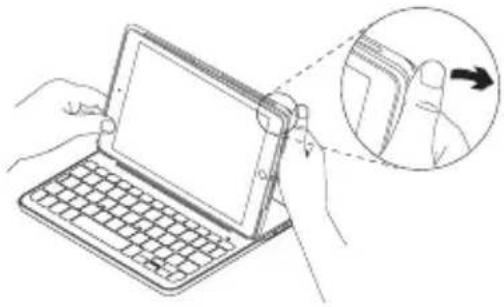
natural_image
Line drawing of a laptop keyboard being held, with an inset showing a finger pointing to the screen (no text or symbols present)natural_image
Line drawing of hands holding a tablet device on a keyboard (no text or symbols)معلومات البطارية
www.logitech.com/ithink
iPad mini-7: 10:30:15:00:00:00:00:00:00:00:00:00:00:00:00:00:00:00:00:00:00:00:00:00:00:00:00:00:00:00:00:00:00:00:00:00:00
תְרָהוֹת אַלְרָהוֹת
תְרָה בַרִי
natural_image
Line drawing of a laptop with keyboard and mouse, showing a close-up of its screen and keyboard (no text or symbols present)"הכלה" (בַרְׁה)
1.
natural_image
Line drawing of a tablet device with keyboard and mouse, showing a scroll arrow indicating rotation (no text or symbols)תְרָה בַרִי אַלְרָה
CANVAS
הכלה iPad mini-7
natural_image
Line drawing of a tablet device with blank screen (no text or symbols)natural_image
Line drawing of a tablet device with keyboard and front panel (no text or symbols)תְרַעָה אַלְבָר
CANVAS
natural_image
Line drawing of a flat electronic device with a rectangular body and two side connectors (no text or symbols)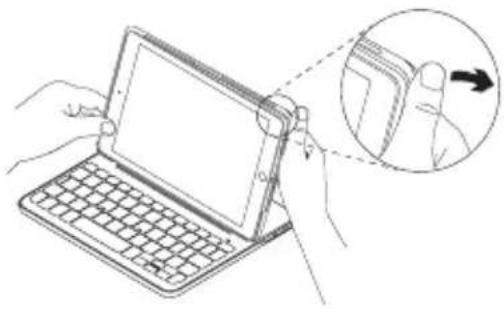
natural_image
Illustration of a hand holding a tablet device with a magnified inset showing the right-hand finger pointing to the screen (no text or symbols present)natural_image
Line drawing of hands holding a tablet device on a keyboard (no text or symbols)בִרְשָׁה בַרְשָׁה
| הכלה | |
| הכלה.הכלה i | |
| הכלה.הכלה | |
| הכלה.הכלה i | |
| iPad-7 cytochrome 7 cytochrome 7 cytochrome 7 cytochrome 7 cytochrome 7 cytochrome 7 cytochrome 7 cytochrome 7 cytochrome 7 cytochrome 7 cytochrome 7 cytochrome 7 cytochrome 7 cytochrome 7 cytochrome 7 cytochrome 7 cytochrome 7 cytochrome 7 cytochrome 7 cytochrome 7 cytochrome | |
| הכלה.הכלה.הכלה.הכלה |
,הכלההוּרָה,הכלההוּרָה,הכלההוּרָה,הכלההוּרָה,הכלההוּרָה,הכלההוּרָה,הכלההוּרָה,הכchia
γιπη = Fn + X

wijn = Fn + 3

www.logitech.com/ithink
תְרָה בְּרָה בְּרָה
תְבָרִי אַלְהָה
.הכלהה
• אַרְשׁו
•.תְּרַעָה
•, ηοιν ν
• Blu
- iPad
- "Canv
."הכלהה"
www.logitech.com/support/canvas-ipad-mini4
© 2016 Logitech. Logitech, Logi and other Logitech marks are owned by Logitech and may be registered. iPad and iPad mini are trademarks of Apple Inc., registered in the U.S. and other countries. The Bluetooth® word mark and logos are registered trademarks owned by Bluetooth SIG, Inc. and any use of such marks by Logitech is under license. All other trademarks are the property of their respective owners. Logitech assumes no responsibility for any errors that may appear in this manual. Information contained herein is subject to change without notice.
621-000682.002



- Contents
- Setting up the keyboard case Getting started
- Establishing connection with your iPad mini
- Connecting to another iPad mini
- Using the keyboard folio
- Two viewing positions
- Storing your iPad mini for travel
- Status light indicators
- Function keys
- Charging the keyboard battery
- Battery information
- Battery disposal at product end of life
- Visit Product Support
- Troubleshooting
- The keyboard does not work
- What do you think?
- Statusanzeigen
- Fehlerbehebung
- Témoins d'état
- Dépannage
- Spie di stato
- Diodos de estado
- Guardar o iPad mini para transportar
- Ken uw product
- Uw iPad mini opbergen om mee te nemen
- Probleemoplossing
- Produktöversikt
- Statusindikatorer
- Felsökning
- Problemløsning
- Bruke Keyboard Folio
- Statuslamper
- Batteriinformasjon
- Feilsøking
- Tastaturet virker ikke
- Tunne tuotteesi
- Tilan merkkivalo
- vianmääritys
- Poznaj urządzenie
- Wskaźniki stanu
- Állapotjelző LED-ek
- Popis produktu
- Indikátory stavu
- Odstraňování potíží
- Nadviazanie spojenia s iPadom mini
- Riešenie problémov
- Toote tutvustus
- Olekutule indikaatorid
- Törkeotsing
- Klaviatuur ei tööta
- lerīces apraksts
- Statusa indikators
- Problemy sprendimas
- Neveikia klaviatūra
- Upoznajte svoj uređaj
- Funkcijske tipke
- Podešavanje tastature sa čvrstom futrolom
- Prvi koraci
- Funkcijski tasteri
- Informacije o bateriji
- Odlaganje baterije na kraju radnog veka proizvoda
- Rešavanje problema
- Tastatura ne radi
- Kakvi su vašu utisci?
- Spoznajte izdelek
- Odpravljanje težav
- Tipkovnica ne dela
- Stabilirea conexiunii cu iPad mini
- Depanare
- Ürününüzü tanıyın
- Sorun giderme
- Klavye çalışmıyor
- تعرف على المنتج
- CANVAS
- הכלה iPad mini-7
- תְרָה בְּרָה בְּרָה
- תְבָרִי אַלְהָה
Brand : LOGITECH
Model : Canvas
Category : Gaming Keyboard