USER MANUAL Ultrathin Keyboard Cove LOGITECH
Getting started with
Logitech® Ultrathin Keyboard Cover
Contents
English. 3 Espanol 19
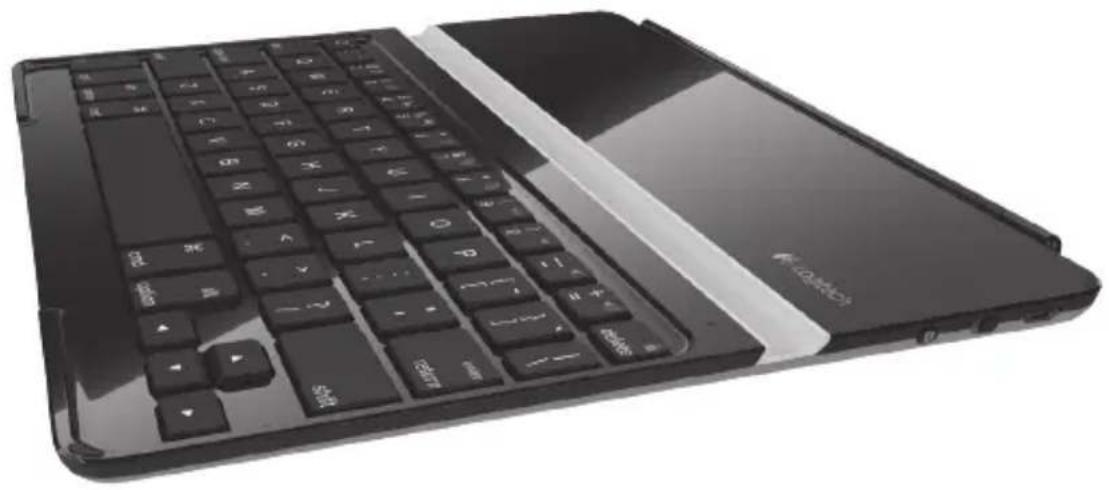
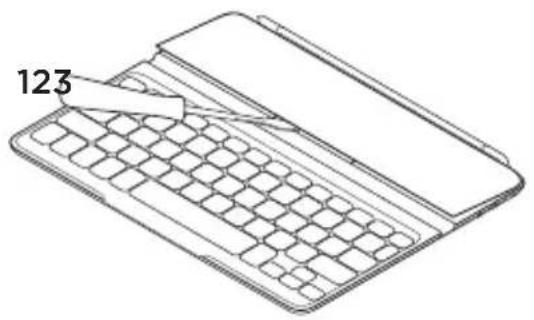
- Protective cover
- iPad holder
- Keyboard
- Function keys
-
Status light
-
On/Off switch
- Bluetooth connect button
- Documentation
- Micro-USB charging cable
- Cleaning cloth
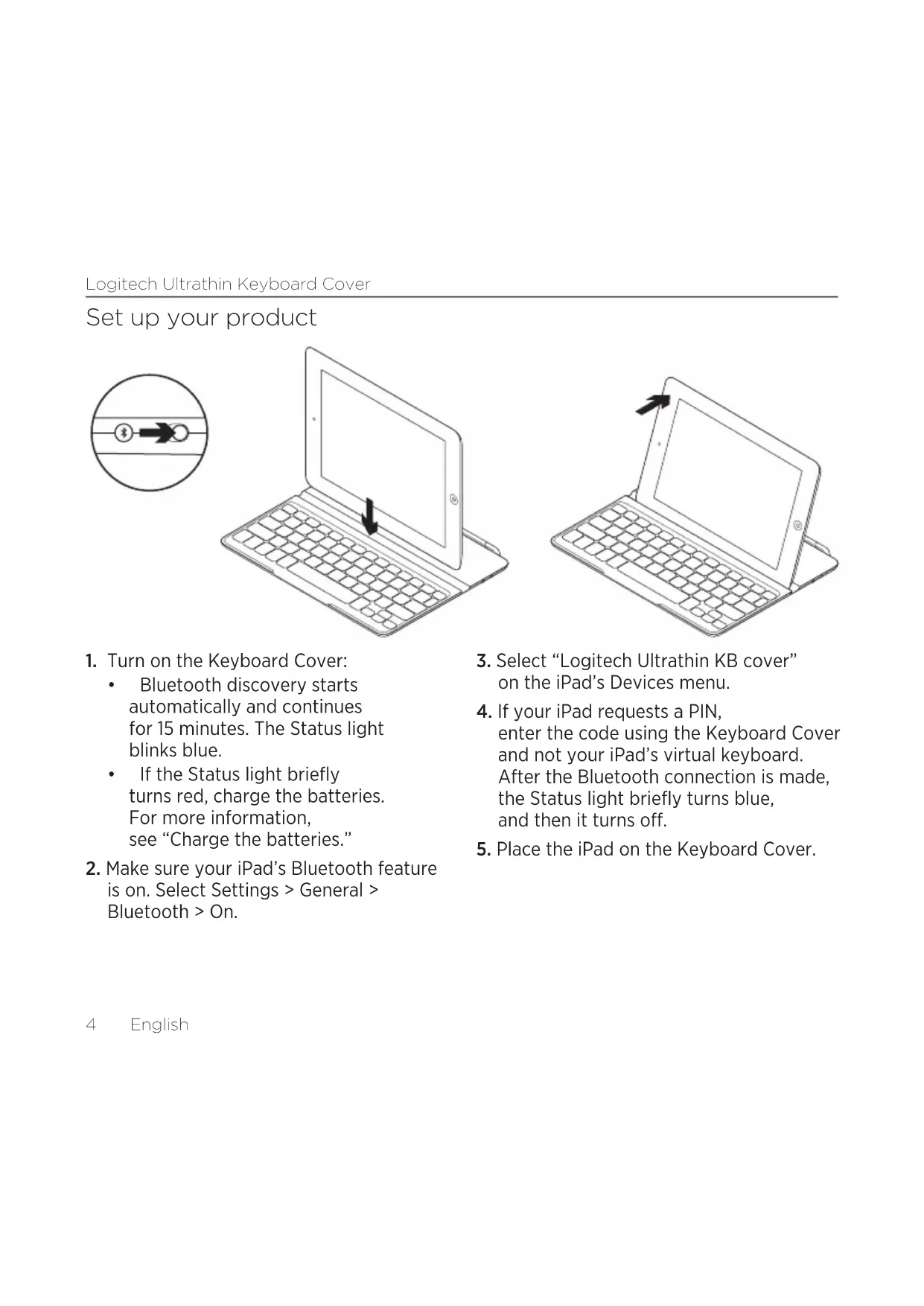
Set up your product
-
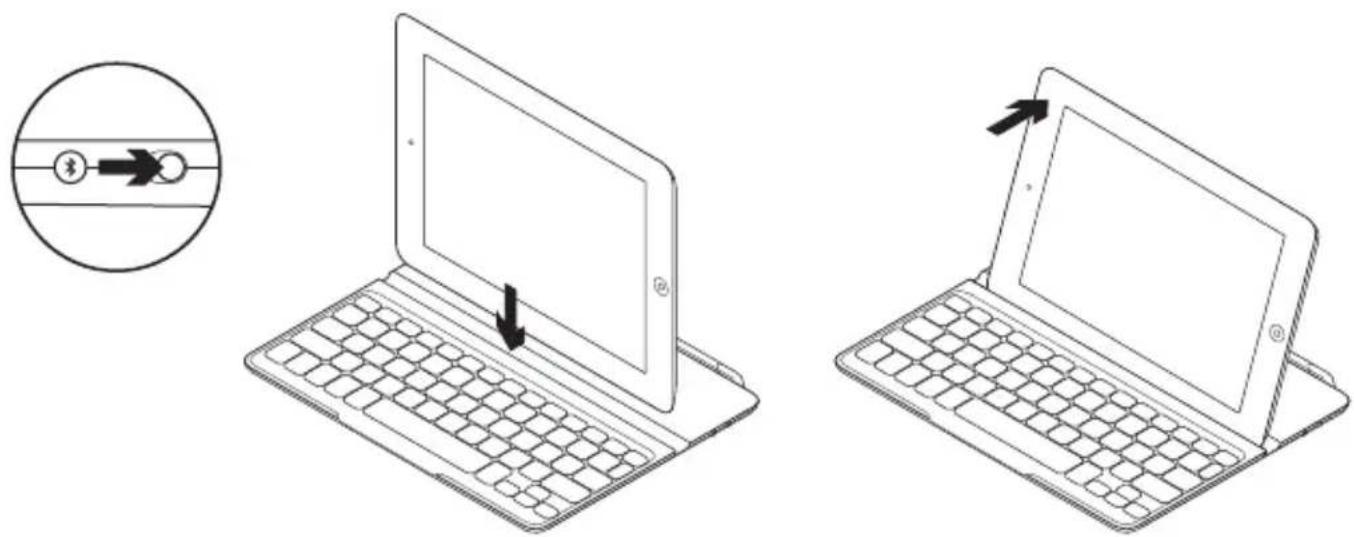
Turn on the Keyboard Cover:
-
Bluetooth discovery starts automatically and continues for 15 minutes. The Status light blinks blue.
If the Status light briefly turns red, charge the batteries. For more information, see "Charge the batteries."
-
Make sure your iPad's Bluetooth feature is on. Select Settings > General > Bluetooth > On.
-
Select "Logitech Ultrathin KB cover" on the iPad's Devices menu.
- If your iPad requests a PIN, enter the code using the Keyboard Cover and not your iPad's virtual keyboard. After the Bluetooth connection is made, the Status light briefly turns blue, and then it turns off.
- Place the iPad on the Keyboard Cover.
Charge the batteries
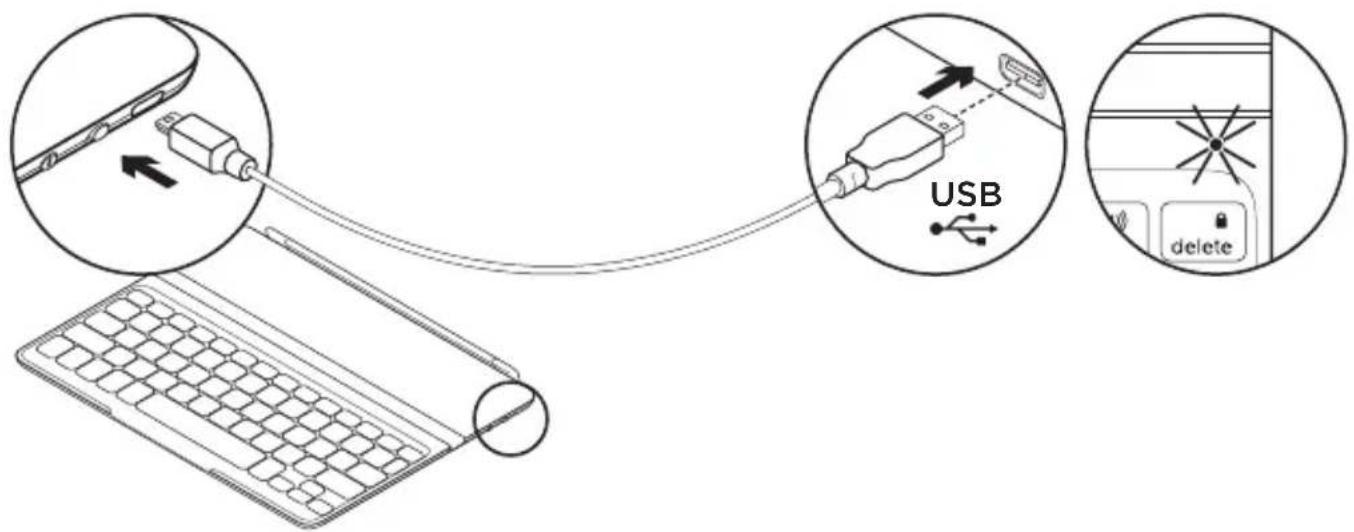
- Plug the Micro-USB Charging cable into the Keyboard Cover and a USB port on a computer. The Status light blinks green.
- Charge the batteries until the Status light turns solid green.
- A fully charged battery provides about 6 months of power when the Keyboard Cover is used about two hours a day.
- Charge the batteries when the Status light briefly turns red after the Keyboard Cover turns on.
- When not in use, turn off the Keyboard Cover to conserve battery power.
The Keyboard Cover enters sleep mode if powered on and not used. Press any key to wake.
Visit Product Central
There's more information and support online for your product. Take a moment to visit Product Central to learn more about your new Keyboard Cover.
Browse online articles for setup help, usage tips, or information about additional features.
Connect with other users in our Community Forums to get advice, ask questions, and share solutions.
At Product Central, you'll find a wide selection of content:
- Tutorials
Troubleshooting
Support community
Software downloads
Online documentation
Warranty information
- Spare parts (when available)
Go to www.logitech.com/support/ ultrathinkeyboardcover
Use your product

Product features
- Home Displays the iPad Home screen. Function keys To use, press and hold the Fn key, and then press a key listed below.
- Fn + 1 = Search Launches the iPad search function.
- Fn + 2 = Switch language
Switches the keyboard language.
- Fn + 3 = Virtual keyboard Shows/ hides the virtual keyboard.
-
Fn + 4 = Select left Selects text on the left, word by word.
-
Fn + 5 = Select right Selects text on the right, word by word.
- Fn + 6 = Cut
- Fn + 7 = Copy
- F_n + 8 = Paste
- Fn + 9 = Play/Pause
- Fn + O = Mute
- Fn + dash = Volume down
- Fn + plus = Volume up
- Fn + delete = Lock screen Locks or unlocks the iPad screen.
Status light indications
| Light Description | |
| Blinking green The battery is charging. | |
| Green The battery is charged (more than 5%). | |
| Red Battery power is low (less than 5%). Charge the batteries. | |
| Blinking blue Fast: Key | Keyboard Case is in discovery mode.
Slow: Keyboard Case is trying to reconnect to your Apple device. |
| Solid blue Bluetooth | pairing is successful. |
Storing the iPad for travel
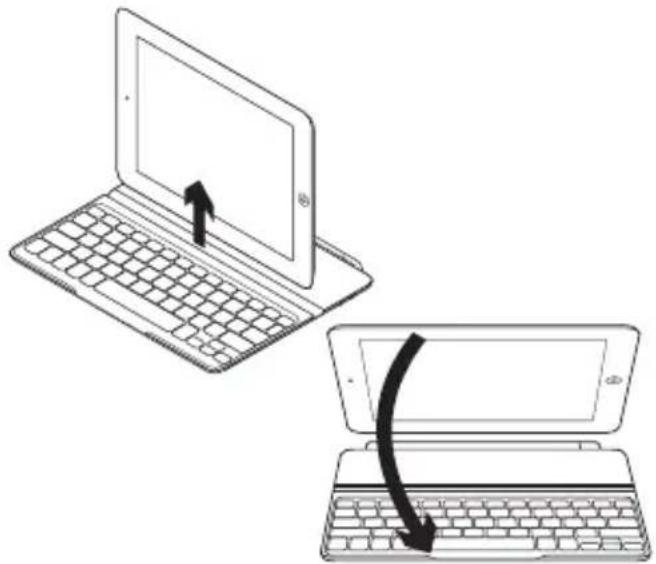
- Lift the iPad from the Keyboard Cover.
- Rotate the iPad, with the screen side down, so the Home button is on the right.
- Place the iPad on to the Keyboard Cover. A magnetic clip holds the iPad in position.
Connecting to a different iPad
- Make sure the Keyboard Cover is turned on.
- Check that your iPad's Bluetooth feature is on. Select Settings > General > Bluetooth > On.
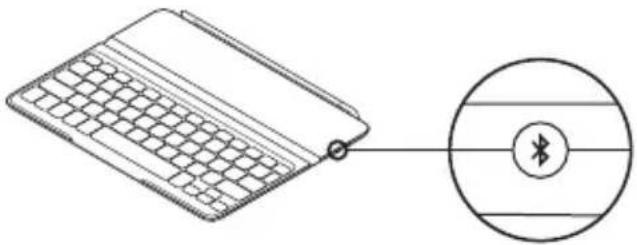
- Press the Bluetooth Connect Button. The Keyboard Cover is discoverable for 3 min.
- Select "Logitech Ultrathin KB cover" on the iPad's Devices menu.
- If your iPad requests a PIN, enter the code using the Keyboard Cover and not your iPad's virtual keyboard. After the Bluetooth connection is made, the Status light briefly turns blue, and then it turns off.
- Place the new iPad on the Keyboard Cover.
Troubleshooting
The Keyboard Cover does not work
- Press any key to wake the Keyboard Cover from sleep mode.
- Turn the Keyboard Cover Off and then back On.
- Recharge the internal batteries. For more information, refer to "Charge the batteries."
- Re-establish the Bluetooth connection between the Keyboard Cover and iPad:
- Verify that iPad's Bluetooth feature is turned on.
- Choose "Logitech Ultrathin KB cover" from the Devices menu on your iPad. The Status light briefly turns blue after the Bluetooth connection is made.
What do you think?
Please take a minute to tell us.
Thank you for purchasing our product.
www.logitech.com/ithink
Battery disposal at product end of life
- Pry off top cover of keyboard with screwdriver.
- Detach battery from circuit board and remove battery.
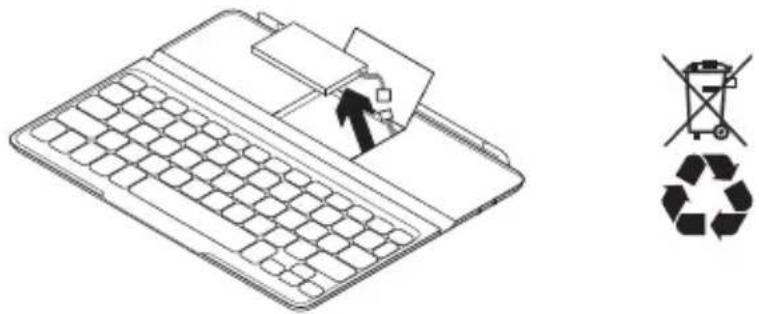
- Dispose of your product and its battery according to local laws.
www.logitech.com/ithink
Ve a www.logitech.com/support/ ultrathinkeyboardcover
www.logitech.com/ithink
Visit www.logitech.com/support/ ultrathinkeyboardcover
Usar o produto
123456789101112 13 14

Recursos do produit
- Home Exibe a tela Home do iPad.
www.logitech.com/ithink
United States +1 646-454-3200
Argentina +0800 555 3284
Brasil +0800 891 4173
Canada +1-866-934-5644
Chile +1230 020 5484
Latin America +1800-578-9619
Mexico +001 800 578 9619
Logitech
www.logitech.com
© 2012 Logitech. All rights reserved. Logitech, the Logitech logo, and other Logitech marks are owned by Logitech and may be registered. Apple and iPad are trademarks of Apple Inc., registered in the U.S. and other countries. Bluetooth is a registered trademark of Bluetooth SIG, Inc. All other trademarks are the property of their respective owners. Logitech assumes no responsibility for any errors that may appear in this manual. Information contained herein is subject to change without notice.