
MK300 - Gaming Keyboard LOGITECH - Free user manual and instructions
Find the device manual for free MK300 LOGITECH in PDF.
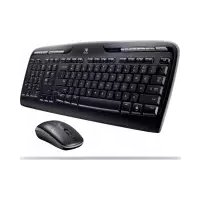



| Product Type | Wireless Keyboard and Mouse Combo |
| Brand | Logitech |
| Model | MK300 |
| Category | Gaming Keyboard |
| Connectivity | Wireless USB Receiver |
| Keyboard Power | 2 AAA batteries (up to 15 months battery life) |
| Mouse Power | 1 or 2 AAA batteries (up to 8 months with 2 batteries) |
| Keyboard Dimensions (approx.) | 440 x 140 x 25 mm (estimated) |
| Keyboard Weight (with batteries) | Approximately 650 g (estimated) |
| Mouse Dimensions (approx.) | 110 x 60 x 35 mm (estimated) |
| Mouse Weight (with batteries) | Approximately 100 g (estimated) |
| Shortcut Keys | Application Switcher, Email, Web, Search, Messenger, Calculator, multimedia, volume |
| Fn Function Keys | Productivity (F1-F4), Favorites (F5-F8), Internet (F9-F12), Miscellaneous |
| Customization | Via Logitech SetPoint software (key reassignment, mouse settings) |
| Power Management | Automatic sleep mode, battery level check (dedicated key and LED) |
| Mouse Battery Indicator | Green LED (good level) or red (less than 10%) |
| Wireless Range | Approximately 10 meters (standard estimate) |
| Compatibility | Windows (SetPoint software required for advanced functions) |
| Box Contents | Keyboard, mouse, USB receiver, batteries, manual |
| Maintenance and Cleaning | Clean with a soft, slightly damp cloth; do not use solvents |
Frequently Asked Questions - MK300 LOGITECH
User questions about MK300 LOGITECH
0 question about this device. Answer the ones you know or ask your own.
Ask a new question about this device
Download the instructions for your Gaming Keyboard in PDF format for free! Find your manual MK300 - LOGITECH and take your electronic device back in hand. On this page are published all the documents necessary for the use of your device. MK300 by LOGITECH.
USER MANUAL MK300 LOGITECH


User's guide
Logitech®
Wireless Desktop
MK300





Contents
English Setup, 6 Features and troubleshooting, 10
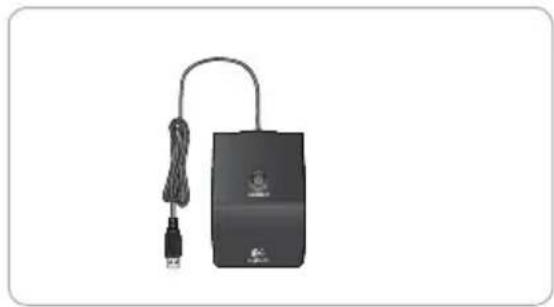



Logitech® Wireless Desktop MK300
1
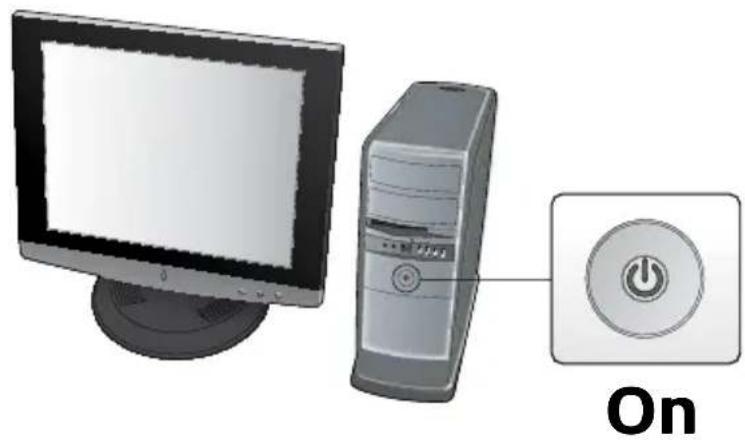
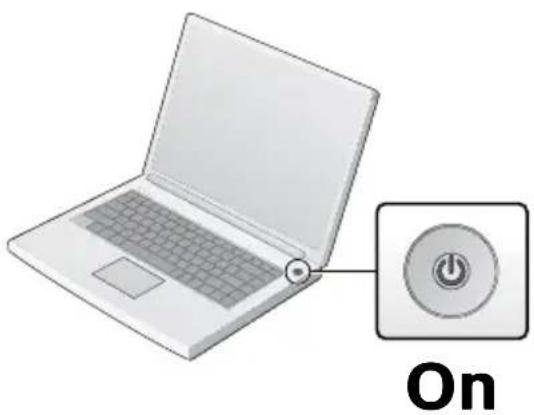
6




Logitech® Wireless Desktop MK300
2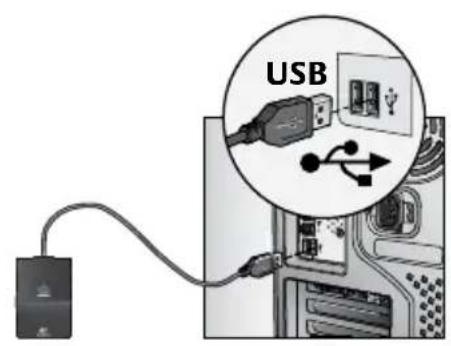
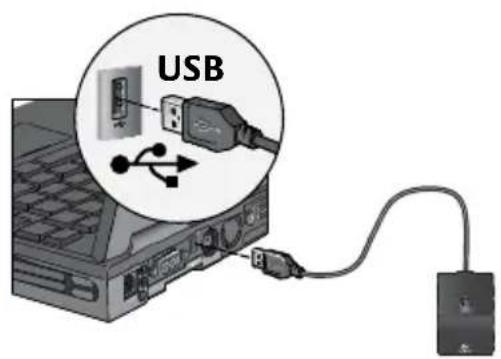
3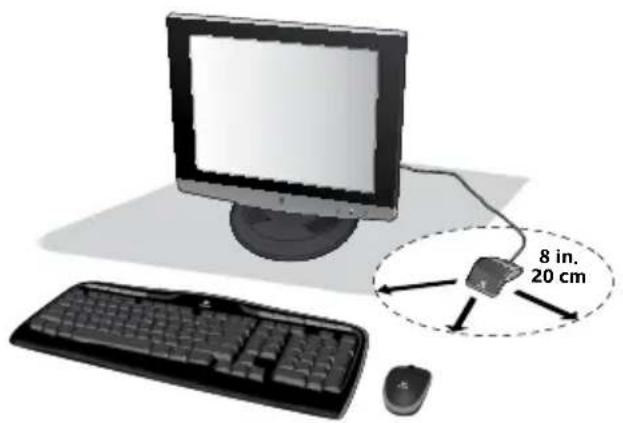



Logitech® Wireless Desktop MK300
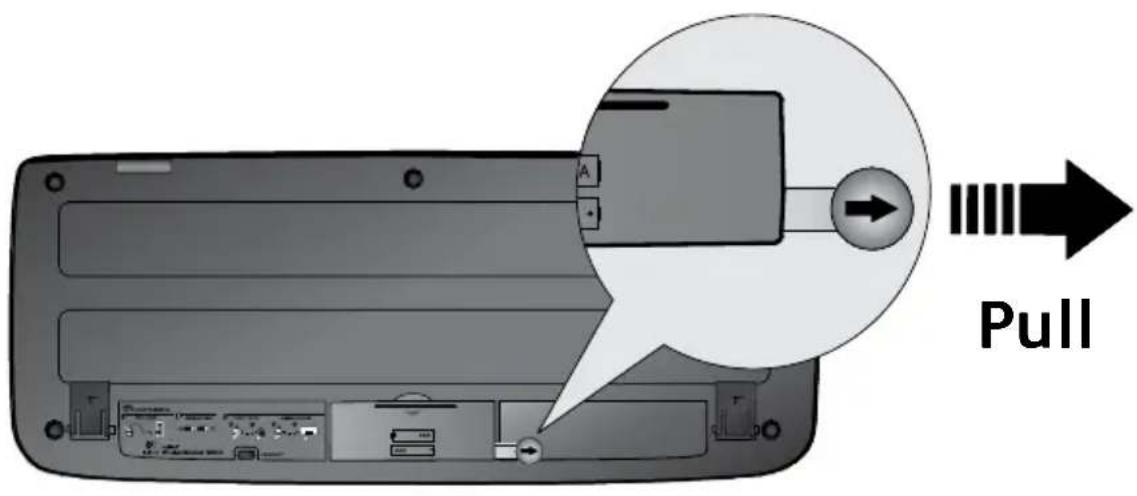
Français TIRER
Nederlands TREKKEN
Greek PULL
Turkish PULL





Logitech® Wireless Desktop MK300
5
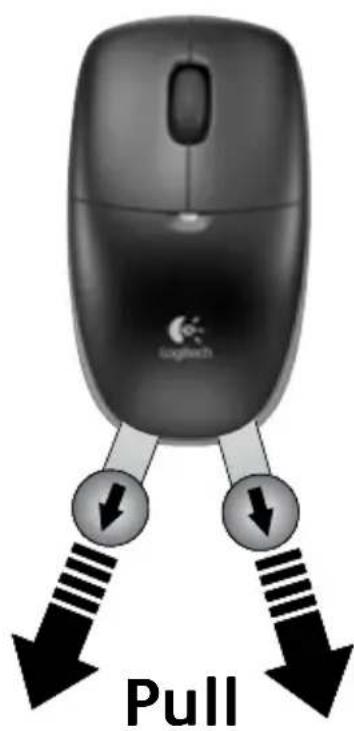
French PULL
Dutch PULL
Greek PULL
Turkish PULL


9

Logitech® Wireless Desktop MK300
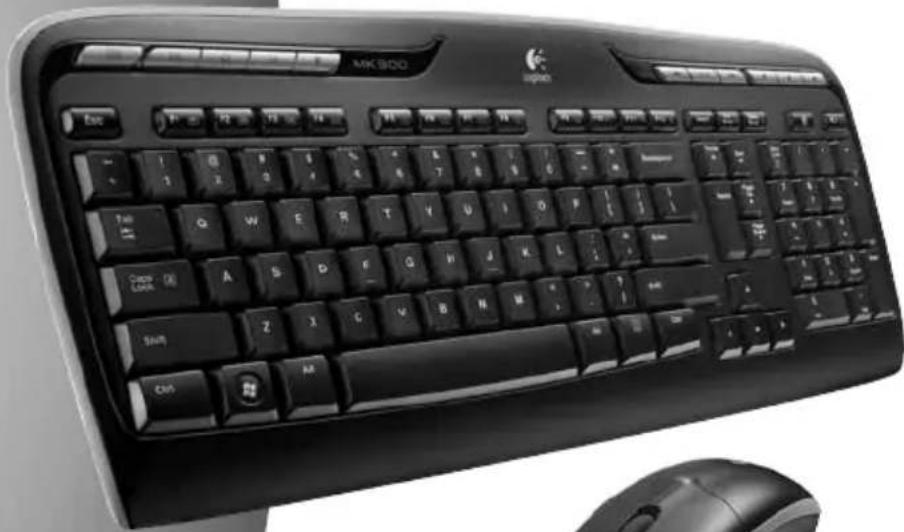
Keyboard features: hot keys
To enjoy all the features of your keyboard or to customize it to suit your needs, please install the Logitech® SetPoint™ Software that comes with your product.
Logitech application 1. switcher
Internet zone2.
a. Email application b. Internet browser c. Internet search engine d. Messenger
Multimedia navigation3.
a. Previous track b. Play/pause track c. Next track
Volume zone4.
a. Mute volume b. Volume down c. Volume up
Convenience zone5.
a. Windows 50 calculator b. Battery status check (See Battery management for more information.)



User's Guide
Keyboard features: hot keys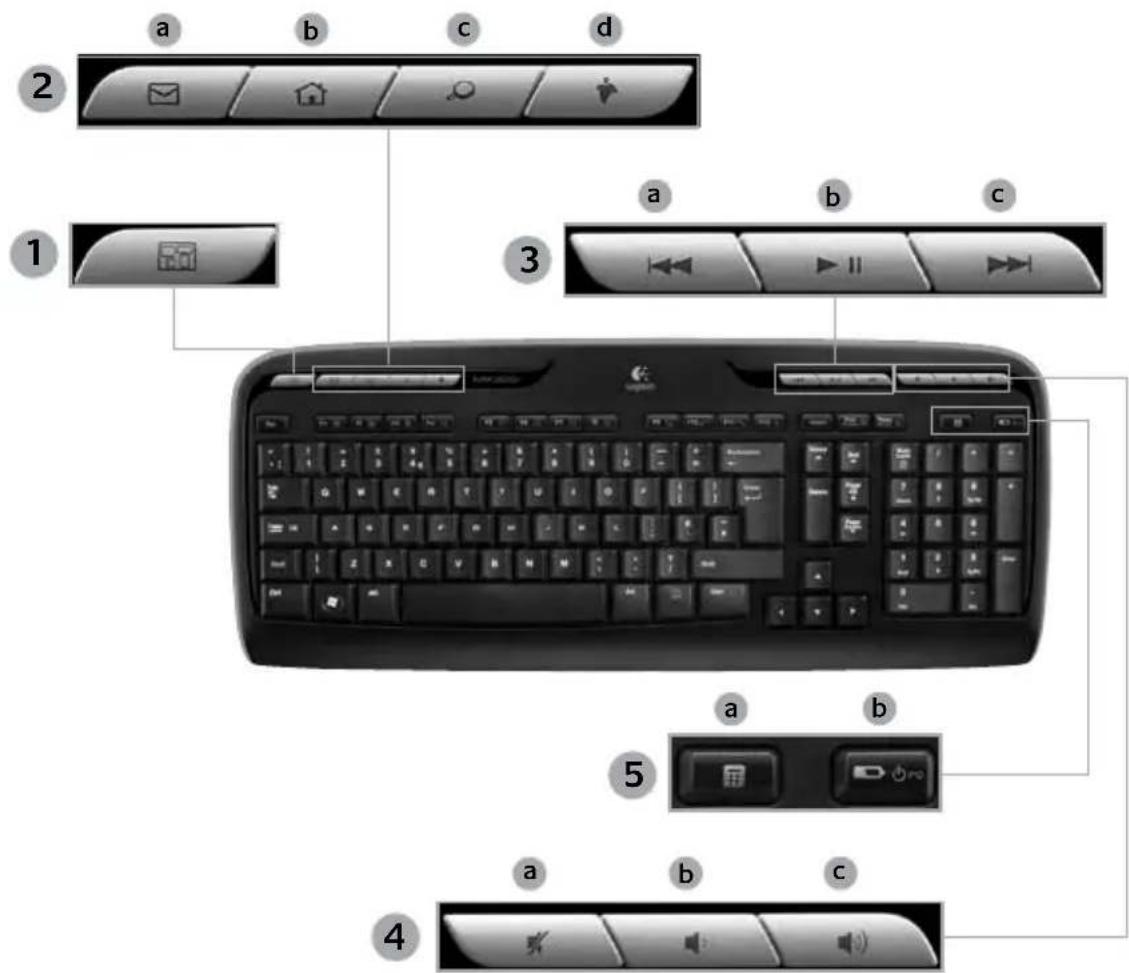
English 11



Logitech ® Wireless Desktop MK300
Keyboard features: F-keys
To enjoy all the features of your keyboard or to customize it to suit your needs, please install the Logitech® SetPoint™ Software that comes with your product.
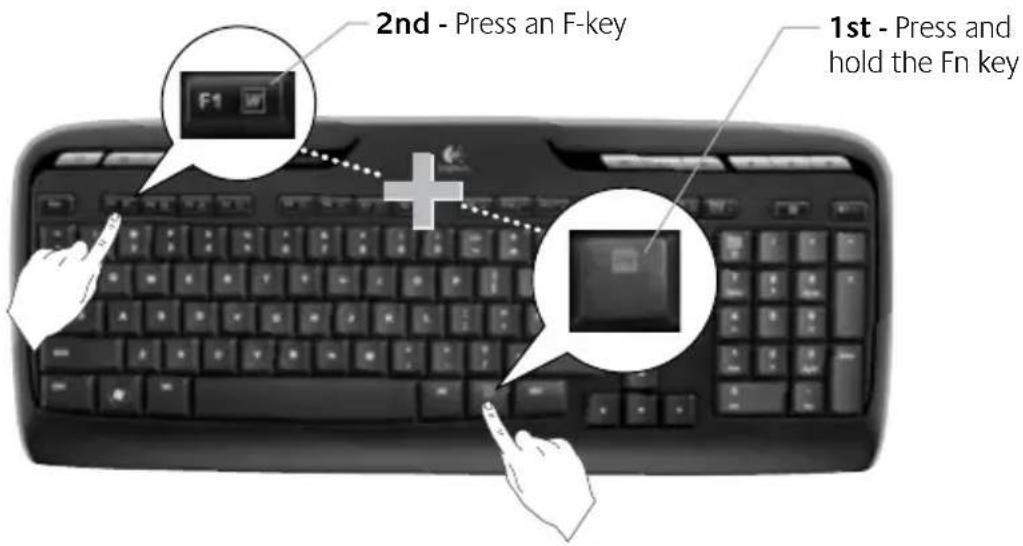
User-friendly enhanced F-keys let you easily launch applications or control your music. To use the enhanced functions (gray icons), press the key and the F-Key Fn you want to use simultaneously.
12 English



User's Guide
Keyboard features: F-keys
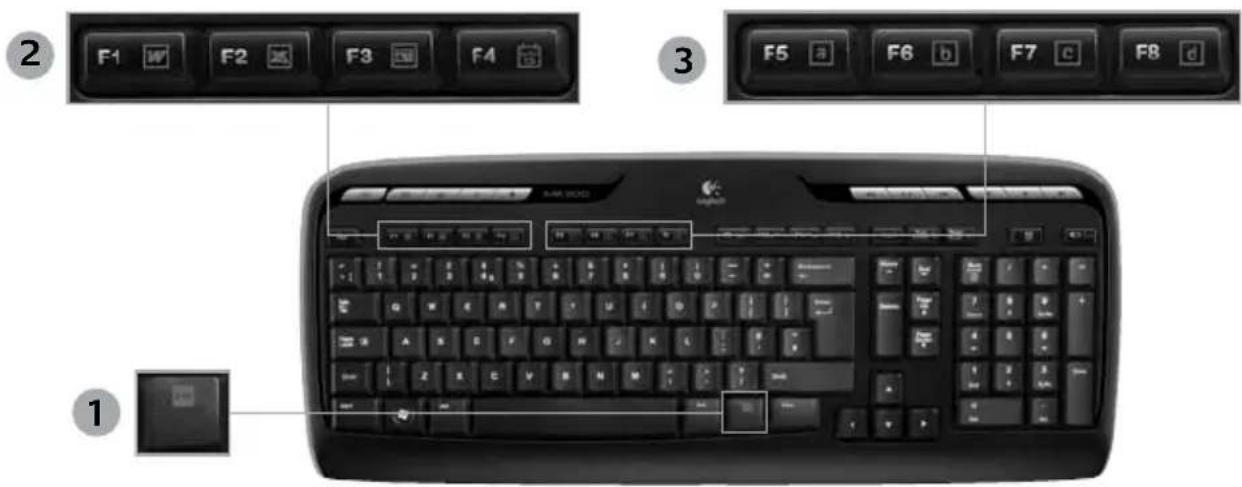
1. Key (for use with F-keys)
Productivity zone2.
Fn +F1 Launches document application Fn +F2 Launches spreadsheet application Fn +F3 Launches presentation application Fn +F4 Launches calendar
Favorites zone3.
Fn +F5 to F8 program your favorite application, folder, or web site with a long, simultaneous press of Fn and the corresponding F5, F6, F7, or F8 key (just like the presets of a car radio).
English



Logitech ® Wireless Desktop MK300
Keyboard features: F-keys
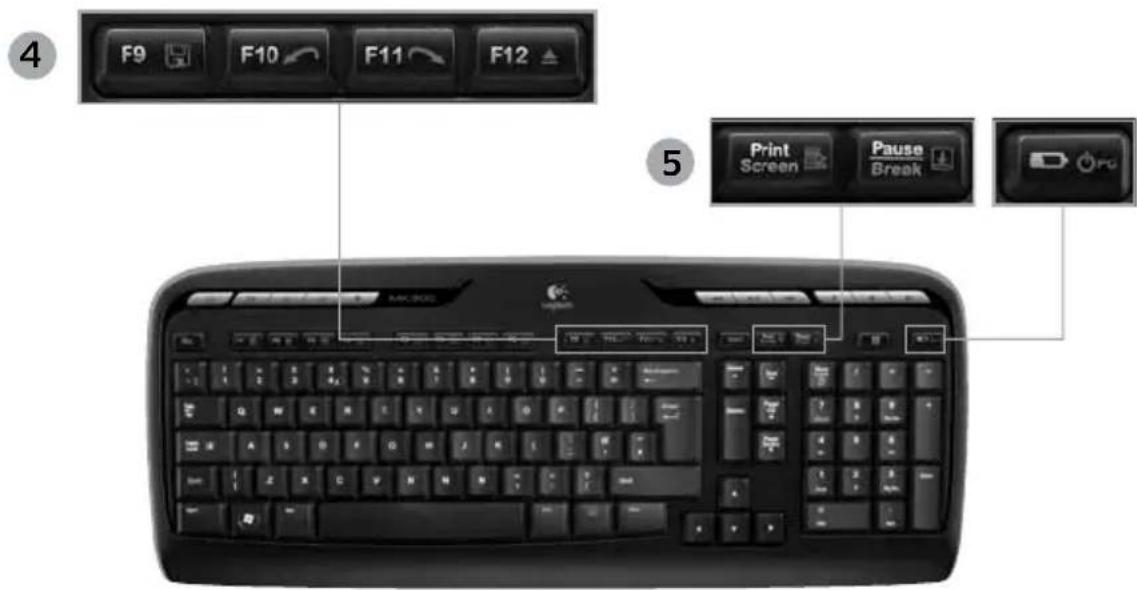
Internet zone4.
Fn +F9 Save file Fn +F10 Undo last operation Fn +F11 Redo last operation Fn +F12 Opens/closes CD-DVD tray
Miscellaneous5.
Fn + Print Screen: Contextual menu Fn +Pause/Break: Scroll lock Fn +Battery status check: PC sleep mode
14 English

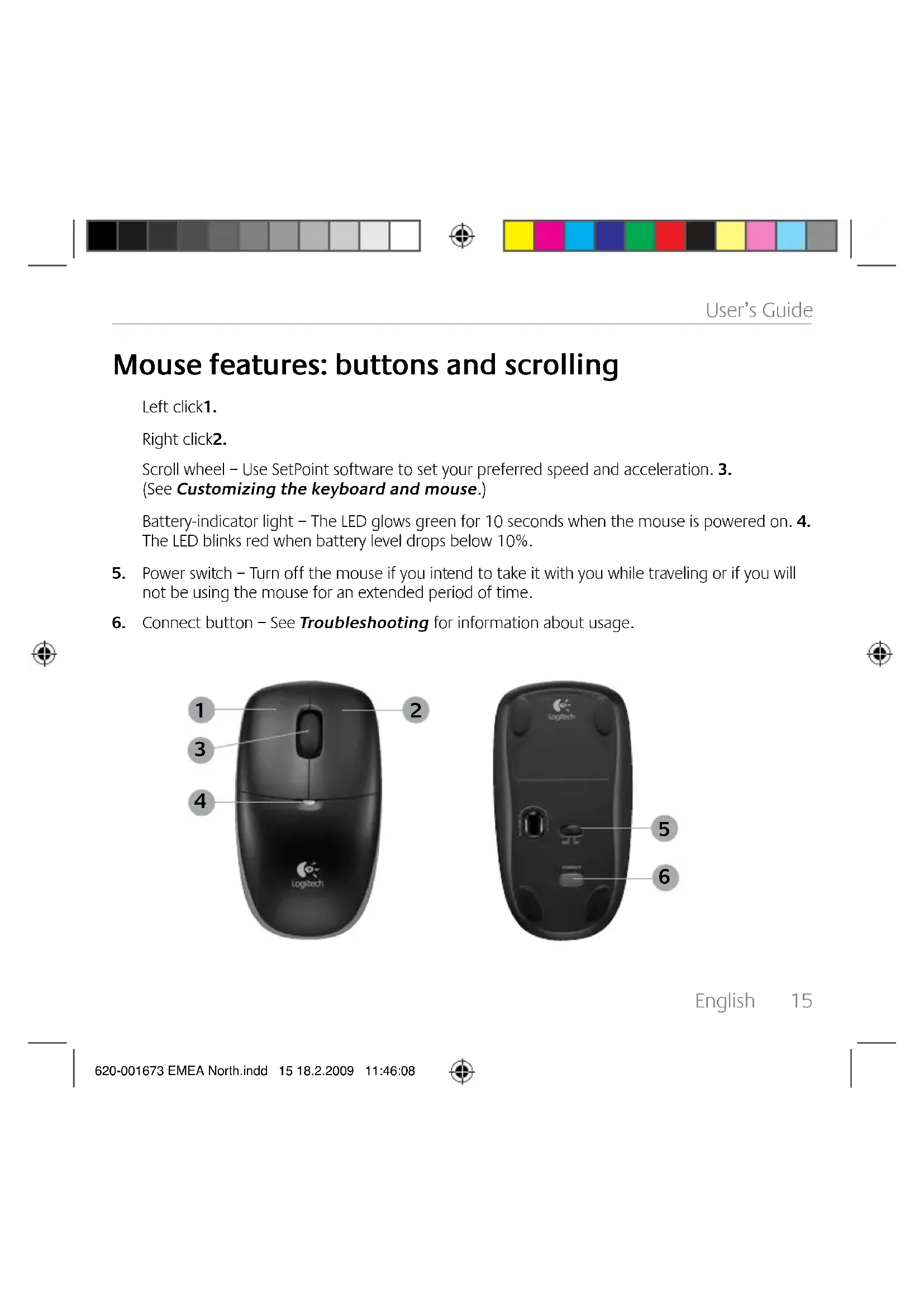
Mouse features: buttons and scrolling
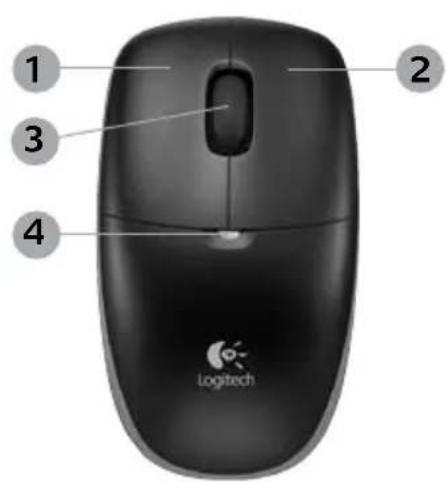
Left click1.
Right click2.
Scroll wheel – Use SetPoint software to set your preferred speed and acceleration. 3. (See Customizing the keyboard and mouse.)
Battery-indicator light – The LED glows green for 10 seconds when the mouse is powered on. 4. The LED blinks red when battery level drops below 10%.
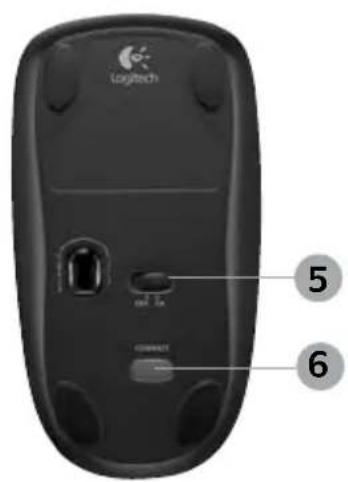
- Power switch - Turn off the mouse if you intend to take it with you while traveling or if you will not be using the mouse for an extended period of time.
- Connect button - See Troubleshooting for information about usage.

English 15



Logitech ® Wireless Desktop MK300
Customizing the keyboard and mouse
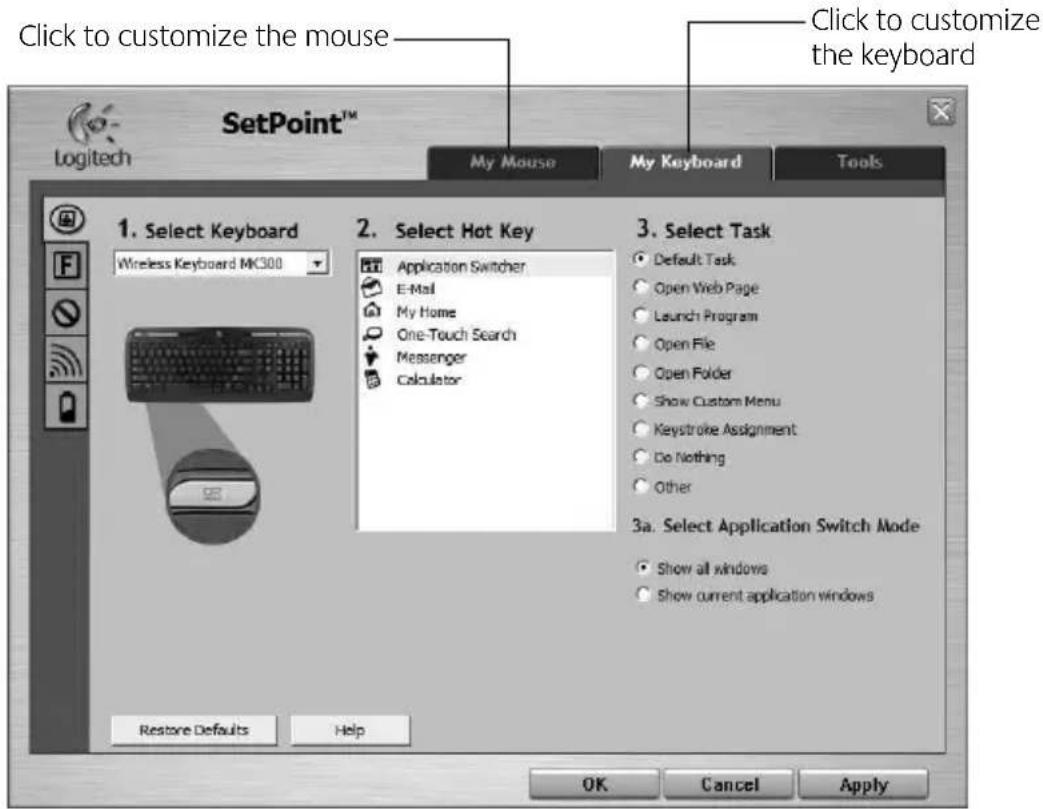
Double-click the 1. Mouse and Keyboard Settings icon on the Windows desktop to make changes.

To customize the keyboard, click the My Keyboard tab. For the mouse, click the My Mouse tab.2.
16 English




User's Guide
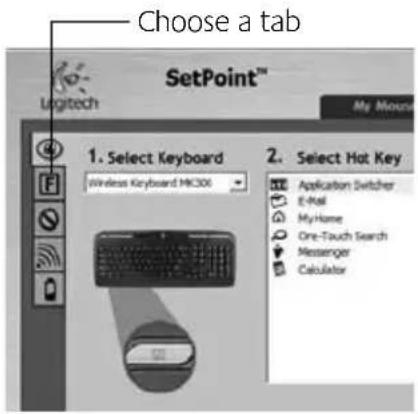
For either the keyboard or mouse, a series of tabs is shown 3. on the left.
Choose a tab, such as the keyboard 4. F-key Settings. A picture of the keyboard is displayed showing F-keys (list 2) to which tasks can be assigned (list 3).
In the 5. 2. Select F-key list, highlight the F-key to be reassigned a task.
In the 6. 3. Select Task list, highlight the new task.
When you are done, click 7. OK to save the new F-key assignments.
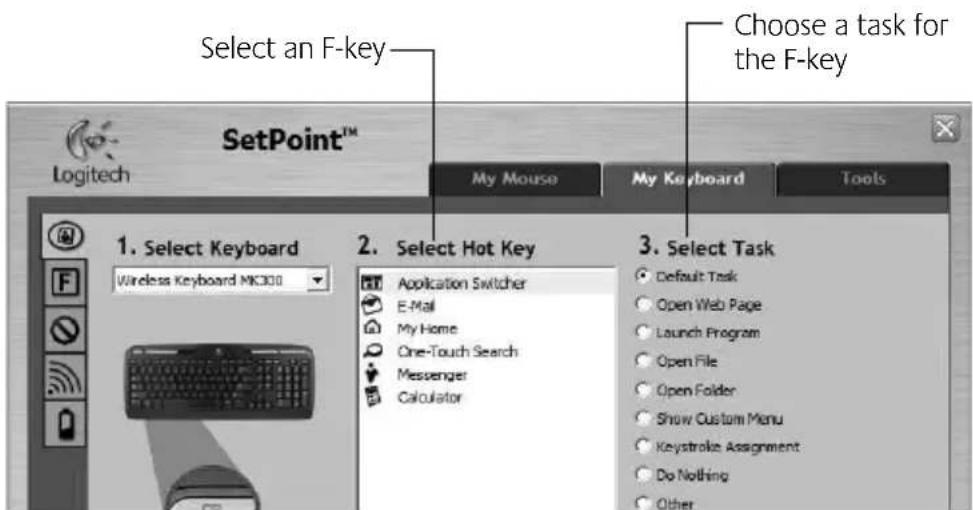
Keyboard F-key Settings tab
English 17



Logitech Wireless Desktop MK300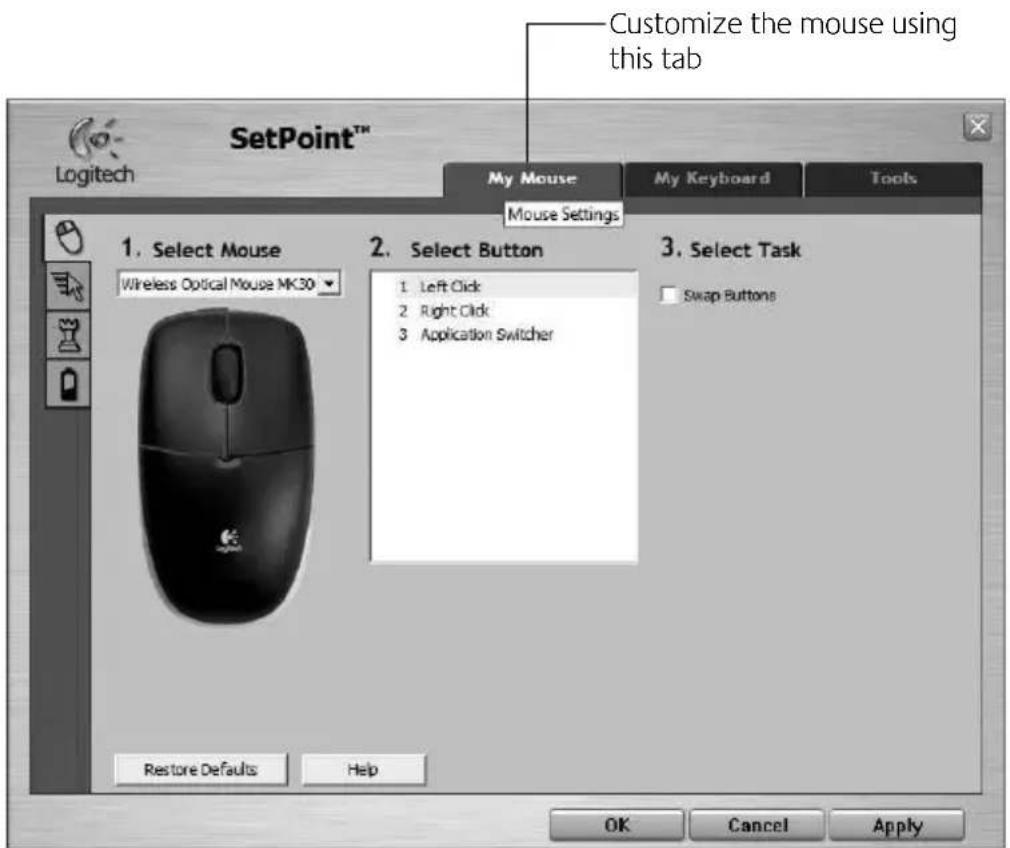
My Mouse tab
For more information about customizing your keyboard and mouse, please refer to the help system.
18
English

User's Guide

Battery management
Your keyboard has up to 15 months of battery life, and your mouse has up to 8 months. (Note that the mouse can work with only one battery, but with significantly reduced battery life.)*
Battery sleep mode
Did you know that both your keyboard and mouse go into sleep mode after you stop using them for a few minutes? This feature helps limit battery usage. Both devices are up and running immediately once you begin using them again.
How to check the battery level for the keyboard (software required)
Press the Battery Status Check hotkey.

The SetPoint Software Keyboard Battery tab pops up. It shows the current battery level of the keyboard.
How to check the battery level for the mouse
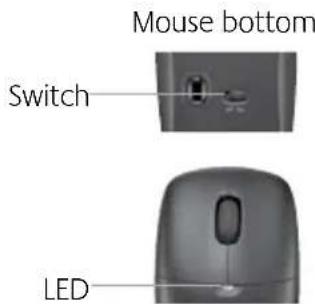
Option 1: • Turn the mouse off, and then on using the On/Off slider switch on the bottom of the mouse. Look at the battery LED on the top case. If the LED glows green for 10 seconds, the batteries are good. If the LED blinks red, the battery level has dropped to 10%. (You still have a few days of battery usage left.)
Option 2: • Launch the SetPoint Software, and click the Mouse Battery tab to see the current battery level of the mouse.
* Battery life varies with usage and computing conditions. Heavy usage usually results in shorter battery life.



Logitech® Wireless Desktop MK300
Troubleshooting
Keyboard and mouse are not working

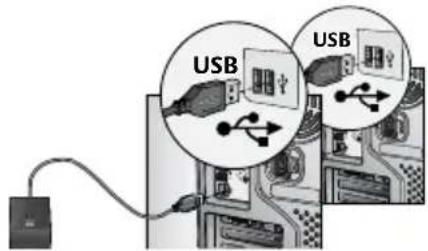
Check the cable connection.
Also, try changing USB ports.
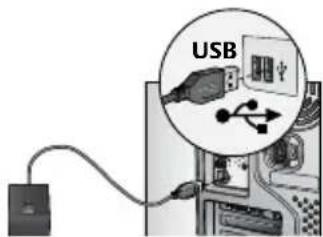

Move closer? Try moving the keyboard or mouse closer to the receiver.

Relocate the receiver. Place the receiver away from electrical devices and avoid metallic surfaces.

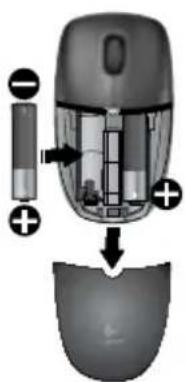
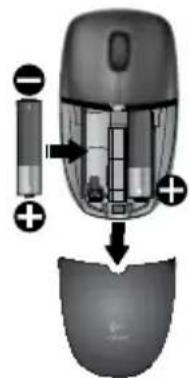
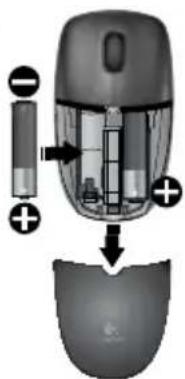
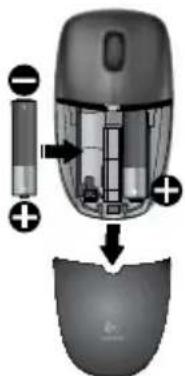
Check battery installation. Also check the battery power of each device. (See Battery management for more information.)
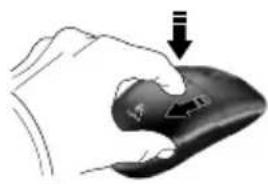
To open the mouse battery compartment, press down on the compartment cover, and slide cover toward rear of mouse.
Mouse
Keyboard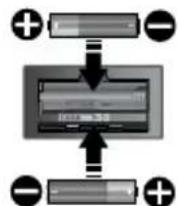
20 English

Troubleshooting

Is the mouse turned on? On the mouse bottom, move the power slider switch right to turn on the mouse. The Battery LED on the mouse top case should light green for 10 seconds. (See Battery management for more information.)
Mouse bottom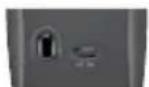

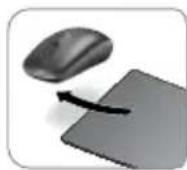
Are you experiencing slow or jerky cursor movement?
Try the mouse on a different surface (e.g., deep, dark surfaces may affect how the cursor moves on the computer screen).

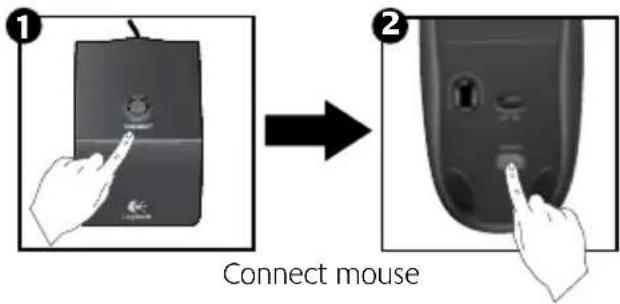
Establish a connection:
Press the 1. Connect button on the receiver.
QUICKLY 2. press the Connect button (half second) under each device. The mouse LED (top case) should blink.
For additional help, refer to the Customer Support telephone numbers on page 83.
Also visit www.logitech.com/comfort for more information about using your product, and for ergonomics.

English
Logitech® Wireless Desktop MK300





Logitech® Wireless Desktop MK300



Logitech® Wireless Desktop MK300


Logitech® Wireless Desktop MK300




Logitech® Wireless Desktop MK300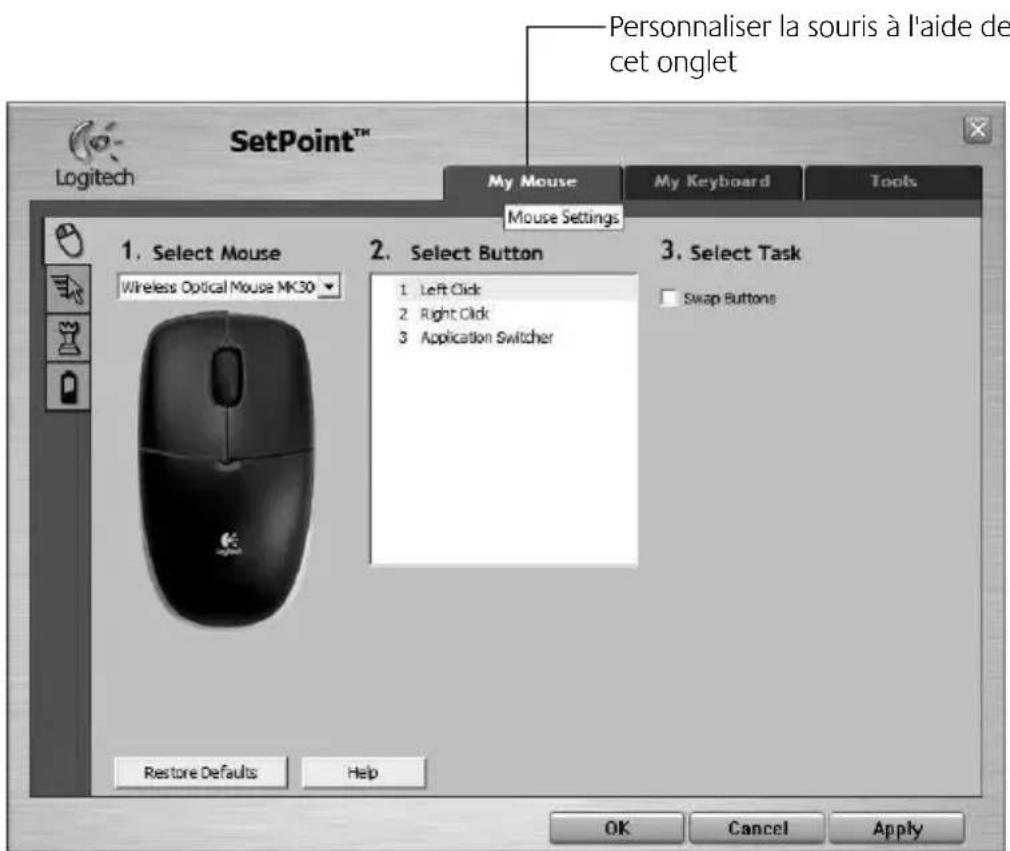
Mouse tab


Logitech® Wireless Desktop MK300
Troubleshooting
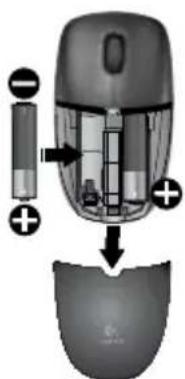
Mouse
Keyboard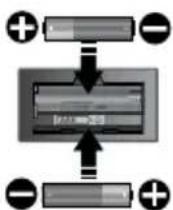



User guide
Dutch



Logitech® Wireless Desktop MK300


User Guide


Logitech® Wireless Desktop MK300


User Guide


Logitech® Wireless Desktop MK300


Logitech® Wireless Desktop MK300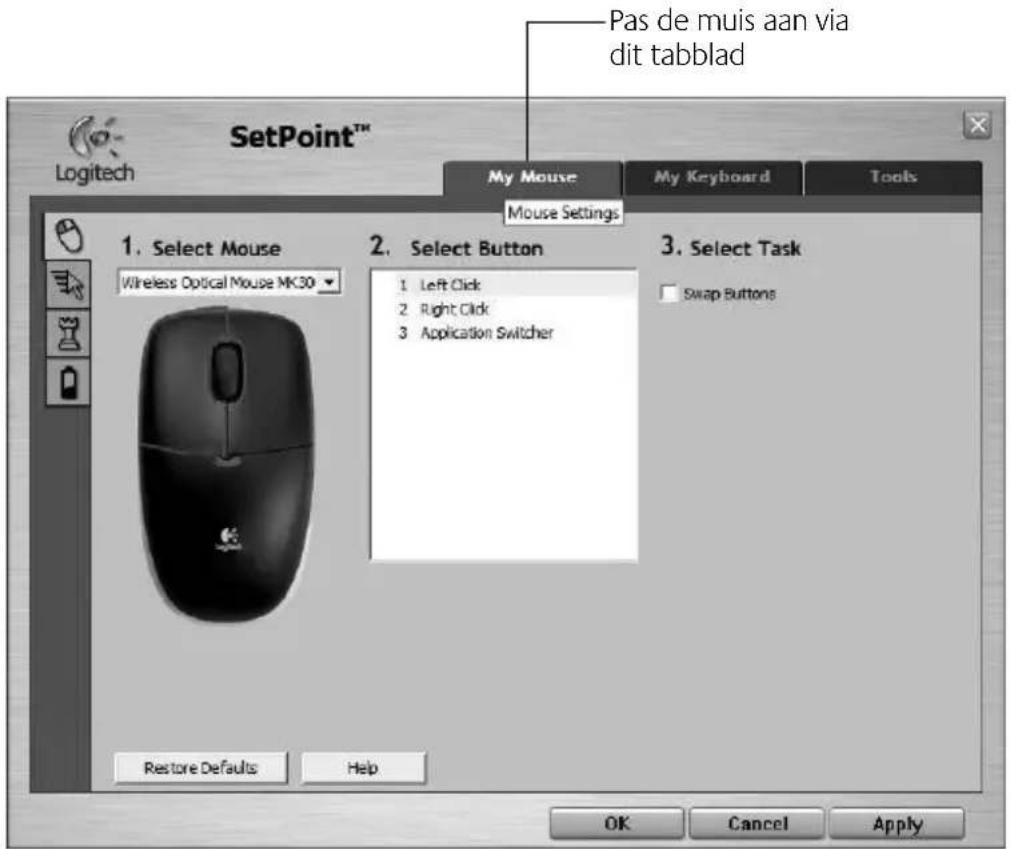
My Mouse Tab
Battery Management


Logitech® Wireless Desktop MK300
Troubleshooting
Mouse
Keyboard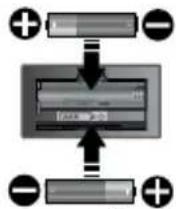
44 English




User Guide
Troubleshooting

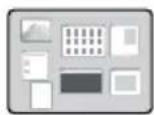
Logitech application 1. switcher


User guide


User guide


Logitech® Wireless Desktop MK300


User guide


Logitech® Wireless Desktop MK300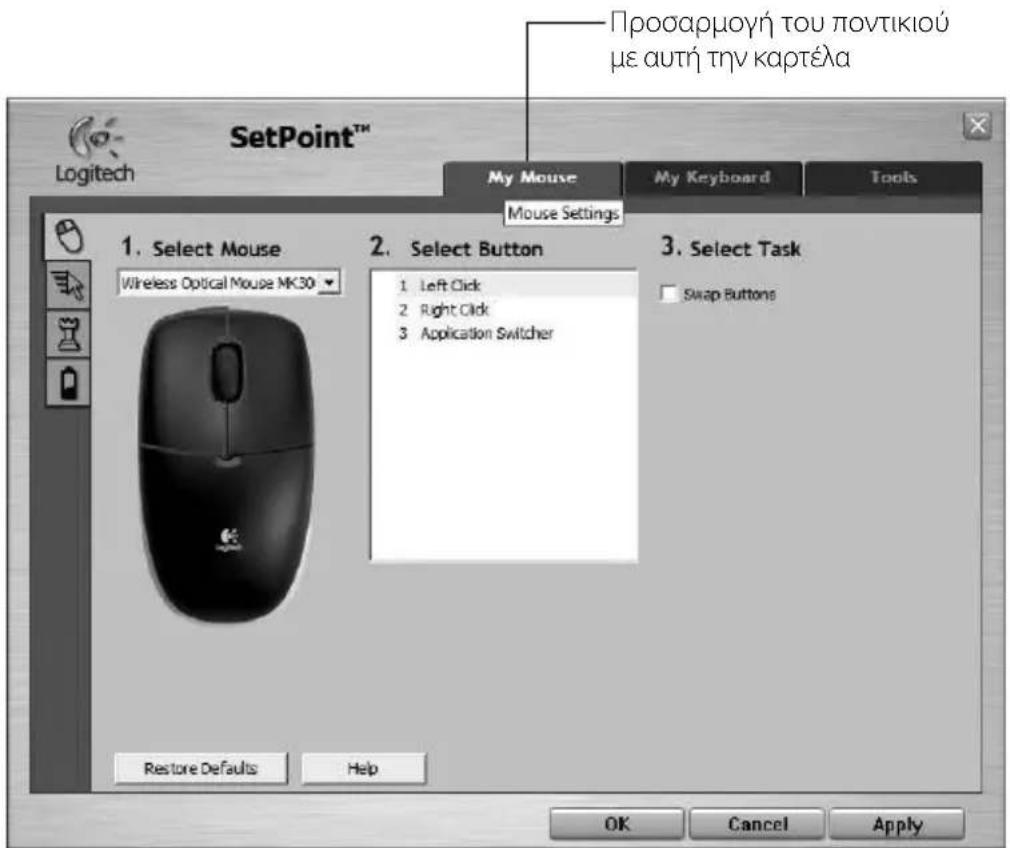
Contents
Keyboard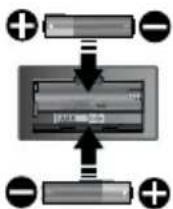
Greek


User guide
Turkish



Logitech® Wireless Desktop MK300


User guide


Logitech® Wireless Desktop MK300


Logitech® Wireless Desktop MK300


User manual


Logitech® Wireless Desktop MK300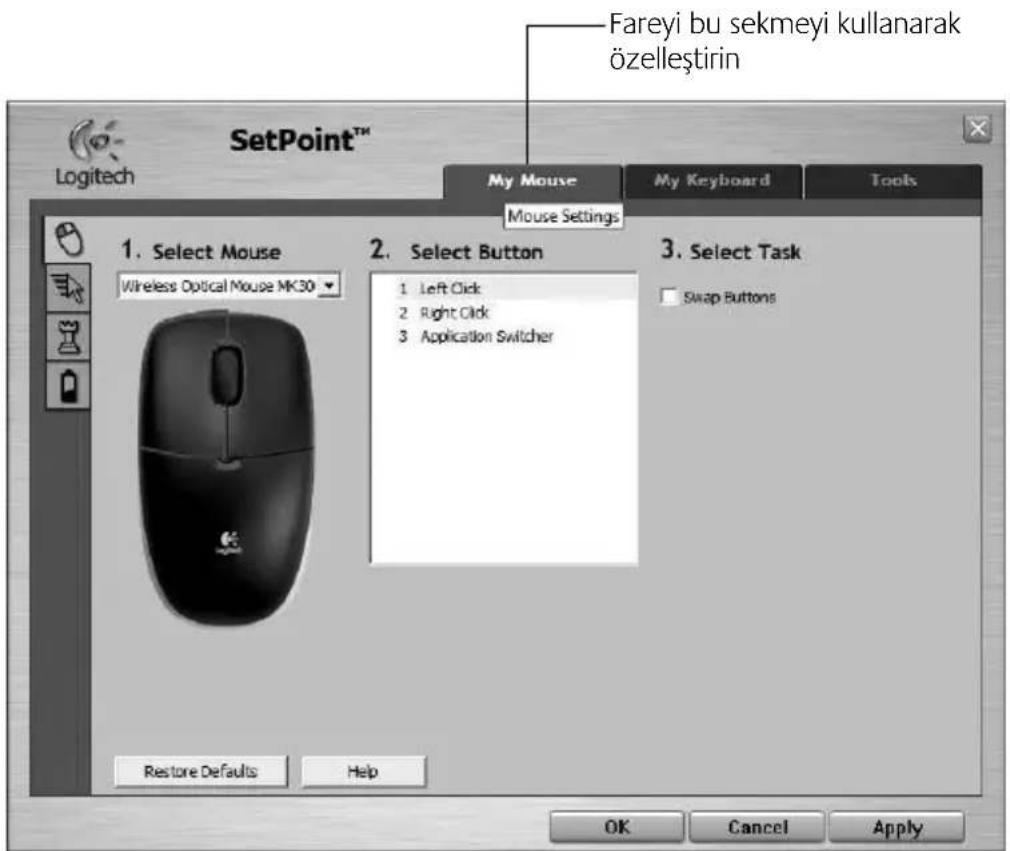
Mouse tab
Battery management


Logitech® Wireless Desktop MK300
Troubleshooting
Mouse
Keyboard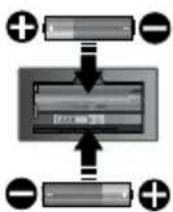
68 Turkish

Troubleshooting


Logitech® Wireless Desktop MK300


User manual


Logitech® Wireless Desktop MK300
72
Arabic


User Guide

Battery Management


Logitech® Wireless Desktop MK300


Mouse Features: Buttons and Scrolling


Logitech® Wireless Desktop MK300


User Guide


Logitech® Wireless Desktop MK300
Keyboard Features: Hotkeys


User Guide
Arabic
Logitech® Wireless Desktop MK300
www.logitech.com/support

| België / Belgique | Dutch: +32-(0)2 200 64 44;French: +32-(0)2 200 64 40 |
| Česká Republika | +420 239 000 335 |
| Danmark | +45-38 32 31 20 |
| Deutschland | +49-(0)69-51 709 427 |
| España | +34 -91-275 45 88 |
| France | +33-(0)1-57 32 32 71 |
| Ireland | +353-(0)1 524 50 80 |
| Italia | +39-02-91 48 30 31 |
| Magyarország | +36-177-74 853 |
| Nederland | +31-(0)-20-200 84 33 |
| Norge | +47-(0)24 159 579 |
| Österreich | +43-(0)1 206 091 026 |
| Polska | 00800 441 17 19 |
| Portugal | +351-21-415 90 16 |
| Russija | +7(495) 641 34 60 |
| Schweiz / Suisse Svizzera | D +41-(0)22 761 40 12F +41-(0)22 761 40 16I +41-(0)22 761 40 20E +41 (0)22 761 40 25 |
| South Africa | 0800 981 089 |
| Suomi | +358-(0)9 725 191 08 |
| Sverige | +46-(0)8-501 632 83 |
| Türkiye | 00800 44 882 5862 |
| United Arab Emirates | 8000 441-4294 |
| United Kingdom | +44-(0)203-024-81 59 |
| European, Mid. East., & African Hq. Romanel s/Morges, Switzerland | English: +41-(0)22 761 40 25Fax: +41-(0)21 863 54 02 |
| Eastern Europe | English: 41-(0)22 761 40 25 |






Logitech.

www.logitech.com

© 2009 Logitech. All rights reserved. Logitech, the Logitech logo, and other Logitech marks are owned by Logitech and may be registered. All other trademarks are the property of their respective owners. Logitech assumes no responsibility for any errors that may appear in this manual. Information contained herein is subject to change without notice.
620-001673.005

- CONTENTS
- KEYBOARD FEATURES: HOT KEYS
- LOGITECH APPLICATION 1. SWITCHER
- INTERNET ZONE
- MULTIMEDIA NAVIGATION
- VOLUME ZONE
- CONVENIENCE ZONE
- KEYBOARD FEATURES: F-KEYS
- ENGLISH
- KEY (FOR USE WITH F-KEYS)
- PRODUCTIVITY ZONE
- FAVORITES ZONE
- MISCELLANEOUS
- MOUSE FEATURES: BUTTONS AND SCROLLING
- CUSTOMIZING THE KEYBOARD AND MOUSE
- USER'S GUIDE
- BATTERY MANAGEMENT
- BATTERY SLEEP MODE
- HOW TO CHECK THE BATTERY LEVEL FOR THE KEYBOARD (SOFTWARE REQUIRED)
- HOW TO CHECK THE BATTERY LEVEL FOR THE MOUSE
- TROUBLESHOOTING
- ARE YOU EXPERIENCING SLOW OR JERKY CURSOR MOVEMENT
- ESTABLISH A CONNECTION
- USER GUIDE
- USER MANUAL
- TURKISH
- LOGITECH® WIRELESS DESKTOP MK
Brand : LOGITECH
Model : MK300
Category : Gaming Keyboard