
Slim Folio Pro - Gaming Keyboard LOGITECH - Free user manual and instructions
Find the device manual for free Slim Folio Pro LOGITECH in PDF.



| Product Type | Keyboard Case for iPad Pro |
| Brand | Logitech |
| Model | Slim Folio Pro |
| Compatibility | iPad Pro 11-inch and iPad Pro 12.9-inch (3rd generation) |
| Power Source | Rechargeable battery via USB-C port |
| Battery Life | Up to 3 months with average use of 2 hours per day |
| Connectivity | Bluetooth |
| Usage Modes | Typing, Sketching, Reading |
| Main Features | Non-backlit keyboard, shortcut keys, Apple Pencil (2nd generation) support, auto on/off |
| Apple Pencil Support | Yes, 2nd generation, magnetic attachment and storage slot |
| Indicator Lights | Status light: green (charging), red (low battery), white (pairing/reconnection) |
| Care and Cleaning | Clean with a soft, dry cloth. Avoid any liquids. |
| Safety | Remove battery for recycling in accordance with local regulations |
| Package Contents | Slim Folio Pro Keyboard Case, USB-C cable, documentation |
| Warranty | Check Logitech website for details |
Frequently Asked Questions - Slim Folio Pro LOGITECH
User questions about Slim Folio Pro LOGITECH
0 question about this device. Answer the ones you know or ask your own.
Ask a new question about this device
Download the instructions for your Gaming Keyboard in PDF format for free! Find your manual Slim Folio Pro - LOGITECH and take your electronic device back in hand. On this page are published all the documents necessary for the use of your device. Slim Folio Pro by LOGITECH.
USER MANUAL Slim Folio Pro LOGITECH
For iPad Pro 11-inch and iPad Pro 12.9-inch (3rd generation)
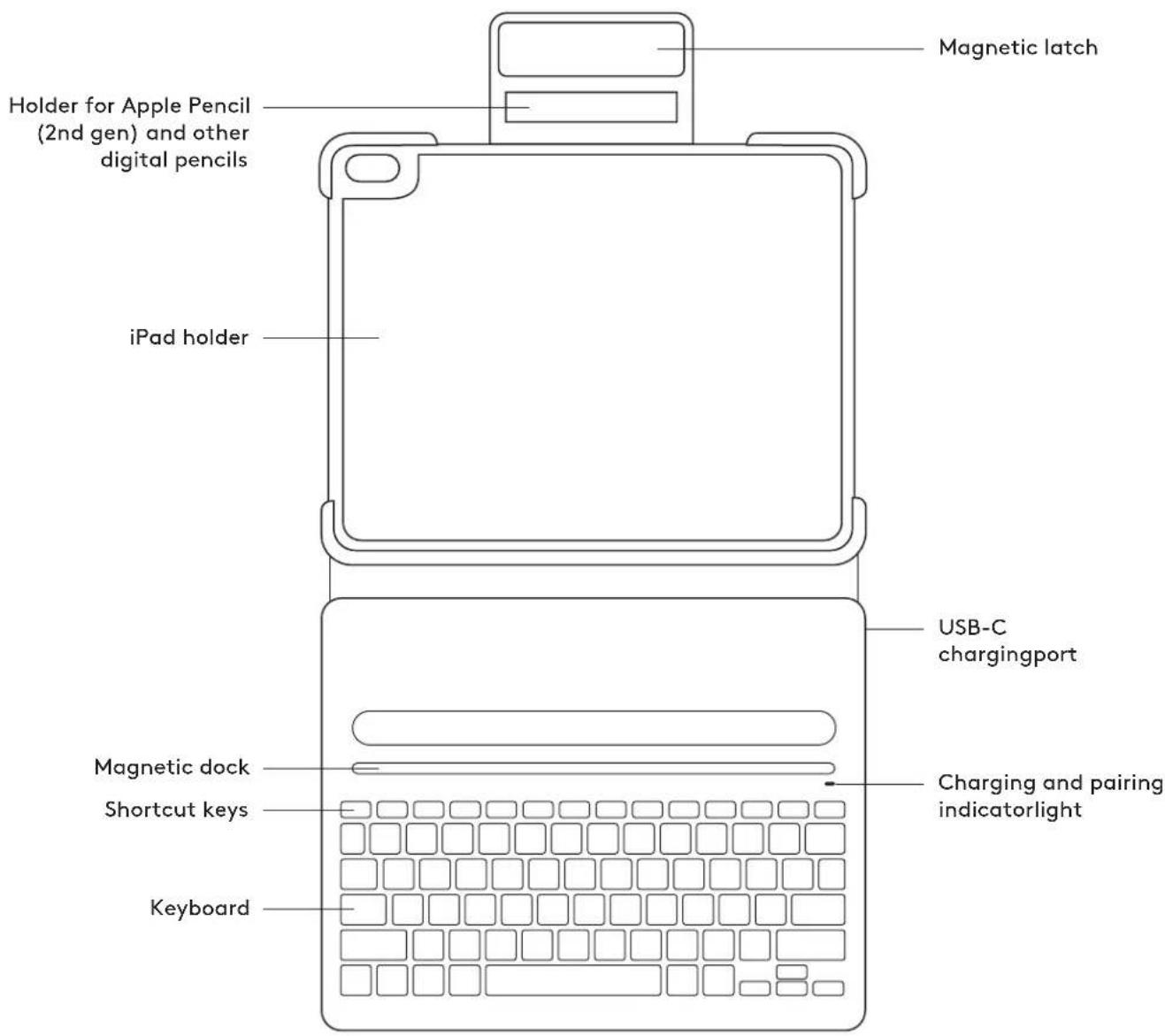
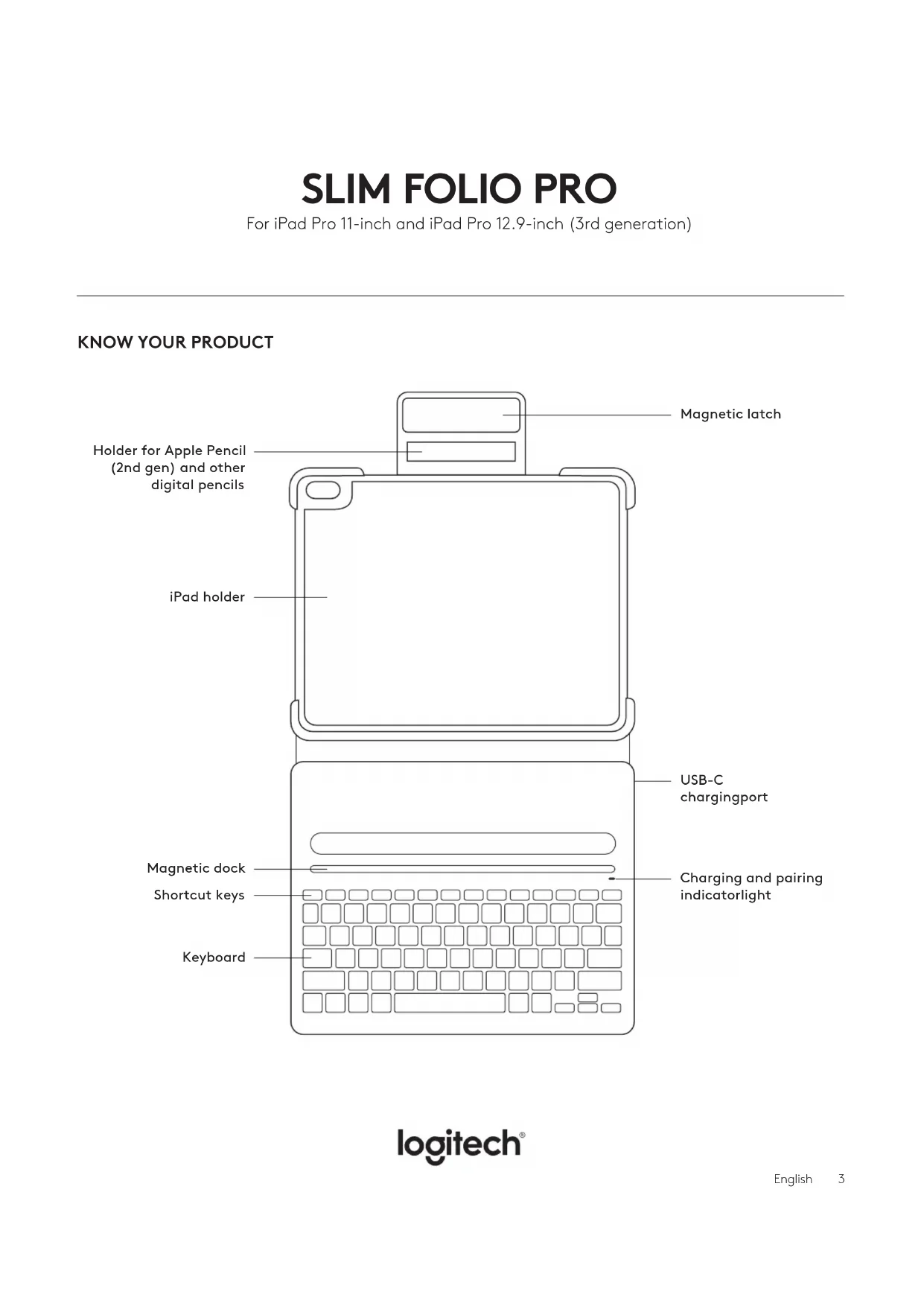
KNOW YOUR PRODUCT
SETTING UP THE CASE
- Lay keyboard case flat and slide iPad into the bottom part of the holder.
- Snap the top corners in place to secure iPad.
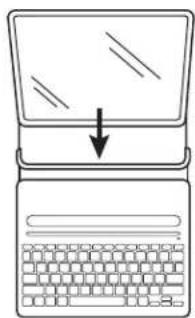
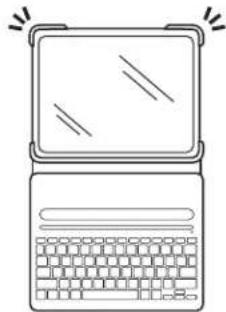
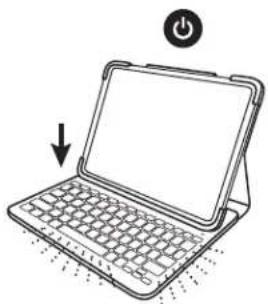
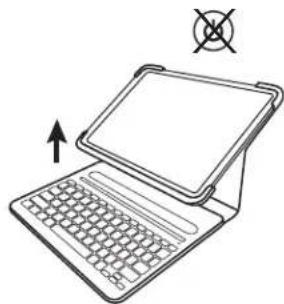
This product has an automatic wake/sleep feature. Anytime you dock the iPad in the upright typing position, the keyboard will automatically turn on. When lifted out of type mode, the keyboard will automatically turn off to save battery.
PAIRING IPAD WITH KEYBOARD
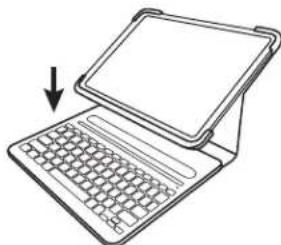
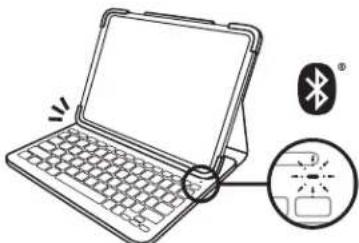
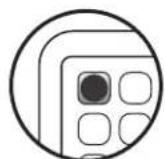
- Place iPad in the upright typing position. The indicator light will blink, which means the keyboard is ready to pair.
Light isn't blinking?
Go to iPad Settings > Bluetooth > On. Then press the Bluetooth button located in the top row of your keyboard. Hold for 2 seconds until the status light blinks. The keyboard is discoverable for 2 minutes.
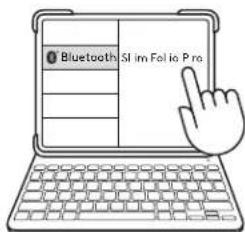
- Go to Settings > Bluetooth > Devices > Slim Folio Pro.
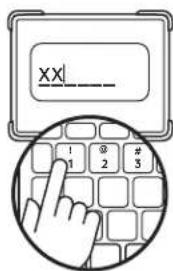
- A 6-digit code will appear on your iPad screen. Using the Slim Folio Pro keyboard, type in the numbers.
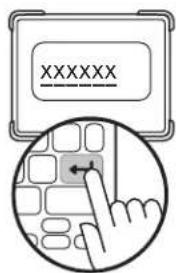
- Press the ENTER key. Now you're ready to type!
Note: If you want to use another iPad with this keyboard case, you will need to go through the pairing process again.
THREE USE MODES
Type mode
Fold the latch back until it magnetizes to the front of the case. Dock iPad in the upright position and type away.

Sketch mode
Lift iPad from magnetic dock and collapse into sketch mode. Since the keyboard is only on when iPad is in type mode, there is no need to worry about unintentional typing.

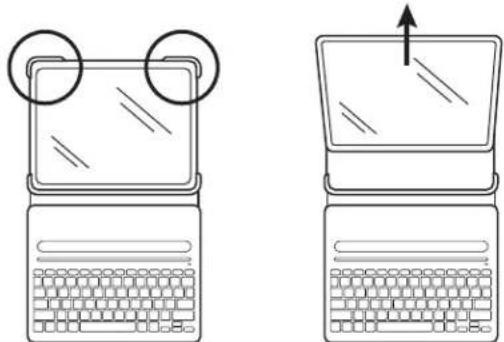
REMOVING YOUR IPAD
- To detach your iPad from the case, lay it on a flat surface.
- Push back the top corners of the case, one at a time, and then lift your iPad out of the cradle.
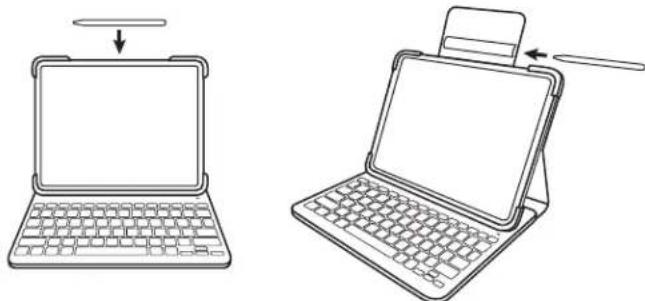
HOW TO STORE APPLE PENCIL (2ND GEN)
The sides of Slim Folio Pro are left open, so you can magnetically attach Apple Pencil (2nd gen) to the side of the iPad Pro while the case is on. There is also a slit on the inside of the Slim Folio Pro magnetic latch to keep Apple Pencil (2nd gen) secure in transit.
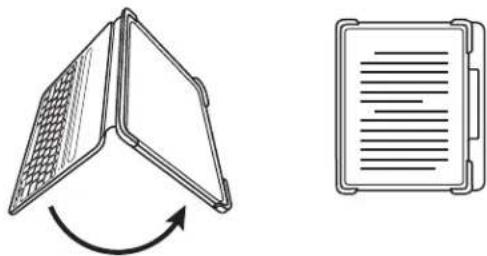
Read mode
Open the case and fold the keyboard back. The magnetic latch will keep the two sides of the case held together while you read. Since the keyboard is only on when iPad is in type mode, there is no need to worry about unintentional typing.
| LED Behavior Status | ||
| Blinking green | Battery is charging | |
| Solid green | Battery is fully charged (100%) | |
| Red | Battery level is low (less than 10%), recharge the battery | |
| Blinking white | Fast: Keyboard is in discovery mode, ready for pairing Slow: Keyboard is trying to reconnect to iPad | |
| Solid white | Bluetooth | pairing or reconnection is successful |
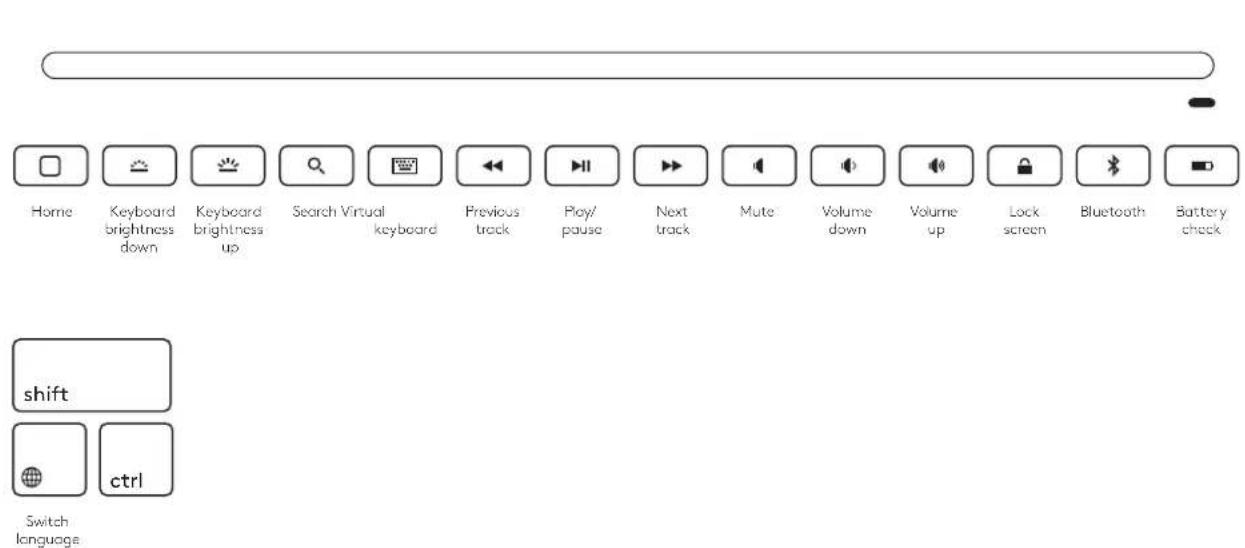
SHORTCUT KEYS
CHARGE THE BATTERY
To check battery life, press the battery check button. If the status light is red, the keyboard needs to be charged. Use a USB-C cable. This is the same cable that is used to charge iPad Pro 11-inch and 12.9-inch (3rd generation).
- Plug one end of the USB-C cable into the iPad charging port. Plug the other end into a USB-C port on your computer or a wall power adaptor.
- Charge the battery until the status light turns solid green.
BATTERY INFORMATION
- A fully charged battery provides about 3 months of use when the keyboard is used about two hours a day.
- Charge the battery if the status light turns red briefly after the keyboard turns on.
The keyboard enters sleep mode automatically if not used for a while in the typing position. Press any key to wake it. - Once iPad is disconnected from magnetic dock, the keyboard will automatically shut off to save power.
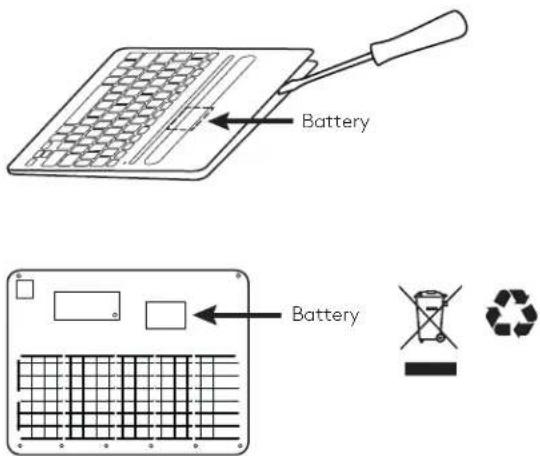
BATTERY REMOVAL FOR RECYCLING
-
Pry off top cover of the keyboard with a screwdriver.
-
Detach battery from circuit board and remove battery.
- Seperate your product and battery from household waste for recycling, where possible, according to local laws.
- For more information, contact your local authority or place of purchase or visit www.logitech.com/recycling
SLIM FOLIO PRO
© 2019 Logitech, Logi and the Logitech Logo are trademarks or registered trademarks of Logitech Europe S.A. and/or its affiliates in the U.S. and other countries.
All other trademarks are the property of their respective owners. Logitech assumes no responsibility for any errors that may appear in this manual, information contained herein is subject to change without notice.





Brand : LOGITECH
Model : Slim Folio Pro
Category : Gaming Keyboard