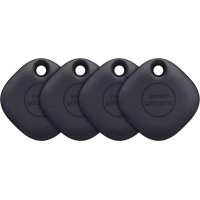
Galaxy SmartTag - GPS device SAMSUNG - Free user manual and instructions
Find the device manual for free Galaxy SmartTag SAMSUNG in PDF.

 FR
FR
 BG
BG
 CS
CS
 DA
DA
 DE
DE
 EL
EL
 EN
EN
 ES
ES
 ET
ET
 FI
FI
 HU
HU
 ID
ID
 IT
IT
 KK
KK
 KO
KO
 LT
LT
 LV
LV
 NL
NL
 NO
NO
 PL
PL
 PT
PT
 RO
RO
 RU
RU
 SK
SK
 SL
SL
 SV
SV
 TR
TR
 UK
UK
 ZH
ZH
| Product Type | GPS Tracker / Bluetooth Location Beacon |
| Brand | Samsung |
| Model | Galaxy SmartTag |
| Dimensions | Approximately 39 × 39 × 9.9 mm |
| Weight | Approximately 13 g |
| Power Supply | CR2032 coin cell battery (replaceable) |
| Battery Life | Variable depending on usage (several months) |
| Connectivity | Bluetooth Low Energy (BLE) |
| Bluetooth Range | Up to 100 m in open field (estimated) |
| Main Functions | Location via SmartThings Find, sound search, guidance, automation via button, mobile device search |
| Compatibility | Android devices 8.0 or later with SmartThings app; Samsung accounts required |
| Required Application | SmartThings (Galaxy Store / Play Store) |
| Protection Rating | Not specified (limited water and dust resistance not guaranteed) |
| Care and Cleaning | Clean with a soft, dry cloth; do not use chemical or abrasive products |
| Safety | Do not swallow the battery; keep out of reach of children; do not expose to excessive heat |
| Spare Parts and Repairability | Replaceable battery (CR2032); no user-serviceable parts; contact a Samsung service center for any issues |
| Box Contents | Galaxy SmartTag, quick start guide |
| Warranty | Manufacturer's warranty (according to Samsung terms) |
Frequently Asked Questions - Galaxy SmartTag SAMSUNG
User questions about Galaxy SmartTag SAMSUNG
0 question about this device. Answer the ones you know or ask your own.
Ask a new question about this device
Download the instructions for your GPS device in PDF format for free! Find your manual Galaxy SmartTag - SAMSUNG and take your electronic device back in hand. On this page are published all the documents necessary for the use of your device. Galaxy SmartTag by SAMSUNG.
USER MANUAL Galaxy SmartTag SAMSUNG
The Galaxy SmartTag is a device that can be attached to pets or objects in order to prevent their loss and to stay updated on their location. You can also launch automation features through the SmartTag using its button.
Connect a SmartTag to your mobile device through the SmartThings app to check the location of the device and get information about where the device was lost.
Read me first
Please read this manual before using the device to ensure safe and proper use.
- Descriptions are based on the device's default settings.
- Some content may differ from your device depending on the region, service provider, model specifications, or device's software.
- Software, sound sources, wallpapers, images, and other media provided with this device are licensed for limited use. Extracting and using these materials for commercial or other purposes is an infringement of copyright laws. Users are entirely responsible for illegal use of media.
- Default apps that come with the device are subject to updates and may no longer be supported without prior notice. If you have questions about an app provided with the device, contact a Samsung Service Center.
- Modifying the device's operating system or installing softwares from unofficial sources may result in device malfunctions and data corruption or loss. These actions are violations of your Samsung licence agreement and will void your warranty.
- Do not use your SmartTag in a hot environment of near a fire.
- Do not swallow or disassemble any battery, chemical burn hazard.
-
This product contains a button cell battery. Do not swallow the battery. Swallowing the battery can result in severe internal burns within just 2 hours and death in severe cases.
-
Keep batteries away from infants and children. If the battery compartment does not close securely, stop using the product and keep it away from infants and children. If you think the batteries might have been swallowed or inserted inside any part of the body, seek immediate medical attention.
- This product includes certain free/open source software. To see the instructions for viewing the open source licence, go to the Samsung website (opensource.samsung.com).
Instructional icons
Warning: situations that could cause injury to yourself or others
Caution: situations that could cause damage to your device or other equipment
Notice: notes, usage tips, or additional information
Device layout
Package contents
- SmartTag
Quick Start Guide

-
The items supplied with the SmartTag and any available accessories may vary depending on the region or service provider.
-
The supplied items are designed only for this device and may not be compatible with other devices.
- Appearances and specifications are subject to change without prior notice.
- You can purchase additional accessories from your local Samsung retailer. Make sure they are compatible with the device before purchase.
- Use only Samsung-approved accessories. Using unapproved accessories may cause the performance problems and malfunctions that are not covered by the warranty.
- Availability of all accessories is subject to change depending entirely on manufacturing companies. For more information about available accessories, refer to the Samsung website.
Device layout
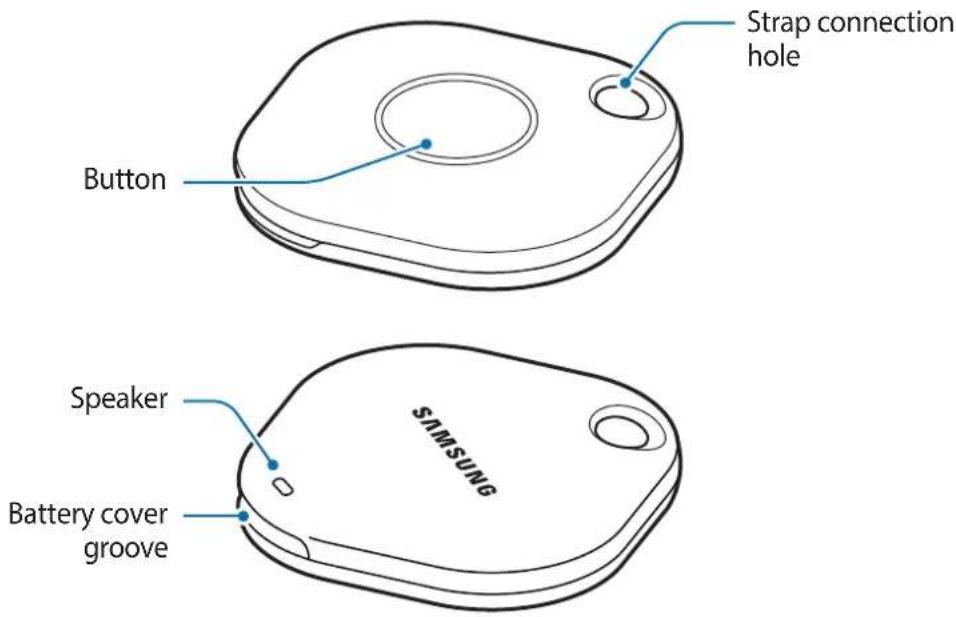
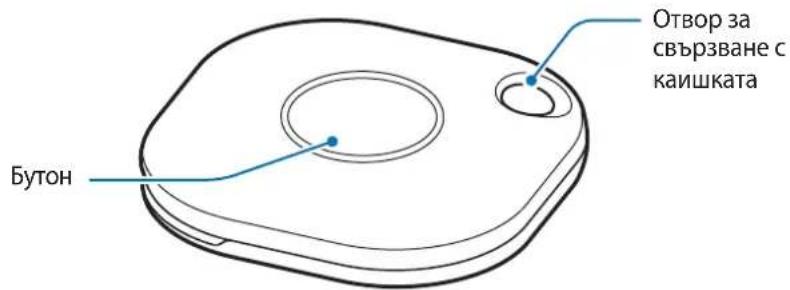
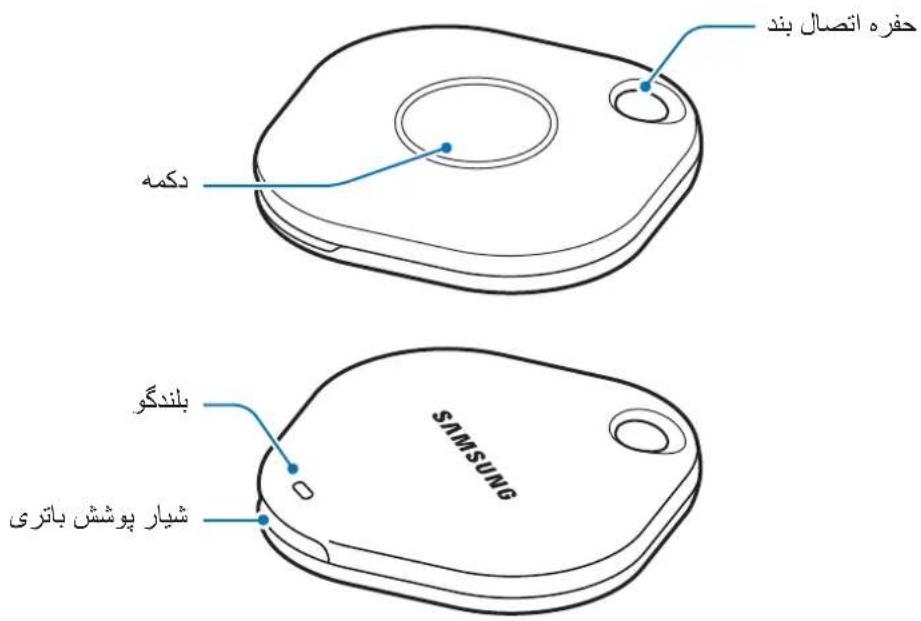
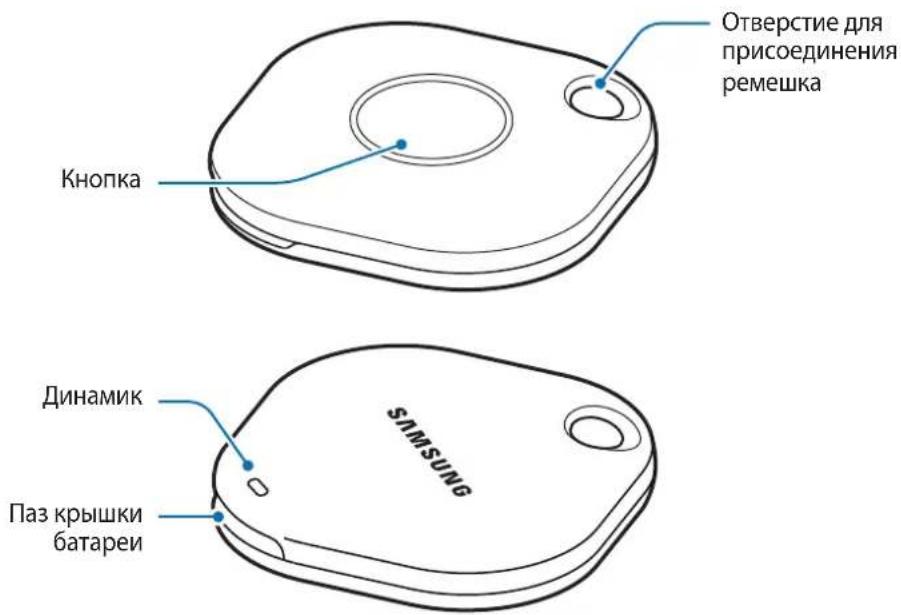
Button
| Button Function | |
| Button | • Press to turn off the SmartTag alerts notification sound when it rings. • Press twice to find the mobile device connected to the SmartTag. • Press or press and hold to launch the automation feature you set. |
Replacing a battery
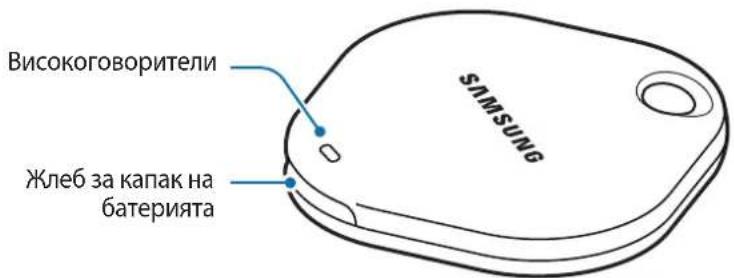
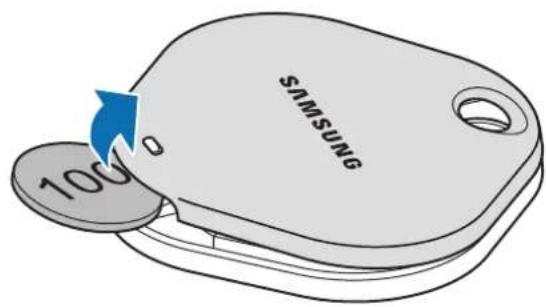
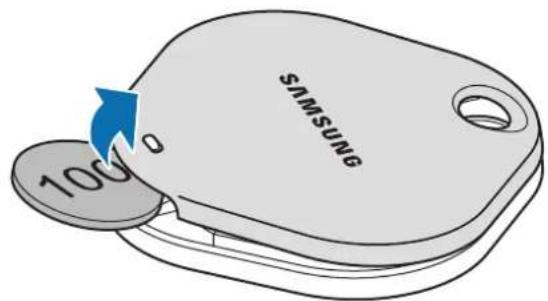
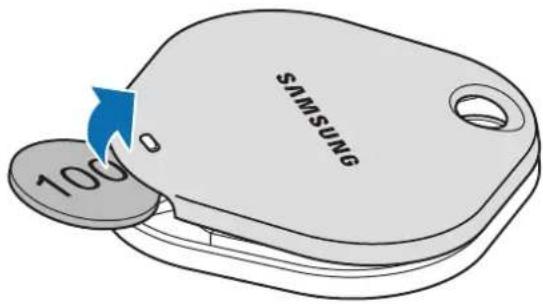
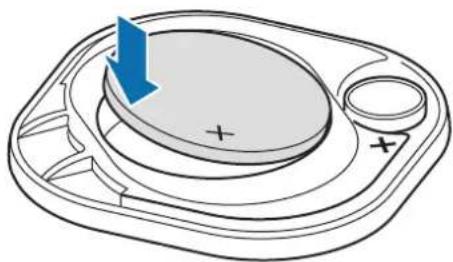
1 Open the battery cover groove using a coin.
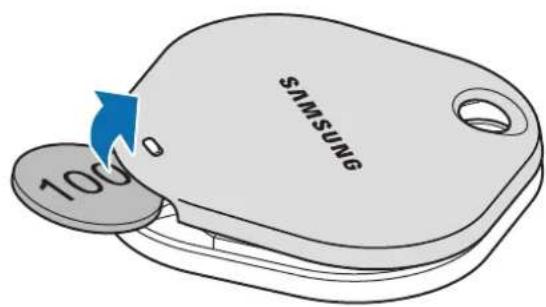
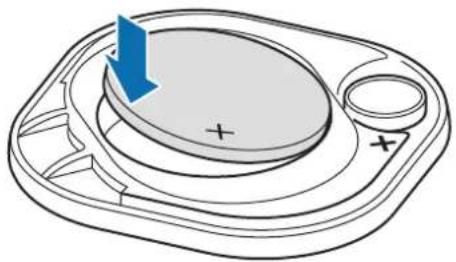
2 Insert the battery with the positive terminal properly aligned with the + symbol inside the SmartTag.
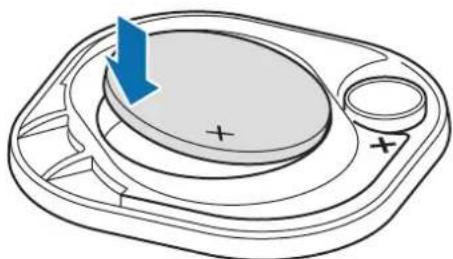
3 Place the battery cover over the SmartTag and press on the battery cover until it clicks into place.
Be careful to not hurt your fingernail when opening the battery cover groove while replacing the battery.
-
When the battery is discharged, replace the battery.
-
Do not recharge the provided battery.
Before using the SmartTag
Installing the SmartThings app on your mobile device
Before using a SmartTag, you should install the SmartThings app on your mobile device.
Depending on your mobile device, you can download the SmartThings app from the following places:
Samsung Android mobile devices: Galaxy Store, Play Store

- You cannot install the SmartThings app on mobile devices that do not support SmartTagsyncing. Ensure that your mobile device is compatible with the SmartTags.
- You must register and sign in to your Samsung account to use the SmartThings app.
Connecting SmartTags to a mobile device
1 Launch the SmartThings app on your mobile device.
Update the SmartThings app to the latest version.
2 Press the button of the SmartTag.
The SmartTag will make a sound and be activated.
3 When the pop-up window informing that your SmartTag is detected appears on your mobile device, tap Add now.
If the connection pop-up window does not appear, select +→ Device → Tag/Tracker.
4 Follow the on-screen instructions to complete the connection.
When the connection is complete, your SmartTag will appear in the list of devices in the SmartThings app.
5 On the SmartThings app screen, tap SmartThings Find to download additional plugins.
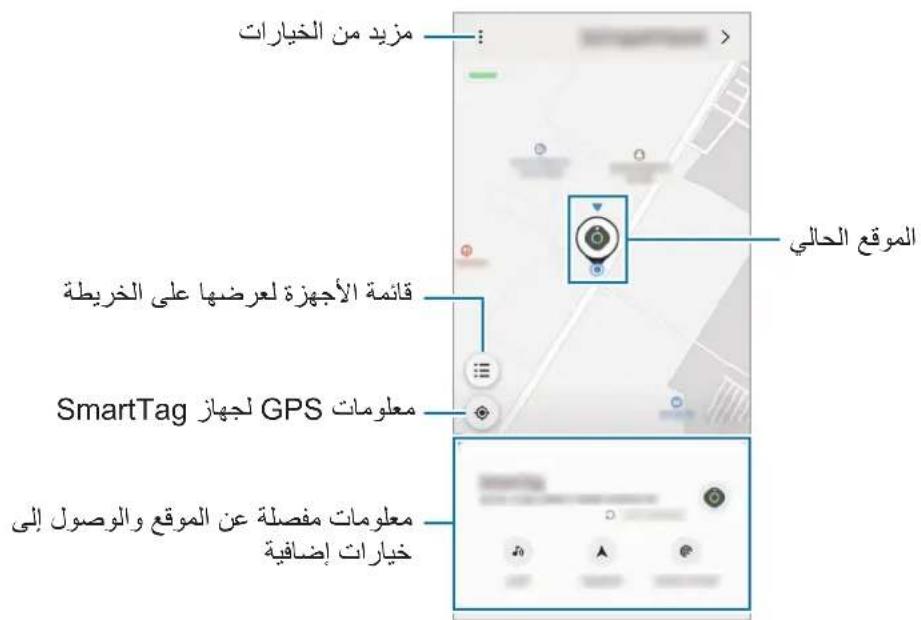
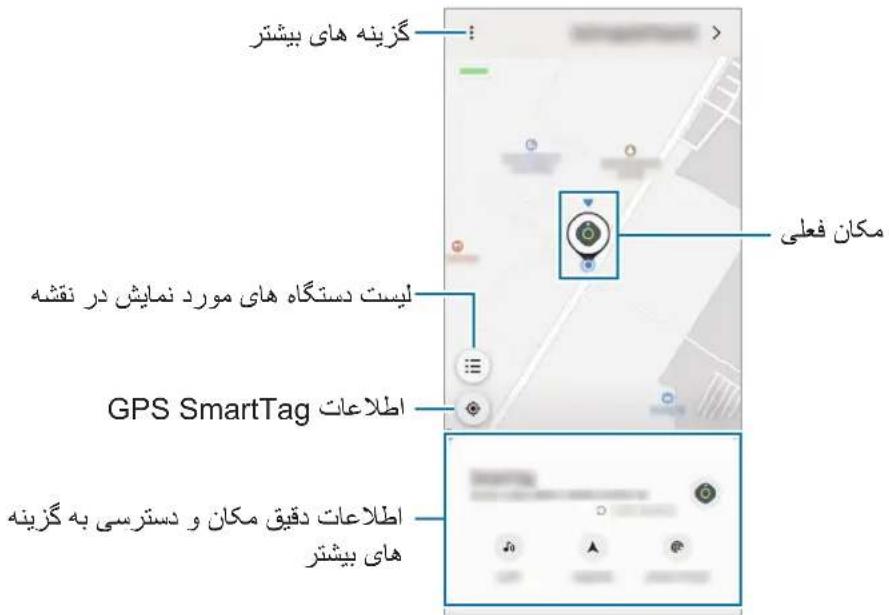
When the download is complete, the current location of the device will be displayed on the map.
Connecting SmartTags by scanning the QR code
You can also connect a SmartTag to your mobile device by scanning its QR code.
1 Launch the SmartThings app on your mobile device.
2 Select +→ Device → Scan QR code to scan the QR code on the box.
3 Follow the on-screen instructions to complete the connection. When the connection is complete, the SmartTag will appear in the list of devices in the SmartThings app.
4 On the SmartThings app screen, tap SmartThings Find to download additional plugins. When the download is complete, the current location of the device will be displayed on the map.

- If you are registering a SmartTag for the first time, the registration process may not be smooth depending on the surrounding environment. You may have to try 2-3 times before successfully completing registration.
- Supported features may differ depending on the mobile device and software version.
- You can use SmartThings Find only on Samsung mobile devices that run Android 8.0 or later, as well as Samsung mobile devices that support the Find My Mobile feature.
- The SmartTag is a wireless communication device, and performance may be degraded when multiple devices are connected simultaneously.
Using the SmartTag
Viewing a SmartTag's location
You can remotely view your SmartTag's location from the SmartThings app on your mobile device and find its location by triggering a notification sound on the SmartTag.
1 Launch the SmartThings app on your mobile device.
2 Tap on your SmartTag card and tap View map. Alternatively, tap SmartThings Find. The current location of the device will be displayed on the map.

- The location of the SmartTag is based on GPS and Wi-Fi positioning results of the mobile device connected to the SmartTag or the nearby Android mobile device, which may have some errors due to things like the surrounding environment or GPS failure.
- If the current location of the SmartTag does not appear, the SmartTag's battery has been discharged or has not been discovered by an Android mobile device that can check the SmartTag's location information. Activate the related feature to get notifications of the SmartTag's location information.
- The SmartTag's usage time may vary depending on the user's environment and the usage pattern.
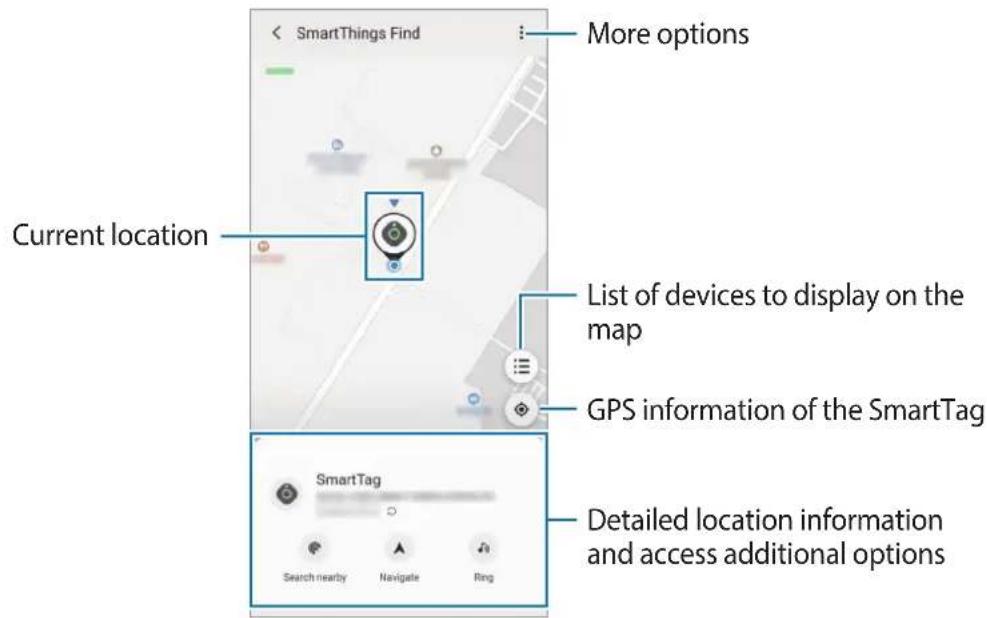
Checking SmartTag location with a notification sound
You can find your SmartTag by triggering a notification sound.
1 Launch the SmartThings app on your mobile device.
2 TapSmartThings Find.
3 Tap Ring → Start. The SmartTag alerts notification will sound.
To turn off the notification sound, follow the on-screen instructions to turn off notifications or press the SmartTag's action button once.
Checking SmartTag location by signal strength
You can find the SmartTag's location by detecting its signal strength.
1 Launch the SmartThings app on your mobile device.
2 Tap SmartThings Find → Search nearby.
The signal screen of the SmartTag you are looking for will appear. The closer you are to the location of the SmartTag you are looking for, the stronger the signal strength indicated on the screen will be.
You can trigger the SmartTag alerts notification sound by tapping
Getting SmartTag location guidance
If your SmartTag is lost or far away from you, you may be directed to the location where the SmartTag is located.
1 Launch the SmartThings app on your mobile device.
2 Tap SmartThings Find → Navigate.
Directions to the place where the SmartTag is located will begin.

If a supported navigation app is not installed on your mobile device, install the desired app from the list of supported navigation apps first and get directions.
Finding mobile devices
If you do not see your mobile device nearby, the SmartTag can help you find it.
Press the SmartTag's action button twice.
The mobile device connected to the SmartTag will sound its ringtone.
To turn off the ringtone on your mobile device, follow the on-screen instructions to turn off the ringtone.

- This feature is not available when the SmartTag and mobile device are not connected.
- This feature is available when the Let tag find your device feature is activated.
Using the automation feature
When the SmartTag is connected to a mobile device, you can launch the automation feature by pressing or pressing and holding the SmartTag button.
1 Launch the SmartThings app on your mobile device.
2 After tapping on your SmartTag card, select an option under Use button for automations.
3 Tap + and follow the on-screen instructions to add an action.
When you press or press and hold the SmartTag button, the automation action you set will be launched.
Managing automation features
Launch the SmartThings app on your mobile device, tap on your SmartTag card, and then select an option under Use button for automations. The automation action you added appears.
To edit an action, tap the action you want to edit, edit the details, and then tap Save → Save. To delete an action, tap - next to the action you want to delete.
Configuring the SmartTag
Adding to Home screen
If you use the SmartTag frequently, you can run it by adding a shortcut to the Home screen of your mobile device.
1 Launch the SmartThings app on your mobile device.
2 Tap on your SmartTag card.
3 Tap → Edit → Add to Home screen.
4 Tap and hold the icon on the screen or tap Add. The shortcut will be added to your mobile device's home screen.
Setting devices to display on the map
You can choose which devices to display on the SmartThings Find map.
1 Launch the SmartThings app on your mobile device.
2 Tap SmartThings Find → → Show/hide devices. Your SmartTag and a list of all the devices added to Find My Devices through your Samsung account will appear.
3 Select a device to display on the SmartThings Find map, and then tap Save.
General settings
You can view the information related to the SmartTag and change various settings.
1 Launch the SmartThings app on your mobile device.
2 Tap on your SmartTag card.
Status
You can view the location status of the SmartTag.
Tap View map to view the detailed location information of the SmartTag.
Let tag find your device
If you do not see your mobile device nearby, the SmartTag will help to find it.
Tap the switch to activate it. Refer to Finding mobile devices for more information.
Use button for automations
When the SmartTag is connected to a mobile device, you can launch the automation feature by pressing or pressing and holding the SmartTag button. Refer to Using the automation feature for more information.
Volume
Adjusts the volume of the SmartTag.
Tap Volume to select an option you want. You can also tap to make the SmartTag alert a notification sound.
Ringtone
Change the notification sound that the SmartTag emit when you are looking for the SmartTag's location.
Tap Ringtone to select the notification sound you want.
Battery
You can view the battery level of the SmartTag. You can also view the battery information by tapping i.
Editing
Tap → Edit.
Editing a SmartTag name
You can check the location and room where your SmartTag is set and change its name.
After changing the SmartTag name, tap Save.
Add to Home screen
If you use the SmartTag frequently, you can run it by adding a shortcut to the Home screen of your mobile device.
Tap Add to Home screen. Refer to Adding to Home screen for more information.
Delete device
You can register a SmartTag with another Samsung account by deleting it.
Tap Delete device. The SmartTag will be reset.
Configuring SmartThings Find
You can change various settings related to SmartThings Find.
1 Launch the SmartThings app on your mobile device.
2 Tap SmartThings Find → Settings.
Allow devices to be found
You can select the device you want to find and change its settings using SmartThings Find.
Encrypt offline location
When you send offline location information of your SmartTag to Find My Device through another device, you can encrypt the location of your SmartTag for increased security.
Tap the switch of the device on the list you want to encrypt your location information for, and then follow the on-screen instructions to encrypt your location information.
Navigation app
You can set and download the default navigation app to use when you are guided to the place where the SmartTag is located.
Help
View help information to learn how to use the SmartTag and to see its related information.
1 Launch the SmartThings app on your mobile device.
2 Tap on your SmartTag card.
3 Tap → Help.
SmartTag information
You can view the SmartTag's software information.
1 Launch the SmartThings app on your mobile device.
2 Tap on your SmartTag card.
3 Tap → Information.
Appendix
Troubleshooting
Before contacting a Samsung Service Center, please attempt the following solutions. Some situations may not apply to your SmartTag.
SmartTag does not turn on
- When the battery is completely discharged, your device will not turn on. Check the battery before using the SmartTag.
- The battery may not be inserted properly. Insert the battery again.
After wiping the terminals, try reinserting the battery.
SmartTag freezes or encounters an error
Try the following solutions. If the problem is still not resolved, contact a Samsung Service Center.
Restarting the SmartTag
If the SmartTag keeps freezing or slowing down, remove the battery and reinsert it.
Forcing restart
If the SmartTag is frozen and unresponsive, you can reset the SmartTag.
First remove the battery by opening the battery cover groove. After pressing and releasing the button once, insert the battery while pressing the button again and hold it for 5 seconds until the SmartTag makes a sound.
If the battery has not been properly recognised, the SmartTag will make a sound immediately after inserting the battery. If this happens, try the above method again.
Another Bluetooth device cannot locate your SmartTag
- Ensure that the device you wish to connect with is ready to be scanned or connected to.
- The location of the SmartTag is based on the GPS and Wi-Fi positioning results of the device connected to the SmartTag, and some errors may occur due to the surrounding environment or GPS failure. Make sure that the device you want to connect to your SmartTag is nearby.
- Reset your SmartTag and try again.
If the tips above do not solve the problem, contact a Samsung Service Centre.
You cannot find your SmartTag's current location
GPS signals may be obstructed in some locations, such as indoors. Set the mobile device connected to the SmartTag to use Wi-Fi or a mobile network to find the current location in these situations.
A small gap appears around the outside of the SmartTag
- This gap is a necessary manufacturing feature and some minor rocking or vibration of parts may occur.
Over time, friction between parts may cause this gap to expand slightly.
Copyright
Copyright © 2021 Samsung Electronics Co., Ltd.
This manual is protected under international copyright laws.
No part of this manual may be reproduced, distributed, translated, or transmitted in any form or by any means, electronic or mechanical, including photocopying, recording, or storing in any information storage and retrieval system.
Trademarks
- SAMSUNG and the SAMSUNG logo are registered trademarks of Samsung Electronics Co., Ltd.
- Bluetooth® is a registered trademark of Bluetooth SIG, Inc. worldwide.
- Wi-Fi®, Wi-Fi Protected Setup™, Wi-Fi Direct™, Wi-Fi CERTIFIED™, and the Wi-Fi logo are registered trademarks of the Wi-Fi Alliance.
- All other trademarks and copyrights are the property of their respective owners.
Démarrage
Copyright © 2021 Samsung Electronics Co., Ltd.
Copyright © 2021 Samsung Electronics Co., Ltd.
Copyright © 2021 Samsung Electronics Co., Ltd.
Alternatively, you can use the SmartTag to detect any disaspositions.
Copyright © 2021 Samsung Electronics Co., Ltd.
Copyright © 2021 Samsung Electronics Co., Ltd.
Copyright © 2021 Samsung Electronics Co., Ltd.
Smart Tag poate gashi disp.dvs.
- SmartTag
KpaTko pBKOBOCTBO

- Enemntute,doCTaBeHn cbc SmartTag,KaKTo N BcKaKbN akcecoapn, Morat da ce pa3nUaBt B 3aBncmOCT OT perNoHa IIN DoCTaBuNka Ha ycIyI.
- Доставец са пedingаизаши само за TOBA усточь и може на He ca CBMECTIMСдруг усточь.
BbHnHnT Bn n CneuΦkaunTe ca npedMeT Ha npomraHa 6e3 npedn3BecTne. - Moxete da 3akynite doonbHnTeHN aKcecoapn OT Baunr MeCTeH npOabau Ha Samsung. IpeiN 3aknyBaHe ce yBepTe, ye Te ca CbbMeCTUMC yCTPOIcTBOTO.
- Използваite само одобрени OT Samsungахсясоари. Използваши.To на Heодобрени akссясоари моче за пчунни поблеси с пожиювдітелноctТи и НИЗправноctи, кОТTO He ce nOKрпВаTOT rapaнцята.
HaHnucTtHa BCnKn akcecoapn noJnxHa npomHa n3zraLo B 3aBncmocT OT npOn3BoNTeIte. 3a noBeue HnΦopMaunr 3a HauiHnTe akcecoapn ce o6bphEt KbM ye6 caTa Ha Samsung.
OΦopMJIeHnE Ha yCTpOiCTBOTO
bytoH
| Бутон Функция | |
| Бутон | •Натiousе, за за Истioculte 3Byka за Истioculte 3a поедупожденья на SmartTag, korato 3Вьни. •Натiousе два пьти, за за НамерITE мобiliansOTO устюстvo, CBьрзано Кьм SmartTag. •Натiousе ил наатiousе и за ръж Arte, за засторate заададана оТВас Функция за AVTomatinascaць. |
Смяна на застения
1 OtbopeTe Xnle6a 3a Kanaka Ha 6aTePnTa C NOMOHTa Ha MOHeTa.
2IocTabete 6aTepyTa c noJoxHteHHn H3BOD npabHnHO noDpaBHeN CbC CmBOHa + BbTpE B SmartTag.
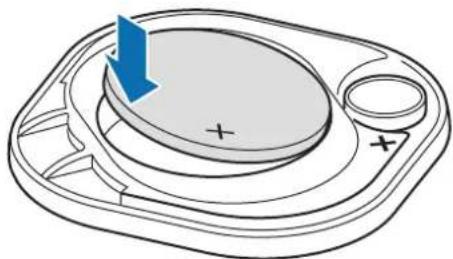
3 IocTabete KaNaka Ha 6aTePnra Ta Bbpxy SmartTag n HataChete KaNaka Ha 6aTePnra, Dokato upaKHe Ha MACTOTO cn.

BHMaBaIte Da He HapaHtE HOKbTcN, KOraTO OTbApTe XKe6a 3a KaNaka Ha 6aTePnTa, DOKaTO CMeHrTe 6aTePnTa.

Korato 6aTepyrae n3ToueHa, CMeHete 6aTepyra.
He npesapexkaTe npedocTabeHaTa 6aTepy.
HactpoIBaHe Ha yCTpoIcTba 3a NOKa3BaHe Ha KapTaTa
Mожete Да ИЗбере ТЕ КОУсточь ДА се пOKa3ВаТ Ha KapТаТ SmartThings HAMIPAHe.
1 CtaptnpaTe npnloxeHneTo SmartThings Ha BaWeTo MO6uHNo yCTpoiCTBO.
2 YuKHeTe SmartThings Find → 三 → -→ POKa3BaHe/CKPnBaHe Ha yCTpoiCTBa.
Ue ce noBn Baunr SmartTag n cnncbK C BCnKu yCTpoiCTBa, Do6aBeHn KbM HamipaHe Ha moeTo yCTpoiCTBO Upe3 Baunr akayHT Ha Samsung.
3 N36epTe yctpoiCTBO 3a noka3BaHe Ha KapTaTa SmartThings HAMipaHe i cIeT TOBa yKHeTe 3annc.
O6uHaCTpOiKn
MoxKeTe Da BUnTe INHΦOpMaunTa,CbP3aHa cBc SmartTag,ua npomeHte pa3nUHN HactpoKn.
1 CtapnpaTe npnIOKeHneTo SmartThings Ha BaSeTo MO6nIHo yCTpoIcTBO.
2 UyKHeTe Baaata SmartTag Kapta.
CbCTOHHne
MoxKeTe Da BnDInTe CbCToHHeTo Ha MeCtOnoJIoXeHHeTo Ha SmartTag.
UyKHeTe IperIeHa KapTa, 3a da BnDInTe noOp6Ha INHopMaunr 3a MeCtOnoJooKeHneTo Ha SmartTag.
Hamipane c yctp. 3a npocnejBahe
Ako He BuxkdaTe Mo6nHTo cn yctpoiCTBO Ha6n3o, SmartTag ue Bu NOMorHe da Ro Hamepnte.
UyKHeTe npEbkIIOuBaTeTn, 3a da ro aKTINBnPaTe. OsbpHeTe ce KbMaHAmnpaHe Ha Mo6nHn yCTpoiCTBa 3a noBeue HOpMaun.
U3nOJ3B.yCTp.3a aBTOMaTn3aun
Korato SmartTag e cBbP3aH KbM MO6NJHO yCtpoiCTBO, MoKeTe da CTapTupate φ yHKuIraTa 3a ABTomAtn3aun, KaTO HaTNCHeTe Nn HATNCHeTe n 3aDbPkInTe 6yToHa SmartTag. O6bpHeTe ce KbM IV3noJ3BaHe Ha φ yHKuIraTa 3a ABTomAtn3aun 3a NOBeue IN φ opMaun.
CnlaHa3Byka
Perynipa cnilata Ha 3Byka Ha SmartTag.
UyKHeTe Cnla Ha 3Byka, 3a da n36epeTe onuia no n36op. MoKeTe cbso da yukheTe 3a da hakapate SmartTag da n3daJe 3Byk 3a n3BecTBAhe.
ToH Ha 3BbHeHe
PpomeHete 3Byka Ha n3BecTneTo, KOITo SmartTag n3daBa, KOraTo Tbpcnte MeCtOnoJoxHeNeTo Ha SmartTag.
UyKHeTe ToH Ha 3BbHeHe, 3a Da n36peTe JKeNaHn OTo Bac 3Byk 3a N3BeCTBaHe.
Батугия
Moxete da BnITE HIBOTO ha 6aTePnraHa SmartTag. Moxete cBIO da BnITE nHΦopMaunra 3a 6aTePnra, KaTO uKHeTe i.
PedaKtnpahe
UyKHeTe → PeJaKTnpaHe.
PekaTpaHe Ha Ime Ha SmartTag
MoxTe Da npOBepuTe MeCTOnOToXeHHeTo n cTaTa, KbDeTo e HacTpoEH SmartTag, N da npOMeHtE HMeTo My. CNeI KaTo npOMeHtE HMeTo Ha SmartTag, yKHeTe3annc.
SmartTag He ce BkIIOUvBa
- Ako 6aTepeNa e HaNbIHO I3ToSeHa, yCTpoIcTBOTo Bn HЯMa da Ce BKIOUH. ПрOBepeTe 6aTepeNa, npedi Da n3PON3BaTe SmartTag.
BaTepya MoKe Ja He e NocTaBeHa npabuHNo. NocTabe 6aTepya OTHOBO. - Cnékato n3tpneTe KJIemnte, onnTaIte da noCTaBnte oTHO6aTePnIyTa.
SmartTag забива пли се поярава решka
OnntaTe cneHnTe peWeHnA. Ako npo6bEmbT He ce pa3peuH, ce cbpXeTe cbc cepBn3eUeHTbp Ha Samsung.
PecraptiipaHe Ha SmartTag
AkoSmartTag npoIbJIkaBa da 3a6nBa nIN 3a6abra, IN3BaIeTe 6aTepeTAt I NOCTaBeTe OTHOBO.
Pecrtipahe hacnla
Ako SmartTag e 3a6nI n He pearupa, MoKeTe da HynpaTe SmartTag.
Пьрви n3baTe 6aTePnra, kaTO OTbOpnte JkIe6a 3a KaNaka Ha 6aTePnra. CneД kaTO haTuscheTe n OCBO6OuTe BeHbX 6yToHa, noCTaBeTe 6aTePnra,doKATO HAtUckate 6yToHa OTHOBo I rO 3aDpBxKe 3a 5 cekyni DOKaTo SmartTag n3daTe 3Byk.
Ako 6atepna He e pa3no3nata npabunho, SmartTag ue n3dae 3ByK BEdnag cnei noctabraHTo Ha 6atepya. Ako ToBa Ce cnuy, ONITaIte OTHOBO rOpHnMa MeToI.
ДугоBluetooth устюв He може за наимер ваша SmartTag
- YBepeTe Ce, Ye yCTpOInCTBOTo, C KOeTO NCKaTe Da Ce CbbpKeTe, e FOToBO 3a cKaHnPaHe mN CBbp3BaHe.
- MectonoloxeneTo Ha SmartTag ce ochobaba ha pe3yntaTe ot GPS n Wi-Fi no3nioHnpaHeto Ha yctpoiCTBOTO, cBbpr3aHO KbM SmartTag, n MOKe da Bb3NkHaT HraKo rpeKu npaDi 3ao6nKaIaTa cpeDa nn npo6nem c GPS. Ybepete ce, ye yctpoiCTBOTO, Koeto nckate da cBbpxeTe c Baunia SmartTag, e Na6n30.
- HynipaiTe SmartTag n onntaTe oTHOBO.
Ako ropnHe cBBeTn He pa3peWaT npo6NeMa, CbByKeTe ce cbc cepBn3eH cHTbp Ha Samsung.
He moxe Te da hamepuTe tekuyoTo MeCTOnOJoxeHne Ha Baunia SmartTag
GPS cnHajnte moat da 6bDat B3npenTCTBaHn Ha HAKO MeCTa, HApimep Ha 3akpnto. 3aaiTe Mo6uHOTO yctpoiCTBO, CBbp3aHO KbM SmartTag da n3noJ3Ba Wi-Fi nnMo6uHa mpeka, 3a da Hamepnte TekyuTo MEcToIOnIOJKeHne B Te3N CNTyaU.
Copyright © 2021 Samsung Electronics Co., Ltd.
ToBa pBkoBoIDCTBO e 3aUHTeHO OT MeXdyHapOdHN 3aKOHn 3a aBTOpCKn npBaBa.
Hikor qact ot pbooDCTBoto He moke da 6bde Bb3npoun3BexkaHa, pa3npocpaHraBaHa, npebeKdaHa nn npexBpnaHa no KaBAto n da e oopma nn no KaBTO n da e NaHH, eJeKTPOHe nn mexaHueh, B TOBa cnCno fOToKOpnPaHe, 3aNN cBxpaHeHne B KaBAto n da e CnCTema 3a INfOpMaunHO CbxpaHeHne n N3BnuuHaHe.
TbproBcN MapKn
SAMSUNG n IoroTo ha SAMSUNG ca pernctpupaHn Tbprobckn MapKn Ha Samsung Electronics Co., Ltd.
- Bluetooth® e perúctpupaHa TbproBcka Mapka Ha Bluetooth SIg, Inc. no ceyra CBAr.
Wi-Fi®, Wi-Fi Protected Setup™, Wi-Fi Direct™, Wi-Fi CERTIFIED™ и логото Wi-Fi cap eructpupaи Tьрrobсkn Марки на Wi-Fi Alliance.
BcnuKn npyTbproBCKn MapKn n ABTOpcn npaba ca co6CTBeHOCT Ha cBoTBeTHnte IM Co6CTBeHnU.
Kako započeti
O Galaxy SmartTag-u
Copyright © 2021 Samsung Electronics Co., Ltd.
Ovaj je prisćnik za实施细则 medunarodnim zakonima o zašiti autorskih prava.
Niti jegan dio ovog prisučnika ne smije se reproduci rati, distribuirati, prevoditi ili prenositi u bilo kojem obliku, ni na koji način, elektronički ili mehanički, uključujuci fotokopiranje, snimanje ili pohranjivanje na bilo kojem mediju za pohranu informaciye i sustavu dohvata podataka.
Zašitni znakovi
SAMSUNG i SAMSUNG logotip registrarani su zašitni znakovi Samsung Electronics Co., Ltd.
- Bluetooth® je registrirani zašitni znak Bluetooth SIG, Inc. u cijelom svijetu.
- Wi-Fi®, Wi-Fi Protected Setup™, Wi-Fi Direct™, Wi-Fi CERTIFIED™, i Wi-Fi logotip registrarani su zašitni znakovi Wi-Fi Alliance.
Svi su ostali zašitni znakovi i autorska prava vlasništro svojih odgovarajućih vlasnika.
Prvi koraci
O Galaxy SmartTag-u
Copyright © 2021 Samsung Electronics Co., Ltd.
Ovaj prisucnik je zasticen medunarodnim zakonima o autorskim pravima.
Nijedan deo ovog prisučnika se ne sme reprodukovati, distribuirati, prevoditi niti prenositi ni u Jednom obliku niti bilo kojim putem, elektronskim niti mehaničkim, sto podrazumeva fotokopiranje, snimanje i skladistenje u okviru bilo kog skladišta informacija iSYSTEMA za preuzimanje.
Trgovačke marke
SAMSUNG i SAMSUNG logotip predstavljaju registrovaneŽigove kompanije Samsung Electronics Co., Ltd.
- Bluetooth® je registrovana trgovačka marka kompanije „Bluetooth SIG, Inc." širom sveta.
- Wi-Fi®, Wi-Fi Protected Setup™, Wi-Fi Direct™, Wi-Fi CERTIFIED™, i Wi-Fi logotip su registrovani zašitni znaci Wi-Fi Alliance.
- Sve ostale trgovačke marke i autorska prava su vlasništro njihovih vlasnika.
Começar
Acerca do Galaxy SmartTag
Copyright © 2021 Samsung Electronics Co., Ltd.
"SmartTag" paleidimas is naujo
Copyright © 2021 Samsung Electronics Co., Ltd.
Copyright © 2021 Samsung Electronics Co., Ltd.
Copyright © 2021 Samsung Electronics Co., Ltd.
Copyright © 2021 Samsung Electronics Co., Ltd.
Søgning after mobilheder
PntnoTe to koumi Evepyiewtou SmartTag duo opec.
H kivntoukeun nou eivaoudeltaevn oTo SmartTag 0a ekneuov xo knonc.
Tia va aIeVeyoioiOeTe Tov nxo klnoc otnv kivntouokevun oac, akoauohtote tic odnyiec eTIc oovnc yia va aIeVeyoioiOeTe Tov nxo klnoc.

Autn n aeitoupyia dev eivai diaeoum otav to SmartTag kai n kivntn ouokean dev ev iiva ouvdepeva.
Autn n aeitoupyia eivai diaoioi npotav evai evpyoioeyn n aeitoupyia Aedia otnv etiketa va bpεi tn ouokeu n oac.
Copyright © 2021 Samsung Electronics Co., Ltd.
Copyright © 2021 Samsung Electronics Co., Ltd.
Tato prirucka je chranela mezinarodnimi zakony o autorskych prunech.
Telif hakki © 2021 Samsung Electronics Co., Ltd.
Nananaananaananaananaananaananaananaananaananaananaananaananaananaananaananaananaananaananaananaananaananaananaananaananaananaananaananaananaananaananaananaananaananaananaananaananaananaananaananaananaananaananaananaananaananaananaananaananaananaananaanara
#
Snnn nnnn nn nnnnnnnnnnnnnnnnnnnnnnnnnnnnnnnnnnnnnnnnnnnnnnnnnnnnnnnnnnnnnnnnnnnnnnnnnnnnnnnnnnnnnnnnnnnnn
SmartTag
1 1uW SmartThings
2 nnnnSmartTag
3 1
SmartTag
SmartTag
1 1
2 nnnnSmartTag
3 n→
#
nunuunnuu
SmartTag
SmartTag
SmartTag
-
SmartTag
aannnnnnae nnnnne nnnnnnne nnnnnnne nnnnnnne nnnnnnne nnnnnnne
SmartTag
nnSmartTag nannnnaaennnnae nnneaaananaananaan
n
SmartTag SmartTag
ywnnnaaannnnnnaan nanaan anan anan anan anan anan anan anan anan anan anan anan anan anan anan anan anan anan anan anan anan anan anan anan anan anan anan anan anan anan anan anan anan anan anan anan anan anan anan anan anan anan anan anan anan anan anan anan anan anan anan
n nnnnnnnnnnnnnnnnnnnnnnnnnnnnnnnnnnnnnnnnnnnnnnnnnnnnnnnnnnnnnnnnnnnnnnnnnnnnnnnnnnnnnnnnnnnnnnnnnnnnnnnnnnnnnnnnnnnnn
SmartTag
- SmartTag GPS Wi-Fi
SmartTag
SmartTag
GPS aagnnnnae nnnnne ne nnnnne nnnnne nnnnne nnnnne nnnnne nnnnne nnnnne nnnnne nnnnne nnnnne nnnnne nnnnne nnnnne nnnnne nnnnne nnnnne nnnnne nnnnne nnnnne nnnnne nnnnne nnnnne nnnnne nnnnne nnnnne nnnnnee
SmartTag
-
Copyright
Copyright © 2021 Samsung Electronics Co., Ltd.
y
1
SAMSUNG SAMSUNG Samsung Electronics Co., Ltd.
- Bluetooth® 5G, Inc.
Wi-Fi, Wi-Fi Protected SetupTM, Wi-Fi DirectTM, Wi-Fi CERTIFIEDTM Wi-Fi Wi-Fi Alliance
-
Memulai
Tentang Galaxy SmartTag
Let tag find your device
jlll jlll jlll jlll jlll jlll jlll jlll jlll jlll jlll jlll jlll jlll jlll jlll jlll jlll jlll jlll jlll jlll jlll jlll jlll jlll jlll jlll jlll jlll jlll jlll jlll jlll jill l l l l l l l l l l l l l l l l l l l l l l l l l l l l l l l l l l l l l l l l l l l l l l l l l l l l l l l l l l l l l l l l l l l l l l l l l l l l l l l l l l l l
a 1
1
1
a
jieai
gaii
SmartTag
J
a
a 1
J 1
1
i 1
Juaaill 1abw y Jbuiy
J 1
pIeilai bai gaii iie aiie aiie aiie aiie aiie aiie aiie aiie aiie aiie aiie aiie aiie aiie aiie aiie aiie aiie aiie aiie aiie aiie aiie aiie aiie aiie aiie aiie aiie aiie aiie aiie aiie aiie aiie aiie aiie aiie aiie aiie aiie aiie aiie aiie aiie aiie aiie aiie aiie aiie
Jalal
.
SmartThings
SmartThings Find
i←jbe b
SmartTag
yj j 1 1 1 1 1 1 1 1 1 1 1 1 1 1 1 1 1
SmartTag
Srtg
SmtTag
SmartThings
J ← SmartThings Find 1
a j 1e iSmartTag gao n 2d SmartTag a
ailll lde aiaaa gall
SmartTag
SmartTag
SmartTag
SmartThings
Jee -SmartThings Find 1e bi
SmartTag 4
aallll laii jn yolall gail 1g 1g aal 1jeg 1g 1g 1g
alil

algaall 0g21
.
SmartTag jj
SmartTag - jiaai jaoa jia jia
J 1
.

"JjIe Jy Jellal tag Jclawil" jia bui iui laic jai all jgii
aillll llaalll jpaial
- gai ga 2. yao ci ly dai jia jia jia jia
. (opensource.samsung.com)
Sui jgal slalai
i j 1

j 1

Sj

oluiu
Jg
SmartTag
SΔOBC = SΔCOD + SΔBOC - SΔBOC
d 1

j 1 j 1 1 1 1 1 1 1 1 1 1 1 1 1 1 1 1 1 1
135 136
jgl4d jyj j 1. 15 1 1 1 1 1 1 1 1 1 1 1 1 1 1 1

iiis jilwolbui 1
j 100
iiuii iaii iiaia 45 2g 100 25Lac
12540aJgGawLwCylwOgA.oojoo
oluiu
ai s
| dà à à à à à à à à à à à à à à à à à à à à à à à à à à à à à à à à à à à à à à à à à à à à à à à à à à à à à à à à à à à à à à à à à à à à à à à à à à à à à à à à à à à à à à à à à à à à à à à à à à à à a SmartTag 4000 d'العربية بधانيرملايرملايرملايرملايرملايرملايرملايرملايرملايرملايرملايرملايرملايرملايرملايرملايرملايرملايرملايرملايرملايرملايرملايرmلايرملايرmلايرmلايرm laشامسون بधانيرملايرم leشامسون bधانيرم leشامسون bधانيرm leشامسون bधانيرm leشامسون bधانيرm bधانيرm bधانيرm bधانيرm bधانيرm bधانيرm bधانيرm bधانيرm bधانيرm bधانيرm bधانيرm bधانيرm bधانيرm bधانيرm bधانيرm bधانيرm bधانيرm bधانيرm bधانيرm bधانيرm bधانير m bधانير m bधانير m bधانير m bधانير m bधانير m bधانير m bधانير m bधانير m bधانير m bधانير m bधانير m bधانير m bधانير m bधانير m bधانير m bधانير m bधانير m bधانير m bधانير m bधانير n bधانير n bधانير n bधانير n bधانير n bधانير n bधانير n bधانير n bधانير n bधانير n bधانير n bधانير n bधانير n bधانير n bधانير n bधانير n bधانير n bधانير n bधانير n bधانير n bधانيرn bधانير n bधانير n bधانير n bधانير n bधانير n bधانير n bधانير n bधانير n bधانير n bधانير n bधانير n bधانير n bधانير n bधانير n bधانير n bधانير n bधانير n bधانير n bधانير n bधانير no b�رير n b�رير n b�رير n b�رير n b�رير n b�رير n b�رير n b�رير n b�رير n b�رير n b�رير n b�رير n b�رير n b�رير n b�رير n b�رير n b�鈴 n b�鈴 n b�鈴 n b�鈴 n b�鈴 n b�鈴 n b�鈴 n b�鈴 n b�鈴 n b�鈴 n b�鈴 n b�鈴 n b�鈴 n b�鈴 n b�鈴 n b�鈴 n b�鈴 n b�韋韋韋韋韋韋韋韋韋韋韋韋韋韋韋韋韋韋韋韋韋韋韋韋韋韋韋韋韋韋韋韋韋韋韋韋韋韋韋韋韋韋韋韋韋韋韋韋韋韋音韋韋韋韋韋韋韋韋韋韋韋韋韋韋韋韋韋韋韋韋韋韋韋韋韋韋韋韋韋韋韋韋韋韋韋韋韋韋韋韋韋韋韋韋韋韋韋韋韋韝韋韋韋韋韋韋韋韋韋韋韋韋韋韋韋韋韋韋韋韋韋韋韋韋韋韋韋韋韋韋韋韋韋韋韋韋韋韋韋韋韋韋韋韋韋韋韋韋韋韲韋韋韋韋韋韋韋韋韋韋韋韋韋韋韋韋韋韋韋韋韋韋韋韋韋韋韋韋韋韋韋韋韋韋韋韋韋韋韋韋韋韋韋韋韋韋韋韋韋韉韋韋韋韋韋韋韋韋韋韋韋韋韋韋韋韋韋韋韋韋韋韋韋韋韋韋韋韋韋韋韋韋韋韋韋韋韋韋韋韋韋韋韋韋韋韋韋韋韋韱韋韋韋韋韋韋韋韋韋韋韋韋韋韋韋韋韋韋韋韋韋韋韋韋韋韋韋韋韋韋韋韋韋韋韋韋韋韋韋韋韋韋韋韋韋韋韋韋韋韶韋韋韋韋韋韋韋韋韋韋韋韋韋韋韋韋韋韋韋韋韋韋韋韋韋韋韋韋韋韋韋韋韋韋韋韋韋韋韋韋韋韋韋韋韋韋韋韋韋韍韋韋韋韋韋韋韋韋韋韋韋韋韋韋韋韋韋韋韋韋韋韋韋韋韋韋韋韋韋韋韋韋韋韋韋韋韋韋韋韋韋韋韋韋韋韋韋韋韋韅韋韋韋韋韋韋韋韋韋韋韋韋韋韋韋韋韋韋韋韋韋韋韋韋韋韋韋韋韋韋韋韋韋韋韋韋韋韋韋韋韋韋韋韋韋韋韋韋韋韼韋韋韋韋韋韋韋韋韋韋韋韋韋韋韋韋韋韋韋韋韋韋韋韋韋韋韋韋韋韋韋韋韋韋韋韋韋韋韋韋韋韋韋韋韋韋韋韋韋韃韋韋韋韋韋韋韋韋韋韋韋韋韋韋韋韋韋韋韋韋韋韋韋韋韋韋韋韋韋韋韋韋韋韋韋韋韋韋韋韋韋韋韋韋韋韋韋韋韋韡韋韋韋韋韋韋韋韋韋韋韋韋韋韋韋韋韋韋韋韋韋韋韋韋韋韋韋韋韋韋韋韋韋韋韋韋韋韋韋韋韋韋韋韋韋韋韋韋韋韬韋韋韋韋韋韋韋韋韋韋韋韋韋韋韋韋韋韋韋韋韋韋韋韋韋韋韋韋韋韋韋韋韋韋韋韋韋韋韋韋韋韋韋韋韋韋韋韋韋韇韋韋韋韋韋韋韋韋韋韋韋韋韋韋韋韋韋韋韋韋韋韋韋韋韋韋韋韋韋韋韋韋韋韋韋韋韋韋韋韋韋韋韋韋韋韋韋韋韋韗韋韋韋韋韋韋韋韋韋韋韋韋韋韋韋韋韋韋韋韋韋韋韋韋韋韋韋韋韋韋韋韋韋韋韋韋韋韋韋韋韋韋韋韋韋韋韋韋韋韊韋韋韋韋韋韋韋韋韋韋韋韋韋韋韋韋韋韋韋韋韋韋韋韋韋韋韋韋韋韋韋韋韋韋韋韋韋韋韋韋韋韋韋韋韋韋韋韋韋韎韋韋韋韋韋韋韋韋韋韋韋韋韋韋韋韋韋韋韋韋韋韋韋韋韋韋韋韋韋韋韋韋韋韋韋韋韋韋韋韋韋韋韋韋韋韋韋韋韋韭音音音音音音音音音音音音音音音音音音音音音音音音音音音音音音音音音音音音音音音音音音音音音音音音音音韹音音音音音音音音音音音音音音音音音音音音音音音音音音音音音音音音音音音音音音音音音音音音音音音音音韲音音音音音音音音音音音音音音音音音音音音音音音音音音音音音音音音音音音音音音音音音音音音音音音音音韶音音音音音音音音音音音音音音音音音音音音音音音音音音音音音音音音音音音音音音音音音音音音音音音音音韍音音音音音音音音音音音音音音音音音音音音音音音音音音音音音音音音音音音音音音音音音音音音音音音音音響 |
s
1
SmartTag
SmtTag 8
.

.
SmartTag jj
Srttss
12 < < 35
. SmrtThings .SmartTag j
Jai Jia Jia Jia Jia Jia Jia Jia Jia Jia Jia Jia Jia Jia Jia Jia Jia Jia Jia Jia Jia Jia Jia Jia Jia Jia Jia
(1) SmartThings
.
Sd d 1
120 1
QR SmrtTag
J 100000000000000000000000000000000000000000000000000000
SmartThings
R 1 1
i 1
Smtg h 1
SmartThings Find
SΔOBC = SΔCOD + SΔBOC - SΔBOC
SrtTag
j5i jiaol ji 1 Li 7 2iy jy jiyu pi ci juyi yuoyu juyi juyi
.
45 Ssiuol oJn jy 10kui yj yIy I A. . 1
. 1
SmartTag
g ( x) = 1x - 4 < 0
SmartTag
SmartTag
SrtTag 15
SmartThings
SmartThings Find 88
Gps 45 45

SmtTag 154
.
JbSmartTag
SmartTag
SmartThings
SmartThings Find
. 1
SmartTag
45 45
SmartTag
SmartTag
SmartTag
SmartThings
SmartThings Find
SmartTag Jk
j j j j j j j j j j j j j j j j j j j j j j j
SmartTag
SmartTag
SmartTag 45
SmartThings
SmartThings Find
SmartTag
i 1 j 2 3 4 5 6 7 8 9 0
iiS i j 150

oJaa Jia
1 1 1 1 1 1 1 1 1 1 1 1 1 1 1 1 1 1 1 1 1 1 1 1 1 1 1
SmartTag
SmartTag
y
SmtTag
g jzj
SmtTag
SmartTag
SmartThings
1
1
SjI 1 J 1
= 2
g jwjglg sla g
SmartTag 2000
J 1
←0
1
1
SmartTag
1
J 1
SmartThings
SmartTag
1
. 1
1
aaii juii iiaai iiaai
15 124
SmartThings
.
SmartTag
= 12( + )
1
15
SmtTag 1
SmartThings
SmartTag
#
SmartTag
. .SmartTag
1 1
Sd 1111111111111111111111111111
1 1
Jds
SrtTag
SmartTag
120
SmartTag
s 1
SmartTag
J
SmartTag Ss
. 1
S
. 1
.1 1
SmartTag
SmartTag
SmartTag
1
J 1
b1 ≤ b2 < b3
1 4
ol
. SmartTag
SmartTag.
i
1
SmartThings
SmartThings Find
1 1
y 1 j 1 1 1 1 1 1 1 1 1 1 1 1 1 1 1 1 1 1 1 1 1 1
211 = 211 - 1 + 1
Jn Jn
SmtTag n 1
SmartTag
1 1
iiie iie 1ie 1ie 1ie 1ie
s yglalj
SmtTag 45
Lai
1
SmartThings
SmartTag
1
SmartTag
SmartTag
SmartThings
SmartTag
. 1
SmartTag Jaiu cui jn kss bjiy jy jz jz jz jz jz jz jz
SmartTag
SmartTag jolaij j 1000000000000000000000000000000000000000000
.
J 1 J
SmartTag
J 1
SmartTag
.
s jd 0
SmartTag SmartTag
J 1
SmartTag 1
o d j 1 1 1 1 1 1 1 1 1 1 1 1 1 1 1 1 1 1 1 1 1 1 1 1 1 1 1 1 1
. 1
SmtTag
.
SmartTag Wi-Fi GPS SmartTag
SmartTag
SmartTag
.
SmartTag
4y Jia oJy jai ol kuiu 12i i 100000000000000000000000000000000000000000000000000000000000
SmartTag
SmrtTag
.
.
G
Copyright © 2021 Samsung Electronics Co., Ltd
1
y 1
Jia 100000000000000000000000000000000000000000
s
Samsung Electronics Co., Ltd.
Bluetooth SIG, Inc.
Wi-Fi 巧 Wi-Fi CERTIFIEDTM Wi-Fi Direct M Wi-Fi Protected Setup M Wi-Fi
Wi-Fi Alliance
1
Haualo pa60tbl
O6 yctpoiCTBe Galaxy SmartTag
BheuHn BnD yCTpoiCTBa
KoMnJIeKT NOCTaBKn
- SmartTag
KpaTKoe pyKOBOCTBO

KoMnIeKT noCTabKn yCtpoiCtBa SmartTag n Ha6Op DoCTynhIx akceccyapOB MoryT pa3nuaTbcB pa3HbIX perNoHax n onpeDeJIOTcI NOCTaBxIKOM ycnyr.
- IocTabIaEmbIe akceccyapbl npedHa3haYeHbI NCKIOHTeNbHO nlaHHoro yCTPOINCTBa mOryT 6bITb HecOBMeCTMbI C dpyrMMu yCTPOINCTBAMn.
BHeuHn BnI n3eJI H TeXHueckne xapaKtepntIKM OryT 6bITb I3MeHebl 6e3 npedBaPHTbHorO yBeOMNeHn.
- Довиньные akceccyapbl мохно пиоб畴у у мecтбix диеров komпани Samsung.петд покочубintсь,чTO OHI COBmctIMbIC BaIIM yCTpoICTBOM.
- Ппименяг Te TOLьКо akCEccyapbl, peKOMeHDoBaHHbIe KOMnaHnei Samsung. ИспьЗOBaHne HepeKOMeHDoBaHHbIX akCEccyapOB Moket npuBecTи K npo6JIemam B pa6Ote n c6Oam, Ha KOTOpbIe HpacnpoCTpaHЯETc rapaHTnI.
- Доступносты лioбьх akceccуаров цelenkom И постъю за висот OT поиьдгеля. Доступностыные с来不及 о доступны akceccуapax см. на Be6-caite Samsung.
BheHnBn yctpoCTBa
Khonka
1 OtkpoTe KpbIky 6aTapeH, noDBeEe c NOMOuMoHeTbI.
2 YcTaHOBInTe 6aTapeIO, HApIeKaUIM O6pa3OM COBMeCTINB NOnOxHTeJIbHbI KOHTaKT C O6o3HaueHHeM «+» BHyTpN yCtpoiCTBa SmartTag.
3 IomeTe KpbIky 6aTapeH na yctpoiCTBO SmartTag n npnxMnte ee do ueyka.
Bepere HOrTu,OTKpbIBaR KpbIshKy 6aTapeu BO BpeM ee 3aMeHbI.

Ecn6ataperaaepaaeaeee
He 3apjkaTe BxOJaIyIO B KOMnIeKr 6aTapeIO.
Перед Исторовам几乎所有 SmartTag
YctaHObKa npinloJKeHnra SmartThings ha mo6nIbHoe yCTpoiCTBO
Ipepe nCpOJIb3OBAHnEM yCTpoiCTBa SmartTag Ha MO6UJIbHOe yCTpoiCTBO Heo6XODIMO yCTaHOBNTb npINOJKeHne SmartThings.
B 3aBnCmOCTn OT MO6nIbHOro yctpoiCTBa npInnoXeHne SmartThings moKet 6bTb DOCTynHO dJa 3arpy3Kn n3 CNeDyIOxN X NCTOCHNKOB:
HaMo6nIbHbIX yctpoiCTbX Samsung noD yn npabNeHem OC Android: Galaxy Store, Play Mapket

Bb6epnte npHKT MeoJna 3BOHka, yTo6bl Bb6paTb HxKhbI 3Byk yBeOMJIeHnA.
AkkymyIaTOp
HanaHTyBaHHaPncTpoB, BiO6paKByBaHnx Ha mani
Ipeenik npictpoib, kki Biio6paKaTaMcybca Ha mani «SmartThings Find», moXHa HalaaTByBaTn.
1 3anyctitb nporpaMy SmartThings Ha cBOeMy MO6iNbHomy npicrpoi.
2 TopKhitbca SmartThings Find → → → Ioka3aTu/npuxOBaTu npucTrooi. BiO6pa3ntbca Baw npuctriSmartTag ta nepenik ycix npucTrooiB,doaHnx do fynkci «Find My Mobile» uepe3 baw oblikobn 3annc Samsung.
3 06epitb npicti, kni Mae bio6paKataHa mani «SmartThings Find», a todi topknibcra 36epertn.
3araalbHi halaWtYBaHnHa
Bn moxete neperrnaatni HOpmaio zo do npictpoo SmartTag i 3miHOBaTN p3Hi HalaTuBaHHA.
1 3anyctitb nporpaMy SmartThings Ha cboemy mo6inbHomy npicrtpoi.
2 TopKhiTbCay KapTKn BaIoro npicTropo SmartTag.
Ctah
Bn moxete neperjdaTn iHopmaio npo cTaH Micce3haxOkeHHa SmartTag.
TopKHiBcIpeRJIaHyTu KapTy, 0o6 BiO6pa3nTn DeTaNbBy iHOpMaizio 0oNo Mice3HaXoJxehN Hs SmartTag.
Nowyk 3a donomoroio MItkn
Якwo Baaworo mo6ilbHoro npicrpoIo no6n3y He BuaHNo, SmartTag donomoxe Bam 3HaHTn Ioro.
Topkhitbcn nepemkaa, 66 ybimknyu 60 fynkuio. DdaTKOBy iHopmaucio nBvItbcB po3dini Nouky K mobihnx npncTpoB.
3anyck npabn aBtOMaT. KhONKOIO
KoJI npIcIpi SmartTag nIKNoeHn Do MO6JIbHOrO npIcTpoU, MoXHa 3aNyCTuN aBtOMaTH3OBaHy fYHKciIO, HaTNCyBn a6o HATNCyBn Ta yTpmyOuN KONKy SmartTag. IOnaTKOby iHΦopMaciIO dNViTbcR B po3diI BnKOpIcTaHHA bTOMaTH3OBaHOi fYHKciII.
TyHicTb
PerynlboHHr rUHocTI npucTpoIO SmartTag.
TopKHiTbcra TpyHicTB, 06 o6paTu nOtpi6Hn BapiaHT. TaKoK MoKHa TopKHyTncA , 06 npicptpi SmartTag BiTbOpNB 3ByK CnoBiiueHHa.
MeIoDi 3BiHka
3MiHa 3ByKy cNoBiuSeHHa, kIn BiDtbOpIe npictriSmartTag, KOni BN uSykaTe Ioro.
TopKHiBcMeNoi d3BInKa, 066paTn 6aXaHni 3Byk cnoBiuEHHa.
AkymnyarTop
Bn moxete nepernaatni nHopmaio npo pibenb 3apny 6aTapei npucptpoo SmartTag. Kpim toro, da neperny iHopmaui odo 6aTapei moxHa Topkhytncra
PedaIyBaHnHa
TopKhiTbCra → PeDaryBaTu.
PepaRyBaHnHa3Bn npicrpoo SmartTag
Tyt MoxHa nepernnyTu Micue3haxOxKeHHa Ta npMiuHHe, 3a kKm 3akpInneHn Baw npunctpi SmartTag, i 3MiHTn NOro Ha3By.
Iicra 3miHn Ha3Bn npncptpoo SmartTag TopKhitc8 36epertn.
IodatnHa rOIOBnEkpaH
Якwo BnЧаTo KOpNCTyETeCn npNcTpoEeSMartTag,ДЯ NOrO 3aNyScy MoXHa dOdaTn apInK WbUdkoro DoCTuNy Ha rOIOBnE ekpaH MObIbHOro npNcTpoI.
TopKHITbcr DaTn Ha roOBHn ekpaH. DdaTKOBy iHOpMaicIO nBiTBcB pO3diI DdaBaHHa raOBHn ekpaH.
Budanu npncpi
Pnncpi SmartTag moXHa 3apeecpyBaTn B iHsOmy o6NIKOBMy 3aNci Samsung, BndaINBUn Ioro.
TopKhitbca BuaaHTn npncpti. HanaTuBaHHa SmartTag 6yde cKnHyTo.
Hanaштуваня napametpiВ «SmartThings Find»
TyT MoXHa 3MiHHTn pi3HOMaHiTHi HalaIyBaHHa, NOB'3aHi 3i «SmartThings Find».
1 3anyctitb nporpamy SmartThings Ha CBOeMy MO6iNbHOMy npncTpoii.
2 TopKHiTbcra SmartThings Find → HanaWtYBaHHa.
Mo6nIbdiK Kypblfblapdbi i3dey
Mo6nIbdi KpyblfblbMaHaJa KaK 6oJca, SmartTag OHbl Ta6yfa KeMeKTce aIaIbI.
SmartTag 6eIrciH, ic-apekeT yMecih eki pet 6acbHb3.
SmartTag 6eIricHe KocbIraH Mo6nIbdi KypblfBbIH pHHToHbI icKe KocblaIbI.
Moibdi KpybIbIHbIH pHHTOBIH eipy yuih 3KpaHaIbI pHHTOHBI eipy 6oBbIHwa HycayapdbOpbIHdaHbI3.

SmartTag 6eIrici Mo6nJIbdi KypblfbaFa KocblImaca, 6yIMyMKiHdiK yMbic icTeMeiDi.
- ByI MymkiHdk "BeIri apKbIbI KypblfblHbI i3dey" fYHKUcbl Kocblfah Ke3de KojKeTIMdi 6oJadbl.
A B T O M a T b i Φ y h k c u n y h b i n a d a l a h y
SmartTag 6eIrci Mo6nIbdi Kypblfblapfa XaIHaHfah Ke3de, SmartTag tyMecin 6acy Hemece 6acbl npy apKblbl aBtOMaTTbl φ yHKUraHbI icKe Kocyfa 6oJaBl.
1 Mo6nJIbdi KypblfIaH SmartThings KOJaHa6acbH aMbIbI3.
2 SmartTag KapTaBH TpyTKeH coH, ABTomat-Dbipy TyMecin naJaIaIaHy actbHaFbI OIuaHbI TaHaHbI3.
3 3pekeKocy ywiH tyMecin TpyTIn, kpaHaFbI HcckayapdbOpbHdaHbI. SmartTag TyMecin 6ackaHda HeMece 6acBn TpyFaHda, c3 opHaTkah ABtOMaTbI apeKeT icKe KocblAbl.
ABTOMaTTbI ΦyHKuJaIapdbI peTteY
Mo6nIbdi KypblfdaH SmartThings KOJaHa6acbH aWbIn, e3iH3diH, SmartTag KapTaHb3dbI TypTiH3, coaH KeiH ABTomat-dbipy Tymecin naDaIaHy aTbIHdaFbIOUcHbI TaHdaHbI3. KocblnFaH aBTOMaTTbI epeket naJa 6oJaBl.
OpekeTTI oHdey yuin KaKcEeTI apekeTTI TpyTIN, OHbIH MAnImTePih eHdEHI3 XaHe cOaH KeiH CaKtay→ CaTay TYmeciH TpyTHi3.
ApekeTTI KOHO ywiH, KOINbIHbI3 KeJIreH apeKeTTIH XaHbIHdaFbl - TYIMecIH TyPTiHi3.
SmartTag 6eIricin koHΦnrgupaçnay
BactanKbI 3KpaHFa Kocy
SmartTag 6eIricin Xn i naJaHaHaTbIH 6oJcaHbI3, Mo6JIbI KypblfblHbI3bIH 6aCTaNkbI 3KpaHbIH Ohbi H TaH6aAschIN KocYbIHbI3Fa 6oJaBl.
1 Mo6nJIbdi KypblfIaH SmartThings KOJaHa6acbH aWbIHb3.
2 SmartTag KapTaBH TyptiHiz3.
3 → ΘHdey → BaCTbI 3KpaHfa Kocy onuH cyiH typtiH3.
4 Θkpahdaftb6eJIiweHi 6acbln TypbHb3 HeMece Kocy Tymecin TyptHi3. TaH6aHa Mo6Nbdi KypblfHbH 6actanKbl 3kpahbHa KocblaDbI.
Kурьлфыларды Kapтада Корсetime
SmartThings Find KapTacbHnda KepcetilTeH KypbIbIbIapDb TaHdaYfa 60laDbI.
1 Mo6nJIbdi KypblfblDaH SmartThings KOJaHaN6acbIn aWbIb3.
2 SmartThings Find → → → KypbIbIbIapDbI KepceTy/xaCbIpy TyImeiH TyptiH3. SmartTag 6eIrci MeH ci3diH Samsung ecentik xa36aHbI3 apKbIbI Find My Devices KoJaHa6acBHa KaOcblfAH KypbIbIbIapDbIH Ti3iMi KepceTileDi.
3 SmartThings Find KaptaHda KepeTkiHiz KeIreH KypblfBbHb TaHdAn, CaKray TyMeciH TyptiHiz.
Kaalnbipapametplep
SmartTag 6eIriciHe KaTbIcTbI aknapaTTbI Kepyre XaHe aptypJI napametpIepdi e3reptyre 6oIaIbI.
1 Mo6nJIbdi KypblfbldaH SmartThings KoJaHa6acbH aWbIb3.
2 SmartTag KapTaBIn TyptiHiz3.
Kyni
SmartTag 6eIriciH opHaJacKaH kepiH kepe aIacbl3.
SmartTag 6eRicinH opHaIacKaH Jepi TypaIbToJIbIK aKnapaTbI Kepy yuH Kapra Kepy TynMecIH TyPiH3.
Terke Kyp. Ta6yfa pyKcat etiH3
Mo6nIbdi KpypbIhbl3 MaHaJa JoK 6oJca, SmartTag Ohbl Ta6yfa KeMeKTecJI.
Bencenipy ywiH KockbIHTbI TpyTIni3. KocbIMwa aKnapaTTbI Mo6nJIbIK KypblfblapdbI i3dey 6eJIMinHe KaPah13.
ABTOMaT-DbIpy Tymecin naJaIaNHy
SmartTag 6eRici Mo6nIbdi Kypblfblapfa XaIHaHfah Ke3de, SmartTag Tymecin 6acy Hemece 6acbln Typy apKbIbI aBTOMaTTbI fYHKcIyHbI iCke Kocyfa 6oJaDbI. KocbIMwa aKnapaTbI ABTomaTTbI fYHKcIyHbI naDaIaNHy 6eImiHeN kapaHbI3.
Abl6bIc deHreii
SmartTag 6eIrciH, dIbIbIc deHeIeIH peITeIaI.
IbIbIC DeHreN TYMecin TypTIN, KaKetTI onuHbI TaHaHbI3. SmartTag 6eRici DbIbICTbIK CnHAn IbIFapByI ywiH, TYMecin TpyTHyI3re de 6oJaB1.
PnHrToH
SmartTag 6enricih i3dereh Ke3de SmartTag KypbIbfcbiHaH WbifaTbIH Db6bictbIK CnHahdI e3repTiH3. KaKETTI dbl6bICTbTaHday ywiH PnHrTOH TymeciH TyptHi3.
Баразец
SmartTag 6ataperecbihbH deHrein H Kepe aIacbl3. Batape TpyaIbI aKnapaTbI COHaJ-aK TymeciH Typtin KepyHizre De 6olaB1.
OHTDEY
→ ΘHdey onuYcbH TypTHi3.
SmartTag ataybIn Θndey
SmartTag 6eIriciH, opHaIacKaH JepIH KHe OPhaTbIraH 6eJImeHi KePin, OHbIH aTayBH e3repTe aIacB13.
SmartTag 6enricinH aTaybH e3reptkeH coH, CaKay TyImeCIN TyPtIH3.
bactbi 3KpaHfKaocy
SmartTag 6enricih xni nai danaHaTBiH 6oJcaHBi3, MO6nIbdi KypblfbiHBi3dbiH, 6aCTaIKbl EKpaHbHa OHbIH TaH6aawacBH KOCybHbI3fa 6oJiaDbI.
BactbI 3KpaHfa Kocy Tymecin TyptiH3. KocbIMwa aKnapaTbI BactankbI 3KpaHfa Kocy 6eJIMiHeh KaPaHbI3.
KypblfbiHbIXKOHO
SmartTag 6eIricin K0ybln, Ohbl 6acka Samsung ecentik Ka36acblHa tipkeyre 6oIaIbI.
KypblfblHbXOIO ONLNCbIH TyptiHi3. SmartTag 6actankb Kyre KaTapblaAbI.
SmartThings Find KoIdaH6acbIH KOHfngypaunay
SmartThings Find koldaH6acbHbH anTppli npaMeTpIepiE3reptyih3re 6oJaBbl.
1 Mo6nJIbdi KypblfblaH SmartThings KOJaHa6acbH aWbIbI3.
2 SmartThings Find → Πapametplep Tymecin TypTiH3.
KypbIfblapDaTa6yfa pyKcat 6epy
SmartThings Find KɔŋdaH6acbIbIh KεmerimeH i3deriH3 KeJrRe KʌþbIfblHbI TaHdAγfa 6ɔlaIbI.
OΦlaH opbIHdbI shnΦpIay
SmartTag 6eIricinH, opHaIacKaH Jepi TypaIbI oIpaH aKnapaTTbI Find My Device KoJaH6acBHa 6aCa KaPbIbI apKbIbI Xi6epren Ke3de, Kayinci3dikTi HbIfaHTy ywiH SmartTag 6eIricinH, opHaIacKaH Jepi TypaIbI aKnapaTTbI WnOpIayra 60laDbI.
OpHaJaacKaH Jepi TpaIbI aKnapaTbI uNΦpay yuH Ti3IMHeH KaXeTTI KypbIbIHbIH KOckblbIH Typtin, 3KpaHdaTbI HcCKaynapDbI opbIHdaHbI3.
Habiracna Kollan6acbl
SmartTag 6enricinH opHaIacKaH xepine KoJI Ta6y ywiH naJaIaHbIaTbIH aDenKI HABnraCnKoJdaH6acBIn OPhATyfa XHe KxKTen anybiHbI3Fa 6OlaDbI.
AhbIKTaMa
SmartTag 6enricin naindaanahydbiyupeHy TpyaIbXkHe OfAH KaTbIcTbI aKnapaTTbI KapaHb3.
1 Mo6nJIbdi KypblfblDaH SmartThings KOJaHa6acbIn aWbIb3.
2 SmartTag KapTacbH TpytHi3.
3 → AhbikTaMa OUcYcBtH TyptiH3.
SmartTag典型案例 KapnapaT
SmartTag 6a4aplaMaIbIK JacaKaTamaCbl TpaIbI aKnapaATbI Kepyre 6oIaIbI.
1 Mo6nJIbdi KypblfblDaH SmartThings KOJaHa6acbIH aWbIb3.
2 SmartTag KapTaBn TpyTHi3.
3 → AknapaT onuacbH TypTiHj3.
AkaayIbIKTapdbI KOIO
Samsung KbI3Met Kepcety opTaIbIbHa xa6apIacnai TypbIn, KeIeci weWIMdepdi KoJaHbIn KepiH3. Kei6ip KaFdaIap SmartTag 6eJIrIH3re KoJaHbImaybl MymKIn.
SmartTag icke kocbIImaIdbI
-Баразязарды толыгимен тayсьлган Ke3de Kypbllfbl KocblmaHy. SmartTag 6eIricin naДалану
aIbHda OhBIn,баразясынTekcepiHi3.
BaTapeIpybIc calbIH6afH 60Jybl MyMkiH. BatapeHbI KaTa caIbIHbI3.
TiyicnelepiH cyptin, 6aTaepaehbKaaiTa calbin KepiH3.
SmartTag KaTbIn KaJaDbI Hemece KaTe NaJa6oJaDbI
Keleci weiimdepki kolaanbIn Kepin3. Erep macele ani de weuIme Jatca, Samsung KbiMet Kepcety optaHbHa xa6aplaacblb13.
SmartTag 6eIricin kaIta icKe Kocy
SmartTag kaTbIn kala 6epTeIH He 6aay Kymbic iTeuTIH KaFdaIa OHbIH, 6aTapecBih aIbIn, KaTaNcblb3.
Mox6ypni type kaia icke kocy
SmartTag KaTbIn KaIca Hemece Xayan 6epMece, SmartTag 6elricin KaTta icke Kocyfa 6oIaIbl.
AaBIme6aTapeKaKnaFbIHbIH OyIbH aUbIN, 6aTapeHbI aNbIHbI3. TyMeHi 6ip pet 6acbln, Xi6epiH3
XaHe cOan KeiH TynMeHI 5 ckyHd KaNTa 6acbln TypFaH Ke3de 6aTapeHbI caNbIHbI3 da, SmartTag
6elricinH dbl6bICTbIK CnHaJIbH Kytih3.
BaTape ApybIc caIbIH6aFah 6oIca, SmartTag 6eRici 6atape caIbIHraH Ke3de 6ipDeH dIb6bICTbIK CnHAn IyIrapaIb. MyHaJ KaFdaJa KofapblAfaBl AdicneH kaTalan KepiH3.
Баcka Bluetooth Курьлфысbl SmartTag 6eIlricin ta6a щмады
KockbIHb3 KeIeTIH Kpyblfbl cKaHepeyre HeMece Kocyfa daBbH eKeHdiirH TeKcepH3.
- SmartTag 6eIricinH opHaIacKaH Jepi GPS XeHe Wi-Fi xeIici apKbIbI SmartTag 6eIricine KaIraHfA KypblfBbH,OpbIHbI aHbIKay HAtNXeJIepHe HerizdeJe,coI ce6enten KopwaFAn optaFa HeMece GPS aKaaylbIFbHa 6aIIaHbICTbI KaTeJIep 6OlybIMyMKIn. SmartTag 6eIricine KaIraFBbIB3 KeJreH KypblfBbH, XaKbIH JepDe 6oJIraHbIN TeKcepH3.
- SmartTag 6enricin Kaeta icke Kocbi, apekeTt KaetaHaB13.
Erep korapbdaftkehectep akayltbktblweyre KemeKTecnce, Samsung cepBuc opTaIbIFbHa xa6aplaacbHb3.
SmartTag 6eIrici Ta6bIImaJ KAtbIp
GPS cnHaIapbHa cbipTaftke6ip opbHdapda keedepri keTipiYi MymKiH. MyHaJ XaFdaJa aFbIMDaftbOpbHbTa6y yuH SmartTag 6elriche XaHaHaHa Mo6nIbdi KypblfBhlWi-Fi Hemece YaJIbXeJIHi naDalaHy KyIHe opHaTbIHb3.
SmartTag 6eIricinH, cIptKbI 6eJIiriH, aHaIacbIHda 7aFbIH caHbIay naJa 6oJaBbl
- ByncaHbIay - Ehdipy MymkiHdiI ywiH kaxet XaHe 6ipaz a3daFah waKaany Hemece 6eJIkTepeH, dipindeyi opbIH aybl MymkiH.
- YaKbIT eTe KeIe, 6eJIikTepeapcbIHdafbCyKeIycaHbInaydb6ipa3KeHeHTyiMymiH.
EAC
ABTOPnbIK KyKbIK
Copyright © 2021 Samsung Electronics Co., Ltd.
BvHcyaybIK xaIbIKapaJIbIK aTOpJIbIK KyKbIKTapTypaJIb3aHapMeH KOpFaIHaH.
Byn HcyaybIKbIH e6bip 6oJIirH Ke3 KeIReH Tpyde HeMece Ke3 KeIReH aic, 3JeKtpoHdbIK HeMece MexaHnKaIbIK, coHbIH iHiHe, fOToKeWipy, Ka3y HeMece Ke3 KeIReH aKnapaTbIK KoImaJa XHe 8bIfapBIn any KyneciHc CaTay apKbIbI kewipyre, TaPaTyfA, aydapyra HeMece TacbIMaJdaYfa 60lmaiDbI.
Cayda 6eIrilepi
SAMSUNG Jxhe SAMSUNG Iorotini — Samsung Electronics Co., Ltd. KOMnHaHnCbIbH, TipKeJIreh cayda 6eIriepi.
- Bluetooth® — Bluetooth SIG kopnpaunacbHbH, anemderi tipkeIreH cayda 6eIrici.
Wi-Fi®, Wi-Fi Protected Setup™, Wi-Fi Direct™, Wi-Fi CERTIFIED™ xəhe Wi-Fi lɔrotini Wi-Fi Alliance accounaçiaocbHbH tɪpkeIŋeH cayda 6eɪrilepi 6oIbɪn Ta6blaɪdbl.
Bapnbk 6aca cayda 6enrilepi xane aBTOPbIK KykbikTap Tnicti nelepiHmehuiri 60lbntablaabbl.
Getting started
About Galaxy SmartTag
The Galaxy SmartTag is a device that can be attached to pets or objects in order to prevent their loss and to stay updated on their location. You can also launch automation features through the SmartTag using its button.
Connect a SmartTag to your mobile device through the SmartThings app to check the location of the device and get information about where the device was lost.
Read me first
Please read this manual before using the device to ensure safe and proper use.
- Descriptions are based on the device's default settings.
- Some content may differ from your device depending on the region, service provider, model specifications, or device's software.
- Software, sound sources, wallpapers, images, and other media provided with this device are licensed for limited use. Extracting and using these materials for commercial or other purposes is an infringement of copyright laws. Users are entirely responsible for illegal use of media.
- Default apps that come with the device are subject to updates and may no longer be supported without prior notice. If you have questions about an app provided with the device, contact a Samsung Service Center.
- Modifying the device's operating system or installing softwares from unofficial sources may result in device malfunctions and data corruption or loss. These actions are violations of your Samsung license agreement and will void your warranty.
- Do not use your SmartTag in a hot environment of near a fire.
- Do not swallow or disassemble any battery, chemical burn hazard.
-
This product contains a button cell battery. Do not swallow the battery. Swallowing the battery can result in severe internal burns within just 2 hours and death in severe cases.
-
Keep batteries away from infants and children. If the battery compartment does not close securely, stop using the product and keep it away from infants and children. If you think the batteries might have been swallowed or inserted inside any part of the body, seek immediate medical attention.
- This product includes certain free/open source software. To see the instructions for viewing the open source license, go to the Samsung website (opensource.samsung.com).
Instructional icons
Warning: situations that could cause injury to yourself or others
Caution: situations that could cause damage to your device or other equipment
Notice: notes, usage tips, or additional information
Device layout
Package contents
- SmartTag
Quick Start Guide

-
The items supplied with the SmartTag and any available accessories may vary depending on the region or service provider.
-
The supplied items are designed only for this device and may not be compatible with other devices.
- Appearances and specifications are subject to change without prior notice.
- You can purchase additional accessories from your local Samsung retailer. Make sure they are compatible with the device before purchase.
- Use only Samsung-approved accessories. Using unapproved accessories may cause the performance problems and malfunctions that are not covered by the warranty.
- Availability of all accessories is subject to change depending entirely on manufacturing companies. For more information about available accessories, refer to the Samsung website.
Device layout
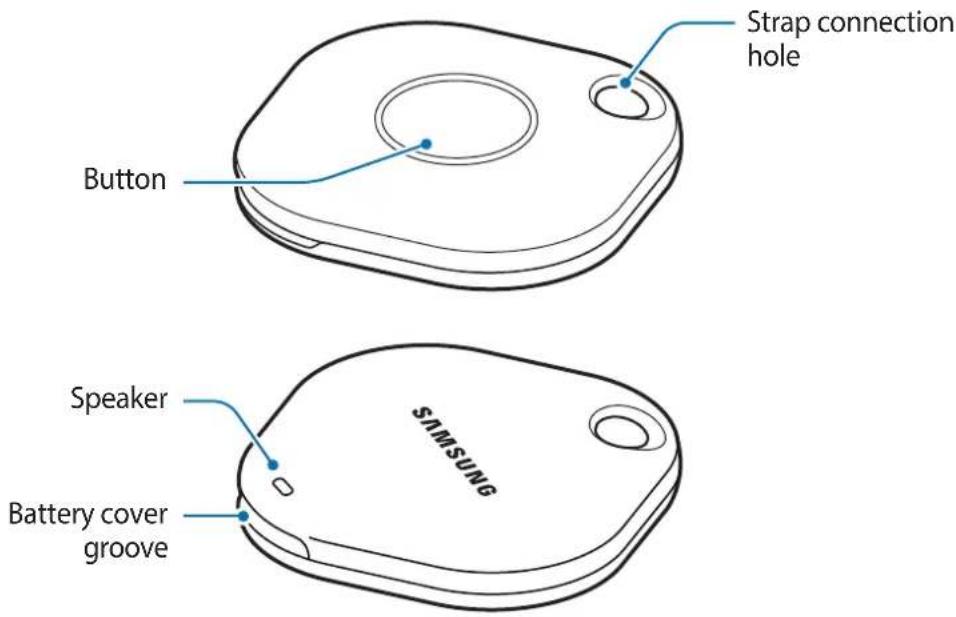
Button
| Button Function | |
| Button | • Press to turn off the SmartTag alerts notification sound when it rings. • Press twice to find the mobile device connected to the SmartTag. • Press or press and hold to launch the automation feature you set. |
Replacing a battery
1 Open the battery cover groove using a coin.

2 Insert the battery with the positive terminal properly aligned with the + symbol inside the SmartTag.
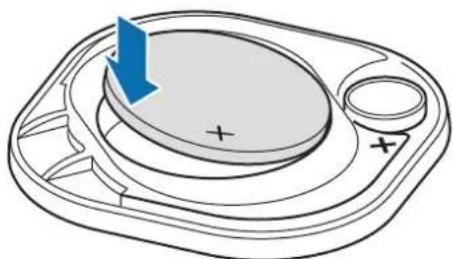
3 Place the battery cover over the SmartTag and press on the battery cover until it clicks into place.
Be careful to not hurt your fingernail when opening the battery cover groove while replacing the battery.
-
When the battery is discharged, replace the battery.
-
Do not recharge the provided battery.
Before using the SmartTag
Installing the SmartThings app on your mobile device
Before using a SmartTag, you should install the SmartThings app on your mobile device.
Depending on your mobile device, you can download the SmartThings app from the following places:
Samsung Android mobile devices: Galaxy Store, Play Store

- You cannot install the SmartThings app on mobile devices that do not support SmartTagsyncing. Ensure that your mobile device is compatible with the SmartTags.
- You must register and sign in to your Samsung account to use the SmartThings app.
Connecting SmartTags to a mobile device
1 Launch the SmartThings app on your mobile device.
Update the SmartThings app to the latest version.
2 Press the button of the SmartTag.
The SmartTag will make a sound and be activated.
3 When the pop-up window informing that your SmartTag is detected appears on your mobile device, tap Add now.
If the connection pop-up window does not appear, select +→ Device → Tag/Tracker.
4 Follow the on-screen instructions to complete the connection.
When the connection is complete, your SmartTag will appear in the list of devices in the SmartThings app.
5 On the SmartThings app screen, tap SmartThings Find to download additional plugins.
When the download is complete, the current location of the device will be displayed on the map.
Connecting SmartTags by scanning the QR code
You can also connect a SmartTag to your mobile device by scanning its QR code.
1 Launch the SmartThings app on your mobile device.
2 Select +→ Device → Scan QR code to scan the QR code on the box.
3 Follow the on-screen instructions to complete the connection. When the connection is complete, the SmartTag will appear in the list of devices in the SmartThings app.
4 On the SmartThings app screen, tap SmartThings Find to download additional plugins. When the download is complete, the current location of the device will be displayed on the map.

- If you are registering a SmartTag for the first time, the registration process may not be smooth depending on the surrounding environment. You may have to try 2-3 times before successfully completing registration.
- Supported features may differ depending on the mobile device and software version.
- You can use SmartThings Find only on Samsung mobile devices that run Android 8.0 or later, as well as Samsung mobile devices that support the Find My Mobile feature.
- The SmartTag is a wireless communication device, and performance may be degraded when multiple devices are connected simultaneously.
Using the SmartTag
Viewing a SmartTag's location
You can remotely view your SmartTag's location from the SmartThings app on your mobile device and find its location by triggering a notification sound on the SmartTag.
1 Launch the SmartThings app on your mobile device.
2 Tap on your SmartTag card and tap View map. Alternatively, tap SmartThings Find. The current location of the device will be displayed on the map.

- The location of the SmartTag is based on GPS and Wi-Fi positioning results of the mobile device connected to the SmartTag or the nearby Android mobile device, which may have some errors due to things like the surrounding environment or GPS failure.
- If the current location of the SmartTag does not appear, the SmartTag's battery has been discharged or has not been discovered by an Android mobile device that can check the SmartTag's location information. Activate the related feature to get notifications of the SmartTag's location information.
- The SmartTag's usage time may vary depending on the user's environment and the usage pattern.
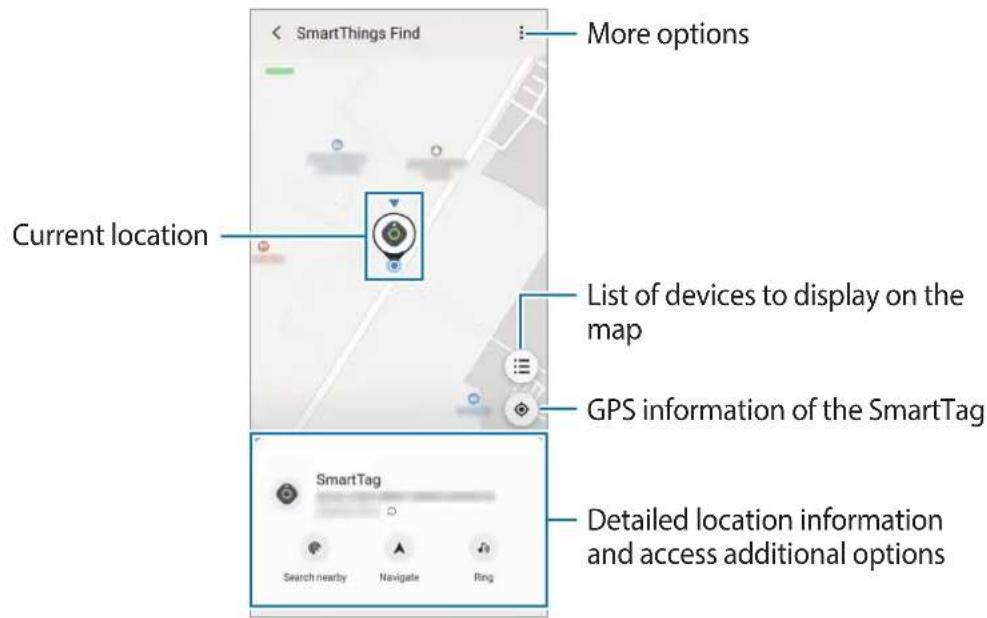
Checking SmartTag location with a notification sound
You can find your SmartTag by triggering a notification sound.
1 Launch the SmartThings app on your mobile device.
2 TapSmartThings Find.
3 Tap Ring → Start.
The SmartTag alerts notification will sound.
To turn off the notification sound, follow the on-screen instructions to turn off notifications or press the SmartTag's action button once.
Checking SmartTag location by signal strength
You can find the SmartTag's location by detecting its signal strength.
1 Launch the SmartThings app on your mobile device.
2 Tap SmartThings Find → Search nearby.
The signal screen of the SmartTag you are looking for will appear. The closer you are to the location of the SmartTag you are looking for, the stronger the signal strength indicated on the screen will be.
You can trigger the SmartTag alerts notification sound by tapping
Getting SmartTag location guidance
If your SmartTag is lost or far away from you, you may be directed to the location where the SmartTag is located.
1 Launch the SmartThings app on your mobile device.
2 Tap SmartThings Find → Navigate.
Directions to the place where the SmartTag is located will begin.

If a supported navigation app is not installed on your mobile device, install the desired app from the list of supported navigation apps first and get directions.
Finding mobile devices
If you do not see your mobile device nearby, the SmartTag can help you find it.
Press the SmartTag's action button twice.
The mobile device connected to the SmartTag will sound its ringtone.
To turn off the ringtone on your mobile device, follow the on-screen instructions to turn off the ringtone.

- This feature is not available when the SmartTag and mobile device are not connected.
- This feature is available when the Let tag find your device feature is activated.
Using the automation feature
When the SmartTag is connected to a mobile device, you can launch the automation feature by pressing or pressing and holding the SmartTag button.
1 Launch the SmartThings app on your mobile device.
2 After tapping on your SmartTag card, select an option under Use button for automations.
3 Tap + and follow the on-screen instructions to add an action.
When you press or press and hold the SmartTag button, the automation action you set will be launched.
Managing automation features
Launch the SmartThings app on your mobile device, tap on your SmartTag card, and then select an option under Use button for automations. The automation action you added appears.
To edit an action, tap the action you want to edit, edit the details, and then tap Save → Save. To delete an action, tap - next to the action you want to delete.
Configuring the SmartTag
Adding to Home screen
If you use the SmartTag frequently, you can run it by adding a shortcut to the Home screen of your mobile device.
1 Launch the SmartThings app on your mobile device.
2 Tap on your SmartTag card.
3 Tap → Edit → Add to Home screen.
4 Tap and hold the icon on the screen or tap Add. The shortcut will be added to your mobile device's home screen.
Setting devices to display on the map
You can choose which devices to display on the SmartThings Find map.
1 Launch the SmartThings app on your mobile device.
2 Tap SmartThings Find → → → Show/hide devices.
Your SmartTag and a list of all the devices added to Find My Mobile through your Samsung account will appear.
3 Select a device to display on the SmartThings Find map, and then tap Save.
General settings
You can view the information related to the SmartTag and change various settings.
1 Launch the SmartThings app on your mobile device.
2 Tap on your SmartTag card.
Status
You can view the location status of the SmartTag.
Tap View map to view the detailed location information of the SmartTag.
Let tag find your device
If you do not see your mobile device nearby, the SmartTag will help to find it.
Tap the switch to activate it. Refer to Finding mobile devices for more information.
Use button for automations
When the SmartTag is connected to a mobile device, you can launch the automation feature by pressing or pressing and holding the SmartTag button. Refer to Using the automation feature for more information.
Volume
Adjusts the volume of the SmartTag.
Tap Volume to select an option you want. You can also tap to make the SmartTag alert a notification sound.
Ringtone
Change the notification sound that the SmartTag emit when you are looking for the SmartTag's location.
Tap Ringtone to select the notification sound you want.
Battery
You can view the battery level of the SmartTag. You can also view the battery information by tapping i.
Editing
Tap → Edit.
Editing a SmartTag name
You can check the location and room where your SmartTag is set and change its name.
After changing the SmartTag name, tap Save.
Add to Home screen
If you use the SmartTag frequently, you can run it by adding a shortcut to the Home screen of your mobile device.
Tap Add to Home screen. Refer to Adding to Home screen for more information.
Delete device
You can register a SmartTag with another Samsung account by deleting it.
Tap Delete device. The SmartTag will be reset.
Configuring SmartThings Find
You can change various settings related to SmartThings Find.
1 Launch the SmartThings app on your mobile device.
2 Tap SmartThings Find → Settings.
Allow devices to be found
You can select the device you want to find and change its settings using SmartThings Find.
Encrypt offline location
When you send offline location information of your SmartTag to Find My Mobile through another device, you can encrypt the location of your SmartTag for increased security.
Tap the switch of the device on the list you want to encrypt your location information for, and then follow the on-screen instructions to encrypt your location information.
Navigation app
You can set and download the default navigation app to use when you are guided to the place where the SmartTag is located.
Help
View help information to learn how to use the SmartTag and to see its related information.
1 Launch the SmartThings app on your mobile device.
2 Tap on your SmartTag card.
3 Tap → Help.
SmartTag information
You can view the SmartTag's software information.
1 Launch the SmartThings app on your mobile device.
2 Tap on your SmartTag card.
3 Tap → Information.
Appendix
Troubleshooting
Before contacting a Samsung Service Center, please attempt the following solutions. Some situations may not apply to your SmartTag.
SmartTag does not turn on
- When the battery is completely discharged, your device will not turn on. Check the battery before using the SmartTag.
- The battery may not be inserted properly. Insert the battery again.
After wiping the terminals, try reinserting the battery.
SmartTag freezes or encounters an error
Try the following solutions. If the problem is still not resolved, contact a Samsung Service Center.
Restarting the SmartTag
If the SmartTag keeps freezing or slowing down, remove the battery and reinsert it.
Forcing restart
If the SmartTag is frozen and unresponsive, you can reset the SmartTag.
First remove the battery by opening the battery cover groove. After pressing and releasing the button once, insert the battery while pressing the button again and hold it for 5 seconds until the SmartTag makes a sound.
If the battery has not been properly recognized, the SmartTag will make a sound immediately after inserting the battery. If this happens, try the above method again.
Another Bluetooth device cannot locate your SmartTag
- Ensure that the device you wish to connect with is ready to be scanned or connected to.
- The location of the SmartTag is based on the GPS and Wi-Fi positioning results of the device connected to the SmartTag, and some errors may occur due to the surrounding environment or GPS failure. Make sure that the device you want to connect to your SmartTag is nearby.
- Reset your SmartTag and try again.
If the tips above do not solve the problem, contact a Samsung Service Centre.
You cannot find your SmartTag's current location
GPS signals may be obstructed in some locations, such as indoors. Set the mobile device connected to the SmartTag to use Wi-Fi or a mobile network to find the current location in these situations.
A small gap appears around the outside of the SmartTag
- This gap is a necessary manufacturing feature and some minor rocking or vibration of parts may occur.
Over time, friction between parts may cause this gap to expand slightly.
Copyright
Copyright © 2021 Samsung Electronics Co., Ltd.
This manual is protected under international copyright laws.
No part of this manual may be reproduced, distributed, translated, or transmitted in any form or by any means, electronic or mechanical, including photocopying, recording, or storing in any information storage and retrieval system.
Trademarks
- SAMSUNG and the SAMSUNG logo are registered trademarks of Samsung Electronics Co., Ltd.
- Bluetooth® is a registered trademark of Bluetooth SIG, Inc. worldwide.
- Wi-Fi®, Wi-Fi Protected Setup™, Wi-Fi Direct™, Wi-Fi CERTIFIED™, and the Wi-Fi logo are registered trademarks of the Wi-Fi Alliance.
- All other trademarks and copyrights are the property of their respective owners.
Para comenzar
Acerca de Galaxy SmartTag
Copyright © 2021 Samsung Electronics Co., Ltd.
Copyright © 2021 Samsung Electronics Co., Ltd.
本手册受國際版權法保護。
Copyright © 2021 Samsung Electronics Co., Ltd.
SmartThings Find for the first time, you can see a list of SmartThings in the smart home.
Oófráln 勺志明保
d.
默默里,自的
NDBI-
- Read me first
- Instructional icons
- Device layout
- Package contents
- Button
- Replacing a battery
- Before using the SmartTag
- Installing the SmartThings app on your mobile device
- Connecting SmartTags to a mobile device
- Connecting SmartTags by scanning the QR code
- Using the SmartTag
- Viewing a SmartTag's location
- Checking SmartTag location with a notification sound
- Checking SmartTag location by signal strength
- Getting SmartTag location guidance
- Finding mobile devices
- Using the automation feature
- Managing automation features
- Configuring the SmartTag
- Adding to Home screen
- Setting devices to display on the map
- General settings
- Status
- Let tag find your device
- Use button for automations
- Volume
- Ringtone
- Battery
- Editing
- Editing a SmartTag name
- Add to Home screen
- Delete device
- Configuring SmartThings Find
- Allow devices to be found
- Encrypt offline location
- Navigation app
- Help
- SmartTag information
- Appendix
- Troubleshooting
- SmartTag does not turn on
- SmartTag freezes or encounters an error
- Restarting the SmartTag
- Forcing restart
- Another Bluetooth device cannot locate your SmartTag
- You cannot find your SmartTag's current location
- A small gap appears around the outside of the SmartTag
- Copyright
- Trademarks
- Démarrage
- Smart Tag poate gashi disp.dvs.
- OΦopMJIeHnE Ha yCTpOiCTBOTO
- bytoH
- Смяна на застения
- HactpoIBaHe Ha yCTpoIcTba 3a NOKa3BaHe Ha KapTaTa
- O6uHaCTpOiKn
- CbCTOHHne
- Hamipane c yctp. 3a npocnejBahe
- U3nOJ3B.yCTp.3a aBTOMaTn3aun
- CnlaHa3Byka
- ToH Ha 3BbHeHe
- Батугия
- PedaKtnpahe
- PekaTpaHe Ha Ime Ha SmartTag
- SmartTag He ce BkIIOUvBa
- SmartTag забива пли се поярава решka
- PecraptiipaHe Ha SmartTag
- Pecrtipahe hacnla
- ДугоBluetooth устюв He може за наимер ваша SmartTag
- He moxe Te da hamepuTe tekuyoTo MeCTOnOJoxeHne Ha Baunia SmartTag
- TbproBcN MapKn
- Kako započeti
- O Galaxy SmartTag-u
- Zašitni znakovi
- Prvi koraci
- Trgovačke marke
- Começar
- Acerca do Galaxy SmartTag
- "SmartTag" paleidimas is naujo
- Søgning after mobilheder
- #
- SmartTag
- nunuunnuu
- n
- 1
- Memulai
- Tentang Galaxy SmartTag
- Jalal
- Srtg
- algaall 0g21
- aillll llaalll jpaial
- s
- SmartTag jj
- Srttss
- QR SmrtTag
- JbSmartTag
- oJaa Jia
- g jzj
- aaii juii iiaai iiaai
- 15
- 1
- Jds
- 120
- J
- SmtTag
- SmrtTag
- Haualo pa60tbl
- O6 yctpoiCTBe Galaxy SmartTag
- BheuHn BnD yCTpoiCTBa
- KoMnJIeKT NOCTaBKn
- BheHnBn yctpoCTBa
- Khonka
- Перед Исторовам几乎所有 SmartTag
- YctaHObKa npinloJKeHnra SmartThings ha mo6nIbHoe yCTpoiCTBO
- AkkymyIaTOp
- HanaHTyBaHHaPncTpoB, BiO6paKByBaHnx Ha mani
- 3araalbHi halaWtYBaHnHa
- Ctah
- Nowyk 3a donomoroio MItkn
- 3anyck npabn aBtOMaT. KhONKOIO
- TyHicTb
- MeIoDi 3BiHka
- AkymnyarTop
- PedaIyBaHnHa
- PepaRyBaHnHa3Bn npicrpoo SmartTag
- IodatnHa rOIOBnEkpaH
- Budanu npncpi
- Hanaштуваня napametpiВ «SmartThings Find»
- Mo6nIbdiK Kypblfblapdbi i3dey
- A B T O M a T b i Φ y h k c u n y h b i n a d a l a h y
- ABTOMaTTbI ΦyHKuJaIapdbI peTteY
- SmartTag 6eIricin koHΦnrgupaçnay
- BactanKbI 3KpaHFa Kocy
- Kурьлфыларды Kapтада Корсetime
- Kaalnbipapametplep
- Kyni
- Terke Kyp. Ta6yfa pyKcat etiH3
- ABTOMaT-DbIpy Tymecin naJaIaNHy
- Abl6bIc deHreii
- PnHrToH
- Баразец
- OHTDEY
- SmartTag ataybIn Θndey
- bactbi 3KpaHfKaocy
- KypblfbiHbIXKOHO
- SmartThings Find KoIdaH6acbIH KOHfngypaunay
- KypbIfblapDaTa6yfa pyKcat 6epy
- OΦlaH opbIHdbI shnΦpIay
- Habiracna Kollan6acbl
- AhbIKTaMa
- SmartTag典型案例 KapnapaT
- AkaayIbIKTapdbI KOIO
- SmartTag icke kocbIImaIdbI
- SmartTag KaTbIn KaJaDbI Hemece KaTe NaJa6oJaDbI
- SmartTag 6eIricin kaIta icKe Kocy
- Mox6ypni type kaia icke kocy
- Баcka Bluetooth Курьлфысbl SmartTag 6eIlricin ta6a щмады
- SmartTag 6eIrici Ta6bIImaJ KAtbIp
- SmartTag 6eIricinH, cIptKbI 6eJIiriH, aHaIacbIHda 7aFbIH caHbIay naJa 6oJaBbl
- EAC
- ABTOPnbIK KyKbIK
- Cayda 6eIrilepi
- Getting started
- About Galaxy SmartTag
- Para comenzar
- Acerca de Galaxy SmartTag
- Oófráln 勺志明保
- NDBI-
Brand : SAMSUNG
Model : Galaxy SmartTag
Category : GPS device