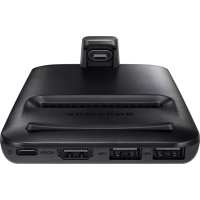
EEM5100TBEGCA - Docking station SAMSUNG - Free user manual and instructions
Find the device manual for free EEM5100TBEGCA SAMSUNG in PDF.
 FR
FR
 BG
BG
 CS
CS
 DA
DA
 DE
DE
 EL
EL
 EN
EN
 ES
ES
 ET
ET
 FI
FI
 HU
HU
 IT
IT
 KK
KK
 KO
KO
 LT
LT
 LV
LV
 NL
NL
 NO
NO
 PL
PL
 PT
PT
 RO
RO
 RU
RU
 SK
SK
 SL
SL
 SV
SV
 TR
TR
 UK
UK
 ZH
ZH
| Product Type | Multimedia Docking Station |
| Brand | Samsung |
| Model | EEM5100TBEGCA |
| Compatibility | Android mobile devices 8.0 or later |
| Connectivity | HDMI, USB Type-C, USB-A |
| Display Modes | Samsung DeX, Screen Mirroring |
| Power Supply | Fast charger (9 V/1.67 A, 9 V/2 A, 12 V/2.1 A) via USB Type-C |
| Ports | 1 x HDMI, 1 x USB (peripherals), 1 x USB Type-C (charging), 1 x mobile connector |
| Main Functions | Samsung DeX mode (desktop interface), Screen Mirroring, battery charging, touchpad, keyboard/mouse connection |
| Box Contents | Station, HDMI cable, USB cable, USB adapter, quick start guide |
| Maintenance | Avoid contact with liquids or dust; clean with a dry cloth |
| Safety | Use only Samsung approved accessories; do not move the mobile device during connection |
| Spare Parts and Repairability | Accessories available from Samsung (cables, adapters); support via service center |
| General Information | Designed for use with TV or monitor; illustrations are non-contractual |
Frequently Asked Questions - EEM5100TBEGCA SAMSUNG
User questions about EEM5100TBEGCA SAMSUNG
0 question about this device. Answer the ones you know or ask your own.
Ask a new question about this device
Download the instructions for your Docking station in PDF format for free! Find your manual EEM5100TBEGCA - SAMSUNG and take your electronic device back in hand. On this page are published all the documents necessary for the use of your device. EEM5100TBEGCA by SAMSUNG.
USER MANUAL EEM5100TBEGCA SAMSUNG
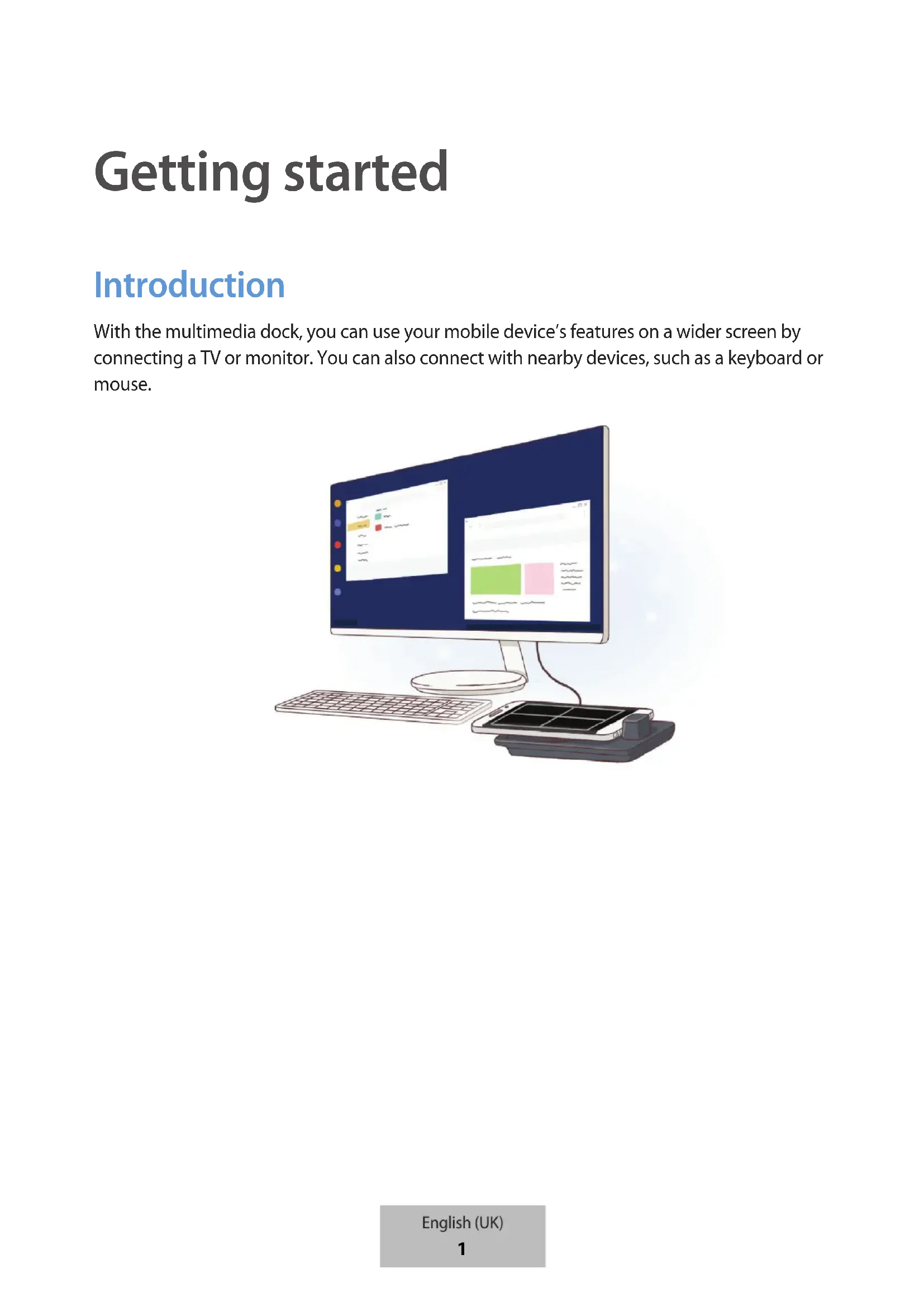
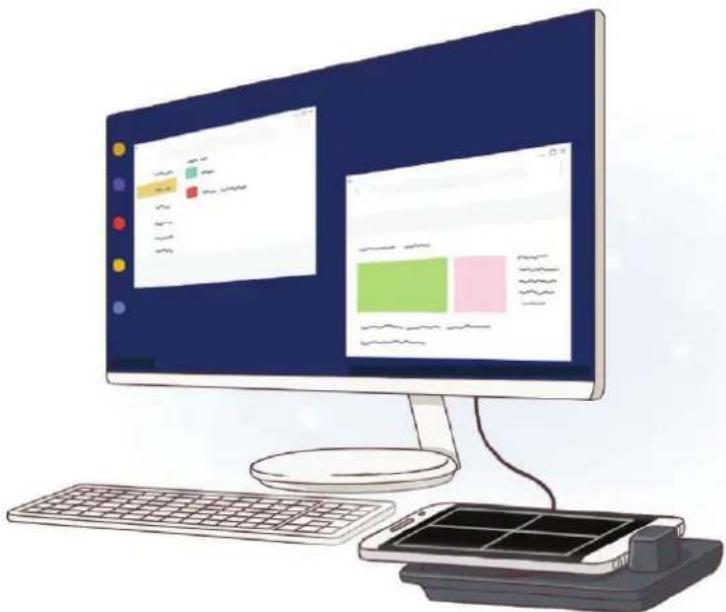
With the multimedia dock, you can use your mobile device's features on a wider screen by connecting a TV or monitor. You can also connect with nearby devices, such as a keyboard or mouse.
natural_image
Illustration of a desktop computer with monitor, keyboard, and smartphone (no text or symbols)Read me first
Please read this manual before using the device to ensure safe and proper use.
- Images may differ in appearance from the actual product. Content is subject to change without prior notice.
- You can use the multimedia dock only on supported mobile devices running Android 8.0 or higher. You can view the compatible devices in the introduction section for the multimedia dock on the Samsung website.
Instructional icons

Warning: situations that could cause injury to yourself or others

Caution: situations that could cause damage to your device or other equipment

Notice: notes, usage tips, or additional information
Package contents
Check the product box for the following items:
- Multimedia dock
- HDMI cable
- USB cable
- USB power adaptor
- Quick start guide

- The items supplied with the device and any available accessories may vary depending on the region or service provider.
- The supplied items are designed only for this device and may not be compatible with other devices.
- Appearances and specifications are subject to change without prior notice.
- You can purchase additional accessories from your local Samsung retailer. Make sure they are compatible with the device before purchase.
- Use only Samsung-approved accessories. Using unapproved accessories may cause the performance problems and malfunctions that are not covered by the warranty.
- Availability of all accessories is subject to change depending entirely on manufacturing companies. For more information about available accessories, refer to the Samsung website.
Device layout
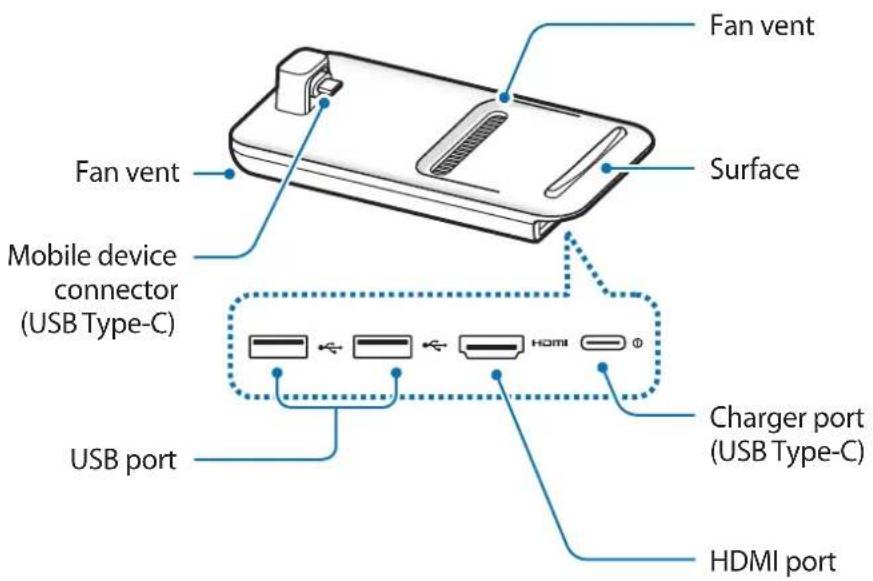

When you connect the charger to the multimedia dock's charger port (USB Type-C), be sure to use a USB Type-C cable. If you connect a Micro USB cable, the multimedia dock may malfunction or be damaged.
Using the multimedia dock
Connecting the multimedia dock and a mobile device
1 Connect the charger to the multimedia dock's charger port (USB Type-C).

Use only Samsung-approved chargers that support the fast charging feature (9 V/1.67 A, 9 V/2 A, 12 V/2.1 A).

- To save energy, unplug the charger when not in use. The charger does not have a power switch, so you must unplug the charger from the electric socket when not in use to avoid wasting power. The charger should remain close to the electric socket and easily accessible while charging.
- Remove your mobile device from the multimedia dock when it is not in use. Otherwise, your mobile device's battery will drain.
- The socket-outlet shall be installed near the equipment and shall be easily accessible.
2 Connect one end of an HDMI cable to the multimedia dock's HDMI port, and plug the other end of the cable into a TV or monitor's HDMI port.
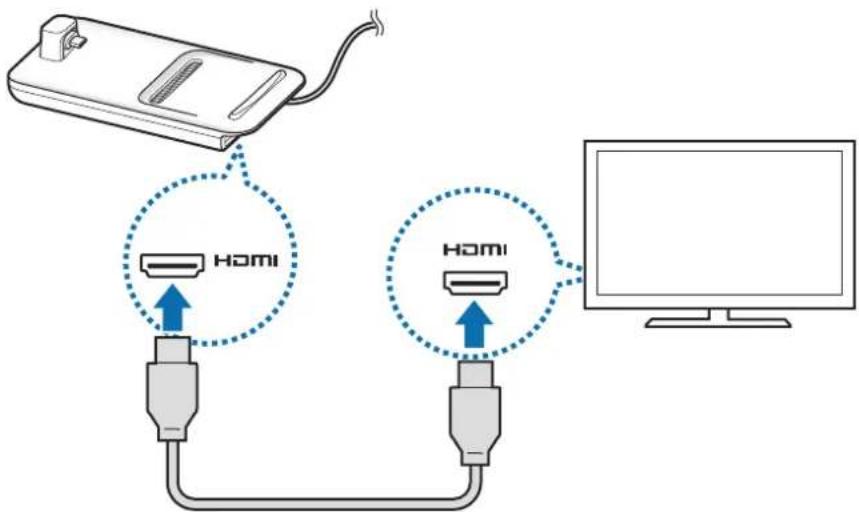

Use only the HDMI cable supplied with the multimedia dock. Otherwise, the multimedia dock may not work properly.
3 Connect the mobile device's multipurpose jack to the mobile device connector (USB Type-C) on the multimedia dock.
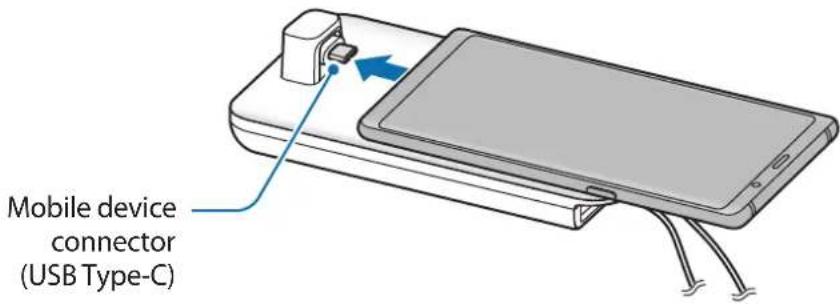

- Ensure that the mobile device is horizontal to the connector. Otherwise, the multimedia dock and the mobile device may be damaged.

natural_image
Line drawing of a handheld device with a blue arrow pointing to the left side (no text or symbols)- If you connect your mobile device with a case attached, it may not correctly connect to the multimedia dock or run SAMSUNG DeX properly depending on your mobile device's case. Remove the case before use.

For some mobile devices, only the normal charging mode is available when your mobile device is turned off. If you want to activate the fast charging feature, activate it when the mobile device is on or connect your mobile device directly to the Samsung-approved fast charger, not the multimedia dock. When charging, use only the Samsung-approved charger that is provided on purchase.
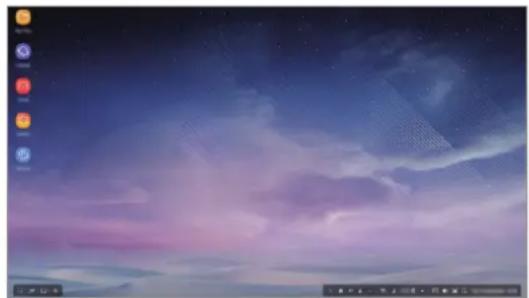
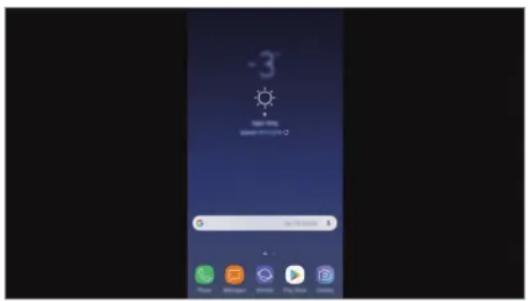
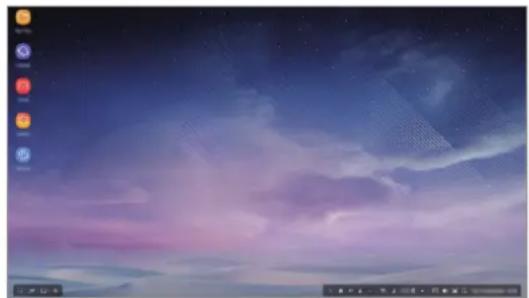
4 Select the screen mode you want to use. You can select Samsung DeX mode or Screen mirroring mode.
- START SAMSUNG DeX: The mobile device's screen will turn off and appear on the connected TV or monitor in desktop mode.
- SWITCH TO SCREEN MIRRORING The same screen as the mobile device will appear on the connected TV or monitor.
natural_image
Desktop screenshot showing a starry night sky with purple and pink clouds, no visible text or symbols on the screen.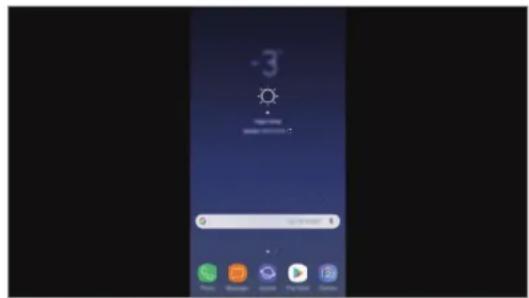
Samsung DeX mode Screen mirroring mode

- The screen mode you first select will be applied for subsequent connections. Refer to Changing screen mode for more information.
- If you want to use a keyboard or a mouse, connect them using the multimedia dock's USB ports or via Bluetooth. Refer to Controlling with an external keyboard and mouse for more information.
- The available features may vary depending on the mobile device. You can view more information in the introduction section for the multimedia dock on the Samsung website.
Precautions for connecting the device
- You can use the multimedia dock only when you connect it to a Samsung-approved charger that supports the fast charging feature.
- Connect only a keyboard, mouse, or an USB storage device to the multimedia dock's USB ports. Charging devices or connecting high-capacity devices with these ports may not work properly.
- Prevent the fan vent and mobile device connector (USB Type-C) inside from coming into contact with liquids or dust. Exposure to liquid or dust may cause the multimedia dock not to work properly.
- Do not move the mobile device while it is connected to the multimedia dock. Doing so may damage the mobile device connector (USB Type-C).
- When you use the mobile device's voice recognition after connecting the multimedia dock to your mobile device, the voice recognition may not perform well.
Ending the device connection
Remove the mobile device from the multimedia dock to end the connection between the mobile device and TV or monitor.

Be sure to remove the mobile device horizontally. Raising it up too high, pulling it excessively, or shaking it may damage the mobile device connector (USB Type-C).
Controlling the Samsung DeX screen
Controlling with a mobile device
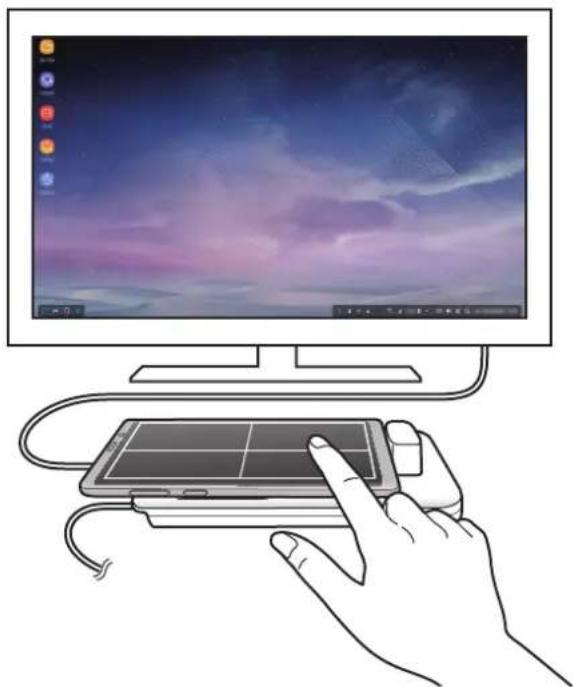
You can use your mobile device's screen as a touchpad.
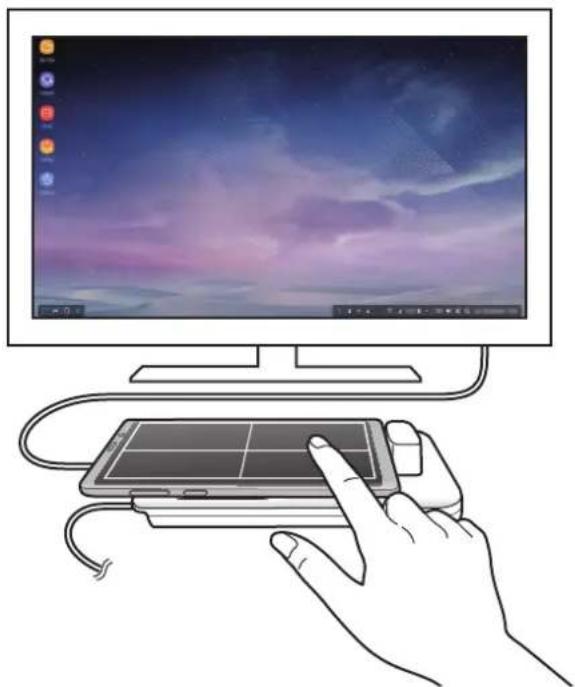
natural_image
Illustration of a hand interacting with a laptop on a computer monitor, showing the screen and keyboard (no text or symbols present)
- You can use the touchpad only when using Samsung DeX mode.
- If your mobile device's case has a front cover, open the front cover to use the mobile device as a touchpad. If the front cover is closed, the touchpad may not work properly.
Controlling the screen
• Tapping: Launch an app or select a button.
• Tapping with two fingers: Show the additional options.
- Swiping with two fingers: Scrolling the screen in any direction.
- Spreading or pinching with two fingers: Zoom in or out.
• Tapping and holding: Select an item on the screen.
- Dragging: Move an item or select text.
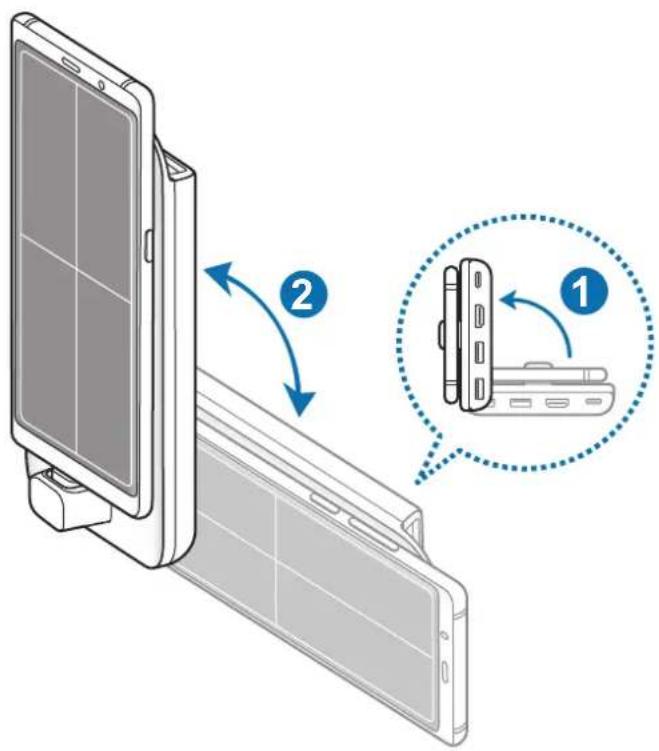
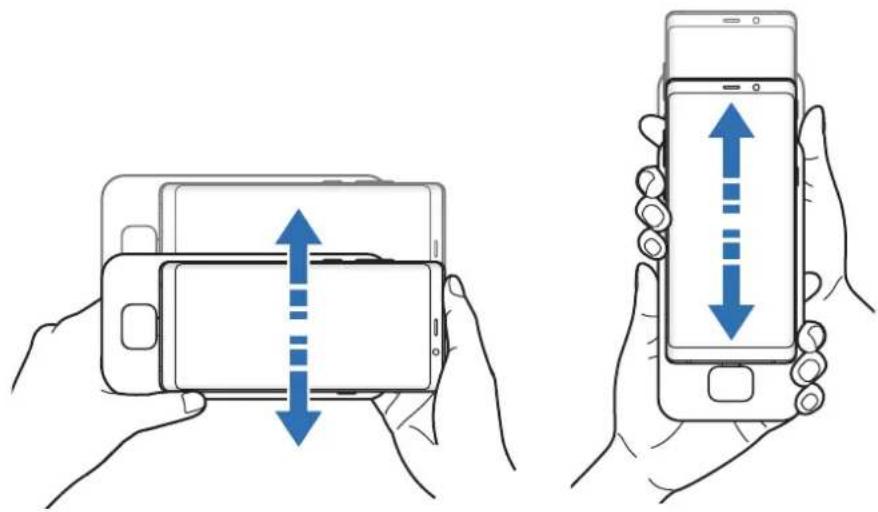
Orienting your mobile device's screen
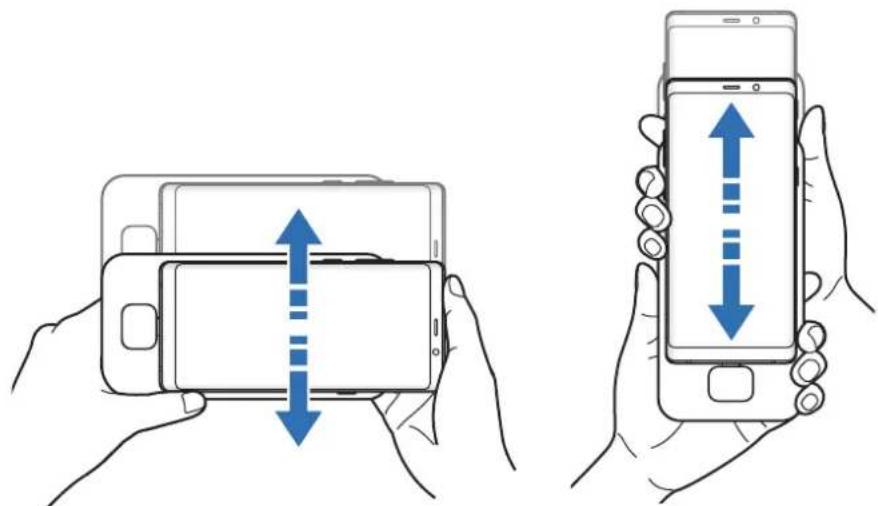
When you are using your mobile device as a touchpad, you can use it in either the horizontal or vertical alignment.
1 When the multimedia dock and the mobile device are connected, raise both of them to be perpendicular to the surface (①). Then, turn the mobile device to be either vertical or horizontal, the orientation you want (②).
2 Move both the multimedia dock and the mobile device up and down slightly.
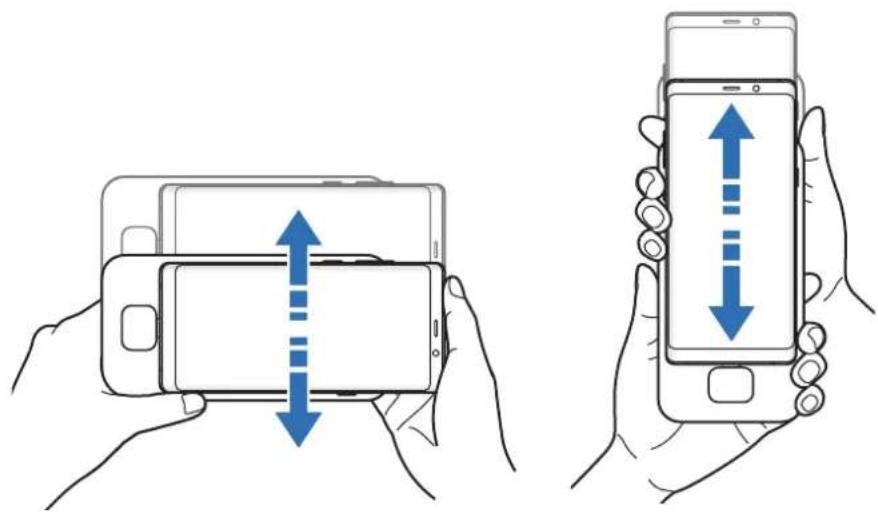
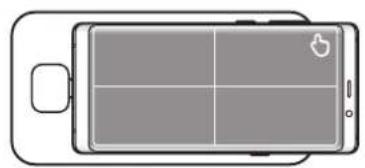
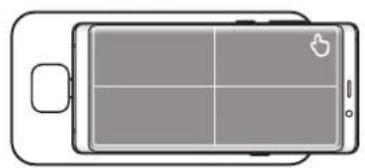
If your mobile device's screen has been properly oriented, the icon will appear at the top right of your mobile device's screen.
natural_image
Top-down line drawing of a smartphone screen with four quadrants and a play button icon (no text or symbols)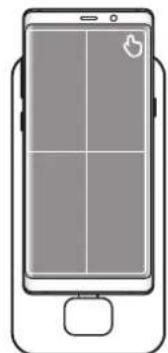
natural_image
Front view of a smartphone with a grid layout and control buttons (no text or symbols)Controlling with an external keyboard and mouse
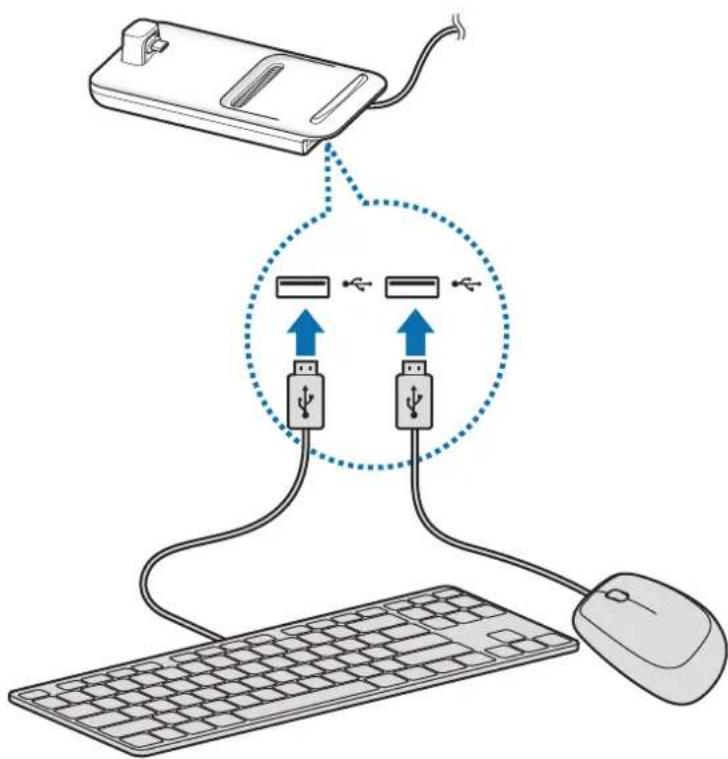
Connect a wired keyboard and mouse to the multimedia dock's USB port or connect a wireless keyboard and mouse with the Bluetooth feature of the connected mobile device.

- When you connect a mouse, the touchpad will not appear on your mobile device.
- You can control with an external keyboard and mouse even in Screen mirroring mode.
Connecting via cable
If you want to use a wired keyboard or wired mouse, connect their USB cables to the multimedia dock's USB ports.
Connecting via wireless or Bluetooth
You can connect a wireless keyboard and mouse or Bluetooth keyboard and mouse. For more information about the devices, refer to the device's user manual.
- Wireless keyboard and mouse: Insert a wireless receiver into the USB port.
- Bluetooth keyboard and mouse: Connect to a mobile device via Bluetooth.
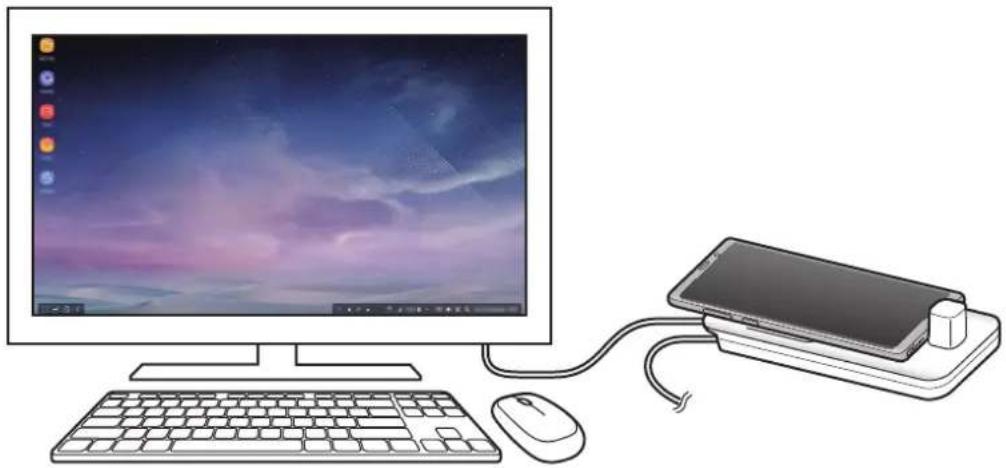
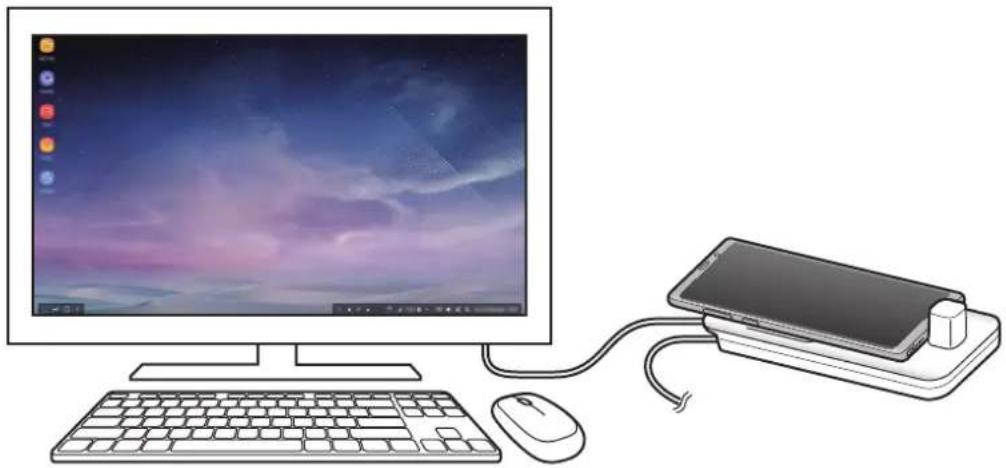
Using Samsung DeX mode
You can use your mobile device's features in an interface environment similar to a computer. You can launch the mobile device's apps or check the mobile device's notifications and status.
natural_image
Illustration of a desktop computer setup with monitor, keyboard, mouse, and smartphone (no text or symbols)
Some apps or features may not be available when using Samsung DeX mode.
Precautions for launching Samsung DeX mode
- When you launch or disconnect Samsung DeX mode, the currently running apps will close except some apps.
- You cannot launch Samsung DeX mode if your mobile device is in the following modes: the ultra power saving mode, emergency mode, and safe mode.
- If the TV or monitor do not support HDCP (High-bandwidth Digital Content Protection), the Samsung DeX mode screen may not be displayed.
- Samsung DeX mode supports HD+, FHD, and WQHD resolutions. Some content on your mobile device may be displayed differently on the TV or monitor.
• The available time for battery usage can be reduced when you use Samsung DeX mode. - If you change the settings on Samsung DeX mode, the mobile device's settings will be changed as well. Some settings of the mobile device may not be changed even if you change the settings on Samsung DeX mode.
- Download the firmware from the server to update Samsung DeX mode to the latest version. It is available only when connected to a Wi-Fi network.
- Some apps may become paid apps depending on their licence policies when you use Samsung DeX mode.
Using the Home screen
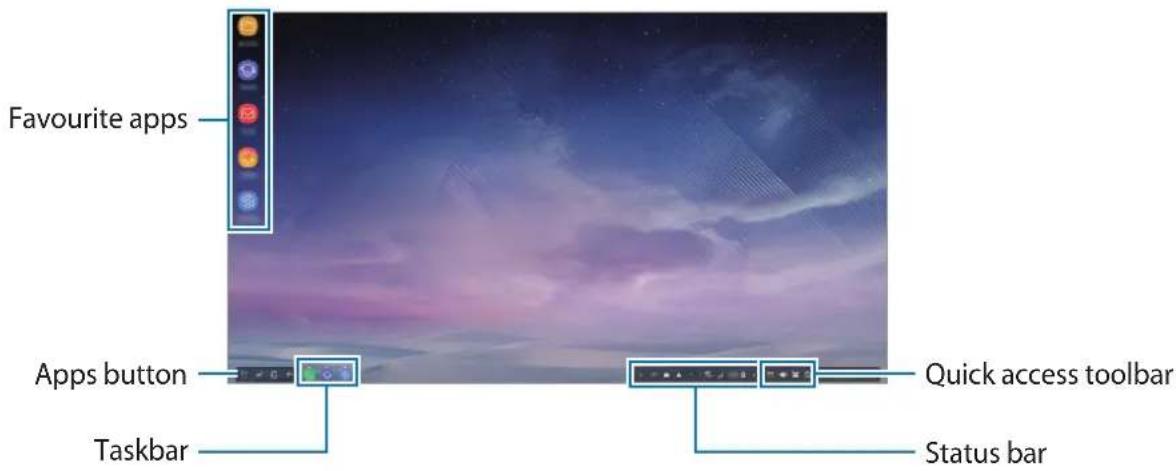
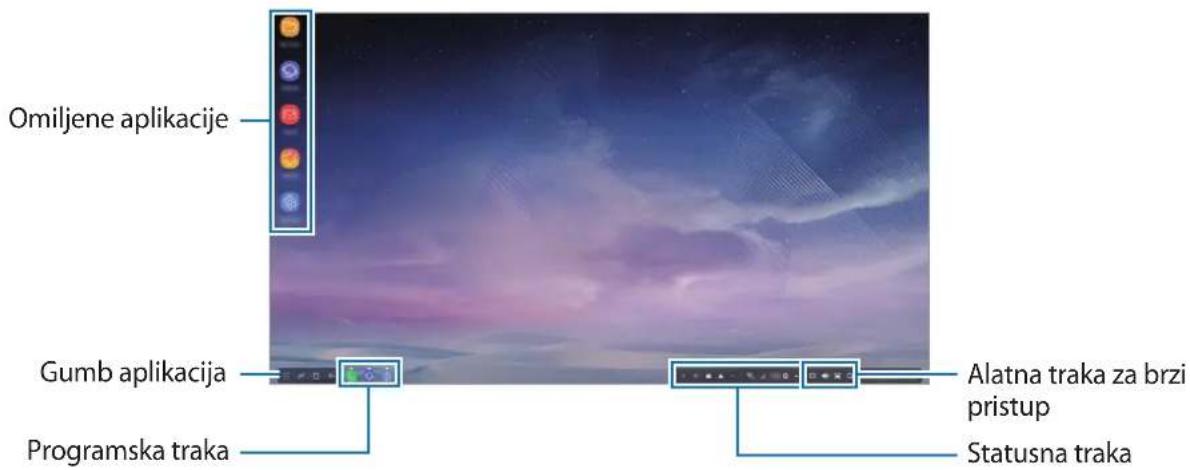
• Favourite apps: Add frequently used apps to the Home screen and launch them quickly.
- Apps button: View or launch apps installed on your mobile device.
• Taskbar: View the apps that are currently running.
- Status bar: View your mobile device's status or notifications. The displayed icons may differ depending on your mobile device's current status. Select ▲ and turn on and off your mobile device's various features on the quick settings list.
- Quick access toolbar: Use the on-screen keyboard, volume, screenshot, and finder features quickly.
Receiving an incoming call
You can receive an incoming call with the connected TV or monitor while using Samsung DeX mode.
If you receive a phone call, select the incoming call menu from the connected TV or monitor. The mobile device's speaker is used for answering the call.

Connect earphones or remove your mobile device from the multimedia dock to use the mobile device instead of the speaker phone to receive an incoming call.
Adding app shortcuts
Select the Apps button, select the app you want to create a shortcut to, and then drag it to the Home screen.
A shortcut to the app will be added on the Home screen.
Changing the speakers
You can change the default speakers from your mobile device's speakers to the speakers of a TV, monitor, or an audio device.
Launch the Settings app on a connected TV or monitor, and select the Samsung DeX → Set default audio output switch to activate the feature. After you change the default speakers, sound will play through the new default speakers whenever Samsung DeX mode is on.

You can temporarily change from your mobile device's speakers to the speakers of a TV, monitor, or an audio device. On the status bar, select ▲ → Audio output and select the device you want. Alternatively, on the status bar, right click the Volume icon and select the device you want under Audio output.
Using the quick access toolbar
• : Display the on-screen keyboard.
- ☒: Adjust the volume level for call ringtones, music and videos, notifications, and system sounds.
• 📄: Capture a screenshot and use the captured screen in various ways, such as drawing on, writing on, cropping, or sharing it.
• Q : Search for content on your mobile device by entering a keyword in the search field.
Home screen options
On the Home screen, when you press the connected mouse's right button, you can use the home screen options.
- Sort by: Select the arrangement method for apps on the Home screen.
- Clean up: Arrange apps or folders on the Home screen based on your selected arrangement method.
- Wallpapers for Samsung DeX: Change the Samsung DeX mode wallpaper settings for the Home screen and the locked screen.
Enjoying games vividly on a large screen
Play your mobile device's games on a large screen. On the connected TV or monitor, launch the Game Launcher app.
Launching apps
Launch apps installed on the mobile device on Samsung DeX mode.
When selecting the Apps button, your mobile device's apps list will appear. Select an app and launch it. You can open several apps and launch them at the same time and multitask as you use the computer.

Some apps may not be available when using Samsung DeX mode.
Configuring the settings
Configure your Samsung DeX mode settings.
Launch the Settings app on the connected TV or monitor and select Samsung DeX.
- Screen timeout for Samsung DeX: Set how long Samsung DeX mode waits before turning off the display's backlight.
-
Wallpapers for Samsung DeX: Change the Samsung DeX mode wallpaper settings for the Home screen and the locked screen.
-
Screen resolution for Samsung DeX: Change the Samsung DeX mode's screen resolution.
- Pointer speed: Adjust the pointer speed for the mouse.
- Show on-screen keyboard in Samsung DeX: Show an on-screen keyboard on the connected screen when you connect the external keyboard.
- Set default audio output: Set a TV or monitor as a default speaker.
- Receive marketing information: Set whether to receive Samsung DeX's marketing information.
• Samsung DeX Labs: Resize the apps that are not officially supported by Samsung DeX.

Some apps cannot be resized.
- How to use Samsung DeX: View help information to learn how to use Samsung DeX mode or configure important settings.
- About Samsung DeX: View the Samsung DeX software information and update your Samsung DeX's software.
Using Screen mirroring mode
The mobile device's screen will remain on and appear on the connected TV or monitor. View your mobile device's various content on the wide screen of the connected TV or monitor.
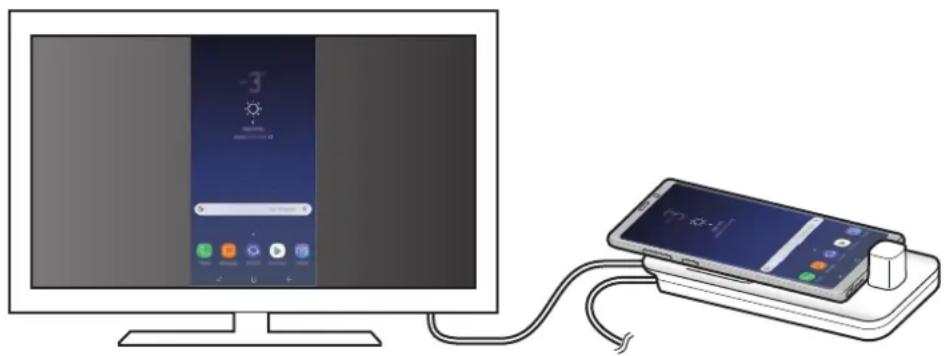
natural_image
Illustration of a desktop computer connected to a smartphone via cable (no text or symbols visible)
You can use Screen mirroring mode without connecting a keyboard or mouse. Control the screen with the connected mobile device.
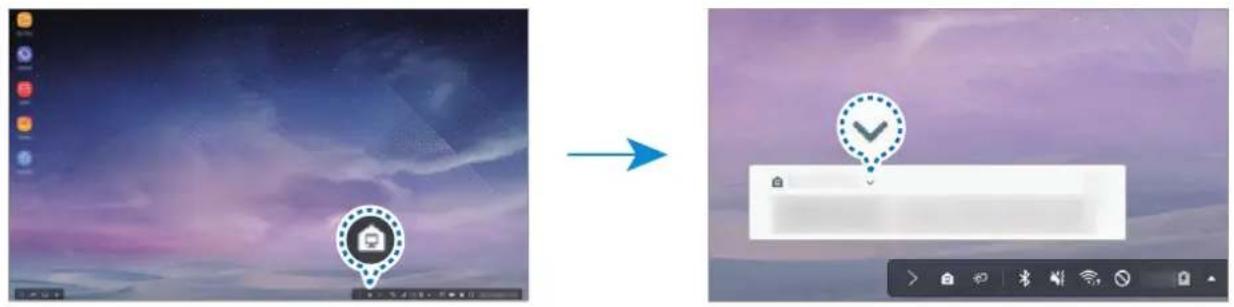
Changing screen mode
You can change the screen mode on the connected TV or monitor.
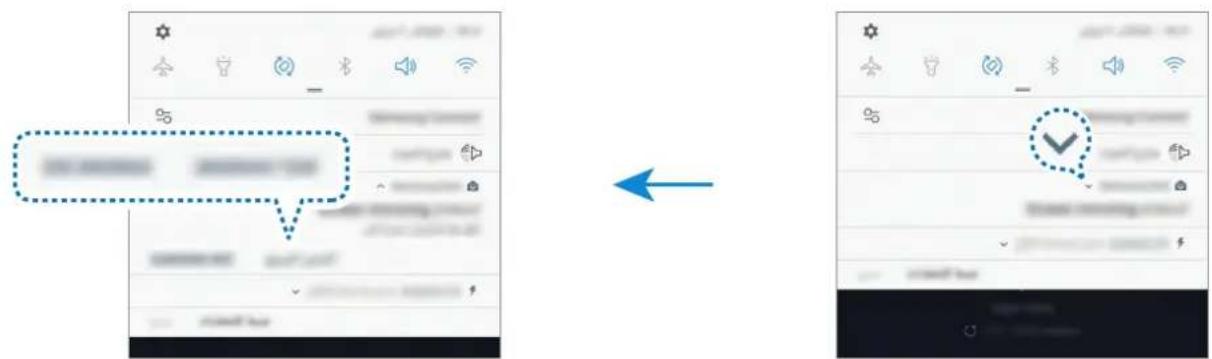
1 On the status bar, tap and tap next to Samsung DeX.
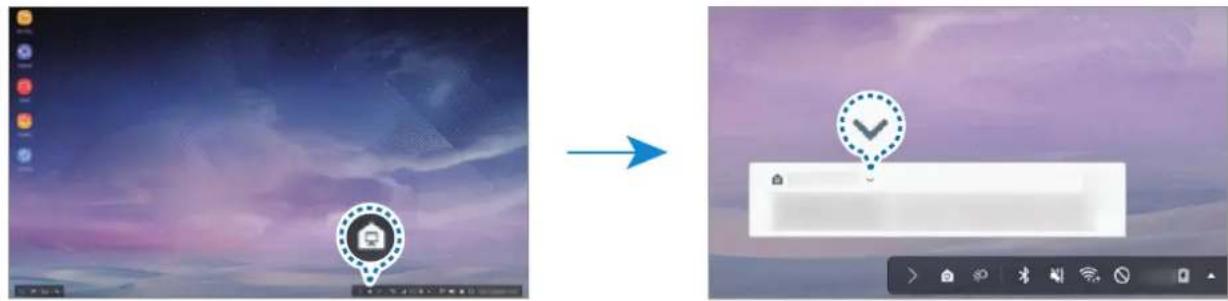
2 Tap above Using Samsung DeX and tap SCREEN MIRRORING.
Samsung DeX mode will be ended and the same screen as your mobile device will appear on the connected TV or monitor.
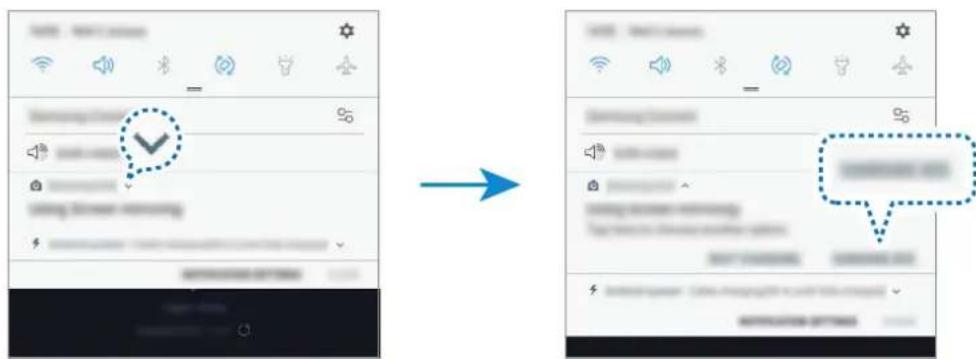
If you want to switch modes on your mobile device, open the notification panel, tap √ next to Samsung DeX, and then tap SAMSUNG DEX.
Charging the mobile device's battery
You can charge your mobile device's battery using the multimedia dock.
1 On the status bar, tap 📋 and tap next to Samsung DeX.
2 Tap above Using Samsung DeX and tap FAST CHARGING.
The connected TV or monitor will turn off and your mobile device will start charging.
Appendix
Troubleshooting
Before contacting a Samsung Service Centre, please attempt the following solutions.
On Samsung DeX mode, select the Apps button → ⚠→ Contact us → FAQ and refer to the relevant content.
Your multimedia dock or connected devices freezes
If the multimedia dock or connected devices freezes or hangs, try to resolve it by turning off the connected mobile device and then turning it on again.
If the multimedia dock or connected devices are still unresponsive, disconnect devices from the multimedia dock and reconnect them.
If the problem is still not resolved, contact a Samsung Service Centre.
The multimedia dock works differently as described in the manual
Available functions may differ depending on the connected device.
The screen ratio is incorrect
Samsung DeX mode supports HD+, FHD, and WQHD resolutions. Some content on your mobile device may be displayed differently on the TV or monitor. Adjust the screen ratio from the menu of the connected TV or monitor.
Copyright
Copyright © 2018 Samsung Electronics
This manual is protected under international copyright laws.
No part of this manual may be reproduced, distributed, translated, or transmitted in any form or by any means, electronic or mechanical, including photocopying, recording, or storing in any information storage and retrieval system, without the prior written permission of Samsung Electronics.
Trademarks
- SAMSUNG, the SAMSUNG logo, and Samsung DeX are registered trademarks of Samsung Electronics.
- All other trademarks and copyrights are the property of their respective owners.
Démarrage
Introduction
natural_image
Illustration of a desktop computer with monitor, keyboard, and smartphone (no text or symbols)
natural_image
Diagram of a handheld device with a blue arrow pointing to its left side, showing no text or symbols.natural_image
Desktop computer with starry night sky and colorful app icons on the left (no readable text or symbols)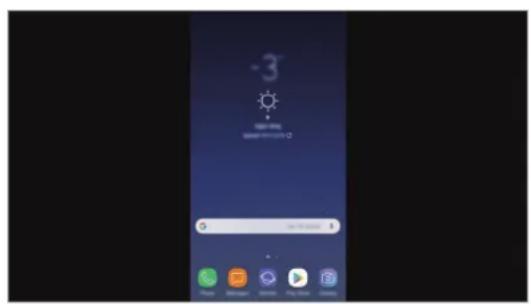
Mode Samsung DeX Mode Screen Mirroring

natural_image
Illustration of a hand interacting with a computer monitor displaying a screen, against a twilight sky background (no text or symbols)
natural_image
Top-down line drawing of a smartphone with four screen panels and a hand cursor icon (no text or symbols)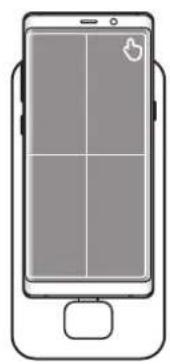
natural_image
Line drawing of a smartphone with a grid layout and control buttons (no text or symbols)natural_image
Illustration of a desktop computer setup with monitor, keyboard, mouse, and smartphone (no text or symbols)
natural_image
Illustration of a desktop computer connected to a smartphone via cable, showing app icons and status bar (no text or symbols on device)
2
Copyright © 2018 Samsung Electronics
natural_image
Illustration of a desktop computer with monitor, keyboard, and smartphone (no text or symbols)
natural_image
Diagram of a handheld device with a blue arrow pointing to its left side, showing no text or symbols.natural_image
Desktop screen with starry night sky and colorful app icons on the left (no readable text or symbols)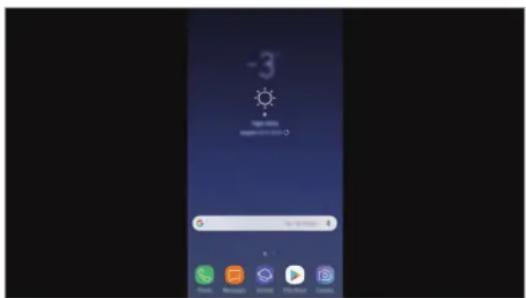
natural_image
Illustration of a hand interacting with a smartphone displaying a grid, placed on a stand against a starry night sky (no text or symbols)
natural_image
Top-down schematic of a smartphone displaying four panels with a play button icon (no text or symbols)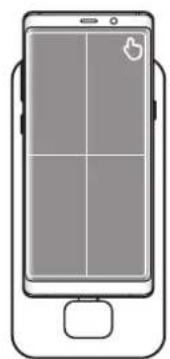
natural_image
Front view of a smartphone with a grid layout and control buttons (no text or symbols)natural_image
Illustration of a desktop computer setup with monitor, keyboard, mouse, and smartphone (no text or symbols)
natural_image
Illustration of a smartphone connected to a monitor displaying a weather widget and app interface (no text or symbols on the device itself)
Copyright © 2018 Samsung Electronics
natural_image
Illustration of a desktop computer with monitor, keyboard, and smartphone (no text or symbols)
natural_image
Line drawing of a handheld electronic device with a blue arrow pointing to its left side (no text or symbols)natural_image
Desktop screen showing a starry night sky with purple and pink clouds against a dark sky (no text or symbols visible)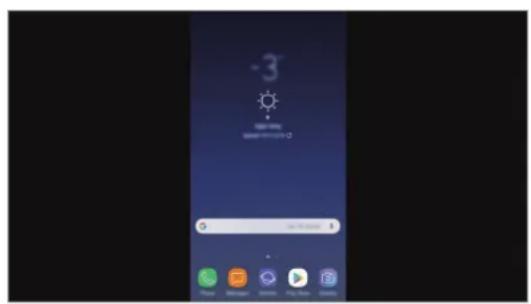
natural_image
Illustration of a hand interacting with a computer monitor displaying a grid, against a twilight sky background (no text or symbols)
natural_image
Top-down line drawing of a smartphone with four screen panels and a hand cursor icon (no text or symbols)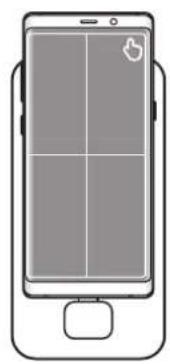
natural_image
Line drawing of a smartphone with a grid layout and control buttons (no text or symbols)Connessione tramite wireless o Bluetooth
natural_image
Illustration of a desktop computer setup with monitor, keyboard, mouse, and smartphone (no text or symbols)
natural_image
Illustration of a desktop computer connected to a smartphone with a cable, showing no text or symbols on the device itself.
2
Copyright © 2018 Samsung Electronics
natural_image
Illustration of a desktop computer with monitor, keyboard, and smartphone (no text or symbols)Antes de empezar

natural_image
Line drawing of a handheld electronic device with a blue arrow pointing to the left side (no text or symbols)natural_image
Desktop computer with starry night sky and colorful app icons on the left (no readable text or symbols on screen)
Modo Screen Mirroring Modo Samsung DeX

natural_image
Illustration of a hand interacting with a computer monitor displaying a screen, against a twilight sky background (no text or symbols)
natural_image
Top-down line drawing of a smartphone with four screen panels and a small icon on the screen (no text or symbols)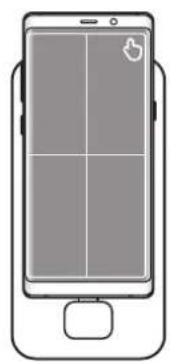
natural_image
Line drawing of a smartphone with a grid layout and a small mouse on the right side (no text or symbols)Conectar mediante red inalámbrica o Bluetooth
natural_image
Illustration of a desktop computer setup with monitor, keyboard, mouse, and smartphone (no text or symbols)
natural_image
Illustration of a smartphone connected to a monitor displaying a smart home interface (no text or symbols on the device)
2 Pulse encima de Usar Samsung DeX y seleccione SCREEN MIRRORING.
Copyright © 2018 Samsung Electronics
natural_image
Illustration of a desktop computer with monitor, keyboard, and smartphone (no text or symbols)Fontos tudnivalók

natural_image
Line drawing of a device with a blue arrow pointing to a component (no text or symbols)natural_image
Desktop computer with starry sky and colorful app icons on the left (no readable text or symbols)
Samsung DeX mód Screen Mirroring mód

natural_image
Illustration of a hand interacting with a computer monitor displaying a grid, against a twilight sky background (no text or symbols)
natural_image
Top-down line drawing of a smartphone with four screen panels and a hand cursor icon (no text or symbols)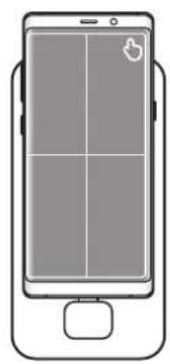
natural_image
Line drawing of a smartphone with a grid layout and control buttons (no text or symbols)natural_image
Illustration of a desktop computer setup with monitor, keyboard, mouse, and smartphone (no text or symbols)
natural_image
Illustration of a desktop computer monitor connected to a smartphone with a cable, showing no text or symbols on the device itself.
Copyright © 2018 Samsung Electronics
natural_image
Illustration of a desktop computer with monitor, keyboard, and smartphone (no text or symbols)Przeczytaj najpierw

natural_image
Diagram of a handheld device with a blue arrow pointing to its left side (no text or symbols present)natural_image
Desktop screenshot showing a starry night sky with purple and pink clouds, no visible text or symbols on the screen or surroundings.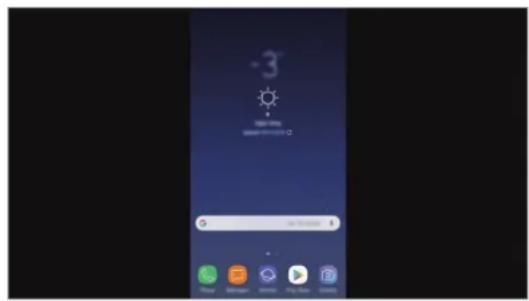
Tryb Samsung DeX Tryb Screen mirroring

natural_image
Illustration of a hand interacting with a touchscreen device on a computer monitor, showing a colorful screen and cable (no text or symbols)
natural_image
Top-down line drawing of a smartphone with four screen covers and a hand cursor icon (no text or symbols)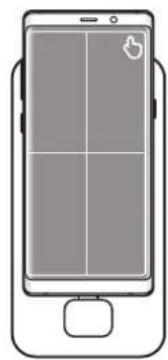
natural_image
Line drawing of a smartphone with a grid layout and control buttons (no text or symbols)natural_image
Illustration of a desktop computer setup with monitor, keyboard, mouse, and smartphone (no text or symbols)
natural_image
Illustration of a desktop computer connected to a smartphone with an attached cable (no text or symbols visible)
Copyright © 2018 Samsung Electronics
natural_image
Illustration of a desktop computer with monitor, keyboard, and smartphone (no text or symbols)
natural_image
Line drawing of a handheld electronic device with a blue arrow pointing to the left side (no text or symbols)natural_image
Desktop computer with starry night sky and colorful app icons on the left (no readable text or symbols)Mod Samsung DeX Mod Screen mirroring

natural_image
Illustration of a hand interacting with a computer monitor displaying a screen, against a twilight sky background (no text or symbols)
natural_image
Top-down line drawing of a smartphone with four screen panels and a hand cursor icon (no text or symbols)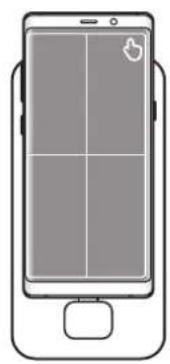
natural_image
Front view of a smartphone with a grid layout and a small button at the bottom (no text or symbols)Conectarea prin wireless sau prin Bluetooth
natural_image
Illustration of a desktop computer setup with monitor, keyboard, mouse, and smartphone (no text or symbols)
natural_image
Illustration of a desktop computer connected to a smartphone with an attached charging device (no text or symbols visible)
2
Atingeti deasupra
natural_image
Illustration of a desktop computer with monitor, keyboard, and smartphone (no text or symbols)Първо прочетете

natural_image
Line drawing of a handheld device with a blue arrow pointing to the left side (no text or symbols)natural_image
Desktop screen displaying a starry night sky with purple and pink clouds against a dark sky (no text or symbols visible)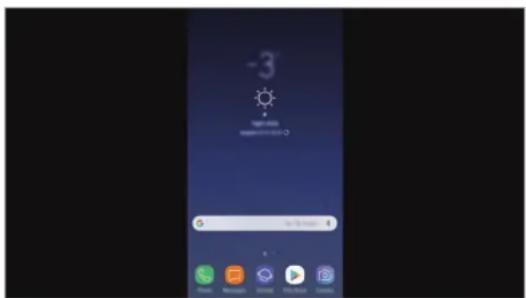
natural_image
Illustration of a hand interacting with a laptop displaying a grid, connected to a cable via cables (no text or symbols present)
natural_image
Top-down line drawing of a smartphone with four screen panels and a hand icon (no text or symbols)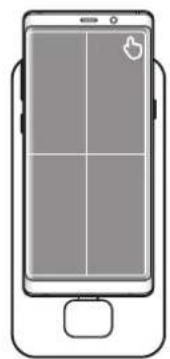
natural_image
Front view of a smartphone with a grid layout and a small icon on the screen (no text or symbols)natural_image
Illustration of a desktop computer setup with monitor, keyboard, mouse, and smartphone (no text or symbols)
natural_image
Illustration of a smartphone connected to a monitor displaying a weather app interface (no text or symbols on the device)
Copyright © 2018 Samsung Electronics
natural_image
Illustration of a desktop computer with monitor, keyboard, and smartphone (no text or symbols)Najprije pročitajte
Prije uporabe uređaja pažljivo pročitajte ovaj priručnik kako biste osigurali sigurnu i pravilnu uporabu.

Upotrebljavajte samo HDMI kabel koji je dostavljen uz multimedijsko postolje. U suprotnome multimedijsko postolje možda neće ispravno raditi.
natural_image
Diagram of a handheld device with a blue arrow pointing to its left side, showing no text or symbols.natural_image
Desktop computer with starry sky and colorful overlay icons (no readable text or symbols)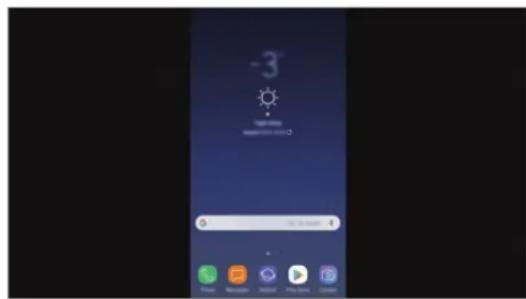
Način rada Samsung DeX Način rada zrcaljenja zaslona

natural_image
Illustration of a hand interacting with a smartphone displaying a grid, placed on a computer monitor screen (no text or symbols visible)
- Podlogu osjetljivu na dodir možete upotrebljavati samo u načinu rada Samsung DeX.
2 Lagano podignite i spustite multimedijsko postolje i mobilni uređaj.
natural_image
Front view of a smartphone with a grid and control panel (no text or symbols)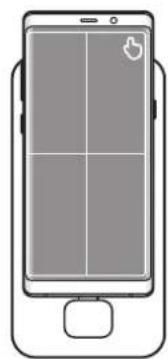
natural_image
Line drawing of a smartphone with a grid layout and control buttons (no text or symbols)Bežično spajanje ili spajanje putem Bluetootha
natural_image
Illustration of a desktop computer setup with monitor, keyboard, mouse, and smartphone (no text or symbols)
Neke aplikacije ili značajke možda neće biti dostupne prilikom upotrebe načina rada Samsung DeX.
Mjere opreza pri pokretanju načina rada Samsung DeX
- Kada pokrećete ili odspojite način rada Samsung DeX, zatvorit će se aplikacije koje trenutačno rade, osim pojedinih aplikacija.
- Način rada Samsung DeX ne možete pokrenuti ako se mobilni uređaj nalazi u sljedećim načinima rada: Načinu ultra štednje energije, načinu rada u hitnom slučaju i sigurnom načinu rada.
- Ako TV prijamnik ne podržava HDCP (Zaštite digitalnog sadržaja velike propusnosti), zaslon načina rada Samsung DeX možda se neće prikazati.
- Način rada Samsung DeX podržava rezolucije HD+, FHD, i WQHD. Određeni sadržaj na vašem mobilnom uređaju može se drukčije prikazivati na TV prijamniku ili monitoru.
- Dostupno vrijeme za potrošnju baterije može biti manje kada upotrebljavate način rada Samsung DeX.
- Ako promijenite postavke na načinu rada Samsung DeX, postavke mobilnog uređaja isto će se tako promijeniti. Neke se postavke mobilnog uređaja možda neće promijeniti čak i ako promijenite postavke na načinu rada Samsung DeX.
- Sa servera preuzmite ugrađeni softver kako biste način rada Samsung DeX ažurirali na najnoviju verziju. To je dostupno samo kad je uređaj spojen s Wi-Fi mrežom.
- Neke aplikacije mogu se početi plaćati, ovisno o pravilima za njihovu licencu, kada upotrebljavate način rada Samsung DeX.
Upotreba početnog zaslona
natural_image
Illustration of a smartphone connected to a monitor displaying a smart home interface (no text or symbols on the device)
Možete upotrijebiti način rada zrcaljenja zaslona bez spajanja tipkovnice ili miša. Kontrolirajte zaslon s pomoću spojenog mobilnog uređaja.
2 Dodirnite iznad Upotreba usluge Samsung DeX te dodirnite ZRCALJENJE ZASLONA.
Punjenje baterije mobilnog uređaja
Bateriju mobilnog uređaja možete puniti upotrebom multimedisjkog postolja.
1 Na traci statusa dodirnite 📄 dodirnite pored funkcije Samsung DeX.
2 Dodirnite iznad Upotreba usluge Samsung DeX te dodirnite BRZO PUNJENJE. Isključit će se spojeni TV prijamnik ili monitor, a vaš će mobilni uređaj započeti s punjenjem.
Dodatak
Rješavanje problema
Copyright © 2018 Samsung Electronics
natural_image
Illustration of a desktop computer with monitor, keyboard, and smartphone (no text or symbols)Prvo pročitajte

Koristite samo HDMI kabl koji se isporučuje sa multimedijalnom baznom stanicom. U suprotnom, multimedijalna bazna stanica možda neće ispravno raditi.
natural_image
Diagram of a handheld device with a blue arrow pointing to its left side, showing no text or symbols.- Ako povežete svoj mobilni uređaj sa pričvršćenim kućištem, možda neće ispravno da se poveže sa multimedijalnom priključnom stanicom ili pravilno pokrenuti "SAMSUNG DeX" u zavisnosti od kućišta vašeg mobilnog uređaja. Pre upotrebe uklonite kućište.

natural_image
Desktop computer displaying a starry night sky with purple and pink hues, no visible text or symbols on the screen or background.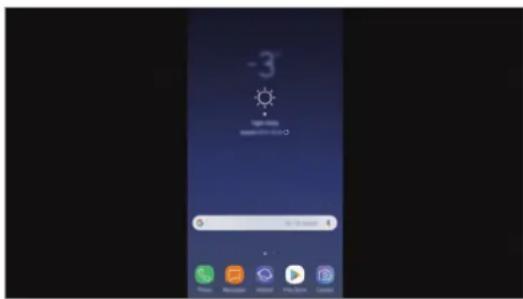
natural_image
Illustration of a hand interacting with a smartphone displaying a grid, connected to a computer monitor (no text or symbols present)
2 Pomerite i multimedijalnu baznu stanicu i mobilni uređaj pomalo nagore i nadole.
natural_image
Front view of a smartphone displaying a grid layout with four quadrants and a thumbs-up icon (no text or symbols)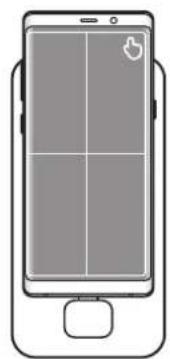
natural_image
Line drawing of a smartphone with a grid layout and control buttons (no text or symbols)Upravljanje pomoću spoljne tastature i miša
Povežite žičanu tastaturu i miša na USB priključak multimedijalne bazne stanice ili povežite bežičnu tastaturu i miša sa funkcijom „Bluetooth“ na povezanom mobilnom uređaju.

Povezivanje preko bežične mreže ili „Bluetooth-a“
natural_image
Illustration of a desktop computer setup with monitor, keyboard, mouse, and smartphone (no text or symbols)
natural_image
Illustration of a desktop computer monitor connected to a smartphone with an attached cable (no text or symbols visible)
Možete da koristite režim Preslikavanje ekrana bez povezivanja tastature ili miša. Upravljajte ekranom preko povezanog mobilnog uređaja.
Menjanje režima ekrana
Možete da promenite režim ekrana na povezanom televizoru ili monitoru.
1 Na statusnoj traci kucnite na 📄kucnite na pored Samsung DeX-a.
2 Kucnite na iznad Upotreba aplikacije Samsung DeX i kucnite na PRESLIKAVANJE EKRANA.
Punjenje baterije mobilnog uređaja
Bateriju mobilnog uređaja možete puniti pomoću multimedijalne bazne stanice.
1 Na statusnoj traci kucnite na Fkucnite na pored „Samsung DeX“-a.
Copyright © 2018 Samsung Electronics
Ovaj priručnik je zaštićen međunarodnim zakonima o autorskim pravima.
Nijedan deo ovog priručnika se ne sme reprodukovati, distribuirati, prevoditi niti prenositi ni u jednom obliku niti bilo kojim putem, elektronskim niti mehaničkim, što podrazumeva fotokopiranje, snimanje i skladištenje u okviru bilo kog skladišta informacija i sistema za preuzimanje, bez prethodne dozvole kompanije Samsung Electronics u pisanom obliku.
Trgovačke marke
- SAMSUNG, SAMSUNG logotip i „Samsung DeX“ su registrovane trgovačke marke kompanije Samsung Electronics.
- Sve ostale trgovačke marke i autorska prava su vlasništvo njihovih vlasnika.
Começar
Introdução
natural_image
Illustration of a desktop computer with monitor, keyboard, and smartphone (no text or symbols)Leia primeiro

natural_image
Diagram of a device with a blue arrow pointing to a component, no text or symbols presentnatural_image
Desktop screen with starry night sky and colorful app icons on the left (no readable text or symbols)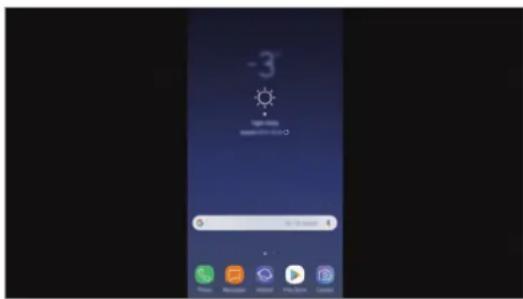
Modo Screen Mirroring Modo Samsung DeX

natural_image
Illustration of a hand interacting with a laptop displaying a grid, connected to a monitor screen (no text or symbols present)
natural_image
Front view of a smartphone displaying a grid layout with a thumbs-up icon (no text or symbols)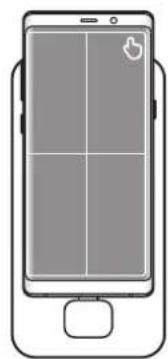
natural_image
Line drawing of a smartphone with a grid layout and control buttons (no text or symbols)natural_image
Illustration of a desktop computer setup with monitor, keyboard, mouse, and smartphone (no text or symbols)
natural_image
Illustration of a desktop computer connected to a smartphone via cable (no text or symbols visible)
Copyright © 2018 Samsung Electronics
Este manual está protegido pelas leis internacionais de copyright.
natural_image
Illustration of a desktop computer with monitor, keyboard, and smartphone (no text or symbols)Izlasiet mani vispirms

natural_image
Diagram of a handheld device with a blue arrow pointing to its left side, showing internal components and wiring (no text or symbols)natural_image
Desktop computer with starry night sky and colorful cloud patterns (no visible text or symbols)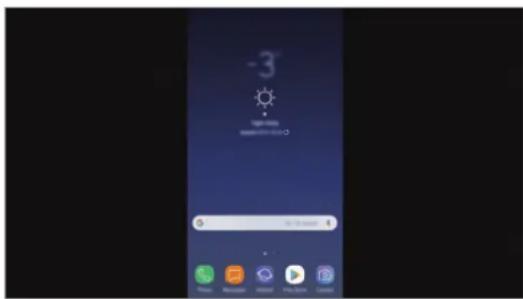
Režims Screen mirroring Režims Samsung DeX

natural_image
Illustration of a hand interacting with a laptop displaying a grid, connected to a monitor screen (no text or symbols visible)
natural_image
Front view of a smartphone with a grid and control buttons (no text or symbols)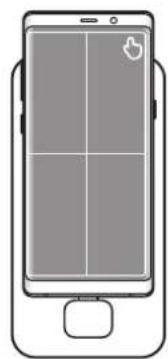
natural_image
Front view of a smartphone with a grid layout and control knob (no text or symbols)natural_image
Illustration of a desktop computer setup with monitor, keyboard, mouse, and smartphone (no text or symbols)
natural_image
Illustration of a smartphone connected to a monitor displaying a weather app interface (no text or symbols on the device itself)
Varat izmantot režimu Screen mirroring, nepievienojot tastaturu vai peli. Vadiet ekrānu, izmantojot pievienoto mobilo ierīci.
Ekrāna režīma maiņa
2 Pieskarieties pie virs sadaļas Izmanto Samsung DeX un pieskarieties pie SCREEN MIRRORING.
natural_image
Illustration of a desktop computer with monitor, keyboard, and smartphone (no text or symbols)
natural_image
Diagram of a handheld device with a blue arrow pointing to its left side, showing internal components (no text or symbols)natural_image
Desktop screen displaying a starry night sky with purple and pink clouds, no visible text or symbols on the main image area.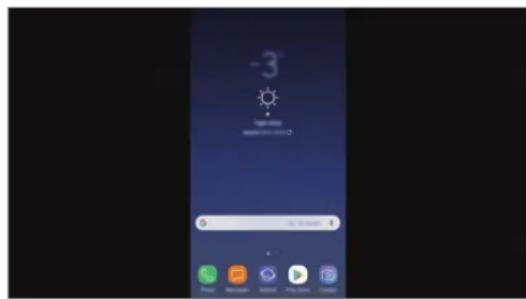
„Samsung DeX“ režimas Ekrano dubliavimo režimas

natural_image
Illustration of a hand interacting with a laptop on a computer monitor, showing the screen and keyboard (no text or symbols present)
natural_image
Front view of a smartphone displaying a grid layout with a thumbs-up icon (no text or symbols)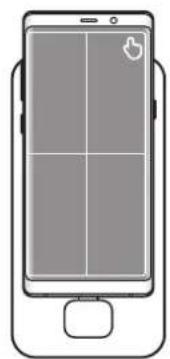
natural_image
Front view of a smartphone with a grid layout and a small button at the bottom (no text or symbols)natural_image
Illustration of a desktop computer setup with monitor, keyboard, mouse, and smartphone (no text or symbols)
natural_image
Illustration of a desktop computer connected to a smartphone via cable (no text or symbols present)
natural_image
Illustration of a desktop computer with monitor, keyboard, and smartphone (no text or symbols)Loe enne kasutamist

natural_image
Diagram of a handheld device with a blue arrow pointing to its left side, showing no text or symbols.natural_image
Desktop screen showing a starry night sky with colorful clouds and a small interface window (no readable text or symbols)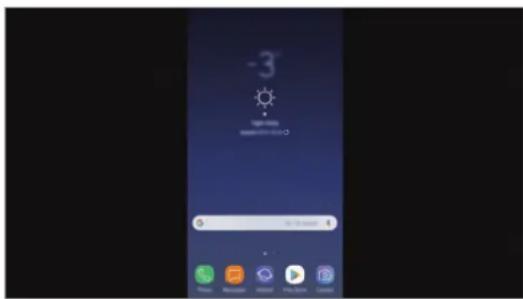
natural_image
Illustration of a hand interacting with a laptop displaying a screen, against a starry night sky background (no text or symbols)
- Puutepadi on kasutatav vaid Samsung DeX'i režiimis.
natural_image
Front view of a smartphone displaying a grid layout with four quadrants and a thumbs-up icon (no text or symbols)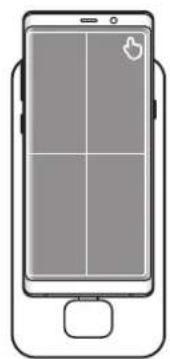
natural_image
Front view of a smartphone with a grid layout and control buttons (no text or symbols)natural_image
Illustration of a desktop computer setup with monitor, keyboard, mouse, and smartphone (no text or symbols)
natural_image
Illustration of a desktop computer connected to a smartphone via cable (no text or symbols visible)
2 Toksake ▼ Samsung DeX-i kasutamine kohal ja toksake SCREEN MIRRORING.
Mobiliseadme aku laadimine
Copyright © 2018 Samsung Electronics
natural_image
Illustration of a desktop computer with monitor, keyboard, and smartphone (no text or symbols)Lees dit eerst

natural_image
Line drawing of a handheld electronic device with a blue arrow pointing to its left side (no text or symbols)natural_image
Desktop computer with starry night sky and colorful cloud patterns (no visible text or symbols)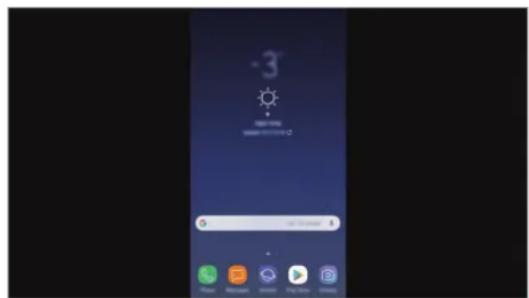
Stand Scherm spiegelenSamsung DeX-stand

natural_image
Illustration of a hand interacting with a computer monitor displaying a grid, against a twilight sky background (no text or symbols)
natural_image
Top-down line drawing of a smartphone with four screen panels and a hand cursor icon (no text or symbols)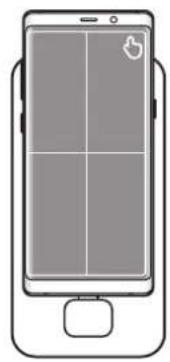
natural_image
Line drawing of a smartphone with a grid layout and a small icon on the screen (no text or symbols)Draadloos verbinden of verbinden via Bluetooth
natural_image
Illustration of a desktop computer setup with monitor, keyboard, mouse, and smartphone (no text or symbols)
natural_image
Illustration of a desktop computer connected to a smartphone with a cable, showing no text or symbols on the device itself.
Copyright © 2018 Samsung Electronics
natural_image
Illustration of a desktop computer with monitor, keyboard, and smartphone (no text or symbols)
natural_image
Diagram of a handheld device with a blue arrow pointing to its left side, showing internal components (no text or symbols)natural_image
Desktop window with starry sky and cloud patterns, no visible text or symbols on the main screen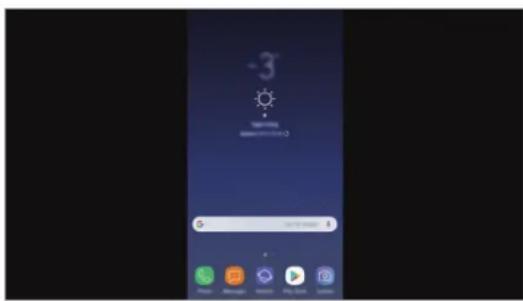
natural_image
Illustration of a hand interacting with a laptop displaying a screen, against a starry night sky background (no text or symbols)
natural_image
Front view of a smartphone displaying a grid layout with a play button icon (no text or symbols)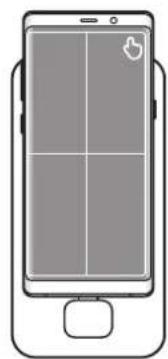
natural_image
Front view of a smartphone with a grid layout and control knob (no text or symbols)natural_image
Illustration of a desktop computer setup with monitor, keyboard, mouse, and smartphone (no text or symbols visible)
natural_image
Illustration of a smart home device connected to a monitor displaying a weather app interface (no text or symbols on the device itself)
Ladda den mobila enhetens batteri
Copyright © 2018 Samsung Electronics
natural_image
Illustration of a desktop computer with monitor, keyboard, and smartphone (no text or symbols)Les dette først

natural_image
Diagram of a handheld device with a blue arrow pointing to its left side, showing internal components and wiring (no text or symbols)natural_image
Desktop computer with starry sky and colorful overlay icons (no readable text or symbols)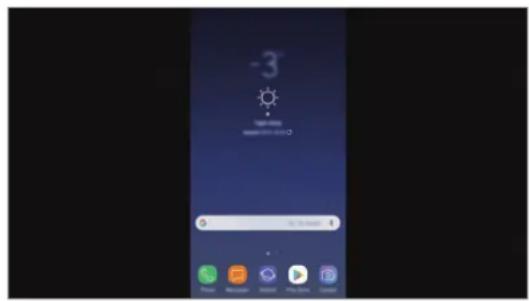
Samsung DeX-modus Skjermspeilingsmodus

natural_image
Illustration of a hand interacting with a laptop displaying a screen, against a starry night sky background (no text or symbols)
natural_image
Front view of a smartphone displaying a grid layout with a play button icon (no text or symbols)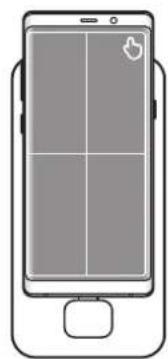
natural_image
Front view of a smartphone with a grid layout and control buttons (no text or symbols)natural_image
Illustration of a desktop computer setup with monitor, keyboard, mouse, and smartphone (no text or symbols)
natural_image
Illustration of a desktop computer connected to a smartphone via cable (no text or symbols visible)
Copyright © 2018 Samsung Electronics
natural_image
Illustration of a desktop computer with monitor, keyboard, and smartphone (no text or symbols)Lue tämä ensin

natural_image
Diagram of a handheld device with a blue arrow pointing to its left side, showing no text or symbols.natural_image
Desktop screen with starry sky and cloud patterns, no visible text or symbols on the main image area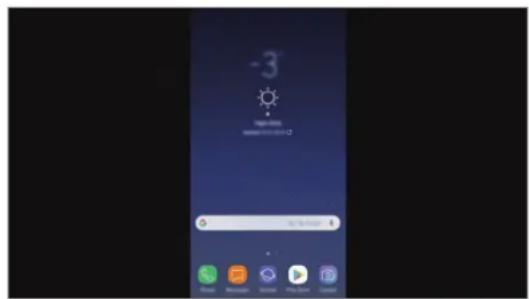
Screen Mirroring -tilaSamsung DeX -tila

natural_image
Illustration of a hand interacting with a smartphone displaying a grid, next to a computer monitor (no text or symbols visible)
natural_image
Front view of a smartphone displaying a grid layout with four quadrants and a thumbs-up icon (no text or symbols)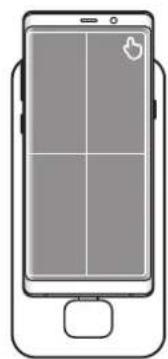
natural_image
Line drawing of a smartphone with a grid layout and control buttons (no text or symbols)natural_image
Illustration of a desktop computer setup with monitor, keyboard, mouse, and smartphone (no text or symbols)
natural_image
Illustration of a desktop computer connected to a smartphone via cable (no text or symbols visible)
Copyright © 2018 Samsung Electronics
natural_image
Illustration of a desktop computer with monitor, keyboard, and smartphone (no text or symbols)Læs dette først

natural_image
Diagram of a handheld device with a blue arrow pointing to its left side (no text or symbols present)natural_image
Desktop screen displaying a starry night sky with purple and pink clouds, no visible text or symbols on the main image area.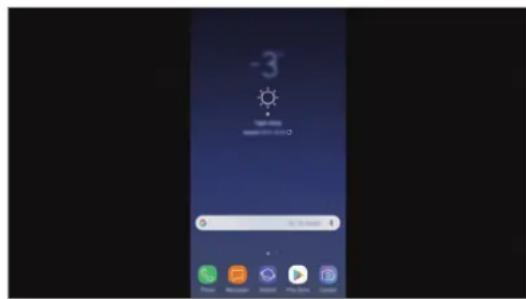
natural_image
Illustration of a hand interacting with a laptop displaying a grid, connected to a monitor screen (no text or symbols present)
- Du kan kun anvende touchpad'en, när du er i Samsung DeX-tilstand.
natural_image
Front view of a smartphone displaying a grid layout with four quadrants and a thumbs-up icon (no text or symbols)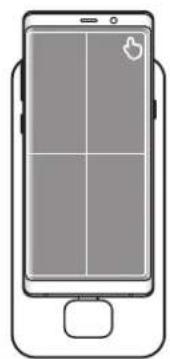
natural_image
Front view of a smartphone with a grid layout and a small button at the bottom (no text or symbols)natural_image
Illustration of a desktop computer setup with monitor, keyboard, mouse, and smartphone (no text or symbols)
natural_image
Illustration of a desktop computer monitor displaying an app interface with a connected smartphone showing a weather icon (no text or symbols on the device itself)
2 Tryk på over Brug af Samsung DeX, og tryk på SKÆRMSPEJLING.
natural_image
Illustration of a desktop computer with monitor, keyboard, and smartphone (no text or symbols)Διαβάστε πρώτα

natural_image
Diagram of a device with a blue arrow pointing to a component, no text or symbols presentnatural_image
Desktop computer displaying a starry night sky with purple and pink clouds against a dark sky (no text or symbols visible)
natural_image
Illustration of a hand interacting with a smartphone on a computer monitor, showing the screen and cable (no text or symbols present)
natural_image
Top-down line drawing of a smartphone with four screen panels and a small lock icon (no text or symbols)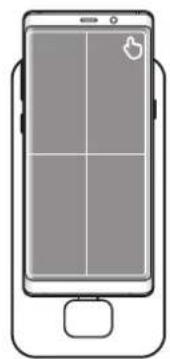
natural_image
Front view of a smartphone with a grid layout and a small icon on the screen (no text or symbols)natural_image
Illustration of a desktop computer setup with monitor, keyboard, mouse, and smartphone (no text or symbols)
natural_image
Illustration of a smartphone connected to a monitor displaying a weather app interface (no text or symbols on the device)
natural_image
Illustration of a desktop computer with monitor, keyboard, and smartphone (no text or symbols)Najprej preberi
Pred uporabo naprave pozorno preberite ta priročnik, da zagotovite varno in pravilno uporabo.

natural_image
Diagram of a handheld device with a blue arrow pointing to its left side (no text or symbols present)natural_image
Desktop screen with a starry night sky and colorful cloud patterns (no readable text or symbols)
Način Samsung DeX Način zrcaljenja zaslona

natural_image
Illustration of a hand interacting with a laptop and tablet device on a computer monitor, with no visible text or symbols.
natural_image
Front view of a smartphone displaying four screen screens (no text or symbols visible)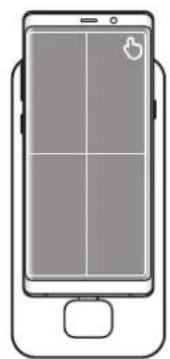
natural_image
Front view of a smartphone with a grid layout and a small button at the bottom (no text or symbols)Krmiljenje z zunanjo tipkovnico in miško
natural_image
Illustration of a desktop computer setup with monitor, keyboard, mouse, and smartphone (no text or symbols)
Med uporabo načina Samsung DeX nekatere aplikacije ali funkcije morda ne bodo na voljo.
Previdnostna opozorila ob zagonu načina Samsung DeX
natural_image
Illustration of a smart home device connected to a monitor displaying a weather app interface (no text or symbols on the device itself)
2
Pritisnite nad Uporaba aplikacije Samsung DeX in nato pritisnite ZRCALJENJE ZASLONA.
Polnjenje baterije mobilne naprave
natural_image
Illustration of a desktop computer with monitor, keyboard, and smartphone (no text or symbols)
natural_image
Diagram of a handheld device with a blue arrow pointing to the left side of its screen (no text or symbols present)natural_image
Desktop computer with starry sky and colorful cloud patterns (no visible text or symbols)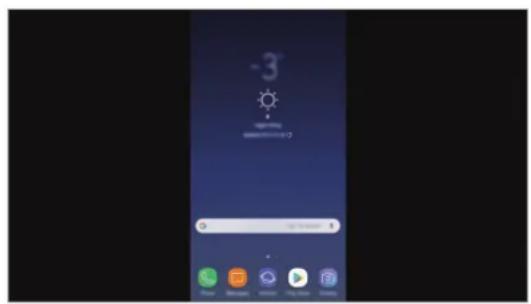
Režim Samsung DeX Režim zrkadlenia obrazovky

natural_image
Illustration of a hand interacting with a laptop on a desktop computer monitor, showing the screen and keyboard (no text or symbols present)
natural_image
Top-down line drawing of a smartphone with four screen squares and a play button icon (no text or symbols)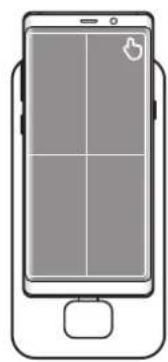
natural_image
Front view of a smartphone with a grid layout and control buttons (no text or symbols)Ovládanie pomocou externej klávesnice a myši
natural_image
Illustration of a desktop computer setup with monitor, keyboard, mouse, and smartphone (no text or symbols)
natural_image
Illustration of a desktop computer monitor connected to a smartphone with cables, showing no text or symbols on the device itself.
2 Ţuknite na položku ▼ nad položkou Používanie režimu Samsung DeX a t'uknite na položku ZRKADLENIE OBRAZOVKY.
Nabíjanie batérie mobilného zariadenia
Copyright © 2018 Samsung Electronics
natural_image
Illustration of a desktop computer with monitor, keyboard, and smartphone (no text or symbols)
natural_image
Line drawing of a device with a blue arrow pointing to a component, no text or symbols presentnatural_image
Desktop window displaying a starry night sky with purple and pink clouds against a dark blue sky (no text or symbols visible)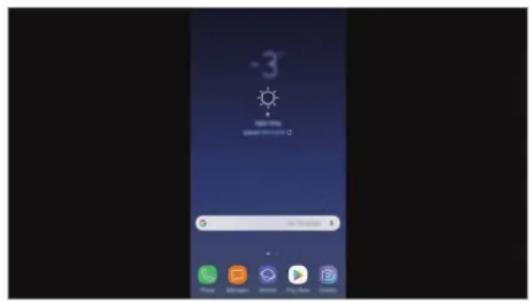
natural_image
Illustration of a hand interacting with a computer monitor displaying a screen, against a twilight sky background (no text or symbols)
natural_image
Top-down line drawing of a smartphone with four quadrants and a hand icon on the screen (no text or symbols)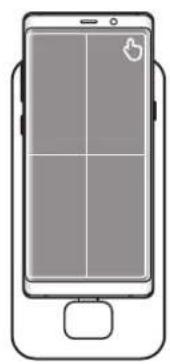
natural_image
Line drawing of a smartphone with a grid layout and a small mouse on the screen (no text or symbols)natural_image
Illustration of a desktop computer setup with monitor, keyboard, mouse, and smartphone (no text or symbols)
natural_image
Illustration of a smartphone connected to a monitor displaying a smart home interface (no text or symbols visible)
Copyright © 2018 Samsung Electronics
natural_image
Illustration of a desktop computer with monitor, keyboard, and smartphone (no text or symbols)
natural_image
Diagram of a handheld device with a blue arrow pointing to its left side, showing internal components and wiring (no text or symbols)natural_image
Desktop computer with starsry sky and colorful overlay icons (no readable text or symbols)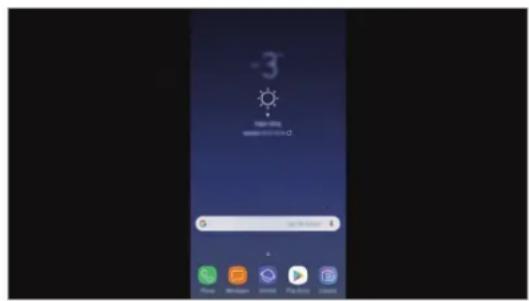
natural_image
Illustration of a hand interacting with a smartphone displaying a grid, placed on a computer monitor screen (no text or symbols visible)
natural_image
Front view of a smartphone displaying a grid layout with four quadrants and a thumbs-up icon (no text or symbols)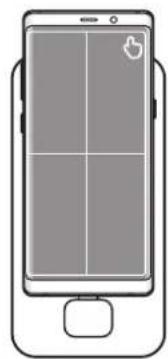
natural_image
Front view of a smartphone with a grid layout and control buttons (no text or symbols)natural_image
Illustration of a desktop computer setup with monitor, keyboard, mouse, and smartphone (no text or symbols)
natural_image
Illustration of a smartphone connected to a monitor displaying an app interface (no text or symbols on the device)
Telif hakkı © 2018 Samsung Electronics
natural_image
Illustration of a desktop computer with monitor, keyboard, and smartphone (no text or symbols)قراعة الدليل أولاً
natural_image
Diagram of a device with a blue arrow pointing to a component, no text or symbols present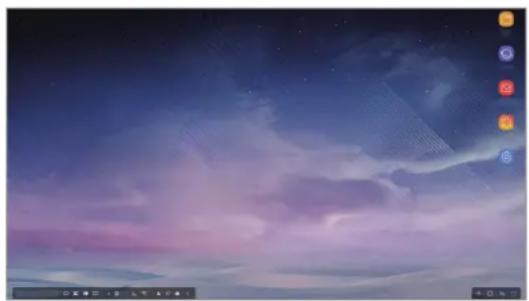
natural_image
Night sky with purple and pink hues, no visible text or symbolsnatural_image
Illustration of a hand interacting with a laptop displaying a grid, against a starry night sky background (no text or symbols)natural_image
Top-down line drawing of a smartphone with a grid and screen, no text or symbols present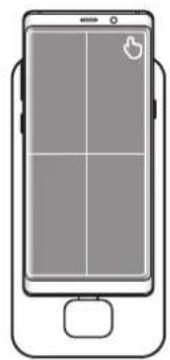
natural_image
Line drawing of a smartphone with a grid layout and control buttons (no text or symbols)natural_image
Illustration of a desktop computer setup with monitor, keyboard, mouse, and smartphone (no text or symbols)• Samsung DeX : orthopedically. • Patient's health care for the health care of patients with a hospital stay in the hospital.
natural_image
Illustration of a smartphone connected to a monitor displaying a smart interface (no text or symbols visible).SCREEN MIRRORING攪غط على Samsung DeX攪غط على Samsung DeX攪غط على Samsung DeX攪غط على Samsung DeX攪غط على Samsung DeX攪غط على Samsung DeX攪غط على Samsung DeX攪غط على Samsung DeX攪غط على Samsung DeX攪غط على Samsung DeX攪غط على Samsung DeX攪غط على Samsung DeX攪غط على Samsung DeX攪غ�م.
natural_image
Illustration of a desktop computer with monitor, keyboard, and smartphone (no text or symbols)natural_image
Diagram of a device with a blue arrow pointing to a component, no text or symbols present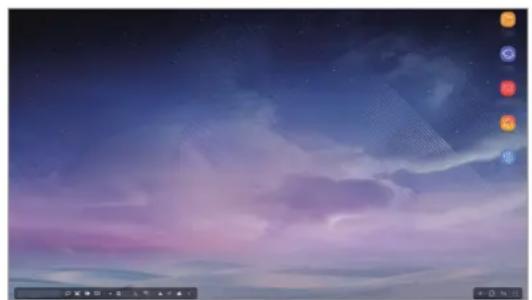
natural_image
Night sky with purple and pink cloud patterns, no visible text or symbolsnatural_image
Illustration of a hand interacting with a laptop displaying a grid, against a starry night sky background (no text or symbols)natural_image
Top-down line drawing of a smartphone with a grid layout and a play button icon (no text or symbols)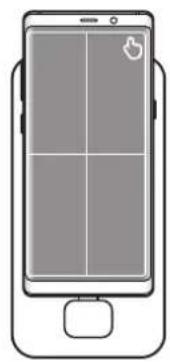
natural_image
Line drawing of a smartphone with a grid layout and control buttons (no text or symbols)اتصال از طريق بيسيم یا بلوتوش
natural_image
Illustration of a desktop computer setup with monitor, keyboard, mouse, and smartphone (no text or symbols)natural_image
Illustration of a smartphone connected to a monitor displaying a smart home interface (no text or symbols visible)Copyright © 2018 Samsung Electronics
olerance that is in the
natural_image
Illustration of a desktop computer with monitor, keyboard, and smartphone (no text or symbols)
natural_image
Line drawing of a handheld device with a blue arrow pointing to the left side (no text or symbols)natural_image
Desktop computer with starry night sky and colorful cloud patterns (no visible text or symbols)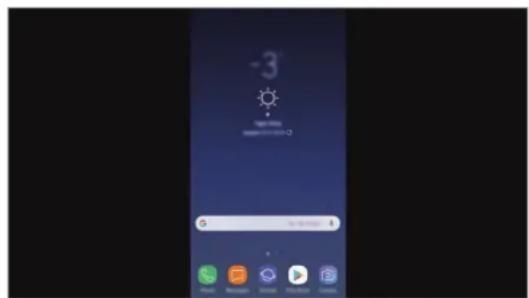
natural_image
Illustration of a hand interacting with a smartphone on a computer monitor, showing the screen and keyboard (no text or symbols present)
natural_image
Top-down line drawing of a smartphone displaying four quadrants with a hand cursor icon (no text or symbols)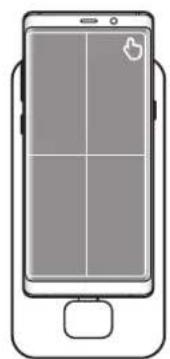
natural_image
Front view of a smartphone with a grid layout and control buttons (no text or symbols)natural_image
Illustration of a desktop computer setup with monitor, keyboard, mouse, and smartphone (no text or symbols)
natural_image
Illustration of a desktop computer monitor connected to a smartphone with an attached charging case (no text or symbols visible)
© Samsung Electronics, 2018.
natural_image
Illustration of a desktop computer with monitor, keyboard, and smartphone (no text or symbols)
natural_image
Diagram of a handheld device with a blue arrow pointing to its left side, showing internal components and wiring (no text or symbols)natural_image
Desktop screen showing a starry night sky with purple and pink clouds, no visible text or symbols on the main image area.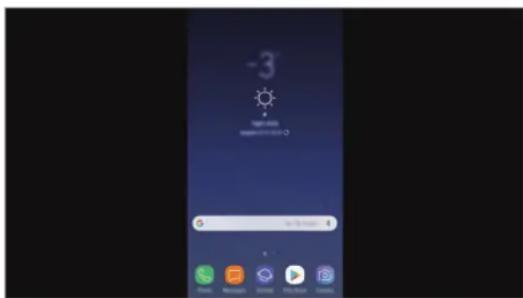
natural_image
Illustration of a hand interacting with a smartphone displaying a grid, placed on a computer monitor screen (no text or symbols visible)
natural_image
Top-down line drawing of a smartphone displaying four square grids with a play button icon (no text or symbols)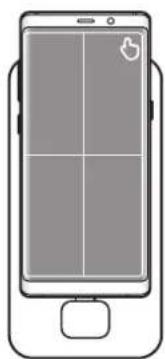
natural_image
Front view of a smartphone with a grid layout and control buttons (no text or symbols)natural_image
Illustration of a desktop computer setup with monitor, keyboard, mouse, and smartphone (no text or symbols)
natural_image
Illustration of a smart home device connected to a monitor displaying a weather control interface (no text or symbols on the device itself)
© Samsung Electronics, 2018
natural_image
Illustration of a desktop computer with monitor, keyboard, and smartphone (no text or symbols)
natural_image
Diagram of a device with a blue arrow pointing to a component, no text or symbols presentnatural_image
Desktop computer with starry night sky and colorful cloud patterns (no visible text or symbols)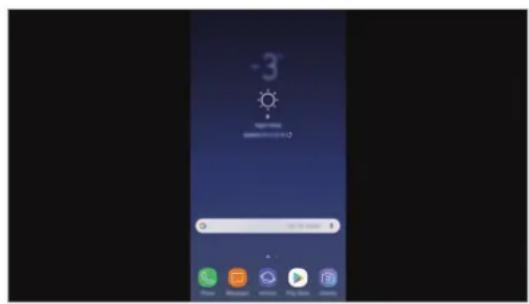
natural_image
Illustration of a hand interacting with a smartphone displaying a grid, placed on a computer monitor (no text or symbols present)
natural_image
Line drawing of a smartphone with four screen panels and a right-hand button (no text or symbols)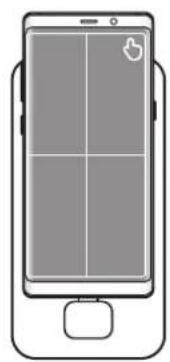
natural_image
Front view of a smartphone with a grid layout and a small icon on the screen (no text or symbols)natural_image
Illustration of a desktop computer setup with monitor, keyboard, mouse, and smartphone (no text or symbols)
natural_image
Illustration of a desktop computer monitor connected to a smartphone with cables, showing no text or symbols on the device itself.
Copyright © 2018 Samsung Electronics
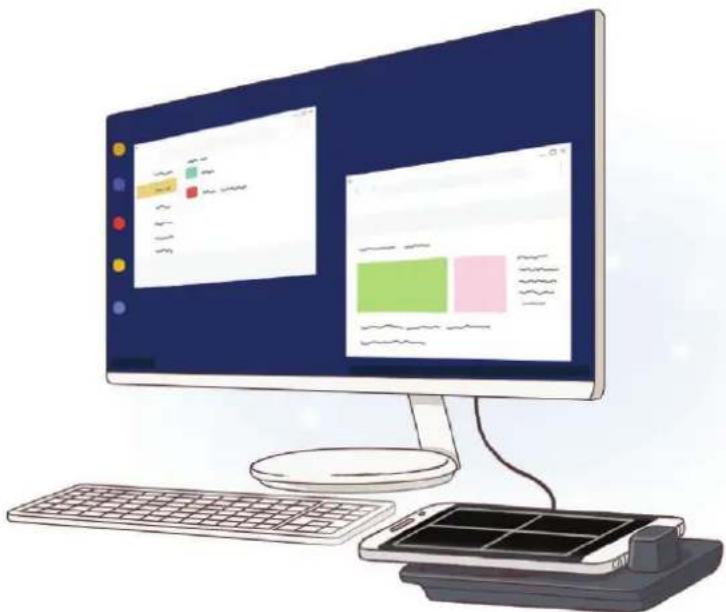
With the multimedia dock, you can use your mobile device's features on a wider screen by connecting a TV or monitor. You can also connect with nearby devices, such as a keyboard or mouse.
natural_image
Illustration of a desktop computer with monitor, keyboard, and smartphone (no text or symbols)Read me first
Please read this manual before using the device to ensure safe and proper use.
- Images may differ in appearance from the actual product. Content is subject to change without prior notice.
- You can use the multimedia dock only on supported mobile devices running Android 8.0 or higher. You can view the compatible devices in the introduction section for the multimedia dock on the Samsung website.
Instructional icons

Warning: situations that could cause injury to yourself or others

Caution: situations that could cause damage to your device or other equipment

Notice: notes, usage tips, or additional information
Package contents
Check the product box for the following items:
- Multimedia dock
- HDMI cable
- USB cable
- USB power adaptor
- Quick start guide

- The items supplied with the device and any available accessories may vary depending on the region or service provider.
- The supplied items are designed only for this device and may not be compatible with other devices.
- Appearances and specifications are subject to change without prior notice.
- You can purchase additional accessories from your local Samsung retailer. Make sure they are compatible with the device before purchase.
- Use only Samsung-approved accessories. Using unapproved accessories may cause the performance problems and malfunctions that are not covered by the warranty.
- Availability of all accessories is subject to change depending entirely on manufacturing companies. For more information about available accessories, refer to the Samsung website.
Device layout
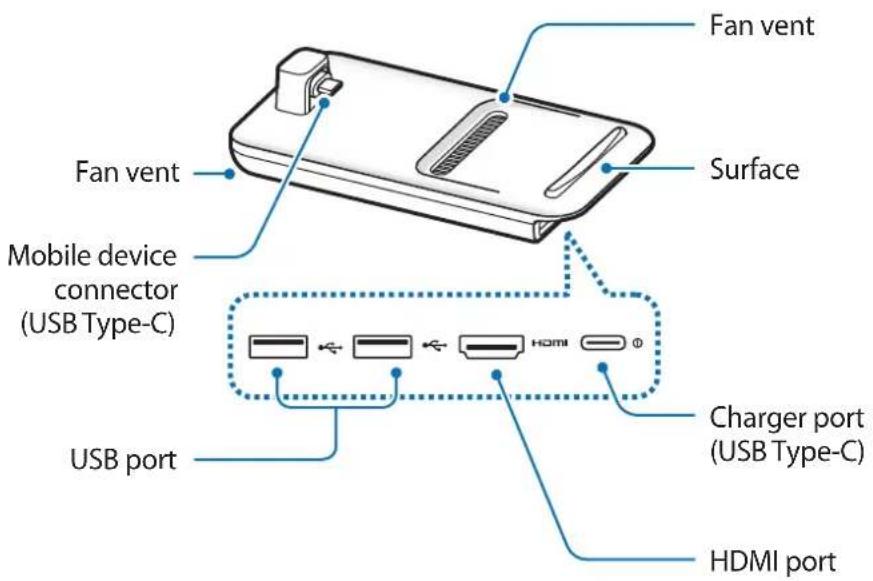

When you connect the charger to the multimedia dock's charger port (USB Type-C), be sure to use a USB Type-C cable. If you connect a Micro USB cable, the multimedia dock may malfunction or be damaged.
Using the multimedia dock
Connecting the multimedia dock and a mobile device
1 Connect the charger to the multimedia dock's charger port (USB Type-C).

Use only Samsung-approved chargers that support the fast charging feature (9 V/1.67 A, 9 V/2 A, 12 V/2.1 A).

- To save energy, unplug the charger when not in use. The charger does not have a power switch, so you must unplug the charger from the electric socket when not in use to avoid wasting power. The charger should remain close to the electric socket and easily accessible while charging.
- Remove your mobile device from the multimedia dock when it is not in use. Otherwise, your mobile device's battery will drain.
2 Connect one end of an HDMI cable to the multimedia dock's HDMI port, and plug the other end of the cable into a TV or monitor's HDMI port.
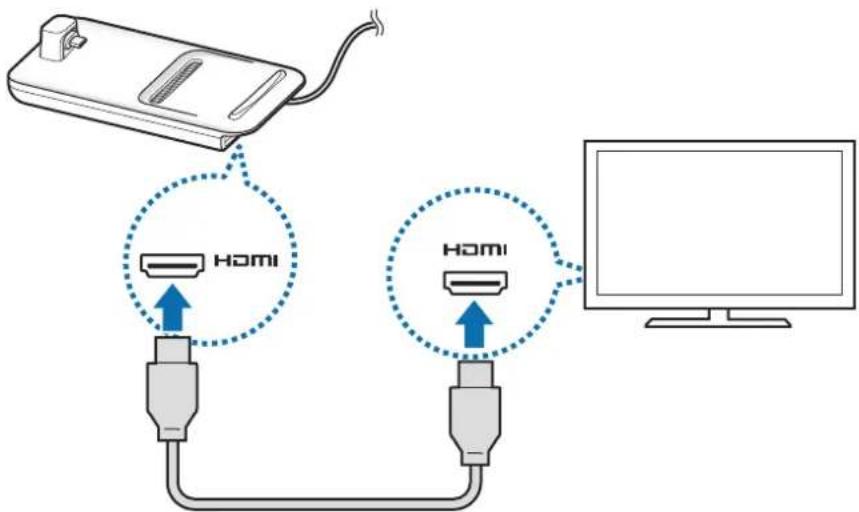

Use only the HDMI cable supplied with the multimedia dock. Otherwise, the multimedia dock may not work properly.
3 Connect the mobile device's multipurpose jack to the mobile device connector (USB Type-C) on the multimedia dock.
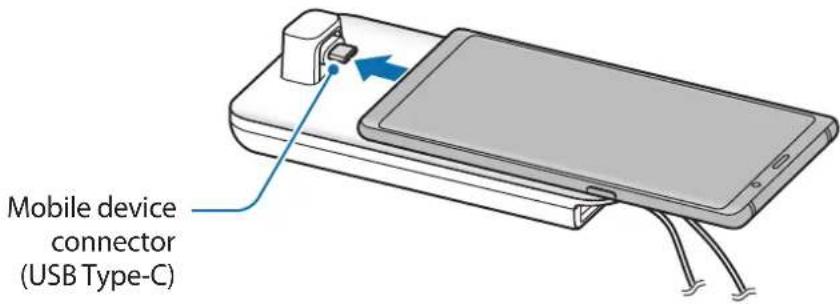

- Ensure that the mobile device is horizontal to the connector. Otherwise, the multimedia dock and the mobile device may be damaged.

natural_image
Simple line drawing of a device with a blue arrow pointing to a component (no text or symbols)- If you connect your mobile device with a case attached, it may not correctly connect to the multimedia dock or run SAMSUNG DeX properly depending on your mobile device's case. Remove the case before use.

For some mobile devices, only the normal charging mode is available when your mobile device is turned off. If you want to activate the fast charging feature, activate it when the mobile device is on or connect your mobile device directly to the Samsung-approved fast charger, not the multimedia dock. When charging, use only the Samsung-approved charger that is provided on purchase.
4 Select the screen mode you want to use. You can select Samsung DeX mode or Screen mirroring mode.
- START SAMSUNG DeX: The mobile device's screen will turn off and appear on the connected TV or monitor in desktop mode.
- SWITCH TO SCREEN MIRRORING The same screen as the mobile device will appear on the connected TV or monitor.
natural_image
Desktop screenshot showing a starry night sky with purple and pink clouds, no visible text or symbols on the screen.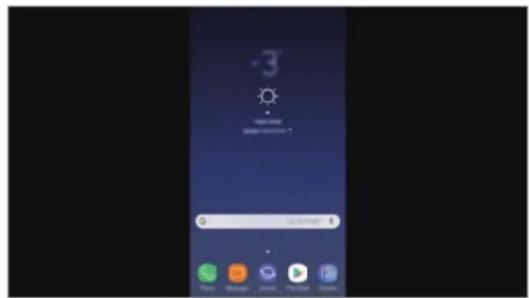
Samsung DeX mode Screen mirroring mode

- The screen mode you first select will be applied for subsequent connections. Refer to Changing screen mode for more information.
- If you want to use a keyboard or a mouse, connect them using the multimedia dock's USB ports or via Bluetooth. Refer to Controlling with an external keyboard and mouse for more information.
- The available features may vary depending on the mobile device. You can view more information in the introduction section for the multimedia dock on the Samsung website.
Precautions for connecting the device
- You can use the multimedia dock only when you connect it to a Samsung-approved charger that supports the fast charging feature.
- Connect only a keyboard, mouse, or an USB storage device to the multimedia dock's USB ports. Charging devices or connecting high-capacity devices with these ports may not work properly.
- Prevent the fan vent and mobile device connector (USB Type-C) inside from coming into contact with liquids or dust. Exposure to liquid or dust may cause the multimedia dock not to work properly.
- Do not move the mobile device while it is connected to the multimedia dock. Doing so may damage the mobile device connector (USB Type-C).
- When you use the mobile device's voice recognition after connecting the multimedia dock to your mobile device, the voice recognition may not perform well.
Ending the device connection
Remove the mobile device from the multimedia dock to end the connection between the mobile device and TV or monitor.

Be sure to remove the mobile device horizontally. Raising it up too high, pulling it excessively, or shaking it may damage the mobile device connector (USB Type-C).
Controlling the Samsung DeX screen
Controlling with a mobile device
You can use your mobile device's screen as a touchpad.
natural_image
Illustration of a hand interacting with a laptop on a computer monitor, showing the screen and keyboard (no text or symbols present)
- You can use the touchpad only when using Samsung DeX mode.
- If your mobile device's case has a front cover, open the front cover to use the mobile device as a touchpad. If the front cover is closed, the touchpad may not work properly.
Controlling the screen
• Tapping: Launch an app or select a button.
• Tapping with two fingers: Show the additional options.
- Swiping with two fingers: Scrolling the screen in any direction.
- Spreading or pinching with two fingers: Zoom in or out.
• Tapping and holding: Select an item on the screen.
- Dragging: Move an item or select text.
Orienting your mobile device's screen
When you are using your mobile device as a touchpad, you can use it in either the horizontal or vertical alignment.
1 When the multimedia dock and the mobile device are connected, raise both of them to be perpendicular to the surface (①). Then, turn the mobile device to be either vertical or horizontal, the orientation you want (②).
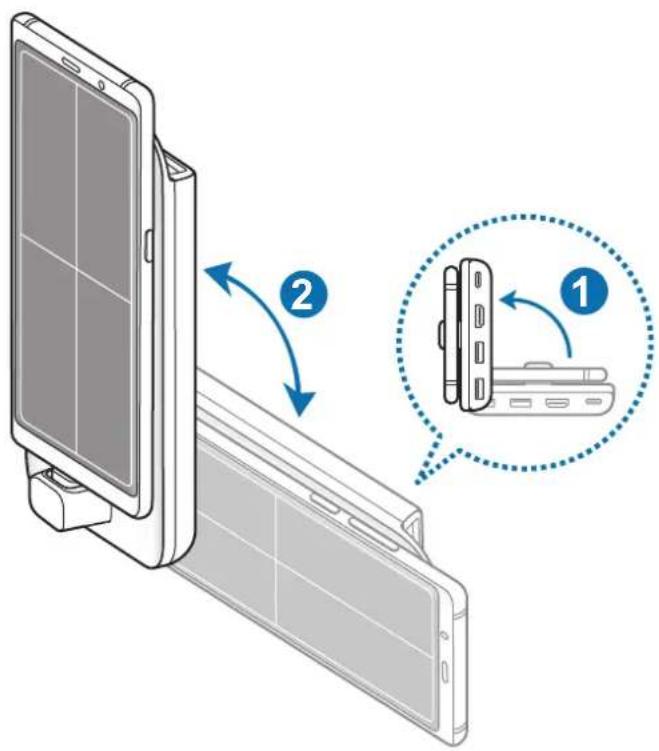
2 Move both the multimedia dock and the mobile device up and down slightly.
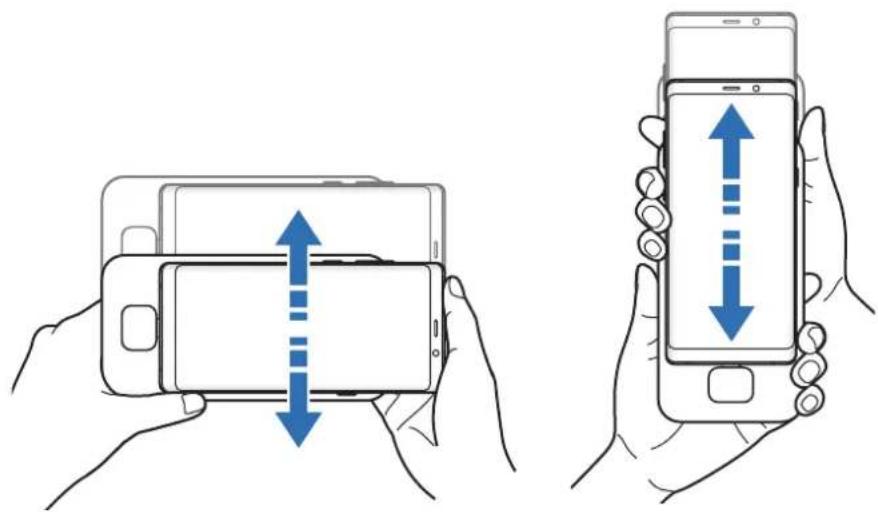
If your mobile device's screen has been properly oriented, the icon will appear at the top right of your mobile device's screen.
natural_image
Top-down line drawing of a smartphone with four screen panels and a hand cursor icon (no text or symbols)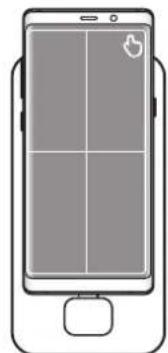
natural_image
Front view of a smartphone with a grid layout and control buttons (no text or symbols)Controlling with an external keyboard and mouse
Connect a wired keyboard and mouse to the multimedia dock's USB port or connect a wireless keyboard and mouse with the Bluetooth feature of the connected mobile device.

- When you connect a mouse, the touchpad will not appear on your mobile device.
- You can control with an external keyboard and mouse even in Screen mirroring mode.
Connecting via cable
If you want to use a wired keyboard or wired mouse, connect their USB cables to the multimedia dock's USB ports.
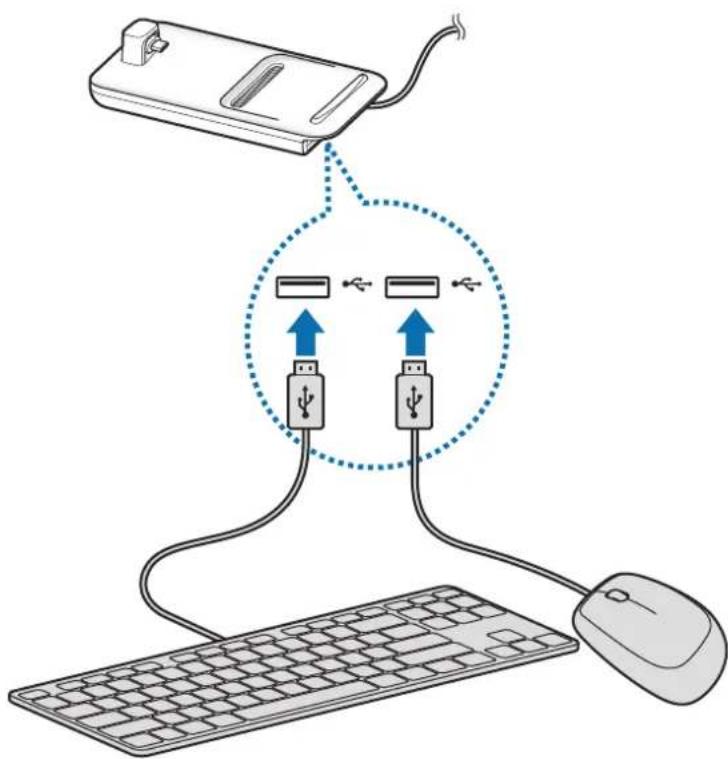
Connecting via wireless or Bluetooth
You can connect a wireless keyboard and mouse or Bluetooth keyboard and mouse. For more information about the devices, refer to the device's user manual.
- Wireless keyboard and mouse: Insert a wireless receiver into the USB port.
- Bluetooth keyboard and mouse: Connect to a mobile device via Bluetooth.
Using Samsung DeX mode
You can use your mobile device's features in an interface environment similar to a computer. You can launch the mobile device's apps or check the mobile device's notifications and status.
natural_image
Illustration of a desktop computer setup with monitor, keyboard, mouse, and smartphone (no text or symbols)
Some apps or features may not be available when using Samsung DeX mode.
Precautions for launching Samsung DeX mode
- When you launch or disconnect Samsung DeX mode, the currently running apps will close except some apps.
- You cannot launch Samsung DeX mode if your mobile device is in the following modes: the ultra power saving mode, emergency mode, and safe mode.
- If the TV or monitor do not support HDCP (High-bandwidth Digital Content Protection), the Samsung DeX mode screen may not be displayed.
- Samsung DeX mode supports HD+, FHD, and WQHD resolutions. Some content on your mobile device may be displayed differently on the TV or monitor.
• The available time for battery usage can be reduced when you use Samsung DeX mode. - If you change the settings on Samsung DeX mode, the mobile device's settings will be changed as well. Some settings of the mobile device may not be changed even if you change the settings on Samsung DeX mode.
- Download the firmware from the server to update Samsung DeX mode to the latest version. It is available only when connected to a Wi-Fi network.
- Some apps may become paid apps depending on their license policies when you use Samsung DeX mode.
Using the Home screen
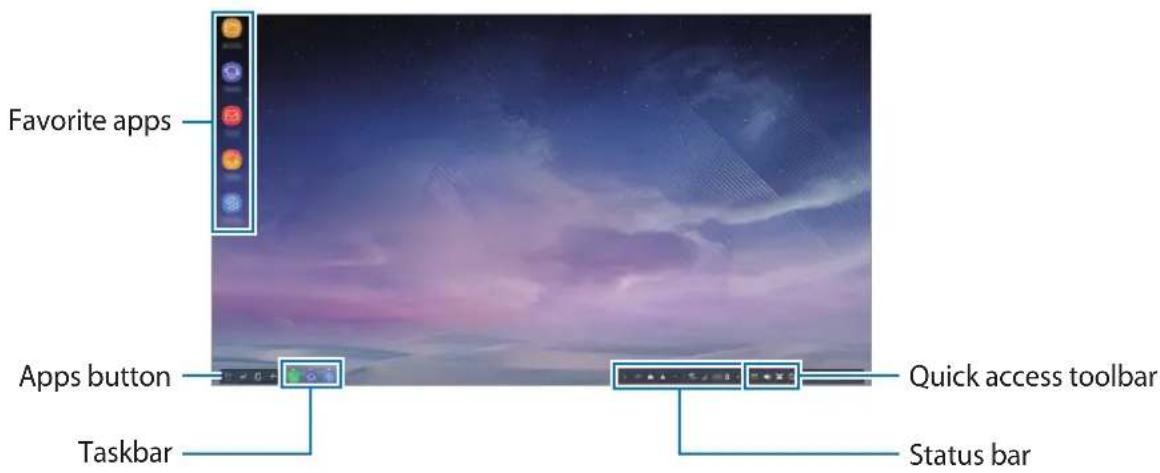
- Favorite apps: Add frequently used apps to the Home screen and launch them quickly.
- Apps button: View or launch apps installed on your mobile device.
• Taskbar: View the apps that are currently running. - Status bar: View your mobile device's status or notifications. The displayed icons may differ depending on your mobile device's current status. Select ▲ and turn on and off your mobile device's various features on the quick settings list.
- Quick access toolbar: Use the on-screen keyboard, volume, screenshot, and finder features quickly.
Receiving an incoming call
You can receive an incoming call with the connected TV or monitor while using Samsung DeX mode.
If you receive a phone call, select the incoming call menu from the connected TV or monitor. The mobile device's speaker is used for answering the call.

Connect earphones or remove your mobile device from the multimedia dock to use the mobile device instead of the speaker phone to receive an incoming call.
Adding app shortcuts
Select the Apps button, select the app you want to create a shortcut to, and then drag it to the Home screen.
A shortcut to the app will be added on the Home screen.
Changing the speakers
You can change the default speakers from your mobile device's speakers to the speakers of a TV, monitor, or an audio device.
Launch the Settings app on a connected TV or monitor, and select the Samsung DeX → Set default audio output switch to activate the feature. After you change the default speakers, sound will play through the new default speakers whenever Samsung DeX mode is on.

You can temporarily change from your mobile device's speakers to the speakers of a TV, monitor, or an audio device. On the status bar, select ▲ → Audio output and select the device you want. Alternatively, on the status bar, right click the Volume icon and select the device you want under Audio output.
Using the quick access toolbar
• : Display the on-screen keyboard.
- ☒: Adjust the volume level for call ringtones, music and videos, notifications, and system sounds.
• 📄: Capture a screenshot and use the captured screen in various ways, such as drawing on, writing on, cropping, or sharing it.
• Q : Search for content on your mobile device by entering a keyword in the search field.
Home screen options
On the Home screen, when you press the connected mouse's right button, you can use the home screen options.
- Sort by: Select the arrangement method for apps on the Home screen.
- Clean up: Arrange apps or folders on the Home screen based on your selected arrangement method.
- Wallpapers for Samsung DeX: Change the Samsung DeX mode wallpaper settings for the Home screen and the locked screen.
Enjoying games vividly on a large screen
Play your mobile device's games on a large screen. On the connected TV or monitor, launch the Game Launcher app.
Launching apps
Launch apps installed on the mobile device on Samsung DeX mode.
When selecting the Apps button, your mobile device's apps list will appear. Select an app and launch it. You can open several apps and launch them at the same time and multitask as you use the computer.

Some apps may not be available when using Samsung DeX mode.
Configuring the settings
Configure your Samsung DeX mode settings.
Launch the Settings app on the connected TV or monitor and select Samsung DeX.
- Screen timeout for Samsung DeX: Set how long Samsung DeX mode waits before turning off the display's backlight.
-
Wallpapers for Samsung DeX: Change the Samsung DeX mode wallpaper settings for the Home screen and the locked screen.
-
Screen resolution for Samsung DeX: Change the Samsung DeX mode's screen resolution.
- Pointer speed: Adjust the pointer speed for the mouse.
- Show on-screen keyboard in Samsung DeX: Show an on-screen keyboard on the connected screen when you connect the external keyboard.
- Set default audio output: Set a TV or monitor as a default speaker.
- Receive marketing information: Set whether to receive Samsung DeX's marketing information.
• Samsung DeX Labs: Resize the apps that are not officially supported by Samsung DeX.

Some apps cannot be resized.
- How to use Samsung DeX: View help information to learn how to use Samsung DeX mode or configure important settings.
- About Samsung DeX: View the Samsung DeX software information and update your Samsung DeX's software.
Using Screen mirroring mode
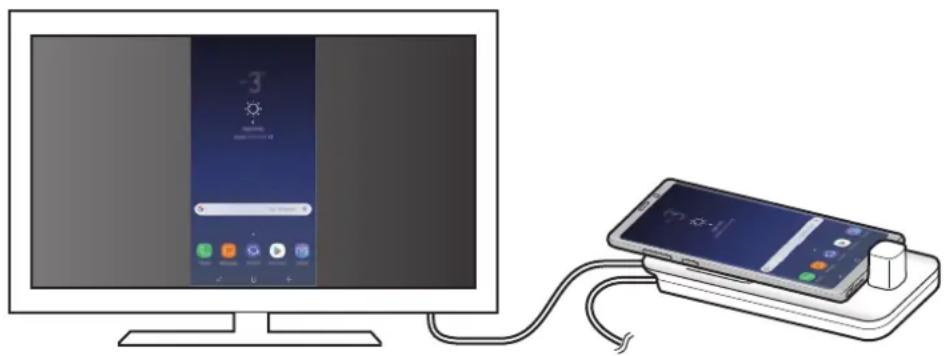
The mobile device's screen will remain on and appear on the connected TV or monitor. View your mobile device's various content on the wide screen of the connected TV or monitor.
natural_image
Illustration of a desktop computer connected to a smartphone via cable (no text or symbols visible)
You can use Screen mirroring mode without connecting a keyboard or mouse. Control the screen with the connected mobile device.
Changing screen mode
You can change the screen mode on the connected TV or monitor.
1 On the status bar, tap and tap next to Samsung DeX.
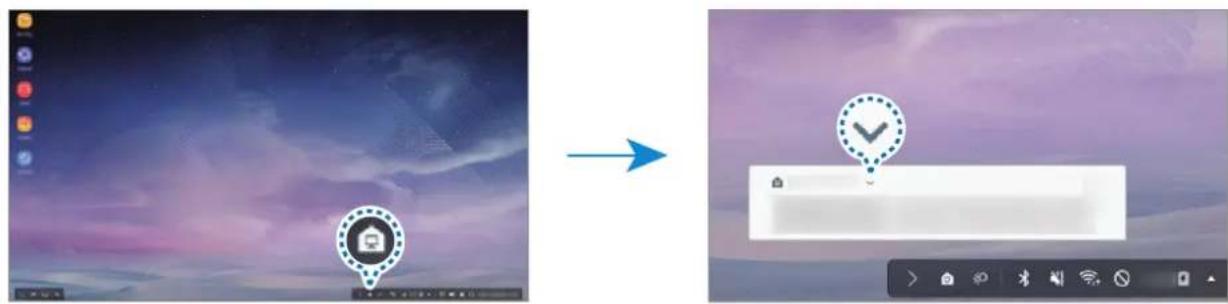
2 Tap above Using Samsung DeX and tap SCREEN MIRRORING.
Samsung DeX mode will be ended and the same screen as your mobile device will appear on the connected TV or monitor.
If you want to switch modes on your mobile device, open the notification panel, tap √ next to Samsung DeX, and then tap SAMSUNG DEX.
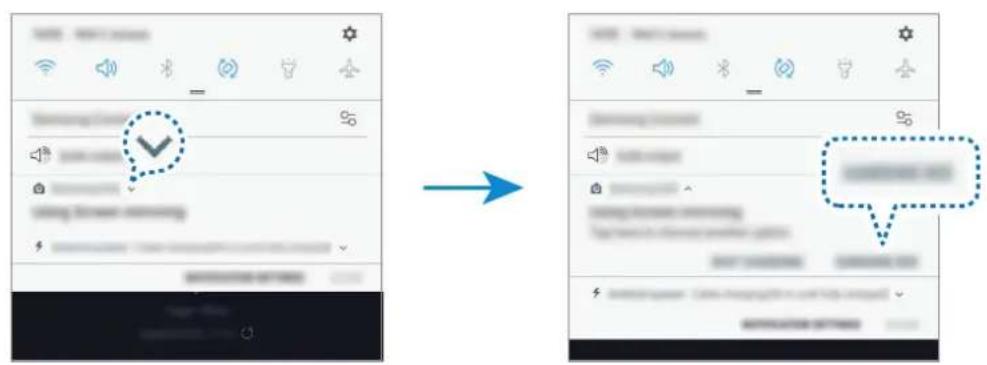
Charging the mobile device's battery
You can charge your mobile device's battery using the multimedia dock.
1 On the status bar, tap 📋 and tap next to Samsung DeX.
2 Tap above Using Samsung DeX and tap FAST CHARGING.
The connected TV or monitor will turn off and your mobile device will start charging.
Appendix
Troubleshooting
Before contacting a Samsung Service Center, please attempt the following solutions.
On Samsung DeX mode, select the Apps button → ⚙→ Contact us → FAQ and refer to the relevant content.
Your multimedia dock or connected devices freezes
If the multimedia dock or connected devices freezes or hangs, try to resolve it by turning off the connected mobile device and then turning it on again.
If the multimedia dock or connected devices are still unresponsive, disconnect devices from the multimedia dock and reconnect them.
If the problem is still not resolved, contact a Samsung Service Center.
The multimedia dock works differently as described in the manual
Available functions may differ depending on the connected device.
The screen ratio is incorrect
Samsung DeX mode supports HD+, FHD, and WQHD resolutions. Some content on your mobile device may be displayed differently on the TV or monitor. Adjust the screen ratio from the menu of the connected TV or monitor.
Copyright
Copyright © 2018 Samsung Electronics
This manual is protected under international copyright laws.
No part of this manual may be reproduced, distributed, translated, or transmitted in any form or by any means, electronic or mechanical, including photocopying, recording, or storing in any information storage and retrieval system, without the prior written permission of Samsung Electronics.
Trademarks
- SAMSUNG, the SAMSUNG logo, and Samsung DeX are registered trademarks of Samsung Electronics.
- All other trademarks and copyrights are the property of their respective owners.
Para comenzar
Presentación
natural_image
Illustration of a desktop computer with monitor, keyboard, and smartphone (no text or symbols)
natural_image
Line drawing of a device with a blue arrow pointing to a component (no text or symbols)natural_image
Desktop screenshot showing a starry night sky with purple and pink clouds, no visible text or symbols on the main image area.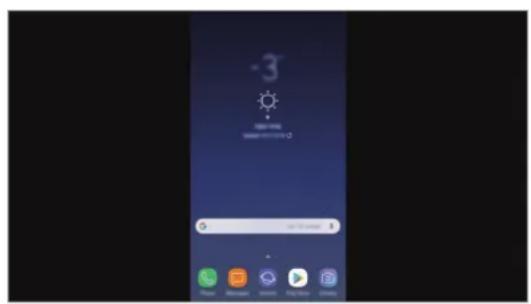
Modo Screen Mirroring Modo Samsung DeX

natural_image
Illustration of a hand interacting with a computer monitor displaying a screen, against a starry night sky background (no text or symbols)
natural_image
Top-down line drawing of a smartphone with four screen panels and a hand cursor icon (no text or symbols)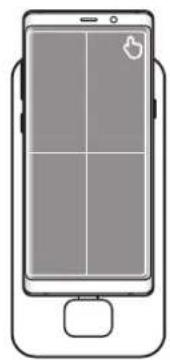
natural_image
Line drawing of a smartphone with a grid layout and a small icon on the screen (no text or symbols)natural_image
Illustration of a desktop computer setup with monitor, keyboard, mouse, and smartphone (no text or symbols)
natural_image
Illustration of a smartphone connected to a monitor displaying a smart home interface (no text or symbols on the device)
Copyright © 2018 Samsung Electronics
natural_image
Illustration of a desktop computer with monitor, keyboard, and smartphone (no text or symbols)请先阅读说明文件
请先阅读本手册,以确保安全和正确使用。

natural_image
Diagram of a device with a blue arrow pointing to a screen, showing no text or symbols.natural_image
Desktop screen with starry night sky and colorful app icons on the left (no readable text or symbols)
natural_image
Illustration of a hand interacting with a computer monitor displaying a grid, against a starry night sky background (no text or symbols)
natural_image
Top-down line drawing of a smartphone with four screen panels and a hand cursor icon (no text or symbols)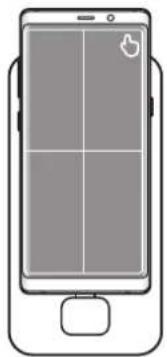
natural_image
Line drawing of a smartphone with a grid layout and a mouse on the screen (no text or symbols)使用外部键盘和鼠标控制多媒体底座
通过无线或蓝牙连接
natural_image
Illustration of a desktop computer setup with monitor, keyboard, mouse, and smartphone (no text or symbols)
natural_image
Illustration of a smartphone connected to a monitor displaying an app interface (no text or symbols on the device)
为移动设备的电池充电
可使用多媒体底座为移动设备的电池充电。
natural_image
Illustration of a desktop computer with monitor, keyboard, and smartphone (no text or symbols)使用前注意事項

natural_image
Diagram of a handheld device with a blue arrow pointing to its left side, showing no text or symbols.natural_image
Desktop computer with starsry night sky and colorful overlay icons (no readable text or symbols)
natural_image
Illustration of a hand interacting with a touchscreen device on a computer monitor, showing a grid and cable (no text or symbols present)
natural_image
Top-down line drawing of a smartphone with a grid layout and a play button icon (no text or symbols)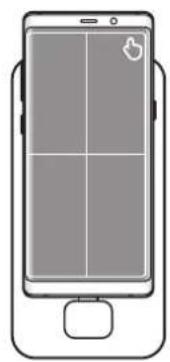
natural_image
Line drawing of a smartphone with a grid layout and control buttons (no text or symbols)透過外接鍵盤與滑鼠操控
透過無線或藍牙連接
natural_image
Illustration of a desktop computer setup with monitor, keyboard, mouse, and smartphone (no text or symbols)
natural_image
Illustration of a smartphone connected to a monitor displaying a weather app interface (no text or symbols on the device)
爲行動裝置的電池充電
Copyright © 2018 Samsung Electronics
本手册受國際版權法保護。
natural_image
Illustration of a desktop computer with monitor, keyboard, and smartphone (no text or symbols)À lire en premier

natural_image
Line drawing of a handheld electronic device with a blue arrow pointing to the left side (no text or symbols)natural_image
Desktop screenshot showing a starry night sky with purple and pink clouds, no visible text or symbols on the main image area.
natural_image
Illustration of a hand interacting with a computer monitor displaying a screen, against a twilight sky background (no text or symbols)
natural_image
Top-down line drawing of a smartphone with four screen panels and a hand cursor icon (no text or symbols)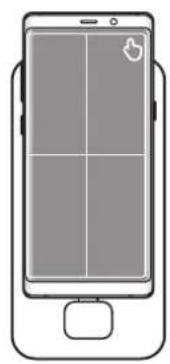
natural_image
Line drawing of a smartphone with a grid layout and control buttons (no text or symbols)natural_image
Illustration of a desktop computer setup with monitor, keyboard, mouse, and smartphone (no text or symbols)
natural_image
Illustration of a desktop computer connected to a smartphone with a cable, showing no text or symbols on the device itself.
© Samsung Electronics, 2018.
natural_image
Illustration of a desktop computer with monitor, keyboard, and smartphone (no text or symbols)Leia-me primeiro

natural_image
Diagram of a device with a blue arrow pointing to a component, no text or symbols presentnatural_image
Desktop screen displaying a starry night sky with purple and pink clouds, no visible text or symbols on the main image area.
Modo Screen mirroring Modo Samsung DeX

natural_image
Illustration of a hand interacting with a laptop and tablet device on a computer monitor, against a starry sky background (no text or symbols)
natural_image
Front view of a smartphone displaying a grid layout with a play button icon (no text or symbols)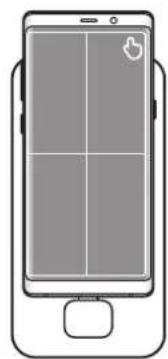
natural_image
Front view of a smartphone with a grid layout and control buttons (no text or symbols)natural_image
Illustration of a desktop computer setup with monitor, keyboard, mouse, and smartphone (no text or symbols)
natural_image
Illustration of a smart home device connected to a monitor displaying a weather app interface (no text or symbols on the device itself)
natural_image
Illustration of a desktop computer with monitor, keyboard, and smartphone (no text or symbols)사용하기 전에

natural_image
Diagram of a device with a blue arrow pointing to a component, no text or symbols presentnatural_image
Desktop screenshot showing a starry night sky with colorful clouds and UI icons (no readable text or symbols)
natural_image
Illustration of a hand interacting with a smartphone displaying a grid, next to a computer monitor displaying a starry sky background (no text or symbols on the device or screen)
natural_image
Illustration of a smartphone with four screen panels and a thumbs-up icon (no text or symbols)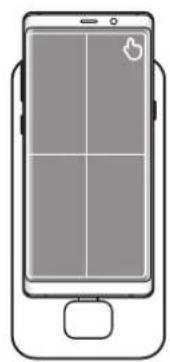
natural_image
Line drawing of a smartphone with a grid layout and a small icon on the screen (no text or symbols)외부 키보드 및 마우스로 조작하기
무선 및 블루투스로 연결하기
natural_image
Illustration of a desktop computer setup with monitor, keyboard, mouse, and smartphone (no text or symbols visible)
natural_image
Illustration of a smartphone connected to a monitor displaying an app interface, with no visible text or symbols on the device itself.
- Read me first
- Instructional icons
- Package contents
- Device layout
- Using the multimedia dock
- Connecting the multimedia dock and a mobile device
- Precautions for connecting the device
- Ending the device connection
- Controlling the Samsung DeX screen
- Controlling with a mobile device
- Controlling the screen
- Orienting your mobile device's screen
- Controlling with an external keyboard and mouse
- Connecting via cable
- Connecting via wireless or Bluetooth
- Using Samsung DeX mode
- Precautions for launching Samsung DeX mode
- Using the Home screen
- Receiving an incoming call
- Adding app shortcuts
- Changing the speakers
- Using the quick access toolbar
- Home screen options
- Enjoying games vividly on a large screen
- Launching apps
- Configuring the settings
- Using Screen mirroring mode
- Changing screen mode
- Charging the mobile device's battery
- Appendix
- Troubleshooting
- Your multimedia dock or connected devices freezes
- The multimedia dock works differently as described in the manual
- The screen ratio is incorrect
- Copyright
- Trademarks
- Démarrage
- Introduction
- Connessione tramite wireless o Bluetooth
- Antes de empezar
- Conectar mediante red inalámbrica o Bluetooth
- Fontos tudnivalók
- Przeczytaj najpierw
- Conectarea prin wireless sau prin Bluetooth
- Първо прочетете
- Najprije pročitajte
- Bežično spajanje ili spajanje putem Bluetootha
- Mjere opreza pri pokretanju načina rada Samsung DeX
- Upotreba početnog zaslona
- Punjenje baterije mobilnog uređaja
- Dodatak
- Rješavanje problema
- Prvo pročitajte
- Upravljanje pomoću spoljne tastature i miša
- Povezivanje preko bežične mreže ili „Bluetooth-a“
- Menjanje režima ekrana
- Trgovačke marke
- Começar
- Introdução
- Leia primeiro
- Izlasiet mani vispirms
- Ekrāna režīma maiņa
- Loe enne kasutamist
- Mobiliseadme aku laadimine
- Lees dit eerst
- Draadloos verbinden of verbinden via Bluetooth
- Ladda den mobila enhetens batteri
- Les dette først
- Lue tämä ensin
- Læs dette først
- Διαβάστε πρώτα
- Najprej preberi
- Krmiljenje z zunanjo tipkovnico in miško
- Previdnostna opozorila ob zagonu načina Samsung DeX
- Polnjenje baterije mobilne naprave
- Ovládanie pomocou externej klávesnice a myši
- Nabíjanie batérie mobilného zariadenia
- قراعة الدليل أولاً
- Para comenzar
- Presentación
- 请先阅读说明文件
- 使用外部键盘和鼠标控制多媒体底座
- 通过无线或蓝牙连接
- 为移动设备的电池充电
- 使用前注意事項
- 透過外接鍵盤與滑鼠操控
- 透過無線或藍牙連接
- 爲行動裝置的電池充電
- À lire en premier
- Leia-me primeiro
- 사용하기 전에
- 외부 키보드 및 마우스로 조작하기
- 무선 및 블루투스로 연결하기
Brand : SAMSUNG
Model : EEM5100TBEGCA
Category : Docking station