
U Flex EOBG950 - Cellphone SAMSUNG - Free user manual and instructions
Find the device manual for free U Flex EOBG950 SAMSUNG in PDF.
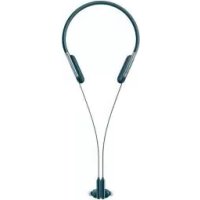
 FR
FR
 BG
BG
 CS
CS
 DA
DA
 DE
DE
 EL
EL
 EN
EN
 ES
ES
 ET
ET
 FI
FI
 HU
HU
 IT
IT
 KK
KK
 KO
KO
 LT
LT
 LV
LV
 NL
NL
 NO
NO
 PL
PL
 PT
PT
 RO
RO
 RU
RU
 SK
SK
 SL
SL
 SV
SV
 TR
TR
 UK
UK
 ZH
ZH
| Product Type | Bluetooth Neckband Wireless Earphones |
| Brand | Samsung |
| Model | U Flex EOBG950 |
| Connectivity Technology | Bluetooth |
| Bluetooth Version | 4.2 (estimated) |
| Battery Life | Up to 10 hours (estimated) |
| Charging Time | Approximately 2 hours |
| Weight | Approximately 50 g |
| Box Contents | Earphones, ear tips (3 pairs: S/M/L), USB cable, quick start guide |
| Key Functions | Play/pause, volume control, call, voice assistant, vibration, multipoint (up to 2 devices) |
| Companion App | Samsung Level (Android 4.2.2 or later) |
| Compatibility | Bluetooth-compatible devices |
| Power Supply | Built-in rechargeable battery, charging via USB (5V/700mA minimum) |
| LED Indicator | Blue, red, green for connection status, charging, notifications |
| Folding and Storage | The earphones connect via magnets for easy storage |
| Maintenance | Clean with a dry cloth; avoid moisture and magnetic fields |
| Safety | Do not use within 15 cm of implanted medical devices; avoid exposure to magnetic fields |
| Operating Temperature | Not specified |
| Color | Black (estimated) |
| Warranty | According to Samsung's conditions |
Frequently Asked Questions - U Flex EOBG950 SAMSUNG
User questions about U Flex EOBG950 SAMSUNG
0 question about this device. Answer the ones you know or ask your own.
Ask a new question about this device
Download the instructions for your Cellphone in PDF format for free! Find your manual U Flex EOBG950 - SAMSUNG and take your electronic device back in hand. On this page are published all the documents necessary for the use of your device. U Flex EOBG950 by SAMSUNG.
USER MANUAL U Flex EOBG950 SAMSUNG
Samsung U Flex Headphones E0-BG950
User Manual
Table of Contents
| English (UK) | Dansk |
| Français | Еλληνικά |
| Deutsch | Slovenschina |
| Italiano | Slovenčina |
| Espanol | Čeština |
| Magyar | Türkçe |
| Polski | العربية |
| Română | råss |
| Бъларски | Русsekni |
| Hrvatski | Украінсьka |
| Srpski | Каазak tişi |
| Portuguès | English (USA) |
| Latviešu | Espanol (Castellano) |
| Lietuvių kalba | 简体中文 |
| Eesti | 繁體中文 (台灣) |
| Nederlands | Français (Canada) |
| Svenska | Portuguès (Brasil) |
| Norsk | 한국어 |
| Suomi |
Read me first
Please read this manual before using the device to ensure safe and proper use.
- Images may differ in appearance from the actual product. Content is subject to change without prior notice.
- Before using the headset, make sure it is compatible with your device.
Instructional icons

Warning: situations that could cause injury to yourself or others

Caution: situations that could cause damage to your device or other equipment

Note: notes, usage tips, or additional information
Getting started
Package contents
Check the product box for the following items:
- Headset
- Earbud tips (3 sets, S/M/L), USB cable
- Quick start guide

- The items supplied with the device and any available accessories may vary depending on the region or service provider.
- The supplied items are designed only for this device and may not be compatible with other devices.
- Appearances and specifications are subject to change without prior notice.
- You can purchase additional accessories from your local Samsung retailer. Make sure they are compatible with the device before purchase.
- Use only Samsung-approved accessories. Using unapproved accessories may cause performance problems and malfunctions that are not covered by the warranty.
- Availability of all accessories is subject to change depending entirely on manufacturing companies. For more information about available accessories, refer to the Samsung website.
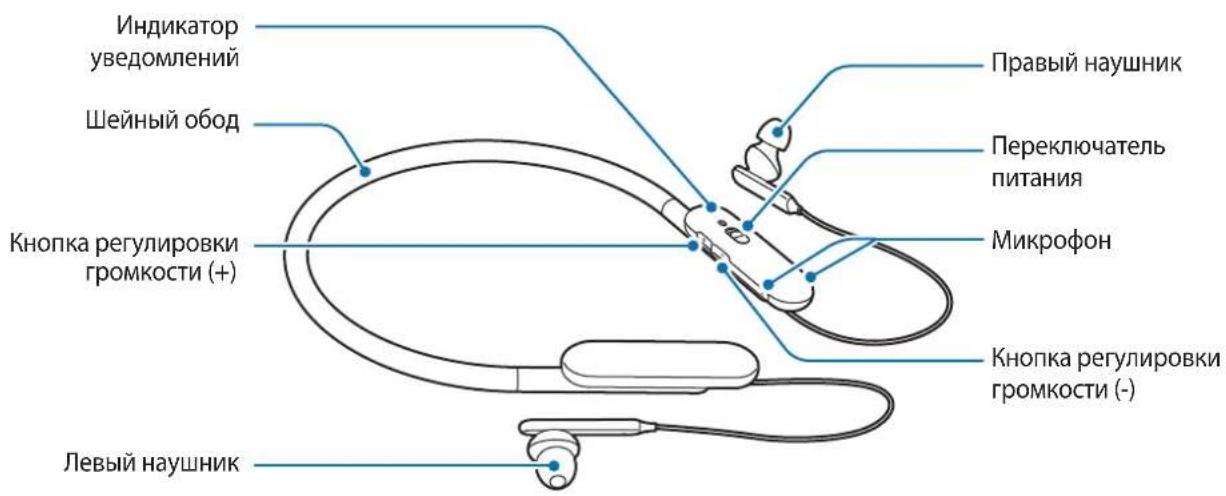
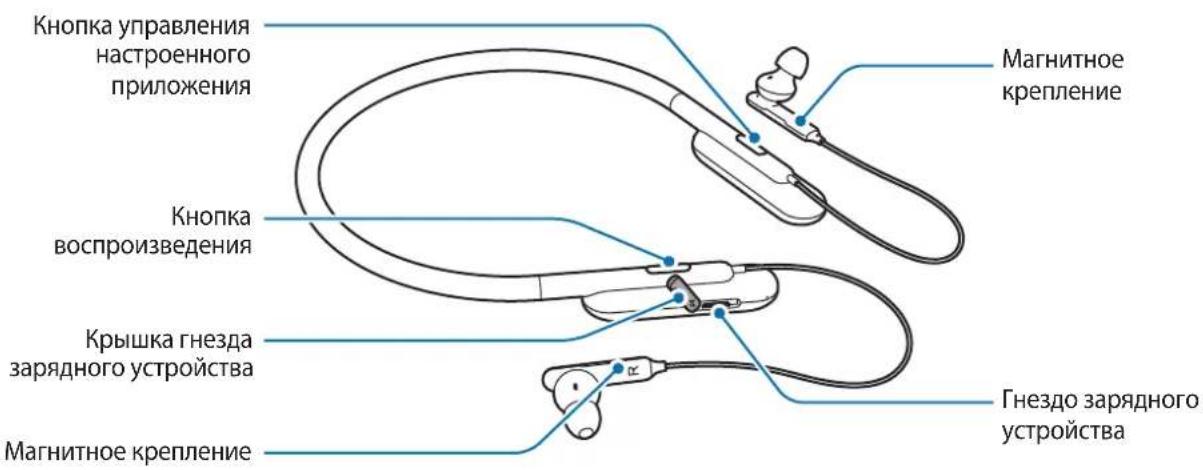
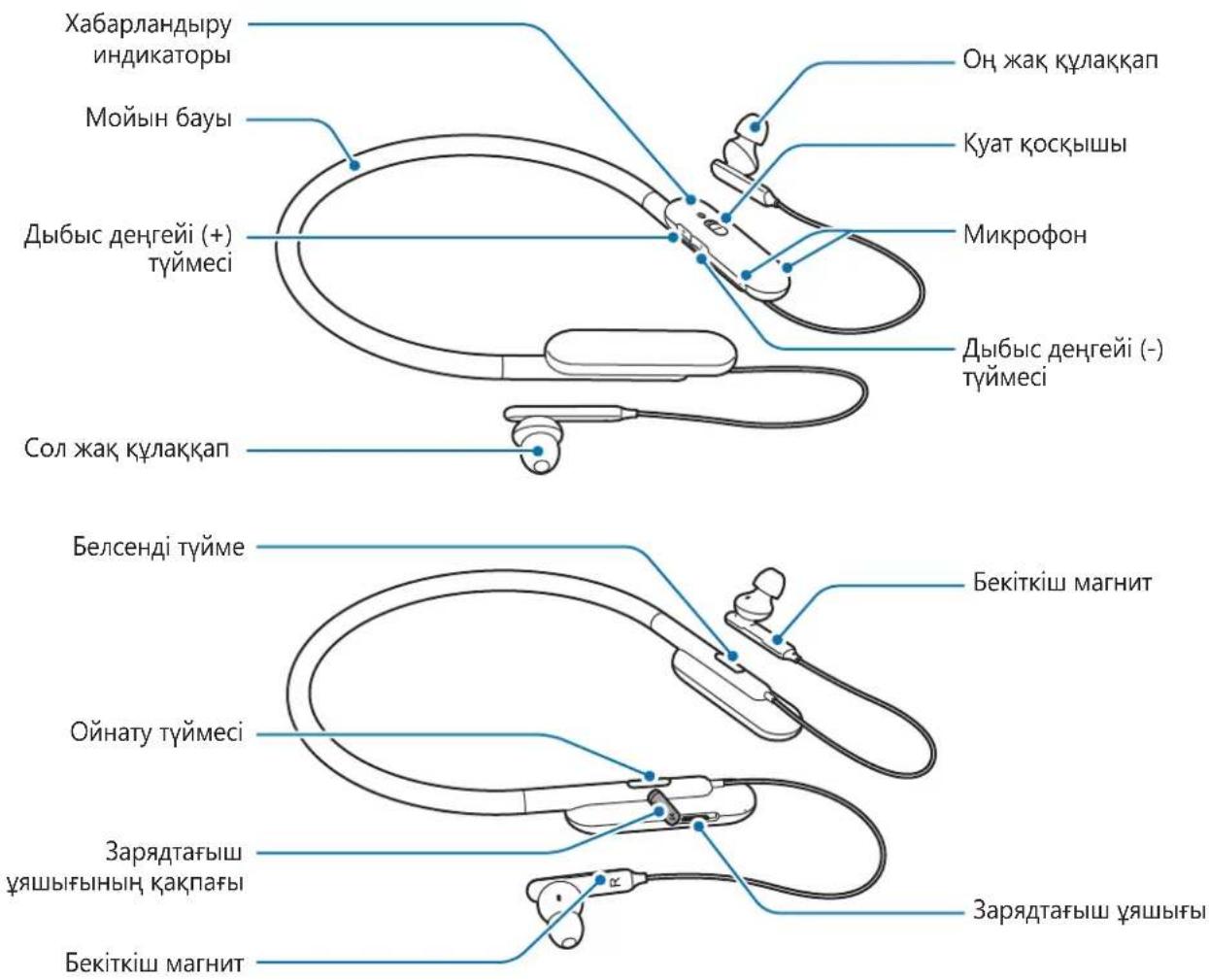
Device layout
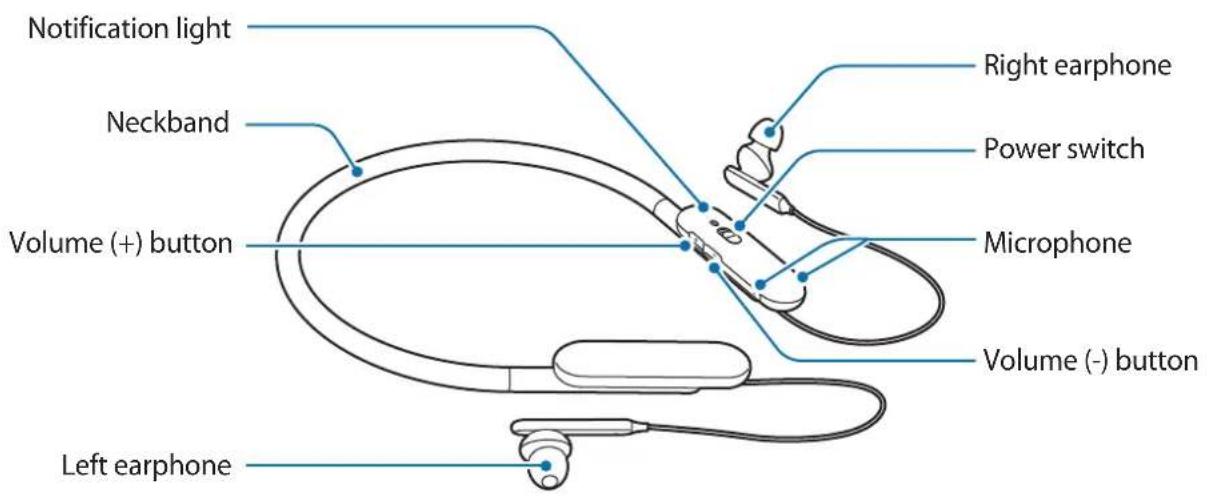
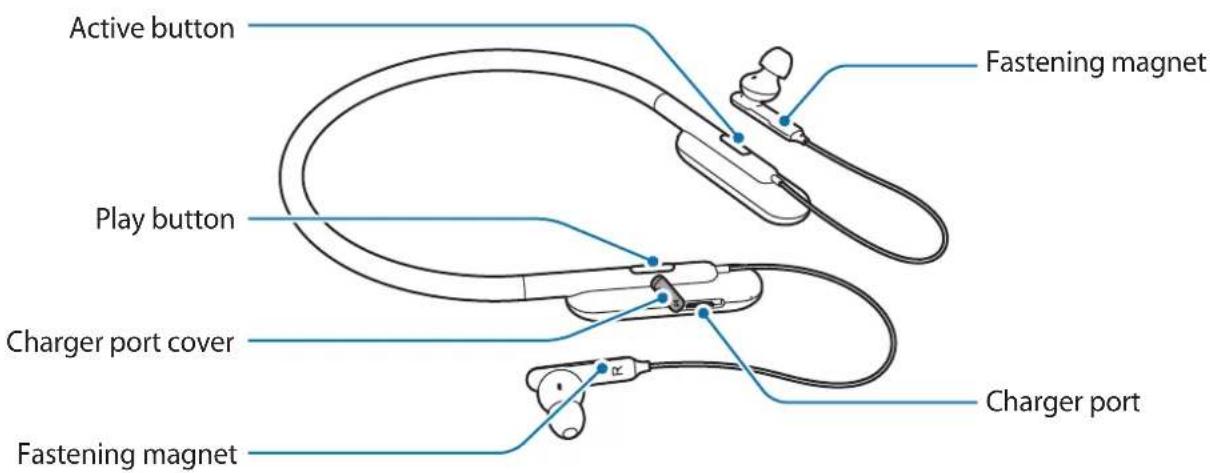
Buttons and functions
| Name Function | |
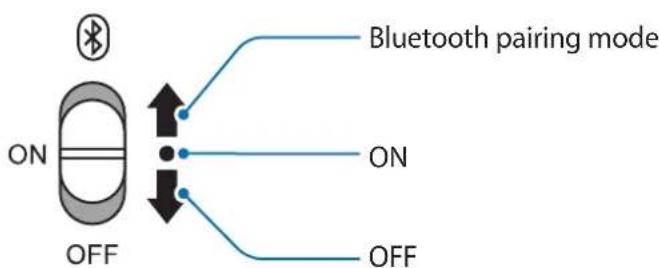
| Power switch | • Slide to turn the headset on or off. • Slide towards®and hold for approximately three seconds to enter Bluetooth pairing mode. |
| Play button | • Press to play or pause multimedia files. • When a call comes in, press to answer or end calls. • When a call comes in, press and hold for one second to reject a call. |
| Volume buttons | • Press to adjust the volume during a call or media playback. • Press and hold the Volume (-) button to skip to the next file during media playback. • Press and hold the Volume (+) button to skip to the previous file during media playback. • Press and hold the Volume buttons (+ and -) simultaneously for about a second to turn the vibration feature on or off. |
| Active button | • Press to launch the customised features. You can set the customised features in Samsung Level. • Press and hold to launch voice recognition application such as Bixby or S Voice. |
Notification light
The notification light alerts you to the headset's status.
| Status Colour | |
| Power on | • Flashes blue three times |
| Power off | • Flashes red three times |
| Bluetooth pairing mode | • Flashes red, green, and blue |
| Connected via Bluetooth | • Quickly flashes blue three times |
| Incoming call | • Flashes blue |
| Charging | • Continuously on red |
| Fully charged | • Continuously on green |
| During use or in sleep mode | • Off |
Charging the battery
Charge the battery before using the headset for the first time or when the headset has been unused for extended periods.

Use only Samsung-approved chargers (above 5V / 700mA) and cables. Unapproved chargers can cause the battery to explode or damage the headset.

- You can charge the headset using the charger (sold separately).
- Using a power source other than the charger, such as a computer, may result in a slower charging speed due to a lower electric current.
- The headset can be used while it is charging, but it may take longer to fully charge the battery.
- While charging, the headset may heat up. This is normal and should not affect the headset's lifespan or performance. If the battery gets hotter than usual, the charger may stop charging.
- If the headset is not charging properly, take the headset and the charger to a Samsung Service Centre.
1 Open the charger port cover. Connect the headset to the USB power adaptor via the USB cable. Plug the USB power adaptor into an electric socket.
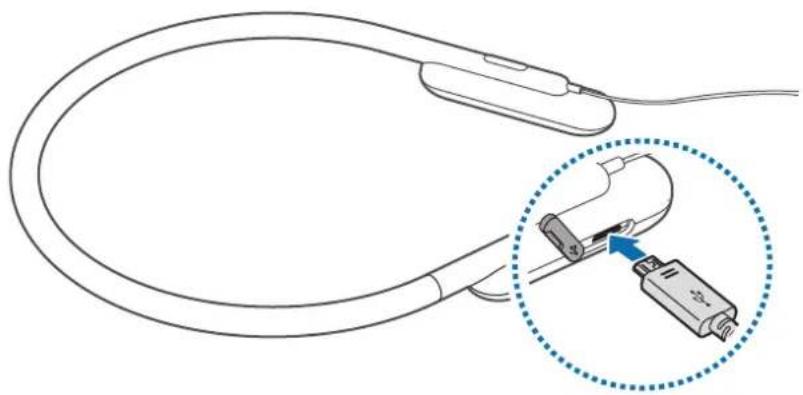

Connecting the charger improperly may cause serious damage to the headset. Any damage caused by misuse is not covered by the warranty.
2 After fully charging, first unplug the USB cable from the headset, and then unplug it from the computer or the electric socket.

- To save energy, unplug the charger when not in use. The charger does not have a power switch, so you must unplug the charger from the electric socket when not in use to avoid wasting power. The charger should remain close to the electric socket and easily accessible while charging.
- The socket-outlet shall be installed near the equipment and shall be easily accessible.
Turning the headset on and off

Follow all posted warnings and directions from authorised personnel in areas where the use of wireless devices is restricted, such as aeroplanes and hospitals.
Connecting via Bluetooth
Bluetooth
About Bluetooth
Bluetooth is a wireless technology standard that uses a 2.4 GHz frequency to connect to various devices over short distances. It can connect and exchange data with other Bluetooth enabled devices, such as mobile devices, computers, printers, and other digital home appliances, without connecting via cables.
Notices for using Bluetooth
- To avoid problems when connecting your headset to another device, place the devices close to each other.
- Ensure that your headset and the other Bluetooth device are within the Bluetooth connection range (10 m). The distance may vary depending on the environment the devices are used in.
- Ensure that there are no obstacles between the headset and a connected device, including human bodies, walls, corners, or fences.
- Do not touch the Bluetooth antenna of a connected device.
- Bluetooth uses the same frequency as some industrial, scientific, medical, and low power products and interference may occur when making connections near these types of products.
- Some devices, especially those that are not tested or approved by the Bluetooth SIG, may be incompatible with the headset.
- Do not use the Bluetooth feature for illegal purposes (for example, pirating copies of files or illegally tapping communications for commercial purposes).
Connecting to other devices
This headset is compatible with Bluetooth-enabled devices.
1 Headset Slide the Power switch towards and hold it for approximately three seconds to enter Bluetooth pairing mode.
When you turn on the headset for the first time, it automatically enters Bluetooth pairing mode.
2 Other device Activate the Bluetooth feature and search for Bluetooth devices.
For more information, refer to the other device's user manual.
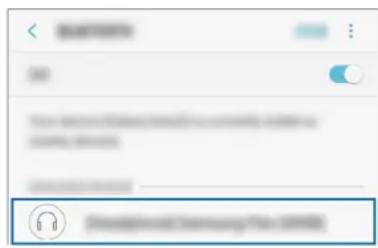
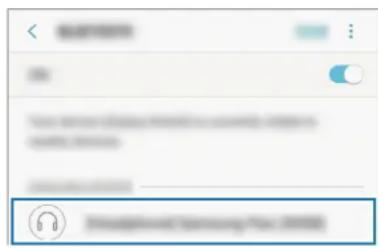
3 Other device Tap Samsung U Flex (0000) from the list.
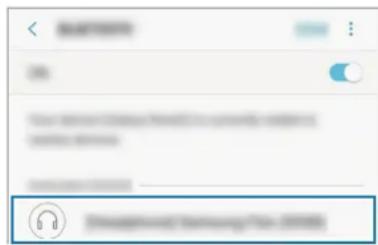

- The PIN for the headset is the four-digit number in parenthesis displayed on the other device's Bluetooth settings screen. The number differs depending on the headset.
- Once devices are paired, recently connected devices automatically connect to your headset whenever you turn it on.
- If the Bluetooth connection fails or other device cannot locate the headset, remove the device's information from the other device's list. Then, try to connect again.
- If the headset does not work properly, restart it or try to pair the devices again.
- The Bluetooth connection range and sound quality may vary depending on the connected devices.
Connecting additional devices
The headset can connect to up to two Bluetooth-enabled devices at the same time. When you connect the headset to two devices, the last device you connect is recognised as the primary device. The other device is recognised as the secondary device.
1 Connect the headset to a device via Bluetooth. 2 Slide the Power switch to the right and hold it for approximately three seconds to enter Bluetooth pairing mode.
The first device will be disconnected.
3 Connect the headset to a second device. 4 Reconnect the headset to the first device from the first device's Bluetooth settings screen.

This feature may not be supported on some devices.
Reconnecting or disconnecting the devices
Reconnecting the devices
If the Bluetooth connection ends due to the distance between the devices, bring the devices closer together within a certain period of time. The devices will automatically reconnect.
If the Bluetooth connection ends because of a device malfunction, access the Bluetooth menu on the connected device to pair them again.
Disconnecting the devices
Slide the Power switch towards and hold it for approximately three seconds. Then, the connection ends and the headset enters Bluetooth pairing mode.
You can also end the connection by turning off the headset. When you turn on the headset again and the devices are in range, the headset automatically connects with the most recently paired device.

Noise may occur if the Bluetooth connection is disconnected improperly.
Using the headset
Wearing the headset

The headset contains magnets in its earbuds. The American Heart Association (US) and the Medicines and Healthcare Products Regulatory Agency (UK) both warn that magnets can affect the operation of implanted pacemakers, cardioverters, defibrillators, insulin pumps or other electro medical devices (collectively, "Medical Device") within the range of 15 cm (6 inches). If you are a user of any of these Medical Devices, DO NOT USE THE HEADSET UNLESS YOU HAVE CONSULTED WITH YOUR PHYSICIAN.

- Do not store your headset near magnetic fields. Magnetic stripe cards, including credit cards, phone cards, passbooks, and boarding passes, may be damaged by magnetic fields.
- Do not bend or twist the headset excessively.
- Do not apply excessive pressure to the headset.
- Do not pull on any part of the headset excessively.
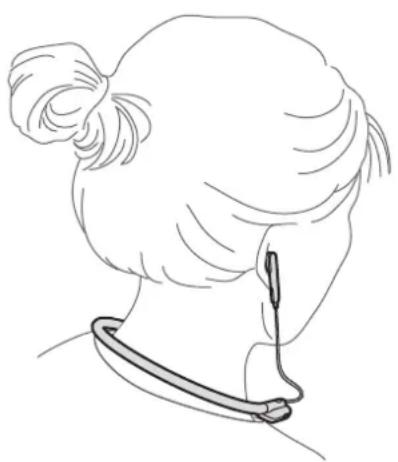
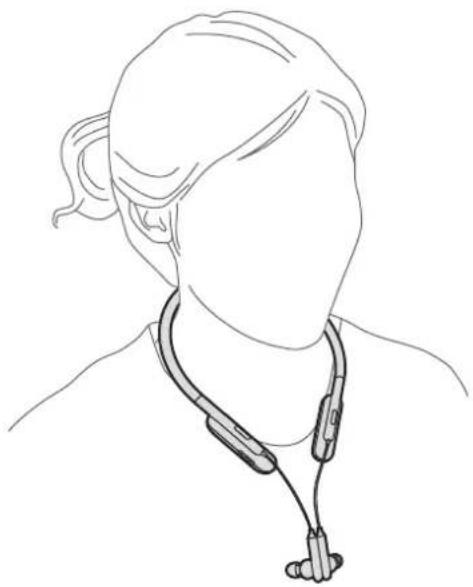
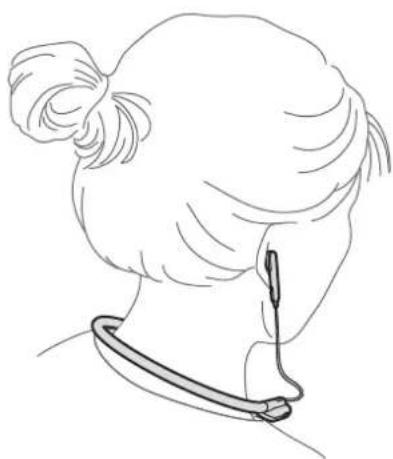
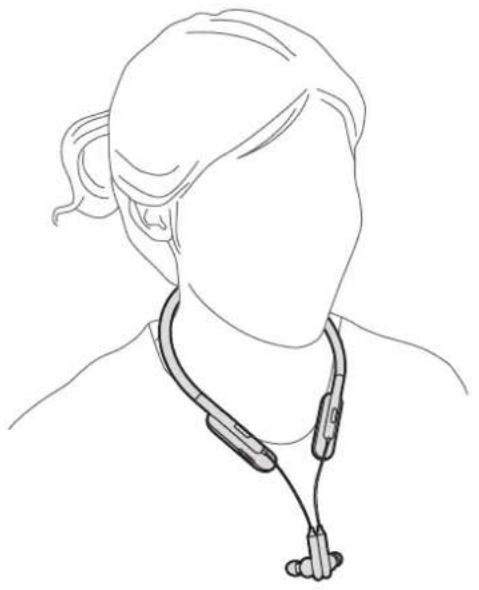
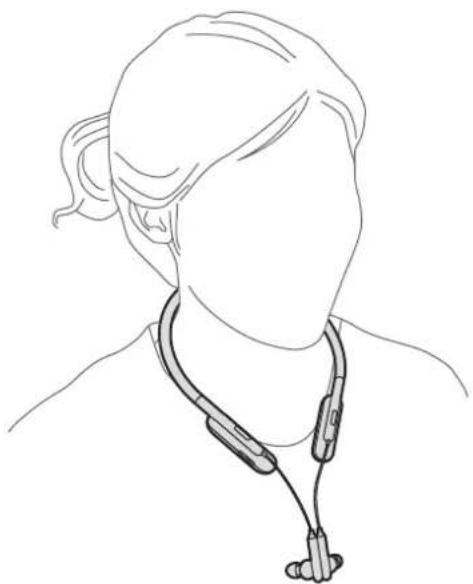
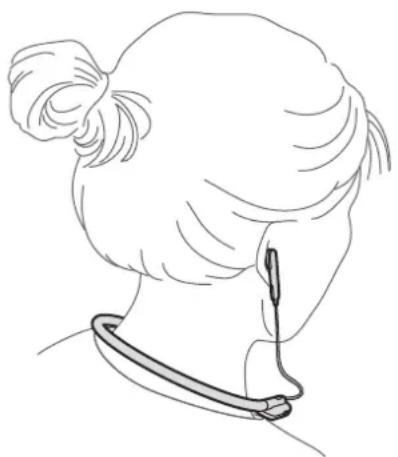
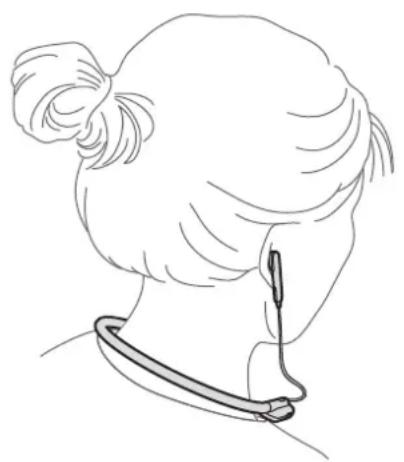
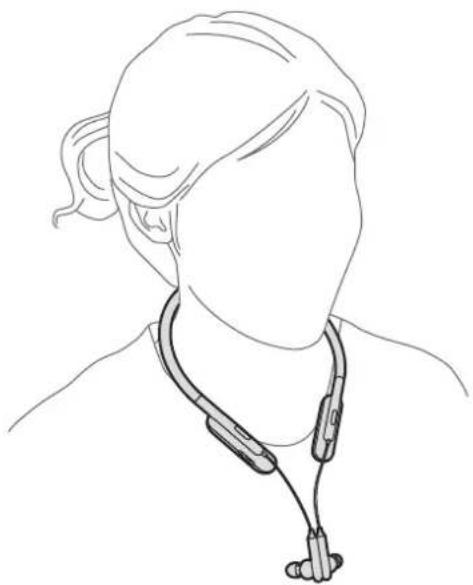
Wearing the headset
Wear the headset around your neck and insert the earphones into your ears.
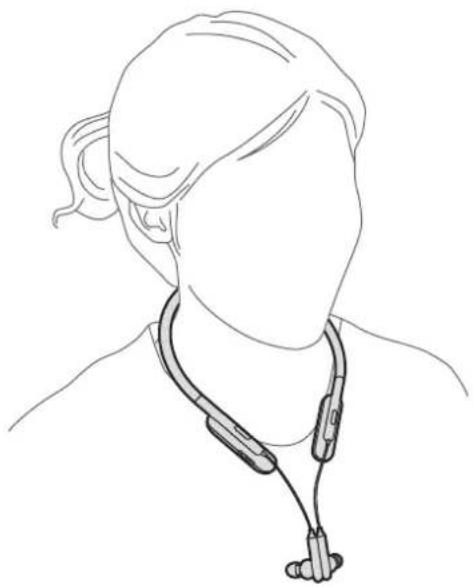
Connecting the earphones
Connect the earphones to each other using the built-in magnets.
Using the headset
Various features are available when the headset is connected to another device.

The following descriptions are based on a Samsung mobile device running Android 5.0. Some features may not be available depending on the connected device.
Calling features
Answering a call
When a call comes in while you are wearing the headset, the headset will beep and vibrate. Press the Play button to answer the call.

- When the headset is connected to two devices and both devices receive calls simultaneously, the headset will be connected to the device that receives the call first.
- When you play a multimedia file from one device, you can still answer calls from the other device.
Rejecting a call
Press and hold the Play button for one second.
Adjusting the volume
Press the Volume button.
Switching sound output
Use the connected device's call features to switch call audio between the headset and the device.
Ending a call
Press the Play button.
Playing multimedia files
Control media playback, such as music and videos, using the Play button.
Playing and pausing a multimedia file
Press the Play button. The most recently-played music file will play automatically in the default music app installed on the connected device.
During playback, press the Play button to pause playback. To resume playback, press the Play button again.

When two connected devices are simultaneously playing multimedia files, the headset will stream from the device that started playing a file first. When you pause the currently-playing file, the file playing on the other device will play automatically.
Skipping to the next multimedia file
Press and hold the Volume (-) button to skip to the next file during playback.
Skipping to the previous multimedia file
Press and hold the Volume (+) button to skip to the previous file during playback.
Adjusting the volume
Press the Volume button.
Using Samsung Level
On the connected device, download the Samsung Level app from Google Play Store or Galaxy Apps. With the app, you can check the remaining battery power and adjust the
volume. You can also set the headset to notify you via voice notification or vibrate when you have notifications on the connected device. For more information, refer to the app's help menu.

The Samsung Level app is compatible with Samsung mobile devices running Android operating system 4.2.2 or later. Some features may differ or may not work on your headset depending on the connected device or the operating system.
Using Active button
When you press the Active button for the first time, it automatically launches voice recognition application such as Bixby or S Voice.
Press the Active button to launch the customised features.
Press and hold the Active button to launch voice recognition application such as Bixby or S Voice.

If Bixby or S Voice are not installed, the default voice recognition application will launch.
With Samsung Level, you can customise the Active button to activate various features such as Clock, Timer, S Health or Voice Recorder.

Voice Recorder on the Active button menu is available only with Samsung mobile devices. If Voice Recorder does not appear on the Active button menu, update Voice Recorder to the latest version from Galaxy Apps or Play Store.
Updating the device
The device can be updated to the latest software.
Updating over the air
The device can be directly updated to the latest software by the firmware over-the-air (FOTA) service.
Tap More → About Samsung U Flex → Update Samsung U Flex software → OK in Samsung Level.
Appendix
Troubleshooting
Before contacting a Samsung Service Centre, please attempt the following solutions.
Your headset does not turn on
When the battery is completely discharged, your headset will not turn on. Charge the battery completely before turning on the headset.
Your headset freezes
If the headset's audio experiences any problems, such as freezing or distorting, try to resolve it by turning off the headset and then turning it on again.
If the headset is still unresponsive, end the Bluetooth connection and reconnect it. To do this, slide the Power switch towards ⑧ and hold it for approximately three seconds to enter Bluetooth pairing mode. When the headset enters Bluetooth pairing mode, connect the devices again, and then check the operation of the headset.
If the problem is still not resolved, contact a Samsung Service Centre.
The battery does not charge properly (For Samsung-approved chargers)
Ensure that the charger is connected properly.
If the problem is still not resolved, contact a Samsung Service Centre.
Another Bluetooth device cannot locate your headset
- Ensure that your headset is in Bluetooth pairing mode.
- Restart your headset and search for the headset again.
- Ensure that your headset and the other Bluetooth device are within the Bluetooth connection range (10 m).
If the tips above do not solve the problem, contact a Samsung Service Centre.
Your headset cannot connect to another Bluetooth device
- Ensure that your headset and the other Bluetooth device are within the maximum Bluetooth range (10 m).
- On the device you want to connect with, disconnect all paired devices and try to connect again.
Bluetooth connection is often disconnected
- If there are obstacles between the devices, the operating distance may be reduced.
- Ensure that your headset and the other Bluetooth device are within the maximum Bluetooth range (10 m).
- When using the headset with other Bluetooth devices, the connection may be affected by electromagnetic waves. Use the headset in environments with fewer wireless devices present.
You cannot hear others speaking
Adjust the device volume.
Sound echoes during a call
Adjust the volume by pressing the Volume button or move to another area.
Others cannot hear you speaking on a call
- Ensure that you are not covering the built-in microphone.
- Ensure that the microphone is close to your mouth.
Audio quality is poor
- Wireless network services may be disabled due to issues with the service provider's network. Ensure to keep the headset away from electromagnetic waves.
- Ensure that your headset and the other Bluetooth device are within the maximum Bluetooth range (10 m).
- You may experience drops in volume or noise depending on the connected device's volume. To avoid this, appropriately adjust the connected device's sound.
The headset works differently as described in the manual
- Available functions may differ depending on the connected device.
- Some features cannot be used when two devices are connected with the headset at the same time.
The battery depletes faster than when first purchased
- When you expose the headset or the battery to very cold or very hot temperatures, the useful charge may be reduced.
- The battery is consumable and the useful charge will get shorter over time.
Removing the battery
- To remove the battery, contact an authorised service centre. To obtain battery removal instructions, please visit www.samsung.com/global/ecodesign_energy.
- For your safety, you must not attempt to remove the battery. If the battery is not properly removed, it may lead to damage to the battery and device, cause personal injury, and/or result in the device being unsafe.
- Samsung does not accept liability for any damage or loss (whether in contract or tort, including negligence) which may arise from failure to precisely follow these warnings and instructions, other than death or personal injury caused by Samsung's negligence.
Copyright
Copyright © 2017 Samsung Electronics
This manual is protected under international copyright laws.
No part of this manual may be reproduced, distributed, translated, or transmitted in any form or by any means, electronic or mechanical, including photocopying, recording, or storing in any information storage and retrieval system, without the prior written permission of Samsung Electronics.
Trademarks
SAMSUNG and the SAMSUNG logo are registered trademarks of Samsung Electronics. - Bluetooth® is a registered trademark of Bluetooth SIG, Inc. worldwide. - All other trademarks and copyrights are the property of their respective owners.
Copyright © 2017 Samsung Electronics
Copyright © 2017 Samsung Electronics
Copyright © 2017 Samsung Electronics
Reconnecting the devices
If the Bluetooth connection is lost due to the distance between the devices, bring the devices closer to each other within a certain period of time. The devices will automatically reconnect.
If the Bluetooth connection is lost due to a device malfunction, go to the Bluetooth menu of the connected device to reconnect them.
Reconnection between devices
Press the power button to turn on the device and hold it for about three seconds.
After that, the connection will be interrupted and the headset with microphone will enter the mode of
Bluetooth pairing.
You can also disconnect the connection by turning off the headset with the microphone.
When you turn the devices on again and they are in range, they will automatically
connect to the last paired device.

Noise may occur if the Bluetooth connection is interrupted incorrectly.
Control playback of music and films with the playback button.
Playback and pause of the multimedia file
Press the playback button. The last played music file will start automatically in the music application
During playback, press the playback button to pause. To resume playback, press the playback button again.

When two connected devices play multimedia files simultaneously, the headset with microphone will play the signal from the device that started playing first. When the current playing file is paused, the file playing from the other device will start playing automatically.
Switch to the previous multimedia file
Press and hold the volume down button (-) to switch to the previous file during playback.
Switch to the next multimedia file
Press and hold the button for sound on (+), to return to the previous radio time of playback.
Sound adjustment
Press the button for sound on.
The microphone headset kit does not turn on
When the battery is fully discharged, the microphone headset kit has to be turned on. Charge the battery fully, then turn on the kit.
The microphone headset kit is blocked
If you have problems with the sound from the microphone headset kit, such as blocking or intermittent sound, try to fix the problem by turning off the kit and then turning it on again.
If the microphone headset kit still does not respond, reset the Bluetooth connection and then set it up again. For now, press the volume up button and hold it for about three seconds to enter Bluetooth pairing mode. When the microphone headset kit enters Bluetooth pairing mode, pair the devices again and then check the operation of the kit.
If the problem is still not solved, contact the Samsung service center.
The battery does not charge properly (for the charging device, use Samsung original)
Make sure the charging device is connected properly.
If the problem is still not solved, contact the Samsung service center.
Another Bluetooth device cannot connect to the microphone headset kit
- Make sure the microphone headset kit is in Bluetooth pairing mode. Reset the microphone headset kit and search again.
- Make sure the microphone headset kit and the other Bluetooth device are within the Bluetooth range (10 m).
If the problem is not solved by following the instructions, contact the Samsung Support Center.
The headset with microphone cannot be connected to another Bluetooth device.
- Make sure the headset with microphone and the other Bluetooth device are within the maximum Bluetooth range (10 m). On the device you want to connect the headset to, clear the connection with previously connected devices and try to establish the connection again.
Bluetooth connection is interrupted
If there are obstacles between the devices, the operating distance may be reduced. - Make sure the headset with microphone and the other Bluetooth device are within the maximum Bluetooth range (10 m). When using the headset with microphone with other Bluetooth devices, the connection may be affected by electromagnetic interference. Use the headset with microphone in environments with fewer wireless devices.
Do not speak to other people
Adjust the volume of the device.
Alternative contact: during warranty, support phone 81556480.
Copyright
Copyright © 2017 Samsung Electronics
This user manual is protected under international copyright laws.

Copyright © 2017 Samsung Electronics
Bluetooth SIG
Bluetooth
Bluetooth 8
Samsung U Flex (0000)


Bluetooth


Samsung Level
Galaxy Apps Google Play Store Samsung Level 1234567890123456789012345678901234567890123456789012345678901234567890123456789012345678901234567890123456789
Samsung Samsung Level 4.2.2

.5 Voice Bixby
.5 Voice Bixby
.

S Health

.
.(FOTA) 1 1 1 1 1 1 1 1 1 1 1 1 1 1 1 1 1 1 1 1 1 1 1 1 1 1 1 1 1 1 1 1 1 1 1 1 1 1 1 1 1 1 1 1
Samsung
Samsung
Samsung
Samsung
Bluetooth
Bluetooth
Samsung
Bluetooth
Bluetooth 1.0
Bluetooth
J 1
a
Bluetooth
(,)
a a y j b j aai j
Jlll lllllllllllllllllllllllllllllll
Jiaolll jglll aalll ilbll aliz
A
0gj j 1
.
a
e 1
L 11
1 1
| الإستعمال | |
| . ب招呼 رشان بعس ميراني نبعة بعس ميراني بعس ميراني بعس ميراني بعس ميراني بعس ميراني بعس ميراني بعس ميراني بعس ميراني بعس ميراني بعس ميراني بعس ميراني بعس ميراني بعس ميراني بعس ميراني بعس ميراني بعس ميراني بعس ميراني بعس mikan ميراني بعس ميراني بعس ميراني بعس ميراني بعس ميراني بعس ميراني بعس ميراني بعس ميراني بعس ميراني بعس ميراني بعس ميراني بعس ميراني بعس ميراني بعس ميراني بعس ميراني بعس ميراني بعس ميراني bga بعس ميراني bga بعس ميراني bga bga bga bga bga bga bga bga bga bga bga bga bga bga bga bga bga bga bga bga bga bga bga bga bga bga bga bga bga bga bga bga bga bga bga bga bga bga bga bga bga bga bga bga bga bga bga bga bga bga bqa bqa bqa bqa bqa bqa bqa bqa bqa bqa bqa bqa bqa bqa bqa bqa bqa bqa bqa bqa bqa bqa bqa bqa bqa bqa bqa bqa bqa bqa bqa bqa bqa bqa bqa bqa bqa bqa bqa bqa bqa bqa bqa bqa bqa bqa bqa bqa bqa bqa bQA bqa bqa bqa bqa bqa bqa bqa bqa bqa bqa bqa bqa bqa bqa bqa bqa bqa bqa bqa bqa bqa bqa bqa bqa bqa bqa bqa bqa bqa bqa bqa bqa bqa bqa bqa bqa bqa bqa bqa bqa bqa bqa bqa bqa bqa bqa bqa bqa bqa bqc bqc bqc bqc bqc bqc bqc bqc bqc bqc bqc bqc bqc bqc bqc bqc bqc bqc bqc bqc bqc bqc bqc bqc bqc bqc bqc bqc bqc bqc bqc bqc bqc bqc bqc bqc bqc bqc bqc bqc bqc bqc bqc bqc bqc bqc bqc bqc bqc bqc bqa bqa bqa bqa bqa bqa bqa bqa bqa bqa bqa bqa bqa bqa bqa bqa bqa bqa bqa bqa bqa bqa bqa bqa bqa bqa bqa bqa bqa bqa bqa bqa bqa bqa bqa bqa bqa bqa bqa bqa bqa bqa bqa bqa bqa bqa bqa bqa bqa bqb bqa bqa bqa bqa bqa bqa bqa bqa bqa bqa bqa bqa bqa bqa bqa bqa bqa bqa bqa bqa bqa bqa bqa bqa bqa bqa bqa bqa bqa bqa bqa bqa bqa bqa bqa bqa bqa bqa bqa bqa bqa bqa bqa bqa bqa bqa bqa bqa bqa bxa bqa bqa bqa bqa bqa bqa bqa bqa bqa bqa bqa bqa bqa bqa bqa bqa bqa bqa bqa bqa bqa bqa bqa bqa bqa bqa bqa bqa bqa bqa bqa bqa bqa bqa bqa bqa bqa bqa bqa bqa bqa bqa bqa bqa bqa bqa bqa bqa bqa b QA bqa bqa bqa bqa bqa bqa bqa bqa bqa bqa bqa bqa bqa bqa bqa bqa bqa bqa bqa bqa bqa bqa bqa bqa bqa bqa bqa bqa bqa bqa bqa bqa bqa bqa bqa bqa bqa bqa bqa bqa bqa bqa bqa bqa bqa bqa bqa bqa bqa bquad bqa bqa bqa bqa bqa bqa bqa bqa bqa bqa bqa bqa bqa bqa bqa bqa bqa bqa bqa bqa bqa bqa bqa bqa bqa bqa bqa bqa bqa bqa bqa bqa bqa bqa bqa bqa bqa bqa bqa bqa bqa bqa bqa bqa bqa bqa bqa bqa bqa bqqb qb qb qb qb qb qb qb qb qb qb qb qb qb qb qb qb qb qb qb qb qb qb qb qb qb qb qb qb qb qb qb qb qb qb qb qb qb qb qb qb qb qb qb qb qb qb qb qb qb qbqb qb qb qb qb qb qb qb qb qb qb qb qb qb qb qb qb qb qb qb qb qb qb qb qb qb qb qb qb qb qb qb qb qb qb qb qb qb qb qb qb qb qb qb qb qb qb qb qb qb QBA BQA BQA BQA BQA BQA BQA BQA BQA BQA BQA BQA BQA BQA BQA BQA BQA BQA BQA BQA BQA BQA BQA BQA BQA BQA BQA BQA BQA BQA BQA BQA BQA BQA BQA BQA BQA BQA BQA BQA BQA BQA BQA BQA BQA BQA BQA BQA BQA BQA BQA BZA BQA BQA BQA BQA BQA BQA BQA BQA BQA BQA BQA BQA BQA BQA BQA BQA BQA BQA BQA BQA BQA BQA BQA BQA BQA BQA BQA BQA BQA BQA BQA BQA BQA BQA BQA BQA BQA BQA BQA BQA BQA BQA BQA BQA BQA BQA BQA BQA BQA B QA BQA BQA BQA BQA BQA BQA BQA BQA BQA BQA BQA BQA BQA BQA BQA BQA BQA BQA BQA BQA BQA BQA BQA BQA BQA BQA BQA BQA BQA BQA BQA BQA BQA BQA BQA BQA BQA BQA BQA BQA BQA BQA BQA BQA BQA BQA BQA BQA BQA BQC BQA BQA BQA BQA BQA BQA BQA BQA BQA BQA BQA BQA BQA BQA BQA BQA BQA BQA BQA BQA BQA BQA BQA BQA BQA BQA BQA BQA BQA BQA BQA BQA BQA BQA BQA BQA BQA BQA BQA BQA BQA BQA BQA BQA BQA BQA BQA BQA BQA BQB BQA BQA BQA BQA BQA BQA BQA BQA BQA BQA BQA BQA BQA BQA BQA BQA BQA BQA BQA BQA BQA BQA BQA BQA BQA BQA BQA BQA BQA BQA BQA BQA BQA BQA BQA BQA BQA BQA BQA BQA BQA BQA BQA BQA BQA BQA BQA BQA BQA BYA BQA BQA BQA BQA BQA BQA BQA BQA BQA BQA BQA BQA BQA BQA BQA BQA BQA BQA BQA BQA BQA BQA BQA BQA BQA BQA BQA BQA BQA BQA BQA BQA BQA BQA BQA BQA BQA BQA BQA BQA BQA BQA BQA BQA BQA BQA BQA BQA BQA BXA BQA BQA BQA BQA BQA BQA BQA BQA BQA BQA BQA BQA BQA BQA BQA BQA BQA BQA BQA BQA BQA BQA BQA BQA BQA BQA BQA BQA BQA BQA BQA BQA BQA BQA BQA BQA BQA BQA BQA BQA BQA BQA BQA BQA BQA BQA BQA BQA BQA BWA BQA BQA BQA BQA BQA BQA BQA BQA BQA BQA BQA BQA BQA BQA BQA BQA BQA BQA BQA BQA BQA BQA BQA BQA BQA BQA BQA BQA BQA BQA BQA BQA BQA BQA BQA BQA BQA BQA BQA BQA BQA BQA BQA BQA BQA BQA BQA BQA BQA BGA BQA BQA BQA BQA BQA BQA BQA BQA BQA BQA BQA BQA BQA BQA BQA BQA BQA BQA BQA BQA BQA BQA BQA BQA BQA BQA BQA BQA BQA BQA BQA BQA BQA BQA BQA BQA BQA BQA BQA BQA BQA BQA BQA BQA BQA BQA BQA BQA BQA BDAQ BQA BQA BQA BQA BQA BQA BQA BQA BQA BQA BQA BQA BQA BQA BQA BQA BQA BQA BQA BQA BQA BQA BQA BQA BQA BQA BQA BQA BQA BQA BQA BQA BQA BQA BQA BQA BQA BQA BQA BQA BQA BQA BQA BQA BQA BQA BQA BQA BQA BONA BQA BQA BQA BQA BQA BQA BQA BQA BQA BQA BQA BQA BQA BQA BQA BQA BQA BQA BQA BQA BQA BQA BQA BQA BQA BQA BQA BQA BQA BQA BQA BQA BQA BQA BQA BQA BQA BQA BQA BQA BQA BQA BQA BQA BQA BQA BQA BQA BQA BKA BQA BQA BQA BQA BQA BQA BQA BQA BQA BQA BQA BQA BQA BQA BQA BQA BQA BQA BQA BQA BQA BQA BQA BQA BQA BQA BQA BQA BQA BQA BQA BQA BQA BQA BQA BQA BQA BQA BQA BQA BQA BQA BQA BQA BQA BQA BQA BQA BQA BJA BQA BQA BQA BQA BQA BQA BQA BQA BQA BQA BQA BQA BQA BQA BQA BQA BQA BQA BQA BQA BQA BQA BQA BQA BQA BQA BQA BQA BQA BQA BQA BQA BQA BQA BQA BQA BQA BQA BQA BQA BQA BQA BQA BQA BQA BQA BQA BQA BQA BHA BQA BQA BQA BQA BQA BQA BQA BQA BQA BQA BQA BQA BQA BQA BQA BQA BQA BQA BQA BQA BQA BQA BQA BQA BQA BQA BQA BQA BQA BQA BQA BQA BQA BQA BQA BQA BQA BQA BQA BQA BQA BQA BQA BQA BQA BQA BQA BQA BQA BqaB QA BQA BQA BQA BQA BQA BQA BQA BQA BQA BQA BQA BQA BQA BQA BQA BQA BQA BQA BQA BQA BQA BQA BQA BQA BQA BQA BQA BQA BQA BQA BQA BQA BQA BQA BQA BQA BQA BQA BQA BQA BQA BQA BQA BQA BQA BQA BQA BQA BQA CBA BA BA BA BA BA BA BA BA BA BA BA BA BA BA BA BA BA BA BA BA BA BA BA BA BA BA BA BA BA BA BA BA BA BA BA BA BA BA BA BA BA BA BA BA BA BA BA BA BA BA BA BA BA BA BA BA BA BA BA BA BA BA BA BA BA BA BA BA BA BA BA BA BA BA BA BA BA BA BA BA BA BA BA BA BA BA BA BA BA BA BA BA BA BA BA BA BA BA BA BA NA BA BA BA BA BA BA BA BA BA BA BA BA BA BA BA BA BA BA BA BA BA BA BA BA BA BA BA BA BA BA BA BA BA BA BA BA BA BA BA BA BA BA BA BA BA BA BA BA BA BA BA BA BA BA BA BA BA BA BA BA BA BA BA BA BA BA BA BA BA BA BA BA BA BA BA BA BA BA BA BA BA BA BA BA BA BA BA BA BA BA BA BA BA BA BA BA BA BA BA TA BA TA BA TA BA TA BA TA BA TA BA BA BA BA BA BA BA BA BA BA BA BA BA BA BA BA BA BA BA BA BA BA BA BA BA BA BA BA BA BA BA BA BA BA BA BA BA BA BA BA BA BA BA BA BA BA BA BA BA BA BA BA BA BA BA BA BA BA BA BA BA BA BA BA BA BA BA BA BA BA BA BA BA BA BA BA BA BA BA BA BA BA BA BA BA BA BA BA BA BA BA BA BA BA BA BA BA BA BA GA BA GA BA GA BA GA BA GA BA GA BA GA BA GA BA GA BA GA BA GA BA GA BA GA BA GA BA GA BA GA BA GA BA GA BA GA BA GA BA GA BA GA BA GA BA GA BA GA BA GA BA GA BA GA BA GA BA GA BA GA BA GA BA GA BA GA BA GA BA GA BA GA BA GA BA GA BA GA BA GA BA GA BA GA BA GA BA GA BA GA BA GA BA GA BA GA BA GA BA BA GA BA GA BA GA BA GA BA GA BA GA BA GA BA GA BA GA BA GA BA GA BA GA BA GA BA GA BA GA BA GA BA GA BA GA BA GA BA GA BA GA BA GA BA GA BA GA BA GA BA GA BA GA BA GA BA GA BA GA BA GA BA GA BA GA BA GA BA GA BA GA BA GA BA GA BA GA BA GA BA GA BA GA BA GA BA GA BA GA BA GA BA GA BA GA BA GA GA BA GA BA GA BA GA BA GA BA GA BA GA BA GA BA GA BA GA BA GA BA GA BA GA BA GA BA GA BA GA BA GA BA GA BA GA BA GA BA GA BA GA BA GA BA GA BA GA BA GA BA GA BA GA BA GA BA GA BA GA BA GA BA GA BA GA BA GA BA GA BA GA BA GA BA GA BA GA BA GA BA GA BA GA BA GA BA GA BA GA BA GA BA GA BA GA BA GA GA GA GA GA GA GA GA GA GA GA GA GA GA GA GA GA GA GA GA GA GA GA GA GA GA GA GA GA GA GA GA GA GA GA GA GA GA GA GA GA GA GA GA GA GA GA GA GA GA GA GA GA GA GA GA GA GA GA GA GA GA GA GA GA GA GA GA GA GA GA GA GA GA GA GA GA GA GA GA GA GA GA GA GA GA GA GA GA GA GA GA GA GA GA GA GA GA GA GA GAA GAA GAA GAA GAA GAA GAA GAA GAA GAA GAA GAA GAA GAA GAA GAA GAA GAA GAA GAA GAA GAA GAA GAA GAA GAA GAA GAA GAA GAA GAA GAA GAA GAA GAA GAA GAA GAA GAA GAA GAA GAA GAA GAA GAA GAA GAA GAA GAA GAA G AA GAA GAA GAA GAA GAA GAA GAA GAA GAA GAA GAA GAA GAA GAA GAA GAA GAA GAA GAA GAA GAA GAA GAA GAA GAA GAA GAA GAA GAA GAA GAA GAA GAA GAA GAA GAA GAA GAA GAA GAA GAA GAA GAA GAA GAA GAA GAA GAA GAA GAAA GAA GAA GAA GAA GAA GAA GAA GAA GAA GAA GAA GAA GAA GAA GAA GAA GAA GAA GAA GAA GAA GAA GAA GAA GAA GAA GAA GAA GAA GAA GAA GAA GAA GAA GAA GAA GAA GAA GAA GAA GAA GAA GAA GAA GAA GAA GAA GAA GAA GCA GAA GAA GAA GAA GAA GAA GAA GAA GAA GAA GAA GAA GAA GAA GAA GAA GAA GAA GAA GAA GAA GAA GAA GAA GAA GAA GAA GAA GAA GAA GAA GAA GAA GAA GAA GAA GAA GAA GAA GAA GAA GAA GAA GAA GAA GAA GAA GAA GAA Gaa Gaa Gaa Gaa Gaa Gaa Gaa Gaa Gaa Gaa Gaa Gaa Gaa Gaa Gaa Gaa Gaa Gaa Gaa Gaa Gaa Gaa Gaa Gaa Gaa Gaa Gaa Gaa Gaa Gaa Gaa Gaa Gaa Gaa Gaa Gaa Gaa Gaa Gaa Gaa Gaa Gaa Gaa Gaa Gaa Gaa Gaa Gaa Gaa Gaa GAA GAA GAA GAA GAA GAA GAA GAA GAA GAA GAA GAA GAA GAA GAA GAA GAA GAA GAA GAA GAA GAA GAA GAA GAA GAA GAA GAA GAA GAA GAA GAA GAA GAA GAA GAA GAA GAA GAA GAA GAA GAA GAA GAA GAA GAA GAA GAA GAA GCAA GAA GAA GAA GAA GAA GAA GAA GAA GAA GAA GAA GAA GAA GAA GAA GAA GAA GAA GAA GAA GAA GAA GAA GAA GAA GAA GAA GAA GAA GAA GAA GAA GAA GAA GAA GAA GAA GAA GAA GAA GAA GAA GAA GAA GAA GAA GAA GAA GAA GBA GBA GBA GBA GBA GBA GBA GBA GBA GBA GBA GBA GBA GBA GBA GBA GBA GBA GBA GBA GBA GBA GBA GBA GBA GBA GBA GBA GBA GBA GBA GBA GBA GBA GBA GBA GBA GBA GBA GBA GBA GBA GBA GBA GBA GBA GBA GBA GBA GBA GAA GAA GAA GAA GAA GAA GAA GAA GAA GAA GAA GAA GAA GAA GAA GAA GAA GAA GAA GAA GAA GAA GAA GAA GAA GAA GAA GAA GAA GAA GAA GAA GAA GAA GAA GAA GAA GAA GAA GAA GAA GAA GAA GAA GAA GAA GAA GAA GAA G-AA GAA GAA GAA GAA GAA GAA GAA GAA GAA GAA GAA GAA GAA GAA GAA GAA GAA GAA GAA GAA GAA GAA GAA GAA GAA GAA GAA GAA GAA GAA GAA GAA GAA GAA GAA GAA GAA GAA GAA GAA GAA GAA GAA GAA GAA GAA GAA GAA GAA Gaaa Gaaa Gaaa Gaaa Gaaa Gaaa Gaaa Gaaa Gaaa Gaaa Gaaa Gaaa Gaaa Gaaa Gaaa Gaaa Gaaa Gaaa Gaaa Gaaa Gaaa Gaaa Gaaa Gaaa Gaaa Gaaa Gaaa Gaaa Gaaa Gaaa Gaaa Gaaa Gaaa Gaaa Gaaa Gaaa Gaaa Gaaa Gaaa Gaaa Gaaa Gaaa Gaaa Gaaa Gaaa Gaaa Gaaa Gaaa Gaaa Gaaa Gaa Gaa Gaa Gaa Gaa Gaa Gaa Gaa Gaa Gaa Gaa Gaa Gaa Gaa Gaa Gaa Gaa Gaa Gaa Gaa Gaa Gaa Gaa Gaa Gaa Gaa Gaa Gaa Gaa Gaa Gaa Gaa Gaa Gaa Gaa Gaa Gaa Gaa Gaa Gaa Gaa Gaa Gaa Gaa Gaa Gaa Gaa Gaa Gaa Gaaa Gaaa Gaaa Gaaa Gaaa Gaaa Gaaa Gaaa Gaaa Gaaa Gaaa Gaaa Gaaa Gaaa Gaaa Gaaa Gaaa Gaaa Gaaa Gaaa Gaaa Gaaa Gaaa Gaaa Gaaa Gaaa Gaaa Gaaa Gaaa Gaaa Gaaa Gaaa Gaaa Gaaa Gaaa Gaaa Gaaa Gaaa Gaaa Gaaa Gaaa Gaaa Gaaa Gaaa Gaaa Gaaa Gaaa Gaaa Gaaa GAAA Gaaa Gaaa Gaaa Gaaa Gaaa Gaaa Gaaa Gaaa Gaaa Gaaa Gaaa Gaaa Gaaa Gaaa Gaaa Gaaa Gaaa Gaaa Gaaa Gaaa Gaaa Gaaa Gaaa Gaaa Gaaa Gaaa Gaaa Gaaa Gaaa Gaaa Gaaa Gaaa Gaaa Gaaa Gaaa Gaaa Gaaa Gaaa Gaaa Gaaa Gaaa Gaaa Gaaa Gaaa Gaaa Gaaa Gaaa Gaaa Gaaa Gaaaa Gaaa Gaaa Gaaa Gaaa Gaaa Gaaa Gaaa Gaaa Gaaa Gaaa Gaaa Gaaa Gaaa Gaaa Gaaa Gaaa Gaaa Gaaa Gaaa Gaaa Gaaa Gaaa Gaaa Gaaa Gaaa Gaaa Gaaa Gaaa Gaaa Gaaa Gaaa Gaaa Gaaa Gaaa Gaaa Gaaa Gaaa Gaaa Gaaa Gaaa Gaaa Gaaa Gaaa Gaaa Gaaa Gaaa Gaaa Gaaa Gaaa Gbbb BaBa BaBa BaBa BaBa BaBa BaBa BaBa BaBa BaBa BaBa BaBa BaBa BaBa BaBa BaBa BaBa BaBa BaBa BaBa BaBa BaBa BaBa BaBa BaBa BaBa BaBa BaBa BaBa BaBa BaBa BaBa BaBa BaBa BaBa BaBa BaBa BaBa BaBa BaBa BaBa BaBa BaBa BaBa BaBa BaBa BaBa BaBa BaBa BaBa BaBa BaB BaBa BaBa BaBa BaBa BaBa BaBa BaBa BaBa BaBa BaBa BaBa BaBa BaBa BaBa BaBa BaBa BaBa BaBa BaBa BaBa BaBa BaBa BaBa BaBa BaBa BaBa BaBa BaBa BaBa BaBa BaBa BaBa BaBa BaBa BaBa BaBa BaBa BaBa BaBa BaBa BaBa BaBa BaBa BaBa BaBa BaBa BaBa BaBa BaBa BaBA BaBa BaBa BaBa BaBa BaBa BaBa BaBa BaBa BaBa BaBa BaBa BaBa BaBa BaBa BaBa BaBa BaBa BaBa BaBa BaBa BaBa BaBa BaBa BaBa BaBa BaBa BaBa BaBa BaBa BaBa BaBa BaBa BaBa BaBa BaBa BaBa BaBa BaBa BaBa BaBa BaBa BaBa BaBa BaBa BaBa BaBa BaBa BaBa BaBa BaBB BaBa BaBa BaBa BaBa BaBa BaBa BaBa BaBa BaBa BaBa BaBa BaBa BaBa BaBa BaBa BaBa BaBa BaBa BaBa BaBa BaBa BaBa BaBa BaBa BaBa BaBa BaBa BaBa BaBa BaBa BaBa BaBa BaBa BaBa BaBa BaBa BaBa BaBa BaBa BaBa BaBa BaBa BaBa BaBa BaBa BaBa BaBa BaBa BaBa BaRa BaBa BaBa BaBa BaBa BaBa BaBa BaBa BaBa BaBa BaBa BaBa BaBa BaBa BaBa BaBa BaBa BaBa BaBa BaBa BaBa BaBa BaBa BaBa BaBa BaBa BaBa BaBa BaBa BaBa BaBa BaBa BaBa BaBa BaBa BaBa BaBa BaBa BaBa BaBa BaBa BaBa BaBa BaBa BaBa BaBa BaBa BaBa BaBa BaBa BaMa Ga Ga Ga Ga Ga Ga Ga Ga Ga Ga Ga Ga Ga Ga Ga Ga Ga Ga Ga Ga Ga Ga Ga Ga Ga Ga Ga Ga Ga Ga Ga Ga Ga Ga Ga Ga Ga Ga Ga Ga Ga Ga Ga Ga Ga Ga Ga Ga Ga Ga Ga Ga Ga Ga Ga Ga Ga Ga Ga Ga Ga Ga Ga Ga Ga Ga Ga Ga Ga Ga Ga Ga Ga Ga Ga Ga Ga Ga Ga Ga Ga Ga Ga Ga Ga Ga Ga Ga Ga Ga Ga Ga Ga Ga Ga Ga Ga Ga Ga Ga Na Na Na Na Na Na Na Na Na Na Na Na Na Na Na Na Na Na Na Na Na Na Na Na Na Na Na Na Na Na Na Na Na Na Na Na Na Na Na Na Na Na Na Na Na Na Na Na Na Na Na Na Na Na Na Na Na Na Na Na Na Na Na Na Na Na Na Na Na Na Na Na Na Na Na Na Na Na Na Na Na Na Na Na Na Na Na Na Na Na Na Na Na Na Na Na Na Na Na Na N Na N Na N Na N Na N Na N Na N Na N Na N Na N Na N Na N Na N Na N Na N Na N Na N Na N Na N Na N Na N Na N Na N Na N Na N Na N Na N Na N Na N Na N Na N Na N Na N Na N Na N Na N Na N Na N Na N Na N Na N Na N Na N Na N Na N Na N Na N Na N Na N Na N Na Na N Na N Na N Na N Na N Na N Na N Na N Na N Na N Na N Na N Na N Na N Na N Na N Na N Na N Na N Na N Na N Na N Na N Na N Na N Na N Na N Na N Na N Na N Na N Na N Na N Na N Na N Na N Na N Na N Na N Na N Na N Na N Na N Na N Na N Na N Na N Na N Na NNa N Na N Na N Na N Na N Na N Na N Na N Na N Na N Na N Na N Na N Na N Na N Na N Na N Na N Na N Na N Na N Na N Na N Na N Na N Na N Na N Na N Na N Na N Na N Na N Na N Na N Na N Na N Na N Na N Na N Na N Na N Na N Na N Na N Na N Na N Na N Na N Na N Na NNa Na N Na N Na N Na N Na N Na N Na N Na N Na N Na N Na N Na N Na N Na N Na N Na N Na N Na N Na N Na N Na N Na N Na N Na N Na N Na N Na N Na N Na N Na N Na N Na N Na N Na N Na N Na N Na N Na N Na N Na N Na N Na N Na N Na N Na N Na N Na N Na N Na N NaN Na N Na N Na N Na N Na N Na N Na N Na N Na N Na N Na N Na N Na N Na N Na N Na N Na N Na N Na N Na N Na N Na N Na N Na N Na N Na N Na N Na N Na N Na N Na N Na N Na N Na N Na N Na N Na N Na N Na N Na N Na N Na N Na N Na N Na N Na N Na N Na N Na N Na No No No No No No No No No No No No No No No No No No No No No No No No No No No No No No No No No No No No No No No No No No No No No No No No No No No No No No No No No No No No No No No No No No No No No No No No No No No No No No No No No No No No No No No No No No No No No No No No No No No No no no no no no no no no no no no no no no no no no no no no no no no no no no no no no no no no no no no no no no no no no no no no no no no no no no no no no no no no no no no no no no no no no no no no no no no no no no no no no no no no no no no no no no no no no no no no no no no no no no no no n no no no no no no no no no no no no no no no no no no no no no no no no no no no no no no no no no no no no no no no no no no no no no no no no no no no no no no no no no no no no no no no no no no no no no no no no no no no no no no no no no no no no no no no no no no no no no no no no no no no 10000000000000000000000000000000000000000000000000000000000000000000000000000000000000000000000000000 000000000000000000000000000000000000000000000000000000000000000000000000000000000000000000000000000100000000000000000000000000000000000000000000000000000000000000000000000000000000000000000000000000120000000000000000000000000000000000000000000000000000000000000000000000000000000000000000000000000008000000000000000000000000000000000000000000000000000000000000000000000000000000000000000000000000000 |
∴ S ΔOBC = S ΔAOB + SΔBOC

Samsung U Flex (0000)
PIN


American Heart Association)

Medicines and Healthcare Products Regulatory Agency)



- : 1\ : a\
J 1 J 1
sllss
4 1
1
1 40
1 1

d
s
1 1
1.
(+) 14
120
Therefore, the area of triangle ACD is equal to the area of triangle COD plus the area of triangle CDA.
Samsung Level
Galaxy Apps and Google Play 54 Samsung Level
4.2.2 4.2.2

15
Samsung Electronics Y.1V ©
2
Samsung Electronics 1
S
Device settings
Function buttons
Due to incorrect Bluetooth connection, noise may occur.
Connect the earbuds to each other using the built-in magnets.
The headset does not turn on
The headset does not turn on because the battery is completely discharged. Before turning on the headset, fully charge the battery.
The headset freezes
If any problems occur during audio playback on the headset, such as freezing or distortion, try to fix them by turning the headset off and on again.
If the headset still does not respond, end the Bluetooth connection and then reconnect. On the charging case, slide the power switch to the ON position and hold it for about three seconds to enter Bluetooth pairing mode. Once the headset enters Bluetooth pairing mode, reconnect the devices and then check the headset operation.
If the problem is still not resolved, contact the Samsung service center.
The battery does not charge properly (for approved Samsung charging devices)
Make sure the charging device is connected correctly.
If the problem is still not resolved, contact the Samsung service center.
You cannot send what others say
Adjust the device volume level.
Audio echo during a call
Adjust the volume level by pressing the volume control buttons or moving to another location.
Check that the earpiece is not blocked during a call.
- Check that the built-in microphone opening is not covered by any foreign object.
- Bring the microphone closer to your mouth.
Sound is too weak
Wireless services may be disconnected due to problems with the service provider's network. Make sure the headset is away from electromagnetic waves. - Ensure that the headset and the Bluetooth device are within the maximum Bluetooth range (10 m). Depending on the volume of the connected device, a decrease in volume or noise may occur. To prevent this, adjust the volume of the connected device properly.
Put the headset on your head and insert the earbuds into your ears.
Connecting the earpieces
Remove the earbuds from the earpieces using the built-in magnets.
Press the Play button.
Playing multimedia files
Control multimedia playback, for example music files or video recordings, using the Play button.
Playback and pause of multimedia files
Press the Play button. The music file that was played last will play automatically through the standard music program installed on the connected device.
To pause playback, press the Play button. To resume playback, press the Play button again.

If a call comes in while playing multimedia files, the headset will switch the audio output to the device on which the call was first received. If you pause the playback of the current file, it will automatically resume on the other device.
Press and hold the Volume (-) button to move to the next song during playback.
Move to the previous media file
Press and hold the Volume (+) button to move to the previous song during playback.
Adjusting the volume
Press the Volume button.
Use Samsung Level
Download the Samsung Level app on your mobile device from the Google Play Store or Galaxy Apps. With this app, you can check the battery level of your device and adjust the volume. You can also set the headset to read out voice prompts or select them when you find the prompts on your mobile device. For more information, refer to the app's Help menu.

The Samsung Level app is compatible with Samsung mobile devices running Android version 4.2.2 or higher. Some functions may differ or not work on your headset depending on the connected device and operating system.
Using the Active Key
When you press the Active Key, the voice recognition program (for example, Bixby or S Voice) will start automatically.
Press the Active Key to run the configured function.
Press and hold the Active Key to run the voice recognition program, for example Bixby or S Voice.

If the Bixby or S Voice program is not installed, the standard voice recognition program will start.
In the Samsung Level app, you can set the Active Key to activate various functions, such as the timer, S Health, or the flashlight.

The voice recorder may not appear in the active mode key menu for Samsung mobile devices. If the voice recorder is not displayed in the active mode key menu, update the voice recorder to the latest version by downloading it from Galaxy Apps or Play Store.
Update software
The device software can be updated to the latest version.
Your headset does not turn on
If the battery is completely discharged, the headset will not turn on. Before turning on the headset, fully charge the battery.
Interlocutors cannot hear you during a call
- Check that the built-in microphone is not blocked.
- It is recommended to hold the microphone close to your mouth.
Low sound quality
- Wireless network services may not be available due to problems with the network provider of these services. Keep the headset away from sources of electromagnetic waves.
- Make sure that the headset and other devices are within the maximum Bluetooth connection range (10 m). Depending on the thickness of the connected device, you may experience interference or noise. To avoid this, move away from the connected device.
The headset does not function as described in the manual
- Function availability may depend on the specific connected device.
- Some functions are unavailable when two devices are connected to the headset at the same time.
The battery discharges faster than at the time of purchase of the device.
- Using the charger with a battery that has a low or high temperature may shorten the battery's lifespan.
- The battery is a consumable item; its useful charge decreases over time.
Copyright
© Samsung Electronics, 2017
This manual is protected by international copyright laws.
Reproduction, distribution, translation, or transmission of this manual in any form or by any means, electronic or mechanical, including
photocopying, recording, or storage in any information retrieval system, is prohibited without the prior written permission of Samsung Electronics.
Storage in any information retrieval system, in any form or by any means, is prohibited without the prior written permission of Samsung Electronics.
Trademarks
- SAMSUNG and the SAMSUNG logo are registered trademarks of Samsung Electronics.
- Bluetooth® is a registered trademark of Bluetooth SIG, Inc. worldwide.
- All other trademarks and copyrights are the property of their respective owners.
Safety Instructions
Read these instructions carefully before using the device and keep them for future reference.
- Use only Samsung-approved chargers and cables. Using incompatible chargers or cables may cause damage to the device. If the device is not used for a long time, charge it regularly to maintain battery health.

Warning: This device is intended for use with compatible devices.

Warning: This device can be used with other compatible devices.

Note: Accessories, power adapters, and other items may be sold separately.
Getting started
Device layout
The following items are included in the product box:
USB cable (Type-C/Type-A/Type-C) - for charging and data transfer

The items supplied with the device and any available accessories may vary depending on the region or service provider. The supplied items are designed only for this device and may not be compatible with other devices. The appearances and specifications are subject to change without prior notice. You can purchase additional accessories from your Samsung retailer. Before purchasing, make sure they are compatible with your device. Samsung is not responsible for any issues caused by using non-approved accessories. You can resolve any performance issues and compatibility problems by contacting the manufacturer of the non-approved accessories. - All accessories, their availability, and compatibility may vary depending on the manufacturer. For more information about compatible accessories, visit the Samsung website.
Device layout
| Ataybí Φункция | |
| Куат косьшы | • КулakаспаNTы Косу Неме сώippy ушin ХылжыТыИЗ. • 8 сөлгішесиhe карай ХылжыТыИЗ жэHe Bluetooth куptыру peхимін кіру ушін šamamem уш cekyнд устіп турынд. |
| Ойнay туймeci | • Мүлтимедиа phаДарын ойнату He yakьITSHA TOKТATу ушin 6acсынд3. • Коныpay келгэнde, Коныpayларfa щayan 6еру ушін He aякту ушin 6acсынд3. • Коныpay келгэнde, Коныpayдан 6ac tartу ушін 6ip cekyнд 6acсы tyrpbɪнд3. |
| Дыбіс Deигейин туймелeri | • Коныpay He мүлтимедианы Oйнату Keзінда дыбіс Deигейин pettey ушін 6acсынд3. • Мүлтимедианы Oйнату Keзінда кelесi phаэу ушін дыбіс deигейин (-) туймecін 6acсын 7tpbɪнд3. • Мүлтимедианы Oйнату Keзінда щадынfvыфы phаэу ушін дыбіс deигейин (+) туймecін 6acсын 7tpbɪнд3. • Діріл мүміндіrin Kосу He eшіру ушін, дыбіс Deигейин (+ xəнe -) туймелірін 6ip yakьITTA šamamem 6ip cekyндітai 6acсын 7tpbɪнд3. |
| БелSENДI туйme | • Балтalfан мүміндіКтэр'dі icke косу ушін 6acсынд3. Samsung Level iшінDE bāntalfahm MymkɪndіКтэр'di ophata aɪaßɪ3. • Bixby Hemece S Voice сяякту дaybɪctы Тану колданбасын icede KOSU yшін 6acсын 7tpbɪn'd3. |
Notification indicator
The notification lamp indicates the charging status.
Connecting via Bluetooth
Bluetooth
Bluetooth is a wireless technology standard used for connecting various devices over short distances. It allows you to connect keyboards, mice, computers, printers, and many other devices without cables.
Bluetooth technology experts
- To prevent interference with other wireless devices, keep them at least 10 meters away from the Bluetooth device. Interference may cause the device to malfunction. Do not place obstacles, walls, or metal objects between the Bluetooth device and the connected device. Do not cover the Bluetooth antenna. Bluetooth technology uses low power, but it can interfere with medical devices, so maintain a safe distance.
- Some devices, especially those certified by the Bluetooth SIG, may work with this device.
- Bluetooth functionality should not be used for illegal purposes (e.g., unauthorized interception of communications or for commercial purposes without permission).
Connecting to Other Devices
This device can be used with other Bluetooth devices.
1. Turn on the device and press and hold the Bluetooth button for three seconds to enter pairing mode.
When the device is turned on, it automatically enters Bluetooth pairing mode.
2. Search for Bluetooth devices on the other device.
To connect, check the list of available devices on the other device.
3. Select "Samsung U Flex (0000)" from the list on the other device.


If a PIN code is required, enter "0000" or the code shown on the screen of the other device. The PIN code may vary depending on the device type. After pairing, the devices will automatically connect when turned on. If the Bluetooth connection is lost or the other device is not found, try again. If the device does not connect, turn it off and on, and try pairing again. You can also adjust the volume using the volume buttons on the connected device.
Disconnecting Devices
Press the button on the device to enter Bluetooth pairing mode. The device will be discoverable for two minutes. Once the pairing time has elapsed, the device will automatically exit pairing mode.
1. Press the button on the device to activate Bluetooth.
2. Press and hold the button for 3 seconds to enter Bluetooth pairing mode.
The first device will be connected.
3. Connect the second device. 4. The first device will automatically reconnect to the previously paired device.

This feature may not be supported by some devices.
Disconnecting or deleting devices
Deleting devices
If the Bluetooth connection between devices is not established within a certain time, the devices will automatically disconnect.
If the device's Bluetooth connection is lost, it will automatically reconnect to the previously paired device.
Deleting devices
Press and hold the button for 8 seconds to enter pairing mode. After the indicator light flashes, the device will enter Bluetooth pairing mode.
The device can also be used to activate the connection. When the device is turned on and the devices are within range, it will automatically connect to the last paired device.

If the Bluetooth connection is not established, this is normal.
Device reset
KylaKaCnTbI TaFy

KyaIakacnantbIH KyaIaKaIapbIHda MarHITep 6ap. AmePKaIbIK KapdnoIornaIK KaybIMdactbIK (AKU) XeHe DApIik 3aTAP MeH MeINuHaJIbIK eHIMdepi peTtey BoBbHsa areHTtIK (5K) MarHITTePdiH, IMPaHrTaIFAH KapdIOCTMylrToplap, KapdIOBepTePJIep, Deo6pIIaTOpLap, HcYlnH copfblapbi He bacaJa MeINuHaJIbIK 3JeKTp KypblfblapDbIH ("MeINuHaJIbIK Kypblfbl" dReH opTaK aTayfa ne) JyMbICbIH aDerE H 15 cm (6 duim) dnaNa3OHNbIAfbl acepI typabl ecKeptedi. Erep ciOcbI MeINuHaJIbIK KypblfblapdbIH Ke3 KeJreIH naJaHaHbIN KaTcaHbI3, DIPIREPIH3DEH KEHEC AImAI KYIAKACnAITbI RAnDAIAHBAHbI3.

KyaacnabI MaHHTI epicep XaHbHa caKaTaMaHb3.MaHHTI KOJaKtbl KapTalap, OHbIH iHHe HeCne KapTaIapbl, Telefoh KapTaIapbl, 6aHK eCeNaBipbcy KITanWacbl XaHe KOHy TaIOHb MaHHTTI epicTepecePiH 6yliyi MymKiH. KyaKaacnTb KaTb MaBicTbI pMaHb3 Hemece 6yKTeMeHiz KyaKaacnAnTb KaTb KyuNeH 6acnaHb3. KyaakacnantbIH Ke3 KeIreH 6JIirIH KaTbI TapTaHaB13.
KylnakacnantbTaFy
KyaKaacnTbIMoHbIHb3fa TafbIn, KyaKaanTapdbI KaafblHb13fa caJIbHb13.
KylnakkaTapdbikocy
KyaKaTapb6ip-6ipin KpiKtiPiReH MaHHTepDiH KEmeImeH KocBb3.
Kулakacnanы падалану
Kyaacn an 6aca Kypbiffa KocbifHa da aptypi MymkiHikTepe konxetimdi 6oala.

TemeHderi cnnaattamalap Android 5.0 onepaunyIbIK kyyecin naJaIahatbIH Samsung MoBnIbDi KpyblfblapbHa HerizdIeRHe. Keibip MymKiHdkTeP KocblFaH Kpyblffa 6aJNaHbICTbI KOJIkeTIMdi 6oImaybl MymKIn.
KoNsbpay wany MymkHdkTepi
KoHbipayfα xayan 6epy
Kyaacnantb taKaH Ke3de, ci3re KOhbpay walca, KyaacnantanDb6bcIbI, iipidieni. Koibpayfkaayan 6epy ysiH OHaHTyMecin 6acihb3.

Kyaacnan eki Kypbiffa Kocblbn, eki Kypbiffa da 6ip yaKbTTa KOhbpay WabHca, Kyaacnan KOhbpaydbi 6ipinwi Ka6bldafah Kypbiffa KocblanaBl.
Bip KypblfbiHaH MyIbTImMeHa aaiIbIH OHaTKaHda, 6acka KypblfbiHaH KeIreH KOhblpaylapfa kayan 6epe anacbi3.
Press the buttons
Press and hold the button for one second.
Press the button. The indicator light will turn on and the button will be pressed automatically.
To stop the indicator light from blinking, press the button. To turn off the indicator light, press the button again.

If the two indicators blink alternately, the button will be pressed automatically. If the indicator light stays on, the button will be pressed automatically.
To turn off the device
To turn off the device, press and hold the minus (-) button.
To turn on the device
To turn on the device, press and hold the plus (+) button.
When the battery is low, the button will blink. Replace the battery before the button stops working.
Replacing the button battery
If the button does not work, replace the battery.
If the button does not work, check the Bluetooth connection and reconnect. To do this, press and hold the button for three seconds to enter pairing mode. When the button enters Bluetooth pairing mode, the indicators will blink.
If the button does not work, contact the Samsung service center.
Do not use non-certified chargers (for Samsung certified chargers)
3apraTafbltbiH,dypbic KocblfahbHa Ke3 XeTKi3iH3.
Akaaybik aJI de wewimce, Samsung Kbi3MeT Kepcety optaibfibaHa xa6aplaacbHbI3.
БаckaBluetooth Курьлфысbl КулakacpanTbI Ta6a aImaДы
KyaacnabtoothyptpypekmHdeekHeK3xetki3iH3. KyaacnantbkaTt KaTt icke KocBIn, OHbl 3dey apeKeTIH opbIHdaHbI3. - KyaacnabHb3 6en ekHni Bluetooth Kypblfbcbl Bluetooth 6aHaHic aHda (10 M) 6olybin KaMTamacbl3 etiH3.
Kofapbda 6epilreH kehectep maceleni weunce, Samsung kbl3met KOpceTy opTaIbIfbHa xa6aplaacbl.
Kylnakacnan 6aca Bluetooth KypbIfbcBaHa KocblMaN Typ.
- KyaacnabHb3 6eH eKHIbluethooh KypbIbIcbl MaKcMaJIbI Bluetooth aCbHa (10 M) 6OlybH KaMTamacbI3 etiH3. KockbHb3 KeIeTIN Kypblfblda 6aplbIK XyNTaCTbIPbIFaH KypblfblapdbI axbipTaBn, Kocy apekeTIN KaItaHaB13.
Bluetooth 6aJIaHbICbI JxNi aXbIpaTbIJaDbI
KypbIbIbnap apacbHda Keepriep 6oIca, XyMbIC icTey apaKaIbIKTbIFbl Kbickapybl MymKiH. - Kyaacna6bHb3 6eH eKiHwi Bluetooth Kypblfbcbi MaKcMaIdbi Bluetooth aCbHa (10 M) 6OlyBH KaMTaMaCb3 etIH3. Kyaacnantb6acka Bluetooth KypblfblapbImeH naJaHaHaHa, 6aJaHbicKa 3IektpMaHHTIK ToikblHap ecep etyi MymKiH. KaacnTbI cbIMcbI3 Kypblfblap a3 optada naJaHaHaHbIbI3.
BaKaIapDbIn ceyJIereHi ectiImeYdi
KypbIbIbIH,dbI6bc DeHReiH peTHei3.
KoHbIpay Ke3iHdE dbl6bIc KaHfblpblfbl ectiJIeDi
Db6bc DeHreinyMecih 6acbin db6bictb peTHei3 Hemece 6acka aMakKa KeWiiH3.
KoHbIpay Ke3iHde 6aCa aadMapFa ci3dIn daYbICbIbI3 ecTIJImeiDi
- KipikTipijreH MKNPOOHOHBi XayBIn TypMaFaHbIHbI3fa Ke3 XeTki3iHi3. MnKpooh ay3bIbI3fa KaKbIH TypFaHbHa Ke3 XeTki3iHi3.
The device can be used with the operator's manual. Keep away from electric shock hazards. - The maximum Bluetooth range is 10 m. The device can be connected to a Bluetooth speaker or headphones. To avoid interference, keep the device away from other Bluetooth devices.
The device can be used with the operator's manual. Keep away from electric shock hazards. - The maximum Bluetooth range is 10 m. The device can be connected to a Bluetooth speaker or headphones. To avoid interference, keep the device away from other Bluetooth devices.
The device can be used with the operator's manual. Keep away from electric shock hazards. - The maximum Bluetooth range is 10 m. The device can be connected to a Bluetooth speaker or headphones. To avoid interference, keep the device away from other Bluetooth devices.
The device can be used with the operator's manual. Keep away from electric shock hazards. - The maximum Bluetooth range is 10 m. The device can be connected to a Bluetooth speaker or headphones. To avoid interference, keep the device away from other Bluetooth devices.
The device can be used with the operator's manual. Keep away from electric shock hazards. - The maximum Bluetooth range is 10 m. The device can be connected to a Bluetooth speaker or headphones. To avoid interference, keep the device away from other Bluetooth devices.
- The device can be used with the operator's manual. Keep away from electric shock hazards. - The maximum Bluetooth range is 10 m. The device can be connected to a Bluetooth speaker or headphones. To avoid interference, keep the device away from other Bluetooth devices.
- The device can be used with the operator's manual. Keep away from electric shock hazards. - The maximum Bluetooth range is 10 m. The device can be connected to a Bluetooth speaker or headphones. To avoid interference, keep the device away from other Bluetooth devices.
Copyright
Copyright © 2017 Samsung Electronics
This manual is protected by international copyright laws.
No part of this manual may be reproduced, distributed, or transmitted in any form or by any means,
including photocopying, recording, or other electronic or mechanical methods, without the prior written permission of Samsung Electronics.
No part of this manual may be reproduced, distributed, or transmitted in any form or by any means, including photocopying, recording, or other electronic or mechanical methods, without the prior written permission of Samsung Electronics.
Trademarks
SAMSUNG and the SAMSUNG logo are trademarks of Samsung Electronics. Bluetooth® is a registered trademark of Bluetooth SIG, Inc. All other trademarks and copyrights are the property of their respective owners.
Read me first
Please read this manual before using the device to ensure safe and proper use.
- Images may differ in appearance from the actual product. Content is subject to change without prior notice.
- Before using the headset, make sure it is compatible with your device.
Instructional icons

Warning: situations that could cause injury to yourself or others

Caution: situations that could cause damage to your device or other equipment

Note: notes, usage tips, or additional information
Getting started
Package contents
Check the product box for the following items:
- Headset
- Earbud tip (3 sets, S/M/L) USB cable
- Quick start guide

- The items supplied with the device and any available accessories may vary depending on the region or service provider.
- The supplied items are designed only for this device and may not be compatible with other devices.
- Appearances and specifications are subject to change without prior notice.
- You can purchase additional accessories from your local Samsung retailer. Make sure they are compatible with the device before purchase.
- Use only Samsung-approved accessories. Using unapproved accessories may cause performance problems and malfunctions that are not covered by the warranty.
- Availability of all accessories is subject to change depending entirely on manufacturing companies. For more information about available accessories, refer to the Samsung website.
Device layout
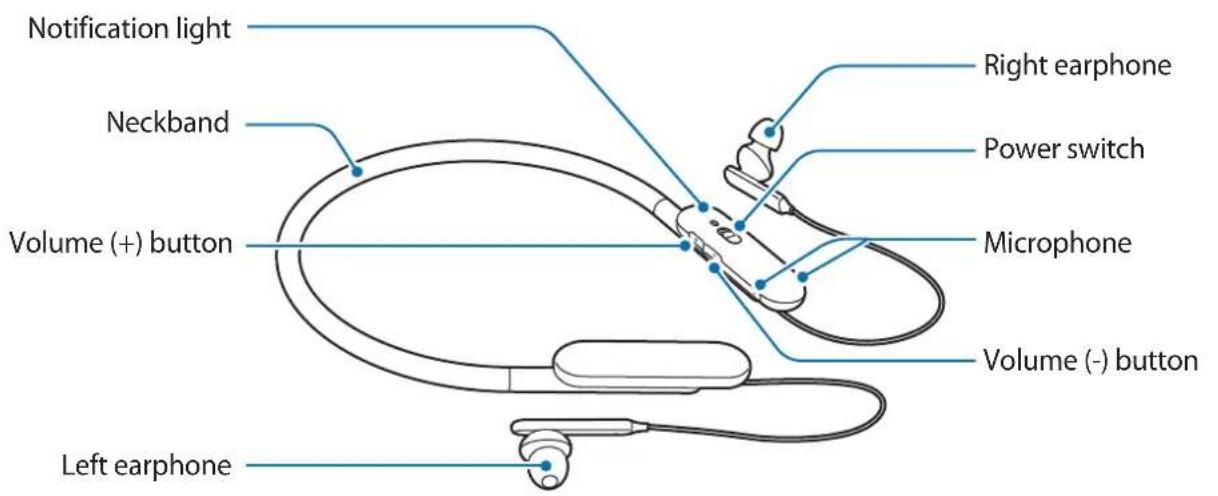
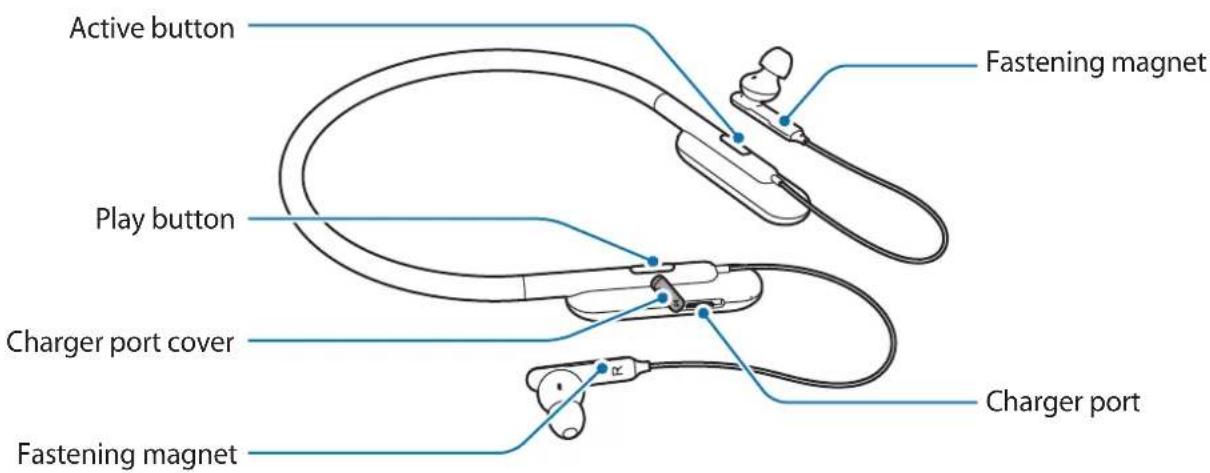
Buttons and functions
| Name Function | |
| Power switch | • Slide to turn the headset on or off. • Slide towards®and hold for approximately three seconds to enter Bluetooth pairing mode. |
| Play button | • Press to play or pause multimedia files. • When a call comes in, press to answer or end calls. • When a call comes in, press and hold for one second to reject a call. |
| Volume buttons | • Press to adjust the volume during a call or media playback. • Press and hold the Volume (-) button to skip to the next file during media playback. • Press and hold the Volume (+) button to skip to the previous file during media playback. • Press and hold the Volume buttons (+ and -) simultaneously for about a second to turn the vibration feature on or off. |
| Active button | • Press to launch the customized features. You can set the customized features in Samsung Level. • Press and hold to launch voice recognition application such as Bixby or S Voice. |
Notification light
The notification light alerts you to the headset's status.
| Status Color | |
| Power on | • Flashes blue three times |
| Power off | • Flashes red three times |
| Bluetooth pairing mode | • Flashes red, green, and blue |
| Connected via Bluetooth | • Quickly flashes blue three times |
| Incoming call | • Flashes blue |
| Charging | • Continuously on red |
| Fully charged | • Continuously on green |
| During use or in sleep mode | • Off |
Charging the battery
Charge the battery before using the headset for the first time or when the headset has been unused for extended periods.

Use only Samsung-approved chargers (above 5V / 700mA) and cables. Unapproved chargers can cause the battery to explode or damage the headset.

- You can charge the headset using the charger (sold separately).
- Using a power source other than the charger, such as a computer, may result in a slower charging speed due to a lower electric current.
- The headset can be used while it is charging, but it may take longer to fully charge the battery.
- While charging, the headset may heat up. This is normal and should not affect the headset's lifespan or performance. If the battery gets hotter than usual, the charger may stop charging.
- If the headset is not charging properly, take the headset and the charger to a Samsung Service Center.
1. Open the charger port cover. Connect the headset to the USB power adaptor via the USB cable. Plug the USB power adaptor into an electric socket.
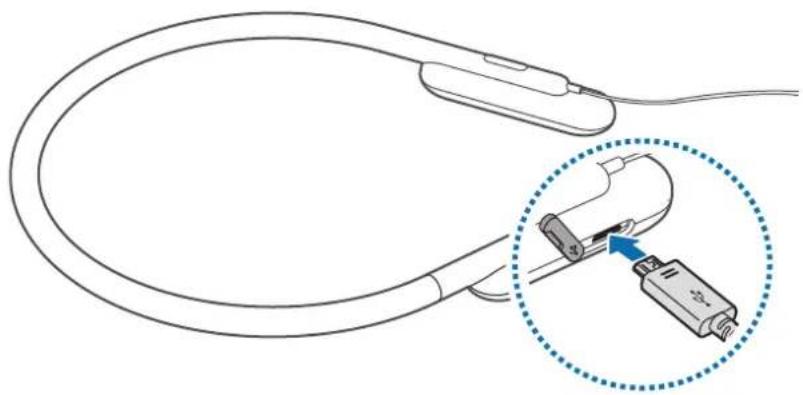

Connecting the charger improperly may cause serious damage to the headset. Any damage caused by misuse is not covered by the warranty.
2. After fully charging, first unplug the USB cable from the headset, and then unplug it from the computer or the electric socket.

- To save energy, unplug the charger when not in use. The charger does not have a power switch, so you must unplug the charger from the electric socket when not in use to avoid wasting power. The charger should remain close to the electric socket and easily accessible while charging.
- The socket-outlet shall be installed near the equipment and shall be easily accessible.
Turning the headset on and off
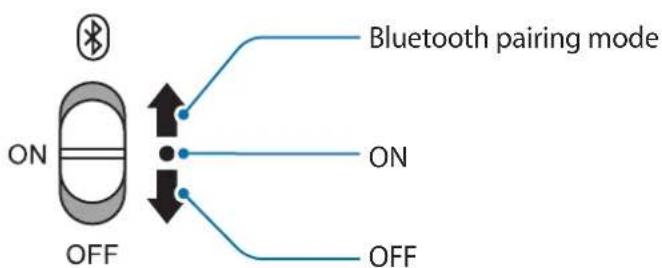

Follow all posted warnings and directions from authorized personnel in areas where the use of wireless devices is restricted, such as airplanes and hospitals.
Connecting via Bluetooth
Bluetooth
About Bluetooth
Bluetooth is a wireless technology standard that uses a 2.4 GHz frequency to connect to various devices over short distances. It can connect and exchange data with other Bluetooth enabled devices, such as mobile devices, computers, printers, and other digital home appliances, without connecting via cables.
Notices for using Bluetooth
- To avoid problems when connecting your headset to another device, place the devices close to each other.
- Ensure that your headset and the other Bluetooth device are within the Bluetooth connection range (10 m). The distance may vary depending on the environment the devices are used in.
- Ensure that there are no obstacles between the headset and a connected device, including human bodies, walls, corners, or fences.
- Do not touch the Bluetooth antenna of a connected device.
- Bluetooth uses the same frequency as some industrial, scientific, medical, and low power products and interference may occur when making connections near these types of products.
- Some devices, especially those that are not tested or approved by the Bluetooth SIG, may be incompatible with the headset.
- Do not use the Bluetooth feature for illegal purposes (for example, pirating copies of files or illegally tapping communications for commercial purposes).
Connecting to other devices
This headset is compatible with Bluetooth-enabled devices.
1 Headset Slide the Power switch towards and hold it for approximately three seconds to enter Bluetooth pairing mode.
When you turn on the headset for the first time, it automatically enters Bluetooth pairing mode.
2 Other device Activate the Bluetooth feature and search for Bluetooth devices.
For more information, refer to the other device's user manual.
3 Other device Tap Samsung U Flex (0000) from the list.
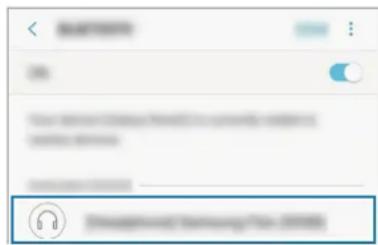

- The PIN for the headset is the four-digit number in parenthesis displayed on the other device's Bluetooth settings screen. The number differs depending on the headset.
- Once devices are paired, recently connected devices automatically connect to your headset whenever you turn it on.
- If the Bluetooth connection fails or other device cannot locate the headset, remove the device's information from the other device's list. Then, try to connect again.
- If the headset does not work properly, restart it or try to pair the devices again.
- The Bluetooth connection range and sound quality may vary depending on the connected devices.
Connecting additional devices
The headset can connect to up to two Bluetooth-enabled devices at the same time. When you connect the headset to two devices, the last device you connect is recognized as the primary device. The other device is recognized as the secondary device.
1 Connect the headset to a device via Bluetooth. 2 Slide the Power switch to the right and hold it for approximately three seconds to enter Bluetooth pairing mode.
The first device will be disconnected.
3 Connect the headset to a second device. 4 Reconnect the headset to the first device from the first device's Bluetooth settings screen.

This feature may not be supported on some devices.
Reconnecting or disconnecting the devices
Reconnecting the devices
If the Bluetooth connection ends due to the distance between the devices, bring the devices closer together within a certain period of time. The devices will automatically reconnect.
If the Bluetooth connection ends because of a device malfunction, access the Bluetooth menu on the connected device to pair them again.
Disconnecting the devices
Slide the Power switch towards and hold it for approximately three seconds. Then, the connection ends and the headset enters Bluetooth pairing mode.
You can also end the connection by turning off the headset. When you turn on the headset again and the devices are in range, the headset automatically connects with the most recently paired device.

Noise may occur if the Bluetooth connection is disconnected improperly.
Using the headset
Wearing the headset

The headset contains magnets in its earbuds. The American Heart Association (US) and the Medicines and Healthcare Products Regulatory Agency (UK) both warn that magnets can affect the operation of implanted pacemakers, cardioverters, defibrillators, insulin pumps or other electro medical devices (collectively, "Medical Device") within the range of 15 cm (6 inches). If you are a user of any of these Medical Devices, DO NOT USE THE HEADSET UNLESS YOU HAVE CONSULTED WITH YOUR PHYSICIAN.

- Do not store your headset near magnetic fields. Magnetic stripe cards, including credit cards, phone cards, passbooks, and boarding passes, may be damaged by magnetic fields.
- Do not bend or twist the headset excessively.
- Do not apply excessive pressure to the headset.
- Do not pull on any part of the headset excessively.
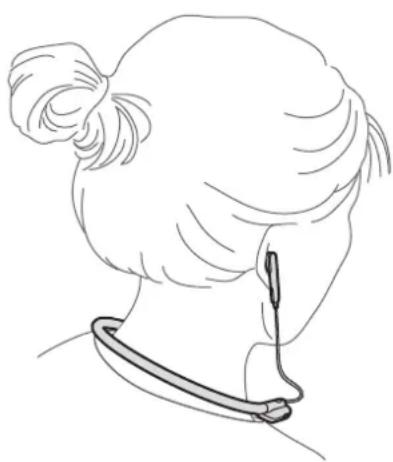
Wearing the headset
Wear the headset around your neck and insert the earphones into your ears.
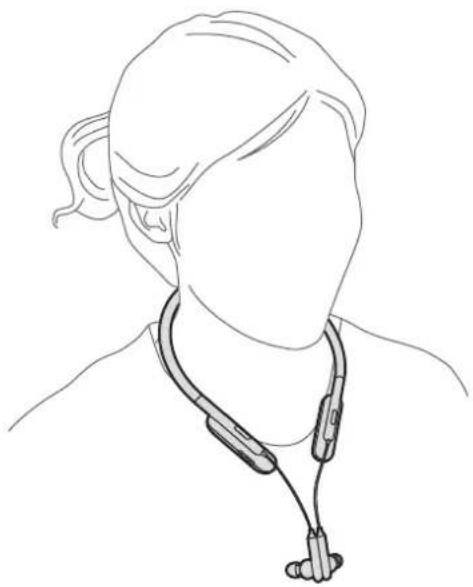
Connecting the earphones
Connect the earphones to each other using the built-in magnets.
Using the headset
Various features are available when the headset is connected to another device.

The following descriptions are based on a Samsung mobile device running Android 5.0. Some features may not be available depending on the connected device.
Calling features
Answering a call
When a call comes in while you are wearing the headset, the headset will beep and vibrate. Press the Play button to answer the call.

- When the headset is connected to two devices and both devices receive calls simultaneously, the headset will be connected to the device that receives the call first.
- When you play a multimedia file from one device, you can still answer calls from the other device.
Rejecting a call
Press and hold the Play button for one second.
Adjusting the volume
Press the Volume button.
Switching sound output
Use the connected device's call features to switch call audio between the headset and the device.
Ending a call
Press the Play button.
Playing multimedia files
Control media playback, such as music and videos, using the Play button.
Playing and pausing a multimedia file
Press the Play button. The most recently-played music file will play automatically in the default music app installed on the connected device.
During playback, press the Play button to pause playback. To resume playback, press the Play button again.

When two connected devices are simultaneously playing multimedia files, the headset will stream from the device that started playing a file first. When you pause the currently-playing file, the file playing on the other device will play automatically.
Skipping to the next multimedia file
Press and hold the Volume (-) button to skip to the next file during playback.
Skipping to the previous multimedia file
Press and hold the Volume (+) button to skip to the previous file during playback.
Adjusting the volume
Press the Volume button.
Using Samsung Level
On the connected device, download the Samsung Level app from Google Play Store or Galaxy Apps. With the app, you can check the remaining battery power and adjust the volume. You can also set the headset to notify you via voice notification or vibrate when you have notifications on the connected device. For more information, refer to the app's help menu.

The Samsung Level app is compatible with Samsung mobile devices running Android operating system 4.2.2 or later. Some features may differ or may not work on your headset depending on the connected device or the operating system.
Using Active button
When you press the Active button for the first time, it automatically launches voice recognition application such as Bixby or S Voice.
Press the Active button to launch the customized features.
Press and hold the Active button to launch voice recognition application such as Bixby or S Voice.

If Bixby or S Voice are not installed, the default voice recognition application will launch.
With Samsung Level, you can customize the Active button to activate various features such as Clock, Timer, S Health or Voice Recorder.

Voice Recorder on the Active button menu is available only with Samsung mobile devices. If Voice Recorder does not appear on the Active button menu, update Voice Recorder to the latest version from Galaxy Apps or Play Store.
Updating the device
The device can be updated to the latest software.
Updating over the air
The device can be directly updated to the latest software by the firmware over-the-air (FOTA) service.
Tap More → About Samsung U Flex → Update Samsung U Flex software → OK in Samsung Level.
Appendix
Troubleshooting
Before contacting a Samsung Service Center, please attempt the following solutions.
Your headset does not turn on
When the battery is completely discharged, your headset will not turn on. Charge the battery completely before turning on the headset.
Your headset freezes
If the headset's audio experiences any problems, such as freezing or distorting, try to resolve it by turning off the headset and then turning it on again.
If the headset is still unresponsive, end the Bluetooth connection and reconnect it. To do this, slide the Power switch towards the symbol and hold it for approximately three seconds to enter Bluetooth pairing mode. When the headset enters Bluetooth pairing mode, connect the devices again, and then check the operation of the headset.
If the problem is still not resolved, contact a Samsung Service Center.
The battery does not charge properly (For Samsung-approved chargers)
Ensure that the charger is connected properly.
If the problem is still not resolved, contact a Samsung Service Center.
Another Bluetooth device cannot locate your headset
- Ensure that your headset is in Bluetooth pairing mode.
- Restart your headset and search for the headset again.
- Ensure that your headset and the other Bluetooth device are within the Bluetooth connection range (10 m).
If the tips above do not solve the problem, contact a Samsung Service Center.
Your headset cannot connect to another Bluetooth device
- Ensure that your headset and the other Bluetooth device are within the maximum Bluetooth range (10 m).
- On the device you want to connect with, disconnect all paired devices and try to connect again.
Bluetooth connection is often disconnected
- If there are obstacles between the devices, the operating distance may be reduced.
- Ensure that your headset and the other Bluetooth device are within the maximum Bluetooth range (10 m).
- When using the headset with other Bluetooth devices, the connection may be affected by electromagnetic waves. Use the headset in environments with fewer wireless devices present.
You cannot hear others speaking
Adjust the device volume.
Sound echoes during a call
Adjust the volume by pressing the Volume button or move to another area.
Others cannot hear you speaking on a call
- Ensure that you are not covering the built-in microphone.
- Ensure that the microphone is close to your mouth.
Audio quality is poor
- Wireless network services may be disabled due to issues with the service provider's network. Ensure to keep the headset away from electromagnetic waves.
- Ensure that your headset and the other Bluetooth device are within the maximum Bluetooth range (10 m).
- You may experience drops in volume or noise depending on the connected device's volume. To avoid this, appropriately adjust the connected device's sound.
The headset works differently as described in the manual
- Available functions may differ depending on the connected device.
- Some features cannot be used when two devices are connected with the headset at the same time.
The battery depletes faster than when first purchased
- When you expose the headset or the battery to very cold or very hot temperatures, the useful charge may be reduced.
- The battery is consumable and the useful charge will get shorter over time.
Copyright
Copyright © 2017 Samsung Electronics
This manual is protected under international copyright laws.
No part of this manual may be reproduced, distributed, translated, or transmitted in any form or by any means, electronic or mechanical, including photocopying, recording, or storing in any information storage and retrieval system, without the prior written permission of Samsung Electronics.
Trademarks
- SAMSUNG and the SAMSUNG logo are registered trademarks of Samsung Electronics.
- Bluetooth® is a registered trademark of Bluetooth SIG, Inc. worldwide.
- All other trademarks and copyrights are the property of their respective owners.
Leer primo
© Samsung Electronics, 2017.

- SAMSUNG U FLEX HEADPHONES E0-BG
- USER MANUAL
- TABLE OF CONTENTS
- READ ME FIRST
- INSTRUCTIONAL ICONS
- GETTING STARTED
- PACKAGE CONTENTS
- DEVICE LAYOUT
- BUTTONS AND FUNCTIONS
- NOTIFICATION LIGHT
- CHARGING THE BATTERY
- TURNING THE HEADSET ON AND OFF
- CONNECTING VIA BLUETOOTH
- BLUETOOTH
- ABOUT BLUETOOTH
- NOTICES FOR USING BLUETOOTH
- CONNECTING TO OTHER DEVICES
- CONNECTING ADDITIONAL DEVICES
- RECONNECTING OR DISCONNECTING THE DEVICES
- RECONNECTING THE DEVICES
- DISCONNECTING THE DEVICES
- USING THE HEADSET
- WEARING THE HEADSET
- CONNECTING THE EARPHONES
- CALLING FEATURES
- ANSWERING A CALL
- REJECTING A CALL
- ADJUSTING THE VOLUME
- SWITCHING SOUND OUTPUT
- ENDING A CALL
- PLAYING MULTIMEDIA FILES
- PLAYING AND PAUSING A MULTIMEDIA FILE
- SKIPPING TO THE NEXT MULTIMEDIA FILE
- SKIPPING TO THE PREVIOUS MULTIMEDIA FILE
- USING SAMSUNG LEVEL
- USING ACTIVE BUTTON
- UPDATING THE DEVICE
- UPDATING OVER THE AIR
- APPENDIX
- TROUBLESHOOTING
- YOUR HEADSET DOES NOT TURN ON
- YOUR HEADSET FREEZES
- THE BATTERY DOES NOT CHARGE PROPERLY (FOR SAMSUNG-APPROVED CHARGERS)
- ANOTHER BLUETOOTH DEVICE CANNOT LOCATE YOUR HEADSET
- YOUR HEADSET CANNOT CONNECT TO ANOTHER BLUETOOTH DEVICE
- BLUETOOTH CONNECTION IS OFTEN DISCONNECTED
- YOU CANNOT HEAR OTHERS SPEAKING
- SOUND ECHOES DURING A CALL
- OTHERS CANNOT HEAR YOU SPEAKING ON A CALL
- AUDIO QUALITY IS POOR
- THE HEADSET WORKS DIFFERENTLY AS DESCRIBED IN THE MANUAL
- THE BATTERY DEPLETES FASTER THAN WHEN FIRST PURCHASED
- REMOVING THE BATTERY
- COPYRIGHT
- TRADEMARKS
- RECONNECTION BETWEEN DEVICES
- PLAYBACK AND PAUSE OF THE MULTIMEDIA FILE
- SWITCH TO THE PREVIOUS MULTIMEDIA FILE
- SWITCH TO THE NEXT MULTIMEDIA FILE
- SOUND ADJUSTMENT
- THE MICROPHONE HEADSET KIT DOES NOT TURN ON
- THE MICROPHONE HEADSET KIT IS BLOCKED
- THE BATTERY DOES NOT CHARGE PROPERLY (FOR THE CHARGING DEVICE, USE SAMSUNG ORIGINAL)
- ANOTHER BLUETOOTH DEVICE CANNOT CONNECT TO THE MICROPHONE HEADSET KIT
- THE HEADSET WITH MICROPHONE CANNOT BE CONNECTED TO ANOTHER BLUETOOTH DEVICE
- BLUETOOTH CONNECTION IS INTERRUPTED
- DO NOT SPEAK TO OTHER PEOPLE
- SAMSUNG LEVEL
- DEVICE SETTINGS
- THE HEADSET DOES NOT TURN ON
- THE HEADSET FREEZES
- THE BATTERY DOES NOT CHARGE PROPERLY (FOR APPROVED SAMSUNG CHARGING DEVICES)
- YOU CANNOT SEND WHAT OTHERS SAY
- AUDIO ECHO DURING A CALL
- CHECK THAT THE EARPIECE IS NOT BLOCKED DURING A CALL
- SOUND IS TOO WEAK
- CONNECTING THE EARPIECES
- PLAYBACK AND PAUSE OF MULTIMEDIA FILES
- MOVE TO THE PREVIOUS MEDIA FILE
- USE SAMSUNG LEVEL
- USING THE ACTIVE KEY
- UPDATE SOFTWARE
- INTERLOCUTORS CANNOT HEAR YOU DURING A CALL
- LOW SOUND QUALITY
- THE HEADSET DOES NOT FUNCTION AS DESCRIBED IN THE MANUAL
- THE BATTERY DISCHARGES FASTER THAN AT THE TIME OF PURCHASE OF THE DEVICE
- SAFETY INSTRUCTIONS
- NOTIFICATION INDICATOR
- BLUETOOTH TECHNOLOGY EXPERTS
- DISCONNECTING DEVICES
- DISCONNECTING OR DELETING DEVICES
- DELETING DEVICES
- DEVICE RESET
- KYLAKACNTBI TAFY
- KYLNAKACNANTBTAFY
- KYLNAKKATAPDBIKOCY
- KУЛAKACNANЫ ПАДАЛАНУ
- KONSBPAY WANY MYMKHDKTEPI
- KOHBIPAYFΑ XAYAN 6EPY
- PRESS THE BUTTONS
- TO TURN OFF THE DEVICE
- TO TURN ON THE DEVICE
- REPLACING THE BUTTON BATTERY
- DO NOT USE NON-CERTIFIED CHARGERS (FOR SAMSUNG CERTIFIED CHARGERS)
- БАCKABLUETOOTH КУРЬЛФЫСBL КУЛAKACPANTBI TA6A AIMAДЫ
- KYLNAKACNAN 6ACA BLUETOOTH KYPBIFBCBAHA KOCBLMAN TYP
- BLUETOOTH 6AJIAHBICBI JXNI AXBIPATBIJADBI
- BAKAIAPDBIN CEYJIEREHI ECTIIMEYDI
- KOHBIPAY KE3IHDE DBL6BIC KAHFBLPBLFBL ECTIJIEDI
- KOHBIPAY KE3IHDE 6ACA AADMAPFA CI3DIN DAYBICBIBI3 ECTIJIMEIDI
- THE DEVICE CAN BE USED WITH THE OPERATOR'S MANUAL. KEEP AWAY FROM ELECTRIC SHOCK HAZARDS. - THE MAXIMUM BLUETOOTH RANGE IS 10 M. THE DEVICE CAN BE CONNECTED TO A BLUETOOTH SPEAKER OR HEADPHONES. TO AVOID INTERFERENCE, KEEP THE DEVICE AWAY FROM OTHER BLUETOOTH DEVICES
- LEER PRIMO
Brand : SAMSUNG
Model : U Flex EOBG950
Category : Cellphone