
DWB093553 - Basket BOSCH - Free user manual and instructions
Find the device manual for free DWB093553 BOSCH in PDF.
 FR
FR
 AR
AR
 BG
BG
 CA
CA
 CS
CS
 DA
DA
 DE
DE
 EL
EL
 EN
ES
EN
ES
 ET
EU
ET
EU
 FA
FA
 FI
FI
 HU
HU
 IT
IT
 LT
LT
 LV
LV
 NL
NL
 PL
PL
 PT
PT
 RO
RO
 RU
RU
 SK
SK
 SL
SL
 SV
SV
 TR
TR
 UK
UK
| Product type | Wall-mounted cooker hood |
| Brand | Bosch |
| Model | DWB093553 |
| Width | 90 cm |
| Net weight | 15 kg |
| Power supply | 220-240 V, 50 Hz |
| Maximum power | 280 W |
| Extraction mode | Extraction or recirculation (with carbon filter kit) |
| Maximum airflow | 650 m³/h |
| Number of speeds | 3 speeds + intensive |
| Maximum noise level | 65 dB(A) |
| Lighting | 2 LEDs, 3 W each |
| Control type | Touch controls |
| Grease filter | Dishwasher-safe metal filter |
| Charcoal filter | Activated charcoal filter (optional) |
| Energy class | A+ |
| Maintenance | Clean the grease filter every month; replace the charcoal filter every 6 months |
| Safety | Automatic shut-off, overheat protection |
| Spare parts | Filters, LED bulbs, carbon filter kit (reference: Bosch DWB093553) |
| Repairability | Repairability index: 7.5/10 |
Frequently Asked Questions - DWB093553 BOSCH
User questions about DWB093553 BOSCH
0 question about this device. Answer the ones you know or ask your own.
Ask a new question about this device
Download the instructions for your Basket in PDF format for free! Find your manual DWB093553 - BOSCH and take your electronic device back in hand. On this page are published all the documents necessary for the use of your device. DWB093553 by BOSCH.
USER MANUAL DWB093553 BOSCH
Please read "Important Safety Instructions" before operating this product.
After you finish reading this guide, store it in a safe place for future reference.
The information in this document is subject to change without notice.
Quick Setup
Getting Started
Please read "Important Safety Instructions" before operating this product.
P.134
After you finish reading this guide, store it in a safe place for future reference.
The information in this document is subject to change without notice.
Mise en route
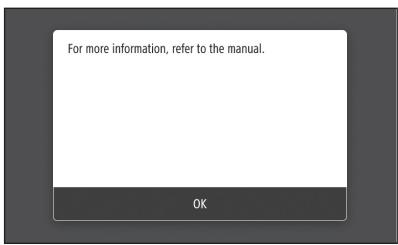
canon.com/oip-manual to read the User's Guide that describes all functions of this machine.
ДяТOrO yTo6bI npOHTaTbPyKOBoDCTBO NOJIb3OBaTeN, B KOTOpOM
codepkrTcOINCAHNE Bcex fynkun aannapata, nocetnte Be6-caIT canon. com/oip-manual.
HaBe6-caiTi
```bash canon.com/oip-manual Bn Mozejte O3naHOMNTTcA 3 Ploci6Hnikom
KopncTyBa, y kOMy OnncAo Bci fynkuii zbo Anapata.
Jus varat pieklut vietnei
Items Included with the Machine
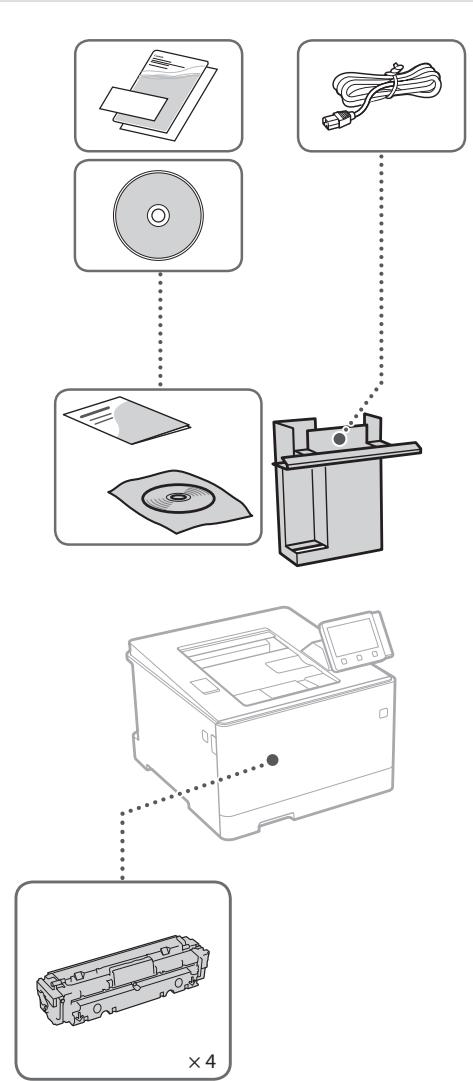
Starter toner cartridges are included.
Installing the Machine
Before starting the installation
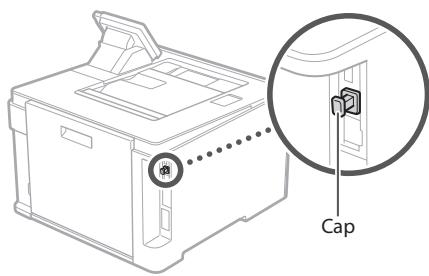
- Remove all of the tape.

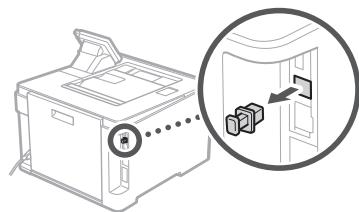
- Do not remove the cap that covers the USB port.
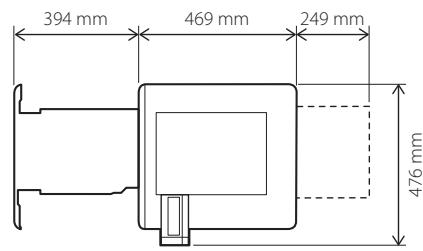
Installation Requirements
Provide a space of 100mm or more around the machine.
LBP664Cx
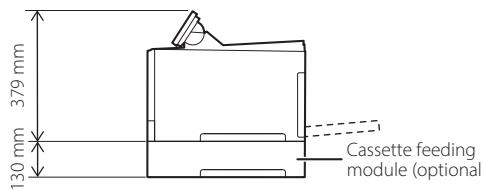
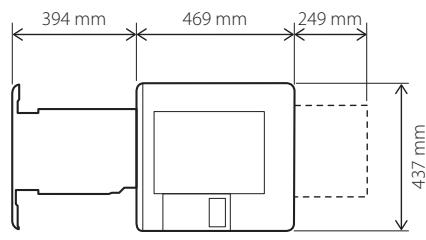
LBP663Cdw
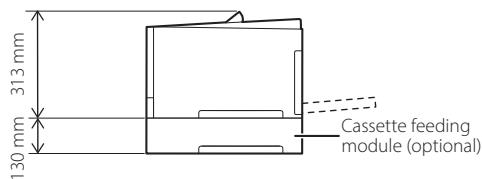
1
2
3
4
5
6
7
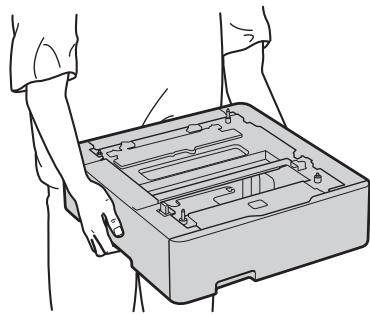
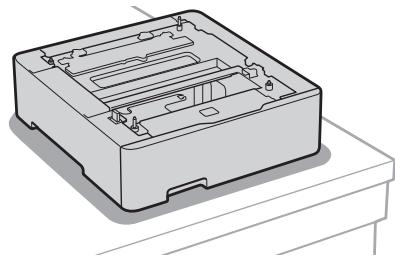
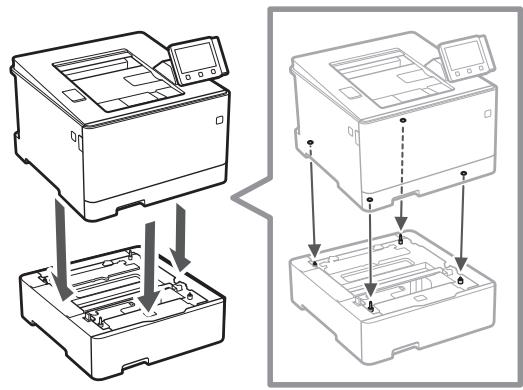
8 Install the cassette feeding module (optional).
9
Next, proceed to configure the machine.
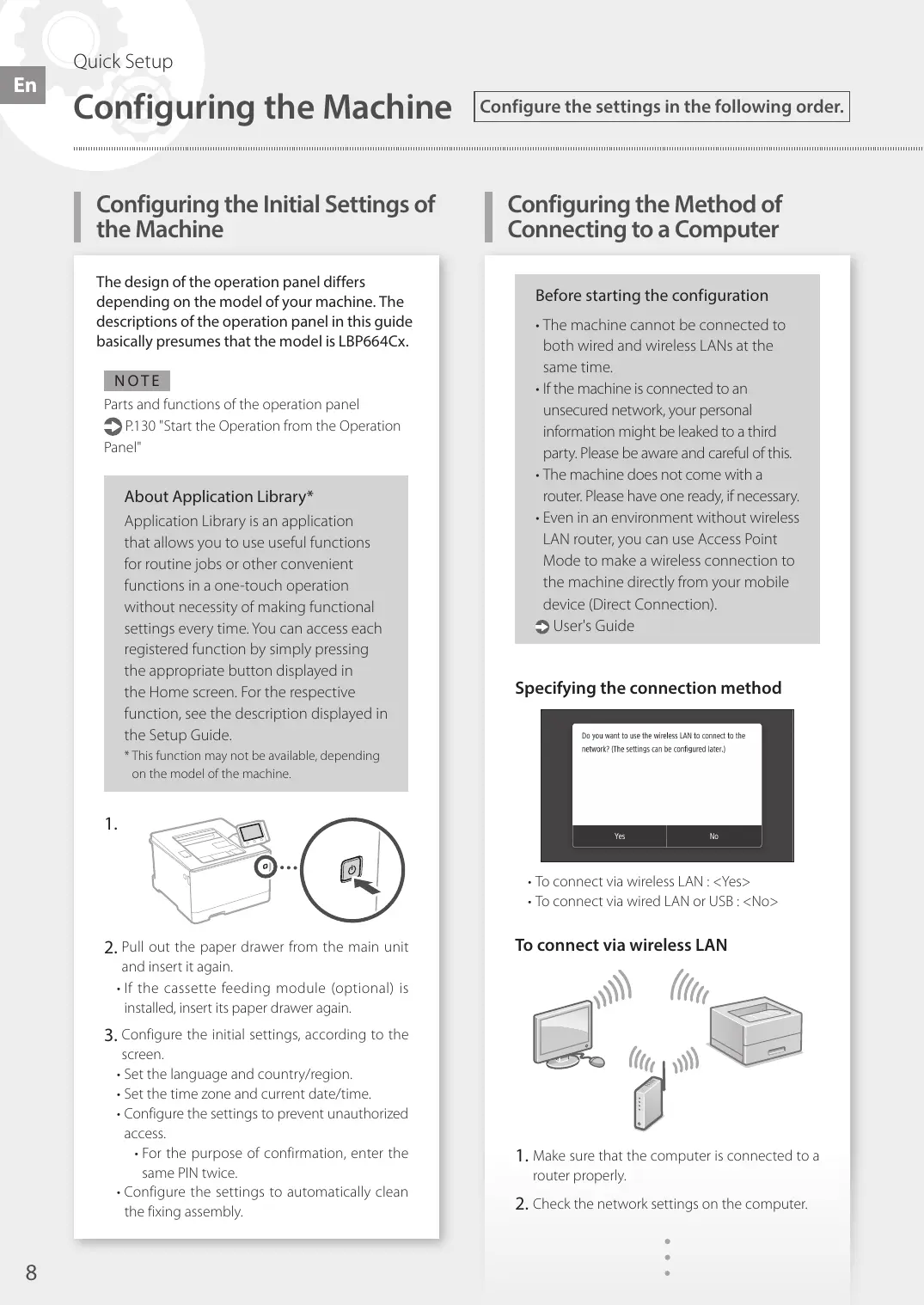
Configuring the Machine
Configuring the Initial Settings of the Machine
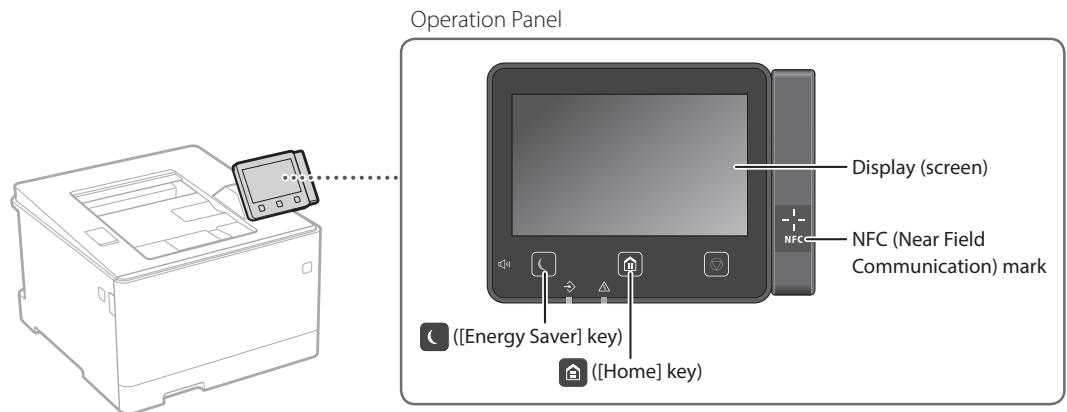
The design of the operation panel differs depending on the model of your machine. The descriptions of the operation panel in this guide basically presumes that the model is LBP664Cx.
NOTE
Parts and functions of the operation panel
P.130 "Start the Operation from the Operation Panel"
About Application Library*
Application Library is an application that allows you to use useful functions for routine jobs or other convenient functions in a one-touch operation without necessity of making functional settings every time. You can access each registered function by simply pressing the appropriate button displayed in the Home screen. For the respective function, see the description displayed in the Setup Guide.
*This function may not be available, depending on the model of the machine.
1.
-
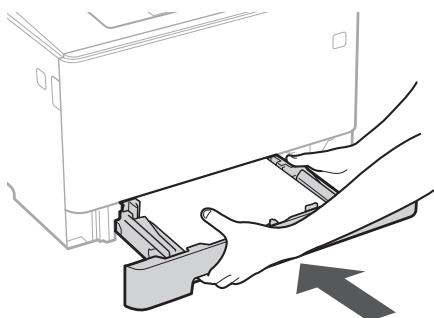
Pull out the paper drawer from the main unit and insert it again.
-
If the cassette feeding module (optional) is installed, insert its paper drawer again.
-
Configure the initial settings, according to the screen.
-
Set the language and country/region.
- Set the time zone and current date/time.
-
Configure the settings to prevent unauthorized access.
-
For the purpose of confirmation, enter the same PIN twice.
-
Configure the settings to automatically clean the fixing assembly.
Configuring the Method of Connecting to a Computer
Before starting the configuration
- The machine cannot be connected to both wired and wireless LANs at the same time.
- If the machine is connected to an unsecured network, your personal information might be leaked to a third party. Please be aware and careful of this.
- The machine does not come with a router. Please have one ready, if necessary.
- Even in an environment without wireless LAN router, you can use Access Point Mode to make a wireless connection to the machine directly from your mobile device (Direct Connection).
User's Guide
Specifying the connection method
- To connect via wireless LAN :
- To connect via wired LAN or USB :
To connect via wireless LAN
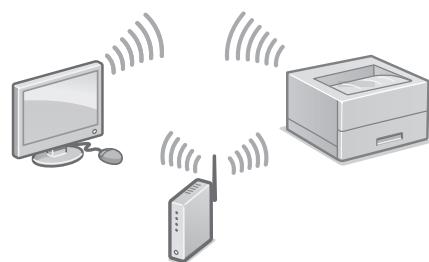
- Make sure that the computer is connected to a router properly.
-
Check the network settings on the computer.
-
Take note of the SSID and network key.
-
Check the label on the router. User's Guide
-
The setting operation is easier if the router is provided with a WPS mark. User's Guide
-
Set the access point and network key according to the screen below.
- Select
. - Select
. - Select
- Select the access point (SSID), and select
. - Enter a WEP key (network key), and select
. - Select
. - Wait until message
is displayed. - Select
. -
The IP address will be automatically configured in a few minutes.
-
Install the driver and software.
P.10 "Installing the software"
Now you are finished with the configuration of the initial settings.
To connect via wired LAN
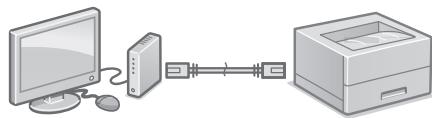
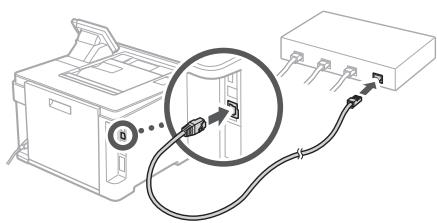
The machine does not come with a LAN cable. Please have one ready, if necessary.
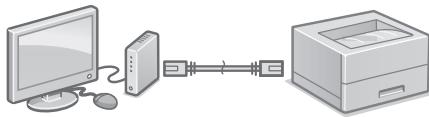
- Make sure that the computer is connected to a router properly.
- Check the network settings on the computer.
- Connect the LAN cable.
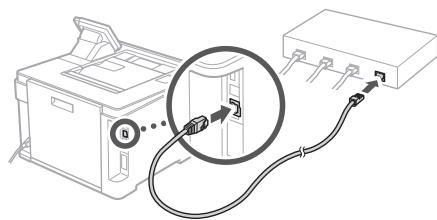
After connecting the cable, wait a few minutes (until the IP address is set automatically).
- If a static IP address has been set on the computer, set the machine's IP address manually.
- Install the driver and software.
P.10 "Installing the software"
Now you are finished with the configuration of the initial settings.
To connect via USB
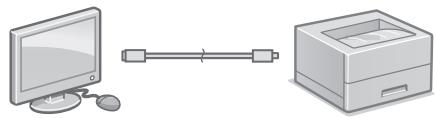
-
The machine does not come with a USB cable. Please have one ready, if necessary.
-
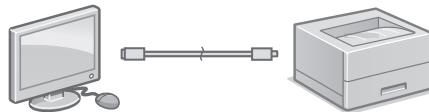
Make sure that the USB cable you use has the following mark.

-
Do not connect the USB cable before installing the driver. If you did, disconnect the USB cable from the computer, close the dialog box, and then perform the following procedure from step 1.
-
Install the driver and software.
P.10 "Installing the software"
- When a screen with instructions for connecting the USB cable to the machine is displayed, remove the cap that covers the USB port.
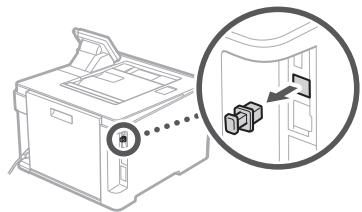
Now you are finished with the configuration of the initial settings.
Installing the software
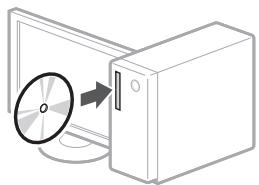
- The procedure described here is only applicable when your computer runs on the Windows OS. For more details on the software installation procedure, see the driver's manual.
- For the installation when your computer runs on the macOS, see the driver's manual.
- Your machine may not come with the driver for the macOS, depending on the time of purchase. New drivers are uploaded to the Canon website, and you can download and use the latest one.
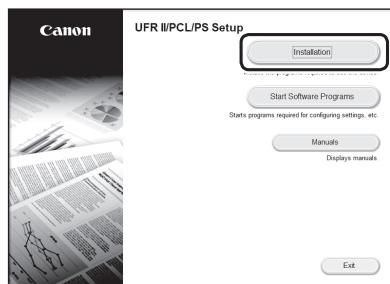
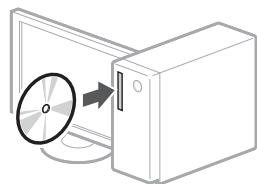
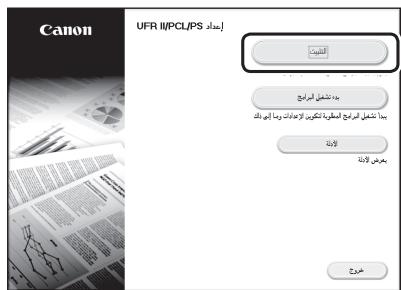
1.
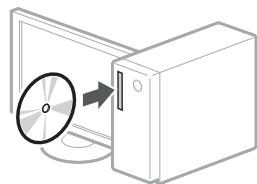
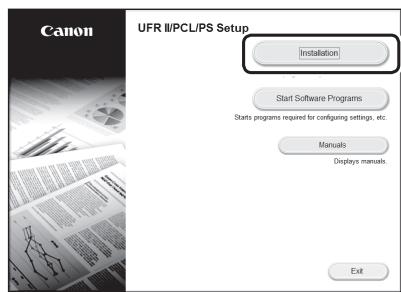
2.
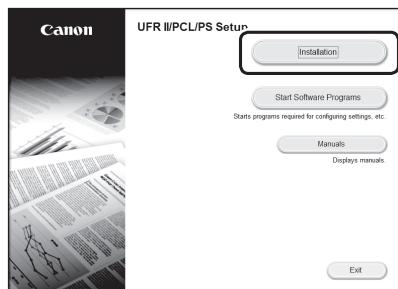
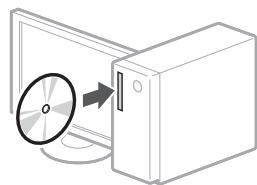
If the screen is not displayed properly, reinsert the CD-ROM/DVD-ROM or search for "D:\MInst.exe" on the Windows platform (This description assumes that "D:" is the CD-ROM/DVD-ROM drive name).
S.46 "Installation of softwares"
S.46 "Installation of softwaren"
Installation of software
- Verbinding makes via draadloos LAN:
- Verbinding makes via bedraad LAN of USB:
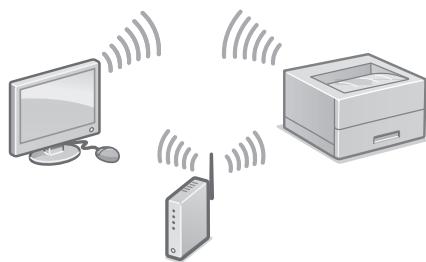
Verbinding makes via draadloos LAN
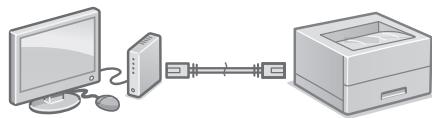
Verbinding makes via bedraad LAN
Tenep Bn 3aBepuHnHaJauSTyBaHHn noUaTKOBx npaMaTePb.
YcTaHOBKa npPorpaMHO
3a6e3neueHHN
- OnicaHa TuT npOeDypa 3aCtOCOByETbCra, TiIbKn RaKIO KOMn'IOTep npApoE NiI KepyBaHHaM OC Windows. DoklaadHiIe np npOeDpyu BCTAHOBHeHH npOrpamHoro 3a6e3neueHHaNIB. B noci6Hnky 3i BCTAHOBHeHH dpaBepa.
ДлгВстановпнг npогрмного 3а6e3neчehн Ha komп'ioTePI,якіnpaцIOE nID kepyBaHHm macOS,дИВ.пociбнК 3I BCTahOBnEHn ДраиВера. - Baш anapat може постаатся 6e3 драиьерідя macOS залекно вд уасу ло рпдбанн. Hovi драиьери розміцуютса на Be6-caHTi Canon.ТakIMЧИНOMВИ можete 3аBaHTaЖNTI octaHHIO bepciо драиьера.
1.
2.
S.90Instalace software
KoHΦIgypnPaHe Ha MaShHaTa
KoHcIgypnpaHe Ha IpbBOHaayalHnTe HacTpoiKn Ha MaunHaTa
OΦopMneHnETo Ha pa60THnI naHeI ce pa3nIuBaBA 3aBNCUMoCT OT moEla Ha maunHa. OnncAHnra Ha pa60THnI naHeI TOBa pKOBODTBO KaTO cJlNo ca 6a3npaHn Ha moEla LBP664Cx.
3AbeJEIeKKA
Yactn n fynkunn Ha pa6oTHnaHne

Ctp.338, CtapTupaHe Na dieCTBnETo OT
pa6OTnI naHeJI"
Othocho Application Library (Bn6nnoteka c npiloxhenya)*
Application Library (Bn6nIOTeKa c npINOKeHna) e pInIOJXeHne, KOTo Bn nO3BOJIaBa da n3PON3BaTe POnle3Hn fYHKUIN 3a pyTINHH 3aDAHn INIpyrN yO6HbN fYHKUIN C eNDo DOKOCBaHe 6e3 Heo6XoIMoCT OT N3BbPwBaHe Na fYHKUHOAHNI HAcTPOKN BCEKnPiB. MoKTe Da nOlyuHTe IOCTbN IIO BCRA peRNCtPnpaHa fYHKU, KATO nPoCtO HaNTCHETe NOxOxUIN 6yTOH, NOKa3aN Ha NaJALN EKpA.HvXte ONICAHNETo, NOKa3aHO B PbKOBOCTBOTo 3a HAcTPOKA 3a CbOTBeTHATA fYHKU. * Ta3n fYHKU M0KeJa Da He e HaJIuHuaB 3aBVCIMoCT OT MOJena Ha MaunHata.
1.
2.Издрай Te TaBaTa 3a xapTЯ OT KOpnya Ha yctpoiCTBOTO, cIeД KoEToЯ NOCTaBeTe O6paTHO.
- Ako e MOHTnPaHO KaceTbUHO NIOdaBaUO yCTPoiCTBO (OPIUHOALHO) BkapaTe o6paTHo TabaTMy 3a xapTna.
3. KOnΦnIgnpaIte nIbpBOHaJHnIte HacTpoJKN B CbOTBETCTBne C ekpaHa.
3aadaTe e3nka nIbprkaBaTa/pernoHa.
3aJaTe yacobnI noRcN TeKyuata Ta DaTa/Yac.
KoHfNpynpaIteHaCTpoiKnTe,3a npdeOTBpTaTBAHeHa HeyIbIhOMOseH DoCTbI.
- CζeI nOtBbpxkDeHnE BbVeTe έBa έTn eINH nCbU PIN HOMep.
KoHfIpynpaIteHaCTpoIKnTe Ha ABTomATuHO nOHTBaHe HfIKCuPaIaMOnyI.
KoHΦnIpynpaHe Na MeToJa 3a CBbP3BaHe C KOMnIOTbP
Ipezi da 3anouhete KOHunypnpaHTo
MaunHata He MoKe Ja ce CbByKe eJHOBpeMeHo cKa6eHa n 6e3xuHa LAN mpeka.
- Ako MaunHaTa e Cbþr3aHa c He3aunTeHa MpeJa, Baata Ta NUnHa INΦOpMaunry Mooke Da n3teYe Do Tpeta CtpaHa. Monla, 6bndeBHNMaTeHn No OTOHSeHne Ha TOBa.
MaunHata He ce doCTaBcMappyTu3aTOp, 3aTOBA NOIOTBETe TaKbB, aOe HEO6xOIMo.
-ДориВ срета6e36e3ЖИЧЕн LAN MapшутузATOP можеTe ДИЗПОЛЗВаTe peжим Ha TOTka 3a ДОCTьП, 3a Дa OCьшесТВITE 6e3ЖИЧА ВрьЗКa C MaшинаТдИпекTHO OT BaшetoMOБИНо yctpoiYCTBO (ДИпекTHA ВрьЗКa).

PbKOBOdCTBOHa nOte6nTeTn
HCTaInpaHeHa cofopepa
- Onicahata tuk npocedupa e npinloKIma camo KOrato KOMNIObPbT paobTu ConepaCIOHncaCTema Windows. 3a noDpo6HOCTu OTHOCHO npocedupata 3a nHCTaInpaHe Na coΦTyepa BIXTe pBKOBOIDCTBO 3a dpaIBepa.
- 3a INCTaIIpaHe, KOrATo KOMIIOTpBpT pa6OTn C macOS, BIXKTe pBKOBOCTBO 3a IpaIbepa.
- Baшату машину може да He ce Doctabу сдраиьера з macOS в Завсимост OT bpeMeToHa nokynkata. Ha ye6caiTa ha Canon peDobHoce KaivBaT HOBn dpaaiBepu, Taka Ye moKTe daN3TErJIIne Hau-HOBnI N da ro N3NON3BaTe.
1.
2.
Ako ekpaHbT He ce n3BveI npaBnHOn, noCTaBeTe oTHOBo CD-ROM/DVD-ROM nicsa nnnoTbpcTe,D:MInst.exe"B Windows nlaTphiOpMaTa. (ToBa onncahne npednonara, ye,D:"e imeto Ha CD-ROM/DVD-ROM yctpoiCTboto).
Makineyi Yapilandirma
gulwulj 1ailll lgl gdlg
.LBP664Cx
a b
1
"Jusill aol no Jusill cdy" roz aall
Application Library
\*(iilaill iisa)
^ (aill k) Application Library
aaii iiaai ai bai aiaii aai
auiiiaai 1
Clllglll lcll 1 1 1 1 1 1 1 1
aIiIiIiIiIiIiIiIiIiIi
cuiiall jll gle abluy baiiell yjbc
A. C. A. B. C. D. E.
.
ylll lill 1000
aalal alalal Jaiyai jaiu
Aulall Uusll Aasll Lyslaa Jaaalall jay
A
Jusu Jgally jssll Jusil no sll.1
jglslg 1slll llae! jao
Jauaiy Jss
biy i yi) gai jie jilj lji j
IP
J 1111111111111111111111111
jdyabally apall IP jjic
calil, jieiill caljui p.2
"calillllllllllll
a 1
jssssll 1e assslll 1n jao
A. Z 为零,SSID
aissuall 6. agall cagao gao j
PwS
olal aaii i 1
.
<1>
.
2ai > 22 = 90^
.
< ( j2) 1 > > > > > >
alilaljll jlll jlll.0
"calillll 1111
A. aB. bC. C. d
#
ysslln yssie 11s sasgall sgs yss
jzll jzll jzll jzll jzll jzll macOS jzll pbliy jzll Jaoic jzill
alillll lallllllllllllllllllllllllllllllllllllllllllllllllllllllllllllllllllllllllllllllllllllllllllllllllllllllllllllllllllllllllllllllllllllllllllllllllllllll
Aoluluulul
.1
Y
J 15 J 15 J 15 J 15 J 15 J 15 J 15 J 15 J 15 J 15 J 15 J 15 J 15 J 15 J 15 J 15 J 15 J 15 J 15 J 15 J 15 J 15 J 15 J 15 J 15 J 15
(DVD
USB
LJLS JSSJ.USB LJSsJgJy
.

AaJus USB 1s Jn
Aglilll Axlal lss
-
- USB
j 1 j 1 j 1 j 1 j 1 j 1 j 1 j 1 j 1 j 1 j 1 j 1 j 1 j 1 j 1 j 1 j 1 j 1 j 1 j 1 j 1 j 1 j 1 j 1 j 1 j 1 j 1 j 1 j 1 j 1 j 1 j 1 j 1 j 1 j
calillll lgllll 1
"calillll" 114 aalall
Jssuusulil cullai jie gusiauiu jbi Iuaic
.USB 100000000000000000000000000000000000000000000000000000000
A
1 1
claa jiejie
jLALAN jla jao jgi gai jol
.25 100
山
Jus
42
a
i#i o i 1
1 1
LAN 45
Access Point Mode jjjjj
1234567890
255 05aiuol 2gol jalj jiai
.
JIS (Sla)
Jus
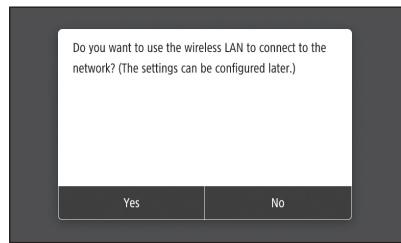
Do you want to use the wireless LAN to connect to the network? (The settings can be configured later.)
Yes
No
(山)
LAN 1
AS 即 SA J( S A) 又 SA L 交 A 于
yIyIyIyIyIyIyIyIyIyIyIy
Gwok Si Cuiac Sj Gb Cuiia (S)JS
j 1
LgSul ay 1yil gao yolal yolaii
gili 4a 4a 4a 4a 4a 4a
021 GlaJgSjSjSjSjSjSj
125 122
2023 2023 2023 2023 2023 2023 2023 2023
122 122 122
1
ai^j = 12( ai + ai) · bi^j
a 1234567890
Jaiui j 2 jia jia jia jia jia jia jia jia jia jia jia jia jia jia jia jia jia jia jia jia jia jia jia jia jia jia jia jia jia jia jia jia jia jia jia jia jia jia jia jia jia jia jia jia jia
1
aik aii jai jaj jai jai jia
S S S S S S S S S S S S S S S S S S S S S S S S S S S S S S S S S S S S S S S S S S S S S S S S S S
Next>
(WEP WEP key
. .
山山山
. Connected. >
. 山 ^ 山 1
Pgl
.21
iiS 1i jjji jj
"Jjjji j 199.
J 1 J 1 J 1 J 1 J 1 J 1 J 1 J 1 J 1 J 1 J 1 J 1 J 1 J 1 J 1 J 1 J 1 J 1 J 1 J 1 J 1 J 1 J 1 J 1 J 1 J 1 J 1 J 1 J 1 J 1 J 1 J 1 J 1 J 1 J
1 1111111111111111
Start the Operation from the Operation Panel
The design of the operation panel differs depending on the model of your machine. The descriptions of the operation panel in this guide basically presumes that the model is LBP664Cx.
Machine (LBP664Cx)
Machine (LBP663Cdw)
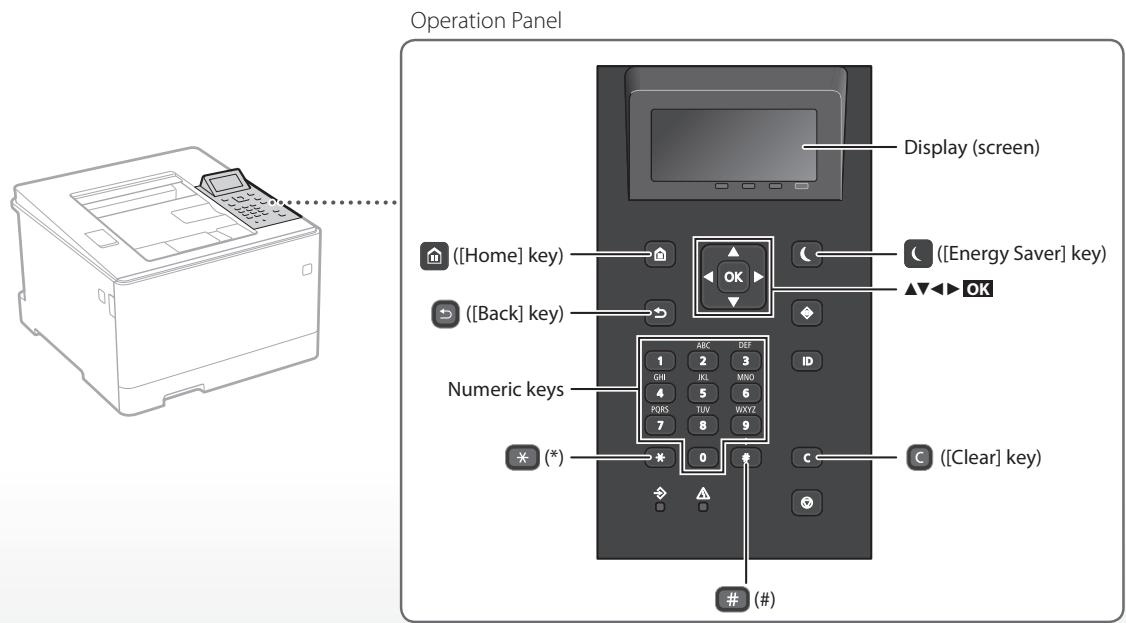
Navigating the Menu
Item selection or moving the cursor among the menu items
Select an item with [ ] or [ ]
Press OK or [▶] to proceed to the next hierarchy.
Press or [ ] to return to the previous hierarchy.
Setting confirmation
Press OK. However, when
Text Input Method
Changing entry mode
To change the entry mode, press ※ .
| Entry mode | Available text |
| <A> | Uppercase alphabetic letters and symbols |
| <a> | Lowercase alphabetic letters and symbols |
| <12> | Numbers |
Entering text, symbols, and numbers
Enter with the numeric keys or #
Moving the cursor (Entering a space)
Press [ ] or [ ], to move the cursor. To enter a space, move the cursor to the end of the text, and press [ ].
Deleting characters
Press C . Pressing and holding C deletes all characters.
| Entry mode: <A> | Entry mode: <a> | Entry mode: <12> | |
| 1 | @ . - _ / | 1 | |
| 2 | ABC | abc | 2 |
| 3 | DEF | def | 3 |
| 4 | GHI | ghi | 4 |
| 5 | JKL | jkl | 5 |
| 6 | MNO | mno | 6 |
| 7 | PQRS | pqrs | 7 |
| 8 | TUV | tuv | 8 |
| 9 | WXYZ | wxyz | 9 |
| 0 | (Not available) | 0 | |
| # | (space) @ . / - !? & $ % #() [ ]{ }<> * +=" , ;'^ | \^- | (Not available) | |

Printing
- Open the document to print, and select the print function of the application.
- Select the printer driver for the machine, and select [Preferences] or [Properties].
- Specify the paper size.
- Specify the paper source and paper type.
- Specify the print settings, as necessary.
- Select [OK].
- Select [Print] or [OK].
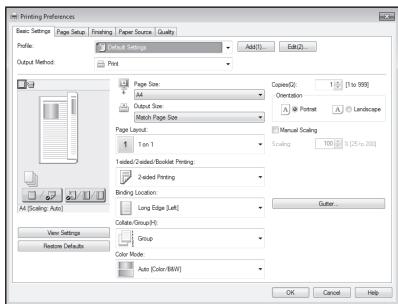
Useful print settings
2-sided
Non 1
Booklet Printing

For details
"Printing" in the User's Guide
Loading in the Paper Printer
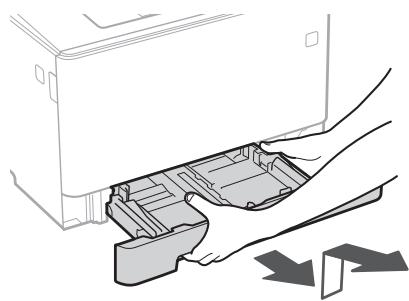
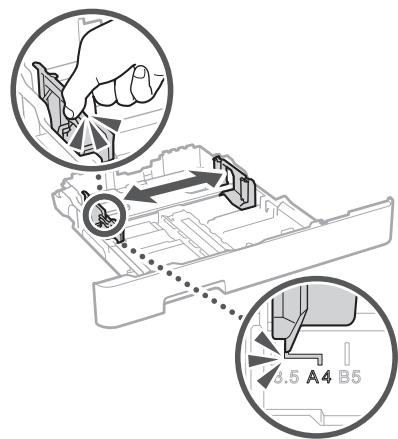
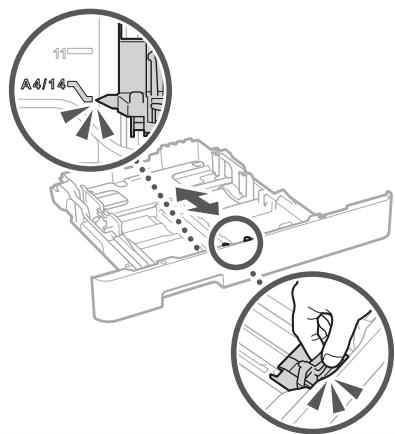
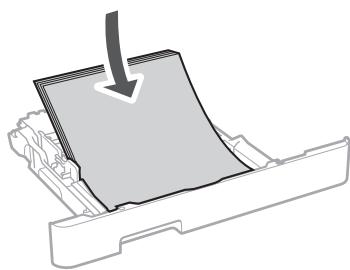
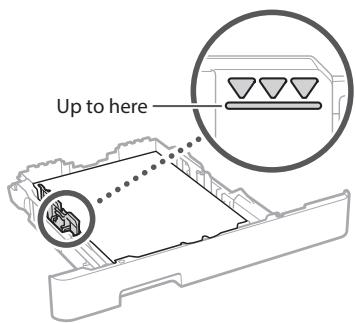
Pull out the paper drawer.
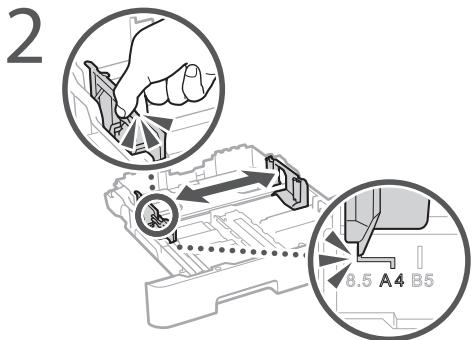
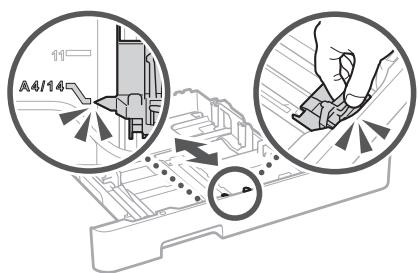
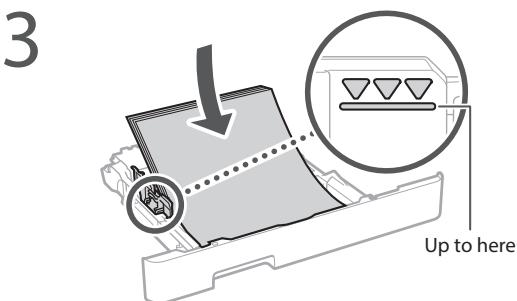
4 Insert the paper drawer into the machine.
If you load a different size or type of paper from the one before, make sure to change the settings.
Press , and select
6 Specify the size and type of paper, according to the screen.
Loading in the Multi-Purpose Tray
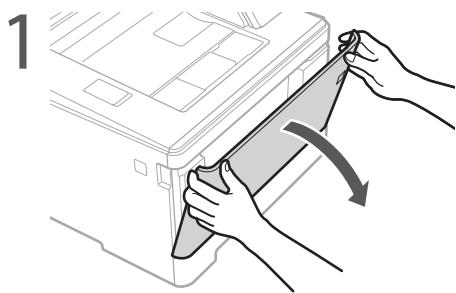
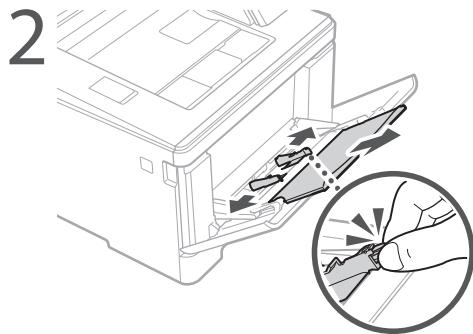
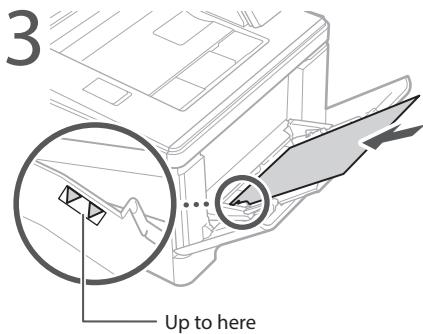
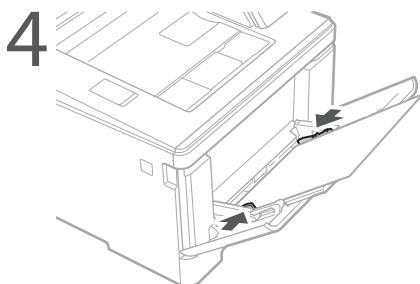
5 Specify the size and type of paper, according to the screen.
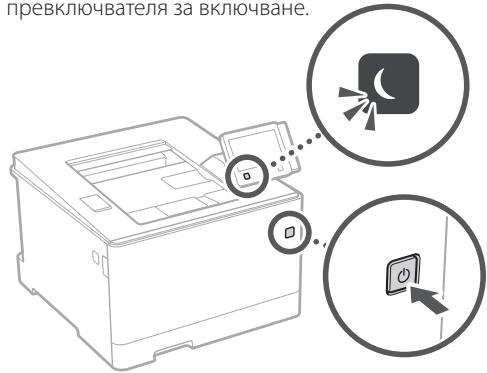
The Machine Does Not Seem to Work
Check the following.
- Is the power turned ON?
- Is the machine out of sleep mode?
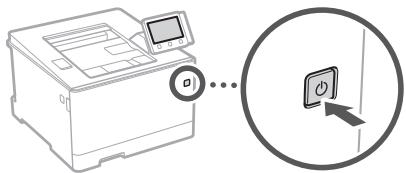
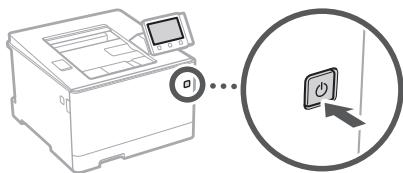
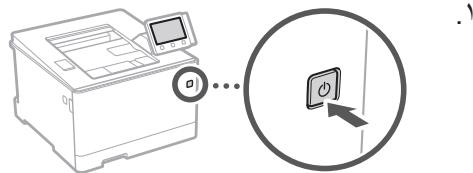
If both the display and are not lit, press the power switch.
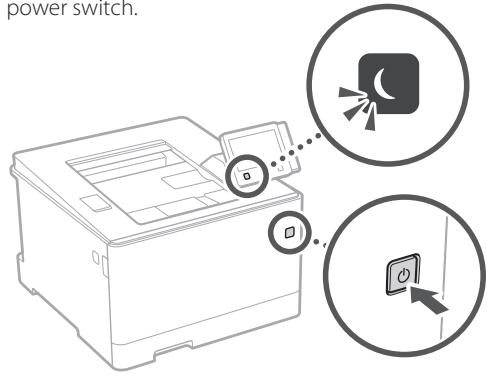
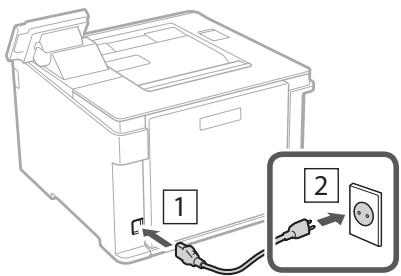
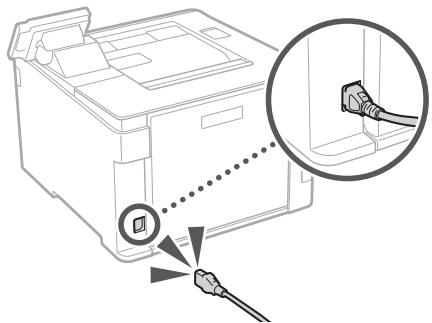
- Is the power cord connected correctly?
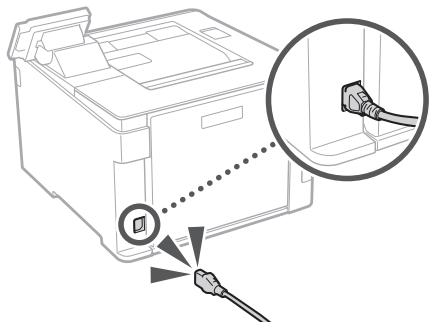
If the problem persists, see the User's Guide.
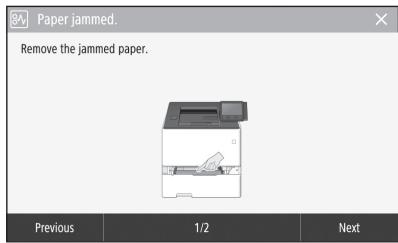
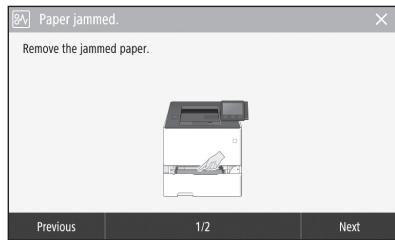
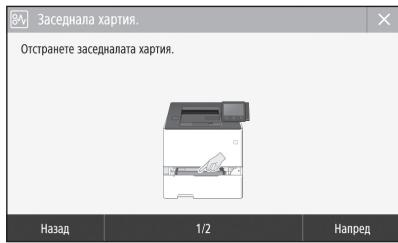
Paper Jams Have Occurred
Clear the paper jams, according to the on-screen instructions.
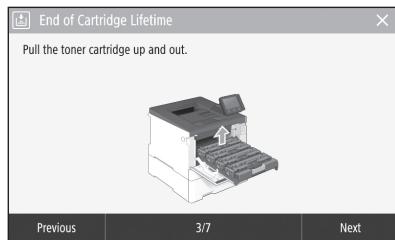
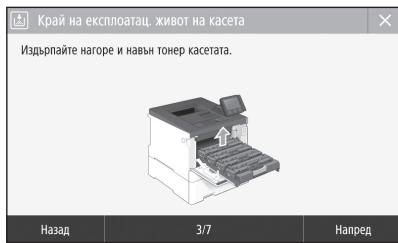
Replacing the Toner Cartridge
Replace the toner cartridge, according to the onscreen instructions.
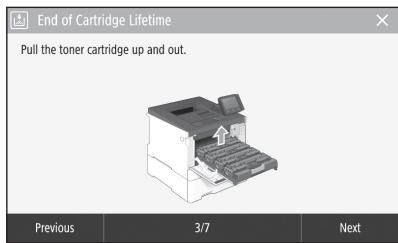
Model number of replacement toner cartridge
- Canon Cartridge 055 Black
- Canon Cartridge 055 Cyan
- Canon Cartridge 055 Magenta
-
Canon Cartridge 055 Yellow
-
Canon Cartridge 055 H Black
- Canon Cartridge 055 H Cyan
- Canon Cartridge 055 H Magenta
- Canon Cartridge 055 H Yellow
Important Safety Instructions
This manual describes only warnings and cautions for the installation and the power supply. Be sure to read "Important Safety Instructions" described in the User's Guide also.
WARNING
Indicates a warning concerning operations that may lead to death or injury to persons if not performed correctly. To use the machine safely, always pay attention to these warnings.
ACAUTION
Indicates a caution concerning operations that may lead to injury to persons if not performed correctly. To use the machine safely, always pay attention to these cautions.
0IMPORTANT
Indicates operational requirements and restrictions. Be sure to read these items carefully to operate the machine correctly and avoid damage to the machine or property.
Installation
To use this machine safely and comfortably, carefully read the following precautions and install the machine in an appropriate location.
WARNING
Do not install in a location that may result in a fire or electrical shock
- A location where the ventilation slots are blocked (too close to walls, beds, sofas, rugs, or similar objects)
- A damp or dusty location
A location exposed to direct sunlight or outdoors
A location subject to high temperatures
A location exposed to open flames
Near alcohol, paint thinners or other flammable substances
Other warnings
- Do not connect unapproved cables to this machine. Doing so may result in a fire or electrical shock.
- Do not place necklaces and other metal objects or containers filled with liquid on the machine. If foreign substances come in contact with electrical parts inside the machine, it may result in a fire or electrical shock.
- If any foreign substance falls into this machine, unplug the power plug from the AC power outlet and contact your local authorized Canon dealer.
CAUTION
Do not install in the following locations
The machine may drop or fall, resulting in injury.
An unstable location
A location exposed to vibrations
Other cautions
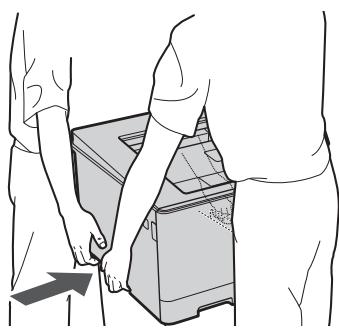
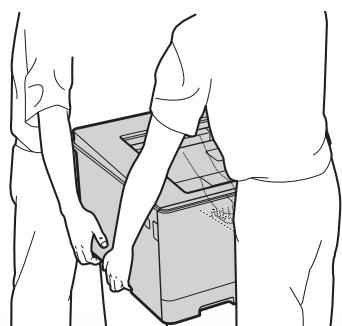
- When carrying this machine, follow the instructions in this manual. If carried improperly, it may fall, resulting in injury.
- When installing this machine, be careful not to get your hands caught between the machine and the floor or walls. Doing so may result in injury.
Avoid poorly ventilated locations
This machine generates a slight amount of ozone and other emissions during normal use. These emissions are not harmful to health. However, they may be noticeable during extended use or long production runs in poorly ventilated rooms. To maintain a comfortable working environment, it is recommended that the room where the machine operates be appropriately ventilated. Also avoid locations where people would be exposed to emissions from the machine.
Power Supply
WARNING
Use only a power supply that meets the specified voltage requirements. Failure to do so may result in a fire or electrical shock.
- The machine must be connected to a socket-outlet with grounding connection by the provided power cord.
- Do not use power cords other than the one provided, as this may result in a fire or electrical shock.
- The provided power cord is intended for use with this machine. Do not connect the power cord to other devices.
-
Do not modify, pull, forcibly bend, or perform any other act that may damage the power cord. Do not place heavy objects on the power cord. Damaging the power cord may result in a fire or electrical shock.
-
Do not plug in or unplug the power plug with wet hands, as this may result in an electrical shock.
- Do not use extension cords or multi-plug power strips with the machine. Doing so may result in a fire or electrical shock.
- Do not wrap the power cord or tie it in a knot, as this may result in a fire or electrical shock.
- Insert the power plug completely into the AC power outlet. Failure to do so may result in a fire or electrical shock.
- Remove the power plug completely from the AC power outlet during a thunder storm. Failure to do so may result in a fire, electrical shock, or damage to the machine.
- Make sure that the power supply for the machine is safe, and has a steady voltage.
- Keep the power cord away from a heat source; failure to do this may cause the power cord coating to melt, resulting in a fire or electrical shock.
Avoid the following situations:
If excessive stress is applied to the connection part of the power cord, it may damage the power cord or the wires inside the machine may disconnect. This could result in a fire.
- Connecting and disconnecting the power cord frequently.
- Tripping over the power cord.
- The power cord is bent near the connection part, and continuous stress is being applied to the power outlet or the connection part.
Applying excessive force on the power plug.
CAUTION
Install this machine near the power outlet and leave sufficient space around the power plug so that it can be unplugged easily in an emergency.
Handling
CAUTION
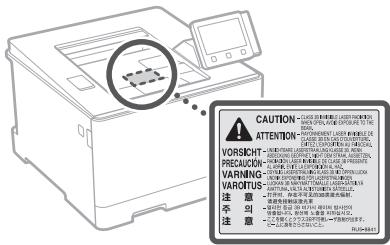
Laser Safety
This product is confirmed as a Class 1 laser product in IEC60825-1:2014 and EN60825-1:2014.
CLASS 1 LASER PRODUCT
LASER KLASSE 1
APPAREIL A LASER DE CLASSES
APPARECCHIO LASER DI CLASSE 1
PRODUCTO LASER DE CLASE 1
APARELHO A LASER DE CLASSE 1
LUOKAN 1 LASER-TUOTE
LASERPRODUKT KCLASS 1
The laser beam can be harmful to human bodies. Since radiation emitted inside the product is completely confined within protective housings and external covers, the laser beam cannot escape from the machine during any phase of user operation. Read the following remarks and instructions for safety.
- Never open covers other than those instructed in the manuals for this machine.
- If the laser beam should escape and enter your eyes, exposure may cause damage to your eyes.
- Use of controls, adjustments, or performance of procedures other than those specified in this manual may result in hazardous radiation exposure.
Laser Safety Caution
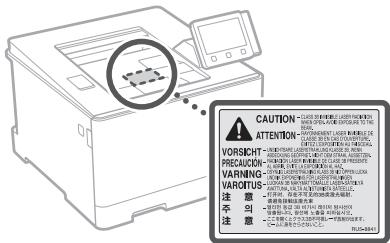
Safety-Related Symbols
Power switch: "ON" position
Power switch: "OFF" position
(b) Power switch: "STAND-BY" position
① Push-push switch "ON" "OFF"
Protective earthing terminal
Dangerous voltage inside. Do not open covers other than instructed.
CAUTION: Hot surface. Do not touch.
Class II equipment
Moving parts:Keep body parts away from moving parts
CAUTION: An electrical shock may occur. Remove all the power plugs from the power outlet.
There are sharp edges. Keep body parts away from sharp edges.
[NOTE]
Some of symbols shown above may not be affixed depending on the product.
Consumables
AWARNING
Do not dispose of used toner cartridges in open flames. Also, do not store toner cartridges or paper in a location exposed to open flames. This may cause the toner or paper to ignite, and result in burns or fire.
Notice
Product Name
Safety regulations require the product's name to be registered.
In some regions where this product is sold, the following name(s) in parentheses ( ) may be registered instead.
LBP664Cx/LBP663Cdw(F176100)
EMC requirements of EC Directive
This equipment conforms with the essential EMC requirements of EC Directive. We declare that this product conforms with the EMC
requirements of EC Directive at nominal mains input 230V 50Hz although the rated input of the product is 220 to 240V 50 / 60Hz . Use of shielded cable is necessary to comply with the technical EMC requirements of EC Directive.
EU WEEE and Battery Directives
You can see the WEEE and Battery Directives information in the latest User's Guide (HTML manual) from the Canon website (canon.com/ oip-manual).
Wireless LAN Regulatory Information
Regulatory information for users in Jordan
LBP664Cx / LBP663Cdw includes approved Wireless LAN Module (Model name: Type1KA).
Contains Wireless LAN Module approved by TRC/LPD/2017/19
Regulatory information for users in UAE
LBP664Cx / LBP663Cdw includes approved Wireless LAN Module (Model name: Type1KA).
TRA
REGISTERED No: ER51217/17
DEALER No: DA0073692/11
RE Directive
(Only for European radio equipment)
RE Declaration of Conformity
English (EN) Hereby, Canon Inc. declares that this equipment is in compliance with Directive 2014/53/EU.
The full text of the EU declaration of conformity is available at the following internet address: http://www.canon-europe.com/ce-documentation Wireless LAN Specifications
Frequency band(s):2412-2472MHz
Maximum radio-frequency power: 15.9 dBm
- The information in this document is subject to change without notice.
- CANON INC. MAKES NO WARRANTY OF ANY KIND WITH REGARD TO THIS MATERIAL, Either EXPRESS OR IMPLIED, EXCEPT AS PROVIDED HEREIN, INCLUDING WITHOUT LIMITATION, THEREOF, WARRANTY AS TO MARKETABILITY, MERCHANTIBILITY, FITNESS FOR A PARTICULAR PURPOSE OF USE, OR NON-INFRINGEMENT. CANON INC. SHALL NOT BE LIABLE FOR ANY DIRECT, INCIDENTAL, OR CONSEQUENTIAL DAMAGES OF ANY NATURE, OR LOSSES OR EXPENSES RESULTING FROM THE USE OF THIS MATERIAL.
Illustrations and Displays Used in This Manual Illustrations and displays used in this manual are which of LBP664Cx unless specified.
Trademarks
Mac is a trademark of Apple Inc.
Microsoft, Windows, Windows Vista, Windows Server, Internet Explorer, Excel, and PowerPoint are either registered trademarks or trademarks of Microsoft Corporation in the United States and/or other countries.
Other product and company names herein may be the trademarks of their respective owners.
Third Party Software
This Canon product (the "PRODUCT") includes third-party software modules. Use and distribution of these software modules, including any updates of such software modules (collectively, the "SOFTWARE") are subject to license conditions (1) through (9) below.
(1) You agree that you will comply with any applicable export control laws, restrictions or regulations of the countries involved in the event that this PRODUCT including the SOFTWARE is shipped, transferred or exported into any country.
(2) Rights holders of the SOFTWARE retain in all respects the title, ownership and intellectual property rights in and to the SOFTWARE. Except as expressly provided herein, no license or right, expressed or implied, is hereby conveyed or granted by rights holders of the SOFTWARE to you for any intellectual property of rights holders of the SOFTWARE.
(3) You may use the SOFTWARE solely for use with the PRODUCT.
(4) You may not assign, sublicense, market, distribute, or transfer the SOFTWARE to any third party without prior written consent of rights holders of the SOFTWARE.
(5) Notwithstanding the foregoing, you may transfer the SOFTWARE only when (a) you assign all of your rights to the PRODUCT and all rights and obligations under the license conditions to transferee and (b) such transferee agrees to be bound by all these conditions.
(6) You may not decompile, reverse engineer, disassemble or otherwise reduce the code of the SOFTWARE to human readable form.
(7) You may not modify, adapt, translate, rent, lease or loan the SOFTWARE or create derivative works based on the SOFTWARE.
(8) You are not entitled to remove or make separate copies of the SOFTWARE from the PRODUCT.
(9) The human-readable portion (the source code) of the SOFTWARE is not licensed to you.
Notwithstanding (1) through (9) above, the PRODUCT includes third-party software modules accompanying the other license conditions, and these software modules are subject to the other license conditions.
Please refer to the other license conditions of third-party software modules described in Appendix of Manual for the corresponding the PRODUCT. This Manual is available at http://canon.com/oip-manual.
By using the PRODUCT, you shall be deemed to have agreed to all applicable license conditions. If you do not agree to these license conditions, please contact your service representative.
V_180517
CLASS 1 LASER PRODUCT
LASER KLASSE 1
APPAREIL A LASER DE CLASSE 1
APPARECCHIO LASER DI CLASSE 1
PRODUCTO LAsER DE CLASE 1
APARELHO A LASER DE CLASSE 1
LUOKAN 1 LASER-TUOTE
LASERPRODUKT KCLASS 1
LBP664Cx / LBP663Cdw (F176100)
Regulatory information for users in Jordan
LBP664Cx / LBP663Cdw includes approved Wireless LAN Module (Model name: Type1KA). Contains Wireless LAN Module approved by TRC/LPD/2017/19
Regulatory information for users in UAE
LBP664Cx / LBP663Cdw includes approved Wireless LAN Module (Model name: Type1KA).
TRA
REGISTERED No: ER51217/17
DEALER No: DA0073692/11
RE Directive
(Only for European radio equipment)
RE Declaration of Conformity
English (EN) Hereby, Canon Inc. declares that this equipment is in compliance with Directive 2014/53/EU.
The full text of the EU declaration of conformity is available at the following internet address: http://www.canon-europe.com/ce-documentation/Wireless LAN Specifications
Frequency band(s):2412-2472MHz
Maximum radio-frequency power: 15.9 dBm
CLASS 1 LASER PRODUCT
LASER KLASSE 1
APPAREL A LASER DE CLASSE 1
APPARECCHIO LASER DI CLASSE 1
PRODUCTO LAsER DE CLASE
APARELHO A LASER DE CLASSE 1
LUOKAN 1 LASER-TUOTE
LASERPRODUKT KCLASS 1
Regulatory information for users in Jordan LBP664Cx / LBP663Cdw includes approved Wireless LAN Module (Model name: Type1KA). Contains Wireless LAN Module approved by TRC/LPD/2017/19
Regulatory information for users in UAE LBP664Cx / LBP663Cdw includes approve Wireless LAN Module (Model name: Type
TRA
REGISTERED No: ER51217/17
DEALER No: DA0073692/11
RE Directive
(Only for European radio equipment)
RE Declaration of Conformity
English (EN) Hereby, Canon Inc. declares that this equipment is in compliance with Directive 2014/53/EU.
The full text of the EU declaration of conformity is available at the following internet address: http://www.canon-europe.com/ce-documentation/Wireless LAN Specifications
Frequency band(s):2412-2472MHz
Maximum radio-frequency power: 15.9 dBm
Macchina (LBP663Cdw)
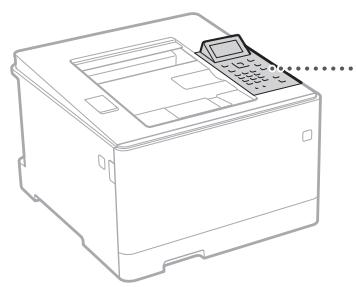
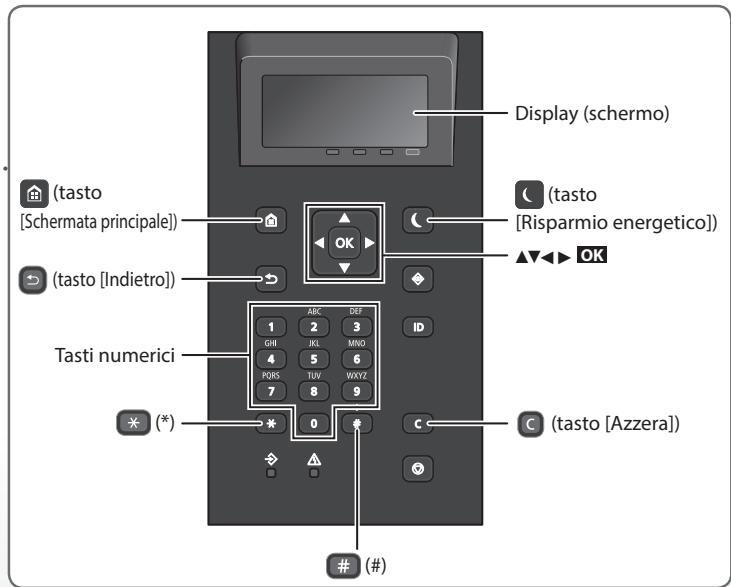
Pannello operativo
CLASS 1 LASER PRODUCT
LASER KLASSE 1
APPAREIL A LASER DE CLASSE 1
APPARECCHIO LASER DI CLASSE 1
PRODUCTO LASER DE CLASE 1
APARELHO A LASER DE CLASSE 1
LUOKAN 1 LASER-TUOTE
LASERPRODUKT KCLASS 1
LBP664Cx / LBP663Cdw (F176100)
Regulatory information for users in Jordan
LBP664Cx / LBP663Cdw includes approved
Wireless LAN Module (Model name: Type1KA).
Contains Wireless LAN Module approved by TRC/
LPD/2017/19
Regulatory information for users in UAE
LBP664Cx / LBP663Cdw includes approved
Wireless LAN Module (Model name: Type1KA).
TRA
REGISTERED No: ER51217/17
DEALER No: DA0073692/11
RE Directive
(Only for European radio equipment)
RE Declaration of Conformity
English (EN) Hereby, Canon Inc. declares that this equipment is in compliance with Directive 2014/53/EU.
The full text of the EU declaration of conformity is available at the following internet address: http://www.canon-europe.com/ce-documentation/Wireless LAN Specifications
Frequency band(s):2412-2472MHz
Maximum radio-frequency power: 15.9 dBm
CLASS 1 LASER PRODUCT
LASER KLASSE 1
APPAREIL A LASER DE CLASSE 1
APPARECCHIO LASER DI CLASSE 1
PRODUCTO LASER DE CLASE 1
APARELHO A LASER DE CLASSE 1
LUOKAN 1 LASER-TUOTE
LASERPRODUKT KCLASS 1
Regulatory information for users in Jordan
LBP664Cx / LBP663Cdw includes approved
Wireless LAN Module (Model name:Type1KA).
Contains Wireless LAN Module approved by TRC/
LPD/2017/19
Regulatory information for users in UAE LBP664Cx / LBP663Cdw includes approved Wireless LAN Module (Model name: Type1KA).
TRA
REGISTERED No: ER51217/17
DEALER No: DA0073692/11
RE Directive
(Only for European radio equipment)
RE Declaration of Conformity
English (EN) Hereby, Canon Inc. declares that this equipment is in compliance with Directive 2014/53/EU.
The full text of the EU declaration of conformity is available at the following internet address: http://www.canon-europe.com/ce-documentation/Wireless LAN Specifications
Frequency band(s):2412-2472MHz
Maximum radio-frequency power: 15.9 dBm
CLASS 1 LASER PRODUCT
LASER KLASSE 1
APPAREL A LASER DE CLASSE 1
APPARECCHIO LASER DI CLASSE 1
PRODUCTO LAsER DE CLASE
APARELHO A LASER DE CLASSE 1
LUOKAN 1 LASER-TUOTE
LASERPRODUKT KCLASS 1
Regulatory information for users in Jordan LBP664Cx/LBP663Cdw includes approved Wireless LAN Module (Model name:Type1KA). Contains Wireless LAN Module approved by TRC/ LPD/2017/19
Regulatory information for users in UAE LBP664Cx / LBP663Cdw includes approved Wireless LAN Module (Model name: Type1KA).
TRA
REGISTERED No: ER51217/17
DEALER No: DA0073692/11
RE Directive
(Only for European radio equipment)
RE Declaration of Conformity
English (EN) Hereby, Canon Inc. declares that this equipment is in compliance with Directive 2014/53/EU.
The full text of the EU declaration of conformity is available at the following internet address: http://www.canon-europe.com/ce-documentation/Wireless LAN Specifications
Frequency band(s):2412-2472MHz
Maximum radio-frequency power: 15.9 dBm
CLASS 1 LASER PRODUCT
LASER KLASSE 1
APPAREIL A LASER DE CLASSE 1
APPARECCHIO LASER DI CLASSE 1
PRODUCTO LÁSER DE CLASE
APARELHO A LASER DE CLASSE 1
LUOKAN 1 LASER-TUOTE
LASERPRODUKT KCLASS 1
LBP664Cx / LBP663Cdw (F176100)
EB Zuzentarauen EMC eskakizunak
Regulatory information for users in Jordan
LBP664Cx / LBP663Cdw includes approved
Wireless LAN Module (Model name: Type1KA).
Contains Wireless LAN Module approved by TRC/ LPD/2017/19
Regulatory information for users in UAE LBP664Cx / LBP663Cdw includes approved Wireless LAN Module (Model name: Type1KA).
TRA
REGISTERED No: ER51217/17
DEALER No: DA0073692/11
RE Directive
(Only for European radio equipment)
RE Declaration of Conformity
English (EN) Hereby, Canon Inc. declares that this equipment is in compliance with Directive 2014/53/EU.
The full text of the EU declaration of conformity is available at the following internet address: http://www.canon-europe.com/ce-documentation/Wireless LAN Specifications
Frequency band(s):2412-2472MHz
Maximum radio-frequency power: 15.9 dBm
CLASS 1 LASER PRODUCT
LASER KLASSE 1
APPAREIL A LASER DE CLASSE 1
APPARECCCHIO LASER DI CLASSE 1
PRODUCTO LÁSER DE CLASE
APARELHO A LASER DE CLASSE 1
LUOKAN 1 LASER-TUOTE
LASERPRODUKT KCLASS 1
Regulatory information for users in Jordan
LBP664Cx / LBP663Cdw includes approved Wireless LAN Module (Model name:Type1KA). Contains Wireless LAN Module approved by TRC/ LPD/2017/19
Regulatory information for users in UAE
LBP664Cx / LBP663Cdw includes approved Wireless LAN Module (Model name: Type1KA).
TRA
REGISTERED No: ER51217/17
DEALER No: DA0073692/11
RE Directive
(Only for European radio equipment)
RE Declaration of Conformity
English (EN) Hereby, Canon Inc. declares that this equipment is in compliance with Directive 2014/53/EU.
The full text of the EU declaration of conformity is available at the following internet address: http://www.canon-europe.com/ce-documentation/Wireless LAN Specifications
Frequency band(s):2412-2472MHz
Maximum radio-frequency power: 15.9 dBm
Xpəiεc puθμioεic εkτuπwongc
2oεωv
N0ε1
Ektunomega

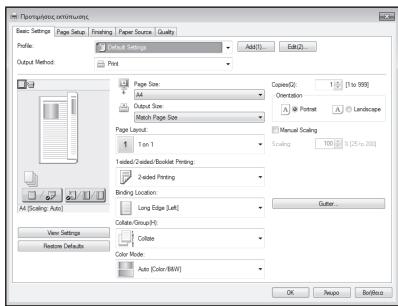
TiaAeTTOμερεIEC
EKTUOWO tov O8nyxprnoT
CLASS 1 LASER PRODUCT
LASER KLASSE 1
APPAREIL A LASER DE CLASSE 1
APPARECCHIO LASER DI CLASSE 1
PRODUCTO LASER DE CLASE
APARELHO A LASER DE CLASSE 1
LUOKAN 1 LASER-TUOTE
LASERPRODUKT KCLASS 1
A khtiva IeIeP mIoepia v eivai Emaic yia to avpwiio oua. Epooov n ativoiaotu kEVAOTO OTOEATKIO TO npiovtoc npieiCetEvTc Tnv npoateutuk
piepiAHTuK wuT WELTEPIKwU KALMIATuw, n AKTIVoBoiia
LcEP dev upeia va eEBAeI an oTu OUAKEUN kata Tn idpkeia
Tnc Ia TuOAPdia iac daiote tic akolouBe
Panaoyapdouc Ka aokaloubne tce onyiec.
Noté μην αυογέτε καλύμια τὰλα πάσους προβλενοῦται τολ ευφίχία γδύ αυτή τὸ Μωύκητη.
Evd n aktiva Ieep diaqiuyei kai epebei oe tapa mata oc, n ekceon autn evbexaia npokalaeoi otatama oc.
H xipn jxepiopniuiv kai puqiiueuv n eKTEAeian evyieiu diaopotetikuv ano autc nou nepiypapovtai oto pavoyexipeidio, evdexyetai va odnynei ae ekteae OE tkiivouv aktivoBoia.
Ppoox- AktioBolia
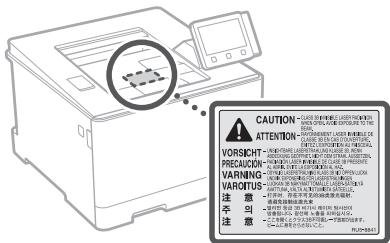
Regulatory information for users in Jordan
LBP664Cx / LBP663Cdw includes approved
Wireless LAN Module (Model name: Type1KA).
Contains Wireless LAN Module approved by TRC/ LPD/2017/19
Regulatory information for users in UAE
LBP664Cx / LBP663Cdw includes approved Wireless LAN Module (Model name: Type1KA).
TRA
REGISTERED No: ER51217/17
DEALER No: DA0073692/11
RE Directive
(Only for European radio equipment)
RE Declaration of Conformity
English (EN) Hereby, Canon Inc. declares that this equipment is in compliance with Directive 2014/53/EU.
The full text of the EU declaration of conformity is available at the following internet address: http://www.canon-europe.com/ce-documentation/Wireless LAN Specifications
Frequency band(s):2412-2472MHz
Maximum radio-frequency power: 15.9 dBm
CLASS 1 LASER PRODUCT
LASER KLASSE 1
APPAREIL A LASER DE CLASSE 1
APPARECCHIO LASER DI CLASSE 1
PRODUCTO LASER DE CLASE 1
APARELHO A LASER DE CLASSE 1
LUOKAN 1 LASER-TUOTE
LASERPRODUKT KCLASS 1
LBP664Cx / LBP663Cdw (F176100)
EMC-kravene i EU-direktivet
Regulatory information for users in Jordan
LBP664Cx / LBP663Cdw includes approved Wireless LAN Module (Model name:Type1KA). Contains Wireless LAN Module approved by TRC/ LPD/2017/19
Regulatory information for users in UAE
LBP664Cx / LBP663Cdw includes approved Wireless LAN Module (Model name: Type1KA).
TRA
REGISTERED No: ER51217/17
DEALER No: DA0073692/11
RE Directive
(Only for European radio equipment)
RE Declaration of Conformity
English (EN) Hereby, Canon Inc. declares that this equipment is in compliance with Directive 2014/53/EU.
The full text of the EU declaration of conformity is available at the following internet address: http://www.canon-europe.com/ce-documentation/Wireless LAN Specifications
Frequency band(s):2412-2472MHz
Maximum radio-frequency power: 15.9 dBm
Apparaat (LBP663Cdw)
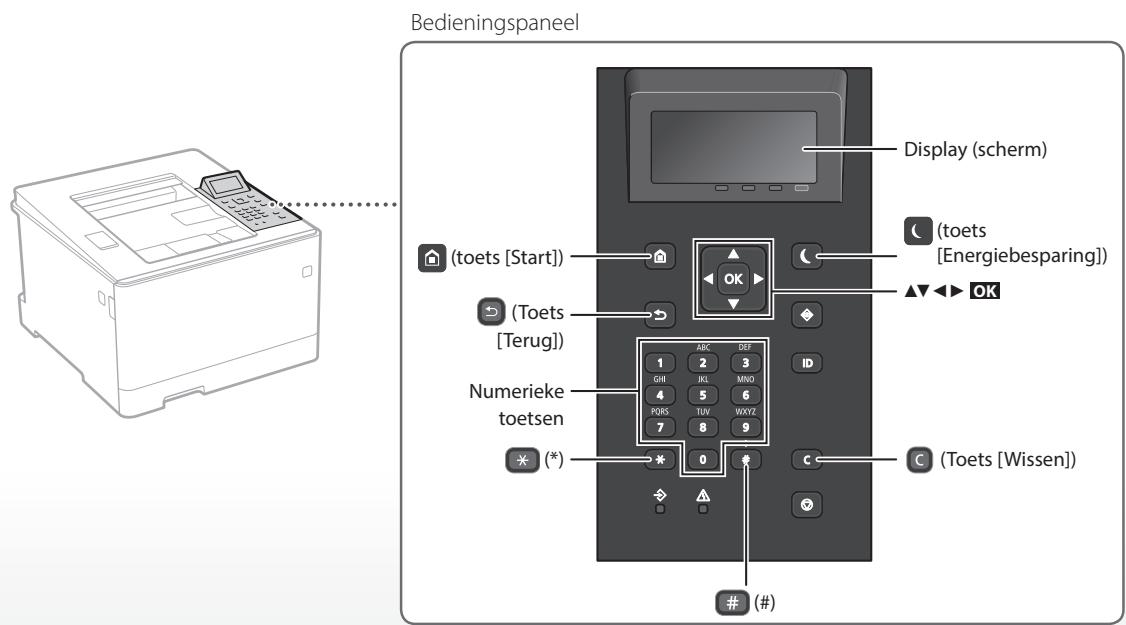
CLASS 1 LASER PRODUCT
LASER KLASSE 1
APPAREIL A LASER DE CLASSE 1
APPARECCHIO LASER DI CLASSE 1
PRODUCTO LASER DE CLASE 1
APARELHO A LASER DE CLASSE 1
LUOKAN 1 LASER-TUOTE
LASERPRODUKT KCLASS 1
Regulatory information for users in Jordan
LBP664Cx / LBP663Cdw includes approved Wireless LAN Module (Model name:Type1KA). Contains Wireless LAN Module approved by TRC/ LPD/2017/19
Regulatory information for users in UAE
LBP664Cx / LBP663Cdw includes approved Wireless LAN Module (Model name: Type1K
TRA
REGISTERED No: ER51217/17
DEALER No: DA0073692/11
RE Directive
(Only for European radio equipment)
RE Declaration of Conformity
English (EN) Hereby, Canon Inc. declares that this equipment is in compliance with Directive 2014/53/EU.
The full text of the EU declaration of conformity is available at the following internet address: http://www.canon-europe.com/ce-documentation/Wireless LAN Specifications
Frequency band(s):2412-2472MHz
Maximum radio-frequency power: 15.9 dBm
CLASS 1 LASER PRODUCT
LASER KLASSE 1
APPAREIL A LASER DE CLASSE 1
APPARECCHIO LASER DI CLASSE 1
PRODUCTO LASER DE CLASE
APARELHO A LASER DE CLASSE 1
LUOKAN 1 LASER-TUOTE
LASERPRODUKT KCLASS 1
LBP664Cx / LBP663Cdw (F176100)
Krav til elektromagnetisk kompatibilitet (EMC) i EU-directivet
Dette utstyret er i overensstemmelse med vesentlige krav til elektron magnetisk kompatibilitet (EMC) i EU-directivet. Vi erklær at dette produit er i samsvar med EMC-kravene i EU-directivet ved nominell spunning på 230 V, 50Hz selv om angitt spunning på produit er 220 til 240V, 50 / 60Hz Bruk av skjermet kabel krevses for ä fetterkomme de tekniske EMC-kravene i EU-directivet.
WEEE-og batteridirektiver, EU
Du kan se informatjon om WEE- og batterdirektiver i siste utgave av brauansvisningen (HTML-format) pa websiden (canon.com/oip-manual).
Regulatory information for users in Jordan LBP664Cx / LBP663Cdw includes approved Wireless LAN Module (Model name: Type1KA). Contains Wireless LAN Module approved by TRC/LPD/2017/19
Regulatory information for users in UAE LBP664Cx / LBP663Cdw includes approved Wireless LAN Module (Model name: Type1KA).
TRA
REGISTERED No: ER51217/17
DEALER No: DA0073692/11
RE Directive
(Only for European radio equipment)
RE Declaration of Conformity
English (EN) Hereby, Canon Inc. declares that this equipment is in compliance with Directive 2014/53/EU.
The full text of the EU declaration of conformity is available at the following internet address: http://www.canon-europe.com/ce-documentation/Wireless LAN Specifications
Frequency band(s):2412-2472MHz
Maximum radio-frequency power: 15.9 dBm
CLASS 1 LASER PRODUCT
LASER KLASSE 1
APPAREIL A LASER DE CLASSE 1
APPARECCHIO LASER DI CLASSE 1
PRODUCTO LAsER DE CLASE 1
APARELHO A LASER DE CLASSE 1
LUOKAN 1 LASER-TUOTE
LASERPRODUKT KCLASS 1
LBP664Cx / LBP663Cdw (F176100)
EMC-krav i EG-direktiven
Regulatory information for users in Jordan
LBP664Cx / LBP663Cdw includes approved Wireless LAN Module (Model name: Type1K
Contains Wireless LAN Module approved by TRC/LPD/2017/19
Regulatory information for users in UAE
LBP664Cx / LBP663Cdw includes approved
Wireless LAN Module (Model name: Type1KA).
TRA
REGISTERED No: ER51217/17
DEALER No: DA0073692/11
RE Directive
(Only for European radio equipment)
RE Declaration of Conformity
English (EN) Hereby, Canon Inc. declares that this equipment is in compliance with Directive 2014/53/EU.
The full text of the EU declaration of conformity is available at the following internet address: http://www.canon-europe.com/ce-documentation/Wireless LAN Specifications
Frequency band(s):2412-2472MHz
Maximum radio-frequency power: 15.9 dBm
CLASS 1 LASER PRODUCT
LASER KLASSE 1
APPAREIL A LASER DE CLASSE 1
APPARECCHIO LASER DI CLASSE 1
PRODUCTO LASER DE CLASE 1
APARELHO A LASER DE CLASSE 1
LUOKAN 1 LASER-TUOTE
LASERPRODUKT KCLASS 1
Regulatory information for users in Jordan
LBP664Cx / LBP663Cdw includes approved
Wireless LAN Module (Model name: Type1KA).
Contains Wireless LAN Module approved by TRC/ LPD/2017/19
Regulatory information for users in UAE
LBP664Cx / LBP663Cdw includes approved Wireless LAN Module (Model name: Type1KA).
TRA
REGISTERED No: ER51217/17
DEALER No: DA0073692/11
RE Directive
(Only for European radio equipment)
RE Declaration of Conformity
English (EN) Hereby, Canon Inc. declares that this equipment is in compliance with Directive 2014/53/EU.
The full text of the EU declaration of conformity is available at the following internet address: http://www.canon-europe.com/ce-documentation/Wireless LAN Specifications
Frequency band(s):2412-2472MHz
Maximum radio-frequency power: 15.9 dBm
2-CTOpOHnHa
NHa1
PeeaTb 6pooup

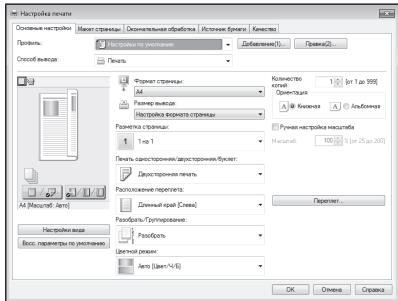
Poiopoe
«ПechтВ»ВPykoBoIDCTBe nOlb3OBaTeJIa
3a rgy3ka B kaccety dIy 6ymarI
1 BbIbINHbTe KaCCeTy dny 6yma.
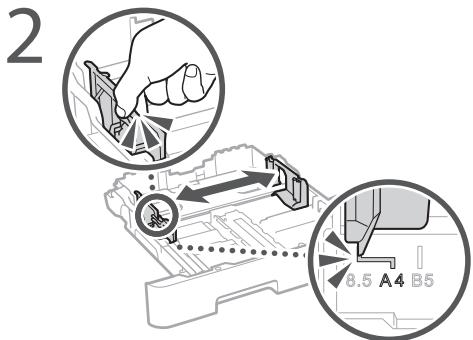
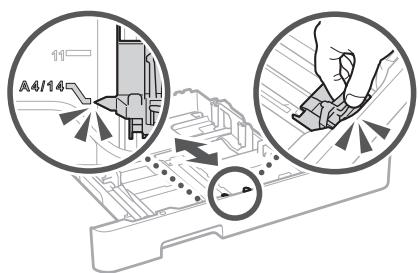
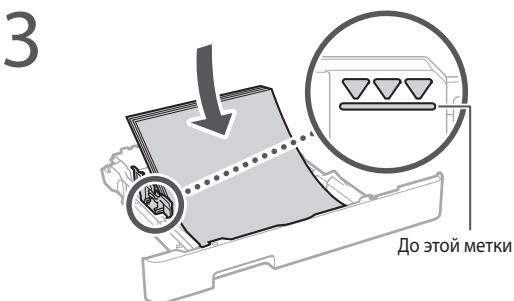
4 YctaHOBInTe Kaccety dny 6yMaIn B annapaT.
Ecnn fOpmat nIin TnI 6yMaHn OTnIuauIOTcT O TfOpMaTa nIIN TnIpaPaHee IcNOnb3OBAWeJcS C6yMaRn, 6OBaTeNbHO n3MeHIne HAcTPOKn.
5 Haxmnte n BbI6epnTe <HactpoKn 6yma#.
6 YkaJnte foOpMaT n TnIbSmaN B COOTBetCTBmC 3KpaHOM.
3aRpy3Ka B yHnBepcaIbHbI JIOTOK
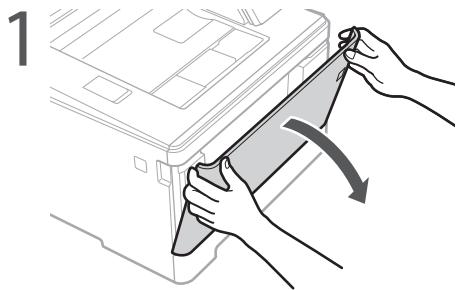
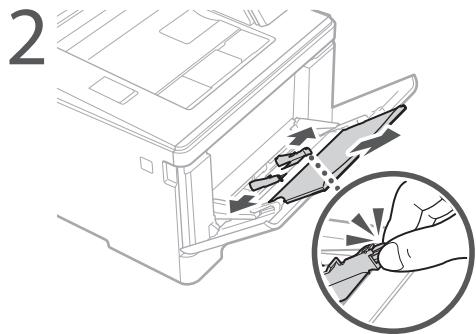
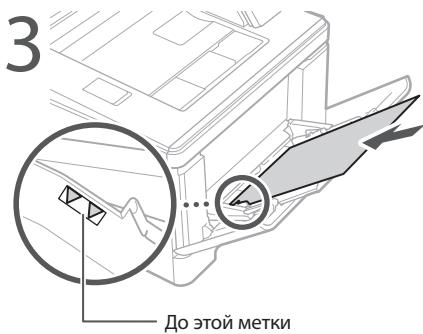
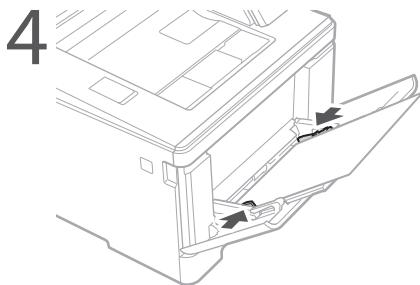
yKaJnte foOpMaT n TnIbSmyaHnB COOTBeTCTBmC 3KpaHOM.
Annapat He pa6otaet
PpOBepeTe cIeDyIOoee.
BkIIOUeHOJI\PITaHne?
- BiiüeI nn annapaat n3 cπaεo pekma?
EcnI NcIeN HnDkaTOp BbIKNoeHbl, NaXMITE BbIKNouateJIb NiTaHn.
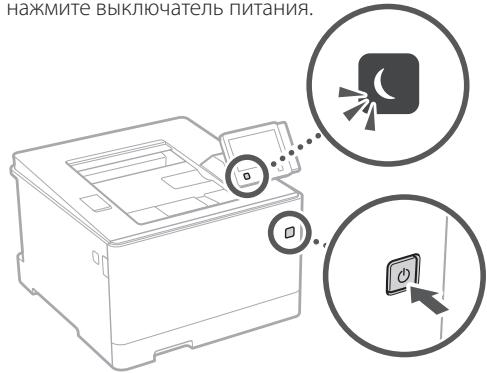
Ecn npo6nema He yctpaHeHa, cm. PyKOBOcTBO nIb3OBaTeJIa.
3amЯласьбумага
UctpaHnTe 3amTne 6ymarN B COOTBETCTBN C INCHTpYKlIaMn Ha 3kpaHe.
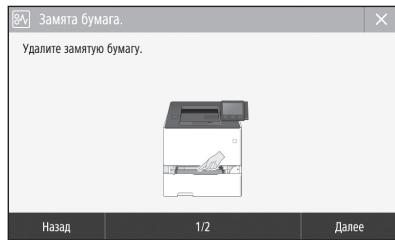
3ameha KaptpnIxka c Tohepom
3aMeHInTe KapTpNiJc C ToHepOM B COOTBETCTBnC INHCTpyKUJMaM Na 3kpaHe.
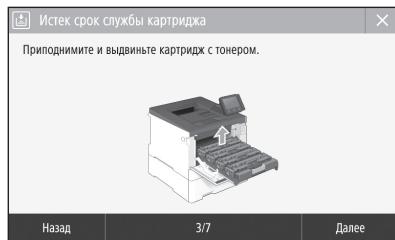
Homep mojeln 3anaChoro KapTpua Ka Tohepom
- Canon Cartridge 055 Black (Черны)
- Canon Cartridge 055 Cyan (Бириозов)
- Canon Cartridge 055 Magenta (MaJIInHObBI)
-
Canon Cartridge 055 Yellow (Жentы)
-
Canon Cartridge 055 H Black (Черны)
- Canon Cartridge 055 H Cyan (Бириозов)
- Canon Cartridge 055 H Magenta (MaJIInHObBI)
- Canon Cartridge 055 H Yellow (Желтын)
Приложке
He yctahabnbaiteyctpoictBOByka3aHHbIXHIXe MeCTax.
YCTPOINCTBO MOXET ynaCTb, YTO npuBedeT K TpaBMe.
- HeyctoYnBaI NOBepXHocTb.
- MeTo, NOBVerpeHHoe Bn6paun.
Ipoue Mepe IpeoctopoxKHOCTN
Pnpi nepemeuHm,DANHOYUcTPOyCTBaCJYEyINHCTpyKHM, npBHeDHNb B HACTOReM yPoKOBdTe.BIpNHePABbHOM pepeMeuHmYcTOPTMOB MOKET YnaCTb, YTO pRNEBET K T PABMe.
ПИСТУСТОВЕСТУСТОВЕСТА ВИЗЕТА LAЗЕМЕНИЙ РУ.K.MEДК Y TSOCTYСТОВСТЕ N ПОЛIM 斯 ИСТЕМА.ΤΟМ.KOTМЕСТР.YТРМАМ.
U36aaiae MeCT yCTAHOBK n cIOXOHNBENTHINaue. Bo BEMHI cNtIOJIbOBAHnI 3TO yCTOPBcYBO TEHEPINyET O30H N DpyTBE BbOPOCbM B aHTbIX bOeMAxN OH He BApIKOTCR ONaCbHMn IaI dIOPOBbR.Tem HE MHeEe BbIOPOCbMOYr CTbAsOuTIbIMM IN TceHIne dIITbIbHO rIO cIOJIbOBAHnI BNOIO X pOBPTBMBAeMbX N oMeHneuBX.NI JIoIpePdAHHa KOMPbTHBy X cIOBbY PAoBTbI PEkOMEHyETc OBcENeYbT BENTHINIOA NIOMeHnIe H, B KOtTOPOM YcTAHOBHe anapat. TaKne cIeDyTe I36BerAT MeB, C KOTOpBX IIOiN HMaONBeNo pAOBpEKHy BO3dECTYBN BcOBoPcOBY cTOBpCTBa.
IcTOUHNIITAHNIA
AOCTOPXHO
VicnIb3yTe TIOJIbTO TOT UOHTNHI KITNIAH, KOTOPK OTBcAeT 豹boBaHAMK HnPARkeHNO. HecobIoJeHMe 3tOro pRabNA MOKet CTaPnIpuHHO BTOBOPARHnIu NpApoeKHe 3NeKTPrueCKEM TOKOM.
Annapat DoJIKeH 6bIb JIOJIeN C n MoIeUIO pRoeDCTABIEHO HUJIpa NITaK P3aEByM 3aEEMeHNO HOETOK.
- He NcnoIbIy3yIte DpyIYe IynIByI PtIaIIaN, KpOme IuHpa, BIXDAJIeBO B KOMPiEKF pIINIHeTAp, TAK KKT OMOKET CTaB pIINiOHIO BOrOPaHIIM INI NpOJAEHJIeNkEPIKEMIK TOMOK.
BxOaIuIN B KOMJIeK TUnHpy NTaHnA rpeDHa3auHcEN IaNIOJIbO3BaHnT OToLBO C DaHbIM aInnapatm. HoPNDKIIaOHy TEOT UHpy NTaHnA K DpyrM YcPTOYCTBaM.
He I3MENHIE, He TNIHIE, He CnIaHne I He DeOpommpyIte KAKIMINIO HINbEM DUYUMN N OONMOK CNOCHOM N UHP YITAHNA. He CTABSE TRAKJEbpePdEmtBHa HUHpYITAHNA. IIOBpeKemHeHNE UHpyaTITAHNA MOKET INPBECTN C NOKApdy VIIN OPOAKEHIO JIeKTIOEKCIM TOMOK.
H BCTAIBIITTE UHTENCEBIL HUpya PINTAHNA BPO3ETKY IN HE NHEKAEITE ERO MOKBIYIM KYAMAK — 3TO MOKETPINBECTNI K IOPAKENHO JLEKTPIYNHECKN TOKOM.
He nCnObl3yIte ydHInHntelBhIe 1hHybIiNii yDlnHnHtELI C HcKoJIbKIMPi03ETKAMi C dAHHbMI YCTPOINCTOBM. HecoBIOJHEnE ITO TpeBoSHaBI MOKET pINBeCTIK NOKAPDY INI NOPaKeHNIQ IJIeKTPIuHECNI KOMTK
- He cBOPaWbAteIe hUpy pItaHn, He 3aB3b3BaIte eTo BY3en, TAK KAeT OMeKJ pINBeCTN K BO3rOpaHIO INI NPOPAKeHIO IeKtPNUeCKEM TOKOM.
BCTABNIEte WtENCeNB Uhpya NITAHNA BPO3eTKC BNTI nepeMeHHOR TOKA POJIHOCTbO. HecoJIIOJENHE 3TOr PnABINIA MOJE CTaB pNCHHOB 03BOPTAHN IIN PNOAKENHJI AEKETPNHECKM TOKOM.
ПОНТСЮ OTOCENHRISE TSHENCEB SHIpya NITAHIAO ptOPEKIN CETI NEPEMEHENO TOKO BO BPERM rPO3bl. HebblonHHeNe 3TOrO npabnla MoKet CTab pNCHHNO B03ROPAHNA, NOPAKHEA 3JIeKTPnEeCKM TOKOM INI NOBPEXDEYNY UCTOPICBTA.
Y6eJIHbE, C7O ITO CHNHK NtAHNAI Annapara paOaTeTc 3aCbHIbE NO He NDBeprKeH nepenadam HanprKeHnia
He noDeBraJyIeUHpNITAHNAH NARpey. HecoNoJIeHNe TTOrTpeBOAHM KOMeT pInBeCTN K TOMY, YTO NOKpItYe UHHpya PINTAHNA OINPABNTC. 3To KOMeT CTaB pINuHNOB 3OTropAHNA INN POnapKeHnE 3NEKtPruCeMK TOKOM.
136eraTe cneyuOux cnTuayn:
Ecni npmeHnlt cypeMeHpyo cnly K o6nactn CooeHNHeN HUpya nHTAny, 3O ToMek pInBecTeN K erO nobPekdEHNIO INI K TOcEneHINIO PBOBOID BHyTPN apannata. 3TO mokET CTbPpHHNO Bo3rOpAHN.
- CactoE NOcOeNENI HOTOEONINHTE WHPa PHTANAHA; 3Zadehaene HJNpya PHTANAHY
cπiδaHmE shHypa nHTaHnIbO3ne ero cactN, KOTOPaBCTABJHReT B PO3ETKY, INPODJOANTeBHoP npIMHeHHe Ncblk EJIeKTpHecckOn PO3eTKe NIIu CaNTsHypoNtAHHaN, KOTOPaBCTABJHReT B PO3ETKY; - PIMMEHEHNE IN3JIIMUHeCINJI K UTeTcEIO UHypa NITAHNA.
ABHIMAHHE
PazMeTCTI Annapat Pdrom C cTeBOM po3eTKo, OCTaBnIO doCTaTOHNO Mecta BOKpy tIeTcNcE IhUy pTaNTHa, YTObI eOro MOXHO bJIO NtKBO bDHeptyB b C LyCteAbeAPINH CytTuAyn.
06paueHne cannnapatom
BHIMAHME
Be30nacnoctb npa pa6oTe c na3epamn
JaHnOHe i3dJIeNc seTfHΦIuIPOBaHO KaK NaIa3epHoe
i3dJIeNc KNaCca I B COOTBCTBV N CtHaJApTaMl
IEC60825-1:2014 n EN60825-1:2014.
CLASS 1 LASER PRODUCT
LASER KLASSE 1
APPAREL A LASER DE CLASSE 1
APPARECCHIO LASER DI CLASSE 1
PRODUCTO LAsER DE CLASE 1
APARELHO A LASER DE CLASSE 1
LUOKAN 1 LASER-TUOTE
LASERPRODUKT KCLASS 1
IaepnblnyuMjocKb6bIbOnaCenIydr3dOpobBbYeNoBekA.IoNcoklbky
IaUHJNyHHe,ReHpyPcEMeBByHTpAniApata,IOHNOCTbOIOJIINPOBBOHO
3aUHNbMbIMOKxYamaMnBHEUHMnKbIbXkAMn,IAOJIINPOBHyIeN
MOyT aPcIPOCTpaHbIcR bIaNpaparaH KAKOM-IVb6 3tane erO
KcNlPaTACmIOIb3OBeTJeM. CneYITE NHXePnVbEbeHbM
Yka3aHnA M IO CO6JIIODeHnIO TEXHnK 6e3ONaCHOCTM.
He 6pocaIte Otpa6oTaHbIe KApTpuJIXn C TOHEPOM B OTKpbTbIy OTOHb. KpOMe TOrO, He xpaHInTe KApTpuJIXn C ToHEPOM IINI bymary B MeCTax, IIOBvpeXeHHbIX BO3dEChTBNIO OTKpbITORO ORH.NTO MOxET PInBeCTN K BOCPiAmEHeHIO TOHEPA INI bMamr IN, KAK cJeDCTBME, K NOLyuHEnIO OKOROB INI BO3HKnHOBeHIO NOjka pa.
PpimmeuHne
Ha3BaHne n3dJIInr
B ceJx 6eOaocHcTn 3dEneIe DOnKHO 6bTb 3apeNCTPnpoBaHO.
B HeKOTopbX cTpaHax pacnpoctpAnHeHnI 3dEneIa BMeCtO opINHaJIbHOr HOa3BaHnM MOYr 6bTb 3apeNCTpnpoBaHb CNeIyUOme H3BaHn, yKa3aHHBe BV KpyTbIX cKo6kax. LBP664Cx/LBP663Cdw (F176100)
Tpe6obAHnEMC DnpeKtNBbEC
Regulatory information for users in Jordan
LBP664Cx / LBP663Cdw includes approved
Wireless LAN Module (Model name: Type1KA).
Contains Wireless LAN Module approved by TRC/ LPD/2017/19
Regulatory information for users in UAE LBP664Cx / LBP663Cdw includes approved Wireless LAN Module (Model name: Type1KA).
TRA
REGISTERED No: ER51217/17
DEALER No: DA0073692/11
RE Directive
(Only for European radio equipment)
RE Declaration of Conformity
English (EN) Hereby, Canon Inc. declares that this equipment is in compliance with Directive 2014/53/EU.
The full text of the EU declaration of conformity is available at the following internet address: http://www.canon-europe.com/ce-documentation/Wireless LAN Specifications
Frequency band(s):2412-2472MHz
Maximum radio-frequency power: 15.9 dBm
HaTnCHiB KOnKy OK. OJHaK JaKIo Ha NInCJIeI 3'ABJIeTcR NOiIDOMLeHnR
Cnoci6 BBOdy TeKcty
3mHa pexkmy BbOdy
Ioo6 3miHHTnpeXIM BBOy,HaTNCiThb KHONKy
BBeHeHNaTeKCTy,3HaKiB i ZnOp
BBOBJTe TeKCT 3a DOnOMOIOU cNΦpOBuX KlaBiI a60 KHONKI #
KIO DnCJIe Ta iHnKaTOp He CBITaTbca, HATNCIb NepEMKaJxNIBneHH.

- Yu npabnblho nipkliuoyeho shhup xnbneHHa?
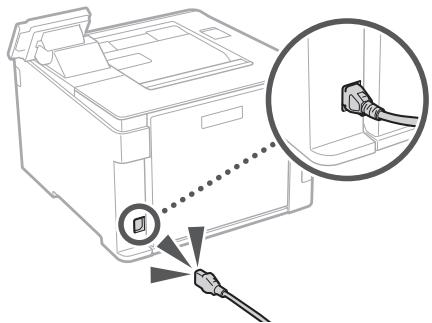
KpO npo6nema 3aJIu7aetbc8a, nVB. Noci6HnK KopncTyBaHa.
3açtpraHnI napepy
UcYbTe 3aCtpraHnnapepy BiNobiDHO do iHCTpyKciHa ekpani.
3amina Kaptrnixa i3 Tohepom
3amHITb KapTpnuJx i3 TOhePOM BiINOBiDHO do IHCTpyKciHa ekpani.
Homep mojeli kaptprnja i3 Tohepom Ha 3amHy
- Canon Cartridge 055 Black (чорни)
- Canon Cartridge 055 Cyan (6bnktnn)
- Canon Cartridge 055 Magenta (nypnypobu)
-
Canon Cartridge 055 Yellow (ховтун)
-
Canon Cartridge 055 H Black (чорни)
- Canon Cartridge 055 H Cyan (6naKntnH)
- Canon Cartridge 055 H Magenta (nypnypobu)
- Canon Cartridge 055 H Yellow (Жовтун)
BaxklnBi iHcTpkyci3 texhikn 6e3nekn
YbOmyoNocBHyHOnIcNcHIOIeNonepeEKeHHaT a3ctepEKeHHaIoo ytaHOBNKIsTa eEnkToPckmBHeHHA.OboeJAcKBO npOHnaitaRoi pOzIinBg BxAkbI bIctyHpy3 T 3x HekHHZeEHNK,OniCAnTHAKTuay KTOncBHyKOPKOrCTyBA
APONEPEIXEHHA
ПОзнayaе поедджени CTСОВНО оралуяя МOKУтБИРЗЕСТД ДТРМУВАнHA B p3i IX HENPABINHORO ВИКОHAHA. 3 МETОК 6БЕЧЕНО ВИКОПСТАнHA apanapa ЗВДЖДЗВAZKAITE HA LЛ NOPEДжEHANNY.
A YBATA
ПОзнayaцьскогаяду STСССССССССССССССССССССССССССССССССССССССССССССССССССССССССССССССССССССССССССССССССССССCS

BAKJIINBO
TIOJIIOJENHnI IaIIOJIeHNnI IOHOIOJIeHNnI IOIOJIeHNnI IOHOIOJIeHNnI IOIOJIeHNnI IOHOIOJIeHNnI IOIOJIeHNnI IOHOIOJIeHNnI IOIOJIeHNnI IOHOIOJIeHNnI IOIOJIeHNnI IOHOIOJIeHNnI IOIOJIeHNnI IOHOIOJIeHNnI IOIOJIeHNnI IOHOIOJINI IOIOJIeHNnI IOHOIOJINI IOIOJIeHNnI IOHOIOJINI IOIOJIeHNnI IOHOIOJINI IOIOJIeHNnI IOHOIOJINI IOIOJIeHNnI IOHOIOJINI IOIOJIeHNnI IOHOIOJINI IOIOJIeHNnI IOHOIOJINI IOIOJIeHNnI
UcTaHOBJIeHHr
ДдбзгсногуТаЗрчngоBIMKOPMCTAHNAnapataУБАКИОЗНМСТМСТБ 3a3ctepekeHHHMMNHXHEaTbCtAHOIBnAbpatYBIDNOBIDHOMYMICI.
ANIOPEJXEHHH
He batohanboi napar ayat mui ci, die opo soata MOKO prih3eCTa do JIOKEXI abo BRAHNE HENETPHINH CTPYMOM. 3OKPMA:
yMICJI, JIe 6NIOKTOYCBBENTNIHJIIRIOTOBHOJTHADJI6NIOKBOO DTO CHIN, JOKDANBHAIK, KINMIIMBTa HINHIX NQID(HXN pRDEDMTIE)
- y BONORNX a60 3aannneHnx Micx;
yMICU,kyuNtpanJREpmeCOHnE npomHHa6oHaBopi;
- y Mцяx i3 BucOKOIO TemnepaTPOIO;
- nopyu i3 BiDkPNTIM BORHEM;
- NORYH 3 IANKOFOJEM, PEOUZHINKAMMI CHI HILIMMENLEKOKAUMHCTIMNPEOUBOHAMMI.
Inui nonepejxhenr
He NkDIOHOTRe DoI zoI nparatahepeKEmeONHOBaJI Kafei. LLe MOKe PnPIB3EITOn DoI POKEKAbOyAaKEnHH EENKTVNHNCTPMYQo
He knaibHa anapat HAMCTA, HIIJI metaNETeI preMeTn a60 MICTKOTCI 3 puiHIOU. KOHTAK TcPOHNHIX PEoBHIN 3 eNEKTPNHMMI dTeaHHM BCEPEHNI anapata MoKe Pp13B8CTN do JNOEKEi BO aYpaKaehNHEJ ENEKTPNHMI CTPYMOM
IaIOoBnAipatNtPOTAPINMACTOPONHRAPEOVBHBAIMMTB 1TtEeCInb. hWpyaXJMBVHbBn3POETAKMEKepxMmHHOrTOCPyM 3aEBPHCbD0MCILBEBOHRBIOBHOBAKEOHO DInpEA Canon.
AYBAGA
He bCTaHOBJIouTe anapat y 3a3NaueHnx HnKxte MiCux
Anapat MOKHE BNACTI a6O pepeKNHyNTNCH, cPnHINHBWU TAPBMYAHN, KIAIO JNOI ECTBAHOINIT.
Ha HeCTiKII NOBepxHi;
yMiCiNiDiIeIO CnJIbHnx Bi6pauii.
Inui3actepexehn
CLASS 1 LASER PRODUCT
LASER KLASSE 1
APPAREIL A LASER DE CLASSE 1
APPARECCCHIO LASER DI CLASSE 1
PRODUCTO LÁSER DE CLASE
APARELHO A LASER DE CLASSE 1
LUOKAN 1 LASER-TUOTE
LASERPRODUKT KCLASS 1
LZaePNI pOmiHb MOKc 3AeB4aTt 10KoDnIOIbKOMy OprahI3Mv. OcklbKn BnPOMIHOBHaBH CBepeDNiB IboSy NBOHCTIOIPOINHAIEbTa3AIXICMH KOpONYCM Ta 3OBHIUM NKOPITTRM, LzaePNHpNOMIHb He MOKe IOPhIKHkyTHn HAOBNI iND aC bdy-AkoI CTaII POBoTI. IpOnyItaTe HABedeHNH NkHe pIMKITN IhCTpyKUJI 3 TexHKIn6Be3NKe.
- Hikonl He BIVKpBHTa neHeni, KUO zu CE He BKA3HO B NOcIbHKNAX do zuoro anapata.
JIAOLOIJIAPENHIOPIMOHNBIIHNEHA3OBHHI NOTPANHTB B O'U,HIORIOIMOKOEIOKODNI3IP.
BinkopcTaHHn OraHb KepyBaHHn, peryJatOpIa60 BIKoHaHHn OnepaJI, He OINcAHxu y cIbOMy NocIbHKNy, MOKe np3BeCTn Do He6e3NeuHOrO Ia3epHOrO ONPOMiEHHH.
3actepexheny 0do npabn 6e3nekn iid yac po6oTn 3 na3epom
CmBONn, NOB'ra3ahi 3 texhikoO 6e3neK
IpeemnkauchxublneHHnoJooXeHHyBIMK.
O Iepemnkauch KINBHeHnra: noLoXeHHnra"BMKn."
PepemKnaHxNJIeHHN:POLOXKeHHN“PeKIMO UOKYBAHnH”
① KhoNkoBn I nepeMnKaI "yBIMK." BIMK.
3axnchaKneMa3aemJeHHN
He6e3nueHa npyra 8eBcepeDn. He BjckprBaIte KpiuK, kkuo Ha ne He 6bny Bka3iOBk.
YBAΓA! Γαργα πονερχή. He Topκατις.
06naHaHnKlaCyI
PyXOMI YACTHIN: TIPIMAIte YACTHINI TIIa NODANI BID HIX
YBAGA!Mojzimbe ypaqehnEeJektpuHm
CTpyMOM.BmMiTb yci 1tenceni3pozETKN.
Tocpi kpa. Tpmaite cacttni tina noanai BIDnX.
[IPMMITKA]
Ieaii 3a3haueHnx Bnue CmBONB MOKyTb He bKa3yBaTnc3aJIeJxHO BID BIVO6y.
BntpatHi MaTepiAn
AnopepeXeHHA
He KnaaIe BnKOpIcTaHI KapTpndxi 3 ToHepom y BIKpNTI BORHO. TAKoH He 36epiraTe kapTpndxi 3 ToHepom qH ni napy mCzix no6bn3y BIDKnPTOrTO RBOHIO. Le Moke CpnuHHTI 3aMaHHaN I npu3BecTIO do ONIkIB aOboNoxeki.
Ppumitka
Ha3Ba npOdyKTy
BidnoiHNO do npabn texhikn 6e3neKn nOtpi6H0 3apecctpybatn H38y npOdyKtY.
U deaiknx periohax npOdaKy npOdyKtY HATOMictb Moke 6ytN apecctpBOAto Taki H38N (B dykkax): LBP664Cx / LBP663Cdw (F176100)
Bumorn do enektpomarhiTHoi cymicHOCTi
BIDNOBiDNo Do DnapeKTHBn EC
LepnpctpiB iDnobiae ronOBHM BmOrAM do eNekTPOAmHITHOI CymiHcOHTI DnEKeTnIBN EC.Mu ooiHNO nIDTBPckyEmo, 0o ceu Bnip6 BldNoBIAe BmORAM uOdo eNekTPOAmHITHOI CymiHcOCTI BIDNObiHO NIO DnEKeTnIBN EC,yAki33aHaueHO, 0IO 3NaueHHN HOMIHabHO BVJHOI HanpyrMa cTaHOBNTI 230 B,a cTaoTOn -50 TQXOa HOMIHAbHI POKaHNKCI CTpyMn HA BXODI JIyBO RnOBy cTaHOBNIbT 220-240 B,50/60 Tq. BnOKpCTAHNA EkapHOBAHO K6BeIOe Heo6xHIOY yMOBOIO 3rIHO 3 BmORAMn DO eNekTPOAmHITHOI CymiHcOCTI, BnKnJaDeHIMM B DnEKeTnBI EC.
Hopmatubha iHoffpmaica 0do 6e3dpotoboi IokabhOi Mepexi
Regulatory information for users in Jordan
LBP664Cx / LBP663Cdw includes approved Wireless LAN Module (Model name:Type1KA). Contains Wireless LAN Module approved by TRC/ LPD/2017/19
Regulatory information for users in UAE
LBP664Cx / LBP663Cdw includes approved Wireless LAN Module (Model name: Type1KA).
TRA
REGISTERED No: ER51217/17
DEALER No: DA0073692/11
RE Directive
(Only for European radio equipment)
RE Declaration of Conformity
English (EN) Hereby, Canon Inc. declares that this equipment is in compliance with Directive 2014/53/EU.
The full text of the EU declaration of conformity is available at the following internet address: http://www.canon-europe.com/ce-documentation/Wireless LAN Specifications
Frequency band(s):2412-2472MHz
Maximum radio-frequency power: 15.9 dBm
Bulgarian (BG) C hactoIto Canon
Inc.deKnapipa,teToBa cBopbxeHne e BCbOtBeTCTBnE C DnpeKtNbA 2014/53/EC.
LIIOCTNTHTKCTHACECIeKnapaIyra3cbOTBETCTBME Moke da ce HAmepu HcIeHNHINHTEPdADEC:
http://www.canon-europe.com/ce-documentation
Cnéu nému Kaúma Na 6e3znuHnata LAN
YecetOna JIeHTa(u):2412-2472 MHz
Makcimalna paadioucheToTH MoiHocT: 15.9 dBm
Croatian (HR) Canon Inc. ovime izjavljube da je oprema u skladu s Direktivom 2014/53/EU.
Indicates a warning concerning operations that may lead to death or injury to persons if not performed correctly. To use the machine safely, always pay attention to these warnings.
AUZMANIBU!
Norada bridinajumu par daribbam, kurup nepareiza izipilde var izraisit traumas. Lai iekartas lietosana butu drosa, vienmert sievertsiet uzmanibu siem bridinajumium.

SVARIGI!
Norada ar ierices daribu saistitas prasibas un 1ierobezojumus. Lai ekartas darbiba butu pareiza un lai nerastos ekartas vai ipasa要么o jajumi, uzmanigi izalaisit sos punktus.
Uzstadisana
Lai so ierici lietotu drosi un eri, rupigi izlasiert talak noradito informaciju par piesardzibas pasakumien umuztadi erici piemeroita vietia.
ABRIDINAJUMS
Neuzstädiet vieta, kurā var notitik azdegsanās vai guts elektrikss stravas trieciens
Vietas, kur tiek aizsegtas ventilacjias atveres (parak tuvu sienam, gultam, divaniem, paklajiem vai citiem lidzigiem prieksmieti)
CLASS 1 LASER PRODUCT
LASER KLASSE 1
APPAREIL A LASER DE CLASSE 1
APPARECCHIO LASER DI CLASSE 1
PRODUCTO LAsER DE CLASE 1
APARELHO A LASER DE CLASSE 1
LUOKAN 1 LASER-TUOTE
LASERPRODUKT KCLASS 1
Wireless LAN Regulatory Information
Regulatory information for users in Jordan
LBP664Cx / LBP663Cdw includes approved Wireless LAN Module (Model name: Type1KA).
Contains Wireless LAN Module approved by TRC/LPD/2017/19
Regulatory information for users in UAE
LBP664Cx / LBP663Cdw includes approved Wireless LAN Module (Model name: Type1KA).
TRA
REGISTERED No: ER51217/17
DEALER No: DA0073692/11
RE Directive
(Only for European radio equipment)
RE Declaration of Conformity
English (EN) Hereby, Canon Inc. declares that this equipment is in compliance with Directive 2014/53/EU.
The full text of the EU declaration of conformity is available at the following internet address: http://www.canon-europe.com/ce-documentation/Wireless LAN Specifications
Frequency band(s):2412-2472MHz
Maximum radio-frequency power: 15.9 dBm
CLASS 1 LASER PRODUCT
LASER KLASSE 1
APPAREIL A LASER DE CLASSE 1
APPARECCHIO LASER DI CLASSE 1
PRODUCTO LASER DE CLASE 1
APARELHO A LASER DE CLASSE 1
LUOKAN 1 LASER-TUOTE
LASERPRODUKT KCLASS 1
Lazerio spindlus gali buti kenckmingas zmoniu kunui. Gaminio visude skleidzama spinduliotye ravisikai apribota aspauginais korpusaisir isorisanis dangcias, todel lazerio spindlus negali prasiskerbti i jrenginio joku normalaus jo naudojimo etapu.Del saugumo perskayitke zemiau pateikitas pastabas ir nurodymus.
LBP664Cx/LBP663Cdw (F176100)
Regulatory information for users in Jordan
LBP664Cx / LBP663Cdw includes approved
Wireless LAN Module (Model name: Type1KA).
Contains Wireless LAN Module approved by TRC/
LPD/2017/19
Regulatory information for users in
LBP664Cx / LBP663Cdw includes approved
Wireless LAN Module (Model name: Type1KA).
TRA
REGISTERED No: ER51217/17
DEALER No: DA0073692/11
RE Directive
(Only for European radio equipment)
RE Declaration of Conformity
English (EN) Hereby, Canon Inc. declares that this equipment is in compliance with Directive 2014/53/EU.
The full text of the EU declaration of conformity is available at the following internet address:
http://www.canon-europe.com/ce-documentation
Wireless LAN Specifications
Frequency band(s):2412-2472MHz
Maximum radio-frequency power: 15.9 dBm
CLASS 1 LASER PRODUCT
LASER KLASSE 1
APPAREL A LASER DE CLASSE 1
APPARECCHIO LASER DI CLASSE 1
PRODUCTO LASER DE CLASE 1
APARELHO A LASER DE CLASSE 1
LUOKAN 1 LASER-TUOTE
LASERPRODUKT KCLASS 1
Regulatory information for users in Jordan
LBP664Cx / LBP663Cdw includes approved Wireless LAN Module (Model name: Type1KA). Contains Wireless LAN Module approved by TRC/LPD/2017/19
Regulatory information for users in UAE
LBP664Cx / LBP663Cdw includes approved Wireless LAN Module (Model name: Type1KA).
TRA
REGISTERED No: ER51217/17
DEALER No: DA0073692/11
RE Directive
(Only for European radio equipment)
RE Declaration of Conformity
English (EN) Hereby, Canon Inc. declares that this equipment is in compliance with Directive 2014/53/EU.
The full text of the EU declaration of conformity is available at the following internet address: http://www.canon-europe.com/ce-documentation/Wireless LAN Specifications
Frequency band(s):2412-2472MHz
Maximum radio-frequency power: 15.9 dBm
CLASS 1 LASER PRODUCT
LASER KLASSE 1
APPAREIL A LASER DE CLASSE 1
APPARECCHIO LASER DI CLASSE 1
PRODUCTO LASER DE CLASE 1
APARELHO A LASER DE CLASSE 1
LUOKAN 1 LASER-TUOTE
LASERPRODUKT KCLASS 1
LBP664Cx/LBP663Cdw (F176100)
Regulatory information for users in Jordan
LBP664Cx / LBP663Cdw includes approved
Wireless LAN Module (Model name: Type1KA).
Contains Wireless LAN Module approved by TRC/ LPD/2017/19
Regulatory information for users in UAE LBP664Cx / LBP663Cdw includes approved Wireless LAN Module (Model name: Type1KA).
TRA
REGISTERED No: ER51217/17
DEALER No: DA0073692/11
RE Directive
(Only for European radio equipment)
RE Declaration of Conformity
English (EN) Hereby, Canon Inc. declares that this equipment is in compliance with Directive 2014/53/EU.
The full text of the EU declaration of conformity is available at the following internet address: http://www.canon-europe.com/ce-documentation Wireless LAN Specifications
Frequency band(s):2412-2472MHz
Maximum radio-frequency power: 15.9 dBm
Czech (CS) Timto spolecnost Canon Inc. prohlauje, ze toto zaizenji je v souladu se smernici 2014/53/EU.
Uplne zneni EU prohlasei o shode je k disposzici na teto internetové adrese:
http://www.canon-europe.com/ce-documentation Technické udaje bezdrátové LAN
Pásmo(a) frevence: 2412-2472 MHz
Maximánlí vykon rádiove frekvence: 15.9 dBm
CLASS 1 LASER PRODUCT
LASER KLASSE 1
APPAREIL A LASER DE CLASSE 1
APPARECCHIO LASER DI CLASSE 1
PRODUCTO LASER DE CLASE
APARELHO A LASER DE CLASSE 1
LUOKAN 1 LASER-TUOTE
LASERPRODUKT KCLASS 1
Regulatory information for users in Jordan
LBP664Cx / LBP663Cdw includes approved
Wireless LAN Module (Model name: Type1KA).
Contains Wireless LAN Module approved by TRC/ LPD/2017/19
Regulatory information for users in UAE
LBP664Cx / LBP663Cdw includes approved Wireless LAN Module (Model name: Type1KA).
TRA
REGISTERED No: ER51217/17
DEALER No: DA0073692/11
RE Directive
(Only for European radio equipment)
RE Declaration of Conformity
English (EN) Hereby, Canon Inc. declares that this equipment is in compliance with Directive 2014/53/EU.
The full text of the EU declaration of conformity is available at the following internet address: http://www.canon-europe.com/ce-documentation/Wireless LAN Specifications
Frequency band(s):2412-2472MHz
Maximum radio-frequency power: 15.9 dBm
CLASS 1 LASER PRODUCT
LASER KLASSE 1
APPAREIL A LASER DE CLASSE 1
APPARECCHIO LASER DI CLASSE 1
PRODUCTO LAsER DE CLASE 1
APARELHO A LASER DE CLASSE 1
LUOKAN 1 LASER-TUOTE
LASERPRODUKT KCLASS 1
Laserovy luc moze byt skodliv pre ludské telo. Kedze ziarenie, ktore vznika vo vnutri preparu, you epine izolovanee och agrnanyu puzdrom a vonkajsimi krytmi, laservy luc nemoze uniknutz so zariaidenia v ziadnej faze jeho pouzivania pouzivatlem. Z bepezochondnchy dovodov si preciţaje nasledujuice pozmámky aPokyny.
- Nikdy notevárajte i ne krytju nez t, ktoré su vutedené v prirukčákh k totomu zariadeniu.
Ak došlo k unkiunić laserovoho lúca a zašahol by vase Žć, mohlo do bjst k pskodniki zu raku. - Pouzitie inych ovladacich prkvov a nastaveni alebo vykonavanie inych postupov, ak je uvedene v tejo prirucek, moze ma'at za naslodok vystavenie sa nebepeznehmu ziareniu.
Regulatory information for users in Jordan
LBP664Cx/LBP663Cdw includes approved Wireless LAN Module (Model name:Type1KA). Contains Wireless LAN Module approved by TRC/ LPD/2017/19
Regulatory information for users in UAE
LBP664Cx / LBP663Cdw includes approved
Wireless LAN Module (Model name: Type1KA).
TRA
REGISTERED No: ER51217/17
DEALER No: DA0073692/11
RE Directive
(Only for European radio equipment)
RE Declaration of Conformity
English (EN) Hereby, Canon Inc. declares that this equipment is in compliance with Directive 2014/53/EU.
The full text of the EU declaration of conformity is available at the following internet address: http://www.canon-europe.com/ce-documentation Wireless LAN Specifications
Frequency band(s):2412-2472MHz
Maximum radio-frequency power: 15.9 dBm
CLASS 1 LASER PRODUCT
LASER KLASSE 1
APPAREIL A LASER DE CLASSE 1
APPARECCCHIO LASER DI CLASSE 1
PRODUCTO LÁSER DE CLASE
APARELHO A LASER DE CLASSE 1
LUOKAN 1 LASER-TUOTE
LASERPRODUKT KCLASS 1
Regulatory information for users in Jordan LBP664Cx/LBP663Cdw includes approved Wireless LAN Module (Model name:Type1KA). Contains Wireless LAN Module approved by TRC/ LPD/2017/19
Regulatory information for users in UAE
LBP664Cx / LBP663Cdw includes approved Wireless LAN Module (Model name: Type1KA).
TRA
REGISTERED No: ER51217/17
DEALER No: DA0073692/11
RE Directive
(Only for European radio equipment)
RE Declaration of Conformity
English (EN) Hereby, Canon Inc. declares that this equipment is in compliance with Directive 2014/53/EU.
The full text of the EU declaration of conformity is available at the following internet address:
http://www.canon-europe.com/ce-documentation
Wireless LAN Specifications
Frequency band(s):2412-2472MHz
Maximum radio-frequency power: 15.9 dBm
CLASS 1 LASER PRODUCT
LASER KLASSE 1
APPAREIL A LASER DE CLASSE 1
APPARECCCHIO LASER DI CLASSE 1
PRODUCTO LÁSER DE CLASE
APARELHO A LASER DE CLASSE 1
LUOKAN 1 LASER-TUOTE
LASERPRODUKT KCLASS 1
Regulatory information for users in Jordan
LBP664Cx / LBP663Cdw includes approved Wireless LAN Module (Model name:Type1KA). Contains Wireless LAN Module approved by TRC/ LPD/2017/19
Regulatory information for users in UAE
LBP664Cx / LBP663Cdw includes approved Wireless LAN Module (Model name: Type1KA).
TRA
REGISTERED No: ER51217/17
DEALER No: DA0073692/11
RE Directive
(Only for European radio equipment)
RE Declaration of Conformity
English (EN) Hereby, Canon Inc. declares that this equipment is in compliance with Directive 2014/53/EU.
The full text of the EU declaration of conformity is available at the following internet address: http://www.canon-europe.com/ce-documentation Wireless LAN Specifications
Frequency band(s):2412-2472MHz
Maximum radio-frequency power: 15.9 dBm
CLASS 1 LASER PRODUCT
LASER KLASSE 1
APPAREIL A LASER DE CLASSE 1
APPARECCHIO LASER DI CLASSE 1
PRODUCTO LASER DE CLASE
APARELHO ALASER DE CLASSE 1
LUOKAN 1 LASER-TUOTE
LASERPRODUKT KCLASS 1
LBP664Cx / LBP663Cdw (F176100)
Regulatory information for users in Jordan
LBP664Cx / LBP663Cdw includes approved Wireless LAN Module (Model name:Type1KA). Contains Wireless LAN Module approved by TRC/ LPD/2017/19
Regulatory information for users in UAE
LBP664Cx / LBP663Cdw includes approved Wireless LAN Module (Model name: Type1KA).
TRA
REGISTERED No: ER51217/17
DEALER No: DA0073692/11
RE Directive
(Only for European radio equipment)
RE Declaration of Conformity
English (EN) Hereby, Canon Inc. declares that this equipment is in compliance with Directive 2014/53/EU.
The full text of the EU declaration of conformity is available at the following internet address: http://www.canon-europe.com/ce-documentation Wireless LAN Specifications
Frequency band(s):2412-2472MHz
Maximum radio-frequency power: 15.9 dBm
LBP664Cx/LBP663Cdw (F176100)
Exigentele EMC ale Directivei CE
Regulatory information for users in Jordan
LBP664Cx / LBP663Cdw includes approved
Wireless LAN Module (Model name: Type1KA).
Contains Wireless LAN Module approved by TRC/LPD/2017/19
Regulatory information for users in UAE
LBP664Cx / LBP663Cdw includes approved
Wireless LAN Module (Model name: Type1KA).
TRA
REGISTERED No: ER51217/17
DEALER No: DA0073692/11
RE Directive
(Only for European radio equipment)
RE Declaration of Conformity
English (EN) Hereby, Canon Inc. declares that this equipment is in compliance with Directive 2014/53/EU.
The full text of the EU declaration of conformity is available at the following internet address: http://www.canon-europe.com/ce-documentation Wireless LAN Specifications
Frequency band(s):2412-2472MHz
Maximum radio-frequency power: 15.9 dBm
MeToI 3a BbBexKaHa He Ha TeKCT
Izhgka,ye MaunHaTa He pa60Tu
Поберете слдно.To.
- 3axpaHbAHetaBkIIOueHo Ie?
- Maшината Излязда Ль сotingpeşим?
Ako dinçnPJIeT n He CBET,HaTNCHeTe npBkJIIOUbaTeJI 3a BkJIIOUbaHe.
3axpaHbAsT Ka6eI Cbvp3aH Ie npabVnHo?
Ako npo6JIembT npOaJbIJaBa, BnKTe pbKOBoDCTBOTO Ha notpe6nte.
Bb3nKhaLo e 3aJaHe ha xapTna
OtctpaHete 3aceHaJalaTaXapTna cnopei INCHCTpyKcUInTe Ha ekpaHa.
Подмяна Ha ToHEp KaceTaTa
ПоdmeheteToHepKacetataCnopeiNCHtpykunTeHaekpaHa.
Homep Ha moeJHa ToHep KaceTa 3a POnmHa
- Canon Cartridge 055 Black ( uepho )
- Canon Cartridge 055 Cyan (циан)
- Canon Cartridge 055 Magenta (mareHTa)
-
Canon Cartridge 055 Yellow (Жылто)
-
Canon Cartridge 055 H Black (uepho)
- Canon Cartridge 055 H Cyan (LinaH)
- Canon Cartridge 055 H Magenta (MareHTa)
- Canon Cartridge 055 H Yellow (Жылто)
Baxnn nHCTpyKun 3a
6e3onachoCT
Toba pKBOKOJDCTBO OINCbCA MPOpeIpypeKdENHIA TOUCKH 3A BHNMMAHNEOTHOCHNtAHPaHTo EiEKNTOxAPHaBHeTO.IPOnQETe TcHbAKnH INCTyPCuHn 3AbeO2NaCHOCTO,ONICAHINpKBOKOJDCTBO HnTOTBeHJTAE.
AIPDEUYIPKDEHNE
IpydnypnekexeHn,CbP3aH C O npelaun,KoTO npri HnpabpanHO m3bIbnHeMgorat da doBedeat do HaparbaVe NHm Cmbpt.3a da nOIOONBaTe 6eONaCHO MaHInHa,BnAHIc Bc6IIOJabAte Teu IpydnypnekexHn
ABHIMAHHE!
Ipydnypekdekhe 3a BHMHMe OTHOCHO OpepaNn, KOIO Tnp HENPABIAHO N3TbHNEHE MOrAT da doBaedat do HapnaBaHe.3a Da n3nONBaTe 6beNaCHO MaunHata, BInaH cy6bnJaBaIte Tei npdypneKdekHeN.
BAXHO!
IocoybaN3nCKBaHmraT a OprpaHneHnraT 3a paObTa. IpoQeTe T3u qacti BHIMATENo, 3a da pObitMe npabInHO C MaShHaTaN, KaKTo 3a Da3eBHeTe HEm3PpABHOCTB IN HcN NIMUyCECTBEHnLIETi
HCTaIpaHe
3a da nIbnol3BaTe TOBA yCTpoCTBTO 6e3oNaCHO yUdo6HO,
pnoTethe BNIMATEHNO CNEIbDaunite MEPKN 3a
6e3oNaCHOCT N INCTaIIpaJIte YCTPOYCTBOTo Ha
nIOxOJaIO MJOCTO.
APDEUYIPEXJEHNE
HeHCTNIAHATEYCTPOICTBOHTO HA MRCTO, KBJETO MOKDeJA PNEIDNIKBAOKAPINIKI TOKOB YUAD
MäTe, KβTeO BēHTIaIauONHITMe OTEBOPi Ca 6bokapahi (nPkeJIaHcO bIJIso 0o CTHeN, Iŋerla, IdbAHu, KJIIMMn I dPyrNIO JIoDooHi)
BnaxHo nnn npaWHO MxCTO
MCTOcnpkaCnblHcVeBaCBETINHaIINHaOTKpntO
MRCTO,IN3IOXeHOHaBnCOKNTEMnepaTpyN
• MRCTO B 6JIN3OCT DO OTKPNT OfBH
BnIIO do cntp, p3aepndteNt en 3a 60 nnn dpynn 3apanJIIMMBEeCTBa
Dpyrnpedynpekxden
- He CbP3BaIte HcNoDObpeHn KaBEn KbM ToBa yCTpoICTBO. Toba MoKe Da IdoBeE Do NoJoxap NIN TOKOB YdAp.
He NOCTABYI BbPXY UCTPOYBTOBO KONIeta M dpyTN METAHNI PIPNDMTN, HINTO CIOBIDE, pIIHNH C TEHOCHTI. PnKONTKT Ha YJXDN Tena C eNEKTPUCKNEtCuaCTH BYCTPOIcBTOTO MOJE Da Bb3HNHE NOKaP INI TOKOB YAdAP. - Ako B yctpoBtO BOI NOJADHe UyKdo TINO, IINKIOHcETe ⅢeICeTAEOT KOHTaTKe Ie CSbPjKeTe C MCTHMg YtbnHOHouMeTbProBeu H CanOr.
ABHIMAHHE!
He nHCTaInpaIte Ha MeCTaTa no-dony
YcTpoIcTBOTOMOKeJaNaIDHeNJaPnUHHHapAHaBaHe.
Hecta6nHa OCHOBA
MЯCTO,N3JIOXJEHOHaBn6paun
DpyrTOUKN3aBHIMaHHe
- Пию сонец на машината сдевaite ИнстукліпьтOBТОВа рьковостBO. AKо машината ce Hocи Нерравимно, тя може за падné и за довеadingapahábaе.
P17HCTANIPAHHe MAIULINHATA BbTeTe BHMMATEHNHa He 3aXBAHETe PbTeTe Cn MEJy MAUINHATA n NOJa INN CTENH.ToBaMAKe D aOBede Do HapARHBAe.
I36raBaiTe MeCTa C loWa BeHTnlaZu
IpoBemeHaHOPMAnHATAcPa6OtaYCTPOiCTBOT OreHenpiaMaNkONKUHeCtBaO3OHnDp.Te3nEMCmN He caBpeHN3a3dPABeTo. Te0aheMoJda CTahat 3abeneKHMn Pnpi npOdoNbKInHTENy HUOTPe6a NINbDbTr pnoNBoCTBENuKbNHaMeCTa CnO7a BEHTINaUNa.3a DaocnpyTbeDopba6oTAchpeDa,epenopBuHTENHO cTaTBA,K BOAto paobOt YCTpoCTBTO,da ce npOBetPRAb Do6pe.Cbsto Taka u36BaBBeMaTe MeCA,KBDe Toxopa Bxa6bAnbNIOXKeHN Ha EMcN OT YCTPOiCTBOT.
3axpaHbAHe
AIPDEUYIPKJEHNE
- I3NON3BAYe Camo N3TOUYHnIc H3axpaHbAHe, KOHTO TOOTOBAPRT Ha NOCHEHITe N3CKBAHIN 3a HANPEXHEMe. HeCn3AbaHETo HA TOBA N3CKBAHe MOKeJa DOBDE Do NOKAP INIK TOKUdAp.
TaeMaAunHa TnpBa 6aBJe CbBp3Ha KbM
TeKTPnueckn KOtAKT Cb 3aEmaBa aBpB3kaype3
PpeOCTABeNn 3axpaHbaKa6en. - He nol3aIe 3axpaHbaui np6ePi, pa3nInn Ht OCTaBHeNbY B KOMJIeKTe, 3aOToTO Toba MoKeJa de npEINbIKA INOJAP INI TOKOB YdAp.
- Ппесоставений Тхаразвац Кабел e npreeндааначен 3a робота с това усточтбо.Н.e CBp3baite Зхаянвацьд Кабелс д руги усточтб; <|im_start|>assistant
- Мергеля.
He MoDnDnIePArTe, He DpPnaiTe, He OrBbAte CnHNo Hne 3BbPbBaTBe DpyrO DeIcTBVe, KoEt OMeKa da NOBpeDi zaxpaHbauaia KabeN. He NoctabTe Tekkn PnpDMTe BpXy ZaxpaHbauaia Ka6En. NObpeDeHHr3zaxpaHbaUc Ka6En MOpEJa npuHIno NOpKaJ IN ToKOB yud. - He BKNIOUbae Ite HNIZKIOBAte UTeCINCA n MOKPOI pblde, 3a De He PpEINBZIKATE KTOKOB Yudp.
- He BKIOHOBAYE YCTPOIYCBTO B yDJIbIXTENI INN pAKIIOHENTIN. TOBA MOKE da IOBede DO NOXAP INTOKOB UADP
- He ybinahe I ne Bp3BaIte Na b3eI 3axpaHbaIyma Ka6en, Tb KaTO TOBA MOKe da npEIN3BnKa IOKAP INJ TOKOY yIap.
Bkapaite iqcnCena DOKpR B EJektpnueckn KOhtak. HecnapaHBeNo To hBa TnIcKbAHe MoKe Ja DoBede No ToKap Inu NIKOB YdAp.
IIO BPEMe HA rpbMOTeBmHb 6bpn I3KJIouyBaTe UcncSeA TO KOHTaKa. HecnPa3BaHTo Ha ToBa N3UckBAHe MoKe Jdo BopeDe I0 NoKap, TOKOB yadp ININ NOBPeDa HA yCTPOJCTBO.To
Yebepete Ce,Ye eneKTPo3axpaHbAHTO KbM yctpctbToE b30nacHo N e Mma NoCTOARHO HappeKeHe.
-Дрьктохахрашаг Кбелдалу OTИSTОЧИКHA ТОПЛИΝΑ,anko HeToHANPAPITE KaebЛТ мода Ze СТОПΙΝΑ ид рпедзвика Рожад Льквс CBEDINHENE.
1368aBte CneHNHe CHTyaun:
Ako Bbypx Cbvp3BaWauTa JAcT Ha 3axpanBaWuNja KAben ce pIpJIOKONFOMHATNICK, TOBA MOJE da NOBPEDA KAbena uINI NPOBODNIUHTe BA MauHHATA MoJE da CE I3KNIOUHAT. TOBA MOJE da DOBDE Da NOJAKAP.
• YeCTO BKJIOUBAHe N I3KJIIOUBAHe Na 3AxApaHbAAIaMIA KaEeN.
-Перъвае на зхранвашия кабел.
OrbBaHe Na 3axpaHbAunna Kaben 6nI3o Do cactTa 3a CbP3BaHe, KAKTo IN pInpAnaHe H An pOJDbXJiteneH HaNTCK KbM eNEKTPuYeCKN KOHTAK mNl cAeT Ta 3a CbP3BaHe.
UynpaKJHBAHNe h NapKeOMeRHO rOJIaMa CINa BbPxy 1uEcnCa.
ABHIMAHHE!
INCTaIpaIte yCTpoIcTBOTO 6bn3o Do enEeKtpnuecknKaOHAKT, KATO OKONO UIENCEA TpRbBa Da IMa DOCTaBHyPO nOcPTaHCTBO, 3a da MoKeJe da CE NkLIOuN neCHO npri Heo60xIMOCT.
Bopabene c yctpojCTBOTO
ABHIMAHHE!
Бezonaichoct Ha la3epHo o6opudbahe
Toba yctpnoCTBO e noTbpeDHO kaO naapeH npOyKT kna 1 E I EC60825-1.014 n E N6O825-1.014
CLASS 1 LASER PRODUCT
LASER KLASSE 1
APPAREIL A LASER DE CLASSE 1
APPARECCHIO LASER DI CLASSE 1
PRODUCTO LASER DE CLASE 1
APARELHO A LASER DE CLASSE 1
LUOKAN 1 LASER-TUOTE
LASERPRODUKT KCLASS 1
Ja3apeHOTo bUeHNHe MoKe Ja e BpeHIO 3a OObEWKOTO TJIIO. TbI KOAT pAOuAuaHNTa, KOTo aE3bUaBTO bBtPeuHcOHTa HPOJQTA, cE ORpaHuaBAHaTbHOTo 3aunTHITE KOpNcN uBbHnHTe Kaaui, Ja3peHnT JbU He MOKe Da IIN3e3 IIN3bH YCTPOBCTBO, DOKATO nontpeBntET N3BpUba PAaHHInn OHpeauu. IpOeTe T3abEncknTE i INCHPTyKUn 3a 6beOnaHocT No-dony.
- Nkogra OteOBaRte DpyrKnaAoi OCBEN OHINCAHNE BpbkoBOBCTBaTa 3a Toba YcTOPOBCTBO.
AkoJapeHnTbNcEOTKIOHOINOCBETNQOHTe BNI, TOBA MOKeJa DnYIgEBPEN.
Изmon3BaHETO Na cpeDCTBa 3a unpaBHeHne, HAcTpoKnI nnHnIbTHJeHne HApOueDpyN, pazIInuHn OTOPOeHNTE B ToBa pBkOBoDCTBO, MoKeJa da DObEe Do onAOCHO nIaJagHe Na o6bNbAbe.
BHHMAnHe 3a 6eOnaNoch T npn pa6oTa c naePho 06OpYBaHe
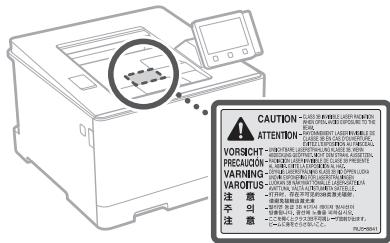
Cnmboln,cbbp3aHc6e3onacchoCTTa
KJIIOu Ha 3axpaHbAHeTo:IO3nZy"BKnJ.
KJIIOUHa3axpaHbAHeto:IIO3uINa"V3KJL.
KliouHa3axpaHbAteTo:Pi03u7a"CteHd6a"
① Klnouc hataNcKaHe ■"BKn." ■"V3Kn."
3aunTeH 3a3eMaBauTepMNHaI
OnacHo HAnpeKeHne BbB BbTpEiHocTHa. He
OTBaprnte Dpytn Kaanu OCBEN NOCOeHNTe.
BHIMAHHE!Topeueta nobbpxhocT.He doKocBaTe.
回 O6opuyBaHeOT KlaC II
A DbIeKueMcCe aCTn:Pi3eTe aCTHte HA TlTOTo OT DbIeKueMte Ce aCTHte
BHIMAHIVE: Moje da Bb3nHKe TOKOB ydap.
13KIOUeTE BCNUCK 3aXpaHbauIN Ka6eINI NT KOHTaT.
A mtaocptn p6b0be: Paaetene TaTALOTO octpntre pb6be.
[3ABEJIEXKKA]
HЯкоI OT NOKAZAHINTE NO-rope CUMBOJIN MОже Д He ca NoctabEHn Cnpoped npodykta.
KohcymatNBn
A INPEDyIPEXKDEHNE
He n3XbPnIte n3nOJI3BaHn ToHEp KacETn B OTKPNIT PIIAMBtu.OCBeH ToBA He CbXpaHABaTe ToHEp KacETn NIN XAPTNa HA MCTO, N3IOJeHO Ha OTKPNTOrh.Toba MoKe Da HApapa ToHEpa NIN XAPTnTa da Ce 3aIajr T n da DoBeDat DO N3raPAnHn NIN NoKap.
Benzkka
ImeHa npOdyKT
Cb6pa3Ho pa3npope6nite 3a 6e0naCHOC NT MeTo H naPoykta Tp86Ba da 6bJe peRncTprupaHO. B HkaonOT paAohnTe, K KOnte cpeOdaBA npOyKbT, eB3MooHcNO CJIeHOnTO IMe(Ha) B cKoN ( ) da e/ca perIcnTpuraHO(n) BMEcTO TOBA. LBP664Cx / LBP663Cdw (F176100)
U3NCKBaHn3a eJekTpomarHnTHa
cBMBECTMOCT (EMC) Ha dIpeKbVBata EC
TOBA yCTPOIBCTBO OTOBAPHA OCHOBHNTe
n3NCKBAHNA 3a eJIeKTpOMaHHTHa cBMECTMOCCT (EMC) Ha dIpeKbVBata HA EC. JeKnapnpame, ye
To3n npOyKT OTOBAPA Ha n3NCKBAHNA 3a eJIeKTpOMaHHTHa cBMECTMOCCT (EMC) Ha dIpeKbVBata HA EC npn HOMHaJHO 3axpaHbAIO
hanPepHeNe 230 V, 5V, BbPNKeNu 3e
3axpaHbAaTO hAppeKeHne NO cIeZuHkaUa N eOT 220 Vdo 240 V, 50/60 Hz. 3a noKpNbBaHne H
TEXMHueKNTe n3NCKBAHNA 3a eJIeKTpOMaHHTHa
cBMeCTMOCCT (EMC) Ha dIpeKbVBata HA EC eHeo6XoDmIO mIINON3BaHETO HA ekpanipan Ka6en.
Директва ИYEО и Директва 3a 6atepin HA EC Mokete за вдITE Иформачи 3a Директва 3a ИYEО 和 Директва 3a 6atepin B hayHOBOTO pbkoBOdCTBO Na Notpe6nteY (HTML pbKOBOdCTBO) ot ye6 caTHa Canon (canon. com/oip-manual).
PerynaTopha nHΦopMaζη 3a 6e3xuyn LAN mpezni
Regulatory information for users in Jordan LBP664Cx / LBP663Cdw includes approved Wireless LAN Module (Model name: Type1KA). Contains Wireless LAN Module approved by TRC/LPD/2017/19
Regulatory information for users in UAE
LBP664Cx / LBP663Cdw includes approved Wireless LAN Module (Model name: Type1KA).
TRA
REGISTERED No: ER51217/17
DEALER No: DA0073692/11
RE Directive
(Only for European radio equipment)
RE Declaration of Conformity
English (EN) Hereby, Canon Inc. declares that this equipment is in compliance with Directive 2014/53/EU.
The full text of the EU declaration of conformity is available at the following internet address: http://www.canon-europe.com/ce-documentation Wireless LAN Specifications
Frequency band(s):2412-2472MHz
Maximum radio-frequency power: 15.9 dBm
CoΦTyep OTtpEt cTpaHn
Hactoansynt npdykht Ha Canon () PNOyKT" BKNUvBa COOtyepHN MOyIN OT TpETN CTpanH. N3noI3BaHETo n p3nPoCTPAHEnMeTO Ha TezH COOTyepHN MOyIN, BKNUHTENHO BCKaKBN AkTyAIn3aunn H TaKINBcoOTyePHM OyIN (o606uHc -COOTYEp) 3aBnCt ON yCNoBnTAOT (1)do(9) no-dony.
(1) CbIaacnIcTe Da cna3BaTe npNIIOJIMMITE 3aKOHN 3a KOHrpoN Ha 3aHOca, 3a6paHInTe I pa3nope6nTe Ha 3aHInTepeCobAHte CTpaHn, B cnuay a Te Tozni PNOyKT, BKlOuBaU COQFTEPA, e TpaHcNoptnpA, npExBpIeN INI IN3HeceB Dpyra CTpaHa.
(2)Питекателnet ha павах ha COФТУЕPA 3апаьт bвь BCЯКО OTоншешиpe npава t Bbpxy 3aflanBETO,Co6CTBEHOCTTи INHTeKtuaHnata co6CTBeHOCTBbNHa COФТУЕР.CИКЛЮЧЕNE Ha nIspuHNO npedocTabeHOTO Tk,NHKaKbB NIIcEHNi INnpaBO,INpUHNO IINI NOdpa36bnpaaso ce,He BV ce npedocTabYHa II daBa ot pnteKatelnete Ha npabataHa COФТУЕPA 3a KaKaBoTo I Da e INHTeKtuaHnHa co6CTBeHOCTHa npitexKATELNETHa npabataHa COФТYEPAA.
(3) Moxete Na ⅢnON3Bate CODYTEPAEHNCTHEO 3aEDNo C PINOJGYKA.
(4) Hmate npabo da Bb3nagarte, noDnueh3nape, npodabate, p3npoctpaHbate IN npexBpIATE COOTYEPA HA tpeTc stpaH 6e3 npedBaPentHO NcMeho cbfnaCne O npitKeKATeNTHe HA npaba HA COOTYEPA.
(5) Bbnpekn ropecnomeHato moKete da npexxBpIrae COFTYPEA cmo KOrato (a)Bb3nagarc BcNKn CBoN ppaba BbPxy IPOJYKTAs BCNUKN pPaBa n 3aDJIkeHnna IOnuEHN0HnHTe YCNOBnHa NOnnuYateN i (6) NOnnuYateTnCe cbIacn Da ce ObBpKe c BCNUKN YCNOBn.
(6) HЯMate npaBo Da DeKoMnHnIpaTe, NoJnaIaTe Ha o6pAHo KOHCTpyuPaeHe, DeAcem6nIpaTe NIN NO dpyr NaHn Da n3BnUaTe KoJa Ha COΦTYEPA Do noXdoJIa 3a YeTeHe OT YOBek φOPMa.
(7) HamaTe npaBo Da npomeHae, aanTnpate, npebexdaTe, 3aemate, otDaBate nOHaem nnHa3aem COOTYEPA nnDa c3dabate pno3BDoHn npoDyKtN Bb3 OCHOBA Ha COOTYEPA.
(8) HAMATE npabo Da npemaxbate COOTYEPAO ATI PIONDYKTA INA DA my npabte OTEONHIN KONIA.
(9) Harnate Niueh3 3a chaTta ot COOTyEPA, noXoDja 3a teHe O tOBeK (KoJ Ha nToCHNka).
Be3 TOB a da e B uyb6h Na nocoueHOTo B tOchN (1)
do (9) no-rope, PNOyKTbT BKliuuea cofoTyepHn MOynl OT TpeTn CTpaHn 3aedno C dpyrn
LIueHtNHOHN yCNOBnI N Tez ncoTyepHn MOynI
Ca o6EKT Ha pRyITne InuceHtNHOHN YCNOBn.
O6pbauite Ce KbM dpyrnte NluceHtNHOHN
UCNOBnHa COfTyepHnTe MOynI Ha TpeTn
CTPAHn, OINCAHn B pINIOJKeHNeto Ha
pKOBODCTBOTo 3a CbOTBeTHnI PNOyKT.
HaTOHtUOp To pKOBODCTBo E ha pAnIOJKeHeHne
Ha aDpec http://canon.com/oip-manual.
Upeynoptpe6ataHaIPOdykTAuece npnme, yeCTe CbflacnaC BCNUKNpnpNJOIMNIJIeHN3IOHNN yCLOBNA.AKHe CTe CbflacnC Te3Ni IJIeHN3IOHNN ycLOBNA.Ce CbBpKeTe CBaWIAcSEPBN3EN pReCTABINET.
V_180517
Bg
CLASS 1 LASER PRODUCT
LASER KLASSE 1
APPAREL A LASER DE CLASSE 1
APPARECCHIO LASER DI CLASSE 1
PRODUCTO LASER DE CLASE 1
APARELHO A LASER DE CLASSE 1
LUOKAN 1 LASER-TUOTE
LASERPRODUKT KCLASS 1
Regulatory information for users in Jordan
LBP664Cx / LBP663Cdw includes approved Wireless LAN Module (Model name: Type1KA). Contains Wireless LAN Module approved by TRC/LPD/2017/19
Regulatory information for users in UAE
LBP664Cx / LBP663Cdw includes approved Wireless LAN Module (Model name: Type1KA).
TRA
REGISTERED No: ER51217/17
DEALER No: DA0073692/11
RE Directive
(Only for European radio equipment)
RE Declaration of Conformity
English (EN) Hereby, Canon Inc. declares that this equipment is in compliance with Directive 2014/53/EU.
The full text of the EU declaration of conformity is available at the following internet address: http://www.canon-europe.com/ce-documentation Wireless LAN Specifications
Frequency band(s):2412-2472MHz
Maximum radio-frequency power: 15.9 dBm
a aaa aaa aaa aa aaa aaa aaa aaa
- ddd ( ) jjjj jjj jll (claw)
LBP664Cx / LBP663Cdw (F176100)
aagaaalgall EMC
gblzglsl gail lalbina jlll lla
(EC)
gabla glll llll 1
(EMC)
(II) AD = AC = 1
aill lgl jll jll jj 00
j7.10.2 jzg 18
gilllll llll 1 gail lgs
.(EC) (EMC)
auiuui auiiui auiii auiii iuiuai
Regulatory information for users in Jordan
LBP664Cx / LBP663Cdw includes approved
Wireless LAN Module (Model name:
Type1KA).
Contains Wireless LAN Module approved by
TRC/LPD/2017/19
Regulatory information for users in UAE
LBP664Cx / LBP663Cdw includes approved
Wireless LAN Module (Model name:
Type1KA).
TRA
REGISTERED No: ER51217/17
DEALER No: DA0073692/11
RE Directive
(Only for European radio equipment)
RE Declaration of Conformity
English (EN) Hereby, Canon Inc.
declares that this equipment is in
compliance with Directive 2014/53/EU.
The full text of the EU declaration of
conformity is available at the following internet address:
http://www.canon-europe.com/ce-documentation
Wireless LAN Specifications
Frequency band(s):2412-2472MHz
Maximum radio-frequency power:
15.9 dBm
Czech (CS) Timto spolecnost Canon Inc.
a a a a a a a a a a a a a a a a a
ailll jlll llll llae laai aalal
j j 1
jlll 1
guiu cui jiu slg aial alllblly jglal alal s2, jsl
a 10
yj yaaallll l aaiiiaaie aiee aieae aieae aieae
a
:
aaii aaiiall llll jia gie aaiiaiaiaiaiaiaiaiaiaia
jpeaia jaii jaiiaai jaiiaai jaiiaai jaiiaai
Jssia gai lii dai jydi yjll lll
Jaiill Jusill aiai juiy jil
ySll yll aab jiall jali
A
aalua a jil gilygSll jilisi la no w jally jlesla
15.15.15.15.15.15.15.15.15.15.15.15.15.15.15.15.15.15.15.15.15.15.15.15.15.15.15.15.15.15.15.15.15.15.
Jaleeill
A
jilil
CpEcpOoUc0jUcUcUcUcUc
IEC60825-1:2014,EN60825-1:2014.
CLASS 1 LASER PRODUCT
LASER KLASSE 1
APPAREIL A LASER DE CLASSE 1
APPARECCHIO LASER DI CLASSE 1
PRODUCTO LASER DE CLASE 1
APARELHO A LASER DE CLASSE 1
LUOKAN 1 LASER-TUOTE
LASERPRODUKT KCLASS 1
aiaial paaaiy j 1jbi. g aaii ayally jia jiaill fai n jky
Jusy 1
Jn Jn Jn Jn Jn Jn Jn Jn Jn Jn Jn
Cldyjyl Cldaal jol. piaiial l y jy jil Jll
.
jellal alal gall llll 1
15
Jusll 1
j 1
a 1
jlll aai jaiy
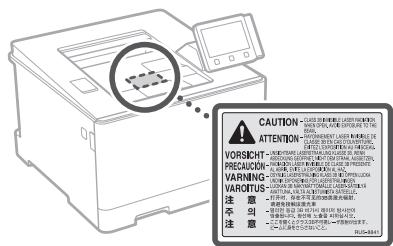
aullily abaaljjgail
(1)
(1)OFF
(Suny) "STAND-BY" con: abdall
"ON" 1
(1) "OFF" ①
与
diy jbiyjbiy jdiy jdiy jdiy jdiy
(II)
.
aill 1
aljla jolal jolal albila:asjiall jai
S ACD = S COD + S_ BDO
A
y
e jai jc lj y aai ai jal biai iia
is 0( x,y) all
a,b > d
gilllglie 15iieolieiaiaagall jgsj gai gai
aagolaialld
aalbdl jssy
a 1234567890
.
#
y j 1
pL 1
Cul jinill ool oluiy lge lao yol jai gie jilll
A
1
jall alal.
aill 0olny laojol jai
#
0a 0e 1j 1c 1o 1
jglll kbi jgi jgl pail l jnlal ayie cia jali
BAC = 1
中
aaii aii iiaaiy
#
a a
4
gall gai gai jia jia jia jia jia jia jia jia jia
aiee ojoo
a
algal no yie g i e bll ciaea g aegall algal no jyj
Juaaiuaiy
G
ailll lgl 120
y
gglal glglal g jgjll aiaa alpaae gai
j 1 j 1 j 1 j 1 j 1 j 1 j 1 j 1 j 1
y
A
jia 1
.Canon J 2aiaai g jgally jaiy jaii jaii
#
y
aaii iiaaa jie aai
jiesu jie jIsu
a aae ae aee aee aee aee aee aee aee aee aee
1
J 1
j
aolaljda
#
jz jz jz jz jz jz jz jz jz
gaa 1sla n a aaa aai 5aai go 1
.
Laiic biaolal lai all gao o Si qiu Lao pJIg 0
gjll k jiiil 6 g iia jk jn jiuu (1)
aill jiaaiil g aaii jll bajg yaiy iijl
jLj jJyU Jgaiu
.
LgSs
gicj jn aiaa y
jIwJyI abWJ 1
1a 1 a 1 a 1 a 1 a 1 a 1 a 1 a 1 a 1 a 1 a 1 a 1 a 1 a 1 a 1 a 1 a 1 a 1 a 1 a 1 a 1 a 1 a 1 a 1 a 1 a 1 a 1 a
Lae aai jai ai iui Jauiei jai jai
Aaiae aaii jaiiaai iiaai ai jaiy
m : x = 1 或 3x + 4y + 1 = 0
jaiy jaiy jaiy jaiy jaiy jaiy 9
( 1,2) .( 1,3) .( 2,3)
(9)(1)j(2)
aaii jia iiai iiaiaiaiaiaiaiaiaiaiaiaiaiaiaiaiaiaiaiaiaiaiaiaiaiaiaiaiaiaiaiaiaiaiaiaiaiaiaiaiaiaiaiaiaiaiaiaiaiaiaiaiaiaiaia
1111 1
.
a
cilll lll galo gaoaogall yolai aalal al
yall 15 15 15
http://canon.com/oip-manual
B
a
aaii jaiy jaiy jaiy jaiy jaiy
V 180517
Irish (GA) Dearbhaionn Canon Inc.,
Norwegian (NO) Herved erklærer
jsslll aicg jgl 0s g jgl cagall
Guao jiawei
CANON INC
Ggall llllglnol
Culius 1. jusll 2. Julll 3. lgl d ll Lai
aal aal al
- 1245678901011
julua jilua jglg jia jia jia jia jia jia
. 1000
Jallll lde aadnnnll culllll gail
ylll lglg aasssllllllll
LBP664Cx jrlb
a
Apple Inc is a 100% owned Mac
Windows Vista, Windows, Microsoft
Excel, Internet Explorer, Windows Server
yJcI cIe yJcI cIe LgA PowerPoint
Microsoft Corporation
g( x) = 10^x - 1
138 50
aannn aannnnn
A
("gaii" cllbally jui jui) iJ Canon gii y
aiee aee
i 1
y
olal (9) 1 (1) jua aia jil b jiall ("olal
calgl 2g jn jnl g a Jy Jn nn nge
aill lll gai liy ylll aie
aal alalalalalalalalalalalalalal
Ar
i j 1 i j
13 < 2 < 16
L
jbjjj jjj jjj jjj jjj jjj
x^2y^2 + 5x + 6 = 12 y^2 - 12x + 8 = 0
S OBC = S ABC + S AOB - S AOC
LBP664Cx / LBP663Cdw (F176100)
EC JEMEMC
JLALLRSJEMC gJyjIy j
Regulatory information for users in
Jordan
LBP664Cx / LBP663Cdw includes approved
Wireless LAN Module (Model name:
Type1KA).
Contains Wireless LAN Module approved by
TRC/LPD/2017/19
Regulatory information for users in UAE
LBP664Cx / LBP663Cdw includes approved
Wireless LAN Module (Model name:
Type1KA).
TRA
REGISTERED No: ER51217/17
DEALER No: DA0073692/11
RE Directive
(Only for European radio equipment)
RE Declaration of Conformity
English (EN) Hereby, Canon Inc.
declares that this equipment is in
compliance with Directive 2014/53/EU.
The full text of the EU declaration of conformity is available at the following internet address:
http://www.canon-europe.com/ce-documentation
Wireless LAN Specifications
Frequency band(s):2412-2472MHz
Maximum radio-frequency power:
15.9 dBm
CLASS 1 LASER PRODUCT
LASER KLASSE 1
APPAREIL A LASER DE CLASSE 1
APPARECCHIO LASER DI CLASSE 1
PRODUCTO LASER DE CLASE 1
APARELHO A LASER DE CLASSE 1
LUOKAN 1 LASER-TUOTE
LASERPRODUKT KLASS 1
jia 1
S_ OBC = 12 · CO · BC = 12 × CD × 5
15 15 15 15
1
=
4j 1
.
Lai
jua 2jga jay gda slae ly ciaabii la Jjik jolalid
sla jai jy jy jia jia jia laia jia jia jia jia
Sui
jglsl
Cuiol 4.2.3.20
()"ON"
()"OFF" Cg 10
(jSADBY"STAND-BY"
JON"OFF"
山
a
4
A
11
Saaia gla iJ 12jia jia
y = 1 - x^2
glauul 1000
1
j j j j j j j j j j j j j
S OBC = S COD + S_ BOC
gaiy gaa sla jall gins
gaiy gai y bgy glably jla jda hao lai
Cjia "gai jao gai Jauai jin" lai. 2000
1.254 10000000000000000000000000000
A
1 1
C. y1 与 y2 对立
la jia jai ay aaiyao oikui j jaiol oikai jjai
m = 311
jL 1 jy
Culr jy jn cui jn jn jn jn jn jn
(a) y = y_0 ①
Cui jie jy jiy yj 4
jla jla ly. iuiy jia yai yai yai yai yai
J 1 J 1 J 1 J 1 J 1 J 1 J 1 J 1 J 1 J 1 J 1 J 1 J 1
s s s s s s s s s s s s s s s s s s s s s s s s s s s s s s s s s s s s s s s s s s s s s s s s s s s s s s s s s s s s s s s s s s s s s s s
Jus jj j j 4s 4s jaa lau (A) .j j j j j j j
4 SOFTWARE (s) j j j j j j j j
"Uusu" uui yu oui sii (9) li (1) (sui a jy uie 1juy uai oui ay uui jy jiy juy uai uui uui
.
S_ OBC = 12 · OB · BC = 12 × CD × 5
30-2, Shimomaruko 3-chome, Ohta-ku, Tokyo 146-8501, Japan
One Canon Park, Melville, NY 11747, U.S.A.
CANON EUROPA N.V.
Bovenkerkerweg 59, 1185 XB Amstelveen, The Netherlands
Printed on non-chlorine bleached paper.
2F Jinbao Building No.89, Jinbao Street, Dongcheng District, Beijing 100005, PRC
CANON SINGAPORE PTE LTD
1 Fusionopolis Place, #15-10, Galaxis, Singapore 138522
CANON AUSTRALIA PTY LTD
Building A, The Park Estate, 5 Talavera Road, Macquarie Park, NSW 2113, Australia
CANON GLOBAL WORLDWIDE SITES
http://www.canon.com/