
PTZ Pro 2 - Video Conferencing System LOGITECH - Free user manual and instructions
Find the device manual for free PTZ Pro 2 LOGITECH in PDF.


| Product Type | Video conferencing system |
| Brand | Logitech |
| Model | PTZ Pro 2 |
| Optical zoom | 10x lossless |
| Motion functions | Pan, tilt, zoom (PTZ) |
| Camera presets | 3 programmable positions |
| Control | Infrared remote control with CR2032 battery |
| Connection | USB 2.0 (cable included) |
| Power | External power adapter (included) |
| LED indicator | Indicates connection and video streaming |
| Security slot | Kensington® lock |
| Included accessories | Camera mount, mounting clip, remote control, cables |
| Software compatibility | Video conferencing applications, Logitech Camera Settings software |
| Technical support | www.logitech.com/support/ptz2 |
| Warranty | Manufacturer warranty (see provided documentation) |
| Maintenance | Clean the lens with a soft, dry cloth; do not use abrasive products |
| Safety | Do not manually rotate the camera; use the Kensington lock to prevent theft |
| Repairability | Spare parts available on request; contact technical support |
Frequently Asked Questions - PTZ Pro 2 LOGITECH
User questions about PTZ Pro 2 LOGITECH
0 question about this device. Answer the ones you know or ask your own.
Ask a new question about this device
Download the instructions for your Video Conferencing System in PDF format for free! Find your manual PTZ Pro 2 - LOGITECH and take your electronic device back in hand. On this page are published all the documents necessary for the use of your device. PTZ Pro 2 by LOGITECH.
USER MANUAL PTZ Pro 2 LOGITECH
logitech®
3 ENGLISH
8 DEUTSCH
13 FRANÇAIS
18 ITALIANO
23 ESPAÑOL
28 PORTUGUÊS
33 NEDERLANDS
38 SVENSKA
43 DANSK
48 NORSK
53 SUOMI
58 ΕΛΛΗΝΙΚΑ
63 ПО-РУССКИ
68 PO POLSKU
73 HUNGARIAN
78 CZECH VERSION
83 SLOVAK
88 UKRAINIAN
93 ESTONIAN
98 LATVIAN
103 LITHUANIAN
108 BULGARIAN
113 CROATIAN
118 SERBIAN
123 SLOVENIAN
128 ROMANIAN
133 TURKISH
ARABIC 138
143
KNOW YOUR PRODUCT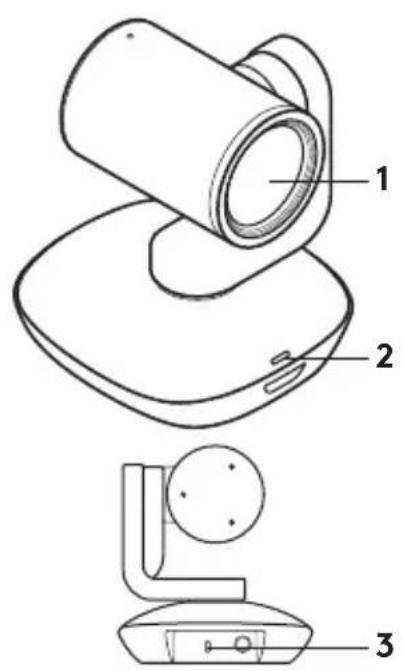
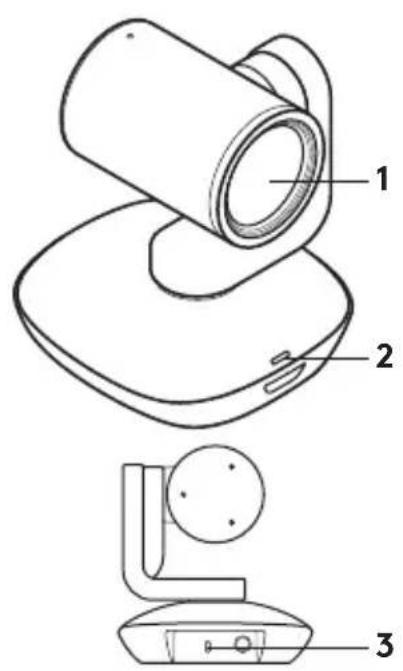
Camera
- 10X lossless zoom
- Camera LED
- Kensington® Security Slot
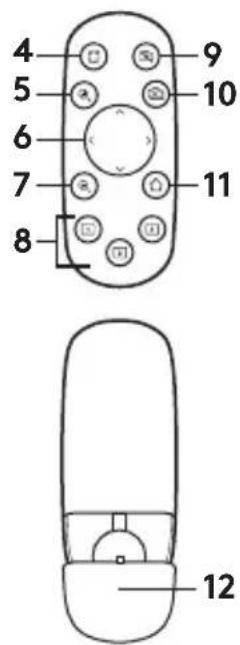
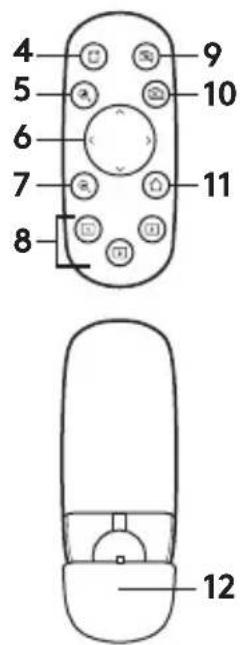
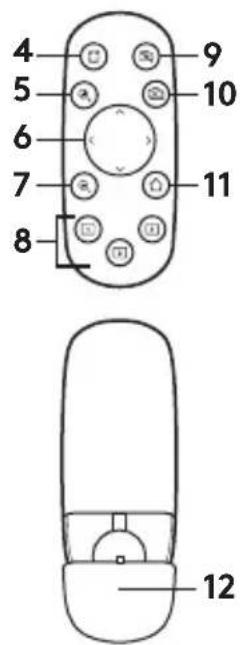
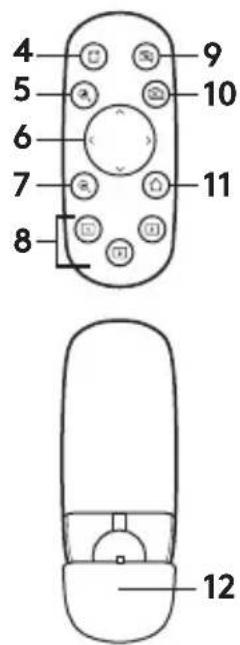
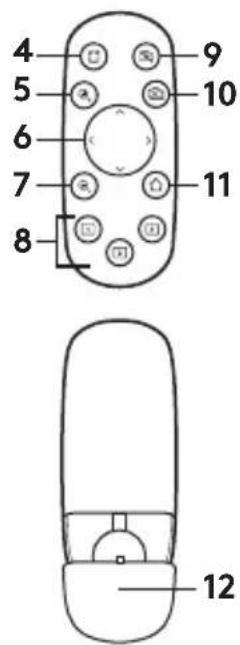
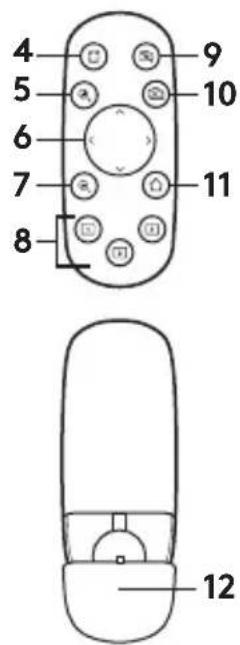
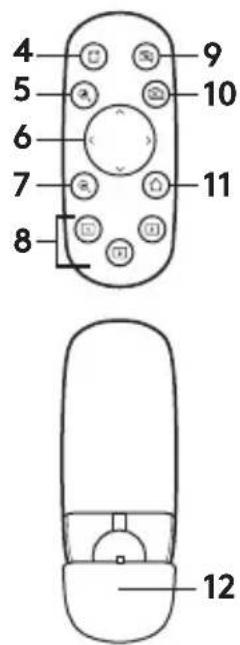
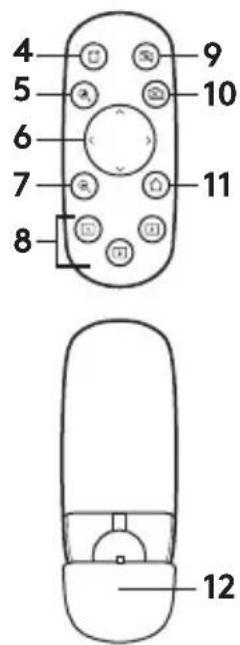
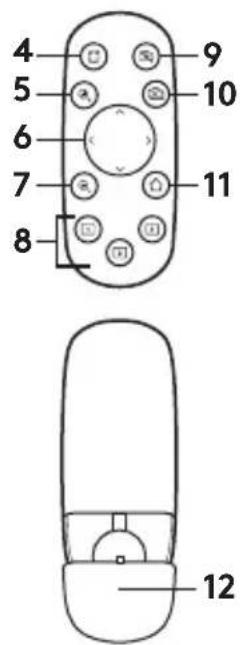
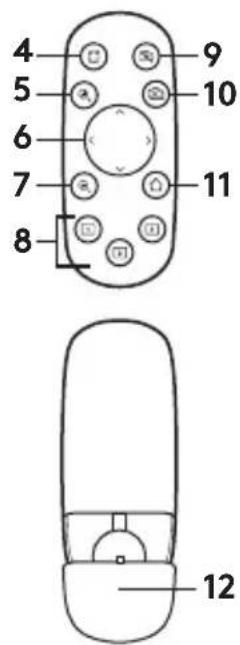
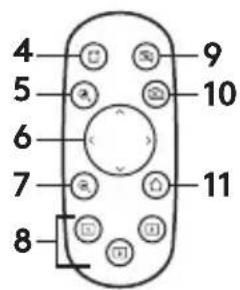
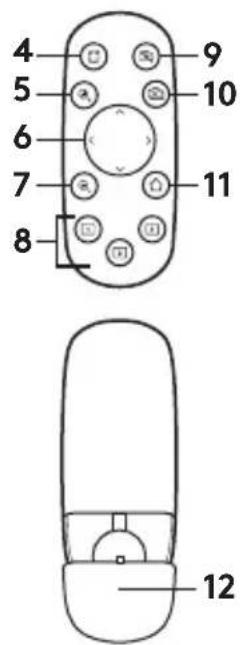
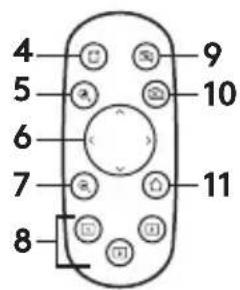
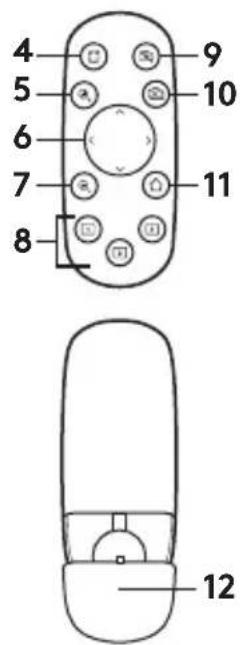
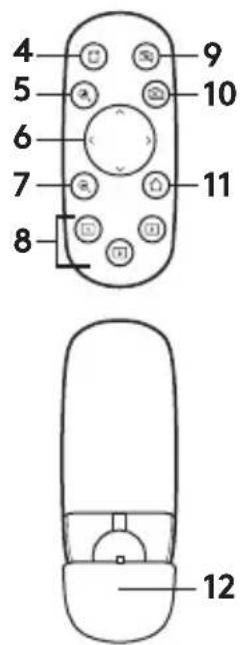
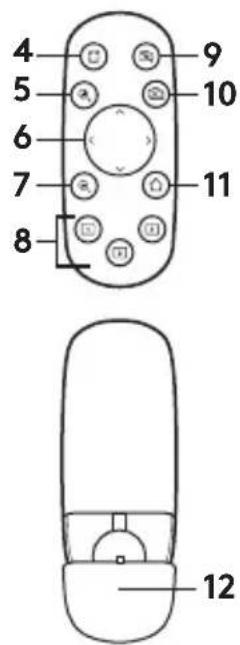
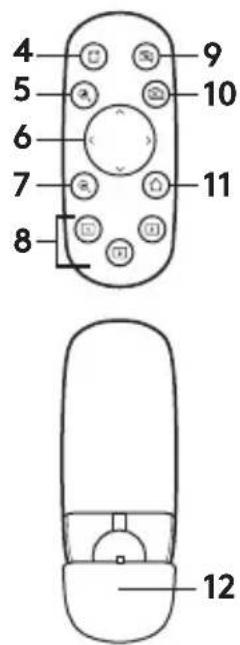
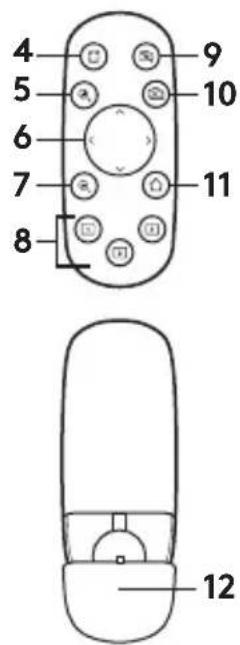
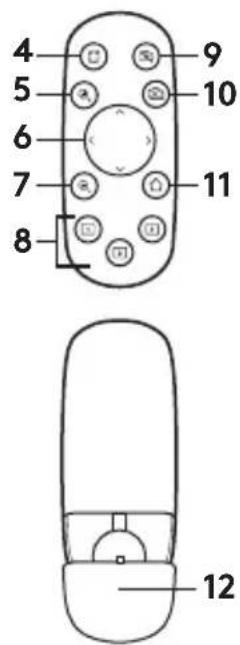
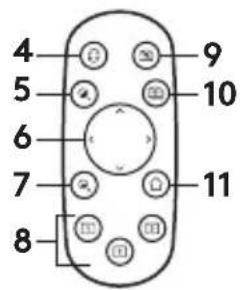
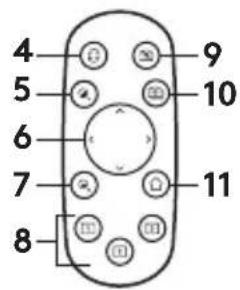
Remote
- Mirror
- Zoom in
- Pan and tilt
- Zoom out
- Camera presets 1, 2, and 3
- Video mute
- Far end control
- Home
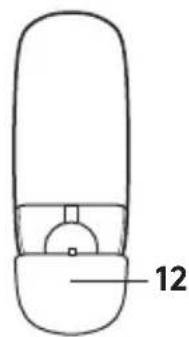
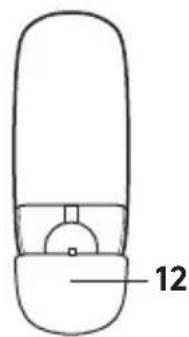
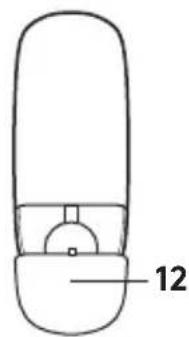
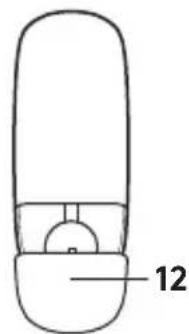
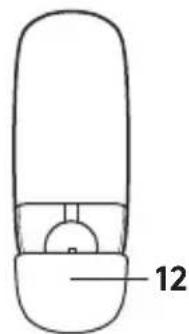
- Remote battery door
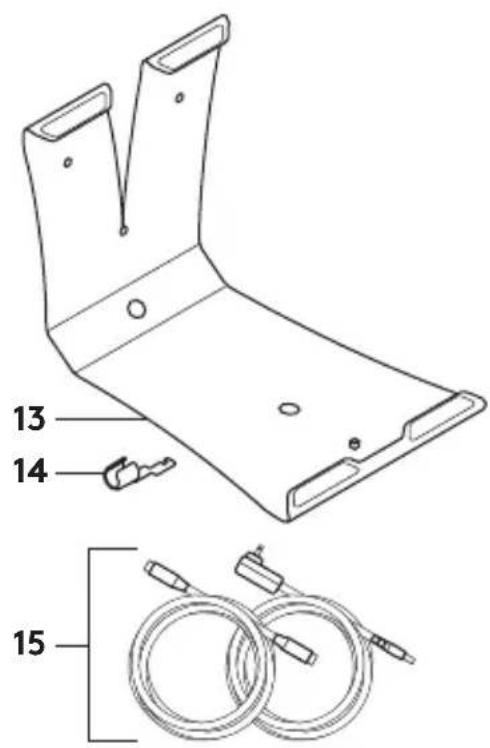
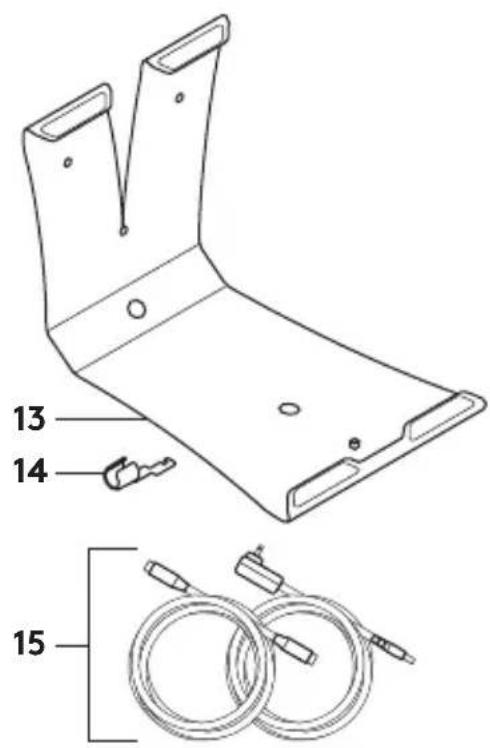
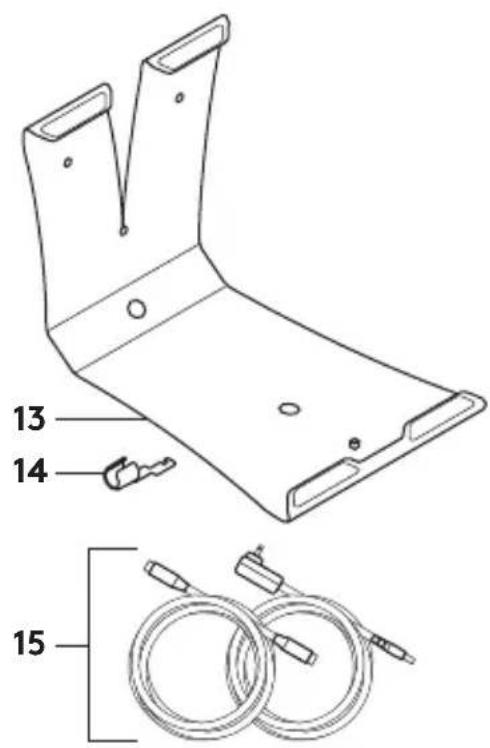
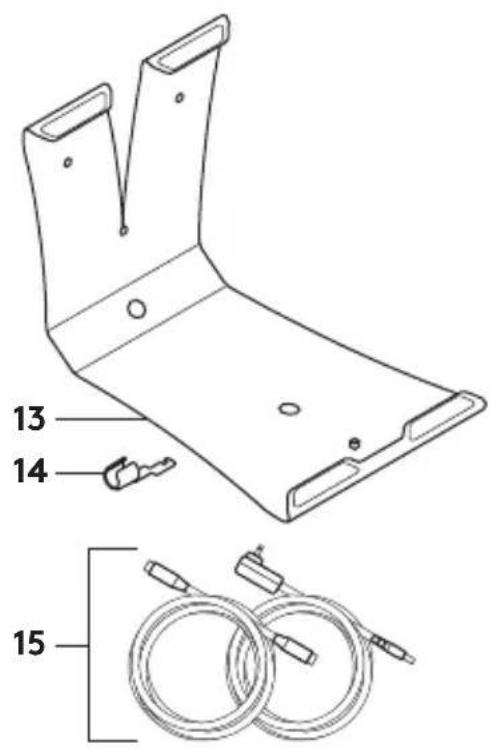
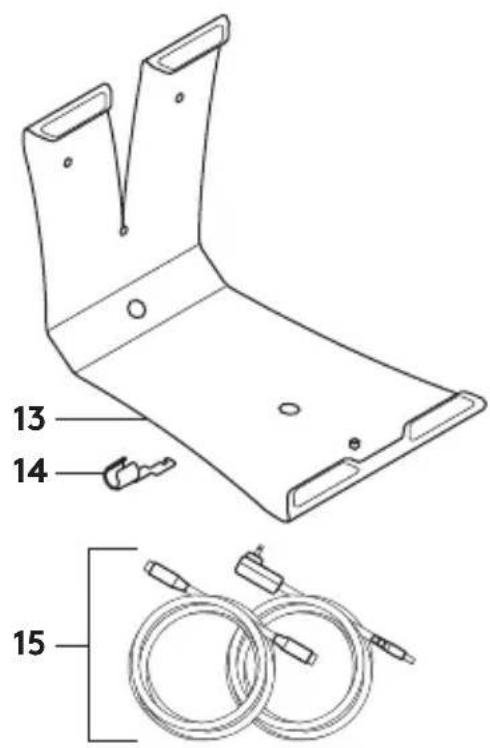
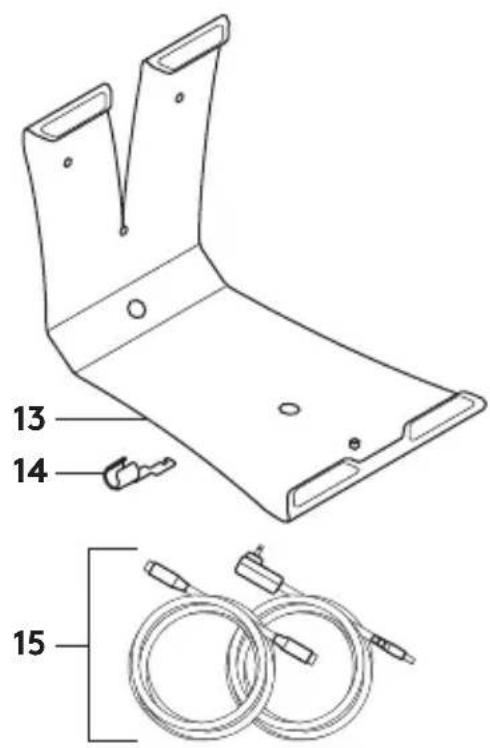
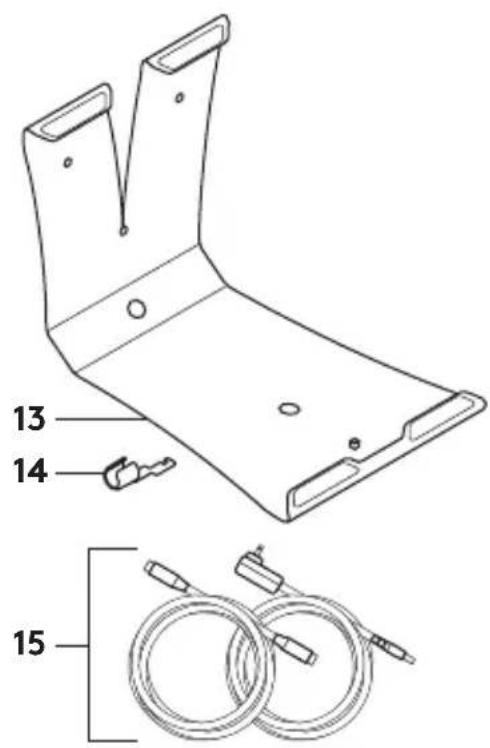
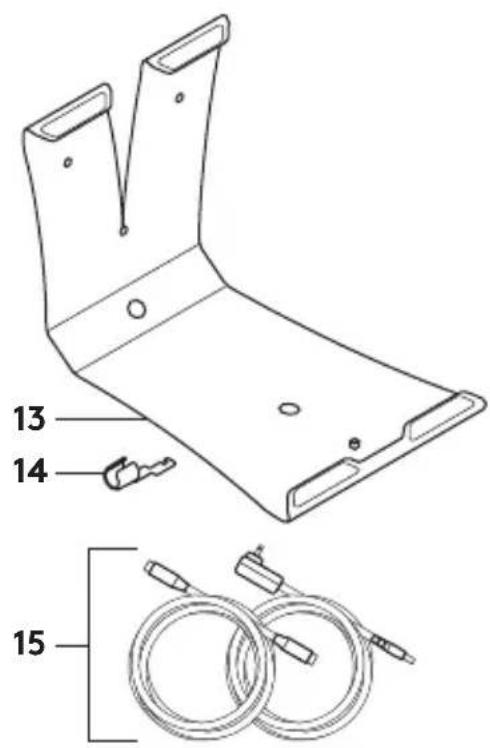
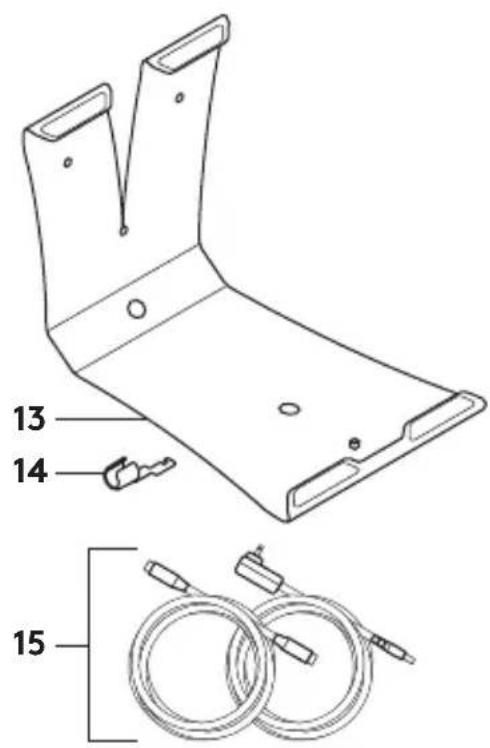
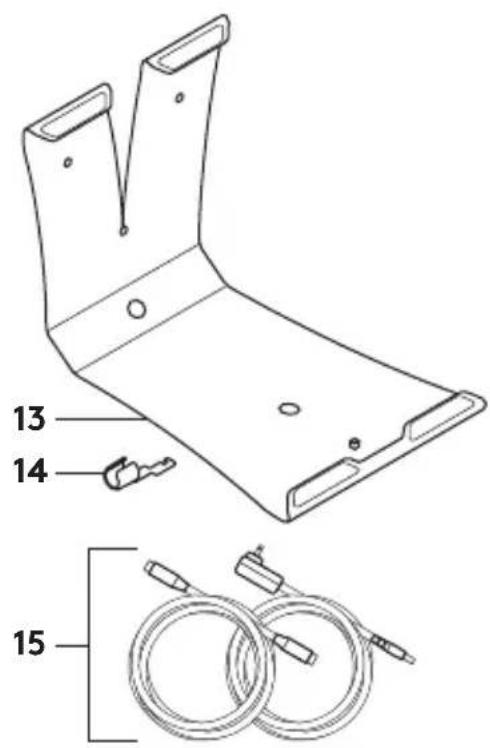
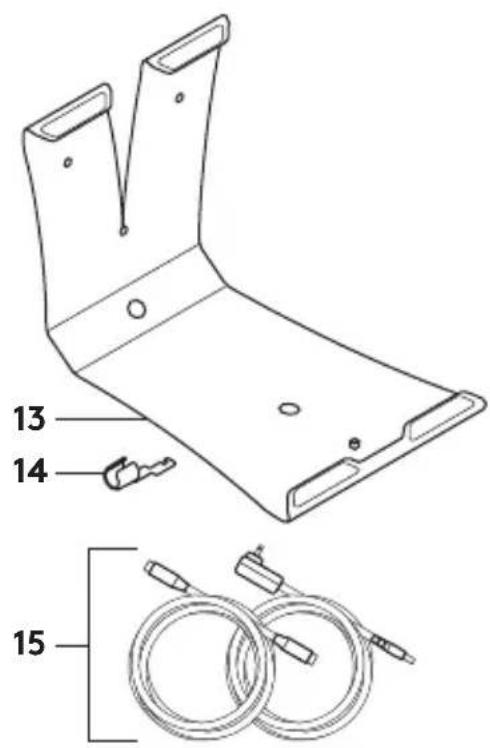
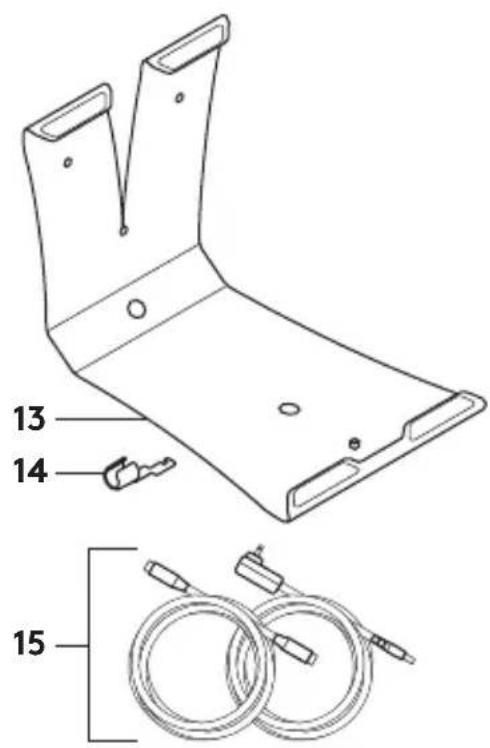
Accessories
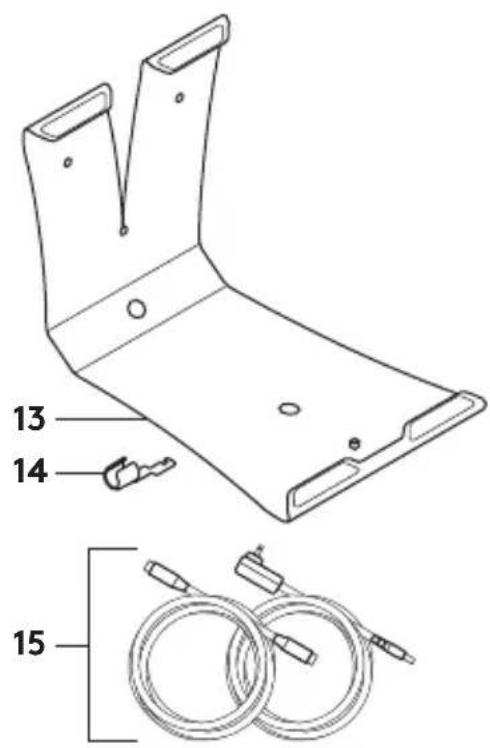
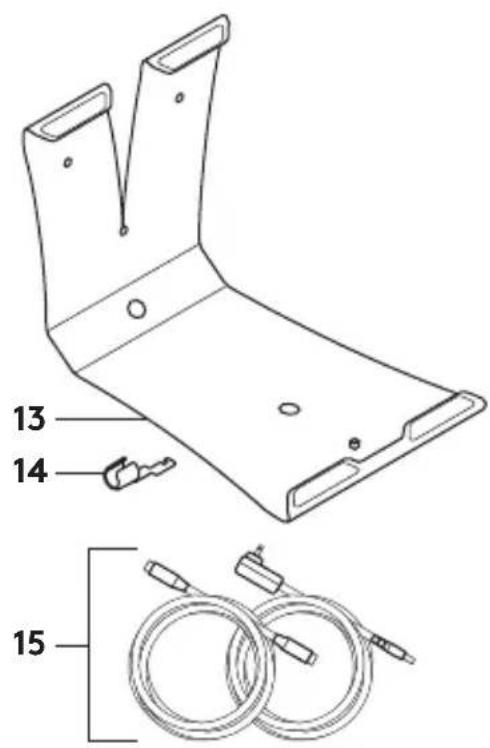
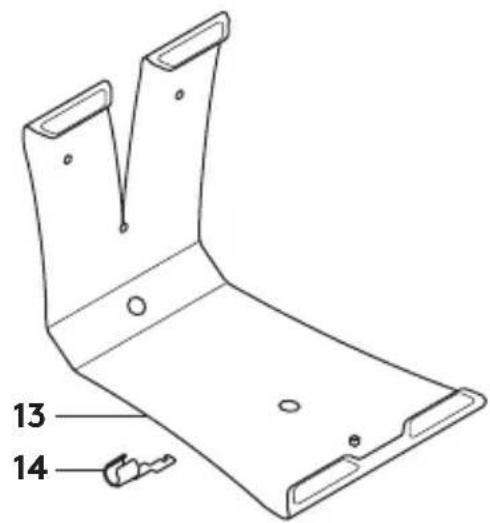
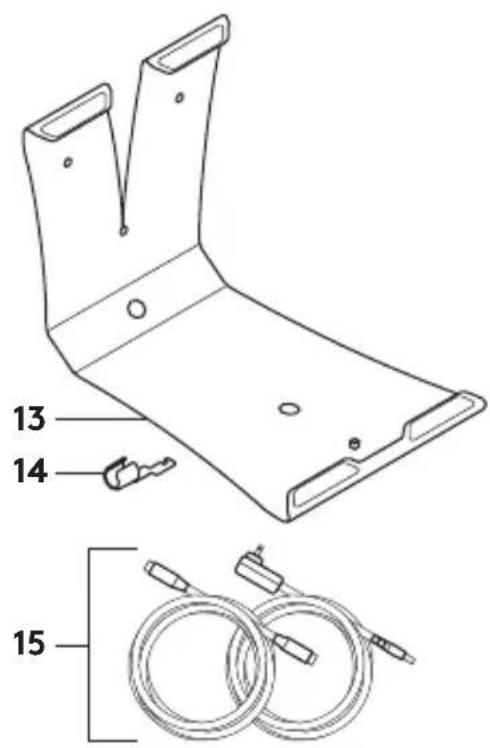
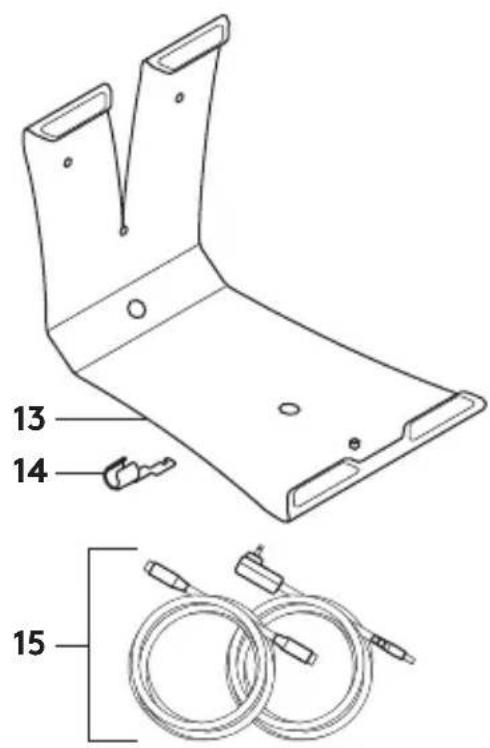
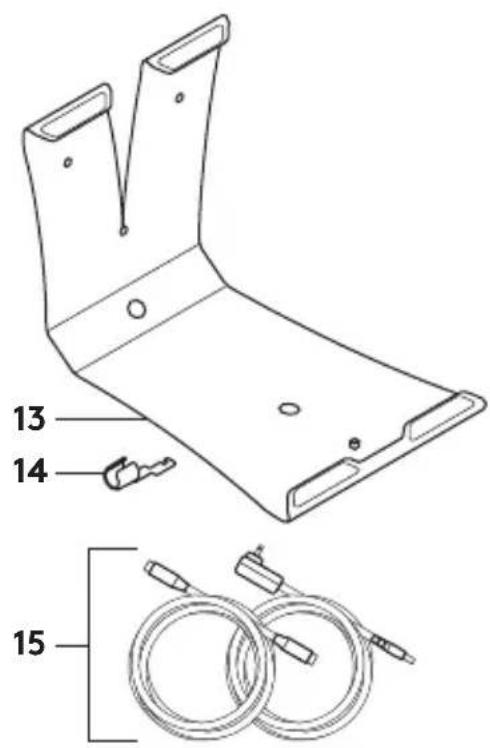
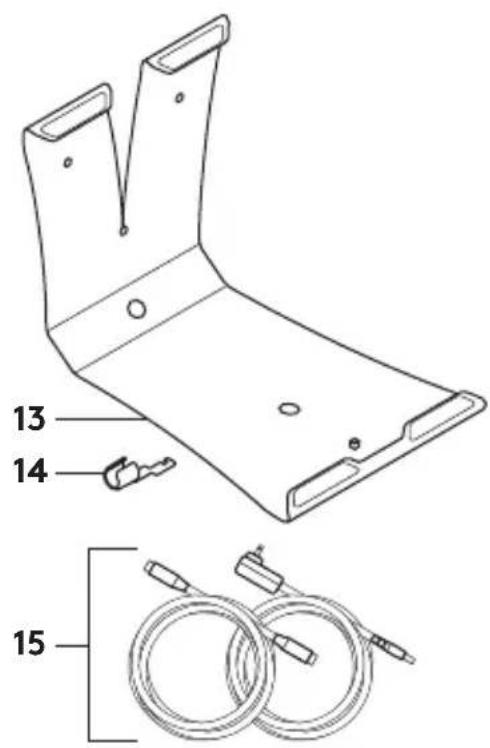
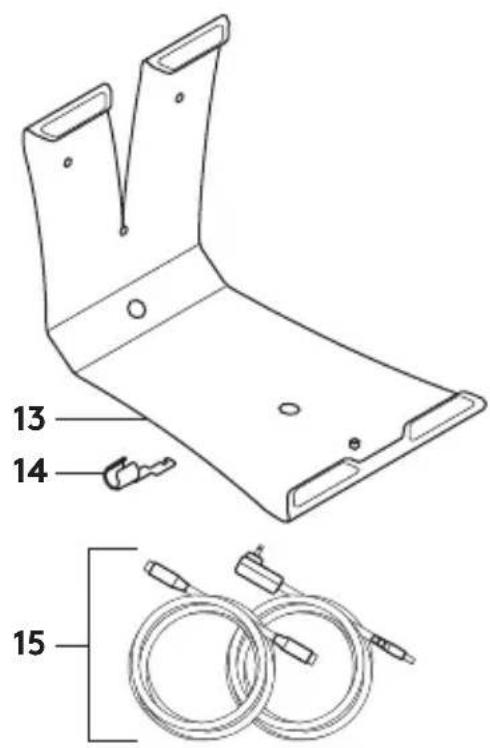
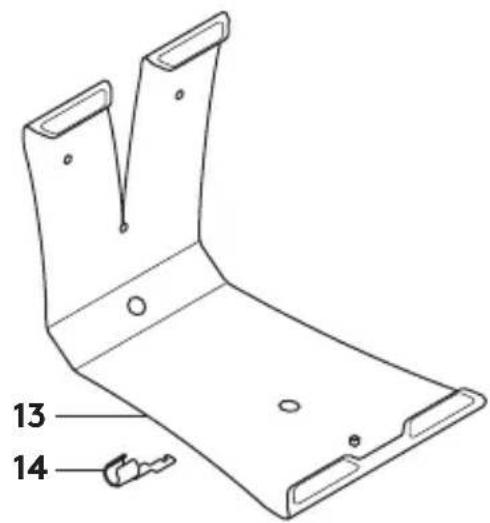
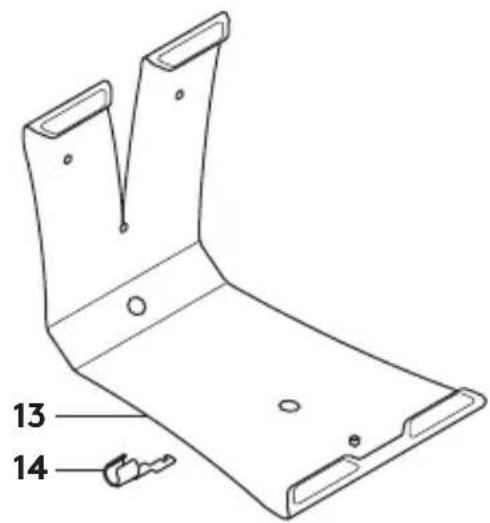
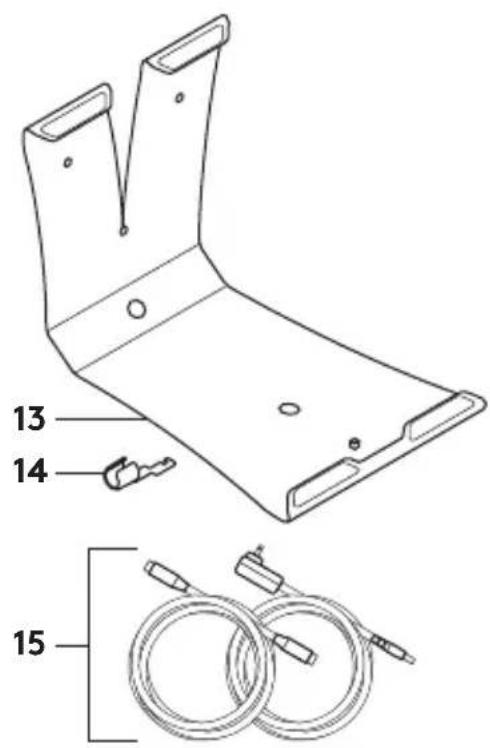
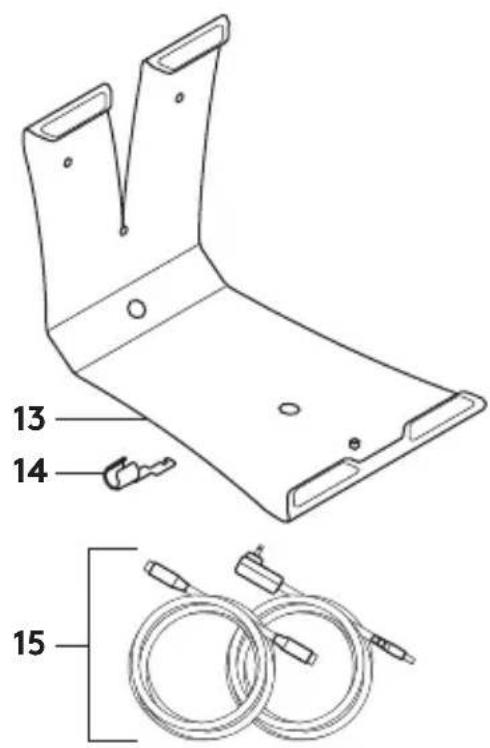
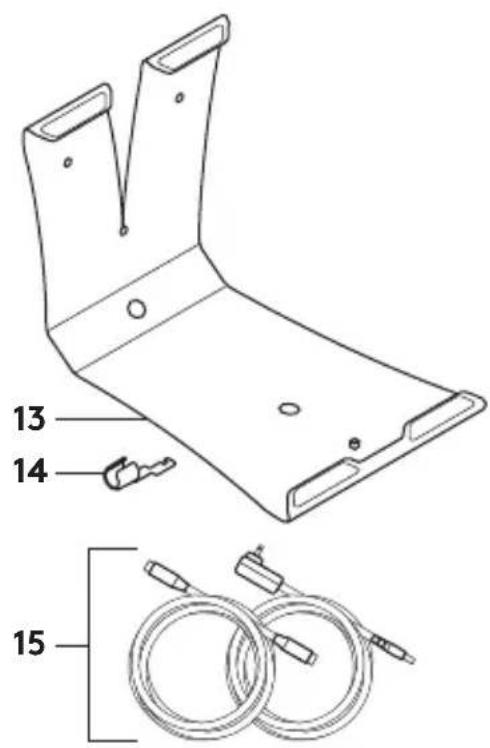
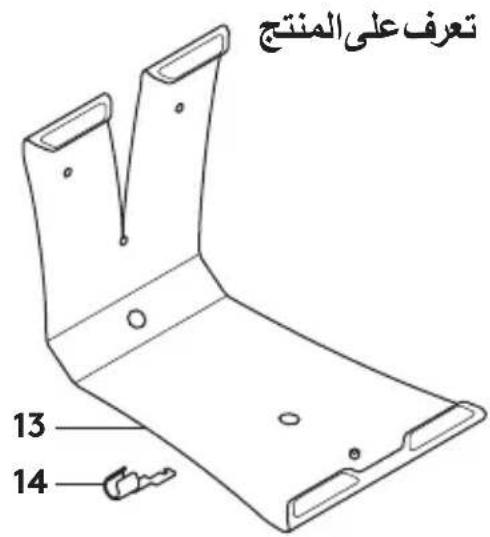
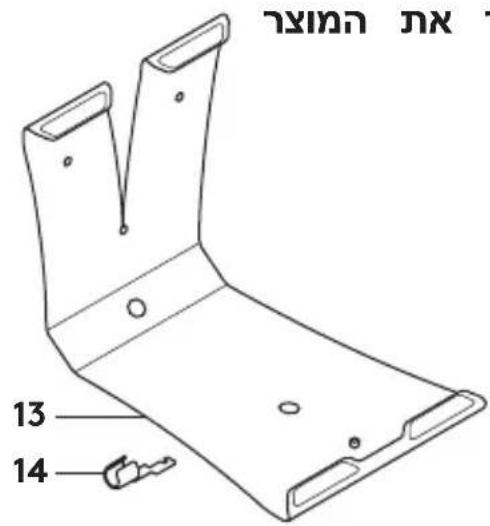
- Camera mount
- Cable lock
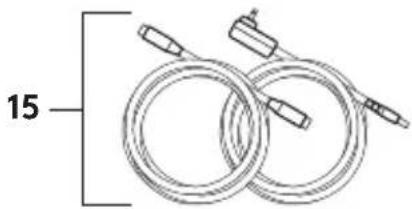
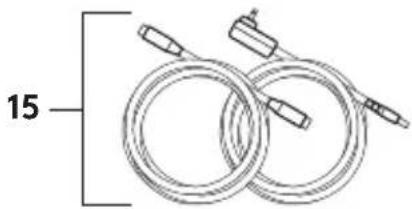
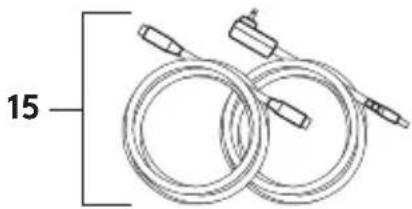
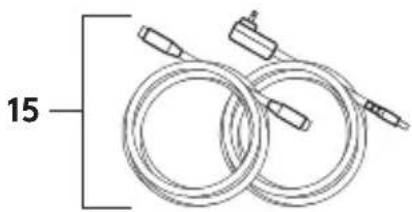
- Cables
SET UP YOUR PRODUCT
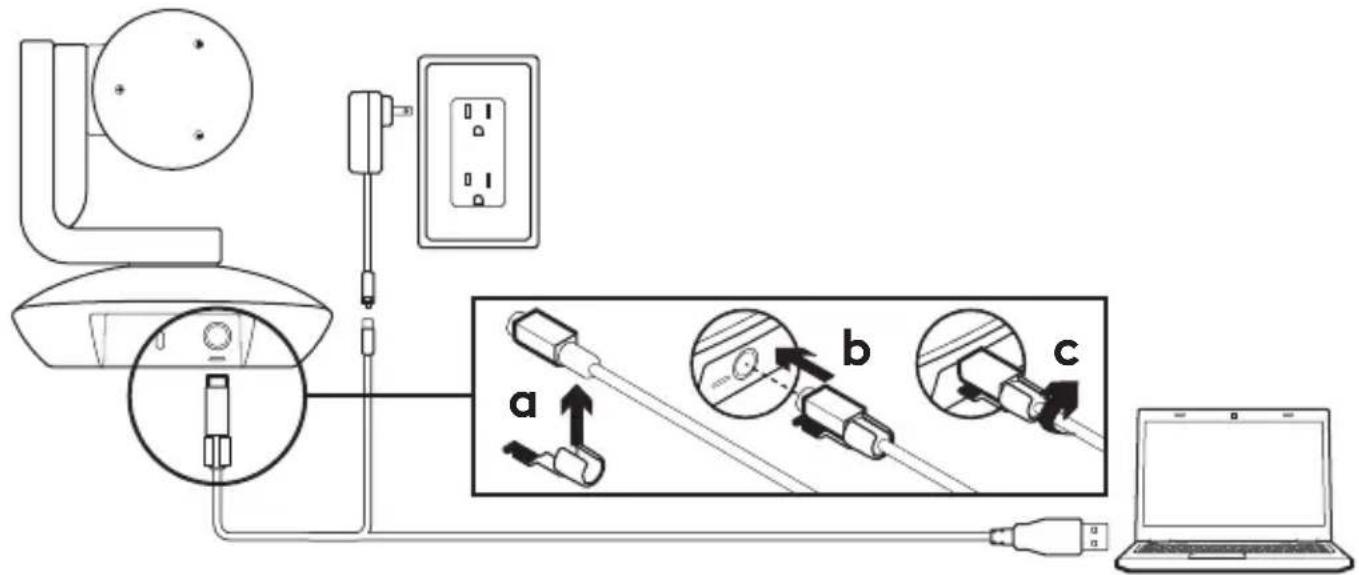
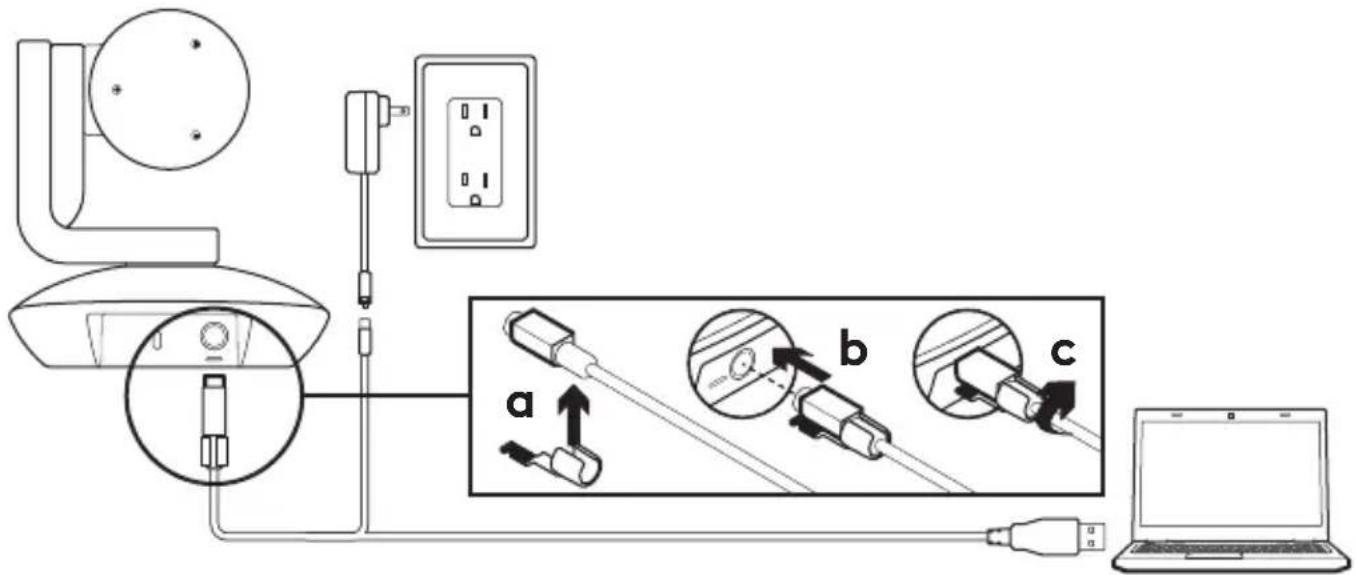
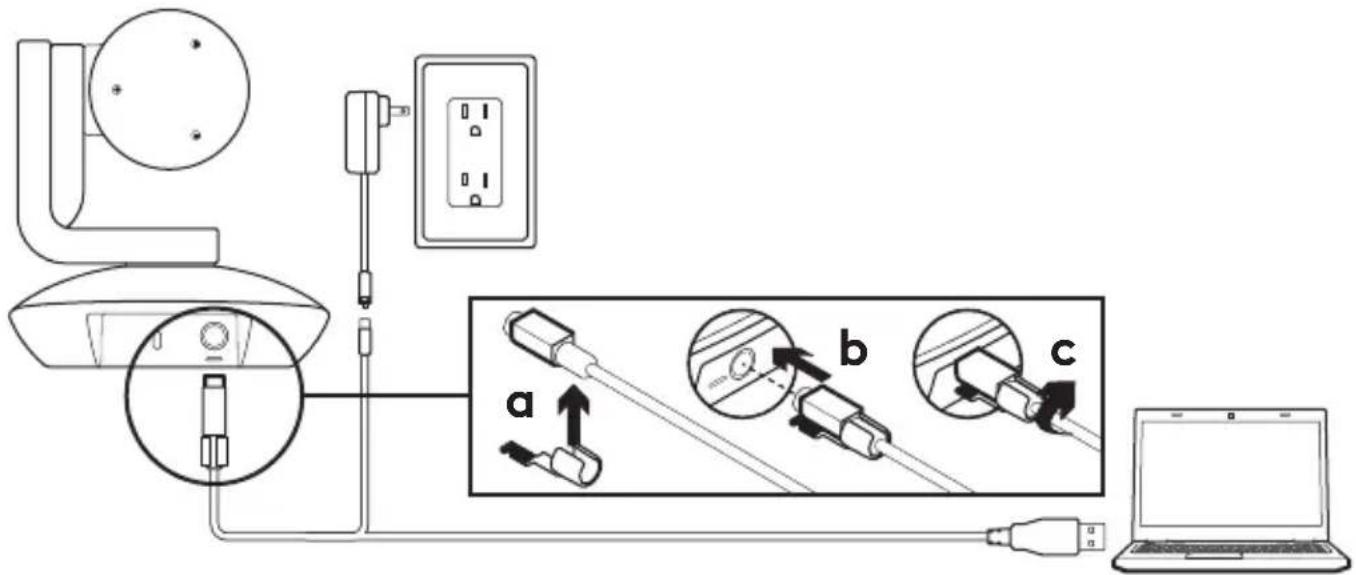
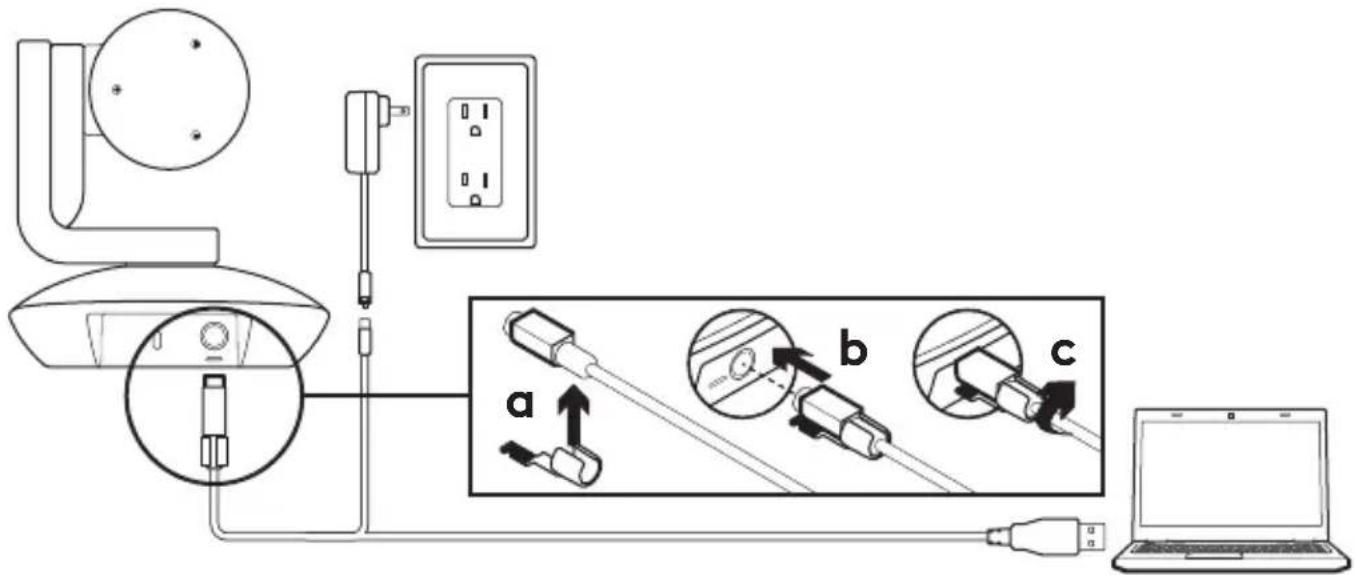
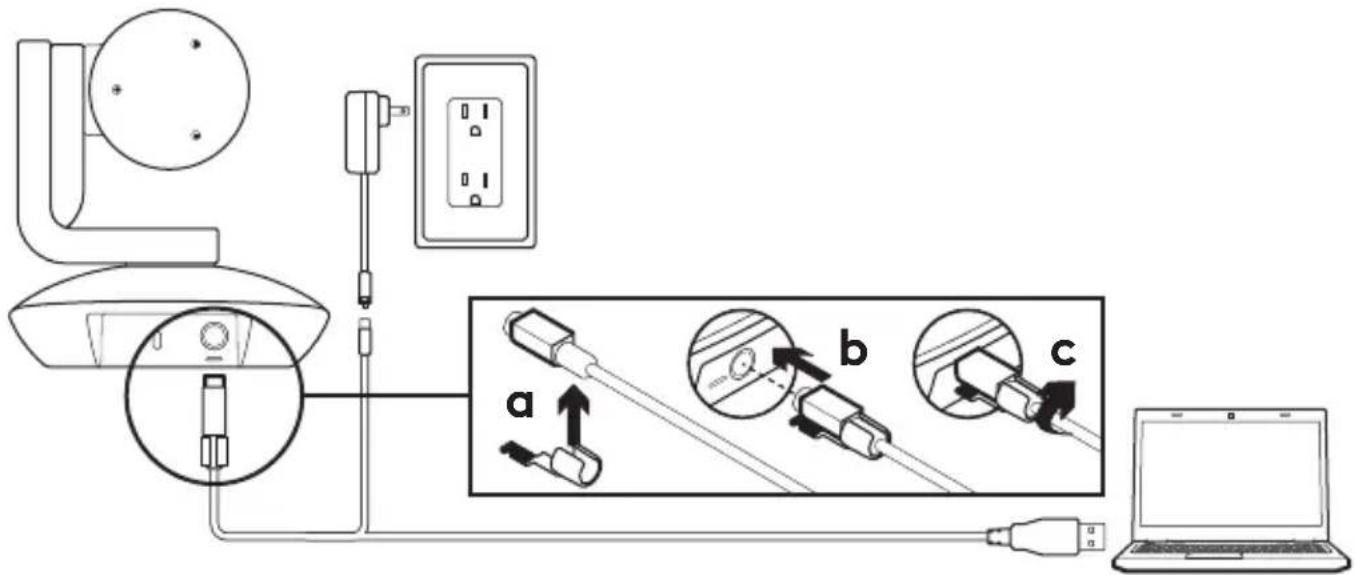
- Set up camera by placing on table or by using camera mount on table or wall.
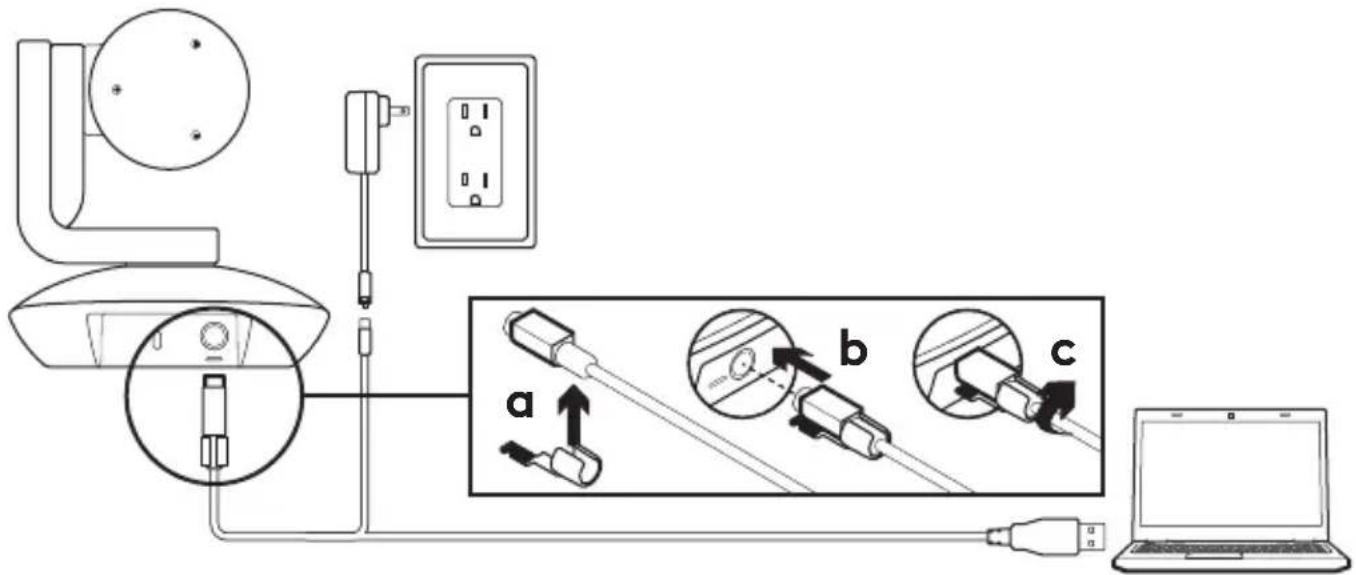
- Attach cable lock before plugging the cable into the camera port.
- Connect to external power.
- Connect the USB cable to your computer.
- The camera LED will flash when the camera is connecting. Once complete, the camera head will rotate.
- If the camera cannot connect, try again. If issues persist, consult www.logitech.com/support/ptz2 or call technical support.
- Start your video call from your application. The camera LED will illuminate when streaming.
VISIT PRODUCT CENTRAL
Discover your product's full potential. Get valuable information and usage tips by browsing easy-to-use FAQs. Find answers to product questions and get help setting up your product. See if there's software available for download that can enhance your product experience.
To enjoy all the benefits of your Logitech product, visit www.logitech.com/support/ptz2 and take advantage of Logitech's wide range of useful support services.
- Troubleshooting
- Diagnostics
- Firmware upgrades
- Support community
- Software downloads
- In-box documentation
- Warranty information
- Spare parts (if available)
USE YOUR PRODUCT
Video
- Starting the video: Video will start once a video call/capture session is opened and the camera is selected. The camera LED will illuminate when the video is streaming.
- Pan and tilt the camera using the remote control. Press once for incremental movement or press and hold for continuous pan or tilt. Caution: Do not manually rotate webcam head. Doing so may damage unit.
- Zoom the camera up to 10X by pressing the zoom button.
- Home: Press the Home button to return to the default, out-of-box home position.
- Camera presets: You can set up to 3 preset positions. First, position the camera using the pan and tilt controls, and then press and hold one of the preset buttons for 3 seconds to save that position. You may return to your defined position at any time by pressing the preset button once.
Use Preset 1 as your own defined "home" position. When the camera is reconnected to the PC, it will return to the position set in Preset 1. If no position is set for Preset 1, the camera will return to the default home position.
All three presets are by default set to the out-of-box home.
- Far end control: This function allows you to control the pan, tilt, and zoom of any remote Logitech ConferenceCam or select Logitech Webcams. Some applications support this feature natively, while others can be enabled by using an application downloaded from www.logitech.com/support/ptz2. Please visit the download page listed for more information.
- Camera settings application: You can use this program to control the pan, tilt, zoom, focus, and image quality (like brightness and contrast) of the camera from your computer. This application can be downloaded from www.logitech.com/support/ptz2.
Mounting your camera Changing the remote control battery
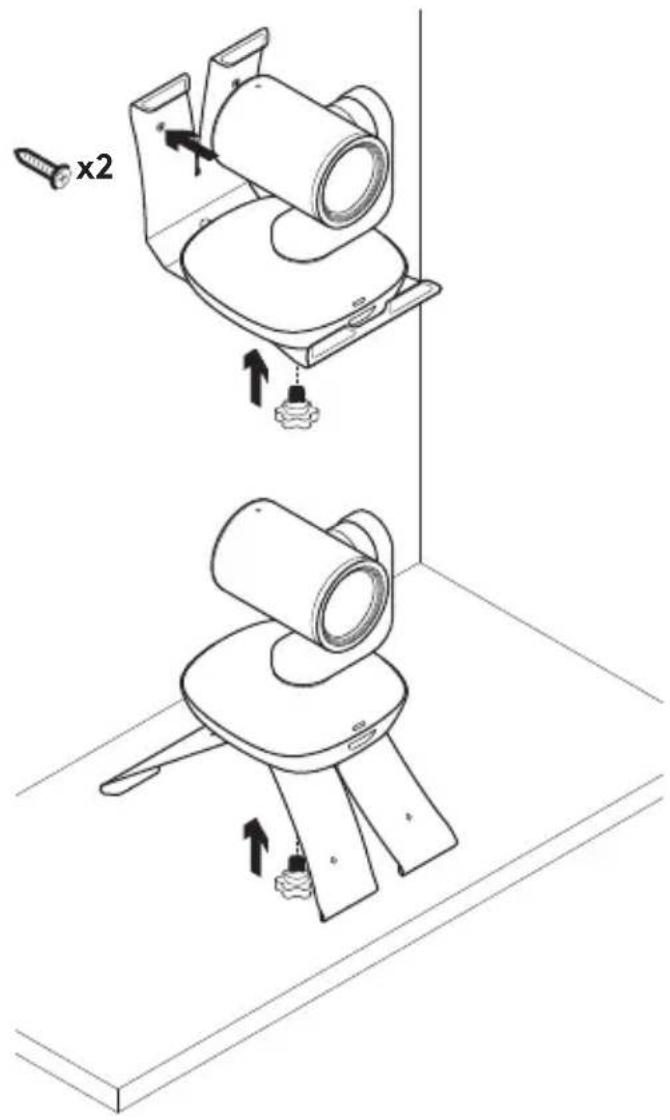
The PTZ Pro 2 remote control runs on a Li-ion CR2032 battery. Battery life will vary based on usage.
TROUBLESHOOTING TIPS
Please visit www.logitech.com/support/ptz2 for troubleshooting tips, information on software tools, and for a diagnostic tool to help troubleshoot issues you may have with your PTZ Pro 2.
PRODUCT AT A GLANCE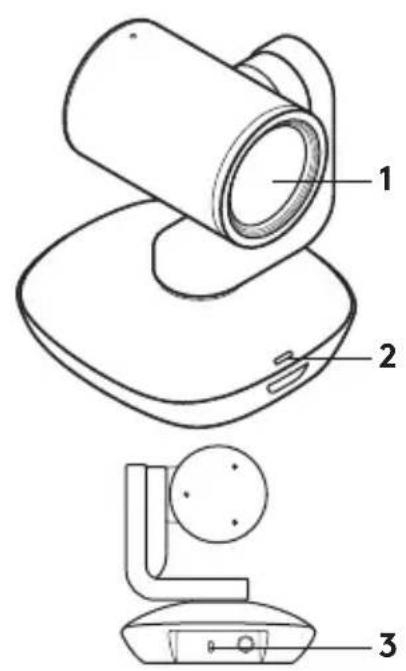
Camera
- 10x lossless zoom
- Camera LED
- Kensington® Security Slot
Remote control
Camera
PRODUCT INSTALLATION
Webcam
- 10X lossless zoom
- Webcam LED
- Kensington® Security Slot
Remote control
Camera
Camera
Camera
GO TO PRODUCT CENTRAL
TROUBLESHOOTING TIPS
Camera
INSTALL THE PRODUCT
Camera
CONFIGURATION OF YOUR PRODUCT
TROUBLESHOOTING TIPS
GET TO KNOW THE PRODUCT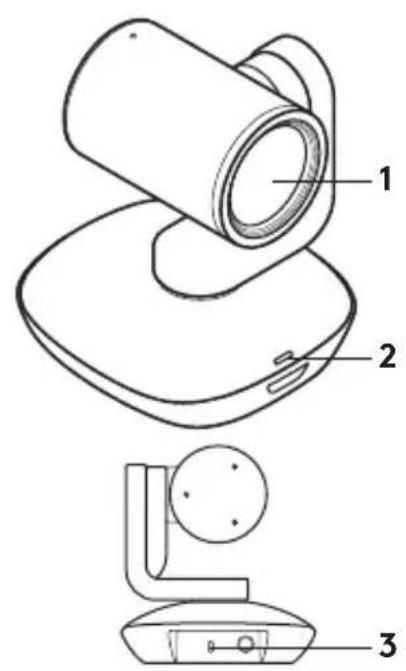
Camera
- 10x zoom without loss
- Camera indicator light
- Kensington® security slot
Remote control
CONFIGURE THE PRODUCT
- Set up the camera by placing it on the table, or use the camera stand to mount it on the table or wall.
- Attach the cable lock before connecting the cable to the camera input.
- Connect external power.
- Connect the USB cable to the computer.
- The camera indicator light will blink while the camera is connecting. Once this is complete, the camera head will rotate.
- If the camera does not connect, try again. If problems persist, go to www.logitech.com/support/ptz2 or call technical support.
- Start the video call from the application. The camera indicator light turns on when you are streaming.
VISIT THE PRODUCT CENTER
Camera
Camera
Camera
Camera
Camera
Camera
Camera
Camera
Camera
- 10x lossless zoom
- Camera LED
- Kensington® security slot
Remote control
Camera
TIPS FOR TROUBLESHOOTING.
GET TO KNOW YOUR PRODUCT
Camera
SET UP YOUR PRODUCT
Camera
Camera
- 10x lossless zoom
- Camera LED indicator
- Kensington® security slot
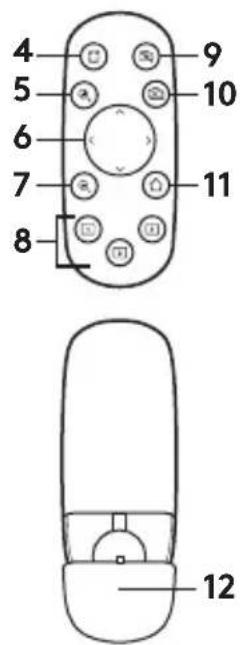
Remote control
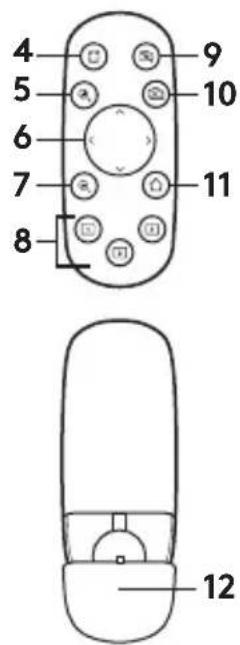
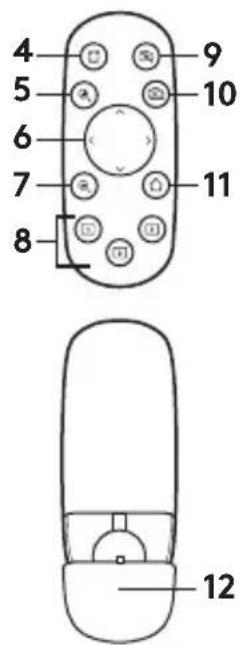
- Mirror
- Zoom in
- Pan and tilt
- Zoom out
- Preset camera positions 1, 2, and 3
- Mute video
- Remote end control
- Home page
- Remote control battery cover
Accessories
Camera
- 10x lossless zoom
- LED light for camera
- Kensington® security slot
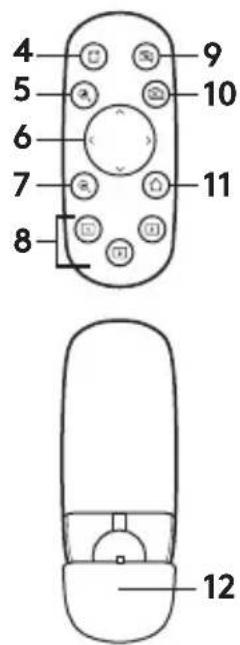
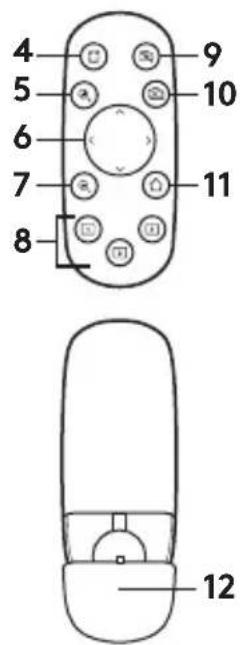
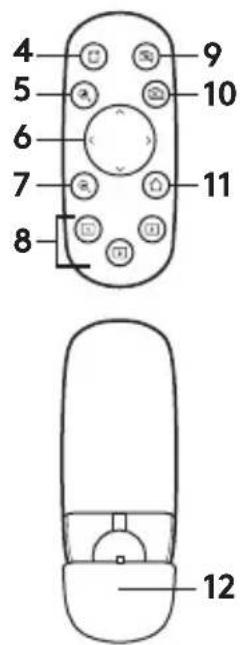
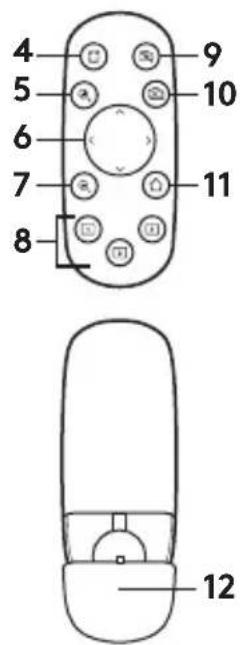
Remote control
- Mirror
- Zoom in
- Pan and tilt
- Zoom out
- Preset camera positions 1, 2, and 3
- Video off
- Controlling the far end
- Home page
- Remote control battery compartment cover
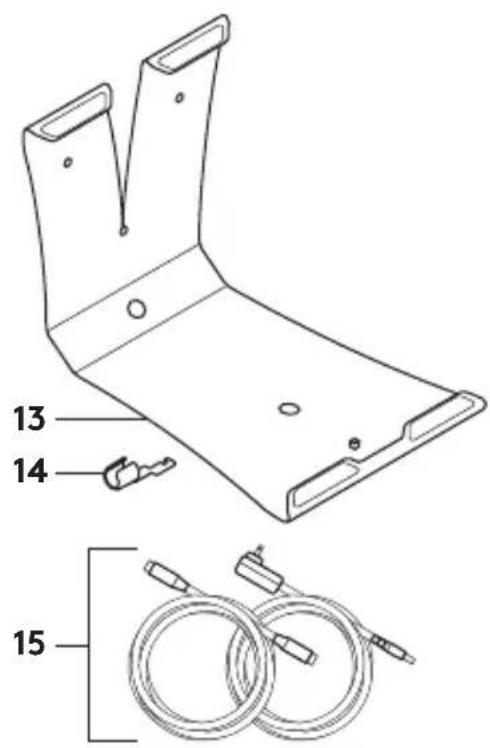
Accessories
- Camera stand
- Cable clip
- Cables
PRODUCT SETUP
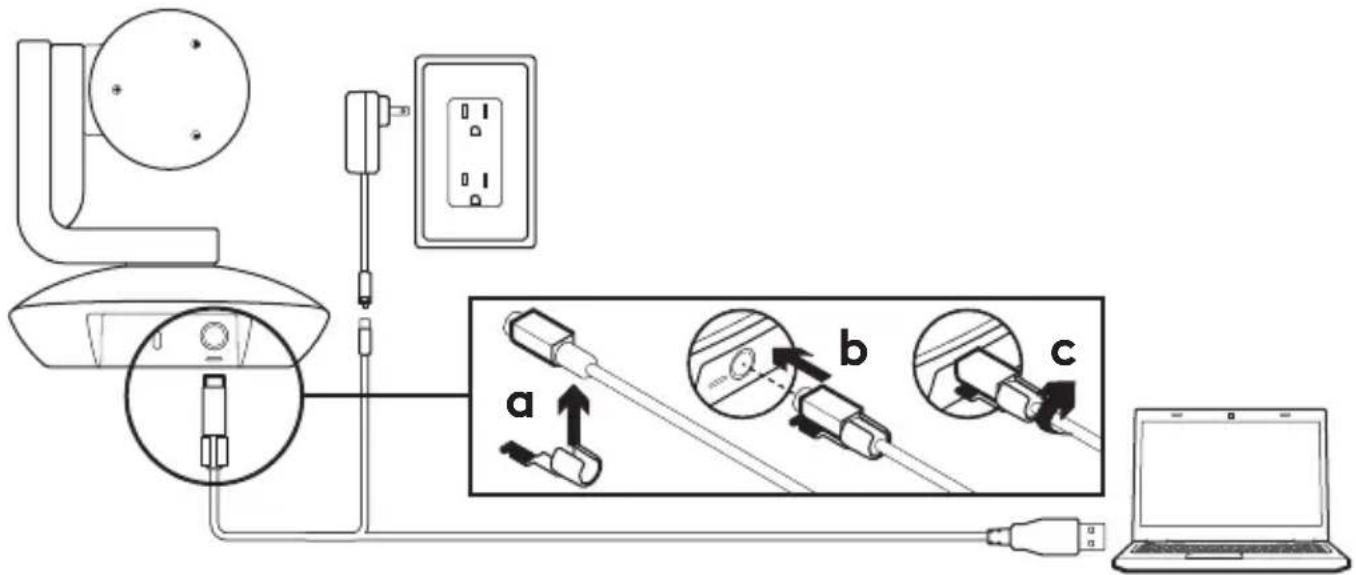
- Place the camera on a desk or use the camera stand to mount it on a desk or wall.
- Attach the cable clip before connecting the cable to the camera connector.
- Connect to an external power source.
- Connect the USB cable to your computer.
- The camera LED blinks while the camera is connecting. When finished, the camera head will rotate.
- If the camera cannot connect, try again. If problems persist, visit www.logitech.com/support/ptz2 or contact technical support.
- Start a video call from your application. The camera LED will light up when panning begins.
VISIT THE PRODUCT CENTER
Discover the full potential of your product. Find valuable information and usage tips by browsing the easy-to-use FAQ section. Find answers to product questions and get help with product setup. Check for downloadable software that can enhance your product experience.
To enjoy all the benefits of Logitech products, visit www.logitech.com/support/ptz2 and take advantage of a wide range of useful support services from Logitech. - Troubleshooting - Diagnostics - Firmware updates - Support community - Software downloads - Received documentation - Warranty information - Spare parts (if available)
PRODUCT USE
Video
- Starting video: Video will start when a video call/recording is initiated and you select the camera. The camera LED will light up when video streaming begins.
- Pan and tilt the camera using the remote control. Press once to move one degree, or press and hold for continuous pan and tilt. Caution: Do not manually rotate the webcam head. Doing so may damage the unit.
- Zoom the camera up to 10X using the zoom buttons.
- Home: Press the Home button to return to the default, factory position.
- Camera presets: You can set up to 3 position presets. First position the camera using the pan and tilt controls, then press and hold one of the preset buttons for 3 seconds to save that position. You can return to a defined position at any time by pressing the preset button once.
Use preset 1 as your personal home position. When you reconnect the camera to your computer, it will return to the position set for preset 1. If no position is defined for preset 1, the camera will return to the default home position. All three presets are set to the factory home position by default.
- Controlling the far end:
This feature allows you to control the pan/tilt and zoom of any Logitech ConferenceCam or selected Logitech webcams. Some applications natively support this feature, while others can be enabled using an application downloaded from www.logitech.com/support/ptz2.
Camera
Camera
Camera
Accessories
3ita Household in the United States
© 2017 Logitech. Logitech, Logi and other Logitech marks are owned by Logitech and may be registered. All other trademarks are the property of their respective owners. Logitech assumes no responsibility for any errors that may appear in this manual. Information contained herein is subject to change without notice.
WEB-621-001008.002


- CAMERA
- REMOTE
- ACCESSORIES
- SET UP YOUR PRODUCT
- VISIT PRODUCT CENTRAL
- USE YOUR PRODUCT
- VIDEO
- MOUNTING YOUR CAMERA CHANGING THE REMOTE CONTROL BATTERY
- TROUBLESHOOTING TIPS
- REMOTE CONTROL
- PRODUCT INSTALLATION
- WEBCAM
- GO TO PRODUCT CENTRAL
- INSTALL THE PRODUCT
- CONFIGURATION OF YOUR PRODUCT
- CONFIGURE THE PRODUCT
- VISIT THE PRODUCT CENTER
- TIPS FOR TROUBLESHOOTING
- GET TO KNOW YOUR PRODUCT
- PRODUCT SETUP
- PRODUCT USE
- CONTROLLING THE FAR END
Brand : LOGITECH
Model : PTZ Pro 2
Category : Video Conferencing System