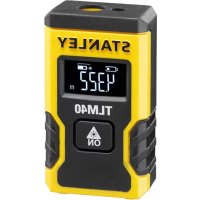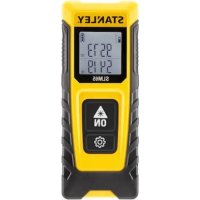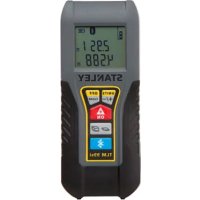
TLM99si - Rangefinder STANLEY - Free user manual and instructions
Find the device manual for free TLM99si STANLEY in PDF.



User questions about TLM99si STANLEY
0 question about this device. Answer the ones you know or ask your own.
Ask a new question about this device
Download the instructions for your Rangefinder in PDF format for free! Find your manual TLM99si - STANLEY and take your electronic device back in hand. On this page are published all the documents necessary for the use of your device. TLM99si by STANLEY.
USER MANUAL TLM99si STANLEY
text_image
E ① ⑥ 6.17ft 6.21ft 6.17ft ② ③ 6.21ft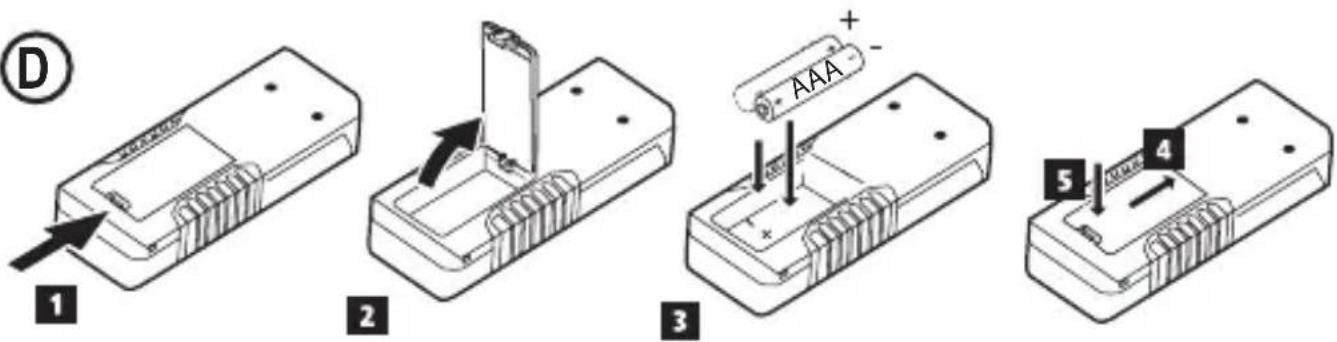
text_image
D 1 2 3 AAA + - 5 4F

text_image
Diagram showing a mechanical or optical setup with labeled component '1' and directional arrows indicating motion or flow.
text_image
Diagram showing a mechanical or optical setup with labeled component '2' and directional arrows indicating motion or flow.G
natural_image
Simple line drawing of a 3D rectangular prism with an arrow indicating direction (no text or symbols)
natural_image
Simple line drawing of a 3D rectangular prism with an arrow indicating depth (no text or symbols)H
natural_image
Simple line drawing of a 3D rectangular prism with an arrow pointing to its side (no text or symbols)
natural_image
Simple line drawing of a 3D rectangular prism with an arrow indicating depth (no text or symbols)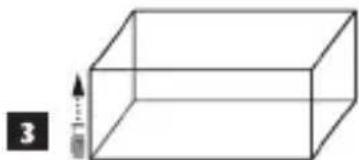
natural_image
Simple line drawing of a 3D rectangular prism with an arrow pointing upward (no text or symbols)GB
Contents
- User Safety
- Battery Safety
- Setup (Load Batteries)
- Operation
- Warranty
- Error Codes
- Specifications
Retain all sections of this manual for future reference.
User Safety

WARNING:
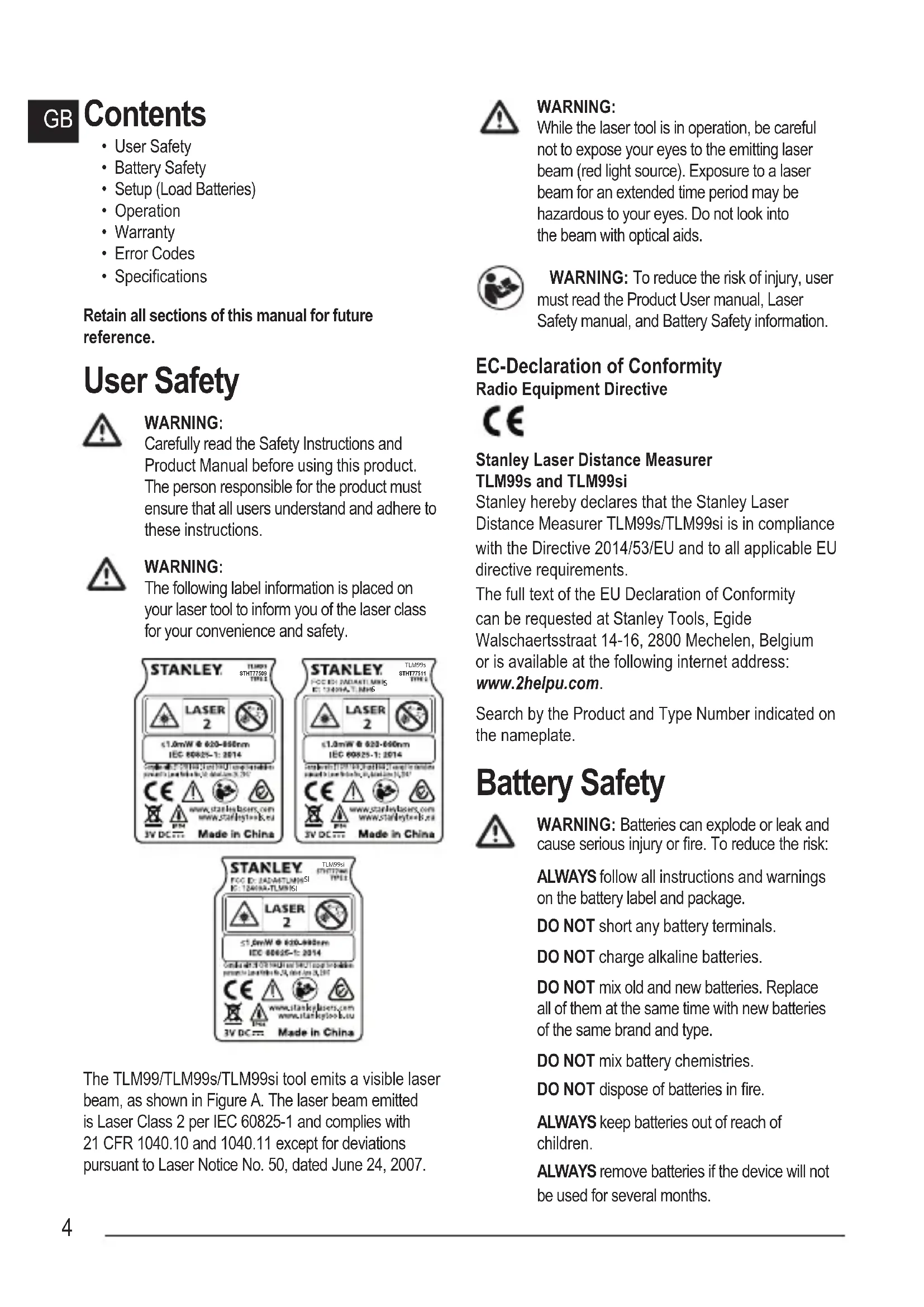
Carefully read the Safety Instructions and Product Manual before using this product. The person responsible for the product must ensure that all users understand and adhere to these instructions.

WARNING:
The following label information is placed on your laser tool to inform you of the laser class for your convenience and safety.
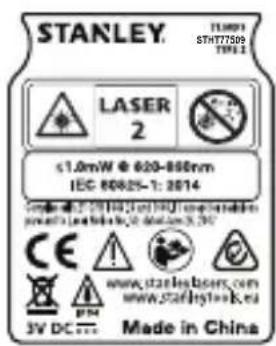
text_image
STANLEY. LASER 2 ≤1.0mW @ 620-850nm IEC 80825-1: 2014 CE www.stailelasers.com www.staflyl-ek.eu 3V DC.... Made in China
text_image
STANLEY FOOD EN 2014/11/2015 ET: 1340mA, T, MHz TLM99s STHT77511 TYPE 2 LASER 2 ≤1.0mW @ 620-660nm IEG 60825-1: 2014 CE www.stanleylasers.com www.stanleyxelb.xz 3V DC....Made in China
text_image
STANLEY TLW9951 ECG ID: ZADA67LMN951 EC: T240MA-TLW951 LASER 2 ST.0mW @ 820-998nm IEC 88625-1: 2014 CE www.itankejasets.com www.stankejsoo.b.u 3V DC = Made in ChinaThe TLM99/TLM99s/TLM99si tool emits a visible laser beam, as shown in Figure A. The laser beam emitted is Laser Class 2 per IEC 60825-1 and complies with 21 CFR 1040.10 and 1040.11 except for deviations pursuant to Laser Notice No. 50, dated June 24, 2007.

WARNING:
While the laser tool is in operation, be careful not to expose your eyes to the emitting laser beam (red light source). Exposure to a laser beam for an extended time period may be hazardous to your eyes. Do not look into the beam with optical aids.

WARNING: To reduce the risk of injury, user must read the Product User manual, Laser Safety manual, and Battery Safety information.
EC-Declaration of Conformity Radio Equipment Directive

Stanley Laser Distance Measurer TLM99s and TLM99si
Stanley hereby declares that the Stanley Laser Distance Measurer TLM99s/TLM99si is in compliance with the Directive 2014/53/EU and to all applicable EU directive requirements.
The full text of the EU Declaration of Conformity can be requested at Stanley Tools, Egide Walschaertsstraat 14-16, 2800 Mechelen, Belgium or is available at the following internet address: www.2helpu.com.
Search by the Product and Type Number indicated on the nameplate.
Battery Safety

WARNING: Batteries can explode or leak and cause serious injury or fire. To reduce the risk:
ALWAYS follow all instructions and warnings on the battery label and package.
DO NOT short any battery terminals.
DO NOT charge alkaline batteries.
DO NOT mix old and new batteries. Replace all of them at the same time with new batteries of the same brand and type.
DO NOT mix battery chemistries.
DO NOT dispose of batteries in fire.
ALWAYS keep batteries out of reach of children.
ALWAYS remove batteries if the device will not be used for several months.
NOTE: Ensure that the recommended batteries are used.
NOTE: Ensure the batteries are inserted in the correct manner, with the correct polarity.
Setup (Load Batteries)
- Locate the battery compartment latch on the back of the TLM99, TLM99s, or TLM99si tool (Figure © #2).
- Using your finger, pull the latch up to unlock and remove the battery door (Figure D #1 and #2).
- Insert two AAA batteries, making sure to position the - and + ends of each battery as noted inside the battery compartment (Figure D #3).
- Slide the pins at the bottom of the battery door into the notches in the battery compartment (Figure D #4).
- Push the battery door down until it snaps in place (Figure D #5).
When the tool is ON, the battery level appears in the display window (Figure E #1).
Operation
Measuring Distance to a Wall or Object
-
Click (Figure A #5) to turn on the tool.
-
The tool will measure the distance from the bottom of the tool to the wall or object (Figure F#1).
To measure from the top of the tool instead of the bottom (Figure F #2), hold for 2 seconds. On the display window, the tool icon will change from to (Figure E #5).
-
Point the laser at the top of the tool (Figure A#1) toward the wall or object whose distance you need to measure (Figure F).
-
Click to measure the distance from the tool to the wall or object.
-
At the bottom of the display window (Figure A#2), view the current measurement (Figure E#3).
To take a new measurement, click ON to move the current measurement up to the previous line on the display window (Figure E #2). Then repeat steps 2-5.
Measuring Distances Continuously
To take a series of measurements as you move around, change to Continuous Measure mode.
- Click (Figure A #5) to turn on the tool.
- Point the laser at the top of the tool (Figure A#1) toward the wall or object whose distance you need to measure (Figure F).
- Click and hold for 2 seconds to turn on the Continuous Measure mode.
- At the bottom of the display window (Figure #2), view the current measurement (Figure E #3), which will keep changing as you move the tool.
- To take the current measurement (from the tool to the wall or object) and exit Continuous Measure mode, click ON.
To take a new measurement, click ON to move the current measurement up to the previous line on the display window. Then repeat steps 2-5.
Measuring Area
You can measure the area of a wall, floor, or object.
- Click (Figure A#5) to turn on the tool.
- The tool will measure the distance from the bottom of the tool to the wall or object (Figure F#1).
To measure from the top of the tool instead of the bottom (Figure F #2), hold for 2 seconds. On the display window, the tool icon will change from to (Figure E #5).
- Click ☐ to show ☐ on the display window (Figure E#4).
-
Measure the width.
-
Point the top of the tool at one side of the target (wall, floor, or object).
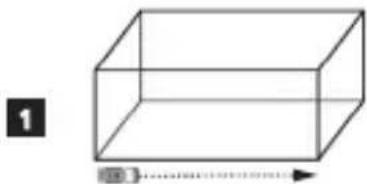
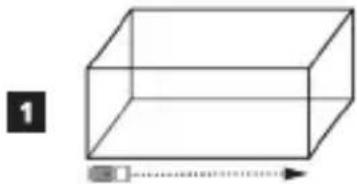
- Position the tool at one end of the target and point the laser dot across the width. (Figure #1 shows where to position the tool if you are measuring from the bottom of the tool.)
- Click ON to display the width measurement at the top of the display window.
GB
5. Measure the length.
- Position the tool at one end of the target and point the laser dot across the length. (Figure #2 shows where to position the tool if you are measuring from the bottom of the tool.)
-
Click ON to display the length measurement on the second line of the display window.
-
View the Area measurement at the bottom of the display window (Figure E#3).
Measuring Volume
You can measure the volume of a room or object.
- Click (Figure A#5) to turn on the tool.
- The tool will measure the distance from the bottom of the tool to the wall or object (Figure F #1).
To measure from the top of the tool instead of the bottom (Figure F #2), hold for 2 seconds. On the display window, the tool icon will change from to (Figure E #5). - Click twice to show on the display window (Figure E #4).
- Measure the width.
- Point the top of the tool at one side of the target (room or object).
- Position the tool at one end of the target and point the laser dot across the width. (Figure #1 shows where to position the tool if you are measuring from the bottom of the tool.)
- Click ON to display the width measurement at the top of the display window.
-
Measure the length.
-
Position the tool at one end of the target and point the laser dot across the length. (Figure #2 shows where to position the tool if you are measuring from the bottom of the tool.)
- Click ON to display the length measurement on the second line of the display window.
6. Measure the height.
- Positon the tool at one end of the target and point the laser dot across the height. (Figure #3 shows where to position the tool if you are measuring from the bottom of the tool).
-
Click ON to display the height measurement on the third line of the display window.
-
View the Volume measurement at the bottom of the display window (Figure E#3).
Adding Measurements
You can add two measurements to get a total measurement of the two distances.
-
Click (Figure A #5) to turn on the tool.
-
The tool will measure the distance from the bottom of the tool to the wall or object (Figure F#1).
To measure from the top of the tool instead of the bottom (Figure F #2), hold for 2 seconds. On the display window, the tool icon will change from to (Figure E #5).
- Point the laser at the top of the tool (Figure A#1) toward the wall or object whose distance you need to measure.
- Click to measure the distance from the tool to the wall or object.
- Indicate that you want to add this measurement to the next measurement.
- On the TLM99 keypad, click +/- (Figure A #7).
- On the TLM99s or TLM99si keypad, click (Figure B#1).
- Point the laser at the top of the tool toward the next wall or object.
- Click to measure the distance and add it to the previous measurement.
- View the total of the two measurements at the bottom of the display window (Figure E #3).
Subtracting Measurements
You can subtract one measurement from another.
- Click (Figure A #5) to turn on the tool.
- The tool will measure the distance from the bottom of the tool to the wall or object (Figure F#1).
To measure from the top of the tool instead of the bottom (Figure F #2), hold for 2 seconds. On the display window, the tool icon will change from to (Figure E #5). - Point the laser at the top of the tool (Figure A #1) toward the wall or object whose distance you need to measure.
- Click 🔒 to measure the distance from the tool to the wall or object.
- Indicate that you want to subtract the next measurement from this measurement.
- On the TLM99 keypad, click +/- twice.
- On the TLM99s or TLM99si keypad, click twice.
- Point the laser at the top of the tool toward the next wall or object.
- Click to measure the distance and subtract it from the previous measurement.
- View the difference between the two measurements at the bottom of the display window (Figure E #3).
Changing the Unit of Measure
Once the current measurement is taken (the device is not in Continuous Measure mode), you can change the unit of measure from decimal ft (6.21 ft) to fractional ft (6'02" 9/16), fractional ft to meters (1.894 m), meters to inches (74 9/16 in), or inches to decimal ft.
- On the TLM99 keypad, click (Figure A #3).
- On the TLM99s or TLM99si keypad, hold (Figure B#1) until you see the measurement change (2-3 seconds).
Using the TLM99s/TLM99si With

GB
If you have a TLM99s or TLM99si, you can use its Bluetooth® capability to pair it with the STANLEY Smart Connect application on your cell phone or tablet, and then record accurate measurements in your floor plans.
- From either for, download the STANLEY Smart Connect application to your cell phone or tablet.
- Using the STANLEY Smart Connect application, capture the room or space for which you want to record the measurements, and build your floor plan.
- On the TLM99s or TLM99si keypad, click ON to turn on the tool.
- If the Bluetooth ^® icon does not appear on the display window (Figure E #6), click on the keypad to turn on Bluetooth ^® .
- Use the STANLEY Smart Connect application to pair your cell phone or tablet to the TLM99s or TLM99si.
- Use the TLM99s or TLM99si to measure each wall in the room or space captured in the floor plan, and sync the measurements to the floor plan.
- Using the STANLEY Smart Connect application, save the floor plan.
Once you have saved the floor plan, you can export it to one of several different file formats, including PDF, DXF, or JPG, and print it or email it to other people (your realtor, home center, etc.).
Bluetooth
"THE BLUETOOTH® WORD MARK AND LOGOS ARE REGISTERED TRADEMARKS OWNED BY BLUETOOTH SIG, INC. AND ANY USE OF SUCH MARKS BY STANLEY TOOLS IS UNDER LICENSE. OTHER TRADEMARKS AND TRADE NAMES ARE THOSE OF THEIR RESPECTIVE OWNERS."
GB
Turning Off the Tool
The tool can be turned off in either of these ways:
- Press and hold OFF CLEAR for several seconds (until the display window clears).
- If you do not use the tool for 90 seconds, it will automatically turn off.
Warranty
STANLEY warrants this product for a period of Two (2) years against deficiencies in material and workmanship. This LIMITED WARRANTY does not cover products that are improperly used, abused, altered, or repaired. Please call 866-786-5924 for more information or return instructions. Unless otherwise noted, STANLEY will repair without cost, any STANLEY product found to be defective, including parts and labor charges, or at STANLEY's option, will replace such tools or refund the purchase price, less the amount for depreciation, in exchange for the defective tool. THIS LIMITED WARRANTY EXCLUDES ALL INCIDENTAL OR CONSEQUENTIAL DAMAGES. Some states do not allow the exclusion or limitation of incidental or consequential damages, so these limitations may not apply to you. This TWO YEAR LIMITED WARRANTY gives you specific legal rights that may vary from state to state. In addition to the warranty, STANLEY Lasers are covered by: 30-Day Money Back Guarantee. If you are not completely satisfied with the performance of your STANLEY Laser for any reason, you can return it within 30 days from the date of purchase with a receipt for a full refund.
IMPORTANT NOTE: The customer is responsible for the correct use and care of the instrument. Moreover, the customer is completely responsible for periodically checking the accuracy of the laser unit, and therefore for the calibration of the instrument.
Calibration and care are not covered by warranty.
Error Codes
GB
If INFO appears on the display window with a Code number, perform the corresponding Corrective Action.
| Code | Description Corrective Action | |
| 101 | Received Signal Too Weak, Measuring Time Too Long | Use the target plate or change the target surface. |
| 102 | Received Signal Too High Target is too reflective. Use the target plate or change the target surface. | |
| 201 | Too Much Background Light Reduce the background light on the target area. | |
| 202 | Laser Beam Interrupted Remove the obstacle and repeat the measurement. | |
| 203 | Insufficient Power Replace the batteries. | |
| 301 | Temperature Too High | Allow the device to cool down to a temperature within the specified Operating Temperature Range. |
| 302 | Temperature Too Low | Allow the device to warm up to a temperature within the specified Operating Temperature Range. |
| 401 | Hardware Error Switch the device on/off several times. If the error still occurs, return the defective device to the Service Center or distributor. Refer to the Warranty. | |
| 402 | Unknown Error | Contact the Service Center or distributor. Refer to the Warranty. |
| Range .1m to 30m (4in to 100ft) | |
| Measuring Accuracy* ± 2mm (± 3/32in)* | |
| Resolution** 1mm (1/16in)** | |
| Laser Class Class 2 (IEC/EN60825-1: 2014) | |
| Laser Type ≤ 1.0mW @ 620-690nm | |
| Laser/Backlight Automatic Switch-off After 30s | |
| Unit Automatic Switch-off After 90s | |
| Continuous Measuring Yes | |
| Area/Volume Yes | |
| Battery Life (2 x AAA) Up to 3000 Measurements (2500 with Bluetooth) | |
| Dimension (H x D x W) 120 x 48.5 x 26mm (4.72 x 1.91 x 1.02in) | |
| Weight (with Batteries) 100g (3.21oz) | |
| Storage Temperature Range -10°C ~ +60°C (14°F ~ 140°F) | |
| Operating Temperature Range | 0°C ~ +40°C (32°F ~ 104°F) |
| *Measuring Accuracy depends on the current conditions:Under favorable conditions (good target surface and room temperature), up to 10m (33ft).Under unfavorable conditions (bright sunlight, a very weak reflecting target surface, or large temperature fluctuations), the error can increase by to ± 0.25mm/m (± 0.003 in/ft) for distances over 10m (33ft).**Resolution is the finest measurement you can see. In inches, that is 1/16". In mm, that is 1mm. | |
Inhalt
text_image
STANLEY LED BY: 200451LMSI LED BY: 200451LMSI T.M995i ZENZH101 SINN LASER 2 ≤1.0mW @ 620-690nm IEC 93825-1: 2014 lographic ID: 1073-36-2014, 1-2, 1-3 is called to determine power of laser efficiency, 14Ω, total wire 14Ω, 10Ω CE www.stanleylasers.com www.stanleypeedi.eu 3V DC ... Made in China© 2017 Stanley Tools
Stanley Europe, Egide Walschaertsstraat 14-16,
2800 Mechelen, Belgium
www.2helpU.com
Made in China
097396 - Rev B
July 2017