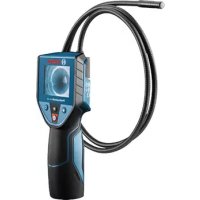
GIC 120 Professional - Surveillance Camera BOSCH - Free user manual and instructions
Find the device manual for free GIC 120 Professional BOSCH in PDF.
 FR
FR
 BG
BG
 CS
CS
 DA
DA
 DE
DE
 EL
EL
 EN
EN
 ES
ES
 ET
ET
 FI
FI
 HU
HU
 ID
ID
 IT
IT
 JA
JA
 KK
KK
 KO
KO
 LT
LT
 LV
LV
 MK
MK
 NL
NL
 PL
PL
 PT
PT
 RO
RO
 RU
RU
 TR
TR
 UK
UK
 VI
VI
 ZH
ZH
| Product type | Digital inspection camera |
| Brand | Bosch |
| Model | GIC 120 Professional |
| Dimensions (L x W x H) | 197 x 85 x 49 mm |
| Weight | 0.5 kg |
| Power supply | 6.0 V (4 AA alkaline batteries) |
| Battery life | Approx. 5 hours (at 50% brightness) |
| Screen resolution | 320 x 240 pixels |
| Camera head diameter | 8.5 mm |
| Min. bending radius of cable | 25 mm |
| Operating temperature | -10 °C to +50 °C |
| Storage temperature | -20 °C to +60 °C |
| Relative humidity | 5 to 95% (non-condensing) |
| Digital zoom | 1.5x and 2x |
| Adjustable LED light | 0%, 25%, 50%, 100% |
| Display modes | Color and black & white |
| Integrated compass | Yes (with reference point) |
| Included accessories | Mirror, magnet, hook |
| Splash protection | Handheld unit unprotected, cable and head waterproof |
| Maintenance | Clean with a soft damp cloth; do not use solvents |
| Article number | 3601 B41 1.. |
Frequently Asked Questions - GIC 120 Professional BOSCH
User questions about GIC 120 Professional BOSCH
0 question about this device. Answer the ones you know or ask your own.
Ask a new question about this device
Download the instructions for your Surveillance Camera in PDF format for free! Find your manual GIC 120 Professional - BOSCH and take your electronic device back in hand. On this page are published all the documents necessary for the use of your device. GIC 120 Professional by BOSCH.
USER MANUAL GIC 120 Professional BOSCH
01 DOKU-4348-001. Im Page 1 Thursday, February 26, 2015 9:54 AM
Robert Bosch GmbH
Power Tools Division
70764 Leinfelden-Echterdingen
GERMANY
www.bosch-pt.com
160992A 122(2015.02)O/123 UNI

1609 92A 122
GIC 120 Professional

BOSCH
UOpHAnbHOe pyKOBOCTBO no
3
UKOPHINANHEIPTPYKL3
eckowat
KAKDANHRYKAYNTB
m Insturtzi prnina
bgOOKHACHAHCTNDN
mKCHHHPWPTCT03Dabota
sr Originala uutstvo za rad
slIzeirna ravodila
hr Originaline upute za rad
et Algupirane kasilusjuhenc
Instrukijas originala
OriginalInstrukcija
才尼丁取极説明
cn正本使用说明书
W原始使用说明书
ko
th maaenemalrnaaennn
MaKeJOhcKn ..CtpaHa 75
Srpski. Strana 78
Slovensko. 80
Pay particular attention to cleanness when working in areas with substances that are hazardous to one's
health. Do not eat during work. Avoid contact with substances that are hazardous to one's health. After finishing your work, wash hands and other affected body parts that may have come into contact, with warm soapy water.
Do not stand in water when using the inspection camera. When standing in water while working, there is a risk of electric shock.
Magnet

Keep the magnet 16 away from cardiac pacemakers. The magnet generates a field that can impair the function of cardiac pacemakers.
- Keep the magnet 16 away from magnetic data medium and magnetically-sensitive equipment. The effect of the magnetic can lead to irreversible data loss.
English
Safety Notes
Digital Inspection Camera

Read all safety warnings and all instructions. Failure to follow the warnings and instructions may result in electric shock, fire and/or serious injury.
Have the inspection camera repaired only through a qualified repair person and only using identical replacement parts. This will ensure that the safety of the inspection camera is maintained.
Do not operate the inspection camera in explosive atmospheres, such as in the presence of flammable liquids, gases or dusts. Sparks can be created in the inspection camera which may ignite the dust or fumes.
Do not direct the light beam at persons or animals and do not stare into the light beam yourself (not even from a distance).
Check the working range before using the inspection camera. No part of the inspection camera may come into contact with electrical lines, moving parts or chemical substances. Interrupt the power circuit of electrical lines in the working range. These measures reduce the risk of explosion, electric shock and property damage.
Wear appropriate protective equipment such as safety glasses/goggles, protective gloves or respirator when materials that are hazardous to one's health are in the working range. Sewer lines or similar areas can contain solid, liquid or gaseous substances, which may be toxic, infectious, caustic or otherwise hazard to one's health.
Product Description and Specifications
While reading the operating instructions, unfold the fold-out page with the illustration of the inspection camera and leave it open.
Intended Use
The digital inspection camera is suitable for inspecting hard to reach locations or dark areas. After mounting the provided accessories to the camera head, it is also suitable for moving and removing small and light objects (e.g., small screws). The digital inspection camera may not be used for medicinal purposes. It is also not suitable for repairing pipe clogs or pulling in cables.
The light in the camera head is intended to illuminate the direct work area of the digital inspection camera and is not suitable for household room illumination.
Product Features
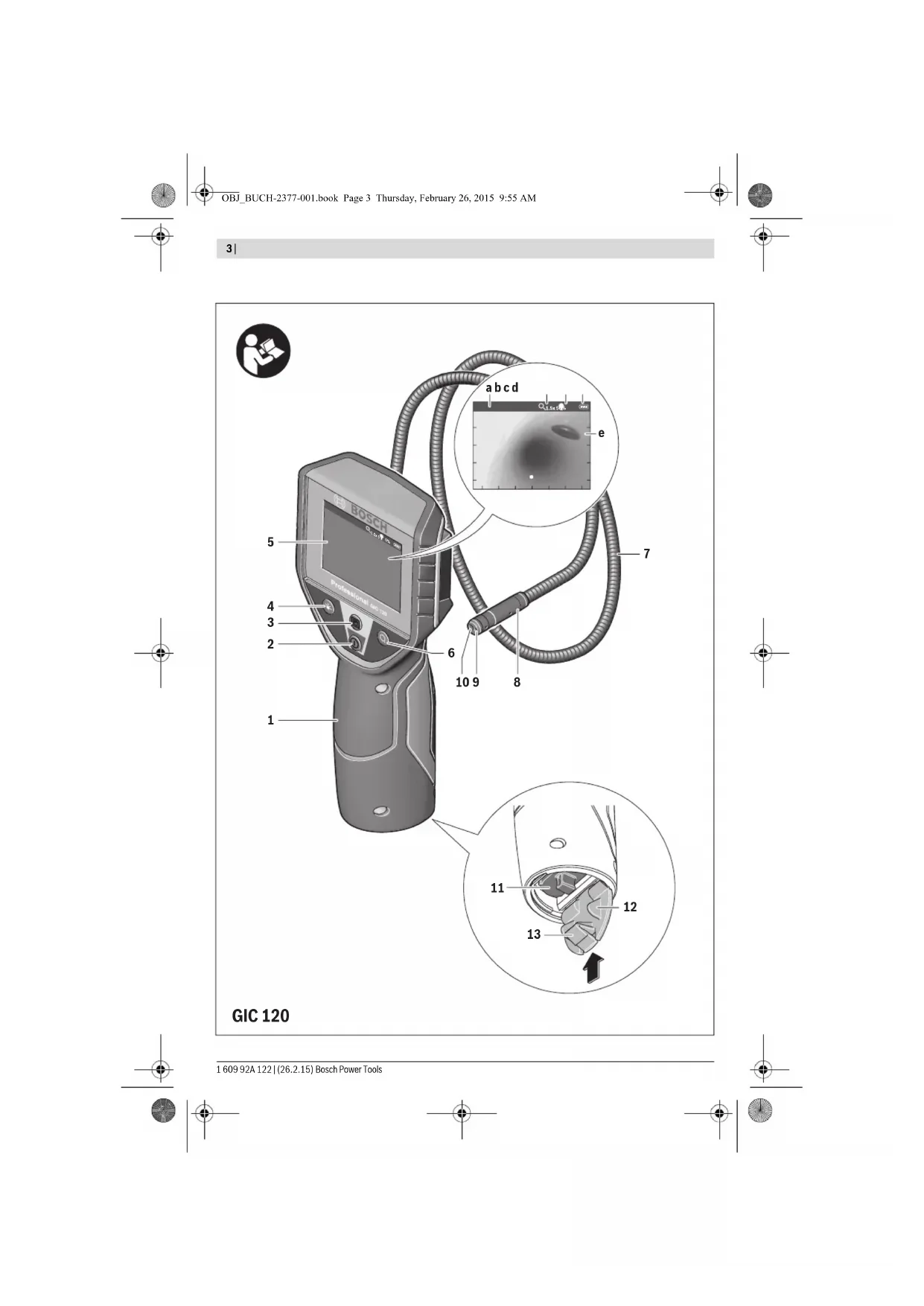
The numbering of the product features refers to the illustration of the inspection camera on the graphics page.
1 Hand unit
2 On/Off button
3 Black-and-white button
4 Lighting/brightness button
5 Display
6 Magnification button
7 Camera cable
8 Camera head
9 Illumination light in camera head
10 Camera lens
11 Pull-out battery compartment
12 Battery lid
10|English
13 Latch of battery lid
14 Camera connection
15 Camera cable lock
16 Magnet
17 Hook
18 Mirror
Display Elements
a Status bar
b Selected magnification
c Selected lighting/brightness
d Battery indicator
e Compass View with reference point (Up Indicator)
*Accessories shown or described are not part of the standard delivery scope of the product. A complete overview of accessories can be found in our accessories program.
Technical Data
Digital Inspection Camera GIC 120
| Article number | 3601 B41 1.. |
| Rated voltage | V= 6.0 |
| Operating temperature | °C -10...+50 |
| Storage temperature (hand unit without batteries) | °C -20...+60 |
| Relative humidity | % 5-95 1) |
| Smallest bending radius of camera cable | mm 25 |
| Diameter of camera head | mm 8.5 |
| Display resolution | 320 x 240 |
| Operating time, approx. | h 5.02) |
| Weight according to EPTA-Procedure 01/2003 | kg 0.5 |
| Dimensions (length x width x height) | mm 197 x 85 x 49 |
| 1) Free of moisture condensation | |
| 2) At 50% brightness of the illumination light in the camera head | |
Assembly
Inserting/Replacing the Batteries
It is recommended that you use alkali-manganese batteries to operate the inspection camera.
To open the battery lid 12, press the latch 13 and fold open the battery lid 12. Pull out the battery compartment 11 and insert the batteries. When inserting, pay attention to the correct polarity according to the representation on the inside of the battery compartment 11. Slide the battery compartment 11 all the way in and close the battery lid 12.
The symbol will initially appear on the display if the charging condition of the batteries is low. When the battery symbol is empty, you have to replace the batteries because inspections are no longer possible.
Always replace all batteries at the same time. Only use batteries from one brand and with the identical capacity.
- Remove the batteries from the inspection camera when not using it for a prolonged period of time. The batteries can corrode and self-discharge during prolonged storage.
Mounting the Camera Cable (see figure A)
For operation of the inspection camera, the camera cable 7 must be mounted to the hand unit 1.
Attach the plug of the camera cable 7 to the camera connection 14 in the correct position until it engages.
Dismounting the Camera Cable (see figure B)
To remove the camera cable 7, press the lock 15 together and pull the plug out of the hand unit 1.
Mounting the Mirror, Magnet or Hook (see figure C)
The mirror 18, the magnet 16 and the hook 17 can be mounted to the camera head 8 as auxiliary aids.
Slide one of the three auxiliary aids to the stop onto the recess on the camera head 8 as shown in the figure.
Note: The magnet 16 and the hook 17 are only suitable for moving and removing loose, small and light objects. Applying too much tension can damage the inspection camera or the auxiliary aid.
Operation
- Keep the hand unit 1 and the batteries dry and protect them from direct sunlight. The camera cable and camera head are waterproof when mounted correctly. However, the hand unit and the batteries are not protected against water. If they come into contact with water, there is a risk of electric shock or damage.
Do not subject the inspection camera to extreme temperatures or variations in temperature. As an example, do not leave it in vehicles for longer periods. In case of large variations in temperature, allow the inspection camera to adjust to the ambient temperature before putting it into operation.
Do not use the inspection camera when the lens on the camera head 8 is misty or fogged-up. Do not switch the inspection camera on until after the moisture has evaporated. Otherwise, the inspection camera can become damaged.
The switched-on illumination light 9 can become hot during operation. In order to prevent burns, do not touch the illumination light.
Initial Operation
Switching On and Off
To switch on the inspection camera, press the On/Off button 2. The start screen will be shown on the display 5 for a short time.
Note: If the camera cable is not mounted when the tool is switched on, the display will show an error message.
To switch off the inspection camera, press the On/Off button 2 again.
If no button is pressed on the inspection camera for approx. 20 mins, it will automatically switch off to save the batteries.
Regulating the Illumination Light in the Camera Head
To brighten the camera image, you can switch on the illumination light 9 in the camera head and adjust the brightness. The brightness can be adjusted in 4 stages (0%, 25%, 50%, 100%).
To switch on the camera illumination light 9 and to increase the brightness, press button 4 repeatedly until the required brightness is reached.
Do not stare into the illumination light 9 and do not direct it at other persons. The brightness of the light can blind the eyes.
To reduce the brightness and to switch off the camera illumination light 9, press button 4 repeatedly until the required brightness is reached or the illumination light is switched off.
Magnifying the Image on the Display (Zoom)
Briefly pressing button 6 magnifies the image on the display by a factor of 1.5 or 2.
Black-And-White Button
Briefly pressing button 3 switches the display between colour rendering and black-and-white rendering. Using black-and-white rendering can, for example, improve the contrast.
Compass View with Reference Point (Up Indicator) (see figure D)
Holding down button 3 takes you to the Compass View e. When doing so, the yellow reference point (Up Indicator) shows you where the physical "up" position is in the image.
Note: Restricted function when mirror 18 is mounted and/or when camera cable 7 is aligned vertically.
Status Bar
The status bar a is shown on the display for approx. 2 seconds after every button press. It shows:
the selected magnification (b)
the selected brightness (c)
the charging condition of the batteries (d).
Working Advice
Check the area that you want to inspect and pay particular attention to obstructions or hazard areas.
Bend the camera cable 7 in such a manner that the camera head can be easily inserted into the area subject to the inspection. Carefully guide the camera cable in.
Adjust the brightness of the illumination light 9 so that the image can be seen well. For heavily reflecting objects, as an example, less light will provide a better image.
When objects to be inspected are represented unsharp, reduce or increase the distance between camera head 8 and object.
Maintenance and Service
Maintenance and Cleaning
Do not immerse the hand unit 1 into water or other fluids. Keep the inspection camera clean at all times. Clean the inspection camera and all auxiliary aids particularly thorough after having worked in areas with substances that are hazardous to one's health.
Wipe off debris using a moist and soft cloth. Do not use any cleaning agents or solvents.
Especially clean the lens 10 of the camera regularly and pay attention for any lint.
After-sales Service and Application Service
In all correspondence and spare parts orders, please always include the 10-digit article number given on the type plate of the inspection camera.
Our after-sales service responds to your questions concerning maintenance and repair of your product as well as spare parts. Exploded views and information on spare parts can also be found under:
www.bosch-pt.com
Bosch's application service team will gladly answer questions concerning our products and their accessories.
Great Britain
Robert Bosch Ltd. (B.S.C.)
P.O.Box 98
Broadwater Park
North Orbital Road
Denham
Uxbridge
UB95HJ
At www.bosch-pt.co.uk you can order spare parts or arrange the collection of a product in need of servicing or repair.
Tel. Service: (0344) 7360109
E-Mail: boschservicecentre@bosch.com
Ireland
Origo Ltd.
Unit 23 Magna Drive
Magna Business Park
City West
Dublin 24
Tel. Service: (01) 4666700
Fax: (01) 4666888
Maintenance and Service
Maintenance and Cleaning
Do not immerse the hand unit 1 into water or other fluids. Keep the inspection camera clean at all times. Clean the inspection camera and all auxiliary aids particularly thorough after having worked in areas with substances that are hazardous to one's health.
Wipe off debris using a moist and soft cloth. Do not use any cleaning agents or solvents.
12|English
Australia, New Zealand and Pacific Islands
Robert Bosch Australia Pty. Ltd.
Power Tools
Locked Bag 66
Clayton South VIC 3169
Customer Contact Center
Inside Australia:
Phone: (01300) 307044
Fax: (01300) 307045
Inside New Zealand:
Phone: (0800) 543353
Fax: (0800) 428570
Outside AU and NZ:
Phone:+61395415555
www.bosch.com.au
Republic of South Africa
Customer service
Hotline: (011) 6519600
Gauteng - BSC Service Centre
35 Roper Street, New Centre
Johannesburg
Tel.: (011) 4939375
Fax: (011) 4930126
E-Mail: bsctools@icon.co.za
KZN - BSC Service Centre
Unit E, Almar Centre
143 Crompton Street
Pinetown
Tel.: (031) 7012120
Fax: (031) 7012446
E-Mail: bsc.dur@za.bosch.com
Western Cape - BSC Service Centre
Democracy Way, Prosperity Park
Milnerton
Tel.: (021) 5512577
Fax: (021) 5513223
E-Mail: bsc@zsd.co.za
Bosch Headquarters
Midrand, Gauteng
Tel.: (011) 6519600
Fax: (011) 6519880
E-Mail: rbsa-hq.pts@za.bosch.com
People's Republic of China
China Mainland
Bosch Power Tools (China) Co., Ltd.
567, Bin Kang Road
Bin Jiang District 310052
Hangzhou, P.R.China
Service Hotline: 4008268484
Fax: (0571) 87774502
E-Mail: contact.ptcn@cn.bosch.com
www.bosch-pt.com.cn
HK and Macau Special Administrative Regions
Robert Bosch Hong Kong Co. Ltd.
21st Floor, 625 King's Road
North Point, Hong Kong
Customer Service Hotline: +852 2101 0235
Fax:+85225909762
E-Mail: info@hk.bosch.com
www.bosch-pt.com.hk
Indonesia
PT Robert Bosch
Palma Tower 9^th & 10^th Floor
J.Let.Jend.TB Simatupang II S/06
28th Floor Fort Legend Towers,
3rd Avenue corner 31st Street,
Fort Bonifacio Global City,
1634 Taguig City, Philippines
Tel.: (02) 8703871
Fax: (02) 8703870
matheus.contiero@ph.bosch.com
www.bosch-pt.com.ph
Bosch Service Center:
9725-27 Kamagong Street
San Antonio Village
Makati City, Philippines
Tel.: (02) 8999091
Fax: (02) 8976432
rosalie.dagdagan@ph.bosch.com
Malaysia
Robert Bosch (S.E.A.) Sdn. Bhd.
No.8A,Jalan 13/6
G.P.O.Box 10818
46200 Petaling Jaya
Selangor, Malaysia
Tel.: (03) 79663194
Fax: (03) 79583838
cheehoe.on@my.bosch.com
Toll-Free: 1800 880188
www.bosch-pt.com.my
Thailand
Robert Bosch Ltd.
Liberty Square Building
No.287,11 Floor
Silom Road, Bangrak
Bangkok 10500
Tel.: 02 6393111, 02 6393118
Fax:022384783
Robert Bosch Ltd., P.O. Box 2054
Bangkok 10501, Thailand
www.bosch.co.th

Bosch Service - Training Centre
La Salle Tower Ground Floor Unit No.2
10/11 La Salle Moo 16
Srinakharin Road
Bangkaew, Bang Plee
Samutprakarn 10540
Thailand
Tel.: 027587555
Fax:027587525
Singapore
Robert Bosch (SEA) Pte. Ltd.
11 Bishan Street 21
Singapore 573943
Tel.:65712772
Fax:63505315
leongheng.leow@sg.bosch.com
Toll-Free: 1800 3338333
www.bosch-pt.com.sg
Vietnam
Robert Bosch Vietnam Co. Ltd
10/F, 194 Golden Building
473 Dien Bien Phu Street
Ward 25, Binh Thanh District
84 Ho Chi Minh City
Vietnam
Tel.: (08) 62583690 ext. 413
Fax: (08) 62583692
hieu.lagia@vn.bosch.com
www.bosch-pt.com
Disposal
The inspection camera, batteries, accessories and packaging should be sorted for environmental-friendly recycling.
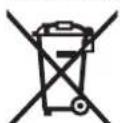
Do not dispose of inspection cameras and battery packs/batteries into household waste!
Only for EC countries:
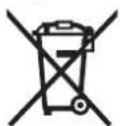
According to the European Guideline 2012/19/EU, electrical devices/tools that are no longer usable, and according to the European Guideline 2006/66/EC, defective or used battery packs/batteries, must be collected separately and disposed of in an environmentally correct manner.
Batteries no longer suitable for use can be directly returned at:
Great Britain
Robert Bosch Ltd. (B.S.C.)
P.O.Box 98
Broadwater Park
North Orbital Road
Denham
Uxbridge
UB95HJ
At www.bosch-pt.co.uk you can order spare parts or arrange the collection of a product in need of servicing or repair.
Tel. Service: (0344) 7360109
E-Mail: boschservicecentre@bosch.com
Subject to change without notice.
Bosch Power Tools 1609 92A 122| (26.2.15)
Français
Robert Bosch (France) S.A.S.
Lamp in camerakop regelen
Bosch Service Center
Telegrafvej 3
2750 Ballerup
Danmark
Tel.: (08) 7501820 (inom Sverige)
Fax: (011) 187691
Avfallshantering
MeyeBuvonTnC eikovac otv oBovn (Zoup)
Tnovtac ouvtoa to nkpto 6 npopee va ueyovte nvy eikova atny oovn kata 1,5 n 2 opoc.
TIIjktpo Maupo/Aeukó
Tatavtacavtoa nAiktpo 3 npocite va aAedcte tv o0v nn euypwnc kai aonpouapnc avanapaywnc. Me tnv aanopauop ananapaywn npopei x.va baktwei n avrteon.
42 | Türkce
Ipofohni nuFioac (Compass View) ane o avapopac (Up-Indicator) (Bae en ekova D)
PataVtacnapaTeapeVaTo nAiktpo 3 nepvate om Aetoupyia Compass View e. To kipivo anucio avapopac (Up-Indicator) 6eixwe edou evatov ekova to quokk eanaww.
Ynobet:PiopioeynIeoupylaueuvapaooynevoKa- 0epnt18kai/nacnpintwnkaetnccuuypaumuioncTou kaawslou nKaepeac7.
Tpaun kataotaaonc
Hypaun kataaoncaepavizetai pentaandktheta nattau nAnktpou nepinou 2 deutepoemta ony oov. Autn seVc:
-Tnpuoqevnpeyehvon (b)
-Tnpuogmuqevn qwteivottna (c)
-Tny kataoanaopoptiancTwu mataipowd).
Ynodelxiepyaolac
Na eIeepTe Tny nepiox nou Te aevfet e kai va bve- 10iaipcn npooxocuovc mdoia kai nvckvovw.
Auyiote To kalawio kapepac 7 Eoi, wote n kepaan tnc kapepac va mopoel va eaiayei sto uno enieewpon neipdaalov. Eaoye- TPOOeTKaTo kalawio kapepac.
PuθiótnφwntovntnLuxviac9nckapeacetoi,woTe n eikova v eaiv kavonoinuEudakptn. Otav unapxouv avnikjuevae toxpunavakkaanmuopeite vaenutexetma Kaatcpinckova pλiyotepco fo
OraT a uno eAeyoo avtikeeve ana eikoviciotan aoapoc, tote peiowte n, avdkaoya, auHnTe Tny anoataon avaeoe oTny Kepaah 8TNC kajcpac kaTto avtikcicvo.
Euvrponon kal Service
Uvtnpnon kai kaapiaoc
MnyBuiOaTe Tn ouKeun Xeipoc 1c vp o n aAua ypa.
Na dIaTne Tn V npniak Kapea emEeponnc navtoe Ka-
baph.Na kaqapicte Tnpniaki Kapea eneiopeponnc kai ta
bonntikda eiaitepe npoeektika metao n tieaywyn
epaoyoce ne pnoxc nou nepicivay avuyievc ouoic.
KaagipTeuovpounocKaBpuuicmuEvauypo,paakotnvl.MxpanoionieTpeaaKapiaouhdiAUTEC.
Na kaabapizete TAKIka 16iaitepaT o paKo 10 TnC kapepac,divoVtac npoooh n eTuXovXvObia.
Service kalnapoxh oumuouw xphns
OtaTate diaaopntke nnpopoeic kaooc kalotayapay
yave avtalakntika npencia va avapepeote onoobhnoto
10npo apioeupetnpououavypapetai otnvivakda
kataokuaothncnphiaknc kapepc embeowponc.
To Service anavra otic epwntoeic oac oxetikae tny eniokueu kai tn ouvtnpou Tou pioivoc oac kaow ia ta katalnaa avatllaktik:
www.bosch-pt.com
Hopa npoxoC ouBouwTnc Bosch anavraeuxaplotuc otc epwnoeac oxetikae Ta npoiovta packai avtalkaKTiKa Touc.
EAAaδa
Robert Bosch A.E.
Epxia37
19400Kopwi-AOhya
Tnλ:2105701258
Φaξ:2105701283
www.bosch.com
www.bosch-pt.gr
ABZ Service A.E.
Tnλ.:2105701380
QaE:2105701607
Anoupon
H kape cmecupnnc, oI matape, ta eapntjata kai ou Okeuaie npenei va avakkaovotai pe Tpno piako npoc to nepiBaalov.
Mny pixve TIC yniipakc kapece emeewponc kai tic mataplec o anopplmu ta tou omouac!
Movi yia xopec tnc EE:
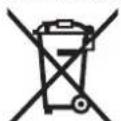
Upwa me TnKovotn Obyla 2012/19/EE oxetikae me cxpnetec np Ktpkec ouakeucac kawk me Tnv Ovki Obnya 2006/6/EK oxetikae me tic xale vcn aavaopecvc mataapic dcsviann unxpewntko ta npoiovta auta va uA
Vtai Eexupioty ia va avakukwOouv me TpOIO qMIO npoc To nepiBaalov.
Tnpoue to dkaiomega aAlambdaov.
Türkce
Güvenlik Talimati
Dijital gozlem kamerasi

Bosch San. ve Tic. A.S.
Ahi Evran Cad. No:1 Kat:22
Polaris Plaza
80670 Maslak/Istanbul
Bosch Uzman Ekibi +90 (0212) 367 1888
Isiklar LTD.STI.
Kizilay Cad. No: 16/C Seyhan
Adana
Tel.: 0322 3599710
Tel.: 0322 3591379
Robert Bosch Sp. z o.o.
9 Lampicka v have kamery
10 Objektiv kamery
11 Vytahovacia priehradka na baterie
12 Viecko priehradky na baterie
13 Aretácia veka priehradky na bátérié
14 Prípojka kamery
PekomeHnyetcOuHCTbHHTpyMeHOTnblnnocneKaKdoTOHCNOB30BAHH.
XpaHHeHne
-Heo6xOIMO xpaHnB BCyXOMcTe
Heo6xOIMMO xpaHHTB BdAIN OT hCTOYHMKOB IOBbIeHHbIX TempeaTp N BO3JeCTBnCOnHeHbIx nyuei
- npxpaenHH Heo6xoHMo H36eRaT pe3KOro nepenada Tempepatyp
-ecnHHTpyMeT NCTaBnRETCB MRAKoY CymKe INHINPA TCKOBOM KeCe peKoMeHyTeCXRpaHbTb HHTpyMeT B 30J3aUHTHOyNAKOBe
- noDpObHbIe TpeoBaNnK yCIOBnAM XpaHeHHn CMOTPHTB FOCT 15150 (yCIOBnE 1)
TpaHcNoptnPoBka
KaterOpHueeCKn He DonyckaTc TnaJeHne HIObEe MekaHHeeCKHe B03dEcTbRHa YynakOBky Pnp TpaHCnOpTHpoBKe
- npn pa3rpy3ke/npry3ke He npocyckaetcH nCnoIb3oBaHHe IIOBorOuDatexHHK,pa6OtaoueNo pNHHUY 3aKIma yynakOBKn
- noDpO6HbIe Tpe6oBaHH K yCIOBnAM TpaHcNOpTHPOBKn CMOTPHe BTOCT 15150 (YcNoBne 5)
Yka3aHnno 6e3oNaCHOCTN
UΦpOBoB BnDeoCkO

PpHTBce yka3aHn HnHctpyKnnno TexHHke 6e3oNaCHOCTN. YnyuEHIN B OTHOHeHHyka3aHn HnHCTpyKnnn NO TexHHke 6e3oNaCHOCTN MOrT CTaB npuHNO npaKeHHn 3JIeKTPneCKM TOKOM, NoXkapa n TaKeIbIX TpaBM.
Pemont BaWero BnDeoCKona Donxhen npOn3Bodntbcn TOnbKO KBAHnHnHnPOBaHnBMn CneuHaNCTAMn H TOnbKO c HcNoBtOBOAHmOpHrHHaNbHbix 3aIyacte. TOnbKO TAKIM o6pazm oBeceNeuBaTaC npDoJKNTeB-Ha HaJeKHOCT paBoTb BnDeoCKona.
He pa6oTaIe C BnDEocKOnOM BO B3pblBoonachOcpeDe, noBn3OChOT rTOPOHxHNKoCTeR, FA3OB NbIMN. BnDEocKone MOrTobpaOBOBbAIBaTbCRA NcPbI, OT KOTOpBIXMOXET BOCIIaMeHEHtCBraNbHnNapIa
He HanpabnIte npy cBeTa Ha IIOeHnn XNBOThbIX He cmOpnte camn Bny CBa, BKnOuaHc 60nburo pacctoHH.
Pepenonb30baHem Bndeockona npoepaTe pa6oyu 3ohy. HOn OHa N3 DetaneBndeockona He doJXha cOpNkacatbC nEeKtponpOboKo, DnHXU mChdetaTAMn HIN XmMueCEKMn BEcEcbAMn. IpepbIbAte 3NeKtpCheKoe Noe 3NeKtpponpOboKn, ecn OHa npoxoDHTpea6oyu3ohy. 3TH Mepo- pInTNr yMeHbUaOT OAnCHObT B3pIbOB, Ydapa 3eKTPueckm TokOM HaHeceHn MaTePhaBhoR Yoep6a.
OeBaIte cooTBeCTBcyIOHe HnHbHnyAynbHbIe cpeCTBa 3aunTbI, HAp., 3auHTbIe OcK, 3auHTbIe pyKaBnbl NnH peCnnpaTOHy MACKy, eCN B paoey 30He HxOgATCB PBeHbIe IIN 3DopOBbBEeCTBa. BBOCTOCHbX KaHAnax INoDOhBX 3OHAX MOYrHMETbc TBePbIe, KxNkne HnI rA3oo6p3AhBe CEeCTBa, O6naHOUOE nAOBtBM, INHfekuONHbM, edKIM DEiCTBHE MNOryuHm OBAsOMBa3OMHaHeCTN yueep 3DOpOBbo.
06paaateoc6eHHe BHHMaHHe HaCHToT, KOrDa Bb pa6oTaTe B30hAcBpeHbIMnI3dOpOBBaBeueCTBAM.He eubte BO Bpempa6oBt.136aTe KOHTaTC BpeHbIMnI3dOpOBBaBEueCTBAH;Nocne paobtMoTEpyKNINDPyTHe cactnTeNa,KOTOpB MoTN PnHKacatcK 3TmM BeueCTBAM, TOPYHMMbIBbIM pactBopOM.TbblMeHbIIneOnachOCTbI3dOpOBBra.
Pycckn
59
He cToIe B BOe,ecnB Bbl nonb3yeTeCb BnEoekO-nom. Ipn paBoTax B BOe Bo3Hkaet pCK IpopaKeHH 3NeKTPnueckm TKOM.
MarHHT

He yctahabnBaHte MaHHT 16 B6n3n
KapdnoCTmnyTOpOB.MaHHT co3daET
nonE, KOTopoE MOKeT OPhuTaTeNbHO BnH
rBHa paBoTy KaPdnoCTmNyTOpa.
DepeKHTe MaHHT 16 BdAnOT MaHHTbIX HocHTenEn DaHHbIX N OT pNbOpOB, YyBCTBnTebIX K MaHHTHO My noIO. MaHHT CBOHM DeIcTBHeM MOKeT PnBeCTH K HEBOCNOHNMOI NOtepe DaHHix.
Oncahne npoodykta uycnyr
Iopanycta,OTKPOHTe packlaHbte ctpanuBc I306paKeHHEM BnDoeocKaOna HocTabNtE 3TN cTpaHnUc bTkPbITbIMN, noka Bbl3yauete pykoBOCTBO no 3Knnyataun.
PpHMeHeHne HnHa3HaueHHIO
UHpOBoB BnDeockOn npEHa3HaueH nIe OCMOTa TpyHOIOCTyNbIX HIN TEMbIX MecT. Iocne YcTAHOBV KPNiHaReMbIX BCNOmOrATEbHbIX CpeCDTB HA TOnOBky KaMEpbI BnDeoCKON MOKHO TAKKe IcNoB3ObaT bIe NpePbNHexHHuAaHeHHaHE6oBbIbXuN eRKnx PpeMeTob (HAnp., He6oBbIbX BHNTOB).
UfpoBn Bndeocn HnIb3HNCNObTaB BMeDnHcKnx
TaeX. OH TaKHe NepeHa3NaeHnIyJaIeHn3acOpEnH
B TpyboPBOdax nnnn npoknaKn Kabene.
Iamnoka BrnoIobke KaMepb npedna3auehaDnnpocBETKHeNocepTeBHeHpo paOoey 30hI HcneKIOHOHKn KaMepb He npiroDHa DnO CBeUeHn PomeuHn.
1306paXeHHbIe coCTaBbIe YacTH
Hymepaunn H306paXeHHbIX DeTaneB BblonHeHa No pncyKam Ha cTpaHuaq C H306paXeHHem BndeocKa.
1PyKoRTka
2BbiknloaTeiB
3 KhoNka YepHo-6enoro OTo6paKeHHa
4 KhoNka noCDBeTkn/roKocTu
5 Dnncnn
6KhONkaYBEnuChenHn
7 KaebKaemepbI
8 TOnOBKa KaMepbI
9 Namnoyka BtonoBKe KaMepbI
10ObekTeB KaMepei
11BbIITnBaMaMceKIIaIgIbIaTeep
12 Kpbilka baatapeHoro oTceKa
13Фнкcatop крbliksh baTapeHOrO orTecka
14 He3do nIa noKnIOueHnKaMepbI
15Фнксахрkaбякамрь
16 MarHHT
17 Kpio4ok
183ePKaNo
3nemEmtbl Hndkaun
a Ctatycha CTpoka
bHacTpoeHnHOyBeIuueHHe
cHactpoeHHaNoCDBtKa/epKocb
dHnkaTOp3aepKHeHocTh6aTaapeek
e Komnachoe npedctablenHe c penepeHoi ToKo (HNDKatop Bepxa)
3M0bpaKeHnBHe MIn OHnCaHnBHe pNHaJdNeXHoCTH He BKOATB STaHdAptTh bOeMb IocTaBKn. POnHb accoTmHET pNHaJdNeXHoCTBe BHaJaTe B HaJeI npOrpamMe pNHaJdNeXHoCTe.
TexHHueckne daHHbIe
| Tobarhny N° | 3 601 B41 1.. |
| HominahnbHe Haprjekne | B= 6 |
| Pabochy Tempepatya | °C -10...+50 |
| Tempepatya xpanenHHa (pykoHTka be3 batapeek) | °C -20...+60 |
| OTHOCTeNBa BIAJXHOCTb BOZdYxa | % 5-95 1) |
| MHN. padnyc n3rgn6a ka6eJIa KaMepbl | MM 25 |
| Диametр rolOBKN KaMepbl | MM 8,5 |
| Pa3peSHENHe DicnIeR | 320x240 |
| ПюдОЛжNTeNBtHoCTb pa6Otsb, ok. | 4 5,02) |
| Bec corlachno EPTA-Procedure 01/2003 | Kr 0,5 |
| Pa3Mepbl (ДлнHa x ShinrHa x Bby-cota) | MM 197 x 85 x 49 |
| 1) be3 bInaDEHnRA pOcbl | |
| 2) priN 50%-ой rApKOStn IaMIOuKN B rONoBKe KaMepbl |
C60pk
YcTaHOBKa/3aMeHa 6aTapeek
B BnDoeCKone peKOMeHnyETc HcNoIb3OBaTb 9eNoOHO-MapranueBbe 6aTapeKn.
TTO,TO6bIOTKpBbITKpblHKy6aTapeHOROOTcKa12.
HAKMITEHaΦHKCaTOP13N0TKnHbTeKpbHkU6BaTapeHORO
OTcKa12.BbTAaHTe6aTaapeHbHbOTcEK11NCTabBe6aTa peHN.CNEHTe pNTHOM3aPpABnHbHM HappaBHeHEM
NOIOOCBOoCBtETCBNHc3o6paXeHHcBHyTpEHH
CTOPHO6aTaepHOrOOTcKa11.3aDbHbTe6aTaepHbH
OTcEK11DoyopaHapoeKpbHky6aTaepHOROOTcKa
12.
PnHm3KoNCTeNEHHZapKeHHOCHTHChaHaHaDHcHnIeNoBnRETCaHMBONFECNHCMBOB6atapeKNyCTO,6atapeKNHYXHO NOMEHTb,HNCNeKtnPOBaHNBeONbHe HEO3MOXHO.
BcTeJa 3aMeHnIe Bce 6batapeKKn OJHOBpemeHNO. Pnime HNeTToJbKO bTaapeKN OJHO TRO H3OTOBITEJI C OJINHAKO BOE MJKOCTBo.
60 | Pycckn
H3BNeKaIe 6atapeKn H3 BHeCkona,ecn Bb npOoNKeHbE BoPm He 6yTepe 0a0TaB C Hm. IpnDInTeHbHom XpaHeHHn BO3MoXHa KoppO3Nu HcMop3a- PdKa 6atapeek.
MOHTAXKa6eNkKamepb(cm.pnc.A)
IIN3KcNIIyatauIN BIneOckona KpyoRtke 1DOnJKeH6bIb NoCoeHHHeH Ka6eJIb KaMepbl7.
BCTABTe 1TKepeKaBena KaMepb7 B npabnHbHom nonoKeHHN BTHe3doIINIOKIOUeHnKaMepb14,HTo6bOH BOwenB 3aueenneHe.
Demontax Ka6enKaMepb (cm.pnc.B)
YTO6bIOTCOeHNHITbKa6eNbKAMEbp7,CaBnTeΦnKcTOp 15 N BbTTaUNTE WTEKEP n3 pyKoTKn 1.
MOnTAX 3epKana,MarHHTa HnH KpOuKa (cm.pHc.C)
3epKaIO 18, MaHHT 16 H KpOoK 17 MOKHO MOHTPOBaTb Ha ROJBE KaMEpbI B KaueCTBE BCNOMORATenBbIX CpeCTB. HaJeHBe OJHO IN BCNOMORATenBbIX CpeCTB, KAK I3ObaPaXeHO HA PnCyHKe, Do yOpna Ha yrnybneHHe B rONOBKe KaMEpbI 8.
Yka3aHHe:MaHT16N KpUcOK 17 npEHa3HaueHbToBko
IaInepeBHXeHNu ydaENHnE h3aKePNEnHbX, He6oBb
HxHnJIeKHXnpEMTOB.PnH CNIHKOM CNbHOM TAROBOM
yCNHO NOBepNTb BNeEOCKON HN BCNOMOraTeBHOe
CpeCTBO.
Pa60a c HhctpymehtOM
3aunuaiTe pykOaTy 1 n6atapeKn OT bnaH n npnBx CoNHeVbNxnye. PnpnPabINbHM MoHTaKe KaBeNB KAMEbI NTOBKa KAMEbp BOHOENPOHuaMebl. Ondako pykOaTKn BatapeKn He 3auuueHbI OT Bobl, npn KOHaTKe CBOO CYUcEByET ONaCHOb TnpaKeHH 3NeKTPnueCKM TOKOM HIN NOBpexDeHNA.
He noDBepraIte BnDEoCKON BO3DeNCTBHO 3KCTpeMaHbIbIX TEmpePATy N TEmpePATpyhbx nepenaoB. BvaCTHO, He octabnIe erO ha IInTeNBHoE pemB MaunHe. Ppi BoIbIbX npenapax TempePATpy Chauana DaIte BnDEoCKON CTaBHINHROPOBaT bTempePATpy, PpJxde cHm HauHHaTb paOtaTb C Hm.
He HcnoIb3yIte BnDeoCKOn npn 3anotBeaHHN oBekTHBaHa TOnOBKe KAmepb8.BKInouaIte BnDeoCKOnToIbKO Nocne HcnapeHnBnAhn.Иhaue Bo3MOxHOIOBpExdHeMe BnDeoCKOna.
BkIOUeHnAaNMOOcA MoKET Bo BpMa paObI Ha rpeBaTbc.Bo N36ekaHHe OxKorOB He npKacauTebc K naMOnOe.
3cknyataa
BkIIOUeHne/BbIKIOUeHne
YtO6bI BkIOHHTB BVIEoCKON, HAKMTe Ha BbIKHOaTeNb 2. Ha KOpOTKoe BpEMHa DnCnnee 5 OTo6paXaETc CTAPoBbI 3KpaH.
YkaaHHe: Ecnn npn BkIOUeHH KAbEbn KaMpeBn He NOKIOU- Yeh,Ha DCNIIE OTO6paKaETcOo6ueHHe 0bOuN6ke.
YTo6bBbIKIOHTb BnDeoCKon,CHOBa HaxMMTe BbIKIOHaTe1b2.
EcnB TeueHne npn6n. 20 MNH. Ha BnDoeCKone He HaxMaIOTcH NkAKe KhoNKn, OH ABToMaTHueCKn BbIKIOuayetcJINKHOOMNbatapei.
PeynpoBaHne npKoTH nAMIOUKN B rONOBKe KaMepbl
TObb CnlaTb NolueHHe KaMepo H3obpaKeHne npue, MoKHO BKNIOHTb NaMNOUY 9B rONOBke KaMepbN OTPeYnPOBaTb RPKOCTb.
IMeTeTc4CTeENHperyINHPOBKNRPKOCTH(0%,25%,50%, 100%).
IINBKNIOHENNAIMNOKHAmepe9NyBEHNEHRAJKPOCTH HAKMHTE KONKky4HECKONbKOpa3,NOKAHe NONYUHTeKeenaEMYIOKPOCTb.
Hecmptne npma Ho lamnoky 9 he hampnnae lamnoky HApnynx nioen.CBET naMNOUY MOKET 3a- cIeHNTI Ia3a.
IyMHeBWeHnRpKcTHN BbIKIOeHnIaMIOuKNaMepb9 HAnMaTe KHOINky 4HECKONbKOpa3, NOKa He NOyUHTe JEAeMyIO RpKcTb IIN NOKa HE BbIKIOUHTc IaMNOka.
YBENHHe H3o6paXeHHa HnCnnee (MacuTa6HpOBAHne)
KopoTKM HauKaTHEm Ha KHOKNy 6 MoXHO yBeHNHTb N3o5pa-KeHHe Ha DCnpee B 1,5nn 2 p3a.
Khonka cepho-6enoro oTo6paXeHHN
KpaTKM HaxkAnHem HA KHOIIky 3 MoXHO IpeKIOuOATbcMEXyUcBTHbIM UePHO-6BeMb OTo6pKaHexHEm. YepHO-6Ioe OTo6pKaHexHe, HanpHMeP, MoKET yNyUHTb KOHTpaCT.
Komnachoe npedctabneHHe c penepno ToKo (HndkaTopBepxa) (cm.phc.D)
HINTeBbHM HaxaHem HA KHOIky 3 BKNIOyaeTcKOMnacHoe npctdAeHneE.KeNTaR peNepHraTOka (HnNKATOp BEpa) nOKa3bBaet npr TOM, rHe haoDHTc Fm3nueckn (BePx) H3o6pKaEHn.
YkaaHHe: OyHKunorpaHnueHa npMOHTnpoBaHmO 3epKane 18/WMBepTHKaJIbHM NIOJooKeHH Kaebra KamepbI 7.
Ctarychaa Ctpoka
CTatycnA strpoka a 0to6paKaetcHa Ha nCnIeep np6n.2 ceKynHb npn KaKdOM HaxaTHN KhoNk. Ha He oTo6paKaETcH:
- NaCTpoEHHoe yBENHHe (b)
-HacTpoeHHaRpKocTb (c)
-coctoHnme 3apAnKn 6bTapei (d).
Yka3aHHIO IIPHMHeHIO
PpOBeRrIe Cpey, KOTOpYIO BbXoTHe OcMOrptB, N O6paAaJIte Oco6eHHOE BHIMAHNE Ha IpnEITCTBn HOnaChhie MeCTa.
CoHHTe KaBb KaMeBb 7 TaKIM O6pa3OM, T06bMoKHO 6bIyOyDHO BBeCTM FONOBKY KaMeBb B HcCneJyEmyU Cpe. DocToPOXHO BBeNTe KaBb KaMeBb B cpey.





Pycckn | 61
OtperynpyIe npKocb naMnoQn Kamebp 9 TakmOcbpAOM, T06bMoXHO bIO XOPOoO paCNO3Hb3O6paKeHHe. Hanp., Nyuee KaeeCTBO N3O6paKeHnN ppeMeTOB, CnBbHO OTPaKaOHxCBET, DOCTHaEcTc PnH MeHbE MOCBeUeHH. Ecn H3O6paKeHHe NCCNeJeMbIX ppeMeTOB HeeTeKoe, yMeHbWite NIN yBENHtePacCToAHne MEKdy FONOBKO Ka-Mepb8 H NCCNeJeYEmbIM ppeMetOM.
Texo6cnyxmbaHne n cepBnC
Texo6cnyxmbaHne H ouhctka
HeOkyHaiTe pyKoAryk1B BDOy HnDpyRne KIOKcTn.
Bcerda coepknte BHeoocn B uHCTote. Nocne pa60tb B 30aXc BpeDhMnIy IaOPObB BeUeCTBaMn OuHuaTe B HeoecONN Bce BCNOmOraTeNbHbIe CpeCDTaC oOcEHHou TtataeBhoCTbO.
BbHnpaIe 3aRpa3HeHH CYXoN MIRKO TpRikO. He HcNoJIb3yTe HNKaKHX OUYUHOIOx CpeDCTB HIN pACTBOPHTenE.
BuctHOCTn,peyIpaH0OuIaJIte Oe bekTbKamepb1 10 n CNEHTe pN3OTm 3a BOpCHKaMn, KOTOpbIe MOrTy OCTaTbC H aObekTHBE.
CepBn H KOncyNbTnpoBaHne Ha npedMeHcNoNb3OBAHHIpoDyKuHH
PnBCEX DQNONHHTeNbHbIX BONPocax 3aKa3e 3aNactei 06BaTeNbHO yKa3bBaIte 10-3HaHbI ToBapHbI Homep, yKa3aHbI Ha 3aBoDcKo TaBnUke BInDeoCKona.
Cepbchra MaTePcKa OTBHT Ha Bce Baun BonpOci no pemOHTy N o6cbNyKBaHnIO Bauefo npOkykTa H NO 3aHaCTrM. MoTaNXHepeptexn HnHfOpMaHIO No 3aNtAcTm BBy hainTe TAKeNo aAepcy:
www.bosch-pt.com
KolneKBtB COTpyDNHOB Bosch, npedocabnIOuN KON cyIbTaun HA npEDMET nCNOB3OBAHN npOdykUn, CyD0BcNTbEM TBeHT Hc BAun BpONoCbI OTHOCNTbHOra Haew npOdykUn ee pHHaNDeNKeHOctTe.
Ioo63p06bHTNOTPMHaeKamepo1o3o6paXeHHRAckpaBIMHM,MOxHaYBMKHYAMNoOky9BroBOUJI KAMEPHIBDPERIVIOBATNACKPABCTbOCBtINHEA.
€4ctyneHnHaauTyBaHHraKpaBocTi (0%, 25%, 50%, 100%).
Ioo6yBIMKHyTNnAMIOOkyKaMepn9iINIBHUNTHRCKpABCTb, HATNCKaTe KNONKY4dEIKlbKa pa3IB,NOKHHeOTPMYcTe 0e0xHNYckpABtC.
HeDHBtbcnnpMoHa nAmnooyKy 9i He HappanBnTe II Ha IHnx oci6.CbITNO NaIMNoKMOKe 3acnInTH oui.
64|YkpaHcbka
1063meHHTN RCKpABCTb IBMKNHYn NAMNOyK Kamep9, HATNCKaHTe KHOIky 4 KeINbKa pa3IB, NOKn HE OTPMYETe Heo6xinyRcKpABCTb abo HE BIMKHeTc NaMNOka.
36inbueHHa 36paXeHHa HdCnnei (MacuTa6yBaHH) KopoTtHM HATNcKaHHAM Ha KHONky 6 MoXHa 36inbHHTH 36paXeHHa HdCnnei B1,5 a6o 2 pa3n.
Khonka yopno-6inoro bio6paKeHHa
Kopotke HatncKaHH KhoNk 3doB0nnc NpeMHKaTcna MIX KOIbOpOBHIM UOpHO-6INMBiIObOpaXeHHM DHCINNE. OOpHO-6INE BIDo6paXeHHH, HApNHKnAd, MoKe NOKpaunTH KOTpACT.
Komnache npedctabeneHH 3 penepHO TOOKO (noKaXH KEPx) (INB. Man. D)
OBIEBaTHCKAHHaKHONKY3BMHKAcKOMIaCHe npedCTabeneHHe. KOBtpepeHbTOka(nokaxukBepxy) BkA3ycnPbOmy,Jey3o6paKeHHaHXoHITcBcΦi3uHNN «Bepx»
BkaizbKa:ФyHkUgOBMeKHeI np3MOHTOBaHOMy depKani 18/ab0BeptNkAIBHOmy nOIOKeHHi KaebnKamepn7.
Pdokstany
PAnok cTaNy a BiDopbapaeTbc Ha DnCnPei npToTGM npH6n.
2cekyHnicnKoKHOHaTnckaHnKHONKn.Ha Hbomy Biod6paKaactc:
-HaJauToBaHe 36InbWeHHa (b)
-HanaTobahaRcKpaBicb(c)
CTAH3aPnybatapei (d).
Bka3iBkN 0do po6oTH
IpeBipnTe cepoBnue,Ke BxOyTe OrlHytn, 3BeptaTe oocbny yBaRy ha nepeuKoN Ta He6e3neHi Micra.
3irHbKaebnbKaemph7TakHMYHOM,U6MoMxHa6yNo D6peBBeCTnTOLOBKYKaemphBcepeDObHue,KBe Bn OrrnaeTe.06epexHoBBeditbKaebnbKaemphB cepeDObHue.
BidperyIOHe HckpAbictb lamIOUKN Kamepe N TaKHM YHOM, IO6 MoKHs bIyNo IOp6pe pO3NI3HaTH 3obpaKeHH. Dn npEmeTir, kIKI yNke BIDzepkAIOHT CBITNO, MOKHa, HAp.. DOcAHTHy nKaIoi I KOCTI 3o6paKeHHn Pn MeHtOMy OCBITHHI.
KJIOO306paKeHHo6CTeKYBaHINnpEDMETIBHeHTke, 3MeHwITb a603blWtB bIDcTaHB MIX rONOBKO KamepH8 i npETDMOT.
Texhihe 06cnyrobybaHHia cepbic
Texhiue ocbnyrobybann i ouhzenHH
He 3aHpyIOte pyKOATky 1y BDOy aObo iHOy piDHy.
3aBxN TpMAIte BIDeCKON BYCHOTi.PICJPOBOTB3OHAX
i 3kIKINBMNH DnI 3IOPOB'peoBHAMn OUYIaHTe
BIDEOCKON IBCI JONOMIXHI 3ACOBNOCOBNBO peteNBHO.
BHTnpaTe 3abpyDHeHHBOrOIO M'koIO raHuiPkoHO.He
KOpHCTyTEcRA MHNHM 3AcobMaip03HHNKAMM.
3okpema, pernyrho Oouumaite 06'cktNB kamep10 i cnikyte npn bOmy 3a BOPCHKAMN, KI MOKytb 3anHINrCA na 06'cktNBi.
Cepbic HadaHHKohcybTauci uOdo BHKOpHCTaHH npdykui
PnB Cix DoaTkoBNx 3aHHTAAHx Ta 3aMOBneHHI 3aHuaCTNH, 6bNb IacKa, 3aHaayAte 10-3HaAHN TOBaPHN Homep, 1o cToiB Ha 3aBOcBki TabmuiCi BiDeocKona.
Cepbica Maictephra Bijnobictb Ha 3anitahn r CTOCBOH pemOny I texHIOHO o6cnyrobyaHa Bauoro Bnp6y. ManoHNB Detanax i HOpmaio IOdo 3aHactn MoKha 3aHn 3a dupeco:
www.bosch-pt.com
KOMaHaCnBpObTHNKIB Bosch 3 HadaHnKoHCyIbTauii
IO DO BKNOPcTAHn npOkyu i3 3aIOBOeHHM BiIDOBCTb
Ha Bau 3aHTnTahn CTocOBHO hAOI npOdyu ta npnaad
do Hei.
IapAHInHe 06cnyOByBaHH I pEmOH tEnkTPOHCTpyMHTy 3dINCHIOBtCB BIDIOBINO DO BMM I HOPM BHIOTOBIOBAHA Ha TepHtOPI BCX kpaIH Nnue y fipMOHx ABO aTOpMHIOBAHn CEPBICHX ZCNEHpax PfPMN Po6eP BoW. IIOPEPEKHEHH! BHKOpNCtHaHH KOHPaKaTHOI npOduKUII He63neueH B ECKNYatau i MOKe MAT HeraTHBI HACNI DnA 3DopOB'BA. BIRTOBNEHH I pO3NOBcDOKENHH KOHPaKaTHOI npOduKUII nepeCNI dyEcb 3a 3aKOHOM B aDMiHicTpHBOMyIKPMiHaNBOMynpAky.
YkpaHa
TOB «Po6epTe Bou»
CepicHHI UeHTP eneKtPOIHCTPyMeHITB Byn.KpaHra1,02660,Kb-60 YkpaiHa
Ten.: (044) 4 90 24 07 (baratokaanbHH) E-Mail: pt-service.ua@bosch.com OoiiHHs kaiw: www.bosch-powerto tools. co
Apeca PeriohanbHnR rapaHTINHcx cepBCHM MaIcTepeh 3a3aueHa B HaioHanbHomry rapaHTINHomy TanOH.
Ytunizuaia
BiéockON,6aTapei, npnlaadj i ynakobky Tpe6a 3daBAtn Ha ekoiIIOHO uCTy NOBTOPHy Ipepeo6Ky.
He BHKndaTe BiéocckOn Ta akymnyatophi
6aTapei/6aTapeKn B NObyTOBe CmTT!
Пишдя Краин EC:
BijnoBIDNO 0E BponeeCboKIO HnpeKTBN 2012/19/EU ta EbponeeCboKIO npeKTBN 2006/66/EC BiDnpaouBoHai enkTpoi- CTpymEnH, noKoDKeHI akyMylTOpHi 6bataei/bataeHH ao kMyMylTOpHi 6bataei/bataeHH, 0o BiDnpauBoHAI
cebe, noBHHI 3daBaTHcKOpMeO iYTNi3yBaTHcEKOJIOrIHO UCHTM CnOCobOM.
Moxnbi3miHn.
Kaazakwa 65
Ka3akwa
DeknapaHMaNImeTepiH opamdbH KocbIMua npaFbHnDa TaabcbI3.
EHdipy KHyHcKaybIKbIH COHfbl, MyKa6a bEtInHe Kepctinireh.
HmnpTaybkiKoTakTikMnImetHOpamadaTaby MyMKIH.
Ohimdi naidanany Mep3imi
OHMHINKb3MeTetyMep3iimi7JxN。HdipinrHmep3imHeh 6baTan(EHpyKYH3ayBtAKTaIaBcHJaKa3bInFa) ICTeTN5XbKnCakTAFAHANCOH,EHMI TeKcepcy3 (cepBnCTIK TEkcepy)naDaNAnHYcBnHMnMaI.
Kb3MeTKepeHemecnaiDanaHyBihHkatenikTePeMe HCTeHbHyce6bentepinHt3iM
-ehmkopnycbihahTKeneyTytihbikca,naidanaHaB3
-jaybh-nawbHKe3iHcBeCPTTA(danana)naaandaHaB3
Kopnyc iuihe cy kipce KypbnfHbKocyub60MaHb3
Uekri kyn 6enrinepi
OHIM KOpNpyCbHbH 3aKbIMdAnybl
Kb3met Kepcety Typi MeH xiniriri
Opaanadahydaonehimtda3anayycbihnaab.
CaKray
KypFakXepeCaKaTayKepeK
KOFapbI TempepaTypa Ke3iHeH XaHe KHy CaynenepiHH acePiHe H aBc CaTay KepeK
- cakTay Ke3iHne TemnepaTypaHbH KeHeT aybTKyblHaKopfay KepeK
erep Kpyal JxMCaK cEMKe HEme CnacTHK KeHcTe JwEtki3nce Obl cBc e3HH Kopraftu KaabHa caKaTay YcbHbNAdy
caKayIapTApbi TypaIb KocbIMua aKnpaTany wH MEMCT 15150 (UapT 1) kxaTH kapaH3
Tacbimanday
TacbMaIaay Ke3Hne OHHmJ KyNaTyra KHe Ke3KeIeR MExAHKaJIbIK bIKJaI eTyRe KaTaH TbIHbIM CaJIbHaIbI
- bocaty / k ykTey Ke3iHne NaKeTl KbcatbH MaunHaapnnaa danahyra pyKcat 6epinmei.
TacbMaanay wapTapbi TanaTAPBH MEMCT 15150 (5wapt) KxKaTbH OKbHb3.
Kayinci3ik HycKaynapbI
CaHdbIkTeKcepyKaMepacbl

BapnbkKayinciaik HcKaybIbIbIbH
Xahe eckptnepeplokhbl3.TexHKaJIbIK
Kayinciaik HcKaybIbIbH XaHe
eckptnepeclacKaTamay ToKbIHcofYbHa,epT
XaHe/Hemecae aybp KapakTaTHynapFa
anApby MyMKH.
Tekcepy kamepacbIH TK 6iniKTI MAMHaXa XaHe aphaynb6nweKTepeMxHcIeTin3.Col apkblbI TEkcepy kamepacbIHh Kayinci3diirn cakTainb3.
KanatbIn cyHntbTkap, r3ap Hemece wAnXbnfAH KApblbc Kaynl bportada Teckepy KaMepacBH naDanaanBn3. Teckepy KaMepacbiYuKbIH UbFapbln, WAnDbJxAnDbipn, ePTrTyDbpy MyMKIN.
Kapbik caynecih a damapfa hemece xxhyapnpa 4a6fTTamah3kxe Tinti anictan GocbH KApbik cayneici e3i3kapanam3.
Tekcepy KamepacbH icke kocyaan anbH Kymbic aHaMbH TKecepH3. Tekcepy KamepacbHbH e6bip 6niri 3neKTP cbIMapra, apeket kacan kataKah 6nikTrepre Hemece XmHbIK 3aTKeTpe Tmeyi TtIC. XyMbc aHaMbHk 3aKan 3neKTP cbIMapbH 3neKTP t36erH y3iH3. Byu npapan yapbiny, Tok cory Xhe 3nHdap KayinH Tomehedeti.
Xymbc aHaMaBbHnDa deHcaybIKKa 3HHbI 3aTKeTep
60nraHda KoprafbW K3inIpik, Kopray Konfa6i
HEmece pncnpatop cKaTbi Xeke KopraTbn
XabkTapNb Khi3.Cy btaFbIH KaHAp Hemece
YKcac KaaNapda ynb, xKnaIb, auIb Hemece backa
KoJMeH dHeCAYbIKKa 3HHbI 6OanbH KaTbI, CynH
HEmece ra3PiHInDi 3aTKeTep 6ap 6Oybl MyMkiH.
- DehcaaybikKa 3nHbI 3aTKeTp KAtKaH aHaMaTapBbI Ta3a BonyBa Haa3ap ayapbHbI3. XMybc Ke3Hne TaMak IwnHe3. DehcaaybikKa 3nHbI 3aTKeTpRe TImHe3 XGHe XYMbIC tCeYeh COH KOI MeH 3aTApTa TfHe DEMe YMuJePi BtBk CITI ePIIHcIMeH Ta3anaHbI. OcbIna NdeHcaybikKa 3nH kayni TeMeHneJdI
TekcepyKaemepacbHnnaDnAnHydaCydTuPmaHbIc CydaTpydaToKcoFyKayni6ap6oana.
MaHHT

MaHHTTI 16 kaHNOCTHMMyTOp
XaHbHa KOImAh3.MaHHT apKbIbI
KaHIOCTHMMyTOp XyMbICbHa aceeTeTih
epic Xacana.
MarHHTI 16 MarHHTI DepeK TaBImaNdayuBnap MeH MarHHTKe ce3IMTan acnantapdaH anbc yctab3.
MarHHT acepi KaNbHa KeNTipin 60nMaHTbH DepeKTeP KofaITbHa anbl Kenyi MymKH.
6Kazakwa
Θhim XəHe Kbɪ3MeT CɪnɪTaɪMaCbi
Tekcepy kamepacbiHbCypet6ap6betiawbnnnaDAnany HcyKaynbHbOKyKe3InDeOnblaabKCTaHb3.
TaFaiBIndany 6oBiHwa KonDAny
Tekcepy kaempacb konkeTimcHemece kapaHbai amaktapdb TeKepCyra apHaHnAH. OHbi xHee xHHaKTafbl KEMek Kypanapabin Kamepa BacnHa opHatafHnAH coH kiwi XHe e XHei 3aTAPdb (MbCanb, KiWi 6pyHdAnapdb) Xblkby MeH anbl KOIO YuHIn de naIaHaNyfa 6oNabl. CaHbik Tekcepy kaempacb HmDnHnAbnMakCaTappna nanaHMyMmHIn EMc. On XHee KBybip 6itEnYiHtanaay Hemece Kaebbpdp TaTpYa aPhAmarH.
KaMepa 6acbHaafbl bipak TeKcepy KaMepacbHbH TIKeney XMyBc aMaFbH KApbKaTaNbpyFa apHaNfA H 60bn yderi 60menepej kapbKaTaNbpyFa apHaMaFah.
BeHHeneHren Kypamdb6nweKTeP
KepcetirenKypamdactapHemipi CypETep 6ap 6teri TeKcepy KamepaacbHiB HnTaTamaCbHa KaTbCTbl.
1 Konacna6bl
2 Kocy-ewipy tymeci
3 Ak/kapa nephe
4Kapbik/KapbkTbIKnepHeci
5 Dnncnn
6 YIkeHny nepHeci
7 Kamepa KaBeni
8Kamepa6acbI
9 KaMepa 6acbHdaFbi Wbipak
10 KaMepa INH3acbl
11 WbTaBn6aTep8oimweci
12 BaTaper 6eNIMi KaKnaBb
13 BaTapeB6nimi KaKnabHbHKnYnnbl
14 Kamepa Kocbinbcbl
15 Kamepa KaBenHHbCbipMacbi
16 MaHnT
17 InreK
18AHHa
HnHKaTOpNbIK 3JMeHTTeP
a Kyinanenii
B PeTtenreH yNkeRy
C PeTtenReH KapbIK/kapbIKTBk
dBaTapeKepeCteKlui
e Komnac KepiHici Heri3ri HkyTeMeH (Up nnkaTopb)
*GeHeneHEn Hemece ChnattanHan Xa6bKtapt CtaHApTbI
XeKti3y Kenemim KAmtbunMaibd. TonBk Xa6bKtaptdbi 6i3iH
Xa6bKtapt BafapnAmmblaDah Ta6ac3i.
Kamepa 6acbHdAfbI WbipakTbI peTey
KaMepa6eHecinXapbIcTaNbIpyyuiiKaMepa6acblnAfbI 19Kocbl,XapbIFbnpeTeyre60anbl.
KapbIKbl 46ackbIWeH petTey MmKiH (0%,25%,50%, 100%).
Kamepa wambH 9 KocBn, JapbIKbI apTbIpy yiwH4+ nepheci KepeKTi JapbIK XeTIInrHeUe bacbl3.
- WbipakKa 9 Tikee KapaMaHbI 3 XHe WbipaKtBi 6aca aamapfka KapatNaB1. WbipakXapBfbl Ke3di WaFbIbCTbpy MYMKIH.
Kamepa wambHH9kapbIKbIbH ToMeHdety KHe eHipy yuH 4 tyMecin KepeKti KapbIKbIK KTeINReHue Hemece bpaKaEikKeHue bacHb3.
DncnneDiIeBHeHNIyKeHTy (Zoom)
6 nepheine kbcka bacin, nucnneieri 6eHHi 1,5 ece Hemece 2 ece ykeyre 6oanda.
Ak/kapa nephe
3 nepheine Kbicka 6acbin, dncnnnei Tycti KeipHic neh Akapa KepiHic apacbiHa eEreTp MyMkiH. Ak-Kapa KePiHcTe KepeapblkTb e3eepTy MymKIn.
Komnac Kepinici Herizri Hkytemen (Up Hdkatopb) (D cypetin kapaib3)
3 nepheicy 3sak bacn, komnac kepihiiee e tceis. Capbi Heri3ri Hyte (UpHnKAtopb) beHneeri HkTb, Kofapda kaiKepe6bonyh Kepecteni.
EckentheAHa 18 opHaTbIfHaJaXaHe/HemecKaMepa KaBeni7 BeptnKaanbl TyPfaHJaXyMbic ICTey IeKTeRtnReh 6oana.
Kyu nahaneni
Kyu nanei a np nephe 6acbnybHaH coH wa.2 cekyHke HncnneJe XaHaBbl. ON TeMeHnderH iDipepi:
peTneReH yKeIy (b)
- peTReIeRJXapbIKTbIFbl (c)
-6aTapeenap3apnbl(d).
Taiandahy Hycaynapbi
TekcepietinKopuybIkapanuBfInKeeprinePreHemeckayinti jeepnepre Hazapaydabh3.
KaMepa Ka6enIH 7 KaMepa 6acbI TeKcepiTeIH aMaKaCa bHbAtbn etin 6yKeHj3. KaMepa Ka6enIH 6aBnAn CaBlHbl3.
KaMepa 1bipafbHbH 9 XapkTbFbH 6BeHe Dpybc
aKbHdAnatbH etin petteH3. Mbicanb, KaTb KaTapaBH
3aTappBd TeKcepreHde TEmeHipeKxapkbTbNnE yPbcbpAk
6BeHe 6oana.
ErepeKcepiniKaH3aTAPaKbHbFbIpybc60Imaca KaMepa6acbl8MeH3aTbIHapanBfHyapTbHb3HEMece KblckapTbHb3.
TexHnKaIbIK KyTIM KHeKbl3Met
Kb3mET Kcpcty XeHt Ta3anay
KoI acnabH 1 cyfA Hemece baca cyhbiKTbIKTapfa 6aTbpMaHb3.
Tekcepy kamepacbH apaHbMn Ta3a yCTaHb3. DeHcaybIKKa 3HHb3 3ATTapbKa KAMTNbIH aMAKtapDa KMyBIC icTeFEHN HcTekcepy kamepacbMe bapnbKOMeK KypanDabH 6Ebn T3aIaNbH3.
JtacHaynapBc yunHafanMCAKyBpeKeNenCypTih3. KfBb3aTappBHeMeceepiKlTepei naDaanhaBaHbI3.
Ocipece, KamepaHH3acbH 10KyIeI Typd Ta3anAn KbluBtapra Ha3ap aydpbHbI3.
68|Ka3aKa7a
TytbHybIfa Kbl3Met KepcTey XaHe naDanaHy Kehectepi
Cypaktp KOIO XaHKe KocanKb6BnWKeTepre Tancbipc6epy Ke3iHe MInDettI Type TeKcepy KaMepacbHbH 3aybTTbK TaKaTHAcbHdArf10-cAnDbEhIM HEmPiH Xa3bHb3.
Kb3MeT KepcTeY We6bpXaHacbE HImDi XeHDey XaHe KYr, CoHaiAk KocKaNb6BnWeKTeP Tpya/b cypKaTpaXayan Bepei. KaKeTI cIb3Banap MeHocKaNb6BnWeKTeP Tpya/b aKapAaTbMbHa MeKeHNKaHAn TaobCb3:
www.bosch-pt.com
Kehe6bepyBoscKb3MeTkepePiEHmNi naIaIaNHyXae OanapdbnKocankb6eWekTepiTypnbCypaKtapbHb3Fa TnaHakTbXayan6epdi.
HdipyTanaTnaptbMeH HopMaIapbHbCakTanyBmeH 3eKp KpyabH JxHeJey XaHKeiNiD K13MeT KePcET 6apblk MeMneKetTp ayMaftHaTeK PObepToBil"
fHmPalbK HeMece AbotOp3aHnHaFh Kb13MeT KePcET 0ptalbKtApbHdaOpBnDaJa.
ECKEPTY 3aHcb3KoHMeH eKenHReH eHMepdi naDanahy
Kaynti, dNcaybIbIbIbIg3A HIN KENTIpy MyMKN. OHIMepdi
3aHcb3Xacay XeThe TAPaty aKImiWIK XeHe KbJIbMbCTbIK
Toptin 60bHua 3aHMeK KydanaHdb.
Ka3aKCTAH
KUCoepBou
3nektp Kypanapbiba HkbiMeT KepeCy opTaibfbl
AnMaTbI KaNaCbl
Ka3aKCTaH
050050
PaiBIM6ek daHfblbl
KOMMyHaBbHKeWeciH6ypbbl,169/1
Ten.: +7 (727) 232 37 07
a c:+7(727)2330787
E-Mail: info.powertools.ka@bosch.com
PecmncaiTb:www.bosch.kz;www.bosch-pt.kz
Kaderekapaty
Tekcepy kamepacsb,6atapenapnb,kepek-kaapaTapbl
Kehe opay matepnaapbn 3koNOrnblk TpyfbdaH npblic
Kaere japaTaBnOpbHApf TaTncbipy Kepek.
TekcepyKaMepaIapBHKHe
aKKyMnTOpnpbl/6atapennapbl y KOKbcbHa TaCTaMaHb3!
TeK kana EO endepi yuin:
Eypona 2012/19/EU epexeci 6oBbHua
japamcb33 Jektp KpaanapbkyKeHe
Eypona 2006/66/EC epeexeci 6oBbHa
3akbmaqlanfah Hemece ecki AkkymnyTop/
6BaTepaepnap 6beKknHbIn, KaDee
kapaTbNyblKaKet.
TexHnKaIbK e3repicTepeHri3y KcKbIbI caTaNJIbI.
Romaná 69
Româna
Instruetiuni privind siguranta si protectia muncii
Camerá digitalà pentru inspectie

Tel. service scule electrice: (021) 4057540
Fax: (021) 4057566
E-Mail: infoBSC@ro.bosch.com
Tel. consultanta clienti: (021) 4057500
Fax: (021) 2331313
E-Mail: infoBSC@ro.bosch.com
www.bosch-romania.ro
Eliminare
Camera de inspectie, baterile, accesoriile si ambalajele trebuie directionate careto statie de reciclare ecologica.
Pnpa3peHEn 6aTePHN Ha HcHnner ce NOBBA CHMBOBnT .Korato CmBOBnT nOKae npa3HN 6aTePHN, TpBbda 3a MeHHTe 6aTePHNE, No-HaTaBnHa paBoTa He e Bb3MOXHa.
BHHaH3aMeHnIe BCNUKN 6atePnEeHOBpeMeHNO. H3noN3BaHTe cmo 6atePnOT EHN H CbU IIPOIN3BOJNTEN C eHaKbB KanaTET.
Korato HMA da No3Bate KaMepata 3a HnCNEKTHpuane npoBxHnKeTb BpeMe, h3BaKaJte BatePHTe. Pnp npOJIkHeTNO cbxpaHbaReBa H KaMepata batePHTe MoRat da KopoDnHpat N da ce CamOpaspeIaT.
MOnTHpHaHe Ha Ka6ena Ha KaMeepaTa (BHXTeΦnR.A)
3a da pa6oTH HnCNEKUHOHHaTa KaMepa E HeOxOJIMo Ka6eBbT 7 Da 6bDe BKNIOueh KbM pBuHr ype1.
BkapaIte 电kepeHa Ka6eHa 3a KaMepata7 B KynIyHra14B npabINHATA No3nH,doKaTo yceHTne puepaKBaHe.
Demontnpahe Ha Ka6ena Ha KaMepata (BHXTe pHr.B)
3aNBAJdaHeHaKa6eHa KaMepata7I pHTNCHEMeXAHH 3Ma15 N3BaTe TEkeepoTbHnAnapat1.
MOnTHnpaHe Ha orIeJaNo, MaHnT HnN KyKa (BxKTe pHr.C)
OrIeJaiTO 18, MaHHTbT 16 H KyKaTa 17 MoT a Ha 6bTa MOHTpaHn Ha IaBaTa Ha KaMePaTa KaTo NOMouHn CpeCTBa 8.
BkapaTe eHNOOTPHTe NOMOUN CpeDCTBA Bbpy KaHaHa HraBaTa Ha KAMepaTa 8, KaT0 e NOKa3aHO Ha Fmrypata.
YnbTbAe:MarHHTb16N Kykata 17 ca npedHa3aHaeHH CaMo 3a npemcTeBaHe NOTCPaHBeA He CBO6dHO CTouuMAnKn NEKn PpEmTe. PnH TBpIe CmHIO TereNe Me MoarTa 6Bdat NOpeDeHN HcneKUHOHATA KAMEpa H/IN NOMOHTo CpeCTBO.
Pabota cypeda
Pepna3BaIe pHnn anapat 1 H6atepHnEOT Bnara HneocpeCTBHeN CbHBeHbM. Pnp npAByHO MoHTipaHe KaEBt HA Kamepa I rNaBata HA Kamepa He npOnyckat BOda. PHyHrTanapH n6atepHnTe Obahe He ca YynbTHEnH cpeU pNOHHKBAe HA BOda, pN KOHTAKC BoDA cbIeCTbByBa ONaCHOCT OT TKOB yApd HnNoPBexDahe.
He H3naarate HHcneKunHnHaKaMepa HaekCTpeHHN TEmnpaTpynn HnroEme TEmnpaTpyh Pa3nKn. Hap. He Hn OCTabRte npOdbJnKeTIHO BpeMe BAETOMoBn. PnH roEme TEmnpaTpyn pa3nKn n34aKbAte HNCpeKUnOHnA kMepa da ce Tmepeppa, npE da R BkNoHTe N3NO3BaTe.
He h3no13BaIte HnCneKUHOHHa KaMepa, ako o6ekTbBt Ha TnBATA Ha KaMepa 8 e ObnaXKeH. BKnOuBAIte HnCneKUHOHHa KaMepa cMo cNe kato BnArata ce e Knapnla. B npToHbEN cnyau HnCneKUHOHHa KaMepa Moke Da ce Nobpei.
BknHneta nMa 9 MoKe da ce Haroepu No Bpeme Ha pa6ota.3a Da N36BerHeTe HraptnHa, He DOKOCBaIte namnata.
74|Быгарский
Iyckane Bekcnoataa
BkIIOUBAHn H3KIOUBAHn
3a BKNIOUBAHe Ha KaMepata 3a HnCneKtnpahe HaTNCHEt MyCKOBH NpeKbCBa 2. Ha nCnner 53a Kpatko ce nokasBaHaayAHNHETekpA.
YnbTbahe:AknpnBKMIOUbHaKa6eIb3aKamepaTaHe e MOHTpah,HaDmCpnerceNOKa3BaCbO6eHne 3a rpeuka.
3aH3KIOUVAHe Ha HNCNEKUNOHnHa KaMepa HaTHCHETe OTHOBOIyCKOBINIIpeKbCBaH2.
Ako pnp6b.20 min He b6Je HATNCHAT 6yToH Ha KaMepata 3a HnCneKtnpaHe, a npednaBaHe ha 6atepHnTe Tc He nKnOb-BA abTOMaTHUHO
PerynnpaHe Ha lamnata Ha rnaBata Ha KaMepata
-HacTpoeHTo yBEnuHHe (b)
-HaCtpoEHaTa npKocT (c)
-CTeNEHTa Ha 3apeHeHOCT Ha 6aTepeHnTe (d).
Yka3aHn3a pa60Ta
PpOBepe CpeData, KOrTo Ue HnCneKtnpate, N BHMmAbaTe CNEuHaHO 3a PnprrCTBnH NOnAChN MeTa.
OrbHeTe KaBena Ha KaMepata 7 Taka,ue rnaBaTa Ha KaMepata Da MoKeJa 6bDe BkapaHa Do6pe B H3cneBaHata 30Ha. BkaPaTe BHMaTeHo KaBena Ha KaMepata.
HactpoTe rpkocTHa Ha lamnata 9 Taka, ye KaptnHaTa da e RaCHa. Hanp. pHaHnue Ha cHnO Otpa3raBau nIpeMEn MOKeTe da NoCTrHeNo-noDpa KaPTHa, Ako HamaNtE rKoCTTa Ha lamnata.
Ako IaCnEaBHaHte PnpDMTe Hc Ca FokyUpaHn, HamaNeTe Hnn yBeHneTepa3ToaHHe ToMeJy rnaBaTa Ha KaMepaTa 8 n npMetra.
PoaBpKaHe n cepBn3
TpIbpxKaHe HIOuHCTBaHe
He noTaIaTe PbUHnI ypeD 1 BbB B0a HIN dpyTH TeuHocTH. POnDbPkaJIe HcNeKcHOnHATA KaMepa BHHaR nCTa. IOnyCTBaTE OCHBOH INcCNEKcHOnHATA KAMEPA IN NOMOChITE npHCNoCoBnHnE, cKeT aKO tCe pabOtHN C TxA BcpA, D KORTo E HmAno OnaCHN 3a 3dpabeTo CycbTaHIn.
N36bpcBaIte 3aMbpCBAHnTc Meka,NeKo HABNaXHeHa Kpbna.He nONBaaTe noNCTBaun npenapn nn pa3TBOpHTeIN.
IoucTaBnTe OOCbEHO BHMMaTeHNO OeKTHBa HA KaMePata 10 INBHMMaBte NO HrO Da HE OCTaBAT BlacHNK.
CepBn3 nTexHnueckn cbbetn
BHHaH, KOrato Ce 6obpuatae C Bbnpocn KbmpneDctabntHe-Te Ha Boi, nocOuaBeTc 10-nppeHnKaTANOKeH HOpE, n3- ncaH h TaBenkata HnHCNEKIOHnHa KaMepa.
OTTOBOPHNA BbnpocteCNOTHOCHOpeMOHTAHNOIpbbkata Ha Baunn PnpOyKT MoXeTe Da NOnyHrte OT HauHHa CepBnEh OTden. MOnATKHN HeTKeTHN HnHfOpMaHra 3a pe3epBHN vacTH MoXeTe Da HAMEtCe bHooHa dApcec:
www.bosch-pt.com
EKNITb 1Ba 503a TEXNHECKNBcBETHn pnpnokeHHIeOTROBOp c yDBOBCTBNE Ha BbPiocHTe BnOTHOCHOHAHTNEpNDyKTn HONBNIHNTNHTE npncocO6eHHA3TRX.
Po6epBOWEOO-Byrapn
Boi CepBn3 LcHtbp
TapaHNoHHn H3BbHrpaHNoHHn peMOHTn 6yn.YepHn BpX 51-6
FPI Bm3nec ceHTbp 1407
1907 Codon
Ten.: (02) 9601061
Ten.: (02) 9601079
ΦaKc:(02)9625302
www.bosch.bg
Бракуванe
C orne gn3BaHe Ha OKoHnHa Tcpea KaMepata 3a HnCneKtn pahe, BatePnHTe, npHaJnEeXHocHTe H onaKOBKeTpe Tp6Ba Da ce npedabat 3a OnoNtOBopRbAbe Ha CbDpbxuHTe CE B THX CypOBHH.
He3XBbPJIte HHCNEKUHOnHaTa KAMEpa HOBKNHOBEHNn akyMylatopHn 6atePHN pH 6HTOBHTe OTnabu!
MaKeDoHcKn 75
Cama 3a CtpaHn ot EC:
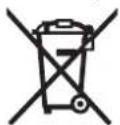
Cbrnacno Ebponecka dnpekthba 2012/19/EC eneKtpneckn ypein, a cbnaccho Ebponeka nepkthba 2006/66/EO akymynatopHn HnObKnHOBeHN batePHN KOnTO He moRat da ce hONBAT NOBEue, Tp8Ba Da ce cbHpat OT
JHnHaBbDatNoIaHnHaNoDxOJaNpepaboTka 3a OON3OTBOPBAHe Na CbIbPkaUHTe CB TAXCPOBHNH.
Ppabata 3aH3MeHeHHa7a3eHH.
OcobEno BnHmabajte Ha nctota,doKOnky pa6otne Bo noHHba co cynctanu onachn no 3pabjeto.He jaTe 3a BpeMe Ha pabotata. H3eHybaje KOtAKT CO cynCTAHU ONACH No 3pabjeto H no pa6otata HCnCTete Rn DnAkhnt E npTo dENoI o TenoTo Ito DoJIne BO KOtAKT Co CYNCTAHU Co TONJ PaCtbOp O canHy. Co Toa CE HAmanyBa OnachOCTa No 3pabjeto.
He croje BO BDA,doKoNky ja KopHCTHe KAMEpAa 3a npOBepKa. Pn paOBe H BO BDA noCTOn pN3NK od enEeKTPuEN yudar.
Market

He npnncybajre mahrhot 16 Bo 6nnnaHa na nejcmejkepn. MarheTOT co3aBa none, KOe moKe da ja haPyuHn cyHKNJata Ha nejcmejkepHTe.
MaKeDoHcKn
Be36eDnOCHN HAnomeHn
HnrtanHa kamepa 3a npoBepka

Ipoountaje Tn CHTe HAnomeHn HynatCTBa 3a636ednoct.1peuiknte HactaHn KaKo peyntat OENepdpyBaBe Do 636edHocNHte HAnomeHn yNataCTBa MoKe da npdeH3BnKaat eEnktpnEyen yapn, Noxap n/nn TeuKN nobPeDn.
KaMepaTa 3a npoBepKa CMee Da ce nonpaba caMo od cTpaHa KaBnHKnkyBaN CTpyuH NEPcoHAn CO oPHHHpeepBN HcOBn. CaMo Ha ToJ HauHn Ke 6nTe Chyprn BO 6e3bHocTa Ha KaMepa Ta 3a npoBepKa.
He pa6oTe co kamepata 3a npOBepka BO OKONHn KaJe NOCTOn ONaCHOCT OekCNPO3nJa, KaJe HMa 3anaNNb TeyHOCTn, RaC Nn PpaHHa. KaMePaTa 3a npOBepka Co3daBn HcKn, KOH MoKe Ja 3a nAnanTnpabTa nnNnapeTa.
He ro haocuyybaje 3pakot cbetnHa Ha Hua HIN KBOBTHN He no norendyBaTe dnepeKTHo BO Hero,dyH N OJ TOnema OndaneeHcct.
Ppe da ja ynoptbeKaepata 3a npOBepka, npobepere ro pa60hoto none. Hnehen den od KApepata 3a npOBepka He Cmee da doje BO KONTAKC oEeKTPnHH Ka6nn, NOBHHN DeOBH HnH XEMHCN cynctanu. EeKTPnHHte Ka6nn, wTO NOMHyBaAT BO pa60hTo none, hcknyetre ng OCTpyHOTo KONo OBHe MepKn r HoMaIyBaat pHnKOT OeknO3nn, eKeTpUeYUpn HnMATEJHANH WtETn.
Hocete cooDBetna 3aHTTHa onpema KaKo 3aHTTHN OUYHa, 3aHTTHN pakABnHN NIN 3aHTTHa Macka 3a DhuEbe,doKONky NoctoJaT cynCTanu OnacnNo 3dpabJeBO paOtoHone.KaHaJIte 3a OBDHyBaBe HNN CnHHTe ObnaT MoKe JaCpKaT UBPCT, TeHH NIN FAcOBnHN CyCTAnu, KOI Ce OTPOBHN, HmFekTBHn, HMaT HAPn3yBaKo JeCTBO Hn CE OACNH NO 3dpabTe HaDpy HaYN.
MarHETOT16dpxete ro noaneky od marHETCKN HocauHa nnoaTOUHypeDn oceTNNBn HA MaHTet. Iopadn BnJnaHemTo Ha MArHETOT, Moke da Dojde do HenoBpatoHO ty6eBeHa noaTOUHe.
Onnc Ha npo3BOOToMOKHOCTa
Be monime OTbopete ja npeknonehata ctpanuca co npnka3 Ha KaMepaTa 3a npOBepKa, Hdpxete ja OTbOpHa DoEka rOyntate ynatCTBOTO 3a ynotpe6a.
Ynotpe6a co cooDBeTHa HameHa
HnHTaHaTaKaMepa3a npOBepKa e nOroHa 3a npOBepKa Ha TeiKo DOCTaHn HN TEmH MeCTa. No MONTaHa HCnpaHATO NOMoHNO CpeCTBO Ha TnAbata OD KaMepaTa, Taa e NOrDa HA 3a NOpMeCTyBaBe hOTcPaHYBaBe Ha MaHHeNCn pIepMetn (Ha np.CtTHn UpaPbOH).
IINITaHATA KAMepa 3a npOBepKa He CMeE da CE KOpHCTNa 3a MeNtHcKnUeHn. Taa nCTo Taka He e HameHeta 3a nonpaBka Ha 3aNyHeHHeBKN HnBneYeHe Ha Ka6Hn.
CBeTIOTo HA ITIaBATA OJ KAMepaTe HAMEHETO DA TOOCBTIN DnpeKTHO NIOETO Ha paBOTa HA KAMepaTe 3a npOBepKa HHe e nORoHO 3a npocTOpHO OCBTNYBaBe BO DOMaIKHCTBOTO.
Nynctpaunja Ha KOMNOHENTN
HymepnpaBeto HnCLINKTE CO KOMNHOENTI CE OJHEcyBa Ha npHKa3oHa KaMepaTa 3a npOBepKa Ha rpaHukata CTPAHNTU.
1Paenype
2 Konque 3a BknyyBaHe-NCknyyBaHe
3LpHo/6eNoKoHue
4 Konue 3a ocBETnyBaHae/CBETIOCT
5 EkpaH
6 Konjue 3a 3rOJIeMyBaIbe
7 Ka6en 3a kaMepara
8IaBaHaKaMepaTa
9CBetnaHaTnabataHaKaMepaTa
10NeKaHa KaMepaTa
76MaKeDoHcKn
11 Pperpa 3a 6aTepeHnTe Ha n3BNeKyBaHae
12 POKJIOeua nIperpaada 3a 6aTepnjara
13ФнсраьеHa noKnoeToHa nperpadaTa 3a 6aTepeHja
14 PnKJlyOK 3a KaMePaTa
15ФнкрангаКабетоДКаМeраТa
16 MarHET
17 KykN
18 Ornepano
EnementHa npka30
a CtaTycha neHTa
bNoctabeHo 3rOneMyBaHe
CIOCTABeHOOCBETyBaHBe/CBETNOCT
dPnKa3Ha6aTepeHH
e Compass View co pepepeHTHa TouKa (Up-Indicator)
*OnHauHATA onPema pRnKAXaHa hCINKHe H e E den oJ cTaNdApDHOT o6b H aHCNopaka. KomnNethata onPema moke da ja haJade To b Haawata Iporpama 3a onPema.
TexHHuKN noDaToOn
| Дагитална камера за поверka GIC 120 | ||
| Бpojectан Daniel Apгин | 3601 B41 1.. | |
| Номинален наимон | ВOLТN = 6,0 | |
| Temпоратура рир работа | °C -10...+50 | |
| Temпоратура на складиразе (pачен уретд бez batepin) | °C -20...+60 | |
| Релатва влажною возухот | % 5-95 | 1) |
| Hajмал радиц на виткаве на кавент на камерatura | MM 25 | |
| Диjsаметар на павatable на Камерatura | MM 8,5 | |
| Ресолушина на ekpanот | 320 x 240 | |
| В��емерате на работа оklу | ч | 5,02) |
| Текина сord正常使用 EPTA- Procedure 01/2003 | Кг 0,5 | |
| Дименztли (Дожимахшних Висиа) | MM | 197 x 85 x 49 |
| 1) Биз замалуваьe | ||
| 2) рир 50% осевеньост на CBETпата Вогава на Камерatura | ||
MoHTaxa
Ctabahe/MehybaheHa6aTeepn
3a paBota co KaMepara 3a IIPOBepka ce IIpeIPOpaYBa KOpNCTeHe Ha anKAnHO-MaHraHcKn batePn.
3a da ro OTbOpHTe NOKloneoT oN pErpaDATA 3a 6atePHN 12
nPHTHcHETe Ha 6IOKApDATA 13 H OTBopTe Ro NOKloneoT OJ
ppePAIATA 3a BATEPHN 12. IVBaNeHTe Ja pnerpaDATA 3a
6atePHN 11 H CTBeTe Rn 6atePHNTE. PnTOA BHIMAbajte Ha
nonOBITE BO cOrnaHocT co nPnKa3OHa BNATPeuHaTa
ctPAna OD nPpEpaDATA 3a BATEPHN 11. CTBeTe Ja pnerpaDATA
3a 6atePHN 11 Do KpaJ HATbOpTe Ro NOKloneoT 12.
Pn cnaba HANONHETOC Ha 6atepHNTe HajnpBO ce nojabyBa O3aKaTATAE KPAHOT. DOKONKy O3aKaTA POKxByA DeKA 6atepHTe Ce np3AH, MOpA da rHa 3aMeHte 6atepHNTe, 6bIeJKNHe E BO3MOXHO DA BpWHne NPOBepHI.
Cekoraw 3aemenhybajte Hn CHTe batepnn OeHauw. Kopnctete camo 6atepnn O eHEN npOn3BODnten H coHCT kanauiTe.
HbAeTe H6aTePnHTe od Kamepata 3a npOBepka, DOKoNKy He Ja KopNCHTne NOJIOr BpeMe. JOKOKNy CE NOJIOr BpeMe cKnIpaHH, 6aTePnHTe M0KeJa KOPODIPAaT Ha ce HCnPa3HaT.
MOnThpaHe Ha Ka6eIOT 3a KaMePaTa (BnHn cnKa A)
3a KopncTeHe Ha KaMepaTa 3a npOBepKa, MOpJa ce MOHTnpa Ka6eIOT Ha KaMepa7 Ha paHINOT ypeJ 1. CTabete ro npKnyokot od Ka6eIOT Ha KaMepata 7 Bo npAHHa noonkBa BO npKnyokot Ha KaMepata 14doKeHaCe BKNONi.
DemontkaHa Ka6eIOT Ha Kamepata(BnN cnKa B)
3a da ro hBaDnTe KaBcIOT ha Kamepata 7 npTHChETe Ha 6nokapada 15 nH3BneueTe ro npKnyOKOT od paHHOType1.
MOnThpaHbEHaOrneDano,MarHeTnnKyKn(BnN cnKa C)
OrnepaIOTo 18, MaHrTeT0 16 H KyKHTe 17 MoKe da ce MOHTnpaaT KAKO NMOUHO CpeDCTBO Ha IraBata Od KaMepaTa 8.
ENo O npTne NOMUHN CpeCTBA CTabeTe Ro Do KpaJ Bo OTbOPOr HA rnaBata OD Kamepata 8, KAKO WTO eOnHuaHO Ha cNkHATA.
Hanomeha: MaHHTOT 16 H KyKHTe 17 ce norOAn caMo 3a NOMctYBaBe HcTcPaHYBaBe Ha naBaoBOIOCTaBEHN,MAHn HneCH npEmTe. PnJa kBo BHeueMe Bo Me Da oCtETe KAMEpata 3a npOBepKa nN NMOOMHOHTO CpeCTBO.
Ynortpe6a
3aHTTe ro paHnOType1 n 6atePHnte od Bnara HdpeKTHo coHeVe 3paHe. KaBenot n InaBata Ha Kamepata ce OTnpHN HbOda DOkONky npabHnHO ce MOHTnPaat.Cenak paHnOType1 n batePjata He ce 3aHTENH NOBDA, pNn KOtAKT CO BODa NocTON pH3NK oJ eNEKTpyeH yap nn OWTetyBahe.
He ja H3noxybaje Kamepata 3a npoBepka Ha ekTepeHH TEmpepatyn NkOcunauuN BO Temepatypata. Hanp. He ja octabajte donro BpeMe BO ABTOMOHNT. Pnri oTneM OcunauuN Bo TEmpepatypata, OCTABETe ja Kamepata 3a npoBepka HajnpBO da ce akImmatnna, nped da ja ctabite BO ynotpe6a.
He ja kOphtete KaMepata 3a npOBepka,doKoNky nekata hra rnaBata od Kamepata 8e 3aMarneHa. Ncknyte ja kamepata 3a npOBepka,dyh otKaKO blarata Ke nCnapn. Hnaky, KaMepata 3a npOBepka MoKe Ja ce ouitTei.
MaKeDoHcKIn 77
Bknyehnte CBetna 9 moke da ce Bxkeutat 3a BpeMe ha pa6otata. He r ndoonpajte cbetnata, 3a da n36berheTe n3ropeHn.
CtBaBaBe BO yNoTpe6a
BknyyBaBe/ncknyyBaBe
3a BknyuBaBeHa KAMEpTa 3a npOBepKa npNTNCHe Ha KonjuTo 3a BknyuBaBe-HeKnYyBaBe 2. Ha ekpanot 5 HapkatO Ke ce npKAnke cTAPTHOT ekpan.
HanoMeHa:JokOnkyKaBenoT3aKaMepaTaHe MoTHnpaH npBknyyBaBeTo,ekpaHotNOKaKyBaNopaka 3a rpeuka.
3a NcknyBaBe Ha KaMepata 3a npoBepKa, OIOHO BnpnTHcHeTo KO nOteTo 3a BKnyBaBe-NcknyBaBe 2.
DOKONKY He ce IIpHTNCHE KOIIue Ha KaMepaTa 3a IIPOBepKa OKONY 20 MHN. Taa ABToMaTcKHe NCKNuyBa 3apaH 3aHTHa Hbatepnjata.
Perynnpahe Ha CBetnata Ha rnaBata Ha kamepata
3aJa aOcBETNITe CnIKATA HA KaMEpATA Ha ekPAHOT,MOKe Ja Tn BkJyNTe CBETNlata 9 Ha IraIbATA OD KaMEpATA N da Ja perYNIPATe CBETNIHATA.
CBeTnHnTa moKe da ce nopecn Bo 4 cTeen H 0%, 25%, 50%, 100%).
3a. da n H BKNYHTE CEBTnA H KAmePATA 9 H 3a. da ja 3rOenMeHTE CEBTNHa TpNNKcJa H KOHNTo4,doNeKa He ce NoCTHe cakAHata CEBTNHa.
Hernedhybajte dupektho Bo CBeta 9 Hne HacouybaTe hCTHTe KOH Dpyr Hnua.CBtHaTa Ha CBETnata Moke da rH 3acnen Ouyte.
3a da ja haMaJIHTE CBETINHATA N 3a da HN NCKNYHTe CBETnA Ha KaMepaTa 9 pIITNCKajTe rO KONyTe 4,doKeHa ce NOCTmHE cKaHATA CBETINHAA OHN. He CE HCKNYAT CBETnA.
3rnoemyBaBe Ha cHkata Ha ekpaHOT (3ymnpahe)
CoKpato npntncKahe ha konHTo6 moKeTe da ja aToneMTE cnkaHa ekpaHOT 3a1,5nn2 ntn.
Upho/6eNo konue
CoKpaTkoPnTHCKaHeHaKoNHTe3MoKeTe DaToMeHyBate ekpAHOt MeFy penpOdyKunJa ha 6oJa n uPho-Bena peNpOdyKunJa.CoUpho-BenatapeNpOdyKunJa MoKe Da ce noDo6pn KOnTpaCTo.
Compass view co pepepeHTa Touka (Up-Indicator) (BnD nKa D)
CoDOnrnpnHtckaHeHaKoNueTo3KeDojTeDcCompass View e.KoNTapepepeHTaTOka(Up-Indicator) npTtoa nokaxyBa, kapehunckce haofacnKaTata-rope"
HAmoMeHa:OrpaHnueHaФHyKunJa npn MOHTnpaHO orneIao 18 n/Hnn npn BErTHKaIHO n3pAMHyBaBe Ha KaBenoD oKamepara7.
Crtycha nehta
CtataHATAeOTbopaOKyHnHaekpahot no ckeo npntncbahe Ha konunhata.Taa nnoKaxya:
- NOCTaBeHOTo 3rOJeMyBaHe (b)
- noCTaBeHata CBETINHA (c)
- coToj6aTa Ha HAnONHeTOcT Ha 6aTepeHnTe (d).
CobTeH npHa6oTeHeTo
HnHTajTe ja OKONHHATAIto cakate da ja npOBepHe, a OOCbHO BHNMABAJIte Ha npeKInTE HIN ONaCHNTE MecTA. CBNTkaje ro KaBENOT Ha KAMEPATA 7 Taka ITO rnaBATA HA KAmePATA Ke MoKE NcHO Da CE BOBeDE Bo OKONHHATA Koja TpeBa da Ce nCTpaxn. BHIMATEHNO BOeTe ro KaBENOT Ha KAMEPATA.
OCBtHeNocTa Ha CBtNaTa Ha KaMepata 9 pInnaRogTe ja Ha ToJ HauHH WTO CnHkata DoBo p Ke ce npeno3hae. Ha np. KaI pEeMeHTe WTo HMaT a Jaka pePekCnJa, Moke da Ce NoCTHRe NoDObpa CNKc o CoNAMKy CBETNo.
DOKOLKY PnpdMeTHTe 10c e6apaat c npkaaHHejaco, ToraH HAManeTe ro nnn 3rOmeTe ro pactoJahneto nomery TaBata Ha KaMepaTa 8 NpemETOT.
OdpKyBaHne cepBnC
OdpxByBaHe nHcTeHe
He ro notonybajte paHnot ype1 BO BODa Hn npyrn TeuHOCTN.
IocjoJano OdpxyBajte ja chctota Ha KaMepata 3a npoBepka. McNCTETe FN KAMepata 3a npoBepKa nCtE npyHn NOMOH cpeNTb TEmENHO,OCObeHO dOKONKY CTE paobotene BO o6nactc co cypntAHU onACHN NO zdpabjeto.
H36pnIeTnHeuCTOTnIe CoBnaKHaMeKa Kpna.He KopnCTe CpeCTBa 3a NCTHe Hn PaCTBOpN.
Oco6eHpeoBHO uCTeTe jaKeKaTa Ha KaMepaTa 10 HBMAbajte Ha BnKHeuTa.
CepBncha cnyXba H COBETH npn KopncTeHe
3a cIte npaaaba HapaKHa pe3epBn denob,Be MOINME HabeTe ro 10-ncfpeHnO6poj od CneuNfkaauHOHATA nloka Ha KamepaTa 3 npOBepka.
Cepbncata cnjxka Ke odroBOpn Ha Baunte npaaaba Bo Bpca co nonpaKata n OndpkyBaHTo ha BauOnT npO3BD, KAKo Npe3ePBNHe Tne DenOBn. EKcNIO3HBnE Hptex NHHOPmaunn 3a pe3ePBnH denOBn Ke hajTehe Ta:
www.bosch-pt.com
TMMOT3a COBeryBaBe npn KOpHCTeHe Ha Bosch Ke BN NOMORHE DOKONky HMaTe IpaAHaBa 3a HaAnITE PpOHNBOIN ONPema.
MaKeDoHnJa
Д.Д.Енктпс
CabaKobayebn47H,6poj3
1000 Ckonje
E-nouta: dimce.dimcev@servis-bosch.mk
HHTepHET: www.servis-bosch.mk
Ten./φακc:02/2467610
Mo6.:070595888
OtctpaHyaBaBe
KaMepaTa 3a npoBepka,6atepHnTe,oppeMaHa am6bAaxKe TpeBa Da ceOTCPaHt Ha ekONOuKn pnpaTnHBnH.
He ja pnaje kamepata 3a npobepka n 6atepnnte BO DOMaHATA KAHTA 3a rYbpe!
78|Srpski
Cama 3a 3emjn BO paMKn Ha EY
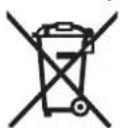
CnopeeBpOcnckata perynatnaHb 2012/19/EU eneKtpnHnnte ypeDn wTo ce BOH yNtPeb6a n deEeKTHNE HnN NcKOpHCTeHNte 6BaTePNn Cnopei perynatbaTa 2006/66/EC mopa odennHO da cco6epaH n da ce peuKnnpaat3a NOBTOHa yNtPeb6a.
Ce zadpkyba npaboto Ha npomena.
Srpski
Uputstva o sigurnosti
Digitalna kamera za kontrolu

建國開启山人,
金山卡蒙拉来音用法其在部,学用影的歌用金山。金山卡蒙拉的本是即在,韵习自,韵习自,韵习自,韵习自,韵习自,韵习自,韵习自,韵习自,韵习自,韵习自,韵习自,韵习自,韵习自,韵习自,韵习自,韵习自,韵习自,韵习自,韵习自,韵习自,韵习自,韵习自,韵习自,韵习自,韵习自,韵习白,韵习白,韵习白,韵习白,韵习白,韵习白,韵习白,韵习白,韵习白,韵习白,韵习白,韵习白,韵习白,韵习白,韵习白,韵习白,韵习白,韵习白,韵习白,韵习白,韵习白,韵习白,韵习白,韵习白,韵习白,韵习自
作用的歌里内用,
→鍾龍載載載載載載載載載載載載載載載載載載載載載載載載載載載載載載載載載載載載載載載載載載載載載載載載載載載載載載載載載載載載載載載載載載載載載載載載載載載載載載載載載載載載載載載載載載載載載載載載載載載載载
金山卡里拉人,
#

16 车之
Mechanics and Electronics Ltd, PT/SAX-ASA
298 Bojeong-dong Giheung-gu
Yongin-si, Gyeonggi-do, 446-913
Republic of Korea
080-955-0909
106mnnn
刘丽
Tang 10,194 Golden Building
473 Dièn Bièn Phù
Phuong 25, Quan Binh Thanh
Thanh Pho Ho Chi Minh
Viet Nam
Tel.: (08) 6258 3690 Ext 413
Fax: (08) 6258 3692
hieu.lagia@vn.bosch.com
www.bosch-pt.com
Thai bo
May quay giam sat, pin, phy kien va bao bi can duoc
tai su dung phu hcp voi moi truong song.
Khong duoc thai bo camera giam sat ky thai so va bo pin nguon/pin vao chung voi rac sinh hoat!
Chi dānh chocac nuoc EC:
Cac dung cu dien cam tay khong cgon gi tri su dung theo chi chi chau Au 2012/19/EU va ac quy/pin bi hong hoac da qua su dung theo chi thi so 2006/66/EG phai duoc thu gom rieng va co thei sui dung theo luat moi truong.
Ducq quyen thay doi noi dung ma khong phai thong bao truc.
pIddwKIOgJUJIdO
1suiiie jgoj 10511s1s1s1s1s
jolll oag g 1a allw jbj
Juswll alio Ic loa ayoll mols lab! Joo
15j2 2 1g
Jgla JaaJI Jj jI c IaJI pJ i
aiaw lcblaow Lsloggl aogw lglaa 20
UJUJI
JouLJI JgJgJgJgJgJgJgJg
gaaal lssa liSsI golSII oJgO eGbaw aJy
.0-001 00000000000000000000000000000000000000
Ugua 4Lc ofofo buo Jsa
(100% ,50% ,25% ,0%)
9 150
ooJUgogJIOJUoLxOooosuJ4jll
aagcdoa
a9g 9wUo Jsw9 aall jj bgi
aI aI. g o! -Jyai I yai Jc elaoJI
Jauu
aaiJ U
aagdlaLsloLSO
j3601B41..
JawJg6,0
山J 10+50
jll)ujjll ojjda
()gC-20+60
1) aunuui uugjul ugbj1%5-95
1251 11 11 11 11 11 11 11 11 11 11 11 11 11 11 11 11 11 11 11 11 11 11 11 11 25
105J1 wJb08,5
auijuw1320x240
2) aui jull (juaill oaoaclw5,0
wjjgll
EPTA-Procedure 01/2003 ≤0,5
XJUJI XJgbl) UwLJI
197x85x49
1
100LSUJWJgAeL50%6Lo!6dgo2
U
UJIbJI JUsJU
JUJIULI JIJI UJUJIUJIUJIUU
g 11 UjUjUj.11
.12 UJUJI JU
:glj aJl glac 1sIgwsI Jb
oIaIwUgagSglkWJ
Juslljgws g dU jU Sjss J
LjzJg2012/19/EU UgJ
UgJ sdoUj Oosg
Lcwiu g aIg 2006/66/EC
.igw sgg Cwuj

,uIbgaO (20 日 _ 1 ^ 出 aJdiogj
g 9 j g j g j g j g j g j g j g j g j g j g j g j g j g j g j g j g j g j g j g j g j g j g j g j g j g j g j g j g j g j g
yIg g sisi 9g jal a paaa o
sij I J Lw gjg jn yj
Jg d g
gogg g g g g g g
gglg 4 4 4
Up-Indicator) 15 abai L Compass View (D ggi d gg
o Compass View e 3 sas gab u ju (Up-Indicator) jg gao aai. wj Jl Jg Lk «L» gao J Sjz jz j 18 o w qai y dij y sg ao slac: agi V nn jgs 15 ssgac n jg
cuagj
2 1sJds JnJnJnJ a Cog slai jI cwi JcL Jw laj J. gW oos Jw lai da
-(b)oωpkiij
-(c)o
· (d) _juJjJl
Lac slglaiajI
slaIggo gSis IJWjL Jgbo
. dgi logss Sjbs
Jgag jygs mu li siae 5gbl 7 njjg 1s
blal I Jnjjg 1sL .g w jlg wjjg bdo
. dgl
gga ygai li siai pabi (ggb 9 nnjjg Cliw g
G o o siu wksil plua 1sL .swu npaaa uoi
. dygll cwsy ssjy jy jy jy jy jy jy
sigw ool suiol gao gao gao plal qlia
. sij Lp8 nnjjg w nn dlal al
u8g8g 1
olkwsjssjg jaoj,ul
.1 1 1 1 1 1 1 1 1 1 1 1 1 1 1 1 1 1 1 1 1 1 1 1 1 1 1 1 1 1 1 1 1 1 1 1 1
ggo g jUlaas jI sglj UJSLsIy
JLg oosuS Lg slgo Jl. ais oiaow
. sis
jgJbL jS1 (B gaa a gw egj)
j15o 7 jg s
U L UjI dJ uai (C gua d sghg)
gjy jy jy g1 yss oikw s. 1s. 1s. 1s. 1s. 1s. 1s. 1s. 1s. 1s. 1s. 1s. 1s. 1s. 1s. 1s. 1s. 1s. 1s. 1s. 1s. 1s. 1s. 1s. 1s. 1s. 1
g loj) sl glos jyj yj jyj g 1 g (dsw glo w syl jul ngic d. d jd s w uogj ggs jda ggb g g g g g g g g g g g g g g g g g g g g g
Ggj j 8 j gj gj gj j j j j j j j j j j j j j j j j j j j j j j j j j j j j j j j j j j j j j j j j j j j j j j j j j j
EJLpim CwI Joo9oW Wgj EJ. .uji CwS EJy dU gW j UgGg Lg.
olkwwJg
jSJwgoIg jwogjogai
/ogol5dss wjjui jyjgdsn jw gj 12 wgi 5 uai aas J .sJw f 2 wgi .swu oos J uW uigk s do sU uai uji yj dL ,uJg pKim dili .uq .uoi uai J Uauiuai dau .uui uai uai uai uai uai uai uai uai uai uai uai uai uai uai uai uai uai uai uai uai uai uai uai uai uai uai uai uai uai uai uai uai uai uai uai uai uai uai uai uai uai uai uai uai uai uai uai uai uai uai uaj 2 wgi 0.6w qgl aas dag 20 gdo qli .swg oabj lsga jgb d jj jl cda
jg jd jdlw g
j9g jyj g jyj yj g jyj g jyj g jyj g jyj g jyj g jyj g jyj g jyj g jyj g jyj g jyj g jyj g jyj g jyj g jyj g jyj g jyj g jyj g jyj g jyj g jyj g jyj g jyj g jyj g jyj g j
gi 1
JUJJUJU
| 3601 B41 1.. | |
| lgljwlgV=6,0 | |
| CJSLCJG-10...+50 | |
| (العربية)الج晗الج晗(الج晗)الج晗(الج晗)الج晗(الج晗) | %5-95 |
| mm25 | mm25 |
| 320x240 | |
| EPTA-Procedure 01/2003kg0,5 | |
| 197x85x49 mm (العربية) x جامع x محيى(1) | %50% |
ω
yjI ygJ/1sJ Jg
-1sJlI sIjI jI oI aIw I wJjI JgJg
JgW Go duogj gjiuio
12 15 abao w g j u j 12 s j 15 aabw g g ju 13 o iS 15 g j 11 s j 15 abo .iS j 15
11 11 11 11 11 12 12
Jai jgl jjw cagg jgs g J
Ji jui jla jg w J. gsw o mla uai la dao
Wjlu pail jg w g y J L g yu yu yu
jI jAnio. sIs uagai jlojam I L (sbl yJgao JyI slu gijb I g oJlsw CaaLw Ssbl .siS oJaiW
4wjUjjg
()
(Agjdu gshgJ) jjjgJU
7 1 1
J7 7 14
JdSocgolss
g jj gjjj y g u g u d aolabj j j j l lai j s qj j j
olkwsj0slaawsljgo
JLg 1sLwL WjL Cg LjWjL jn JyR jI Jn iJiO O Bw. CwI CwIoo I yI yI yI yI yI yI yI yI yI yI yI yI yI yI yI yI yI yI yI yI yI yI yI yI yI yI yI yI yI yI yI yI yI yI yI yI yI yI yI yI yI yI yI yI yI yI yI yI yI yI y
oIawI gJgJgJgJgJgJgJgJgJgJgJgJgJgJgJgJgJgJgJgJgJgJgJgJgJgJgJgJgJgJgJgJgJgJgJgJgJgJgJgJgJgJgJgJgJgJgJgJgJgJgJ
JL bao poaiu uuiw gj cag n jg j w j glg jy Jd gul iuiw gj g CwI oW daw wjlu y
lkiws|jal
jgds jgsd a bgs jgaa sljla jlaaw
wUgWU dAoo
cws 1
jw9g wgoaos2
aw/olw is daS 3
[1]
SuJoi 5
yloisjj 5doS6
7
j8 8
jugjwJgE
jgJwsc 10
u u 15u 15u 11
12
13
jJ 14
jg jL 15
Ujim16
17
a1 18
jai jao josoloo jglg slao
cuog slai a
oawpabai laisjjb
oawpabui liw g jgjg C
(jJl JsUojd
(Up-Indicator) 1000 U Compass View e
jgbl ool jn jg gaj ds jlaia aLJ * Jols Cwll lab. gawai dljl oLjam Jgao .ilai wliol calao doijc wgej jI lclalao
GwJ
iaiis
JJJjJg

Iglaimj gaiIgws aLs
pJl wu Iaui, uSdallba
wJooiaIgws nUcL
JwuggWg
←sljglbωgi
plai jol cabj l olai waii coj bao g yaaia
Jliu s wjju uugd i aui uji ui d. 3y
.9g Wo
1a jds
山laloln lglg dawls gag jai 1jgo wu gogoggugc gdsg lgwlqjla 1wgi uadg jkol,duo jd gogwdoa 1jao sglgdo dslggogwjjjg 1gwhg jdlgaggog
jSja Ulg
jia:si jol jg jgi d laaiu o jlg g sui -jg dolj1
A
JjI JJJJy jJg jI gaaag JJJJ 1 JJJJ 1 JJJJ 1 JJJJ 1 JJJJ 1 JJJJ 1 JJJJ 1 JJJJ 1 JJJJ 1 JJJJ 1 JJJJ 1 JJJJ 1 JJJJ 1 JJJJ 1 JJJJ 1 JJJJ 1 JJJJ 1 JJJJ 1 JJJJ 1 JJJJ 1 JJJJ 0000000000000000000000000000000000000000000000000
4015b000j
Sla 5ie 5io 5i jj g j1 sly
y 5l l 5llis. 5is oiai w iaiu
glo 5aw 5go 5gl aow uao uua 5gbcoo
sEgi y g lg Ege (Sma Gw d Ssi y SJ
. Siun m Jao Gio Lw
4 Lbdi
Lwaijl.ajgai lksplim.ajg dagj jius jls jug g yuuyuuyuuyuuyuuyuuyuuyuuyuuyuuyuuyuuyuuyuuyuuyuuyuuyuuyuuyuuyuuyuuyuuyuuyuuyuuyuuyuuyuuyuuyuuyuuyuuyuuyuuyuuyuuyuuyuuyuuyuuyuuyuuyuuyuuyuuyuuyuuyuuyuuyu
A. _w _l _j
Jgagg gjgs jbsjgai
y
Lg. jSj gj 16 jiml s w go lal bliio jdo jinl jra jti jg jsl slgi go a

g uubiao y wua sIgMlsuws jI J 16 uji i
jI .JdSj gds lcblsgl aIgMlsuws
sIgWgJyUcLbI jn jn Jkso Iuji i
. Jgog ng

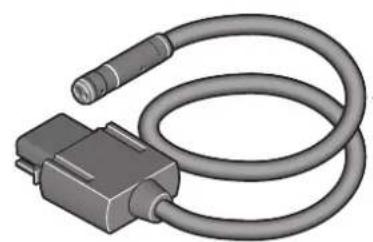


1600A009B9(08,5mm/1,2m)
1600A009BA(08,5mm/3m)
1600A009BC(Ø3,8mm/1,2m)



- Robert Bosch GmbH
- www.bosch-pt.com
- GIC 120 Professional
- BOSCH
- Magnet
- English
- Safety Notes
- Digital Inspection Camera
- Product Description and Specifications
- Intended Use
- Product Features
- 10|English
- Display Elements
- Technical Data
- Assembly
- Inserting/Replacing the Batteries
- Mounting the Camera Cable (see figure A)
- Dismounting the Camera Cable (see figure B)
- Mounting the Mirror, Magnet or Hook (see figure C)
- Operation
- Initial Operation
- Switching On and Off
- Regulating the Illumination Light in the Camera Head
- Magnifying the Image on the Display (Zoom)
- Black-And-White Button
- Compass View with Reference Point (Up Indicator) (see figure D)
- Status Bar
- Working Advice
- Maintenance and Service
- Maintenance and Cleaning
- After-sales Service and Application Service
- Great Britain
- Ireland
- 12|English
- Australia, New Zealand and Pacific Islands
- Republic of South Africa
- Customer service
- Gauteng - BSC Service Centre
- KZN - BSC Service Centre
- Western Cape - BSC Service Centre
- Bosch Headquarters
- People's Republic of China
- China Mainland
- HK and Macau Special Administrative Regions
- Indonesia
- Malaysia
- Thailand
- Singapore
- Vietnam
- Disposal
- Only for EC countries:
- Français
- Lamp in camerakop regelen
- Avfallshantering
- MeyeBuvonTnC eikovac otv oBovn (Zoup)
- TIIjktpo Maupo/Aeukó
- | Türkce
- Ipofohni nuFioac (Compass View) ane o avapopac (Up-Indicator) (Bae en ekova D)
- Tpaun kataotaaonc
- Ynodelxiepyaolac
- Euvrponon kal Service
- Uvtnpnon kai kaapiaoc
- Service kalnapoxh oumuouw xphns
- EAAaδa
- Anoupon
- Movi yia xopec tnc EE:
- Türkce
- Güvenlik Talimati
- Dijital gozlem kamerasi
- XpaHHeHne
- TpaHcNoptnPoBka
- Yka3aHnno 6e3oNaCHOCTN
- UΦpOBoB BnDeoCkO
- MarHHT
- Oncahne npoodykta uycnyr
- PpHMeHeHne HnHa3HaueHHIO
- 1306paXeHHbIe coCTaBbIe YacTH
- 3nemEmtbl Hndkaun
- TexHHueckne daHHbIe
- C60pk
- YcTaHOBKa/3aMeHa 6aTapeek
- | Pycckn
- MOHTAXKa6eNkKamepb(cm.pnc.A)
- Demontax Ka6enKaMepb (cm.pnc.B)
- MOnTAX 3epKana,MarHHTa HnH KpOuKa (cm.pHc.C)
- Pa60a c HhctpymehtOM
- 3cknyataa
- BkIIOUeHne/BbIKIOUeHne
- PeynpoBaHne npKoTH nAMIOUKN B rONOBKe KaMepbl
- YBENHHe H3o6paXeHHa HnCnnee (MacuTa6HpOBAHne)
- Khonka cepho-6enoro oTo6paXeHHN
- Komnachoe npedctabneHHe c penepno ToKo (HndkaTopBepxa) (cm.phc.D)
- Ctarychaa Ctpoka
- Yka3aHHIO IIPHMHeHIO
- Texo6cnyxmbaHne n cepBnC
- Texo6cnyxmbaHne H ouhctka
- CepBn H KOncyNbTnpoBaHne Ha npedMeHcNoNb3OBAHHIpoDyKuHH
- 64|YkpaHcbka
- Khonka yopno-6inoro bio6paKeHHa
- Komnache npedctabeneHH 3 penepHO TOOKO (noKaXH KEPx) (INB. Man. D)
- Pdokstany
- Bka3iBkN 0do po6oTH
- Texhihe 06cnyrobybaHHia cepbic
- Texhiue ocbnyrobybann i ouhzenHH
- Cepbic HadaHHKohcybTauci uOdo BHKOpHCTaHH npdykui
- YkpaHa
- Ytunizuaia
- Пишдя Краин EC:
- Ka3akwa
- Ohimdi naidanany Mep3imi
- Kb3MeTKepeHemecnaiDanaHyBihHkatenikTePeMe HCTeHbHyce6bentepinHt3iM
- Uekri kyn 6enrinepi
- Kb3met Kepcety Typi MeH xiniriri
- CaKray
- Tacbimanday
- Kayinci3ik HycKaynapbI
- CaHdbIkTeKcepyKaMepacbl
- MaHHT
- 6Kazakwa
- Θhim XəHe Kbɪ3MeT CɪnɪTaɪMaCbi
- TaFaiBIndany 6oBiHwa KonDAny
- BeHHeneHren Kypamdb6nweKTeP
- HnHKaTOpNbIK 3JMeHTTeP
- Kamepa 6acbHdAfbI WbipakTbI peTey
- DncnneDiIeBHeHNIyKeHTy (Zoom)
- Ak/kapa nephe
- Komnac Kepinici Herizri Hkytemen (Up Hdkatopb) (D cypetin kapaib3)
- Kyu nahaneni
- Taiandahy Hycaynapbi
- TexHnKaIbIK KyTIM KHeKbl3Met
- Kb3mET Kcpcty XeHt Ta3anay
- 68|Ka3aKa7a
- TytbHybIfa Kbl3Met KepcTey XaHe naDanaHy Kehectepi
- Ka3aKCTAH
- Kaderekapaty
- TeK kana EO endepi yuin:
- Româna
- Instruetiuni privind siguranta si protectia muncii
- Camerá digitalà pentru inspectie
- Eliminare
- MOnTHpHaHe Ha Ka6ena Ha KaMeepaTa (BHXTeΦnR.A)
- Demontnpahe Ha Ka6ena Ha KaMepata (BHXTe pHr.B)
- MOnTHnpaHe Ha orIeJaNo, MaHnT HnN KyKa (BxKTe pHr.C)
- Pabota cypeda
- 74|Быгарский
- Iyckane Bekcnoataa
- BkIIOUBAHn H3KIOUBAHn
- PerynnpaHe Ha lamnata Ha rnaBata Ha KaMepata
- Yka3aHn3a pa60Ta
- PoaBpKaHe n cepBn3
- TpIbpxKaHe HIOuHCTBaHe
- CepBn3 nTexHnueckn cbbetn
- Po6epBOWEOO-Byrapn
- Бракуванe
- Cama 3a CtpaHn ot EC:
- Market
- MaKeDoHcKn
- Be36eDnOCHN HAnomeHn
- HnrtanHa kamepa 3a npoBepka
- Onnc Ha npo3BOOToMOKHOCTa
- Ynotpe6a co cooDBeTHa HameHa
- Nynctpaunja Ha KOMNOHENTN
- 76MaKeDoHcKn
- EnementHa npka30
- TexHHuKN noDaToOn
- MoHTaxa
- Ctabahe/MehybaheHa6aTeepn
- MOnThpaHe Ha Ka6eIOT 3a KaMePaTa (BnHn cnKa A)
- DemontkaHa Ka6eIOT Ha Kamepata(BnN cnKa B)
- MOnThpaHbEHaOrneDano,MarHeTnnKyKn(BnN cnKa C)
- Ynortpe6a
- CtBaBaBe BO yNoTpe6a
- BknyyBaBe/ncknyyBaBe
- Perynnpahe Ha CBetnata Ha rnaBata Ha kamepata
- 3rnoemyBaBe Ha cHkata Ha ekpaHOT (3ymnpahe)
- Upho/6eNo konue
- Compass view co pepepeHTa Touka (Up-Indicator) (BnD nKa D)
- Crtycha nehta
- CobTeH npHa6oTeHeTo
- OdpKyBaHne cepBnC
- OdpxByBaHe nHcTeHe
- CepBncha cnyXba H COBETH npn KopncTeHe
- MaKeDoHnJa
- OtctpaHyaBaBe
- 78|Srpski
- Cama 3a 3emjn BO paMKn Ha EY
- Srpski
- Uputstva o sigurnosti
- Digitalna kamera za kontrolu
- #
- 106mnnn
- 刘丽
- Thai bo
- Chi dānh chocac nuoc EC:
- pIddwKIOgJUJIdO
- aaiJ U
- aagdlaLsloLSO
- U
- UJIbJI JUsJU
- :glj aJl glac 1sIgwsI Jb
- Up-Indicator) 15 abai L Compass View (D ggi d gg
- cuagj
- Lac slglaiajI
- u8g8g 1
- olkwsjssjg jaoj,ul
- jgJbL jS1 (B gaa a gw egj)
- U L UjI dJ uai (C gua d sghg)
- olkwwJg
- gi 1
- JUJJUJU
- ω
- yjI ygJ/1sJ Jg
- (Agjdu gshgJ) jjjgJU
- JdSocgolss
- olkwsj0slaawsljgo
- lkiws|jal
- jai jao josoloo jglg slao
- GwJ
- iaiis
- JJJjJg
- y
Brand : BOSCH
Model : GIC 120 Professional
Category : Surveillance Camera