
VR-325 - Digital Camera OLYMPUS - Free user manual and instructions
Find the device manual for free VR-325 OLYMPUS in PDF.



| Product type | Compact digital camera |
| Power source | Rechargeable lithium-ion battery (via USB AC adapter or computer) |
| Sensor | CCD sensor (estimated) |
| Resolution | Approximately 14 megapixels (estimated) |
| Optical zoom | Approximately 5x (estimated) |
| Screen | 2.7-inch LCD (estimated) |
| Shooting modes | Program Auto, preset scenes, video |
| Flash | Built-in, auto modes, red-eye reduction, etc. |
| Storage media | SD/SDHC memory card (sold separately) |
| Connections | USB 2.0 (for transfer and charging) |
| Included software | Instruction manual on CD-ROM, OLYMPUS Setup software |
| Care and cleaning | Clean with a damp cloth; do not use liquid or aerosol products |
| Safety | Do not disassemble, avoid moisture, do not use near flammable gases |
| Spare parts and repairability | Olympus specific battery, USB AC adapter F-2AC; contact an authorized dealer for repair |
| General information | Consult the manual on CD-ROM, product registration recommended |
Frequently Asked Questions - VR-325 OLYMPUS
User questions about VR-325 OLYMPUS
0 question about this device. Answer the ones you know or ask your own.
Ask a new question about this device
Download the instructions for your Digital Camera in PDF format for free! Find your manual VR-325 - OLYMPUS and take your electronic device back in hand. On this page are published all the documents necessary for the use of your device. VR-325 by OLYMPUS.
USER MANUAL VR-325 OLYMPUS
- Thank you for purchasing an Olympus digital camera. Please read these instructions carefully.
- Please take test shots to get accustomed to your camera before taking important photographs.
- Olympus reserves the right to update or modify information contained in this manual.
- The screen and camera illustrations shown in this manual may differ from the actual product. Unless otherwise specified, the explanation about these illustrations is provided for VR-330/D-730.
- VR-320/VR-325: Operations for the two models are identical.
The camera you purchased is provided with the CD-ROM Instruction Manual. For detailed information on all features and Provisions of warranty, please refer to the CD-ROM. Adobe Reader is required to view the Instruction Manual.
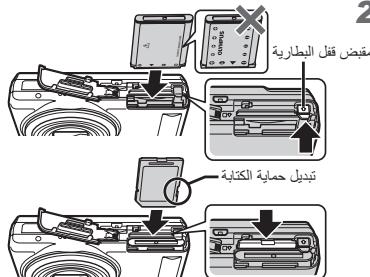
Inserting the battery and the SD/SDHC memory card (sold separately)
Always use SD/SDHC memory cards with this camera. Do not insert any other types of memory card.
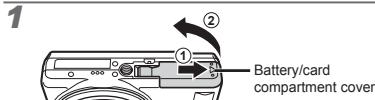
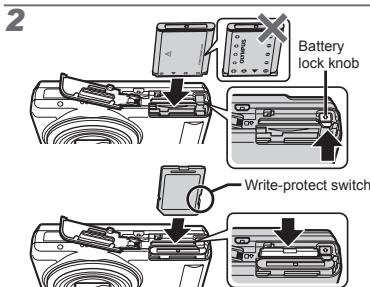
Insert the battery with the symbol on the same side as the battery lock knob. Damage to the battery exterior (scratches, etc.) may produce heat or an explosion.
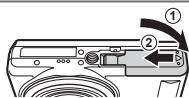
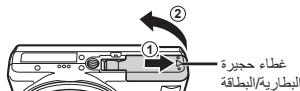
Insert the battery while sliding the battery lock knob in the direction of the arrow.
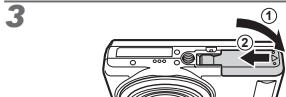
Slide the battery lock knob in the direction of the arrow to unlock, and then remove the battery.
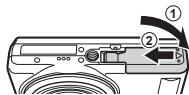
Turn off the camera before opening the battery/card compartment cover.
When using the camera, be sure to close the battery/ card compartment cover.
Insert the card straight until it clicks into place.
Do not touch the contact area directly.
Charging the battery and setting up using the supplied CD
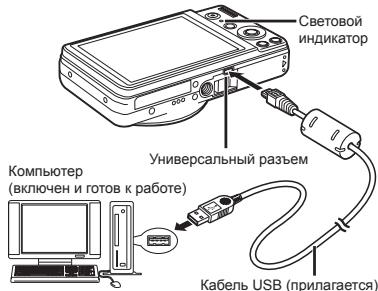
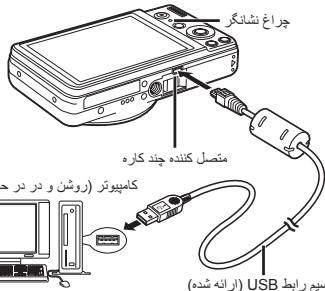
Connect the camera to the computer to charge the battery and use the supplied CD for setup.
User registration using the supplied CD and installation of [ib] computer software is available on Windows computers only.
The camera battery can be charged while the camera is connected to a computer.
Windows
We recommend that you use a computer equipped with Windows XP (Service Pack 2 or later), Windows Vista, or Windows 7.
1 Insert the supplied CD in a CD-ROM drive.
Windows XP
- A "Setup" dialog will be displayed.
Windows Vista/Windows 7
- An Autorun dialog will be displayed. Click "OLYMPUS Setup" to display the "Setup" dialog.
If the "Setup" dialog is not displayed, select "My Computer" (Windows XP) or "Computer" (Windows Vista/Windows 7) from the start menu. Double-click the CD-ROM (OLYMPUS Setup) icon to open the "OLYMPUS Setup" window and then double-click "Launcher.exe".
If a "User Account Control" dialog is displayed, click "Yes" or "Continue".
2 Follow the on-screen instructions on your computer.
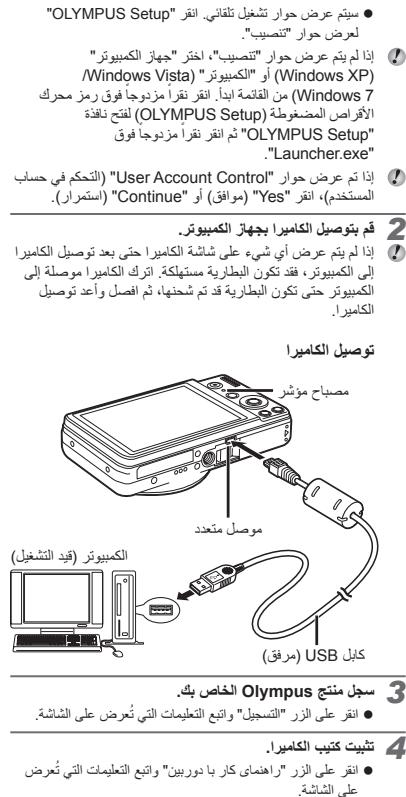
If nothing is displayed on the camera screen even after connecting the camera to the computer, the battery may be exhausted. Leave the camera connected to the computer until the battery has charged, then disconnect and reconnect the camera.
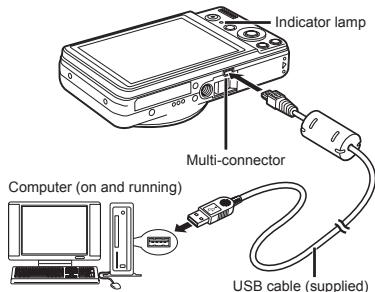
Connecting the camera
3 Register your Olympus product.
- Click the "Registration" button and follow the on-screen instructions.
4 Install the camera manual.
- Click the "Camera Instruction Manual" button and follow the on-screen instructions.
Macintosh
Mac OS X v10.4.11-v10.6
1 Insert the supplied CD in a CD-ROM drive.
- Double-click the CD (OLYMPUS Setup) icon on the desktop.
2 Copy the camera manual.
- Click the "Camera Instruction Manual" button to open the folder containing the camera manuals. Copy the manual for your language to the computer.
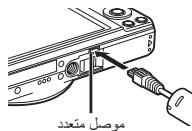
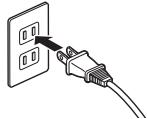
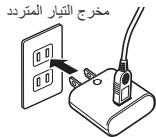
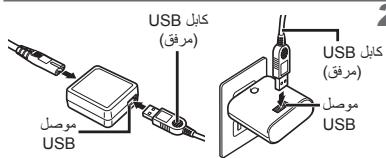
Charging the battery with the supplied USB-AC adapter
The included F-2AC USB-AC adapter (hereafter referred to as USB-AC adapter) differs depending on the region where you purchased the camera.
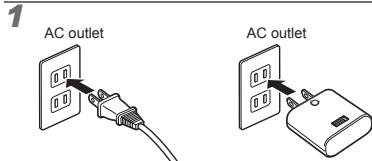
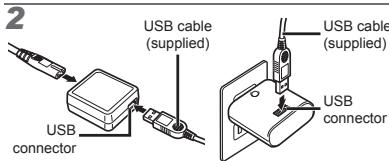
3
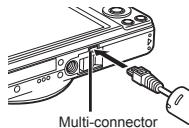
The battery is not fully charged at the time of purchase. Before use, be sure to charge the battery until the indicator lamp turns off (up to 3 hours).
If the indicator lamp does not light, the camera is not correctly connected or the battery, camera, or USB-AC adapter may not be functioning as expected.
Date, time, time zone, and language
Press the ON/OFF button to turn on the camera.
- The date and time setting screen is displayed when the date and time are not set.
2 Use to select the year for [Y].
3 Press to save the setting for [Y].
As in Steps 2 and 3, use and the button to set [M] (month), [D] (day), [Time] (hours and minutes), and [Y/M/D] (date order).
Use to select your home time zone and press the button.
- Use to turn daylight saving time ([Summer]) on or off.
6 Use to select your language and press the button.
Shooting with the optimum aperture value and shutter speed [Program Auto]
Press the ON/OFF button to turn on the camera.
If the [Program Auto] indicator is not displayed, press to display the function menu and then set the shooting mode to P.
Press the ON/OFF button again to turn off the camera.
2 Hold the camera and compose the shot.
3 Press the shutter button halfway down to focus on the subject.
- When the camera focuses on the subject, the exposure is locked (shutter speed and aperture value are displayed), and the AF target mark changes to green.
- The camera was unable to focus if the AF target mark flashes red. Try focusing again.
4 To take the picture, gently press the shutter button all the way down while being careful not to shake the camera.
Using the flash
1 Select the flash option in the function menu.
2 Use to select the setting option, and press the button to set.
Shooting movies
1 Press the button to start recording.
2 Press the button again to end recording.
Viewing images
Press the button.
2 Use to select an image.
Erasing images during playback (Single image erase)
1 Display the image you want to erase and press (D).
2 Press to select [Erase], and press the button.
SAFETY PRECAUTIONS

CAUTION
RISK OF ELECTRIC SHOCK DO NOT OPEN

CAUTION: TO REDUCE THE RISK OF ELECTRICAL SHOCK, DO NOT REMOVE COVER (OR BACK). NO USER-SERVICEABLE PARTS INSIDE. REFER SERVICING TO QUALIFIED OLYMPUS SERVICE PERSONNEL.
An exclamation mark enclosed in a triangle alerts you to important operating and maintenance instructions in the documentation provided with the product.

DANGER
If the product is used without observing the information given under this symbol, serious injury or death may result.

WARNING
If the product is used without observing the information given under this symbol, injury or death may result.

CAUTION
If the product is used without observing the information given under this symbol, minor personal injury, damage to the equipment, or loss of valuable data may result.
WARNING!
TO AVOID THE RISK OF FIRE OR ELECTRICAL SHOCK,NEVER DISASSEMBLEXPOXIDE THIS PRODUCT TO WATER OR OPERATE IN A HIGH HUMIDITY ENVIRONMENT.
General Precautions
Read All Instructions - Before you use the product, read all operating instructions. Save all manuals and documentation for future reference. Cleaning- Always unplug this product from the wall outlet before cleaning. Use only a damp cloth for cleaning. Never use any type of liquid or aerosol cleaner, or any type of organic solvent to clean this product.
Attachments — For your safety, and to avoid damaging the product, use only accessories recommended by Olympus.
Water and Moisture — For precautions on products with weatherproof designs, read the weatherproofing sections.
Location — To avoid damage to the product, mount the product securely on a stable tripod, stand, or bracket.
Power Source Connect this product only to the power source described on the product label.
Lightning — If a lightning storm occurs while using a USB-AC adapter, remove it from the wall outlet immediately.
Foreign Objects — To avoid personal injury, never insert a metal object into the product.
Heat Never use or store this product near any heat source such as a radiator, heat register, stove, or any type of equipment or appliance that generates heat, including stereo amplifiers.
Handling the Camera
WARNING
- Do not use the camera near flammable or explosive gases.
-
Do not use the flash and LED (such as the AF illuminator) on people (infants, small children, etc.) at close range.
-
You must be at least 1 m (3 ft) away from the faces of your subjects. Firing the flash too close to the subject's eyes could cause a momentary loss of vision.
-
Keep young children and infants away from the camera.
-
Always use and store the camera out of the reach of young children and infants to prevent the following dangerous situations which could cause serious injury:
-
Becoming entangled in the camera strap, causing strangulation.
- Accidentally swallowing the battery, cards or other small parts.
- Accidentally firing the flash into their own eyes or those of another child.
-
Accidentally being injured by the moving parts of the camera.
-
Do not look at the sun or strong lights with the camera.
- Do not use or store the camera in dusty or humid places.
- Do not cover the flash with a hand while firing.
- Use SD/SDHC memory cards only. Never use other types of cards. If you accidently insert another type of card into the camera, contact an authorized distributor or service center. Do not try to remove the card by force.
CAUTION
- Stop using the camera immediately if you notice any unusual odors, noise, or smoke around it.
- Never remove the batteries with bare hands, which may cause a fire or burn your hands.
- Never hold or operate the camera with wet hands.
- Do not leave the camera in places where it may be subject to extremely high temperatures.
-
Doing so may cause parts to deteriorate and, in some circumstances, cause the camera to catch fire.
Do not use the USB-AC adapter if it is covered (such as a blanket). This could cause overheating, resulting in fire. -
Handle the camera with care to avoid getting a low-temperature burn.
-
When the camera contains metal parts, overheating can result in a low-temperature burn. Pay attention to the following:
- When used for a long period, the camera will get hot. If you hold on to the camera in this state, a low-temperature burn may be caused.
-
In places subject to extremely cold temperatures, the temperature of the camera's body may be lower than the environmental temperature. If possible, wear gloves when handling the camera in cold temperatures.
-
Be careful with the strap.
-
Be careful with the strap when you carry the camera. It could easily catch on stray objects and cause serious damage.
Battery Handling Precautions
Follow these important guidelines to prevent batteries from leaking, overheating, burning, exploding, or causing electrical shocks or burns.
DANGER
- The camera uses a lithium ion battery specified by Olympus. Charge the battery with the specified USB-AC adapter. Do not use any other USB-AC adapters.
- Never heat or incinerate batteries.
- Take precautions when carrying or storing batteries to prevent them from coming into contact with any metal objects such as jewelry, pins, fasteners, etc.
- Never store batteries where they will be exposed to direct sunlight, or subjected to high temperatures in a hot vehicle, near a heat source, etc.
- To prevent causing battery leaks or damaging their terminals, carefully follow all instructions regarding the use of batteries. Never attempt to disassemble a battery or modify it in any way, solder, etc.
If battery fluid gets into your eyes, flush your eyes immediately with clear, cold running water and seek medical attention immediately. - Always store batteries out of the reach of small children. If a child accidentally swallows a battery, seek medical attention immediately.
WARNING
- Keep batteries dry at all times.
- To prevent batteries from leaking, overheating, or causing a fire or explosion, use only batteries recommended for use with this product.
- Insert the battery carefully as described in the operating instructions.
- If rechargeable batteries have not been recharged within the specified time, stop charging them and do not use them.
- Do not use a battery if it is cracked or broken.
- If a battery leaks, becomes discolored or deformed, or becomes abnormal in any other way during operation, stop using the camera.
- If a battery leaks fluid onto your clothing or skin, remove the clothing and flush the affected area with clean, running cold water immediately. If the fluid burns your skin, seek medical attention immediately.
- Never subject batteries to strong shocks or continuous vibration.
CAUTION
- Before loading, always inspect the battery carefully for leaks, discoloration, warping, or any other abnormality.
-
The battery may become hot during prolonged use. To avoid minor burns, do not remove it immediately after using the camera.
-
Always unload the battery from the camera before storing the camera for a long period.
For customers in Europe

"CE" mark indicates that this product complies with the European requirements for safety, health, environment and customer protection. "CE" mark cameras are intended for sales in Europe.

This symbol [crossed-out wheeled bin WEEE Annex IV] indicates separate collection of waste electrical and electronic equipment in the EU countries.
Please do not throw the equipment into the domestic refuse.
Please use the return and collection systems available in your country for the disposal of this product.

This symbol [crossed-out wheeled bin Directive 2006/66/ EC Annex II] indicates separate collection of waste batteries in the EU countries.
Please do not throw the batteries into the domestic refuse. Please use the return and collection systems available in your country for the disposal of the waste batteries.
Trademarks
H3non3BaHe Ha CBetKaBn4ata
1 N36epete onueta 3a CBEtKabncaata B MeHOTOCyHKUIN.
2 Ⅲnɔn3BaIte ,3a da n36peTe onuHna 3a HactpoKa, n HataNCHete 6yToH 3a Da 3anamETne.
CHMaHe Ha qHJIMN
1 HataHcHete 6byToHa ,3a da 3anOuHete Da 3aHNCBAte.
2 Hattichete OTHOBO 6ytoHa ,3a da cnpeTe 3aanCBAHeto.
PperneHa n3o6paXeHn
1 HaTmCHeTe 6yToH
2 3n0n3BaIte △3a cTeKtIpaHa He CHIMka.
H3tpnBaHe Ha cHmKn no BpeMe Ha b3PpOn3BexKahe (H3tpnBaHe cMo Ha eHa CHMka)
1 POKaKTe H3O6paKaHEnTe, KOeTo NcKaTe Da H3TpHeTe, CNeI KoTo HATnCHeTe V (Ⅲ).
2 HaTnCHETe △V, 3a da n36epete [Erase], Cnei KOEtTo HATnCHETe 6yToHa.
MEPKH 3A BE3ONACHOCT

BHIMAHNE
OJAPCHOCTOT ENEKTPYECKM YDAP HE OTBYPRIATE

BHIMAHANE 3A 3NBA7EHA HE TAKOJB YADP HIKOTA HE CBAJIYAE KAIKAKI (JINIA 3DAHATACT). TO3I PIPOJYKT HE CbPJKA CHACTN, KOITTO DA CE PONDBPKAT OT NOTPBEJEJIET. OCTABETEPONPAKBATA HE KBAVIΦMIPIAPHNAI CEPBHE3 INEPCHOJIAN H OLYMUPS

YbHbBHTENHHTN 3nK bVpTbTbHbN bObpuTa aBHbMaHMeA
BaHHn HmCTpyKUa 3aekOpTaauHa n oDpaBkKa,
DaHNb N pRcOeDABeha c n PocOyTAqOMHeTAuA.

OTIACHOCT
Apo krodpyt3bctcnonm373be4a ceb6f0d8aa daedahata noq to3n CmBc0n HnfOpmaunu,MOke da ce CTHNE do cep390n Teneo hOnebp 9n Dm cbpt.

PENDyPNPEK-DEHIE
Apo krodpytck ce konimbaea bce da ce cbfioqdaaa daedana triop To3m CIMBOB INHOFMAUIN, MOKE da CTMHe NO TENECHNOBPOEDIN KMO DMSPT.

BHIMAHIME
ApoKjOpyd3KcEeCNIOB3BaDc ceSbGnOaBaDa daHApTaNDtoTcCMOBINHOHPoMAyA,MOKe Da cCTNHeIPOJTeNtENOHNOpeBDA,DOpNEpKaDA hOoBPbEAhO hOoBPbEAhO hOoDPbEAhO hOoDnEHhDnAH
PINEVIPNEKDEHEI
3A 136B81BAHE HA NOJAK PIMI HAO TKOB YUAP HE I N3JAATIE TO3N
PINOYKT HA BOJDI H E PASOTETE C HETO B MHOTO BNAXHA CPEDA.
06uMepK3a6e3oNaChOCT
Pnpoeethe BCNCHNK HnctpyKun - Pnpoe 3a nKoI3BaTe npOyKTu, npOpoeHETe BChNK HnCTpyKun, CbSbp3A cnYopTeBcTa. CbXpArBaIte BCNCHNK HnCTpyKun m Iqnilata DOkMKmTAta 33 b6d2cn SApKnRy
NOCHTBAAE--PteDnNOCTBAE BINHARINKAKDAJIte ToH nOPOJYKT O KNTKAHTA.3a NOCTBAE KIbnON3BAE CAMO BNkHAKbIg. HOKORA HKnON3BAEe KaKBTo N da bNTo BND TceOHN t Me aepocIOHO NOCTBAUO cpeBDTO, NIKKAKBTo N da bNTo BND oPrAnHcckos PABTBCOPITEN 3a NOCTBAHE H ToH nOPOJYKT.
Xaccoarp—3a Bautila Beconoachnch Ⅲa 3a6bHexehtne noperba H npodkyta, knoniBaite ca mpe npoebnhAte oOlympus npnaHaeNkctoh.
Bovnla nara-3a BHMATEKHO HKOON3AHE na PPODyKTNc yCTOYHMB HAATMOCpeHPHe BIMNHIAK J3KAIHPOHETe paedena YCTOHNMBOT HAOTMOCpeHPHe BIMNHIAK
PaoNanXoHee - 3a da 3b eBneTeHne npoeKdane Ha npOdykta, ro nocTabe Tdabo H aTabuEn CTtAnH, cToDkI mIn IbZpkv.
EnEkp03aXpAHBaHE - CbBp38aToTosn pNDyKT cMoC eENKTPcHexKTEI TOHINCHOU, OTNCAH nA pNDyTOBTKBT EYIMKTE.
MbHnna -PnpBpmtEeHHaBpyRHe3aBabHO3KIOHcHTe USB-AC aadntepaOT KOHTACTA.
Yukyu Tena — 3aДа Абгенете Тениховпобеди, НИКORA He NOCTABRAITE METANHД релдимETВьт e рунокUTа.
BWCoka Tematpya - HmKorHe hknon38aIe NkI cxpauBaIIe To33 npQyIKO KKTKABuTo ⅡH kIbKOKnTHKORH BWCoka Tematpya, Kato Hanp. pagKaTOpK, nekHa, nIkeKbTO Jn KaHTo TIO opBuBaYe NkI npRbO, KOrIo rPNO38kaDcBcQA Tematpya, BKNOHHTNE Ctopeo YcNcBATEM.
Pa6ota c fotoanapata
PNEyIpyKJdeHne
- He KnoI3BaIte foOtoAnapara B 6NIOCT do ORHeONACNH IINB3PBOONACH TAO8OE.
- He Ichnon3Baate CetcbauNiau H cEBtOIOID (BkIINOHIEH AF IINMOHATopo) B h enoCepCTBeNA bIbN 60cToc oXa(OeBOHAM NAnE dIa, 6BegoA t.n.H).
Tropba da cte Hau-maioka ha 1 m otuiiata ha Ba uaita obekti. Ako ChIMATRE cbc cebktaiba npekaneno hmi3kiO dooha Ha Baunu obekt, To Moka me do bedoe do Bepemehna 34y6ha aBepimeto My.
-ДрьхтесдаибебетадалецгфOTOanapara.
BvHnirn nnoa3aRte HcKpAaeRtEoPoiAnapata hBaHeQCTsHbO 3A maNnn 1000000000000000000000000000000000000000000000000000000000000000000
-
3amotabahe B kainkata Ha foToanapata, npedn3BnKbaio 3aDyuaBaHe.
CnyaHNO noonbIaHne Ha batepna, kaptata nn npytn dpobn qactn.
CnyauHnHaTnCKaHe Ha CBeTKaBnUaTa B 0n3OCT Do OHnTe.
CnyaHNO HapaHbAHe OT NOBmKHNte cactn Ha foToanapata. -
HacnoBvHae foTOAnapata KbM CbHcTeIOHb KINb KmCnHn H3OToHHnIa CBHeTNI.
- He NkOJIaJIe IHe NcIbXpaHJIaJIe foTOAnapata Na pApSHIN INN BIAJHX MecTA.
- He noKpBaIe C pIka 3aIeICTBaIaTae Ce CBETKaBnua.
3HnON3aBte cAmo SD/SDHC Kapra c nAMet. HNKA He hNOn3aBte dpyrTH TNOENKapra.
Acozyraivno noctabrata pyrr ny tkrat bia b8 doxoanapara, cce kprkce tncn aonrnnnne nnnnne nnne nnnnne nnnnne nnnnne nnnnne nnnnne nnnnne nnnnne nnnnne nnnnne nnnnne nnnnne nnnnne nnnnne nnnnne nnnnne nnnnne nnnnne nnnnne nnnnne nnnnne nnnnne nnnnne nnnnne nnnnne nnnnne nnnnee
BHIMAHNE
- PteKapatente H3e6BaH0 nI3n3BaHeta Ho foTOAnapata, akO 3aBefenkete HnKAKBn HeoCbHnMHnKmHn, yMn HmN dmOk eoHoro.
I He Kaiaahtaeitare Bateprrnca c tonrni, zauotro scuetctyra a onochOT noxopar mnn OKepe da Cn 30nrpope pBte.
HnKora He npbXte Hne paBOTe C foTOanapata, aKO pbTe BN ca MOKpn.
H. Obaetichae NAOPOANAPANA ha Meztca, Kb. deta 6 Bn 6bnKnohen Ha K3bIbNepo DBOKONI TEMBAPYIR.
ToBa MoMIO da Bopeede do nopeede ha fofoanapata u B HNOH CUY-AMdo zananahe ha foanaapata.
He hnsnlaa3sabus DC-AC aadama,ako e nokpHT (napmepc c oedae).To8o MOKO da doabe do npoppeBaHdo no npokpa.
- M30n3B8aIe BHMMATEHNO foTOanapata, 3a Da 3b6BerHETe Nekk KOKKN K3FAPRINH.
Ako fofoanaparTbCtBpbkMetaTNHnCTy,pePrrpBaHTeMO KMO da DObEeDe Do neo KxHONKI HApRnARh. ObOHeTbe BHNMaHE Nc hBeLOTHo:
- PIPr npdo2kbnKHeIO KNO3bAeO foTOAnpArTcBt cHepnRb. KmIHO HeTo FOIOAnpArTaB a TOB cStCIOHNE MOE da BoDE do ne KO HIXKO XIAIRPMA
- Pipti EkctemnoH NIKHO TEMEPATYRI TEMEPATYPATI RA HKTYNHA RE FOPTANAPATA MOO de a no-NHCKA OT NHTPAPATA HA 3a06bKANURA da cEko. Ako e bMaONKO HO COTePE pBkABLIIN pRn pAOBTA pRn hNOKI TEMEPATYPI.
BHHMaBaIe C KaIIkKaTa.
BHHIMABATeK a KANKATA, KOIATO HONCITE oTOPOANATACA. Moke da 3aKaMN 3a CTbPnaupe PmDEMTi and a Da pNCHNIc BOCENH CNTMI.
2 PoiKIOHHTe FOToKAMepy K KOMMbHOtepy.
EcnHa 3Kpahe foTOkAmepeBn HmHero He OToBpaKaetcR DaKe NoCne NDoCoDcENHeNHE foTOkAmepeBn KOMbIbTePepy, BO3MOKHO AKKyMHTop RAPrAINcR. OctaBte foTOkAmepeN DoCoDcHNHeN KO KOMbIbTePepy, NOka AKkyMHTop He 3aprAINcR, a 3aTeM OTOcOeHNITE n NOBTOpHo NDoCoDcHIne foTOkAmepeY.
IopKIOUeHHe FOToKaMepbI
3 3apeHcTpnpyTe n3dJIne Olympus.
JENKTHNE TO NO KHONE "NePNCTPauJIa" n cneJeYTHE NCHTpyKUNn ha 3kaepe.
4 YctahOBHTe NHTcpyKuHIO no 3KcNlyataaun foTOkAmepbl.
JLKnHnite no KNKHEpy KPyOBQCTBO no KcNpIyataaIPOFOKaMpeBn cNeJdYIe NHtCYPKUIMn HAKepeh.
Macintosh
Mac OS X v10.4.11-v10.6
1 BCTABTE BXOJDIINB KOMPNEKT NOCTABNKOMKAPT-DNCK B DNICBOD.
- [Bázká]üzekNHITAEZHACKUÇYCTAHBOHOHRO KOMIKTAKINCA (OLYMPUS Setup) na foahöem CTONE.
2 CkOnnpyIte HNCTpyKzHIO NO 3KcNlyaTaZnn foTOkAmepbl.
- 陳明憲to no KHONkey“PBOKoDcBtNOKo no 3KcNlPyatauatafokotoKampeMcy,NTbObe NTbPkByTaNnky,COpeKpaJzkyu pykoBcDCTBa no 3KcNlPyatauatafokotoKampeMb. CkOnpIyrte pykoBcDCTBa NO HA BSAEM 3bSiKe HcMOJIbTOpe
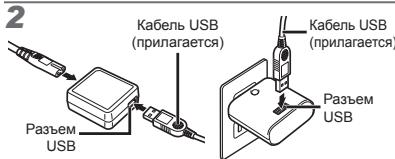
3apka 6atapen c nomoubIO BXOJaero B KomnneT aanntepa USB-AC
KΦOTOKaMepe npnnaeraTc eTeBOI USB-AdanTep F-2AC (Danee cTeBOI USB-AdanTep), KOTOpB I mEe pa3Hyo KOMIIeKtaUIn B 3aBbIMC0CTOn IT MeTa pnpo6peTHeN foTOKAmepbI.
1 Po3eTKa cetn 1 nepeMeHHoro TKA
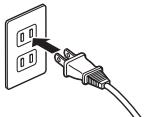
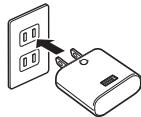
Potskaya cetni nepemehoro TKAO
3
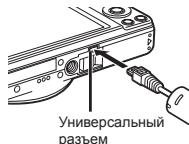
B MOMENT npino6peTeHnHa 6aTapeA MoKet 6bTb 3apXeHa He nOHOCTbU. PedeI cNIOJIb3oBAHNiM o6BaTeNTbH0 3apYdnte 6aTaPeKo, NOCA cEBTOBIO INDINKA TOP 3apJNDHO yCTPOJcTB He norachET (do 3 YacOB).
Ecni CBETOBHnDnKATOp He Ropnt,3HaHT,NIbO HenpabInbHO NOdkNIOHeA FOKTAMepa,Ni5o HnpeBnIbHO paOtaert AkkMnyTApOHaB 6aTape, FOKTAMepa nCteBO USB-AdanTep.
Data, Bpem, yacobon noC n 3bIK
1 HaxMMTe KhoNky ON/OFF dans BKJIIOUeHnIa foTOkAmepbl.
Ecnat DaBn BpEMe He yctahOBInbH,OTobpa3ITCA 3kpAytachOBKn DaTbN BpEMEHn.
2 Icnonb3yute △V, YTO6bI BbIbpaTb rOa dIpyNkTa [I].
3 Haxmnte ,YTO6bI coXpaHnTb yCTaHOBky dIyNHTa [Γ].
4 AnlOnrHuO DeIeCTBnIM NHyKTOB 2 n 3
NcNoJIb3yTe △V<|> n KHOJky @, YTO6bl
yctaHOBInb [M] (MeCra), [D] (UcNpO),
[BPeMa] (aChb I MNHyTb) I [Γ/M/D] (nopAdoK OTO6paKeHNaDaTb).
5 NcOnIs3yTe A DnBlaBopa Bauero MEchTOHO YacBOrO NORca HxMkTMe KHNKy
- IcnoIblyaTey IVB KBrNoHEnyI INI BblKnIOHNepeXOHa Na IetHee BPEm ([JIteTo]).
6 Испоньзуге < 1> ДЯ Вьбoga Baшeroязык и НжмITE Kногky.
CtEMKa C ONTHMAnbHbIM 3HaueHHem dHaeparmbl HCKoPoCTbIO 3aTbopa [Iporpammmh]
1 Hachmte knonky ON/OFF DnB BKluuehna foKoKamepb.
EcnHnHnDnKaTOp [PnOporpAMMhB] He OTObpaKaeTcA, HAKMMITE AOBOTbOKrMbTe MeHO DYHKUIN 3aTEM BbEoPeITe PEXKM CBeEMN P
Hakmite KONKIO N/OFF CHOBA, T'06b BblkliouHTb φotokamepy.
2 Depknte foKtoKemepy B yPkax KcOKMOHHTe CHMOK.
3 Hachmte DnKcycna 3TbOpa HanoNobHy BHM3 dOphocynpBkn HA6BeKe.
KoIa foKpOAmpeC pOcKpyeTc ha o6bKeTe, 3KnO3nU4 bOKnpyeTc (OTo6PbAOTc KcPOcPTb 3ATbOp u 3NaHeMe IdaPqBarmu), n Bn3HPha METa AF MeHert UEB h 3eHNb.
EcnBn3MHPA METKa A MFIaERKAPCHbIM,
ΦOTOKAMPeH He CMOrTa BbIOnNtHbΦOkyCpOBKy.
PnonpOByHe BbINOnHbΦOkyCpOBKy eue Pa3.
4ДЯБылонненьсьемпларноихмITE K honky cnycka 3atbopa noNtchobу BHN3, CTaparbc npri TOMe TpTcHNTФOTOKaMeP.
HcnoJb30BaHne BCJIbIiKn
1 B MeHIO yHKcN BbIbepnte onuio BCnblkM.
2IcnoB3yIe DnIa BbIbopa BapHaHTa HAcTPOKIN N HAKMNTe KHOJky 念 ,TO6bl yCTaHOHbTb.
Bndeocbemka
1 Haxmnte KhONky YTO6bI hauaTb 3annCb.
2 YTO6bI 3aKOHHTb 3aHINCb, CHOBA HAKMNTE KHONKY
MEPbI PEPEDOCTOPOXHOCTN

PENYPNPEXHEHNE
OPIACHOCTB NPOPAKHEYIR 3JNEKTPTWCKEMK TMOKOM HEOTKPJBATB

PNTDYPJXDKHEI: BO I3E5EKAHME NOPAXEHIA 3NEKTPUHCKEMTOKOM HCMMAITE KPBILIKI NYA3ADHOIOI PAHEJI. BYHTPNFQTOKAMEBpI HE JETDAJEI, HYNKDAIOUIXCA B BAUEM OBCLYKBAHIMA JODEBPte TEXHAIECCKOE OBCTYKIMBAHME BICOKOKBAINIFMLIPOBAHHOMY CEPBCHOMY PEPCHOHAYLUMPS.
BocDyIeHbIeYbIeHbIeYbIeHbIeYbIeHbIeYbIeHbIeYbIeHbIeYbIeHbIeYbIeHbIeYbIeHbIeYbIeHbIeYbIeHbIeYbIeHbIeYbIeHbIeYbIeH
HEBNIOHNHEKPEOMENDAUIN, 0632HNEHHBHX TTMCHBMONP, PIMCNMOI3OBAHM DAnHOHO N3DJIYMI NKMQPTPBNECTCH KEPCEB3HM TPABMM HNI CMEPTBHNOMXWCXDQ.
OCTOPOXHO
HBeHHnOpHeNePekMeOHmUaO,06h3aAeHHbX 3TMM CHMBOMN, PpIIN CNOPTbOBAAH DAnHOHIO KINJENIO MOKOT PnPBWCTN K TpBMAIM IIN CMEPTbHOYM IXQDQY.
PENEYIPEXKDEHME
HeBUNPONHENE PekOMeJIaLIu, 06O3HAnHHbIX 3TMM CIMBOON, pIIM INCIOTIBOBAHANi DAHNOHO KETDINR MOKET PNBIECTK T P KABAMM HNIOK CTSEHNI TRAKECHTI, NOPEBDEHNI OOBPOZDAHBNI NTNI NOTEPE CHENHHs DAHNHX.
OCTOPOXHO!
BOI 3E3KAEHIME BO3TOPAHNA JINI PIOAPKEHNI 3JEKTPNCHCKHM TOKOM,HN B KOEM CNIYAE HE PA3BIAHPAITE 3EJDEJIPE, HE IODBEPTAITE 3NJDEJME BO3DIECTBIO BOBIDI H 3EKCIPIATMPYITE ETO PPIN BiBCOKBI BRAXHOCTI OKPYKAIOUENC.PCBLY.
Oe Mepe npedoctoxHoctn
Ponitaharate BCE HCTpyruynu - Teped hcnIOI-308HnieniEADNIEK 1972-1974. 1975-1976. 1977-1978. 1979-1980. 1981-1982. 1983-1984. 1985-1986. 1987-1988. 1989-1990. 1991-1992. 1993-1994. 1995-1996. 1997-1998. 1999-2000. 2001-2002. 2003-2004. 2005-2006. 2007-2008. 2009-2010. 2011-2012. 2013-2014.
OCHTCA--Peped OHCTKOB 6o3aTeHNO tOcOeHnIte KHeNEt O TNE3OPCtoN. DHO CHTCKMO HOKHO CTIOBbTaTO NkBOXnBnKHO TKNb HEnbONHO CTIOBbFor DHO CHTOKHO XHJNKeN hA03POZbHbE OHOOAUOM eCPGCTBa, A toake NObBe OprAHNeCKHe pactoRPTeIN.
Acechacpya — B entixn NmHIOE603ANOCHOTN IO IN63KAKHNIE
Aeckoccyapy a — A eckoccyapy a, TtoKbTO ne Acechocyapu, KotopoepeKoRcHMOBabMbHDPMOr Olympus.
Bogu a Ibnara - Mepej pepecepocnoekohnt prnra Ibrarqo3aunthNkHex qemieromncbHb paedanepax o 3auneot ot BnIg.
Pazmeehuie - Hadekhno yctahanaibnaike iedemne Ha tatah, stokny knu 3aikm, Ntob6i kbo6kbatn obopekendnien kndern.
OCTUHNIK HINITIJI -IOKIOJIHOAH TEAHIDHE KIIMEH TOJIK K TEM OCTUHNIKIM TAIHANIA, KOTOPKA YEHAABHA HAI KIENIM.
P03A - eCNI 80 BY BEMPNIOLB30BAHIE CETEBORO USB-adaptera nepemehHOOR TOKA HAHHETCI P03A, HEMELHEINO BHHUE BINIK ADAPTERA n3 POESIK.
Nocponhymne pnpMeBt -Bo 662kHnHHe TpBm 3aepueho B cTABIyB 3KINNE DE MAMTIENHECKE pnpMeBt.
Tenno—Henri 3nCIOIb08aBTHN XpAHbTHDAnHaeIOIeIaIOIeP DcTAMKIIOTNCHIKMMI TennA Kac OTONINITbHe BApTeApE, TcnOBtBe 3ACNOHN, Mich N IIOOE OObPOyABHMe IYN cYPTOIBTa, BduJeONIOUeTE NENB, T.b.YCNIOENTIE CRepeCIcEICNT.
06paueHne c foTOkamepo
OCTOPOXHO
- HenJI3nNoIbOBAJBcBcPOTOKAMpeR PdON C TROPCHIM INN B3BbIOGNBChbIMrT432M
- Hcmonblya tye 8chnyu & Le (Hanmpnep, nodcebety A) np ci bmeK nyi (MaenehJebe, Manehkhye dert et n.t.) c6n3Koro paccorTthry.
TIP CImbeMoC BOIbBIOK PACINaONaRE TOTOKAMPEY He BIXKE M 10r
TIP CIMBEMOC BOIbBIOK PACINaONaRE TOTOKAMPEY HOBOMC C TINAMM C YETOBENK
MOKTEP NIOBECTH K POMHEHMOR NOITEP aEBHO
He daBaIte foToKamepy DeTm mMaJeHcAm.
- Ecerba cinnata-yetraea n x anphtaire To kotoxephe Mye bne IyocnbeoCMAOTN 10000000000000000000000000000000000000000000000000000000000000000000000000000000
Pe6eHOKMOKET3aIyTaTbCBApeMeUke foTO npBedeK ydyuHeHIO.
- PeBekHOK MOKCT CNYHIO NPOPTOTM BAKXYMYTROP, KAPTbI PAMTM IIMI DYNEV MEINHE DERTAM.
- PebeHOK MOKET OCLIeNTb BCNtIKoC e6B IIN DpyrIX DeTei.
- PebeHOK MOKET NOIyHTb TpABMy OT DBNkUxxCa DeTaJIe FOToKAMepbl.
-He cmOtpnTe Ha coNHe nHЯPkne NaMnbl, HcNoNb3yA fToKamepy.
- Henb3x xpaHnTb fOToKamepy B nbInhBbIX Hnn BnaXhbIX NOMEueHHnx.
- He HαkpbIaIte pyKoB CnblkUy BO BpEmae cpa6aTbIbAHna.
McnbonyteTOnIbKO kaptbI naAMTH SD/SDHC. Hb Kcem cnyae He cnbcNbyte kaptbI dpyrHxTNOB.
EcmBb CnyaHIOB OCTaBnIN B pOtoKAMeRPy KAPrty DpIPO TINa, 6oPbATInTeB C yNtMOHOpENOMY CMPTBvTyOPrty INA B cepBcHsbN cHeTPR. He nTaeTBeB XnueBbKaprty C cyNOn.
NPEyTNPEXJDEHNE
- NemHeleno NENpokatneiCNbONLBOBANHe FOOTKAMBePbI PRN NOBRIENHO HebNoTHO 3aNaXa, WYMA II HnA
He TporaIte aKKMyIITOP roIbIM pyKaAMN - Bbl moXeTe obXeYbcra
-He depKnTe foTOkAmepy BnaXhBIMny pKaMn.
Hc 0eBtAaBIOI POKAMPEy B MecTae, ZE OHA MOKET NOBDERPHYTBCA BOBDIEYINIOO HcBEIOXIK SEMENTAPuy.
OTMQKOPNEPIBECTN K YXUDEHUNI XOAPKETPCTN K E YE NEMHTOB, A B HEKOTOPBX CNYAHR, TOXIPOTEMAK OAKETPOB3E. H NaHPbBaJIte (HANPIMPEM, OEDENOM) CETEBOR USB-aptandepnepeHENHOI TOKO BO BPPMAKCNBOB3AHN. OTMQKOPNEPIBCTN K NEPEREPYIN NOKAYC.
Bó ⅢK6SEHANHE HN3KTOMEMPEATyPBbIX XO80R,OBpaaIaITcE c
φOTOKAMER octOPoHOX.
- Flockonyk cytofamaka cepogdki metraninuichkez deanen, et nepeperb
- Cytokonikyckyckyckiyeknye khtsokreimetaphyphum okrigov. Pirmierte so Bvmhakc
cnekyolouya
- PIP noPQDQNKTIEHBM NCMNIOB0BAHNH mFOTOKAMEPA HAPREBAETCA. DepeXa FOtOKAMEPy B 3TOM COCTOHNM, MOKHO IONYHTB NIKOTEMETBPYHJMH OOKF.
- Příž krajne HIXKNU TEMEPATPyrO okpýkauošne Čepečny pOKYNC φotokAMPEbny MOKET oxlánaTbBa do temEPATpyb NIXe OKpýkauošne Če. PřÍN KIXKNU TEMEPATPyrO, no 0B3MNOCHSTn, ĀdRkPYE φotokAMPEbny Če-patxHak.
Cneinte3a pemeukom.
CzPeITe3aPEMeIbKOM,NAKTOPOMBNCHTQOTOKAMpe. OHMOKETNEIKO 3aueHNTc3a 4a3JIbHbIe bIbCTyPAUKeInePdEMTeMn I CTaBt pNIMHOE Cep63EHNTRMbYb.
Mepblnpedoctopoxhoctn npn nCnoB3ObaHm aKkymyIaTopo
B0K36EkanHnnpotcHn, neppeBa, 8O3opranHnH 3bPbHa kaxmyIyTOpA, npoxApHn3neTpHcckOM TKHM npiHnHpNInHeHHoKOB pRn HCNHO3obAHm, cNeYKei npRBeDHNbHM NkHe HCTpyKUH.
ONACHO
B 3 OIAO FOTOKAMMEPE ICNMOIy3EBTcON HIOHO-NITHEBbIK axMYMNTOP fHMPbI Olympus. 3ArapKeJIe AkyMMYrTbP c nOMoBuK yka3aHHOrO cTeBEOY USB- adantepa. Dpyre CteBbEY USB-adantepbI KcNIO30Ba7tHeNB3a.
- Henb3r HarpeBaT bAkkymyIaTOpb IIN 6pocTaB IN B OROHb.
PITK HcNtOBZoBHnI YTHXePHaBbB 3aepae BcoiOaJIaTe MEpBu npocTOPOKHOHtN CnEeHTe, Tc0b6 OH Nc KacAIOCbM eTALmWcckXm PpeMDToB POBg EKeINbHbX paXuehAei, YbuaKob, 3CTAEKcN H.T.
- Heny3x paxanthiBataparen B MeCTAE, Zoc OHMYOTNEgOBpBRATC 1000000000000000000000000000000000000000000000000000000000000000000000000000000000000
Bo I6KekHnnePOTeKAnHai Batapei nIIN nobepKdEHNx HbVbD0B, Tuatelbno cneJeHnCTpyKmNnO hKnCpTaYnauTMA batapei. HNKoJa3e bIytaRteBaPcBaPbArB aBatapei nn DnpaBbTaBn XnAbaTn I.I.N.
EcnjHJQKIOCTs 83 TaBapenon NnA B mHa, HEMENHEPO nPOMOEITIa3 HAICTO, XONHOJIO pTOHOHTOB BOIDN CPOHOBO APOBITEcK B KHPY.
XaHnIteB aBatapene b HneipnoeBIOAeMBOeMTO MAnHENHOJeTeB. EcmE peBEOH CnyAHIPOPOTNIIN BATAPeO, CPOOb ObaPTMeBc K BYPAH.
OCTOPOXH0
-IOCTOHHHOePKeHTe 6aTapeu CyxHMM.
- Bo KIb6KHeHne nPoTeKAnHH, nepeRpeBa, 8O3OrapAHn IIN III BpUBA, HcNtOBy3yIe ToTbKO bTaapeH, peKOMEnHOBAnHbYe dNr NcIObToB3OBaHN C daHbIMKn3dMEN.
BCTabTnTe 6aTapeoHcOToPOxHo, KaK OINCAHO B INHCTpyKuIM NO 3KcnIyTaUIM.
- Ecnj tAkyMnTnRbIe H3E2RkHc0Rb T CEHEMeY kU3aHHoRb BPEMeHN, EPKPATEAT3 3Ap4KJy, Ic H NcN0B-3SYte IX.
He nCnoJb3yIte AKKymyIaTOp,ecn OH TpeChyI nn CNoMaH.
- ECNI 80 BPREM 1CNP0B 3OBAHAA kAXMUYTAP nPOTEK, NOTEPN HOPMAHbYHO OKACKy, DEOpMPMOBANC INI pRNO6pEN npDy AHOMAblbYe OOCBOHNHTN, NPKPATMTN 1CNP0B30B4ts PTOKTAMPEy.
- Ecnj MKNIOCTb. BtBteKJAA k3XMYMRTN0PA, nONAH a HQeAeY mN KOKy, MEnHEHNO CHNMMTE 3aqr3HNHyo IQeQyN y NPMOITE NOAPKeHHN yUAcTOK hCtOH, XoONHO pnoTOHNO BODJ. Ecnj OT xMQKIOCTA hK OKeX eTACONg KOR, cspHO OHOBATIeK b KByPH.
- He nqdebratie Xaaymurtopby BozdoeiCTBNO yadapOB NIN pOpoDkiNtHnOH BvBpaun.
PNEUYIPKJEHNE
- Plepct yzHAnOBKyAkyAMYrTOPA BHMMeTbHO OCMOTPIE EHO HANMHePPOPTHEK, MZHENEHJXOxAPCKsO, DEpMOaUMI INWYTHXPOMAHNbHXPnPKHAtOK.
B O BprrmaoPNOIOHTKHOIOTNBOHONOHTOAKHYMOPTOP MOKHTARPEbTa. B0I36KANHKeOIKOB He BUMHIMATE IEO H3OZKAMOKAe Pc3azy K. - Papei IdrnIbHM xpaHEnEM foTOKAMepbI oB63aTeBHO 138NkEHTe I3 HEAkyMnyTrop.
Ponb3OBaTeJMaB Ebpone

3нacke"CE"ykaibaaBHT,QTOTNOJYKTCOBTBCTBYET
ebpeoNcIMM TPEbOABHIM NO 6E0NZACHOHT,OKPHe
ZIOBOyBa,3KIOVNIIECKO 6E0NZACHOHTI 6E0NZACHOHT
noJIbTOBArTeR. 6TOPOAMBeC O 3NkoHM "CE"
npEDaHNeHbI PnIdoAaK E BOpEna

3TOT CIMBOIN [NepepehpyrM y MycPOB yHNA WEE H naKoexa, pnpKneHMeN6] 0b3nOahar aqadepaBnblb cboP 3nKpIyCnEXHXu 3nKpTPOhBxO xTOxOB B Pocm.
PokaytYrta, He BbPacBaBtAe IaDnEi B bStToeB MycopoPOnOB.

IcNtbn3yte IcKTeBm 803B4Pb o cCepn TaKobbe MeMeTOr) TpyINTHa3nIOXoBDuBbYeK3AHHbTNOXn

370 CHIMM [nepenheytni MycnpohBakHaN KONCEAC,
DmpKtEBA 2006/66/EC, pinnKoHxOE] ykaaBaBae HA
paedbHbIh bcbop 0rbaOtoBHnxBbapBeR b cTpaHax EC.
PoknyAcyTA, he BvBacpBabSbeBapBemEe C bStobMbH
otXaDMn. PoknyAcyTA, dnnYrTHmzAmoP oBaTObAHN
BapBeB aNly3yBcBcMeYbCtBuKUHMn B aBaue Tcapane
CTekMMEN BoBepatra H oBroda YrTHmzAmu.
Toprobble MapK
- IBM JAPANETZ aperimetric troponin-BIOH NOTOPROB MAPK International Business Machines Corporation.
- Microsoft Windows KB703T承载中脚本的脚本脚本脚本脚本脚本脚本脚本脚本脚本脚本脚本脚本脚本脚本脚本脚本脚本脚本脚本脚本脚本脚本脚本脚本脚本脚本脚本脚本脚本脚本脚本脚本脚本脚本脚本脚本脚本脚本脚本脚本脚本脚本脚本脚本脚本脚本脚本脚本脚本脚本脚
Macintosh JbIaTcR ToproBm MapKo Apple Inc. - JIorotin SDHC aBnTcT ToproBOMapKoN
-
Oct7HnBHe3AHHKOMH4HnIPOOyTOKB RINrTOC TPOBtBMmMkPMAKm KINH 93aHnHCTPHoBBHmNbHnIPOOyTOKM MCMOBTCBTBTHUQIOx
B Hactoτιών Μιντυχίους πρημήτα Σταλάβτα φολούθουν κευσετό φοκολέμερ "Design rule for Camera File system/DCF", γατούβανηνηνην Japan Electronics and Information Technology Industries Association (JEITA). -
Tack für ditt köp av en Olympus digitalkamera. Var god läs följande instruktioner noggrant.
- Ta några testbilder for att vänja dig vid din nya kamera innan du tar viktigare bilderr.
- Olympus forbehaller sig ratten att andra den information som finns ienna bruksanvising.
- De skärch- och kamiberås som visas i bruskanvisinngen kan skilja sig frän den faktiska produiten. Om inget annat anges gäller forklähringarna i.thisa söder for VR-330/D730.
- VR-320/VR-325: Anwendungen av de två modellerna ar identisk.
- Masaustindeki CD (OLYMPUS Setup) simgesine gift ktlayin.
1 HaTnCHiTB KhONky ON/OFF, 06 yBIMKHyTN kAmepy.
KJUIO IHMDKATOP [Program Auto] He BIDO6PAXAETCBa, HATNCIHT 10, IOB BVECTN HA EKPAH MEHO YPHKUIN, A NOTIM BCTAHOBIT PBEKKM 3OIMNK P.
HATNCHITb KHOIky ON/OFF 1e pa3,IO6 BIMKHyTN KAMEpy.
2 Tpmaite kamepy i cKomnohyte 3HIMOK.
3 Hattchltb khonky cnycky 3atbopa hanoonobHy dnnf okycbaHHn ha o6'cktri.
-Псяд Фокувань на Камерни Na ob'ekti ekcno3nii
-Буide зафikocobань (ДыбораэтВСВ Витримka ta
-Знановни Ддларм),а рамка abToфokувань
-ДыбораэтВСВ ЗеленHMK KOLbOpom.
Kamepe Hé dànalocc CφókycbatnCb, kIIO pAMKa
ABTOΦOkycbaHnB hIbMae ChpOBHm KJbOpOM.
CnpO6yhe cφókycbatnca 3HOY.
4 1063p06mTN3HIMOK,akypaTHo HATNCiTb KONKny cncyk 3atBOPa do KINu, cIaNkyOuN 3a THM, 106 kamepa He tpeMNTA.
BnKopncTaHn cnaIaxy
1 Bn6epitb pexm cnaaxy B meHIO yHKui.
23a donomoroo kHONOK BnBepiht noptihe 3aueHHN npAmeTpa, a n0tim HntncHTb KHONKY DnIy IFORBCCTAOHBENHry.
Bideo3HOMka
1 Hattchitb KhoNky ⑨, Ⅲo6 po3noaTu 3annc.
2 HaTnCHiB KhONky 3HOBy, 3O6 3yINHtN 3aNNc.
Ipepern3o6paKeHb
1 HATNCiHb KhoNky
2 Bn6epitb 3o6pa9eHHra 3a DOnomoro KHOJOK
Budanen H3o6paKeH nb iad cac BiTbOpEnHn (Budanen H3o6paKeH no ODHOMY)
1 Biö6pa3iB 3o6paKHeHH, iKe notpi6HO cTeptn, Ta HATNCHITb KONky (II).
23a donomoroio △ BVb6epitb [Erase] iHaTnCHiB KhoNky
3AXOДN BE3NEKN

YBARA!
HEBNE3IKA YADPY CTPYMOM HE BIDKPRBATNI

YBAGA! IOSS YNHIKIY NITI PNYKSEHYP CTPYMOM, HE 3HIMITE KPIUHK (NHI 3ADHIO PAHEJIb). BCEPEDHI HEMAC ACTHIN, IIO PIJIRAIAOBT OBCTYBOVBAHHO KOPMCTVAEHM. IITAHBYCEPHIBICO EORO EGYTOBVBAHHRE 3BETAEPTECD NO KBAIJIKOBAHIX AXAFXUBIL KOMTAHII OLYMPUS.

3нak okmkiy, moniilechen y trpknTynK, 3eepTaeBaay yaya na BaKnIe iKcTpyuJI cK eKtnyaTayuIc TcKocOyBouYBaHH aDokmeyanTuaI, daohai du BoVipoi.

HE6E3NEKA
Vpasi BIMOPACTHANBIRPO6E 3aOHMOENHEI 3IHOPMALIEK, HABENEIOHOI IIN CMBHONOM, MOKINBI ECEIOHI TRPBMM ABO 3A0EBNBJ.

OBEPEXHO
Ypazdi BVMOPCCTAHNBA BVPO6y 03cHaiOMJIHHA 3HOPDMJIeK, HABeHOIO NIM CMMBOIOM, MOKNJTHI RABTM ABO 3aBNIbE.

YBAGA!
Y pBAI KBNOPCTAHNAR BIP60E 03O3AHOMELHHA 3 HNDPOUMJIEH,HABENEHOHIOJI NIM CMBMON,MOKJIBMI NKNI TPABBN,PNOIKDKEHNBEOBDAHNNB 8b O2TPTA LNHHX DAHNIX.
NONEPEDXEHH
LIOU YNHKHTYNI PI3IKY NOIEXKJE AEO YLDAPY ENEEPTKYNHIMCTPYMOM, HIKOJI NIE PO3BPUAITE LEEI PNOJYKT, HEONYCKAJTNOIADAHN BDOI I N I PAIOUIOTBE YBMOBX BWCOKOI BOITIOGCT.
3anobixhi 3axoyn 3araIbHoro xapaKtepy
Pnoivtairtae Bci hctrypkui--IpeepoNtAKOMBVKOPCHTAHNR BIOPOy6 npOuHTAe Bci hCTPKU3 3eknpyataaui.36pepekhtyi yci hctpyku ta DOXMHETNI MAMBOYTHORB3E8HNEHHH
OuMHENH—PepeD OUHHEHMAR3A8KbIaBIOJIe BIOJIbMIg MEOEpi. BIKMOCTOBYTEI PTHINUEHINI TINBIOTON TKAHHNJI. 3a ZoKDHN06oCTAHNI HE BIKMOCTOBYTEI OOUHHEHMAR1bOToPnAPJy DlkiOpAo aepO30bnJI HiMQN3oCBO, A TOKAK BdyIa-OrpAHI-NPOHNNHHM
OCSaHEnH-Y uYiNtBocOscBtIoBe 5eKnElyu YnHmKHeN oNkOeKnEbnbXyBIOPO BKNOPCtIByTe tInNkA accyAcyr, PekomKHeBaboi KCMHOJcOlympus.
Boda I tonorictb- 3anboiikn 3acsobnIra BpOBCy b y oBoroa3xHcMOM YBOKHOAHJy.Bo pOzadin np RoAoBDHOHNPHIKCTb.
MoPZHHeHHI -YHKYNyHKUKNKHeHHBIOYIP TAPBMYBaHHN, BCTAHNOHIE TOBIP 10THaTNIb HcTNIyIK NIDCTABKNY, TATNUBb ATOXPOHHTHE.
KHepe Heprii -IIOHIOAHTe UAE BIOIIEbOdo Kepeneeprii.
Bka3aHApMaRyAbNtbnAeknEINBIOpy
ENIMKBAKRA - RIOO iD NAC BIKOPCTAHNA USB-adaptae 3MHHORO CTMPY NOINHIAKRA pCRSA, thaori, BID IN DIEAHTA OIOI IEN EKNTPHOTOHPOETIK.
CTOHPHI npMeDTM- IIO6bYHHKHTTpABMM, HIKONHE BCTABNRIe y pinnETADNEI MEPTDME.
HarpiaHHn-HiKHOI He BVIOKOPCTOBye Ihe 3bePrratitie BIVp6 NobkHy
JkepeRnen Tepa, HApNpaD, padjTporB, batapReI eCANTpaHBOIOnoAIObAHNA,
ra3OBXIMNTa 6 Byd2 bKroKIObOAnDAHbAA afo pnrAd, 80 cUdNIOKHTB
tenn, to BYMcN tCepeONIOBcHbAA.
KopncTyBaHHaTOkAmepoH
OBEPEXHO
- BeHKPOCTOBYIe 10oTOPOKAMEy N6bN3y 3aMmCTNX A6b BByXOZbE6BNeHNXrA318.
H Hebaqodte cnaan 450 ciaotnOIO (naphenkai, donomikonim pnohmIo. cyocycbanyan) na iouei (hemoBantam, manokinoi Toou) 3 bni3koI bloctadi.
BIDCTAHN MIX BAM TAO EKTEM 3IOMKM MAE BYTN HE MEHUEI 1 METPA 3actoSyBaHH BtANAYA HbTmBkB IBDCTAHI BID OeYI KIOHNMO KBEBIMKNTKAI KOTOPKOCHAHY BTPATY 30PY.
36BprrAHTe KAMPEY B MUCX, HEDOCKHXN DPN A MANEHBKX DN TIEI HEMBOIT.
3-8AEBKINIKNOKOPBITYte 3a6EIPRIATE KAMEPY N03A DOCXKHCTIO MANEbHXI
dTeiH I HEMOBNT, OTOy HYNKHTM TANK HIXE3NEHN CMTUAYI, RIK MOKYTB
OTPHYNHTCIEPNO3HYTBPMY:
-ДИТINA MOKE 3aIyTATNcB peMIniФOTOKaMePn i 3aIIMxHyTNcR.
Дагина моке Неманимно рожков'tибатарeo, каблбabo diplsh detari.
DHTHnA MOXe HENBAHMNCHYO BIMHKYTH CNAANX, HAPBNBUNI HORO B OCH COB6 a0i HJTHNIH.
-ДИТИHA MОKE BINAДKOBO TpABMYBaTNCRApyXOMMm YaCTINHAM KAMepN.
- He nibitbcyaape3kamepy haoconue a6o notyknjdxkepena cbitna.
- BeHKoBcOByeHne36epiRaeTPOKAMpeyB3anopouEHHxA60 BONOHmCtHx.
- He 3akpmbaTe cnaJax pykoIO, KOJIb BIn cnpaOboYc.
B. KUMOPCHOTYBE TILIKNK KAPTKN NAM'TT SD/SDHC.He BUKOPCHOTYBE TAPKTKN IHIMX TNIIH.
Aaoyu w Kamydp BmuaKo8O bctaaneno kaptKy HnOTo TnHy, 3eepHtCSbdo aotopmaohBaN OtnpEba o yntpr HxTeHHOrO obcnyroByaHn. HeHAMATAECBHMMATARKTKPONOMILb.
yB4A
-
HeraHno pinnnHbIKBVKOBHCTOBYBATT KAMPEY, kUOZ bIDVETE KIeHbEyD hEBNvHII 3Janxu, yMw aBIO mO, kUO BIXHTB 3 HeI.
HixnOri BHTyRyIe AkyMMyrTOnI FONIpyU, CE MOKE PnBECTN Do IPOKEXI a6 oniKy PEK.
Hikonin He TPHMATEI HE BHKOPKHTOBYIE FOKOAKEMPY BONORMMY pukam. -
He 3nauuHtIe FOKAMBPy MEiCuaX, De BOA MoKE a3aHATN II dyKe BBOICHXI TEMHPATEy.
L'MeKeI prnKBeCTDN noNcYBaHHaTeTaNelO photokamepe Ta do II 3aMHaHnA (3a NEHNbOCTaBHn) He NkOpCrtpOyBTBE USB-DaNTanB MmHTOro TcRyAM, BIO n HAKPTIN, HAPKINKaB oKpOBOQ. L'Me KePcnS pCnHIVNHnTnepept i e BpElytRaTn- NOKeKY. - ToBodjEtc3 KamapeOboe6KeHNO, 0o6 YnHKHyTH OTPMAMHRA Hh3KtOMePTAPHYO NOKY.
Kruyo y ToxokAMPEi metaneBertan, nepeBIMPOPIVNECTHDO HbA3KOEMEPHYROPHOONY. 3BcEBP yBaY hA tAKe - Flcpi TnBAno HOBIOKCTAHNO TOPOKAMGE AHPBISCTBA. FauKb 20 PtPMAEteTOPOKAMGE BY TAXOM CYTAM, MokhjNkH NtBuONTEMEPATyPHN
3a Hnkiokl Temeptaryu HauKoJIuHIOBoro cepedOuHa Temeptatypa
ΦotokampeMOn Bytu uoi NkUcKIO. IkuO MOKUHO, HaparAITE pykABIKHNI
Iiuc KocKPCTYBaHHNΦOTokAMePOHO HApOPI.
-Будъеобереки3 pemincem.
Biyldte obepenckhi a pemihlum. KOHN HOCTNE DPTOKAMPEY.BHMOKNEKHO 3aHHTNCHA 3a TcOPOHHI PTeDMETH, UO MOKE PnMEBECTN Do CEPON3HXY IUYKOJDKHBK.
IpaBnla BnKOpncTahHneJeMeHTiB XnBHeHHa
Cndiyiue imm BaxkInBIM bak3ixkam u6b yHnHNytn npotikAnHNO, neperpiy, cnapanx, bn6xyx akymyntopbi, a takox yadpiB ctpmy a0bo onikib.
HE6E3NEKA
V. Kamyereb BHKOPCOTBCTB niiH-IOJIKAN kAMYMTOR BPIO6NH3TBA KOMAHII OMPUS. 3ApaRJaIe AkyMTOR 3a DOONMOKRO BKA3HOH USB-ADAPTRE 3MHHORO CTpyMU. BHKOPCOTBAYTH INIHI USB-ADAPTRE 3MHHORO CTpyMU 3aBOpOHNO
Hikon He HarpBaIte He cnaIOte akymyTOpN.
EKIMBAIEZI 3AOXIDOBE6PENKHOCTI NDC TAPNCHONOTYBAHHA T3eBPOHARHH AkyMHTRTOPB I DHER NDHTQUYENH HIX KONTKAHY 3 OJyRKM MMTANEBHMPP PNDMETAMH, TAKMMIK R YPKINPAK, ZINHBM, CKNP10 TOU.
HIXHNI H 36beipraite AXYMYTROPNB MUCX, DE h HIX BNNWBAE PNPME COHHNHE CBTINNO aBO MBCON TEMPEATpyP, B rAPRHYOM AYAMOTOBINI, NOBNK3Y Dkepena TENNA TOUO.
Liobu Nyhunpo npotrikanai Myaiknptopra Iboaoknqekn HIOI KOtactiB, petheHIO doDyepKiyteBcYcXcHYPCTKU, iooTocOytB BOKNPOCTA MyaiknpTAP. HIOI KHe He NAMARHTePocbi4bAty MyaiknpTOp 0ao JQoHNM YHOMM 3MHNTHIO IRO 3doJONMOTO RANHH, TOO.
Yp3n01nAaHnnyAMNITTOPHOJDINH OI HsEHHIOPOPMNIEI XcHTHOO XoHNIOHOPOTNOHOHO BDOIO IeBTHEBTPO NO MEHNHYDNONOMO
- 3B4KzD 36EPIIeTAE kMYPNTOPO 30AOCJHKHCTIO MAnbHkIXP DITR. RIKUO DHTINHA BmndkoBOPOKOBTHe AkyMYPNTO, HeraiHO 3BepHITbCR NO MeDHNHY DQNOMORY.
PONEPEDXEHNA
AkymynTOpn3aBxNcπi36epiratCyxmm
Ib06 yHmNHTeAkyMnTPO, nepereBpy, cpiPunueHHNoNXeJIa 60 bVbXyU BVKOPcOBTbYITE TLbIK kAkyMnTPOH, peKOMeDObAHd IpnEekpOlyATAa3 II mUIB WOBPO.
BCTaTnIteakymyIaTOPoepexH0,RKONcHaOBInCtpyu3eknnyatau.
KzQyAkyMAYTrop He 34aKaTaBcYPOYDkB XeBOHrO YCaY, PmNITNbTb 34aKJHHaHe I bIKoPcOBtCyTe HFO
-He BnKOpNCToBnyTe TpiChytn a6o 3nAmAHn akymyTnTOP.
- KIQUA ekymyTrop Tete, bPTHAE konlo abo DepeMybETC, HU INHM MHNOMBTPaHae HOPMBAHnT CTAN, pRINHHb BIKHOCTOBYBATNOTOKOAKEME.
Rikuo di pinhia 3 akyimyntropa hotpanma haa bua ojra abo 6kuyip, heraiHIO 3 HmItb oc jorai npomitme nocpactpaane miue cichpo npotohoo bdoqo. Rikuo pinhia BHKnKlkan oni kuiip, heraiHIO 3eephttio no MeidyhJyDQMOTy
Hikon He niDaaBte akyMnyTOpn CnIbHM ynapam abo TpnbAnm B6paJIM.
yBABA
- PepeI BCTABTNHMRN 33AxBQI NEPEBIPRIT, YU HA AXMYTTOPI BIUYCHTI cnDII BVNTKANHRA ENEKTPOINY, BUZIEATAHNN, KOP6BNEHN ABO 60 dy-baKHX INHIX NIOKIDOKHEB.
-Плп Тимагогу ВИКOMPCTHANHA AKYIMYTOK TOМО МаргдатICS LIO6 yHINKHYTN OIKIN,经BMIMATte AKYIMYTOK TOPO437y X NICTA BIXKOMPCTAHNARA KAMEP.
3aBxDn BnMaIte akyMnyTOp 3 pOToKamepn nepei TpNbaHm 36epiAHHM.
ДяnoskynuB y Cbponi

3nak C
BcpoeBcIbMhBMOMAR duOo 6e3bn0, oxopoHN daOpOy,
3xacry DToknllra Ta pRaB cnOOBHa.
3nakom C

JIe CMBMO [nepEnceKmI CMIETBE GAK hONiQaTKeA, DApKTHC E CPO n biXoDIN WEEE, daQATOK IV] kBa3YE on RA03b196 36bIPXO28 eNekTePHNHO I eNekTOHORTEYcKAYBHN H B KPAHX AC

He BmDaaBte oBnadHannpa3om 3 xTHHM CMTTMM.
IaYtniNaiaaiu bOIO BrPObOy KOPcTMyTeB cHHNMM yBauii
kaii CInCTEMAM MOpOBeHNH3 To3BpaHnn.

JCM CEMBO [NEcEPEKENCHMICTEBK 6a Ka HONJIATKAx, JIePHTKBA 2006/66, Odoatok I] nohaahae Heo65HdHctb OKEPOMTO B6POBIKOPLNIX ENEMENTB XOBHNHBA B KHPXAI CeponeBkSOKO CoOy3.
EHbKdAIEIeENMeHHTNtBHeHHaRn p30mI bIOyOBtBM CMTTMR. DpyIITn32IiBIOKpHTAHXeMEHMeBtIKHHeHHO KOPCITYDENCCTCAEMMAMNOBTOPTBOI BIKOPCTAHNIIbOpy CMTTDR,TOCTYHMIMuV Buaai kuih1
ToprobelbHi MapK
cagll jbjd cjjjblly baii
y. jai j yj g jy j yj j yj j yj j yj j yj j yj
gaii li gai gai gai jali gai pia
abill Jus yjll aia jia jia jia jia jia jia jia jia jia jia jia
y j 1
all
jaiy jia y jayi iaiyaiyaiyaiyaiyaiyaiyaiyaiyaiyaiyaiyaiyaiyaiyaiyaiyaiyaiyaiyaiyaiyaiyaiyaiyaiyaiyaiyaiyaiyaiyaiyaiyaiyaiyaiyaiyaiyaiyaiyaiyaiyaiyaiyaiyaiyaiyaiyaiyaiyai
4
j j 1 1 1 1 1 1 1 1 1 1 1 1 1
Aaalal ye eai jla lae yee gclil
gjyjgl jyjgl jyjgl jyjgl jyjgl
jai jalall lalal
Alyba jaiy 1ySll yjta Jy Sll yjay
yin
Jaiyaiyaiyaiyaiyaiyaiyaiyaiyaiyaiyaiyaiyaiyaiyaiyaiyaiyaiyaiyaiyaiyaiyaiyaiyaiyaiyaiyaiyaiyaiyaiyaiyaiyaiyaiyaiyaiyaiyaiyaiyaiyaiyaiyaiyaiyaiyaiyaiyaiyai
a 1ydsI plal yaiyll yaiyuiu aybi yaiyil plaiy
Aaiisiall jlll lal
1y
jLgI JdallgeJalllie 1jLgIeJyPeAayalll
dss
1
yaae aayey plal jall gaiy jll aai. yalil Jae iayj al jall
i
华
y
jell

aill 1) aill all jy pai y ayjy s kdo jdo jdo jdo jdo
Aac allj j. Jalally lglit siaicall jay el jai jdi .
LOLYMPUS 45
Jusill Cglll l 1
aall aaiiial all iiaiiail aaiil aiial
jiaaagall cagaaal 1e jgaiial piai
juaaagaaal cghgall sglge gaaal pia
a 1 a 1 1 1 1 1 1 1 1 1
jiaaagall cagaaal 1e jgaiial piai
jaiyiaayaaaylaaaiy
A

jbs

y

4.115

1
g jaii d 111111111111111111
Aie 8yB Aai i 1i y
Aie ciBua
aal 1y jaii Jaiil caiis i jai gaii aai
J
aiae aieae
j 1 j 1 j 1 j 1 j 1 j 1 j 1 j 1 j 1 j 1 j 1 j 1 j 1 j 1 j 1 j 1 j 1 j 1 j 1 j 1 j 1 j 1 j 1 j 1 j 1 j 1 j 1 j 1 j 1 j 1 j 1 j 1 j
Gallis gaill gail l
Olympus 55
yjllg jaiil cdayssll cldiyd yaiid dcllyi yie jyill -yjglg plal
Aasial a g jll aiaa pala i jai sial
gdu 100
hagaiall aBbIgaiogai all bbl jauu gaii li Juaa y pa - 1
1a 1 a 1234567890
1
gaii gia iia jia liai y aiaaiy
aill jyj yj yj yj yj yj yj yj yj yj yj yj yj yj yj yj yj yj yj yj yj yj yj yj yj yj yj yj yj yj yj yj yj yj yj yj yj yj yj yj yj yj
aJyI 1000000000000000000000000000000000000000
y jiu li chua iue dai jai
Aablll 1aBp 1yssll Jaa

jll baiy [cui] ydiy △ bai


sLusuususususususususususususususususususususususususususususususususususususususususususususususususususususususususususususususususususususususususususususususususususususususus
a11g a21gabibaii 二g
JONOFF
cagllgjllbdua dic gglgjllbdua aae pe
[(a] aaii jaiiaai iaiy
[ω] Kulli Jai 104
J#j<|DV△ p# 3.2 j#g#
jll baiol gaiyai jil jai jil abial
OK
Aaij j ((aiall)) aai jajgall gai jaii d 1
j 10
aalall gllll aegw gwlal lalal yg w
[
ON/OFF
aalil aai al baii iia gaae [gai] jya jy dla
Pge gswail bai buai ai ciil
- ydsll jydy s jdy ON/OFF jbdial
Macintosh
Mac OS X v10.4.11-v10.6
1
2
grrrnnnne nnnnne nnnnne nnnnne nnnnne nnnnne nnnnne nnnnne nnnnne nnnnne nnnnne nnnnne nnnnne nnnnne nnnnne nnnnne nnnnne nnnnne nnnnne nnnnne nnnnne nnnnne nnnnne nnnnne nnnnne nnnnne
LgA jll jll) jll 22 jll F-2AC USB LgB wll 1 lgl kll 1j gai gai hll 22 jll jll-USB JgB
jiall jilj c jia
1
Windows Vista/Windows 7
Alyuclalnol.
a
Jolll lgs aaglll 1y j y Olympus 2
a aal jll jll llae alagail gall gall gall gall gall gall gall gall
.VR-330/D-730 1
Lg:VR-320/VR-325
1000000000000000000000000000000000000000000000000000000
Adobe Reader (CD-ROM)
A. jllj jil jil jil jil jil jil
AaBaaBaaBaaBaaBaaBaaBaaBaaBaaBaaBaaBaaBaaBaaBaaBaaBaaBaaBaaBaaBaaBaaBaaBaaBaaBaaBaaBaaBaaBaaBaaBaaBaaBaaBaaBaaBaaBaaBaaBaaBaaBaaBaaBaaBaaBaaBaaBaaBaaBaaBaaa
aIblll/abllo 0e bte jn sll plsiieiie
1
.
3
CD 1
gall CD w jj j j j j j j j j j j j j j j j
[ib] jyssll caliy bny quy yjll aaybawy y
Windows
J 1 1 1 1
Windows
Windows XP pabi Jy jyssd
Windows Vista. (Service Pack 2)
Windows 7
abaaal aai jai jai jai bai jai jai

Windows XP
"
()SD/SDHC 1
(3)
SD/SDHC
i 1
1
2
!
!
1
(.)()
1
aal alal jy ylll jaae jia laa ylll jz
边 CL
(International Business Machines Corporation)
Microsoft Windows Microsoft
Corporation
Apple Inc. Macintosh
Cul Sj CnSdHCp
gai jia iia jia jia ci yjia jia jia jia jia jia jia jia jia jia jia jia jia jia jia jia jia jia jia jia jia jia jia jia jia jia jia jia jia jia jia jia jia jia jia jia jia jia jia jia jia jia
1000 2000
"Launcher.exe" 1000000000000000000000000000000000000000000000000000000000000000000000000
S ACD = S COD + S_ CDA
Jis) "User Account Control"
"Continue" y (4) "Yes" 000
S ACD = S COD + S_ BDO
#
42000000000000000000000000000000000000
- 1.2.3.4.5.6.7.8.9.10.11.12.13.14.15.16.17.18.19.20.21.22.23.24.25.26.27.28.29.30.31.32.33.34.35.36.37.38.39.40.41.42.43.44.45.46.47.48.49.50.51.52.53.54.55.56.57.58.59.60.61.62.63.64.65.66.67.68.69.70.71.72.73.74.75.76.77.78.79.80.81.82.83.84.85.86.87.88.89.90
12 1 J 1J 1J 1J 1J 1J 1J 1J 1J 1J 1J 1J 1J 1J 1J 1J 1J 1J 1J 1J 1J 1J 1J
1.25 1.250,1.250,1.250
1
Olympus
Olympus
yj yj yj yj yj yj yj yj yj yj yj yj yj yj yj yj yj yj yj yj yj yj yj yj yj yj yj yj yj yj yj yj yj yj yj yj yj yj yj yj yj yj yj yj yj yj yj yj yj
VRR-330/D-730
LARALI:VR-320/VR-325
CILIAA 150
Adobe Reader CD-ROM adi
s jw s w s jw jw jw jw jw jw jw jw
1
()
25 1
sJyJ Jnaiyj 1
3
oai 1
OLYMPUS EUROPA HOLDING GMBH
Premises: Wendenstrasse 14-18, 20097 Hamburg, Germany
Tel: +49 40-23 77 3-0 / Fax: +49 40-23 07 61
Goods delivery: Bredowstrasse 20, 22113 Hamburg, Germany
Letters: Postfach 10 49 08, 20034 Hamburg, Germany
European Technical Customer Support:
Please visit our homepage http://www.olympus-europa.com
or call our TOLL FREE NUMBER*: 00800 - 67 10 83 00
for Austria, Belgium, Denmark, Finland, France, Germany, Italy, Luxembourg, Netherlands,
Norway, Portugal, Spain, Sweden, Switzerland, United Kingdom
- Please note some (mobile) phone services providers do not permit access or request an additional prefix to +800 numbers.
For all European Countries not listed and in case that you can't get connected
to the above mentioned number, please make use of the following
CHARGED NUMBERS: +49 180 5 - 67 10 83 or +49 40 - 237 73 4899
Our Technical Customer Support is available from 9 am to 6 pm MET (Monday to Friday)
Authorized Distributors
France: Olympus France Centre Technique
Spain: OLYMPUS ESPANA, S.A.U.
Doménico Scarlatti, 11
28003 Madrid
Tf.902.444.104
Fax.91,343.19.17
United Kingdom: Olympus Imaging & Audio
/Eire
KeyMed House
Stock Road
Southend-on-Sea
Essex SS2 5QH United Kingdom
Sales: 0800 111 4777
Service: 0800 111 4888
Fax: +44 (0) 1702 445134
E-mail: consumer@olympus.co.uk
www.olympus.co.uk
Uretici Firma: OLYMPUS IMAGING EUROPA GMBH
Wendenstrasse 14-18,
20097 Hamburg, Almanya
Tel: +49 40 -2377 3-0/
Fax: +49 40 -23 07 61
Ithalatci Firma: Olympus Istanbul Optik Ürünler
- Inserting the battery and the SD/SDHC memory card (sold separately)
- Charging the battery and setting up using the supplied CD
- Windows
- Windows XP
- Windows Vista/Windows 7
- Register your Olympus product.
- Install the camera manual.
- Macintosh
- Insert the supplied CD in a CD-ROM drive.
- Copy the camera manual.
- Charging the battery with the supplied USB-AC adapter
- Date, time, time zone, and language
- Shooting with the optimum aperture value and shutter speed [Program Auto]
- Using the flash
- Shooting movies
- Viewing images
- Erasing images during playback (Single image erase)
- SAFETY PRECAUTIONS
- CAUTION
- WARNING!
- General Precautions
- Handling the Camera
- WARNING
- Battery Handling Precautions
- DANGER
- For customers in Europe
- Trademarks
- H3non3BaHe Ha CBetKaBn4ata
- N36epete onueta 3a CBEtKabncaata B MeHOTOCyHKUIN.
- Ⅲnɔn3BaIte ,3a da n36peTe onuHna 3a HactpoKa, n HataNCHete 6yToH 3a Da 3anamETne.
- CHMaHe Ha qHJIMN
- HataHcHete 6byToHa ,3a da 3anOuHete Da 3aHNCBAte.
- Hattichete OTHOBO 6ytoHa ,3a da cnpeTe 3aanCBAHeto.
- PperneHa n3o6paXeHn
- HaTmCHeTe 6yToH
- 3n0n3BaIte △3a cTeKtIpaHa He CHIMka.
- H3tpnBaHe Ha cHmKn no BpeMe Ha b3PpOn3BexKahe (H3tpnBaHe cMo Ha eHa CHMka)
- MEPKH 3A BE3ONACHOCT
- BHIMAHNE
- OTIACHOCT
- PENDyPNPEK-DEHIE
- BHIMAHIME
- 06uMepK3a6e3oNaChOCT
- Pa6ota c fotoanapata
- PNEyIpyKJdeHne
- PoiKIOHHTe FOToKAMepy K KOMMbHOtepy.
- IopKIOUeHHe FOToKaMepbI
- 3apeHcTpnpyTe n3dJIne Olympus.
- YctahOBHTe NHTcpyKuHIO no 3KcNlyataaun foTOkAmepbl.
- Mac OS X v10.4.11-v10.6
- BCTABTE BXOJDIINB KOMPNEKT NOCTABNKOMKAPT-DNCK B DNICBOD.
- CkOnnpyIte HNCTpyKzHIO NO 3KcNlyaTaZnn foTOkAmepbl.
- 3apka 6atapen c nomoubIO BXOJaero B KomnneT aanntepa USB-AC
- Po3eTKa cetn 1 nepeMeHHoro TKA
- 3
- Data, Bpem, yacobon noC n 3bIK
- CtEMKa C ONTHMAnbHbIM 3HaueHHem dHaeparmbl HCKoPoCTbIO 3aTbopa [Iporpammmh]
- HcnoJb30BaHne BCJIbIiKn
- Bndeocbemka
- MEPbI PEPEDOCTOPOXHOCTN
- PENYPNPEXHEHNE
- Oe Mepe npedoctoxHoctn
- 06paueHne c foTOkamepo
- OCTOPOXHO
- NPEyTNPEXJDEHNE
- Mepblnpedoctopoxhoctn npn nCnoB3ObaHm aKkymyIaTopo
- ONACHO
- OCTOPOXH0
- PNEUYIPKJEHNE
- Ponb3OBaTeJMaB Ebpone
- Toprobble MapK
- BnKopncTaHn cnaIaxy
- Bideo3HOMka
- Ipepern3o6paKeHb
- Budanen H3o6paKeH nb iad cac BiTbOpEnHn (Budanen H3o6paKeH no ODHOMY)
- 3AXOДN BE3NEKN
- YBARA!
- NONEPEDXEHH
- 3anobixhi 3axoyn 3araIbHoro xapaKtepy
- KopncTyBaHHaTOkAmepoH
- OBEPEXHO
- yB4A
- IpaBnla BnKOpncTahHneJeMeHTiB XnBHeHHa
- HE6E3NEKA
- PONEPEDXEHNA
- yBABA
- ДяnoskynuB y Cbponi
- ToprobelbHi MapK
- 4
- yin
- 华
- Aie ciBua
- 1
- 边 CL
- #
- OLYMPUS EUROPA HOLDING GMBH
- European Technical Customer Support:
- Authorized Distributors
Brand : OLYMPUS
Model : VR-325
Category : Digital Camera