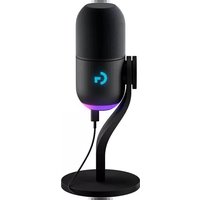
YETI GX - Microphone LOGITECH - Free user manual and instructions
Find the device manual for free YETI GX LOGITECH in PDF.



| Brand | Logitech |
| Model | Yeti GX |
| Product Type | USB Microphone for Streaming and Recording |
| Power Supply | USB Bus (5V) |
| Connectivity | USB-C to USB-A |
| Main Functions | Recording, streaming, gain control, smart audio lock, BlueVo!ce effects |
| Configuration Software | Logitech G HUB |
| Lighting | RGB LIGHTSYNC ring and G logo |
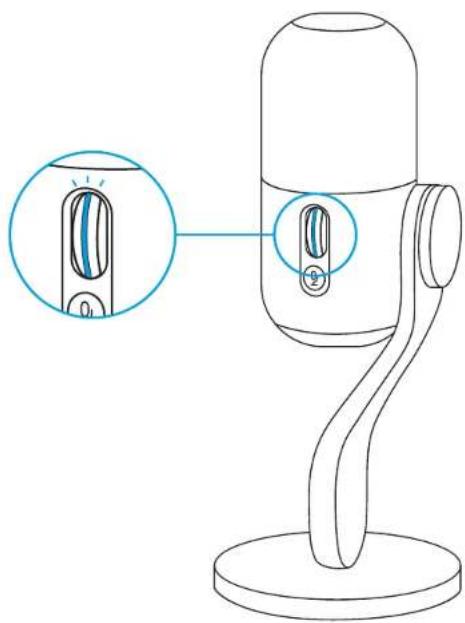
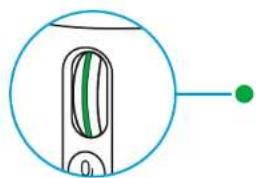
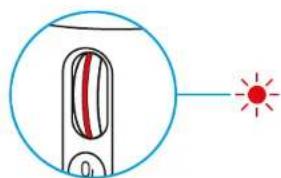
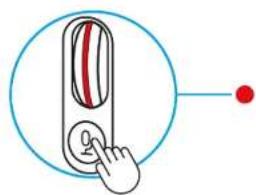
| Indicator Light (wheel) | Solid white (on), Solid green (audio active), Flashing red (clipping), Solid red (muted), Cyan (lock active) |
| Compatibility | Windows, macOS |
| Included Accessories | Desk stand, USB-C to USB-A cable, pop filter |
| Maintenance | Wipe with a soft, dry cloth |
| Safety | Use in a dry environment, avoid shocks and moisture |
| Repairability | Contact Logitech support for any repairs |
| Warranty | Check the Logitech website for details |
Frequently Asked Questions - YETI GX LOGITECH
User questions about YETI GX LOGITECH
0 question about this device. Answer the ones you know or ask your own.
Ask a new question about this device
Download the instructions for your Microphone in PDF format for free! Find your manual YETI GX - LOGITECH and take your electronic device back in hand. On this page are published all the documents necessary for the use of your device. YETI GX by LOGITECH.
USER MANUAL YETI GX LOGITECH
Dynamic RGB Gaming Mic with LIGHTSYNC
SETUP GUIDE
natural_image
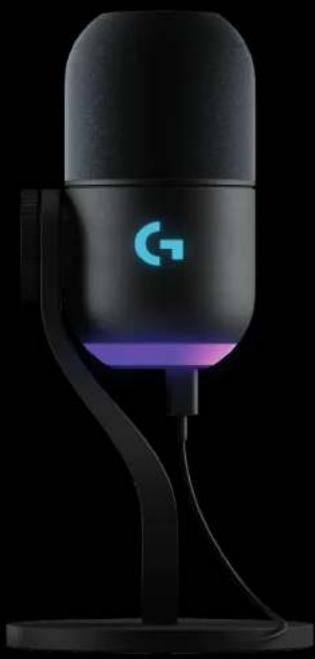
Black and white photo of a G remote control microphone with purple headlight (no text or symbols visible)logitech

natural_image
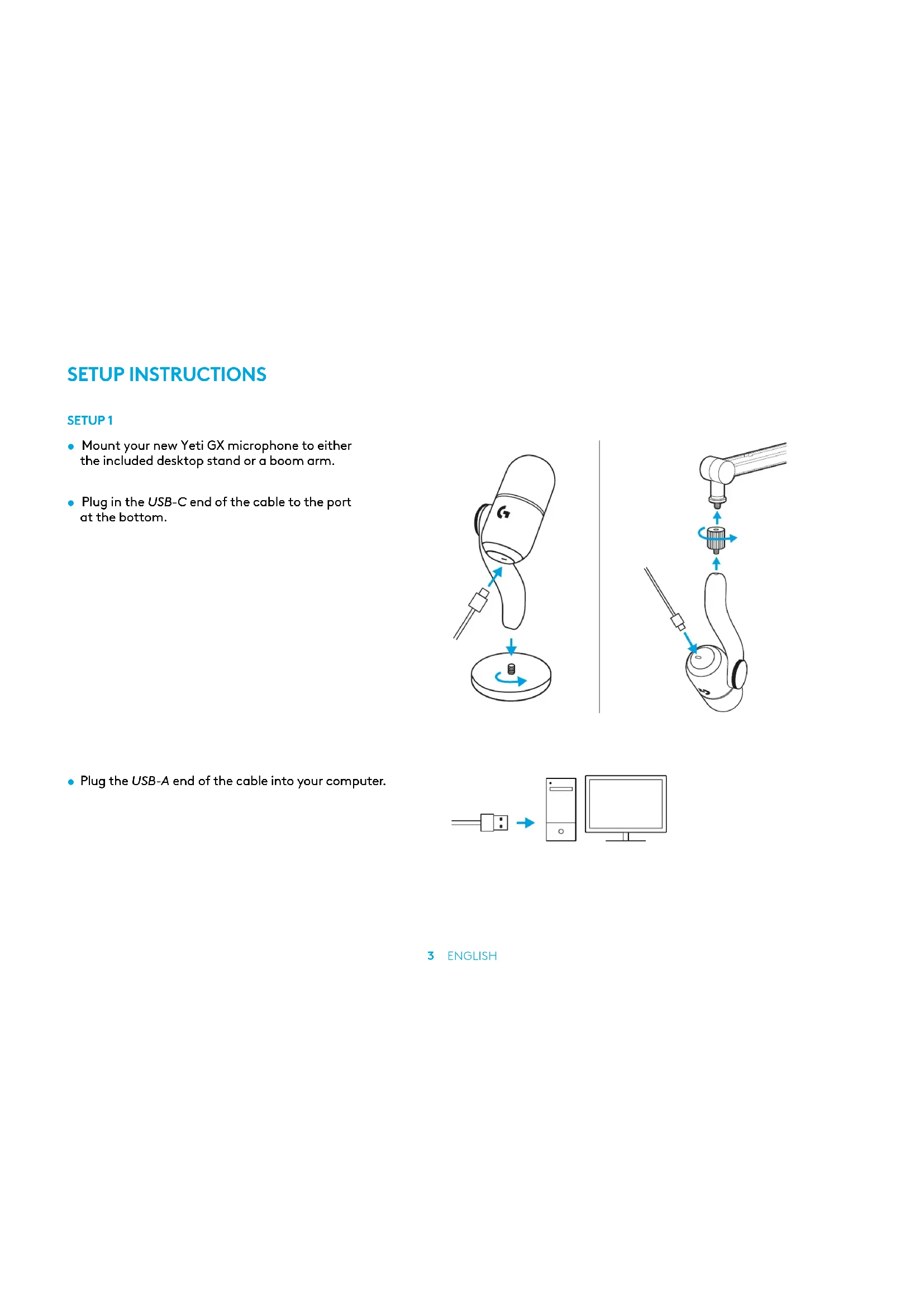
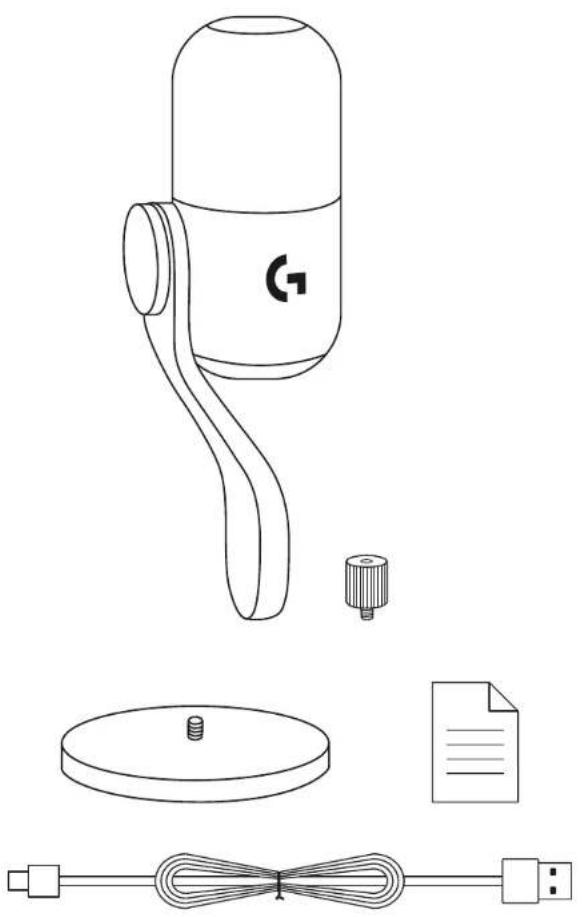
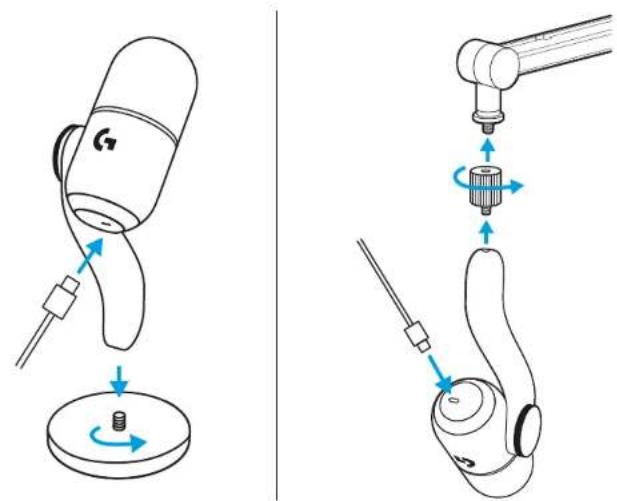
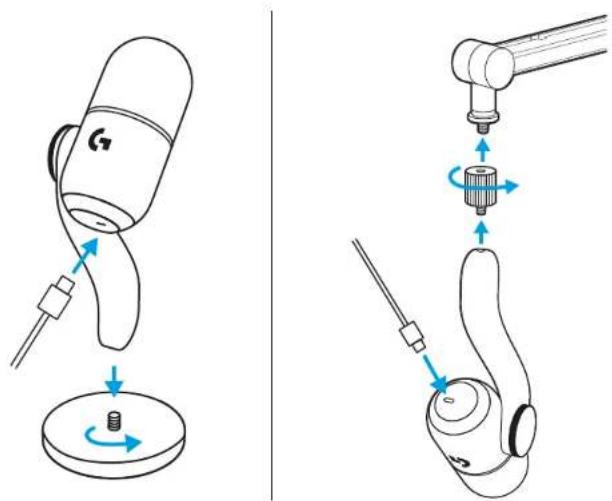
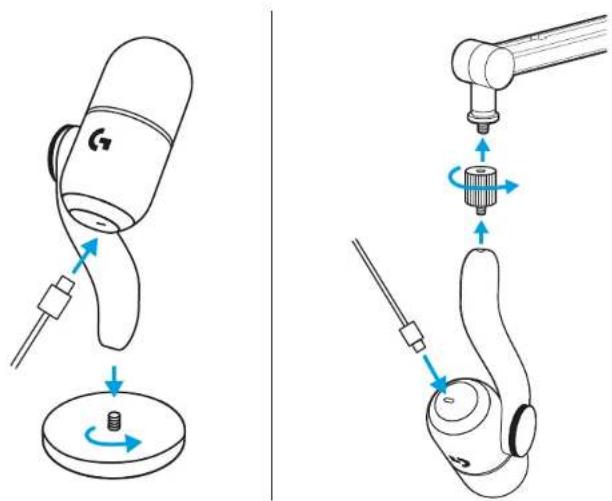
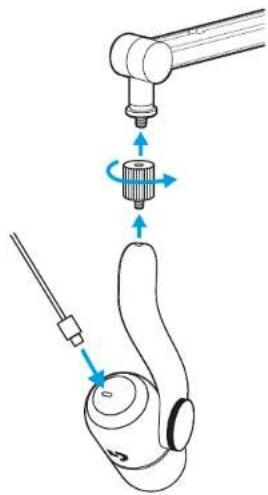
Line drawing of a portable phone with attached cable, battery, and paper (no text or symbols)- Mount your new Yeti GX microphone to either the included desktop stand or a boom arm.
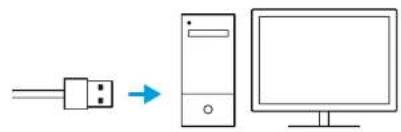
- Plug in the USB-C end of the cable to the port at the bottom.
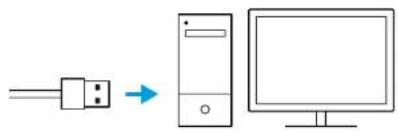
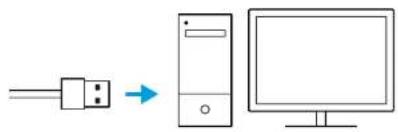
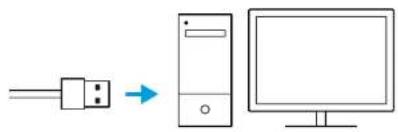
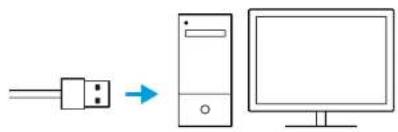
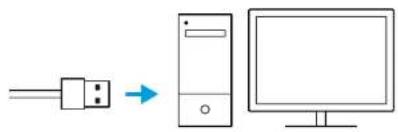
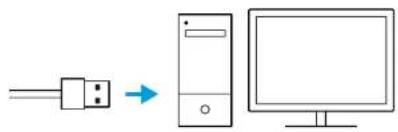
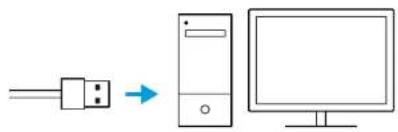
- Plug the USB-A end of the cable into your computer.
3 ENGLISH
SETUP 2
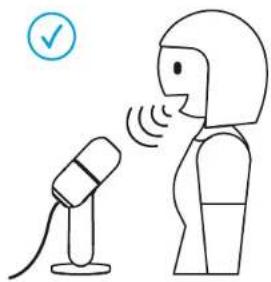
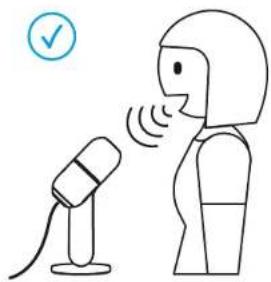
IMPORTANT!
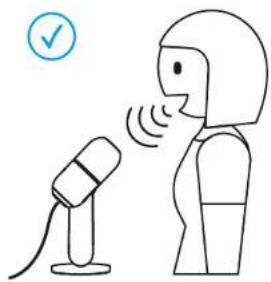
Be sure the flat part of the windscreen is pointing towards you!

natural_image
Simple line drawing of a robot wearing a helmet and speaking into a microphone (no text or symbols)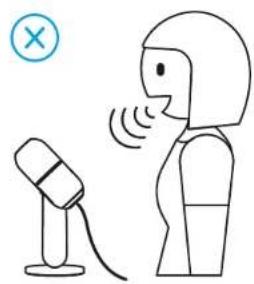
natural_image
Simple line drawing of a person speaking into a microphone with sound waves, no text or symbols presentSETUP 3
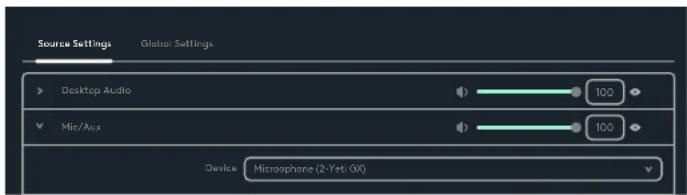
- Open any streaming or recording software with audio configuration.

streamlabs ultra
- Within the settings of the software, you may need to select Yeti GX as the active microphone.
SETUP 4
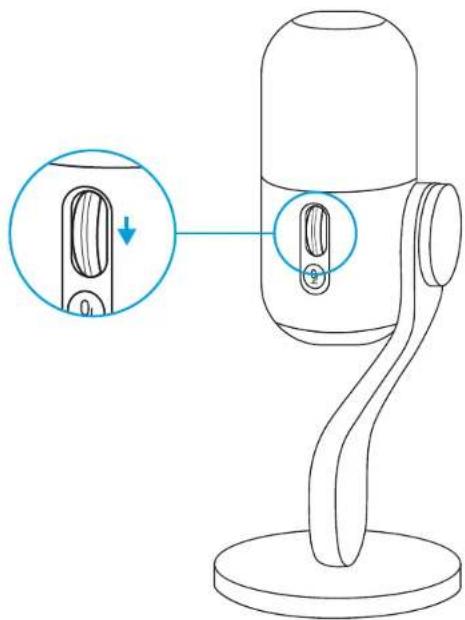
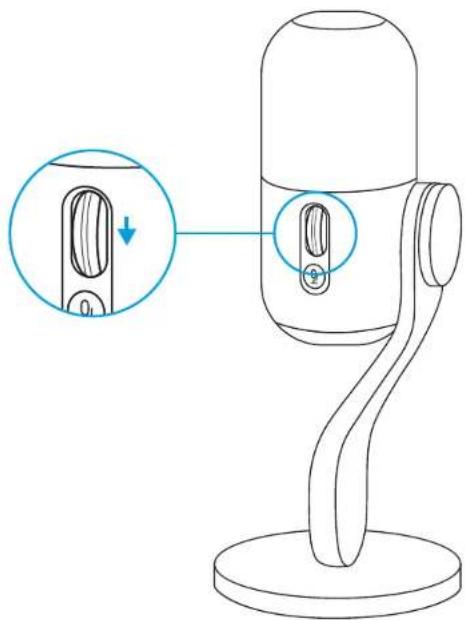
The scroll wheel adjusts your microphone gain.
While speaking in a normal voice that you would use while streaming or recording, adjust the gain by scrolling the wheel.
Scrolling the wheel up will increase gain while scrolling down will reduce gain.
natural_image
Line drawing of a handheld device with a close-up inset showing internal components (no text or symbols)SETUP 5
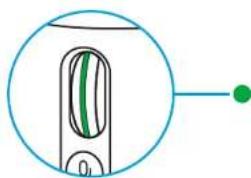
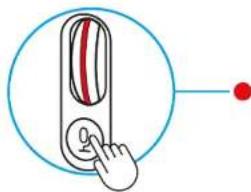
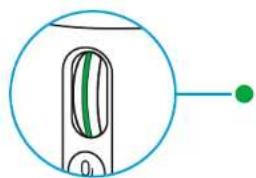
The LED on the scroll wheel also indicates if the mic is being used.
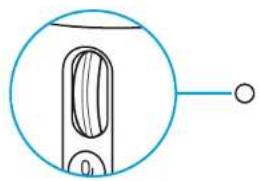
• Solid white means your mic is powered on.
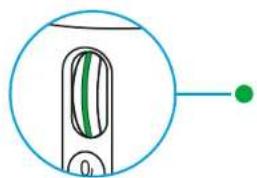
- Solid green means your mic is actively delivering audio.
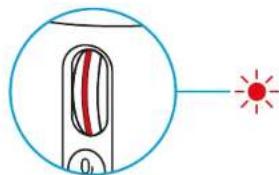
- Flashing red means your gain level is too high and causing clipping or distortion so it's best to turn it down.
- Solid red means your microphone is muted (press the mute button by the scroll wheel to mute or unmute.
natural_image
Simple line drawing of a mechanical component inside a circular outline (no text or symbols)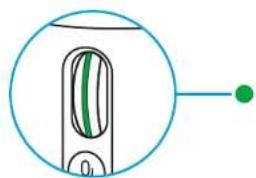
natural_image
Diagram of a device with a green internal structure, enclosed in a blue circle (no text or symbols)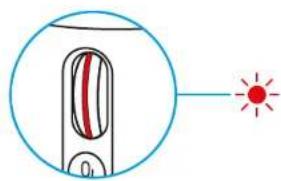
natural_image
Simple line drawing of a device with a red vertical stripe inside a circle and a red sun icon pointing to it (no text or symbols)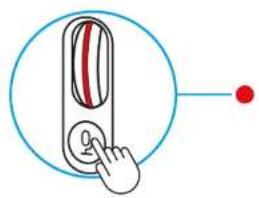
natural_image
Illustration of a hand pressing a button with a red stripe inside, enclosed in a blue circle (no text or symbols)7 ENGLISH
SETUP 6
After you are happy with the gain setting, click the wheel in to enable Smart Audio Lock. The LED on the wheel will turn Cyan when enabled.
Smart Audio Lock: smartly adjusts your gain by using an analog limiter to prevent clipping and a downward expander to reduce ambient background noise.
When enabled, the scroll wheel will not change gain. Click again to unlock before making any changes.
natural_image
Line drawing of a desktop microphone with a stand and a close-up inset showing the lens (no text or symbols)SETUP 7
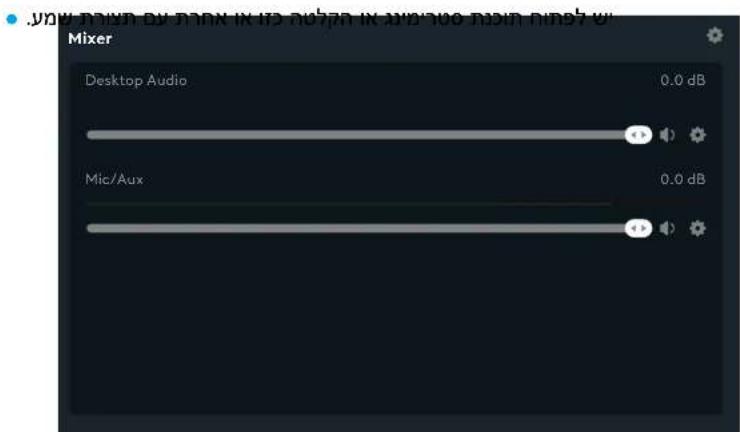
Download G HUB for full setup and customization of audio and lighting settings.

logitechG.com/ghub
SETUP 8
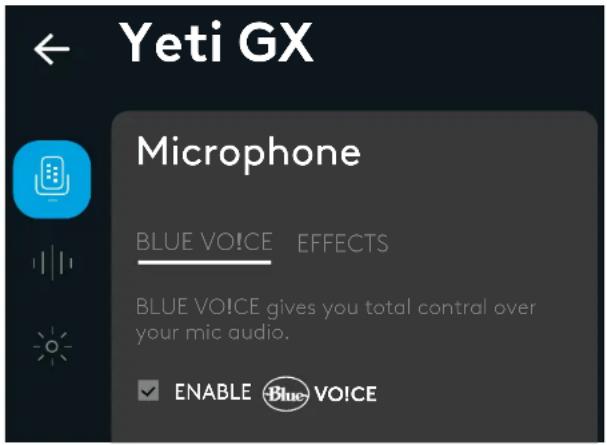
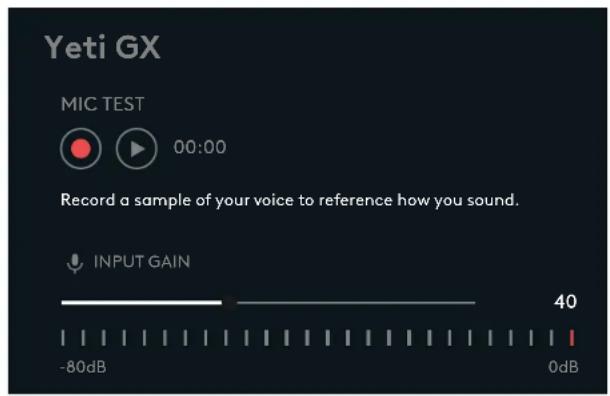
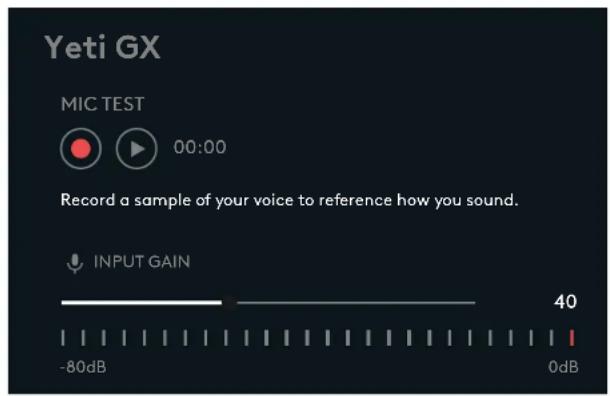
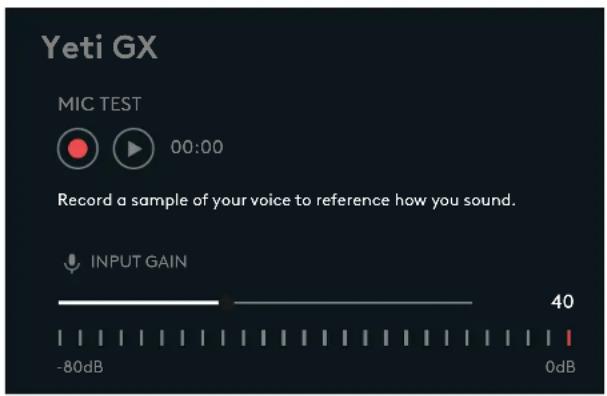
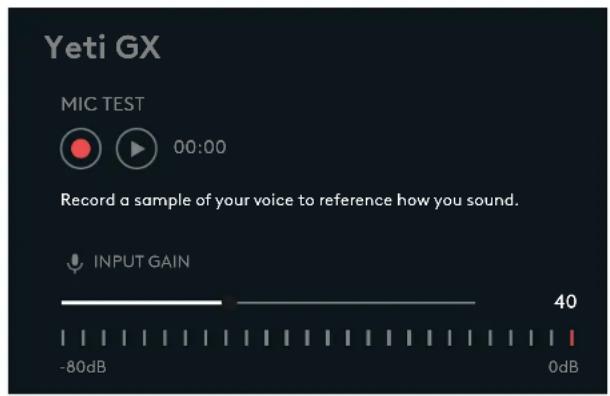
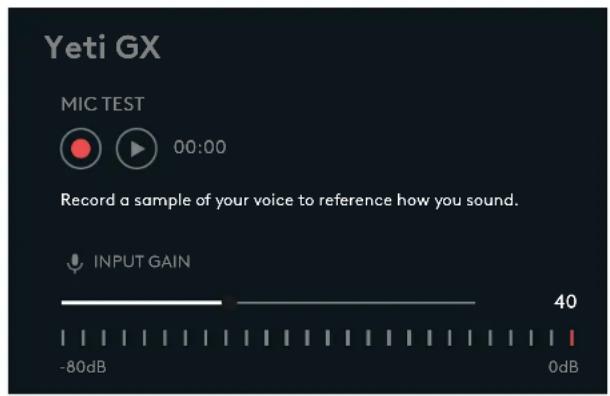
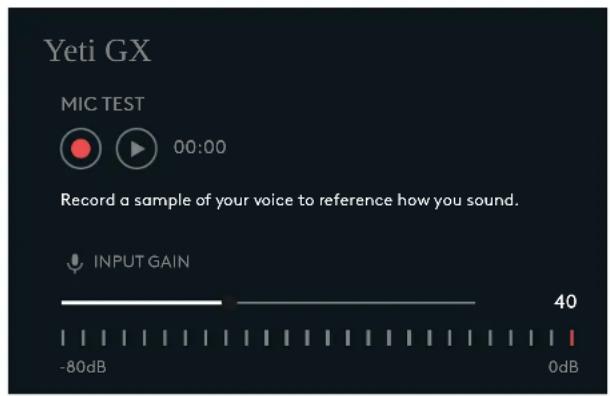
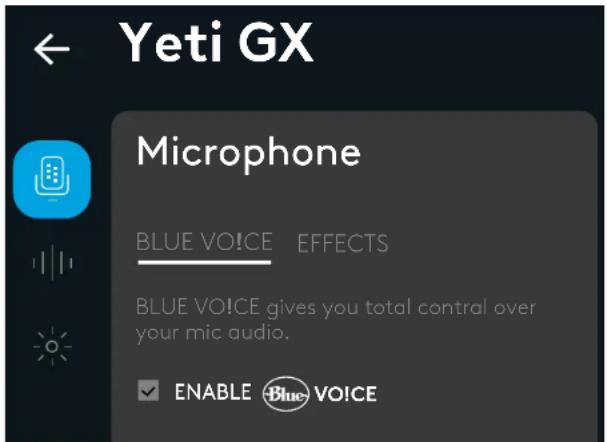
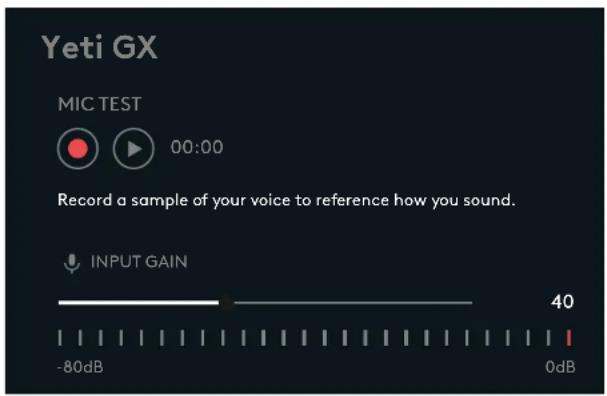
- Click the Microphone menu in G HUB to access BlueVoice presets, effects, and processing like EQ and noise reduction. You can also enable the Smart Audio Lock from this screen.
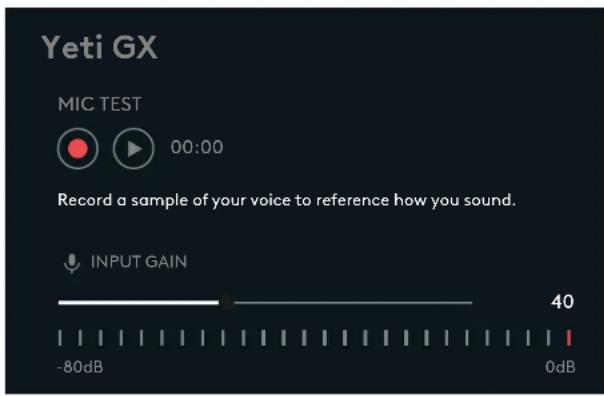
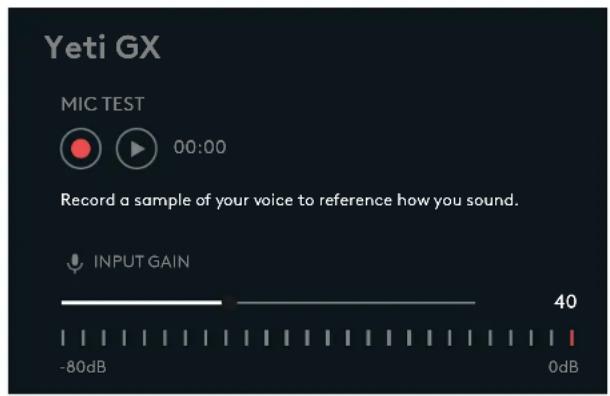
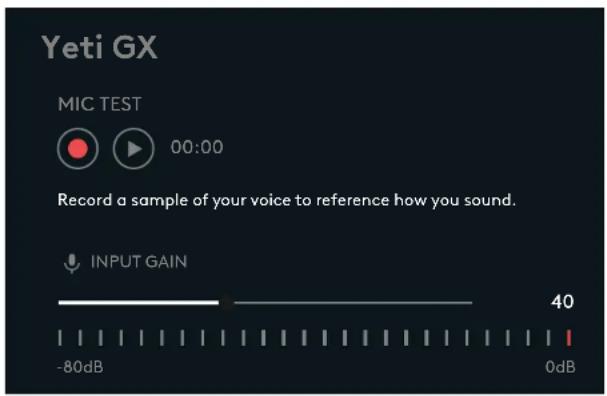
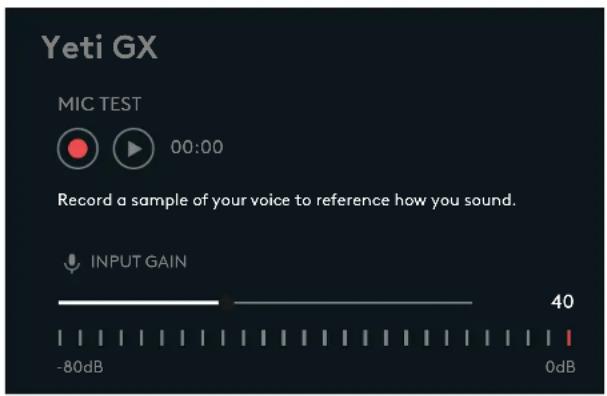
- To try different settings, first record a sample of your voice, then press play. You will then hear the recording you just made with the current BlueVoice settings. From here you can apply different presets, settings, and effects. Any changes you make will be applied to the recording so you can hear exactly what your audience will hear.
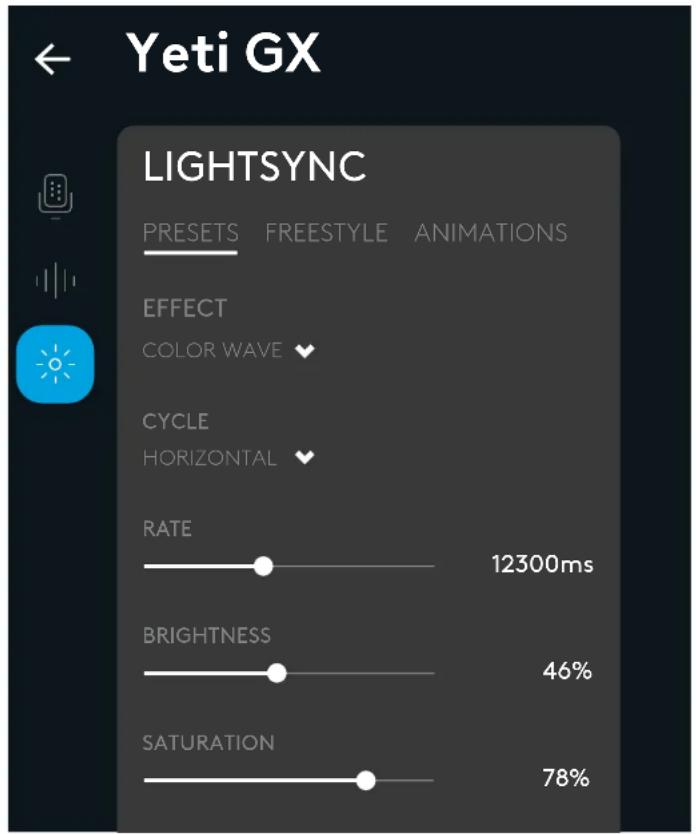
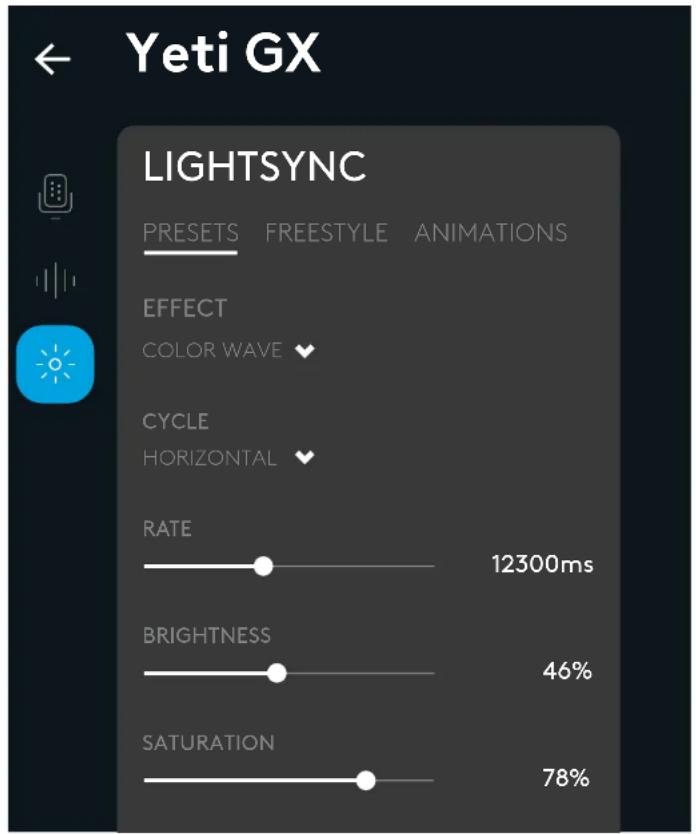
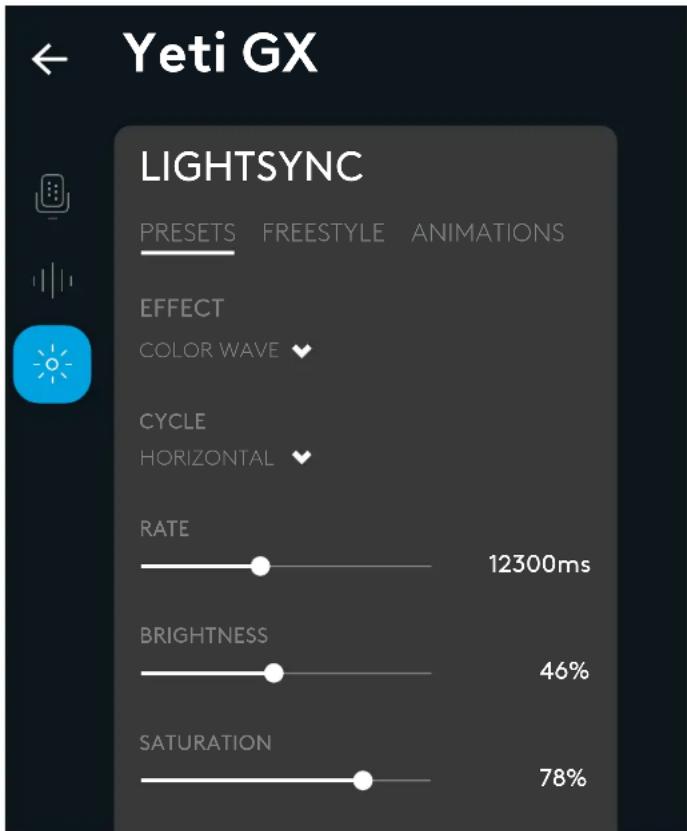
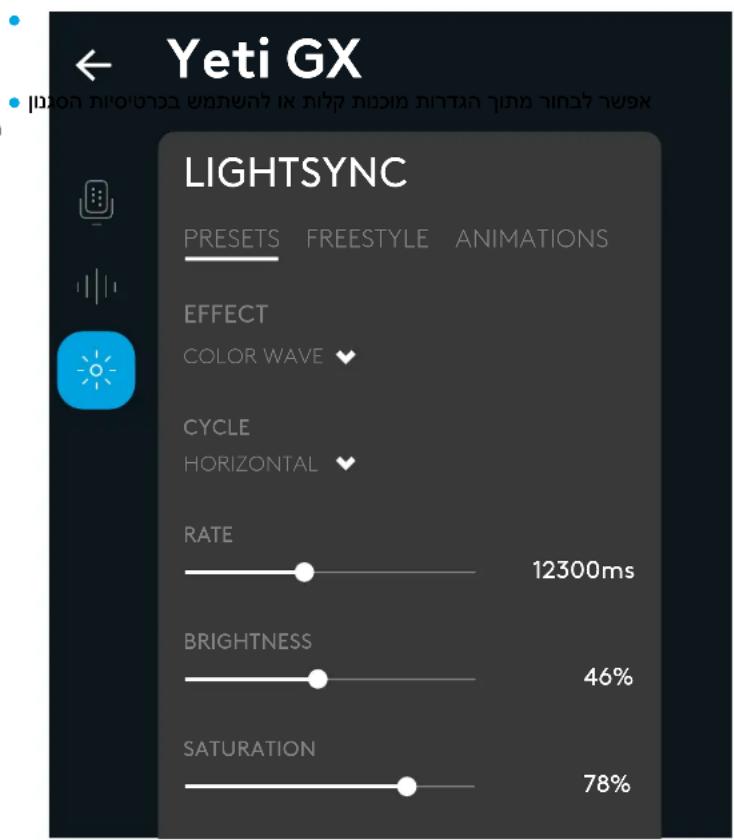
- Click the LIGHTSYNC menu in GHub to customize the lighting in the RGB ring and G logo.
- Choose from easy presets, or use the freestyle and animation tabs for full customization.
QUESTIONS?
logitechG.com/support/yeti-gx
11 DEUTSCH
EINRICHTUNG 2
WICHTIG!
natural_image
Simple line drawing of a robot wearing a helmet and speaking into a microphone (no text or symbols)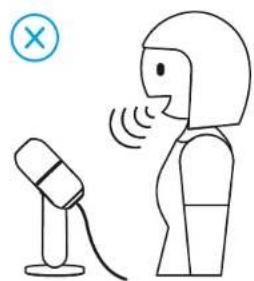
natural_image
Simple line drawing of a person speaking into a microphone with sound waves, no text or symbols presentEINRICHTUNG 3
EINRICHTUNG 4
natural_image
Line drawing of a handheld device with a curved base and internal components, showing a close-up of a connector (no text or symbols)EINRICHTUNG 5
natural_image
Simple line drawing of a device inside a circle, no text or symbols present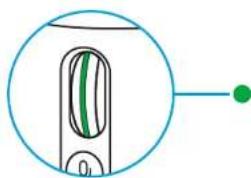
natural_image
Simple line drawing of a device with a green internal stripe and a blue outline, no text or symbols present.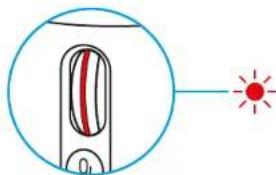
natural_image
Simple line drawing of a device with a red vertical stripe inside, connected to a red starburst symbol (no text or labels)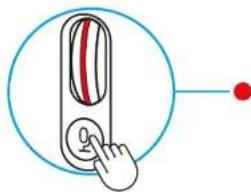
natural_image
Illustration of a hand pressing a button with a red stripe, enclosed in a blue circle (no text or symbols)EINRICHTUNG 6
natural_image
Line drawing of a desktop microphone with a stand and a close-up inset showing internal components (no text or symbols)EINRICHTUNG 7
CONFIGURATION 2
IMPORTANT
natural_image
Simple line drawing of a robot wearing a helmet and speaking into a microphone (no text or symbols)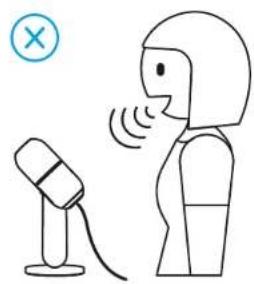
natural_image
Simple line drawing of a person speaking into a microphone with sound waves, no text or symbols presentCONFIGURATION 3
CONFIGURATION 4
natural_image
Line drawing of a handheld device with a curved base and internal components, showing a close-up of a connector (no text or symbols)CONFIGURATION 5
natural_image
Simple line drawing of a mechanical component inside a circular outline (no text or symbols)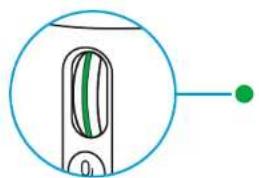
natural_image
Simple line drawing of a device with a green internal stripe, enclosed in a blue circle (no text or symbols)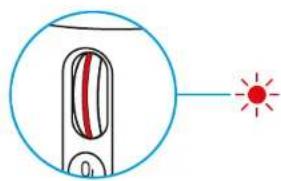
natural_image
Simple line drawing of a device with a red vertical stripe inside a circle and a red sun icon pointing to it (no text or symbols)
natural_image
Illustration of a hand pressing a button with a red circular element, enclosed in a blue circle (no text or symbols)CONFIGURATION 6
natural_image
Line drawing of a desktop microphone with a blue-lit connector and a magnified inset showing the internal structure (no text or symbols)CONFIGURATION 7
IMPOSTAZIONE 2
IMPORTANTE
natural_image
Simple line drawing of a robot wearing a helmet and speaking into a microphone (no text or symbols)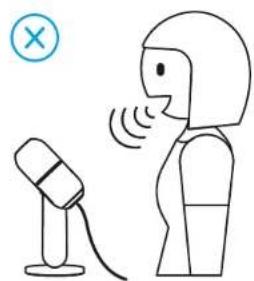
natural_image
Simple line drawing of a person speaking into a microphone with sound waves, no text or symbols presentIMPOSTAZIONE 3
IMPOSTAZIONE 4
natural_image
Line drawing of a handheld device with a curved base and internal components, showing a close-up of a connector (no text or symbols)IMPOSTAZIONE 5
natural_image
Simple line drawing of a mechanical component inside a circular outline (no text or symbols)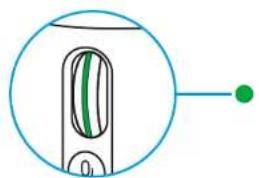
natural_image
Simple line drawing of a green striped object inside a blue circle, with a small green dot at the end (no text or symbols)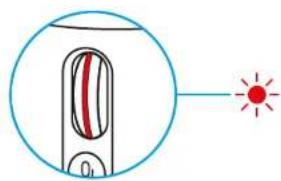
natural_image
Simple line drawing of a device with a red vertical stripe inside a circle and a red sun icon pointing to it (no text or symbols)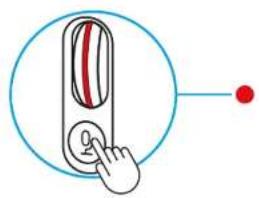
natural_image
Simple line drawing of a hand pressing a button on a device, enclosed in a blue circle with a red dot at the end (no text or symbols)31 ITALIANO
IMPOSTAZIONE 6
natural_image
Line drawing of a desktop microphone with a blue-lit connector and a magnified inset showing the internal structure (no text or symbols)IMPOSTAZIONE 7
CONFIGURACIÓN 2
¡IMPORTANTE!
natural_image
Simple line drawing of a robot wearing a helmet and speaking into a microphone (no text or symbols)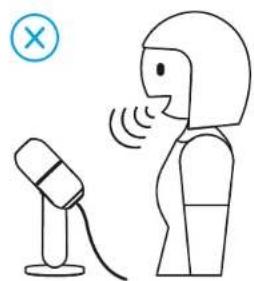
natural_image
Simple line drawing of a person speaking into a microphone with sound waves, no text or symbols presentCONFIGURACIÓN 3
CONFIGURACIÓN 4
natural_image
Line drawing of a handheld device with a curved base and internal components, showing a close-up of a connector (no text or symbols)CONFIGURACIÓN 5
natural_image
Simple line drawing of a device inside a circle, no text or symbols present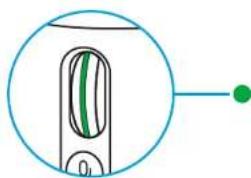
natural_image
Simple line drawing of a device with a green internal stripe and a blue outline, no text or symbols present.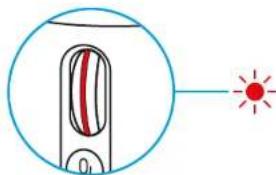
natural_image
Simple line drawing of a device with a red vertical stripe inside, connected to a red starburst symbol (no text or labels)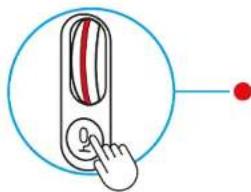
natural_image
Illustration of a hand pressing a button with a red stripe, enclosed in a blue circle (no text or symbols)CONFIGURACIÓN 6
natural_image
Line drawing of a desktop microphone with a blue-lit connector and a magnified inset showing the internal structure (no text or symbols)CONFIGURACIÓN 7
CONFIGURAÇÃO 2
IMPORTANTE!
natural_image
Simple line drawing of a robot wearing a helmet and speaking into a microphone (no text or symbols)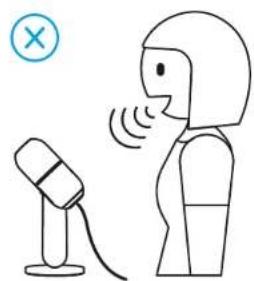
natural_image
Simple line drawing of a person speaking into a microphone with sound waves, no text or symbols presentCONFIGURAÇÃO 3
CONFIGURAÇÃO 4
natural_image
Line drawing of a handheld device with a curved base and internal components, showing a close-up of a connector (no text or symbols)CONFIGURAÇÃO 5
natural_image
Simple line drawing of a mechanical component inside a circular outline (no text or symbols)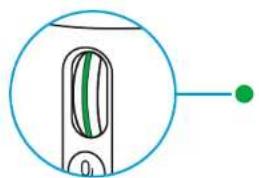
natural_image
Simple line drawing of a device with a green internal stripe, enclosed in a blue circle (no text or symbols)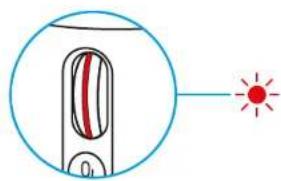
natural_image
Simple line drawing of a device with a red vertical stripe inside a circle and a red sun icon pointing to it (no text or symbols)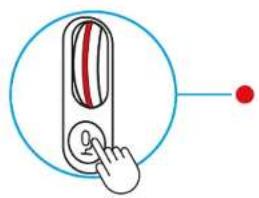
natural_image
Simple line drawing of a hand pressing a button with a red stripe, enclosed in a blue circle (no text or symbols)CONFIGURAÇÃO 6
natural_image
Line drawing of a desktop microphone with a blue-lit connector and a magnified inset showing the internal structure (no text or symbols)CONFIGURAÇÃO 7
51 NEDERLANDS
CONFIGURATIE 2
BELANGRIJK!
natural_image
Simple line drawing of a robot wearing a helmet and speaking into a microphone (no text or symbols)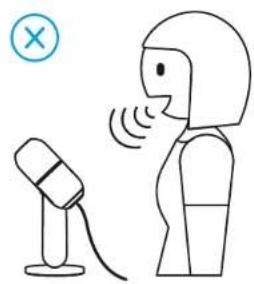
natural_image
Simple line drawing of a person speaking into a microphone with sound waves, no text or symbols presentCONFIGURATIE 3
CONFIGURATIE 4
natural_image
Line drawing of a handheld device with a curved base and internal components, showing a close-up of a connector (no text or symbols)CONFIGURATIE 5
natural_image
Simple line drawing of a mechanical component inside a circle (no text or symbols)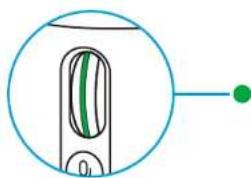
natural_image
Simple line drawing of a device with a green internal stripe and a blue outline, no text or symbols present.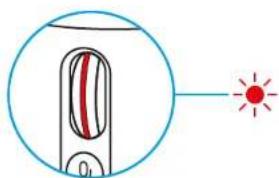
natural_image
Simple line drawing of a device with a red vertical stripe and a red sun icon (no text or symbols)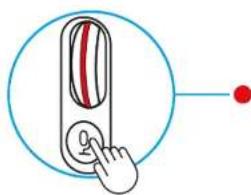
natural_image
Illustration of a hand pressing a button with a red stripe inside, enclosed in a blue circle (no text or symbols)CONFIGURATIE 6
natural_image
Line drawing of a desktop microphone with a blue-lit connector and a magnified inset showing the internal structure (no text or symbols)CONFIGURATIE 7
INSTALLATION 2
VIKTIGT!
natural_image
Simple line drawing of a robot wearing a helmet and speaking into a microphone (no text or symbols)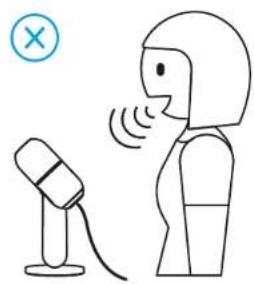
natural_image
Simple line drawing of a person speaking into a microphone with sound waves, no text or symbols presentINSTALLATION 3
INSTALLATION 4
natural_image
Line drawing of a handheld device with a curved base and internal components, showing a close-up of a connector (no text or symbols)INSTALLATION 5
natural_image
Simple line drawing of a mechanical component inside a circular outline (no text or symbols)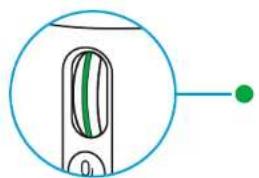
natural_image
Simple line drawing of a device with a green internal stripe, enclosed in a blue circle (no text or symbols)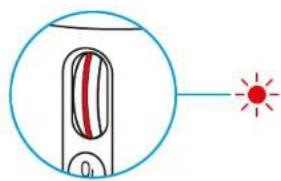
natural_image
Simple line drawing of a device with a red vertical stripe inside a circle and a red sun icon pointing to it (no text or symbols)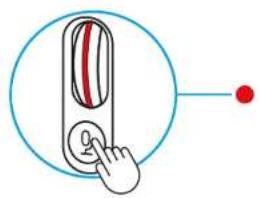
natural_image
Simple line drawing of a hand pressing a button on a device, enclosed in a blue circle with a red dot at the end (no text or symbols)INSTALLATION 6
natural_image
Line drawing of a desktop microphone with a stand and a close-up inset showing the lens (no text or symbols)INSTALLATION 7
- Sæt USB A-enden af kablet i din computer.
SETUP 2
VIGTIGT!
natural_image
Simple line drawing of a robot wearing a helmet and speaking into a microphone (no text or symbols)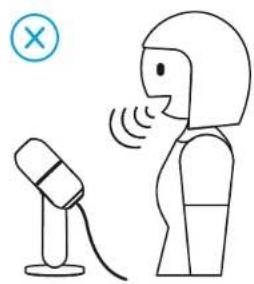
natural_image
Simple line drawing of a person speaking into a microphone with sound waves, no text or symbols presentSETUP 3
- Åbn enhver streaming- eller optagelsessoftware med lydkonfiguration.

streamlabs ultra
SETUP 4
natural_image
Line drawing of a handheld device with a curved base and internal components, showing a close-up of a connector (no text or symbols)KONFIGURATION 5
natural_image
Simple line drawing of a device inside a circle, no text or symbols present- Konstant grøn betyder, at din mikrofon aktivt leverer lyd.
natural_image
Simple line drawing of a device with a green internal stripe and a blue outline, no text or symbols present.natural_image
Simple line drawing of a device with a red vertical stripe inside, connected to a red starburst symbol (no text or labels)- Rød farve betyder, at din mikrofon er slået fra (tryk på knappen lyd fra ved scrollhjulet for at slå lyden til eller fra).
natural_image
Illustration of a hand pressing a button on a computer monitor (no text or symbols)SETUP 6
natural_image
Line drawing of a desktop microphone with a stand and a close-up inset showing the lens (no text or symbols)SETUP 7
OPPSETT 2
VIKTIG!
natural_image
Simple line drawing of a robot wearing a helmet and speaking into a microphone (no text or symbols)
natural_image
Simple line drawing of a person speaking into a microphone with sound waves, no text or symbols presentOPPSETT 3
OPPSETT 4
Rullehjulet justerer mikrofonforsterkningen.
Mens du snakker med en vanlig stemme som du ville brukt under strømming eller opptak, justerer du forsterkningen med rullehjulet.
Hvis du ruller hjulet opp, øker forsterkningen, hvis du ruller ned reduseres forsterkningen.
natural_image
Line drawing of a handheld device with a close-up inset showing internal components (no text or symbols)OPPSETT 5
En LED på rullehjulet indikerer om mikrofonen er i bruk.
natural_image
Simple line drawing of a mechanical component inside a circular outline (no text or symbols)- Grønt lys betyr at mikrofonen aktivt leverer lyd.
natural_image
Diagram of a device with a green internal structure and a blue circular outline, no text or symbols present.natural_image
Simple line drawing of a device with a red internal stripe and a red sun icon (no text or symbols)natural_image
Simple line drawing of a hand pressing a button with a red stripe, enclosed in a blue circle (no text or symbols)OPPSETT 6
Etter at du er fornøyd med forsterkningsinnstillingen, trykker du på hjulet for å aktivere Smart Audio Lock. LED-en hjulet vil endre til blå när denne er aktivert.
natural_image
Line drawing of a desktop microphone with a blue-lit connector and a magnified inset showing the internal structure (no text or symbols)OPPSETT 7
KÄYTTÖÖNOTTO 2
TÄRKEÄÄ!
natural_image
Simple line drawing of a robot wearing a helmet and speaking into a microphone (no text or symbols)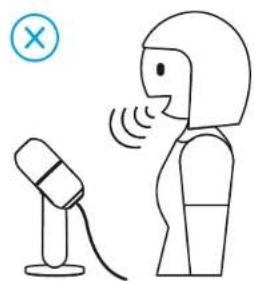
natural_image
Simple line drawing of a person speaking into a microphone with sound waves, no text or symbols presentKÄYTTÖÖNOTTO 3
KÄYTTÖÖNOTTO 4
natural_image
Line drawing of a handheld device with a curved base and internal components, showing a close-up of the handle (no text or symbols)KÄYTTÖÖNOTTO 5
natural_image
Simple line drawing of a mechanical component inside a circular outline (no text or symbols)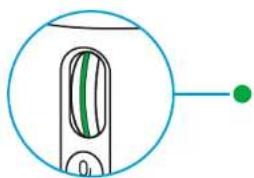
natural_image
Simple line drawing of a device with a green internal stripe, enclosed in a blue circle (no text or symbols)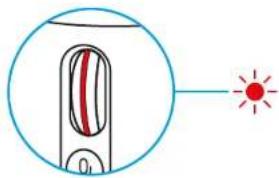
natural_image
Simple line drawing of a thermometer inside a circle with a red sun icon pointing to it (no text or symbols)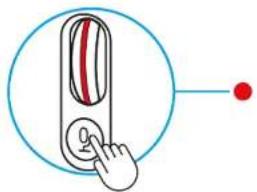
natural_image
Illustration of a hand pressing a button with a red stripe inside a circle (no text or symbols)KÄYTTÖÖNOTTO 6
natural_image
Line drawing of a desktop microphone with a stand and a close-up inset showing the lens (no text or symbols)KÄYTTÖÖNOTTO 7
PYOMIZH 2
ΣΗΜΑΝΤΙΚΟ!
natural_image
Simple line drawing of a robot wearing a helmet and speaking into a microphone (no text or symbols)
natural_image
Simple line drawing of a person speaking into a microphone with sound waves, no text or symbols presentPYOMI3H 3
PYOMI5H 4
natural_image
Line drawing of a handheld device with a curved base and internal components, showing a close-up of a connector (no text or symbols)PYOMI5H 5
natural_image
Simple line drawing of a mechanical component inside a circular outline, no text or symbols present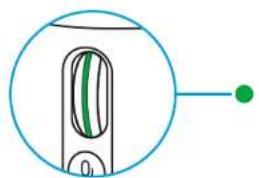
natural_image
Simple line drawing of a green striped object inside a circle, with a small green dot at the end (no text or symbols)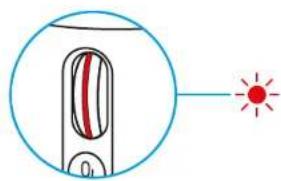
natural_image
Simple line drawing of a device with a red vertical stripe inside a circle and a red sun icon pointing to it (no text or symbols)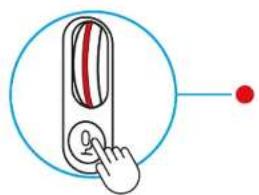
natural_image
Simple line drawing of a hand pressing a button with a red stripe inside, enclosed in a blue circle (no text or symbols)PYOMI5H 6
natural_image
Line drawing of a desktop microphone with a blue-lit connector and a magnified inset showing the internal structure (no text or symbols)PYOMISH 7
natural_image
Simple line drawing of a robot wearing a helmet and speaking into a microphone (no text or symbols)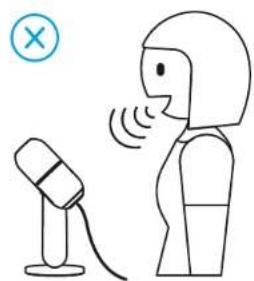
natural_image
Simple line drawing of a person speaking into a microphone with sound waves, no text or symbols presentnatural_image
Line drawing of a handheld device with a close-up inset showing internal components (no text or symbols)natural_image
Simple line drawing of a mechanical component inside a circular outline (no text or symbols)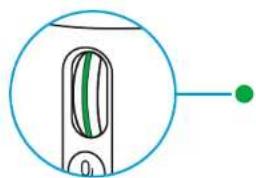
natural_image
Diagram of a device with a green internal structure and a blue circular outline, no text or symbols present.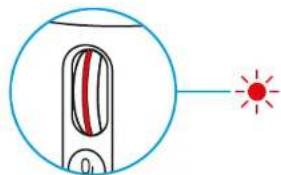
natural_image
Simple line drawing of a device with a red vertical stripe inside, connected to a red sun icon (no text or symbols)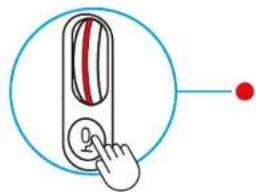
natural_image
Illustration of a hand pressing a button with a red stripe, enclosed in a blue circle (no text or symbols)natural_image
Line drawing of a desktop microphone with a blue-lit connector and a magnified inset showing the internal structure (no text or symbols)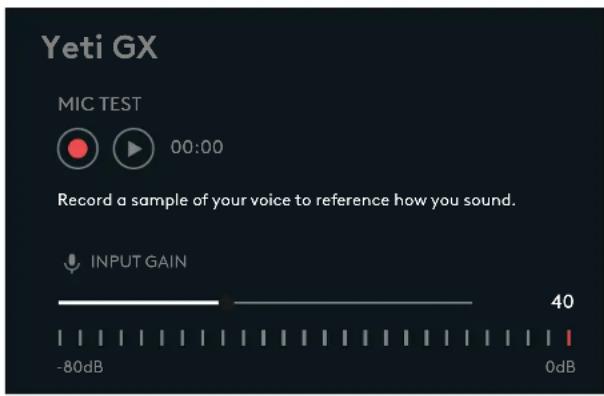
KONFIGURACJA 2
WAŻNE!
natural_image
Simple line drawing of a robot wearing a helmet and speaking into a microphone (no text or symbols)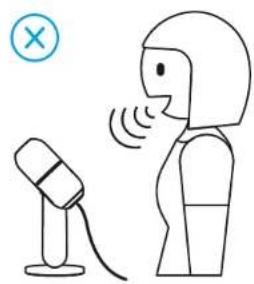
natural_image
Simple line drawing of a person speaking into a microphone with sound waves, no text or symbols presentKONFIGURACJA 3
KONFIGURACJA 4
natural_image
Line drawing of a handheld device with a curved base and internal components, showing a close-up of a connector (no text or symbols)KONFIGURACJA 5
natural_image
Simple line drawing of a mechanical component inside a circular outline (no text or symbols)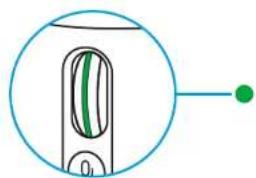
natural_image
Diagram of a device with a green internal structure, enclosed in a blue circle (no text or symbols)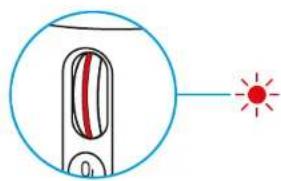
natural_image
Simple line drawing of a device with a red vertical stripe inside a circle and a red sun icon pointing to it (no text or symbols)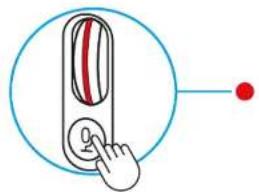
natural_image
Illustration of a hand pressing a button with a red circular element, enclosed in a blue circle (no text or symbols)KONFIGURACJA 6
natural_image
Line drawing of a desktop microphone with a stand and a close-up inset showing the lens (no text or symbols)KONFIGURACJA 7
ÜZEMBE HELYEZÉS - 2
FONTOS!
natural_image
Simple line drawing of a robot wearing a helmet and speaking into a microphone (no text or symbols)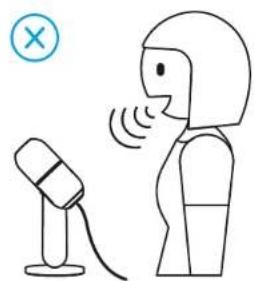
natural_image
Simple line drawing of a person speaking into a microphone with sound waves, no text or symbols presentÜZEMBE HELYEZÉS – 3
ÜZEMBE HELYEZÉS - 4
natural_image
Line drawing of a handheld device with a curved base and internal components, showing a close-up of a connector (no text or symbols)ÜZEMBE HELYEZÉS – 5
natural_image
Simple line drawing of a mechanical component inside a circular outline (no text or symbols)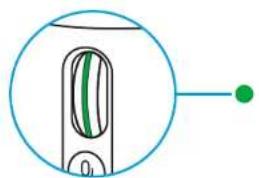
natural_image
Simple line drawing of a device with a green internal stripe, enclosed in a blue circle (no text or symbols)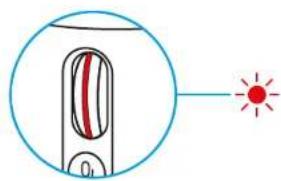
natural_image
Simple line drawing of a device with a red vertical stripe inside a circle and a red sun icon pointing to it (no text or symbols)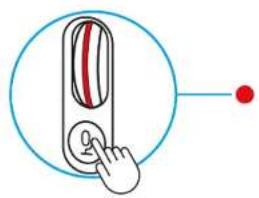
natural_image
Illustration of a hand pressing a button on a device, with a red dot and blue circle in the background (no text or symbols)ÜZEMBE HELYEZÉS - 6
natural_image
Line drawing of a desktop microphone with a stand and a close-up inset showing the lens (no text or symbols)ÜZEMBE HELYEZÉS – 7
NASTAVENÍ 2:
DŮLEŽITÉ!
natural_image
Simple line drawing of a robot wearing a helmet and speaking into a microphone (no text or symbols)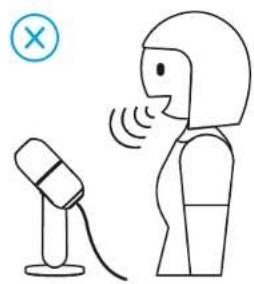
natural_image
Simple line drawing of a person speaking into a microphone with sound waves, no text or symbols presentNASTAVENÍ 3:
NASTAVENÍ 4:
natural_image
Line drawing of a handheld device with a close-up inset showing internal components (no text or symbols)NASTAVENÍ 5:
natural_image
Simple line drawing of a mechanical component inside a circular outline (no text or symbols)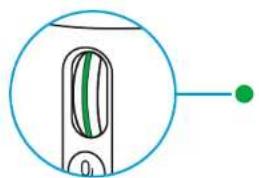
natural_image
Simple line drawing of a green striped object inside a circle, with a small green dot at the end (no text or symbols)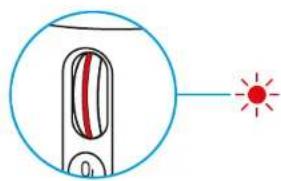
natural_image
Simple line drawing of a device with a red vertical stripe inside a circle and a red sun icon pointing to it (no text or symbols)
natural_image
Simple line drawing of a hand pressing a button on a device, enclosed in a blue circle with a red dot at the end (no text or symbols)NASTAVENÍ 6:
natural_image
Line drawing of a desktop microphone with a stand and a close-up inset showing the lens (no text or symbols)NASTAVENÍ 7:
NASTAVENIE 2:
DÔLEŽITÉ!
natural_image
Simple line drawing of a robot wearing a helmet and speaking into a microphone (no text or symbols)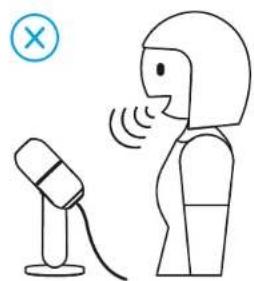
natural_image
Simple line drawing of a person speaking into a microphone with sound waves, no text or symbols presentNASTAVENIE 3:
NASTAVENIE 4:
natural_image
Line drawing of a handheld device with a close-up inset showing internal components (no text or symbols)NASTAVENIE 5:
natural_image
Simple line drawing of a mechanical component inside a circular outline (no text or symbols)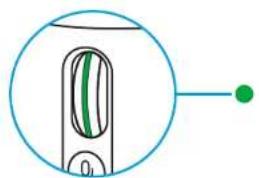
natural_image
Simple line drawing of a device with a green internal stripe, enclosed in a blue circle (no text or symbols)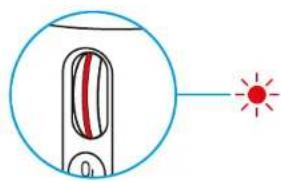
natural_image
Simple line drawing of a device with a red vertical stripe inside a circle and a red sun icon pointing to it (no text or symbols)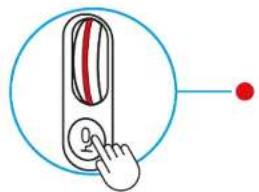
natural_image
Illustration of a hand pressing a button with a red circular element, enclosed in a blue circle (no text or symbols)NASTAVENIE 6:
natural_image
Line drawing of a desktop microphone with a blue-lit connector and a magnified inset showing the internal structure (no text or symbols)NASTAVENIE 7:
natural_image
Simple line drawing of a robot wearing a helmet and speaking into a microphone (no text or symbols)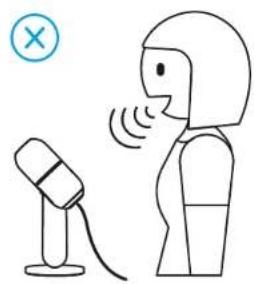
natural_image
Simple line drawing of a person speaking into a microphone with sound waves, no text or symbols presentnatural_image
Line drawing of a handheld device with a curved base and internal components, showing a close-up of a connector (no text or symbols)natural_image
Simple line drawing of a mechanical component inside a circular outline (no text or symbols)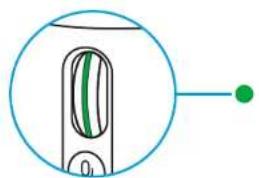
natural_image
Simple line drawing of a device with a green internal stripe, enclosed in a blue circle (no text or symbols)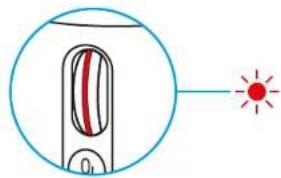
natural_image
Simple line drawing of a thermometer inside a circle with a red sun symbol pointing to it (no text or labels)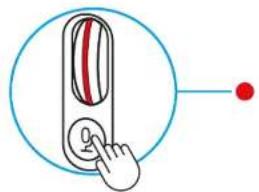
natural_image
Illustration of a hand pressing a button with a red circular element, enclosed in a blue circle (no text or symbols)natural_image
Line drawing of a desktop microphone with a stand and a close-up inset showing the lens (no text or symbols)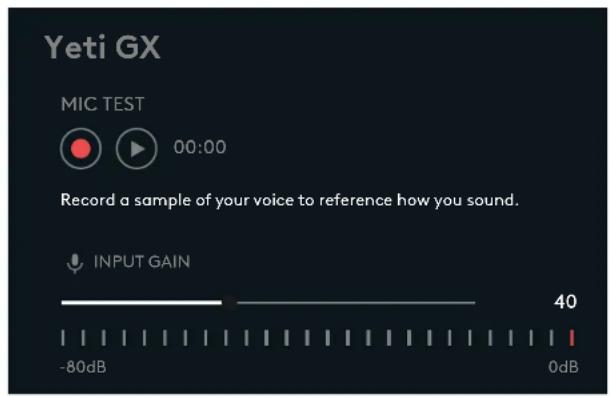
natural_image
Simple line drawing of a robot wearing a helmet and speaking into a microphone (no text or symbols)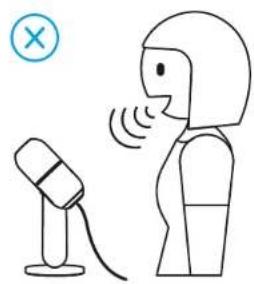
natural_image
Simple line drawing of a person speaking into a microphone with sound waves, no text or symbols presentSEADISTUS 3
SEADISTUS 4
natural_image
Line drawing of a handheld device with a curved base and internal components, showing a close-up of a connector (no text or symbols)SEADISTUS 5
natural_image
Simple line drawing of a device inside a circle, no text or symbols present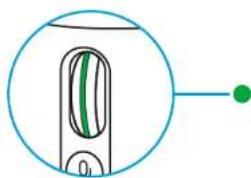
natural_image
Simple line drawing of a device with a green internal stripe and a blue outline, no text or symbols present.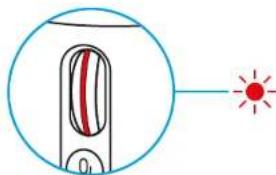
natural_image
Simple line drawing of a device with a red vertical stripe inside, connected to a red starburst symbol (no text or labels)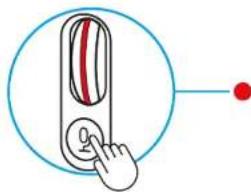
natural_image
Illustration of a hand pressing a button with a red stripe, enclosed in a blue circle (no text or symbols)SEADISTUS 6
natural_image
Line drawing of a desktop microphone with a stand and a close-up inset showing the lens (no text or symbols)SEADISTUS 7
• lespraudiet kabela USB-A galu datorā.
2. DARBIBA
SVARİGI!
natural_image
Simple line drawing of a robot wearing a helmet and speaking into a microphone (no text or symbols)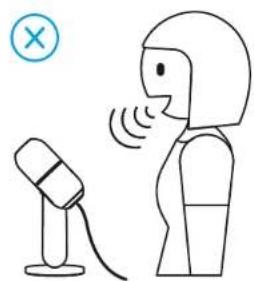
natural_image
Simple line drawing of a person speaking into a microphone with sound waves, no text or symbols present3. DARBIBA
4. DARBIBA
natural_image
Line drawing of a handheld device with a curved base and internal components, showing a close-up of a connector (no text or symbols)5. DARBIBA
natural_image
Simple line drawing of a mechanical component inside a circular outline (no text or symbols)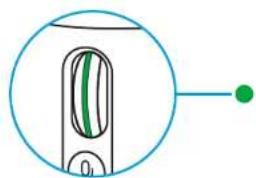
natural_image
Diagram of a device with a green internal structure, enclosed in a blue circle (no text or symbols)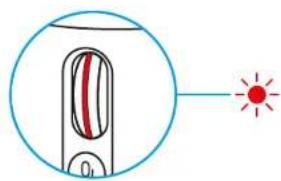
natural_image
Simple line drawing of a device with a red vertical stripe inside a circle and a red sun icon pointing to it (no text or symbols)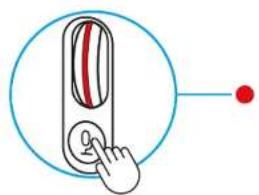
natural_image
Simple line drawing of a hand pressing a button with a red stripe inside, enclosed in a blue circle (no text or symbols)6. DARBIBA
natural_image
Line drawing of a desktop microphone with a blue-lit connector and a magnified inset showing the internal structure (no text or symbols)7. DARBIBA
- Prijunkite kabelio USB-A galq prie savo kompiuterio.
2 NUSTATYMAS
SVARBU!
natural_image
Simple line drawing of a robot wearing a helmet and speaking into a microphone (no text or symbols)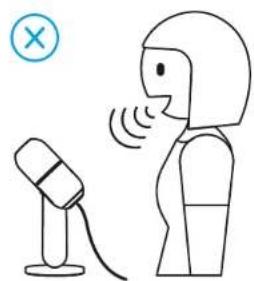
natural_image
Simple line drawing of a person speaking into a microphone with sound waves, no text or symbols present3 NUSTATYMAS
4 NUSTATYMAS
natural_image
Line drawing of a handheld device with a curved base and internal components, showing a close-up of a connector (no text or symbols)5 NUSTATYMAS
Ant slinkties ratuko esantis LED nurodo, ar mikrofonas naudojamas.
natural_image
Simple line drawing of a mechanical component inside a circular outline, no text or symbols present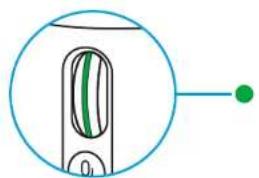
natural_image
Simple line drawing of a device with a green internal stripe, enclosed in a blue circle (no text or symbols)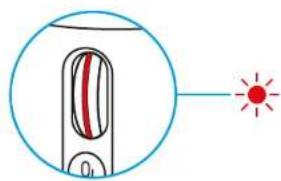
natural_image
Simple line drawing of a device with a red vertical stripe inside a circle and a red sun icon pointing to it (no text or symbols)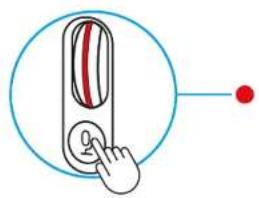
natural_image
Simple line drawing of a hand pressing a button on a device, enclosed in a blue circle with a red dot at the end (no text or symbols)6 NUSTATYMAS
natural_image
Line drawing of a desktop microphone with a stand and a close-up inset showing the lens (no text or symbols)7 NUSTATYMAS
НАСТРОЙКА 2
ВАЖНО!
natural_image
Simple line drawing of a robot wearing a helmet and speaking into a microphone (no text or symbols)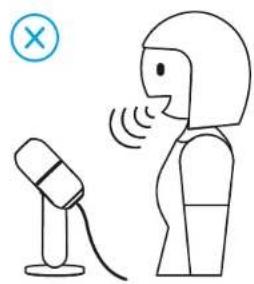
natural_image
Simple line drawing of a person speaking into a microphone with sound waves, no text or symbols presentНАСТРОЙКА 3
НАСТРОЙКА 4
natural_image
Line drawing of a handheld device with a close-up inset showing internal components (no text or symbols)НАСТРОЙКА 5
natural_image
Simple line drawing of a mechanical component inside a circular outline (no text or symbols)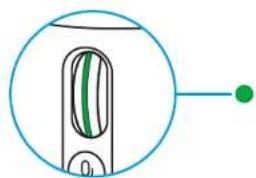
natural_image
Diagram of a device with a green internal structure, enclosed in a blue circle (no text or symbols)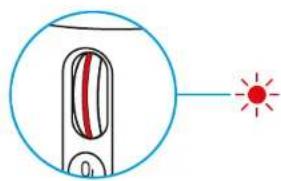
natural_image
Simple line drawing of a device with a red vertical stripe inside a circle and a red sun icon pointing to it (no text or symbols)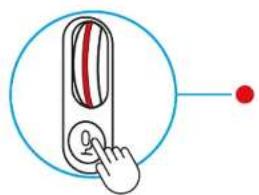
natural_image
Simple line drawing of a hand pressing a button with a red stripe inside, enclosed in a blue circle (no text or symbols)НАСТРОЙКА 6
natural_image
Line drawing of a desktop microphone with a close-up inset showing internal components (no text or symbols)НАСТРОЙКА 7
- Ukopčajte USB-A kraj kabela u računalo.
POSTAVA 2
VAŽNO!
Pazite da ravan dio zaslona od vjetra bude okrenut prema vama!

natural_image
Simple line drawing of a robot wearing a helmet and speaking into a microphone (no text or symbols)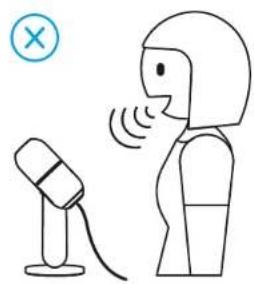
natural_image
Simple line drawing of a person speaking into a microphone with sound waves, no text or symbols presentPOSTAVA 3
POSTAVA 4
natural_image
Line drawing of a handheld device with a curved base and internal components, showing a close-up of a connector (no text or symbols)POSTAVA 5
natural_image
Simple line drawing of a mechanical component inside a circular outline (no text or symbols)• Stalno zeleno znači da mikrofon aktivno daje signal zvuka.
natural_image
Simple line drawing of a device with a green internal stripe, enclosed in a blue circle (no text or symbols)- Trepćuće crveno znači da je razina pojačanja previsoka i da dovodi do zasićenja ili izobličenja pa će biti najbolje da ga smanjite.
natural_image
Simple line drawing of a device with a red internal stripe and a red sun icon (no text or symbols)- Stalno crveno znači da je mikrofon utišan (pritisnite gumb za utišavanje pored kotačića za utišavanje ili uključivanje mikrofona.
natural_image
Simple line drawing of a hand pressing a button with a red stripe, enclosed in a blue circle (no text or symbols)POSTAVA 6
natural_image
Line drawing of a desktop microphone with a stand and a close-up inset showing the lens (no text or symbols)POSTAVA 7
Preuzmite G HUB za kompletnu postavu i prilagodbu postavki zvuka i svjetla.

logitechG.com/ghub
POSTAVA 8
- Kliknite izbornik za mikrofon u G HUB radi pristupa gotovim postavkama za BlueVo!ce, efektima i obradi poput EQ i smanjenje šumova. Pametno zaključavanje zvuka možete omogućiti i na ovom zaslonu.
- Ako želite iskušati različite postavke, prvo snimite uzorak vašeg glasa i zatim pritisnite reprodukciju. Tada ćete začuti snimku koju ste upravo snimili s trenutnim postavkama za BlueVo!ce. Tamo možete primijeniti različite gotove postavke, postavke i efekte. Sve promjene koje učinite, primijenit će se na snimku pa možete čuti točno ono što će vaša publika čuti.
- Kliknite izbornik LIGHTSYNC u GHub radi prilagodbe svjetla u RGB prstenu i G logotipu.
- Odaberite nešto među jednostavnim gotovim postavkama ili slobodnim stilom i karticama za animaciju izvršite punu prilagodbu.
- Kliknite izbornik LIGHTSYNC u GHub radi prilagodbe svjetla u RGB prstenu i G logotipu.
- Odaberite nešto među jednostavnim gotovim postavkama ili slobodnim stilom i karticama za animaciju izvršite punu prilagodbu.
IMATE LI PITANJA?
logitechG.com/support/yeti-gx
UPUTSTVA ZA PODEŠAVANJE
PODEŠAVANJE 1
- Postavite novi Yeti GX mikrofon na priloženo stono postolje ili na ručicu.
- Povežite USB-C kraj kabla na port sa donje strane.
- Povežite USB-A kraj kabla na računar.
PODEŠAVANJE 2
VAŽNO!
Proverite da li je ravni deo štitnika od vetra okrenut prema vama!

natural_image
Simple line drawing of a person speaking into a microphone with sound waves, no text or symbols present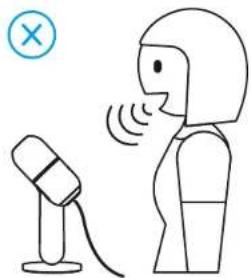
natural_image
Simple line drawing of a person speaking into a microphone with sound waves (no text or symbols)PODEŠAVANJE 3
- Otvorite bilo koji softver za strimovanje ili snimanje kojiđobuhvata audio konfiguraciju.

streamlabs ultra
PODEŠAVANJE 4
Točkić podešava pojačanje mikrofona.
Dok govorite normalnim glasom koji biste koristili za strimovanje ili snimanje, podesite pojačanje okretanjem točkića.
natural_image
Line drawing of a handheld device with a curved base and internal components, showing a close-up of a connector (no text or symbols)PODEŠAVANJE 5
natural_image
Simple line drawing of a device with a circular outline and a small circle at the end (no text or symbols)- Postojano zeleno svetlo znači da mikrofon aktivno šalje zvuk.
natural_image
Simple line drawing of a device with a green internal stripe, enclosed in a blue circle (no text or symbols)- Trepereće crveno svetlo označava da je nivo pojačanja previsok i da izaziva isecanje ili izobličenje, pa je najbolje da ga smanjite.
natural_image
Simple line drawing of a thermometer inside a circle with a red sun symbol pointing to it (no text or labels)natural_image
Illustration of a hand pressing a button with a red stripe inside, enclosed in a blue circle (no text or symbols)PODEŠAVANJE 6
Kada budete zadovoljni postavkom pojačanja, kliknite točkićem da biste omogućili Smart Audio Lock. LED indikator na točkiću će početi da svetli cijan kada je omogućeno.
Smart Audio Lock: pametno prilagođava pojačanje pomoću analognog ograničavača radi sprečavanja isecanja i proširivača okrenutog nadole radi smanjivanja pozadinske buke iz okruženja.
natural_image
Line drawing of a desktop microphone with a stand and a close-up inset showing the lens (no text or symbols)PODEŠAVANJE 7
Preuzmite G HUB za kompletno podešavanje i prilagođavanje postavki zvuka i osvetljenja.

logitechG.com/ghub
PODEŠAVANJE 8
- Kliknite na meni LIGHTSYNC u softveru GHub da biste prilagodili osvetljenje u RGB prstenu i G logotipu.
- Odaberite neki od jednostavnih šablona ili koristite kartice za slobodni stil i animaciju za kompletno prilagođavanje.
IMATE LI PITANJA?
logitechG.com/support/yeti-gx
NAVODILA ZA NAMESTITEV
NAMESTITEV 1
- Svoj novi mikrofon Yeti GX namestite na priloženo namizno stojalo ali na ročico boom mikrofona.
- Konec kabla USB-C priklopite v vhod na spodnjem delu.
Konec kabla USB-A priklopite v svoj računalnik.
NAMESTITEV 2
POMEMBNO!
natural_image
Simple line drawing of a robot wearing a helmet and speaking into a microphone (no text or symbols)
natural_image
Simple line drawing of a person speaking into a microphone with sound waves, no text or symbols presentNAMESTITEV 3
NAMESTITEV 4
Z drsnim kolescem nastavite glasnost mikrofona.
natural_image
Line drawing of a desktop microphone with a stand and a close-up inset showing the internal structure (no text or symbols)NAMESTITEV 5
natural_image
Simple line drawing of a mechanical component inside a circular outline (no text or symbols)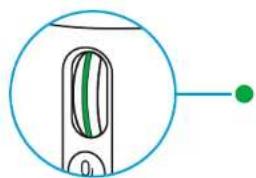
natural_image
Diagram of a device with a green internal structure, enclosed in a blue circle (no text or symbols)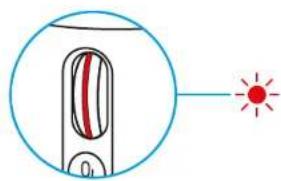
natural_image
Simple line drawing of a device with a red vertical stripe inside a circle and a red sun icon pointing to it (no text or symbols)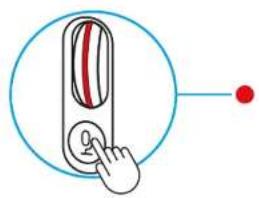
natural_image
Simple line drawing of a hand pressing a button on a device, enclosed in a blue circle with a red dot at the end (no text or symbols)NAMESTITEV 6
natural_image
Line drawing of a desktop microphone with a stand and a close-up inset showing internal components (no text or symbols)NAMESTITEV 7
INSTALARE 2
IMPORTANT!
natural_image
Simple line drawing of a robot wearing a helmet and speaking into a microphone (no text or symbols)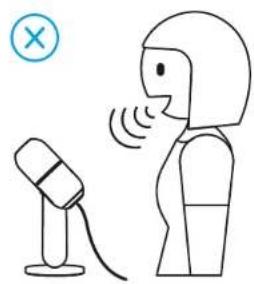
natural_image
Simple line drawing of a person speaking into a microphone with sound waves, no text or symbols presentINSTALARE 3
natural_image
Line drawing of a handheld device with a curved base and internal components, showing a close-up of a connector (no text or symbols)INSTALARE 5
natural_image
Simple line drawing of a mechanical component inside a circle (no text or symbols)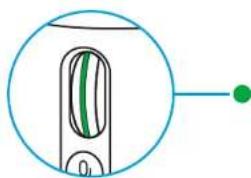
natural_image
Simple line drawing of a device with a green internal stripe and a blue outline, no text or symbols present.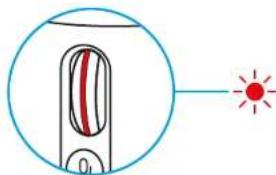
natural_image
Simple line drawing of a device with a red vertical stripe inside, connected to a red starburst symbol (no text or labels)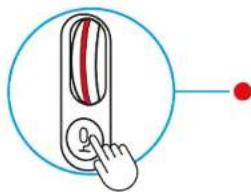
natural_image
Illustration of a hand pressing a button on a computer monitor (no text or symbols)INSTALARE 6
natural_image
Line drawing of a desktop microphone with a stand and a close-up inset showing the lens (no text or symbols)INSTALARE 7
KURULUM 2
ÖNEMLİ!
natural_image
Simple line drawing of a robot wearing a helmet and speaking into a microphone (no text or symbols)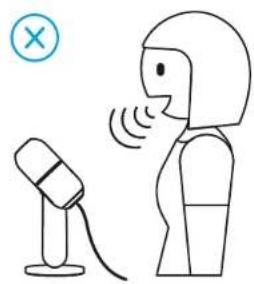
natural_image
Simple line drawing of a person speaking into a microphone with sound waves, no text or symbols presentKURULUM 3
KURULUM 4
natural_image
Line drawing of a handheld device with a curved base and internal components, showing a close-up of a connector (no text or symbols)KURULUM 5
natural_image
Simple line drawing of a mechanical component inside a circular outline (no text or symbols)natural_image
Diagram of a device with a green internal structure, enclosed in a blue circle (no text or symbols)natural_image
Simple line drawing of a device with a red internal stripe and a red sun icon (no text or symbols)natural_image
Illustration of a hand pressing a button on a device, enclosed in a blue circle with a red dot (no text or symbols)KURULUM 6
natural_image
Line drawing of a desktop microphone with a stand and a close-up inset showing the internal structure (no text or symbols)KURULUM 7
natural_image
Diagram of a mechanical device with a lever and adjustment knob, showing motion arrows (no text or symbols)الإعداد رقم
معلومة مogene!
natural_image
Simple line drawing of a robot wearing a helmet and speaking into a microphone (no text or symbols)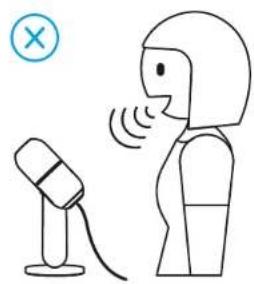
natural_image
Simple line drawing of a person speaking into a microphone with sound waves, no text or symbols presentالإعداد رقم م
الإعداد رقم ٥
natural_image
Simple line drawing of a device inside a circle, no text or symbols presentnatural_image
Simple line drawing of a thermometer with a red vertical stripe inside, connected to a red sun icon (no text or symbols)الإعداد رقم V
2
natural_image
Simple line drawing of a robot wearing a helmet and speaking into a microphone (no text or symbols)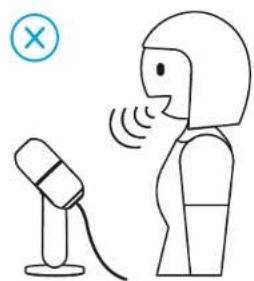
natural_image
Simple line drawing of a person speaking into a microphone with sound waves, no text or symbols present3

streamlabs ultra
Free trial included
Essai gratuit inclus
4
natural_image
Line drawing of a desktop microphone with a stand and a close-up inset showing the internal structure (no text or symbols)5
natural_image
Simple line drawing of a device inside a circle, no text or symbols presentnatural_image
Simple diagram showing a red vertical stripe inside a circle connected to a red sun icon (no text or symbols)natural_image
Illustration of a hand pressing a button on a circular device with a red dot at the end (no text or symbols)6
natural_image
Line drawing of a desktop microphone with a stand and a close-up inset showing the lens (no text or symbols)7
.הכלההוּרָה,הכלההוּרָה
?הכלה
logitechG.com/support/yeti-gx

natural_image
Logo of Logitech (no additional text or symbols visible)©2023 Logitech, Logitech, Logitech G, Logi and their respective logos are trademarks or registered trademarks of Logitech Europe S.A. and/or its affiliates in the U.S. and other countries. All other trademarks are the property of their respective owners. Logitech assumes no responsibility for any errors that may appear in this manual. Information contained herein is subject to change without notice. The Bluetooth® word mark and logos are registered trademarks owned by Bluetooth SIG, Inc. and any use of such marks by Logitech is under license. WEB-621-002453 002


- SETUP 2
- SETUP 3
- streamlabs ultra
- SETUP 4
- SETUP 5
- SETUP 6
- SETUP 7
- SETUP 8
- QUESTIONS?
- EINRICHTUNG 2
- EINRICHTUNG 3
- EINRICHTUNG 4
- EINRICHTUNG 5
- EINRICHTUNG 6
- EINRICHTUNG 7
- CONFIGURATION 2
- CONFIGURATION 3
- CONFIGURATION 4
- CONFIGURATION 5
- CONFIGURATION 6
- CONFIGURATION 7
- IMPOSTAZIONE 2
- IMPOSTAZIONE 3
- IMPOSTAZIONE 4
- IMPOSTAZIONE 5
- IMPOSTAZIONE 6
- IMPOSTAZIONE 7
- CONFIGURACIÓN 2
- CONFIGURACIÓN 3
- CONFIGURACIÓN 4
- CONFIGURACIÓN 5
- CONFIGURACIÓN 6
- CONFIGURACIÓN 7
- CONFIGURAÇÃO 2
- CONFIGURAÇÃO 3
- CONFIGURAÇÃO 4
- CONFIGURAÇÃO 5
- CONFIGURAÇÃO 6
- CONFIGURAÇÃO 7
- CONFIGURATIE 2
- CONFIGURATIE 3
- CONFIGURATIE 4
- CONFIGURATIE 5
- CONFIGURATIE 6
- CONFIGURATIE 7
- INSTALLATION 2
- INSTALLATION 3
- INSTALLATION 4
- INSTALLATION 5
- INSTALLATION 6
- INSTALLATION 7
- KONFIGURATION 5
- OPPSETT 2
- OPPSETT 3
- OPPSETT 4
- OPPSETT 5
- OPPSETT 6
- OPPSETT 7
- KÄYTTÖÖNOTTO 2
- KÄYTTÖÖNOTTO 3
- KÄYTTÖÖNOTTO 4
- KÄYTTÖÖNOTTO 5
- KÄYTTÖÖNOTTO 6
- KÄYTTÖÖNOTTO 7
- PYOMIZH 2
- PYOMI3H 3
- PYOMI5H 4
- PYOMI5H 5
- PYOMI5H 6
- PYOMISH 7
- KONFIGURACJA 2
- KONFIGURACJA 3
- KONFIGURACJA 4
- KONFIGURACJA 5
- KONFIGURACJA 6
- KONFIGURACJA 7
- ÜZEMBE HELYEZÉS - 2
- ÜZEMBE HELYEZÉS – 3
- ÜZEMBE HELYEZÉS - 4
- ÜZEMBE HELYEZÉS – 5
- ÜZEMBE HELYEZÉS - 6
- ÜZEMBE HELYEZÉS – 7
- NASTAVENÍ 2:
- NASTAVENÍ 3:
- NASTAVENÍ 4:
- NASTAVENÍ 5:
- NASTAVENÍ 6:
- NASTAVENÍ 7:
- NASTAVENIE 2:
- NASTAVENIE 3:
- NASTAVENIE 4:
- NASTAVENIE 5:
- NASTAVENIE 6:
- NASTAVENIE 7:
- SEADISTUS 3
- SEADISTUS 4
- SEADISTUS 5
- SEADISTUS 6
- SEADISTUS 7
- DARBIBA
- DARBIBA
- DARBIBA
- DARBIBA
- DARBIBA
- DARBIBA
- NUSTATYMAS
- NUSTATYMAS
- NUSTATYMAS
- NUSTATYMAS
- NUSTATYMAS
- NUSTATYMAS
- НАСТРОЙКА 2
- НАСТРОЙКА 3
- НАСТРОЙКА 4
- НАСТРОЙКА 5
- НАСТРОЙКА 6
- НАСТРОЙКА 7
- POSTAVA 2
- POSTAVA 3
- POSTAVA 4
- POSTAVA 5
- POSTAVA 6
- POSTAVA 7
- POSTAVA 8
- IMATE LI PITANJA?
- UPUTSTVA ZA PODEŠAVANJE
- PODEŠAVANJE 1
- PODEŠAVANJE 2
- PODEŠAVANJE 3
- PODEŠAVANJE 4
- PODEŠAVANJE 5
- PODEŠAVANJE 6
- PODEŠAVANJE 7
- PODEŠAVANJE 8
- NAVODILA ZA NAMESTITEV
- NAMESTITEV 1
- NAMESTITEV 2
- NAMESTITEV 3
- NAMESTITEV 4
- NAMESTITEV 5
- NAMESTITEV 6
- NAMESTITEV 7
- INSTALARE 2
- INSTALARE 3
- INSTALARE 5
- INSTALARE 6
- INSTALARE 7
- KURULUM 2
- KURULUM 3
- KURULUM 4
- KURULUM 5
- KURULUM 6
- KURULUM 7
- الإعداد رقم ٥
- الإعداد رقم V
- 2
- 3
- 4
- 5
- 6
- 7
- ?הכלה
Brand : LOGITECH
Model : YETI GX
Category : Microphone