Robot Vacuum S10 - Robot vacuum Xiaomi - Free user manual and instructions
Find the device manual for free Robot Vacuum S10 Xiaomi in PDF.



| Product type | Robot vacuum mop |
| Model | B106GL |
| Dimensions (diameter × height) | 350 × 94.5 mm |
| Net weight | 4.8 kg |
| Rated voltage | 14.8 V |
| Rated power | 45 W |
| Battery capacity | 3000 mAh (operating) / 3200 mAh (rated) |
| Battery type | Lithium-ion |
| Charging voltage | 20 V DC |
| Wireless connectivity | Wi-Fi IEEE 802.11 b/g/n 2.4 GHz, Bluetooth 4.2 |
| Operating frequency | 2400-2483.5 MHz |
| Max. radio output power | <20 dBm |
| Cleaning modes | Vacuuming, mopping (cloth), vacuuming only |
| Sensors | Distance laser, anti-collision, drop detectors, IR receiver |
| Water tank capacity | Not explicitly specified, but 2-in-1 compartment |
| Battery life | Approximately 110 min (according to standard test, not provided in manual) |
| Noise level | Not specified |
| Regular maintenance | Side brush cleaning (every 2 weeks), main brush (weekly), filter (weekly), mop cloth (after each use) |
| Replacement parts | Side brush: every 3-6 months; main brush: 6-12 months; filter: 3-6 months; mop cloth: 3-6 months |
| Operating temperature | 0 °C to 35 °C |
| Laser class | Class 1 (IEC 60825-1:2014), safe |
| Warranty | Xiaomi limited warranty (see terms) |
Frequently Asked Questions - Robot Vacuum S10 Xiaomi
User questions about Robot Vacuum S10 Xiaomi
0 question about this device. Answer the ones you know or ask your own.
Ask a new question about this device
Download the instructions for your Robot vacuum in PDF format for free! Find your manual Robot Vacuum S10 - Xiaomi and take your electronic device back in hand. On this page are published all the documents necessary for the use of your device. Robot Vacuum S10 by Xiaomi.
USER MANUAL Robot Vacuum S10 Xiaomi
xiaomi Robot Vacuum S10 User Manual · 01
Read this manual carefully before use, and retain it for future reference.
This product is for floor cleaning in a home environment only. Do not use it outdoors, on non-floor surfaces, or in a commercial or industrial setting.
Usage Restrictions
- This appliance can be used by children aged from 8 years and above and persons with reduced physical, sensory or mental capabilities or lack of experience and knowledge if they have been given supervision or instruction concerning use of the appliance in a safe way and understand the hazards involved. Children shall not play with the appliance. Cleaning and user maintenance shall not be made by children without supervision.
- The appliance is only to be used with the power supply unit provided with the appliance.
- This appliance contains batteries that are only replaceable by skilled persons.
- Please keep the cleaning brush out of reach of children.
- Keep hair, loose clothing, fingers, and all parts of body away from openings and moving parts.
- Do not use the robot vacuum to clean any burning substances.
- Do not pick up the robot vacuum by its laser radar cover.
-
Make sure the robot vacuum is turned off and the power adapter is unplugged before cleaning or performing maintenance.
-
This robot vacuum is only intended to clean floors in a home environment. Do not use it outdoors such as on an open balcony or on a surface that is not a floor, like a sofa, or in a commercial or industrial setting.
- Do not use the robot vacuum in an area suspended above ground level, such as a loft, open balcony, or on top of furniture, unless a protective barrier is present.
- Do not use the robot vacuum at an ambient temperature above 35°C or below 0°C or on a floor with liquids or sticky substances.
- Pick up any cables from the floor before using the robot vacuum to prevent it from dragging them while cleaning.
- Pick up any fragile or loose items from the floor, such as vases or plastic bags, to prevent the robot vacuum from being obstructed or bumping into them and causing damage.
- Do not place children, pets, or any item on top of the robot vacuum while it is stationary or moving.
- Do not use the mopping function on the carpet. The carpet can be cleaned under the vacuuming mode.
- Do not allow the robot vacuum to pick up hard or sharp objects such as building materials, glass, or nails.
- Do not spray any liquid into the robot vacuum. Make sure the 2-in-1 dust compartment with water tank is thoroughly dry before its reinstalling.
-
Do not place the robot vacuum upside down. Laser radar housing should never touch the ground.
-
This product's laser radar meets the IEC 60825-1:2014 Standard for Class 1 laser product safety and does not produce laser radiation hazardous to the human body.
- Only use this product as directed in the user manual. Users are responsible for any loss or damage arising from improper use of this product.
- For detailed e-manual, please go to www.mi.com/global/service/userguide
Batteries and Charging
- WARNING: Do not use any third-party battery, charging dock. Use only with
power adapter. - Do not attempt to disassemble, repair, or modify the battery or charging dock on your own.
- Do not place the charging dock near a heat source.
- Do not use a wet cloth or wet hands to wipe or clean the dock's charging contacts.
- If the robot vacuum will not be used for an extended period, fully charge it, then turn it off and store in a cool, dry place. Recharge the robot vacuum at least once every 3 months to avoid over-discharging the battery.
- The lithium-ion battery pack contains substances that are hazardous to the environment. Before disposing of the robot vacuum, please first remove the battery pack, then discard, or recycle it in accordance with local laws and
regulations of the country or region it is used in.
- When removing the batteries from the product, it is better to use up the batteries and make sure your product is disconnected from power.
1). Uninstall the screw on the bottom, then remove the cover.
2). Unplug the battery connector, then remove the batteries. Do not damage the battery case to avoid any risk of injuries.
3). Return the batteries to a professional recycling organization.
Product Overview
Package Contents
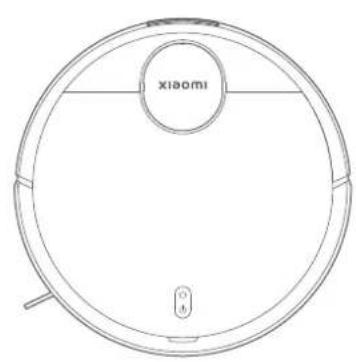
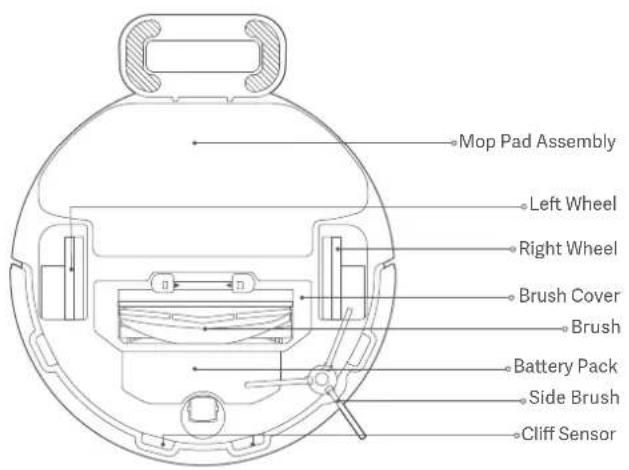
Robot Vacuum

Cleaning Brush
(Visible when the cover
is open)
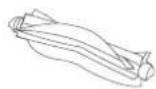
Brush
(Pre-installed on the robot
vacuum)
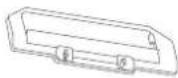
Brush Cover (Pre-installed on the robot vacuum)

Side Brush

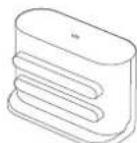
2-in-1 Dust Compartment with Water Tank (For vacuuming and mopping modes)
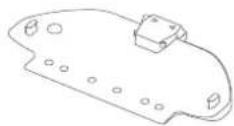
Mop Pad Holder
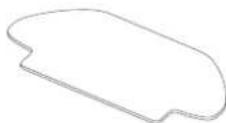
Mop Pad
(Pre-installed on the
mop pad holder)
Note: Illustrations of product, accessories, and user interface in the user manual are for reference purposes only. Actual product and functions may vary due to product enhancements.
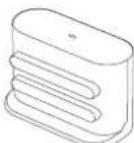
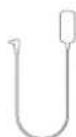
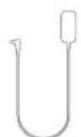
Charging Dock Power Adapter User Manual
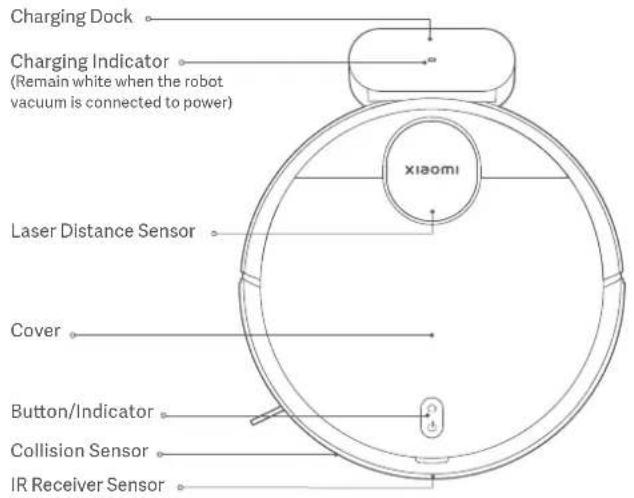

Indicator Status Descriptions
| White | Working normally |
| Slowly blinking white | In charging |
| Blinking white | Returning to charge/Firmware is upgrading |
| Yellow | Wi-Fi disconnected |
| Blinking yellow | Error |
| Off | Shutdown/In sleep |
Before Use
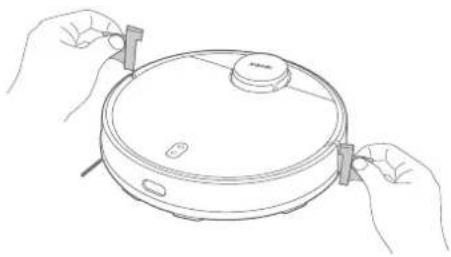
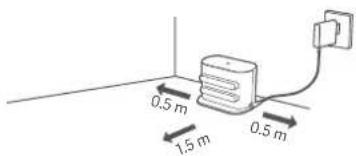
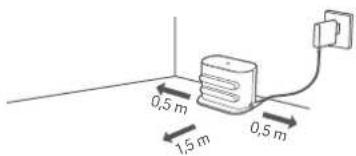
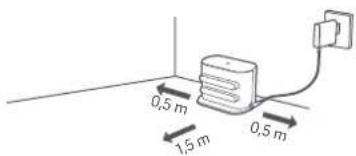
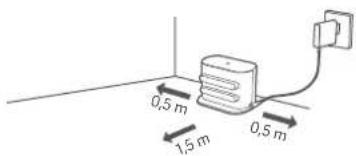
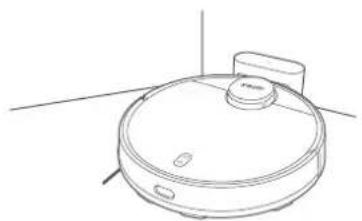
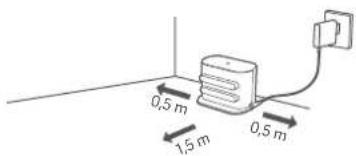
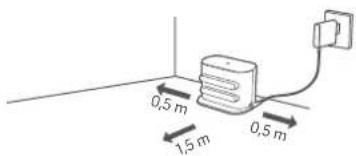
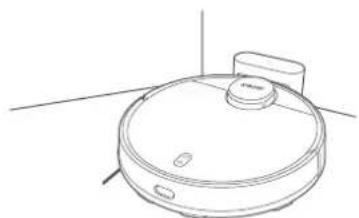
- Remove the protective strips. 3. Remove the protective film from the charging
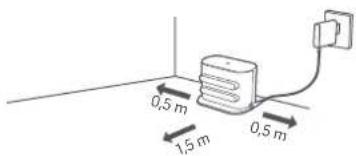
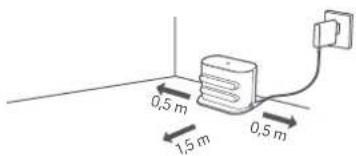
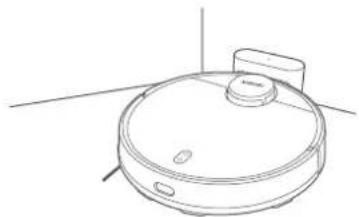
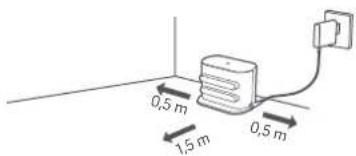
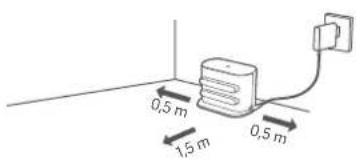
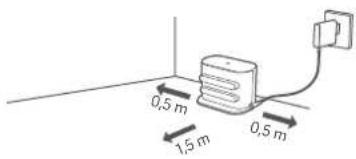
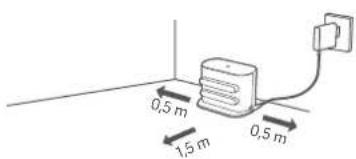
dock and place the charging dock against a wall. Connect it to the power.
CAUTIONS:
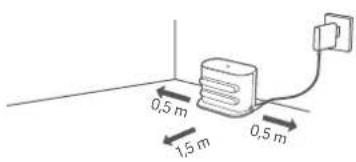
- Do not place the charging dock in an area with direct sunlight.
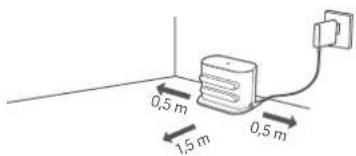
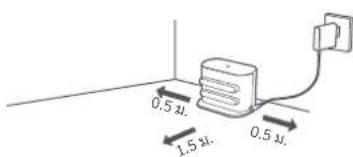
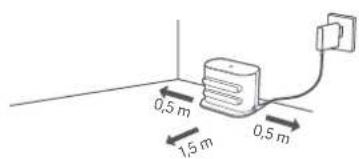
- Please ensure that no items are placed within 0.5 m on the left and right sides and within 1.5 m in front of the charging dock.
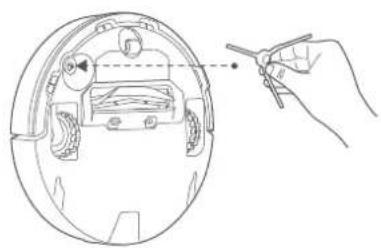
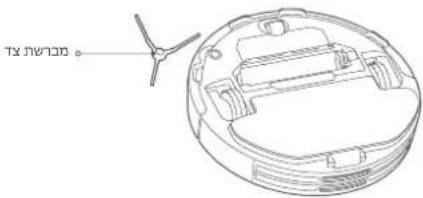
- Install the side brush.
Take out the side brush, and install it onto the position as indicated in the figure. The side brush is properly installed when you hear a "click".
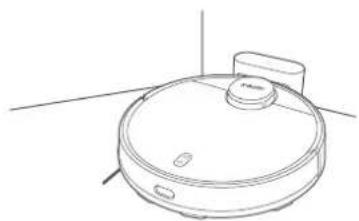
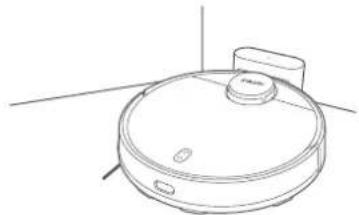
- Charge the robot vacuum.
Place the robot vacuum on the charging dock to charge.
Notes:
- It is recommended to fully charge the robot vacuum before using it for the first time to maintain its optimal battery performance and maximize battery life.
- The robot vacuum will turn on automatically when it is on the charging dock, and cannot be turned off while charging.
Connecting with Mi Home/Xiaomi Home App
This product works with the Mi Home/Xiaomi Home app*. Use the Mi Home/Xiaomi Home app to control your device, and to interact with other smart home devices.
Scan the QR code to download and install the app. You will be directed to the connection setup page if the app is installed already. Or search "Mi Home/Xiaomi Home" in the app store to download and install it.

8A347322
Open Mi Home/Xiaomi Home app, tap "+" on the upper right, and then follow prompts to add your device.
* The app is referred to as Xiaomi Home app in Europe (except for Russia). The name of the app displayed on your device should be taken as the default.
Notes:
- The version of the app might have been updated, please follow the instructions based on the current app version.
- If the robot vacuum's QR code cannot be scanned, you can search for its name to add it.
- When connecting the robot vacuum to the Mi Home/Xiaomi Home app using an iOS device, follow the instructions in the app to connect to the robot vacuum's hotspot "ijai-vacuum-v17_miapXXXX".
Resetting Wi-Fi
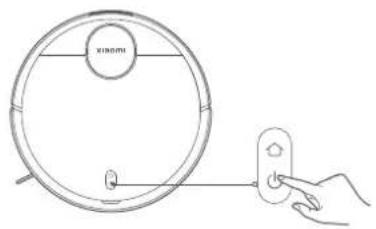
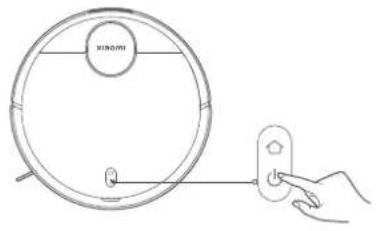
While the robot vacuum is turned on, press and hold the buttons ⏻ and ⏻ for seven seconds. The Wi-Fi is successfully reset when you hear a voice prompt.
Resetting System
Press and hold the button ☐ for five seconds until you hear a "beep", and then press and hold the button ☐ for five seconds again until you hear the voice prompt. The robot vacuum then restarts, and settings like scheduled cleaning and Wi-Fi are restored to factory default.
Common Issues Possible Causes and Solutions
| The robot vacuum cannot connect to Wi-Fi. | ·Check whether the Wi-Fi password is correct.·The robot vacuum does not support the 5 GHz network frequency band. Please use a 2.4 GHz network.·The Wi-Fi signal is weak. Make sure the robot vacuum is within the Wi-Fi coverage with a strong signal.·There is something wrong with the Wi-Fi connection. Reset the Wi-Fi and download the latest version of the Mi Home/Xiaomi Home app, then try reconnecting. |
| The robot vacuum cannot connect to the "ijai-vacuum-v17_miapXXXX" network in the Mi Home/Xiaomi Home app. | Make sure the robot vacuum is within the Wi-Fi coverage with a strong signal, then reset the Wi-Fi of the robot vacuum and reconnect to the network. |
How to Use
Start Vacuuming & Mopping
- Take out the 2-in-1 dust compartment with water tank, open the plug, fill with clean water, and then refasten the plug. Install the 2-in-1 dust compartment with water tank onto the robot vacuum in the direction indicated in the figure, and make sure that the clip is firmly clasped.
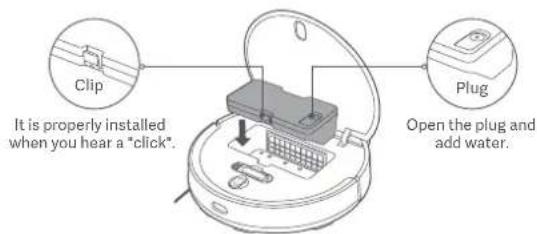
CAUTIONS:
- Please remove the 2-in-1 dust compartment with water tank before adding water. Do not add liquids such as hot water, detergent, or disinfectant to prevent damaging the robot vacuum.
-
Due to production testing, the 2-in-1 dust compartment with water tank may have water stains, which is normal.
-
Before using the vacuuming & mopping function, dampen the mop pad and wring it out and then install it onto the mop pad holder. Slide the mop pad holder along the bottom of the robot vacuum horizontally in the direction indicated in the figure until it clicks into place.
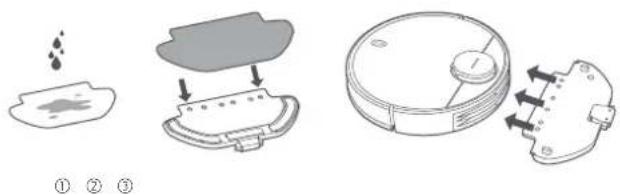
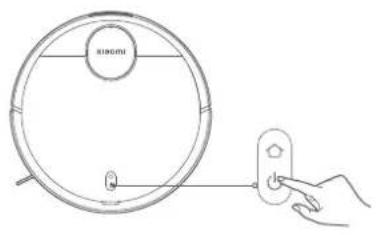
- Press the button ⏻ to start vacuuming and mopping.
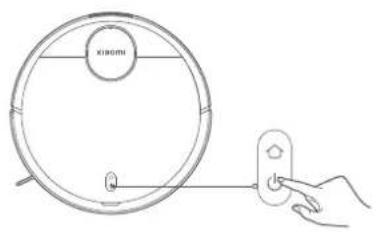
CAUTIONS:
- Remove the 2-in-1 dust compartment with water tank and pour out the leftover water in a timely manner after a mopping task has been completed. Then clean and dry the mop pad to prevent odor and mildew.
- When the robot vacuum is running, please set up virtual walls or restricted areas for carpeted areas in your home to avoid the robot vacuum from becoming entangled in the carpet.
If only vacuuming function is needed, please remove the mop pad holder.
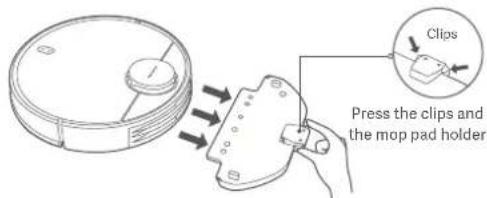
Pausing
When the robot vacuum is running, press any button to pause. Press the button ⏻ to resume cleaning.
Note: The robot vacuum will enter sleep mode after being paused or in standby mode for five minutes. Press any button to wake it up.
Adding Water or Cleaning the Mop Pad
When the robot vacuum is working, pause it first then remove the 2-in-1 dust compartment with water tank to add water or clean the mop pad. Then reinstall the 2-in-1 dust compartment with water tank and press the button ⏻to resume the task.
Docking & Charging
When the robot vacuum is working, press the button to pause the task, and press the button again to send the robot vacuum to return to the dock to charge.
When the robot vacuum is in standby mode and not connected to the charging dock, press the button to send the robot vacuum to return to the dock to charge. When a task is complete or the battery is too low, the robot vacuum will automatically return to the dock to charge.
DND mode
In the do not disturb (DND) mode, the robot vacuum does not resume cleanup, perform scheduled cleanups or play voice prompts, and the indicator turns off after one minute of charging. The DND mode can be enabled or disabled in the app.
Note: Please refer to the app for more features, including Clean There, Resume Cleanup, Scheduled Cleanup, and Virtual Walls.
Notes:
- When using the robot vacuum for the first time, please follow the in-app prompts to complete quick map creation. To ensure accurate mapping, it is recommended to follow the robot vacuum and remove any obstacles on the ground when it is creating the map. Make sure the robot vacuum starts from the charging dock.
- If the robot vacuum may get stuck or scratch the surface of the furniture in some areas, you can set restricted areas in the app to prevent the robot vacuum from entering those areas.
Care & Maintenance
2-in-1 Dust Compartment with Water Tank and Filter
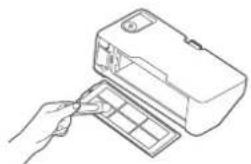
- Remove the 2-in-1 dust compartment with water tank and remove the filter.
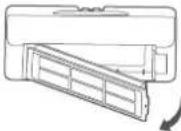
- Remove any debris and clean the 2-in-1 dust compartment with water tank with the cleaning brush.
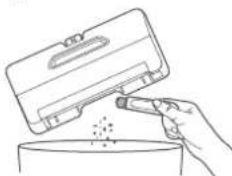
CAUTIONS:
• Do not rinse or soak the 2-in-1 dust compartment with water tank.
- Regularly clean the 2-in-1 dust compartment with water tank to prevent dirt buildup. This will help maintain optimal performance.
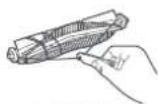
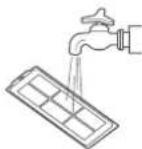
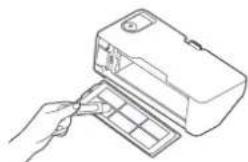
3. Clean the filter with the cleaning brush.
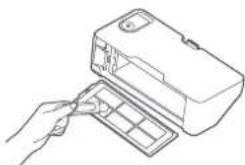
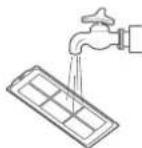
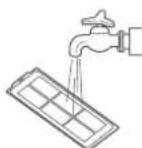
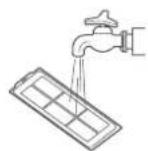
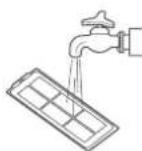
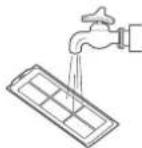
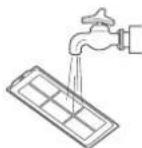
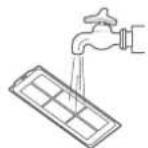
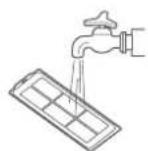
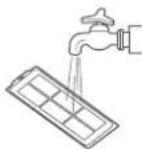
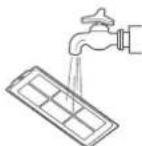
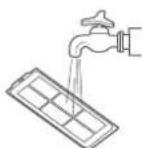
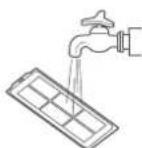
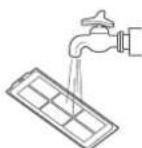
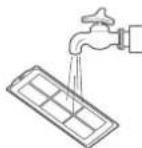
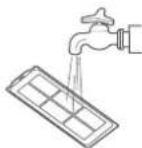
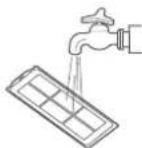
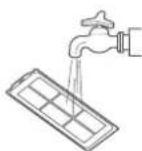
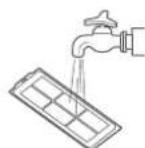
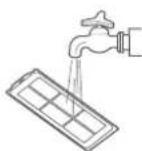
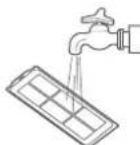
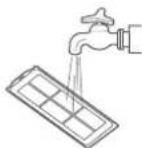
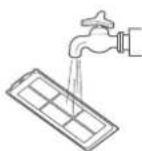
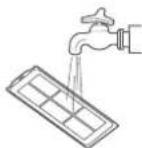
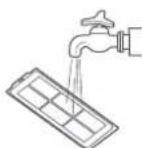
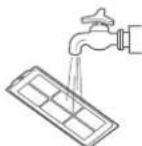
Note: The filter can be rinsed with water. Make sure it is completely dry before reinstalling. Frequent rinses are not recommended.
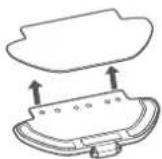
Mop Pad
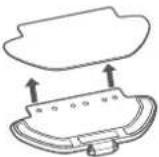
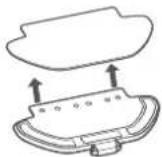
Remove the mop pad from the mop pad holder. Wash it and let it air dry.
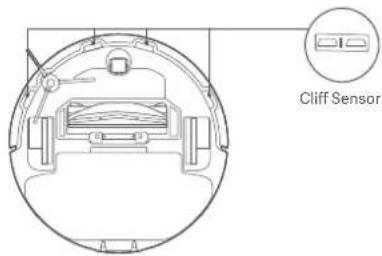
Sensor
It is recommended to clean the cliff sensor and IR receiver sensor every three months with a soft cloth.
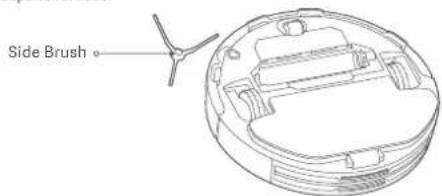
Brush and Side Brush
- Remove the side brush.
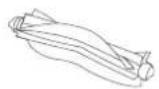
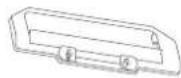
- Press and hold the clips to remove the brush cover, then remove the brush, and pull out the brush bearing.
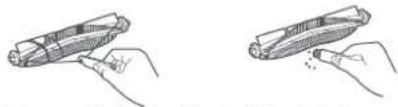
- Use the cleaning brush to clean.
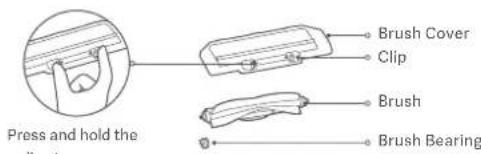
Cleaning the Brush
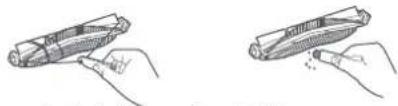
Cut the hair Remove dirt and debris
| Components Maintenance Frequency | Replacement Frequency | |
| Side brush | Every two weeks | Every 3–6 months |
| Brush | Weekly | Every 6–12 months |
| Filter | Weekly | Every 3–6 months |
| Brush cover | / | Every 3–6 months (or upon worn) |
| Mop pad | After each use | Every 3–6 months (or upon worn) |
Note: Please refer to the table for accessory replacements to ensure the optimal cleaning effect.
Common Issues
| Issues Possible Causes and Solutions | |
| The robot vacuum does not turn on. | The battery level is low. Fully recharge the robot vacuum, then try again.The ambient temperature is too low (below 0°C) or too high (above 35°C). |
| The robot vacuum does not start cleaning. | The battery level is low. Fully recharge the robot vacuum, then try again. |
| The robot vacuum does not resume cleanup. | Make sure the robot vacuum is not set to DND mode, which will prevent the robot vacuum from resuming cleanup.The robot vacuum does not resume cleaning when it is manually returned to the dock to charge or placed onto the charging dock. |
| Issues Possible Causes and Solutions | |
| The robot vacuum does not return to the charging dock. | There are too many obstructions around the charging dock. Place the charging dock in a more open area.The robot vacuum is too far away from the charging dock. Move it closer to the charging dock and try again. |
| The robot vacuum does not charge. | Make sure there is enough open space around the charging dock and its charging contacts are free of dust and other debris. The ambient temperature is too low (below 0°C) or too high (above 35°C). |
| The robot vacuum has an abnormal behavior. | Turn the robot vacuum off and then restart it. |
| The robot vacuum does not perform scheduled cleanups. | Make sure the robot vacuum is connected to the network; otherwise, it cannot synchronize time and perform the scheduled cleanups.Make sure the robot vacuum is not set to DND mode. The DND mode will prevent the robot vacuum from performing scheduled cleanups. |
| The robot vacuum keeps going offline. | Make sure the robot vacuum is connected to the network and stays in the range of Wi-Fi at all times. |
| The robot vacuum makes strange noises while cleaning. | A foreign object might be caught in the brush, side brush, or the left/right wheel. Turn off the robot vacuum and remove any debris. |
| Issues Possible Causes and Solutions | |
| The robot vacuum no longer cleans efficiently, or leaves dust behind. | The 2-in-1 dust compartment with water tank is full. Please clean it.The filter is blocked, please clean the filter.A foreign object has been caught in the brush. Please clean the brush. |
Troubleshooting
When the robot vacuum encounters a problem, it may play a voice prompt. Please refer to the information below to resolve the corresponding issue.
| Error Messages Possible Causes and Solutions | |
| Please make sure the 2-in-1 dust compartment with water tank is installed. | Make sure the 2-in-1 dust compartment with water tank is securely installed. |
| Please make sure the mop pad is installed. | Make sure the mop pad holder and mop pad are securely installed. |
| Please move the robot vacuum to a level surface to start. | The robot vacuum is tilted at startup. Move the robot vacuum to a horizontally level surface and restart it. You can also reset the level of robot vacuum in the Mi Home/Xiaomi Home app, and then restart it. |
| Please return the robot vacuum to the dock to charge. | The robot vacuum cannot return to the dock to charge. Place the robot vacuum onto the charging dock and check whether the charging dock is connected to power. |
Error Messages Possible Causes and Solutions
| Please help remove the obstacles around the robot vacuum and try again. | The robot vacuum may be caught or stuck. Clear away any obstructions around it. |
| Please make sure the laser distance sensor is not blocked before starting. | Clear any foreign objects which may block or obstruct the laser distance sensor. If the problem still exists, move the robot vacuum to a new place and restart it. |
| Please wipe the cliff sensor clean and move the robot vacuum to a new location to start. | Part of the robot vacuum may be off the ground. Re-position the robot vacuum and restart it. This error may also occur if the cliff sensor is dirty. Wipe off the dirt from the cliff sensor. |
| Please clear any foreign objects from the collision sensor. | The collision sensor may be stuck. Gently tap it several times to remove any foreign objects. If nothing falls out, move the robot vacuum to a different place and restart it. |
Specifications
Robot Vacuum
| Name Robotic Vacuum Cleaner | |
| B106GLModel | |
| Rated Voltage | 14.8 V== |
| 45 WRated Power | |
| Charging Voltage | 20 V== |
| Item Dimensions φ 350 × 94.5 mm | |
| Battery Capacity | 3000 mAh (rated capacity)3200 mAh (nominal capacity) |
| Net Weight | 4.8 kg |
| Wireless Connectivity | Wi-Fi IEEE 802.11b/g/n 2.4 GHzBluetooth 4.2 |
| Operation Frequency | 2400–2483.5 MHz |
| Maximum Output Power | < 20 dBm |
Under normal use of condition, this equipment should be kept a separation distance of at least 20 cm between the antenna and the body of the user.
Charging Dock
| Model CDZB106GL | |
| Rated Input | 20 V == 1.2 A |
| Rated Output | 20 V == 1.2 A |
| Item Dimensions 152 × 74.6 × 99.5 mm | |
Power Adapter
| Information Published UnitValue and Precision | ||
| Manufacturer | Zhongshan Baolijin Electronic Co.,Ltd. | - |
| Model Identifier | -BLJ24W200120P-V | |
| Input Voltage | 100–240 V- | |
| Input AC Frequency | 50/60 Hz | |
| Output Voltage | 20.0 | V== |
| Output Current | 1.2 A | |
| Output Power | 24.0 W | |
| Average Active Efficiency | 86.2 % | |
| Efficiency at Low Load (10%) | 81.5 % | |
| No-load Power Consumption | 0.10 W | |
Regulatory Compliance Information
EU Declaration of Conformity

Hereby, Xiaomi Communications Co., Ltd. declares that the radio equipment type B106GL is in compliance with Directive 2014/53/EU. The full text of the EU declaration of conformity is available at the following internet address: http://www.mi.com/global/service/support/declaration.html
WEEE Disposal and Recycling Information

All products bearing this symbol are waste electrical and electronic equipment (WEEE as in directive 2012/19/EU) which should not be mixed with unsorted household waste. Instead, you should protect human health and the environment by handing over your waste equipment to a designated collection point for the recycling of waste electrical and electronic equipment, appointed by the government or local authorities. Correct disposal and recycling will help prevent potential negative consequences to the environment and human health. Please contact the installer or local authorities for more information about the location as well as terms and conditions of such collection points.
WARRANTY NOTICE
THIS WARRANTY GIVES YOU SPECIFIC RIGHTS, AND YOU MAY HAVE OTHER RIGHTS CONVEYED BY LAWS OF YOUR COUNTRY, PROVINCE OR STATE. INDEED, IN SOME COUNTRIES, PROVINCES OR STATES, CONSUMER LAW MAY IMPOSE A MINIMUM WARRANTY PERIOD. OTHER THAN AS PERMITTED BY LAW, XIAOMI DOES NOT EXCLUDE, LIMIT OR SUSPEND OTHER RIGHTS YOU MAY HAVE. FOR A FULL UNDERSTANDING OF YOUR RIGHTS WE INVITE YOU TO CONSULT THE LAWS OF YOUR COUNTRY, PROVINCE OR STATE.
1. LIMITED PRODUCT WARRANTY
XIAOMI warrants that the Products are free from defects in materials and workmanship under normal use and use in accordance with the respective Product user manual, during the Warranty Period.
The duration and conditions related to the legal warranties are provided by respective local laws. For more information about the consumer warranty benefits, please refer to Xiaomi's official website https://www.mi.com/global/support/warranty
Xiaomi warrants to the original purchaser that its Xiaomi Product will be free from defects in materials and workmanship under normal use in the period mentioned above.
Xiaomi does not guarantee that the operation of the Product will be uninterrupted or error free.
Xiaomi is not liable for damages arising from non-compliance with the instructions related to the use of the Product.
2. REMEDIES
If a hardware defect is found and a valid claim is received by Xiaomi within the Warranty Period, Xiaomi will either (1) repair the product at no charge, (2) replace the product, or (3) refund the Product, excluding potential shipping costs.
3. HOW TO OBTAIN WARRANTY SERVICE
To obtain warranty service, you must deliver the Product, in its original packaging or similar packaging providing an equal degree of Product protection, to the address specified by Xiaomi. Except to the extent prohibited by applicable law, Xiaomi may require you to present proofs or proof of purchase and / or comply with registration requirements before receiving warranty service.
4. EXCLUSIONS AND LIMITATIONS
Unless otherwise stipulated by Xiaomi, this Limited Warranty applies only to the Product manufactured by or for Xiaomi and identifiable by the trademarks, trade name or "Xiaomi" or "Mi" logo.
The Limited Warranty does not apply to any (a) Damage due to acts of nature or God, for example, lightning strikes, tornadoes, flood, fire, earthquake or other external causes; (b) Negligence; (c) Commercial use; (d) Alterations or modifications to any part of the Product; (e) Damage caused by use with non-Xiaomi products; (f) Damage caused by accident, abuse or misuse; (g) Damage caused by operating the Product outside the permitted or intended uses described by Xiaomi or with improper voltage or power supply; or (h) Damage caused by service (including upgrades and expansions) performed by anyone who is not a representative of Xiaomi. It is your responsibility to backup any data, software, or other materials you may have stored or preserved on the product. It is likely that the data, software or other materials in the equipment will be lost or reformatted during the service process, Xiaomi is not responsible for such damage or loss.
No Xiaomi reseller, agent, or employee is authorized to make any modification, extension, or addition to this Limited Warranty. If any term is held to be illegal or unenforceable, the legality or enforceability of the remaining terms shall not be affected or impaired.
Except as prohibited by laws or otherwise promised by Xiaomi, the after-sales services shall be limited to the country or region of the original purchase.
Products which were not duly imported and/or were not duly manufactured by Xiaomi and/or were not duly acquired from Xiaomi or a Xiaomi's official seller are not covered by the present warranties. As per applicable law you may benefit from warranties from the non-official retailer who sold the product. Therefore, Xiaomi invites you to contact the retailer from whom you purchased the product.
The present warranties do not apply in Hong Kong and Taiwan.
5. IMPLIED WARRANTIES
Except to the extent prohibited by applicable law, all implied warranties (including warranties of merchantability and fitness for a particular purpose) will have a limited duration up to a maximum duration of this limited warranty. Some jurisdictions do not allow limitations on the duration of an implied warranty, so the above limitation will not be applied in these cases.
6. DAMAGE LIMITATION
Except to the extent prohibited by applicable law, Xiaomi shall not be liable for any damages caused by accidents, indirect, special or consequential damages, including but not limited to loss of profits, revenue or data, damages resulting from any breach of express or implied warranty or condition, or under any other legal theory, even if Xiaomi has been informed of the possibility of such damages. Some jurisdictions do not allow the exclusion or limitation of special, indirect, or consequential damages, so the above limitation or exclusion may not apply to you.
7. XIAOMI CONTACTS
For customers, please visit the website: https://www.mi.com/global/support/warranty
The contact person for the after-sale service may be any person in Xiaomi's authorized service network, Xiaomi's authorized distributors or the final vendor who sold the products to you. If in doubt please contact the relevant person as Xiaomi may identify.
User Manual Version: V2.0
Robot Aspirador
Notas:
PRECAUCIONES:
http://www.mi.com/global/service/support/declaration.html
https://www.mi.com/global/support/warranty
Robot aspirateur
PRÉCAUTIONS :
Remarques :
PRÉCAUTIONS :
http://www.mi.com/global/service/support/declaration.html
https://www.mi.com/global/support/warranty
Aspirapolvere robot
- Caricare l'aspirapolvere robot.
Note:
AVVISI:
Робот-пылесос
Примечания:
ПРЕДОСТЕРЕЖЕНИЯ:
Odkurzacz robot
Uwagi:
OSTRZEŻENIA:
https://www.mi.com/global/support/warranty
Roboterstaubsauger
VORSICHTSHINWEISE:
Hinweise:
VORSICHTSHINWEISE:
Temizlik Robotu
UYARILAR:
Notlar:
UYARILAR:
ملاحظات:
تنبيهات:
① ② ③
العناية والصيانة
تنپهات:
https://www.mi.com/global/support/warranty
.הכלהה,הכלההוּרָהוּרָהוּרָהוּרָהוּרָהוּרָהוּרָהוּרָהוּרָהוּרָהוּרָהוּרָהוּרָהוּרָהוּרָה
•
תְבָרִיַעֹת אֶלְאָה
תְבָרִי בְרִי
בַרְשָׁה
תְקַרָה בְּרָה
:
:תְרָה
:
① ② ③
תְקָרִי לַלְא
:תְרָה
הכלה
תְרָה בְּרָה
http://www.mi.com/global/service/support/declaration.html

WEEE
תְרָה לַל waste electrical and electronic equipment - WEEE)
.הכלה (EU/2012/19
Aspirador Robô
Notas:
PRECAUÇÕES:
5. GARANTIAS IMPLÍCITAS
Робот-пилосос
Примітки:
ПОПЕРЕДЖЕННЯ:
https://www.mi.com/global/support/warranty
Robotický vysavač
Poznámky:
UPOZORNÉNÍ:
Ромпотікні окоїпа
Σημειώσεις:
ΠΡΟΦΥΛΑΞΕΙΣ:
https://www.mi.com/global/support/warranty
Aspirator robotic
ATENTIONÄRI:
Note:
ATENTIONĂRI:
- GARANTIE LIMITATĂ PENTRU PRODUS
https://www.mi.com/global/support/warranty
Robotdammsugare
- Ladda robotdammsugaren.
Anteckningar:
VARNINGAR:
https://www.mi.com/global/support/warranty
Robot Vakum
- Pasang Sikat Samping.
PERHATIAN:
Catatan:
PERHATIAN:
PERHATIAN:
Membersihkan Sikat
Xiaomi Communications Co., Ltd.
Alamat: #019, 9th Floor, Building 6, 33 Xi'erqi Middle Road, Haidian District, Beijing, Tiongkok, 100085
หุ่นยนต์ดูดผืน
ข้อควรระวัง:
หมายเหตุ:
ข้อควรระวัง:
http://www.mi.com/global/service/support/declaration.html
Robotstøvsuger
① ② ③
FORSIGTIG:
Robotti-imuri
- Install the side brush.
- Lataa robotti-imuri.
Aseta robotti-imuri latausasemaan latausta varten.
Huomautukset:
HUOMIO:
HUOMIO:
Robotstøvsuger
plasser ladedokkenmot en vegg. Koble den til strømmen.
- Lad opp robotstøvsuger.
Merknader:
FORSIKTIG:
Robotstofzuiger

Opmerkingen:
WAARSCHUWING:
WAARSCHUWINGEN:
Pastabos:
① ② ③
PERSPÉJIMAL:
Robotporszívó
Megjegyzések:
① ② ③
FIGYELEM:
FIGYELEM:
Robotski usisavač

Četka za čišćenje
(Vidljivo kada je poklopac otvoren)
punjenje i postavite stazu za punjenje uza zid. Povežite na napajanje.
- Napunite robotski usisavač.
Stavite robotski usisavač na stanicu za punjenje da se napuni.
Napomene:
- Pritisnite tipku ☐ za početak usisavanja i brisanja.
OPREZ:
OPREZ:
Napomena: Filtar se može isprati vodom. Prije ponovnog postavljanja provjerite je li potpuno suh. Ne preporučuju se česta ispiranja.
Jastučić za brisanje
Uklonite jastučić za brisanje s držača jastučića za brisanje. Operite ga i ostavite da se osuši na zraku.
Osjetnik za pad
Robotski sesalnik
- Napolnite robotski sesalnik.
Postavite robotski sesalnik na polnilno postajo, da se napolni.
Opombi:
① ② ③
- Pritisnite gumb da začnete sesati in pomivati.
OPOZORILA:
- Odstranite posodo za prah 2-v-1 z rezervoarjem za vodo in pravočasno izlijte preostanek vode po dokončanju pomivanja. Nato nastavek za krpo očistite in posušite, da preprečite neprijetne vonjave in plesen.
- Ko robotski sesalnik deluje, nastavite navidezne stene ali omejene površine za preproge v vašem domu, da preprečite, da se robotski sesalnik zaplete v preprogo.
OPOZORILA:
- Posode za prah 2-v-1 z rezervoarjem za vodo ne izpirajte ali namakajte. - Redno čistite posodo za prah 2-v-1 z rezervoarjem za vodo, da preprečite kopičenje umazanije. To bo pomagalo ohraniti optimalno delovanje.
3. Očistite filter s čistilno krtačo.
Odrežite lase Odstranite umazanijo in smeti
Прахосмукачка робот
Забележки:
ВНИМАНИЕ:
ВНИМАНИЕ:
Robotski usisivač

Četka za čišćenje
(Vidljivo kada je
poklopac otvoren)
Četka
(Unapred instalirana na
robotskom usisivaču)
Poklopac četke
(Unapred instaliran na
robotskom usisivaču)

Bočna četka
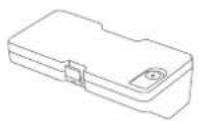
2-u-1 pretinac za prašinu sa spremnikom za vodu (Za načine usisavanja i brisanja)
punjenje i postavite stazu za punjenje uza zid. Povežite na napajanje.
- Napunite robotski usisivač.
Stavite robotski usisivač na stanicu za punjenje da se napuni.
Napomene:
-Preporučuje se da potpuno napunite robotski usisivač pre prve upotrebe da bi se održale njegove optimalne performanse baterije i maksimiziralo trajanje baterije. -Robotski usisivač će se automatski uključlti kada je na stanici za punjenje i ne može se isključlti tokom punjenja.
Povezivanje s aplikacijom Mi Home/Xiaomi Home
- Pritisnite tipku ☐za početak usisavanja i brisanja.
OPREZ:
- Uklonite 2-u-1 pretinac za prašinu sa spremnikom za vodu i na vreme izljite ostatke vode nakon dovršenog zadatka brisanja. Zatim očistite i osušite jastučuić za brisanje da biste sprečili pojavu mirisa i buđi.
- Kada robotski usisivač radi, postavite virtuelne zidove ili ograničena područja za prostore s tepihom u vašem domu da biste izbegli da se robotski usisivač ne zaplete u tepih.
OPREZ:
Napomena: Filter se može isprati vodom. Pre ponovnog postavljanja proverite da li je potpuno suv. Ne preporučuju se česta ispiranja.
Jastučić za brisanje
Uklonite jastučić za brisanje s držača jastučića za brisanje. Operite ga i ostavite da se osuši na zraku.
Senzor za pad
Isecite dlake Uklanjanje prljavštine i ostataka
| Komponente Učestalost održavanja | Učestalost zamena | |
| Bočna četka | Svake dve nedelje | Svakih 3-6 meseci |
| Četka | Nedeljno | Svakih 6-12 meseci |
| Filter | Nedeljno | Svakih 3-6 meseci |
| Poklopac četke | / | Svakih 3-6 meseci (ili nakon nošenja) |
| Jastučić za brisanje | Nakon svake upotrebe | Svakih 3-6 meseci (ili nakon nošenja) |
Robotický vysávač

Čistiaca kefka
(Viditelná pri otvorenom kryte)
Poznámky:
UPOZORNENIA:
- Priehradku na prach 2 v 1 s nádržou na vodu neoplachujte ani nenamáčajte. - Priehradku na prach 2 v 1 s nádržou na vodu pravidelne čistite, aby ste predišli usadzovaniu nečistôt. Toto pomůže zachovať optimálny výkon zariadenia.
3. Filter vyčistite čistiacou kefkou.
For further information, please go to www.mi.com
Manufactured by: Xiaomi Communications Co., Ltd.
Address: #019, 9th Floor, Building 6, 33 Xi'erqi Middle Road, Haidian District, Beijing, China, 100085
Dirección: #019, 9th Floor, Building 6, 33 Xi'erqi Middle Road, Haidian District, Beijing, China, 100085
Adresse : #019, 9th Floor, Building 6, 33 Xi'erqi Middle Road, Haidian District, Beijing, Chine, 100085
Indirizzo: #019, 9th Floor, Building 6, 33 Xi'erqi Middle Road, Haidian District, Pechino, Cina, 100085
Адрес: #019, 9th Floor, Building 6, 33 Xi'erqi Middle Road, Haidian District, Пекин, Китай, 100085
Producent: Xiaomi Communications Co., Ltd.
Adres: #019, 9th Floor, Building 6, 33 Xi'erqi Middle Road, Haidian District, Pekin, Chiny, 100085
Adresse: #019, 9th Floor, Building 6, 33 Xi'erqi Middle Road, Haidian District, Beijing, China, 100085
Adres: #019, 9th Floor, Building 6, 33 Xi'erqi Middle Road, Haidian District, Pekin, Çin, 100085
.9th Floor, Building 6, 33 Xi'erqi Middle Road, Haidian District, 019# : العنوان
,#019, 9th Floor, Building 6, 33 Xi'erqi Middle Road, Haidian District:
100085, 78001
Morada: #019, 9th Floor, Building 6, 33 Xi'erqi Middle Road, Haidian
District, Pequim, China, 100085
Adresa: #019, 9th Floor, Building 6, 33 Xi'erqi Middle Road, Haidian District, Beijing, China, 100085
Adresa: #019, 9th Floor, Building 6, 33 Xi'erqi Middle Road, Haidian District, Peking, Kina, 100085
Adresa: #019, 9th Floor, Building 6, 33 Xi'erqi Middle Road, Haidian District, Peking, Čína, 100085
019, 9th Floor, Building 6, 33 Xi'erqi Middle Road, Haidian District, Beijing, China, 100085

For further details, please scan the QR code to obtain the e-manual.


- USAGE RESTRICTIONS
- BATTERIES AND CHARGING
- PRODUCT OVERVIEW
- BEFORE USE
- CAUTIONS
- NOTES
- CONNECTING WITH MI HOME/XIAOMI HOME APP
- RESETTING WI-FI
- RESETTING SYSTEM
- HOW TO USE
- START VACUUMING & MOPPING
- PAUSING
- ADDING WATER OR CLEANING THE MOP PAD
- DOCKING & CHARGING
- DND MODE
- CARE & MAINTENANCE
- 2-IN-1 DUST COMPARTMENT WITH WATER TANK AND FILTER
- CLEAN THE FILTER WITH THE CLEANING BRUSH
- MOP PAD
- SENSOR
- BRUSH AND SIDE BRUSH
- SPECIFICATIONS
- REGULATORY COMPLIANCE INFORMATION
- EU DECLARATION OF CONFORMITY
- WEEE DISPOSAL AND RECYCLING INFORMATION
- WARRANTY NOTICE
- LIMITED PRODUCT WARRANTY
- REMEDIES
- HOW TO OBTAIN WARRANTY SERVICE
- EXCLUSIONS AND LIMITATIONS
- IMPLIED WARRANTIES
- DAMAGE LIMITATION
- XIAOMI CONTACTS
- PRECAUCIONES
- PRÉCAUTIONS
- REMARQUES
- AVVISI
- ПРЕДОСТЕРЕЖЕНИЯ
- UWAGI
- OSTRZEŻENIA
- VORSICHTSHINWEISE
- UYARILAR
- العناية والصيانة
- תְקָרִי לַלְא
- NOTAS
- PRECAUÇÕES
- GARANTIAS IMPLÍCITAS
- ПРИМІТКИ
- ПОПЕРЕДЖЕННЯ
- POZNÁMKY
- UPOZORNÉNÍ
- ΠΡΟΦΥΛΑΞΕΙΣ
- ATENTIONĂRI
- ANTECKNINGAR
- VARNINGAR
- PERHATIAN
- CATATAN
- FORSIGTIG
- HUOMAUTUKSET
- HUOMIO
- MERKNADER
- FORSIKTIG
- OPMERKINGEN
- WAARSCHUWING
- WAARSCHUWINGEN
- PASTABOS
- PERSPÉJIMAL
- MEGJEGYZÉSEK
- FIGYELEM
- NAPOMENE
- OPREZ
- JASTUČIĆ ZA BRISANJE
- OSJETNIK ZA PAD
- OPOMBI
- OPOZORILA
- OČISTITE FILTER S ČISTILNO KRTAČO
- ЗАБЕЛЕЖКИ
- ВНИМАНИЕ
- POVEZIVANJE S APLIKACIJOM MI HOME/XIAOMI HOME
- SENZOR ZA PAD
- UPOZORNENIA
- FILTER VYČISTITE ČISTIACOU KEFKOU
- 019, 9TH FLOOR, BUILDING 6, 33 XI'ERQI MIDDLE ROAD, HAIDIAN DISTRICT, BEIJING, CHINA, 100085
Brand : Xiaomi
Model : Robot Vacuum S10
Category : Robot vacuum