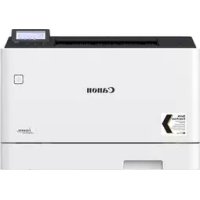
iSensys LBP663Cdw - Printer CANON - Free user manual and instructions
Find the device manual for free iSensys LBP663Cdw CANON in PDF.



User questions about iSensys LBP663Cdw CANON
0 question about this device. Answer the ones you know or ask your own.
Ask a new question about this device
Download the instructions for your Printer in PDF format for free! Find your manual iSensys LBP663Cdw - CANON and take your electronic device back in hand. On this page are published all the documents necessary for the use of your device. iSensys LBP663Cdw by CANON.
USER MANUAL iSensys LBP663Cdw CANON
Please read "Important Safety Instructions" before operating this product. After you finish reading this guide, store it in a safe place for future reference. The information in this document is subject to change without notice.


canon.com/oip-manual
Quick Setup
Getting Started
Please read "Important Safety Instructions" before operating this product.
P.134
After you finish reading this guide, store it in a safe place for future
reference.
The information in this document is subject to change without notice.
Mise en route
```bash canon.com/oip-manual to read the User's Guide that describes all functions of this machine.
Installing the Machineltems Included wit
Before starting the installation
- Remove all of the tape.

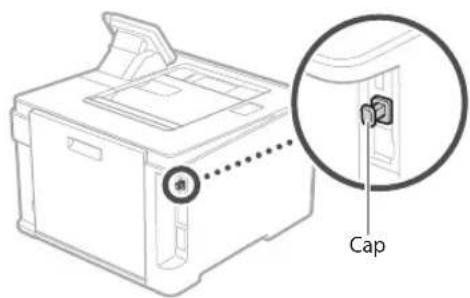
- Do not remove the cap that covers the USB port.
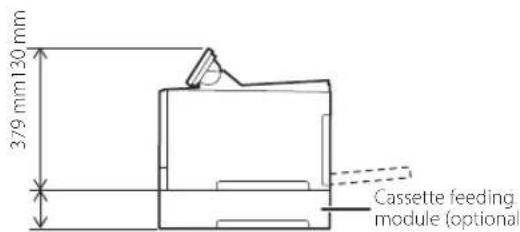
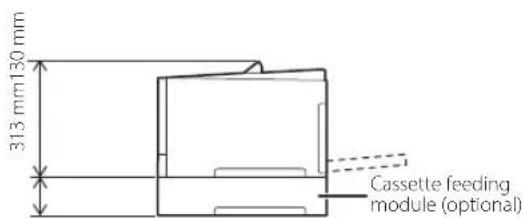
Installation Requirements
Provide a space of 100 mm or more around the machine.
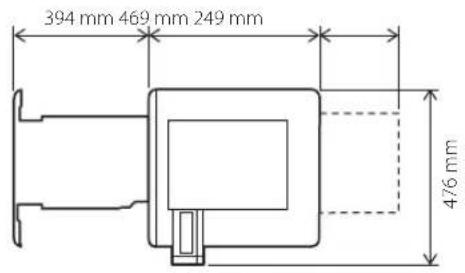
LBP664Cx
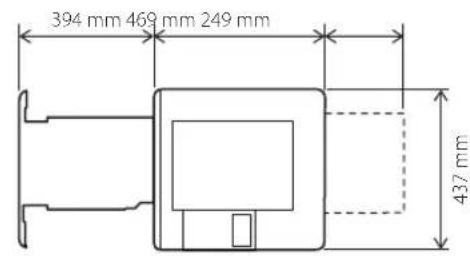
LBP663Cdw
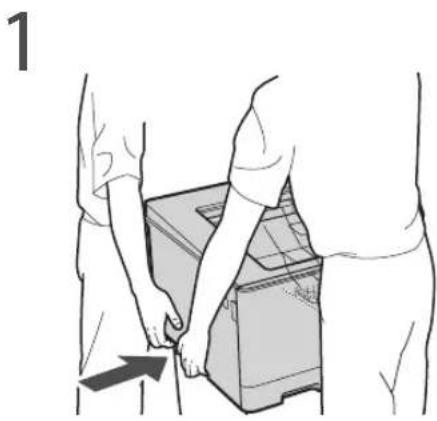
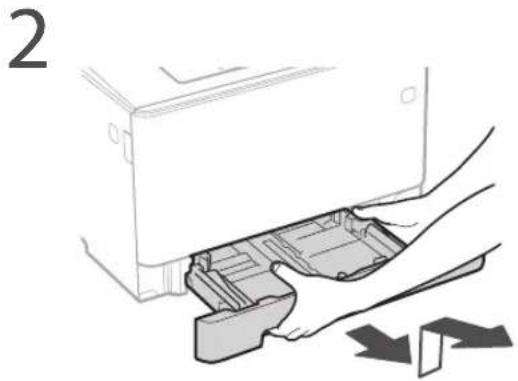
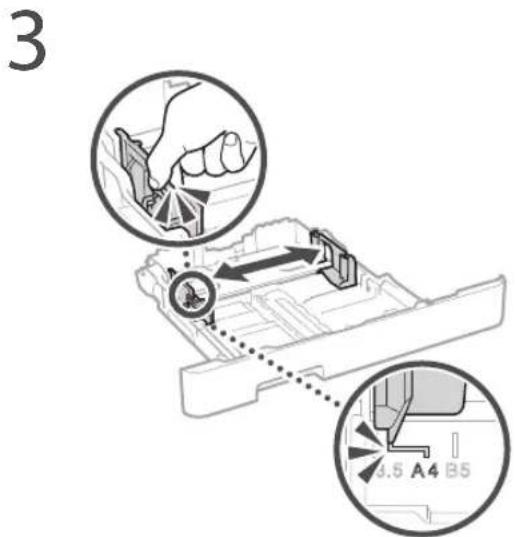
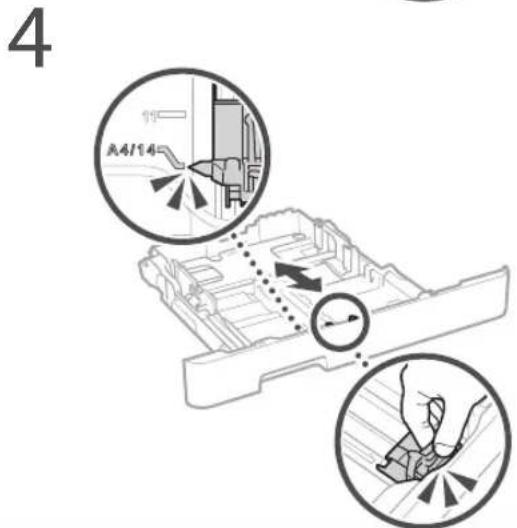
5
6
7
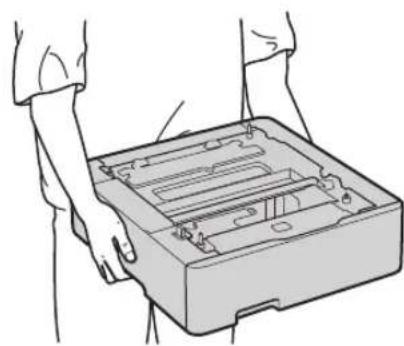
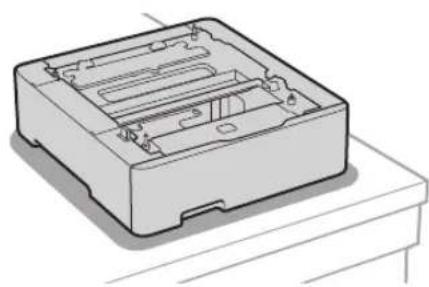
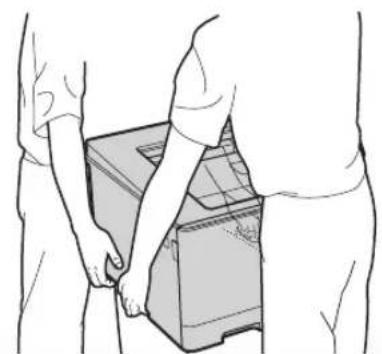
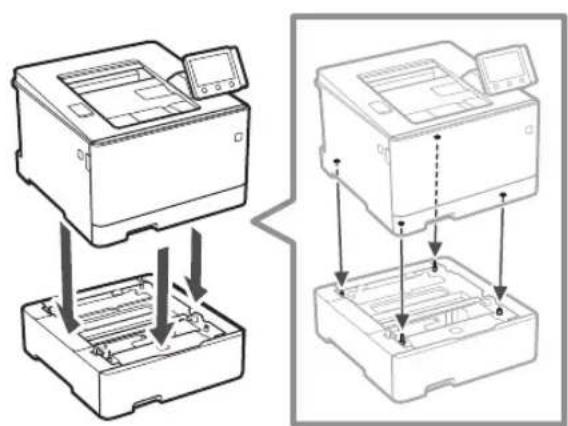
8 Install the cassette feeding module (optional).
9
Next, proceed to configure the machine.
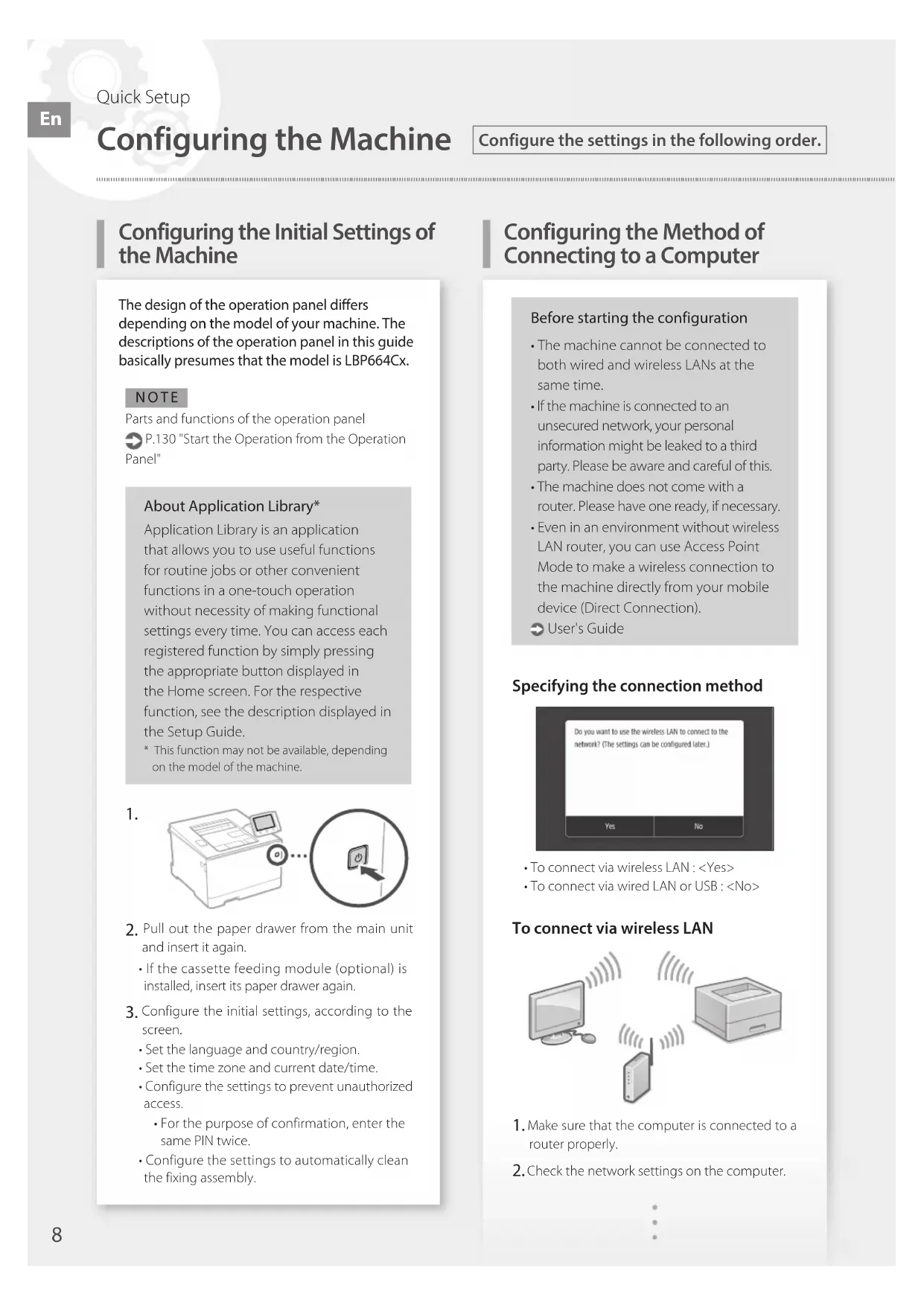
Configuring the Initial Settings of the Machine
The design of the operation panel differs depending on the model of your machine. The descriptions of the operation panel in this guide basically presumes that the model is LBP664Cx.
NOTE
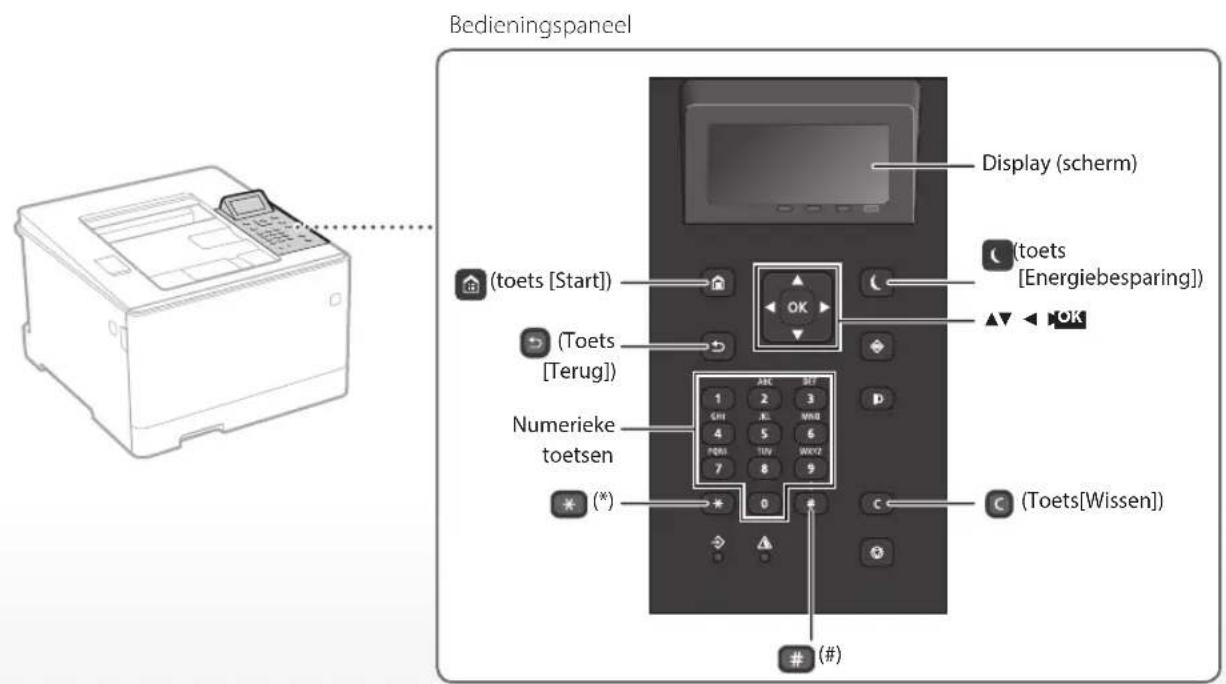
Parts and functions of the operation panel
P.130 "Start the Operation from the Operation Panel"
About Application Library*
Application Library is an application that allows you to use useful functions for routine jobs or other convenient functions in a one-touch operation without necessity of making functional settings every time. You can access each registered function by simply pressing the appropriate button displayed in the Home screen. For the respective function, see the description displayed in the Setup Guide.
- This function may not be available, depending on the model of the machine.
1.
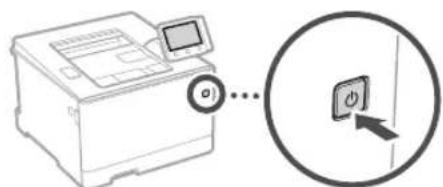
-
Pull out the paper drawer from the main unit and insert it again.
-
If the cassette feeding module (optional) is installed, insert its paper drawer again.
-
Configure the initial settings, according to the screen.
-
Set the language and country/region.
-
Set the time zone and current date/time.
-
Configure the settings to prevent unauthorized access.
For the purpose of confirmation, enter the same PIN twice.
- Configure the settings to automatically clean the fixing assembly.
Configuring the Method of Connecting to a Computer
Before starting the configuration
The machine cannot be connected to both wired and wireless LANs at the same time.
If the machine is connected to an unsecured network, your personal information might be leaked to a third party. Please be aware and careful of this.
The machine does not come with a router. Please have one ready, if necessary.
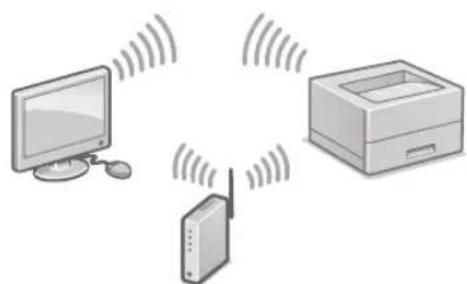
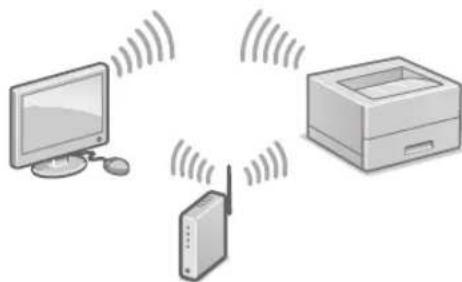
- Even in an environment without wireless LAN router, you can use Access Point Mode to make a wireless connection to the machine directly from your mobile device (Direct Connection).
User's Guide
Specifying the connection method
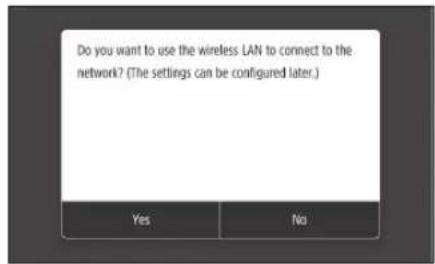
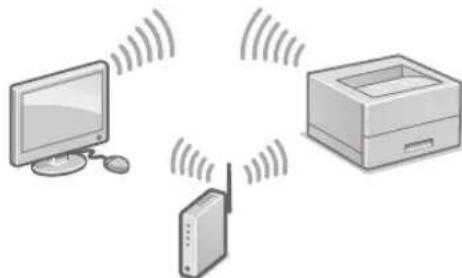
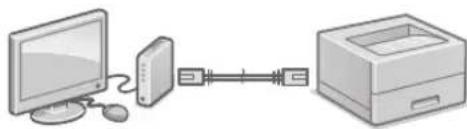
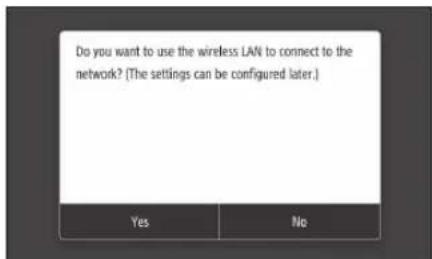
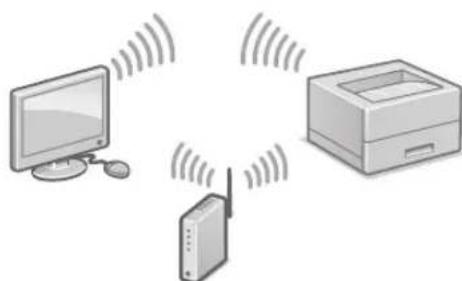
To connect via wireless LAN:
- To connect via wired LAN or USB:
To connect via wireless LAN
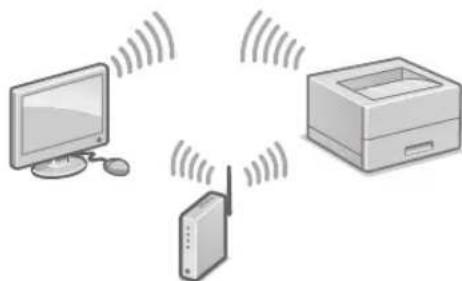
- Make sure that the computer is connected to a router properly.
-
Check the network settings on the computer.
-
Take note of the SSID and network key.
-
Check the label on the router. User's Guide
-
The setting operation is easier if the router is provided with a WPS mark. User's Guide
-
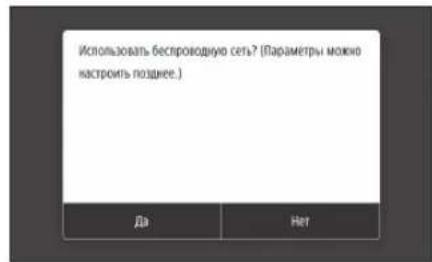
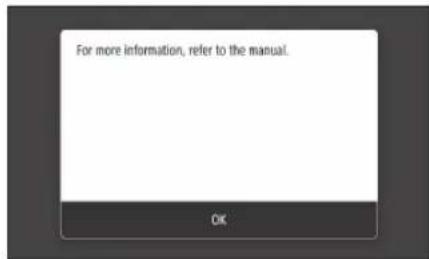
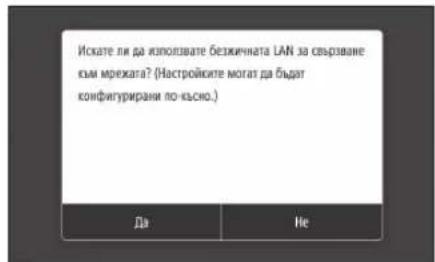
Set the access point and network key according to the screen below.
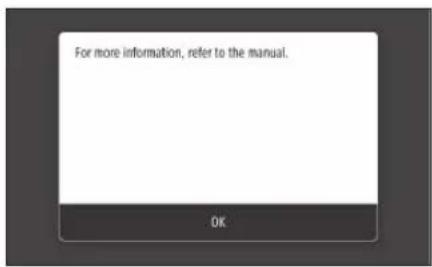
- Select OK>
- Select
. - Select
- Select the access point (SSID), and select
. - Enter a WEP key (network key), and select
. - Select
. - Wait until message
is displayed. -
Select
.
The IP address will be automatically configured in a few minutes. -
Install the driver and software.
P.10 "Installing the software"
Now you are finished with the configuration of the initial settings.
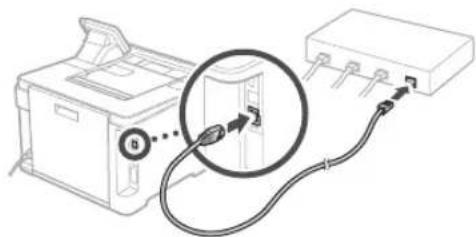
To connect via wired LAN
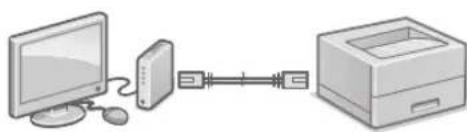
The machine does not come with a LAN cable. Please have one ready, if necessary.
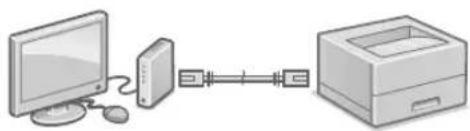
- Make sure that the computer is connected to a router properly.
- Check the network settings on the computer.
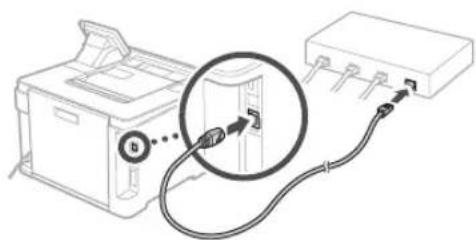
- Connect the LAN cable.
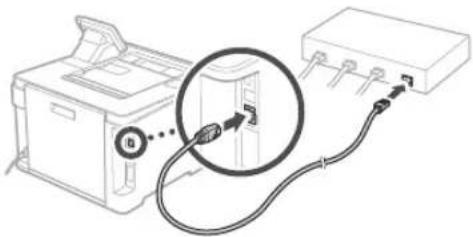
After connecting the cable, wait a few minutes (until the IP address is set automatically).
- If a static IP address has been set on the computer, set the machine's IP address manually.
4.Install the driver and software.
P.10 "Installing the software"
Now you are finished with the configuration of the initial settings.
To connect via USB
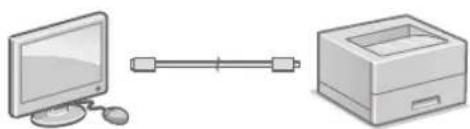
The machine does not come with a USB cable. Please have one ready, if necessary.
Make sure that the USB cable you use has the following mark.
- Do not connect the USB cable before installing the driver. If you did, disconnect the USB cable from the computer, close the dialog box, and then perform the following procedure from step 1.
- Install the driver and software.
P.10 "Installing the software"
- When a screen with instructions for connecting the USB cable to the machine is displayed, remove the cap that covers the USB port.
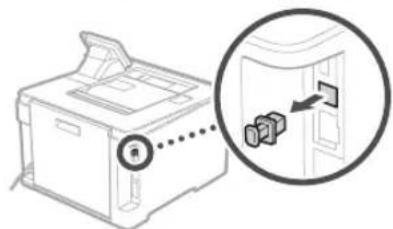
Now you are finished with the configuration of the initial settings.
Installing the software
The procedure described here is only applicable when your computer runs on the Windows OS. For more details on the software installation procedure, see the driver's manual.
- For the installation when your computer runs on the macOS, see the driver's manual.
- Your machine may not come with the driver for the macOS, depending on the time of purchase. New drivers are uploaded to the Canon website, and you can download and use the latest one.
1.
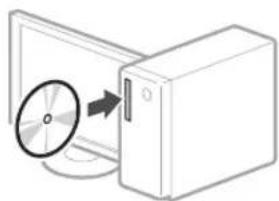
2.
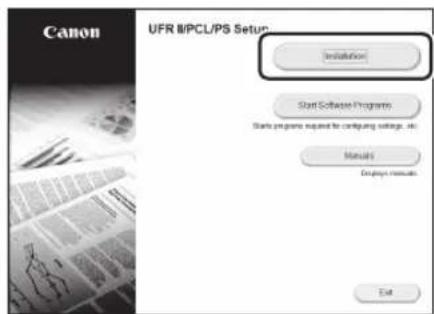
If the screen is not displayed properly, reinsert the CD-ROM/DVD-ROM or search for "D:\MInst.exe" on the Windows platform (This description assumes that "D:" is the CD-ROM/DVD-ROM drive name).
Memo
S.46 "Installation of softwaren"
S.46 "Installation af softwaren"
S.46 "Installation af softwaren"
Installation of softwares
- Verbinding makes via draadloos LAN:
- Verbinding makes via bedraad LAN of USB:
Verbinding makes via draadloos LAN
Verbinding makes via bedraad LAN
O npunokhenn Application Library (Bn6nnoteka npunokhenn)*
Application Library (Bn6noTeKa npinoxeHn) 3TO npinoXeHne, KOtOpoe Daet BO3MOXHOCTb PpIMHeHrTb NOIe3HBe fYHKuIN IaB BInONHeHn CTaHApTHbIX 3aHaHN NIN DpyHne yO6HbIe fYHKUIN ODNHM HaxaTNEM KHOKN Be3 Heo6xOJIMOCn KaKDbN pa3 3aHOBO BbIONHbTb HaCTPOIN KfHKU. K KaJDoN 3apeNCTPpOBaHHbIX fYHKUIMoKHO O6paATCBc IyTeM IPOCTOFO HaxaTNI COOTBETCTBYOUe KHOKN, KOTOPA OTO6paXaeTc HA rIaNBHOM 3kPaHE. OnNCaHne KaXdoN fYHKUIN OTO6paXaeTc B pyKOBOdCTBe NO YCTaHOBKe.
Hannue 30n yHKuN 3aBNCNT OT MOnnn annapata.
1.
-
BbHbTe IOTOK dIg 6yMaIu n3 OCHOBHO 6noka n BCTaBbTe erO ONrTb.
-
Ecnny yctahOBHeH moynb kaccetHOI noaun (npnoobpetaeTcDIOONHHTeBHO), ONrTB BCTAbTe IOTOK dNBAymn.
-
3aJaIte NcXoHbIe HAcTpoIKN B COOTBeCTBUN C3KpaHOM.
3aJaIteA3bIKNCTpaHUYnnpeHNOH.
3aatae yacoboi noC n Tekyuine daTy INBPEM.
3aainHe HactpoKnIJI npedotBpaueHn HecaHKUHOHPOBaHHOro Doctyna.
-ⅡnnoTBepeKJEnH BBeDHTe OINH NTO TKe INH-KoD DbaKdbI.
3aainHe Hactponn nIaBtOMaTneckoOuNTKy3naTePm03akpenHn.
3aHaHne cnocoba NOdknUoyEnn K KOMNbIOTepy
IpeepHaayanom HacTpoKn
OndHOBpeMeHHoe NOKJIueHne annapata K npOBoHOHn 6ecnpoBOHOcTAM HeBO3MOxHO.
- Ecn annapat noKIOUeyH K He6e3ONaCHo CETn, Ba7a nepcoHaJIbHaN HOpMaun MOxET IOnaCTb K TpeTbM NlUam. POMHnte 06 ATOM Uc6IOnDaJte OCTOPOXHOCTb.
Mappynt3atop He BXOINTB KOMnIeK TNOCTaBKn annapaTa. Pn HEO6XoIMOCtN NOIgTOTOBbTe ero 3apaHee.
JaKeB CpeE, B KOTOpO OTCyTCTBye TMapuPyTu3aTop 6ecnpoBoDHO CETN,MOXHO NcNOb3OBaTBpeKMM TOUKNIOCTyna DnA 6ecnpoBOHORO NOKIIoueHHN KAnIapaty HApPMyIO CMo6NbHOrO yCTpOuINCTBa (Ipamoe NoKnIOueHHe).
PykoBOIcTBOIOJIb3OBaTeJIa
yKa3aHne cnoc6a noKJIuOeHnA
-Длг подк nullуен no becnpobodhoJOKaIbHOn cTeN:
-Длгпдкюченno npOBODHcNOKaJIbHOn cTeN nnn USB:
PoiKJIoueHne no 6ecnpoBoHOcHcTn
1.Y6eNTecB TOM,HTO KOMNIOTeP npabnHNOKIOueH K MappyTu3aTOpY.
2.Поверп te HaCToPOnK Cetn Ha KOMNbItepe.
- 3aunuTe ndeHTnФkaTop SSID u knou cetu.
PpOBepeTe 3TNKeTky Ha MapIpyTu3aTope.
PykoBODCTBO nIb3OBaTeJIa
Pa6ota no HactpoKe ynpoaaetc,ecnHa MapwpytnaTope nMeetc 3Naohk WPS.
PykoBODCTBONoIb3OBaTeJIa
4.3aaiTeTOkyIOCTyNA KIOUc CEIN B COOTBETCTBUN C 3KpaHOM, pNBEeHHbIM HIXe.
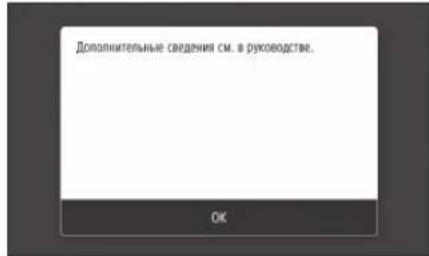
- BbI6epuTe OK>
- BbIepeHte
- BbIepeHrE
. - Bb6epnte toky doctyna (SSID) n Bb6epnte
. - BBeIte KIOU WEP (KIOU cETN) n BbIepeNTe
. - BbIbepuTe [Ja].
-0xjntecb oTo6paXeHHa COo6ueHHA
7. Bb6epnte<3aKpbTb>
- IP-aDPEC HAcTpaNBAeTCaBtOMaTnueCKN B TeHeHHe HeCKONbKnx MmHyT.
5.YctaHOBtTe npaBepnpoPpAMMHOe oecneueHne.
CTP.66《YCTaHOBkaIporpaMMHOrO 06ecneueHHN
Tenepb 3aDaanHe NcXoHbIX HAcTpoek 3aBepseHo.
PoiKJIoueHne no npoBOHOcTn
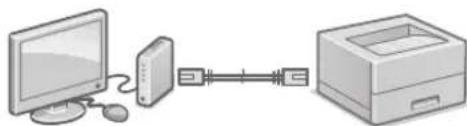
KabelnoKajbHcTnHe BXoNT B KOMnneKT annapata.
PnHcO6xOaMocTn noIgroTOBbTe Ka6eNb.
1.Y6eNTecbBTOM,HTO KOMNIOTeP npaBnIbHO NOKJIIOHcK MapuPyTu3aTOpY.
2.ПоверьтЕ Habtpoикi ceTи Ha KOMnbItepe.
3. NpoknHHTe Ka6enb nokanbHOI cTe.
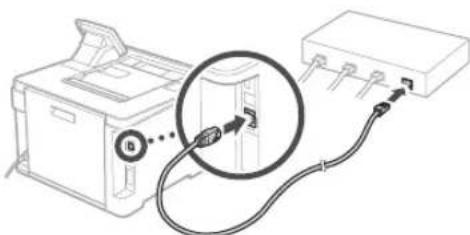
-ПОДКИОЧИВΚавь,пОДЖДТЕ HeckoЛькOMHyT (нoka IP-aIpeC He 6yIeT 3aJaH aBTOMaTnueCKn).
- Ecnn Ha KommbioTepe 3aHa nCTaTneckn IP-aDpec, 3aJaIe IP-aDpec annapata BpyHyIO.
4.YctaHOBInTe npaBepnporpaMMHoe oecneueHie.
CTP.66《YCTaHOBKa PPOppaMMHO06ecneueHn
Tenepb 3aJaHHe nCXoHNbIX HAcTpoeK 3aBepSeHo.
PoiKJIoueHne no USB
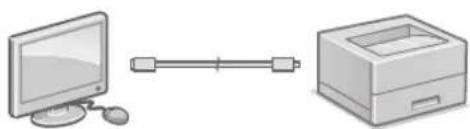
Kaebb USB He BxOITB KOMNKeT NOCTABKn annapata. Pn Heo6xOIMOCn NOrTOBObTe Ero 3apaHee.
- Y6eHITecbBTOM,HTOHCNOJIb3yEMbIKa6eNB USBIMeETcneIyUOuyoMapKnipOBky.
He noKnouaTe Ka6eNB USB do yctaHOBKn dpaBepa.EcIn BbI 3TO cEnaII,OTcoEINHTe Ka6eNB USB OT KOMNIOTEpa,3akpoTte DnAIONOBOe OKHO N BbINONHITe npuBeEHHyIO Hnke npoceDpy C7ara1.
1.YctaHOBInTeIpaINBepNiporpaMMHoe 06ecneHHe.
CTP.66《YcTaHOBKa nporpaMMHOrO 06ecneueHH
- EcnnoTo6paKaAcTcA KpaH cyka3aHnem noKIOuHTb Ka6eIb USB K annapaty,CHMNTe 3aRnyuKy,3akpbBaHOuyo npOT USB.

Tenepb 3aDaanHe NcXoHbIX Hactpoek 3aBepseHo.
yctaHObKa nporpamMHoro 06ecneueHn
-Пивсeннэздсьпоцурра пиMuHMa TOnbKOДЯКOMNBIOTepOB,HaKOTOpbIe yCTaHOBnEHaOCWindows.ПОпбHe O npOcHype yCTaHOBKn pOprpaMMHOrO 66ecneHnM.BpykoBOdCTBe KДpaBvEpy.
-Notapok yctaHOBn Ha KOMnbIOTepbic OC macOS cm. B pykoBOdCTBe K npaiBepy.
B 3aBnCmOCTn OT BpeMeH npno6peTeHH annapata, OH MOKeT NOCTaBnATbCra 6e3 dpaBepa dna OC macOS. HObIe IpaBepb pa3MeauOTcHa Be6-cAte Canon, noToMly MoXHO 3arpy3ntb IN CNOJIb3OBaTb HOBeIIMn DpaBep.
1.
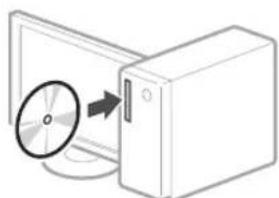
2.
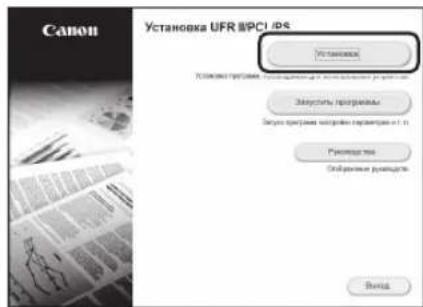
Ecnn ekpaHne OTo6paKaTcnaHaIeKaaIIM
O6pa3OM, 3aHOBO yCTaHOBInTe NnCK
CD-ROM/DVD-ROM nnn BbINOnHnTe
nonck faIIa «D:MInst.exe» Ha
nlaTphiOpMe Windows (B 3tOM oIncahnn
npednonaraetca, YTO «D» — 3to nma
nckkoBoda CD-ROM/DVD-ROM).

Hanaштуваима.apapata
HanaStyBaHHЯ NOaTKOBnx napametpiB anapata
KoHCTpykTNBHe OΦOpMNEHHaHaJI KepyBaHHb BiDiPI3HnEeTbcra 3aJExKHO BiMDoMeI anapata. Onnc naHEni KepyBaHHb B cIbOMy noci6nky 3d6inbIbIoro nepe6aue, Io moJeB anapata — LBP664Cx.
PIMITKA
DoklaHnpe npo enemEn naheni kepyBaHHa Taix yHKuII DVB. B po3nini

CTOP.250INB.po3DIN INPOaTOKpo6OTN3
naheni KepyBaHHa
Ipo nporpamy Application Library (Bi6nioteka doatakib)*
Application Library (Bi6nioteKa doaTkib)
— ue nporpama, kka dae 3MORY OHNMMATNCKOM KnaBIUI BIKOPNCOTByBaTNKOPCHI fyHKUII DnRA BVIOHOAHNCTAanapTHNX onepaui a6o IHsI 3pyHi fyHKUII 6e3 Heo6xIDHOCTI uOpazyHACPTPOIBATN fyHKUIOHaBHI napamETPN.BINMOKETe OTPMATNI DOCTyn Do 6yIbKOJI 3apeEcTPOBAHOI fyHKUII, pOCTO HATNCHYBUN HA NOTPI6Hy KHONKY, kAI BiIObpaXaETBCN Ha ekpani rONOBHORo MEHO. ONNC BIDNOIBHOI fyHKUII BiIObpaXaETBCN y Poc6hNKy 3i BCTAHOBNeHH.
1.
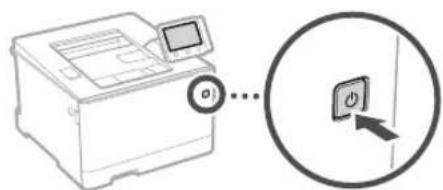
- BntTnHtB uxynAy 3 nanePOM 3 oCHOBHoro 6noka i BCTaBTE II 3HOBy.
KIO BCTAHOBNEHO KaceTHM MOyIb NOaBAHHN (OdaTKOBE 06naHnHaHH),BCTA Te NOro WxXnNy 3 Naepom 3HOBy.
3.HanaTuYte noaTKoBi npamETpn BIDNOBIDHO IHCTpyKui Ha ekpaHi.
- YctaHobitb MOby Ta kpaIHy/perioH.
- YctaHOBiTb yacOBn noC i nToCHy daTy/acy.
HanaTuYte npaMeTp nI 3ano6irHa HecAHKIOHOBAHOmy doCTyNy.
-ⅡnpiTBPxKHeBBeDITbTOIcamPiNKOdDbii. - HacptpoTe npaMeTpnaTak, uo6 uuieHHA 6noka fikcauiBidbybalocra ABOMaTHHO.
Hanaштуваня способу πίдкlioоченьяdoeskomn'tepa
IpeepnoatKOMHaJauTByaHHA
AnapaT He MoXHa BoDHOac NiKIOHTN Do IpOTOBOI Ta 6e3IpOTOBOI JOKaJIbHOI MEpexi.
KuO anapat niknueHo do HeaxnueHoi Mepeksi, Bawa ocobncta infopmaiz MOKe noTpanNTI do cToPOHHix oci6. BybTe yBaXHi Ta 0epekhi.
Anapat noctaacb63 Mapuynatopa. Niroto neo 3a Heo6xHocti.
Habitb kuo B cepoOBuHemae MapuTn3atopa 6e3npotoboi IokalhoI Mepeki, MoXHa BkOpNCtAtnPexMM TOCKIOCTyNy dna 6e3npotOBoro NiKlOueHHa DO anapata 6e3noceepenHbO 3 MOBihOR npictpo (npame nikluoyehna).

ПосibнкКористувачa
Bka3aHHcno6y niKloueHH
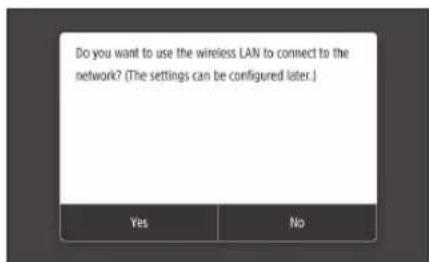
-Пдклоченусязбеторовлokалы Мереку:
-Плдкючehну чере здpoToBy lokaNBMy mEpexy a6o 3a ДОпOMorOIO USB-ka6eIIO :
Piknouehnaepe36e3pOToBy IokaIbHy Mepexy
- NpekoHaTeCA, IO KOMN'IOTeP NiKNIHOHO MoMapuTy3aTopa HaneKHM YHOM.
-
Npebipte npametpu mepexi Ha komn'iopei.
-
3auiitb SSID Ta KIOUc Mepekei.
-Перевиретеатиктуни Маршутни atopi.
ПосбнкКориства.
- PpOeDypa HAcTpoIbAHH6 Bye npocTiioIO, RaH OHa MauPpyTu3aTopi e no3HaUka WPS.
Noci6HnK KopncTyBaHa
- HanaHTyIe ToKy DoCTyny Ta KIOH MepeXi BIDNOBIDHO DO IHCTpyKuH Ha ekpaHI, HABeDEHNX HIXKHe.
1.Bn6epiTb nyHKT
2. Bn6epitb
3. Bn6epitb
5.YctahOBiB TaPnBepinporpaMHe 3a6e3neueHH.

ctop.70ДИВ.pO3dIN«UcTaHOBka
IporpamHoro 3a6e3nueHH
Tenep Bn 3aBepwnn HanaWtyBaHH noataKOBnx npametpiB.
KoHΦnrgypnaHe Ha MaunHaTa
KoHfIpypIpaHe Ha IpbBOHaJHnTe NaCTPOkN Ha MaunHaTa
OΦopMneHnTo Ha pa6oTHnHaHeI ce pa3nUaBa B 3aBncmocT OT MoEJa Ha MaunHa. OINcaHnTa Ha pa6oTHnHaHeI B TOBa pKOBODCTBO KaTO UaIO ca 6a3npaHn Ha MoEJa LBP664Cx.
3A5EJIEXKKA
Yactn nyHKunna pa6oTHnaHcn
Ctp.338,CTapTnpaHe Ha deNCTBnETo O Tpa60THNAHEn"
Othocho Application Library (Bn6nnoTeKa c npnoxehna)
Application Library (566708eKa c npnoKeHn) e npnoKeHne, KOET Bn NO3BOJRA Da 13NO3BAte NONE3H cyHKU 3a pyTHHN 3aDAHNI INIpyTN yO6HbN cyHKU C EEO DOKOCBaHe 6e3 Heo6XoDMOC T NTMBpWBHe Ha cyHKUHOHaHN HAcTPOKn BCEKN MT. MoKTe Da nIOUYHTe DOCTBn DO BCRA peINCTPnpaHa cyHKU, KATO IPOCTO HAINCHETe IOxOJa 6yTOH, NOKA3AH Ha HauAlHNA ekpaH. BuXtE OINCAHNETo, NOKA3HO B pKBODCTBOTO 3a HAcTPOKA 3a CBOTBEHTHATA cyHKU.
Ta3nФyHKJIMRA MOKeJa He He HAMHHA B 3aBNCIMOCTOTMOEnHaMaIHINHaTa.
1.
2.ИЗьрnaite Tabata 3a xapTЯ OT KOpnyca Ha yctpoiCTBOTO, cIeKoETo nOcTabete O6paTHO.
Ako e MOHTnpaHO KaceTbHNOIpaBauO yCTPOIcTB (ONIOHaIIHO) BkapaTe o6pTaHO Tabata My 3a xapTna.
- KOHpynpaTe npBPOHaJHnTe HaCTpoKn B CbOTBetCTBnE CekpaHa.
3aanaTe c3nka n nbpjkabata/pernoHa.
3aainTe yacobn noC n Tekyuata data/uc.
KoHfNpypauTe HAcTpoKNITE,3a npEOtBpaTaBAHe Ha HeynblHOMOueH DoCTbN.
CueI NOBbpxdHne BbBeTe Dba nTn eHH nCbu PIN Hoomep.
KoHfNpynpaIte HAcTpoiKnTe Ha aBtOMaTHO NOCTBaHe Ha fKnCnpaun MOnyI.
KoHΦnIpynpaHe Ha MeToDa 3a CBbp3BaHe C KOMNIOTpBp
Ppei Da 3aOnuHete KOHpynpaHaTe
MaunHata He Moke da ce cbpke eoHOBpeMeHHo cKa6eHa n 63xuHa LAN mpeka.
- Ako MaunHaTa e Cbbp3aHa C He3aUHTeHa MpeXa, BaaTaNuHa INΦopMaUN MoKe Da n3Teue Do TpeA CTpaHa. MoN, 6bDete BHIMATEHNI NO OTHUHeHHe Ha TOBa.
MaunHata He ce doCTaBc MauPpyTn3aTOp, 3aTOBa NIOITGTBeTe TaKbB, aKO e Heo6xOdmo.
-ДориВсрета6e36e3KHeH LAN MapуTNaTOp MOKeTe Da nI3NoI3BaTe peKIM Ha TOUka 3a NOCTbI, 3a Da OCbIeCTBnTE 6e3KmHa Bp3Ka C MaUNHaTa INpeKTHO OT BaIeTO MObINHO YcTPOIcTBO (INpeKTHa Bp3Ka).
PbKOBOIDCTBOHaNtpeBHTeT
NocouBaHe Ha MeToDa 3a Cbbp3BaHe
-3a da ce cbbpxkTe uepe3 6e3xuueH LAN:
- 3a da ce cbbpxe te ue3 ka6eneh LAN nn USB:
3a da ce cBbpxeTe uepe 6e3xuueH LAN
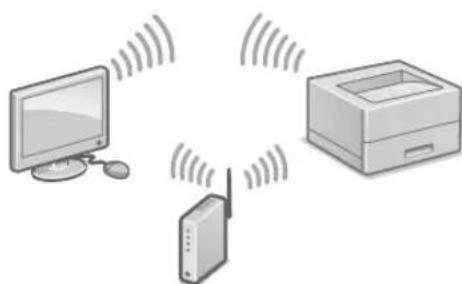
-
YBepete ce, ye KOMNIObpbTe npabINHO CBbp3Ah C MapwpyTN3aTOp.
2.ПоьеретмржOBHTHACTPOKNHaKOMNIObpa. -
OToBeJExeTe SSID nmpexKOBnKnIOU.
-Поверете eTNKeTaHa МаршуТиЗаТopa.
PbKOBOCTBOHaNOTpe6nteJIa
HaCtpoNkatae no-nccha,ako MapuTy3aTopbTe cHabdeh CMapKupOBka 3a WPS. PkoBOOCTBO Ha nOtpe6nten
4.3aJaTe TOUkTa 3a DOCTbN mpeKOBn KIOU B CbOTBETCTBNE C eKpaHa NO-DOJy.
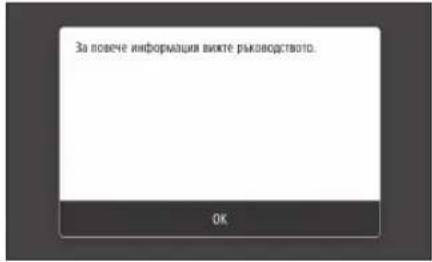
J 1
J 1
J 1
J 1
J 1
J 1
J 1
J 1
J 1
J 1
J 1
J 1
J 1
J 1
J 1
J 1
J 1
J 1
J 1
J 1
J 1
J 1
J 1
J 1
J 1
J 1
Juaaiyia jiu
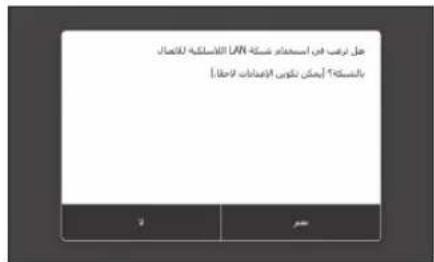
iJusuui juaal Juaai iue Juaui
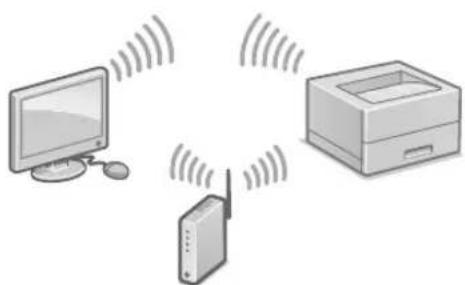
J 1
aaii i 1
aaggl aal jal gaaagaaatg aagaaatg aagaaatg .LBP664Cx gjla
a b
jai 1
"Jaiil 10 Jaiil 0e
Application Library 念 \*
(a)Application Library aalldyall cllbgl pldi ydyd ydy d ydl ydl ydl ydl ydl ydl ydl ydl ydl ydl ydl ydl ydl ydl ydl ydl ydl ydl ydl ydl ydl ydl ydl ydl ydl ydl ydl ydl ydl ydl ydl ydl ydl ydl ydl ydl ydl ydl ydl ydl ydl ydl ydl ydl ydl ydl ydl ydl ydl ydl yDL

J 1
J 1
J 1
J 1
J 1
J 1
aal aal al 1
aallll l 150
a
JSSS
jsslll 1
aaii iiaii 5s sss
y
Lipip
J 1
y
aai jai jai ai aai
"alil
a15121 1
jssllslll l 1
A. all 美心 SSID
piaill ydi 5yall cdo gao
Aodle slalas gall jS 13jgwl 1
pslll Jy 100 WPS
olai aaii i 1
< OK >
<1y>
<1> (SSID) 1
< < + > 2 - .
<.Jai> Jai jai
< 0 ≤ | | > 2 .
g 10
aaiy jyj y
"zaiyuliu" 114
y
#
jial jg gai elai lai ci dui ci jiao
a3 = 32a2,a4 = 32a3.
S ACD = S COD + S BDO - S BOC
iudui dui jgj y 1y o
1
LAN 4
Access Point Mode j
blzj 1s jy jy jy (y
s oolal 2g al yj j
()
S ACD = S COD + S_ CDA
JU
(山)
LAN 1
(2,4) < NO > :USB
LAN
j 44 44 44 44 44 44 44 44 44 44 44
A
1 1
LBP664Cx L
A
C
"jiei jie jij jie jiee"
Application Library 品
Application Library
45 20001111111111111111111111111111111111111111111111111111111111
15
25 30 40 50 60 70 80 90 100
1 1
1
ai a ai 的最小值为 k .
j11111111111111111111111
jai jia jia jia jia jia jia jia jia jia jia jia jia jia jia jia jia jia jia jia jia jia jia jia jia jia jia jia jia jia jia jia jia jia jia jia jia jia jia jia jia jia jia
2482
1 1
aL 1 j aJj j J 1 j aia
j j 1
1
PIN
jssy4y ss yds J 1s Jda Jdab
15
LAN L
()jaiy jiaiie ()
()
1 1
1P
4
"jbjj jui 19
4y 4y yglalagssy
.
SSID
4
y1y2
WPS
jslslal jL 2
(5a Jaa Jaa Jaa Jaa Jaa Jaa Jaa Jaa Jaa Jaa Jaa Jaa Jaa Jaa Jaa Jaa Jaa Jaa Jaa Jaa Jaa Jaa Jaa Jaa Jaa Jaa Jaa Jaa
()
(SSID
S = 1
1
(SSID)
Next>
1 (WEP WEP key
( J - 1) < ( J - 1) < ( J - 1)
(山)
.
15 15
2015年
ii 1 j j j j j
"jbjpjiuai"149.
4y4ygl)Laal (Syy
1
jai
Aolalil Jlq, jzj 00000000000000000000000000000000000000000000000
1
jale pssu 45 (s) 4y j y j j j j j j j j
macOS
s y 45 s 1000000000000000000000000000000000000000000000000000000000000000000000000000000
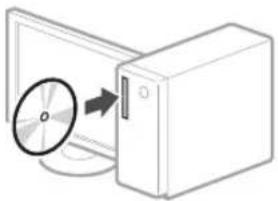
.
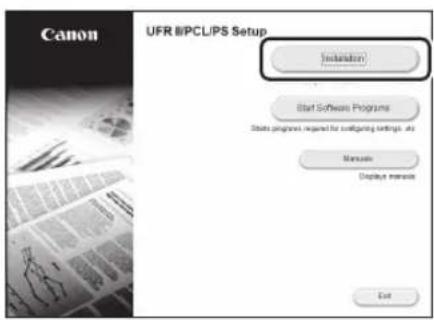
dD 1 CD-ROM/DVD-ROM D:\MInst."Windows "exe CD-ROM/DVD-ROM :D"
USB
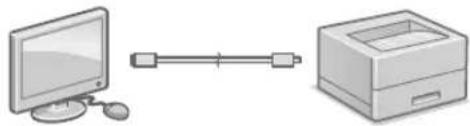

.15 111 JU 1 U USB JIS AS 215 Jala jilalj j CIOe S Jl Jauo oJaiu 2jgo
J 1 JJSJSSJSSJUSUBJLJS JSSJSSJUSB JSSJSSJSS
1 1
JSSS JSS SSS SSS SSS SSS SSS SSS SSS SSS SSS SSS SSS SSS SSS SSS SSS SSS SSS SSS SSS SSS SSS SSS SSS SSS SSS SSS SSS SSS SSS SSS SSS SSS SSS SSS SSS SSS SSS SSS SSS SSS SSS SSS SSS SSS SSS SSS SSS SSS SSS SSS
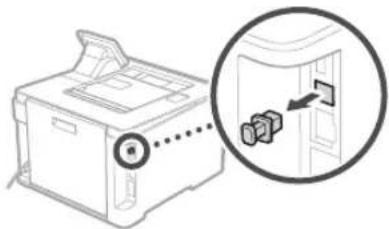
4y4y1g11y1y1y1y1y1y1y1y
Memo
Quick
Operation

Quick Operation En
Utilisation rapide
Kurzanleitung De
KpaTkoe pykoBoIDCTBO no 3KcnIyatauRu
Uk
Atrā lietošana Lv
Trumpa naudiojimo instrukcija Lt
Kiirtoimingud Et
Start the Operation from the Operation Panel
The design of the operation panel differs depending on the model of your machine. The descriptions of the operation panel in this guide basically presumes that the model is LBP664Cx.
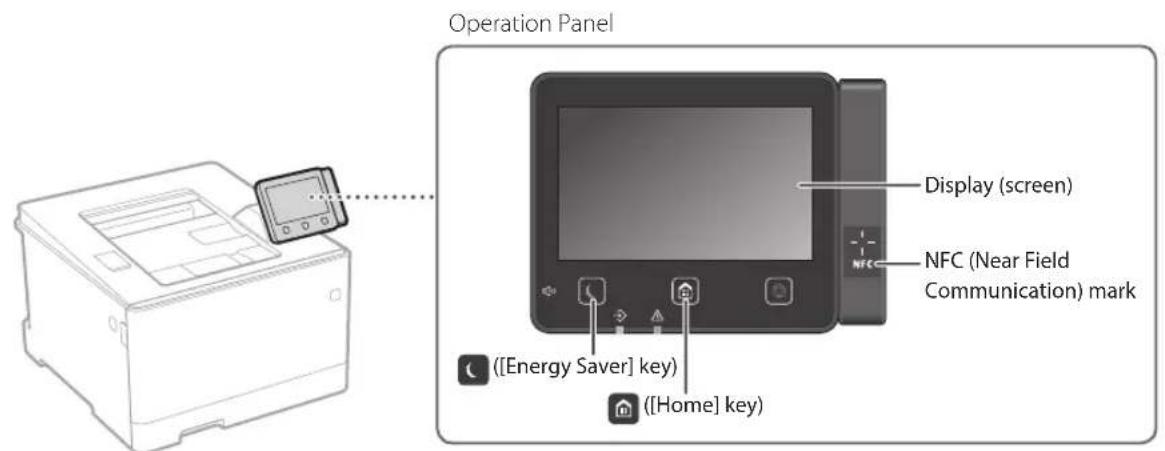
Machine (LBP664Cx)
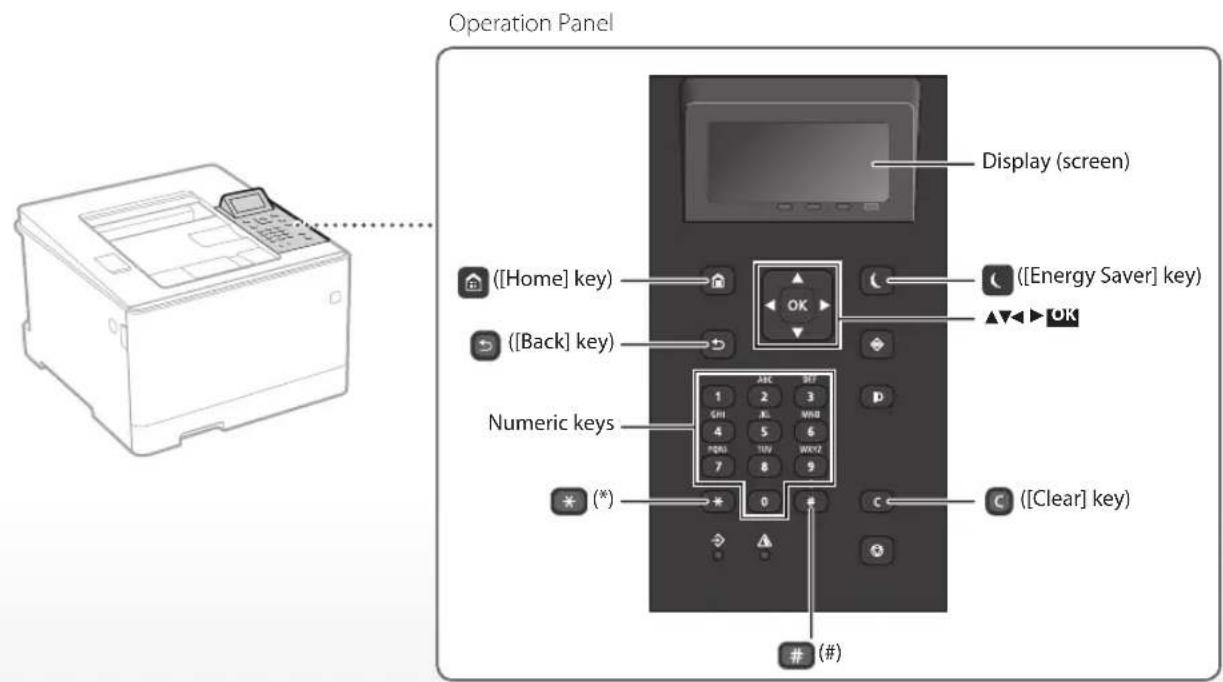
Machine (LBP663Cdw)
Navigating the Menu
Item selection or moving the cursor among the menu items
Select an item with [▲] or [▼].
Press OK or [▶] to proceed to the next hierarchy.
Press or [ ] to return to the previous hierarchy.
Setting confirmation
Press OK However, when
Text Input Method
Changing entry mode
To change the entry mode, press
Entry mode Available text
A> Uppercase alphabetic letters and symbols
Lowercase alphabetic letters and symbols
<12> Numbers
Entering text, symbols, and numbers
Enter with the numeric keys or
Moving the cursor (Entering a space)
Press [or], to move the cursor. To enter a space, move the cursor to the end of the text, and press [].
Deleting characters
Press Pressing and holding deletes all characters.
| Entry mode: <A> | Entry mode: <a> | Entry mode: <12> | |
| 1 | @.-/1 | ||
| 2 | ABC abc 2 | ||
| 3 | DEF | def | 3 |
| 4 | GII | ghi | 4 |
| 5 | JKL | jkl | 5 |
| 6 | MNO | mno | 6 |
| 7 | PQRS | pqrs | 7 |
| 8 | TUV | tuv | 8 |
| 9 | WXYZ | wxyz | 9 |
| 0 | (Not available) | 0 | |
| # | (space) @./_! & $ % #() [ ]{ }< >* != " . . . . . . . . . . . . . . . . . . . . . . . . . . . . . . . . . . . . . . . . . . . . . . . . . . . . . . . . . . . . . . . . . . . . . . . . . . . . . . . . . . . . . . . . . . . . . . . . . . . . [ ]{ }< >* != " . . . . . . . . . . . . . . . . . . . . . . . . . . . . . . . . . . . . . . . . . . . . . . . . . . . . . . . . . . . . . . . . . . . . . . . . . . . . . . . . . . . . . . . . . [ ]{ }< >* != " * . . . . . . . . . . . . . . . . . . . . . . . . . . . . . . . . . . . . . . . . . . . . . . . . . . . . . . . . . . . . . . . . . . . . . . . . . . . . . . . . . . . . . . . . . . . . . . . . . . . . [ ]{ }< >* != " * . . . . . . . . . . . . . . . . . . . . . . . . . . . . . . . . . . . . . . . . . . . . . . . . . . . . . . . . . . . . . . . . . . . [ ]{ }< >* != " * . . . . . . . . . . . . . . . . . . . . . [ ]{ }< >* != " * . . . . . . . . . . . . . . . . . . . [ ]{ }< >* != " * . . . . . . . . . . . [ ]{ }< >* != " * . . . . . . . . . [ ]{ }< >* != " * . . . . . . . . [ ]{ }< >* != " * . . . . . [ ]{ }< >* != " * . . . . [ ]{ }< >* != " * . [ ]{ }< >* != " * [ ]{ }< >* != " * [ ]{ }< >* != " * [ ]{ }< >* != " * [ ]{ }< >* != " * [ ]{ }< >* != " * [ ]{ }< >* != " * [ ]{ }< >* != " * [ ]{ }< >* != " * [ ]{ }< >* != " * | (Not available) | 0 |

Printing
- Open the document to print, and select the print function of the application.
- Select the printer driver for the machine, and select [Preferences] or [Properties].
- Specify the paper size.
- Specify the paper source and paper type.
- Specify the print settings, as necessary.
- Select [OK].
- Select [Print] or [OK].
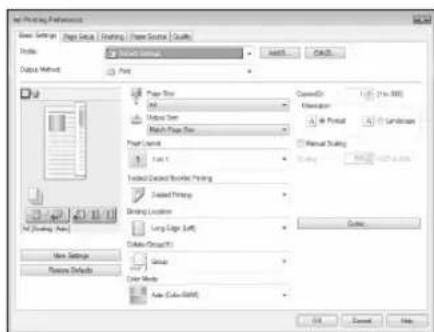
Useful print settings
2-sided
N on 1
Booklet Printing
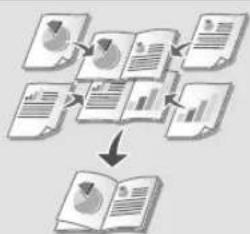
For details
"Printing" in the User's Guide
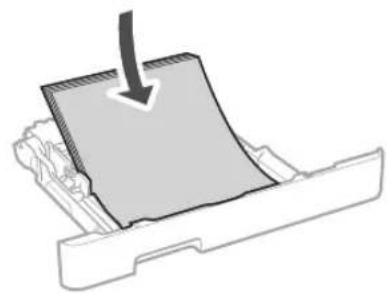
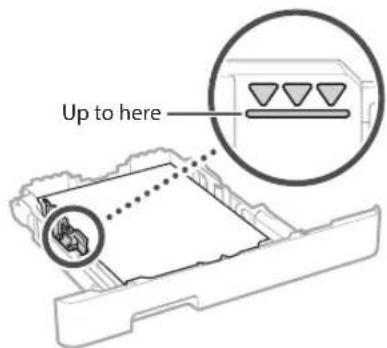
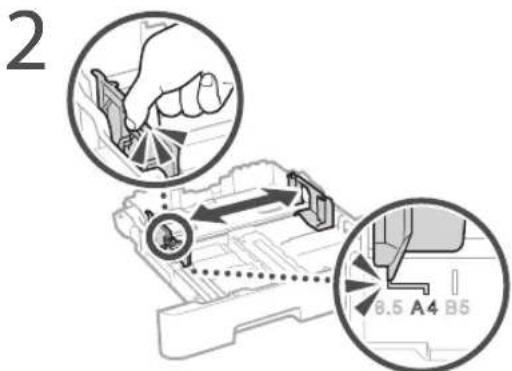
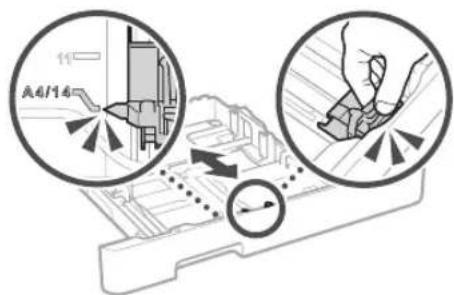
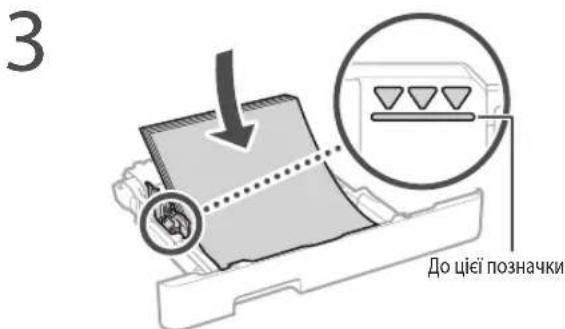
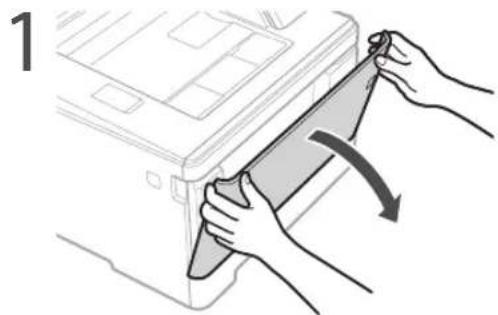
Loading in the Paper Drawer
Pull out the paper drawer.
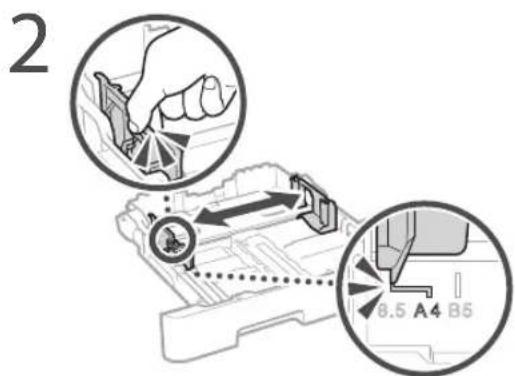
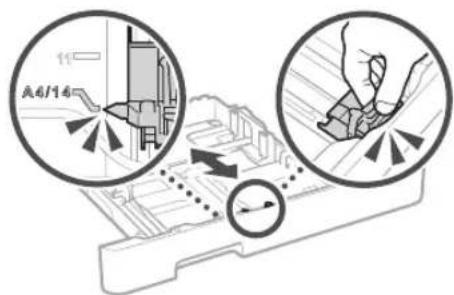
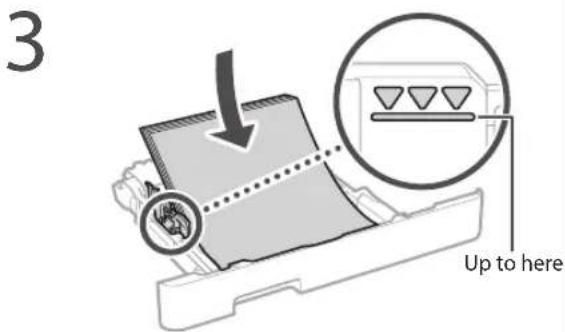
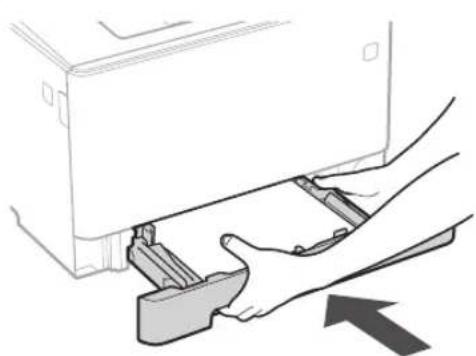
4 Insert the paper drawer into the machine.
If you load a different size or type of paper from the one before, make sure to change the settings.
Press nd select
6 Specify the size and type of paper, according to the screen.
Loading in the Multi-Purpose Tray

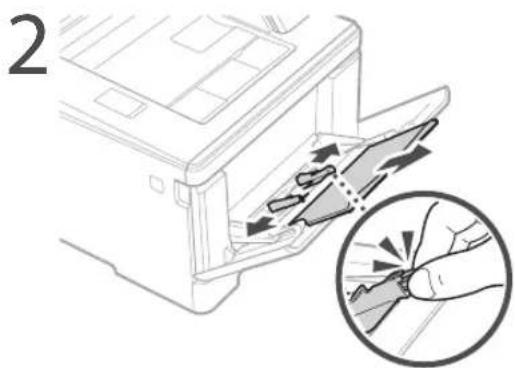
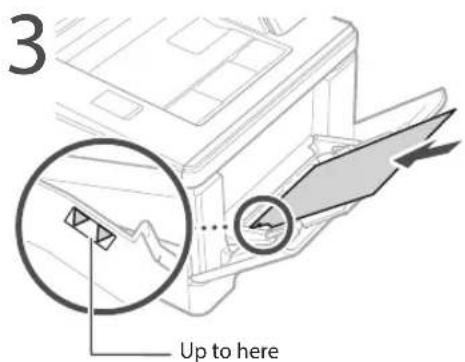
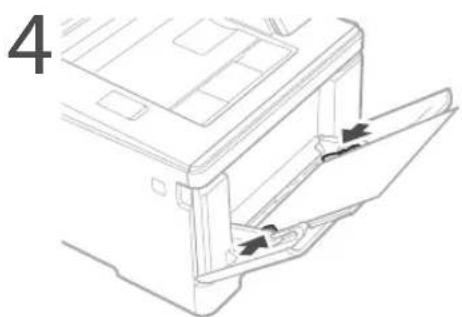
5 Specify the size and type of paper, according to the screen.
The Machine Does Not Seem to Work
Check the following.
Is the power turned ON?
Is the machine out of sleep mode?
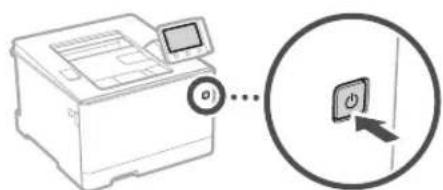
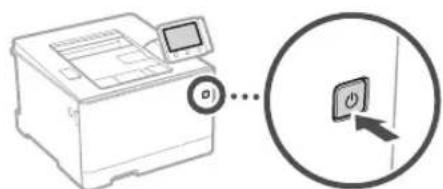
If both the display and are not lit, press the power switch.
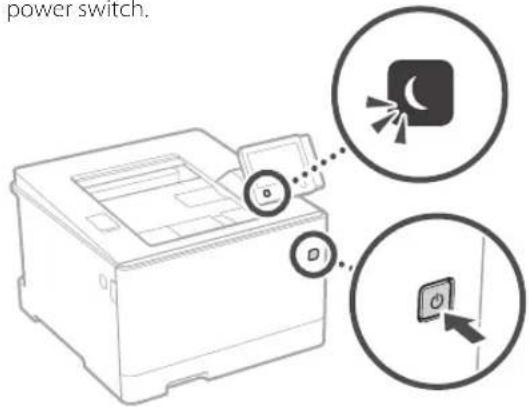
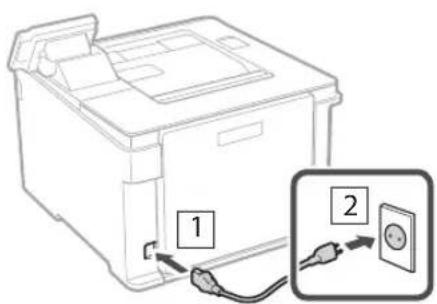
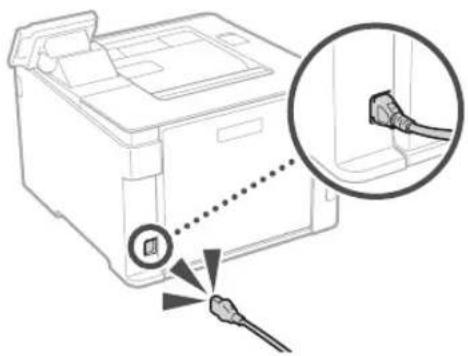
Is the power cord connected correctly?
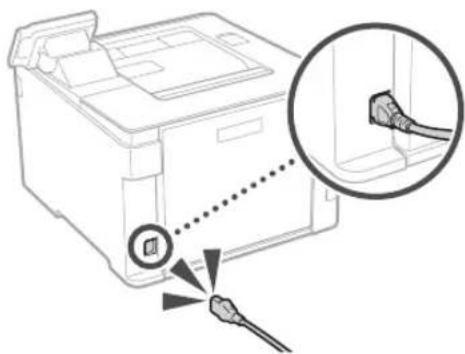
If the problem persists, see the User's Guide.
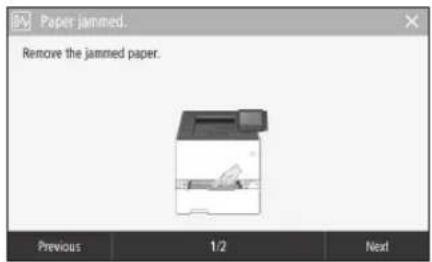
Paper Jams Have Occurred
Clear the paper jams, according to the on-screen instructions.
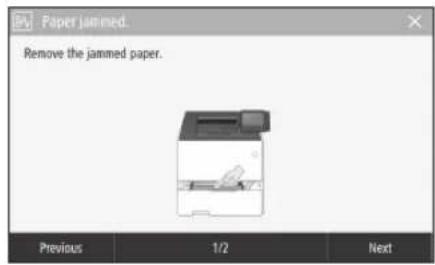
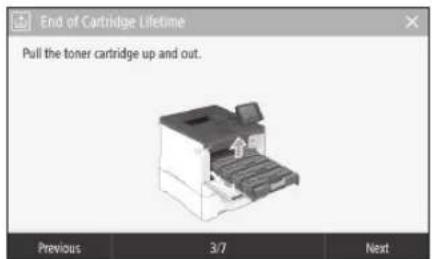
Replacing the Toner Cartridge
Replace the toner cartridge, according to the onscreen instructions.

Model number of replacement toner cartridge
- Canon Cartridge 055 Black
- Canon Cartridge 055 Cyan
- Canon Cartridge 055 Magenta
-
Canon Cartridge 055 Yellow
-
Canon Cartridge 055 H Black
- Canon Cartridge 055 H Cyan
- Canon Cartridge 055 H Magenta
- Canon Cartridge 055 H Yellow
Important Safety Instructions
This manual describes only warnings and cautions for the installation and the power supply. Be sure to read 'Important Safety Instructions' described in the User's Guide also.
WARNING
Indicates a warning concerning operations that may lead to death or injury to persons if not performed correctly. To use the machine safely, always pay attention to these warnings:
CAUTION
Indicates a caution concerning operations that may lead to injury to persons if not performed correctly. To use the machine safely, always pay attention to these cautions.
OIMPORTANT
Indicates operational requirements and restrictions. Be sure to read these items carefully to operate the machine correctly and avoid damage to the machine or property.
Installation
To use this machine safely and comfortably, carefully read the following precautions and install the machine in an appropriate location.
WARNING
Do not install in a location that may result in a fire or electrical shock
- A location where the ventilation slots are blocked (too close to walls, beds, sofas, rugs, or similar objects)
A clamp or dusty location
A location exposed to direct sunlight or outdoors
A location subject to high temperatures
A location exposed to open flames
Near alcohol, paint thinners or other flammable substances
Other warnings
- Do not connect unapproved cables to this machine. Doing so may result in a fire or electrical shock.
Do not place necklaces and other metal objects or containers filled with liquid on the machine. If foreign substances come in contact with electrical parts inside the machine, it may result in a fire or electrical shock.
If any foreign substance falls into this machine, unplug the power plug from the AC power outlet and contact your local authorized Canon dealer.
CAUTION
Do not install in the following locations
The machine may drop or fall, resulting in injury.
An unstable location
- A location exposed to vibrations
Other cautions
- When carrying this machine, follow the instructions in this manual, if carried improperly, it may fail, resulting in injury.
- When installing this machine, be careful not to get your hands caught between the machine and the floor or walls. Doing so may result in injury.
Avoid poorly ventilated locations
This machine generates a slight amount of ozone and other emissions during normal use. These emissions are not harmful to health. However, they may be noticeable during extended use or long production runs in poorly ventilated rooms. To maintain a comfortable working environment, it is recommended that the room where the machine operates be appropriately ventilated. Also avoid locations where people would be exposed to emissions from the machine.
Power Supply
WARNING
Use only a power supply that meets the specified voltage requirements. Failure to do so may result in a fire or electrical shock.
The machine must be connected to a socket outlet with grounding connection by the provided power cord.
Do not use power cords other than the one provided, as this may result in a fire or electrical shock.
The provided power cord is intended for use with this machine. Do not connect the power cord to other devices.
- Do not modify, pull, forcibly bend, or perform any other act that may damage the power cord. Do not place heavy objects on the power cord. Damaging the power cord may result in a fire or electrical shock.
- Do not plug in or unplug the power plug with wet hands, as this may result in an electrical shock.
- Do not use extension cords or multi-plug power strips with the machine. Doing so may result in a fire or electrical shock.
- Do not wrap the power cord or tie it in a knot, as this may result in a fire or electrical shock.
- Insert the power plug completely into the AC power outlet. Failure to do so may result in a fire or electrical shock.
Remove the power plug completely from the AC power outlet during a thunderstorm. Failure to do so may result in a fire, electrical shock, or damage to the machine.
Make sure that the power supply for the machine is safe, and has a steady voltage. - Keep the power cord away from a heat source; failure to do this may cause the power cord coating to melt, resulting in a fire or electrical shock.
Avoid the following situations:
If excessive stress is applied to the connection part of the power cord, it may damage the power cord or the wires inside the machine may disconnect. This could result in a fire.
- Connecting and disconnecting the power cord frequently.
- Tripping over the power cord.
- The power cord is bent near the connection part, and continuous stress is being applied to the power outlet or the connection part.
Applying excessive force on the power plug.
CAUTION
Install this machine near the power outlet and leave sufficient space around the power plug so that it can be unplugged easily in an emergency.
Handling
CAUTION
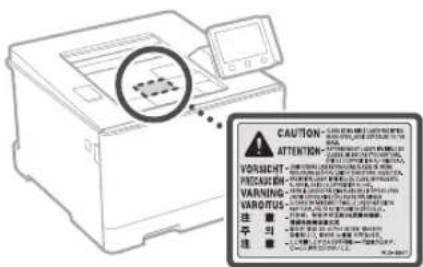
Laser Safety
This product is confirmed as a Class 1 laser product in IFC60825-1:2014 and FN60825-1:2014.
CLASS1LASLRPRODUCT
LASER KLASSE1
APPARF ALASFR DE CI ASSE 1
APPARECCHIO LASER DI CLASSE1
PRODUCTO LASER DE CLASE 1
APARELHO ALASER DE CLASSE 1
LUOKAN1 LASER TUOTE
LASERPRODUKT KIASS 1
The laser beam can be harmful to human bodies. Since radiation emitted inside the product is completely confined within protective housings and external covers, the laser beam cannot escape from the machine during any phase of user operation. Read the following remarks and instructions for safety.
- Never open covers other than those instructed in the manuals for this machine.
If the laser beam should escape and enter your eyes, exposure may cause damage to your eyes.
Use of controls, adjustments, or performance of procedures other than those specified in this manual may result in hazardous radiation exposure.
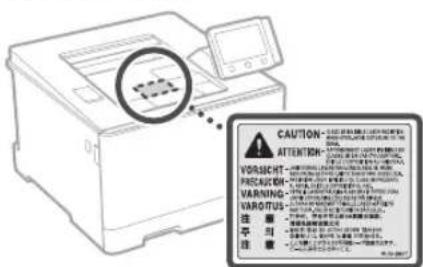
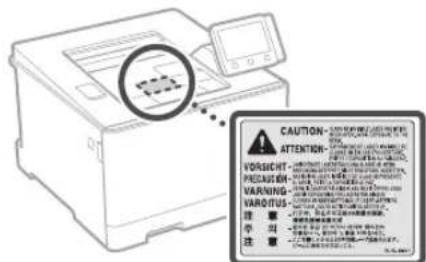
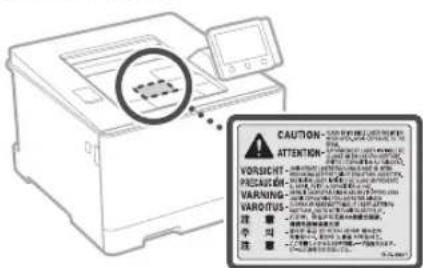
Laser Safety Caution
Safety-Related Symbols
Power switch:ON"position
Power switch: "OFF" position
Power switch:"STAND-BY" position
Push-push switch "N" "OFF"
Protective earthing terminal
Dangerous voltage inside. Do not open covers other than instructed.
CAUTION: Hot surface. Do not touch.
Class equipment
Moving parts:Keep body parts away from moving parts
CAUTION: An electrical shock may occur. Remove all the power plugs from the power outlet.
There are sharp edges. Keep body parts away from sharp edges.
[NOTE]
Some of symbols shown above may not be affixed depending on the product.
Consumables
AWARNING
Do not dispose of used toner cartridges in open flames. Also, do not store toner cartridges or paper in a location exposed to open flames. This may cause the toner or paper to ignite, and result in burns or fire.
Notice
Product Name
Safety regulations require the product's name to be registered.
In some regions where this product is sold, the following name(s) in parentheses () may be registered instead.
LBP664Cx/LBP663Cdw(F176100)
EMC requirements of EC Directive
This equipment conforms with the essential EMC requirements of EC Directive. We declare that this product conforms with the EMC
requirements of EC Directive at nominal mains input 230V 50Hz although the rated input of the product is 220 to 240V 50 / 60Hz . Use of shielded cable is necessary to comply with the technical EMC requirements of EC Directive.
EU WEEE and Battery Directives
You can see the WEEE and Battery Directives Information in the latest User's Guide (HTML manual) from the Canon website (canon.com/ oip-manual).
Wireless LAN Regulatory Information
Regulatory information for users in Jordan LBP664Cx / LBP663Cdw includes approved Wireless LAN Module (Model name: Type1KA) Contains Wireless LAN Module approved by TRC/LPD/2017/19
Regulatory information for users in UAE
LBP664Cx/LBP663Cdw includes approved Wireless LAN Module (Model name: Type1KA).
TRA
REGISTERED No: ER51217/17
DEALER No: DA0073692/11
RE Directive
(Only for European radio equipment)
RE Declaration of Conformity
English (EN) Hereby, Canon Inc. declares that this equipment is in compliance with Directive 2014/53/EU.
The full text of the EU declaration of conformity is available at the following internet address: http://www.canon-europe.com/ce-documentation Wireless LAN Specifications Frequency band(s):2412-2472MHz Maximum radio-frequency power: 15.9 dBm
Czech (CS) Timto spelecnost Canon Inc. prohlasej, ze toto zafrzeni je v souladu se smemici 2014/53/EU. Uplne zneni EU prohlaseni o shode je k dispozici na teo internetové adrese: http://www.canon-europe.com/ce-documentation Technické udaje bezdratovi LAN Pasma(a) frekvence: 2412-2472 MHz Maximálny fonk radiovie frekvence: 15.9 dBm
Danish (DA) Hermed erklær Canon Inc., at dette udstyr er i overensstemmelse med direktiv 2014/53/EU. EU-overenstemmelseserklaerings fulde tekst kan findes pa folgende internetadresse: http://www.canon-europe.com/ce-documentation Trdlos LAN specoficationer Frekvensbänd:2412-2472 MHz Maks. radio-frekvenseffekt: 15,9 dBm
The information in this document is subject to change without notice.
CANON INC. MAKES NO WARRANTY OF ANY KIND WITH REGARD TO THIS MATERIAL, Either EXPRESS OR IMPLIED, EXCEPT AS PROVIDED HEREIN, INCLUDING WITHOUT LIMITATION, THEREOF, WARRANTY AS TO MARKETABILITY, MERCHANTABILITY, FITNESS FOR A PARTICULAR PURPOSE OF USE, OR NON-INFRINGEMENT. CANON INC. SHALL NOT BE LIABLE FOR ANY DIRECT, INCIDENTAL, OR CONSEQUENTIAL DAMAGES OF ANY NATURE, OR LOSSES OR EXPENSES RESULTING FROM THE USE OF THIS MATERIAL.
Illustrations and Displays Used in This Manual Illustrations and displays used in this manual are which of LBP664Cx unless specified.
Trademarks
Mac is a trademark of Apple Inc.
Microsoft, Windows, Windows Vista, Windows Server, Internet Explorer, Excel, and PowerPoint are either registered trademarks or trademarks of Microsoft Corporation in the United States and/or other countries.
Other product and company names herein may be the trademarks of their respective owners.
Third Party Software
This Canon product (the "PRODUCT") includes third-party software modules. Use and distribution of these software modules, including any updates of such software modules (collectively, the "SOFTWARE") are subject to license conditions (1) through (9) below.
(1) You agree that you will comply with any applicable export control laws, restrictions or regulations of the countries involved in the event that this PRODUCT including the SOFTWARE is shipped, transferred or exported into any country.
(2) Rights holders of the SOFTWARE retain in all respects the title, ownership and intellectual property rights in and to the SOFTWARE. Except as expressly provided herein, no license or right, expressed or implied, is hereby conveyed or granted by rights holders of the SOFTWARE to you for any intellectual property of rights holders of the SOFTWARE.
(3) You may use the SOFTWARE solely for use with the PRODUCT.
(4) You may not assign, sub license, market, distribute, or transfer the SOFTWARE to any third party without prior written consent of rights holders of the SOFTWARE.
(5) Notwithstanding the foregoing, you may transfer the SOFTWARE only when (a) you assign all of your rights to the PRODUCT and all rights and obligations under the license conditions to transferee and (b) such transferee agrees to be bound by all these conditions.
(6) You may not decompile, reverse engineer, disassemble or otherwise reduce the code of the SOFTWARE to human readable form.
(7) You may not modify, adapt, translate, rent, lease or loan the SOFTWARE or create derivative works based on the SOFTWARE.
(8) You are not entitled to remove or make separate copies of the SOFTWARE from the PRODUCT.
(9) The human-readable portion (the source code) of the SOFTWARE is not licensed to you.
Notwithstanding (1) through (9) above, the PRODUCT includes third-party software modules accompanying the other license conditions, and these software modules are subject to the other license conditions.
Please refer to the other license conditions of third-party software modules described in Appendix of Manual for the corresponding the PRODUCT. This Manual is available at http://canon.com/oip-manual.
By using the PRODUCT, you shall be deemed to have agreed to all applicable license conditions. If you do not agree to these license conditions, please contact your service representative.
V_180517
Memo

En
Fr
CLASS 1 LASFR PRODUCT
LASERKIASSF1
APPAREL ALASER DE CLASSE 1
APPARECCHIO LASER DI CLASSE I
PRODUCTO LASER DE CLASE 1
APARELHO ALASER DE CLASSES 1
LUOKAN1 LASER-TUOTE
LASERPRODUKT KCLASS 1
Regulatory information for users in Jordan
LBP664Cx / LBP663Cdw includes approved
Wireless LAN Module (Model name: Type1KA).
Contains Wireless LAN Module approved by TRC/ LPD/2017/19
Regulatory information for users in UAE LBP664Cx / LBP663Cdw includes approved Wireless LAN Module (Model name: Type1KA).
TRA
REGISTERED No: ER51217/17
DEALER No: DA0073692/11
RE Directive
(Only for European radio equipment)
RE Declaration of Conformity
English (EN) Hereby, Canon Inc. declares that this equipment is in compliance with Directive 2014/53/EU.
The full text of the EU declaration of conformity is available at the following internet address: http://www.canon-europe.com/ce-documentation/Wireless LAN Specifications
Frequency band(s):2412-2472MHz
Maximum radio-frequency power: 15.9 dBm
Bulgarian (BG) C HACTOto Canon
Inc. Deknappa, Ye ToBa CcbpBxHne B
CBOTBETCTBNE C DuplekTnBa 2014/53/EC.
LAIOCTHNIETKCTHa EC DEKnapaunTAa cBcOTBeTCTBNE MOKeJa Ce Hamepn Ha Cnep INHTEPHTADEC:
http://www.canon-europe.com/ce-documentation CnueuukuaHnHa6esKuHata LAN
YecrothaJeHa(II):2412-2472MHz
MaKcMmHa paIIOHcTToHa MoUHocT: 15.9 dBm
Croatian (HR) Canon Inc. ovime izjavljupe da je oprema u skladu s Direktivom 2014/53/FU.
APPARF ALASFR DF CLASSE
APPARECCHIO LASER DI CLASSE I
PRODUCTO LASERDECLASE1
APARELHO ALASER DE CLASSE 1
LUOKAN L ASER-TOOJE 1
LASERPRODUKTCLASSI
Regulatory information for users in Jordan
LBP664Cx / LBP663Cdw includes approved
Wireless LAN Module (Model name: Type1KA). Contains Wireless LAN Module approved by TRC/ LPD/2017/19
Regulatory information for users in UAE
LBP664Cx / LBP663Cdw includes approved Wireless LAN Module (Model name: Type1KA)
TRA
REGISTERED No: ER51217/17
DEALER No: DA0073692/11
RE Directive
(Only for European radio equipment)
RE Declaratio
English (EN) Hereby, Canon Inc. declares that this equipment is in compliance with Directive 2014/53/EU.
The full text of the EU declaration of conformity is available at the following internet address: http://www.canon-europe.com/ce-documentation/Wireless LAN Specifications
Frequency band(s):2412-2472MHz
Maximum radio-frequency power: 15.9 dBm
Bulgarian (BG) C HACTOto Canon
Inc. Deknappa, Ye ToBa CcbpBxHne E B
cBtBETCTBnC dIpeKtnBa 2014/53/EC. LIOCTHHT TeKT Ha EC deKlapAunra 3 cBtBETCTBnE MoKe Da ca HamepHa CnH NTetHJTpeC:
http://www.canon-europe.com/ce-documentation CnueuukuaHnHa6esKuHata LAN
YecrothaJeHa(II):2412-2472MHz
MaKcImaHa paAnoHecToHa MoHoc:15.9dBm
Croatian (HR) Canon Inc. ovime izjavljupe da je oprema u skladu s Direktivom 2014/53/FU. Cjeloviti tekst FU izjave o sukladnosti dostupan je na sljeedecoj internetskoj adresi:
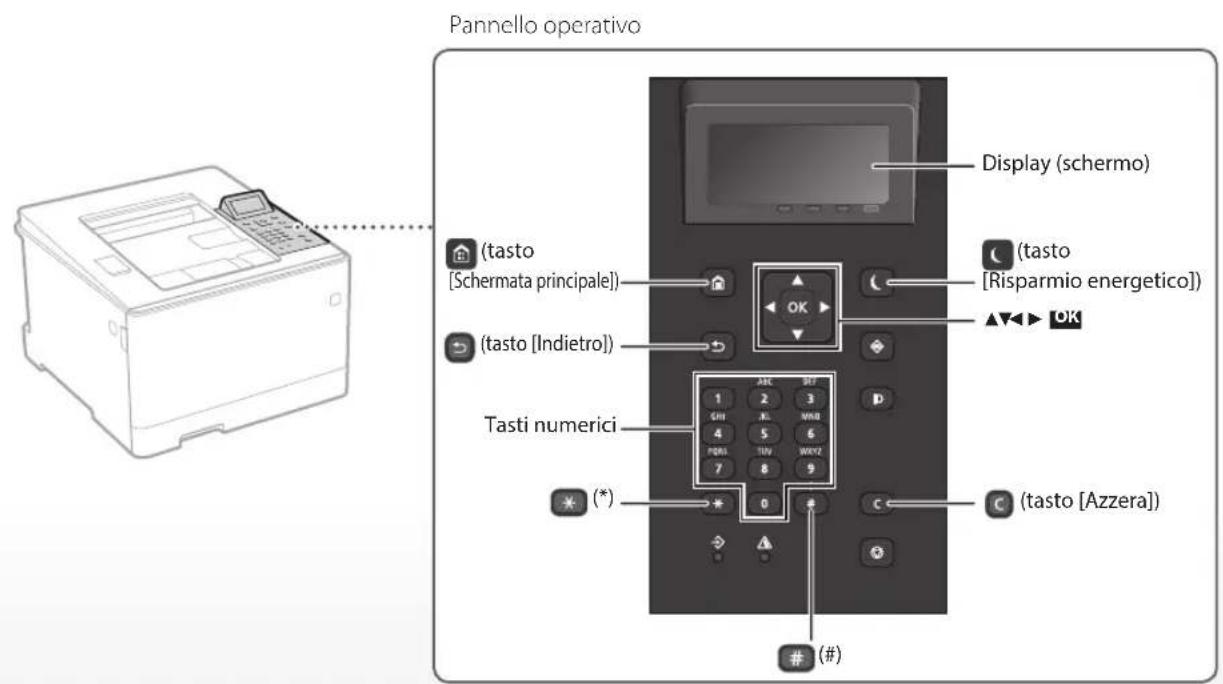
Macchina (LBP663Cdw)
PRODUCTOLASFRDECLASI 1
APARELHO ALASER DE CLASSE 1
LUOKAN1LASERTUOTE
LASERPRODUKT KCLASS 1
Regulatory information for users in Jordan LBP664Cx/LBP663Cdw includes approved Wireless LAN Module (Model name:Type1KA). Contains Wireless LAN Module approved by TRC/ LPD/2017/19
Regulatory information for users in UAE LBP664Cx / LBP663Cdw includes approved Wireless LAN Module (Model name: Type1KA).
TRA
REGISTERED No: ER51217/17
DEALER No: DA0073692/11
RE Directive
(Only for European radio equipment)
RE Declaration of Conformity
English (EN) Hereby, Canon Inc. declares that this equipment is in compliance with Directive 2014/53/EU.
The full text of the EU declaration of conformity is available at the following internet address: http://www.canon-europe.com/ce-documentation/Wireless LAN Specifications
Frequency band(s):2412-2472MHz
Maximum radio-frequency power: 15.9 dBm
CLASS 1 LASER PRODUCT
LASER KLASSE
APPAREL ALASER DE CLASSE 1
APPARECCHIO LASER DI CLASSE 1
PRODUOR/CLASER/CEASE
LIOLKAN1ASERTUGTE
LASERPRODUKT KCLASS
Regulatory information for users in Jordan LBP664Cx/LBP663Cdw includes approved Wireless LAN Module (Model name:Type1KA). Contains Wireless LAN Module approved by TRC/ LPD/2017/19
Regulatory information for users in UAE
LBP664Cx / LBP663Cdw includes approved Wireless LAN Module (Model name: Type1KA).
TRA
REGISTERED No: ER51217/17
DEALER No: DA0073692/11
RE Directive
(Only for European radio equipment)
RE Declaration of Conformity
English (EN) Hereby, Canon Inc. declares that this equipment is in compliance with Directive 2014/53/EU.
The full text of the EU declaration of conformity is available at the following internet address: http://www.canon-europe.com/ce-documentation/Wireless LAN Specifications
Frequency band(s):2412-2472MHz
Maximum radio-frequency power: 15.9 dBm
Options utilities impressions
Doble cara
Nen1
Impressio en quadernet
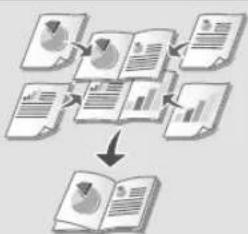
Perobtenirdetails,
CLASS 1 LASER PRODUCT
LASFRKIASSF1
APPAREL A LASER DE CLASSE
APPARECCHIO LASER DI CLASSEI
PRODUCTO LASER DE CLASE 1
APARELHO ALASER DECLASSE 1
LUOKAN 1 LASER-TUOTE
LASERPRODUKT KCLASS 1
Regulatory information for users in Jordan
LBP664Cx / LBP663Cdw includes approved Wireless LAN Module (Model name: Type1KA). Contains Wireless LAN Module approved by TRC/ LPD/2017/19
Regulatory information for users in UAE
LBP664Cx / LBP663Cdw includes approved Wireless LAN Module (Model name: Type1KA).
TRA
REGISTERED No: ER51217/17
DEALER No: DA0073692/11
RE Directive
(Only for European radio equipment)
RE Declaration of Conformity
English (EN) Hereby, Canon Inc. declares that this equipment is in compliance with Directive 2014/53/EU.
The full text of the EU declaration of conformity is available at the following internet address: http://www.canon-europe.com/ce-documentation/Wireless LAN Specifications
Frequency band(s):2412-2472MHz
Maximum radio-frequency power: 15.9 dBm
CLASS 1 LASER PRODUCT
LASER KLASSE
APPAREL A LASER DE CLASSE
APPARLCCHIO LASER DI CLASSEI
PRODUCTORASERDFLASE
APARHOLA LASERDFCLASSF 1
LUOKAN1 LASER TUOTE
LASERPRODUKT KCLASS
Regulatory information for users in Jordan
LBP664Cx / LBP663Cdw includes approved
Wireless LAN Module (Model name: Type1KA).
Contains Wireless LAN Module approved by TRC/ LPD/2017/19
Regulatory information for users in UAE
LBP664Cx / LBP663Cdw includes approved Wireless LAN Module (Model name: Type1KA).
TRA
REGISTERED No: ER51217/17
DEALER No: DA0073692/11
RE Directive
(Only for European radio equipment)
RE Declaration of Conformity
English (EN) Hereby, Canon Inc. declares that this equipment is in compliance with Directive 2014/53/EU.
The full text of the EU declaration of conformity is available at the following internet address: http://www.canon-europe.com/ce-documentation/Wireless LAN Specifications
Frequency band(s):2412-2472MHz
Maximum radio-frequency power: 15.9 dBm
LASERPRODUKT KCLASS 1
Regulatory information for users in Jordan
LBP664Cx / LBP663Cdw includes approved
Wireless LAN Module (Model name: Type1KA).
Contains Wireless LAN Module approved by TRC/ LPD/2017/19
Regulatory information for users in UAE
LBP664Cx / LBP663Cdw includes approved Wireless LAN Module (Model name: Type1KA).
TRA
REGISTERED No: ER51217/17
DEALER No: DA0073692/11
RE Directive
(Only for European radio equipment)
RE Declaration of Conformity
English (EN) Hereby, Canon Inc. declares that this equipment is in compliance with Directive 2014/53/EU.
The full text of the EU declaration of conformity is available at the following internet address: http://www.canon-europe.com/ce-documentation/Wireless LAN Specifications
Frequency band(s):2412-2472MHz
Maximum radio-frequency power: 15.9 dBm
CLASS 1 LASER PRODUCT
LASERKLASSE1
APPAREL ALASER DE CLASSE
APPARECCHIO LASER DI CLASSE 1
PRODUCTO LASER DE CLASE 1
APARELHO A LASER DE CLASSE 1
LUOKAN 1 LASER-TUOTE
LASERPRODUKT KCLASS 1
HaKtivAeKepeupeV aEaN eBnepyic yia To ovOeHIno
oula. Eepooov n AOKTOPOAIOI TOU EKAETOI OTO EOKTEPOI TO
pnoioTc NepoiTei IEOV TIOPOATEURIK
neipanatuv kai Tu vEOTepkiv KauApDUT, n AOKTOBOA
AkeDeev npoe V eaeAoI ano T uOekur KATI TsiPekia
TcAetoupuc Ia Tn paoCkAoc dSiaDcote Tc AkouBec
npayopvuc kai akouOaHne Tc ooyie.
Fiote unvoiviete kaujuiata dla aotu nou nipaoaovai 01 eepiaia y aui in ooukui
Fav n akiva Aekepdiaguyei kai epoei oe npae i paia oac n ekcecn outy evexetar va npokaei BaaSn ta aua cac
Hxpnn xepiopniuy kai puieow n n ekteaeon everyiyid aodpoeteku an dne ne pypdovotia o npov expiio, evexetra va oynoe OE Exeon OE tkiivoum kntiooBolia.
Ppoooyn-Aktioaiae
AIOKONIKI,EvAAJYK,EPyOioiOnn AATEEVPOIOIN

Akoepktnnooatautikncveiown
Lkivovn taon oovepko Mnyoviyeta KaAupataa aao andn npaaevn
TPO2OXH:Kautn enipaveia. Mny ayyiCte.
EonAopocKaIpyopicII
Kivoupevaepn:DiampeetraepnTou ouiparoc pakiand ta kivoupevaepn
IPOZOxH:Mnpoei va npokuiaektona Anaouvdeae oia qkaaiuikpuoipatoc an
17 npia
YrApoxou axipad kpa. Mny TnaidTe Ta pAn Tou aqipad ota axipad kpa.
[ΣHMEIΩ∑H]
Opiaeva ano ta ouBola nou napouoxovra npanavv evbexetai va nveivai enikolnyeva ovayoe to pioiv.
Avaawoua
AIIPOEIOIHAEN
Mny anoppintete tic xnpaonantineve kaoetec yapotn e yupec oayec Emion, mny
anOekeTee kaotec yapotn n xapti OE pipoC
nou EVAkEeBvvo e yupec oayec ATO
mupeo va npokaeoe avocekn tou yapotn n tou
xaptiou kai va onynoe CE npukayia nykaquata.
Σημειωη
Ovoqa npoiovtoc
Kavovipoi oopaiac anatov tvn Kataxwnon Tou ovopatoc Tou npoivtoc. Se opieve, nepioxc, nuianc autou Tou npoivtoc, evexetai va exuvkataxwnepa napakaw ovuaita tou eupavivotai uea de napeveoan. LBP664Cx / LBP663Cdw (F176100)
Anattnoeic nKektpoaywnikc oubaotntac (EMC) Tnc OdyiaeK.
Autoc o eonlqoc ouipopovetai pie tic bacikc
antamieic nepi naeKpOaywnTc ouBatoTnac Tc
Odyiac EK. dawoue on auto to paoiv kauTte
tic atatneic nKepoaywnTc ouBatoTnac
(EMC) Tc, Odyiac E.K. otv n ovuaotki taan Tou
nKekpiok peuataoc elva 230V,50 Hz,av ka n
ovuaotki taan Aetoupylac Tou npoiWtcc elva 220
Euc 240 V,50/60 Hz.Aaniretaian xphj anupokouevou
kawicloc npokemuov autn aukeun va kalntte
tc Teyikec aniatneic nepi naeKpOaywnTc
ouBatoTnac (EMC) Tc, Odyiac E.K.
Odyieyca Ta AioBaa HKeTpiko Ka HKeTpovko EonAIOou (AHHE) KAI YI TIC MAtapieC
Minaeie va bipie nmpopoeic oxekiaue Tc Ondyiec yia ToAioaHaekipou Ka Haeikpovko Eonaiou (AHHE) kya iTc HaeikpiKc, tme oT aTeauio Ondyo xphn (eyxepioHIO) aniv io0e1daTc Canon (http://can.com/aip-manual).
Kavoviotke, npopopiec aupatou tonikou diktou
Regulatory information for users in Jordan
LBP664Cx/LBP663Cdw includes approved Wireless LAN Module (Model name: Type1KA). Contains Wireless LAN Module approved by TRC/ LPD/2017/19
Regulatory information for users in UAE
LBP664Cx / LBP663Cdw includes approved Wireless LAN Module (Model name: Type1KA).
TRA
REGISTERED No: ER51217/17
DEALER No: DA0073692/11
RE Directive
(Only for European radio equipment)
RE Declaration of Conformity
English (EN) Hereby, Canon Inc. declares that this equipment is in compliance with Directive 2014/53/EU.
The full text of the EU declaration of conformity is available at the following internet address: http://www.canon-europe.com/ce-documentation/Wireless LAN Specifications
Frequency band(s):2412-2472MHz
Maximum radio-frequency power: 15.9 dBm
Czech (CS) Timto spelecnost Canon Inc. prohlasej, ze toto zafrzeni je v souladu sesmici 2014/53/FU.
Uplne zneni EU prohlasei o shode je k dispozici na teto internetové adrese:
http://www.canon-europe.com/cedocumentation Technické udaje bezdrátov LAN
Pásmo(a) frekvence: 2412-2472 MHz
Maximánlí ykon rádiove frevence: 15.9 dBm
Bulgarian (BG) C HACTOto Canon
Regulatory information for users in Jordan
LBP664Cx/LBP663Cdw includes approved Wireless LAN Module (Model name: Type1KA). Contains Wireless LAN Module approved by TRC/ LPD/2017/19
Regulatory information for users in UAE
LBP664Cx/LBP663Cdw includes approved Wireless LAN Module (Model name: Type1KA).
TRA
REGISTERED No: ER51217/17
DEALER No: DA0073692/11
RE Directive
(Only for European radio equipment)
RE Declaration of Conformity
English (EN) Hereby, Canon Inc. declares that this equipment is in compliance with Directive 2014/53/EU.
The full text of the EU declaration of conformity is available at the following internet address: http://www.canon-europe.com/ce-documentation/Wireless LAN Specifications
Frequency band(s):2412-2472MHz
Maximum radio-frequency power: 15.9 dBm
Apparaat (LBP663Cdw)
CLASS 1 LASER PRODUCT
LASER KLASSE 1
APPAREL ALASER DE CLASSE 1
APPARECCHIO LASER DI CLASSE1
PRODUCTO LASER DE CLASET
APARELHO ALASER DE CLASSE 1
LUOKAN1 LASER TUCTE
LASERPRODUKT KCLASS 1
Regulatory information for users in Jordan LBP664Cx/LBP663Cdw includes approved Wireless LAN Module (Model name:Type1KA). Contains Wireless LAN Module approved by TRC/ LPD/2017/19
Regulatory information for users in UAE LBP664Cx/LBP663Cdw includes approved Wireless LAN Module (Model name: Type1KA).
TRA
REGISTERED No: ER51217/17
DEALER No: DA0073692/11
RE Directive
(Only for European radio equipment)
RE Declaration of Conformity
English (EN) Hereby, Canon Inc. declares that this equipment is in compliance with Directive 2014/53/EU.
The full text of the EU declaration of conformity is available at the following internet address: http://www.canon-europe.com/ce-documentation/Wireless LAN Specifications
Frequency band(s):2412-2472MHz
Maximum radio-frequency power: 15.9 dBm
APPARF ALASERDFCLASSF1
APPARECCHIO ASFR DI CI ASSF 1
PRODUCTO LASER DE CLASE
APARELHO A LASER DE CLASSE1
LUOKAN T LASER TUOTE
LASERPRODUKT KI ASS
Laserslken kan varc skadig for mennesker. Da strling som strles inni Produktet skjer innenfor et beskyttet kabinet og eksterne deskjar, kan ilke laserlaken komme ut fra maskinen men brukeren benyter den. Les folgenden marknader og instruktoren for sikkerhet.
Regulatory information for users in Jordan
LBP664Cx/LBP663Cdw includes approved Wireless LAN Module (Model name: Type1KA). Contains Wireless LAN Module approved by TRC/ LPD/2017/19
Regulatory information for users in UAE
LBP664Cx/LBP663Cdw includes approved Wireless LAN Module (Model name: Type1KA).
TRA
REGISTERED No: ER51217/17
DEALER No: DA0073692/11
RE Directive
(Only for European radio equipment)
RE Declaration of Conformity
English (EN) Hereby, Canon Inc. declares that this equipment is in compliance with Directive 2014/53/EU.
The full text of the EU declaration of conformity is available at the following internet address: http://www.canon-europe.com/ce-documentation/Wireless LAN Specifications
Frequency band(s):2412-2472MHz
Maximum radio-frequency power: 15.9 dBm
IASFRPRODUKT KI ASS 1
Regulatory information for users in Jordan
LBP664Cx/LBP663Cdw includes approved Wireless LAN Module (Model name: Type1KA). Contains Wireless LAN Module approved by TRC/ LPD/2017/19
Regulatory information for users in UAE
LBP664Cx/LBP663Cdw includes approved Wireless LAN Module (Model name: Type1KA).
TRA
REGISTERED No: ER51217/17
DEALER No: DA0073692/11
RE Directive
(Only for European radio equipment)
RE Declaration of Conformity
English (EN) Hereby, Canon Inc. declares that this equipment is in compliance with Directive 2014/53/EU.
The full text of the EU declaration of conformity is available at the following internet address: http://www.canon-europe.com/ce-documentation/Wireless LAN Specifications
Frequency band(s):2412-2472MHz
Maximum radio-frequency power: 15.9 dBm
Regulatory information for users in Jordan
LBP664Cx/LBP663Cdw includes approved Wireless LAN Module (Model name: Type1KA). Contains Wireless LAN Module approved by TRC, LPD/2017/19
Regulatory information for users in UAE
LBP664Cx/LBP663Cdw includes approved Wireless LAN Module (Model name: Type1KA)
TRA
REGISTERED No: ER51217/17
DEALER No: DA0073692/11
RE Directive
(Only for European radio equipment)
RE Declaration of Conformity
English (EN) Hereby, Canon Inc. declares that this equipment is in compliance with Directive 2014/53/EU.
The full text of the EU declaration of conformity is available at the following internet address: http://www.canon-europe.com/ce-documentation/Wireless LAN Specifications
Frequency band(s):2412-2472MHz
Maximum radio-frequency power: 15.9 dBm
Greek (EL) Me my npouca, n Canon
Inc. 8nawvei ot npawv eoiooc ouuoppwewetai neyn Odyia 2014/53/EE
To mapec Keipevo Tnc, 8nwnoc oumuapwong TNC EE biatetai oynakouen dyuovun oto diaqitoo:
http://www.canon-europe.com/ce-documentation
Посадурараз ecауратου LAN (WLAN)
Zwec ouxovtntac 2412-2472 MHz
Meyotn toxuc paioooxvtntac:15.9 dBm
IJIcMHeBipexKIMAbBBOdaHaKMITE
BBOI TEKCTA, CUMBOJIOB uHp
BVeDnTe C NOMOuIbU cIΦpOBbIX KJIaBnH nIN #
Ecn npo6nema He yctpaheha, cm. PykoBoCTBO noIb3ObaTeN.
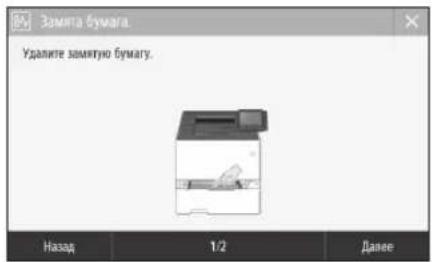
YcTpaHnTe 3aMnTe 6yMaRn B COOTBETCTBn C IHCTpyKUAMn Ha 3kpaHe.
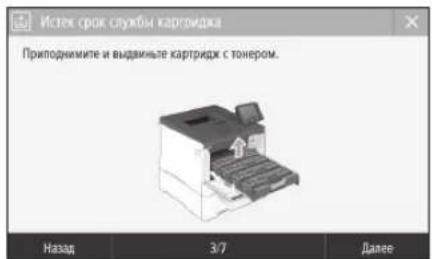
3aMeHa KapTpIa cToHepom
3aMeHInTe KapTpNIX C ToHepOM B COOTBeTCTBnC INHTpyKUAMN Ha 3KpaHe.
Homep mojei 3anachoro kaptnpjka c Tohepom
-Canon Cartridge 055 Black (Hepnbi)
-Canon Cartridge 055Cyan (Bipkoob)
-Canon Cartridge 055 Magenta (MannHobby)
-Canon Cartridge 055 Yellow (Ken'tb)
-Canon Cartridge 055 H Black (HepHyb)
-Canon Cartridge 055 H Cyan (Bupio30b)
-Canon Cartridge 055 H Magenta (MannHObby)
-Canon Cartridge 055 H Yellow (XenTb)
Приложения
Baxhble yka3aHnno texhke 6e3oNaCHOCTN
BaaHOMpyKOIOJIeBEONKABHOTIKOIPeyIpyEKeHHN IPOJIOCTpeKepENHINPYCAYHOHKEINIOIOKIOHEHNIOYAHAN. 063aTObHIOrpoHHTAATACAKoBakbcyAAHAHO NO TOXHIKBCOONAOHCTOn,ByPkoOBdTea nonBOaTcON.
AOCTOPKHO
Codopnnpocpnoo60npaKcKOTOpBcCynac
HepabnIO CBO HINHNHNOY TIPNEE K TPAVE ZIM
TbEBNAOe, NDBESOCIOO CKNNTAANAPATA
BCNNAOOPAAIE BIMNNNHEH NTHPQVNPENH
BHUMAHNE
CLASS 1 LASER PRODUCT
LASER KLASSE 1
APPAREL A LASER DE CLASSE 1
APPARECCHIO LASER DI CLASSE 1
PRODUCTO LASER DE CLASE
APARELHO ALASER DE CLASSE 1
LUOKAN1LASER-TUOTE
LASERPRODUKTCLASS
Naeepnly mny oxkert bbr cbrnab dnpoepnne Hnoeepa. Nocckbky
yBnHmE, Terepepyoe BApynrAnpapTa, FOrHCTMbOxIpomposBO
BALTHMMKOBKKAMYBREELIMKIPKBILIKAM,laspeBHeTMy He
MoryT pRcPOTPCPAHnBzAanpAPo7Ha KAKOM-TIOBoIPOane 0re
KcNtIyATaA, nnon3o8sTeHN, CNeJeTByHNNKIPBcEeHbV
yk23AHmFO co6nqdeHbTEKTHINBEGONHOCTH.
Hn 8 KOEM CIyue He O KpbBaIe KaeJIIOO KpIiIKU aIapnAa, NQNNOYKAA3hNNB X J IAHINOM YKOBOKJCTBE.
IPOCHIKHOBCHIE NACEPHORN3HNYCHIAHADHYXUYERO KOTKETC R CBAAMM MOKET HAECHCTYUEOPC 3ECHOH
Ncnon30aHHe HCTpyMeHOTynpaBHeHn HAHTPOHaA KKTbYpAlHnAIIHnAPHeHnMnPbBeJIeHNbX BACHOHJEM pyKOBIOHEHITCHpyKINMOrT PnBCCTN KBOOCTBIO ONCHOTNHYCNHn
IpeDynpexJeHneNoTexHnke6e3oNaChOCTn npo6paueHNcna3epom
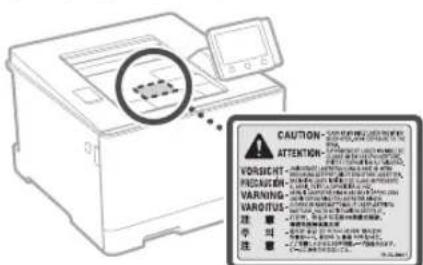
3haKn, CBA3aHHbIe C CO6NIODeHHeM TexHKn 6e3oNaCHOCTn
IpeeknHaeTEnb nHTaHaN: noLoKeHee "BKJ1
IpeeknHateNb nHTaHa; noJooKeHe "Bbl"
HIEPCKIHOATBNIHTAHINIOJOKHEOJOKIHAIHL
KhoHnBn neepKnioJatcB BKL
KnEMMa 3aIIHIOIcBaEMTeHHA
Bnytnonacnoe nanpexkeHne. Sanpenaet
A GKTPBBAIBIe NIOBBe KpNIIKN, KpOME YK3AHHX B HNCTPYKJIM.
BHINNAHIEFOPUANNOBepxHOCTb.He npnkaIeTec.
O6opydoBaHnKnaCaII
AIBKyyuicnCtETaHnHeNpKbXkayTeCbK AKBKUYUICnCTeTAMn
BHIMAHHE Bo3MOKHO npaKeHne
3eKTPyCEKHM KOK.OTCOEHNHTBE BCE BnIXA shpya pINTAHN OTOPEKTH.
He npn6nnaTecKoctpm KpaM.
[ПРИМЕЧАНОВ]
HekoTopbIe N3 yka3aHHbx BblIe CmBONOB McyT OTCyTCTBOBaTb Ha onpeJeENHHbx ycTpoJCTBAx.
PacxoHbIeMaTePnAnbl
AOCTOPXHO
He 6pocainr OtpabotanHbke Kaptnnckn C TohePOM BOKpbTbn OTOHB. Kpome TOrO, He XpaHnite Kapnpnckn C TohePOM Nm ByMAYB MecTaX,IOBBePExHHx BO3JeCTBNO OTKpblTOI ORTH. 3TO MOKeT PnBECTN K BoCTIIaMeHNO Tohepa WIM ByMaN N, KAK CNEJCTBne, K IOnyehnIO OKOTOB INN BO3HNKHOBEHIO NoKapa.
PpmeaHne
Ha3BaHne n3dennn
Bcna6be3oNaocnI3dneI0JNHO6bTb 3apeHCTpnpOBAHO.
BHEKOTOpbXCTpaHax paCPOCTPAHeHHaI3ne BMEcTO opHnHbHO H3BaHnMoYt6bTb 3apeHCTpnpOBAHcJeHyIOHXe HA3BaHn,
yka3aHHbE B KpyTBxCKoBkA.
LBP664Cx/LBP663CdW(F176100)
Tpe6oBaHnEMC DnpeKtNbBtEC
JaHHeO obopyoBaHnE yOBnetBopReT
OCHOBHM Tpe6oBAHnM NO 3MC JIpeKTHBb EC. MblyTBepxdaem,HTO daHHeoe nAeJne
COOTBECTBYET Pte6oBAHnM NO 3MC, YkAsaHHbM
B JIpeKTHBc E, npn HOMHaHbHom BXoHOM
HaPRAKeHN 230 B N acToTe 50Tu, xOra
DnAa3oH pa6oHnx XapKaTepnCTN KaHHO
n3denn coCTaBnT eT 220 Do 240 B, 50/60 Fu. DnA o6CnEHn COOTBeTc7Bn TEXHnueckn
Tpe6oBAHnM no 3MC JIpeKTHBb EC Tpe6yetca
NCNoJIb3oBAHnE 3KpaHnpoBAHnHO Ka6eJIa.
HopMaTHBnA INΦOpMaZnI NO NcTNOb3OBAHIO 6ecnpoBOHOH NOKaJIbHOH CETN
Regulatory information for users in Jordan
LBP664Cx/LBP663Cdw includes approved Wireless LAN Module (Model name: Type1KA). Contains Wireless LAN Module approved by TRC/ LPD/2017/19
Regulatory information for users in UAE LBP664Cx / LBP663Cdw includes approved Wireless LAN Module (Model name: Type1KA).
TRA
REGISTERED No: ER51217/17
DEALER No: DA0073692/11
RE Directive
(Only for European radio equipment)
RE Declaration of Conformity
English (EN) Hereby, Canon Inc. declares that this equipment is in compliance with Directive 2014/53/EU.
The full text of the EU declaration of conformity is available at the following internet address: http://www.canon-europe.com/ce-documentation/Wireless LAN Specifications
Frequency band(s):2412-2472MHz
Maximum radio-frequency power: 15.9 dBm
Bulgarian (BG) C HacToaTo Canon
INC.ДeКларupa,ЧЕТОВаСьорькеневсБоТВЕТСВЕСИРЕКТУBA2014/53/EC
LIAnOCTHnT TKeCT Ha EC deKlapaunrTa 3a cbOTBETCTBNE MOKeJa ce He HAMepn Ha CnEHNHINHTEPnet anPec:
http://www.canon-europe.com/ce-documentation CnueuukuaHn ha 6esxuHata LAN
YecToTHa neHa(И):2412-2472 MHz
MaKcMAnHa paNIOueCToTHa MoHocT: 15.9 dBm
Croatian (HR) Canon Inc. ovime Izjavljuje da je oprema u skladu s Direktivom 2014/53/FU.
HactpoobaHHn iTBepeKHeHH
HaTnCHiB KHONKy OK. ONgKaHKUO Ha DnCnIeI 3'ABNtCBnOBiDOMNeHHa
CnociBbOy TeKcty
3MiHa peKmMy BBOy
Uo63miHHTnPexKIMBBOy,HaNTCHiB KHONKy
HaTnCHiB kIaBiW .AkiO HaTnCHyTu yTpmyBaT N KlaBiW ,yci CmBOnn 6yde BnDaJeHO.
| Рек imm.b overdу: <a> | Рек imm.b overdу: <a> | Рек imm.b overdу: <12> | |
| 1 | @ - _/1 | ||
| 2 | ABC abc.2 | ||
| 3 | DL def | 3 | |
| 4 | GII | ghi | 4 |
| 5 | JKL | jkl | 5 |
| 6 | MNO | mno | 6 |
| 7 | PQRS | pqrs | 7 |
| 8 | TUV tuv | 8 | |
| 9 | WXYZ | WXYZ | 9 |
| 0 | (Hedocstyno) | 0 | |
| # | (npo6in) @ ./-_!? & $ % #() [ ]{ }< >*+=".::"^.|^ | (Hedocstyno) | |

Друк
- BiKpnTe DOKymeH Tn DpyKy Ta Bn6epiTb FyHKuio nporpamn.
- Bn6epitb npaBep npntepa dna anapaT, a notim Bn6epitb nyHKT [HaCTpoIOBaHH] a6o [BnactuBOcTI].
- YkaKiTb fOpMaT napey.
- Ykaxitb dxkepeio nTn npanepy.
- 3a Heo6xidHocTi BkaxiTb npametpn npky.
- Hatnchitb Khonky [OK].
- HATNCHTb KONky [Дpyк] a60 [OK].
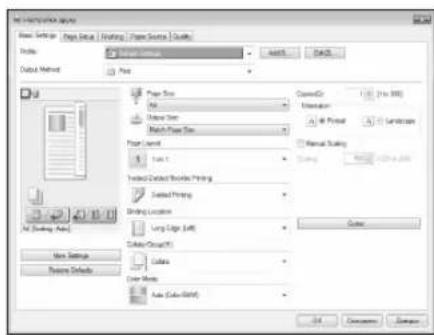
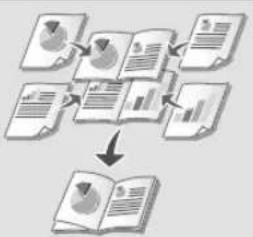
Kopnchi napametpn npky
2-ctopoHHI npyK
KilbkictcTOpHOKHa1apkywi
pyk6powpy
IodatkoBy iHOpmauio nB.Bo3diNi 《pyk》yNocibnkyKopucTybaa
3aBaHTaJKeHnI panepy
3aBaHTaXeHHy y loTOK dIy napepy
1 BnTnHITb IOTOK nIaI npepy.
4 BCTABTe IOTOK nIaI naIepy B anapat.
Kaio 3abaHTaKyEtbc iHwn po3mip a6o Tnnpanepy, Hix paHipe, o6ob'3koBO 3miHITbnapametpu.
HaTnchItb KnaBiiuy i Bn6epiB
6 Bkaiktb po3mip i Tn panepy BiinobiHdo IHctpykui Ha ekpaHi.
3aBaHTaJKeHHaByHbepcaIbHn IOTOK
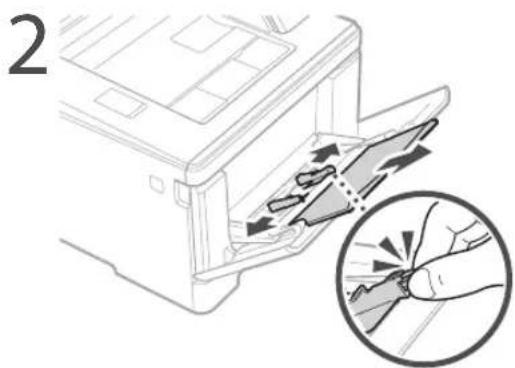
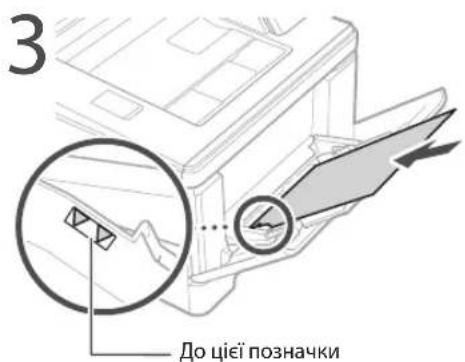
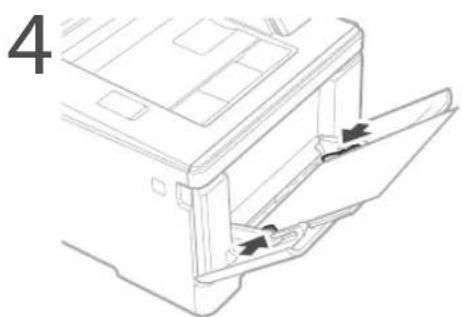
Bkajtb po3mip i Tn nanepy BiinobiHDo IHCTpyKui Ha ekpaHi.
Y pa3i BnHnKHeHЯ npo6JIeMn
IOnaTkoByIHΦopMaJIO JINB.Bpo3JINI
<UcyeHHHeNoaokyIocbiKykopcyBaHa
Anapat He npaioe 3actpraHHn panepy
IpepeBipTe HactynHe.
UyBIMKHeHO XINBJIeHHa?
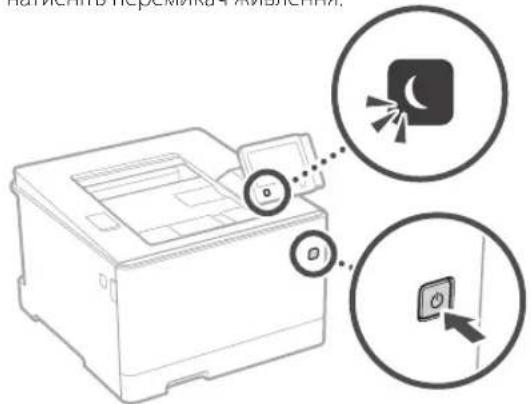
- Yu BUBCENO anapaT 3 pexmmy cHy?
Akuo ducnne Ta iHdkatop He cbitbca, HATNCHTb Nepemukay KINBEHH.
- Yu npabunbHo nipknloeHo uHyp XnBneHHa?
Kuo npo6nema 3aunwactbca, nB. Noci6Hk Kopntybaa.
Ycyhhe 3actpraHHnanepy BiinobiHNO do IHCTpykui Ha ekpaHi.
3amHa KapTpndka i3 Tohepom
3amHItb KapTpIaX i3 TohePOM BiIIOBIdHO do IHCTpyKuI Ha ekpaHi.
Homep mojeni kaptpnja i3 Tohepom Ha 3amHy
-Canon Cartridge 055 Black (chpn)
-Canon Cartridge 055 Cyan (6naKHTn)
- Canon Cartridge 055 Magenta (nypnypoov)
- Canon Cartridge 055 Yellow (ховтун)
-Canon Cartridge 055 H Black (чорни)
-Canon Cartridge 055 H Cyan (6bnakntn)
- Canon Cartridge 055 H Magenta (nypnpobni)
- Canon Cartridge 055 H Yellow (KOBtN)
ДодаТOK
BaxnBi iHctpykci3Texhik6e3neK
Vtcky 10cBbHky OvCnO HmUe IocNcEepnIa 13 aacpepepepepepepepepepepepepepepepepepepepepepepepepepepepepepepepepepepepepepepepepepepepepepepepepepepepepepepepepepepepepepepepepepepepepepepepepepepepepepepepepepepepepepepepepepepepe pe
ANONEPEIXEHH
IIO3HANe NnOpcXHHCTOCBHO ONcOaU, KI MOKyTb PnRbCCTNO TaBMyaHHN B paxIX HONOBuHONO BMOKHIJIIN. 3 MEIOG ESIeHHIO BIMKPCCTAIIH ANepa IBAHNIIBAABKHe HINIOIEPENKHH
AYBARA
IIOHAHae 3aCpeckcHH CTCCOHO ONpauH,NI MOXYb nnpaehoTO TpaBnBnH paiX HnepanBnHIO BOKKUAH.3MeIOBSEHIIO BHKOPCTA HAnpaa 3aekyBaAahne Hsui 3aCtepeckcHH
BAXJNBO
Pi nio jnne Hn 100nHn Hn Hn Hn Hn Hn Hn Hn Hn Hn Hn Hn Hn Hn Hn Hn Hn Hn Hn Hn Hn Hn Hn Hn Hn Hn Hn Hn Hn Hn Hn Hn Hn Hn Hn Hn Hn Hn Hn Hn Hn Hn Hn Hn Hn Hn Hn Hn Hn Hn Hn
YcTaHOBHeHH
Bn 3aepneHoro Taepno Horo 5KcOpyTaN HAp aPetayBaXHO OaHOMTeCb 3aBtpepeHnHnHnHnHnHnHnHnHnHnHnHnHnHnHnHnHnHnHnHnHnHnHnHnHnHnHnHnHnHnHnHnHnHnHnHnHnHnHnHnHnHnHnHnHnHnHnHnHnHnH
TIONEPEXKEHH
He bCTaHbIIOJIe anapay T mCiU, de IROrpoMoTbO MoKoPnB3CTMDo IO KIOJKeB OAO BPAKEnE hEnpTKINHM CTpyOMK, kOcPEMa:
yMiCJI,JeBnOKyHOTaBCBeHTNIMUHIOTbOPA(HADToCNM5bKO DOCTH,PIKOK,DNBAHB,KNNIMBA THIHIXNoDIIHXpIeMeTIB;
BONORNX abo 3aHHHIX MICRX
yMICI, KyINIOPIARHEIPWNECOHHEHPOMHHABOHOBPO
yMICUXIBBCOKOTEMHPaTyPOI;
NOPYH3BIDKOTMBOHTCM
POOYI31A9KORONC,PO31HHHKKAMN HINHIMN DEKOK3MNCMTCTMNPECHOBHNOM
Inni nonepckehn
HnKNOHOIO do noo aoroa oero HcKMOeHOEOBHI KOBLOI. He VOKO PPNBOEIO DO NKOHIO BOYAKHNK CCKTQNHOH BYCNOVO
HeaHbIbIbIbIbIbIbIbIbIbIbIbIbIbIbIbIbIbIbIbIbIbIbIbIbIbIbIbIbIbIbIbIbIbIbIbIbIbIbIbIbIbIbIbIbIbIbIbIbIbIbIBcpeJI bI bIMeBcO3IO IO NKOKJI bIO yOAMNCH cKcTPOH NCM TcPOM
FIOI 13300000000000000000000000000000000000000000000000000000
A yBATA
He BCTaHOBNIte anapat y 3aaHaeuHIN HnKHe MUCIpx AIIapat moke bIaCTN abo npekInyTHcE, cIpyHnHIMIL TpAByMvBHArH, NKIOPOrO BCTaHOBNTi:
Ha HecriKIN NOBepxH;
yMicui nij dieo cnbHnx Bpaui.
Hw3acTepeXeHHA
PiHACNEHECEHHTUOANAPATAOTOWHYTECAHCTPKJUYIyIOVNYNOCIOHMY.YpaiHEAHENKHOPEHECEHHANAPATMOKEAINTTIPINDBECTNDTOPTAWBBAH
I.ⅢA BCTAOHOBENH UPO ANAPATA 6yBtBE oOepeKHH, 106 He 3aueemnpykMIX APANATOr aNIOIOHO a6o CTiAHm. Ie Woepe PnABeeCn JTO PAaMyBaHNH.
HeBCTAOHIOIe anapat y norHO npOBITpOBAHIN pnpMIueHHX
IIuuc bVbHIOHO BVKOPCTAHJIe anapat BUIJae
HeHsAHy KINIXcIb OHNOI HINHX PEOBHNI LIpeoBHNI
BeaNtHJnApCPOB.1Pte BIKINUx npoeBHIN KOKE By
OCBOBNOIOMHIOIuHc TpRnBaHIO I BIKOPCTAHNI aHApHa
abo HorO cckmYataui I noraHO npOBIPTpOBAHIN pnpMIueHHX
Loo36bcNCHNA 3pyH IOBOH CccpDOHJIe
peKMOHIOBHO HAI KHNM NIOI pnpOBITpOBAHIN pnpMIueHHN
JeBCTAOHIOIe anapat. TaKOS CUY INyKATA MIGJI,JeHa
IOLOMOKIOIIOHPOBAHNC Dn pOBOHNI RkEVDIne anapat
Jxepeno KnuBneHHa
IIOIEPEJXEHHH
BnKopmOryeIeIeJpepeoXnnHnnaI, HanyraAkoI BIOoeaeBk3aHBMNOMrA.KeuLbTO HC2067M
MOKE CTATMGNONKCHA aOyypaKaHn cckkTpHMMCTOYMOM
Anapat Mae ByTN P2KNOCHO 3a D0mORIOHO HadaHORI IUPA KINBIO INPOCSM 3a EAMSEIOIOPOENIA.
He BVKOPKCTOBYATEI INTNYNPIMICBUNYPA KINHIN3 3KNTKNTYTOCTABKNI,CKNILKIEMOKEPNBECTD NOKOKNVIYPAKAKENHEEKNTPHNIVCPTPMOM.
Hedaii Huy jzaianei nnoiie hienio 2Bn BVOPKCTIIN 3LBM anapomat. He noei yaiy huiy huiy huiy huiy npriptc03.
He KMOHKOHYe, He TANITb, CNBHO He 3VHHTe HHy BIKENHrTa He BAKOKHYte 3-HMnCByKnIHINIJI, RAn MOKyTbNTO NIOKOJYHe. He CTABe HA LyHpy KINNEHHB BAKKIPpeHNrTHIOKOJXHHaLyPAaONHNNMAO PEHBCNTD NO NOKeKBOA OyoKENHEEIEHETONH HCMCTPOM
HEBNTBHTA HBNMNEIETNBCBPO3KTMKMMYQKMM,OKIKBILCEMOEPIINBECTDAO yPAKHHBEEKIPYHIMCITPYOMV
He Bkcpocbyte 3 mtnanapom HpynnoDobkyBnH P0aRyXbBnKJNBeHH 3 KlnkoMaPoeTcKAM. He moe npnBecTH n oKei abO ypaekHH EIEKIPAAH CTPyOM.
He3aBbYyIeHpyKJIbHEnHHyByzON,0ckInbKUe MOKeIpyBaBcNIOIOXeKJHypaKeHHN CNTKTPYNHCMCTYOMN
IIOBHCIOCTABNNTOHTCENCBUNPAAKINCHHH BPOEIKYEPEKEMKIMHIOOTCPYMY.KNHOUISOHO H 30001MOKe CTATNCIA NOKEKA aOBOYPAKENH EKJKIPNAHCMCTYQM
IⅡHACP03N NOBHCIO BIMMAOTU TCCNNB HYPABKCHN 3POCTKN, RIKUO UBOTO HO 3POBHTM,MOKCTATNC NOKeka, ypaKeHHER ENEKTPINMM CTpyomMOAIOHOKOPEHNI ANAOPTA.
IpekoHaTeCn,IO Dpckepo KINBHeHAnapata 63neHcTa Ma cTcAbHy Hanpyy.
TpMMaTe 1HypKbHeHHn oIiD Jpepea Tnnla; RkUO UcIO BMOTO 3HexyBAtu,ue MoKe npA3BCTN IO pOoJIaBHe HONBIHOro NOKpHTTA uHa, Uo MOKe CTATn PnVHNO NOKeKu YpuKaHeHH eNEKTPNHNCTPymOM
3an06iraute HabeJeHMMnKHe CHTyaIaM.
KIOIOIOI 10000000000000000000000000000000000000000000000000000000000000000000000000000
JaepeepnnaHra TaBcDhaHHuhyaXbneHH. TepenpuonpaHyaee3yHyyxKbneHH.
3HHAHHHbhypaXnBnEHnHO6Nkay3eHyBaBHcH 1aHTyHbA HTKKaHoPcETky aC0 3eHyBaBHcyTtHy.
3actocyaHn HdMnO CnD 0 nncnHnhypa
YBAGA
XHANBOHIOIIEIJIAPAIIOBMOIEEIKKHOHOPOEAHI, 3aIIaONMIOCTAHIOCBARINHOOPCOTpyIOb3aNOPTc6N 1WIMKO BIMHNITCNCTCNBHyPAXBNHNA3P03CN.
NoBOnKeHHa
YBAGA
3axuieHicb na3epnnpntpoB
311031 cTnIaIpaIyn IFC60825-12014 EN60825-12014
ueBip63aIbneIOKJIaIepiM BIP6Klacy 1.
CLASS1 LASERPRODUCT
LASERKLASSE1
APPAREL ALASER DE CLASSE 1
APPARECCHIO LASER DI CLASSE 1
PRODUCTO LASER DE CLASE 1
APARELHO ALASER DE CLASSE 1
LUOKAN1 LASER-TUOTE
LASERPRODUKT KLASST
IaepHNIPOOMHMOKE3BdATNIKDDNIOCKOmy OprAHIIMCY.0ckHbIKBNPOMHOBAHIECEpeHN IINBOOpy IOBHEIO TOTNIHACTCB3AXCHCMKOPNYCMTAOBHIHM NOKPKTMM,IAeEPHIPOMHBHeMOKeIPOHKNHYTH HAOBIJIIVAC6yIDAKCTIPOBOTI.PHOHTAITE HABeEHNHPHKIPNNTNKHCTDVK3TEKHKSE3EPA
HikorHHeBdkpnaaTe naheni,akuo ce He Bka3aHO noc6HnKacdo zuoro anapata.
JIAIOJIaEBHINIPOIMCHINIBHINJEHAOBHHIIOPTAAMBIBO OAO,IOHOJMOKEIIOJIKOJIHTNJI.Se
BukopnctaHHOPraHIB KepyBaHH, perynatoPiB a60
BHKOHHOROPaJI,HOONCAHNYbOmyNocIHHKyMOKEPnHBcEeTDAHOe3NEHOroNaepHOrO
3aTepeKeHHH 10o npabn 6e3neKn iD yac pO6To n3a3epom
CUMBOH, NOB'3aHI 3 TexHikoO 6e3neKU
IpeemKaKxNBeHHH:NoonKeHHy"YbIMK
IepeMnKanXINBHeHHa:nonOKHHa"BBNK
IepmKAAHXBAeHHRA:NOONKCHHA"POKIM OUYEAHHA
KHOHKOBINncpemMnKy.
3axnchKaKcMaBaCMHn
Hc63eHnHa Hanyra accpndHi.He 8dkpnBaIKe KPMK,AKUo HA HC He 0yno BkaBOK.
YBATAI Tapaa noepxHn. He TopkaTnCn
C6nadHaHnnKnaCyI
PyXOMI JACTHIN:TPMMAe TCACTHHINTINA NOANI BIN
YBAIAMOXJNBCyOaxeHHONKTPNHIM CTpyMOM.BHIMMbYcUHTENCIN3pozEKN.
Tocpi kpa. Tpmae tactn Htnina nndi BnHx
[IPMUMITKA]
Jeka3a3haueHHBnueCmBONIBMOkybHe Bka3yBaTNC3aJIeXHOBINPO6y
BntpatHi MaTepli
ANONEPEDXEHH
He KnaaTe BnKOpHCTaHI KapTpndki 3 ToHepom y BiKpTNI BOrOB. TaKoK He 3e6pirAne KapTpndki 3 ToHepom nn npip y Micax Nobmny BiKpTOrO BoHHo. Ie MoKe cnpnnHn HsMaHaHn H npNBeCTn do onikB a6o noKekx.
Ppimrka
Ha3Ba npOdykTy
Bldnojdo do npabn Texhki 6e3neKn notpiHo 3apecctpya3n H38y npodykTy.
Y deaKnx perioHax npoDakny npOykyTHaTOMictb MoKe 6yTn 3apeCCTpoBaHO TaKi Ha3Bn (B dyKKax): LBP664Cx/LBP663CdW(F176100)
BIMORn do enektpomarHITHOcmychoCTI BIDNOIBHO do DnpeKTHNB EC
Lle npctpi bldnoiac roOBHM BMORAMdo enektpomarHIO CYMICHOI DpeKTbN EC.Mo oioiHO nTBeepJyEMO, 10 ue BnIOB
BIDNOiAc BmOMAR IooJeNEKpOMaHITHOI cyMICHOI BIDNOiAB NOIeDpKTHBc EC,yakia 3a3haeHo, 30 3HaueHHH HOMIHANbHOI BXIDHOI
HAnpyMa eCTAHOBtN 230 B,aactOu-50 T, xOa HOMIHANbHI NOKa3HNK cTpyM Ha BXODI dny
bOro BnOby cTAHOBNbTb 220-240 B,50/60 T,
BnKOpCTAHH EKPahOBaHOro KabenIO e
Heo6xHIO yMOBO 3rIdHO 3 BMORAMdo
eneKpOMaHITHOI CYMICHOI, BKNAdeHIMMB
DpeKTHBI EC.
HopmatnBHa iHphiopmaui 0oO 6e3npotoboi IokalhoI mepexi
Regulatory information for users in Jordan
LBP664Cx / LBP663Cdw includes approved
Wireless LAN Module (Model name: Type1KA).
Contains Wireless LAN Module approved by TRC/ LPD/2017/19
Regulatory information for users in UAE LBP664Cx / LBP663Cdw includes approved Wireless LAN Module (Model name: Type1KA).
TRA
REGISTERED No: ER51217/17
DEALER No: DA0073692/11
RE Directive
(Only for European radio equipment)
RE Declaration of Conformity
English (EN) Hereby, Canon Inc. declares that this equipment is in compliance with Directive 2014/53/EU.
The full text of the EU declaration of conformity is available at the following internet address: http://www.canon-europe.com/ce-documentation/Wireless LAN Specifications
Frequency band(s):2412-2472MHz
Maximum radio-frequency power: 15.9 dBm
Indicates a warning concerning operations that may lead to death or injury to persons if not performed correctly. To use the machine safely, always pay attention to these warnings:

UZMANIBUI!
Norada bridinjumu par darbibam, kuru nepareiza.
zpido var izaisit traumas. Lai ickaras lteosana butu.
drosa, vienme pieversiet uzmanibu siem
bridinajumiem.

SVARIGI!
Norada an fince das diribu saistras prasitas un icerebezjumus. Lai ekartas darbiba buu pareiza un lai nenastos ekartas val pa'suma bojajmi, uzmanigi izisiet sos punktus.
Uzstadishana
Lai so erici lietotu dosi un erti, rupgi izlasi taliak noradito informaciu par plesardzibas pasakumiem un uzstadiert erci plementa iota.

BRIDINAJUMS
Neuzstädiet vieta, kurā vani rotik aizdegsanas vai guts elektrikas stravas trieciens
Viétas, kur tiek aziseptas ventilacijas alveres (parak tuvi sienam, gultam, divierniem, paklajem vai citiem lidzigem prieksmetmi)
Mitras vai puteklainas vietas
Vieta, kas paklaia heai saules gaismas iedaribai, vai arous lelparn
Vieta, kas paklauta augstas temperaturas iedaribai Vieta, kas ir tuvu atkataluguns liesmai
Alkohola, krasu atskaiditaju vai cilu viegli uzliesmojou vielu tuvuma
Citi bridinajumi
Nopievienojiet Sai karkaiacapstiprinus kabolus.13 nkojoties, var izraisit azdegans vai elektriskas stravas trecienu.
- Nonovictojej uz ekartas kalkarotas vai citrus metala priekmetus un traukus, kas pilditi ar skidrumu. Svejas vielas, nonakot saskare ar ekartas lekspuse esosjam elektriskajdalam, var izrast iazdegsanos vai elektriskas stravas inecienu.
Ja ieknta leknd keda viola, atvienojet strvas vadu no mainstrvas kontaktidgizdas un szainietes ar vietjo pinveroto Canon zplattaju.
A UZMANIBU!
Neuzstadiet talak noraditajas vietas
Iekara var nokrist var apgazties, Izraisot savaincjum. Nestabila vieta
Vieta, kas paklauta vibracijam
Citi bridinajumi
- Parviietcjot ieri, leveojeit saja rokasgramata dosos noradjumus. Nepareizas parviietosanas rezultata ta var nokrist un radit ievainjumus.
Uzstadot erici, uzmanietyi, lai neiespiestu rokas stap erici un gridu va sienam. Las var radit levainojumus.
Neuzstadiet iekartu vaji vedinatas vietas
Sleikarta normalas lietosanas laika rada netelu orzona un citu izmeu daudzumu. Sire mei na v bilstarni velsibai. Tomer tie var bot pomanami pec iigstosas lictosanas vai apjomiga uzdevuma voikstanas vaji vidinatnas telpas. Lai nocrotinatu patkarmu darba vidi, teplu, kura darbojas ekarta, ieleirams atolistis veinitn. Tapat neusztadien ekarta vietas, kuras cileviarevutid pakjauit ekartas emisijam.
Strāvas padeve

BRIDINAJUMS
- Iteojiet tikai tadru stravas avotu, kas albsti noraditjam spireguma prasilbam. Nieveverojot sos noradijumus, var izraist alzedeqanso val elektriskas strvas triecion.
- lekarä in iäjövienc kontaklt gzdai, kurä barosana vads nocrodina zemejuymu.
Neizmanojiet citrus stravas padeves vadus, ka vien komplektacijiejikauto, jos var izrasit azlegansan vai elektriskas stravas triecunu.
Komplektacdja iekjauto stravas vadur paredzets zmanton Sai iekartai, Nepieviencjoj stravas vadu citam icem.
Neparveidojiet, nevelciet, ar speku nelokiet strvas vadu un nevelciet nekadasitas daribas, kas to varetu sabojat. Nenovietojiet smagus prieksmetus uz strvas vada.Sabojat strvas vadu, var rasties azdegsanas va clktriskas strvas triecins.
Nepiesledziet vaneatsledzt kortaktakka u arimrarnokam, jo las var izrasil elektriskas slrayas tricienu.
Saikekatari neletojiet pagaratajus un vialaku kontakdtakdu pagaratajus. Ta kiojies, var izaisil aldzdoganvalektrisksstravztrecciu.
- Neclitineti străvus vadun un nescienti to mezgló, jo tas var izirañà azidżeçanos vi alektriskas stravas triencluen
Pilnba iyeietoji kontakidaksu mainstravas kontakligzda.Neteyerojos nonadijumus,var izritish aldzcgans voia elektriskas stravas triccun.
Pörkona negaisa laikä atviönjict kontaktckdaknu mo
mainsravas kontaktlizdgas. Preteja gadjuma var izraisi
aizdegianos, elektriskas stravas incienu vai jekartas
bojājumu.
Pariocinetics, vai ekartas stravas avots ir dross un taja ir vienmrigs sioregums.
Turiet strvas vadu nost no karstuma awota: pretja gadijuma (tas var izraisi strvas vada parklajuma izku sanu, kalizutata var rasties azdegstanas va elekriskas strvas trieciens.
CLASS 1 LASER PRODUCT
LASER KLASSE1
APPAREL ALASER DE CLASSE1
APPARECCHIO LASER DI CLASSE 1
PRODUCTOLASERDECLASE
APARELHO ALASER DE CLASSE 1
LUOKAN1 LASER-TUOTE
LASERPRODUKT KCLASS
Lzera stars var but kaitigs cilveka kermenim. Ta ka produkta iekspuse izstarotr radiacija ir pimgi hierobezota ar aizsargkorpusu un ar arejemvakem, lzaera stars nevar noklut arous iekartas jebkura lietoanas asposma.Drosfas noikia iziasiet taliak dotas piezines un instruckjias.
- Nekad neatveriet vaks, kas nav noraditi Saja lietosanas instrukcjija.
Ja laera stars tome ieklust acis, tas var tikt bojatas.
Vadibas ierfcu Izmantošana, pielagojumu velksana vai proceduro uzipde, kas atskiras no saja rokasgramata minetas, var vizisit bistamu radiacijas starogumu.
Piesardzibas noradijumi par lazera drosibu
Ar drošibu saistiti symboli
Barosanas sledzis: pozicija "leslegts"
Barosanas sledzis: pozicija "lzslegts"
Barosanas sledzis: pozicija "Gaidstave"
Nospiezamais sledzis "slegt"lzglts
Aizsargajos zemesanas terminalis
lekspuicirbistamsprigums.Vakusdrkstatvert tikai albilsto noradijumiem.
UZMANBUL Karsta virsma, Nepieskarieties.
IIklases apnikojums
Kustigas delaj: netuviniet kernerja daljas kustigam detalam
UZMANIIBUL Var notikt elektriskas stravas trieciens.Visi stravas spraudni jaatvieno no kontaktligzdas.
Asas malasi Uzmanietics, lai kermona dajas neatrastos ao malu tuvuma
[PIEZIME]
Dazu ieprieks noradto simbol nozime var but atskiriga atkaribn no produkta.
Izejmateriali
ABRIDINAJUMS
Neatbrivojieties no izlietotam tonera kasetnem,
tas dedzinot atkata liesma. Turklat neglabajiet
tonera kasetnes vai papiru vietas, kas ir tuvu
atkatala uguns liesmai. Tas var izraisit tonera vai
papira azdegsanos un radit apdegumus vai
ugunsgreku.
Pazinojums
Wireless LAN Regulatory Information
Regulatory information for users in Jordan
LBP664Cx/LBP663Cdw includes approved Wireless LAN Module (Model name: Type1KA). Contains Wireless LAN Module approved by TRC/ LPD/2017/19
Regulatory information for users in UAE LBP664Cx/LBP663Cdw includes approved Wireless LAN Module (Model name: Type1KA).
TRA
REGISTERED No: ER51217/17
DEALER No: DA0073692/11

RE Directive
(Only for European radio equipment)
RE Declaration of Conformity
English (EN) Hereby, Canon Inc. declares that this equipment is in compliance with Directive 2014/53/EU.
The full text of the EU declaration of conformity is available at the following internet address: http://www.canon-europe.com/ce-documentation/Wireless LAN Specifications
Frequency band(s):2412-2472MHz
Maximum radio-frequency power: 15.9 dBm
Czech (CS) Timto spelecnost Canon Inc. prohlasej, ze toto zafrzeni je v souladu se smemici 2014/53/FU.
Uplne zneni FU prohlasei o shode je k dispozici na teo internetové adrese:
http://www.canon-europe.com/cedocumentation Technické udaje bezdrátov LAN
Pásmo(a) frekvence: 2412-2472 MHz
Maximánlí ykon rádiove frevence: 15.9 dBm
LASERPRODUKT KCLASS 1
Regulatory information for users in Jordan
LBP664Cx / LBP663Cdw includes approved Wireless LAN Module (Model name: Type1KA). Contains Wireless LAN Module approved by TRC/ LPD/2017/19
Regulatory information for users in UAE
LBP664Cx / LBP663Cdw includes approved Wireless LAN Module (Model name: Type1KA).
TRA
REGISTERED No: ER51217/17
DEALER No: DA0073692/11
RE Directive
(Only for European radio equipment)
RE Declaration of Conformity
English (EN) Hereby, Canon Inc. declares that this equipment is in compliance with Directive 2014/53/FU.
The full text of the EU declaration of conformity is available at the following internet address: http://www.canon-europe.com/ce-documentation Wireless LAN Specifications
Frequency band(s):2412-2472MHz Maximum radio-frequency power: 15.9 dBm

LASERPRODUKT KCLASS 1
Regulatory information for users in Jordan
LBP664Cx / LBP663Cdw includes approved Wireless LAN Module (Model name: Type1KA). Contains Wireless LAN Module approved by TRC/ LPD/2017/19
Regulatory information for users in UAE
LBP664Cx/LBP663Cdw includes approved Wireless LAN Module (Model name: Type1KA).
TRA
REGISTERED No: ER51217/17
DEALER No: DA0073692/11
RE Directive
(Only for European radio equipment)
RE Declaration of Conformity
English (EN) Hereby, Canon Inc. declares that this equipment is in compliance with Directive 2014/53/EU.
The full text of the EU declaration of conformity is available at the following internet address: http://www.canon-europe.com/ce-documentation Wireless LAN Specifications
Frequency band(s):2412-2472MHz Maximum radio frequency power: 15.9 dBm
CLASS1LASERPRODUCT LASLRKASSL
APPARILL A LASLR DL CLASS1
APPARECCHIO LASER DI CLASS 6F
PRODUCTOLASFRDFCLASSF1
APARELHO ALASER DE CLASSE1
LUOKAN T LASER TUCLE LASERPRODUKT KCLASS 1
Regulatory information for users in UAE LBP664Cx/LBP663Cdw includes approved Wireless LAN Module (Model name: Type1KA).
TRA
REGISTERED No:ER51217/17 DEALER No:DA0073692/11
RE Directive
(Only for European radio equipment)
RE Declaration of Conformity
English (EN) Hereby, Canon Inc. declares that this equipment is in compliance with Directive 2014/53/EU. The full text of the EU declaration of conformity is available at the following internet address: http://www.canon-europe.com/ce-documentation Wireless LAN Specifications Frequency band(s):2412-2472MHz Maximum radio-frequency power: 15.9 dBm
CLASS 1 LASER PRODUCT
LASER KLASSE1
APPAREL ALASER DE CLASSE 1
APPARECCHIO LASER DI CLASSE 1
PRODUCTO LASER DE CLASE 1
APARELHO ALASER DE CLASSE 1
LUOKAN1LASER-TUOTE
LASERPRODUKT KCLASS 1
Regulatory information for users in Jordan
LBP664Cx/LBP663Cdw includes approved Wireless LAN Module (Model name: Type1KA). Contains Wireless LAN Module approved by TRC/ LPD/2017/19
Regulatory information for users in UAE
LBP664Cx / LBP663Cdw includes approved Wireless LAN Module (Model name: Type1KA).
TRA
REGISTERED No: ER51217/17
DEALER No: DA0073692/11
RE Directive
(Only for European radio equipment)
RE Declaration of Conformity
English (EN) Hereby, Canon Inc. declares that this equipment is in compliance with Directive 2014/53/EU.
The full text of the EU declaration of conformity is available at the following internet address: http://www.canon-europe.com/ce-documentation Wireless LAN Specifications Frequency band(s):2412-2472MHz Maximum radio-frequency power: 15.9 dBm
CLASS 1 LASER PRODUCT
LASER KLASSE 1
APPAREL A LASER DE CLASSE 1
APPARLCCHIO LASLR DI CLASSI
PRODUCTO LASER DLCLASE1
APARELHO ALASER DE CLASSE 1
LUOKAN 1 LASFR-TUOTE
LASERPRODUKT KIASS T
1 laserov luc mze byf skodiyv pre fudskte teo, Kedze Ziarerie, klore vnilke vo nuvti produktu, je cuple nizovlan ochrannym puzdrom a vorkajsimi krytmi. laserov luc nmeoz unknut zo zariajordia zu ziadncj face joho pouzivania pouzivatcom. Z bepocnostnych dovovs si peiflae nasledujice pozmarny aPokyny.
Niddy neotovaraje i né krysy ne' tie, kiore s'u vcedene v prirukchak t komuto zariadoniu.
Ak by dosio k unikarii lascoveho luca a zaslalnol by vase oci, mohlo by dojst k poskodeniu zaku.
Pouzitie inych ovladacich prkyov a nastaveni alebo vkonavane inych postupov,ako je uvedene v tejo prirucko, moze mat za nasiedok dystavenie sa neocpezcnemu ziarciu.
Regulatory information for users in Jordan
LBP664Cx/LBP663Cdw includes approved Wireless LAN Module (Model name: Type1KA).
Contains Wireless LAN Module approved by TRC/ LPD/2017/19
Regulatory information for users in UAE LBP664Cx/LBP663Cdw includes approved Wireless LAN Module (Model name: Type1KA).
TRA
REGISTERED No: ER51217/17
DEALER No: DA0073692/11
RE Directive
(Only for European radio equipment)
RE Declaration of Conformity
English (EN) Hereby, Canon Inc. declares that this equipment is in compliance with Directive 2014/53/FU.
The full text of the EU declaration of conformity is available at the following internet address: http://www.canon-europe.com/ce-documentation Wireless LAN Specifications
Frequency band(s):2412-2472MHz
Maximum radio-frequency power: 15.9 dBm
CLASS 1 LASER PRODUCT
LASFERKLASSE1
APPAREL A LASER DE CLASSE
APPARECCHIO LASER DI CLASSE 1
PRODUCT LASER DE CLASE 1
APARELHO ALASER DE CLASSES 1
LUOKAN 1 LASER-TUOTE
LASERPRODUKT KCLASS 1
Laserski Zarek Iashko Skodi CloveKemu telesu. Ker je sanjez nztarj izdelka hermetico zaptro v zaCttem ohjiu in z zunanjim pokrovom, Laserski Zarek ne more prodreti Iz idelka med Katero kof fazo uporabniSkega delovania. Upostvejate naslednej varmoste napotke.
Regulatory information for users in Jordan
LBP664Cx / LBP663Cdw includes approved
Wireless LAN Module (Model name: Type1KA). Contains Wireless LAN Module approved by TRC/ LPD/2017/19
Regulatory information for users in UAE LBP664Cx / LBP663Cdw includes approved Wireless LAN Module (Model name: Type1KA).
TRA
REGISTERED No: ER51217/17
DEALER No: DA0073692/11
RE Directive
(Only for European radio equipment)
RE Declaration of Conformity
English (EN) Hereby, Canon Inc. declares that this equipment is in compliance with Directive 2014/53/FU.
The full text of the EU declaration of conformity is available at the following internet address: http://www.canon-europe.com/ce-documentation Wireless LAN Specifications
Frequency band(s):2412-2472MHz
Maximum radio frequency power: 15.9 dBm
CLASS 1 LASER PRODUCT
LASER KLASSE 1
APPAREL A LASER DE CLASSE
APPARECCHIO LASER DI CLASSEI
PRODUCTO LASER DE CLASE 1
APARELHO ALASER DE CLASSE 1
LUOKAN1 LASER-TUOTE
LASERPRODUKT KCLASS 1
Regulatory information for users in Jordan
LBP664Cx / LBP663Cdw includes approved Wireless LAN Module (Model name: Type1KA). Contains Wireless LAN Module approved by TRC/ LPD/2017/19
Regulatory information for users in UAE
LBP664Cx / LBP663Cdw includes approved Wireless LAN Module (Model name: Type1KA).
TRA
REGISTERED No: ER51217/17
DEALER No: DA0073692/11
RE Directive
(Only for European radio equipment)
RE Declaration of Conformity
English (EN) Hereby, Canon Inc. declares that this equipment is in compliance with Directive 2014/53/EU.
The full text of the EU declaration of conformity is available at the following internet address: http://www.canon-europe.com/ce-documentation Wireless LAN Specifications
Frequency band(s):2412-2472MHz
Maximum radio-frequency power: 15.9 dBm
CLASS 1 LASER PRODUCT
LASFRKIASSF1
APPAREL A LASER DE CLASSE
APPARECCHIO LASER DI CLASSE I
PRODUCTO LASER DE CLASE 1
APARELHO ALASER DE CLASSES 1
LUOKAN 1 LASER-TUOTE
LASERPRODUKT KCLASS 1
Regulatory information for users in Jordan
LBP664Cx/LBP663Cdw includes approved Wireless LAN Module (Model name: Type1KA). Contains Wireless LAN Module approved by TRC/ LPD/2017/19
Regulatory information for users in UAE LBP664Cx/LBP663Cdw includes approved Wireless LAN Module (Model name: Type1KA).
TRA
REGISTERED No: ER51217/17
DEALER No: DA0073692/11
RE Directive
(Only for European radio equipment)
RE Declaration of Conformity
English (EN) Hereby, Canon Inc. declares that this equipment is in compliance with Directive 2014/53/FU.
The full text of the EU declaration of conformity is available at the following internet address: http://www.canon-europe.com/ce-documentation Wireless LAN Specifications
Frequency band(s):2412-2472MHz Maximum radio-frequency power: 15.9 dBm
CLASS 1 LASER PRODUCT
LASER KLASSE 1
APPAREL A LASER DE CLASSE 1
APPARECCHIO LASER DI CLASSE 1
PRODUCTO LASER DE CLASE1
APARELIO A LASER DE CLASSET
LUOKAN 1 LASER-TUOTF
LASERPRODUKT KCLASS 1
Regulatory information for users in Jordan
LBP664Cx / LBP663Cdw includes approved Wireless LAN Module (Model name: Type1KA). Contains Wireless LAN Module approved by TRC/ LPD/2017/19
Regulatory information for users in UAE LBP664Cx/LBP663Cdw includes approved Wireless LAN Module (Model name: Type1KA).
TRA
REGISTERED No: ER51217/17
DEALER No: DA0073692/11
RE Directive
(Only for European radio equipment)
RE Declaration of Conformity
English (EN) Hereby, Canon Inc. declares that this equipment is in compliance with Directive 2014/53/FU.
The full text of the EU declaration of conformity is available at the following internet address: http://www.canon-europe.com/ce-documentation Wireless LAN Specifications
Frequency band(s):2412-2472MHz
Maximum radio-frequency power: 15.9 dBm
CbOTBETCTBMEMOKeJaCEHaMeepHa CIEHINNHTEPHTaPec
http://www.canon-europe.com/ce-documentation
CneunfkaHnHa6e3KnHata LAN
YecToTHaJeHTa(u):2412-2472MHz
MaKcIMaJIHa paIIOHecToTHa MoUHOCT: 15.9 dBm
Anexa
Croatian (HR) Canon Inc. ovime izjavluje da je oprema u skladu s Direktivom 2014/53/EU. Cjeloviti tekst EU izjave o sukladnosti dostupan je na sljedecoj internetskoj adresi: http://www.can-on-europe.com/ce-documentation Specifikacije bezićnog LAN-a Frekventačski pojas(ivi): 2412-2472 MHz Maksimalna snaga radijske frekvencije: 15.9 dBm
Irish (GA) Dearbhaionn Canon Inc, leis seo, go bhuil an treamah seo i gcomhllionadh leis an Treoir 2014/53/AE. Ta an teacs iomlan de Dhearbhui Comhrireachta AE ar fail ag seoladh an laithreain ghreasain mar seo a leanas: http://www.canon-europe.com/ce-documentation Sonrafochtai LAN Gan Sreang Banda(i) miniciocha: 2412-2472 MHz Uaschumhacht radaimhinicocha: 15.9 dBm
Norwegian (NO) Herved erklærer Canon Inc. at dette utstyret er i overensstemmelse med direktiv 2014/53/EU. Den fulle teksten til EUs samsvarerklaering er tilgiengelig pa falgende Internett-adresse: http://www.canon-europe.com/ce-documentation Tradlos LAN-spesifkjasoner Bølgelengdc: 2412-2472 MHz Maks radiofrekvensstyrke: 15.9 dBm
MeToaBbBExKaHeHaTeKCT
PpomHa Ha peXkMa Ha BbBekKaHe
I3rJekda,Ye MaunHaTa He pa60Tu
PpOBepeTe CJIeHnHO.To.
- 3axpaHbHaTe BkIIOueHo Ie?
- MaunHata n3Jra3na n e oT cna pekum?
Ako DCNPEAT He CBET,HaTNCHE
PpeBKnIOuBaTeTn3a BKnIOuBaHc.
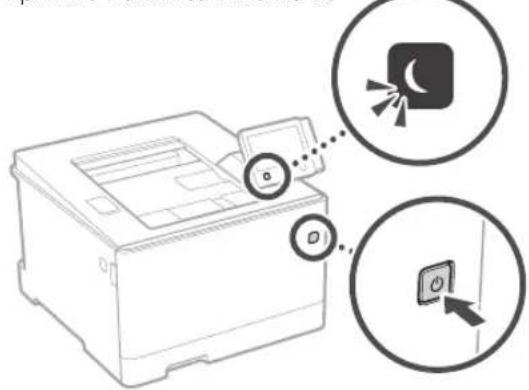
-3axpaHbauaT Ka6e n Cbbp3aH n e npabunHo?
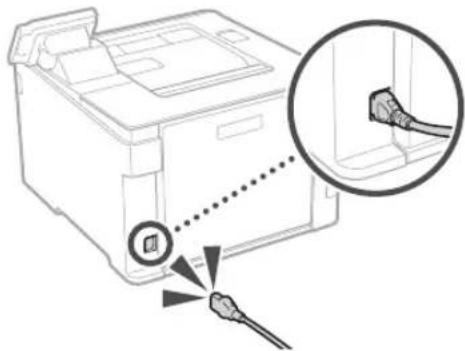
Ako npo6nembT npoDbnkaBA, BnKTe pbKOBOCTBOTO Ha notpe6nte.
Bb3HnKHaNo e 3acJaHe ha xapTna
OCTpaHete 3aceHaIata xaptna Cnopei HCHpyKuINTe Ha ekpaHa.
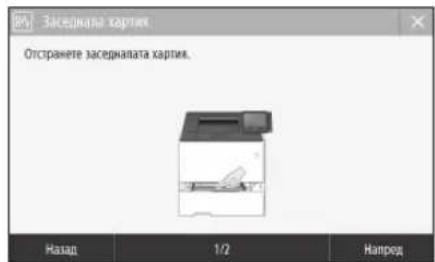
BaxHH INHCTpyKcnn 3a 6e30nacHOCT
IOBA CBOBODCBO ONHCBAMO PPODYNPCKDHIN HTOHN 3A BHAHHC OTHOOHOHTAHPAHEOT EKETPOaXpAHBaHTo. IPOHETe CbUo.BaKHIN HNTCPKIN3ABeBcIbAChO1,ONCAHnBpKOBQCTBO HA NIOpeBHeH
APNEUYPPEKDEHNE
IpydyIpyckdHc, Cbpy3aHo c oncpauu, KOTo npNHCBHNHO HNTbHNCHc MOrT da DOBcDt DOHapAHBaHc MN CMpT. 3a Da NnON3BaTC 6C0NaCHO MaHINATA, BnAN CNbIOJAABe TReN IpeyIpyKeJenNA.
BHUMAHNEI
PnpynpegeHn 3a Bmnae OIOIOOepaun, KOIO npnnpaaio IOIbuiue Me MOIa Ioojat no HapnBaane. 3a da nnoiBaate 6o2oNcNO MaHnHa, BNnHnCbKnDabae Tea npdynpcechnn.

BAKHO!
Nocoua3nKcBnHnTnO rPbAHHeHnTn 3a paOba.
IpoQHTeTe TaeN qactn BHNMaTeHo, 3a daP0oHTne
npABnHO C MaHnATa, KaKTo N aBcHerE
HEmPabHOCTM B HEn NmMyUcETBeHn UeTn
HCTanipane
3a da hnoBate To8a yctpoHCTBO 6eOnacHO Hyo6Ho, npoeHette BnMATEHNO cneBaHTe MEPKHa 6eOnACOHT IN HCTAIIHPAE YcTPOHCTBOI HA nIOXIOHIO MCTO.
APNEyPPEXDEHNE
HeHCTaIpaTteYcPToRCTOTo HA MRCTO, KbTeTO MoKeJa dePnBzAka ToKapar nM TOKOB yUpar
MRCIOKJIeEOBENHMOHNHOOBPOCA 6nokpana [Ipekaiho BmiooOIOEChn,JeNBAHNAKIMNIVDjPNIIOO0H]
BnaxHO INI npaHIO MACTO
MRCIO CIPRIKIA CINHUEB CEBUTIMA BUNI HTR OKPIMO MRCIO, INOLOKHO HAI NICOOM TEMEPATYKO
MACIOB6H3OCT01KpTcB
bIbIaO do cIprT. pAraCnTe TcA 6oB INN DpyrN 3aIaIIIM BSOCTCTBa
Dpyn npdeynpeckdenn
He Cb3paBte HeC0cb6pHn Ka6nn KmTob yctpoctTo.Boa MoKe da Doe do NoKap nN ToKoB ydp.
He noctabnre baxy yctpojCTBOTo konnera n npyn MeanHnpedMe, Hato CbOBe, PbHH CteHOTcN, PpK KOtAHT Ha yXyD Tena C ceneKtpVnecknTe aact B yctpojCTBOTo MOKe Da BaB3NHKe Nopak nn TOKOB yad.
AOKYTOOCTBOTOONIADHYKO TANO,RAKHOHTE UICNcERaOT KOHAKTVA CCEBPOXETC MCETHMAYbHOMOUJEN TbPROSEHa Canon.
BHIMAHHE
He HnctaInpaIte Ha MeCtata No-0ny
YcTpoCTBOToMOke da naHHe N da npHnHn HapaHaBaHe.
- HectaonHa OCHOB
Macto, H3TOXeHO Ha 3N6paun
DpyrTOUYK3aBHMaHHe
HPOHCHEHaMIMHATAChIbAHTHeHCHpyKIMTRETOBpksBOJCTHO.AKO MAMIHATAce HOHNCpaHNO.TaMOXDA NaHcV DaDCBCDOHACHBAAHC
Prrnntiipnephe Haaannnna Bgne nnnmteinnnna Jhae Taeeanepe CTOA MOCN da oBocdo do HacnBaHc.
I36yBaTe MeCTa CNoWa BENTnauCn
No IpeMa HOpMaHATA Cn Pabota yctpoiCBTO THeepapma MAnKoJIeYCTBcONH JIp.Taen EIMCIN He Ca BpOHN 3a 3paAeT. ToCe abd MoKc Da cTaHAT 3aBcONPbN NPi npDpNkHTnHa yntOPc6Ba Nn DnBnF npOnBIOCTBeIuKbHa MeCTa CnouA BeHHUaIaIa. 3a DaocnpyPeDobpa paoTHa Cpe, eInpenopnHtneIO CTaBA, BKOHO paobno yctpoiCBTO, Da eInpOBertpBA dope. CboTaKa INBaRbaTe MeCTa, KpTeTo Xpata Bx4a BmNIOXeHN Ha EMCNOT YCTPOCICTBO.
3axpaHbAhe
APNEyPENPEKDEHNE
H3nON3BaIe CMO H3OHTNHNHn HA 3aXpaHaBHe, KOITOTTOBAPRT HA NCOCHHE MTCKBAHRY 33HApKeHHe. Hcna3BaHTo HO TBAHCKBAHOMeJ1JIOJIeE JIO TOKAP YJAP.
TnA MAnHn TpB6a Da 6u CbP3Ha KtM Taekpn-ckn KOHTK CbC 3aEBMaIIu BpBkAep PnpOCTBCHN 3axpaHbau KaCn.
He 103010B4e 3axpanbainkaefanpa 103010AIOCTABENH B KONJIKKTA, 3aIOTO TOBA MOKE JIA UDEPHNRIKA NOKAD INTOKOB VIBAD.
IpeoctabnHt aXpaHbAaKabcn CpncnHaHCH 3a bOaTcTOBACyTOPOCTBO.HcBbPbABTe 3axpaHbAaKnabCdpyrYcTOPOCTBA.
He MoHnMnIaIae He HnpnIae He OHaBnCnIO Hn HnBpUbaIae npyro nceTcKoTO mOKe Jn NobpcDa 3axpaHbauN KaCen. He NoCTABNTE KTeKN PnpdVCTbPxy 3axpaHbauN KaCen. TIOBpcCHNI 3axpaHbauN KaCen MOne Da pinnmNn NOKap NIN TOKOY ydp.
HeBKnKuHBeIe Hn HeBKnKuHBeIe UenCenCa C MOKPp bue,3a Da He npDvSbKate TcokOB yapd.
BAAHOBAHTEYCTPOACTBOYBbHINNTENNN PAKHOHNHTENToa Moke da do nokap NIN TOKOy dyap.
He yBaIe Hn He Bp3BaIte Ha BzEn 3axpaHaaIaMn KaBEN, Tb KAto TOBa MoKe Da npEnuBnKa NoXap Anm ToKo8 YAp.
BkapaTeJeTcEJa DOKPAI B ENEKTPUeCKN KOTAKI HecaBaHETO H TOBA UINCKBAHEMOKE DaIOBDEO NOKAPH INTOKOBYdAp.
IPOBPEVAHpBMOTEBHHHcypnueKHOBAHTI IJENCENAOTKONTAHAHecnBaBAHeroHaTOB AINKKBAAHOMeKa DaDObEe DoNkpA,TKOByap NIN NOBEDA HAYCTOPCBTO.
Yyepiece,ye enekipoxaXpaHbAeIO KbM ycpioBTOEbeOnaHO He muaocOIOHO HnpeKHe.
AapKte 3aXPAHbAAJI KcAb DN aET MTOKIHKH HAnNHa,AKO HC To HApBaNT KaCbT MocKa da CCOTINnJa TpeBvNBnIO XoAPK NkKc CheHmNHIE.
N36aBaiTe CnEHNHTe CNTyaUHn:
Ako Bxy CbpaBaaata NaCT Ha 3aXpaHbuaa Ka6en cc npnOIKI FOBIM HNTK TOBA MOKe Da NOBocn KAc0na IINI pIOBOHNIeB MAIIHbTA MOKe Ja Ce NKIOHOAT, TAO MaOJa JIOBeJe NoNkap.
YecToBkIOBaHcNmKIOBaHcHa3XpaHbuaaKa6cn.
PperbaeHa3xpaaBauKaben
OrbaHnHa 3axpanaunnaKab6n3o JoactTa 3a CBp3Ae, KAKTO npinraHne HnpOJbIKTene HATCK KbM ENEETPNCKNI KOHTN NnAcCTTa 3a CBp3Ae.
UyapkibBaIeI npexOxepHO ronama cina aBpyx utcenera.
BHIMAHHE!
HCTaTnPaTe yCtPOeTBTO 6BnDo 0eEKeTpyecknKoKTAKI KOTOKOJI UcENcera TPOBa DA NIMApOCTaTbHPOPcTaPcTHBO,3a Da MoKe Da Ce HKnHO HeCHO pNHeo60JmMocX1.
BopabeHecyTpoNCTBOTo
BHIMAHHE!
BesonacnoCT Ha Ia3epHo 6opdyBaHc
Toba ycrpoBcBTO eOBnDHeKoIHOJIaIepeHINPOJyIK1 KNAc 1 BLC6052-1.2014bN LNO625-1.2014:
CLASS1LASLRPRODUCT
LASERKIASSF1
APPARFIL ALASER DE CLASSE1
APPARECCHIO LASER DI CLASSE I
PRODUCIOLASERDECLASE1
APARELHOALASFRDFCLASSF1
LUOKAN1LASER-TUOTF
LASERPRODUKT KI ASS 1
JaacpHOToIbCHIO MOc Da CbpHOa NOBcKOTO TIO. Tko kato paoaunra, KOHOe HJIbHa 01
BbIpeHIOCTA HApOyKIA,CEpOAnHuaHAI BtHIO O3aunHTHe KOpTyCN bBbHNHTe KaIaN,NaBcHnTt NbH BoMOKE DAJIcNC 3BbH VCTCObCTBO,DOAKTO
notpocntnAT ABBpuha paNNHn oncpaun.1pOcHcTe 3abeneKne HN KTPyKn 3a6eONACIOI NO-DOY
Hnokra othebaprejpyna kanaeon cseh oncnne bpbko8oCCTbta 2a Toba CYTOXPOE.
Ako naepnHNTbCeOTKHOH NOCBET OHTBE BTOBA NOKc Da HYBPdN
H3nONBaaHero Ha cpeCtBa 3a ynpabEnHe, HAcTPOKn HnNNTbHHeHr Ha npOeDyOn, paoHHHOT NocOHHe HTOBA PkOBQICBO,MOKe Jda IcBepEJIO ONaCHO MHaAae HcOblbHaBe.
BHHMaHHe 3a6e3oNaChOCT npu pa6oTa c na3epHo o6OpyDbaHe
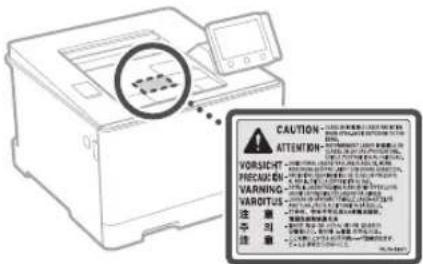
CMBON, Cbbp3aHc 6e30nacHOCTTa
Knou Ha 3axpaHbHaHTo:PiOnuRnBKn.
KnHua3aXpaHaBaHeTo:PiOnuNJa"V3Kn
(5) KnIOu Ha 3axpaHbAHeTo: POn3nIa "CTeH6a"
KIOUc HATnCKaHe "BKn." "Mkn"
3aHTeH38eMaBaaTepMNn
Onacho Hanpexehne BbBbtpseHocTaI He 0TbpAHTe npnKanaunOCBHeNnOcoHNTe.
BIIMMAIIELOpea noBpXHoc. He pokocBaTe.
C6opdyBaHoeOTKnacII
A BJIeKHeIe CE JACTH: PAnaTe IcNtIte H A TNIOTO OT BJIeKHeIeTE CE JACTH
BHNMAHIL:MOXe Da BHHKHC TOKOB YDAC.
V3KIOOeTe BCWKn 3axpaHbAaN KabeNn O KOHaKaTa.
Vmaocptp pb60e:Pa3e yactte Ha 10to oocptpcpb60c.
[3ABEJIEXKA]
HakonOTnokasainte no-rope CMMBOHMOKe da He ca nocTabeHN cnope npdyKa.
KoHcyMaTHNB
APNEUYPEXKDEHNE
He 3xBpIe I3non3BaHn Tohe KaceTn B
OTKPNINMbIu.OCBeH TOBA He CbXpaHnBaTe
TOeP KaceTN HA XAPTN Ha MCTO, INIOKeHO HA
OTKPT ORh. TOba Moke Da Hakapa Tohepa nn
XapTNrTa Da ce 3anaTn N da BoEepdTo
NfArapHHN NnNoKap.
Belenkka
ImeHa npoayKT
Cbobpa3HO pa3npoe6BnE 3a 6e3oNaCHOC IMeTO H npOyKTA Tp6Ba Da 6Bepe nCTPnPAHO. B HkONOT PAHOnTE, E KNOTo CE pODABA npOyKTB, E BB3MOXHO CNEHOTO HMe(H) BCKO(1) da e/ca peHCTPnPAHO (N) BMCTO TOBA. LBP664Cx/LBP663Cdw(F176100)
U3nCKBaHn 3a eNeKtpomarHnTHa
cBMECTMOCT (EMC) Ha dIpeKTHBATA EC
Toba yctpoiCTBO OTROBAPHa OCHOBHITE
N3NCKBHAA 3a ENEKTPORAMHTHA CbMECTMOCT
(EMC) Ha dIpeKTHBATA Ha EC. DeKnapnpame, Ye
To3n npOyKT OTROBAP Ha N3NCKBHAA 3a
eNEKTPORAMHTHA CbMECTMOCT (EMC) Ha
dIpeKTHBATA Ha EC npHOMHAnHO 3axpaHBAIo
HaNPeKeHMe 230V, 50 Hz, BbnpkeN Ye
3axpaHBAIoTO HAppeKeHMe NO cneUIMKauJa e
o 220 V Do 240 V, 50/60 Hz. 3a IokpnuBaHe Ha
TEXHNueCKITE N3NCKBHAA 3a ENEKTPORAMHTHa
CBMECTMOCT (EMC) Ha dIpeKTHBATA Ha EC e
Heo6xOJmoN 3nONJBAHoTo HA ekpanpah Ka6en
ДиpeктпьИУЕОиДиpeктпьИЗа 3aбатун ha EC MoKeTe DA BvIITe INHФOPMaIIЯ 3aДиpeKtNBATA 3a YVEOиДиpeKtNBATA 3aБatePIMB HAIHOBOTOp pKOBODCTBO Ha NTpEbHTeY (HTML pKOBODCTcO) ot ye6 caIHa HA Canon (canon. com/oip-manual).
PerynaTopHa Hhopmaa 3a6e3KuHn LAN Mpexu
Regulatory information for users in Jordan
LBP664Cx / LBP663Cdw includes approved Wireless LAN Module (Model name: Type1KA). Contains Wireless LAN Module approved by TRC/ LPD/2017/19
Regulatory information for users in UAE
LBP664Cx/LBP663Cdw includes approved Wireless LAN Module (Model name: Type1KA).
TRA
REGISTERED No: ER51217/17
DEALER No: DA0073692/11
RE Directive
(Only for European radio equipment)
RE Declaration of Conformity
English (EN) Hereby, Canon Inc. declares that this equipment is in compliance with Directive 2014/53/EU. The full text of the EU declaration of conformity is available at the following internet address: http://www.canon-europe.com/ce-documentation Wireless LAN Specifications Frequency band(s):2412-2472MHz Maximum radio-frequency power: 15.9 dBm
HactoHnT npOyKT Ha Canon (IPOyKT) BKNIOBa COFTyePHN MOyTN OT TpeTN CPTaHN. H3NON3BHeTO n pa3npocTpaHEHHeTO Ha TezN COFTyePHN MOyTN, BKNIOHTeHBOBCAKBN AkyAIN3aUN HA TaKINBA COOTyePHN MOyTN (0606JIeHO-“COOTYEP") 3aBcN OYTcNOBNTAOT (1)do(9)no-dony.
(1) CbIaNCHnCTa Da cna3BaTe npInIOXIMnTE 3aKOHn 3a KOHTpon Ha NHOca, 3a6paHnTE n pa3nope6DBeHa 3aINHepecoBAHnTE CTpaHN, B cnyaYteTo3n IPOyKT, BKnIOuBaU COOTyPA, e TpAHCnpTupan, npExBpEn Hnn INHEcEH BdpTyCtPaHn.
(2)PnntexkateNte Ha npabata Ha COFTYEPA 3a3a3Bt B5b BC4NO OTHOHeHMe npabata Bbpxy 3aIaNbIneto,OC6TBeHocCTTA HnENTeKtyAnHATA Co6CTBeHocCT Bn HA COFTYEPA.Cn3KnIOueHHe Ha n3pnuHO npEOCTaBEHO TYK,NHKaKBb NUEeH3 WnnpaBO,INpnuHO NmIOpa3b6papco Ce,He BN Ce npEOCTaBBnDaa OT npNTeKATENITE Ha npabata Ha COFTYEPA 3a KaKaBoTo
n da e nHTeKtayHa CO6CTBeHocCT Ha npNTeKATENITE Ha npabata Ha COFTYEPA.
(3) Mojete Da mnoBate CODTYEPA eHHCTBeHO 3aeHNO C PPOyKTA
(4) HamaTe npabo Da 8b3nArate, noDnueHnPaTe, npOaBate, paRIOCTpaHnBaTe nn npExbPnIe COOTYEPA Ha TpeTc pTaHn Be3 npEnBaPteHo NmCMeHO CbIaNcEoT npTeKeTneHa npBaHa COOTYEPA
(5)BbnpekropecnmeHaToTO moKeTe da npexBpnae COOTYEPA cmoKorato (a)Bb3natae BCNKn CBOH npaBa Bpxy IPODYKA IN BCNUK npaBa N3aJbNxHeHNO Nnueh3nOHnTE yCNOBn HA NOyuaTeHn (6)NONyauTeHnCTcCbIacn Da Ce O6Bpke C BCNUK ycNOBn.
(6) Hmate npaBo da Jekomnnnnpate, no narnate Ha obaTHO KOHCTpyuPAhe, daecemBnnpate mno npyr HauHH da N3BnHate Koda Ha COOTYEPA do npdoxpoia 3a YeTeHe OT HOBek fOpMa.
(7) Hmarte npabo da npomehre, aadantnpate, npebexdaTe, 3aeMaTe, Otaabe TnHaem nnHnHa3aem COxTyePA nn Da cB3dabeTa PpOIN3BOHNnpoDyKNBb3OCHOBa Ha COxTyePA.
(8)HMaTe npabo Da npemaxbATE COQTYEPA O T PPOyTAaMn Da My npabte OeJINKoIIIA.
(9) HAMATE JINUEH3a YACTTAOT COOTYEPAA, NOJXODHua 3a HeTeHEOT OOBK (KOHa NTOOHNKA).
Be3 TOBa Da e B yUb6 Ha NocOeHcTo B ToKn (1)
D0 (9) no-rope, PPOdyKTbT bKIOHOBa coFyepHN
MOyIN OT TpETN CTpaHn 3aeHNO C dpYn
LIeEH3NOHN YCIOBn H Tea COFyepHN MOyIN
Ca o6eKt HA dpynte IINeH3NOHN YCIOBn
O6pbJauIte Ce KbM dpynte IINeH3NOHN
ycIOBn HA coFyepHN MeOyIN Ha TpET
CTPAHn OINCAHN B IIPOJOKeHEnTO Ha
pbKOBOcCTBOTo 3a CBOTBeTHNA PPOdyKT.
HaTOHsOto pbKOBOcTBo E ha pAnNoJKeHne
Ha apec http://conor.com/bip-manual.
Upe3 ynoIpe6ata Ha IPOyKTA ue ce npme,ue CbIaHCH BCYHKn PpIIOXkMnLIeEH3NOHH yCNOBA. Ako He Cte CbTnaH CTeu NHe3NOHH yCNOBA. Ce CbPkeTe CBaWnCEpBnEhnpctabnten.
V_180517
Белеки
Bg
Regulatory information for users in Jordan
LBP664Cx/LBP663Cdw includes approved Wireless LAN Module (Model name: Type1KA). Contains Wireless LAN Module approved by TRC/ LPD/2017/19
Regulatory information for users in UAE
LBP664Cx/LBP663Cdw includes approved Wireless LAN Module (Model name: Type1KA).
TRA
REGISTERED No: ER51217/17
DEALER No: DA0073692/11
RE Directive
(Only for European radio equipment)
RE Declaration of Conformity
English (EN) Hereby, Canon Inc. declares that this equipment is in compliance with Directive 2014/53/EU.
The full text of the EU declaration of conformity is available at the following internet address: http://www.canon-europe.com/ce-documentation Wireless LAN Specifications
Frequency band(s):2412-2472MHz
Maximum radio frequency power: 15.9 dBm

aalalal alalal alalal alalal alalal
[uiu] 1 [uiuill] aai bally uall ayll
.
1g 2g 3g 4g 5g
aill 1
[3]
( a^2 + 1) ( b^2 + 1) = 2b^2 + 4ac
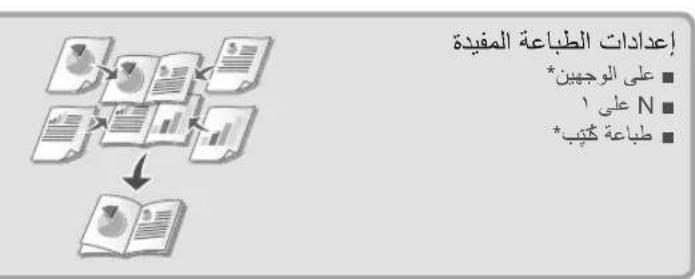
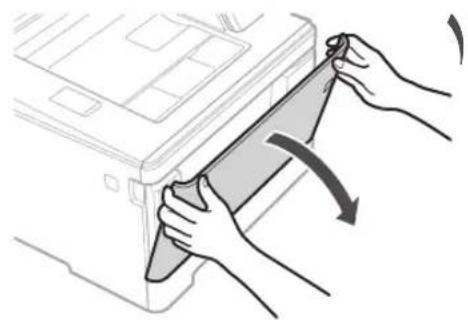
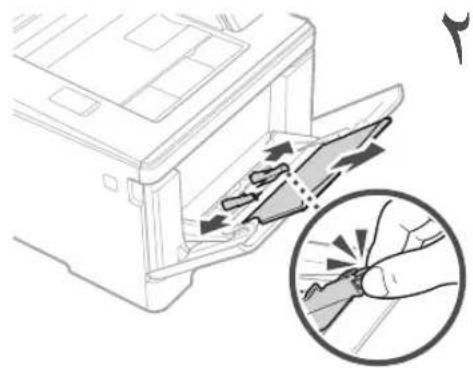
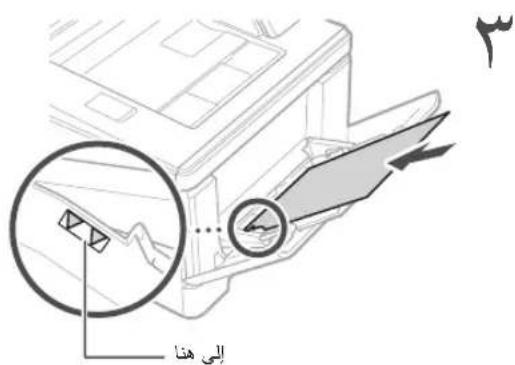
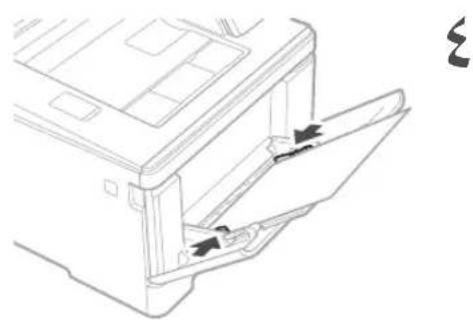
Aaill 1g jg jg

J
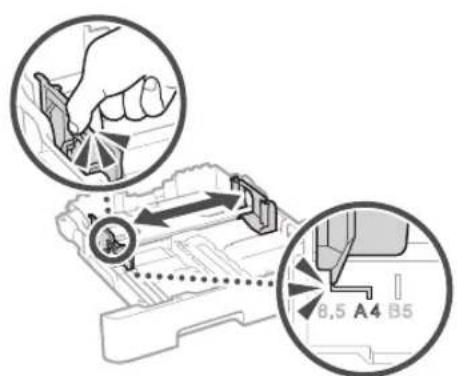
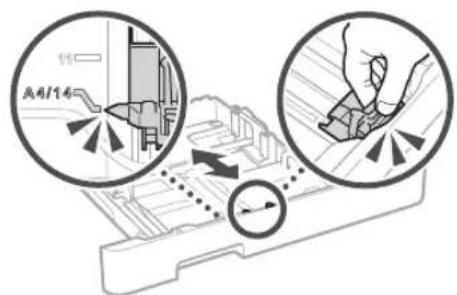
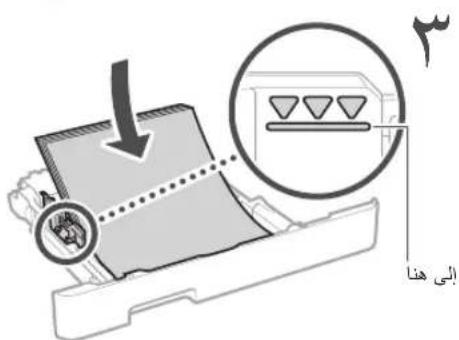
a

a 1
< 0 > | x - 1| > 0 > x > 0

a

1
aaiiie iie aiee iie eae ee eae eae eae eae eae eae eae
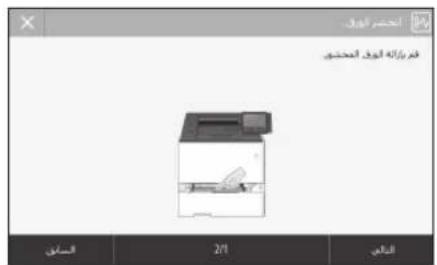
J
aiee eae eee eee eee
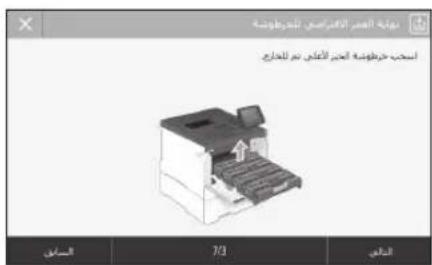
ydl 1
A 1
A
A
A
A
A
A
A
A
A
A
A
A
A
A
A
A
A
A
A
A
A
A
A
A
A
A
A
A
A
A
A
A
A
A
A
A
A
A
A
A
A
A
A
A
A
A
A
A
A
A
BLP664Cx/LBP663Cdw(F176100) EAL EMCA BIL
Regulatory information for users in Jordan
LBP664Cx / LBP663Cdw includes approved Wireless LAN Module (Model name: Type1KA).
Contains Wireless LAN Module approved by TRC/LPD/2017/19
Regulatory information for users in UAE LBP664Cx / LBP663Cdw includes approved Wireless LAN Module (Model name: Type1KA).
TRA
REGISTERED No: ER51217/17
DEALER No: DA0073692/11
RE Directive (Only for European radio equipment) RE Declaration of Conformity
English (EN) Hereby, Canon Inc.
declares that this equipment is in compliance with Directive 2014/53/EU. The full text of the EU declaration of conformity is available at the following internet address: http://www.canon-europe.com/ce-documentation/Wireless LAN Specifications Frequency band(s):2412-2472MHz Maximum radio-frequency power: 15.9 dBm
la jai jia jia jia jia jia jia jia jia jia jia jia jia jia jia jia jia jia jia jia jia jia jia jia jia jia jia jia jia jia jia jia jia jia jia jia jia jia jia jia jia jia jia jia jia jia jia jia jia jia jia j
jaiy jaiy jaiy 2 (9)
is gai jls olkuij yalbcui 0ds
2xy - 2y = 0 ( 2 - y) x + 2y - 2x = 0
9.100 100
Cul 1
1 15
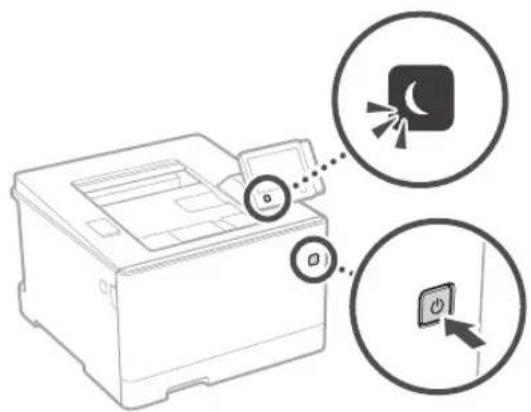
g
J 1
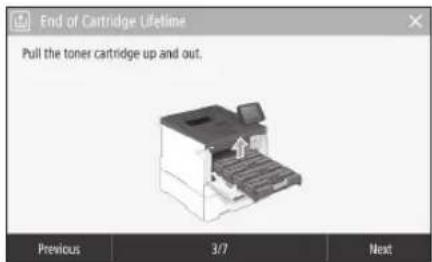
9cui 10
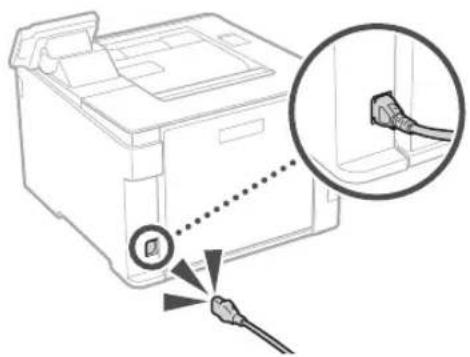
gai jgi jjgl Jda jlaa
(S) Canon Cartridge 055 Black
Regulatory information for users in Jordan
LBP664Cx / LBP663Cdw includes approved Wireless LAN Module (Model name: Type1KA). Contains Wireless LAN Module approved by TRC/LPD/2017/19
Regulatory information for users in UAE LBP664Cx / LBP663Cdw includes approved Wireless LAN Module (Model name: Type1KA).
TRA
REGISTERED No: ER51217/17
DEALER No: DA0073692/11
RE Directive (Only for European radio equipment)
RE Declaration of Conformity
English (EN) Hereby, Canon Inc. declares that this equipment is in compliance with Directive 2014/53/EU. The full text of the EU declaration of conformity is available at the following internet address:
http://www.canon-europe.com/ce-documentation Wireless LAN Specifications
Frequency band(s):2412-2472MHz Maximum radio-frequency power: 15.9 dBm
CLASS 1 LASER PRODUCT
LASER KLASSE 1
APPAREIL A LASER DE CLASSE 1
APPARECCHIO LASER DI CLASSE 1
PRODUCTO LASER DE CLASE
APARELHO A LASER DE CLASSE 1
LUOKAN 1 LASER-TUOTE
LASERPRODUKT KCLASS 1
gaii jia a jia jia jia jia jia jia jia
24
j j j j j j j j j j j j j j j j j j j j j j j j j j j j j j j j j j j j j j j j j j j j
j0000 jgi gai jia jia jia jia jia jia jia
4.2.2.2
j j 1
y 1
J 1
j
0dai j 0j aae aee y jy jy jy
j 1
.
jai jia,la i
j 1
s sssplas j 145
y
2023.8.14
30-2, Shimomaruco 3-chome, Ohta-ku, Tokyo 146-8501, Japan
One Canon Park, Melville, NY 11747, U.S.A.
CANON EUROPA N.V.
Bovenkerwerweg 59, 1185 XB Amstelveen, The Netherlands
Printed on non-chlorine bleached paper.
2F Jinbao Building No.89, Jinbao Street,
Dongcheng District, Beijing 100005, PRC
CANON SINGAPORE PTE LTD
1 Fusionopolis Place, #15-10, Galaxis, Singapore
138522
CANON AUSTRALIA PTY LTD
Building A, The Park Estate, 5 Talavera Road,
Macquarie Park, NSW 2113, Australia
CANON GLOBAL WORLDWIDE SITES
http://www.canon.com/