
imagePROGRAF TC-21M - Printer CANON - Free user manual and instructions
Find the device manual for free imagePROGRAF TC-21M CANON in PDF.


| Product type | Large format inkjet printer |
| Brand | Canon |
| Model | imagePROGRAF TC-21M |
| Dimensions (W x D x H) without accessories | 1168 x 1125 x 745 mm |
| Weight | 34 kg |
| Print capacity | Roll paper and cut sheets |
| Ink type | Canon pigment ink in bottles (4 bottles included) |
| Number of ink colors | 4 (CMYK) |
| Connectivity | Wi-Fi (IEEE 802.11b/g/n), Ethernet 10/100/1000 |
| Power supply | 100-240 V AC, 50/60 Hz |
| Power consumption (printing) | Approx. 60 W |
| Power consumption (standby) | Approx. 0.5 W |
| Operating temperature | 15 to 30 °C |
| Operating humidity | 20 to 80% RH (without condensation) |
| Touch screen | Yes, color screen |
| Optional accessories | Desk basket BU-06, Printer stand SD-24 |
| Maintenance system | Automatic nozzle cleaning, maintenance cartridge replacement |
| Safety | Detailed safety instructions: handling ink, electrocution, moving |
| Installation | Installation guide included, connection to a PC or smartphone via Canon website |
| Warranty | Manufacturer's warranty (refer to provided document) |
Frequently Asked Questions - imagePROGRAF TC-21M CANON
User questions about imagePROGRAF TC-21M CANON
0 question about this device. Answer the ones you know or ask your own.
Ask a new question about this device
Download the instructions for your Printer in PDF format for free! Find your manual imagePROGRAF TC-21M - CANON and take your electronic device back in hand. On this page are published all the documents necessary for the use of your device. imagePROGRAF TC-21M by CANON.
USER MANUAL imagePROGRAF TC-21M CANON
natural_image
Line drawing of a paper feeding machine with a plastic bag attached (no text or symbols)| ENGLISHInstallation Guide | ContentsConfirming the Installation Space....2Confirming the Accessories....6Removing the Packaging Material....8Preparing the Desktop Basket and Printer Stand....11Turning on the Printer....13Connecting to a PC or Smartphone....15Roll Paper Setting Procedure....16Displaying the Online Manual....16Trademarks....16▲Safety Precautions....17Handling Cautions....19 |
Read this manual before attempting to operate the printer. Keep this manual for future reference.
Confirming the Installation Space
ENGLISH
When installing the printer, it is recommended that you secure the following space around the printer.

The space required in front of the printer varies depending on how the basket is used.
When using the BU-06 desktop basket
Required space* (W x D x H)
46.0 inches (1,168 mm) × 56.2 inches (1,425 mm) × 57.7 inches (1,465 mm)
Required space** (W x D x H)
46.0 inches (1,168 mm) × 44.3 inches (1,125 mm) × 29.4 inches (745 mm)

* When using the BU-06 desktop basket
** When not using the desktop basket
When using the SD-24 printer stand
Required space ^# (W x D x H)
46.0 inches (1,168 mm) × 55.2 inches (1,400 mm) × 54.1 inches (1,374 mm)
Required space** (W x D x H)
46.0 inches (1,168 mm) × 44.3 inches (1,125 mm) × 29.4 inches (745 mm)
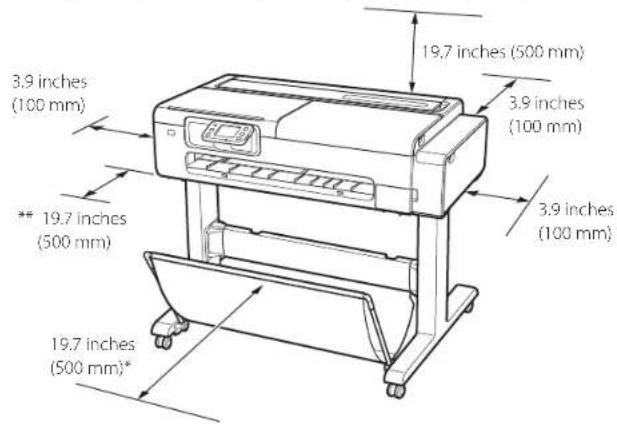
* When using the 5D-24 printer stand
** When not using the printer stand
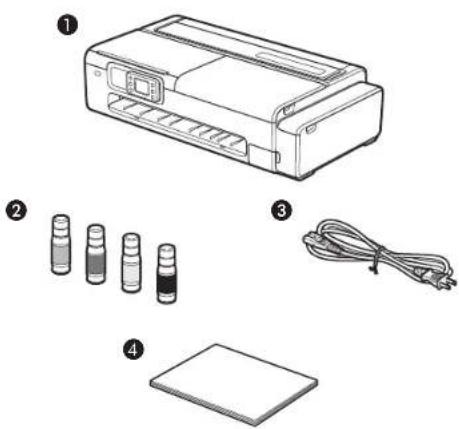
Confirming the Accessories
Confirmation des accessoires
natural_image
Illustration of a printer with four labeled parts: printer, three cylindrical containers, and a cable (no text or symbols present)① Printer
② Ink bottles × 4
3 Power cord
4 Installation Guide (this document)

Confirming the Accessories
Confirmation des accessoires
Manuals Included with This Printer
Installation Guide (this document)
Describes how to setup the printer.
Online Manual
This manual describes advanced usage of the printer such as paper saving tips, how to print a poster and banner with the supplied software, and print quality adjusting method, in addition to the basic instructions for printing on roll paper or cut sheet. To view the Online Manual, refer to "Displaying the Online Manual" (P.16).
FR
Removing the Packaging Material
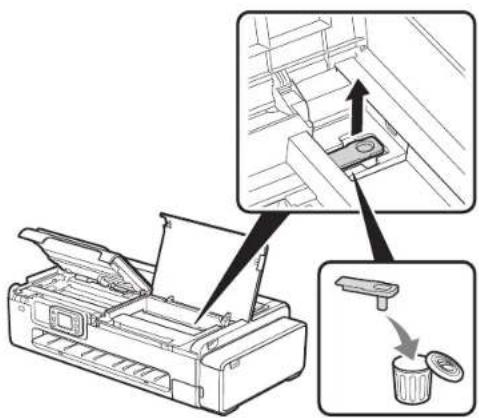
Remove and discard the packaging material and orange tape from the printer.
FR
3
Removing the Packaging Material
flowchart
graph TD
    A["Printer Setup"] --> B["Add Paper to printer"]
    B --> C["Transfer to printer to drawer"]
    C --> D["Recycle to drawer"]
    D --> E["Recycle to drawer with waste can be removed"]

Important When removing the packaging material, take care to avoid touching the linear scale (A) and carriage rail (B).
Removing the Packaging Material

Caution Watch your fingers.
natural_image
Line drawing of a mechanical device with a cylindrical container and attached bracket (no text or symbols)EN
When using the desktop basket: Attach the basket by referring to the Desktop Basket Setup Guide (separate manual).
FR
natural_image
Technical line drawing of a mechanical support frame with two vertical supports and a curved base (no text or symbols)EN
When using the printer stand: Assemble the stand by referring to the Printer Stand Setup Guide (separate manual).
FR
Preparing the Desktop Basket and Printer Stand
Place the printer as shown.
FR
If you do not place the printer as shown, paper output may be affected resulting in printouts being damaged or streaks appearing in the images.
We recommend using the desktop basket or the printer stand.
Important
Continue setup by following the instructions on the operation panel in the following order.
① Pouring Ink.
② Select connection method.
Turning on the Printer
When the home screen appears on the printer after finishing the procedure above, proceed to "Connecting to a PC or Smartphone" (P.15).
FR
Setting Wi-Fi from the Printer's Touch Screen
- Follow the instructions below to set up Wi-Fi manually from the Home screen.
Wi-Fi > Wi-Fi setup
- Follow the on-screen instructions to continue.
- When settings are complete, proceed to Connecting to a PC or Smartphone
FR
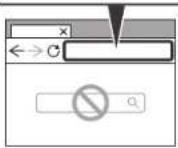
https://ij.start.canon/connect


EN
Open your web browser and access the Canon website.
FR
Enter the model name and click Go.
FR
Continue the operations by following the instructions on the screen.
FR
Roll Paper Setting Procedure
On the touch screen, proceed in the following order from the home screen.
Home screen > Paper information area > Roll paper area > Load roll paper
Load the roll paper according to the instructions on the screen.
You can check the procedure by selecting How to set.
Displaying the Online Manual
The Online Manual describes how to use the printer. It can be accessed from the Canon website as shown below.
1 Access the Canon website by either of the following methods.
Enter the URL
https://ij.start.canon
Select the model number of the printer you are using.
scan the QR code


2 Select Read Online Manual.
• Perform the remaining operations by following the instructions on the screen to display the Online Manual.
Trademarks
ENGLISH
QR code is a trademark of DENSO WAVE INCORPORATED in Japan and/or other countries. Wi-Fi, WPA, WPA2 and WPA3 are either registered trademarks or trademarks of Wi-Fi Alliance.
Safety Precautions
ENGLISH
Follow the items below to use the printer safely. Furthermore, do not perform any actions that are not described in the instruction manual (this document and the Online Manual) of the product. This may cause unexpected accidents such as fire or electrical shock.
Symbols
Warning
Instructions that, if ignored, could result in death, serious personal injury, or property damage caused by incorrect operation of the equipment are provided. These must be observed for safe operation.
Caution
Instructions that, if ignored, could result in personal injury or property damage caused by incorrect operation of the equipment are provided. These must be observed for safe operation.
Warning
Product contains button/coin cell battery
Button/coin cell batteries are hazardous and must be kept out of reach of children at all times, whether new or used. These batteries can cause severe or fatal injuries in 2 hours or less if swallowed or placed inside any part of the body. If it is suspected a button/coin cell battery has been swallowed or placed inside any part of the body, seek medical attention immediately.
For people who are using a cardiac pacemaker
This product generates a low-level magnetic field. If you experience discomfort while working around this product, leave the area and consult a doctor.
Turn off the power immediately in the following circumstances.
If you continue to use the printer in the following cases, it may cause fires or electrical shock. Immediately press the power button to turn off the printer, disconnect the power plug from the outlet, and make a request for repairs.
any foreign matter (metal fragments, liquids, etc.) gets inside the printer
the printer emits smoke, abnormal odors, or abnormal noises
the power cord or any of the cables become hot, corroded, bent, frayed, or damaged
Follow the items below as there is a risk of fire and electrical shock.
- Do not set up the product in any location exposed to alcohol, thinner, or other flammable liquids.
Do not disassemble or modify the product. - Use the cables that are included with the printer. Do not use the cables included with the printer with other devices.
Do not use outside of the designated power supply voltage and frequency.
Insert the power plug securely and completely into the power outlet.
Never handle the power plug with wet hands.
Do not damage, modify, pull, bundle, join, or forcefully bend the power cord or any cables.
Never place a heavy object on the power cord or any cables.
Do not insert multiple power plugs into the same outlet.
Do not connect multiple extension cords. - there is lightning nearby, disconnect the power plug from the outlet and do not use the product.
When cleaning, always disconnect the cables and power plug, and do not use highly flammable sprays or liquids such as alcohol or thinner.
Once per month, disconnect the power plug and power cord from the outlet, and check that dust has not accumulated, and that there are no abnormalities such as heat generation, rust, bending, chafing, or cracking.
Safety Precautions
ENGLISH
Caution
Never insert your hand into the printer while it is printing.
Never touch the electrical contacts of the print head by hand immediately after printing.
The following symbol is displayed around the movable parts of the printer. Take care to avoid touching them with your hand or inserting your finger. Note that this symbol may not appear on your model.

Moving Parts
Keep body parts away from moving parts. Keep body parts out of the motion path.
About Ink Bottles
Always store consumables out of the reach of small children.
Do not drink ink.
If a child licks or ingests ink accidentally, wash out their mouth or make them drink 1 or 2 cups of water, and immediately seek medical attention. If ink accidentally gets in your eyes, immediately rinse with water, and immediately seek medical attention.
●ink gets on your skin, immediately clean it off with soap and water. If irritation persists, immediately seek medical attention.
When storing ink bottles, securely close the bottle cap of the ink bottle and store in an always upright state. If it falls over, there is a risk of the ink spilling.
Take great care to avoid ink spraying around when refilling the ink tanks with ink.
-ink becomes adhered to your clothes or anything you are carrying, you might not be able to wash it out.
- Do not leave in a location that gets hot, such as near a fire, near a heater, or in a vehicle. The container may deform, causing the ink to spill, or the ink quality may become degraded.
Do not expose ink bottles to impacts. The ink bottle may break or the bottle cap may come off, causing ink to spill.
Do not pour into a different container. This may cause accidental ingestion or misuse of the ink, or the ink quality may become degraded.
Do not use for any purpose other than refilling the ink in the printer specified by our company.
Do not dilute with water, mix with other inks, etc. This may damage the printer.
Moving the Printer
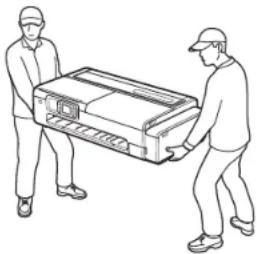
Have the following number of people carry the printer. The weight may cause pain such as back pain.
TC-21M (Approx. 73 lb (34 kg)) 2 people
natural_image
Line drawing of two workers carrying a large cylindrical object (no text or symbols)Safety Precautions
About the Printer Stand
If you are purchasing an optional printer stand, please observe the following caution.
When using a printer stand with the Canon TC-21M printer, follow the instruction manual to securely attach the printer to the stand. Furthermore, always use the following combinations.
For Canon Printer TC-21M, use Canon Printer Stand SD-24.
Using a different combination of printer and stand than shown above, using a printer stand not listed above, or not attaching the printer securely to the printer stand may be unstable and may result in injury.
Handling Cautions
ENGLISH
Power Supply
Do not disconnect the power plug while the power light is on. There is a risk of a malfunction occurring in the print head that makes it impossible to print cleanly. When removing the power plug after turning off the power, check that the power light is off.
Keep the area around the power outlet clear of items so that you can disconnect the power plugs immediately.
Always grip the plug to remove the power cord from the power outlet. Pulling on the power cord could damage the cord.
Ink
◆landling of malfunctions caused by using ink other than genuine Canon ink is not covered by the warranty.
The use of ink other than genuine Canon ink may cause degradation in printing quality or damage to the print head.
Note: For details on refilling the ink, refer to the Online Manual.
only a small amount of ink is refilled, the remaining level detection might not function correctly. Make sure the Ⓞ is off after refilling the ink and closing the cover. If the Ⓞ does not turn off even after refilling all of the ink from the bottle you have, get another bottle and refill using that.
Handling Cautions
ENGLISH
Cautions When Requesting Repairs, Leasing, Transferring Ownership, and Disposing of the Printer
- personal information is registered with the printer or security information such as passwords are set on the printer, that information may remain inside the printer.
- to prevent information leaks, perform the operations specified in the Online Manual before the printer is temporarily out of your hands such as for getting it repaired or leased, or before the printer is transferred to another owner or disposed of.
Other
- Do not tilt the printer, place the printer on its sides, or turn it upside down. There is a risk of the ink spilling.
When transporting the printer, always perform the steps in "Preparing to Transfer the Printer" in order to protect the internal structure.
Refer to the Online Manual for "Preparing to Transfer the Printer".
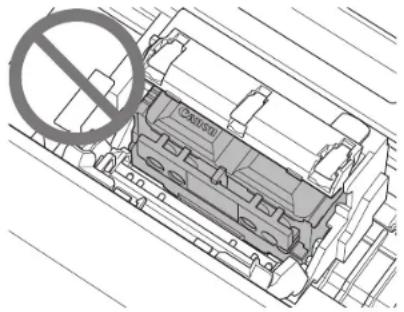
Never throw the print head or ink bottles in a fire. - Do not remove the print head more than necessary.
Although this is not a safety issue, cases have occasionally been reported of the print head becoming damaged and emitting heat and smoke.
natural_image
Technical line drawing of a mechanical component with a no-smoking symbol overlay (no text or labels)If you modify or disassemble the print head or ink bottles such as by drilling holes in them, it may cause ink spills and damage to the printer. It is recommended that you do not modify or disassemble these parts.
When using the printer for the first time, ink is used to fill the print head nozzles with ink and get the printer ready for printing. As a result, the number of pages that can be printed with the included ink bottles is less than the second or subsequent refills.
To maintain optimal print quality, it is recommended to fill the ink tanks until the ink level on the printer's screen shows full about once a year.
you do not print for a long period of time, the print head may dry out and become clogged. It is recommended that you print at least once per month.
The consumed ink is absorbed by the "ink absorber" inside the maintenance cartridge. When the ink absorber becomes full, an error message is displayed and it needs to be replaced.
Ink may also be used to ensure clean printing. This product has a function for automatically cleaning the nozzles that spray the ink to prevent clogging. Since ink is sprayed out from the nozzles during cleaning, a small amount of ink is used.
To safely use the printer
The printer cannot be directly connected to the communication lines (including public wireless LAN) of electronic telecommunication providers (mobile telecommunication providers, fixed telecommunication providers, or Internet providers). When connecting the printer to the Internet, always connect via a router or other equipment.
The rating plate is located on the bottom or back of the product.
Handling Cautions
ENGLISH
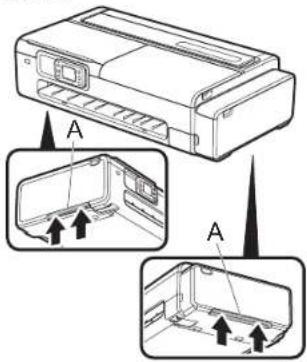
- firmly grasp the carrying grips (A) on each side of the base of the printer. Holding the printer at other positions is dangerous, causing injury and damage if the printer is dropped.
Other
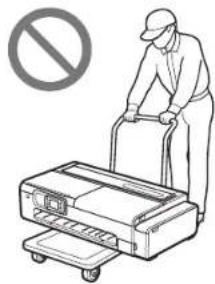
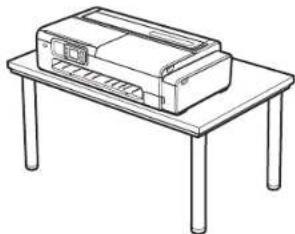
Do not put the printer down or carry the printer with only the center of the printer supported. This may cause damage to the printer.
natural_image
Illustration of a worker pushing a portable printer with a no-smoking symbol (no text or labels)When setting the printer down temporarily, make sure to put the printer on a flat, stable surface.
natural_image
Line drawing of a printer placed on a table with four legs (no text or symbols)Handling Cautions
ENGLISH
Repairing this product
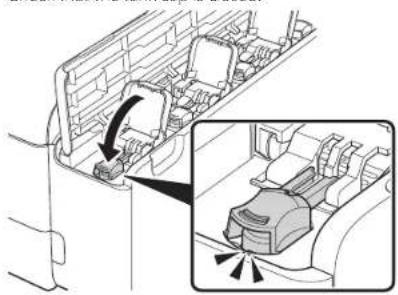
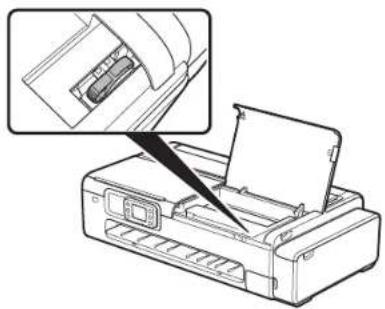
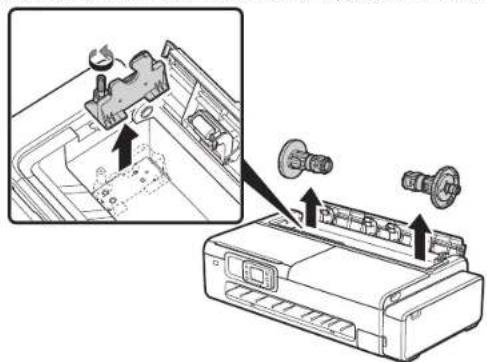
When packing/transporting this product, take care of the following points. For details, refer to the Online Manual.
Check that the tank cap is closed.
natural_image
Diagram of a car interior showing a seatbelt switch and its insertion into the seat (no text or labels)Check that the ink valve lever is closed.
natural_image
Diagram of a printer with an open lid and internal component, showing a close-up view of the component (no text or symbols present)Check that the roll holder and roll holder support are removed.
natural_image
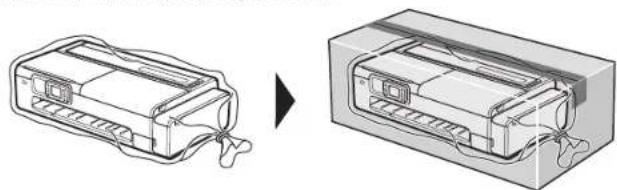
Diagram showing a printer with mechanical components being inserted into a container, with an inset close-up highlighting the component (no text or symbols present)Place the printer in a plastic bag and seal it.
natural_image
Diagram showing a device being replaced by a battery pack, with no visible text or symbols.Seal using bands or tape.
Attach the "right side up with care" and "delicate equipment" labels with the bottom of the printer facing down.
Handling Cautions
ENGLISH
Cautions when scanning documents
Be sure to observe the following when loading the original on the platen. Failure to observe the following may cause the scanner to malfunction or the platen glass to break.
- Do not place any objects weighing 4.4 lb (2.0 kg) or more on the platen glass.
- Do not put any pressure of 4.4 lb (2.0 kg) or more on the platen glass, such as pressing down the original.
natural_image
Line drawing of two workers carrying a large cylindrical object (no text or symbols)natural_image
Technical line drawing of a mechanical component with a no-smoking symbol overlay (no text or labels)Autre
natural_image
Illustration of a worker pushing a portable printer with a no-smoking symbol (no text or labels)natural_image
Line drawing of a printer placed on a four-legged table (no text or symbols)Précautions de manipulation
FRANÇAIS
natural_image
Diagram of a car interior showing a seatbelt switch and its insertion into the seat (no text or labels)natural_image
Diagram of a printer with an open lid and internal component, showing a close-up view of the component (no text or symbols present)natural_image
Diagram showing a printer's internal structure being inserted into a paper airplane, with arrows indicating the process (no text or symbols present)natural_image
Diagram showing two views of a battery pack before and after assembly, with no visible text or symbols.natural_image
Line drawing of two workers carrying a large cylindrical object (no text or symbols)natural_image
Technical line drawing of a mechanical component with a no-smoking symbol overlay (no text or labels)Otros
natural_image
Illustration of a worker pushing a cart with a no-smoking symbol (no text or labels)natural_image
Line drawing of a printer placed on a table with four legs (no text or symbols)natural_image
Diagram of a car interior showing a seatbelt switch and its insertion into the backrest area (no text or labels)natural_image
Diagram of a printer with an open lid and internal component, showing a close-up view of the component (no text or symbols present)natural_image
Diagram showing a printer's internal structure and assembly process, with arrows indicating parts of the printer (no text or symbols present)natural_image
Diagram showing a device being processed into a housing (no text or symbols present)Selle utilizando bandas o cinta.
Sobre as garrafas de tinta
natural_image
Line drawing of two workers carrying a large cylindrical object (no text or symbols)Outro
natural_image
Illustration of a worker pushing a portable printer with a no-smoking symbol (no text or labels)natural_image
Line drawing of a printer placed on a table with four legs (no text or symbols)natural_image
Diagram of a car interior showing a seatbelt switch and its insertion into the seat (no text or labels)natural_image
Diagram of a printer with an open lid and internal component, showing a close-up view of the component (no text or symbols present)natural_image
Diagram showing a printer's internal structure and assembly process, with arrows indicating parts of the printer (no text or symbols present)natural_image
Diagram showing a device being processed into a housing, with no visible text or symbols.© CANON INC. 2024XXXXXXXXX
PRINTED IN XXXXXXXX
IMPRIMÉ XX XXXXXXXXX
- Confirming the Installation Space
- When using the BU-06 desktop basket
- When using the SD-24 printer stand
- Manuals Included with This Printer
- Installation Guide (this document)
- Online Manual
- Preparing the Desktop Basket and Printer Stand
- FR
- Important
- Setting Wi-Fi from the Printer's Touch Screen
- Roll Paper Setting Procedure
- Displaying the Online Manual
- Access the Canon website by either of the following methods.
- https://ij.start.canon
- Select Read Online Manual.
- Trademarks
- Safety Precautions
- Symbols
- Warning
- Caution
- Product contains button/coin cell battery
- For people who are using a cardiac pacemaker
- Turn off the power immediately in the following circumstances.
- Follow the items below as there is a risk of fire and electrical shock.
- Moving Parts
- About Ink Bottles
- Moving the Printer
- About the Printer Stand
- Handling Cautions
- Power Supply
- Ink
- Cautions When Requesting Repairs, Leasing, Transferring Ownership, and Disposing of the Printer
- Other
- you do not print for a long period of time, the print head may dry out and become clogged. It is recommended that you print at least once per month.
- Cautions when scanning documents
- Autre
- Précautions de manipulation
- Otros
- Sobre as garrafas de tinta
- Outro
Brand : CANON
Model : imagePROGRAF TC-21M
Category : Printer