ASUS RP-AC55 - Access Point

RP-AC55 - Access Point ASUS - Free user manual and instructions

Find the device manual for free RP-AC55 ASUS in PDF.

📄 212 pages English EN Download 💬 AI Question 10 questions ⚙️ Specs
Notice ASUS RP-AC55 - page 3
Pick your language and provide your email: we'll send you a specifically translated version.
Product Type Wireless Access Point
Brand Asus
Model RP-AC55
Dimensions (L x W x H) 80 x 80 x 40 mm
Weight 100 g
Power Supply 5 V / 1 A via micro USB
Wi-Fi Standards IEEE 802.11a/b/g/n/ac
Frequency Bands 2.4 GHz and 5 GHz
Maximum Data Rate Up to 1200 Mbps (300 + 867 Mbps)
Ports 1 Gigabit Ethernet port (RJ45)
Main Functions Access point, repeater, router mode; configuration via ASUS app
Wireless Security WPA2-PSK, WPA-PSK, WEP (64/128 bits)
Antennas 2 internal antennas
Cleaning and Maintenance Clean with a soft dry cloth; avoid liquids
Operating Temperature 0 to 40 °C
Operating Humidity 10 to 90% (non-condensing)
Certifications CE, FCC, RoHS
Package Contents RP-AC55 access point, micro USB cable, power adapter, quick start guide
Warranty 2 years (depending on country)
Repairability Spare parts available; repair by authorized center

Frequently Asked Questions - RP-AC55 ASUS

How to configure the ASUS RP-AC55 access point?
Connect the device, connect to the default Wi-Fi network (SSID: ASUS_xx), open a browser and enter http://192.168.1.1. Follow the setup wizard or use the ASUS Router app.
How to reset the RP-AC55 to factory settings?
Press and hold the 'Reset' button on the back of the device for about 10 seconds until the LED flashes. The settings will revert to factory defaults.
How to change the Wi-Fi password?
Log into the web interface (http://192.168.1.1), go to 'Wireless' > 'General', change the WPA pre-shared key and save.
How to update the firmware of the ASUS RP-AC55?
Download the latest firmware from the ASUS website, log into the interface, go to 'System Management' > 'Firmware Update', select the file and click 'Upload'. Do not turn off the power during the update.
Can I use the RP-AC55 as a Wi-Fi repeater?
Yes, it offers a 'Repeater' mode in the settings. Select this mode, choose the network to extend and enter the password.
What should I do if the LED blinks orange?
An orange blink may indicate a loss of connection. Check the Ethernet cable or try restarting the device. If the problem persists, reset the device.
How to properly connect the RP-AC55?
Connect the power adapter to an electrical outlet and connect the access point to your router via an Ethernet cable if using access point mode. For repeater mode, no cable is needed.
Is the RP-AC55 compatible with all internet boxes?
Yes, it is compatible with any router or box using Ethernet 10/100/1000 Mbps and Wi-Fi 802.11a/b/g/n/ac standards.
How to secure my network with the RP-AC55?
Use a complex Wi-Fi password (WPA2-AES), disable WPS if not used, enable MAC filtering and keep the firmware updated.
How to improve Wi-Fi performance of the RP-AC55?
Place the device in a central, open location, keep it away from interference sources (microwaves, etc.), use the 5 GHz band for high speeds and update the firmware.

User questions about RP-AC55 ASUS

0 question about this device. Answer the ones you know or ask your own.

Ask a new question about this device

The email remains private: it is only used to notify you if someone responds to your question.

No questions yet. Be the first to ask one.

Download the instructions for your Access Point in PDF format for free! Find your manual RP-AC55 - ASUS and take your electronic device back in hand. On this page are published all the documents necessary for the use of your device. RP-AC55 by ASUS.

USER MANUAL RP-AC55 ASUS

IN SEARCH OF INCREDIBLE

RP-AC55

Wireless AC1200 Repeater
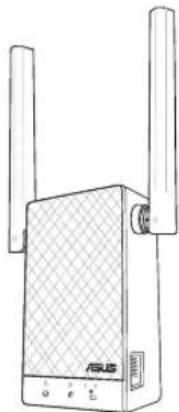
ASUS RP-AC55 - Wireless AC1200 Repeater - 1

natural_image Line drawing of a Huawei 8.0 network device with two Ethernet ports and a USB port (no text or symbols on the device body)

Quick Start Guide

U14322/ Third Edition / May 2018

ASUS RP-AC55 - Wireless AC1200 Repeater - 2

ASUS RP-AC55 - Wireless AC1200 Repeater - 3

ASUS RP-AC55 - Wireless AC1200 Repeater - 4

ASUS RP-AC55 - Wireless AC1200 Repeater - 5

Table of contents

English....3

Български....9

Hrvatski 15

Čeština....21

Dansk 27

Nederlands 33

Eesti....39

Français 45

Suomi....51

Deutsch 57

Ελληνικά....63

Magyar 69

Italiano 75

Lietuvių 81

Latviski 87

Norsk....93

Português....99

Polski 105

Русский....111

Română 117

Español....123

Srpski 129

Slovensky....135

Slovenščina 141

Svenska 147

Türkçe 153

Українська....159

ASUS RP-AC55 - Table of contents - 1

ASUS RP-AC55 - Table of contents - 2

ASUS RP-AC55 - Table of contents - 3

ASUS RP-AC55 - Table of contents - 4

Package contents

ASUS RP-AC55 - Package contents - 1

RP-AC55 Wireless AC1200 Repeater Quick Start Guide

ASUS RP-AC55 - Package contents - 2

ASUS RP-AC55 - Package contents - 3

Warranty Card

NOTE: If any of the items is damaged or missing, please contact your retailer.

A quick look
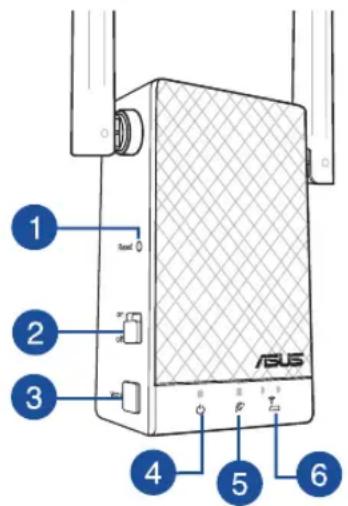
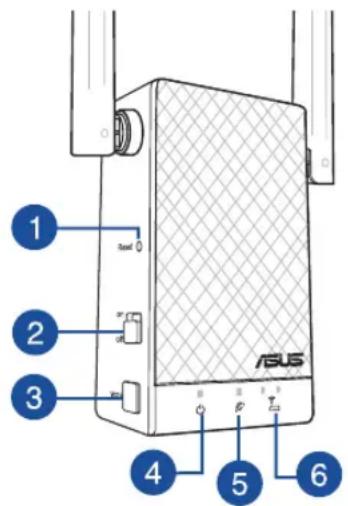
1 2 3 4 5 6 ASUS

1) Reset button
2) Power switch
3) WPS button
4) Power LED

On: RP-AC55 is power on.

Off: RP-AC55 is power off.

5) Existing network LED

On: Connected to the router/AP.

Off: Not connected to the router/AP.

6) More closer

ASUS RP-AC55 - Package contents - 5

Need to move RP-AC55 closer to the router/AP.

ASUS RP-AC55 - Package contents - 6

Move away slightly

Need to move RP-AC55 slightly away from the router/AP.

ASUS RP-AC55 - Package contents - 7

ASUS RP-AC55 - Package contents - 8

ASUS RP-AC55 - Package contents - 9

ASUS RP-AC55 - Package contents - 10

ENGLISH

Setting up the Repeater

Turning the Repeater on

  1. Place your RP-AC55 near your Router/AP and plug it to a power outlet. Press the power switch to ON.
  2. Wait until the power LED changes from red to solid blue, indicating that RP-AC55 is ready to connect to the existing network.
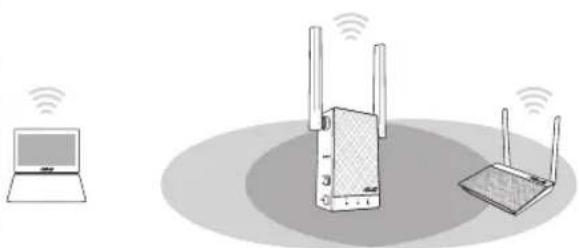
ASUS RP-AC55 - Turning the Repeater on - 1

natural_image Illustration of a laptop, wireless router, and network device (no text or symbols)

Connecting to a network

Select one of the following ways to connect the Repeater to a network.

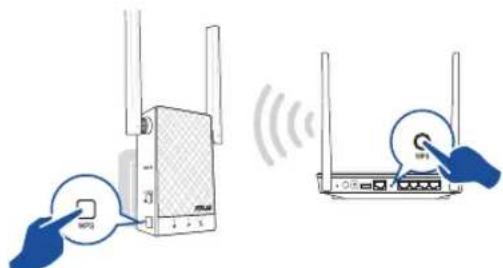
Method One: Using WPS (Wi-Fi Protected Setup)

  1. Press the WPS button on the router/AP.
  2. Press the WPS button of RP-AC55 for more than five (5) seconds until the Power LED starts to blink.

NOTE: Refer to the section A quick look for the location of the WPS button.

Diagram showing wireless network device connection with WiFi and WiFi plug, illustrating wireless signal transmission.

  1. Check if RP-AC55's Wi-Fi indicator turns solid light, which indicates that the Repeater has connected to the wireless network successfully. The Repeater's wireless network name (SSID) changes to your existing Wi-Fi network name, ending with _RPT or _RPT5G. For example:

Existing Wi-Fi network name: existing NetworkName

New Extender 2.4GHz network name: existing NetworkName_RPT

New Extender 5GHz network name: existing NetworkName_RPT5G

To connect an additional Wi-Fi device to your extended network, use the same network password as that of your existing wireless router.

Method Two: Connecting through GUI

  1. Use a Wi-Fi enabled device, such as your desktop PC/note-book/tablet, to find and connect to ASUS_RPAC55/ASUS_RPAC55_5G wireless network.
  2. Launch a web browser and enter http://repeater.asus.com in the address bar to access the Repeater.


ASUS RP-AC55 - Method Two: Connecting through GUI - 1

ASUS RP-AC55 - Method Two: Connecting through GUI - 2

ASUS RP-AC55 - Method Two: Connecting through GUI - 3

ASUS RP-AC55 - Method Two: Connecting through GUI - 4

  1. Follow the Quick Extender Setup steps to set up the Repeater:
  2. Connect to a Wi-Fi network and when prompted, enter the security key. If your Wi-Fi network is hidden, click Manual setting.
  3. Tick Same with Parent AP SSID/Password to copy the router/AP's SSID and password for your extended network. You could also set a unique SSID and password for your extended network by typing in the text box. When done, click Apply.

NOTE: The Repeater's default SSID and password is the same as that of your router/AP, with the SSID ending with _RPT or _RPT5G. You can change these default settings to a unique SSID and password.

- Connect your wireless devices to the new extended network.
ASUS RP-AC55 - Method Two: Connecting through GUI - 5

ASUS RP-AC55 - Method Two: Connecting through GUI - 6

natural_image Illustration of two wireless devices with WiFi antennas, no text or symbols present

Moving the Repeater

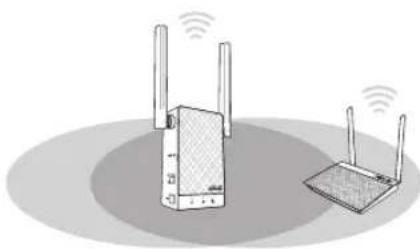
  • When the connection is complete, place your RP-AC55 between the router/AP and the wireless device to get the best performance.
    • After placing your RP-AC55 in an ideal location, RP-AC55 connects to your router/AP in about one (1) minute.


ASUS RP-AC55 - Moving the Repeater - 1

ASUS RP-AC55 - Moving the Repeater - 2

ASUS RP-AC55 - Moving the Repeater - 3

ASUS RP-AC55 - Moving the Repeater - 4

Frequently Asked Questions

Q1: What should I do if my router does not support WPS?

- You can use Method Two to set up RP-AC55.

Q2: Why is it that the LED indicator for the current network does not light up after the Wi-Fi setup is complete?

- You may have entered the wrong password for the router/AP. Please restart your RP-AC55, enter the correct password, and try to set up your RP-AC55 again.

Q3: Why is it that I cannot see the login page after entering http://repeater.asus.com in the browser?

- Ensure that your computer is connected to your RP-AC55 network only, and set your computer to Obtain an IP address automatically. If you still cannot find the login page, please download the ASUS Device Discovery utility. You can download the utility for Windows and Mac from https://www.asus.com/Networking/RP-AC55/HelpDesk_Download/.

Q4: How do I reset RP-AC55?

- Press the RESET button on the side of RP-AC55 for about two (2) seconds. Wait for about five (5) seconds until the existing network LED blinks slowly.

Q5: I cannot access the web GUI to configure the RP-AC55 settings.

  • Close all running web browsers and launch again.
  • Follow the steps below to configure your computer settings based on its operating system.

Windows 7

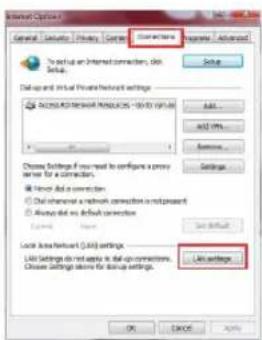
A. Disable the proxy server, if enabled.

  1. Click Start > Internet Explorer to launch the web browser.
  2. Click Tools > Internet options > Connections tab > LAN settings.
  3. From the Local Area Network (LAN) Settings screen, untick Use a proxy server for your LAN.
  4. Click OK when done.

General Settings / Privacy Control Current Settings > Adjust > Advanced To set up an Internet connection, do Setup. Setup Dialog and Initial Internet settings Access to Network Resources - 80% (45%) Add... Add/Remove... Settings Choose Settings if you need to configure a proxy server for a connection. Show Add a connection Show Information a network connection in progress Show that no additional connection Edit... Save... Load local network (3.63) settings List Settings do not apply to add up connections. Choose settings down for local settings. Link settings...

ASUS RP-AC55 - Disable the proxy server, if enabled. - 2

ASUS RP-AC55 - Disable the proxy server, if enabled. - 3

ASUS RP-AC55 - Disable the proxy server, if enabled. - 4

ASUS RP-AC55 - Disable the proxy server, if enabled. - 5

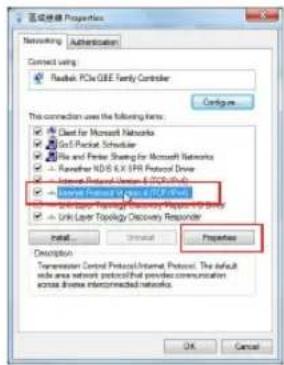
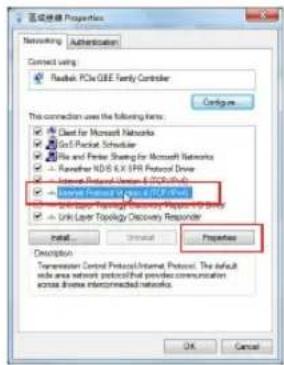
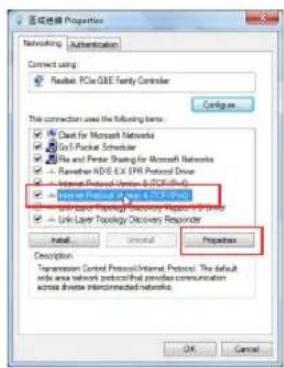
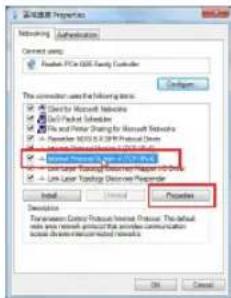
B. Set the TCP/IP settings to automatically obtain an IP address.

  1. Click Start > Control Panel > Network and Internet > Network and Sharing Center > Manage network connections.
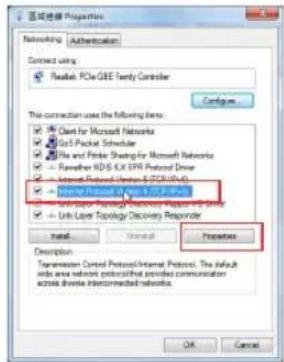
  2. Select Internet Protocol Version 4 (TCP/IPv4), then click Properties.
  3. Tick Obtain an IP address automatically.
  4. Click OK when done.

连接器 Properties Networking Authorization Connect using Router PCs: Q&E Family Controller Configure This connection uses the following items: □ Client for Microsoft Networks □ Web Pocket Scheduler □ Web and Server Sharing for Microsoft Networks □ Weather NDS LX EPR Protocol Driver □ Internet Protocol 0.01 (TCP-Link) □ Internal Protocol 0.01 (TCP-Link) / 0.01 (TCP-Link) □ Link Layer Topology Discovery Responder Install... Remove Properties Description Transmission Control Protocol/Internet Protocol. The default wide area network protocol that provides communication across diverse interconnected networks. OK Cancel

Mac OS

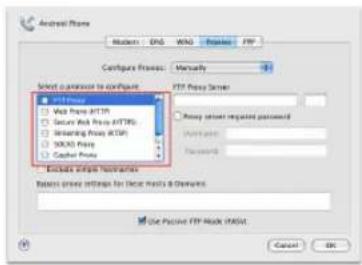
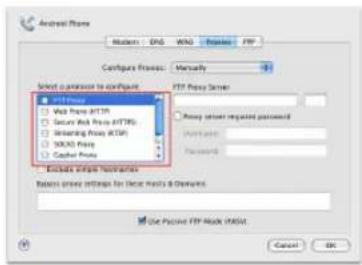
A. Disable the proxy server, if enabled.

  1. From the menu bar, click Safari > Preferences... > Advanced tab.
  2. Click Change Settings... in the Proxies field.
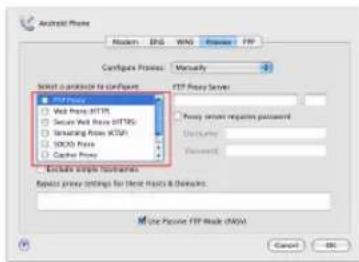
  3. From the list of protocols, deselect FTP Proxy and Web Proxy (HTTP).
  4. Click OK when done.

Android Network Configuration Process: Manually Select a protocol to configure FTP Proxy Server □ Visa Proxy HTTP □ Security Web Proxy HTTPG □ Selecting Proxy HTTP □ 3000000000 □ Captive Proxy □ Password □ Password required password □ Password □ Password □ Password □ Password □ Password □ Password □ Password □ Password □ Password □ Password □ Password □ Password □ Password □ Password □ Password □ Password □ Password □ Password □ Password □ Password □ Password □ Password □ Password □ Password □ Password □ Password □ Password □ Password □ Password □ Password □ Password □ Password □ Password □ Password

ASUS RP-AC55 - Mac OS - 2

ASUS RP-AC55 - Mac OS - 3

ASUS RP-AC55 - Mac OS - 4

ASUS RP-AC55 - Mac OS - 5

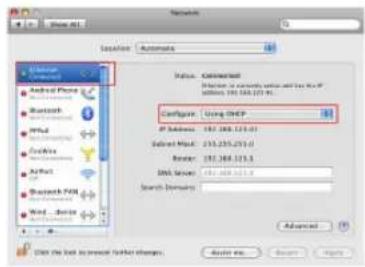
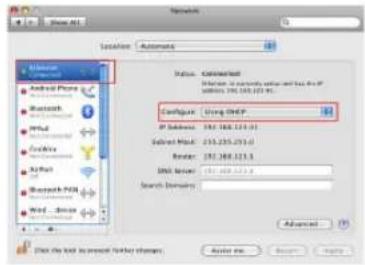
B. Set the TCP/IP settings to automatically obtain an IP address.

  1. Click the Apple icon 📄 > System Preferences > Network.
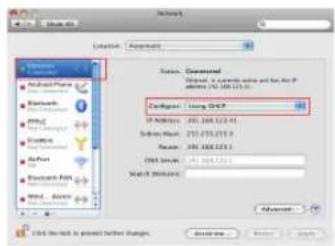
  2. Select Ethernet and select Using DHCP in the Configure field.
  3. Click Apply when done.

Macronix Location: Automatics Status: Connected Description to commands and files in IP all rights: 192.368.121.01 Configure: Using DHCP IP Subtotal: 192.368.121.01 Select Mode: 235.235.235.0 Reverse: 192.368.121.0 Unit Values: 192.368.121.0 Search Options: Advanced OK! On the Web to insert further changes. Auto Web... Browse... Help

ASUS RP-AC55 - Mac OS - 7

ASUS RP-AC55 - Mac OS - 8

ASUS RP-AC55 - Mac OS - 9

ASUS RP-AC55 - Mac OS - 10

natural_image Illustration of a laptop connected to two wireless devices (two wireless, one Wi-Fi) with no visible text or symbols.

Свързване към мрежа

natural_image Illustration of two wireless devices with Wi-Fi signal waves (no text or symbols)

12

ASUS RP-AC55 - Свързване към мрежа - 1

ASUS RP-AC55 - Свързване към мрежа - 2

ASUS RP-AC55 - Свързване към мрежа - 3

连接器 Properties Networking Authentication Connect using RadioTek PCIe G&E Family Controller Configure This connection uses the following items: □ Client for Microsoft Networks □ Grid/Protocol Scheduler □ File and Paper Sharing for Microsoft Networks □ Further NDIS X LPR Protocol Driver □ Internet Protocol Version (RCP/IP) □ Network Protocol (TCP/IP) □ Link Layer Topology Discovery Response Install... Properties Description Transmission Control Protocol/Internet Protocol. The default wide area network protocol that provides communication across diverse interconnected networks. OK Cancel

Mac OS

ASUS RP-AC55 - Mac OS - 1

ASUS RP-AC55 - Mac OS - 2

ASUS RP-AC55 - Mac OS - 3

Network Location: Automatics Name: Connected Description: as proxy, name, and key for #NOS, IP address, IP 100.123.13. Configure: Using DHCP IP Address: IP 100.123.13 Subject Mask: 215.235.235.0 Router: IP 100.123.13 DNS Server: IP 100.123.13 Search Address: Advanced Click the link to account further changes Active in... Cancel Help

ASUS RP-AC55 - Mac OS - 5

ASUS RP-AC55 - Mac OS - 6

ASUS RP-AC55 - Mac OS - 7

ASUS RP-AC55 - Mac OS - 8

Sadržaj pakiranja

ASUS RP-AC55 - Sadržaj pakiranja - 1

natural_image Illustration of two wireless devices with antennas and WiFi signals (no text or symbols)

Spajanje na mrežu

Odaberite jedan od sljedećih načina za spajanje repetitor na mrežu.

Mogućnost jedan: Korištenje WPS-a (Postavljanje WLAN zaštićenog pristupa)

  1. Provjerite svijetli li neprekidno indikator Wi-Fi mreže uređaja RP-AC55, što označuje da je repetitor uspješno spojen na bežičnu mrežu. Naziv bežične mreže repetitor (SSID) mijenja se na naziv postojeće Wi-Fi mreže, završava na _RPT ili _RPT5G. Primjerice:

Naziv postojeće Wi-Fi mreže: postojeći NetworkName

Naziv nove mreže proširivača 2,4 GHz: postojeći NetworkName_RPT

Naziv nove mreže proširivača 5 GHz: postojeći NetworkName_RPT5G

Za spajanje dodanog Wi-Fi uređaja na proširenu mrežu, koristite istu lozinku mreže kao i za postojeći bežični usmjerivač.

Mogućnost dva: Spajanje putem GUI

  1. Koristite uređaj s omogućenom Wi-Fi mrežom, kao što je stolno/prijenosno računalo/tablet za nalaženje i spajanje na ASUS_RPAC55 /ASUS_RPAC55_5G bežičnu mrežu.
  2. Pokrenite web preglednik i unesite http://repeater.asus.com u traku za adrese, za pristup repetitor.

ASUS RP-AC55 - Mogućnost dva: Spajanje putem GUI - 1

ASUS RP-AC55 - Mogućnost dva: Spajanje putem GUI - 2

ASUS RP-AC55 - Mogućnost dva: Spajanje putem GUI - 3

ASUS RP-AC55 - Mogućnost dva: Spajanje putem GUI - 4

  1. Slijedite korake u Quick Extender Setup (Brzo postavljanje proširivača) za postavljanje repetitor:
  2. Spojite se na Wi-Fi mrežu i kod upita unesite sigurnosni ključ. Ako je Wi-Fi mreža skrivena, kliknite Manual setting (Ručno podešavanje).
  3. Stavite kvačicu na Same with Parent AP SSID/Password (Isto kao AP SSID/lozinka za roditelje) ako želite kopirati lozinku usmjerivača/pristupne točke za proširenu mrežu. Također, možete odrediti jedinstveni SSID i lozinku za proširenu mrežu upisom u polje za tekst. Kada budete gotovi, kliknite Apply (Primijeni).
natural_image Illustration of two wireless devices with WiFi antennas, no text or symbols present

ASUS RP-AC55 - Mogućnost dva: Spajanje putem GUI - 5

ASUS RP-AC55 - Mogućnost dva: Spajanje putem GUI - 6

ASUS RP-AC55 - Mogućnost dva: Spajanje putem GUI - 7

ASUS RP-AC55 - Mogućnost dva: Spajanje putem GUI - 8

B. Postavite TCP/IP postavke tako da automatski dohvaćaju IP adresu.

  1. Kliknite Start > Control Panel (Upravljačka ploča) > Network and Internet (Mreže i internet) > Network and Sharing Center (Centar za mrežu i zajednički rad) > Manage network connections (Upravljaj mrežnim vezama).
  2. Odaberite Internet Protocol Version 4 (TCP/IPv4) (Internetski protokol, verzija 4 (TCP/Ipv4), a zatim kliknite Properties (Svojstva).
  3. Kvačicom označite mogućnost Obtain an IP address automatically (Automatski dohvaćaj IP adresu).
  4. Kliknite OK (U redu) kada ste gotovi.

连接器 Properties Networking Authorization Connect using Router PCs: G&E Family Controller Configure This connection uses the following items: □ Client for Microsoft Networks □ Web Pocket Scheduler □ Web and Server Sharing for Microsoft Networks □ Weather NDS LX EPR Protocol Driver □ Internet Protocol 0.01 (TCP-Link) □ Internal Protocol 0.01 (TCP-Link) / 0.01 (TCP-Link) □ Link Layer Topology Discovery Responder Install... Remove Properties Description Transmission Control Protocol/Internet Protocol. The default wide area network protocol that provides communication across diverse interconnected networks. OK Cancel

ASUS RP-AC55 - Mogućnost dva: Spajanje putem GUI - 10

Mac OS

ASUS RP-AC55 - Mac OS - 1

ASUS RP-AC55 - Mac OS - 2

ASUS RP-AC55 - Mac OS - 3

ASUS RP-AC55 - Mac OS - 4

B. Postavite TCP/IP postavke tako da automatski dohvaćaju IP adresu.

  1. Kliknite ikonu Apple 📄 > System Preferences (Postavke sustava) > Network (Mreža).
  2. Odaberite Ethernet i odaberite Using DHCP (Upotreba DHCP) u polju Configure (Konfiguriraj).
  3. Kliknite Apply (Primijeni) kada ste gotovi.

Network Location: Automatics Network Automatic Phone Bluetooth WiFi Firefox Microsoft PDF Word - Microsoft Status: Connected Internet to connectivity and has done the IP <|vision_start|> Internet. 192.168.123.01 Configure: Using Internet IP Subsea: 192.168.123.01 Subsea Mask: 235.235.235.0 Router: 192.168.123.0 Unit Server: 192.168.123.0 Search Domainry: Advanced Click the Web to install other changes. Auto Web... Next

ASUS RP-AC55 - Mac OS - 6

ASUS RP-AC55 - Mac OS - 7

ASUS RP-AC55 - Mac OS - 8

ASUS RP-AC55 - Mac OS - 9

Obsah krabice

ASUS RP-AC55 - Obsah krabice - 1

natural_image Illustration of two wireless devices with Wi-Fi signal waves (no text or symbols)

Připojení k síti

natural_image Illustration of two wireless devices with antennas and signal waves (no text or symbols)

Umístění opakovače

ASUS RP-AC55 - Umístění opakovače - 1

ASUS RP-AC55 - Umístění opakovače - 2

ASUS RP-AC55 - Umístění opakovače - 3

连接器 Properties Networking Authorization Connect using Router PCs: Q&E Family Controller Configure This connection uses the following items: □ Client for Microsoft Networks □ Web Pocket Scheduler □ Web and Server Sharing for Microsoft Networks □ Weather NDS LX EPR Protocol Driver □ Internet Protocol 0.01 (TCP-Link) □ Internal Protocol 0.01 (TCP-Link) / 0.01 (TCP-Link) □ Link Layer Topology Discovery Responder Install... Remove Properties Description Transmission Control Protocol/Internet Protocol. The default wide area network protocol that provides communication across diverse interconnected networks. OK Cancel

ASUS RP-AC55 - Umístění opakovače - 5

Operační systém Mac

A. Deaktivujte server proxy, je-li aktivován.

ASUS RP-AC55 - Operační systém Mac - 1

ASUS RP-AC55 - Operační systém Mac - 2

ASUS RP-AC55 - Operační systém Mac - 3

ASUS RP-AC55 - Operační systém Mac - 4

ČEŠTINA

ASUS RP-AC55 - ČEŠTINA - 1

ASUS RP-AC55 - ČEŠTINA - 2

ASUS RP-AC55 - ČEŠTINA - 3

ASUS RP-AC55 - ČEŠTINA - 4

Pakkens indhold

natural_image Illustration of a laptop, wireless router, and Wi-Fi antenna with signal waves (no text or symbols)
natural_image Illustration of two wireless devices with Wi-Fi signal waves, no text or symbols present

Flyt repeateren

ASUS RP-AC55 - Flyt repeateren - 1

ASUS RP-AC55 - Flyt repeateren - 2

ASUS RP-AC55 - Flyt repeateren - 3

配置选项 Properties Networking Authentication Connect using: Packet FDS/DBE Facility Controller Configure This connection uses the following items: - Denti for Microsoft Networks - iOS Packet Scheduler - File and Printer Sharing for Microsoft Networks - Newster NDIS/6.4 SPX Protocol Drive - Newster Software Hardware & Internet - Internet Protocol (IP) / IP/IPS - LinkLayer Topology Discovery Reports V/D Drive - LinkLayer Topology Discovery Simulator Install... General Properties Description: Transmission Control Protocol Interface Protocol: The default info area network protocol that provides communication across diverse interconnected networks. OK Cancel

Mac OS

A. Deaktiver proxyserveren, hvis den er aktiveret.

ASUS RP-AC55 - Deaktiver proxyserveren, hvis den er aktiveret. - 1

ASUS RP-AC55 - Deaktiver proxyserveren, hvis den er aktiveret. - 2

ASUS RP-AC55 - Deaktiver proxyserveren, hvis den er aktiveret. - 3

ASUS RP-AC55 - Deaktiver proxyserveren, hvis den er aktiveret. - 4

DANSK

ASUS RP-AC55 - DANSK - 1

ASUS RP-AC55 - DANSK - 2

ASUS RP-AC55 - DANSK - 3

ASUS RP-AC55 - DANSK - 4

Inhoud verpakking

ASUS RP-AC55 - Inhoud verpakking - 1

RP-AC55 Draadloze AC1200 repeater Voetstuk

ASUS RP-AC55 - Inhoud verpakking - 2

ASUS RP-AC55 - Inhoud verpakking - 3

natural_image Illustration of a laptop, Wi-Fi router, and Wi-Fi antenna with signal waves (no text or symbols)
natural_image Illustration of two wireless devices with Wi-Fi signal waves (no text or symbols)

ASUS RP-AC55 - Inhoud verpakking - 4

ASUS RP-AC55 - Inhoud verpakking - 5

ASUS RP-AC55 - Inhoud verpakking - 6

连接器 Properties Networking Authorization Connect using Router PCs: Q&E Family Controller Configure This connection uses the following items: □ Client for Microsoft Networks □ Web Pocket Scheduler □ Web and Server Sharing for Microsoft Networks □ Weather NDS LX EPR Protocol Driver □ Internet Protocol 0.01 (TCP-Link) □ Internal Protocol 0.01 (TCP-Link) / 0.01 (TCP-Link) □ Link Layer Topology Discovery Responder Install... Remove Properties Description Transmission Control Protocol/Internet Protocol. The default wide area network protocol that provides communication across diverse interconnected networks. OK Cancel

Mac OS

ASUS RP-AC55 - Mac OS - 1

ASUS RP-AC55 - Mac OS - 2

ASUS RP-AC55 - Mac OS - 3

Network Location: Automatics Status: Connected Internet to connectivity and has done IP Internet: 192.168.123.0 Configure: Using DHCP IP Subsea: 192.168.123.0 Subsea Mask: 255.235.235.0 Router: 192.168.123.0 Unit Server: 192.168.123.0 Search Domain: Advanced © All the Web is presented in Internet Explorer. Auto Web... Remove... Help

ASUS RP-AC55 - Mac OS - 5

ASUS RP-AC55 - Mac OS - 6

ASUS RP-AC55 - Mac OS - 7

ASUS RP-AC55 - Mac OS - 8

Pakendi sisu

ASUS RP-AC55 - Pakendi sisu - 1

RP-AC55 Traadita repiiter AC1200 Garantiikaart

ASUS RP-AC55 - Pakendi sisu - 2

ASUS RP-AC55 - Pakendi sisu - 3

Lühijuhend

natural_image Illustration of two wireless devices with antennas and Wi-Fi signals (no text or symbols)

Ühendumine vörku

natural_image Illustration of two wireless devices with attached antennas and a switch, showing wireless signal connections (no text or symbols)
natural_image Illustration of two wireless devices with WiFi antennas, no text or symbols present

ASUS RP-AC55 - Ühendumine vörku - 1

ASUS RP-AC55 - Ühendumine vörku - 2

ASUS RP-AC55 - Ühendumine vörku - 3

连接器 Properties Networking Authorization Connect using Router PCs: Q&E Family Controller Configure This connection uses the following items: □ Client for Microsoft Networks □ Web Pocket Scheduler □ Web and Server Sharing for Microsoft Networks □ Weather NDS LX EPR Protocol Driver □ Internet Protocol 0.01 (TCP-Link) □ Internal Protocol 0.01 (TCP-Link) / 0.01 (TCP-Link) □ Link Layer Topology Discovery Responder Install... Remove Properties Description Transmission Control Protocol/Internet Protocol. The default wide area network protocol that provides communication across diverse interconnected networks. OK Cancel

Mac OS

ASUS RP-AC55 - Mac OS - 1

ASUS RP-AC55 - Mac OS - 2

ASUS RP-AC55 - Mac OS - 3

ASUS RP-AC55 - Mac OS - 4

EESTI

ASUS RP-AC55 - EESTI - 1

ASUS RP-AC55 - EESTI - 2

ASUS RP-AC55 - EESTI - 3

ASUS RP-AC55 - EESTI - 4

Contenu de la boîte

ASUS RP-AC55 - Contenu de la boîte - 1

natural_image Illustration of a laptop connected to two wireless devices with visible signal waves (no text or symbols)
natural_image Illustration of two wireless devices with WiFi antennas, no text or symbols present

ASUS RP-AC55 - Contenu de la boîte - 2

ASUS RP-AC55 - Contenu de la boîte - 3

ASUS RP-AC55 - Contenu de la boîte - 4

连接器 Properties Networking Authentication Connect using RadioTek PCIe G&E Family Controller Configure This connection uses the following items: □ Client for Microsoft Networks □ Grid/Packet Scheduler □ RIO and Radar Sharing for Microsoft Networks □ Alternative NDS X L/R PRC Protocol Driver □ Internet Protocol Version (NDSX201) □ Network Protocol (NDSX201) □ Link Layer Topology Discovery Response Install... Properties Description Transmission Control Protocol/Internet Protocol. The default wide area network protocol that provides communication across diverse interconnected networks. OK Cancel

ASUS RP-AC55 - Contenu de la boîte - 6

Sous Mac

ASUS RP-AC55 - Sous Mac - 1

ASUS RP-AC55 - Sous Mac - 2

ASUS RP-AC55 - Sous Mac - 3

Network Location: Automans Status: Connected Configuration: Using DHCP IP Subtotal: 192.168.121.01 Subtotal Mail: 235.235.235.0 Reverse: 192.168.121.3 Unit Server: 192.168.121.4 Search Address: Advanced Click the next application further changes. Access to... Remove... Import

ASUS RP-AC55 - Sous Mac - 5

ASUS RP-AC55 - Sous Mac - 6

ASUS RP-AC55 - Sous Mac - 7

ASUS RP-AC55 - Sous Mac - 8

Pakkauksen sisältö

ASUS RP-AC55 - Pakkauksen sisältö - 1

RP-AC55 Langaton AC1200 -toistin Pikaopas

ASUS RP-AC55 - Pakkauksen sisältö - 2

ASUS RP-AC55 - Pakkauksen sisältö - 3

Takuukortti

natural_image Illustration of a laptop, WiFi, and wireless router with signal waves (no text or symbols)
natural_image Illustration of two wireless devices with Wi-Fi signal waves (no text or symbols)

ASUS RP-AC55 - Pakkauksen sisältö - 4

ASUS RP-AC55 - Pakkauksen sisältö - 5

ASUS RP-AC55 - Pakkauksen sisältö - 6

连接器 Properties Networking Authorization Connect using Router PCs: Q&E Family Controller Configure This connection uses the following items: □ Client for Microsoft Networks □ Web Pocket Scheduler □ Web and Server Sharing for Microsoft Networks □ Weather NDS LX EPR Protocol Driver □ Internet Protocol 0.01 (TCP-Link) □ Internal Protocol 0.01 (TCP-Link) / 0.01 (TCP-Link) □ Link Layer Topology Discovery Responder Install... Remove Properties Description Transmission Control Protocol/Internet Protocol. The default wide area network protocol that provides communication across diverse interconnected networks. OK Cancel

Mac OS

ASUS RP-AC55 - Mac OS - 1

ASUS RP-AC55 - Mac OS - 2

ASUS RP-AC55 - Mac OS - 3

ASUS RP-AC55 - Mac OS - 4

SUOMI

ASUS RP-AC55 - SUOMI - 1

ASUS RP-AC55 - SUOMI - 2

ASUS RP-AC55 - SUOMI - 3

ASUS RP-AC55 - SUOMI - 4

Verpackungsinhalt

ASUS RP-AC55 - Verpackungsinhalt - 1

natural_image Illustration of two wireless devices with WiFi antennas and signal waves (no text or symbols)
natural_image Illustration of two wireless devices with wireless signal waves (no text or symbols)
natural_image Illustration of two wireless devices with WiFi signal waves, no text or symbols present

ASUS RP-AC55 - Verpackungsinhalt - 2

ASUS RP-AC55 - Verpackungsinhalt - 3

ASUS RP-AC55 - Verpackungsinhalt - 4

连接器 Properties Networking Authorization Connect using Router PCs: Q&E Family Controller Configure This connection uses the following items: □ Client for Microsoft Networks □ Web Pocket Scheduler □ Web and Server Sharing for Microsoft Networks □ Weather NDS LX EPR Protocol Driver □ Internet Protocol 0.01 (TCP-Link) □ Internal Protocol 0.01 (TCP-Link) / 0.01 (TCP-Link) □ Link Layer Topology Discovery Responder Install... Remove Properties Description Transmission Control Protocol/Internet Protocol. The default wide area network protocol that provides communication across diverse interconnected networks. OK Cancel

Mac OS

ASUS RP-AC55 - Mac OS - 1

ASUS RP-AC55 - Mac OS - 2

ASUS RP-AC55 - Mac OS - 3

ASUS RP-AC55 - Mac OS - 4

GERMAN

ASUS RP-AC55 - GERMAN - 1

ASUS RP-AC55 - GERMAN - 2

ASUS RP-AC55 - GERMAN - 3

ASUS RP-AC55 - GERMAN - 4

natural_image Illustration of a laptop connected to two wireless devices with visible signal waves (no text or symbols)

Σύνδεση σε δίκτυο

natural_image Illustration of two wireless devices with WiFi antennas, no text or symbols present

ASUS RP-AC55 - Σύνδεση σε δίκτυο - 1

ASUS RP-AC55 - Σύνδεση σε δίκτυο - 2

ASUS RP-AC55 - Σύνδεση σε δίκτυο - 3

连接器 Properties Networking Authorization Connect using Router PCs: Q&E Family Controller Configure This connection uses the following items: □ Client for Microsoft Networks □ Web Pocket Scheduler □ Web and Server Sharing for Microsoft Networks □ Weather NDS LX EPR Protocol Driver □ Internet Protocol 0.01 (TCP-Link) □ Internal Protocol 0.01 (TCP-Link) / 0.01 (TCP-Link) □ Link Layer Topology Discovery Responder Install... Remove Properties Description Transmission Control Protocol/Internet Protocol. The default wide area network protocol that provides communication across diverse interconnected networks. OK Cancel

Mac OS

ASUS RP-AC55 - Mac OS - 1

ASUS RP-AC55 - Mac OS - 2

ASUS RP-AC55 - Mac OS - 3

Network Location: Automatics Network Automatic Phone Bluetooth WiFi Firefox Microsoft PDF Word - Microsoft Status: Connected Internet to connectivity and has done IP <|vision_start|> Internet: 192.168.123.01 Configure: Using Internet IP Subsea: 192.168.123.01 Subsea Mask: 235.235.235.0 Router: 192.168.123.0 Unit Server: 192.168.123.0 Search Domainry: Advanced Click the Web to install other changes. Auto Web... Next

ASUS RP-AC55 - Mac OS - 5

ASUS RP-AC55 - Mac OS - 6

ASUS RP-AC55 - Mac OS - 7

ASUS RP-AC55 - Mac OS - 8

A csomag tartalma

natural_image Illustration of two wireless devices with antennas and signal waves (no text or symbols)
natural_image Illustration of two wireless devices with Wi-Fi signal waves (no text or symbols)

72

ASUS RP-AC55 - A csomag tartalma - 1

ASUS RP-AC55 - A csomag tartalma - 2

ASUS RP-AC55 - A csomag tartalma - 3

网络连接 Properties Networking Authentication Connected using Realtek PCIe Q&E Family Controller Configure This connection uses the following items: □ Desktop for Microsoft Networks □ Web Packlet Scheduler □ File and Packet Sharing for Microsoft Networks □ Ethernet NVIDIA 8.0E PPS Protocol Driver □ Internet Protocol (Internet: 8.0E-4.0.4.0) □ Internet Protocol in Web PC3.1.2.1 □ Link Layer Topology Discovery Responder Install... Remove... Properties Description Transmission Control Protocol/Internet Protocol. The default wide area network protocol that provides communication across directs interconnected networks. OK Cancel

Mac OS

ASUS RP-AC55 - Mac OS - 1

ASUS RP-AC55 - Mac OS - 2

ASUS RP-AC55 - Mac OS - 3

ASUS RP-AC55 - Mac OS - 4

MAGYAR

ASUS RP-AC55 - MAGYAR - 1

ASUS RP-AC55 - MAGYAR - 2

ASUS RP-AC55 - MAGYAR - 3

ASUS RP-AC55 - MAGYAR - 4

Avvicinate RP-AC55 al router/AP.

ASUS RP-AC55 - MAGYAR - 5

natural_image Illustration of a laptop connected to two wireless devices with visible signal waves (no text or symbols)
natural_image Illustration of two wireless devices with WiFi antennas and signal waves (no text or symbols)

ASUS RP-AC55 - MAGYAR - 6

ASUS RP-AC55 - MAGYAR - 7

ASUS RP-AC55 - MAGYAR - 8

连接器 Properties Networking Authorization Connect using Router PCs: Q&E Family Controller Configure This connection uses the following items: □ Client for Microsoft Networks □ Web Pocket Scheduler □ Web and Server Sharing for Microsoft Networks □ Weather NDS LX EPR Protocol Driver □ Internet Protocol 0.01 (TCP-Link) □ Internal Protocol 0.01 (TCP-Link) / 0.01 (TCP-Link) □ Link Layer Topology Discovery Responder Install... Remove Properties Description Transmission Control Protocol/Internet Protocol. The default wide area network protocol that provides communication across diverse interconnected networks. OK Cancel

ASUS RP-AC55 - MAGYAR - 10

Mac OS

ASUS RP-AC55 - Mac OS - 1

ASUS RP-AC55 - Mac OS - 2

ASUS RP-AC55 - Mac OS - 3

Network Location: Automatics Status: Connected Network to account user and has done the IP Internet: 192.368.323.0 Configure: Using Internet IP Subnets: 192.368.323.0 Subnet Mask: 235.235.233.0 Router: 192.368.323.0 Unit Server: 192.368.323.0 Search Domainry: Advanced Edit the link to access network diagram: Auto Web... Remove... Help

ASUS RP-AC55 - Mac OS - 5

ASUS RP-AC55 - Mac OS - 6

ASUS RP-AC55 - Mac OS - 7

ASUS RP-AC55 - Mac OS - 8

Pakuotės turinys

RP-AC55 Belaidis kartotuvas AC1200

Darbui vadovas

ASUS RP-AC55 - Pakuotės turinys - 1

natural_image Illustration of two wireless devices with antennas and Wi-Fi signals (no text or symbols)
natural_image Illustration of two wireless devices with WiFi antennas, no text or symbols present

Kartotuvo pastatymas

ASUS RP-AC55 - Kartotuvo pastatymas - 1

ASUS RP-AC55 - Kartotuvo pastatymas - 2

ASUS RP-AC55 - Kartotuvo pastatymas - 3

连接器 Properties Networking Authorization Connect using Router PCs: Q&E Family Controller Configure This connection uses the following items: □ Client for Microsoft Networks □ Web Pocket Scheduler □ Web and Server Sharing for Microsoft Networks □ Weather NDS LX EPR Protocol Driver □ Internet Protocol 0.01 (TCP-Link) □ Internal Protocol 0.01 (TCP-Link) / 0.01 (TCP-Link) □ Link Layer Topology Discovery Responder Install... Remove Properties Description Transmission Control Protocol/Internet Protocol. The default wide area network protocol that provides communication across diverse interconnected networks. OK Cancel

„Mac OS“

ASUS RP-AC55 - „Mac OS“ - 1

ASUS RP-AC55 - „Mac OS“ - 2

ASUS RP-AC55 - „Mac OS“ - 3

ASUS RP-AC55 - „Mac OS“ - 4

LIETUVIŲ

ASUS RP-AC55 - LIETUVIŲ - 1

ASUS RP-AC55 - LIETUVIŲ - 2

ASUS RP-AC55 - LIETUVIŲ - 3

ASUS RP-AC55 - LIETUVIŲ - 4

Iepakojuma saturs

natural_image Illustration of two wireless devices with WiFi antennas and signal waves (no text or symbols)
natural_image Illustration of two wireless devices with WiFi antennas, no text or symbols present

ASUS RP-AC55 - Iepakojuma saturs - 1

ASUS RP-AC55 - Iepakojuma saturs - 2

ASUS RP-AC55 - Iepakojuma saturs - 3

连接器 Properties Networking Authorization Connect using Router PCs: Q&E Family Controller Configure This connection uses the following items: □ Client for Microsoft Networks □ Web Pocket Scheduler □ Web and Server Sharing for Microsoft Networks □ Weather NDS LX EPR Protocol Driver □ Internet Protocol 0.01 (TCP-Link) □ Internal Protocol 0.01 (TCP-Link) / 0.01 (TCP-Link) □ Link Layer Topology Discovery Responder Install... Remove Properties Description Transmission Control Protocol/Internet Protocol. The default wide area network protocol that provides communication across diverse interconnected networks. OK Cancel

Operētājsistēma Mac

ASUS RP-AC55 - Operētājsistēma Mac - 1

ASUS RP-AC55 - Operētājsistēma Mac - 2

ASUS RP-AC55 - Operētājsistēma Mac - 3

ASUS RP-AC55 - Operētājsistēma Mac - 4

LATVISKI

ASUS RP-AC55 - LATVISKI - 1

ASUS RP-AC55 - LATVISKI - 2

ASUS RP-AC55 - LATVISKI - 3

ASUS RP-AC55 - LATVISKI - 4

Innhold i pakken

ASUS RP-AC55 - Innhold i pakken - 1

natural_image Illustration of a laptop connected to two wireless devices with visible signal waves (no text or symbols)

Koble til et nettverk

natural_image Illustration of two wireless devices with Wi-Fi signal waves (no text or symbols)

Flytte repeateren

ASUS RP-AC55 - Flytte repeateren - 1

ASUS RP-AC55 - Flytte repeateren - 2

ASUS RP-AC55 - Flytte repeateren - 3

连接器 Properties Networking Authorization Connect using Router PCs: Q&E Family Controller Configure This connection uses the following items: □ Client for Microsoft Networks □ Web Pocket Scheduler □ Web and Server Sharing for Microsoft Networks □ Weather NDS LX EPR Protocol Driver □ Internet Protocol 0.01 (TCP-Link) □ Internal Protocol 0.01 (TCP-Link) / 0.01 (TCP-Link) □ Link Layer Topology Discovery Responder Install... Remove Properties Description Transmission Control Protocol/Internet Protocol. The default wide area network protocol that provides communication across diverse interconnected networks. OK Cancel

Mac OS

A. Deaktiver proxyserveren, hvis denne er aktivert.

  1. Fra menylinjen, klikk på Safari > Preferences... (Valg...) > Kategori-en Advanced (Avansert).
  2. Klikk på Change Settings... (Endre innstillinger...) i feltet Proxies (Proxyer).
  3. Fra listen over protokoller, fravelg FTP Proxy og Web Proxy (HTTPS).
  4. Klikk på OK när du er ferdig.

Android Network Configuration Process: Manually Select a protocol to configure FTP Proxy Server □ Visa Proxy HTTP □ Security Web Proxy HTTPG □ Selecting Proxy HTTP □ 3000000000 □ Captive Proxy □ Password □ Password required password □ Password □ Password □ Password □ Password □ Password □ Password □ Password □ Password □ Password □ Password □ Password □ Password □ Password □ Password □ Password □ Password □ Password □ Password □ Password □ Password □ Password □ Password □ Password □ Password □ Password □ Password □ Password □ Password □ Password □ Password □ Password □ Password □ Password □ Password

ASUS RP-AC55 - Mac OS - 2

ASUS RP-AC55 - Mac OS - 3

ASUS RP-AC55 - Mac OS - 4

Network Location: Automatics Status: Connected Network to account user and has the IP system, 282.368.213.0 Configure: Using DHCP IP Subsea: 282.368.213.0 Subsea Mask: 235.235.213.0 Router: 282.368.213.0 Unit Server: 282.368.213.0 Search Domain: Advanced Add the Web to install other charges Add to Add to Next

ASUS RP-AC55 - Mac OS - 6

ASUS RP-AC55 - Mac OS - 7

ASUS RP-AC55 - Mac OS - 8

ASUS RP-AC55 - Mac OS - 9

natural_image Illustration of two wireless devices with Wi-Fi signal waves (no text or symbols)

Ligar a uma rede

natural_image Illustration of two wireless devices with WiFi antennas, no text or symbols present

102

ASUS RP-AC55 - Ligar a uma rede - 1

ASUS RP-AC55 - Ligar a uma rede - 2

ASUS RP-AC55 - Ligar a uma rede - 3

网络连接 Properties Networking Authentication Connect using: Fidewire PCIe GEE Family Controller Configure The connection uses the following items: □ Client for Microsoft Networks □ Go iPad Host Controller □ Rite and Peter Sharing for Microsoft Networks □ Revolve HDS-UX SPR Protocol Driver □ Advanced Platform Network HDS-PCB □ Open Page Through Internet Provider HD User □ Link User Topology Discovery Recorder Install Install Properties Description Transmission Control Protocol/Internet Protocol: The default video network protocol that provides communication active via Internet-Connected networks. OK Cancel

ASUS RP-AC55 - Ligar a uma rede - 5

Mac OS

A. Desactive o servidor proxy, caso esteja activado.

ASUS RP-AC55 - Mac OS - 1

ASUS RP-AC55 - Mac OS - 2

ASUS RP-AC55 - Mac OS - 3

ASUS RP-AC55 - Mac OS - 4

natural_image Illustration of a laptop connected to two wireless devices with visible signal waves (no text or symbols)

Łaczenie z siecią

natural_image Illustration of two wireless devices with Wi-Fi signal waves, no text or symbols present

ASUS RP-AC55 - Łaczenie z siecią - 1

ASUS RP-AC55 - Łaczenie z siecią - 2

ASUS RP-AC55 - Łaczenie z siecią - 3

连接器 Properties Networking Authorization Connect using Router PCs: Q&E Family Controller Configure This connection uses the following items: □ Client for Microsoft Networks □ Web Pocket Scheduler □ Web and Server Sharing for Microsoft Networks □ Weather NDS LX EPR Protocol Driver □ Internet Protocol 0.01 (TCP-Link) □ Internal Protocol 0.01 (TCP-Link) / 0.01 (TCP-Link) □ Link Layer Topology Discovery Responder Install... Remove Properties Description Transmission Control Protocol/Internet Protocol. The default wide area network protocol that provides communication across diverse interconnected networks. OK Cancel

ASUS RP-AC55 - Łaczenie z siecią - 5

ASUS RP-AC55 - Łaczenie z siecią - 6

ASUS RP-AC55 - Łaczenie z siecią - 7

Network Location: Automans Status: Connected Address: 1230898764, 00000000000000000000000000000000000000000000000000000000000000000000000000000000000000000 Configuration: Using DHCP IP Subtotal: 192.168.121.31 Subtotal Media: 235.235.231.3 Server: 192.168.121.3 Unit Server: 192.168.121.3 Search Address: Advanced Check the link to insert further groups: Auto Web... Browse... Import...

ASUS RP-AC55 - Łaczenie z siecią - 9

ASUS RP-AC55 - Łaczenie z siecią - 10

ASUS RP-AC55 - Łaczenie z siecią - 11

ASUS RP-AC55 - Łaczenie z siecią - 12

Комплект поставки

ASUS RP-AC55 - Комплект поставки - 1

natural_image Illustration of a laptop connected to two wireless devices, one with signal waves and the other with antenna (no text or symbols)

Подключение к сети

natural_image Illustration of two wireless devices with WiFi antennas, no text or symbols present

ASUS RP-AC55 - Подключение к сети - 1

ASUS RP-AC55 - Подключение к сети - 2

ASUS RP-AC55 - Подключение к сети - 3

连接器 Properties Networking Authentication Connect using RadioTek PCIe G&E Family Controller Configure This connection uses the following items: □ Client for Microsoft Networks □ Grid/Protocol Scheduler □ File and Paper Sharing for Microsoft Networks □ Further NDIS X LPR Protocol Driver □ Internet Protocol Version (RCP/IP) □ Network Protocol (TCP/IP) □ Link Layer Topology Discovery Response Install... Properties Description Transmission Control Protocol/Internet Protocol. The default wide area network protocol that provides communication across diverse interconnected networks. OK Cancel

ASUS RP-AC55 - Подключение к сети - 5

Mac OS

ASUS RP-AC55 - Mac OS - 1

ASUS RP-AC55 - Mac OS - 2

ASUS RP-AC55 - Mac OS - 3

ASUS RP-AC55 - Mac OS - 4

РУССКИЙ

ASUS RP-AC55 - РУССКИЙ - 1

ASUS RP-AC55 - РУССКИЙ - 2

ASUS RP-AC55 - РУССКИЙ - 3

ASUS RP-AC55 - РУССКИЙ - 4

natural_image Illustration of two wireless devices with WiFi antennas and signal waves (no text or symbols)

Conectarea la o retea

natural_image Illustration of two wireless devices with WiFi signal waves (no text or symbols)

ASUS RP-AC55 - Conectarea la o retea - 1

ASUS RP-AC55 - Conectarea la o retea - 2

ASUS RP-AC55 - Conectarea la o retea - 3

连接器 Properties Networking Authorization Connect using Router PCs: Q&E Family Controller Configure This connection uses the following items: □ Client for Microsoft Networks □ Web Pocket Scheduler □ Web and Server Sharing for Microsoft Networks □ Weather NDS LX EPR Protocol Driver □ Internet Protocol 0.01 (TCP-Link) □ Internal Protocol 0.01 (TCP-Link) / 0.01 (TCP-Link) □ Link Layer Topology Discovery Responder Install... Remove Properties Description Transmission Control Protocol/Internet Protocol. The default wide area network protocol that provides communication across diverse interconnected networks. OK Cancel

ASUS RP-AC55 - Conectarea la o retea - 5

Mac 10.5.8

ASUS RP-AC55 - Mac 10.5.8 - 1

ASUS RP-AC55 - Mac 10.5.8 - 2

ASUS RP-AC55 - Mac 10.5.8 - 3

Network Location: Automatics Status: Connected Network to account user and has done IP Internet: 192.368.323.0 Configure: Using Internet IP Subnets: 192.368.323.0 Subnet Mask: 235.235.233.0 Router: 192.368.323.0 Unit Server: 192.368.323.0 Search Domainry: Advanced Click the Web to present further changes: Enter Inc... Cancel Apply

ASUS RP-AC55 - Mac 10.5.8 - 5

ASUS RP-AC55 - Mac 10.5.8 - 6

ASUS RP-AC55 - Mac 10.5.8 - 7

ASUS RP-AC55 - Mac 10.5.8 - 8

natural_image Illustration of a laptop, wireless router, and Wi-Fi signal icons (no text or symbols)
natural_image Illustration of two wireless devices with WiFi antennas, no text or symbols present

Mover el repetidor

ASUS RP-AC55 - Mover el repetidor - 1

ASUS RP-AC55 - Mover el repetidor - 2

ASUS RP-AC55 - Mover el repetidor - 3

Advanced PDF Mode Auto: END WNS Image PDF Configure Preset: Manually Select a protocol to configure FTP Mode Web Files, JGTM Serial Web Files (HTTP) Simulating Files, JGTM SDOG Files Cathal Procy FTP Proxy Server Many threads required password Unipaths Pioneers Exclude simple restrictions Recent proxy settings for new Files & Datasets. Use Passive FTP Mode (AVM) Cancel OK

ASUS RP-AC55 - Mover el repetidor - 5

ASUS RP-AC55 - Mover el repetidor - 6

ASUS RP-AC55 - Mover el repetidor - 7

Network Location: Automatics Status: Connected Network to account user and has done IP Internet: 192.368.323.0 Configure: Using Internet IP Subsea: 192.368.323.0 Subsea Mask: 235.235.235.0 Router: 192.368.323.0 Unit Server: 192.368.323.0 Search Domainry: Advanced Edit the local in-depth network options: Enter Inc. Cancel Help

ASUS RP-AC55 - Mover el repetidor - 9

ASUS RP-AC55 - Mover el repetidor - 10

ASUS RP-AC55 - Mover el repetidor - 11

ASUS RP-AC55 - Mover el repetidor - 12

Sadržaj paketa

RP-AC55 Bežični AC1200 Repeater Vodič za brzo korišćenje
Garanciji

NAPOMENA: Ukoliko bilo koja od dole navedenih stavki nedostaje ili je oštećena, kontaktirajte svog prodavca.

Brzi pregled
1 2 3 4 5 6 ASUS

1) Taster za resetovanje
2) Prekidač za napajanje
3) WPS taster
4) Svatleća dioda za napajanje

Uključeno: RP-AC55 je uključen.

Isključeno: RP-AC55 je isključen.

5) Lampica postojeće mreže

Uključeno: Povezano preko rutera/pristupne tačke.

Isključeno: Nije povezano preko rutera/pristupne tačke.

6) Ponderite bliže

Treba da pomerite RP-AC55 bliže ruteru/pristupnoj tački.
Udaljite malo
Treba da pomerite RP-AC55 malo dalje od rutera/pristupne tačke.

ASUS RP-AC55 - Sadržaj paketa - 2

ASUS RP-AC55 - Sadržaj paketa - 3

ASUS RP-AC55 - Sadržaj paketa - 4

ASUS RP-AC55 - Sadržaj paketa - 5

SRPSKI

Podešavanje proširivača dometa

natural_image Illustration of a laptop connected to two wireless devices with visible network lines (no text or symbols)
  1. Proverite da li Wi-Fi indikator RP-AC55 uređaja gori postojanim svetlom, što ukazuje da je proširitelj opsega povezan na bežičnu mrežu. Ime bežične mreže (SSID) proširitelja opsega se menja u ime vaše postojeće Wi-Fi mreže i završava se sa _RPT ili _RPT5G. Na primer:

Ime postojeće bežične mreže: postojeće Mrežnolme

Ime mreže novog proširivača 2,4 GHz: postojeće ImeMreže_RPT

Ime mreže novog proširivača 5 GHz: postojeće ImeMreže_RPT5G

Da povežete dodatni bežični uređaj za mrežu vašeg proširivača, upotrebite istu mrežnu lozinku koju ste upotrebili za svoj postojeći bežični ruter.

Opcija 2: Povezivanje preko GUI-ja (Grafičkog korisničkog interfejsa)

  1. Koristite uređaj sa aktiviranim Wi-Fi-jem, poput desktop PC-ja/laptopa/tableta da pronadete i da se povežete na ASUS_RPAC55/ASUS_RPAC55_5G bežičnu mrežu.
  2. Pokrenite internet pretraživač i unesite http://repeater.asus.com u polju za adresu da biste pristupili proširivaču dometa.

ASUS RP-AC55 - Opcija 2: Povezivanje preko GUI-ja (Grafičkog korisničkog interfejsa) - 1

ASUS RP-AC55 - Opcija 2: Povezivanje preko GUI-ja (Grafičkog korisničkog interfejsa) - 2

ASUS RP-AC55 - Opcija 2: Povezivanje preko GUI-ja (Grafičkog korisničkog interfejsa) - 3

ASUS RP-AC55 - Opcija 2: Povezivanje preko GUI-ja (Grafičkog korisničkog interfejsa) - 4

  1. Pratite korake date u Quick Extender Setup(Brzo podešavanje za proširivač) da podesite proširivač dometa:

  2. Povežite se za Wi-Fi mrežu i kada budete upitani, unesite bezbednosnu šifru. Ukoliko je vaša Wi-Fi mreža sakrivena, kliknite na Manual setting (Ručno podešavanje).

  3. Odaberite Same with Parent AP SSID/Password (Isto sa roditeljskom AP SSID/lozinkom) da biste iskopirali SSID i lozinku rutera/pristupne tačke za svoju proširenu mrežu. Takođe treba da podesite jedinstveni SSID i lozinku za svoju proširenu mrežu kucanjem u polje za tekst. Kada završite, kliknite na Apply (Primeni).

NAPOMENA: Podrazumevani SSID i lozinka Repeater-a su isti kao i za vaš ruter/pristupnu tačku, sa SSID-om koji se završava na _RPT ili _RPT5G. Možete da promenite ova podrazumevana podešavanja na jedinstveni SSID i lozinku.

natural_image Illustration of two wireless devices with Wi-Fi signal waves (no text or symbols)

Pomeranje Repeater-a

  • Kada se povezivanje obavi, postavite svoj RP-AC55 između rutera/pristupne tačke i bežičnog uređaja za najbolji rad.
  • Nakon što postavite svoj RP-AC55 na idealnu lokaciju, RP-AC55 se povezuje na svoj ruter/tačku pristupa (AP) za otprilike jedan (1) minut.

ASUS RP-AC55 - Pomeranje Repeater-a - 1

ASUS RP-AC55 - Pomeranje Repeater-a - 2

ASUS RP-AC55 - Pomeranje Repeater-a - 3

ASUS RP-AC55 - Pomeranje Repeater-a - 4

Često postavljana pitanja (FAQs)

ASUS RP-AC55 - Često postavljana pitanja (FAQs) - 1

ASUS RP-AC55 - Često postavljana pitanja (FAQs) - 2

ASUS RP-AC55 - Često postavljana pitanja (FAQs) - 3

ASUS RP-AC55 - Često postavljana pitanja (FAQs) - 4

B. Podesite TCP/IP podešavanja da automatski pribave IP adresu.

  1. Kliknite na Start > Control Panel (Kontrolni panel) > Network and Internet (Mreža i Internet) > Network and Sharing Center (Centar za mrežu i deljenje) > Manage network connections (Upravljanje mrežnim konekcijama).
  2. Odaberite Internet Protocol Version 4 (TCP/IPv4) (Internet protokol verziju 4), a potom kliknite na Properties (Svojstva).
  3. Štiklirajte Obtain an IP address automatically (Automatski pribavi IP adresu).
  4. Kliknite na OK kada završite.

网络连接 Properties Networking Authentication Connect using Realtek PCIe Q&E Family Controller Configure This connection uses the following items: □ Open for Microsoft Networks □ Grid Packlet Scheduler □ File and Poster Sharing for Microsoft Networks □ Renewable NDIS E-X EPI Protocol Drive □ Network-Based Software & Digital Audio □ Active Protocol to Work To Work □ Link-Layer Topology Discovery Responder Install Install Properties Description Transmission Control Protocol/Internet Protocol: The default aside area network protocol that provides communication across drive interconnected networks. OK Cancel

Mac OS

ASUS RP-AC55 - Mac OS - 1

ASUS RP-AC55 - Mac OS - 2

ASUS RP-AC55 - Mac OS - 3

ASUS RP-AC55 - Mac OS - 4

Obsah balenia

ASUS RP-AC55 - Obsah balenia - 1

RP-AC55 Bezdrôtový retranslátor AC1200

natural_image Illustration of two wireless devices with WiFi antennas and signal waves (no text or symbols)

Pripojenie k sieti

natural_image Illustration of two wireless devices with WiFi connections and signal waves (no text or symbols)
natural_image Illustration of two wireless devices with WiFi antennas, no text or symbols present

Presun retraslátora

138

ASUS RP-AC55 - Presun retraslátora - 1

ASUS RP-AC55 - Presun retraslátora - 2

ASUS RP-AC55 - Presun retraslátora - 3

ASUS RP-AC55 - Presun retraslátora - 4

B. Nastavte nastavenia protokolu TCP/IP pre automatické ziskanie IP adresy.

  1. Kliknite na Start (Štart) > Control Panel (Ovládací panel) > Network and Internet (Siet'a internet) > Network and Sharing Center (Centrum pre sieťové pripojenie a zdielanie) > Manage network connections (Spravovat sieťové pripojenia).
  2. Zvolte Internet Protocol Version 4 (TCP/IPv4) a následne kliknite na Properties (Vlastnosti).
  3. Začiarknite Obtain an IP address automatically (Získat' adresu IP automaticky).
  4. Po dokončení kliknite na OK.

Network Properties Networks | Authentication Connect setup: Hubster PCI 805 Security Controller Catalogue Connection with the following steps: 36% Microsoft Internet 36% Google Server 36% Linux Server 36% Google Server 36% Linux Server 36% Google Server 36% Linux Server 36% Google Server 36% Linux Server 36% Google Server 36% Linux Server 36% Google Server 36% Linux Server 36% Google Server

ASUS RP-AC55 - Presun retraslátora - 6

Operačný systém Mac

A. Ak je povolený, zakážte server Proxy.

  1. V paneli s ponukami kliknite na Safari > Preferences... (Preferencie...) > karta Advanced (Rozšírené).
  2. V políčku Proxies (Servery Proxy) kliknite na Change Settings... (Zmenit nastavenia...).
  3. V rámci zoznamu protokolov zrušte volbu FTP Proxy a Web Proxy (HTTPS).
  4. Po dokončení kliknite na OK.

Android FTP Macron: EPS WINS Privacy FFP Configure Process: Manually Select a protocol to configure FTP Proxy □ Visit Press (FTP) □ Secure Web Proxy (FTP) □ Servering Press (TCP) □ 5000000000 □ Cache Proxy FTP Proxy Server □ Proxy server requires packeted Unclining Password Exclude simple prefixes Specific proxy settings for Home Hosts & Networks. Use Processor FTP Mode (FPGA) Cancel OK

ASUS RP-AC55 - Operačný systém Mac - 2

ASUS RP-AC55 - Operačný systém Mac - 3

ASUS RP-AC55 - Operačný systém Mac - 4

ASUS RP-AC55 - Operačný systém Mac - 5

B. Nastavte nastavenia protokolu TCP/IP pre automatické získanie IP adresy.

ASUS RP-AC55 - Operačný systém Mac - 6

ASUS RP-AC55 - Operačný systém Mac - 7

ASUS RP-AC55 - Operačný systém Mac - 8

ASUS RP-AC55 - Operačný systém Mac - 9

Vsebina paketa

RP-AC55 Brezžični repetitor AC1200

Vodnik za hitri zagon

Garancijski kartice

natural_image Illustration of two wireless devices with WiFi antennas and a central router (no text or symbols)
natural_image Illustration of two wireless devices with WiFi antennas, no text or symbols present

Premikanje repetitorja

ASUS RP-AC55 - Premikanje repetitorja - 1

ASUS RP-AC55 - Premikanje repetitorja - 2

ASUS RP-AC55 - Premikanje repetitorja - 3

ASUS RP-AC55 - Premikanje repetitorja - 4

B. Nastavite nastavitve TCP/IP na samodejno pridobivanje IP naslova.

  1. Kliknite Start > Control Panel (Nadzorna plošča) > Network and Internet (Omrežje in internet) > Network and Sharing Center (Središče za omrežje in skupno rabo) > Manage network connections (Upravljanje omrežij).
  2. Izberite Internet Protocol Version (različica internetnega protokola) 4 (TCP/IPv4), nato pa kliknite Properties (Lastnosti).
  3. Obkljukajte Obtain an IP address automatically (Samodejno pridobi IP naslov).
  4. Ko končate, kliknite OK (v redu).

网络连接 Properties Networking Authentication Connected using Realtek PCIe GEE Tery Controller Configure This connection uses the following items: □ Clerk for Microsoft Networks □ GoS Pocket Scheduler □ File and Print Sharing for Microsoft Networks □ Rawther NDIS LX EPR Protocol Driver □ Internet Protocol (Windows NTFS-PC) ☑ IP/Server Protocol (Windows NTFS-PC) □ Link Layer Topology Discovery Responder Install Properties Description Transmission Control Protocol/Internet Protocol. The default wide area network protocol that provides communication across drive interconnected networks. OK Cancel

Operacijski sistem Mac

ASUS RP-AC55 - Operacijski sistem Mac - 1

ASUS RP-AC55 - Operacijski sistem Mac - 2

ASUS RP-AC55 - Operacijski sistem Mac - 3

ASUS RP-AC55 - Operacijski sistem Mac - 4

B. Nastavite TCP/IP tako, da boste samodejno prejeli naslov IP.

  1. Kliknite na ikono Apple 📄 > System Preferences (Sistemske možnosti) > Network (Omrežje).
  2. Izberite Ethernet in Using DHCP (Uporaba DHCP) v polju Configure (Konfiguriraj).
  3. Ko končate, kliknite Apply (potrdi).

Network Location - Account Name: Documented Address: 12340-12340 Address: 12340-12340 IP Address: 252.268.12.41 System Name: 252.279.279.9 Region: 252.300.233.1 DNS Server: 252.300.233.1 Search Details: Advanced: © Date this is projected further changes. Next step Next Step

ASUS RP-AC55 - Operacijski sistem Mac - 6

ASUS RP-AC55 - Operacijski sistem Mac - 7

ASUS RP-AC55 - Operacijski sistem Mac - 8

ASUS RP-AC55 - Operacijski sistem Mac - 9

natural_image Illustration of two wireless devices with WiFi antennas and signal waves (no text or symbols)
natural_image Illustration of two wireless devices with WiFi antennas, no text or symbols present

ASUS RP-AC55 - Operacijski sistem Mac - 10

ASUS RP-AC55 - Operacijski sistem Mac - 11

ASUS RP-AC55 - Operacijski sistem Mac - 12

网络连接 Properties Networking Authentication Connected using Realtek PCIe GEE Tery Controller Configure The connection uses the following basic: □ Client for Microsoft Networks □ Web Packlet Scheduler □ Web and Packet Sharing for Microsoft Networks □ Rawhead NDIS LX EPR Protocol Driver □ Internet Protocol (WLAN) (WLAN) □ Internet Protocol (WLAN) (WLAN) □ Link Layer Topology Discovery Responder Install... Remove... Properties Description Transmission Control Protocol/Internet Protocol. The default wide area network protocol that provides communication across drive interconnected networks. OK Cancel

ASUS RP-AC55 - Operacijski sistem Mac - 14

Mac OS

ASUS RP-AC55 - Mac OS - 1

ASUS RP-AC55 - Mac OS - 2

ASUS RP-AC55 - Mac OS - 3

Network Location: Automans Status: Connected Address: http://www.nescn.net/12345-01.16/ Config#: Using DHCP IP Address: 192.168.121.01 Subset Mask: 235.235.235.0 Reverse: 192.168.121.3 Unit Server: 192.168.121.0 Search Engine: Advanced Click the next installed network charges. Access Web... Browse... Import

ASUS RP-AC55 - Mac OS - 5

ASUS RP-AC55 - Mac OS - 6

ASUS RP-AC55 - Mac OS - 7

ASUS RP-AC55 - Mac OS - 8

Paket içeriği

natural_image Illustration of two wireless devices with WiFi antennas, no text or symbols present

Bir ağa bağlanma

natural_image Illustration of two wireless devices with WiFi antennas, no text or symbols present

ASUS RP-AC55 - Bir ağa bağlanma - 1

ASUS RP-AC55 - Bir ağa bağlanma - 2

ASUS RP-AC55 - Bir ağa bağlanma - 3

ASUS RP-AC55 - Bir ağa bağlanma - 4

natural_image Illustration of two wireless devices with antennas and WiFi signals (no text or symbols)
natural_image Illustration of two wireless devices with WiFi antennas and signal waves (no text or symbols)

ASUS RP-AC55 - Bir ağa bağlanma - 5

ASUS RP-AC55 - Bir ağa bağlanma - 6

ASUS RP-AC55 - Bir ağa bağlanma - 7

连接器 Properties Networking Authentication Connect using RadioTek PCIe G&E Family Controller Configure This connection uses the following items: □ Client for Microsoft Networks □ Grid/Packet Scheduler □ RIO and Radar Sharing for Microsoft Networks □ Alternative NDS X L/R PEP Protocol Driver □ Internet Protocol Version (NDSX201) □ Network Protocol (NDSX201) □ Link Layer Topology Discovery Response Install... Properties Description Transmission Control Protocol/Internet Protocol. The default wide area network protocol that provides communication across diverse interconnected networks. OK Cancel

OC Mac

ASUS RP-AC55 - OC Mac - 1

ASUS RP-AC55 - OC Mac - 2

ASUS RP-AC55 - OC Mac - 3

Network Location: Automans Status: Connected Configuration: Using PDF Sub-Set: 192.168.121.01 Sub-Set Width: 235.235.235.0 Reverse: 192.168.121.0 Unit Server: 192.168.121.0 Search Address: Advanced Click the Web to implement further installers... Access Web... Remove... Import...

ASUS RP-AC55 - OC Mac - 5

ASUS RP-AC55 - OC Mac - 6

ASUS RP-AC55 - OC Mac - 7

ASUS RP-AC55 - OC Mac - 8

Federal Communications Commission Statement

This device complies with Part 15 of the FCC Rules. Operation is subject to the following two conditions:

• This device may not cause harmful interference.
• This device must accept any interference received, including interference that may cause undesired operation.

This equipment has been tested and found to comply with the limits for a class B digital device, pursuant to part 15 of the FCC Rules. These limits are designed to provide reasonable protection against harmful interference in a residential installation.

This equipment generates, uses and can radiate radio frequency energy and, if not installed and used in accordance with the instructions, may cause harmful interference to radio communications. However, there is no guarantee that interference will not occur in a particular installation. If this equipment does cause harmful interference to radio or television reception, which can be determined by turning the equipment off and on, the user is encouraged to try to correct the interference by one or more of the following measures:

• Reorient or relocate the receiving antenna.
- Increase the separation between the equipment and receiver.
- Connect the equipment into an outlet on a circuit different from that to which the receiver is connected.
- Consult the dealer or an experienced radio/TV technician for help.

ASUS RP-AC55 - Federal Communications Commission Statement - 1

ASUS RP-AC55 - Federal Communications Commission Statement - 2

Warning: Any changes or modifications not expressly approved by the party responsible for compliance could void the user's authority to operate the equipment. Prohibition of Co-locationThis device and its antenna(s) must not be co-located or operating in conjunction with any other antenna or transmitter.

Prohibition of Co-location

This device and its antenna(s) must not be co-located or operating in conjunction with any other antenna or transmitter.

IMPORTANT NOTE:

Radiation Exposure Statement: This equipment complies with FCC radiation exposure limits set forth for an uncontrolled environment. End users must follow the specific operating instructions for satisfying RF exposure compliance. To maintain compliance with FCC exposure compliance requirement, please follow operation instruction as documented in this manual.

ASUS RP-AC55 - IMPORTANT NOTE: - 1

WARNING! This equipment must be installed and operated in accordance with provided instructions and the antenna(s) used for this transmitter must be installed to provide a separation distance of at least 20 cm from all persons and must not be co-located or operating in conjunction with any other antenna or transmitter.


ASUS RP-AC55 - IMPORTANT NOTE: - 2

ASUS RP-AC55 - IMPORTANT NOTE: - 3

ASUS RP-AC55 - IMPORTANT NOTE: - 4

ASUS RP-AC55 - IMPORTANT NOTE: - 5

Compliance Statement of Innovation, Science and Economic Development Canada (ISED)

This device complies with Innovation, Science and Economic Development Canada licence exempt RSS standard(s). Operation is subject to the following two conditions: (1) this device may not cause interference, and (2) this device must accept any interference, including interference that may cause undesired operation of the device.

Operation in the band 5150–5250 MHz is only for indoor use to reduce the potential for harmful interference to co-channel mobile satellite systems. CAN ICES-3(B)/NMB-3(B)

Radio Frequency (RF) Exposure Information

The radiated output power of the ASUS Wireless Device is below the Innovation, Science and Economic Development Canada radio frequency exposure limits. The ASUS Wireless Device should be used in such a manner such that the potential for human contact during normal operation is minimized.

This equipment should be installed and operated with a minimum distance of 20cm between the radiator any part of your body. This device has been certified for use in Canada. Status of the listing in the Innovation, Science and Economic Development Canada's REL (Radio Equipment List) can be found at the following web address: http://www.ic.gc.ca/eic/site/ceb-bhst.nsf/eng/h_tt00020.html

Additional Canadian information on RF exposure also can be found at the following web: https://www.ic.gc.ca/eic/site/smt-gst.nsf/eng/sf08792.html

Complying with the REACH (Registration, Evaluation, Authorisation, and Restriction of Chemicals) regulatory framework, we published the chemical substances in our products at ASUS REACH website at http://csr.asus.com/english/REACH.htm

ASUS Recycling/Takeback Services

ASUS recycling and takeback programs come from our commitment to the highest standards for protecting our environment. We believe in providing solutions for you to be able to responsibly recycle our products, batteries, other components, as well as the packaging materials. Please go to http://csr.asus.com/english/Takeback.htm for the detailed recycling information in different regions.

Precautions for the use of the device

a. Pay particular attention to the personal safety when use this device in airports, hospitals, gas stations and professional garages.
b. Medical device interference: Maintain a minimum distance of at least 15 cm (6 inches) between implanted medical devices and ASUS products in order to reduce the risk of interference.
c. Kindly use ASUS products in good reception conditions in order to minimize the radiation's level.
d. Keep the device away from pregnant women and the lower abdomen of the teenager.

• UK support e-mail: network support uk@asus.com
- For more information, visit the ASUS support site at: https://www.asus.com/Networking/RP-AC55/HelpDesk/

ASUS RP-AC55 - Precautions for the use of the device - 1

ASUS RP-AC55 - Precautions for the use of the device - 2

ASUS RP-AC55 - Precautions for the use of the device - 3

English

CE statement

Simplified EU Declaration of Conformity

ASUSTek Computer Inc. hereby declares that this device is in compliance with the essential requirements and other relevant provisions of Directive 2014/53/EU. Full text of EU declaration of conformity is available at https://www.asus.com/Networking/RP-AC55/HelpDesk/.

Declaration of Conformity for Ecodesign directive 2009/125/EC

Testing for eco-design requirements according to (EC) No 1275/2008 and (EU) No 801/2013 has been conducted. When the device is in Networked Standby Mode, its I/O and network interface are in sleep mode and may not work properly. To wake up the device, press the Wi-Fi on/off, reset, or WPS button.

This equipment complies with EU radiation exposure limits set forth for an uncontrolled environment. This equipment should be installed and operated with minimum distance 20 cm between the radiator & your body.

All operational modes:

2.4GHz: 802.11b, 802.11g, 802.11n (HT20), 802.11n (HT40),

5GHz: 802.11a, 802.11n(HT20), 802.11n(HT40), 802.11ac(VHT80)

The frequency, mode and the maximum transmitted power in EU are listed below:

For WLAN: 2412-2472MHz (802.11g 6 Mbps): 19.99 dBm

5180-5240MHz (802.11a 6 Mbps): 22.7 dBm

5260-5320MHz (802.11a 6 Mbps): 22.83 dBm

5500-5700MHz (802.11a 6Mbps): 27.54 dBm

For Bluetooth: 2402-2480MHz (GFSK): 9.45 dBm

The device is restricted to indoor use only when operating in the 5150 to 5350 MHz frequency range.

The adapter shall be installed near the equipment and shall be easily accessible.

AT BEBGCZDKEE FR
DEISIEIT ELESCY
LVLILTLUHUMTNL
NO PLPTRO SISK TR
FISECH UKHR

ASUS RP-AC55 - Declaration of Conformity for Ecodesign directive 2009/125/EC - 1

ASUS RP-AC55 - Declaration of Conformity for Ecodesign directive 2009/125/EC - 2

ASUS RP-AC55 - Declaration of Conformity for Ecodesign directive 2009/125/EC - 3

ASUS RP-AC55 - Declaration of Conformity for Ecodesign directive 2009/125/EC - 4

Bulgarian

CE statement

• Use this product in environments with ambient temperatures between 0^ C( 32^ F) and 40^ C( 104^ F).
• Refer to the rating label on the bottom of your product and ensure your power adapter complies with this rating.
• DO NOT place on uneven or unstable work surfaces. Seek servicing if the casing has been damaged.
• DO NOT place or drop objects on top and do not shove any foreign objects into the product.
• DO NOT expose to or use near liquids, rain, or moisture. DO NOT use the modem during electrical storms.
• DO NOT cover the vents on the product to prevent the system from getting overheated.
• DO NOT use damaged power cords, accessories, or other peripherals.
• If the Adapter is broken, do not try to fix it by yourself. Contact a qualified service technician or your retailer.
• To prevent electrical shock hazard, disconnect the power cable from the electrical outlet before relocating the system.

ASUS RP-AC55 - CE statement - 1

Bulgarian

Safety Notices

natural_image Color gradient bar transitioning from black to white with no text or symbols

ASUS RP-AC55 - Safety Notices - 1

ASUS RP-AC55 - Safety Notices - 2

ASUS RP-AC55 - Safety Notices - 3

ASUS RP-AC55 - Safety Notices - 4

ASUS RP-AC55 - Safety Notices - 5

Table of contents Click a title to access it
Manual assistant
Powered by Anthropic
Waiting for your message
Product information

Brand : ASUS

Model : RP-AC55

Category : Access Point