
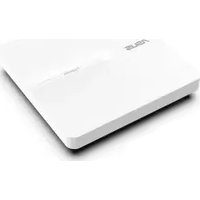
RP-N53 - Access Point ASUS - Free user manual and instructions
Find the device manual for free RP-N53 ASUS in PDF.


| Product Type | Dual-band Wi-Fi Range Extender / Access Point |
| Model | RP-N53 |
| Wireless Standards | IEEE 802.11a/b/g/n (2.4GHz & 5GHz) |
| Signal Indicators | 2.4GHz and 5GHz signal strength LEDs (3 levels) |
| Interfaces | 1x 10/100 Ethernet (RJ45), 1x 3.5mm stereo audio jack |
| Buttons | Power On/Off, Reset, WPS, Touch controller for night light |
| Night Light | Yes, touch-controlled |
| Dimensions | Approximately 110 x 66 x 45 mm (not specified, estimated) |
| Weight | Approximately 180 g (estimated for device only) |
| Power Supply | AC 100-240V, 50-60Hz (via integrated plug) |
| Power Consumption | Not specified; typical < 5W |
| Wireless Security | WEP, WPA/WPA2-PSK, WPS |
| Setup Methods | Web GUI (browser) or WPS button |
| Media Playback | Supports streaming audio via ASUS AiPlayer app (mp3, wav, flac, acc) |
| Operating Modes | Range Extender (repeater) and Access Point |
| Compliance | FCC, CE, IC, R&TTE |
| Package Contents | Range Extender, Quick Start Guide |
| Temperature Range | Not specified; typical 0°C to 40°C |
| Humidity | Not specified; 10% to 90% non-condensing |
Frequently Asked Questions - RP-N53 ASUS
User questions about RP-N53 ASUS
0 question about this device. Answer the ones you know or ask your own.
Ask a new question about this device
Download the instructions for your Access Point in PDF format for free! Find your manual RP-N53 - ASUS and take your electronic device back in hand. On this page are published all the documents necessary for the use of your device. RP-N53 by ASUS.
USER MANUAL RP-N53 ASUS
natural_image
Line drawing of a Huawei USB flash drive unit (no text or symbols on body)Quick Start Guide
English....3
Russian 12
Bulgarian 21
Czech 27
Croatian....36
Estonian 45
Hungarian 54
Latvian....63
Lithuanian....72
Polish....81
Romanian 90
Serbian 99
Slovak....108
Slovenian....117
Turkish....126
Ukrainian 135
EEU8288 / Second Edition / April 2013
Package contents
√ Range Extender
Quick Start Guide
NOTE: If any of the items is damaged or missing, please contact your retailer.
A quick look
1) Ethernet port
2) Audio port
3) Reset button
4) Power On/Off button
5) WPS button
6) Night light


7) Touch controller
Touch the marked area to turn on/off the lights.
8) LED indicators
- System Indicator: The System Indicator lights up when the Range Extender is powered on and flashes when the Ethernet cable or audio cable is connected.
- 2.4GHz & 5GHz signal indicators: The lights indicate the connection signal strength of 2.4GHz & 5GHz from the Range Extender to the router.
| Performance 2.4GHz System | Indicator | 5GHz | |
| 3 lights Excellent | ●●● | ● | ●●● |
| 2 lights Good | ○●● | ● | ●●○ |
| 1 light Poor | ○○● | ● | ●○○ |
| No light No connection | ○○○ | ● | ○○○ |

NOTE: If the router does not support 5GHz band or has weak 5GHz signal, only the 2.4GHz signal indicators light up.
Setting up the Range Extender
Turning the Range Extender on
-
Place the Range Extender near your Router.
-
Plug the Range Extender into a power outlet, wait one minute for the system indicator to flash twice and turn into solid blue.

natural_image
Illustration of a network device with a laptop, server, and router connected via wireless links (no text or symbols)Connecting to a network
Select one of the following ways to connect the Range Extender to a network.
Option A: Connecting through GUI
-
Use a computer/notebook/tablet PC to find and connect to ASUS_RPN53/ASUS_RPN53_5G (the dual band SSID) wireless network.
-
Launch a web browser and enterhttp://repeater.asus.com in the address bar to access the Range Extender.
-
Enter the default login name and password, which are admin/admin.
-
Follow the Quick Install Setup steps below to set up the Range Extender:
- Select the Wi-Fi network that you want to extend and enter its security password.

- Enter a name for the new Extender network.

- Connect your wireless devices to the new Extender network.

Option B: Using WPS (Wi-Fi Protected Setup)
- Press the WPS button on the side of the Range Extender for more than two seconds, until the system indicator lashes.
- Press the WPS button on the router within two minutes.
NOTE: Refer to the router's manual for the location of the WPS button.
- Check if the Range Extender's system indicator turns into solid blue, which indicates that the Range Extender has connected to the wireless network successfully. The Range Extender's wireless network name (SSID) changes to your existing Wi-Fi network name, ending with _RPT or _RPT5G. For example:

natural_image
Illustration of a hand interacting with a WPS device and a digital display unit, showing signal waves (no text or symbols)Existing Wi-Fi network name: existing NetworkName
New Extender 2.4GHz network name: existing NetworkName_RPT
New Extender 5GHz network name: existing NetworkName_RPT5G
To connect an additional Wi-Fi device to your Extender network, use the same network password as that of your existing wireless router.
Move the Range Extender
When the connection is complete, locate the Range Extender between the router and the wireless device to get better performance.

natural_image
Illustration of three wireless devices connected via a network (no text or symbols)NOTE: To get the best connection performance, ensure that at least two signal indicators light up.
Signal Indicators
• To get the best performance, place the Range Extender between your router and wireless device.
- The 2.4GHz & 5GHz signal indicators indicate the connection performance from the Range Extender to the Router. Refer to the LED indicators in section A Quick Look.
- If the router does not support or has weak 5GHz signal, only the 2.4GHz signal indicators will light up.
- If no 2.4GHz signal indicator lights up, search the network again in Option A or make sure that your router supports WPS in Option B.

NOTE: The 2.4GHz and 5GHz signal indicators may light up asymmetrically.
Wireless Media Playback
The Range Extender supports wireless media playback, which allows you to stream and play your network music through its audio port. You can use ASUS AiPlayer app to control the music streaming over the Range Extender from your mobile device. Search for "RP-N53" or "AiPlayer" from Google Play or App Store and download the app to your mobile device.


NOTES:
- AiPlayer supports mp3, wav., flac, and acc files.
- You can insert an earphone, powered speaker, or stereo system to the 3.5mm stereo audio port.
Frequently Asked Questions
Q1: I cannot access the web GUI to configure the RP-N53 settings.
- Close all running web browsers and launch again.
- Follow the steps below to configure your computer settings based on its operating system.
Windows 7
A. Disable the proxy server, if enabled.
- Click Start > Internet Explorer to launch the web browser.
- Click Tools > Internet options > Connections tab > LAN settings.
- From the Local Area Network (LAN) Settings screen, untickUse a proxy server for your LAN.
- Click OK when done.
B. Set the TCP/IP settings to automatically obtain an IP address.
- Click Start > Control Panel > Network and Internet > Network and Sharing Center > Manage network connections.
- Select Internet Protocol Version 4 (TCP/IPv4), then click Properties.
- Tick Obtain an IP address automatically.
- Click OK when done.


Mac 10.5.8
A. Disable the proxy server, if enabled.
- From the menu bar, click Safari > Preferences... > Advanced tab.
- Click Change Settings... in the Proxies field.
- From the list of protocols, deselect FTP Proxy and Web Proxy (HTTP).
- Click OK when done.
B. Set the TCP/IP settings to automatically obtain an IP address.
- Click the Apple icon 📄 > System Preferences > Network.
- Select Ethernet and select Using DHCP in the Configure field.
- Click Apply when done.


Q2: Why doesn't the 5GHz signal indicator of the Range Extender light up?
- Check whether your router supports 5GHz band. If your router is single band, the Range Extender's 5GHz Signal Indicator will not light up and it works at 2.4GHz band only.
Q3: My router security is WEP, and I entered a wrong passphrase or security key on the extender. Now I cannot access the Extender any more. What can I do?
- The Range Extender cannot check whether the WEP passphrase is correct or not. When entered a wrong passphrase, your wireless device cannot get the correct IP address from the Range Extender. Please reset the Range Extender to its factory defaults to get the IP address back.
Q4: Why doesn't the touch controller work?
- Ensure that you touch the area correctly. Refer to A Quick Look for the location of the touch area.
| Manufacturer ASUSTeK Computer Inc. Tel: +886-2-2894-3447 Address: No. 150, LI-TE RD., PEITOU, TAIPEI 112, TAIWAN | |
| Authorised representative in Europe | ASUS Computer GmbH Address: HARKORT STR. 21-23, 40880 RATINGEN, GERMANY |
| Authorised distributors in Turkey | BOGAZICI BIL GISAYAR SAN. VE TIC. A.S. Tel: +90 212 3311000 Address: AYAZAGA MAH. KEMERBURGAZ CAD. NO.10 AYAZAGA/ISTANBUL |
| CIZGI Elektronik San. Tic. Ltd. Sti. Tel: +90 212 3567070 Address: CEMAL SURURI CD. HALIM MERIC IS MERKEZI No: 15/C D:5-6 34394 MECIDIYEKOY/ ISTANBUL | |
| KOYUNCU ELEKTRONiK BiLGi iSLEM SiST. SAN. VE DIS TIC. A.S. Tel: +90 216 5288888 Address: EMEK MAH.ORDU CAD. NO:18, SARIGAZi, SANCAKTEPE ISTANBUL |
Комплект поставки

natural_image
Illustration of a laptop, router, and network device with wireless signal icons (no text or labels)natural_image
Illustration of three connected devices: a laptop, a server with wireless signal, and a networked router (no text or symbols)ПРИМЕЧАНИЯ:

Mac 10.5.8


7) Сензорен контролер
natural_image
Illustration of a network device with a laptop, tower, and router connected via wireless links (no text or symbols)Свързване към мрежа
natural_image
Illustration of a WPS device interacting with a wall-mounted device, showing signal waves (no text or symbols present)natural_image
Illustration of three wireless devices connected via wireless links, no text or symbols presentЗАБЕЛЕЖКИ:

Mac 10.5.8


7) Dotykový ovladač
natural_image
Illustration of a network device with a laptop, router, and wireless devices (no text or symbols)Připojení k síti
natural_image
Illustration of a hand interacting with a WPS device and a digital display unit, showing signal waves (no text or symbols)natural_image
Illustration of three wireless devices connected via circular communication links (no text or symbols)POZNÁMKY:

Mac 10.5.8
A. Deaktivujte server proxy, je-li aktivován.

natural_image
Illustration of a laptop connected to a router via wireless communication icons (no text or symbols)Spajanje na mrežu
Odaberite jedan od sljedećih načina za spajanje Proširivača opsega na mrežu.
Mogućnost A: Spajanje putem GUI
- Koristite računalo/prijenosno računalo/tablet za traženje i povezivanje na bežičnu mrežuASUS_RPN53/ASUS_RPN53_5G (SSID s dvostrukim opsegom).
- Pokrenite web preglednik i unesitehttp://repeater.asus.com u traku za adrese, za pristup Proširivaču opsega.
- Unesite zadani naziv i lozinku prijave, a to je admin/admin.
- Slijedite korake u Quick Install Setup (Postava brze instalacije) za postavljanje Proširivača opsega.
- Odaberite Wi-Fi mrežu koju želite proširiti i unesite sigurnosnu lozinku te mreže.

- Unesite naziv za novu mrežu Proširivača.

Mogućnost B: Korištenje WPS-a (Postavljanje WLAN zaštićenog pristupa)
natural_image
Illustration of three wireless devices connected via a router, with no visible text or symbols.NAPOMENA: Najbolje performanse veze postoje kada svijetle najmanje dva indikatora signala.
Indikatori signala
- Za najbolje performanse Proširivač opsega postavite između usmjerivača i bežičnog uređaja.
- Indikatori signala 2,4 GHz i 5 GHz pokazuju performanse veze od Proširivača opsega do usmjerivača. Pogledajte LED indikatore u odjeljku A Quick Look (Brzi pogled).
- Ako usmjerivač ne podržava ili ima slab 5 GHz signal, svijetle samo indikatori signala 2,4 GHz.
- Ako indikator signala 2,4 GHz ne svijetli, ponovno pretražite mrežu u Option A (Mogućnost A) ili provjerite podržava li usmjerivač WPS u Option B (Mogućnost B).
NAPOMENA: Indikatori signala 2,4 GHz i 5 GHz mogu zasvijetliti asimetrično.
NAPOMENE:

Mac 10.5.8

7) Puute kontroller
natural_image
Illustration of a network device with a laptop, server, and router connected via wireless links (no text or symbols)Ühendumine vörku
natural_image
Illustration of a hand interacting with a WPS device and a wall-mounted air conditioner unit, showing signal waves (no text or symbols)natural_image
Illustration of three connected devices: a laptop, a white server unit, and a black router with three antennas (no text or symbols)MÄRKUSED:

Mac 10.5.8


7) Érintésvezérlő
natural_image
Illustration of a laptop connected to a router via wireless communication (no text or symbols)natural_image
Illustration of a WPS device interacting with a wall-mounted air conditioner unit, showing signal waves (no text or symbols)natural_image
Illustration of three wireless devices connected via wireless links, no text or symbols presentMEGJEGYZÉSEK:

Mac 10.5.8

7) Skārienvadība
natural_image
Illustration of a network device with a laptop, server, and router connected via wireless signal lines (no text or symbols)natural_image
Illustration of a hand interacting with a WPS device and a white electronic device, showing signal waves (no text or symbols)natural_image
Illustration of three wireless devices connected via wireless links, no text or symbols presentPIEZIMES:

Mac 10.5.8


7) Jutiklinis valdiklis
natural_image
Illustration of three wireless devices connected via a network (no text or symbols)B parinktis: WPS (apsaugota „Wi-Fi“ sąranka)
natural_image
Illustration of three wireless devices connected via wireless links, no text or symbols presentPASTABOS:
• „AiPlayer“ palaiko mp3, wav., flac ir acc failus.
- 13,5 mm stereogarso junqtj galite jkišti ausines, galinga qarsiakalbj arba stereosistema.
Trikčių šalinimas

Mac 10.5.8

natural_image
Illustration of a network device with a laptop, tower, and router connected via wireless signal lines (no text or symbols)Łączenie z siecią
natural_image
Illustration of a hand interacting with a WPS device and a server unit, showing signal waves (no text or symbols)natural_image
Illustration of three wireless devices connected via a router, with no visible text or symbols.UWAGI:

Mac 10.5.8


7) Controller tactil
natural_image
Illustration of a laptop, router, and wireless devices connected via a light blue oval (no text or symbols)Conectarea la o retea
natural_image
Illustration of three wireless devices with Wi-Fi signal waves, no text or symbols presentNOTE:

Mac 10.5.8


7) Kontroler na dodir
natural_image
Illustration of a network device with a laptop, server, and router connected via wireless links (no text or symbols)natural_image
Illustration of a hand interacting with a WPS device and a digital display unit, showing signal waves (no text or symbols)Ime postojeće bežične mreže: postojeće Mrežnolme
natural_image
Illustration of three connected devices with wireless signal icons (no text or symbols)NAPOMENA: Da ostvarite najbolju moguću vezu, proverite da su najmanje dva indikatora signala upaljena.
Indikatori signala
- Da ostvarite najbolji učinak, postavite proširivač dometa između svog rutera i bežičnog uređaja.
- Indikatori signala od 2.4GHz & 5GHz ukazuju na učinak veze od proširivača dometa do rutera. Pogledajte indikatorske lampice u odeljku A Quick Look (Brzi pregled).
- Ukoliko ruter ne podržava ili ima slabi 5GHz signal, samo će se indikatori signala za 2.4GHz upaliti.
- Ukoliko se nijedan indikator signala za 2.4GHz ne upali, pretražite mrežu ponovo u Option A (Opciji A) ili proverite da vaš ruter podržava WPS u Option B (Opciji B).
BELEŠKE:

Mac 10.5.8


7) Dotykový ovládač
natural_image
Illustration of a laptop connected to a router via wireless communication (no text or symbols)Pripojenie k sieti
natural_image
Illustration of a hand interacting with a WPS device and a wall-mounted air conditioner unit, showing signal waves (no text or symbols)natural_image
Illustration of three wireless devices with Wi-Fi signal waves, no text or symbols presentPOZNÁMKY:

Mac 10.5.8
A. Ak je povolený, zakážte server Proxy.
-
V paneli s ponukami kliknite na Safari > Preferences... (Preferencie...) > karta Advanced (Rozšírené).
-
V políčku Proxies (Servery Proxy) kliknite na Change Settings... (Zmenit nastavenia...).
-
V rámci zoznamu protokolov zrušte volbu FTP Proxy a Web Proxy (HTTPS).
-
Po dokončení kliknite na OK.
B. Nastavte nastavenia protokolu TCP/IP pre automatické získanie IP adresy.

natural_image
Illustration of a network device with a laptop, server, and router connected via wireless links (no text or symbols)- Vnesite ime novega omrežja repetitorja.

natural_image
Illustration of a hand interacting with a WPS device and a digital display unit, showing signal waves (no text or symbols)natural_image
Illustration of three wireless devices connected via a central tower, with no visible text or symbols.OPOMBE:

Mac 10.5.8

V2: Zakaj indikator signala 5 GHz na repetitorju ne zasveti?

natural_image
Illustration of three wireless devices connected via a network interface (no text or symbols)Bir ağa bağlanma
natural_image
Illustration of three wireless devices connected via a network (no text or symbols)NOTLAR:

Mac 10.5.8


natural_image
Illustration of a network device with a laptop, router, and wireless devices (no text or symbols)natural_image
Illustration of a hand interacting with a WPS device and a digital display unit, showing signal waves (no text or symbols)natural_image
Illustration of three wireless devices (laptop, tower, and router) with wireless signal waves, no text or symbols present.Примітки:

Mac 10.5.8

Federal Communications Commission Statement
This device complies with Part 15 of the FCC Rules. Operation is subject to the following two conditions:
- This device may not cause harmful interference.
- This device must accept any interference received, including interference that may cause undesired operation.
This equipment has been tested and found to comply with the limits for a class B digital device, pursuant to part 15 of the FCC Rules. These limits are designed to provide reasonable protection against harmful interference in a residential installation.
This equipment generates, uses and can radiate radio frequency energy and, if not installed and used in accordance with the instructions, may cause harmful interference to radio communications. However, there is no guarantee that interference will not occur in a particular installation. If this equipment does cause harmful interference to radio or television reception, which can be determined by turning the equipment off and on, the user is encouraged to try to correct the interference by one or more of the following measures:
- Reorient or relocate the receiving antenna.
- Increase the separation between the equipment and receiver.
- Connect the equipment into an outlet on a circuit different from that to which the receiver is connected.
- Consult the dealer or an experienced radio/TV technician for help.

Warning: Any changes or modifications not expressly approved by the party responsible for compliance could void the user's authority to operate the equipment. Prohibition of Co-location This device and its antenna(s) must not be co-located or operating in conjunction with any other antenna or transmitter.
FCC Mark Warning
This equipment must be installed and operated in accordance with provided instructions and the antenna(s) used for this transmitter must be installed to provide a separation distance of at least 20cm from all persons and must not be co-located or operated in conjunction with any other antennas or transmitters. End user and installers must be provided with antenna installation instructions and transmitter operating conditions for satisfying RF exposure compliance.
Prohibition of Co-location
This device and its antenna(s) must not be co-located or operating in conjunction with any other antenna or transmitter.
IMPORTANT NOTE:
Radiation Exposure Statement: This equipment complies with FCC radiation exposure limits set forth for an uncontrolled environment. End users must follow the specific operating instructions for satisfying RF exposure compliance. To maintain compliance with FCC exposure compliance requirement, please follow operation instruction as documented in this manual.
Declaration of Conformity for R&TTE directive 1999/5/EC
Essential requirements – Article 3
Protection requirements for health and safety – Article 3.1a
Testing for electric safety according to EN 60950-1 has been conducted. These are considered relevant and sufficient.
Protection requirements for electromagnetic compatibility – Article 3.1b
Testing for electromagnetic compatibility according to EN 301 489-1 and EN 301 489-17 has been conducted.
These are considered relevant and sufficient.
Effective use of the radio spectrum – Article 3.2
Testing for radio test suites according to EN 300 328-2 has been conducted. These are considered relevant and sufficient.
CE Mark Warning
This is a Class B product, in a domestic environment, this product may cause radio interference, in which case the user may be required to take adequate measures. Operation Channels: CH1\~11 for N. America; Ch1\~14 for Japan; CH1\~13 for Europe (ETSI)
Canada, Industry Canada (IC) Notices
This Class B digital apparatus complies with Canadian ICES-003 and RSS-210.
Operation is subject to the following two conditions: (1) this device may not cause interference, and (2) This device must accept any interference, including interference that may cause undesired operation of the device.
Radio Frequency (RF) Exposure Information
The radiated output power of the ASUS Wireless Device is below the Industry Canada (IC) radio frequency exposure limits. The ASUS Wireless Device should be used in such a manner such that the potential for human contact during normal operation is minimized.
This device has been evaluated for and shown compliant with the IC Specific Absorption Rate ("SAR") limits when installed in specific host products operated in portable exposure conditions (antennas are less than 20 centimeters of a person's body).
This device has been certified for use in Canada. Status of the listing in the Industry Canada's REL (Radio Equipment List) can be found at the following web address: http://www.ic.gc.ca/app/sitt/reltel/srch/nwRdSrch.do?lang=eng
Additional Canadian information on RF exposure also can be found at the following web address: http://www.ic.gc.ca/eic/site/smt-gst.nsf/eng/sf08792.html
Canada, avis d'Industry Canada (IC)
Industry Canada Statement
This device complies with RSS-210 of the industry Canada Rules. Operation is subject to the following two conditions:
- This device may not cause harmful interference.
- This device must accept any interference received, including interference that may cause undesired operation.
IMPORTANT NOTE:
Radiation Exposure Statement: This equipment complies with IC radiation exposure limits set forth for an uncontrolled environment. End users must follow the specific operating instructions for satisfying RF exposure compliance. To maintain compliance with IC RF exposure compliance requirement, please follow operation instruction as documented in this manual.
NCC 警語
Complying with the REACH (Registration, Evaluation, Authorisation, and Restriction of Chemicals) regulatory framework, we published the chemical substances in our products at ASUS REACH website at http://csr.asus.com/english/REACH.htm
ASUS Recycling/Takeback Services
ASUS recycling and takeback programs come from our commitment to the highest standards for protecting our environment. We believe in providing solutions for you to be able to responsibly recycle our products, batteries, other components, as well as the packaging materials. Please go to http://csr.asus.com/english/Takeback.htm for the detailed recycling information in different regions.
This equipment may be operated in AT, BE, CY, CZ, DK, EE, FI, FR, DE, GR, HU, IE, IT, LU, MT, NL, PL, PT, SK, SL, ES, SE, GB, IS, IS, LI, NO, CH, BG, RO, TR.
Networks Global Hotline Information
| Area Hotline | Number Support Languages Availability | |
| Australia 1300-2787-88 English Mon. to Fri.8:00-20:00 | ||
| Austria 0043-820240513 German Mon. to Fri.9:00-18:00 | ||
| Belgium 0032-78150231 Dutch /French Mon. to Fri.9:00-17:00 | ||
| China 400-620-6655 Simplified Chinese Mon. to Sun.9:00-18:00 | ||
| Denmark 0045-3832-2943 Danish/English | Mon. to Fri.9:00-17:00 | |
| Finland | 00358-9693-7969 | Finnish/English/Swedish |
| France 0033-170949400 French | Mon. to Fri.9:00-17:45 | |
| Greece | 00800-44-14-20-44 Greek | Mon. to Fri.9:00-13:00/14:00-18:00 |
| Hong Kong 3582-4770 Cantonese/Chinese/English | Mon. to Fri.10:00-20:00Sat.10:00-17:00 | |
| Indonesia | +62-21-500128 | Indonesia, English |
| Ireland | 0035-31890719918 | English Mon. to Fri.9:00-17:00 |
| Italy | 199-400089 | Italian |
| Japan | 0800-123-2787 | Japanese |
Networks Global Hotline Information
| Malaysia +603 | 2148 0827 (Check Repair Detail Status Only)/ +603-6279-5077 | Bahasa Melayu/ English | Mon. to Fri.10:00-19:00 |
| Netherlands / Luxembourg | 0031-591-570290 Dutch / | English Mon. to Fri.9:00-17:00 | |
| New Zealand | 0800-278-788/ 0800-278-778 | English Mon. to Fri.9:00-17:00 | |
| Norway 0047-2316-2682 Norwegian | /English | Mon. to Fri.9:00-17:00 | |
| Philippines +632-636 8504/ 180014410573 | English Mon. to Fri.9:00-18:00 | ||
| Poland 00225-718-033/ 00225-718-040 | Polish Mon. to Fri. | 9:00-17:008:30-17:30 | |
| Portugal 707-500-310 Portuguese Mon. to Fri.9:00-17:00 | |||
| Russia +8-800-100-ASUS/ +7-495-231-1999 | Russian/ English | Mon. to Fri.9:00-18:00 | |
| Singapore +65-6720-3835 (Check Repair Detail Status Only)/ +65-66221701 | English Mon. to Fri. | 11:00-19:00 | |
| Slovak | 00421-232-162-621 | Czech | Mon. to Fri.8:00-17:00 |
Networks Global Hotline Information
| Spain 902-88-96-88 Spanish Mon. to Fri.9:00-18:00 | |||
| Sweden 0046-8587-6940 Swedish/English Mon. to Fri.9:00-17:00 | |||
| Switzerland | 0041-848111010 German/French Mon. to Fri.9:00-18:00 | ||
| 0041-848111014 French Mon. to Fri.9:00-17:45 | |||
| 0041-848111012 Italian Mon. to Fri.9:00-17:00 | |||
| Taiwan 0800-093-456/02-81439000 | Traditional Chinese Mon. to Fri.9:00-12:00/13:30-18:00 | ||
| Thailand +662-679-8367 -70/001 800 852 5201 | Thai/English Mon. to Fri.9:00-18:00 | ||
| Turkey +90-216-524-3000 Turkish Mon. to Fri.09:00-18:00 | |||
| United Kingdom | 0044-870-1208340/0035-31890719918 | English Mon. to Fri.9:00-17:00 | |
| USA/Canada | 1-812-282-2787 | English Mon. to Fri.8:30am-12:00am EST (5:30am-9:00pm PST)Sat .to Sun.9:00am-6:00pm EST (6:00am-3:00pm PST) | |
MANUFACTURER
ASUSTeK Computer Inc.
Tel: +886-2-2894-3447
Address: 4F, No. 150, LI-TE RD., PEITOU, TAIPEI 112, TAIWAN
AUTHORISED REPRESENTATIVE IN EUROPE
ASUS Computer GmbH
Address: HARKORT STR. 21-23, 40880 RATINGEN, GERMANY
AUTHORISED DISTRIBUTORS IN TURKEY
BOGAZICI BIL GISAYAR SAN. VE TIC. A.S.
Tel: +90 212 3311000
Address: AYAZAGA MAH. KEMERBURGAZ CAD. NO.10 AYAZAGA/ISTANBUL
CIZGI Elektronik San. Tic. Ltd. Sti.
Tel: +90 212 3567070
Address: CEMAL SURURI CD. HALIM MERIC IS MERKEZI
No: 15/C D:5-6 34394 MECIDIYEKOY/ ISTANBUL


- Package contents
- A quick look
- Setting up the Range Extender
- Turning the Range Extender on
- Connecting to a network
- Option A: Connecting through GUI
- Option B: Using WPS (Wi-Fi Protected Setup)
- Move the Range Extender
- Signal Indicators
- Wireless Media Playback
- NOTES:
- Frequently Asked Questions
- Q1: I cannot access the web GUI to configure the RP-N53 settings.
- Windows 7
- Mac 10.5.8
- Q3: My router security is WEP, and I entered a wrong passphrase or security key on the extender. Now I cannot access the Extender any more. What can I do?
- Q4: Why doesn't the touch controller work?
- Комплект поставки
- ПРИМЕЧАНИЯ:
- Свързване към мрежа
- ЗАБЕЛЕЖКИ:
- Připojení k síti
- POZNÁMKY:
- Spajanje na mrežu
- Mogućnost A: Spajanje putem GUI
- Mogućnost B: Korištenje WPS-a (Postavljanje WLAN zaštićenog pristupa)
- Indikatori signala
- NAPOMENE:
- Ühendumine vörku
- MÄRKUSED:
- MEGJEGYZÉSEK:
- PIEZIMES:
- B parinktis: WPS (apsaugota „Wi-Fi“ sąranka)
- PASTABOS:
- Trikčių šalinimas
- Łączenie z siecią
- UWAGI:
- Conectarea la o retea
- NOTE:
- BELEŠKE:
- Pripojenie k sieti
- OPOMBE:
- V2: Zakaj indikator signala 5 GHz na repetitorju ne zasveti?
- Bir ağa bağlanma
- NOTLAR:
- Примітки:
- Federal Communications Commission Statement
- FCC Mark Warning
- Prohibition of Co-location
- IMPORTANT NOTE:
- Declaration of Conformity for R&TTE directive 1999/5/EC
- CE Mark Warning
- Canada, Industry Canada (IC) Notices
- Radio Frequency (RF) Exposure Information
- Canada, avis d'Industry Canada (IC)
- Industry Canada Statement
- NCC 警語
- ASUS Recycling/Takeback Services
- MANUFACTURER
Brand : ASUS
Model : RP-N53
Category : Access Point