
RVM 4 Comfort - Robot vacuum Kärcher - Free user manual and instructions
Find the device manual for free RVM 4 Comfort Kärcher in PDF.
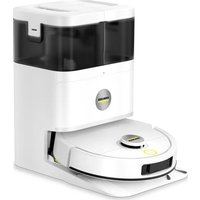


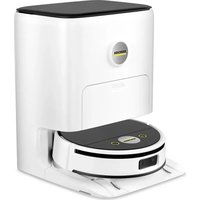
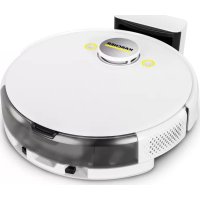
| Product type | Robot vacuum with wet and dry cleaning |
| Brand | Kärcher |
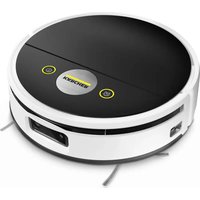
| Model | RVM 4 Comfort |
| Charging station dimensions | 310 x 450 x 455 mm |
| Robot weight | 4.1 kg |
| Charging station weight | 6.1 kg |
| Power supply | Li-Ion battery 4800 mAh, 45 W (robot) / 650 W (station in suction mode) |
| Battery life | Up to 160 minutes in normal operation |
| Charging time | 230 min (8% to 100%) / 285 min (0% to 100%) |
| Dustbin capacity | 300 ml |
| Clean water tank capacity | 3 L |
| Waste water tank capacity | 2.3 L |
| Filter bag capacity | 2.5 L |
| Main functions | Wet and dry cleaning, LiDAR mapping, automatic emptying into station, mop washing and drying, app control |
| Maintenance and cleaning | Cleaning of sensors, contacts, brush, filter, dustbin, tanks, mop pad |
| Safety | Anti-fall sensors, stair detection, Class 1 laser (safe), automatic stop in case of issue |
| Spare parts and repairability | Original accessories and spare parts available at www.kaercher.com |
| General information | Indoor use only, temperature 0°C to 35°C, AC mains voltage, Wi-Fi 2.4 GHz + Bluetooth |
Frequently Asked Questions - RVM 4 Comfort Kärcher
User questions about RVM 4 Comfort Kärcher
0 question about this device. Answer the ones you know or ask your own.
Ask a new question about this device
Download the instructions for your Robot vacuum in PDF format for free! Find your manual RVM 4 Comfort - Kärcher and take your electronic device back in hand. On this page are published all the documents necessary for the use of your device. RVM 4 Comfort by Kärcher.
USER MANUAL RVM 4 Comfort Kärcher
Polish 129
Hungarian 137
Czech 146
Slovak 154
Slovenian 162
Romanian 170
Croatian 178
Serbian 186
Greek 195
Russian 204
Ukrainian 213
Kazakh 222
Bulgarian 231
Arabic 241
A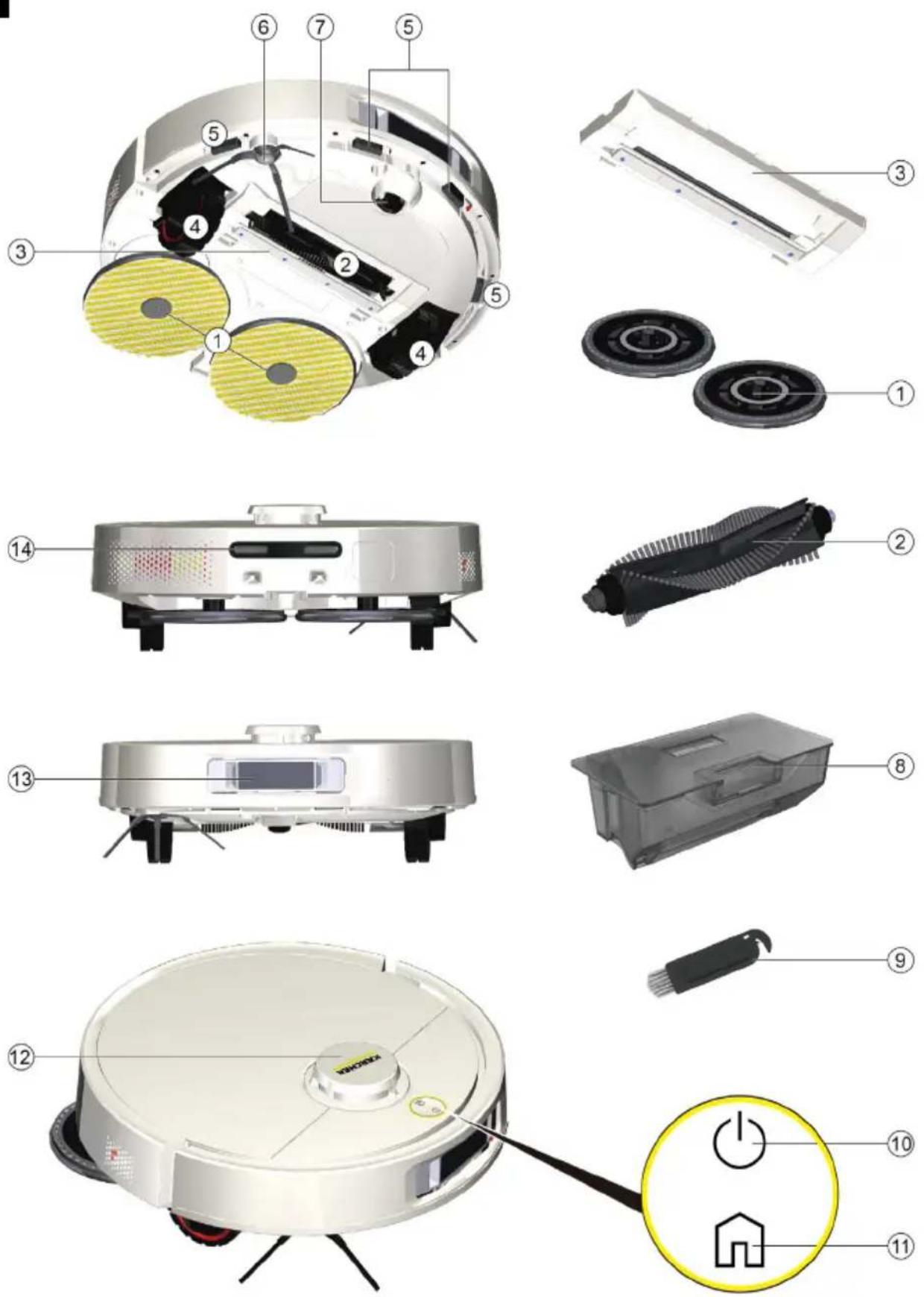
B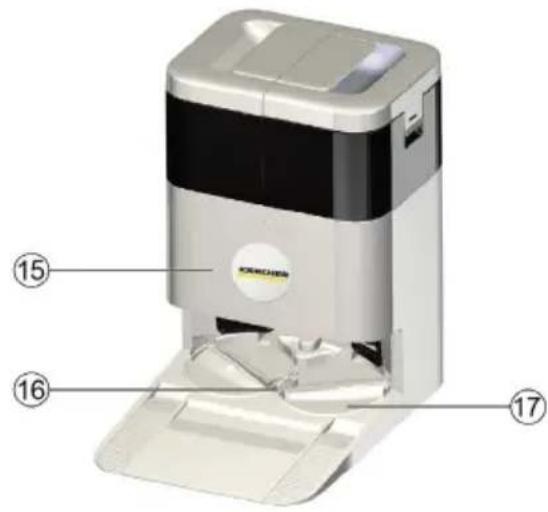
K
L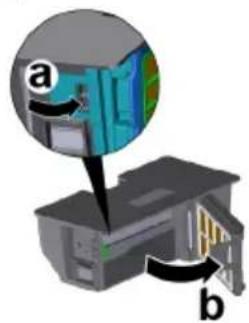
M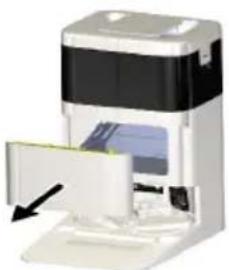
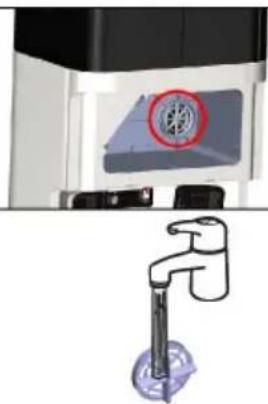
N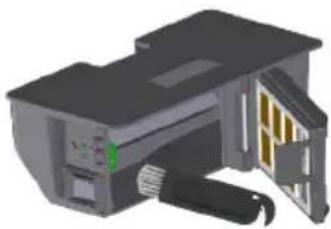
0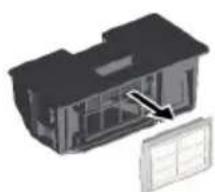
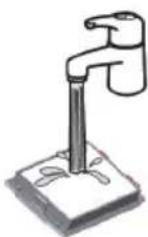
P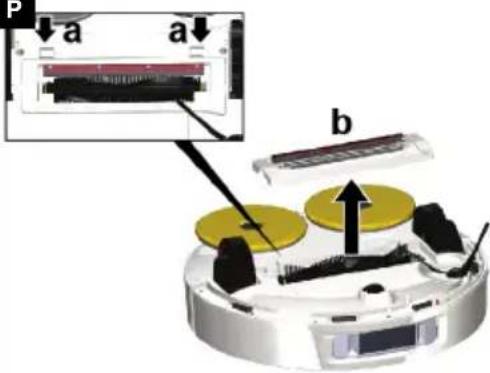
Q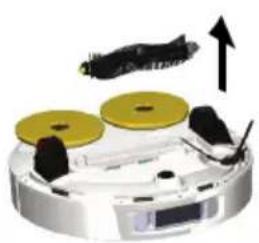
Contents
| General notes | 14 |
| Safety instructions | 14 |
| Symbols on the device | 15 |
| Environmental protection | 15 |
| Intended use | 16 |
| Accessories and spare parts | 16 |
| Scope of delivery | 16 |
| Device description | 16 |
| Initial start-up | 17 |
| Startup | 18 |
| Operation | 18 |
| transport | 20 |
| Storage | 20 |
| Care and service | 20 |
| Troubleshooting guide | 21 |
| Warranty | 21 |
| EU Declaration of Conformity | 22 |
| Technical data | 22 |
General notes


Read the original instructions before using the device for the first time and act in accordance with them. Keep this document for future reference or for future owners.
If the operating instructions and safety instructions are not observed, the device can be damaged and dangers could arise for users and other persons.
- If the operating instructions and safety instructions are not observed, the device can be damaged and dangers could arise for users and other persons.
- Notify the dealer immediately in the case of shipping damage.
- Check the package contents when unpacking for missing accessories or for damage.
Safety instructions
- In addition to the information in the operating instructions, you also need to take into consideration the general safety regulations and accident prevention guidelines applicable by law.
- Warnings and information notices attached to the device provide important information for hazard-free operation.
Hazard levels
⚠️ DANGER
- Indication of an imminent threat of danger that will lead to severe injuries or even death.
⚠ WARNING
- Indication of a potentially dangerous situation that may lead to severe injuries or even death.
△ CAUTION
- Indication of a potentially dangerous situation that may lead to minor injuries.
ATTENTION
- Indication of a potentially dangerous situation that may lead to damage to property.
General safety instructions
The laser radar of the device complies with IEC 60825-1:2014 for Class 1 laser product safety and does not produce laser radiation that is hazardous to the human body.
⚠️ DANGER • Risk of asphyxiation. Keep packaging film out of the reach of children.
⚠ WARNING • Only use the device for its proper use. Take into account the local conditions and beware of third parties, in particular children, when working with the device. • The device is not intended for use by persons with restricted physical, sensory or mental abilities or those lacking in experience and / or lacking in knowledge. • Only people who have been instructed on how to use the device, or have proven their ability to operate it, and have been explicitly instructed to use it, must use the device. • Children must not operate the device. • Children must be supervised to prevent them from playing with the appliance. • Children may only perform cleaning work and user maintenance under supervision. • Children from the minimum age of 8 may only use the device if they are properly supervised, have been instructed in its use by a person responsible for their safety, and if they have understood the resultant dangers involved.
⚠️ CAUTION • Risk of accidents and injuries. Take into account the weight of the device for transportation and storage. See chapter Technical data in the operating instructions. • Safety devices are provided for your own protection. Never modify or bypass safety devices.
ATTENTION • Damage to the device. Do not stand on the device or place children, objects or pets on it. • The device contains batteries that can only be replaced by qualified staff.
Risk of electric shock
⚠ WARNING • The appliance contains electrical components - do not clean the appliance under running water. • Switch off the device before all care and maintenance work.
⚠️ CAUTION • Have repair work and work on electrical components carried out by the authorised customer service only.
Safety instructions for operation
⚠️ DANGER • Do not operate the device in rooms with a burning fire or embers in an open fireplace without supervision. • Do not operate the device in rooms with burning candles without supervision.
⚠ WARNING • Short circuit hazard. Keep conductive objects (e.g. screwdrivers or similar tools) away from the charging contacts.
⚠ CAUTION • Be aware of the risk of tripping due to the cleaning robot moving around. • Risk of injury. Never touch the cleaning roller of the device with fingers or tools during operation. • Do not stand or sit on the station or the cleaning robot. • Be aware that objects can fall over if the cleaning robot bumps into them (also objects on tables or small pieces of furniture).
- Note that the cleaning robot can get caught in hanging telephone cables, electric cables, tablecloths, cords, belts, etc. This can cause objects to fall.
ATTENTION • Do not operate the device in rooms that are secured with an alarm system or motion sensor. • Operate the device only at temperatures from 0° C to +35° C. • Only use the device indoors. • Do not pick up sharp or larger objects with the device, such as e.g. glass shards, gravel or toy parts. • Pick up all cables from the floor before using the device to prevent it
from dragging them when cleaning. ● Cordon off all areas where there is a risk of the device falling down, e.g., stairways or galleries without barriers.
Safety instructions for charging station
⚠️ DANGER • Only connect the device to an AC power source. The voltage indicated on the type plate must match the mains voltage of the power source.
- For safety reasons, we recommend operating the device only via a fault current protection switch (maximum 30 mA). - Never touch the mains plug and socket with wet hands. - Danger of explosion. Do not charge any non-rechargeable battery.
⚠ WARNING • Only connect the device to an electrical connection which has been set up by a qualified electrician as per IEC 60364-1. • Check that the mains voltage corresponds with the voltage stated on the type plate of the charger. • The appliance contains electrical components - do not clean the appliance under running water. • Short circuit hazard. Keep conductive objects (e.g., screwdrivers or similar tools) away from the charging contacts. • Short circuit hazard. Only clean the charging contacts of the charging station dry. • Always pull out the mains plug before all care and maintenance work. • The 1.269-130.0 cleaning robot may only be charged on the charger of a charging station with the part number 9.773-135.0 / 9.773-248.0. • Only charge the supplied cleaning machine in the charging station. • Check the mains cable for damage each time before every operation. Do not use a damaged mains cable. If damaged, replace the mains cable with an approved replacement. You can get a suitable replacement from KÄRCHER or one of our service partners.
ATTENTION • Use the charging station indoors only. • Do not place the charging station near heat sources, e.g., heaters. • Store the charging station indoors only, in a cool, dry place. • Recharge the cleaning robot at least every 5 months to prevent the battery from deep discharging. • Switch off the charging station before all care and maintenance work.
Symbols on the device

Read the operating instructions and all safety instructions before operating the device for the first time.
Protect the device from moisture. Store the device in a dry place. Do not subject the device to rain. The device is only suitable for indoor use.
Environmental protection

The packing materials can be recycled. Please dispose of packaging in accordance with the environmental regulations.

Electrical and electronic devices contain valuable, recyclable materials and often components such as batteries, rechargeable batteries or oil, which - if handled or disposed of incorrectly - can pose a potential danger to human health and the environment. However, these components are required for the correct operation of the device. Devices marked by this symbol are not allowed to be disposed of together with the household rubbish.
Notes on the content materials (REACH)
Current information on content materials can be found at: www.kaercher.de/REACH
Intended use
The device consists of two units, a charging station and a battery-powered cleaning robot.
- This cleaning robot is designed for fully automatic wet and dry cleaning.
- Do not use on water-sensitive floor coverings such as untreated cork floors, as moisture can penetrate and damage the floor.
- The device is suitable for cleaning carpets, PVC, linoleum, tiles, stone, oiled and waxed parquet, laminate, and all water-resistant floor coverings.
- This device has been developed for use in private households and is not intended for the load imposed by commercial use.
Accessories and spare parts
Only use original accessories and original spare parts. They ensure that the appliance will run fault-free and safely.
Information on accessories and spare parts can be found at www.kaercher.com.
Scope of delivery
Check the contents for completeness when unpacking. If any accessories are missing or in the event of any shipping damage, please notify your dealer.
Device description
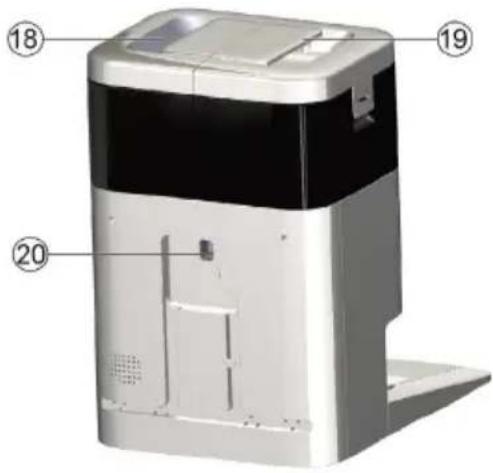
For the illustrations, refer to the graphics page. Illustration A Illustration B
① Mopping discs ② Cleaning brush ③ Brush cover ④ Driving wheel ⑤ Cliff sensor ⑥ Side brush ⑦ Caster wheel ⑧ Dry dust container ⑨ Cleaning tool ⑩ On/Off/Pause button ⑪ Home button ⑫ Laser sensor (LiDAR) ⑬ Dual line laser
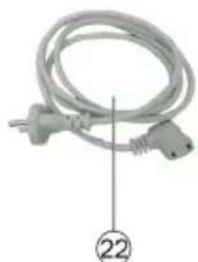
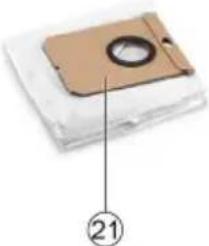
⑭ Charging contacts ⑮ Front cover of station ⑯ Washing tray filter ⑰ Washing tray ⑱ Fresh water tank ⑲ Waste water tank ⑳ Charging socket of the station ㉑ Filter bag ㉒ Mains cable
Function of the cleaning robot
- The mobile cleaning robot draws its energy from a built-in rechargeable battery, which it regularly re-charges at the charging station provided. If the battery charge is too low, it automatically returns to the charging station to recharge and, if necessary, pauses the current cleaning task.
- Once charging is complete, the cleaning robot automatically leaves the charging station and resumes cleaning if a task was interrupted. The cleaning robot also returns to the charging station when it has finished cleaning.
- The cleaning robot communicates status messages via a voice output and various LED colours on the device.
- The cleaning robot moves systematically. It scans the room with a laser sensor (LiDAR) and then cleans the room step-by-step.
- The cleaning robot has cliff sensors that can detect staircases and steps, designed to prevent it from falling.
- The ultrasound sensor is used for carpet detection, which can be activated and deactivated individually in the app. Depending on the configuration, the cleaning robot avoids carpets.
- The cleaning robot has a dry dust container, a main brush, a side brush and 2 moping discs. These components make it possible to clean dry and wet at the same time. The suction process collects all dust particles and coarse dirt in the dry dust container so that no dust particles and coarse dirt are picked up during wet cleaning.
- In the multifunctional charging station, the dust is removed from the dust container. It is also possible to wash and dry the mopping cloth in the charging station.
Suction can only take place under the following conditions:
- The cleaning robot is in the charging station.
- A dust bag is suspended in the charging station.
LED colours on the device
| LED buttons | Meaning |
| Off | The device is switched off.The device is in sleep mode.The device is in "Do not disturb" mode. |
| Light up blue | The device is working.The device is fully charged. |
| Blue breathing | The device is standby / pause.The device is charging. |
| Flash blue | The device is in WLAN connection mode. |
| LED buttons Meaning | |
| Red breathing or flash | A malfunction has occurred. Troubleshooting see Troubleshooting guide. |
LED colours on the charging station
| LED buttons Meaning | |
| Off The device is fully charged and in sleep mode.The device is in “Do not disturb” mode.Power off. | |
| Lights up blue Maintenance running. | The device is fully charged. |
| Blue breathing The device is charging. | |
| Flashes red | A malfunction has occurred. Troubleshooting see Troubleshooting guide. |
Special modes
Sleep mode
The cleaning robot automatically switches to sleep mode after 5 minutes of inactivity. Press any button to wake it up.
- The cleaning robot does not switch to sleep mode when it is on the charging station.
- The cleaning robot switches off automatically if it is in sleep mode for more than 6 hours.
"Do not disturb" mode
It is possible to activate the "Do not disturb" mode. In "Do not disturb" mode, the cleaning robot does not emit any acoustic warnings. The LED lights are switched off. "Do not disturb" mode can be activated in the App. Downloading the App is described in the chapter Connecting cleaning robots with WLAN and App.
Note
In "Do not disturb" mode, the cleaning robot is not switched off. To continue cleaning, briefly press On/Off/Pause button.
Remote control
In the app, there is the option to navigate the robot if it gets stuck in an inaccessible place, for example. This remote control can be selected in the app under "APP settings" > "Feature settings" > "More features".
Initial start-up
Setting up the charging station
- Select the location so that the cleaning robot can easily reach the charging station.
ATTENTION
Risk of damaging the floor due to moisture
The wet wiping mop can damage the floor during charging.
Position the charging station on a water-resistant floor.
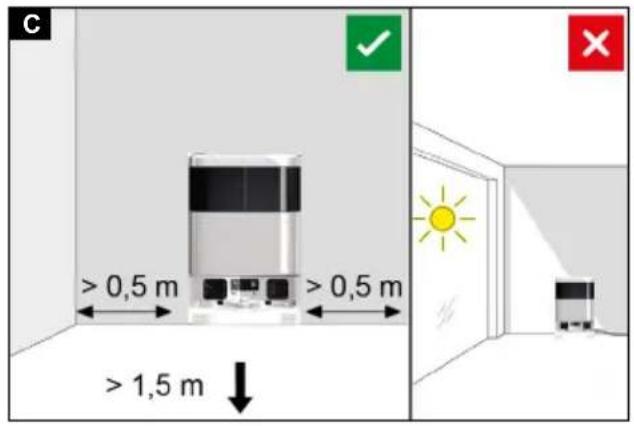
- Ensure a distance of at least 0.5 m to the left and right of the charging station and a distance of at least 1.5 m in front of the charging station.
- The location must not be exposed to direct sunlight.
- Set up the charging station. Illustration C
- Plug the device plug of the power cable into the charging socket on the charging station. Illustration D
- Connect the mains plug.
Connecting the cleaning robot with the
charging station
- Place the cleaning robot manually on the charging station and make sure that the battery terminals have a good contact. The cleaning robot switches on automatically. The LED buttons light up.
Connecting cleaning robots with WLAN and App
The cleaning robot can be operated directly via buttons on the device or via an App using a WLAN-enabled mobile device. To be able to use all available functions we recommended controlling the cleaning robot via the KÄRCHER Indoor Robots App.
Before you download the app, make sure you have the following:
• The mobile device is connected to the Internet. • The 2.4 GHz WLAN of the router is activated. - Sufficient WLAN coverage is guaranteed. Download the KÄRCHER Indoor Robots App from the Apple App Store® or from the Google Play™ store.

- Google Play™ and Android™ are trademarks or registered trademarks of Google Inc.
- Apple® and App Store® are trademarks or registered trademarks of Apple Inc.
Connecting cleaning robots with WLAN and KÄRCHER Indoor Robots App:
- Download the KÄRCHER Indoor Robots App from the Apple App Store or from the Google Play Store.
- Open the KÄRCHER Indoor Robots App.
- Create an account (if you are not already registered).
- Add the desired cleaning robot.
- Follow the step-by-step instructions in the App.
Deactivating cleaning robots with WLAN
- Delete the device on APP.
- Press the On/Off button and the "Home button" simultaneously for 3 seconds until a voice says: "Reset the Wi-Fi connection and enter network configuration mode".
Startup
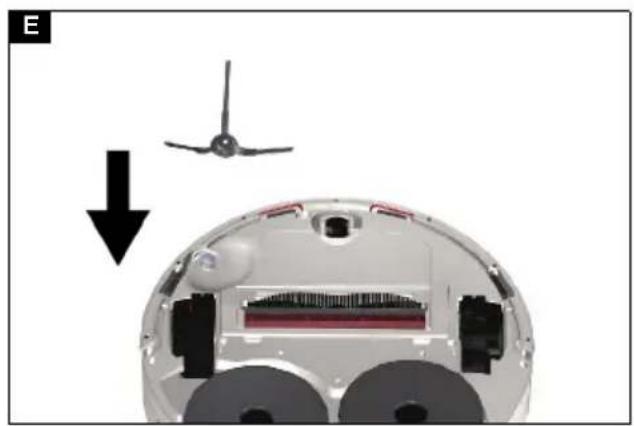
Installing the side brush
- Turn the cleaning robot upside down.
- Fit the side brush.
Illustration E
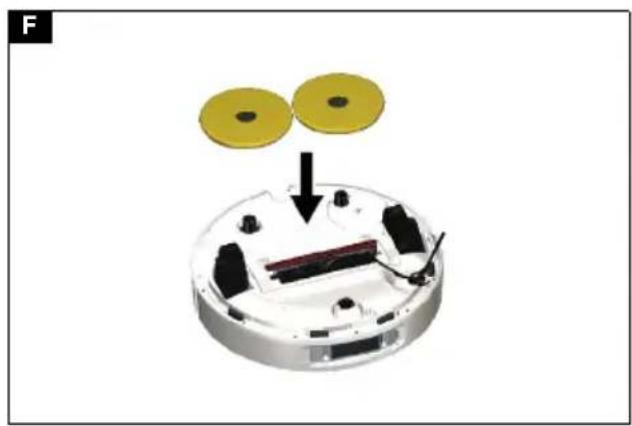
Inserting the mopping discs
- Turn the cleaning robot upside down.
- Fit the mopping discs.
Illustration F
Filling the fresh water tank of the charging station
ATTENTION
Risk of damage
Pouring hot water into the fresh water tank can lead to deformation of the plastic.
Do not pour hot water into fresh water tank.
Note
Always empty the waste water tank first before filling the fresh water tank.
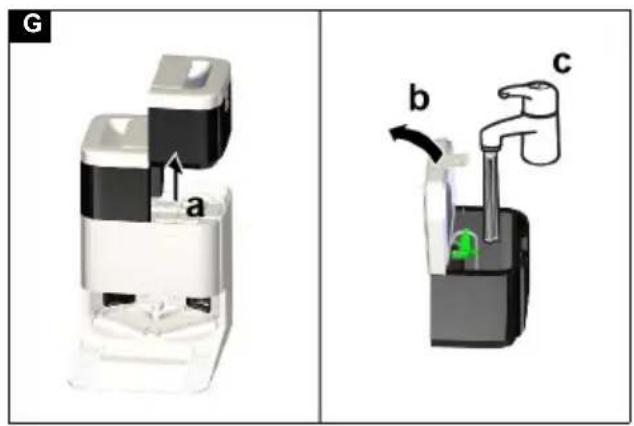
- Removing the fresh water tank.
Illustration G
- Pull the tab on the cover of the fresh water tank and lift up the cover.
- Fill the fresh water tank with cold or lukewarm tap water up to the MAX marking.
ATTENTION
Damage to the device due to corrosion and chemical content materials.
Do not put detergents, disinfectants or other cleaning products into the fresh water container.
Do not pour hot water into the fresh water container.
- Installing the fresh water tank.
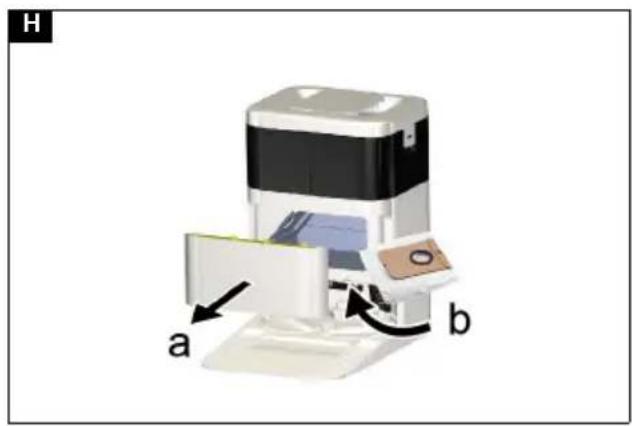
Insert dust bag
- Open the front cover of the charging station.
Illustration H
- Push the dust bag into the intake.
- Close the front cover of the charging station.
Operation
ATTENTION
Danger due to obstacles
Risk of damage
Before operating the cleaning robot, make sure that there are no obstacles on the floor, stairs or landings.
Preparing the environment
- Keep the floor free of objects lying around to ensure efficient cleaning. Obstacles require time-consuming cleaning because the cleaning robot has to drive around objects.
- Open the doors of the rooms that are to be cleaned.
- When operating the cleaning robot with the app: Carry out the configuration in the app so that the cleaning robot can clean according to individual cleaning requirements (no-go zones, different cleaning parameters, etc.), see chapter Creating a map.
Settings
Settings on the robot
Cleaning can also be started from the cleaning robot without an app. The following commands can be executed using the buttons:
- Start cleaning via the On/Off/Pause button.
- Interrupt cleaning via the On/Off/Pause button.
- Return the cleaning robot manually to the charging station via the Home button.
The cleaning robot automatically returns to the charging station for recharging when it has completed a cleaning task or when the battery is too low during a cleaning process.
Settings in the app
The KÄRCHER Indoor Robots App offers the following main functions, among others:
- Step-by-step guide for configuration options • Map creation for rooms and several floors
- Setting of time schedules • Definition of no-go zones and virtual walls
- Notes on faults or malfunctions and the cleaning progress
- Setting of cleaning parameters such as amount of water, suction power and number of passes. • Establishment of cleaning zones
- Activation/deactivation of the "Do not disturb" mode
- Remote control of the device • FAQ with detailed troubleshooting guide
Switching on the cleaning robot
Note
Place the cleaning robot directly on the charging station if it cannot be switched on due to a too low charging state, see chapter Initial start-up.
- Place the cleaning robot manually on the charging station and make sure that the battery terminals have a good contact. The cleaning robot switches on automatically and emits an acoustic signal. The LED light will turn on.
Note
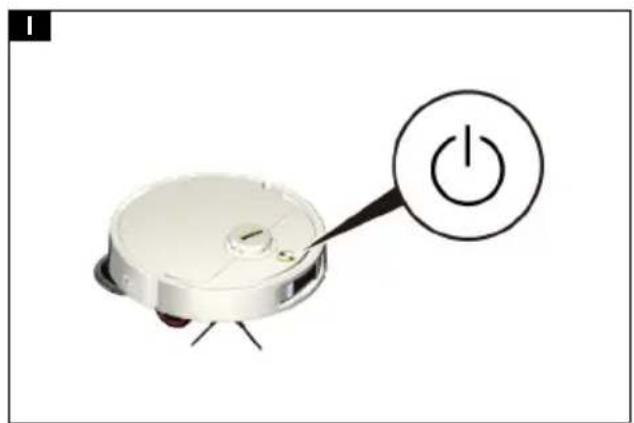
Alternatively, the cleaning robot can also be switched on when it is not on the charging station:
- Keep On/Off/Pause button pressed for 3 seconds.
The cleaning robot switches on.
Illustration I
Operation without app
Starting cleaning
Note
Open the doors to all rooms that the cleaning robot is to clean and keep the floor free of objects lying around.
- Press the On/Off/Pause button.
The cleaning robot gives an acoustic signal and first creates a map of the surroundings without cleaning. The LED buttons light up blue.
When the map creation is finished, the cleaning robot returns to the charging station.
Note
Wait a few seconds until you press the On/Off/Pause button again so that the robot can save the map.
- Press the On/Off/Pause button.
The cleaning robot gives an acoustic signal and starts cleaning.
The LED buttons light up blue.
Operation with the app
Creating a map
Note
Open the doors to all rooms that the cleaning robot is to clean and keep the floor free of objects lying around.
- In the app, press the control panel "Start" and follow the steps indicated as needed.
The cleaning robot gives an audible signal and starts the map creation.
The LED buttons light up blue.
When the map creation is finished, the cleaning robot returns to the charging station.
Configuring the robot in the app
Individual configurations of the map can be made in the app.
- Virtual walls and restricted areas prevent the cleaning robot from entering areas that should not be cleaned.
- With room cleaning or cleaning zones, the robot can specifically clean the areas selected by the user once.
- With different cleaning modes, the cleaning intensity can be selected individually for each room depending on the type of floor or soiling (amount of water, number of passes per area, suction power, etc.)
Downloading the app is described in the chapter Connecting cleaning robots with WLAN and App.
- Follow the step-by-step instructions in the App.
Starting cleaning
- Select the desired map in the app and start cleaning according to the individual configuration.
Interrupting cleaning
Interrupting cleaning on the device
- Press any button during cleaning.
The cleaning robot stops.
The LED buttons pulse blue.
- Press the On/Off/Pause button.
Cleaning continues.
The LED buttons light up blue.
Interrupting cleaning in the app
- In the app, press the control panel "Break".
The cleaning robot stops.
The LED buttons pulse blue.
- In the app, press the control panel "Start".
Cleaning continues.
The LED buttons light up blue.
Battery level indicator
Note
If the battery is empty, the cleaning robot automatically returns to the charging station to recharge the battery.
Note
If the cleaning robot didn't complete the cleaning before, it will resume cleaning once the battery is recharged.
Manually sending the cleaning robot for recharging
Manually sending the cleaning robot for recharging
- If the robot is currently performing a cleaning run, press any button.
The cleaning robot stops.
The LED buttons pulse blue.
- Press the Home button.
The cleaning is cancelled.
The cleaning robot moves to the charging station for recharging.
As soon as the cleaning robot is connected to the charging station, the LED buttons pulsate blue.
The cleaning robot automatically returns to the charging station for recharging when it has completed a cleaning task or when the battery is too low during a cleaning process.
Manually sending the cleaning robot for recharging via the app
- If the robot is currently performing a cleaning run, press the control panel "Break" in the app.
The cleaning robot stops.
The LED buttons pulse blue
- In the app, press the control panel "Charge".
The cleaning is cancelled.
The cleaning robot moves to the charging station for recharging.
As soon as the cleaning robot is connected to the charging station, the LED buttons pulsate blue.
The cleaning robot automatically returns to the charging station for recharging when it has completed a cleaning task or when the battery is too low during a cleaning process.
Emptying the dust container
Depending on the setting in the app, the dust in the dust container is automatically vacuumed at regular intervals when it moves into the charging station.
Manually emptying the dust container:
- Open the top cover.
- Press the clip and grip the dust container by the handle grooves to remove it from the device.
Illustration K
- Open the flap.
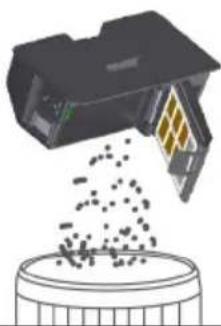
Illustration L
- Empty the dust container.
- Close the flap until it audibly latches into place.
- Insert the dust container.
- To continue cleaning, press the On/Off button.
Switching off the device
Note
The cleaning robot cannot be switched off when it is on the charging station.
- Press and hold the On/Off/Pause button for 3 seconds. The LED buttons go out.
The cleaning robot switches off.
- Empty the waste water tank in the charging station and rinse with fresh water, see Cleaning the charging station waste water tank.
- Clean the wiping mop and allow to dry, see chapter Cleaning the wiping mop.
- Clean the cleaning brush. See "Cleaning the cleaning brush".
Resetting the WLAN connection
If you switch to a new router or change your WLAN password, you must update the cleaning robot's WLAN connection.
Note
Only 2.4 GHz WLAN networks are supported.
- Switch on the cleaning robot. See chapter "Switching on the cleaning robot".
- Press the On/Off/Pause button and the Home button simultaneously for 3 seconds until an acoustic signal sounds.
Restoring the factory settings
- Press the Home button for 5 seconds until a signal sounds.
- Press the Home button again for 5 seconds until a signal sounds. The factory settings are restored.
Transport
Where possible, always transport or return the device in the original packaging. Please contact our Service Department if the original packaging is not available.
Safety instructions for transporting
The lithium-ion battery is subject to the requirements of dangerous goods regulations.
An undamaged and functional battery pack can be transported by the user in public traffic areas without any further restrictions.
When shipping by third parties (transport companies), special requirements for packaging and labelling must be observed.
Observe the national regulations.
Storage
ATTENTION
Odour development due to moisture
Unpleasant odours can develop if the device contains liquids/moist dirt when stored.
Use the cleaning tool to remove hair and dirt particles from the main brush.
Allow the cleaned wiping mop to air dry.
Do not place the wet wiping mop in an closed cupboard to dry.
ATTENTION
Material damage
Incorrect storage can lead to damage to the device.
Do not place any objects on the cleaning robot.
Do not store the device upside down.
Store the cleaning robot fully charged and switched off in a cool and dry place.
Note
To avoid a deep discharge of the battery, fully recharge the cleaning robot after 5 months at the latest.
Care and service
Maintenance work
Changing the dust bag
- Open the front cover of the charging station.
- Remove the filter bag.
- If necessary, clean the interior space of the charging station and the motor protection filter, see Cleaning the motor protection filter.
- Unfold the new dust bag and push it into the support. Illustration H
- Close the front cover of the charging station.
Cleaning the motor protection filter
- Open the front cover of the charging station. Illustration M
- Remove the filter bag.
- Remove the motor protection filter.
- Clean the motor protection filter under running water.
- Allow the motor protection filter to dry.
- Insert the motor protection filter into the charging station.
- Insert the dust bag, see Insert dust bag.
- Close the front cover of the charging station.
Cleaning the charging station waste water tank
ATTENTION
Odour development due to moisture in the waste water tank
Unpleasant odours can develop if the waste water tank contains liquids/moist dirt when stored.
Empty the waste water tank completely.
Clean the waste water tank regularly.
- Remove the waste water tank.
- Pull the tab on the cover of the waste water tank and lift up the cover.
- Empty the waste water tank. In case of stubborn dirt, rinse the waste water tank with fresh water or clean it with the cleaning brush.
- Close the cover of the waste water tank.
- Insert the waste water tank into the charging station.
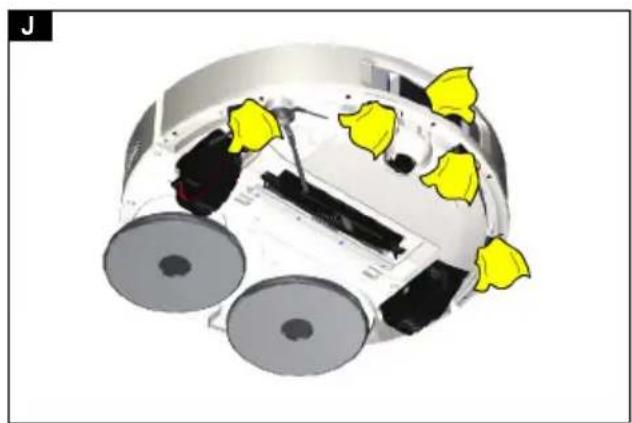
Cleaning the sensors
Clean the sensors at least monthly. Always clean the sensors immediately if they become dirty.
Illustration J
- Wipe the sensors with a soft cloth.
Cleaning the contacts
Clean the contacts on the device at least once a month. Always clean the contacts.
- Wipe the contacts on the device with a soft cloth.
Cleaning the dust container
- Empty the dust container.
ATTENTION
Damage to electronic components
Do not clean the dust container with water.
- Clean the dust container with the cleaning tool supplied.
Illustration N
- Close the flap until it audibly latches into place.
- Insert the dust container.
Cleaning the filter
We recommend cleaning the filters regularly. This prevents them from becoming clogged.
- Open the top cover.
- Press the clip and grip the dust container by the handle grooves to remove it from the device.
- Remove the filter. Clean the filter under running water with the cleaning tool supplied.
- Allow the filter to dry completely.
- Press the filter into position.
- Insert the dust container.
Illustration K
Illustration O
Cleaning the cleaning brush
- Turn the cleaning robot upside down.
- Press the clamps on the brush cover together.
- Remove the brush cover.
- Remove the cleaning brush.
- Clean the cleaning brush with the cleaning tool supplied.
- Insert the cleaning brush.
- Fit the brush cover and press it down until it audibly latches into place.
Illustration P
Illustration Q
Cleaning the wheels
Dirt particles (such as sand, etc.) can get stuck on the running surface and then damage sensitive, smooth floor surfaces.
- Clean the running surface of the wheels with a damp cloth.
Cleaning the wiping mop
- Turn the cleaning robot upside down.
- Remove the mopping discs.
- Remove the wiping mops from mopping discs.
- Wash the wiping mops and dry them completely.
Troubleshooting guide
| Malfunctions often have simple causes that you can remedy yourself using the following overview. When in doubt, or in the case of malfunctions not mentioned here, please contact your authorised Customer Service. |
| Fault Cause Rectification | ||
| Battery does not charge | The charging contacts are dirty. | 1. Wipe the charging contacts on both the charging station and the cleaning robot with a dry cloth. |
| Ambient temperature below 0 °C or above 35 °C. | 1. Use the cleaning robot at temperatures above 0 °C and below 35 °C. | |
| The mains cable of the charging station is not plugged in. | 1. Plug in the mains cable of the charging station. | |
| The cleaning robot is not returning to the charging station | The battery is empty. 1. Manually place the cleaning robot on the charging station and let it charge completely. | |
| The cleaning robot is too far away from the charging station. | 1. Move the cleaning robot closer to the charging station.2. Manually place the cleaning robot on the charging station. | |
| Not enough space around the charging station. | 1. Ensure that there is sufficient space around the charging station, see chapter Setting up the charging station. | |
| There are too many obstacles around the charging station. | 1. Place the charging station in a more open area, see chapter Setting up the charging station. | |
| The cleaning robot remaps its environment when it has been moved over a longer distance. | 1. Manually place the cleaning robot on the charging station. | |
| The cleaning robot was not started from the charging station. In this case, it only returns to the place from which it was started. | 1. Manually place the cleaning robot on the charging station. | |
| The mains cable of the charging station is not plugged in. | 1. Plug in the mains cable of the charging station. | |
| The multifunctional station does not work properly | The cleaning robot is not positioned correctly on the charging station. | 1. Manually place the cleaning robot on the charging station. |
| The dust bag is full. 1. Change the dust bag (see Changing the dust bag). | ||
| There is no dust bag or it is installed incorrectly. | 1. Insert the dust bag or check that it is installed properly. | |
| Fresh water tank is empty. 1. Refilling the fresh water tank. | ||
| Waste water tank is full. 1. Empty the waste water tank. | ||
| There is no water tank or it is installed incorrectly. | 1. Install the water tank correctly. | |
| There is no washing tray filter or it is installed incorrectly. | 1. Install the washing tray filter correctly. | |
Customer Service department
If the malfunction cannot be corrected, the device must be checked by the Customer Service department.
Warranty
The warranty conditions issued by our relevant sales company apply in all countries. We shall remedy possible malfunctions on your appliance within the warranty
period free of cost, provided that a material or manufacturing flaw is the cause. In a warranty case, please contact your dealer (with the purchase receipt) or the next authorised customer service site.
(See overleaf for the address)
Further warranty information (if available) can be found in the service area of your local Kärcher website under "Downloads".
EU Declaration of Conformity
| Device Type | Frequency band, MHz | Power, max. EIRP, mW |
| 1.269-130.0 | WLAN 2400-2483.5 50 | |
| 1.269-130.0 | Blue-tooth 2400-2483.5 8 |
Alfred Kärcher SE & Co. KG hereby declares that the radio device type Robo Cleaner complies with the 2014/53/EU directive. The full text of the EU Declaration of Conformity can be found at www.kaercher.com/RVM4Comfort.
Technical data
| RVM 4Comfort | ||
| Cleaning robot | ||
| Rated power W 45 | ||
| Battery pack type Li-ION | ||
| Battery capacity mAh 4800 | ||
| Operating time when battery is ful- min 160ly charged in normal operation | ||
| Charging time (8 % to 100 % / 0 % to 100 %) | min 230 / 285 | |
| Wireless connections | 2.4G + Blue-tooth | |
| Sound pressure level | dB(A) | <66 |
| Dry dirt | ml | 300 |
| Weight | kg | 4.1 |
| Charging station | ||
| Nominal power consumption (suc-tion/charging process) | W 650/32 | |
| Fresh water tank capacity | I | 3 |
| Waste water tank capacity | I | 2.3 |
| Filter bag capacity | I | 2.5 |
| Weight | kg | 6.1 |
| Length x width x height | mm | 310x450x455 |
| Sound pressure level | dB(A) | 79 |
Subject to technical modifications.
Content


- Google Play™ and Android™ are trademarks or registered trademarks of Google Inc.
- Apple® and App Store® are trademarks or registered trademarks of Apple Inc.


Volume clean water reservoir I 3
Volume dirty water reservoir I 2.3







Download on the
App Store





- Google Play™ and Android™ are trademarks or registered trademarks of Google Inc.
- Apple® and App Store® are trademarks or registered trademarks of Apple Inc.
- Press the HOME button.

Download on the App Store


- Google Play™ and Android™ are trademarks or registered trademarks of Google Inc.
- Apple® and App Store® are trademarks or registered trademarks of Apple Inc.
Connecting the cleaning robot to the KÄRCHER indoor robots app and WLAN network:
- Download the KÄRCHER indoor robots app from the Google Play Store.
- Open the KÄRCHER indoor robots app.
- Create an account (if you are not already registered).
- Add the desired cleaning robot.
- Follow the steps in the app instructions.
Deactivating the cleaning robot via WLAN
- Delete the device in the app.
- Press the power button and the "HOME" button simultaneously for 3 seconds until the voice says: "WLAN connection reset and entering network configuration mode".
Commissioning







THANK YOU!
MERCI! DANKE! ¡GRACIAS!

Register your product and benefit from many advantages.


Rate your product and tell us your opinion.
Alfred Kärcher SE & Co. KG
Alfred-Kärcher-Str. 28-40
71364 Winnenden (Germany)
- CONTENTS
- GENERAL NOTES
- SAFETY INSTRUCTIONS
- HAZARD LEVELS
- ⚠️ DANGER
- ⚠ WARNING
- △ CAUTION
- ATTENTION
- GENERAL SAFETY INSTRUCTIONS
- RISK OF ELECTRIC SHOCK
- SAFETY INSTRUCTIONS FOR OPERATION
- SAFETY INSTRUCTIONS FOR CHARGING STATION
- SYMBOLS ON THE DEVICE
- ENVIRONMENTAL PROTECTION
- NOTES ON THE CONTENT MATERIALS (REACH)
- INTENDED USE
- ACCESSORIES AND SPARE PARTS
- SCOPE OF DELIVERY
- DEVICE DESCRIPTION
- FUNCTION OF THE CLEANING ROBOT
- SPECIAL MODES
- SLEEP MODE
- DO NOT DISTURB" MODE
- NOTE
- REMOTE CONTROL
- INITIAL START-UP
- SETTING UP THE CHARGING STATION
- RISK OF DAMAGING THE FLOOR DUE TO MOISTURE
- CHARGING STATION
- CONNECTING CLEANING ROBOTS WITH WLAN AND APP
- CONNECTING CLEANING ROBOTS WITH WLAN AND KÄRCHER INDOOR ROBOTS APP
- DEACTIVATING CLEANING ROBOTS WITH WLAN
- STARTUP
- INSTALLING THE SIDE BRUSH
- INSERTING THE MOPPING DISCS
- FILLING THE FRESH WATER TANK OF THE CHARGING STATION
- RISK OF DAMAGE
- ILLUSTRATION G
- INSERT DUST BAG
- ILLUSTRATION H
- OPERATION
- DANGER DUE TO OBSTACLES
- PREPARING THE ENVIRONMENT
- SETTINGS
- SETTINGS ON THE ROBOT
- SETTINGS IN THE APP
- SWITCHING ON THE CLEANING ROBOT
- OPERATION WITHOUT APP
- STARTING CLEANING
- OPERATION WITH THE APP
- CREATING A MAP
- CONFIGURING THE ROBOT IN THE APP
- INTERRUPTING CLEANING
- INTERRUPTING CLEANING ON THE DEVICE
- INTERRUPTING CLEANING IN THE APP
- BATTERY LEVEL INDICATOR
- MANUALLY SENDING THE CLEANING ROBOT FOR RECHARGING
- MANUALLY SENDING THE CLEANING ROBOT FOR RECHARGING VIA THE APP
- EMPTYING THE DUST CONTAINER
- MANUALLY EMPTYING THE DUST CONTAINER
- ILLUSTRATION K
- ILLUSTRATION L
- SWITCHING OFF THE DEVICE
- RESETTING THE WLAN CONNECTION
- RESTORING THE FACTORY SETTINGS
- TRANSPORT
- SAFETY INSTRUCTIONS FOR TRANSPORTING
- STORAGE
- CARE AND SERVICE
- MAINTENANCE WORK
- CHANGING THE DUST BAG
- CLEANING THE MOTOR PROTECTION FILTER
- CLEANING THE CHARGING STATION WASTE WATER TANK
- CLEANING THE SENSORS
- ILLUSTRATION J
- CLEANING THE CONTACTS
- CLEANING THE DUST CONTAINER
- ILLUSTRATION N
- CLEANING THE FILTER
- ILLUSTRATION O
- CLEANING THE CLEANING BRUSH
- ILLUSTRATION P
- ILLUSTRATION Q
- CLEANING THE WHEELS
- CLEANING THE WIPING MOP
- CUSTOMER SERVICE DEPARTMENT
- WARRANTY
- CONNECTING THE CLEANING ROBOT TO THE KÄRCHER INDOOR ROBOTS APP AND WLAN NETWORK
- DEACTIVATING THE CLEANING ROBOT VIA WLAN
- COMMISSIONING
- THANK YOU
- MERCI! DANKE! ¡GRACIAS
Brand : Kärcher
Model : RVM 4 Comfort
Category : Robot vacuum