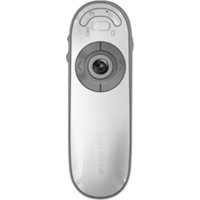
AMP11EU - Wireless pointer TARGUS - Free user manual and instructions
Find the device manual for free AMP11EU TARGUS in PDF.



| Product Type | Bluetooth Wireless Presenter with Mouse |
| Brand | Targus |
| Model | AMP11EU |
| Approximate Dimensions | 120 x 40 x 20 mm |
| Approximate Weight | 80 g (with batteries) |
| Power Supply | 2 AA batteries (included) |
| Battery Life | Approximately 60 minutes of use before low battery indicator |
| Bluetooth Range | Up to 10 meters (33 feet) |
| Mouse Mode | Yes: left, right buttons, scroll for cursor |
| Presenter Mode | Yes: slide navigation, blank screen, start slideshow |
| Laser Pointer | Integrated, button activation |
| Programmable Buttons | 2 programmable buttons via Targus software |
| Volume Control | Increase and decrease buttons |
| Auto Sleep | After 60 minutes of inactivity |
| Low Battery Indicator | Flashing red LED on the scroll key |
| System Compatibility | Mac OS X 10.4 or later, also Windows (via Bluetooth) |
| Configuration Software | Targus Device Controller (downloadable) |
| Maintenance and Cleaning | Wipe with a soft, dry cloth. Do not use abrasive products. |
| Laser Safety | Class 2 (estimate, follow usage precautions) |
| Spare Parts | Standard AA batteries |
Frequently Asked Questions - AMP11EU TARGUS
User questions about AMP11EU TARGUS
0 question about this device. Answer the ones you know or ask your own.
Ask a new question about this device
Download the instructions for your Wireless pointer in PDF format for free! Find your manual AMP11EU - TARGUS and take your electronic device back in hand. On this page are published all the documents necessary for the use of your device. AMP11EU by TARGUS.
USER MANUAL AMP11EU TARGUS
www.targ us.com/ uk/forM ac
©2005. Published are posted by Target Service Inc., Inc., Microsoft, Microsoft, TXT, USA, UK. All rights reserved. (see above) recorded on transaction of the United States Group, Illinois, Inc. in the United States and other companies, financial and financial services as amended for changes in the U.S. and other securities of Apple Inc. (including in the U.S. and other securities). Windows and Windows Vint or its registered trademarks or related trademarks or Music Vint Corporation in the United States and other companies. All rights reserved. Reported investments in the property, plant, equipment, software, etc. (see above). This report is also distributed to securities and other financial products. (See above) https://www.guosen.com.cn/
TWO YEAR LIMITED WARRANTY
Targus®

USER GUIDE
Bluetooth® Presenter
for Mac®
Bluetooth® Presenter
Table of Contents
GB – English
Targus Bluetooth® Presenter....1
Complies with EN 60825-1: 1994+A1+A2 and Complies with 21 CFR 1040.10 and 1040.11 except for deviation pursuant to Laser Notice No.50, dated July 26, 2001.
AVOID EXPOSURE--HAZARDOUS ELECTROMAGNETIC RADIATION EMITTED FROM THIS APERTURE.
LASER RADIATION. DO NOT STARE INTO THE BEAM OR VIEW DIRECTLY WITH OPTICAL INSTRUMENTS. CLASS 2 LASER PRODUCT.
NEVER POINT A LASER BEAM INTO A PERSON'S EYES OR VIEW A LASER BEAM DIRECTLY, AS PROLONGED EXPOSURE CAN BE HAZARDOUS TO THE EYES. MOMENTARY EXPOSURE FROM A LASER POINTER, SUCH AS AN INADVERTENT SWEEP OF THE LIGHT ACROSS A PERSON'S EYES, MAY CAUSE TEMPORARY FLASH BLINDNESS SIMILAR TO THE EFFECT OF A CAMERA FLASH BULB. ALTHOUGH THIS CONDITION IS TEMPORARY, IT CAN BECOME MORE DANGEROUS IF THE EXPOSED PERSON IS ENGAGED IN A VISION-CRITICAL ACTIVITY SUCH AS DRIVING.
CAUTION: ANY CHANGES OR MODIFICATIONS NOT EXPRESSLY APPROVED BY THE PARTY RESPONSIBLE FOR COMPLIANCE COULD VOID THE USER'S AUTHORITY TO OPERATE THE EQUIPMENT.
THIS DEVICE AND ITS ANTENNA(S) MUST NOT BE CO-LOCATED OR OPERATING IN CONJUNCTION WITH ANY OTHER ANTENNA OR TRANSMITTER.
YOUR DEVICE CONTAINS A LOW POWER TRANSMITTER. WHEN DEVICE IS TRANSMITTED IT SENDS OUT RADIO FREQUENCY (RF) SIGNAL.
NOTE: THE MANUFACTURER IS NOT RESPONSIBLE FOR ANY RADIO OR TV INTERFERENCE CAUSED BY UNAUTHORIZED MODIFICATIONS TO THIS EQUIPMENT. SUCH MODIFICATIONS COULD VOID THE USER'S AUTHORITY TO OPERATE THE EQUIPMENT.
Bluetooth® Presenter
Targus Bluetooth® Presenter
Introduction
Congratulations on your purchase of the Targus Bluetooth Presenter. This presenter with mouse functionality uses Bluetooth wireless technology to provide a seamless connection up to 33ft (10 m) away. Now you can interact with your audiences and still maintain control of your notebook or desktop computer. Conveniently placed page-up and page-down buttons help you navigate through your presentation with ease, whilst the built-in laser pointer gives you the option of highlighting key concepts on screen. You can also use the Touch Scroll to control the mouse cursor movement.
System Requirements
Hardware
- Bluetooth-enabled notebook or desktop computer
Operating System
• Mac OS® X 10.4 or later
Bluetooth® Presenter
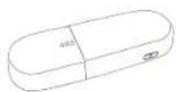
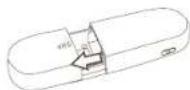
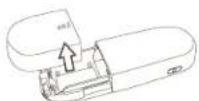
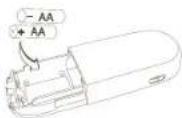
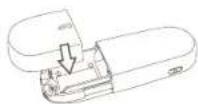
Installing the Batteries
- Please use the two AA batteries that are included.
• Install two AA batteries into the presenter with the correct polarity. Refer to the polarity signs inside the battery compartment.
①
②
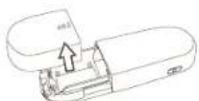
③

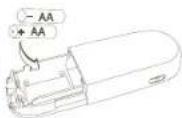
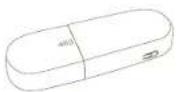
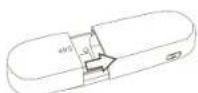
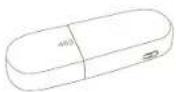
- Slide the battery cover back into position
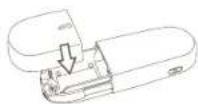
①
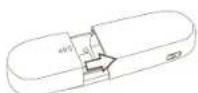
②
③
Bluetooth® Presenter
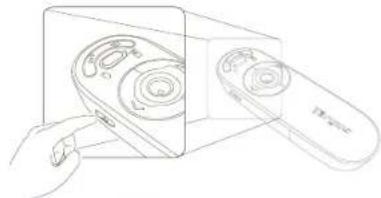
- Turn on the presenter by pressing the on/off switch located on the side.
natural_image
Line drawing of a hand holding a device with a circular component inside, next to a rectangular device (no text or symbols)
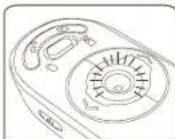
NOTE: PLEASE REMOVE THE PROTECTIVE PLASTIC FILM ON THE TOUCH SCROLL BEFORE USING THE DEVICE.
Low Battery Power Indicator

NOTE: WHEN THE BATTERY POWER IS LOW, THE TOUCH SCROLL WILL FLASH RED. PLEASE REPLACE THE BATTERIES.
When 60 minutes of power remains, a red indicator light will glow for 8 seconds. When only 30 minutes of power remains, the red indicator light will blink continuously.
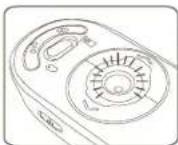

NOTE: THE DEVICE WILL GO INTO SLEEP-MODE AFTER 60 MINUTES OF IN-ACTIVITY. TO RE-ACTIVATE, PRESS ANY KEY ON THE DEVICE AND WAIT 1 TO 4 SECONDS.
Bluetooth® Presenter
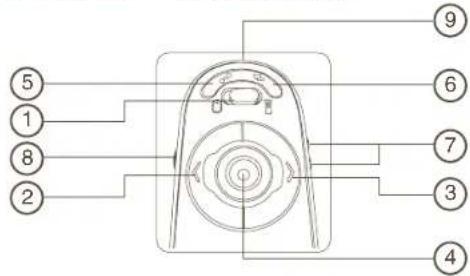
Using the device - Mouse Mode

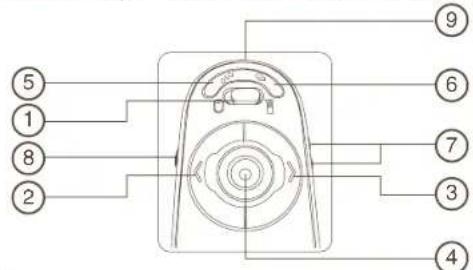
| 1 Mode switch button (Mouse mode) |
| 2 Left mouse button |
| 3 Right mouse button |
| 4 Touch Scroll - Navigate the mouse cursorLaser pointer trigger - Press to activate the laser pointer |
| 5 Programmable button |
| 6 Programmable button |
| 7 Volume up & Volume down |
| 8 On - Press 3 seconds to turn on the presenter (LED blink once)Off - Press 3 seconds to turn off the presenter (LED blink twice) |
| 9 Laser light emitter |
Bluetooth® Presenter
Using the device - Presenter Mode
| 1 Mode switch button (Presenter mode) | |
| 2 Previous slide | |
| 3 Next slide | |
| 4 Laser pointer trigger - Press to activate the laser pointer | |
| 5 Blank Screen | |
| 6 Slideshow Start | - Press once to begin |
| Stop - Press and hold for 2 seconds to stop the slide show | |
| 7 Volume up & Volume down | |
| 8 On - Press 3 seconds to turn on the presenter (LED blink once)Off - Press 3 seconds to turn off the presenter (LED blink twice) | |
| 9 Laser light emitter | |
Bluetooth® Presenter
Initial Configuration
Before you can begin using your Bluetooth presenter, you will first need to perform some initial setup steps.

NOTE: PLEASE USE THE LATEST BLUETOOTH DEVICE DRIVER. INSTRUCTION SCREENS MIGHT VARY DEPENDING ON THE VERSION OF YOUR BLUETOOTH DEVICE DRIVER.
Bluetooth Software: Mac
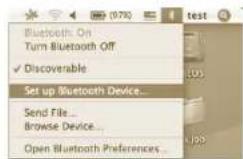
- Go to the Bluetooth icon located on your desktop or in the system bar and click the icon to begin setup. Select "Turn Bluetooth On" to activate the Bluetooth function on your Mac.

- Scroll down the list and select "Set up Bluetooth Device..."
Bluetooth® Presenter
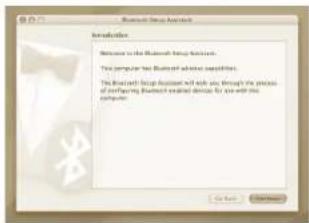
- Bluetooth Setup Assistant will begin. Please follow the on-screen instructions.
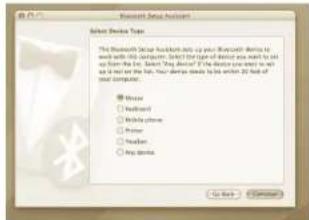
- Select "mouse" and click continue to proceed with setup. Your presenter will need to be in "discovery" mode to connect. First, power on the presenter by pressing the "on/off" key for 3 seconds. Then, within 3 seconds after the power is on, press any button once (except "on/off" button) to enter into discovery mode. The LED in the Touch Scroll will blink continuously to indicate "discovery" mode is enabled.
Bluetooth® Presenter
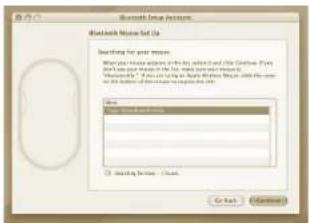
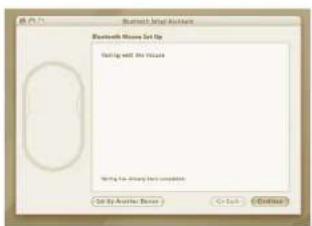
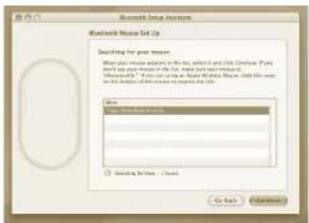
- Your computer will begin to search for the presenter. Once the presenter is found, it will show up in the list. Highlight your presenter and press continue.
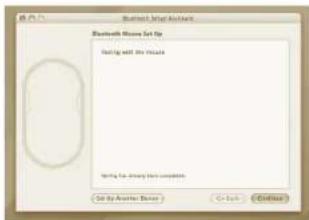
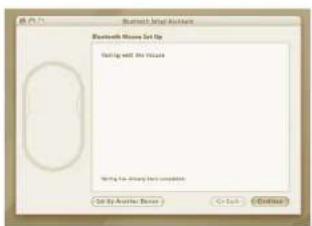
- The Bluetooth presenter will now begin pairing. Click continue to proceed.
Bluetooth® Presenter
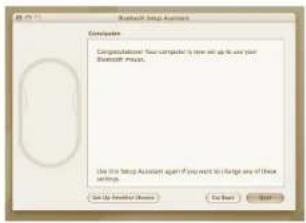
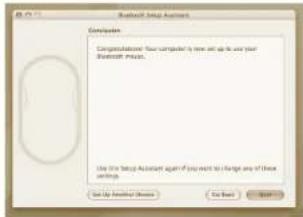
- Congratulations. Your Bluetooth presenter is setup and and ready to use. You can choose to setup another device or click Quit to exit setup.
Bluetooth® Presenter
Installing Software for Programmable Buttons
Installing the software enables configuration of the programmable buttons.
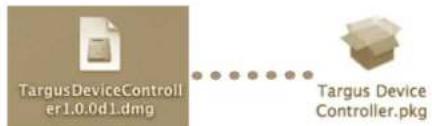
The latest software (Model # AMP11) can be downloaded from the official Targus web site: http://www.targus.com/uk/Downloads/AMP11EU.dmg
Double click the setup icon to launch the installation software.
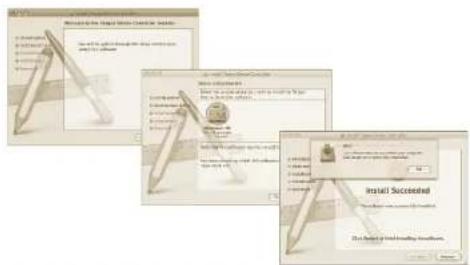
Follow the on-screen instructions to complete the installation.
Bluetooth® Presenter
After the software is successfully installed, restart your computer to finish installing the software.
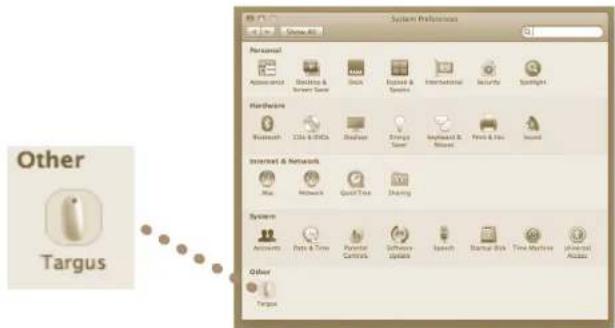
A Targus icon will appear in the System Preferences window.
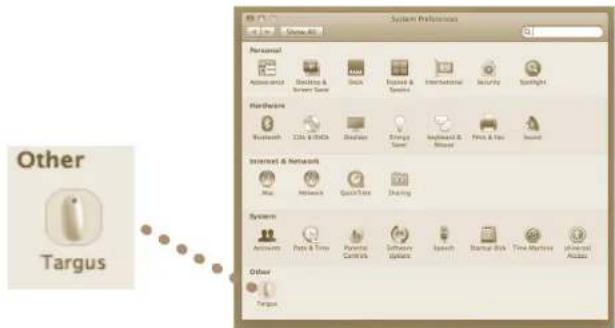
Bluetooth® Presenter
Programming the Buttons
Click onto the Targus logo to launch the device application.
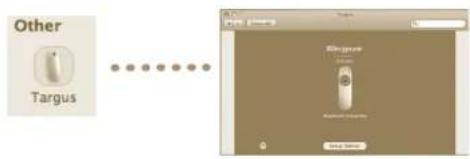
Click to highlight the image of the device and then press "Setup Device" to launch the configuration software.
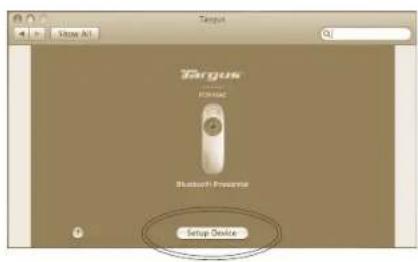
Bluetooth® Presenter
Click the arrows on the right-side of the drop down lists to configure each button.
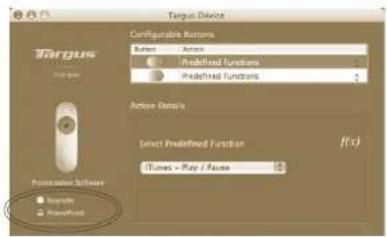

NOTE: PLEASE SELECT THE CORRECT "PRESENTATION SOFTWARE" IN ORDER FOR THE PRESENTER KEYS TO FUNCTION PROPERLY.
Each button can be programmed to any of the following types of functions:
| Default Action Set the buttons to a specific function. | |
| Run AppleScript Set the buttons to load an AppleScript | |
| Launch Application | Set the buttons to launch specific application installed in the computer. |
| Perform key strokes Set the button to recall key strokes. | |
| Predefined functions Set the button to map pre-set actions | |
Close the application window to apply the changes.
Bluetooth® Presenter
Bluetooth® Presenter
Troubleshooting
The Presenter is not working.
- Make sure the batteries are installed correctly. The positive (+) and negative (-) ends of each battery must match the positive (+) and negative (-) connections in the battery compartment.
- Make sure the batteries are charged. Replace if necessary.
- Verify that the computer is Bluetooth enabled.
-
Verify that the device drivers are installed:
-
Click "Apple Logo --> System Preference --> Hardware --> Bluetooth"
-
Check under "Bluetooth Devices" that a "Targus Bluetooth Presenter" is installed.
- Paired devices are always displayed in "Bluetooth" windows, even if the mouse is out of range or not powered up.
Bluetooth® Presenter

Complies with EN 60825-1: 1994+A1+A2
and Complies with 21 CFR 1040.10 and 1040.11 expert for deviating avvucts to
1040.11 except for deviation pursuant to Lasee Notice No 50 dated July 26, 2001
natural_image
Line drawing of a hand holding a device with a circular component inside, next to an open device labeled '12000' (no text or symbols on the device itself)
Bluetooth® Presenter
Bluetooth® Presenter
Bluetooth® Presenter
Bluetooth® Presenter

ЗАБЕЛЕЖКА: ИЗБЕРЕТЕ СЪОТВЕТНИЯ "PRESENTATION SOFTWARE" (СОФТУЕР ЗА ПРЕЗЕНТАЦИИ) ЗА ПРАВИЛНОТО ФУНКЦИОНИРАНЕ НА КЛАВИШИТЕ НА УСТРОЙСТВОТО ЗА ПРЕЗЕНТАЦИИ.
Complies with EN 60825-1: 1994+A1+A2 and Complies with 21 CFR 1040.10 and 1040.11 except for deviation pursuant to Laser Notice No.50, dated July 26, 2001.
VYHNĚTE SE KONTAKTU - ZAŘÍZENÍ EMITUJE NEBEZPEČNÉ ELEKTROMAGNETICKÉ ZÁŘENÍ.
LASEROVÉ VYZAŘOVÁNÍ. NEDÍVEJTE SE DO PAPRSKU ANI POMOCÍ OPTICKÉHO ZAŘÍZENÍ.
LASEROVÉ VYZAŘOVÁNÍ. NEDÍVEJTE SE DO PAPRSKU ANI POMOCÍ OPTICKÉHO ZAŘÍZENÍ. PRODUKT LASEROVÉ TRÍDY 2.LASEROVÝM PAPRSKEM NIKDY NEMÍRTE DO OČÍ JINÉ OSOBY ANI SE NEDÍVEJTE PRÍMO DO PAPRSKU, PROTOŽE DELŠÍ KONTAKT MŮŽE BYT OČÍM NEBEZPEČNÝ. CHVILKOVÝ KONTAKT S LASEROVÝM UKAZOVÁTKEM, JAKO JE NAPŘ. NÁHODNÉ PŘEJETÍ OČÍ LASEREM, MŮŽE ZPŮSOBIT DOČASNÉ ZÁBLESKY PODOBNÉ BLESKU FOTOAPARÁTU. MŮŽE BYT NEBEZPEČNĚJŠÍ, POKUD SE TATO OSOBA VĚNUJE ČINNOSTI NÁROČNÉ NA SLEDOVÁNÍ, NAPŘ. RÍZENÍ. UPOZORNĚNÍ: ZMĚNY NEBO ÚPRAVY, KTERĚ NEBYLY VÝSLOVNĚ POVOLENY STRANOU ZODPOVĚDNOU ZA SHODU, MOHOU VĚST KE ZTRÁTĚ
OPRÁVNĚNÍ UŽIVATELE POUŽÍVAT ZAŘÍZENÍ. TOTO ZAŘÍZENÍ A JEHO ANTĚNA (ANTĚNY) NESMÍ BÝT UMÍSTĚNY POBLÍŽ NEBO NESMÍ BÝT VE SPOJENÍ S JINOU ANTĚNOU ČI VYSÍLAČEM. VAŠE ZAŘÍZENÍ OBSAHUJE PŘENAŠEČ S NÍZKÝM VÝKONEM. POKUD ZAŘÍZENÍ VYSÍLÁ, ODESÍLÁ RADIOFREKVENČNÍ (RF) SIGNÁL. POZNÁMKA: VÝROBCE NENESE ODPOVĚDNOST ZA RUŠENÍ RÁDIA NEBO TELEVIZE, KTERÉ BYLO ZPŮSOBENO NEAUTORIZOVANOU ÚPRAVOU TOHOTO ZAŘÍZENÍ. TYTO ÚPRAVY BY MOHLY VĚST KE ZTRÁTĚ OPRÁVNĚNÍ UŽIVATELE POUŽÍVAT ZAŘÍZENÍ.
Bluetooth® Presenter
natural_image
Line drawing of a hand holding a device next to a device with a tray (no text or symbols)
POZNÁMKA: SUNDEJTE PROSÍM PŘED POUŽÍVÁNÍM ZAŘÍZENÍ OCHRANNÝ PLASTOVÝ OBAL NA TOUCH SCROLL (DOTYKOVÉ RO-LOVÁNÍ).
Bluetooth® Presenter
Bluetooth® Presenter
Bluetooth® Presenter
Bluetooth® Presenter

VYBERTE PROSÍM VHODNÝ „PREZENTAČNÍ PROGRAM“ ZA ÚČELEM ŘÁDNÉ FUNKCE TLAČÍTEK OVLADAČE PREZENTACÍ.
Complies with EN 60825-1: 1994+A1+A2 and Complies with 21 CFR 1040.10 and 1040.11 except for deviation pursuant to Laser Notice No.50, dated July 26, 2001.
natural_image
Line drawing of a hand holding a device next to a closed remote control unit (no text or symbols visible)
ANMERKUNG: BITTE ENTFERNEN SIE DIE KUNSTSTOFFSCHUTZFOLIE AUF DEM TOUCH SCROLL, BEVOR SIE DAS GERÄT BENUTZEN.
Bluetooth® Presenter
Bluetooth® Presenter
Bluetooth® Presenter
Bluetooth® Presenter
Bluetooth® Presenter

ANMERKUNG: BITTE WÄHLEN SIE DIE RICHTIGE "PRäsentATIONSSOFTWARE", DAMIT DIE TASTEN DES PRESENTER RICHTIG FUNKTIONIEREN.
Complies with EN 60825-1: 1994+A1+A2 and Complies with 21 CFR 1040.10 and 1040.11 except for deviation pursuant to Laser Notice No.50, dated July 26, 2001.
UNDGÅ UDSÆTTELSE -- FARLIG ELEKTROMAGNETISK STRÅLING FRA DETTE APPARAT LASERSTRÅLING. SE IKKE DIREKTE PÅ STRÅLEN ELLER MED OPTISK UDSTYR. KLASSE 2 LASERPRODUKT. PEG ALDRIG LASERSTRÅLEN DIREKTE PÅ EN PERSONS ∅JNE ELLER SE DIREKTE PÅ LASERSTRÅLEN, DA VEDVARENDE UDSÆTTELSE KAN SKADE ∅JNENE. KORT UDSÆTTELSE FRA EN LASERPEGEPIND, SOM VED AT FEJE LYSET HEN OVER ∅JNENE VED EN FEJL, KAN GIVE MIDLERTIDIG BLINDED, SOM SVARER TIL EFFEKTEN AF EN BLITZ. SELV OM DET KUN ER MIDLERTIDIG BLINDED, ER DET MERE FARLIGT, HVIS PERSONEN ER I GANG MED F.EKS. AT K∅RE, HVOR HAN BRUGER ∅JNENE. ADVARSEL: AENDRINGER FORETAGET SOM IKKE ER GODKENDT AF DEN FOR OVERHOLDELSE ANSVARLIGE KAN RESULTERE I, AT BRUGEREN IKKE LÄNGERE TILLADES AT BRUGE UDSTYRET. DETTE APPARAT OG DETS ANTENNE(R) MÅ IKKE SAMMENSTILLES ELLER BRUGES I FORBINDELSE MED EN ANDEN ANTENNE ELLER SENDER. DIT APPARAT INDEHOLDER EN LAVKRAFTSSENDER. NÅR APPARATET SENDER. SENDER DEN RADIOFREKVENSSIGNAL (RF) NB: PRODUCENTEN ER IKKE ANSVARLIG FOR RADIO ELLER TV INTERFERENS SOM ER ET RESULTAT AF UAUTORISEREDE AENDRING AF DETTE UDSTYR. SÄDANNE AENDRINGER KAN RESULTERE I, AT BRUGEREN IKKE LÄNGERE TILLADES AT BRUGE UDSTYRET.
Bluetooth® Presenter
natural_image
Line drawing of a hand holding a device next to a device with a lid (no text or symbols)
BEMÄERK: FJERN VENLIGST DEN BESKYTTENDE PLASTICFILM F∅R ENHEDEN ANVENDES.
Bluetooth® Presenter
Bluetooth® Presenter
Bluetooth® Presenter
Installation af Software til Apparatbetjening
Bluetooth® Presenter
När softwaren er installeret, skal du genstarte din computer for at afslutte softwareinstallationen.
Bluetooth® Presenter
Complies with EN 60825-1: 1994+A1+A2 and Complies with 21 CFR 1040.10 and 1040.11 except for deviation pursuant to Laser Notice No.50, dated July 26, 2001.
VÄLTIGE KOKKUPUUDET--SELLEST SEADMEST ERALDUB OHTLIKU ELEKTROMAGNETKIIRGUST.
LASERKIIRGUS. ÄRGE VAADAKE LASERKIIRT EGA VAADAKE OTSE OPTILISTE INSTRUMENTIDEGA. KLASS 2 LASERTOODE.
ÄRGE SUUNAKE LASSERKIIRT TEISE INIMESE SILMA EGA VAADAKE LASERKIIRT OTSE, SEST PIKEM KOKKUPUUDE VÖIB SILMI KAHJUSTADA. HETKELINE KOKKUPUDE LASEROSUTAJAGA, NAGU TAHTMATU VALGUSE SUUNAMINE ÜLE TEISE INIMESE SILMADE, VÖIB PÖHJUSTADA AJUTIST PIMEDUST SARNASELT FOTOAPARAADI VÄLGULE. KUIGI SEE SEISUND ON AJUTINE, VÖIB SEE MUUTUDA OHTLIKUMAKS, KUI PIMESTATUD INIMENE TEGELEB NÄGEMISVAJADUSEGA TEGEVUSEGA NAGU AUTOGA SÖİTMINE. ETTEVAATUST! VASTAVUSE EEST VASTUTÁVA OSAPOOLE SELGESÖNALISE NÖUSOLEKUTA MUUDATUSTE TEGEMINE VÖIB TÜHISTADA KASUTAJA ÖIGUSE VARUSTUST KASUTADA. SEADE JA SELLE ANTENNID EI TOHI ASUDA EGA TÖÖTÄDA KOOS TEISTE ANTENNIDE VÖI SAATJATEG ATEI SEADMES ON MADALPINGESAATJA. SEADE SAADAB TÖÖTADES VÄLJA RAADIOSAGEDUSEL (RF) SIGNALE.
MÄRKUS: TOOTJA EI VASTUTA RAADIO EGA TV HÄIRETE EEST, MIDA PÖHJUSTAVAD SELLE VARUSTUSE VOLITAMATA TEHTUD MUUDATUSED. SELLISED MUUDATUSED VÖIVAD TÜHISTADA KASUTAJA ÖIGUSE VARUSTUST KASUTADA.
Bluetooth® Presenter
Targus Bluetooth® Traadita esitluspult
Sissejuhatus
natural_image
Line drawing of a hand holding a device with two circular components, one inside a transparent box and the other in a closed case (no text or symbols)
MÄRKUS: EEMALDAGE ENNE SEADME KASUTAMIST PUUTETUNDLIKULT PUUTENUPULT KAITSEKILE.
Bluetooth® Presenter
Bluetooth® Presenter
Bluetooth® Presenter
Bluetooth® Presenter
Bluetooth® Presenter

MÄRKUS: VALIGE PALUN OSUTUSSEADME NUPPUDE ÖIGEKS FUNKTSIONEERIMISEKS ÖIGE "PRESENTATION SOFTWARE" (ESITLUSTARKVARA).
Complies with EN 60825-1: 1994+A1+A2 and Complies with 21 CFR 1040.10 and 1040.11 except for deviation pursuant to Laser Notice No.50, dated July 26, 2001.
natural_image
Line drawing of a hand holding a device with two circular components, next to an open device labeled '三零二零四' (no text or symbols on the device itself)
NOTA: ANTES DE UTILIZAR EL DISPOSITIVO, POR FAVOR RETIRE LA PELÍCULA PROTECTORA DE PLÁSTICO DEL CONTROL TÁCTIL
Bluetooth® Presenter
Bluetooth® Presenter
Bluetooth® Presenter
Bluetooth® Presenter
Bluetooth® Presenter

Complies with EN 60825-1: 1994+A1+A2 and Complies with 21 CFR 1040.10 and 1040.11 except for deviation pursuant to Laser Notice No.50, dated July 26, 2001.
VÄLTÄ ALTISTUMISTA -- TÄMÄ LAITE SÄTEILEE HAITALLISTA SÄHKÖMAGNEETTISTA SÄTEILYÄ LASER SÄTEILYÄ. ÄLÄ KATSO SUORAAN LASERSÄTEESEEN TAI TARKASTELE OPTISILLA VÄLINEILLÄ. TOISEN LUOKAN LASERTUOTE. ÄLÄ KOSKAAN OSOITA LASERSÄDETTÄ SUORAAN KENENKÄÄN SILMÄÄN TAI KATSO SÄDETTÄ, KOSKA PIKTÄIAKAINEN ALTISTUMINEN LASERVALOLLE SAATTAA VAHINGOITTAA SILMÄI. LYHYT ALTISTUMINEN LASERVALOLLE. KUTEN SÄTEEN TAHATON PYYHKÄISY SILMÄN OHI, SAATTAA SOKAISTA HETKELLISESTI SAMOIN KUIN ESIMERIKKSI KAMERAN SALAMAN VALO. VAIKKAKIN KYSEINEN TILA ON VÄLIAKAINEN, SAATTAA SE KUITENKIN VAARANTAA SOKAISTUN HENKILÖN TURVALLISUUDEN, JOS HENKILÖ SATTUU ESIMERIKKSI AJAMAAN AUTOA TAI HÄNEN TURVALLISUUTENSIA MUUTEN RIIPPUU HÄNEN NÄKÖKYVYSTÄÄN JUURI SOKAISTUMISEN HETKELLÄ. VAROITUS: SÄÄDÖKSISTÄ VASTUUSSA OLEVAN OSAPUOLEN HYVÄKSYMÄTTÖMÄT MUUTOKSET LAITTEESEN SAATTAVAT POISTAA LAITTEEN KÄYTTÖIOKEUDEN SEN KÄYTTÄJÄLTÄ. TÄTÄ LAITETTA JA SEN ANTENNIA/ANTENNEJA EI TULISI SÄILYTTÄÄ TAI KÄYTTÄÅ TOISTEN ANTENMIEN TAI LÄHETTIMIEN LÄHEISYYDESSÄ. LAITTEESI SISÄLTÄÄ HEIKON LÄHETTIMEN. LAITTEEN OLLESSA KÄYTÖSSÄ SE LÄHETTÄÄ RADIOALTOSIGNAALIA. HUOMIO: LAITTEEN VALMISTAJA EI OTA MINKÄÅNLAISTA VASTUUTA LAITETELLE LUVATTOMASTI TEHTYJEN MUUTOSTEN AIHEUTTAMASTA RADIO JA TELEVISIO HÄIRINNÄSTÄ SELLAISET MUUTOKSET LAITTEESEN SAATTAVAT POISTAA KÄYTTÄJÄLTÄ LAITTEEN KÄYTTÖIOKEUDEN.
Bluetooth® Presenter
Targus langaton Bluetooth®-presenter-hiiri
Johdanto
natural_image
Line drawing of a hand holding a device with a circular component, next to an open remote control case (no text or symbols)
HUOMIO: POISTA SUOJAAVA MUOVIKALVO VIERITYSPALKILTA ENNEN KUIN KÄYTÄT LAITETTA.
Bluetooth® Presenter
Bluetooth® Presenter
Bluetooth® Presenter
Bluetooth® Presenter
Bluetooth® Presenter
Complies with EN 60825-1: 1994+A1+A2 and Complies with 21 CFR 1040.10 and 1040.11 except for deviation pursuant to Laser Notice No.50, dated July 26, 2001.
ÉVITEZ L'EXPOSITION - RADIATION ÉLECTROMAGNÉTIQUE DANGEREUSE ÉMISE DE CETTE OUVERTURE.
RADIATION LASER. NE REGARDEZ PAS LE RAYON - DIRECTEMENT OU A L'AIDE D'INSTRUMENTS OPTIQUES. PRODUIT LASER DE CLASSE 2.
NE DIRIGEZ JAMAIS UN RAYON LASER VERS LES YEUX D'UNE PERSONNE ET NE REGARDEZ PAS UN RAYON LASER DIRECTEMENT, CAR L'EXPOSITION PROLONGÉE PEUT ÉTRE DANGEREUSE POUR LES YEUX. L'EXPOSITION MOMENTANÉE A UN INDICATEUR LASER, TELLE QU'UN PASSAGE INATTENDU DE LUMIÈRE À TRAVERS LES YEUX D'UNE PERSONNE, PEUT CAUSER LA CÉCITÉ PROVISOIRE SEMBLABLE À L'EFFET D'UN FLASH D'APPAREIL PHOTO. BIEN QUE CETTE CONDITION SOIT PROVISOIRE, ELLE PEUT DEVENIR PLUS DANGEREUSE SI LA PERSONNE EXPOSÉE EST ENGAGÉE DANS UNE ACTIVITÉ CRITIQUE DE VISION COMME LA CONDUITE.
AVERTISSEMENT : CHAQUE CHANGEMENTS OU MODIFICATIONS NON EXPRESSÉMENT APPROUVÉES PAR LA PARTIE RESPONSABLE DE LA CONFORMITÉ POURRAIT ANNULER L'AUTORISATION DE L'UTILISATEUR DE FAIRE FONCTIONNER L'ÉQUIPEMENT. CE DISPOSITIF ET SON ANTENNE(S) NE DOIVENT PAS ÊTRE PLACÉS OU EXPLOITÉS ENSEMBLE AVEC UNE AUTRE ANTENNE OU UN ÉMETTEUR. VOTRE DISPOSITIF CONTIENT UN ÉMETTEUR A BASSE PUISSANCE. QUAND LE DISPOSITIF EST EN TRANSMISSION IL ENVOIE UN SIGNAL DE FRÉQUENCE RADIO (FR). NOTE : LE FABRICANT N'EST PAS RESPONSABLE D'AUCUNE RADIO OU TV L'INTERFÉRENCE CAUSÉE PAR DES MODIFICATIONS NON AUTORISÉES DE CET ÉQUIPEMENT. DE TELLES MODIFICATIONS PEUVENT ANNULER L'AUTORISATION DE L'UTILISATEUR DE FAIRE FONCTIONNER L'ÉQUIPEMENT.
Bluetooth® Presenter
natural_image
Line drawing of a hand inserting a device into a device housing (no text or symbols)
REMARQUE : RETIREZ LE FILM PLASTIQUE PROTÉGEANT LA SURFACE DE DÉFILEMENT TACTILE AVANT D'UTILISER VOTRE PÉRIPHÉRIQUE.
Bluetooth® Presenter
Bluetooth® Presenter
Bluetooth® Presenter
Bluetooth® Presenter
Bluetooth® Presenter

REMARQUE : SÉLECTIONNEZ UN "LOGICIEL DE PRÉSENTATION" COMPATIBLE AVEC LES TOUCHES DE VOTRE PRÉSENTATEUR AFIN QUE CES TOUCHES PUISSENT FONCTIONNER
Complies with EN 60825-1: 1994+A1+A2 and Complies with 21 CFR 1040.10 and 1040.11 except for deviation pursuant to Laser Notice No.50, dated July 26, 2001.
natural_image
Line drawing of a hand holding a microwave oven and a closed lid (no text or symbols)
Bluetooth® Presenter
Bluetooth® Presenter
Bluetooth® Presenter
Bluetooth® Presenter
Complies with EN 60825-1: 1994+A1+A2 and Complies with 21 CFR 1040.10 and 1040.11 except for deviation pursuant to Laser Notice No.50, dated July 26, 2001.
IZBJEGNITE IZLAGANJE - IZ OVE LEĆE EMITIRA SE OPASNO ELEKTROMAGNETNO ZRAĆENJE. LASERSKO ZRAĆENJE. NE GLEDAJTE U ZRAKU ILI IZRAVNO UZ OPTIČKE INSTRUMENTE. LASERSKO ZRAĆENJE. NE GLEDAJTE U ZRAKU ILI IZRAVNO UZ OPTIČKE INSTRUMENTE. KLASA 2 LASERSKI PROIZVOD. NIKADA NE UPIRITE LASERSKU ZRAKU OSOBAMA U OČI I NE GLEDAJTE IZRAVNO U ZRAKU, JER PRODULJENO IZLAGANJE MOŽE BITI OPASNO PO OČI. TRENUTAČNA IZLOŽENOST LASERSKOJ ZRACI, KAO ŠTO JE NENAMJERNI PRIJELAZ ZRAKE SVJETLA PREKO OČIJU NEKE OSOBE, MOŽE PROUZROČITI PRIVREMENU ZABLJEŠTENOST OČIJU, SLIČNO EFEKTU BLICA NA FOTOAPARATU. IAKO JE OVO STANJE PRIVREMENO, ONO MOŽE POSTATI I OPASNIJE UKOLIKO IZLOŽENA OSOBA OBAVLJA VIZUALNO KRITIČNU AKTIVNOST, KAO ŠTO JE VOŽNJA. OPREZ: PROMJENE ILI IZMJENE NA OPREMI, KOJE NIJE ODOBRILA STRANA KOJA JE ODGOVORNA ZA SUKLADNOST, MOGU PONIŠTITI PRAVO VLASNIKA NA KORIŠTENJE OVE OPREME. OVAJ UREDAJ I NJEGOVA/E ANTENA/E NE SMIJU BITI POSTAVLJENI U BLIZINI NITI RADITI SKUPA S DRUGIM ANTENAMA ILI PRIJENOSNICIMA VAŠ UREDAJ SADRŽI PRIJENOSNIK MALE SNAGE. KADA UREDAJ OBAVLJA PRIJENOS, ON ŠALJE RADIOFREKVENCIJSKI (RF) SIGNAL. NAPOMENA: PROIZVODAČ NIJE ODGOVORAN ZA BILO KAKVE RADIJSKE ILI TV SMIJETNJE KOJE MOŽE PROUZROČITI NEOVLAŠTENO OBAVLJANJE IZMJENA NA OVOJ OPREMI. TAKVE IZMJENE MOGU PONIŠTITI PRAVO VLASNIKA NA KORIŠTENJE OVE OPREME.
Bluetooth® Presenter
• Mac OS® X 10.4 or later
Bluetooth® Presenter
Instalacija baterija
- Molimo koristite dvije AA baterije priložene u paketu.
- Umetnite priložene AA baterije u prezenter pazeći na polaritet. Za točan polaritet pogledajte oznake u spremniku za baterije.
①
②
③

- Vratite poklopac za baterije na mjesto tako što ćete ga gurnuti na uređaj.
①
②
③
Bluetooth® Presenter
- Uključite prezenter pritiskom na prekidač za napajanje koji se nalazi na bočnoj strani.

natural_image
Line drawing of a hand holding a device with a transparent box (no text or symbols)
NAPOMENA: PRIJE UPOTREBE UREĐAJA MOLIMO SKINITE ZAŠTITNU PLASTIČNU FOLIJU S PODLOGE ZA NAVIGACIJU.
Indikator prazne baterije

NAPOMENA: KAD JE BATERIJA PRAZNA, PODLOGA ZA NAVIGACIJU OSJETLJIVA NA DODIR SVIJETLIT ĆE CRVENO. MOLIMO ZAMIJENITE BATERIJE.
60 minuta prije potpunog pražnjenja baterija, lampica oko tipke će zasvijetliti crveno u trajanju od 8 sekundi.
30 minuta prije potpunog pražnjenja baterija, lampica će početi treperiti crveno.

NAPOMENA: UREĐAJ ČE PRIJEĆI U SLEEP-MODE (NEAKTIVAN NAČIN RADA).
NAKON 60 MINUTA NEAKTIVNOSTI. ZA PONOVNO AKTIVIRANJE, PRITIS-NITE BILO KOJI GUMB I PRIČEKAJTE OD 1 DO 4 SEKUNDE.
Bluetooth® Presenter
Uporaba uređaja - način rada poput miša
Bluetooth® Presenter
5.Vaše će računalo započeti tražiti prezentera. Kada prezenter bude pronađen, pojavit će se na popisu. Označite vaš prezenter i kliknite na "Continue" (Nastavi) za nastavak.
Bluetooth® Presenter
- Čestitamo. Vaš Bluetooth prezenter je postavljen i spreman za rad. Možete odabrati postavljanje novog uređaja ili kliknuti na "Quit" (Odustani) za kraj postavljanja.
Bluetooth® Presenter
Instalacija kontrolnog softvera
Instalacija ovog softvera omogućuje konfiguriranje programabilnih gumba.
Bluetooth® Presenter
Nakon što ste uspješno instalirali softver, za dovršetak procesa instalacije ponovno pokrenite računalo.
Targus ikona će se pojaviti u prozoru System Preferences.
Bluetooth® Presenter
Programiranje gumba

NAPOMENA: DA BI TIPKE PREZENTERA ISPRAVNO FUNKCIONIRALE, MOLIMO ODABERITE ISPRAVAN "PREZENTACIJSKI SOFTVER".
and Complies with 21 CFR 1040.10 and
1040.11 except for deviation pursuant to Laser Notice No. 50 dated July 26, 2001
KERÜLJE A KITETTSÉGET – A BERENDEZÉS NYÍLÁSA VESZÉLYES ELEKTROMÁGNESES SUGÁRZÁST BOCSÁT KI LÉZER SUGÁRZÁS KÖZVETLENÜL, VAGY OPTIKAI NYÍLÁSSAL NE NÉZZEN BELE A SUGÁRNYALÁBBA. LÉZER SUGÁRZÁS KÖZVETLENÜL, VAGY OPTIKAI ESZKÖZZEL NE NÉZZEN BELE A SUGÁRNYALÁBBA. 2. OSZTÁLYÚ LÉZER TERMÉK SOSE MUTASSON A LÉZERNYALÁBBAL VALAMELY SZEMÉLY SZEMÉBE, VALAMINT NE NÉZZEN KÖZVETLENÜL A SUGÁRNYALÁBBA, MIVEL A HOSSZAN TARTÓ SUGÁRZÁSNAK VALÓ KITETTSÉG KÁROSÍTJA A SZEMET. A LÉZER MUTATÓNAK VALÓ PILLANATNYI KITETTSÉG, MINT PL. A SUGÁR VALAKI SZEME ELÖTT TÖRTÉNŐ ELHÚZÁSAKOR TÖRTÉNŐ NEM SZÁNDÉKOS BELEVILÁGÍTÁS ÁTMENETI LÁTÁSKIESÉST OKOZHAT, HASONLÓAN A FÉNYKÉPEZÓGÉP VAKU ÁLTAL ELŐIDÉZETT HATÁSHOZ. ANNAK ELLENÉRE, HOGY EZ AZ ÁLLAPOT ÁTMENETI, VESZÉLYES LEHET, HA KITETT SZEMÉLY ÉPPEN OLYAN TEVÉKENYSÉGET VÉGEZ, PL. AUTÓT VEZET AMINÉL A LÁTÁSKIESÉS VESZÉLYES HELYEZET TEREMT FIGYELEM: A MEGFELELŐSÉGÉRT FELELŐS FÉL KIFEJEZETT ENGEDÉLYE NÉLKÜL VÉGREHAJTOTT MÓDOSÍTÁSOK A FELHASZNÁLÓ BERENDEZÉS MUKÖDTETÉSÉRE VONATKOZÓ JOGÁNAK MEGVONÁSÁVAL JÁRHATNAK. AZ ESZKÖZT ÉS ANTENNÁJÁT MÁS ESZKÖZÖK ANTENNÁÍT, VAGY ADÓVEVŐIT NEM ZAVARVA KELL ELHELYEZNI ÉS MUKÖDTETNI AZ ESZKÖZ KISTELJESÍTMÉNYÚ ADÓVEVŐT TARTALMAZ. ADÁS KÖZBEN AZ ESZKÖZ RÁDIÓ FREKVENCIÁS JELEKET (RF) BOCSÁT KI. MEGJEGYZÉS: A GYÁRTÓ NEM VÁLLAL FELELŐSSÉGET A BERENDEZÉS JOGOSULATLAN MÓDOSÍTÁSÁBÓL ADÓDÓ RÁDIÓ, VAGY TV JELZAVARÁSÉRT. AZ ILYEN MÓDOSÍTÁS FELFÜGGESZTHETI A FELHASZNÁLÓ BERENDEZÉS MUKÖDTETÉSÉRE VONATKOZÓ JOGÁT.
Bluetooth® Presenter
Targus Bluetooth® Presenter
Bevezetés
natural_image
Line drawing of a hand inserting a device into a box, showing internal components (no text or symbols)
MEGJEGYZÉS: KÉRJÜK, A HASZNÁLATBA VÉTEL ELÖTT TÁVOLÍTSA EL A VÉDŐFÓLIÁT AZ ÉRINTÖPADRÓL.
Bluetooth® Presenter
Bluetooth® Presenter
Bluetooth® Presenter
Bluetooth® Presenter
Bluetooth® Presenter
Complies with EN 60825-1: 1994+A1+A2 and Complies with 21 CFR 1040.10 and 1040.11 except for deviation pursuant to Laser Notice No.50, dated July 26, 2001.
EVITARE L'ESPOSIZIONE--DA QUESTA APERTURA VENGONO EMESSE RADIAZIONI ELETTROMAGNETICHE NOCIVE.
RADIAZIONE LASER. NON FISSARE O GUARDARE CON STRUMENTI OTTICI DIRETTAMENTE IL RAGGIO. PRODOTTO LASER DI CLASSE 2.
NON PUNTARE MAI IL RAGGIO LASER DIRETTAMENTE NEGLI OCCHI DI UNA PERSONA, POICHE' L'ESPOSIZIONE PROLUNGATA PUO' ESSERE NOCIVA PER GLI OCCHI. L'ESPOSIZIONE MOMENTANEA AL RAGGIO LASER,COME PER ESEMPIO UN MOVIMENTO INVOLONTARIO DEL RAGGIO NEGLI OCCHI DI UNA PERSONA, PUO' CAUSARE TEMPORANEA CECITA' SIMILE ALL'EFFETTO DEL FLASH DI UNA MACCHINA FOTOGRAFICA. SEBBENE QUESTA CONDIZIONE SIA TEMPORANEA, PUO' DIVENTARE PIU' PERICOLOSO SE LA PERSONA ESPOSTA E' IN UNA SITUAZIONE CRITICA PER LA VISTA, COME PER ESEMPIO LA GUIDA DI UN VEICOLO. ATTENZIONE: QUALSIASI CAMBIAMENTO O MODIFICA NON APPROVATA ESPRESSAMENTE E CONFORMEMENTE DAL RESPONSABILE DELLA PARTE PUO' ANNULLARE L'AUTORITÀ' DELL'UTENTE ALL'UTILIZZO DELL'APPARECCHIATURA. QUESTO DISPOSITIVO E LA SUA ANTENNA(E) NON DEVONO ESSERE COLLOCATI O FUNZIONARE INSIEME A QUALSIASI ALTRA ANTENNA O TRASMETTITORE. IL VOSTRO DISPOSITIVO CONTIENE UN TRASMETTITORE A BASSA POTENZA. QUANDO IL DISPOSITIVO TRASMETTE, MANDA SEGNALI A FREQUENZA RADIO (RF). NOTA: IL COSTRUTTORE NON E' RESPONSABILE DI NESSUNA INTERFERENZA RADIO O TV CAUSATA DA MODIFICHE NON AUTORIZZATE A QUESTA APPARECCHIATURA. TALI MODIFICHE POSSONO ANNULLARE L'AUTORITÀ' DELL'UTENTE ALL'UTILIZZO DELL'APPARECCHIATURA.
Bluetooth® Presenter
Presenter Senza fili Targus Bluetooth®
Introduzione
natural_image
Line drawing of a hand holding a device with a circular component inside, next to an open device labeled 'TVV' (no text or symbols on the device itself)
NOTA: RIMUOVERE LA PELLICOLA DI PLASTICA PROTETTIVA SUL TOUCH SCROLL PRIMA DI USARE IL DISPOSITIVO.
Bluetooth® Presenter
Bluetooth® Presenter
Bluetooth® Presenter
Bluetooth® Presenter
and Complies with 21 CFR 1040.10 and
1040.11 except for deviation pursuant to
Laser Notice No.50 dated July 26, 2001
VENKITE TIESIOGINÉS – PAVOJINGOS ELEKTROMAGNETINÉS RADIACIJOS SKILDANČIOS IŠ ŠIOS ANGOS. LAZERIO RADIACIJA. NESPOKSOKITE AR SU OPTIKOS PRIETAISAIS TIESIOGIAI NEŽIÜRÉKITE [ SPINDUL ] . 2 KLASÉS LAZERIO PRODUKTAS. NIEKADA NENUKREIPKITE LAZERIO SPINDULIO | AKIS AR NEŽIÜRÉKITE TIESIOGIAI [ SPINDUL ], KADANGI ILGESNIS ŽIÜRÉJIMAS GALI BÜTI PAVOJINGAS AKIMS. MOMENTINIS ŽVILGTERĚJIMAS [ LAZERIO ŽYMIKL ], KAIP PAVYZDŽIUI NETYČINIS MOSTELÉJIMAS PRIEŠ ŽMOGAUS AKIS, GALI LAIKINAI APAKINTI, SUKELDAMAS PANAŠU POVEIK] KAIP KAMEROS BLYKSTÉ. NORS ŠI BÜSENA YRA LAIKINA, TAI GALI TAPTI PAVOJINGA, JEIGU APAKINTAS ASMUO ATLIEKA DARBA, KUR LABAI SVARBI REGĚJIMO FUNKCIJA, KAIP PAVYZDŽIUI, VAIRAVIMAS. [SPĚJIMAS: PAKEITIMAI AR PERDARYMAI, NEPATVIRTINTI ATSAKINGOS ŠALIES DĚL SUDERINAMUMO, GALI ANULIUOTI VARTOTOJO TEISES NAUDOTIS ŠIUO [RENGINIU. ŠIS PRIETAISAS BEI JO ANTENA(OS) NEGALI BÜTI PERKELIAMOS AR VEIKTI BENDRAI SU KOKIA KITA ANTENA AR SIÚSTUVU. JÚSŲ PRIETAISE YRA MAŽASROVIS SIÚSTUVAS. PERDAVIMO METU PRIETAISAS SIUNČIA RADIJO DAŽNIŲ (RD) SIGNALĄ. PASTABA: GAMINTOJAS NĚRA ATSAKINGAS UŽ JOKIĄ RADIJO AR TELEVIZIJOS SAVEIKA, ATSIRADUSIĄ DĚL NETEISĘTU ŠIO [RENGINIO PAKEITIMŲ. ŠIE PAKEITIMAI GALI PANAIKINTI VARTOTOJO TEISES NAUDOTIS ŠIUO [RENGINIU.
Bluetooth® Presenter
Targus Bluetooth® bevielis nuotolinio valdymo pultas
Ivadas
natural_image
Line drawing of a hand holding a device with two circular components, one open and one closed, both enclosed in a transparent box (no text or symbols)
PASTABA: PRIEŠ NAUDODAMI PRIETAISA NUO TOUCH SCROLL (JUTIKLINIO SLANKIKLIO) NUIMKITE PLASTIKINE APSAUGINE PLÉVELE.
Bluetooth® Presenter
Bluetooth® Presenter
Bluetooth® Presenter
Bluetooth® Presenter
Bluetooth® Presenter

PASTABA: KAD NUOTOLINIO VALDYMO PULTO KLAVIŠAI TINKAMAI VEIKTŲ PASIRINKITE TINKAMĄ „PRESENTATION SOFTWARE“ (PRISTATYMO PROGRAMINE I RANGA).
Complies with EN 60825-1: 1994+A1+A2 and Complies with 21 CFR 1040.10 and 1040.11 except for deviation pursuant to Laser Notice No.50, dated July 26, 2001.
IZVAIRIETIES NO APŽILBINĂŠANAS - ŠĪ IERĪCE IZSTARO ELEKTROMAGNĒTISKO RADIĀCIJU.
LÄZERA RADIÄCIJA. NESKATIETIES STARÄ VAI TIEŠI AR OPTISKAJIEM INSTRUMENTIEM. 2.KLASES LÄZERA PRODUKTS.
NEKAD NESPĪDINIET STARU TIEŠI KĀDA CILVĒKA ACĪS UN NESKATIETIES TIEŠI UZ LĀZERA STARU, JO ILGSTOŠA SKATĪŠANĀS VAR BŪT BĪSTAMA ACĪM.
NEKAVÉJOTIES NOVÉRSIETIES NO LÄZERA RÄDÎTÄJA, KÄ ARİ NEJAUŞI NEIESPÏDINIET LÄZERA STARU CITA CILVÊKA ACİŞ, JO TAS VAR IZRAISÎT PAGAIDU AKLUMU, LÎDZIGU KAMERAS ZIBSPULDZES RADIĆTAJAM. LAI GAN ŠIS STÄVOKLIS IR İSLAICİGS, TAS VAR BÛT LOTI BİSTAMS, JA APŽILBINÄTÄ PERSONA NODARBOJAS AR REDZEI SVARIGU DARBIBU, PIEMĚRAM, BRAUKŠANU. UZMANÎBU: JEBKÄDAS IZMAINAS VAI MODIFIKÄCIJAS, KO NAV APSTIPRINAJUSI ATBILDÍGÄ PUSE, VAR SABOJÄT IERİÇI. ŠI IERİCE UN TÄS ANTENA(S) NEDRİKST NOVIETOT BLAKUS VAI IESLÊGT, JA TÂM IR SASKARE AR JEBKÄDU CITU ANTENU VAI RAIDÎTÄJU.
JÜSU IERİCE SATUR MAZAS JAUDAS RAIDITÄJU. KAD IERİCE IR IESLÉGTA, TÄ RAIDA RADIO FREKVENTCES (RF) SIGNÄLU. IEVĚROJIET: RAZOTÄJS NEUZNEMAS ATBILDIBU PAR RADIO VAI TELEVŽIJAS IEJAUKŠANOS, KO IZRAISIJUŠAS NEAUTORIZETAS ŠÍS IERİCES IZMAINAS. ŠÍS MODIFIKĆAJAS VAR SABOJÄT IERİCI.
Bluetooth® Presenter
Targus Bluetooth® bezvadu prezentāciju pults
levads
natural_image
Line drawing of a hand holding a device with a transparent case containing two circular components (no text or symbols)
IEVÊROJIET: LÜDZU, NOÑEMIET PLASTMASAS AIZSARGPLEVI NO TOUCH SCROLL POGAS (SKÁRIENRITPOGAS) PIRMS IERICES IZMANTOSANAS.
Bluetooth® Presenter
- Bluetooth prezentāciju pults tagad tiks savienota ar datoru. Nospiediet "continue", lai turpinātu.
Bluetooth® Presenter
Bluetooth® Presenter
Bluetooth® Presenter
Complies with EN 60825-1: 1994+A1+A2 and Complies with 21 CFR 1040.10 and 1040.11 except for deviation pursuant to Laser Notice No.50, dated July 26, 2001.
VOORKOM BLOOTSTELLING--GEVAARLIJKE ELEKTROMAGNETISCHE STRALING UITGESTRAALD DOOR DEZE OPENING. LASERSTRALING. KIKJ NIET IN DE LASERSTRAAL OF BEKIJK OOK NIET DIRECT MET OPTISCHE INSTRUMENTEN. KLASSE 2 LASERPRODUCT. RICHT NOOIT EEN LASERSTRAAL IN DE OGEN VAN IEMAND EN KIKJ NIET RECHTSTREKS IN EEN LASERSTRAAL; DOOR LANGDURIGE BLOOTSTELLING KAN DIT GEVAARLIJK ZIJN VOOR DE OGEN. KORTSTONDIGE BLOOTSTELLING UIT EEN LASERAANWIJZER, ZOALS EEN ONVERHOEDSE ZWAAI LET HICHT OVER DE OGEN VAN IEMAND, KAN TIJDELIJKE FLITSBLINDHEID VEROORZAKEN GELUK AAN HET EFFECT VAN EEN CAMERA FLITSLAMPJE. HOEWEL DEZE TOESTAND TIJDELIJK IS, KAN HET GEVAARLIJKER WORDEN WANNEER DE BLOOTGESTELDE PERSOON BETROKKEN IS BU EEN GEZICHTSKRITISCHE BEZIGHEID ZOALS AUTORIJDEN. WAARSCHUWING: ENIGE VERANDERING OF WIJZIGING DIE NIET UITDRUKKELJK IS GOEDGEKEURD DOOR DE VERANTWOORDELIJKE PARTIJ ZOU DE GEBRIUKERS TOESTEMMING OM DE APPARATUUR TE KUNNN BEDIENEN ONGELDIG KUNNN MAKEN. DEZE APPARATUUR EN HAAR ANTENNE(S) MOET NIET GEPLAATST OF BEDIEND WORDEN IN COMBINATIE MET ENIGE ANDERE ANTENNE OF ZENDER. UW APPARATUUR BEVAT EEN ZENDER MET LAAG VERMOGEN, WANNEER MET DE APPARATUUR WORDT GEZONDEN ZENDT ZIJ EEN RADIOFREQUENTIE (HOOGFREQUENT) SIGNAAL UIT. AANTEKENING: DE FABRIKANT IS NIET VERANTWOORDELIJK VOOR ENIGE RADIO OF TV INTERFERENTIE VEROORZAAKT DOOR NIET-GEAUTORISEERDE WIJZIGINGEN IN DEZE APPARATUUR. EEN DERGELLIJKE WIJZIGING ZOU DE TOESTEMMING AAN DE GEBRIUKER OM DE APPARATUUR TE BEDIENEN ONGELDIG KUNNN MAKEN.
Bluetooth® Presenter
Targus Bluetooth® Draadloze Presenter (Presentatieapparaat)
Inleiding
natural_image
Line drawing of a hand inserting a device into a box (no text or symbols)
OPMERKING: GELIEVE DE BESCHERMENDE PLASTIC FOLIE VAN DE TOUCH SCROLL (AAN-RAAKROL) TE VERWIJDEREN VOOR INGEBRUIKNAME VAN DIT APPARAAT.
Bluetooth® Presenter
Bluetooth® Presenter
Bluetooth® Presenter
De 'Device Controller' software installeren
Door de software te installeren kunt u de instelbare knoppen gaan configureren.
Bluetooth® Presenter

OPMERKING: GELIEVE DE CORRECTE "PRESENTATIESOFTWARE" TE SELECTEREN ZODAT DE TOETSEN VAN DE PRESENTEERDER OOK CORRECT KUNNEN WERKEN.
Complies with EN 60825-1: 1994+A1+A2 and Complies with 21 CFR 1040.10 and 1040.11 except for deviation pursuant to Laser Notice No.50, dated July 26, 2001.
UNNGÅ EKSPONERING - FARLIG ELEKTROMAGNETISK STRÅLING AVGIS FRA DENNE LYSÅPNINGEN. LASERSTRÅLING. IKKE STIRR INN I STRÅLEN ELLER SE DIREKTE PÅ DEN MED OPTISKE INSTRUMENTER. LASERPRODUKT KLASSE 2. PEK ALDRI EN LASERSTRÅLE INN I ∅YNENE PÅ NOEN ELLER SE DIREKTE PÅ EN LASERSTRÅLE, DA VEDVARENDE EKSPONERING KAN VÄRE FARLIG FOR ∅YNENE. MIDLERTIDIG EKSPONERING FRA EN LASERPEKER, SLIK SOM UAKTSOM STREIFING AV LYS OVER EN PERSONS ∅YNE, KAN FORÅRSAKE MIDLERTIDIG BLINDHET LIK EFFEKTEN AV EN KAMERABILITZ. SELV OM DENNE TILSTANDEN ER MIDLERTIDIG, KAN DEN VÄRE FARLIG DERSOM DEN EKSPONERTE PERSONEN UTF∅RER EN AKTIVITET DER SYNET ER AVGJ∅RENDE, SLIK SOM Å KJ∅RE BIL ADVARSEL: FORANDRINGER ELLER MODIFISERINGER SOM IKKE ER EKSPLISITT GODKJENT AV PARTIET SOM ER ANSVARLIG FOR TILPASNING, KAN UGYLDIGGJ∅RE BRUKERENS AUTORITET TIL Å BRUKE UTSTYRET. DETTE APPARATET OG DETS ANTENNER MÅ IKKE FLYTTES ELLER OPERERES SAMMEN MED NOEN ANNEN ANTENNE ELLER EN ANNEN SENDER APPARATET DITT INNEHOLDER EN LAVYTELSESSENDER. Når APPARATET OVERFÖRES, SENDER DET UT RADIOFREKVENSSIGNALER (RF). MERK: FORHANDLEREN ER IKKE ANSVARLIG FOR EV. RADIO- ELLER FJERNSYNSINNVIRKNING SOM F∅LGE AV UAUTORISERTE MODIFIKASJONER AV DETTE UTSTYRET. SLIKE MODIFIKASJONER KAN UGYLDIGGJ∅RE BRUKERENS AUTORITET TIL Å OPERERE UTSTYRET.
Bluetooth® Presenter
natural_image
Line drawing of a hand inserting a device into a device housing (no text or symbols)
MERK: VENNLIGST FJERN DEN BESKYTTENDE PLASTHINNEN PÅ BER∅RINGSHJULET F∅R DU BRUKER ENHETEN.
Advarsel om lavt batteri

MERK: NÄR DET ER LITE STRÖM IGJEN I BATTERIET, VIL RULLEHJULET BLINKE RÖDT. ERSTATT BATTERIENE.
Bluetooth® Presenter
Bluetooth® Presenter
Bluetooth® Presenter
Bluetooth® Presenter
Bluetooth® Presenter

MERK: VENNLIGST VELG RIKTIG "PRESENTASJONSPROGRAMVARE" FOR AT PRESENTERENS TASTER SKAL FUNGERE KORREKT.
Complies with EN 60825-1: 1994+A1+A2 and Complies with 21 CFR 1040.10 and 1040.11 except for deviation pursuant to Laser Notice No.50, dated July 26, 2001.
UNIKAĆ PRZEDŁUŻONEGO KONTAKTU - URZĄDZENIE EMITUJE NIEBEZPIECZNE PROMIENOWANIE ELEKTROMAGNETYCZNE PROMIENOWANIE LASEROWE. NIE PATRZEĆ BEZPOŚREDNIO LUB PRZY POMOCY INSTRUMENTÓW OPTYCZNYCH W PROMIEN LASERA. URZĄDZENIE LASEROWE KLASY 2. NIGDY NIE KIEROWAĆ PROMIENIA LASERA W OCZY INNEJ OSOBY ANI NIE PATRZEĆ BEZPOŚREDNIO W PROMIEN LASERA, GDYŻ DŁUGOTRWAŁE NARAŻENIE NA JEGO DZIAŁANIE MOŻE BYĆ SZKODLIWE DLA WZROKU. CHWILOWE SPOJRZENIE WE WSKAŻNIK LASEROWY, NA PRZYKŁAD W WYNIKU PRZYPADKOWEGO RUCHU WSKAŻNIKA W CZASIE PREZENTACJI MOŻE WYWOLAĆ CHWILOWA ŚLEPOTĘ, PODOBNA DO REAKCJI NA BŁYSK FLESZA. CHOCIAŻ JEST TO STAN CHWILOWY, TO MOŻE BYĆ GROŻNY, JEŚLI DANA OSOBA WYKONUJE DZIAŁANIA WYMAGAJĄCE UŻYWANIA WZROKU, NP. PROWADZI SAMOCHÓD. OSTRZEŻENIE: WSZEŁKIE ZMIANY LUB MODYFIKACJE NIE ZATWIERDZONE PRZEZ STRONĘ ODPOWIEDZIALNĄ ZA ZGODNOŚĆ URZĄDZENIA Z NORMAMI MOĞA POZBAWIĆ UŻYTKOWNIKA PRAWA DO KORZYSTANIA Z PRODUKTU. URZĄDZENIA I JEGO ANTEN(Y) NIE MOŻNA UŻYWAĆ W POBLIŻU ANI W POŁĄCZENIU Z INNYMI ANTENAMI LUB PRZEKAŻNIKAMI.URZĄDZENIE JEST WYPOŚAŻONE W PRZEKAŻNIK O NISKIEJ MOCY. PRZEKAŻNIK WYSYŁA SYGNAŁY RADIOWE (RF). UWAGA: PRODUCENT NIE PONOSI ŻADNEJ ODPOWIEDZIALNOŚCI ZA ZAKŁOĆENIA RADIOWE CZY TV WYNIKAJĄCE Z NIEAUTORYZWOWANEJ MODYFIKACJI URZĄDZENIA. WPROWADZENIE TAKICH ZMIAN MOŻE UNIEWAŻNIĆ PRAWO UŻYTKOWNIKA DO KORZYSTANIA Z URZĄDZENIA.
Bluetooth® Presenter
• Mac OS ^® X 10.4 or later
Bluetooth® Presenter
Zakładanie baterii
natural_image
Line drawing of a hand holding a device with a transparent box, showing internal components (no text or symbols)
UWAGA: PRZED ROZPOCZĘCIEM UŻYTKOWANIA URZĄDZENIA, USUNĄĆ FOLIĘ OCHRONNĄ Z PANELU DOTYKOWEGO PRZEWIJANIA.
Bluetooth® Presenter
Bluetooth® Presenter
Bluetooth® Presenter
Bluetooth® Presenter
Bluetooth® Presenter
Complies with EN 60825-1: 1994+A1+A2 and Complies with 21 CFR 1040.10 and 1040.11 except for deviation pursuant to Laser Notice No.50, dated July 26, 2001.
EVITE A EXPOSIÇÃO--RADIAÇÃO ELECTROMAGNÉTICA PERIGOSA EMITIDA A PARTIR DESTA ABERTURA. RADIÇÃO LASER. NÃO OLHE FIXAMENTE NEM OLHE DIRECTAMENTE PARA INSTRUMENTOS ÓPTICOS. PRODUTO LASER CLASSE 2. NUNCA APONTE UM FEIXE LASER PARA OS OLHOS DAS PESSOAS NEM OLHE DIRECTAMENTE PARA UM FEIXE LASER, DADO QUE A EXPOSIÇÃO PROLONGADA PODE SER PERIGOSA PARA OS OLHOS. A EXPOSIÇÃO MOMENTÁNEA A UM APONTADOR LASER, TAL COMO UM VARRIMENTO POR INADVERTÊNCIA DA LUZ ATRAVÉS DOS OLHOS DE UMA PESSOA, PODE CAUSAR CEGUEIRA DE FLASH TEMPORÁRIA, SEMELHANTE AO EFEITO DE UMA LÂMPADA DE FLASH DE UMA CÂMARA. EMBORA ESTA SITUAÇÃO SEJA TEMPORÁRIA, PODE TORNAR-SE MAIS PERIGOSA. CUIDADO: QUALQUER ALTERAÇÃO OU MODIFICAÇÃO NÃO EXPRESSAMENTE APROVADA PELA PARTE RESPONSÁVEL PELA CONFORMIDADE PODE ANULAR A AUTORIDADE DO UTILIZADOR PARA OPERAR O EQUIPAMENTO. ESTE APARELHO E A(S) SUA(S) ANTENA(S) NÃO DEVEM SER COLOCADOS OU UTILIZADOS JUNTAMENTE COM QUALQUER OUTRA ANTENA OU TRANSMISSOR. O SEU APARELHO CONTÉM UM TRANSMISSOR DE BAIXA TENSÃO. QUANDO O APARELHO TRANSMITE, ENVIA UM SIMAL DE RADIOFREQUÊNCIA (RF). NOTA: O FABRICANTE NÃO É RESPONSÁVEL POR QUALQUER INTERFERÊNCIA DE RÁDIO OU TV PROVOCADA POR MODIFICAÇÕES NÃO AUTORIZADAS DESTE EQUIPAMENTO. TAIS MODIFICAÇÕES PODEM ANULAR A AUTORIDADE DO UTILIZADOR PARA UTILIZAR ESTE EQUIPAMENTO.
Bluetooth® Presenter
natural_image
Line drawing of a hand holding a device with a circular component inside, next to an open device labeled 'TV500' (no text or symbols on the device itself)
NOTA: ANTES DE USAR O APARELHO RETIRE A PELÍCULA PROTECTORA DO RATO.
Indicador de Carga Fraca das Pilhas

NOTA: QUANDO A CARGA DAS PILHAS ESTIVER FRACA, A RODA DE TOQUE IRÁ PISCAR EM VERMELHO. SUBSTITUA AS PILHAS.
Bluetooth® Presenter
Bluetooth® Presenter
Bluetooth® Presenter
Instalar o Software de Controlo do Dispositivo
Bluetooth® Presenter

Complies with EN 60825-1: 1994+A1+A2 and Complies with 21 CFR 1040.10 and 1040.11 except for deviation pursuant to Laser Notice No.50, dated July 26, 2001.
EVIATI EXPUNEREA LA RADIATIILE ELECTROMAGNETICE PERICULOASE EMISE PRIN DIAFRAGMA DISPOZITIVULUI.
RADIATII LASER. NU PRIVITI DIRECT IN LUMINA LASER CU OCHIUL LIBER SAU CU INSTRUMENTE OPTICE.
RADIATII LASER. NU PRIVITI DIRECT IN LUMINA LASER CU OCHIUL LIBER SAU CU INSTRUMENTE OPTICE. PRODUS LASER CLASA 2
NU ÍNDEPTATI NICIODATA LUMINA LASER DIRECT INSPRE OCHII DUMNEAVOASTRA SAU AI ALTOR PERSOANE, DEOARECE EXPUNEREA ÍNDELUNGATÀ POATE FI PERICULOASÄ PENTRU OCHI. EXPUNEREA TEMPORARÀ LA LUMINA LASER, DE EXEMPLU ÎN CAZUL ÍNDEPTĂRII DIN NEGLIJENTĂ A RAZEI SPRE OCHII UNEI PERSOANE, POATE CAUZA UN DISCONFORT AL VEDERII ASEMĂNĂTOR EFECTULUI PRODUS DE BLIȚUL UNUI APARAT FOTO. CHIAR DACĂ ACEST EFECT ESTE TEMPORAR, POATE DEVENI PERICULOS DACĂ PERSOANA EXPUSĂ ESTE ANGAJATĂ ÎNTR-O ACTIVITATE ÎN CARE VEDEREA ESTE ESSENTIALĂ, CUM AR FI ȘOFATUL. ATENȚIE: ORICE SCHIMBĂRI SAU MODIFICĂRI NEAPROBATE DE CĂTRE PARTEA RESPONSABILĂ CU CONFORMITATEA PRODUSULUI POATE ANULA AUTORITATEA UTILIZATORULUI DE A FOLOSI ECHIPAMENTUL. ACEST DISPOZITIV ȘI ANTENA (ANTENELE) CORESPUNZĂTOARE NU TREBUIE MONTATE SAU UTILIZATE ÎMPREUNĂ CU ALTE ANTENE SAU TRANSMITĂTOARE CEST DISPOZITIV CONTINE UN TRANSMITĂTOR DE TENSIUNE REDUSĂ. ÎN TIMPUL TRANSMISIEI, DISPOZITIVUL EMITE SEMNALE RF (FRECVENTĂ RADIO). NOTĂ: PRODUCĂTORUL NU ESTE RĂSPUNZĂTOR PENTRU EVENTUALELE INTERFERENȚE RADIO SAU TV CAUZATE DE MODIFICĂRI NEAUTORIZATE ALE PRODUSULUI. ASTFEL DE MODIFICĂRI AR PUTEA ANULA DREPTUL UTILIZATORULUI DE A FOLOSI ECHIPAMENTUL.
Bluetooth® Presenter
natural_image
Line drawing of a hand holding a device with a transparent box and a circular component (no text or symbols)
NOTĂ: ÎNDEPĂRTAȚI FOLIA DE PLASTIC DE PE TOUCH SCROLL ÎNAINTE DE A FOLOSI DISPOZITIVUL.
Bluetooth® Presenter
Bluetooth® Presenter
Bluetooth® Presenter
Bluetooth® Presenter
Complies with EN 60825-1: 1994+A1+A2 and Complies with 21 CFR 1040.10 and 1040.11 except for deviation pursuant to Laser Notice No.50, dated July 26, 2001.
natural_image
Line drawing of a hand holding a device next to a device with a circular component (no text or symbols)
Bluetooth® Presenter
Bluetooth® Presenter
Bluetooth® Presenter
Bluetooth® Presenter
Bluetooth® Presenter
Complies with EN 60825-1: 1994+A1+A2 and Complies with 21 CFR 1040.10 and 1040.11 except for deviation pursuant to Laser Notice No.50, dated July 26, 2001.
UNDVIK EXPONERING--SKADLIG ELEKTROMAGNETISK STRÅLNING SÄNDS UT FRÄN ÖPPNINGEN. LASERSTRÅLNING. STIRRA INTE IN I STRÅLEN OCH TITTA INTE DIREKT IN I STRÅLEN MED OPTISKT INSTRUMENT. Klass 2 LASERPRODUKT. PEKA ALDRIG MED EN LASERSTRÅLEN MOT NÅGONS ÖGON ELLER TITTA INTE DIREKT PÅ EN LASERSTRÅLE, EFTERSOM FÖRLÅNGD EXPONERING KAN VARA SKADLIG FÖR ÖGONEN. TILLFÄLLIG EXPONERING FRÅN EN LASERPEKARE, SÅSOM VID EN SVEPANDE RÖRELSE AV LJUSET ÖVER EN PERSONS ÖGON, KAN FÖRORSAKA TILLFÄLLIG BLIXTBLINDHET LIKNANDE DEN EFKEFT SOM EN KAMERABLATT FÖRORSAKAR. ÄVEN OM DE HÄR FÖRHÅLLANDENA ÄR TILLFÄLLIGA, KAN DET VARA FARLIGT OM DEN EXPONERADE PERSONEN ÄR MITT I EN VISIONKRITISK AKTIVITET SÅSOM BILKÖRNING. VARNING: ÅNDRINGAR ELLER MODIFIERINGAR EJ DIREKT GODKÅNDA AV DEN ANSVARIGA PARTEN FÖR OVERENSSTÄMMELSE KAN FÖRORSAKA ATT ANVÄNDAREN INTE KAN ANVÄNDA UTRUSTNINGEN. DEN HÄR UTRUSTNINGEN OCH DESS ANTENN(ER) KAN INTE PLACERAS TILLSAMMANS ELLER ANVÄNDAS TILLSAMMANS MED ANDRA ANTENN(ER) ELLER SÄNDARE. DIN APPARAT INNEHÅLLER EN LÄGENERGISÄNDARE. NÄR APPARATEN SÄNDER UT SKICKAR DEN UT RADIOFREKVENSSIGNALER (RF). OBSERVERA: TILLVERKAREN ÄR INTE ANSVARIG FÖR RADIO ELLER TVSTÖRNINGAR FÖRORSAKADE AV EJ AUKTORISERADE MODIFIERINGAR PÅ DEN HÄR UTRUSTNINGEN. SÄDANA MODIFIERINGAR KAN FÖRORSAKA ATT ANVÄNDAREN INTE KAN ANVÄNDA UTRUSTNINGEN.
Bluetooth® Presenter
natural_image
Line drawing of a hand holding a device with a circular component inside, next to a rectangular device (no text or symbols)
OBS: TA BORT DEN SKYDDADE PLASTFILMEN PÅ SKROLLHJULET INNAN DU ANVÄNDER ENHETEN.
Svag batteriindikator

OBS: NÄR BATTERIET ÄR SVAGT, KOMMER RÖRELSESENSORN ATT BLINKA RÖTT. BYT DÅ UT BATTERIERNA.
Bluetooth® Presenter
Bluetooth® Presenter
Bluetooth® Presenter
Complies with EN 60825-1: 1994+A1+A2 and Complies with 21 CFR 1040.10 and 1040.11 except for deviation pursuant to Laser Notice No.50, dated July 26, 2001.
IZOGNITE SE IZPOSTAVLJANJU - TA NAPRAVA SEVA NEVARNO ELEKTROMAGNETNO ŽARČENJE. LASERSKO SEVANJE. NE GLEJTE V LASERSKI ŽAREK DIREKTNO ALI Z OPTIČNIMI INSTRUMENTI . IZDELEK VSEBUJE LASER RAZREDA 2. LASERSKEGA ŽARKA NIKOLI NE USMERAJTE V OČI LJUDI IN SAMI NE GLEJTE NARAVNOST V LASERSKI ŽAREK, KER LAHKO POŠKODUJE VAŠE OČI. KRATKOTRAKJNI STIK Z LASERSKIM KASZALNIKOM IN NENAMORNO USMERJANJE V OČI LJUDI LAHKO - TAKO KOT PRI BLISKOVKI FOTOAPARATA - PREHODNO VZDRAŽI OČI. ČEPRAV JE TO DRAŽENJE PREHODNO LAHKO POSTANE NEVARNO, ČE OSEBA OPRAVLJA DEJAVNOST, KJER POTREBUJE VID - KOT NA PRIMER VOŽNJA Z AVTOMOBILOM. OPOZORILO: VSAKRŠNE SPREMEMBE ALI PREDELAVE, KI NI IZRECNO DOVOLILA STRANKA, ODGOVORNA ZA SKLADNOST, LAHKO RAZVELJAVI UPORABNIKOVO DOVOLJENJE ZA DELO Z NAPRAVO. NAPRAVA IN NJEGOVA ANTENA NE SMETA BITI NAMEŠČENI ALI DELOVATI SKUPAJ Z DRUGIMI ANTNAMI ALI ODDAJNIKI. NAPRAVA VSEBUJE ODDAJNIK Z NIZKO MOČJO. KO NAPRAVA ODDAJA, IZHAJAJO IZ NJE SIGNALI Z RADIJSKO FREKVENCO (RF). POMNITE: IZDELOVALEC NE ODGOVARJA ZA MOREBITNE MOTNJE PRI RADIUSI ALI TV, KI SOP POSLEDICA NEPOOBLAŠČENIH SPREMEMB TE OPREME. TAKŠNE SPREMEMBE LAHKO POVZROČIJO PRENEHANJE UPORABNIKOVIH PRAVIC ZA UPRAVLJAJE OPREME.
Bluetooth® Presenter
Targus Bluetooth® Presenter
Uvod
natural_image
Line drawing of a hand holding a device with a circular component inside, next to an open device (no text or symbols visible)
POMNI: PRED UPORABO NAPRAVE, PROSIMO, ODSTRANITE ZAŠČITNO PLASTIČNO FOLIJO NA KOLEŠČKU NA DOTIK.
Bluetooth® Presenter
- Bluetooth prezenter se bo pričel priključevati. Kliknite za nadaljevanje.
Bluetooth® Presenter
Bluetooth® Presenter
Bluetooth® Presenter
Bluetooth® Presenter
Complies with EN 60825-1: 1994+A1+A2 and Complies with 21 CFR 1040.10 and 1040.11 except for deviation pursuant to Laser Notice No.50, dated July 26, 2001.
VYHÝBAJTE SA VYSTAVENIU NEBEZPEČNEJ ELEKTROMAGNETICKEJ RADIÁCII VÝŽAROVANEJ TÝMTO ZARIADENÍM. LASEROVÉ ŽIARENIE. NEPOZERAJTE SA NA LÚČ A NEVSTAVUJVTE PRIAMEMU ŽIARENIU OPTICKÉ ZARIADENIA. LASEROVÉ ZARIADENIE 2 TRIEDY NIKDY NESMERUJTE LASEROVÝ LÚČ NA OČI A NEPOZERAJTE SA NA LÚČ, PRETOŽE DLHOTRVAJÚCE VYSTAVOVANIE SA LÚČU MÓŽE SPÓSOBIT PÓSKODENIE OČÍ. KRÁTKODOBÉ VYSTAVENIE SA ŽIARENIU Z LASEROVÉHO UKAZOVATEĽA, NAPRÍKLAD NEÚMYSELNÉ OSVETLENIE OČÍ OSÓB MÓŽE SPÓSOBIT DOČASNÉ OSLEPENIE PODOBNÉ AKO PRI BLESKU FOTOAPARÁTU. AJ KEŇ DJE TENTO STAV DOČASNÝ, MÓŽE BYŤ VEL’MI NEBEZPEČNÝ V PRÍPADE, ŽE ZASIAHNUTÁ OSOBA VÝKONÁVA AKTIVITU, KTORÁ SI VÝŽADUJE POZORNÉ SLEDOVANIE, NAPRÍKLAD ŠOFÉROVANIE. UPOZORNENIE: ZMENY ALEBO MANIPULÁCIA SO ZARIADENÍM, KTORÁ NIE JE V SÚLADE S PREDPISMI, ZBAVUJE POUŽÍVATEĽA PRÁVA NA PRÍPADNÚ REKLAMÁCIU VÝROBKU. TOTO ZARIADENIE A JEHO ANTĚNA(Y) NESMÚ BYŤ UMIESTNENÉ ALEBO PREVÁDZKOVANÉ V BLÍZKOSTI INÝCH ANTÉN ALEBO VYSIELAČOV. TOTO ZARIADENIE OBSAHUJE NÍZKO VÝKONOVÝ VYSIELAČ. KEŇ ZARIADENIE PRENÁŠA ÚDAJE, VYSIELA RÁDIO FREKVENČNÝ (RF) SIGNÁL. POZNÁMKA: VÝROBCA NIE JE ZODPOVEDNÝ ZA AKÉKOL’VEK RÁDIOVÉ ALEBO TELEVÍŽNE RUŠENIE SPÓSOBENÉ NEOPRÁVNNENOU MODIFIKÁCIOU TOHTO ZARIADENIA. TAKÉTO ZMENY ZBAVUJÚ POUŽÍVATEĽA PRÁVA NA PRÍPADNÚ REKLAMÁCIU VÝROBKU.
Bluetooth® Presenter
Bezdrôtový Bluetooth® dial'kový ovládač na prezentácie Targus
Úvod
natural_image
Line drawing of a hand inserting a device into a device housing (no text or symbols)
POZNÁMKA: PRED POUŽÍVANÍM ZARIADENIA ODSTRÁNTE OCHRANNÚ PLASTOVÚ FÓLIU NA DOTYKOVOM ROLOVACOM POVRCHU.
Bluetooth® Presenter
Bluetooth® Presenter
Bluetooth® Presenter
Bluetooth® Presenter
Bluetooth® Presenter

POZNÁMKA: ABY TLAČIDLÁ PREZENTAČNÉHO ZARIADENIA FUNGOVALI SPRÁVNE, ZVOLTE VHODNÝ „PREZENTAČNÝ SOFTVĚR“.
Complies with EN 60825-1: 1994+A1+A2 and Complies with 21 CFR 1040.10 and 1040.11 except for deviation pursuant to Laser Notice No.50, dated July 26, 2001.
İŞİĞA MARUZ KALMAYI KAÇININ-BU AYGITTAN TEHLİKELİ ELEKTROMANYETİK RADYASYON YAYILIYOR. LZAER RADYASONU OPTİK ALETLERLE İŞINA VEYA GÖRÜŞE KARŞI DOĞRUDAN SABİT BAKMAYIN 2. SINIF LAZER ÜRÜNÜ. BİR LAZERİ ASLA KİŞİNİN GÖZÜNE DOĞRULTAMYIN VEYA BİR LAZERİN İŞININA DOĞRUDNA BAKMAYIN, SÜREKLİ İŞİK TUTMAK GÖZLER İÇİN TEHLİKELİ OLABİLİR. BİR LAZER İŞARETÇİĞİNDEN ANİ İŞIK TUTMA, KİŞİNİN GÖZLERİ İÇİNDEN DİKKATSİZ TARAMA GİBİ, FOTOĞRAF MAKİNESİ FLAŞINA BENZER GEÇİCİ FLASH KÖRLÜĞÜNE SEBEP OLABİLİR. ANCAK BU DURUM NEKADAR GEÇİCİ OLSA DA, İŞINLANAN KİŞİ ARAÇ SÜRMEK GİBİ GÖRMEYE BAĞLI BİR AKTİVİTE YAPIYORSA, ÇOK DAHA TEHLİKELİ OLABİLİR UYARI KULLANICININ CİHAZI KULLANMASINA ENGEL OLACAK HER HANGİ DEĞİŞİKLIK VEYA MODİFIKASYON UYUMDAN SORUMLU EKİP TARAFINDAN KESİNLİKLE ONAYLANMAZ . BU AYGITIN ANTEN(LER)İ HER HANGİ BAŞKA ANTEN VEYA VERİCİ İLE BİRLİKTE BULUNMAMALI VE ÇALIŞMAMALI AYGITINIZ DÜŞÜK GÜÇLÜ BİR VERİCİ İÇERİYOR. AYGİT İLETTIĞİNDE DIŞARIYA RADYO FREKANS (RF) SİNYALLERİ GÖNDERİYOR. NOT: AYGITIN İZİNSİZ DEĞİŞTİRİMLESİNDEN DOLAYI DOĞAN HER HANGİ RADYO VEYA TV KARIŞIKLİĞINDAN DOLAYI ÜRETİCİ SORUNLU DEĞİLDİR. BU TÜR DEĞİŞTİRİMELER KULLANICININ AYGITI KULLANMA YETKİSİNİ İPTAL EDEBİLİR.
Bluetooth® Presenter
Targus Bluetooth® Kablosuz Sunum Araci
Önsöz
natural_image
Line drawing of a hand holding a device with a transparent box (no text or symbols)
NOT: CİHAZI KULLANMADAN ÖNCE LÜTFEN DOKUNMATİK KAYDIRMA-NIN ÜZERİNDEKİ KORUYUCU PLASTİK KAPLAMAYI ÇIKARIN.
Bluetooth® Presenter
Bluetooth® Presenter
Bluetooth® Presenter
Bluetooth® Presenter

NOT: SUNUM ARACI TUŞLARININ DOĞRU ÇALIŞMASI İÇİN LÜTFEN DOĞRU "PRESENTATION SOFTWARE" (SUNUM YAZILIMI) ÖĞESİNİ SEÇİN.

- Targus®
- Table of Contents
- GB – English
- Targus Bluetooth® Presenter
- Introduction
- System Requirements
- Hardware
- Operating System
- Bluetooth® Presenter
- Installing the Batteries
- Low Battery Power Indicator
- Initial Configuration
- Bluetooth Software: Mac
- Installing Software for Programmable Buttons
- Programming the Buttons
- Troubleshooting
- Installation af Software til Apparatbetjening
- Targus Bluetooth® Traadita esitluspult
- Sissejuhatus
- Targus langaton Bluetooth®-presenter-hiiri
- Johdanto
- Instalacija baterija
- Indikator prazne baterije
- Instalacija kontrolnog softvera
- Programiranje gumba
- Bevezetés
- Presenter Senza fili Targus Bluetooth®
- Introduzione
- Targus Bluetooth® bevielis nuotolinio valdymo pultas
- Ivadas
- Targus Bluetooth® bezvadu prezentāciju pults
- levads
- Targus Bluetooth® Draadloze Presenter (Presentatieapparaat)
- Inleiding
- De 'Device Controller' software installeren
- Advarsel om lavt batteri
- Zakładanie baterii
- Indicador de Carga Fraca das Pilhas
- Instalar o Software de Controlo do Dispositivo
- Svag batteriindikator
- Uvod
- Bezdrôtový Bluetooth® dial'kový ovládač na prezentácie Targus
- Úvod
- Targus Bluetooth® Kablosuz Sunum Araci
- Önsöz
Brand : TARGUS
Model : AMP11EU
Category : Wireless pointer