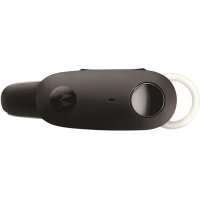
H375 - Headphones MOTOROLA - Free user manual and instructions
Find the device manual for free H375 MOTOROLA in PDF.



| Brand | Motorola |
| Model | H375 |
| Device type | Bluetooth headset |
| Connection technology | Bluetooth |
| Supported Bluetooth profiles | Headset (HSP), Hands-free (HFP) |
| Power supply | Built-in rechargeable battery |
| Charging time | Approximately 3 hours |
| Charge indicator | LED indicator (red, purple, blue) |
| Control buttons | On/off, call, volume + and - |
| Microphone | Built-in |
| Speaker | Built-in |
| Compatibility | Mobile phones with Bluetooth |
| Included ear tips | 1 round ear tip, 1 oval ear tip |
| Main functions | Answer, end call, reject, redial, voice dial, private mode |
| Light indicators | Indicator for charging status, pairing mode, connection, low battery |
| Sound indicators | Signals for power on/off, pairing, volume, low battery, call |
| Maintenance | Clean with a soft, dry cloth |
| Safety | Do not modify the device; compliant with CE and FCC directives |
| Recycling | Do not throw in the trash, dispose of at an approved collection point |
Frequently Asked Questions - H375 MOTOROLA
User questions about H375 MOTOROLA
0 question about this device. Answer the ones you know or ask your own.
Ask a new question about this device
Download the instructions for your Headphones in PDF format for free! Find your manual H375 - MOTOROLA and take your electronic device back in hand. On this page are published all the documents necessary for the use of your device. H375 by MOTOROLA.
USER MANUAL H375 MOTOROLA
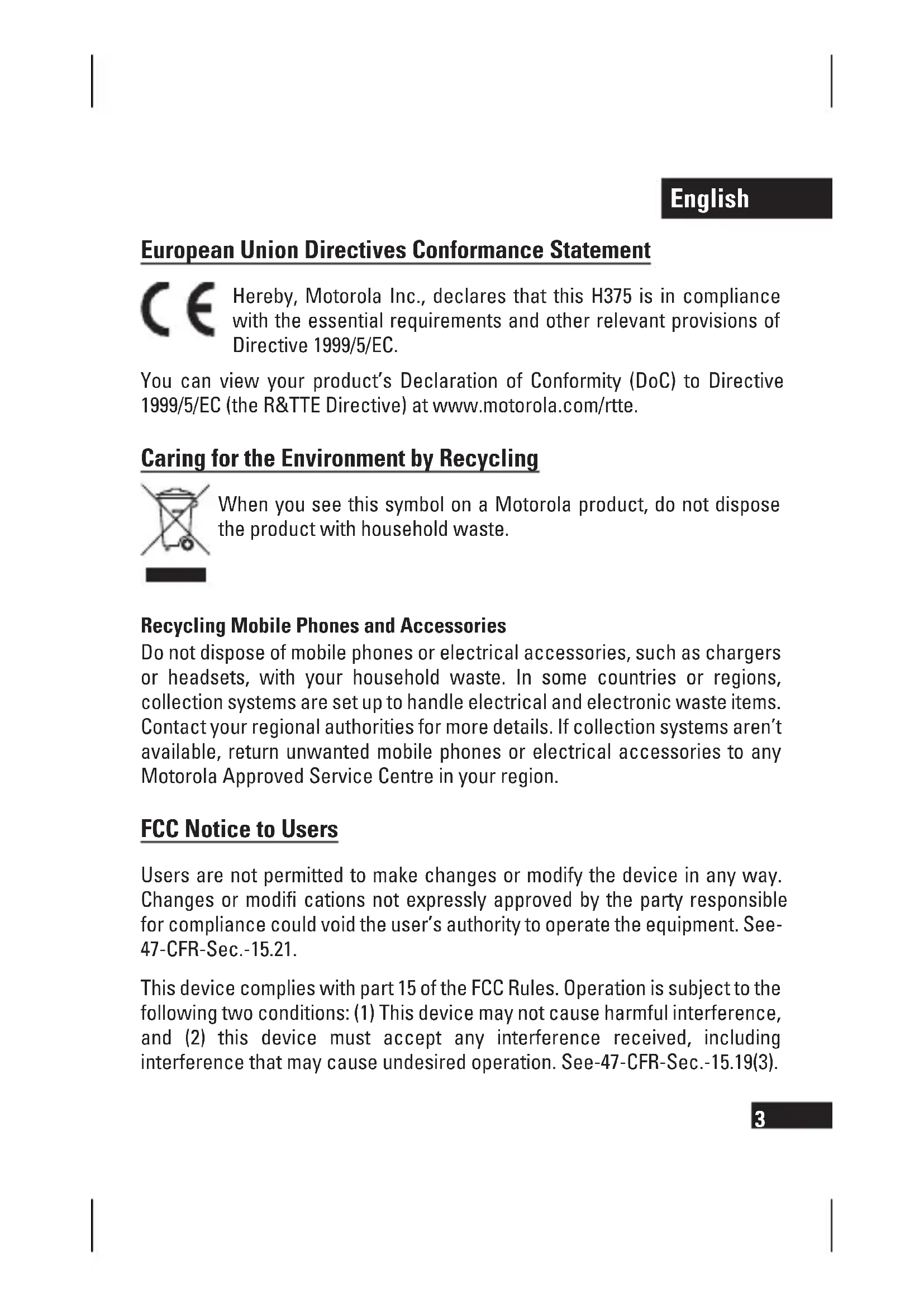
European Union Directives Conformance Statement
Hereby, Motorola Inc., declares that this H375 is in compliance with the essential requirements and other relevant provisions of Directive 1999/5/EC.
You can view your product's Declaration of Conformity (DoC) to Directive 1999/5/EC (the R&TTE Directive) at www.motorola.com/rtte.
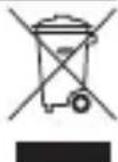
Caring for the Environment by Recycling

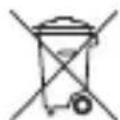
When you see this symbol on a Motorola product, do not dispose the product with household waste.
Recycling Mobile Phones and Accessories
Do not dispose of mobile phones or electrical accessories, such as chargers or headsets, with your household waste. In some countries or regions, collection systems are set up to handle electrical and electronic waste items. Contact your regional authorities for more details. If collection systems aren't available, return unwanted mobile phones or electrical accessories to any Motorola Approved Service Centre in your region.
FCC Notice to Users
Users are not permitted to make changes or modify the device in any way. Changes or modifi cations not expressly approved by the party responsible for compliance could void the user's authority to operate the equipment. See 47-CFR-Sec.-15.21.
This device complies with part 15 of the FCC Rules. Operation is subject to the following two conditions: (1) This device may not cause harmful interference, and (2) this device must accept any interference received, including interference that may cause undesired operation. See-47-CFR-Sec.-15.19(3).
English
Before you begin
See figure 1 on page 1.
Take a moment before you get started to familiarize yourself with your new H375 Bluetooth Hands-free Headset.
- Power button
- Microphone
- Call button
- Indicator light
- Volume buttons
- Speaker
Charging your headset
See figure 2 on page 1.
The indicator light turns on when the battery is charging. It may take up to 30 seconds for the indicator light to turn on. When the headset's battery is fully charged (about 3 hours), the indicator light is steadily lit in blue
Note: Headset is NOT functional while charging.
Wearing your headset
See figure 3 on page 2.
Your H375 headset is supplied with both round-and-oval shaped earbuds to provide personal choice for maximum comfort. The ear bud is fitted onto the end of your headset's earpiece speaker, and placed onto your ear when using your headset.
Your headset's performance is greatly dependent upon achieving a good fit on your ear. Therefore, we recommend trying all the supplied ear buds with your headset.
You can wear your H375 headset on your left of right ear. The headset comes ready for the right ear.
Placing the headset on your ear:
see figure 4 on page 2.
Placing the headset on the left ear:
see figure 5 on page 2.
Changing volume orientation button
You can change the orientation of the volume buttons on your headset.
- Turn the headset power off
- Press and hold the Volume button you want to assign as the "Volume up" button and the Power button to power on the headset. The indicator light flashes 3 times in blue.
English
Turning headset on and off
To turn your headset on, press and hold the Power button until the indicator light flashes.
To turn your headset off, press and hold the Power button until the indicator light flashes rapidly and then turns off.
Pairing your headset
Your phone's Bluetooth feature is off by default. To use your headset, you must turn on the Bluetooth feature in your phone. Please check your phone's user's guide.
Note: The Bluetooth feature remains on until you turn the feature off.
Before you can use your headset, you must pair it with your phone.
1. Ensure headset is in pairing mode
Power the headset on.
After a few moments, the indicator light will be steadily lit in blue to indicate headset is in pairing mode.
If the headset does not enter into pairing mode, see "Troubleshooting" section.
2. Set your phone to look for your headset
- Perform a device discovery from the phone. For details about device discovery, consult your phone's user's guide. The phone lists Bluetooth devices it finds.
- Select Motorola H375 in the list of discovered devices and confirm by following the on-screen prompts.
- When prompted by the phone, enter the passkey 0000 and confirm.
Pairing is successful when the headset indicator fl ashes purple and blue.
English
Test and use
Your phone and headset are now paired and ready to make and receive calls. To confirm they are successfully paired and operating properly, place the headset over your ear and make a call from your phone. You will hear ringing from the headset.
After you have successfully paired your phone and headset, you do not need to repeat these steps each time you use the headset.
Using your headset: Making & receiving calls
Your headset supports both hands-free and headset profiles.
Accessing call functions depend upon which profi le your phone supports.
See your phone's user's guide for more information.
Note: Some features are phone/network dependent.
| Function | Action |
| Receive a call | Tap the Call button |
| End a call | Tap the Call button |
| Reject a call | Press and hold either volume button until incoming call stops ringing |
| Redial last call | Press and hold the Call button for at least 2 seconds until you hear a beep |
| Make a voice dial call | Tap the Call button and speak the name after the tone |
| Mute or un-mute a call | Tap both Volume buttons |
English
Audio tones
| Audio tone Headset status |
| Ascending tone Powering on |
| Descending tone Powering off |
| 2 ascending tones Pairing successful |
| Ring tone Incoming call |
| 2 short tones Volume at maximum or minimum when pressing volume button |
| High/low tones repeated Low battery every 30 seconds |
| No audio indications: Out of range deteriorating quality |
| 3 ascending tones Connected call |
| 3 descending tones Ended call |
| 2 rapid ascending tones Mute enabled |
| 2 rapid descending tones Mute disabled |
Indicator lights
Checking battery level
To check battery level while headset is powered on, press and hold both Volume buttons for 5 seconds until you hear a beep. The indicator light displays the following charge status for a few seconds.
| Headset indicator | Charge level | |
| Red | Below | 10% |
| Purple | Between 10% and 80% charge | |
| Blue | Above | 80% |
English
Charging status
With charger plugged in
| Headset indicator | Charge status |
| Red Charging (below 10% charge) | |
| Purple Charging (above 10% charge) | |
| Blue | Charging |
| complete | |
Operating status
With no charger plugged in
| Headset indicator Headset status | |
| Off Power off | |
| 3 blue fl ashes Powering on/off | |
| Steady blue Pairing mode | |
| Rapid blue/purple fl ashes Pairing/Connection successful | |
| Quick blue fl ash Incoming/outcoming call | |
| Slow blue fl ash Connected (on a call) Standby (not on a call) | |
| Slow red fl ash Idle (not connected) | |
| Slow purple fl ash Connected (on a muted call) | |
| Quick red fl ash Low battery |
Note: After 30 minutes on a call or of inactivity, the light stops fl ashing to conserve battery power, but the headset remains in standby mode.
English
Troubleshooting
My headset will not enter pairing mode
Make sure that any devices previously paired with the headset are turned off. If the indicator light is not steadily lit in blue, turn off both the other device and headset, wait 10 seconds, then turn headset back on. Wait for the indicator light to become steadily lit in blue, indicating the headset is now in pairing mode.
My phone doesn't find my headset
Make sure the indicator light on your headset is on (lit in blue) and steady when your phone is searching for devices.
My headset worked before but now it's not working
Make sure your phone is on and the Bluetooth feature is turned on in your phone. If the Bluetooth feature was turned off or was turned on only temporarily, you may need to restart the Bluetooth feature and pair your phone and headset again.
If you have any additional questions, please call your hotline number (0870-9010-555) or visit us at www.hellomoto.com.
Voir figure 3, page 2.
Your headset's performance is greatly dependent upon achieving a good fit on your ear. Therefore, we recommend trying all the supplied ear buds with your headset.
Your headset's performance is greatly dependent upon achieving a good fit on your ear. Therefore, we recommend trying all the supplied ear buds with your headset.
Cm.pnc.1Ha cTpaHnue 1.
PpeIcTaBnemBaWemy BnMaHnIO Bluetooth-rapHnTpy H375.
- KHONka NITaHnA
- Minkpofoh
- KhoNka Bbl3Oba
- CBETOBONHIDNKATop
- KhoNKepeRyIinpoBKn rPOMKoCTN
6.ДиHamNK
3apЯdka aKKymyIaTopa rapHnTypbI
Cm. pnc. 2 ha ctpaHnue 1.
Bo BpeM 3apAdkn ropuT CBeTOBoi HndNKaTOP. HndNKaTOP MOKeT 3aropeTbcraPbIeHHTyHd.KoIgda 6aTaPeR rapHNTpybl NOHOCbHO 3apJxHeHa (npimepHo uepe3 3 yaca), CBeTOBoi HndNKaTOP HaHHeT paBHOMepHO ropeTcINHM CBETOM.
PpmeaHne.BoBpeM3apRanraphNtypaHEpa0Taet.
Houenne raphNTypbl
Cm. pnc. 3 ha cTpaHnue 2.
B KOMNJIeKT NOCTaBKn raphHTypbl H375 BxOJNT HeCKoJIbKO yUHbIX NOdyWeek KpyrLOI N OBAJIbHOJ COpMbI, YTO N03BOJAE T CDeJaT b HNDuBHyaJIbHbI BbI6Op I oBeCneuHaet MaKcImaJIbHbI KOMΦopT. JnAICNoJIb3OBAHNr raphHTypbl NOdyWeky CJeDyET HaTeB Ha DnHAMNK N BCTaBtB ByXO.
KaueCTBO pa60TbI raphHTypbI BO MHOROM 3aBnCIT OT npaBnHOrO paCNOJoxeHn B yxe. Po3Tomy peKOMeHdyETc nonpobobatb BCE yunhble noDyuweKn, nocTabnEbmB E KOMnKeTe C raphHTypoI.
TapHnTypy H375 moXHO Hocntb kaK Ha npaBOM, TaK n Ha JEBOM yxe. N3HaayalbHo rapHnTypa HactpoEHa dJa HOseHnRA Ha npaBOM yxe.
Pa3meHne raphnTypbHa yxe:
cm.pnc.4Ha cTpaHnue 2.
Pa3meueHne raphntypbl Ha neBOM yxe:
cm.pnc.5Ha cTpaHnue 2.
I3meHeHne opNeHTaCn KNOpKn rPOMKoCTN
YTo6bI n3MeHnTb opneHTaunIO KHOJOK rPOMKoCTn rapHNTypbl:
- BbIKIOUHTe NITaHHe rAPHNTypbl
- Haxmte n ydepxnbaiTe KhoNky rpoMKoCTn, KOtopoH Heo6XODIMO Ha3HaHTb cyHKcIOO «yBeJIuYeHnra rpoMKoCTn», N KHOKNy IINBKKIOUeHnRA INTahnra rapHNTypbl. CBeTOBOHnDnKATOp 3aMnraet 3 pa3a CInHM CBETOM.
Pycckn
Включени в ВыКлючене rapнТурbl
YTo6bI BKIOuHTb raphtpy, HaxMITE KHOKNy NITaHnN ydepxNBaTe ee Haxkato, NOKa He 3AMrAeT CBeTOBOHnDKaTOP.
ДЯ ВьIKLOUeHnRApHNTypbl, HaxMMTe KONky NITaHnI ydepxNBAHTe ee HaxkatoN, NOKa CBETOBOn IHdNKaTOp He NaHET 6bICTpo MIRaTb I He NorachET.
HactpoKa CBa3n C rapHNTyPoI
To ymoJuaHnO cyHKcNBAuTooth B TeIefoHe BbIKIOueHa.ДЯИSCNoJIb3OBaHnRAPHTypbl 3Ty cyHKcNIO Heo6xOdImo BKIOUHTb.CM.pyKOBOdCTBO IOJIb3OBaTeJIMO6nIbHOrTO TEJeDFOHa.
IpnmeaHne. FyHKnra Bluetooth octaetc BKnIOueHHo, noka He 6ydt BbIKIOueHa BpyHyIO.
Ipeed nCnoB3OBaHnem Heo6xOJMo HacTpOnTb CBraRapHHTypbl C TeJefoHOM.
1. Bключene rapнтурьВ рекime HabtpoКи CBa3N
BkIIOuHTe nTaHne rapHHTypbl.
- Upe3 HeckolbKO CekyHd CBeTOB0 INHdkaTOp HauHET CBETNTbCpaBHOMepHO, cnHann3npyO npexoDe raphHTypbl B pexm CoednHeHna.
Ecnr raphntypa He nepexoNT B pexim coeINHeHn, cm. pa3dIe «YcTpaHne Henoiaok>.
CBeTOBbIe NHdNkaTOPbI
HnDnKaTOp rapHnIypbI YpOBeHb 3aPJa
KpacbI 3aprMehee 10%
Пурпунь 3ард OT 10%do 80%
CnH 3ap4d6oJee80%
CocToHHe 3apAdkn
Pn noKIOueHnn K 3apHOMy yctpoiCTBy
| Индikatop rapнтурbl CosToHne 3apYdkn | |
| Красnéй IДeТ 3apYdka (Зapяд мeнee 10%) | |
| Пурпунnéй IДeТ 3apYdka (Зapяд boJee 10%) | |
| Сини | Зapяdka |
| ЗавершеHa | |
CocToHHeBpa6OyempeXnme
Бe3 nodkloueHnK 3apAnHomy yctpoiCTBy
| Инд�示ахограду рарнту р Бу К Л У С H E N I P R H T U Y P B I | П I I I I I I I I I I I I I I I I I I I I I I I I I I I I I I I I I I В Б K L I O H O H М I I I I I I I I I I I I I I I Б I I I I I I I I I I I I I Г I I I I I I I I I I I I F I I I I I I I I I I Б I I I I I I I I I I I I I I I I I I I I I I I I I I I I I I I I I I I I I I I I I I I I I I I I I I I I I I I I I I I I I I I I I I I I I I I I I I I I I I I I I I I I I I I I I I I I I I I I I I I I I I I I I I I I I I I I I I I I I I I I I I I I I I I I I I I I I I I I I I I I I I I I I I I I I I I I I I I |
IpmeaHne. 30 mHyT pa3roBopa nn 6e3deJCTBna CBetOBn HndkaTop nepectaet MraTb nn 3koHOMnn 3apra 6atapeu, OHaKO raphHTypa OCTaETC B peXnme OxndaHn.
YcTpaHHeNHeHenoJaDOK
TapHnIpya He nepexoIbpeXIM HacIpoKn CBn3N
Y6eIntecb, yTo ycTpoiCTBa, K KOtOpbIM 6bla noDKNIOueHa rapHNTypa paHee, BbIKIOUeHbI. EcIn CBETOBO INDINKAtop He RopIT CINHM CBETOM, BbIKIOUHTe DpyrOe ycTPOIcTBo n raphHTpy, NOOXdnte 10 cekyHn IN BKIOUHTe raphHTpy CHOBA. IOnOxdnte, Noka CBETOBO INDINKAtop He NaHET paBHomepHO ropetb CINHM CBETOM, CNHaJIIN3npyA O nepexOde raphHTypbl B pEXIM HAcTPOJKN CBA3N.
Tepeohy He ydaetcnaobnapxntb rapHnTypy
Bo Bpemn noncka yctpoiCTb Ha Tepeone He ybeHITecb, YTO Ha raphHtpe ropnt (CINHM) CBETOBON HNDKATOp.
TapHnIpya HeoXuHaHNo nepeCTaJa pa6OtaTb
Y6eIntecb, YTO TeJefoH BKIOUey H B HEM aKTINBnPOBaHa cyHKqna Bluetooth. Ecnn cyHKqna Bluetooth 6bla BbIKIOUeHa NII BKIOUeHa TOJIbKO BpeMeHHO, BO3MOXHO, Notpe6yETcra NobTOpHo BKIOUHTb cyHKqno Bluetooth n eue pa3 BbINOHNtB NaCTpOKy CB3N MEXdy TeJeFOHOM n rapHnTypoi.
Evpyoioiog kai aeepyoioiog tov akovotikov
Tia va evpyoioeTo aKovotko, nathote kai Kpathote natnevo To koupi Ieitovpyiac, eXpi n EvdeiktuKn LVyvi a apxioeI v avaooshei.
Tia va anevpyonoiote to akovotko, natoe kai kpatnoe natnuevo To koupi I aetovpyiaic, expi n evdeiktikn vxvia va apxioe i va avaobosnvie Ypnyopa kai epiota,va ofoe.
Avtioixion tov akovotikou ox
| (‰10 monday) | |
| (‰10 monday) |
J
J Lw 5 JUOG Pd sW
go bdoJ, JIJIaclaw JIbIaIyIaIyIaIyIaIyIaIyIaIyIaIyIaIyIaIyIaIyIaIyIaIyIaIy
| مشرطیشمن | مشرورشین رهان |
| %10 %-الشمن | %.10 %10 |
| %80%10%80 | %80 %10 %80 |
1
LgJgJgJgJgJgJgJgJgJgJgJgJgJgJgJgJgJgJgJgJgJgJgJgJgJgJgJgJgJgJgJgJgJgJgJgJgJgJgJgJgJgJgJgJgJgJgJgJgJgJg
JlAclaw:
s93JgJrJ aclaw 12 kJb aJl J aclaw ac3j.
J0I. aac3J sJll "ogll Jc Jd JgJgJgJ 362
J2glJ12 3j2 Jc JgJU Jy JcJgJpJ p36w2 (J.
a / aJpJSLc Jau Jae Jae: ab>lo
| الإستعمال | الإستعمال |
| الإستعمال al6¢2¢2¢2¢2¢2¢2¢2¢2¢2¢2¢2¢2¢2¢2¢2¢2¢2¢2¢2¢2¢2¢2¢2¢2¢2¢2¢2¢2¢2¢2¢2¢2¢2¢2¢2¢2¢2¢2¢2¢2¢2¢2¢2¢2¢2¢2¢2¢2¢2¢2¢10001100011000110001100011000110001100011000110001100011000110001100011000110001100011000110001100011000011000110000110001100001100011000011000011000011000011000011000011000011000011000011000011000011000011000011000011000011000011000001100001100000110000011000001100000110000011000001100000110000011000001100000110000011000001100000110000011001000011001000011001000011001000011001000011001000011001000011001000011001000011001000011001000011001100001100110000110011000011001100001100110000110011000011001100001100110000110011000011001100001100 12 12 12 12 12 12 12 12 12 12 12 12 12 12 12 12 12 12 12 12 12 12 12 12 12 12 12 12 12 12 12 12 12 12 |
w w g w w
Jl Jnll clao ylo beol, wll aclaw
gagoo 1
aabw wswgall 10000
山aJlllraeauon
g g 1
a
1eaiy/ay/ny/ny/ny/ny/ny/ny/ny/ny/ny/ny/ny/ny
1
aJl aclaw jn 0
uU U Jy Jn Jn Jn Jn Jn Jn Jn Jn Jn Jn Jn Jn Jn Jn Jn Jn Jn Jn Jn Jn Jn Jn Jn Jn Jn Jn Jn Jn Jn Jn Jn Jn Jn Jn Jn Jn Jn Jn Jn Jn Jn Jn Jn Jn Jn Jn Jn Jn Jn Jn J.
14 > 100%
2
yI .H375 JrJrJrJrJrJrJrJrJrJrJrJrJrJrJrJrJrJrJrJrJrJrJrJrJrJrJrJrJrJrJrJrJrJrJrJrJrJrJrJrJrJrJrJrJr
2 aJ5 JkJl jj:ssuUdU yle uUaawg
gall sgiuoo a>gi cieo j
Jll aclaw w gssgws sssw mo jz 1
aJlal gss sglg jraas y go b 2 aclaw Jll qagog "gall sgs g" cks .JU U3 rss gls.
H375 100000000000000000000000000000000000000000000
1
2g9
3 2
4.
gall sgiw5 jie
aclaowl6
山 aollll aclw j
.1 aJU 2 JsJl jbl
J 30 J
.()wJl aclaw yj
.1wJwJJI aclaw Jaej Y:ab>1o
y
H375 Motorola Inc 4
.1999/5/EC 4
4) 1999/5/EC 4 (DoC)
. www.motorola.com/rtte 1 (R&TTE
eaii 1
e 11111111111111111111111111111
aJ1ai 1yaii
aalalgaoaal gall
eclawgolal ylll lall golal ylll pge 1y 1y 1y 1y 1y 1y 1y 1y 1y 1y 1y 1y 1y 1y 1y 1y
(FCC)
i 1
jll jiei jiee i jiee
-15.2147-CFR
(1)::FCC 15dJg
(2)y(2)
-47-
-15.19(3) CFR
| yau yu | |
| (ON) yu yu | yuyu yuyu |
| 2017 | |
| 2018 | |
| 2019 | |
| 2020 | |
| 2021 | |
| 2022 | |
| 2023 | |
| 2024 | |
11n
nnonnnxniT
yyn7,wnn7nnn nn nnnn nn nnnn nn nnnn nn nnnn nn nnnn nn nnnn nn nnnn nn nnnn nn nnnn nn nnnn nn nnnn nn nnnn nn nnnn nn nnnn nn nnnn nn nnnn nn nnnn nn nnnn nn nnnn nn nnnn nn nnnn nn nnnn nn nnnn nn nnnn nn nnnn nn
y7T, y1n nn nnn nnn nnn
A
"11111111111111111111111111111
nTINXnnwnn7n19ynnn2
"nnn n" y d7y.197n nn nnna "nnn 7y
XnW Bluetooth-n nnn nn nn nn nn nn nn nn
.NXIN
Motorola H375 nn nn nn nn
.7onn nn
.0000 nnoon nn 1n,nnn nn 197on
n nn nnnnnnnnnnnnnnnnnnnnnnnnnnnnnnnnnnnnnnn
.2TIny3X
n nn nnnn nn nnnn H375 nnnn nnnn nn nnnn nn nnnn nn nnnn nn nnnn nn nnnn nn nnnn nn nnnn nn nnnn nn nnnn nn nnnn nn nnnn nn nnnn nn nnnn nn nnnn nn nnnn nn nnnn nn nnnn nn nnnn nn nnnn nn nnnn nn nnnn nn nnnn nn nnnn nn nnnn nn nnnn
nTIN nNn H375 nnn nn
.2Tiny4
:
.2TIny5X
n
ynnnny
n nn nnnn nn nnnn nn nnnn nn
1
VVolume :ywnn nn ynn nnyn , (y/nyon) Power- "ynn" npyn 3 3nn n
2
nnnu 197
xnx1
H375 Bluetooth nnnn nn nn nn nn nn nn nn nn nn nn nn nn nn nn nn nn nn nn nn nn nn nn nn nn nn nn nn nn nn nn nn nn nn nn nn nn nn nn nn nn nn nn nn nn nn nn nn nn nn nn nn nn nn nn nn nn nn nn nn nn nn nn nn nn nn nn nn nn nn nn nn nn nn nn nn nn nn nn nn nn nn nn nn nn nn nn nn nn nn nn nn nn nn nn nn nn nn nn nn nn
1n7ynn
2197
3ninnu xn7
4n
57n nnny
67
TIXN yO
2Tin
T 30 ty w nwn pn nynn nn nnn nniu 3) nny u nnnn nn nnnn nn nnnn nn nnnn nn
yon xynn nn,nyon nna 7
#
11111111111 1
H375 Motorola Inc. 1999/5/EC
nun) 1999/5/EC nnn (DoC) nnnn nn nn nn nn nn nn nn nn nn nn nn nn nn nn nn nn nn nn nn nn nn nn nn nn nn nn nn nn nn nn nn nn nn nn nn nn nn nn nn nn nn nn nn nn nn nn nn nn nn nn nn nn nn nn nn nn nn nn nn nn nn nn nn nn nn nn nn nn nn nn nn nn nn nn nn nn nn nn nn nn nn nn nn nn nn nn nn nn nn nn nn nn nn nn nn nn nn nn nn nn
TINN T BY NIOO DIXIT
y n nn nn nn nn nn nn nn nn nn nn nn nn nn nn nn nn nn nn nn nn nn nn nn nn nn nn nn nn nn nn nn nn nn nn nn nn nn nn nn nn nn nn nn nn nn nn nn nn nn nn nn nn nn nn nn nn nn nn nn nn nn nn nn nn nn nn nn nn nn nn nn nn nn nn nn nn nn nn nn nn nn nn nn nn nn nn nn nn nn nn nn nn nn nn nn nn nn
DITNI DITD1970 ITIN
yTn'niTIX IN D'YON J,ynn nTIN XD'TN 1570 yT N TIOX NIOYN ININ, O'NON IIN XNIN .yNnN NIOIN ,OIOI O'ON .O'NIN XIN D'NOIN NIOIN 7907 IN O'TN'IOIN 70TN ,IOX NIOYN IN"7OX .NnN NIOIN NIKN ,NIOIN WNN IN "7, YNIN
(FCC) nivn nn nnnn nn yin nn nn
IN D.17N 17N NNN IN D'WY WY WY WY WY WY WY WY WY WY WY WY WY WY WY WY WY WY WY WY WY WY WY WY WY WY WY WY WY WY WY WY WY WY WY WY WY WY WY WY WY WY WY WY WY WY WY WY WY WY WY
n nn n nn nn .FCC nnn 15 nn nnn n nn nnn nnn (2) n nn nn nn nn nn nn nn nn nn nn nn nn nn nn nn nn nn nn nn nn nn nn nn nn nn nn nn nn nn nn nn nn nn nn nn nn nn nn nn nn nn nn nn nn nn nn nn nn nn nn nn nn nn nn nn nn nn nn nn nn nn nn nn nn nn nn nn nn nn nn nn nn nn nn nn nn nn nn nn nn nn nn nn nn nn nn nn nn nn nn nn nn nn nn nn nn nn nnn nnn nnn nnn nnn nnn nnn nnn nnn nnn nnn nnn nnn nnn nnn nnn nnn nnn nnn nnn nnn nnn nnn nnn nnn nnn nnn nnn nnn nnn nnn nnn nnn nnn nnn nnn nnn nnn nnn nnn nnn nnn nnn nnn nnn nnn nnn nnn nnn nnn nenn nnn nnn nnn nnn nnn nnn nnn nnn nnn nnn nnn nnn nnn nnn nnn nnn
Notes