
H390 - Headphones MOTOROLA - Free user manual and instructions
Find the device manual for free H390 MOTOROLA in PDF.


| Product Type | Bluetooth Headset |
| Brand | Motorola |
| Model | H390 |
| Connectivity | Bluetooth |
| Battery Type | Lithium-ion rechargeable (non-replaceable) |
| Talk Time | Up to 8 hours |
| Charging Time | Approximately 2 hours |
| Standby Time | Up to 100 hours (estimated) |
| Weight | Approximately 12 g |
| Dimensions | Approximately 50 x 20 x 15 mm |
| Indicator Light | Multi-color (red, yellow, green, blue, purple) |
| Volume Controls | Two buttons (orientation adjustable) |
| Call Button | Yes (tap, hold functions) |
| Earhook | Adjustable for left or right ear |
| Earbuds | Multiple sizes included for optimal fit |
| Compatibility | Most Bluetooth phones, especially Motorola |
| Supported Profiles | Handsfree and Headset |
| Wireless Range | Up to 10 meters (typical) |
| Quick Battery Check | Yes (press both volume buttons) |
| Mute Function | Yes (tap both volume buttons) |
| Voice Dial Support | Yes (tap call button) |
| Redial Last Call | Yes (press and hold call button) |
| Reject Call | Yes (press and hold volume button) |
| Answer Second Incoming Call | Via phone (follow phone instructions) |
| EU Conformance | Yes (R&TTE Directive 1999/5/EC) |
Frequently Asked Questions - H390 MOTOROLA
User questions about H390 MOTOROLA
0 question about this device. Answer the ones you know or ask your own.
Ask a new question about this device
Download the instructions for your Headphones in PDF format for free! Find your manual H390 - MOTOROLA and take your electronic device back in hand. On this page are published all the documents necessary for the use of your device. H390 by MOTOROLA.
USER MANUAL H390 MOTOROLA
Motorola H390
① CHARGE Your Headset's Battery 3
② START BLUETOOTH FEATURE Your Phone 4
③ PAIR Your Headset 5
③ PAIR CONTINUED Your Phone 6
④ TEST AND USE 7
USING YOUR H390 8
TURNING HEADSET ON AND OFF 9
EARBUDS AND YOUR HEADSET 10
WEARING THE HEADSET 11
CHANGING FOR USE ON OTHER EAR 12
CHANGING VOLUME BUTTON ORIENTATION 13
QUICK BATTERY CHECK 14
MAKING CALLS 15
INDICATOR LIGHT 16
AUDIO TONES 18
TROUBLESHOOTING 19
European Union Directives Conformance Statement 22
BEFORE YOU BEGIN
Before using this product, read the Important Safety and Legal Information pamphlet and follow its instructions.
Take a moment before you get started to familiarize yourself with your new H390 Headset.

① CHARGE Your Headset's Battery
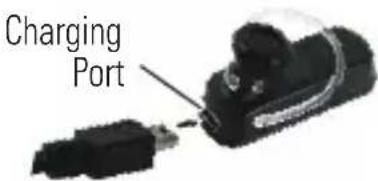
1 Verify slide switch is in the off position (toward the charging port).
2 Plug the Motorola charger into the end of the headset.
The indicator light turns red or yellow when the battery is charging. It may take up to 1 minute for the indicator light to turn on. When the headset's battery is fully charged (about 2 hours), the indicator light turns green.
3 Disconnect the charger.
Note: Headset is not functional while charging.
Note: This product uses a lithium ion, rechargeable, non-replaceable battery. Under normal use, the expected life of the rechargeable battery is approximately 400 charges.

START BLUETOOTH FEATURE Your Phone
Your phone's Bluetooth feature is off by default. To use your headset, you must turn on the Bluetooth feature in your phone.
For most Motorola phones (at the main menu):
1 Press (Menu) > Settings > Connection > Bluetooth Link > Setup.
2 Scroll to Power.
3 Select Change.
4 Scroll to On.
5 Press Select to turn on the Bluetooth feature. The Bluetooth feature remains on until you turn the feature off.
Note: These steps are for most Motorola phones. For other phones, see your phone's user's guide.

PAIR Your Headset
Before you can use your headset, you must pair (link) it with your phone.
Step A - ENSURE HEADSET IS IN PAIRING MODE
Power on headset by sliding the Power switch towards the microphone to initiate easy pairing. After a few moments, the indicator light will be steadily lit in blue to indicate headset is in pairing mode.

If the headset does not enter pairing mode, see TROUBLESHOOTING for help.

PAIR CONTINUED Your Phone
Step B - SET YOUR PHONE TO LOOK FOR YOUR HEADSET
For most Motorola phones:
1 On your Motorola phone, press (Menu) > Settings > Connection > Bluetooth Link > Handsfree > Look for Devices.
The phone lists Bluetooth devices it finds.
2 Select Motorola H390.
3 Select OK or Yes to pair your headset with your phone.
4 Enter the passkey: 0000
5 Select OK.
When your headset successfully pairs and connects with your phone, the indicator light changes from steadily lit to flashing blue and purple.
Note: These steps are for most Motorola phones. For other phones, see your phone's user's guide.
④ TEST AND USE
Your phone and headset are now paired and ready to make and receive calls.
To make a call:
1 Place the headset over your ear.
2 On the phone, dial the number you want to call and press SEND key on your phone.
If your phone and headset are successfully paired, you will hear ringing on the headset.
After you have successfully paired your phone and headset, you don't need to repeat these steps. For daily use, ensure that your headset is turned ON and that your phone's Bluetooth feature is ON.
USING YOUR H390
Note: If desired, your headset can be restored to original factory settings. This action will erase all pairing information stored in your headset. Thus, you will need to pair your phone and headset again (see step 3).
Note: To restore your headset to original factory settings, press and hold both Volume buttons and the Call button at the same time for 10 seconds.
TURNING HEADSET ON AND OFF
To turn your headset on, slide the switch toward the microphone. The indicator light flashes blue three times, then flashes in blue and purple (if connected with a device) or is steadily blue (if ready to be paired).
To turn your headset off, slide the switch toward the charging plug. The indicator light flashes three times then turns off.

EARBUDS AND YOUR HEADSET
Your H390 headset is supplied with multiple earbuds. The earbud is fitted onto the end of your headset's earpiece speaker, and placed onto your ear when using your headset.

Your headset's performance is greatly dependent upon achieving a good fit on your ear. Therefore, we recommend trying all the supplied earbuds with your headset.
WEARING THE HEADSET
To wear your headset, flex the earhook and loop it over your ear as shown.
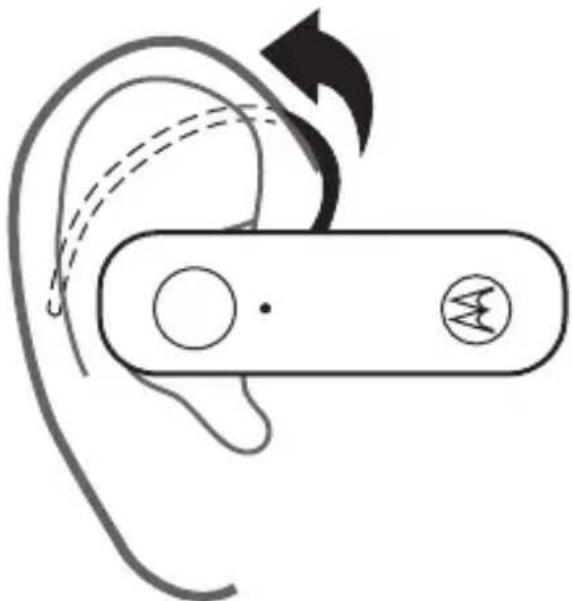
Be sure to position the ear cushion into your ear canal for optimal audio performance and comfort.
CHANGING FOR USE ON OTHER EAR
You can wear your H390 headset on your left or right ear. The headset comes ready for the right ear. To change the headset for the left ear:
1 Gently lift and pull the top of the earhook up and off speaker stem, as shown.
2 Flip the headset over.
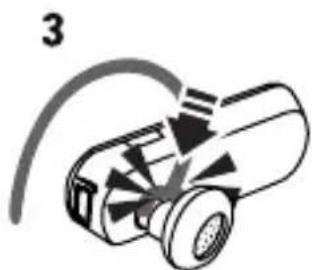
3 Attach the earhook to the speaker stem, as shown.


CHANGING VOLUME BUTTON ORIENTATION
You can also change the orientation of the volume buttons on your headset.
1 Turn the headset power off.
2 Press and hold the Volume button you want to assign as the "volume up" button and slide the switch toward the microphone. The indicator light flashes blue three times, then steady blue. When connected, it will flash blue/purple.

QUICK BATTERY CHECK
When not on a call, you can check your headset's battery charge level by pressing and holding both Volume buttons.
The indicator light displays charge status for 5 seconds. See below for details on indicator light and charge status.
Headset Indicator Talk Time
| Red | Less than 2.5 hours |
| Yellow | Between 2.5 to 5.5 hours |
| Green | Up to 8 hours |
To save battery power, turn OFF the headset when you don't use it for an extended time by sliding the switch towards the charging plug.
Note: Your battery is designed to last the life of the product. It should only be removed by a recycling facility. Any attempt to remove or replace your battery will damage the product.
MAKING CALLS
Function Action
| Receive a call Tap the Call button |
| Mute or unmute a call Tap both Volume buttons |
| Reject a call Press and hold a Volume buttonuntil the ringer stops |
| End a call Tap the Call button |
| Redial last call Press and hold the Call buttonuntil you hear two tones |
| Make a voice dial call Tap the Call button and wait forvoice prompt |
| Answer second incoming Use phone to answercall (follow your phone's instructions) |
Note: Your H390 supports both Handsfree and Headset Profiles. Accessing call functions depends upon which profile your phone supports. See your phone's user's guide for more information.
Note: Some features are phone/network dependent.
INDICATOR LIGHT
With the Charger Plugged In
Headset Indicator Headset Status
| Red Charging (battery level less than 70% charge) |
| Yellow Charging (battery level more than 70% charge) |
| Green Charging complete |
INDICATOR LIGHT
With No Charger Plugged In
Headset Indicator Headset Status
| Off Power off | |
| Three blue flashes | Powering on/off |
| Steady blue Pairing/connect mode | |
| Rapid blue/purple flashes | Connection successful |
| Quick blue flash | Incoming/outgoing call |
| Slow blue pulse | Connected (on a call) |
| Slow blue flash | Standby (not on a call) |
| Slow red flash | Idle (not connected to phone) |
| Slow purple pulse | Connected call muted |
| Steady red | Attempting to connect |
| Quick red flash | Low battery |
Note: After 30 minutes on a call or of inactivity, the light stops flashing to conserve power, but the headset remains on.
AUDIO TONES
Audio Tone Headset Status
| Ascending tone Powering on |
| Two descending tones Powering off |
| Ring tone Incoming call |
| Two short tones when Volume at minimum pressing Volume button or maximum |
| High/low tones Low battery repeated every 60 sec. |
| No audio indications; Out of range deteriorating quality |
| Two ascending tones Connected to phone |
| Two rapid ascending tones Mute enabled |
| Two rapid descending tones Mute disabled |
| Low tone every 10 seconds Mute reminder |
TROUBLESHOOTING
My headset will not enter pairing mode.
Make sure that any devices previously paired with the headset are turned off. If the indicator light is not steadily lit in blue, turn off both the other device and headset, wait 10 seconds, then turn headset back on. Wait for the indicator light to become steadily lit in blue, indicating the headset is now in pairing mode.
My phone doesn't find my headset.
Make sure the indicator light on your headset is on (lit in blue) and steady when your phone is searching for devices (see step 3).
My headset worked before but now it's not working.
Make sure your phone is on and the Bluetooth feature is turned on in your phone (see step 2). If the Bluetooth feature was turned off or was turned on only temporarily, you may need to restart the Bluetooth feature (see step 2) and pair your phone and headset again (see step 3).
Motorola, Inc.
Consumer Advocacy Office
1307 East Algonquin Road
Schaumburg, IL 60196
www.motorola.com
www.motorola.com/Bluetoothsupport
1-877-MOTOBLU (Motorola Bluetooth Support)
1-800-331-6456 (United States)
1-888-390-6456 (TTY/TDD United States for hearing impaired)
1-800-461-4575 (Canada)
MOTOROLA and the Stylized M Logo are registered in the US Patent & Trademark Office. The use of wireless devices and their accessories may be prohibited or restricted in certain areas. Always obey the laws and regulations on the use of these products. The Bluetooth trademarks are owned by their proprietor and used by Motorola, Inc. under license. All other product or service names are the property of their respective owners.
© 2008 Motorola, Inc. All rights reserved.
Bluetooth QD ID: B014439
Guide Number: 68003591001
PRC 400-810-5050
TWN 886-2-2705-1811
HK 852-25063888
Australia 1300 138823
New Zealand 0508 668 676
Singapore 1800 882 8828
Malaysia 1800 806 008
Philippines 1800 1651 0415
India 1800 11 1211/3902 6686
Thailand 023518666
Indonesia 021 5754533
Vietnam 04 9331080/08 9144146
South Africa 0860 10 10 39
Turkey 0212 317 45 95

This symbol on a Motorola product means the product should not be disposed of with household waste.
Please do not dispose of mobile telephones or electrical accessories, such as chargers or headsets, with your household waste.
European Union Directives Conformance Statement

Hereby, Motorola declares that this product is in compliance with:
- The essential requirements and other relevant provisions of Directive 1999/5/EC.
- All other relevant EU Directives.
![graph LR A["IMEI: 350034/40/394721/9\nCE\nType: MC2-41H14"] --> B["Product Approval Number"]](/content/2026/05/950955/images/930c820c9085dd83c6f1f96d30aaffdcb99dc8ef083404fd1b28f61b70c55555.jpg)
The above gives an example of a typical Product Approval Number.
You can view your product's Declaration of Conformity (DoC) to Directive 1999/5/EC (to R&TTE Directive) at www.motorola.com/rtte. To find your DoC, enter the product Approval Number from your product's label in the "Search" bar on the web site.
目录
准备工作 24
①为耳机充电 25
②启动手机蓝牙功能 26
③匹配您的耳机与手机 27
④测试和使用 29
使用您的H390耳机 30
开机和关机 31
耳塞垫和耳机 32
佩戴耳机 33
换耳佩戴 34
改变音量按键方向 35
快速检查电池电量 36
进行通话 37
指示灯 38
声音提示 40
疑难问题解答 41
欧盟指令符合声明 44
准备工作
指示灯
电源开关
耳塞垫和耳机
改变音量按键方向
您还可以改变耳机音量按键的调节方向。
1 关闭耳机电源。
www.motorola.com/Bluetoothsupport
電源開關指示燈
耳塞墊和耳機

改變音量按鍵方向
您還可以改變耳機音量按鍵的調節方向。
www.motorola.com/Bluetoothsupport


- Motorola H390
- Before you begin
- ① Charge your headset's battery
- Start bluetooth feature your phone
- Pair your headset
- Step a - ensure headset is in pairing mode
- Pair continued your phone
- Step b - set your phone to look for your headset
- ④ Test and use
- Using your H390
- Turning headset on and off
- Earbuds and your headset
- Wearing the headset
- Changing for use on other ear
- Changing volume button orientation
- Quick battery check
- Making calls
- Indicator light
- With the charger plugged in
- Audio tones
- Troubleshooting
- My headset will not enter pairing mode
- My phone doesn't find my headset
- My headset worked before but now it's not working
- Www.Motorola.com/bluetoothsupport
- European union directives conformance statement
- 目录
- 准备工作
- 耳塞垫和耳机
- 改变音量按键方向
- 耳塞墊和耳機
- 改變音量按鍵方向
Brand : MOTOROLA
Model : H390
Category : Headphones