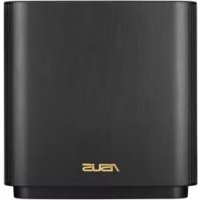
ZenWiFi AC CT8 - Wireless Router ASUS - Free user manual and instructions
Find the device manual for free ZenWiFi AC CT8 ASUS in PDF.



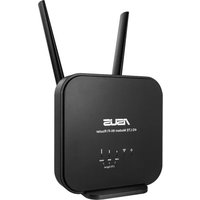
| Product Type | Wireless Router |
| Brand | ASUS |
| Model | ZenWiFi AC CT8 |
| Power Supply | DC power adapter 19 V, 1.75 A max. |
| Operating Temperature | 0 °C to 40 °C |
| Storage Temperature | 0 °C to 70 °C |
| Operating Humidity | 50 % to 90 % |
| Storage Humidity | 20 % to 90 % |
| Network Ports | 1 WAN port (RJ45), 3 LAN ports (RJ45) |
| WiFi Standards | IEEE 802.11a/b/g/n/ac |
| Frequency Bands | 2.4 GHz and 5 GHz |
| Main Functions | Router, access point, AiMesh system, Ethernet backhaul, WiFi repeater mode |
| LED Indicator | White (good signal), Yellow (weak signal), Red (no signal) |
| Maintenance and Cleaning | Clean with a soft, dry cloth. Do not use chemical products. |
| Safety | Do not expose to moisture or rain. Use indoors. Keep away from heat sources. Maintain a minimum distance of 20 cm from the body. |
| Spare Parts and Repairability | The device contains no user-serviceable parts. If problems occur, contact ASUS after-sales service. |
| General Information | User manual available online. Complies with directive 2014/53/EU. Indoor use only for the 5 GHz band. |
Frequently Asked Questions - ZenWiFi AC CT8 ASUS
User questions about ZenWiFi AC CT8 ASUS
0 question about this device. Answer the ones you know or ask your own.
Ask a new question about this device
Download the instructions for your Wireless Router in PDF format for free! Find your manual ZenWiFi AC CT8 - ASUS and take your electronic device back in hand. On this page are published all the documents necessary for the use of your device. ZenWiFi AC CT8 by ASUS.
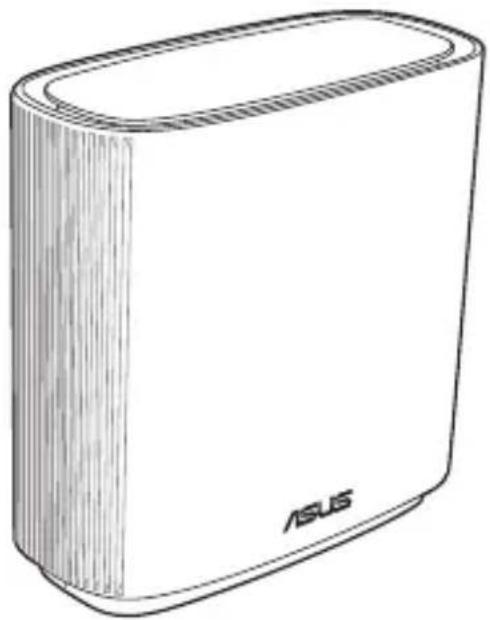
USER MANUAL ZenWiFi AC CT8 ASUS
Wireless AC3000 Tri band Gigabit Router
Model: CT8
Quick Start Guide
U16299 / Second Edition / May 2020
Table of contents Table of contents
English....3
Български....12
Hrvatski....21
Čeština....30
Dansk....39
Nederlands 48
Eesti 57
Français....66
Suomi....75
Deutsch....84
Ελληνικά....93
Magyar 102
Italiano 111
Lietuvių ....120
Latviešu....129
Norsk....138
Português....147
Polski....156
Русский....165
Română....174
Español....183
Srpski 192
Slovenský....201
Slovenščina....210
Svenska 219
Türkçe 228
Українська....237
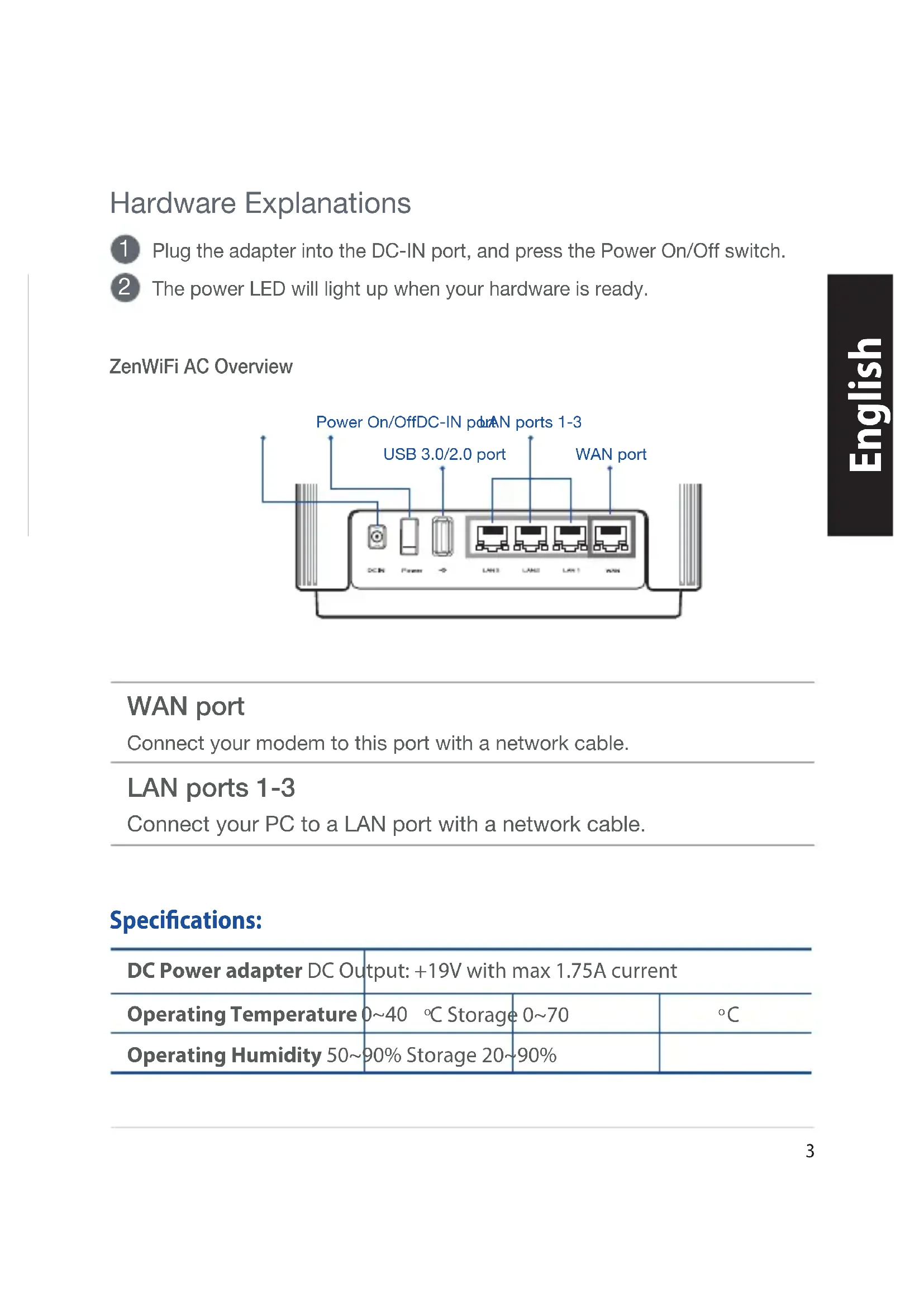
Hardware Explanations
1 Plug the adapter into the DC-IN port, and press the Power On/Off switch.
2 The power LED will light up when your hardware is ready.
ZenWiFi AC Overview
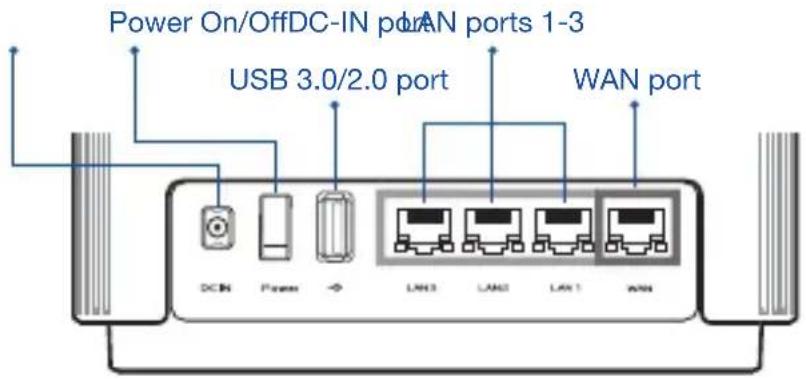
WAN port
Connect your modem to this port with a network cable.
LAN ports 1-3
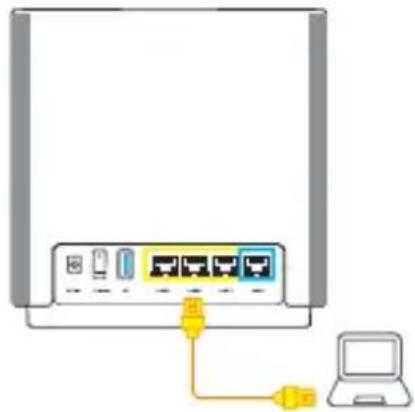
Connect your PC to a LAN port with a network cable.
Specifications:
| DC Power adapter DC Output: +19V with max 1.75A current | |||
| Operating Temperature | 0~40 °C Storage | 0~70 | °C |
| Operating Humidity | 50~90% Storage | 20~90% | |
Before Setup
01 Setting up a standalone router
1 Go to ONE ROUTER SETUP STEPS.
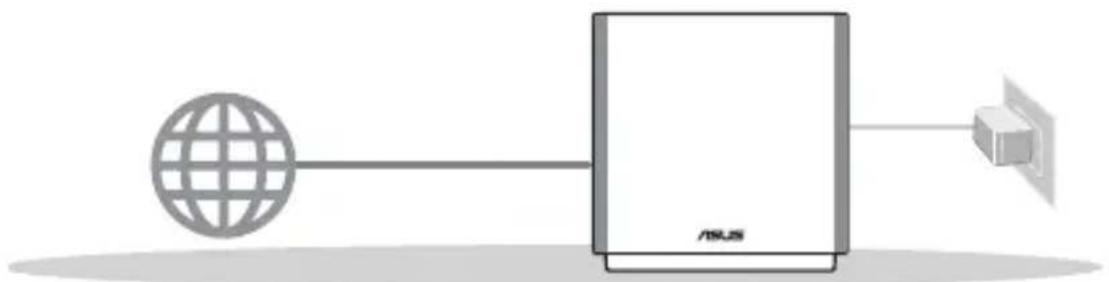
One Router Setup
Setting up an AiMesh WiFi system02
1 Prepare two or more ASUS routers supporting AiMesh.
2 Assign one as AiMesh router, and another one as AiMesh node.
** If you have multiple AiMesh routers, we recommend using the router with the highest specifications as your AiMesh router and the others as AiMesh nodes.
3 Go to AiMesh SETUP STEPS.
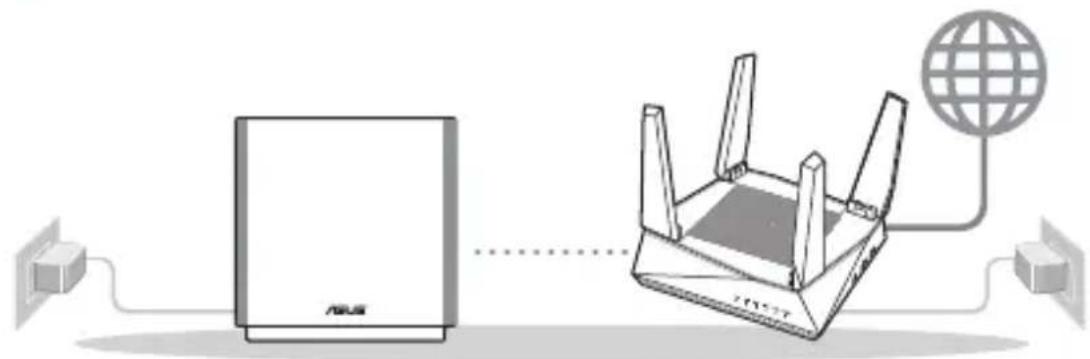
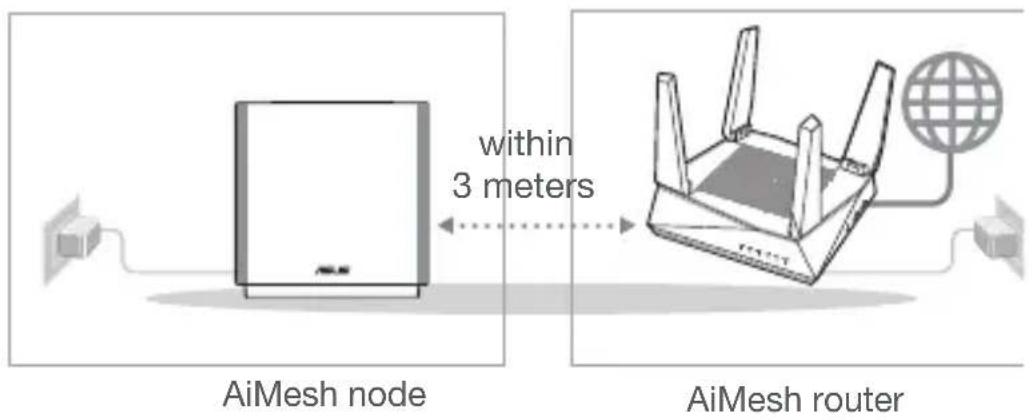
AiMesh routerAiMesh node
AiMesh Setup Steps
One Router Setup Steps
01 Prepare your Modem
1 Unplug the power of cable / DSL modem. If it has a battery backup, remove the battery. 1
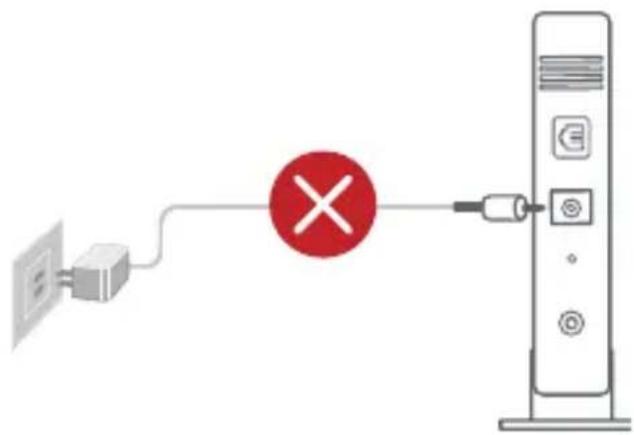
If you are using DSL for internet, you will need your username / password from your Internet service provider (ISP) to properly configure your router.
2 Connect your modem to the router with the network cable provided.
3 Power on the modem. Plug modem to the power outlet and power on.
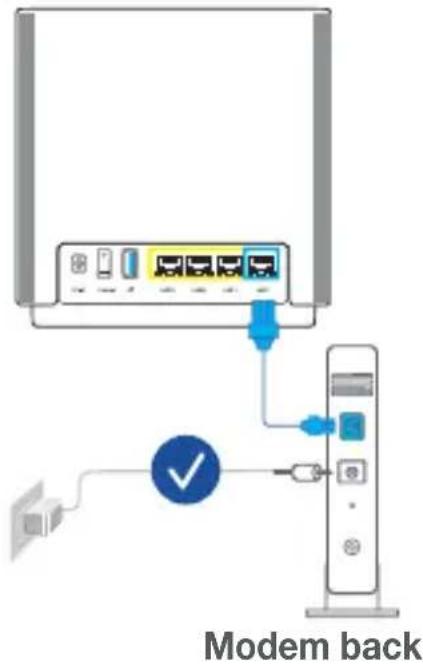
4 Check the modem LED lights to ensure the connection is active.
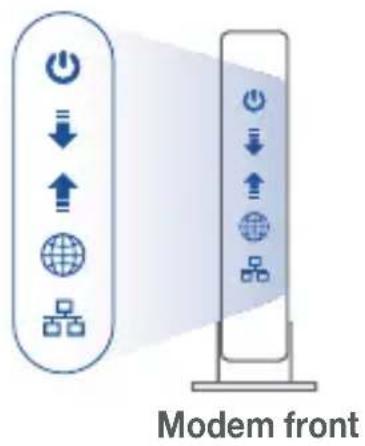
02 Connect your Device
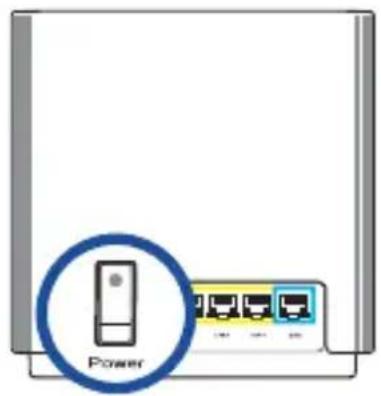
1 Power on the router.
Plug in and press the Power On/Off switch at the back of your router.
2 Check that the LED turns solid blue to indicate that the hardware connection is ready for setup.
3 [Web] Connect your PC to the router using an additional network cable.
[App] Or you can use a phone or pad to complete the setup via ASUS Router App.
03 Login and Connect
1 [Web] Open a web browser.
You will be redirected to the ASUS Setup Wizard. If not, navigate to http://router.asus.com.

[App] Launch ASUS Router App and follow the instructions to complete the setup.
AiMesh Setup Steps
01 Prepare
Place your ZenWiFi AC router and node within 3 meters of each other during the setup process.
02 AiMesh node
Keep your AiMesh node powered on and standby for AiMesh system settings.
03 AiMesh router
[Web]
1 Refer to ONE ROUTER SETUP STEPS to connect your AiMesh router to your PC and modem, and then log in into the web GUI.
![graph TD A["Router"] --> B["AiMesh routerModern"] C["AiMesh node"] --> D["Download"] D --> E["AI/ML Interface"] E --> F["Logout/Reboot"] F --> G["AiMesh Route"]](/content/2026/03/495276/images/97dc4f1f86d88697f04426632cb619048689217caf45ef1fe30201216070ab06.jpg)
2 Go to Network Map page, click AiMesh icon and then Search for your extending AiMesh node.
![graph TD A["Network Map"] --> B["Node"] B --> C["AIMesh node"] C --> D["Search"] E["AIMesh"] --> F["Find AIMesh node"]](/content/2026/03/495276/images/80404765ba09fc8a3d4300fd24c18f3248c18a2efcd3653d09fd8a0f71fd44a2.jpg)
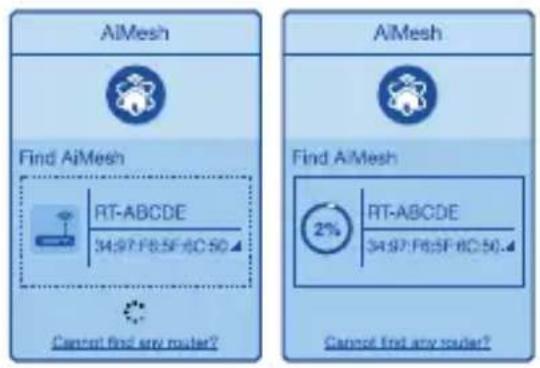
3 Click Search, it will automatically search for your AiMesh node nearby. When the AiMesh node shows on this page, click it to add it into the AiMesh system.
** If you cannot find any AiMesh node, please go to TROUBLE SHOOTING.
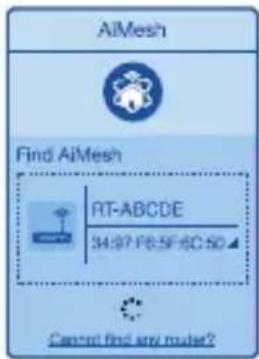
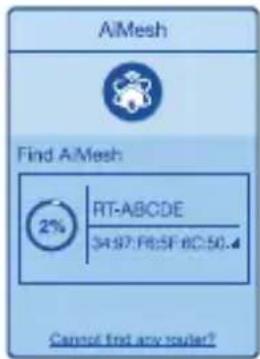
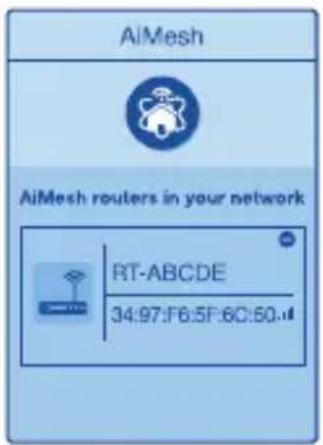
4 A message is displayed when synchronization is completed.
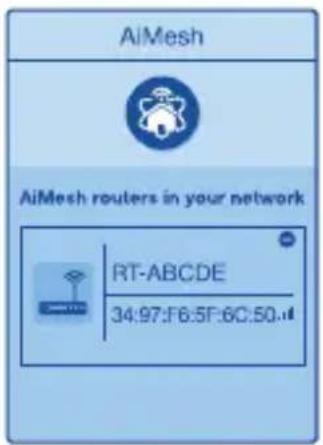
Successfully added RT-ABCDE to your AiMesh system, it will take awhile to show up as connected in the AiMesh router list.
OK
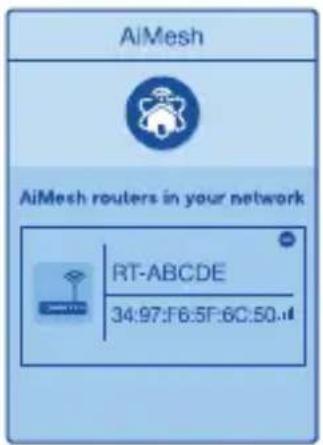
5 Congratulations! You will find the pages below show up when an AiMesh node has been successfully added to the AiMesh network.
[App] Log in to your existing router via ASUS Router App and choose "Add AiMesh Node" to complete the setup.
ASUS Router App
Download free ASUS Router APP to set up and manage your router(s).



Troubleshooting
If your AiMesh router cannot find any AiMesh node nearby or synchronization fails, please check the following and try again.
Move your AiMesh node closer to the AiMesh router ideally. Ensure that it is within 3 meters.
b Your AiMesh node is powered on.
Relocation
Locate the AiMesh router and node at the best place.
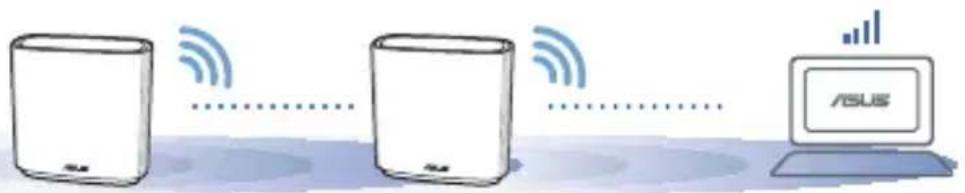
NOTES: To minimize interference, keep the routers away from devices like cordless phones, Bluetooth devices and microwave ovens.
We recommend that you place the routers in an open or spacious location.
ZenWiFi AC LED indications

Solid white: Good signal

Solid yellow: Weak signal

Solid red: No signal
FAQ FREQUENTLY ASKED QUESTIONS
Q1: Does the AiMesh router support Access Point mode?
A: Yes. You can choose to set the AiMesh router as router mode or access point mode. Please go to web GUI (http://router.asus.com), and go to the page Administration > Operation Mode.
![graph TD A["Operation Mode"] --> B["Administration - Operation Mode"] B --> C["Network"] C --> D["ASUS"] D --> E["ASUS"] E --> F["Computer"]](/content/2026/03/495276/images/309f76ce3bb9b47bbbd3bba55bcd15f0eb398c00b2c839c4b201537a655f497b.jpg)
Q2: Could I setup wired connection between AiMesh routers (Ethernet backhaul)?
A: Yes. AiMesh system supports both wireless and wired connection between AiMesh router and node to maximize throughput and stability. AiMesh analyzes the wireless signal strength for each frequency band available, and then determines automatically whether a wireless or wired connection is best to serve as the inter-router connection backbone.
1 Follow the setup steps to establish a connection between the AiMesh router and node via WiFi first.
2 Place the node in the ideal locations for best coverage. Run an Ethernet cable from the LAN port of the AiMesh router to the WAN port of AiMesh node.
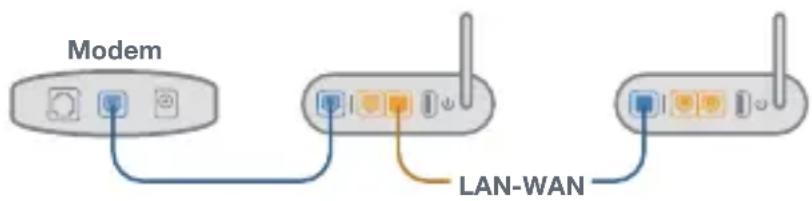
3 AiMesh system will auto-select the best path for data transmission, whether wired or wireless.
ИНСТАЛИРАНЕ НА ЕДИН РУТЕР
Свързване на рутера
03 Свързване
Successfully added RT-ABCDE to your AiMesh system, it will take awhile to show up as connected in the AiMesh router list.
OK


Prednja strana modema
Successfully added RT-ABCDE to your AiMesh system, it will take awhile to show up as connected in the AiMesh router list.
OK
5 Čestitamo! Kada se AiMesh modul uspješno doda u AiMesh mrežu, prikazat će se sljedeća stranice.
[App] Prijavite se na postojeći usmjerivač preko aplikacije za ASUS usmjerivač i odaberite "Dodaj AiMesh čvorište" za dovršavanje podešavanja.


NAPOMENE: Kako biste minimalizirali interferenciju, držite usmjernike podalje od uređaja poput bežičnih telefona, Bluetooth uređaja i mikrovalnih pećnica.
INSTALACE JEDNOHO SMĚROVAČE
Successfully added RT-ABCDE to your AiMesh system, it will take awhile to show up as connected in the AiMesh router list.
OK


Odstraňování potíží
Modemmets forside
Forbind din enhed02
1 Tænd for din router.
Successfully added RT-ABCDE to your AiMesh system, it will take awhile to show up as connected in the AiMesh router list.
OK


Fejlfinding
BEMÆRKNINGER:
OFTE STILLEDE SP∅RGSMÅL
Achterkant modem
Voorzijde modem
Successfully added RT-ABCDE to your AiMesh system, it will take awhile to show up as connected in the AiMesh router list.
OK



Problemen oplossen
ÜHE RUUTERI SEADISTAMINE
Modemi tagapaneel
Modemi esipaneel
AiMeshi SEADISTUSTOIMINGUD
01 Ettevalmistus
Successfully added RT-ABCDE to your AiMesh system, it will take awhile to show up as connected in the AiMesh router list.
OK
[Rakendus] Log in to your existing router via ASUS Router App and choose "Add AiMesh Node" to complete the setup.
ASUS'E RUUTERI RAKENDUS
Laadige alla ASUS'e ruuteri tasuta RAKENDUS, et oma ruuterit (ruutereid) häälestada ja hallata.



Törkeotsing
Arrière du modem
03 Vous connecter


Dépannage
Modeemi takaa
Modeemi edestä
Liitä laitteesi02
Successfully added RT-ABCDE to your AiMesh system, it will take awhile to show up as connected in the AiMesh router list.
OK



Vianetsintä


Fehlerbehebung
Successfully added RT-ABCDE to your AiMesh system, it will take awhile to show up as connected in the AiMesh router list.
OK


Modem hátoldala
Successfully added RT-ABCDE to your AiMesh system, it will take awhile to show up as connected in the AiMesh router list.
OK


Hibaelhárítás


Modemo galiné pusé
Successfully added RT-ABCDE to your AiMesh system, it will take awhile to show up as connected in the AiMesh router list.
OK



Trikčių šalinimas
Modema priekšpuse
03 Piesakieties un pievienojieties
1 [Tikls] Atveriet tîmekla pârlüku.
Successfully added RT-ABCDE to your AiMesh system, it will take awhile to show up as connected in the AiMesh router list.
OK
![ASUS ZenWiFi AC CT8 - [Tikls] Atveriet tîmekla pârlüku. - 2](/content/2026/03/495276/images/7ea7aa01ed8449c30cdd9f4985dcbdf6f6917207f5a34494a507ed30746e516e.jpg)
![ASUS ZenWiFi AC CT8 - [Tikls] Atveriet tîmekla pârlüku. - 4](/content/2026/03/495276/images/2efdf02118abf2d00cbd4418ab70c1fd72d69edebcf1a97c54ca7abf21c8d3d5.jpg)
Klūdu novēršana
Oppsett Av Én Ruter
02 Forbereder å sette opp et AiMesh WiFi-system
AiMesh-noden
AiMesh-ruter
Trinn For Oppsett Av AiMesh
Trinn For Oppsett Av Én Ruter
01 Forbereder modemet
Modem foran
Logg på og koble til03
1 [Nett] Åpne en nettleser.
Du blir omdirigert til ASUS' oppsettsveiviser. Hvis ikke går du til http://router.asus.com.

Successfully added RT-ABCDE to your AiMesh system, it will take awhile to show up as connected in the AiMesh router list.
OK
5 Gratulerer! Sidene nedenfor skal vises när en AiMesh-node er lagt til AiMesh-nettverket.

![ASUS ZenWiFi AC CT8 - [Nett] Åpne en nettleser. - 4](/content/2026/03/495276/images/5cd32e1d7c99faab6976e1326d2b7465d8ca385a344e83e68339dc3e05128ce5.jpg)
![ASUS ZenWiFi AC CT8 - [Nett] Åpne en nettleser. - 5](/content/2026/03/495276/images/ba75286082b3c7e2d82e04b822fdc7dbe8d531adc5f74197a0ee78ec4d9e36a4.jpg)
Feilsøking
OFTE STILTE SP∅RSMÅL
Frente do modem
Successfully added RT-ABCDE to your AiMesh system, it will take awhile to show up as connected in the AiMesh router list.
OK



Router AiMeshNode AiMesh
Tyt modemu
Successfully added RT-ABCDE to your AiMesh system, it will take awhile to show up as connected in the AiMesh router list.
OK




CONFIGURAREA CA ROUTER INDEPENDENT
Router AiMeshNod AiMesh
PAŞI DE CONFIGURARE AiMesh
PAŞI DE CONFIGURARE CA ROUTER INDEPENDENT
Față modem
Successfully added RT-ABCDE to your AiMesh system, it will take awhile to show up as connected in the AiMesh router list.
OK


Depanarea
Alb constant: Semnal bun

Galben constant: Semnal slab

Successfully added RT-ABCDE to your AiMesh system, it will take awhile to show up as connected in the AiMesh router list.
OK


PODEŠAVANJE JEDNOG RUTERA
03 Prijavite se i povežite se
1 [Veb] Otvorite internet pregledač.
Bićete preusmereni na ASUS čarobnjak za podešavanje. Ukoliko se to ne desi, idite na http://router.asus.com.

[Aplikacija] Pokrenite ASUS Router aplikaciju i pratite uputstva da završite podešavanje.
KORACI ZA PODEŠAVANJE AiMesh-a
01 Pripremite
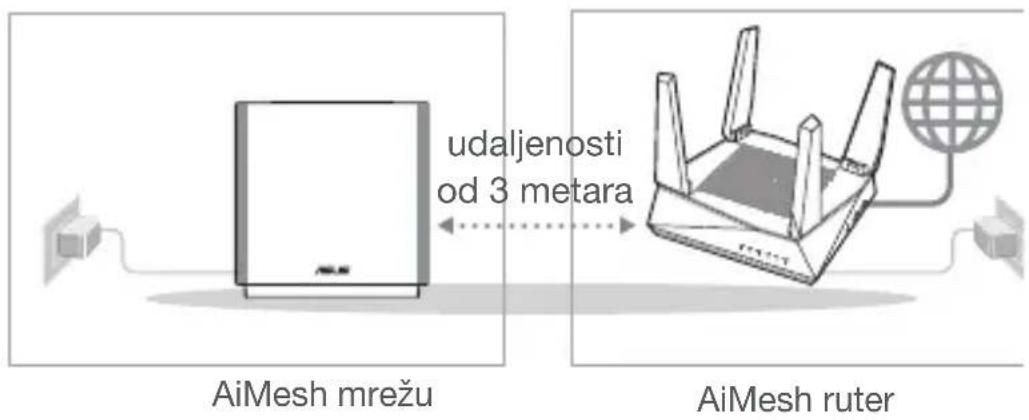
Postavite svoj ZenWiFi AC ruter i čvorište na udaljenost od 3 metra tokom procesa podešavanja.
02 AiMesh račvište
Vodite računa da je napajanje uključeno tokom podešavanja AiMesh sistema.
03 AiMesh ruter
[Veb]1
Pogledajte ONE ROUTER SETUP STEPS (KORAKE ZA PODEŠAVANJE JEDNOG
RUTERA) da povežete svoj
AiMesh ruter za svoj PC i modem, a potom se prijavite na internet GUI.
![graph TD A["Router"] --> B["AiMesh routerModern"] C["AiMesh node"] --> D["Download"] D --> E["UiMOS Logout/Reboot\nAiMesh Route"]](/content/2026/03/495276/images/efe69aceb3efbca5f15be81148a88d233bd51d3891370125a9199c7fc077f97d.jpg)
2 Idite na stranicu sa Network Map (Mapom mreže), kliknite na AiMesh ikonicu i potom na Search (Pretraga) za svoje AiMesh račvište za proširenje.
![graph TD A["Network Map"] --> B["Node"] B --> C["AIMesh node"] C --> D["Search"] E["AIMesh"] --> F["Find AIMesh node"]](/content/2026/03/495276/images/f5cfb3625e3dcb481f36c198940e76ad739fd1d0f04166c0c47a312f9ed55d87.jpg)
3 Kliknite na Search (Pretraga), ona će automatski potražiti vaš AiMesh čvor u blizini. Kada se AiMesh račvište prikaže na ovoj stranici, kliknite na njega da ga dodate u AiMesh sistem.
** Ukoliko ne možete da pronađete bilo koje AiMesh račvište, idite na TROUBLE SHOOTING (REŠAVANJE PROBLEMA).
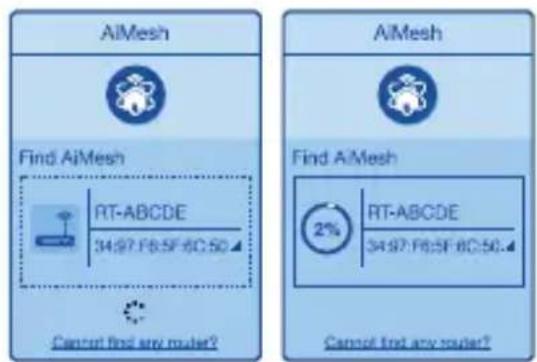
Successfully added RT-ABCDE to your AiMesh system, it will take awhile to show up as connected in the AiMesh router list.
OK


Rešavanje problema
NAPOMENE: Da smanjite ometanje, držite rutere dalje od uređaja kao što su bežični telefoni, Bluetooth uređaji i mikrotalasne pećnice.
Preporučujemo da postavite rutere na otvorenu ili prostranu lokaciju.
ZenWiFi AC LED indikacije

Postojana bela: Dobar signal

Postojana žuta: Slab signal

Postojana crvena: Nema signala
Česta pitanja
ČESTA PITANJA
NASTAVENIE JEDNÉHO SMEROVAČA
02 Príprava na nastavenie systému siete WiFi AiMesh
Zadná strana modemu
4 Skontrolujte kontrolky LED na modeme DSL/napájací kábel a uistite sa, že pripojenie je aktívne.
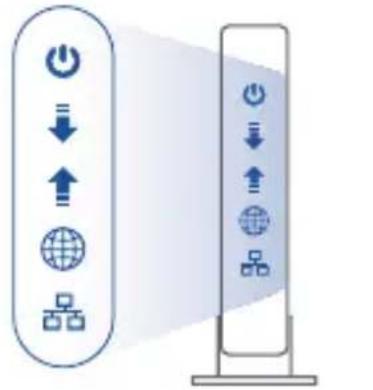
Predná strana modemu
02 Pripojenie zariadenia
1 Zapnite smerovač.
Zapojte a stlačte vypínač na zadnej strane smerovača.
Successfully added RT-ABCDE to your AiMesh system, it will take awhile to show up as connected in the AiMesh router list.
OK


Riešenie problémov
NASTAVITEV ENEGA USMERJEVALNIKA
Priprava na nastavitev WiFi sistema AiMesh02
Modem back
4 Preverite lučke LED kabelskega modema/modema DSL in se prepričajte, da je povezava aktivna.
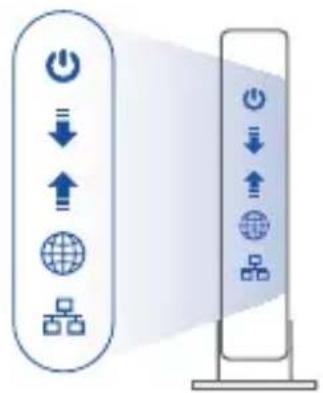
Sprednja stran modema
Successfully added RT-ABCDE to your AiMesh system, it will take awhile to show up as connected in the AiMesh router list.
OK


Odpravljanje težav
Modemets baksida
Modemets framsida
Successfully added RT-ABCDE to your AiMesh system, it will take awhile to show up as connected in the AiMesh router list.
OK



Felsökning
Modem arka
Successfully added RT-ABCDE to your AiMesh system, it will take awhile to show up as connected in the AiMesh router list.
OK


Sorun Giderme
Задня панель модема
Successfully added RT-ABCDE to your AiMesh system, it will take awhile to show up as connected in the AiMesh router list.
OK


ASUS recycling and takeback programs come from our commitment to the highest standards for protecting our environment. We believe in providing solutions for you to be able to responsibly recycle our products, batteries, other components, as well as the packaging materials. Please go to http://csr.asus.com/english/Takeback.htm for the detailed recycling information in different regions.
REACH
Complying with the REACH (Registration, Evaluation, Authorisation, and Restriction of Chemicals) regulatory framework, we published the chemical substances in our products at ASUS REACH website at http://csr.asus.com/english/REACH.htm
Federal Communications Commission Statement
This device complies with Part 15 of the FCC Rules. Operation is subject to the following two conditions:
- This device may not cause harmful interference.
- This device must accept any interference received, including interference that may cause undesired operation.
This equipment has been tested and found to comply with the limits for a class B digital device, pursuant to part 15 of the FCC Rules. These limits are designed to provide reasonable protection against harmful interference in a residential installation.
This equipment generates, uses and can radiate radio frequency energy and, if not installed and used in accordance with the instructions, may cause harmful interference to radio communications. However, there is no guarantee that interference will not occur in a particular installation. If this equipment does cause harmful interference to radio or television reception, which can be determined by turning the equipment off and on, the user is encouraged to try to correct the interference by one or more of the following measures:
- Reorient or relocate the receiving antenna.
- Increase the separation between the equipment and receiver.
- Connect the equipment into an outlet on a circuit different from that to which the receiver is connected.
- Consult the dealer or an experienced radio/TV technician for help.

WARNING! Any changes or modifications not expressly approved by the party responsible for compliance could void the user's authority to operate the equipment.
Prohibition of Co-location
This device and its antenna(s) must not be co-located or operating in conjunction with any other antenna or transmitter.
IMPORTANT NOTE:
Radiation Exposure Statement: This equipment complies with FCC radiation exposure limits set forth for an uncontrolled environment. End users must follow the specific operating instructions for satisfying RF exposure compliance. To maintain compliance with FCC exposure compliance requirement, please follow operation instruction as documented in this manual.

WARNING! This equipment must be installed and operated in accordance with provided instructions and the antenna(s) used for this transmitter must be installed to provide a separation distance of at least 20 cm from all persons and must not be co-located or operating in conjunction with any other antenna or transmitter.
Compliance Statement of Innovation, Science and Economic Development Canada (ISED)
This device complies with Innovation, Science and Economic Development Canada licence exempt RSS standard(s). Operation is subject to the following two conditions: (1) this device may not cause interference, and (2) this device must accept any interference, including interference that may cause undesired operation of the device.
Operation in the band 5150–5250 MHz is only for indoor use to reduce the potential for harmful interference to co-channel mobile satellite systems.
CAN ICES-3(B)/NMB-3(B)
Radio Frequency (RF) Exposure Information
The radiated output power of the ASUS Wireless Device is below the Innovation, Science and Economic Development Canada radio frequency exposure limits. The ASUS Wireless Device should be used in such a manner such that the potential for human contact during normal operation is minimized.
This equipment should be installed and operated with a minimum distance of 20 cm between the radiator any part of your body.
This device has been certified for use in Canada. Status of the listing in the Innovation, Science and Economic Development Canada's REL (Radio Equipment List) can be found at the following web address: http://www.ic.gc.ca/eic/site/ceb-bhst.nsf/eng/h_tt00020.html
Additional Canadian information on RF exposure also can be found at the following web: https://www.ic.gc.ca/eic/site/smt-gst.nsf/eng/sf08792.html
Precautions for the use of the device
a. Pay particular attention to the personal safety when use this device in airports, hospitals, gas stations and professional garages.
b. Medical device interference: Maintain a minimum distance of at least 15 cm (6 inches) between implanted medical devices and ASUS products in order to reduce the risk of interference.
c. Kindly use ASUS products in good reception conditions in order to minimize the radiation's level.
d. Keep the device away from pregnant women and the lower abdomen of the teenager.
• UK support e-mail: network_support_uk@asus.com
• For more information, visit the ASUS support site at: https://www.asus.com/support
English
CE statement
Simplified EU Declaration of Conformity
ASUSTek Computer Inc. hereby declares that this device is in compliance with the essential requirements and other relevant provisions of Directive 2014/53/EU. Full text of EU declaration of conformity is available at https://www.asus.com/support.
Declaration of Conformity for Ecodesign directive 2009/125/EC
Testing for eco-design requirements according to (EC) No 1275/2008 and (EU) No 801/2013 has been conducted. When the device is in Networked Standby Mode, its I/O and network interface are in sleep mode and may not work properly. To wake up the device, press the Wi-Fi on/off, LED on/off, reset, or WPS button.
This equipment complies with EU radiation exposure limits set forth for an uncontrolled environment. This equipment should be installed and operated with minimum distance 20 cm between the radiator & your body.
All operational modes:
2.4GHz: 802.11b, 802.11g, 802.11n (HT20), 802.11n (HT40)
5GHz: 802.11a, 802.11n (HT20), 802.11n (HT40), 802.11ac (VHT20), 802.11ac(VHT40), 802.11ac (VHT80)
The frequency, mode and the maximum transmitted power in EU are listed below:
2412-2472MHz (802.11n): 19.97 dBm
5180-5240MHz (802.11a): 22.68dBm
5260-5320MHz (802.11ac VHT20 MCS0): 22.76 dBm
5500-5700MHz (802.11ac VHT20 MCS0): 29.83 dBm
2402-2480MHz (BR/EDR): 4.9 dBm; 2402-2480MHz (LE): 0.92 dBm
The device is restricted to indoor use only when operating in the 5150 to 5350 MHz frequency range.
The adapter shall be installed near the equipment and shall be easily accessible.
 | AT BE BG CZ DK EE FR | ||||||
| DE IS IE IT EL ES CY | |||||||
| LV | LI | LT | LU | HU | MT | NL | |
| NO PL PT RO SI SK TR | |||||||
| FI | SE | CH | UK | HR | UA | ||
Safety Notices
• Use this product in environments with ambient temperatures between 0° C( 32° F) and 40° C( 104° F).
- Refer to the rating label on the bottom of your product and ensure your power adapter complies with this rating.
- DO NOT place on uneven or unstable work surfaces. Seek servicing if the casing has been damaged.
- DO NOT place or drop objects on top and do not shove any foreign objects into the product.
- DO NOT expose to or use near liquids, rain, or moisture. DO NOT use the modem during electrical storms.
- DO NOT cover the vents on the product to prevent the system from getting overheated.
- DO NOT use damaged power cords, accessories, or other peripherals.
- If the Adapter is broken, do not try to fix it by yourself. Contact a qualified service technician or your retailer.
- To prevent electrical shock hazard, disconnect the power cable from the electrical outlet before relocating the system.
Danish
CE-erklæring
- WIRELESS AC3000 TRI BAND GIGABIT ROUTER
- QUICK START GUIDE
- TABLE OF CONTENTS TABLE OF CONTENTS
- HARDWARE EXPLANATIONS
- WAN PORT
- LAN PORTS 1-3
- BEFORE SETUP
- 01 SETTING UP A STANDALONE ROUTER
- SETTING UP AN AIMESH WIFI SYSTEM02
- ONE ROUTER SETUP STEPS
- 01 PREPARE YOUR MODEM
- 02 CONNECT YOUR DEVICE
- 03 LOGIN AND CONNECT
- 1 [WEB] OPEN A WEB BROWSER
- AIMESH SETUP STEPS
- 01 PREPARE
- 02 AIMESH NODE
- 03 AIMESH ROUTER
- [WEB]
- ASUS ROUTER APP
- TROUBLESHOOTING
- RELOCATION
- ZENWIFI AC LED INDICATIONS
- FAQ FREQUENTLY ASKED QUESTIONS
- Q1: DOES THE AIMESH ROUTER SUPPORT ACCESS POINT MODE
- Q2: COULD I SETUP WIRED CONNECTION BETWEEN AIMESH ROUTERS (ETHERNET BACKHAUL)
- 03 СВЪРЗВАНЕ
- ODSTRAŇOVÁNÍ POTÍŽÍ
- FORBIND DIN ENHED02
- FEJLFINDING
- BEMÆRKNINGER
- OFTE STILLEDE SP∅RGSMÅL
- PROBLEMEN OPLOSSEN
- AIMESHI SEADISTUSTOIMINGUD
- 01 ETTEVALMISTUS
- ASUS'E RUUTERI RAKENDUS
- TÖRKEOTSING
- 03 VOUS CONNECTER
- DÉPANNAGE
- LIITÄ LAITTEESI02
- VIANETSINTÄ
- FEHLERBEHEBUNG
- HIBAELHÁRÍTÁS
- TRIKČIŲ ŠALINIMAS
- 03 PIESAKIETIES UN PIEVIENOJIETIES
- 1 [TIKLS] ATVERIET TÎMEKLA PÂRLÜKU
- KLŪDU NOVĒRŠANA
- 02 FORBEREDER Å SETTE OPP ET AIMESH WIFI-SYSTEM
- TRINN FOR OPPSETT AV ÉN RUTER
- 01 FORBEREDER MODEMET
- LOGG PÅ OG KOBLE TIL03
- 1 [NETT] ÅPNE EN NETTLESER
- FEILSØKING
- OFTE STILTE SP∅RSMÅL
- PAŞI DE CONFIGURARE CA ROUTER INDEPENDENT
- DEPANAREA
- 03 PRIJAVITE SE I POVEŽITE SE
- 1 [VEB] OTVORITE INTERNET PREGLEDAČ
- KORACI ZA PODEŠAVANJE AIMESH-A
- 01 PRIPREMITE
- 02 AIMESH RAČVIŠTE
- 03 AIMESH RUTER
- [VEB]1
- POGLEDAJTE ONE ROUTER SETUP STEPS (KORAKE ZA PODEŠAVANJE JEDNOG
- REŠAVANJE PROBLEMA
- ZENWIFI AC LED INDIKACIJE
- ČESTA PITANJA
- 02 PRÍPRAVA NA NASTAVENIE SYSTÉMU SIETE WIFI AIMESH
- 02 PRIPOJENIE ZARIADENIA
- RIEŠENIE PROBLÉMOV
- PRIPRAVA NA NASTAVITEV WIFI SISTEMA AIMESH02
- ODPRAVLJANJE TEŽAV
- FELSÖKNING
- SORUN GIDERME
- REACH
- FEDERAL COMMUNICATIONS COMMISSION STATEMENT
- PROHIBITION OF CO-LOCATION
- IMPORTANT NOTE
- COMPLIANCE STATEMENT OF INNOVATION, SCIENCE AND ECONOMIC DEVELOPMENT CANADA (ISED)
- RADIO FREQUENCY (RF) EXPOSURE INFORMATION
- PRECAUTIONS FOR THE USE OF THE DEVICE
- ENGLISH
- CE STATEMENT
- SIMPLIFIED EU DECLARATION OF CONFORMITY
- DECLARATION OF CONFORMITY FOR ECODESIGN DIRECTIVE 2009/125/EC
- SAFETY NOTICES
- DANISH
- CE-ERKLÆRING
Brand : ASUS
Model : ZenWiFi AC CT8
Category : Wireless Router