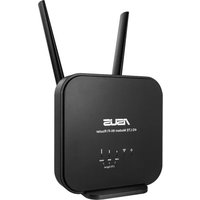
4G-N12 B1 - Wireless Router ASUS - Free user manual and instructions
Find the device manual for free 4G-N12 B1 ASUS in PDF.

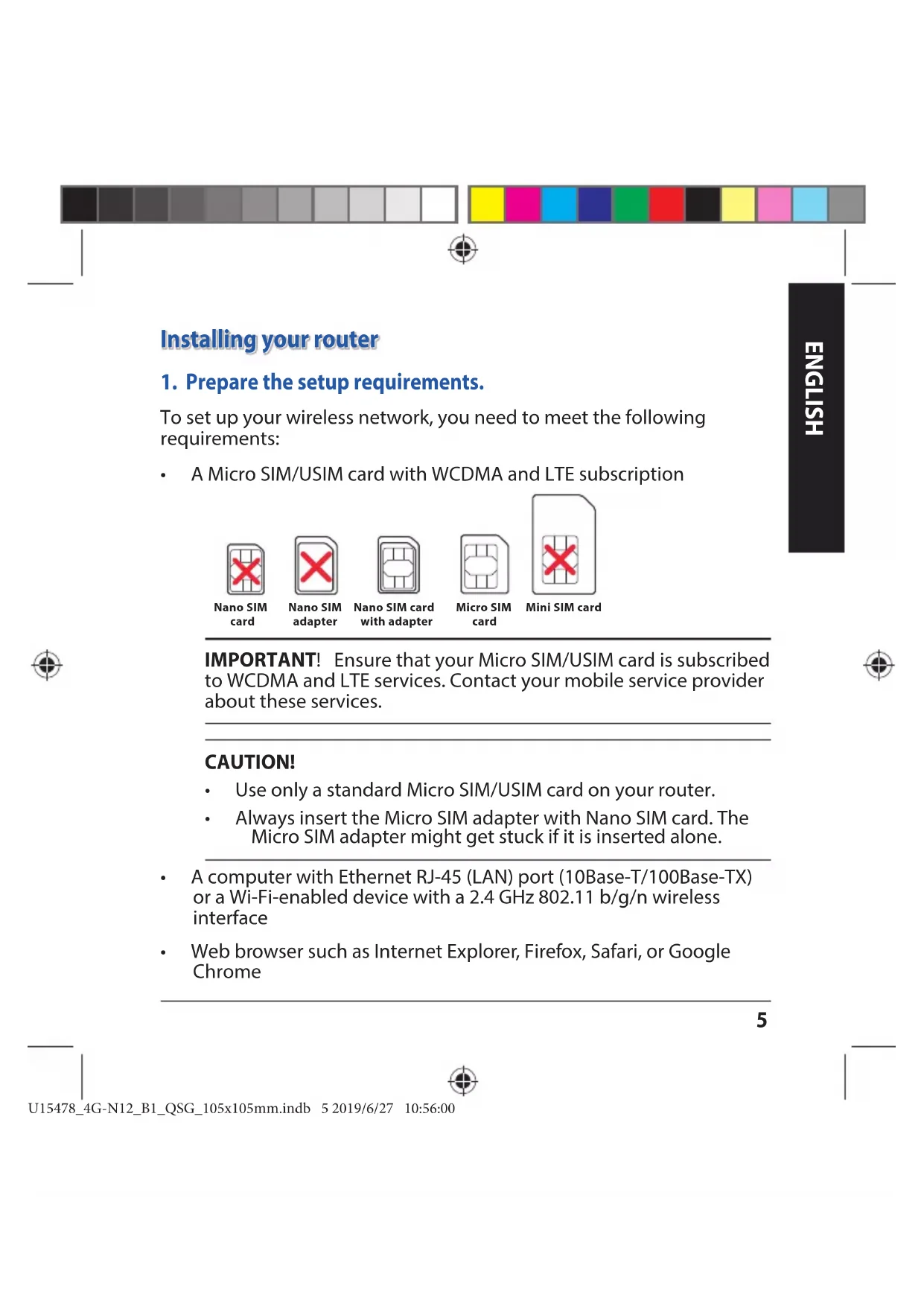


| Product type | LTE Wi-Fi modem-router |
| Brand | ASUS |
| Model | 4G-N12 B1 |
| Wi-Fi standards | IEEE 802.11 b/g/n (2.4 GHz) |
| Wi-Fi frequency band | 2.4 GHz |
| Mobile technologies | WCDMA, LTE (Micro SIM card) |
| Ports | 1 Ethernet LAN port (RJ-45) 10/100 Mbps |
| Antennas | 2 removable LTE antennas |
| Power supply | DC power adapter 12V, 1A |
| Operating temperature | -10°C to 40°C |
| Storage temperature | -20°C to 65°C |
| Operating humidity | ≤ 90% |
| Storage humidity | ≤ 95% |
| Package contents | Router, power adapter, RJ-45 cable, quick start guide, 2 LTE antennas, warranty card |
| Functions | WPS, reset, automatic APN detection, web setup wizard |
| Safety | Do not expose to moisture, ambient temperature 0-40°C, do not block vents, disconnect before cleaning |
| Maintenance | Clean with a soft dry cloth, do not use chemicals |
| LED indicators | Power, 2.4 GHz Wi-Fi, 3G/4G signal, Ethernet |
| Buttons | Power, WPS, Reset |
| Advanced features | Micro SIM slot, configuration via browser (192.168.1.1), default credentials admin/admin |
| Warranty | Warranty card included |
Frequently Asked Questions - 4G-N12 B1 ASUS
User questions about 4G-N12 B1 ASUS
0 question about this device. Answer the ones you know or ask your own.
Ask a new question about this device
Download the instructions for your Wireless Router in PDF format for free! Find your manual 4G-N12 B1 - ASUS and take your electronic device back in hand. On this page are published all the documents necessary for the use of your device. 4G-N12 B1 by ASUS.
USER MANUAL 4G-N12 B1 ASUS
natural_image
Color swatch bar with grayscale gradient from black to white (no text or symbols)
ASUS®
IN SEARCH OF INCREDIBLE
4G-N12 B1
Wireless-N300 LTE Modem Router
natural_image
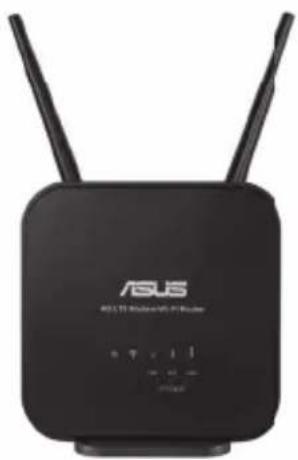
Black ASUS 40 LTB Bluetooth/USB WiFi router with two antennas and control buttons (no visible text beyond branding)Quick Start Guide
U15478 / First Edition / June 2019


Contents
Package contents 3
A quick look at your 4G-N12 B1 ....3
Installing your router ....5
- Prepare the setup requirements. 5
- Set up your LTE wireless router ....6
FAQ 9
Safety Notices....10
This QSG contains these languages:
English Norsk
Čeština Português
Dansk Polski
Nederlands Русский
Français Română

Español
Suomi Srpski
Deutsch Svenska
Magyar



natural_image
Color swatch bar with grayscale gradient from black to white (no text or symbols)
Package contents
4G-N12 B1 Wi-Fi LTE Router Power adapter
1 x Network cable (RJ-45) Quick Start Guide
2 x detachable LTE antennas Warranty card

NOTE: If any of the items is damaged or missing, contact your retailer.
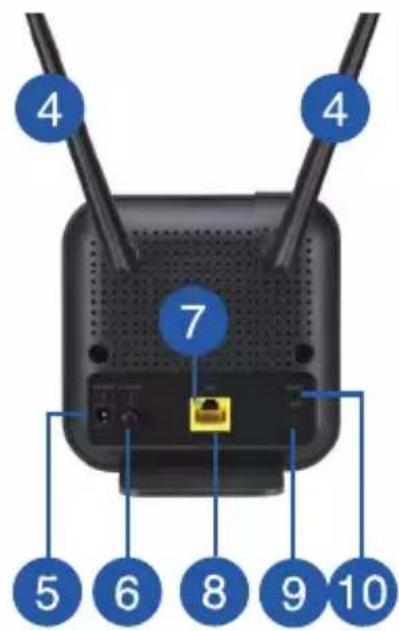
A quick look at your 4G-N12 B1
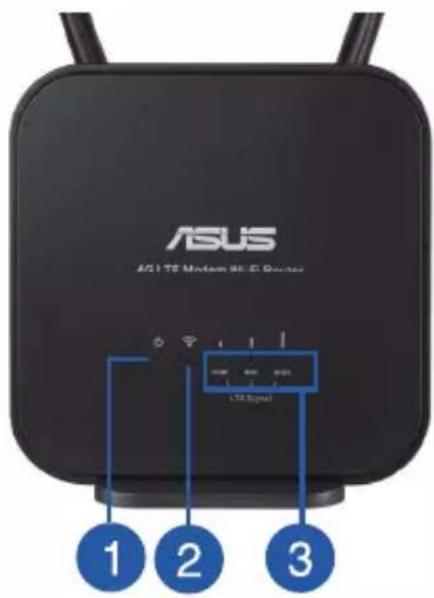
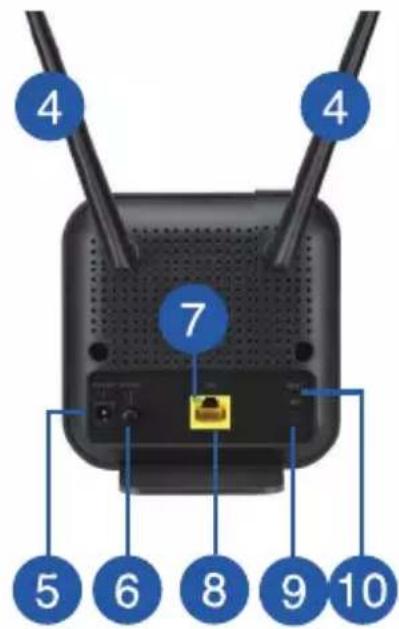
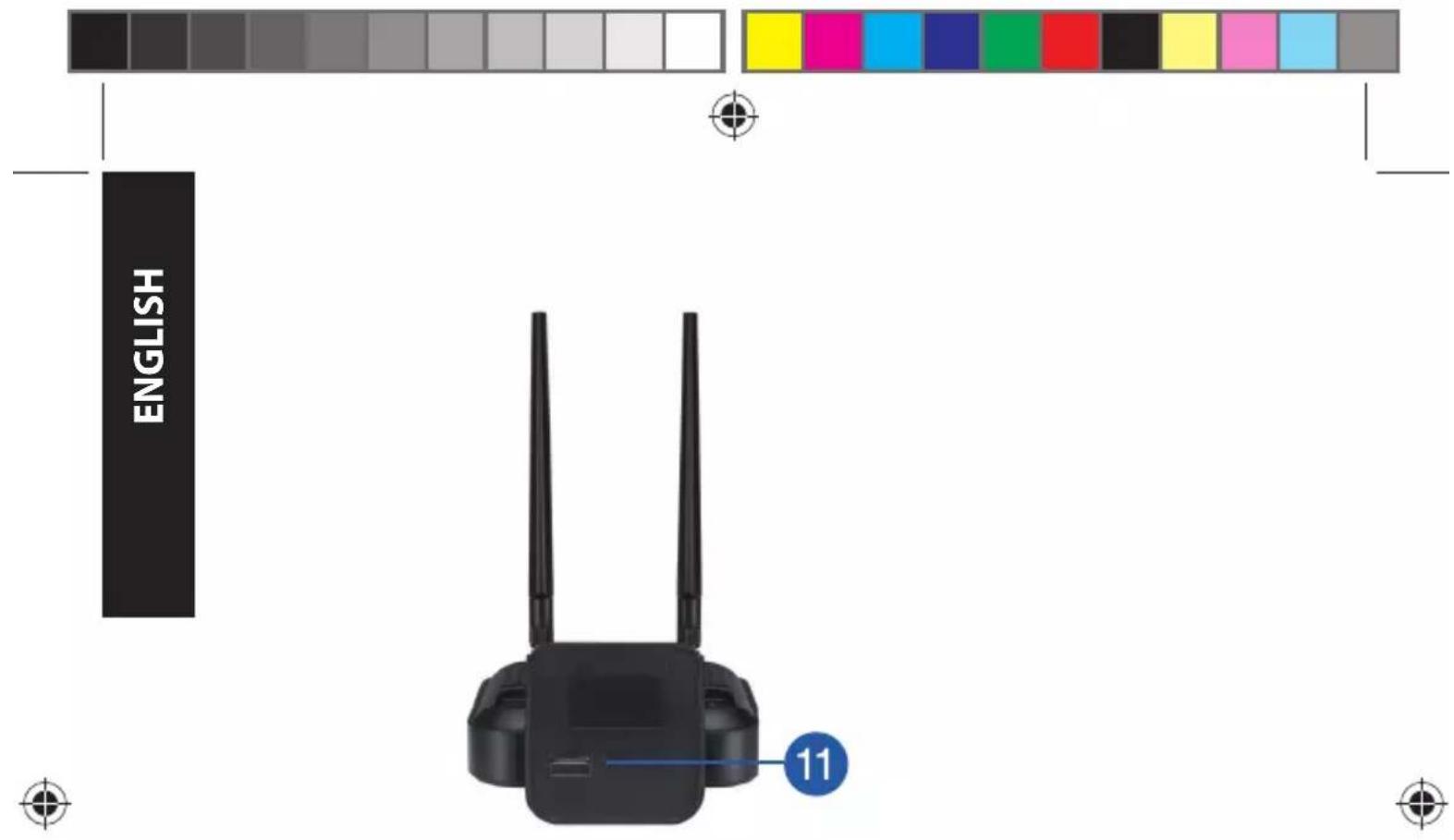
| 1. Power LED 7. Ethernet LED | |
| 2. 2.4GHz LED 8. LAN port | |
| 3. 3G/4G signal LED 9. WPS button | |
| 4. Detachable LTE antennas 10. Reset button | |
| 5. Power (DC-IN) port 11. Micro SIM card slot | |
| 6. Power button |
4
Installing your router
1. Prepare the setup requirements.
To set up your wireless network, you need to meet the following requirements:
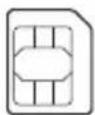
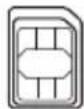
• A Micro SIM/USIM card with WCDMA and LTE subscription

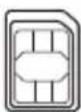
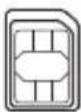
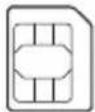
Nano SIM card

Nano SIM adapter
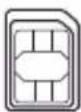
Nano SIM card with adapter
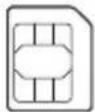
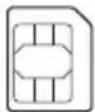
Micro SIM card

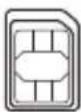
Mini SIM card
IMPORTANT! Ensure that your Micro SIM/USIM card is subscribed to WCDMA and LTE services. Contact your mobile service provider about these services.
CAUTION!
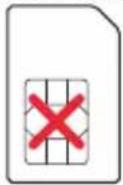
• Use only a standard Micro SIM/USIM card on your router.
• Always insert the Micro SIM adapter with Nano SIM card. The Micro SIM adapter might get stuck if it is inserted alone.
- A computer with Ethernet RJ-45 (LAN) port (10Base-T/100Base-TX) or a Wi-Fi-enabled device with a 2.4 GHz 802.11 b/g/n wireless interface
- Web browser such as Internet Explorer, Firefox, Safari, or Google Chrome

natural_image
Color palette bar with grayscale and solid color swatches (no text or symbols)
HSITDN3
2. Set up your LTE wireless router.
- Insert your Micro SIM card and install the LTE antennas before powering on your router. Connect the network cable from your computer to the yellow Ethernet port on your router.
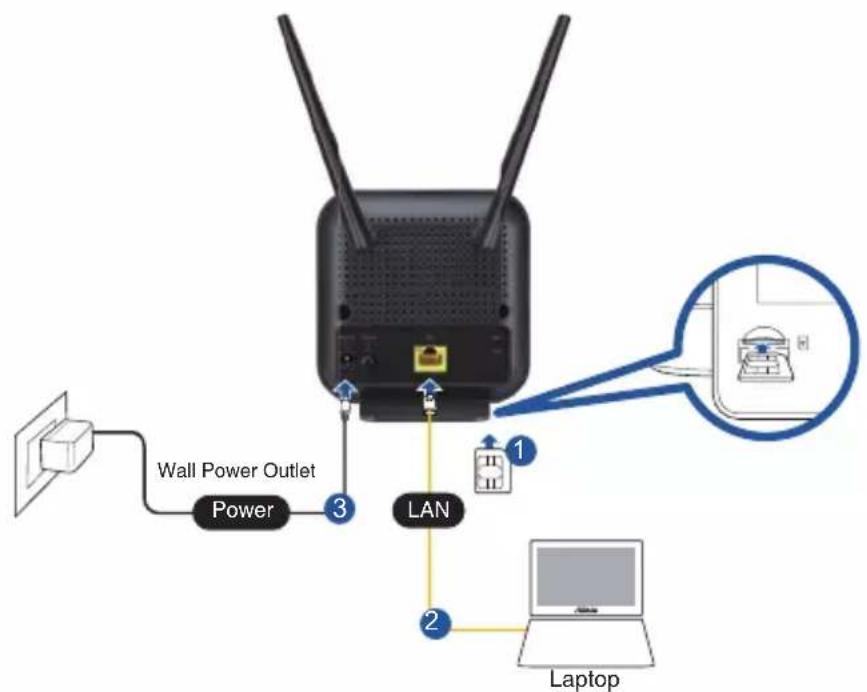
6


natural_image
Color palette bar with grayscale swatches and a central crosshair symbol (no text or labels)- Your router will automatically detect your ISP's settings and APN profile. If the 3G/4G signal LEDs become solid green, you can start surfing the Internet.

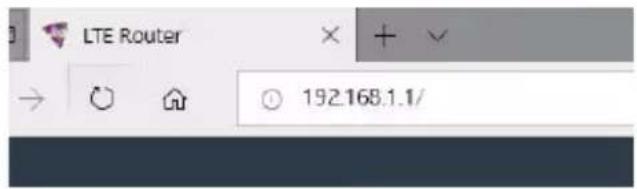
- The 3G/4G signal LEDs will not blink if your router fails to detect your ISP's settings successfully. Please key in the wireless router's default IP address 192.168.1.1/ on your web browser.

natural_image
Color palette bar with grayscale gradient from black to cyan (no text or symbols)
HSITDN3
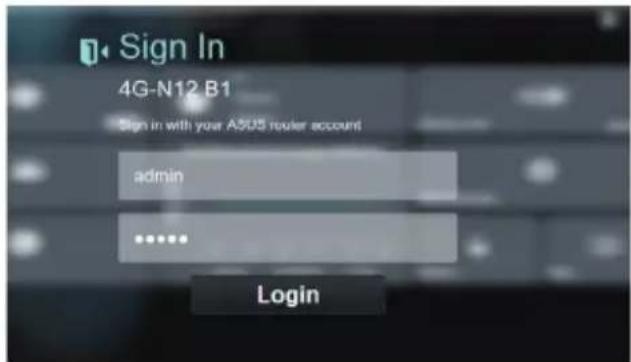
- On the login page, key in the default user name (admin) and password (admin).
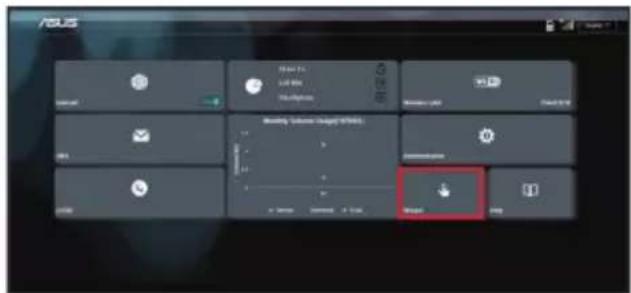
- From the main dashboard, click Wizard and follow the on-screen instructions to finish the setup process.
8

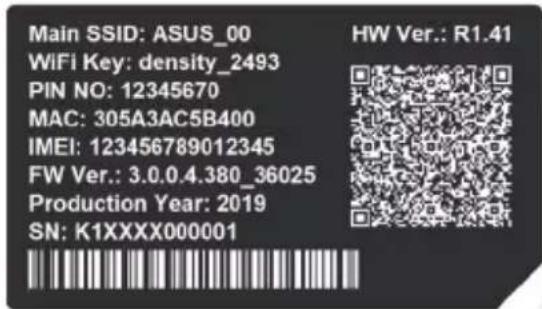
- If you want to connect to the Internet via Wi-Fi, connect to the wireless network name (SSID) found on the label at the bottom of the router and enter the Wi-Fi key when required.
FAQ
- Where can I find more information about the wireless router?
• Online FAQ site: http://support.asus.com/faq
• Technical support site: https://www.asus.com/support
- Customer hotline: refer to the Networks Global Hotline Information section in this Quick Start Guide
Safety Notices
- Use this product in environments with ambient temperatures between 0°C(32°F) and 40°C(104°F).
• Refer to the rating label on the bottom of your product and ensure your power adapter complies with this rating. - DO NOT place on uneven or unstable work surfaces. Seek servicing if the casing has been damaged.
- DO NOT place or drop objects on top and do not shove any foreign objects into the product.
- DO NOT expose to or use near liquids, rain, or moisture. DO NOT use the modem during electrical storms.
- DO NOT cover the vents on the product to prevent the system from getting overheated.
• DO NOT use damaged power cords, accessories, or other peripherals. - If the adapter is broken, do not try to fix it by yourself. Contact a qualified service technician or your retailer.
- To prevent electrical shock hazard, disconnect the power cable from the electrical outlet before relocating the system.
| DC Power adapter DC Output: +12V with max. 1A current | |||
| Operating Temperature -10~40 °C Storage -20~65 | °C | ||
| Operating Humidity ≤ 90% Storage ≤ 95% | |||

natural_image
Color palette bar with grayscale and solid color swatches (no text or symbols)
Obsah krabice
Nano SIM card with adapter
Micro SIM card

Mini SIM card
natural_image
Color palette bar with grayscale and solid color swatches (no text or symbols)
ČEŠTINA
natural_image
Color palette bar with grayscale gradient and a central crosshair symbol (no text or labels)natural_image
Color palette bar with grayscale gradient from black to cyan (no text or symbols)
GESTINA
natural_image
Color palette bar with grayscale and solid color swatches (no text or symbols)
Pakkens indhold
4G-N12 B1 Wi-Fi LTE-router Strømadapter
1 * Netværkskabel (RJ-45) Kvikstartguide
2 * Aftagelige LTE-antenner Garantibevis

Nano SIM card with adapter
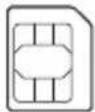
Micro SIM card

Mini SIM card
natural_image
Color palette bar with grayscale and solid color swatches (no text or symbols)
DANSK
2. Sådan indstilles din LTE trådløse router.
natural_image
Color palette bar with grayscale gradient and a central crosshair symbol (no text or labels)natural_image
Color swatch bar with grayscale gradient from black to white (no text or symbols)
DANSK
24

WiFi Key: density_2493
PIN NO: 12345670
MAC: 305A3AC5B400
IMEI: 123456789012345
FW Ver.: 3.0.0.4.380 36025
Production Year: 2019
SN: K1XXXX000001

HW Ver.: R1.41
natural_image
Color palette bar with grayscale and solid color swatches (no text or symbols)
Inhoud verpakking
4G-N12 B1 Wi-Fi LTE-router Voedingsadapter
1 x Netwerkkabel(RJ-45) Beknopte handleiding
2 x Afneembare LTE-antennes Garantiekaart

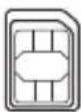
Nano SIM card with adapter

Micro SIM card
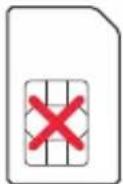
Mini SIM card
natural_image
Color palette bar with grayscale and solid color swatches (no text or symbols)
NEDELELANDS
2. Uw LTE draadloze router instellen.
natural_image
Color palette bar with grayscale shades and a central crosshair symbol (no text or labels)natural_image
Color palette bar with grayscale gradient from black to cyan (no text or symbols)
NEDERLANDS
32

WiFi Key: density_2493
PIN NO: 12345670
MAC: 305A3AC5B400
IMEI:123456789012345
FW Ver.: 3.0.0.4.380_36025
Production Year: 2019
SN: K1XXXX000001
HW Ver.: R1.41


natural_image
Color swatch bar with grayscale gradient from black to white (no text or symbols)
Contenu de la boîte
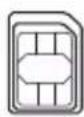
Nano SIM card with adapter
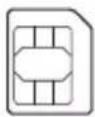
Micro SIM card
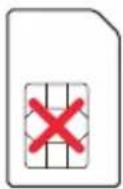
Mini SIM card
natural_image
Color palette bar with grayscale and solid color swatches (no text or symbols)
FRANCIALS
natural_image
Color palette bar with grayscale gradient and a central crosshair symbol (no text or labels)natural_image
Color swatch bar with grayscale gradient from black to white (no text or symbols)
FRANGALS

natural_image
Color palette bar with grayscale gradient and a central crosshair symbol (no text or labels)natural_image
Gradient bar transitioning from dark gray to white (no text or symbols)
natural_image
Color palette bar with 12 solid color blocks (yellow, magenta, cyan, blue, green, red, black, yellow, pink, cyan, gray) in a horizontal row.
محثويات بسته

natural_image
Color palette bar with grayscale and solid color swatches (no text or symbols)

natural_image
Color swatch bar with grayscale gradient from black to white (no text or symbols)
natural_image
Color palette bar with grayscale gradient from black to cyan (no text or symbols)
WiFi Key: density_2493
PIN NO: 12345670
MAC: 305A3AC5B400
IMEI:123456789012345
FW Ver.: 3.0.0.4.380 36025
Production Year: 2019
SN: K1XXXX000001
HW Ver.: R1.41

پرسش های رایج
natural_image
Color palette bar with grayscale and solid color swatches (no text or symbols)
Pakkauksen sisältö

Nano SIM card with adapter

Micro SIM card
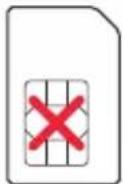
Mini SIM card
natural_image
Color palette bar with grayscale and solid color swatches (no text or symbols)
IWONS
2. Aseta langaton LTE-reititin.
natural_image
Color palette bar with grayscale gradient and a central crosshair symbol (no text or labels)natural_image
Color palette bar with grayscale gradient from black to cyan (no text or symbols)
IWONS
WiFi Key: density_2493
PIN NO: 12345670
MAC: 305A3AC5B400
IMEI: 123456789012345
FW Ver.: 3.0.0.4.380_36025
Production Year: 2019
SN: K1XXXX000001

HW Ver.: R1.41
natural_image
Gradient bar transitioning from dark gray to white (no text or symbols)
natural_image
Color palette bar with 12 distinct color swatches (yellow, magenta, cyan, blue, green, red, black, yellow, pink, light blue, gray) arranged horizontally.
Verpackungsinhalt
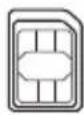
Nano SIM card with adapter
Micro SIM card

Mini SIM card
natural_image
Color palette bar with grayscale and solid color swatches (no text or symbols)
GERMAN
natural_image
Color palette bar with grayscale gradient and a crosshair symbol (no text or labels)natural_image
Color palette bar with grayscale gradient from black to cyan (no text or symbols)
GERMAN
WiFi Key: density_2493
PIN NO: 12345670
MAC: 305A3AC5B400
IMEI:123456789012345
FW Ver.: 3.0.0.4.380_36025
Production Year: 2019
SN: K1XXXX000001
HW Ver.: R1.41

natural_image
Color palette bar with grayscale and solid color swatches (no text or symbols)


Nano SIM card with adapter

Micro SIM card
Mini SIM card
natural_image
Color palette bar with grayscale and solid color swatches (no text or symbols)
MAGYAR
natural_image
Color palette bar with grayscale gradient and a crosshair symbol (no text or labels)natural_image
Color palette bar with grayscale gradient from black to cyan (no text or symbols)
MAGYAR
72

natural_image
Color palette bar with grayscale and solid color swatches (no text or symbols)
Innhold i pakken
4G-N12 B1 Wi-Fi LTE-ruter Strømadapter
1 stk. Nettverkskabel (RJ-45) Hurtigstartguide
2 stk. 3G/4G-antenner Garantikort

Nano SIM card with adapter
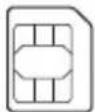
Micro SIM card

Mini SIM card
natural_image
Color palette bar with grayscale and solid color swatches (no text or symbols)
NORSK
natural_image
Color palette bar with grayscale swatches and a central crosshair symbol (no text or labels)natural_image
Color palette bar with grayscale gradient from black to cyan (no text or symbols)
NORSK
80

natural_image
Color palette bar with grayscale and solid color swatches (no text or symbols)

Nano SIM card with adapter
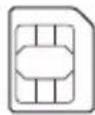
Micro SIM card

Mini SIM card
natural_image
Color palette bar with grayscale and solid color swatches (no text or symbols)
PORTUGUES
2. Configurar o router LTE sem fios.
natural_image
Color palette bar with grayscale gradient and a central crosshair symbol (no text or labels)natural_image
Color palette bar with grayscale shades and a row of solid color swatches (no text or symbols)
PORTUGUES
WiFi Key: density_2493
PIN NO: 12345670
MAC: 305A3AC5B400
IMEI: 123456789012345
FW Ver.: 3.0.0.4.380 36025
Production Year: 2019
SN: K1XXXX000001

HW Ver.: R1.41

Perguntas Frequentes (FAQ)
natural_image
Color swatch bar with grayscale gradient from black to white (no text or symbols)
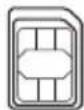
Nano SIM card with adapter
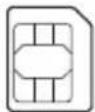
Micro SIM card
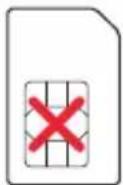
Mini SIM card
natural_image
Color palette bar with grayscale and solid color swatches (no text or symbols)
POLSKI
natural_image
Color palette bar with grayscale gradient and a central crosshair symbol (no text or labels)natural_image
Color swatch bar with grayscale gradient from black to white (no text or symbols)
POLSKI
WiFi Key: density_2493
PIN NO: 12345670
MAC: 305A3AC5B400
IMEI: 123456789012345
FW Ver.: 3.0.0.4.380_36025
Production Year: 2019
SN: K1XXXX000001
HW Ver.: R1.41


natural_image
Color swatch bar with grayscale gradient from black to white (no text or symbols)
Комплект поставки
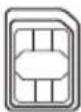
Nano SIM card with adapter
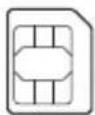
Micro SIM card

Mini SIM card
natural_image
Color palette bar with grayscale and solid color swatches (no text or symbols)
РУССКИН
natural_image
Color palette bar with grayscale gradient and a central crosshair symbol (no text or labels)natural_image
Color palette bar with grayscale gradient from black to cyan (no text or symbols)
РУССКИН
natural_image
Color palette bar with grayscale and solid color swatches (no text or symbols)
| 1. Led alimentare 7. Ethernet LED | |
| 2. 2.4GHz LED 8. Porturi LAN | |
| 3. LED semnal 3G/4G 9. Buton WPS | |
| 4. Antene LTE detaşabile 10. Buton resetare | |
| 5. Port de alimentare (intrare c.c.) | 11. Slot pentru cartele Micro SIM |
| 6. Buton de alimentare | |
108
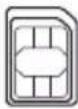
Nano SIM card with adapter

Micro SIM card

Mini SIM card
natural_image
Color palette bar with grayscale and solid color swatches (no text or symbols)
ROMÂNĂ
natural_image
Color palette bar with grayscale gradient and a central crosshair symbol (no text or labels)natural_image
Color palette bar with grayscale gradient from black to cyan (no text or symbols)
ROMÂNĂ
WiFi Key: density_2493
PIN NO: 12345670
MAC: 305A3AC5B400
IMEI: 123456789012345
FW Ver.: 3.0.0.4.380_36025
Production Year: 2019
SN: K1XXXX000001

HW Ver.: R1.41

natural_image
Color swatch bar with grayscale gradient from black to white (no text or symbols)
Nano SIM card with adapter
Micro SIM card

Mini SIM card
natural_image
Color palette bar with grayscale and solid color swatches (no text or symbols)
ESPANOL
2. Configurar o router LTE sem fios.
natural_image
Color palette bar with grayscale gradient and a central crosshair symbol (no text or labels)natural_image
Color palette bar with grayscale gradient from black to cyan (no text or symbols)
ESPAÑOL
120

natural_image
Color palette bar with grayscale and solid color swatches (no text or symbols)
Sadržaj paketa
4G-N12 B1 Wi-Fi LTE Ruter Adapter za struju
1 * Mrežni kabl (RJ-45) Vodič brzo korišćenje
2 * Odvojive LTE antene Garanciji

BELEŠKE: Ukoliko bilo koja od dole navedenih stavki nedostaje ili je oštećena, kontaktirajte svog prodavca.
Brzi pogled na vaš 4G-N12 B1



| 1. Napajanje lampica 7. Ethernet LED lampica |
| 2. 2.4 GHz svetleća dioda 8. LAN portovi |
| 3. 3G/4G signalna lampica 9. WPS taster |
| 4. Odvojive LTE antene 10. Taster za resetovanje |
| 5. Port za napajanje (DC-IN) 11. Prorez za Micro SIM karticu |
| 6. Taster za uključivanje/isključivanje |
Instaliranje rutera

Nano SIM card with adapter
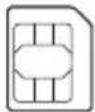
Micro SIM card

Mini SIM card
VAŽNO! Proverite da je vaša Micro SIM/USIM kartica pretplaćena na WCDMA i LTE usluge. Kontaktirajte svog provajdera mobilnih usluga o ovim uslugama.
OPREZ!
- Koristite isključivo Micro SIM/USIM karticu na svom ruteru.
-
Uvek ubacite micro SIM adapter sa Nano SIM karticom. Micro SIM adapter može da se zaglavi ukoliko se ubaci samostalno.
-
Kompjuter sa Ethernet RJ-45 (LAN) portom (10Base-T /100Base-TX) ili Wi-Fi-omogućen uređaj sa 2.4 GHz 802.11 b/g/n bežičnim interfejsom
- Internet pregledač, kao što su Internet Explorer, Firefox, Safari ili Google Chrome

natural_image
Color palette bar with grayscale and solid color swatches (no text or symbols)
2. Podesite svoj LTE bežični ruter
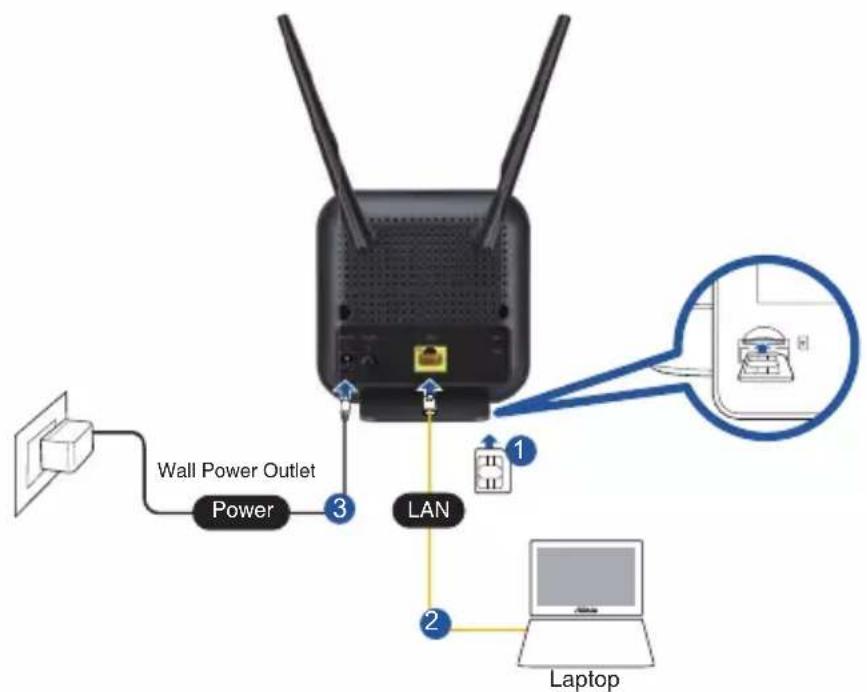
- Ubacite svoju Micro SIM karticu i instalirajte LTE antene pre nego što uključite svoj ruter. Povežite mrežni kabl od svog kompjutera do žutog Ethernet ulaza svog rutera.

natural_image
Color palette bar with grayscale shades and a central crosshair symbol (no text or labels)natural_image
Color palette bar with grayscale gradient from black to cyan (no text or symbols)
SRPSKI
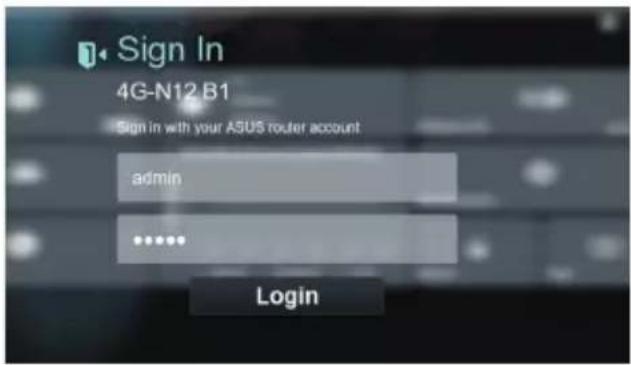
- Na stranici za prijavljivanje, unesite podrazumevano korisničko ime (admin) i lozinku (admin).
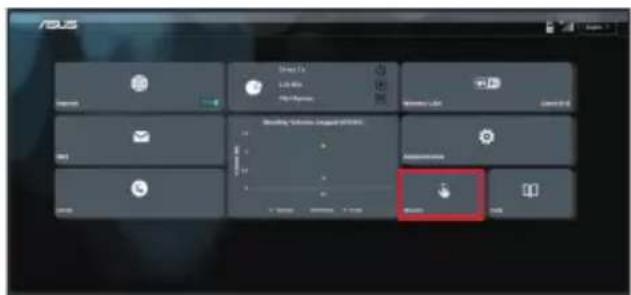
- Sa glavne kontrolne ploče, kliknite na Wizard (Čarobnjaka) i pratite uputstva na ekranu da završite proces podešavanja.
128

natural_image
Gradient bar transitioning from dark gray to white (no text or symbols)
natural_image
Color palette bar with multiple solid color blocks (no text or symbols)

Nano SIM card with adapter
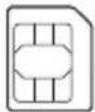
Micro SIM card

Mini SIM card
natural_image
Color palette bar with grayscale and solid color swatches (no text or symbols)
SVENSKA
2. Ställ in din trådlösa LTE-router.
natural_image
Color palette bar with grayscale shades and a central crosshair symbol (no text or labels)natural_image
Color palette bar with grayscale gradient from black to cyan (no text or symbols)
SVENSKA
Authorised distributors in Turkey:
BOGAZICI BILGISAYAR TICARET VE SANAYI A.S.
Tel./FAX No.: +90 212 331 10 00 / +90 212 332 28 90
Address: ESENTEPE MAH. BUYUKDERE CAD. ERCAN HAN B BLOK NO.121 SISLI, ISTANBUL 34394
CIZGI Elektronik San. Tic. Ltd. Sti.
Tel./FAX No.: +90 212 356 70 70 / +90 212 356 70 69
Address: GURSEL MAH. AKMAN SK.47B 1 KAGITHANE/ISTANBUL
KOYUNCU ELEKTRONiK BiLGi iSLEM SiST. SAN. VE DIS TIC. A.S.
Tel. No.: +90 216 5288888
Address: EMEK MAH.ORDU CAD. NO:18, SARIGAZI, SANCAKTEPE ISTANBUL
ENDEKS BİLİŞİM SAN VE DIŞ TİC LTD ŞTİ
Tel./FAX No.: +90 216 523 35 70 / +90 216 523 35 71
Address: NECIP FAZIL BULVARI, KEYAP CARSI SITESI, G1 BLOK, NO:115 Y.DUDULLU, UMRANIYE, ISTANBUL
PENTA TEKNOLOJI URUNLERI DAGITIM TICARET A.S
Tel./FAX No.: +90 216 528 0000
Address: ORGANIZE SANAYI BOLGESI NATO YOLU 4.CADDE NO:1 UMRANIYE, ISTANBUL 34775
natural_image
Color palette bar with grayscale gradient and a crosshair symbol (no text or labels)Precautions for the use of the device
a. Pay particular attention to the personal safety when use this device in airports, hospitals, gas stations and professional garages.
b. Medical device interference: Maintain a minimum distance of at least 15 cm (6 inches) between implanted medical devices and ASUS products in order to reduce the risk of interference.
c. Kindly use ASUS products in good reception conditions in order to minimize the radiation's level.
d. Keep the device away from pregnant women and the lower abdomen of the teenager.
ASUS recycling and takeback programs come from our commitment to the highest standards for protecting our environment. We believe in providing solutions for you to be able to responsibly recycle our products, batteries, other components, as well as the packaging materials. Please go to http://csr.asus.com/english/Takeback.htm for the detailed recycling information in different regions.


natural_image
Color palette bar with grayscale gradient and a crosshair symbol at the bottom (no text or labels)REACH
Complying with the REACH (Registration, Evaluation, Authorisation, and Restriction of Chemicals) regulatory framework, we published the chemical substances in our products at ASUS REACH website at http://csr.asus.com/english/REACH.htm

WARNING! Any changes or modifications not expressly approved by the party responsible for compliance could void the user's authority to operate the equipment.
Declaration of Conformity for Ecodesign directive 2009/125/EC
Testing for eco-design requirements according to (EC) No 1275/2008 and (EU) No 801/2013 has been conducted. When the device is in Networked Standby Mode, its I/O and network interface are in sleep mode and may not work properly. To wake up the device, press the Wi-Fi on/off, reset, or WPS button.
This equipment may be operated in AT, BE, CY, CZ, DK, EE, FI, FR, DE, GR, HU, IE, IT, LU, MT, NL, PL, PT, SK, SL, ES, SE, GB, IS, LI, NO, CH, BG, RO, RT.
EAC
ASUS Contact information
ASUSTeK COMPUTER INC. (Asia Pacific)
Address 15 Li-Te Road, Peitou, Taipei, Taiwan 11259
Online support support.asus.com
ASUS COMPUTER INTERNATIONAL (America)
Address 48720 Kato Rd., Fremont, CA94538, USA
Telephone +15107393777
Fax +15106084555
Website usa.asus.com
Online support support.asus.com
ASUS COMPUTER GmbH (Germany and Austria)
Address Harkort Str. 21-23, D-40880 Ratingen, Germany
Support Fax +49-2102-959931
Website asus.com/de
Online contact eu-rma.asus.com/sales
Technical Support
Telephone (Component) +49-2102-5789555
Telephone Germany
(System/Notebook/Eee/LCD) +49-2102-5789557
Telephone Austria
(System/Notebook/Eee/LCD) +43-820-240513
Support Fax +49-2102-959911
Online support support.asus.com
142
Networks Global Hotline Information
| Area | Country/ Region | Hotline Number Service Hours | |
| Europe | 09:00-13:00;14:00-18:00 Mon-Fri | ||
| Cyprus 800-92491 | |||
| France 0033-170949400 09:00-18:00 Mon-Fri | |||
| Germany | 0049-18050109200049-1805010923(component support)0049-2102959911 (Fax) | 09:00-18:00 Mon-Fri10:00-17:00 Mon-Fri | |
| Hungary 0036-15054561 09:00-17:30 Mon-Fri | |||
| Italy 199-400089 | 09:00-13:00;14:00-18:00 Mon-Fri | ||
| Greece 00800-44142044 | 09:00-13:00;14:00-18:00 Mon-Fri | ||
| Austria 0043-820240513 09:00-18:00 Mon-Fri | |||
| Netherlands/Luxembourg | 0031-591570290 09:00-17:00 Mon-Fri | ||
| Belgium 0032-78150231 09:00-17:00 Mon-Fri | |||
| Norway 0047-2316-2682 09:00-18:00 Mon-Fri | |||
| Sweden +46-858769407 09:00-18:00 Mon-Fri | |||
| Finland 00358-969379690 10:00-19:00 Mon-Fri | |||
| Denmark | 0045-38322943 09:00-18:00 Mon-Fri | ||
| Poland 0048-225718040 08:30-17:30 Mon-Fri | |||
| Spain | 0034-902889688 09:00-18:00 Mon-Fri | ||
| Portugal 00351-707500310 09:00-18:00 Mon-Fri | |||
| Slovak Republic | 00421-232162621 08:00-17:00 Mon-Fri | ||
| Czech Republic | 00420-596766888 08:00-17:00 Mon-Fri | ||
| Switzerland-German | 0041-848111010 09:00-18:00 Mon-Fri | ||
| Switzerland-French | 0041-848111014 09:00-18:00 Mon-Fri | ||
| Switzerland-Italian | 0041-848111012 09:00-18:00 Mon-Fri | ||
| United Kingdom | 0044-1442265548 09:00-17:00 Mon-Fri | ||
| Ireland 0035-31890719918 | 09:00-17:00 Mon-Fri | ||
| Russia and CIS | 008-800-100-ASUS | 09:00-18:00 Mon-Fri | |
| Ukraine 0038-0445457727 09:00-18:00 Mon-Fri | |||
| Area Country/ Region Hotline Numbers Service Hours | |||
| Asia-Pacific | Australia 1300-278788 09:00-18:00 Mon-Fri | ||
| New Zealand 0800-278788 09:00-18:00 Mon-Fri | |||
| Japan | 0800-1232787 09:00-18:00 Mon-Fri | ||
| 09:00-17:00 Sat-Sun | |||
| 0081-570783886 09:00-18:00 Mon-Fri | |||
| (Non-Toll Free) 09:00-17:00 Sat-Sun | |||
| Korea 0082-215666868 09:30-17:00 Mon-Fri | |||
| Thailand 0066-24011717 09:00-18:00 Mon-Fri | |||
| Singapore | 1800-8525201 | ||
| 0065-64157917 11:00-19:00 Mon-Fri | |||
| 0065-67203835 11:00-19:00 Mon-Fri | |||
| (Repair Status Only) 11:00-13:00 Sat | |||
| Malaysia 1300-88-3495 9:00-18:00 Mon-Fri | |||
| Philippine 1800-18550163 09:00-18:00 Mon-Fri | |||
| India | 1800-2090365 09:00-18:00 Mon-Sat | ||
| India(WL/NW) 09:00-21:00 Mon-Sun | |||
| Indonesia 0062-2129495000 09:30-17:00 Mon-Fri | |||
| 500128 (Local Only) 9:30 - 12:00 Sat | |||
| Vietnam | 1900-555581 08:00-12:00 | ||
| 13:30-17:30 Mon-Sat | |||
| Hong Kong | 00852-35824770 10:00-19:00 Mon-Sat | ||
| Americas | USA | 1-812-282-2787 8:30-12:00 EST Mon-Fri | |
| Canada | |||
| Mexico | 001-8008367847 08:00-20:00 CST Mon-Fri | ||
| 08:00-15:00 CST Sat | |||
| Middle East + Africa | Egypt 800-2787349 09:00-18:00 Sun-Thu | ||
| Saudi Arabia | 800-1212787 09:00-18:00 Sat-Wed | ||
| UAE 00971-42958941 09:00-18:00 Sun-Thu | |||
| Turkey | 0090-2165243000 09:00-18:00 Mon-Fri | ||
| South Africa | 0861-278772 08:00-17:00 Mon-Fri | ||
| Israel | *6557/00972-39142800 08:00-17:00 Sun-Thu | ||
| *9770/00972-35598555 08:30-17:30 Sun-Thu | |||

| Area Country/ Region Hotline Numbers Service Hours | |
| Balkan Countries | Romania 0040-213301786 09:00-18:30 Mon-Fri |
| Bosnia Herzegovina 00387-33773163 09:00-17:00 Mon-Fri | |
| Bulgaria 00359-70014411 09:30-18:30 Mon-Fri00359-29889170 09:30-18:00 Mon-Fri | |
| Croatia 00385-16401111 09:00-17:00 Mon-Fri | |
| Montenegro 00382-20608251 09:00-17:00 Mon-Fri | |
| Serbia 00381-112070677 09:00-17:00 Mon-Fri | |
| Slovenia 00368-5904540000368-59045401 08:00-16:00 Mon-Fri | |
| Baltic Countries | Estonia 00372-6671796 09:00-18:00 Mon-Fri |
| Latvia 00371-67408838 09:00-18:00 Mon-Fri | |
| Lithuania-Kaunas 00370-37329000 09:00-18:00 Mon-Fri | |
| Lithuania-Vilnius 00370-522101160 09:00-18:00 Mon-Fri | |
NOTES:
- For more information, visit the ASUS support site at: https://www.asus.com/support
• UK support email: network_support@asus.com
| Manufacturer: | ASUSTeK Computer Inc. | |
| Tel: +886-2-28 | 94-3447 | |
| Address: | 4F, No. 150, LI-TE RD., PEITOU, TAIPEI 112, TAIWAN | |
| Authorised representative in Europe: | ASUS Computer GmbH | |
| Address: | HARKORT STR. 21-23, 40880 RATINGEN, GERMANY | |


- 4G-N12 B1
- Wireless-N300 LTE Modem Router
- Quick Start Guide
- Contents
- This QSG contains these languages:
- Package contents
- A quick look at your 4G-N12 B1
- Installing your router
- Prepare the setup requirements.
- CAUTION!
- HSITDN3
- Set up your LTE wireless router.
- 8
- FAQ
- Safety Notices
- Obsah krabice
- ČEŠTINA
- GESTINA
- Pakkens indhold
- DANSK
- Sådan indstilles din LTE trådløse router.
- 24
- Inhoud verpakking
- NEDELELANDS
- Uw LTE draadloze router instellen.
- NEDERLANDS
- 32
- Contenu de la boîte
- FRANCIALS
- FRANGALS
- Pakkauksen sisältö
- IWONS
- Aseta langaton LTE-reititin.
- Verpackungsinhalt
- GERMAN
- MAGYAR
- 72
- Innhold i pakken
- NORSK
- PORTUGUES
- Configurar o router LTE sem fios.
- Perguntas Frequentes (FAQ)
- POLSKI
- Комплект поставки
- РУССКИН
- ROMÂNĂ
- ESPANOL
- ESPAÑOL
- Sadržaj paketa
- Instaliranje rutera
- OPREZ!
- Podesite svoj LTE bežični ruter
- SVENSKA
- Ställ in din trådlösa LTE-router.
- Precautions for the use of the device
- REACH
- Declaration of Conformity for Ecodesign directive 2009/125/EC
- ASUS Contact information
- ASUSTeK COMPUTER INC. (Asia Pacific)
- ASUS COMPUTER INTERNATIONAL (America)
- ASUS COMPUTER GmbH (Germany and Austria)
- Technical Support
- NOTES:
Brand : ASUS
Model : 4G-N12 B1
Category : Wireless Router