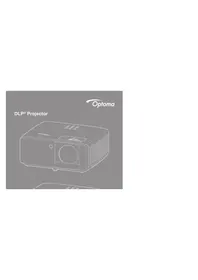
ZH406ST - Projector OPTOMA - Free user manual and instructions

Find the device manual for free ZH406ST OPTOMA in PDF.

OPTOMA ZH406ST - Projector
📄 4 pages English EN Download 💬 AI Question 11 questions ⚙️ Specs
Notice OPTOMA ZH406ST - page 1
Pick your language and provide your email: we'll send you a specifically translated version.
Product type DLP laser projector
Native resolution WXGA (1280 x 800)
Brightness 4,000 lumens
Contrast ratio 300,000:1
Technology Laser
Light source life Up to 20,000 hours
Projection ratio 0.50:1 (short throw)
Keystone correction Vertical ±30°
Built-in speaker Yes, 10 W mono
Video inputs HDMI (2), VGA, Composite
USB ports USB-A (1), USB-B (1)
Network Ethernet RJ45
Dimensions (W x D x H) 337 x 270 x 119 mm
Weight 5.5 kg
Power supply 100-240 V, 50/60 Hz
Power consumption 280 W (typical)
Key features Laser projection, short throw, 3D compatible, keystone correction, built-in speaker
Maintenance and cleaning Clean the lens with a soft, dry cloth
Security Kensington lock, password for menus
Spare parts and repairability Light source not user-replaceable, spare parts available from authorized service
General information Brand Optoma, model ZH406ST, category Projector, net weight 5.5 kg

Frequently Asked Questions - ZH406ST OPTOMA

How to turn on the Optoma ZH406ST projector?
Plug in the power cord, then press the Power button on the top of the projector or on the remote control.
How to connect an HDMI device to the projector?
Use a standard HDMI cable and plug it into one of the HDMI ports on the back of the projector. Then select the HDMI source in the menu.
Can the projector be used without a screen?
Yes, the projector can project onto any flat, light surface. For optimal quality, use a projection screen.
How to adjust the focus?
Turn the focus ring around the lens to get a sharp image.
What to do if the image is inverted?
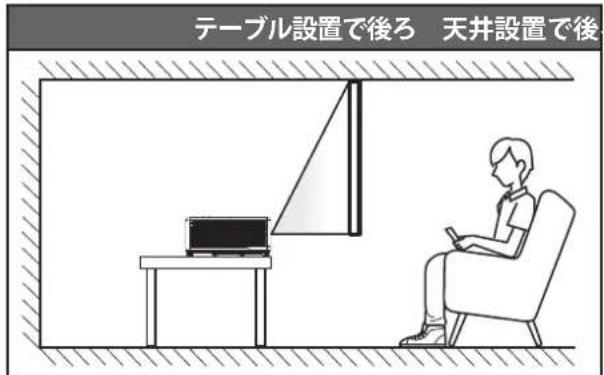
In the Installation menu, set the Projection option to Ceiling Front, Ceiling Rear, or Rear Table depending on your setup.
How to clean the lens?
Use a soft, dry cloth (microfiber). Do not use liquid or abrasive products to avoid damaging the coating.
What is the recommended projection distance?
For a 100-inch diagonal image, place the projector about 1.1 meters from the screen thanks to its short throw lens.
Does the projector support 3D content?
Yes, the ZH406ST is 3D compatible via HDMI. You must use DLP Link 3D glasses and a compatible player.
How to reset to factory settings?
Go to the Settings menu > Reset and select Restore factory defaults. Confirm with the OK button.
What to do if the projector does not turn on?
Check that the power cord is properly plugged in and that the outlet works. If the LED indicator blinks red, wait a few minutes before trying again.

User questions about ZH406ST OPTOMA

1 question about this device. Answer the ones you know or ask your own.

Ask a new question about this device

Your email remains private: it is only used to notify you if someone answers your question.

How to invert or flip the image of the projector?
Frequently Asked Questions - 9 d
Response Notice-Facile

To invert or flip the image of your OPTOMA ZH406ST projector according to your installation mode, access the Installation menu and set the Projection option according to your setup:

  • Front ceiling - for a ceiling installation, projecting forward
  • Rear ceiling - for a ceiling installation, projecting backward
  • Rear table - for a table installation, projecting backward

This orientation option allows you to adapt the image to your room configuration, whether it is a classic front projection, a ceiling projection, or a rear projection.

Respond (be the first)

Download the instructions for your Projector in PDF format for free! Find your manual ZH406ST - OPTOMA and take your electronic device back in hand. On this page are published all the documents necessary for the use of your device. ZH406ST by OPTOMA.

USER MANUAL ZH406ST OPTOMA

Table of Contents

Safety 4

Safety Precautions...4

Laser Radiation Safety Information 5

Copyright....6

Disclaimer 6

Trademark Recognition 6

FCC 6

Declaration of Conformity for EU Countries....7

WEEE 7

Introduction 8

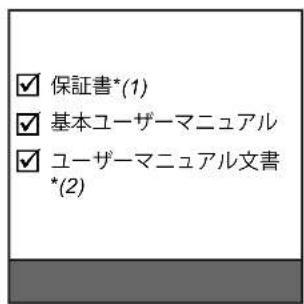
Package Contents......8

Standard Accessories 8

Optional Accessories 8

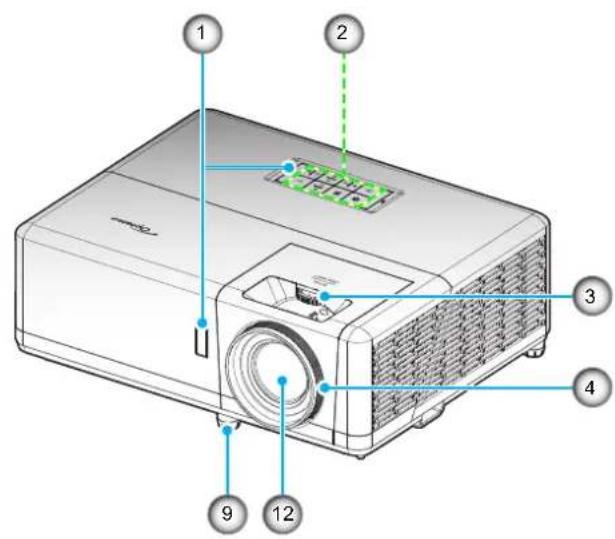
Product Parts Names 9

Connection 11

Keypad....12

Remote control 13

Setup and installation 14

Installing the projector....14

Illustration of a bundle of cables tied with a clip, no text or symbols present

Simple line drawing of a two-wheeled bag with straps and cables, labeled 'キャリーバッグ' below (no other text or symbols)

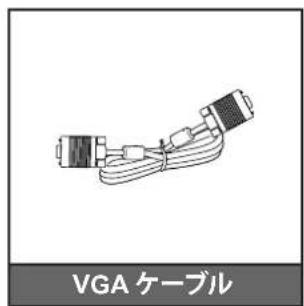
Line drawing of VGA cable connector with connectors and wiring (no text or symbols on diagram)

Diagram of a projector with numbered parts labeled 1 through 12, showing internal components and screen display.

5 6 7 8 9 10 11

Introduction

WUXGA model

Diagram of a projector with numbered labels pointing to key components

Diagram of a computer monitor with labeled ports and connectors, showing internal components and directional arrows.

Note:

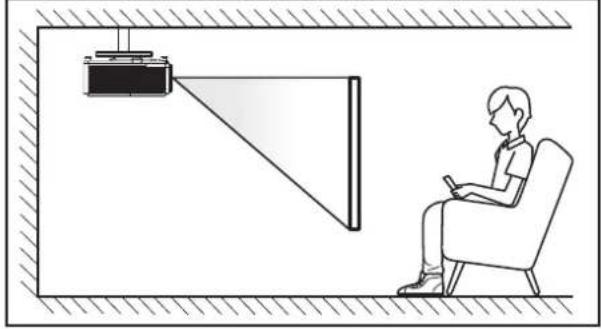
Line drawing of a person sitting in a chair facing a projector mounted on a wall, with no text or symbols present.

Table setup, rearLine drawing of a person sitting in a chair watching a projector screen, with a laptop on a desk (no text or symbols)

Ceiling setup, rearIllustration of a person sitting in a chair observing a projector mounted on a wall, with no visible text or symbols.

Setup and installation

Interior view of a room with a person seated in a chair facing a wall-mounted device. No text or symbols visible.

Using the projector

Main pageModel: Optoma Optoma Power Vol - Mute Vol + Sources List HDMI HDMI Create Pro Vise Menu Re-Sync Enter AV mode Source Freeze Contrast Brightness Sharpness CRESTRON connected Expansion Options

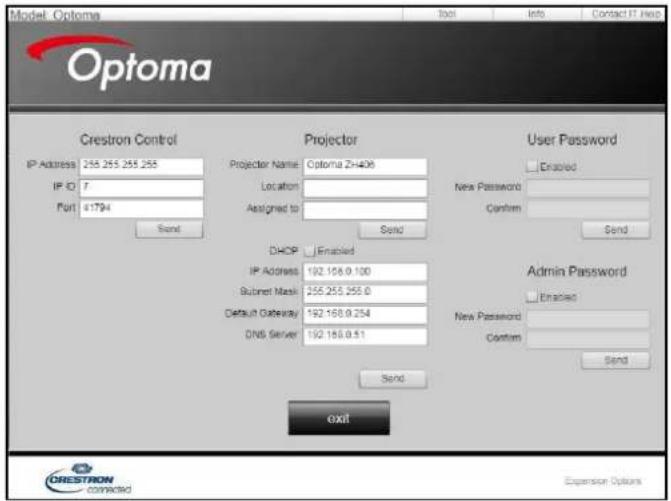
Tools pageModel: Optoma Optoma Crestron Control IP Address: 255.255.255.255 IP ID: 7 Port: 41794 Send Projector Projector Name: Optoma Z+406 Location: Assigned to: Send User Password Enabled New Password Confirm Send DHCP Enabled IP Address: 192.168.0.100 Subnet Mask: 255.255.255.0 Default Gateway: 192.168.0.…

Contact IT help deskTitle Send

Using the Projector

RS232 by Telnet Function

Specifications for "RS232 by TELNET":

Additional Information

Supported Resolutions

Digital

B0/確立タイミングB0/標準タイミングB0/詳細タイミングB1/ビデオモードB1/詳細タイミング
720 x 400 @ 70HzSVGA:ネーティブタイミング:640 x 480p @ 60Hz720 x 480p @ 60Hz
640 x 480 @ 60Hz 800 x 600 @ 120Hz XGA:1024 x 768 @ 60Hz720 x 480p @ 60Hz 1280 x 720p @ 60Hz
640 x 480 @ 67Hz 1024 x 768 @ 120Hz WXGA:1280 x 800 @ 60Hz、1280 x 720 @ 60Hz1280 x 720p @ 60Hz1366 x 768 @ 60Hz
640 x 480 @ 72Hz 1280 x 800 @ 60Hz 1080P:1920 x 1080 @ 60Hz1920 x 1080i @ 60Hz1920 x 1080i @ 50Hz
640 x 480 @ 75Hz 1280 x 1024 @ 60Hz WUXGA:1920 x 1200 @ 60Hz720 (1440) x 480i @ 60Hz1920 x 1080p @ 60Hz
800 x 600 @ 56Hz 1680 x 1050 @ 60Hz1920 x 1080p @ 60Hz
800 x 600 @ 60Hz 1280 x 720 @ 60Hz720 x 576p @ 50Hz
800 x 600 @ 72Hz 1280 x 720 @ 120Hz1280 x 720p @ 50Hz
800 x 600 @ 75Hz 1600 x 1200 @ 60Hz1920 x 1080i @ 50Hz
832 x 624 @ 75Hz720 (1440) x 576i @ 50Hz
1024 x 768 @ 60HzXGA/WXGA:1920 x 1080p @ 50Hz
1024 x 768 @ 70Hz800 x 600 @ 120Hz1920 x 1080p @ 24Hz
1024 x 768 @ 75Hz1440 x 900 @ 60Hz1920 x 1080p @ 30Hz
1280 x 1024 @ 75Hz1024 x 768 @ 120Hz
1152 x 870 @ 75Hz1280 x 800 @ 60Hz
1280 x 1024 @ 60Hz
1680 x 1050 @ 60Hz
1280 x 720 @ 60Hz
1280 x 720 @ 120Hz
1600 x 1200 @ 60Hz
1080P/WUXGA:
1280 x 720 @ 60Hz
1280 x 800 @ 60Hz
1280 x 1024 @ 60Hz
1400 x 1050 @ 60Hz
1600 x 1200 @ 60Hz
1280 X 768 @ 60Hz
1440 x 900 @ 60Hz
1280 x 720 @ 120Hz
1024 x 768 @ 120Hz

Additional Information

Analog

B0/確立タイミングB0/標準タイミングB0/詳細タイミングB1/詳細タイミング
720 x 400 @ 70HzSVGA:ネーティブタイミング:1366 x 768 @ 60Hz
640 x 480 @ 60Hz 800 x 600 @ 120Hz XGA: 1024 x 768 @ 60Hz
640 x 480 @ 67Hz1024 x 768 @ 120HzWXGA: 1280 x 800 @ 60Hz、1280 x 720 @ 60Hz
640 x 480 @ 72Hz 1280 x 800 @ 60Hz 1080P: 1920 x 1080 @ 60Hz
640 x 480 @ 75Hz 1280 x 1024 @ 60Hz WUXGA: 1920 x 1200 @ 60Hz
800 x 600 @ 56Hz 1680 x 1050 @ 60Hz
800 x 600 @ 60Hz 1280 x 720 @ 60Hz
800 x 600 @ 72Hz 1280 x 720 @ 120Hz
800 x 600 @ 75Hz 1600 x 1200 @ 60Hz
832 x 624 @ 75Hz
1024 x 768 @ 60Hz XGA/WXGA:
1024 x 768 @ 70Hz 800 x 600 @ 120Hz
1024 x 768 @ 75Hz 1440 x 900 @ 60Hz
1280 x 1024 @ 75Hz 1024 x 768 @ 120Hz
1152 x 870 @ 75Hz 1280 x 800 @ 60Hz
1280 x 1024 @ 60Hz
1680 x 1050 @ 60Hz
1280 x 720 @ 60Hz
1280 x 720 @ 120Hz
1600 x 1200 @ 60Hz
1080P/WUXGA:
1280 x 720 @ 60Hz
1280 x 800 @ 60Hz
1280 x 1024 @ 60Hz
1400 x 1050 @ 60Hz
1600 x 1200 @ 60Hz
1280 X 768 @ 60Hz
1440 x 900 @ 60Hz
1280 x 720 @ 120Hz
1024 x 768 @ 120Hz

Additional Information

True 3D Video Compatibility

47697 Westinghouse Drive, 888-289-6786

Fremont, CA 94539, USA 510-897-8601

www.optomausa.com services@optoma.com

Canada

47697 Westinghouse Drive, 888-289-6786

Fremont, CA 94539, USA 510-897-8601

www.optomausa.com services@optoma.com

Latin America and Mexico

47697 Westinghouse Drive, 888-289-6786

Fremont, CA 94539, USA 510-897-8601

www.optomausa.com services@optoma.com

Europe

Unit 1, Network 41, Bourne End Mills

Hemel Hempstead, Herts,

HP1 2UJ, United Kingdom +44 (0) 1923 691 800

www.optoma.eu +44 (0) 1923 691 888

Service hotline:

+44 (0)1923 691865

Benelux BV

Randstad 22-123 +31 (0) 36 820 0252

1316 BW Almere +31 (0) 36 548 9052

The Netherlands

www.optoma.nl

France

Japan

3-25-18 Ayase, Adachi-ku, Tokyo

OS Co., Ltd.

info@os-worldwide.com

www.os-worldwide.com

Taiwan

12F., No.213, Sec. 3, Beixin Rd.,

Xindian Dist., New Taipei City 231,

Taiwan, R.O.C.

www.optoma.com.tw

+886-2-8911-8600

+886-2-8911-6550

services@optoma.com.tw

asia.optoma.com

Hong Kong

Unit A, 27/F Dragon Centre,

79 Wing Hong Street,

Cheung Sha Wan,

Kowloon, Hong Kong

+852-2396-8968

+852-2370-1222

www.optoma.com.hk

China

5F, No. 1205, Kaixuan Rd.,

Changning District

Shanghai, 200052, China

+86-21-62947376

+86-21-62947375

www.optoma.com.cn

Manual assistant
Powered by Anthropic
Waiting for your message
Product information

Brand : OPTOMA

Model : ZH406ST

Category : Projector