UE Air Speaker - Bluetooth speaker LOGITECH - Free user manual and instructions
Find the device manual for free UE Air Speaker LOGITECH in PDF.



| Product type | Wi-Fi speaker with AirPlay |
| Brand | Logitech |
| Model | UE Air Speaker |
| Connectivity | Wi-Fi (AirPlay), Bluetooth (via adapter?), Ethernet, 3.5mm auxiliary input |
| Power supply | AC adapter (included) |
| Controls | On/Standby, Volume, Mute, Wi-Fi connection |
| Status indicator | Green (normal), Orange (network/firmware issue) |
| Dimensions (approx.) | 20 x 12 x 12 cm |
| Weight (approx.) | 1.2 kg |
| Main features | Music streaming via AirPlay from iOS or iTunes, auxiliary input for wired sources |
| Setup | Via iOS device (dock) or computer (browser) |
| Compatibility | iOS devices, computers with iTunes, any device with 3.5mm audio output |
| Care and cleaning | Wipe with a soft, dry cloth. Do not use abrasive products. |
| Safety | Use the provided adapter. Do not expose to water or extreme temperatures. |
| Spare parts and repairability | Contact Logitech support for repairs. No spare parts available at retail. |
| General information | Manual available in multiple languages at notice-facile.com |
Frequently Asked Questions - UE Air Speaker LOGITECH
User questions about UE Air Speaker LOGITECH
0 question about this device. Answer the ones you know or ask your own.
Ask a new question about this device
Download the instructions for your Bluetooth speaker in PDF format for free! Find your manual UE Air Speaker - LOGITECH and take your electronic device back in hand. On this page are published all the documents necessary for the use of your device. UE Air Speaker by LOGITECH.
USER MANUAL UE Air Speaker LOGITECH
Getting started with Logitech UE™ Air Speaker
Wi-Fi® Speaker with AirPlay
natural_image
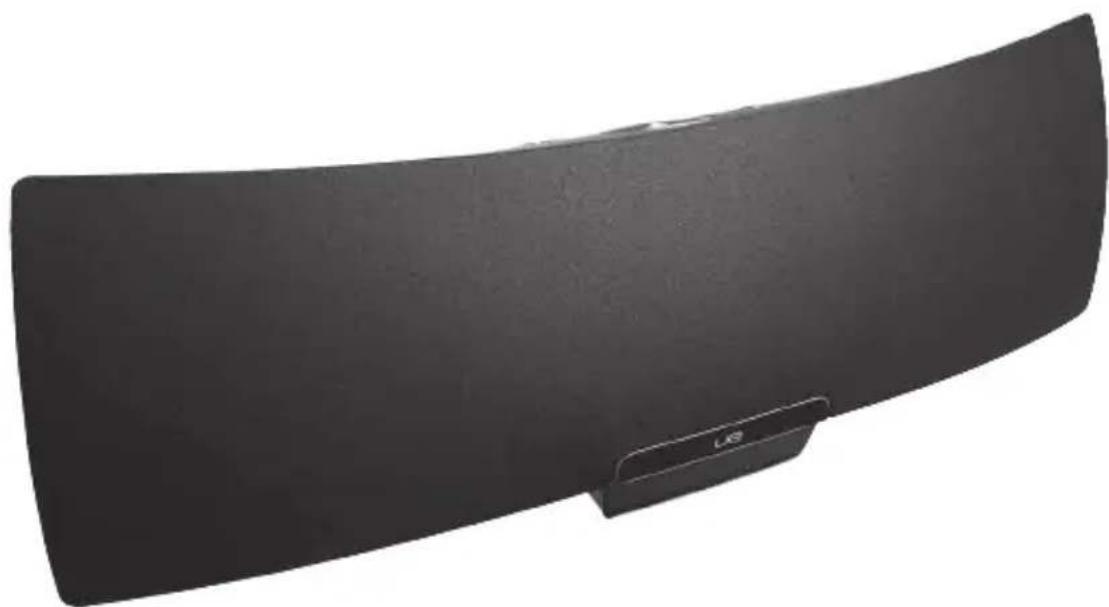
Black curved object with a small label 'US' on its side (no other text or symbols visible)for iPad, iPhone, iPod touch and iTunes


text_image
ue -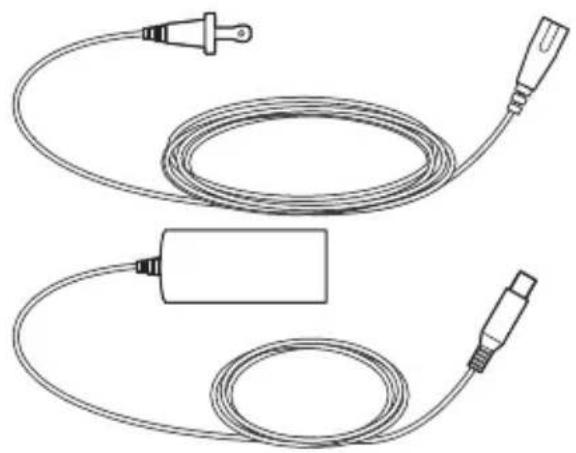
natural_image
Line drawing of a medical or electrical device with coiled cable and connector (no text or symbols)
text_image
Logitech | ue Air Speaker Getting started with Logitech UCT® Air Sensorizer W. RF Sensorizer Air Airfly for a 90% phone brand and 10% of the usersContents
English. 4
Deutsch 9
Français .....14
Italiano. 19
Español .....24
Português....29
Nederlands 34
Svenska 39
Dansk 44
Norsk 49
Suomi 54
Ελληνικά. 59
По-русски. 64
Magyar 69
Česká verze. . . . . . . . . . . . . . . . . . . . . . . . . . . . . . 74
Po polsku . . . . . . . . . . . . . . . . . . . . . . . . . . . . . . . . . . . . . . . . . . . . . . . . 79
Slovenčina. 84
Türkçe 89
98 . . . . . . . . . . . . . . . . . . . . . . . . . . . . . . . . . . . . . . . . . . . . . . . . . . . . . . . . . . . . .
www.logitech.com/support 99
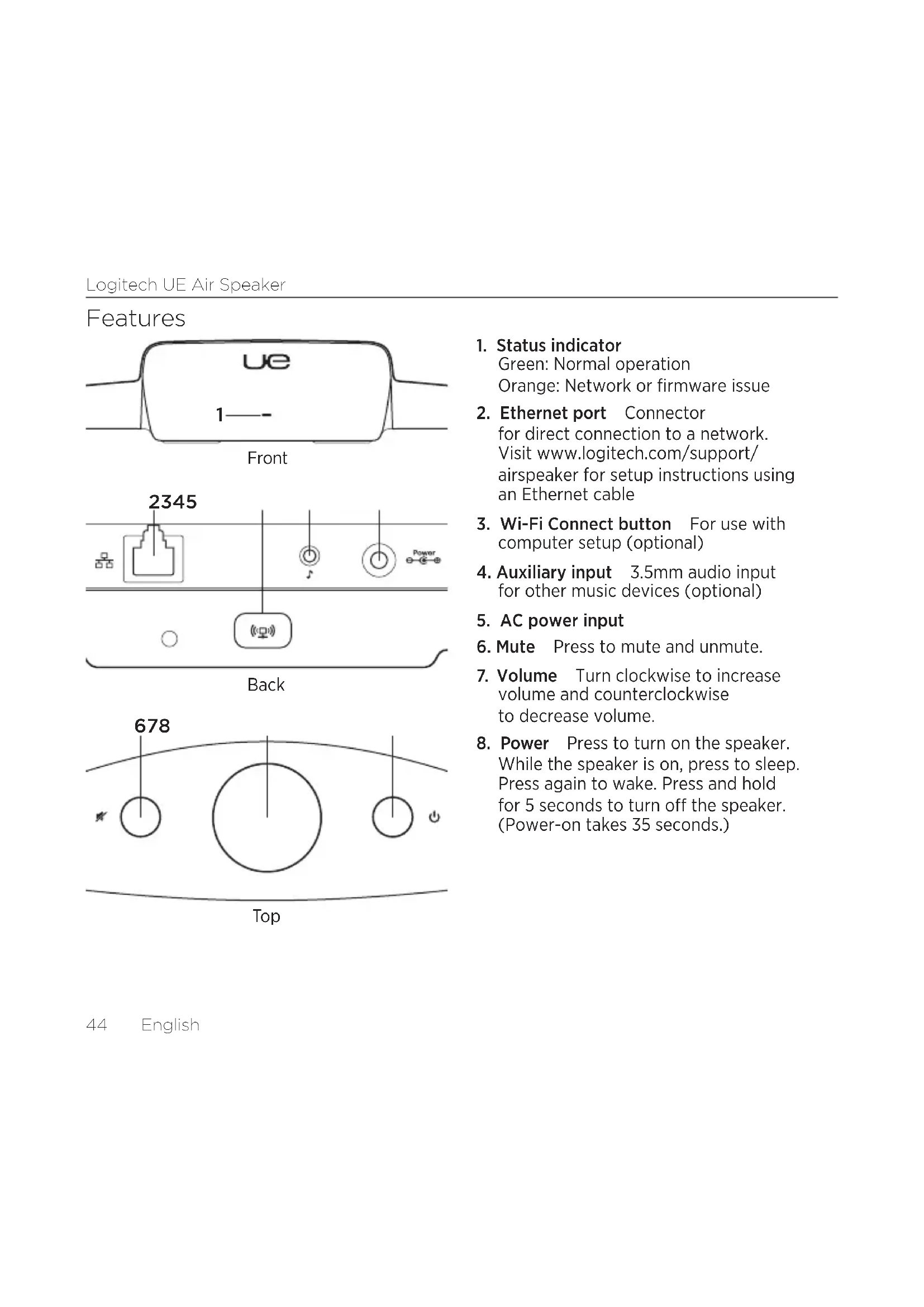
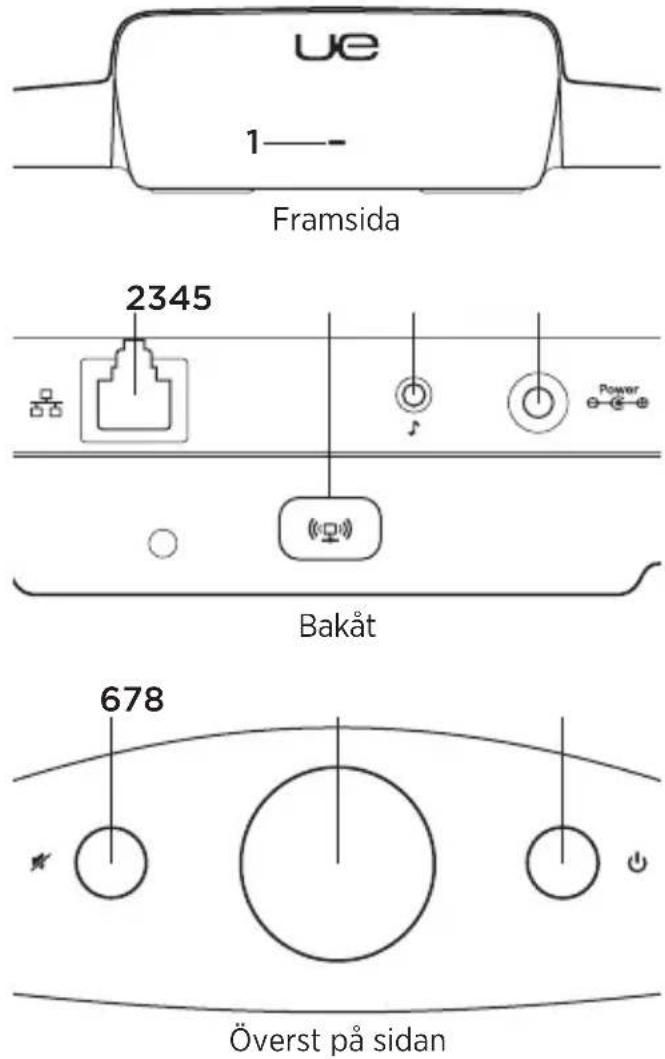
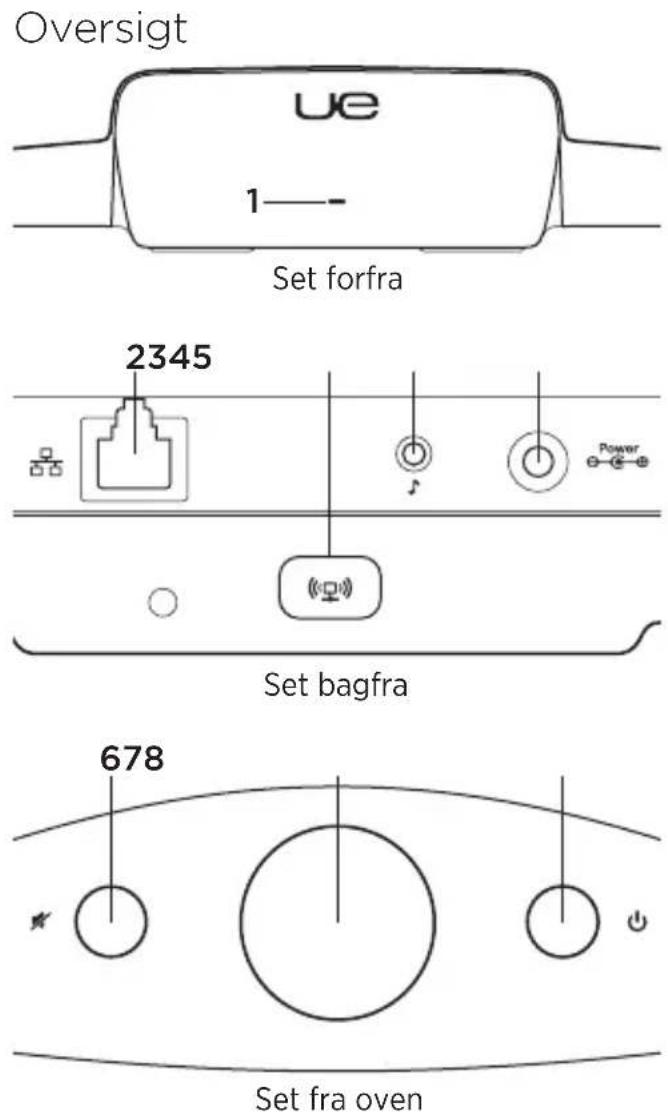
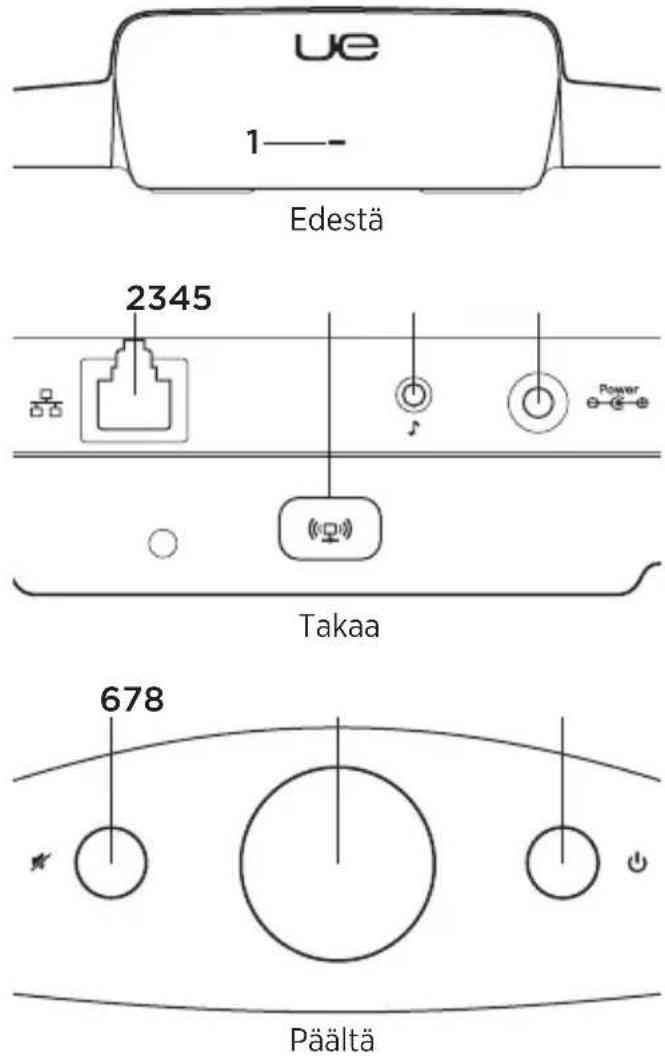
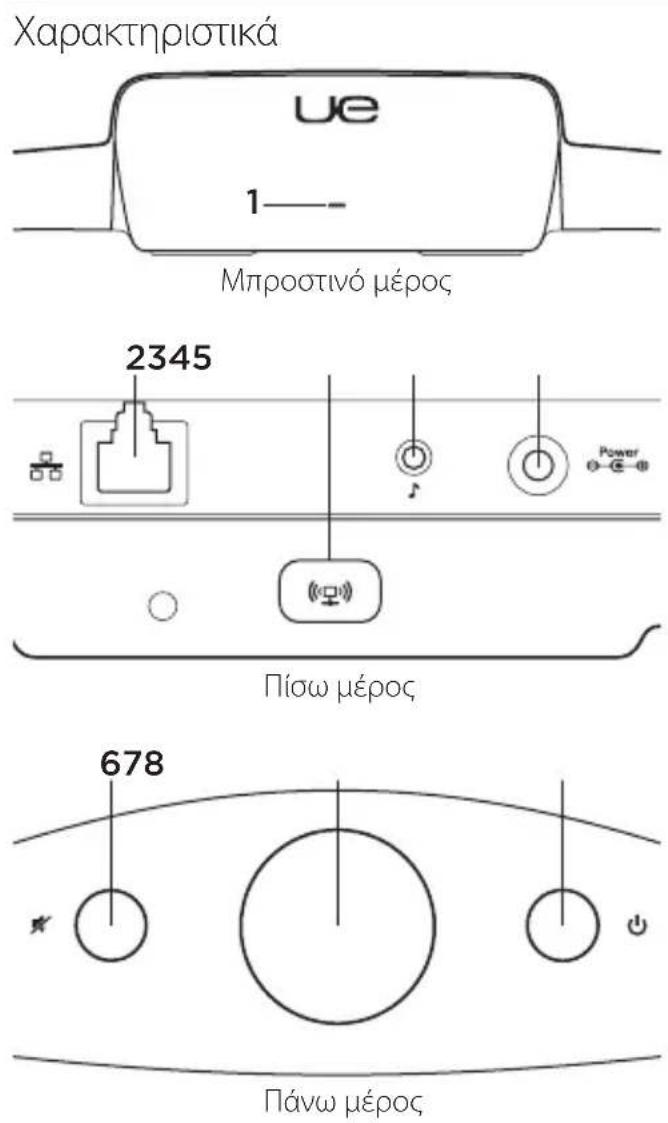
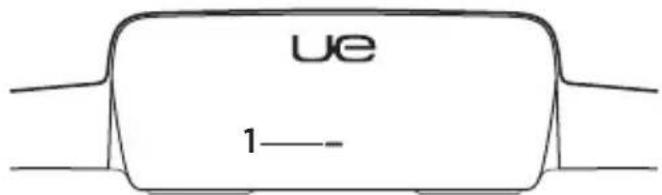
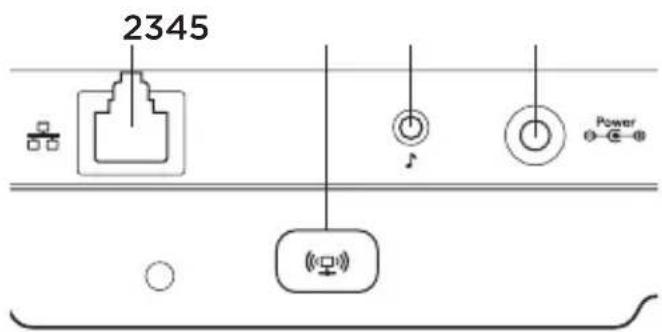
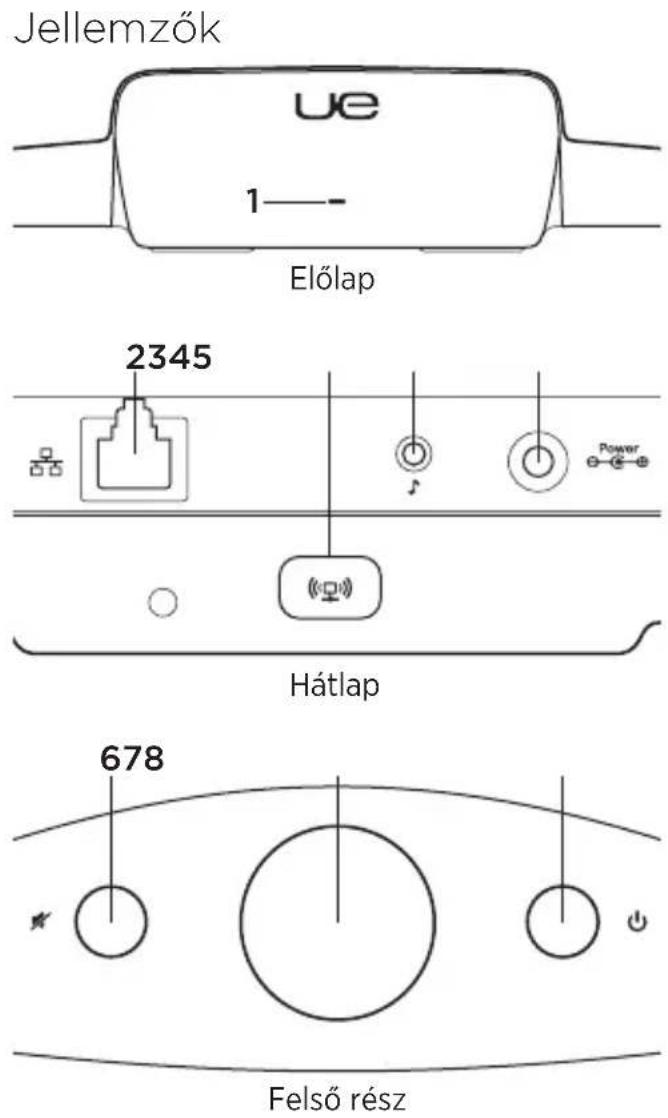
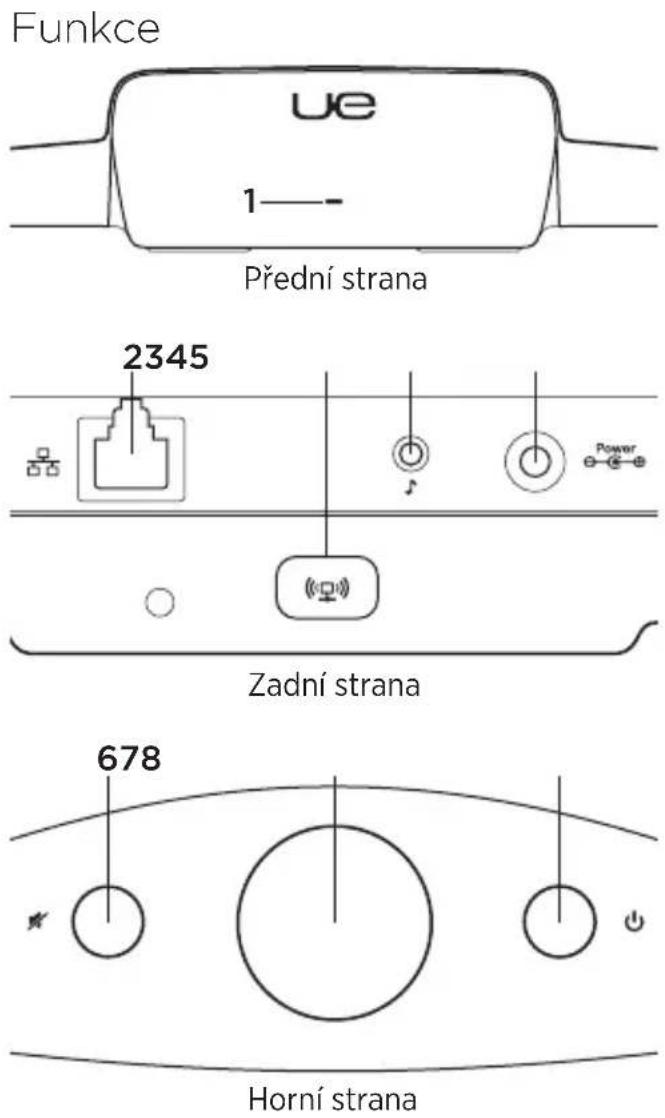
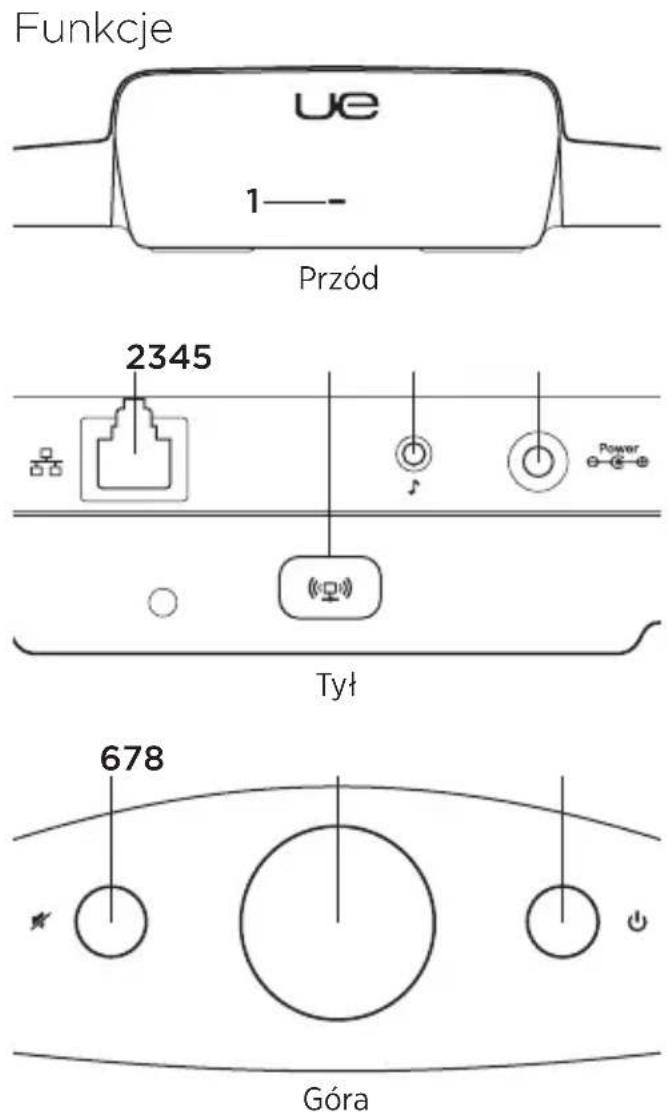
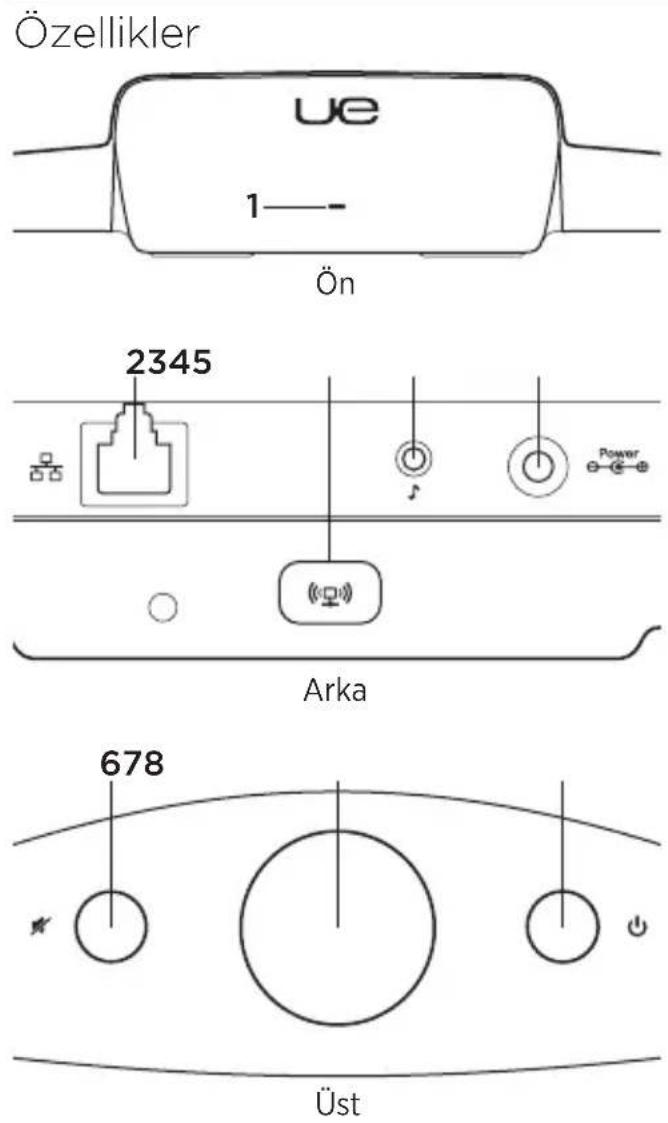
Features
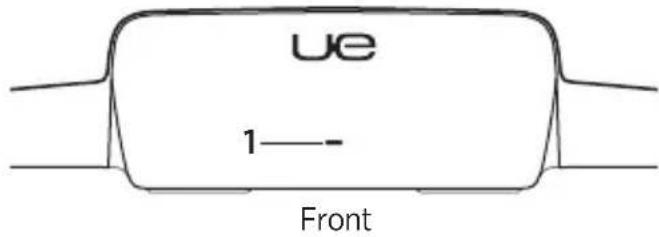
text_image
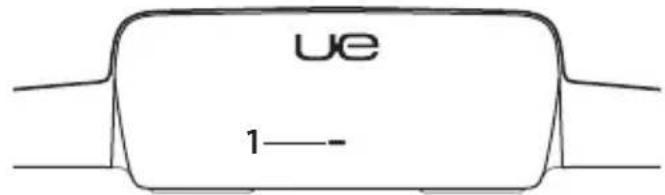
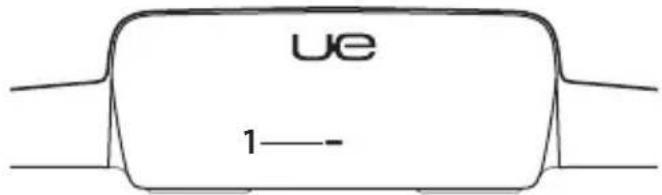
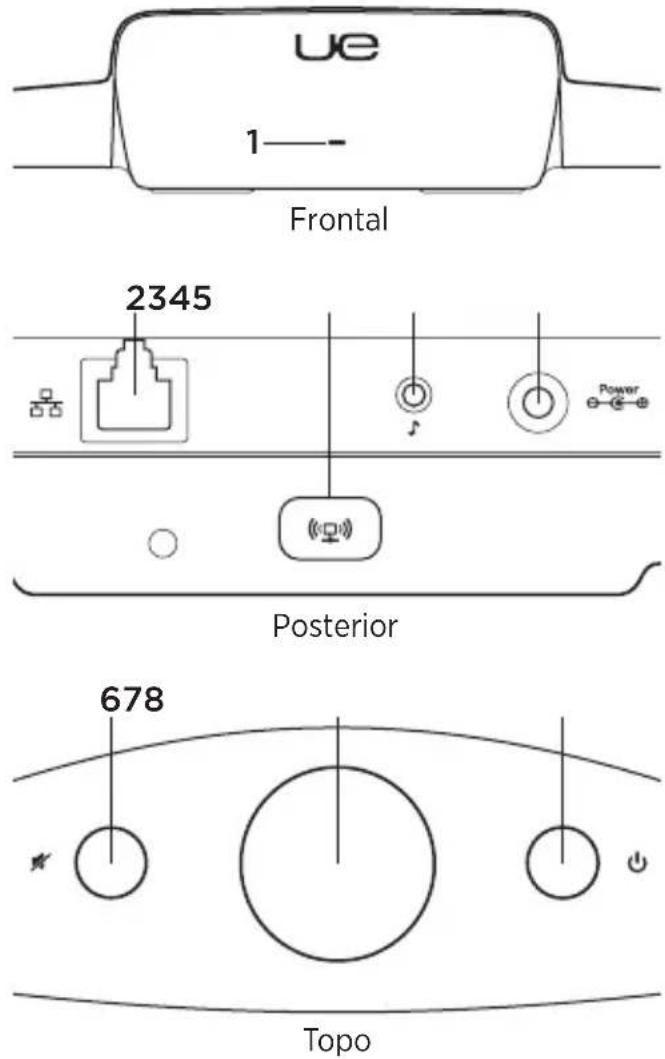
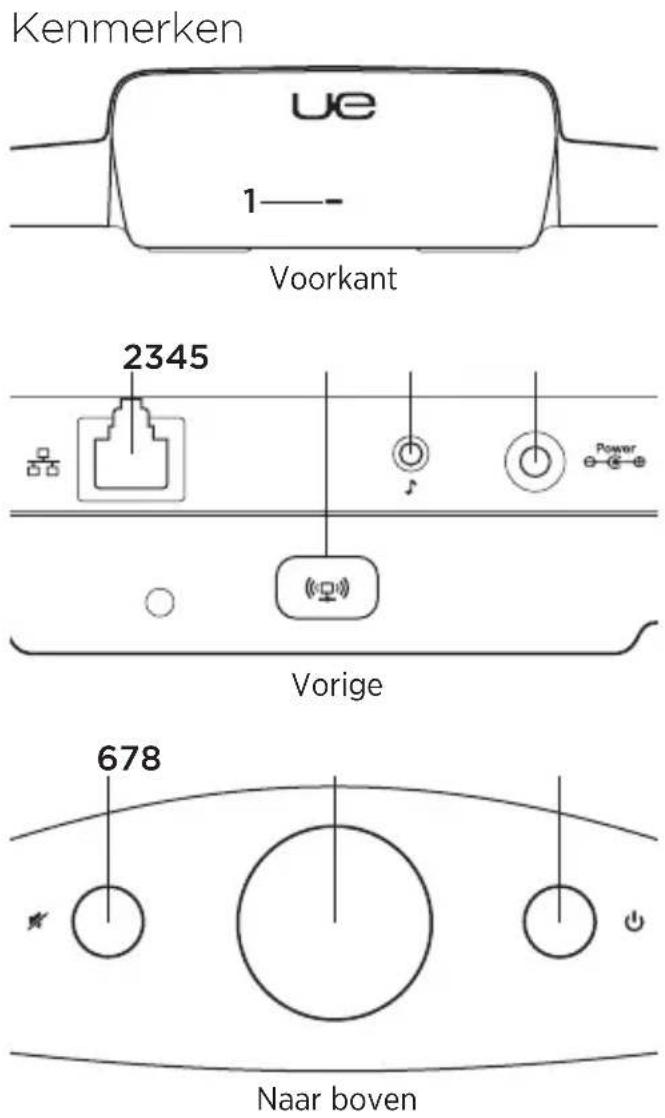
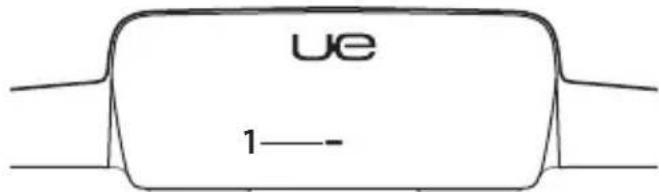
ue 1— Front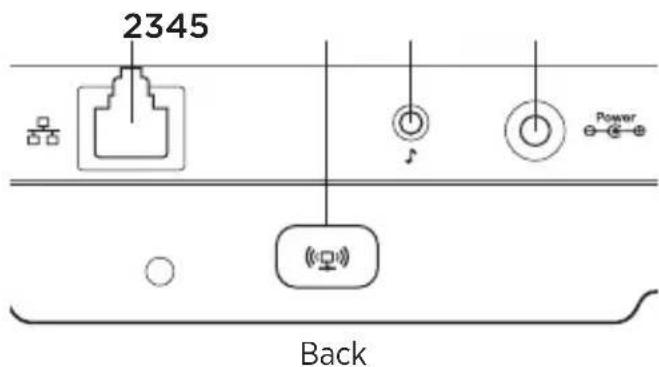
text_image
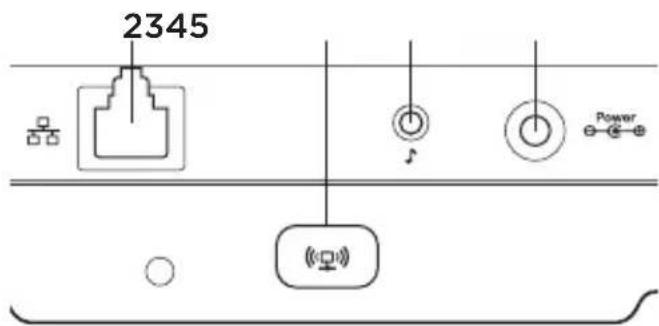
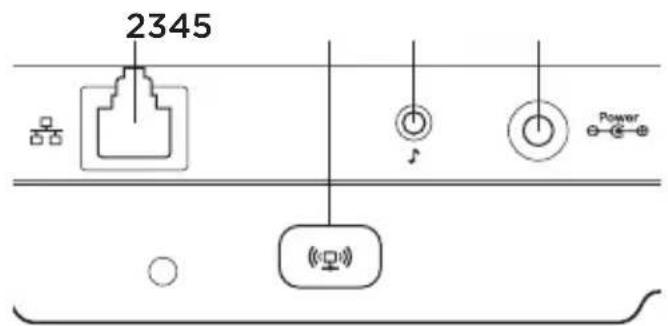
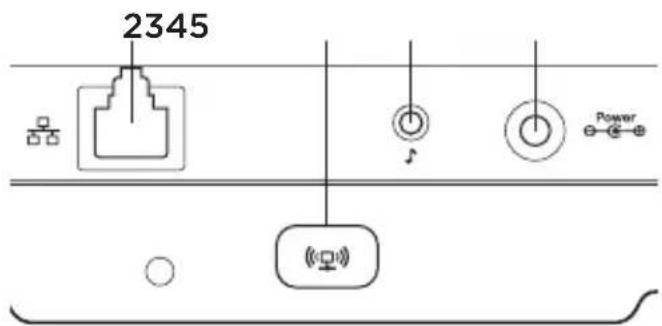
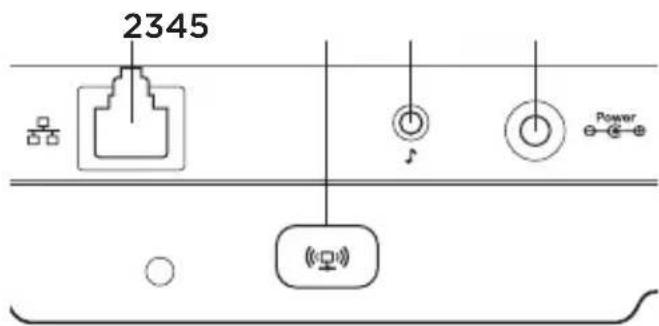
2345 Back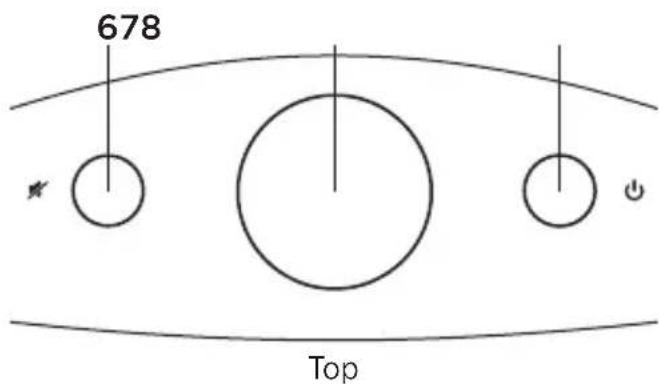
text_image
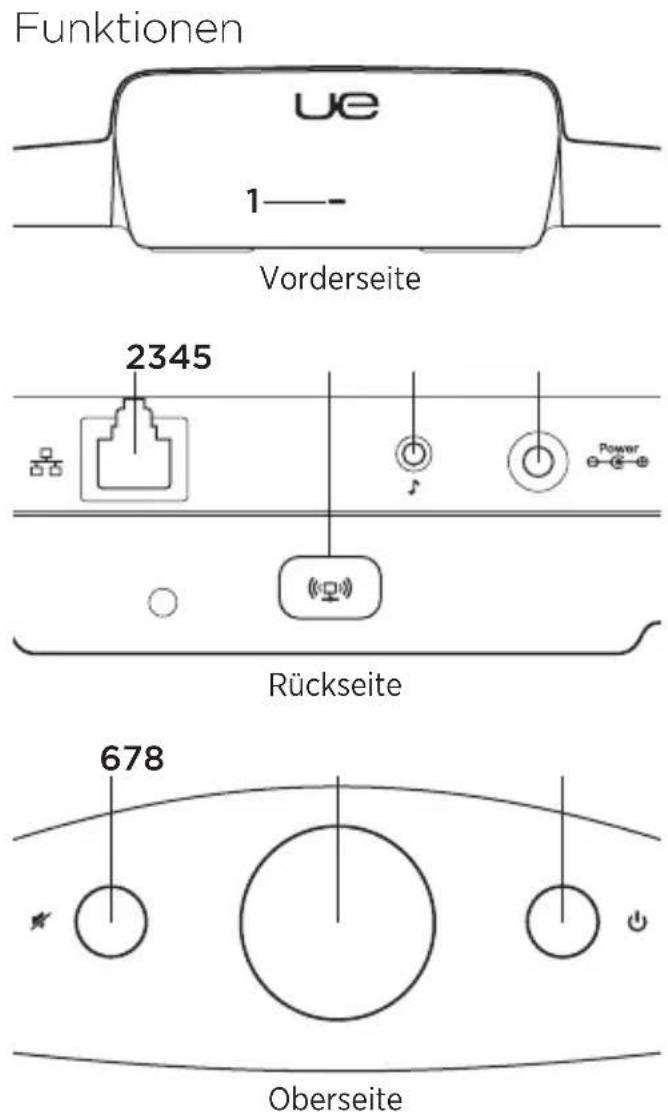
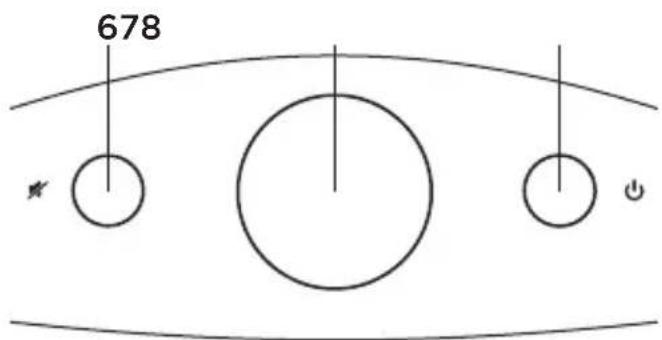
678 Top1. Status indicator
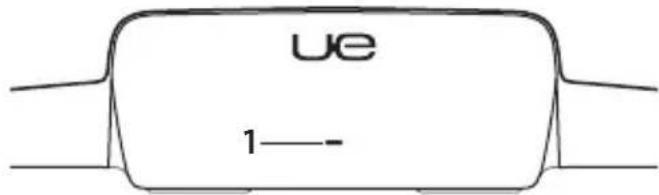
Green: Normal operation Orange: Network or firmware issue
-
Ethernet port Connector for direct connection to a network. Visit www.logitech.com/support/airspeaker for setup instructions using an Ethernet cable
-
Wi-Fi Connect button For use with computer setup (optional)
-
Auxiliary input 3.5mm audio input for other music devices (optional)
5. AC power input
-
Mute Press to mute and unmute.
-
Volume Turn clockwise to increase volume and counterclockwise to decrease volume.
-
Power Press to turn on the speaker. While the speaker is on, press to sleep. Press again to wake. Press and hold for 5 seconds to turn off the speaker. (Power-on takes 35 seconds.)
Set up AirPlay using an iOS device (preferred)
text_image
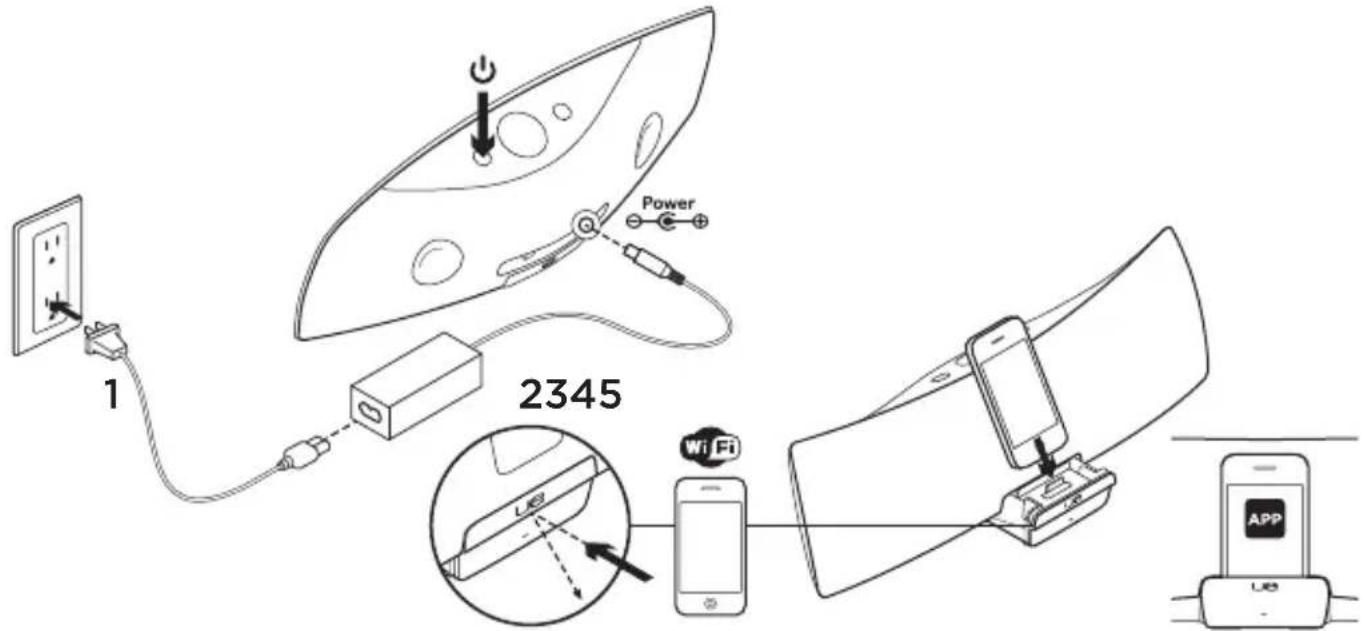
1 Power 2345 Wi-Fi USB APP- Connect the AC power supply and turn on the speaker. The speaker powers up in 35 seconds.
- Press to open the device dock. Do not dock your iOS device while the speaker is powering up.
-
Make sure your iOS device is connected to the same Wi-Fi network on which you want to operate the speaker.
-
Dock your iOS device after the speaker powers up. A notification will appear on your screen. Select Yes to install the Logitech UE Air app.
- Keep your iOS device docked, launch the APP, and then follow the on-screen instructions. Be ready to enter your Wi-Fi network password.
When the Status indicator turns solid green, the Wi-Fi network connection is made.
Set up AirPlay using a computer (optional)
- Connect the AC power supply. Turn on the speaker. Wait until power-on finishes before proceeding. (Power-on takes 35 seconds.)
- Press and hold the Wi-Fi Connect button for more than 5 seconds. After 35 seconds the Status indicator changes from slow blinking green to fast blinking green to indicate that setup mode is ready.
- Open Wi-Fi network settings on your computer. Select the network called "Air Speaker Setup". (For Wi-Fi help refer to your computer documentation.)
- Launch an Internet browser. Enter http://192.168.1.12 in the address bar. A configuration page launches.
- Follow the on-screen instructions. Be ready to select your Wi-Fi network and to enter your password. The speaker will restart. The Status indicator will turn solid green after the Wi-Fi connection is made.
Your computer should automatically reconnect to your Wi-Fi network. If not, you will need to reconnect it manually.
Note: If the Status indicator changes to slow blinking orange, the speaker did not connect to your Wi-Fi network. Please visit www.logitech.com/support/airspeaker for help and try again.
Playing music
The speaker plays music from only one device at a time. To switch devices, stop the current device before playing music on another device.
AirPlay with iOS device (wireless) ^1
- Make sure Wi-Fi is turned on for your iOS device and your iOS device is connected to the same network as the Air Speaker
- Tap the iPod app or a music app.
- Find the AirPlay icon and tap it.
- Choose the Air Speaker from the list of speakers.
- Select a song or track to play it.
^1 You can also dock your iOS device.
AirPlay with iTunes on your computer (wireless)
- Open iTunes. Open Preferences. Select Devices tab.
- Activate "Allow iTunes control from remote speakers." Click "OK." Close Preferences.
- Find the AirPlay icon and click it.
- Choose the Air Speaker from the list of speakers.
- Select a song or track to play it.
Auxiliary device
- Connect audio device (e.g., MP3 player) to auxiliary input.
- Select a song or track to play it.
Troubleshooting
The speaker is not working
• Is the power cable connected? Is the speaker powered on?
- Check the volume on the speaker and at the source. Is the speaker mute on?
- Is the speaker, iOS device, or computer within range of your Wi-Fi network? Are they connected to the same Wi-Fi network? When the speaker encounters a network issue, the Status indicator will slowly blink orange.
- Have you selected the "Logitech UE Air Speaker" as the output device?
- Is your router (modem or gateway) working properly? Is there a disruption in your Internet service?
- Security software and firewalls may block ports used by AirPlay to stream content. To resolve this issue, try updating or reconfiguring your firewall or security products. (Refer to your firewall or security documentation for more information.)
- Does your iOS device have the latest software?
- If the Status indicator rapidly blinks orange, the Speaker has a firmware issue. Please visit www.logitech.com/support/airspeaker for help.
I don't know my Wi-Fi network name (SSID) and password
Please consult your router or ISP modem/gateway documentation. If you need help, contact your router manufacturer or ISP (Internet service provider) if you're using an ISP modem/gateway with a built-in wireless router.
Additional help
If you have more questions about the Logitech UE Air Speaker, visit www.logitech.com/support/airspeaker.
| Status indicator | ||
| Speaker condition STANDBY ON | ||
| Booting up (35 seconds or less) — slow blinking green | ||
| Connecting to network — blinking green | ||
| Connected to network pulsing green solid green | ||
| Network problem (no connection) pulsing orange blinking orange | ||
| Firmware problem (no connection) pulsing orange fast blinking orange | ||
| Wi-Fi Connect mode — fast blinking green | ||
What do you think?
Please take a minute to tell us. Thank you for purchasing our product.
www.logitech.com/ithink
www.logitech.com/ithink
Caractéristiques
text_image
ue 1—Face avant
text_image
2345 PowerFace arrière

www.logitech.com/ithink
Caratteristiche
text_image
ue 1—Vista anteriore
text_image
2345 PowerVista posteriore

www.logitech.com/ithink
Funciones
text_image
ue 1—Parte frontal
text_image
2345 PowerParte posterior
text_image
678 ★ ● ● ●Parte superior
- Indicador de estado
Verde: Funcionamiento normal Naranja: Problema de red o firmware
www.logitech.com/ithink
Características
text_image
ue 1— Frontal 2345 Power Posterior 678 Topo- Indicador de estado
www.logitech.com/ithink
www.logitech.com/ithink
Funktioner
www.logitech.com/ithink
www.logitech.com/support/airspeaker
www.logitech.com/ithink
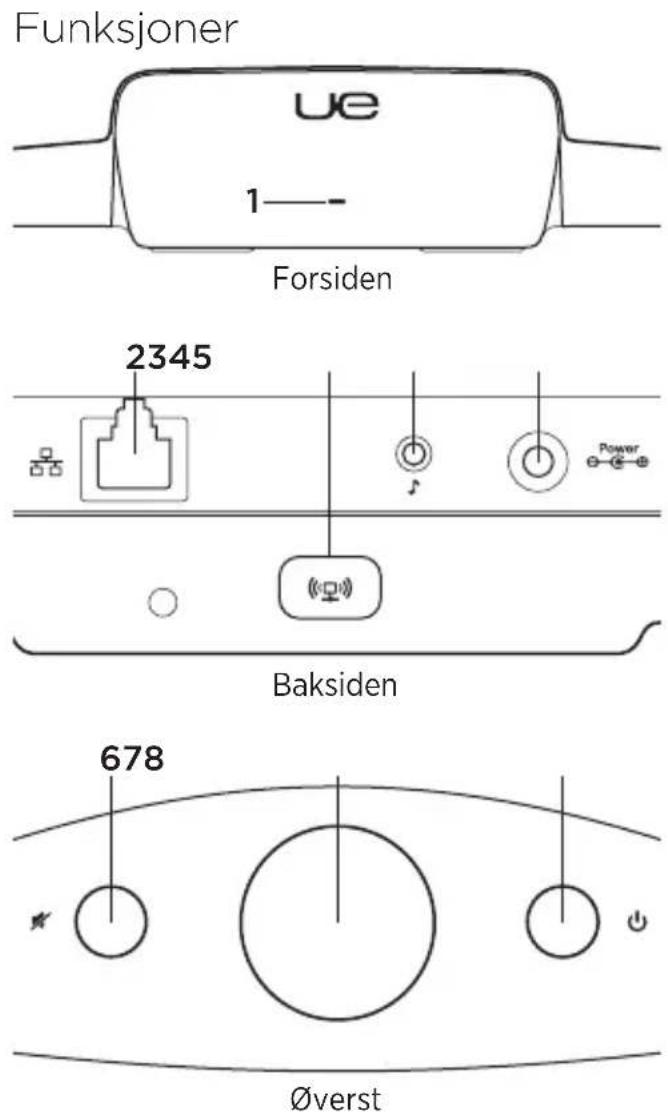
text_image
Funksjoner ue 1—— Forsiden 2345 Baksiden 678 Øverstwww.logitech.com/ithink
Ominaisuudet
www.logitech.com/ithink
text_image
1 Power 2345 WiFi Appwww.logitech.com/ithink
Возможности
text_image
ue 1—Передняя панель
text_image
2345 PowerЗадняя панель

text_image
678 * ↓ ↓ ↓ ↓Bepx
text_image
1 Power 2345 WiFi USB APP LEDwww.logitech.com/ithink
www.logitech.com/ithink
www.logitech.com/ithink
www.logitech.com/ithink
Funkcie
text_image
ue 1—-Predná strana
text_image
2345 PowerZadná strana

www.logitech.com/ithink
www.logitech.com/ithink
Logitech UE Air Speaker
تعليمات إضافية
www.logitech.com/ithink
www.logitech.com/support/airspeaker

België/Belgique Dutch: +32-(0)2 200 64 44; French: +32-(0)2 200 64 40
Česká Republika +420 239 000 335
© 2011 Logitech. Logitech, the Logitech logo, and other Logitech marks are owned by Logitech and may be registered. iPad, iPhone, iPod, iTunes, AirPlay and Apple are trademarks of Apple, Inc., registered in the U.S and other countries. Windows is a trademark of the Microsoft group of companies. All other trademarks are the property of their respective owners. Information contained herein is subject to change without notice.
620-003697.005