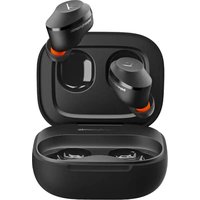
Amiron 100 - Earphones BEYERDYNAMIC - Free user manual and instructions
Find the device manual for free Amiron 100 BEYERDYNAMIC in PDF.


User questions about Amiron 100 BEYERDYNAMIC
0 question about this device. Answer the ones you know or ask your own.
Ask a new question about this device
Download the instructions for your Earphones in PDF format for free! Find your manual Amiron 100 - BEYERDYNAMIC and take your electronic device back in hand. On this page are published all the documents necessary for the use of your device. Amiron 100 by BEYERDYNAMIC.
USER MANUAL Amiron 100 BEYERDYNAMIC
SAFETY INSTRUCTIONS 3
Intended use....3
Adjusting the volume....3
Changed acoustic perception ....3
General maintenance instructions ....3
Risk of swallowing....3
Power and connecting cable....3
Using the batteries....3
Environmental conditions ....3
ABOUT THIS MANUAL 4
BOX CONTENTS 4
USING AND FITTING THE EARTIPS 4
Using silicone eartips 4
How to insert the earphones ....4
CHARGING THE BATTERY 4
Remarks on the life of Li-ion batteries 4
Displaying the battery charge level 5
DOWNLOAD BEYERDYNAMIC APP 5
COMPATIBILITY WITH PLAYBACK DEVICES....5
SUPPORTED AUDIO CODECS 5
OPERATION 5
Connect to a device via Bluetooth ^® ....5
Pairing 6
Google Fast Pair ^® 6
Multi-point operation 6
Setting up multi-point....6
Using multi-point....6
Delete pairing list 6
Playing media....7
Adjust the volume 7
Making a call....7
Reset to factory settings 8
Overview of operating functions 8
Overview of the LED displays on the charging case 8
Cleaning 8
TROUBLESHOOTING 9
HELP WITH PROBLEMS / FAQ....9
PRODUCT REGISTRATION 9
DISPOSAL....9
Battery disposal....9
EU DECLARATION OF CONFORMITY....9
TECHNICAL SPECIFICATIONS....9
WARRANTY CONDITIONS ....10
TRADEMARKS....10
THIRD PARTY LICENSES ....10
Thank you for purchasing the AMIRON 100 True Wireless earphones from beyerdynamic.
Please take some time to read this information carefully before using the product.
SAFETY INSTRUCTIONS
Read these safety instructions carefully before using the AMIRON 100 earphones.
▶ Heed all instructions given, especially those regarding the safe use of the AMIRON 100 earphones.
▶ Do not use the AMIRON 100 earphones when they are damaged.
Intended use
▶ Only use the AMIRON 100 earphones as described in this manual.
The company beyerdynamic GmbH & Co. KG accepts no liability for damage to the AMIRON 100 earphones or injury to persons caused by careless, improper or incorrect use of the AMIRON 100 earphones, or by use for purposes not specified by the manufacturer.
The company beyerdynamic GmbH & Co. KG is not liable for damage to USB devices that do not comply with the USB specifications.
The company beyerdynamic GmbH & Co. KG is not liable for damage resulting from connection interruptions due to batteries being empty or too old, or due to exceeding the Bluetooth® transmission range.
▶ Please also observe the relevant country-specific regulations before using the product.
Adjusting the volume

High volume levels over longer listening periods can permanently damage your hearing.
Before using the AMIRON 100 earphones, set the volume to minimum.
▶ Only increase the volume after positioning the AMIRON 100 earphones.
Do not use the AMIRON 100 earphones at high volume for a long period. When listening and speaking normally using AMIRON 100 earphones, your own voice should still be perceptible.
In case of tinnitus, reduce the volume. If necessary, consult a doctor.
We would like to point out that consistent high volume levels and longer listening periods can damage your hearing. Damage to hearing is irreversible. Always ensure an adequate volume level. It is advisable to keep listening periods as short as possible at high volume levels.
Reducing perception of ambient noise
The AMIRON 100 earphones drastically reduce the perception of ambient noise. Using the AMIRON 100 earphones in road traffic can be potentially dangerous. The user's hearing must not be impaired to the extent that it causes road safety risks.
Do not use the AMIRON 100 earphones within the action area of potentially dangerous machines and tools.
Avoid using the AMIRON 100 earphones in situations where hearing must not be impaired – particularly in road traffic, when crossing a level crossing or on a construction site.
Changed acoustic perception
For many people, wearing the AMIRON 100 earphones takes some getting used to because the acoustic perception of their own voice and body as well as the inner ear sounds that occur while walking is different from the “normal” situation without the AMIRON 100 earphones. However, this initially strange sensation usually diminishes after wearing them for a while.
General maintenance instructions
Clean all parts of the AMIRON 100 with a soft cloth moistened with water. Make sure that no liquid gets into the housing or the transducer.
▶ Do not use cleaning agents containing solvents, as these can damage the surface.
Risk of swallowing
▶ Keep small parts, such as product, packaging and accessories, away from children and pets. They constitute a choking hazard if swallowed!
Power and connecting cable
Use only the cable we supply to connect the charging case for both charging and connecting to a laptop.
Using the batteries
Danger from heat, water and mechanical stress
Excessive heat, water and mechanical stress may cause explosion, heat, fire, smoke or fumes. Injuries and irreversible damage to the battery may result.
Do not expose the battery to excessive heat, fires or extremely low air pressure. There is a risk of explosion, fire, smoke or gas.
Do not subject the battery to mechanical stress such as crushing. This may lead to an irreversible damage to the battery, explosion or injuries.
▶ Do not open the housing or disassemble/ replace the battery.
▶ Only use a USB 2.0/3.0 standard compliant 5 V power supply unit to charge the battery via the integrated USB socket type C.
Environmental conditions
Do not expose the AMIRON 100 earphones and charging case to rain, snow, liquids or moisture.
ABOUT THIS MANUAL
These instructions describe the most important functions of the product.
The information provided, refers to the standard settings of the software. A newer version may be available.
Information on the software update can be found in the "beyerdynamic App" chapter.
BOX CONTENTS
▶ Earphones left and right (L / R)
▶ Charging case
5 pairs of eartips (XS, S, M, L, XL)
USB cable
▶ Quick Start Guide and Compliance Booklet
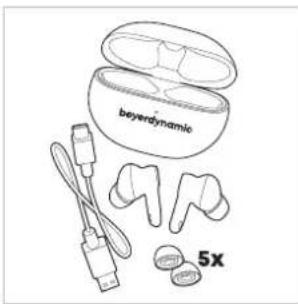
text_image
beyerdynamie 5xUSING AND FITTING THE EARTIPS
▶ Open the charger and remove the earphones.
For an optimum fit and sound quality, five pairs of silicone eartips in different sizes are included.
▶ Choose the eartips to ensure the best fit for your ears. Maybe you require different sizes for both ears.
Eartips for the black variant
Size XS S M L XL


Eartips for the cream variant
Size XS S M L XL


Using silicone eartips
To use the eartips, carefully slip them over the AMIRON 100.
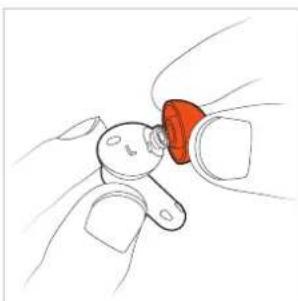
natural_image
Hand holding a small red object with a smile, no text or symbols visibleHow to insert the earphones
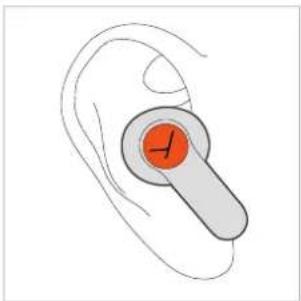
Insert the earphone into your ear with a slight twisting motion.
▶ Make sure that the earphone fits as shown.
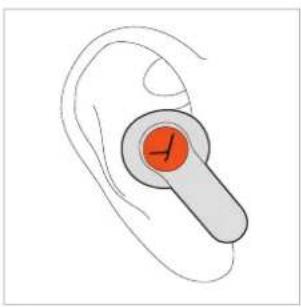
natural_image
Illustration of a human ear with a highlighted orange button (no text or symbols)If you are using them regularly, we recommend changing the eartips every three months. Replacement eartips can be ordered from the beyerdynamic replacement parts shop:
www.beyerdynamic.com/service/replacement-parts
CHARGING THE BATTERY
The earphones are charged via the battery of the charger. We recommend that you only charge the battery with the supplied USB cable.
Please fully charge the batteries in the charger and earphones before using the AMIRON 100 for the first time.
Insert the earphones into the charger and close the lid.
When the battery of the charger is fully charged, the LED on the charger lights up green. The earphones are charged when closing the lid.
If the battery of the charger is empty, the LED flashes red. To charge, connect the USB cable to charge.
The charging status of the earphones can be seen in the beyerdynamic App.
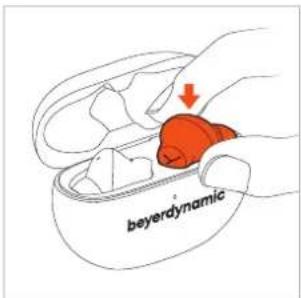
text_image
beyerdynamic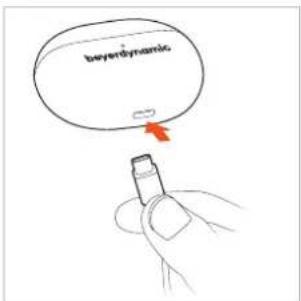
text_image
beyonddynamicsRemarks on the life of Li-ion batteries
When fully charged, disconnect the USB cable from the charger and the product.
▶ CAUTION! High temperatures, especially with a high charge level, can cause irreversible damage.
If the battery is not used or is stored for extended periods of time, it is recommended to charge it to approx. 50 % and store it at no more than 20 °C.
▶ Switch off the battery-powered product after use.
Displaying the battery charge level
The charge level of the charging case is indicated by the LED.
Charger not connected, open the lid of the charger or briefly press the pairing button
| LED Status | |
| Lights up red 1x Battery low | |
| Lights up yellow 1x Battery | half charged(approx. 50 %) |
| Lights up green 1x Battery | sufficiently charged |
Charger connected
| LED Status | |
| Flashes red | Charging battery (0 - 30 %) |
| Flashes yellow | Charging battery (31 - 70 %) |
| Flashes green | Charging battery (71 - 99 %) |
| Illuminates green | Battery fully charged (100 %) |
The charging status of the earphones is displayed via the beyerdynamic App.
DOWNLOAD BEYERDYNAMIC APP
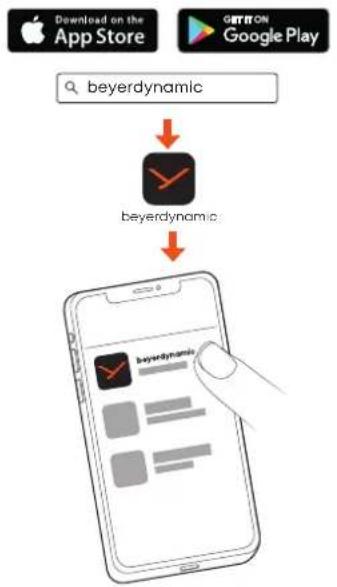
The beyerdynamic app gives you a more customised control of your AMIRON 100.
Download the beyerdynamic app from the App Store (for iOS devices) or Google Play (for Android devices).
flowchart
graph TD
    A["Download on the App Store"] --> B["beyerdynamic"]
    C["GO/TRON Google Play"] --> D["beyerDynamic"]
    D --> E["Mobile app screenshot"]
With the beyerdynamic app you can carry out customised operation settings and software updates.
These settings are saved to your AMIRON 100, so you can enjoy with any playback device connected to your AMIRON 100.
COMPATIBILITY WITH PLAYBACK DEVICES
AMIRON 100 is compatible with Bluetooth ^® devices that support the following profiles:
• A2DP (for audio transmission)
• HFP/HSP (for phone operation and voice assistant)
• AVRCP (for control signal transmission)
SUPPORTED AUDIO CODECS
Within the A2DP profile, AMIRON 100 supports the audio codecs SBC and AAC.
Only codecs that are available in the playback device can be used for audio transmission.
The playback device and AMIRON 100 automatically agree on the best available codec in the following order:
-
SBC
-
AAC
Most playback devices do not indicate which codec is actively in use.
OPERATION
AMIRON 100 can be operated by lightly tapping the touch pad.
natural_image
Illustration of a human ear with an orange button labeled 'F' on the inner ring (no text or symbols beyond the icon)Connect to a device via Bluetooth®
Before you can use AMIRON 100, you must connect it to a mobile phone or other Bluetooth ^® -enabled device. The connection procedure may differ between the various devices.
▶ Please refer to the operating instructions of the device to which you wish to connect the AMIRON 100.
Pairing
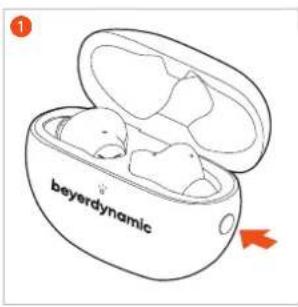
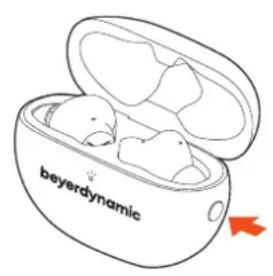
① Open the lid of the charging case while the two earphones are inside and press and hold the pairing button for 5 seconds (—) until the status LED flashes blue and red alternately.
text_image
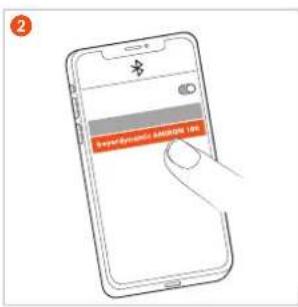
beyerdynamic2 Select "AMIRON 100" from the pairing list of the playback device.
text_image
SuperBalance - 100%Google Fast Pair®
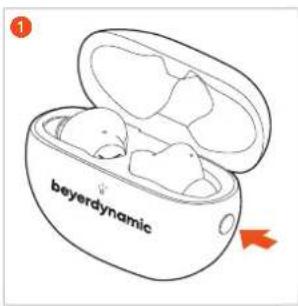
1 Open the lid of the charging case while the two earphones are inside and press and hold the pairing button for 5 seconds (—) until the status LED flashes blue and red alternately.
text_image
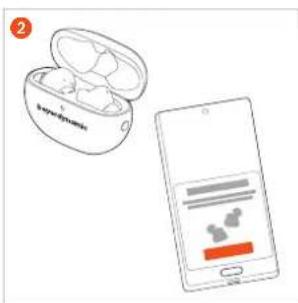
beyerdynamic2 Place the earphones in pairing mode close to a fast-pair-capable smartphone.
text_image
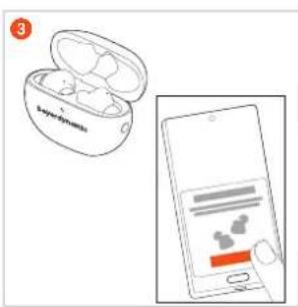
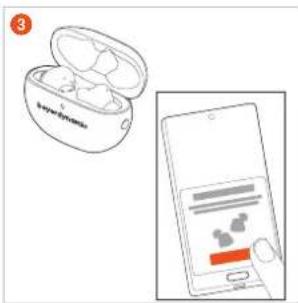
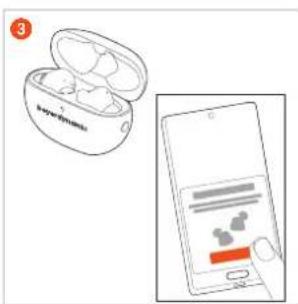
2 LoyeBearns3 Tap "Connect" on the smartphone.
text_image
3 LayerBondsMulti-point operation
AMIRON 100 can be paired with up to six devices via Bluetooth®. An active connection is possible with a maximum of two devices at the same time.
Music playback and phone operation is only possible with one device at a time. Phone operation has priority over music playback, i.e. music playback is interrupted when a call is received.
The following priority list applies to the use of playback devices (PD):
| Priority Profile Playback devices (PD) | ||
| 1 HFP (phone operation) PD 1 (device used first) | ||
| 2 HFP (phone operation) PD 2 (device used second) | ||
| 3 A2DP | ( playback of music) | PD 1 (device used first) |
| 4 A2DP | ( playback of music) | PD 2 (device used second) |
Setting up multi-point
First pair the AMIRON 100 with two playback devices as described in the "Pairing" chapter.
As soon as AMIRON 100 is connected, it can automatically switch between the two playback devices.
This is how you connect your playback devices for the first time:
- Open the Bluetooth® settings of the first playback device and connect it to the AMIRON 100.
- Open the Bluetooth® settings of the second playback device and connect it to the AMIRON 100.
Using multi-point
| Media playback active / accept call | Briefly tap the touch pad once (●) |
| Hang up / start media playback again | Briefly tap the touch pad twice (●●) |
Delete pairing list
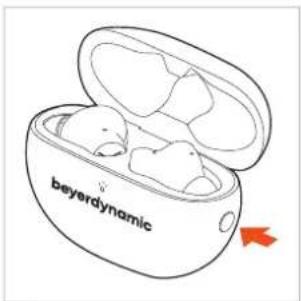
▶ While the earphones are in the charger, hold the button on the charger for approx. 8 seconds until the LED on the charger flashes blue.
text_image
beyerdynamicPlaying media Start / pause playback
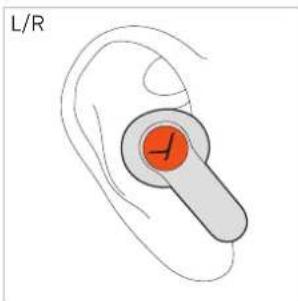
Tap the touch pad once (●) to start or stop playback.
text_image
L/RActivate voice assistant
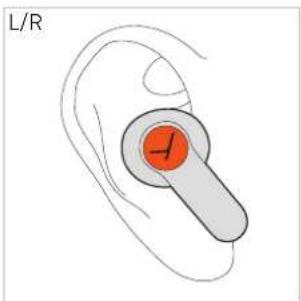
Tap the touch pad twice and hold with the second touch (●), to activate the voice assistant.
text_image
L/RNext track
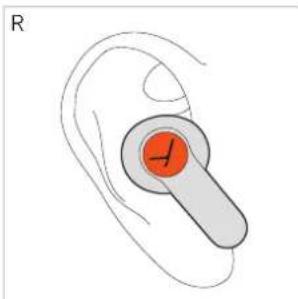
Tap the touch pad of the right (R) earphone three times (●●) to play the next track.*
text_image
RAdjust the volume
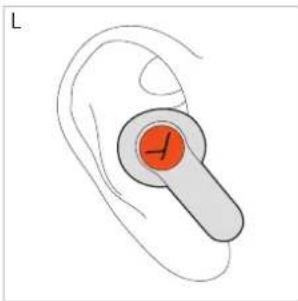
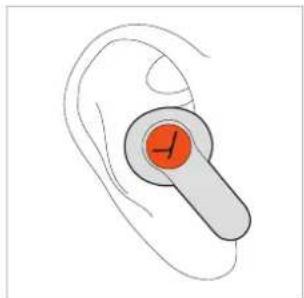
Tap and hold the touch pad on the right or left until the desired volume is reached (only works if you are using both earphones).
Previous track
Tap the touch pad of the left (L) earphone three times (●●) to play the previous track.*
natural_image
Illustration of a human ear with a highlighted orange circular component (no text or symbols)Increase volume
Right earphone (R): Press and hold the touch pad (☐) to increase the volume.
natural_image
Illustration of a human ear with a highlighted orange button (no text or symbols)Reduce volume
▶ Left earphone (L): Press and hold the touch pad (☐) to reduce the volume.
*Function depends on the streaming service or media player used
Switch between noise cancellation (ANC) and transparency mode
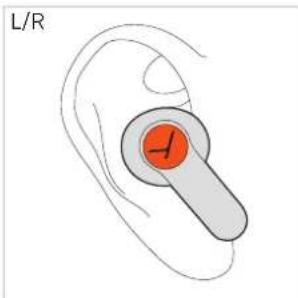
Tap the touch pad twice (●) to switch between noise cancellation (ANC), transparency or passive mode.
text_image
L/RMaking a call
| No call active Operation | |
| Accept incoming call | Tap once (●) |
| Reject incoming call | Tap twice (●●) |
| End active call | Tap twice (●●) |
| Call already active Operation | |
| Accept incoming call and hold active call | Tap once (●) |
| Reject second incoming call | Tap twice (●●) |
| Switch between two calls | Tap once (●) |
| End active call and switch to held call | Tap twice (●●) |
Reset to factory settings
When resetting to factory settings, all personal data is deleted!
▶ While the earphones are in the charger, press and hold the button on the charger for 12 seconds until the LED on the charger flashes yellow.
text_image
beyerdynamicPeer Pairing
To pair new earphones (e.g. when replacing defective or lost earphones), both sets of earphones must be reset to factory settings so that they can connect. During peer pairing the LED on the charger flashes rapidly blue.
Overview of operating functions
| Earphones in ear Operation (earphones) | |
| Start / stop media playback | ▶ Tap once (●) |
| Switch between noise cancellation (ANC) and transparency mode | ▶ Tap twice (●●) |
| Activate voice assistant | ▶ Tap twice and hold with the second tap (●—) |
| Accept incoming call | ▶ Tap once (●) |
| Reject incoming call / end active call | ▶ Tap twice (●●) |
| Increase volume | ▶ Tap and hold right (—) |
| Reduce volume | ▶ Tap and hold left (—) |
| Play next track | ▶ Tap right three times (●●) |
| Play previous track | ▶ Tap left three times (●●) |
| Both earphones in the charger | Operation (charging case) |
| Switch to pairing mode | Press and hold the button approx. 5 s ( ) |
| Delete pairing list | Press and hold the button approx. 8 s ( ) |
| Reset to factory settings | Press and hold the button approx. 12 s ( ) |
Overview of the LED displays on the charging case
| Charging case LED display | |
| Low battery warning | ► LED flashes red rapidly |
| Charging via USB 0 – 30 % | ► LED flashes red |
| Charging via USB 31 – 70% | ► LED flashes yellow |
| Charging via USB 71 – 99% | ► LED flashes green |
| Charging via USB 100% | ► LED illuminates green |
| Lid opened / 0 – 30% | ► LED flashes red slowly |
| Lid opened / 31 – 70 % | ► LED flashes yellow slowly |
| Lid opened / 71 – 100 % | ► LED flashes green slowly |
| Lid closed when not charging | ► LED is off |
| Bluetooth peer pairing | ► LED flashes blue rapidly |
| Bluetooth pairing recognisable | ► LED flashes blue and red |
| Bluetooth connection in charger | ► LED is off |
| Bluetooth connection possible | ► LED flashes blue slowly |
| Bluetooth connection lost | ► LED flashes blue slowly |
| Delete pairing list | ► LED flashes blue |
| Restoring the factory settings for the earphones | ► LED flashes yellow |
Cleaning
Due to dirty eartips and the formation of a warm and humid climate in the ear canal, an increased germ level can lead to a higher risk of ear canal infections. Therefore, please clean the eartips regularly.
▶ Remove the eartips from the housing.
Clean the eartips under running lukewarm water and a little ph-neutral soap or with a soft, lint-free moistened cloth.
Remove any cerumen that may be inside the eartip with a cotton bud.
Then rinse off the soap and dry the eartips with a lint-free cloth or leave them to dry overnight.
▶ Only attach the eartips when they are completely dry so that no remaining liquid can enter the electronics of the earphone.
Clean the housing of the earphone with a soft, lint-free cloth. If necessary, you can moisten the cloth slightly with lukewarm water. Make sure that no liquid can enter the housing.
▶ Do not use any solvent-based cleaners, as these will damage the surface.
If you want to remove cerumen from the housing, make sure that you do not rub it into the small openings for pressure equalisation and the microphones.
When you clean the cerumen protective grid (e.g. with a cotton bud or brush), the cerumen should be dry and the protective grid should point to the floor so that loosened cerumen residue does not fall into the earphone.
TROUBLESHOOTING
| Problem Cause Solution | ||
| AMIRON 100 cannot be switched on | ▸ Battery is empty or almost empty. | ▸ Charge the battery. |
| No audio output | ▸ No Bluetooth® connection. | ▸ Pair AMIRON 100 with the player. |
| AMIRON 100 does not appear among the available Bluetooth® devices on the player | ▸ AMIRON 100 is turned off.▸ AMIRON 100 is not in the pairing mode.▸ There exists a Bluetooth® connection to another play already. | ▸ Turn on AMIRON 100.▸ Put AMIRON 100 into the pairing mode.▸ Disconnect the Bluetooth® connection to the other player and connect AMIRON 100 to the desi-red device. |
| Playback volume is too low, despite the volume of AMIRON 100 is set to maximum | ▸ The received audio signal is too low. | ▸ Increase the playback volume on the player to maximum. |
| The sound is sharp and the bass response is too low | ▸ The sealing of the earphone is not sufficient. | ▸ Select suitable eartips on the right and left until the sound is ideal. |
| The wireless range is too low or the connection is disrupted | ▸ There are inter-ferences with other devices. | ▸ Move away from WLAN routers and microwave ovens.▸ Make sure that your body is not between the player and AMIRON 100. |
HELP WITH PROBLEMS / FAQ
Answers to more most common problems and questions can be found on the internet at:
https://www.beyerdynamic.com/faq
PRODUCT REGISTRATION
Using the serial number, you can register your AMIRON 100 on the internet at:
https://www.beyerdynamic.com/service
DISPOSAL
This symbol on the product, in the operating instructions or on the packaging means that electrical and electronic devices must be disposed of separately from household waste at the end of their life cycle.

▶ Always dispose of used equipment in accordance with applicable regulations.
For sale within the EU only:
For the return of old equipment, there are free collection points or a free return to beyerdynamic, as well as other acceptance points for reuse. The addresses are available at the local city or municipal administration.
▶ Dealers for electronic equipment are generally obliged to take back waste electrical/electronic equipment free of charge. This obligation also applies to sales via remote communication.
For further information, please contact the local authorities or the dealer from whom the product was purchased.
Battery disposal
▶ Dispose of batteries separately from the product after use in accordance with the applicable regulations. They must not be disposed of with household waste. Returning batteries is free of charge.
▶ Discharge the batteries before disposal.
Non-destructive removal of the battery by the end user is not possible with this product. Please contact beyerdynamic or consult independent specialists.
EU DECLARATION OF CONFORMITY
The company beyerdynamic GmbH & Co. KG hereby declares that this radio transmission device complies with the EU Directive 2014/53/EU.
▶ You will find the full text of the EU declaration of conformity on the internet at:
https://www.beyerdynamic.com/cod
TECHNICAL SPECIFICATIONS
Bluetooth ^® frequency range 2.402 – 2.480 GHz
Transmitting power < 7 dBm (EIRP) (Bluetooth®)
Charging temperature range 0 to +45 °C
Operating temperature range -10 to +45 °C
Input earphones DC 5 V / 85 mA
Input charging case DC 5 V / 500 mA
▶ More detailed information on the technical specifications can be found on the internet at: https://www.beyerdynamic.com
WARRANTY CONDITIONS
The company beyerdynamic GmbH & Co. KG provides a limited warranty for the original beyerdynamic product you have purchased.
▶ You can find detailed information about beyerdynamic's warranty conditions on the internet at:
https://www.beyerdynamic.com/service/warranty
TRADEMARKS
The Bluetooth ^® word mark and logos are registered trademarks of the Bluetooth ^® SIG, Inc. and any use of such marks by beyerdynamic is under license.
USB Type-A, USB Type-B and USB Type-C are trademarks of USB Implementers.
THIRD PARTY LICENSES
For more information on 3rd party licenses, please go to: https://www.beyerdynamic.com/media/downloads/headphones/manual/Licenses_amiron100.md
INHALT
natural_image
Hand holding a small mechanical component with a red circular knob (no text or symbols visible)natural_image
Illustration of a human ear with a circular orange button labeled '1' (no text or symbols beyond the label)natural_image
Illustration of a human ear with a circular device labeled 'F' on the inner ear (no text or symbols beyond the label)text_image
2 My home 200000000000000text_image
2 lemylytronictext_image
Diagram showing a smart earbuds with open case and smartphone screen displaying app interface elementsMulti-Point-Betrieb
natural_image
Illustration of a human ear with a highlighted orange circular component (no text or symbols)natural_image
Illustration of a human ear with a circular device labeled 'J' on the upper ear (no text or symbols beyond the label)Telefonieren
https://www.beyerdynamic.com/faq
https://www.beyerdynamic.com/media/downloads/headphones/manual/Licenses_amiron100.md
SOMMAIRE
CONSIGNES DE SÉCURITÉ....21
CONDITIONS DE GARANTIE....28
MARQUES....28
LOGICIEL D'AUTRES FOURNISSEURS....28
Embouts version crème
Tailles XS S M L XL


natural_image
Hand holding a small red object with a smile, surrounded by other fingers (no text or symbols)natural_image
Illustration of a human ear with a highlighted orange button (no text or symbols)www.beyerdynamic.com/service/replacement-parts
CHARGER LES BATTERIES
natural_image
Illustration of a small ear with a highlighted orange button (no text or symbols)natural_image
Illustration of an open earbuds and a smartphone displaying a product page (no text or symbols on the devices themselves)text_image
Diagram showing a wireless earbuds with open case and smartphone interface displaying app iconsnatural_image
Illustration of a human ear with a circular device labeled 'F' on the upper ear (no text or symbols beyond the label)https://www.beyerdynamic.com/faq
ENREGISTREMENT DU PRODUIT
DÉCLARATION DE CONFORMITÉ UE
https://www.beyerdynamic.com/cod
DONNÉES TECHNIQUES
CONDITIONS DE GARANTIE
https://www.beyerdynamic.com/service/warranty
MARQUES
https://www.beyerdynamic.com/media/downloads/headphones/manual/Licenses_amiron100.md
CONTENIDO
INSTRUCCIONES DE SEGURIDAD....30
Uso correcto 30
Ajuste del volumen....30
natural_image
Hand holding a small mechanical component with a red knob, no text or symbols visiblenatural_image
Illustration of a human ear with a circular device labeled '1' on the inner ear (no text or symbols beyond the label)natural_image
Illustration of a human ear with a circular orange button labeled '✓' (no text or symbols beyond the icon)text_image
2 Preparation: 100%text_image
Diagram showing a wireless earbuds with open case and smartphone screen displaying app icons3 En el smartphone, pulse "Conectar".
text_image
bluebuds 3▶ Auricular Derecho (R):
natural_image
Illustration of a human ear with a circular button containing an orange checkmark (no text or symbols)Bajar el volumen
▶ Auricular Izquierdo (L):
https://www.beyerdynamic.com/faq
REGISTRO DEL PRODUCTO
https://www.beyerdynamic.com/media/downloads/headphones/manual/Licenses_amiron100.md
CONTENUTO
AVVERTENZE PER LA SICUREZZA 39
Uso previsto....39
natural_image
Hand holding a small red object with a smile, no text or symbols visiblenatural_image
Illustration of a human ear with a circular orange button labeled '✓' (no text or symbols beyond the icon)www.beyerdynamic.com/service/replacement-parts
MESSA IN CARICA DELLE BATTERIE
natural_image
Illustration of a human ear with a highlighted orange button (no text or symbols)text_image
Buyout Sustainable 100text_image
Diagram showing a smart earbuds with a logo and a smartphone displaying app interface elements.text_image
3 low-end earbudsnatural_image
Illustration of a human ear with a circular orange button labeled '✓' (no text or symbols beyond the icon)Telefonate
https://www.beyerdynamic.com/faq
natural_image
Hand holding a small mechanical component with a red knob, no text or symbols visiblenatural_image
Illustration of a human ear with a circular orange button labeled '1' (no text or symbols beyond the label)natural_image
Illustration of a human ear with an orange button labeled '✓' (no text or symbols beyond the icon)text_image
Diagram showing a wireless earbuds with open case and smartphone screen displaying app iconsnatural_image
Illustration of a human ear with a highlighted orange circle containing a number 1 (no text or symbols present)natural_image
Illustration of a human ear with a circular device on the upper ear (no text or symbols)Reduzir o volume
PROBLEEMOPLOSSING....64
HULP BIJ PROBLEMEN / FAQ 64
PRODUKTREGISTRATIE 64
VERWIJDERING....64
natural_image
Hand holding a small mechanical component with a red knob, no text or symbols visiblenatural_image
Illustration of a human ear with an orange circular button labeled '1' (no text or symbols beyond the label)www.beyerdynamic.com/service/replacement-parts
ACCU'S OPLADEN
natural_image
Illustration of a human ear with a circular device labeled '✓' (no text or symbols beyond the label)text_image
2 Hyperbudstext_image
HyperglyclicsMulti-Point-werking
natural_image
Illustration of a human ear with a highlighted orange button (no text or symbols)natural_image
Illustration of a human ear with a highlighted orange button (no text or symbols)Volume verlagen
https://www.beyerdynamic.com/service
https://www.beyerdynamic.com/service/warranty
HANDELSMERKEN
https://www.beyerdynamic.com/media/downloads/headphones/manual/Licenses_amiron100.md
INDHOLD
SIKKERHEDSVEJLEDNINGER 67
GARANTIBESTEMMELSER....74
VAREMÄERKER....74
SOFTWARE FRA ANDRE UDBYDERE....74
Tak for, at du har valgt True Wireless Høretelefon AMIRON 100 fra beyerdynamic.
natural_image
Hand holding a small mechanical component with a red circular knob (no text or symbols visible)natural_image
Illustration of a human ear with a circular device on the upper ear (no text or symbols)natural_image
Illustration of a human ear with a circular device on the upper ear (no text or symbols)Tilslutning med et apparat via Bluetooth®
text_image
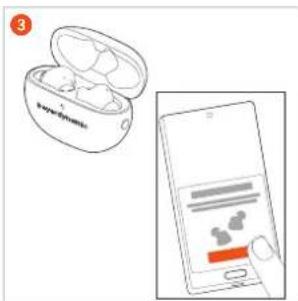
keyed automatic3 Tast på Smartphonen på "Forbind".
text_image
3 IvrellymphicMulti-Point-Drift
Etabler Multi-Point forbindelse
natural_image
Illustration of a human ear with a circular button containing an orange checkmark (no text or symbols)Telefonering
https://www.beyerdynamic.com/faq
PRODUKTREGISTRERING
https://www.beyerdynamic.com/media/downloads/headphones/manual/Licenses_amiron100.md
SISÄLTÖ
TURVALLISUUSOHJEET....76
natural_image
Hand holding a small mechanical component with a red circular knob (no text or symbols visible)natural_image
Illustration of a human ear with a circular device on the upper ear (no text or symbols)natural_image
Illustration of a human ear with a highlighted orange button (no text or symbols)text_image
Diagram showing a closed earbuds with a logo and a smartphone displaying a login screen with iconstext_image
3 Keydynamicnatural_image
Illustration of a human ear with a highlighted orange circular component (no text or symbols)natural_image
Illustration of a human ear with a circular button labeled '✓' (no text or symbols beyond the icon)https://www.beyerdynamic.com/faq
TUOTTEEN REKISTERÖINTI
https://www.beyerdynamic.com/service.
HÄVITTÄMINEN
Fare for svelging 85
natural_image
Illustration of a hand holding a small object with a red circular component, no text or symbols presentnatural_image
Illustration of a human ear with a circular orange button labeled '✓' (no text or symbols beyond the icon)natural_image
Illustration of a human ear with a circular device labeled 'J' on the inner ear (no text or symbols beyond the label)Slik kobler du til en enhet via Bluetooth®
text_image
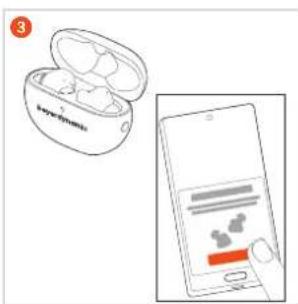
2 lemylytronic③ Trykk på alternativet for tilkobling på smarttelefonen.
text_image
Diagram showing a smart earbuds with open case and smartphone screen displaying app interface elementsFlerpunktsmodus
natural_image
Illustration of a human ear with a highlighted orange circular component (no text or symbols)natural_image
Illustration of a human ear with a circular device labeled 'J' on the upper ear (no text or symbols beyond the label)Telefonsamtaler
| Ingen aktiv samtale Betjening | |
| Ta imot et innkommende anrop | Trykk 1 gang (●) |
| Avvise et innkommende anrop | Trykk 2 ganger (●●) |
| Avslutte en aktiv samtale | Trykk 2 ganger (●●) |
natural_image
Hand holding a small mechanical component with a red circular knob (no text or symbols visible)natural_image
Illustration of a human ear with a circular orange button labeled '✓' (no text or symbols beyond the icon)www.beyerdynamic.com/service/replacement-parts
LADDA BATTERIER
natural_image
Illustration of a human ear with a highlighted orange button (no text or symbols)Koppla med en enhet via Bluetooth®
text_image
Sanyangmin 100text_image
Diagram showing a wireless earbuds with a logo and a smartphone displaying a login interface.③ Tryck på smartphonen på "Anslut".
text_image
Diagram showing a smart earbuds with open case and smartphone interface displaying app iconstext_image
V/H (L/R)Nästa titel
text_image
V/H (L/R)text_image
V/H (L/R)Ställa in volymen
natural_image
Illustration of a human ear with a circular button containing an orange checkmark (no text or symbols)Ringa
https://www.beyerdynamic.com/media/downloads/headphones/manual/Licenses_amiron100.md
SISU
OHUTUSJUHISED 103
SELLEST JUHENDIST....104
TARNEKOMPLEKT 104
KÖRVAKORKIDE KASUTAMINE JA KOHANDAMINE.... 104
Üldised hooldusjuhised
natural_image
Hand holding a small mechanical component with a red circular knob (no text or symbols visible)Körvaklapi körva panemine
natural_image
Illustration of a human ear with a circular device on the upper ear (no text or symbols)Regulaarsel kasutamisel soovitame me körvakorke iga kolme kuu tagant vahetada. Varukörvakorke saate tellida beyerdynamicu varuosade poest: www.beyerdynamic.com/service/replacement-parts
AKUDE LAADIMINE
natural_image
Illustration of a human ear with a circular device on the upper ear (no text or symbols)Seadmega Bluetooth®i abil ühendamine
text_image
Illustration showing a wireless earbuds with open case and smartphone screen displaying app iconsMulti-Pointi režiim
natural_image
Diagram of a human ear with a highlighted orange button (no text or symbols)Eelmine lugu
natural_image
Illustration of a human ear with a highlighted orange button (no text or symbols)natural_image
Illustration of a human ear with a highlighted orange button (no text or symbols)https://www.beyerdynamic.com/service/warranty
KAUBAMÄRGID
https://www.beyerdynamic.com/media/downloads/
headphones/manual/Licenses_amiron100.md
TURINYS
SAUGUMO NURODYMAI 112
natural_image
Hand holding a small mechanical component with a red knob, no visible text or symbolsnatural_image
Illustration of a human ear with a circular device on the upper ear (no text or symbols)www.beyerdynamic.com/service/replacement-parts
BATERIJU İKROVIMAS
natural_image
Illustration of a human ear with a circular device labeled '✓' on the upper ear (no text or symbols beyond the label)Prisijungimas prie jrenginio per „Bluetooth“
text_image
Illustration showing a smart earbuds with open case and smartphone screen displaying app iconsnatural_image
Diagram of a ear with a highlighted orange button, no text or symbols presentAnkstesnis kürinys
natural_image
Illustration of a human ear with a highlighted orange circle containing a number 1, no text or symbols present.natural_image
Illustration of a human ear with a circular button containing an orange checkmark (no text or symbols)Skambinimas telefonu
https://www.beyerdynamic.com/faq
GAMINIO REGISTRACIJA
https://www.beyerdynamic.com/cod
TECHNINIAI DUOMENYS
„Bluetooth®“ dažnio diapazonas 2,402 – 2,480 GHz
Perdavimo galia („Bluetooth®“) < 7 dBm (EIRP)
natural_image
Hand holding a small mechanical component with a red circular knob (no text or symbols visible)natural_image
Illustration of a human ear with a circular orange button labeled '1' (no text or symbols beyond the label)www.beyerdynamic.com/service/replacement-parts
AKUMULATORU UZLÄDE
ATBALSTITIE AUDIO KODEKSI
Profila A2DP ietvaros AMIRON 100 atbalsta audio kodeksus SBC un AAC.
natural_image
Illustration of a human ear with a circular orange button labeled '✓' (no text or symbols beyond the icon)Savienošana ar ierici, izmantojot Bluetooth®
text_image
2 B: 100% 100% 100%text_image
3 Hybridgromicsnatural_image
Illustration of a human ear with a highlighted orange button (no text or symbols)natural_image
Illustration of a human ear with a circular orange button labeled '✓' (no text or symbols beyond the icon)https://www.beyerdynamic.com/faq
IZSTRĀDĀJUMA REĞISTRĒŠANA
https://www.beyerdynamic.com/cod
TEHNISKIE DATI
Bluetooth® frekvenču 2,402 – 2,480 GHz diapazons:
Pārraides jauda (Bluetooth®) < 7 dBm (EIRP)
TREŠAS PUSES PROGRAMMATURA
https://www.beyerdynamic.com/media/downloads/headphones/manual/Licenses_amiron100.md
SPIS TREŚCI
ZASADY BEZPIECZEŃSTWA 130
WARUNKI GWARANCJI ....137
ZNAK TOWAROWY....137
OPROGRAMOWANIE INNYCH FIRM 137
natural_image
Hand holding a small mechanical component with a red knob, no text or symbols visiblenatural_image
Illustration of a human ear with a circular orange button labeled '✓' (no text or symbols beyond the icon)natural_image
Illustration of a hand ear with an orange button labeled '✓' (no text or symbols beyond the icon)text_image
Diagram showing a smart earbuds with a logo and a smartphone displaying app interface elements.text_image
Diagram showing a wireless earbuds with open case and smartphone screen displaying app interface elementsnatural_image
Diagram of a human ear with a highlighted orange circular component, no text or symbols presentPoprzedni utwór
natural_image
Illustration of a human ear with a highlighted orange circular area containing a number 1 (no text or symbols present)natural_image
Illustration of a human ear with a circular device labeled '√' (no text or symbols on the device itself)DEKLARACJA ZGODNOŚCI WE
natural_image
Hand holding a small mechanical component with a red knob, no text or symbols visibleイヤホンを耳に入れる
natural_image
Illustration of a human ear with a circular device labeled '✓' (no text or symbols beyond the label)www.beyerdynamic.com/service/replacement-parts
バッテリーの充電
natural_image
Illustration of a human ear with a circular device labeled 'F' on the inner ear (no text or symbols beyond the label)text_image
Diagram showing a smart earbuds with open case and smartphone displaying app interface elementstext_image
3 I'veeElymidsマルチポイント接続の確立
natural_image
Illustration of a human ear with a circular button containing an orange checkmark (no text or symbols)音量を下げる
https://www.beyerdynamic.com/faq
製品登録
https://www.beyerdynamic.com/media/downloads/headphones/manual/Licenses_amiron100.md
目录
安全注意事项 147
合规使用 147
音量调节 147
变化的声音感知程度....147
一般维护提示 147
误吞危险 147
电源线及连接线 147
使用的电池由于受热 147
环境条件 147
关于本说明书 147
随机清单....147
佩戴和调节耳筒套....147
佩戴硅脂耳筒套 148
将耳机塞入耳内 148
电池充电....148
锂电池使用寿命提示....148
显示电池状态 148
下载拜雅应用程序....149
播放设备的兼容性....149
支持的音频编解码器 149
使用 149
与设备建立Bluetooth®连接....149
进行配对 149
natural_image
Hand holding a small mechanical component with a red knob, no text or symbols visible将耳机塞入耳内
natural_image
Illustration of a human ear with a circular device and a red button (no text or symbols)www.beyerdynamic.com/service/replacement-parts
电池充电
natural_image
Illustration of a small ear with a highlighted orange button (no text or symbols)与设备建立 Bluetooth® 连接
text_image
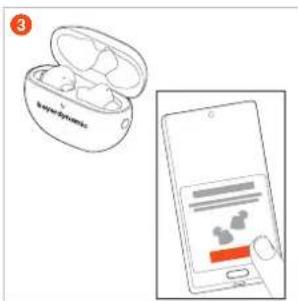
Diagram showing a pair of wireless earbuds with one open and the smartphone displaying a logo or app interface.③ 点击智能手机上的“连接”。
text_image
Diagram showing a smart earbuds with open case and smartphone interface displaying app icons多点操作
natural_image
Illustration of a human ear with a circular device labeled '✓' (no text or symbols beyond the label)降低音量
https://www.beyerdynamic.com/faq
产品注册
https://www.beyerdynamic.com/cod
技术指标
| Bluetooth®频率范围 2.402 - 2.480 GHz | |
| 传输功率 (Bluetooth®) < 7 dBm (EIRP) | |
| 充电温度范围 0 至 +45 °C | |
| 工作温度范围 | -10 至 +45 °C |
| 耳机输入 | DC 5 V, 85 mA |
| 充电盒输入 | DC 5 V, 500 mA |
https://www.beyerdynamic.com/service/warranty
获取拜雅质保条款详情
商标
https://www.beyerdynamic.com/media/downloads/
headphones/manual/Licenses_amiron100.md
目錄
安全說明....155
一般使用說明 155
調整音量 155
改變聽覺感知 155
日常養護說明 155
誤吞危險 155
電纜及連接線纜 155
使用的電池由於受熱 155
環境條件 155
操作說明內容 155
供貨範圍....155
佩戴和調節耳筒套....155
使用矽膠耳筒套 156
將耳機戴入耳內 156
電池充電....156
鋰電池使用壽命說明 156
顯示電池狀態 156
BEYERDYNAMIC APP 下载 157
播放設備的相容性....157
支援的音訊轉碼器....157
操作 157
natural_image
Hand holding a small mechanical component with a red circular knob (no text or symbols visible)將耳機戴入耳內
natural_image
Illustration of a human ear with a circular device and a red button, no text or symbols present.natural_image
Illustration of a small ear with a highlighted orange button (no text or symbols)與設備建立 Bluetooth® 連接
text_image
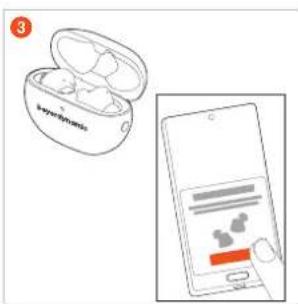
2 Hybridgromics③ 點擊智慧手機中的「連接」。
text_image
Diagram showing a pair of wireless earbuds with one open and the other in a smartphone displaying app icons.多點操作
natural_image
Illustration of a human ear with a circular orange button labeled '✓' (no text or symbols beyond the icon)降低音量
https://www.beyerdynamic.com/faq
產品註冊
https://www.beyerdynamic.com/media/downloads/
headphones/manual/Licenses_amiron100.md
beyerdynamic GmbH & Co. KG
For further distributors worldwide, please go to www.beyerdynamic.com
Non-contractual illustrations. Subject to change without notice.