TSS Handbrake Sparco Mod - Controller THRUSTMASTER - Free user manual and instructions
Find the device manual for free TSS Handbrake Sparco Mod THRUSTMASTER in PDF.


User questions about TSS Handbrake Sparco Mod THRUSTMASTER
0 question about this device. Answer the ones you know or ask your own.
Ask a new question about this device
Download the instructions for your Controller in PDF format for free! Find your manual TSS Handbrake Sparco Mod - THRUSTMASTER and take your electronic device back in hand. On this page are published all the documents necessary for the use of your device. TSS Handbrake Sparco Mod by THRUSTMASTER.
USER MANUAL TSS Handbrake Sparco Mod THRUSTMASTER
Carefully read the instructions provided in this manual before installing the product, before any use of the product and before any maintenance. Be sure to follow the safety instructions. Failure to follow these instructions may result in accidents and/or damage. Keep this manual so that you can refer to the instructions in the future.
TABLE OF CONTENTS
- BOX CONTENTS ....5
- TECHNICAL FEATURES ......6
- WARNING......8
- INSTALLING THE DETACHABLE LEVER..11
- INSTALLATION ON PC....12
Control Panel....13
Compatibility....14
- INSTALLATION ON PLAYSTATION®4 / PLAYSTATION®5 AND XBOX ONE® / XBOX SERIES X|S ....17
- CONNECTION SUMMARY ACCORDING TO THE PLATFORM USED....20
- CONFIGURING THE HANDBRAKE MODE.21
- CONFIGURING THE SEQUENTIAL SHIFTER MODE....23
- INSTALLATION ON A SUPPORT ......25
- ADVANCED CALIBRATION SOFTWARE...28
- ECOSYSTEM....29
- FAQ AND TECHNICAL SUPPORT ....30
Master your drifting technique with your 2-in-1 TSS Handbrake that lets you change from the shifter (+/-) position to the progressive handbrake position, and vice versa.
This manual will help you install and use your TSS Handbrake under the best conditions. Before getting started racing, carefully read the instructions and the warnings: they will help you get the most enjoyment out of your product.

Updating the firmware
In order for TSS Handbrake to function properly with video games, it is essential that the firmware be updated.
To carry out the update, visit
https://support.thrustmaster.com/product/tss-handbrake.
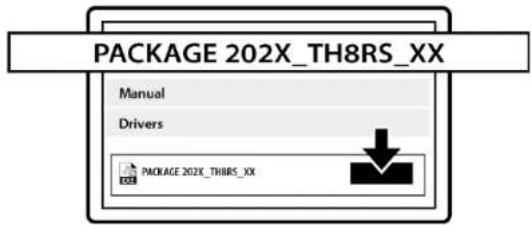
Select Firmware and follow the instructions, including the downloading and installation procedure.
1. Box contents
natural_image
Technical line drawing of a mechanical device with two views: top shows a cylindrical component, bottom shows a labeled assembly with buttons and connectors (no text or symbols present)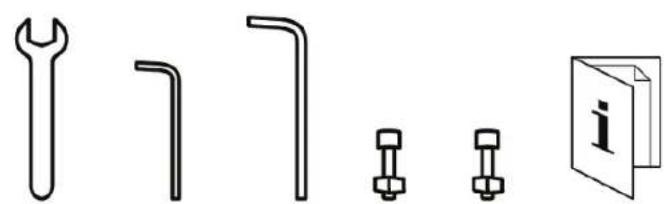
natural_image
Pure technical line drawings of mechanical components without any text or symbols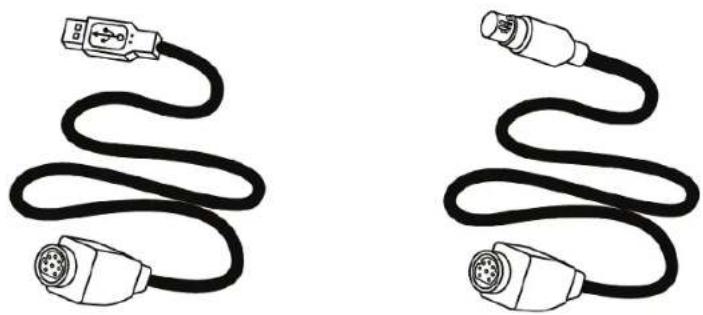
natural_image
Two black cable connectors with connector logos, shown from different angles (no text or symbols)2. Technical features
-
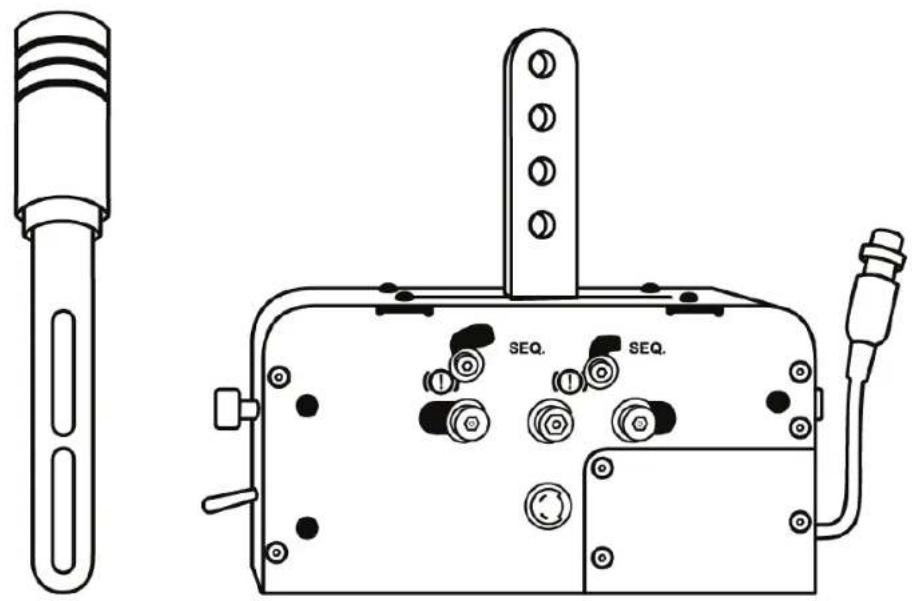
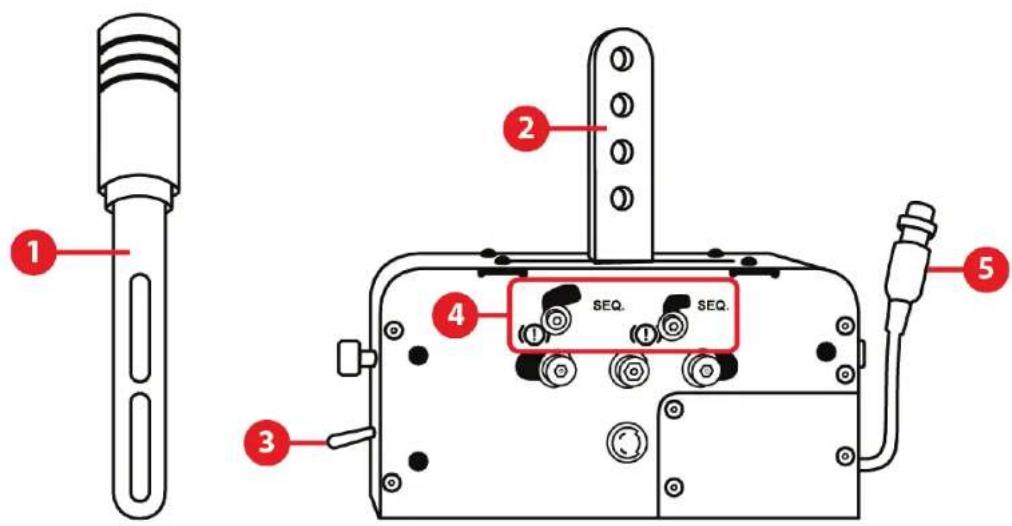
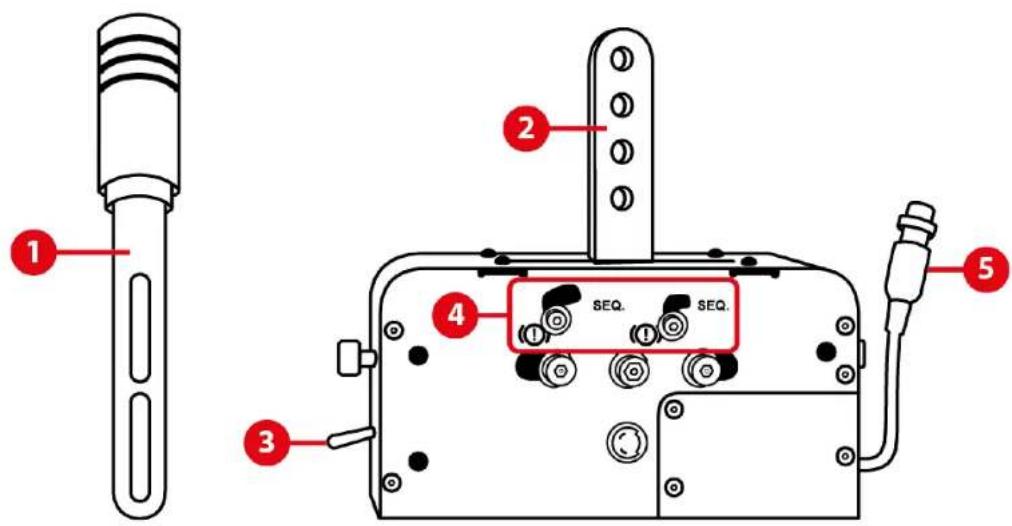
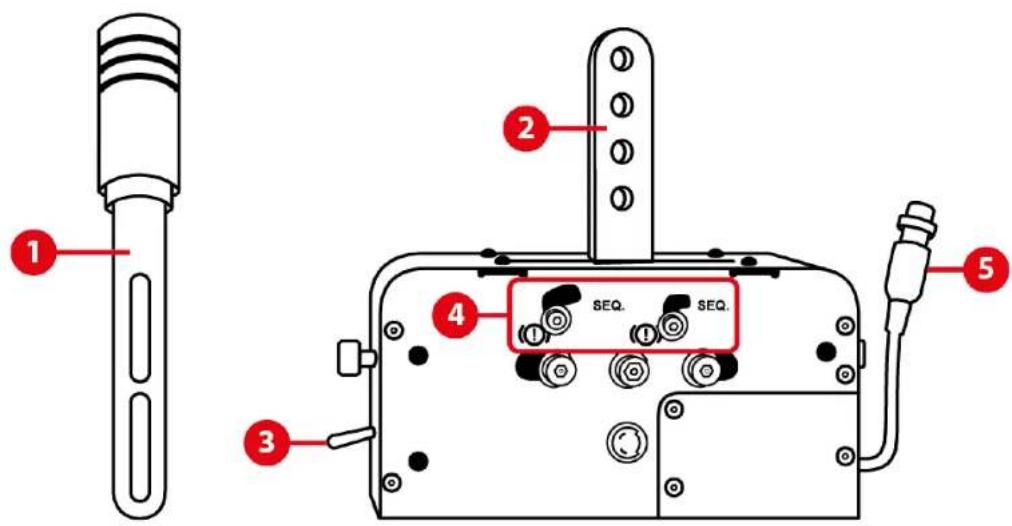
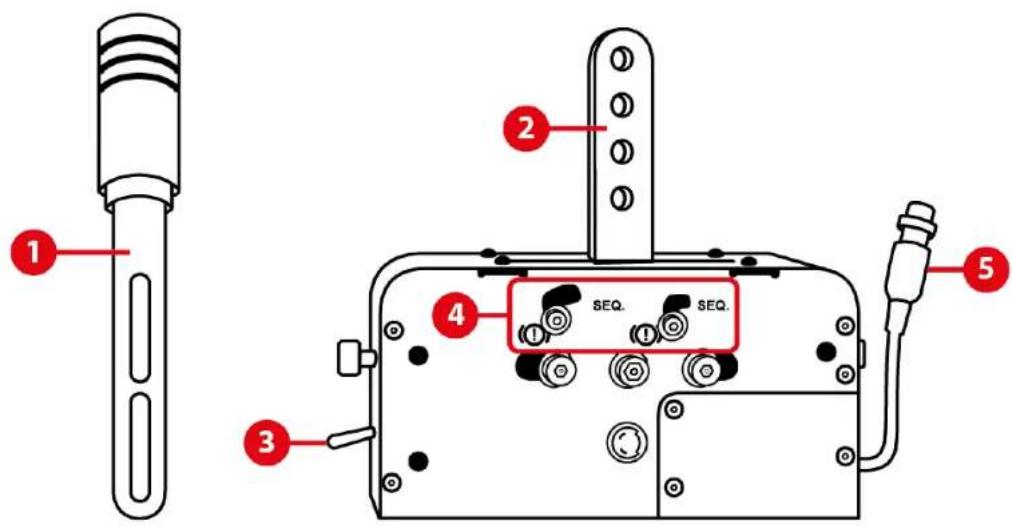
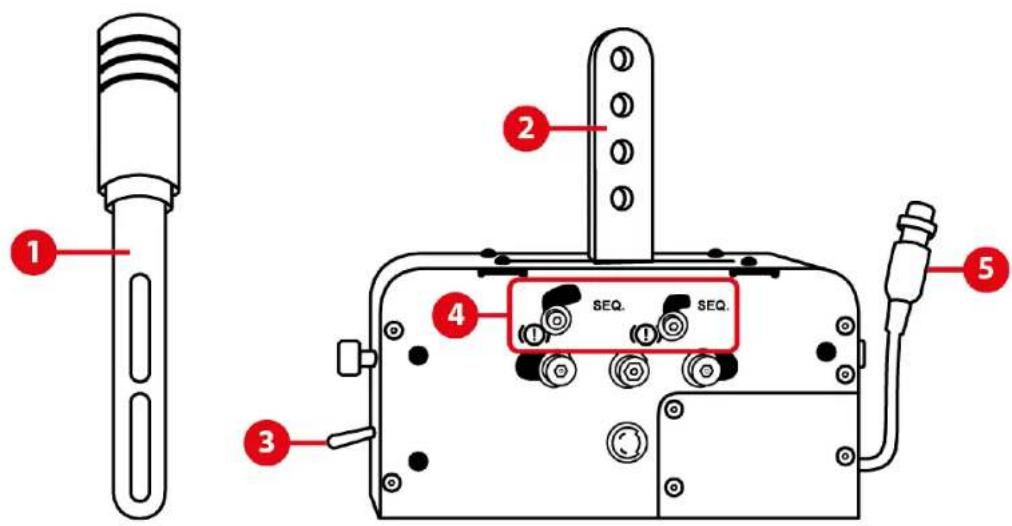
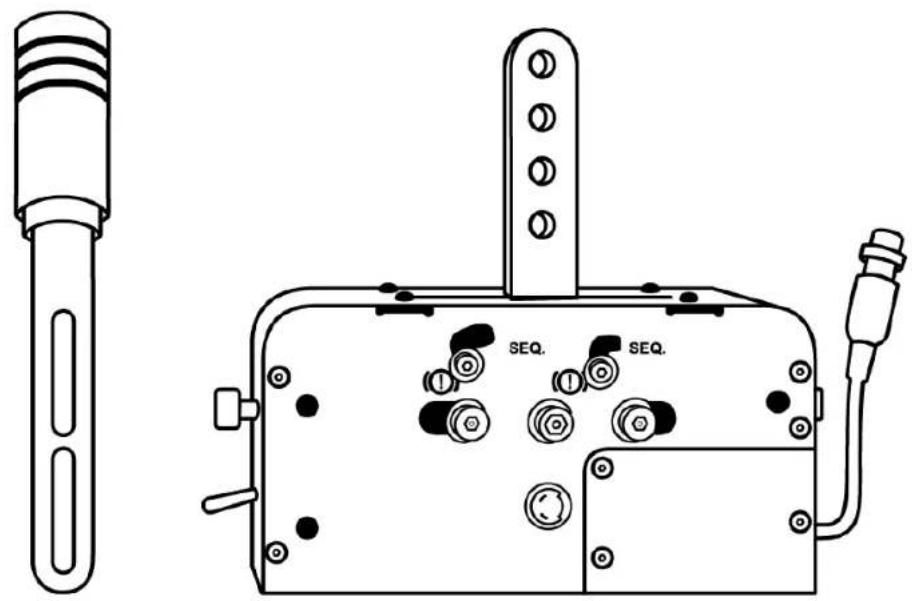
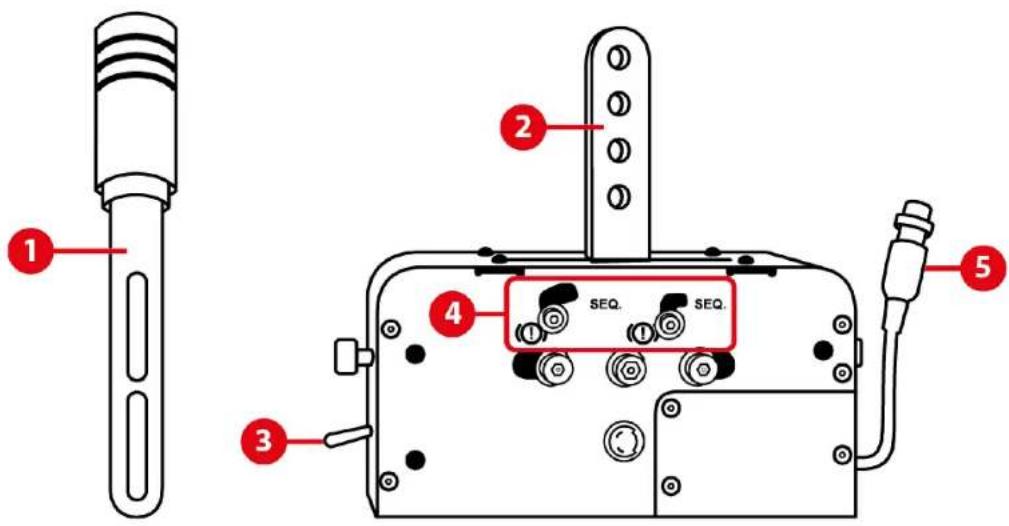
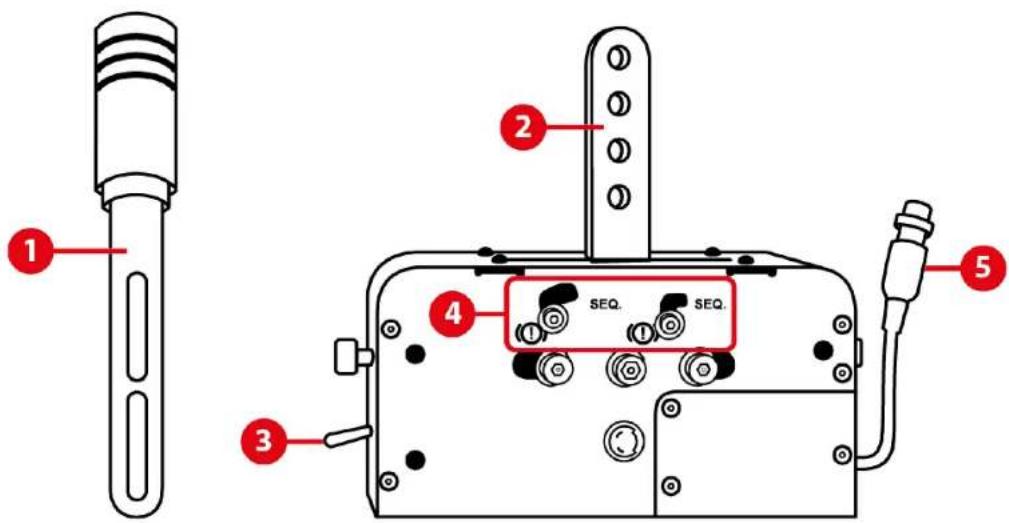
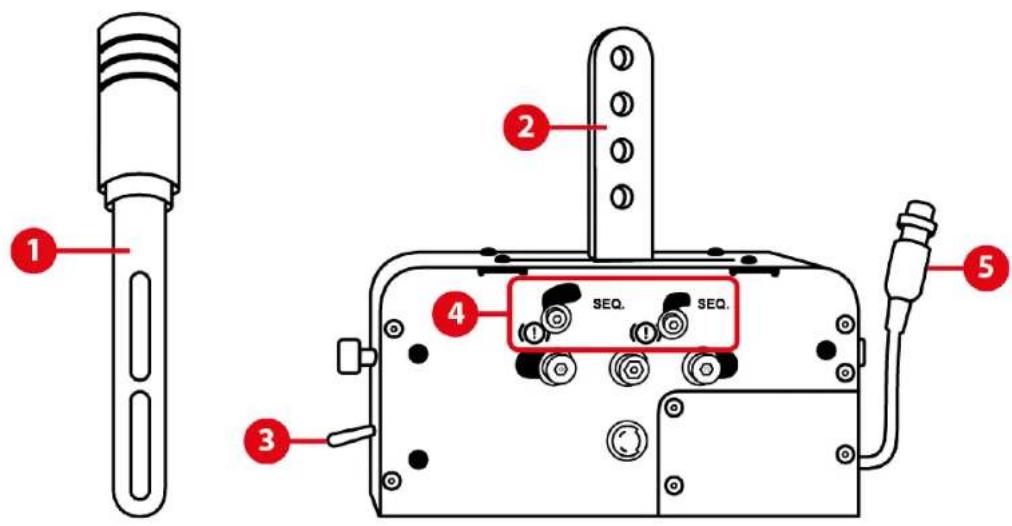
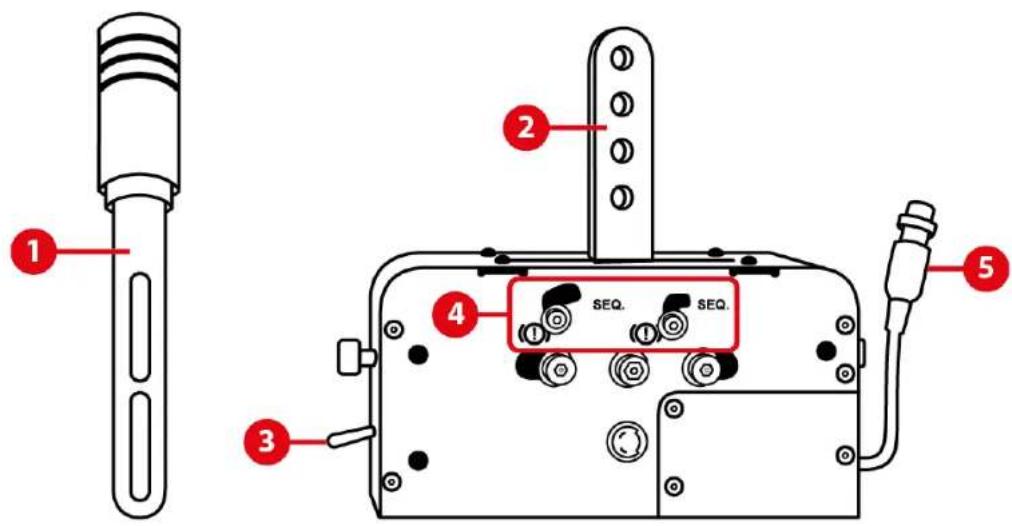
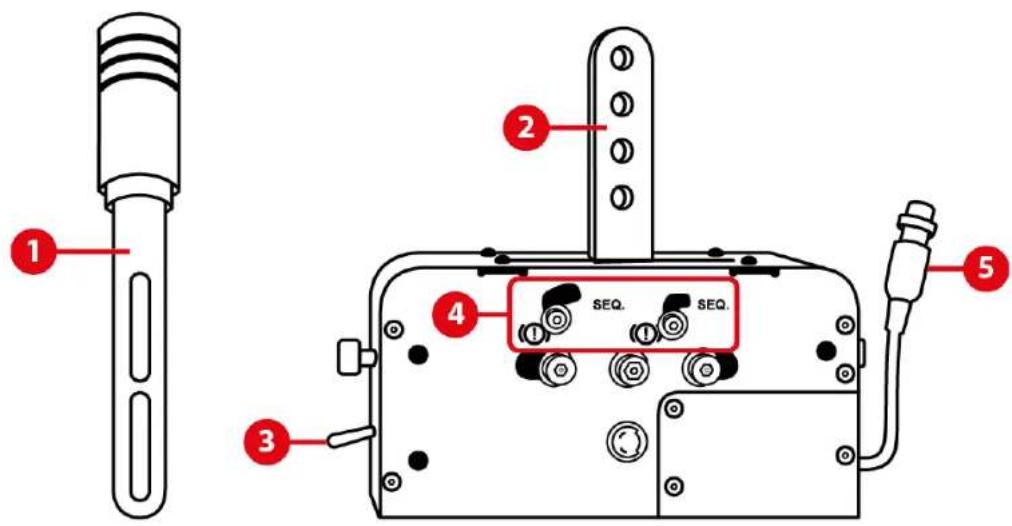
Detachable lever (not installed by default)
-
Lever attachment arms
-
HANDBRAKE / SEQUENTIAL SHIFTER selector
-
Mechanical switching system for switching between the Handbrake and Sequential Shifter modes
-
DIN cable and female connector
natural_image
Illustration of a black cable with two connectors and a connector icon, labeled with number 10 (no text or symbols on the cable itself)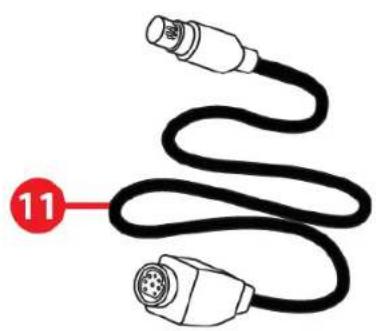
natural_image
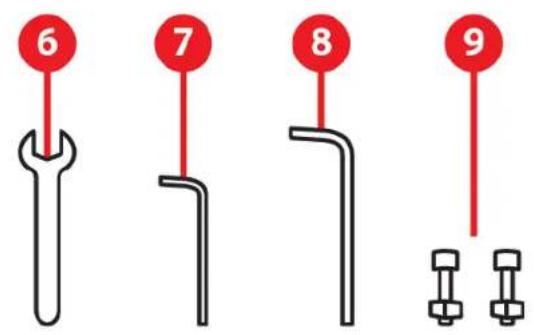
Illustration of a black cable with two connectors, labeled with number 11 (no text or symbols on the diagram itself)- 13 mm wrench key
- 3 mm Allen wrench
- 6 mm Allen wrench
- Two BTR M8 screws + two M8 nuts
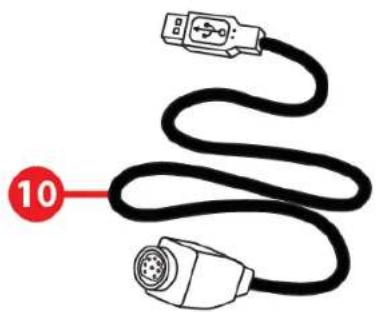
- Detachable male DIN / USB cable
- Detachable mini-DIN / male DIN cable
3. Warning
Before using this product, be sure to read through this manual carefully. Retain this manual for future reference.

Electric shock
- Keep this product in a dry place, and do not expose it to dust or sunlight.
- Respect the direction of insertion for connectors.
- Do not twist or pull on the connectors and cables.
- Do not spill liquid on the product or its connector.
- Do not short-circuit the product.
- Do not dismantle this product (apart from for the possible adjustments described in this manual), do not attempt to burn the product and do not expose the product to high temperatures.

Injuries due to repetitive movements
Using a shifter or a handbrake may cause muscle and joint pains. To avoid any problems:
- Avoid playing for extended periods of time.
- Take a 10 to 15-minute break after each hour of playing.
- Should you experience fatigue or pain in your hands, wrists or arms, stop playing and rest for a few hours before starting to play again.
- If the symptoms or pains described above persist when you resume playing, stop playing and consult your doctor.
- Verify that the base of the TSS Handbrake is properly mounted, as described in the instructions found in this manual.

Pinching risk in shift plate openings
- Keep out of the reach of children.
- When playing a game, never place your fingers (or any other parts of your body) in the openings in the shift plates of the TSS Handbrake.
4. Installing the detachable lever
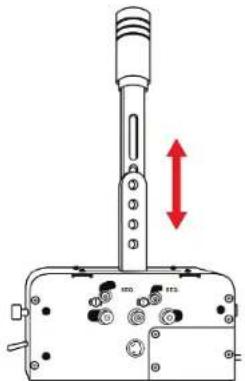
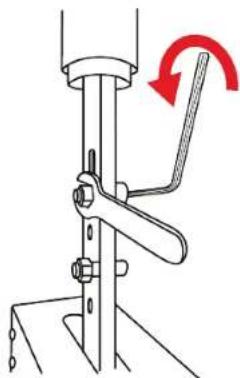
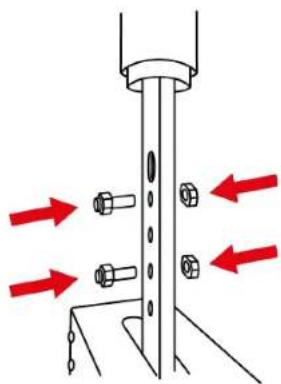
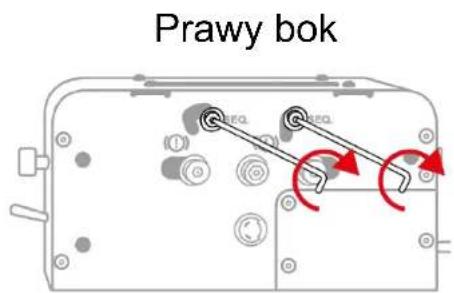
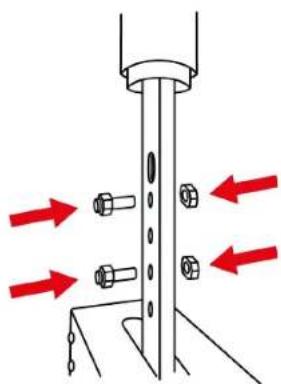
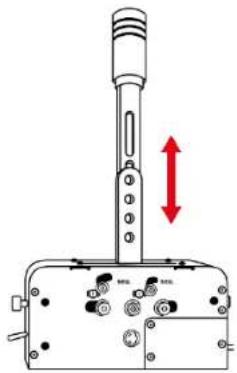
- Slide the detachable lever between the attachment arms. Adjust the lever at the desired height.
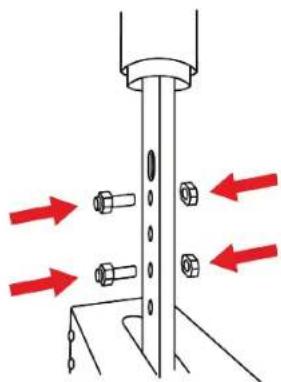
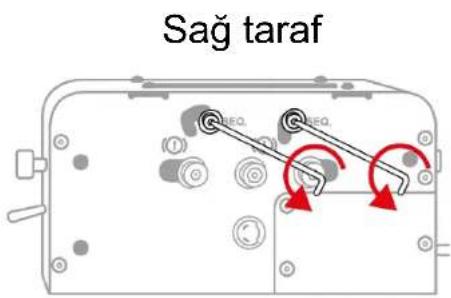
- Insert the two BTR M8 screws into the holes in the lever and fit the two M8 nuts.
natural_image
Diagram of a mechanical assembly with bolt holes and red directional arrows indicating motion (no text or symbols)- Tighten the screws and nuts using the wrench key and the 6 mm Allen wrench.
natural_image
Mechanical lever mechanism diagram showing pivot and rotation arrows (no text or symbols)5. Installation on PC
- Before connecting your TSS Handbrake, please visit: https://support.thrustmaster.com/product/tss-handbrake.
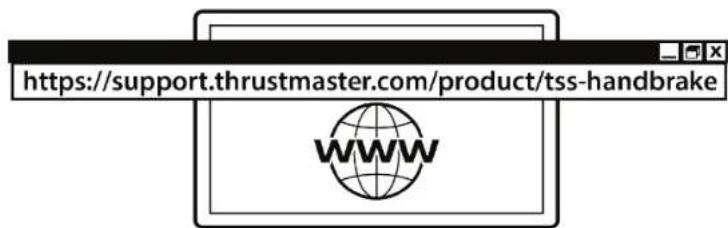
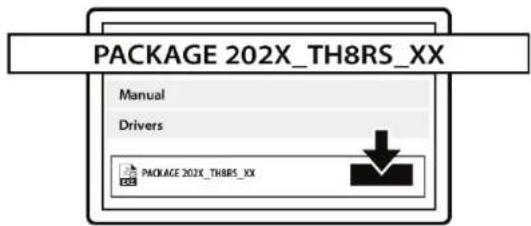
- Download and install the drivers for PC.
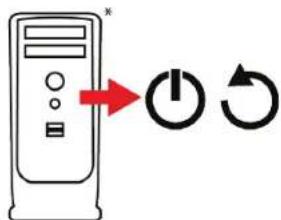
- Restart the PC.
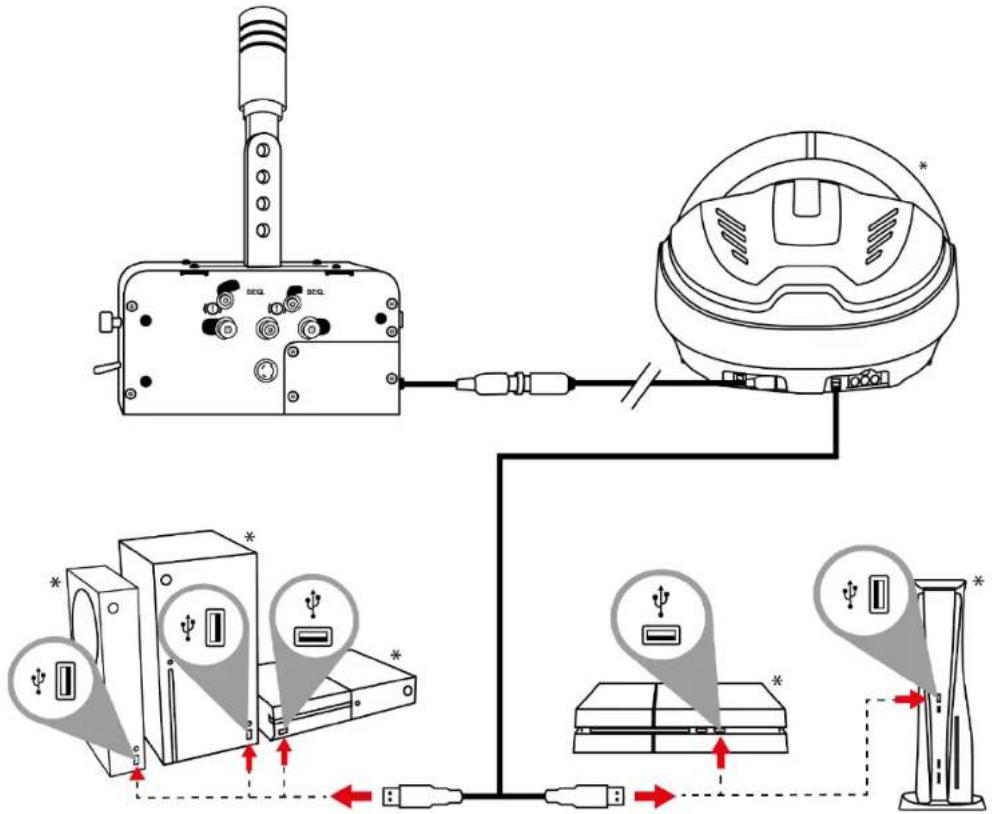
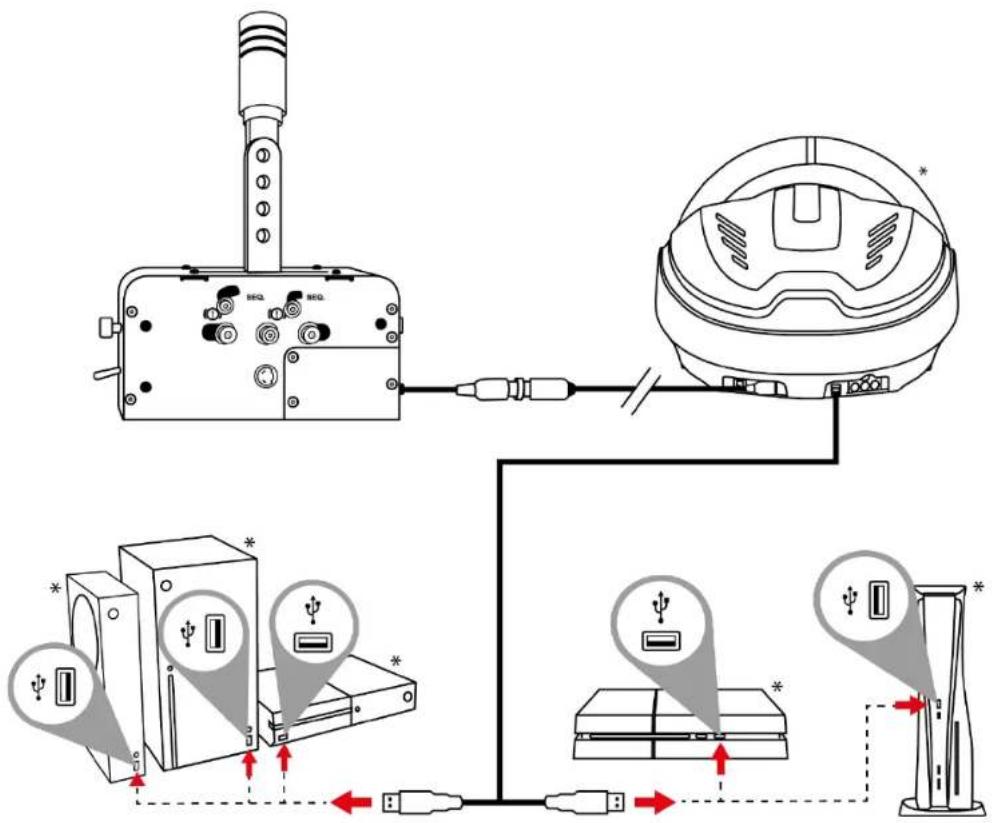
- Connect the TSS Handbrake to one of your PC's USB ports using the detachable male DIN / USB cable.
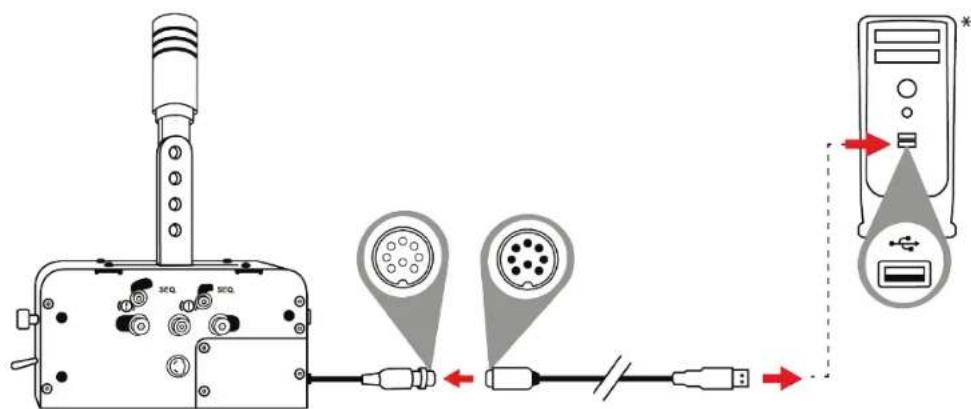
*Not included
Control Panel
- To access the Control Panel, select Start / All apps / Thrustmaster / Control Panel (in Windows® 10/11).
- The Game Controllers dialog box is displayed. The accessory appears onscreen with the name TSS HANDBRAKE and OK status.
- In the Game Controllers dialog box, click Properties to test and view all functions.
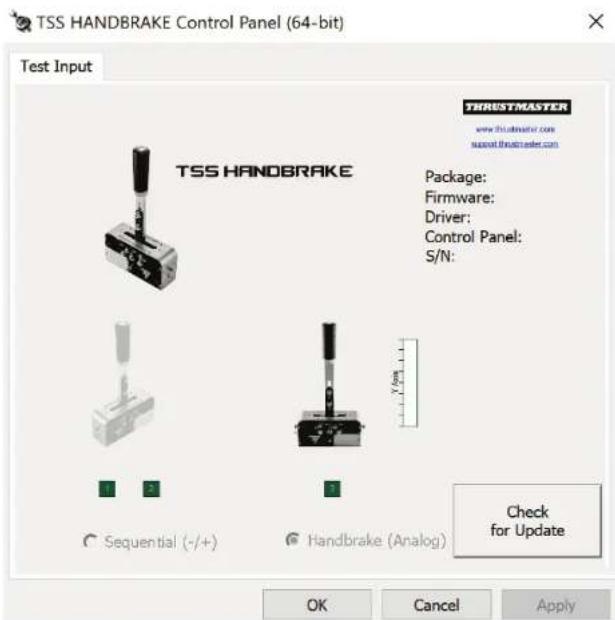
Compatibility
When the TSS Handbrake is connected to a USB port using the detachable male DIN / USB cable, the TSS Handbrake is compatible:
- with Handbrake mode [Progressive] and Sequential Shifter mode [+/-];
- in all games supporting multi-USB, separate handbrakes and shifters;
– with all racing wheels on the market.
When the TSS Handbrake is connected to the back of a compatible Thrustmaster racing wheel base using the detachable mini-DIN / male DIN cable, the TSS Handbrake is compatible:
- with Sequential Shifter mode [+/-] only;
- in all games (as the TSS Handbrake is combined with the racing wheel's UP and DOWN paddle shifters);
- with compatible Thrustmaster racing wheel bases only (TS-PC Racer, T-GT, T-GT II, T300, TS-XW and TX).

In order to ensure optimal performance of the TSS Handbrake on PC, you must update the firmware of your racing wheel base (TS-PC Racer, T-GT, T-GT II, T300, TS-XW or TX) with the latest version available at https://support.thrustmaster.com/.

General notes
- Remember to always completely close the Game Controllers window by clicking on OK before starting your game.
- The TSS Handbrake's firmware version is displayed in the upper right section of the Control Panel tabs.
- If you choose to use a USB connection, we recommend connecting your racing wheel and the TSS Handbrake directly to the USB 2.0 (not USB 3.0) ports on your PC, without using a hub.
- Some games let you use two TSS Handbrake devices simultaneously:
- one TSS Handbrake configured in Handbrake mode;
○ one TSS Handbrake in Sequential Shifter mode.
6. Installation on PlayStation®4 / PlayStation®5 and Xbox One® / Xbox Series X|S
The TSS Handbrake is compatible on PlayStation®4 / PlayStation®5 and Xbox One® / Xbox Series X|S with the following racing wheel bases:
- Thrustmaster T-GT, T-GT II and T300 on PlayStation®4 / PlayStation®5;
- Thrustmaster TS-XW and TX on Xbox One® / Xbox Series X|S.

In order to ensure optimal performance of the TSS Handbrake on PlayStation®4 / PlayStation®5 and Xbox One® / Xbox Series X|S, you must update the firmware of your racing wheel base (T-GT, T-GT II, T300, TS-XW or TX) with the latest version available at
https://support.thrustmaster.com/
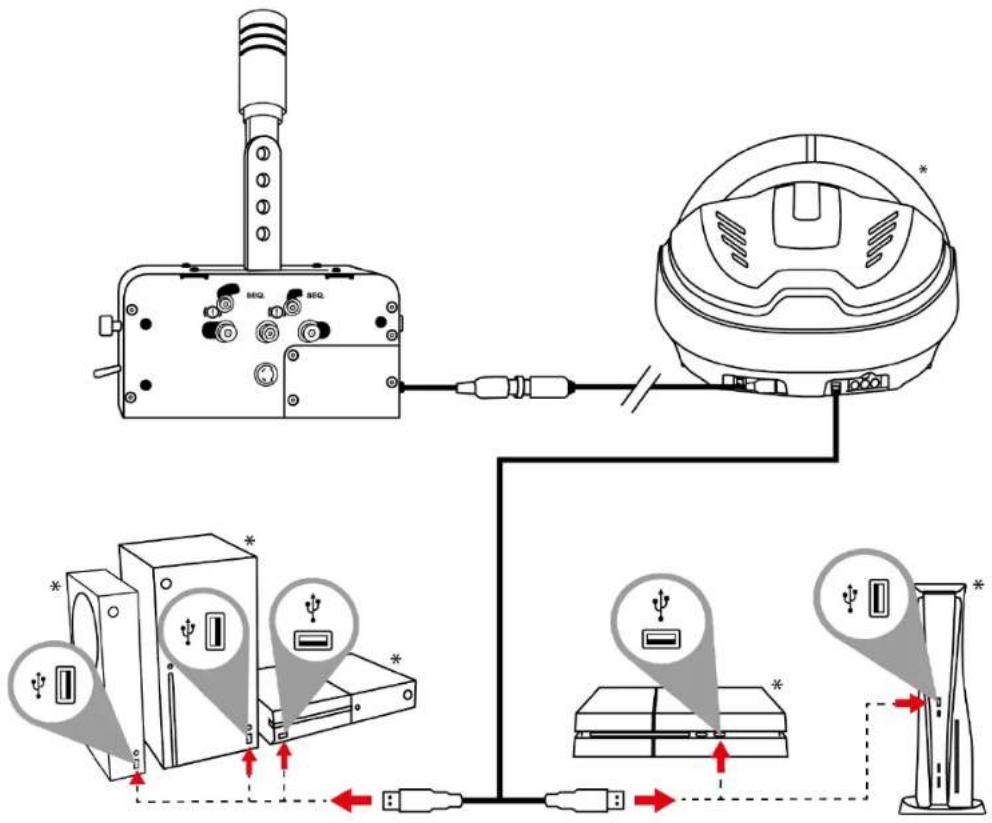
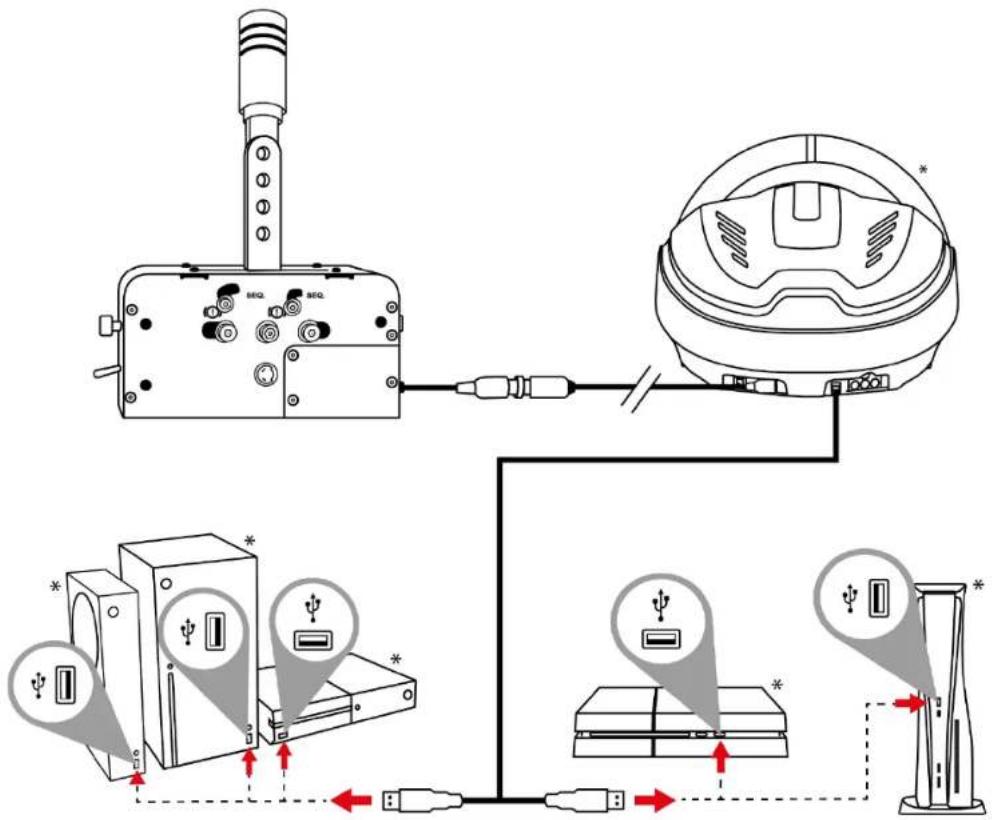
- Connect the TSS Handbrake directly to the female mini-DIN port located at the back of your racing wheel's base using the detachable mini-DIN / male DIN cable.
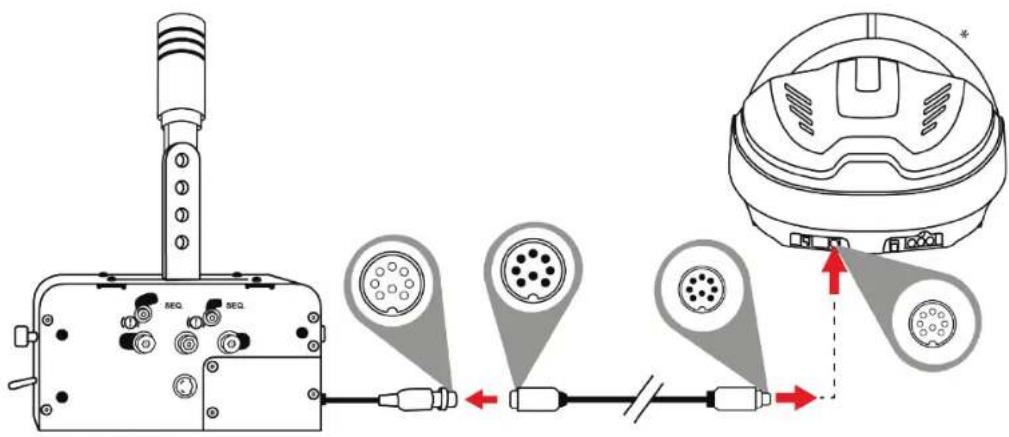
- Connect your racing wheel to the console.
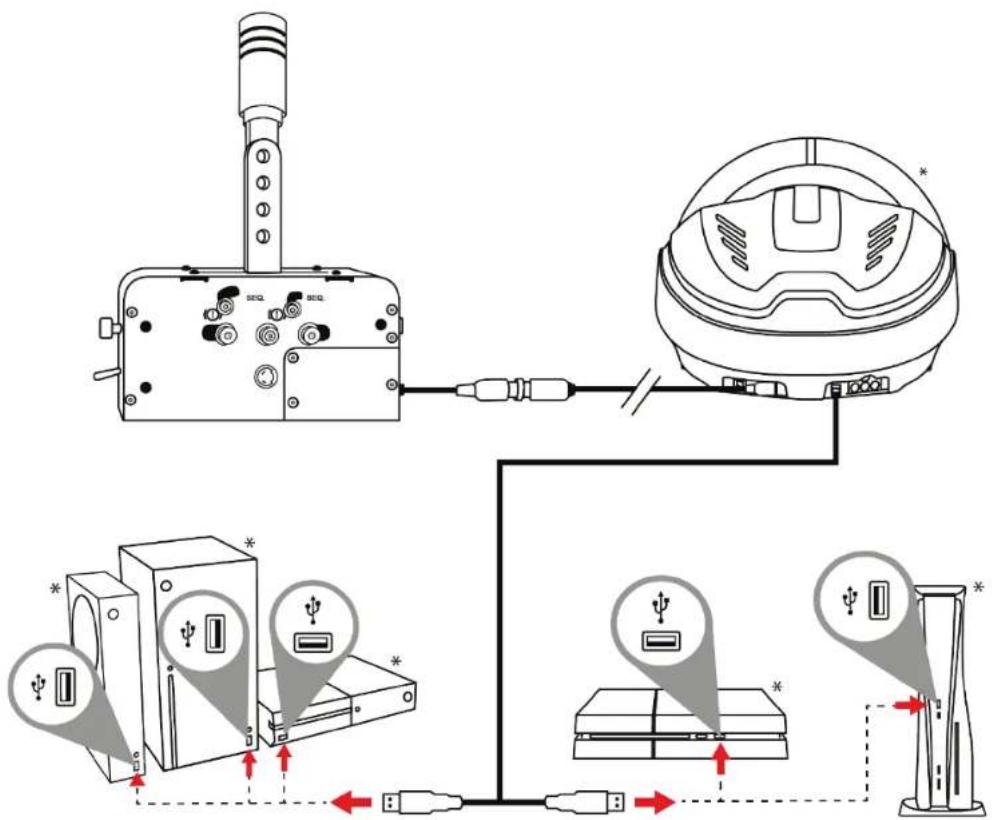
*Not included

General notes
- Never use and connect the detachable male DIN / USB cable on PlayStation®4 / PlayStation®5 and Xbox One® / Xbox Series X|S. The TSS Handbrake must always be connected to a compatible Thrustmaster racing wheel base, and not to the console.
- When the TSS Handbrake is connected to a compatible Thrustmaster racing wheel base:
Sequential Shifter mode [+/-] works in all games, as it is combined with the racing wheel's UP and DOWN paddle shifters.
- Handbrake mode [Progressive] works in games that support the handbrake function*.
* List of PlayStation ®4 / PlayStation®5 and Xbox One® / Xbox Series X|S games compatible with the TSS Handbrake available at:
https://support.thrustmaster.com/product/tss-handbrake.
7. Connection summary according to the platform used
| Platform | Mode | Connection |
| PC |  | To the PC, using the male DIN / USB cable. |
 | Compatible with all racing wheels on the market. | |
| PC |  | At the back of a compatible Thrustmaster racing wheel base, using the mini-DIN / male DIN cable. |
| PlayStation®4 PlayStation®5 |  | At the back of a compatible Thrustmaster racing wheel base, using the mini-DIN / male DIN cable. |
 | ||
| Xbox One® Xbox Series X|S |  | At the back of a compatible Thrustmaster racing wheel base, using the mini-DIN / male DIN cable. |
 |
8. Configuring the Handbrake mode
By default, when unboxing the device, the TSS Handbrake is configured in the Handbrake mode:
- The HANDBRAKE / SHIFTER selector is in the Ⓑ position.
- The mechanical system is in the Ⓐ position.
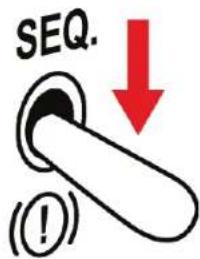
- Lower the HANDBRAKE / SHIFTER selector in the (!) position.
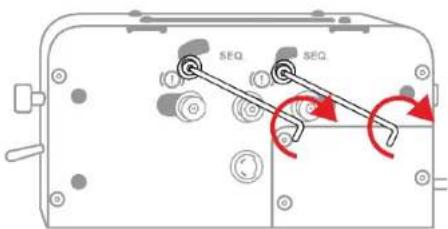
- Use the 3 mm Allen wrench to slightly unscrew the mechanical system's screws (two screws, located to either side of the base).
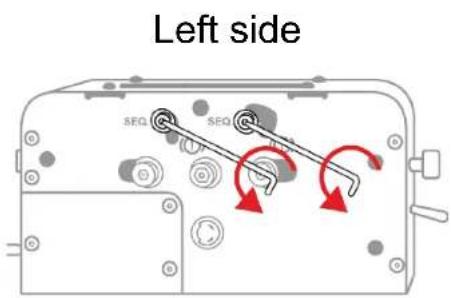
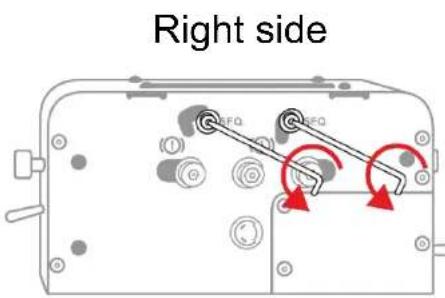
- Move these four screws (two screws, located on either side of the base) to the Ⓐ position.
Left side
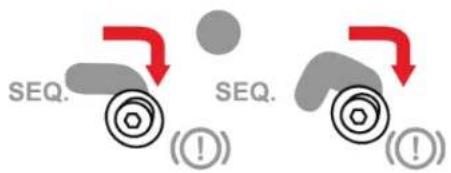
Right side
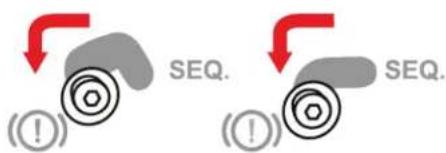
- Check that these four screws (two on either side of the base) are perfectly repositioned, then tighten them using the 3 mm Allen wrench.
Left side
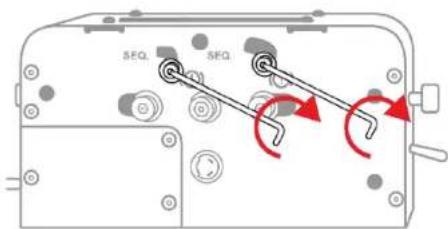
Right side
9. Configuring the Sequential Shifter mode
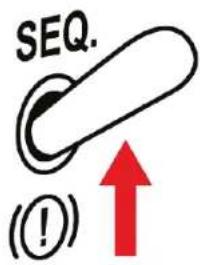
- Raise the HANDBRAKE / SHIFTER selector in the SEQ. position.
- Use the 3 ~mm Allen wrench to slightly unscrew the mechanical system's screws (two screws, located to either side of the base).
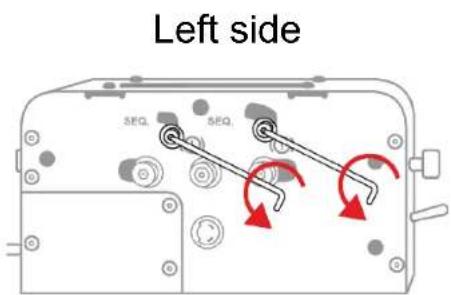
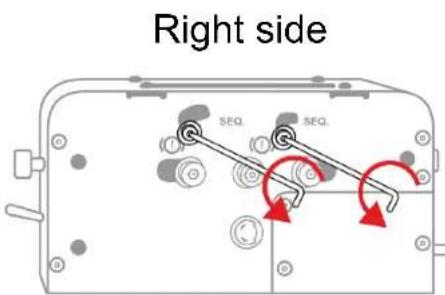
- Move these four screws (two screws, located on either side of the base) to the SEQ. position.
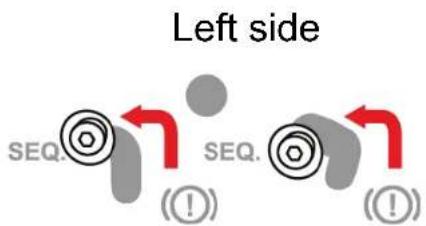
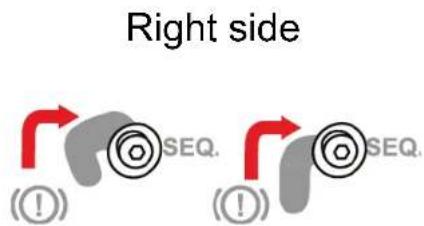
- Check that these four screws (two on either side of the base) are perfectly repositioned, then tighten them using the 3 ~mm Allen wrench.
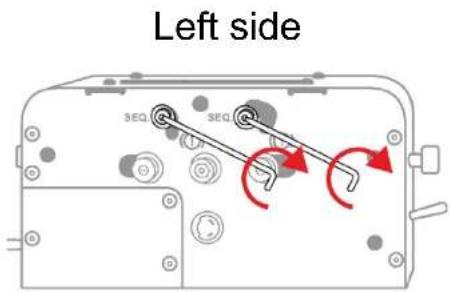
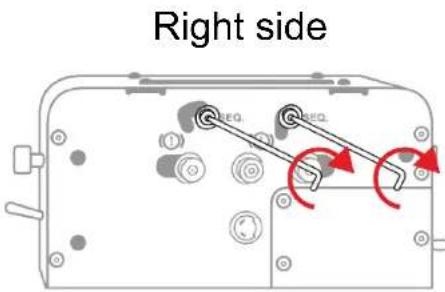
10. Installation on a support
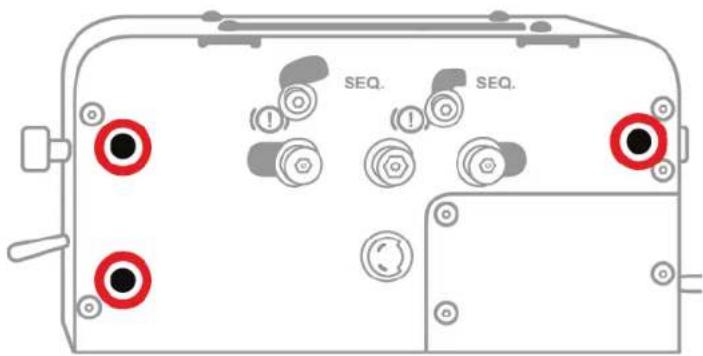
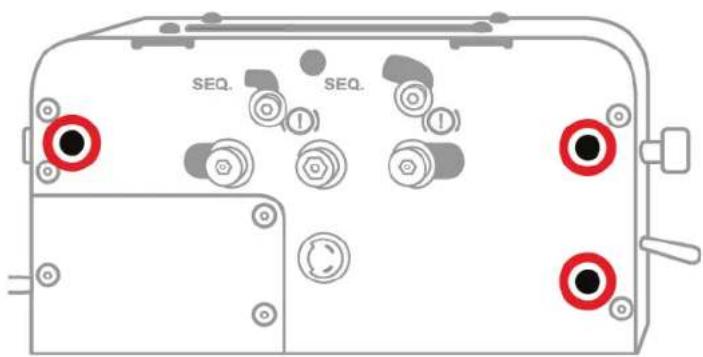
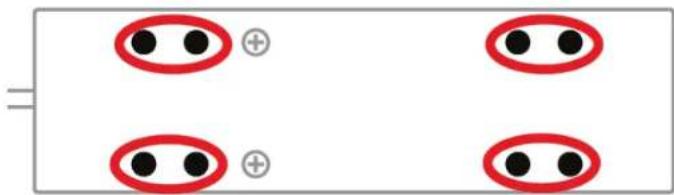
The TSS Handbrake can be attached to a variety of compatible supports (sold separately), using the M6 threaded holes located on either side of the device and under its base:
Three threaded holes are located on the left side of the base:
Three threaded holes are located on the right side of the base:
Eight threaded holes are located under the base:

The TSS Handbrake cockpit installation template is available in the Manual section, at:
https://support.thrustmaster.com/product/tss-handbrake.

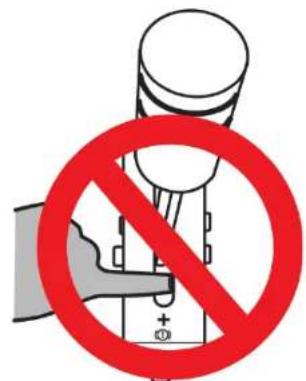
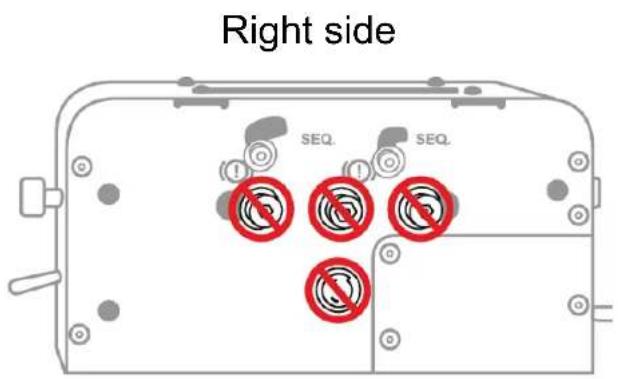
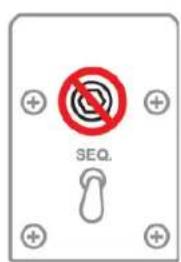
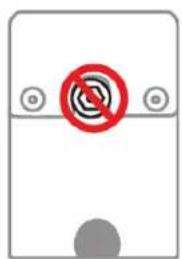
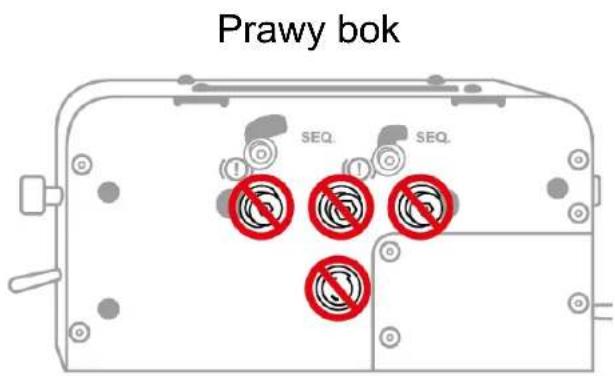
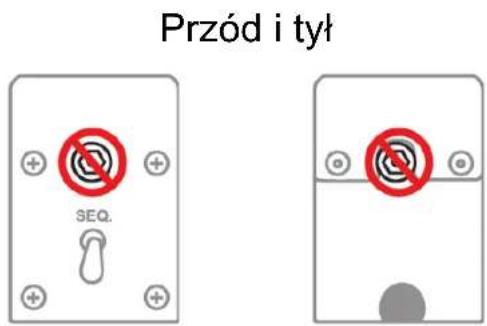
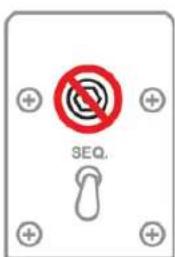
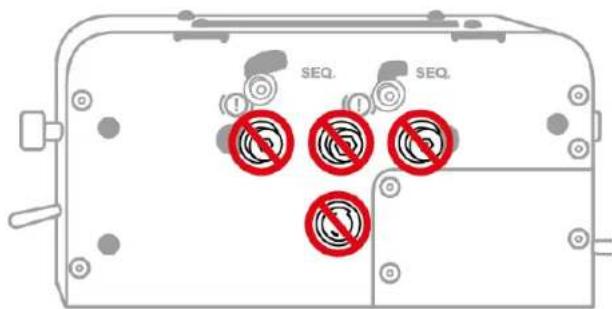
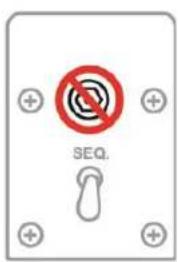
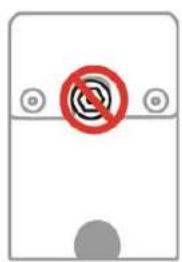
Do not tighten or loosen these screws
With the exception of the screws relating to the mechanical system used to switch from the Handbrake mode the Sequential Shifter mode, never tighten or loosen any screws located on the TSS Handbrake base.
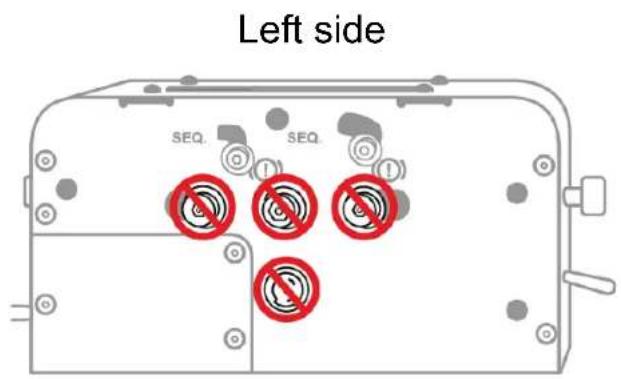
Front and rear sides
natural_image
Simple diagram with a red prohibition symbol over a gray circle, no text or labels present11. Advanced calibration software
The TSS Handbrake's calibration procedure is automatic.
To adjust the analog travel in Handbrake mode and the analog travel in Sequential Shifter mode, an advanced calibration software application for PC is also available in the Software section at:
https://support.thrustmaster.com/product/tss-handbrake.
Once the settings have been adjusted, they will immediately be saved in the TSS Handbrake's internal memory and will therefore be effective in all of your games, whether on PC, PlayStation®4 / PlayStation®5 or Xbox One® / Xbox Series X|S.
12. Ecosystem
The TSS Handbrake is compatible with other accessories sold separately:
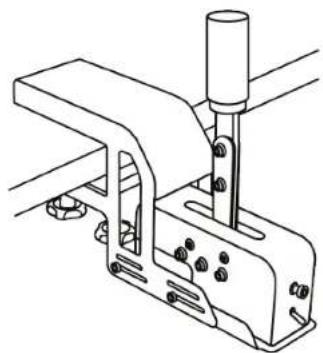
- The TM RACING CLAMP: a support bracket allowing users to securely mount their TSS Handbrake directly on a table or desk, without the need for a cockpit.
natural_image
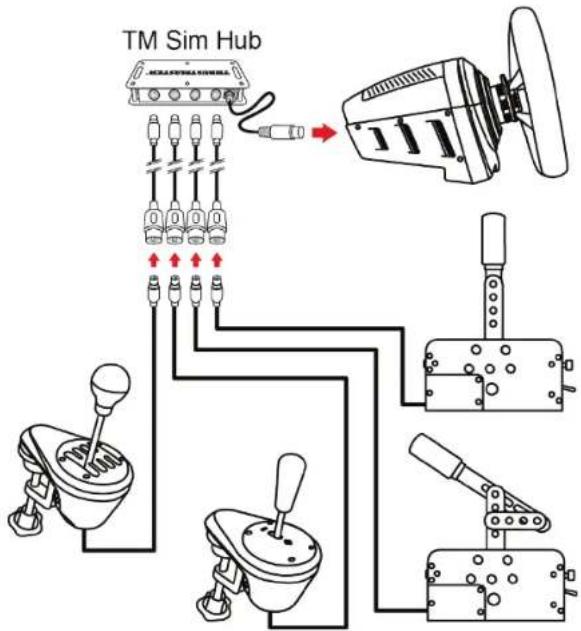
Technical line drawing of a mechanical clamp or bracket assembly (no text or symbols)- The TM SIM HUB: a hub allowing users to simultaneously connect up to four accessories directly to the mini-DIN connector located at the back of compatible Thrustmaster racing wheel bases.
flowchart
graph TD
    A["Motor"] --> B["Switch"]
    B --> C["Actuator"]
    C --> D["Motor"]
    style A fill:#f9f,stroke:#333
    style B fill:#ccf,stroke:#333
    style C fill:#cfc,stroke:#333
    style D fill:#fcc,stroke:#333
13. FAQ and technical support
Do you have questions regarding TSS Handbrake, or are you experiencing technical problems? If so, visit the Thrustmaster technical support website:
https://support.thrustmaster.com/product/tss-handbrake.
THRUSTMASTER®
TSS HANDBRAKE
PC
Xbox One® / Xbox Series X|S
PlayStation®4 / PlayStation®5
https://support.thrustmaster.com/product/tss-handbrake.
natural_image
Technical line drawing of a mechanical device with two views: top shows a cylindrical component and bottom shows a labeled assembly with 'SEQ.' indicators (no text or symbols beyond labels)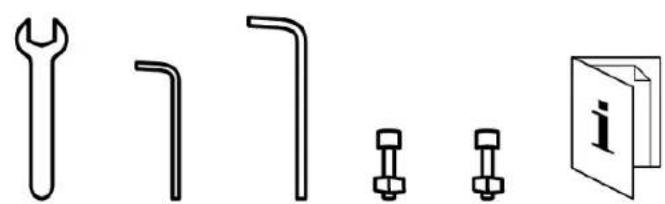
natural_image
Pure technical line drawings of wrench, bent pipe, bolted joint, and book icon (no text or symbols)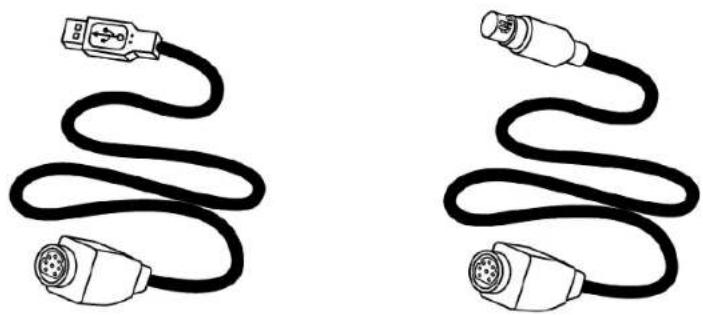
natural_image
Two black cables with connector logos, shown from different angles (no text or symbols)natural_image
Illustration of a black cable with two connectors and a connector icon, labeled with number 10 (no text or symbols on the cable itself)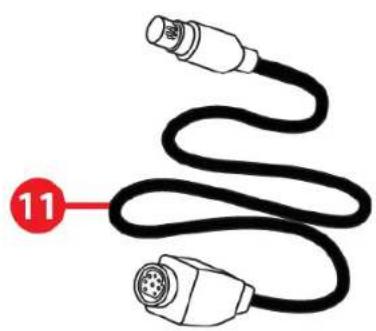
natural_image
Illustration of a black cable with two connectors, labeled with number 11 (no text or symbols on the diagram itself)natural_image
Diagram of a mechanical assembly with bolts and directional arrows indicating movement (no text or symbols)natural_image
Mechanical lever mechanism diagram showing a rotating arm and pivot point (no text or symbols)*Non fourni
Panneau de configuration
Compatibilité

Remarques générales
https://support.thrustmaster.com/product/tss-handbrake.

https://support.thrustmaster.com/product/tss-handbrake.

natural_image
Pure electrical circuit lines without any symbolshttps://support.thrustmaster.com/product/tss-handbrake.
natural_image
Technical line drawing of a mechanical clamp or bracket assembly (no text or symbols)THRUSTMASTER®
TSS HANDBRAKE
PC
Xbox One® / Xbox Series X|S
PlayStation®4 / PlayStation®5
Benutzerhandbuch

natural_image
Technical line drawing of a mechanical device with two views: top shows a cylindrical component, bottom shows a labeled assembly with 'SEQ.' and connection points (no text or symbols beyond labels)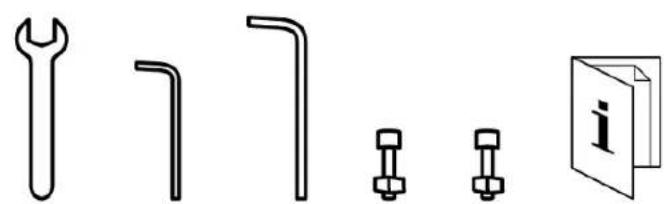
natural_image
Pure technical line drawings of wrench, bent pipe, bolted joint, and book icon (no text or symbols)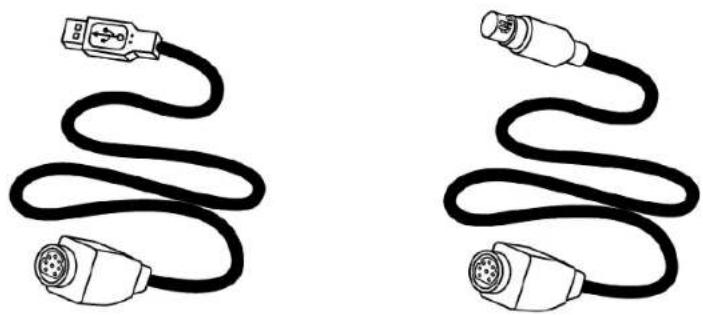
natural_image
Two black cables with connector logos, shown from different angles (no text or symbols)2. Funktionen
natural_image
Illustration of a black cable with two connectors and a connector icon, labeled with number 10 (no text or symbols on the cable itself)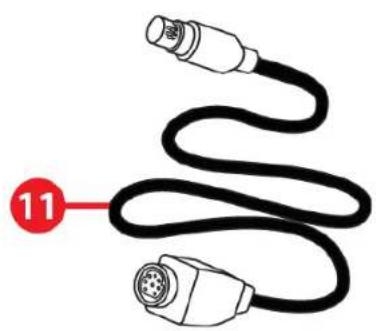
natural_image
Illustration of two connected audio/video connectors with a coiled cable, labeled with number 11 (no text or symbols on the connectors themselves)natural_image
Technical diagram of a mechanical assembly with a vertical rod and internal components, no visible text or symbolsnatural_image
Diagram of a mechanical assembly with bolt holes and red directional arrows indicating motion (no text or symbols)natural_image
Technical diagram of a mechanical lever assembly with a red curved arrow indicating rotation (no text or symbols present)https://support.thrustmaster.com/product/tss-handbrake.
Kompatibilität

Allgemeine Hinweise

https://support.thrustmaster.com/product/tss-handbrake.

natural_image
Simple diagram with a red prohibition symbol over a gray circle, no text or labels presenthttps://support.thrustmaster.com/product/tss-handbrake.
natural_image
Technical line drawing of a mechanical clamp or bracket assembly (no text or symbols)THRUSTMASTER®
TSS HANDBRAKE
PC
Xbox One® / Xbox Series X|S
PlayStation®4 / PlayStation®5
Handleiding

natural_image
Technical line drawing of a mechanical device with two views: top shows a cylindrical component, bottom shows a labeled assembly with buttons and connectors (no text or symbols present)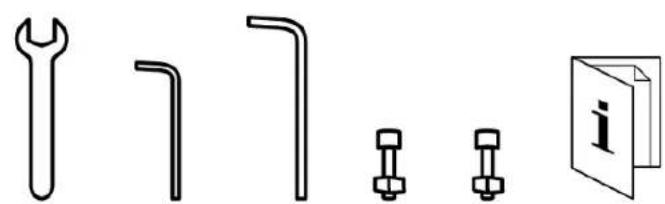
natural_image
Pure technical line drawings of wrench, bent pipe, bolted joint, and book icon (no text or symbols)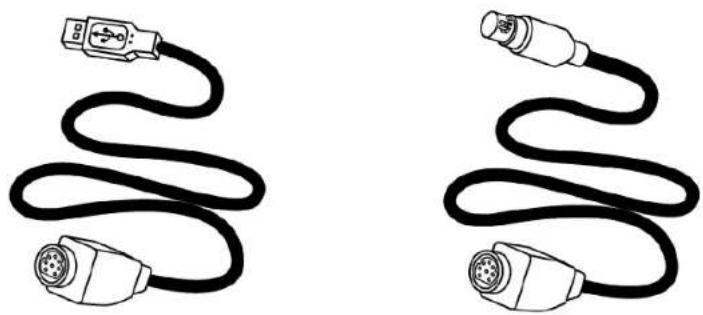
natural_image
Two black cables with connector logos, shown from different angles (no text or symbols)2. Technische specificaties
natural_image
Illustration of a black cable with two connectors and a connector icon, labeled with number 10 (no text or symbols on the diagram itself)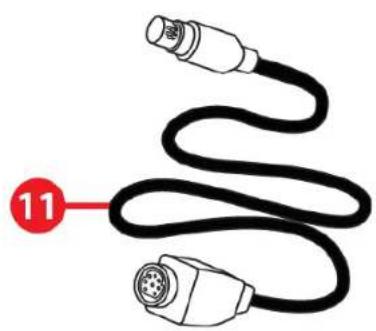
natural_image
Illustration of a black cable with two connectors, labeled with number 11 (no text or symbols on the diagram itself)4. De afneembare hendel installeren
- Steek de twee M8-inbusbouten in de gaten in de hendel en monteer de twee M8-moeren.
natural_image
Diagram of a mechanical assembly with red arrows indicating direction of movement or force (no text or symbols present)natural_image
Mechanical lever mechanism diagram showing a rotating arm and pivot point (no text or symbols)*Niet meegeleverd
Configuratiescherm
Compatibiliteit

https://support.thrustmaster.com/product/tss-handbrake.

https://support.thrustmaster.com/product/tss-handbrake.

natural_image
Simple diagram with a red prohibition symbol over a device casing (no text or labels)https://support.thrustmaster.com/product/tss-handbrake.
natural_image
Technical line drawing of a mechanical clamp or bracket assembly (no text or symbols)THRUSTMASTER®
TSS HANDBRAKE
PC
Xbox One® / Xbox Series X|S
PlayStation®4 / PlayStation®5
Manuale d'uso

https://support.thrustmaster.com/product/tss-handbrake.
natural_image
Technical line drawing of a mechanical device with two views: top shows a cylindrical component, bottom shows a labeled assembly with buttons and connectors (no text or symbols present)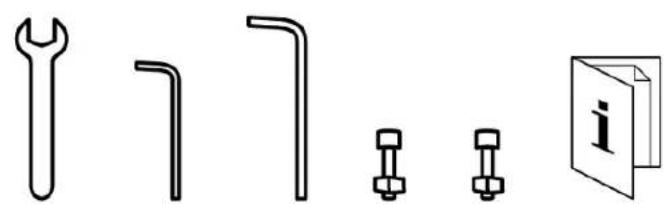
natural_image
Pure technical line drawings of wrench, bent pipe, bolted joint, and book icon (no text or symbols)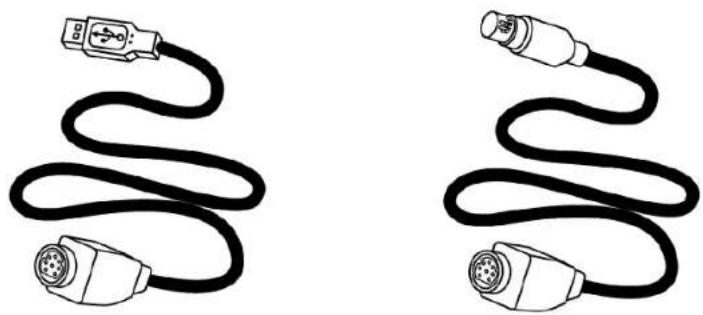
natural_image
Two black cables with connector logos, shown from different angles (no text or symbols)natural_image
Illustration of a black cable with two connectors and a connector icon, labeled with number 10 (no text or symbols on the diagram itself)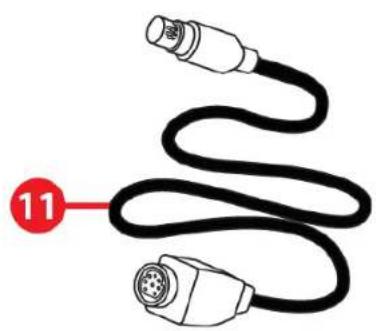
natural_image
Illustration of a black cable with two connectors, labeled with number 11 (no text or symbols on the diagram itself)natural_image
Diagram of a mechanical assembly with red arrows indicating direction of movement or force (no text or symbols present)natural_image
Mechanical lever mechanism diagram showing pivot and rotation arrows (no text or symbols)https://support.thrustmaster.com/product/tss-handbrake.
- Scarica e installa i driver per PC.
- Riavvia il PC.
*Non incluso
Compatibilità
https://support.thrustmaster.com/.

Note generali
https://support.thrustmaster.com/.

Note generali
https://support.thrustmaster.com/product/tss-handbrake.

https://support.thrustmaster.com/product/tss-handbrake.

natural_image
Simple diagram with a red prohibition symbol over a battery casing (no text or labels)https://support.thrustmaster.com/product/tss-handbrake.
natural_image
Technical line drawing of a mechanical clamp or bracket assembly (no text or symbols)THRUSTMASTER®
TSS HANDBRAKE
PC
Xbox One® / Xbox Series X|S
PlayStation®4 / PlayStation®5
Manual del usuario

https://support.thrustmaster.com/product/tss-handbrake.
natural_image
Technical line drawing of a mechanical device with two views: top shows a cylindrical component, bottom shows a labeled assembly with buttons and connectors (no text or symbols present)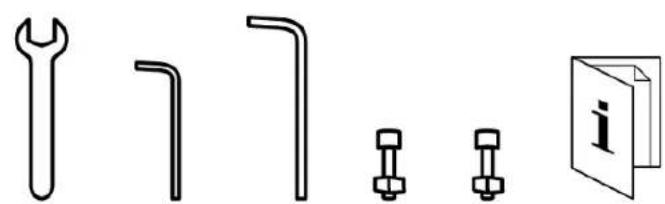
natural_image
Pure technical line drawings of wrench, bent pipe, bolted joint, and book icon (no text or symbols)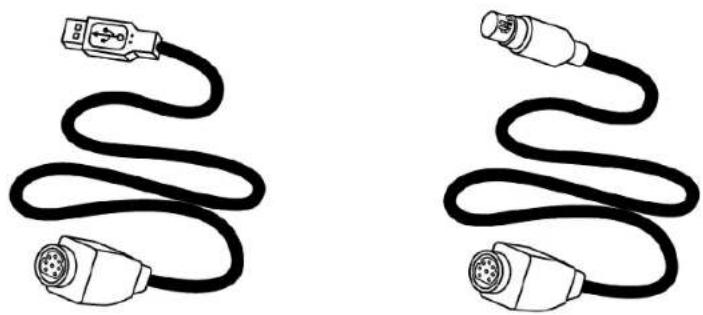
natural_image
Two black cables with connector logos, shown from different angles (no text or symbols)natural_image
Illustration of a black cable with two connectors and a connector icon, labeled with number 10 (no text or symbols on the cable itself)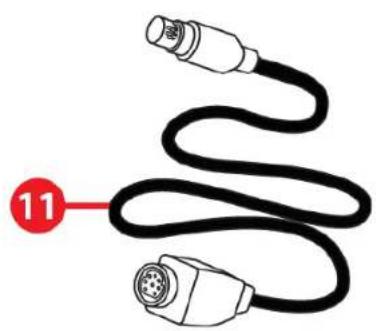
natural_image
Illustration of a black cable with two connectors, labeled with number 11 (no text or symbols on the diagram itself)- Llave fija de 13 mm
- Llave Allen de 3 mm
- Llave Allen de 6 mm
- Dos tornillos BTR M8 + dos tuercas M8
- Cable desmontable USB / DIN macho
- Cable desmontable DIN macho / mini-DIN
3. Advertencia
natural_image
Diagram of a mechanical assembly with bolts and directional arrows indicating movement (no text or symbols)natural_image
Mechanical lever mechanism diagram showing a rotating arm and pivot point (no text or symbols)*No incluido
Panel de control
Compatibilidad
https://support.thrustmaster.com/.

Notas generales
https://support.thrustmaster.com/product/tss-handbrake.

natural_image
Simple diagram with a red prohibition symbol over a battery casing (no text or labels)https://support.thrustmaster.com/product/tss-handbrake.
natural_image
Technical line drawing of a mechanical clamp or bracket assembly (no text or symbols)THRUSTMASTER®
TSS HANDBRAKE
PC
Xbox One® / Xbox Series X|S
PlayStation®4 / PlayStation®5
Manual do Utilizador

https://support.thrustmaster.com/product/tss-handbrake.
natural_image
Technical line drawing of a mechanical device with two views: top shows a cylindrical component, bottom shows a labeled assembly with buttons and connectors (no text or symbols present)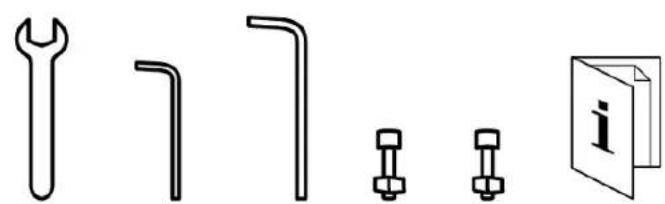
natural_image
Pure technical line drawings of wrench, bent pipe, bolted joint, and book icon (no text or symbols)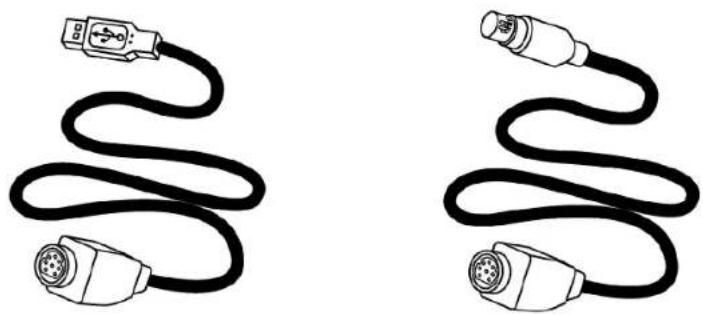
natural_image
Two black cables with connector logos, shown from different angles (no text or symbols)natural_image
Illustration of a black cable with two connectors and a connector icon, labeled with number 10 (no text or symbols on the cable itself)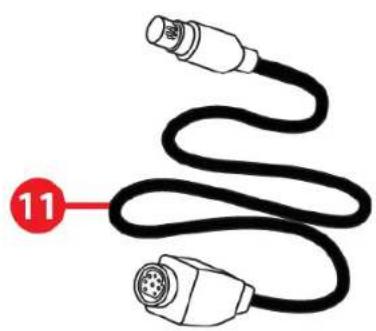
natural_image
Illustration of a black cable with two connectors, labeled with number 11 (no text or symbols on the diagram itself)natural_image
Mechanical component diagram showing a lever mechanism with red directional arrows indicating motion or force (no text or symbols present)natural_image
Diagram of a mechanical assembly with bolt holes and red directional arrows indicating motion (no text or symbols)natural_image
Mechanical lever diagram showing a rotating arm mechanism (no text or symbols)5. Instalação no PC
- Antes de ligar o TSS Handbrake, vá até: https://support.thrustmaster.com/product/tss-handbrake.
Painel de Controlo
Compatibilidade
https://support.thrustmaster.com/.

Notas gerais
https://support.thrustmaster.com/product/tss-handbrake.

natural_image
Simple diagram with a red prohibition symbol over a battery casing (no text or labels)https://support.thrustmaster.com/product/tss-handbrake.
natural_image
Technical line drawing of a mechanical clamp or bracket assembly (no text or symbols)THRUSTMASTER®
TSS HANDBRAKE
PC
Xbox One® / Xbox Series X|S
PlayStation®4 / PlayStation®5
natural_image
Technical line drawing of a mechanical device with two views: top shows a cylindrical component, bottom shows a labeled assembly with buttons and connectors (no text or symbols present)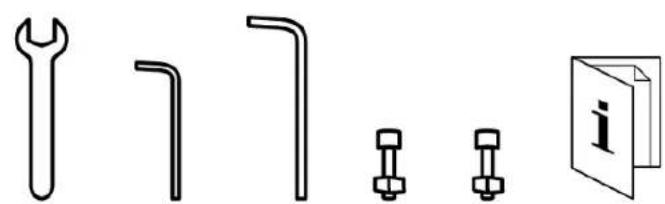
natural_image
Pure technical line drawings of wrench, bent pipe, bolted joint, and book icon (no text or symbols)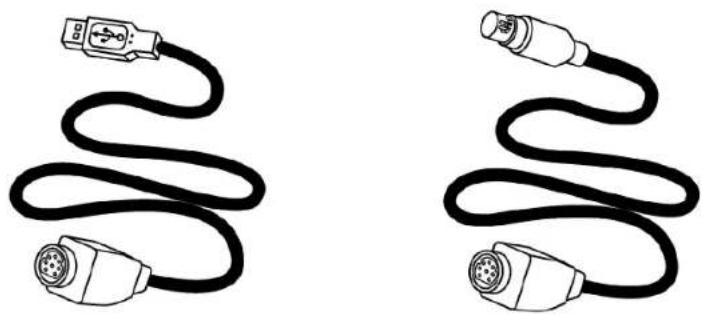
natural_image
Two black cables with connector logos, shown from different angles (no text or symbols)natural_image
Illustration of a black cable with two connectors and a connector icon, labeled with number 10 (no text or symbols on the cable itself)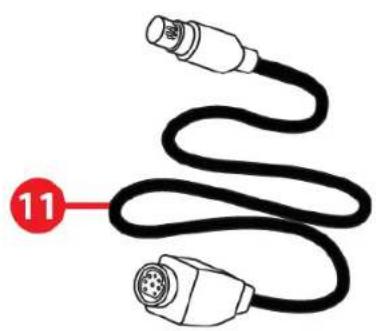
natural_image
Illustration of two connected audio/video connectors with a coiled cable, labeled with number 11 (no text or symbols on the connectors themselves)natural_image
Diagram of a mechanical assembly with red arrows indicating direction of movement or force (no text or symbols present)natural_image
Mechanical lever mechanism diagram showing pivot and rotation arrows (no text or symbols)5. Подключение к РС
Совместимость
https://support.thrustmaster.com/.

Общие замечания
https://support.thrustmaster.com/.

Общие замечания
https://support.thrustmaster.com/product/tss-handbrake.

https://support.thrustmaster.com/product/tss-handbrake.

natural_image
Simple diagram with a red prohibition symbol over a battery casing (no text or labels)https://support.thrustmaster.com/product/tss-handbrake.
natural_image
Technical line drawing of a mechanical clamp or bracket assembly (no text or symbols)THRUSTMASTER®
TSS HANDBRAKE
PC
Xbox One® / Xbox Series X|S
PlayStation®4 / PlayStation®5
Uživatelský manuál

https://support.thrustmaster.com/product/tss-handbrake.
natural_image
Technical line drawing of a mechanical device with two views: top shows a cylindrical component, bottom shows a labeled assembly with 'SEQ.' and connection points (no text or symbols beyond labels)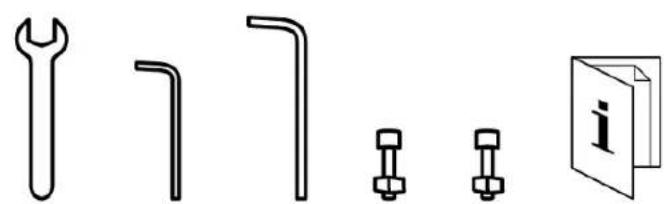
natural_image
Pure technical line drawings of wrench, bent pipe, bolted joint, and book icon (no text or symbols)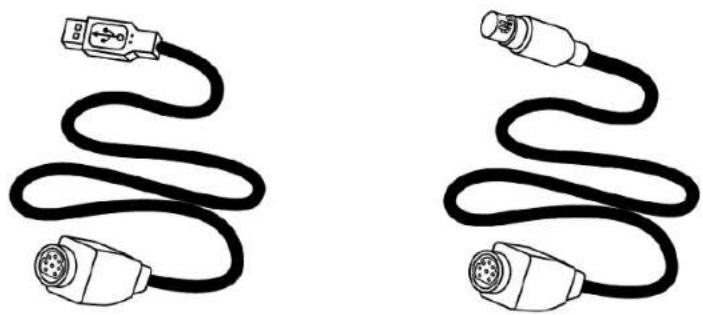
natural_image
Two black cables with connector logos, shown from different angles (no text or symbols)natural_image
Illustration of a black cable with two connectors and a connector icon, labeled with number 10 (no text or symbols on the cable itself)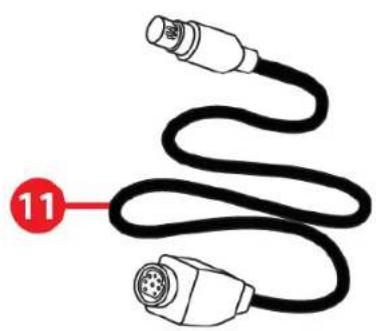
natural_image
Illustration of two connected audio/video connectors with a coiled cable, labeled with number 11 (no text or symbols on the connectors themselves)natural_image
Diagram of a mechanical assembly with bolt holes and red directional arrows indicating motion (no text or symbols)natural_image
Mechanical lever diagram showing a rotating arm mechanism (no text or symbols)5. Instalace na PC
Kompatibilita

Obecné poznámky
https://support.thrustmaster.com/product/tss-handbrake.

https://support.thrustmaster.com/product/tss-handbrake.

natural_image
Simple diagram of a device with a red prohibition symbol and circular indicators (no text or labels)https://support.thrustmaster.com/product/tss-handbrake.
natural_image
Technical line drawing of a mechanical clamp or bracket assembly (no text or symbols)https://support.thrustmaster.com/product/tss-handbrake.
THRUSTMASTER®
TSS HANDBRAKE
PC
Xbox One® / Xbox Series X|S
PlayStation®4 / PlayStation®5
Kullanıcı Kılavuzu

https://support.thrustmaster.com/product/tss-handbrake.
natural_image
Technical line drawing of a mechanical device with two views: top shows a cylindrical component, bottom shows a labeled assembly with buttons and connectors (no text or symbols present)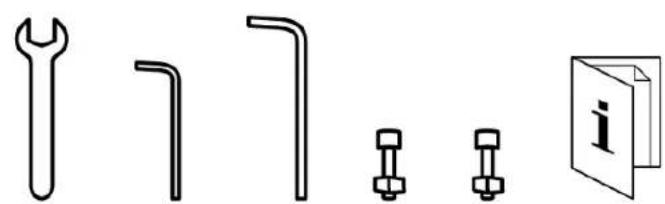
natural_image
Pure technical line drawings of wrench, bent pipe, bolted joint, and book icon (no text or symbols)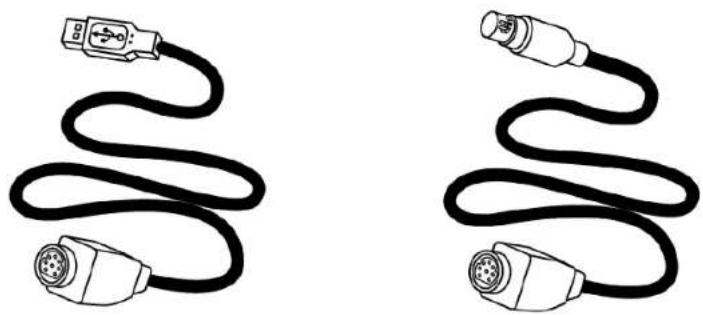
natural_image
Two black cables with connector logos, shown from different angles (no text or symbols)natural_image
Illustration of a black cable with two connectors and a connector icon, labeled with number 10 (no text or symbols on the cable itself)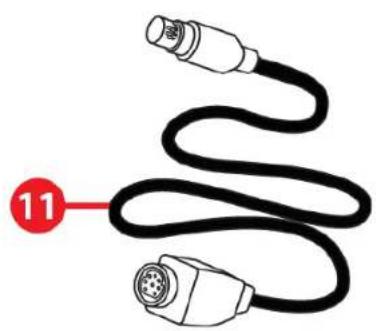
natural_image
Illustration of a black cable with two connectors, labeled with number 11 (no text or symbols on the diagram itself)natural_image
Diagram of a mechanical assembly with bolt holes and red directional arrows indicating motion (no text or symbols)natural_image
Mechanical lever diagram showing a rotating arm mechanism (no text or symbols)5. PC'de kurulum
https://support.thrustmaster.com/product/tss-handbrake.
*Ürünle verilmez
Denetim Masası
Uyumluluk
https://support.thrustmaster.com/.

Genel notlar

Genel notlar
https://support.thrustmaster.com/product/tss-
handbrake.

https://support.thrustmaster.com/product/tss-handbrake.

natural_image
Simple diagram showing a device with a red prohibition symbol and circular indicators (no text or labels)https://support.thrustmaster.com/product/tss-handbrake.
natural_image
Technical line drawing of a mechanical clamp or bracket assembly (no text or symbols)https://support.thrustmaster.com/product/tss-handbrake.
THRUSTMASTER®
TSS HANDBRAKE
PC
Xbox One® / Xbox Series X|S
PlayStation®4 / PlayStation®5
Instrukcja obsługi

natural_image
Technical line drawing of a mechanical device with two views: top shows a cylindrical component and bottom shows a labeled assembly with 'SEQ.' indicators (no text or symbols beyond labels)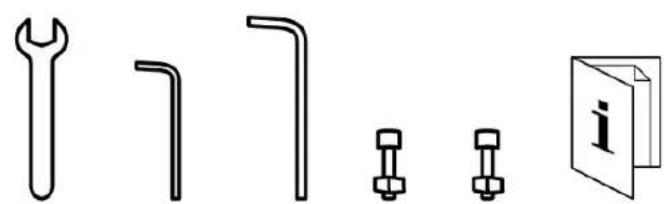
natural_image
Pure technical line drawings of wrench, bent pipe, bolted joint, and book icon (no text or symbols)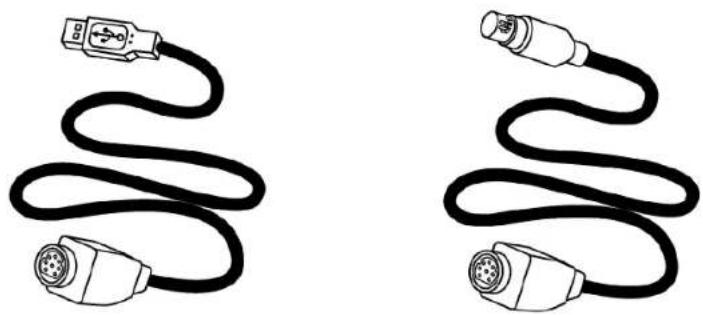
natural_image
Two black cables with connector logos, shown from different angles (no text or symbols)2. Elementy
natural_image
Illustration of a black cable with two connectors and a connector icon, labeled with number 10 (no text or symbols on the diagram itself)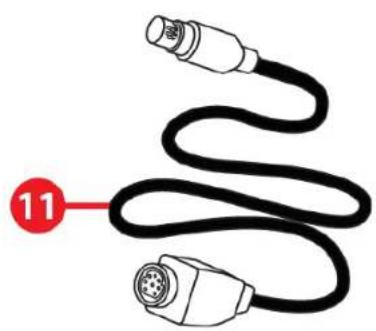
natural_image
Illustration of two connected audio/video cables with a connector labeled '11' (no text or symbols on the cable itself)natural_image
Diagram of a mechanical assembly with red arrows indicating direction of movement or force (no text or symbols present)natural_image
Mechanical lever mechanism diagram showing a rotating arm and connecting rod (no text or symbols)https://support.thrustmaster.com/product/tss-handbrake.
*Do nabycia osobno
Panel sterowania
Zgodność
https://support.thrustmaster.com/.

Uwagi ogólne
https://support.thrustmaster.com/

Uwagi ogólne
https://support.thrustmaster.com/product/tss-handbrake.

https://support.thrustmaster.com/product/tss-handbrake.

https://support.thrustmaster.com/product/tss-handbrake.
natural_image
Technical line drawing of a mechanical clamp or bracket assembly (no text or symbols)https://support.thrustmaster.com/product/tss-handbrake.
THRUSTMASTER®
TSS HANDBRAKE
PC
Xbox One® / Xbox Series X|S
PlayStation®4 / PlayStation®5
Användarmanual

INNEHÅLLSFÖRTECKNING
- INNEHÅLL I FÖRPACKNINGEN ...... 5
- TEKNISKA DELAR......6
- WARNING......8
- INSTALLERA DEN LÖSTAGBARA SPAKEN.11
- INSTALLATION PÅ PC....12
Kontrollpanelen 13
Kompatibilitet....14
- INSTALLATION PÅ PLAYSTATION®4 /
- SAMMANFATTNING AV HUR MAN
ANSLUTER TILL OLIKA PLATTFORMAR......20
-
KONFIGURERA HANDBROMSLÄGET......21
-
KONFIGURERA DET SEKVENTIELLA
VÄXELSPAKSLÄGET....23
-
INSTALLATION PÅ ETT STÖD ......25
-
AVANCERAT KALIBRERINGSPROGRAM ..28
-
EKOSYSTEM 29
-
VANLIGA FRÅGOR OCH TEKNISK
SUPPORT 30
https://support.thrustmaster.com/product/tss-handbrake.
natural_image
Technical line drawing of a device with two views: top shows a cylindrical component, bottom shows a labeled electronic device with buttons and ports (no text or symbols present)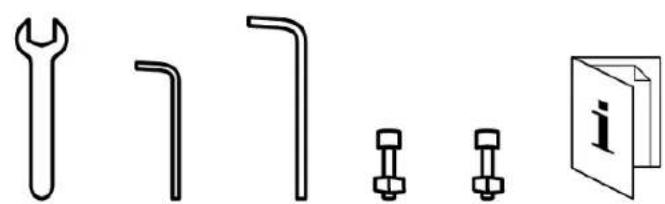
natural_image
Pure technical line drawings of wrench, bent pipe, bolted joint, and book icon (no text or symbols)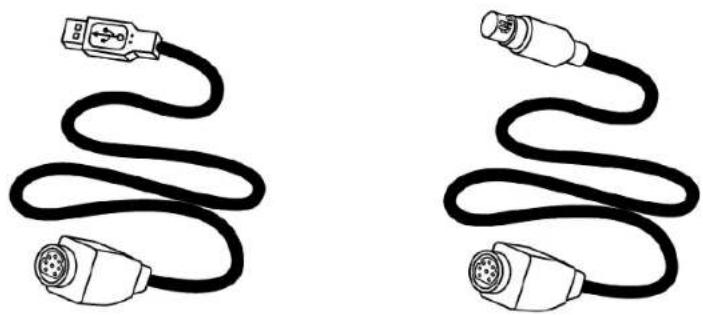
natural_image
Two black cables with connector logos, shown from different angles (no text or symbols)2. Tekniska delar
natural_image
Illustration of a black cable with two connectors and a connector icon, labeled with number 10 (no text or symbols on the cable itself)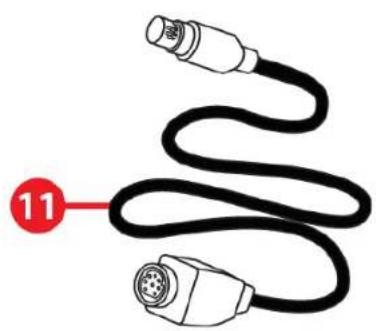
natural_image
Illustration of a black cable with two connectors, labeled with number 11 (no text or symbols on the diagram itself)4. Installera den löstagbara spaken
natural_image
Diagram of a mechanical assembly with red arrows indicating direction of motion or force (no text or symbols present)natural_image
Mechanical lever mechanism diagram showing a rotating arm and pivot point (no text or symbols)5. Installation på PC
- Innan du ansluter TSS Handbrake ska du gå till: https://support.thrustmaster.com/product/tss-handbrake.
*Ingår ej
Kontrollpanelen
Kompatibilitet
https://support.thrustmaster.com/.

Att ha i åtanke
https://support.thrustmaster.com/.

Att ha i åtanke
https://support.thrustmaster.com/product/tss-handbrake.

https://support.thrustmaster.com/product/tss-handbrake.

natural_image
Simple diagram with a red prohibition symbol over a battery casing (no text or labels)11. Avancerat kalibreringsprogram
https://support.thrustmaster.com/product/tss-handbrake.
natural_image
Technical line drawing of a mechanical clamp or bracket assembly (no text or symbols)https://support.thrustmaster.com/product/tss-handbrake.
THRUSTMASTER®
TSS HANDBRAKE
PC
Xbox One® / Xbox Series X|S
PlayStation®4 / PlayStation®5
Käyttöohje

https://support.thrustmaster.com/product/tss-handbrake.
natural_image
Technical line drawing of a mechanical device with two views: top shows a cylindrical component, bottom shows a labeled assembly with buttons and connectors (no text or symbols present)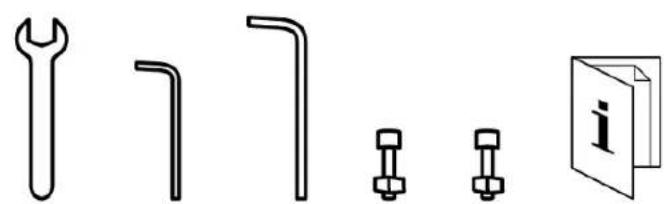
natural_image
Pure technical line drawings of wrench, bent pipe, bolted screw, and book icon (no text or symbols)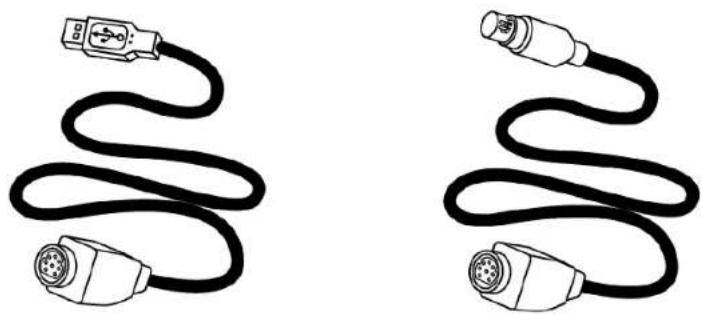
natural_image
Two black cables with connector logos, shown from different angles (no text or symbols)natural_image
Illustration of a black cable with two connectors and a connector icon, labeled with number 10 (no text or symbols on the cable itself)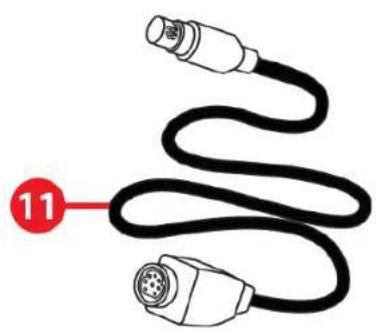
natural_image
Illustration of two connected audio/video connectors with a coiled cable, labeled with number 11 (no text or symbols on the diagram itself)natural_image
Mechanical component diagram showing a lever mechanism with red directional arrows indicating motion or force (no text or symbols present)natural_image
Diagram of a mechanical assembly with bolt holes and red directional arrows indicating motion (no text or symbols)natural_image
Mechanical lever diagram showing a rotating arm mechanism (no text or symbols)https://support.thrustmaster.com/product/tss-handbrake.

* Ei tule mukana.
Ohjauspaneeli
Yhteensopivuus
https://support.thrustmaster.com/
* Ei tule mukana.

Yleistä
https://support.thrustmaster.com/product/tss-handbrake.
7. Yhteenveto
käytettävästä

https://support.thrustmaster.com/product/tss-handbrake.

natural_image
Pure electrical circuit lines without any symbolshttps://support.thrustmaster.com/product/tss-handbrake.
natural_image
Technical line drawing of a mechanical clamp or bracket assembly (no text or symbols)THRUSTMASTER®
TSS HANDBRAKE
PC
Xbox One® / Xbox Series X|S
PlayStation®4 / PlayStation®5
Návod na použitie

https://support.thrustmaster.com/product/tss-handbrake.
Vyberte Firmware (Firmvér) a postupujte podl'a pokynov vrátane postupu st'ahovania a inštalácie.
1. Obsah balenia
natural_image
Technical line drawing of a mechanical device with two views: top shows a cylindrical component, bottom shows a labeled assembly with buttons and connectors (no text or symbols present)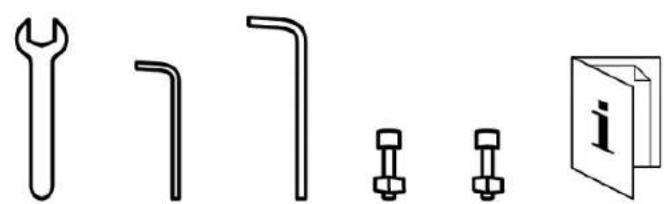
natural_image
Pure technical line drawings of wrench, bent pipe, bolted joint, and book icon (no text or symbols)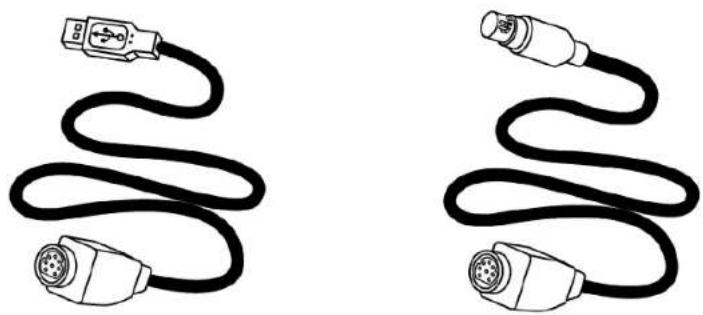
natural_image
Two black cables with connector logos, shown from different angles (no text or symbols)natural_image
Illustration of a black cable with two connectors and a connector icon, labeled with number 10 (no text or symbols on the cable itself)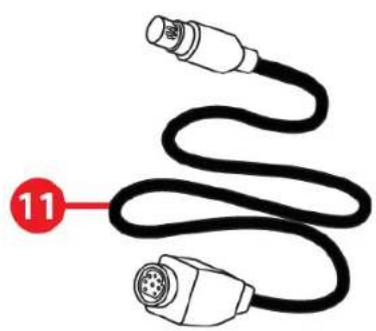
natural_image
Illustration of a black cable with two connectors, labeled with number 11 (no text or symbols on the diagram itself)- Vložte dve skrutky BTR M8 do otvorov v páke a nasad'te dve matice M8.
natural_image
Diagram of a mechanical assembly with bolt holes and red directional arrows indicating motion (no text or symbols)natural_image
Mechanical lever diagram showing a rotating arm mechanism (no text or symbols)5. Inštalácia na PC
- Pred pripojením vašej TSS Handbrake navštívte: https://support.thrustmaster.com/product/tss-handbrake.

*Nie je zahrnuté
Ovládací panel
Kompatibilita
https://support.thrustmaster.com/
- Pripojte svoj pretekársky volant ku konzole.

Všeobecné poznámky
https://support.thrustmaster.com/product/tss-handbrake.
7. Zhrnutie pripojenia podl'a
použitej platformy

natural_image
Simple diagram with a red prohibition symbol over a battery casing (no text or labels)https://support.thrustmaster.com/product/tss-handbrake.
natural_image
Technical line drawing of a mechanical clamp or bracket assembly (no text or symbols)https://support.thrustmaster.com/product/tss-handbrake.
THRUSTMASTER®
TSS HANDBRAKE
PC
Xbox One® / Xbox Series X|S
PlayStation®4 / PlayStation®5
Használati útmutató

https://support.thrustmaster.com/product/tss-handbrake.
natural_image
Technical line drawing of a mechanical device with two views: top shows a cylindrical component and bottom shows a labeled assembly with 'SEQ.' indicators (no text or symbols beyond labels)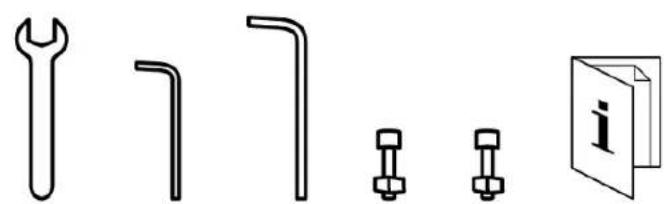
natural_image
Pure technical line drawings of wrench, bent pipe, bolted joint, and book icon (no text or symbols)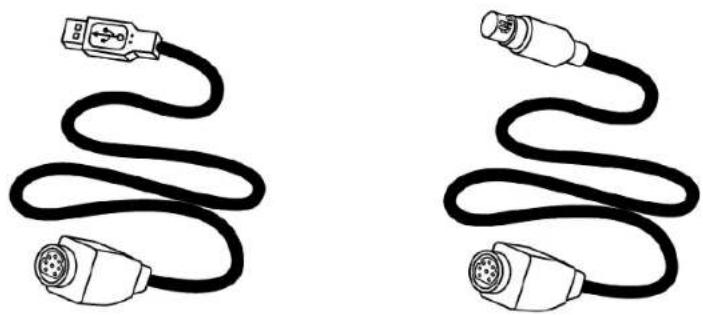
natural_image
Two black cables with connector logos, shown from different angles (no text or symbols)natural_image
Illustration of a black cable with two connectors and a connector icon, labeled with number 10 (no text or symbols on the cable itself)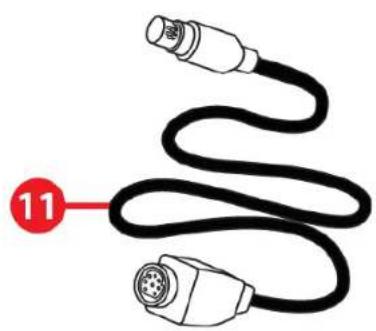
natural_image
Illustration of two connected audio/video connectors with a coiled cable, labeled with number 11 (no text or symbols on the diagram itself)natural_image
Diagram of a mechanical assembly with bolts and directional arrows indicating movement (no text or symbols)natural_image
Mechanical lever mechanism diagram showing a rotating arm and pivot point (no text or symbols)5. Telepítés PC-re
*Nem tartalmazza
Vezérlőpult
Kompatibilitás
https://support.thrustmaster.com/.

https://support.thrustmaster.com/

https://support.thrustmaster.com/product/tss-handbrake.

https://support.thrustmaster.com/product/tss-handbrake.

natural_image
Pure electrical circuit lines without any symbolshttps://support.thrustmaster.com/product/tss-handbrake.
natural_image
Technical line drawing of a mechanical clamp or bracket assembly (no text or symbols)https://support.thrustmaster.com/product/tss-handbrake.
THRUSTMASTER®
TSS HANDBRAKE
הַרָהִיְהִיְהִיְהִיְהִיְהִיְהִיְהִיְהִיְהִיְהִי
Xbox One® Xbox Series X|S
PlayStation®5/PlayStation®4
בַרְשָׁה בִרְשָׁה

https://support.thrustmaster.com/product/tss
-handbrake.
natural_image
Technical line drawing of a mechanical device with two views: top shows a cylindrical component, bottom shows a labeled assembly with buttons and ports (no text or symbols present)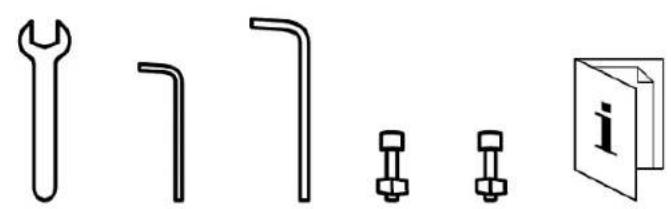
natural_image
Pure technical line drawings of wrench, flange, bolt, and screw components without any text or symbols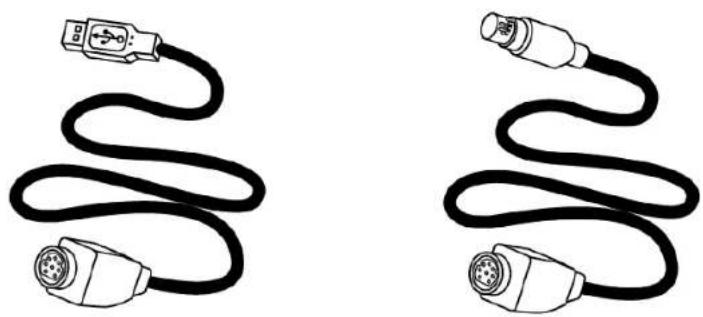
natural_image
Two black cables with connector pins, shown in side and top views (no text or symbols)
הכלה.2
- (77n
- Π'ΥΙ
natural_image
Illustration of a black cable with two connectors and a numbered label '10' pointing to one (no text or symbols on the cable itself)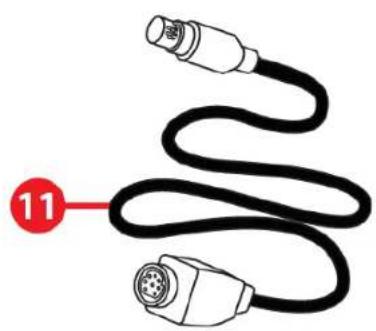
natural_image
Illustration of a black cable with two connectors, labeled with number 11 (no text or symbols on the cable itself)
הכלה.4
- .תְבָר
תְרָה בַרִי הַל
natural_image
Diagram of a mechanical assembly with red arrows indicating direction, no text or symbols presentnatural_image
Mechanical lever mechanism diagram showing a rotating arm and pivot point (no text or symbols)PC 5
https://support.thrustmaster.com/product/
.tss-handbrake
.2
https://support.thrustmaster.com/
הכלה

תְבָרִי בְרַעָה
הכלהה USB/ה DIN
Xbox -コ1 PlayStation®5/PlayStation®4-コ
ψ' TSS Handbrake πκ .Xbox Series X|S/One®
https://support.thrustmaster.com/product/tss-
.handbrake
3.
תְבָרִי בַלְהָה.10

בִרְשָׁה בַרְשָׁה
תְבָרִיֹתָה
:תָרִי (תַעְה) Manual
https://support.thrustmaster.com/product/tss
-handbrake.

תְקָה בַרְשׁוֹת.11
https://support.thrustmaster.com/product/tss-
.handbrake
natural_image
Technical line drawing of a mechanical clamp or bracket assembly (no text or symbols)https://support.thrustmaster.com/product/tss-
.handbrake
THRUSTMASTER®
TSS HANDBRAKE
جهاز الكميويتر
Xbox Series X|S / Xbox One®
PlayStation®5 / PlayStation®4
دليل المستخدم

https://support.thrustmaster.com/product/tss-handbrake.
natural_image
Technical line drawing of a mechanical device with two views: top shows a cylindrical component, bottom shows a labeled electronic device with buttons and ports (no text or symbols present)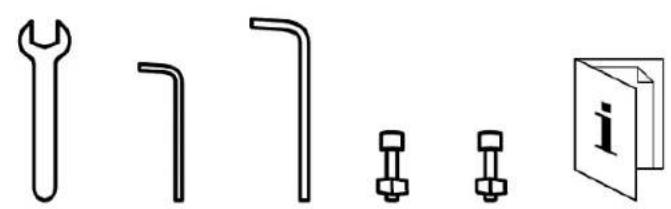
natural_image
Pure technical line drawings of wrench, flange, bolt, and screw components without any text or symbols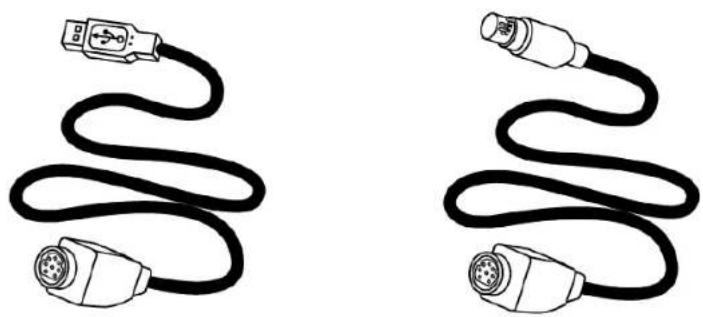
natural_image
Two black cables with connector pins, shown in side and top views (no text or symbols)
.2. الميزات التقنية
natural_image
Illustration of a black cable with two connected plug connectors, no text or symbols present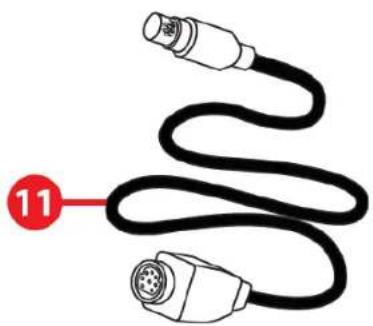
natural_image
Illustration of a black cable with two connectors, labeled with number 11 (no text or symbols on the diagram itself)
natural_image
Diagram of a mechanical assembly with red arrows indicating direction of movement or force (no text or symbols present)natural_image
Mechanical lever mechanism diagram showing a rotating arm and pivot point (no text or symbols)https://support.thrustmaster.com/product/
.tss-handbrake
* غير مرفق
.https://support.thrustmaster.com/

ملحوظات عامة
في اللاعبة تمامًا
لَفْلَّاً لَعابِتذِكر دَائُمَ
https://support.thrustmaster.com/
* غير مرفق

ملحوظات عامة
https://support.thrustmaster.com/product/tss-
.handbrake


natural_image
Simple diagram with a red prohibition symbol over concentric circles, no text or labels present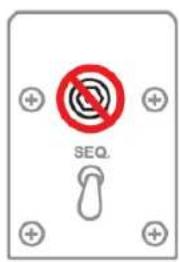
natural_image
Technical line drawing of a mechanical clamp or bracket assembly (no text or symbols): TM SIM HUB -
THRUSTMASTER®
TSS HANDBRAKE
PC
Xbox One® / Xbox Series X|S
PlayStation®4 / PlayStation®5
ユーザーズマニュアル

natural_image
Illustration of a black cable with two connectors and a connector icon, labeled with number 10 (no text or symbols on the cable itself)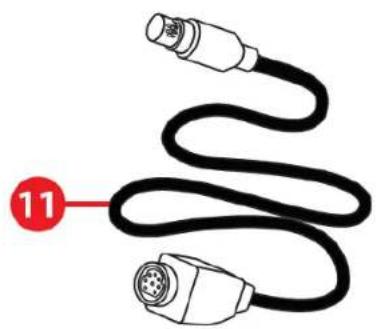
natural_image
Illustration of a black cable with two connectors, labeled with number 11 (no text or symbols on the cable itself)4. 脱着式レバーの取り付け
natural_image
Diagram of a mechanical assembly with bolt holes and red directional arrows indicating motion (no text or symbols)natural_image
Mechanical lever mechanism diagram showing pivot and rotation arrows (no text or symbols)5. PC で使用する
*付属していません
コントロールパネル
互换性
https://support.thrustmaster.com/.

一般的な注意事項
*付属していません

一般的な注意事項
10. サポートへの取り付け

natural_image
Simple diagram showing a device with a red prohibition symbol and circular elements, no text or labels present.11. 高度な調整ソフトウェア
natural_image
Technical line drawing of a mechanical clamp or bracket assembly (no text or symbols)THRUSTMASTER®
TSS HANDBRAKE
PC
Xbox One® / Xbox Series X|S
PlayStation®4 / PlayStation®5
用户手册

natural_image
Technical line drawing of a mechanical device with two views: top shows a cylindrical component and bottom shows a labeled electronic device with buttons and ports (no text or symbols present)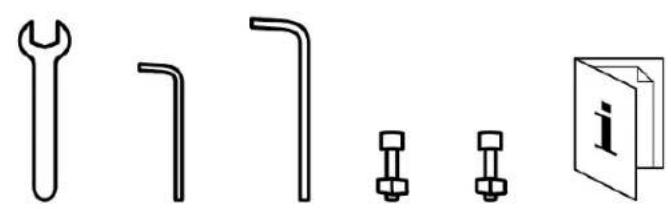
natural_image
Pure technical line drawings of mechanical components without any text or symbols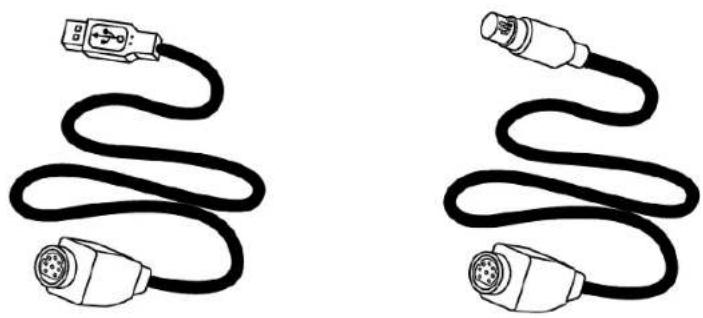
natural_image
Two black cables with connectors, shown in side and top views (no text or symbols)2. 技术特性
natural_image
Illustration of a black cable with two connected plug connectors, no text or symbols present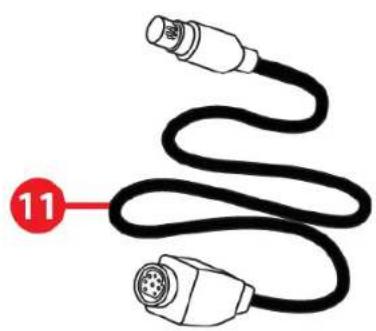
natural_image
Illustration of two connected audio/video connectors with a coiled cable, labeled with number 11 (no text or symbols on the diagram itself)4. 安装可拆卸式变速杆
natural_image
Diagram of a mechanical assembly with bolts and directional arrows indicating movement (no text or symbols)natural_image
Mechanical lever mechanism diagram showing a rotating lever and pivot point (no text or symbols)5. 安装到 PC 上
* 未提供
控制面板
兼容性
- 将赛车方向盘连接到游戏主机。
* 未提供

一般说明
10. 安装到支架上

natural_image
Simple diagram with a red spiral symbol and circular elements, no text or labels present11. 高级校准软件
natural_image
Technical line drawing of a mechanical clamp or bracket assembly (no text or symbols)THRUSTMASTER®
TSS HANDBRAKE
PC
Xbox One® / Xbox Series X|S
PlayStation®4 / PlayStation®5
使用者手册

natural_image
Technical line drawing of a mechanical device with two views: top shows a cylindrical component and bottom shows a base with labeled ports (no text or symbols present)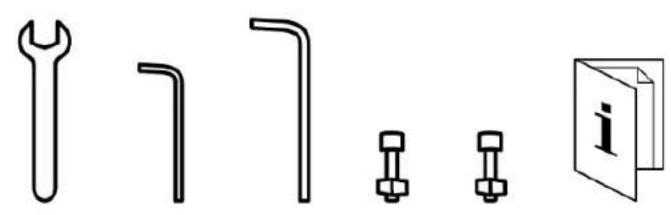
natural_image
Pure technical line drawings of wrench, bent pipe, bolt, and nut (no text or symbols)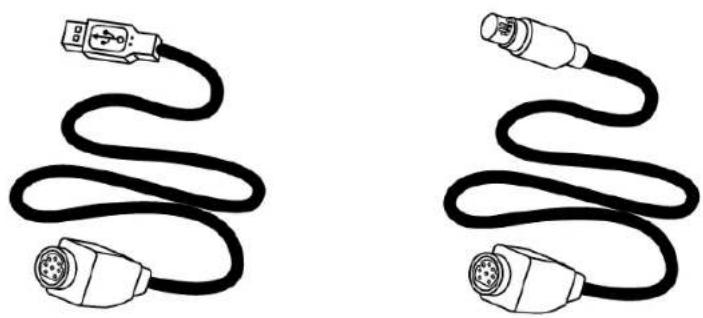
natural_image
Two identical black cables with connectors, shown from different angles (no text or symbols)2. 技術特性
natural_image
Illustration of a black cable with two connectors and a connector icon, no text or symbols present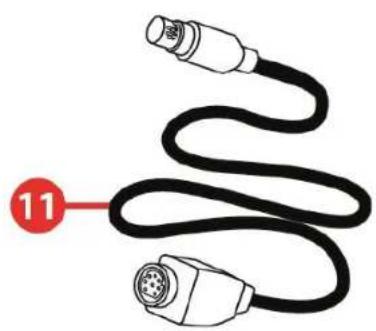
natural_image
Illustration of a black cable with two connectors, labeled with number 11 (no text or symbols on the cable itself)4. 安装可拆卸式變速桿
natural_image
Mechanical component diagram showing a lever mechanism with red directional arrows indicating motion or force (no text or symbols present)natural_image
Technical diagram showing a mechanical assembly with bolt holes and red directional arrows indicating motion (no text or symbols)natural_image
Mechanical lever mechanism diagram showing a rotating arm and pivot point (no text or symbols)5. 安装到 PC 上
* 未提供
控制台
相容性
https://support.thrustmaster.com/

一般說明
https://support.thrustmaster.com/
- 將賽車方向盤連接到遊戲主機。
* 未提供

一般說明
10. 安装到支架上

右側
前面板和後面板
natural_image
Simple diagram of a device with no visible text, numbers, or symbols, featuring a red prohibition symbol (no text or labels)11. 進階校準軟體
natural_image
Technical line drawing of a mechanical clamp or bracket assembly (no text or symbols)THRUSTMASTER®
TSS HANDBRAKE
PC
Xbox One® / Xbox Series X|S
PlayStation®4 / PlayStation®5
사용설명서

https://support.thrustmaster.com/product/tss-handbrake.
natural_image
Technical line drawing of a mechanical device with two views: top shows a cylindrical component and bottom shows a base with labeled ports (no text or symbols present)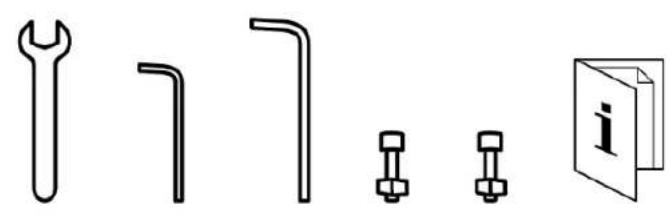
natural_image
Pure technical line drawings of wrench, bent pipe, bolt, and nut (no text or symbols)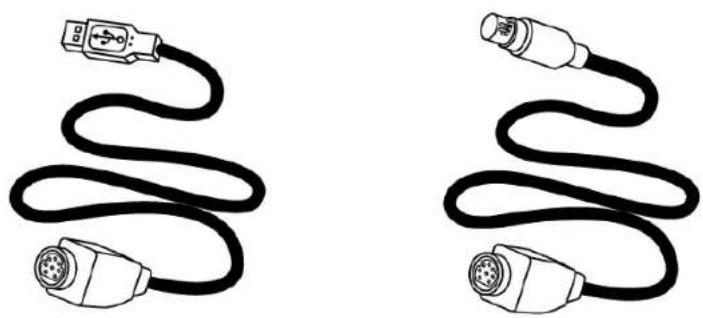
natural_image
Two identical black cables with connectors, shown from different angles (no text or symbols)2. 기술적 특징
natural_image
Illustration of a black cable with two connectors and a connector icon, no text or symbols present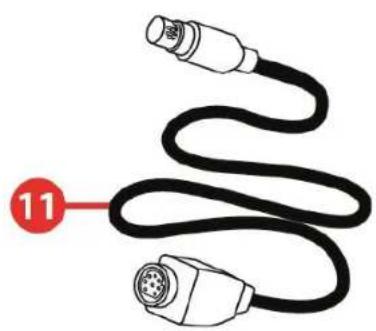
natural_image
Illustration of a black cable with two connectors, labeled with number 11 (no text or symbols on the cable itself)4. 탈착식 레버 설치
natural_image
Technical diagram of a mechanical assembly with a vertical rod and red directional arrows indicating motion or force (no text or symbols present)natural_image
Diagram of a mechanical assembly with red arrows indicating direction of movement or force (no text or symbols present)natural_image
Technical diagram of a mechanical clamp or lever mechanism with a red curved arrow indicating rotation (no text or symbols present)5. PC 에 설치
https://support.thrustmaster.com/product/tss-handbrake.
*미포함
제어판
호환성
https://support.thrustmaster.com/.

일반 참고 사항
https://support.thrustmaster.com/
- 레이싱 헨들을 콘솔과 연결하세요.

일반 참고 사항
10.지지대에 설치
https://support.thrustmaster.com/product/tss-handbrake.

natural_image
Pure electrical circuit lines without any symbols11.고급 교정 소프트웨어
https://support.thrustmaster.com/product/tss-handbrake.
natural_image
Technical line drawing of a mechanical clamp or bracket assembly (no text or symbols)https://support.thrustmaster.com/product/tss-handbrake.