
Ferrari Racing Wheel Red Legend Edition - Controller THRUSTMASTER - Free user manual and instructions
Find the device manual for free Ferrari Racing Wheel Red Legend Edition THRUSTMASTER in PDF.


| Product Type | Racing Wheel Controller |
| Brand | Thrustmaster |
| Model | Ferrari Racing Wheel Red Legend Edition |
| Compatibility | PlayStation 3, PC (Windows) |
| Connectivity | USB 2.0 |
| USB Selector | Switch between PS3 and PC mode |
| Pedal Set | Included, with accelerator and brake pedals |
| Gearshift Levers | 2 digital paddles (UP/DOWN) |
| Buttons | 4 action buttons, D-Pad, Select (SE), Start (ST), Home button (PS3) |
| LED Indicator | 1 LED for mode status |
| Steering Sensitivity | 2 modes: Normal and High (adjustable) |
| Programming | Full programmable buttons, D-Pad, and pedals |
| Force Feedback | Yes (requires driver installation on PC) |
| Mounting | Table clamp with screw (included) |
| Power | USB-powered (5V, 500mA typical) |
| Cable Length | USB cable (approximately 2.5 m) |
| Safety | Do not use pedals barefoot; mount firmly to table |
| Maintenance | Clean with soft dry cloth; do not use solvents |
| Spare Parts | Contact Thrustmaster support for replacement parts |
| Warranty | 2 years in EU (subject to conditions) |
Frequently Asked Questions - Ferrari Racing Wheel Red Legend Edition THRUSTMASTER
User questions about Ferrari Racing Wheel Red Legend Edition THRUSTMASTER
0 question about this device. Answer the ones you know or ask your own.
Ask a new question about this device
Download the instructions for your Controller in PDF format for free! Find your manual Ferrari Racing Wheel Red Legend Edition - THRUSTMASTER and take your electronic device back in hand. On this page are published all the documents necessary for the use of your device. Ferrari Racing Wheel Red Legend Edition by THRUSTMASTER.
USER MANUAL Ferrari Racing Wheel Red Legend Edition THRUSTMASTER
TECHNICAL FEATURES
1 2 digital gearshift levers (UP and DOWN)
2 LED
3 Action buttons
4 D-Pad
5 "SE" and "ST" buttons:
- for Select and Start
- for programming
6 "Home" button for PlayStation®3
7 USB selector ("PC" / "PS3")
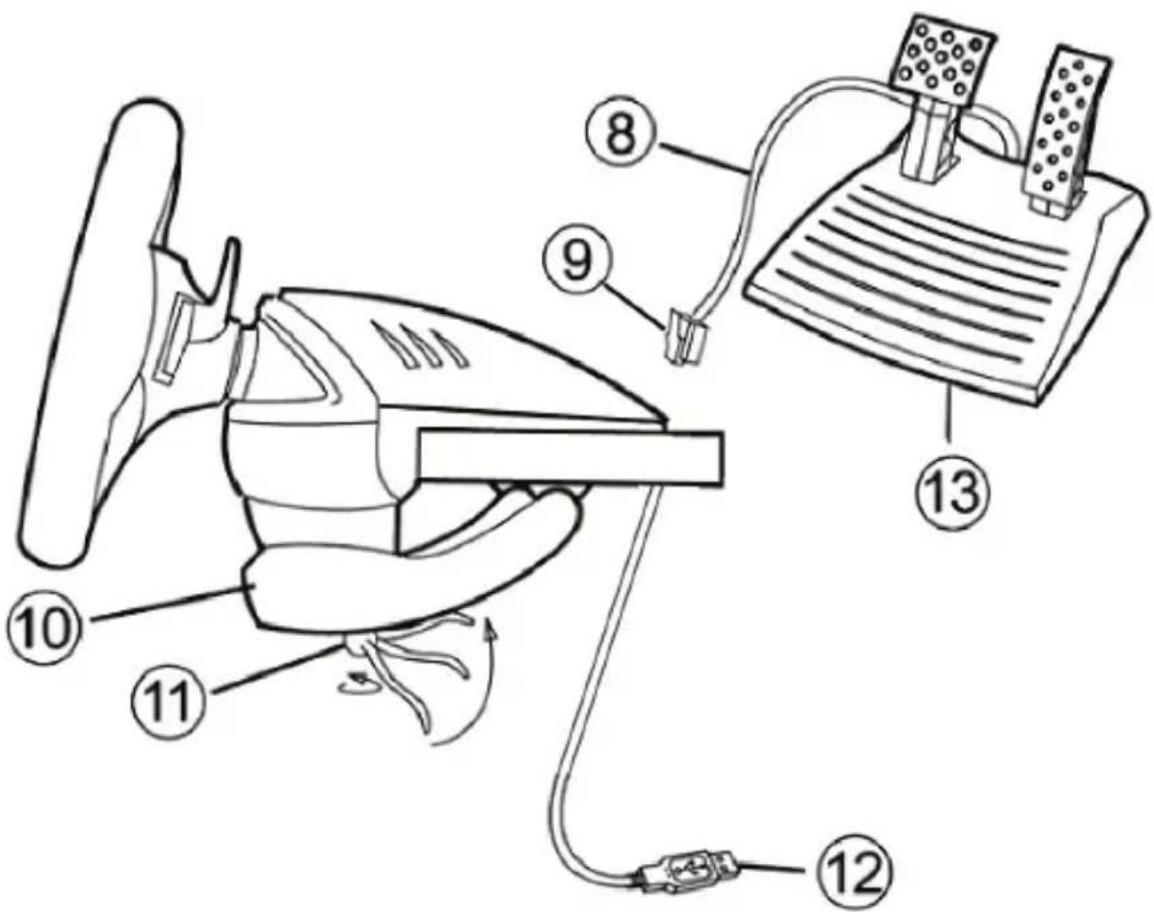
8 Pedal cable
9 RJ45 connector for pedal set
10 Table clamp
11 Clamp screw
12 USB connector (for PC and PlayStation®3)
13 Pedal set
INSTALLING THE WHEEL
Fixing the wheel in place
- Place the wheel on a table or other flat surface.
- Place the clamp screw (11) in the table clamp (10) and then screw the clamping unit into the hole on the underside of the wheel until firmly fixed in place. Do not turn the screw too tightly, as you risk damaging the clamping unit and/or the table.
Connecting the pedal set
- Connect the pedal cable (8) to the wheel's RJ45 connector (9).

For safety reasons, never use the pedal set with bare feet or while wearing only socks on your feet.
THRUSTMASTER® DISCLAIMS ALL RESPONSIBILITY IN THE EVENT OF INJURY RESULTING FROM USE OF THE PEDAL SET WITHOUT SHOES.
PLAYSTATION®3
INSTALLATION ON PLAYSTATION®3
- Set the wheel's USB selector (7) to the "PS3" position.
- Connect the USB connector (13) to a USB port on your console.
- Turn on your console.
- Launch the game.
You are now ready to play!
USING THE "HOME" BUTTON (6)
Your wheel's "Home" button allows you to exit games and access your PlayStation®3 system's menus.
IMPORTANT NOTES ON PLAYSTATION®3
- The wheel's USB selector (7) must always be set to the "PS3" position before connecting your wheel.
- In "1 Player" mode: If your official gamepad is turned on, you will have to switch it to "controller port 2" in order for your wheel to be functional.
- On PlayStation®3, the wheel is only compatible with PlayStation®3 games (and will not function with PlayStation® 2 games).
- In certain racing games, do not hesitate to test out your wheel's 2 sensitivity modes in order to optimize its precision and responsiveness.
"Gran Turismo® PS3™" configuration procedure for the "Ferrari Racing Wheel: Red Legend edition" racing wheel
By default in this game, acceleration and braking are not assigned to the "R2/L2" buttons and switching gears is not assigned to the "R1/L1" buttons (which is the case for the pedals and Up/Down levers on the "Ferrari Racing Wheel: Red Legend edition" racing wheel).
Procedure to configure and optimize the wheel:
(This procedure only needs to be carried out once, as the changes will then be saved in the game)
1) Start up your game.
2) Go to the OPTION menu.
3) Go to the CONTROLLER SETUP menu
(by clicking the symbol representing the gamepad and the D-Pad).
4) Configure your controller as follows:
- Accelerate on R2
- Brake on L2
- Shift Up on R1
- Shift Down on L1
- Rear View on L3 and/or R3
• Left & Right View on D-Pad Left & Right
5) Click OK (in the lower right part of your screen).
6) Return to the main menu to access the track of your choice.
You are now ready to play!
Note: The steering wheel on your "Ferrari Racing Wheel: Red Legend edition" racing wheel features 2 sensitivity modes (normal or high). To achieve optimal precision in "Gran Turismo® PS3™", we recommend that you enable "high sensitivity" mode.
PC
Installation on PC
- Set the wheel's USB selector (7) to the "PC" position.
- Go to http://support.thrustmaster.com to download the drivers and the force feedback software for PC. Click Racing Wheels / Ferrari Racing Wheel Red Legend Edition, then select Drivers.
- Connect the USB connector (13) to one of your computer's USB ports. Windows® will automatically detect the new device.
- Driver installation
Drivers are installed automatically. Follow the on-screen instructions to complete the installation.
- Click Start/Settings/Control Panel and then double-click Game Controllers (or Gaming Options, depending on your operating system).
The Game Controllers dialog box displays the wheel's name with OK status.
- In the Control Panel, click Properties to configure your wheel:
- Test device: Allows you to test and visualize the buttons, D-pad and axes of the wheel and pedal set.
You are now ready to play!
IMPORTANT NOTES ON PC
- The wheel's USB selector (7) must always be set to the "PC" position before connecting your wheel.
- Your wheel and pedals automatically self-calibrate upon connection of the USB connector. In the event of any problems, you can also carry out manual calibration by downloading the “Thrustmaster Calibration Tool” software, available at the following address:
http://support.thrustmaster.com
ADVANCED FUNCTIONS
ADJUSTING THE WHEEL'S SENSITIVITY
Your wheel's steering has 2 sensitivity modes:
- Normal sensitivity (the default mode)
- High sensitivity (must be set)
Setting "High Sensitivity" mode:
| Action | LED color |
| Simultaneously press and release: the D-Pad (4) + the 2 UP and DOWN levers (1) | FLASHES SLOWLY |
Your wheel's steering is now more sensitive.
(This procedure must be repeated each time you restart or disconnect your wheel)
Setting "Normal Sensitivity" mode (default mode):
| Action | LED color |
| Simultaneously press and release: the D-Pad (4) + the 2 UP and DOWN levers (1) | DOES NOT FLASH |
Your wheel's steering has now returned to normal sensitivity (the default mode)
PROGRAMMING THE WHEEL AND PEDALS
Your wheel is fully programmable:
- All buttons as well as the D-Pad can be switched between themselves.
- All buttons as well as the D-Pad can be programmed onto the 2 pedals.
Examples of possible applications:
- On PS3: Programming L2/R2 or L3/R3 onto the 2 UP and DOWN digital levers (L1/R1).
- Programming a button(s) onto one or both pedals.
- Switching different buttons for greater accessibility.
Programming procedure
| Steps | Action | LED color |
| 1 | Simultaneously press and release:SE + ST (5) | OFF |
| 2 | Press and release the button to program. | FLASHES QUICKLY |
| 3 | Press and release the button or pedal onto which you wish to place your function. | ON |
Your programming has now taken effect.
(You must repeat this procedure each time you restart or disconnect your wheel)
Erasing your programming
| Steps | Action | LED color |
| 1 | Press and hold for 2 seconds:SE + ST (5) | TURNS OFFTHEN ON AGAIN |
Your programming has now been erased.
CONFIGURING THE PEDALS ON PLAYSTATION®3
On PlayStation®3, your wheel's accelerator and brake controls are in "separate" mode by default, meaning that the pedals function on independent axes:
"Accelerator" = "R2" trigger & "Brake" = "L2" trigger
For a different type of control (to limit skidding, for example), you can switch your wheel to "combined" (2 axes) mode: the pedals then function on a single axis.
"Accelerator and Brake" = Up/Down direction on "Right mini-stick"
Setting "Combined Pedals" mode
| Action | LED color | |
| Simultaneously press and release: the 2 pedals (14) + the “Home” button (6) | GREEN | |
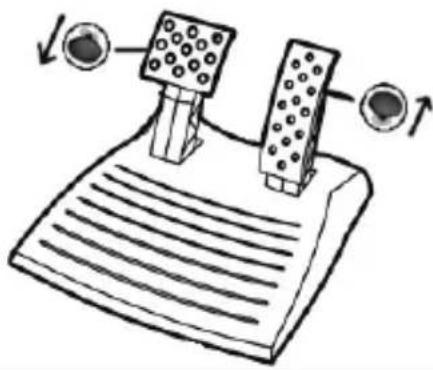 | ||
Your pedals are now combined
(You must repeat this procedure each time you restart or disconnect your wheel)
To return to "Separate Pedals" mode (the default mode)
| Action | LED color | |
| Simultaneously press and release: the 2 pedals (14) + the “Home” button (6) | RED | |
| On PlayStation®3 | ||
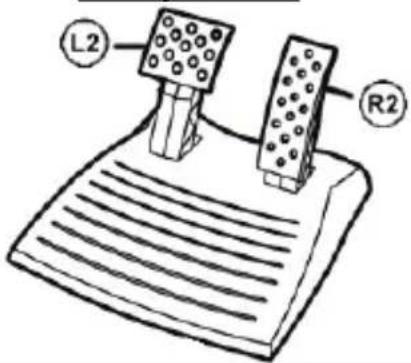 | ||
Your pedals have now returned to the default mode: "Separate"
CONFIGURING THE PEDALS ON PC
Your wheel's accelerator and brake controls are in "separate" (3 axes) mode by default, meaning that the pedals function on independent axes.
3 axes mode allows you to considerably improve the precision of your driving.
If your game does not support 3 axes mode, your wheel's pedals will not function properly. You will then have to exit the game and select "combined" (2 axes) mode instead.
| Mode | LED color |
| Separate pedals (3 axes) | RED |
| Combined pedals (2 axes) | GREEN |
- Selecting axes via "Software"
(This setting will be saved even after you restart or disconnect your wheel)
On page 1 of the "Control Panel": Select the mode you wish to use, then click OK.
- Selecting axes via "Hardware"
(This setting will not be saved: It must be repeated each time you restart or disconnect) (Allows you to select your mode directly in your game's "Controls" options)
Simultaneously press and release: the 2 pedals (14) + the "Home" button (6)
TROUBLESHOOTING AND WARNINGS
- My wheel doesn't function correctly or appears to be improperly calibrated:
- Switch off your computer or your console, completely disconnect your wheel including all cables, then reconnect the wheel and restart your game.
- If the problem persists on PC, download the "Thrustmaster Calibration Tool" manual calibration software available at the following address: http://support.thrustmaster.com
- Never move the wheel or pedals when connecting your wheel in order to avoid any calibration problems.
- My pedal set does not work correctly:
- Reconfigure your wheel in your game's controller options section.
- If the problem persists on PC, exit the game and switch the pedals to "combined" (2 axes) mode. You can then return to your game to reconfigure the wheel with the new axes.
- I can't configure my wheel:
- On PS3: In your game's "Options / Controller / Gamepads" menu: select the most appropriate configuration.
- On PC: In your game's "Options / Controller / Wheels" menu: select the most appropriate configuration.
- Please refer to your game's user manual or online help for more information.
- You can also use your wheel's "programming" function to resolve this type of problem.
- On PC or PS3, my wheel does not work correctly:
- Exit your game, disconnect your wheel, verify that the "PC/PS3" USB selector (7) is in the proper position, then reconnect everything and try again.
- On PC, my game's menus scroll by themselves:
- Exit the game and switch the pedals to “combined” (2 axes) mode. Then return to your game to reconfigure the wheel with the new axes.
- My wheel's steering is not responsive enough:
- Switch your wheel to high sensitivity mode.
CONSUMER WARRANTY INFORMATION
Worldwide, Guillemot Corporation S.A., whose registered office is located at Place du Granier, B.P. 97143, 35571 Chantepie, France (hereinafter "Guillemot") warrants to the consumer that this Thrustmaster product shall be free from defects in materials and workmanship, for a warranty period which corresponds to the time limit to bring an action for conformity with respect to this product. In the countries of the European Union, this corresponds to a period of two (2) years from delivery of the Thrustmaster product. In other countries, the warranty period corresponds to the time limit to bring an action for conformity with respect to the Thrustmaster product according to applicable laws of the country in which the consumer was domiciled on the date of purchase of the Thrustmaster product (if no such action exists in the corresponding country, then the warranty period shall be one (1) year from the original date of purchase of the Thrustmaster product).
Notwithstanding the above, rechargeable batteries are covered by a warranty period of six (6) months from the date of original purchase.
Should the product appear to be defective during the warranty period, immediately contact Technical Support, who will indicate the procedure to follow. If the defect is confirmed, the product must be returned to its place of purchase (or any other location indicated by Technical Support).
Within the context of this warranty, the consumer's defective product shall, at Technical Support's option, be either replaced or returned to working order. If, during the warranty period, the Thrustmaster product is subject to such reconditioning, any period of at least seven (7) days during which the product is out of use shall be added to the remaining warranty period (this period runs from the date of the consumer's request for intervention or from the date on which the product in question is made available for reconditioning, if the date on which the product is made available for reconditioning is subsequent to the date of the request for intervention). If permitted under applicable law, the full liability of Guillemot and its subsidiaries (including for consequential damages) is limited to the return to working order or the replacement of the Thrustmaster product. If permitted under applicable law, Guillemot disclaims all warranties of merchantability or fitness for a particular purpose.
This warranty shall not apply: (1) if the product has been modified, opened, altered, or has suffered damage as a result of inappropriate or abusive use, negligence, an accident, normal wear, or any other cause unrelated to a material or manufacturing defect (including, but not limited to, combining the Thrustmaster product with any unsuitable element, including in particular power supplies, rechargeable batteries, chargers, or any other elements not supplied by Guillemot for this product); (2) if the product has been used for any use other than home use, including for professional or commercial purposes (game rooms, training, competitions, for example); (3) in the event of failure to comply with the instructions provided by Technical Support; (4) to software, said software being subject to a specific warranty; (5) to consumables (elements to be replaced over the product's lifespan: disposable batteries, audio headset or headphone ear pads, for example); (6) to accessories (cables, cases, pouches, bags, wrist-straps, for example); (7) if the product was sold at public auction.
This warranty is nontransferable.
The consumer's legal rights with respect to laws applicable to the sale of consumer goods in his or her country are not affected by this warranty.
Additional warranty provisions
During the warranty period, Guillemot shall not provide, in principle, any spare parts, as Technical Support is the only party authorized to open and/or recondition any Thrustmaster product (with the exception of any reconditioning procedures which Technical Support may request that the consumer carry out, by way of written instructions – for example, due to the simplicity and the lack of confidentiality of the reconditioning process – and by providing the consumer with the required spare part(s), where applicable).
Given its innovation cycles and in order to protect its know-how and trade secrets, Guillemot shall not provide, in principle, any reconditioning notification or spare parts for any Thrustmaster product whose warranty period has expired.
In the United States of America and in Canada, this warranty is limited to the product's internal mechanism and external housing. In no event shall Guillemot or its affiliates be held liable to any third party for any consequential or incidental damages resulting from the breach of any express or implied warranties. Some States/Provinces do not allow limitation on how long an implied warranty lasts or exclusion or limitation of liability for consequential or incidental damages, so the above limitations or exclusions may not apply to you. This warranty gives you specific legal rights, and you may also have other rights which vary from State to State or Province to Province.
Liability
If permitted under applicable law, Guillemot Corporation S.A. (hereinafter "Guillemot") and its subsidiaries disclaim all liability for any damages caused by one or more of the following: (1) the product has been modified, opened or altered; (2) failure to comply with assembly instructions; (3) inappropriate or abusive use, negligence, an accident (an impact, for example); (4) normal wear; (5) the use of the product for any use other than home use, including for professional or commercial purposes (game rooms, training, competitions, for example). If permitted under applicable law, Guillemot and its subsidiaries disclaim all liability for any damages unrelated to a material or manufacturing defect with respect to the product (including, but not limited to, any damages caused directly or indirectly by any software, or by combining the Thrustmaster product with any unsuitable element, including in particular power supplies, rechargeable batteries, chargers, or any other elements not supplied by Guillemot for this product).

COPYRIGHT
© 2017 Guillemot Corporation S.A. All rights reserved. Thrustmaster® is a registered trademark of Guillemot Corporation S.A. All other trademarks are the property of their respective owners. Illustrations not binding. Contents, designs and specifications are subject to change without notice and may vary from one country to another. Made in China.
ENVIRONMENTAL PROTECTION RECOMMENDATION
natural_image
Simple line drawing of a trash bin with cross-bracing and a black rectangular block below (no text or symbols)In the European Union: At the end of its working life, this product should not be disposed of with standard household waste, but rather dropped off at a collection point for the disposal of Waste Electrical and Electronic Equipment (WEEE) for recycling.
This is confirmed by the symbol found on the product, user manual or packaging.
Depending on their characteristics, the materials may be recycled. Through recycling and other forms of processing Waste Electrical and Electronic Equipment, you can make a significant contribution towards helping to protect the environment.
Please contact your local authorities for information on the collection point nearest you.
For all other countries: Please adhere to local recycling laws for electrical and electronic equipment.
Retain this information. Colours and decorations may vary.
Plastic fasteners and adhesives should be removed from the product before it is used.
www.thrustmaster.com
*Applicable to EU and Turkey only






- TECHNICAL FEATURES
- INSTALLING THE WHEEL
- Fixing the wheel in place
- Connecting the pedal set
- PLAYSTATION®3
- INSTALLATION ON PLAYSTATION®3
- USING THE "HOME" BUTTON (6)
- IMPORTANT NOTES ON PLAYSTATION®3
- "Gran Turismo® PS3™" configuration procedure for the "Ferrari Racing Wheel: Red Legend edition" racing wheel
- You are now ready to play!
- PC
- Installation on PC
- IMPORTANT NOTES ON PC
- ADVANCED FUNCTIONS
- ADJUSTING THE WHEEL'S SENSITIVITY
- PROGRAMMING THE WHEEL AND PEDALS
- Examples of possible applications:
- CONFIGURING THE PEDALS ON PLAYSTATION®3
- CONFIGURING THE PEDALS ON PC
- - Selecting axes via "Software"
- - Selecting axes via "Hardware"
- TROUBLESHOOTING AND WARNINGS
- CONSUMER WARRANTY INFORMATION
- Additional warranty provisions
- Liability
- COPYRIGHT
- ENVIRONMENTAL PROTECTION RECOMMENDATION
Brand : THRUSTMASTER
Model : Ferrari Racing Wheel Red Legend Edition
Category : Controller