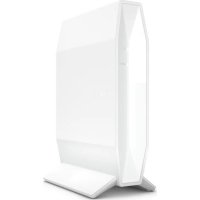
RT1800 - Router BELKIN - Free user manual and instructions
Find the device manual for free RT1800 BELKIN in PDF.



User questions about RT1800 BELKIN
0 question about this device. Answer the ones you know or ask your own.
Ask a new question about this device
Download the instructions for your Router in PDF format for free! Find your manual RT1800 - BELKIN and take your electronic device back in hand. On this page are published all the documents necessary for the use of your device. RT1800 by BELKIN.
USER MANUAL RT1800 BELKIN
Setting Up: Basics 5
Where to find more help 5
How to install your router 5
Advanced Configuration 8
How to open the browser-based utility. 8
Basic Router Settings. 9
Language 10
Internet Setup. 11
Basic Wireless Settings 13
Wireless Security 15
Security Option Settings 15
WPA2 Personal 15
Disabled. 15
Troubleshooting 16
Your router was not successfully set up. 16
Your Internet cable is not plugged in message 17
Cannot access your router message 18
After setup. 19
The internet appears to be unavailable 19
Specifications 21
Belkin RT1800 21
Environmental 21
Product Overview
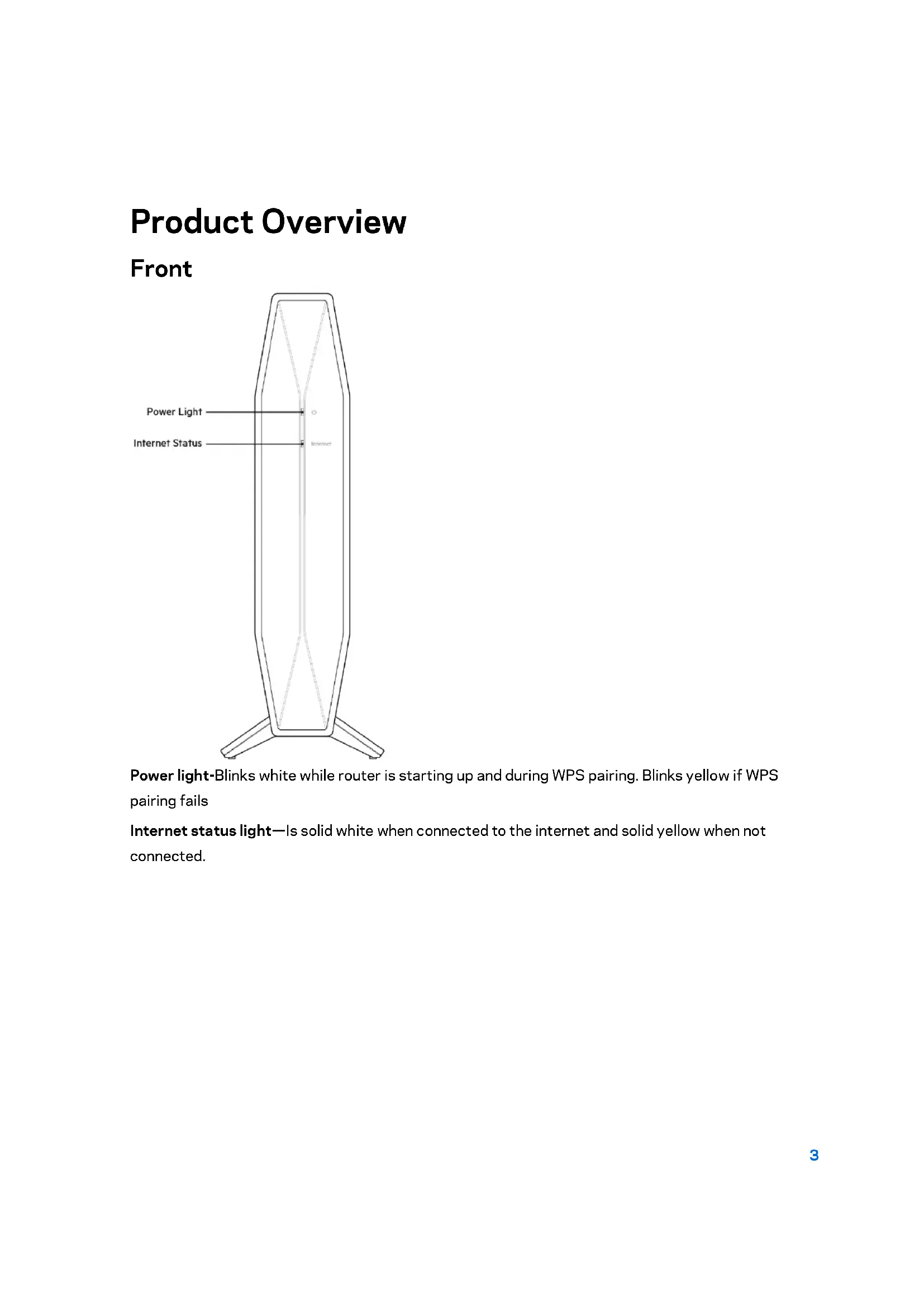
Front
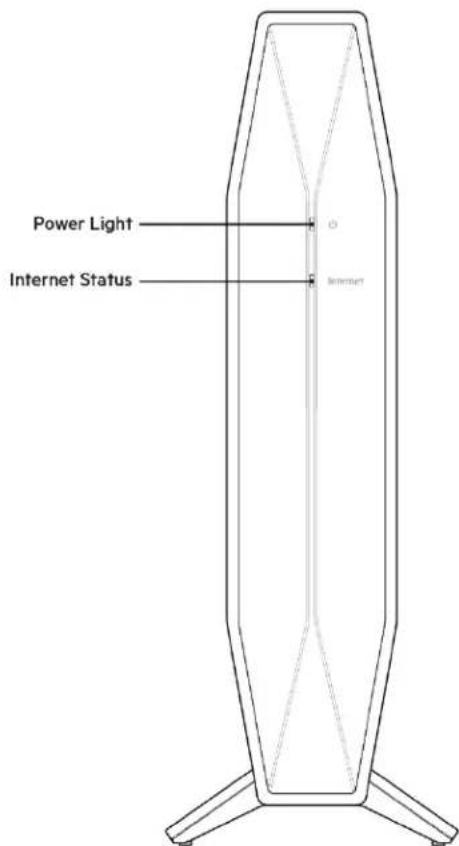
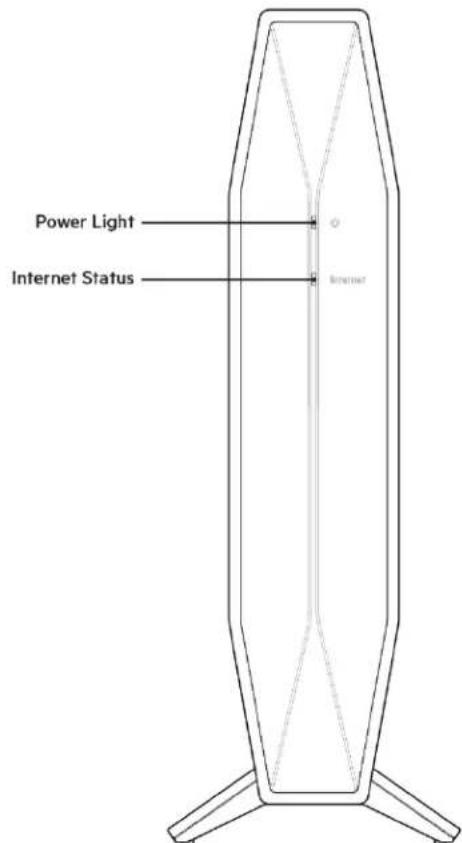
Power light-Blinks white while router is starting up and during WPS pairing. Blinks yellow if WPS pairing fails
Internet status light—ls solid white when connected to the internet and solid yellow when not connected.
Back
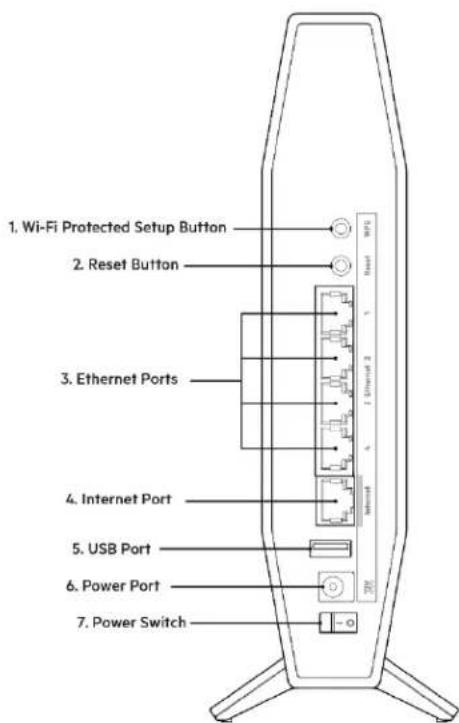
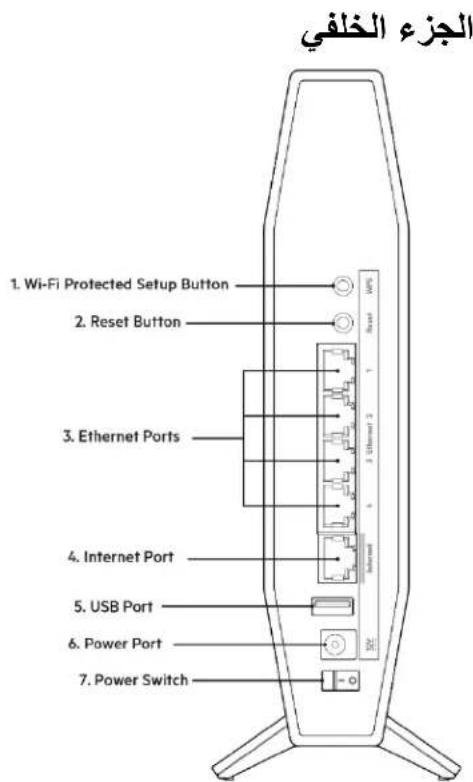
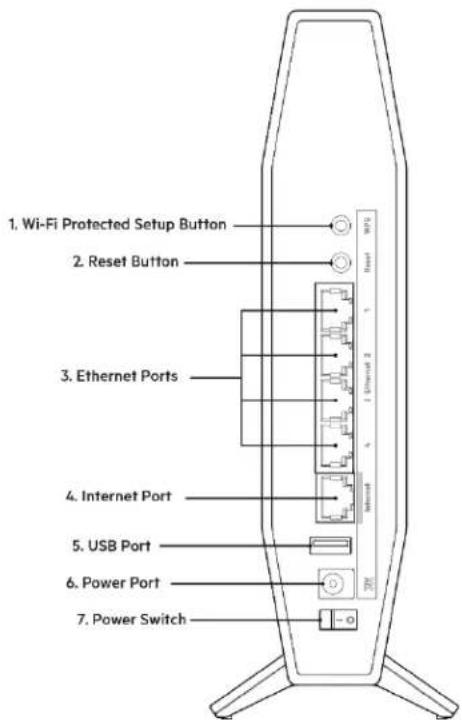
Wi-Fi Protected Setup™ (WPS) button (1)—Press to easily configure wireless security on Wi-Fi Protected Setup-enabled network devices. The light under the button will blink while WPS pairing is active.
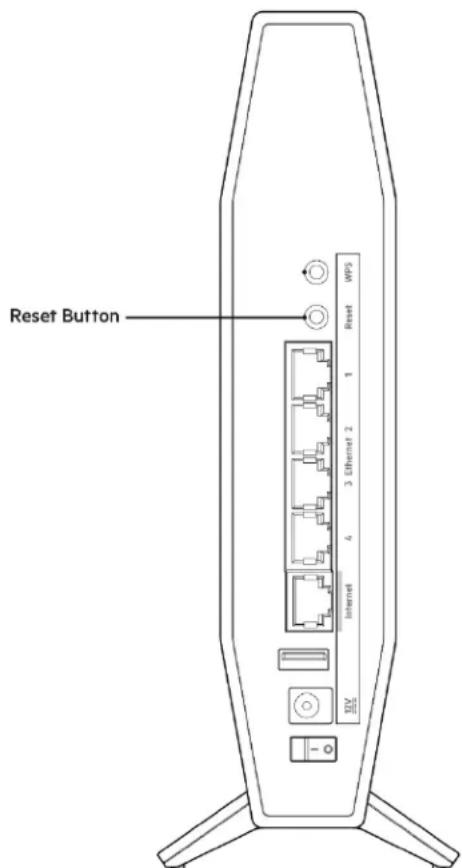
Reset button (2)—Press and hold for until the power LED starts flashing to reset the router to factory settings.
Ethernet ports (3)—Connect Ethernet cables (also called network or internet cables) to these Fast Ethernet (10/100/1000) ports and to other wired devices on your network. The lights under the ports will light up only when an Ethernet cable is plugged in and there is data traffic on the cable.
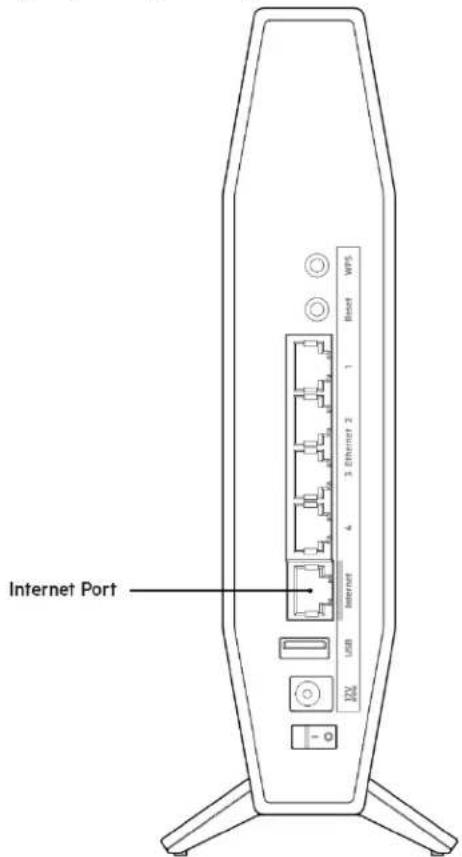
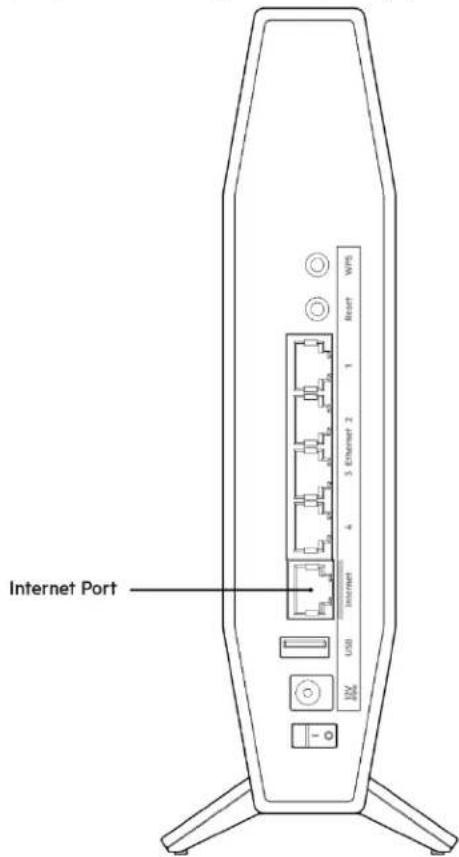
Internet port (4)—Connect an Ethernet cable to this port and to your modem. The light under the port will light up only when an Ethernet cable is plugged in and there is data traffic on the cable.
USB 3.0 port (5)—Connect and share a USB drive on your network.
Power port (6)—Connect the included AC power adapter to this port.
Power switch (7)—Press | (ON) to turn on the router.
Setting Up: Basics
Where to find more help
In addition to this user guide, you can find help at Belkin.com/support/RT1800(documents, downloads, FAQs, technical support, live chat, forums)
Note—Licenses and notices for third party software used in this product may be viewed on
https://www.belkin.com/support/licenses/. Please contact
https://www.belkin.com/support/gplcodecenter/ for questions or GPL source code requests.
How to install your router
Adding this router to your existing mesh Wi-Fi?
If you have used this router before, reset it to factory default settings before adding it to your mesh Wi-Fi. You can do this in the Administration tab of the router's settings or by pressing and holding for 10 seconds the reset button on the back of the router.
- Using a computer or mobile device, connect to your parent router (the one connected to your modem) wirelessly or with an ethernet cable
-
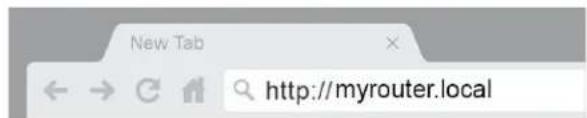
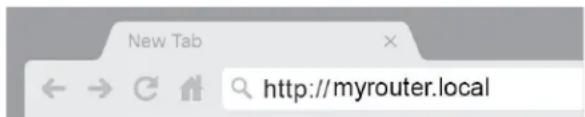
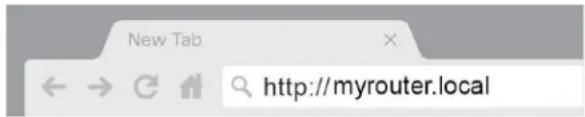
Visit myrouter.local in a web browser
-
You also can enter 192.168.1.1 in a browser to start setup. If you are using a modem-router (gateway), you might need to enter 192.168.10.1.
Note—If none of those options take you to the setup wizard, go to www.belkin.com/support/setupIP for more help.
- Log in to the router with the router password. (Default is "admin")
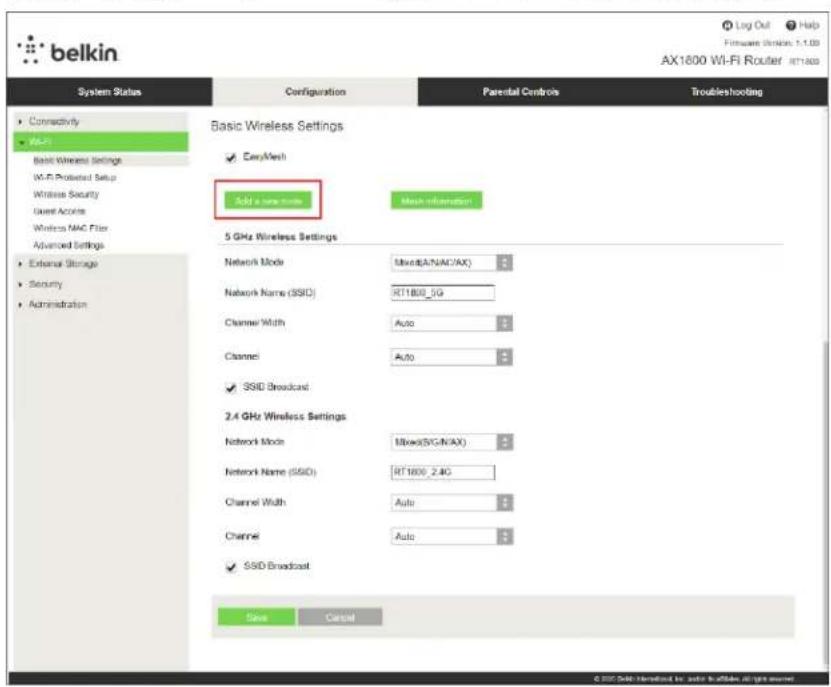
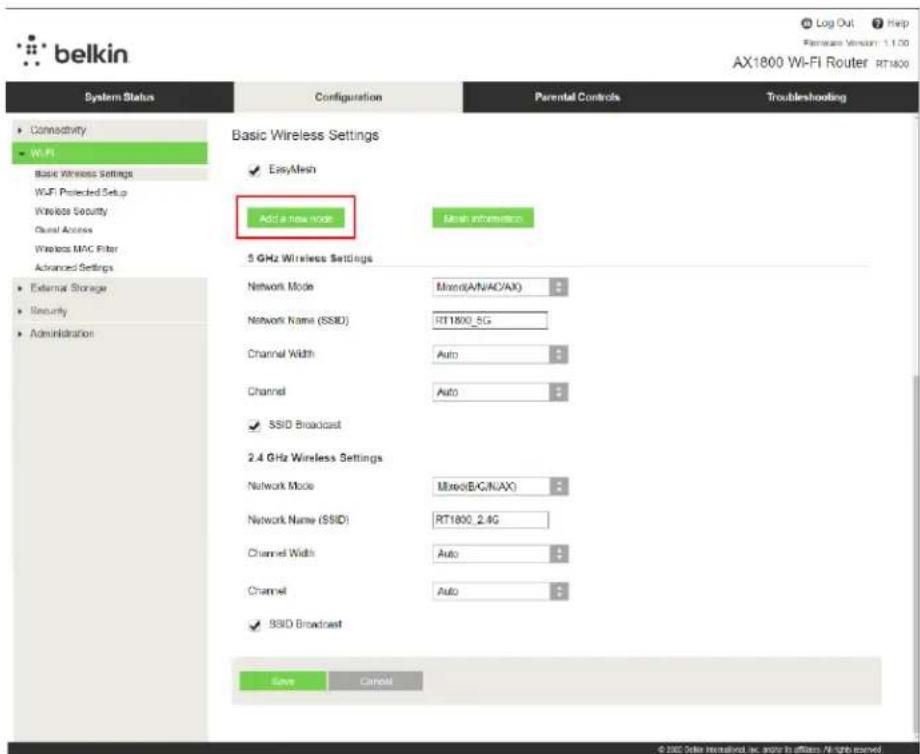
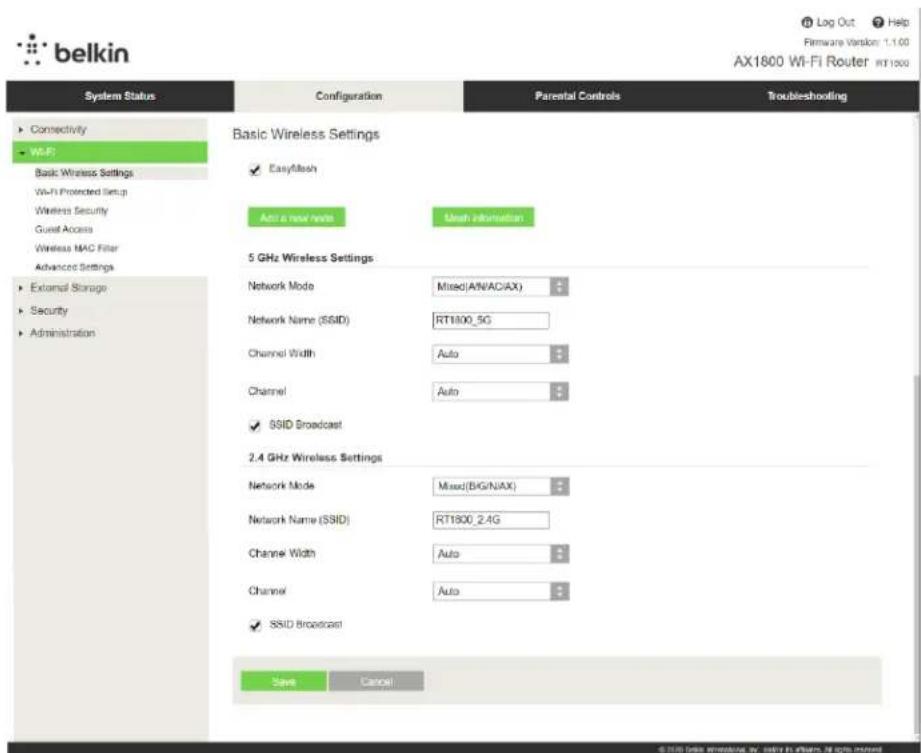
- Go to Wi-Fi > Basic Wireless Settings and click on Add a new node
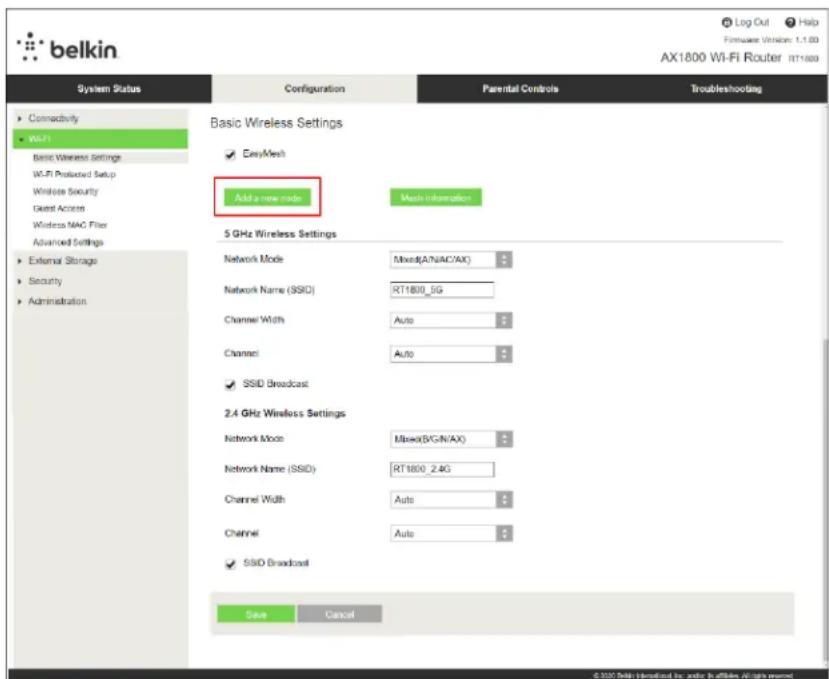
Setting up as a traditional router or as the parent node for mesh Wi-Fi?
- If replacing an existing router, disconnect that router first.
- Plug in the router to a power source. Make sure the power switch is in the | (ON) position.
- Connect your new router to your modem or modem-router.
| A Modem | OR | B Modem-Router |
| Plug one end of the included ethernet cable into the yellow Internet port on your new router. If you have a modem, plug the other end into the Ethernet (LAN) port on the modem. | Plug one end of the included ethernet cable to the yellow Internet port on your new router. If you have a modem-ruter, plug the other end into any available port. |
- Connect to the network name shown in the Quick Start Guide that came with your router. (You can change the network name and password later.) Select the option to automatically connect to this network in the future. If you need help connecting to the network refer to your device documentation on the provided CD.
Note—You will not have internet access until router setup is complete.
- Enter http://myrouter.local in a web browser. Follow the on-screen instructions to complete setup. You also can enter 192.168.1.1 in a browser to start setup.

If you are using a modem-router (gateway), you might need to enter 192.168.10.1.
Note—If none of those options take you to the setup wizard, go to www.belkin.com/support/setupIP for more help.
- Once you are finished with setup, please be sure to register your router so we can keep you informed security updates, product recalls and other things that will improve your experience.
Register your product
Once you register we can share important security updates. Product recalls and other things that will improve your experience. All we need is your email. We will only use your email for limited security and customer support purposes.
Email Address
Belkin may also email me to keep up to date with special offers and information from linksys. You can unsubscribe at any time by using the link at the end of any email we send.Read our Privacy Policy here.
Next
Skip
Advanced Configuration
How to open the browser-based utility
To access some advanced settings, you need to open the browser-based utility. Make sure you are connected to the router, open a web browser and enter http://myrouter.local in a web browser or go to 192.168.1.1.
If you are using a modem-router (gateway), you might need to enter 192.168.10.1.
Note—If none of those options take you to the setup wizard, go to www.linksys.com/support/setupIP for more help.
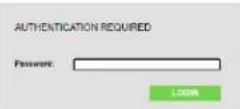
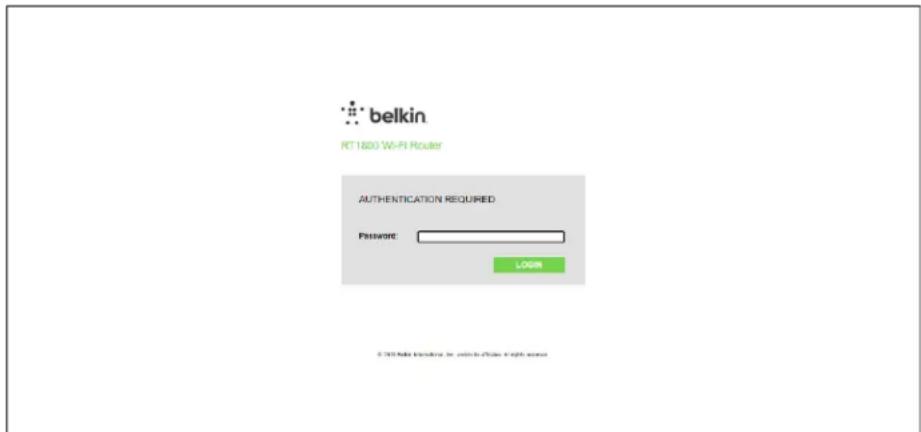
The router will prompt you for a password.
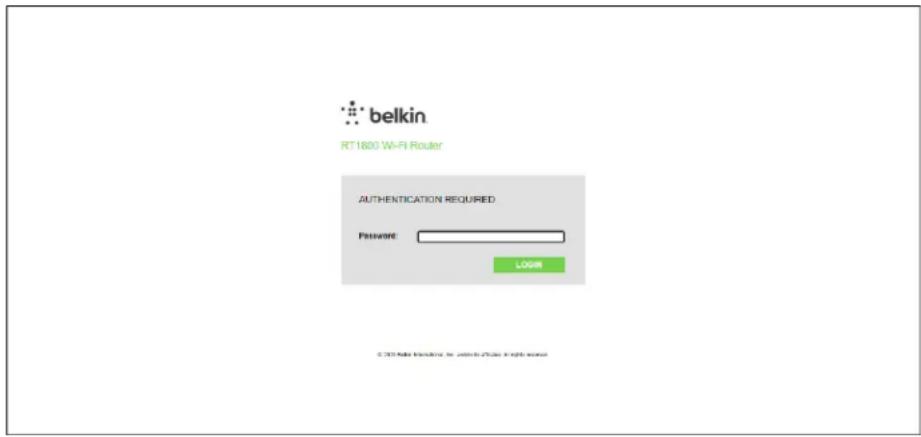
If you changed the password during setup, enter the new password. Click LOGIN. If you didn't change the password, or skipped setup altogether, the default password is "admin".
Basic Router Settings
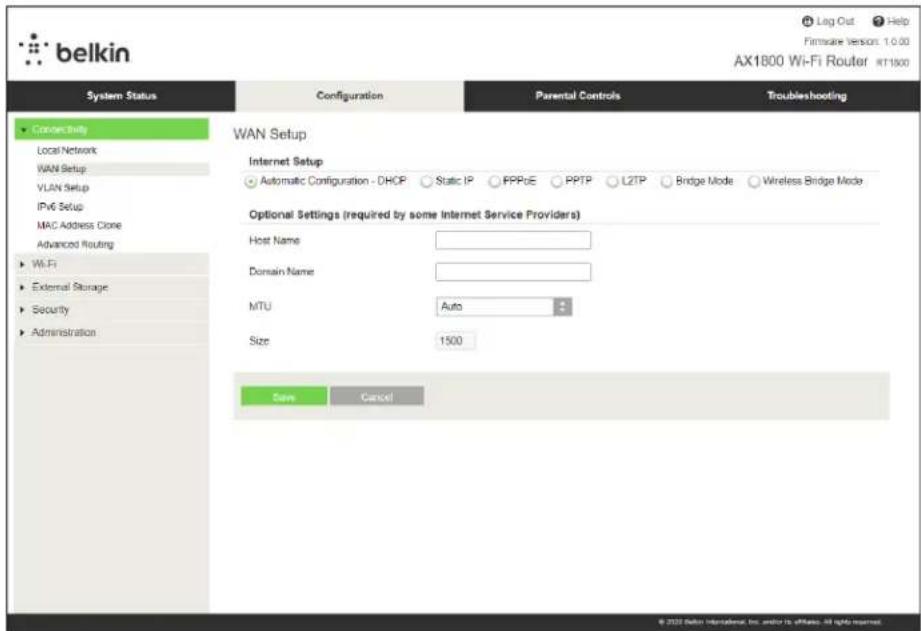
This screen allows you to change the router's basic configuration.
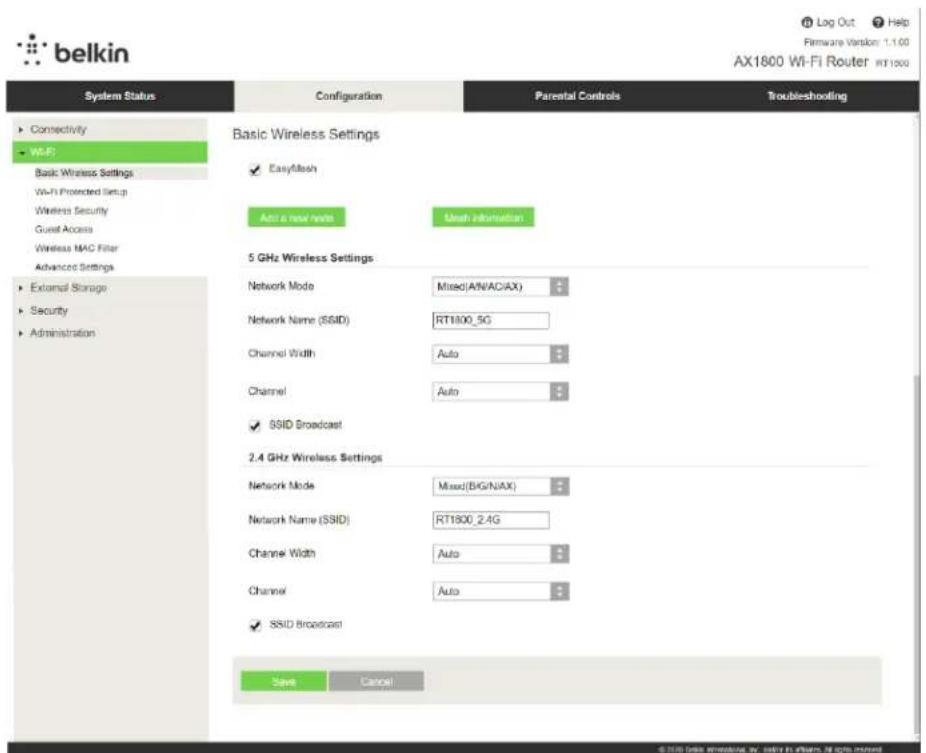
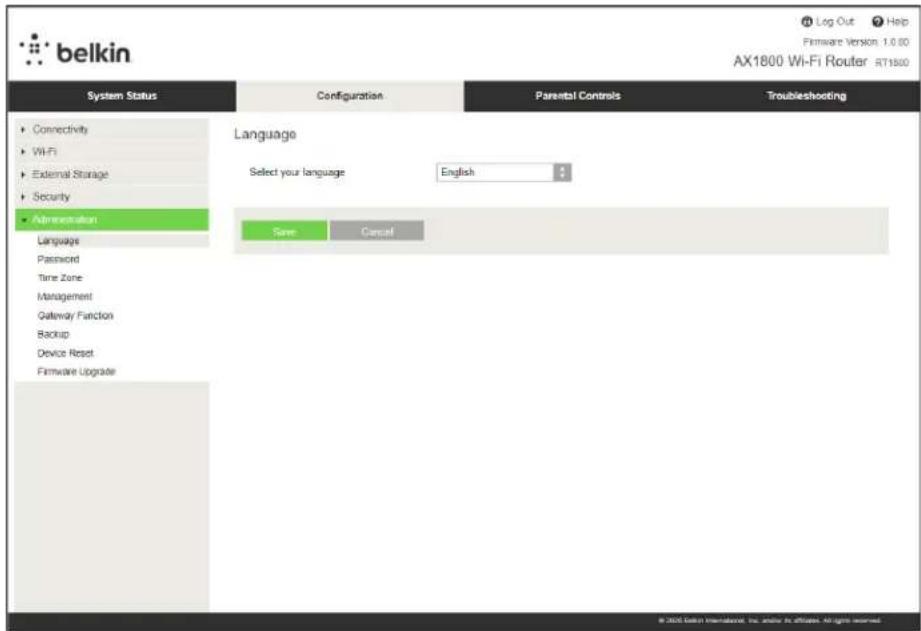
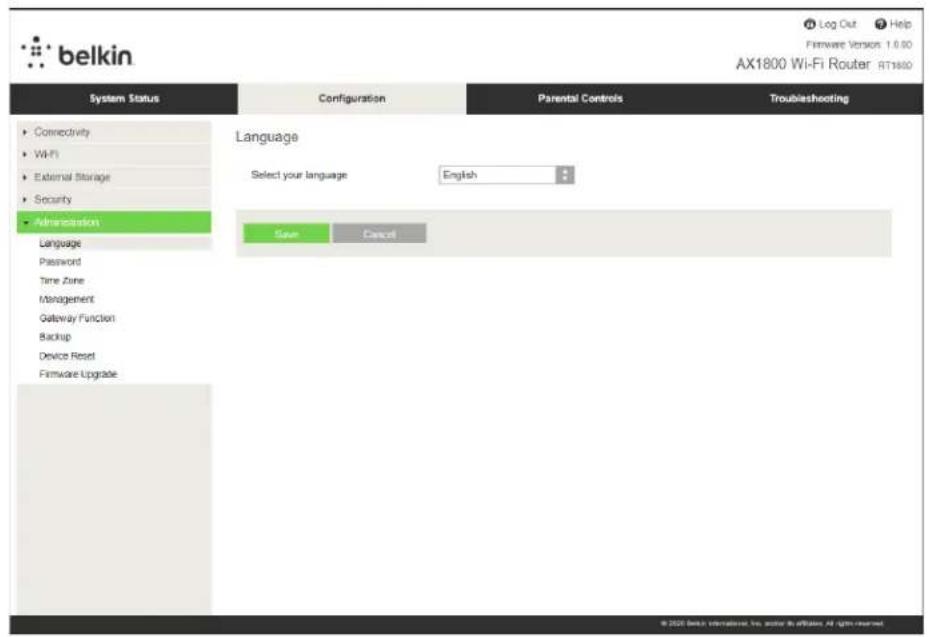
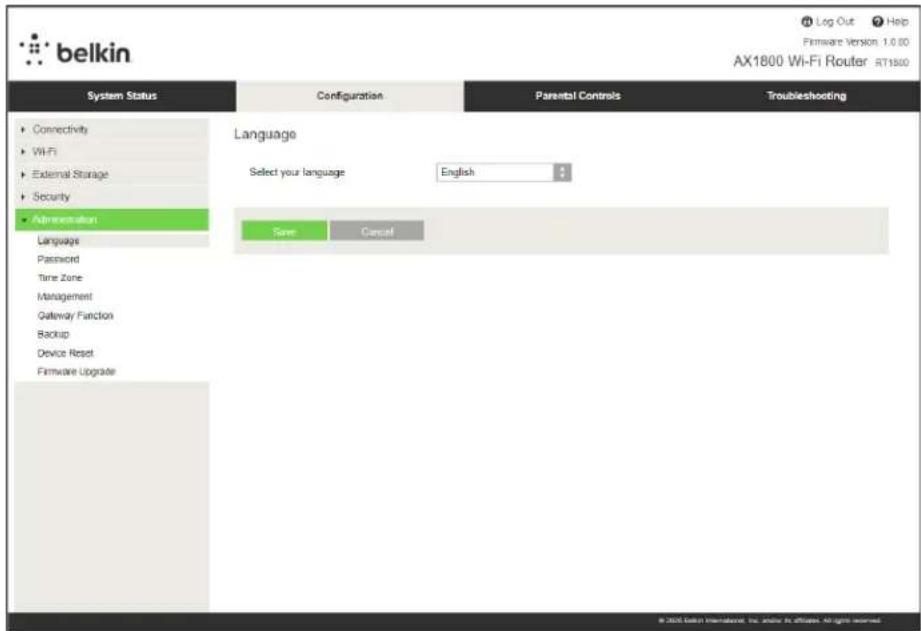
Language
Select your language-To change language, select one from the drop-down menu. The language of the browser-based utility will change within five seconds.
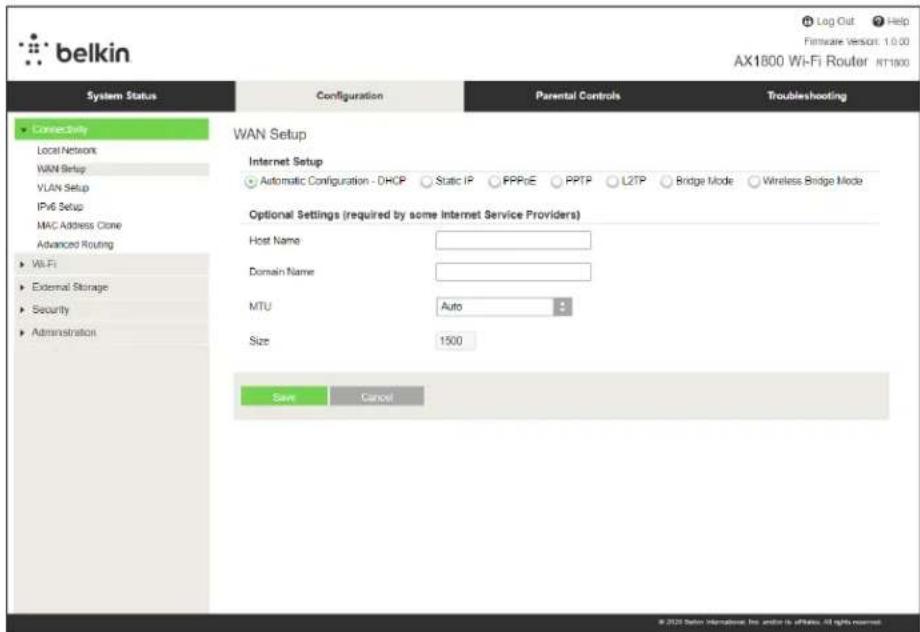
Internet Setup
The Internet Setup section configures the router to your internet connection. This information can be provided by your Internet Service Provider (ISP).
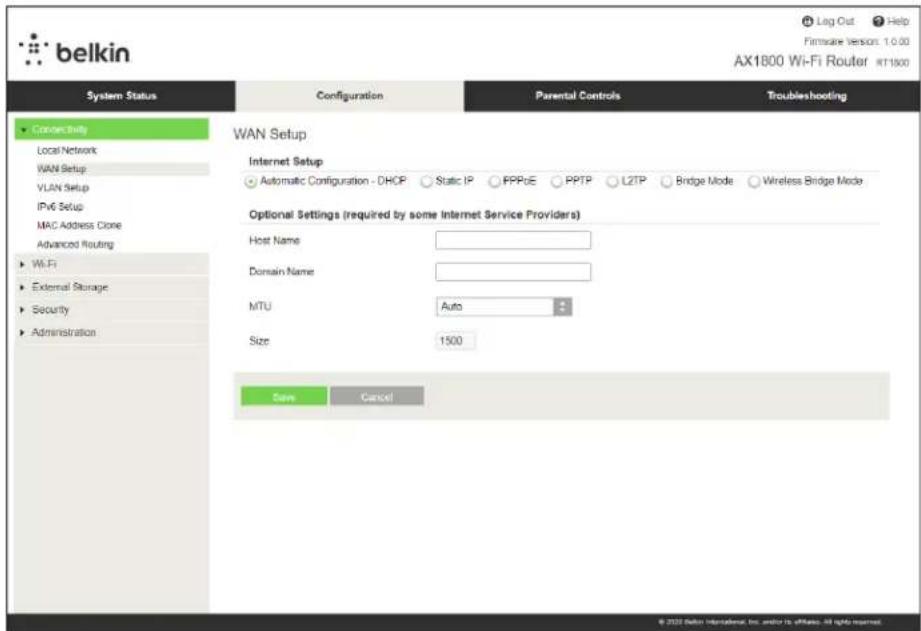
Internet Connection Type—Select the type of internet connection your ISP provides from the drop-down menu.
Automatic Configuration - DHCP (default)
Keep the default only if your ISP supports DHCP or if you connect using a dynamic IP address. (This option usually applies to cable connections.)
Static IP
Select if you are required to use a fixed IP address to connect to the internet.
- PPPoE
Select if you have a DSL connection and your ISP uses Point-to-Point Protocol over Ethernet (PPPoE).
PPTP
Point-to-Point Tunneling Protocol (PPTP) is a service that generally applies to connections in Europe. If your PPTP connection supports DHCP or a dynamic IP address, select Obtain an IP Address Automatically. If you are required to use a fixed IP address to connect to the internet, select Specify an IP Address and configure the options that appear.
L2TP
Layer 2 Tunneling Protocol (L2TP) is a service that generally applies to connections in Israel. Note—Connect on Demand or Keep Alive are options when choosing PPPoE, PPTP and L2TP. They let you choose whether the router connects to the internet only as needed (useful if your ISP charges for connect time), or if the router should always be connected. Select the appropriate option.
- Bridge Mode
Bridge Mode disables all router capabilities and turns the router into an access point. The router will cease to act as a DHCP server and its built-in firewall as well as the NAT features will no longer be in effect.
- Wireless Bridge
A wireless bridge wirelessly connects to your main router and can share the internet connection with devices connected to the bridge's Ethernet ports.
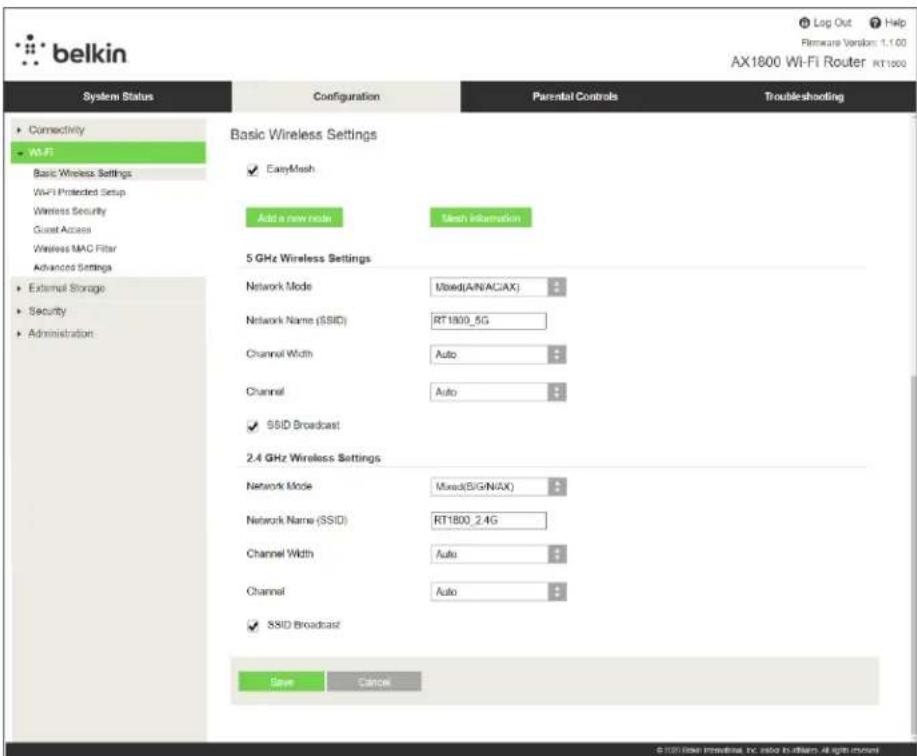
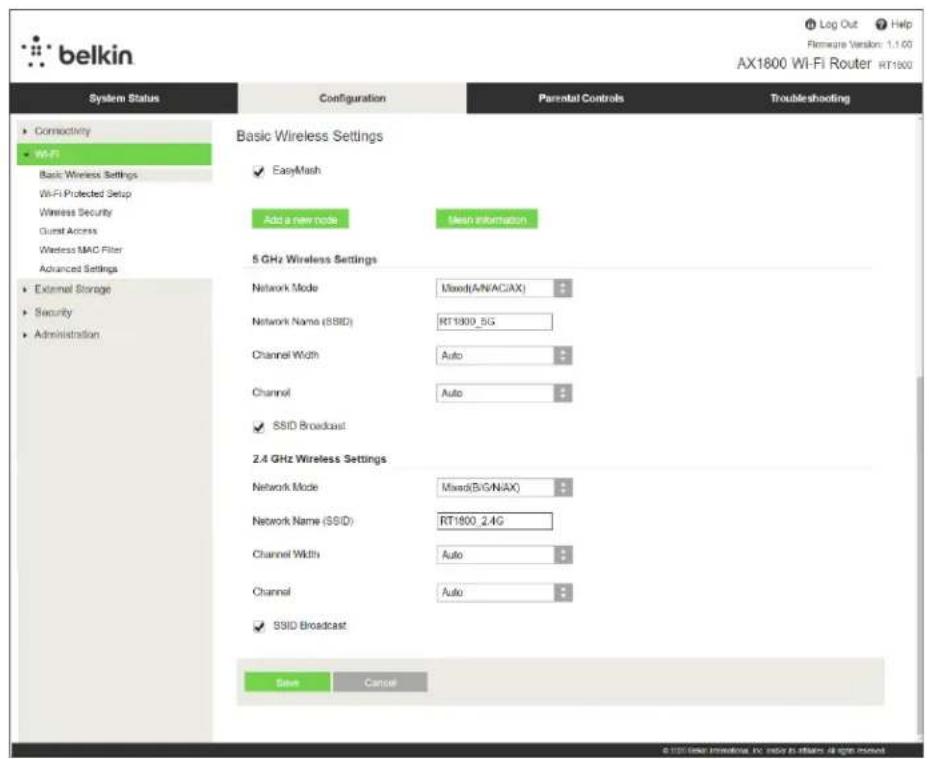
Basic Wireless Settings
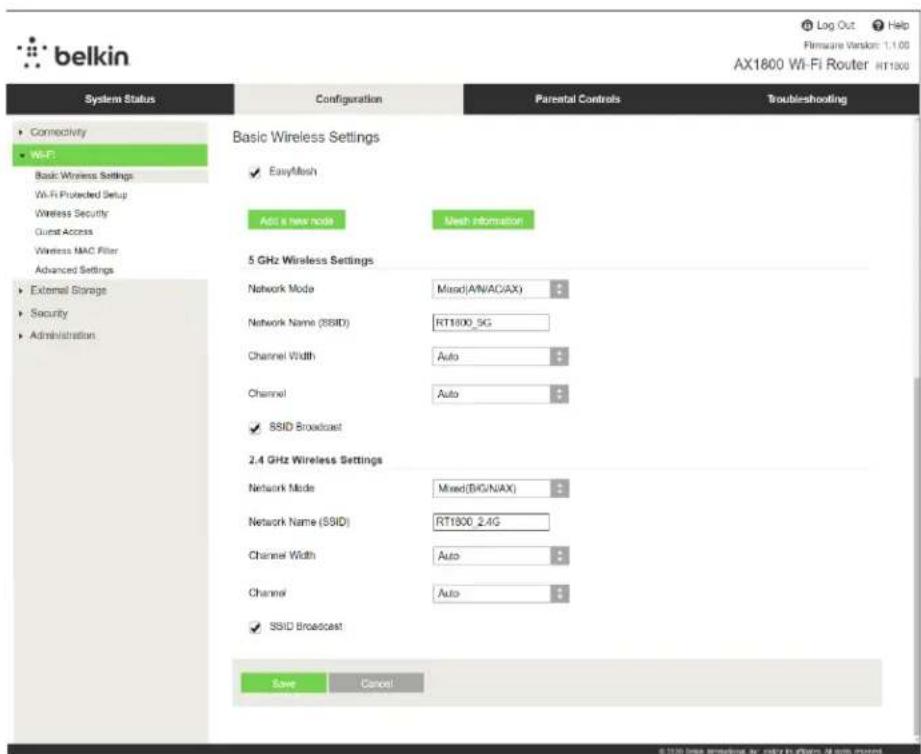
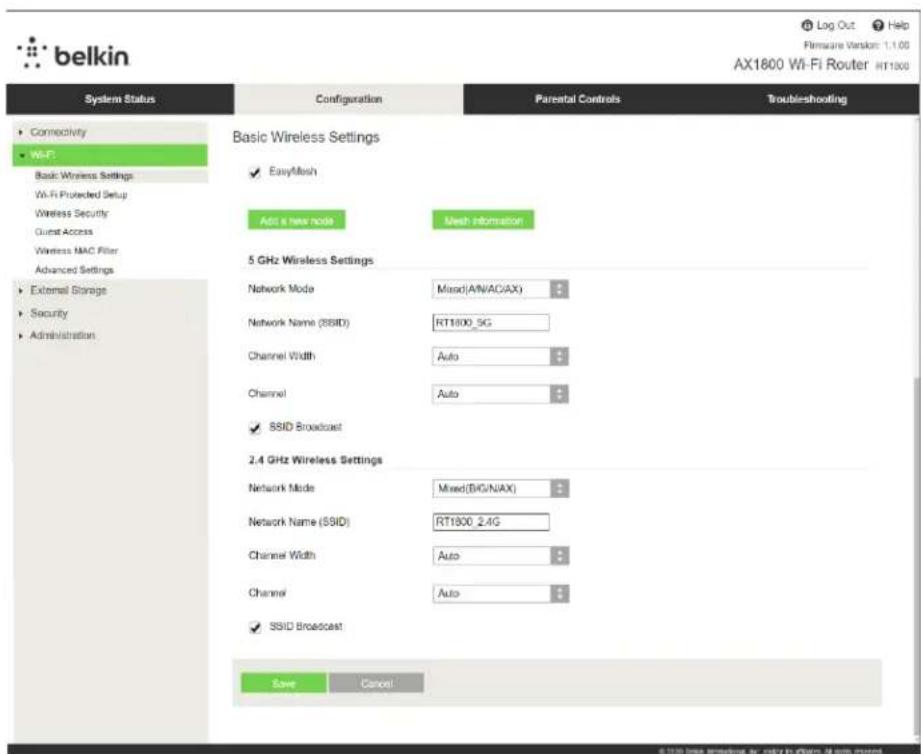
Network Mode—Select the wireless standards your network will support.
- Mixed (default)
Keep the default if you have Wireless-N (2.4 GHz), Wireless-G, Wireless-B, Wireless-AX devices in your network.
- Wireless-A Only
Select if you have only Wireless-A devices.
- Wireless-N Only
Select if you have only Wireless-N (2.4 GHz) devices.
- Disabled
Select if you have no Wireless-B, Wireless-G, and Wireless-N (2.4 GHz) devices in your network.
Note—You may select Mixed, Wireless-A/N Only or Disabled for the 5 GHz band. If you are not sure which mode to select, keep the default, Mixed.
Network Name (SSID)
The Service Set Identifier (SSID) is a name used by devices to connect to a wireless network. SSIDs are case-sensitive and must not exceed 32 characters. The default SSIDs for the 2.4 GHz and 5 GHz networks are BelkinXXXXX and BelkinXXXXX_5GHz, respectively. The Xs represent the last five digits of the router's serial number, which can be found on the bottom of the router. If you changed theSSID, both bands have the new SSIDs. You may give them different names through the browser-based utility.
Note—If you restore the router's factory default settings (by pressing the Reset button or using the Administration > Factory Defaults screen), the Network Name will return to its default value. Change the Network Name back to its original name, or you will have to reconnect all devices on your wireless network to the new network name.
Channel Width
Keep the default, Auto (20 MHz or 40 MHz), for best performance in a 2.4 GHz network using Wireless-B, Wireless-G and Wireless-N (2.4 GHz) devices. For a channel width of 20 MHz, select 20 MHz only. For the best performance in a 5 GHz network, keep the default 20, 40 or 80 MHz.
Channel
Select the channel from the drop-down list. Keep the default, Auto, if you are not sure which channel to select.
SSID Broadcast
Keep the default, Enabled, to broadcast the router's SSID. When wireless clients survey the local area for wireless networks to associate with they will detect the SSID broadcast by the router. Attempting to hide your Wi-Fi name does not make your Wi-Fi more secure. Anyone truly interested in accessing your network can find it even if you turn off this feature. If you still do not want to broadcast the router's SSID, select Disabled.
Wireless Security
The router offers the following wireless security options:
WPA3 Personal / WPA2 Personal / WPA2 Enterprise (WPA stands for Wi-Fi Protected Access.)
| Security Option Strength | |
| WPA3 Personal | Strongest |
| WPA3/WPA2 Personal | |
| WPA2 Personal | |
| WPA2 Enterprise |
Security Option Settings
WPA2 Personal
If you select WPA2 Personal, each device in your wireless network MUST use WPA2 Personal and the same passphrase.
Security Mode
WPA2 Personal

Passphrase—Enter a passphrase of 8-63 characters. This is the Wi-Fi password that provides access to the network. It can be the same as entered in setup.
Disabled
If you choose to disable wireless security, you will be informed that wireless security is disabled when you first attempt to access the internet. You will be given the option to enable wireless security, or confirm that you understand the risks but still wish to proceed without wireless security.
Security Mode
Disabled

Troubleshooting
You can find more help from our award-winning customer support at Belkin.com/support/RT1800.
Your router was not successfully set up
If you could not complete setup in the browser-based interface, you can try the following:
- Press and hold the Reset button on your router with a paperclip or pin until the power light on the front of the router turns off and starts blinking (about 10 seconds). Type 192.168.1.1 in a browser to try setup again.
- Temporarily disable your computer's firewall (see the security software's instructions for help). Install the router again.
If you have another computer, use that computer to install the router.
Your Internet cable is not plugged in message
If you get a "Your Internet cable is not plugged in" message when trying to set up your router:
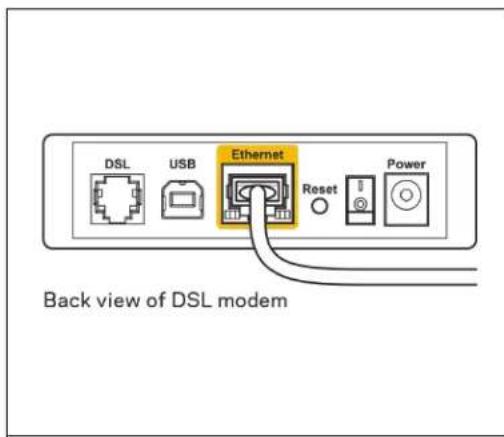
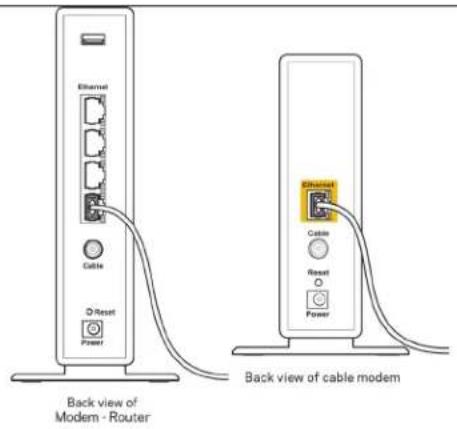
- Make sure that an ethernet or internet cable (or a cable like the one supplied with your router) is securely connected to the yellow Internet port on the back of the router and to the appropriate port on your modem. This port on the modem is usually labeled Ethernet.
- Make sure that your modem is connected to power and is turned on.
| Back view of cable modem Back view of Modem - Router | Back view of DSL modem |
| If your internet service is cable, verify that the cable modem's CABLE port is connected to the coaxial cable provided by your ISP. | If your internet service is DSL, make sure that the DSL phone line is connected to the modem's DSL port. |
If your computer was previously connected to your modem with a USB cable, disconnect the USB cable.
Install the router again.
Cannot access your router message
To access your router, you must be connected to your own network. If you currently have wireless internet access, the problem may be that you have accidentally connected to a different wireless network.
To fix the problem on Windows computers, do the following*:
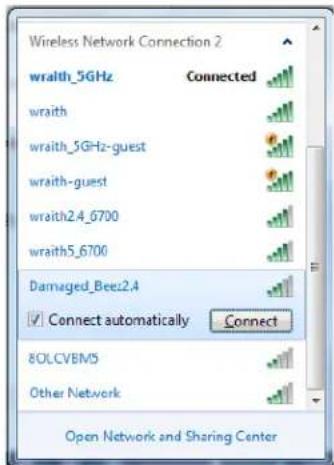
- On your Windows desktop, click on the wireless icon in the system tray. A list of available networks will appear.
- Click your own network name. Click Connect. In the example below, the computer was connected to another wireless network named wraith_5GHz. The wireless network name of the Belkin RT series router, Damaged_Beez2.4 in this example, is shown selected.

- If you are prompted to enter a network security key, type your password (security key) into the network security key field. Click OK.
- Your computer will connect to the network, and you should be able to access the router.
*Depending on your version of Windows, there could be some differences in wording or icons in these steps.
To fix the problem on Mac computers, do the following:
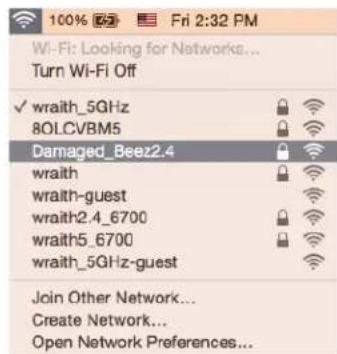
- In the menu bar across the top of the screen, click the Wi-Fi icon. A list of wireless networks will appear.
- In the example below, the computer was connected to another wireless network named wraith_5GHz. The wireless network name of the Belkin RT series router, Damaged_Beez2.4 in this example, is shown selected.
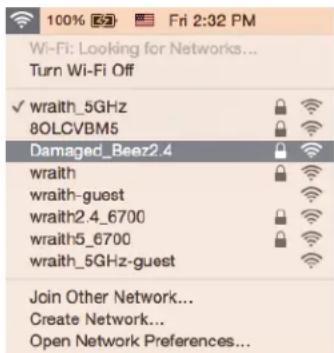
- Click the wireless network name of your Belkin RT series router (Damaged_Beez2.4 in the example).
- Type your wireless network password (Security Key) into the Password field. Click OK.
After setup
The internet appears to be unavailable
If the internet has difficulty communicating with your router, the problem may appear as a "Cannot find [internet address]" message in your web browser. If you know that the internet address is correct, and if you've tried several valid internet addresses with the same result, the message could mean that there's a problem with your ISP or modem communicating with your router.
Try the following:
- Make sure that the network and power cables are securely connected.
- Make sure that the power outlet that your router is connected to has power.
Reboot your router. - Contact your ISP and ask about outages in your area.
The most common method of troubleshooting your router is to turn it off, then back on again. Your router can then reload its custom settings, and other devices (such as the modem) will be able to rediscover the router and communicate with it. This process is called rebooting.
To restart your router using the power cord, do the following:
- Disconnect the power cord from the router and the modem.
- Wait 10 seconds and reconnect the power cord to the modem. Make sure it has power.
- Wait until the modem's online indicator has stopped blinking (about two minutes). Reconnect the power cord to the router.
- Wait until the flashing green LED between the Reset button and power port is solid. Wait two minutes before trying to connect to the internet from a computer.
Specifications
Belkin RT1800
| Model Name | AX1800 Dual-Band Gigabit WiFi 6 Router |
| Model Number | RT1800 |
| Switch Port Speed | 10/100/1000Mbps (Fast Ethernet) |
| Radio Frequency | 2.4 GHz and 5 GHz |
| # of Antennas | 4internal |
| Ports | Ethernet (1-4), Internet, Power, USB 3.0 |
| Buttons | Wi-Fi Protected Setup, Reset, Power Switch |
| LEDs | Power, Internet, Ethernet (1-4) |
| UPnP | Supported |
| Security Features | WPA2 Personal, WPA3 Personal, WPA2/WPA3 Mixed Personal |
| Security Key Bits | Up to 128-bit encryption |
Environmental
| Dimensions | 156mm (L) x 77.11mm (W) x 220mm (H) |
| Unit Weight | 850g |
| Power | 12V, 2A |
| Certifications | FCC, CE, Wi-Fi (IEEE 802.11 a/b/g/n/ac/ax) |
| Operating Temperature | 32° to 104°F (0° to 40°C) |
| Storage Temperature | -4° to 140°F (-20° to 60°C) |
| Operating Humidity | 10% to 80% relative humidity, non-condensing |
| Storage Humidity | 5% to 90% non-condensing |
Notes:
For regulatory, warranty, and safety information, see the CD that came with your router or go to belkin.com/support/RT1800.
Specifications are subject to change without notice.
Maximum performance derived from IEEE Standard 802.11 specifications. Actual performance can vary, including lower wireless network capacity, data throughput rate, range and coverage.
Performance depends on many factors, conditions and variables, including distance from the access point, volume of network traffic, building materials and construction, operating system used, mix of wireless products used, interference and other adverse conditions.
BELKIN, LINKSYS and many product names and logos are trademarks of the Belkin group of companies. Third-party trademarks mentioned are the property of their respective owners. Licenses and notices for third party software used in this product may be viewed here:
http://support.belkin.com/en-us/licenses. Please contact http://support.belkin.com/en-us/gplcodecenter for questions or GPL source code requests.
© 2021 Belkin International, Inc. and/or its affiliates. All rights reserved.
belkin
GUIA DEL USUARIO
ROUTER WIFI6
GIGABIT DE DOBLE BANDA
AX1800
RT1800
Contidente
Register your product
Once you register we can share important security updates. Product recalls and other things that will improve your experience. All we need is your email. We will only use your email for limited security and customer support purposes.
Email Address
Belkin may also email me to keep up to date with special offers and information from linksys. You can unsubscribe at any time by using the link at the end of any email we send.Read our Privacy Policy here.
Next
Skip
Register your product
Once you register we can share important security updates. Product recalls and other things that will improve your experience. All we need is your email. We will only use your email for limited security and customer support purposes.
Email Address
Belkin may also email me to keep up to date with special offers and information from linksys. You can unsubscribe at any time by using the link at the end of any email we send.Read our Privacy Policy here.
Next
Skip
Configuration avancée
- Bridge Mode (Mode Pont)
- Wireless Bridge (Pont sans fil)
eaiieae
alai j
WPS 150000000000000000000000000000000000000000000000000000000
Wi-Fi Protected (1) (WPS)Wi-Fi Protected SetupTM. WPS
eall 1e agall baley y aagll LED jellal lai jraaiaea eae bial-2) baillae!
(Fast Ethernet (10/100/1000) (3) Ethernet (3) Ethernet
Ehmet 4)
K 15 K J, USB (5) USB 3.0
(6)
Asgall (jai) | 6le biol (7)
Belkin.com/support/RT1800e
(y)
a a a a a a a a a a a a a a a a a a a a a a a a a
http://www.belkin.com/support/licenses/.
GPLJ 1000000000000000000000000000000000000000000000000000000000000000000000000
4gai 15
W-Fi 1
Jy dll 1jki Jy Wi-Fi 1s 111111111111111111111111111111
a 10 aal 1 (s) Administration
4.4.4.1
j 150
myrouter.local
192.168.1.1
192.168.10.1.
www.belkin.com/support/setupIP 1
(a) Add a new node w (Basic Wireless Settings
?Wi-Fi 4
1
.2
a aagaaegg 3
Register your product
Once you register we can share important security updates. Product recalls and other things that will improve your experience. All we need is your email. We will only use your email for limited security and customer support purposes.
Email Address
Belkin may also email me to keep up to date with special offers and information from linksys. You can unsubscribe at any time by using the link at the end of any email we send.Read our Privacy Policy here.
Next
Skip
a
J111111111111111111111111111111111111 192.168.1.1 1
.192.168.10.1 J 1
www.linksys.com/support/setupIP all JiaJiaJiaJiaJiaJiaJiaJiaJiaJiaJiaJiaJiaJiaJiaJiaJiaJiaJiaJiaJiaJiaJiaJiaJiaJiaJiaJia
Jgall Jlll 1

BT102W5孔
0000000000000000000000000000000000000000000000
y 1
"admin" a
aalw 1 gall dla
Aegill gull yll uill aill oall
(ISP) 1
Aaillal aai (ISP) 0000000000000000000000000000000000000
()DHCP- -
中
Cnnnne nnnnne nnne nnnnne nnnnne nnnnne nnnnne nnnnne nnnnne nnnnne nnnnne nnnnne nnnnne nnnnne nnnnne nnnnne nnnnne nnnnne nnnnne nnnnne nnnnne nnnnne nnnnne nnnnne nnnnne nnnnne nnnnne nnnnne nnnnee
Cui jai yaeabai gai abai jksjguy prnay dui ci jydi aas jgsd DSL Jauai jgsj jis 1 (PPPoE)
PPTP
JyI yI 13 I yI yI yI yI yI yI yI yI yI yI yI yI yI yI yI yI yI yI yI yI yI yI yI yI yI yI yI yI yI yI yI yI yI yI yI yI yI yI yI yI yI yI yI yI yI yI yI yI yI yI y
L2TP
L2TPPPTPPPOE 1500000000000000000000000000000000000000000000000
HDCP 1Jn Jn Jn Jn Jn Jn Jn Jn Jn Jn Jn Jn Jn Jn Jn Jn Jn Jn Jn Jn Jn Jn Jn Jn Jn Jn Jn Jn Jn Jn Jn Jn Jn Jn
. Ethernet
aLwJ 1
sLg 1
(j)jil
Wireless-AX, Wireless-B, Wireless-G, (Z) Wireless-N (2.4
3
上A
Wireless-A
Wireless-N
Wireless-N (2.4)
Jia.
Wires-N (2.4, Wireless-G, Wireless-B
gill 5 gill " jaaa aaaa
"blia" gai jai 12y1 yie 10y1 yai 10y1
(SSID)
BeknXXXXX 5, jyj 2.4 Ckssg y SSID 3210g jy jy jy
(Your Internet cable is not plugged in
y 1 y
J 1
SLDLDSL 1AABLE 1n Jn Jn Jn Jn Jn Jn Jn Jn Jn Jn Jn Jn Jn Jn Jn Jn Jn
USB
Asall j
(4) "Cannot access your router"
aSLy aL 1111111111111111111111111111
*yLwWindows albi jzjg 1
.1
.wraith_5GHz 1s sly s y s s s s s s s s s s s s s s s s s s s s s s s s s s s s s s s s s s s s s s s s s s s s s s s s s s s s s s s s s s s s s s s s s s s s s
3
A. all jusssn j 4j j j j j j j j j j j j j j j j j j j j j j j j j j j j j j j j j j j j j j j j j j j j j j
1 1 1 1 1 1 1 1 1 1 1 1 1 1 1 1 1 1 1 1 1 1 1 1
Damaged_Beez2.4 series
Damaged_Beez2.4 8) Belkin RT series 4
4
11.21 10
gao 25
1 1
L
jolly jilll, 51
Jus Jus yagall ay Juaalil Jusill jns
As gali 1
aiee aee eae ee eae
Aannnll lle! gall dll ay jay gall alkai kkiy yjay gail aiei sla! paaal jiae i aie
y Lai y i juii eillu pi dnuu a gail juae ie
gall gagall jdlld 1
10 2
Aagally jll ell Jauyj 3.
Cbo6eHne Your Internet cable is not plugged in (Bawuum uHmephem kaben he e BkIouen). 17
Cbo6eHneCannot access your router (He eBb3MoxHo da ce ocbuecmbu docbn do Bawua pymep) 18
CBeToHdNkAtop 3a CbCTOHaTeHo Ha HHTepHeT — CBETn C NOCToHHa 6Ja CBeTnHa, KOrato e Cbbp3Ah C HHTepHeT, N C NoCToHHa XbI Ta, KOrato He e.
I3rIeI OTo3aI
6yToH Wi-Fi Protected SetupTM (WPS) (1) —HaTnCHeTe, 3a Da KOHfNpypapTe JecHO 3aunTaHa
6e3KnuHATA Bpb3ka 3a MpeXOBu yCTpoiCTBa C aKTbBpuH Wi-Fi Protected Setup.
CBetOnHdkaTopbT NOd 6yToHa ue mira,doKaTO cDBoBaHeTo Ha WPS e aKTNBHO.
Bytoh Reset (Hynipahe) (2) - HATNCHeTe 3aDpBxTe (DOkato CBeToHNdkaTopbT Ha 3axpaHbaHeTo 3anoHe da Mira), 3a Da Hynpate pyTepa do a6pnuHnte My HactpoKn.
Ethernet noptoBe (3) — cBbpxeTe Ethernet Ka6eIte (Hapuahn CbIoo MPekOBn IIN HTEpHET Ka6eN) KbM Te3n 6bp3n Ethernet (10/100/1000) nopTOBe N KbM dpyrnte Ka6eHN yCTpoiCTBa B MpeXaTcN. CBeToHHdkAtoptne nO npTOBeTe Ue CBET TcMo KOrato e BKIOueH Ethernet Ka6eN iNo Hero Teue TpaΦNK Ha DaHHN.
HHTepnet nopT (4) — cBbpxeTe Ethernet Ka6eN KbM To3n nopT N KbM MoJaMa. CBeToHNdkaTopbT NOI nopTOBete ue CBETn cAmO KOrato e BkIoueH Ethernet Ka6eN n no Hero Ima TpaΦNK Ha daHH.
USB 3.0 nopT (5) — cBbpxKeTe n cnoJeIe Te USB yctpoNCTBO BbB BaWata Mpeka.
3axpaHbaa npT (6) CbpxeTe KbM Heo BkIouehn B KOMnEKTa npomeHnBOTOKOB 3axpaHbau aanTep.
PpeBkIIOuBaTeHa 3axpaHbAHeTo (7) -HaTnCHeTe I(BkI.)3a da BkIOUHTe pyTepa.
HactpoKa: OChOBn IIOJKeHnA
Kbde da hamepnte ose nomou
BdoJIHeHne KbM ToBa pKoBOdCTBO 3a notpe6nteJ MoKeTe Da HamePte NOMOua NHΦOpMaun Ha Belkin.com/support/RT1800 (okymentau, MaTePnAIn 3a n3TeTJHe, 3B, TeXnuecka noDpKka, qat B pealno BpeMe, fOpymn)
3a6eJekka - luueH3ume u 6eJekkume omhocno cofmyepa om mpemu cmpaHu, u3noI3BaH c mo3u npodukm, moKeme da Budume Ha adpec https://www.belkin.com/support/license/. 3a Bbnpocu uU 3a uckanua GPL ombopen kOd, MoJa, cBbpxeme ce c https://www.belkin.com/support/gplcodecenter/.
Kak da nHcTaInpaTe Baunr pyTep
Добаваян ha to3n pyTeR KbM cbIeCTByBa7a mesh Wi-Fi mpeka?
Ako cTe n3noJI3BaJIIn To3n pyTep npeDi, HylpaIte ro do fo6pHHTe My HAcTpoKn IIO npda3bIpaHe, npdeI da ro do6aBITE KbM mesh Wi-Fi mpeJkata. MoKeTe da ro hApabITe ot pa3dela Administration (AdmHnCTpIpaHe) Ha HAcTpoKtHe Ha pyTepa IIN KaTO HaTnCHe T 3aDbPjKtE 3a 10 ceKynDn 6yToHa 3a HylpaIe ot 3aDHaTa CtpaHa Ha pyTepa.
Cbpxte ce nocpeCTBOM KOMNIOTBp Hn M06HNO ycTPOIcTBO KbM OCHOBHpyTeP (To3n, KOIToe CBpb3AH KbM MOdema) 6e3KNUHO nn upe3 Ethernet Ka6en
- OTbopeTe B ye6 6pay3bp aapeca myrouter.local
3a da 3anoyhe Te nbpBOHaauHaTa HAcTPOKa, MoKeTe cBto TaKa da BBBeTe B 6pay3bpa 192.168.1.1.Ako n3no3BaTe moEm-pyTepe (uH03),MoKe Da ce HaLoKn da BBBeTe 192.168.10.1.
3a6eJexka - aKO HHTO eHa OT Te3N OPlMN He BV OTBeDe Do CbBeTHNKa 3a nbpBOHaauHa HAcTPOKa, OTnDETe Ha www.belkin.com/support/setupIP 3a nobee nOMoU.
Ble3e Bpyepa cnapoIaTMy. (Tn no npda3bnpahe e „admin")
- OTbopeTe Wi-Fi > Basic Wireless Settings (OchOBHn 6e3KuHn HacTpoKn) n KlnkHeTe Bbpxy Add a new node (Добавян He Na HOB Bb3eJ)
HactpoBbHe KaTo TpaDnCNoHen pyTeP nn KaTo OChOBnB b3eJ 3a mesh Wi-Fi mpejata?
- Ako 3ameHrTe cIeCTbVaau pyTep, npBPO ro nKIOUoTe.
- BkIIOUeTe pyTepaB 3axpaHbau n3ToUHnK. YBepeTe ce, ye npEbkIIOUbaTeJIaT 3a 3axpaHbAHeTo e B noLoXKeHne | (BkI.).
- CbpxkTe HOBn Cu pyTeK KbM MoMa Nm MoEm-pyTepa.
Static IP (CtataHep IP)
I36epete, ako Tpr6Ba da n3noJ3BaTe fHKcnpaH IP aDpec 3a Cbbp3BaHe c INHTepHET.
- PPPoE
I36epete, ako imate DSL Bpb3ka n Baunr doCTaBnK Ha INHTepHET ycnyn H3noJ3Ba npotoKoJa OT ToUKa Do TouKa"B Ethernet (PPPoE).
PPTP
TyHeJIHHaT npToKoI OT ToKa do ToKa (PPTP) e ycLyra, KoYTo o6nKHObeHo ce npNla 3a Bpb3Kn B Ebpona. Ako PTP Bpb3KaTa noDbpxKa DHCP nIn dHAmuueH IP aDpec, n36peTe Obtoin an IP Address Automatically (AbmomamuH noLyuaBaHe Ha IP aDpec). Ako Tp8Ba da n3noJ3BaTe fIKcpan IP aDpec 3a cBbP3BaHe c INTEpHET, n36peTe Specify an IP Address (Yka3BaHe Ha IP aDpec) n KOHfNpypauTe onUInTe, KOnTO ce nOKa3BaT.
L2TP
Tynen npotoKoI 3a cIou 2 (L2TP) e ycLyra, KOrTo oBnKHOBeHo ce npilara 3a Bpb3Kn B N3paI.
3a6eJexka — Connect on Demand (Cbpb3BaHe npu nouckBaHe) u Keep Alive (IodbpxKahe BkLioyeHa) mozam da ce u3noJI3Bam, kozamo ce u3bepe PPPoE, PPTP u L2TP. Te bu no3BoJyBam da u3bupame daIu pymepbM da ce Cbpb3Ba c unmephem camo kozamo moBa ce Hanaa (nole3Ho, kozamo docmabUckbM ha unmephem ycIyu u3ucKba maKca 3a Bpememo, npe3 Koemo cme 6uli cBpb3aH), ulu da 6bde BuHaEu cBpb3aH. N3bebeme nodxodua onuia.
Bridge Mode (MocToB peKm)
MocTobnT peKIM DeaakTbnpa BCNUK Bb3MOxHocTn Ha pyTepa n ro npeBpbua B TocKa 3a doctbn. PyTepbT npecTaBa da JeicCTba KaTO DHCP cbpBbp n BrpaJeHaTa My 3aunTHa cTeHa, KaTo NAT yHKcNITe, Beue HMa da pa6OTr.
- Wireless Bridge (Бeзхунов мост)
Бe3ЖИЧИМТ мост ce CBp3Ba 6e3ЖИЧИКьM OCHOВИЯ Bn pyTeP И може д сподел Интерnet ВрзкаТС устpoичТВa, CBp3ани КьM Ethernet nopTOBete Ha мocTa.
Basic Wireless Settings (OchOBHn 6e3KuHn HacTpoiKn)
Network Mode (MpexOB pexm) -- n36epeTe 6e3xuHnTe cTaNapTu, KOnto ue noDbpxa BaWata mpeka.
- Mixed (CmeceHo) (no noopa36pahe)
3ana3eTe cToHocTt aNo nopa3bipaHe, aKo B MpeKaTa BN mHa ycTpoiCTBa Wireless-N (2,4 GHz), Wireless-G, Wireless-B, Wireless-AX.
Wireless-A Only (Camo Wireless-A)
I36peTe daHn Hmate caMo Wireless-A yctpoCTBa.
Wireless-N Only (Camo Wireless-N)
I36peTe daHn HMaTe cAmo Wireless-N (2,4 GHz) yctpoictBa.
- Disabled (Изклоча):
I36epete, ako HMaTe HnTo Wireless-B, HnTo Wireless-G n Wireless-N (2,4 GHz) yctpoiCTBa BB BaWata Mpeka.
3a6eJekka -3a lehmama 5 GHz moXeme da u36epeme Mixed (CmeHo), Wireless-A/N Only (Camo Wireless-A/N) uLu Disabled (I3KIOUeHo). Ako He cme cueypu Ko' pexkum da u3noI3Bame, 3ana3eme hacmpoukama no noDpa36upane Mixed (CmeHo).
ImeHaMpexkata(SSID)
IeHTnФHKaTOpbHa ycLyraTa (SSID) e Hme, n3noJ3BaHO OT yCTpoiCTBaTa 3a Cbbp3BaHe KbM 6e3KuHa MpeJa. Pn SSID ce npabn pa3nka Mejdy rIaBn mAlKn 6yKBr n DblKHaTa NM He Tp86Ba Da naHbnuBa 32 3naKa. SSID no noDpa3bpuane 3a MpeJn Ha 2,4 GHz n 5 GHz ca cBoTBeTHo BelkinXXXX X BelkinXXXX_5GHz. C X ca o6O3NaueHn nopCleDnTe 5 uΦpn Ha cepinHnHomep Ha pyTepa, KoTo Ce HAMipa Ha doJHaTa My cTpaHa. Ako cmEHNTE SSID, n DBeTe IeHTn Ue 6bDat C HOBInTe SSID. MoKeTe da nM 3aJaDeTe pa3nUHn IMeHa qpe3 6aHpaHaTa Ha 6pay3bp NOMOuHa nporpaMa.
3a6eJekka - ako Bb3cmaHOBume fo6puHume HacmpoKu Ha pymepa no nodpa3bupane (Kamo Hamuche me bymona Reset (HyLupane) uU u3noJI3Bame ekpana Administration (AdmuHucmpupahe >Factory Defaults (HacmpoKu no nodpa3bupane), umemo Ha mpejama ue Ce BbPhe KbM cmoHocmma cu no nodpa3bupane. CmeHeme umemo Ha mpejaa o6pamHo Ha opueunalHomo, 3auomo unaye mpr6Ba da cBbpxeme nobmopHO BCUku ycmpoUcmba B be3xUchama Mpejka KbM MPexama c HoBomo Ume.
Channel Width (UnpHa Ha KaHaJa)
3ana3eTe cToHocTtAno no npda36npaHe Auto (ABTomatuHo) (20 MHz nIn 40 MHz), 3a na-Do6pn XapaKTepeNCTnKn npn MpeJa Ha 2,4 GHz c n3noI3BaHe Ha ycTroPcTBa Wireless-B, Wireless-G n Wireless-N (2,4 GHz). 3a shnpHa Ha KaHaJa 20 MHz n36epTe 20 MHz only (Camo 20 MHz). 3a na-Do6pa pa6ota B mpeJa c 5 GHz, 3ana3eTe hAcTroPouKaTa no npda36npaHe 20, 40 nIn 80 MHz.
Channel (KaHa)
I36epete KaHala ot nadaaTo MeHIO. 3anaTe cToHocCTTa no noDpa3bnpaHe Auto (ABTomatnHO), aKO He cTe cnrypHn Ko KaHal da n36epete.
SSID n3byahe
3ana3eTHe hactpoiKaTaNo noDpa36bIpaHKeTo EnaBled (AKnBupaHo), 3a da n3lbUbaTe SSID Ha pyTepa. Korato 6e3KnHiN KIneHTn HnCneKTIpaT 3oHaTa 3a 6e3KnHiN MpeKn, c KonTo da ce Cbpxkata, Te ue OTKpIaTn 3JIbUbaHeTo Ha SSID 6laorapenHe Na pyTepa. OnntbT 3a ckPbAhe Ha Wi-Fi Imeto He Nobuaba cnHyphocCTTa Ha BaShaTa Wi-Fi. Bcekn, KoITo Ce nHTepecyBa Da nOlyuN DocTbn Do BaShaTa MPeka Moke Da ro Noluyu, Iopn aKO cTe n3KlIOuHIn TOBa CBOIcTB.O Ako He nCKaTe da n3lbUbaTe SSID Ha pyTepa, n36peTe Disabled (DeakTbupaHo).
Бeзкична снгуност
PyTeBpT npedla rca cneHnTe onuun 3a 3auNTa Ha 6e3xnuHaTa Mpeka:
WPA3 nUHa/WPA2 nUHa/WPA2 fnpMeHa (WPA o3HaayBa Wi-Fi 3aunTeH DocTbI.)
| Опicias за зацinta Сида | |
| WPA3 Лучна Най-cишина | |
| WPA3/WPA2 Лучна | |
| WPA2 Лучна | |
| WPA2 Фирмени |
Hac tropon Ha onpna 3a 3aunTa
WPA2IuHa
Ako u36epeme WPA2 luHa, BcraKo ycmpoUcMbBO BbB Bawama 6e3kuHa MpeXa TPR5BA da u3noI3Ba WPA2 luHa u edHa u cbua φpa3a 3a docmbln.
Security Mode
WPA2 Personal

- Wireless-A Only (Pouze Wireless-A)
SSID Broadcast (Vysilani SSID)
Installation of routeren 5
Avanceret konfiguration 8
Sadan abnes det browserbaserede hjelpeprogram 8
Grundlaeggende routerindstillinger 9
Sprog. 10
Register your product
Once you register we can share important security updates. Product recalls and other things that will improve your experience. All we need is your email. We will only use your email for limited security and customer support purposes.
Email Address
Belkin may also email me to keep up to date with special offers and information from linksys. You can unsubscribe at any time by using the link at the end of any email we send.Read our Privacy Policy here.
Next
Skip
Avanceret konfiguration
WPA3 Personal / WPA2 Personal / WPA2 Enterprise (WPA star for Wi-Fi Protected Access.)
| Sikkerhedsindstilling Styrke | |
| WPA3 Personal Størkest | |
| WPA3/WPA2 Personal | |
| WPA2 Personal | |
| WPA2 Enterprise |
Register your product
Once you register we can share important security updates. Product recalls and other things that will improve your experience. All we need is your email. We will only use your email for limited security and customer support purposes.
Email Address
Belkin may also email me to keep up to date with special offers and information from linksys. You can unsubscribe at any time by using the link at the end of any email we send.Read our Privacy Policy here.
Next
Skip
Wireless Bridge (Aoupuαnt yéφupα)
H aoupuat yeupa ouvdeetai aoupuata e to kupio router oac kal mopei va diapaoetn ouvdoan e to dakiktuo oe oockeuec elal ouvdepevec me tuc upec Ethernet tnc yepupac.
Wireless-A Only (Móvo Wireless-A)
SSID Broadcast (Eknoumns SSID)
Kpntote nTv npoeiIoyn, Enabled (EvpyoiouIevn), ia va ekneptai to SSID tou router. Otav o i eAtec tou aupatoudeltaiouepuvovvtnpvioxvi aupupaatadeltauae ta onoi a npopoovva uovdeoov, 0a avxveouv to SSID nou kneptoi to router. H anoneipaaonokpuusnc tou ovopacotou aupatoudeltaouacdtovkaotia nio aphiace.Otoloc eviaepetau npayatika v anoktoeipnoobao tdo diktu oacnpoei va to aakaluie akounki av exete anevpyoiouoei autnv tn aeitoupia. Edv dev thelte va ekneptai to SSID tou router, enlaTe Disabled (AnevpyoiouEvn).
Register your product
Once you register we can share important security updates. Product recalls and other things that will improve your experience. All we need is your email. We will only use your email for limited security and customer support purposes.
Email Address
Belkin may also email me to keep up to date with special offers and information from linksys. You can unsubscribe at any time by using the link at the end of any email we send.Read our Privacy Policy here.
Next
Skip
Turvasuvandite seaded
WPA2 Personal
Register your product
Once you register we can share important security updates. Product recalls and other things that will improve your experience. All we need is your email. We will only use your email for limited security and customer support purposes.
Email Address
Belkin may also email me to keep up to date with special offers and information from linksys. You can unsubscribe at any time by using the link at the end of any email we send. Read our Privacy Policy here.
Next
Skip
Register your product
Once you register we can share important security updates. Product recalls and other things that will improve your experience. All we need is your email. We will only use your email for limited security and customer support purposes.
Email Address
Belkin may also email me to keep up to date with special offers and information from linksys. You can unsubscribe at any time by using the link at the end of any email we send.Read our Privacy Policy here.
Next
Skip
Register your product
Once you register we can share important security updates. Product recalls and other things that will improve your experience. All we need is your email. We will only use your email for limited security and customer support purposes.
Email Address
Belkin may also email me to keep up to date with special offers and information from linksys. You can unsubscribe at any time by using the link at the end of any email we send.Read our Privacy Policy here.
Next
Skip
Register your product
Once you register we can share important security updates. Product recalls and other things that will improve your experience. All we need is your email. We will only use your email for limited security and customer support purposes.
Email Address
Belkin may also email me to keep up to date with special offers and information from linksys. You can unsubscribe at any time by using the link at the end of any email we send.Read our Privacy Policy here.
Next
Skip
- Wireless Bridge (Bezvadu tilts)
SSID Broadcast (SSID parrides)
Lai parraiditu marsrutetaja SSID, saglabajiet noklusejuma iestatijumu Enabled (lespejots). Kad bezvadu tikla klieni apsekos vietelo zonu, lai mekletu bezvadu tiklus un izveidotu ar tiem savienojumu, vihi atklas marsrutetaja SSID parraidi. Meginajums paslept Wi-Fi nosaukumu nepadaris jusu Wi-Fi drošaku. Ikviens, kurš patiesi vëlesies pieklut jusu tiklam, to varës izdarit, pat ja izslëgsiet šo funkcjju. Ja joprojam nevelaties parraidit marsrutetaja SSID, atlasiet Disabled (Atspejots).
Register your product
Once you register we can share important security updates. Product recalls and other things that will improve your experience. All we need is your email. We will only use your email for limited security and customer support purposes.
Email Address
Belkin may also email me to keep up to date with special offers and information from linksys. You can unsubscribe at any time by using the link at the end of any email we send.Read our Privacy Policy here.
Next
Skip
- Wireless-A Only (Alleen Wireless-A)
Register your product
Once you register we can share important security updates. Product recalls and other things that will improve your experience. All we need is your email. We will only use your email for limited security and customer support purposes.
Email Address
Belkin may also email me to keep up to date with special offers and information from linksys. You can unsubscribe at any time by using the link at the end of any email we send. Read our Privacy Policy here.
Next
Skip
WPA3 Personal / WPA2 Personal / WPA2 Enterprise (WPA star for Wi-Fi Protected Access.)
| Sikkerhetsalternativ Styrke | |
| WPA3 Personal Sterkest | |
| WPA3/WPA2 Personal | |
| WPA2 Personal | |
| WPA2 Enterprise |
Sikkerhetsinnstillinger
WPA2 Personal
Register your product
Once you register we can share important security updates. Product recalls and other things that will improve your experience. All we need is your email. We will only use your email for limited security and customer support purposes.
Email Address
Belkin may also email me to keep up to date with special offers and information from linksys. You can unsubscribe at any time by using the link at the end of any email we send. Read our Privacy Policy here.
Next
Skip
Wireless-A Only (Tylko Wireless-A)
Register your product
Once you register we can share important security updates. Product recalls and other things that will improve your experience. All we need is your email. We will only use your email for limited security and customer support purposes.
Email Address
Belkin may also email me to keep up to date with special offers and information from linksys. You can unsubscribe at any time by using the link at the end of any email we send.Read our Privacy Policy here.
Next
Skip
Wireless Security (Securitate retea fara fir) 15
Setarioni de securitate 15
WPA2 Personal 15
Disabled (Deactivat) 15
Depanare 16
Register your product
Once you register we can share important security updates. Product recalls and other things that will improve your experience. All we need is your email. We will only use your email for limited security and customer support purposes.
Email Address:
Belkin may also email me to keep up to date with special offers and information from linksys. You can unsubscribe at any time by using the link at the end of any email we send.Read our Privacy Policy here.
Next
Skip
Configurarea avansata
Static IP (IP static)
Wireless-A Only (Doar Wireless-A)
Selecta dacaveti doar dispositive fara fir Wireless-A.
Wireless-N Only (Doar Wireless-N)
Wireless Security (Securitate retea fara fir)
WPA3 Personal / WPA2 Personal / WPA2 Enterprise (WPA semificac Acces protejat Wi-Fi (Wi-Fi Protected Access.))
| Optiune de sécurité Intensitate | |
| WPA3 Personal | Cel mai puternic |
| WPA3/WPA2 Personal | |
| WPA2 Personal | |
| WPA2 Enterprise |
Register your product
Once you register we can share important security updates. Product recalls and other things that will improve your experience. All we need is your email. We will only use your email for limited security and customer support purposes.
Email Address
Belkin may also email me to keep up to date with special offers and information from linksys. You can unsubscribe at any time by using the link at the end of any email we send.Read our Privacy Policy here.
Next
Skip
PacshnPehhIe HacTpoKn
HctpyKnno OTKpbTNU Be6-nHTeppeca
ДяdoctураКн ekOTOpbIMpacширehhblmHaCTpoiKaM Tpe6yeTcI NCNoJIb3OBaTb Be6-nHTepfeic. 6eNTecB HahInuHnnoKJIIOUeHnK MapwpyTu3aTOpy, OTKpoIte Be6-6pay3ep n nepeiDnte no aDpecy http://myrouter.local nnn 192.168.1.1.
EcnIncNoJIb3yeTcM OMeM-MapuPyTu3aTop (UH03), MoXeT nOtpe6oBaTbcB BBeCTn aDpec 192.168.10.1.
Your router was not successfully set up (Instalacia smerovača nebola úspešné) 17
Hlasyenie Your Internet cable is not plugged in (Internetovy kabel nie je pripojeny)..18
Hlasei Cnnot access your router(Nie je mozny pristup k smerovaču) 19
Poinstalacii 21
Register your product
Once you register we can share important security updates. Product recalls and other things that will improve your experience. All we need is your email. We will only use your email for limited security and customer support purposes.
Email Address
Belkin may also email me to keep up to date with special offers and information from linksys. You can unsubscribe at any time by using the link at the end of any email we send.Read our Privacy Policy here.
Next
Skip
Pokročile nastavenia
- Wireless-A Only (Len Wireless-A)
Zvolte, ak vyuzivate len zariadenia standardu A.
Wireless-N Only (Len Wireless-N)
Zvolte, ak vyuzifvate len zariadenia standardu N (2,4 GHz).
- Disabled (Vypnute)
Ak v sieti nevyuzivate zariadenia standardu B, G ani N (2,4 GHz), zvolte tuto moznost.
SSID Broadcast (Vysielenie SSID)
Your router was not successfully set up (Instalácia smerovača nebola úspešné)
Register your product
Once you register we can share important security updates. Product recalls and other things that will improve your experience. All we need is your email. We will only use your email for limited security and customer support purposes.
Email Address
Belkin may also email me to keep up to date with special offers and information from linksys. You can unsubscribe at any time by using the link at the end of any email we send. Read our Privacy Policy here.
Next
Skip
Dodatna konfiguracija
- Wireless-A Only (Samo Wireless-A)
To moznost izberite, ce imate samo naprave Wireless-A.
- Wireless-N Only (Samo Wireless-N)
To moznost izberite, ce imate samo naprave Wireless-N (2,4 GHz).
- Disabled (Onemogoceno)
To moznost izberite, c v svojem omrežju nimate naprav Wireless-B, Wireless-G in Wireless-N (2,4 GHz).
Register your product
Once you register we can share important security updates. Product recalls and other things that will improve your experience. All we need is your email. We will only use your email for limited security and customer support purposes.
Email Address
Belkin may also email me to keep up to date with special offers and information from linksys. You can unsubscribe at any time by using the link at the end of any email we send. Read our Privacy Policy here.
Next
Skip
Avancerad konfiguration
Register your product
Once you register we can share important security updates. Product recalls and other things that will improve your experience. All we need is your email. We will only use your email for limited security and customer support purposes.
Email Address
Belkin may also email me to keep up to date with special offers and information from linksys. You can unsubscribe at any time by using the link at the end of any email we send. Read our Privacy Policy here.
Next
Skip
*Windows sürümünüze®,®,®,®,®,®,®,®,®,®,®,®,®,®,®,®,®,®,®,®,®,®,®,®,®,®,®,®,®,®,®,®,®,®,®,®,®,®,®,®,®,®,®,®,®,®,®,®,®,®,®,®,®,®,®,®,®,®,®,®,®,®,®,®,®,®,®,®,®,®,®,®,®,®,®,®,®,®,®,®,®,®,®,®,®,®,®,®,®,®,®,®,®,®,®,®,®,®,®,®,®
| Boyutlari | 156 mm (U) x 77,11 mm (G) x 220 mm (Y) |
| Unite Ağırkıngı | 850g |
| Güç | 12V, 2A |
| Sertifikalar | FCC, CE, Wi-Fi (IEEE 802.11 a/b/g/n/ac/ax) |
| Çalifornia Sverige | 0°C/40°C |
| Depolama Sverige | -20°C/60°C |
| Çalifornia Nem Seviyesi | %10 - %80 arasi®,®,®,®,®,®,®,®,®,®,®,®,®,®,®,®,®,®,®,®,®,®,®,®,®,®,®,®,®,®,®,®,®,®,®,®,®,®,®,®,®,®,®,®,®,®,®,®,®,®,®,®,®,®,®,®,®,®,®,®,®,®,®,®,®,®,®,®,®,®,®,®,®,®,®,®,®,®,®,®,®,®,®,®,®,®,®,®,®,®,®,®,®,®,®,®,®,®,®,®,® |
| Depolama Nem Seviyesi | %5 ile %90arasında®,®,®,®,®,®,®,®,®,®,®,®,®,®,®,®,®,®,®,®,®,®,®,®,®,®,®,®,®,®,®,®,®,®,®,®,®,®,®,®,®,®,®,®,®,®,®,®,®,®,®,®,®,®,®,®,®,®,®,®,®,®,®,®,®,®,®,®,®,®,®,®,®,®,®,®,®,®,®,®,®,®,®,®,®,®,®,®,®,®,®,®,®,®,®,®,®,®,®,%, |
Notlar:
HanaHTyBaHHa: OCHOBn
Register your product
Once you register we can share important security updates. Product recalls and other things that will improve your experience. All we need is your email. We will only use your email for limited security and customer support purposes.
Email Address
Belkin may also email me to keep up to date with special offers and information from linksys. You can unsubscribe at any time by using the link at the end of any email we send.Read our Privacy Policy here.
Next
Skip
Pozupenii nItepeys npablinnna konphiirypaiciu
BiKpnTcIyX6OBoI nporpaMn Ha ochobi 6pay3epa
Ioo6 oTpImaTn doCTyn Do Ae-kynx DoaTkoBnX npaMeTpiv, Heo6xIdNo BiKpnTu cnyk6oby nporpaMy Ha ochobi 6pay3epa. IpekeHaiTeCra, zo NiKJIoueHi Do mapuTyN3aTopa, BiKpnIte Be66pay3ep i BBeidItb http://myrouter.local y Be66pay3epi abo nepeiDb 192.168.1.1.
YKIO BnKOpNCToByeTe MoDem-MapuPyTu3aTOp (UJIHO3), MOXJIINBO 3HaDo6Ntbcr BBecTN 192.168.10.1.
IpnmiTka.JKIOO 3 JKOdHM 3 uX BapiaNTiB He BiIDkpNBAeTbcS MaicTepe HaJauSTyBaHHa, nepeiDITb Ha www.linksys.com/support/setupIP 3a doaTkoBOIO iHΦopMaizieIO.
MapuytnaTOp nonpocntb BBeCTn npoJIb.
KuO Bu 3miHnI npoB BnpoDobx HalaWtBuHHa, BBeDiTb HOBn npoB. HaTncHiTb LOGIN (YBIITN). KUo Bu He 3miHOBaI npoB a6o npOnyCTnIi BCE HalaWtBuHHa, npoB 3a 3amOBuyBaHHaM "admin"
Ochobhi halaustybaHHa MapspTy3aTopa
YcBOMy BiKHi MoXHa 3miHnT 3araJIbHi HanaaHTyBaHHa MapwpyTu3aTopa.
Moba
06epitb MOBy.ДЯ 3MiH MoBn 06epiTb Ody 3 pO3KpNBHO MeHIO. MoBa 3aCTOCyHKy Ha OCHOBi 6pay3epa 3MiHTbcra ynpoDobx n'ATN cekyHd.
Internet HanaaTyBaHHa
IyHKT «lHTepHET-HaHaSTyBaHHra» HalaSTOBye MapuTy3aTop do 3'cHaHHra 3 lHTepHETOM. IIO iHopMaio MoKHa oTpMaTu y lHTepHET-npObaepa.
TnIInTePHeT-niA'edHaHn.Obepitb TnIIn IInTePHeT-niA'edHaHn,HaDaHOro IInTePHeT-npOBaAdepom,y MEHIO,io p03KpNBAcTbcra.
- ABTOHAcTPOOBaHH -DHCP(3a 3AMOByBaHHrM)
36epiraIte 3NaueHHra 3a 3amOBuBaHHm, Iiuee kuo npoBaiep niTpmye DHCP a6o kuo BN iKIOUaTeC8 3 BnKOpNCtAHHm DnHaMiuHOI IP-aDpeCn. (Lr onui BnKOpNCTOByetbcra dI npoBIDHO rIKIOUeHHra.)
CTaTnHa IP-aDpeca
06epi, yKIO Heo6xio HO BnKOpncTaTu 3afoKcoBaHy IP-aDpeCy IJI KIOueHHeIHTepHety.
- PPPoE
06epitb, kio y Bac DSL-nikluen Hn i Bau lntepnet-npoBau dep BnkopncToBye MepekeBni npotoKoI kaHaIbHoro pibn nepeaui KaDpiB PPP uepe3 Ethernet (PPPoE).
PPTP
TyHeBn npToKoI Tny Toy Ka-ToyKa (PPTP)- cepBic, kN 3aIaOM BnKOpNCTOByeTbCra IiKnIOUeHry y EbpOni. RaKoBaWe PPTP iKnIOUeHry NiTpMMyE DHCP a6o DnHaMiuHy IP- aDpecy, toDi oBepiB Ompumamu IP-aDpecy abmomamuHo. RaKo Heo6xIdHO BnKOpNCtAtn 3aΦIKCoBAny IP-aDpeCy dIra NkIOUeHry do lHTepHer, oBepiB BkaaAmu IP-aDpecy Ta HalaStTuYte napaMeTpns HIXue.
L2TP
IpoToKoI TyHeJIIOBaHnI dpyrOro pIBHra (L2TP)- cepBic, kN 3araIOM BnKOpNCTOByeTbcra InikNoUeHHa y l3paaii.
Ppimitka. PidKIOUeHnHa 3anum a6o PidmpumAHnA kMubHocmi - ue onu i npu Bu6opi PPPoE, PPTP ma L2TP. 3 HUMU moJHa o6pamu mix nIDKIOUeHNm do IhmepHemy luwe 3a Heo6xiohocmi (BuKOpucMoByembCra, JaKuo IhmepHem-npObauep HapaxOBye nnamy 3a ac Ni'edHaHH) ma nocmiHum nIDKIOUeHNm. Obepimb BidnoBHy onuio.
- Pekim Mocta
Pexm MocTa BiKIOUac yci MoKlnBOcTI MappyTu3aTopa Ta nepeTBOpIe MappyTu3aTOp y Touky DocTyny. MappyTu3aTOp 6JIbSe He fynKIOHyBaTMe Jk DHCP-cepBep, iJoro B6ydoBaHn 6paHdMayep, a TAKoX fynKcii NAT 6JIbSe He dIaTmYtB.
- BeznpobiHniMiCt
Ipnmitka.MoJHa o6pamu KOMbiHOBaHui, Wireless-A/N BuHmKOBO a6o BIOkyBaHHa 5 Tc KaHany. Kuu Bu He BneBHei, Kuu peKum o6pamu, 3auWme 3a 3AMOBuyBaHHam KOMbiHOBaHu.
Im'Mepeksi (iIeHTnphiKATop SSID)
IdeHTnΦiKaTOp 6e3npoBdoBOi MepeXi (SSID) — ue Ha3Ba, BnKOpNCtOByBaHa npncTpOaMn dIy IndKIOUeHNr do 6e3npoBidHOi MepeXi. IdeHTnΦiKaTOpu SSID uTlBi do perictpy cImBoIb Ta He IOBnHHi nepeBnUyBaTu 32 CmBOLN. IdeHTnΦiKaTOpu SSID 3a 3amOBuyBaHNr mIepeX y 2.4 TgTa 5 T - BelkinXXXX X Ta BelkinXXXXX 5GHz, BiIOBIDNo. Po3NaKx X BiIOBIAe octAHIM n'ATn UcPam y cepiHOMy Homepi MappytnaTOpA, kN pO3TaioBaHO Ha 3aDi Hi NaHeLi MauPytnaTOpA. Jkso BV 3miHIn SSID, y o6ox diAna30HIB 6dyTB HoBI SSID. DaTI pI3Hi Ha3Bn IM MOxHa, BnKOpNCtABuN cnJx6OBy nporpamy Ha ochoi 6pay3epa.
Ipnmitka. Kaio Bu BIDHOBIOme HalaumyBaHn Mappymu3amopa 3a 3amOBuyBaHHa (hamuchyBua Ha Khonky BIDHObUm a6o BuKOpucmaWu ekpan KepyBaHH> 3abodcbki HalaumyBaHHa 3a 3amOBuyBaHHa), Ha3By Mepeksi bye 3amiHeNo Ha Ha3By 3a 3amOBuyBaHHa. 3miHimb Ha3By Mepeksi 3HOBy Ha II opueiHaJIbHy Ha3By a6o Bam Heo6xidno nobmopno nikloucmu Bci npucmpoi Baoo'6e3npobidhoi Mepeksi do HOBoi Ha3Bu Mepeksi.
UnpHa KaHany
36epejitb 3naehnra 3a 3amOBuyBaHHm Auto (20 Mf afo 40 Mf) dlya hauKpaoi npodyKTnbocti y Mepejx 2,4 Tg 3 BnKopncTahnnm npucptoB Wireless-B, Wireless-G ta Wireless-N (2,4 Tg). Dnyu npHn KaHny y 20 Mf o6epiB 20M f BnKIOUHO. Dlya hauKpaoro fynkuiohyBaHHy mepexi y 5 Tg, 36epejitb HalaStyBaHHra 3a 3amOBuyBaHHm 20, 40 afo 80 Mf.
Kahan
06epitb kaan 3i cncky, 1o po3kpnaTbcra. 36epexiTb 3naeHnra 3a 3amOByBaHHm, ABTO, kuo He BneBHehi, kni Kaan obaTn.
Unpokomobha iHopmaia npo 30hy o6cnyrobyaHH (SSID Broadcast)
36epexitb 3naehnha 3a 3amOByBaHnM, YBIMKHeHO, Ira TpaHCJau SSID mappytnaTopa. KOn
6e3npoBiHi kIieHTn o6TeXyOTo bOkLni, 06 BnBnTn 6e3npoiDi Hi MepeXi Ira NiKIOueHH, BOHI
BnBnTb TpaHCJIaTO SSID BiMappytnaTopa. Cnpo6a cxOBaTHn H3By Wi-Fi He 3po6ntb Bauy WiFi 6e3neuhiO. ByNb-xTO, iinCHO 3auikabLeHn y doctyni Do BAooi MepeXi, MoKe 3NaHTn Noro,
HabITb RkUo BN BmKHyIn zu OyHKciIO. RaIO Bu BCE ue He XoueTe 3dINCHIOBAtn TpaHCJIIO
inphiMaui npo 3ohy 6cnlyroBvBaHH mAppytnaTopa, o6epiB BImKHeHO.
- PepekoHaITeCra, 10 MoDEM NiIKJIIOUeHn Do JKNBJIeHHa I BKJIIOUeHn.
| Back view of cable modem Back view of Modem - Router | Back view of DSL modem |
| Як soo y BAC kaбел新股н InteRPHeT, pepekoНaitecr, до Ka6eьного поту модема CABLE (KABEЛь) пдклочenkoakciaль新股ы, надан правайderom. | Як soo y BAC DSL-InteRPHeT, pepekoНaitecr, до TeleфОнha liHЯ DSL пдклочena do поту модема DSL. |
- RaKo Baw KOMn'otep 6yB paHiwe NiKluOeHn Do MoEmy 3a DonomoroIO Ka6JIIO USB, BiD'edHaTe Ka6eIb USB.
- IHCTaJIIOIe MapuPyTu3aTOp 3HOBy.
Повidiомлени Cannot access your router («Hemас дocуни до марштунда_TOPА})
Uo6 oTpmaTn doctyn do mapwpytn3aTopa, BN NOBHHI 6yTu NiDKHIOueHi Do CBOeMepeXi. RaKuo y BAC Bxke e 6e3npobidn doctyn do INTePHeTy, Todi npo6leMa MoKe 6yTu B ToM, 0u BN BuNaJkoBo NiKluOchInncdo iHooi 6e3dpoToBOi MepeXi.