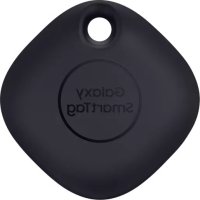
EIT5300 - Connected object locator SAMSUNG - Free user manual and instructions
Find the device manual for free EIT5300 SAMSUNG in PDF.
 FR
FR
 BG
BG
 CS
CS
 DA
DA
 DE
DE
 EL
EL
 EN
EN
 ES
ES
 ET
ET
 FI
FI
 HU
HU
 ID
ID
 IT
IT
 KK
KK
 KO
KO
 LT
LT
 LV
LV
 NL
NL
 NO
NO
 PL
PL
 PT
PT
 RO
RO
 RU
RU
 SK
SK
 SL
SL
 SV
SV
 TR
TR
 UK
UK
 ZH
ZH
| Brand | Samsung |
| Model | EIT5300 |
| Product type | Connected object locator (Galaxy SmartTag) |
| Connection technology | Bluetooth Low Energy (BLE) |
| Power supply | 1 CR2032 button cell battery (non-rechargeable) |
| Estimated battery life | Approximately 1 year (depending on usage) |
| Main functions | Localization via GPS/WiFi, sound trigger, signal strength search, AR effect (with compatible model), button automation, reverse smartphone location |
| Bluetooth range | Approximately 100 meters in open field |
| Weather resistance | IP53 rating (dust and splash protection) |
| Dimensions (approx.) | 40 x 40 x 9 mm |
| Weight (approx.) | 13 g (with battery) |
| Compatibility | Samsung mobile devices running Android 8.0 or later with SmartThings app |
| Included accessories | SmartTag, Quick Start Guide |
| Maintenance and cleaning | Wipe with a soft, dry cloth. Do not use chemicals. |
| Safety | Contains a button cell battery. Keep out of reach of children. Do not swallow, disassemble or expose to excessive heat. |
| Spare parts and repairability | CR2032 battery user-replaceable. Other parts not repairable. |
| General information | Requires SmartThings app and Samsung account. Works with Samsung Find network. Can be used as a remote for automations. |
Frequently Asked Questions - EIT5300 SAMSUNG
User questions about EIT5300 SAMSUNG
0 question about this device. Answer the ones you know or ask your own.
Ask a new question about this device
Download the instructions for your Connected object locator in PDF format for free! Find your manual EIT5300 - SAMSUNG and take your electronic device back in hand. On this page are published all the documents necessary for the use of your device. EIT5300 by SAMSUNG.
USER MANUAL EIT5300 SAMSUNG
The Galaxy SmartTag/SmartTag+ is a device that can be attached to pets or objects in order to prevent their loss and to stay updated on their location. You can also launch automation features through the SmartTag using its button.
Connect a SmartTag to your mobile device through the SmartThings app to check the location of the device and get information about where the device was lost.
Read me first
Please read this manual before using the device to ensure safe and proper use.
- Descriptions are based on the device's default settings.
- Some content may differ from your device depending on the region, service provider, model specifications, or device's software.
- Software, sound sources, wallpapers, images, and other media provided with this device are licensed for limited use. Extracting and using these materials for commercial or other purposes is an infringement of copyright laws. Users are entirely responsible for illegal use of media.
- Default apps that come with the device are subject to updates and may no longer be supported without prior notice. If you have questions about an app provided with the device, contact a Samsung Service Center.
- Modifying the device's operating system or installing softwares from unofficial sources may result in device malfunctions and data corruption or loss. These actions are violations of your Samsung licence agreement and will void your warranty.
- Do not use your SmartTag in a hot environment of near a fire.
- Do not swallow or disassemble any battery, chemical burn hazard.
-
This product contains a button cell battery. Do not swallow the battery. Swallowing the battery can result in severe internal burns within just 2 hours and death in severe cases.
-
Keep batteries away from infants and children. If the battery compartment does not close securely, stop using the product and keep it away from infants and children. If you think the batteries might have been swallowed or inserted inside any part of the body, seek immediate medical attention.
- This product includes certain free/open source software. To see the instructions for viewing the open source licence, go to the Samsung website (opensource.samsung.com).
- The use of mobile devices on aeroplanes or ships may be subject to federal and local guidelines and restrictions. Check with the appropriate authorities and always follow crew instructions regarding when and how you may use your device. (EI-T7300)
Instructional icons

Warning: situations that could cause injury to yourself or others

Caution: situations that could cause damage to your device or other equipment

Notice: notes, usage tips, or additional information
Device layout
Package contents
- SmartTag
- Quick Start Guide

- The items supplied with the SmartTag and any available accessories may vary depending on the region or service provider.
- The supplied items are designed only for this device and may not be compatible with other devices.
- Appearances and specifications are subject to change without prior notice.
- You can purchase additional accessories from your local Samsung retailer. Make sure they are compatible with the device before purchase.
- Use only Samsung-approved accessories. Using unapproved accessories may cause the performance problems and malfunctions that are not covered by the warranty.
- Availability of all accessories is subject to change depending entirely on manufacturing companies. For more information about available accessories, refer to the Samsung website.
Device layout
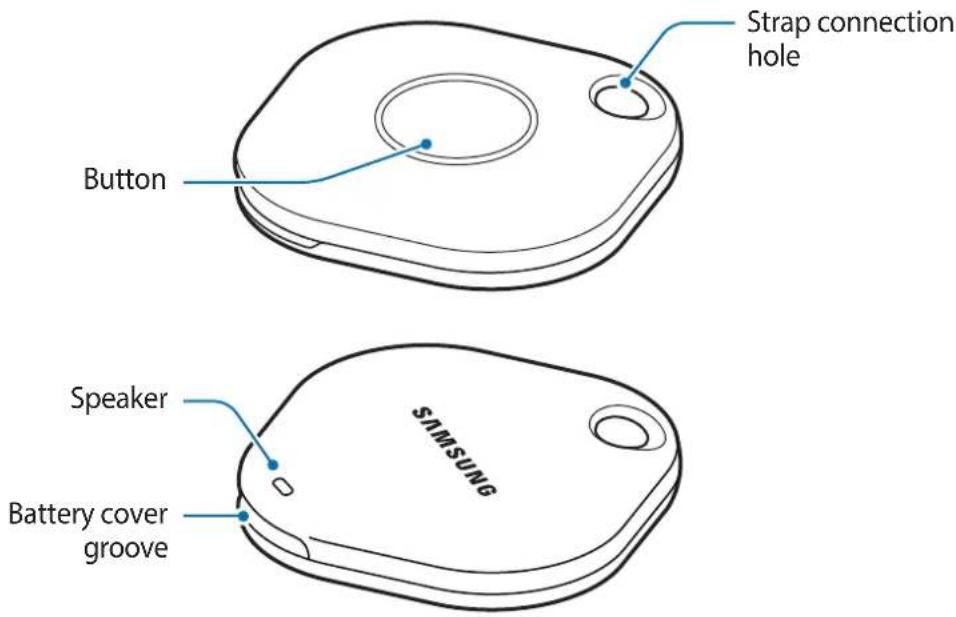
text_image
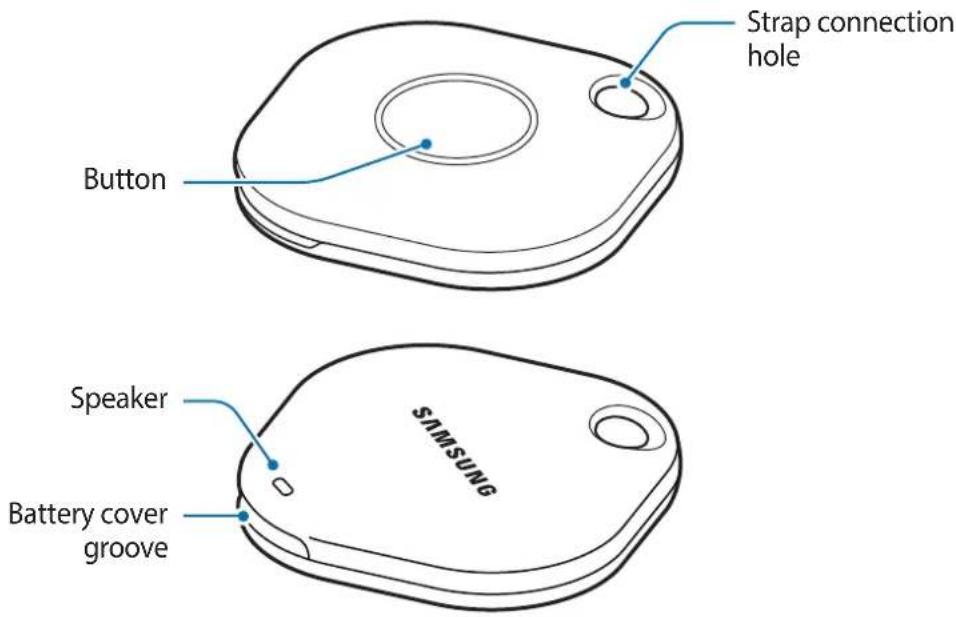
Strap connection hole Button Speaker Battery cover groove SAMSUNGButton
| Button Function | |
| Button | Press to turn off the SmartTag alerts notification sound when it rings.Press twice to find the mobile device connected to the SmartTag.Press or press and hold to launch the automation feature you set. |
Replacing a battery
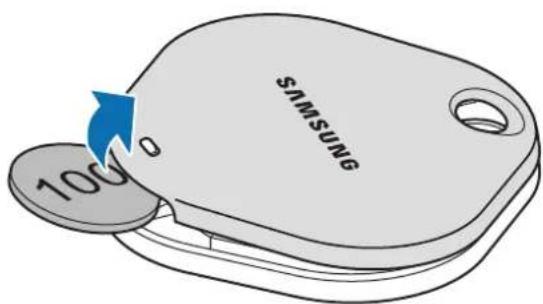
1 Open the battery cover groove using a coin.
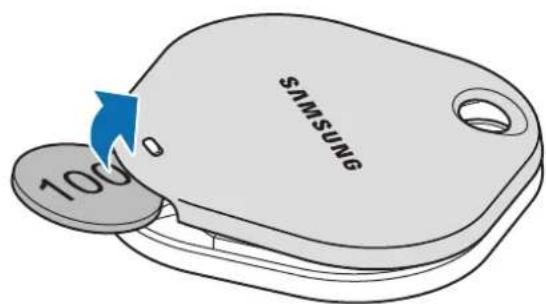
text_image
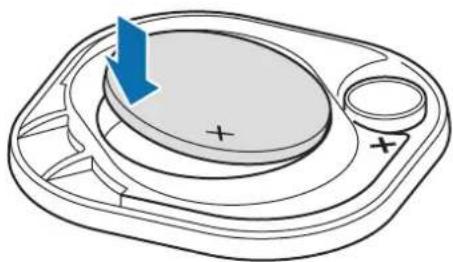
SAMSUNG 100°2 Insert the battery with the positive terminal properly aligned with the + symbol inside the SmartTag.
natural_image
Diagram of a mechanical component with a blue arrow pointing to a circular feature, no text or symbols present3 Place the battery cover over the SmartTag and press on the battery cover until it clicks into place.

Be careful to not hurt your finger or fingernail when opening the battery cover groove while replacing the battery.

- When the battery is discharged, replace the battery.
• Do not recharge the provided battery.
Before using the SmartTag
Installing the SmartThings app on your mobile device
Before using a SmartTag, you should install the SmartThings app on your mobile device.
Depending on your mobile device, you can download the SmartThings app from the following places:
• Samsung Android mobile devices: Galaxy Store, Play Store

- You cannot install the SmartThings app on mobile devices that do not support SmartTags syncing. Ensure that your mobile device is compatible with the SmartTags.
- You must register and sign in to your Samsung account to use the SmartThings app.
Connecting SmartTags to a mobile device
1 Launch the SmartThings app on your mobile device.
Update the SmartThings app to the latest version.
2 Press the button of the SmartTag.
The SmartTag will make a sound and be activated.
3 When the pop-up window informing that your SmartTag is detected appears on your mobile device, tap Add now.
If the connection pop-up window does not appear, select +→ Device → Tag/Tracker.
4 Follow the on-screen instructions to complete the connection.
When the connection is complete, your SmartTag will appear in the list of devices in the SmartThings app.
5 On the SmartThings app screen, tap SmartThings Find to download additional plugins.
When the download is complete, the current location of the device will be displayed on the map.
Connecting SmartTags by scanning the QR code
You can also connect a SmartTag to your mobile device by scanning its QR code.
1 Launch the SmartThings app on your mobile device.
2 Select +→ Device → Scan QR code to scan the QR code on the box.
3 Follow the on-screen instructions to complete the connection.
When the connection is complete, the SmartTag will appear in the list of devices in the SmartThings app.
4 On the SmartThings app screen, tap SmartThings Find to download additional plugins. When the download is complete, the current location of the device will be displayed on the map.

- If you are registering a SmartTag for the first time, the registration process may not be smooth depending on the surrounding environment. You may have to try 2-3 times before successfully completing registration.
• Supported features may differ depending on the mobile device and software version. - You can use SmartThings Find only on Samsung mobile devices that run Android 8.0 or later, as well as Samsung mobile devices that support the Find My Mobile feature.
- The SmartTag is a wireless communication device, and performance may be degraded when multiple devices are connected simultaneously.
Using the SmartTag
Viewing a SmartTag's location
You can remotely view your SmartTag's location from the SmartThings app on your mobile device and find its location by triggering a notification sound on the SmartTag.
1 Launch the SmartThings app on your mobile device.
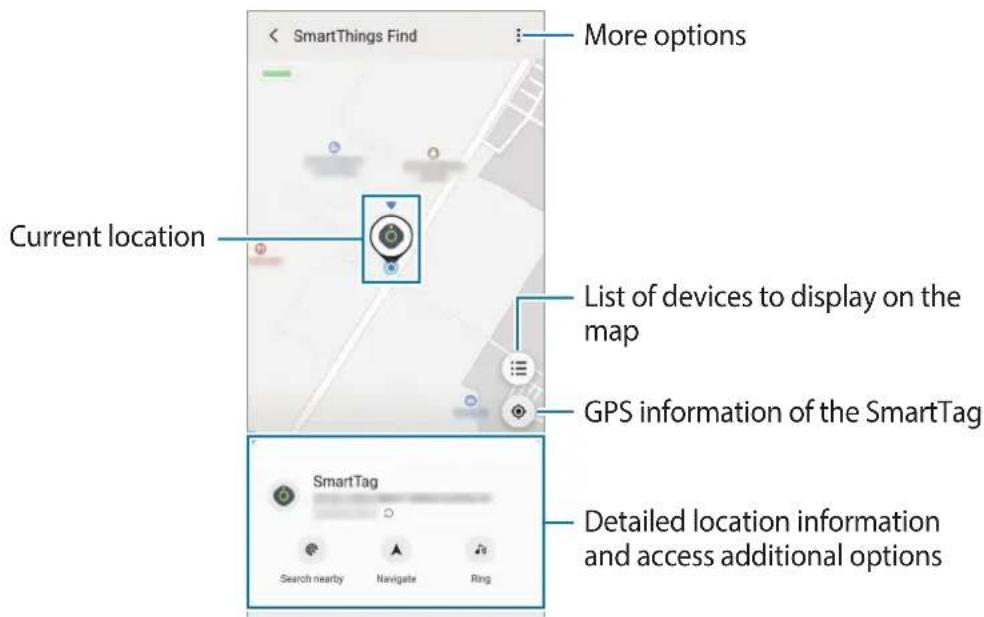
2 Tap on your SmartTag card and tap View map. Alternatively, tap SmartThings Find. The current location of the device will be displayed on the map.

- The location of the SmartTag is based on GPS and Wi-Fi positioning results of the mobile device connected to the SmartTag or the nearby Android mobile device, which may have some errors due to things like the surrounding environment or GPS failure.
- If the current location of the SmartTag does not appear, the SmartTag's battery has been discharged or has not been discovered by an Android mobile device that can check the SmartTag's location information. Activate the related feature to get notifications of the SmartTag's location information.
- The SmartTag's usage time may vary depending on the user's environment and the usage pattern.
• The Ultra-Wideband (UWB) feature may not be available depending on the region.
text_image
SmartThings Find More options Current location List of devices to display on the map GPS information of the SmartTag SmartTag Search nearby Navigate Ring Detailed location information and access additional optionsSearching for the SmartTag location with a notification sound
You can find the SmartTag's location by triggering a notification sound.
1 Launch the SmartThings app on your mobile device.
2 Tap SmartThings Find.
3 Tap Ring → Start.
The SmartTag alerts notification will sound.
To turn off the notification sound, follow the on-screen instructions to turn off notifications or press the SmartTag's action button once.
Searching for the SmartTag location by signal strength
You can find the SmartTag's location by detecting its signal strength.
1 Launch the SmartThings app on your mobile device.
2 Tap SmartThings Find → Search nearby.
The signal screen of the SmartTag you are looking for will appear. The closer you are to the location of the SmartTag you are looking for, the stronger the signal strength indicated on the screen will be.
You can trigger the SmartTag alerts notification sound by tapping ⏻.
Searching for the SmartTag location with the AR effect (EI-T7300)
You can find the SmartTag's location by using AR related features.
1 Launch the SmartThings app on your mobile device.
2 Tap SmartThings Find → Search nearby → Find using camera.
3 Scan the nearby area.
If your SmartTag is nearby, the AR effect will appear in the location of the SmartTag you are looking for.
You can trigger the SmartTag alerts notification sound by tapping 🎨.
Getting SmartTag location guidance
If your SmartTag is lost or far away from you, you may be directed to the location where the SmartTag is located.
1 Launch the SmartThings app on your mobile device.
2 Tap SmartThings Find → Navigate.
Directions to the place where the SmartTag is located will begin.

If a supported navigation app is not installed on your mobile device, install the desired app from the list of supported navigation apps first and get directions.
Finding mobile devices
If you do not see your mobile device nearby, the SmartTag can help you find it.
Press the SmartTag's action button twice.
The mobile device connected to the SmartTag will sound its ringtone.
To turn off the ringtone on your mobile device, follow the on-screen instructions to turn off the ringtone.

- This feature is not available when the SmartTag and mobile device are not connected.
- This feature is available when the Let tag find your device feature is activated.
Using the automation feature
When the SmartTag is connected to a mobile device, you can launch the automation feature by pressing or pressing and holding the SmartTag button.
1 Launch the SmartThings app on your mobile device.
2 After tapping on your SmartTag card, select an option under Use button for automations.
3 Tap + and follow the on-screen instructions to add an action.
When you press or press and hold the SmartTag button, the automation action you set will be launched.
Managing automation features
Launch the SmartThings app on your mobile device, tap on your SmartTag card, and then select an option under Use button for automations. The automation action you added appears.
To edit an action, tap the action you want to edit, edit the details, and then tap Save → Save.
To delete an action, tap — next to the action you want to delete.
Configuring the SmartTag
Adding to Home screen
If you use the SmartTag frequently, you can run it by adding a shortcut to the Home screen of your mobile device.
1 Launch the SmartThings app on your mobile device.
2 Tap on your SmartTag card.
3 Tap:→ Edit → Add to Home screen.
4 Tap and hold the icon on the screen or tap Add. The shortcut will be added to your mobile device's home screen.
Setting devices to display on the map
You can choose which devices to display on the SmartThings Find map.
1 Launch the SmartThings app on your mobile device.
2 Tap SmartThings Find → ≡ → Show/hide devices.
Your SmartTag and a list of all the devices added to Find My Mobile through your Samsung account will appear.
3 Select a device to display on the SmartThings Find map, and then tap Save.
General settings
You can view the information related to the SmartTag and change various settings.
1 Launch the SmartThings app on your mobile device.
2 Tap on your SmartTag card.
Status
You can view the location status of the SmartTag.
Tap View map to view the detailed location information of the SmartTag.
Let tag find your device
If you do not see your mobile device nearby, the SmartTag will help to find it.
Tap the switch to activate it. Refer to Finding mobile devices for more information.
Use button for automations
When the SmartTag is connected to a mobile device, you can launch the automation feature by pressing or pressing and holding the SmartTag button. Refer to Using the automation feature for more information.
Volume
Adjusts the volume of the SmartTag.
Tap Volume to select an option you want. You can also tap ☑ to make the SmartTag alert a notification sound.
Ringtone
Change the notification sound that the SmartTag emit when you are looking for the SmartTag's location.
Tap Ringtone to select the notification sound you want.
Battery
You can view the battery level of the SmartTag. You can also view the battery information by tapping ⓘ.
Editing
Tap:→ Edit.
Editing a SmartTag name
You can check the location and room where your SmartTag is set and change its name.
After changing the SmartTag name, tap Save.
Add to Home screen
If you use the SmartTag frequently, you can run it by adding a shortcut to the Home screen of your mobile device.
Tap Add to Home screen. Refer to Adding to Home screen for more information.
Delete device
You can register a SmartTag with another Samsung account by deleting it.
Tap Delete device. The SmartTag will be reset.
Configuring SmartThings Find
You can change various settings related to SmartThings Find.
1 Launch the SmartThings app on your mobile device.
2 Tap SmartThings Find → ⋮ → Settings.
Allow devices to be found
You can select the device you want to find and change its settings using SmartThings Find.
Encrypt offline location
When you send offline location information of your SmartTag to Find My Mobile through another device, you can encrypt the location of your SmartTag for increased security.
Tap the switch of the device on the list you want to encrypt your location information for, and then follow the on-screen instructions to encrypt your location information.
Navigation app
You can set and download the default navigation app to use when you are guided to the place where the SmartTag is located.
Help
View help information to learn how to use the SmartTag and to see its related information.
1 Launch the SmartThings app on your mobile device.
2 Tap on your SmartTag card.
3 Tap:→ Help.
SmartTag information
You can view the SmartTag's software information.
1 Launch the SmartThings app on your mobile device.
2 Tap on your SmartTag card.
3 Tap:→ Information.
Appendix
Troubleshooting
Before contacting a Samsung Service Center, please attempt the following solutions. Some situations may not apply to your SmartTag.
SmartTag does not turn on
- When the battery is completely discharged, your device will not turn on. Check the battery before using the SmartTag.
- The battery may not be inserted properly. Insert the battery again.
• After wiping the terminals, try reinserting the battery.
SmartTag freezes or encounters an error
Try the following solutions. If the problem is still not resolved, contact a Samsung Service Center.
Restarting the SmartTag
If the SmartTag keeps freezing or slowing down, remove the battery and reinsert it.
Forcing restart
If the SmartTag is frozen and unresponsive, you can reset the SmartTag.
First remove the battery by opening the battery cover groove. After pressing and releasing the button once, insert the battery while pressing the button again and hold it for 5 seconds until the SmartTag makes a sound.
If the battery has not been properly recognised, the SmartTag will make a sound immediately after inserting the battery. If this happens, try the above method again.
Another Bluetooth device cannot locate your SmartTag
- Ensure that the device you wish to connect with is ready to be scanned or connected to.
- The location of the SmartTag is based on the GPS and Wi-Fi positioning results of the device connected to the SmartTag, and some errors may occur due to the surrounding environment or GPS failure. Make sure that the device you want to connect to your SmartTag is nearby.
- Reset your SmartTag and try again.
If the tips above do not solve the problem, contact a Samsung Service Centre.
You cannot find your SmartTag's current location
GPS signals may be obstructed in some locations, such as indoors. Set the mobile device connected to the SmartTag to use Wi-Fi or a mobile network to find the current location in these situations.
A small gap appears around the outside of the SmartTag
- This gap is a necessary manufacturing feature and some minor rocking or vibration of parts may occur.
• Over time, friction between parts may cause this gap to expand slightly.
Copyright
Copyright © 2021 Samsung Electronics Co., Ltd.
This manual is protected under international copyright laws.
No part of this manual may be reproduced, distributed, translated, or transmitted in any form or by any means, electronic or mechanical, including photocopying, recording, or storing in any information storage and retrieval system.
Trademarks
- SAMSUNG and the SAMSUNG logo are registered trademarks of Samsung Electronics Co., Ltd.
- Bluetooth ^ is a registered trademark of Bluetooth SIG, Inc. worldwide.
- Wi-Fi ^ , Wi-Fi Protected Setup ^TM , Wi-Fi Direct ^TM , Wi-Fi CERTIFIED ^TM , and the Wi-Fi logo are registered trademarks of the Wi-Fi Alliance.
• All other trademarks and copyrights are the property of their respective owners.
Démarrage
À propos de Galaxy SmartTag/SmartTag+
natural_image
Diagram of a mechanical component with a blue arrow pointing to a circular feature, no text or symbols presentCopyright © 2021 Samsung Electronics Co., Ltd.
natural_image
Diagram of a mechanical component with a blue arrow indicating direction, no text or symbols presentCopyright © 2021 Samsung Electronics Co., Ltd.
natural_image
Diagram of a device with a blue arrow pointing to a circular component, no text or symbols presentCopyright © 2021 Samsung Electronics Co., Ltd.
natural_image
Diagram of a device casing with a blue arrow indicating direction, showing internal components and a plus/minus signs (no text or symbols)Copyright © 2021 Samsung Electronics Co., Ltd.
natural_image
Diagram of a mechanical component with a blue arrow pointing to a circular feature, no text or symbols present.Copyright © 2021 Samsung Electronics Co., Ltd.
natural_image
Diagram of a device with a blue arrow pointing to a circular component, no text or symbols presentCopyright © 2021 Samsung Electronics Co., Ltd.
natural_image
Diagram of a device casing with a blue arrow indicating direction, showing internal components and a plus/minus signs (no text or symbols)natural_image
3D diagram of a mechanical component with a blue arrow pointing to a circular feature, no text or symbols presentCopyright © 2021 Samsung Electronics Co., Ltd.
natural_image
Diagram of a circular device with a blue arrow pointing to its top surface, surrounded by a control panel (no text or symbols)Copyright © 2021 Samsung Electronics Co., Ltd.
natural_image
Diagram of a circular device with a blue arrow pointing to its top surface, surrounded by a control panel (no text or symbols)3 Stavite poklopac baterije preko SmartTag-a i pritisnite poklopac baterije dok ne klikne na svoje mesto.

Vodite računa da ne povredite prst ili nokat prilikom otvaranja poklopca baterije tokom zamene baterije.

• Zamenite bateriju kada se isprazni.
Copyright © 2021 Samsung Electronics Co., Ltd.
Ovaj priručnik je zaštićen međunarodnim zakonima o autorskim pravima.
Nijedan deo ovog priručnika se ne sme reprodukovati, distribuirati, prevoditi niti prenositi ni u jednom obliku niti bilo kojim putem, elektronskim niti mehaničkim, što podrazumeva fotokopiranje, snimanje i skladištenje u okviru bilo kog skladišta informacija i sistema za preuzimanje.
Trgovačke marke
- SAMSUNG i SAMSUNG logotip predstavljaju registrovane žigove kompanije Samsung Electronics Co., Ltd.
- Bluetooth® je registrovana trgovačka marka kompanije „Bluetooth SIG, Inc.“ širom sveta.
- Wi-Fi®, Wi-Fi Protected Setup™, Wi-Fi Direct™, Wi-Fi CERTIFIED™, i Wi-Fi logotip su registrovani zaštitni znaci Wi-Fi Alliance.
- Sve ostale trgovačke marke i autorska prava su vlasništvo njihovih vlasnika.
Começar
Acerca da Galaxy SmartTag/SmartTag+
natural_image
Diagram of a device casing with a blue arrow pointing to a circular component, no text or symbols presentCopyright © 2021 Samsung Electronics Co., Ltd.
Este manual está protegido pelas leis internacionais de copyright.
natural_image
Diagram of a circular device with a blue arrow pointing to its top surface, surrounded by a panel and control knob (no text or symbols)3 Uzlieciet uz SmartTag baterijas pârsegu un iebîdiet to atpakal, lîdz dzirdat klikški.
natural_image
Diagram of a circular device with a blue arrow pointing to its top surface, surrounded by a control panel (no text or symbols)natural_image
Diagram of a circular device with a blue arrow pointing to its top surface, surrounded by a control panel (no text or symbols)2 Toksake SmartThings Find → ⋮→ Seaded.
Seadmete leidmise lubamine
Copyright © 2021 Samsung Electronics Co., Ltd.
natural_image
Diagram of a device casing with a blue arrow pointing to a circular component, no text or symbols present.Copyright © 2021 Samsung Electronics Co., Ltd.
natural_image
Diagram of a circular device with a blue arrow pointing to its top surface, showing internal components and a plus/minus signs (no text or symbols present)Copyright © 2021 Samsung Electronics Co., Ltd.
natural_image
Diagram of a circular device with a blue arrow pointing to its top surface, showing internal components and a plus/minus signs (no text or symbols present)natural_image
Diagram of a circular device with a blue arrow pointing to its top surface, no text or symbols present.Copyright © 2021 Samsung Electronics Co., Ltd.
natural_image
Diagram of a circular device with a blue arrow pointing to its top surface, showing internal components and a plus/minus signs (no text or symbols present)natural_image
Diagram of a mechanical component with a blue arrow pointing to a circular feature, no text or symbols presentnatural_image
Diagram of a circular device with a blue arrow pointing to its top surface, no text or symbols present.3 Namestite pokrov baterije na napravo SmartTag in ga potisnite nazaj, dokler se ne zaskoči na svoje na mesto.

natural_image
Diagram of a device casing with a blue arrow pointing to a circular component, no text or symbols present3 Položte kryt batérie na zariadenie SmartTag a zatlačte na kryt batérie, aby zacvakol na miesto.

Copyright © 2021 Samsung Electronics Co., Ltd.
natural_image
Diagram of a device with a blue arrow pointing to a circular component, no text or symbols presentCopyright © 2021 Samsung Electronics Co., Ltd.
natural_image
Diagram of a circular device with a blue arrow pointing to its top surface, showing internal components and a plus/minus signs (no text or symbols present)Telif hakki © 2021 Samsung Electronics Co., Ltd.
natural_image
Diagram of a mechanical component with a blue arrow indicating direction, no text or symbols presentCopyright © 2021 Samsung Electronics Co., Ltd.
natural_image
Diagram of a mechanical component with a blue arrow pointing to a circular feature, no text or symbols presentnatural_image
Diagram of a device control panel with a blue arrow pointing to a circular component (no text or symbols)natural_image
Diagram of a device casing with a blue arrow pointing to a circular component, no text or symbols presentCopyright © 2021 Samsung Electronics Co., Ltd.
olerance that is in the
natural_image
Diagram of a device casing with a blue arrow pointing to a circular component, no text or symbols present.© Samsung Electronics Co., Ltd., 2021.
natural_image
3D diagram of a mechanical component with a blue arrow pointing to a circular feature, no text or symbols presentnatural_image
Diagram of a device casing with a blue arrow pointing to a circular component, no text or symbols present.Copyright © 2021 Samsung Electronics Co., Ltd.
The Galaxy SmartTag/SmartTag+ is a device that can be attached to pets or objects in order to prevent their loss and to stay updated on their location. You can also launch automation features through the SmartTag using its button.
Connect a SmartTag to your mobile device through the SmartThings app to check the location of the device and get information about where the device was lost.
Read me first
Please read this manual before using the device to ensure safe and proper use.
- Descriptions are based on the device's default settings.
- Some content may differ from your device depending on the region, service provider, model specifications, or device's software.
- Software, sound sources, wallpapers, images, and other media provided with this device are licensed for limited use. Extracting and using these materials for commercial or other purposes is an infringement of copyright laws. Users are entirely responsible for illegal use of media.
- Default apps that come with the device are subject to updates and may no longer be supported without prior notice. If you have questions about an app provided with the device, contact a Samsung Service Center.
- Modifying the device's operating system or installing softwares from unofficial sources may result in device malfunctions and data corruption or loss. These actions are violations of your Samsung license agreement and will void your warranty.
- Do not use your SmartTag in a hot environment of near a fire.
- Do not swallow or disassemble any battery, chemical burn hazard.
-
This product contains a button cell battery. Do not swallow the battery. Swallowing the battery can result in severe internal burns within just 2 hours and death in severe cases.
-
Keep batteries away from infants and children. If the battery compartment does not close securely, stop using the product and keep it away from infants and children. If you think the batteries might have been swallowed or inserted inside any part of the body, seek immediate medical attention.
- This product includes certain free/open source software. To see the instructions for viewing the open source license, go to the Samsung website (opensource.samsung.com).
- The use of mobile devices on an aircraft or a ship may be subject to federal and local guidelines and restrictions. Check with appropriate authorities and always follow crew instructions regarding when and how you may use your device. (EI-T7300)
- The Ultra-Wideband (UWB) feature is available only on Samsung compatible mobile devices. (EI-T7300)
Instructional icons
Warning: situations that could cause injury to yourself or others
Caution: situations that could cause damage to your device or other equipment
Notice: notes, usage tips, or additional information
Device layout
Package contents
- SmartTag
- Quick Start Guide
- The items supplied with the SmartTag and any available accessories may vary depending on the region or service provider.
- The supplied items are designed only for this device and may not be compatible with other devices.
- Appearances and specifications are subject to change without prior notice.
- You can purchase additional accessories from your local Samsung retailer. Make sure they are compatible with the device before purchase.
- Use only Samsung-approved accessories. Using unapproved accessories may cause the performance problems and malfunctions that are not covered by the warranty.
- Availability of all accessories is subject to change depending entirely on manufacturing companies. For more information about available accessories, refer to the Samsung website.
Device layout
text_image
Strap connection hole Button Speaker Battery cover groove SAMSUNGButton
| Button Function | |
| Button | Press to turn off the SmartTag alerts notification sound when it rings.Press twice to find the mobile device connected to the SmartTag.Press or press and hold to launch the automation feature you set. |
Replacing a battery
1 Open the battery cover groove using a coin.
text_image
SAMSUNG 100°2 Insert the battery with the positive terminal properly aligned with the + symbol inside the SmartTag.
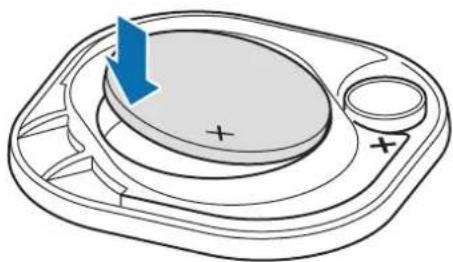
natural_image
Diagram of a device casing with a blue arrow pointing to a circular component, no text or symbols present.3 Place the battery cover over the SmartTag and press on the battery cover until it clicks into place.

Be careful to not hurt your finger or fingernail when opening the battery cover groove while replacing the battery.

- When the battery is discharged, replace the battery.
• Do not recharge the provided battery.
Before using the SmartTag
Installing the SmartThings app on your mobile device
Before using a SmartTag, you should install the SmartThings app on your mobile device.
Depending on your mobile device, you can download the SmartThings app from the following places:
• Samsung Android mobile devices: Galaxy Store, Play Store

- You cannot install the SmartThings app on mobile devices that do not support SmartTags syncing. Ensure that your mobile device is compatible with the SmartTags.
- You must register and sign in to your Samsung account to use the SmartThings app.
Connecting SmartTags to a mobile device
1 Launch the SmartThings app on your mobile device.
Update the SmartThings app to the latest version.
2 Press the button of the SmartTag.
The SmartTag will make a sound and be activated.
3 When the pop-up window informing that your SmartTag is detected appears on your mobile device, tap Add now.
If the connection pop-up window does not appear, select +→ Device → Tag/Tracker.
4 Follow the on-screen instructions to complete the connection.
When the connection is complete, your SmartTag will appear in the list of devices in the SmartThings app.
5 On the SmartThings app screen, tap SmartThings Find to download additional plugins.
When the download is complete, the current location of the device will be displayed on the map.
Connecting SmartTags by scanning the QR code
You can also connect a SmartTag to your mobile device by scanning its QR code.
1 Launch the SmartThings app on your mobile device.
2 Select +→ Device → Scan QR code to scan the QR code on the box.
3 Follow the on-screen instructions to complete the connection.
When the connection is complete, the SmartTag will appear in the list of devices in the SmartThings app.
4 On the SmartThings app screen, tap SmartThings Find to download additional plugins. When the download is complete, the current location of the device will be displayed on the map.

- If you are registering a SmartTag for the first time, the registration process may not be smooth depending on the surrounding environment. You may have to try 2-3 times before successfully completing registration.
• Supported features may differ depending on the mobile device and software version. - You can use SmartThings Find only on Samsung mobile devices that run Android 8.0 or later, as well as Samsung mobile devices that support the Find My Mobile feature.
- The SmartTag is a wireless communication device, and performance may be degraded when multiple devices are connected simultaneously.
Using the SmartTag
Viewing a SmartTag's location
You can remotely view your SmartTag's location from the SmartThings app on your mobile device and find its location by triggering a notification sound on the SmartTag.
1 Launch the SmartThings app on your mobile device.
2 Tap on your SmartTag card and tap View map. Alternatively, tap SmartThings Find. The current location of the device will be displayed on the map.

- The location of the SmartTag is based on GPS and Wi-Fi positioning results of the mobile device connected to the SmartTag or the nearby Android mobile device, which may have some errors due to things like the surrounding environment or GPS failure.
- If the current location of the SmartTag does not appear, the SmartTag's battery has been discharged or has not been discovered by an Android mobile device that can check the SmartTag's location information. Activate the related feature to get notifications of the SmartTag's location information.
- The SmartTag's usage time may vary depending on the user's environment and the usage pattern.
• The Ultra-Wideband (UWB) feature may not be available depending on the region.
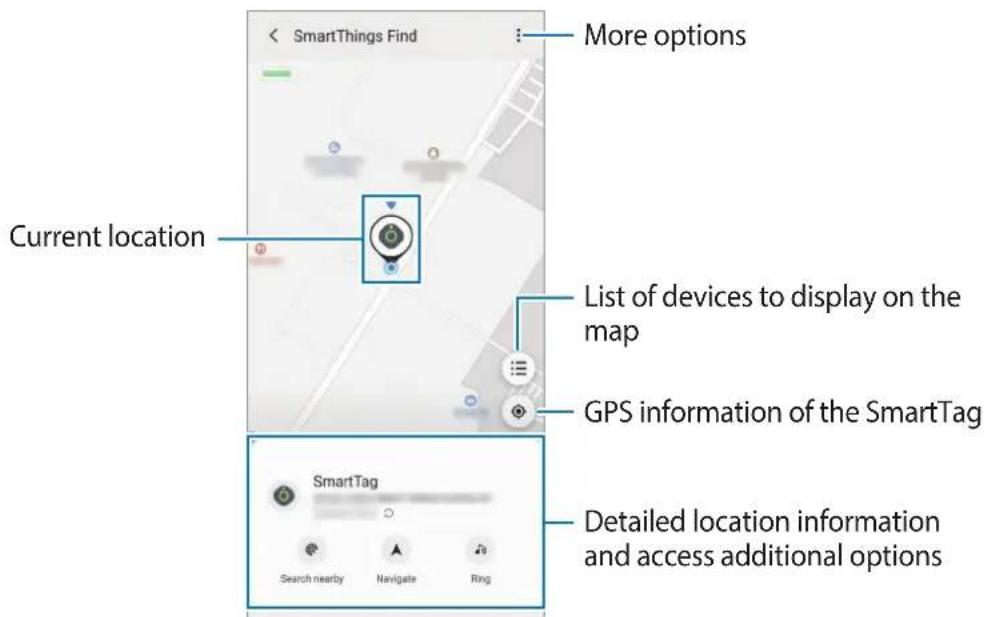
text_image
SmartThings Find More options Current location List of devices to display on the map GPS information of the SmartTag SmartTag Search nearby Navigate Ring Detailed location information and access additional optionsSearching for the SmartTag location with a notification sound
You can find the SmartTag's location by triggering a notification sound.
1 Launch the SmartThings app on your mobile device.
2 Tap SmartThings Find.
3 Tap Ring → Start.
The SmartTag alerts notification will sound.
To turn off the notification sound, follow the on-screen instructions to turn off notifications or press the SmartTag's action button once.
Searching for the SmartTag location by signal strength
You can find the SmartTag's location by detecting its signal strength.
1 Launch the SmartThings app on your mobile device.
2 Tap SmartThings Find → Search nearby.
The signal screen of the SmartTag you are looking for will appear. The closer you are to the location of the SmartTag you are looking for, the stronger the signal strength indicated on the screen will be.
You can trigger the SmartTag alerts notification sound by tapping ⏻.
Searching for the SmartTag location with the AR effect (EI-T7300)
You can find the SmartTag's location by using AR related features.
1 Launch the SmartThings app on your mobile device.
2 Tap SmartThings Find → Search nearby → Find using camera.
3 Scan the nearby area.
If your SmartTag is nearby, the AR effect will appear in the location of the SmartTag you are looking for.
You can trigger the SmartTag alerts notification sound by tapping 🎨.
Getting SmartTag location guidance
If your SmartTag is lost or far away from you, you may be directed to the location where the SmartTag is located.
1 Launch the SmartThings app on your mobile device.
2 Tap SmartThings Find → Navigate.
Directions to the place where the SmartTag is located will begin.

If a supported navigation app is not installed on your mobile device, install the desired app from the list of supported navigation apps first and get directions.
Finding mobile devices
If you do not see your mobile device nearby, the SmartTag can help you find it.
Press the SmartTag's action button twice.
The mobile device connected to the SmartTag will sound its ringtone.
To turn off the ringtone on your mobile device, follow the on-screen instructions to turn off the ringtone.

- This feature is not available when the SmartTag and mobile device are not connected.
- This feature is available when the Let tag find your device feature is activated.
Using the automation feature
When the SmartTag is connected to a mobile device, you can launch the automation feature by pressing or pressing and holding the SmartTag button.
1 Launch the SmartThings app on your mobile device.
2 After tapping on your SmartTag card, select an option under Use button for automations.
3 Tap + and follow the on-screen instructions to add an action.
When you press or press and hold the SmartTag button, the automation action you set will be launched.
Managing automation features
Launch the SmartThings app on your mobile device, tap on your SmartTag card, and then select an option under Use button for automations. The automation action you added appears.
To edit an action, tap the action you want to edit, edit the details, and then tap Save → Save.
To delete an action, tap — next to the action you want to delete.
Configuring the SmartTag
Adding to Home screen
If you use the SmartTag frequently, you can run it by adding a shortcut to the Home screen of your mobile device.
1 Launch the SmartThings app on your mobile device.
2 Tap on your SmartTag card.
3 Tap:→ Edit → Add to Home screen.
4 Tap and hold the icon on the screen or tap Add. The shortcut will be added to your mobile device's home screen.
Setting devices to display on the map
You can choose which devices to display on the SmartThings Find map.
1 Launch the SmartThings app on your mobile device.
2 Tap SmartThings Find → ≡ → Show/hide devices.
Your SmartTag and a list of all the devices added to Find My Mobile through your Samsung account will appear.
3 Select a device to display on the SmartThings Find map, and then tap Save.
General settings
You can view the information related to the SmartTag and change various settings.
1 Launch the SmartThings app on your mobile device.
2 Tap on your SmartTag card.
Status
You can view the location status of the SmartTag.
Tap View map to view the detailed location information of the SmartTag.
Let tag find your device
If you do not see your mobile device nearby, the SmartTag will help to find it.
Tap the switch to activate it. Refer to Finding mobile devices for more information.
Use button for automations
When the SmartTag is connected to a mobile device, you can launch the automation feature by pressing or pressing and holding the SmartTag button. Refer to Using the automation feature for more information.
Volume
Adjusts the volume of the SmartTag.
Tap Volume to select an option you want. You can also tap to make the SmartTag alert a notification sound.
Ringtone
Change the notification sound that the SmartTag emit when you are looking for the SmartTag's location.
Tap Ringtone to select the notification sound you want.
Battery
You can view the battery level of the SmartTag. You can also view the battery information by tapping ⓘ.
Editing
Tap:→ Edit.
Editing a SmartTag name
You can check the location and room where your SmartTag is set and change its name.
After changing the SmartTag name, tap Save.
Add to Home screen
If you use the SmartTag frequently, you can run it by adding a shortcut to the Home screen of your mobile device.
Tap Add to Home screen. Refer to Adding to Home screen for more information.
Delete device
You can register a SmartTag with another Samsung account by deleting it.
Tap Delete device. The SmartTag will be reset.
Configuring SmartThings Find
You can change various settings related to SmartThings Find.
1 Launch the SmartThings app on your mobile device.
2 Tap SmartThings Find → ⋮ → Settings.
Allow devices to be found
You can select the device you want to find and change its settings using SmartThings Find.
Encrypt offline location
When you send offline location information of your SmartTag to Find My Mobile through another device, you can encrypt the location of your SmartTag for increased security.
Tap the switch of the device on the list you want to encrypt your location information for, and then follow the on-screen instructions to encrypt your location information.
Navigation app
You can set and download the default navigation app to use when you are guided to the place where the SmartTag is located.
Help
View help information to learn how to use the SmartTag and to see its related information.
1 Launch the SmartThings app on your mobile device.
2 Tap on your SmartTag card.
3 Tap:→ Help.
SmartTag information
You can view the SmartTag's software information.
1 Launch the SmartThings app on your mobile device.
2 Tap on your SmartTag card.
3 Tap:→ Information.
Appendix
Troubleshooting
Before contacting a Samsung Service Center, please attempt the following solutions. Some situations may not apply to your SmartTag.
SmartTag does not turn on
- When the battery is completely discharged, your device will not turn on. Check the battery before using the SmartTag.
- The battery may not be inserted properly. Insert the battery again.
• After wiping the terminals, try reinserting the battery.
SmartTag freezes or encounters an error
Try the following solutions. If the problem is still not resolved, contact a Samsung Service Center.
Restarting the SmartTag
If the SmartTag keeps freezing or slowing down, remove the battery and reinsert it.
Forcing restart
If the SmartTag is frozen and unresponsive, you can reset the SmartTag.
First remove the battery by opening the battery cover groove. After pressing and releasing the button once, insert the battery while pressing the button again and hold it for 5 seconds until the SmartTag makes a sound.
If the battery has not been properly recognized, the SmartTag will make a sound immediately after inserting the battery. If this happens, try the above method again.
Another Bluetooth device cannot locate your SmartTag
- Ensure that the device you wish to connect with is ready to be scanned or connected to.
- The location of the SmartTag is based on the GPS and Wi-Fi positioning results of the device connected to the SmartTag, and some errors may occur due to the surrounding environment or GPS failure. Make sure that the device you want to connect to your SmartTag is nearby.
- Reset your SmartTag and try again.
If the tips above do not solve the problem, contact a Samsung Service Centre.
You cannot find your SmartTag's current location
GPS signals may be obstructed in some locations, such as indoors. Set the mobile device connected to the SmartTag to use Wi-Fi or a mobile network to find the current location in these situations.
A small gap appears around the outside of the SmartTag
- This gap is a necessary manufacturing feature and some minor rocking or vibration of parts may occur.
• Over time, friction between parts may cause this gap to expand slightly.
CALIFORNIA USA ONLY
This Perchlorate warning applies only to primary CR(Manganese Dioxide) Lithium coin cells in the product sold or distributed ONLY in California USA.
"Perchlorate Material-special handling may apply, see www.dtsc.ca.gov/hazardouswaste/perchlorate."
Copyright
Copyright © 2021 Samsung Electronics Co., Ltd.
This manual is protected under international copyright laws.
No part of this manual may be reproduced, distributed, translated, or transmitted in any form or by any means, electronic or mechanical, including photocopying, recording, or storing in any information storage and retrieval system.
Trademarks
- SAMSUNG and the SAMSUNG logo are registered trademarks of Samsung Electronics Co., Ltd.
- Bluetooth ^ is a registered trademark of Bluetooth SIG, Inc. worldwide.
- Wi-Fi ^ , Wi-Fi Protected Setup ^TM , Wi-Fi Direct ^TM , Wi-Fi CERTIFIED ^TM , and the Wi-Fi logo are registered trademarks of the Wi-Fi Alliance.
• All other trademarks and copyrights are the property of their respective owners.
Para comenzar
Acerca de Galaxy SmartTag/SmartTag+
natural_image
Diagram of a device casing with a blue arrow pointing to a circular component, no text or symbols present.Copyright © 2021 Samsung Electronics Co., Ltd.
natural_image
Diagram of a device with a blue arrow pointing to a circular component, no text or symbols presentCopyright © 2021 Samsung Electronics Co., Ltd.
本手册受國際版權法保護。
natural_image
Diagram of a mechanical component with a blue arrow pointing to a circular feature, no text or symbols presentCopyright © 2021 Samsung Electronics Co., Ltd.