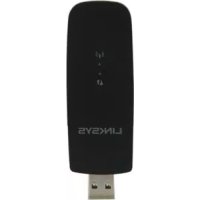
WUSB6300 - Powerline Adapter LINKSYS - Free user manual and instructions
Find the device manual for free WUSB6300 LINKSYS in PDF.



| Product Type | AC1200 Dual-Band Wireless USB Network Adapter |
| Brand | Linksys |
| Model | WUSB6300 |
| Wireless Standards | 802.11a/b/g/n/ac |
| Interface | USB 3.0 |
| Frequencies | 2.4 GHz and 5 GHz (dual band) |
| Antennas | 2 internal dual-band antennas |
| Maximum Data Rate | Up to 1200 Mbps |
| Dimensions (L x W x H) | 89 x 30 x 11 mm |
| Weight | 17 g |
| Power | USB bus-powered (powered via USB port) |
| Wireless Security | WEP, WPA/WPA2 personal and enterprise, Wi-Fi Protected Setup (WPS) |
| Encryption | Up to 128-bit |
| Configuration Button | Wi-Fi Protected Setup (WPS) Button |
| Indicators | Link/Activity and WPS/Security |
| Supported Operating Systems | Windows XP, Vista, 7, 8 (32 and 64-bit) |
| Operating Temperature | 0 to 40°C |
| Storage Temperature | -20 to 70°C |
| Operating Humidity | 10% to 85% (non-condensing) |
| Storage Humidity | 5% to 90% (non-condensing) |
| Maintenance | Unplug before cleaning. Use a soft, dry cloth. Avoid liquids. |
| Spare Parts and Repairability | Not applicable (device not repairable, no spare parts available) |
| Certifications | FCC, CE, IC, RoHS, WEEE, IDA, C-Tick |
Frequently Asked Questions - WUSB6300 LINKSYS
User questions about WUSB6300 LINKSYS
0 question about this device. Answer the ones you know or ask your own.
Ask a new question about this device
Download the instructions for your Powerline Adapter in PDF format for free! Find your manual WUSB6300 - LINKSYS and take your electronic device back in hand. On this page are published all the documents necessary for the use of your device. WUSB6300 by LINKSYS.
USER MANUAL WUSB6300 LINKSYS
Tap to choose what happens to this 3j Windows 8 p
aalaa aagaaagaaagaaagaaagaaagaaagaaagaaagaaagaaagaaagaaagaaagaaagaaagaaagaaagaaagaaagaaagaaagaaagaaagaaagaaagaaagaaagaaagaaagaaagaaagaaagaaagaaagaaagaaagaaagaaagaaagaaagaaagaaagaaagaa
(.Linksys) Set up your Linksys Adapter 3
3a 3a a a a a a a a a a a a a a a a a a a a a a a
d
Windows 8
()Computer ()Computer
Caiyail 10000000000000000000000000000000000000000000000000
.
Windows Vista 3 Windows 7
1
.DVDaljdlgaiabgaiall gaiydi ygi jai
a<1wS11 a<,
Jaiuul paii g aai all aLwUaL uall
y
3 10
4 aww "Windows 7 pss"
5 4 "Windows Vista
7 "Windows XP"
Windows 8
Settings 1234567890123456789012345678901234567890123456789012345678901234567890123456789012345678901234567890123456789
p#i#d k##j j#nll ##uNl JuaNl #
8Jai 8i jai 8i 8i 8i 8i 8i 8i 8i 8i 8i 8i 8i 8i 8i 8i 8i 8i 8i 8i 8i 8i 8i 8i 8i 8i 8i 8i 8i 8i 8i 8i 8i 8i 8i 8i
j≤L
·
Wi-Fi 1
:Wi-Fi-gocalldysplssuLyJusu
J 1
y
a≤LwSb≤,wHg≤JxLwIol
sueeall 85y jieell slln e yie zie 85uill 8pil npsul sull 13j, jusssl 5u
Aaalaa aalaa aalaa aalaa aalaa aalaa aalaa aalaa aalaa aalaa aalaa aalaa aalaa aalaa aalaa aalaa aalaa aalaa aalaa aalaa aalaa aalaa aalaa aalaa aalaa aalaa aalaa aalaa aalaa aalaa aalaa aalaa aalaa aalaa aALAA
2.

J 1
Aaalll aai jgdiag Aaslll gnnn
Windows Vista
a 1
LJUJIILIJIJIJIJIJIJIJIJIJIJIJIJIJIJIJIJIJIJIJIJIJIJIJIJIJIJIJIJIJIJIJIJIJIJIJIJIJIJIJIJIJIJIJIJIJIJIJIJIJIJIJIJIJIJIJIJIJIJIJIJIJIJIJIJIJIJIJIJIJIJIJIJIJIJIJIJIJIJIJIJIJIJIJIJIJIJIJIJIJIJIJIJIJIJIJIJIJIJIJIJIJ
y
:aiyio aySLW 5y
25Lwll 2511 jy 8 8 8 8 8 8 8 8 8 8 8 8 8 8 8 8 8
2.
aallll (WPA/WPA2)Wi-Fi 100000000000000000000000000000000000000000000000000000
Jus 1000000000000000000000000000000000000000000
a
a
jaii piaa aaoa aayaae aaiyaiyaiyaiyaiyaiyaiyaiyaiyaiyaiyaiyaiyaiyaiyaiyaiyaiyaiyaiyaiyaiyaiyaiyaiyaiyaiyaiyaiyaiyaiyaiyaiyaiyaiyaiyaiyaiyaiyaiyaiyaiyaiyaiyai
Linksys WUSB6300
aWPA/WPA2)Wi-Fi 5
aal 1
3.
5 aai jai 1uui uui uui uui uui
aalaae aee
jaii piaa aaoa aayaae aaiyaae yaaee
Linksys WUSB6300
4k > 2 时
Jusll plll l Configuration
LwJUuayyAALLcIgaiyogbi jajgjgugalljgge gge
yjui Jaii Lue aiau oaiy
6.
7 1
gai aaii aiaiy jaiiaaiaiaiaiaiaiaiaiaiaiaiaiaiaiaiaiaiaiaiaiaiaiaiaiaiaiaiaiaiaiaiaiaiaiaiaiaiaiaiaiaiaiaiaiaiaiaiaiaiaiaiaiaiaiaiaiaiaiaiaiaiai
.
J. 2001 A. 2001
jaii piaa aaoa aayaae aee aee
Linksys WUSB6300
L (WEP) aasll aalaae aagaaa aalaaa aalaaa aalaaa 4
slll aalaaa aalaaa aalaaa aalaaa aalaaa aalaaa WEP
slll aalaaa aalaaa aalaaa aalaaa aalaaa aalaaa
aLj 100000000000000000000000000000000000000000000000000000000000000
Windows XP WPA2 wWPA2 (KB893357)
iuii jiuaiy jgyloie aiao s slwll ssilj
y
:ssu 2sLuy 2sJuiy
OtctpaHЯBaHe Ha Hen3npaBHOCTn
WUSB6300 10
TexHnueckn daHHN
Linksys WUSB6300 11
O6u npereIeHa npodykTa
Bnaoradapm Bn 3a n36opa Ha DByuecToTHn 6e3xuueh mini USB aanterp AC1200.C n3no3Bahe Ha HauHOBaTa 6e3KmHa MpeKoBa texHONOrn anaTepbT Do6abRa nn Akyannnpa HAcTPOKnTe 3a 6e3xuHo Cbtp3BaHe BAaun HA Tactonennnn npneHOCOMNtbp, 6aunpa H Windows. 3a noDobpa 3aunTa H BAaHTe DaHH N OcnTyprBaHe H NOBepTeJHocMoxeTe da n3no3BaTe WnPpObaHe Ha Wi-Fi Protected Access 2 (WPA2) 3a aunHa BAaata 6e3XmHa Bpb3ka.
DyHKUIN
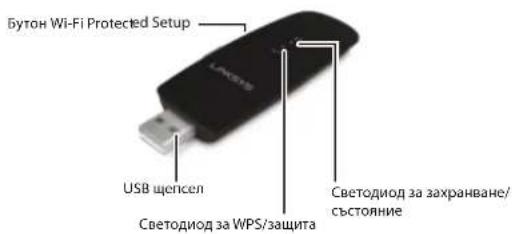
USBHaKpaHnK:CbpXeTeTo3nKpaIcbcCbo6oDeH USBnopTHa KOMNIOTpba.
CBeToOno3a3axpaHbHe/cbCTOHHe:PiPMnIRBa,KoraTo mMa 6e3KNUHO MPekOBO Cbbp3BaHe.
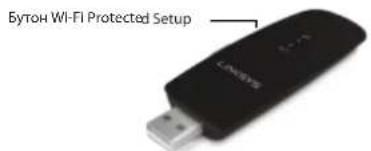
Bytoh Wi-Fi Protected SetupTM: HATNCHETe TO3N 6yTOH u 6yToHa Wi-Fi Protected Setup Ha pyTepaNN To4KaTa 3a DocTbn, 3a Da CbpxKeTe KOMnIO TBpa cn KbM 6e3KmHATA MPeka.
CBeToaNo3aWPS/3aunTt:PiKa3Ba CbCToHaMeTo Ha 3aunTata N OcInrpyraBa o6paTHa Bp3Ka No BpeMe Ha npOeDypaTa 3a yCTaHOBBAHe Ha Bp3Ka (handshaking) Ha Wi-Fi Protected Setup.
Инсталразе
B Ta3n TnaBa e onicaHa npoceDpypata 3a HnCTaJIpaH He aanTepa.
HCTaJInpaHe
3a nHCTaIpaHe Ha aadnTepe:
- NocTabete KOMnakTmckBa CD mN DVyCtpoCTBTO.
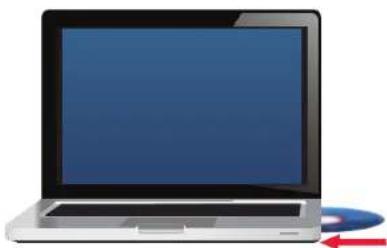
- 3a Windows 8 upaKHe T Bpxy UyKHe, 3a da u36epTe KaKBO da CTane CTo3n DcK B rOpHna Decen bTbHa eKpaHa.
- Κιρακητε Βυρχy Set up your Linksys Adapter (Hастори Ка hy aадлтep Linksys).
AHO He BIMKdTe TOBA,OTBOpTe CN DocTbN DO HaCTpOKaTa DnpeKTHO OT KOMNaKTMDCKA.3a Da HApnbTe TOBA,IN3bJIHHe cneHNHe CTbKN 3a BawaTo KAOKPeTHa ONEpaMOHHa CNTEMA:
Windows 8
a. HanuweTe KomnIOBp B rnaBHnE ekpaH, cne KoTo uPAkHeBbpxy KomnIOBp, KOrato Ce NoRnB CnncbKa PnpNoKeHH.
b. lpaKaHETe DBykPaTHo Bbpxy CD mnn DVD yctpoiCTBOTO. Windows 7 n Windows Vista
a. OTnIeTe Ha Crtp KomnIObP.
b.ⅢpaKHeIyBkPaTHo Bbpxy CD mN DVD yCtpoiCTBOTo.
Windows XP
a. HaTnCHete Cnpt, CneI ToBa MoRr KOMnHbTp.
b. IlpaKHeTe DBykPaTHo BbPxy CD mN DVD yCtpoCTBTO.
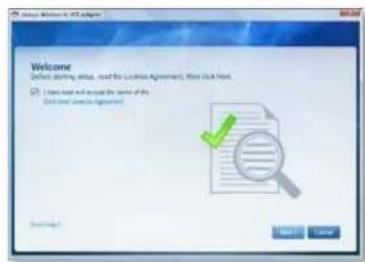
4.CnBaiTe HNCTpyKunTe HaekpaHa,3a Da 3aBbPwTe INHCTanmpaHTo Ha6e3xuHna aanTep Linksys.
3a6e9ekka
3aHNTanipane Ha aapTepa e Heo6xOIMO da n3tbnHnIte
NHCTaIIpaata NaPpama cAmo BeHbK. Cn KaTO hNtBnHITe
NHCTaIIpaata NpPpama, BaaMHT KOMNIOTb pBa3NO3ha AaTApTePA
BCEKn TbT, KOrato Toi Ce CBpb3a C USB npota Ha KOMNtbpa.
KoHfIgypaunHa 6e3xuHa mpeka
3a da KOHfmyprpate NaCTPOKNTe 3a 6e3JnHa Bpb3Ka Ha aanTepa, moKeTe Da n3NONBATE:
noaBpbKata)
BaWIMKOMNtBp
mpexa.
3auntetoHnctaInpaHe HaWi-Fi
3a da ce cbbpxe t nomouTa Ha Wi-Fi Protected Setup:
- Hatachete 6yToHa Wi-Fi Protected Setup Ha 6e3KmHnM cn pyTe, mIO3 mI TOka 3a DOCTbI.
2.BpaMKnTe Ha DBe MmHyTu HAHTncheTe N3aDpBxKTe NOHe 3a TPNceKHyDn6bTyHOa Wl-Fi Protected Setup OTCpAnu H a dAnTepa.CeToOnoNtMnroNo Bpeme Ha Cbbp3BaHe, Cne ToBa octBa Ja CBeTu NoCToRHHO, KOratoBp3Ka eYCTaHOBeHa.
CTaHapTn 802.11a,802.11b,802.11g,802.11n,802.11ac
HHTepeuc USB3.0
CBeToDIOIOBp3Ka/AKTINBHOCT,WPS
AHTeHn 2 BbTpewHn C DBOeH 06xBaT
ByToH 3aunTeHo HnctanpaHe Ha Wi-Fi
DyHKuH 3a 3auNTa WEP, WPA u WPA2 mUHa,
WPA WPA2 qnpmeHa,3aunTeHO
HCTaHaHe HaWi-Fi
KInou3a3aunTa-6ntOBe Do 128-6nTOBO uΦpOBAHe
N3nCKBaHnKaBmOCWindowsXP,WindowsVista
Windows Vista 64-6ntoBO n3dHne
Windows 7 nnn Windows 7 64-6ntoba,
Windows 8, Windows 8 64-6ntoba
Pa6oTHa cpea
Ta6apHTHn pa3Meprn 3,5" x 1,22" x 0,43" (89 x 30 x 11 mm)
Tero 0,6 yuun (17 g)
Ceptnfukatn FCC,CE,IC,RoHS,WEEEIDA,C-Tick
Wi-Fi A/B/G/N/AC
Pa6oHaTeMnepaTypa oT 32do104°F (ot 0do 40^
TemnepaTpaHa cxbpaeHne ot-4do 158°F (ot-20do 70^
Pa60THa BnaxHoCT 10do85%6e3 KOHdeH3npaHe
BnaxKHOCTa cBxpaHHeHne ot 5do 90%6e3 KOHdEHNpaHc
Cneuikkaunite noDnHexaHa npomeH 6e3 nped3BecTHe.

IoceteHaHnOToHnueHcHaPdAnCaT3aKIneHTckNaNoDpBxKka24uac/a7HbCeMnuaTaHa apec linksys.com/support.
LINKSYS
BELKIN, LINKSYS IN MHO HMeHa HnpOaYTHnOra C TaTbProBCKn MaPkn HA Tpynata DpyKecCTBaBelkin. YnomHeHtne TbproBCKn MaPkn HA TpeHn CaCobCTBeHoCT Ha CboTBeHTHe IM TPntEeKaTeHn.
2013 Belkin Systems, Inc. W/INH HeHHHe BnKn npaba 3anaeHH
LINKSYS
Wi-Fi Protected Setup 3
Konfiguračni utilita bezdrátové site 3
Wi-Fi Protected Setup
Pripojenl pomocf funkce Wi-Fi Protected Setup:
- Stisknete tlactko Wi-Fi Protected Setup na bezdratovem smerovaci, brane nebo pristupovem bodu.
- Do dvou minut stisknête a na alespón 3 sekundy podržte tlacitko Wi-Fi Protected Setup na boku adaptoréru. Bēhem priopojovani bude bilkit kontrlka LED a jakmile bude priopojen navázano, začne kontrlka tvvale svítit.
Standardly 802.11a,802.11b,802.11g,802.11n,802.11ac
Rozhrani USB 3.0
Kontrolky LED Pripojeni/aktivita, WPS
Anteny 2 interni dvoupasmove
Tlacitko Wi-Fi Protected Setup
WPA a WPA2 Enterprise, Wi-Fi Protected
Setup
Uroen zabepeceni Az 128bitovsifrovani
Požadavky na operacni systém Windows XP, Windows Vista,
Windows Vista (64bitová edice),
Windows 7 nebo Windows 7 (64bitová edice),
Windows 8, Windows 8 (64bitové)
Prostredi
Rozmery 3.5^ × 1,22^ × 0,43^ (89× 30× 11mm)
Hmotnost 17g
Certifikace FCC,CE,IC,RoHS,WEEEIDA,C-Tick.
Wi-Fi A/B/G/N/AC
Provozni teplo32a104oF(0a40C)
Skladovaci teplota -4a158oF(-20a70oC)
Wi-Fi Protected Setup 3
Wi-Fi Protected Setup
Standarder 802,11a,802,11b,802,11g,802,11n
Interface USB 3.0
LED Link/Aktivitet, WPS
Antenner 2 interne dual-band
Knap Wi-Fi Protected Setup
WPA & WPA2 Enterprise, Wi-Fi Protected Setup
Windows Vista 64-bit Edition,
Windows 7 eller Windows 7 64-bit
Windows 8, Windows 8 64-bit
Miljo
Māl 3.5" x 1.22" x 0.43" (89 x 30 x 11 mm)
Vaegt 0.6 oz (17 g)
Certificering FCC,CE,IC,RoHS,WEEEIDA,C-Tick
Wi-Fi A/B/G/N/AC
Betjeningsttemperatur 32 til 104^ (0 til 40^ )
Opbevaringtemperatur -4 til 158^ (-20 til 70^)
Betjeningsfugtighed
WUSB6300 Wireless-USB-Adapter AC1200 Dual-Band
Linksys WUSB6300
Inhalt
Produktübersicht
Merkmale 1
Installation
Installation 2
Wi-Fi Protected Setup 3
Wi-Fi Protected Setup
Standards 802.11a,802.11b,802.11g,802.11n,802.11ac
WPA/WPA2 Enterprise, Wi-Fi Protected Setup
Wi-Fi Protected Setup 3
BOnθπiKo npóypaμa δiaópφωnC
aupatoudeltaiou 3
Evomegaatwnevoc odnyoc puOmuonc
aoupuotou diktuo aeitoupyikou ouotnmuatoc 3
Avtupetwn npoBnmuatwv
WUSB6300 9
PpOdeltapaΦεc
Linksys WUSB6300 10
Eπιακόπηση προίντος
Euyapiotoune nou enieate tov aoopmu npooapoyea USB AC1200 Dual Band nC Linksys.XoaiomoiowvTac tv tveutaia texvoaoyia aoopnatn dKtuwnc, o npooapoyac npooetei n avbathetai kny aoopnatn ouveoipntata otov entpaneio n opnpto unoloyiatn oc ie Windows. Ia th npootaia twv deojevov kai tou anoppntou ac, mopoelte va xnoonpoetae kpuTTOyapapon Wi-Fi Protected Access 2 (WPA2) yia va npootateuoote tn aoopmuon ovdoen oac.
Xapaktnpiotiká
Bua USB: uudoe auto to akpo oe onoiadnoe diaheoum Upa USB oto unoloyiout oac.
Auyvia LED Tpopoobooia/ckataoanc: Avaoohvei otav unapxie 8paotnpnta aoupuatou kdtou.
Koumi Wi-Fi Protected Setup*: Patnote auto to koumi kai to koumi Wi-Fi Protected Setup oto dpouoloynt n to oneio npoaoc ia va ouvdeoe tov uonoyoiot o aoopnat oiktro.
Auxvia LED WPS/aopaleiac: YnOSeIKVuei nTv kataoanaa oapaiac kai napexi nnnpopoeic kat a th diapkeia tnc eikovwviac tou Wi-Fi Protected Setup.
Eykaataoataon
AutoToKepaalaoNepipapaeTndiakiaoaEykaotaOaocounpooapoyea.
EykataoTaon
Ia va yekataoThee ToV npooapoyea:
- Eioayayet to CD ot n movadc DA DVD.
- Tia Windows 8, EMIATE Tap to choose what happens to this disc (Tainote yia va eniTE tio aivetai me autnV tn ouokeun) otnv enavw _d ywta nC oBovnc.
- Eπλετε Set up your Linksys Adapter (Eγκαταστοι του προσαμογέα Linksys).
Eav dev aenete auty tvn enioyn, metaeote otny evkataaana aneueiaacno CD. iia va to kavete auto, ekeleote ta akokouba bniura ta oaietoupyko odotma nou diabetete
Windows 8
a. nankpoanyote Computer (Ynooyntc) atny kupia oboynkai, otn ouvexia, emieEte Computer (Ynooyntc) moic epaaviotei otniota Apps (Eepapuoyec).
B. KaVTe δiNló kλiK oTn μoVàδa CD n DVD.
Windows 7 KAI Windows Vista
Wi-Fi Protected Setup
Tia va ouv6e9eite xpoiopoonowvcto koupi Wi-Fi Protected Setup:
- Patnote to koumi Wi-Fi Protected Setup oov aoupuato dpouoloynt, nuln ngueio npooaaonc.
- Evtc dvo aeennv, nathote npataetqeva to koumi Wi-Fi Protected Setupoynvneupatounpoapapoyeayiaotoulambdaixiotovpiadseutepoleenta. H auvi LED avaboohvei kata tn ouvdeon kai npaevi otaepa avauemn oolic n ouvdeon ooknnpwei.
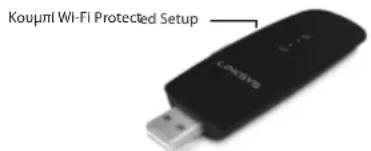
Koupi Wi-Fi Protected Setup
Xapaktnpiotka aqpaalec WEP, WPA & WPA2 Personal,
WPA & WPA2 Enterprise, Wi-Fi Protected
Setup
Bit kεiδiou ααφαλειac Kpuntotypapρησ Εωc ka1 128 bit
Aattnoeic aeitoupyko
ouotnmuatoc Windows XP,Windows Vista
Windows Vista 64-bit Edition,
Windows 7 Windows 7 64-bit,
Windows 8, Windows 8 64 bit
Wireless Network Configuration
Wi-Fi Protected Setup 3
Wireless network configuration utility 3
Operating system's built-in wireless network setup 3
Troubleshooting
WUSB6300 10
Specifications
Linksys WUSB6300 11
Product Overview
Thank you for choosing the Linksys dual-band wireless USB AC1200 adapter. Using the latest wireless networking technology, the adapter adds or upgrades wireless connectivity on your Windows-based desktop or laptop computer. To help protect your data and privacy, you can configure your home network and this adapter to use Wi-Fi Protected Access 2 (WPA2) encryption.
Features
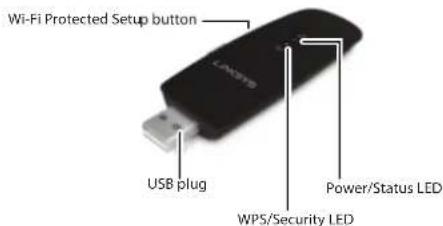
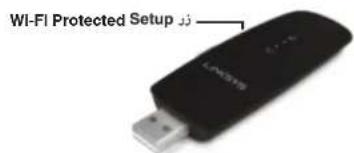
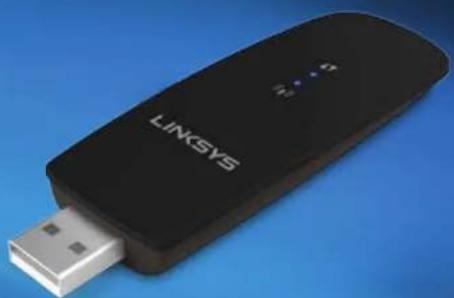
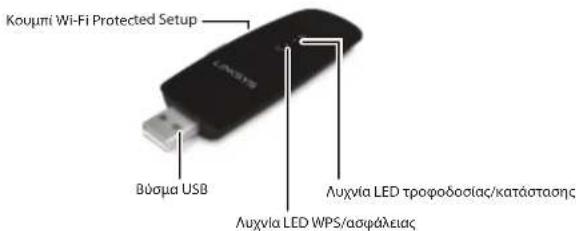
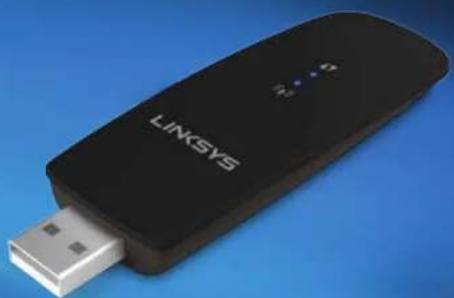
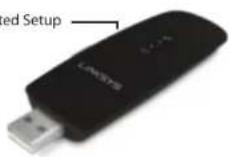
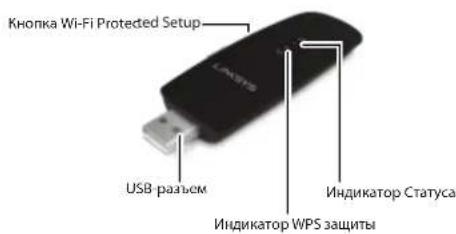
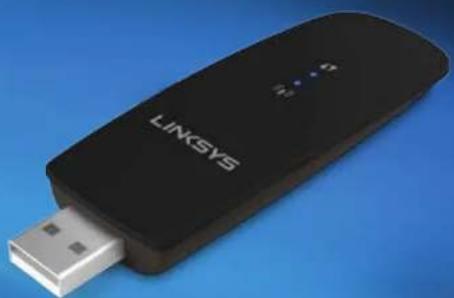
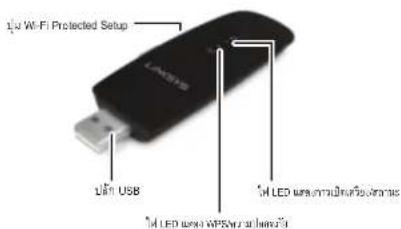
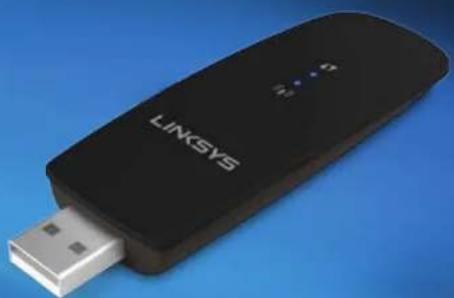
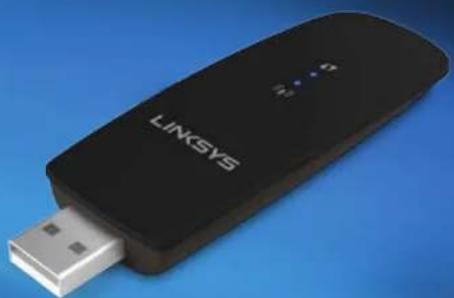
USB plug: Connect this end to any available USB port on your computer.
Power/Status LED: Flashes when there is wireless network activity.
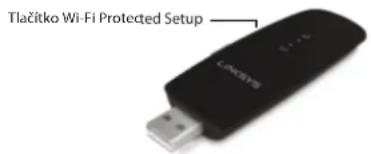
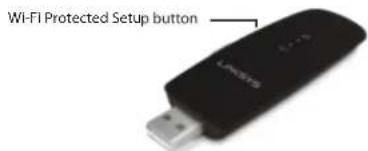
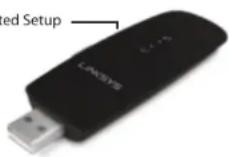
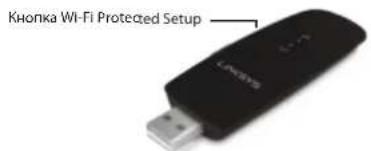
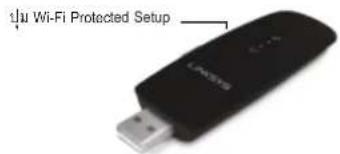
Wi-Fi Protected Setup button: Press this button and the Wi-Fi Protected Setup button on your router or access point to connect your computer to the wireless network.
WPS/Security LED: Indicates security status and provides feedback during Wi-Fi Protected Setup handshaking.
Installation
This chapter describes the procedure for installing the adapter.
Installation
To install the adapter:
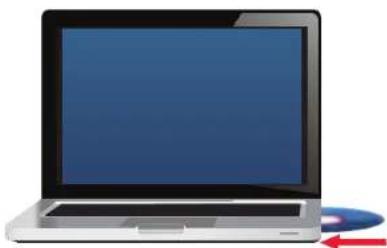
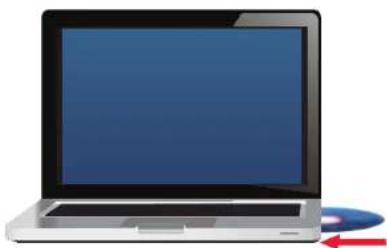
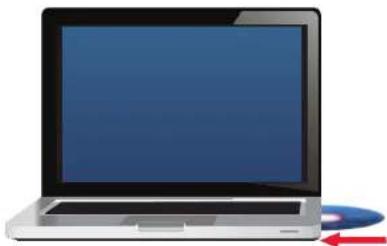
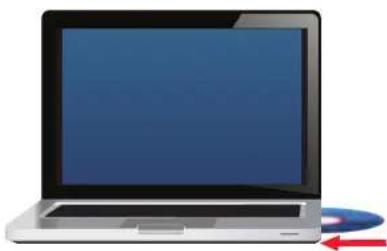
- Insert the CD into your CD or DVD drive.
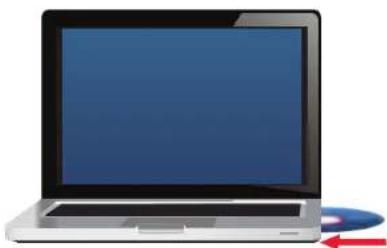
- For Windows 8, click Tap to choose what happens to this disc in the upper-right corner of the screen.
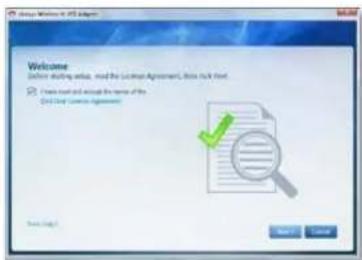
- Click Set up your Linksys Adapter.
If you do not see a pop-up menu for the CD, access Setup on the CD directly. To access the CD, perform the following steps for your operating system:
Windows 8
a. Type Computer at the main screen, then click Computer when it appears in the Apps list.
b. Double-click your CD or DVD drive.
Windows 7 and Windows Vista
a. Click Start, then click Computer.
b. Double-click your CD or DVD drive.
Windows XP
a. Click Start, then click My Computer.
b. Double-click your CD or DVD drive.
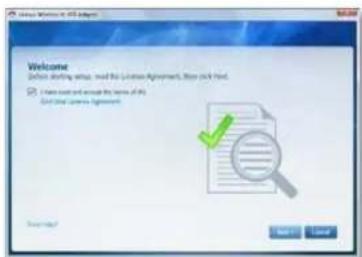
- Follow the on-screen instructions to finish setting up your Linksys wireless adapter.
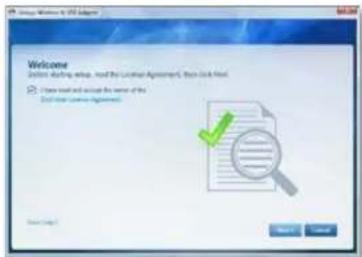
Note
You need to run Setup only once to install your adapter. After you run Setup, your computer recognizes the adapter each time it is connected to your computer's USB port.
Wireless Network Configuration
To configure the adapter's wireless connection settings, you can use:
supports it)
Wi-Fi Protected Setup
To connect using Wi-Fi Protected Setup:
- Press the Wi-Fi Protected Setup button on your wireless router, gateway, or access point.
- Within two minutes, press and hold the Wi-Fi Protected Setup button on the side of your adapter for at least three seconds. The LED flashes while connecting, then stays solid when the connection is complete.
Wireless network configuration utility
If your computer has a wireless network configuration utility installed, refer to that utility's documentation for instructions.
Operating system's built-in wireless network setup
Follow the instructions in the appropriate section below to use your operating system's built-in utility:
Windows 8
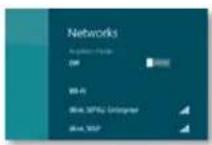
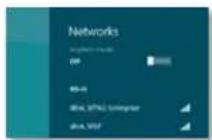
After you have installed the adapter, move your mouse pointer to the lower-right corner of the screen, then click Settings. Click the wireless network icon The Network menu opens from the right side of the screen, showing you available wireless networks and your current connection status.
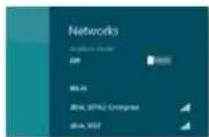
New Wireless Connection
To connect to a different wireless network:
- Move your mouse pointer to the lower-right corner of the screen, then click Settings.
- Click the wireless network icon. The Network menu opens, showing you available wireless networks and your current connection status.

- If prompted, enter any additional required network information (such as password).
Windows 7
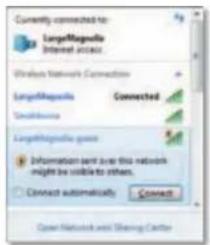
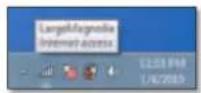
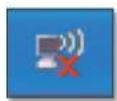
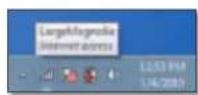
After you have installed the adapter, the Wireless Network Configuration utility icon appears on your computer's system tray. (If you do not see the icon, click the Show hidden icons arrow in the system tray.)

When your mouse pointer hovers over the icon, the status information of your wireless connection appears.
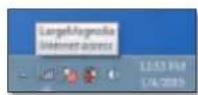
New Wireless Connection
To connect to a different wireless network:
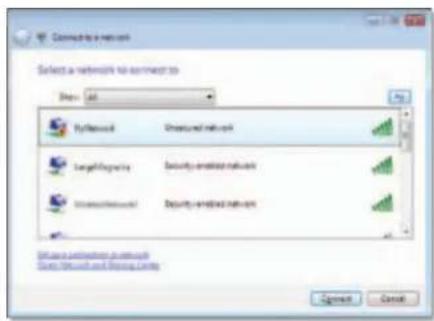
- Click the Wireless Network Configuration utility icon. A list of available wireless networks appears.
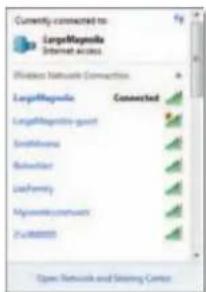
- Select your network, and then click Connect.
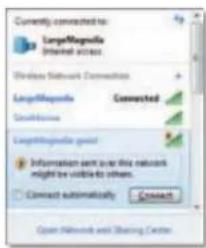
If your network does not use wireless security, your computer now connects to the wireless network, and you are done.
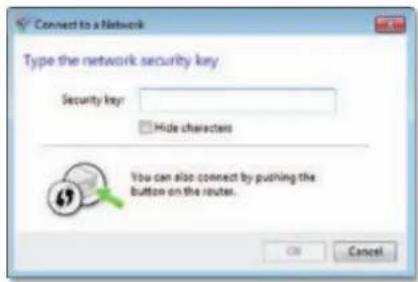
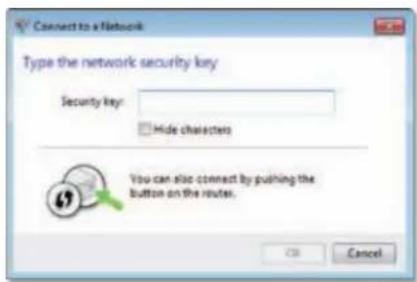
- Enter the Wi-Fi Protected Access (WPA/WPA2) passphrase or the Wired Equivalent Privacy (WEP) key (depending on your type of security), then click OK.
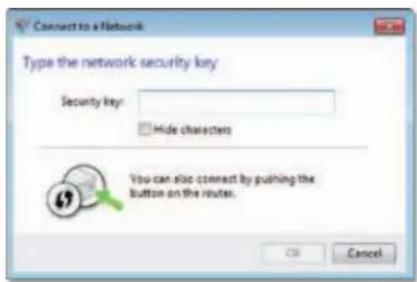
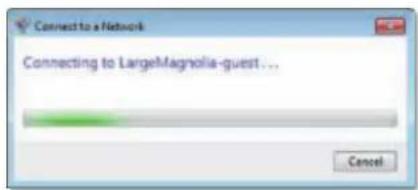
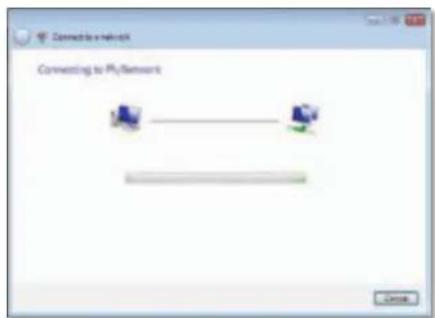
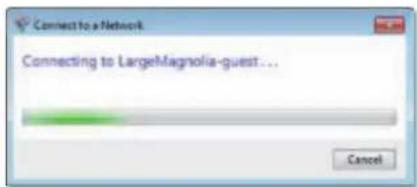
This screen appears while the adapter connects to your network. Do not cancel, unless you want to end the connection.
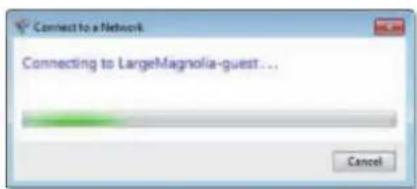
Your computer is now connected to your wireless network.
Note
For help with the Wireless Network Configuration utility, click Start, then click Help and Support.
Windows Vista
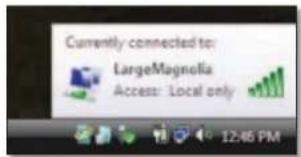
After you have installed the adapter, the Wireless Network Configuration utility icon appears on your computer's system tray.
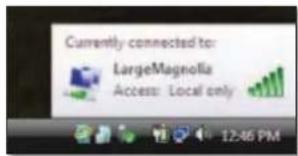
When your mouse pointer hovers over the icon, the status information of your wireless connection appears.
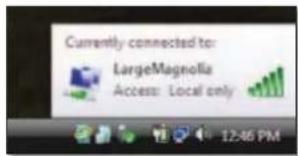
New Wireless Connection
To connect to a different wireless network:
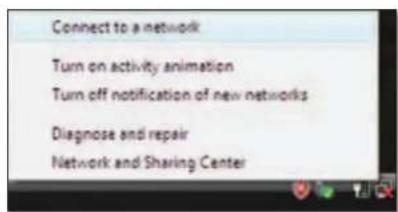
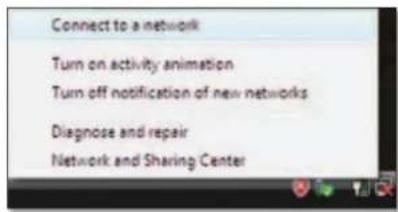
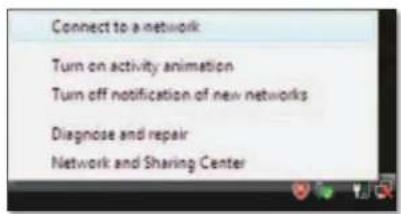
- Right-click the Wireless Network Configuration utility icon.
- Click Connect to a network.
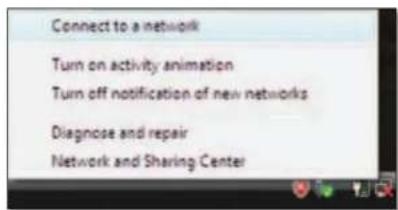
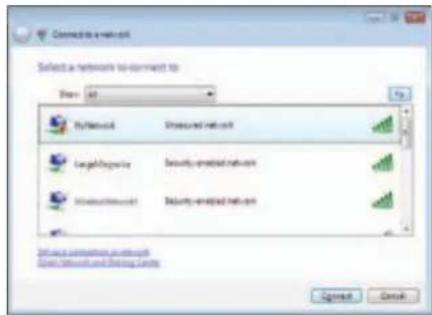
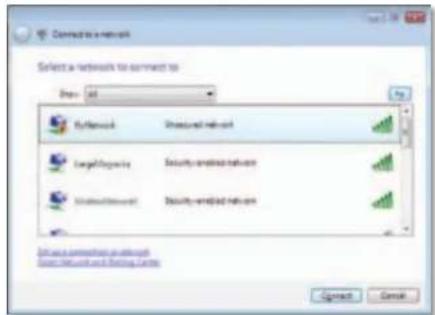
- Select your network, then click Connect.
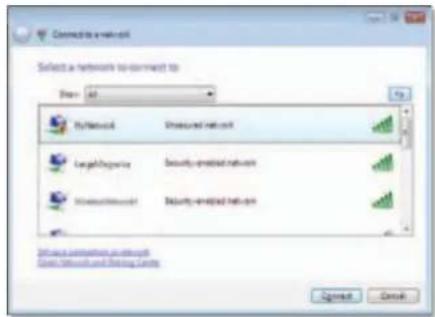
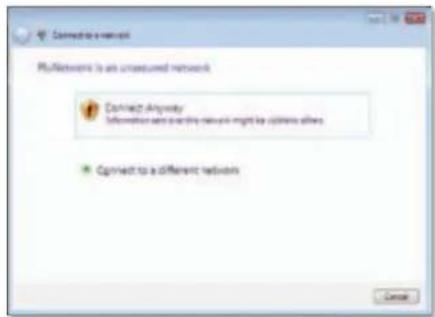
- If your network uses wireless security, go to Step 5.
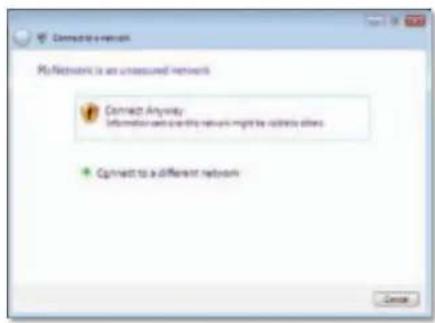
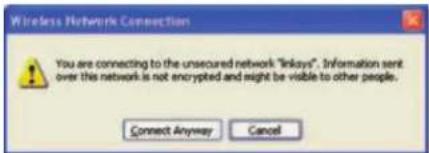
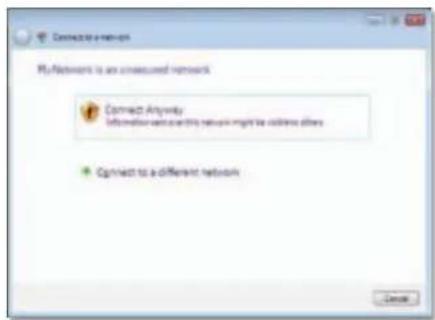
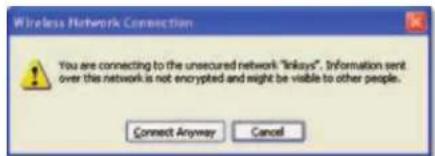
If your network does not use wireless security, this screen appears. Click Connect Anyway and go to Step 6.
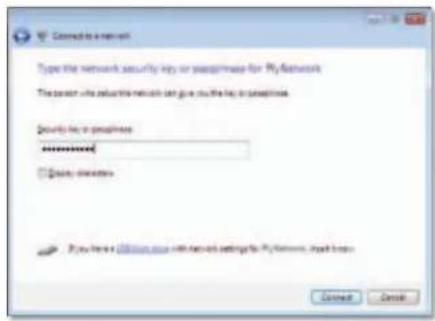
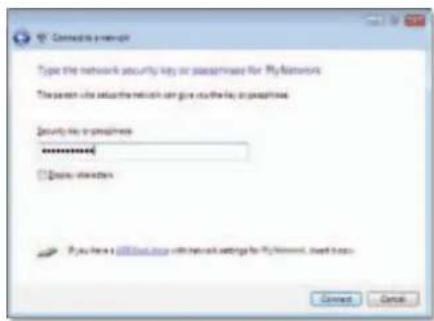
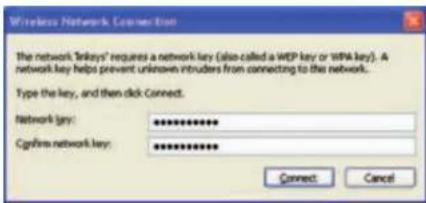
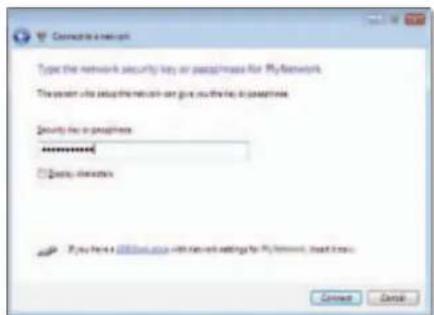
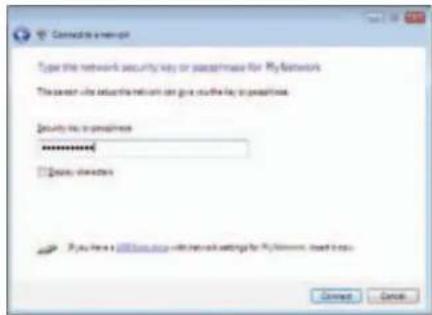
- Enter the Wi-Fi Protected Access (WPA/WPA2) passphrase or the Wired Equivalent Privacy (WEP) key (depending on your type of security), then click Connect.
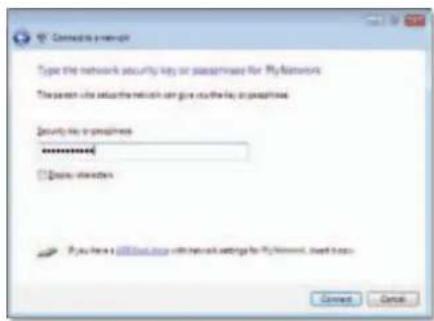
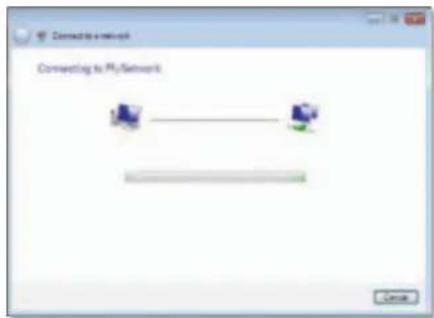
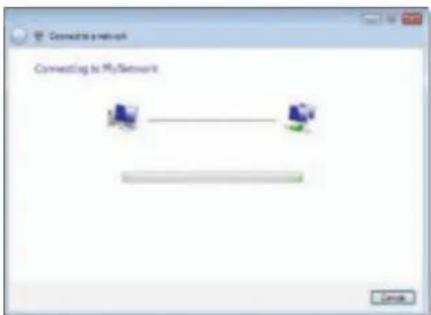
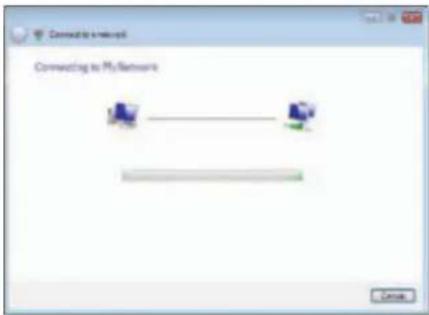
This screen appears while the adapter connects to your network. Do not cancel, unless you want to end the installation.
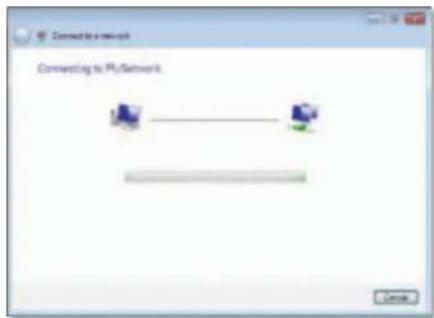
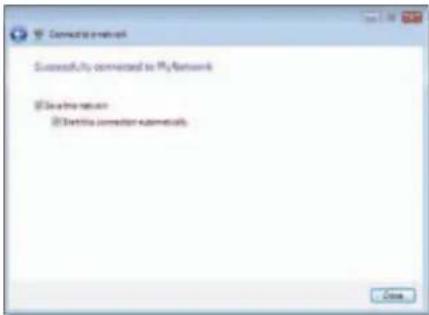
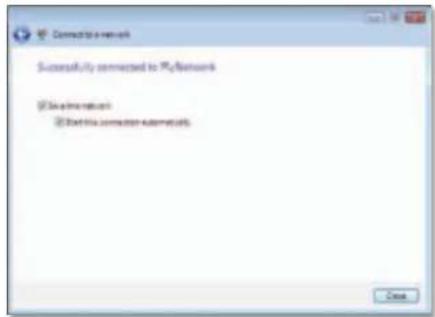
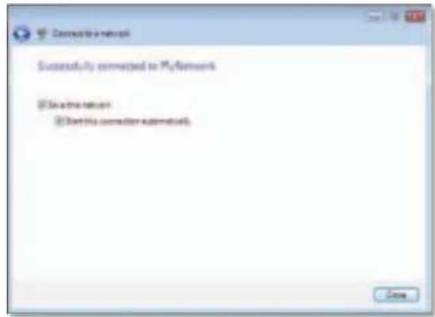
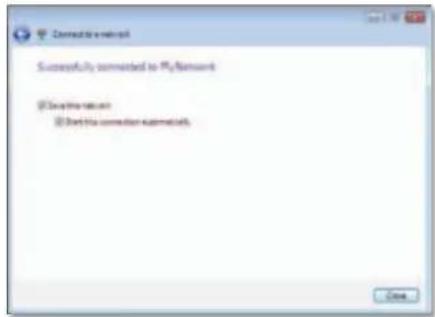
This screen appears when you are connected to your network.
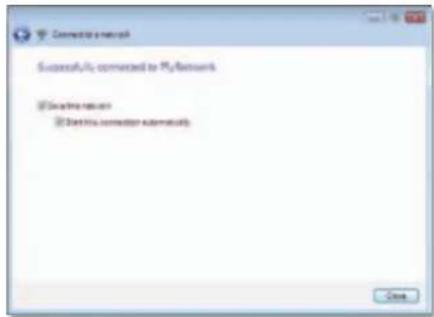
- If you want to save your settings, select Save this network.
- Click Close.
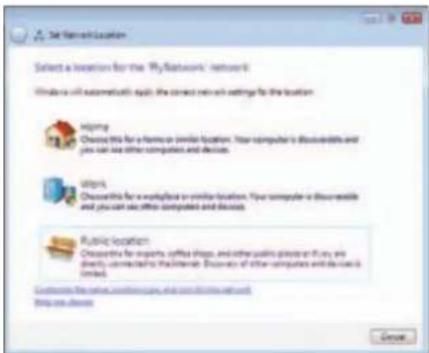
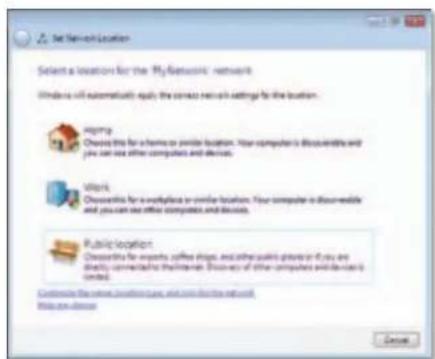
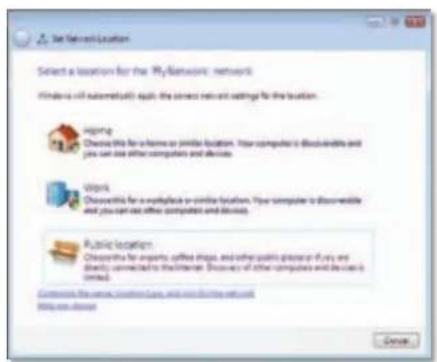
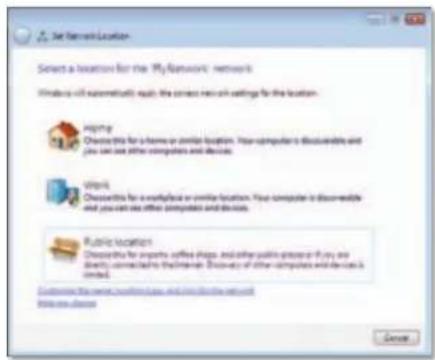
The Set Network Location screen may appear. This screen helps apply the correct settings for your type of location.
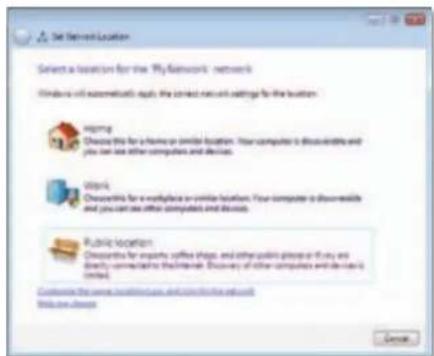
a. Click Home, Work, or Public location, then click Close on the resulting screen.
Note
For help with the Wireless Network Configuration utility, click Start, then click Help and Support.
Your computer is now connected to your wireless network.
Windows XP
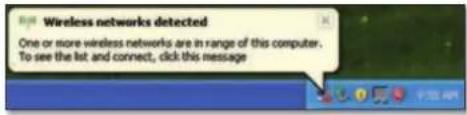
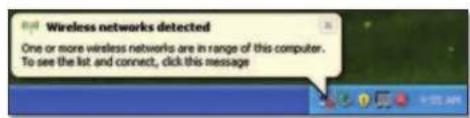
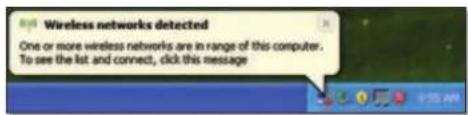
After you have installed the adapter, the Windows XP Wireless Zero Configuration Utility icon appears on your computer's system tray.
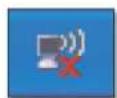
When your mouse pointer hovers over the icon, the status information of your wireless connection appears.
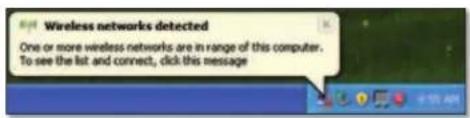
New Wireless Connection
To connect to a new wireless network:
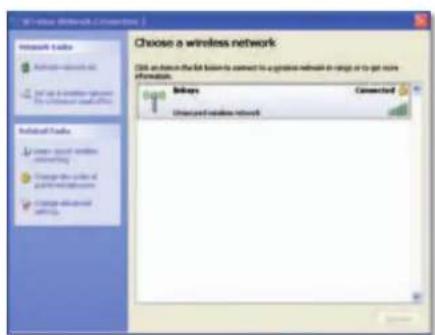
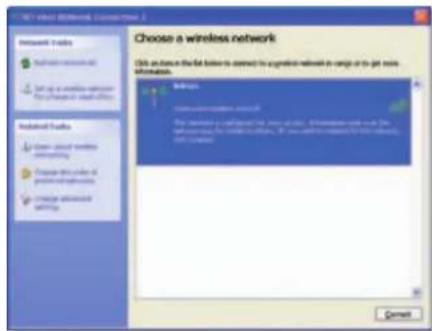
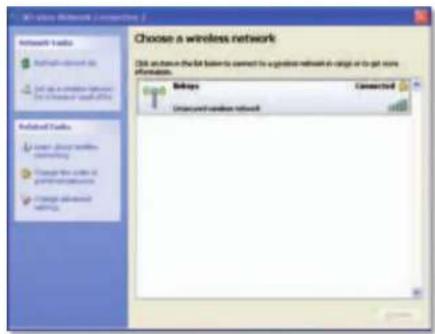
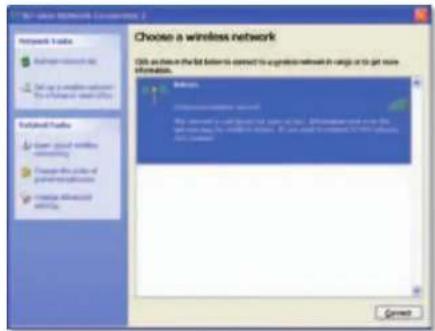
- Right-click the Windows XP Wireless Zero Configuration icon in your computer's system tray, then click View Available Wireless Networks. A window displays the available wireless networks.
- Select the network that you want, then click Connect.
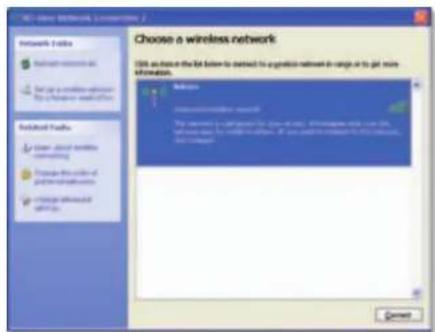
If the network uses wireless security, go to Step 4. Otherwise, continue to Step 3.
- Click Connect Anyway to connect the adapter to your unsecured network. Your computer now connects to the wireless network, and you are done.
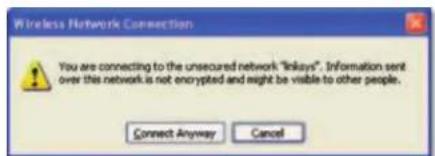
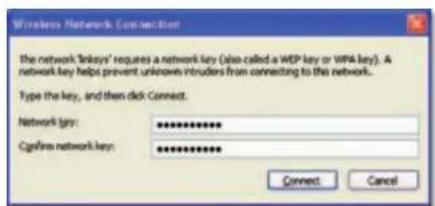
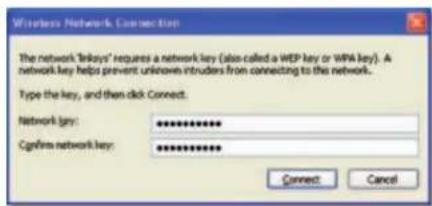
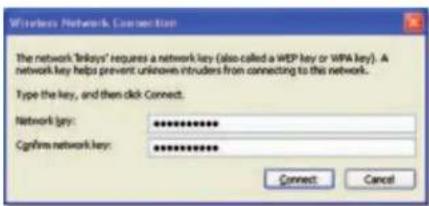
- If your network uses Wired Equivalent Privacy (WEP) wireless security, enter the WEP Key in the Network key and Confirm network key fields. If your network uses Wi-Fi Protected Access (WPA/WPA2) wireless security, enter the passphrase in the Network key and Confirm network key fields. Click Connect.
Note
Windows XP Wireless Zero Configuration does not support the use of a WEP passphrase. Enter the exact WEP key used by your wireless router or access point.
Note
If your network is using WPA2 security, make sure that you have installed the Update for Windows XP (KB893357), available at www.microsoft.com.
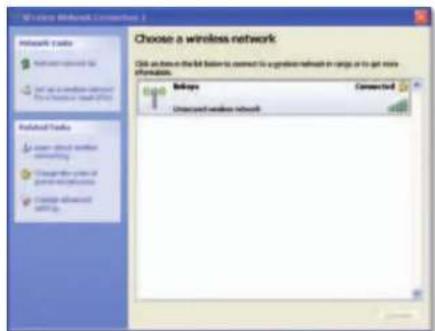
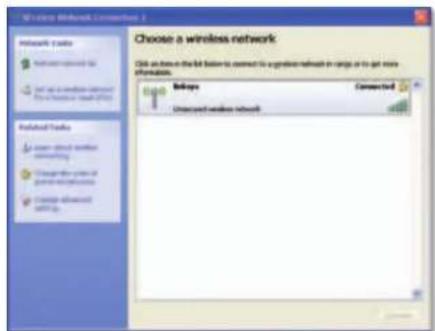
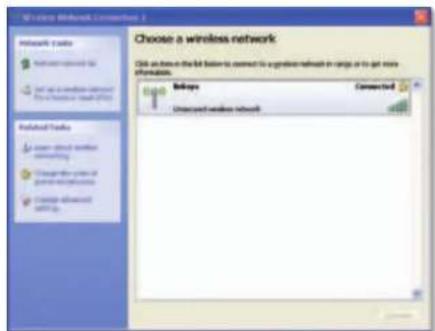
Your wireless network will appear as Connected when your connection is active.
Note
For help with the Wireless Network Configuration utility, click Start, then click Help and Support.
Your computer is now connected to your wireless network.
Troubleshooting
WUSB6300
Your computer does not recognize the adapter.
USB port.
Your computer cannot communicate with the other computers on your wireless network.
Name (also called the SSID or Service Set Identifier) and wireless security settings as the other computers on your wireless network.
Note
If your questions are not addressed here, refer to our support section on the web at Linksys.com/support.
Specifications
Linksys WUSB6300
Model Number WUSB6300
Standards 802.11a,802.11b,802.11g,802.11n, 802.11ac
Interface USB 3.0
LED Link/Activity, WPS
Antennas 2 Internal dual-band
Button Wi-Fi Protected Setup
Security features WEP, WPA & WPA2 Personal, WPA & WPA2 Enterprise, WPS
Security key bits Up to 128-Bit Encryption
OS requirements Windows XP,Windows Vista
Windows Vista 64-bit Edition,
Windows 7, Windows 7 64-bit, Windows 8,
Windows 8 64-bit
Environmental
Dimensions 3.5^ × 1.22^ × 0.43^ (89× 30× 11mm)
Weight 0.6 oz (17 g)
Certification FCC,CE, IC, RoHS, WEEE, IDA, C-Tick.
Wi-Fi A/B/G/N/AC
Operating temperature 32 to 104^ (0 to 40^ )
Storage temperature -4 to 158^ (-20 to 70^)
Operating humidity 10 to 85% Noncondensing
Storage humidity 5 to 90% Noncondensing
Specifications are subject to change without notice.

Visit linksys.com/support for award-winning 24/7 technical support
LINKSYS
BELKIN, LINKSYS and many product names and logos are trademarks of the Belkin group of companies. Third-party trademarks mentioned are the property of their respective owners. © 2013 Belkin International, Inc. and/or its affiliates. All rights reserved.
3425-01709A
LINKSYS
Guía del usuario
Estandares 802.11a,802.11b,802.11g,802.11n,802.11ac
Interfaz USB 3.0
WUSB6300 Wireless Dual Band -USB AC1200
Linksys WUSB6300
Sisallys
Standardit 802.11a,802.11b,802.11g,802.11n,802.11ac
Liitanta USB 3.0
Wi-Fi Protected Setup 3
Wi-Fi Protected Setup
Bouton Wi-Fi Protected Setup
Normes 802.11a,802.11b,802.11g,802.11n,802.11ac
Interface USB 3.0
Bouton Wi-Fi Protected Setup
Wi-Fi Protected Setup 3
Wi-Fi Protected Setup
Bouton Wi-Fi Protected Setup
Bouton Wi-Fi Protected Setup
Windows Vista edition 64 bits,
Windows 7 ou Windows 7 64 bits,
Windows 8, Windows 8 64 bits
Wi-Fi Protected Setup 3
Utilitas konfigurasi jaringan nirkabel 3
Wi-Fi Protected Setup
Tombol Wi-Fi Protected Setup
Fitur keamanan WEP, WPA & WPA2 Personal,
WPA & WPA2 Enterprise, Wi-Fi Protected
Setup
Bit kunci keamanan Hingga Enkripsi 128-Bit
Kebutuhan OS Windows XP,Windows Vista
Windows Vista 64-bit Edition
Windows 7,atau Windows 7 64-bit
Windows 8, Windows 8 64-bit
Lingkungan
Dimensi 3,5^ × 1,22^ × 0,43^ (89× 30× 11mm)
Berat 0,6 oz (17 g)
Sertifikasi
FCC,CE,IC,RoHS,WEEEIDA,C-Tick
Wi-Fi A/B/G/N/AC
Suhu pengoperasian 32 hingga 104^ (0 hingga 40^ )
WUSB6300 Adattatore AC1200 USB wireless dual band
Linksys WUSB6300
Sommario
Wi-Fi Protected Setup 3
Wi-Fi Protected Setup
WPA e WPA2 Enterprise, Wi-Fi Protected
Setup
Wi-Fi Protected Setup 3
gateway of access point)
computer
besturingsystem
Wi-Fi Protected Setup
Verbinding makes met behulp van Wi-Fi Protected Setup:
Knop Wi-Fi Protected Setup
WPA & WPA2 Enterprise, Wi-Fi Protected
Setup
Bveiligingssteutelbits Max. 128-bits versleuteling
Besturingsystemevereisten Windows XP,Windows Vista
Windows Vista 64-bits Edition
Windows 7 of Windows 7 64-bits,
Windows 8, Windows 8 64-bits
Milieu
Afmetingen 89× 30× 11mm
Gewicht 17g
Certificering
Wi-Fi A/B/G/N/AC
FCC, CE, IC, RoHS, WEEE, IDA, C-Tick
Wi-Fi Protected Setup 3
Konfigureringsverktøy for tradløst nettverk 3
Operativsystemetsinnebygde funksjon for
tradlost nettverk 3
Feilsøking
WUSB6300 10
Spesifikasjoner
Linksys WUSB6300 11
Produktoversikt
Wi-Fi Protected Setup
Standarder 802.11a,802.11b,802.11g,802.11n,802.11ac
Greensesnitt USB 3.0
LED-lamper Link/aktivitet, WPS
Antenner 2 intern dual-band
Knapp Wi-Fi Protected Setup
Sikkerhetsfunksjoner WEP, WPA & WPA2 Personal,
WPA & WPA2 Enterprise, Wi-Fi Protected
Setup
Sikkerhetsnokkelbiter Opptil 128-bitters kryptering
Krav til operativsystem Windows XP,Windows Vista
Windows Vista 64-bit Edition
Windows 7 eller Windows 7 64-bit
Windows 8, Windows 8, 64-bitters
Omgivelser
Mai 89× 30× 11 mm (3,5× 1,22× 0,43 tommer)
Vekt 17g (0,6 oz)
Sertifisering
FCC, CE, IC, RoHS, WEEE, IDA, C-Tick
Wi-Fi A/B/G/N/AC
Driftstemperatur 0-40°C (32-104°F)
Oppbevaringstemperatur -20-70°C(-4-158°F)
Luftfuktigkeit for drift 10-85% jegke-kondenserende
Luftfuktigkeit for oppbevaring 5-90% ikke-kondenserende
Wi-Fi Protected Setup 3
Wi-Fi Protected Setup
Standardly 802.11a,802.11b,802.11g,802.11n,802.11ac
Interfejs USB 3.0
WPA & WPA2 Enterprise, Wi-Fi Protected
Setup
FCC, CE, IC, RoHS, WEEE, IDA, C-Tick

Wi-Fi Protected Setup 3
Para instalar o adaptor:
- Introduza o CD na unidade de CD ou DVD.
Wi-Fi Protected Setup
Para ligar utilizing o Wi-Fi Protected Setup:
Normas 802.11a,802.11b,802.11g,802.11n,802.11ac
Interface USB 3.0
WPA & WPA2 Empresarial, Wi-Fi Protected
Setup
Bits da chave de segurarca Encriptao ate 128 bits
Requisitos do SO Windows XP, Windows Vista,
Windows Vista Ediaco 64 bits
Windows 7, ou Windows 7 64 bits
Windows 8, Windows 8 64 bits
Ambiente
Dimensoes 89× 30× 11mm (3,5^ × 1,22^ × 0,43^ )
Peso 17 g (0,6 oz)
Certificacao
Wi-Fi A/B/G/N/AC
FCC, CE, IC, RoHS, WEEE, IDA, C-Tick
Temperatura de funciona 32 a 104^ (0 a 40^
Temperatura de armazenamento -4 a 158^ F (-20 a 70^ C)
Wi-Fi Protected Setup 3
Wi-Fi Protected Setup
Pentru conectare folosind Wi-Fi Protected Setup:
Standarde 802.11a,802.11b,802.11g,802.11n,802.11ac
Interfata USB 3.0
LED-uri Link/Activate, WPS
Antene 2 antene interne in banda dubla
Buton Wi-Fi Protected Setup
Funcii de securitate WEP, WPA & WPA2 Personal,
WPA & WPA2 Enterprise, Wi-Fi Protected Setup
Wi-Fi Protected Setup 3
YTuHHTa HAcTPOKn 6ecnpoBOHOcTeN3
BCTPOeHHa B ONEpaQnoHHyIO CnCTemy fYHKU
HacpoKb6ecnpoBOHOcTe3
Ponck nycTpaHHe HeCnPaBHOCTe
WUSB6300 10
TexHnueckne xapaKTepeNCTnKn
Linksys WUSB6300 11
O63op npoodykta
Bnaoradapm Bac 3a Bb6op Dbyxduana3oHoro 6ecnpobodoro aadantepa USB Linksys AC1200. BnaoradapnncnoB3oAHmO cambx coBpeMeHHbIX 6ecnpobodhbxTeXHOJrM TOT aanTep no3BOJeTpaUHNpTB BO3MOKHOCTN 6ecnpobodHCB3n BHaCtoJIbHOM KOMNbIOtepe nn HoyTbkye cOC Windows. dnoobcepeHn KOHneHcuaHbHOCTNa DAHbX Bbl MOKeTe 3aunNTb 6ecnpobodHyco CeT npn nmou uHfpobAHn WPA2 (Wi-Fi Protected Access 2).
Oco6eHHoCTn
USB-pa3bem. PdKIOHTe 3OT pa3bem K IIO6OMy CBO6OHOmy USB-nopty KOMIbHOTepa.
Hdkatop Cttyca: mraet, ecn6ecnpoBDOHe nokIoueHne aKTHBHO.
Khonka Wi-Fi Protected SetupTM: HAKMITEy KNONKY IN KHONKY Wi-Fi Protected Setup Ha MapwpyTn3aTope nn ToKe DOCTyna dny noDKIOUeHIN KOMNbIepe Ka6cnpOboHOcTeN.
Hdikatop WPS 3aunTbI: OTo6paKaet coCTOHNHe 3auNTbI n o6ecneuBaET o6paTHyIO CBA3b npu yCTAHOBKe Wi-Fi Protected Setup.
yctaHObKa
B3toI rnaBeOnncbIbaeTc npoueypa yctaHOBKn aanTepe.
YcTaHOBka
YTo6bI yCTaHOBnTb aAdantep, BblonHInTe cJeDyUoJe NeiCTBna:
1.BCTaBtE KOIMNaKT-DnCK B DnCKOBOD nra CD-nnn DVD-DnCKOB.
2.Ди Windows 8:нжмite Tap to choose what happens to this disc (Bb6epnte,чTO tpe6yetcA cTeNaTb C TnIM DnCKOM) B npabOM Bepxhemуrtny ekpaHa.
3. HaxMMTe Set up your Linksys Adapter (YctaHOBKa aanTepa Linksys).
Ecni 3TO OKHO He NOBINOCb, Heo6xOaIMo 3aNyCTNTb Iporpammy yctAHOBKn HENOCpeDCTBEHNO C KOMNAKT-DnCKA. IInI 3TOrO BbINONHtceNdyKUneJeHCTBnB (B 3aBNCIMOCtN OT TnPa OepaUNHOH CNTEmbl):
Windows 8
a. Ha rnaBHOM 3kpaHene BBeDnite Computer (KOMnbIbTeP), 3aTEM HAKMITE Computer (KOMmbIbTeP), KOrDa OH NOrBnErcB C cnncke Apps (PnpIoJKeHN).
b.ДвбдьшткнгдИСКOBОДДПС-ИП DVD-IMCKOB.
Windows 7 n Windows Vista
a. Haxmnte Pnyck > KommbioTep.
b.ДБАЖДБЛУЕКНИТЕ ДССКОВОД ПЛЯ CD-ПЛN DVD-DИСΚOB.
Windows XP
a. HaxMMTE KhoNky Start (Plyck), 3aTeM HaxMMte My Computer (Mon KOMnIbIOTeP).
b.Двждьшелкнгет днckobodдг CD- mN DV-DmckOB.
4.Cnnyte INHCTpykunm Ha 3KpaHe, TTo6bl 3aBepuNTb yCTAHOBky 6ecnpoBOHOra aadntepa Linksys.
PpmeaHne
Длу уctановки addanterpe Heo6xodmIo 3anyctntb nporpammy yctahobkn TOnbko OdMH p3. Nocle 3anycka nporpammby yctahobkn KOMnblteAp ABtOMaTneckn pacno3Haet adanTp nepn kaxdom ero nokkOeHcnK USB-nopty.
KoHfIgypaun 6ecnpoBODHOcTn
Дянсгюплараметровбсгposьного noклоченyaаNTepa moket nCNoIb3ObaTbCRA cneDyUoee:
DocTyna NopdEpxnBaiaot 3Ty fYHKUIO)
6ecnpoBdoHno cetn
Wi-Fi Protected Setup
PoiKluueHHe c nCnoB3oBaHnem FyHKm Wi-Fi Protected Setup:
- HaxMMTe KhoNky Wi-Fi Protected Setup Ha 6ecnpoBODHom MapuPyTu3aTope, uH03e uH ToKe DocTyna.
- He no3ke qem uepe3 DBe MNHyTb NOcNE 3TOrHOaKMnTe KhoNkY Wi-Fi Protected Setup Ha 6okobon CTOpone aadantepa u YdepKmBaIe ee HAKaToNo kpaHne Mepe TpN cekyHbI. B npOcece nOdkJIOUeHnIe CBEToNOHbN INHnKaTOP Mraet, a NocNE yCTaHOBNeHHcoEINHeHH RopNT HenpepbIBHO.
YtJNTa HAcTpoKn 6ecIpOBOHoi cETN
EcnHaBaWEMKOMNbIepeyCTaHOBHeHaYTNITAHCTpOKN6ecnpoBOHOcETN,TO INHCTpyKUNNOHCnONb3OBAHIO 3ToYTNNTCBMOPTNE B DOKYMENTAUKNHE.
BcTpoeHna B onepaunnoHyu cnCTemy yHKnna HacTPOIN 6ecnpoBOHOcTeN
CnEnyIe HNCTpyKUHM, npNBedeHbHM HNXe B COOTBeTcBHyOeM pa3dene, T06blncnolb3oBaTb BCPOEHNYO yTNNTy OpeaUNHOH CNCTembl:
Windows 8
No 3aBepuHn yctaHOBKn aadTepa nepeMeCTne yka3aTeNb MbHn B npabBn HxNHHy rton kpaHa n HaxMnTE Settings (Napametb). HaxMnTE 3aHok 6ecnpoBDHO CETn Ha npabO CTOpone 3kPaHa OTKpbBAeTc MEHO Network (Cetb), B KOTOPOM OT6pKaAOTcN DOCTynHbIe 6ecnpoBDHO CETn N TeKyuue ccoTOnHe NOKIOUeHN.
Hoboe6ecnpoBdoHoe noKluOeHne
YTO6bI yCTAHOBHT NOKIOUOHeH N pyroN 6ecnpoBHOcTn, BInONHnTe cneDyIOuNE DeCTBn:
- NpeMeCTeYyKa3aTeNbMbIuB npaBb HxKHi yToI kpaHa n HaxMITE Settings (IapamETpb).
- Haxmnte 3aHOK 6ecnpoBOHOH cetn OKpbBaetcMeHIO Network (Cetb), B KOTOPM oTO6pKaOaTcIOCTyHbE 6ecnpoBOHOH cetn IN TEkyuee COctOHHN NOkHouCHEN.

3.B cnuyae noBneneH 3anpoca BBeDNTe Tpe6yEmyO donoHntbHyIO HΦopmauHIO O cETN (HaNPmep,napOB).
Windows 7
Iocne yctahOBKn 3aanTepe 3HaQok Hacmpouka 6ecnpoOboHou cemu NOBNTcHa NaHEnn 3aau KOMnbotepe. Ecn 3HaQok He OTo6paKaetc, HAKMITE ctpenky Omobpaxkambckpbmbte 3Haqu KaNaHEnn 3aau.)

PnHaBeHnKypcopaMbIHa3aOHoBraTeCnHOpMaun OcoToAHN6ecnpoBOHOrnoNOKnIOueHn.
Hoboe6ecnpoBDOHoe noKJIoueHne
YTO6b yCTAHOBHT NOKIOUOHeH Kpyro 6ecnpoBHOcTn, BbINONHTE cIeDyIOUne DeCTBNA:
1.HaKMnTe 3HaOK HAcTpoKa 6ecnpoBOHOH cTe. IORBntc CmCOK doCTynhIx 6ecnpoBOHOH cTei.
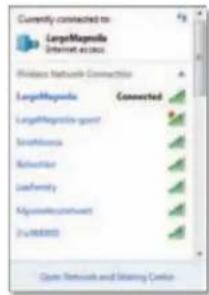
- BbIbepuTe ceTb, 3aTeM HaxMMTE NpKnIOHTbcra.
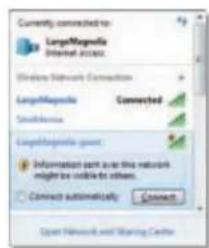
EcnB Baaew cetn He nCnONb3yETc CNTema 6eONaCHOCTN 6ecnpoBOHOH cETN TO KOMNbIbTeP NOKJIIOVAETc K 6ecnpoBOHOH ceTN BAa 3aDaHa BbINONHeHa.
- BBeInTe npaOnbHyO ppa3y WPA/WPA2 (Wi-Fi Protected Access) nnn KIOU WEP (Wired Equivalent Privacy) (B 3aBNCUMoCTn OT MeToDA oBeecneHnE 6eONaCHOCTn), 3aTeM HAXMMTE OK.
Pn noKniueHnn aadTepa K cTeN noBnTcneDyiooe OkHO. He OTmehrte npoueDpy, ecn npepbBaHne noKniueHn He Tpe6yeTc.
Tenepb KOMNbIOpTeP NOKKnOueH K6ecnpoBOdHOceTn.
PnmuueaHne
IaI NOnyHeHcnpAknO hAcTpoKe 6ecnpoBDOH cTe HAKMTe Ncyk,3aTeM CnpAkaN noOpdepKka.
Windows Vista
Iocne yctahOBKn aadantepa 3naohok HacmpoKa becnpobodHou cemu NOBNTcHa NaHeN 3aau KOMNbIeTpae.
Pn HabeHnn Kypcopa Mbln Ha 3haQK NOBnEeTcN HOpMaun o cOToHnn 6ecnpoBnHO nOKnUoyehn.
Hoboe6ecnpoBODnoIoknloueHe
YTo6b yCTaHOBnT NOKIOUeHne K dpyro 6ecnpoBDHO CTeH, BbINONHTe cNeDyIOUme DeIcTBNA:
- HamaTe npaBoi KhoNko Mblu 3HaOc HAcTpoKa 6ecnpoBdoHou cTeH.
- Haxmte PnoknouhTcK cetn.
3.BbIbepnte ceTb,3aTeM HaxmTne NnKIOHTbcra.
- Ecnn 6ecnpoBnHa cTe b 3aunueHa cnCTeMoN 6e3onacHOctn, nepeynite K 5y 5.
Ecnn cetb He 3aunueHa CnCTeMoN 6e3oNaCHOCTN, NOBNTc rCneIyIOOee OKHO.
a. To6bl noKnHouTbCn K He3aunueHHo CETn, HaxMnte Bce paBho noKnHouTbCn, 3aTe mpeynnte K wary 6.
- BBeInTe napObHyIO ppa3y WPA/WPA2 (Wi-Fi Protected Access) nnn knou WEP (Wired Equivalent Privacy) (B 3aBnCmOCTn OT MeToJa o6ecneHnE 6e3oNaCHOCTn), 3aTe m HxMnTE PnKnIouTbcra.
PnnoKIOUeHnn aadTepa K cTeN noBttcneDyOooe OkHO. He OTMHeIte npoeDpy, ecn npepbIbHaNe noKnIOuHHe Tpe6yeTc.
PnnoKIOHcHn aadTepa K cTeN NOBNTc CneDyIOoe OKHO.
- 4To6bI CoXpaHHTb HAcTpoKn, BbIepePte CoXpaHHTb npaMeTpbl 3Toi CETN.
- HaxMMTE KONky 3aKpbItb.
MoxetnoBtbcnOKHO Bbepume ceteBoe pa3MeHne.3o OKHO n03BnareBb6paTb npaAMTpbl 3abNCIMOCTNOTpacNOJKeHnCtM.
a. Bb6epnte DomaHna Cetb, Cetb npdpnptma nn 06uectbeHHa cetb,3aTEM Haxmte 3akpbblB NPOBMBWEMcR OKHE.
Приимechanicals
Iy nanyen CnpaBKn O hactpoKe 6ecnpoBNOH ctn HAKMTe Ncyk, 3aTeM CnpaBKa n noDpepkka.
TeepkOMMbTOpe nOdknoueK6ecnpoBOHOcTn.
Windows XP
Iocne yctahOBKn aadTepa 3aHcOK BecnpoBnHa HactpoKa WindowsXP NOABNTCA Ha naHeN 3aDaKOMNbTepe.
Pn HabeHnn Kypcopa Mblu Ha 3NaOH NOBbIeTc HOpMaun O coToaHn 6ecnpoBOJHO NOKJIoueHn.
Hoboe6ecnpoBdoHoe noKluOeHne
YTO6bI yCTAHOBITb NOKIOUOHeHNE K HOBOB 6ecnpoBHOH CETN, BbINONHTE cLeyIOUe DeCTBNA:
1.HaKMTe npabO KnHONKO MblIN 3HaOH BecnpoBnHa HacpOka WindowsXP Ha NaHEI 3aDau KOMbIbOTepa,3aTEM HxKMTe IpocMToP doCTynhBix 6ecnpoBnHbIX cetE. NoBHTcR OKHO, codejXauee doCTynHbIe 6ecnpoBnHbIX CETN.
2.BbIePte HxKyHcTe,3aTEM HxMITE PNOKnOHTbcra.
Ecn 6ecnpoBDAH cetb 3aunuHa cnCTeMoN 6eOnacHOCTM, nepeiNTe K Wary 4. B npotmbom cnuyae nepeiNTe K Wary 3.
- HauMMITE BCE paBNO NOKIIIOUHTbCBA,OT6bI NOKIIIOUHTb aapantep K HeaAsuHcHoi CETn.Bau KOMbIoTeP noKJIIOUeH K 6ecnpoBDoHOn CETn, uBaA 3a4aA BvIbnHeHa.
- EcnB cebNcnonb3yET MeoJ o6ecneeyHn 6e0anachocn WEP (Wired Equivalent Privacy), BBeNTe KNoTc WEP B nona Cemeoou KNoU n Iodmeepdbcmoeou KNoU. EcnCBt Ncnonb3yET MeoJ o6ecneeyHn 6e0anachocn WPA/WPA2 (Wi-Fi Protected Access), BBeNTe npoIbHyO a3y B nona Cemeoou KNoU n Iodmeepdbcmoeou KNoU. HaxMnte IopKnouHTbcR.
Приимechанин.
BecnpoBogHaHacpOkaWindowsXPHe noDpeKnBaet
NCNIOB3OBAHne npaIbHOJ p4a3I WEP.He6xOdIMo
6E0An6HcNOHBOBCTN KIOU WEP,ICNoB3yEmbl 6ecnpoBogHbM
MapuPHTn3aTOPm INTOUKOINTOYNA.
PpmeaHne
Ecni Cetb NcnoB3yET MeToD oObecneHEna 6eOnacNoCTn WPA2, Heo6xOJIMMo yCtAHOBuTb o6HOBHeHene nIra Windows XP (KB893357), DOctynHoe no aDpeCy: www.microsoft.com.
Toro, KaN NIOKIOHHe CTaHET AKTUBHbIM, COCTOHHe 6ecnpoBOHOH CETn 3MeHHTcHa NoKIOHNO.
PpimeyaHne
IINyueHnCnpaBKnO HacptpoKe 6ecnpoBNOH cTn HAKMTe Ncyck,3aTeM CnpaBKn HnoDpePkKa.
Tenepb KOMNbIOpTeP noKJIIOUeH K 6ecnpoBODHOcTn.
Поск и устараенье несправност
WUSB6300
Komnbomepy he ydaempaacno3hamb adanmep.
Komnbomep He Moxem nooknoumbcK dpyzum KOMnbomepam 86ecnpoeodho cemu.
6ecnpoBDOHcTei (SSIDnnnndentnФKATopa 6ecnpoBOHOI cTe) nCCTeMb630NaChOCTn,TO HA OCTaJIbHbIX NOKIIoueHHbIX K cTeN KOMNbHTepax.
PpmeaHne
EcnBbHeHaunpeHnnaCBOeroBONpOca,NoceTnepa3den TexHuueckoNopdepKnnHaBe6-caTe:Linksys.com/support.
TexHnueckne xapakTepeNCTnKN
Linksys WUSB6300
Homep moen
WUSB6300
CtAnapTb802.11a,802.11b,802.11g,802.11n
802.11ac
HHTepcEUCSB3.0
HIMKAtOpb CB3b/AKTINBHOCTb, WPS
ANTehHb2BHTpeHHneDByxnnonoCHbe
Khoinka Wi-Fi Protected Setup
Iapametpb6e30nacnoCTN WEP, WPA u WPA2 Personal,
WPA u WPA2 Enterprise, Wi-Fi Protected
Setup
Pa3pndHOCTbKnIOUa
6e30nachoCTM HnΦpOBaHne 1286ntOB
Tpe6oBAnH K OC Windows XP,Windows Vista
Windows Vista 64-pa3pndnna
Windows 7 mm Windows 7 64-pa3pndha
Windows 8, Windows 8 64-pa3pndna
Физнчecknх.apakTepeNCTNK
T6apHTbIe pa3Mepbl
3.5ДIOHMOBx1.22ДIOHMOBx0.43ДIOHMOB
(89× 30× 11MM)
Bec 0.6 yHcni (17 r)
Ceptnuukacna
FCC,CE,IC,RoHS,WEEEIDA,C-Tick
Wi-Fi A/B/G/N/AC
Pa6oay TemnepaTpya OTo 0do+40°C
TemnepaTpaXpaHeHnOr-20no+70°C
Pa6oua BnaxKHOCTb BO3dyxa 0r10do85% (6e3 KOHdEHaun)
BnaxHQoCTb BO3dyxa B
peKIMe XpaHeHn
YnOMaHrTyIbe 3decTbOpAhBHe 3HaKn CTopoHHNX KOMNaH NABNOTCA COBCTBeHHOCTbIO COOTBcTCTByUOxIN BlaAeJIbueB.
© 2013 Belkin International, Inc. /n/nn aafmnpoabHbte ctpktyb komnaHn. Bce npaba zaunuehbl.
LINKSYS
Navodila za uporabo
WUSB6300 Dvopasovni brezici nvmesnik AC1200 USB
Linksys WUSB6300
Kazalo
Pregled izdelka
Znaicilnosti 1
Namecitev
Namestitev 2
Konfiguracijs brezici nega omrezja
Tecnologija Wi-Fi Protected Setup 3
FCC, CE, IC, RoHS, WEEE, IDA C-Tick
Wi-Fi A/B/G/N/AC
Temperatura za delovanje od 0 do 40^ (od 32 do 104^
Temperatura za shranjevanje od -20 do 70^ (od -4 do 158°F)
Vlažnost za delovanje od 10 do 85 % brez kondenzacije
Vlažnost za shranjevanje od 5 do 90 % brez kondenzacije
Wi-Fi Protected Setup 3
Verktyg for att konfigurera tradlosa natverk 3
Wi-Fi Protected Setup
Standarder 802.11a,802.11b,802.11g,802.11n, 802.11ac
Gransnitt USB 3.0
Lysdioder Lank/aktivitet, WPS
Knapp Wi-Fi Protected Setup
Wi-Fi Protected Setup
Windows Vista 64-bit Edition,
Windows 7 eller Windows 7 64-bit
Windows 8, Windows 8 64-bitars
Omgivande miljö
Storlek
4g
Vikt
Certificering
Wi-Fi A/B/G/N/AC
Temperaturinterval vid drift 0 till 40^
Temperaturinterval vid forvaring -20 till 70°C)
WUSB6300 Wireless USB Adapter AC1200 Dual Band
Linksys WUSB6300
T
W
1
n
2
n
Wi-Fi Protected Setup 3
wnnnnneennnnnnnnnnn 3
mnnnne nnnnnnnnnnnnnnnnnnnnnnnnnnnnnnnnnnnnnnnnnnnnnnnnnnnnnnnnnnnnnnnnnnnnnnnnnnnnnnnnnnnnnnnnnnnnn
mnnn
WUSB6300 10
Linksys WUSB6300 11
Linksys WUSB6300
mss
77W77JWN
mnnnne nnnnnnnnnnnnnnnnnnnnnnnnnnnnnnnnnnnnnnnnnnnnnnnnnnnnnnnnnnnnnnnnnnnnnnnnnnnnnnnnnnnnnnnnnnnnnnnnnnnnnnnnnnnnnnnnnnnnnnnnnnnnnnnnnnnnnnnnnnnnnn nn
a_1 = 23a_0
dan USB: sienenmnnn mwnwus USB nwnnnnne
I W LED wauuunssuaaanae: nueuuiuuiuunnna
1u Wi-Fi Protected Setupw: wuiuuiuwi Wi-Fi Protected Setup uuiuuiuuiuuiuuiu (Wuaia
T W LED (w) WPS/NTNLAAN: LARSSNNNTNIAANIINNAAANNNNNNNNNNNNNNNNNNNNNNNNNNNNNNNNNNNNNNNNNNNNNNNNNNNNNNNNNNNNNNNNNNNNNNNNNNNNNNNNNNNNNNNNNNNNNNNNNNNNNNNNNNNNNNNNNNNNNNNNNNNNNNNNNNNNN
Linksys WUSB6300
1
m
wouuueeuaaeeaaee
nnnnaaee
1.
- nwn Windows 8 Xean Tap to choose what happens to this disk (wzwaanmazn mushen)
- PAn Set up your Linksys Adapter (nneauuuef Lknsys nae)
enaiuiuuaaiai iiainnnnnnnnnnae Taunennnnnnae
Windows 8
a. Rnt Computer nntraansnnaen Computer (neurss) Dae ngnnnns Appes (nns
b.
Windows 7 u8 Windows Vista
A. 小丁的二元一次根式
b.
Windows XP
a. nnt Start (G) uane My Computer (nwnnnnne)
b.
- Vnunnnnnnnnnnnnnnnnnnnnnnnnnnnnnnnnnnnnnnnnnnnnnnnnnnnnnnnnnnnnnnnnnnnnnnnnnnnnnnnnnnnnnnnnnnnnnnnnnnnnnnnnnnnnnnnnnnnnnnnnnnnnnnnnnnnnnnnnnnnnnnnnnnnnnnnnnnn
W
Wi-Fi Protected Setup
Wi-Fi Protected Setup:
- naiu Wi-Fi Protected Setup linnant, iniin of wip
- malaaonn nniu WIF Proted Setup mnnnaaauauauauauauauauauauuauuauuauuauuuu uLED
y
wennnne nnnnne nnnnne nnnnne nnnnne nnnnne nnnnne nnnnne nnnnne nnnnne nnnnne nnnnne nnnnne nnnnne nnnnne nnnnne nnnnne nnnnne nnnnne nnnnne nnnnne nnnnne nnnnne nnnnne nnnnne nnnnne nannnee
- nnn Connect to a network (
- iienwienenrnnnneennnnnnnnnnnnnnnnnnnnnnnnnnnnnnnnnnnnnnnnnnnnnnnnnnnnnnnnnnnnnnnnnnnnnnnnnnnnnnnnnnnnnnnnnnnnnnnnnnnnnnnnnnnnnnnnnnnnnnnn
- wouwtechuaagauuunmnnnnaaannaaeauuueauuans 150000000000000000000000000000000000000000000000000000000000000000
a. wnnnnaeannnneennnneennnneennnneennnneennnneennnneennnneennnneennnneennnneennnneennnneennnneennnneennnneennnneennnneennnneennnneennnneennnneennnneennnneennnneennnneennnneennnneennnneennnneennnneennnneennnneennnnnnnnnnnnnnnnnnnnnnnnnnnnnnnnnnnnnnnnnnnnnnnnnnnnnnnnnnnnnnnnnnnnnnnnnnnnnnnnnnnnnnnnnnnnnnnnnnnnnnnnnnnnnnnnnnnnnnnnnnnnnnnn
- Jnwn WFi Proteed Access (WPANPA2) wired Wired Equivalent Privacy (WEP) (duuunumnnnnnnnnnnnnnnnnnnnnnnnnnnnnnnnnnnnnnnnnnnnnnnnnnnnnnnnnnnnnnnnnnnnnnnnnnnnnnnnnnnnnnnnnnnnnnnnnnnnnnnnnnnnnnnnnnnnnnnnnnnnnnnnnnnnnnnnnnnnnnnnnnnnnnn
mnnnne nnnnnnnnnnnnnnnnnnnnnnnnnnnnnnnnnnnnnnnnnnnnnnnnnnnnnnnnnnnnnnnnnnnnnnnnnnnnnnnnnnnnnnnnnnnnnnnnnnnnnnnnnnnnnnnnnnnnnnnnnnnnnnnn nn
mnnnne nnnnne nnnnne nnnnne
- wouwouwouwouwouwauwen Save this network (unneae)
- nan Close (la)
nive Set Network Location (aannnnnnne) ainnnnnnae
wneaeonne aeennnne anennee
a. Home (na), Work (mnu) n Public location (nnc) uean Close (Da) mnuuauuun
WuWuWu
Wrrrrrnrnrnrnrnrnrnrnrnrnrnrnrnrnrnrnrnrnrnrnrnrnrnrnrnrnrnrnrnrnrnrnrnrnrnrnrnrnrnrnrnrnrnrnrnrnrnrnrnrnrnrnrnrnrnrnrnrnrnrnrnrnrnrnrnrnrnrnrnrnrnrnrnrnrnrnrnrnrnrnrnrnrnrnrnrnrnrnrnrnrnrnrnr
WNT11
mnnnne nnnnne nnnnne nnnnne nnnnne
uunnnnnaa
aennnnnne aannnnnne nnnnnnne
Linksys WUSB6300
msunluynn
mabn uyn
WUSB6300
nannnnnne nnnnnnnnnnnnnnnnnnnnnnnnnnnnnnnnnnnnnnnnnnnnnnnnnnnnnnnnnnnnnnnnnnnnnnnnnnnnnnnnnnnnnnnnnnnnnnn
a
aannnnnnaanennnnnnnnnnnnnnnnnnnnnnnnnnnnnnnnnnnnnnnnnnnnnnnnnnnnnnnnnnnnnnnnnnnnnnnnnnnnnnnnnnnnnnnnnnnnnnnnnnnnnnnnnnnnnnnnnnnnnnnnnnnnnnnnnnnn
(1) (2)
WANNNN Nnnnnaeennnnneennnnnnnnnnnnnnnnnnnnnnnnnnnnnnnnnnnnnnnnnnnnnnnnnnnnnnnnnnnnnnnnnnnnnnnnnnnnnnnnnnnnnnnnnnnnnnnnnnnnnnnnnnnnnnnnnnnnnnnnnnnnnnnnnnn nn nannn
Linksys WUSB6300
quinlweit
9
Linksys WUSB6300
W
WUSB6300
802.11a,802.11b,802.11g,802.11n,802.11ac
USB3.0
LED
mnnnneennnnnns WPS
annnnn
mnnnneennnnnne 20
Wi-Fi Protected Setup
WEP, WPA & WPA2 Personal,
WPA & WPA2 Enterprise, Wi-Fi Protected Setup
y
errand
muaa aae 128
Windows XP, Windows Vista,
Windows Vista 64-bit Edition,
Windows 7, or Windows 7 64-bit
Windows 8, Windows 8 64-bit
H
3.5" x 1.22" x 0.43" (89 x 30 x 11 m.)
wn 0.6a(17m)
y
FCC,CE,IC,RoHS,WEEEIDA,C-Tick
Wi-Fi A/B/G/N/AC
qununununun
32 104°F (0 to 40°C)
y
-4 158°F (-20 70°C)
7
10 85%
aannnnnne
mnnnne nnnnne eannnnnne

Iuul linksys.com/support amunrnnnnaaannnnnnnnnnnnnnnnnnnnnnnnnnnnnnnnnnnnnnnnnnnnnnnnnnnnnnnnnnnnnnnnnnnnnnnnnnnnnnnnnnnnnnnnnnnnnnnnnnnnnnnnnnnnnnnnnnnnnnnnnn
LINKSYS
BELKIN, LINKSYS SINGULARS AND ANGIOGENOMICS 100000000000000000000000000000000000000000000000000000000000000000
24250798
LINKSYS
Kullanici Kilavuzu
WUSB6300 Kablosuz USB Adaptör AC1200 Dual Bant
Linksys WUSB6300
icindekiler
Urüne Genel Bakı
Özellikler 1
Kurulum
Kurulum 2
Wi-Fi Protected Setup 3
Wi-Fi Protected Setup
Wi-Fi Protected Setup ile baglanmak:
Model Numarasi WUSB6300
Standartlar 802.11a,802.11b,802.11g,802.11n,802.11ac
Arabirim USB 3.0
LED'Ier Baglanti/Aktivite, WPS
Antenler 2 Dahili Cift Bant
Dügme Wi-Fi Protected Setup
WPA ve WPA2 Kurumsal, Wi-Fi Protected
Setup
FCC, CE, IC, RoHS, WEEE, IDA, C-Tick
Sertifikalar
Wi-Fi A/B/G/N/AC
Calisma sicakligi 32-104OF(0-40°C)
Depolama sicaiklig -4-158°F (-20-70°C)
- BveiB npoB cyHKui Wi-Fi Protected Access (WPA/WPA2) a60 knIOw Wired Equivalent Privacy (WEP) (3aIexKHO bID TnIy 3axNCTy), a notIM HATNCHTPiKnIOuTH.
LeyekpanBiodopbaxatmMetbcaDOKINapantepyctahOBnobatime niknoeHHaOmepeXHaNTCHtKhoNkY"CkacyBaT,io6nepepbatn npoeceyctaHOBNHn.
EeKpaB iO6pa3ntb8n TOro, R K KOMN'IOTepe 6yde nIKIOUeHO do Mepeki.
- 36epertn 3haeHH npametpiB, B6epiB 36epertn 10 Mepexy.
- HatmchITb KHONkY 3aKpWtM.
MoKe BiD6pa3nTcK ekpAH Bucip MepeXhozo poMaWyBaHH. LcE ekpAH DOnOMOKe 3aTocCyBAtn PpaBnBHi 3HaueHn NapaMetpiB 3aEnKHO BiD TmNy po3TaWyBaHH.
a. Bn6epiB DomaHn MepeKa, Po6oHa MepeKa a6o MepeKa cnibhoro BNKOpNCTAHn, a Notim HATNCHTb KHONKy 3akpTu Ha ekpaH, uO BiKnPcETbCra.
Pnmitka
Ioo OPUMaTn DOBIOKOBY IHOpMaIIO npo CnykOby nporpaMn HAcTPOOBAHN 6e3pOToBOi MEpeXi, HATNCHTb KHOKNy Nyc, a NotIM Bn6epITb NyHKT DoBIDA Ta niIDTpMNka.
Iicra yboro komn'ioTe 6yde niknoeHDo 6e3poToBoi Mepeki.
Windows XP
Iicra BCTaHOBnEHnA aanTepa B 6nacti cnobiueneH ha nahei 3abdaH bIDo6paKaeta 3NaOc cnK6oBo nporpamn HAcTPOOBHH 6e3npotoboI mepeki y Windows XP.
HaBecn Ha 3aOH yKa3iBHK Mmui, BiO6pa3ntbci HOpMaia npo CTaH 6e3pOToBOrO 3'EHaHH.
Hobe 6e3dpoTOBE 3'ENHaHH
Iio6 niklouHTN KOMn'otep Do HOBOI 6e3pOToBOI Mepexi, BUKOHaTe HabeDenHnKy deii.
- Knaichi npabio KHonko Mm3hauok cnyk6oBn porpamn hactpoobanha 6e3dpoTOBOi MEPEXI y Windows XP y obnacti cnobiueHb Ha naHeni 3aBdaHb, a NotIM Bn6epITb Nperrrdooctynnx 6e3npoBOBnHex MEPEK. BiO6paNTbc BIKHO 3cNCKOM DOCTYNHx 6e3dpoTOBnHex MEPEK.
2.Bn6epitbnotpi6HyMepeKyTaHaTNCiHtB KHONkPiikKnouHTN.
Rkuo B Mepexi BHKOPNCTOByETbCf yHKUa 3axncty, nepeuHITb Do kpoky4.BIHOMy pasi BIKOHaTe Kpok 3.
- HatncihB Bce OHO BCTaHOBnT NiKIOUeHH, 0o6 NiKIOuHTn aanTeP do HeaXmueHoI MEpeKi. Kom'IOtep 6yde NiKIOUeHo Do 6e3pOToBOI MepeKi, i npocec NiKIOUeHH 3abePunTbcr.
- Rkuo B Mepeki BnKOpncTOBcyTcBc TAndapt 3axncty Wired Equivalent Privacy (WEP), BBeNTb KIOU WEP y noia KNOu Mepeki Ta IIdmeepumu KIOU Mepeki. Rkuo B Mepeki BnKOpncTOBcyTcBc TAndapt 3axncty Wi-Fi Protected Access (WPA/WPA2), BBeNTb npoIy y noia KIOu Mepeki Ta IIdmeepumu KIOU Mepeki. HatncHb KOnky PIIKnouHTN.
Ppmmirka
Cnyk6oBa nporpama HaCTpo10BaaHn8 63dpoTOBoI Mepejy y Windows XP He niiTmPy napoJI WEP. BBeiJb TouHH KInOu WEP, knn BnKOpNtOByeBCa H 63dpoTOBOMy MappytnaToPi a60 ToCuI DocTyNy.
PpMItka
RIO B MEPEKI BIKOPNCTOBYETcB CTANAPT 3AXNTy WPA2, INepeKoHaTEcB T BO,TO BCTAOHNEHO OBOENHHe Windows XP (KB893357),NOCTYHe HBe6-caTI www.microsoft.com.
3aakTNBHO 3cHAnHHn76e3pOBoMepexi BIO6paKaTMetbcr CTANIIOKNIPOHeo.
Pnmuitka
UO6 OTUPMAIu DOBIKBOH IHOPMauIIO npCnyKbOBy npOrpamy HAcTPOBAnBaHHBe3dpoTOBoi MEpeXi,HaNTCHIT KbONKy NcK, a NOTIM BnEepiTyNHTO BoiKa Ta nItpmka.
Picra 2b0rKomn'ioTepeNdiKIOUeHO do 63poToBOI MepeXi.
UcyeHHHeCnpaBHOCTe
WUSB6300
Konn'omep He po3ni3Ha e adanmep.
USB-nopT ha KOMN'OTepi.
Konn'omep He Moxe obmiHIOBAMUCa daHUMu 3 iHUMU KOnn'omepamu,
RiHanexbM do 6e3Dpomoboi Mepeki.
63eapotoboi Mepexi (takox HauBaetcI yIeHTnkiKATOp Ha6opy cnky6 - Service Set Identifier, SSID) i taki cam hauenH npametpiB 3axnyct, uo ha HInnx KOMT'otepaxy y 63eapotobii mepexi.
Pnmuitka
Jkuo He banaoc3nau BjndoiHa nitaHnB u bomy nociHnky, BiidaaTe Be6-CTopinHy haoi cny6n iDTPmKn 3a apecoio Linksys.com/support.
TexhiHi xapaKTepeNCTnKn
Linksys WUSB6300
Homep Modeni WUSB6300
CtAndaptn 802.11a,802.11b,802.11g,802.11n ,802.11ac
IntrpΦnc USB 3.0
CbitnoioKaHaN/AKTHBHiCTb
AHTeHN 3'EDHaHHA/AKTUBHICTb,dyHKUJW PWS
Khonka Wi-Fi Protected Setup
Функшдзхиctу WEP, WPA Ta WPA2 Personal,
WPA Ta WPA2 Enterprise, Wi-Fi Protected
Setup
P03pKnIoua 3axncty do 128-po3paHoro WnphiBaHHA
BmornIOOCWindowsXP,WindowsVista
64-03Pdne BuaaHnWindows Vista,
Windows 7, a6o 64-po3pIaHHe BuaHHa
Windows 7, Windows 8, 64-po3pndha
Windows 8
3OBHIHnnapaMeTpN
PozMipu 3,5" x 1,22" x 0,43" (89 x 30 x 11 MM)
Bara 0,6 yuui (17 r)
Ceptnphiia
Wi-F1 A/B/G/N/AC
Poboua Temnepa typa BID 32 do 104oF (BID 0 do 40oC)
Temnepatypa niaac 36epirAHnB iD-4do 158°F (bID -20 do 70°C)
Borictb niacekcnnyatauii Bi10do 85%6e3 KOHdeHcauii
Bonorictb niac 36epirahHH B15 90% 6e3 KOHdeHcaii
Texhi xapaKepnck MoKytb 6ytn 3mHeH 6e3 nonepeJxehHa.
FCC,CE,IC,RoHS,WEEEIDA,C-Tick

BIDiDaIe CTOpIHky linksys.com/support, 06 CKOpNCTaTcN OcNyramn BVOCOKoeΦeKNBHOI iIOIObOBoI TexHIOI iITpIMKn, Ika pAioE 63 BHXiDHNX.
LINKSYS
BELKINs, LINKSYs 6a 84arato huiu Hn38 i norotinbnpovuk e TOPOBIMMAPKMHNyPOMKANeBILKin. BuEesraadaiHOTropoi BnOApkNptrix cTOpH e BnAChiCtIOHXIXBnOBDHxNBAChHKI. 0f2019 Bclan International, Inc. /a/fo 1pntnepchcku KOMAHJI. Yc npnaBaXauHoo
3425-017096
LINKSYS
Huóng dān su'dung
WUSB6300 Bô dièu hóngday AC1200 Hai Bǎng tan
Linksys WUSB6300
MucIuc
Tongquan Sanpham
Dac diem 1
Cai dαt
Cai dāt 2
Wi-Fi Protected Setup
(Thiet lap bao mhat WiFi) 3
May tinh cua ban khong nhuan dien duoc bo thich ting.
USB cua may tinh.
May tinh cua ban khong the giao tiep voi cac may tinh khac tren mang khong day.
day (con duoc goi la SSID hay Ma dinh dang Thiiet dot Dich vu) va cai dat bao mat khong day gion nu cac may tinh kac tren mang khong day cua ban.
Luuy
Neu cac thac mac cua ban khong duoc de cap dady, hay tham khao muc tro giup tren trang web cua chung toi tai
Linksys.com/support.
Dac sinh k'thuat
Linksys WUSB6300
So kieu WUSB6300
Chuan 802.11a, 802.11b, 802.11g, 802.11n, 802.11ac
Giao dien USB 3.0
DenLED Lienket/Hoat dong, WPS
Ang-ten 2 Däi képtrong
Nut Wi-Fi Protected Setup (Thiet lap bao mat WiFi)
Tinh nang bao mát WEP, WPA & WPA2 Personal (WPA2 Cànhān),
WPA & WPA2 Enterprise (WPA2 dash cho
doanh nghiep), Wi-Fi Protected Setup
(Thiet lap bao mat WiFi)
Bit ma khoa bao mat Ma hoa toi da 128-Bit
Yéu cαν vê Hédiéu hànch Windows XP, Windows Vista,
Windows Vista 64-bit Edition,
Windows 7 hoac Windows 7 64-bit
Windows 8, Windows 8 64-bit
Mói truong
Kich thuc 3,5" x 1,22" x 0,43" (89 x 30 x 11 mm)
Trong luong 0,6 oz (17 g)
Chung chi FCC, CE, IC, RoHS, WEEE, IDA, C-Tick
Wi-Fi A/B/G/N/AC
Nhiét do hoat dong 32 den 104^ (0 den 40^
Nhiét do bao quan -4 dén 158°F (-20 dén 70°C)
Dàm hout dong 10den 85% Khong ngung tu
Dó am bao quán 5 dén 90% Khong ngung tu
Cac dac tinh ky thuat co the they doi ma khong can thong bao.

Truy cap linksys.com/support de nhan duoc h o tro ky thai suot 24/7 da gianh giai thuong
LINKSYS
BELKIN, LINKSYS v nhieu t an pham va logo la thuong hieu ca taop doan cac cóng ty bekin. cac thuong hieu ca ben tu bu dac de cap la tai sian cua chu so hou troung umg. © 2013 Belkin International, Inc. v./hoac cac cóng ty con. Bao luu moi quyen.
3425-01709A