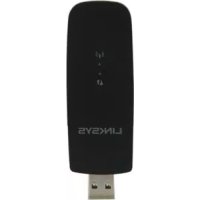
PLWK400 - Powerline Adapter LINKSYS - Free user manual and instructions
Find the device manual for free PLWK400 LINKSYS in PDF.



| Product Type | Powerline AV Adapter Kit with Wi-Fi Access Point (models PLE400 and PLW400) |
| Brand | Linksys |
| Model | PLWK400 |
| Network Standards | HomePlug AV, IEEE 802.11b/g/n, IEEE 802.3, 802.3u |
| Ports | 1 Fast Ethernet port (10/100) on each adapter |
| Buttons | PLW400: Wi-Fi Protected Setup, Easy Connect, Reset recessed; PLE400: Easy Connect, Reset |
| LEDs (PLW400) | Powerline, Ethernet, Wireless, Wi-Fi Protected Setup, Power |
| Dimensions (PLE400) | 101.9 x 71.9 x 52.4 mm |
| Weight (PLE400) | 116 g |
| Dimensions (PLW400) | 113 x 73 x 33 mm |
| Weight (PLW400) | 158 g |
| Power Supply | 100-240 V AC, 50-60 Hz |
| Main Features | Extends home network via electrical wiring, Wi-Fi access point, wired Ethernet port, advanced security (WPA2, WPA, WEP, 128-bit AES encryption) |
| Maximum Number of Clients | Up to 8 Powerline clients, up to 32 wireless clients |
| Maintenance and Cleaning | Unplug before cleaning; use a dry, soft cloth |
| Safety | Do not use near water; plug directly into a wall outlet without surge protector |
| Operating Temperature | 0°C to 40°C |
| Storage Temperature | -20°C to 70°C |
| Operating Humidity | 10% to 85% (non-condensing) |
| Storage Humidity | 5% to 90% (non-condensing) |
Frequently Asked Questions - PLWK400 LINKSYS
User questions about PLWK400 LINKSYS
0 question about this device. Answer the ones you know or ask your own.
Ask a new question about this device
Download the instructions for your Powerline Adapter in PDF format for free! Find your manual PLWK400 - LINKSYS and take your electronic device back in hand. On this page are published all the documents necessary for the use of your device. PLWK400 by LINKSYS.
USER MANUAL PLWK400 LINKSYS
Installation of adapterne 6
Installationoversigt 6
Tip 6
Sadan deles internetadgang 6
Sadan tilsluttes PLE400 7
Sadan tilsluttes PLW400 7
Installation of adapterne
Installationoversigt
Easy Connect, Nulstil
Powerline, Ethernet, strøm
128-bit AES Link kryptering
128
1024/256/64/16/8 QAM, QPSK, BPSK, ROBO
101,9× 71,9× 52,4mm
(4,0× 2,83× 2,06 tommer)
116 g (4,1 oz.)
100-240 V AC, 50-60 Hz
FCC, IC, CE, HomePlug AV
0-40°C (32-104°F)
-20-70°C (-4-158°F)
10-85%,ikke-kondenserende
Wi-Fi Protected Setup, Easy Connect, Reset
Powerline, Ethernet, Wireless, Wi-Fi Protected Setup, Power
128-Bit AES Link-kryptering, WPA2, WPA, WEP
1024/256/64/16/8 QAM, QPSK, BPSK, ROBO
FCC, IC, CE, Wi-Fi, HomePlug AV
0-40°C (32-104°F)
-20-70°C (-4-158°F)
10-85%,ikke-kondenserende
FCC, IC, CE, HomePlug AV
Oeepokpaia λeitoupyiac
0 40^ (32°F 104^
k p a o i a a n o k e u o n c
-20 70^ (-4°F 158^
Yypaia etoupyiac
Aattnoic aeitoupyikou
FCC, IC, CE, WiFi, HomePlug AV
How Powerline networking works 5
Example installation 5
Installing the Adapters 6
Installation overview 6
Tips. 6
How to share Internet access 6
How to connect your PLE400 7
How to connect your PLW400 . 7
Setting up advanced security 8
Using the Utility 8
Troubleshooting 10
Specifications 12
Overview
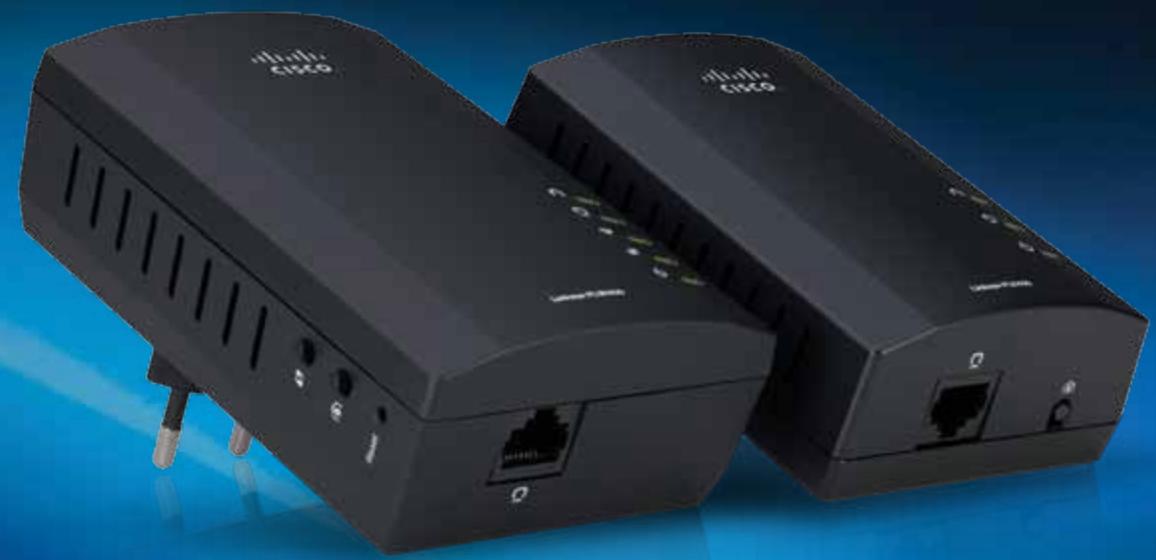
Thank you for choosing this Linksys Powerline network adapter kit. These adapters provide easy setup and let you connect wired and wireless network devices to your home network. You need at least two Powerline adapters to create a Powerline network. This kit includes:
- One PLE400 single-port Powerline adapter
One PLW400 wireless single-port Powerline adapter
Connect the PLE400 to your network router, and connect the PLW400 to any wireless or wired network device in any room of the house. You can find more help from our award-winning, 24/7 customer support at Linksys.com/support.
Features
PLE400
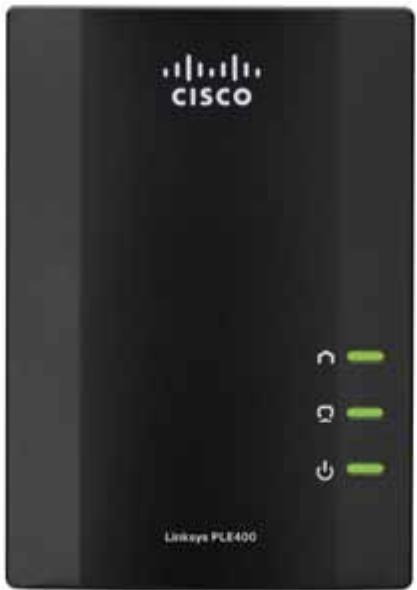
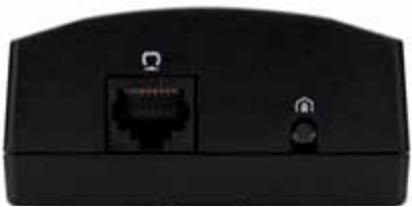

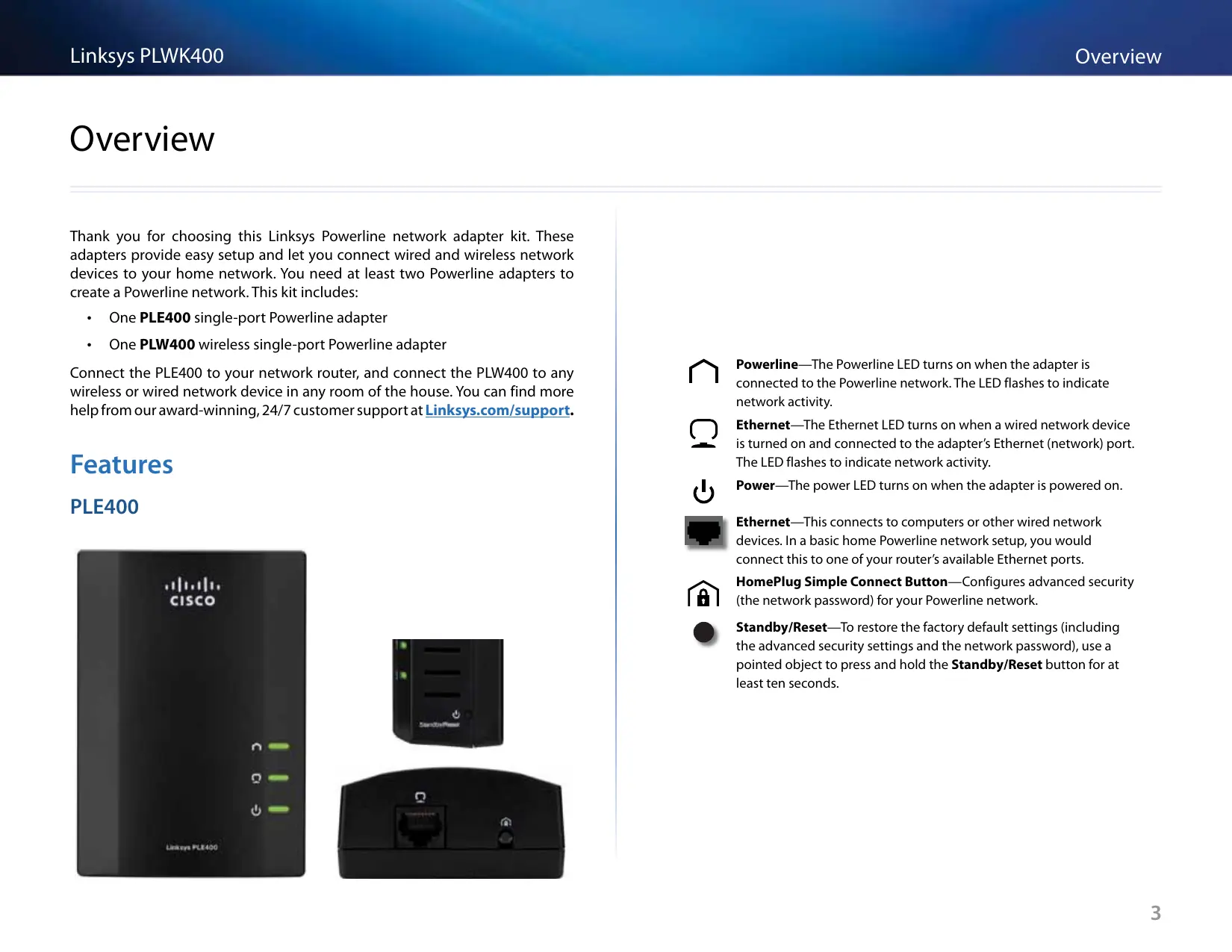
Powerline—The Powerline LED turns on when the adapter is connected to the Powerline network. The LED flashes to indicate network activity.

Ethernet—The Ethernet LED turns on when a wired network device is turned on and connected to the adapter's Ethernet (network) port. The LED flashes to indicate network activity.

Power—The power LED turns on when the adapter is powered on.

Ethernet—This connects to computers or other wired network devices. In a basic home Powerline network setup, you would connect this to one of your router's available Ethernet ports.

HomePlug Simple Connect Button—Configs advanced security (the network password) for your Powerline network.

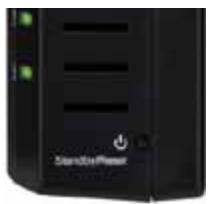
Standby/Reset—To restore the factory default settings (including the advanced security settings and the network password), use a pointed object to press and hold the Standby/Reset button for at least ten seconds.
PLW400
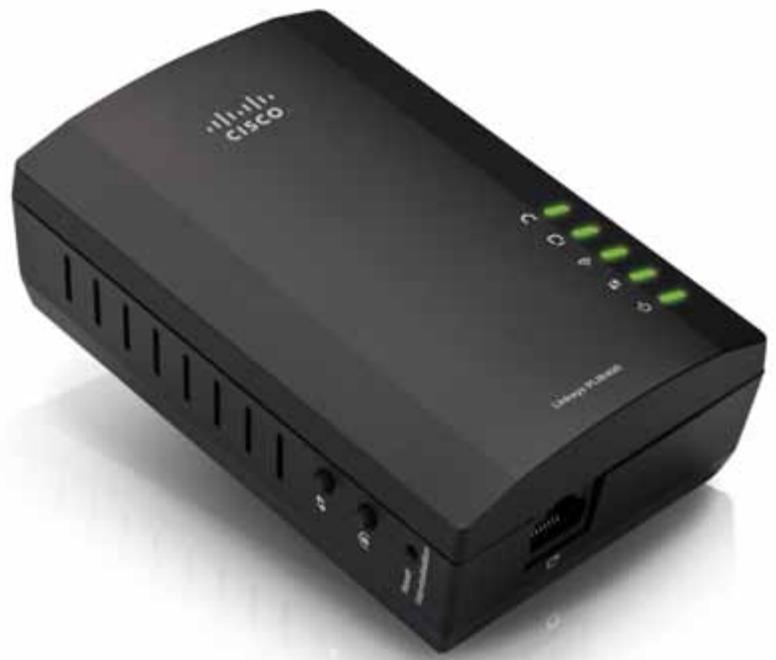
Wi-Fi Protected Setup button—Press this button to connect with other wireless network devices that have a Wi-Fi Protected Setup button.
HomePlug Simple Connect button—Configures advanced security (the network password) for your Powerline network.
Reset button (recessed)—To restore the factory default settings (including the advanced security settings and the network password), use a pointed object to press and hold the Reset button for at least ten seconds.
Powerline LED—The Powerline LED turns on when the adapter is connected to the Powerline network. The LED flashes to indicate network activity.
Ethernet LED—The Ethernet LED turns on when a wired network device is turned on and connected to the adapter's Ethernet (network) port. The LED flashes to indicate network activity.
Wireless LED—The Wireless LED turns on when a wireless network device is connected to your PLW400.
Wi-Fi Protected Setup™ LED—This LED flashes while a wireless network device is connecting with your PLW400 using Wi-Fi Protected Setup.
Power LED—The power LED turns on when the adapter is connected to a powered electrical outlet.
Ethernet port—Use a network (Ethernet) cable to connect this port to a wired network device.
How Powerline networking works
Electrical wiring runs through your home or office, carrying power to electrical outlets in every room. The typical wired Ethernet network uses Ethernet network cables to connect your wired network devices. A Powerline network uses your existing household wiring as the wiring for your Powerline network.
To create your Powerline network, use two or more Powerline adapters. Each device on your Powerline network requires a connection (either wired or wireless) to a Powerline adapter.
- The PLE400 has one Ethernet port. One of these devices is typically used in a Powerline network to connect your network's wireless router to the household wiring.
- The PLW400 contains one Ethernet port and an access point. You can connect one wired device and several wireless devices to it.
When adding a Powerline network to an existing network, the connections between the Internet, modem, and router stay the same.
Example installation
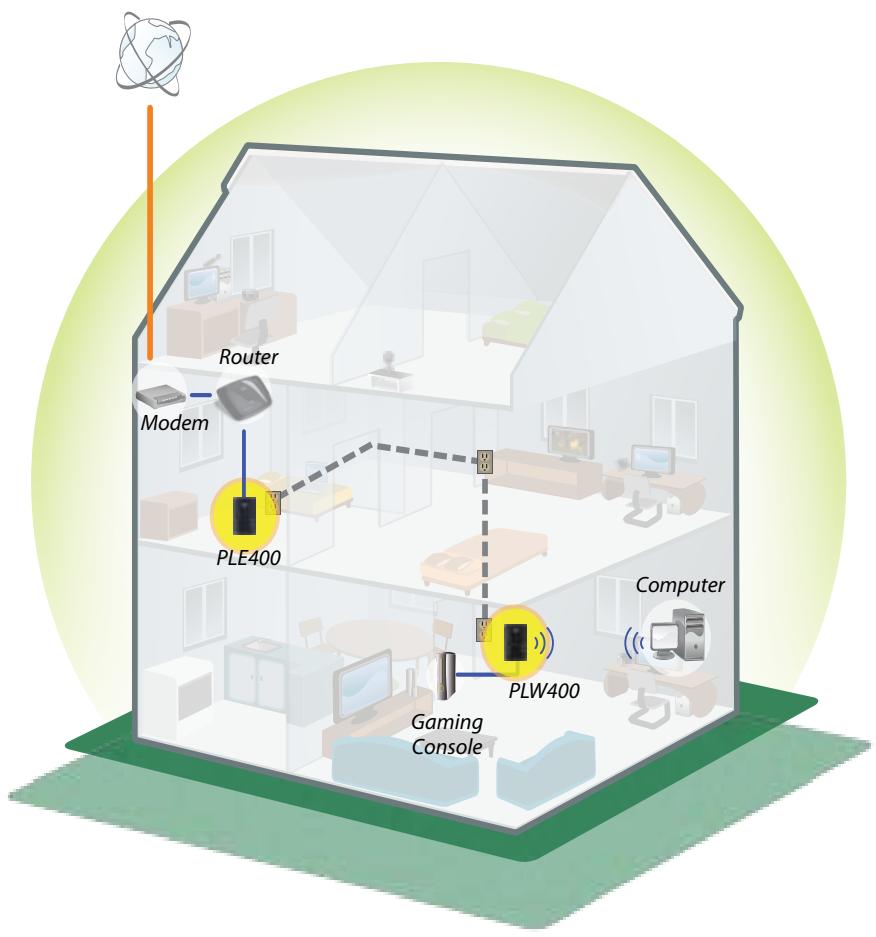
This diagram shows a basic Powerline network in a house. The router upstairs is connected to the PLE400, which is plugged into an electrical outlet. Downstairs, a gaming console and a computer are connected to the PLW400, which is plugged into an electrical outlet.
Using the household wiring of the home, the router expands the local network to include the gaming console and desktop computer in the living room. Internet access, files, and printers can be shared between the computers and other networked devices. For online gaming, you can play downstairs in the comfort of your living room, while using the high-speed Internet connection of the router and modem upstairs.
Installing the Adapters
Installation overview
To set up your Powerline network, you should:
- Make sure you already have Internet access and a working home network.
- Share Internet access with your Powerline network.
- Install Powerline adapters near the network devices that you want to connect to your home network.
- Make sure that the wireless devices that you want to connect to the PLW400 have a working wireless feature. An easy way to test this is to first try to connect the wireless network device to your home's wireless router while near the router.
Tips
- If possible, connect Powerline adapters directly to a wall power outlet, and not to an extension cord, power strip, or surge protector.
- If a Powerline adapter must be installed onto a power strip, make sure that no other electronic devices are connected to the same power strip.
- If possible, position the PLW400 near the wireless devices that you want to connect.
- Avoid obstructions (such as metal file cabinets, mirrors, and thick walls) between the PLW400 and any wireless device you want to connect.
How to share Internet access
To share Internet access over the Powerline network, connect your router to the Powerline network (typically with a single-port Powerline adapter such as the PLE400).
To connect your wireless router to your Powerline network:
- Connect your PLE400 (or another single-port Powerline adapter) to a power outlet near your wireless router. The adapter's power LED turns on.
- Use the included Ethernet network cable to the port on the adapter and to an available port on the back of the wireless router. The adapter's Ethernet LED turns on. You are now ready to extend your Powerline network to the rest of your home.
NOTE
For advanced security setup, see "Setting up advanced security" on page 8.
How to connect your PLE400
You can use your PLE400 to provide Internet access to the rest of your Powerline network (see "How to share Internet access" above). Or, if you used a different Powerline adapter to share Internet access, you can install your PLE400 elsewhere in your home.
TIP
You can also set up and configure all of your Linksys Powerline devices using the configuration utility. For more information, see "Using the Utility" on page 8.
To add a PLE400 to your Powerline network:
- Connect the adapter to a power outlet near the network device you want to connect. The adapter's power LED turns on. The Powerline LED flashes, and continues flashing until it connects to a second Powerline adapter.
- Connect the network device's network cable to an available port on the Powerline adapter. The adapter's Ethernet LED flashes, then stays on when the connection is finished.
How to connect your PLW400
After your existing network's router is connected to a Powerline adapter, you can install your PLW400 elsewhere in your home.
TIP
You can also set up and configure all of your Linksys Powerline devices using the configuration utility. For more information, see "Using the Utility" on page 8.
To connect your PLW400:
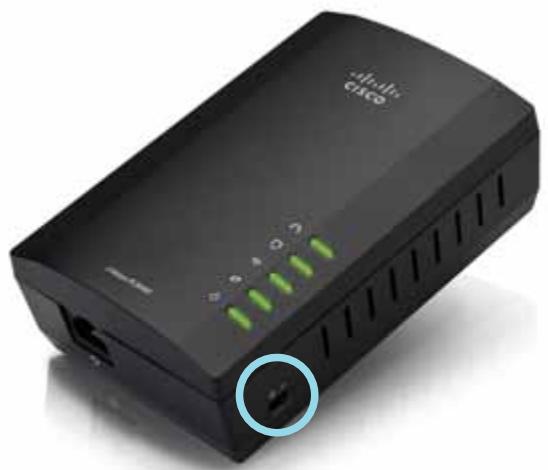
- Make sure that the power switch on the right side is set to I (on).
- If your home network already has security set up (recommended):
a. Connect the PLW400 to a power outlet near your main wireless router.
b. On the PLW400, press and hold the Wi-Fi Protected Setup button at least one second, until the Wi-Fi Protected Setup LED flashes.
c. Within two minutes, press the Wi-Fi Protected Setup button on your wireless router. The PLW400 retrieves the security settings from the router and connects to your wireless network.
- Move your PLW400 to a power outlet near the wireless network device(s) you want to connect. Typically, this area is not covered well by your home's wireless network router.
The Powerline LED flashes, then stays on when the connection to the rest of the Powerline network is finished. Your home's wireless network is now available in the area surrounding the PLW400.
- Connect the wireless network device to the wireless network in the usual manner. For instructions, see your wireless network device's user documentation. The PLW400's Wireless LED flashes, then stays on when a wireless network device successfully connects.
Setting up advanced security
NOTE
The devices connected to the Powerline adapters will temporarily lose Internet connection during the security setup.
To configure your network adapter with advanced security:
- On one of the existing Powerline adapters that already have advanced security set up, press and hold the HomePlug Simple Connect button for at least one second, until the Powerline LED begins flashing slowly.
- On your PLW400, press and hold the HomePlug Simple Connect button for at least one second, until the Powerline LED begins flashing slowly. When the LED stops flashing, the network key has been shared with the PLW400.
NOTE
The devices connected to the adapters will regain Internet access within five minutes.
Using the Utility
If you're having difficulty connecting the adapters using Wi-Fi Protected Setup, or if you'd like to set more advanced options, you can use the configuration utility.
To install the configuration utility:
- Connect a computer's Ethernet port to the PLW400's Ethernet port using the provided cable.
- Insert the setup CD into the computer's CD or DVD drive, then follow the on-screen instructions.
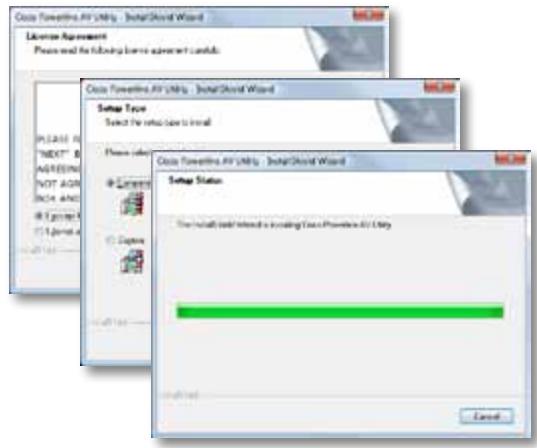
To use the configuration utility:
- After the utility is installed:
On Windows systems:
a. Click Start, All Programs, Cisco Systems, then Cisco Powerline AV Utility. The utility opens.
On Mac OS X systems:
a. Open the Applications folder, then double-click the Cisco Powerline AV Utility icon. The utility opens.
NOTE
If you try to change the settings of a Powerline device from a computer that is not connected directly to that device with a cable, you are prompted for a password. The device password is printed on the back of the device.
- Click the Network Status tab to view details of the Powerline adapters that are connected to your network.
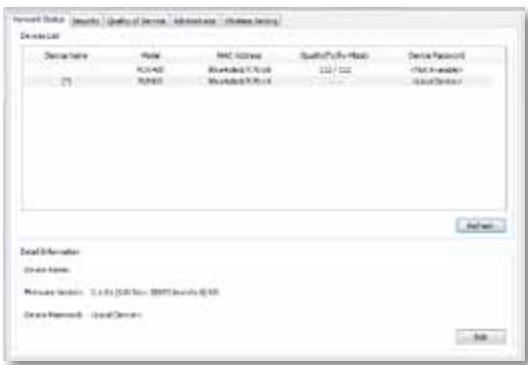
- If a connected adapter is not listed here, click Refresh.
-
To change information for any adapter that's listed, select the adapter, then click Edit.
-
Click the Security tab to manually change the network key for each device. If you need to revert to the default key, click Restore Default Key.
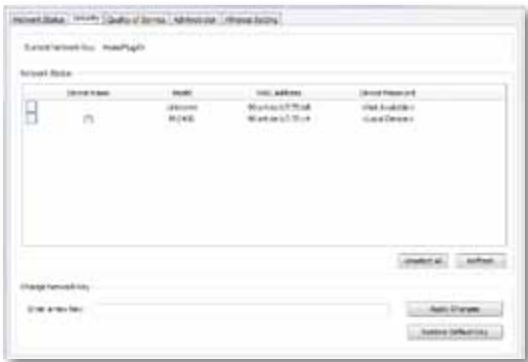
- Click the Quality of Service tab to specify how the network prioritizes network bandwidth.
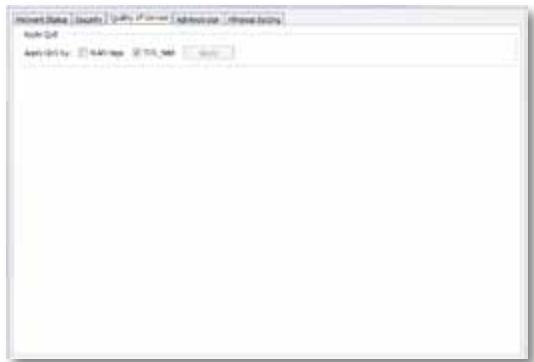
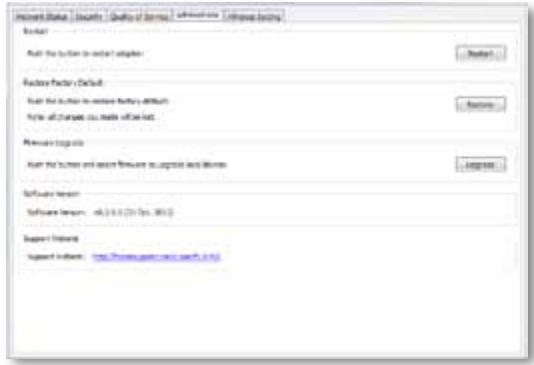
- Click the Administrator tab to restart an adapter, restore factory defaults, or upgrade the adapter's firmware.
- Click the Wireless Settings tab to change the wireless network name (SSID), wireless security type, or passphrase/key.
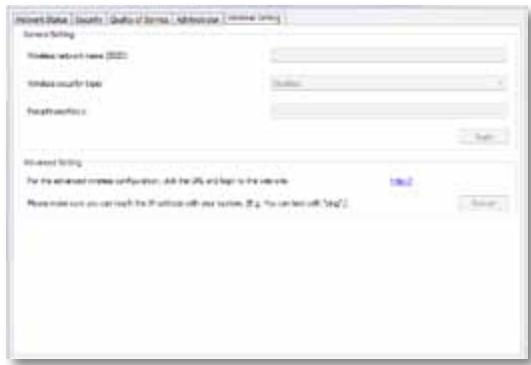
Settings are applied to the adapter(s) immediately. Close the window to exit the utility.
Troubleshooting
Your wireless network device is not recognized by your network.
Try the following:
- Make sure that the wireless device is turned on and that its wireless networking is turned on.
- If possible, position the PLW400 near the wireless device that you want to connect.
- Avoid obstructions (such as metal file cabinets, mirrors, and thick walls) between the PLW400 and any wireless device you want to connect.
If you have set up advanced security for the Powerline network, check the following:
- Make sure all adapters on the Powerline network have been configured with the same network password. The network password must be identical in order for them to communicate with each other. See "Setting up advanced security" on page 8 or "Using the Utility" on page 8.
The Ethernet LED does not turn on after you connected a wired Ethernet device to the Powerline adapter.
Follow these instructions:
- Make sure that the Ethernet network cable is securely connected to the adapter.
- Make sure that the Ethernet network cable is securely connected to the network device you are connecting.
Or:
- Disconnect the adapter from the power outlet.
- Disconnect the Ethernet network cable from the adapter.
- Wait five seconds.
- Re-connect the Ethernet network cable to the adapter.
-
Re-connect the adapter to the power outlet.
-
If this solution does not work, make sure that the electrical outlet is working properly. Plug a different device into the outlet, and try to turn it on.
You cannot connect to other computers on your local network or to the Internet.
If you did not set up advanced security for the Powerline network, follow these instructions:
- Locate the Powerline adapter connected to the computer that cannot connect.
- On the left side of the adapter, use a pointed object to press and hold the Standby/Reset button for at least ten seconds. This resets the adapter to its factory default settings.
If you have set up advanced security for the Powerline network, check the following:
- Make sure all adapters on the Powerline network have been configured with the same network password. The network password must be identical in order for them to communicate with each other. See "Setting up advanced security" on page 8 or "Using the Utility" on page 8.
- If you are adding a new adapter to a pre-existing Powerline network with a unique network password, follow the instructions in "Using the Utility" on page 8.
The LEDs are flashing and I don't know what it means.
Refer to the following table of LED behavior to help diagnose the problem:
| Powerline LED | Off | Not connected to Powerline network |
| Flashing fast | Send/Receive data | |
| Flashing slow | Pairing | |
| Solid | Connected to Powerline network | |
| Ethernet LED | Off | Not connected to Ethernet network |
| Flashing | Send/Receive data | |
| Solid | Connected to Ethernet network | |
| Wireless LED (PLW400 only) | Off | Wireless not connected |
| Solid | Wireless enabled | |
| Flashing | Send/Receive data | |
| Wi-Fi Protected Setup (PLW400 only) | Flashing slow | Connection in progress (up to two minutes) |
| Flashing fast | Connection error. | |
| Solid | Connection successful | |
| Power LED | Off | Device power off |
| Solid | Device power on and ready | |
| Flashing fast momentarily | Factory default (both models), device wakeup from standby mode (PLE400 only) | |
| Flashing fast indefinitely | Pairing error/system error | |
| Flashing slow | Device in standby mode (PLE400 only) |
WEB
If your questions are not addressed here, go to the Linksys Support website at Linksys.com/support.
Specifications
Model
Standards
Ports
Buttons
LEDs
Security Features
Security Key Bits
Modulation schemes
PLE400
HomePlug AV, 802.3, 802.3u
Fast Ethernet (10/100)
Easy Connect, Reset
Powerline, Ethernet, Power
128-Bit AES Link Encryption
128
1024/256/64/16/8 QAM, QPSK, BPSK, ROBO
Environmental
Dimensions
Weight
Power
Certification
Operating Temp.
Storage Temp.
Operating Humidity
Storage Humidity
101.9 × 71.9 × 52.4 ~mm
(4.0 × 2.83 × 2.06 inches)
116g (4.1 oz.)
100-240V AC, 50-60 Hz
FCC, IC, CE, HomePlug AV
0 to 40^ (32°F to 104°F)
-20 to 70^ (-4°F to 158°F)
10 to 85% Non-condensing
5 to 90% Non-condensing
Model
Standards
Ports
Buttons
LEDs
Security Features
Modulation schemes
Network client support
Utility OS requirements
Default SSID
Environmental
Dimensions
Weight
Power
Certifications
Operating Temp.
Storage Temp.
Operating Humidity
Storage Humidity
PLW400
HomePlug AV, IEEE 801.11b/g/n, 802.3, 802.3u
Fast Ethernet (10/100)
Wi-Fi Protected Setup, Easy Connect, Reset
Powerline, Ethernet, Wireless,
Wi-Fi Protected Setup, Power
128-Bit AES Link Encryption, WPA2, WPA, WEP
1024/256/64/16/8 QAM, QPSK, BPSK, ROBO
Up to 8 Powerline client devices, up to 32
wireless client devices
Windows 7/Vista/XP, Mac OS X v10.5 or higher
"CiscoXXXX" where XXXXX is the last 5 digits of the adapter's serial number
113 × 73 × 33 ~mm (4.45 × 2.87 × 1.3 inches)
158 g (5.6 oz.)
100-240V AC, 50-60 Hz
FCC, IC, CE, WiFi, HomePlug AV
0 to 40^ (32°F to 104°F)
-20 to 70^ (-4^ to 158^)
10 to 85% Non-condensing
5 to 90% Non-condensing
Visit linksys.com/support for award-winning 24/7 technical support

Cisco, the Cisco logo, and Linksys are trademarks or registered trademarks of Cisco and/or its affiliates in the United States and other countries. A listing of Cisco's trademarks can be found at www.cisco.com/go/trademarks. All other trademarks mentioned in this document are the property of their respective owners.
Guiá del usuario
Linksys PLWK400 Kit Extender de red inalábrica PowerLine AV
Contedio
Easy Connect, palautus
Powerline, Ethernet, virta
128-bittinen AES Link Encryption
128
1024/256/64/16/8 QAM, QPSK, BPSK, ROBO
Käytöymäristöiedot
Mitat
Paino
Virta
Sertifointi
Käytölampötila
Varastointilampotila
Käytömpäristön
ilmankosteus
FCC, IC, CE, HomePlug AV
0-40°C
-20-70°C
Wi-Fi Protected Setup, Easy Connect, palautus
Powerline, Ethernet, Wireless, Wi-Fi Protected Setup, Power
128-bittinen AES Link Encryption, WPA2, WPA, WEP
1024/256/64/16/8 QAM, QPSK, BPSK, ROBO
FCC, IC, CE, WiFi, HomePlug AV
0-40°C
-20-70°C
FCC, IC, CE, HomePlug AV
0tot 40^
-20 tot 70^
10 tot 85% , niedenserend
5 tot 90% , nicht-condenserend
Model
Standaarden
Poorten
Knoppen
LED's
Wi-Fi Protected Setup, Easy Connect, Reset
Powerline, Ethernet, Wireless, Wi-Fi Protected Setup, Power
128-bits AES Link-versleuteling, WPA2, WPA, WEP
1024/256/64/16/8 QAM, QPSK, BPSK, ROBO
Tot 8 Powerline-clientapparaten, tot 32 draadloze clientapparaten
Windows 7/Vista/XP, Mac OS X v10.5 of hoger
FCC, IC, CE, WiFi, HomePlug AV
0 to 40^
-20 tot 70^
10 tot 85% , niedenserend
5 tot 90% , nicht-condenserend