Disan GXT 161 - Mouse TRUST - Free user manual and instructions
Find the device manual for free Disan GXT 161 TRUST in PDF.



User questions about Disan GXT 161 TRUST
0 question about this device. Answer the ones you know or ask your own.
Ask a new question about this device
Download the instructions for your Mouse in PDF format for free! Find your manual Disan GXT 161 - TRUST and take your electronic device back in hand. On this page are published all the documents necessary for the use of your device. Disan GXT 161 by TRUST.
USER MANUAL Disan GXT 161 TRUST
Frequently asked questions: www.trust.com/22210/FAQ

text_image
GXTTrust
natural_image
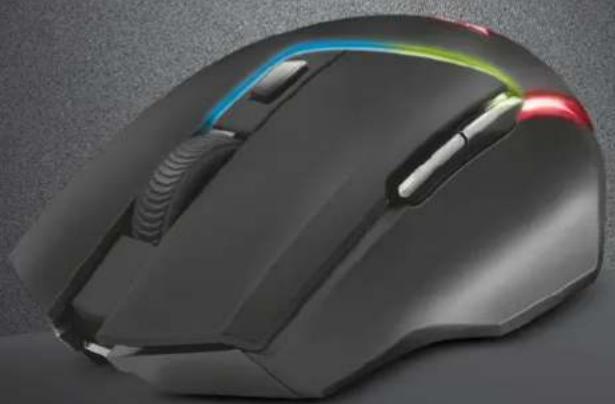
Close-up of a black wired computer mouse with glowing blue and red light trails (no text or symbols visible)
DISAN
PC LAPTOP WIRELESS
text_image
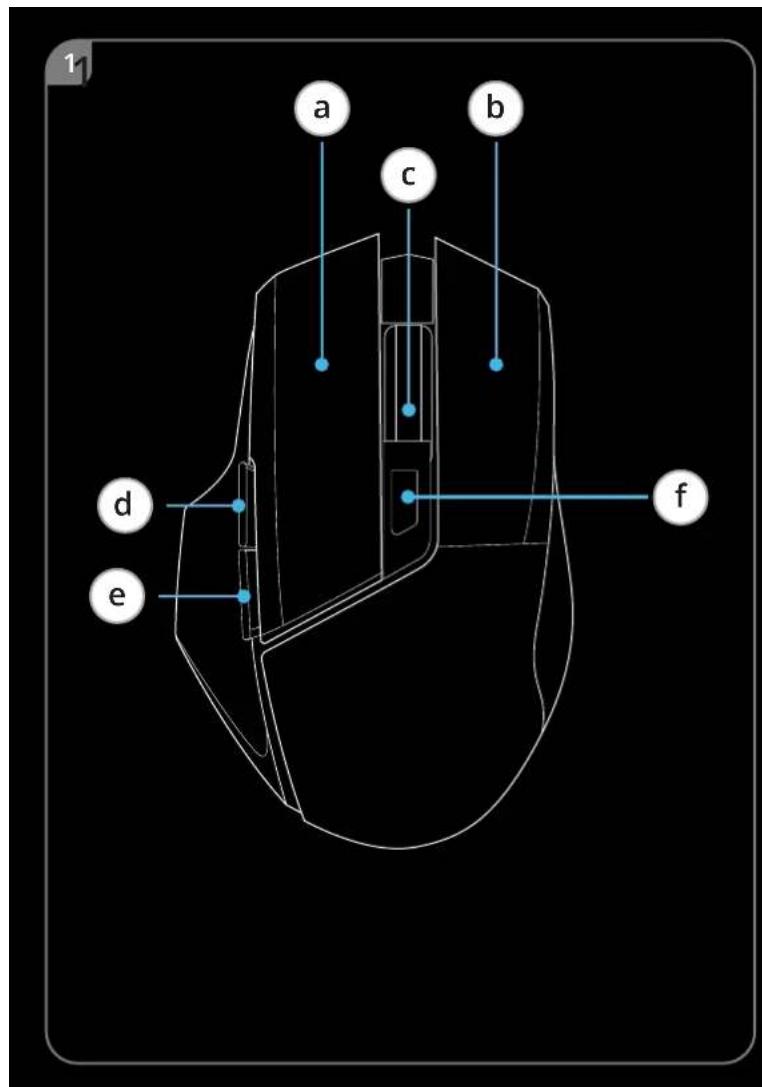
a b c d e f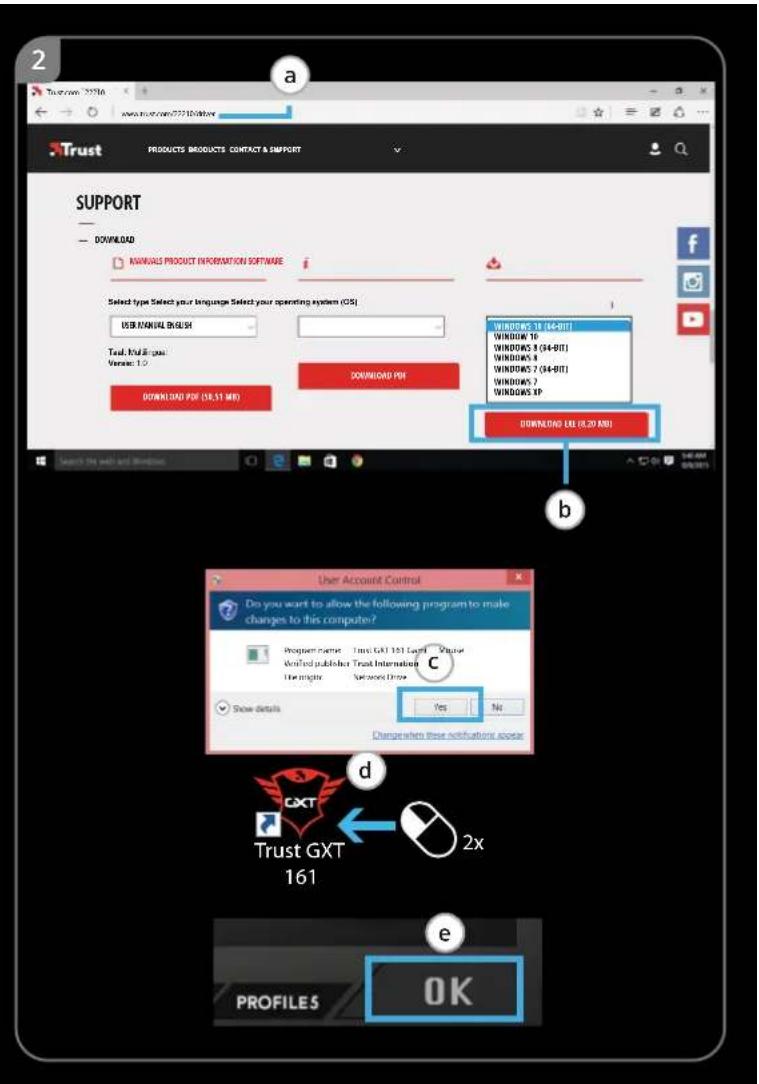
text_image
Trust PRODUCTS PRODUCTS CONTACT & SUPPORT SUPPORT — DOWNLOAD NANUALS PRODUCT INFORMATION SOFTWARE i Select type Select your language Select your operating system (OS) USB MANUAL BRLUSH Trust Mail Plus Version: 1.0 DOWNLOAD POP (18.51 MB) DOWNLOAD POP WINDOWING LU (0.20 MB) WINWINS 31 (44-BIT) WINWINS 10 WINWINS 8 (44-BIT) WINWINS 8 WINWINS 7 (44-BIT) WINWINS 7 WINWINS XP DOWNLOAD NU (0.20 MB) User Account Control Do you want to allow the following program to make changes to this computer? Program name: Trust GXT 161 Legal - Vrputar Unified publisher: Trust International Use might be open down Show details Yes No Changes when these notifications choose CXT Trust GXT 161 2x PROFILES OK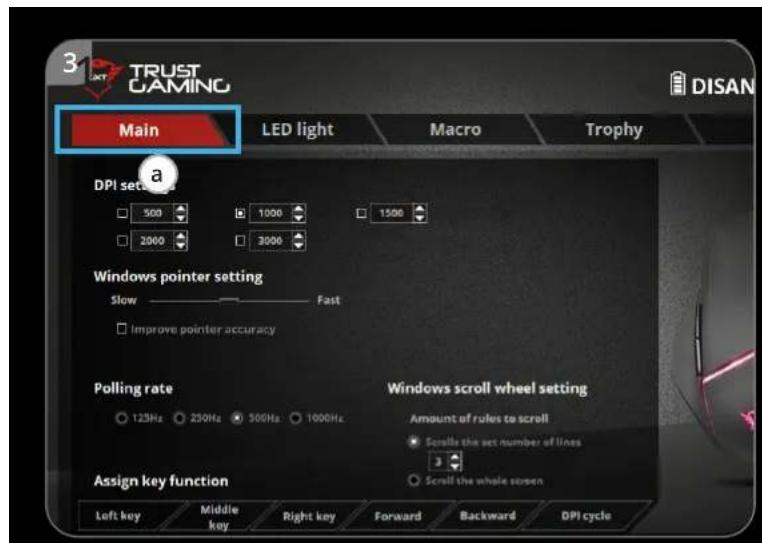
text_image
3 TRUST GAMING DISAN Main LED light Macro Trophy DPI set a 500 1000 1500 2000 3000 Windows pointer setting Slow —— Fast Improve pointer accuracy Polling rate 125Hz 250Hz 500Hz 1000Hz Windows scroll wheel setting Amount of rules to scroll Scroll the set number of lines Assign key function Left key Middle key Right key Forward Backward DPI cycle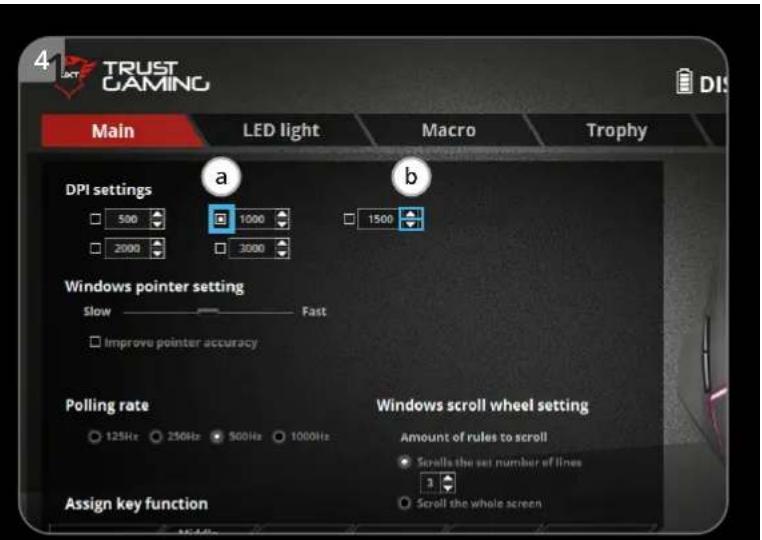
text_image
4 TRUST GAMING DIS Main LED light Macro Trophy DPI settings a b 500 1000 1500 2000 3000 Windows pointer setting Slow Fast Improve pointer accuracy Polling rate 125Hz 250Hz 500Hz 1000Hz Assign key function Windows scroll wheel setting Amount of rules to scroll Scrolls the set number of lines 3 Scroll the whole screen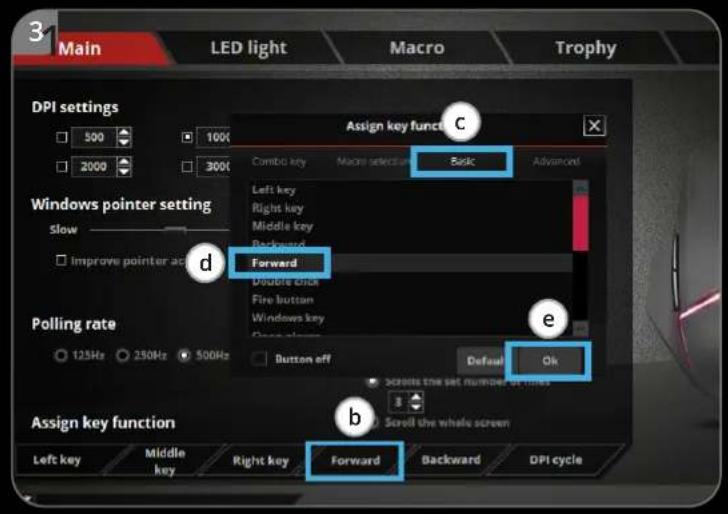
text_image
3 Main LED light Macro Trophy DPI settings 500 1000 2000 3000 Assign key function C Combo key Macron selection Back Advanced Windows pointer setting Slow d Improve pointer ac Forward Double stick Fire button Windows key Down arrow e Polling rate 12.5Hz 250Hz 500Hz Button off Default Ok Assign key function b Left key Middle key Right key Forward Backward DPI cycle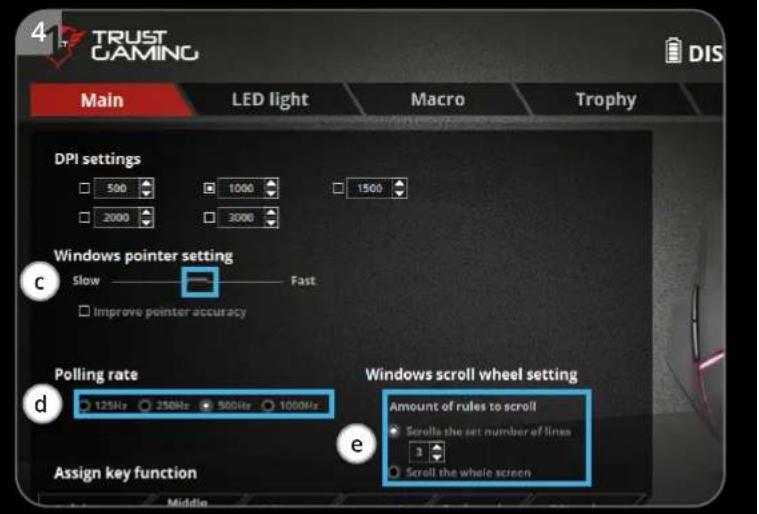
text_image
4 TRUST GAMING DIS Main LED light Macro Trophy DPI settings 500 1000 1500 2000 3000 Windows pointer setting Slow Fast Improve pointer accuracy Polling rate 125Hz 250Hz 500Hz 1000Hz Assign key function Middle Windows scroll wheel setting Amount of rules to scroll Scroll the set number of lines 3 Scroll the whole screen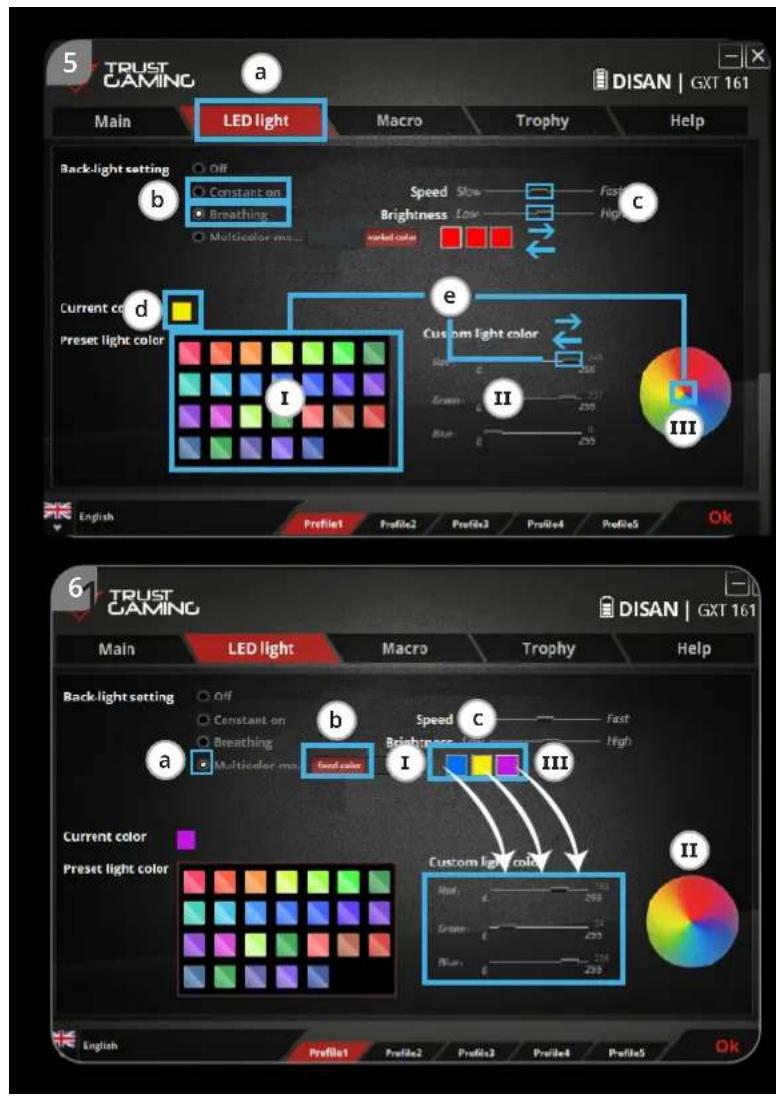
text_image
5 TRUST GAMING a DISAN | GXT 161 Main LED light Macro Trophy Help Back-light setting b OFF Constant on Breathing Speed Slow Fast Brightness Low High color color c Current color d Preset light color I Custom light color 205 204 203 202 201 200 295 294 293 292 291 290 289 288 287 286 285 284 283 282 281 280 279 278 277 276 275 274 273 272 271 270 269 268 267 266 265 264 263 262 261 260 259 258 257 256 255 English Profile1 Profile2 Profile3 Profile4 Profile5 Ok 6 TRUST GAMING a LED light Macro Trophy Help Back-light setting b Off Constant on Breathing Speed C Fast Brightness Low High Color color I III Current color Preset light color I Custom light color High: 700-700-700- Green: 700-700-700- Blue: 700-700-700- English Profile1 Profile2 Profile3 Profile4 Profile5 Ok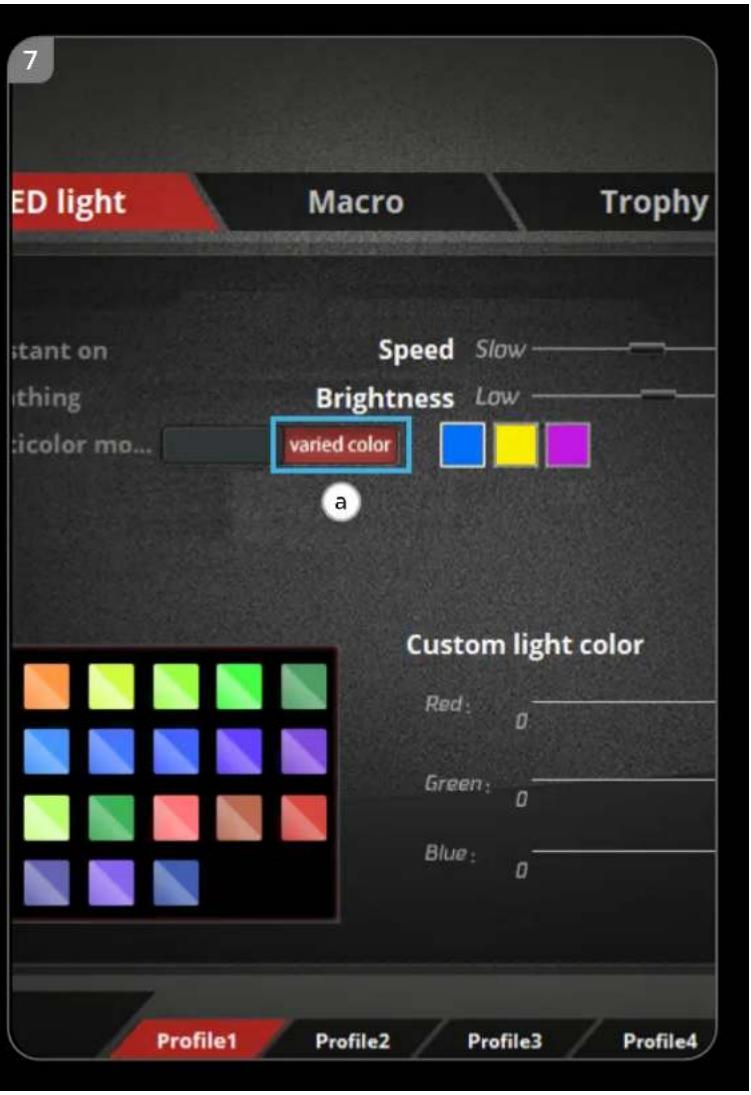
text_image
ED light Macro Trophy Instant on thing color mo... Speed Slow Brightness Low varied color a Custom light color Red: 0 Green: 0 Blue: 0 Profile1 Profile2 Profile3 Profile4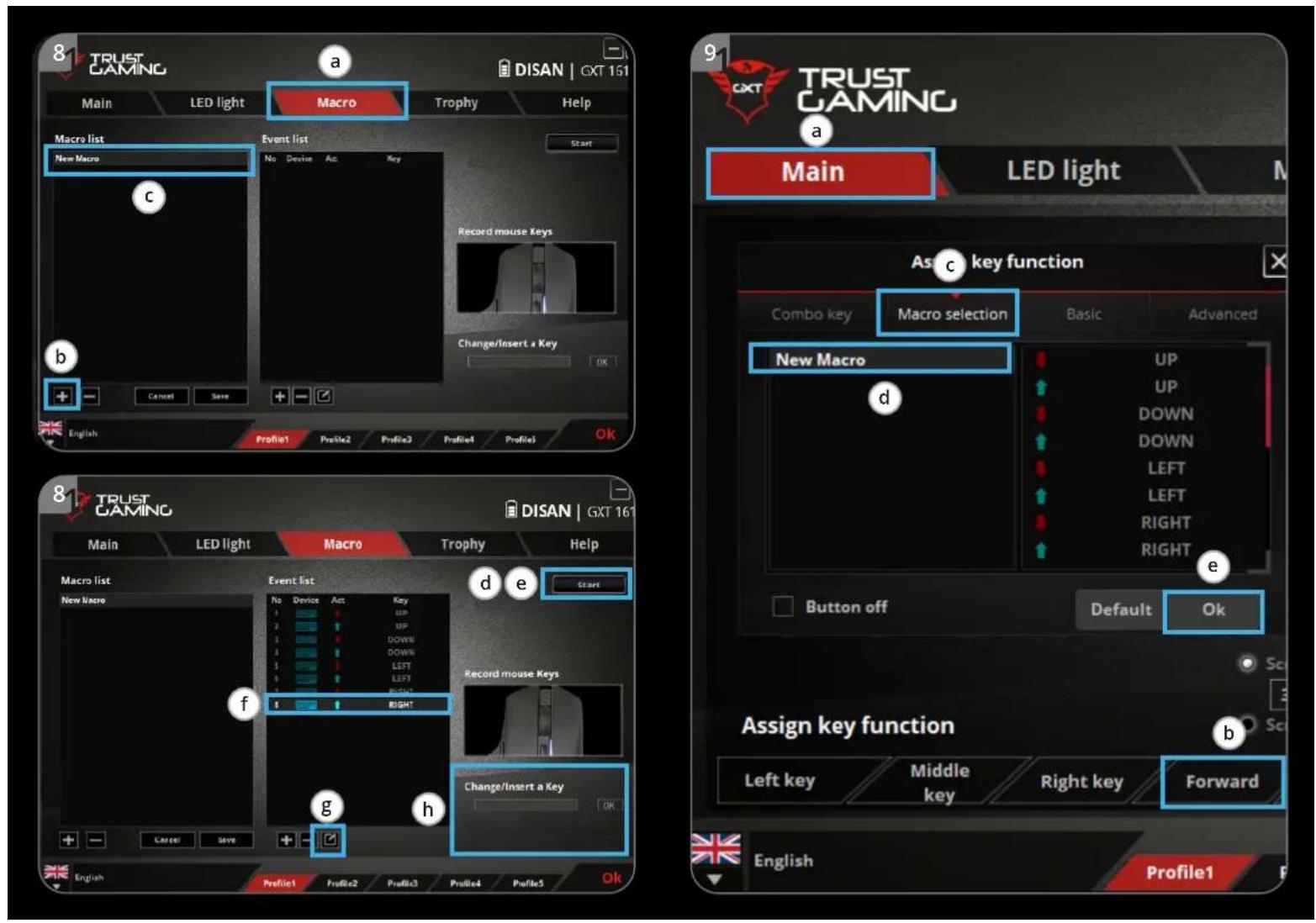
text_image
10 TRUST GAMING Main LED light Macro Trophy DISAN | GXT 161 a Help Data statistics TROPHY GRADES Current level Key statistics Left key 2615 Time (c) Middle key 11 Time (c) Right key 31 Time (c) Total 2657 Time (c) Roller statistics Roll forward 496 Time (c) Roll backward 509 Time (c) Total 1005 Time (c) Moving distance Total 9974 Time (c) SERGANT Status setting Reset English Profile1 Profile2 Profile3 Profile4 Profile5 OK 11 TRUST GAMING DISAN | GXT 161 a Help Main Save As Save in: Desktop Quick access Desktop OneDrive Frank Nauwen This PC Libraries This PC Network C: 40210 File Save as type: Save at type: Save to default: Restor to default: Reset Profile Import Export English Profile1 Profile2 Profile3 Profile4 Profile5 Profile6 Ok Website www.trust.com Visit Trust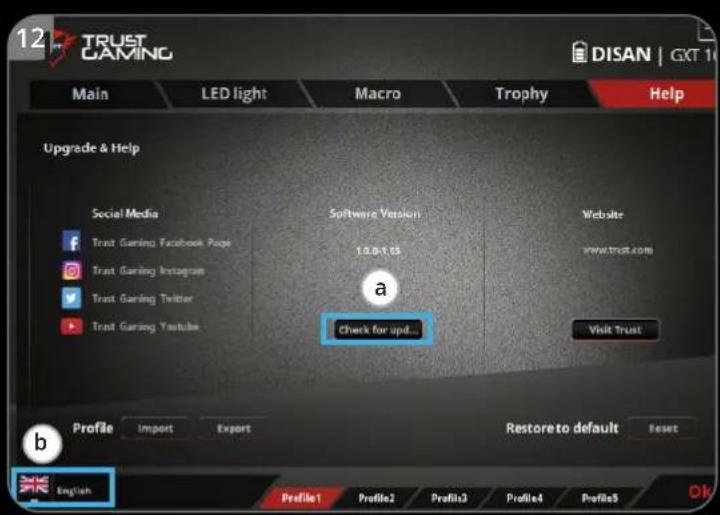
text_image
12 TRUST GAMING DISAN | GXT 10 Main LED light Macro Trophy Help Upgrade & Help Social Media Software Version Website Trust Gaming Facebook Page 10.8-1.05 www.trust.com Trust Gaming Instagram Trust Gaming Twitter Trust Gaming Youtube a Check for upd... Visit Trust Profile.Import Export Restore to default Reset English Profile1 Profile2 Profile3 Profile4 Profile5 OK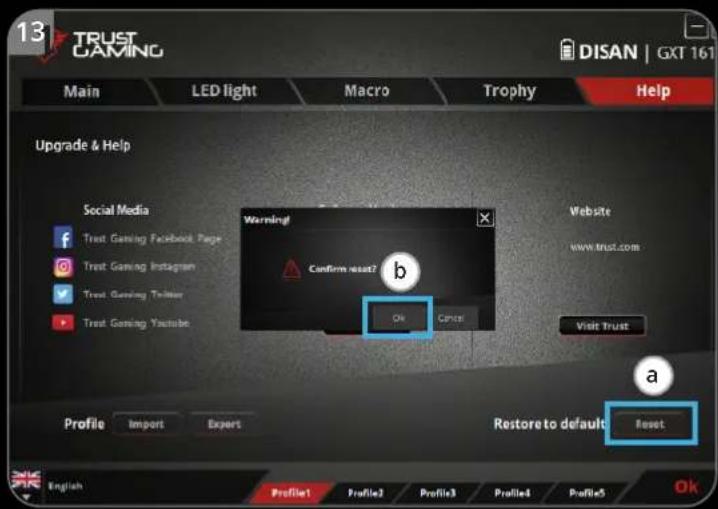
text_image
13 TRUST GAMING DISAN | GXT 161 Main LED light Macro Trophy Help Upgrade & Help Social Media f Trust Gaming Facebook PageTrust Gaming Instagram
✓ Trust Gaming Twitter ✓ Trust Gaming Youtube Warning! Confirm reset? OK Cancel Website www.trust.com Visit Trust Profile.Import Expert Restore to default Reset a English Profile1 Profile2 Profile3 Profile4 Profile5 OkGXT 161 Gaming Mouse - USER'S MANUAL
Trust
- Button layout
| a | - Button 1 (Default = Left mouse button) |
| b | - Button 2 (Default = Right mouse button) |
| c | - Button 3 (Default = Mid click) |
| d | - Button 4 (Default = Forward) |
| e | - Button 5 (Default = Backward) |
| f | - Button 6 (Default = DPI cycle) |
2. Installation
a - Open the internet browser and go to www.trust.com/22210/driver.
b - Click the "Download EXE" button to download the software.
c - Click on the "22210_X.exe" and follow the installation wizard.
d - Click on the "GXT 161 Gaming Mouse" shortcut to start the software.
e - You can now start to configure the mouse. In the manual will be referred to 'OK' to update the mouse.
Button Programming
3. Assign a function
a - Click on the 'MAIN' tab.
b - Click on the button you want to re-assign
c - Click on tab 'C' for common functions.
d - Click on the function you want to assign.
e - Click on 'OK', to finalize your choice.
- Click on 'OK', the mouse is being updated.
At least one button has to be assigned as "Left Click".
Mouse Movement Settings
- DPI, Pointer, Polling rate and Scroll wheel settings.
a - 'a' shows your active DPI setting.
b - Click on the arrows to adjust the DPI speed.
c - Change the windows pointer speed.
d - Change the polling rate.
e - Change the windows scrolling speed.
- Click on 'OK', the mouse is being updated.
LED colours indicate which DPI level is currently active. These indication colours cannot be changed;
- RED = Level 1
o GREEN = Level 2 - BLUE = Level 3
o TURQOISE = Level 4
o PURPLE = Level 5
Light Settings
5. Basic Light Effect
a - Click on the 'LED LIGHT' tab.
b - Click on 'Breathing' for a breathing LED effect, Click on 'Constant On' for a constant LED effect.
c - You can move the sliders to adjust the breathing speed or LED brightness.
d - 'Breathing' + 'Constant On' current colour indicator.
e - Change the colour by one of three options;
I Click on the desired color from the preset box.
II Dragging the Red, Green or Blue slider.
III Click on one spot on the color wheel.
- Click on 'OK', the mouse is being updated.
6. LED Zones, fixed colors
a - Click on the 'Multicolor mode' to individually set each of the 3 LED zones.
b - Activate the 'fixed color' mode.
c - To select each colour;
I Click on the colour box
II Click on the desired colour
III Repeat this until all zones are selected
- Click on 'OK', the mouse is being updated.
7. LED Zones, varied colors
a - Activate the 'varied color' to activate the rainbow wave effects.
b - Move the slider to change the animation speed.
- Click on 'OK', the mouse is being updated.
Macro Settings
- Create a Macro (Store a sequence of keys in the software)
a - Click on the 'MACRO' tab.
b - Click on '+' to create a new macro.
c - Fill in the name of the macro.
d - Click 'Start Record' to start recording the macro. Now enter your preferred macro sequence.
e - Click 'Stop Record' ones you finished recording the macro. (max. 100 actions)
f - To modify your recorded macro, click on the required step you want to modify.
g - Click on the button to activate the edit panel.
h - Change the key or delay and press 'OK' next to the entry field.
9. Assign a Macro
a - Click on the 'MAIN' tab.
b - Click on the button to which you want to assign the macro to.
c - Click on the 'Macro selection' tab.
d - Click on the desired macro.
e - Click on 'OK' to select the macro.
- Click on 'OK', the mouse is being updated.
Trophies, Profiles, Firmware update & Factory reset
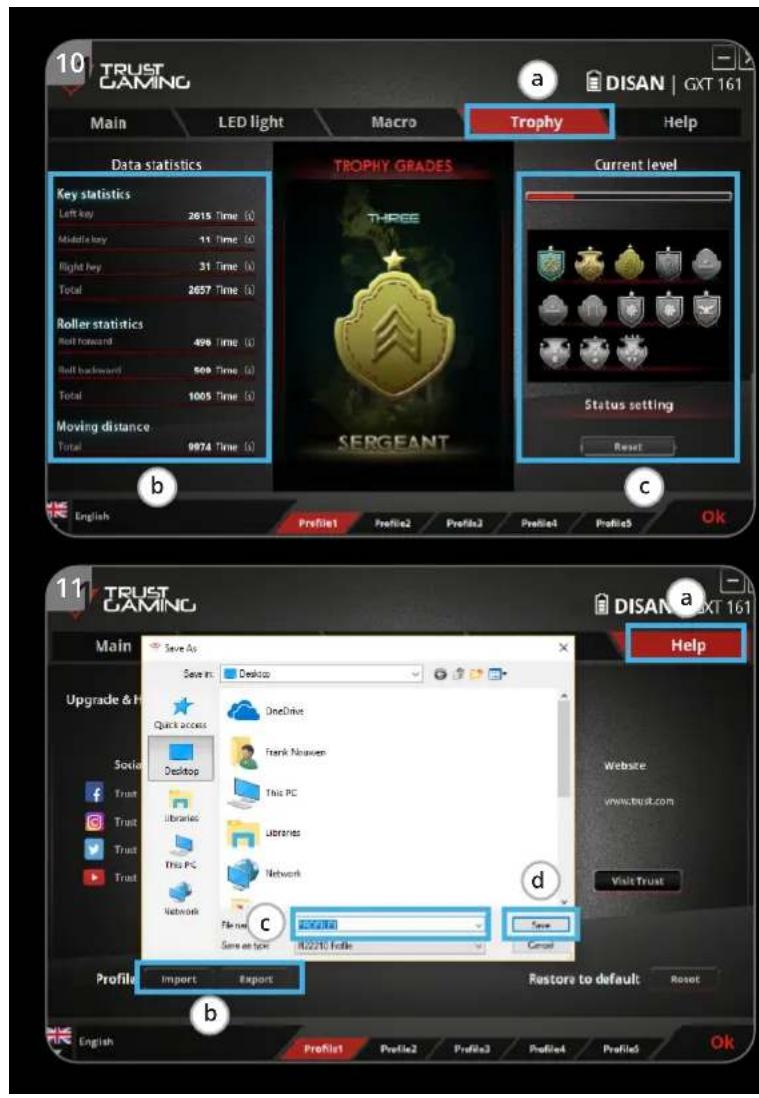
10. Data statistics & Trophies
a - Click on the 'TROPHY' tab.
b - Mouse statistics
c - Current level
RANKING SYSTEM:
| Total clicks: | Ranking: | |
| 0 – 100 | [2W0C] | Private |
| 100 – 1.000 | [50ZC] | Corporal |
| 1.000 – 5.000 |  | Sergeant |
| 5.000 – 20.000 |  | Staff Sergeant |
| 20.000 – 50.000 |  | Second Lieutenant |
| 50.000 – 100.000 | [KAZS] | Lieutenant |
| 100.000 – 200.000 |  | Captain |
| Total clicks: | Ranking: | |
| 200.000 – 300.000 |  | Major |
| 300.000 – 400.000 |  | Lieutenant Colonel |
| 400.000 – 500.000 |  | Colonel |
| 500.000 – 750.000 |  | Major General |
| 750.000 – 1.000.000 |  | Lieutenant General |
| 1.000.000+ |  | General |
11. Save or Load Profiles
a - Click on the 'HELP' tab.
b - Click on 'Import file' to load a setup, click on 'Export file' to save a setup.
c - Enter the desired name for your setup, or search the previously saved setup.
d - Click on 'Save/Open' to save/load your setup.
12. Software update & language settings
a - Click on the 'Check Update' button check the latest software.
b - Click on the language menu to select the preferred language.
13. Factory reset
a - Click on the 'Reset' button.
b - Click on the 'OK' button to reset all settings to factory default.
The "Reset" button only resets the selected profile.