
Graphin GXT 960 - Mouse TRUST - Free user manual and instructions
Find the device manual for free Graphin GXT 960 TRUST in PDF.


| Product type | Wired gaming mouse |
| Brand | Trust |
| Model | Graphin GXT 960 |
| Dimensions (L x W x H) | 125 x 76 x 41 mm |
| Weight | 128 g |
| Sensor type | Optical |
| Maximum resolution (DPI) | 7200 DPI (adjustable in steps) |
| Number of buttons | 6 programmable buttons |
| Connectivity | Wired USB (1.8 m cable) |
| Backlighting | Customizable RGB |
| Polling rate | Up to 1000 Hz |
| Compatible operating systems | Windows 7, 8, 10 |
| Power supply | Via USB port |
| Main functions | Button programming, DPI adjustment, macros, profiles, RGB lighting |
| Configuration software | Trust GXT 960 Gaming Mouse (downloadable from trust.com) |
| Macro creation | Yes, up to 168 actions per macro |
| Profiles | 3 built-in profiles, possibility to create and import/export |
| Maintenance and cleaning | Clean with a soft, slightly damp cloth. Disconnect before cleaning. |
| General information | Manual available in French, English and 20 other languages. Free download at notice-facile.com. |
Frequently Asked Questions - Graphin GXT 960 TRUST
User questions about Graphin GXT 960 TRUST
0 question about this device. Answer the ones you know or ask your own.
Ask a new question about this device
Download the instructions for your Mouse in PDF format for free! Find your manual Graphin GXT 960 - TRUST and take your electronic device back in hand. On this page are published all the documents necessary for the use of your device. Graphin GXT 960 by TRUST.
USER MANUAL Graphin GXT 960 TRUST
www.trust.com/23758/faq

Trust
natural_image
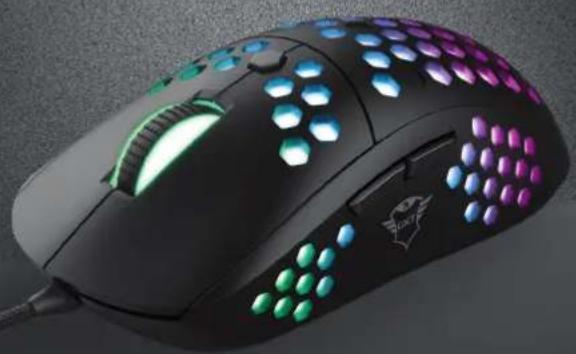
Close-up of a black ergonomic computer mouse with colorful hexagonal patterns and a green scroll wheel (no visible text or symbols)
GRAPHIN
PC Laptop RGB
Index
| Language | Page |
| English | 2 |
| Deutsch | ; |
| Français | ; |
| Italiano | 1 |
| Español | 4 |
| Português | 7 |
| Jederlands | 0 |
| Dansk | 3 |
| Juomi | 6 |
| Jorsk | 9 |
| Ivenska | 2 |
| Jolski | 5 |
| Česky | 8 |
| Glovenčina | 1 |
| Iagyar | 4 |
| Lomână | 7 |
| Вългарски | 0 |
| Усский | 3 |
| Эллэнviká | 6 |
| Türkçe | 9 |
| Irvatski | 2 |
| Ilovenski | 5 |
| Brasileiro | 8 |
| україна | 1 |
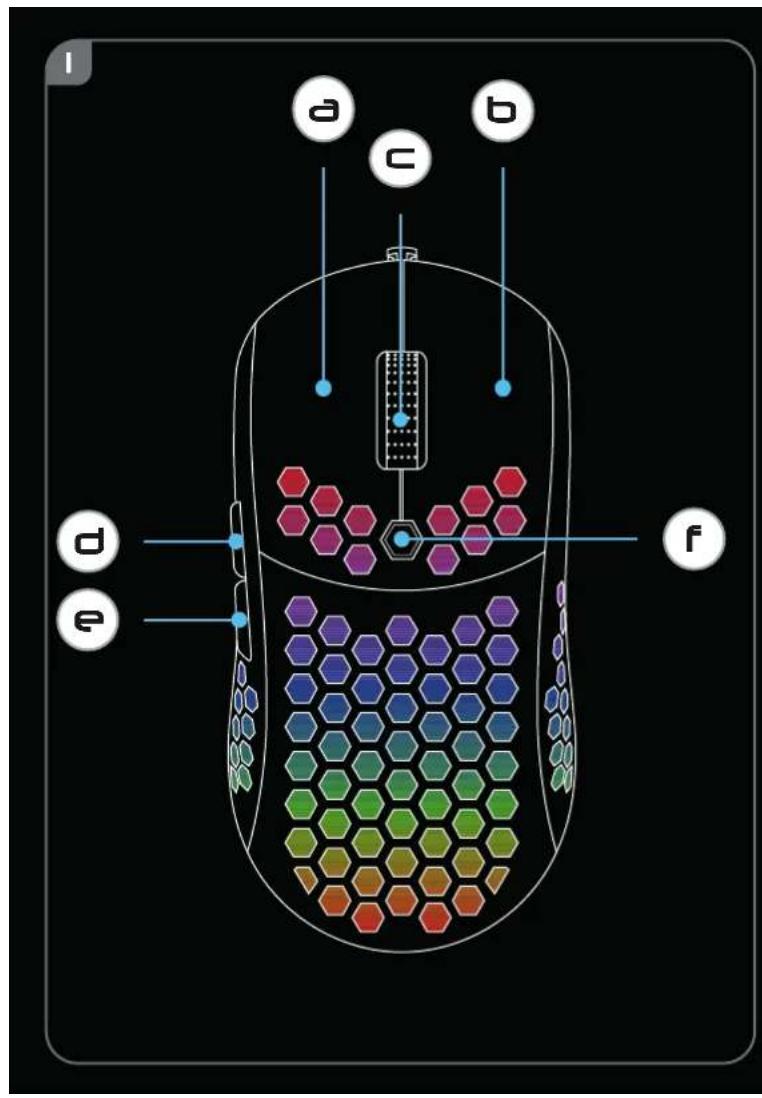
- Mouse Button layout
| a | - Mouse Button 1 (Default = Left Mouse Button) |
| b | - Mouse Button 2 (Default = Right Mouse Button) |
| c | - Mouse Button 3 (Default = Mid click) |
| d | - Mouse Button 4 (Default = Forward) |
| e | - Mouse Button 5 (Default = Backward) |
| f | - Mouse Button 6 (Default = DPI) |
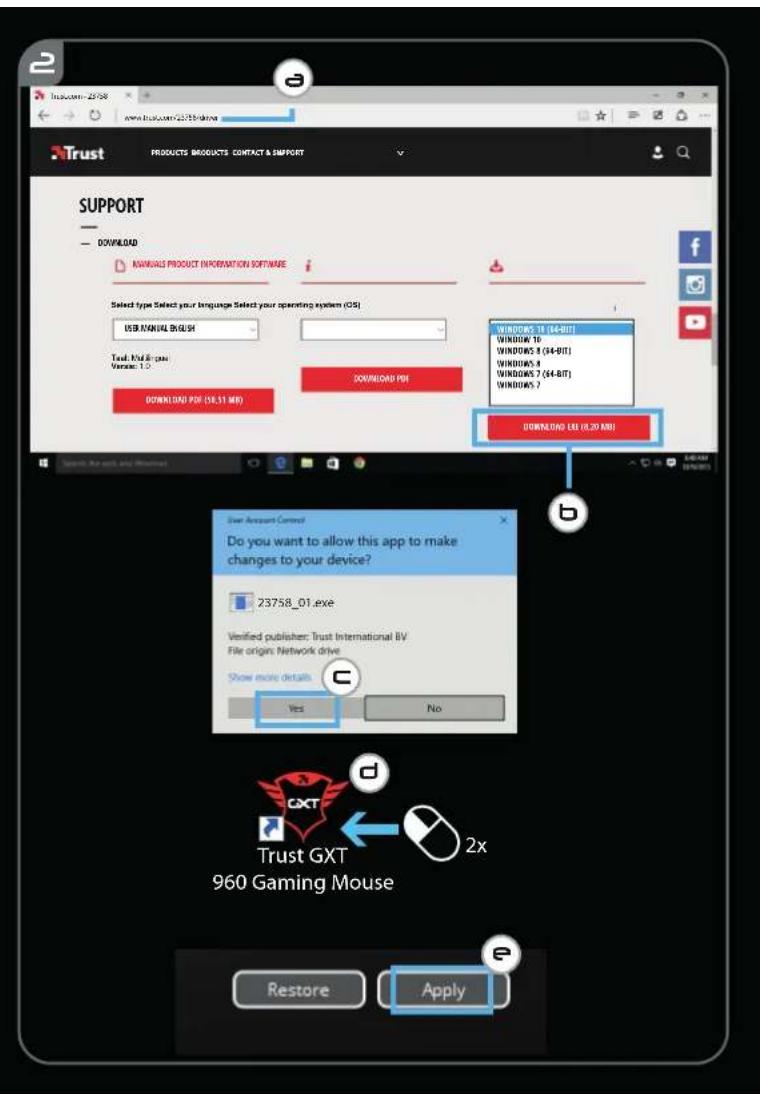
2. Installation
A - Open the internet browser and go to www.trust.com/23758/driver.
b - Click the "Download EXE" Mouse Button to download the software.
c - Click on the "23758_X.exe" and follow the installation wizard.
d - Click on the "TRUST GXT 960 Gaming Mouse" shortcut to start the software.
e - You can now start to configure the mouse. In the manual will be referred to 'Apply' to update the mouse.
▶ Updating the mouse can take up to 20 seconds depending on your system.
Mouse Button Programming
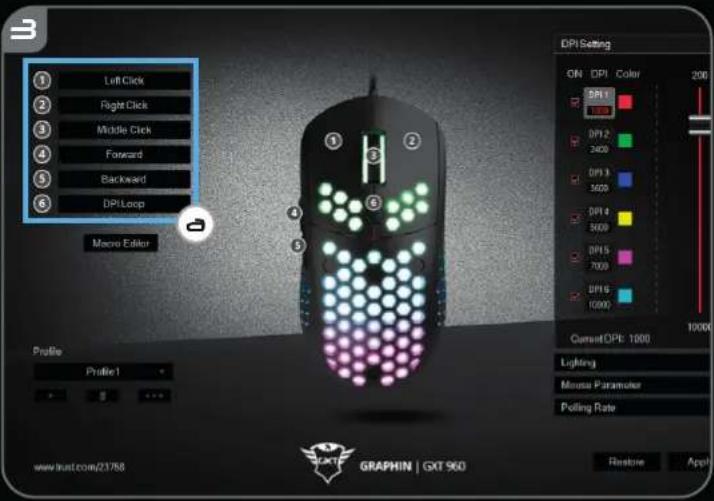
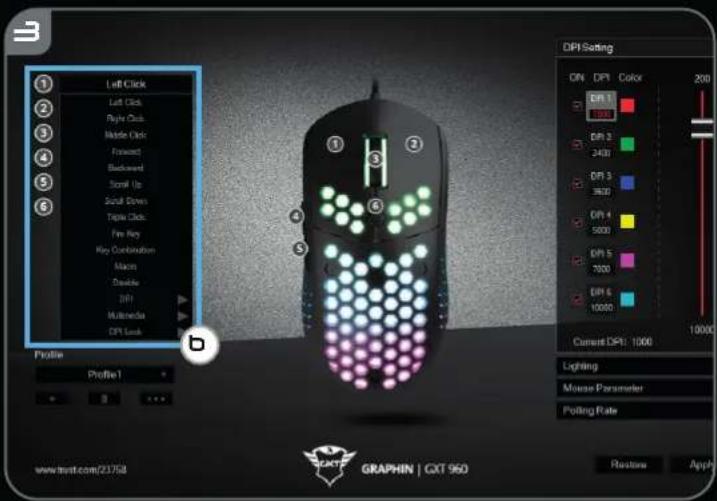
3. Assign a function
a - Click on the Button you want to re-assign
b - Click on the function you want to assign.
- Click on 'Apply', the mouse is being updated.
At least one Mouse Button has to be assigned as "Left Click".
Report rate & DPI settings
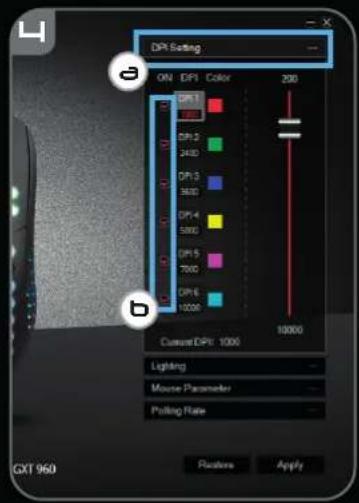
4. DPI setting
a - Click on the 'DPI Setting' tab.
b - Click on the checkbox next to the DPI number to enable or disable this DPI level.
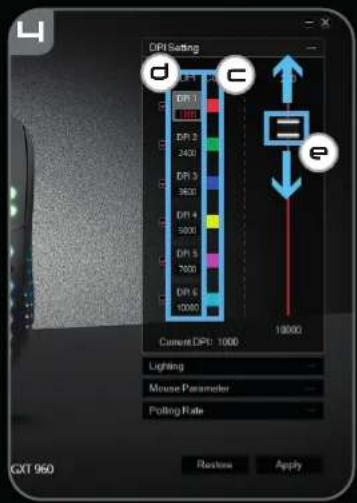
c - Choose a LED color for each DPI setting.
d - Click on the 'DPI' button.
e - Change the DPI level by dragging the respective bar.
- Click on 'Apply', the mouse is being updated.
Light Settings
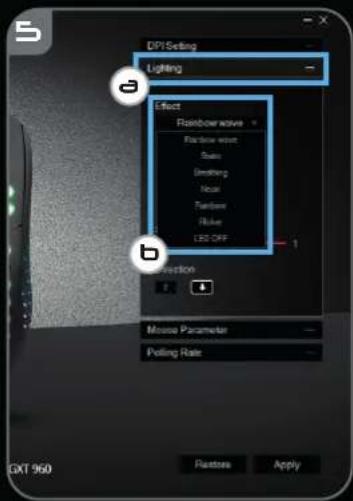
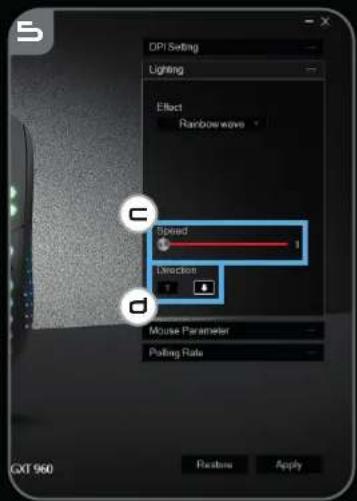
5. Change the Lighting
a - Click on the 'Lighting' tab.
b - Change the light mode.
c - Change the animation speed.
d - Change the direction.
- Click on 'Apply', the mouse is being updated.
Other settings
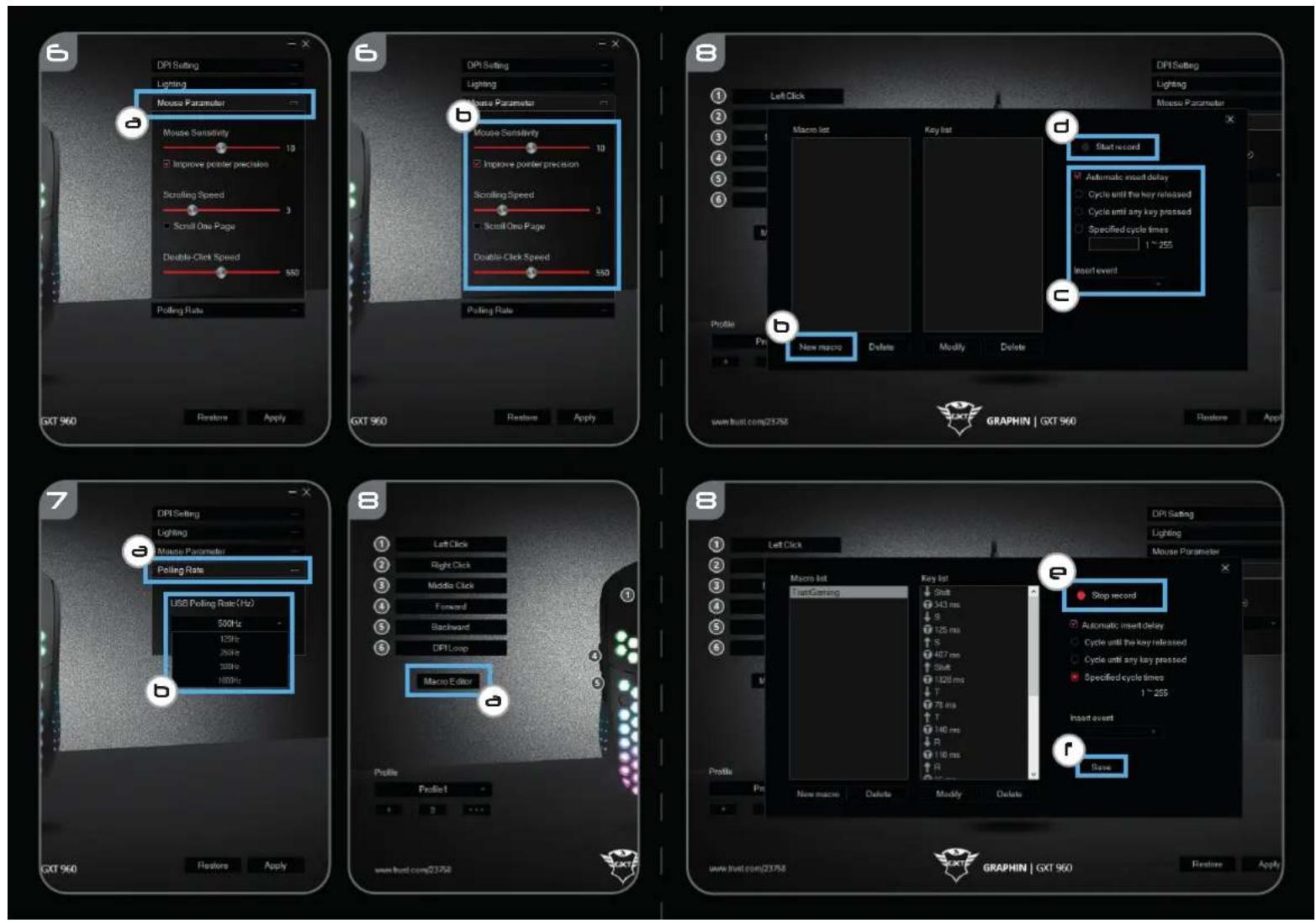
6. Mouse Parameter
a - Click on the 'Mouse Parameter' tab.
b - Change the Windows acceleration, Windows pointer speed, Windows scroll speed or Windows doubleclick speed by dragging the respective cursor.
- Click on 'Apply', the mouse is being updated.
7. Polling Rate
a - Click on the 'Polling Rate' tab.
b - Change the Polling rate by clicking on the respective frequency.
- Click on 'Apply', the mouse is being updated.
Macro Settings
- Create a Macro (Store a sequence of keys in the software)
a - Click on the 'Macro Editor' button.
b - Click on 'New macro' to create a new macro.
c - Set the delay time between each action and/or the loop/repeat setting.
d - Click 'Start record' to start recording the macro. Now enter your preferred macro sequence.
e - Click 'Stop record' to stop recording the macro. (max. 168 actions)
f - Click on 'Save'. - The created macro is now available under the 'Macro' function.
To assign a macro follow step 3 of this manual.
Profile Settings
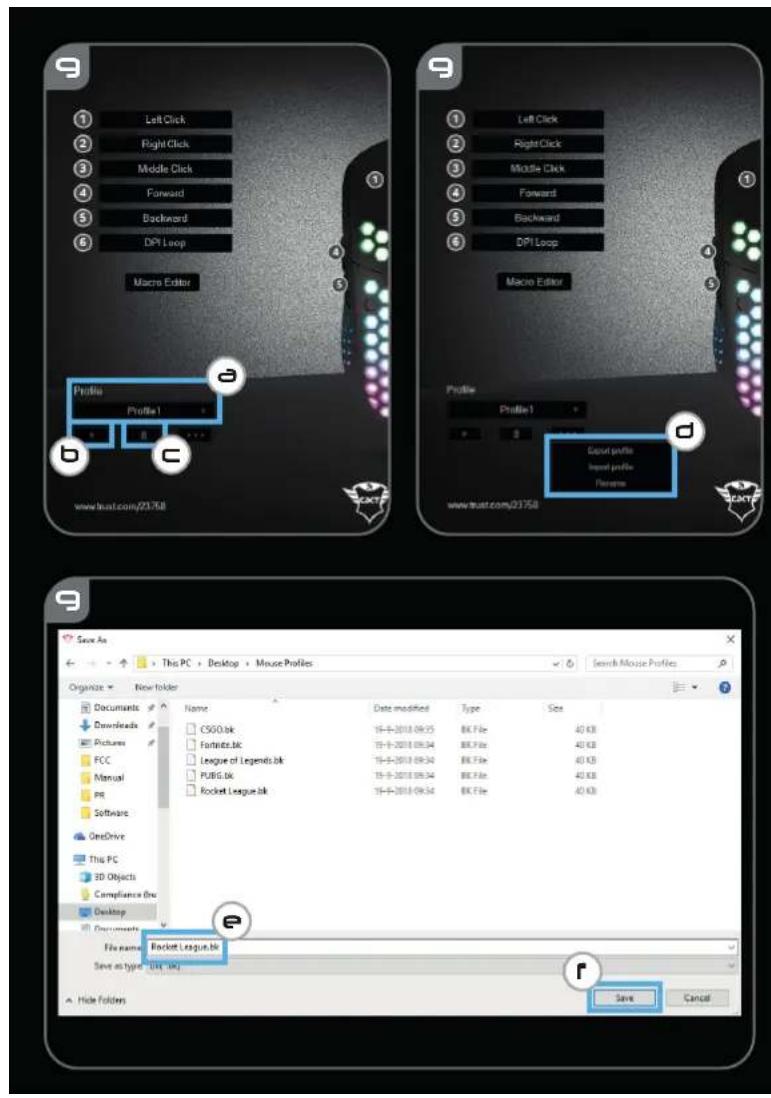
- Select, Save or Load a profile
a - Select one of the 3 profiles by clicking on the preferred profile.
b - Click on the + icon to create a new profile.
c - Click on the 'C' to delete a profile.
d - Click on 'Export profile' to save a setup, Click on 'Import profile' to load a setup.
e - Enter a name for the mouse setup you want to save, or choose the preferred profile to load.
f - Click on 'Save' to save the setup, click on 'Open' to load the setup.
- Click on 'Apply' → Your mouse setup is now saved or updated to your mouse.
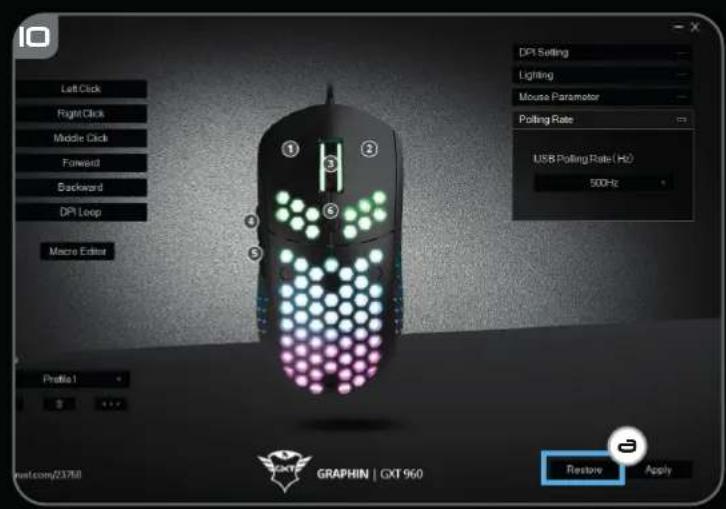
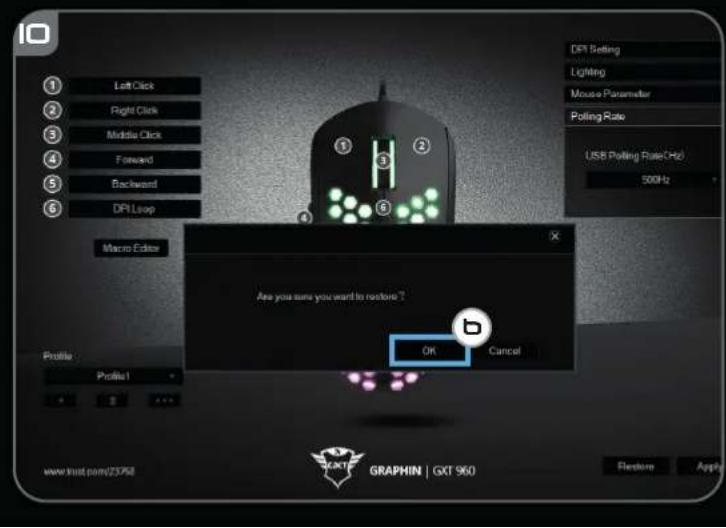
a - Click on 'RESTORE' to reset the current profile to factory default.
b - Click on 'OK' to reset the current profile to factory default.
Trouble shooting
| Problem | Solution |
The software is not starting.
- Make sure the TRUST GXT 960 mouse is connected and try to start the software again.
If your problem is not solved, please contact the help desk at www.trust.com/23758/faq.
Report rate & DPI settings
4. DPI-innstilling
Brand : TRUST
Model : Graphin GXT 960
Category : Mouse