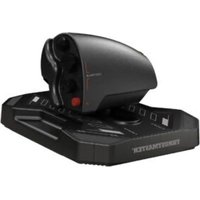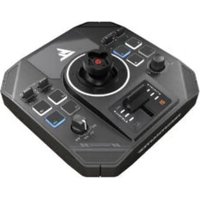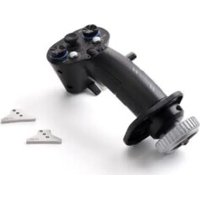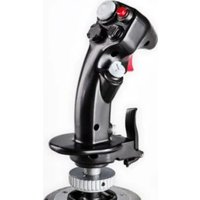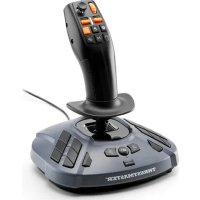
SimTask FarmStick - Controller THRUSTMASTER - Free user manual and instructions
Find the device manual for free SimTask FarmStick THRUSTMASTER in PDF.



Frequently Asked Questions - SimTask FarmStick THRUSTMASTER
User questions about SimTask FarmStick THRUSTMASTER
0 question about this device. Answer the ones you know or ask your own.
Ask a new question about this device
Download the instructions for your Controller in PDF format for free! Find your manual SimTask FarmStick - THRUSTMASTER and take your electronic device back in hand. On this page are published all the documents necessary for the use of your device. SimTask FarmStick by THRUSTMASTER.
USER MANUAL SimTask FarmStick THRUSTMASTER
Carefully read the instructions provided in this manual before installing the product, before any use of the product and before any maintenance. Be sure to follow the safety instructions. Failure to follow these instructions may result in accidents and/or damage. Keep this manual so that you can refer to the instructions in the future.
*PC compatibility (Windows® 10/11) not tested nor endorsed by Sony Interactive Entertainment.
TABLE OF CONTENTS
- BOX CONTENTS 5
- FEATURES 6
- INFORMATION REGARDING USE 9
- GETTING TO KNOW YOUR JOYSTICK 12
Key points 12
H.E.A.R.T. (HallEffect AccuRate Technology)
precision technology. 13
Drive mode <> Work mode 14
Rotating handle 17
"Point-of-view" mini-stick 18
SimTask FarmStick connectivity on
PlayStation®5 consoles and PC 19
Right- and left-handed joystick
configuration. 21
- INSTALLATION ON PLAYSTATION®5
CONSOLES 24 - MAPPING FOR PLAYSTATION®5
CONSOLES 27 - INSTALLATION ON PC* 30
- PC MAPPING 33
- THROTTLE 36
- INTERCHANGEABLE TRIGGER 37
- COMPATIBILITY MODE LED 39
Using a single SimTask FarmStick only..40
Using a SimTask FarmStick with a T128*
or T248* racing wheel 41
Using two SimTask FarmStick units.....42 - INSTALLATION ON PLAYSTATION®5
CONSOLES OR PC WITH TFRP RUDDER** 43 - FAQ AND TECHNICAL SUPPORT 46
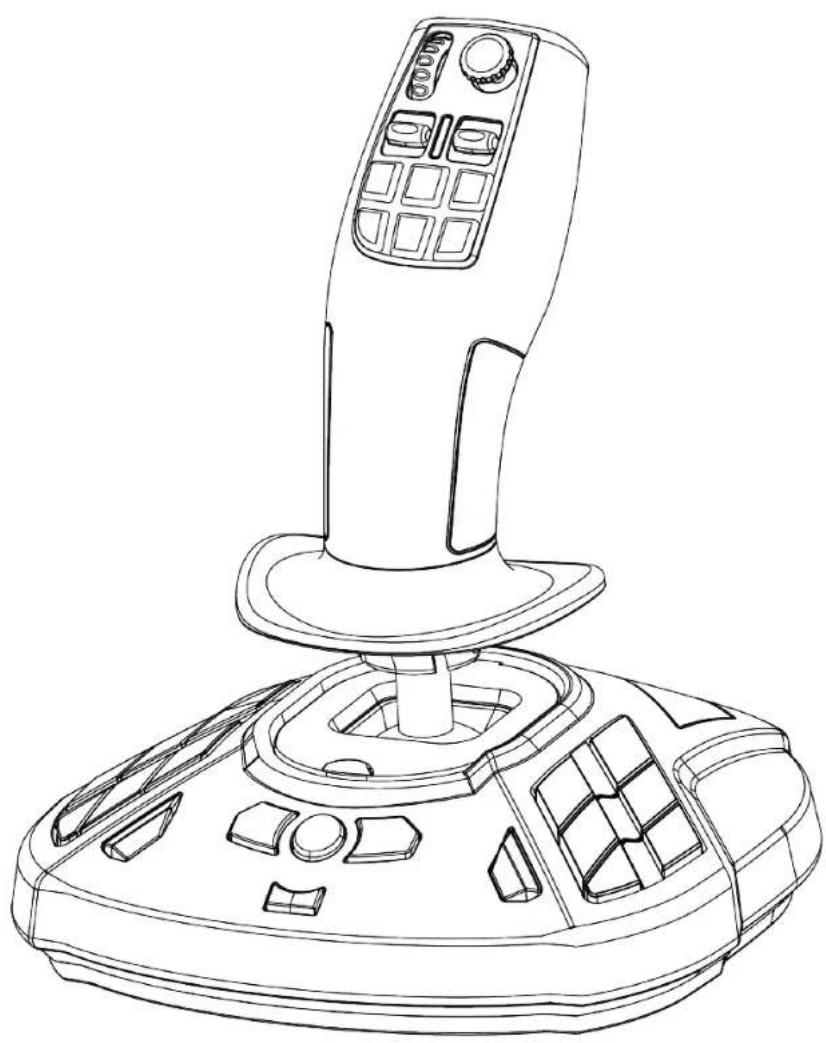
With SimTask FarmStick from Thrustmaster, you'll enjoy a device that is perfectly adapted to the handling of your farm and construction machinery. You can also use SimTask FarmStick as a joystick for flight simulation.
This manual will help you install and use your SimTask FarmStick under the best conditions. Before starting, make sure to carefully read all of these instructions and warnings: they will help you get the most enjoyment out of your product.
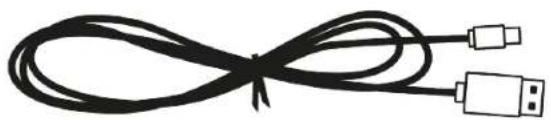
1. Box contents
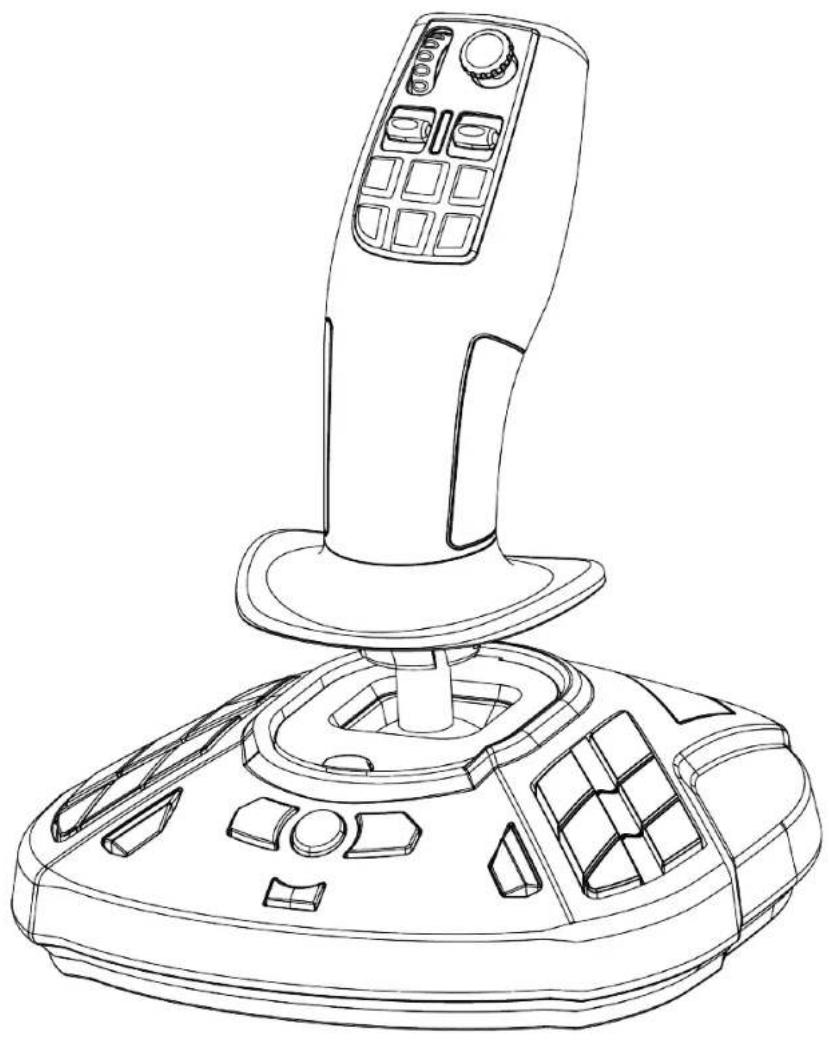
2. Features
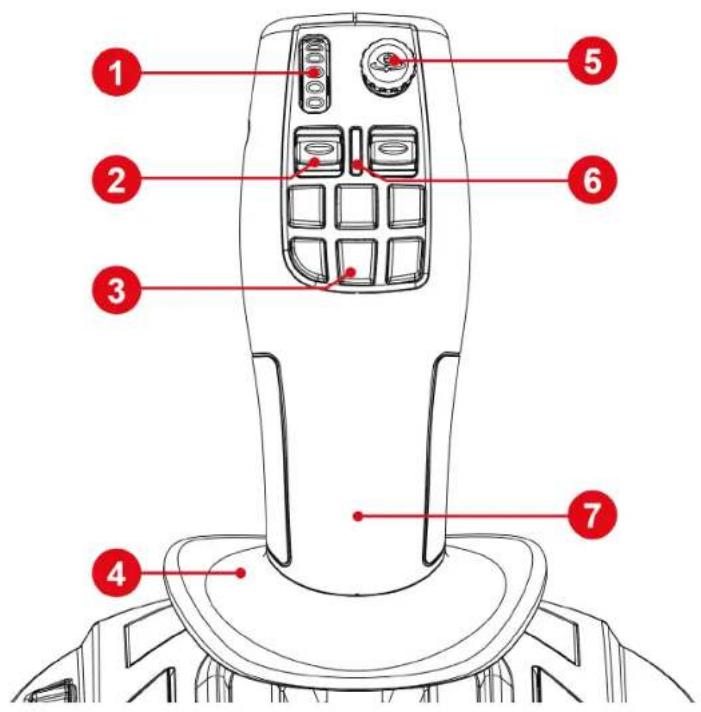
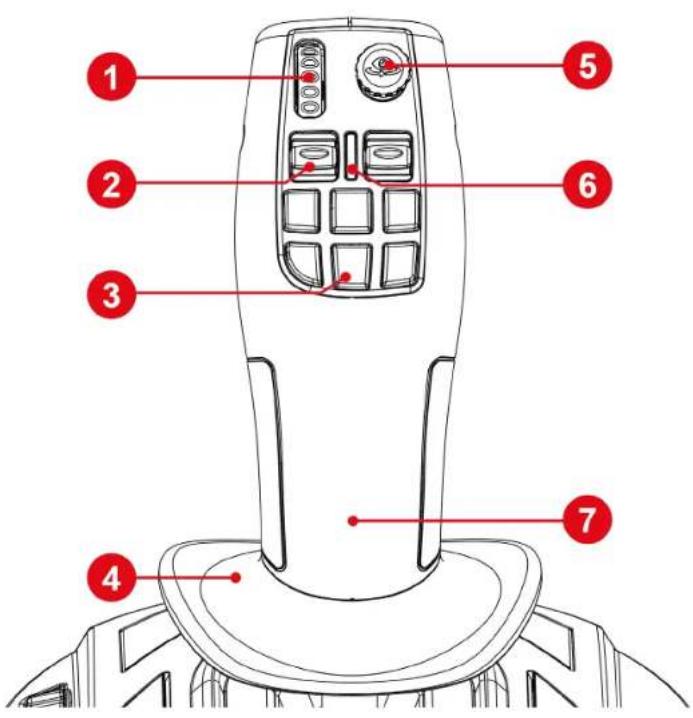
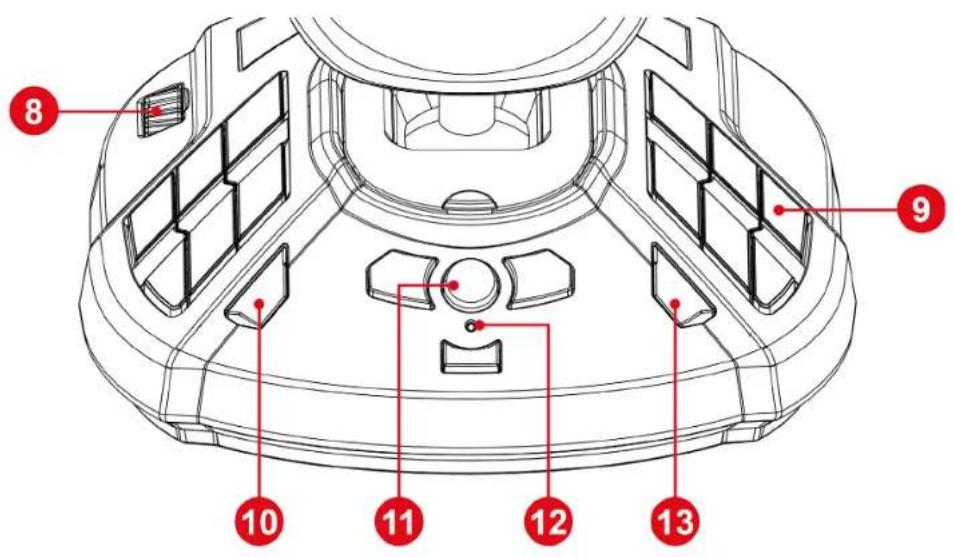
- Thumbwheel
- Rocker switch
- Quick action buttons
- Hand rest
- "Point-of-view" mini-stick
- Stick mode indicator LED
- Ambidextrous handle
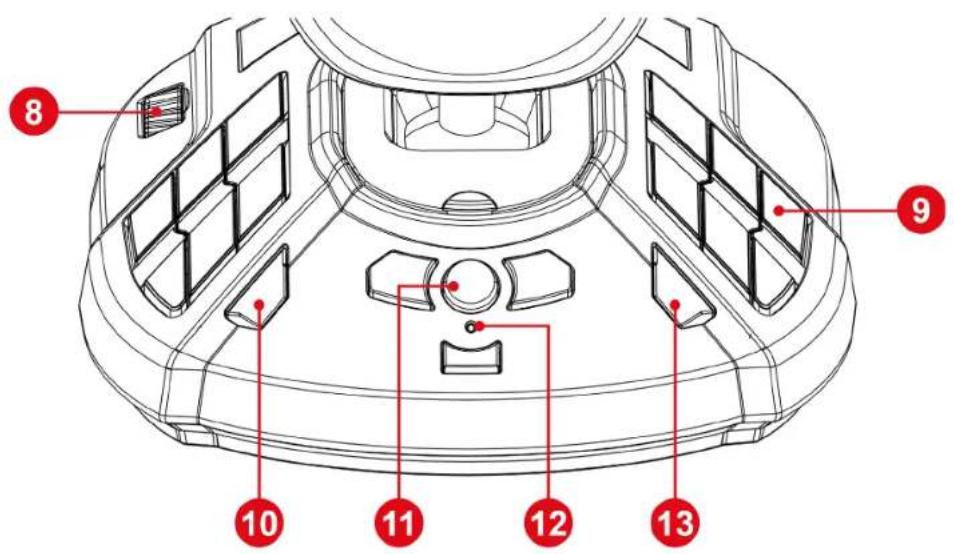
- Throttle
- Programmable action buttons
- CREATE button on PS5™ consoles
- PS button
- Compatibility mode LED
- OPTIONS button on PS5™ consoles
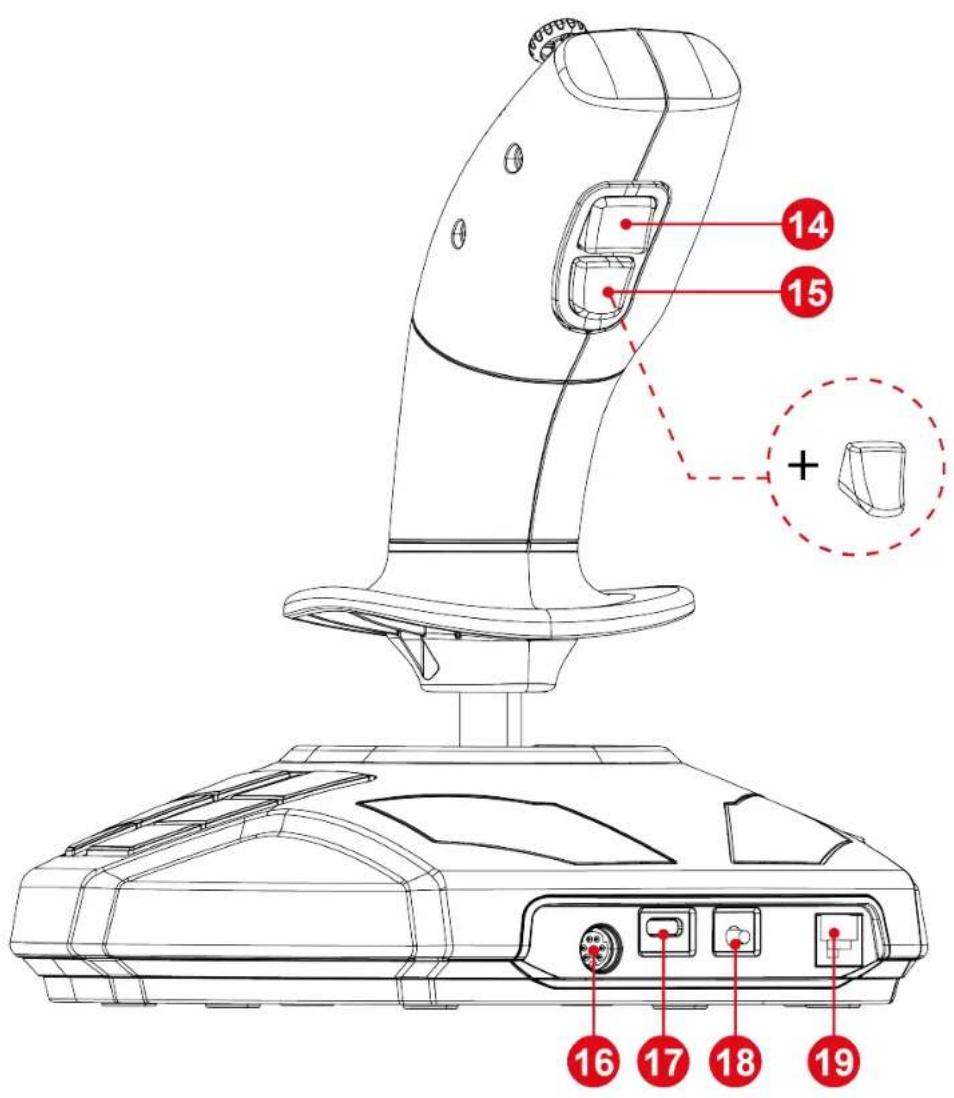
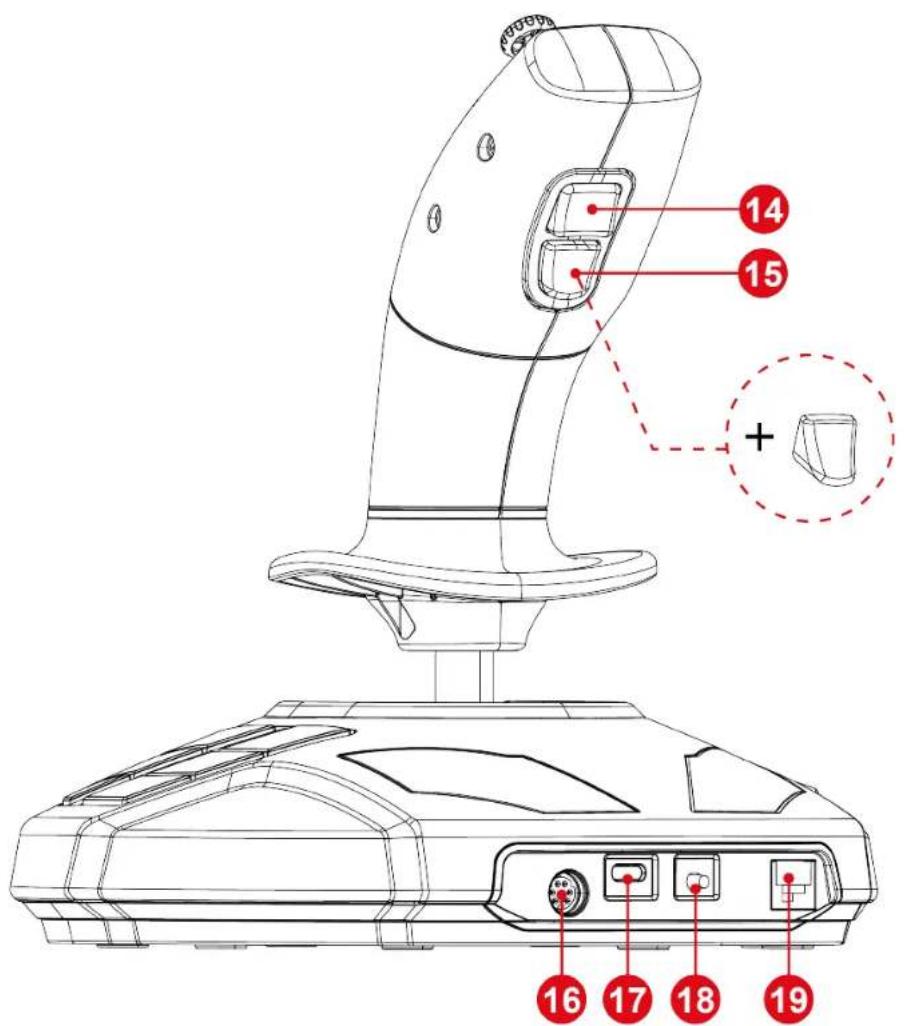
- Stick mode change button
- Interchangeable action trigger
- DIN port for additional accessories*
- USB-C port
- PlayStation®/PC mode select button
- RJ12 port for TFRP rudder*
*sold separately
3. Information regarding use

Documentation
Before using this product, carefully read this documentation again, and keep it for future reference.

Electrical shock
- Keep the product in a dry location and do not expose it to dust or sunlight.
- Observe connection directions.
- Do not twist or pull on the connectors and cables.
- Do not spill any liquid on the product or its connectors.
- Do not short-circuit the product.
- Never dismantle the product; do not throw it onto a fire and do not expose it to high temperatures.
- Do not open up the device: there are no user-serviceable parts inside. Any repairs must be carried out by the manufacturer, a specified agency or a qualified technician.

Securing the gaming area
-
Do not place any object in the gaming area which may disrupt the practice of the user, or which may provoke an inappropriate movement or an interruption by another person (coffee cup, telephone, keys, for example).
-
Do not cover the power cables with a carpet or rug, blanket or covering or any other item, and do not place any cables where people will be walking.
4. Getting to know your joystick
Key points
- 33 buttons and 6 virtual buttons, including a thumbwheel and two rocker switches
- 6 axes, including a mini-stick, the joystick's handle rotation and a throttle
- Stick mode indicator LED
- H.E.A.R.T. technology (HallEffect AccuRate Technology)
- Connection to USB-A port
- Throttle
- RJ12 port for TFRP rudder*
Technology) precision technology
Your SimTask FarmStick features technology providing it with a level of precision currently unequalled in the world of gaming joysticks, including:
- 3D (Hall Effect) magnetic sensors on the stick, with a resolution of more than 268 million values over all the X and Y axes (16,384 x 16,384 values).
- A magnet: no friction, for unlimited precision and incredible responsiveness that will last.
- A coil spring on the stick (2.8 mm): for firm, linear and ultra-fluid tension.
Drive mode <> Work mode
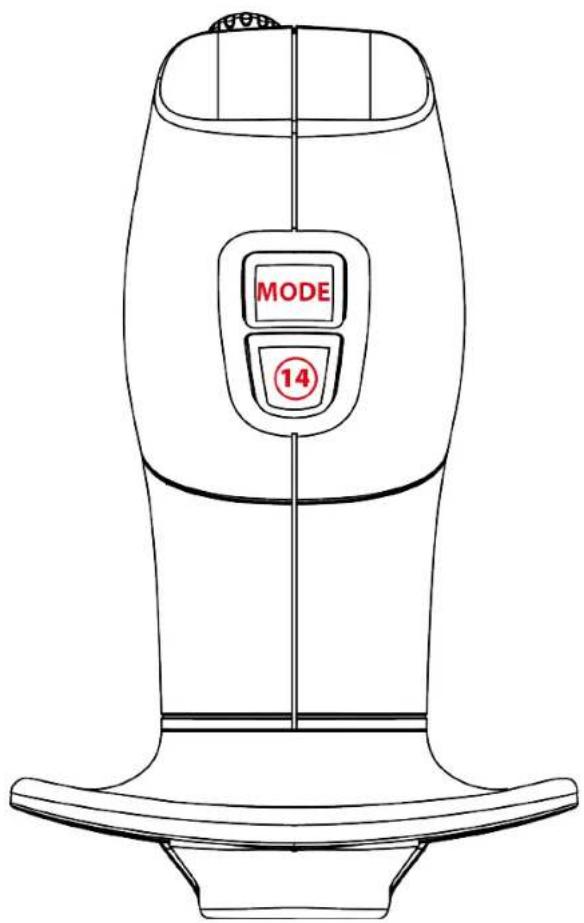
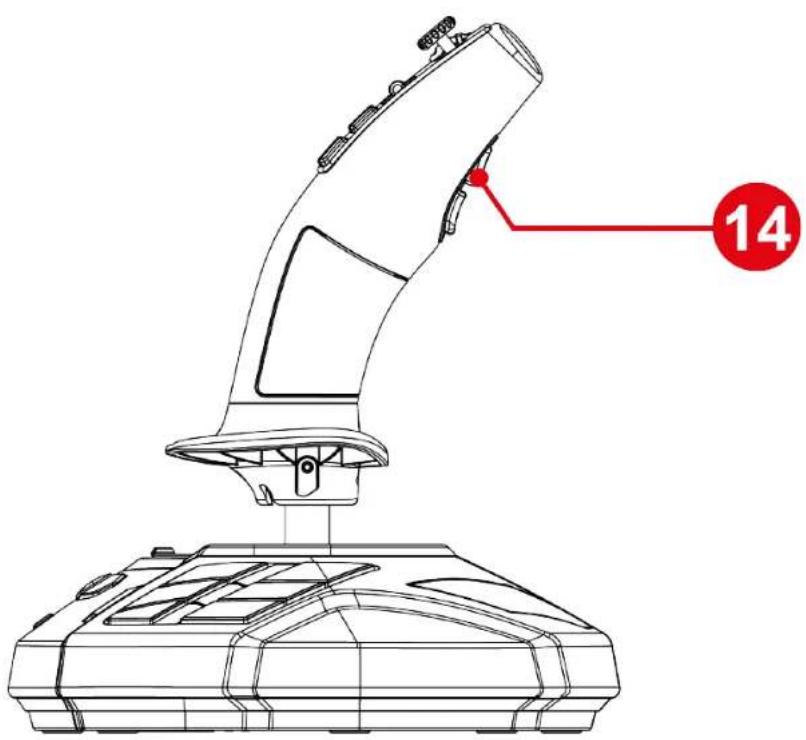
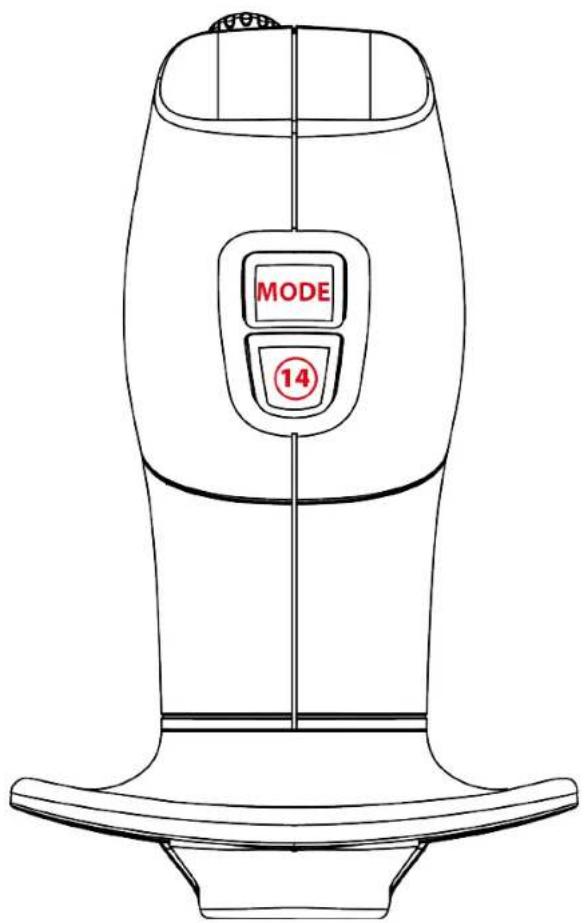
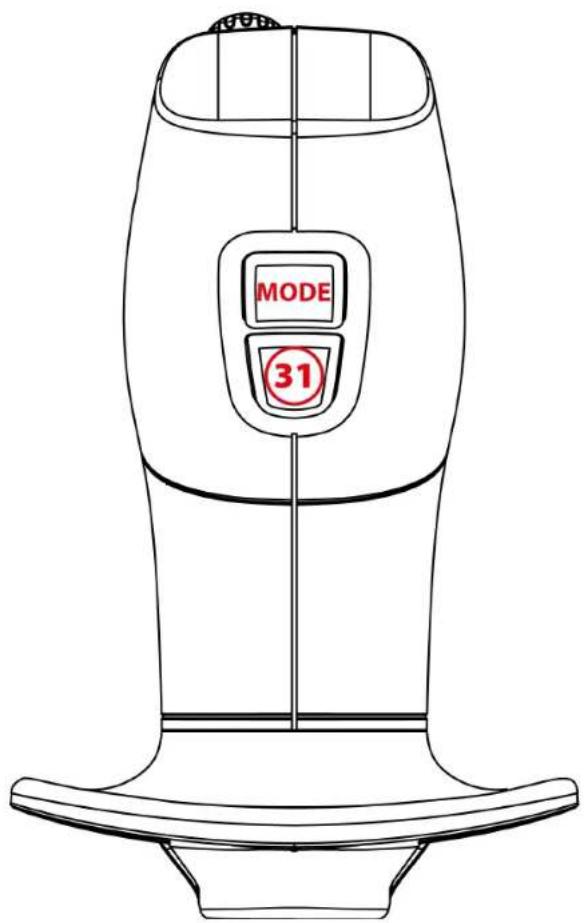
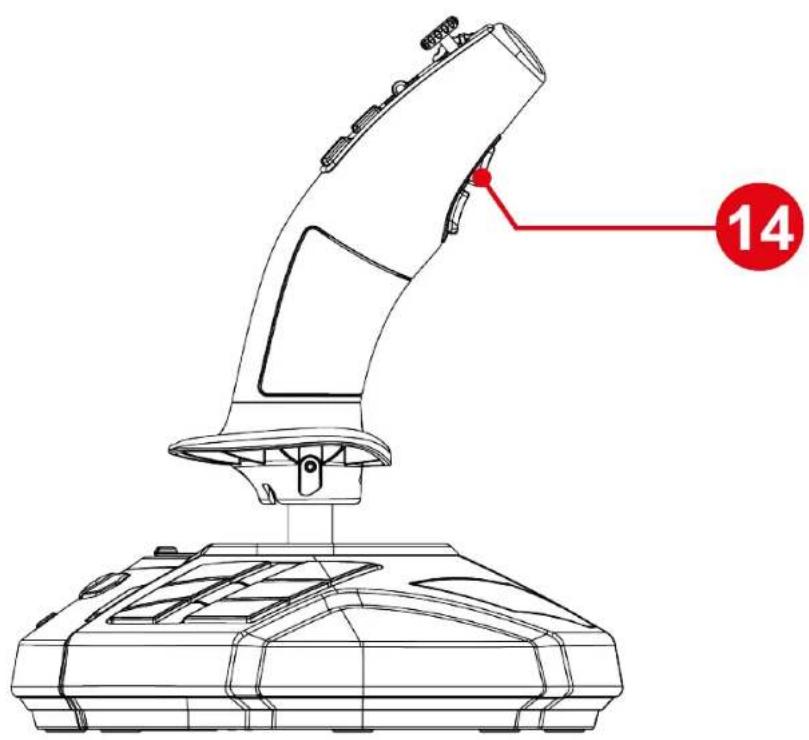
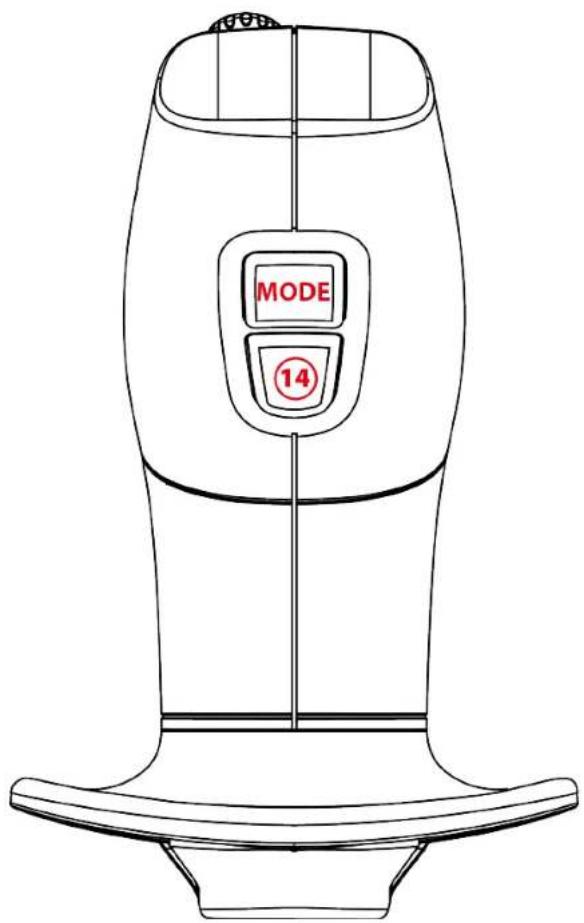
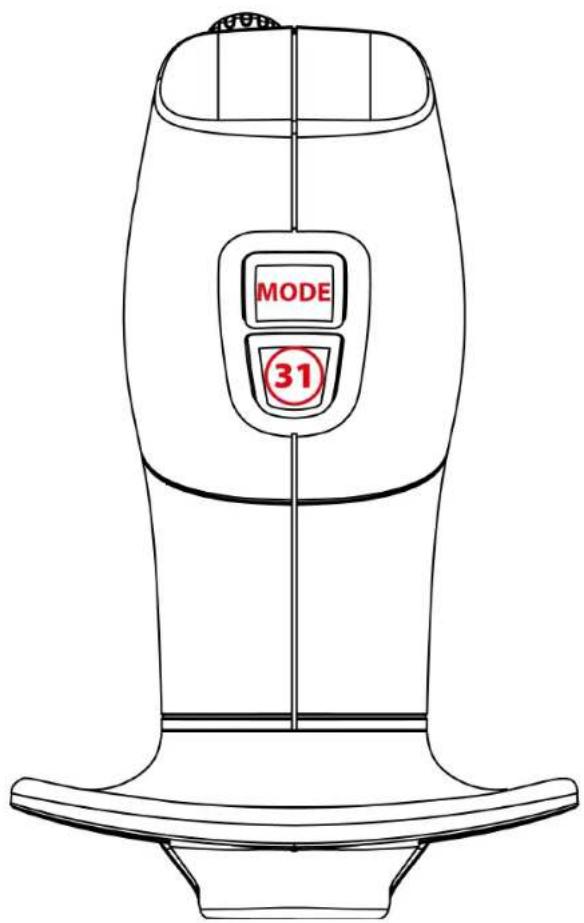
Button 14 lets you switch from Drive mode to Work mode and vice versa.
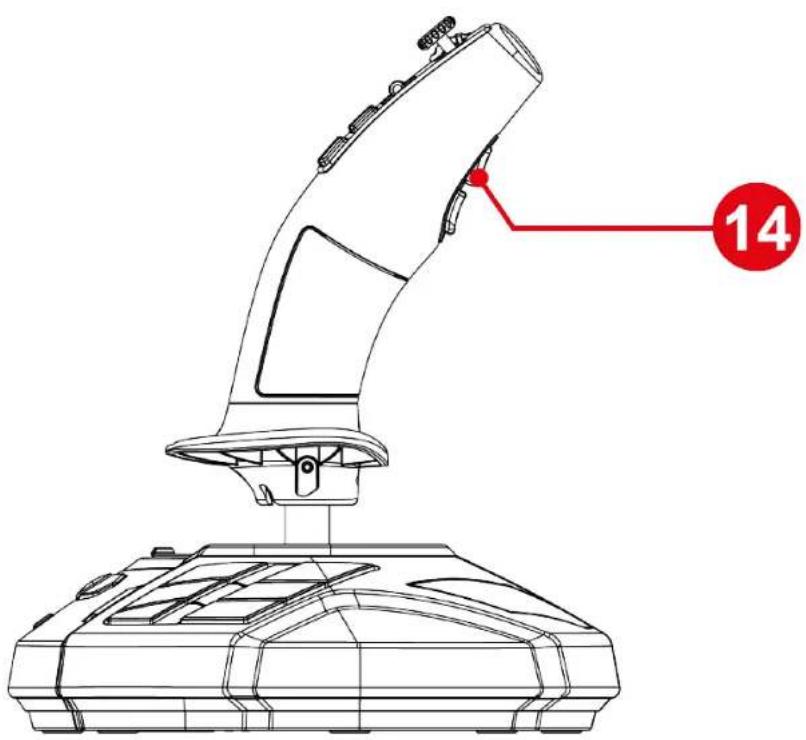

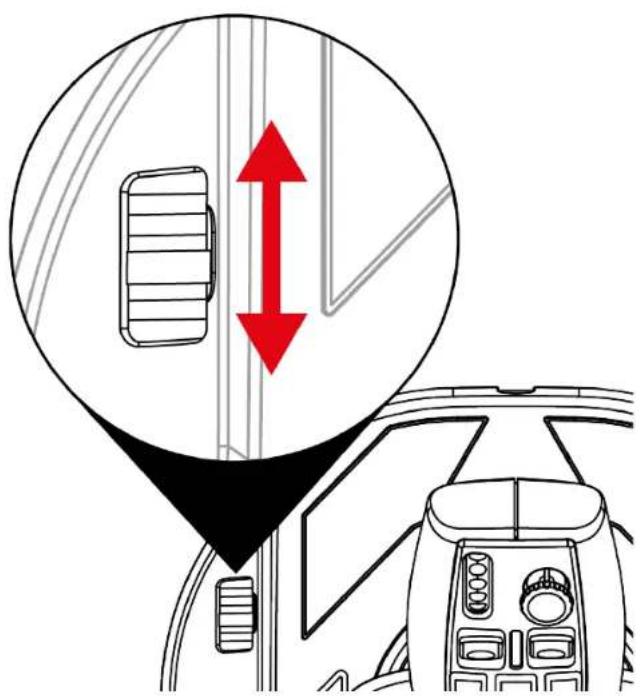
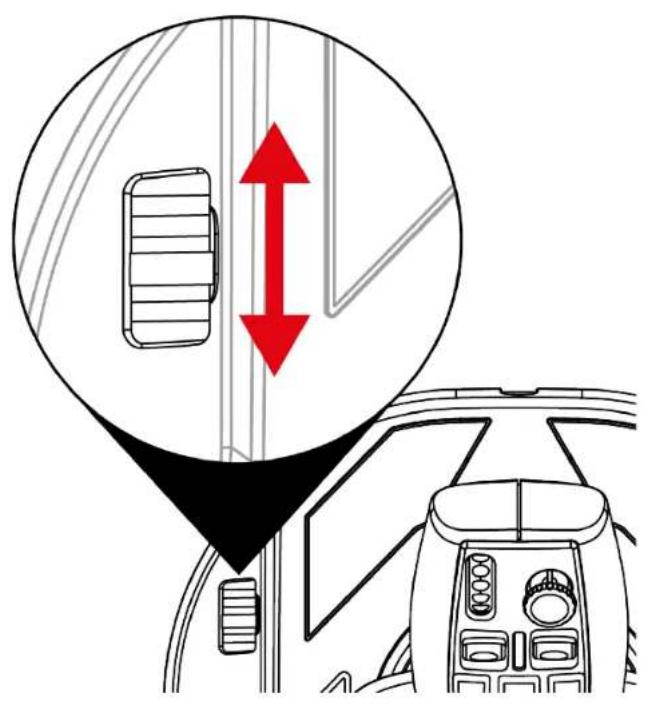
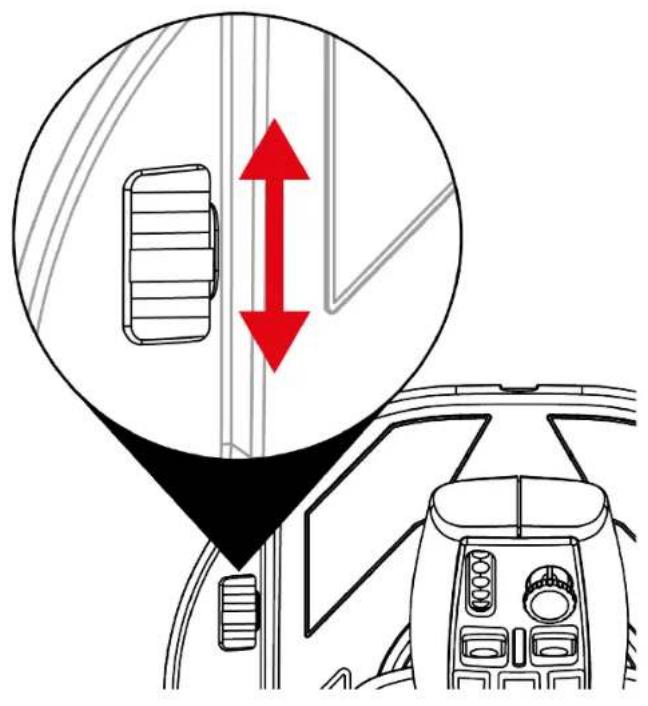
This feature extends the range of actions that can be performed with the thumb, i.e. via the thumbwheel 1 and the two rocker switches 2.
Changing mode modifies the action associated with the thumbwheel 1 and the two rocker switches 2.
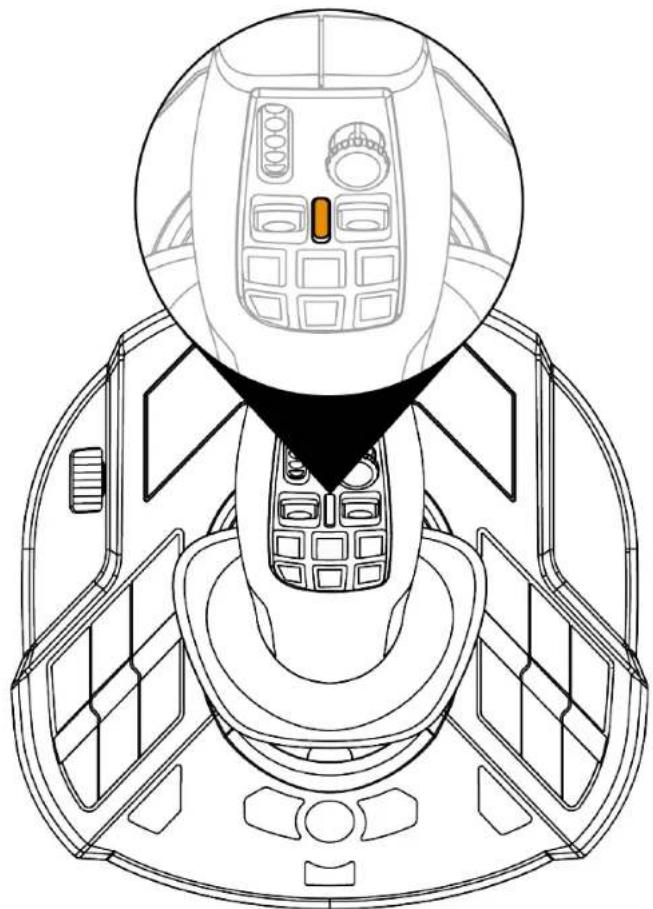
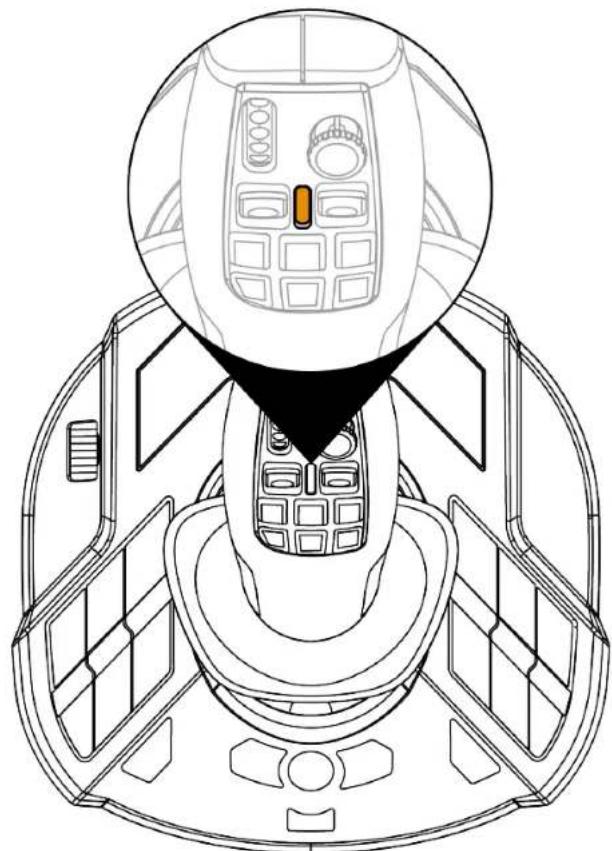
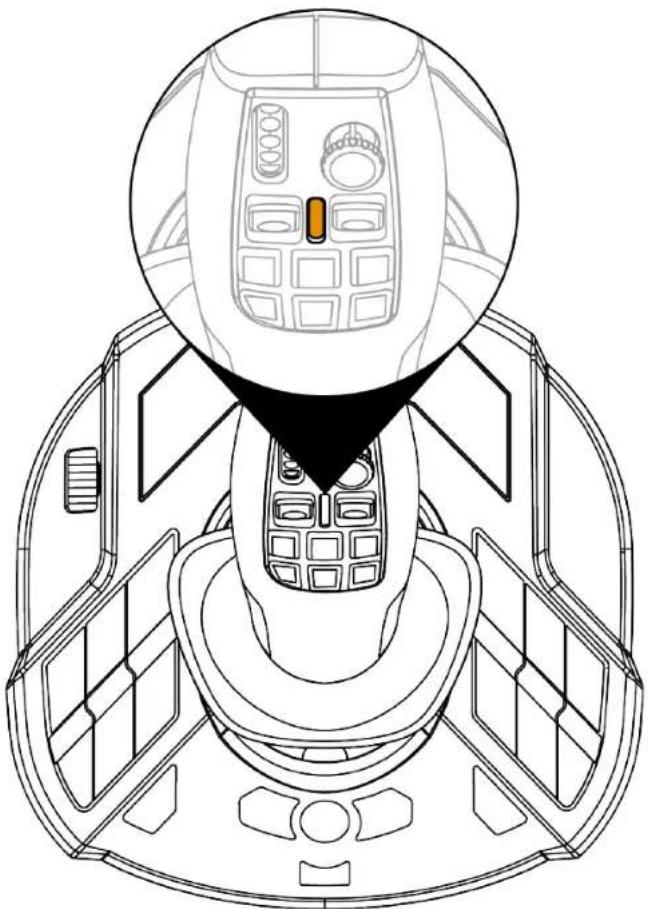
Drive mode (default)
In Drive mode, the stick mode indicator LED ⑥ lights up orange.

In Drive mode, the action associated with the thumbwheel 1 and rocker switches 2 can be as follows:
- Thumbwheel: control of regulator setpoint.
- Rocker switches: gearbox management.
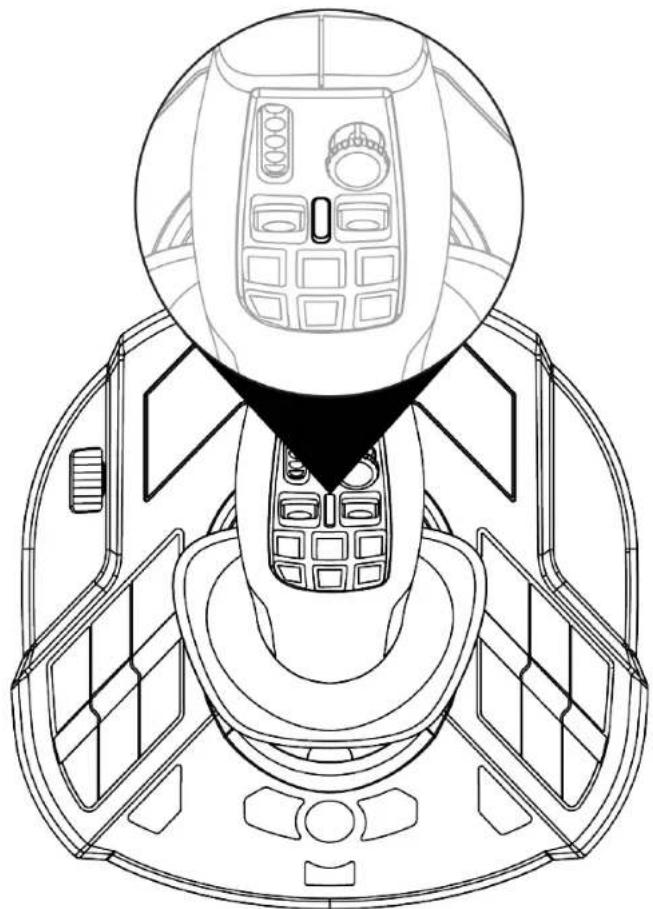
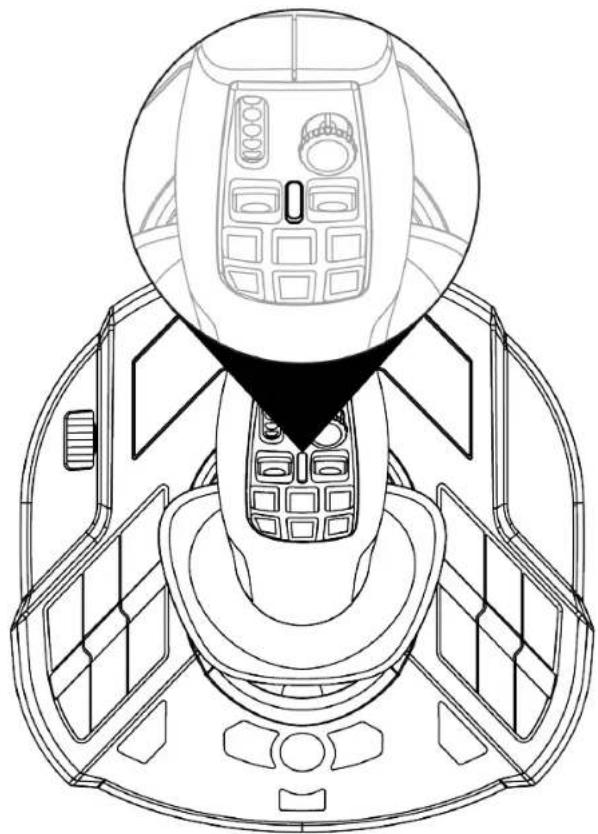
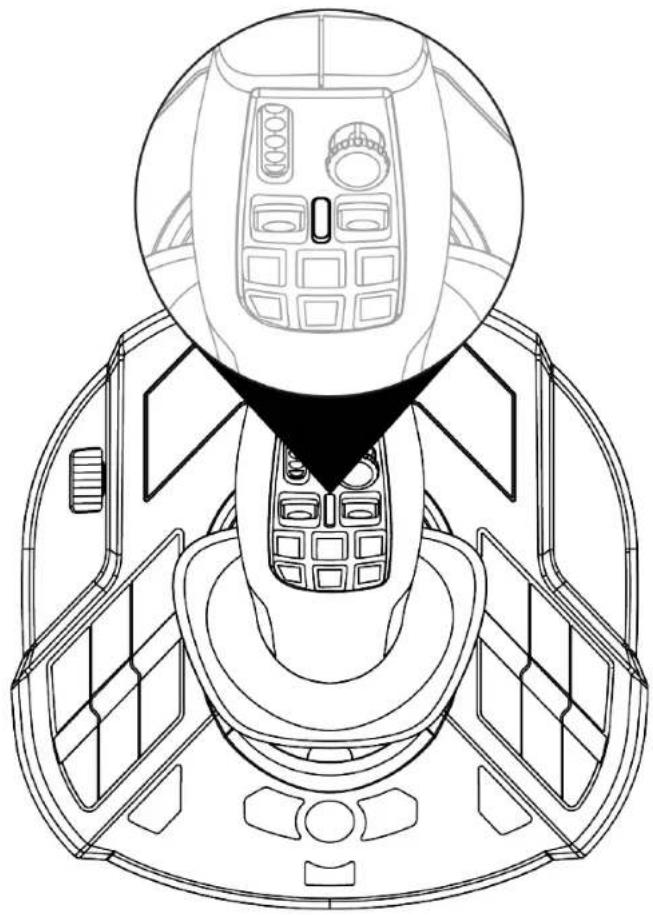
Work mode
In Work mode, the stick mode indicator LED ⑥ lights up white.

In Work mode, the action associated with the thumbwheel 1 and rocker switches 2 can be as follows:
- Thumbwheel: control of camera zoom.
- Rocker switches: control of crane arms or loaders.
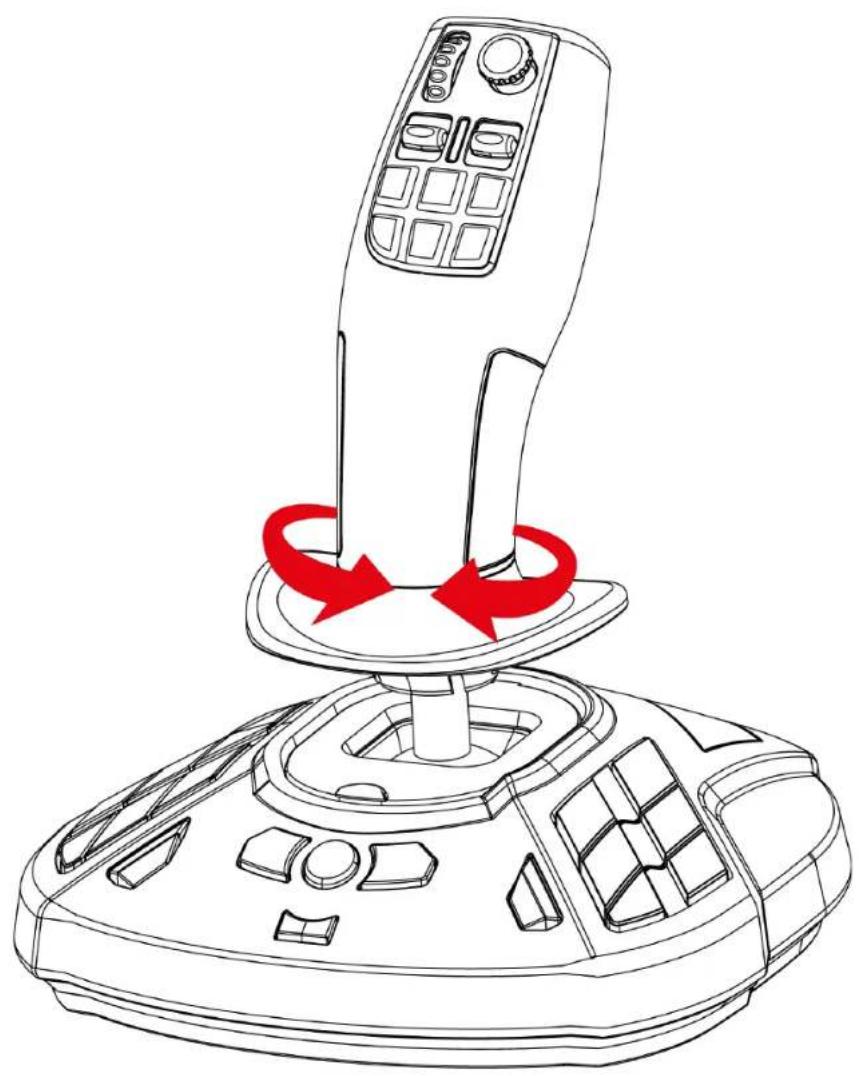
Rotating handle
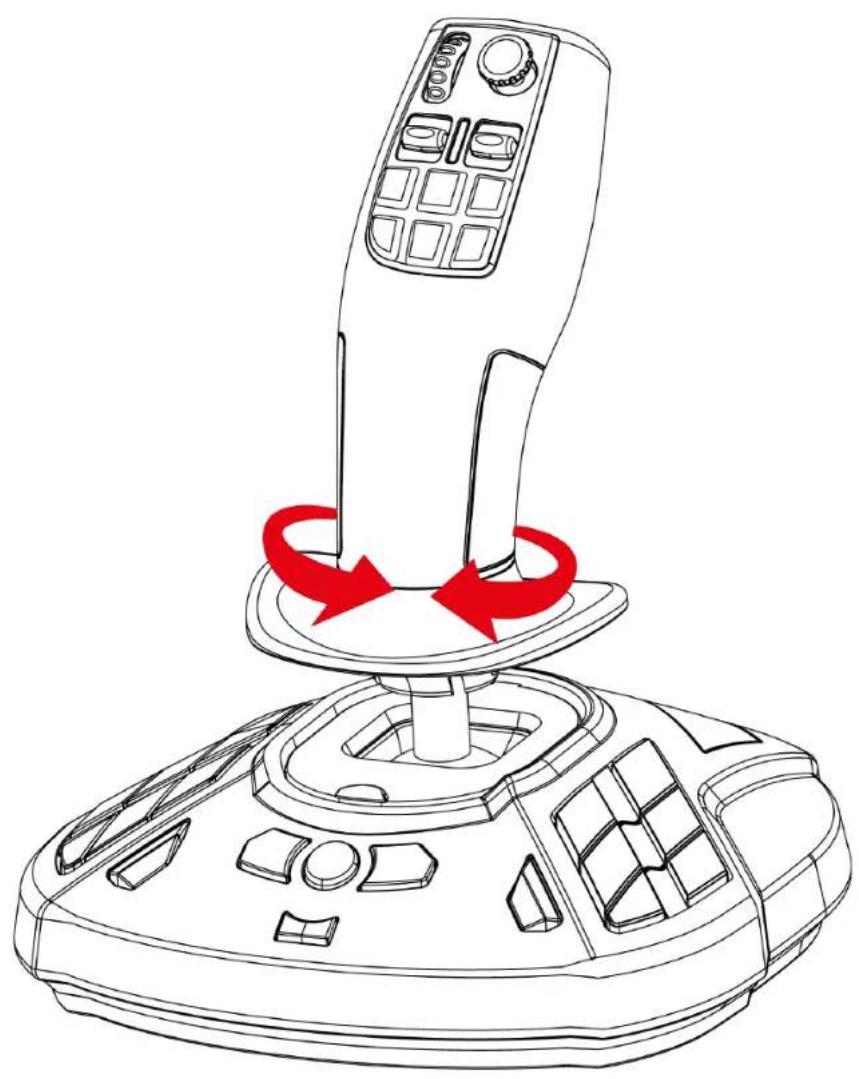
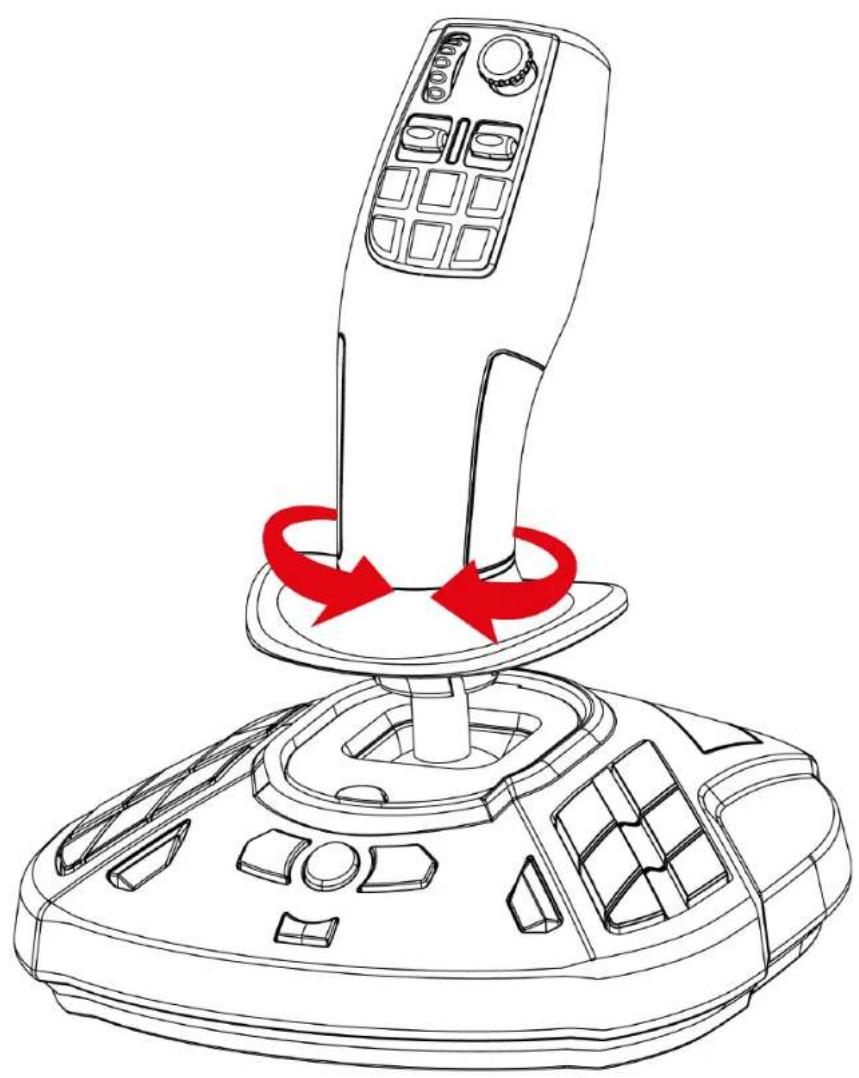
SimTask FarmStick features a handle that rotates about its horizontal axis. This is useful for maneuvering a crane head or an excavator, for example.
"Point-of-view" mini-stick
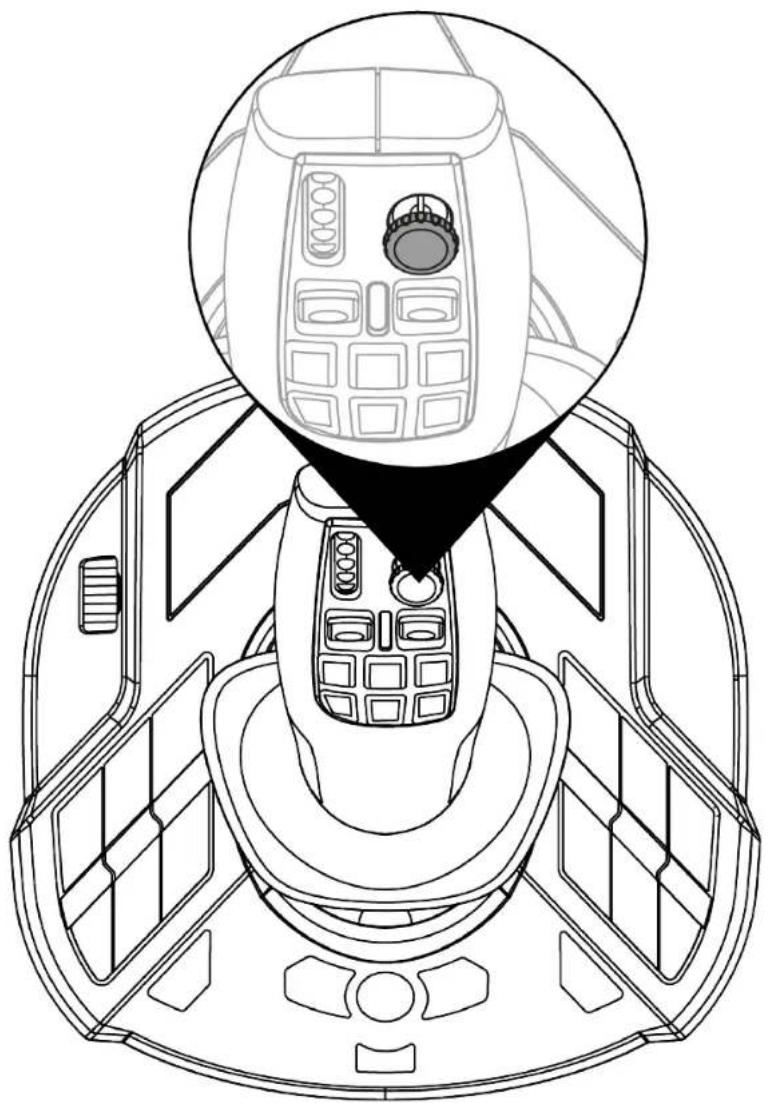
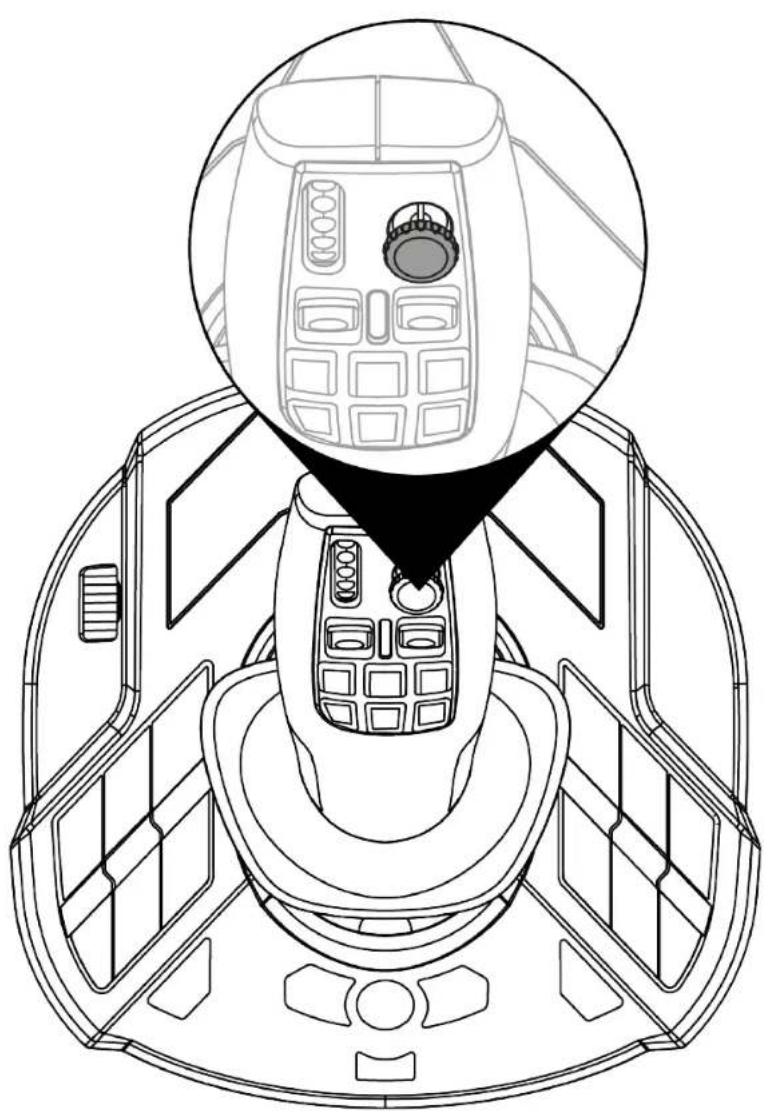
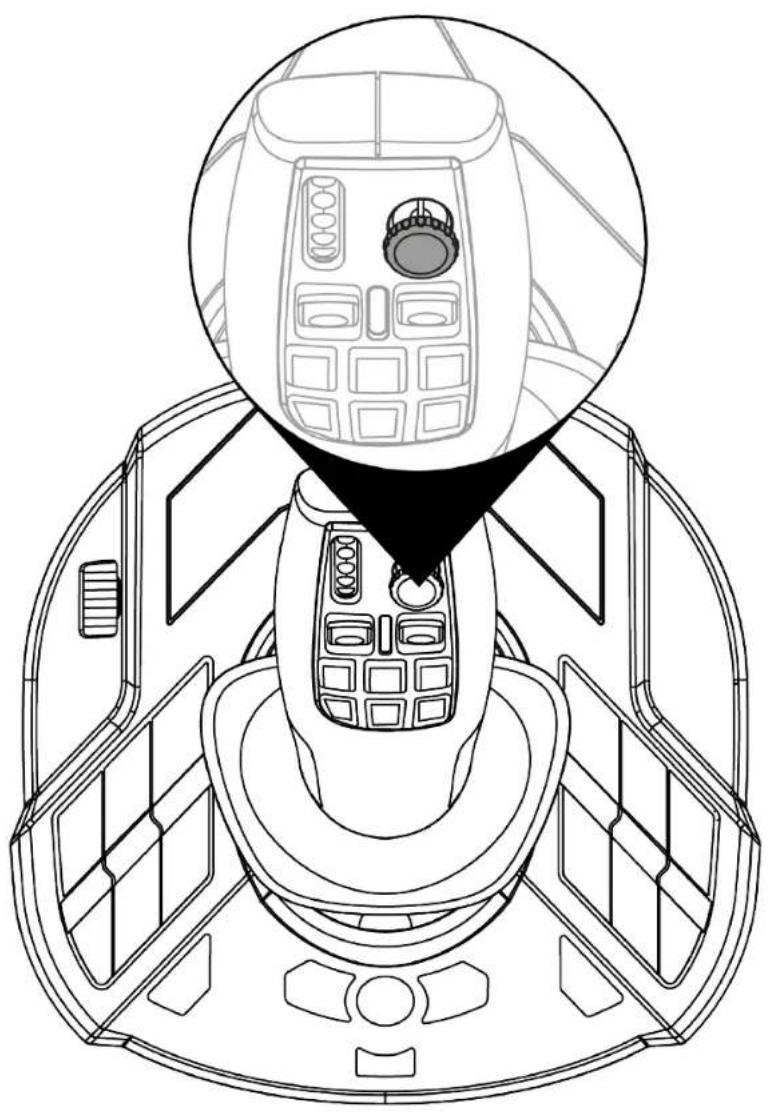
SimTask FarmStick features a “Point-of-view” mini-stick ⑤ that lets you see what is in the field of vision of the machine operator.
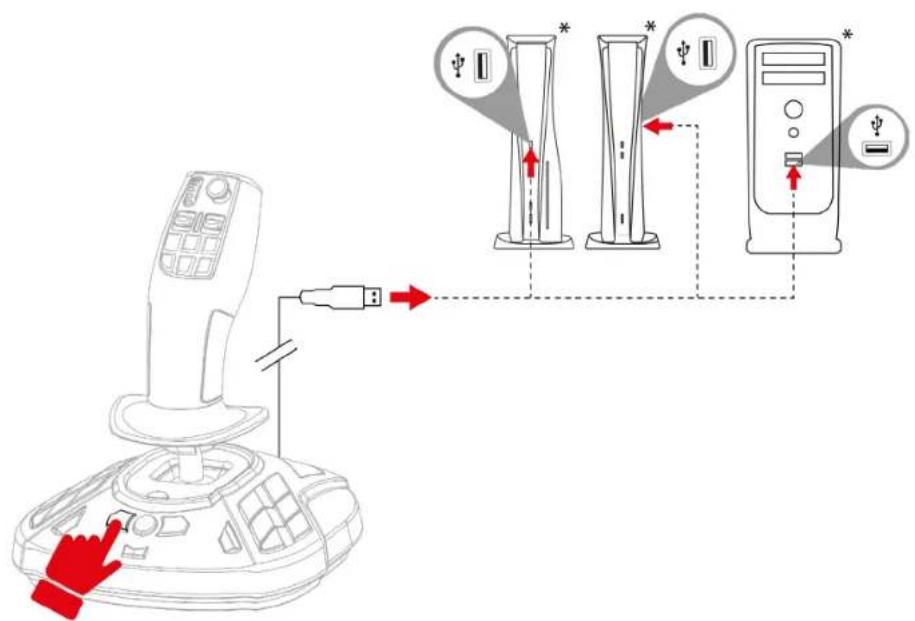
SimTask FarmStick connectivity on
PlayStation®5* consoles and PC*
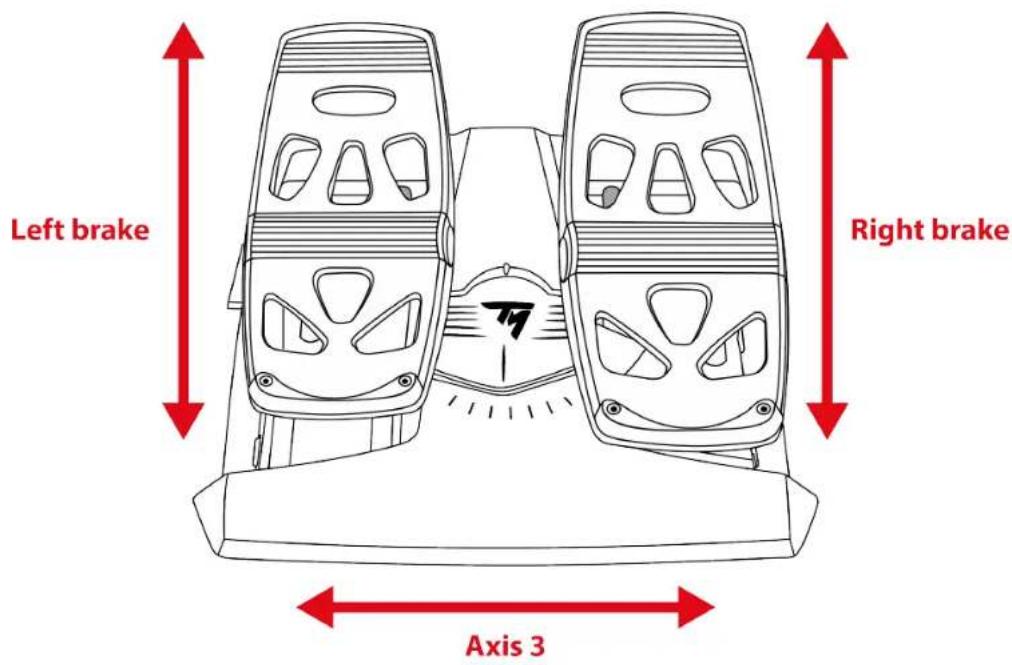
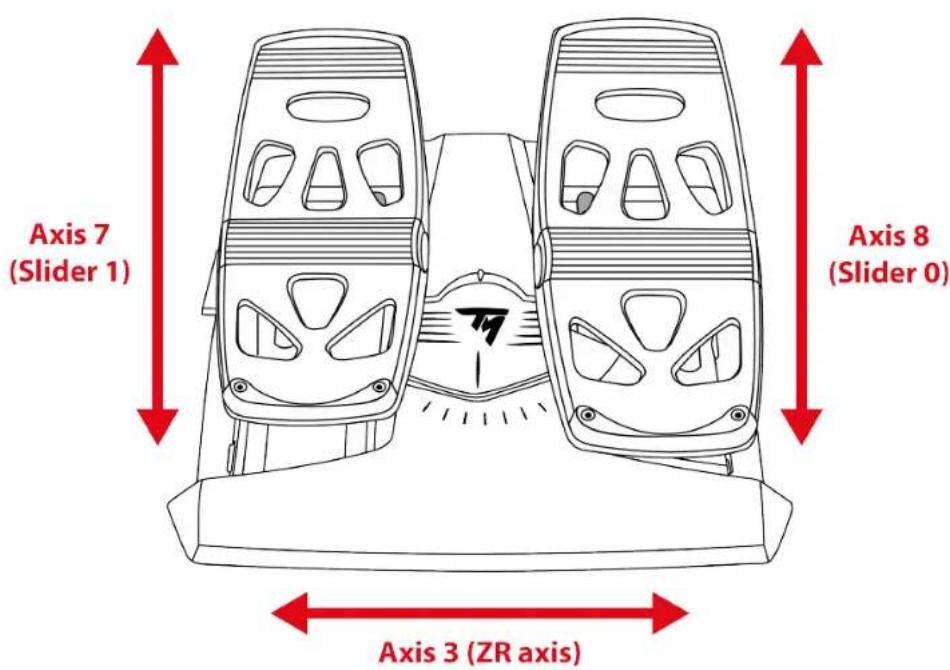
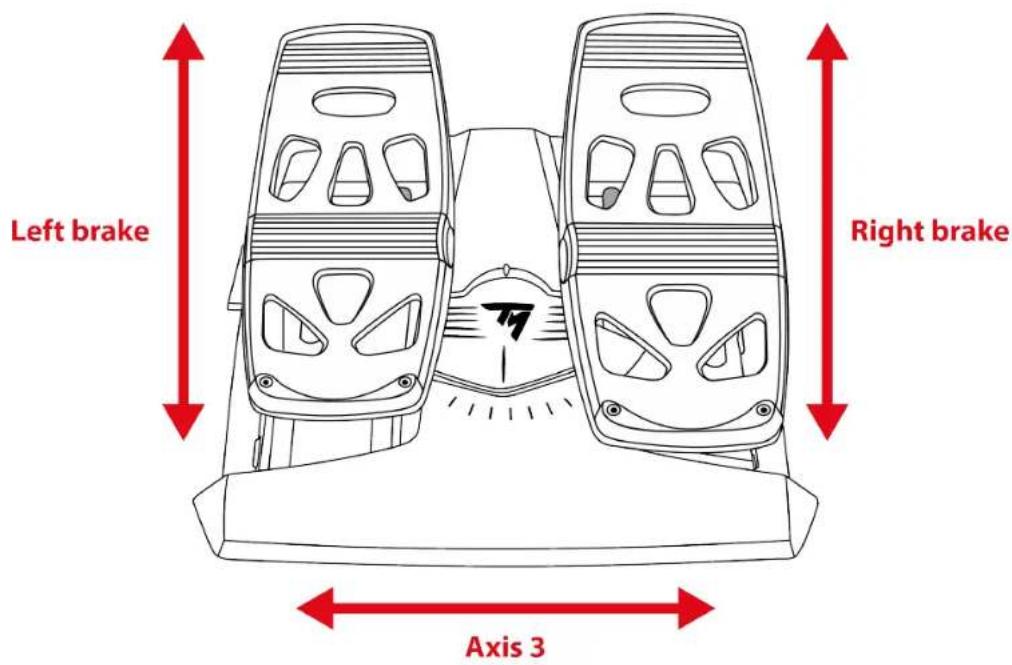
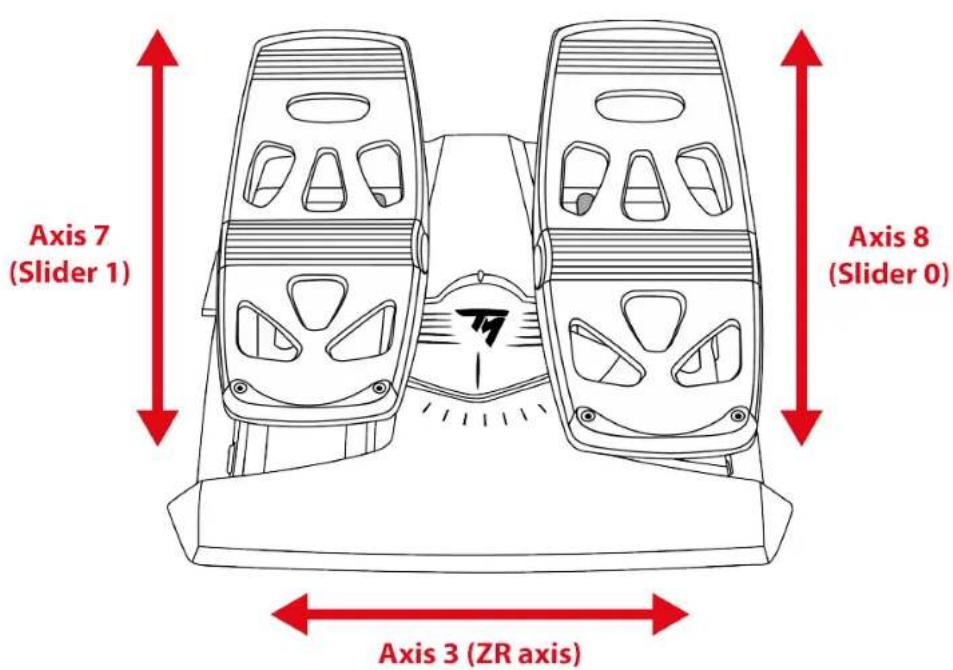
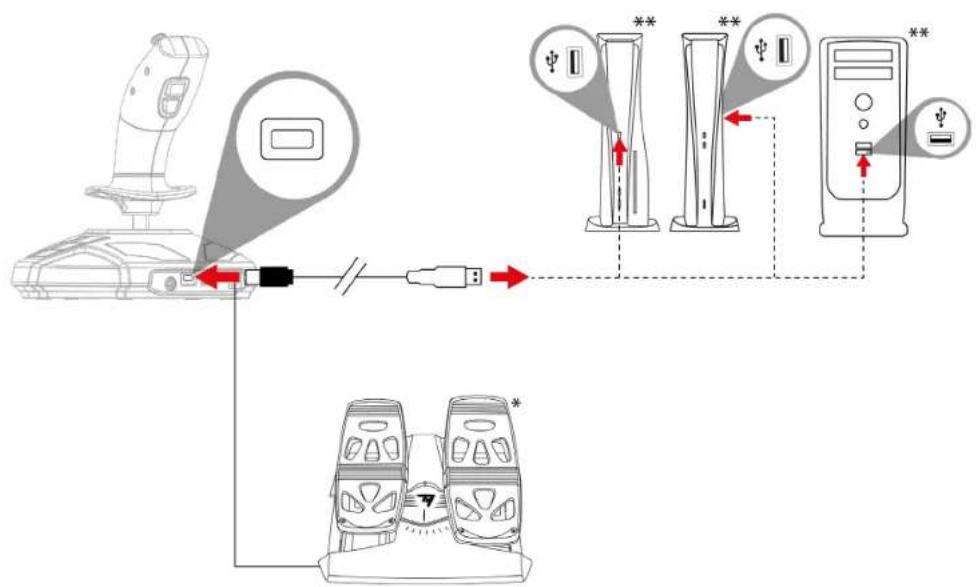
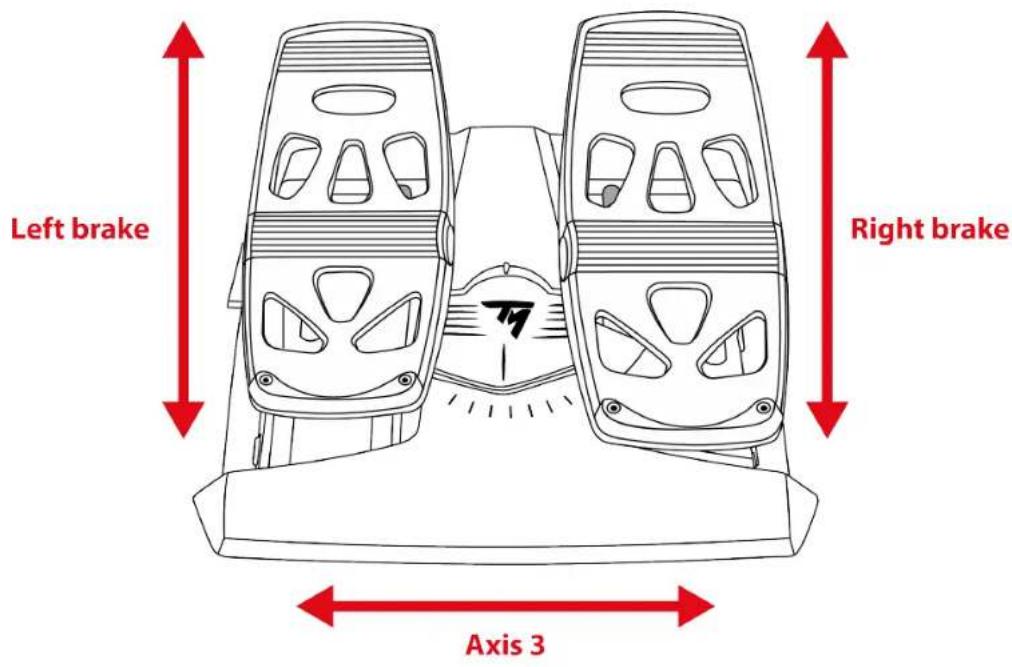
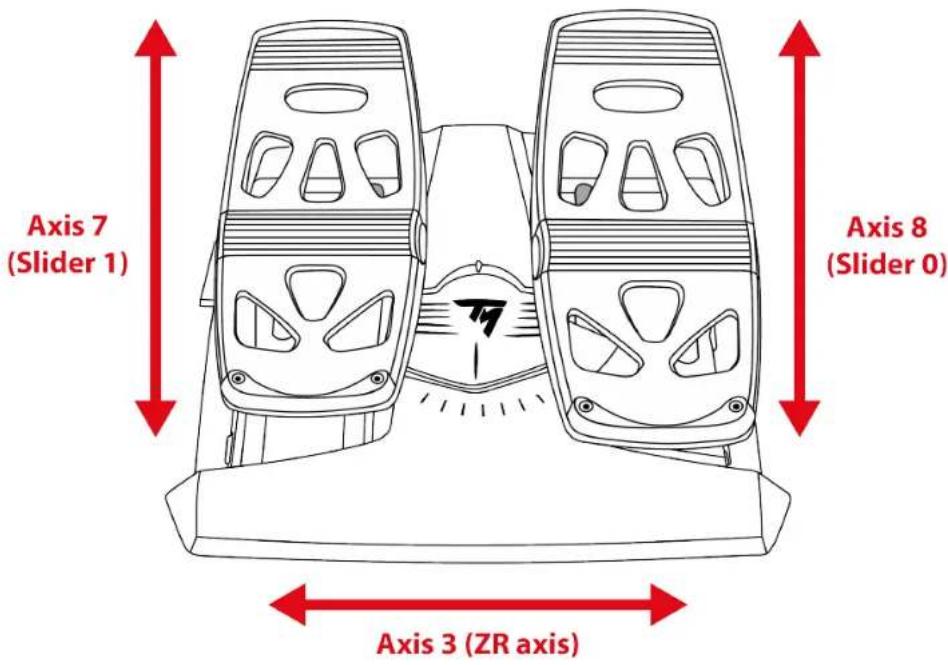
SimTask FarmStick features six axes, but offers the option of connecting a TFRP** rudder to the back of the joystick. This provides you with two additional axes, as well as rudder control with the TFRP.

The TFRP rudder is the only device supported on PlayStation®5 consoles and PC.
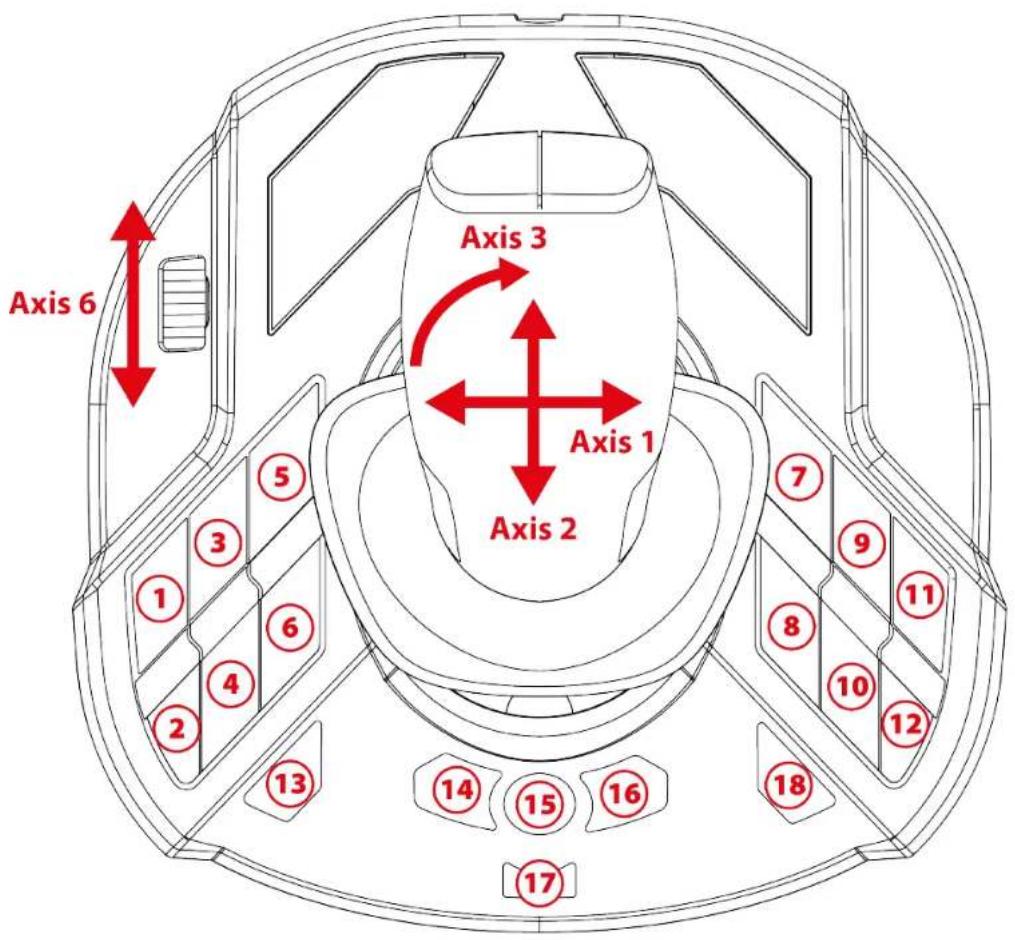
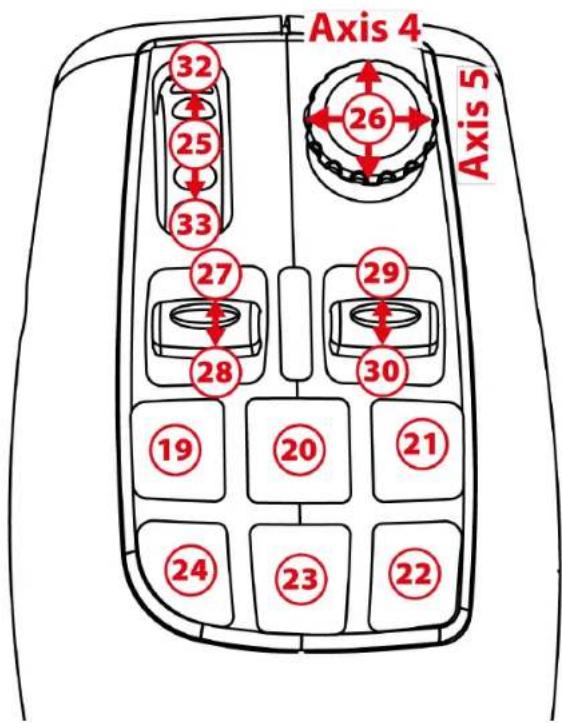
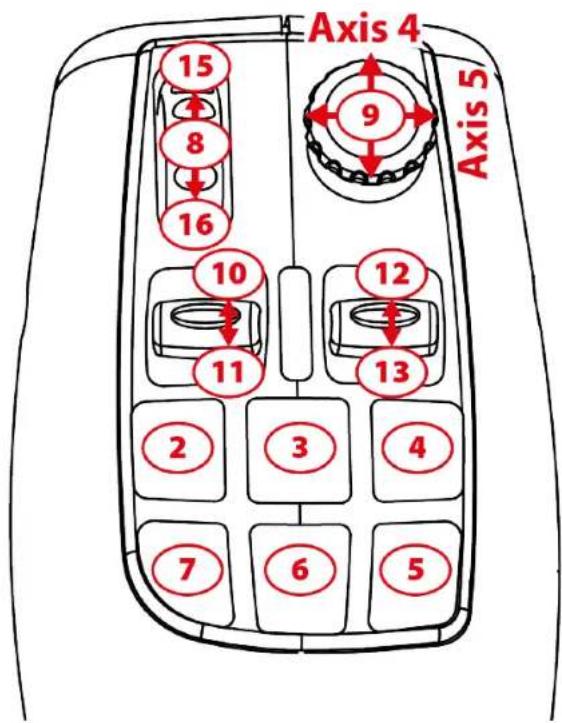
Mapping for PlayStation®5 consoles:
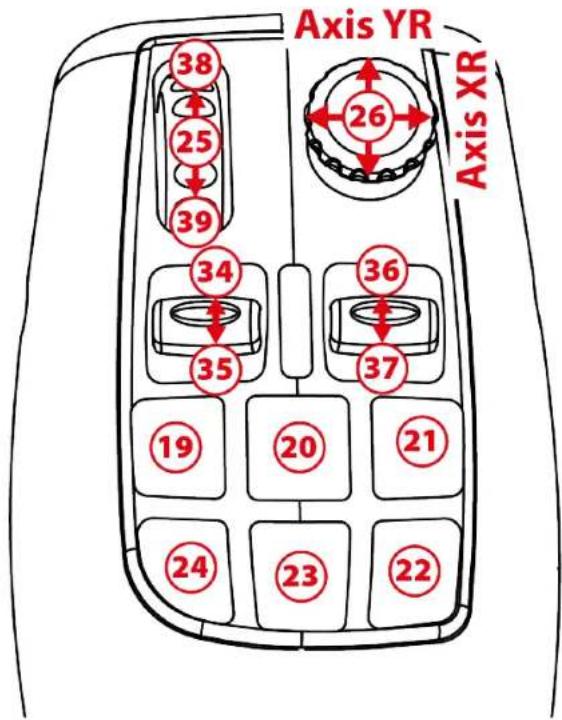
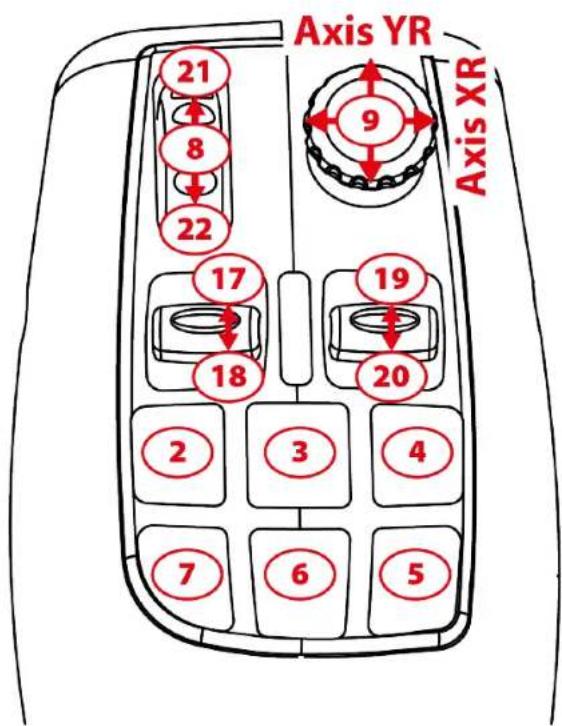
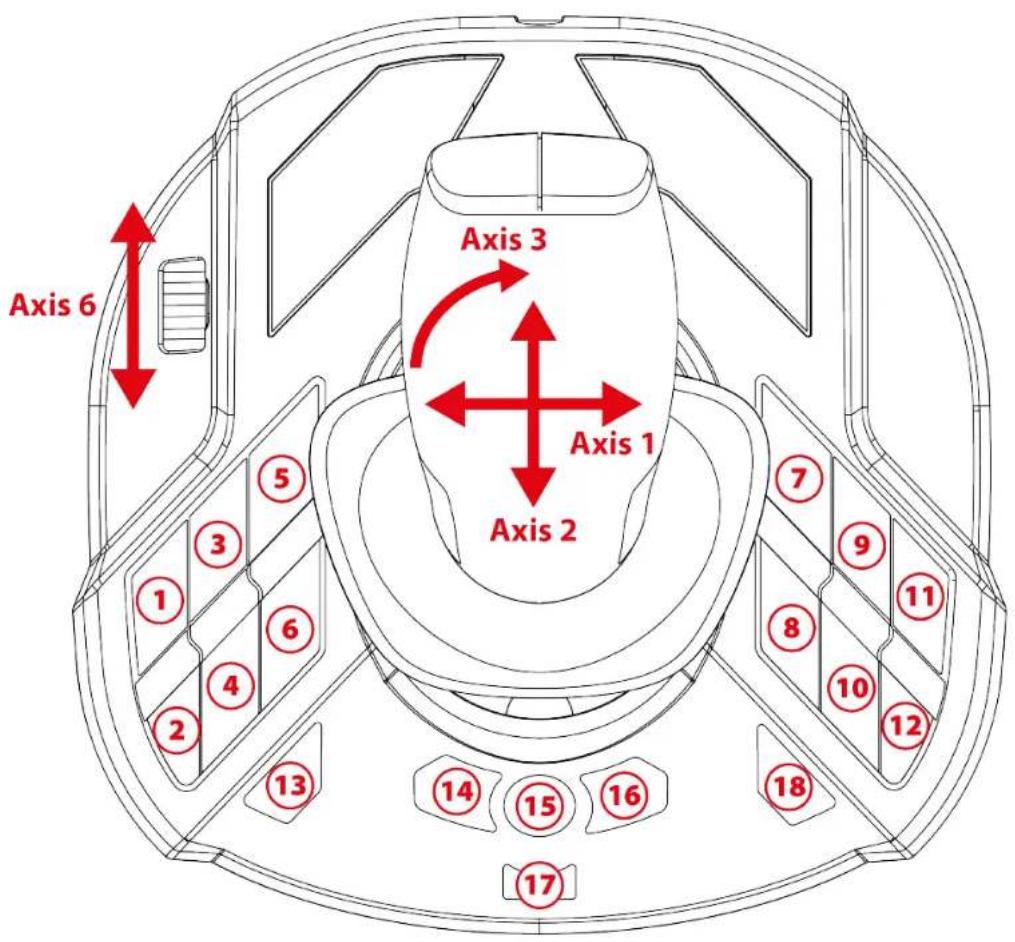
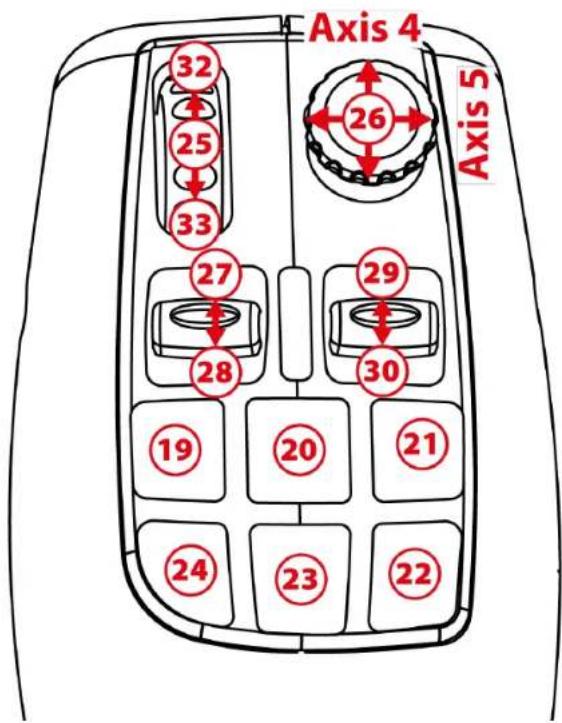
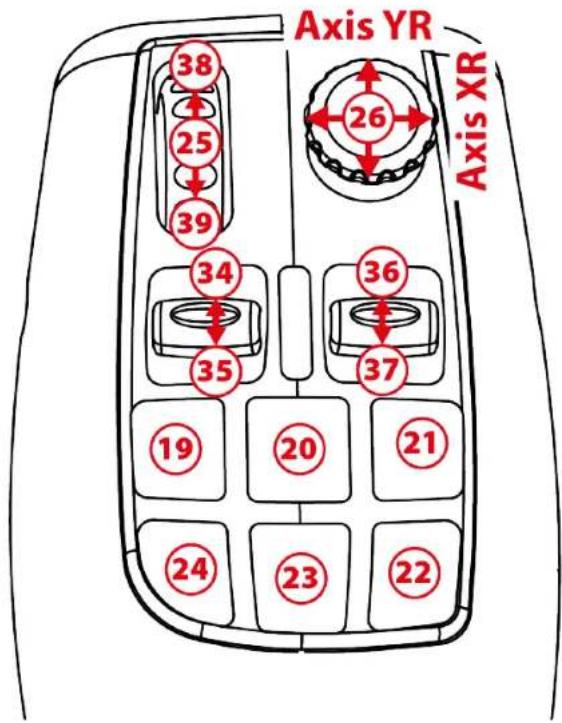
Mapping for PC:
Right- and left-handed joystick configuration
Your SimTask FarmStick is ambidextrous to adapt seamlessly to all players, be they right- or left-handed.
By default, the joystick is set to right-handed mode.
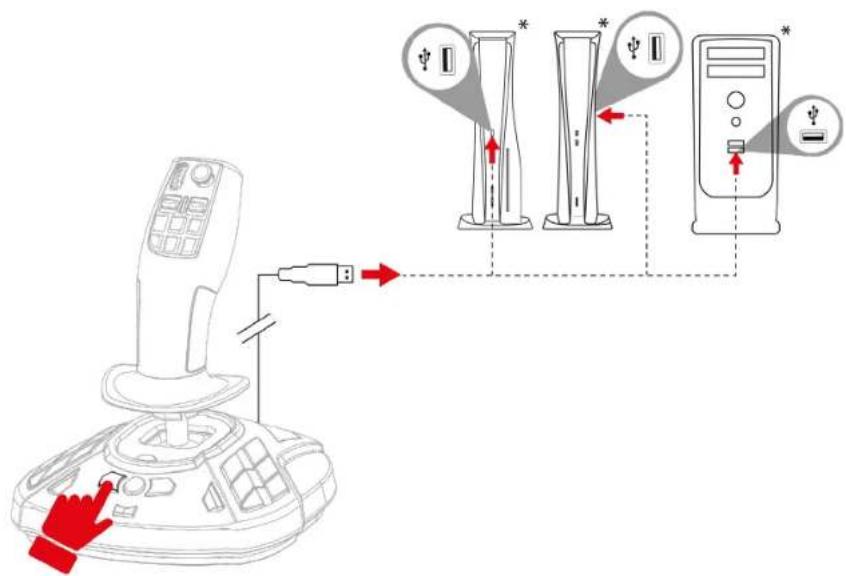
To set the joystick in LEFT-HANDED mode:
- Press and hold button 14 (on PC) or L3 (on PlayStation® consoles) when connecting your SimTask FarmStick to your PlayStation®5 console or PC.
The LED stick indicator light ⑥ will flash white for five seconds.
- Release button 14 (on PC) or L3 (on PlayStation® consoles).

LEFT-HANDED mode is automatically saved to the SimTask FarmStick's internal memory.
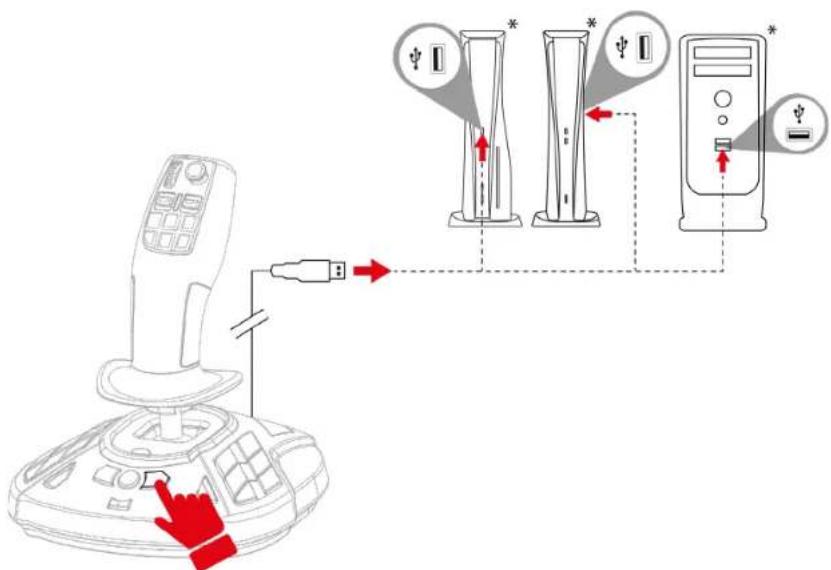
To reset the joystick to RIGHT-HANDED mode:
- Press and hold button 16 (on PC) or R3 (on PlayStation® consoles) when connecting your SimTask FarmStick to your PlayStation®5 console or PC.
The LED stick indicator light ⑥ will flash orange for five seconds.
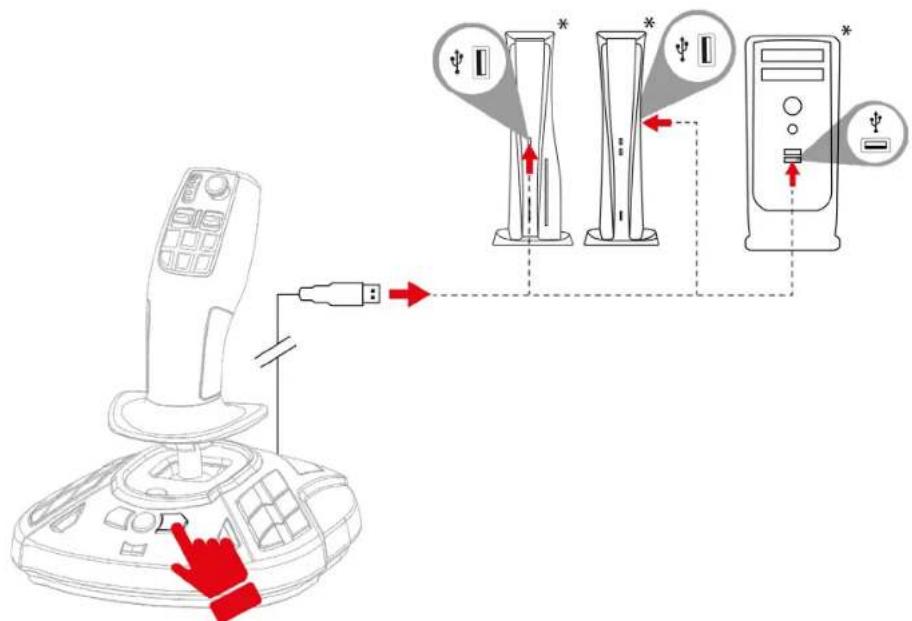
- Release button 16 (on PC) or R3 (on PlayStation® consoles).

RIGHT-HANDED mode is automatically saved to the SimTask FarmStick's internal memory.
5. Installation on PlayStation®5 consoles
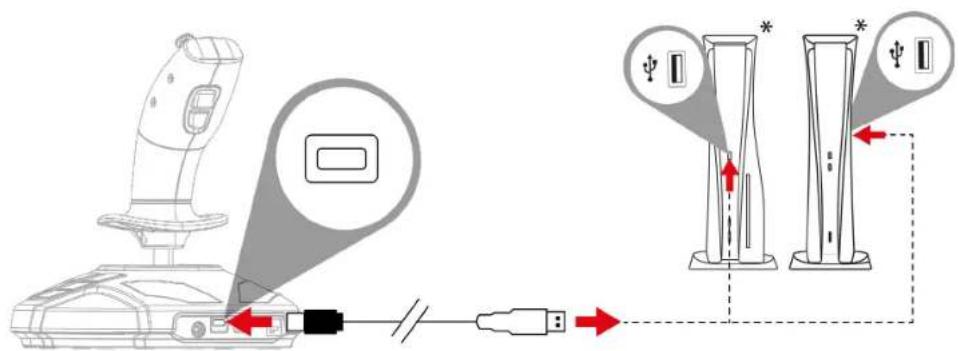
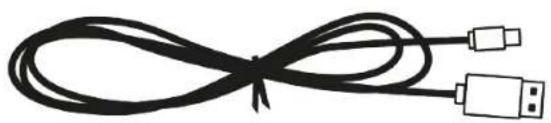
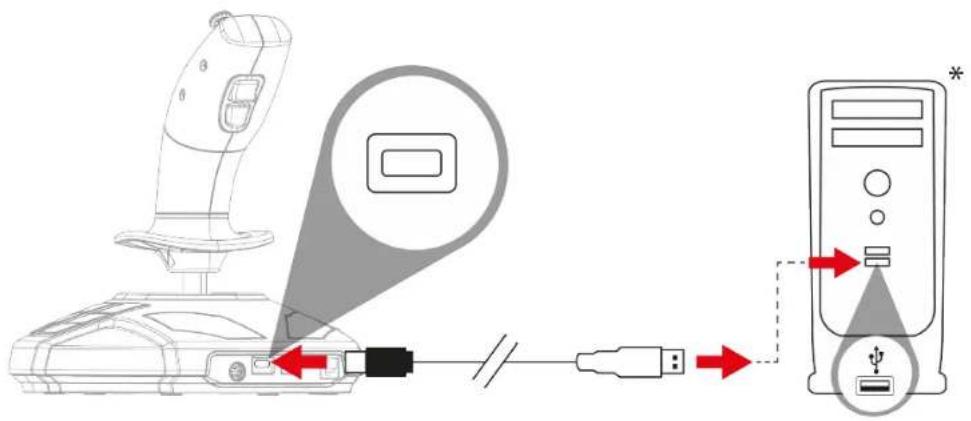
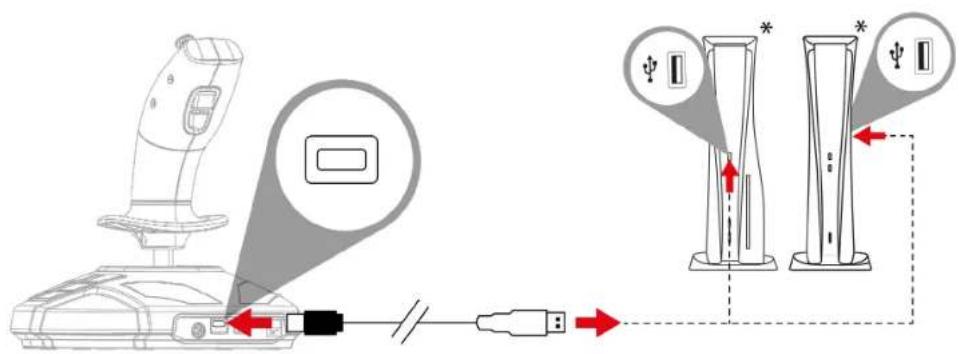
- Plug the USB-C - USB-A cable into the joystick's USB-C port ⑰ and one of the console's* USB-A ports.
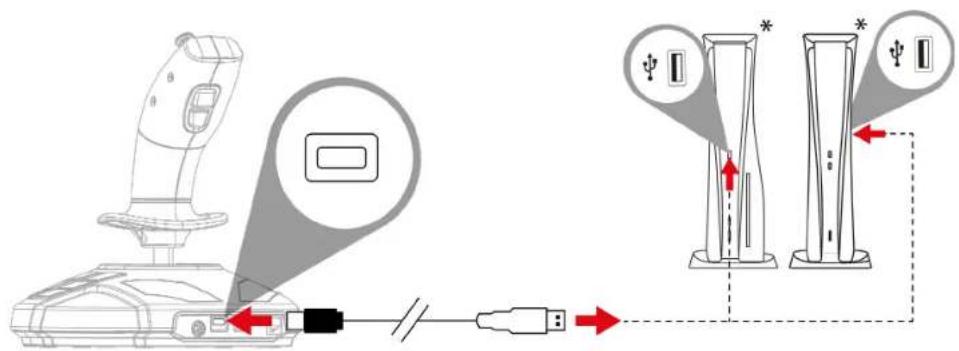
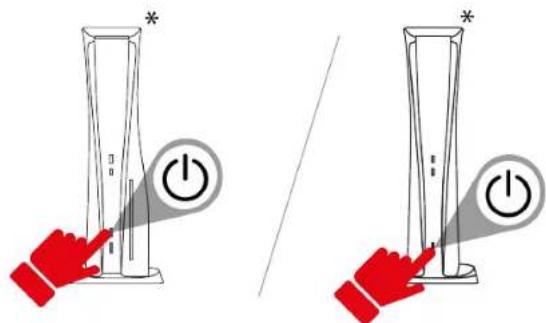
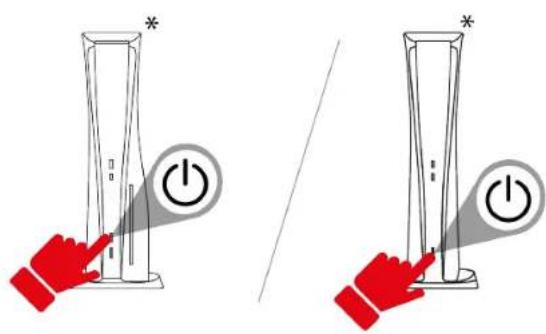
- Turn on your console.
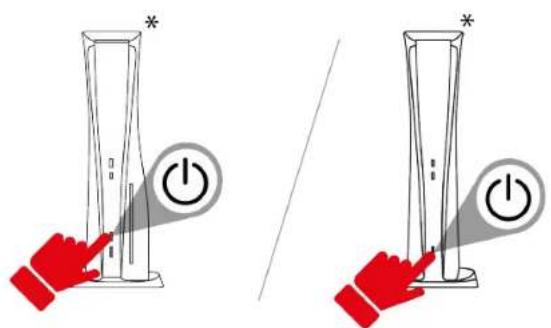
*not provided
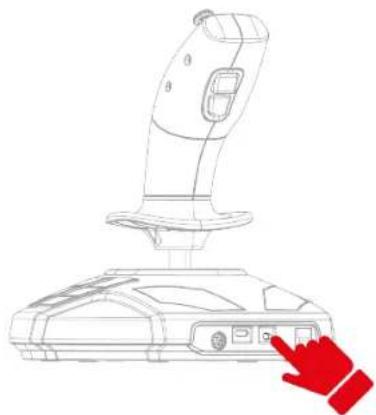
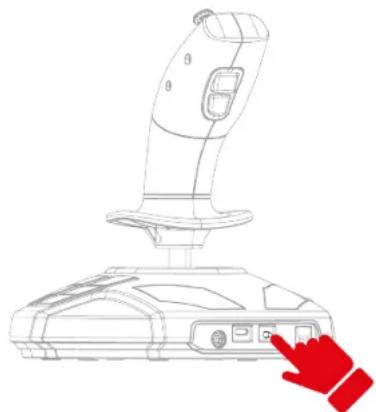
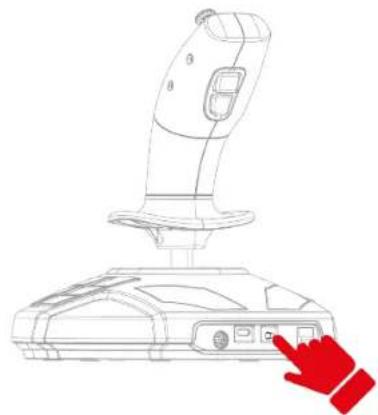
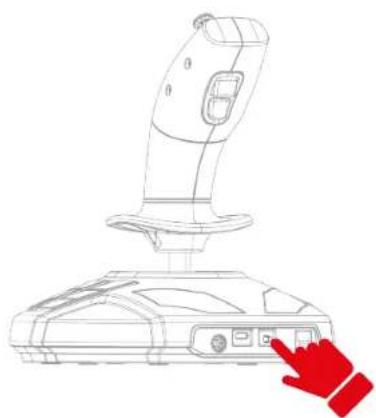
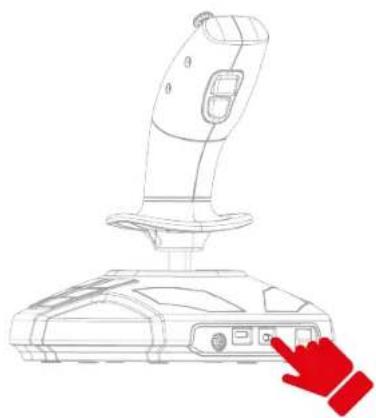
- Press the PlayStation® / PC mode select button 18 on the back of the joystick to change the color of the compatibility mode LED 12.
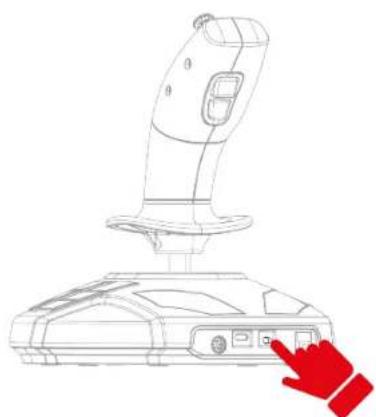
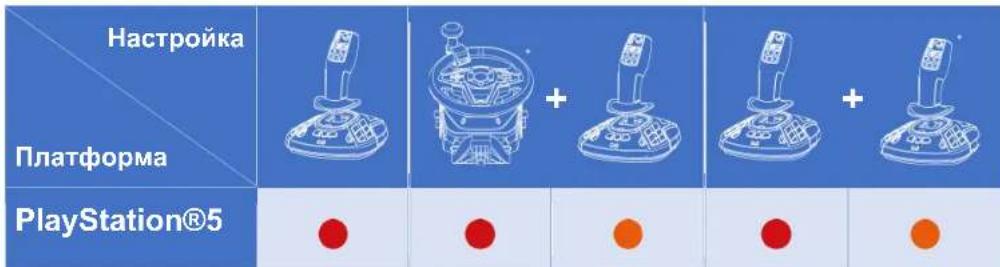
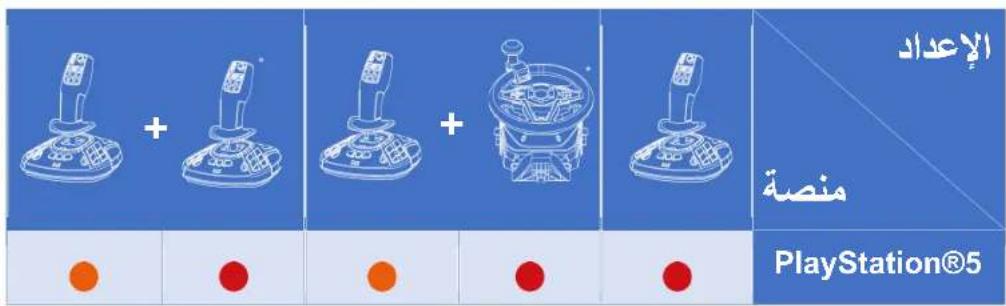
The table below shows the color of the compatibility mode LED 12 should be.
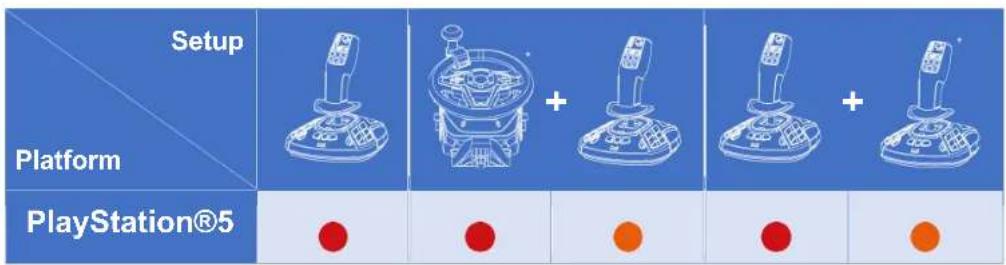

For more information on selecting the compatibility mode, please read the Compatibility mode LED section.
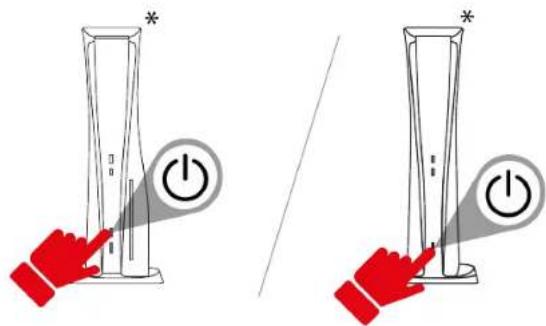
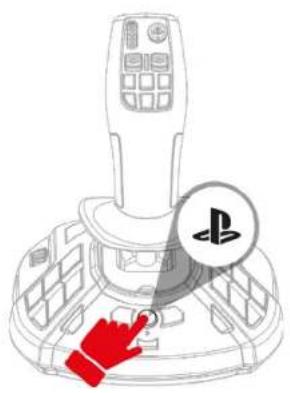
- Press the PS button.
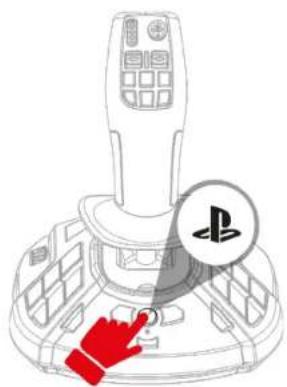
- Launch a compatible game.
You are now ready to play!

When connecting your joystick, always keep the handle in its central position, do not move or rotate it, in order to avoid any calibration problems.
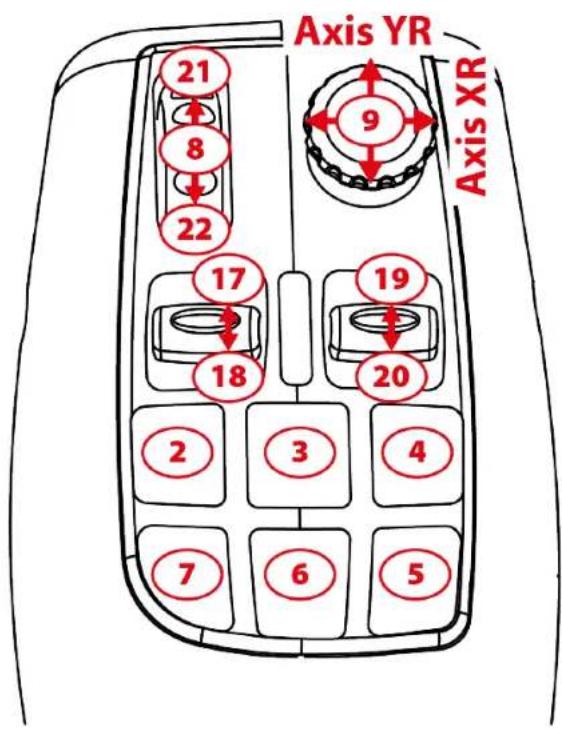
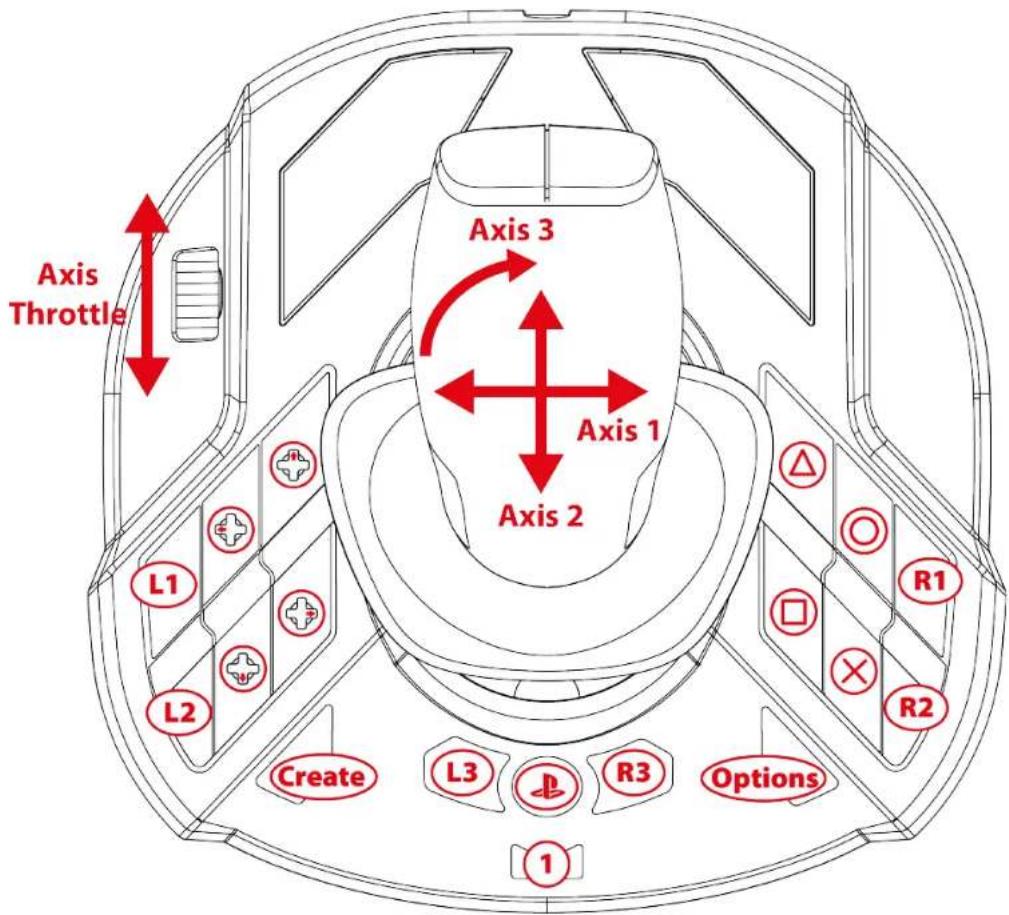
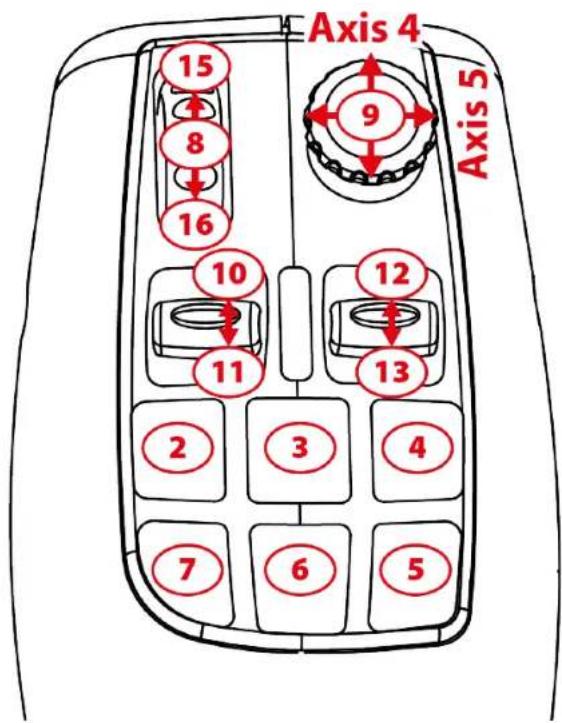
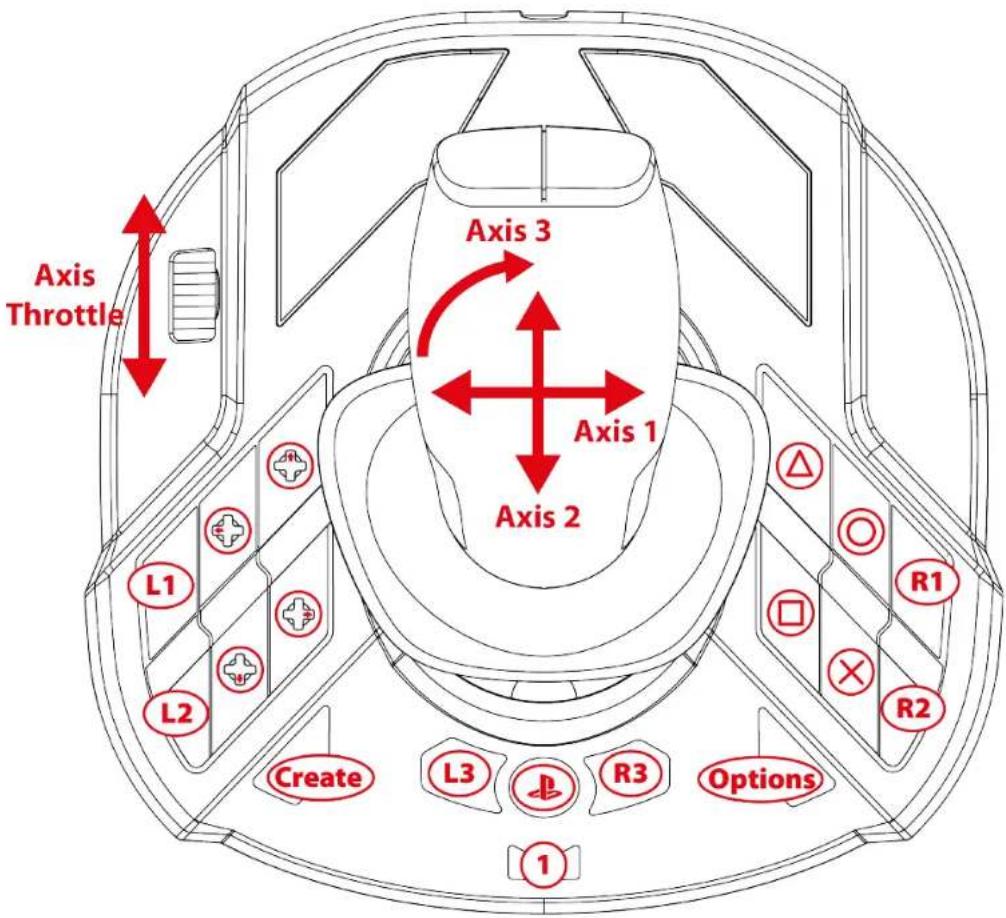
6. Mapping for PlayStation®5 consoles
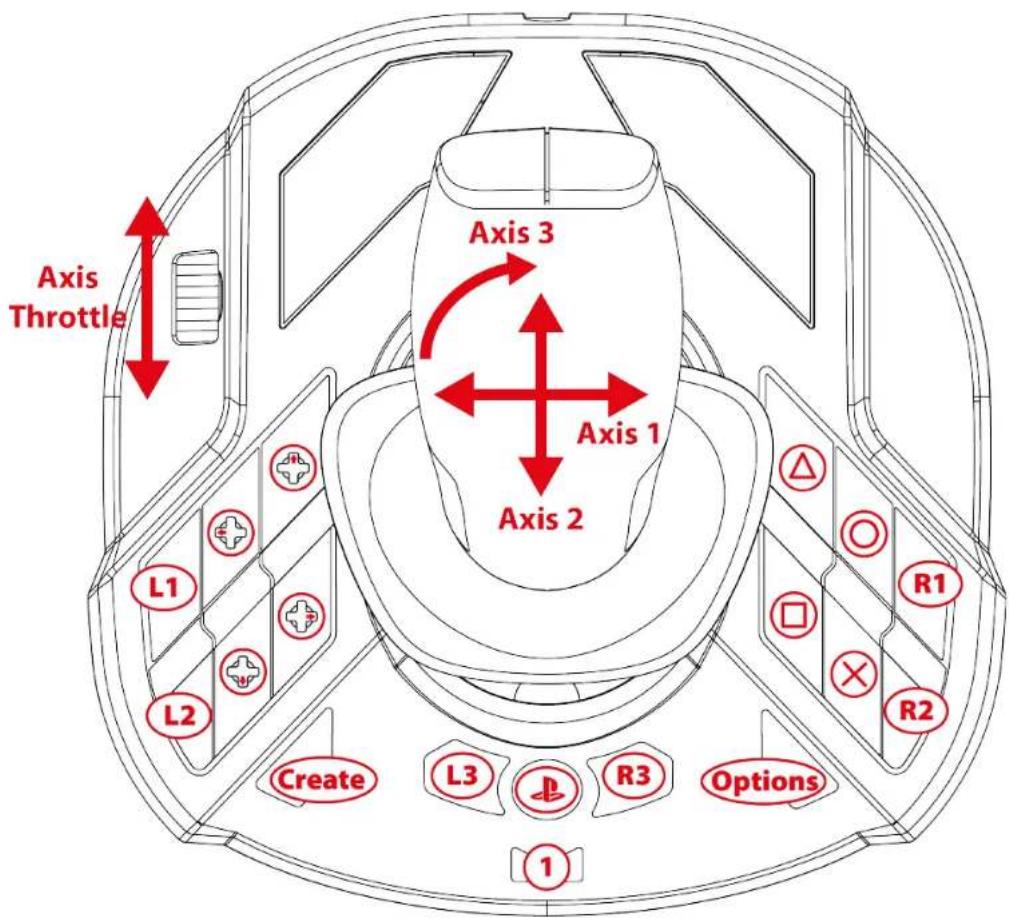

Mapping is identical in right-handed and left-handed modes.
Right-handed (default) / left-handed mode can be selected by following this procedure.
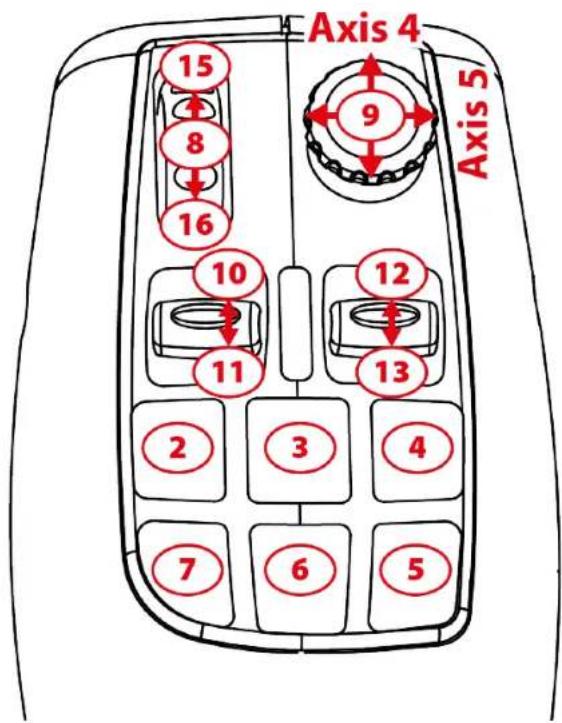
Drive mode
Work mode
7. Installation on PC*
*PC compatibility (Windows® 10/11) not tested nor endorsed by Sony Interactive Entertainment.
- Please visit:
https://support.thrustmaster.com/product/simtask-farmstick-p/. - Download and install the PC driver and its customized interface for the Windows control panel.
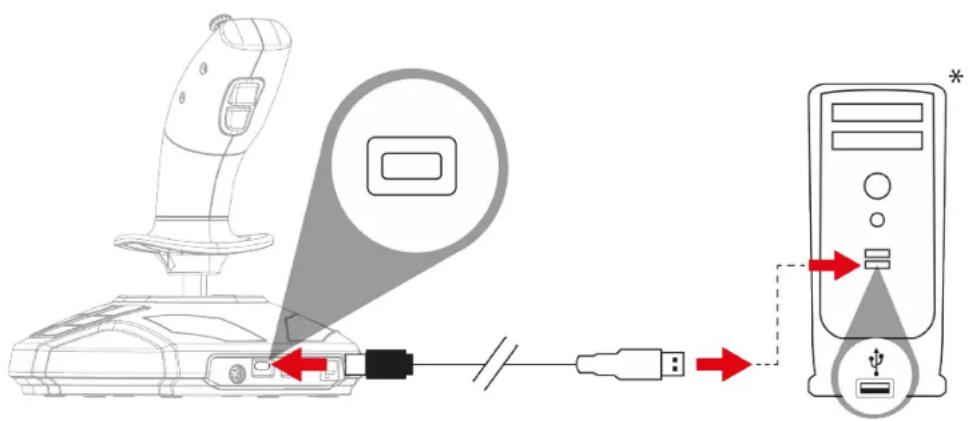
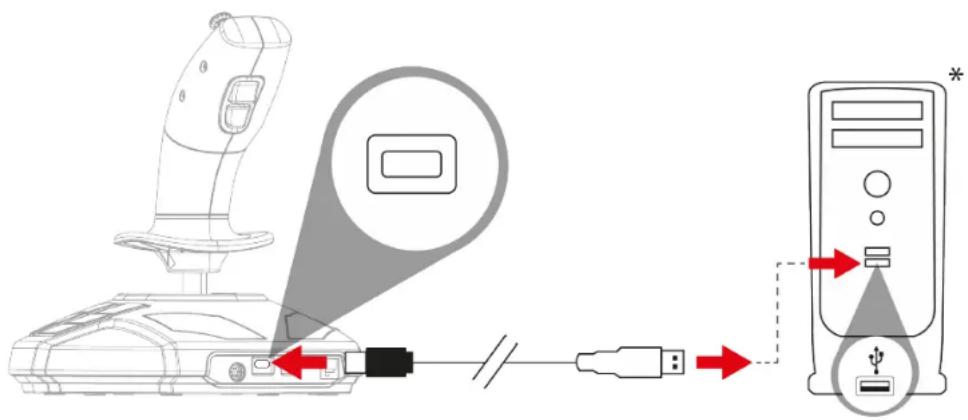
- Once the PC driver has been installed, plug the USB-C - USB-A cable into the joystick's USB-C port 17 and one of the PC's* USB-A port.
*not provided
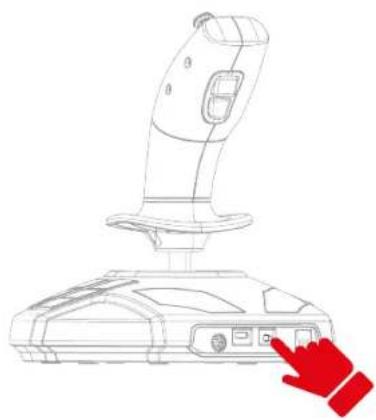
- Press the PlayStation® / PC mode select button 18 on the back of the joystick to change the color of the compatibility mode LED 12.
The compatibility mode LED 12 must be green.
- Select Start / Settings / Control Panel and double-click Game Controllers. The Game Controllers dialog box will display the joystick's name with OK status.
- In the Control Panel window, click Properties to test and view all features. You can also select the right-handed mode (default) or left-handed mode.
You are now ready to play!

When connecting your joystick, always keep the handle in its central position, do not move or rotate it, in order to avoid any calibration problems.
8. PC mapping
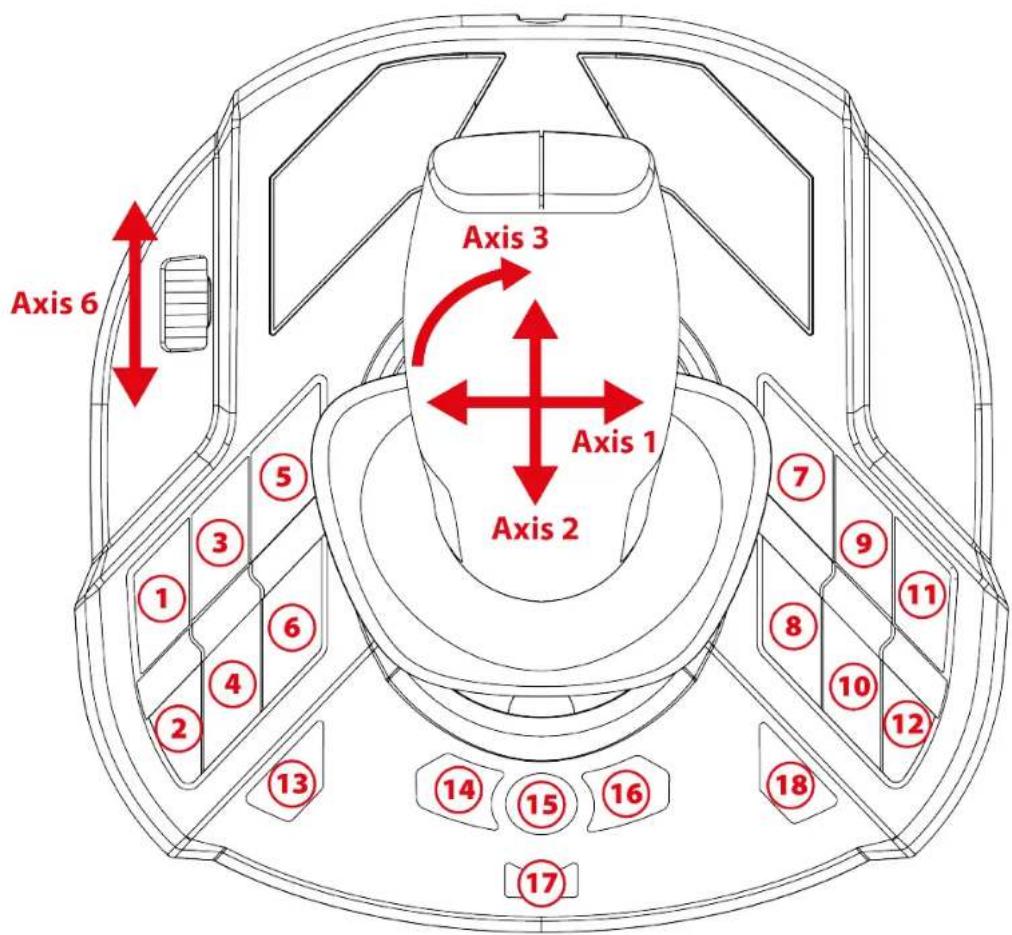

Mapping is identical in right-handed and left-handed modes.
Right-handed (default) or left-handed mode can be selected by following this procedure or in the Control Panel.
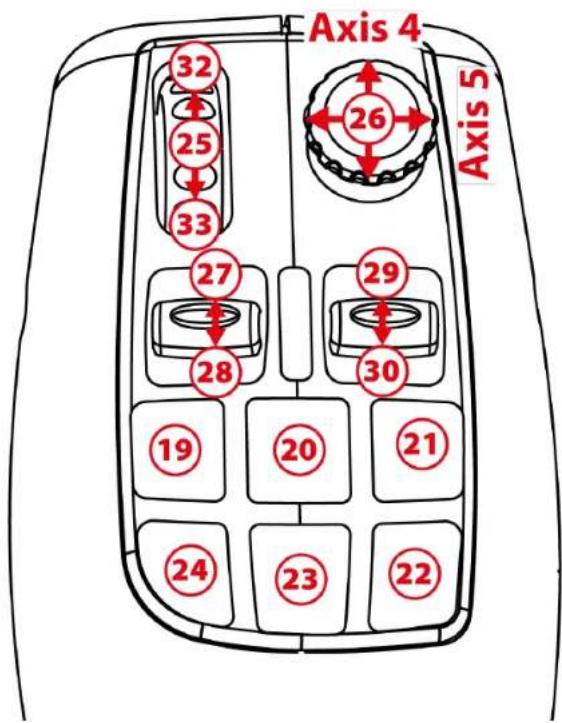
Drive mode
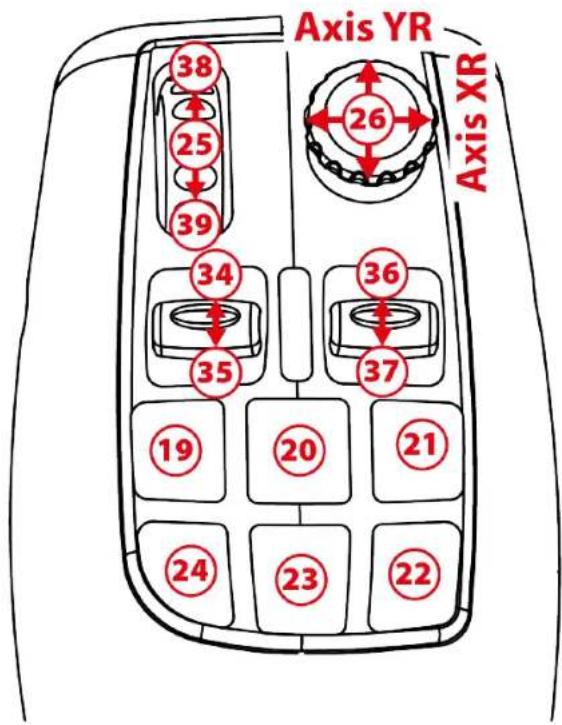
Work mode
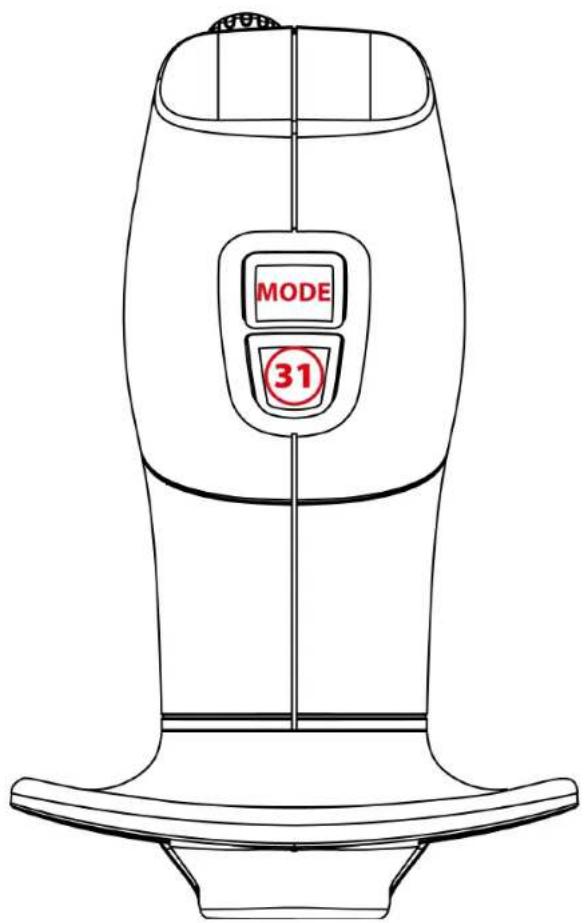
9. Throttle
Your joystick features a throttle 8 that lets you easily control engine speed.
10. Interchangeable trigger
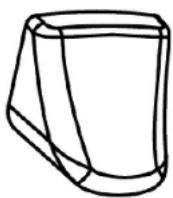
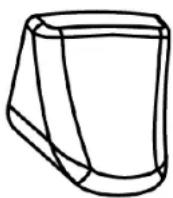
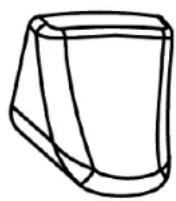
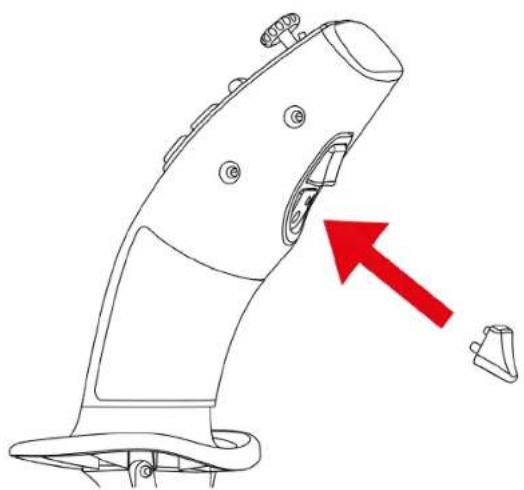
Your joystick features an interchangeable action trigger
15 providing different game ergonomics.
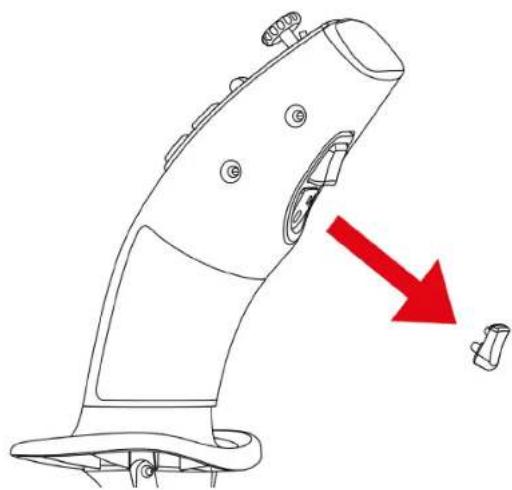
The trigger installed by default can be replaced by a trigger suitable for flight simulation (included with SimTask FarmStick).
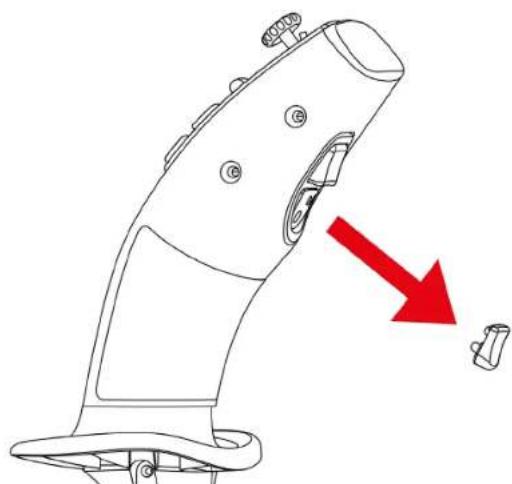
To change the trigger:
- Place your fingers on either side of the trigger and pull it carefully.
- Insert the new trigger in the proper mounting position.
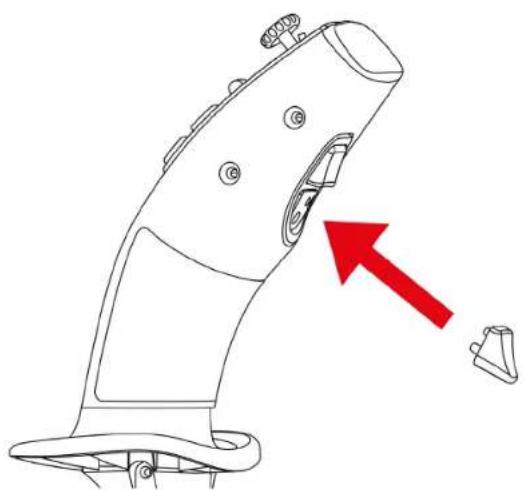

The centering pins must fit into their position in the stick. Do not force the trigger in, as this may damage the pins.
11. Compatibility mode LED

SimTask FarmStick features two compatibility modes: PS5™ or PC. Be sure to select the appropriate mode depending on the platform you're playing on and your setup.
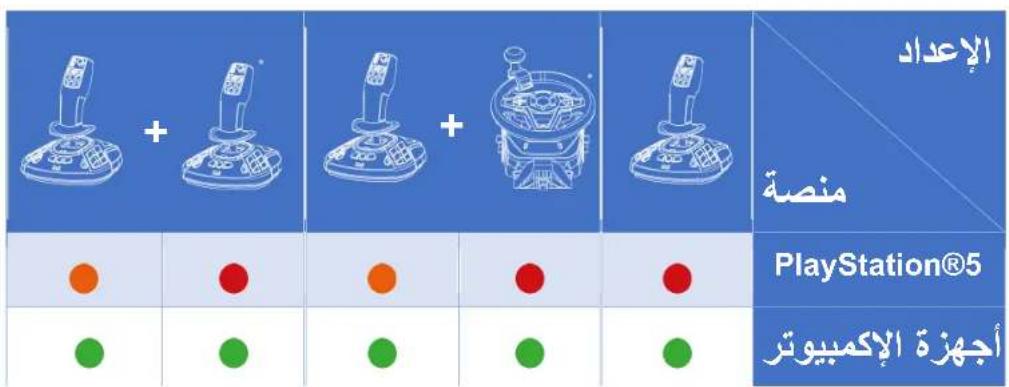
The color of the LED varies depending on the platform you are playing on and your setup (a SimTask FarmStick or a SimTask FarmStick with a T128 or T248 racing wheel, or a second SimTask FarmStick*).
The table below shows the color of the compatibility mode LED 12 of your SimTask FarmStick should be.
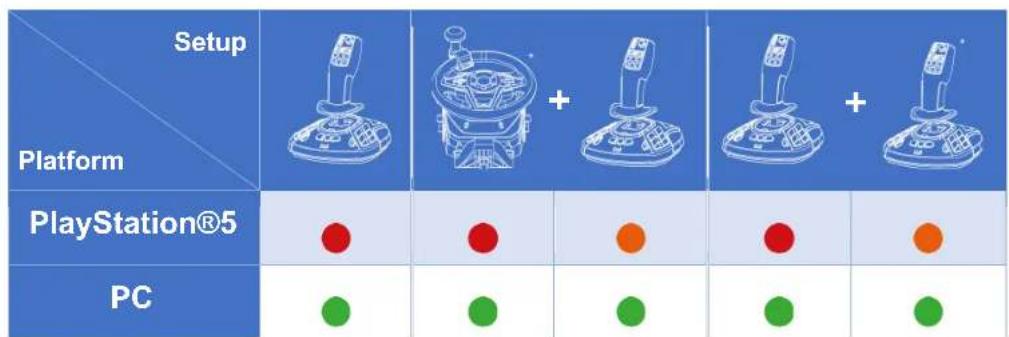
Using a single SimTask FarmStick only
-
Press the PlayStation® / PC mode select button 18 on the back of your SimTask FarmStick to change the color of the compatibility mode LED 12.
-
On PlayStation®5 consoles, the compatibility mode LED ⑫ must be red.
- On PC, the compatibility mode LED ⑫ must be green.
Using a SimTask FarmStick with a T128*
or T248* racing wheel
- On your T128 or T248 racing wheel, select the compatibility mode for the platform used. Please read the racing wheel user manual, if necessary.
-
Press the PlayStation® / PC mode select button 18 on the back of your SimTask FarmStick to change the color of the compatibility mode LED 12.
-
On PlayStation®5 consoles, the compatibility mode LED 12 must be orange.
- On PC, the compatibility mode LED ⑫ must be green.
Using two SimTask FarmStick units
-
Press the PlayStation® / PC mode select button 18 on the back of the first SimTask FarmStick to change the color of the compatibility mode LED 12.
-
On PlayStation®5 consoles, the compatibility mode LED 12 must be red.
-
On PC, the compatibility mode LED ⑫ must be green.
-
Press the PlayStation® / PC mode select button 18 on the back of the second SimTask FarmStick* to change the color of the compatibility mode LED 12.
-
On PlayStation®5 consoles, the compatibility mode LED 12 must be orange.
- On PC, the compatibility mode LED ⑫ must be green.
12. Installation on PlayStation®5* consoles or PC* with TFRP rudder**
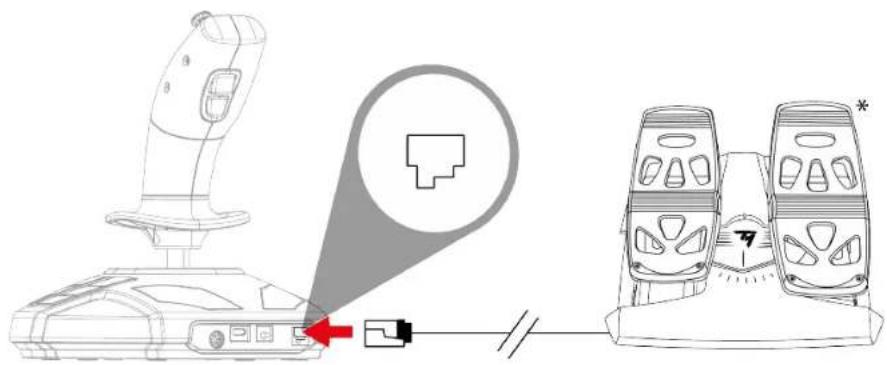
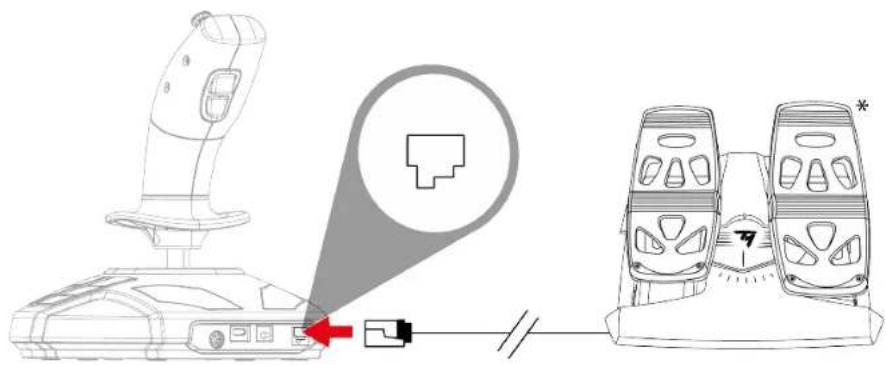
The TFRP** rudder plugs into the SimTask FarmStick.
-
Press the PlayStation® / PC mode select button 18 on the back of the joystick to change the color of the compatibility mode LED 12.
-
On PlayStation®5 consoles, the compatibility mode LED ⑫ must be red.
- On PC, the compatibility mode LED ⑫ must be green.
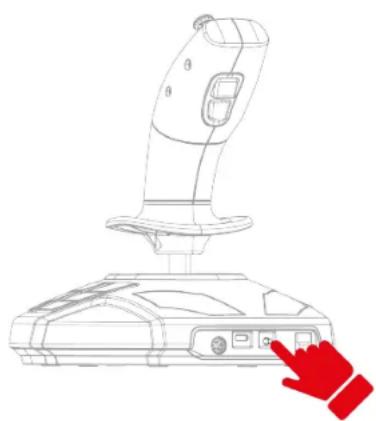
- Plug the TFRP rudder's* RJ12 cable into the RJ12 port on the back of the joystick.
- Plug the USB-C - USB-A cable into the joystick's USB-C port ⑰ and the console's or PC's USB-A port.
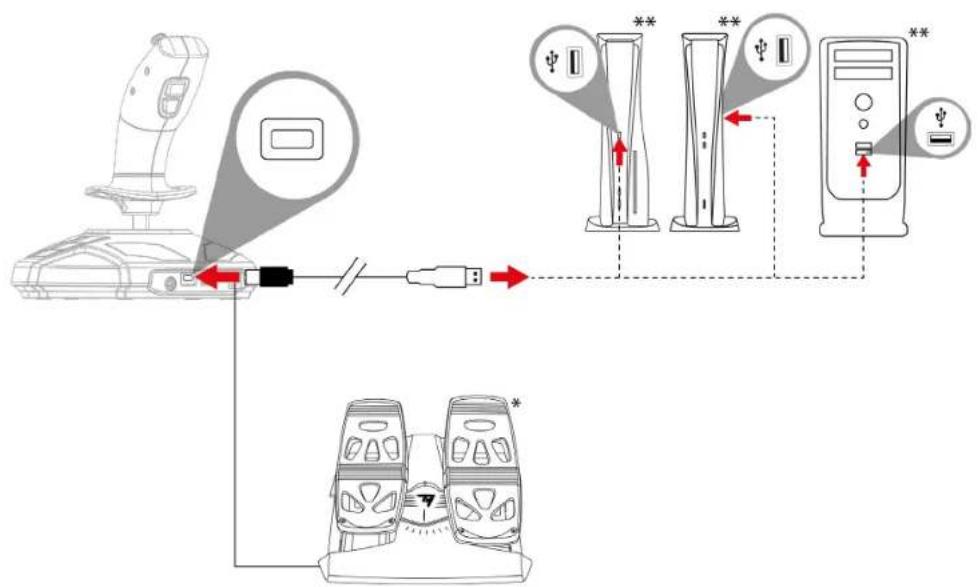
#
-
When connecting your joystick, always keep the handle in its central position, do not move or rotate it, in order to avoid any calibration problems.
-
When connecting your rudder to the joystick: always keep the rudder's axis in its central position and do not place your feet on the rudder pedals in order to avoid any calibration problems.
13. FAQ and technical support
My joystick isn't functioning properly or seems to be improperly calibrated.
- Power off your console or computer and disconnect your joystick; then turn your console or computer back on, reconnect your joystick and restart your game.
- When connecting your joystick: always keep the handle in its central position, do not move or rotate it, in order to avoid any calibration problems.
- When connecting your rudder to the joystick: always keep the rudder's axis in its central position and do not place your feet on the rudder pedals in order to avoid any calibration problems.
I can't configure my joystick.
-
In your game's Options / Controller / Gamepad or Joystick menu: select the appropriate configuration, or completely reconfigure the controller options.
-
Please refer to your game's user manual or online help for more information.
My joystick is too sensitive or not sensitive enough.
- Your joystick self-calibrates independently once you have made some movements along the different axes.
- In your game's Options / Controller / Gamepad or Joystick menu: adjust the sensitivity and dead zones for your joystick (if these options are available).
Do you have questions regarding SimTask FarmStick or are you experiencing technical problems? If so, visit the Thrustmaster technical support site:
https://support.thrustmaster.com/product/simtask-farmstick-p/.

THRUSTMASTER

SIMTASK FARMSTICK
AccuRate Technology)
- Allumez your console.
*non founi
https://support.thrustmaster.com/product/simtask-farmstick-p/.

THrustMASTER®

SIMTASK FARMSTICK
"Point-of-view"-Ministick 18
(HaIIEffect AccuRate Technology)
"Point-of-view"-Ministick
https://support.thrustmaster.com/product/simtask-farmstick-p/.
Point-of-view mini-stick 18
SimTask FarmStick-connectiviteit op
PlayStation®5 -consoles en de PC......19
Point-of-view mini-stick
https://support.thrustmaster.com/product/simtask-farmstick-p/.
https://support.thrustmaster.com/product/simtask-farmstick-p/.

THRUSTMASTER

SIMTASK FARMSTICK
Per console PlayStation®5 e PC*
Manuale d'uso

AccuRate Technology) 13
(HaIIEffect AccuRate Technology)
https://support.thrustmaster.com/product/simtask-farmstick-p/.
https://support.thrustmaster.com/product/simtask-farmstick-p/.

THRUSTMASTER

SIMTASK FARMSTICK
Para consolas PlayStation®5 y PC*
Manual del usuario

AccuRate Technology) 13
(HaIIEffect AccuRate Technology)
https://support.thrustmaster.com/product/simtask-farmstick-p/.
https://support.thrustmaster.com/product/simtask-farmstick-p/.

THRUSTMASTER

SIMTASK FARMSTICK
Para consolas PlayStation®5 e PC*
Manual do Utilizador

AccuRate Technology) 13
(HaIIEffect AccuRate Technology)
https://support.thrustmaster.com/product/simtask-farmstick-p/.
https://support.thrustmaster.com/product/simtask-farmstick-p/.

THRUSTMASTER

SIMTASK FARMSTICK
TEXHnueCKa IODePjKKA 46
BHHMaTeJIbHO O3HaKOMbTEcB C HAcToIzM
pyKOBODCTBOM I COXpaHnte erO nocJeDyUoIerC
NcNoJIb3OBaHnI.

IopaxeHne 3JIeKTpNuecknM TOKOM
XpaHnTe yCTpoNCTBO B cyXOM mecTe n 6epeRnTe erO OT BO3dEInCTBnI Nblnn I COJHeuHO CBeTa.
-
CobnoidaTe yka3aHnaNo nO nOdkIoueHnIO.
-
He nepekpyuBaIte npoBOna nnn KaBeJIn He TAHNTe 3a HNX.
-
He donyckaite nonadHna JnKocTn Ha yctpoiCTBO nIe ero npOBoda.
-
Bepernte yctpoiCTBO OT KOPOTKOrO 3aMbikaHnra.
-
Hn B koem cnyae He pa3bnpaTe ycTpoiCTBO; 6epernte erO ot orHЯ n OT BO3dEiCTBnB BBICOKN TeMnepaTyp.
-
He otkpbIbaIte yctpoiCTBO: BHyTpI Het deTaeIe npedHa3NaueHHbIX dIЯ 06cIyJKBaHnI noIb3OBaTeIeM. BCE peMOHTbIe pa6Otbl DOJIxHbI BblONHrTbcra IpOIN3BOdnteIeM, ero OΦuIaNbHbIM npedCTaBNTeIeM IJI N KBaJIncIupoBaHHbIM CpeUaJINCtOM.

- He 3aKpbBaIte npOBoDa nHTaHnY KOBpOM, OdeJLOm NII NIO6bIM dpyrIM HAcTINOM, He pa3MeuAte Ka6eJI B MeCTax nepeDbNxKeHnY IIODeI.
4. OnscaHne JxOyCTnKa
Ochobhble oc06eHHocmu
- 33 KHONKи 6 BnptyaJIbHbIX KHOJOK, BKJIIOUaJ KOJIeCoДЯбOLbIwOro NaJIbUa I DBa KUJIINCHbIX NepeKJIIOUaTeJIa
-6Ocei, BKNIOUaMHN-CTNK,BpaueHne pyKoTKn DJOCTNka n pbIur ynpabJIeHnA - CBeToIIOHbI INHdIKaTOPpeXIMa JxOJCTNka
- Texhoolor H.E.A.R.T. (HallEffect AccuRate Technology)
-Подключенек порту USB-A - Pbyar ynpaBneHna
- Порт RJ12 дя руя упавлени TFRP*
H.E.A.R.T. (HalIEffect AccuRate Technology) - mexhoJozua moHozoynpaBJeHua
BДжоистke SimTask FarmStick nCnoь3уется TEXHOLIOrna, obecneuBaIOUaЯ TaKyHO TOUHOCTb, KOTOpO B HAcTOrIe e BpeM HeT aHaIOrOB B MInpe HrpoBbIX DJOYSTIKOB. Bot HeKOtOpbIe ee OC6eHNHOCTN:
- TpexMepHbIe MaHHTbIe DaTUnKn (aΦΦeKT Hall) ha pykoTke c pa3peSeHem 6oJee 268 mIn 3NaueHn IO BcEM OcAm X n Y (16 384 x 16 384 3NaueHn).
- Магнит: 6e3 Трени, Дд ообсенья MaKcIMaJIbHOJ TOUHOCTN I HeBepoTHOJ CKOpOCTN OTKIINA, KOTOpbie He N3MeHЯIOTcA CO BpeMeHem.
- Lünnundpuecka BnHTOBa npyXHa Ha pyKoTke (2,8 MM): Дя CTa6nIbHOrO n Upe3BbIaHNo PnlaBHOrO JInHeiHOrO COnpOTnBJIeHn.
Pexum deuxenue <> pa6ouu pexum
KhoNka 14 no3BOJraT nepeKJIouHTbcra n3 peXnMa DnIXeHnRA TexHnKn B peXnM pa6oTbI n Hao6OpOT.

3TaФyHKnpaacuipreT dnaPana3OH DeiCTBn, KOToPbIe MoXHO BblONHrTb C NOMOUsbO 6OJIbWoOr OaJIbua, To eCTb C NOMOUsbKOJeca 1 I DByx KJInChbIX NepeKJIIOUcATEJeN 2.
CmeHa pexnMa MeHReT yHKUo KOJeca 1N DByX KyIINCHbIX nepeKJIIOuAteJeIe 2.
Pexim DvIXeHn (no ymoJuaHnO)
BpeKIme DBNXeHnCBeToIDNoHbI INDnKaToppexkMa JxOJCTnKa 6 TropNT opaHXeBbIM.

B pexnme DnXeHn KoIecO 1 N KyJIInCHbIe
peeknouatei MOyT BbINHraTb CneDyuUe cyHKuN:
-
KoIeco noi60JIbwoI naIeI - ynpaBHeHne KOHTpOJIbHOJ TOUKOJ peRyJIaTopa.
-
Kuknichsnepeeklouatee - ynpabIeHne kopo6ko nepeda.
Pexm pa60tbi
B pexnme pa6oTbI CBeToNDnOHyn HndNkATOp peXnMa pa6oTbI JxOyCTnKa 6 ropnt 6eNbIM.

Bpexime pa6oTbI KOleco 1 n KyJIncHbIe
peeknouatei MoTy BbInOnHraTb CneDyUoIe cyHKcN:
-
Koneco - ynpabJIeHne 3ymOM kamepbI.
-
KymiSCbIe NepeKJIoyaTeJIu - ynpabJIeHne CTpeJAMN KpaHOB IJI N HaBeCHbIM O6OpyIDOBaHHeM.
BpauaiouaocpykOmaKa
PykoTka SimTask FarmStick bpaaetcB ropuHTaIbHO nnocKoCTn. 3To ydo6Ho, HapPmep, ecHny HxKHO NOBepHyTb CTpeNy KpaHa NII KOBs 3KCKaBaTopa.
MuHu-cmuk 对u3MeHeHua y2Ja o63opa
Джоистik SimTask FarmStick ochaшен MнИCTIKOM 5, KOTOpbI ПОЗВОЛЯТ BИДЕТь TO, YTO HaxODNTcB ПОЛе 3рEHЯ ONEpaTopa MaSHINHbl.
Подклоченue джошмka SimTask FarmStick K консолм PlayStation®5* u ПК*
ДжоICTNk SimTask FarmStick ochaueH 6 ochMn, Ho TAKKe IMeeT NOPT dIЯ NOdkIIOUeHnRA ynpaBJIeHnra TFRP** Ha 3aIHei nAHeJI. 3To oBeCneuBaet 2 DOnOJIHnTeJIbHbIe OcN, a TAKKe I03BOJAreT IcNoJIb3OBaTb pyIb ynpaBJIeHnRA TFRP.

Риь упраВлени TFRP — эTO eДинстBEнhoe yстpoиCTBO, КOTОре подержИВаETСЯ на KOHCoЛяx PlayStation©5, a ТАкke Ha ПК.
*8 komnnekm He exodum / **npodaemcra omdeIbHo
Ha3naYeHne KhoNok JIey KOHcOJei PlayStation®5:
Ha3haueHne KhoNOKIe IK:
Hacmpoika dkoecmka dja uapbl
napoU u neoUpkoU
Джоистik SimTask FarmStick может 6ытб 6ьictpo
aandaTnpoBaH pOd ngpy IIO6o pyko, npaBoi nn neBOi.
No ymoJIaHnIO dxKoIcTnK HAcTpoEHN IrgbI npaBoi
pyko.
YTo6bI HAcTpOntb JxKoIcTNk DnI nRpbl NeBOI pyKOi:
- Haxmte u ydepkna Te KhoNky 14 (Ha PIK) nIu L3 (Ha KOHcOJx PlayStation®) npn noDknUoyehnn dXoYCTnka SimTask FarmStick K KOHcOJIn PlayStation®5 nIu K PIK.
CBeToIIOHbI INHINKaTOp JxKoIcTNka 6 6ydet MnraTb 6eIbIM B TeueHne 5 cekyHd.
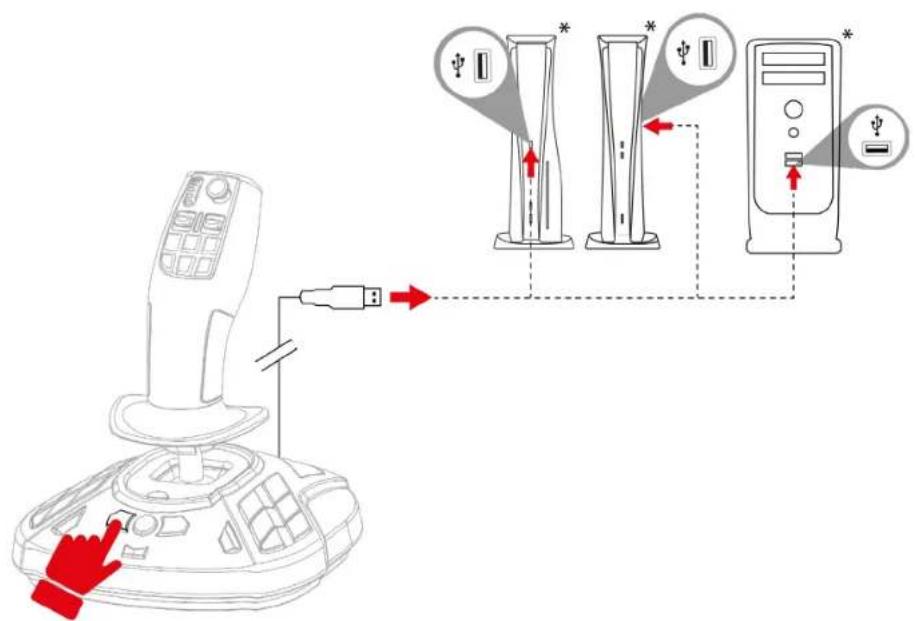
2.ОТпунстуе Кногку 14 (Ha ПК) Или L3 (Ha KoHCoJЯx PlayStation®).

Pexim ngpbl neBOy pyKOaBToMaTnueckn coxpaHITc
BO BHyTppeHHei nAMrTn DkoCTnka SimTask
FarmStick.
*8 KOMNJIeKm He 6XoDum
YTo6bI HacTpoNTb JxOiCTnK dIy IrgbI npaBoi pykoJ:
- Haxmte u ydepkBaIte KhoNky 16 (Ha PIK) nR3 (Ha KOHcOJx PlayStation ®) npn noDKJIoueHnn dkoIcTnka SimTask FarmStick K KOHcOJn PlayStation®5 nII n K PIK.
CBeToIIOHbI INHINKaTOp JxKoNCTnKa 6 6yTeT MrraTb opaHKeBbIM B TeueHne 5 cekyHd.
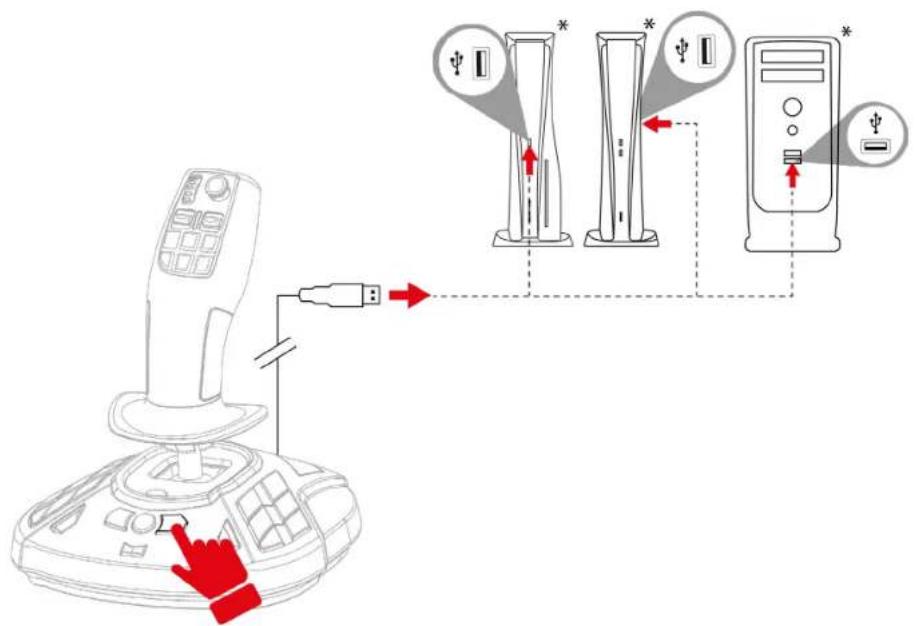
2.Отпунсте Кнонку 16 (Ha ПК) пи R3 (Ha KoHCoJx PlayStation®).

Pexim ngpbip npaBoi pykoI aBTOMaTnueckn COxpaHITcB BO BHyTpEHHe IamrTn DKOJCTNka SimTask FarmStick.
*8 KOMnJIeKm He exoDum
5. HabtpoJaHa KOHcOJIaX PlayStation®5
1.Подклочи Te Kaбелb USB-C - USB-A K nopTy USB-C ⑰ Na Джоьстиke N K nopTy USB-A Ha KOHCoJIn*.
- BkIIOUHTe KOHCOJIb.
*8 KOMnJIeKm He exoDum
- Haxmte KhoNky BbIbopa peKIma PlayStation®/PK 18 Ha 3aHHei PaHEn IxKoNCTnKa, YTO6bl N3MeHHTb CBeT CBeToIDNoDHorO INdNKaTopa peKIma COBMeCTHMOCTn 12.
B npNBeDeHNOHnXe Ta6JIuCe noka3aHO, KaKoI cBeT DOJIxEH 6bITb y CBeTOdIOHOrO INDnKaTopa peXIMa COBMeCTNMOCTn 12.

- 3aynctte coBmecnmyu npy.
Tenepb Bbl roTOBbl Knrpe!

При подкюецни джоctиka BCeгда deprжп electу КУВ сентральnom NOLOжецни, He NaKIOнятей He врашаite ee, уTo6bl n36жатb npoблem c KaJIИбрOBКо.
6.ΗЗнayене Кногok Для Консолer PlayStation®5

Ha3naYeHne KHOJOK BbIPOJIHReTcra TAKIM Je 6pa3OM He3aBnCmO OT peKIma dJa IpaBOi NII JIeBOi pyKn. Pekim ngpBoI pyKO (yCTaHOBJeH no yMOJIaHIO) IIIN JIeBOI pyKO MoXHO Bbl6paTb, BblIOJIHNB 3Ty npOceDpy.
PexnIM DnXKeHnA

Pexm pa60tbi
7. Hac troponka ha PK\*
^* CoBmecmumocmb c PK (Windows® 10/11) He bbla Hu npoepeHa, Hu nodmepxdeHa komnaHueu Sony Interactive Entertainment.
https://support.thrustmaster.com/product/simtask-farmstick-p/.
Tenepb Bbl roTOBbl KnIrpe!

Tpnrrep, yctaHOBJIeHHbI NO yMOJUaHnIO, MOxHO 3aMeHNTb Ha Tprrrep, KOTOpbI NODXODNT dJa aBnaCmMyJrTOpOB (BXODIT B KOMJIeKT DJOKoNCTnKa SimTask FarmStick).
YTo6bl nepeCTaBnTb Tpnrrep:
Ha 3aHHe IaHJIgIgOcTnKa SimTask FarmStick, UTO6bI N3MeHHTb CBeT CBETODIOHOrO INHdNKaTopapexKIMa COBMeCTNMOCTN 12.
- Ha koncopolx PlayStation 5 cBeToIIOHbI INdIKaTOP peXIMa COBmecTUMOCTN 12 DoJIKe IopeTb KpaCHbIM.
- Ha ПК CBeToIOnOДнБИй ИнДИКaTOp peЖIMа COBMeCTnMOCTn 12 DoJIxKeH rOpeTb 3eJIeHbIM.
Испобзованue джоусмuka SimTask FarmStick с оончыm рунem T128* unu T248*
- Ha rohouchom pyne T128 iln T248 BbI6epnte pejIM COBMECTHMOCTN B COOTBeTCTBnC NcNoJIb3yeMoI PIIaTΦopMoI. Iprn Heo6xOJHMOCTn O3HaKOMbTeCb C pyKOBOdCTBOM NOlb3OBaTeJIr RoHOCHOro pyJIa.
-
Haxmte KhoNky BbIbopa peKIma PlayStation®/PK 18 Ha 3aHnei nanei dkoicnka SimTask FarmStick, YTO6bl N3MeHnTB CBET CBeToIOHOrO INHdkaTopap eKIma COBMECTMOCtN 12.
-
Ha koncopolx PlayStation 5 CBETOIOHbI INHdkaTop peKIma COBmecTmOCTn 12 DoJIKeH ropeTb opaHXKeBbIM.
- Ha ПК CBeToINoIbIиHДИKaTOp peKIma COBMeCTnMoCTn 12doJIxEh ropeTb 3eJIeHbIM.
IcnoJb30aHue deyx koucmuKo
SimTask FarmStick
-
Haxmnte KhoNky Bb6opa peXnma PlayStation®/PK 18 Ha 3aHnei nanei nepBoro dxKoIcTnka SimTask FarmStick, uTo6bl n3MeHnTB cBeT cBeToIOHOro INHdkaTopa peXnma COBMECTMOCTN 12.
-
Ha koncopolx PlayStation 5 cBeToNDnOHDhInHdNKaTOp peKIma COBMeCTNMOCTn 12 DoJIKeHropeTb KpaCHbIM.
-
Ha ПК CBeToIOnOДнБИй ИнДИКaTOp peЖIMа COBMeCTnMOCTn 12doJxKeH rOpetb 3eJIeHbIM.
-
Haxmte KhoNky BbIbopa peKIma PlayStation®/PK 18 Ha 3aHnei PAnEIn BToPOrO DxoIcTnKa SimTask FarmStick*, YTO6bl N3MeHnTB CBeT CBeToDIOHOro INHdkaTopa peKIma COBMeCTMOCtN 12.
-
Ha koncopolx PlayStation 5 cBeToIONoHbI INdikatop peKIma COBMeCTNMOCTn 12 DoJIKeH ropeTb opaHKeBbIM.
- Ha ПК CBeToINoIbIиHДИKaTOp peKIMa COBMeCTnMOCTn 12doJIxEh rOpeTb 3eJIeHbIM.
12. Habстюка на konсолях PlayStation®5* пони на ПК* с ручем уразавлий TFRP**
Pyrb ynpaBneHn TFRP** noKJIouaTcK npOpTu Ha JxOyCTnke SimTask FarmStick.
-
Haxmnte KhoNky BbIbopa pexnma PlayStation®/PK 18 Ha 3aHnei PaHeJI INJKOINcTKa, YTO6bl N3MeHHTb cBET CBeTODIOHOrO INHdNKaTOPa peXnMa COBMeCTHMOCtN 12.
-
Ha koncopolx PlayStation 5 cBeToIONoHbI INdNKaTOP peKIma COBmecTnMOCTn 12 DoJIKeH ropeTb KpaCHbIM.
- Ha ПК CBeToIOnOньи ИнДИКaTOp peKIMa COBMeCTnMOCTn 12 DoJxKeH rOpeTb 3eJIeHbIM.
^*8 KOMnJIeKm He exoDum / **npodaemcra omdeIbHo
- Порту RJ12 19 на задени джовстка.
3.Подклочи Te Ka6eIb USB-C - USB-A K nopTy USB-C 17 NaДжоИстIKE N K nopTy USB-A Ha KOHCoJIu** nII nK**.
#
-
При подкюецни джостиka Bcerda deprжite pykoRTkyВцentpaNBHom NOLOXeHni, He hakнояп e n He bpaaate ee, YTO6bI n36exaTb npo6jem c KaJIb6poBkoi.
-
При подкюецни руля упаьеня К джоctик BCERda ydepxiBaIte ocb руЯ B ceHTpaJIbHOM NOLOжehи и He nOMEuaIte HOrn Ha neDAJI pUJIeBOrO unpaBlehenя,чTOбы n36exkaTb npo6Iem c KaJIb6pOBKoJ.
https://support.thrustmaster.com/product/simtask-farmstick-p/.

THRUSTMASTER

SIMTASK FARMSTICK
Pro konzole PlayStation®5 a PC*
Uživatský manuál

AccuRate Technology) 13
"Point-of-view" mini-stick 18
(HaIIEffect AccuRate Technology)
"Point-of-view" mini-stick
https://support.thrustmaster.com/product/simtask-farmstick-p/.
https://support.thrustmaster.com/product/simtask-farmstick-p/.

THrustMASTER®

SIMTASK FARMSTICK
H.E.A.R.T. (HaIIEffect AccuRate Technology)
https://support.thrustmaster.com/product/simtask-farmstick-p/.

THRUSTMASTER

SIMTASK FARMSTICK
Do konsoli PlayStation®5
i komputerów PC*
Instrukcja obstugi

AccuRate Technology) 13
(HaIIEffect AccuRate Technology)
https://support.thrustmaster.com/product/simtask-farmstick-p/.
https://support.thrustmaster.com/product/simtask-farmstick-p/.

THrustMASTER®

SIMTASK FARMSTICK
INNEHÄLLSFÖRTECKNING
- INNEHÄLL I FÖRPACKNINGEN 5
- FUNKTIONER 6
- ANVÄNDNINGSINFORMATION 9
- LÄR KÄNNADIN JOYSTICK 12
H.E.A.R.T. (HallEffect AccuRate Technology)-
teknik 13
https://support.thrustmaster.com/product/simtask-farmstick-p/.
https://support.thrustmaster.com/product/simtask-farmstick-p/.

THRUSTMASTER

SIMTASK FARMSTICK
PlayStation®5-konsoleille ja PC:lle*
Käyttoohje

H.E.A.R.T. (HallEffect AccuRate Technology) -
https://support.thrustmaster.com/product/simtask-farmstick-p/.
https://support.thrustmaster.com/product/simtask-farmstick-p/.

THRUSTMASTER

SIMTASK FARMSTICK
Pre konzoly PlayStation®5 a PC*
Návod na použitie

Pred instalaciou produktu, pred akymkol'vek použitim** produktu a pred akoukol'vek udržbou si pozorne precitajtePokyny uvedené v toto námode.
Bezpodmienečne dodržiavajte bezpečnostné pokyny. Nedodržanie tychtoPokynov moze viest' k nehodáma/alebo škodám. Uschovajte si unto námod, aby ste si ho mohli v budúcnosti prečítat'.
- Kompatibilita s PC (Windows® 10/11) nebola testovaná ani schvaléná spolocnostou Sony Interactive Entertainment.
OBSAH
- OBSAH BALENIA 5
- VLASTNOSTI 6
- ZOZNÁMENIE SA S VAŠIM JOYSTICKOM ....12
Klucové body 12
H.E.A.R.T. (HallEffect AccuRate Technology)
"Point-of-view" mini-páčka
https://support.thrustmaster.com/product/simtask-farmstick-p/.
https://support.thrustmaster.com/product/simtask-farmstick-p/.

THrustMASTER®

SIMTASK FARMSTICK
H.E.A.R.T. (HallEffect AccuRate Technology)
"Point-of-view" mini-stick 18
"Point-of-view" mini-stick
https://support.thrustmaster.com/product/simtask-farmstick-p/.

THRUSTMASTER

SIMTASK FARMSTICK
*PC UNNI PlayStation®5 nihioji y
wnnnn

197 197 197 197 197 197 197 197 197 197 197 197 197 197 197 197 197 197 197 197 197 197
Dn
5 1.
6 2.
9. 3.
12. 4.
12 D"JyD"9Xn n"(HallEffect AccuRate).H.E.A.R.T
13. 7T
14. nTiyyn <> nInn
17. nnon nT
18 "OJn N7" 100-2n SimTaskFarmStick wnn
19. PC-PlayStation®5
21. .xnu i n' pooi nn
- PLAYSTATION®5 nihiojiy nojnn 5.
27......PLAYSTATION®5 n17o3i7'19'n 6.
30 . 7. - PC '9'n 8.
36 9.
37 10.
39 11.
40.....TnSimTaskFarmStick-wnw nn nn nn nn nn nn nn nn nn nn nn nn nn nn nn nn nn nn nn nn nn nn nn nn nn nn nn nn nn nn nn nn nn nn nn nn nn nn nn nn nn nn nn nn nn nn nn nn nn nn nn nn nn nn nn nn nn nn nn nn nn nn nn nn nn nn nn nn nn nn nn nn nn nn nn nn nn nn nn nn nn nn nn nn nn nn nn nn nn nn nn nn nn nn nnnnnnnnnnnnnnnnnnnnnnnnnnnnnnnnnnnnnnnnnnnnnnnnnnnnnnnnnnnnnnnnnnnnnnnnnnnnnnnnnnnnnnnnnnnnnnnnnnnnnnnnnnnnnnnnnnnnnnnnnnnnnnnnnnnnnnnnnnn - T248 ix T128
42 .... SimTask FarmStick niiin winix *PLAYSTATION®5 nioi7 y nnn 12. - *TFRP nnnnnuNTy *PC
46.........nnu nnni nixi 13.
x ,Thrustmaster n SimTask FarmStick y n nn nn nn nn nn nn nn nn nn nn nn nn nn nn nn nn nn nn nn nn nn nn nn nn nn nn nn nn nn nn nn nn nn nn nn nn nn nn nn nn nn nn nn nn nn nn nn nn nn nn nn nn nn nn nn nn nn nn nn nn nn nn nn nn nn nn nn nn nn nn nn nn nn
.07u |"n nn nnn
. no' n' yin' o' yin' SimTask FarmStick
SimTask FarmStick nnnn nn nnnn nn nnnn nn nnnn nn nnnn nn nnnn nn nnnn nn nnnn nn nnnn nn nnnn nn nnnn nn nnnn nn nnnn nn nnnn nn nnnn nn nnnn nn nnnn nn nnnn nn nnnn nn nnnn nn nnnn nn nnnn nn nnnn nn nnnn nn nnnn nn nnnn

- n


2.π
71X 1
nann .2
ninnnnn nn7 .3
Tnyn .4
"un nTn" 00-n .5
7001xnnn 6
TTY-ITN.7
nyn .8
n7 nniy9 .9
PS5TM nio (n) CREATE pn7 .10
PSpn7.11
ninn nn nnn .12
PS5TM nio (OPTIONS) nnx .13
7001xynyyn7.14
n7nnn nnny 15
*DIN 16
USB-CnXy.17
PlayStation®/PC xnn nnnn7.18
*TFRP nn nuiRJ12 .19
7912 703

non
,7 nwn nn non nn nnnn .

nwnnn
IN 7X7 INVNN YNINI WJINN NINW
W
-
-07
PlayStation®5 nihioip by npnn .5
https://support.thrustmaster.com/product/simtask-farmstick-p/
Dxnnn nn nPC-7 nn nn nn nn nn nn .2 Windows nn nn
USB-C- 17 USB-C- USB-A
7172X7

PlayStation® / PC xn n nn y xn7.4
12
n n nn n 12 nnn nn
y y n nn / nnnn 5
Dy 1001n Dv y91 D7nu n 7n-ITn nn.7nu
170 01000
7n n 77777777777777777777777777777777777777777777777
X (Tnn n) n Tn nn 1n nn
.7NNT
nnnnnnnnn

nni n nn nn nnn nnn nnn nnn nnn
.

y
nna nna nna nna nna


- 1
nnn nnnn nn nnnn 8 nnnn nn nnnn .nnn

- i
yin on in nwn n / /nwnx 0n
ytnn nTn IN ,nnnn nn nn nn nn nn nn
.77n nnwN nn
nnnnn n nn nn nn nn nn nn -
.
.79on x' IN,tn 701
- niv
.
y 1001x nwnn / 72 / nwnx nn - 1001x y dnnn nn nni nnn nn nn nn
(nnt 17N nnnnOx)
SimTaskFarmStickThrustmaster
https://support.thrustmaster.com/product/simtask-farmstick-p/

THRUSTMASTER

SIMTASK FARMSTICK
PlayStation®5
pial

i j 1 1 1 1 1 1 1 1 1 1 1 1 1 1 1 1 1 1 1 1 1 1 1 1 1 1 1 1 1 1 1 1 1 1 1 1 1 1
Jaaann
J (Windows 10/11)
. Sony Interactive Entertainment
5
(HallEffect AccuRate Technology)
H.E.A.R.T.
USB-A jaijulail
1
*TFRPJRJ12 -
HallEffect AccuRate H.E.A.R.T. (Technology
SimsimStck
:J
( Hall 268 264
YX 268
2g 100000000000000000000000000000000000000000000
g 2.8)
Jellg
. 14
i
y
2 1
Jill 1
2
()
LLED

y
:yU2山
aaiy1 baa aai:
J 1
J
6ED

pIyI aIbI yI pIyI 1000
1
1 1
aai 1 aai j 1 1 1 1 1 1 1 1 1
J

1
SimTaskFarmStick
120
"1 1
5 "s" SimTask FarmStick
SimTaskFarmStick
\*PlayStation®5
Jusu Jusu, y, 2013 SimTask FarmStick
1
. TFRP

FFRP 4
PlayStation®5
:PlayStation ⑤ 5
S_ ACD = 12 · AQ · CD = 12 × 2t × 5
1111 1111 1111 11
I k y 11111111111111111111111111111111111111
.
i 1
:S 1
()L3(j)
SimTaskFarmStick(PlayStation
PlayStation5
L 6 LED
1
()L3(j)142
.(PlayStation®

SimTask FarmStick
S APQ = S AQP + S_ PQR
2gjio
i 1
Rj()16j2
SimTask (PlayStation
PlayStation5 FarmStick
LLED
1
()R3(j()162
.(PlayStation®

SimTask FarmStick
S APQ = S AQP + S_ PQQ
20 1
PlayStation®5 wJ
USB-C USB-C-USB-A 1
*Ssill 10 USB-A 10
.2
18 山 /PlayStation® 3
LED
. 12
g 1000
12 LED

LED
g
.PSJJbI.4
.5
1JxJ 1

i 1
.
20
PlayStation®5 50

yI 1
1
J

\*gss
(Windows® 10/11)
. Sony Interactive Entertainment
1.
https://support.thrustmaster.com/product/sim .task-farmstick-p/
1 2
. Windows
JLJ 3
17 USB-C USB-C - USB-A
*JUBUSB-A
18PlayStation 電 4
L 1
12
yI 12 LED
1
1 5
Laeaee
OK
6
g (y) y
.
1xJalj1

i 1
jgssb.8

1
a
J

a 8 jai y aai lao
J 1
10
15 111111111111111111111111111
Aaill Aoliz Awoia
slll lss s j j j j j j j j j j j j j j
(SimTaskFarmStick)
:
1
J 1

1
y
[\left{ {1,2,3}\right} ]
G LED .11

PS5TM SimTask FarmStick
y
y
yI yI yI yI yI yI yI yI yI yI yI yI yI yI
SimTask FarmStick\(imTask FarmStick
*SimTask FarmStick 日 T248 日 T128
(4)
12LED
SimTask FarmStick
SimFask FarmStick
18 /PlayStation 電 2011
SimTaskFarmStck
LED
PlayStation®5
LLED
12 LED
1 1
SimTaskFarmStick
*T248 ^f *T128|
1248 T128
(Controller/ Options
Joystick Gamepad /
y
.(a)
SimTask FarmStick aLd Ld
:hrustmaster
https://support.thrustmaster.com/product/simta
.sk-farmstick-p/

THrustMASTER

SIMTASK FARMSTICK
H.E.A.R.T. (HallEffect AccuRate Technology)
高精度テクノロジ一
https://support.thrustmaster.com/product/simtask-farmstick-p/.
https://support.thrustmaster.com/product/simtask-farmstick-p/

THRUSTMASTER

SIMTASK FARMSTICK
https://support.thrustmaster.com/product/simtask-farmstick-p/。
https://support.thrustmaster.com/product/simtask-farmstick-p/。

THrustMASTER®

SIMTASK FARMSTICK
H.E.A.R.T. (HallEffect AccuRate Technology)
https://support.thrustmaster.com/product/simtask-farmstick-p/
https://support.thrustmaster.com/product/simtask-farmstick-p/

THrustMASTER®

SIMTASK FARMSTICK
PlayStation®5 再嘆哭 PC*
音皂皂

賈摯を締りか態,賈摯を承認態,はリカ呂き保さ法。賈摯を承認態,はリカ呂き保さ法。賈摯を承認態,はリカ呂き保さ法。賈摯を承認態,はリカ呂き保さ法。賈摯を承認態,はリカ呂き保さ法。賈摯を承認態,はリカ呂き保さ法。賈摯将承認態,はリカ呂き保さ法。賈摯将承認態,はリカ呂き保さ法。賈摯将承認態,はリカ呂き保さ法。賈摯将承認態,はリカ呂き保さ法。賈摯将承認態,はリカ呂き保さ法。賈摯将承認態,是。賈摯将承認態,はリカ呂き保さ法。賈摯将承認態,はリカ呂き保さ法。賈摯将承認態,はリカ呂き保さ法。賈摯将承認態,はリカ呂き保さ法。賈摯将承認態,はリカ呂き保さ法。賈摭将承認態,はリカ呂き保さ法。賈摭将承認態,はリカ呂き保さ法。賈摭将承認態,はリカ呂き保さ法。賈摭将承認態,はリカ呂き保さ法。賈摭将承認態,はリカ呂き保さ法。賈摭将承認態,はリカ呂き保さ法。賈摭将承認態,はリカ呂き保さ法。賈摭将承認態,はリカ呂き保さ法。賈摭将承認態,はリカ呂き保さ法。賈摭将承認態,はリカ呂き保さ法。賈摭将承認態,はリカ呇き保さ法。賈摭将承認態,はリカ呂き保さ法。賈摭将承認態,はリカ呂き保さ法。賈摭将承認態,はリカ呂き保さ法。賈摭将承認態,はリカ呂き保さ法。賈摭将承認態,はリカ呂き保さ法。
H.E.A.R.T. (HaIIEffect AccuRate Technology)
13
12 14
海平
"半" 18
https://support.thrustmaster.com/product/simtask-farmstick-p/.