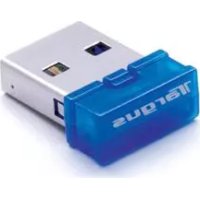
ACB20EU - Network card / adapter TARGUS - Free user manual and instructions
Find the device manual for free ACB20EU TARGUS in PDF.

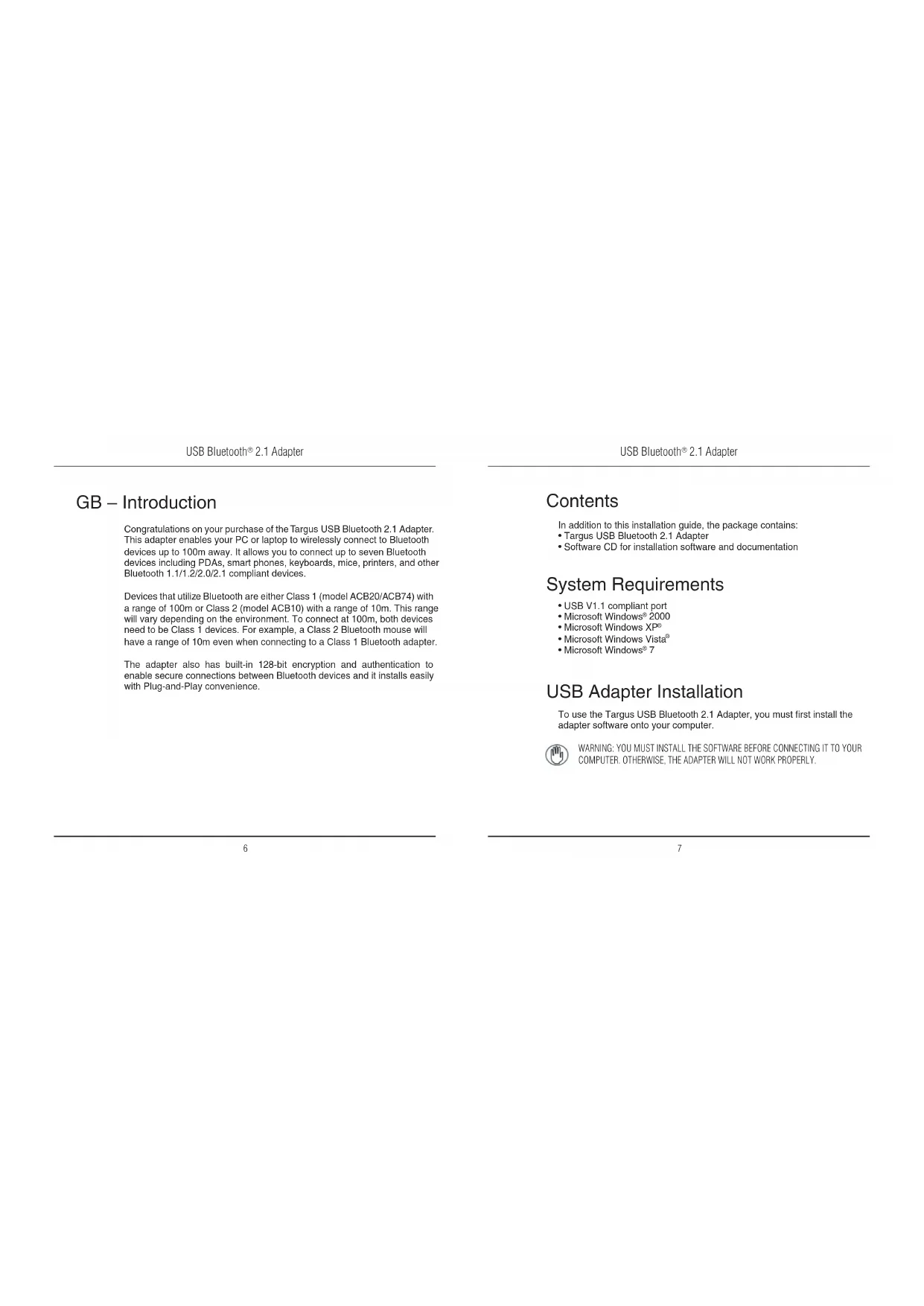


| Product Type | Bluetooth USB Adapter |
| Brand | Targus |
| Model | ACB20EU |
| Bluetooth Version | 2.1 (compatible with 1.1/1.2/2.0) |
| Bluetooth Class | Class 1 (range up to 100 meters) |
| Number of simultaneous connections | Up to 7 devices |
| Security | 128-bit encryption and authentication |
| Interface | USB 1.1/2.0 |
| Compatible operating systems | Windows 2000, XP, Vista, 7 |
| Plug-and-Play | Yes (after software installation) |
| Dimensions (approx.) | 2 x 1 x 0.5 cm |
| Weight (approx.) | 5 g |
| Power supply | Via USB port |
| Package contents | Adapter, software CD, quick installation guide |
| Care and cleaning | Clean with a soft, dry cloth. Do not use liquids. |
| Usage safety | Avoid exposure to water and extreme temperatures. |
Frequently Asked Questions - ACB20EU TARGUS
User questions about ACB20EU TARGUS
0 question about this device. Answer the ones you know or ask your own.
Ask a new question about this device
Download the instructions for your Network card / adapter in PDF format for free! Find your manual ACB20EU - TARGUS and take your electronic device back in hand. On this page are published all the documents necessary for the use of your device. ACB20EU by TARGUS.
USER MANUAL ACB20EU TARGUS
©2010 Manufactured or imported by Targus Europe Ltd., Hounslow, Middlesex, TW4 5DZ, UK. All rights reserved. Targus is either a registered trademark or trademark of Targus Group International, Inc. in the United States and/or other countries. Features and specifications are subject to change without notice. All trademarks and registered trademarks are the property of their respective owners.
Targus®
USB BLUETOOTH®
2.1 ADAPTER
Bluetooth®
ID: B02724 (ACB20) ID: B02725 (ACB10)
User Guide
USB Bluetooth ^® 2.1 Adapter
Table of Contents
GB – English
Targus USB Bluetooth® 2.1 Adapter ....4
Congratulations on your purchase of the Targus USB Bluetooth 2.1 Adapter. This adapter enables your PC or laptop to wirelessly connect to Bluetooth devices up to 100m away. It allows you to connect up to seven Bluetooth devices including PDAs, smart phones, keyboards, mice, printers, and other Bluetooth 1.1/1.2/2.0/2.1 compliant devices.
Devices that utilize Bluetooth are either Class 1 (model ACB20/ACB74) with a range of 100m or Class 2 (model ACB10) with a range of 10m. This range will vary depending on the environment. To connect at 100m, both devices need to be Class 1 devices. For example, a Class 2 Bluetooth mouse will have a range of 10m even when connecting to a Class 1 Bluetooth adapter.
The adapter also has built-in 128-bit encryption and authentication to enable secure connections between Bluetooth devices and it installs easily with Plug-and-Play convenience.
USB Bluetooth® 2.1 Adapter
Contents
In addition to this installation guide, the package contains:
• Targus USB Bluetooth 2.1 Adapter
- Software CD for installation software and documentation
System Requirements
- USB V1.1 compliant port
• Microsoft Windows® 2000
• Microsoft Windows XP®
• Microsoft Windows Vista® - Microsoft Windows® 7
USB Adapter Installation
To use the Targus USB Bluetooth 2.1 Adapter, you must first install the adapter software onto your computer.

WARNING: YOU MUST INSTALL THE SOFTWARE BEFORE CONNECTING IT TO YOUR COMPUTER. OTHERWISE, THE ADAPTER WILL NOT WORK PROPERLY.
USB Bluetooth ^® 2.1 Adapter
Installing the Software
For Windows 2000 / XP
1 Insert the driver software CD into your computer's CDROM drive.
2 If setup does not begin automatically, click Start, Run, then enter D:\setup.exe (where D: is the path of your disc drive) and then click OK.
3 The installation screen will appear and choose Window's version (Windows XP) on the setup screen.
4 Click Next.
5 Follow the on-screen instructions.

NOTE: FOR WINDOWS 2000 USERS, A "DRIVER SIGNATURE NOTICE" WINDOW APPEARS, PLEASE CLICK THE "OK" BUTTON.
6 The "Bluetooth device not found" window appears. Insert the USB Bluetooth adapter in the USB port. Click OK.
7 Click Finish.
USB Bluetooth® 2.1 Adapter
For Windows Vista / 7
1 Insert the driver software CD into your computer's CDROM drive.
2 If setup does not begin automatically, click Start, Run, then enter D:\setup.exe (where D: is the path of your disc drive) and then click OK.
3 The installation screen will appear and choose Window's version (Windows Vista / 7) on the setup screen. Click Next.

NOTE: FOR WINDOWS VISTA USERS, A "USER ACCOUNT CONTROL" WINDOW APPEARS, PLEASE CLICK THE "ALLOW" BUTTON.
4 The "No Bluetooth device was detected" window appears. Insert the USB Bluetooth adapter in the USB port.
5 Follow the on-screen instructions.
6 Click Next.
7 Click Finish.

YOU CAN ALSO DOWNLOAD THE LATEST DRIVER FROM: http://www.broadcom.com/products/bluetooth_update.php
USB Bluetooth ^® 2.1 Adapter
Verifying the Adapter is Installed
After installing the adapter software (for 2000/XP):
1 Click Start/Settings/Control Panel/System/Hardware/Device Manager.
2 Check under 'Bluetooth Devices' that a 'Broadcom 2046 Bluetooth 2.1 USB-UHE device / USB device" is installed.
After installing the adapter software (for Vista / 7):
1 Click Start/Control Panel/Hardware/Device Manager.
2 Check under 'Bluetooth Radios' that a 'Broadcom Bluetooth USB with AMP" is installed.
If the information is not present:
1 Unplug the adapter
2 Plug the adapter into the USB port to initiate the driver. Verify that the adapter is installed.
You are now ready to configure the Bluetooth.
USB Bluetooth® 2.1 Adapter
Configuring Bluetooth Devices
Bluetooth Tray
The Bluetooth tray resides in the Windows system tray, which is normally located in the lower-right corner of the screen. The Bluetooth tray provides fast access to most Bluetooth operations.
From the Bluetooth tray you can (Windows 2000/XP):
- Access My Bluetooth Places: double-click the Bluetooth icon, or right-click the Bluetooth icon and then select Explore My Bluetooth Places.
- Add a Bluetooth device: right-click the Bluetooth icon and then select Add a Bluetooth device.
- Access the Bluetooth Configuration Panel: right-click the Bluetooth icon, and then select Bluetooth Configuration.
- Access the Quick Connect option: right-click the Bluetooth icon, select Quick Connect, and then select the type of service to which you wish to connect.
- Start/Stop Bluetooth on this computer.
From the Bluetooth tray you can (Windows Vista / 7):
- Add a Bluetooth device: right-click the Bluetooth icon and then select Add a device.
- Show a Bluetooth device: right-click the Bluetooth icon and then select Show Bluetooth device.
- Access the Bluetooth Configuration Panel: right-click the Bluetooth icon, and then select Open Setting.
USB Bluetooth ^® 2.1 Adapter
USB Bluetooth® 2.1 Adapter
Basic Operations
Start or Stop Bluetooth
To start Bluetooth
In the Windows system tray, right-click the Bluetooth icon and select Start the Bluetooth Device / Turn Adapter On. The Bluetooth icon is blue in color with a white insert when the Bluetooth software is running.
To stop Bluetooth
In the Windows system tray, right-click the Bluetooth icon and select Stop the Bluetooth Device / Turn Adapter Off. The Bluetooth icon is blue in color with a red insert when Bluetooth is stopped.
Broadcom and the Broadcom logo are trademarks of Broadcom Corp. Bluetooth and the Bluetooth logos are trademarks owned by Bluetooth SIG, Inc., U.S.A. and licensed to Broadcom Corp. Microsoft, Windows, and Windows Vista are either registered trademarks or trademarks of Microsoft Corporation in the United States and/or other countries. All trademarks and registered trademarks are the properties of their respective owners. All rights reserved. © 2010 Targus Group International, Inc. and Targus, Inc., Anaheim, CA 92806 USA.
USB Bluetooth ^® 2.1 Adapter
BG – Въведение
USB Adapter Installation
For at starte Bluetooth
For at stoppe Bluetooth
Congratulations on your purchase of the Targus USB Bluetooth 2.1 Adapter. This adapter enables your PC or laptop to wirelessly connect to Bluetooth devices up to 100m away. It allows you to connect up to seven Bluetooth devices including PDAs, smart phones, keyboards, mice, printers, and other Bluetooth 1.1/1.2/2.0/2.1 compliant devices.
Devices that utilize Bluetooth are either Class 1 (model ACB20) with a range of 100m or Class 2 (model ACB10) with a range of 10m . This range will vary depending on the environment. To connect at 100m , both devices need to be Class 1 devices. For example, a Class 2 Bluetooth mouse will have a range of 10m even when connecting to a Class 1 Bluetooth adapter.
The adapter also has built-in 128-bit encryption and authentication to enable secure connections between Bluetooth devices and it installs easily with Plug-and-Play convenience.