
ACB20US - Network card / adapter TARGUS - Free user manual and instructions
Find the device manual for free ACB20US TARGUS in PDF.


| Product Type | Network Card / Adapter |
| Brand | Targus |
| Model | ACB20US |
| Connectivity | USB 2.0 to Ethernet (RJ-45) 10/100 Mbps |
| Dimensions (approx.) | 2.5 x 1.0 x 0.6 inches (64 x 25 x 15 mm) |
| Weight | 0.8 oz (23 g) |
| Power Source | Bus-powered via USB |
| Compatibility | Windows, macOS, Linux |
| LED Indicators | Link and Activity status |
| Cable Length | 6 inches (15 cm) integrated |
| Operating Temperature | 32°F to 104°F (0°C to 40°C) |
| Storage Temperature | -4°F to 158°F (-20°C to 70°C) |
| Humidity | 10% to 90% non-condensing |
| Certifications | FCC, CE, RoHS |
| Maintenance & Cleaning | Wipe with dry cloth; no liquids |
| Safety Warnings | Avoid exposure to water or excessive heat |
| Spare Parts & Repairability | Non-repairable; replace unit if faulty |
| General Information | Plug-and-play installation; compatible with most routers and switches |
Frequently Asked Questions - ACB20US TARGUS
User questions about ACB20US TARGUS
0 question about this device. Answer the ones you know or ask your own.
Ask a new question about this device
Download the instructions for your Network card / adapter in PDF format for free! Find your manual ACB20US - TARGUS and take your electronic device back in hand. On this page are published all the documents necessary for the use of your device. ACB20US by TARGUS.
USER MANUAL ACB20US TARGUS
Features and specifications are subject to change without notice © 2005 Torque Group (International) Inc. and Torque, Inc.
2003 Yargus Group International, Inc. and Yargus, Inc. ACB10-ACB20 / 400-0207-001A
INSTALL GUIDE
Making Your Mobile Life Easier.®
BRUSSELS HANNOVER BARTALONA OKYO ORONIO AMSTERDAM SINGAPORE LONDON PARIS NEW YORK LOS ANGELES T HONG KONG SYDNEY
PMS Black
15%
PMS Black
100%
TARGUS USB BLUETOOTH ADAPTER
Introduction
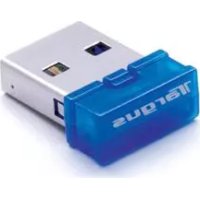
Congratulations on your purchase of the Targus USB Bluetooth Adapter. This adapter enables your PC or laptop to wirelessly connect to Bluetooth devices up to 33 feet (10m) with model ACB10US, or 328 feet (100m) connecting to other Class1 devices with model ACB20US.
Devices that utilize Bluetooth are either Class 1 with a range of 100m or Class 2 with a range of 10m. This range will vary depending on the environment. To connect at 100m, both devices need to be Class 1 devices. For example, a Class 2 Bluetooth mouse will have a range of 10m even when connecting to a Class 1 Bluetooth adapter.
The adapter allows you to connect up to seven Bluetooth devices including PDAs, smart phones, keyboards, mice, printers, and other Bluetooth 1.1/1.2 compliant devices. It also has built-in 128-bit encryption and authentication, enabling secure connections between Bluetooth devices and installs easily with Plug-and-Play convenience.
Contents
In addition to this quick installation guide, the package contains:
- Targus USB Bluetooth Adapter (Model ACB10US or ACB20US)
- CD-ROM for installation software and documentation
System Requirements
- USB v1.1 compliant port
- Wind®Mo/2000/XP operating system
USB Adapter Installation
To use the Targus USB Bluetooth Adapter, you must first install the adapter software onto your computer.

WARNING: YOU MUST INSTALL THE ADAPTER SOFTWARE BEFORE CONNECTING IT TO YOUR COMPUTER. OTHERWISE, THE ADAPTER WILL NOT WORK PROPERLY.
Installing the Software
1 Turn on your computer.
2 Insert the driver software CD into your computer's CD-ROM drive.
3 If setup does not begin automatically, click Start, Run, then enter D:\Setup.exe (where D: is the path of your CD-ROM drive) and then click OK.
The InstallShield Wizard will start.
4 Click Next.
5 The 'License Agreement' screen appears.
6 Read and if you agree with the License Agreement, Click 'I accept the terms in the License Agreement'.
7 Click Next.
8 Follow the onscreen instructions.

NOTE: FOR WINDOWS 2000/XP USERS, A "DRIVER SIGNATURE NOTICE" WINDOW APPEARS, PLEASE CLICK THE "OK" BUTTON.
FOR WINDOWS® ME USERS, YOU MAY BE PROMPTED TO INSERT THE INSTALLATION CD-ROM THAT CAME WITH YOUR COMPUTER.
The "Bluetooth device not found" window appears.
9 Insert the USB Bluetooth adapter in the USB port. Click OK.
10 Click Finish.
11 Click Yes (if prompted) to restart the computer and complete the installation.

NOTES: THE SOFTWARE WILL AUTO DETECT THE LANGUAGE USED BY THE OS AND DEFAULT TO THAT LANGUAGE. FOR A COMPLETE USER'S GUIDE, PLEASE REFER TO THE FULL MANUAL LOCATED ON THE CD-ROM INCLUDED IN THIS PACKAGE.
Verifying the Adapter is Installed
After installing the adapter software:
1 Click Start/Settings/Control Panel/System/Hardware/Device Manager.
2 Check under 'Bluetooth Devices' that a 'Broadcom USB Bluetooth Device' is installed.
If the information is not present:
1 Unplug the adapter
2 Plug the adapter into the USB port to initiate the driver. Verify that the adapter is installed.
You are now ready to configure the Bluetooth.
Configuring Bluetooth Devices

NOTE: FOR A COMPLETE USER'S GUIDE WITH DETAILED INSTRUCTIONS ON CONFIGURING BLUETOOTH DEVICES, PLEASE REFER TO THE FULL MANUAL LOCATED ON THE CD-ROM INCLUDED IN THIS PACKAGE.
BLUETOOTH TRAY
The Bluetooth tray resides in the Windows system tray, which is normally located in the lower-right corner of the screen. The Bluetooth tray provides fast access to most Bluetooth operations.
From the Bluetooth tray you can:
- Access My Bluetooth Places: double-click the Bluetooth icon, or right-click the Bluetooth icon and then select Explore My Bluetooth Places.
- Access the Bluetooth Setup Wizard. This wizard will help you:
- Configure how this computer accesses a service on another Bluetooth device
Locate remote Bluetooth devices
- Configure the way that this computer provides services to remote Bluetooth devices
Set the name and type of this Bluetooth device, e.g., "John's PC" and "Desktop."
- Access the Bluetooth Configuration Panel: right-click the Bluetooth icon, and then select Advanced Configuration.
- Access the Quick Connect option: right-click the Bluetooth icon, select Quick Connect, and then select the type of service to which you wish to connect.
- Start/Stop Bluetooth on this computer.
Basic Operations

NOTE: FOR A COMPLETE USER'S GUIDE WITH DETAILED INSTRUCTIONS ON CONFIGURING BLUETOOTH DEVICES, PLEASE REFER TO THE FULL WIDCOMM MANUAL LOCATED ON THE CD-ROM INCLUDED IN THIS PACKAGE.
START OR STOP BLUETOOTH
To start Bluetooth
In the Windows system tray, right-click the Bluetooth icon and select Start the Bluetooth Device. The Bluetooth icon is blue in color with a white insert when the Bluetooth software is running.
To stop Bluetooth
In the Windows system tray, right-click the Bluetooth icon and select Stop the Bluetooth Device. The Bluetooth icon is blue in color with a red insert when Bluetooth is stopped.
Troubleshooting
Please visit Micorsoft Windows Update to ensure you have the latest updates and service packs.
Windows XP - After installing service pack 2 for Windows XP, reinstall the software included with your Targus USB Bluetooth Adapter.
For complete troubleshooting and configuration details, please see the full user's guide on the CD included.
Technical Support
For technical questions, or to check for and download the latest software, please visit:
US
Internet: http://www.targus.com/support
Australia
Internet: www.targus.com.au
Email: infoaust@targus.com
Telephone: 1800-641-645
New Zealand
Telephone: 0800-633-222
Product Registration
Targus recommends that you register your Targus accessory shortly after purchasing it. To register your Targus accessory, go to:
http://www.targus.com/registration.asp
You will need to provide your full name, email address, phone number, and company information (if applicable).
Warranty
Targus warrants this product to be free from defects in materials and workmanship for one year. If your Targus accessory is found to be defective within that time, we will promptly repair or replace it. This warranty does not cover accidental damage, wear and tear, or consequential or incidental loss. Under no conditions is Targus liable for loss of, or damage to a computer; nor loss of, or damage to, programs, records, or data; nor any consequential or incidental damages, even if Targus has been informed of their possibility. This warranty does not affect your statutory rights.
Regulatory Compliance
This device complies with Part 15 of the FCC Rules. Operation is subject to the following two conditions: (1) This device may not cause harmful interference, and (2) This device must accept any interference received, including interference that may cause undesired operation.
FCC Statement
Tested to Comply
This equipment has been tested and found to comply with the limits of a Class B digital device, pursuant to Part 15 of the FCC Rules. These limits are designed to provide reasonable protection against harmful interference in a residential installation. This equipment generates, uses, and can radiate radio frequency energy and if not installed and used in accordance with the instructions, may cause harmful interference to radio communications. However, there is no guarantee that interference will not occur in a particular installation.
If this equipment does cause harmful interference to radio or television reception, which can be determined by turning the equipment off and on, the user is encouraged to try to correct the interference by one or more of the following measures:
- Reorient or relocate the receiving antenna;
- Increase the separation between the equipment and receiver;
- Move the computer away from the receiver;
- Connect the equipment into an outlet on a circuit different from that to which the receiver is connected.
WIDCOMM and the WIDCOMM logo are the trademarks of Broadcom Corporation. Bluetooth and the Bluetooth logos are the trademarks owned by Bluetooth SIG, Inc., USA and licensed to Broadcom Corporation. Microsoft Windows, Outlook are registered trademarks of Microsoft Corporation. All other trademarks are the property of their respective owners. Features and specifications subject to change without notice. © 2005, Targus Group International, Inc. and Targus, Inc., Anaheim, CA 92806 USA
- TARGUS USB BLUETOOTH ADAPTER
- Introduction
- Contents
- System Requirements
- USB Adapter Installation
- Installing the Software
- Verifying the Adapter is Installed
- Configuring Bluetooth Devices
- BLUETOOTH TRAY
- From the Bluetooth tray you can:
- Basic Operations
- START OR STOP BLUETOOTH
- To start Bluetooth
- To stop Bluetooth
- Troubleshooting
- Technical Support
- US
- Australia
- New Zealand
- Product Registration
- Warranty
- Regulatory Compliance
- FCC Statement
- Tested to Comply
Brand : TARGUS
Model : ACB20US
Category : Network card / adapter