USER MANUAL 12306 4 EN 1 HAMA
Universal Remote Control 4in1 / 8in1
Operating Instructions
Bedienungsanleitung
Mode d'emploi
Thank you for your decision for a Hama product. Take your time and read the following instructions and information completely. Please keep these instructions in a safe place for future reference.
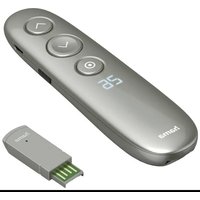
- Mute Switch
- Device selection keys
- Text ON: Switch on Teletext
- Hold: Hold the current Teletext page
- Rewind/red
▶ Play/yellow
Fast forward/blue
- Start recording
Stop/green
I Pause/magenta
- Shift key
- Menu: Open device menu
- Mode key for selection of secondary device group (only 8 in 1 model: AUX, DVBT, CBL, AMP)
- Vol+/Vol-: Volume control
- Setup: Remote control settings
- Number Keys 0-9
- Smart TV: open smart TV menu (if supported by the terminal device) Shift+Smart TV: select external AV source
- APPS: open app menu (if supported by the terminal device) Shift + APPS: switch to two-digit TV station numbers
14.PROG+/PROG:Programme selection up/down
- EXIT: exits device menu
- OK: Confirms a selection
- EPG: Electronic Programme Guide (if supported by selected A/V device)
- Info: On-Screen information (if supported by A/V device)
- Text OFF: exits Teletext
- Power: ON/OFF / LED indicator
1. Explanation of the Note symbol

Note
This symbol is used to indicate additional information or important notes.
2. Package Contents
- Universal Remote Control (URC)
- Code List
- This operating instructions
3. Safety notes
- Do not use the Universal Remote Control in moist or wet environments and avoid spray-water contact.
- Do not expose the Universal Remote Control to heat sources or direct sunlight.
- Do not drop the Universal Remote Control.
- Never open the Universal Remote Control. It contains no user-serviceable parts.
- As with all electrical devices, keep the Universal Remote Control away from children.
4. Getting started - installing the Batteries

Note
Alkaline batteries are recommended. Use 2 "AAA" (LR 03/Micro) type batteries.
Remove the battery compartment lid on the back of your URC (A).
Check the required battery polarity and insert batteries according to the + / - marks inside the compartment (B).
Close battery compartment lid (C).

Note: Code saver
Any codes you have programmed remain stored for up to 10 minutes while you replace the battery. Make sure you do not press any buttons before you have placed new batteries inside the remote control. All the codes will be erased if a button is pressed while there are no batteries in the remote control.

Note: Battery saving function
The remote control switches off automatically when a button is pressed down for more than 15 seconds. This conserves battery power if the remote control gets stuck in a position where the buttons are continually pressed down, such as between sofa cushions.
5. Setup

Note
To obtain a proper infrared (IR) transmission, allways point your Remote control in the approximate direction of the device you want to control.
Press the "MODE" key to select the secondary device group: AUX, AMP, DVB-T, CBL (only 8 in 1 Model).
Press the Shift key to operate the blue function keys. The Shift function deactivates by pressing the Shift key again, or automatically after approx. 30 sec. without use.
No entry for approx. 30 seconds will time out the Setup mode. The LED indicator shows six flashes and turns off.
Each device type can be programmed under any device key, i.e. a TV can be programmed under DVD, AUX, etc.
If you want to control a device, it's not possible while the Universal Remote Control is in the Setup Mode. Exit the Setup mode and select the device you want to control using the device selection keys.
5.1 Direct Code Entry
Your Universal Remote Control Package contains a code list. The code list shows 4-digit codes for most A/V device manufacturers in alphabetical order and grouped by device type (e.g. TV, DVD, etc.). If the device you want to control is covered by the code list, the Direct Code Entry is the most convenient entry method.
5.1.1 Turn on the device you want to control
5.1.2 Press the SETUP key until the LED indicator is permanently lit.
5.1.3 Select the device you want to control using the device key (e.g. TV). A successful selection is indicated by the LED with one flash followed by permanent light.
5.1.4 Check code list for brand and type of the device you want to control.
5.1.5 Enter the corresponding 4-digit code using the 0-9 keys. The LED indicator confirms each entered digit via a short flash and turns off after the fourth digit.

Note
If the code is valid, it is saved automatically.
If code is invalid, the LED indicator flashes six times and then turns off. Repeat steps 5.1.1 to 5.1.5 or use a different code entry method.
5.2 Manual code search
Your Universal Remote Control is equipped with an internal memory, which is preloaded with up to 350 codes per device type for the most common A/V devices. You can zap through these codes until the device you want to control shows a reaction. This might be that the device you want to control switches off (POWER key) or changes the channel (PROG+/PROG- keys).
5.2.1 Turn on the device you want to control
5.2.2 Press the SETUP key until the LED indicator is permanently lit.
5.2.3 Select the device you want to control using the device key (e.g. TV). A successful selection is indicated by the LED with one flash followed by permanent light.
5.2.4 Press the "POWER" or the PROG+/PROG- key to zap through the preloaded codes until the device you want to control reacts.
5.2.5 Press MUTE(OK) to save the code and exit the code search. The LED indicator turns off.

Note
- Internal memory limitations allow only up to 350 most common device codes to be preloaded. Due to the extensive number of different available A/V devices on the market, it may be possible that only the most common main functions are available. If so, repeat steps 5.2.1 to 5.2.5 to find a more compatible code. No code may be available for some special device models.
5.3 Auto Code Search
Auto Code Search uses the same preloaded codes as the Manual Code Search (5.2) but your Universal Remote Control scans through the codes automatically until the device you want to control shows a reaction. This might be that the device you want to control switches off (POWER key) or changes the channel (P + / P - keys).
5.3.1 Turn on the device you want to control
5.3.2 Press the SETUP key until the LED indicator is permanently lit.
5.3.3 Select the device you want to control using the device key (e.g. TV). A successful selection is indicated by the LED with one flash followed by permanent light.
5.3.4 Press the PROG+/PROG- keys or POWER to start the Auto Code Search. The LED indicator flashes once followed by permanent light. The Universal Remote Control has a latency of 6 seconds before the first scan starts.

Note: Scan Speed Settings
Scan Speed Settings can be set at either 1 or 3 seconds. The default setting for the scan time per single code is 1 sec. If this feels uncomfortable, you can switch to 3 sec. scan time per single code. To switch between the scan times, press PROG+ or PROG- during the 6 sec. latency before Auto Code Search starts scanning.
5.3.5 The LED indicator confirms each single code scan with a single flash.
5.3.6 Press MUTE(OK) to save the code and exit the code search. The LED indicator turns off.
5.3.7 To stop the Auto Code Search during the scan process, press the EXIT key.

Note
When all codes are searched without success, the Universal Remoote Control exits Auto Code Search and returns to operational mode automatically. Currently stored code is not changed.
5.4 Code Identification
The Code identification offers you the possibility, to determine an already entered code.
5.4.1 Press the SETUP key until the LED indicator is permanently lit.
5.4.2 Select the device you want to control using the device key (e.g. TV). A successful selection is indicated by the LED with one flash followed by permanent light.
5.4.3 Press SETUP key. The LED indicator flashes once followed by permanent light.
5.4.4 To find the first digit, press the numeric keys from 0 to 9. The LED indicator flashes once to indicate the first digit of the 4-digit code number.
5.4.5 Repeat step 5.4.4 for the second, third and fourth digit.
| CODES |
| TV | VCR | SAT | DVD |
| | | |
| AUX | AMP | CBL | DVBT |
| | | |
6. Special Functions
6.1 Punch Through Channel
The Punch Through Channel allows the PROG+ or PROG- commands to bypass the currently controlled device and switch the channels on a second device. All other commands remain uninfluenced.
To activate the punch through channel setting:
Press desired device mode key (e.g. TV).
Press and hold "PROG+" key.
Press desired device mode key (e.g. SAT).
- Release "PROG+" (the indicator flashes once if the setting is activated).
To deactivate the punch through channel setting:
Press desired device mode key (e.g. TV).
Press and hold "PROG-" key.
Press desired device mode key (e.g. SAT).
- Release "PROG-" (the indicator is flashing twice if the setting is deactivated).
6.2 Punch Through Volume
The Punch Through Volume allows the VOL+ or VOL- commands to bypass the currently controlled device and adjust the volume on a second device. All other commands remain uninfluenced.
To activate the punch through volume setting:
Press desired device mode key (e.g. TV).
Press and hold "VOL+ key.
Press desired device mode key (e.g. SAT).
- Release "VOL+." (the indicator flashes once if the setting is activated).
To deactivate the punch through volume setting:
Press desired device mode key (e.g. TV).
Press and hold "VOL-" key.
Press desired device mode key (e.g. SAT).
- Release "VOL-" (the indicator is flashing twice if the setting is deactivated).
6.3 Macro Power
Macro Power enables you to turn two A/V devices on/off simultaneously.
To activate the macro power setting:
Press desired device mode key (e.g. TV).
Press and hold "POWER" key.
Press desired device mode key (e.g. SAT).
- Release "POWER" (the indicator flashes once if the setting is activated).
To deactivate the macro power setting:
- Press desired device mode key (e.g. TV).
Press and hold "POWER" key.
Press desired device mode key (e.g. SAT).
- Release "POWER" (the indicator is flashing twice if the setting is deactivated).
7. Maintenance
- Do not mix new and used batteries for powering the Universal Remote Control, as old batteries tend to leak and may cause power drain.
- Do not use corrosive or abrasive cleaners on your Universal Remote Control.
- Keep the Universal Remote Control dust free by wiping it with a soft, dry cloth.
8. Troubleshooting
Q. My Universal Remote Control does not work at all!
A. Check your A/V device. If the device's main switch is turned off, your URC cannot operate your device.
A. Check whether your batteries are inserted properly and are in the correct +/- position.
A. Check whether you have pressed the corresponding device mode key for your device.
A. If the batteries are low, replace the batteries.
Q. If several Device Codes are listed under the brand of my A/V device, how can I select the correct Device Code?
A. To determine the correct Device Code for your A/V device, test the codes one by one until most keys work properly.
Q. My A/V equipment responds only to some of the commands.
A. Try other codes until most keys work properly.
9. Service and Support
If you have questions on the product, you are welcome to contact Hama Product Consulting.
Hotline: +49 9091 502-115
For further support information please visit: www.hama.com
Note on environmental protection:

After the implementation of the European Directive 2012/19/EU and 2006/66/EU in the national legal system, the following applies: Electric and electronic devices as well as batteries must not be disposed of
with household waste. Consumers are obliged by law to return electrical and electronic devices as well as batteries at the end of their service lives to the public collecting points set up for this purpose or point of sale. Details to this are defined by the national law of the respective country. This symbol on the product, the instruction manual or the package indicates that a product is subject to these regulations. By recycling, reusing the materials or other forms of utilising old devices/Batteries, you are making an important contribution to protecting our environment.
| CODES |
| TV | VCR | SAT | DVD |
| | | |
| AUX | AMP | CBL | DVBT |
| | | |
6. Sonderfunktionen
6.1 Sender-Punch-Through
| CODES |
| TV | VCR | SAT | DVD |
| | | |
| AUX | AMP | CBL | DVBT |
| | | |
| CODES |
| TV | VCR | SAT | DVD |
| | | |
| AUX | AMP | CBL | DVBT |
| | | |
PnI aBtOMaTNUeCKOM PONcKe PpIMHeHOTCA Te JeKOdbI, UTo I pN i PONcKBeBpyHyU (5.2).
IVY automatweckne nepe6paer ka do prapeprowabnyn npurbnaemoro yctpooCTBA.
HannpImep, ynpBnaJEmoe YcTPOICTBO MOKET OTKIOUHTbCA (KHOJA POWER) IUN pepeKIOUHTb npOprAMMY (PROG+/PROG-).
5.3.1 BkIIOHTe ynpablaemoe yctpoictBO.
5.3.2 Hακμπι ηνερκJBαθάτη Κhόκη ΣΕΤΡ, ΜΝΑ θ εΔαρθίγος λήσην ἀνύκαμαις.
5.3.3 BbIepHte ynpablaemoe yctpoiCTBO, HaxaB KhoNkY TnA yCtPOCTBA, HanpMep TVE.CsN BbIOp npabInhBn, lamMa NmHET OINH p3,a 3aTeM NaHET Ropetb HenpepbIBHO
5.3.4 TtO6bI BKNIOHb ABTONONCK KOIOB, HxAMMITE PROG+/PROG-IMN POWER. JAmnma MInrHeT OIN pa3, a 3aTeM NaHcET rOpTeB HnpepebIBHO NOnck NaHcTeCyape3 6 Cekynd.

PpMueaHne! HactpoKa poCTN noncKa
HaKaJdbiKoDBydJeHeHa1CekyHda.PnI Heo6OJIMOCTIOkOblMOKHOpeKePknOHTa KaJdbie3CekyHbI.YTo6bHaCTpOnTb BpemApekNIOHcKOka,HaXmITe PROG+INPiPROG-B nepNOOKDaHnHa HauhAaBtOMATNIUECKFOKOa(BepBb6Ie 6ceyHNDocNEBkHIOHnEHHpeKMaNoNCka).
5.3.5Ппп посяклioчени Кда мигает Лампа Инданкаци.
5.3.6 T'Obb coxpaHntb Koi N BiiNTH i3 pexmHa noncKa, haxMnTe MUTE(OK).JaMa nA norachet.
5.3.7 Tóbbl npepBaB nock, hKaMnTe KhONky EXIT.

PpimmeaHne
Ecn ABOTMnueckn NOnCK He dan pe3yIbTata, PNY ABOTMnueckn nepeXoDmT BpaOch npexm. Tekyu coxpaHennbKOJ,He 3MENHeTc.
5.4 CHTbIbAHne KOIOB
ФУнку пгдананчесна Дял onpenedelenny KOKOB,КOTobpe lyke 3aHeceNsВЯmaTb YIbTa nDTHAHHONHO ynpablenny.
5.4.1 Haxmte HuyepKbAte KHONKY SETUP, Noka He 3aqrOpTc lamna InhduKaiau
5.4.2 BbIbepHTe ynpaBnEmeoe yctpoiCTBO, Hxkab KhONKY TINA yCTPOCTBA, HAnpIMeT V.CEnI BbIbOp npABnHbIy, lamMaMHeT oDmH p3a, a 3aTeM NaHET ropeTb HenpepbIBHO.
5.4.3 HAnMite KHOKNY SETUP JIaMaN MuHET OdHM paz, a 3 atem NaHHT ropeb HenpepbBOH.
5.4.4 Ttobh HauTn nepByu cHpy KoJa, HaxMaite KhoNkN OT 0 Do 9. Ppi Haxattn npabInbHon cHpbl lamna InHnDkaun 3aorponCT OJIN Pa3.
5.4.5 NobTOPTNE NHTK 5.4ДЯ NOONCA BTOPOI, TpeTbeN HcTeBpTeU cHbPbI.
| CODES |
| TV | VCR | SAT | DVD |
| | | |
| AUX | AMP | CBL | DVBT |
| | | |
| CODES |
| TV | VCR | SAT | DVD |
| | | |
| AUX | AMP | CBL | DVBT |
| | | |
6.1 Punch through canale
6.2 Punch through volume
| CODES |
| TV | VCR | SAT | DVD |
| | | |
| AUX | AMP | CBL | DVBT |
| | | |
YnOeIgN:MvIμN Kwδikov
Kata tyn avitikataoan twu mntapiwv ano0tkeiovotai yia 10 aeia ooi kwokiou TPOpyaumatate. DeV npTei va natnote KATOIO NKTPOeXPI VA toTOEETNOU vEe cTMApiec sto TLeExeiPOTPi. Av nATneKanto NKTPOxuic va exov TOOeTNIeOI mntapiec STO TLeExeiPTNIO, XAVOTAI OOI KOWkoI.

| CODES |
| TV | VCR | SAT | DVD |
| | | |
| AUX | AMP | CBL | DVBT |
| | | |
6. Eiokε λειουργες
6.1 Punch Through kavaλιού
| CODES |
| TV | VCR | SAT | DVD |
| | | |
| AUX | AMP | CBL | DVBT |
| | | |
| CODES |
| TV | VCR | SAT | DVD |
| | | |
| AUX | AMP | CBL | DVBT |
| | | |
6. Specialis funkciok
| CODES |
| TV | VCR | SAT | DVD |
| | | |
| AUX | AMP | CBL | DVBT |
| | | |
6. Zvlastni funkce
6.1 Prepinani Punch-Through
Pomoci fungkce prepinani Punch-Through mohou prikazy PROG+ nebo PROG- obejtactually oblsuhovany pristroj a prepnout predvolby druheho pristroje. Vsechny ostatni prikazy tim nejsou ovlvinyen.
Funki prépínani Punch-Through aktivujete takto:
| CODES |
| TV | VCR | SAT | DVD |
| | | |
| AUX | AMP | CBL | DVBT |
| | | |
6. Zvlastne funkcie
6.1 Prepinanie Punch-Through
Pomocu prepinania Punch-Through mozu prikazya PROG+ alebo PROG-obst aktualne ovladane zariadenie a mozu preinpat stancine druheho zariadenia. Ostatne prikazy tym nie su ovplyvnenene.
Pri activacii funkie Punch-Through postupujte nasledovne:
Stlache zelane tlacidlo zariadenia (napr. TV).
- Podržte tlacidlo "PROG+" stlačené.
- Stlache tzelane tlacidlo zariadenia (napr. SAT)
- Teraz pustite tlačidlo „PROG+“ (LED dióda blikne raz pri aktivovanom nastavení).
| CODES |
| TV | VCR | SAT | DVD |
| | | |
| AUX | AMP | CBL | DVBT |
| | | |
| CODES |
| TV | VCR | SAT | DVD |
| | | |
| AUX | AMP | CBL | DVBT |
| | | |
| CODES |
| TV | VCR | SAT | DVD |
| | | |
| AUX | AMP | CBL | DVBT |
| | | |
6. Functii speciale
6.1 Canal Punch-Through
| CODES |
| TV | VCR | SAT | DVD |
| | | |
| AUX | AMP | CBL | DVBT |
| | | |
6. Erikoistoiminnot
6.1 Lahettimen lapilyonti
| CODES |
| TV | VCR | SAT | DVD |
| | | |
| AUX | AMP | CBL | DVBT |
| | | |
6. Erikoistoiminnot
6.1 Lahettimen lapilyonti
V3n03BATc3aD0nblHHTeHNO6O3HaayabaHe HaMHΦOpMaZIIMINBaxHNYkA3AHN.
2. CbDpXaHHe Ha onaKOBkata
- YHnBepcaJHo DnCTaHcNoHHO
Cnncbck ckoDObE
- INchpykun 3a yynotpe6a
3. 3a6eJekKn 3a 6e3oNaCHOCT
He 3nO3BaTBeYHnBepCnHToDnCTaHmHO BbB BnA H MOKpa Cpea N36BraTe KOHTAKTC B ODA.
He nlaeY hBepaHOTo DCTAHNOHO Na npka CbHcEBA CBETnHa Hne TcxbpaHbAte B 6n3OCT DO TOJIINHH N3TOUHNII.
He n3nyckaTe yHnBepcaJHo dNCTaHcNoHNO.
HnKORA He pazrIIObAITE YHMBePcALHOTO IMCTAHUONHO. ToCbPka YaCTN, KOITo He ce 06CbNyXbaT OT nOrpe6Btien.
KaKTO C BCNUKN EJNEKTPUYeCKN UyeDn, DpBxTe YHINBepcaIHHOTO NCTaHcUNOHNO DaJIeY OT Deua.
4.Пьвстбпк -пoctabян ha 6atepuraTа

3a6eJexka
Ppenopbyat ce aIakJIHb6aTePIu. 3nOJ3BaIte TIN,AAA"LR03/Micro26poA
- PIPeMaXHete KanaKaHa BaTePmTa Ha Tbpb6a Ha BaWeTo DnCTaHcIOHnO(A).
PloBepete NsckAhata nonpHocT ha 6atePmte m nocstabe TcIaHco 3naUte " + / - " B ppeHa3NaHeoTO OTdelenne (B).
3aTbopete KanaeHTo Ha otJeIeHHeTo 3a 6aTePIM (C).

3a6eJekka:3ana3BaHeHaKoIObe
BcwnkkoDBe, KOIO CTe nporpaMnpaII, octabat cbxpanehn do 10 MmHytn DoKATO cMeHHTe 6atePnTA Ha NCTAHUHOHTO. YBepete Ce, He He HATNCATE 6yToH, DoKATO noCTABTte HObTE 6atePN. BcWNkKOIObe ue 6bDat n3PTn, aKo HATNCHE THeKOH 6yToH NO BpeHa CMHaHa.

3a6eJexKa:ФyHKuIg 3a HOMNHa 6aTepeYra
Диctанционното ce n3KIOUHbABTOMATNUHO,KOFATO eINH bYToH eHATCHAT 3a NOBeeOT OF 15 CekyHnI.ToBaCNECTAbe HEPnIA,AKO INCTAHUNOHTOeNOCTABeBO H0NtUIA,B KORTO bYToHmTe CaNOCTOHNO HATCNHTAI,HANPIMeMpeMekJyBb3rJIaBHIu HA KaHAneta.
5. Načtrpouká

3a6eJexKa
3a da n3no13BaTe npabunHOTo INHpapuepeBHeTO npedabahe,BnHaN HacoUbaIte BaaTe DnCTAHUMHO B np6bni3ntEnHata NocOKA haYctpOCTBOTO, KOeTo NCKate Da KOHTpOINPate.
HATNCHE6yToHa 3a HAcTPOka Ha pexkMa,3aJa m36epete yCtPOICTBO OT BTOpUHa rpyna: AUX,AMP,DVB-T,CBL (cAmO 3a MoJe8 B 1)
HATNCHE TKAIBIa 3a npBkIOUbaHe, 3a da OeINpate CbC CnHTE FyHKIOHaJIH N KIABNI. Ta3i FyHKIcE Ce JeAKTINBIPA ue3 HATNCKAHe Ha CbUIA KIABIu IIN ABOTMAtNUO cIeD OKOLO 30 cek63 yonotpe6a.
HebBExJaHnHa daHHn B npOblJxHeHn Ha okoI 30 cekyHn Ie OTMeHN pexima 3a HactPoiKa. LED INdKApToPbIe Mra 6 nTbnI N e ceNkJIOu.
BceknTnUyCtpoBCTBOMoKeJa cpe nporpamnpa C BcKaKbB KluO, t.e. teNeBnOOPMoKeJa cpe nporpa mnpa c DVD, AUX n dp.
He e Bb3MOXHO da KOHTpOInapate dpyro yCTPOINCTBO, DOKATO YHINBepcAINHOTo IMCTAHUNOH E b PEXMM HA hAcTPOInka. N3ne3e OTo 103n PEXMM n36bebete yCTPOINCTBO, KOETO NCKATE da ce KOHTPOnIPA, c NOMOuTa H Na KJABNUnTe 3a n36Op.
5.1 NipeKTHo BbBExdHaNe Ha KOD
B nakaTc yHnBepcaJIHO nDCTaHcIIOHNO ue
HaemeRite cInmBc K KOJEb. ToT nokA3Ba
4-ncnepenKoKOBe 3 naOpueTo A/V
npOn3BDJntEnHa YcTOPOJBTaNo a3zHyenPeN d
rpynnipAni No TnI YcTOPcIbTO (Hanp.TeJeBn3n,
DVD, nT.H.). AkoYcTOPOJBTO, KoEO tMcATE da
kOHToPONIPate, e B CnCbKa C KOJEb, Hau-yOboHn
MeTO, e DApKeTc H3nIC HA KOA.
5.2 PbHNO TbpcHe Na Koid
| CODES |
| TV | VCR | SAT | DVD |
| | | |
| AUX | AMP | CBL | DVBT |
| | | |
6.Cneunannn FyHKnn
6.1 Punch Through Channel
ФункшаТ Punch Through Channel no3BOLЯВa
прмогната Ha nporpamata Ha KOHTPOrnIpaHOTO
В мОмERTA yCTPOICTBOTo DA ce OTPaN Ha
прмогната Ha nporpamata N ha BTTO yCTPOICTBO.
ВсчкдprугКOMанДи octabat HENOBINHn.
3a da aktubipate nactpoikata punch through channel:
Hattichete KonHToE 3a peXMM Ha Baewtoe jenaHoU yctpOCTBO (Hapn. TeneB3Op).
- HATNCHETE M 3aDbXte 6byTOna 3a npOMHa Ha npOrpAMATA Horpe
HATNCHETE KOHNTO 3a pexIM HA Baueto JenaHO yucpOCTBO.
- Пунецота злpenьma на пормама harope (ндкатор.TMЯвEDьж,akO hactpoikata e akTBMVAba).
3a da daekmbnpate hactpoikata punch through channel:
- Hatnche TcOnTuTe 3a peXMM Ha BaUteTo XeJAnHO yCtpoNCTBO (HaNP. TeLEBnOp).
- Hatnichete m 3a4pbkTe 6byTOna 3a npomHa h nporPamHa hNDony.
- Hattichete konTHo3a peKIM ha BaWeto jenaHo yucpOCTBO.
- Пунчета Бутуна за ровима на поргамата наюлу (инданкатов м大姐 дытм, акнорокида eдактвирара).
6.2 Punch Through Volume
Функцпа Punch Through Volume no3b0n8Ba
Пробима на 3b6ka на KOHTPOMJIAPHO TO B MOMPENTa
устор CTOTO DA ce OTPa3n HA силATA на 3b6ka И на
ВТОTO yCTOPICTBO. BCNUKIN ДРУПКOMANДОCTABAT
ненOBЛПИН.
3a da aktmbnpate hactpoikata punch through volume:
HATNHETe KOHNTo 3a peKMM haBaateo jenaHO uycyTbOHO (hnp.TeneBmOp).
- Hatinche H 3aDpbkTe 6yToHa 3a IpomHa Ha 3byka Harope.
- Hatnche TcOnHe 3a pexHm Ha BaUeTo XeJanaO yctpoiCTBO.
- Pnyche Toyoha 3a npomHa Ha 3bYa harope (HnIdkaToptbMira BeDhB, aKO hAcTpoKaTa e AKTNbPana).
3a da deakmbnpate hactpoikata punch through volume:
HATNHETe KOHNTo 3a peKMM haBaateo jenaHO uycyTbOHO (hnp.TeneBmOp).
- Hatinche He 3aandbxte 6ytoHa 3a npomHa Ha 3byka HadoJy.
- Hattichete konHTo 3a peKmHaBaWeto jeaHoY uCypOnIcTBo.
- Pnychete 6yToHa 3a npOmHa Ha 3bYka HAdOny (HnDnKaTOpBt MrrA Dba NbTn, Ako HcStpoKaTa eJeaknBvHpHa).
6.3 Macro Power
Macro Power Bn no3B0JbA Ba KblOHTe/ n3KlOHTe DBe yCTpoiCTBa eHNOBpeMeHNo.
3a da aktubipate hactpoika t macro power:
HATNCHETO KOHETO 3a peKMM ha Baetwoe jehaEOY TcPOBTOB (Hanp.TeneBb3Op).
- HatncheTe 3aDpBxTe 6yToHa BkIIOuBaHe.
HATNCHETe KOHNETO 3a peKMM Ha Baueto jenaHO uYcPTOBHO
- Пчсete 6утона 3а BKЛюва rehe (нДиКаТорь MИ RA BeHbЖ, aKо HabсгоКат eakTINBираHA).
3a da deaktnbnpate hactpoikata macro power:
HATNHCHETO KOHETO 3a peKMM ha Baetewe jenaHO uycyTbOBO (hnp.TenEBMOp).
- Hatnchete n 3aipbxte 6yToHa BKIOuBaHe.
- Hattichete KonHToTa 3a pexMM ha BaWeto jehaHo yucpOCTBO.
- Пус悔ETБУТОА 3a КВИЮВАБе (нДИКАТОВТ MINGA ДBA пТи, AkO NaСТРоКаТа e DeAKTBNIPURA).
7. Nopdpbkka
He CmecBaIte HOBN uynOpTe6BaHbANB aTePIM npn 3xapHaBHaTO H yNHBePCaJIHOTo DICTAHUONHO, Tb KaT O CTAPNIe BATEPIM CaCKLOHNK bM NITINVAE
He 3n03n7BaeTKeKoP3nBHNJNAb6p3aBnHnNoIcHTBaUeI npEpaTn 3a YNHbepCaJIHOTOnDJICTAHUNHO
Дрьхтууньерсално Достанцюно Далец OT npax kato ro n36bpcBaTe C Meka cyxa Kbрna.
8. OTrpaHbAne Ha np6IeMn
B. Moeto yHnBercalno DnctaHIOHO He pa6Otn!
O.IpoBepete yctpOCTBTO, KOeTo To KOnTHpOImpa. Ako OCHOBHTO My 3axpaHbAe e I3KJIHOeHo, BaaTeo DInCTaHIIOHO He MoKe da ro ynpabIbRa.
O.InpoBepeTe dAnI b6atePmte ca noCTabEni npaBnIO n daI ca B npaBnHaTa+/-no3uN.
O. IpoBepete dani cte HATINCHANI KJABNIa 3a CbTBeTHNIA pEXM HA yCTPOINCTBO, KOETe CE KOHTOPINLAOT DmCTAHUMOHTO
O.Ako 6aTeepnTe ca n3TooueHn, cMeHeTe rN.
B.Ako HOKONKO Ka ca 36bpoEH NOp MopKata Ha MoETO KOHTPOINPAHOYCTPOINCTBO,KAKMORA da 36bepaNPABVNIHNOKJ?
0.3a da onpeJeIne npabunHna KOD 3a BaWeto YCTPOIcTBO, TECTBaJIte KOJOBETe EDIN NO eINH DOKATO CTmHReTe DoTOn, KOITo paObOTN KOPEKTHO.
B. Moira KOHTPONIPHANA TECHNKA OTROBAPCAMO H NAKOMOT KOMAHNTDE
O. TectBaIe Ynpyo KDOBETo DOKATO CTMHTE Do TO3N, KOITPOa60TH OKEKTHO
9. CepBn3 ncbnopt
3a Bbnpocn BbBbp3k c npodkyta ce o6bPHN KbM OTela 3a KOHCyTTaunzna 3a npodyktn Ha XaMa. Fopeua TetePofOnha JInnur: +49 9091 502-115 (hemckn/ahrnniickn) DoinbHnnteHa INHOpmaunzna 3a cbnport tse Hamepnt TyK: www.hama.com