USER MANUAL 6030 GARDENA
Open Source Software
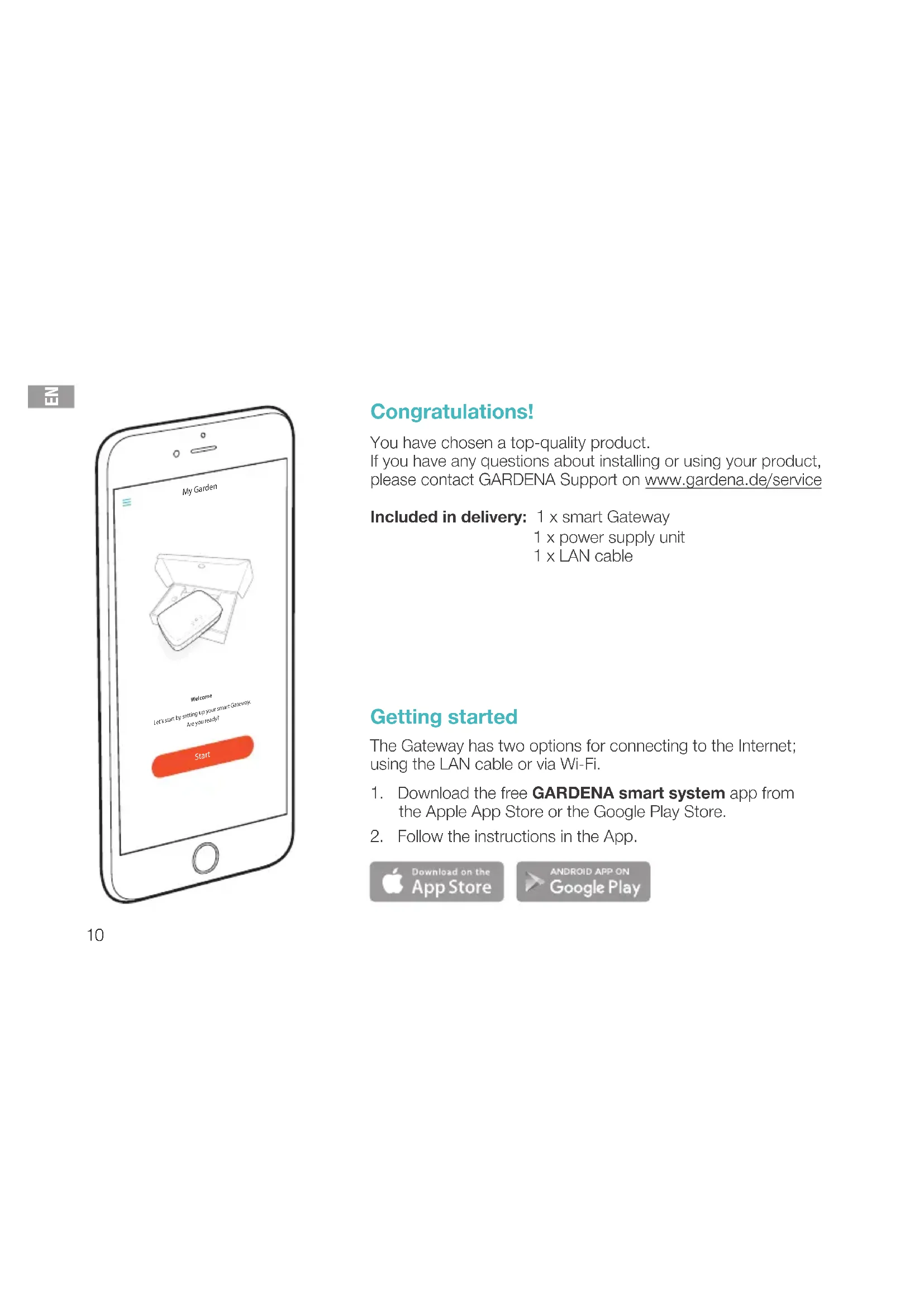
Congratulations!
You have chosen a top-quality product.
If you have any questions about installing or using your product, please contact GARDENA Support on www.gardena.de/service
Included in delivery: 1 x smart Gateway
1 x power supply unit
1 x LAN cable
Getting started
The Gateway has two options for connecting to the Internet; using the LAN cable or via Wi-Fi.
- Download the free GARDENA smart system app from the Apple App Store or the Google Play Store.
- Follow the instructions in the App.

Download on the App Store

To commission the smart Gateways
An Internet connection is required for installation of the Gateway. The Gateway can be connected to the Internet via ethernet or Wi-Fi.

- Connect the power supply unit to a mains socket.
- Connect the power supply cable to the plug socket ④ of the Gateway.
- Select one of the following options:
To connect via ethernet cable / To connect to a Wi-Fi network

To connect via ethernet cable (recommended)
- Connect the Gateway with the provided network cable to your router.
The software for your Gateway is now being updated. This process can take up to 15 minutes (depending on your Internet connection).
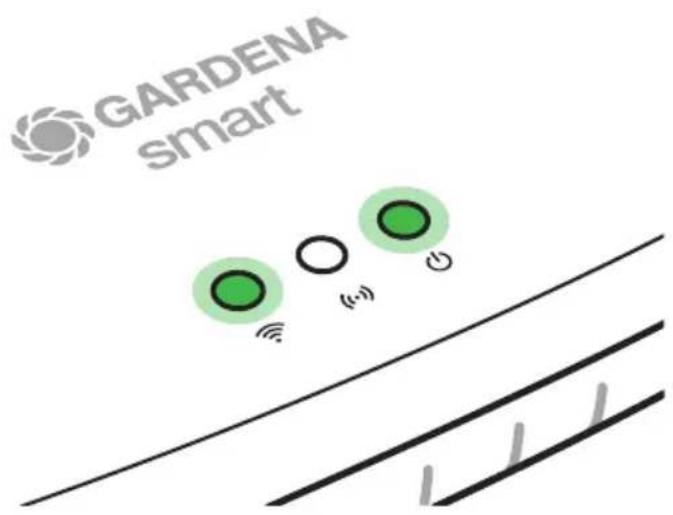
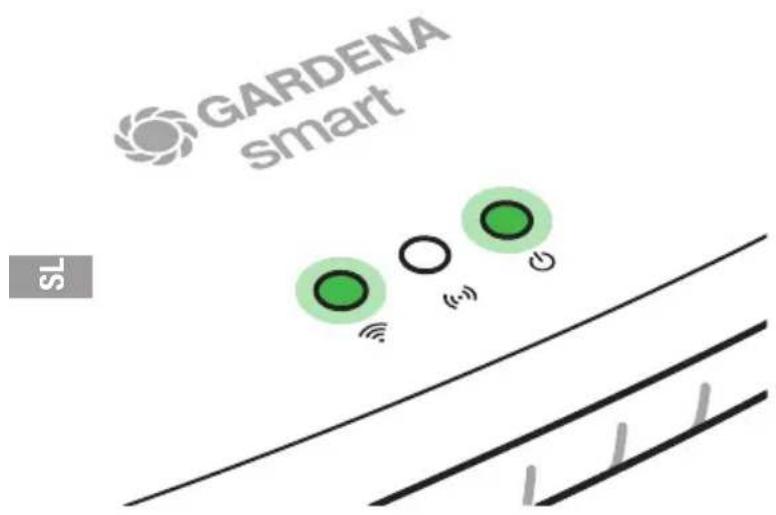
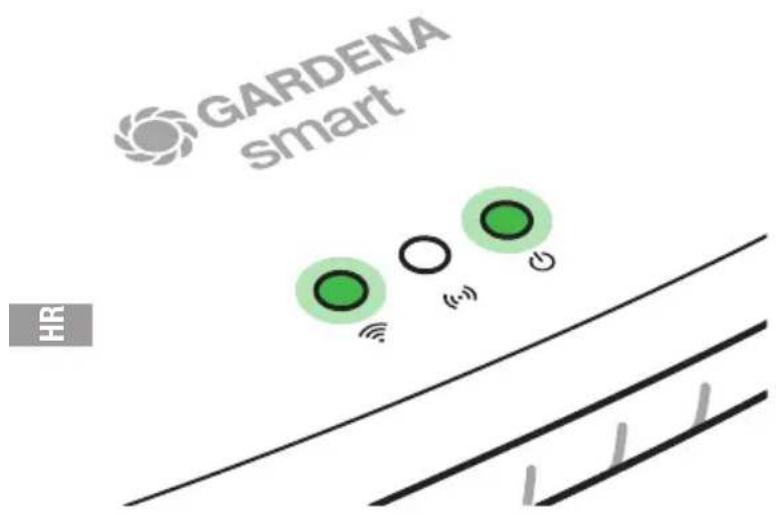
Once the Internet-LED and the Power LED illuminate green permanently, the Gateway is up to date. It can now be included in the App.
- Download the GARDENA smart system app from the Apple App Store or the Google Play Store.
- Follow the instructions in the App.


To connect to a Wi-Fi network
If the Gateway is neither connected to the router via a LAN cable nor integrated into another Wi-Fi network, the Gateway automatically provides a configuration network after approx. 1 to 2 minutes after startup.
The configuration network is activated as long as the Internet LED permanently illuminates yellow.
The configuration network remains active for 15 minutes. After the 15 minutes have elapsed (or if the Gateway was previously configured to another Wi-Fi network that is no longer available), the configuration network can be reactivated by briefly pushing the reset button ⑦.
N
Wait until the Internet LED illuminates yellow permanently (the configuration network is activated).
- Open the Apple Home App (this is located by default on your mobile iOS device).
- Select "Add accessory".
- Scan the HomeKit label on the bottom side of the Gateway.
- Wait until the Internet LED illuminates green permanently.
The software for your Gateway is now being updated. This process can take up to 15 minutes (depending on your Internet connection). Once the Internet LED and the Power LED illuminate green permanently, your Gateway is up to date. It can now be included in the App.
- Download the GARDENA smart system app from the Apple App Store.
- Follow the instructions in the App.
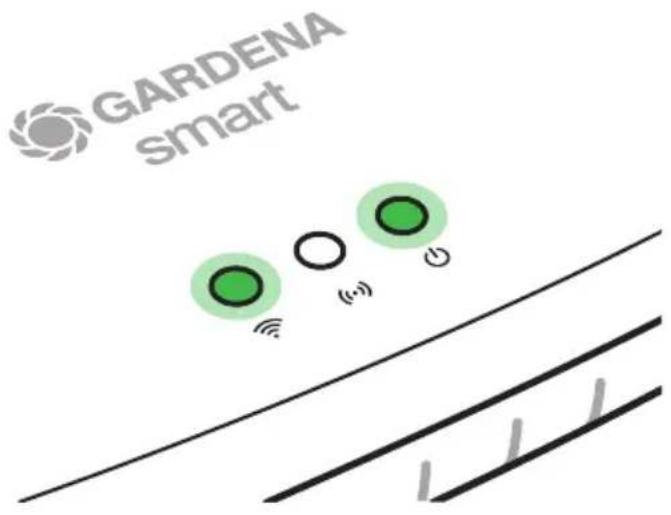
Wait until the Internet LED illuminates yellow permanently (the configuration network is activated).
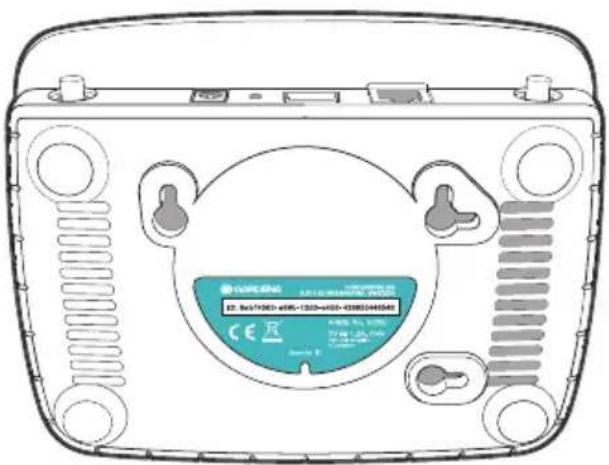
To establish a connection via Wi-Fi, you need your Gateway ID. The Gateway ID can be read on the sticker on the underside of the Gateway. You will also need the password for your Wi-Fi network.
- Connect to the GARDENA configuration network. To do this, go to the Wi-Fi settings on your smartphone, tablet, or computer. The Gateway should now be displayed there as an available Wi-Fi network. The network name starts with "GARDENA_config".
- Open the URL:
http://10.0.0.1
in your preferred Internet browser.
You should now see the Gateway Interface.
- Login using the first eight digits of your Gateway ID as the password (see graphic).
The Gateway ID is located on the bottom side of the Gateway.
- Select your home Wi-Fi network under Wi-Fi Network.
Then your Gateway is connected with the Internet.
Gateway ID: 9eb74563-e89b-12d3-a456-426655446548

- Enter your network password and confirm your settings. Wait until the Internet LED illuminates green permanently.
The software for your Gateway is now being updated. This process can take up to 15 minutes (depending on your Internet connection).
Once the Internet LED and the Power LED illuminate green permanently, your Gateway is up to date. It can now be included in the App.
- Download the GARDENA smart system App from the Google Play Store.
- Follow the instructions in the App.
Note: Because the GARDENA configuration network does not have its own Internet access, your device may automatically leave the GARDENA configuration network or may display an error message. In this case, you must allow a connection without Internet access to be maintained in the settings of your device.
Also, make sure JavaScript is activated and browser cookies are accepted, in order to display the page correctly. Connecting the Gateway is not supported by Internet Explorer.

Open Source Software
This device contains open source software. GARDENA hereby offers to deliver, upon request, a copy of the complete corresponding source code for the copyrighted open source software packages used in this product for which such offer is requested by the respective licenses. This offer is valid up to three years after product purchase to anyone in receipt of this information.
To obtain the source code, please write in English, German or French to:
smart.open.source@husqvarnagroup.com

Open-source-software
Download on the App Store

Congratulations!
Open Source software
Download on the App Store

Open Source Software
Download on the App Store

- Plug the plug adapter into a wall outlet.
- Connect the adapter cable to the connector ④ on the Gateway.
- Choose one of the following options:
Connect with a LAN cable / Connect with a WLAN (Wi-Fi) network.


Congratulations!
Password Gateway Interface:
9eb74563
Congratulations!
You have chosen a high-quality product.
For any questions about installation and use of your product, please contact the GARDENA service department at www.gardena.de/service
Delivery contents: 1 x smart Gateway
1 x power supply unit
1 x LAN cable
Start-up
Download on the App Store

- Plug the power supply unit into a power outlet.
- Plug the power supply unit cable into the ④ Gateway socket.
- Choose one of the options: connection via LAN cable or connection via WLAN network.
Configuring the WLAN network using another device
Wait until the indicator that signals internet connectivity starts to glow steadily yellow (which means that the configuration network is activated).
To establish a connection via the WLAN network, you need the Gateway ID label. You can read it from the label on the bottom of the Gateway. You also need the password for your WLAN network.

- Establish a connection to the GARDENA configuration network. To do this, open the WLAN network settings on your smartphone, tablet, or personal computer. The Gateway should now be displayed as an available WLAN network. The network name starts with "GARDENA_config".
- Open the URL:
http://10.0.0.1
in any web browser.
You will be on the Gateway interface.
- Log in with the password that contains the first eight characters of your Gateway's ID tag (see the graphic). The Gateway ID tag is located on its underside.
- Select your home WLAN network as the WLAN network. This way, the Gateway will connect to the internet.
Gateway ID: 9eb74563-e89b-12d3-a456-426655446548

Congratulations!
Congratulations!
Download on the App Store

Download on the App Store

Download on the App Store

We reserve the right to make changes without notice.
All rights reserved.