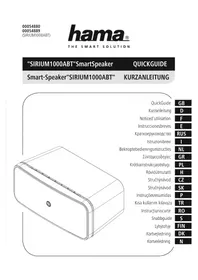
SIRIUM1000ABT - Speaker HAMA - Free user manual and instructions
Find the device manual for free SIRIUM1000ABT HAMA in PDF.

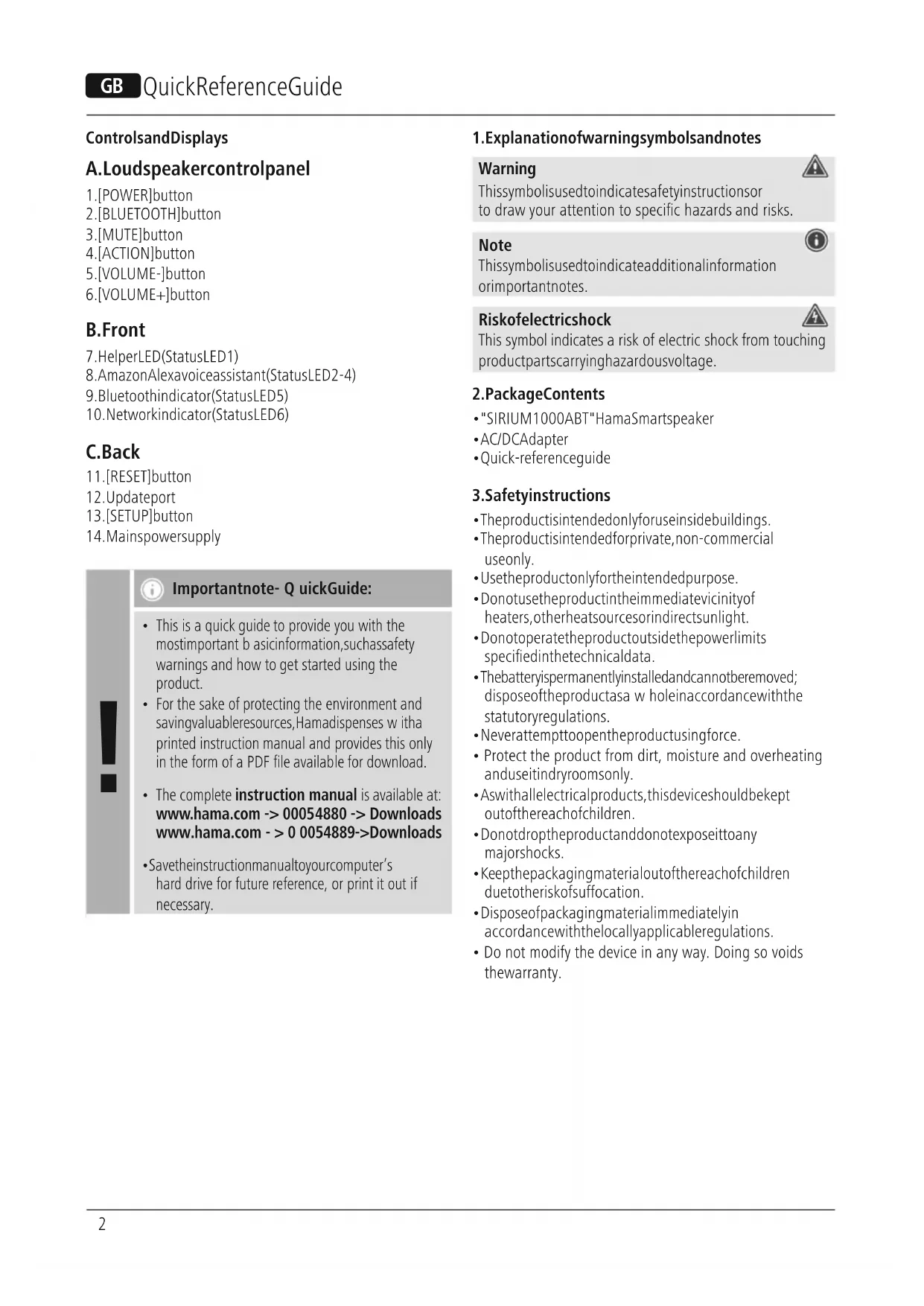


| Product Type | Smart Speaker |
| Brand | Hama |
| Model | SIRIUM1000ABT |
| Power Supply | Mains (100-240 V, 50/60 Hz) and built-in rechargeable battery |
| Adapter Input Voltage | 100-240 V AC |
| Adapter Output Voltage | 12 V DC, 1.5 A |
| Standby Power Consumption | 0.06 W |
| Average Active Mode Efficiency | 85.1% |
| Wireless Connectivity | Bluetooth 2.402-2.480 GHz, WiFi 2.412-2.483 GHz |
| Bluetooth | Range up to 10 m, version unspecified |
| Voice Assistant | Built-in Amazon Alexa |
| Control App | Hama Smart Audio (iOS 8+ / Android 4.4+) |
| Microphones | Yes, with mute function |
| LED Indicators | Power status, Bluetooth, network, voice assistant |
| Main Functions | Audio streaming, voice control, WiFi setup, auto standby |
| Battery | Rechargeable, charging time 3-5 hours |
| Maintenance | Clean with a non-fibrous damp cloth |
| Safety | Do not open, avoid moisture, use original accessories |
| Reset | Press SETUP + ACTION button for 6 seconds |
| Operating Temperature | -10°C to 50°C |
| Storage Temperature | -20°C to 60°C |
Frequently Asked Questions - SIRIUM1000ABT HAMA
User questions about SIRIUM1000ABT HAMA
0 question about this device. Answer the ones you know or ask your own.
Ask a new question about this device
Download the instructions for your Speaker in PDF format for free! Find your manual SIRIUM1000ABT - HAMA and take your electronic device back in hand. On this page are published all the documents necessary for the use of your device. SIRIUM1000ABT by HAMA.
USER MANUAL SIRIUM1000ABT HAMA
"SIRIUM1000ABT"SmartSpeaker
QUICKGUIDE
Smart-Speaker"SIRIUM1000ABT"
KURZANLEITUNG
QuickGuide
Kurzanleitung
Noticed'utilisation
Instruccionesbreves
KpatkoepykoBOdCTBO
Istruzioneibrevi
Further information and features are available on/
| IndicatorLED | BehaviourDescrption | ||
| System indicator | ○●●●●● | Flashesorange | Thesystemisstartingandsearchingforanetworckconnection.WaituntiltheLEDslightupsolidandtheworkconnectionhasbeenestablished.Alternatively,make a connection. |
| Network indicator | ○○○○○○ | Lightsupsolidgreen | TheLoudspeakerisconnectedtoa n etwork. |
| ○●●●●○ | LED2-4p ulsesred,LED6p ulsesgr een | WIFlisdisconnected.Initialsetupcanbecarriedoutvia theHamaSmartAudioApp. | |
| ○●●●●○ | LED 2 - 4 quickly flashes red,LED 6 quickly flashes green | WPSmodeisactive. | |
| ○●●●●○ | LED 2 - 4 slowly flashes red,LED 6 slowly flashes green | WAC M odeisactive. | |
| Amazon Alexavoicessassistant | ○●●●●● | Alternatingquickflashesof blueandcyan | Alexaisprocessingandrespondingtoa v oicecommand.Nofurthervoicecommandscanbegiven. |
| ○●●●●○○ | Lightsupsolidred | Mutemodeisactive.Allmicrophonesare m uted.Alexa doesnotrespondtotheactivationword. | |
| ○●●●●○○ | Flashesred | There is no connection with the Amazon server. Alexa is unabletoacceptvoicecommands. | |
| Bluetooth indicator | ○○○○○○ | Pulsesblue | TheloudspeakerisinBluetoothmode.Thereisno connectionwitha m obiledevic. |
| ○○○○○○ | Flashesblue | TheloudspeakerisinBluetoothpairingmode.Thefirst connectioncanbeestablishedwitha m obiledevic. | |
| ○○○○○○ | Lightsupsolidblue | TheloudspeakerisinBluetoothmode.A c onnectionhas beensuccessfullyestablishedwitha m obiledevic. | |
| Volume indicator | ○●○○○○ | Lightsupwhitefor3s | Volume20% |
| ○●●●○○○ | Lightsupwhitefor3s | Volume40% | |
| ○●●●○○○ | Lightsupwhitefor3s | Volume60% | |
| ○●●●○○○ | Lightsupwhitefor3s | Volume80% | |
| ○●●●●○○ | Lightsupwhitefor3s | Volume100% | |
| Battery chargelevel indicator | ○●○○○○ | Flashesredfor3s | Batterychargelevel< 1 0% |
| ○●○○○○ | Lightsupredfor3s | Batterychargelevel10- 3 0% | |
| ○●●●○○○ | Lightsupyellowfor3s | Batterychargelevel30- 4 0% | |
| ○●●●○○○ | Lightsupyellowfor3s | Batterychargelevel40- 6 0% | |
| ○●●●●○○ | Lightsupgreenfor3s | Batterychargelevel60- 8 0% | |
| ○●●●●○○ | Lightsupgreenfor3s | Batterychargelevel80- 1 00% | |
| UpdateFlashes whiteupdate is currently in progress. | |||
Note
- For reasons of environmental protection and to save valuable raw materials, the brightness of the LED is dimmed after 15 minutes of no commands being issued. If a command is then issued, the brightness of the LED display is restored toitsoriginalsetting.
- This is a quick guide to provide you with the most important b asicinformation, suchassafety warnings and how to get started using the product.
- For the sake of protecting the environment and saving valuableresources, Hamadispenses w itha printed instruction manual and provides this only in the form of a PDF file available for download.
The complete instruction manual is available at: www.hama.com ->00054880->Downloads www.hama.com->00054889->Downloads - Savetheinstructionmanual toyourcomputer's hard drive for future reference, or print it out if necessary.
1.Explanationof warningsymbolsandnotes
Warning

Thissymbolisusedtoindicatesafetyinstructionso r to draw your attention to specific hazards and risks.

Note
Thissymbolisusedtoindicateadditionalinformation orimportantnotes.
RiskofElectricshock

This symbol indicates a risk of electric shock from touching productpartscarryinghazardousvoltage.
2.PackageContents
"SIRIUM1000ABT"HamaSmartspeaker
-AC/DCAdapter
-Quick-referenceguide
3.Safetyinstructions
The product is intended only for use inside buildings.
The product is intended for private, non-commercial use only.
- Use the product only for the intended purpose.
- Donotusetheproductintheimmmediatevicinity of heaters, other heatsourcesorindirectsunlight.
- Donotoperatetheproductoutsidethepowerlimits specified inthetechnicaldata.
- Thebatteryispermanentlyinstalledandcannotberemoved; disposeoftheproductasa w holeinaccordancewiththe statutoryregulations.
- Neverattempttoopentheproductusingforce.
- Protect the product from dirt, moisture and overheating anduseitindryroomsonly.
- Aswithallelectricalproducts, thisdevicesshouldbekept outofthereachofchildren.
- Donotdroptheproductanddonotexposeittoany majorshocks.
- Keepthepackagingmaterialoutofthereachofchildren duetotheriskofsuffocation.
- Disposeofpackagingmaterialimmediatelyin accordancewiththelocallyapplicable管理条例.
- Do not modify the device in any way. Doing so voids the warranty.
RiskofElectricshock

- Donotopenthedevicorcontinuetooperateitif itbecomesdamaged.
- Do not use the product if the AC adapter, adapter cable or power cable is damaged.
- Do not attempt to service or repair the product yourself. Leave any and all service work to qualified experts.
4.Beforecommissioning

Note
- You have the option of powering the product via mains powerorbatteries. Inordertousemsainspower, simply connect the product to a power source. To use battery power, the battery must be fully charged beforehand.
Note

- Useonlyoriginalaccessories(oraccessionsapproved byHama)toavoiddamagetotheproduct.
Onlyusetheproductatambienttemperaturesbetween -10^50^ - Only store the product at ambient temperatures between -20^ and 60^ .
5.Start-upandoperation
Warning

- Only operate the product from a socket that has been approvedforthedevice.Thesocketmustbeinstalled closetotheproductandmustbeasilyaccessible.
- Disconnecttheproductfromthepowersupplyusingthe On/Offswitch- if thisisnotavailable, unplugthem power cord from the hesocket.
- If using a multi-socket power strip, make sure that the totalpowerconsumptionofalllconnecteddevicesdoesn not exceed the power strip's maximum throughput rating.
- If you will not be using the product for a prolonged period, disconnectitfrommainspower.
5.1Mainsoperation
Switchingon
- Connect the mains lead on the loudspeaker to a properly installed socket.
Theloudspeakerswitches automatically.
Note- s witchingonforthefirsttime

- When first switched on, the loudspeaker is in "Device setup" m odeandthestatusLEDs2-6pulse.
- If setup mode is not active, briefly press the [SETUP] button(13) on the backoffthedevicetoactivateWPS mode (flashes rapidly). Alternatively, press and hold the [SETUP] button (13) for around 7 seconds to open anAccessPoint(flashesslowly).
Note- w henswitchingonagain

- Atthenextswitch-on,allofthestatusLEDs2-6flash orangeuntiltheconnectionsmadeprevouslyhave beenrestored.Dependingontheinternetsignal strength,thismaytakeupto20seconds.
5.2 Battery operation
Warning - rechargeable battery

- Use only suitable chargers to charge the device's battery.
- DonotusedefectivechargersorUSBportsanddonot attempttorepairthem.
- Donotstore, chargeorusethedeviceinextreme temperatures.
- Chargeregularly(atleastquarterly)duringperiods ofprolongedstorage.
The product contains a rechargeable battery.
- Fully charge the product once before using it for the firsttime.
- Connect the mains lead on the loudspeaker to a properly installed socket. Thesocketmustbeinstalledclosetothe productandmustbEEasilyaccessible.
- Theloudspeakerswitchesonautomatically.
- During the charging process, the current charge level is indicated by the status LEDs.
Note- c hargingprocess

A completechargeringcycler takes about3-5hours.
- Theproduct'sbatterycanbechargedbothwhenitis switchedonandoff.
- If the battery capacity is less than 30% , a warning soundis heard once. The status LEDs2-6 on the loudspeaker flash red once. This information is only provided if the product isswitched on.
Theactualbatterylifewillyvarydependingonhowyou usethedevicethesettingsandtheenvironmental conditions(batterieshavea I imitedlife).
Batterychargelevelindicator
- While the power is on, briefly press [POWER] (1) to displaythecurrentbatterychargelevel.
- RefertotheLEDtableforanexplanationoftheLEDdisplay.
TheLEDsgooutafter3 seconds.
5.3Switchingon/off/standby
Note

- Please be aware that Amazon Alexa only responds when the device is on and when it is standby mode.
Mainsoperation
- Press [POWER] (1) to switch on the speaker.
After 10 minutes without playback,thespeaker automatically switchestostandbymode. - Press and hold [POWER] (1) for about 3 seconds to switchoffthespeaker.
Note

- To switch off the speaker completely, disconnect it from the powersupply.
Batteryoperation
- Press [POWER] (1) to switch on the speaker.
After 10 minutes without playback,thespeaker automatically switchestostandbymode.
After 10 minutes instandbymode,thespeaker switchesoff. - Alternatively, press and hold [POWER] (1) for about 3 seconds switchoffthespeaker.
5.4Volumeadjustment
Press [VOLUME -1 + ] (5/6) to reduce/increase the volume.
6.Settinguptheloudspeaker
Note

- Tobeabletosealfoftheproduct'sfunctions, theAmazonAlexaappmustalsobedownloaded andanAmazonaccountsetup.Todothis, follow theinstructionsintheAmazonAlexaapp.More informationonthiscanbefoundatwww.amazon.de.
6.1 Downloading the HamaSmart Audioapp
Note

The following operationsystems are supported:
iOS8 or higher
Android4.4.2orhigher
- Open the iTunes AppStore or Google Play Store on your smartphone/ t tablet.
- Usethesearchterm"HamaSmartAudio".
- Downloadtheappasnormalandinstallitonyour smartphone / tablet. To do this, follow the instructions on yoursmartphone/ t ablet.
6.2 Setting up the device for the first timewith the HamaSmart Audioapp (ALEX Afunction)
WLANnote(wirelessnetwork)

- Ensure the router is switched on, is functioning correctly and that there is a connection to the internet/network.
- Activate the LAN function of your router if it is not already activated.
- Follow your router's operating instructions as regards the correct functioning of the WLAN connection.
- Make sure the loudspeaker is in WLAN pairing mode. ThestatusLEDs2-6flash.
- If setup mode is not active, briefly press the [SETUP] button(13) on the backoffthedevicetoactivateWPS mode (flashes rapidly). Alternatively, press and hold the [SETUP] button(13) for around 7 seconds to open an AccessPoint (flashesslowly).
- Make sure the Hama Smart Audio app is installed on yoursmartphone/ t abletandthatallupdateshavebeen installed.
- OpentheHamaSmartAudioappandtouch [CONFIG].
- Thentouch[AddMore Speakers].
- Open your smartphone's / tablet's WLAN settings by touching[WLANEinstellungen].
Inyoursmartphone'sWLANsettings,searchforthemaSIRIUM1000ABTcloudspeaker.
Note

-
TheloudspeakergeneratesitsownWLANnetwork withthenameSIRIUMSetupandthefirstsixdigitsof theMAC a dddress(e.g.SIRIUMSetup_E69EBB).This WLANdoesn'trequire a p assword.
-
Connect your smartphone / tablet with the loudspeaker.
NowreturntotheHamaSmartAudioapponyour smartphone/ t ablestandconfirmwith[Weiter]. - SelecttherequiredWLANname(SSID)withwhichyou wishtoconnecttheloudspeaker.
Nowalsoenteryournetworkkeyifnecessaryand confirmwith[Save]. - Confirmtheselectedsettingsbypressing[CONFIRM].
- Theloudspeakerconnectstothenetetwork. After successfulconnection, "Loudspeakerconfigured successfully" appearsonthesmartphone.
TheLEDsgooutaftera fewseconds.
Note

- IfusingiOS, the app may need to be restarted. Thenfollo w t hetwosteps below.
- Thespeakerhasbeensetupshouldnowappearinthemainmenu.Pressheloudspeakericon.
- Touch [Sources] at the bottom edge of the screen to establish a connection to your Amazon account.
- Then touch the [Amazon Alexa] button.
- Touch[SIGNINWITHAMAZON]toopenthewebbrowser toenteryouraccessdetails.
Note

- IftheAmazonShoppingapphasalreadybeeninstalled andsetupponyoursmartph one,simplyskipthe followingsteps.
- Using the keypad on your smartphone / tablet, enter theaccessdetailsforyourAmazonaccountand confirmyouentrieswithLogin.
- Alternatively, tap [Create new Amazon account] tocreate an ewAmazonaccount.
- Following successful login, you will return to the Hama SmartAudioapp.
- NowchoosethelanguagetowhichAlexaistorespond infuture.
Note

- If you change the language, an update may be required to carry out the language adjustment. This cantake up to 4 minutes.
-
OpentheAmazonAlexaappandifnecessaryre-enter your access details. You should then find the loudspeaker inyouractivedevices.
-
Next, adjust your personalised settings (timezone, device name, etc.) in the Amazon Alexaapp. Further information on this can be found at www.amazon.com->Help and CustomerService.
Note

- IftheAmazonMarketapphasalreadybeeninstalled andsetupponyoursmartphone,somesmartphones willtake the userdataadirectlyfromtheapp.
- To set up a new Amazon account, log out and repeat thestepsdescribedinthissection.
Note - Alexa Push to Talk / function key

- Briefly press the [Action] button (4) on the loudspeaker to activate Alexa during audio mode or with high volume settings. Alternatively, press the [Action] button (3) ontheremotecontrol.
Pressthe[MicrophoneMute]button(3)toswitchthemicrophone off. If the microphones are deactivated, the status LEDs 2-4 light up solid red. Alternatively, press the [MicrophoneMute]button(4)ontheremotecontrol. - Theloudspeakerwillnownolongerrespondtothe activation word until the microphones are reactivated.
Pressthe[MicrophoneMute]button(3)againto reactivate the microphone. Alternatively, press the [MicrophoneMute]button(4)ontheremotecontrol. ThestatusLEDs2-4gout.
7. Bluetooth pairing
You can pairyourdeviceswiththeloudspeakerusing Bluetoothandusethisasa p laybackdeviceforaudiosignals. You cancontrolplaybackdirectlyonthetermaldevice.The volumecanalsobecontrolledirectlyontheloudspeaker.
Note-Bluetooth

- Checkwhetheryourmobiledevice(smartphone,tablet PC.etc.)isBluetooth-capable.
- NotethatthemaximumrangeforBluetooth ⑧ is10 metreswithoutoutobstaclesssuchaswalls,people,etc.
- TheconnectionmaybedisruptedbyotherBluetooth devices/connectionsinthevicinity.
Theeloudspeakercanonlyeverbepairedwithonedeviceata time. -
Notethatcompatibilitydependsonthesupported Bluetooth® profilesaswell a s theBluetooth® versions beingused.(See:Technicaldataintheoperating instructionsfortherespectivedevic)
-
Ensure your Bluetooth-enabled device is switched on and that Bluetooth is activated.
-
Press and hold [Bluetooth] (2) for approximately 3 s econdstoactivatepairingmode.
-
The status LED 5 starts to flash blue and a signal tone is heard.
- OpentheBluetoothsettingssonyourdeviceandwait untiltheHamaSIRIUM1000ABTisshowninthelist offoundBluetoothdevices.
- If necessary, start searching for Bluetooth devices on yourdevice.
- SelecttheHamaSIRIUM1000ABTcloudspeakerin the listofavailabledevicesandwaituntiltheloudspeakeris shownasconnectedinyourdevice'sBluetoothsettings.
- ThestatusLED5 n owlightsupsolidblue.
- Startandcontrollaudiplaybackusingthecontrolson yourdevice.
Note-Bluetopassword

Some devices require a password in order to connect to another Bluetooth device.
- If your device requests a password to connect to the loudspeaker, enter0000.
8.Factoryreset
Toresetthecloudspeakakertothefactorydefaultsettings (deliverycondition),proceedasfollows:
- Pressandholdthe[SETUP]button(13)ontheback of theunitandatthesametimeholddownthe[AKTION] button(4)forabout6 s econdstoresetthespeakertothe factorysettings.
- Oncetheloudspeakerhasbeenreset, itrests.
Note

- Resettingtothefactorydefaultsettingscanremedy someproblemsandmalfunctions.
However, all settings made previously, such as equaliserpresets,favourisesandnetworkprofiles,will be permanentlydeleted.
9.CareandMaintenance
- Only clean this product with a slightly damp, lint-free clothanddonotuseaggressivecleaningagents.
- If you do not plan to use the product for a prolonged period, turn off the device and disconnect it from the power supply. Store it in a clean, dry place away from direct sunlight.
10.WarrantyDisclaimer
Hama GmbH & Co KG assumes no liability and provides no warranty for damages resulting from improper installation/ mounting, improper use of the product from failure to observethe operating instructions and/or safety notes.
11. Service and Support
PleasecontactHamaProductConsultingifyouhaveany questionsaboutthisproduct.
Hotline: +499091502-115 (German/English)
Furthersupportinformationcanbefoundhere: www.hama.com
Thecompleteinstructionmanualisavailableat: www.hama.com->00054880->Downloads www.hama.com->00054889->Downloads
12.Disposalinstructions- Noteonenvironmentalprotection:
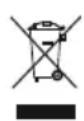
FollowingtheimplementationofEuropean Directive2012/19/EUand2006/66/EUintothe nationallegalsystems,thefollowingapplies: electricalandecronicideviceaswellasbatteries
mustnotbedispersedofwithhouseholdwaste.Consumers are obliged by law to return electrical and electronic devices aswellasbatteryiestothedesignedpubliccollection pointsortohepointofsaleattheendoftheirervice lives.Detailedinformationonthistopicisdefinedinthe nationallawsoftherespectivecountry.Thispresence of theabovesymbolontheproduct,operatingservices orpackageindicatessthattheproductissubjecttotheseregulations.Byrecycling,reusingthematerialsorother formsofutilisingolddevices/batteries,youare m a k i n g animportantcontributiontoprotectingourenvironment.
13.DeclarationofConformity
C HamaGmbH& Co K G h erebydeclaresthatthe radioequipmenttype[00054880,00054889]isin compliancewithDirective2014/53/EU. T he full textoftheEUdeclarationofconformityisavailableatthe followinginternetaddress: www.hama.com->00054880->Downloads. www.hama.com->00054889->Downloads.
| Frequencyband(s) | Bluetooth:2.402GHz- 2 .480GHz WiFi:2.402GHz- 2 .480GHz WiFi:2.412GHz- 2 .483GHz |
| Maximumradiofrequencypowertransmitted | Bluetooth:4 d Bm(EIRP)WiFi:19.5dBm(EIRP) |
14. SpecificationsinaccordancewithRegulation (EU)2019/1782
| Manufacturer's name or trademark, commercial registration number and address | Hama,HRA12159, DresdnerStr9,86653 Monheim |
| Model identifierDYS618-120150W-2 | |
| Inputvoltage100-240V | |
| InputACfrequency50/60 Hz | |
| Outputvoltage/ | 12.0V DC / |
| Outputcurrent/ | 1.5A / |
| Outputpower | 18.0W |
| Averageactiveefficiency85.1% | |
| Efficiencyatlowload(10%)79.5% | |
| No-loadpowerconsumption0.06W | |
4.Avantlamiseenservice

Remarque
A.PaHEnIbBynpabVeHnHaMnKOM
1.Khonka[BKJI.]
2.Khonka[BLUETOOTH]
3.Khonka[BbIKJIOUeHNE3BYKA]
4. Khonka [PABOTA]
5.Khonka[ΓPOMKOCTb-]
6.Khonka[ΓPOMKOCTb+]
B.JnueBaJCTOpOHa
- BcnoMOrateIbHbI CBETOIOIOCBETOIOHOHnHnKaTOp1)
- TOLOCOBI NOMOUIK Amazon Alexa (cBeToIOHbIN HINKATOp2-4)
- INDnKaTOp Bluetooth (CBETOnOuHbI INDnKaTOp 5)
- CeTeBoH nHnDnKaTOp (cBeToOnIOHbI nHnDnKaTOp 6)
C.06paTnaCtOpoHa
11.Khonka[CBPOC]
12. IopT JIJIaIObHOBJIeHNI
13.KhOnKa[HACTPOIKA]
14.CeteBoiKa6eIb


BaxhoepnmuMeaHne-KpaTkoepykoBOdCTBO:
B HactoIeM KpATKOM pyKOBOCTBE PnIBOJTCOCHOBHbIE CBeEHHIO TEXHKe 6e3OnaCHOCTN I BBOyB EKcPiyyatauHIO yCTPOINCTBA.
- N3 coo6paXeHn oxpaHbI OKpyXaIOUe Cpebl n EKOHOMNueHHbIX C bIpBeBbIXpecypcoBΦnpMa Hama OTKa3bBaETcR OT NCNoJIb3OBAHnneAHTbIX pyKOBOCTB IN pEJaRaET INNCKNIHOHTeNBHO IIN 3arpy3Kn BΦopMate PDF.
C NOJIHbIM TEKCTOM PyKOBoIcTBA MOXHO 03HaKOMITbcra3decb: www.hama.com->00054880->3arpy3ka www.hama.com->00054889->3arpy3ka
CoXpaHHTeHaCToIeepyKOBoDCTBOI O3KcJIyatauINHaKOMbItepeJIAcnpaBOKn PpHHeo6xOIMOCtnapCeayTaTeero.
1.IoAChEnnK nppeDynpeXdaIOuM3HaKaMa n y Ka3aHnM
PpeynpexdneH

IcnoJIb3yeTcAIIIO6O3HaueHnryka3aHnIOTExNKe 6e3oNaCHOCTmNlndAekHTnpOBaHnBHMmaHnHa OC6bIXoNaCHOCTAXn p NCKax.
Yka3aHne

IcnoJb3yeTcAaJaOnoJIHnTeJIbHorOoo3HaueHn IHHΦOpMaunuBaxKbIXyKa3aHn.
OnachoctbnopaxeHn3JIeKtpueckm TOKOM

JaHHbICMBOJyKa3bIiBaTeHaaOnaCHOCTb COpNKoCHOBeHNc H en3OJIuPObAHbIMNuactAMn 13JeINIOHaNpRaeKeHEm,KOTopoEMOXeTnpBecTu K npaxeHHo3NeKTPnueCKMTOKOM.
2.KOMJIeKTINoCTaBKN
-CmapT-ДинамнКHamaSIRIUM1000ABT
-БЛОКПИТАнЯ
-KpaTkoepykoBoIDCTBOno3anycky
3.Yka3aHnnotExHKe6e3oNaCHOCTN
-ⅢdJIeIne npEHa3HaYeHO TOnbKO IJIa NcNoJIb3OBAHnBIOMEUeHN.
-3dJIeINpeHa3HaeHoIyOMaHHeRo, HENpOMbIuJeHHOrOpMmeHeHn.
IcnoJb3ynteN3deJIneuCKNIOHTeJbHOB npEnyCMOTpeHHxueJax.
HeuOnb3yTeun3dennB H enocpeCTBeHHo 6Jn3OCTNOTCnCTeMToPnEHHa,pyrnxnctOHNKOB TeJauJInoNDnpRmblIMNCOLHeHbIMNuLyamn.
-HeuCNoJIb3yIeN3dIeIeIeIepnIpeBbIeHnI3HaueHnIpeJeIaMoIOHOCTN,yKa3aHHOrOB TeXHnueCKNX xapakTepeNTkax.
- AkkymyIaTOp RAJIeTcRcCTaUHOHaPbIM H He NOJLeXIT DEMOHTaKy,yTINn3NpyuTeu3DeJeueKeiKOMB COOTBETCTBmC 3aKOHOdaTeMbHbIM NpeDnicaHnMaM.
He OTKpbBaIte n3JeJIne C npImeHHeHem cJIbI.
3aunuatae n3deneo 3aqr3HeHnB, Bna n nepepeBa, NCNOJb3yUTeEROTOBKOB C yXxNOMeUeHnX.
JaHHoe n3dene, KaN Bce 3JIeKtpueckne np6opbl, cJeNyTe6peHbOTteTcI
-Ⅲ6eraaTe naeHnI3JeIIN He noDBepraTe erO cnJIbHbIMBn6paunM.
He donyckaTe TeTeK ynaKOBOHOMy MaTePnany, CyueCTByeTyRpO3ayDyWeHH.
Cpa3yyTnIIN3npyInTeynakOBOHyIMMaTepnAICGlnaCHO DeNCTByUoIUMMmecThbIMnpeDnicaHnMnoyTnIIN3aun.
He BHOcnte B np60KoHCTpykTNBhIe N3MeHeHnB p e3yIbTaTe3TOrOJIIO6blEraPaHTnHbIeO6a3aTeJbCTBaTepraIOTCBOIOCUny.
OnachoctbnopaxKeHn3JleKtpuecknM

TOKOM
HeotkpBaTe n3deneH He nCnoB3yTe erO npn HauuHIOBpeKdeHn.
-Heinb3yIeH3dIeIeepnOBpeXdeHnn aanTepanepemEHOrToKa,ka6eJraanTepaann CeteBoroka6eJ.
-HebTaIeTcBcAMOCToTeNbHOBBIOJNHTb TexHnueeCKOeO6CnyXnBaHnEINIpemOHNT3JeJIa. JIObIepa6OtBInOTexHnueeCKOMyO6CnyXnBaHHO DOJXHBblIOJNHTbIuIac C OOTBeTCTBYUoiEi NOIroTOBkoI p a3peUeHnEmHaJaHHbIIBd DeTeNbHOCTn.
4.IpeBBODOMB 3 Kcnnyatauio

Yka3aHne
- N3dJIne MoKeT pa6oTaB OT cETn O NT aKKMyIaTopa. JIpa6ObIbIN3dJIeNIAOTcETNCJeDyETNOJKNIOHT b erOK n CTOUHKyToKa.ДЯpa6ObTbIN3dJIeNIAOT aKKMyIaTOpacNeJeDyETnpEiBapNTbHONOJIHOCTbIO erO3aprAnTb.

Yka3aHne
-Bo36exaHneNoBpeXeHnU3dEHHnucNoB3ynt ToIbkoOpuHaHaNbHbIeaKceccCyapbl(uaKaCEccCyapbl, pa3peWeHHbIek n cnoB3oBaHIOKOMpaHneHama).
-ПользунТecибделлелмскЛючтельногпг TeMнераTypeokpykaIoUeIcpeIbIOT-10ДIO50°C.
-XpaHnteN3dIeNnueckJIIOHTeBbHOpnPteMnepaType OKpyxauoSeIcpeDbIOT-20do60°C.
5.BbO B 3KcNpyaTaunIO npexm pa60TbI

PpeynpexdneHne
-Длллдклioунгьдяинспьзутетькopo3etky,pa3peшeHHyOДЯиСпьзOBань.р3eTKaДOLЖHapacnoJaraTbC8B6N3H3dEЛУN6blTbJIERKOIOCTynHa.
OTcoeHnHTe n3dJIneIe OT cETn C NOMOuBo nepeKIOUaTeTn IpnOTcyTCTBmHaNpRJaEHNB C eTn,OTcoeHnHTe CETeBOJka6JIbOTp03eTKN.
-ПинанлчИблOKаштencьньхро3ETOKслпTe 3aTeM,уTO6bIO6цЯNotpe6JIeMaMAOUIHOCt b NOДКЛЮЧENHbIX3JIeKTPoPnIP6OpOBHEnPpeBbIaHaДОуCTIMоE3HAчЕнe.
- OToeHnHTe H3JeHne OTeB Cnyae, eCIn Bbl erO He IcNoJIb3yeTe B TeHeHne IpOdoJnxIteJbHorO BpeMeHN.
5.1Pa6oTaotcetn
BkJIIOUeHne
-ПОДКЛЮЧNTecTeBOйKa6eЛьДИНAMИКAK COOTBETCTByUошЕироЗтKE. ДИНAMИКВКЛЮЧNTСАВТOMATNUCHEKN.
Yka3aHHe-npInepBOMBKJIIOueHn

-ПрипенивомьклioуениднhamинхоитсаВ ржимепервунаян actpoйkanрбopa,CBETODIOHbIeHNHdkaTOpblcoCTOHRn2-6MURAOT.
- EcnupexKmHaCTpoKnHeaKTNbEh,6bICTpoHaXMMTe KhoNky [HACTPOKA] (13) Ha o6paTHoCtOpe H np6bopaAaTOrO,HTo6bIaKTHBnPoBaTbpeXmMwPS (6bICTpo Muraet).Hn: HaxMnte uYdepxNBaute KhoNky [HACTPOKA] (13) OK.7cekynd,HTo6bl OTKpbItbTOcKyIOCTyna(MdJIeHNHomMaet).
Yka3aHHe- npnOBtphOBKlnOueHm

-ПинOBTOP HOMBKNIOHcBEToNOHbIe HДИКaTOpbl COCTOHN2-6 MURaOT OpaHXeBBIM Do TEXNOp,INOKAHeBOCCTAHOBRTCApaHEeBBINOJIHHeHbIe COeUHHeHn. B 3aBNCUMOCTN OT NMeIOUeICr MOUHOCTN CnHana INHTepHETa 3TO MOXeT 3aHmMaTb do20ceKyHd.
5.2Pa6oTaotakkymyTota
PpeynpexkdeHne-akKymyIaTOp

-IVcnoJb3yIteIaI3apIaIKNtOJIbKOCOTBeCTByIOUne 3apIaHbIeYcTpoIcTBA.
HeCNoJIb3yIteHEnCnpaBhIe3apAHyIe yCTpoiCTBaIIuUSB-pa3bEmbH e II bItaTecb INxpeMOHTnPoBaTb.
- Ⅲ6eraTe XpaHEnn, 3apKn n NcNoJIb3OBaHnN3dEInnnppeJeNbIbIXTempepatypax.
-ПиДЛТeNBbHOMxpaHEnHmpeyIaRpHo3apJxJaTe n3dJIeNne(He pexe oDHorO pa3a B KBaptan).
-ИЗделпесашиенолзаряамымakуmyлтором.
-ПepeДпрВьМнПрIMMeHHeMоДИнРаЗПОЛНOCtБIO 3apAДNTeU3dJIeN.
-ПОДКЛЮУТЕСЕТЕВОЙКАБЕЛБДИНAMИKA K C OOTBETCTBYIOUSEйpo3eTKe.Po3eTKaДОЛЖHA paCNoIaratbCa B6JIIN3N 3ДEINN I 6bITb JERKO DOCTYINHa.
HAMKKBKIOHTCABTOMaTNUeCKN.
CBeToIDNoHbIeHNIIKAToPbICOCTOHHaOTo6paXaHT TeKyuUHyPOBHeh3apJkN.
Yka3aHne-npouecc3aprKn

- PoiHbI npoceC3apRdKn dNITc8 OK. 3-5 yacob.
-3apKaakKymyIaTopaN3dEINMAxETbblIOJHrTbcKaK BO BKJIoueHHOM, TaK N B BbIKIQUeHHOM COCTOAHN.
-ECJIeMKOCTbAkkMyJITopacOCTaBJIeTMeHee 30%,pa3daetcnoHOKpaTHbIINpeDynpTeJIbHbI cnHaJI.CBeToIONoHbIINHdNkATOpCtOraHnI 2-6oINHp3MaTIGaeTKpachbIM.3TaHΦOpMaun IocTyHAtOJIbKOpPnVBKJIuOeHHOMnPnIoope.
-Пюдлжтельнocтбра60ТыаKKумлгеторabapbnpyeTcB3abICMOCTNHTeHCNBHOCTNиСпОьБ3OBaHnЯпибopa,HacTpoEиOKpyханxUxCNoBn(akKумлгсрblIMeHOTOrpaHueHHbIcPOKcIyX6bl).
HnndaquaypoBn3apraaakkymyTota
-ДляотобрахеануTekушeroуровьзараakKуМЛЯТОРAPnPUBKЛЮЧЕнHOMnpu6ope6bICTpoHaxMNTeHaKHONky[BKJI.](1).
- O3HaKoMbTEcB C NOrCHEHnIaM N K yCIOBbIM CNrHaJaM CBETOINOIDhIX INHdNKaTOPOB, PnIBeDEHHbIMN B Ta6JIuCe CBETOINOIDhIX INHdNKaTOPOB.
CBeToIOIOHbIeHNnKaTOpbINORaChyTupe3 TpncEkyHbl.
5.3BkIIOueHne/BbIKIOueHne/JKdyuipexKIM
Yka3aHne

- Amazon Alexa pa60taeTToIbKO BO BKIoUeHHom COCTOHNIN Bx DyUeMpexKIme.
NtahneoTcetn
-TO6bIKJIOHHTbPOMKOrOBOpNTJIb,HaXMITEKHONKY [POWER] (1).
- Ecni 3BykoBoi CnHai He NpaTeC8 B TeueHne 10 MInHyT, rPOMKOrOBOpnteJIb IepexOJIT B XJdUuI nepeXIM.
- YTO6bI BvIKJIOUHTb rPOMKOrOBOpNTeJIb, HaxMITE N OK.3 cek yIDepXINBaIte KHOKNy [POwER] (1).
Yka3aHne

-TO6bINOJIHOCTbIOBbIKIIOHTbIgPOMKOrOBoPOpTeNb, OTCoeINHnTE eRO OT NCTOCHNkA NITAHN.
Pa6oTaOtaKkymyIaTopa
-TO6bIKNHOHTbPOMKOROBOpNTeNb,HaKMnTEKHONKy [POWER] (1).
- Ecni 3BykoBoi CnHai He NpaTeC8 B TeueHne 10 MNHyT, rPOMKOrOBOpNTeJIb NepExoIIT B XJdUuIN peXIM.
- PomkoorOBopntJIb OTKJIIOHaeTcR, ecn HaxoNTcB XduempeXmE10MnHyT.
- TaKxe rPOMKOROBOpNTb MOxHO BbIKHouHTb, HaxaB IN OK. 3 cek ydepXnBaJ KhONky [POWER] (1).
5.4PerynnpOBkarpomKocTn
ДлTOROчTO6bIyMeHbWHTb/YBeJIuHHTbrPOMKOCTb3ByKa, HaxMnte KONky [rPOMKOCTb -/+ ] (5/6).
6.HacrpoKaunHaMka
Yka3aHne

-убинспьзоватьфункшин3деляв поном obьeme,слесуетдононтельнозугуntь npиложенеAmazonAlexa,aТakkeco3дычуETHyIO3aINcBAmazon.ДлэTOROCNeу Te yka3анЯMbnpиложениAmazonAlexa.Boilee noДрpo6HyHnHΦopMaциюВынДeTeHacaiTe www.amazon.de.
6.13arpyzkaipnloxeknnaHamaSmartAudio
Yka3aHne

PoiepKINBAOTcOnepeaOnHHbIeCnCTeMbI:
-iOS8nJIINBbIiE;
Android4.4.2nInBbIe
- OTPoiTe Ha cMapTfoHe/IIaHweTe iTunes AppStore nGooglePlayStore.
- Пи поcke ИспользуITE Клочевое сноBO Hama SmartAudio.
3arpy3nTe npJIOxHneO6bIyHbIMCnocO6OMnyCTaHOBte erHa cMaprfoH/IIaHwe.ДЯ 3TOGcIeNyTeyKa3aHmHMacMaprfoH/IIaHweTe.
6.2Первичнаянстpoякпборас omошью npиложенЯHamaSmartAudio(функцьALEXA)
Yka3aHneNoWLAN(6ecnpoBOnHaCteTb)

- Y6eNTecb, yTO pOyTeB BKJIOUeH n yCTaHOBNeHOHTepHET-CoeINHeHne/NoKKnIOUeHne K CETn.
-
YctaHOBtewLAN-coeHHeHHeHapOyTepe,ecnn 3TOHe6blIOcIeHaOpaHe.
-ПривознковениВОпрocВОпКонфИгураци рочеравOCПь3уNTecbpyKOBODCTBOMNO 3КСПЛУаТAUИРОчЕТадлЯПОИСКАОшИ6КИ peш�няпpo6лемbl. -
Y6eIntecb, yTO dHnAMNK HaxoNTcB B pexIme WLANPairing.CBeToIOIOHbIeHNdIKaTOpbICOCTOHHN 2-6 mHaIOT.
- EcnipexnMHaCTpoKnHeaKTNBEn,6bICTPOHaxMnte KhoNkySETUPHaO6paTHoHcTOpOHenPnp6opa IyToTO,HTo6blakTbApBbpeXMMWPS(6bICTPO MnaTe).B KaueCTBeaJIbTePhaTNBbIHaxMnte ydepxnBaIte KhoNky [SETUP] (13) B TeueHne 7 ceKyH, YTO6blOTKpbITb TOckYIOCTyNa (MeJleHHO MnaTe)
- Y6eIITecb, yTO Ha BaWem CMapTfoHe/nlaHwTe yCTaHOBJIeHbI npJIOXeHne Hama Smart Audio n BCE o6HOBJIeHn.
-
OTKpoIe npInloxeHne Hama Smart Audio n KocHntecb KhoNKn[KOHΦnΓyPAuNIA.
-
3aTeM KOCHNTcB KHOHKn [ДобавиТь ДугпЕ ДИНAMKn].
- OTKpoIte HacTPOiKu WLAN cBoero cMaprTfoHa/ nlaHweta, dny 3TOrO KOCHNTecb [WLAN Einstellungen].
B Hactpoikax WLAN Ha cMapTfohe HauDHTe DnHaMK HamaSIRIUM1000ABT.
Yka3aHne

Yka3aHnEnoakTbBaCmNΦyHKcnnAlexa Pushtotalk/FunctionKey

- 5bICTpo HaxMnte KhoNky [Pa6ota] (4) Ha dHnHaMnKe, YTO6bIaKTHBnPOBaTbAlexa a yDnOpeXmEeJInnpy BbICOKoIrpOMKOCTNBocPON3BeJeHnR.B k aueCTBe aIbTePHTBbl HaxMnte KhoNky [Pa6ota] (3) Ha NyIbTeIDNTaHcNOHHOrOynpaBHeHn.
- HaxmteKhoNky[MnkpOfoHBbIK].(3)tna OTKnHoyehnMaMkoPooHOB.EcImMkoPooHbI OTKnIOyeHb,CBeTOINOHybEHNDAkTOpBOCToHn 2-4noCToHHOCBETATCkPaChbIM.BKaueCTBe aNbTePhaTNBbIHaxmteKhoNky[MnkpOfoHBbIK]. (4)HanylbTeIDntaHNoHHoroYnpabHeHn.
-ДинамKK60JIeHepeaHpyeTHaKaOJaKtNbauN, nOKamKKpoΦoHbIHe6yDyTCHOBaBKnIOueHbl.
-IOBTOHOHAHXMNTeKHONkyMnKpOoHBBIKI.,YTObICHOBAaKTINBupOBaTBmKpOoH.B KaueCTBeaJIbTePHaTINBbIHAXMNTeKHONKy[MnKpOoH BBIKI.(4)HanyJIteINCTaHcNHOHorOynpAbeHn.CBeToIDNoHNbEInHnNKaTObpICOCToHn2-4nOracHT.
7.IepBnueHoeBluetooth-coeHene(ConpJxehne)
Yepe3BleuothBbIMoXeTeCoEINHHTbOKOHeHbIe
yCTpOcTBa C DnHaMkOM N NCNoJIb3OBaTb eRO B KaueCTBe
yCTpOcTBaDJIaBocPOn3BeDeHnaayDuOCnHahOB.Pn
3ToMynpaBLeHneBOCpOn3BeDeHneMocUeCTBJIeTCa
HaNPaMyIOUpe3OKoHeHoeYcTPOcTBO.PpOMKoCTb
peryIpyeTcHEnOpCeDCTBeHHoHaDnHaMnke.
Yka3aHne-Bluetooth

- PpOBepbTeBO3MOxHOCTbCOeINHeHnBaWero MO6NJIbHOORoKoHeuHOrOyCTpoiCTBa(CmApTfoH, nHaHwETn.T.D.)Yepe3 Bluetooth.
- yuHtBbAaTe, TOpaDnucDeiCTBnBaIeoth npn OTCyTCTBnINPpeNATCTBn,HanpIMepCTeH,IIOJe nT. d. CoCTaBnaET MaKc. 10 MeTPOB.
-Дуг无线电Bluetooth -устpoиCTBa/CoeINHeHnY, yctahOBJIeHHbIeNo6JN3OCTn,MOrYTC03JaBaTb NOMEXN.
-IMHAMKMOKeTbIbCOeINHeHBCeRdaTOJIbKO C O HNMOKOHeHbIMyCTPOICTBOM.
-Учтьов,在TOCOBmecTUMOCb3aBnCITOT NOДерхиВаembIXnpoФиNeiBluetooth aTakXeOT nOJIb3yEmbIXBepCnBluTeoth (cM.«TexHueckne daHhIe》,《PykoBoDCTBOONOKnnyataunn OKHeuHOrOyCTpoICTBa) - Y6eINTecb B TOM, yTO OKOHeHoe yCTpOINCTBO C BO3MOXHOCTbIOCOeIMHeHnApeE3BluToothBKnIOueHo nBluTooth-coeIMHeHmeyctaHOBNeHO.
Haxmte n ydepxnbate KhoNky [Bluetooth] (2) ok. 3ceynndnaaktnBaunnpexnMaconpxaehna.
CBeToIDNoHbINHINKaTOpCOCTOAHNAuHnHaETMnRaTb CnHM,pa3daETc3ByKOBOUcHnA.
-OTKpOTeMeHHOHaCTPoeKBluetoothHaOKoHeyHom yCTPOINCTBE INIOOXINTE, NOKA B IpeueH HeiDeHHbX Bluetooth-yCTPOINCTBOTo6pa3nTcAnHaMnKHama SIRIUM1000ABT.
-ПринобхоюнмocTи,3aNYcTnTeHaOKoHOM yctpoiCTbENONCKBluetooth-ycTpoiCTB.
BbIbepnte B nepeyne IOCTynhix yCTpoiCTB dHAmHK Hama SIRIUM1000ABT n noJoxnTe, noka OH oTo6pa3ntcB K aueCTBeNoKlnHoeHHOroyCTpoiCTBa B h actpoikaxBluetoothokHeuHoroYctpoiCTBa.
-CBetoNOHbHHNdkaTopcoCToHHaBluetoothCOeINHeHHIOCTOHHOCBETNTCnHM.
BKnUoynte fyHKnIOBOcnpoN3BeDeHnaaydnoynpaBnIteeeIOCOOTBETCTBYIOuIMO6pa3OMuepe3OKoHeHoeyctpOICTBO.
Yka3aHne-napOJbBluetooth

ДянэкOTOpbIXOkoHeuHbIxyCTpOInCTBnpy yCTaHOBJIeHmCOeIINHeHnC pyrIMBluetooth -yCTpOINCTBOMTpe6yEtcaNaPOnb.
-ECINBaWEOKeHHeOeCTPOnCTBOTpe6yeTeROBbOda, BBeNTeIJIa COeHNHeHc CINHaMnKOM napoIb 0000.
8.3aBoDcKneHaCtpoKn
ДлвОЗВьрагТаК 3 aBOДСКИМНСТРойКAMДИHAМИKA (coCTOЯнeNoCTaBKN)ВыINONHITeCJIeNdyUOUIneIeIeCTBnA.
Haxmte u ydepknaBae KhoNky [SETUP] (13) Ha o6paTHoIcTOPOHeYcTPOINCTBAU O IHOBpeMeHHO KhoNky [AKTION] (4) OK. 6 cekyH, YTo6bI BepHyTbcr K 3aBOIDCKMHaCTPOINKaMnHaMka.
-Посleycneшогoc6рocадиHamNKpe3anyckaetc.
Yka3aHne

B03BpaTK 3 aBOIDCKMHaCTpOoiKaMMoXeTNOMOy yCTpaHnTB npo6JIembl n c60u B pa6Ote.
-0ndakocpenpeBapntbHbIeHaCTpoKn,TaKneKaK 3kBaan3ep, n36paHHO cTeBBIE npoФnIn, 6ydyT 6e3BO3BpAHTOydaJIeHbl.
9.TexHnueckoeo6cnyXnBaHnne y xoI
- YnCTHTe n3dJIeNe TOJbKO C NOMOUIBO 6e3BOPCOBO, CnerKabnaXHOHcAnΦeTKN,HeNCnOJIb3yIte arpeccNBbIeUHCTaIeNecpeIDTBA.
-ECINBbHHeNCNoJIb3yeTeu3dIeNBE TeueHne IPOdoJXHTeJIbHOROBpeMeHN,BbIKIOHTeERON OTcOeDInHHTeOTaJIeKTPoNTaHn.XpaHtEn3dJIeNE BYICTOM,CyXOMMecTe,3aUuEHHOMOTnAnAHAHn IprMbIXCOJHEuHbXNyueH.
10.0cbo6oKdEHHneOTBTCTBeHHOCTn
HamaGmbH&Co.KG He Hecet OTBETCTBEHHOCT3a NOBpeKDeHn, BO3HnKUHe B pe3yJIbTaTe HeHaJNeKaUeYCTaHOBKn, MOHTaKa I HeHaJNeKaUeIcN0JIb3OBaHn I3dJIyAunHecO6JIouDEHnTpe6oBaHnpyKOBOCTBaNo 3KcJIyatauNN/nnlyKa3AHnNOTExnKe6e30NaCHOCTN.
11.CepBnchooeo6cnyxnbAHneu ondepkKa
IpiB03HKnHOBeHHNBOIpOcOBnON3JeHIO
6paaaiTeCbB C Lyx6yNoDpeXknHama.
TopraJnn: +49 9091 502-115 (HeM./aHrl.)
IOnonHnTeJIbHaINHΦopMaunApTExHuecko
NoDnepXke:
www.hama.com.
CПОЛНБIMTEKCTOMPyKOBOIDCTBaMOXHOO3HaKOMNTbCRA 3dEcB: www.hama.com->00054880->3arpy3ka www.hama.com->00054889->3arpy3ka
12.Yka3aHnnaoyTuHn3aunuYka3aHneo3aunTeokpykaIoUeicpeDbI

CM OMeHTanepexOdaHaauNoHaJIbHOro 3aKHOaTeIbCTBaHaeBpOneiCKneHOpMaTnBbl corlaChOnIpeKtIbAm2012/19/ECu2006/66/EC DeIcTByIOTcNeIkyUoiNeInpaBnA.YtInn3aun
3JIeKTPnuecknxIJIeKTPoHHbIX npu6OpOB,a TaKKe
6aTapei BMeCTe C 6bITOBbIM MycOpom He pa3peWaaETcra.
PiTe6bntbNo3aKOHyO63aHcyTNlN3uPObAtb
3JIeKTPnueckne IJIeKTPoHHbIe npu6Opbl,a TaKKe
6aTapeiNoONCTeHeHHncpOKaHXrOHOCTNB C neuaJIbHO
npdHa3NaHcHbIXdJIaTOrOo6UeCTBeHHbIXnyHKTax
c6opA uNnB PyHKTe npoJax.DetalbHna perIamentauN
3InxTp6oBaHnIOcUSeCTBnEETCAooTBeTCTByUcIM
MeCTNbIM3aKOHOdaTeNbCTBOM.Heo6XoDMOCtB
co6JIIODeHNJaHHbIXnpEdnCaHNIO6O3HaayETcra
OC6bIM3HaCKOMHa3JeIN,INHCTpyKUnNO3KcnLyatauIN
nInyNAkOBke.CDaBaAB6bIBwneB y Notpe6JIeHN
pi6bpbl/6aTaPeHNaNEpepa6OTky,BTopNUHyOnepepa6OTky
nInHayTuIN3aunOB D pyroNΦOpMe,BvIBHocNTe
BaxKnIBKBnAD B O xpaHyOkpyKaIOseCpeDbI.
13.CeptnoikatcootBetCTBn
HactoIh Hama GmbH & Co KG 3aBJIeT, UtopaIOO6OpUOBaHneTnna[00054880, 00054889]coOTBeTCTByeTTpe6OBAHNAM DInpeKTHbI 2014/53/EC.C NOnHbIM TeKCTOM DeKlapaun O CooTBeTCTBnITpe6OBAHNEMECMOXHOO3HaKOMNTbcra 3decb: www.hama.com->00054880->Downloads. www.hama.com->00054889->Downloads.
14.DaHbIecorJiaChonpeDncaHnmeMC2019/1782
Nota-A lexaPushtotalk/FunctionKey

YnóδειξηAlexaPushtotalk/ F unctionKey

- PatnoTe to nAnkToPo [Action] (4) oTo nExio, yia va EvepyoOnoiOeTeTnVAlexaKatatnAeioupyiaXou n v a auENoTeTnEvTaon. EaAakTikA, patnoTe tonAnkToPo ActionotOnnExpiotnpio.
- PatnotetonlntpoMicrophone-Mute,yiva anevpyoioeTeaikpofwva.Otavtaikpofwva εiavalanvepyoioinμεva,oiuviéckatataoncLED 2-4ivaiδiapkwocaavaμεveckokivεc.Evaλaktká, patnotetonlntpoMicrophone-Muteot to tλexipiotnpio.
-Tonxio8evavataoikpivetaiotnIeIeVepyooinoc, expiatauikpofoawavaevepyoinOouvava.
-Παπησελνάτοπλήκτρο[Microphone-Mute] (3),γιαναενεργοποιησετελνάταμικρόφωνa.
Evaλλακτικα,παπησετοπλήκτρο[Microphone-Mute] (4)σοτηλεχείρισηρο,Oιλυχίεκαταστασης(LED 2-4σβήνουν.
7.Ipwtnoovdeltaonbluetooth(ouzεuεη)
Mtopeitevaouvdeoteticoukeucacctonxieo
muowbluethoh,yiavatoxnpoiomoinoeewcovkeun
avanapaywync yia onnata nyou.0 eeyxoc tnc metadoonc
nxouyivetai aneueiaac ano tn oukeun.H evtaon tou
nxoupiopéivapuoioteianeuiaqaiotonxieo.
Ynóδειξη-Bluetoθth

- Eλέγεις αν η φροπήσουκεύη σας (smartphone, tablet-PC κ.τ.λ.) ἐχει δυνατότητα σύνδεος bluetooth.
AaTe UoJn Oti N meYIOtn EmuEa Tou Bluetooth eiva 10 mTa, Xwic Eunodia, oTWC T.x. Toixoi, atouak.t.λ. - Evéxεtavapεμβαλovtaiaλεσοκενεc/ouvδεoic Bluetooth® tounεριβαλovtxwρωotnouvδεo.
-Tonxieoiopoeivaovvδεaattavotouoεiaoukeu.
AaBETUoNtO uBAtOTnTaEapTatai anotaunoo npioevaanpofiBluetho kaiticxpoioioouveecekdooeicBluetho0 (BLeIe:Texvika oToixia,eyxepidio odnyiw TcXPnoiopoouevncovkeunc)
Bεβaiωθειτοιησαοκεύησαςμεδυνατότητα σύνδεοηςBluetoothkaitobuetotheivaiévepyoioημεva. - PatnoTeTnapatetauevatoTnKtpo[Bluetooth] (2) yia nep. 3 deutepolenta, yia va evpyoioeTe tneitoupyiaouzEvngc.
H Luxyia kataoataonc LED 5 ava003vεi μπλe kaakouyetaevanxntikóσμa.
-Avoieticpuoioeicbluetoothnouokeunocakai nepiEvetewocotouvaemphiavioteiotnaiotaqtic oukeuec bluetooth nou evtoniotkav, n ouokeun HamaSIRIUM1000ABT.
Eavypeiaeai,Exivnoateavaahtnnyiaouakec bluetoothhotnouakeuhoac.
Eπλεξτο ηχειo Hama SIRIUM1000ABT Θη λισα των διαθέοιμωνουκεύωνκαιπεριενετε, ἀωςτόιουπχείοναμφαιτειώςυδεδεμενοστιςρυθμοειςbluetooth έζουκεύκας.
Tupa, n lauxvia kataoaonc LED 5 napaevi avamevn
EekivnoTeKaipuOmuotetnueafoxoueowntc oukeu.
Poznamka - Alexa Push to talk/Function Key
- Krátko stlăcte tlăcidlo [Akcia] (4) na reproduktore, aby sa poças audioprevádky, resp. vysokej hlasitosti aktivovalaAlexa.Alternativnestlačtetlacidlo[Akcia] (3)nadialkovomovólvádači.
- Stlacte tlacidlo [Stlmenie mikrofonu] (3), aby sa vypol mikrofon. Aksumikrofonydeaktivovane, trvalosvietia stavoveLEDdiody2-4načerveno. Alternativne stlacte tlacidlo [Stlmenie mikrofonu] (4) na dialkovom ovladaci.
- Teraz uz reproduktor nereaguje na aktivačné slovo, kýmsamikrofónyznovuneaktivuju.
Znovu stlacte tlacidlo [Stlmenie mikrofou] (3),aby sa mikrofon opat aktivoval. Alternativne stlacte tlacidlo Stlmeniemikrofounadialkovomovladaci. StavoveLEDdiody2-4 z hasnu.
7.PrvespojenieBluetooth(parovanie)
ProstrednictvomBluetoothmozeteveasekoncovezariadenia spojit's reproduktorom a pouzit ho ako prehravacie zariadenie pre audio signaly. Prehravanie mozte ovladaf priamo czkoncovezariadenie.Hlasitostsadaovladataajna samotnomreproduktore.
Poznámka- Bluetooth

- Skontrolujte, cis ma vase koncové mobilné zariadenie (mobilnytelefonatd.).funkciuBluetooth.
- Berte do uvahy, ze dosah Bluetooth® jemax.10metrov bez prekazok akou s u steny, osoby, atd'.
- Moze sa stat, ze spojenie je ruşné dalsimi zariadeniami/spojeniamiBluetooth® v o koli.
-
Reproduktormözebyt spárovaný vždy iba s jedernym koncovýmzariadením.
Bertedouvahy, z e k ompatabilitazávisiod podporovanýchprofilovBluetooth ® a o d p ouživanych verziiBluetooth ®. (pozri:technickéudaje, Návodna obshuhupoužitéhokoncovéhoziarienia) -
Uistitesa,ževasekoncovézariadenies f unkciou Bluetoothjezapnute,a zejefunkciaBluetooth aktivovaná.
- Stlačte a podržte [Bluetooth] (2) na asi. 3 sekundy, abysaaktivivovalrežimpárovania.
- Stavová LED dióda 5 začne blikat na modro a zaznie signalizačnýtón.
- OtvortenastaveniaBluetoothnavašomkoncovom zariadeni a Čakajte, kým sa v zožname najdenych zariadeniBluetoothnezobrážiHamaSIRIUM1000ABT.
Pripadnespustitevyh'ladavaniezariadeniBluetooth na vasomkoncovomzariadeni.
Vzoznamedostupnychzariadenivyberterereproduktor HamaSIRIUM1000ABTačakajte,kymsav nastaveniachBluetoothvashokoncovéhozariadenia reproduktornezobraziakopropojený. - Stavová LED dióda 5 svieti teraz trvalo na modro.
- Spustite a podla poziadavy ovladajte audio prehravanie cezkoncovezariadenie.
Poznámka-Bluetobeslo
Niektorékoncovézariadienapotrebujnavytvorenie spojenias i nymBluetooth® zariadenimheslo.
- Na spojenie's reproduktorom zadajte heslo 0000, akvaskt omuvzvevašekoncovézariadenie.
8.Vyrobnénastavenie
Ak chcete na reproductore obnovif nastavenia vyrobcu (stavpridodavke),postupujtenasledovne:
- Stlache podrzej tlačidlo [SETUP] (13) na zadnej strane zariadenia a zároven tlačidlo [AKTION] (4) asi 6 sekünd, abysareproduktorvrátilnanastaveniaz v yrobného závodu.
- Po uspesnom vrateni na vyrobné nastavenie sa reproduktorspustíznovu.
Poznámka

Information-B I u e to oth

8.Standardinnstilling
Slikgardufremfora s tillehoyttalerentilbaketil standardinnstillinger(leveringstildstand):
- Trykkogholdnede[SETUP]-tasten(13)pabaksiden avenhetensamtidigsomdutykkerogholdernede [AKTION]-tasten (4) i ca. 6 sekunder for a tilbakestille hoyttalerentilfabrikinnstillingene.
- Ettervellykkettilbakestillingvilhoyttalerenstartepanytt.
Merknad

86652 Monheim/Germany
www.hama.com
The Spotify software is subject to third party licenses found here: www.spotify.com/connect/third-party-licenses
The B bluetooth® word mark and logos are registered trademarks owned by Bluetooth SIG, Inc. and any use of such marks by Hama GmbH & Co KG is under license. Other trademarks and trade names are those of their respective owners.
All listed brands are trademarks of the corresponding companies. Errors and omissions excepted, and subject to technical changes. Our general terms of delivery and payment are applied.


- "SIRIUM1000ABT"SmartSpeaker
- QUICKGUIDE
- Smart-Speaker"SIRIUM1000ABT"
- KURZANLEITUNG
- Note
- 1.Explanationof warningsymbolsandnotes
- Warning
- RiskofElectricshock
- 2.PackageContents
- 3.Safetyinstructions
- 4.Beforecommissioning
- 5.Start-upandoperation
- 5.1Mainsoperation
- Switchingon
- Note- s witchingonforthefirsttime
- Note- w henswitchingonagain
- Battery operation
- Warning - rechargeable battery
- Note- c hargingprocess
- Batterychargelevelindicator
- 5.3Switchingon/off/standby
- Mainsoperation
- Batteryoperation
- 5.4Volumeadjustment
- 6.Settinguptheloudspeaker
- Downloading the HamaSmart Audioapp
- Setting up the device for the first timewith the HamaSmart Audioapp (ALEX Afunction)
- WLANnote(wirelessnetwork)
- Note - Alexa Push to Talk / function key
- Bluetooth pairing
- Note-Bluetooth
- Note-Bluetopassword
- 8.Factoryreset
- 9.CareandMaintenance
- 10.WarrantyDisclaimer
- Service and Support
- 12.Disposalinstructions- Noteonenvironmentalprotection:
- 13.DeclarationofConformity
- SpecificationsinaccordancewithRegulation (EU)2019/1782
- 4.Avantlamiseenservice
- Remarque
- A.PaHEnIbBynpabVeHnHaMnKOM
- B.JnueBaJCTOpOHa
- C.06paTnaCtOpoHa
- BaxhoepnmuMeaHne-KpaTkoepykoBOdCTBO:
- 1.IoAChEnnK nppeDynpeXdaIOuM3HaKaMa n y Ka3aHnM
- PpeynpexdneH
- Yka3aHne
- OnachoctbnopaxeHn3JIeKtpueckm TOKOM
- 2.KOMJIeKTINoCTaBKN
- 3.Yka3aHnnotExHKe6e3oNaCHOCTN
- OnachoctbnopaxKeHn3JleKtpuecknM
- TOKOM
- 4.IpeBBODOMB 3 Kcnnyatauio
- 5.BbO B 3KcNpyaTaunIO npexm pa60TbI
- PpeynpexdneHne
- 5.1Pa6oTaotcetn
- BkJIIOUeHne
- Yka3aHHe-npInepBOMBKJIIOueHn
- Yka3aHHe- npnOBtphOBKlnOueHm
- 5.2Pa6oTaotakkymyTota
- PpeynpexkdeHne-akKymyIaTOp
- Yka3aHne-npouecc3aprKn
- HnndaquaypoBn3apraaakkymyTota
- 5.3BkIIOueHne/BbIKIOueHne/JKdyuipexKIM
- NtahneoTcetn
- Pa6oTaOtaKkymyIaTopa
- 5.4PerynnpOBkarpomKocTn
- 6.HacrpoKaunHaMka
- 6.13arpyzkaipnloxeknnaHamaSmartAudio
- 6.2Первичнаянстpoякпборас omошью npиложенЯHamaSmartAudio(функцьALEXA)
- Yka3aHneNoWLAN(6ecnpoBOnHaCteTb)
- Yka3aHnEnoakTbBaCmNΦyHKcnnAlexa Pushtotalk/FunctionKey
- 7.IepBnueHoeBluetooth-coeHene(ConpJxehne)
- Yka3aHne-Bluetooth
- Yka3aHne-napOJbBluetooth
- 8.3aBoDcKneHaCtpoKn
- 9.TexHnueckoeo6cnyXnBaHnne y xoI
- 10.0cbo6oKdEHHneOTBTCTBeHHOCTn
- 11.CepBnchooeo6cnyxnbAHneu ondepkKa
- 12.Yka3aHnnaoyTuHn3aunuYka3aHneo3aunTeokpykaIoUeicpeDbI
- 13.CeptnoikatcootBetCTBn
- Nota-A lexaPushtotalk/FunctionKey
- YnóδειξηAlexaPushtotalk/ F unctionKey
- 7.Ipwtnoovdeltaonbluetooth(ouzεuεη)
- Ynóδειξη-Bluetoθth
- Poznamka - Alexa Push to talk/Function Key
- 7.PrvespojenieBluetooth(parovanie)
- Poznámka- Bluetooth
- Poznámka-Bluetobeslo
- 8.Vyrobnénastavenie
- Poznámka
- Information-B I u e to oth
- 8.Standardinnstilling
- Merknad
- The Spotify software is subject to third party licenses found here: www.spotify.com/connect/third-party-licenses
Brand : HAMA
Model : SIRIUM1000ABT
Category : Speaker