
G635 - Headphones LOGITECH - Free user manual and instructions
Find the device manual for free G635 LOGITECH in PDF.
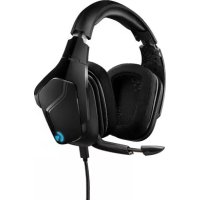



| Product Type | Gaming headset with microphone |
| Brand | Logitech |
| Model | G635 |
| Drivers | Pro-G (hybrid mesh) 50 mm |
| Frequency response | 20 Hz - 20 kHz |
| Impedance | 32 ohms |
| Sensitivity | 107 dB SPL at 1 kHz |
| Surround sound | DTS Headphone:X 7.1 (PC USB mode) |
| Microphone | Retractable, automatic mute when raised |
| Programmable buttons | 3 (G1, G2, G3) via Logitech G HUB |
| Volume wheel | Yes, rotary |
| Lighting | RGB LIGHTSYNC, 2 zones (logo and band) |
| Custom labels | Removable and backlit (left/right) |
| Connectivity | USB-A, 3.5 mm 4-pole jack |
| Included cables | USB (2.8 m) and 3.5 mm jack (1.5 m) |
| Compatibility | PC, PlayStation 4/5, Xbox One, Nintendo Switch, mobile |
| Earpad type | Sport mesh, hand washable |
| Headband | Padded and adjustable |
| Weight (approx.) | 350 g (without cable) |
| Dimensions (approx.) | 200 x 200 x 100 mm |
| Power | USB (5V, 500 mA) for advanced functions; 3.5 mm jack without power |
| Configuration software | Logitech G HUB (Windows/macOS) |
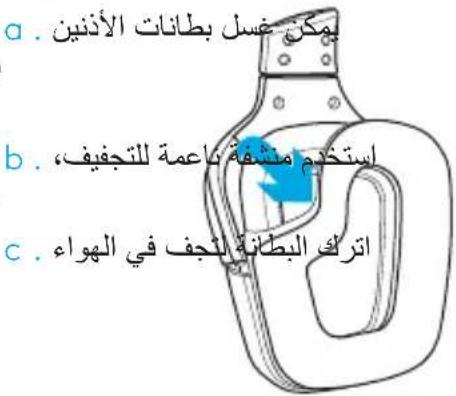
| Earpad cleaning | Remove, wash with hot water, air dry |
| Spare parts | Earpads, cables, custom labels |
Frequently Asked Questions - G635 LOGITECH
User questions about G635 LOGITECH
0 question about this device. Answer the ones you know or ask your own.
Ask a new question about this device
Download the instructions for your Headphones in PDF format for free! Find your manual G635 - LOGITECH and take your electronic device back in hand. On this page are published all the documents necessary for the use of your device. G635 by LOGITECH.
USER MANUAL G635 LOGITECH
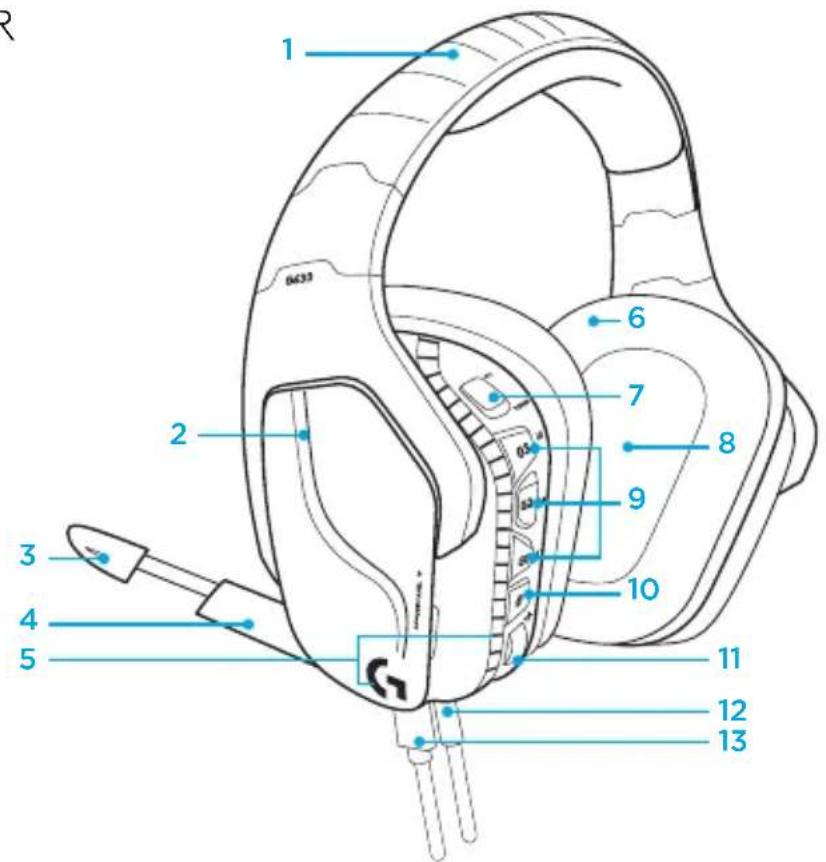
- Adjustable padded sports mesh headband
- Removable backlit custom tags
- Boom mic mute indicator LED
- Retractable boom microphone. Automatically mutes in "up" position.
- Lighting zones (2)
- Washable soft sports mesh earpads
- PC/3.5mm mode switch
- Pro-G Audio Drivers
- Programmable buttons (3)
- Microphone Mute
- Volume Wheel
- 3.5mm (mobile) connection
- USB connection
ENGLISH
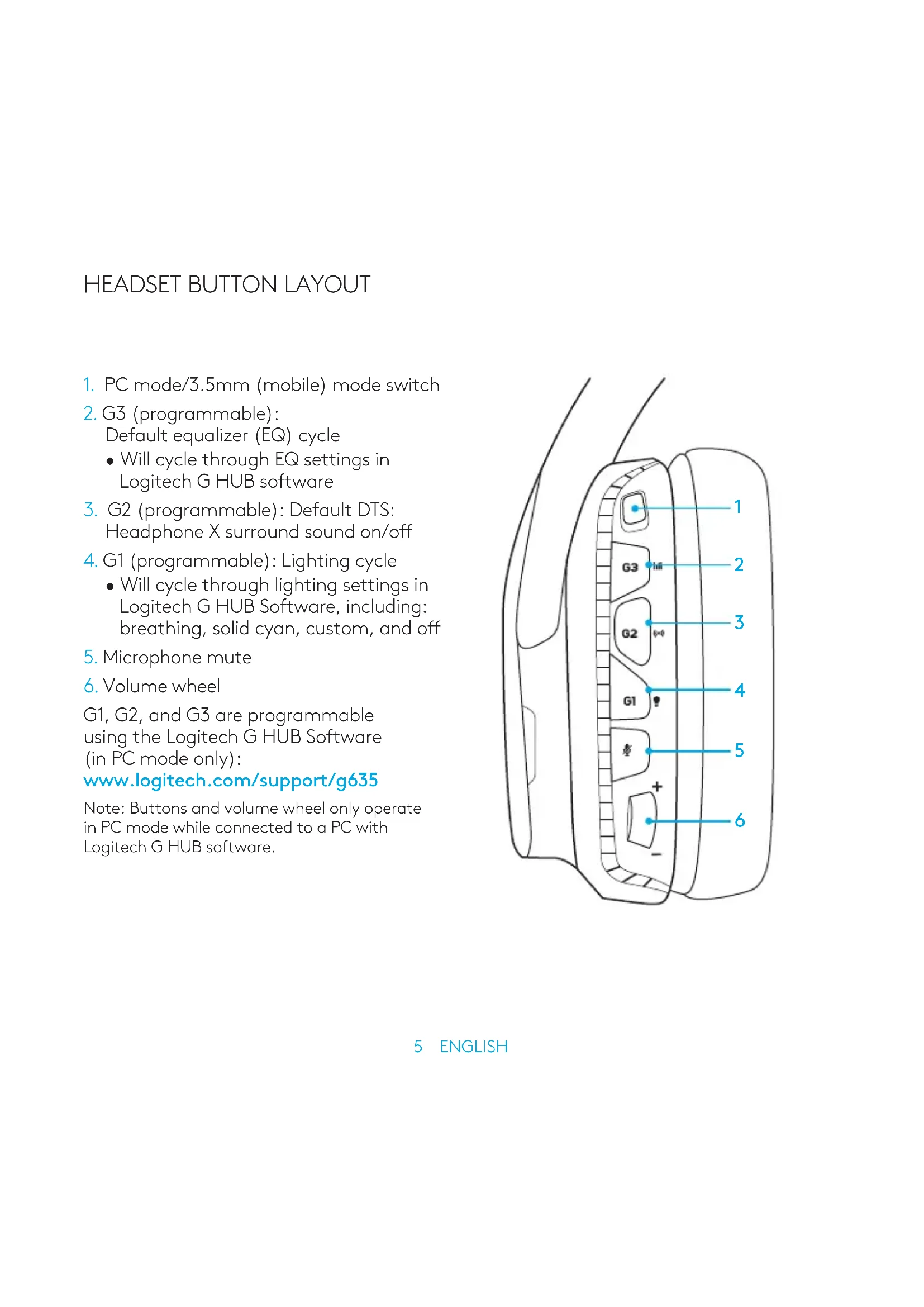
HEADSET BUTTON LAYOUT
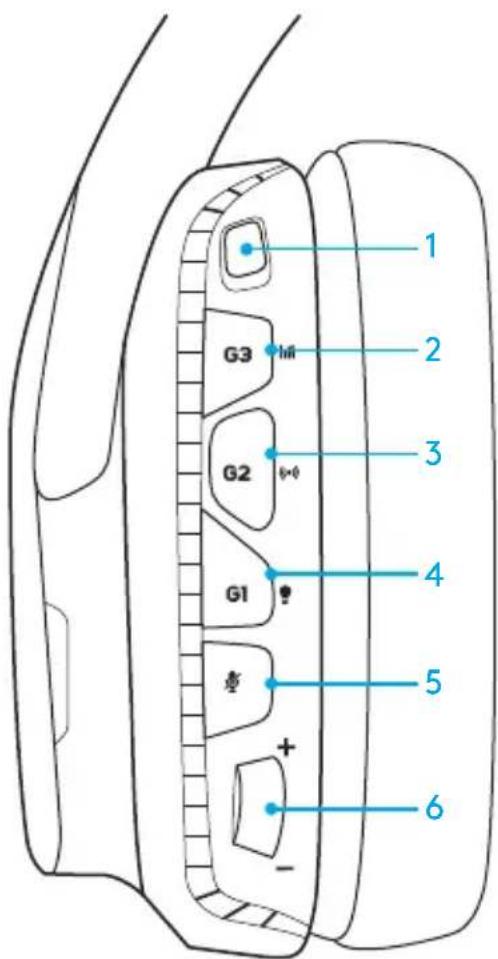
- PC mode/3.5mm (mobile) mode switch
- G3 (programmable): Default equalizer (EQ) cycle
- Will cycle through EQ settings in Logitech G HUB software
- G2 (programmable): Default DTS: Headphone X surround sound on/off
- G1 (programmable): Lighting cycle
- Will cycle through lighting settings in Logitech G HUB Software, including: breathing, solid cyan, custom, and off
- Microphone mute
- Volume wheel
G1, G2, and G3 are programmable using the Logitech G HUB Software (in PC mode only):
www.logitech.com/support/g635
Note: Buttons and volume wheel only operate in PC mode while connected to a PC with Logitech G HUB software.
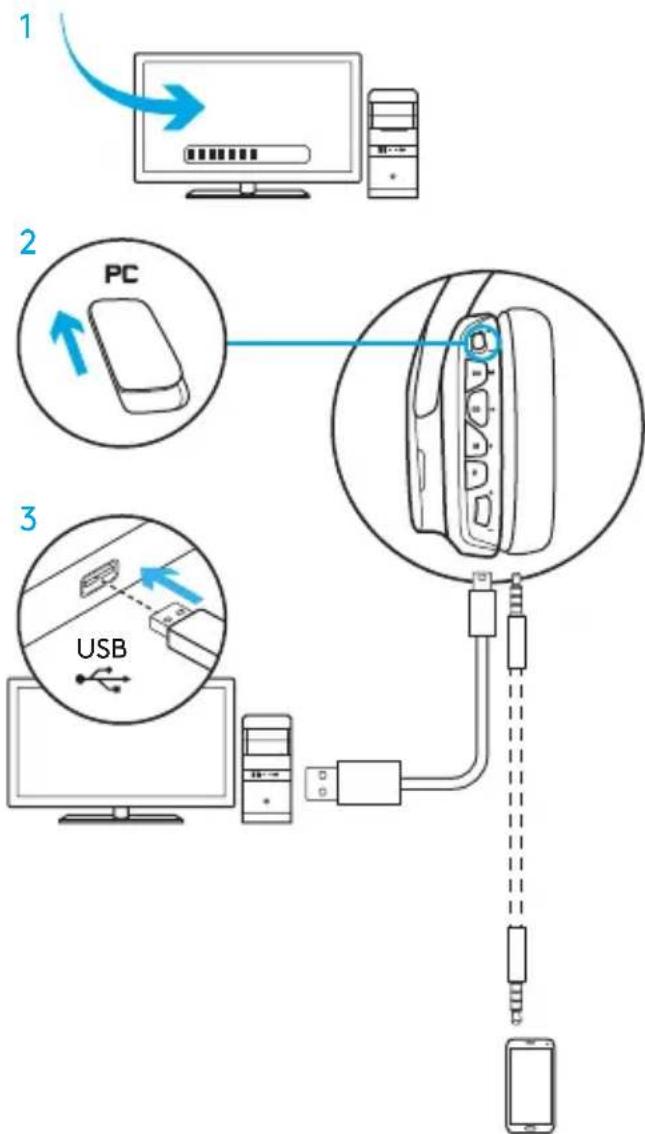
SETUP FOR PC (PC MODE)
- Download and install Logitech G HUB Software: www.logitech.com/support/g635
- Set mode switch to PC.
- Connect the G635 to PC via USB cable.
Mixing audio sources
While in PC mode and connected via USB, the G635 can also use the 3.5mm cable to connect to another audio source (ex. smartphone). Both audio sources can be played simultaneously. Inline controls and inline microphone can be used to answer calls, adjust volume, etc independently for the mobile device.
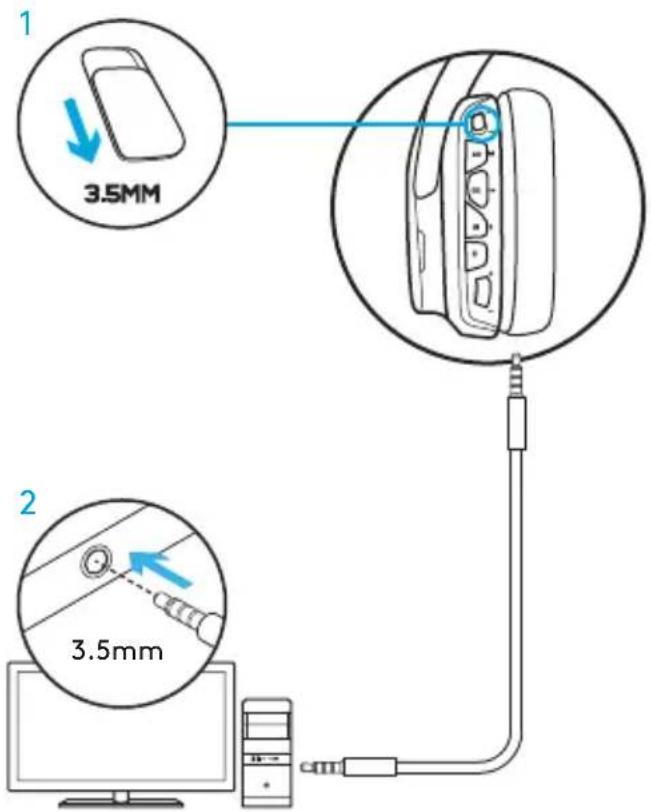
SETUP FOR PC (3.5MM MODE)
The G635 can also connect to audio devices solely via 3.5mm cable.
- Set mode switch to 3.5mm
- Connect to PC using the 3.5mm cable
Features that require USB power, including 7.1 surround sound, on-headset buttons, volume wheel operation, and customization of lighting and button functions are not available without USB connection.
Some PCs may require a 3.5mm 4-pole to mic/stereo splitter adapter (not included) to use microphone features in this mode.
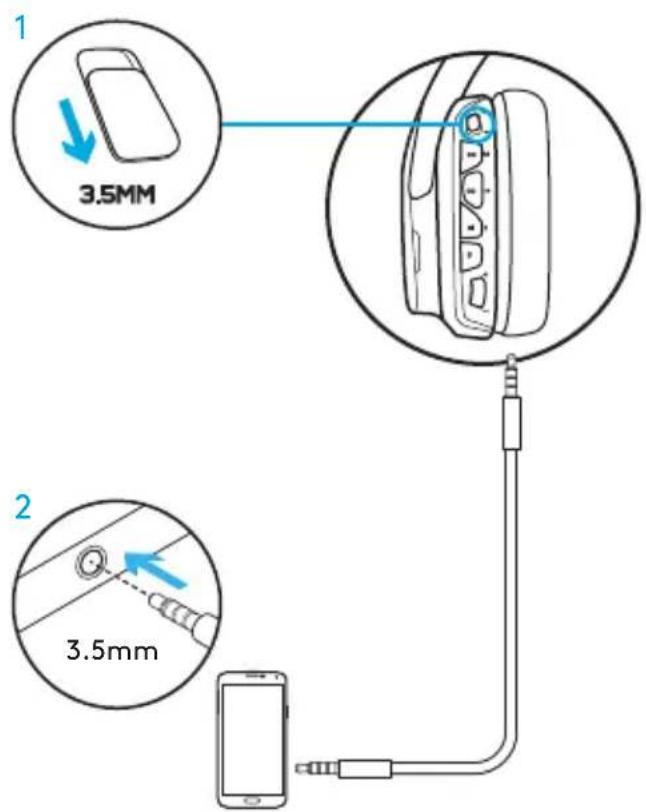
SETUP FOR MOBILE
- Set the mode switch to 3.5mm.
- Connect the headset to the mobile device via the 3.5mm cable.
Features that require USB power, including 7.1 surround sound, on-headset buttons, volume wheel operation, and customization of lighting and button functions are not available without USB connection.
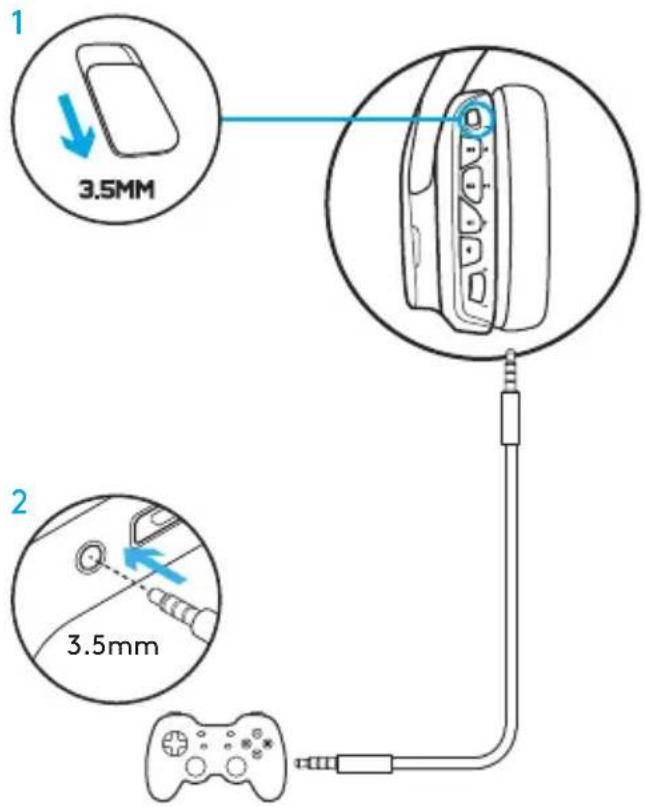
SETUP FOR CONSOLE: XBOX ONE™, PS4™ OR SWITCH™
- Set switch to 3.5mm mode.
- Connect the headset to the console controller using the 3.5mm cable.
- Xbox One may require Xbox One headset adapter (sold separately).
PlayStation setup (settings)
- Connect headset to console
- Open Settings
- Select "Sound and Screen"
- Select "Audio Output Settings"
- Set "Output to Headphones" to "All Audio"
Headset will not operate via USB cable on Xbox One.
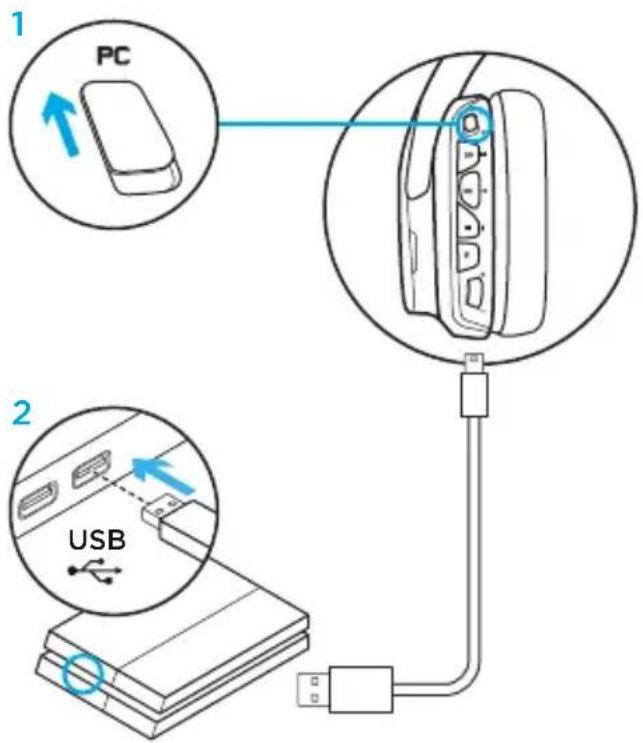
ALTERNATE SETUP FOR SONY PLAYSTATION 4
USB powered operation
- Set the mode switch to PC mode.
- Connect the headset to the console using the USB cable.
Note: although set in PC mode, buttons do not operate when connected to the PlayStation 4. Programming of lighting and buttons is not possible on the PlayStation. 7.1 surround sound is not available while connected to PlayStation. Volume wheel does not work on PlayStation.
PlayStation setup (settings)
- Plug in headset via USB or 3.5mm cables
- Open Settings
- Select "Sound and Screen"
- Select "Audio Output Settings"
- Set "Output to Headphones" to "All Audio"
RGB LIGHTING ZONE CUSTOMIZATION
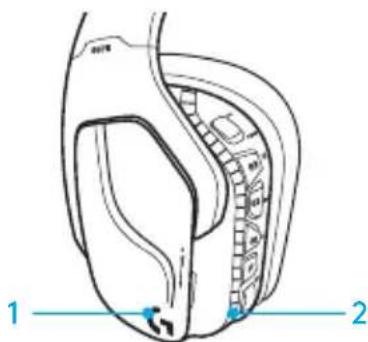
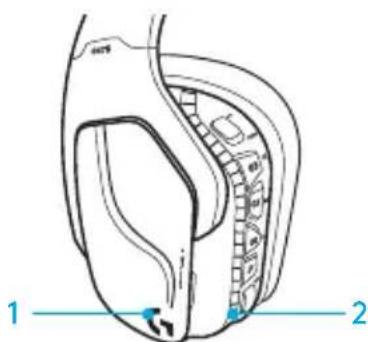
Zone 1: G logo Zone 2: Lighting strip
Each lighting zone can be programmed with the Logitech G HUB Software (PC mode only). www.logitech.com/support/g635
TAG CUSTOMIZATION
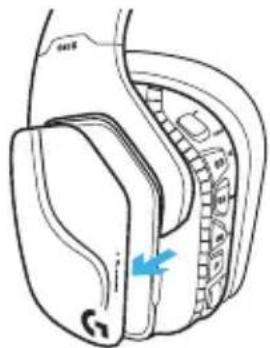
The left and right custom tags can be removed and replaced with custom tags.
LOGITECH G HUB SOFTWARE
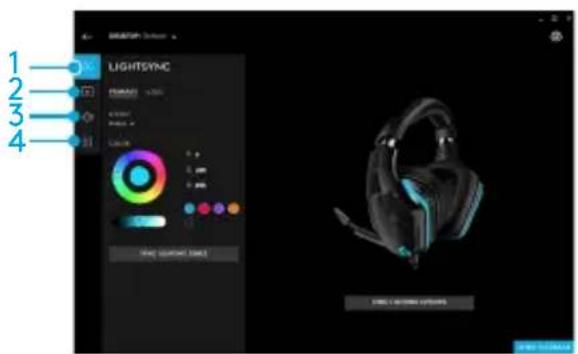
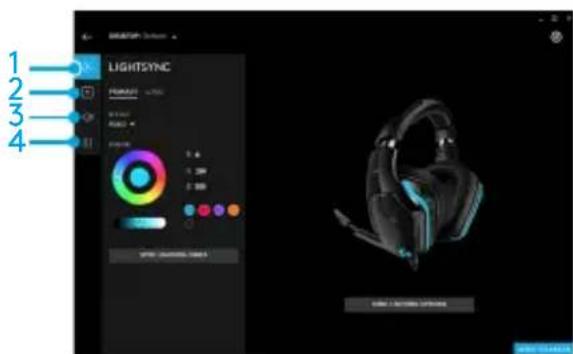
G-key buttons, lighting, equalizer, and surround sound profile programming is possible through the Logitech GHUB Software.
- LIGHTSYNC Lighting
- Assignments
- Acoustics
- Equalizer
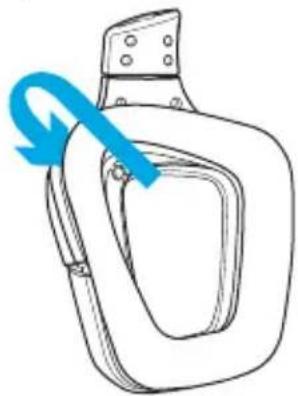
EARPAD CLEANING
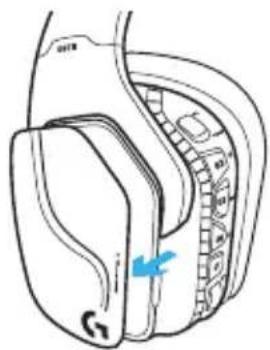
- Removal 2. Washing
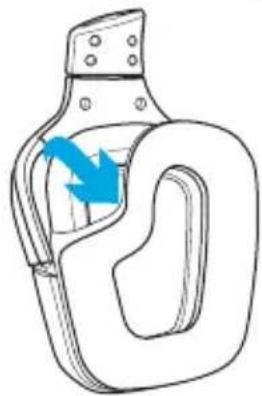
a. Once removed, the earpads can be hand washed in warm water. b. Press with soft towel to dry, do not wring. c. Allow to air dry before reattaching.
- Replacement
12 ENGLISH
CONTENTS
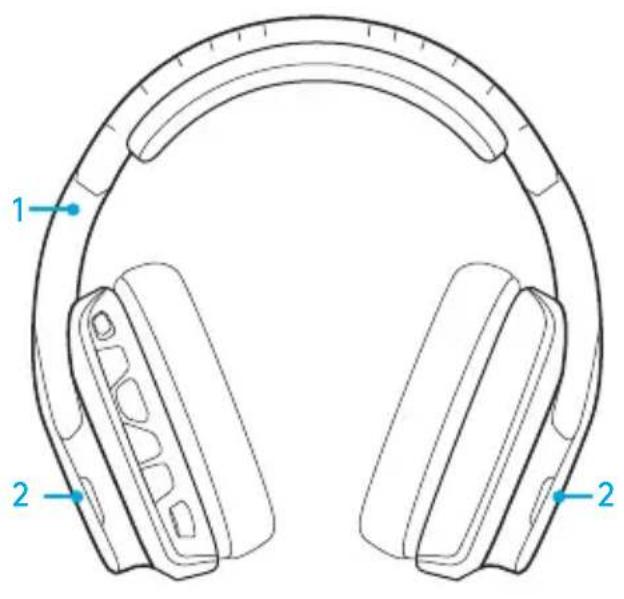
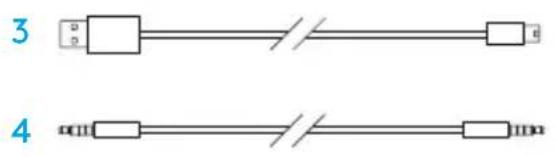
- G635 Headset
- Individuelle Tags (L/R)
- PC-Kabel (USB-zu-Mikro-USB, 2,8 m) 4.3,5-mm-Kabel (1,5 m)
www.logitech.com/support/q635
HEADSET, KNAPPARNAS PLACERING
DET INDEHOLDER KASSEN
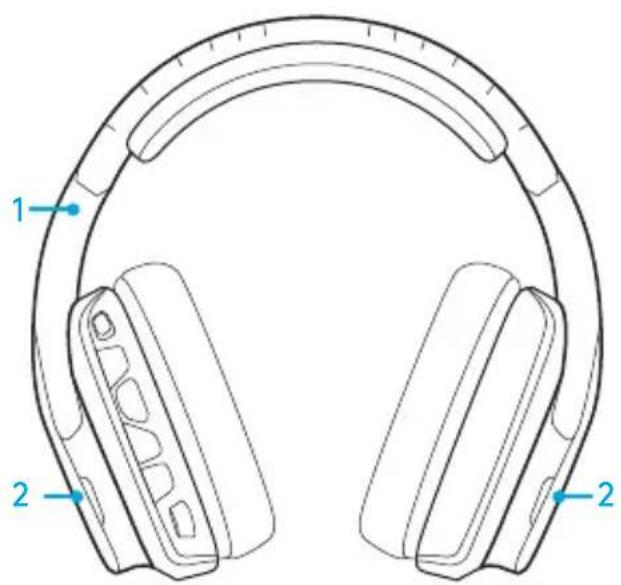


- G635-headset
- Brugertilpasse dm erker (V/H)
- Pc-kabel (USB til mikro-USB, 2,8m)
- 3,5-mm kabel (1,5m)
FUNCTIONS
LOGITECH G HUB SOFTWARE
You can program profiles for G keys, lighting, equalizer, and surround sound in the Logitech G HUB software.
www.logitech.com/support/q635
Zone 1: Aoyotuno G Zone 2: Aomega
Program the G keys using the Logitech G HUB software (only on PC). www.logitech.com/support/g635
LABEL REPLACEMENT
The left and right special labels can be removed and replaced with others.
LOGITECH G HUB SOFTWARE
The G key programmer, lighting, and surround sound are available through the Logitech G HUB software.
- LIGHTSYNC lighting 2. Replacement
- Audio 4.1000 steps
PlayStation setup (settings)
- Connect the headset to the console
- Open settings
- Select "Sound and Screen"
- Select "Audio Output Settings"
- Set "Output to Headphones" to "All Audio"
PlayStation setup (settings)
ADJUSTING THE RGB LIGHTING ZONES
- Zone 1: G logo Zone 2: light strip
The lighting zones are programmable using Logitech G HUB software (in PC mode). www.logitech.com/support/g635
CUSTOMIZING WITH ACCESSORIES
LOGITECH G HUB SOFTWARE
The "G" button, lighting, equalizer, and surround sound profiles can be programmed using Logitech G HUB software.
LOGITECH G HUB SOFTWARE
© 2018 Logitech, Logi and the Logitech Logo are trademarks or registered trademarks of Logitech Europe S.A. and/or its affiliates in the U.S. and other countries. All other trademarks are the property of their respective owners. Logitech assumes no responsibility for any errors that may appear in this manual. Information contained herein is subject to change without notice.
WEB-621-001185.002

- ENGLISH
- HEADSET BUTTON LAYOUT
- SETUP FOR PC (PC MODE)
- MIXING AUDIO SOURCES
- SETUP FOR PC (3.5MM MODE)
- SETUP FOR MOBILE
- SETUP FOR CONSOLE: XBOX ONE™, PS4™ OR SWITCH™
- PLAYSTATION SETUP (SETTINGS)
- ALTERNATE SETUP FOR SONY PLAYSTATION
- USB POWERED OPERATION
- RGB LIGHTING ZONE CUSTOMIZATION
- TAG CUSTOMIZATION
- LOGITECH G HUB SOFTWARE
- EARPAD CLEANING
- CONTENTS
- HEADSET, KNAPPARNAS PLACERING
- DET INDEHOLDER KASSEN
- FUNCTIONS
- LABEL REPLACEMENT
- ADJUSTING THE RGB LIGHTING ZONES
- CUSTOMIZING WITH ACCESSORIES
Brand : LOGITECH
Model : G635
Category : Headphones