
Assa GXT 888 - Keyboard TRUST - Free user manual and instructions
Find the device manual for free Assa GXT 888 TRUST in PDF.



| Brand | Trust |
| Model | Assa GXT 888 |
| Category | Wired gaming keyboard |
| Product type | Mechanical keyboard with RGB backlighting |
| Power supply | USB 5V |
| Number of keys | 104 keys |
| Backlighting | RGB, 8 colors, multiple modes (static, blinking, spectrum) |
| Multimedia functions | FN keys + combinations for brightness, speed, color, arrow key swap |
| Configuration software | Trust GXT 888 (download from Trust website) |
| Software functions | Key assignment, macros, profile saving and loading |
| Onboard memory | Yes (limited to memory capacity) |
| Compatibility | Windows (driver available) |
| Cable length | 2 m (estimated) |
| Dimensions | Approximately 44 x 15 x 3 cm (estimated) |
| Weight | Approximately 1 kg (estimated) |
| Care and cleaning | Clean with a soft dry cloth. Avoid liquids. |
| Safety | Do not expose to water. Disconnect during storms. |
| Spare parts and repairability | Not available (user-serviceable product) |
| General information | Brand: Trust, Model: Assa GXT 888, Category: Gaming keyboard |
Frequently Asked Questions - Assa GXT 888 TRUST
User questions about Assa GXT 888 TRUST
0 question about this device. Answer the ones you know or ask your own.
Ask a new question about this device
Download the instructions for your Keyboard in PDF format for free! Find your manual Assa GXT 888 - TRUST and take your electronic device back in hand. On this page are published all the documents necessary for the use of your device. Assa GXT 888 by TRUST.
USER MANUAL Assa GXT 888 TRUST
Frequently asked questions: www.trust.com/22881/FAQ
Trust
Trust

ASSA
Gaming KEYPAD
Advanced manual

Trust
GXT 888 One Handed Keyboard - USER'S MANUAL
| Language | Page |
| English | 2 |
| Deutsch | 5 |
| Français | 8 |
| Italiano | 11 |
| Espanol | 14 |
| Português | 17 |
| Nederland | 20 |
| Dansk | 23 |
| Suomi | 26 |
| Norsk | 29 |
| Svenska | 32 |
| Polski | 35 |
| Česky | 38 |
| Slovenčina | 41 |
| Magyar | 44 |
| Română | 47 |
| Бulgaripecs | 50 |
| Р�stellung | 53 |
| Еλλυκά | 56 |
| Türkçe | 59 |
| Hrvatski | 62 |
| Slovenski | 65 |
| Brasilheiro | 68 |
| украîna | 71 |
GXT 888 One Handed Keyboard - USER'S MANUAL
Trust
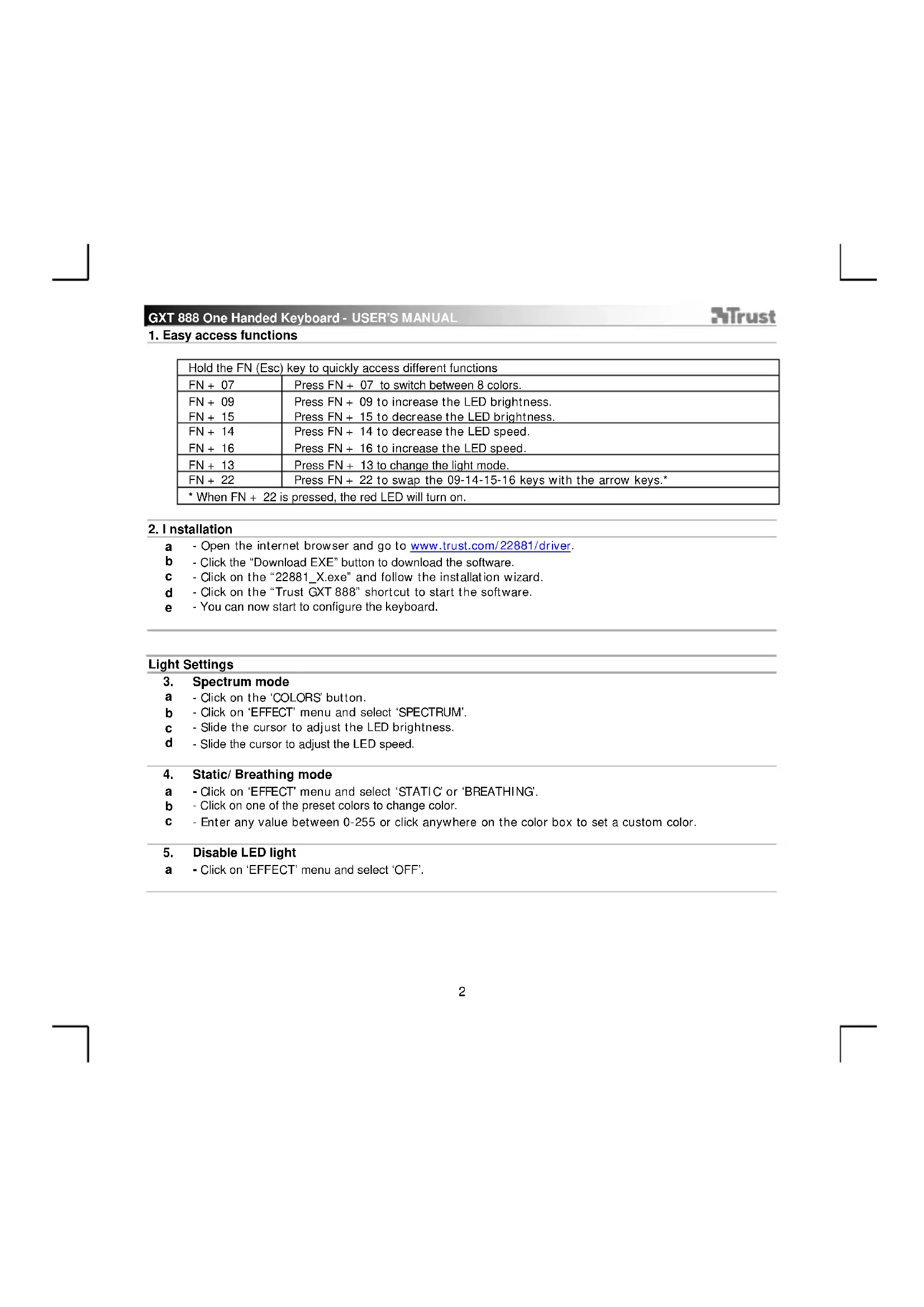
1. Easy access functions
| Hold the FN (Esc) key to quickly access different functions | |
| FN + 07 | Press FN + 07 to switch between 8 colors. |
| FN + 09 | Press FN + 09 to increase the LED brightness. |
| FN + 15 | Press FN + 15 to decrease the LED brightness. |
| FN + 14 | Press FN + 14 to decrease the LED speed. |
| FN + 16 | Press FN + 16 to increase the LED speed. |
| FN + 13 | Press FN + 13 to change the light mode. |
| FN + 22 | Press FN + 22 to swap the 09-14-15-16 keys with the arrow keys.* |
| * When FN + 22 is pressed, the red LED will turn on. | |
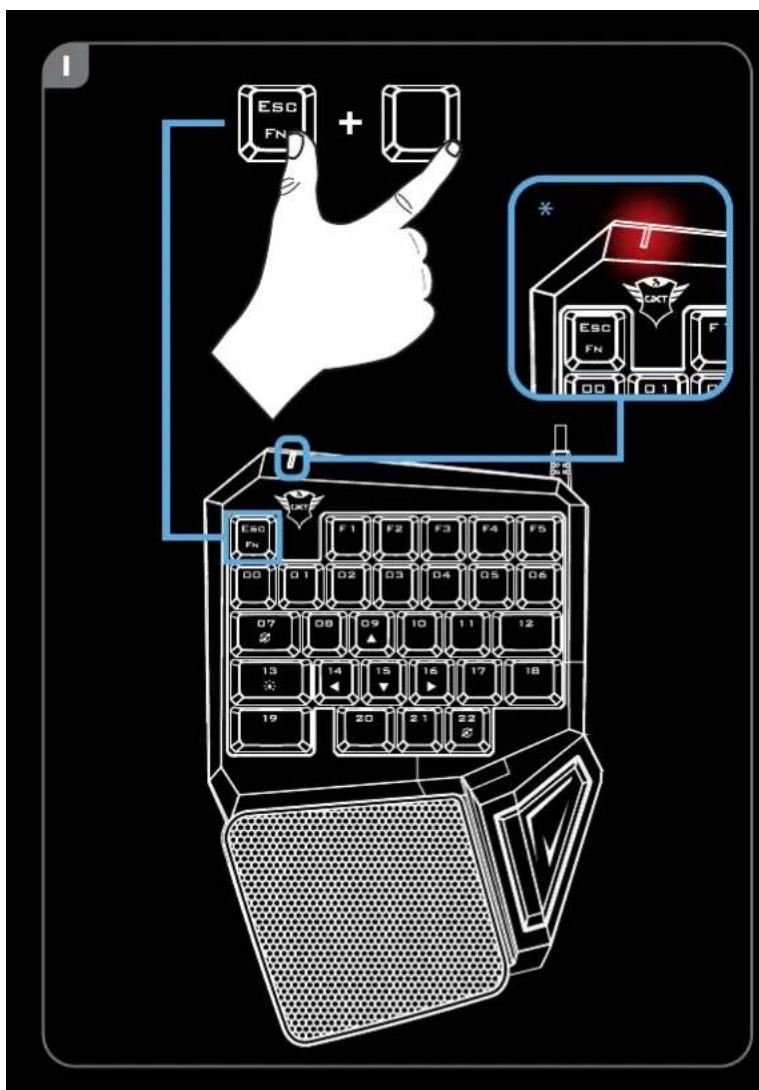
2. Installation
a - Open the internet browser and go to www.trust.com/22881/driver.
b - Click the "Download EXE" button to download the software.
c - Click on the "22881_X.exe" and follow the installation wizard.
d - Click on the "Trust GXT 888" shortcut to start the software.
e - You can now start to configure the keyboard.
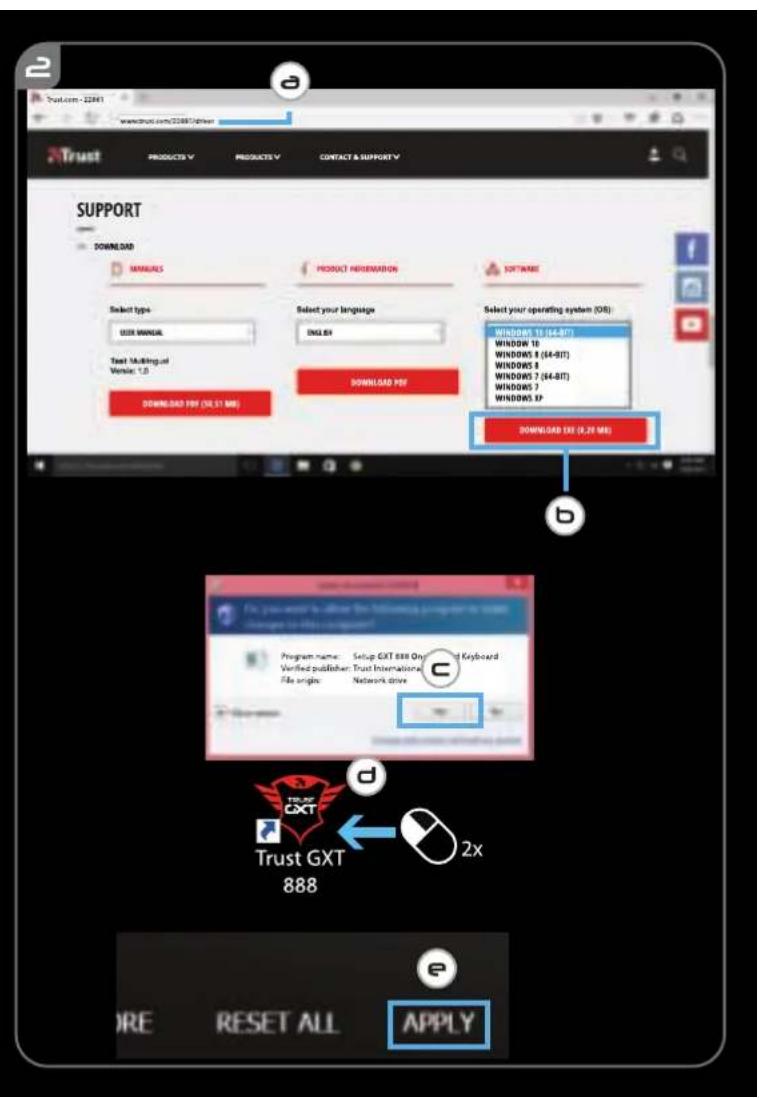
Light Settings
- Spectrum mode
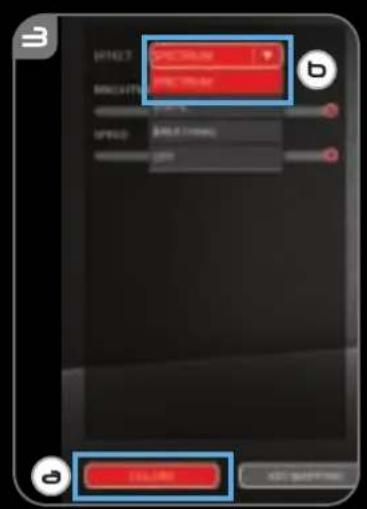
a - Click on the 'COLORS' button.
b - Click on 'EFFECT' menu and select 'SPECTRUM'.
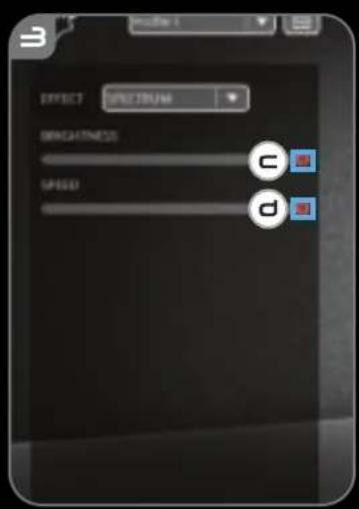
c - Slide the cursor to adjust the LED brightness.
d - Slide the cursor to adjust the LED speed.
- Static/ Breathing mode
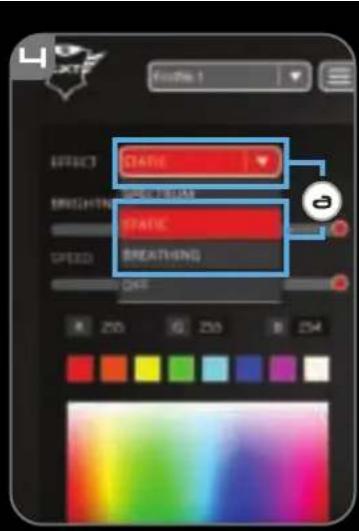
a - Click on 'EFFECT' menu and select 'STATIC' or 'BREATHING'.
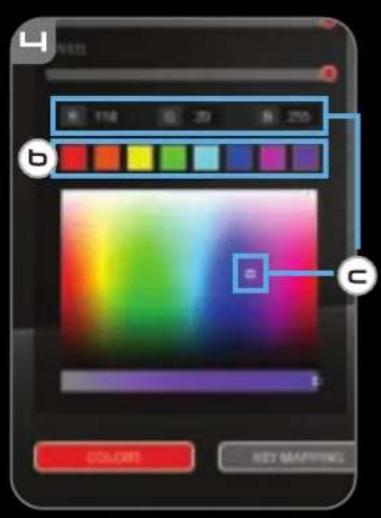
b - Click on one of the preset colors to change color.
c - Enter any value between 0-255 or click anywhere on the color box to set a custom color.
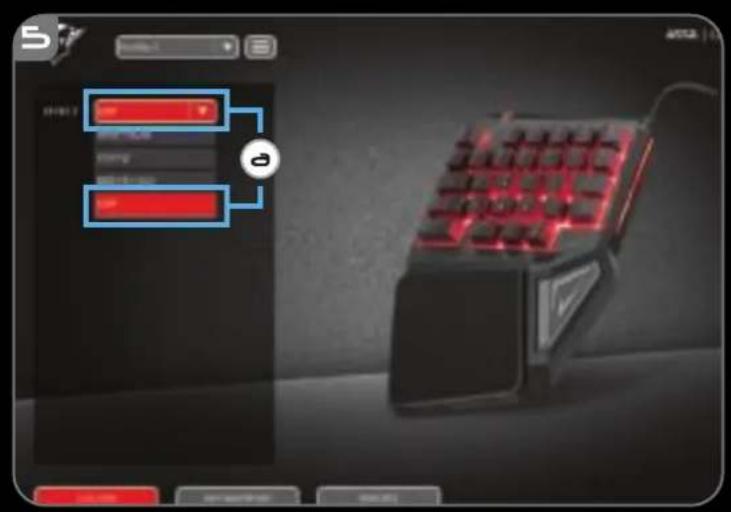
- Disable LED light
a - Click on 'EFFECT' menu and select 'OFF'.
GXT 888 One Handed Keyboard - USER'S MANUAL
Trust
Key Mapping
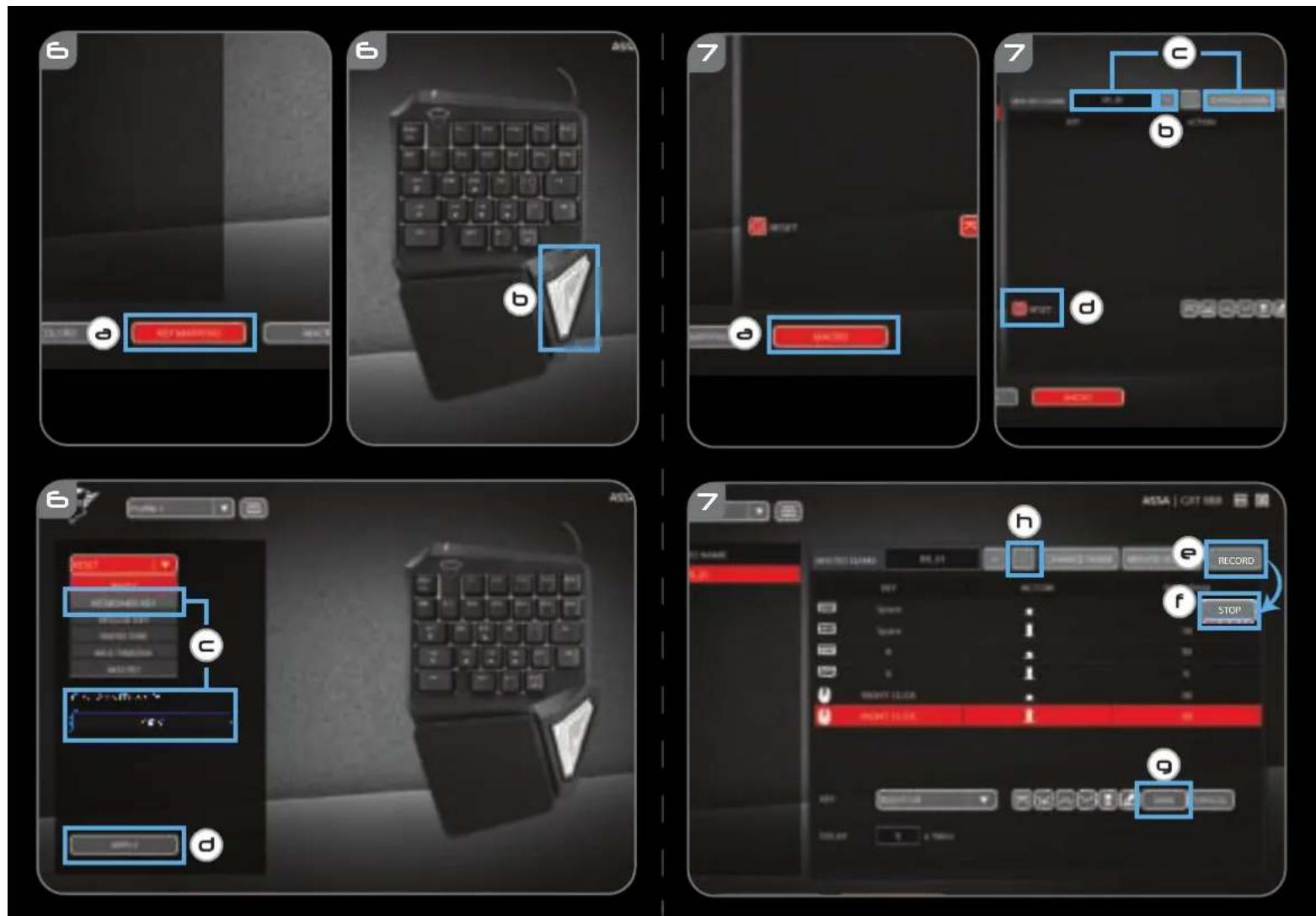
6. Assign a function
a - Click on the 'KEY MAPPING' button.
b - Click on the key you want to assign.
c - Click on the dropdown menu to select which function you want to assign.
d - Click on 'APPLY' to update the keyboard.
Macro Settings
- Create a Macro (Store a sequence of keys in the software)
a - Click on the 'MACRO' button.
b - Click on the ^+ icon to add a new macro.
c -Type a new name and click on 'CHANGE NAME'.
d - To change to a default delay between action of 50 ms, click on the 'CLOCK' symbol.
e - Click on 'RECORD' to start recording the macro.
f -Click onSTOP'ones you finished recording the macro.
g -Click on SAVE' to finalize the Macro.
h - Click on the - icon to delete a macro.
The length of the Macros is limited to the amount of onboard memory.
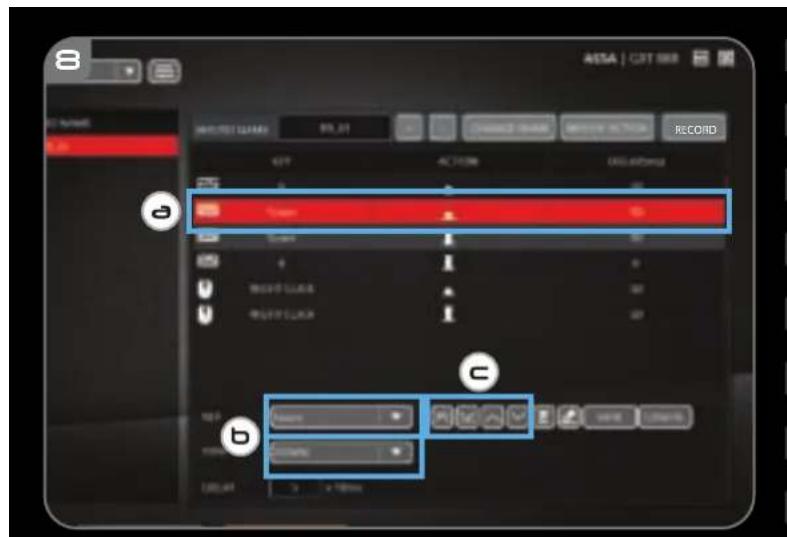
8. Modify a Macro
a -To modify your recorded macro, click on the step you want to modify.
b - Change the Key, the Direction (up or down) or the delay.
c - Click on the navigational buttons to rearrange the action.
d -Click on D'to delete selected action.
e - Click on 'E' to delete all actions.
f - Click on 'MOUSE ACTION' to insert a mouse command.
g - Click on 'MOUSE ACTION' again to close the mouse command menu.
h -Click on SAVE' to finalise the Macro.
The maximum delay between actions is 10 minutes.
The maximum mouse movement in a single action is 255 pixels.
GXT 888 One Handed Keyboard - USER'S MANUAL
Trust
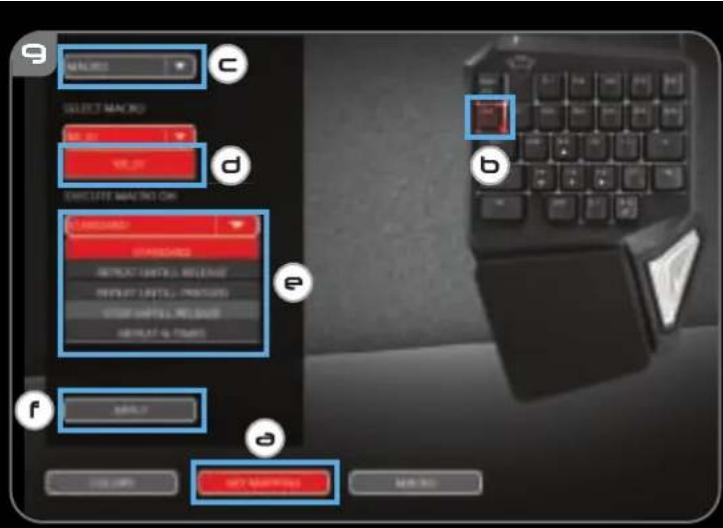
9. Assign a Macro
a - Click on the 'KEY MAPPING' button.
b - Click on the key you want to assign.
c - Click on the dropdown menu and select 'MACRO'.
d - Click on the desired Macro.
e - Choose how the function should be executed.
f - Click on 'APPLY, the keyboard is being updated.
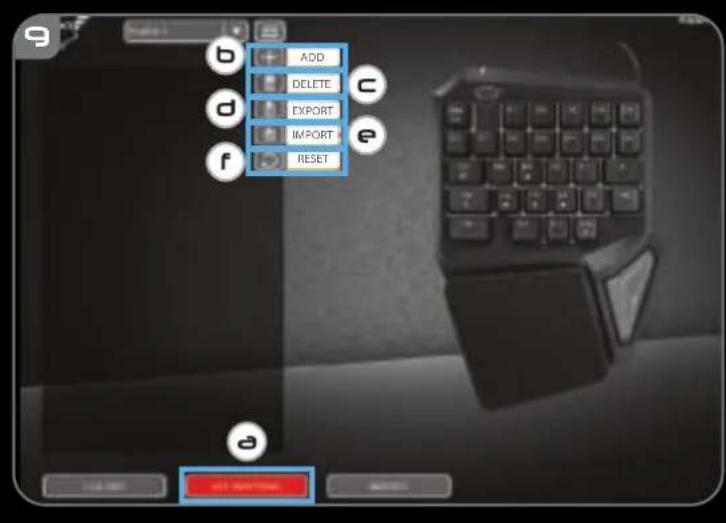
10. Save or Load Profiles
a - Click on the 'KEY MAPPING' button.
b - Click on the ^+ icon to create a new profile.
C - Click on the 'B' to delete a profile.
d - Click on 'C' to save a profile.
e - Click on 'D' to load a profile.
f - Click on 'E' to reset the profile back to factory default.
- Macros cannot be saved into a profile.
GXT 888 One Handed Keyboard - USER'S MANUAL
Trust
Tastenbelegung
GXT 888 One Handed Keyboard - USER'S MANUAL
Trust
3. Mode Spectrum [spectre]
GXT 888 One Handed Keyboard - USER'S MANUAL
Trust
GXT 888 One Handed Keyboard - USER'S MANUAL
Trust
GXT 888 One Handed Keyboard - USER'S MANUAL
Trust
Mappatura tasti
GXT 888 One Handed Keyboard - USER'S MANUAL
Trust
GXT 888 One Handed Keyboard - USER'S MANUAL
Trust
GXT 888 One Handed Keyboard - USER'S MANUAL
Trust
GXT 888 One Handed Keyboard - USER'S MANUAL
Trust
GXT 888 One Handed Keyboard - USER'S MANUAL
Trust
9. Atribuiruma macro
GXT 888 One Handed Keyboard - USER'S MANUAL
Trust
Toetstoewijzing
GXT 888 One Handed Keyboard - USER'S MANUAL
Trust
5. Deaktivering at LED-lys
a -Klik pa menuen "EFFECT" [Effekt], og vaelg "OFF" [Fra].
GXT 888 One Handed Keyboard - USER'S MANUAL
Trust
Tast-mapping
6. Tildel en Funktion
a - Klik på knappen "KEY MAPPING" [Tast-mapping].
b - Klik pä den tast, du vil tildele.
c - Klik pa rullemenuen for at vaelge den Funktion, du vil tildele.
d - Klik pa "APPLY" [Anvend] for at opdatere tastaturet.
Makroindstillinger
GXT 888 One Handed Keyboard - USER'S MANUAL
Trust
9. Tildel en makro
a - Klik pa knappen "KEY MAPPING" [Tast-mapping].
b - Klik pa den tast, du vil tildele.
c - Klik pa rullemenuen og vaelg "MACRO" [Makro].
d - Klik pa den onskede makro.
e -Vaelg, hvordan Funktionen skal udefores.
f - Klik på "Apply" [Anvend]. Tastaturet opdateres.
GXT 888 One Handed Keyboard - USER'S MANUAL
Trust
GXT 888 One Handed Keyboard - USER'S MANUAL
Trust
9. Makron märitys
GXT 888 One Handed Keyboard - USER'S MANUAL
Trust
Tastetilordning
6. Legg til en funksjon
GXT 888 One Handed Keyboard - USER'S MANUAL
Trust
9. Tilordne en makro
GXT 888 One Handed Keyboard - USER'S MANUAL
Trust
Knapptilldefining
GXT 888 One Handed Keyboard - USER'S MANUAL
Trust
GXT 888 One Handed Keyboard - USER'S MANUAL
Trust
GXT 888 One Handed Keyboard - USER'S MANUAL
Trust
GXT 888 One Handed Keyboard - USER'S MANUAL
Trust
Mapováni klaves
6. Priñazení funkce
a - Klikněte na tlačitko „KEY MAPPING“, [„MAPOVÁNI KLÁVES“].
b - Kliknete na klavesu, kterou si preejete priradit.
c - Kliknete na vyskakovaci menu a vyberte funkci, kterou si preejete priadit.
d - Kliknutim na moznost „APPLY" [POUZIT" aactualizujte klavesnici.
Nastaveni maker
GXT 888 One Handed Keyboard - USER'S MANUAL
Trust
9. Prižazení maker
GXT 888 One Handed Keyboard - USER'S MANUAL
Trust
Mapovanie tlačidiel
6. Assign a function
a - Kliknite na tlačidlo „KEY MAPPING" (Mapovaniet tlačidel).
b - Kliknite na klaves, ktoremu chcete prisadit' funkciu.
c - Kliknite na rozbal'ovaciu ponuku a vyberte funkciu, ktoru chcete prisadit'.
d - Kliknite na moznost' APPLY (Pouzit) aactualizujte klavesnicu.
Nastavenia makra
- Vyvtorte makro (ulozenie postuposti tlacidiel v softveri)
a - Kliknite na tlaCIDIO "MACRO".
b - Kliknite naikonu ^+ a pridajte nové makro.
c -Napište nový názov a kliknite na „CHANGE NAME" (Zmenit názov).
d - Ak chcete zmenit' vychodiskové omeškanie medzi Činnost'ami o 50 ms, kliknite na symbol „CLOCK" (Hodiny).
e - Kliknite na moznost,RECORD (Nahrat) a spustite nahravanie makra.
f -Po dokoncenahravania makra kliknite na moznost',STOP' (Zastavit).
g - Kliknite na „SAVE" (Uložit') a finalizujte makro.
h - Kliknite naikonu - a vymazte makro.

GXT 888 One Handed Keyboard - USER'S MANUAL
Trust
9. Priradenie makra
a - Kliknite na tlačidlo „KEY MAPPING" (Mapovanie tlačidiel).
b - Kliknite na klaves, ktoremu chcete prisadit' funkciu
c - Kliknite na rozbal'ovaciu ponuku a vyberte „MACRO".
d - Kliknite na požadované makro.
e - Vyberte, ako sa ma funkcia vykonat'.
f - Kliknite na moznost' ,Apply" (Pouzit) a klavesnica sa začne aktualizovat'.
10. Ulozenie alebo nahranie profilov
a - Kliknite na tlaCIDIO KEY MAPPING (Mapovanie tlaCidiel).
b - Kliknite na ikonu + a vytvorte novy profil.
C - Kliknite na, B" a ymazte profil.
d - Kliknite na „C“ a uložte profil.
e - Kliknite na, D^ a načitajte profil.
f - Kliknite na ^a a resetujte profil na vychodiskové nastavenie z tovarne.
Do profilu sa nedaj ulozit makra.
GXT 888 One Handed Keyboard - USER'S MANUAL
Trust
GXT 888 One Handed Keyboard - USER'S MANUAL
Trust
GXT 888 One Handed Keyboard - USER'S MANUAL
Trust
Alocarea tastelor
6. Alocarea unei functii
GXT 888 One Handed Keyboard - USER'S MANUAL
Trust
9. Alocarea unei macrocomenzi
GXT 888 One Handed Keyboard - USER'S MANUAL
Trust
Pa3noJoxKeHne Ha KnaBnun
6. Ha3haabaheHaФyHKnIa
a -IpaKHeTe 6yToHa ,KEY MAPPING" [Pa3noJoxKeHne Ha KnaBnun].
b -LpaKHeTe Ha KnaBnBt, KOITo NCKaTe Da Ha3HaHTe.
c -UpaKHeTe Ha nadaaTo MeHIO, 3a Da n36peTe KOYHKuN ICKaTe Da HauHTe.
d -UpaKHeTe "APPLY" [PPIINOKn], 3a da akTyajn3npate KnaBnAtypata.
MaKpo NaCTpOKn
- Cb3daBaHe Ha MaKpOc (3aNaMeTe TocNeIOBaTeHnOCT Ha KNaBnU B COΦTyepa)
a -LpaKHeTe Bbpyx 6yToHa ,MACRO' [MAKPOC].
b -UpaKHeTe Bbpxy IKoHaTa +, 3a Da do6aBnTe HOB MaKpoc.
c -HannneTe HOBIO mE IupaKaHHeTbBpyxCHANGENAME" [CMRAHA HA IME].
d - 3a da CMeHnTe 3aKbCHeHnETo NO Npda3bnpaHe oT 50 ms, UpaKHeTe Bbpxy CmBOna ,CLOCK[HACOBHnK].
e -LpaKHeTe,"RECORD" [3AINC], 3a da cTapTnpaTe 3aNca Ha MaKpoc.
f -UpaKHeTe,STOP[CTO],CneI KaTO cTe npNKIOuINn CbC 3aNcHa MaKpOca.
g -UpaKHeTe SAVE [3A7A3N], 3a da fHaHn3npaTe MaKpOca.
h -IpaKHeTe Bpyx IKoHaTa -, 3a Da N3TpneTe MaKpoc.
ДьлЖинataHaMaKpOcaeOrpaHnueHaDoKOLNueCTBOTOINCTaJInpaHa NaMeT.
8. MoDnФkaIGNHa MaKpOc
a -3a da npomehnte HMeTo Ha 3aHcHnT MaKpoc, ippaKHeTe Bbpxy CtbNkata, KOrTO nckate da npomehnte.
b -CmHa Ha KnaBn, Nocokata (Harope HnHn HADony) nN 3AkbcHeHne.
c -IpaKHeTe Ha HABnraUOnHHte 6yToHn, 3a npeHaepXJaHe Ha DeiCTBnETo.
d -IpaKHeTe BpyxD,3a Da n3TpneTe MCKaHOTo DeiCTBNE.
e -LpaKHeTe Bbpxy "E" 3a da n3TpneTe BCnKn DeiCTBna.
f -UpaKHeTe Bbpxy ,MOUsE ACTION" [DEICTBVE HA MUNKA], 3a da BmBkHete KOMaHda Ha MNsKaTa.
g - UpaKHeTbpyxMOUSE ACTION" [ENCTBNE HA MUNKA], 3a da 3aTBOpTe MeHIOTo 3a KOMaHN Ha MNUKaTa.
h -IpaKHeTe "SAVE" [3AIIA3N], 3a da fHaHn3npaTe MaKpoca.
MaKcMmHnTo 3a6abRe MeKdy DeIeCTBnTa e 10 MHyTu.
MaKcMmHOTo DnHexHe Ha MUsKaTa B eDnHNo DeIcTBne e 255 NkceJa.
GXT 888 One Handed Keyboard - USER'S MANUAL
Trust
9. Ha3HaayabaHe Ha MaKpoc
a -IpaKHeTe 6yToHa KEY MAPPING" [Pa3noJIOKeHne Ha KnaBnIIN].
b -LpaKHeHa KnaBnBt, KOITo NCKaTe Da Ha3HaHTe.
c -Дрakнeteпадац�тMeHIOиИЗбepeTe „MACRO" [MAKPOC].
d - PaKHeBbpxu NcKaHnT MapKoc.
e -N36epete kak fynkuiyra Tp86ba da 6bde n3nBHeHa.
f -LpaKHeTe "APPLY" [PINIOXn], KnaBnAtypaTa 3aOnuBa Da ce akTuAn3npa.
10.3ana3BaHe n 3apeXdahe Ha npoФнn
a -LpakheTe 6yToHa KEY MAPPING[PA3IIOJIOXJEHHE HA KJIABUNJIN].
b -UpaKHeTe Bbpxy IKoHaTa +, 3a Da IO6aBNTe HOB npOΦnI.
C -IpaKHeTe Bbpxy, ^ 3a da n3Tpne Te npoHn.
d -IpaKHeTe, C", 3a Da 3ana3nTe npoФи.
e -UpaKHeTe ,D" 3a da 3apeIte npoHn.
f -IpaKHeTe Bbpxy ^ 3a da HynipaTe npoHn KbM fa6pnHnTe HacTpoKn.

MaKpOcBt He MoKe Ja 6bJe 3aIa3eH B npoHn.
1. Ydo6HbI doctyn K yHKunm
GXT 888 One Handed Keyboard - USER'S MANUAL
Trust
ConoctablenneKnaBn
6. Ha3haeHne yHKcM
a -IeKHTe KHOHky KEY MAPPING [COIOCTABJEHNE KJIABN].
b -IeKHTe KONKY, KOtopoH Heo6xOIMo Ha3HaHTb fYHKNUIO.
c -IeKHTe Hncaaiooee MeHIO BB6epnte FyHKNUO, KOTopyIO Bbl XOTTE Ha3HaHTb.
d -UeKHTe APPLY [“PIMMEHHTb”,yTo6 06HOBHTb hactpoKn KlaBnaTpybl.
NapaMeTpbI MaKpocOB
- C03dahne MaKpOca (COxpaHeHne nocneIOBaTeIbHOCTN KnaBnB IIporpaMMHom o6ecneueHH)
a -LeKHTe KHOHKy MACRO [«MAKPOCb]
b -UeKnHTe n3o6paXeHne +,YTO6bI Do6aBt b HObbl MaKpOc.
c -BBeDHTe HOBOE IMRAIJIKNHITe CHANGAMEN「IM3MEHHTbIMRA」
d -YtO6bI IN3MeHHTb yCTaHOBnEHHyIO NO yMOJUaHIO 3aepKky DeICTBna 50 MC, IeIKHnTe CIMBOI CLOCK [«HAcbl»].
e -Leknre RECORD [3AINCb],yTo6bHaaytB 3aNcMaKpOca.
f -LJIeKHTe STOP [OCTAHOBITb 3AINCb] nocne oOKHuaHn 3aIncMaKpoca.
g -LeKHTe SAVE [COXPAHHTb] nla coxpaHeHMaKpoca.
h -IeKHTe n3o6paXeHne- ,TTO6bl ydaNTb MaKpOc.
ДиHA MaKpOca OrpaHnueHa KOJIYeCTBOM BCTPoEHHOI NaMrtN.
8. ⅢmeHeHHe MaKpOca
a -Yto6bI 3nMEHHTb 3aHnCAHHbIM MaKPOc, HAKMNTe Ha WaI, KOTOpBb Bbl XOTnTe N3MeHHTb.
b -ИЗмEHNTe KHONKY, HanpaBneHnE (BBepx nIN BHN3) nIN 3aDepeKKy.
c -IeIKHnTE KHOKN HABNraUN IINr N3MeHeHH DaICTBnR.
d -IeKHTe 一 _ 一 D, yTo6bI ydaHnTb Bbl6paHHOe DeiCTBne.
e - 1eJKNHTe E, TTO6bI ydaJIbT Bce DeICTBna.
f -IeIKHnTe MOUSE ACTION [«ДEINCTBNE MbluN»],уTo6bl BCTaBnTb KOMaHnyMbUIn.
g - ⅢeIKNHTe MOUSE ACTION [«ДENCTBNE MbliH»] CHOBA, qTo6bl 3aKpbItb MeHIO KOMaHdMbllH.
h -IeJIKHnTe SAVE [COXPAHHTb]ДЯ coxpaHeHnMaKpOca.
MaKcMnAbHa 3aepkKa MExdy DByMa DeNCTBnA M10 MNHT.
MaKcImaJIbHOe DnIXKeHneMbIIN ODHOKpaTHORO DeICTBna COCTaBnreT 255 NIKceNei.
GXT 888 One Handed Keyboard - USER'S MANUAL
Trust
9. Ha3HaueHHe MaKpOca
a -LeKHTe KHOHky KEY MAPPING [COIOCTABJIHEHME KJIABLI].
b -LJIeIKHnTe KHOJky, KOtopoH Heo6xOIMo Ha3HaunTb fYHKUIO.
c - ⅢeIKNHTe HnCnadaiooee MeHIO N BbIepeNTe MACRO [“MAKPOC”].
d -HaKMnte Ha HyKhbMakpoc.
e -Bb6epntcnoocbblnHHeHHyHKU.
f - ⅡeKHTe APPLY [«ПРIMEHNTb»], nocne 3Toro packka klaBnAtpybl 6ydt O6HOBHeHa.
10. CoxpaHntb nn 3arpy3ntb npoФnI
a - Κιελκητε ΚΚΟΝΚΑ ΜΑΚΥ KEY MAPPING [«COΝΟCTABJIΕΗΝΕ KJIΑΒΙΝΙΙ」].
b -LJIeKNHtE n3o6paXeHne +,yTO6bI cO3aTb HOBbI npOΦnIb.
C - ⅢeKNHTe «B», YTO6bI ydaJIb npOΦJIb.
d -IeKHTe C, yTo6b coXpaHnTb npoΦnB.
e - ⅢeKnTe «D»,Чтбь 3aRpy3ntb npOΦnB.
f -LeKHTe 一 E nIa c6pOca npoΦnJI KnapaMeTpam no yMOJauHIO.

MaKpOc He MoKET 6bITb COxpaHEn B 3TOT nPoΦnIb.
1. Aertoupyiec eukoan npoBaon
GXT 888 One Handed Keyboard - USER'S MANUAL
Trust
Avriotoxian nAiktpow
6. Avtiotoxion iac aeitoupyiac
a -KavTE KAIK OTO KOUmI 'KEY MAPPING [AvTIOxioi n IaIKtpou].
b -KavTE KAIK OTO nAiktpo nou ΘeAEv aVtiOIOxioEe.
c -KavTe KAIk OTo avantuaooevo evou yia va eniAeEeTne noia aeitoupyia teAeTe v avtioixieTE.
d -KavTE KAIK OTO APPLY [Epaepoy] ia va evnmuoeTe To nAnktpoAoyio.
Puθμioεic μakpoevtλωv
GXT 888 One Handed Keyboard - USER'S MANUAL
Trust
9. AvtiotoiXion mac kapkoEvToAic
a -KavTE KIAI OTO KOUJINI KEY MAPPING [AvTIOxioi nNktpou].
b -KavTe KAIk OTo NAnKTpo NOu ΘeAETe Va dVTIOxioCTe.
c -KavTe KAIK OTo avantuaofoevo evou'kai eniAeTE MacRO'[MaKpoEvToa]
d -KavTE KAIK OTNv ENIuMNT paKpoEvToA.
e -EniEETne noc npenevi va kTeAeiTai n Aeioupyia.
f -KavTe KAIk OTo APPLY [Eepapoyn].Opuioeic Tou nAnkTpoLoyiou EvnIepovovTai.
10. Ano8nkeuon npopTwn npovia
a -KavTE kAIk OTo Koumni KEY MAPPING [AvTIOtoixion nAikTpou].
b -KavTE KAIK OTO EIKOVIO + YIA VA 8nuioupynoE TE vvo npoipai.
C -KavTE KAIK OTO B'YIA VA DIaypayeE ev npoipia.
d -KavTe KAIk OTo C'Yia va anoNKeUoTe EVa npopia.
e -KavTe KAIk OTo D'ia va apotwOeT Eva npoipA.
f -KavTe KAIk OTo E'Yia va enavaepete To npoipia otic npoeiAeviec puoiioic ano To epyooTdoio.
GXT 888 One Handed Keyboard - USER'S MANUAL
Trust
Tuş Haritalama
GXT 888 One Handed Keyboard - USER'S MANUAL
Trust
9. Bir Makro Atayin
a - 'KEY MAPPING [TUS HARITALAMA] dugmesini tiklatn.
b - Atamak istediginiz tuşu tıklatn.
c -Aciir menuyu tiklatin ve 'MACRO' [MAKRO] ögesini segin.
d -Istenen Makroyu segin.
e - Fonksiyonun{nasil calistirilacaqini secin.
f - Klavyen ungellestirlimesi icin 'APPLY [UYGULA] ögesini secin.
GXT 888 One Handed Keyboard - USER'S MANUAL
Trust
Mapiranje tipki
GXT 888 One Handed Keyboard - USER'S MANUAL
Trust
9. Dodjela makro naredbe
a - Kliknite na gumb,KEY MAPPING
b - Kliknite na tipku koju zeilite zadati.
c - Kliknite na padajuci izbornik i odaberite „MACRO".
d - Kliknite na zejlenu makro naredbu.
e - Odaberite kako se funkcjia treba izvrsti.
f - Kliknite na "APPLY", tipkovnica ce se azurirati.
10. Spremanje ili učitavanje profila
a - Kliknite na gumb KEY MAPPING
b - Kliknite naikonu + za dodavanje novog profila.
C - Kliknite na, ^ za brisanje profila.
d - Kliknite na ^ za spremanje profila.
e - Kliknite na „D" za učitavanje profila.
f - Kliknite na „E“ za resetiranje trenutnog profila na tvorničke postavke.
- Makro naredbe ne mogu se spremiti u profil.
| Za hiter dostop do različnih funkcj, držite tipko FN (Esc) | |
| FN + 07 | Za++, Za++, Za++, Za++, Za++, Za++, Za++, Za++, Za++, Za++, Za++, Za++, Za++, Za++, Za++, Za++, Za++, Za++, Za++, Za++, Za++, Za++, Za++, Za++, Za++, Za++, Za++, Za++, Za++, Za++, Za++, Za++, Za++, Za++, Za++, Za++, Za++, Za++, Za++, Za++, Za++, Za++, Za++, Za++, Za++, Za++, Za++, Za++, Za++, Za++, Za++, Ba+, Za+, Za+, Za+, Za+, Za+, Za+, Za+, Za+, Za+, Za+, Za+, Za+, Za+, Za+, Za+, Za+, Za+, Za+, Za+, Za+, Za+, Za+, Za+, Za+, Za+, Za+, Za+, Za+, Za+, Za+, Za+, Za+, Za+, Za+, Za+, Za+, Za+, Za+, Za+, Za+, Za+, Za+, Za+, Za+, Za+, Za+, Za+, Za+, Za+, Za+, Ba+, Za+, Za+, Za+, Za+, Za+, Za+, Za+, Za+, Za+, Za+, Za+, Za+, Za+, Za+, Za+, Za+, Za+, Za+, Za+, Za+, Za+, Za+, Za+, Za+, Za+, Za+, Za+, Za+, Za+, Za+, Za+, Za+, Za+, Za+, Za+, Za+, Za+, Za+, Za+, Za+, Za+, Za+, Za+, Za+, Za+, Za+, Za+, Za+, Za!, Za+, Za+, Za+, Za+, Za+, Za+, Za+, Za+, Za+, Za+, Za+, Za+, Za+, Za+, Za+, Za+, Za+, Za+, Za+, Za+, Za+, Za+, Za+, Za+, Za+, Za+, Za+, Za+, Za+, Za+, Za+, Za+, Za+, Za+, Za+, Za+, Za+, Za+, Za+, Za+, Za+, Za+, Za+, Za+, Za+, Za+, Za+, Za+, Za+, Za!, Ba+, Za+, Za+, Za+, Za+, Za+, Za+, Za+, Za+, Za+, Za+, Za+, Za+, Za+, Za+, Za+, Za+, Za+, Za+, Za+, Za+, Za+, Za+, Za+, Za+, Za+, Za+, Za+, Za+, Za+, Za+, Za+, Za+, Za+, Za+, Za+, Za+, Za+, Za+, Za+, Za+, Za+, Za+, Za+, Za+, Za+, Za+, Za+, Za+, Za-, Za+, Za+, Za+, Za+, Za+, Za+, Za+, Za+, Za+, Za+, Za+, Za+, Za+, Za+, Za+, Za+, Za+, Za+, Za+, Za+, Za+, Za+, Za+, Za+, Za+, Za+, Za+, Za+, Za+, Za+, Za+, Za+, Za+, Za+, Za+, Za+, Za+, Za+, Za+, Za+, Za+, Za+, Za+, Za+, Za+, Za+, Za+, Za+, Za+, Za+ * Ko pritsnete FN + 22, se vklopi rdeča LED. |
2. Namestitev
GXT 888 One Handed Keyboard - USER'S MANUAL
Trust
NaCr tipk
6. Dolcite funkcijo
a - Kliknite na gumb KEY MAPPING'.
b - Kliknite na tipko, ki jo zeilite dolociti.
c - V spustnem meniju izberite katero koli funkcijo, ki jo zeilite pripisati tej tipki, ter kliknite nano.
d - Za posodobitev tipkovnice kliknite 'APPLY'.
Nastavitve makrov
- Ustvarite makro (shranite zaporedje tipk v programsko opremo)
a - Kliknite na gumb 'MACRO'.
b - Za dodajanje novega makra kliknite na ikono+.
c - Vtipkajte novo ime in kliknite na 'CHANGE NAME'.
d - Za spremembo na privzeti premor med dejanji 50 ms, kliknite na simbol 'CLOCK.
e - Za zaçetek snemanja makra kliknite na 'RECORD'.
f -KozakljuCite ssnemanjem makra kliknite na STOP
g - Za zaključek nastavitve makra kliknite na 'SAVE.
h - Za izbris makra kliknite na ikono -.
GXT 888 One Handed Keyboard - USER'S MANUAL
Trust
9. Dolcite makro
a - Kliknite na qumb KEY MAPPING
b - Kliknite na tipko, ki jo zeLite dolociti.
c - Kliknite na spustni meni in izberite 'MACRO'.
d - Kliknite na zeelen makro.
e - Izberite, kakonajsefunkcija izvede.
f - Kliknite 'APPLY' medtem, ko se tipkovnica posodablaja.
10. Shrani ali nalozi profile
a - Kliknite na gumb 'KEY MAPPING'.
b -Zanov profil kliknite na ikono ^+
c - Za izbris profila kliknite na 'B'.
d - Da shranite profil, kliknite na 'C'.
e - Za nalaganje profil, kliknite na D'.
f - Za vrnitev profila na privzeto tovarnisko nastavitev, kliknite na 'E'.

Makrov ni mogoče shraniti v profil.
GXT 888 One Handed Keyboard - USER'S MANUAL
Trust
GXT 888 One Handed Keyboard - USER'S MANUAL
Trust
9. Atribuiruma macro
c 0co6JnBoro KOJbOpy.
5. BmKHeHH CbitIOioHoro niCbiyBaHH
a -Knauchitmb MeHIO "EFFECT" Ta BnBepiTb nyHKT "OFF".
GXT 888 One Handed Keyboard - USER'S MANUAL
Trust
3ictabJIeHHKJIaBII
6. Pn3NaeHHaYHKuii
a -HaTnCHyTN KHOKNKY KEY MAPPING
b -HaTnCHyTN KlaBiIy, kky cnI npn3HaHTn.
c -Knauchytn po3kpnbHe MeHIO Ta Bn6paTn fYHKUIO, kY cnId npn3HaHTN.
d -KnaCyTN “APPLY”,0o6 OHOBHTn napameTpN KnaBiaIatypn.
NapaMeTpMaKpocib
- CtbopeHHMAkpoCy (36epexeHHcnoIyehnKnaBiw y nporpaHomy 3a6e3neueHHi)
a -HaTnCHyTN KHOJNKY 一 _ 一 MACRO
b -Knauchytn niktorpaMy +, 06doataHOBmakpoc.
C -BBeCTn HOBe im' Ta KlaunHyTn «CHANGE NAME»
d -ДязIMH3aTPMmK3a3AMOByBaHHY mexax 50MC KlaHyTN CmBOJ «CLOCK.
e -KnaunhyTN RECORD,io6 po3noaTn 3annc MaKpoca.
f -KnaunHytn "STOP", kkuo 3annc MaKpoca 3akInHHeNo.
g -KnauchnyTn «SAVE»ДЯЗавершениЗапису Маррoca.
h -KnaHTn nIKTorpaMy -, 0oB BuaJInTu MaKpoc.
IOBXINHa MaKpOa 6MEXyETbC8 o6EMOM BHTpiHbOi naTAtI.
8. 3miHa MaKpoca
a -I3miHn 3aHcHOro MaKpOca KnaUHyTu KpOK, kki CnId 3MiHHTN.
b -3miHHTN KlaBiWy, HanpRMOK (yropy yn BHN3) a60 3aTpIMKy.
C -HaTnCHyTN HABirauiH KHOKNI DnI nepeBnopraKyBaHHa
d -KnaHyTN D"ДЯ BndaJIeHnBn6paHOI dI.
e -KnaHyTN E> DnBnDAnHeHHyycix dH.
f -KnaCyHTN «MOUSE ACTION», ⅢoB BCTaBnT N KOMaHny MmSi.
g -KnaHyTN M0USE ACTION> 3HOBy, uO6 3aKpTm MeHIO KOMaHd Mnwi.
h -KnaCyTuN“SAVE"ДЯЗаврш�нуЗИМСу Маррoca.
MaKcImaJIbHa 3aTpIMKa MIX DIAIMn CTAHOBnTb 10 XBUNH.
MaKcMaaBHe nepeMiueeHHa Miwi 3a OHy dio cTaHOBnTb 255 nikceiIB.
GXT 888 One Handed Keyboard - USER'S MANUAL
Trust
9. Пиз haey Hm Makpocy
a -HaTnCHyTN KhONkY KEY MAPPING
b -HaTnCHyTN KnaBiUy, kAy cnId npu3Haunr.
c -KnaHytn po3kpBHe MeHIO Ta Bn6paTt «MACRO»
d -KnaHyTu Heo6xidn MaKpoc.
e -Bn6paTn, k6yde BnKoHaHo dyHKuio.
f -KnaHHTN «APPLY» -napaMeTpN KnaBiaItyp6yDyTb OHOBnHi.
10. 36epekeHHa6o 3abaHTaKeHHn npoipijib
a -HaTnCHyTN KHOJky KEY MAPPING>.
b -KnaCyHTn nIKToPamy +, 06 CTBOpHTN HOBNI npophiib.
C -KnaunTu «B» DnB WdaJIeHn npoΦiIIO.
d -KnaHHTN «C»ДЯ 36epeXeHH npOphiIO.
e -Knauryn «D»ДЯЗаВаHTaKeHн npoФиIO.
f -KnaCyHTN «E»ДЯСКИДАнHA npOΦIINO Do 3aOBcBKNx NapaMeTpIB 3a 3aMObUyBaHHM.

MaKpOcH He MoXHa 36epiratn B npophiIb.