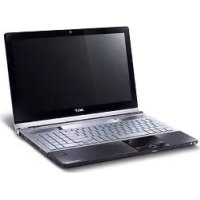
Aspire 8943G - Laptop ACER - Free user manual and instructions
Find the device manual for free Aspire 8943G ACER in PDF.
 FR
FR
 BG
BG
 CS
CS
 DA
DA
 DE
DE
 EL
EL
 EN
EN
 ES
ES
 ET
ET
 FI
FI
 HU
HU
 ID
ID
 IT
IT
 JA
JA
 KO
KO
 LT
LT
 LV
LV
 NL
NL
 NO
NO
 PL
PL
 PT
PT
 RO
RO
 RU
RU
 SK
SK
 SL
SL
 SV
SV
 TR
TR
 ZH
ZH
| Product Type | Laptop |
| Brand | Acer |
| Model | Aspire 8943G |
| Dimensions (approx.) | 440 x 295 x 45 mm |
| Weight (approx.) | 4.5 kg |
| Power Supply | 120 W AC Adapter |
| Screen | 18.4 inches, 1920x1080 resolution |
| Processor | Intel Core i7 (estimated) |
| RAM Memory | 8 GB DDR3 (estimated) |
| Hard Drive | 1 TB SATA (estimated) |
| Graphics Card | ATI Mobility Radeon HD 5850 (estimated) |
| Webcam | Acer Crystal Eye |
| Connectivity | Wi-Fi, Bluetooth, Ethernet 10/100/1000 |
| Ports | 4x USB 2.0, 1x USB/eSATA, HDMI, VGA, IEEE 1394, audio input/output, card reader |
| Optical Drive | DVD Super Multi (or Blu-ray) |
| Battery | Removable Lithium-ion |
| Security | Kensington Lock Slot |
| Operating System | Windows 7 (pre-installed) |
| Care and Cleaning | Use a soft, dry cloth. Do not use abrasive products. |
| Spare Parts and Repairability | Battery, hard drive, RAM accessible via panels. |
Frequently Asked Questions - Aspire 8943G ACER
User questions about Aspire 8943G ACER
0 question about this device. Answer the ones you know or ask your own.
Ask a new question about this device
Download the instructions for your Laptop in PDF format for free! Find your manual Aspire 8943G - ACER and take your electronic device back in hand. On this page are published all the documents necessary for the use of your device. Aspire 8943G by ACER.
USER MANUAL Aspire 8943G ACER
© 2010 All Rights Reserved.
Acer Notebook Quick Guide
Original Issue: 03/2010
Model number:
Serial number:
Date of purchase:
Place of purchase:
First things first
We would like to thank you for making an Acer notebook your choice for meeting your mobile computing needs.
Your guides
To help you use your Acer notebook, we have designed a set of guides:
First off, the Just for Starters... poster helps you get started with setting up your computer.
The Aspire Series Generic User Guide contains useful information applying to all models in the Aspire product series. It covers basic topics such as using the keyboard and audio, etc. Please understand that due to its nature, the Generic User Guide as well as the AcerSystem User Guide mentioned below will occasionally refer to functions or features which are only contained in certain models of the series, but not necessarily in the model you purchased. Such instances are marked in the text with language such as "only for certain models".
The Quick Guide introduces you to the basic features and functions of your new computer. For more on how your computer can help you to be more productive, please refer to the AcerSystem User Guide. This guide contains detailed information on such subjects as system utilities, data recovery, expansion options and troubleshooting. In addition it contains warranty information and the general regulations and safety notices for your notebook. It is available in Portable Document Format (PDF) and comes preloaded on your notebook. Follow these steps to access it:
1 Click on

Start > All Programs > AcerSystem.
2 Click on AcerSystem User Guide.

Note: Viewing the file requires Adobe Reader. If Adobe Reader is not installed on your computer, clicking on AcerSystem User Guide will run the Adobe Reader setup program first. Follow the instructions on the screen to complete the installation. For instructions on how to use Adobe Reader, access the Help and Support menu.
Your Acer notebook tour
After setting up your computer as illustrated in the Just for Starters... poster, let us show you around your new Acer notebook.
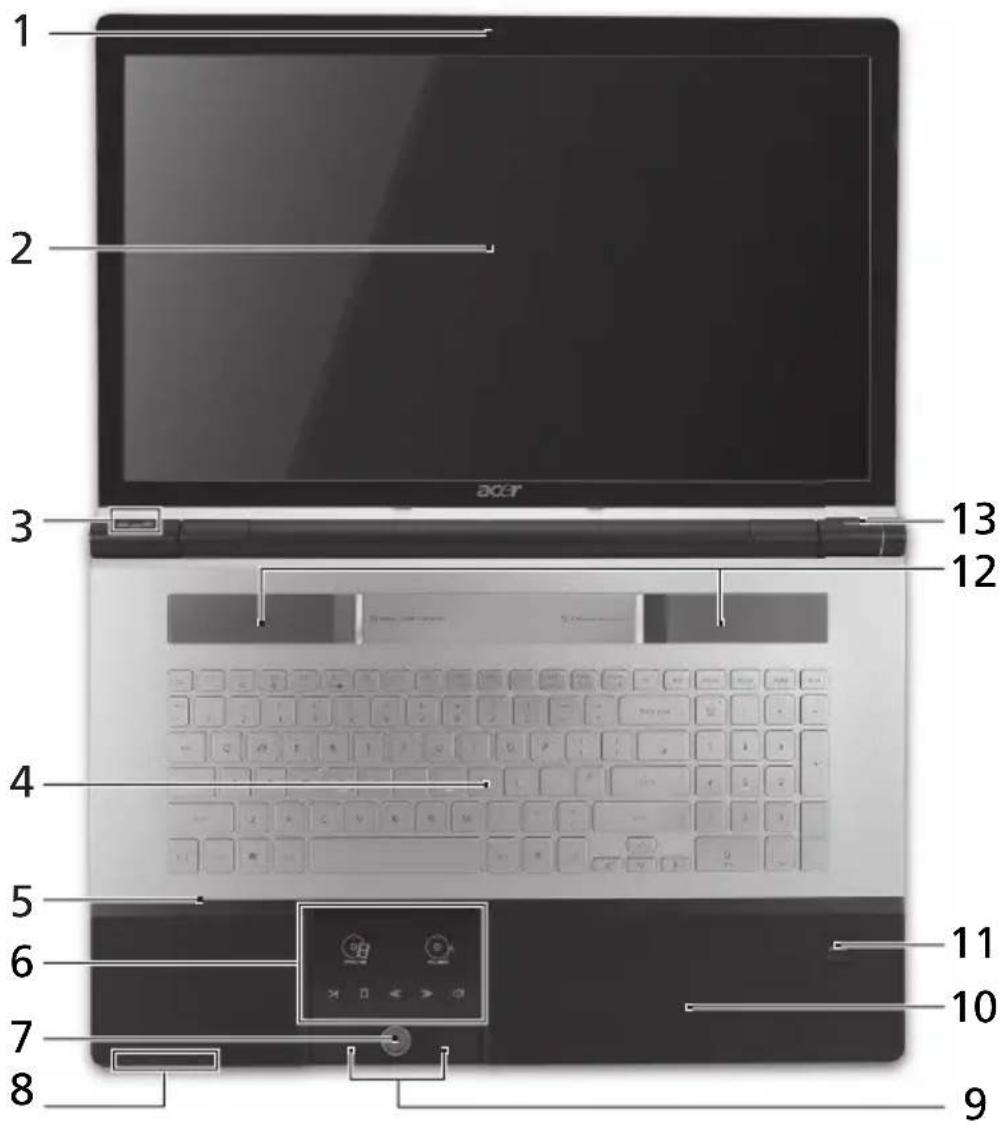
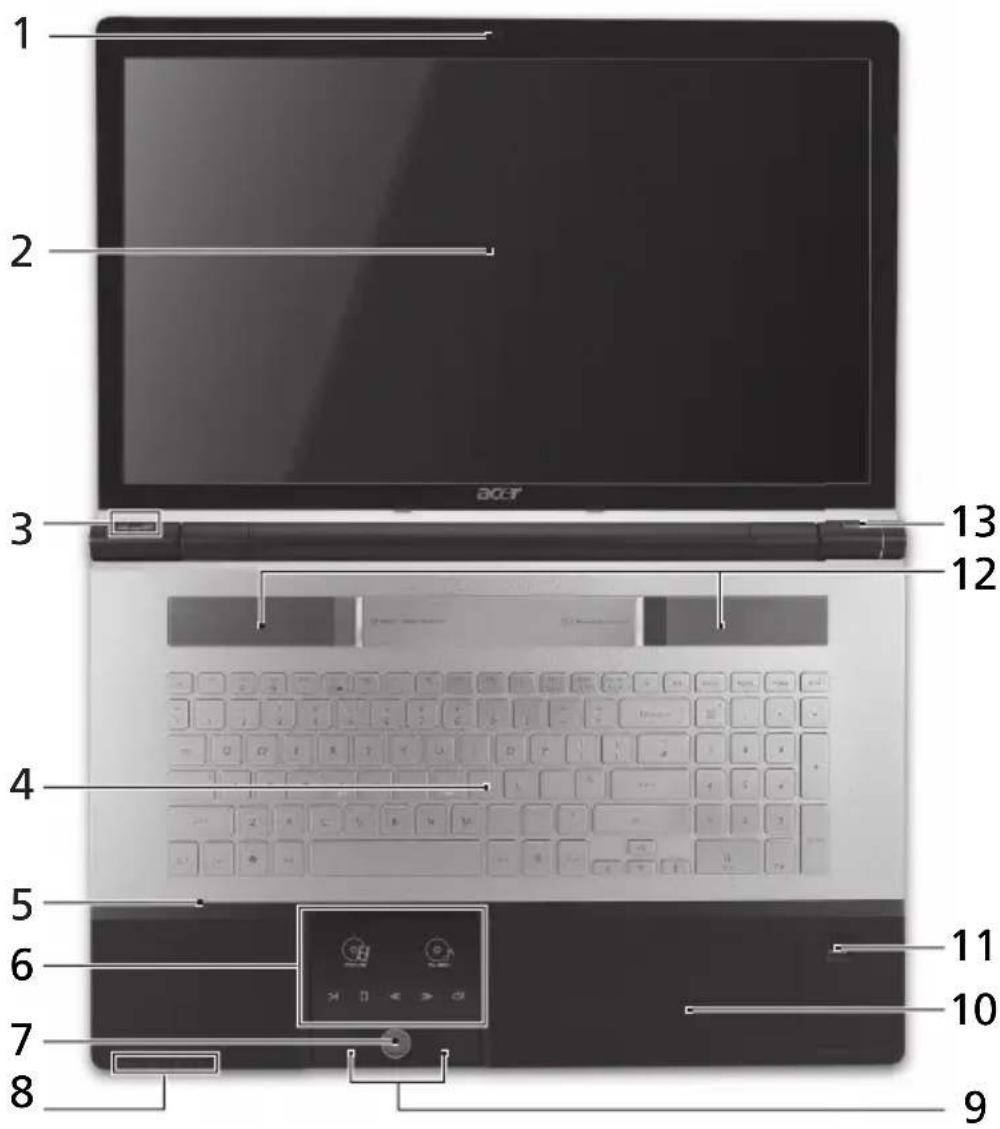
Top view
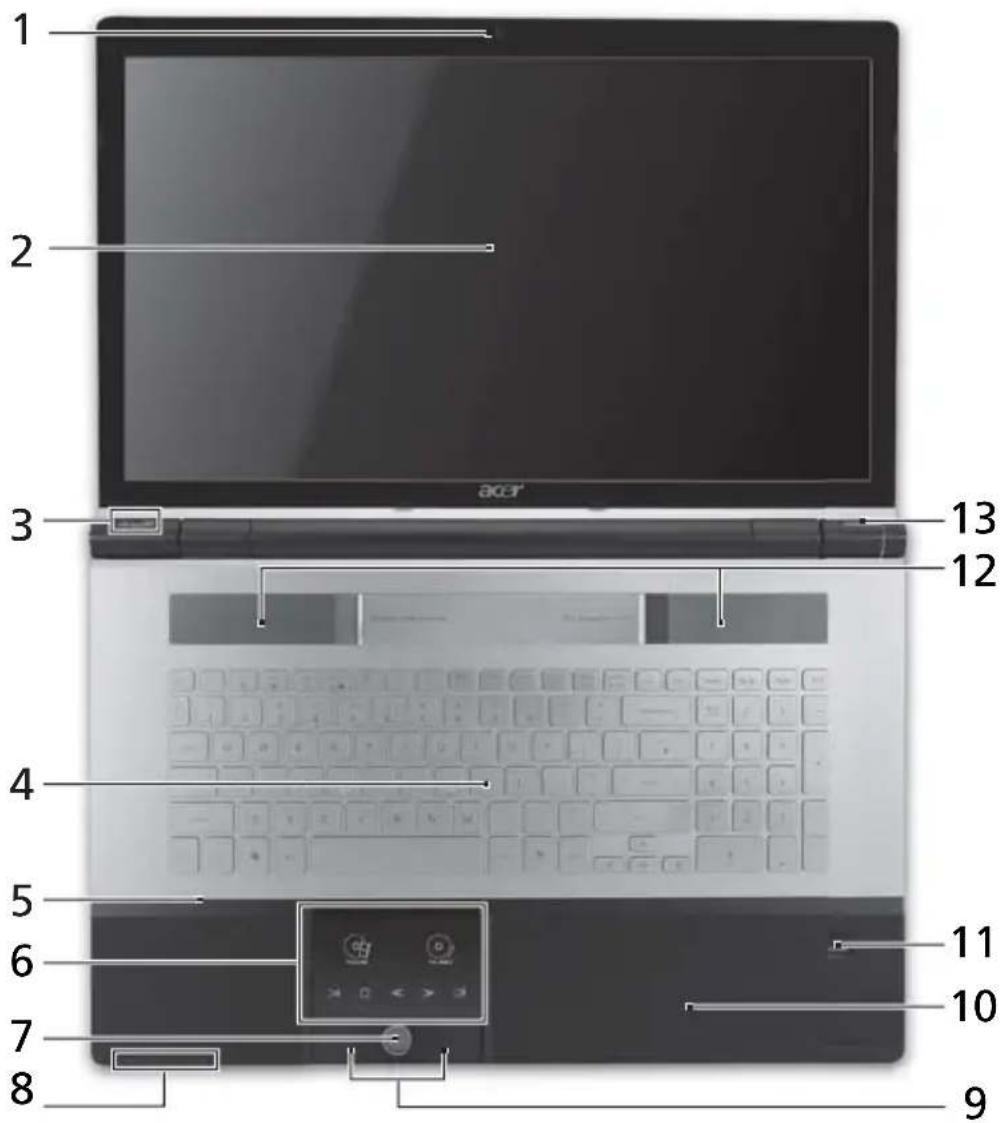
# Icon Item Description
1 Acer Crystal Eye Web camera for video communication. webcam (only for certain models)
2 Display screen Also called Liquid-Crystal Display (LCD), displays computer output (configuration may vary by models).
Icon Item Description
3 Arcade key Launches InstantOn Arcade.
P P key / Acer
PowerSmart key
Programmable key (configuration may vary by model). / Puts your computer into power-saving mode (configuration may vary by model).
4 Keyboard For entering data into your computer.
5 Microphone Internal microphone for sound recording.
6 Touchpad / Media Console Touch-sensitive pointing device which functions like a computer mouse*. / Touch sensitive controls for Acer Arcade, volume (up/down) and media (play/pause, stop, previous, next); with mute.
Movie Launch movie playback software.
Music Launch music playback software.
Play/pause Play or pause a selected media file.
Stop Stop playing the selected media file.
Previous Return to the previous media file.
Next Jump to the next media file.
Mute Turn the volume on or off.
7 Media Console controller Turns Media Console on or off.
8 Communication key Enables/disables the computer's communication devices. (Communication devices may vary by configuration.)
Backup key Launches Acer Backup Management for three-step data backup.
HDD indicator1 Indicates when the hard disk drive is active.
Power indicator1 Indicates the computer's power status.
| # Icon Item Description | |
| 9 Click buttons (left and right) | The left and right buttons function like the left and right mouse buttons. |
| 10 Palmrest Comfortable support area for your hands when you use the computer. | |
| 11 Acer Bio- Protection fingerprint reader | Supports Acer FingerNav 4-way control function (only for certain models). |
| 12 Speakers Deliver stereo audio output. | |
| 13 Power button Turns the computer on and off. | |
- The front panel indicators are visible even when the computer cover is closed up.
Hotkeys
The computer employs hotkeys or key combinations to access most of the computer's controls like screen brightness and volume output.
To activate hotkeys, press and hold the <Fn> key before pressing the other key in the hotkey combination.
| Hotkey Icon Function Description | ||
| +Fn> + <F3> | Communication key | Enables/disables the computer's communication devices. (Communication devices may vary by configuration.) |
| <Fn> + <F4> | Sleep Puts the | computer in Sleep mode. |
| <Fn> + <F5> | Display toggle | Switches display output between the display screen, external monitor (if connected) and both. |
| <Fn> + <F6> | Screen blank | Turns the display screen backlight off to save power. Press any key to return. |
| <Fn> + <F7> | Touchpad toggle | Turns the internal touchpad on and off. |
| <Fn> + <F8> | Speaker toggle | Turns the speakers on and off. |
| <Fn> + <D> | Brightness up Increases the screen brightness. | |
| +Fn> + < | Brightness down | Decreases the screen brightness. |
| +Fn> + <Home> | Play/Pause Play or pause a selected media file. | |
| +Fn> + <Pg Up> | Stop Stop playing the selected media file. | |
| +Fn> + <Pg Dn> | Previous Return to the previous media file. | |
| +Fn> + <End> | Next Jump to the next media file. | |
Closed front view

# Icon Item Description
1 Thumbwheel Turn the volume up or down.
2

Multi-in-1 card reader Accepts Secure Digital (SD),
MultiMediaCard (MMC), Memory Stick (MS), Memory Stick PRO (MS PRO), xD-Picture Card (xD).
Note: Push to remove/install the card. Only one card can operate at any given time.
3 CIR receiver Receives signals from a remote
control.
Rear view

# Icon Item Description
1

Battery bay Houses the computer's battery pack.
Left view
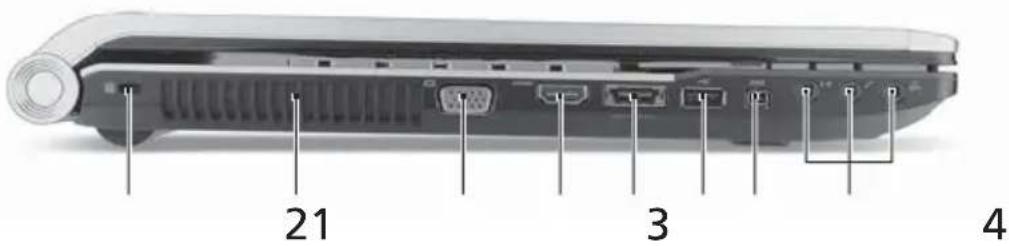
# Icon Item Description
1

Kensington lock slot Connects to a Kensington-
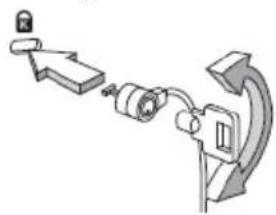
compatible computer security lock. Note: Wrap the computer security lock cable around an immovable object such as a table or handle of a locked drawer. Insert the lock into the notch and turn the key to secure the lock. Some keyless models are also available.
2 Ventilation slots Enable the computer to stay cool, even after prolonged use.
3

External display (VGA) port
Connects to a display device (e.g., external monitor, LCD projector).
4
HDMI
HDMI port
Supports high definition digital video connections.
5
/e SATA
USB 2.0/e SATA port
Connects to USB 2.0 or eSATA devices (only for certain models). Note: If you plug an eSATA device you will have three USB ports available in the meantime.
| # | Icon | Item | Description |
| 6 USB 2.0 port Connects to USB 2.0 devices (e.g.,USB mouse, USB camera). | |||
| 7 | 1394 | 4-pin IEEE 1394 port Connects to IEEE 1394 devices. | |
| 8 | (1+1) | Line-in jack Accepts audio line-in devices (e.g.,audio CD player, stereo walkman,mp3 player) | |
| Microphone-in jack Accepts inputs from external microphones. | |||
| SPDIF | Headphones/speaker/line-out jack withS/PDIF support | Connects to audio line-out devices(e.g.,speakers, headphones). | |
Right view
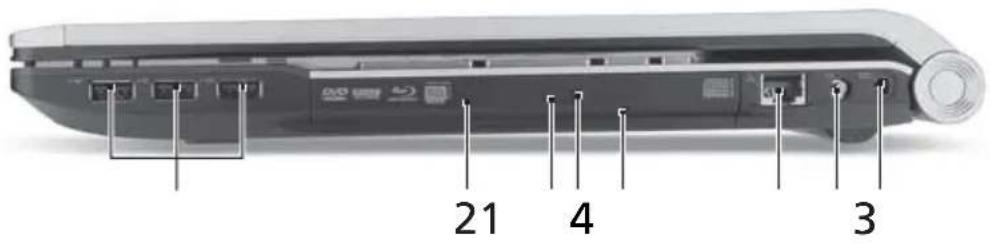
| # Icon Item Description | ||
| 1 | USB 2.0 ports Connect to USB 2.0 devices (e.g., USB mouse, USB camera). | |
| 2 | Optical drive | Internal optical drive; accepts CDs or DVDs. |
| 3 | Optical disk access indicator | Lights up when the optical drive is active. |
| 4 | Optical drive eject button | Ejects the optical disk from the drive. |
| 5 | Emergency eject hole | Ejects the optical drive tray when the computer is turned off. Note: Insert a paper clip to the emergency eject hole to eject the optical drive tray when the computer is off. |
| 6 | Ethernet (RJ-45) port | Connects to an Ethernet 10/100/1000-based network. |
| # Icon Item | Description |
| 7 | RF-in port Accepts input signals from digital TV-tuner devices.(only for certain models) |
| 8 | DC-in jack Connects to an AC adapter. |
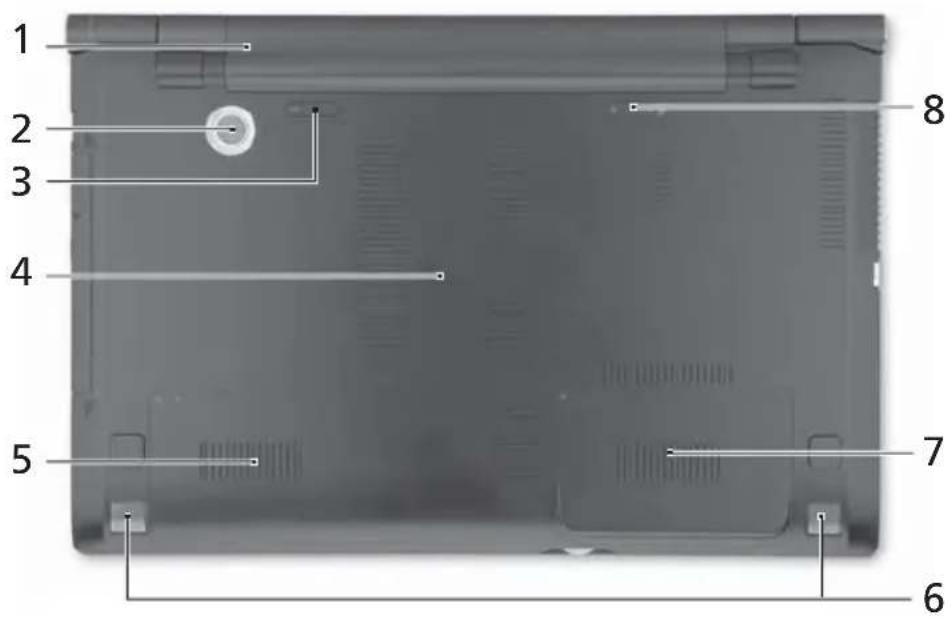
Base view
# Icon Item Description
1 Battery bay Houses the computer's battery pack.
2 Sub woofer Emits low frequency sound output.
3 Battery release latch Releases the battery for removal.
4 Memory compartment Houses the computer's main memory.
5 Hard disk bay-Main Houses the computer's hard disk (secured with screws).
6 Speakers Deliver stereo audio output.
7 Hard disk bay- Houses the computer's hard disk (secured secondary with screws) (for certain models only).
8 Battery lock Locks the battery in position.
Environment
-
Temperature:
-
Operating: 5^ C to 35^ C
Non-operating: -20 °C to 65 °C -
Humidity (non-condensing):
-
Operating: 20% to 80% .
Non-operating: 20% to 80%
Notebook Acer
Guide rapide
4 Compartiment mémoire
© 2010 Bce npaba coxpanHebl.
KpaTkoe pyKOBOCTBO noJIb3OBaTeNHOyT6yKa Acer
Mbl pa3pa6oTaII pI dy pyKOBoIDCTB, KOToPbIe NOMOryT Bam B IcNoIb3OBaHIn HoYToByka Acer:
Ipejde Bcero, nkaT Ina HauHaoux... nomOKeT Bam no3HaKOMtbcra C TeM, KaK HaCTpaNBaTb KOMNbIOTeP.
Tunoboe pykoBODCTBO nonb3oBaTeJn Dnep Cepnn Aspire cOepKNT noJe3Hyu HΦopMaIIO, npimehmmyo KOBCEM moeIaM cepnn Aspire. B hem OINcBiBAOTcR OCHOBHbIE TeMbI, TaKne KaKa pa6ota CKnabNaTpyoN, 3BykOM n T.D. PoXaNyIcTa, IMeHTe B BVdy, YTO Tunoboe pykoBODCTBO nonb3oBaTeJn UyomrHyToe HIXe AcerSystem User Guide ABJIOTcO6o6UeHHbIMN, PO3tOMy B HxN INOrda 6yDyT ONscBiBaTbcra fYHKUIN IIN CBOIcTBa, peAIn3OBaHHbIe He B KynIeHHoB BamM MOeIN, a JINsB B ONpeDeJIeHHbIX MoeJnx 3ToI cepnn. B TaKNX Cnyaax B TeKCTe IMeETc Nometka "TOnbKO dIg ONpeDeJIeHHbIX MoeJIeN".
KpaTkoe pyKOBOCTBO BnDE 3HaKOMIT Bac C OCHOBbIMN XapaKTepnCTNKAMN IN yHKUIMN BAWeO HOBORO KOMNbIOTepa. YTo6bl y3HaTB 6oJIbwe O TOM, KaK NOBbICNTb IPOyKTINBHOCTb BAWeJ pa60tBI C NOMOUsIO KOMNbIOTepa, Bbl MOKeTe O6paTntbcr K AcerSystem User Guide. 3TO pyKOBOCTBO COePxNT NOpO6HyO INΦopMaunO CnCTemHbIX ΦyHKUnx, BOCCTAHOBJIeHN DaHHbIX, BO3MOXHOCTRX pauchpeHnY uCTpaHEnn HncnPabHocTeE. KpOME TOrO, OHO COePxNT rapaHTnHyO INΦopMaunO, a TaKxe Obuine npedncaHnY n ppAwnla 6e3OpacHOCTn Pn pa60te C BAUnM HoTy6yKom. PyKOBOCTBO NoCTabnEETcR BMeCe C KOMNbIOTepom, ppeDbapntelbHo 3arpyKeHHeB H Hero BΦopMaTe PDF. YTo6bl O6paTntbcr K HeMy, Bam HaDo CDeNaT b CneDyIoUee:
1 LJIKNHNTe KHOIky

> Bce nporpaMMbl > AcerSystem.
2 ΜεηκηνιTe AcerSystem User Guide.

IpimueaHne: IJn npocmotp faaHa Heo6xOIMO yCTaHOBtB nporpaMMy Adobe Acrobat Reader. Ecn nporpamma Adobe Acrobat Reader He ycTaHOBHeHa Ha BaWeM KOMbItepe, UeJyOK MblbIO no AcerSystem User Guide 3anycHTcnpBa yCTaHOBky nporpambl Acrobat Reader. CneDyTe HNCTpyKzIaM Ha ekpaHe, YTObI 3aBepuHTb pOceCC yCTaHOBKn. 3a INHCTpyKzIaMn O ToM, KaK nonb3OBaTbCn nporpamMo Adobe Acrobat Reader, o6paTNTecb K MeHc CnpabKa n noDaePkka.
3HaKOMCTBO C HoyT6ykom Acer
Tenepb, KOrda BbI BbINOHNHn HAcToPouKn, KaK NOKa3aHO Ha NlaKaTe
IЯ noB3OBateNei-HOBuYKOB..., DaBaIte No6JInxKe No3HaKOMMmCc BaUIM HOBbIM HoyToykom Acer.
BnD cBepxu
3HaOK 3JemeHT OnncanHe
BnCpeDn C 3aKpbIToi KpbIiKoI

3HaOK 3JeMeHT OnncaHne
3HaOK 3nemHT Onncahne
© 2010 All Rights Reserved.
Acer ネーつク イルクガイド
初版:2010年3月
M宁儿番号:
- 1
購入日:
購入場所:
はじてに
© 2010 All Rights Reserved.
Acer 五三
崔承博发行日:03/2010
M
1
| # 歙이본 | Hangok | 선명 | |
| 10 | 수복曝光棚내 | 버류터를正常使用时候만에. . | |
| 11 Acer Bio- | Protection 지운 기재기 | Acer FingerNav 4방울재 . (典型案例 .) | |
| 12 | 스ipur터 | 스테래오 오다오. . | |
| 13 | ○ | 선원 단후 | 버류터를 拷고 拷 �. |
- 1.
邯羅の기름
BnBnBnBnBnBnAcer 2000
nannnnnnaaennnnnnaanennnnnnae annnnnne nnnnne nnnnne nnnnne nnnnne nnnnne nnnnne nnnnne nnnnne nnnnne nnnnne nnnnne nnnnne nnnnne nnnnne nnnnne nnnnne nnnnne nnnnne nnnnne nnnnne nnnnne nnnnne nnnnne nnnnne nnnnne
JNJN 7HJH
| # | ### | ### | ### |
| 1 | Acer Crystal Eye | Acer Crystal Eye | Liquid-Liquid Display (LCD) |
| 2 | ### | ### | Liquid-Liquid Display (LCD) |
| 3 | P | Arcade | InstantOn Arcade |
| P | P/A/Cer PowerSmart | Liquid-Liquid Display (LCD) | |
| 4 | ### | ### | Liquid-Liquid Display (LCD) |
| 5 | ### | ### | Liquid-Liquid Display (LCD) |
| 6 | ### | ### | Liquid-Liquid Display (LCD) |
| ### | ### | Liquid-Liquid Display (LCD) | |
| ### | ### | Liquid-Liquid Display (LCD) | |
| ### | ### | Liquid-Liquid Display (LCD) | |
| ### | ### | Liquid-Liquid Display (LCD) | |
| ### | ### | Liquid-Liquid Display (LCD) | |
| ### | ### | Liquid-Liquid Display (LCD) | |
| ### | ### | Liquid-Liquid Display( |
| # | ### | ### | ### |
| 8 | ### | ### | ### |
| ### | ### | ### | |
| ### | ### | ### | |
| ### | ### | ### | |
| ### | ### | ### | |
| ### | ### | ### | |
| ### | ### | ### | |
| ### | ### | ### | |
| ### | ### | ### | |
| ### | ### | ### | |
| ### | ### | ### | |
| ### | ### | ### | |
| ### | ### | ### | |
| 10 | ### | ### | ### |
| 11 | ### | ### | ### |
| Acer Bio-Protection | Acer | Acer | |
1.

H
Waiuuiyuyuoyuynnau
| ### | ### | ### | ### |
| <Fn> + <F3> | ### | ### | |
| <Fn> + <F4> | Z² | ### | ### |
| <Fn> + <F5> | ### | ### | |
| <Fn> + <F6> | ### | ### | |
| <Fn> + <F7> | ### | ### | |
| <Fn> + <F8> | ### | ### | |
| <Fn> + <F9> | ### | ### | |
| <Fn> + <F10> | ### | ### | |
| <Fn> + <F11> | ### | ### | |
| <Fn> + <F12> | ### | ### | |
| <Fn> + <F13> | ### | ### | |
| <Fn> + <F14> | ### | ### | |
| <Fn> + <F15> | ### | ### | |
| <Fn> + <F16> | ### | ### | |
| <Fn> + <F17> | ### | ### | |
| <Fn> + <F18> | ### | ### | |
| <Fn> + <F19> | ### | ### | |
| <Fn> + <F20> | ### | ### | |
| <Fn> + <F21> | ### | ### | |
| <Fn> + <F22> | ### | ### | |
| <Fn> + <F23> | ### | ### | |
| <Fn> + <F24> | ### | ### | |
| <Fn> + <F25> | ### | ### | |
| <Fn> + <F26> | ### | ### | |
| <Fn> + <F27> | ### | ### | |
| <Fn> + <F28> | ### | ### | |
| <Fn> + <F29> | ### | ### | |
| <Fn> + <F30> | ### | ### | |
| <Fn> + <F31> | ### | ### | |
| <Fn> + <F32> | ### | ### | |
| <Fn> + <F33> | ### | ### | |
| <Fn> + <F34> | ### | ### | |
| <Fn> + <F35> | ### | ### | |
| <Fn> + <F36> | ### | ### | |
| <Fn> + <F37> | ### | ### | |
| <Fn> + <F38> | ### | ### | |
| <Fn> + <F39> | ### | ### | |
| <Fn> + <F40> | ### | ### | |
| <Fn> + <F41> | ### | ### | |
| <Fn> + <F42> | ### | ### | |
| <Fn> + <F43> | ### | ### | |
| <Fn> + <F44> | ### | ### | |
| <Fn> + <F45> | ### | ### | |
| <Fn> + <F46> | ### | ### | |
| <Fn> + <F47> | ### | ### | |
| <Fn> + <F48> | ### | ### | |
| <Fn> + <F49> | ### | ### | |
| <Fn> + <F50> | ### | ### | |
| <Fn> + <F51> | ### | ### | |
| <Fn> + <F52> | ### | ### | |
| <Fn> + <F53> | ### | ### | |
| <Fn> + <F54> | ### | ### | |
| <Fn> + <F55> | ### | ### | |
| <Fn> + <F56> | ### | ### | |
| <Fn> + <F57> | ### | ### | |
| <Fn> + <F58> | ### | ### | |
| <Fn> + <F59> | ### | ### | |
| <Fn> + <F60> | ### | ### | |
| <Fn> + <F61> | ### | ### | |
| <Fn> + <F62> | ### | ### | |
| <Fn> + <F63> | ### | ### | |
| <Fn> + <F64> | ### | ### | |
| <Fn> + <F65> | ### | ### | |
| <Fn> + <F66> | ### | ### | |
| <Fn> + <F67> | ### | ### | |
| <Fn> + <F68> | ### | ### | |
| <Fn> + <F69> | ### | ### | |
| <Fn> + <F70> | ### | ### | |
| <Fn> + <F71> | ### | ### | |
| <Fn> + <F72> | ### | ### | |
| <Fn> + <F73> | ### | ### | |
| <Fn> + <F74> | ### | ### | |
| <Fn> + <F75> | ### | ### | |
| <Fn> + <F76> | ### | ### | |
| <Fn> + <F77> | ### | ### | |
| <Fn> + <F78> | ### | ### | |
| <Fn> + <F79> | ### | ### | |
| <Fn> + <F80> | ### | ### | |
| <Fn> + <F81> | ### | ### | |
| <Fn> + <F82> | ### | ### | |
| <Fn> + <F83> | ### | ### | |
| <Fn> + <F84> | ### | ### | |
| <Fn> + <F85> | ### | ### | |
| <Fn> + <F86> | ### | ### | |
| <Fn> + <F87> | ### | ### | |
| <Fn> + <F88> | ### | ### | |
| <Fn> + <F89> | ### | ### | |
| <Fn> + <F90> | ### | ### | |
| <Fn> + <F91> | ### | ### | |
| <Fn> + <F92> | ### | ### | |
| <Fn> + <F93> | ### | ### | |
| <Fn> + <F94> | ### | ### | |
| <Fn> + <F95> | ### | ### | |
| <Fn> + <F96> | ### | ### | |
| <Fn> + <F97> | ### | ### | |
| <Fn> + <F98> | ### | ### | |
| <Fn> + <F99> | ### | ### | |
| <Fn> + <F100> | ### | ### |
Jnnnnnaaannn

| # | lanan | lanan | lanan |
| 1 | knip | knip | |
| 2 | SD MULTIMEDIA PRO xD | knip knip knip knip knip knip knip knip knip knip knip knip knip knip knip knip knip knip knip knip knip knip knip knip knip knip knip knip knip knip knip knip knip knip KNIP KNIP KNIP KNIP KNIP KNIP KNIP KNIP KNIP KNIP KNIP KNIP KNIP KNIP KNIP KNIP KNIP KNIP KNIP KNIP KNIP KNIP KNIP KNIP KNIP KNIP KNIP KNIP KNIP KNIP KNIP KNIP KNIP KNIP | knip knip knip knip knip knip knip knip knip knip knip knip knip knip knip knip knip knip knip knip knip knip knip knip knip knip knip knip knip knip knip knip knip |
| 3 | knip knip knip knip knip knip knip knip knip knip knip knip knip knip knip knip knip knip knip knip knip knip knip knip knip knip knip knip knip knip knip knip knip | knip knip knip knip knip knip knip knip knip knip knip knip knip knip knip knip knip knip knip knip knip knip knip knip knip knip knip knip knip knip knip knip knip |
JNJNQJINHNN

yibzmyh:20% 80%
20% 80%
Brand : ACER
Model : Aspire 8943G
Category : Laptop