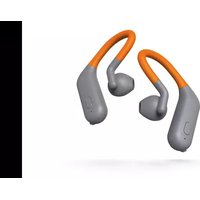
WEAR8500BT - Headphones THOMSON - Free user manual and instructions
Find the device manual for free WEAR8500BT THOMSON in PDF.



| Product Type | True Wireless Headphones (wireless earbuds) |
| Brand | Thomson |
| Model | WEAR8500BT |
| Color | Black (unspecified, estimated) |
| Bluetooth Technology | Bluetooth v5.0 |
| Supported Bluetooth Profiles | A2DP V1.3, AVRCP V1.6, HFP V1.7, HSP V1.2, SPP V1.2, PBAP V1.0 |
| Bluetooth Range | Up to 10 meters |
| Battery Type | Li-Polymer 3.7V |
| Battery Capacity | 68 mAh (per earbud) |
| Charging Time | Approximately 1.5 hours |
| Music Playback Time | Approximately 6.5 hours |
| Standby Time | Approximately 265 days |
| Talk Time | Approximately 6.5 hours (estimated) |
| Control Buttons | Multifunction button on each earbud |
| Key Functions | Play/Pause, hands-free call, voice assistant (Siri/Google), voice volume control, track change |
| Power Supply | USB-C port (via included 2-in-1 USB cable) |
| LED Indicator | Charging and connection status |
| Included Accessories | 2-in-1 USB charging cable, user manual |
| Cleaning and Maintenance | Clean with a slightly damp, lint-free cloth; avoid harsh detergents and moisture entering the device |
| Safety | Do not use while driving; risk of hearing loss; do not expose to moisture or extreme temperatures; non-removable battery |
| Spare parts / Repairability | No spare parts available; built-in battery not replaceable; contact Hama customer service |
| Warranty | Legal warranty of conformity (2 years) |
| General Information | Non-commercial household use; EU compliance; recycling according to local regulations |
Frequently Asked Questions - WEAR8500BT THOMSON
User questions about WEAR8500BT THOMSON
0 question about this device. Answer the ones you know or ask your own.
Ask a new question about this device
Download the instructions for your Headphones in PDF format for free! Find your manual WEAR8500BT - THOMSON and take your electronic device back in hand. On this page are published all the documents necessary for the use of your device. WEAR8500BT by THOMSON.
USER MANUAL WEAR8500BT THOMSON
TrueWirelessSport Headphones
The Bluetooth ^® word mark and logos are registered trademarks owned by Bluetooth SIG, Inc. and any use of such marks by Hama GmbH & Co KG is under license. Other trademarks and trade names are those of their respective owners.
Thomson is a trademark of Technicolor (S.A.) or its affiliates used under license by HAMA GmbH & Co KG in 86652 Monheim / Germany
www.thomson-av-accessories.eu

WEAR8500BT / 00132648
GB OperatingInstructions2
F Moded'emploi9
D Bedienungsanleitung16
E Instruccionesdeuso24
I Istruzioniperl'uso31
P Manualdeinstruções38
RUS Руководствопоэксплуатации45
NL Gebruiksaanwijzing52
PL Instrukcja obsługi 59
H Használatiútmutató66
GR Οδηγίεςχρήσης73
CZ Návodk p oužití80
SK Návodnapoužitie87
TR Kullanmakılavuzu94
S Bruksanvisning 101
FIN Käyttöohje 108
RO Manualdeutilizare 115
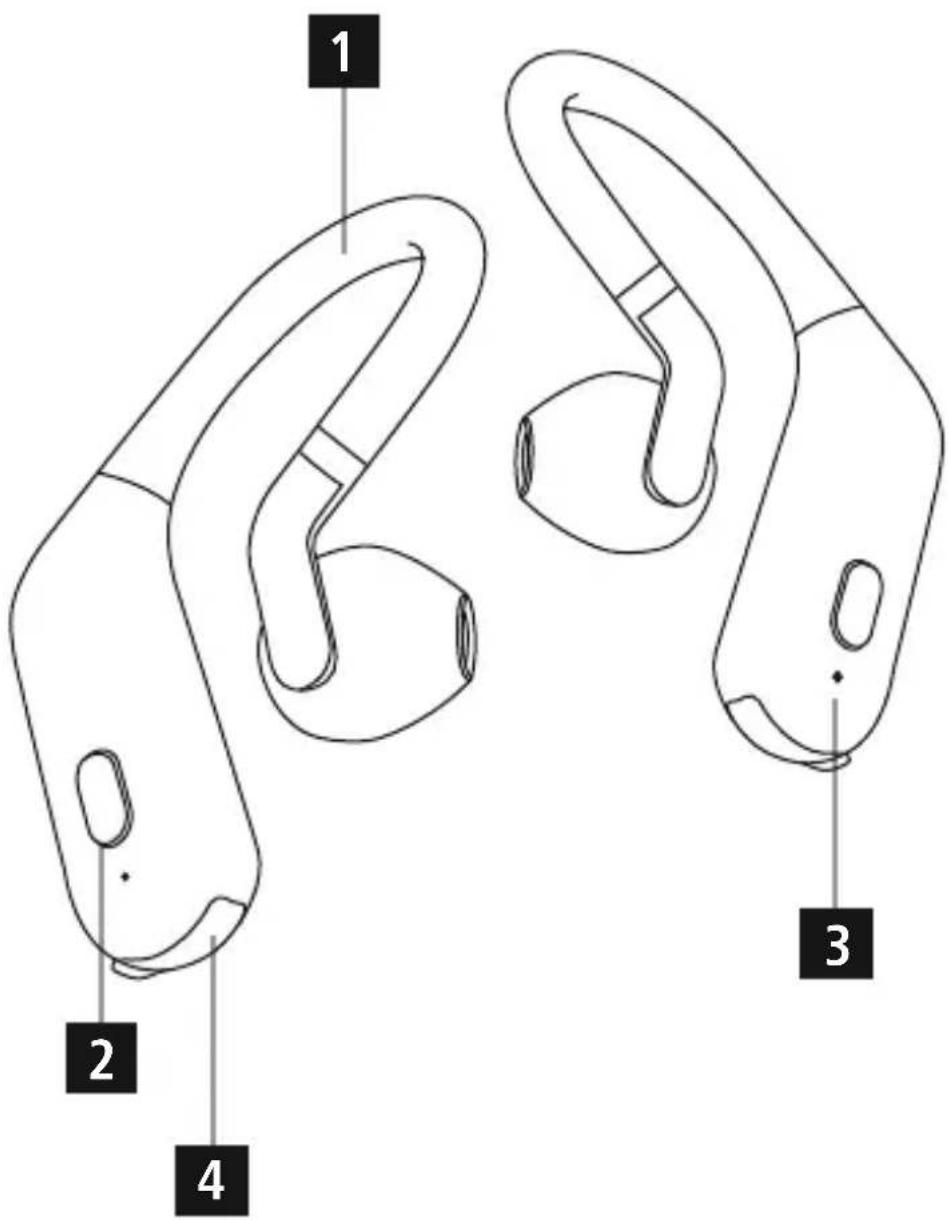
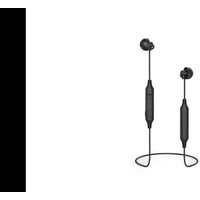
ControlsandDisplays
- Flexibleearhooks
- Multifunctionbutton
- StatusLED
- ChargingSocket
Thankyouforchoosinga Thomsonproduct.
Take your time and read the following instructions and information completely. Please keep these instructions in a safe place for future reference. If you sell the device, please pass these operating instructions onto thenewowner.
1. ExplanationofWarningSymbolsandNotes
Warning
This symbol is used to indicate safety instructions to draw your attention to specific hazards and risks.

Note
This symbol is used to indicate additional information or important notes.

2.PackageContents
- 1 x W EAR8500BTtruewireless Bluetooth® stereoearphones
• 1 x 2-in-1 USB charging cable
• Theseoperatinginstructions
3. SafetyNotes
• The product is intended for private, non-commercial use only.
- Protect the product from dirt, moisture and overheating, and only use it in a dry environment.
- Do not allow yourself to be distracted by the product, for example when driving a vehicle or operating sports equipment. Always pay attention to the surrounding traffic and your environment.
- Donotdropheproductanddonotexposeittoanymajorshocks.
- Do not operate the product outside the power limits given in the specifications.
- Donotopenthedeviceorcontinuetooperateitifitbecomesdamaged.
- Sincethebatteryisintegratedandcannotberemoved,youwillneedtodisposeofthe productasa w hole.Dothisincompliancewiththelegalrequirements.
- Disposeofpackagingmaterialimmediatelyaccordingtolocallyapplicableregulation.
- Do not modify the product in any way. Doing so voids the warranty.
- Do not attempt to service or repair the product yourself. Leave any and all service work to qualifiedexperts.
- Donottamperwithordamage/heat/disassemblethebatteries/rechargeablebatteries.
- Do not throw the battery or the product into fire.
- Usetheproductforitsintendedpurposeonly.
- Usetheitemonlyinmoderateclimaticconditions.
Warning— H ighvolumes
• Highsoundpressure level!
• There is a riskofhearingdamage.
• To prevent hearing loss, avoid listening at high volume levels for long periods.
- Always keep the volume at a reasonable level. Loud volumes, even over short periods, can cause hearing loss.
- Using this product limits your perception of ambient noise. For this reason, donotoperateanyvehiclesormachineswhileusingthisproduct.


Warning-Battery
- Only uses suitable charging devices or USB connections for charging.
- As a rule, donotchar gedevice or USB connection that are effective and donottry to repair them yourself.
- Donotover chargethepr oductorallowthebatterytocompletelydischarge.
- Avoid storing, charging or using the device in extreme temperatures and extremely low atmospheric pressure (forexample, athighaltitudes).
- When stored over a long period of time, batteries should be charged regularly (at least every three months).
4. Getting Started
- The earphones are equipped with rechargeable batteries. The batteries must be fully charged before using the product for the first time.
- Ensure that the earphones are switched off before charging them.
- Begin charging by connecting the included USB charging cable to the charging terminals (4), and to the USB connection of a PC/laptop or a suitable power supply unit.
- The status LEDs (3) are constantly lit red during charging.
- Itcantakeupto1.5hourstofullychargethebattery.
Warning
Donotusetheheadsetwhileitischarging.
- When the battery is fully charged, the status LEDs (3) are lit blue.
- Disconnectallcableandmainsconnectionsafteruse.

Note
If you have not used the device in several months, it may take 15 to 30 minutes of charging before the status LEDs (3) light up red.

5.Operation
Switchingtheearphoneson/off
- TurnOn:
With the device off, press and hold both Multifunction buttons (2) at the same time for 3 seconds until a voice says, 'Power on'. The LED indicators (3) flash blue three times.
- TurnOff:
With the device on, press and hold one of the two Multifunction buttons (2) for 3 seconds until a voice says, 'Power off'. The LED indicators (3) briefly light up red.
The first time the device is turned on, pairing is automatically started — see 5.1 Bluetooth® pairing.
5.1. Bluetooth ^® pairing
Note-Pairing

- Makesure that your Bluetooth®-capableterminaldeviceison and Bluetooth® is activated.
- For more information, please refer to the operating instructions of your terminal device.
- The earphones and the terminal device should be no further than 1 metre apart. The shorter the distance, the better.
• Make sure that the earphones are switched off.
- Device off: Press and hold both Multifunction buttons (2) at the same time for about 3 seconds until a voice says, 'Power on'. After that, the two earphones connect automatically to one another and a voice says, 'Connected – Right/left channel'. Then a voice says, 'Pairing' and one of the status LEDs (3) emits flashes of alternating red and bluelight. The earphones are searching fora Bluetooth® connection.
- Openthe Bluetooth® settingsonyourterminaldeviceandwaituntil WEAR8500BTappearsinthelistof Bluetooth® devicesfound.
- Select WEAR 8500 BT and wait until the earphones are listed as connected in the Bluetooth® settingsonyourterminaldevice.A v voicesays,'Connected'.
Note- Bluetooth ^® password

Some terminal devices require a password in order to connect to another Bluetooth ^® device.
- If your terminal device requests a password to establish the connection, enter 0000.
Note

- If pairing was successful, the status LEDs (3) slowly flash blue. A voice says, 'Connected'.
- You can now usethe earphones.
5.2.Automatic Bluetooth® connection(aftersuccessfulpairing)
Note

- Makesure that your Bluetooth®-capableterminaldeviceison and Bluetooth® is activated.
- For more information, please refer to the operating instructions of your terminal device.
• Make sure that the earphones are switched on.
- After the devices have been paired, a connection is established automatically. A voice says, 'Power on – Connected – Right/left channel – Connected'.
- You can now usethe earphones.
Note

- If pairing was successful, the status LEDs (3) slowly flash blue. A voice says, 'Connected'.
- It may be necessary to change the settings on your terminal device to enable it to automatically connect to the paired earphones.
Note- C onnectionimpaired

After the headset and terminal device have been paired, a connection is established automatically. If t h Bluetooth® connectionisnotestablishedautomatically, c heckthe following:
- Checkthe Bluetooth® settingsofyourterminaldevicetoseewhetherWEAR8500BTis connected.Ifnot,repeatthestepslistedunder5.1 Bluetooth® pairing.
- Check whether obstacles are impairing the range. If so, move the devices closer together.
• The performance can also be affected by a weak battery.
5.3.Hands-freefunction

Note
- Notethatsupportforcertainkeyfunctionsmayvarydependingonyourterminaldevice.
- For more information, please refer to the operating instructions of your terminal device.
You can use the earphones as a hands-free set for your mobile phone.
Making a call
- Dial the number directly on your terminal device to make a call.
Acceptingcalls
- Briefly press one of the two Multifunction buttons (2) to accept an incoming call. Alternatively, you can use your telephone to accept a call.
Rejectinganincomingcall
- To reject an incoming call, briefly press one of the two Multifunction buttons (2) twice. Alternatively, you can reject the call using your telephone.
Endinga c a l l
- During a call, briefly press one of the two Multifunction buttons (2) to end the call. Alternatively, you can end the call using your telephone.
5.4. VoiceAssistantfunction
The Voice Assistant is an integrated, interactive function that enables you to start communication with your Siri or Google Assistant at the press of a button. This function enables youtoaskquestionsandgetvariousformsofhelpfromyourvoiceassistant, even if you are n otholdingyourtelephoneinyourhands.
Belowyouwillfindsomeexamplesselectedfromthelargenumberofpossibilities.
Note-Siri

Siri is only available on suitable terminal devices with iOS 5 or higher (from iPhone 4s onwards).
Note- GoogleAssistant

- The Google Assistant is only available on suitable terminal devices with Android 5.0 or higher, Google Play Services, > 1.5 GB of free memory and a minimum screen resolution of 720P.
- The Google Assistant app must be available on your terminal device and set as the defaultvoiceassistant.
Note—Voice Assistant

This function is only available while the earphones are connected to your smartphone via Bluetooth ^® .
TostartcommunicationwithyourSiriorGoogleAssistant,proceedasfollows:
- Example1:
Press and hold one of the two Multifunction buttons (2) for 2 seconds. A brief acoustic signal sounds, followed 1 second later by a longer acoustic signal. Then speak into your earphones: 'What's the weather like today?' The voice assistant will answer as follows, for example: 'Mainlycloudywithsomeshowers'
- Example2:
Press and hold one of the two Multifunction buttons (2) for 2 seconds. A brief acoustic signal sounds, followed 1 second later by a longer acoustic signal. Then speak into your earphones: 'Whattimeisit?' The voice assistant will answer as follows, forexample: 'It is 8 p m'
- Other examples: Set an alarm for tomorrow at 7 am.
Playmusic.
What's in thenews?
5.4.1 Redial
- Press and hold one of the two Multifunction buttons (2) for 2 seconds. A brief acoustic signal sounds, followed 1 second later by a longer acoustic signal. Then say 'Redial' to call thenumberofthelastcall.
5.4.2 Volumecontrol
- Press and hold one of the two Multifunction buttons (2) for 2 seconds. A brief acoustic signal sounds, followed 1 second later by a longer acoustic signal. Then speak into your earphones: 'Increase the volume by 50% or Decrease the volume by 30% or Maximum volume'. Your voice assistant adjust the volume as requested.
• Alternatively, you can control the volume using your smartphone.
5.5.Audioplayback
- Press one of the two Multifunction buttons (2) twice to go to the next track.
- Press one of the two Multifunction buttons (2) three times to go to the previous track.
- Briefly press one of the two Multifunction buttons (2) to start or stop audio playback.
5.6.Disconnectingtheearphones
- SwitchofftheearphonesasdescribedinPoint5.
- Disconnecttheearphonesviathe Bluetooth® settingsonyourterminaldevice.
5.7.Batterylevel
- If the battery level is low (< 25%), a voice says, 'Low battery, please charge' and the message is repeated every minute; the Status LEDs (3) flash red.
- Chargetheheadsetasdescribedin4.GettingStarted.
Note

However, the talk and standby times may vary when used with different mobile phones or othercompatible Bluetooth ^® devices, usagesettings, usagestylesandenvironments.
6. Care and Maintenance
Only clean this product with a slightly damp, lint-free cloth and do not use aggressive cleaning agents. Makesure t hatwaterdoesnotgetintotheproduct.
7.WarrantyDisclaimer
Hama GmbH & Co KG assumes no liability and provides no warranty for damage resulting from improper installation/mounting, improper use of the product or from failure to observe the operating instructions and/or safety notes.
8. Service and Support
PleasecontactHamaProductConsultingifyuhaveanyquestionsaboutthisproduct.
Hotline:+499091502-0(German/English)
Furthersupportinformationcanbefoundhere:www.hama.com
9.TechnicalData
* afterfullcharge
| [wzt8] | Bluetooth® Headset |
| Bluetooth® technology | Bluetooth® v5.0 |
| Supportedprofiles | A2DPV1.3,AVRCPV1.6,HFPV1.7,HSPV1.2,SPPV1.2,PBAPV1.0 |
| Frequencyof Bluetooth® transmissions2402- 2 480MHz | |
| Range< 1 0 m | |
 | Battery |
| Batterytype3.7V Iithiumpolymer | |
| Min.Capacity68mAh | |
| Input (1 earphone / 2 earphone)Chargingtime~ 1 .5h | max. 5 V --- 70 mA / max. 5 V --- 140 mA |
| Standby* | ~ |
| Readyforuse265days | |
| MusicPlayTime* | ~ |
| Talk Time * | ~ 5.5 h |
6.5
10. Recycling Information
Noteonenvironmentalprotection:
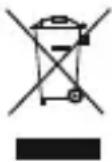
AftertheimplementationoftheEuropeanDirective2012/19/EUand2006/66/EU inthenationallegalsystem,thefollowingapplies:Electricandelectronicdevices aswellasbatteriesmustnotbedisposedofwithhouseholdwaste.Consumersare obligedbylawtoreturnelectricalandelectronicdevicesaswellasbatteriesatthe endoftheirservicelivestothepubliccollectingpointssetupforthispurposeor
point of sale. Details to this are defined by the national law of the respective country. This symbol on the product, the instruction manual or the package indicates that a product is subjecttotheseregulations.Byrecycling,reusingthematerialsorotherformsofutilisingold devices/Batteries, you are making an important contribution to protecting our environment.
11. Declaration of Conformity

Hereby, Hama GmbH & Co KG declares that the radio equipment type [00132648] is in compliance with Directive 2014/53/EU. The full text of the EU declaration of conformity is available at the following internet address:
www.hama.com->00132648->Downloads.
Frequencyband(s)2402-2 480MHz
Maximumradio-frequencypowertransmitted0.27mWE.I.R.P.
- If your terminal device requests a password to establish the connection, enter 0000.

Remarque
Remarque—V oiceAssistant

Nota-Voice Assistant

10. Pokynyk likvidaci
Hotline:+499091502-0(Alm/Ing)
Hotline:+499091502-0(ty/eng)
Duhittarmersupport-informationhär:www.hama.com
9.Tekniskadata
*efterfullladdning
Avertizare – Acumulator


- TrueWirelessSport Headphones
- ControlsandDisplays
- ExplanationofWarningSymbolsandNotes
- Warning
- Note
- 2.PackageContents
- SafetyNotes
- Warning— H ighvolumes
- Warning-Battery
- Getting Started
- 5.Operation
- Switchingtheearphoneson/off
- - TurnOn:
- - TurnOff:
- Bluetooth ® pairing
- Note-Pairing
- Note- Bluetooth ® password
- 5.2.Automatic Bluetooth® connection(aftersuccessfulpairing)
- Note- C onnectionimpaired
- 5.3.Hands-freefunction
- Making a call
- Acceptingcalls
- Rejectinganincomingcall
- Endinga c a l l
- VoiceAssistantfunction
- Note-Siri
- Note- GoogleAssistant
- Note—Voice Assistant
- - Example1:
- - Example2:
- Redial
- Volumecontrol
- 5.5.Audioplayback
- 5.6.Disconnectingtheearphones
- 5.7.Batterylevel
- Care and Maintenance
- 7.WarrantyDisclaimer
- Service and Support
- 9.TechnicalData
- Recycling Information
- Noteonenvironmentalprotection:
- Declaration of Conformity
- Remarque
- Remarque—V oiceAssistant
- Nota-Voice Assistant
- Pokynyk likvidaci
- 9.Tekniskadata
- Avertizare – Acumulator
Brand : THOMSON
Model : WEAR8500BT
Category : Headphones